KitGuru KitGuru.net – Tech News | Hardware News | Hardware Reviews | IOS | Mobile | Gaming | Graphics Cards



The USB Type C connection seems like the jack of all trades, with enough bandwidth available for a 4K screen, and enough power to drive a reasonably sized one too. But USB-C doesn't transfer enough power for a large screen, so the connection hasn't found favour with desktop monitors. Nevertheless, there are potential benefits of USB-C even here. The Philips Brilliance 328P6AUBREB is our first look at USB-C in a hefty desktop guise.
The 328P6AUBREB is a 31.5in screen, and unlike the smaller 272P7VPTKEB, only offers QHD resolution (2,560 x 1,440) rather than 4K, which is a bit of a surprise in a screen this big. However, this is still a premium IPS panel, and a bright one at that. It is rated to have 450cd/m2 of brightness and a decent 1,200:1 contrast, both of which are good for IPS.
Elsewhere, the usual characteristics of IPS are evident. The pixel response is 4ms, although this is also good for IPS, and vertical scanning maxes out at 76Hz, so this is no fast-refresh screen for first person shooters. Also, unsurprisingly, no adaptive sync technology is available, whether in AMD-friendly FreeSync or NVIDIA-friendly G-Sync form.
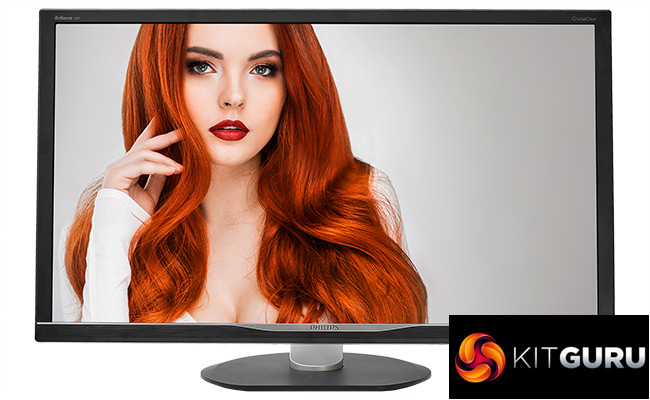
The star of the show, of course, is the USB Type C connection. We have seen a monitor using this in the past, the ASUS ZenScreen MB16AC. But the USB-C in the latter case was enabling a portable display that didn't need its own power supply, as both its power and its video signal could be supplied by the same cable. This isn't quite the same with the 328P6AUBREB, which requires 32.4W when operational, but here the USB-C provides benefits the portable ASUS screen doesn't, of which more shortly.
Alongside the USB-C, you also get HDMI 2.0 and DisplayPort 1.2, plus VGA for legacy analog connections. The one port missing is DVI, although its omission will be increasingly unimportant as this connection type disappeared from graphics cards a few generations ago. There are also a couple of USB 3.0 downstream ports, both with fast charging.
The cool thing here is that one USB-C connection can drive these and the display signal, so one cable can serve USB-connected keyboard and mouse as well as video, which is potentially really handy if you're plugging in a notebook. The 328P6AUBREB also has built-in 3W speakers plus analog minijack audio input with headphone minijack output. Since the USB-C display signal also carries audio, this one cable can provide desktop sound too. The final connection is RJ45, the function of which Philips doesn't make clear.
This screen boasts HDR support and 100 per cent sRGB alongside 99 per cent Adobe RGB, thanks to 10-bit colour processing. It's also not hideously expensive at under £400. With the USB-C functionality, this could be a very convenient option if you travel with a laptop but want a large-screen experience at your office desk with the convenenience of a single cable connection. Let's find out if the 328P6AUBREB delivers on this promise.
Specification:
Screen size: 31.5-inch, 16:9 aspect
Native resolution: 2,560 x 1,440
Refresh rate: 60Hz
Panel type: IPS
Contrast ratio: 1,200:1 (typical)
Brightness: 450cd/m2
Response time: 4ms Grey-to-Grey
Display inputs: HDMI 2.0, DisplayPort 1.2, VGA, USB-C
USB hub: Yes, 2 x USB 3.0 (with Fast Charge)
Tilt: Yes
Raise: Yes
Swivel: Yes
Other: Audio output, audio input, 3W stereo speakers
Retail Price: £391.38 (inc. VAT)
The Philips Brilliance 328P6AUBREB comes in the white box we usually see with screens from this company.

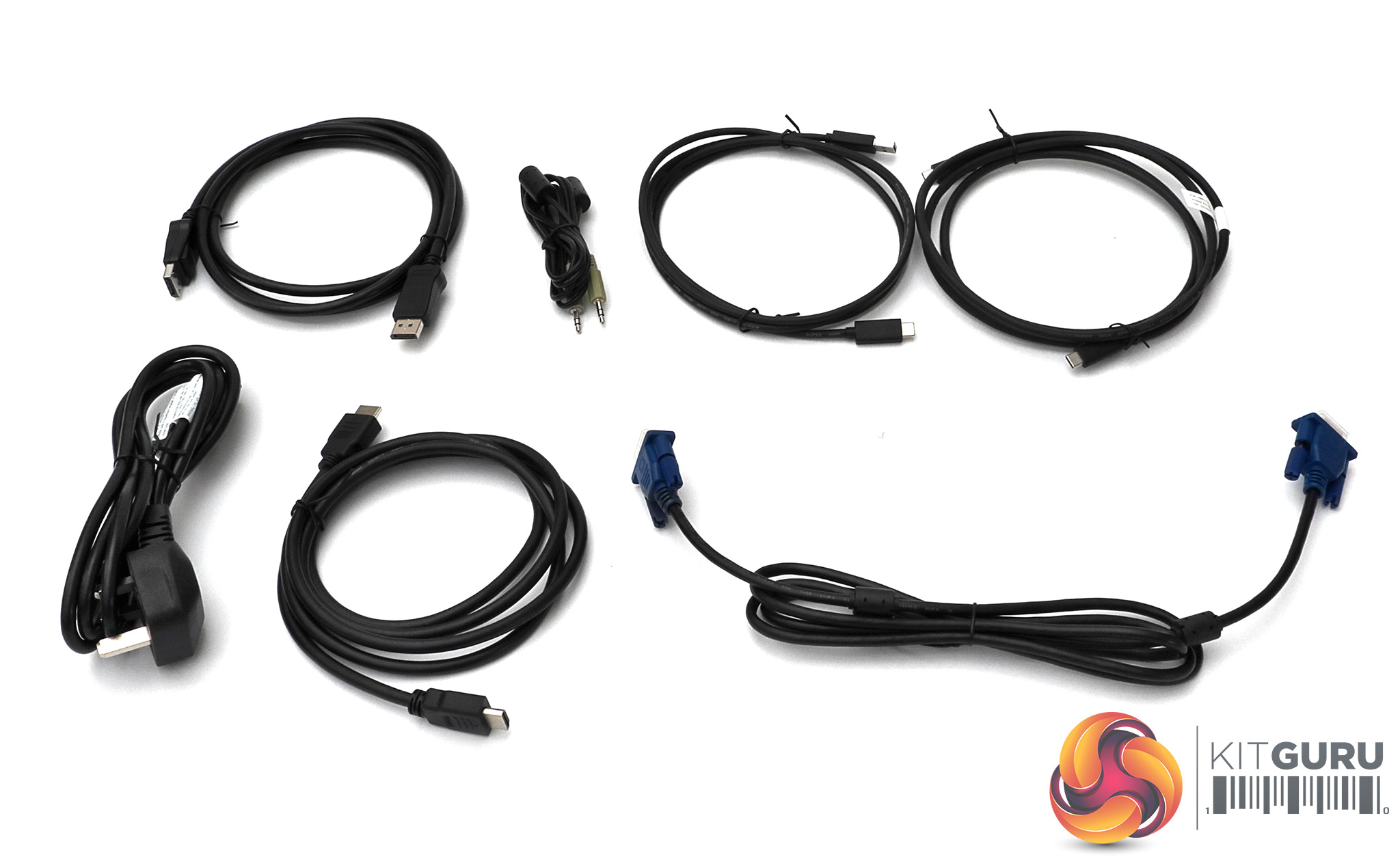
You get a full set of wiring inside. There are cables for every single type of display connectivity, including DisplayPort, HDMI, D-Sub and two different types of USB-C. One is from Type C to Type C, the other ends in Type A, should you need to use the USB hub with a computer that doesn't have a Type C connection.
There's also a minijack audio connection, and of course the obligatory power cable. The power supply is built into the screen itself.
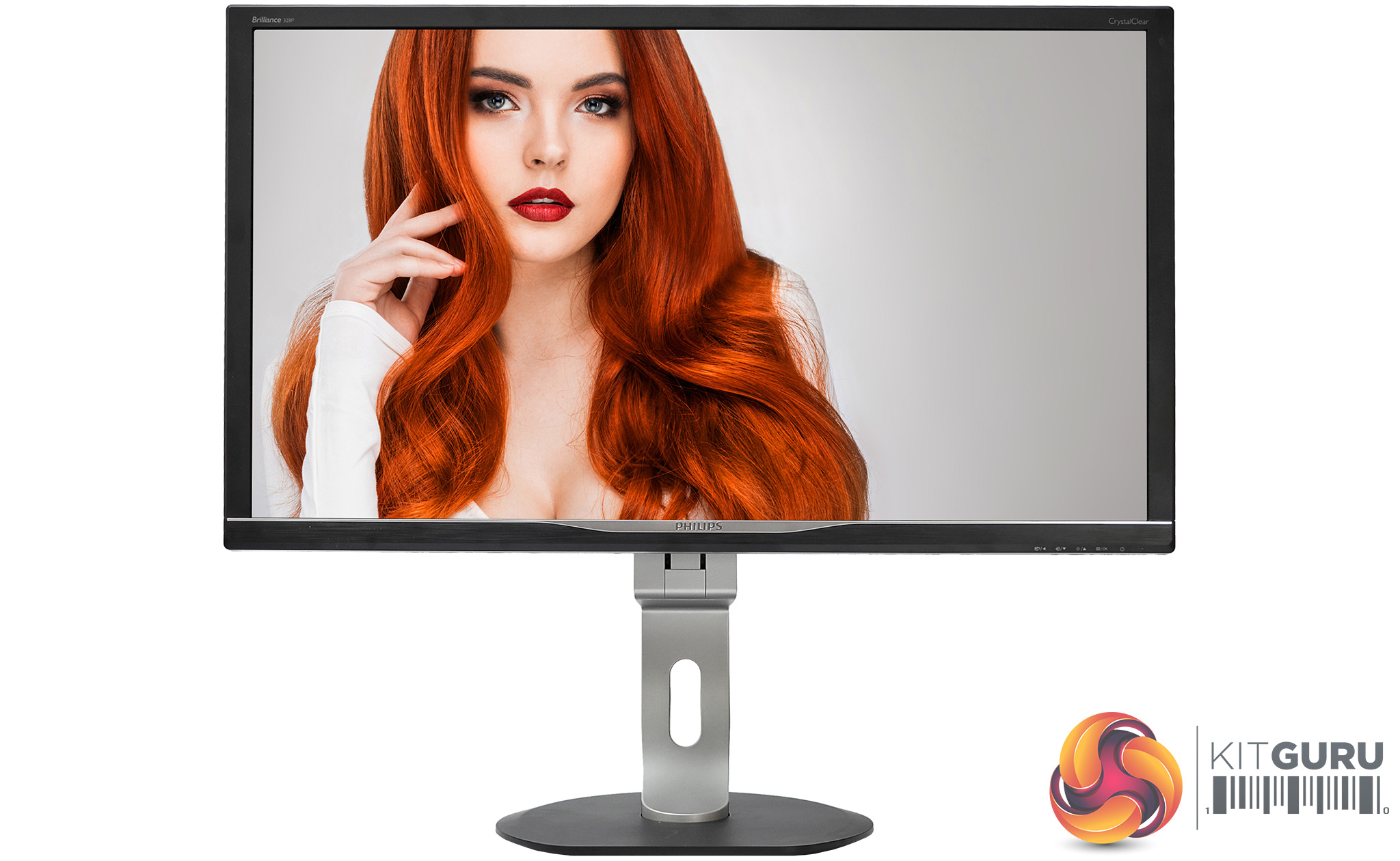
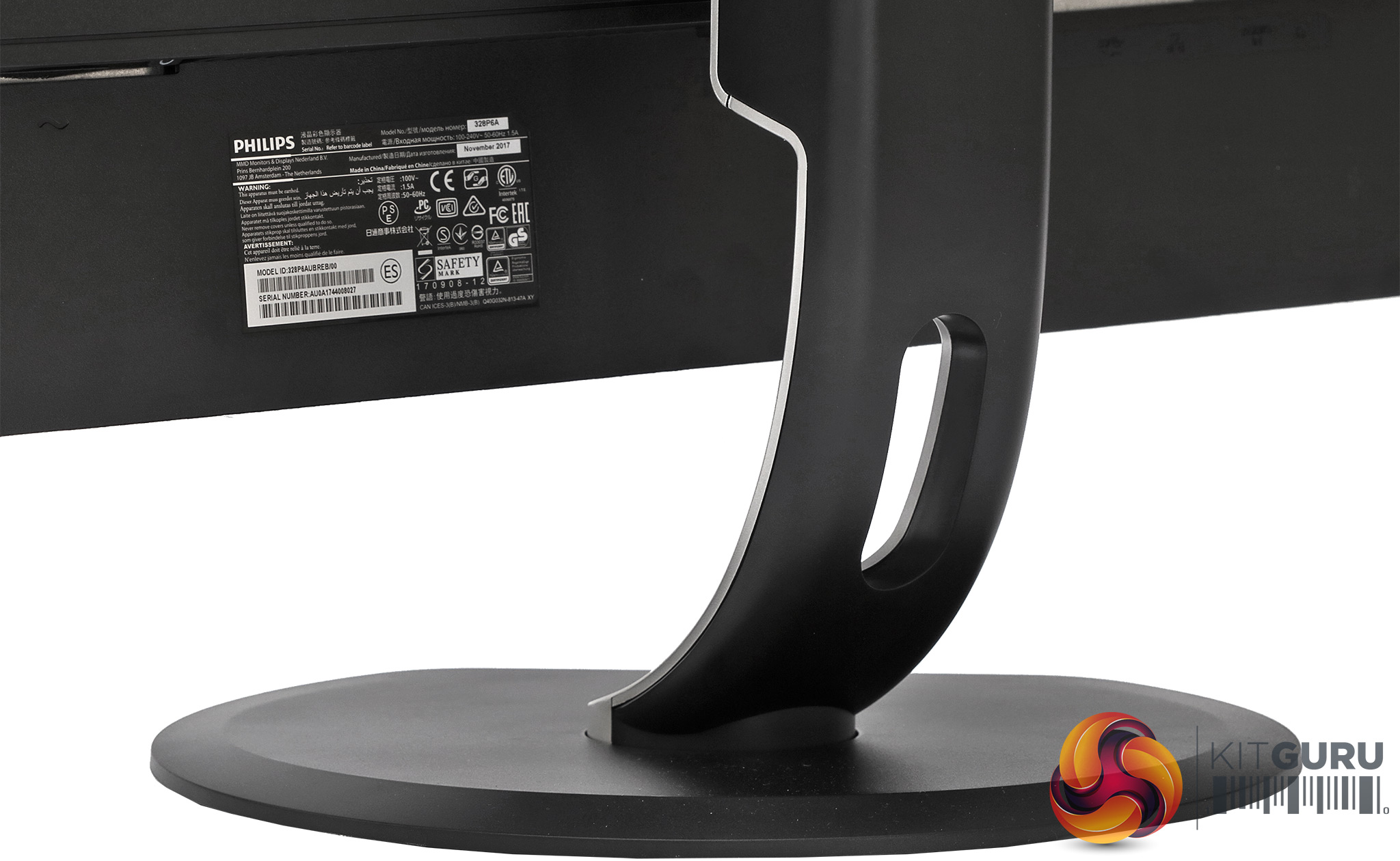

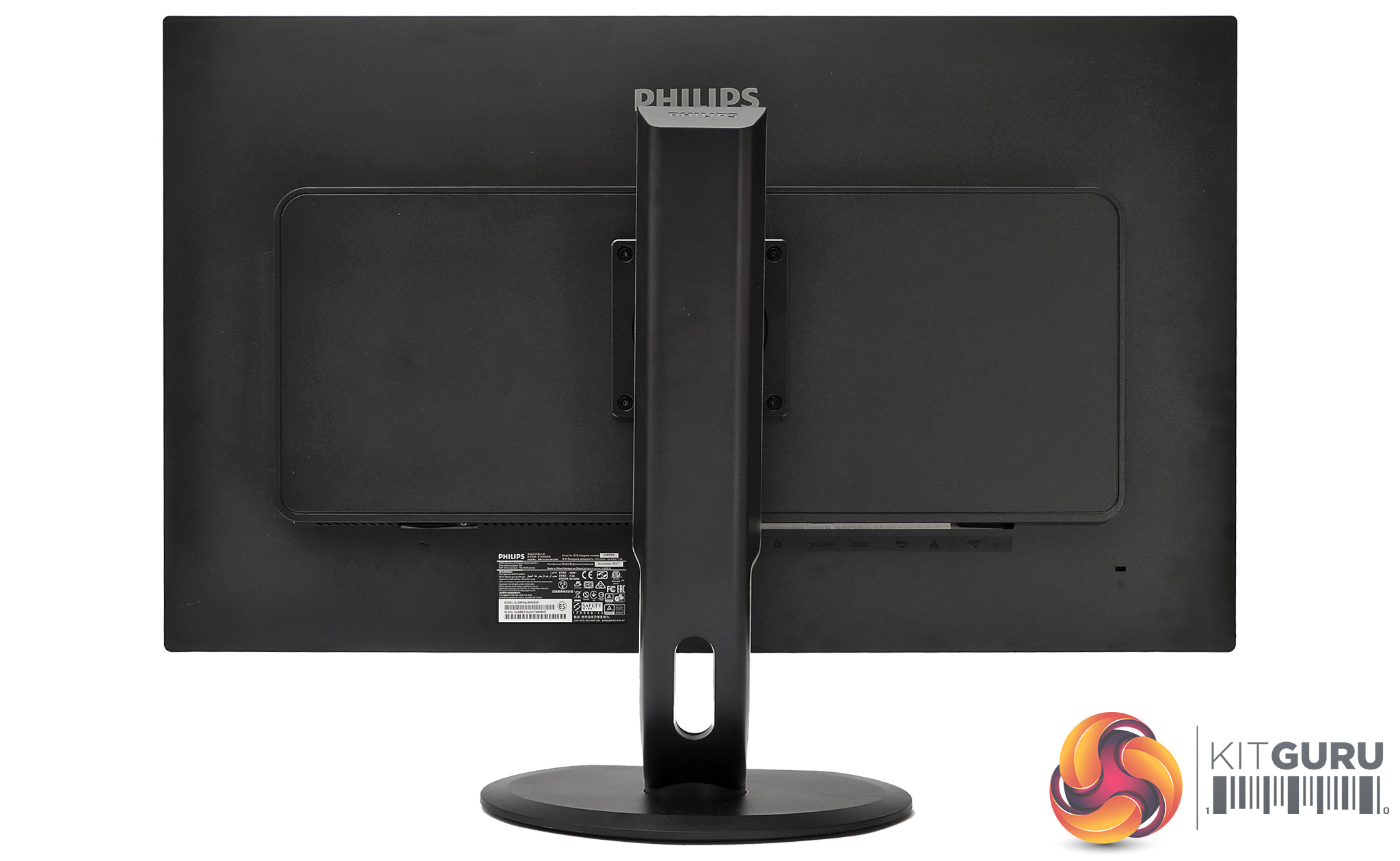
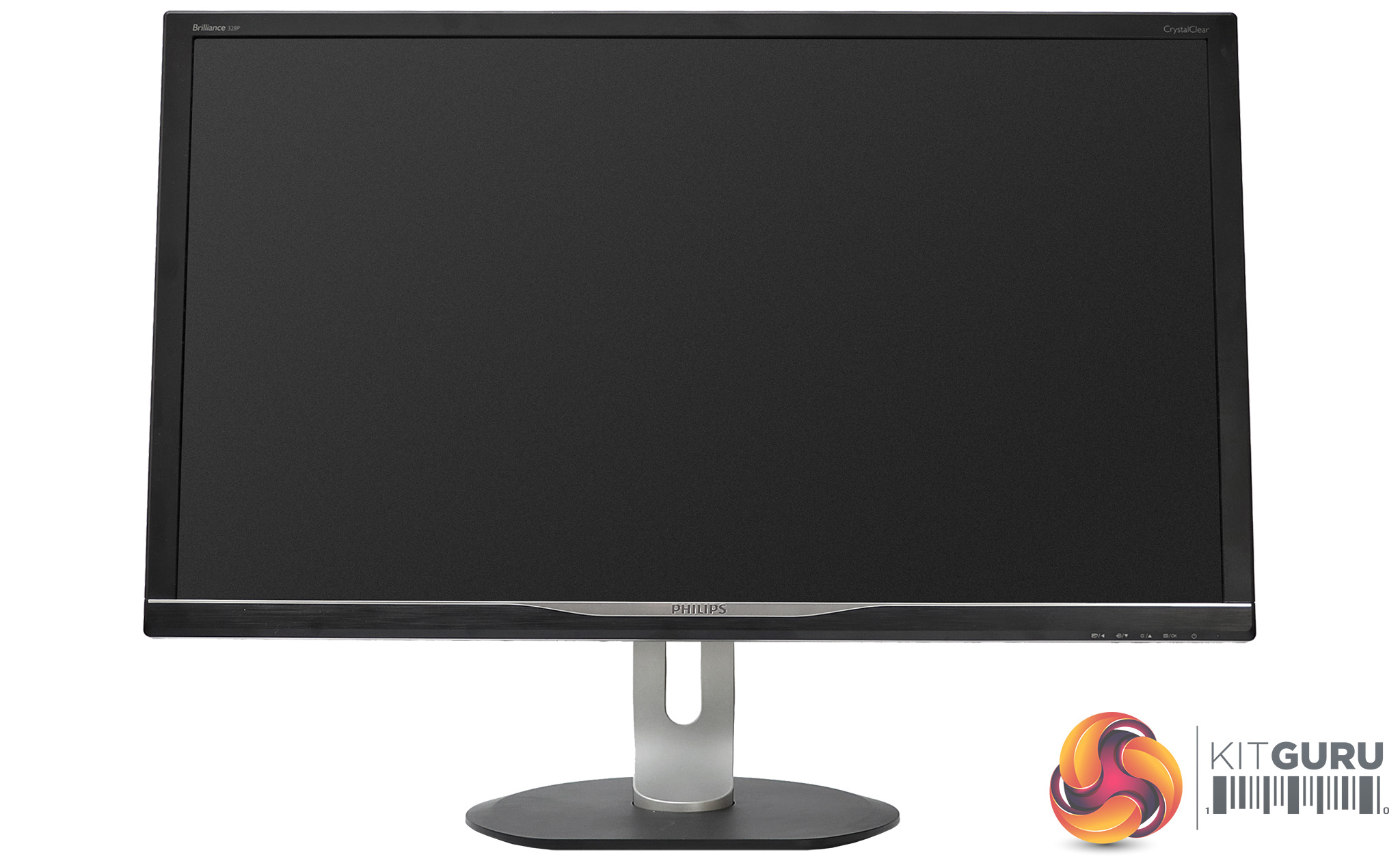
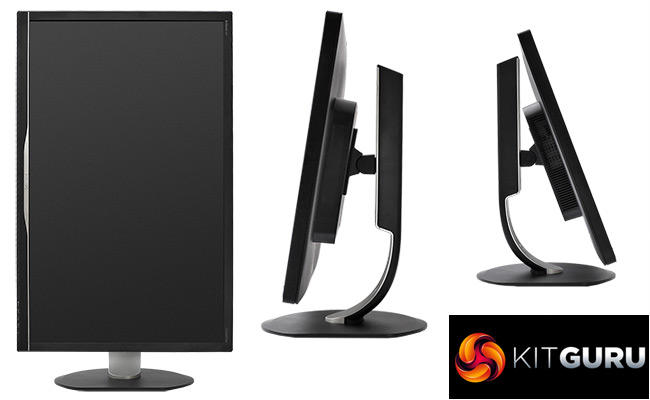
Philips injects a little bit of style into this screen with the silver stand arm and silver inlay along the bottom of the bezel, although the bezel itself is quite thick by today's standards. Overall, though, this is a sober-looking display. Not clunky, but distinctly businesslike.
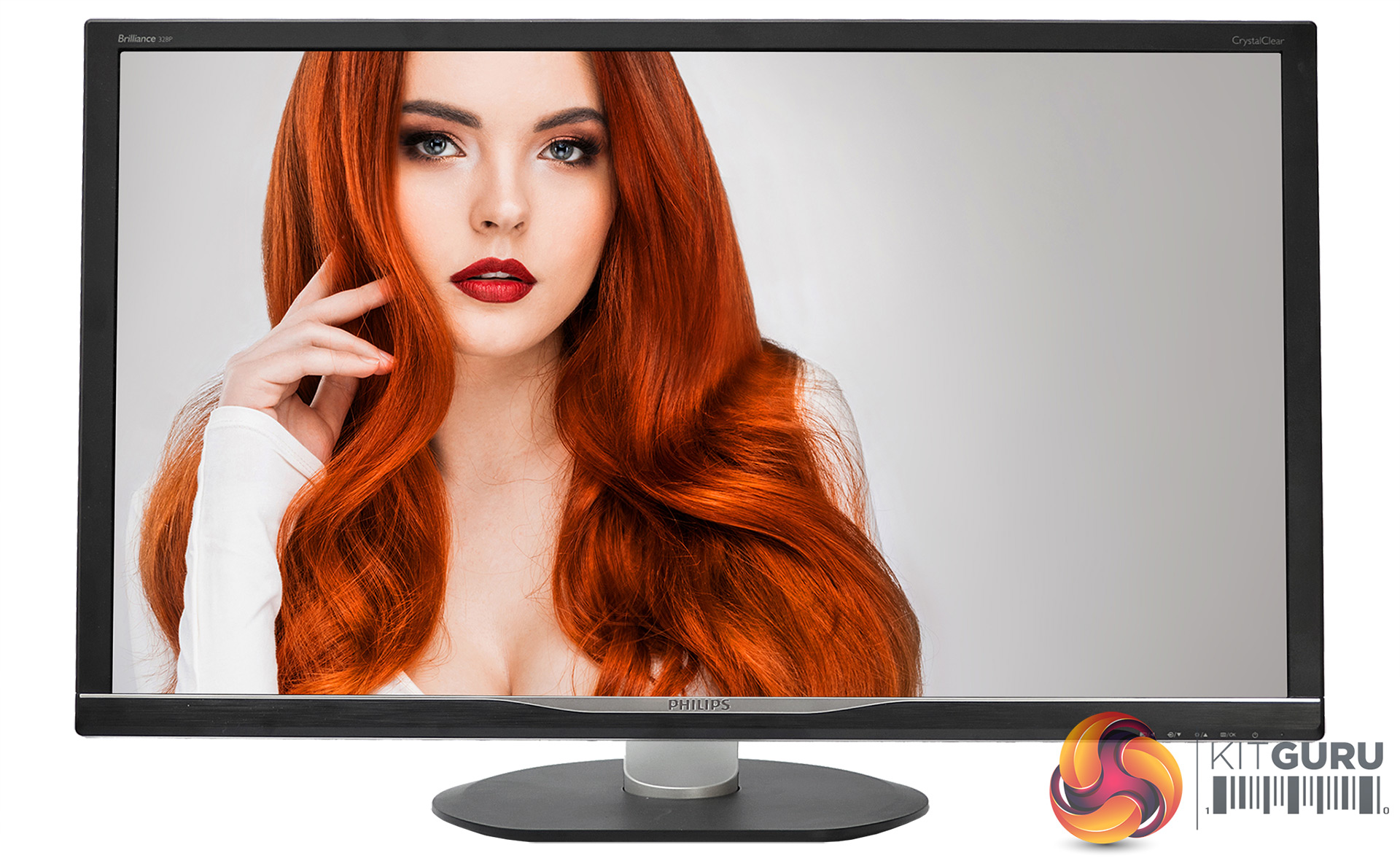
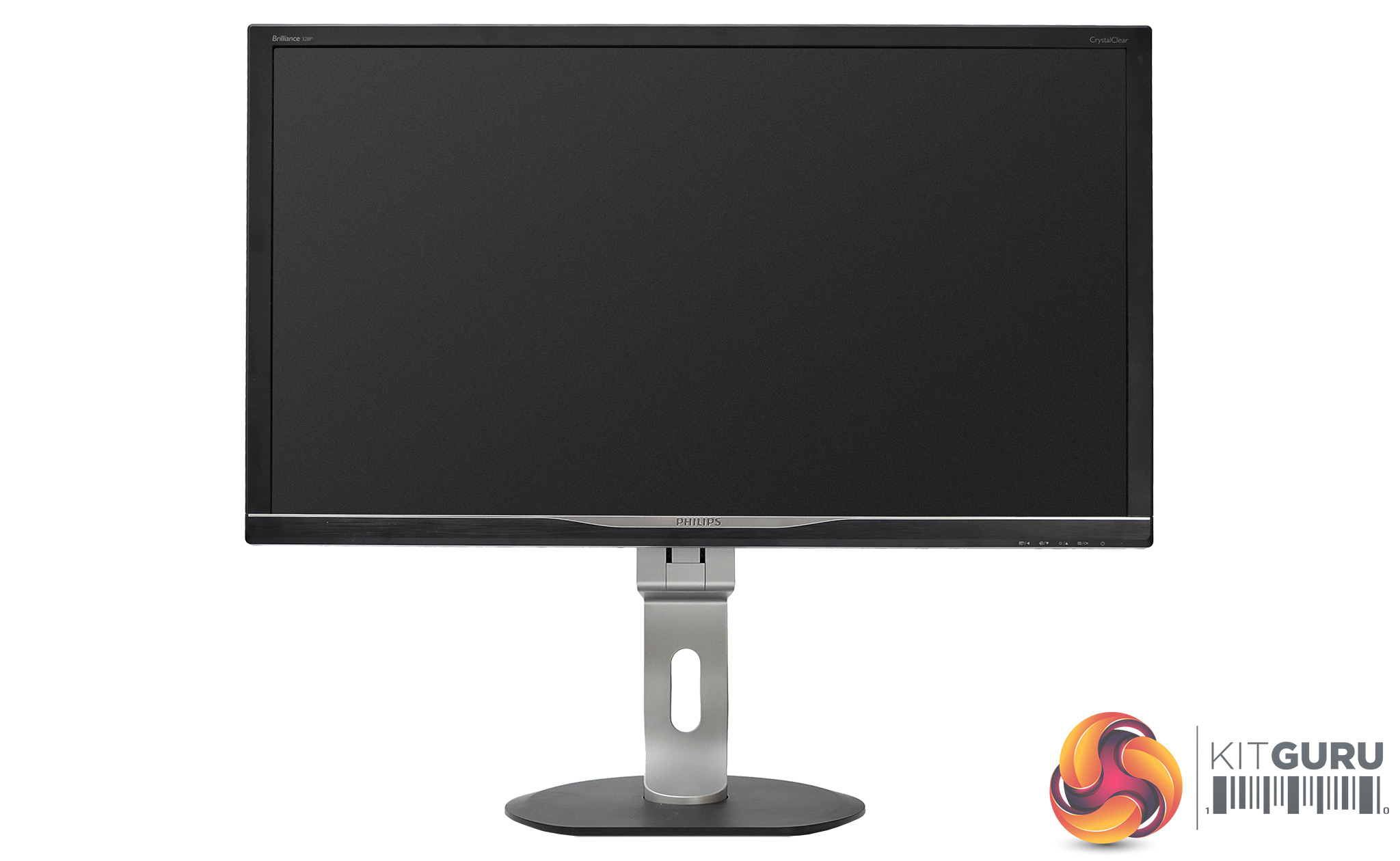
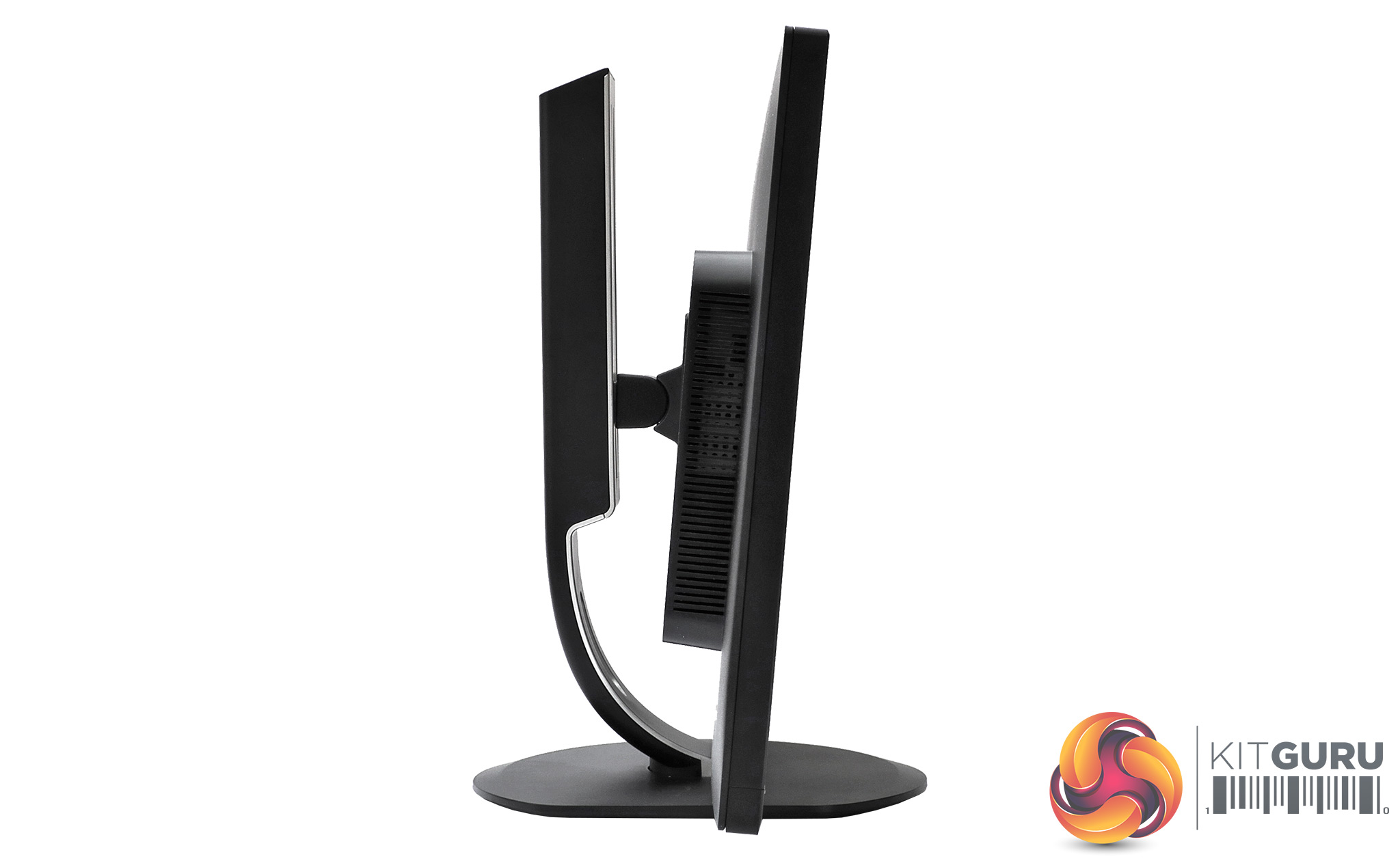
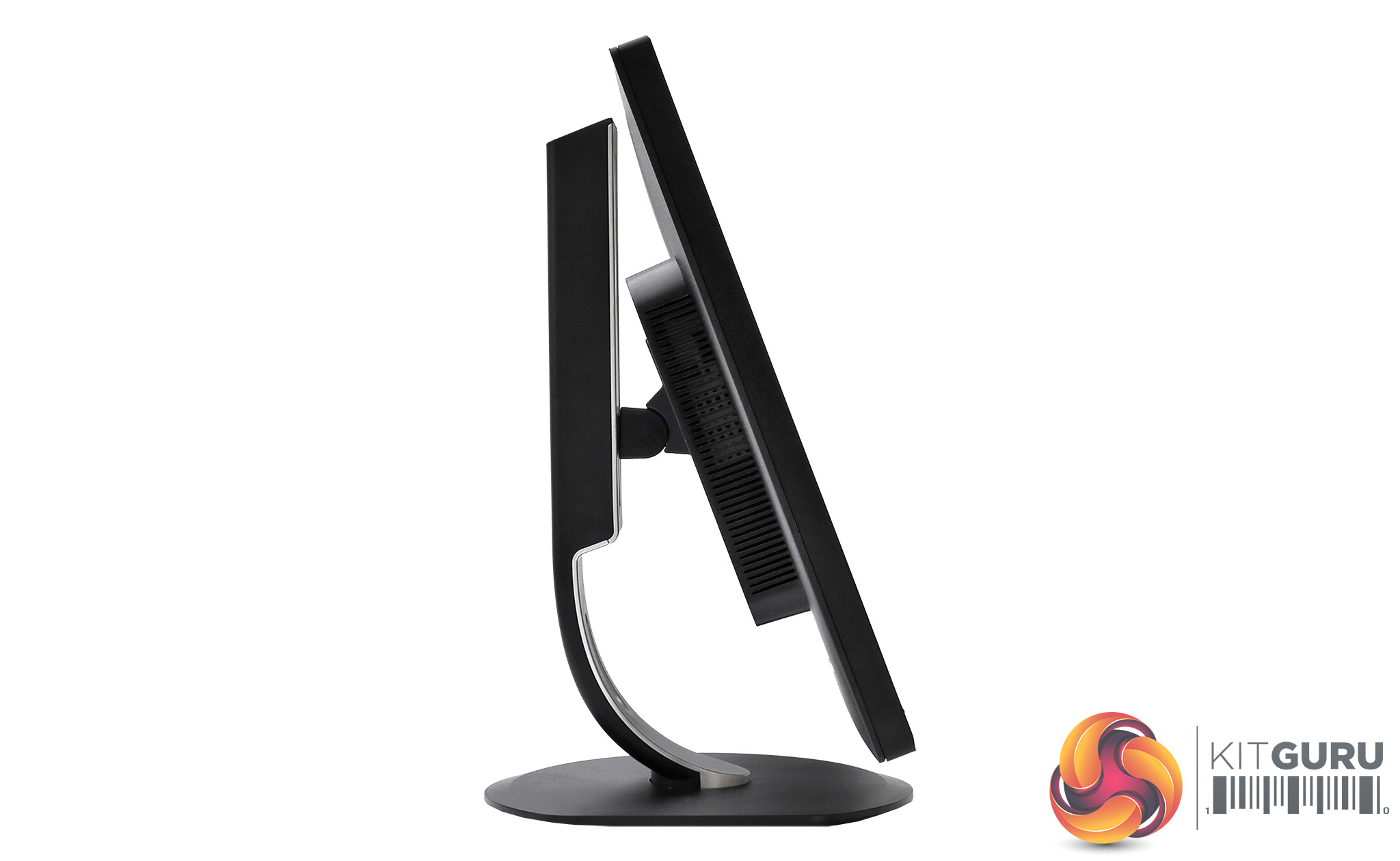
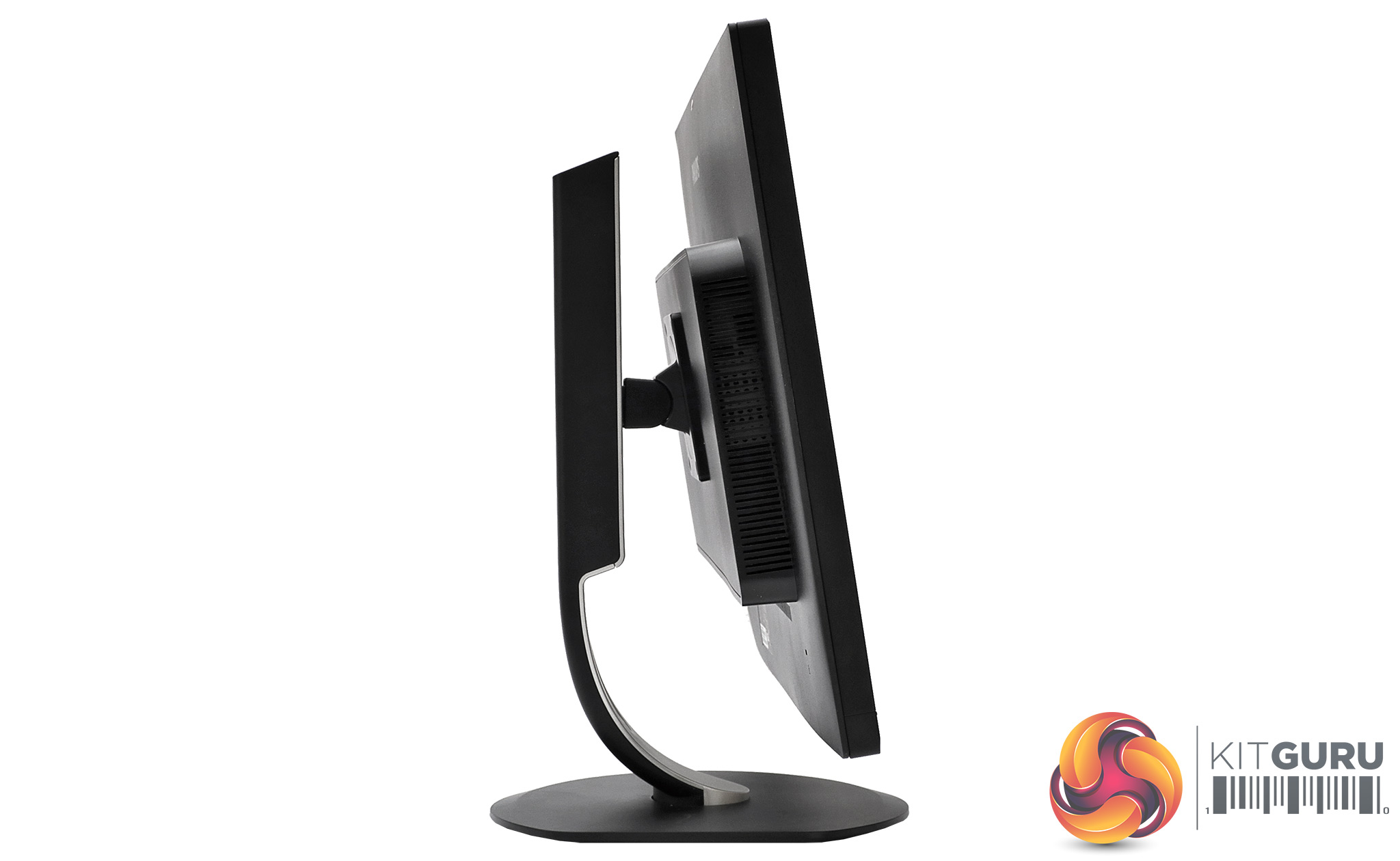
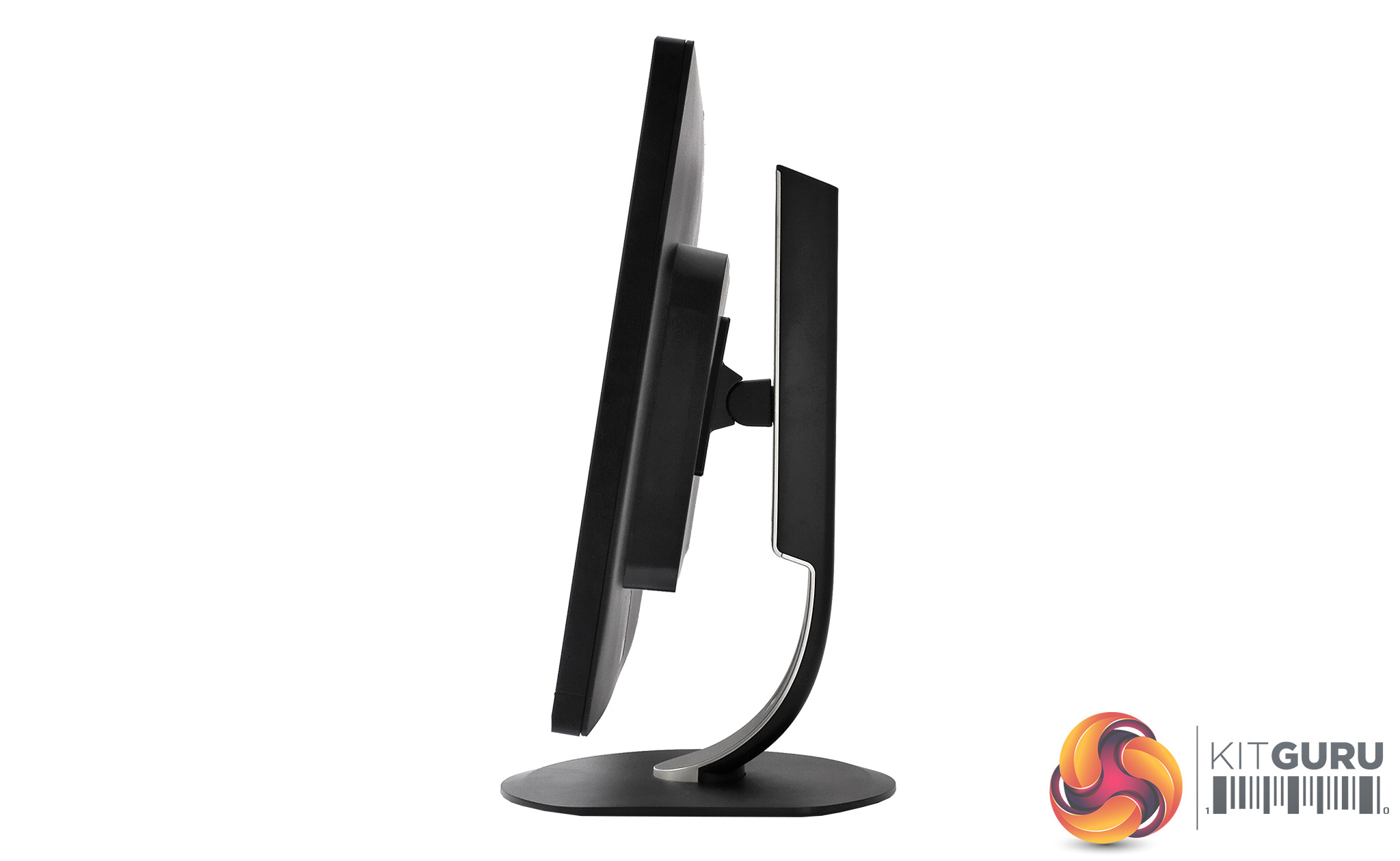
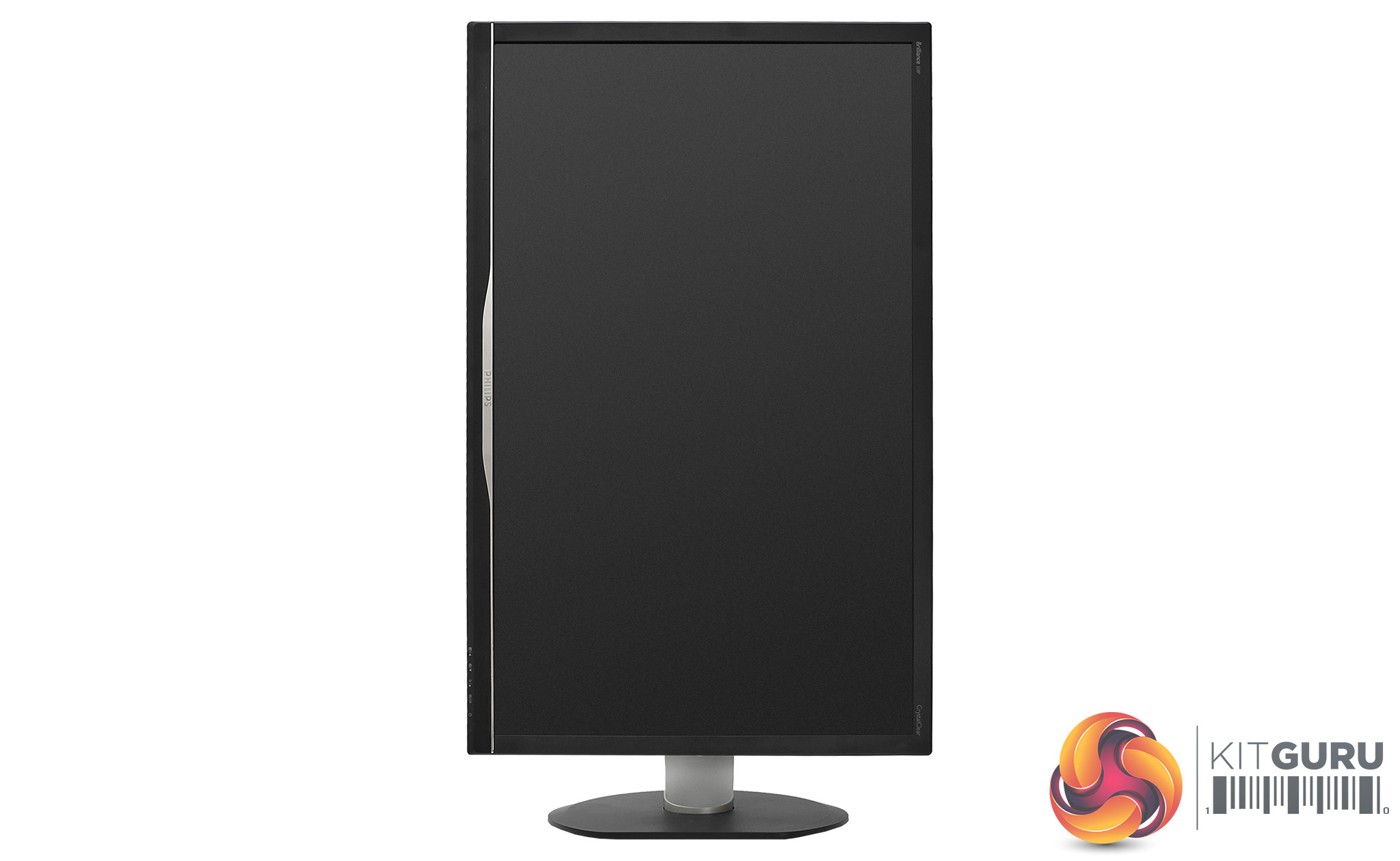
The 328P6AUBREB has a good range of physical adjustments available. Its height can be raised or lowered through a 180mm range, and it can swivel 170 degrees in either direction. You can also tilt it five degrees forward or 20 degrees back, and swivel the whole screen around into portrait mode.
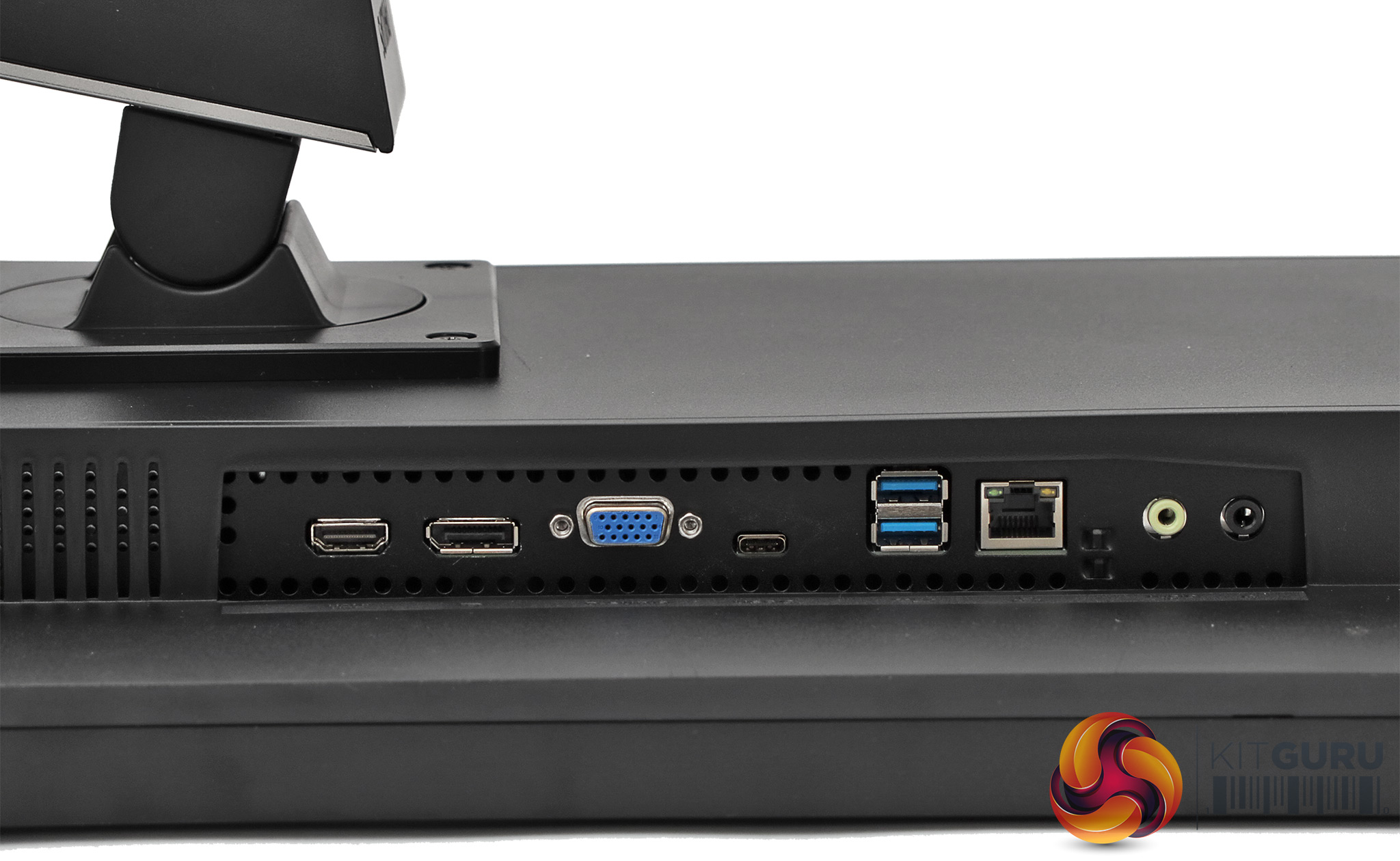
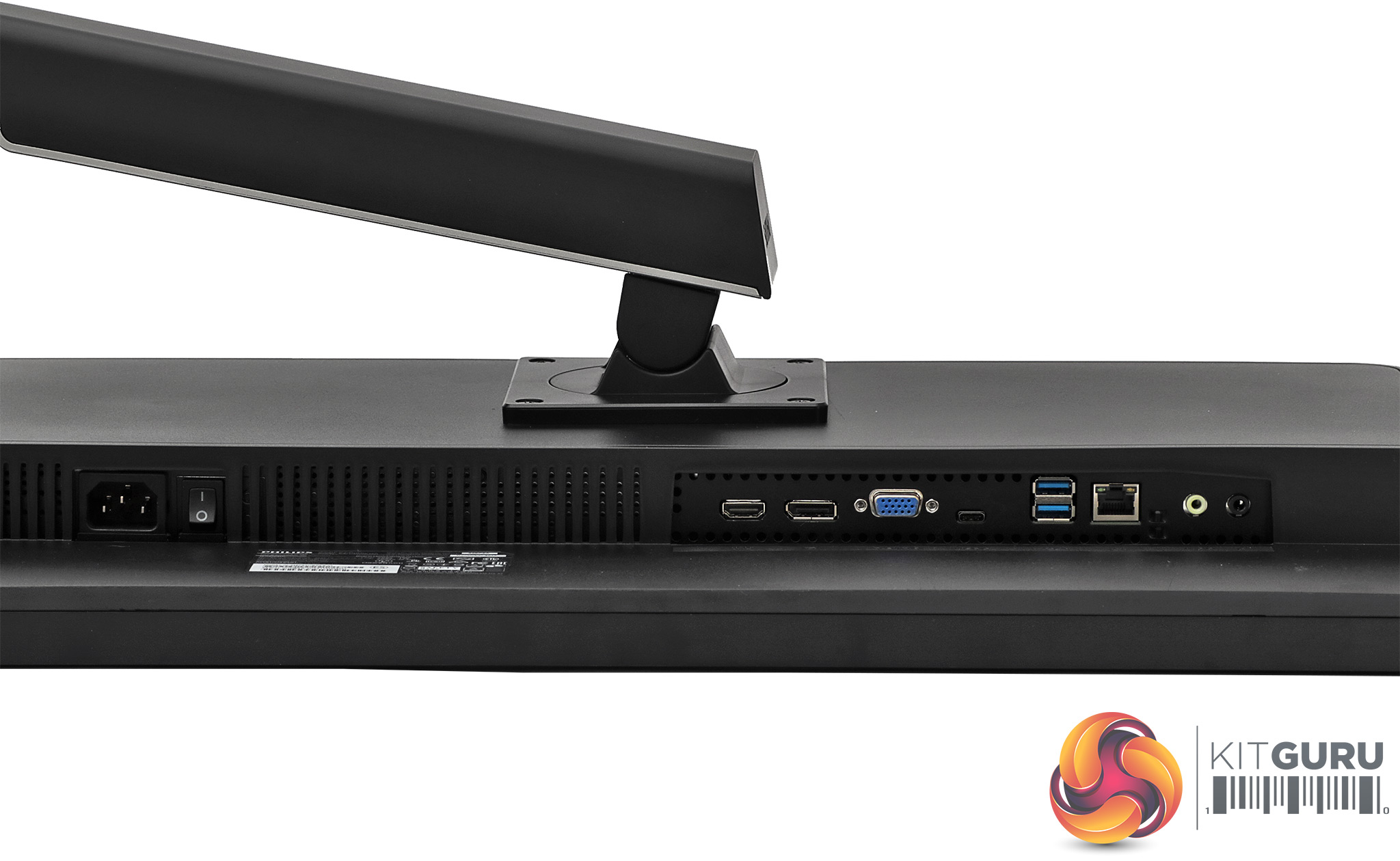
All the connections to the 328P6AUBREB are on the rear on a slightly recessed panel. The two audio minijacks for headphones and analog input are on the left (when looking from the front), then the mysterious RJ45 port, followed by two USB 3.0 connections and the all-important USB-C port. Then there's VGA, DisplayPort 1.2 and HDMI 2.0.
It's a shame that both the USB downstream ports are tucked away on the back, but they are clearly aimed at permanently connecting a mouse and keyboard, not USB memory keys.
It should be noted that the USB-C port has more than one function. Not only can it act as the upstream connection for audio, peripherals and video signals, it can also provide charge to a connected laptop. So if your laptop can charge over USB-C as well as output video, you're really in luck, as you won't even need your power adapter. One cable will do it all. However, we didn't have a compatible laptop to hand to test this.
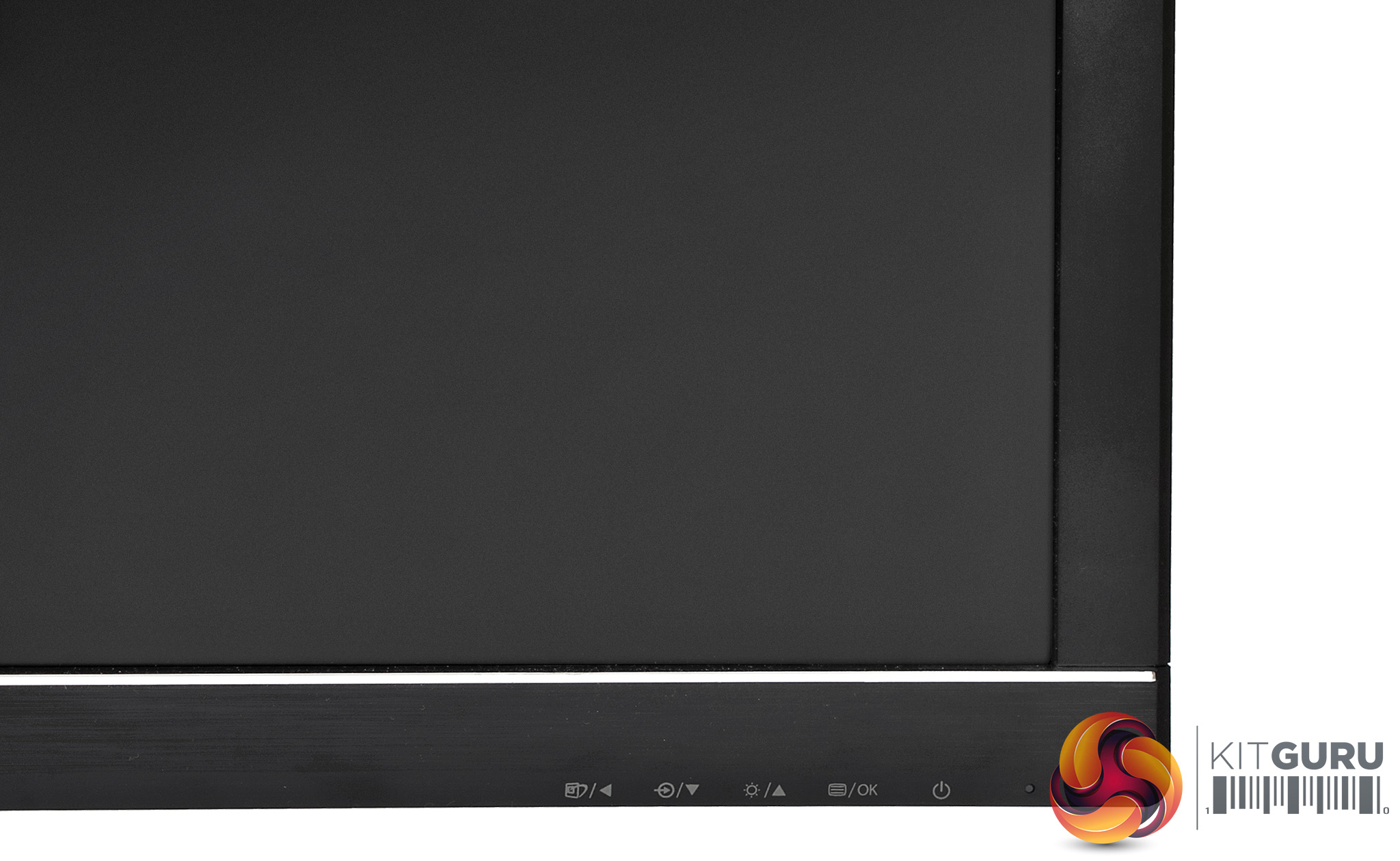
The OSD control buttons are marked on the front, but they're not actually physical buttons. They're touch-sensitive zones that can be accessed by tapping on the front or underneath. This is a little unintuitive at first, where you might be expecting real buttons. But it's a reasonably comfy system once you're used to it.
The OSD menu is broadly the same as other Philips TFTs we've tested.
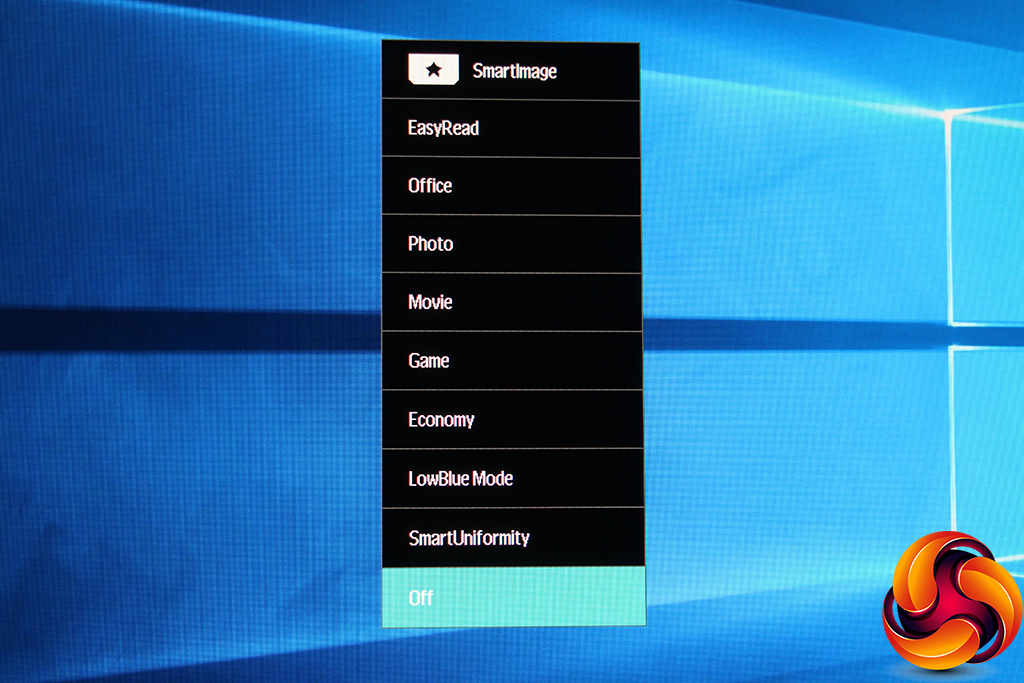
The first button from the left calls up the SmartImage presets. These have one more option than we have seen before – EasyRead. Otherwise, they include Office, Photo, Movie, Game, Economy, LowBlue Mode, and SmartUniformity, so there are plenty of options to choose from for different types of use, from work to entertainment.
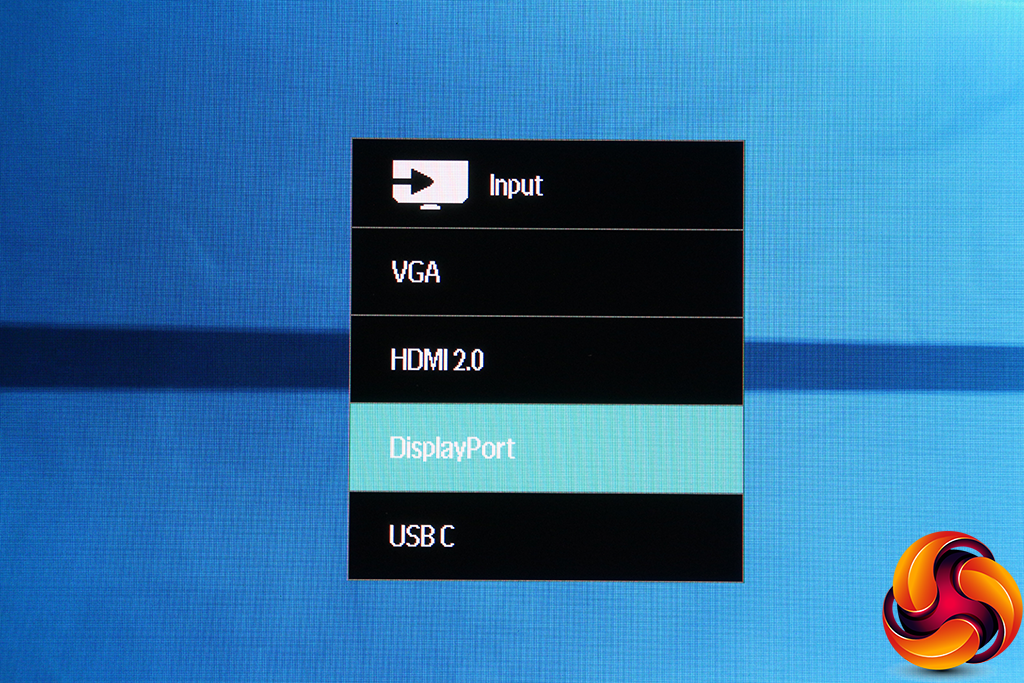
The next button along lets you choose manually between the four possible inputs.
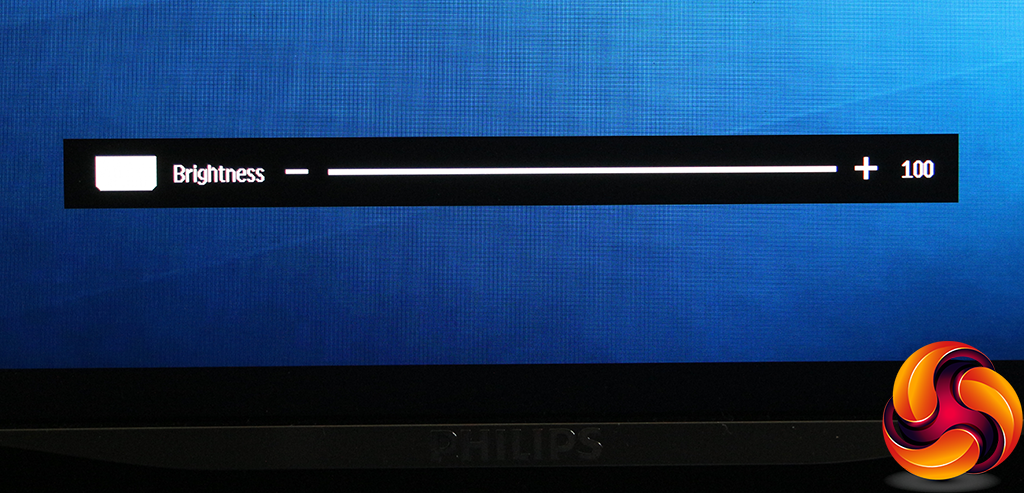
The third button is for controlling the screen brightness.
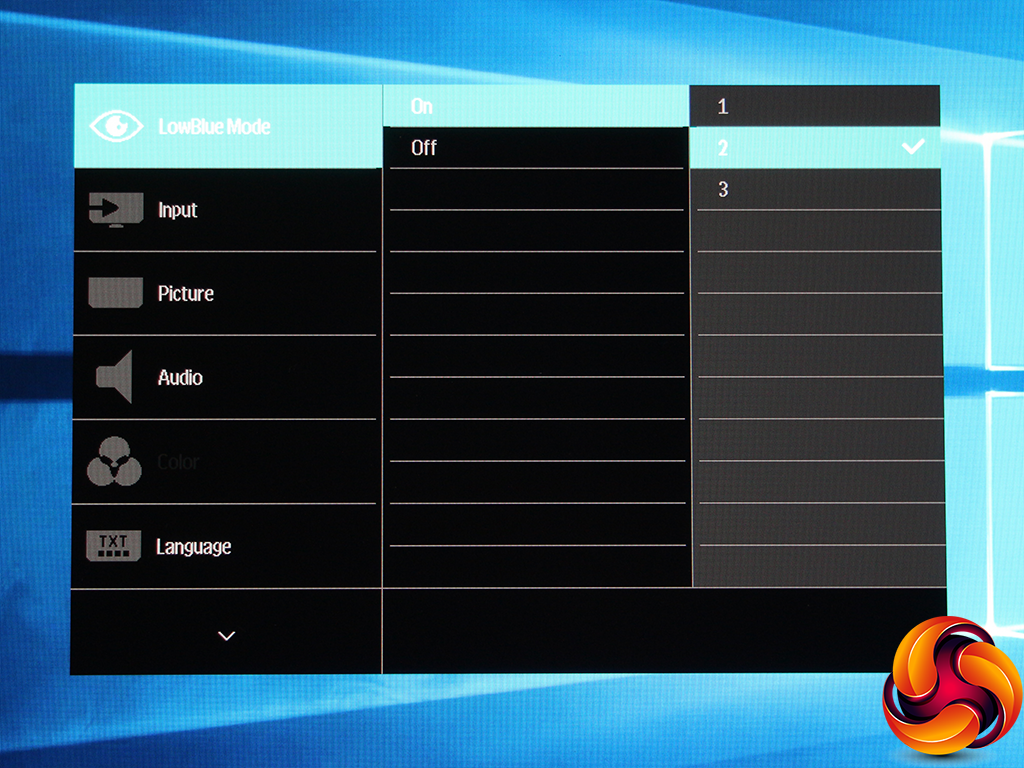
Finally, with the fourth button you can access the main menu. The default first submenu is the LowBlue Mode setting, with options from 1 to 3. This reduces the blue level to ease eye strain.
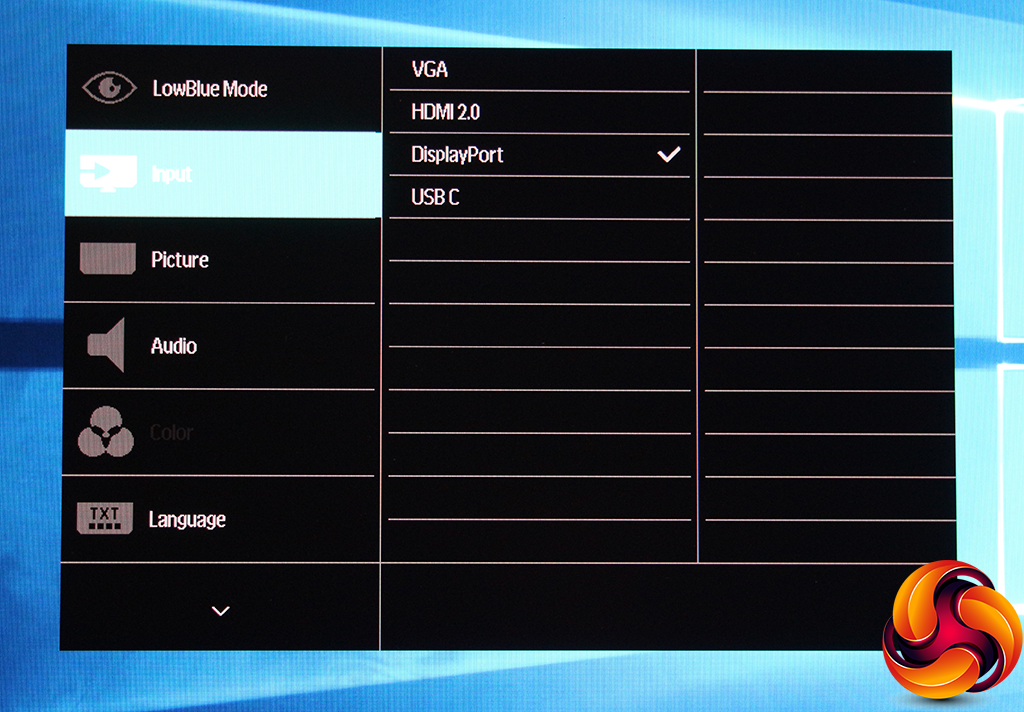
The next submenu provides another way to access the video inputs manually.
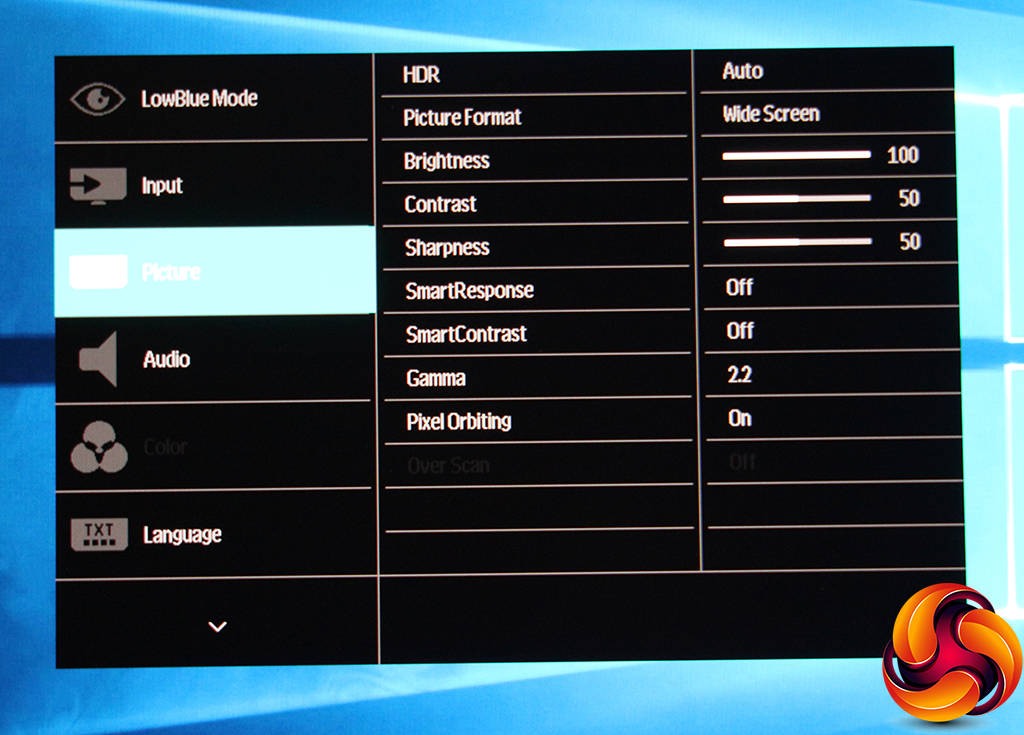
The third submenu is much more packed with options than the previous two. This is where you can contol the main image quality settings. You can toggle HDR, and change the screen aspect. There are brightness, contrast and sharpness controls here. You can turn the SmartResponse off or add fast, faster or fastest options. This is a pixel overdrive system for counteracting the slower response of IPS panels.
SmartContrast varies the backlight to create a greater perception of contrast between light and dark. The Gamma setting has 1.8, 2.0, 2.2, 2.4 and 2.6 settings. There's also a Pixel Orbiting system to prevent burn-in if a static image is left onscreen for long periods. The greyed out option you can hardly see controls Over Scan with analog VGA inputs.
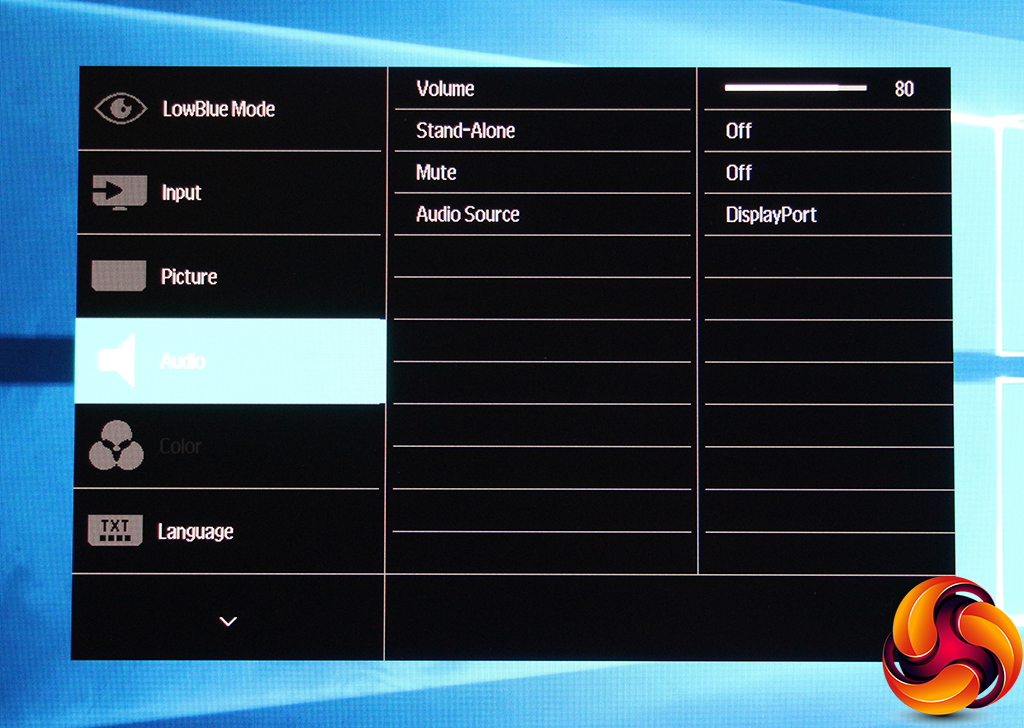
Next along are settings for controlling the volume of the built-in speakers and headphones, as well as selecting which input is fed to these. A more easily accessible volume control would have been beneficial, however.
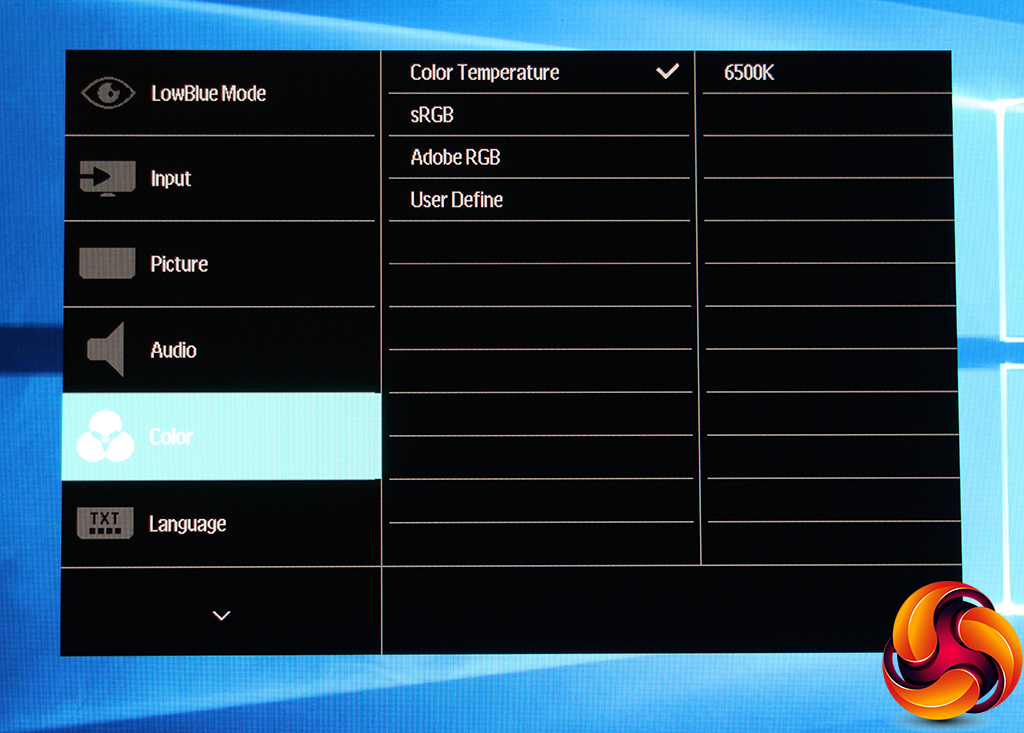
The Color submenu is only available if you're not using one of the SmartImage presets. This includes Native, 5000K, 6500K, 7500K, 8200K, 9300K and 11500K Temperature options, which is a decent range. Alternatively, there are sRGB and Adobe RGB modes, plus a User Define option that lets you configure the red, green and blue signals manually.
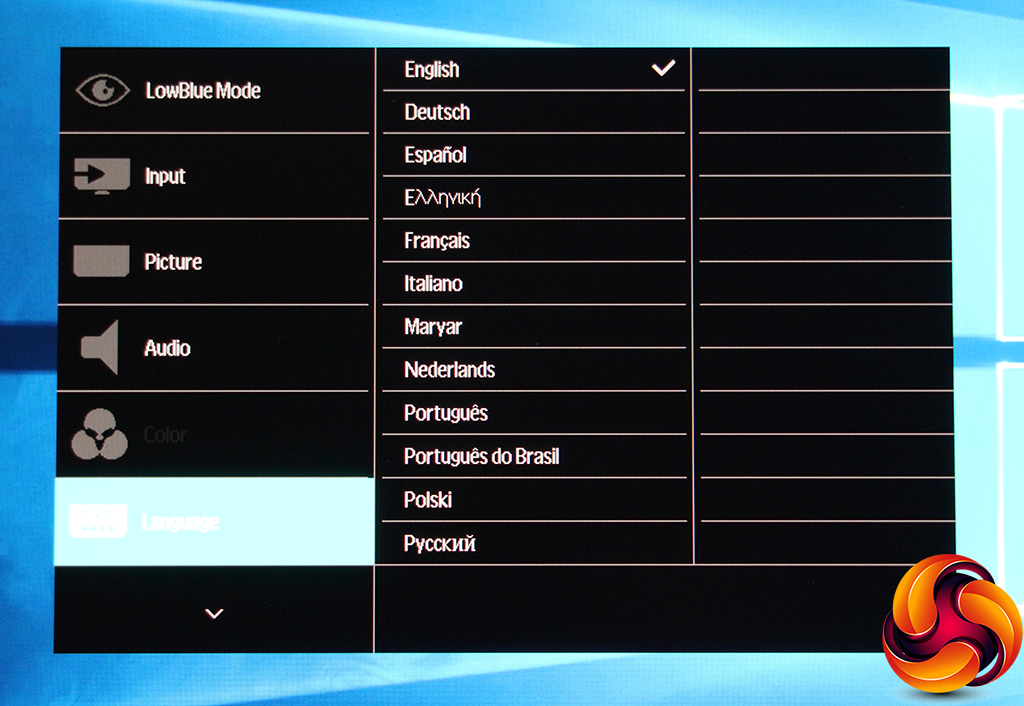
There are plenty of menu language options available. It's nice to see that Brazilians won't have to make do with European Portuguese.
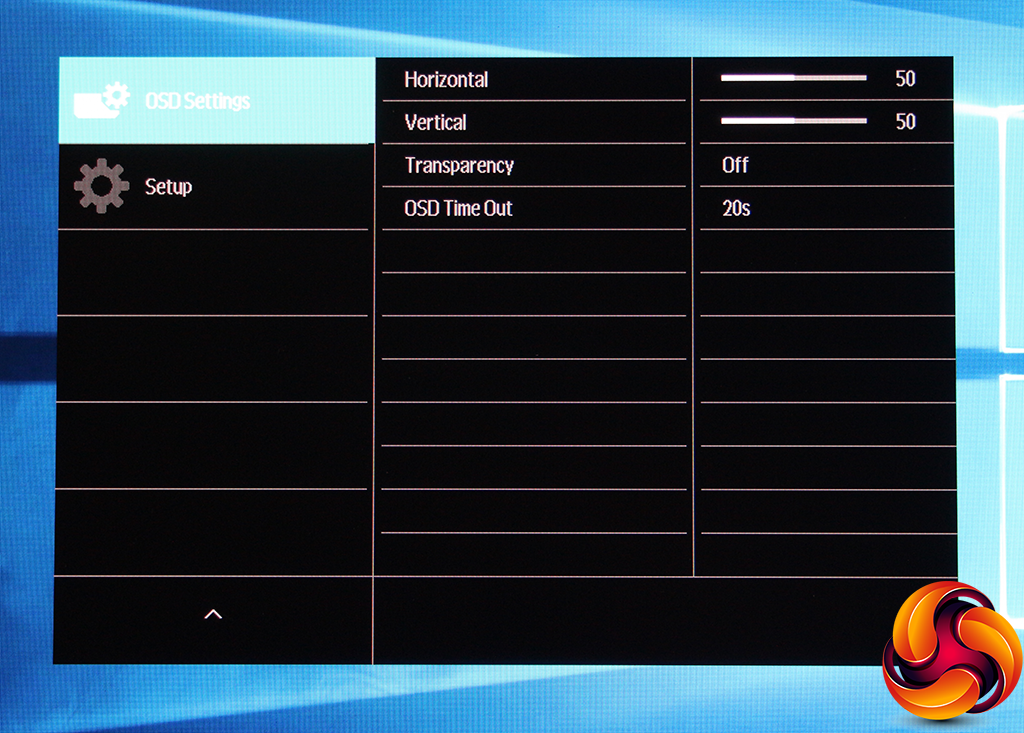
You can change the location, transparency and time out values for the OSD.
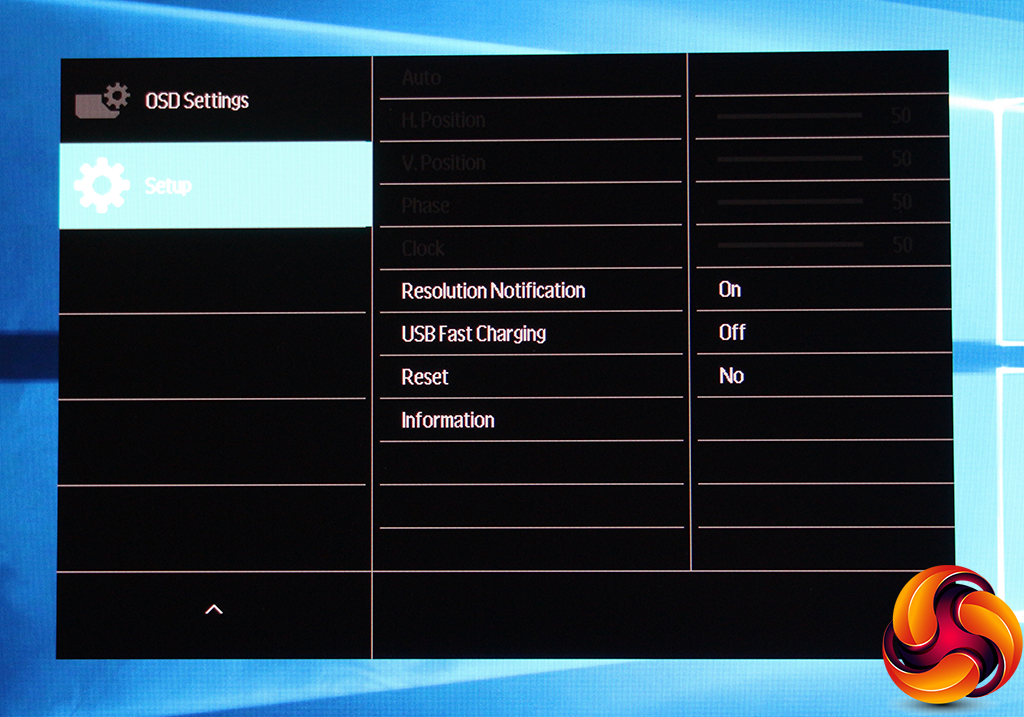
Finally, the Setup screen includes the settings that couldn't find a home elsewhere, including toggling USB Fast Charging. The greyed out options at the top are for configuring an analog signal.
Overall, this isn't the most feature-rich OSD we've seen, even from a mainstream Philips monitor, but for the general and business user this screen is aimed at, there's nothing significant missing.
Our main test involves using a DataColor Spyder Elite 5 Colorimeter to assess a display’s image quality. The device sits on top of the screen while the software generates colour tones and patterns, which it compares against predetermined values to work out how accurate the screen is.
The results show –
- A monitor’s maximum brightness in candelas or cd/m2 at various levels set in the OSD.
- A monitor’s contrast ratio at various brightness levels in the OSD.
- The brightness deviation across the panel.
- The black and white points
- The colour accuracy, expressed as a Delta E ratio, with a result under 3 being fine for normal use, and under 2 being great for colour-accurate design work.
- The exact gamma levels, with a comparison against preset settings in the OSD.
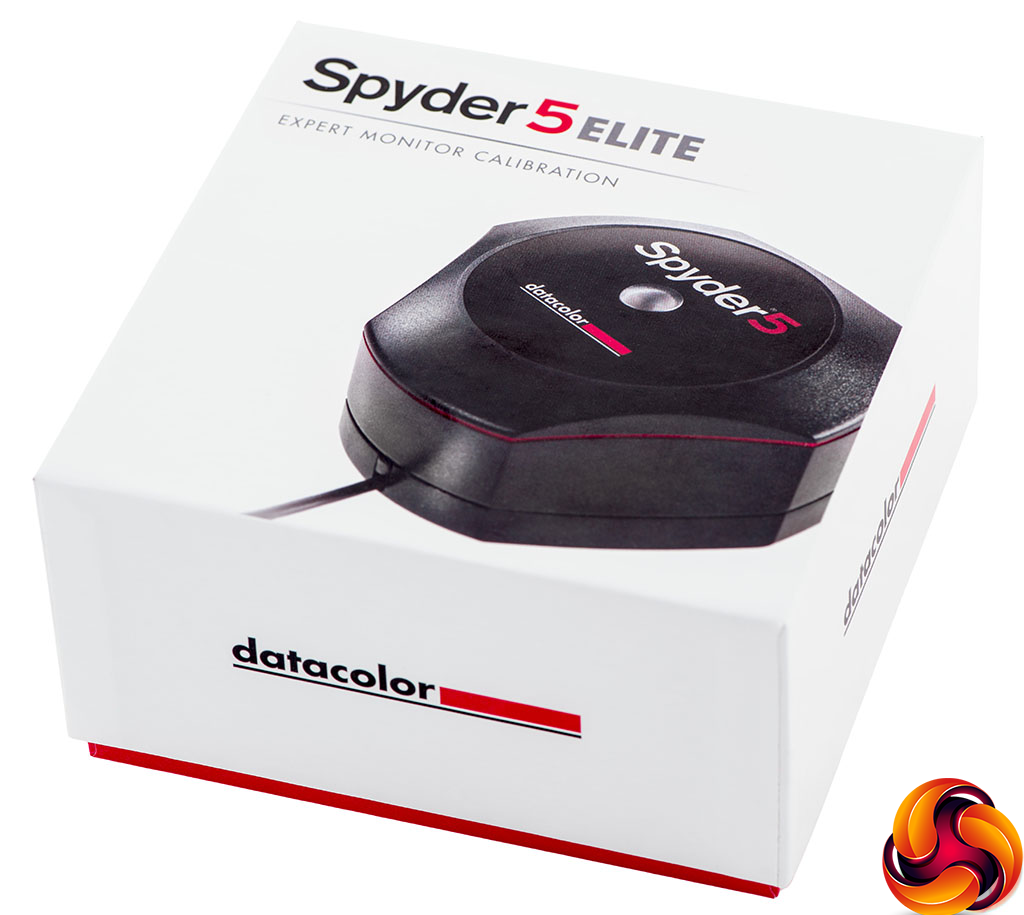
We first run this test with the display in its default, out-of-the-box state, with all settings on default. We then calibrate the screen using the Spyder software and run the test again.
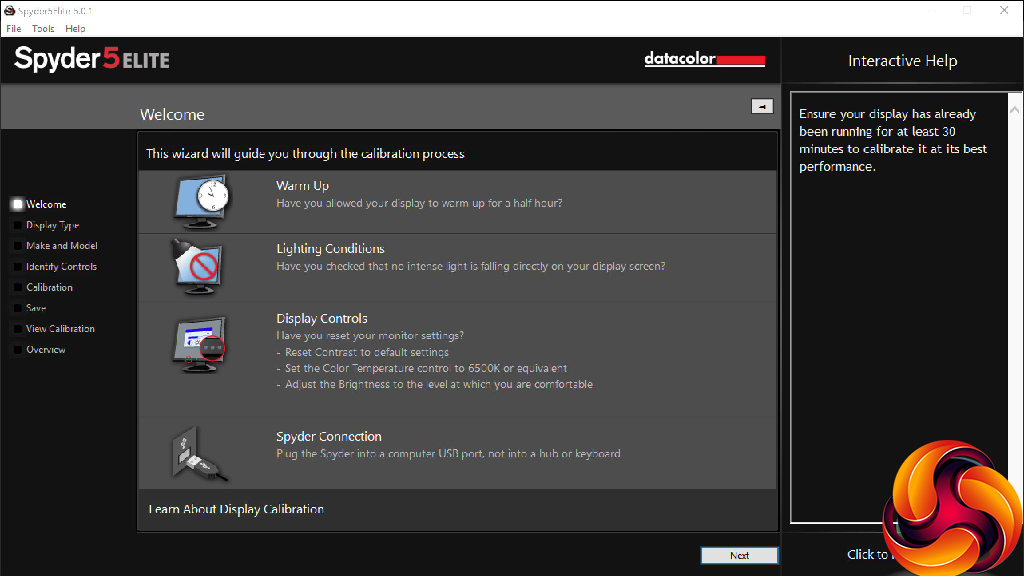
We always test the display subjectively on the Windows desktop, using it for general tasks such as browsing and word processing, and with games as well, even if the display is not intended solely for that purpose.
We pay careful attention to any artefacts, ghosting or motion blur, and enable any gaming specific features, such as adaptive-sync settings like G-Sync or FreeSync, using a compatible graphics card in our test PC.
In the case of the 328P6AUBREB, we had intended to perform all our tests via USB-C, since the system we use has this kind of connection. But although this worked with ASUS's ZenScreen MB16AC, it wasn't detecting the 328P6AUBREB as an attached display, just a USB hub.
However, we happened to have a MSI WT73VT 7RM notebook to hand, which also has USB-C, and that worked just fine. The video was transferred up to native resolution, the audio signal was coming out of the Philips screen's built-in speakers, and the USB keyboard and mouse connected to the hub were detected and functioned as expected. So you really can use one connection for all requirements with the 328P6AUBREB – assuming it works.
But as a result of the non-functioning USB-C display connection on our main test rig, we had to switch to DisplayPort for your quality tests. We performed these at the native 2,560 x 1,440 resolution in the default mode, after resetting the OSD. Our test system was equipped with an AMD Radeon Vega Frontier Edition graphics card.
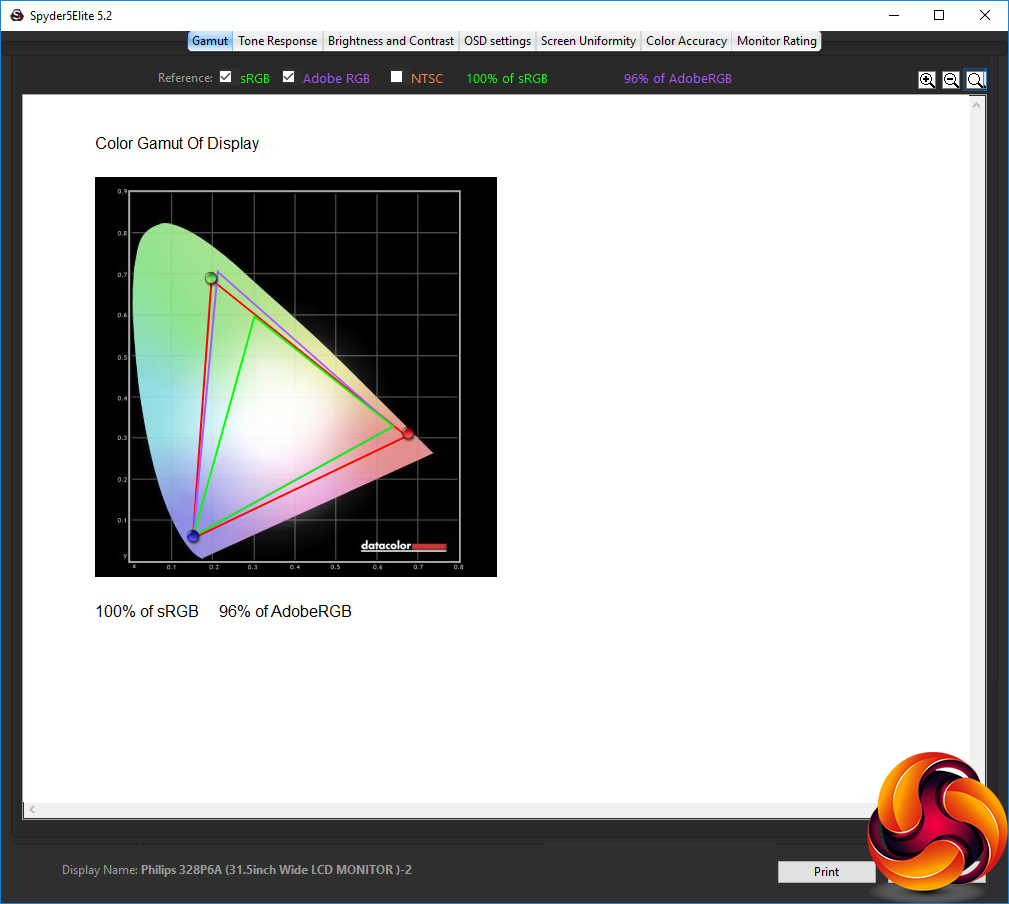
The gamut is excellent, with 100 per cent of sRGB and 96 per cent of AdobeRGB, with the latter very close to the quoted figures and one of the best results we've seen in this test.

Unfortunately, unlike the gamut, brightness uniformity is not great, with at least 13.5 per cent divurgence on the sides and corners compared to the centre.
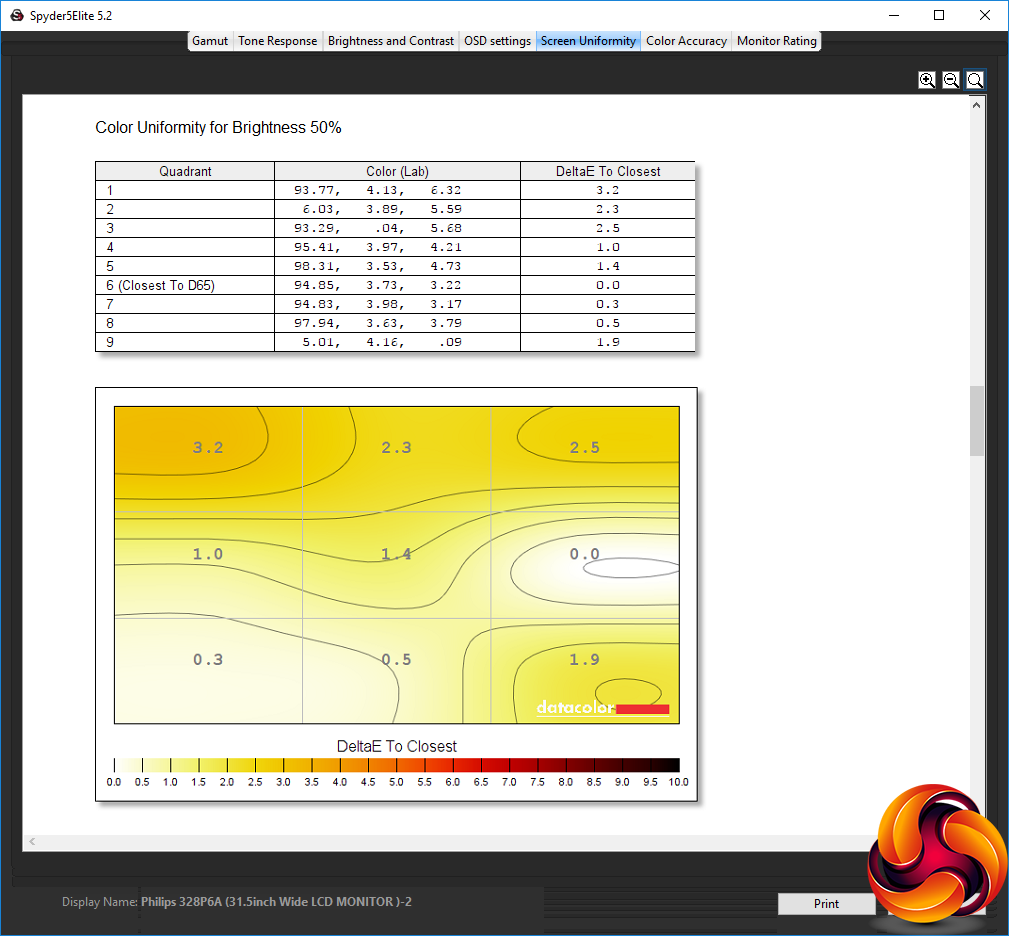
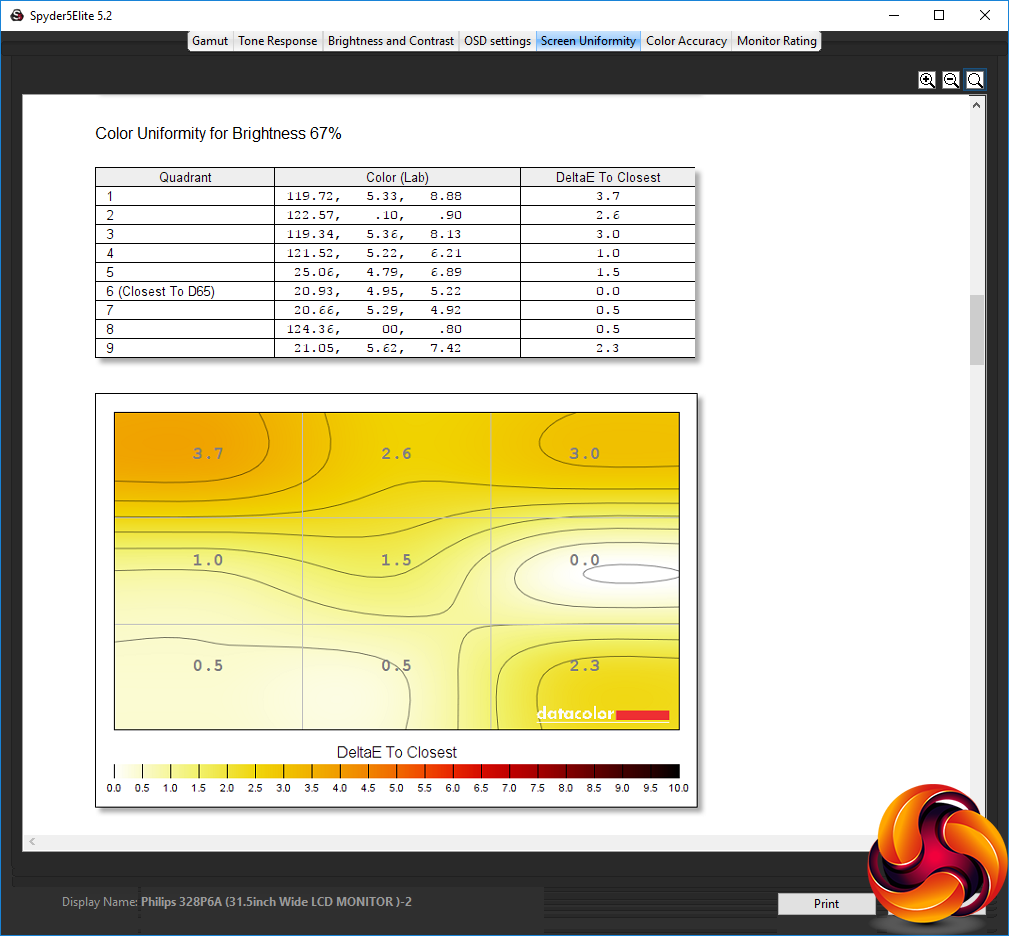
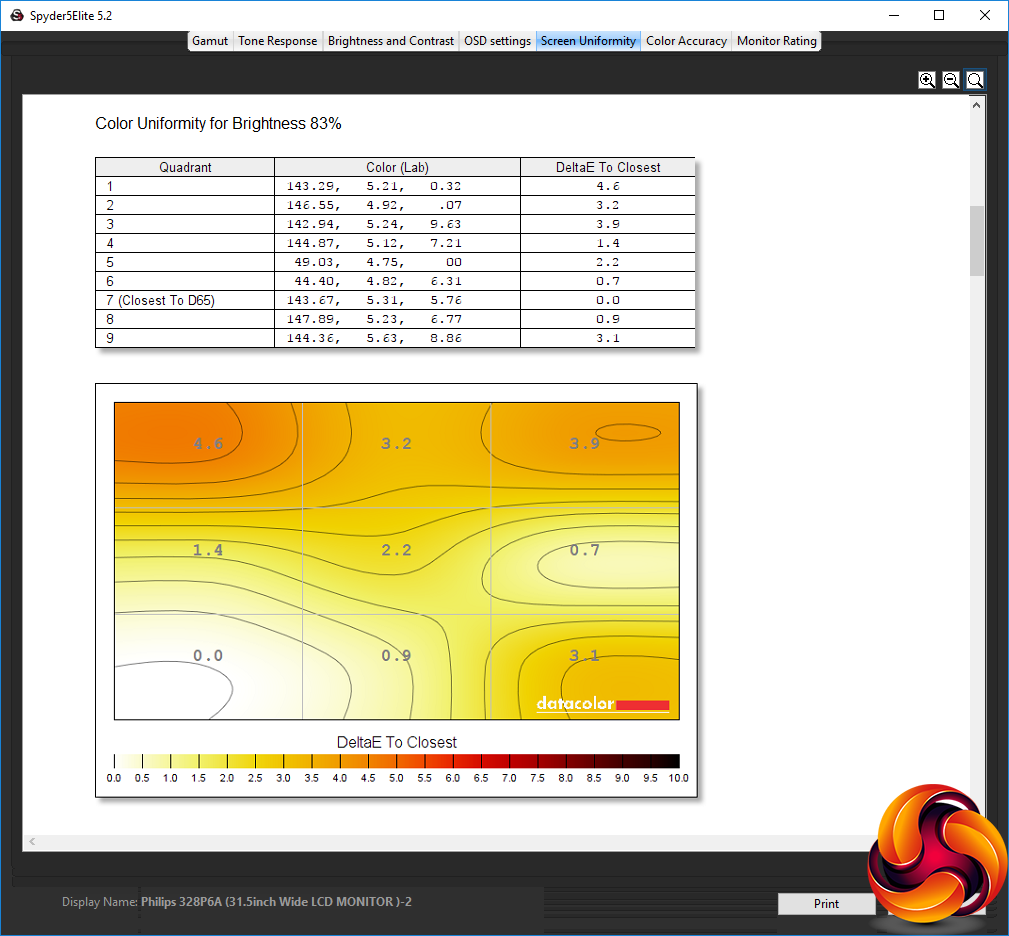
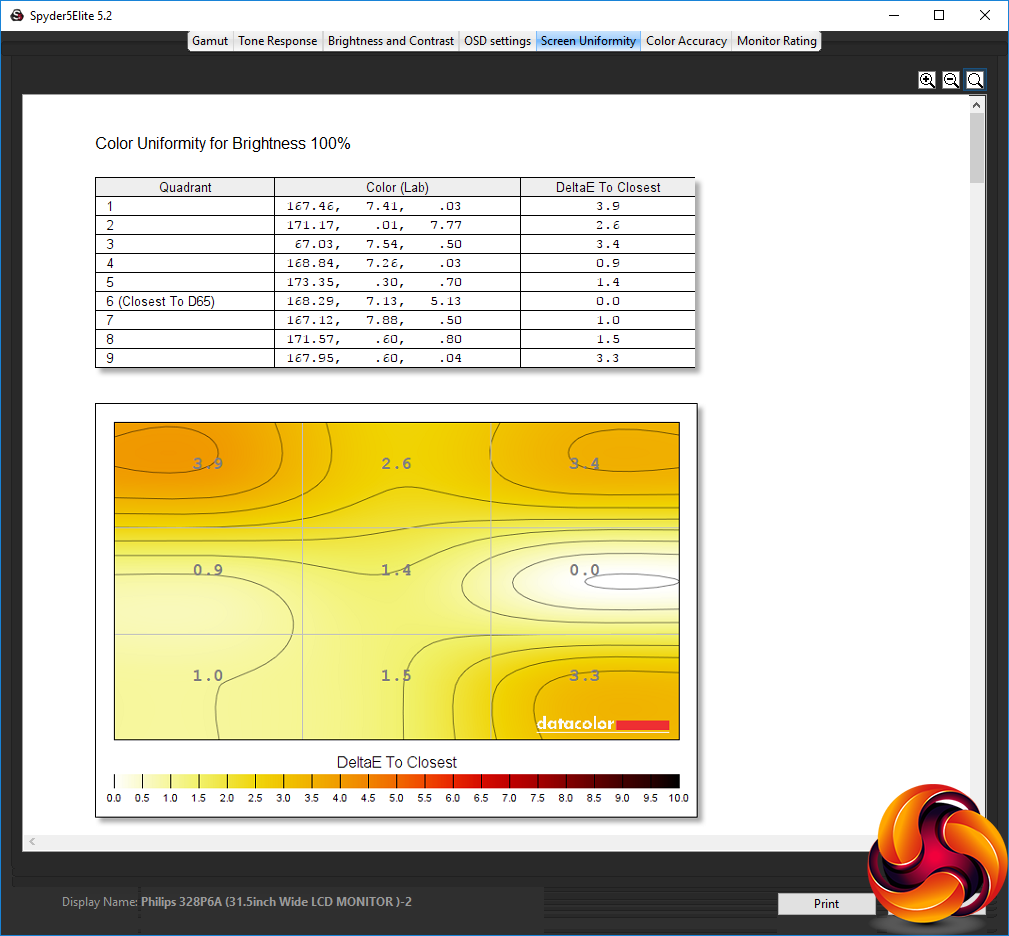
The poor brightness uniformity doesn't translate into poor colour uniformity, thankfully. In this respect, the 328P6AUBREB is near the top of the pile.
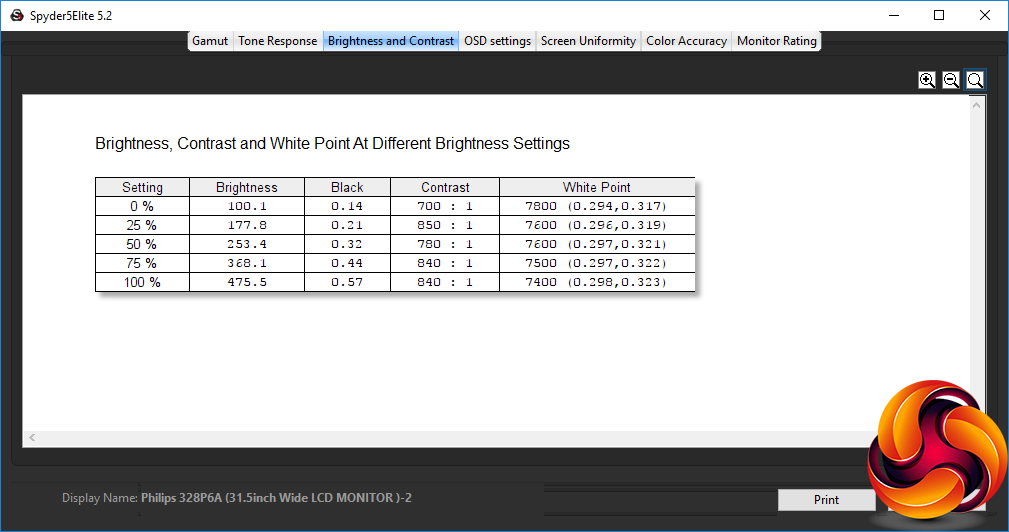
Measured brightness rises reasonably in proportion with the percentage setting, although the measured contrast is a little erratic, and white balance mildly erratic too. Although the top contrast of 850:1 is below the specifications rating, this is normal for testing with the Spyder, which always registers a lower figure than expected. Compared to other IPS panels, the 328P6AUBREB has decent contrast, and the top brightness of 475.5cd/m2 is high.
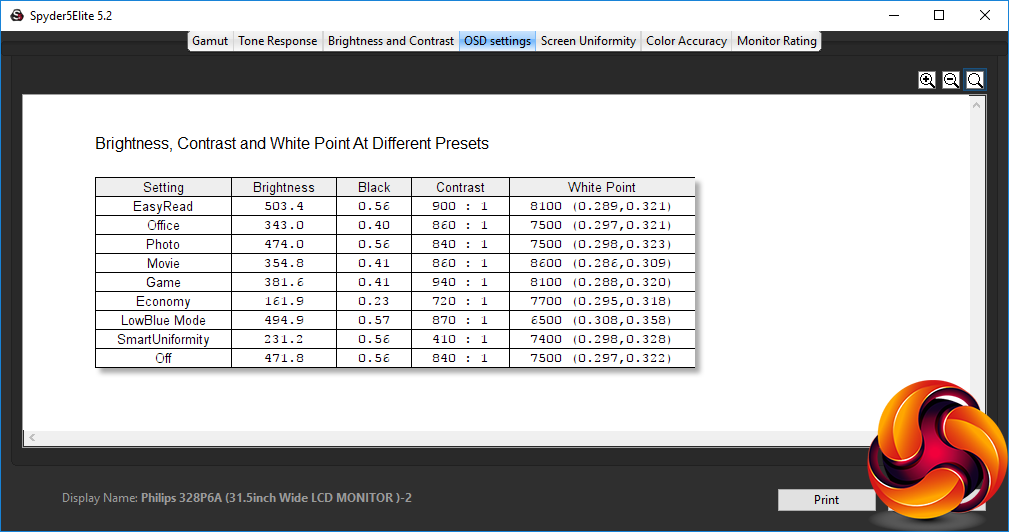
There are lots of OSD presets available, and their characteristics vary a lot.
EasyRead is even brighter than the standard 100 per cent brightness option, hitting 503.4cd/m2, with a high 900:1 contrast and cool 8100K white point to go with it. Office drops the brightness to 343cd/m2 and a warmer 7500K white point, with a slightly lower 860:1 contrast. The Photo mode is also very bright, offering 474cd/m2, similar 840:1 contrast to Photo mode, and the same 7500K white point.
The Movie mode, unsurprisingly, has the coolest 8600K white point, with a lower but still relatively high 354.8cd/m2 brightness, but a similar 860:1 contrast. Game mode is a bit brighter at 381.6cd/m2, but with higher 940:1 contrast and still relatively cool 8100K white point. Economy mode drops the brightness way down to 161.9cd/m2 to conserve power, but keeps a reasonable 720:1 contrast and mid-range 7700K white point.
The Low Blue Mode keeps things bright at 494.9cd/m2, with a high 870:1 contrast, but drops the white point to a much warmer 6500K, as you would expect for a setting that is supposed to reduce the tiring effects of blue light. SmartUniformity, interestingly, drops the brightness to 231.2cd/m2 and contrast to the lowest 410:1, but with a similar 7400K white point.
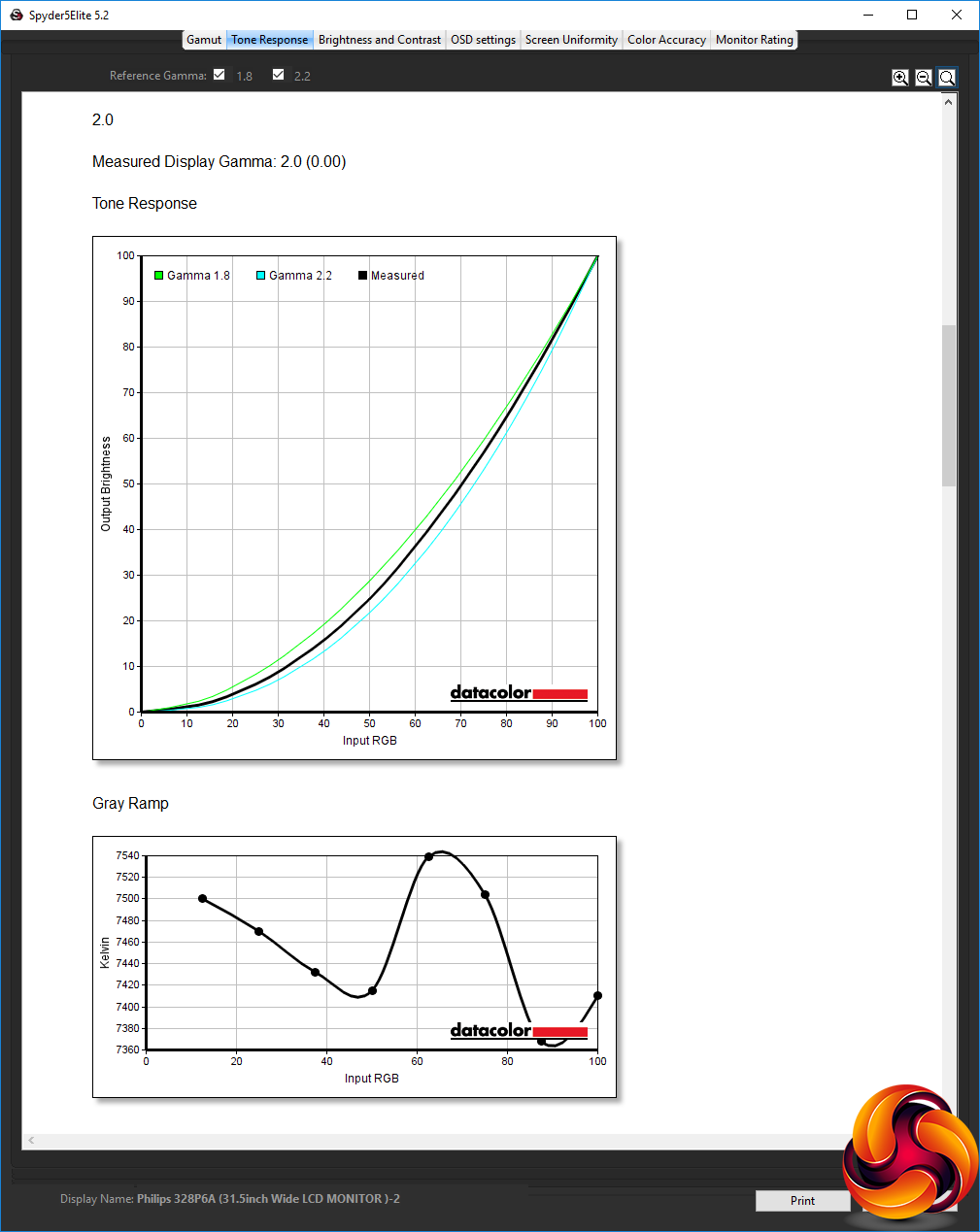
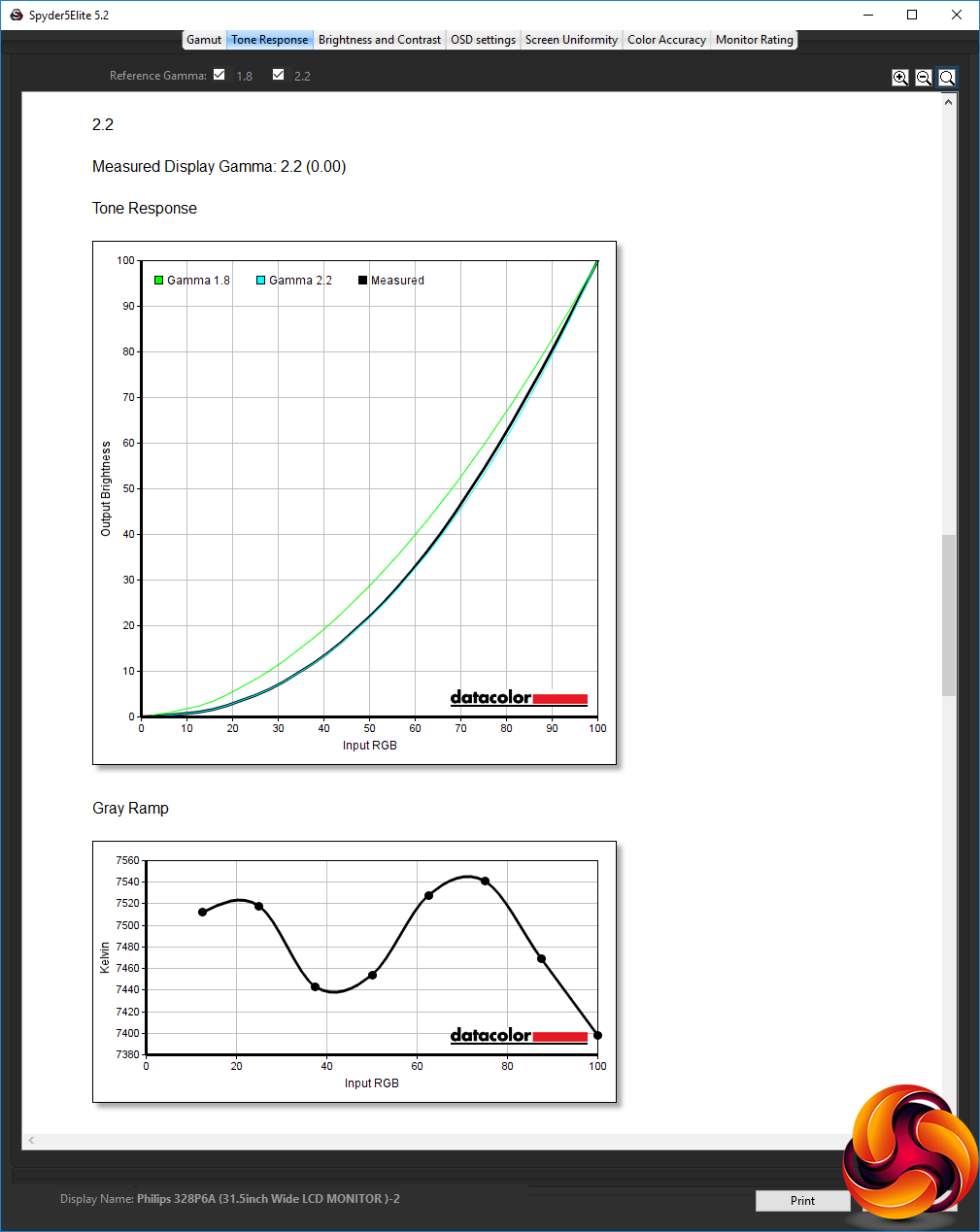
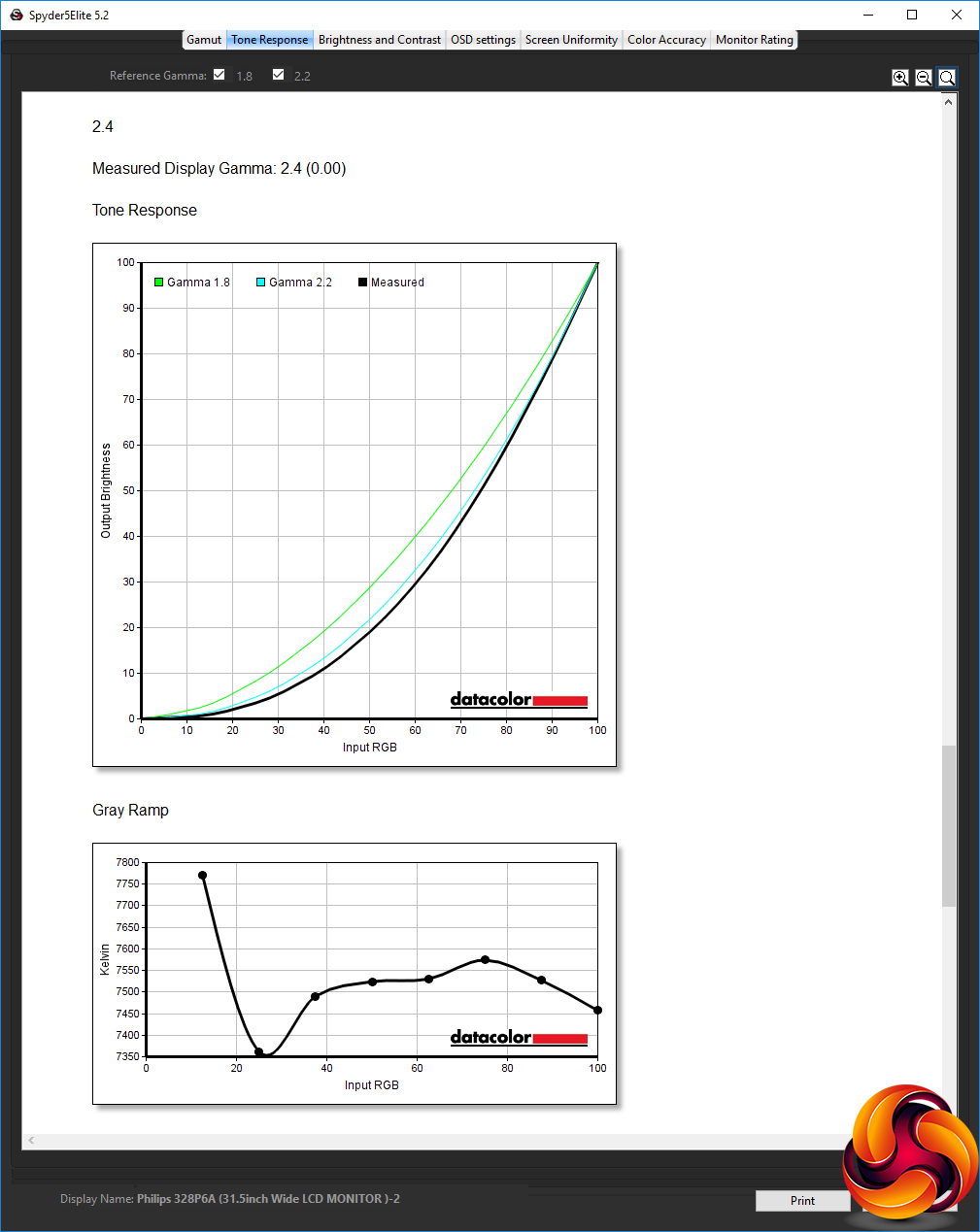
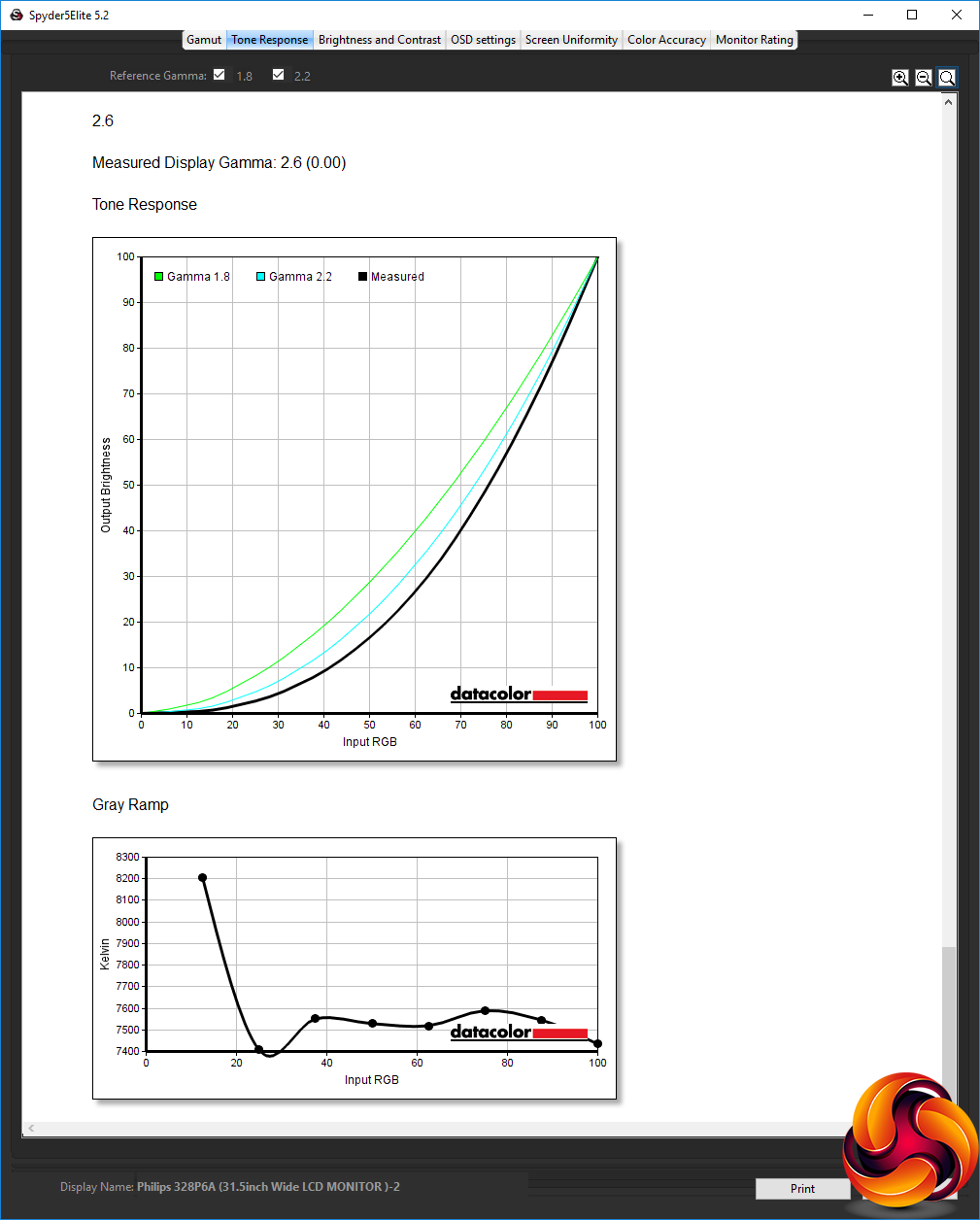
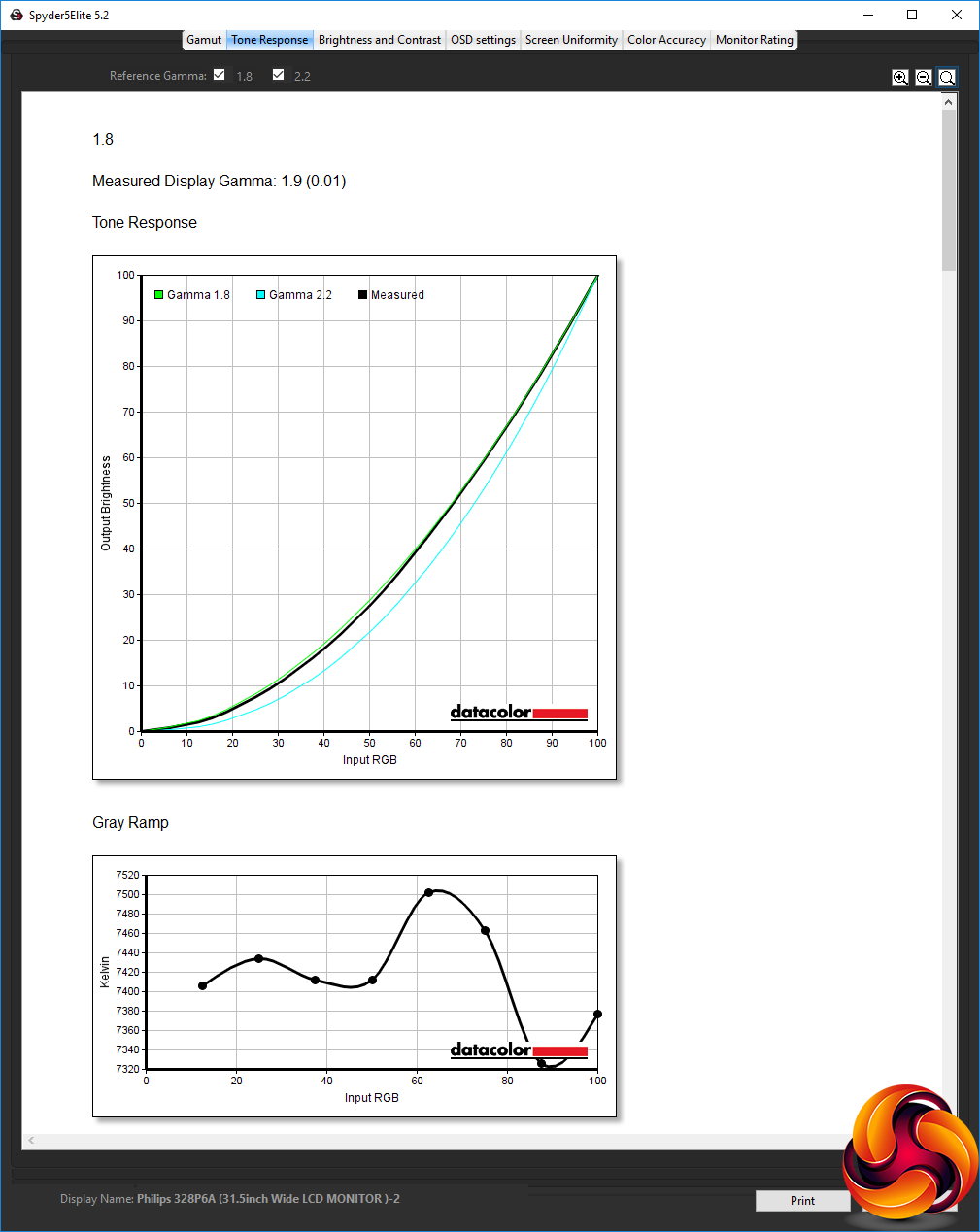
With the exception of the lowest 1.8 option, all the Gamma settings are spot on. This is impressive, and means you can be mostly sure that if you want a specific gamma level, the mode you select will provide what it says it will.
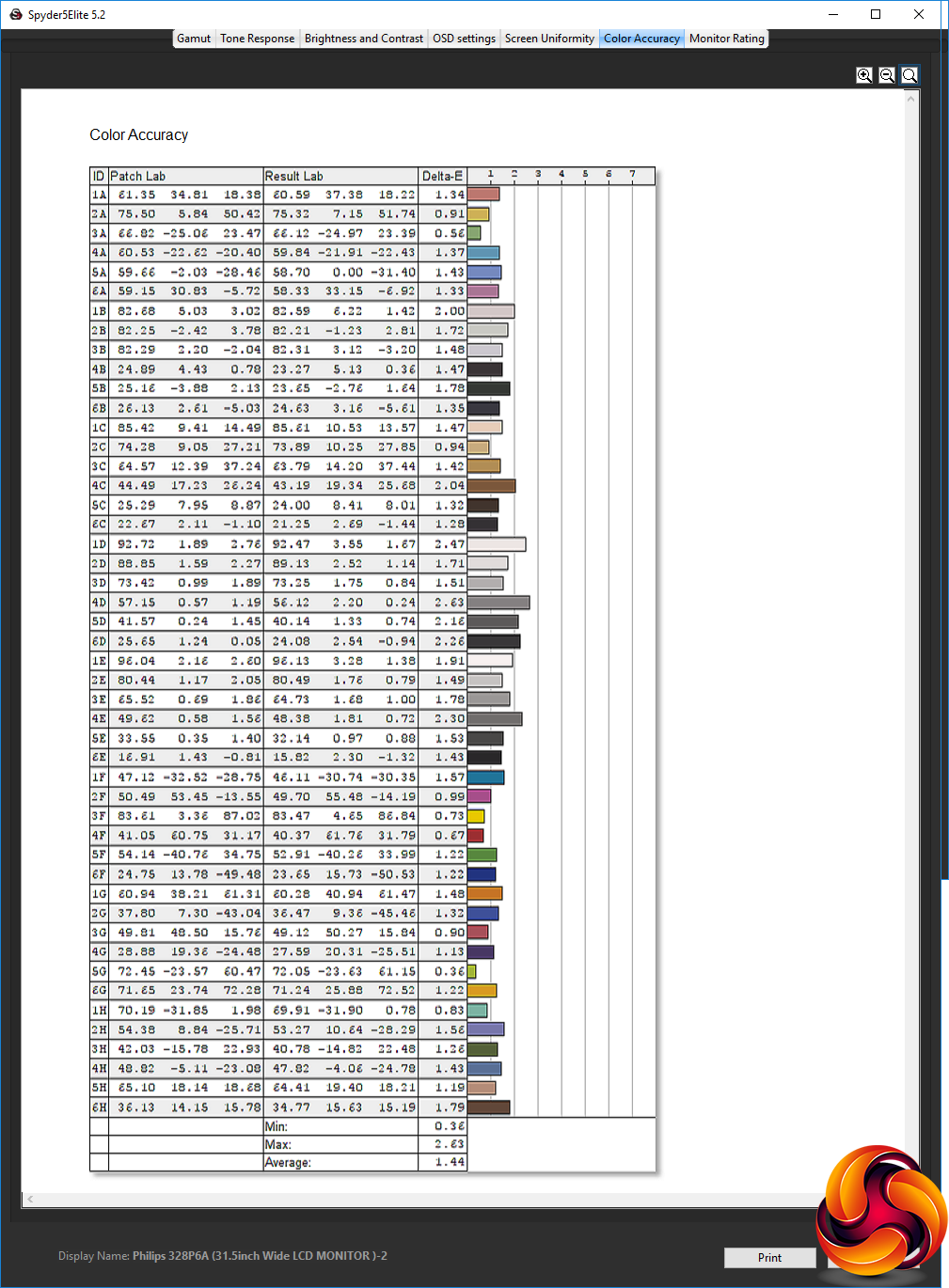
The 1.44 colour variance on average is also very commendable. It's not the absolute best we've seen out of the box, but is up there in the top echelons, giving yet more evidence that this is a quality IPS panel. But, as usual, we wanted to see if Spyder calibration could improve things still further.
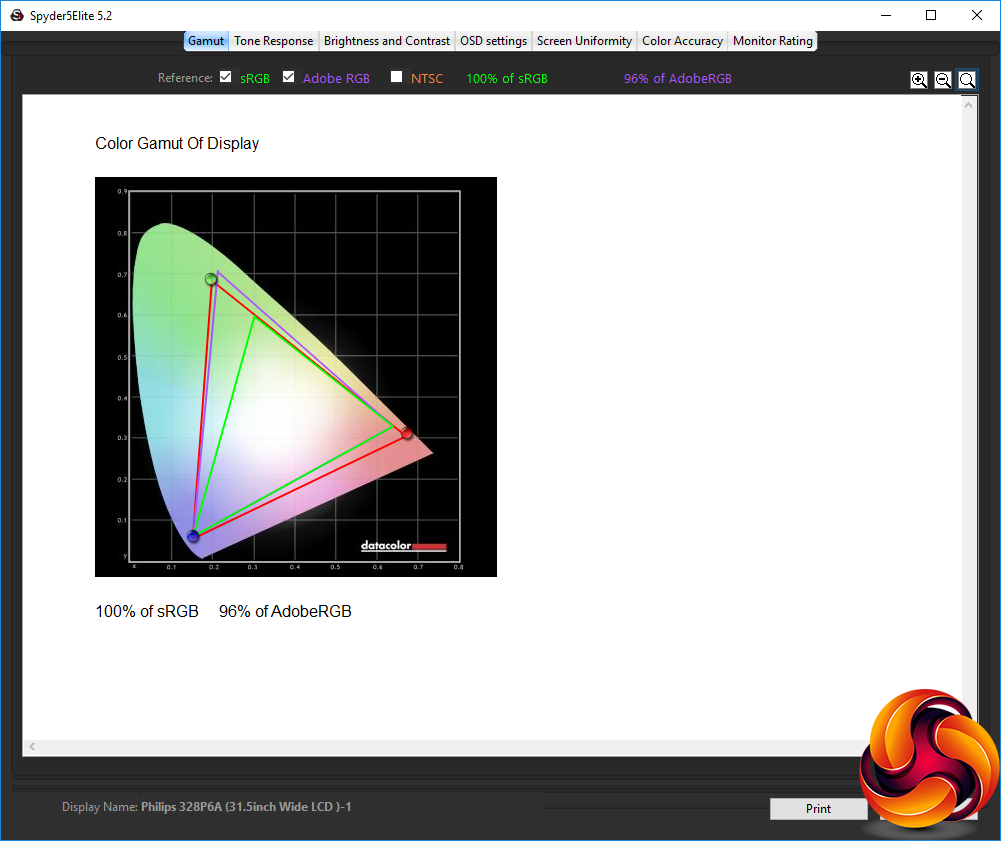
After calibration, the gamut is just as good as before, with 100 per cent sRGB and 96 per cent AdobeRGB.
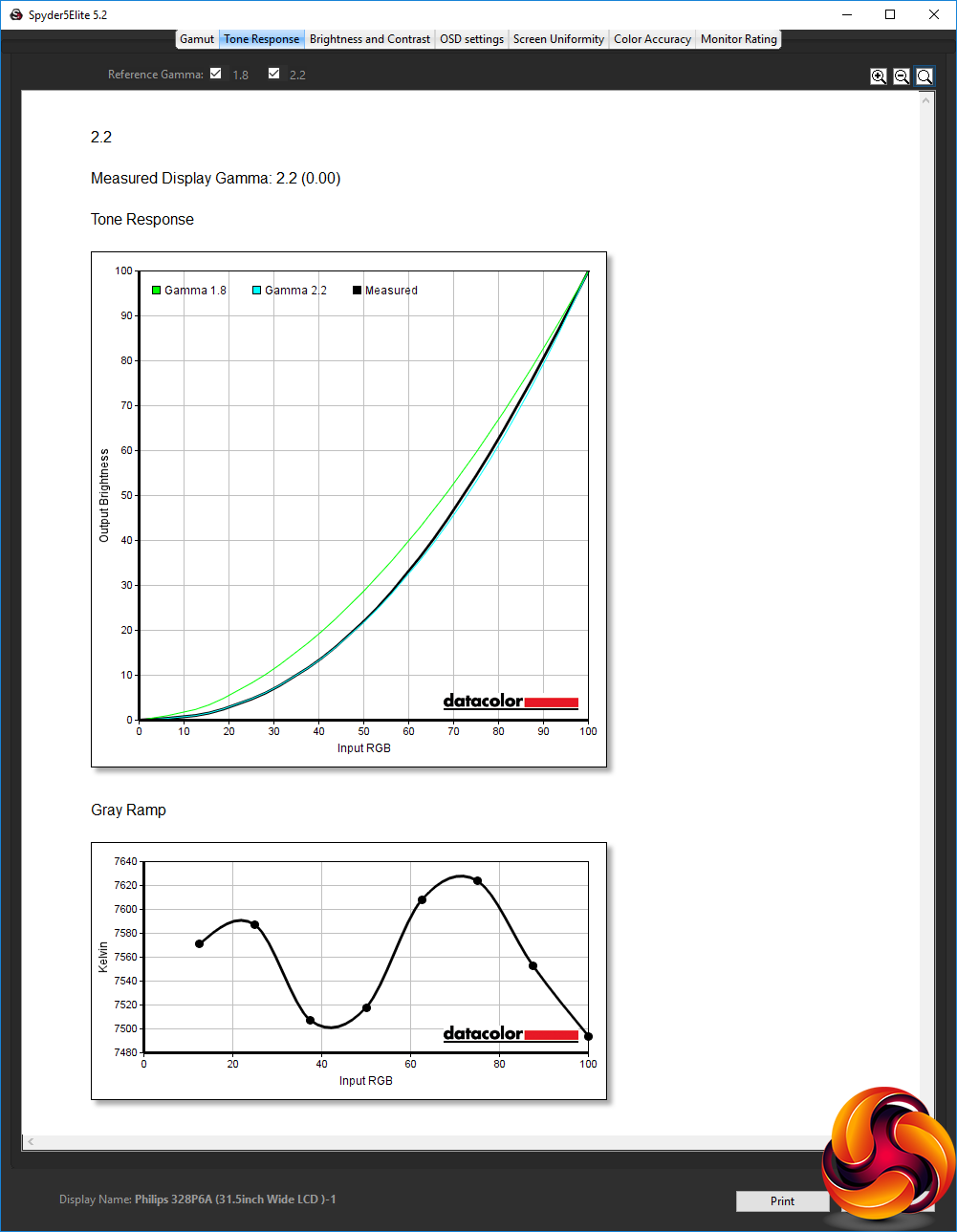
We only retested the gamma on the 2.2 setting, which stayed as a 2.2 reading. This is very gratifying considering that calibration involved reducing the brightness level to 38 per cent.
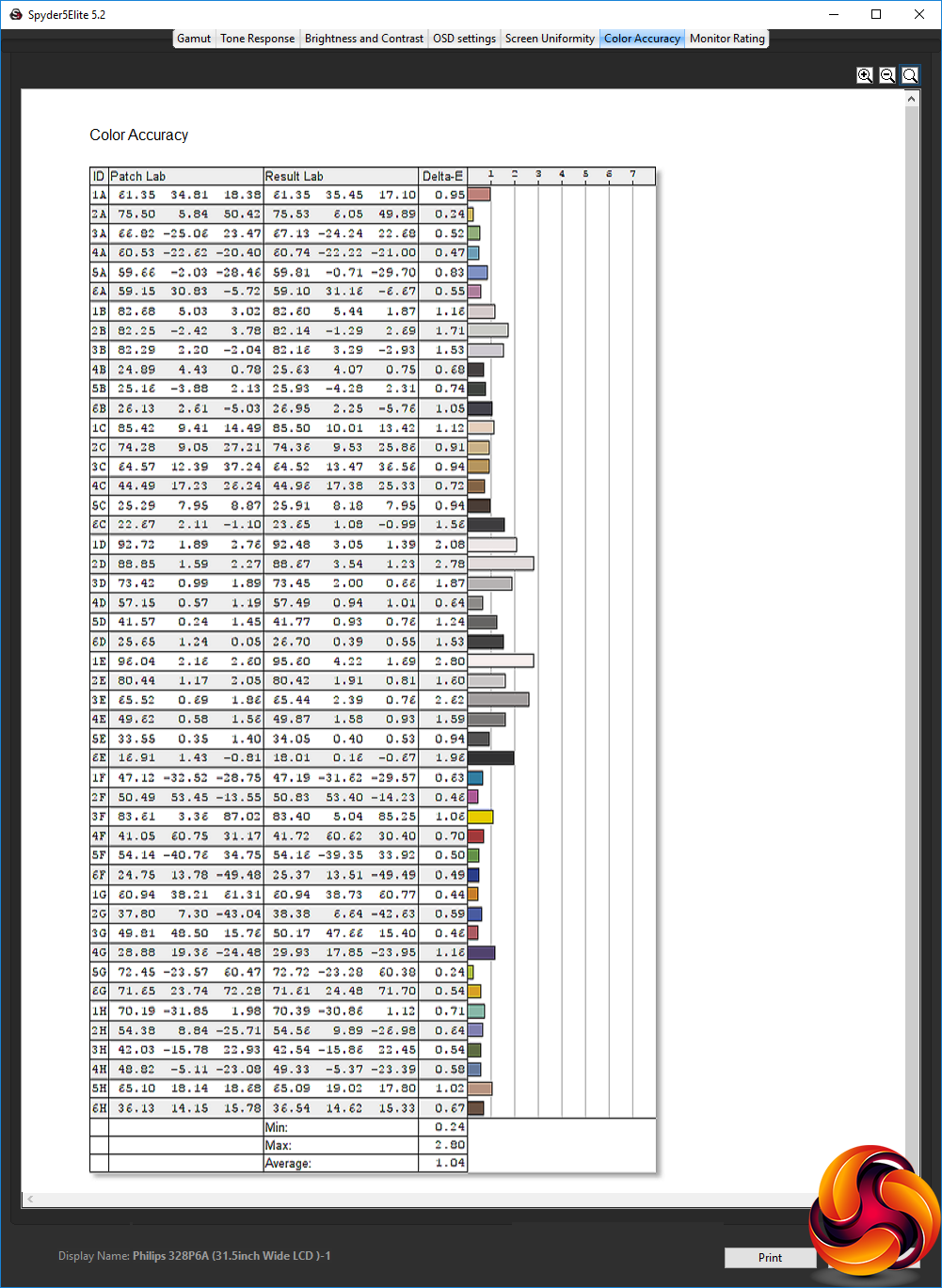
Colour accuracy is now even better. Again, we have seen a couple of monitors better the score of 1.04, but not many. This is one of the most faithful panels for colour we have tested, making it a great option for professional work.
Overall, apart from brightness uniformity, which is a bit of a worry, this is an excellent panel capable of great brightness and contrast, excellent colour fidelity, and with lots or presets that provide a wide variety of options for different usage scenarios.
We also tried some everyday activities and gaming on the screen. Movies looked particularly good, with the brightness levels making videos very immersive. Running the UFO Motion Test, ghosting wasn't particularly bad, considering the pixel response. However, this still wasn't a particularly great gaming screen, even with the overdrive options enabled. We've been spoiled by screens capable of 100Hz or greater now. Nevertheless, for the intended general-purpose, professional and business use, performance is great.
The Philips Brilliance 328P6AUBREB is a capable screen for business and professional users. It has excellent colour accuracy and does very well in other areas of performance, with the notable exception of brightness uniformity. But this is a very bright screen in general, which is great for multimedia use, although gaming is not this display's forte.
The most notable feature, the USB-C connection, doesn't appear to be something you're paying a premium for, which makes it even more welcome. We would have liked to have seen a couple more USB ports, preferably in a more accessible place than round the back such as on one of the sides, as with the 272P7VPTKEB. But the ability to hook up your laptop via USB-C and have one cable supply video, audio, mouse and keyboard all at once is very convenient for the laptop-centred worker.
There is a good range of presets for different uses, and the manual settings are decent enough if you want a more custom configuration. Although this screen is quite large for its 2,560 x 1,440 resolution, its sub-£400 price is reasonable. As a large screen for home office or business use, there's plenty to commend the 328P6AUBREB. But if you own a USB-C-equipped laptop, this could be your notebook's perfect docking companion when you're at your desk.
The Philips Brilliance 328P6AUBREB is available from Amazon HERE.
Discuss on our Facebook page, over HERE.
Pros:
- Great colour accuracy, becoming excellent when calibrated.
- USB-C ports provides video, audio and keyboard/mouse through one cable.
- USB-C charging with compatible devices.
- Large 31.5in screen.
- Reasonable price.
- Lots of physical adjustment options.
- Good range of of inputs.
- Useful range of OSD presets.
Cons:
- Poor brightness uniformity.
- 60Hz refresh and 4ms response make it a poor choice for gamers.
- Only two USB ports, both round the back.
Kitguru Says: The Philips 328P6AUBREB showcases the value of USB-C as a single cable to rule them all, but it's also a very high quality screen for business and professional use.