KitGuru KitGuru.net – Tech News | Hardware News | Hardware Reviews | IOS | Mobile | Gaming | Graphics Cards


Razer certainly knows a thing or two about style. The company's gorgeous gaming laptops have been enticing players for some years now, and Razer has been branching out into other areas of late, including routers. This may have seemed like a bit of a leap for a company not previously in the networking business, but the Razer Raptor 27 not so much. Laptops have integrated screens after all. This high-end 27in gaming display has the Razer hallmark – design ethos streaming out of its pixels.
As the Porsche-AOC collaboration has shown to its detriment, however, you need a solid monitor specification to back up all that style. Whereas the latter merely looked great, with rather pedestrian features underneath, the Raptor 27 sports a 2,560 x 1,440 resolution, 144Hz refresh, and FreeSync 2 with G-sync Compatible accreditation. So this is a serious piece of gaming hardware.
The panel technology used is IPS, which isn't the best for pixel response but is top of the heap for visual quality. The grey-to-grey response is the usual 4ms for this technology, although Razer reduces this to 1ms with Motion Blur Reduction. The maximum brightness is rated at 420cd/m2, just enough for DisplayHDR400 certification, and contrast is the usual 1000:1 of IPS. Razer claims 95 per cent of the DCI-P3 gamut, which will be great for HDR gaming and movie watching.
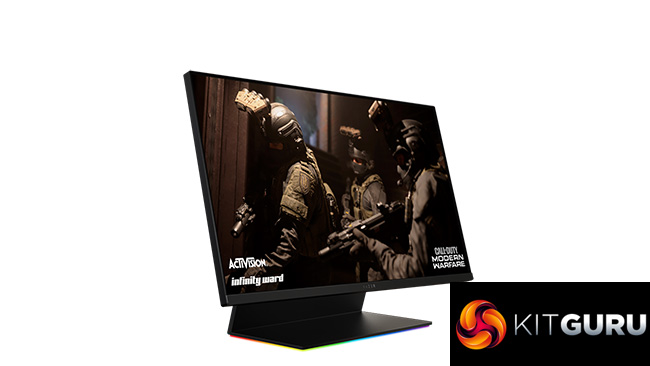
So the Raptor 27 is much more than a pretty face, but the design is still the main focus. The solid stand doesn't allow swivel, but you can raise the panel up and down as well as tilt it. You can also tilt it all the way back so the screen points up, making cable attachment very easy. You get all the main connectivity options here, with DisplayPort, HDMI and USB-C, although only one of each. The latter is accompanied by a pair of USB 3.2 Gen1 ports, and there's a minijack for plugging in your headphones.
With unique flat cabling in the luminescent green that is part of Razer's brand image, this is an eye-catching device, although it also comes at an eye-catching price. Considering that Gigabyte's AORUS FI27Q-P available for £240 less with HBR3 and 165Hz, is the Raptor 27 making you pay too much for style over substance? Let's find out.
Specification:
- Screen size: 27-inch, 16:9 aspect
- Native resolution: 2,560 x 1,440
- Refresh rate: 144Hz, FreeSync 2, G-sync Compatible
- Panel type: IPS
- Contrast ratio: 1,000:1 (typical)
- Brightness: 420cd/m2
- Response time: 4ms grey-to-grey, 1ms MBR
- Display inputs: 1 x HDMI 2.0b, 1 x DisplayPort 1.4, 1 x USB-C
- USB hub: Yes, 2 x USB 3.2 Gen1
- Tilt: 5 degrees forward, 25 degrees backward
- Raise: 100mm
- Swivel: No
- Portrait: No
- Other: Audio output
Retail Price: £699 (inc. VAT)
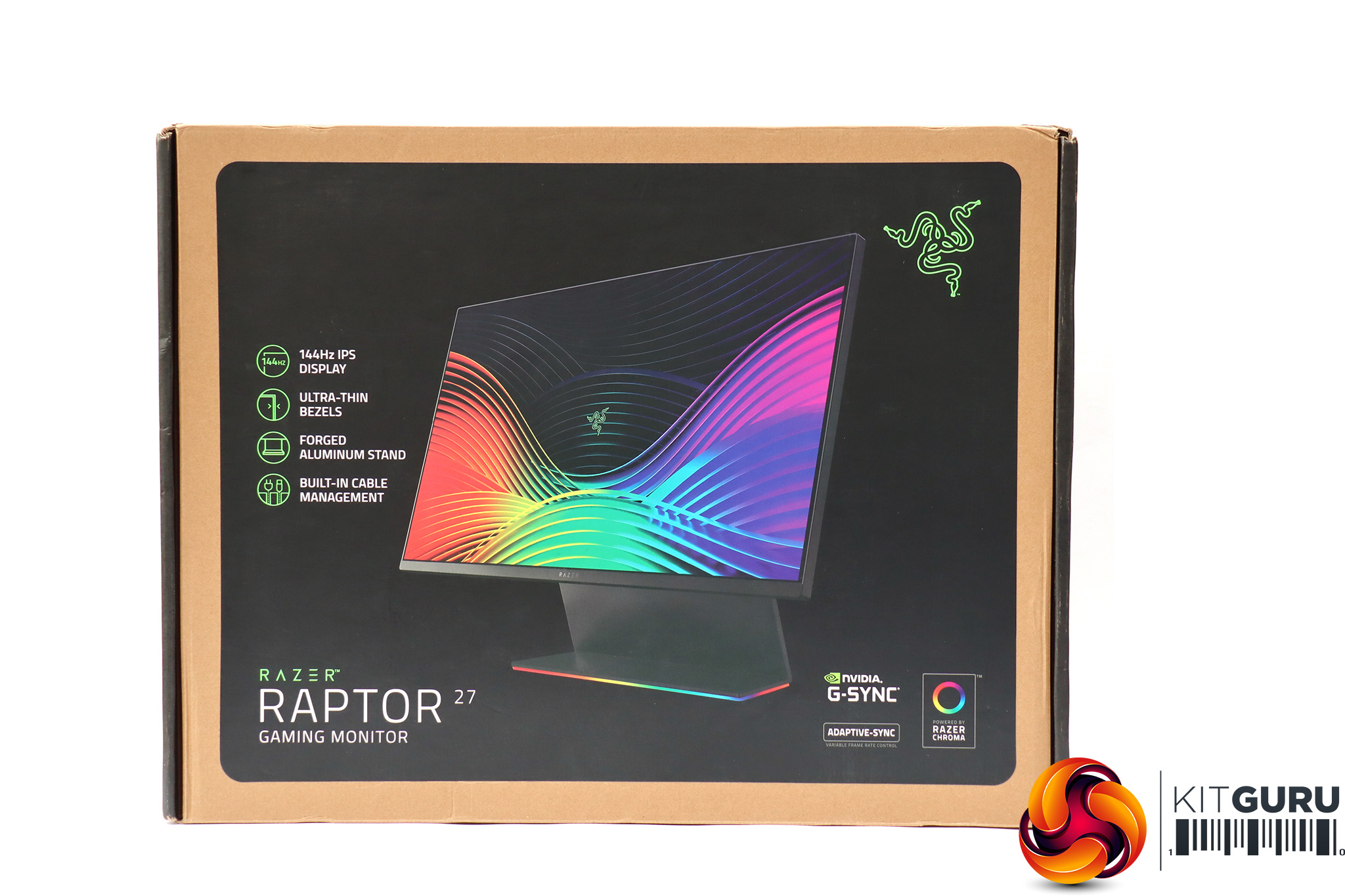
The Razer Raptor 27 box is quite stylish too, but we're surprised not to see gaming graphics superimposed on the screen, since that's what it's for.
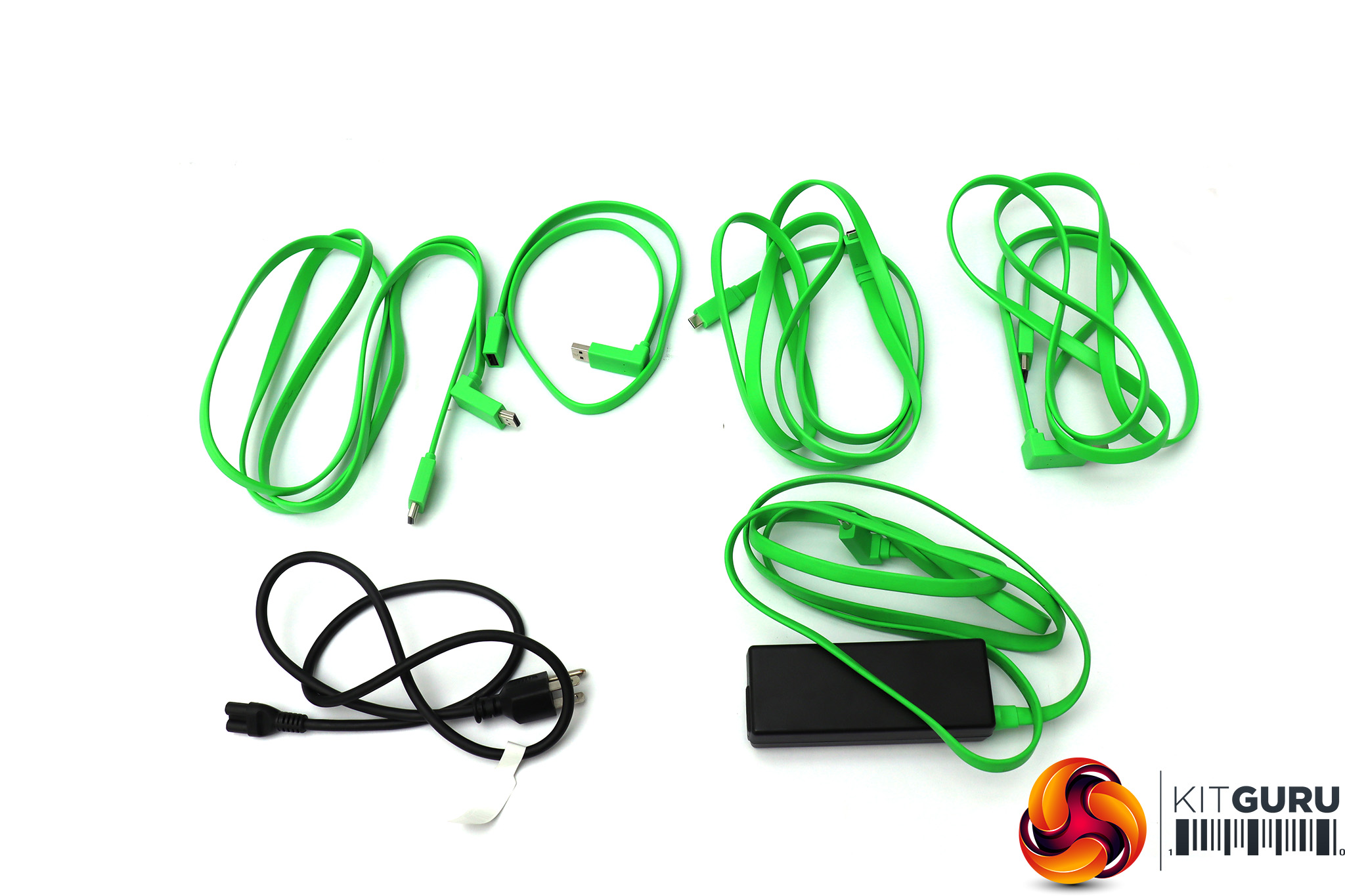
The Razer style starts straight away with the cabling bundle, which includes HDMI, DisplayPort and USB-C – all green ribbons rather than boring black rounded ones. Even the external power brick has a green ribbon attached, although the power lead is more normal in appearance. There's a green USB extension cable, too.
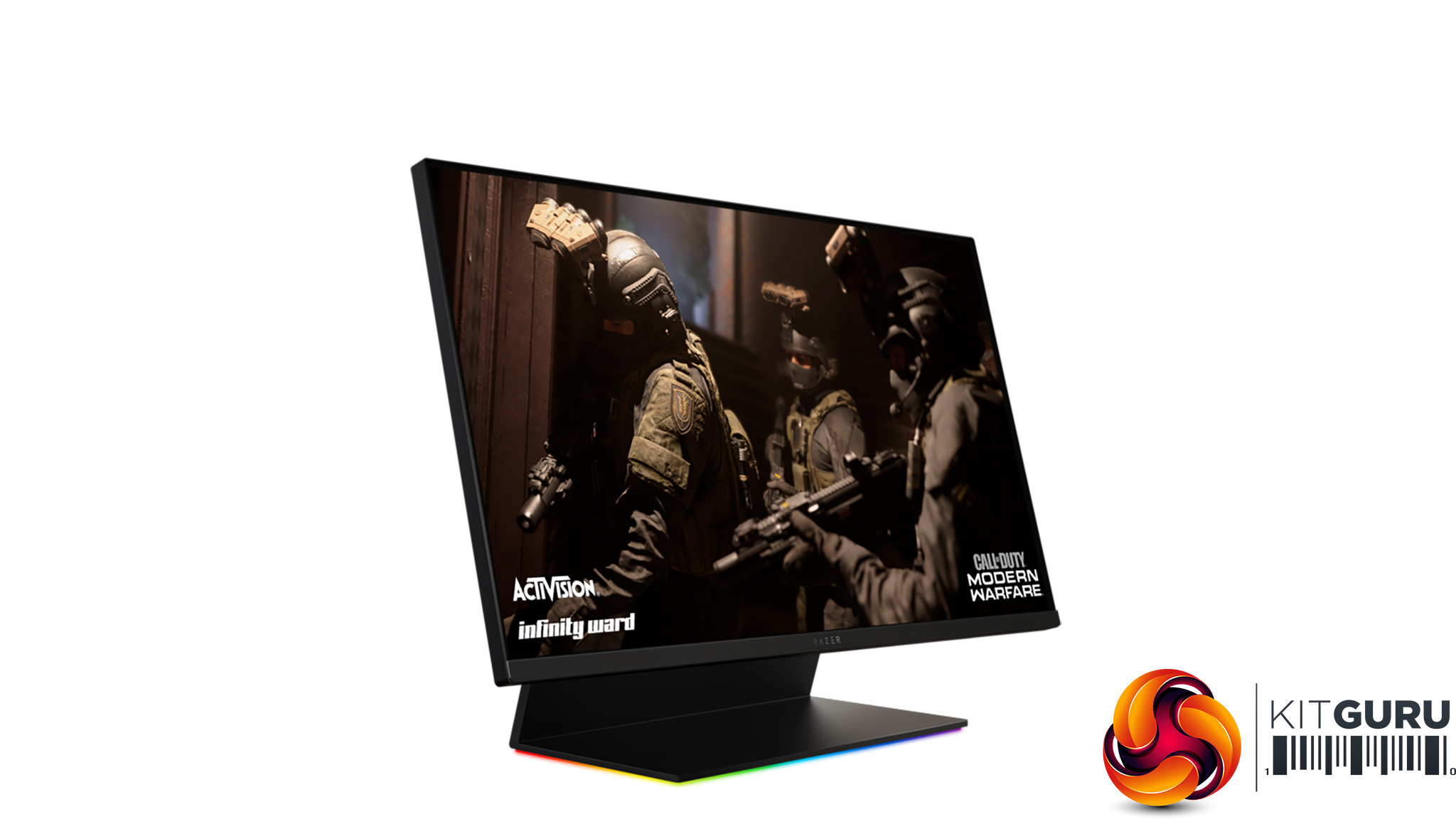
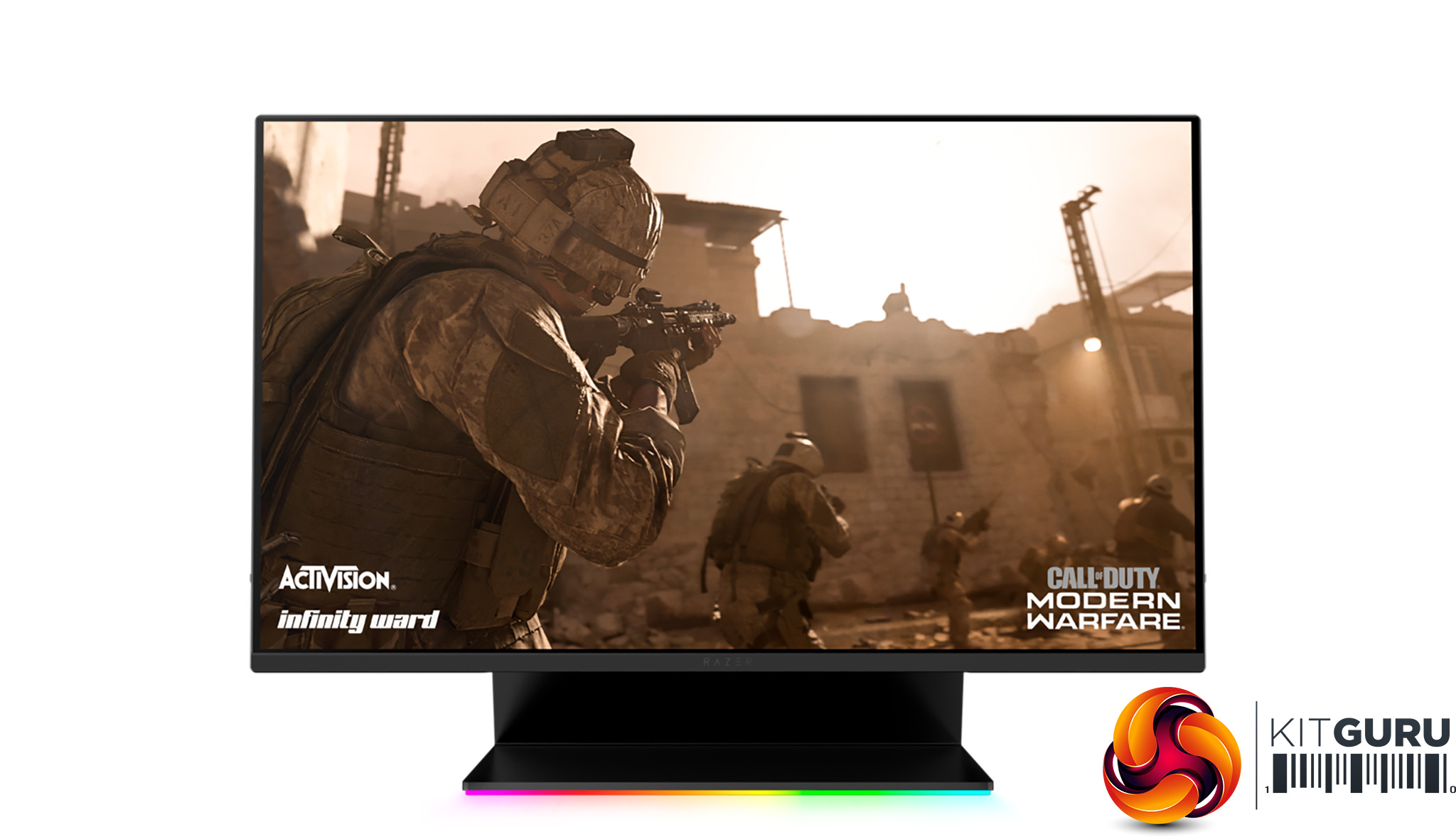
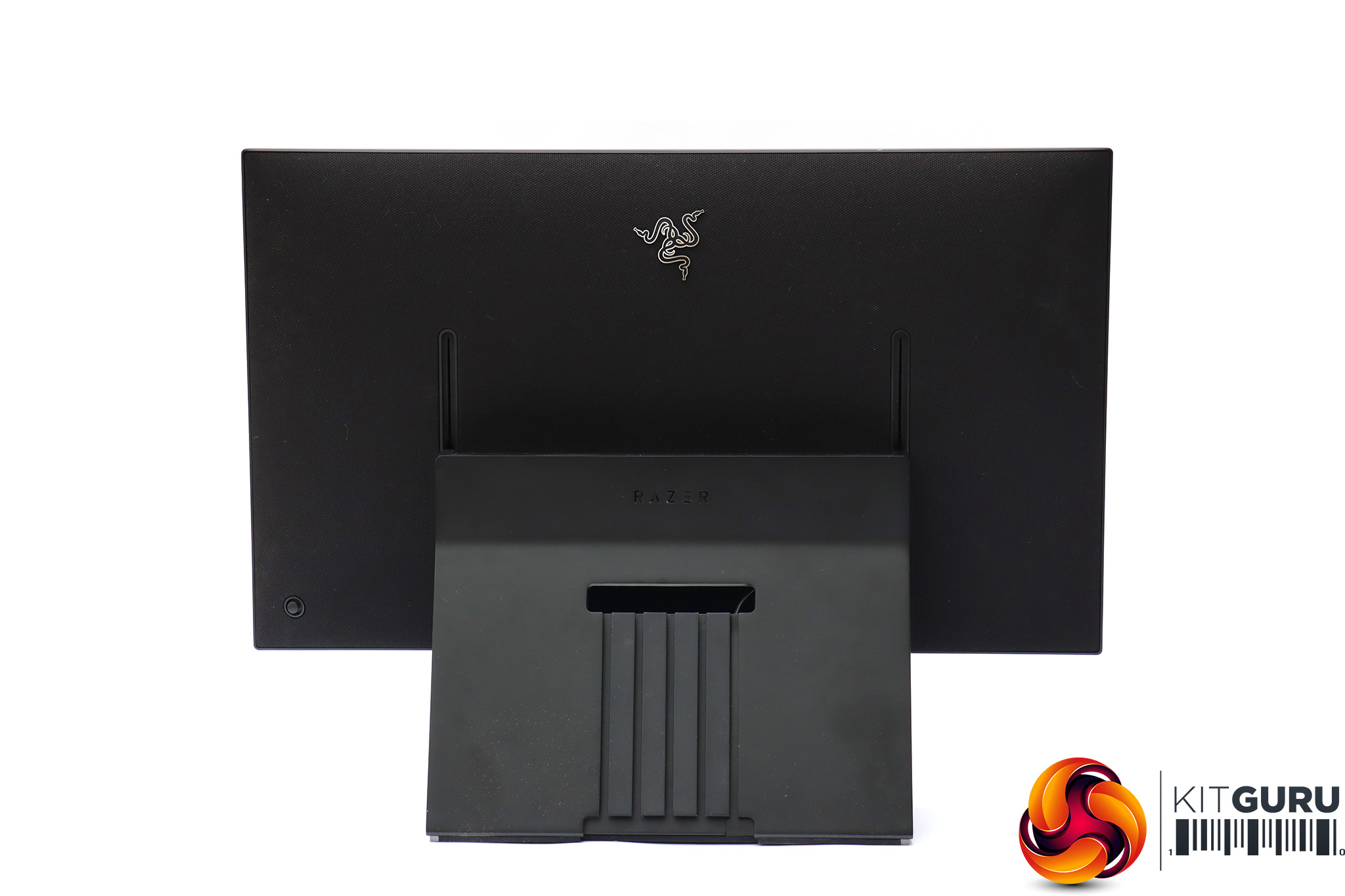
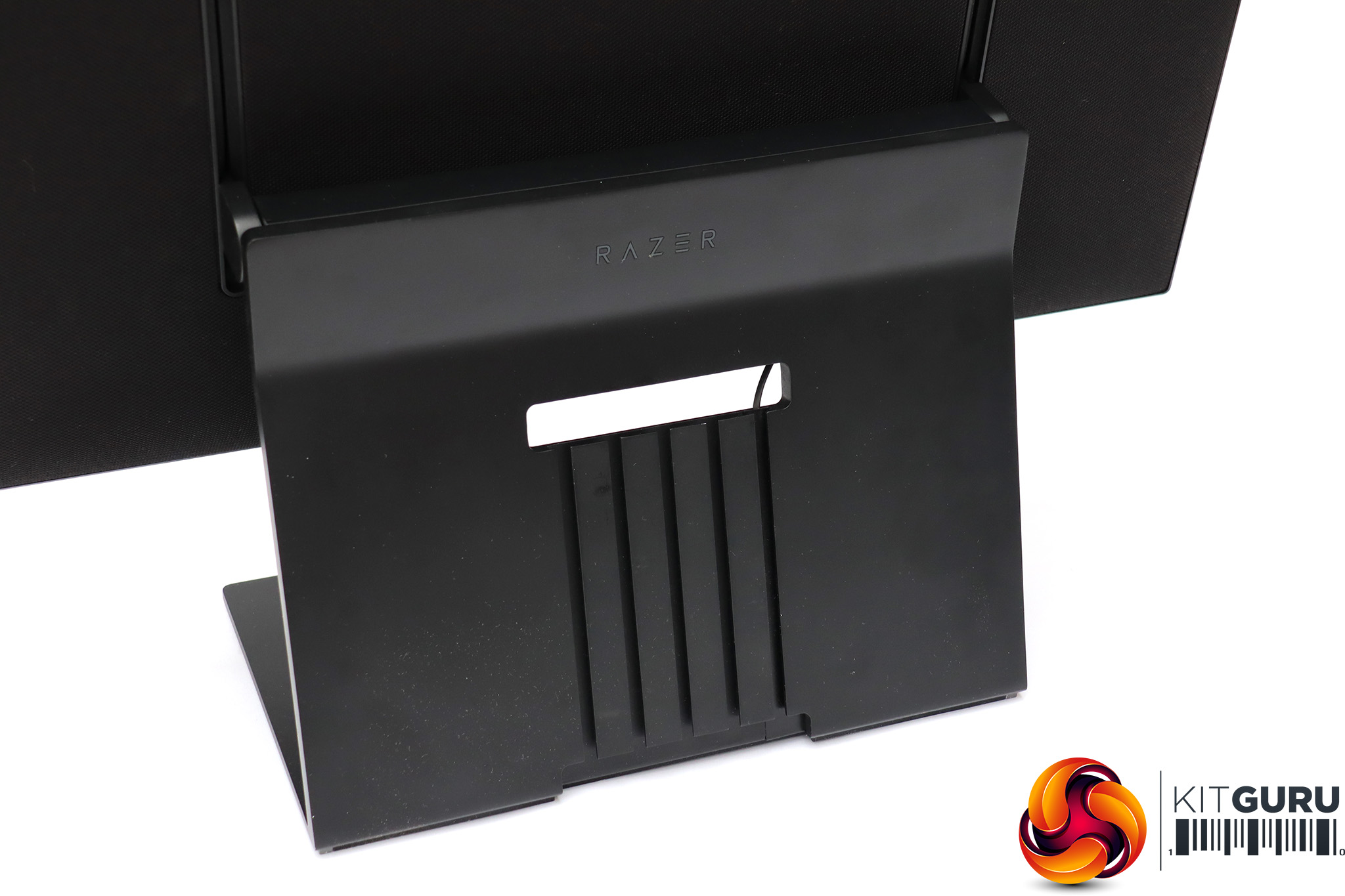
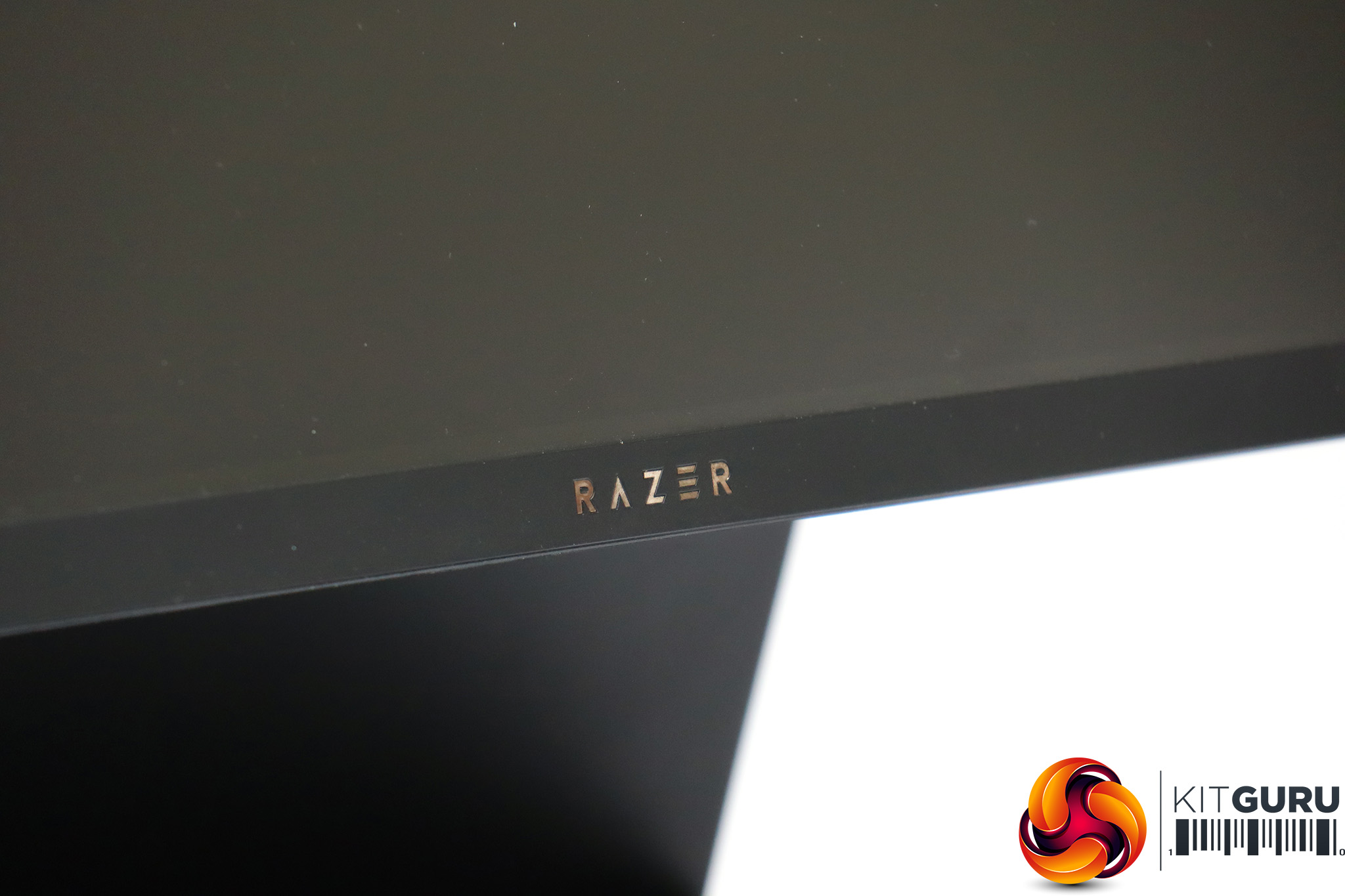
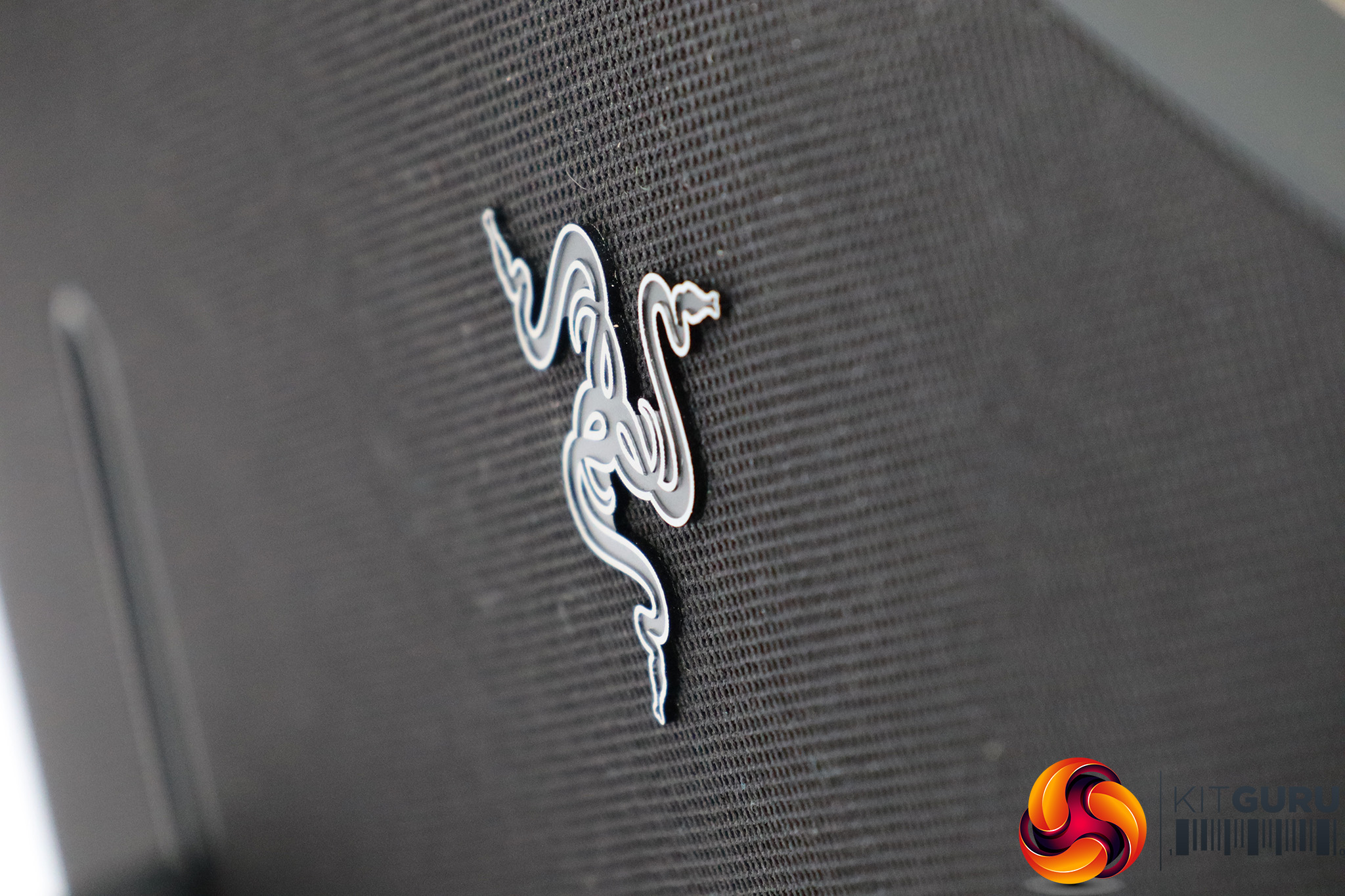
Whatever angle you look at it, the Raptor 27 is a great-looking screen. In fact, we'd argue that it's one of the best-looking monitor designs currently on the market, if not the best.
Simple and unfussy, with a clear air of build quality, this is definitely a panel to impress your friends, and the gently rotating (by default) RGB lighting from the base is bling that manages to avoid any hint of tackiness.
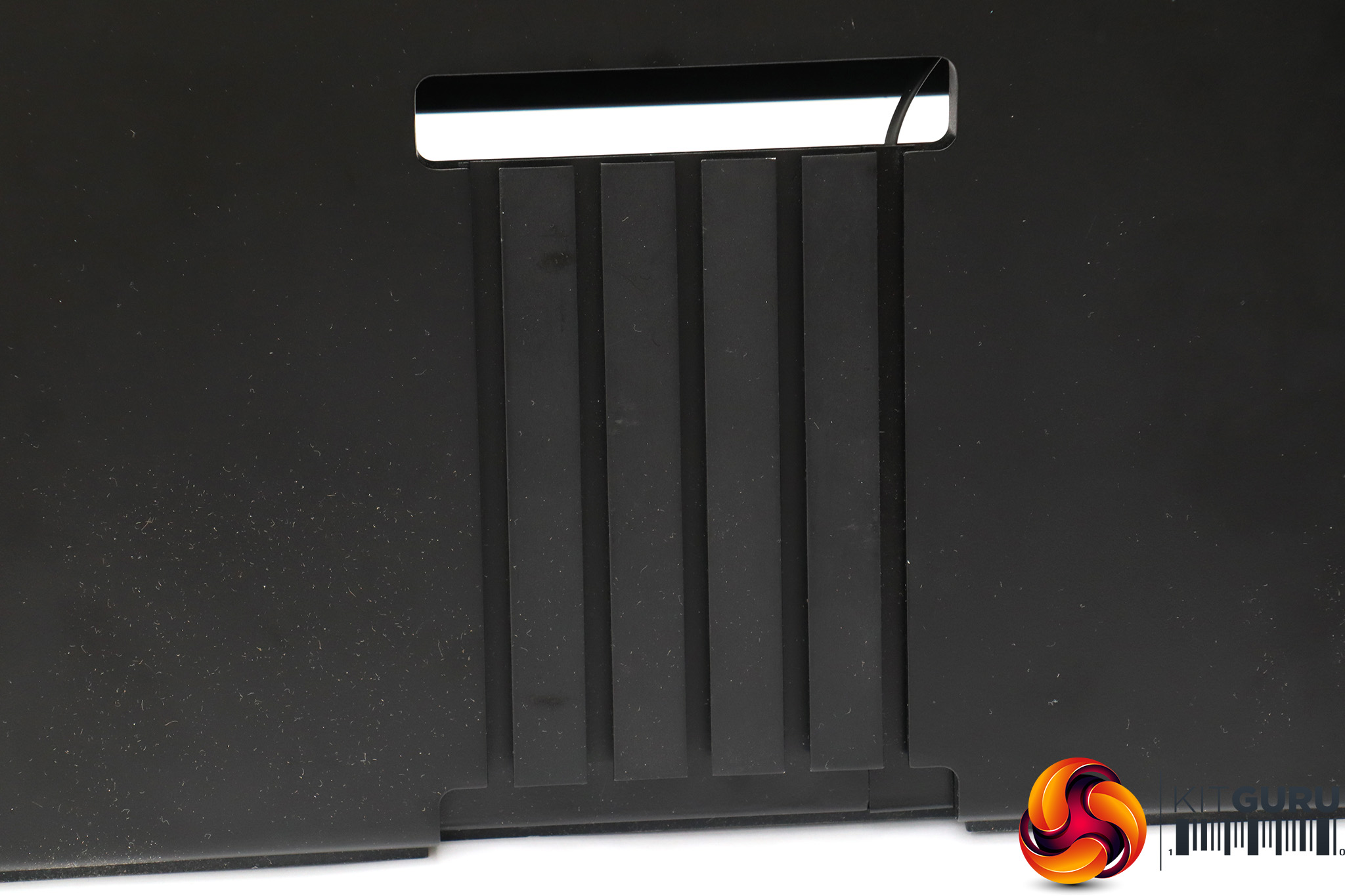
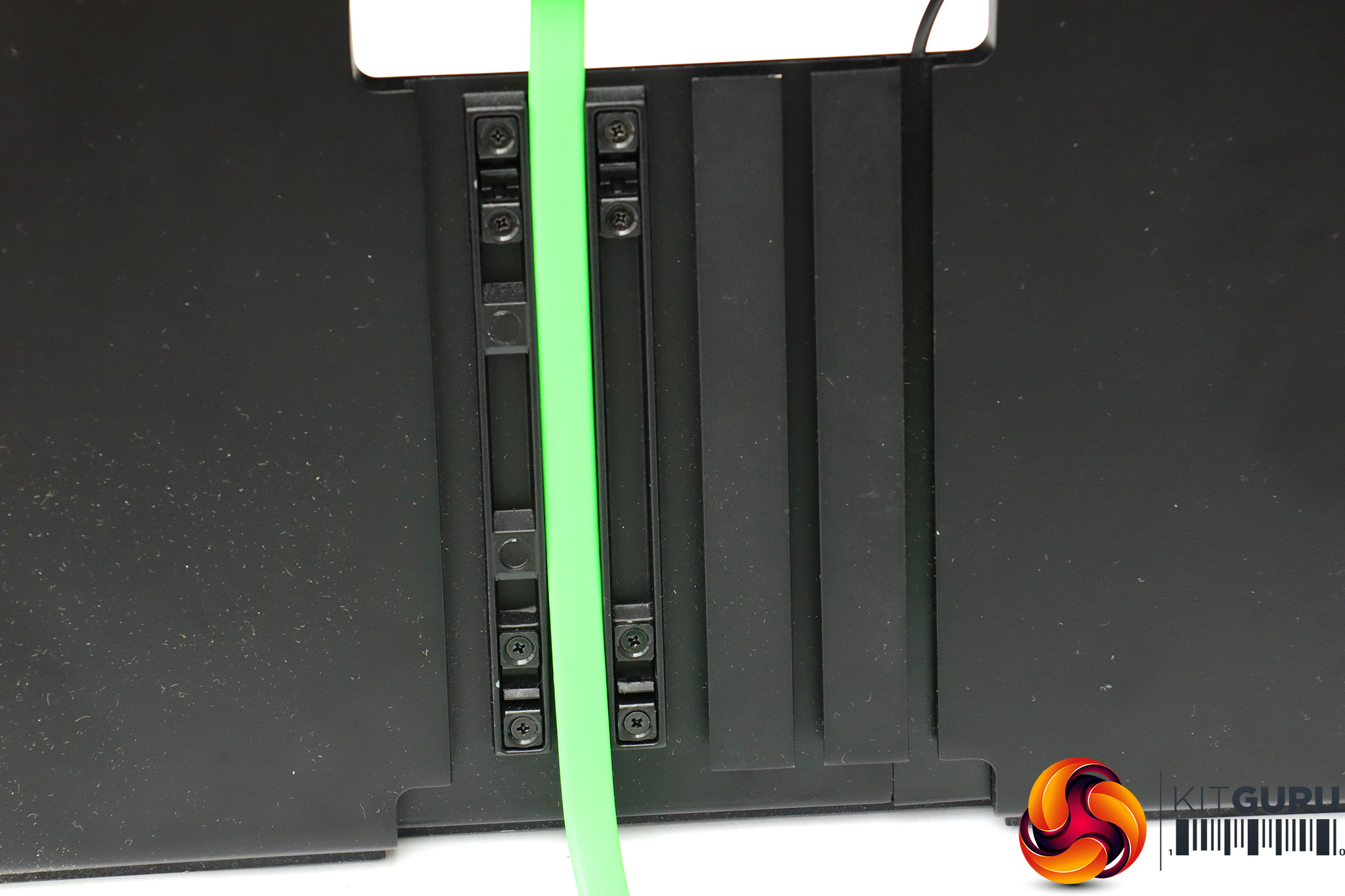
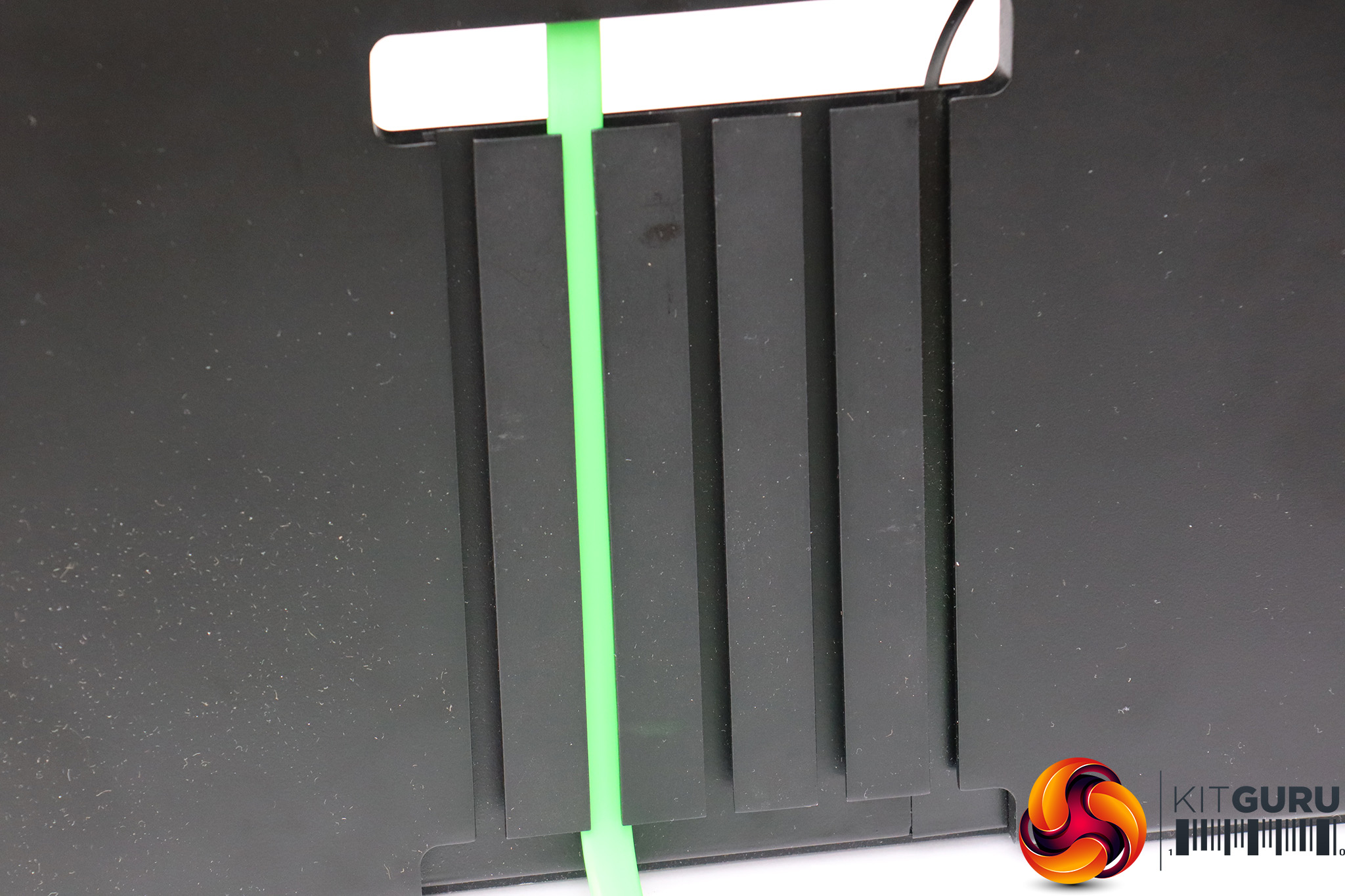
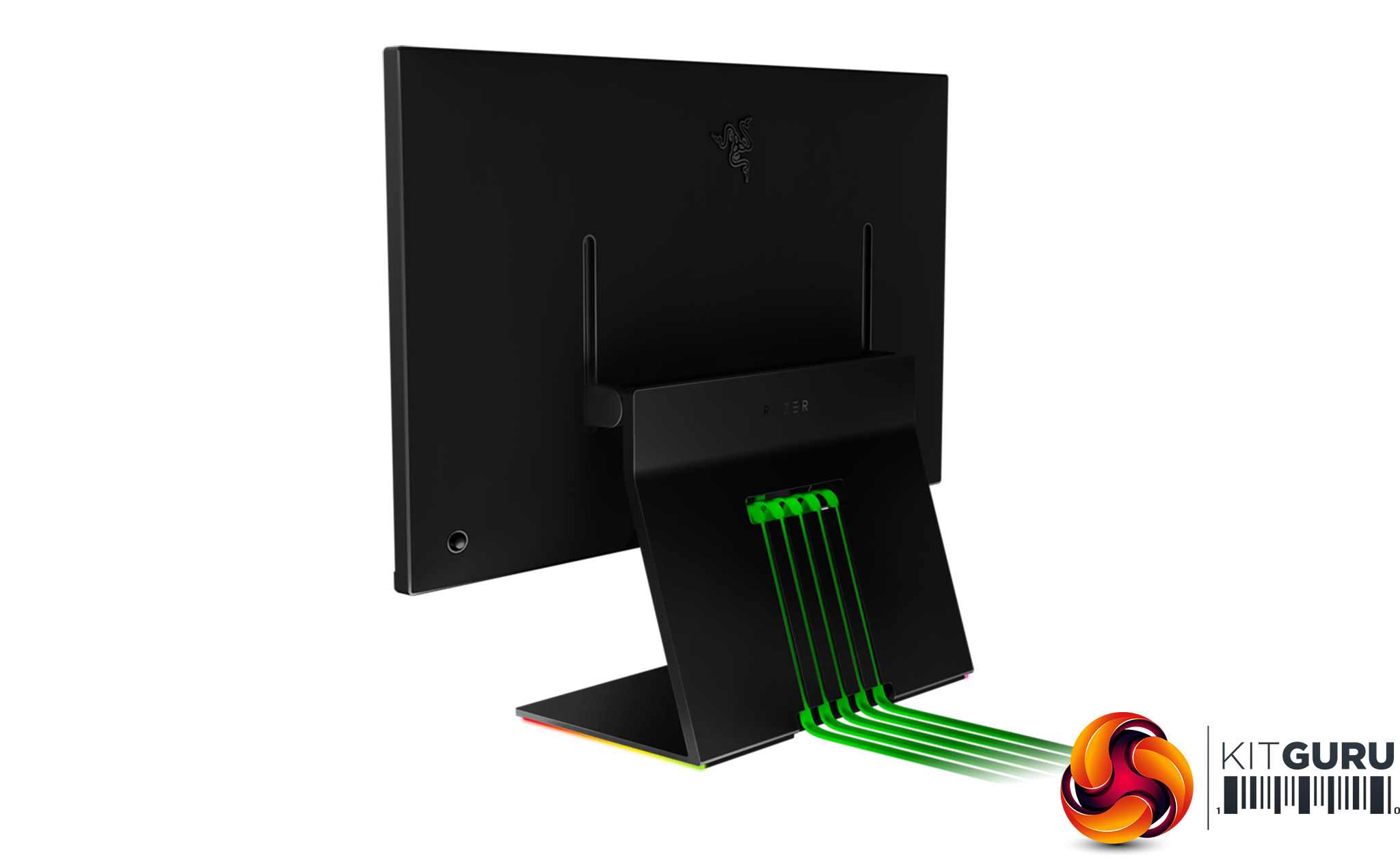
There are removable slats on the back of the stand so you can route the flat cables neatly down the rear of the unit. This is a very clever and easy-to-use system. In fact, it's probably the most well-thought-out cable management system we've seen in a monitor, although it requires you to use the Razer-supplied cables only.
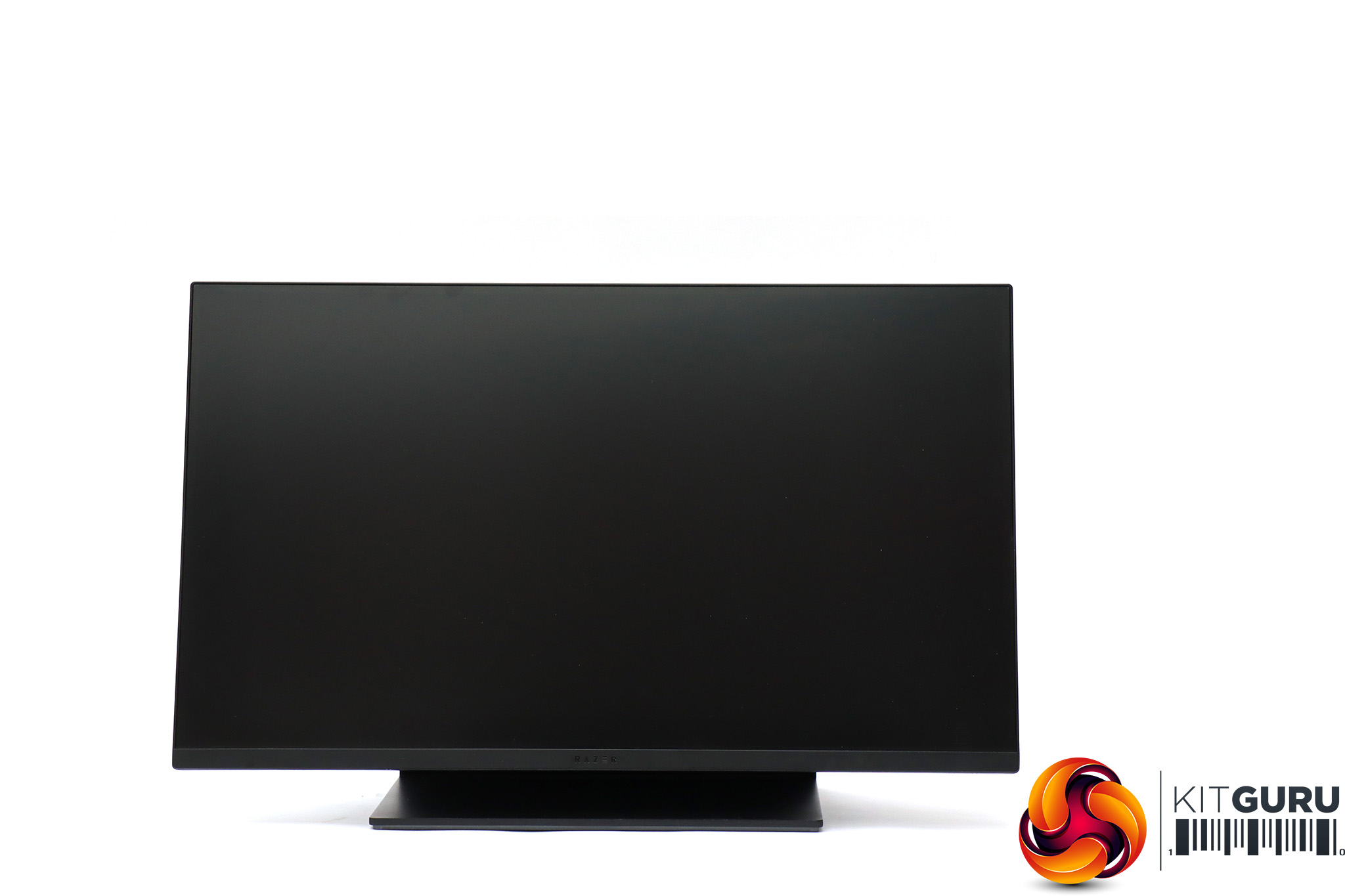
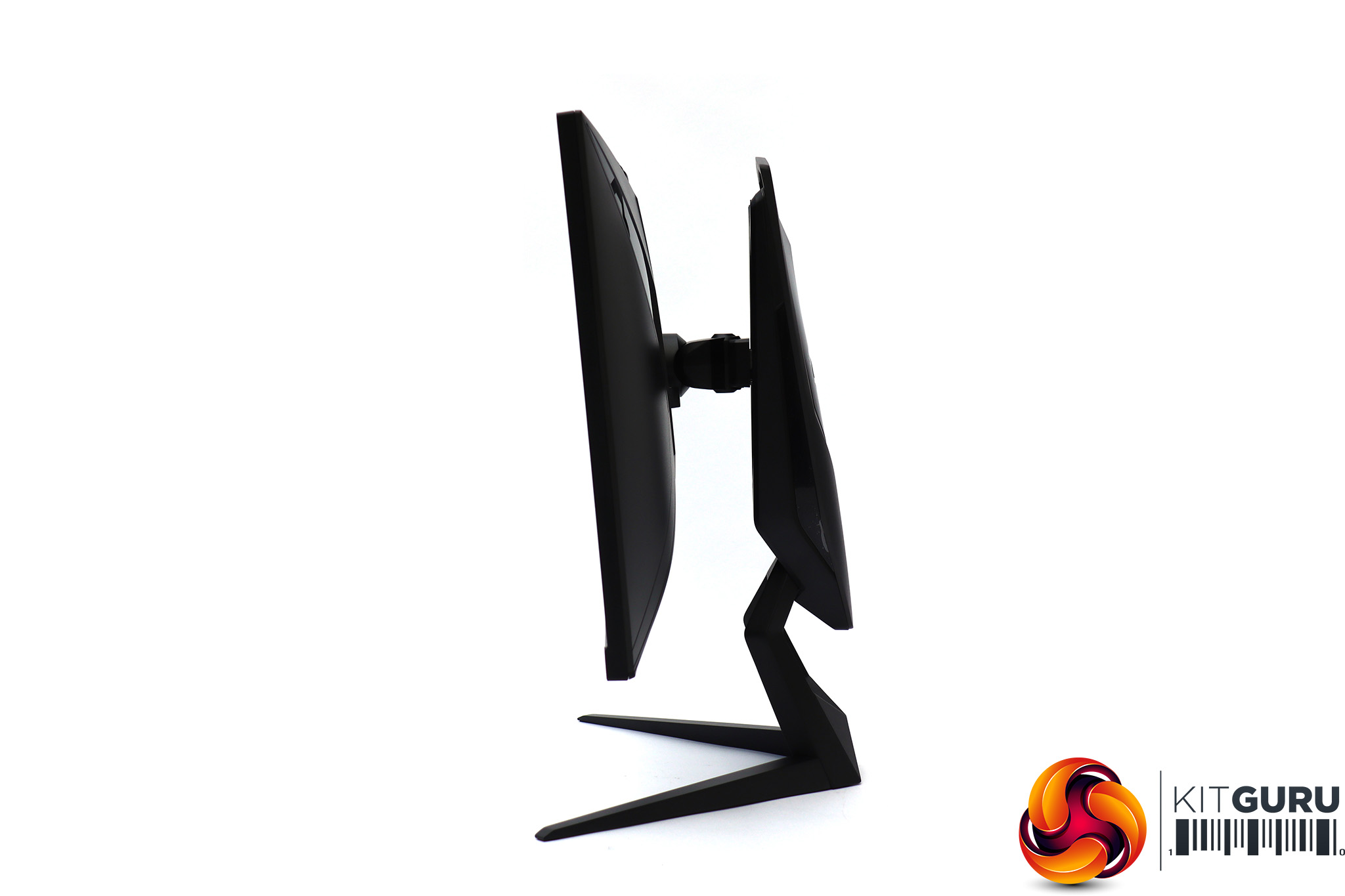
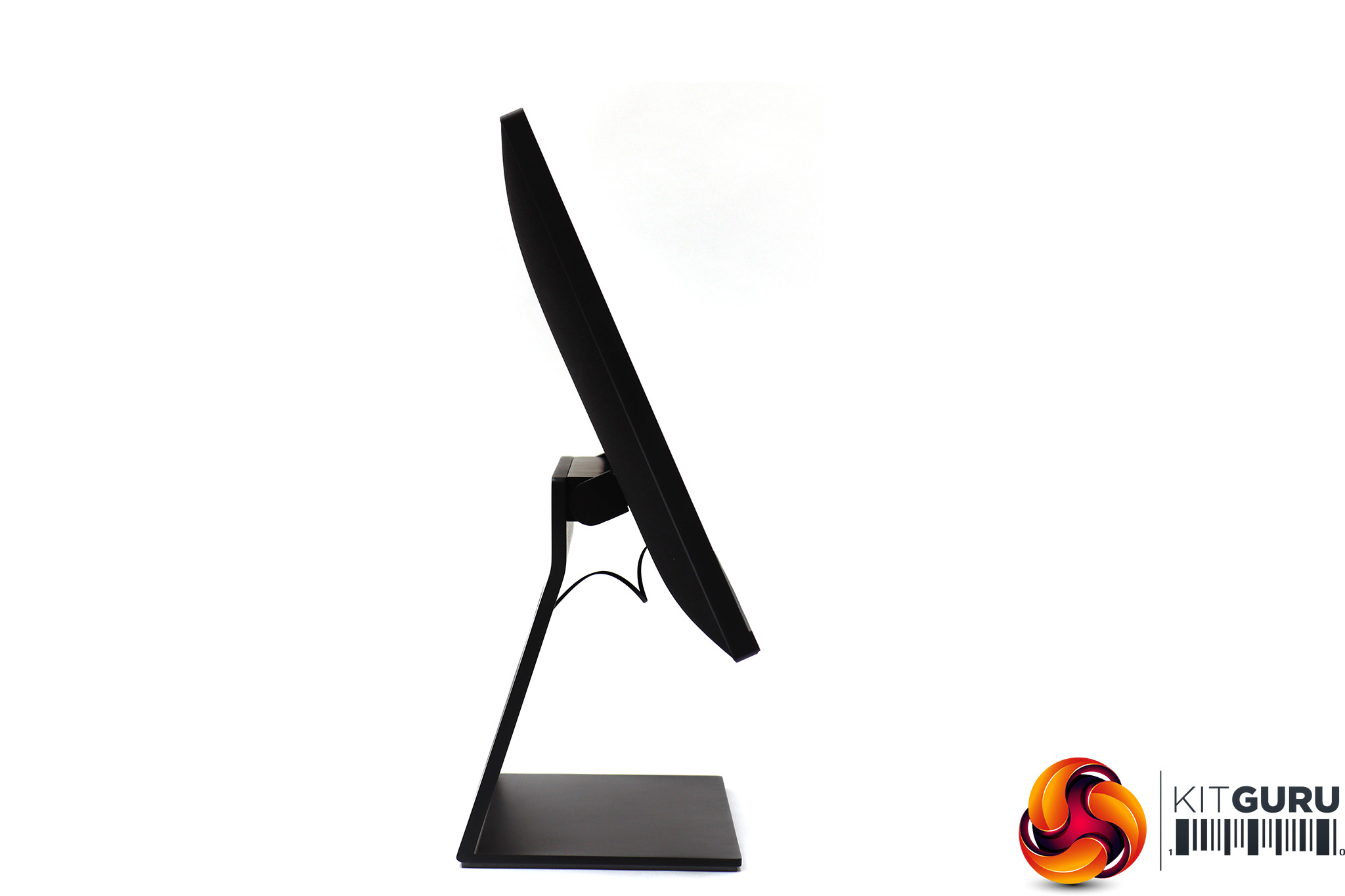
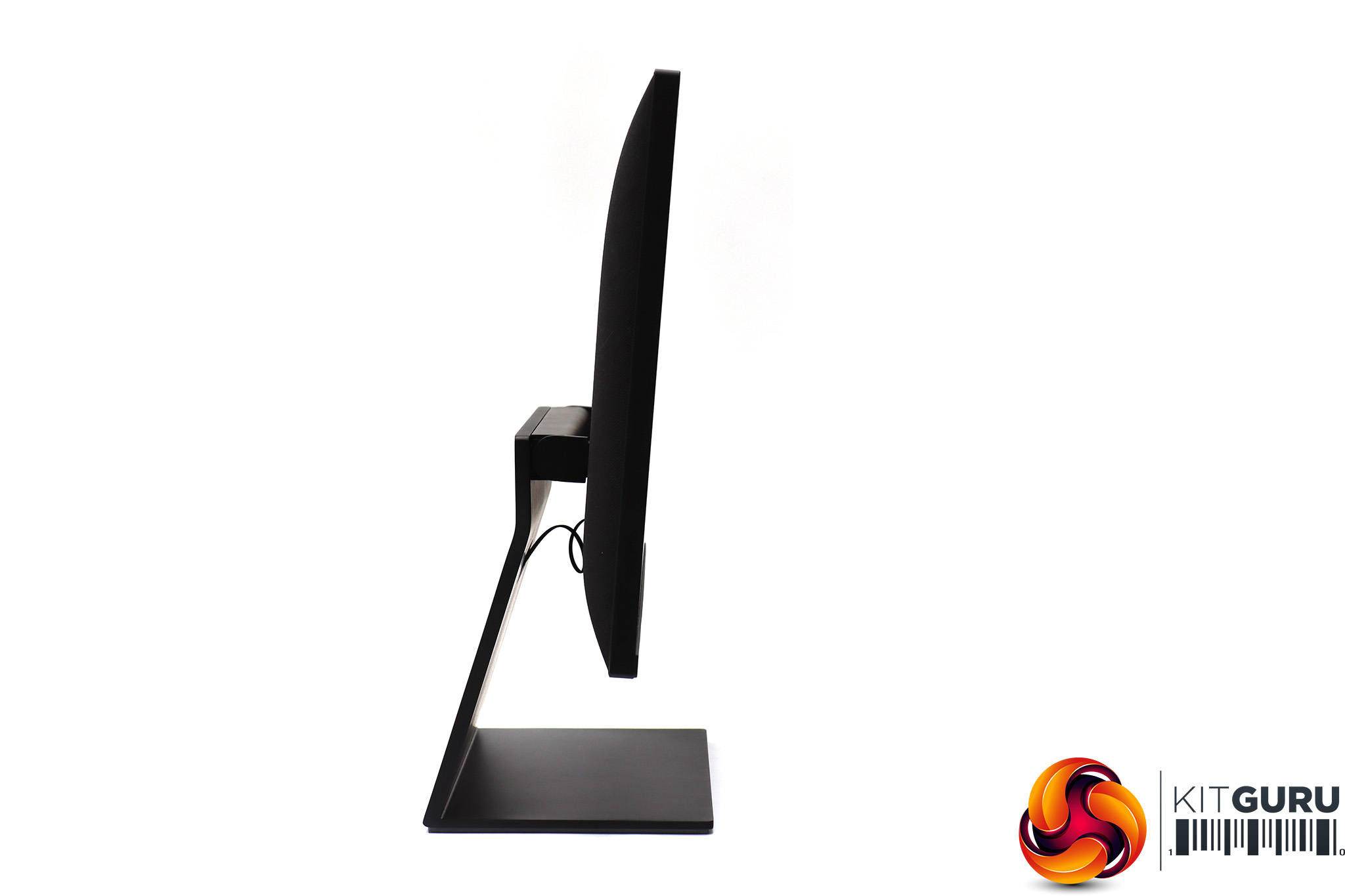
Adjustment abilities are quite limited, with no swivel available. Instead, you'd need to move the whole stand. You can raise and lower by 100mm, and tilt 5 degrees forwards or 25 degrees backwards.
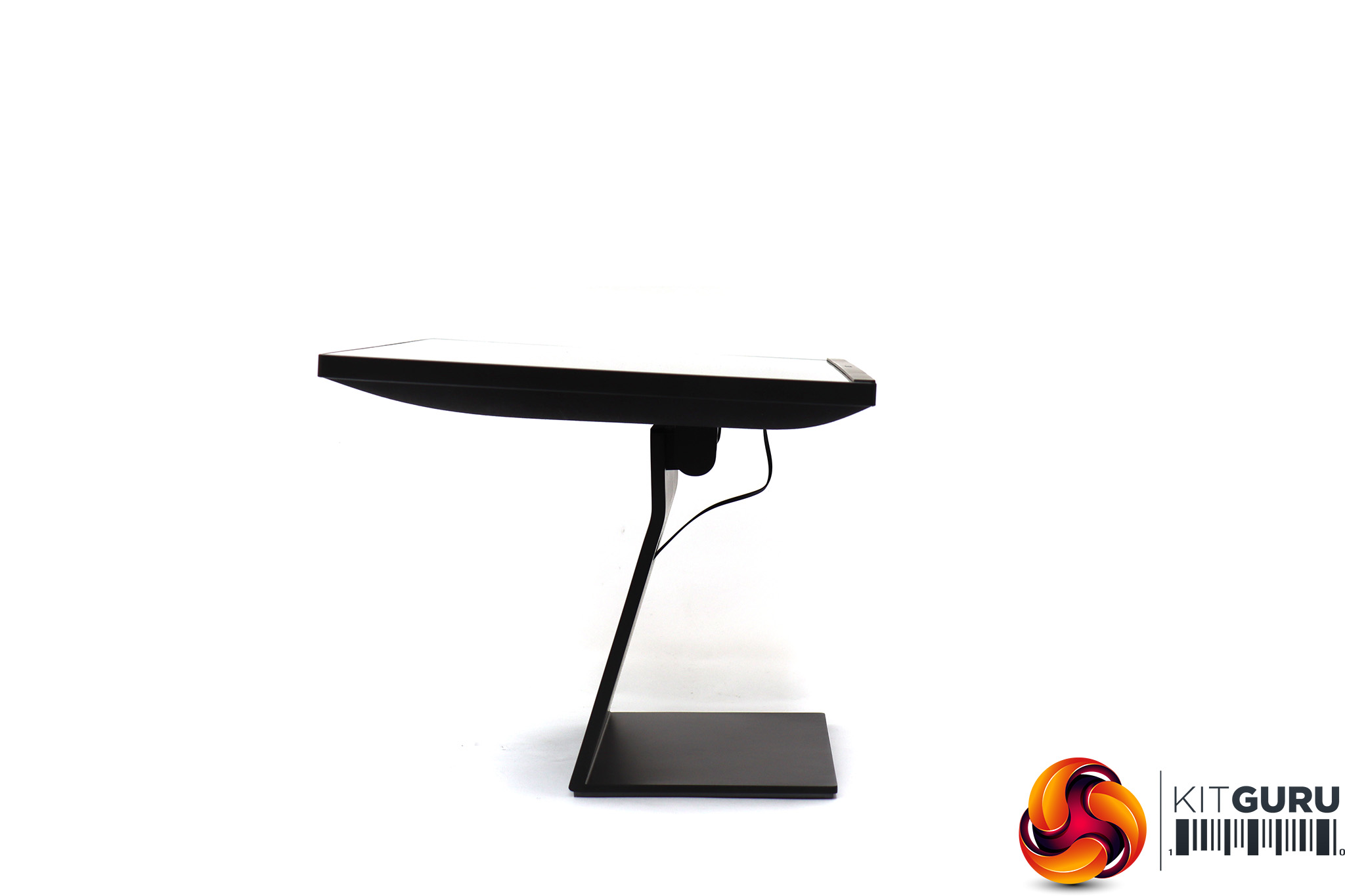
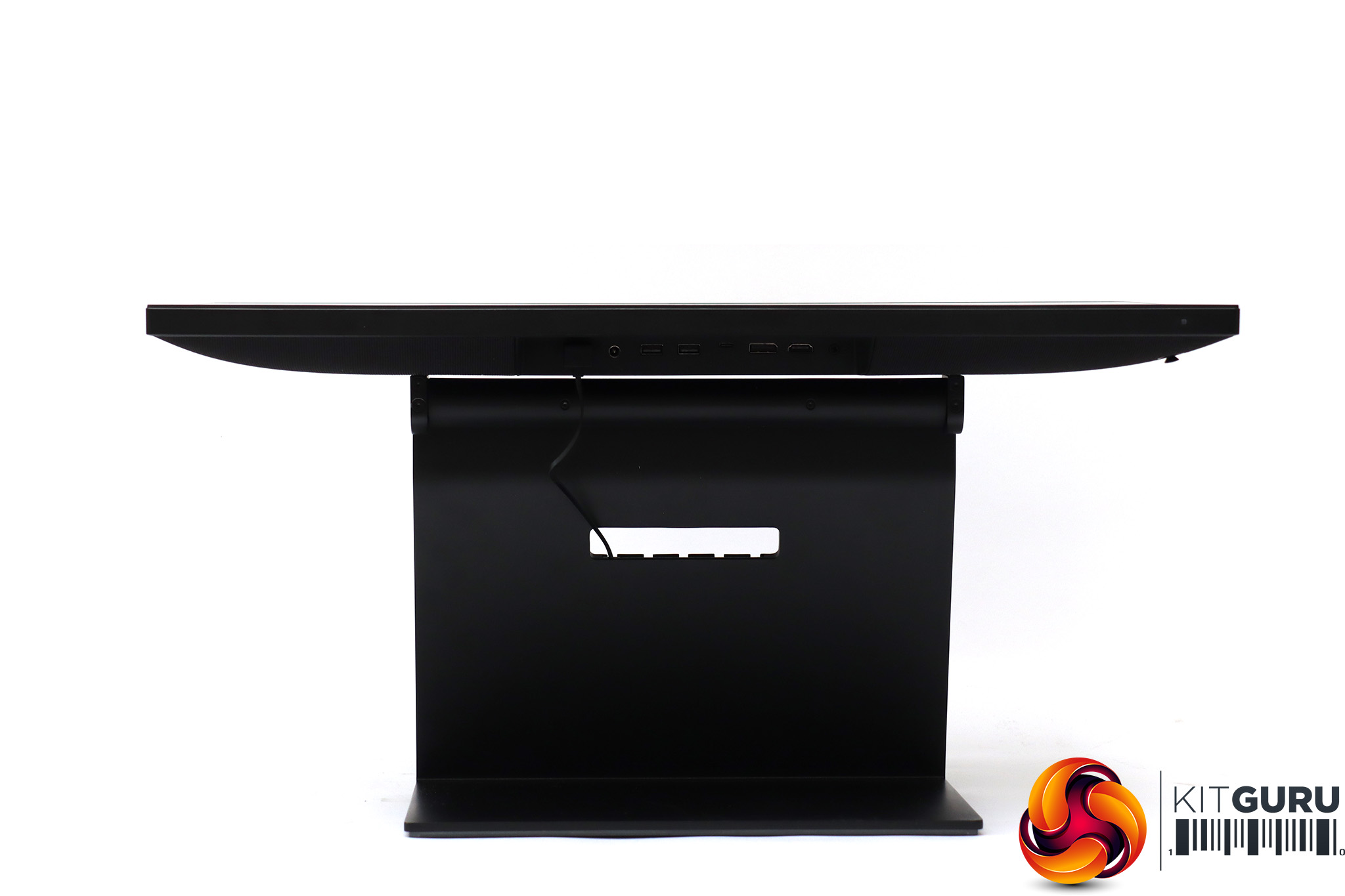
If you push a little further, the screen will tilt until it's pointing completely upwards, making attaching cables much easier, because the downwards-facing ports then become readily accessible.
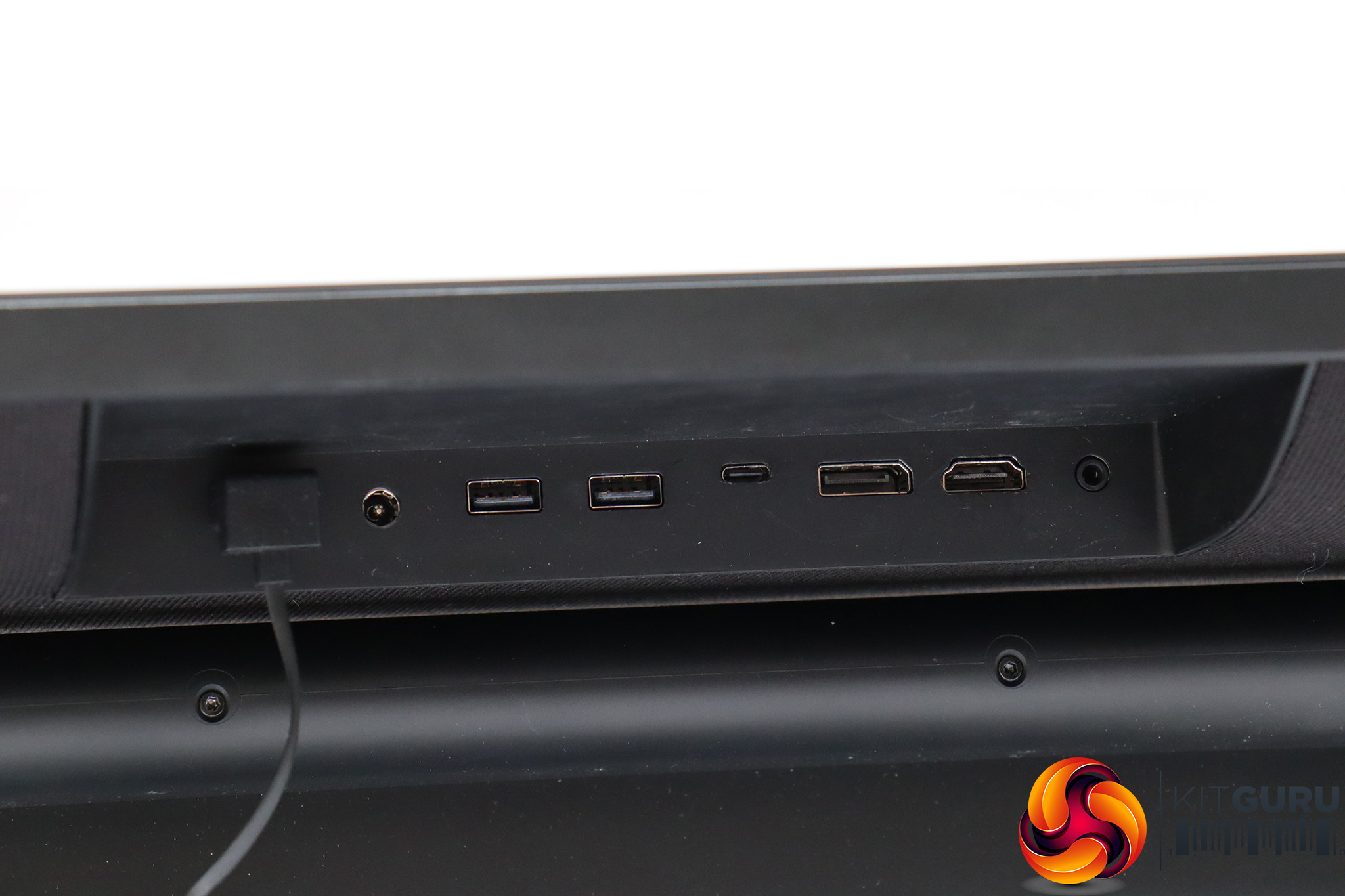
Next to the connector for the base lighting and the power input can be found a pair of USB 3.2 Gen1 downstream – enough for keyboard and mouse, but no more.
Then there's USB C, which supports DisplayPort Alt so can be used for connecting to your graphics card. The actual DisplayPort meets the 1.4 standard, whilst the HDMI is 2.0b-level. Then there's a minijack for audio output.
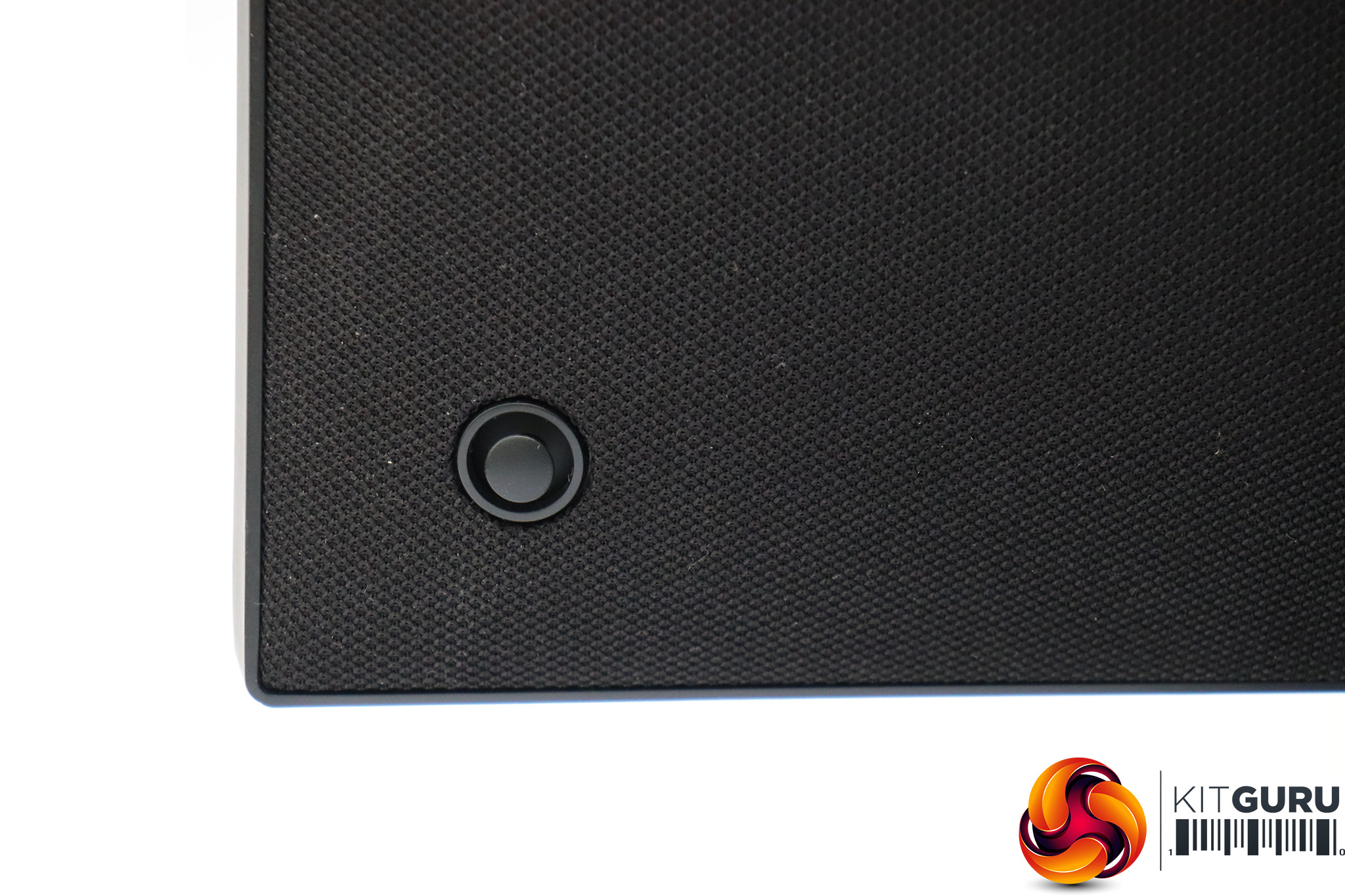
Finally, at the rear on the right-hand side is a joystick for controlling the menu functions.
Pushing the joystick in turns the unit on when it's off.
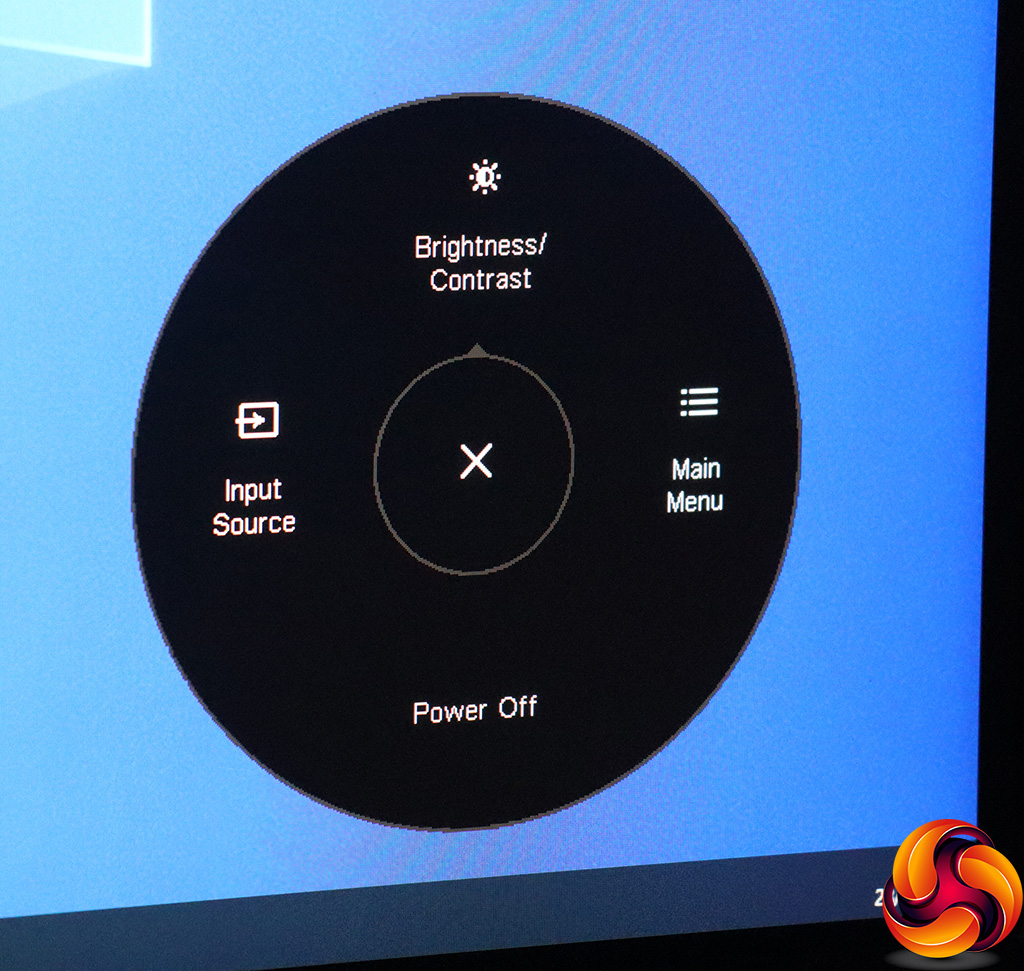
Pushing the joystick in again, or indeed in any other direction when the monitor is on, will call up the quick menu, which includes two customisable slots. Pulling down turns the screen off, and pushing right always gets to the main menu.
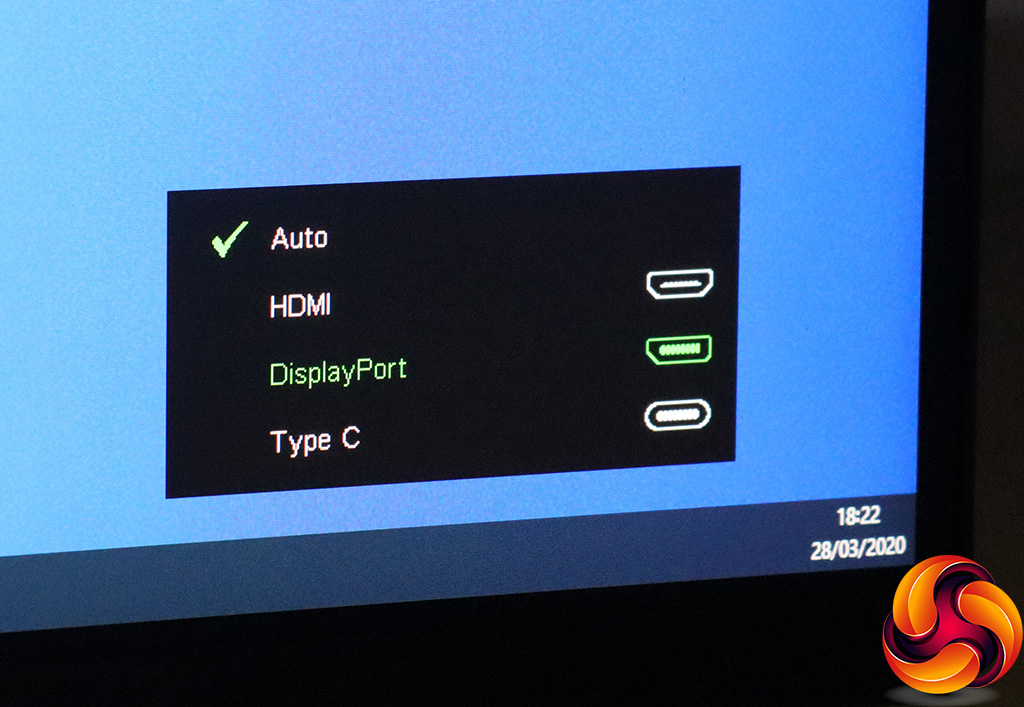
With the default options, pushing the joystick left lets you switch between auto-detection or manual selection of one of the three video inputs.
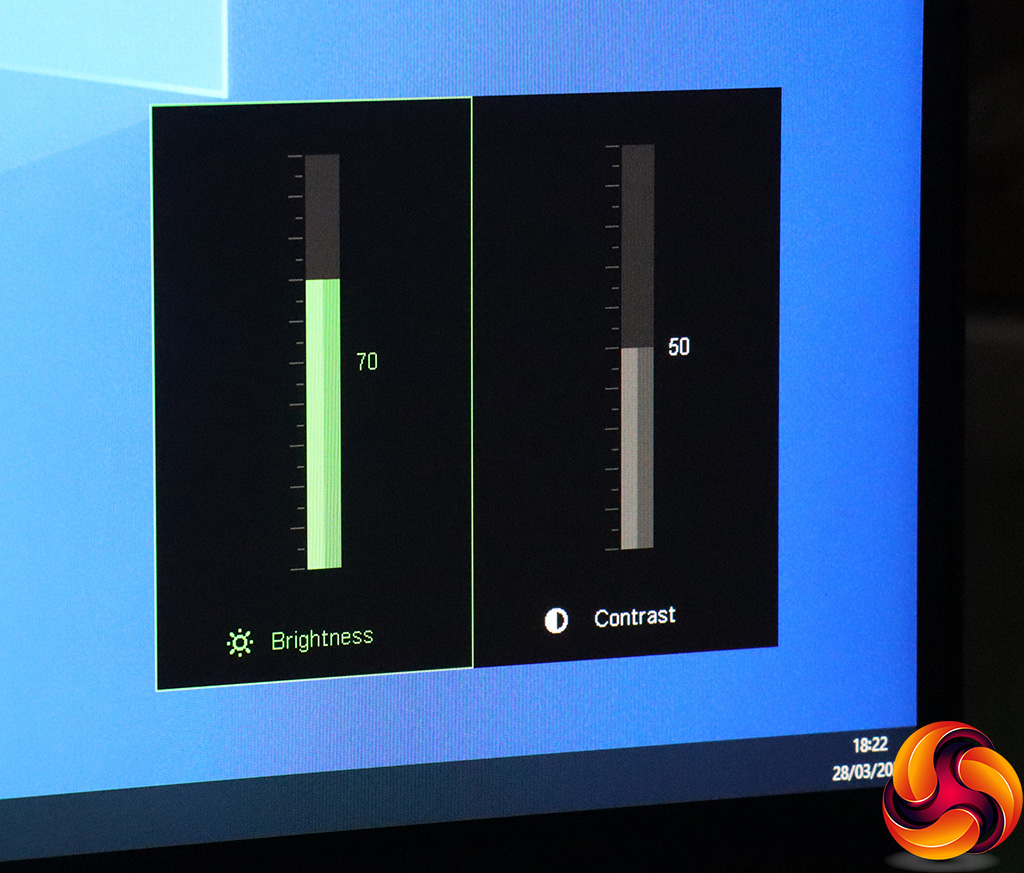
Pushing the joystick up calls up Brightness and Contrast controls.
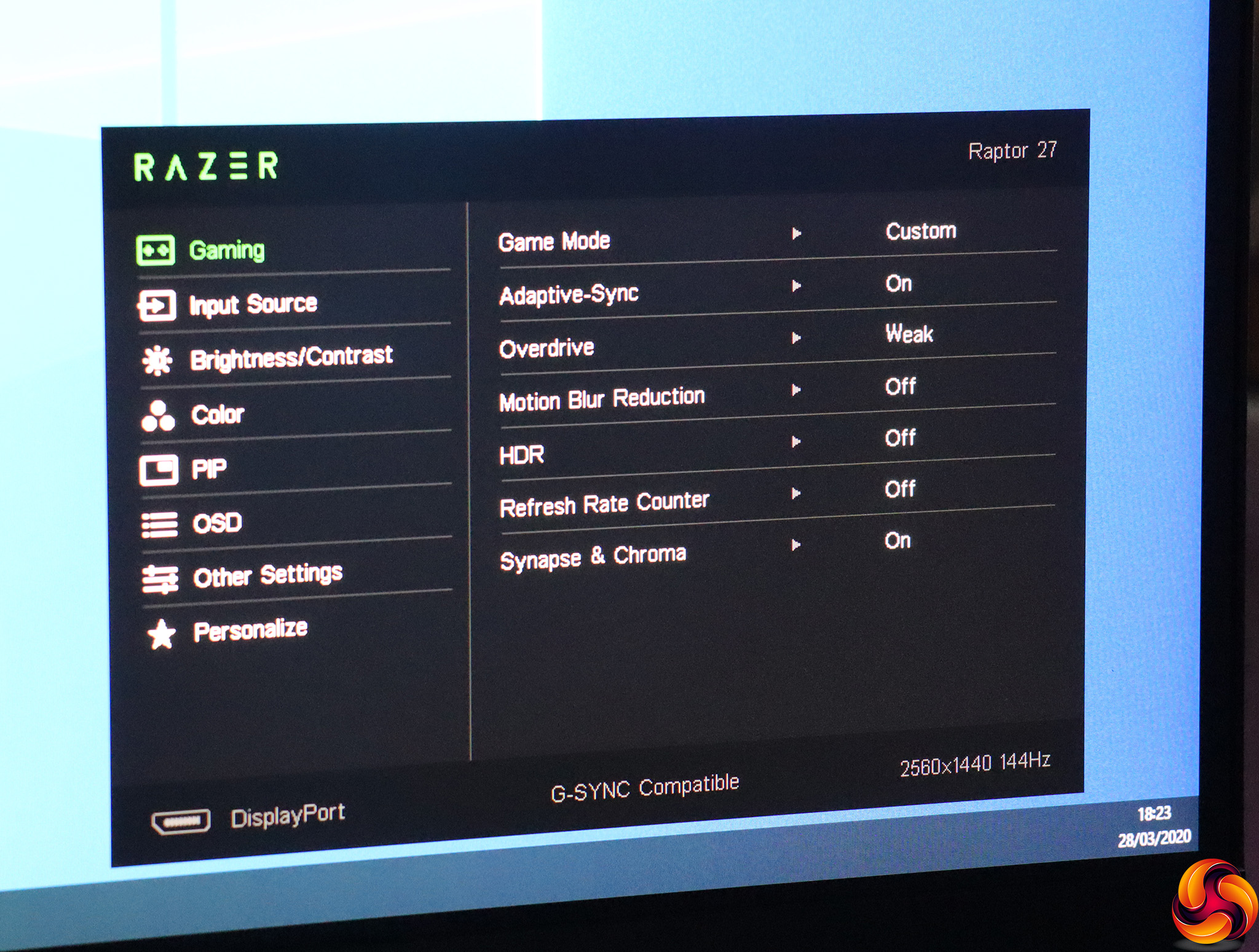
Finally, pushing the joystick right calls up the main menu, with Gaming the first subsection to appear. Here you can select a Game Mode preset, with options including Default, FPS Game, Racing Game, MMO Game, Streaming and Custom. You can enable or disable Adaptive-Sync, and adjust the level of pixel overdrive.
You can also toggle Motion Blur Reduction, HDR mode, and the Synapse & Chroma RGB lighting, as well as place a Refresh Rate Counter onscreen in various locations. Note that you have to turn HDR off and on manually – the monitor won't detect HDR content and do this for you automatically.
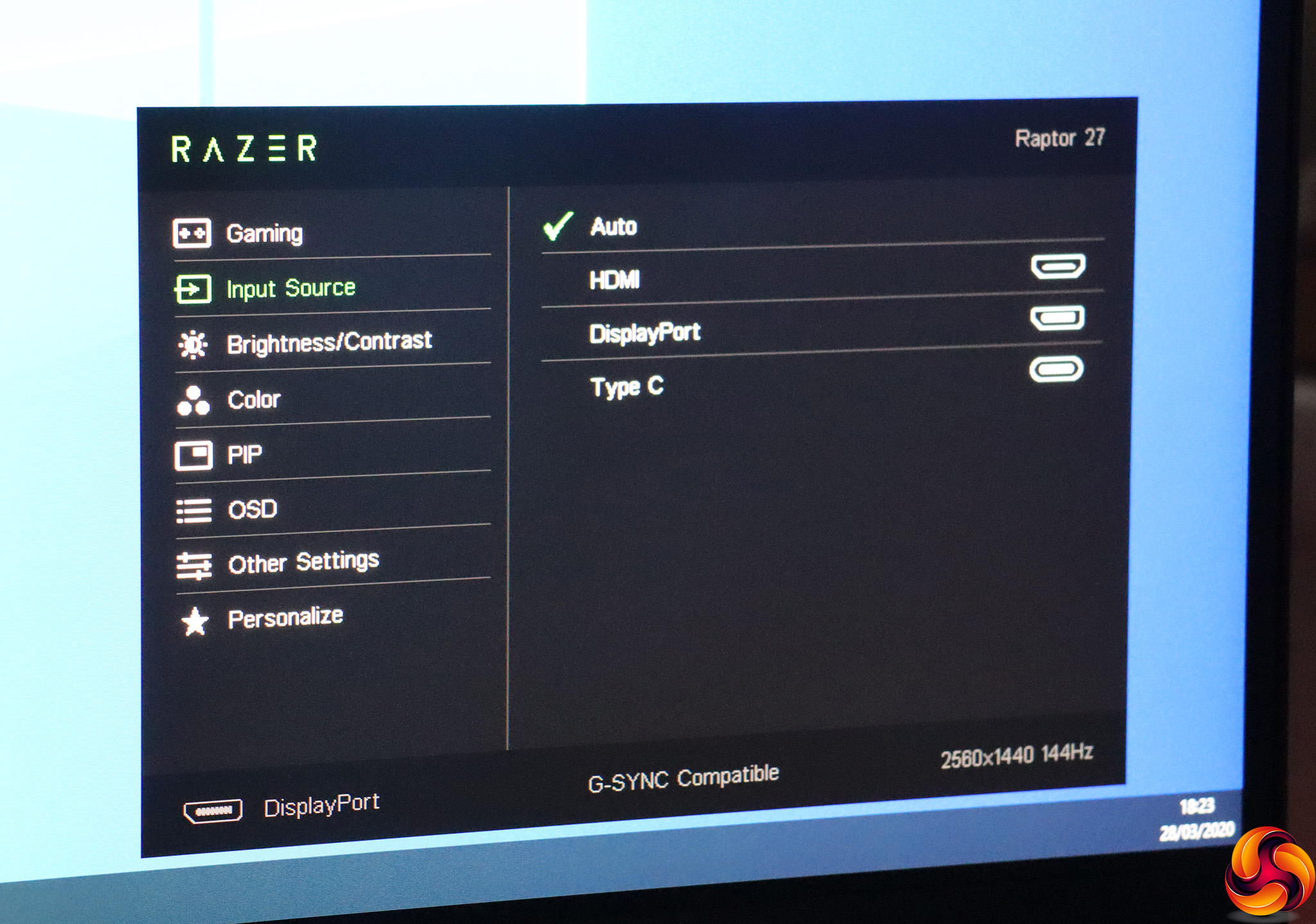
Next down in the main menu is another opportunity to change the video Input Source.
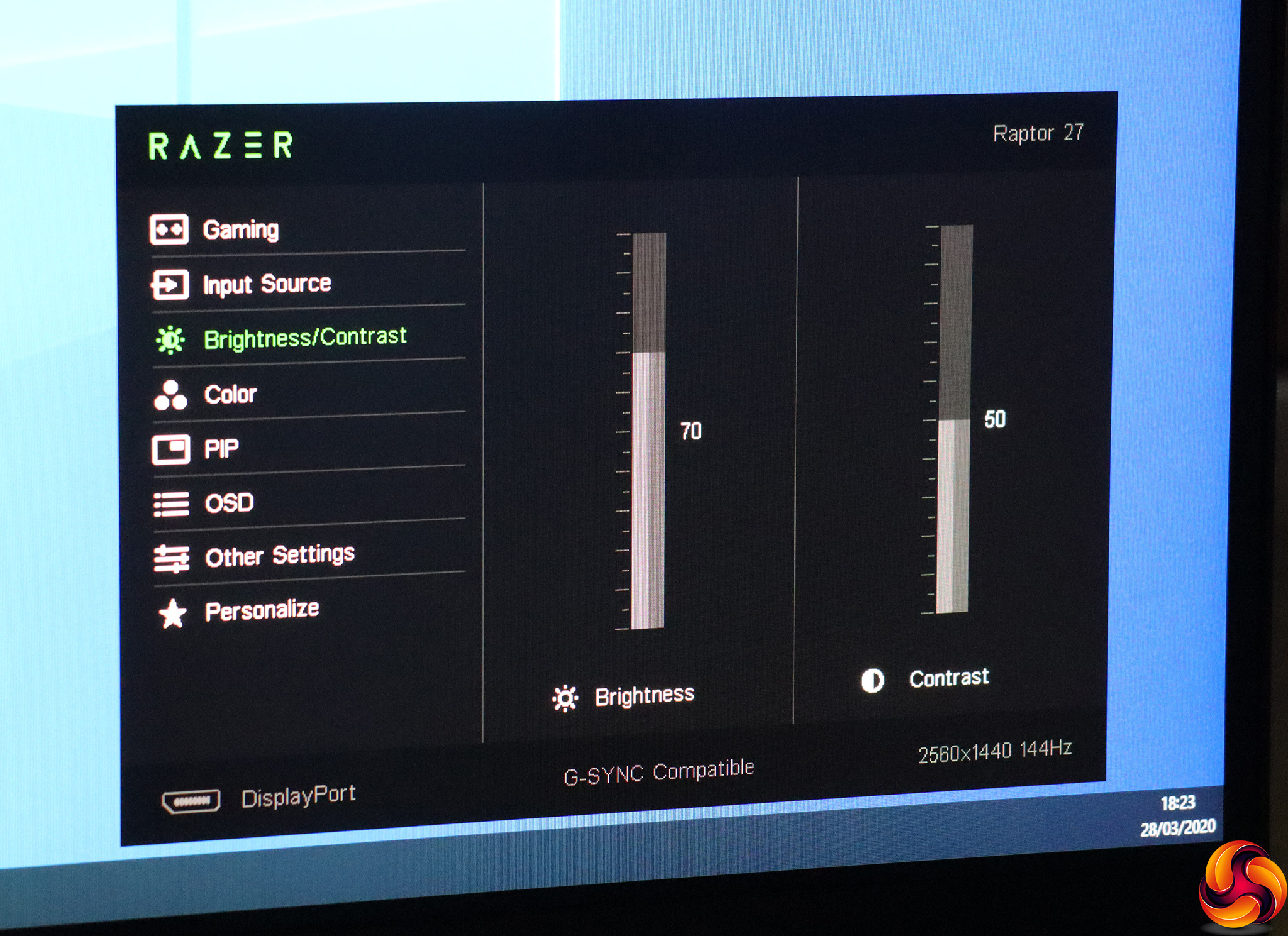
Further along, Brightness and Contrast have their own submenu.
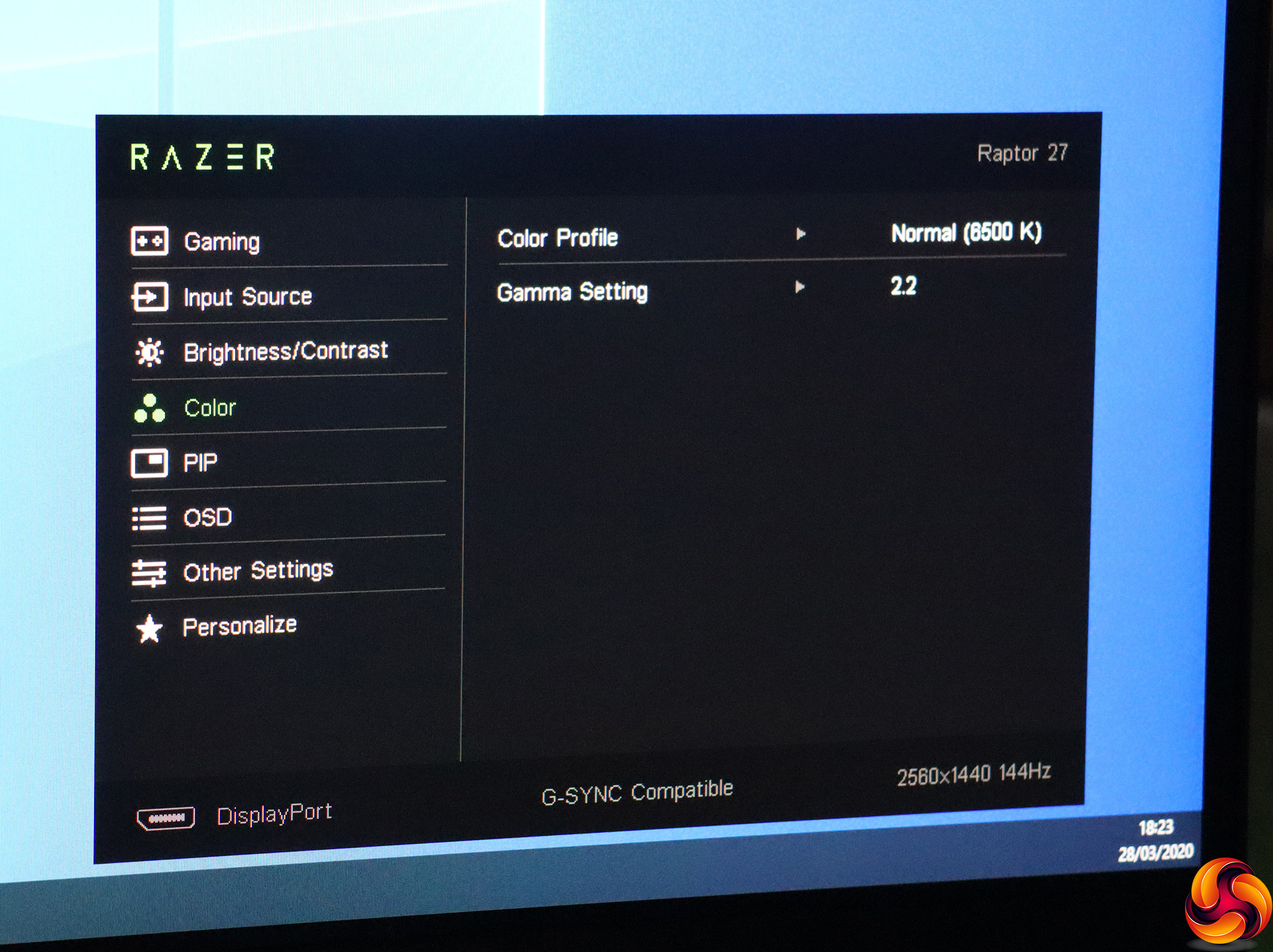
The Color submenu offers Color Profiles. The default is Normal (6500K), but you also select Low Blue Light, Warm (5000K), Cool (9300K), sRGB and a User Custom option where you can just red, green and blue levels manually. The Gamma Setting options include 1.4, 1.8 and 2.2, with the latter the default.
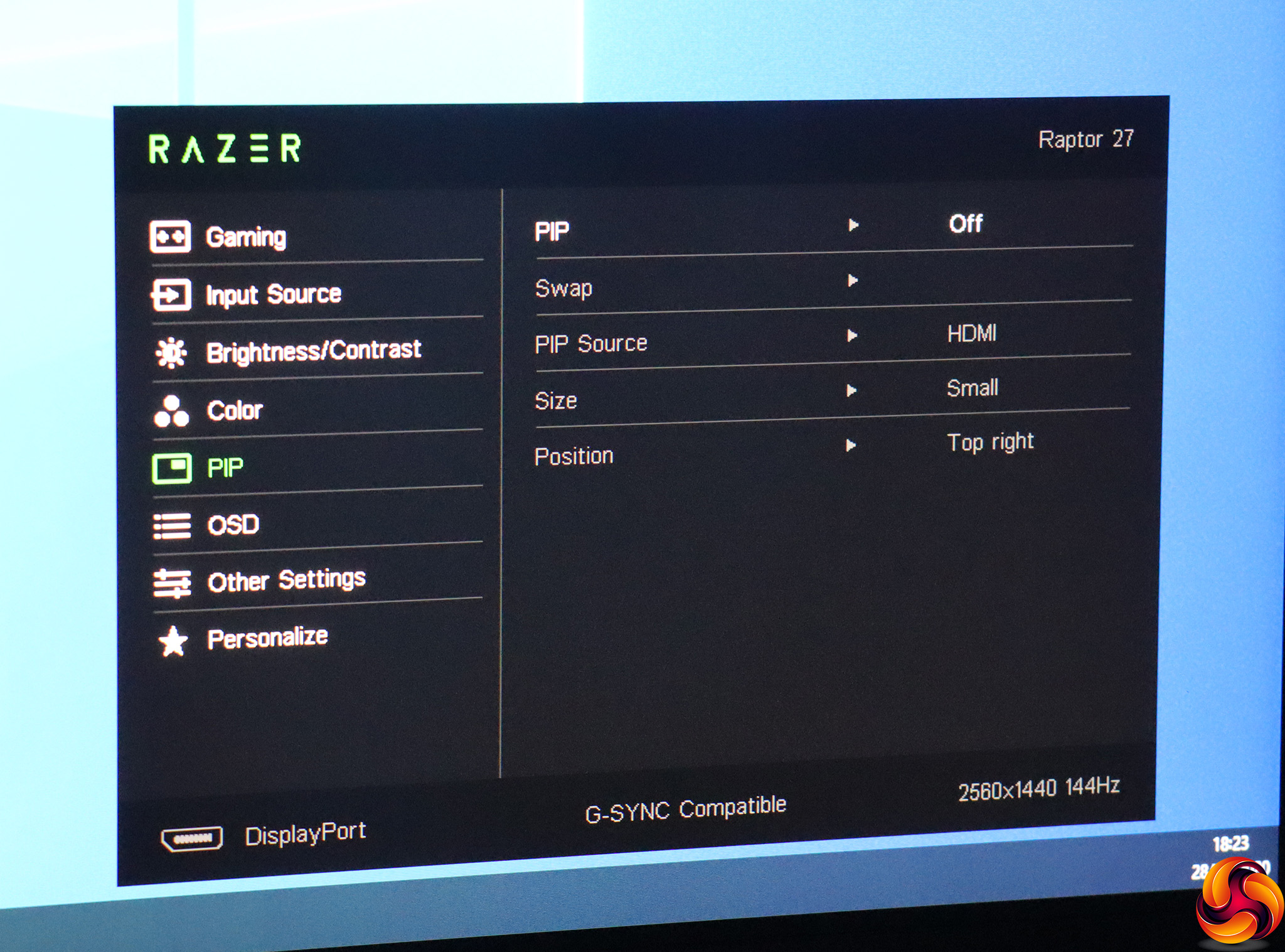
The Raptor 27 doesn't offer the option of picture-by-picture, but you can superimpose the signal from a second video input as a picture-in-picture, with some limited size and position parameters.
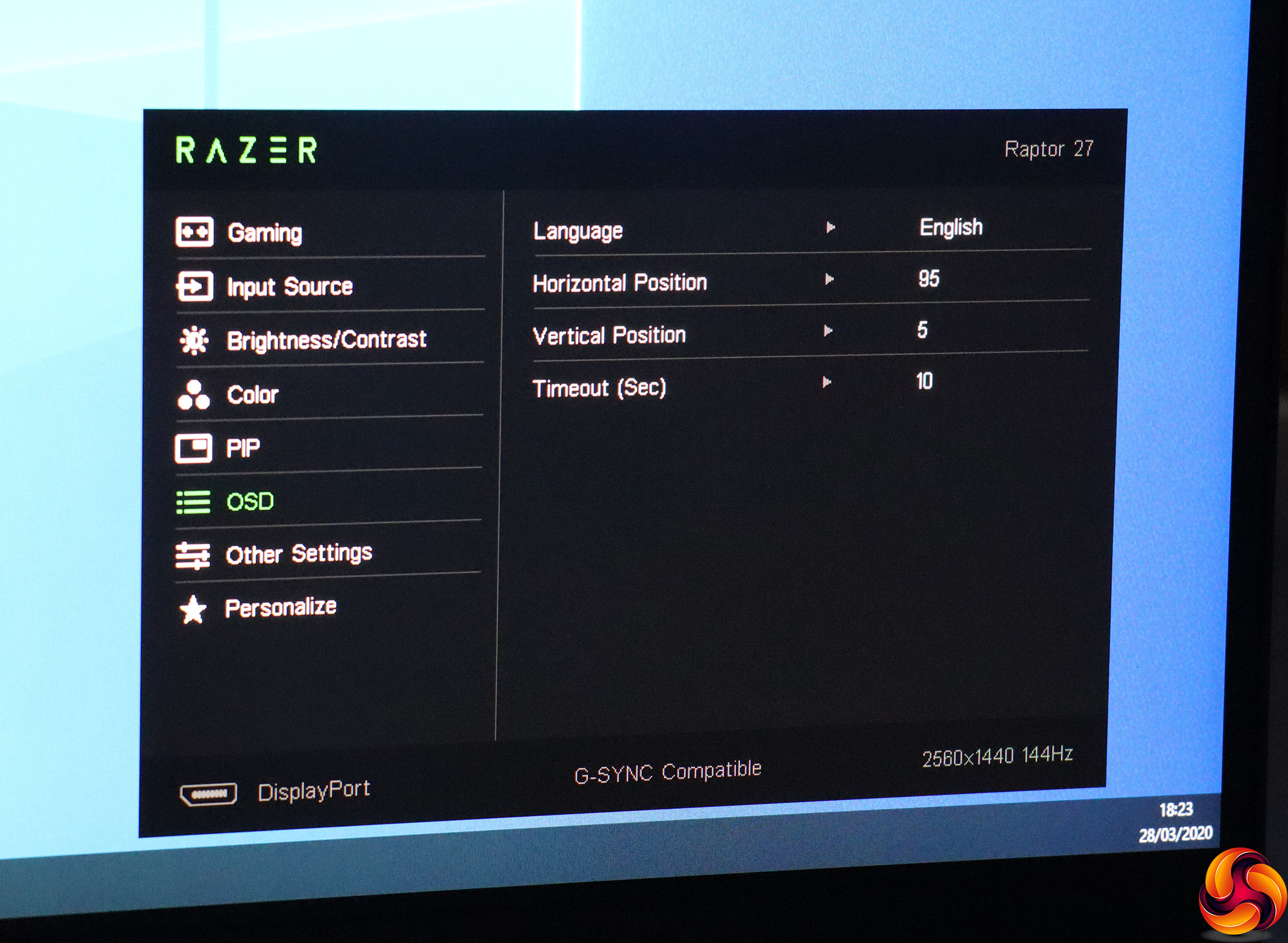
The usual options are available for altering OSD language, position and timeout, but not transparency.
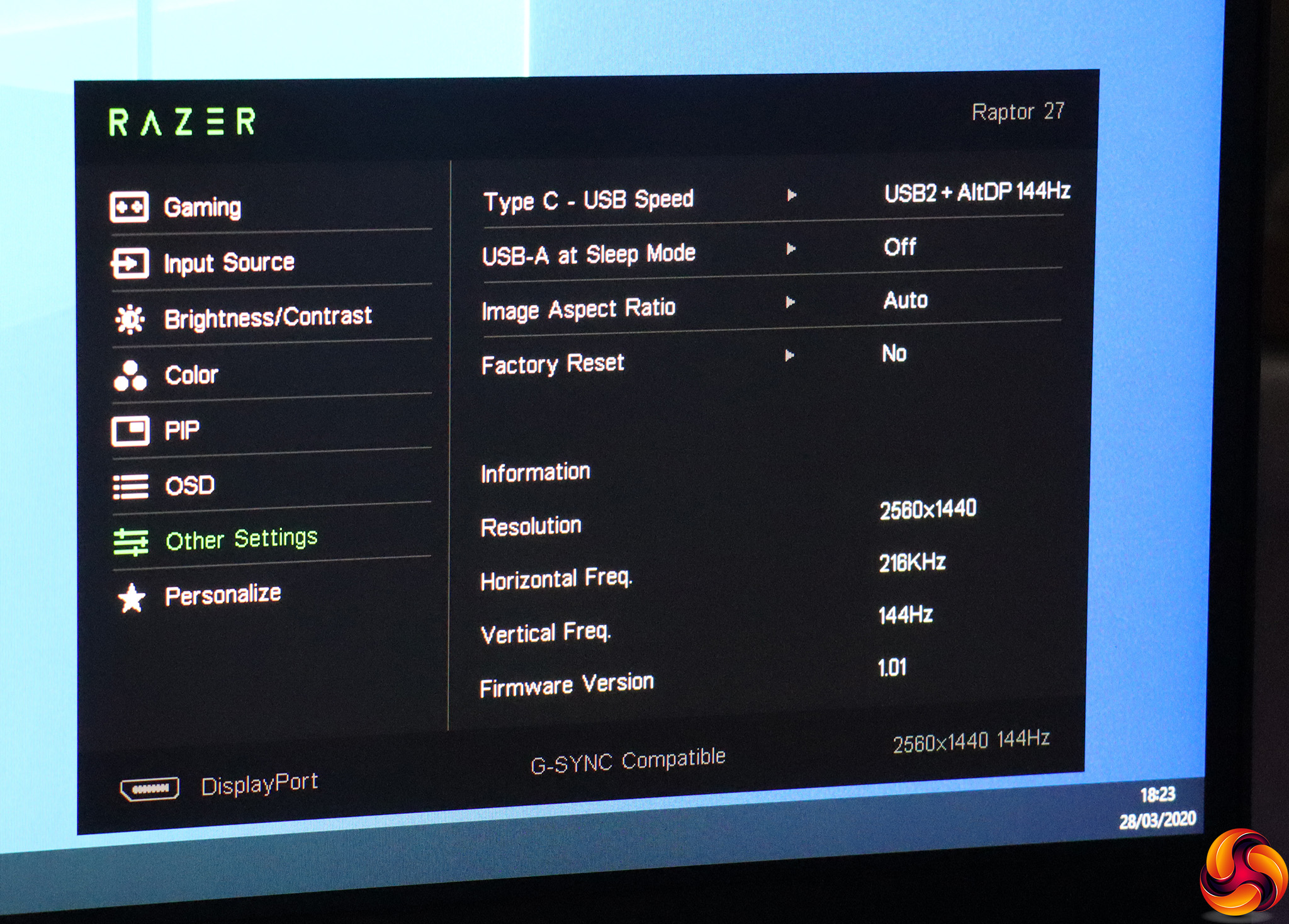
The Other Settings submenu includes configuration of the USB port behaviour, and the ability to adjust the aspect ratio from native. You also get an informational readout in this section.
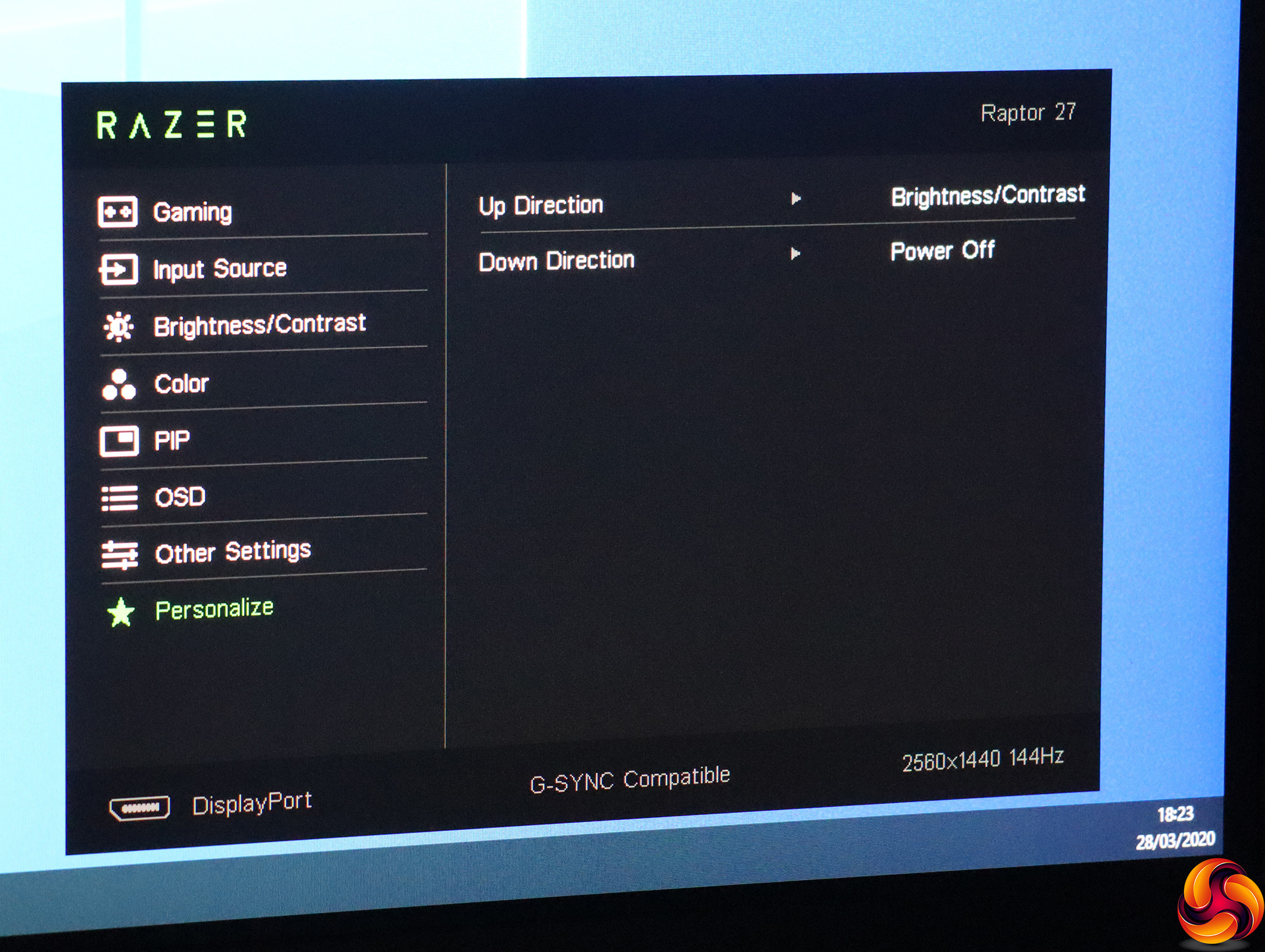
Personalise is where you can adjust the functions of the two custom joystick directions. We're not sure how you turn off the monitor if you change this one, however.
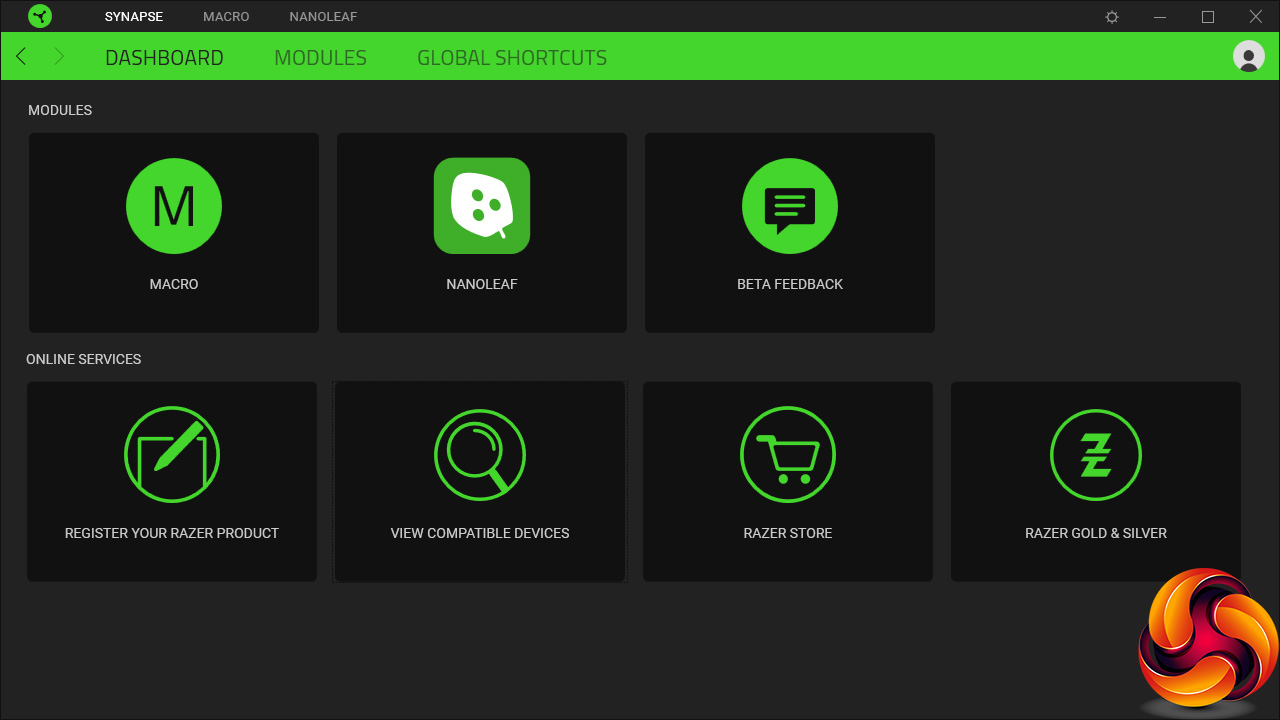
You can also register your Raptor 27 with Razer so that it will appear on your Synapse 3 software interface, allowing settings to be adjusted from your Windows desktop. However, we suspect that this requires a USB C connection, which we weren't able to supply from our host test PC.
Overall, the OSD is easy to navigate, but is very gaming focused. There aren't any presets for everyday multimedia or work tasks. That's not necessarily a disaster when the intended audience is very clearly gamers, and we're not sure how often people use these presets anyway.
But there is also a more limited range of gaming options compared to monitors we have recently tested that are also focused on this area. No hardware crosshairs or countdown timer, for example, and no option to boost detail in shadows. Okay, many of these features are considered borderline cheating, but you might still want them anyway, you massive cheat.
Our main test involves using a DataColor SpyderX Pro Colorimeter to assess a display’s image quality. The device sits on top of the screen panel surface while the software generates colour tones and patterns, which it compares against predetermined values to work out how accurate the screen is.
The results show –
- A monitor’s maximum brightness in candelas or cd/m2 at various levels set in the OSD.
- A monitor’s contrast ratio at various brightness levels in the OSD.
- The brightness deviation across the panel.
- The black and white points.
- The colour accuracy, expressed as a Delta E ratio, with a result under 3 being fine for normal use, and under 2 being great for colour-accurate design work.
- The exact gamma levels, with a comparison against preset settings in the OSD.
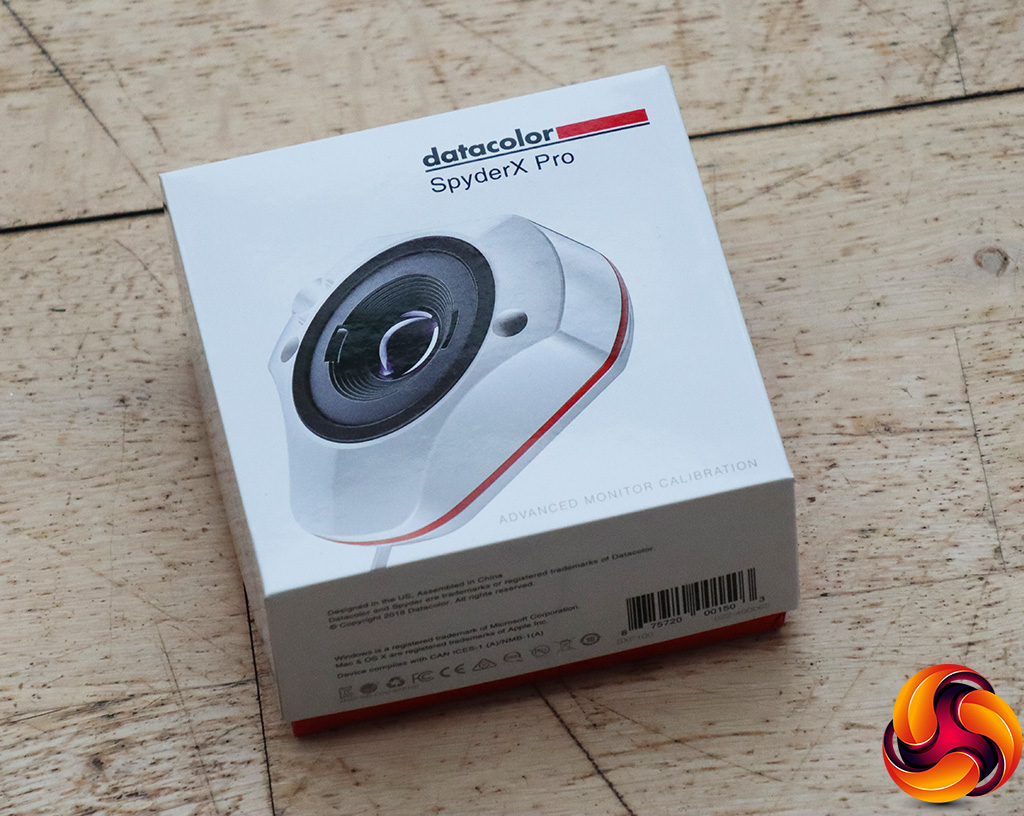
We first run this test with the display in its out-of-the-box state, with all settings on default. We then calibrate the screen using the SpyderX software and run the test again.
We always test the display subjectively on the Windows desktop, using it for general tasks such as browsing and word processing, and with games as well, even if the display is not intended solely for that purpose.
We pay careful attention to any artefacts, ghosting or motion blur, and enable any gaming-specific features, such as adaptive-sync settings like G-Sync or FreeSync, using a compatible graphics card in our test PC.
We performed the quality tests on the Razer Raptor 27 at its native 2,560 x 1,440 resolution in the default mode, after resetting the OSD, which sets the refresh to 144Hz. Our test system was equipped with an AMD Radeon Vega Frontier Edition graphics card, which supports FreeSync.
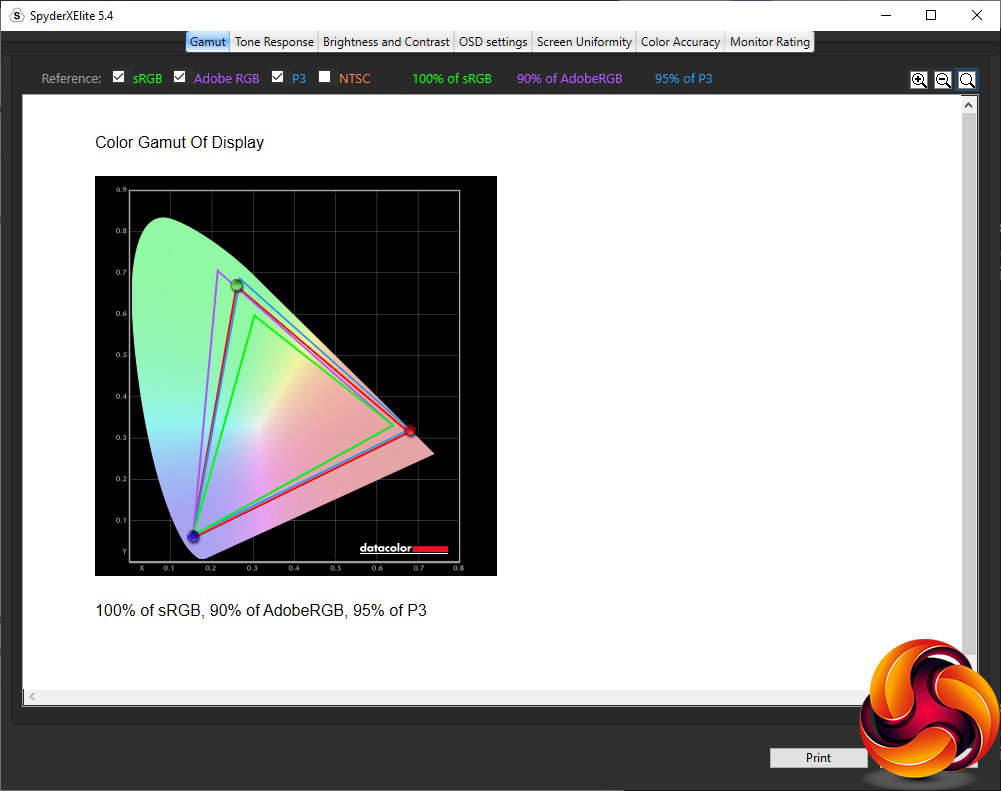
The Raptor 27 lives up to its promise of 95 per cent DCI-P3 gamut, and also produces excellent results of 100 per cent sRGB and 90 per cent AdobeRGB.

Brightness uniformity is merely decent, with no areas of concern but not a perfect result either.
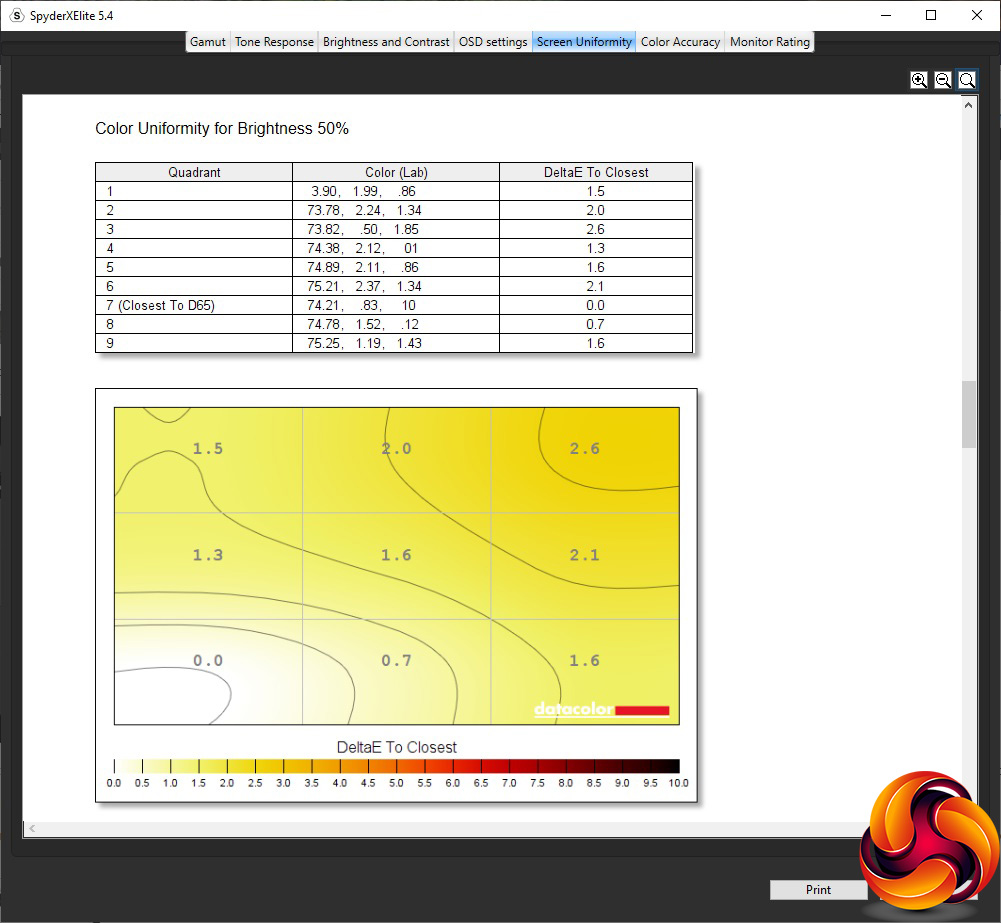
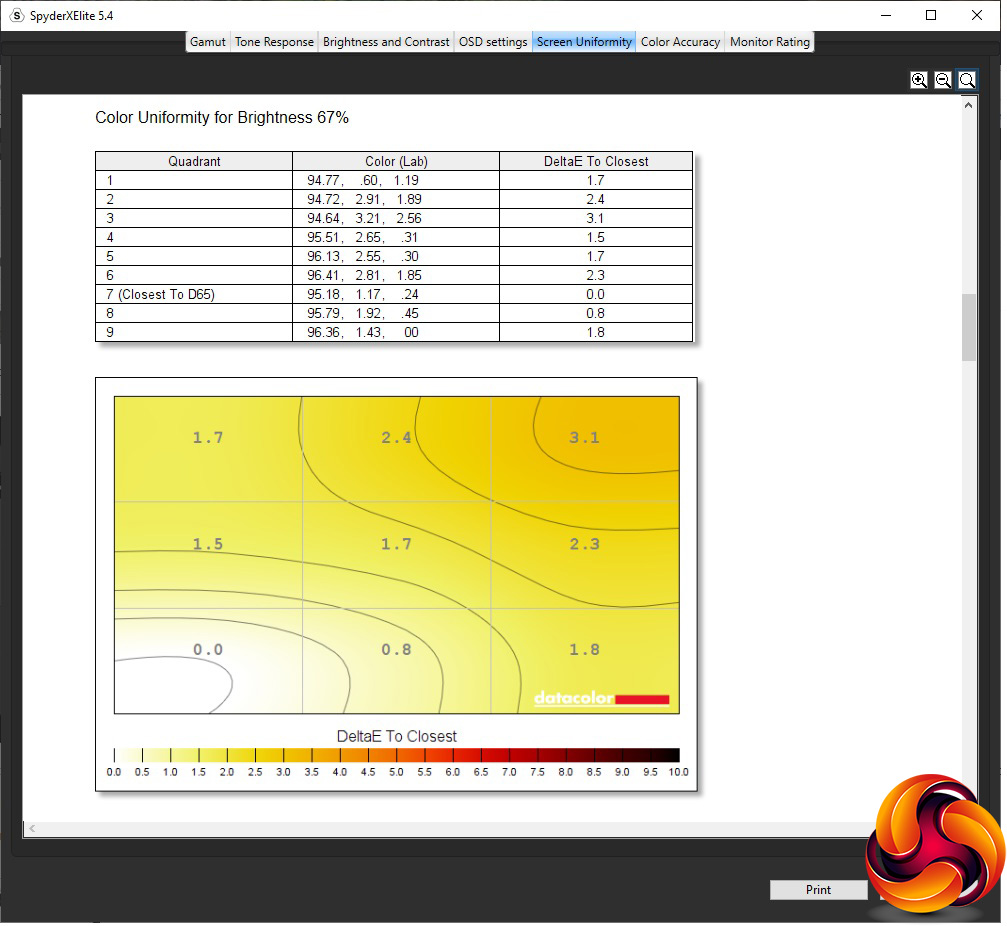
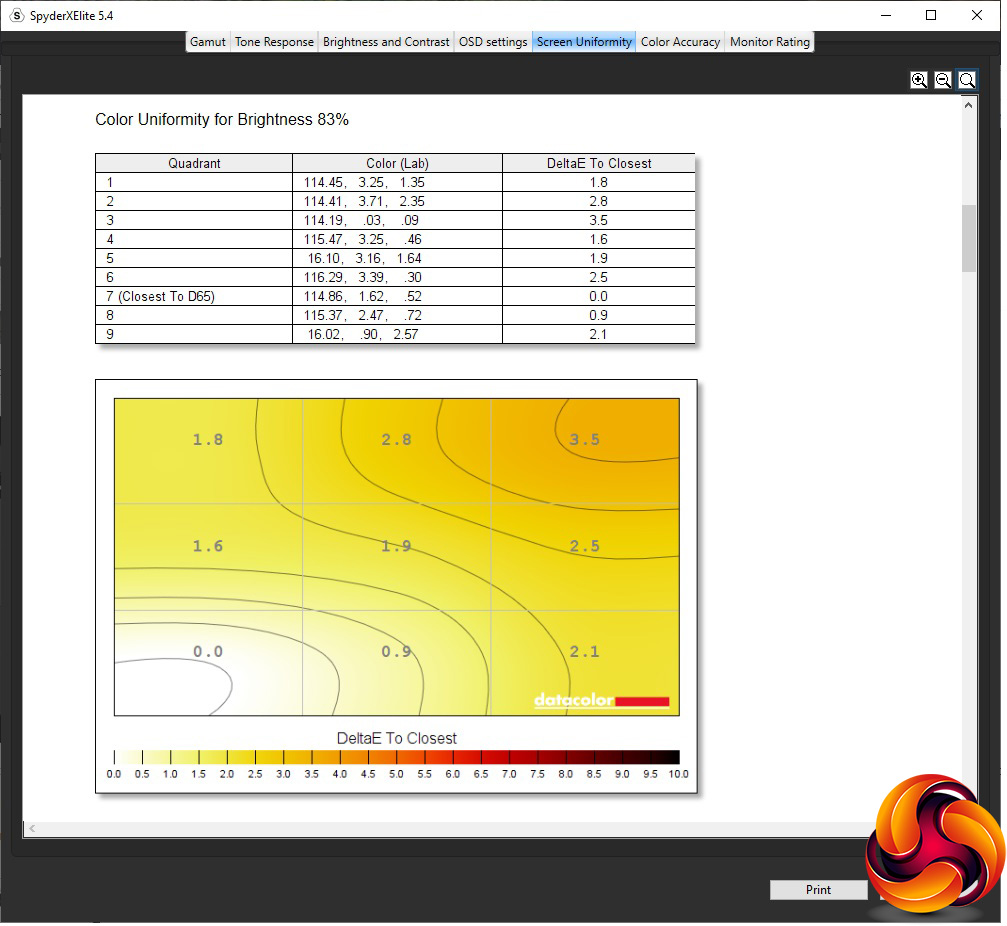
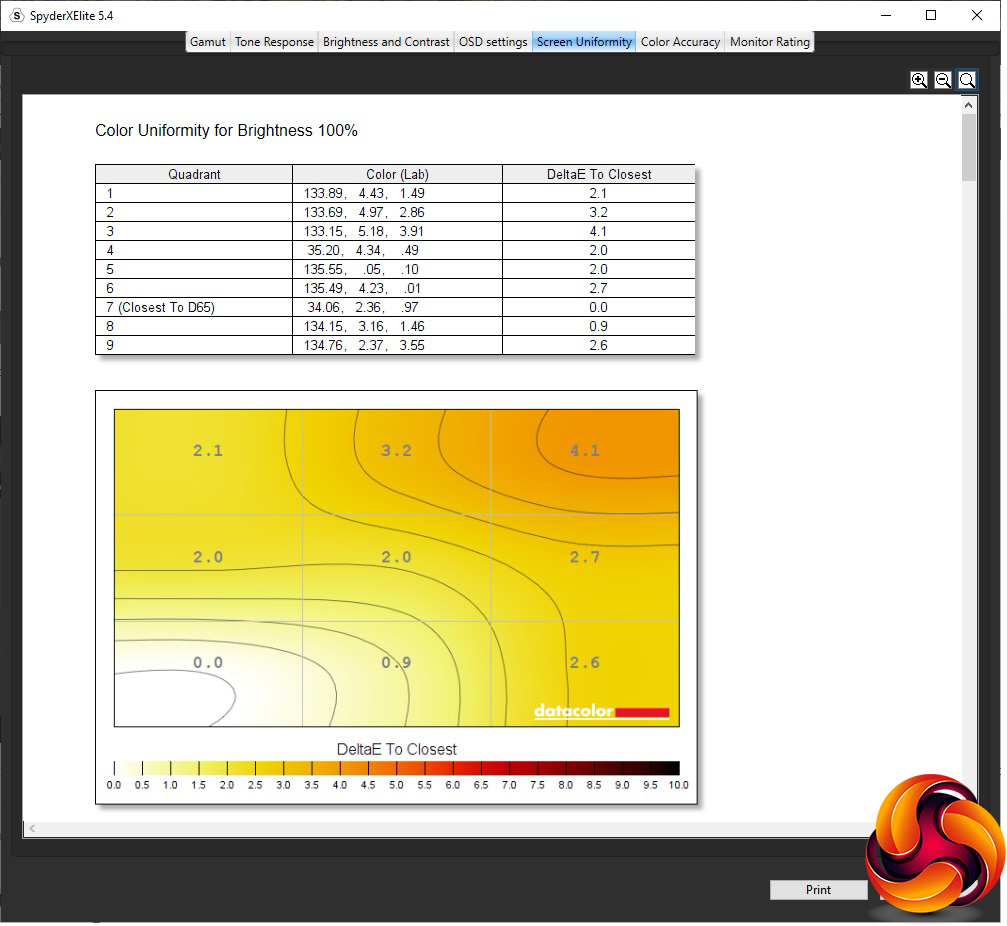
Colour uniformity is more impressive, with only a little aberration in the top right-hand corner as you approach 100 per cent brightness.
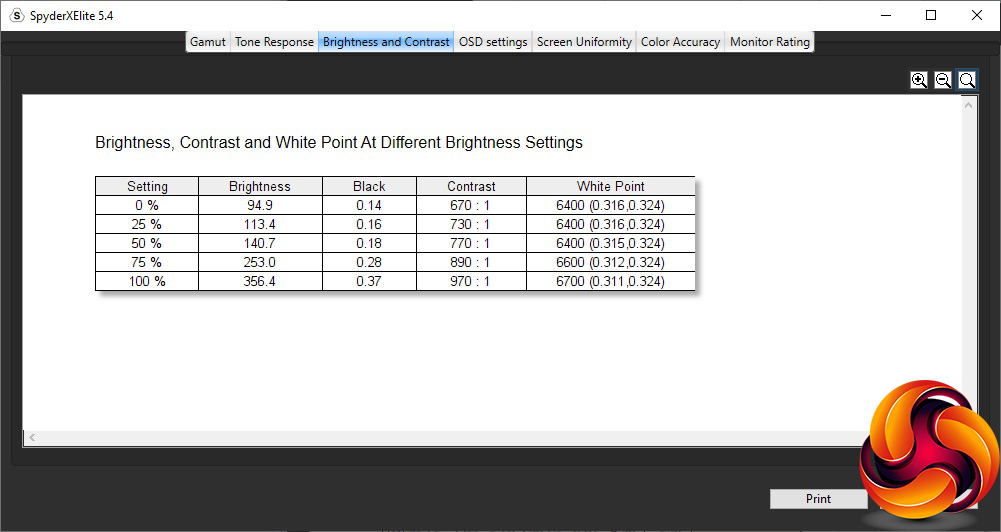
Although Razer claims this display has DisplayHDR400 capability, and has a peak brightness of 420cd/m2, our SpyderX tests didn't corroborate this. The maximum brightness we saw was 356.4cd/m2, which is typical of an IPS panel. Contrast also maxed out at 970:1, although this is with the default 50 per cent contrast setting.
Whilst this is very close to the specification, we've seen some IPS panels exceed their claims for contrast. Although the white point was set to 6500K, we found the measured value varied from 6400K to 6700K depending on brightness setting.
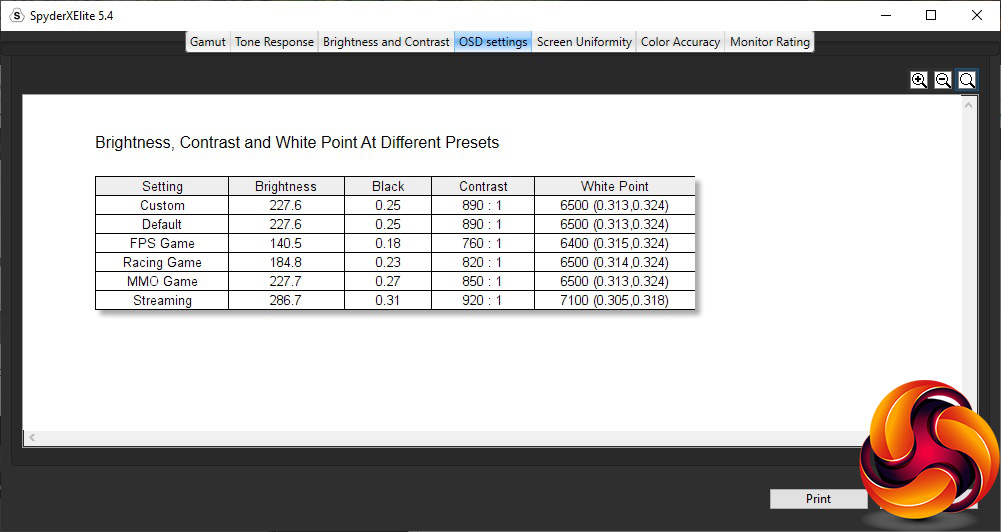
The Custom Game Mode option is the same as the Default one if you haven't made any adjustments. This provides a mid-range 227.6cd/m2 brightness, 890:1 contrast and spot-on the intended 6500K white point, which is commendable. The FPS Game option drops the brightness down to 140.5cd/m2 and contrast to 760:1, but with a barely different 6400K white point.
Racing Game and MMO Game both keep the white point at 6500K, whilst having similar contrasts of 820:1 and 850:1 respectively. But the brightnesses are quite different at 184.8cd/m2 for Racing Game and 227.7cd/m2 for MMO Game.
Finally, Streaming is the brightest, with 287.6cd/m2, and the highest contrast at 920:1. It also uses the coolest white point of 7100K. Essentially, this is a movie watching mode with a name that acknowledges that most of us are now watching Netflix rather than Blu-ray discs.
There's a good variety of game types included with the presets here, although nothing work-focused. It should be noted that the game settings also vary parameters like pixel overdrive.
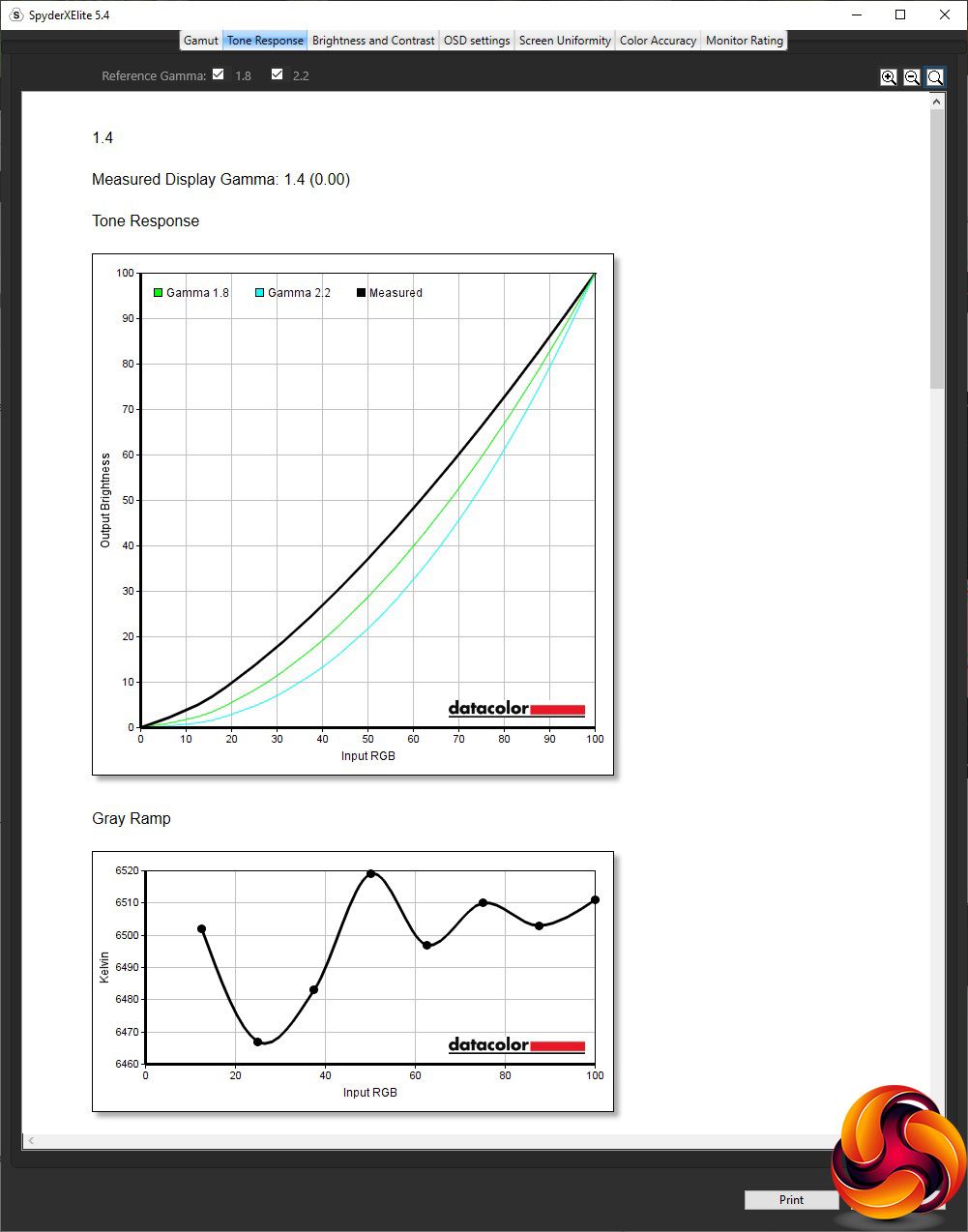
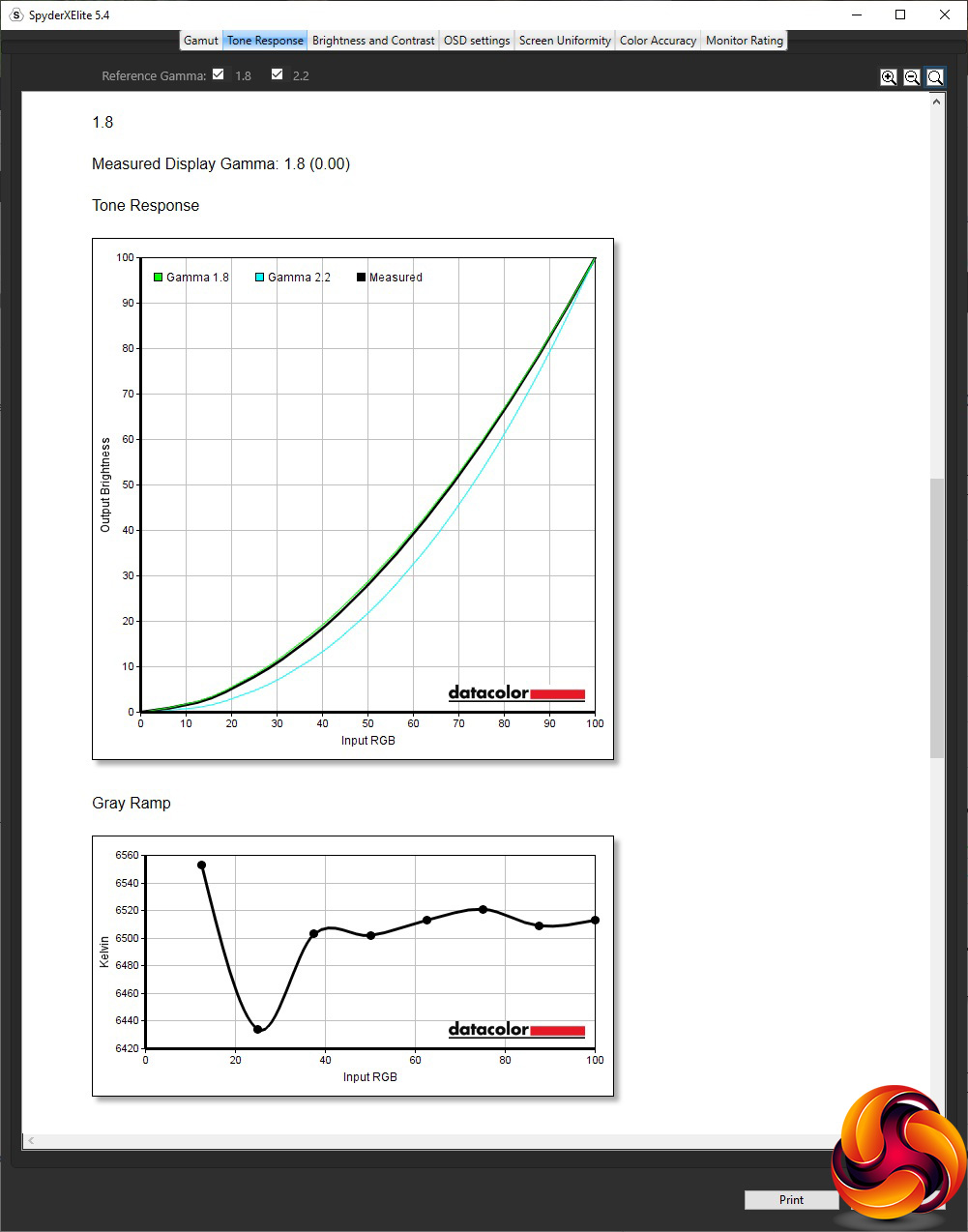
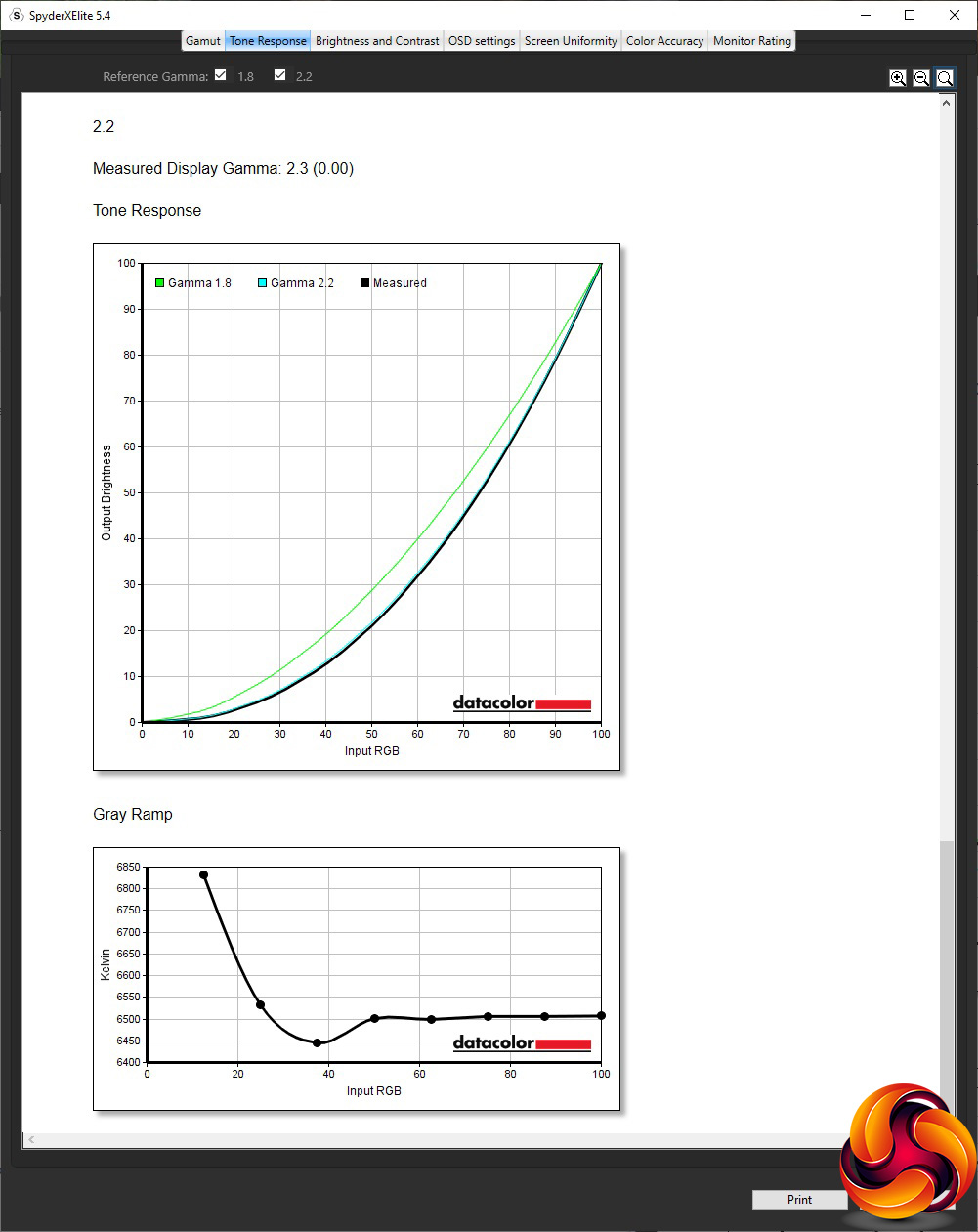
The Gamma presets are a little odd. The 1.4 option reads as precisely that, which is a low level that few monitors offer. The 1.8 option is also spot on, but the 2.2 option reads a little high at 2.3. We're surprised that there are no higher settings.
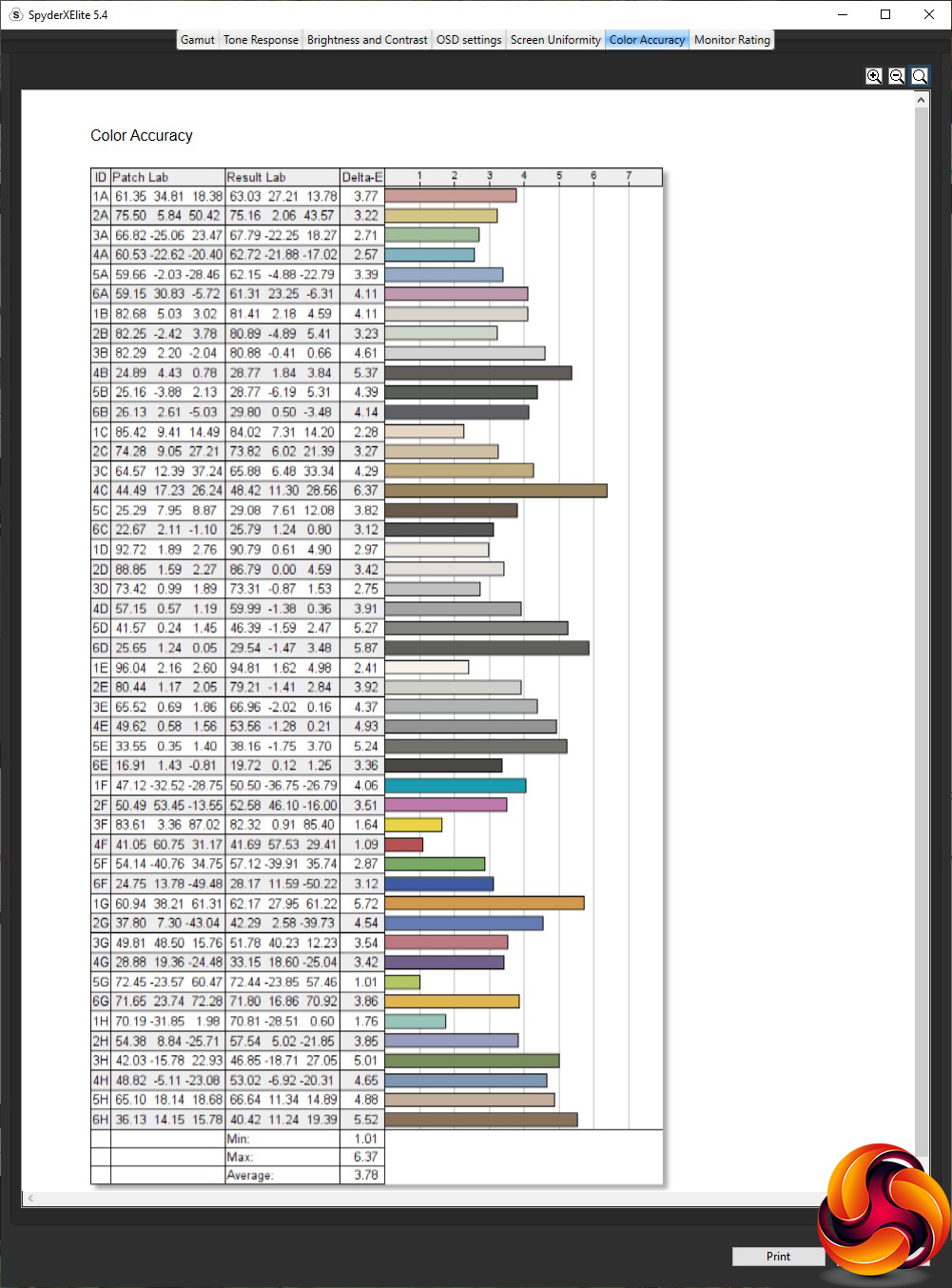
We were expecting a much better colour accuracy result than 3.78 from a monitor this expensive. This didn't make a lot of sense, so calibration with the SpyderX seemed essential.
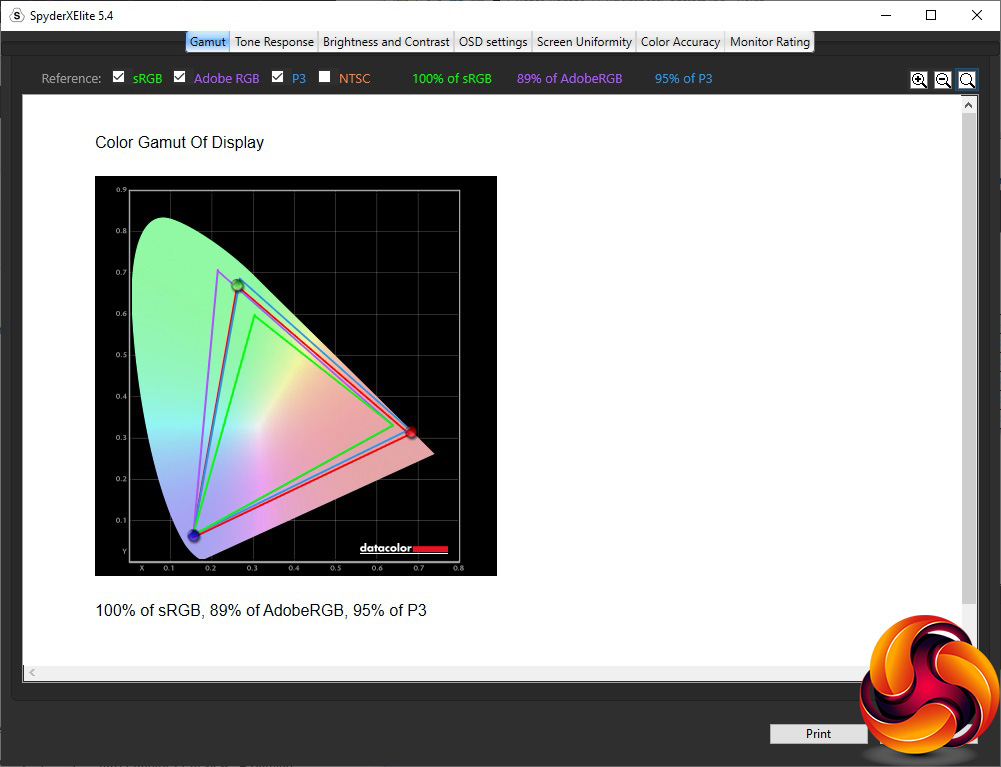
The sRGB and DCI-P3 gamuts remained unchanged at 100 and 95 per cent respectively after calibration, although AdobeRGB has dropped slightly to 89 per cent.
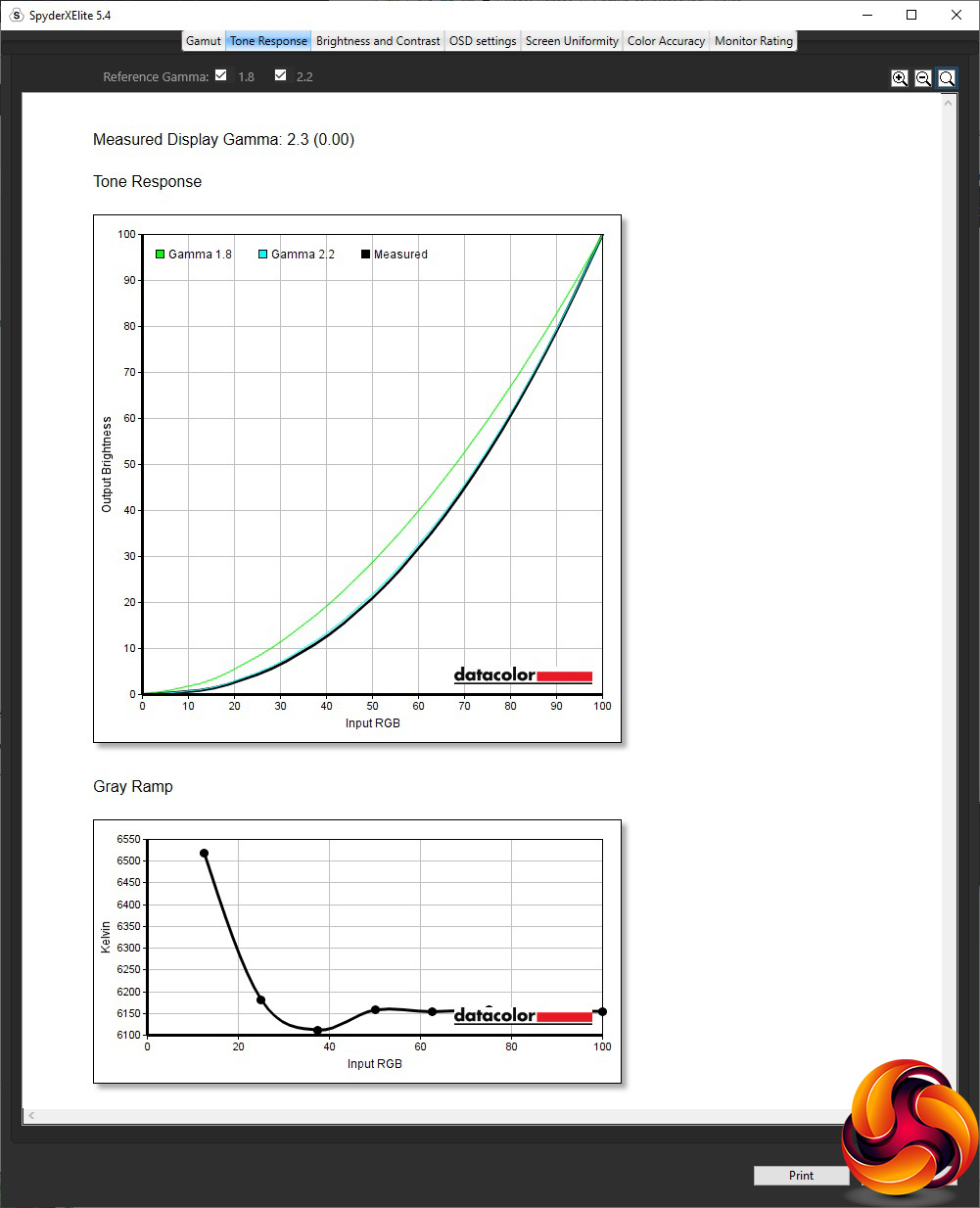
We only retested the default 2.2 gamma, which continued to read as 2.3.
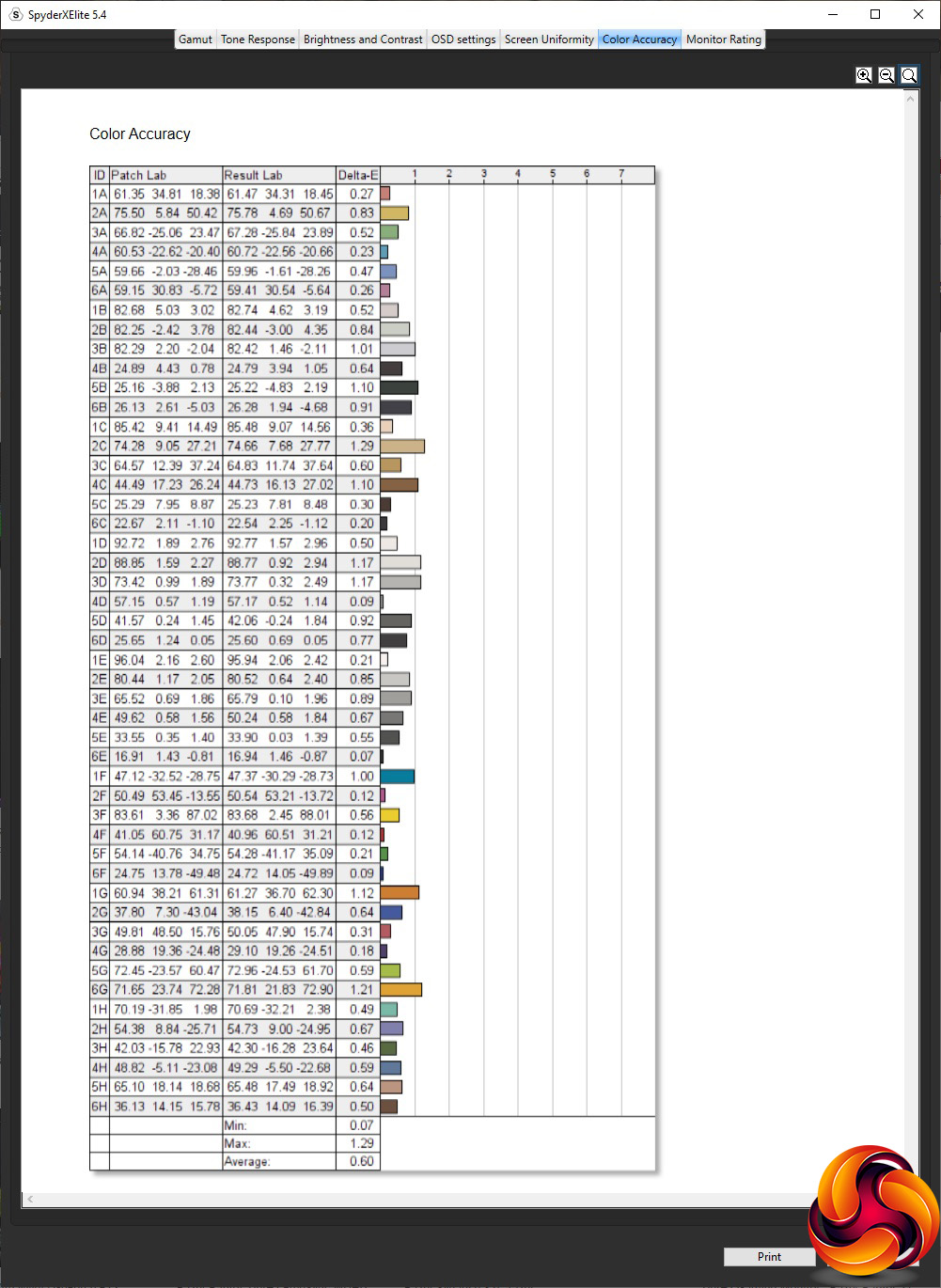
Thankfully, colour accuracy improved massively after calibration, hitting an absolutely superb 0.6 average deviation. It's a shame you have to calibrate this monitor to get such good fidelity out of it, but at least the results are more than worth it.
Overall, apart from this factor, the Raptor 27 is a good performer. We're surprised it's classed as DisplayHDR400 when it didn't seem capable of 400cd/m2 brightness, even when we switched to HDR mode, but the Game Mode presets offer a range of options. It definitely supports HDR, as our subjective gaming tests revealed.
This is, of course, where this screen is meant to truly shine. We fired up our usual CS:GO, Rainbow 6 Siege and League of Legends. CS:GO again showed the benefits of high refresh and adaptive sync put together, with smooth variable frame rates. Rainbow 6 Siege is more demanding but still felt very smooth. We also tried Shadow Warrior 2 in HDR mode, which worked well and looked great.
The Razer Raptor 27 is one of the best-looking gaming monitors on the market, and it has performance that lives up to that appearance – well almost. We would have liked to have seen its superb colour accuracy right out of the box, and it only offers 144Hz where other premium 27in 2,560 x 1,440 monitors are now moving to 165Hz. But this is a FreeSync screen with NVIDIA G-sync Compatible accreditation, so will provide high-frame-rate adaptive sync gaming whether you have AMD or NVIDIA graphics.
The HDR gaming quality is excellent, and there are focused presets for contemporary game types. The menu is well organised and easy to use, although work-focused options are notable by their absence. There are some choice facilities to improve your gaming experience further, although those who need a little hand with their FPS gaming will be disappointed at the lack of hardware crosshairs.
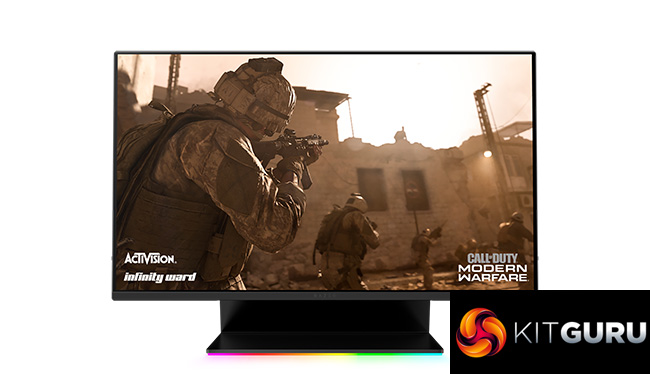
Video inputs include USB-C, although you only get one each HDMI and DisplayPort connection, and there are just two USB downstream ports. Ergonomic adjustments only include tilting and raising, not swivelling. But the flat cables are really easy to connect thanks to the ability to tilt to horizontal, and they stow away very neatly on the sturdy stand via the brilliant cable management system.
The major elephant in the room is the price. At nearly £700, this is an expensive monitor when the Gigabyte AORUS FI27Q-P is available for £460 and the MSI Optix MAG272CQR is cheaper still, both of them offering 165Hz in the same resolution and screen size, with the MSI even being curved.
Of course, neither has the assured design flair of the Raptor 27, and there's definitely substance to back up the Razer looks. But whilst your gaming will still be excellent with the Razer option, this is definitely for gamers for whom style is a key consideration.
The Razer Raptor 27 is available from Currys PC World Business for £699.
Discuss on our Facebook page HERE.
Pros:
- Superb design.
- 2,560 x 1,440 resolution.
- 144Hz refresh.
- Fantastic colour accuracy when calibrated.
- FreeSync 2 adaptive sync plus NIVDIA G-sync Compatibility.
- Innovative, neat cable management system.
- USB-C video input.
- Built-in USB 3.2 Gen1 hub.
Cons:
- Expensive.
- Colour accuracy mediocre without calibration.
- Only two USB downstream ports.
KitGuru says: The Razer Raptor 27 looks amazing and has the gaming credentials to back it up, although you pay a considerable premium.