KitGuru KitGuru.net – Tech News | Hardware News | Hardware Reviews | IOS | Mobile | Gaming | Graphics Cards


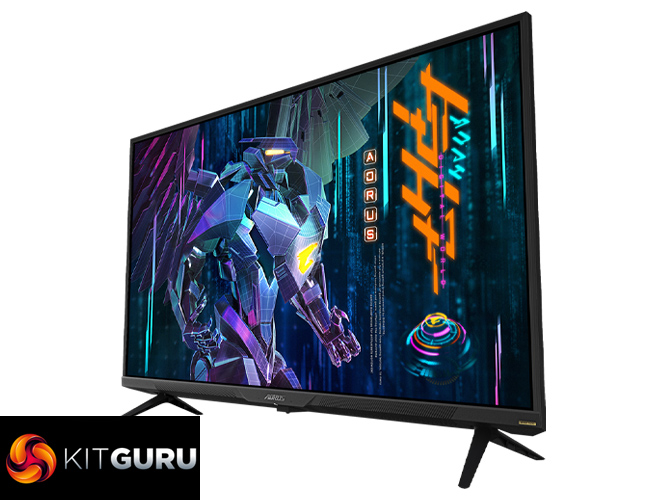
After a long time trying, it feels like 4K/144Hz monitors are finally starting to take off. Today's monitor isn't just any ordinary display though. The Gigabyte Aorus FV43U is a 43in beast, offering 4K/144Hz, VESA DisplayHDR 1000 certification as well as a pair of HDMI 2.1 inputs. Priced at around £950 here in the UK, this certainly isn't for the faint of heart – but is it worth buying? That's what we will find out today.
Aside from its sheer size, resolution and refresh rate – which are all pretty significant – the Gigabyte Aorus FV43U has plenty of other talking points. There's a pair of HDMI 2.1 ports, as well as the use of Quantum Dot technology for a more vibrant viewing experience. Add in a claimed contrast ratio of 4000:1, a pair of 12W speakers, and 99% AdobeRGB coverage, the FV43U certainly has a lot going for it on paper.
As always though, we are here to separate the fact from the fiction, providing our in-depth analysis using a Spyder X colorimeter, but also detailing our subjective experience using this display.
Specification:
- Panel Size (diagonal): 43″ VA, QD Display
- Display Viewing Area (HxV): 941.18 x 529.42 (mm)
- Panel Backlight/ Type: Direct
- Display Surface(non-glare/ glare): Anti-Glare
- Color Saturation: 97% DCI-P3/ 150% sRGB/ 99% AdobeRGB
- True Resolution: 3840 x 2160 (UHD)
- Pixel Pitch: 0.2451*0.2451
- Brightness: 750 cd/m2 (TYP), 1000 cd/m2 (PEAK)
- Contrast Ratio: 4000:1
- Viewing Angle: 178°(H)/178°(V)
- Display Colors: 10bits (8bits+FRC)
- Response Time: 1ms (MPRT)
- Refresh Rate: 144Hz, 120Hz for Console Game
- HDR: VESA Display HDR1000
- Flicker-free: Yes
- Signal Input:HDMI 2.1 x2, Display port 1.4 (DSC) x1
- Speaker: 12W x2
- Unique Features:
- OSD Sidekick
- Aim Stabilizer Sync
- Black Equalizer
- Dashboard
- Crosshair
- Timer
- Counter
- Auto-Update
- KVM
- 6 axis Color Control
- Smart OD
- Space Audio
- USB port(s): USB 3.0 x2, USB Cx1
- VESA Wall Mounting(mm): 200*200mm
- Phys. Dimension with Stand(WxHxD): 967.2*638.16*251.31
- Phys. Dimension w/o stand (WxHxD): 967.2*585.89*87.8
- Box Dimension (WxHxD): 1100*724*160
- Net Weight (Esti.): 10
- Gross Weight (Esti.): 15.34
- Accessories: Power cable/HDMI cable/DP cable/USB cable/QSG/Warranty card
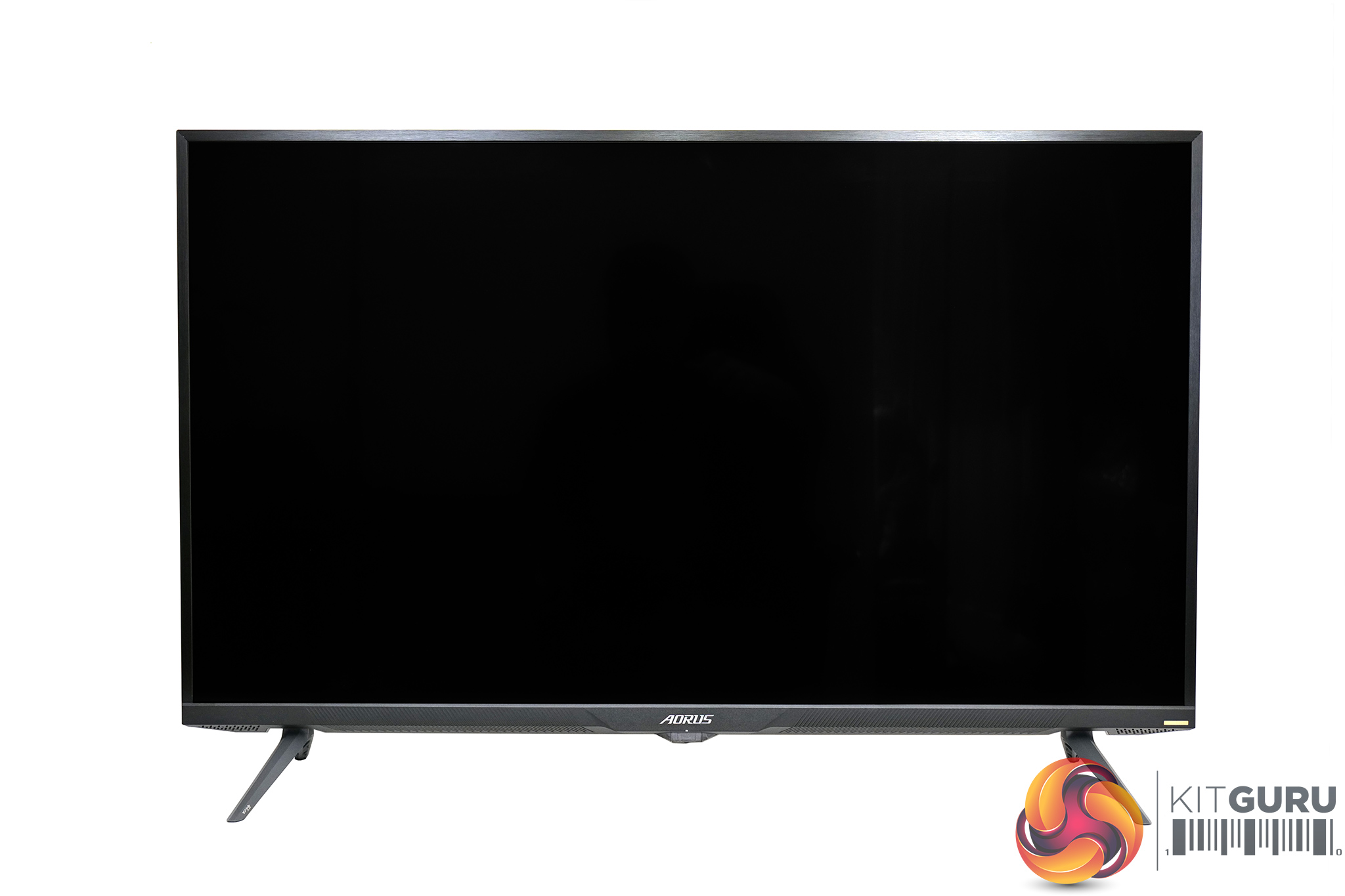
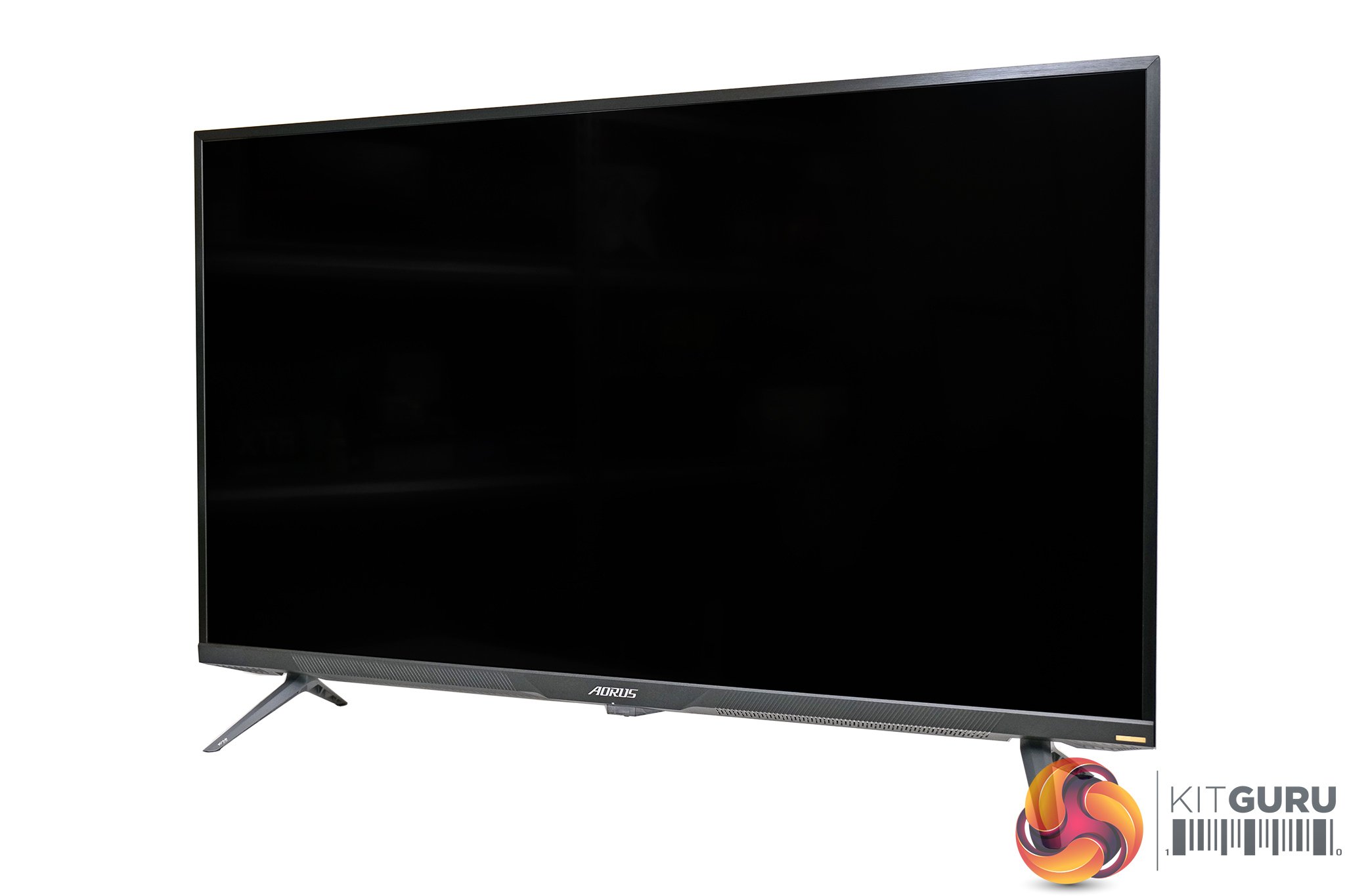
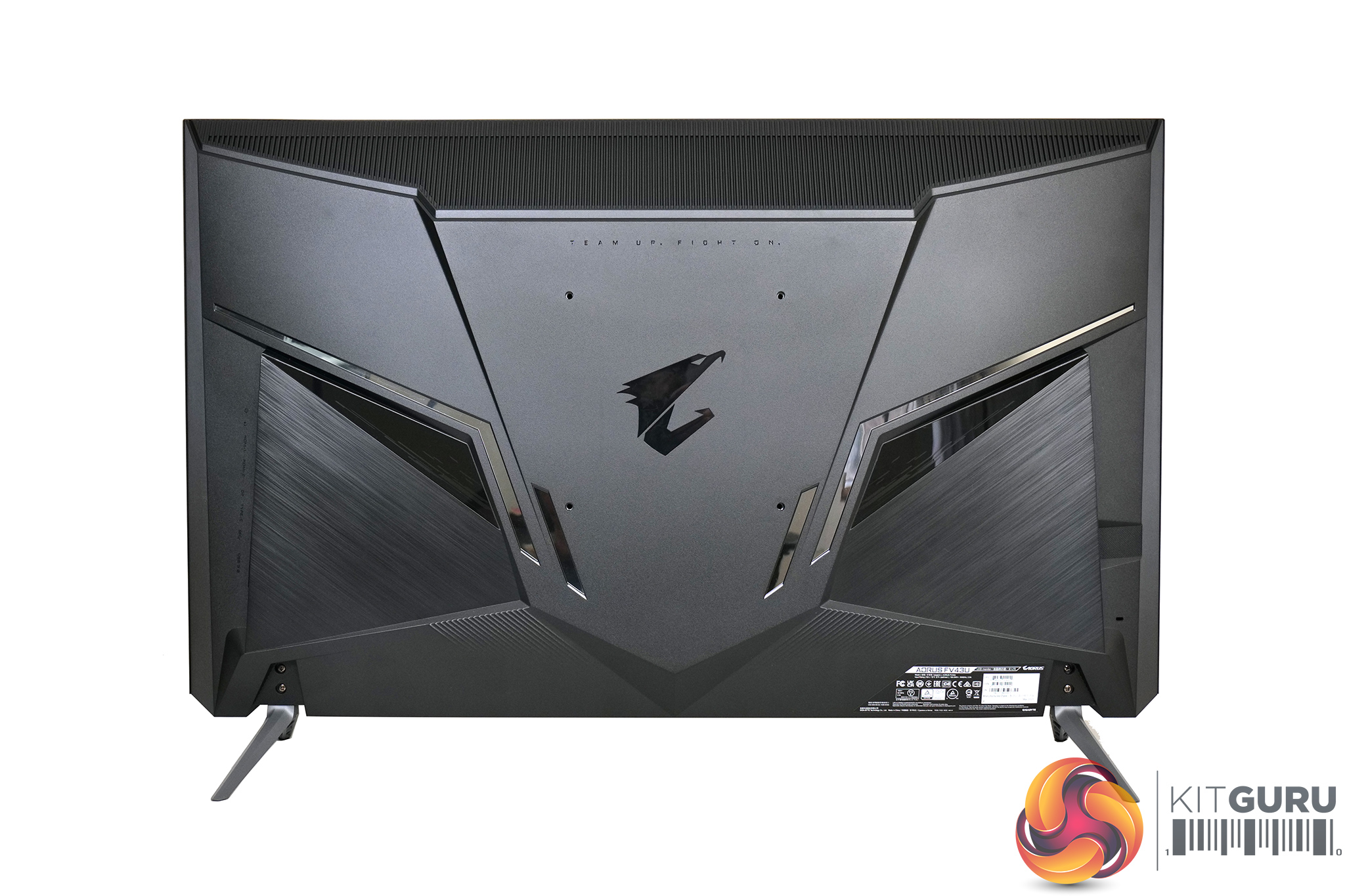
Taking a look the design of the monitor, aside from the fact that this is a 43in display so it is obviously huge, I’d say Aorus has done well to keep the FV43U looking fairly understated. It has relatively thin bezels, and although it is not a bezel-less design, they are certainly not distracting. There's also no RGB lighting anywhere on the body, something which I’ve never really understood on a monitor.
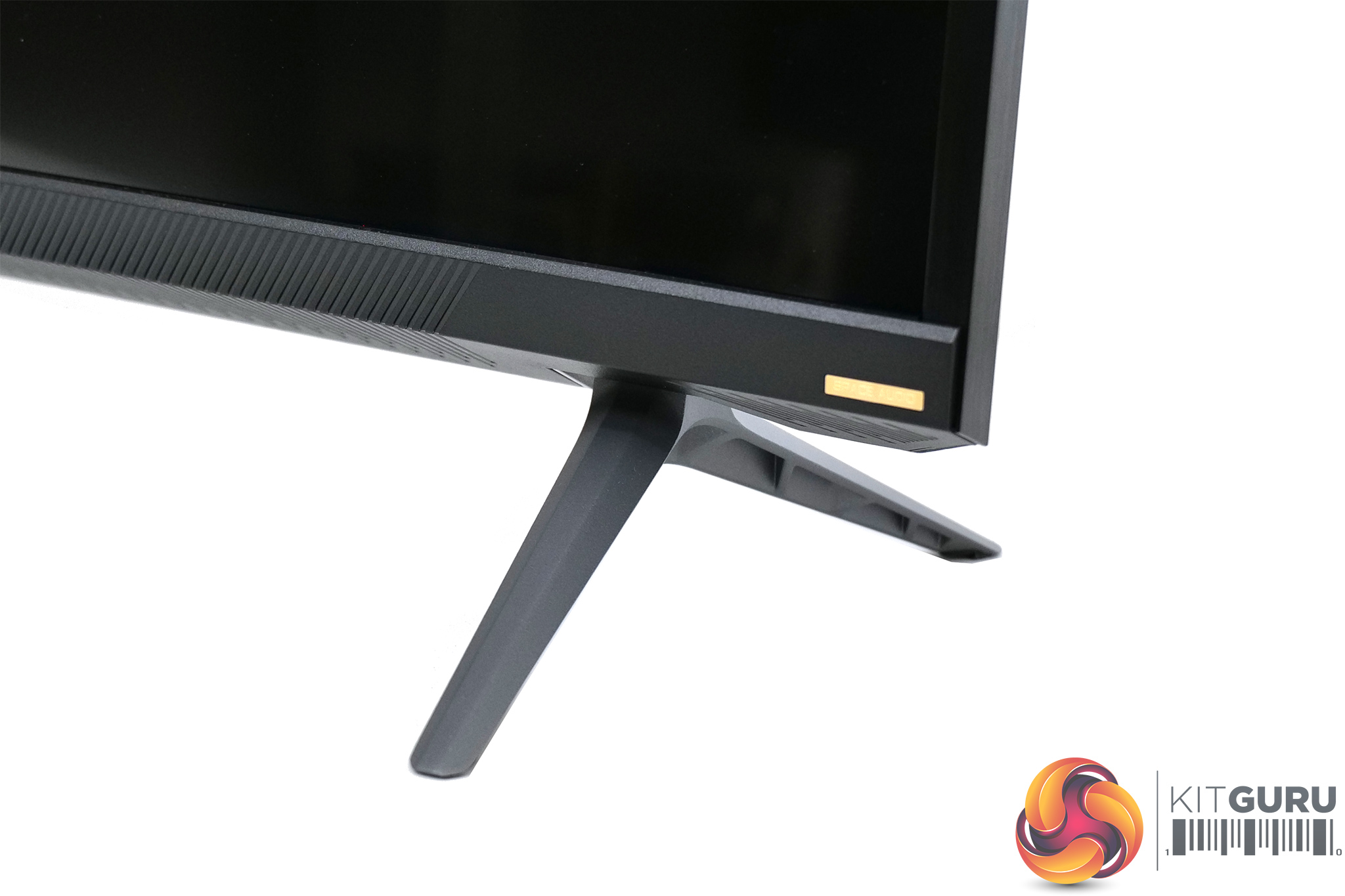
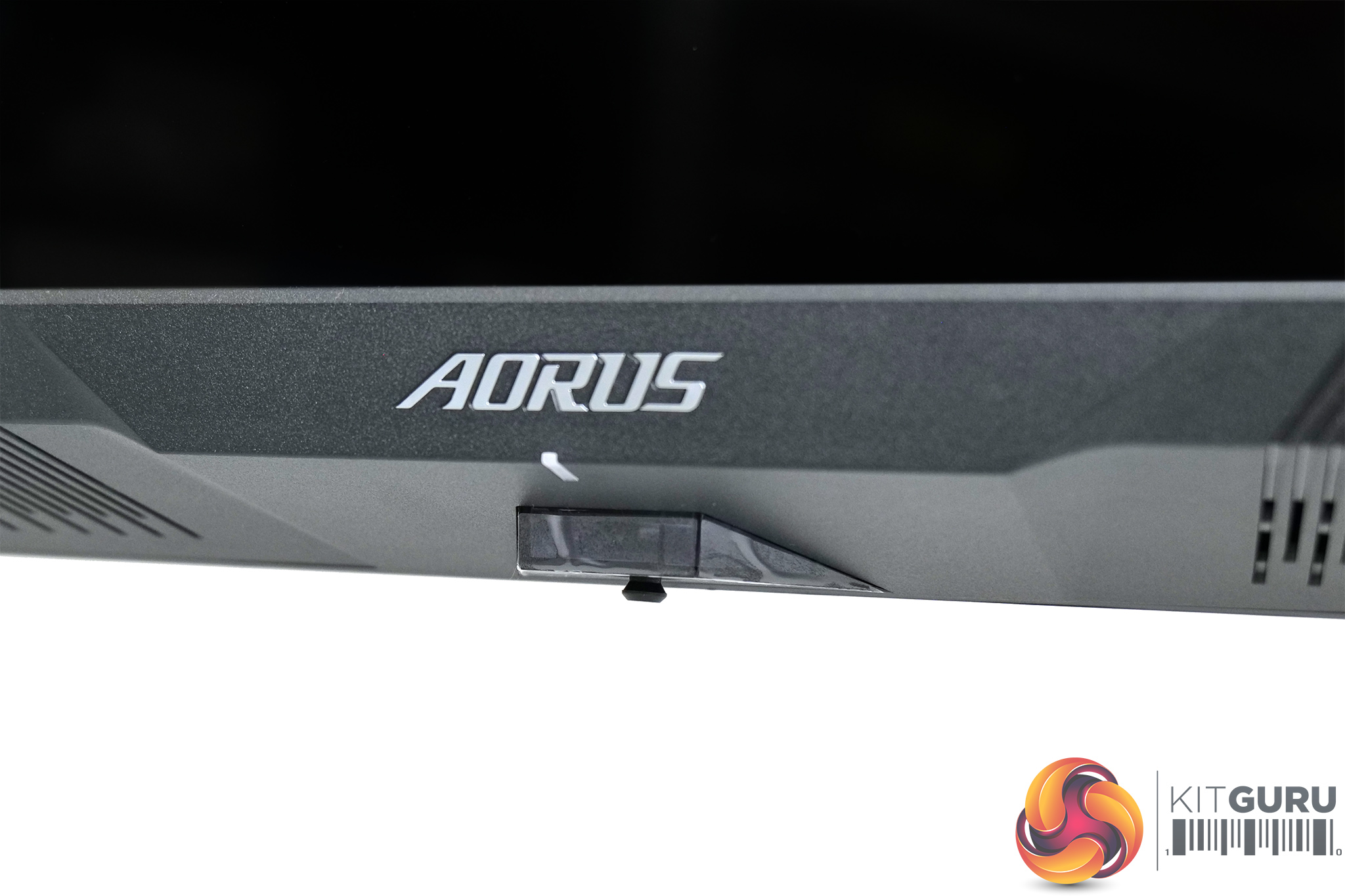
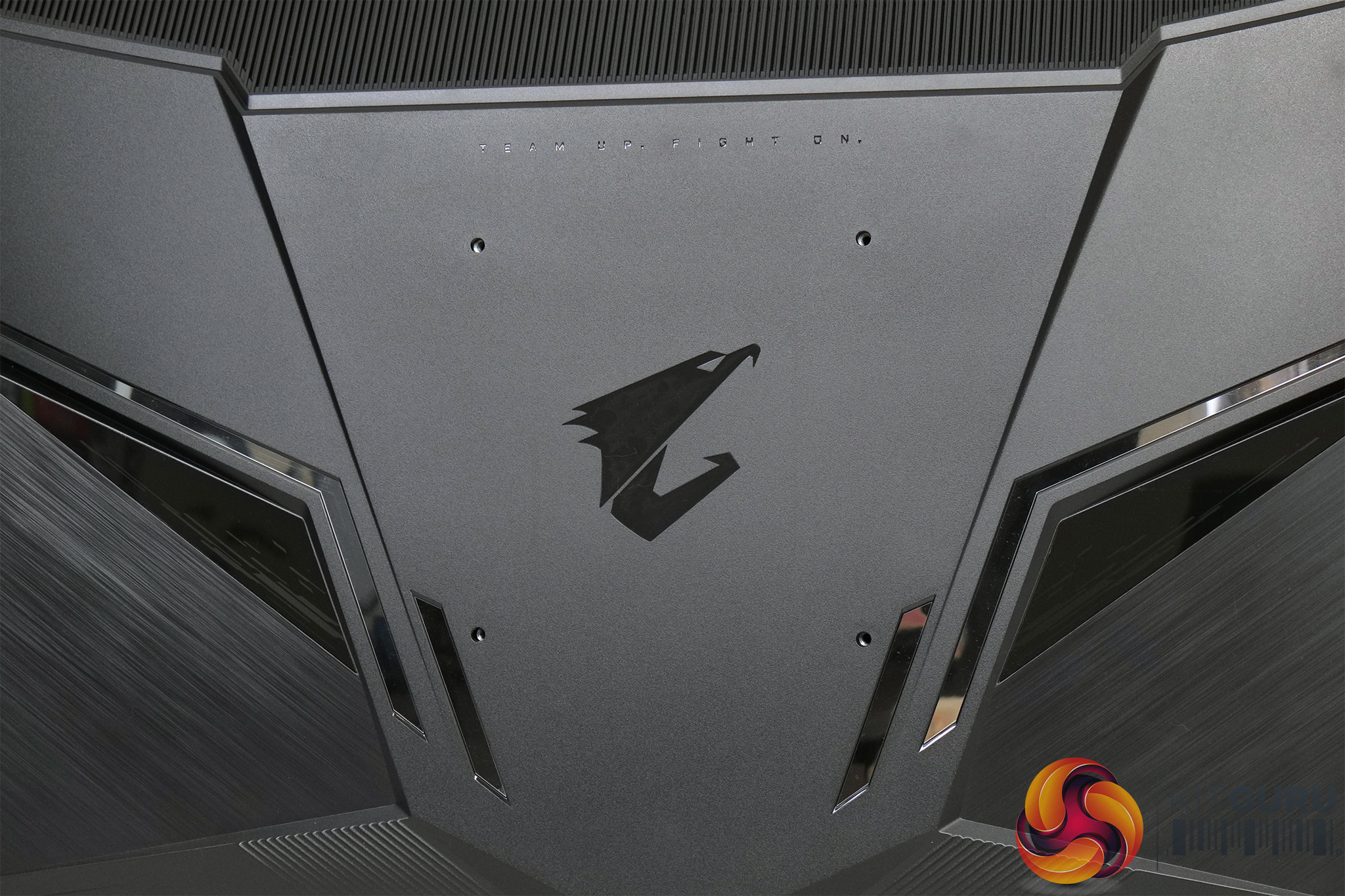
The rear of the display is home to the Aorus logo and some brushed effect pieces, though the construction is plastic here and not metal. The FV43U also uses two TV-style feet which attach to the bottom corners of the display, and naturally this means there’s no ergonomic adjustments available – such as tilt or height adjust – but I’m not sure you’d really need such functionality for a screen this big. You can attach a third-party VESA 200 wall mount or stand if you want to though, so that option is there.
We can also note a small joystick positioned on the bottom edge of the display, used for navigating the OSD.
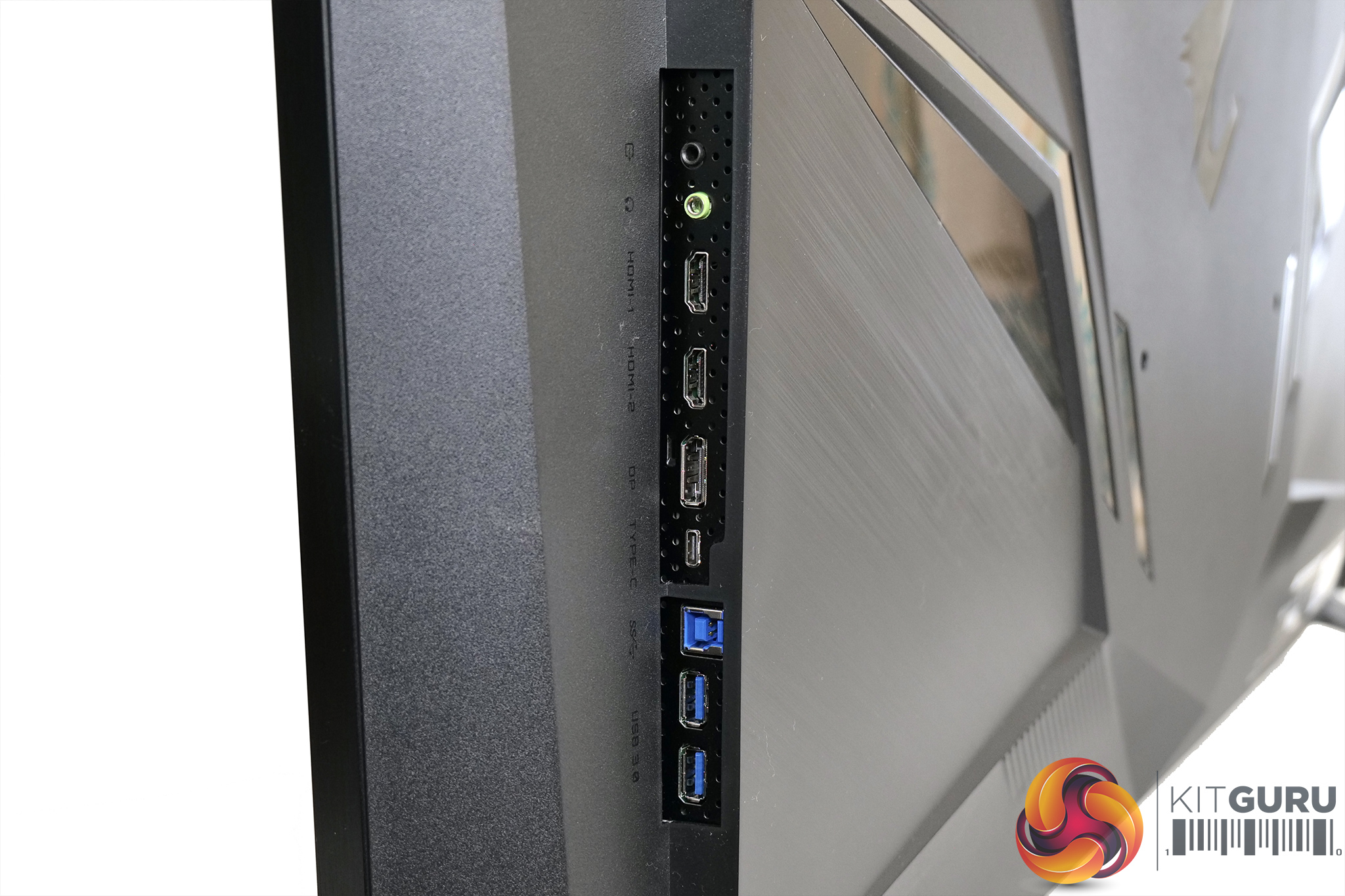
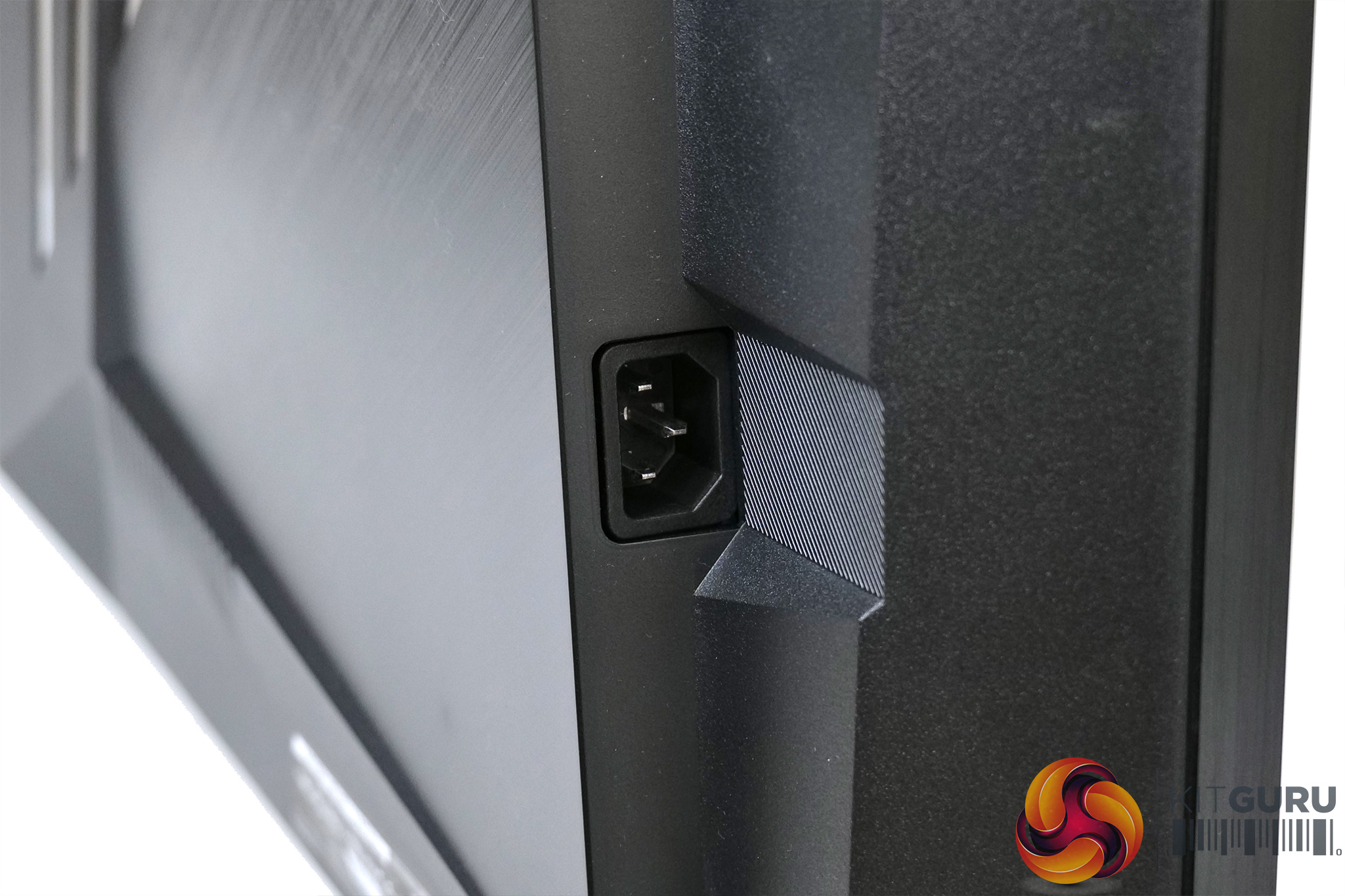
One of my annoyances with the design though, is the placement of the power input and connectivity ports on either side of the screen. If you’re looking at the front of the display, the I/O ports are on the right-hand side and the power input is on the left. This caused me a problem with cable routing, as putting the FV43U on my desk, it was very tight to get the cables to reach my PC, so I definitely would’ve preferred these to be mounted in a central location. This may not affect you at all but it is worth noting.
Speaking of the ports though, we get a healthy selection. There’s 2x HDMI 2.1, 1x DisplayPort 1.4, an audio jack, 1x USB-C, the USB upstream port, and then two USB Type-A downstream ports.
We do need to discuss the HDMI 2.1 ports however. While there are two of them, these are limited to just 24Gbps bandwidth, which is exactly half of the total bandwidth that HDMI 2.1 can offer. This is what we were told by Gigabyte, though when I reached out a second time to double-check the bandwidth limitations, I didn’t hear back from them before publishing this review. Rtings.com also tested the Aorus FI32U and they found the HDMI ports on that display were also limited to 24Gbps, so we can safely assume that is what is going on here.
Though that limitation is certainly not ideal, the good news is anyone with a HDMI 2.1 capable GPU – meaning Nvidia RTX 30 series or AMD RX 6000 series – can use Display Stream Compression (DSC) over HDMI 2.1 and still get a 4K/144Hz, 10-bit image without any chroma subsampling. The latest Xbox consoles can also use DSC, but if you’ve got a PS5, unfortunately you’ll be limited to 4:2:0 subsampling at 4K/120Hz. The PS5’s HDMI 2.1 ports are already limited to 4:2:2 subsampling as a result of their 32Gbps bandwidth ports, but the even more limited ports on the FV43U means 4:2:2 subsampling is a step too far.
Unfortunately, I don’t have a PS5 myself to test this in practice, but I did try comparing 4:4:4 and 4:2:0 subsampling on my PC. As shown in the video on the first page, there was a noticeable different in terms of text and colour representations in Windows, but the difference when gaming was far less noticeable to me when standing a couple of feet from the screen.
Still, this is definitely something to be aware of, especially if you were planning on using this monitor with a PS5. Many people will be considering this screen or something like the LG CX, too, with the CX offering 40Gbps bandwidth with its HDMI 2.1 ports, completely negating the issue.
As we pointed out on the previous page, Gigabyte has fitted the FV43U with a joystick for navigating the OSD. However, a remote control is also bundled with the display and that is very welcome – if you are using this as TV replacement, or from a sofa, getting up and tinkering with a joystick would be a bit of a pain. The remote control is fairly basic, but it offers power and input selection buttons, as well as picture mode and ‘space audio' shortcut buttons plus volume control.
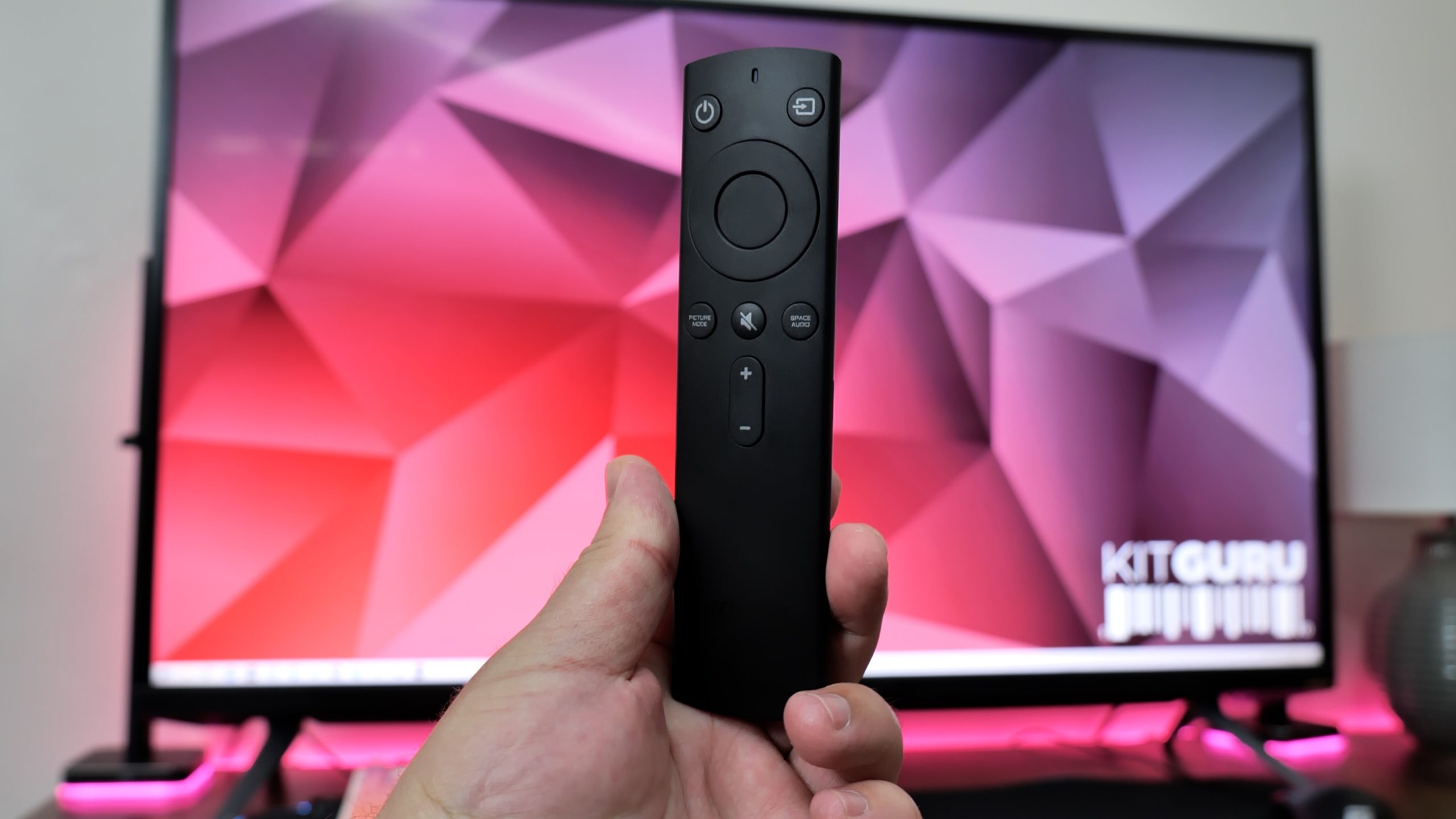
You can also use the navigation buttons to traverse the main OSD. This is split into seven tabs – Gaming, Picture, Display, PIP/PBP, System, Save Settings, Reset all:
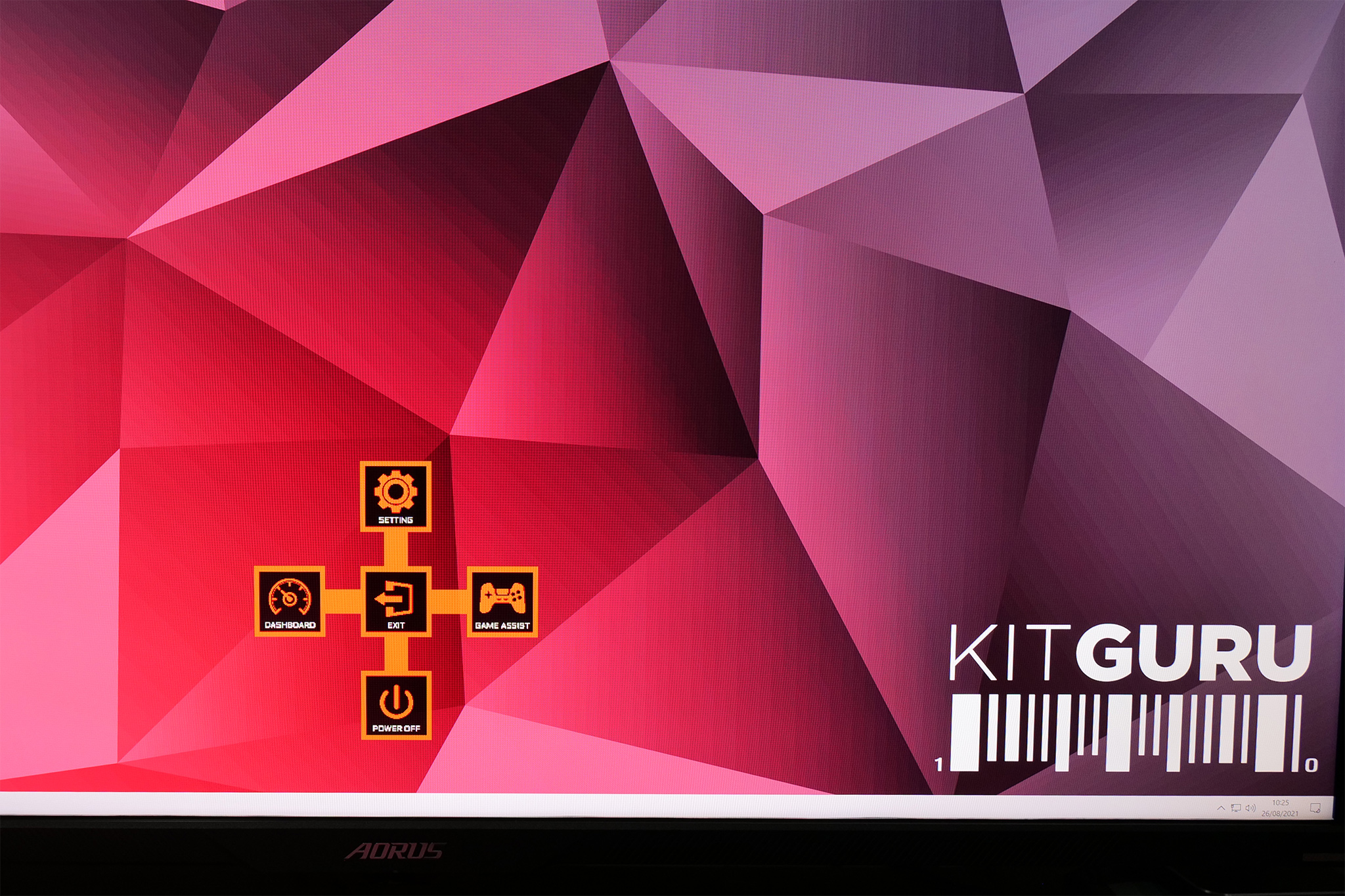
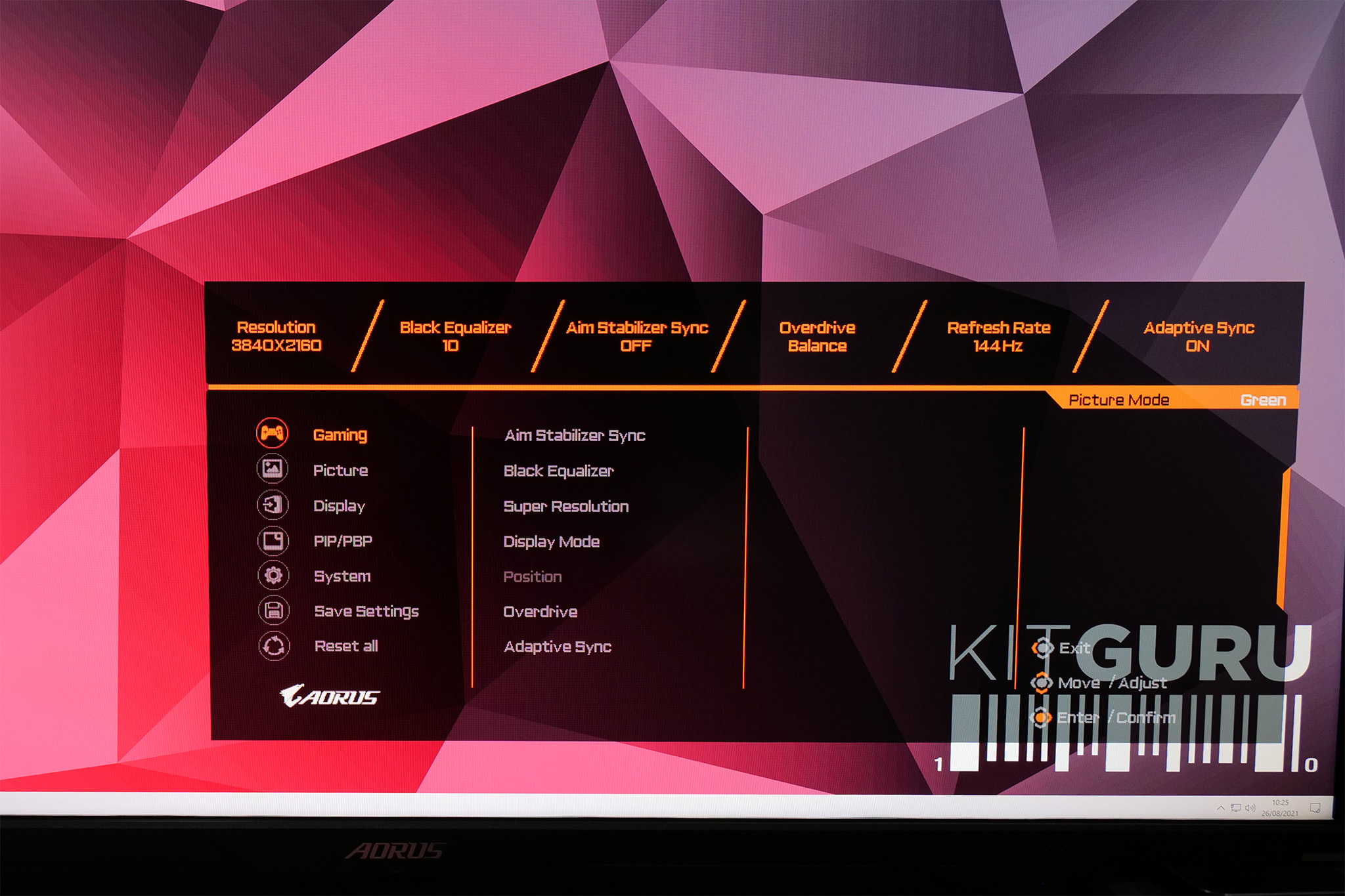
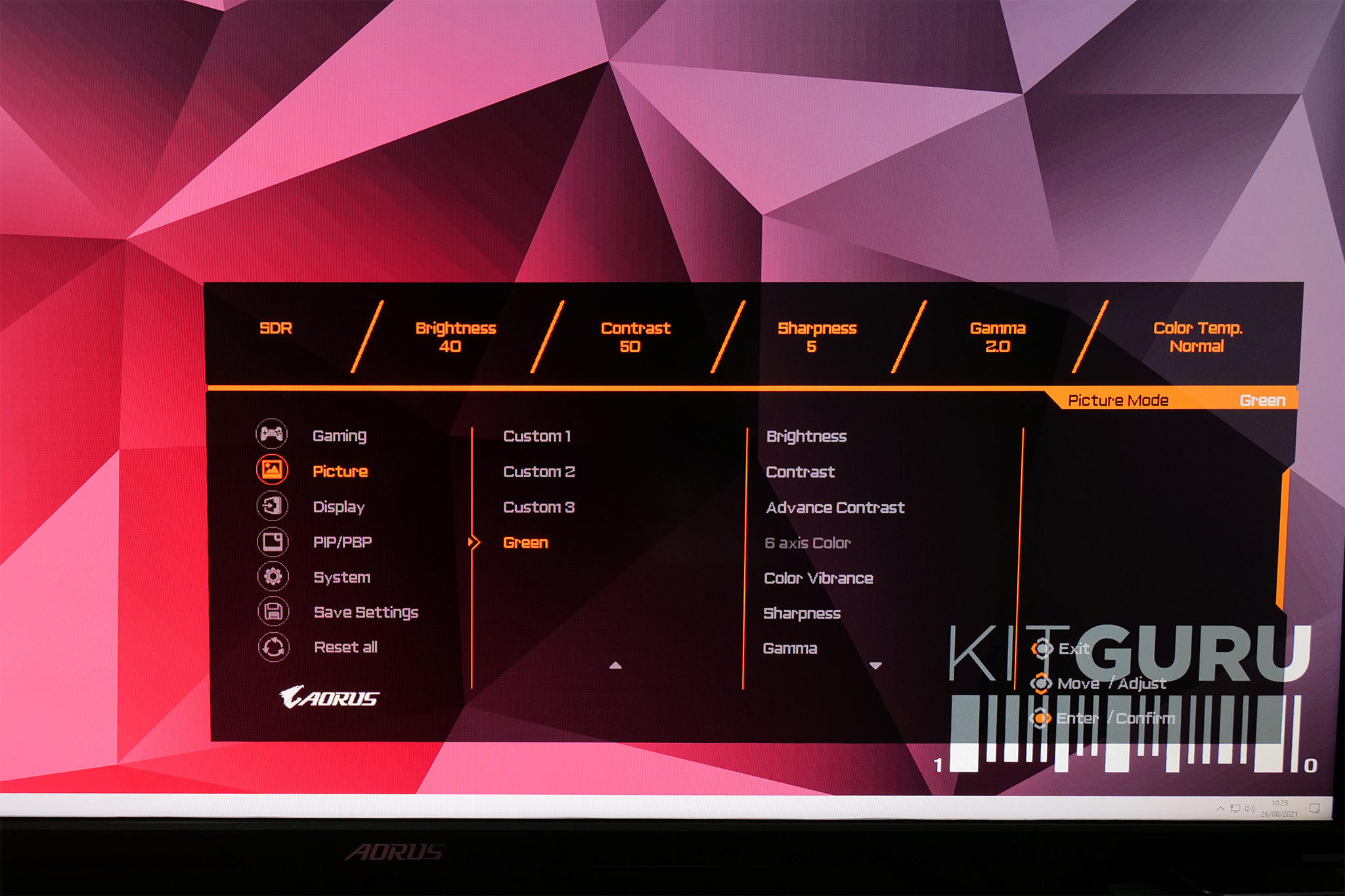
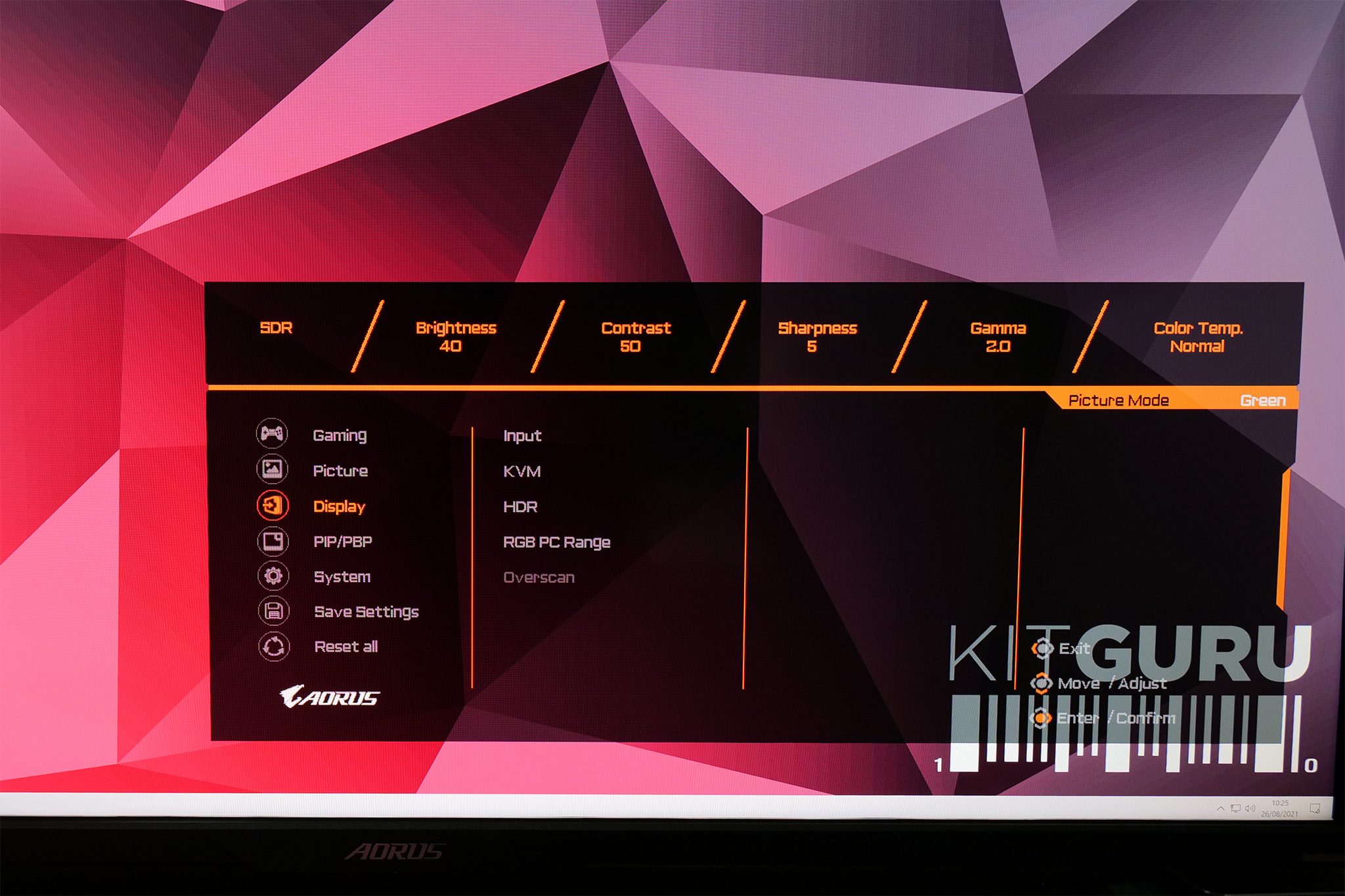
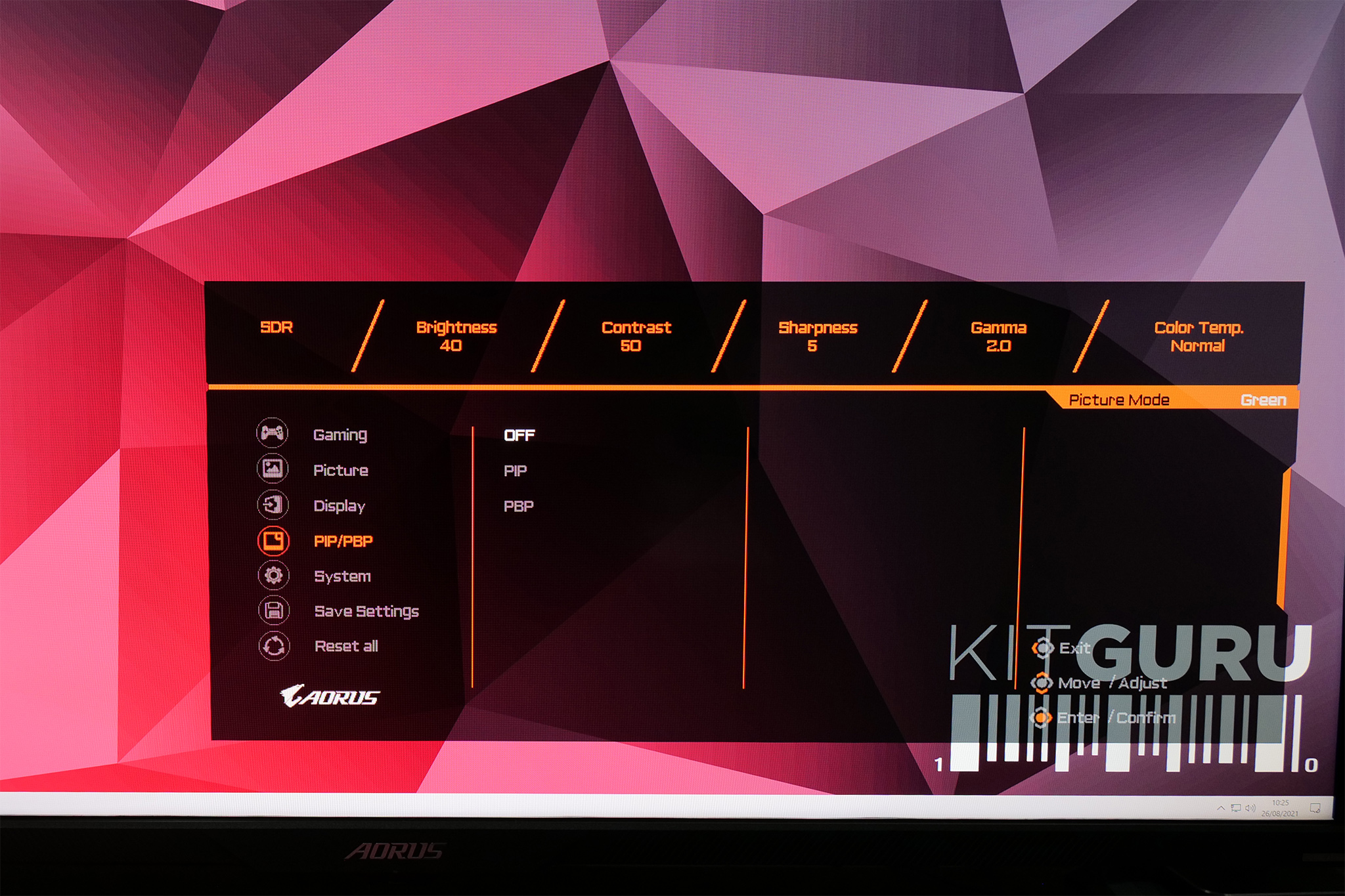
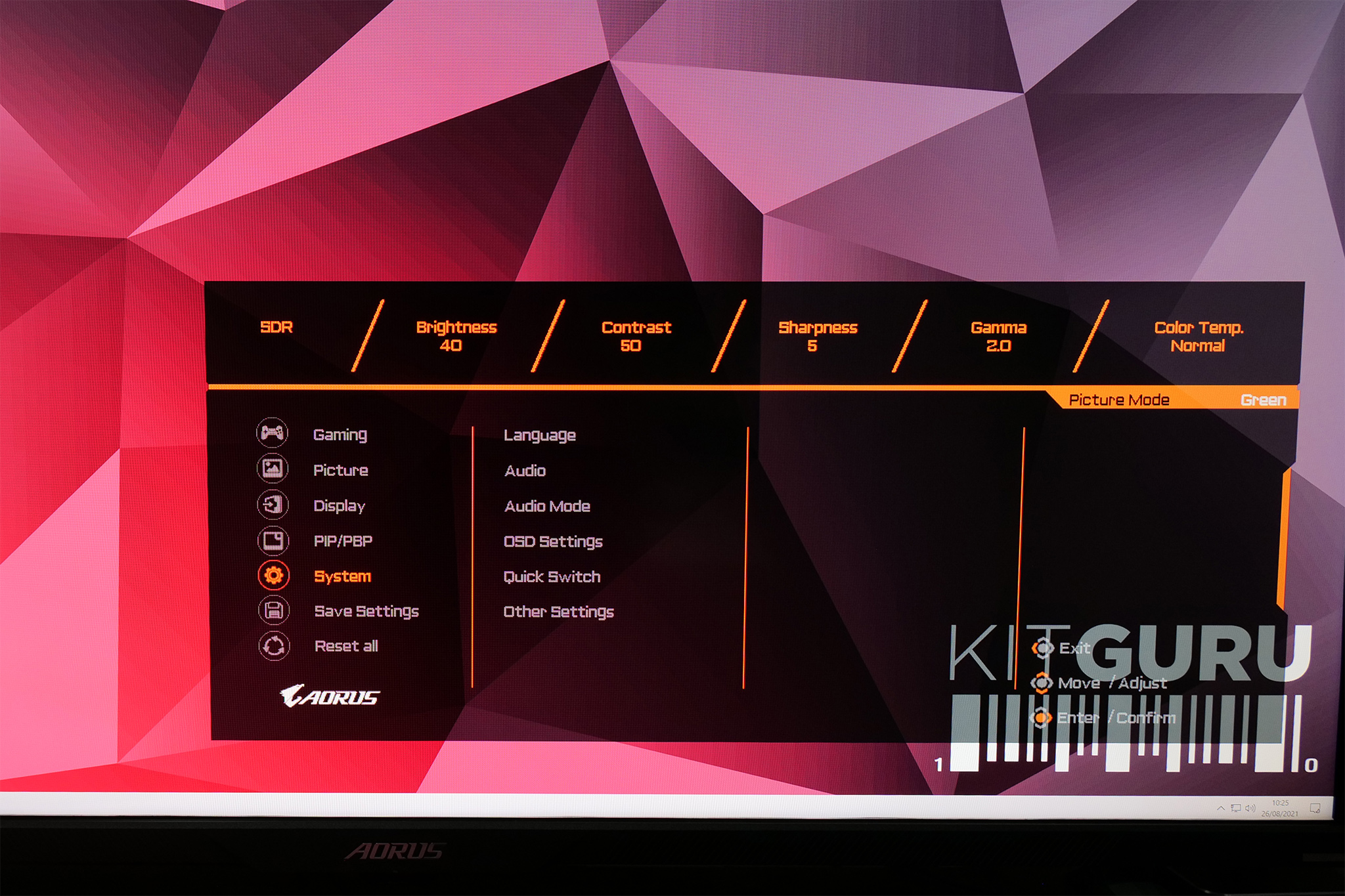
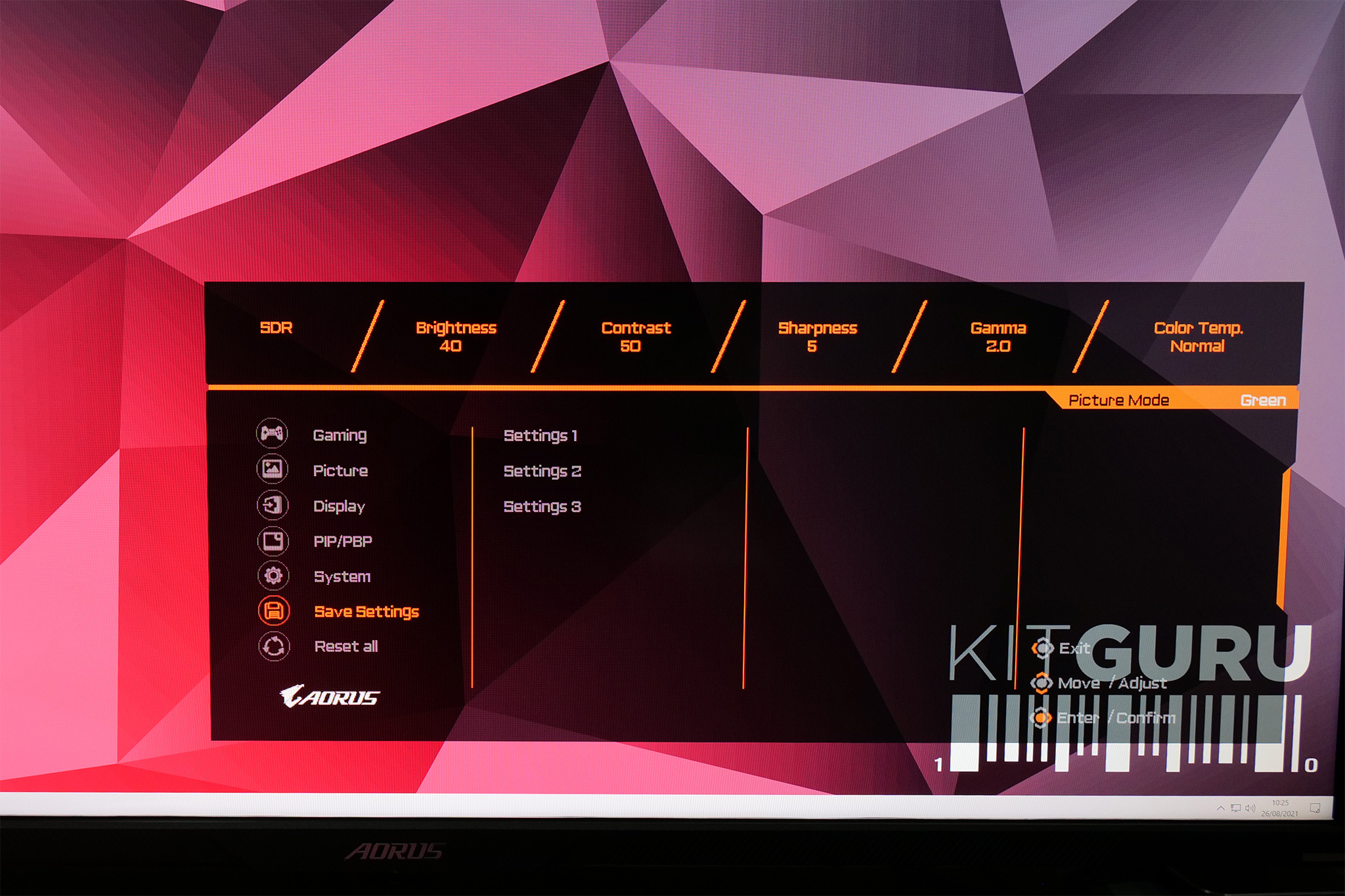
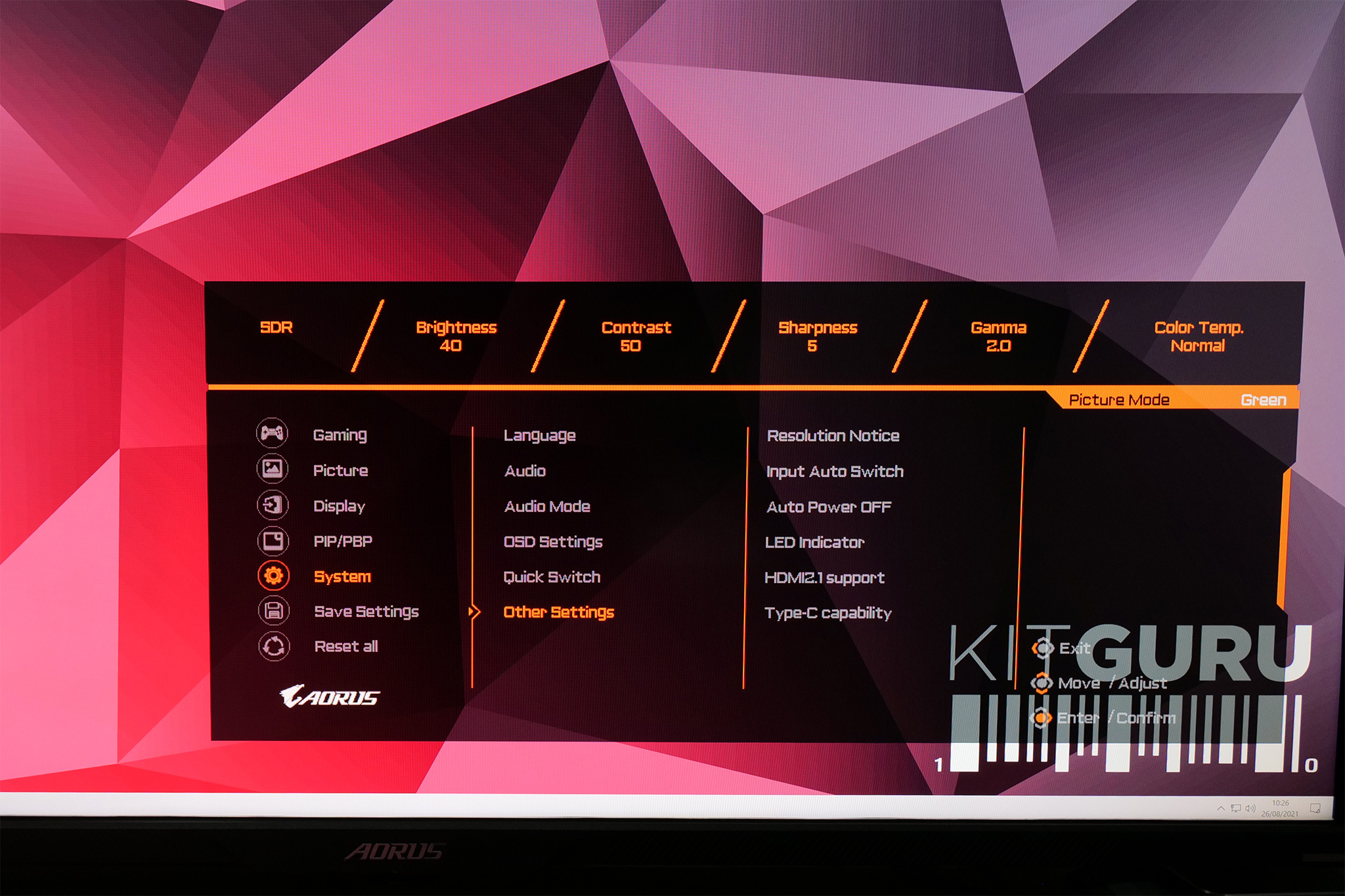
Gigabyte's OSD design is well laid-out, with all the key settings accounted for. Gamer-centric features like an on-screen crosshair and countdown timer are also present, while the ability to save different settings to one of three profiles is actually a very handy idea if you frequently change the input device or want to quickly apply different settings for a different task.
As we show in the video review, there is also a Windows-based app called OSD Sidekick, which gives you all the same options as shown in the OSD, but in software form. This requires the USB cable to be connected from the monitor to your PC, but allows easy changing of settings without having to use a joystick or remote control. Similarly, if connected via USB, the FV43U can show a live dashboard of system parameters, including CPU/GPU temperatures, fan speeds etc.
Our main test involves using a DataColor SpyderX Colorimeter to assess a display’s image quality. The device sits on top of the screen while the software generates colour tones and patterns, which it compares against predetermined values to work out how accurate the screen is.
The results show –
- A monitor’s maximum brightness in candelas or cd/m2 at various levels set in the OSD.
- A monitor’s contrast ratio at various brightness levels in the OSD.
- The brightness deviation across the panel.
- The black and white points.
- The colour accuracy, expressed as a Delta E ratio, with a result under 3 being fine for normal use, and under 2 being great for colour-accurate design work.
- The exact gamma levels, with a comparison against preset settings in the OSD.
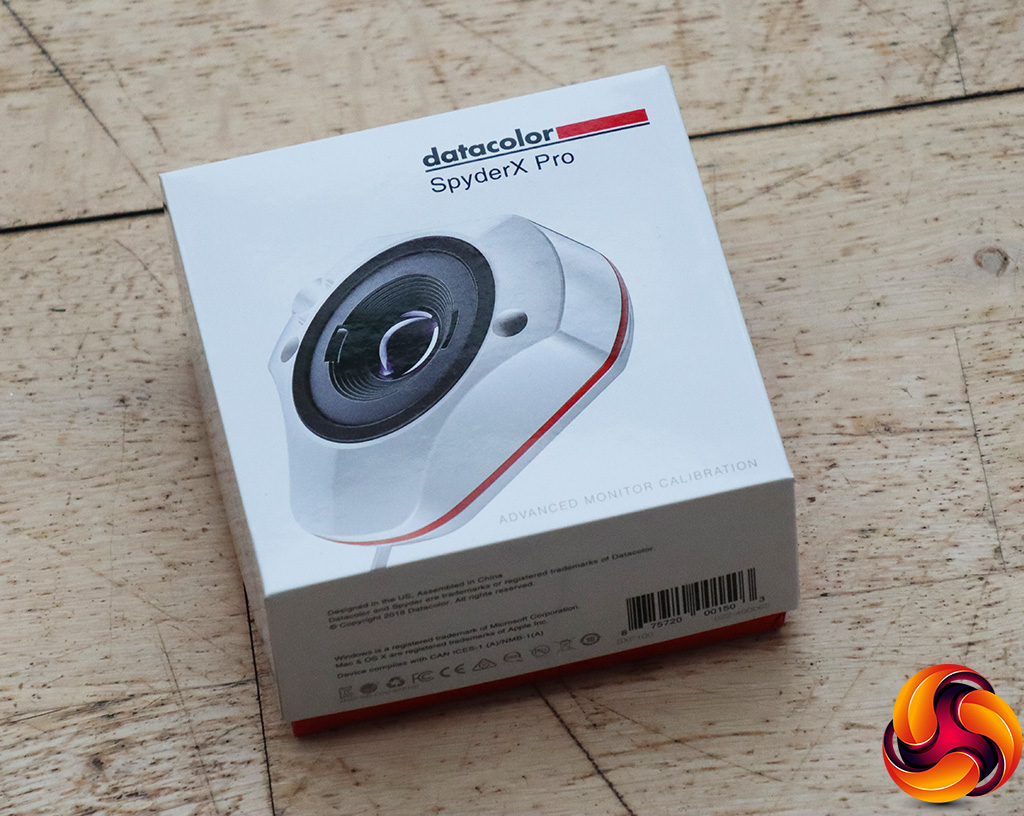
We first run this test with the display in its default, out-of-the-box state, with all settings on default. We then calibrate the screen using the Spyder software and run the test again.
Pre-calibration
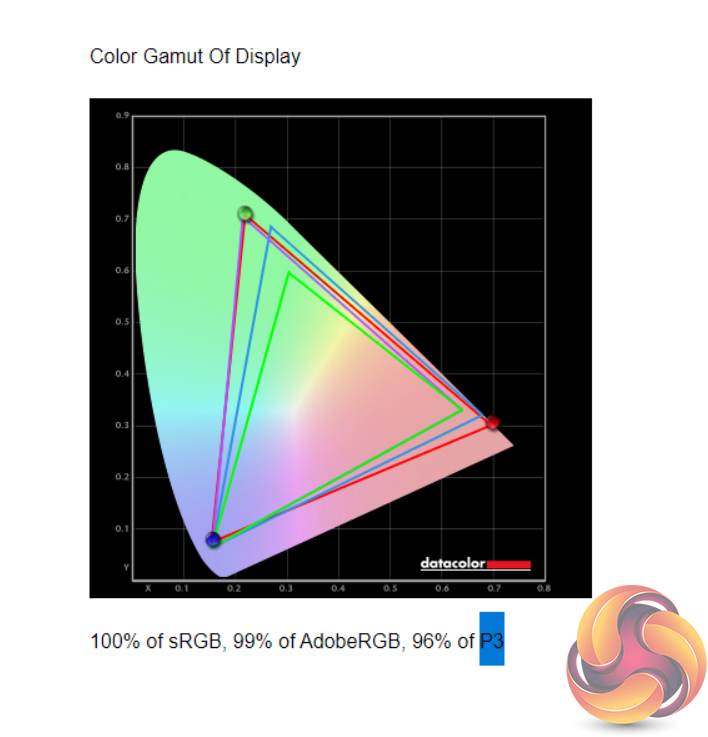
Things get off to a great start for the FV43U. We measured 100% sRGB, 99% AdobeRGB and 96% DCI-P3 gamut coverage, so that's pretty much spot on with Gigabyte's claims.
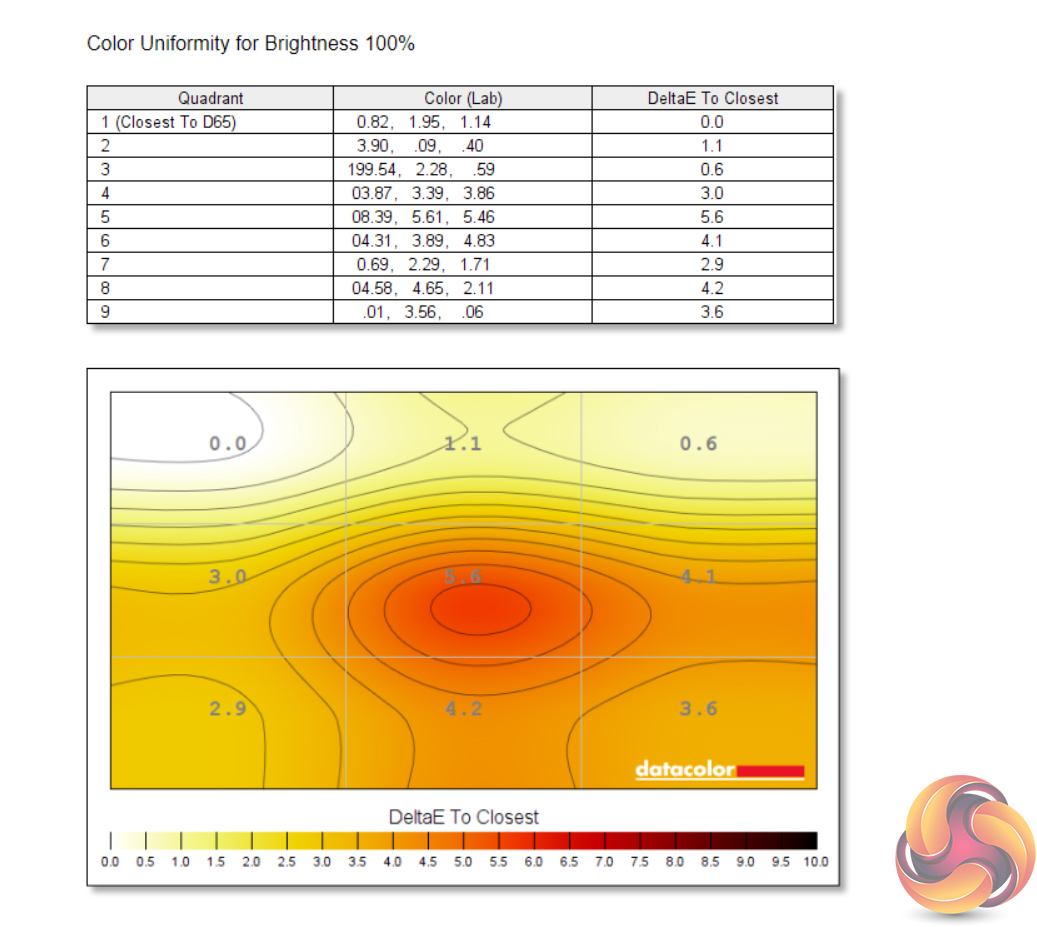
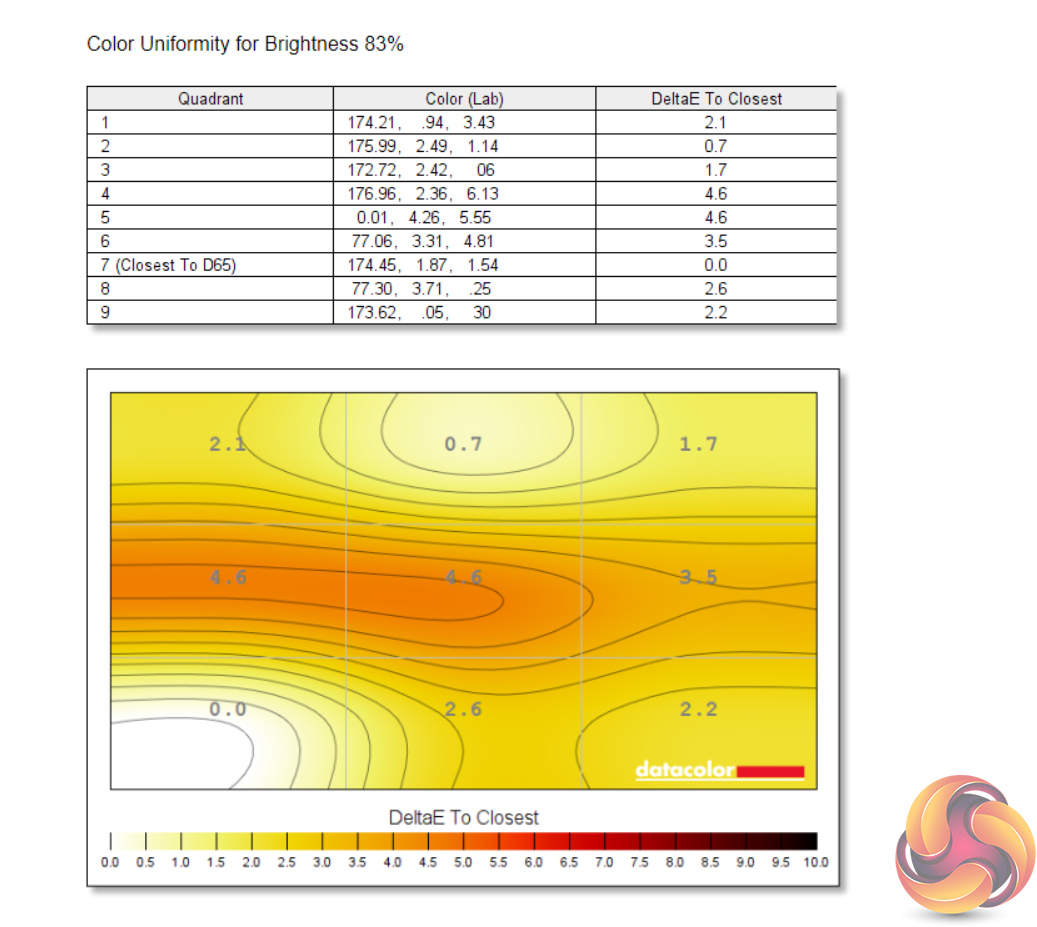
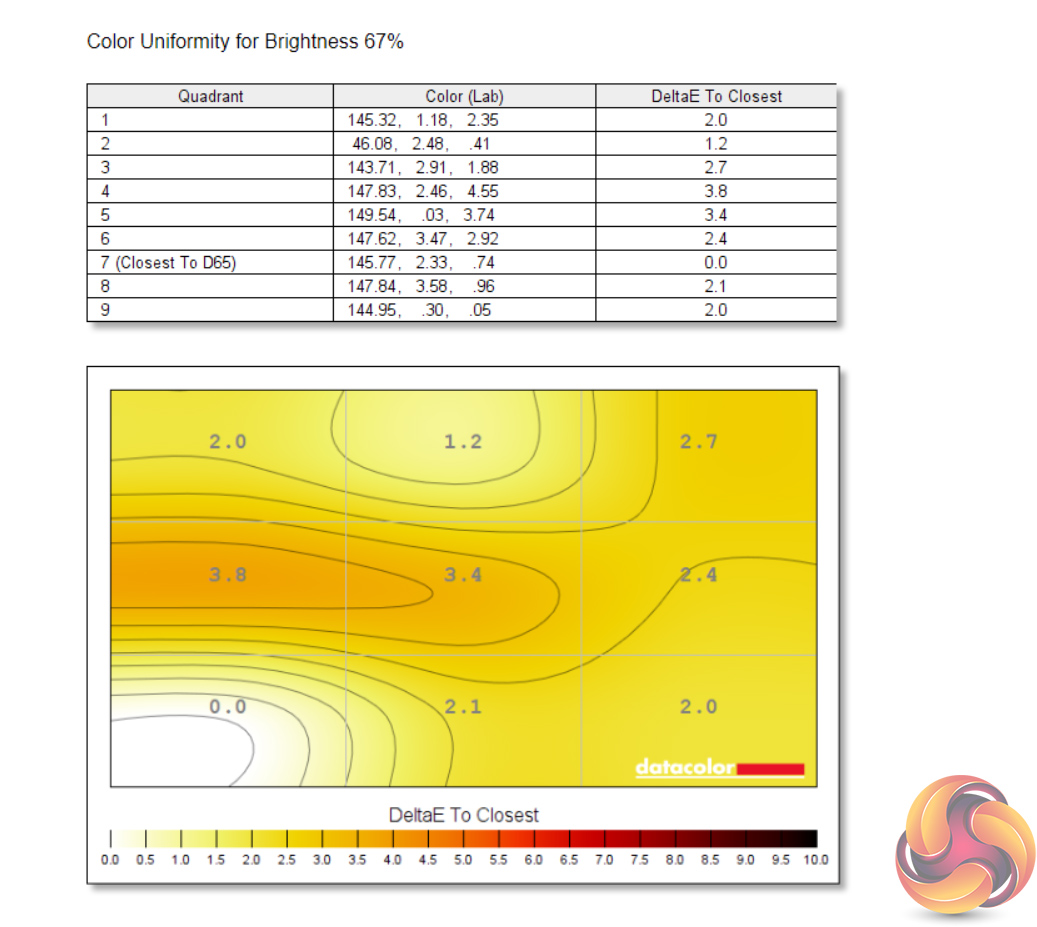
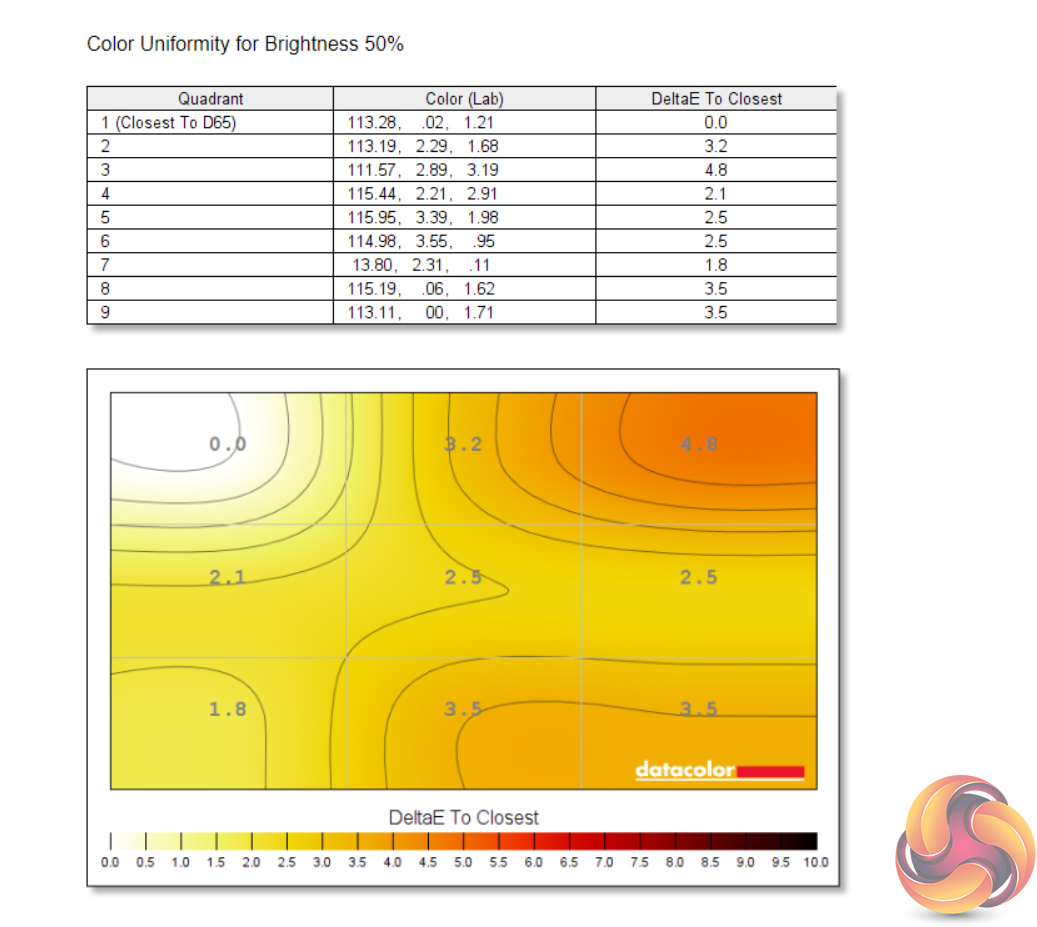
Colour uniformity is generally OK, though at 100% brightness there is some variation in the centre of the screen.
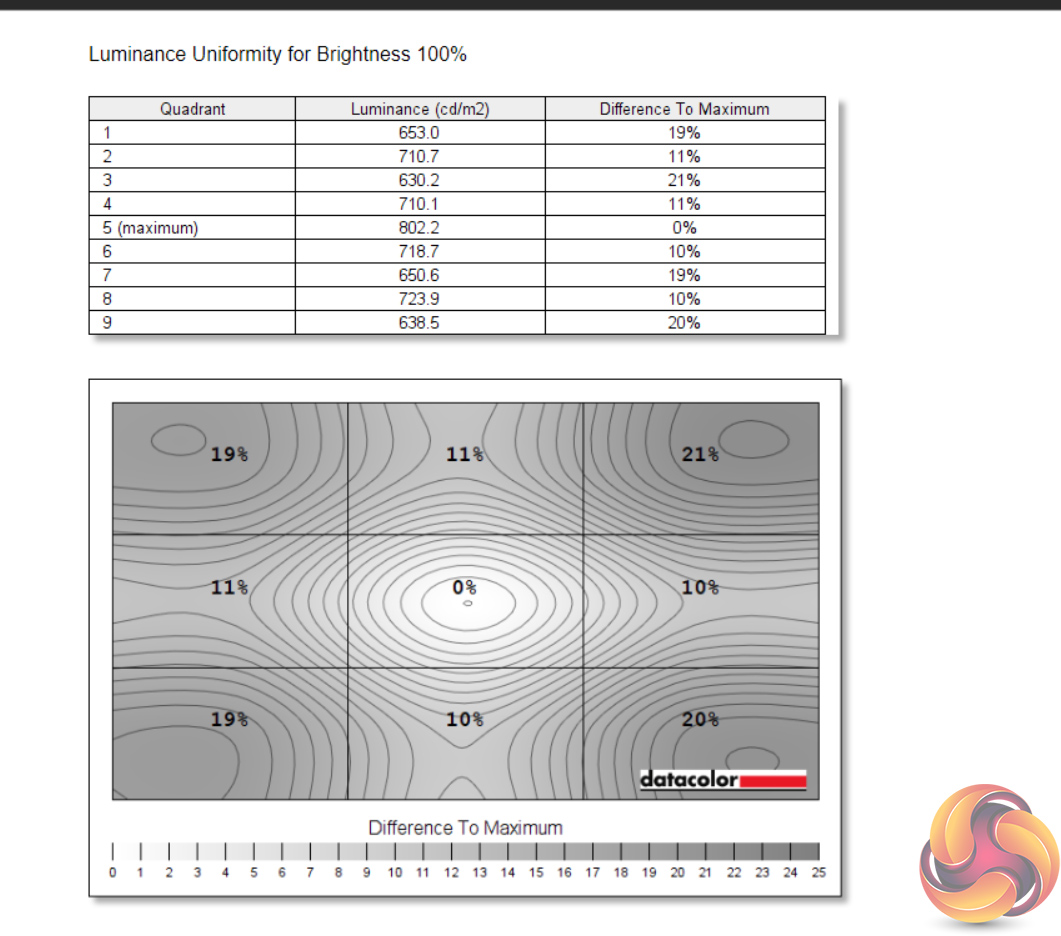
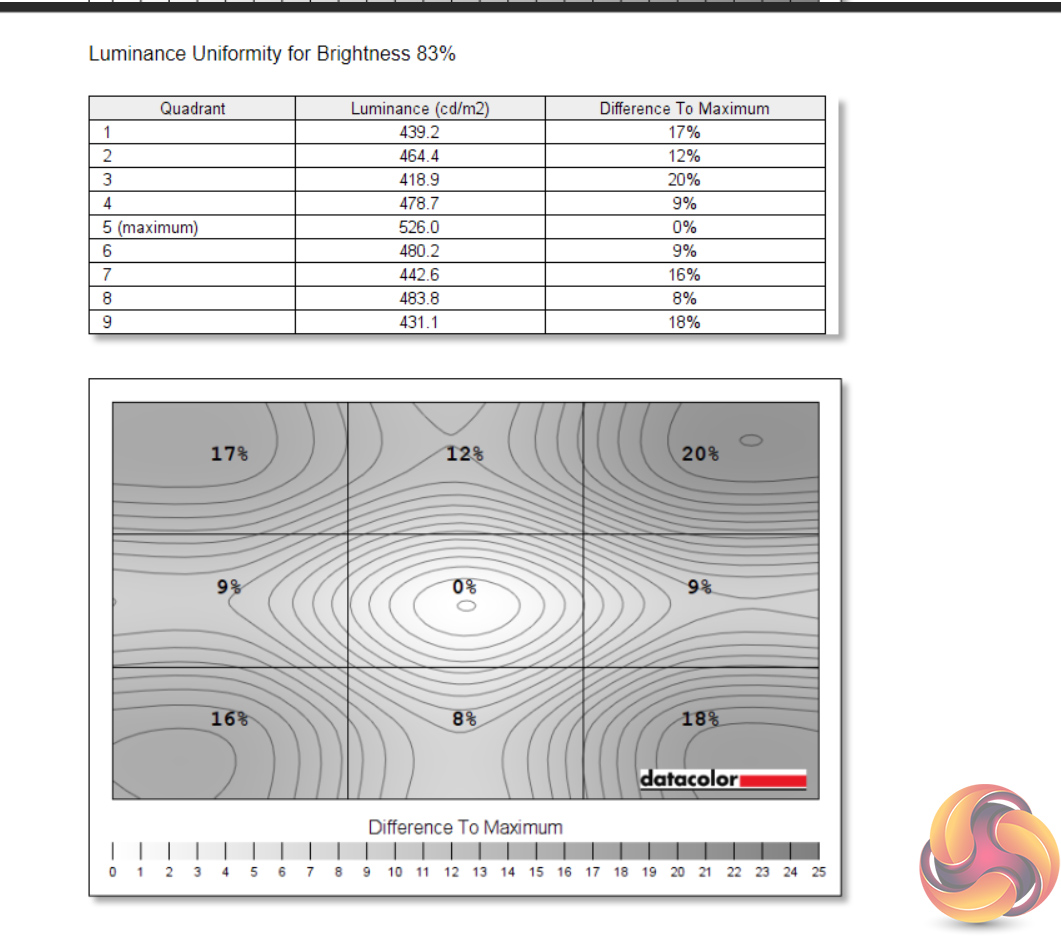
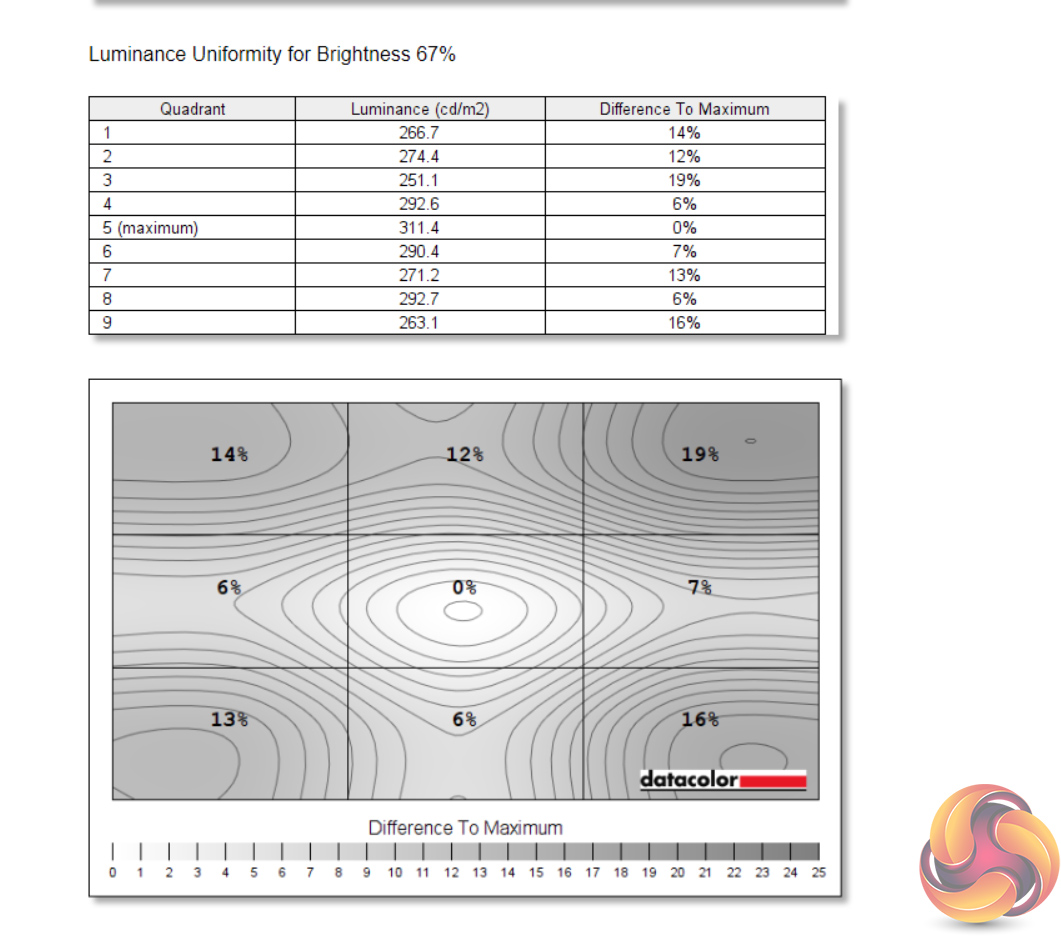
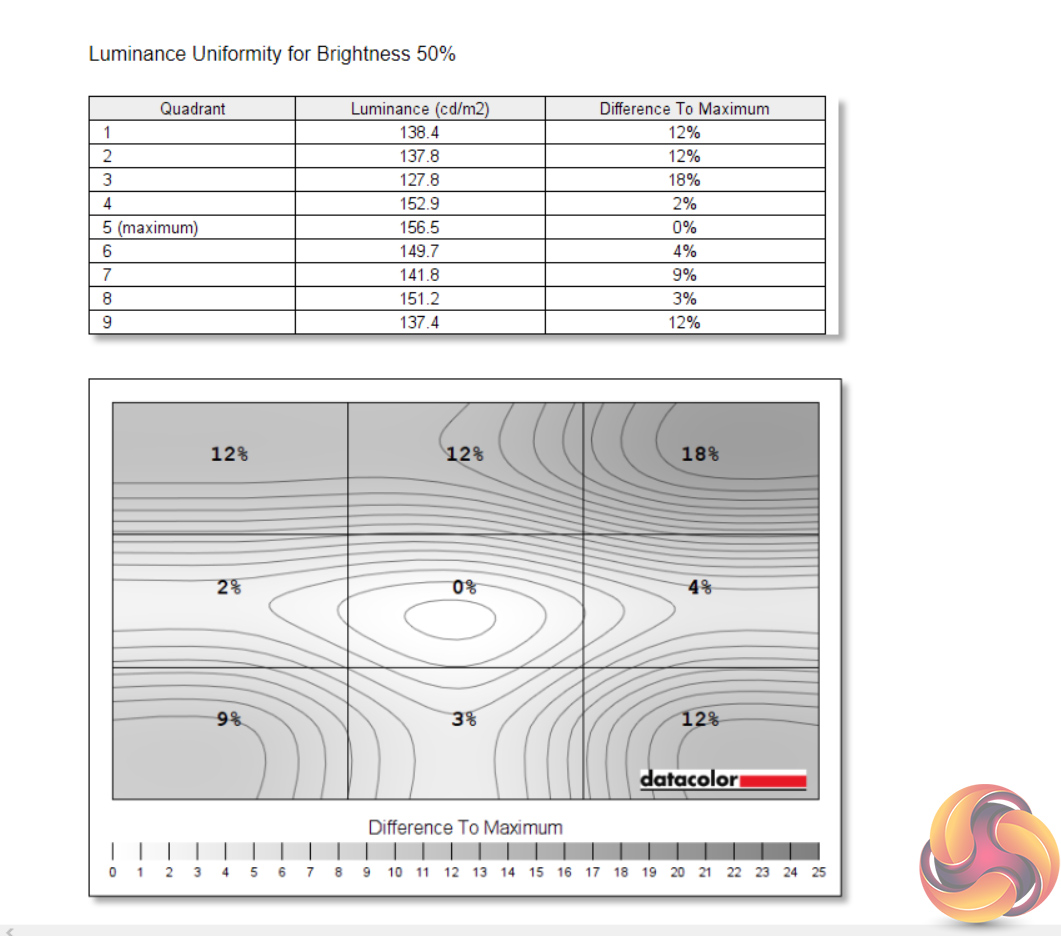
Likewise for luminance uniformity, as we'd expect from a large backlit panel, there is again a fair amount of deviation here, particularly in the top corners, though I can't say this was particularly noticeable when gaming or browsing the web.
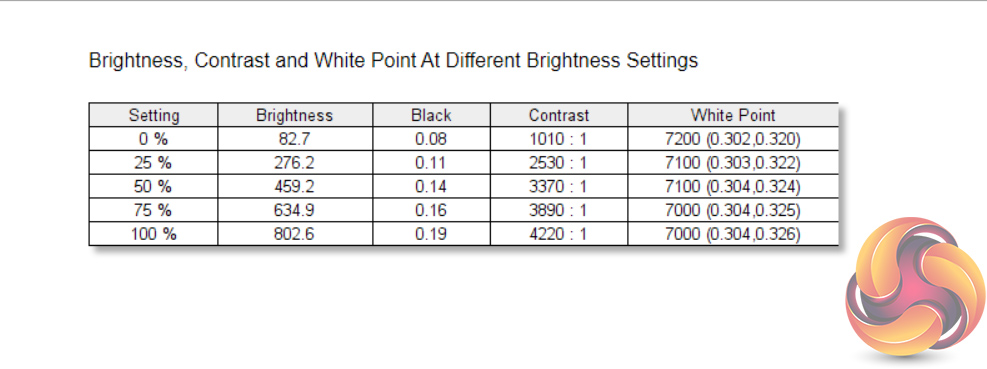
More impressive are the peak brightness and contrast readings. Starting with the former, at 100% brightness the FV43U measured just over 800 cd/m2 – that's very bright, bearing in mind this is typical SDR brightness, but it can drop all the down to 82 cd/m2 at the 0% setting.
Contrast also peaked at 4220:1, a fantastic result even by VA standards. Gigabyte's own claim is 4000:1 contrast, so we have even exceeded that slightly. Lastly, the white point is good but slightly cool, hitting 7000K when we'd hope for 6500K.
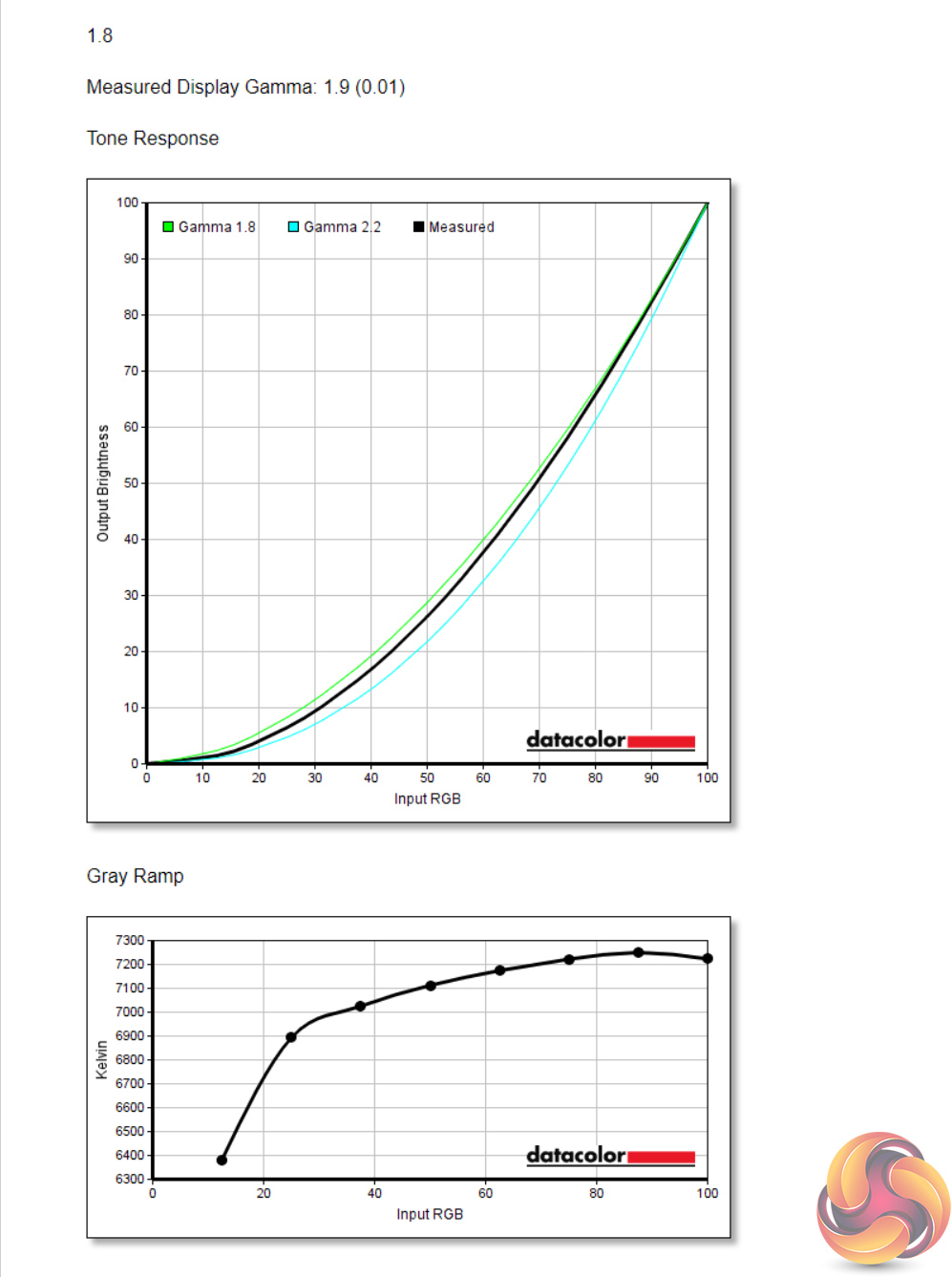
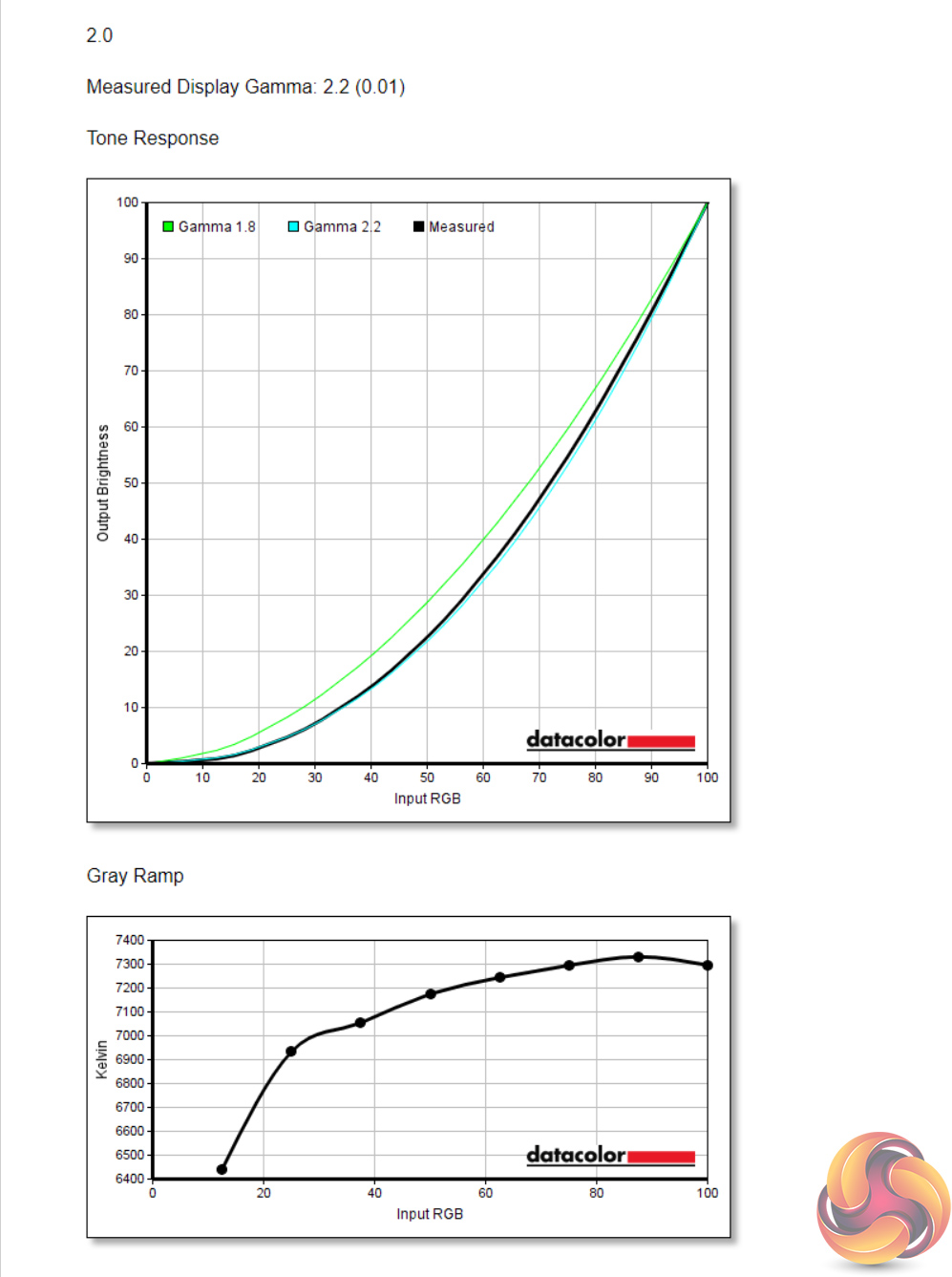
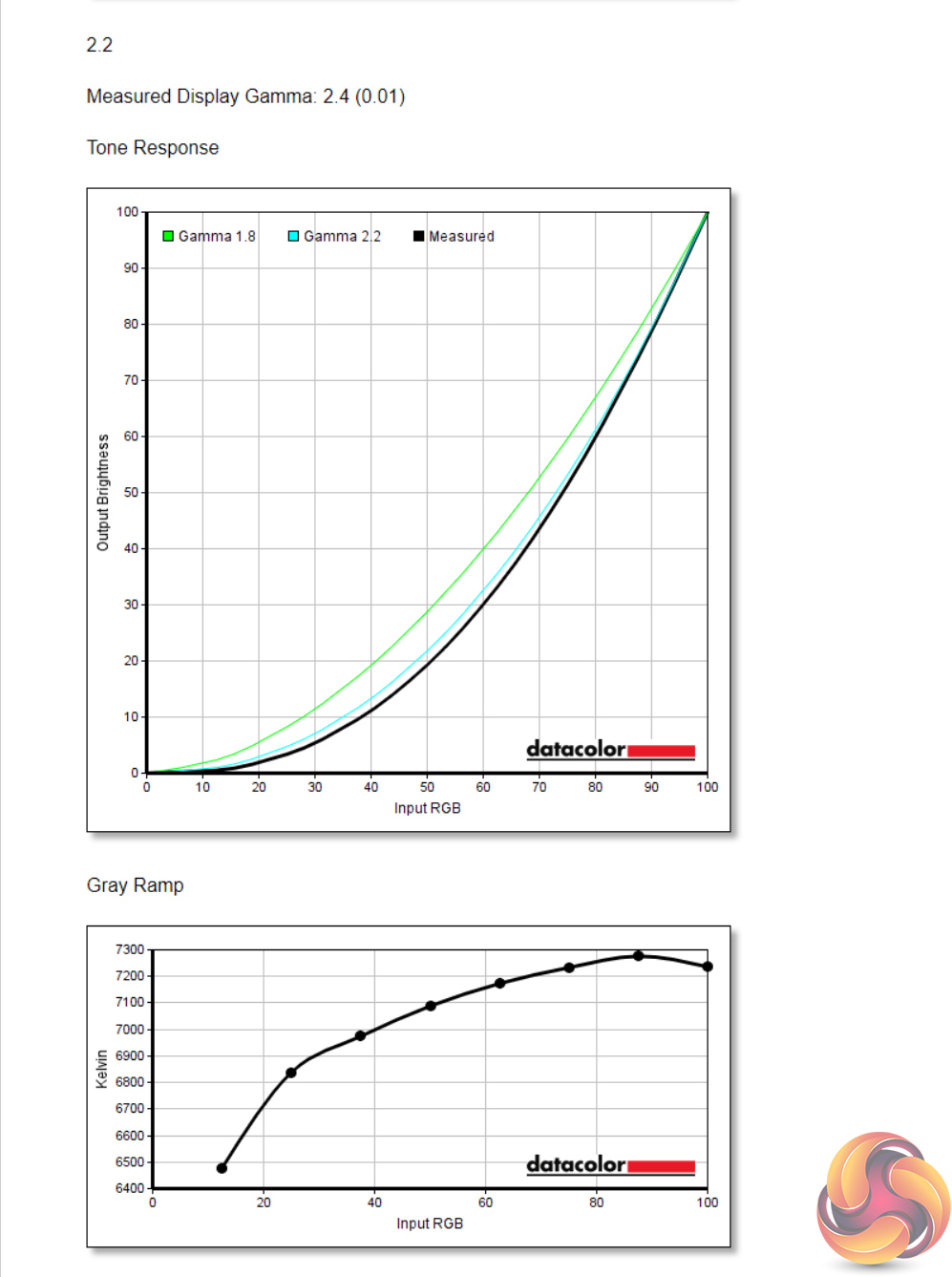
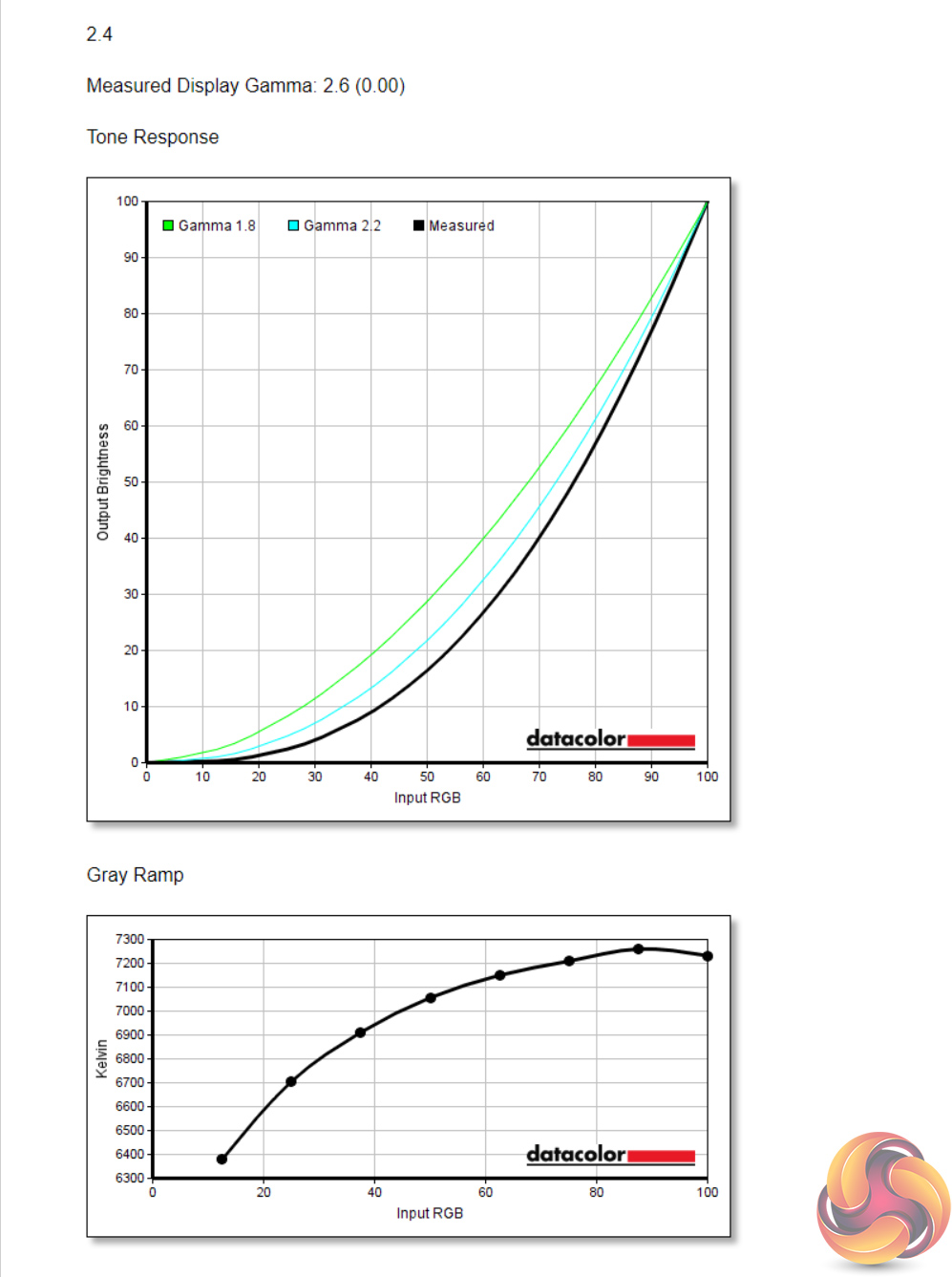
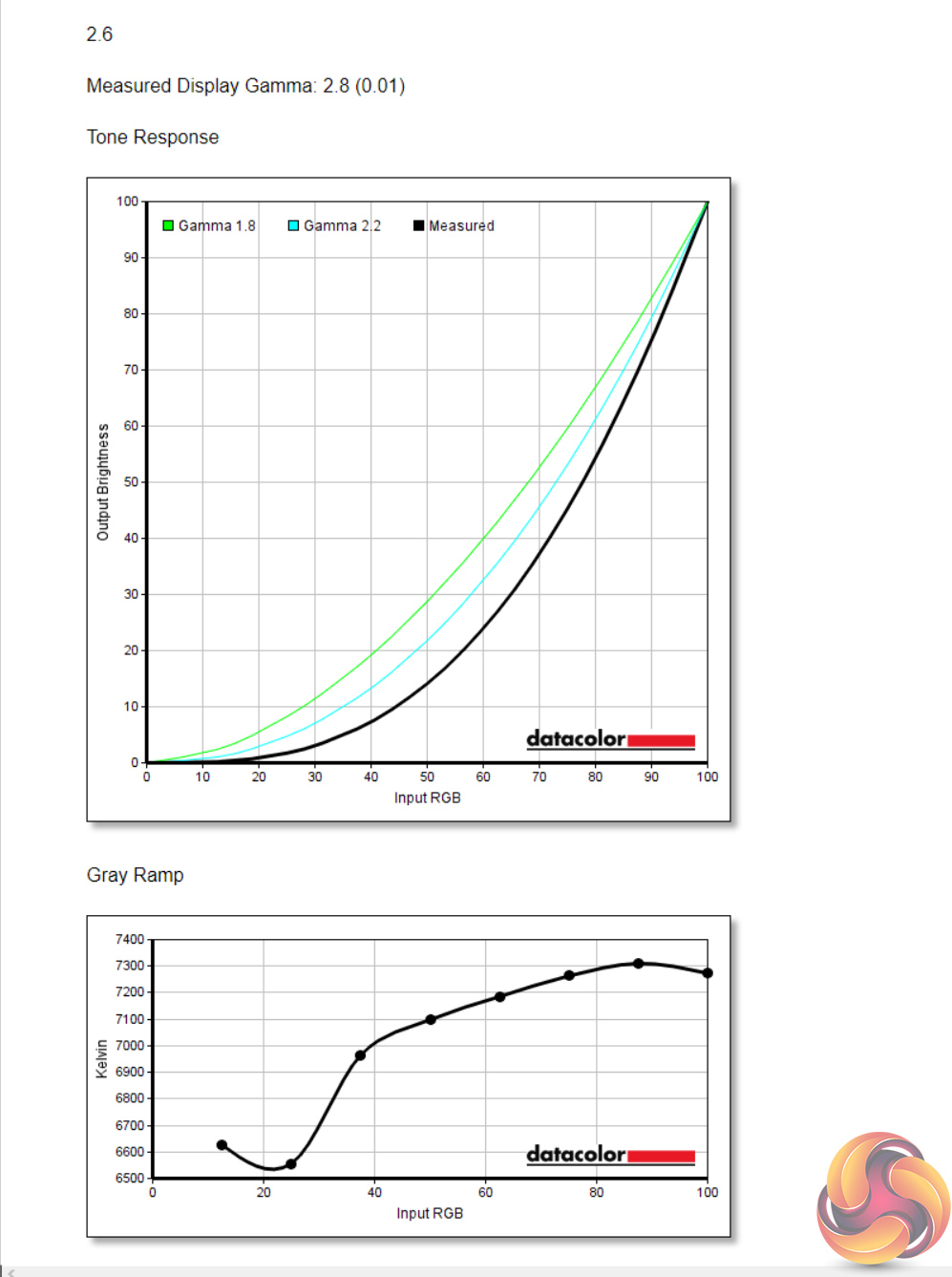
Gamma testing is next. Gigabyte offers 5 modes here, designed to offer Gamma levels from 1.8 up to 2.6, progressing in increments of 0.2. The funny thing is, aside from the ‘1.8' setting which measured gamma at 1.9, all of the other four options are out by 0.2. So the Gamma ‘2.0' setting reports at 2.2, Gamma ‘2.4' reports at 2.6 and so on.
The good news is we can still get a value of 2.2, the standard we'd hope for, but you just want to enable the 2.0 setting, and not 2.2.
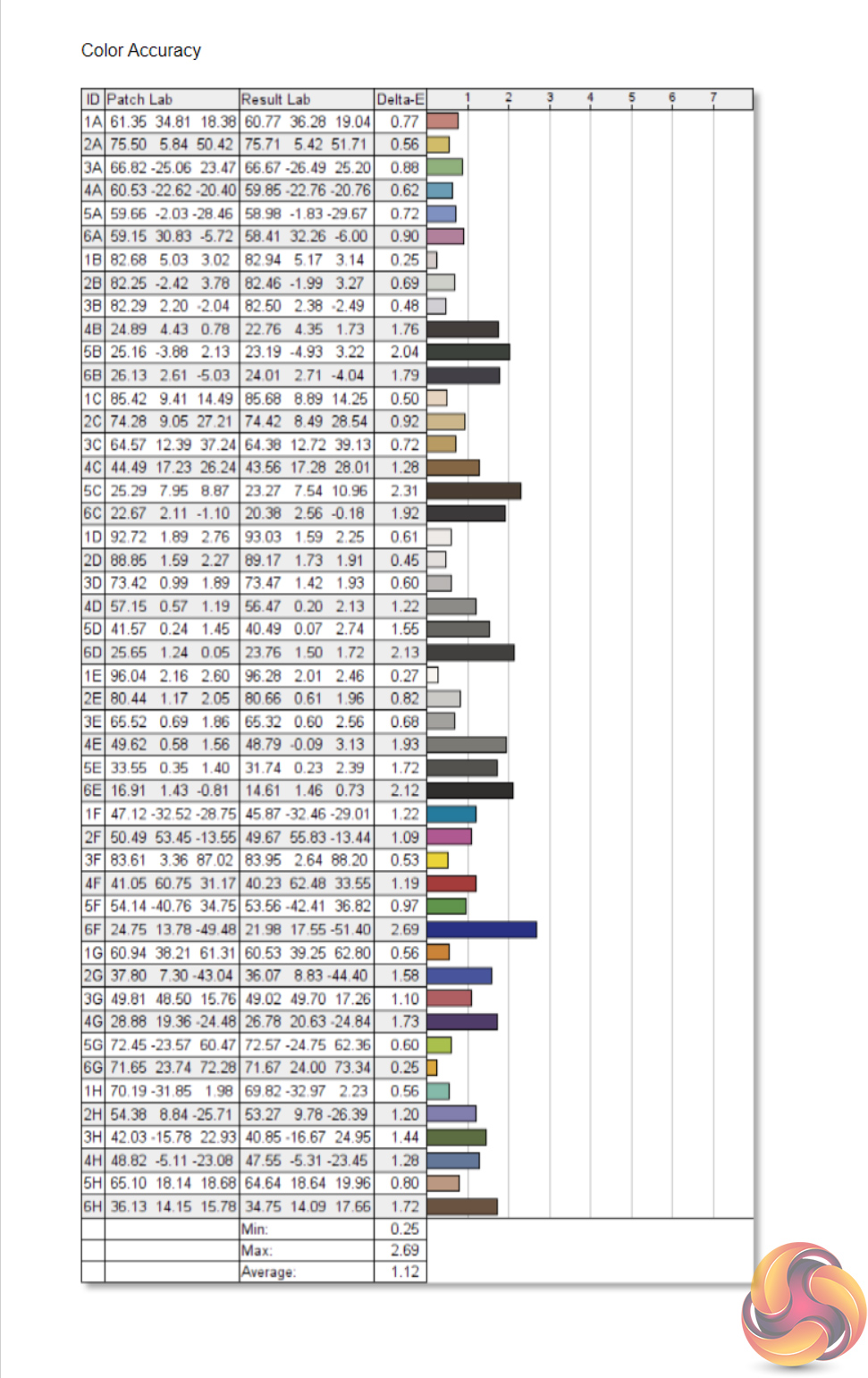
Finally, overall colour accuracy is superb for a gaming monitor. The average deltaE of 1.12 is right up with some of the best screens we have ever tested, and this isn't even intended for professional users (at least not as the primary target audience).
Post-calibration
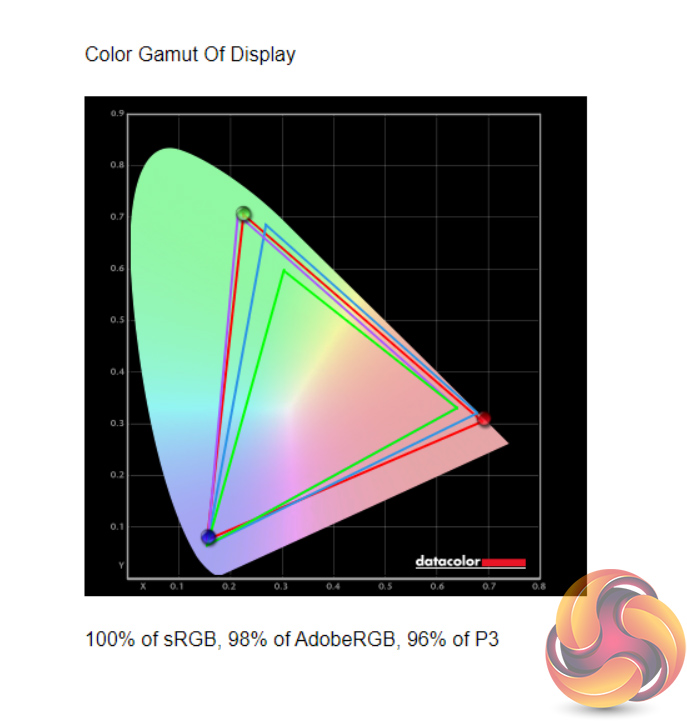
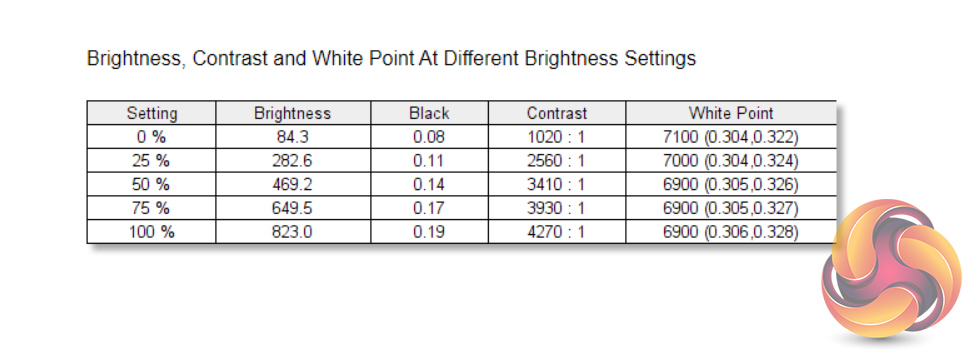
After calibrating the screen, not much changed in terms of colour gamut coverage or with brightness and contrast.
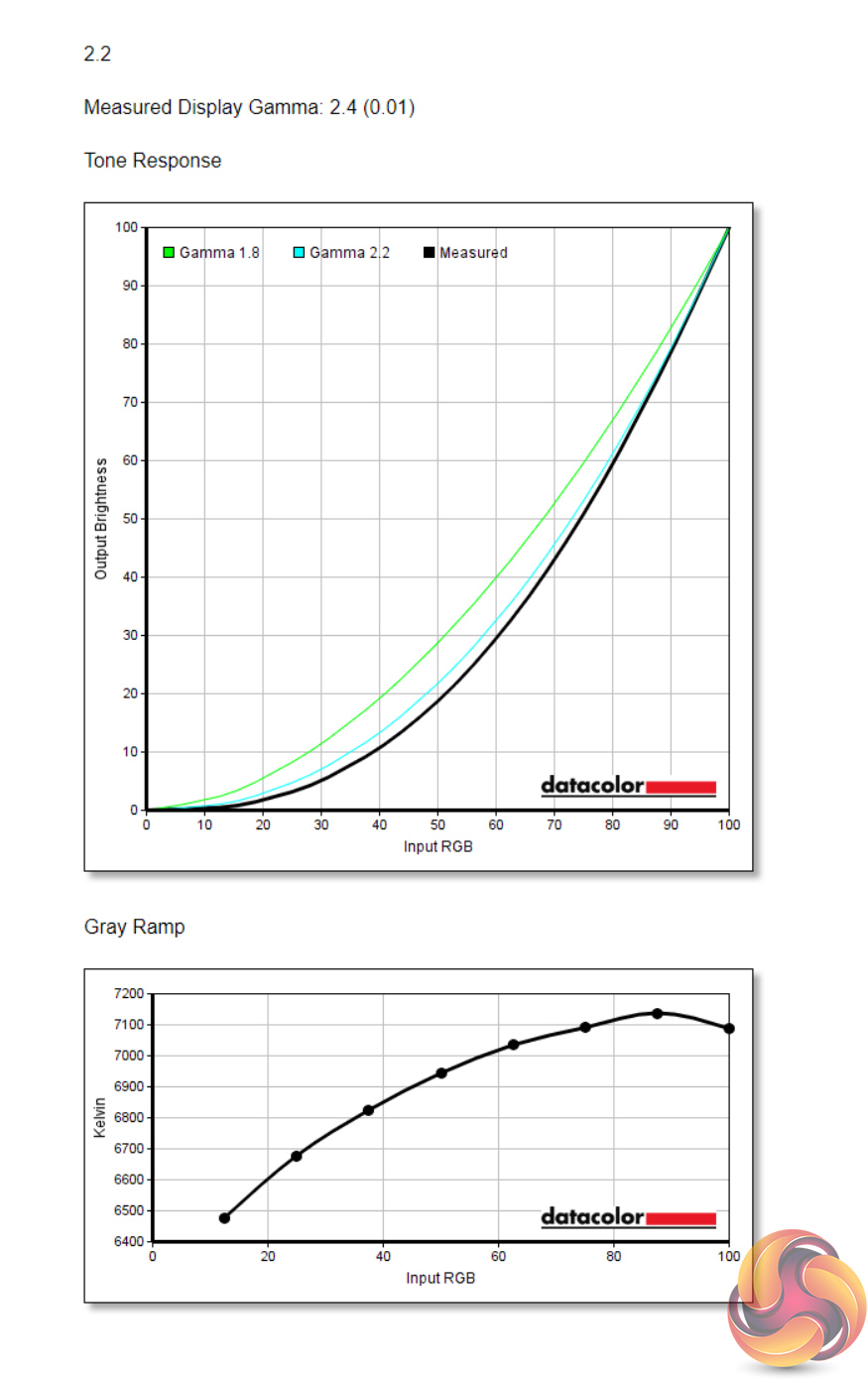
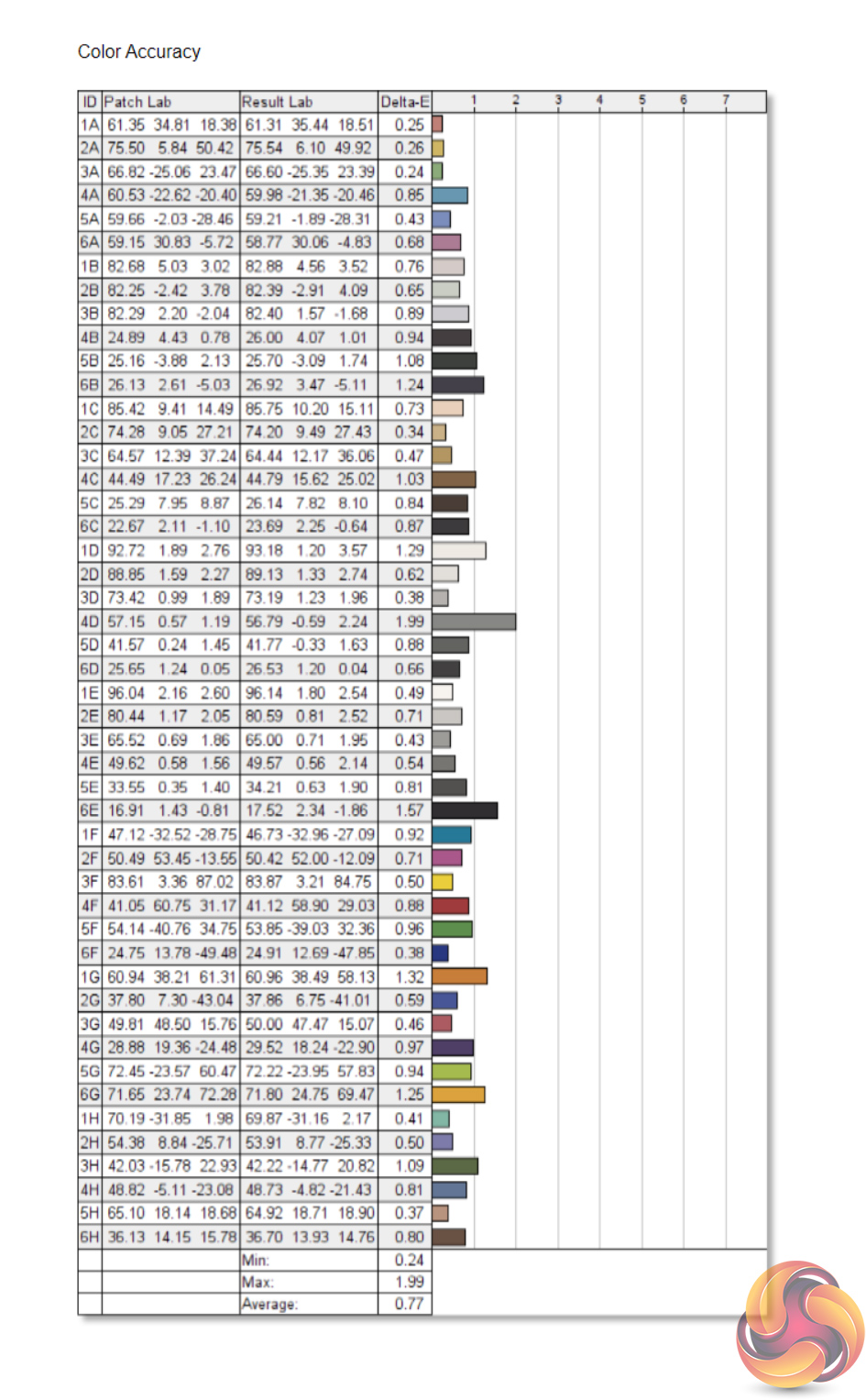
The Gamma 2.2 setting is still reporting as 2.4, so no change there either. Overall colour accuracy has improved further however, with the average deltaE now just 0.77. It may not be aimed primarily at professionals, but I'd but more than happy to use the FV43U for colour sensitive work as that is a phenomenal degree of colour accuracy.
System latency is a new addition to our testing, where we use Nvidia’s Latency and Display Analyzer Tool (LDAT) to measure end-to-end system latency. LDAT itself is a photosensor which is placed on the monitor. It has an integrated mouse button, allowing it to measure the total time taken from mouse click, to an action happening on screen, which is done by measuring a change in luminance. This data is logged to a CSV file over USB, allowing for close analysis of the data.
As this is end-to-end system latency, we are not measuring only the processing/input latency of each monitor we test. However, we can standardise the test process so the monitor is the only variable. It also gives an insight into how different refresh rates and resolutions can affect end-to-end latency, which is of course highly relevant to your purchasing decision.
We use Rainbow Six Siege for this testing. We recently changed the graphics settings we test at, to allow for higher frame rates, so the FV43U is the first monitor we have tested with LDAT using these settings. That means we currently have no comparison data, but we will add to these charts as we review more screens.
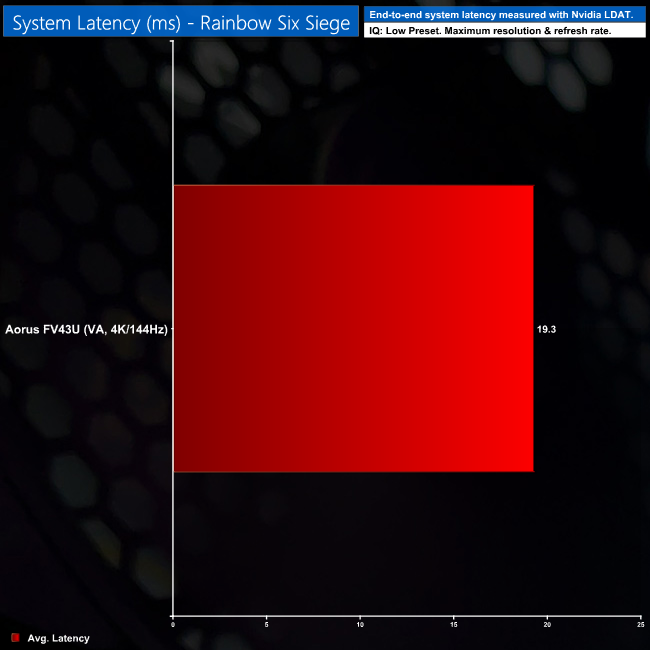
As we can see, average end-to-end latency hitting 19.3ms, which sounds like what we'd expect from a decent display. In any case, I really had no issues with input lag, I played several rounds of Call of Duty and it didn’t feel like there was any processing delay at all, so there’s no complaints from me.
After spending nearly two weeks with the Gigabyte Aorus FV43U, it is hard not to be impressed with this screen.
It simply ticks a lot of the right boxes to deliver an immersive gaming experience. First and foremost, it's huge, but the 4K resolution and high refresh-rate complement the size perfectly. Its HDR implementation is surprisingly good, despite the fact there's no full array local dimming (FALD) setup, while this screen delivers the best contrast of any VA panel I have tested.
Those different factors add up to deliver a monitor that will appeal to both console and PC gamers. Yes, it is a VA panel so there will be a touch of ghosting visible, but set on the Balance overdrive mode this did not bother me at all when gaming. Likewise, for the small amount of backlight bleed present, you can see this if you're staring at a static black image, but when you're actually in-game it becomes a complete non-issue.
Unfortunately, there is one area of the FV43U's design that is a bigger hindrance to it earning a strong recommendation from KitGuru, and that is the HDMI 2.1 ports' bandwidth. For reasons that are still unclear to us, Gigabyte has limited the HDMI 2.1 ports to just 24Gbps bandwidth, exactly half of what HDMI 2.1 is capable of. This has the biggest effect for PS5 users who will be forced to use 4:2:0 chroma subsampling when playing at 4K/120Hz.
This isn't as much of a problem for PC and Xbox gamers, where Display Stream Compression is available to deliver the same effective bandwidth required for a 4K/120Hz/10-bit experience without chroma subsampling. Even then however, it is still a problem for the FV43U. More and more HDMI 2.1 screens are finding their way onto the market, with the likes of LG's CX OLED range garnering rave reviews, so for me it doesn't make sense to limit yourself with the reduced HDMI 2.1 bandwidth, when this simply isn't an issue for many other screens.
Still, if you game exclusive on PC or Xbox, I won't say the Aorus FV43U is not worth considering – I've had a really enjoyable two weeks using it. I do think Gigabyte has shot itself in the foot somewhat though, as otherwise this screen would've been gunning for our top award.

You can buy the FV43U from Overclockers UK for £954.95 HERE.
Discuss on our Facebook page HERE.
Pros
- 4K/144Hz gaming experience is terrific at the 43in screen size.
- Excellent contrast.
- Peak brightness exceeds 800 nits in SDR mode.
- HDR performance is great.
- Superb out-of-the-box colour accuracy.
- Decent integrated speakers.
- Solid OSD with a Windows-based app as well.
Cons
- HDMI 2.1 bandwidth limited to just 24Gbps.
- Some small amount of ghosting visible.
- OSD could occasionally be slow to navigate.
- Awkward port placement.
KitGuru says: The FV43U is a great monitor that's let down by the strange decision to limit its HDMI 2.1 bandwidth.