 KitGuru KitGuru.net – Tech News | Hardware News | Hardware Reviews | IOS | Mobile | Gaming | Graphics Cards


AOC’s latest affordably priced 1080p display is about managing the basics well rather than high-end features. It costs just £199, a fair price for a 27-inch IPS display, and it has a nifty looking slim appearance that looks more appealing than most displays in this price range.
We’ve covered plenty of high-end displays recently, with colour-accurate panels for eye-popping clarity, high refresh rates and G-Sync support, and 4K or even 5K resolution, any of which would be a centrepiece of a great PC setup, albeit with a considerable cost attached.
But the real volume of sales is with far more affordable, general-purpose monitors. At this end of the market, buyers are far more cost conscious. They’re purchasing a display for a wholly different set of reasons. Their budgets are tight, and they’re looking for the best possible ‘bang for the buck'. A display will be used for all sorts of typical computing tasks – browsing, office, maybe gaming and media too, but probably not limited to any single activity.
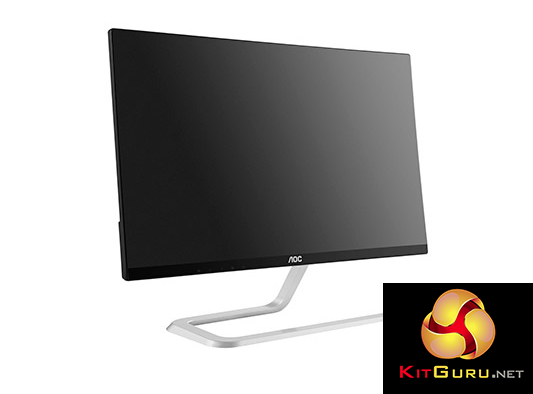
And if it’s to be used at home connected to a family computer, it’s going to need a physical design that will offer broad appeal.
That’s what we think AOC was considering with its I2781FH 1080p desktop monitor. It’s the largest of a set of similar-looking models from AOC’s so-called ‘Style Line’, complimenting 22 and 23-inch versions. It has a bright IPS panel and a set of video inputs that includes dual HDMI ports and VGA.
This family of displays probably carries that name as it also sports a really nifty glossy black appearance with a silver metal stand that comes in a rough ‘L’ shape, that looks really good in our opinion. Coupled with thin bezels around the edges, viewed head-on, the AOC I2781FH looks both tasteful and modern.
Beauty on a budget is quite hard to pull off, but at £199 it’s very good value for a 27-inch screen. With a 4ms response time, it should be good for gaming as well as general desktop use.
But with most entry-level screens, the devil is in the detail, so we’ll examine the AOC I2781FH in more detail right here to show you exactly what features it offers, how it performs and whether its performance matches its nifty appearance.
AOC I2781FH – Price £199
Specification:
Screen size: 1920 x 1080
Native resolution: 27 inch
Refresh rate: 60Hz
Panel type: IPS
Display inputs: 2x HDMI 1.4, VGA
USB hub: none
Tilt: -20 to 3 degrees
Raise: no
Swivel: no
Other: L-shaped stand
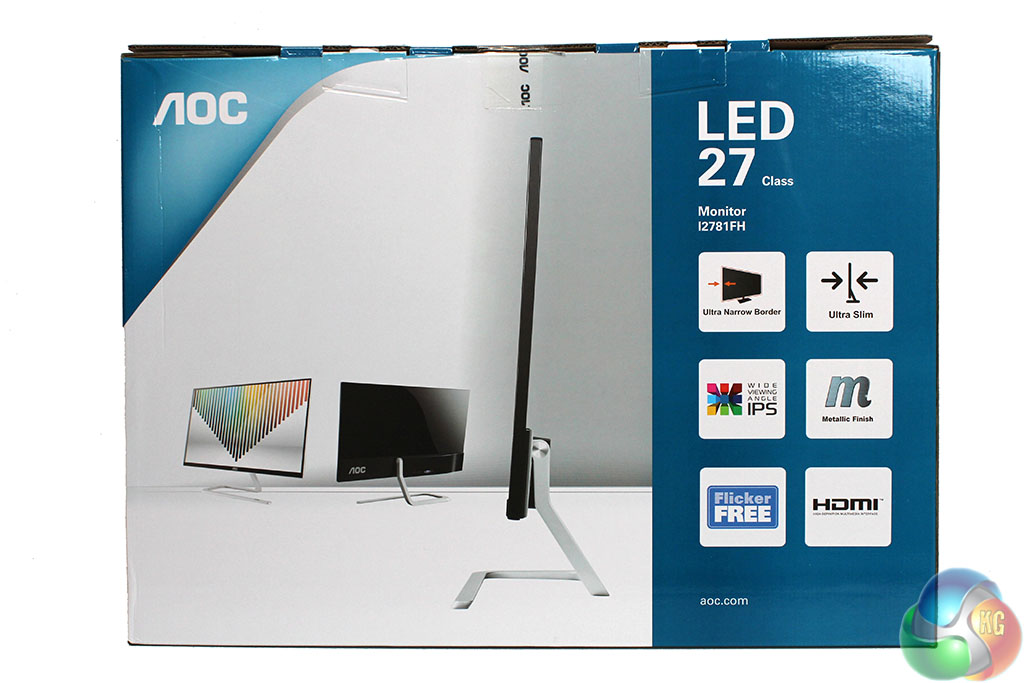
The most notable aspect of the AOC I2781FH packaging is that it comes with the stand already affixed to the display. Simply slide out of the polystyrene as a single unit, place it on a desk and it's ready to go. Just plug it in and you're all set.
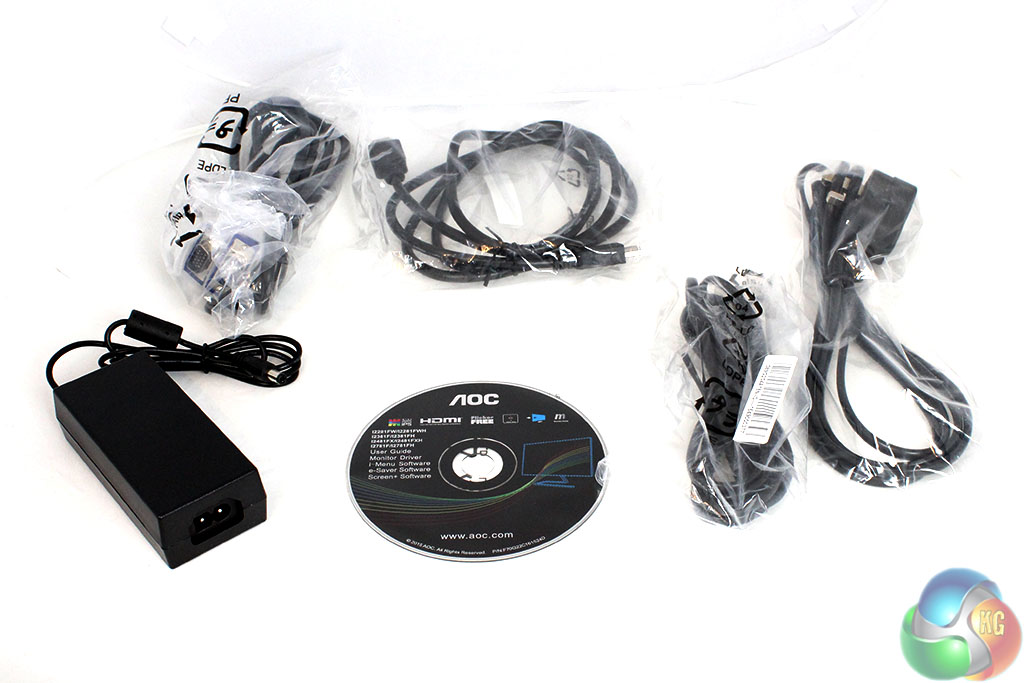
You get an external power supply, HDMI cable, VGA cable, software CD and UK power lead.
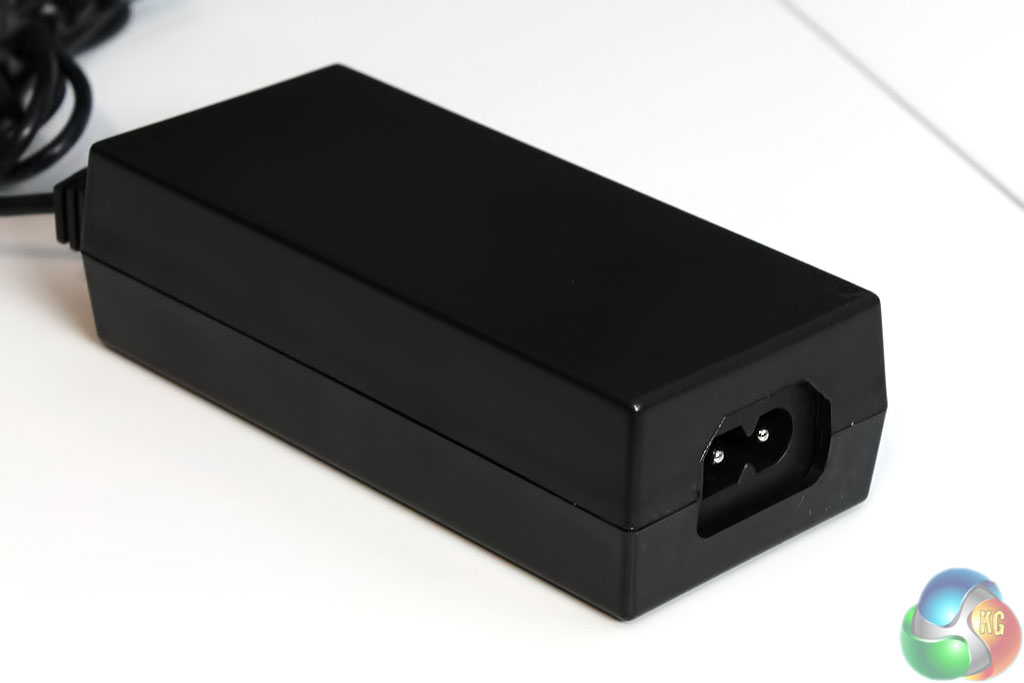
The power supply uses a two pin cable.
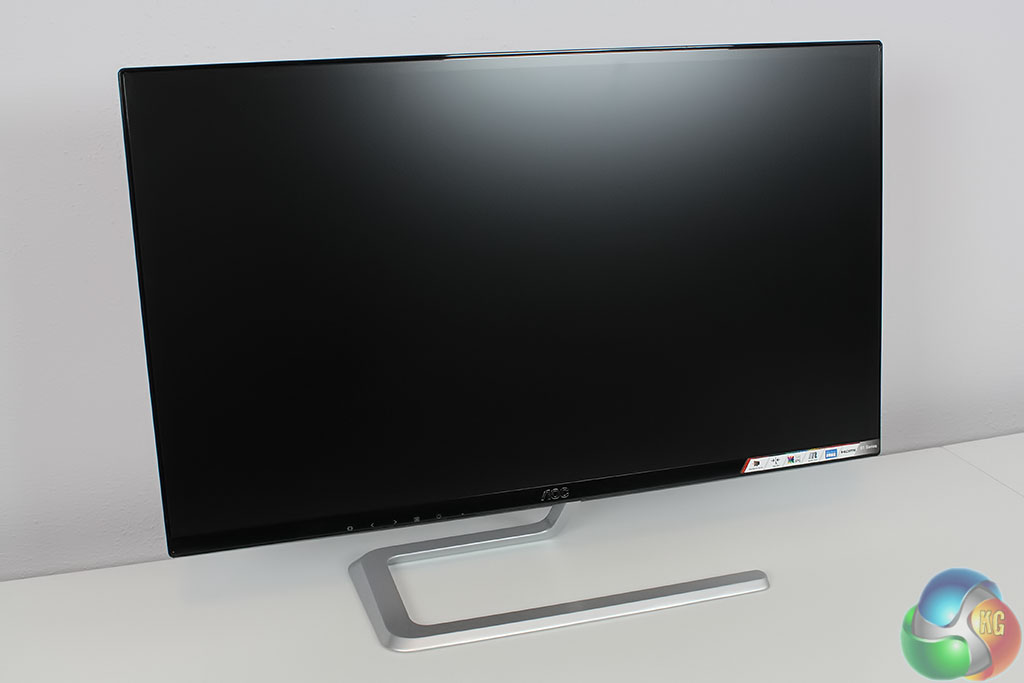
With no further physical setup required, you can just place the AOC I2781FH on your desk, and it looks pretty good, with the metal ‘L-shaped’ stand visible here.
There’s an AOC logo in the bottom left.
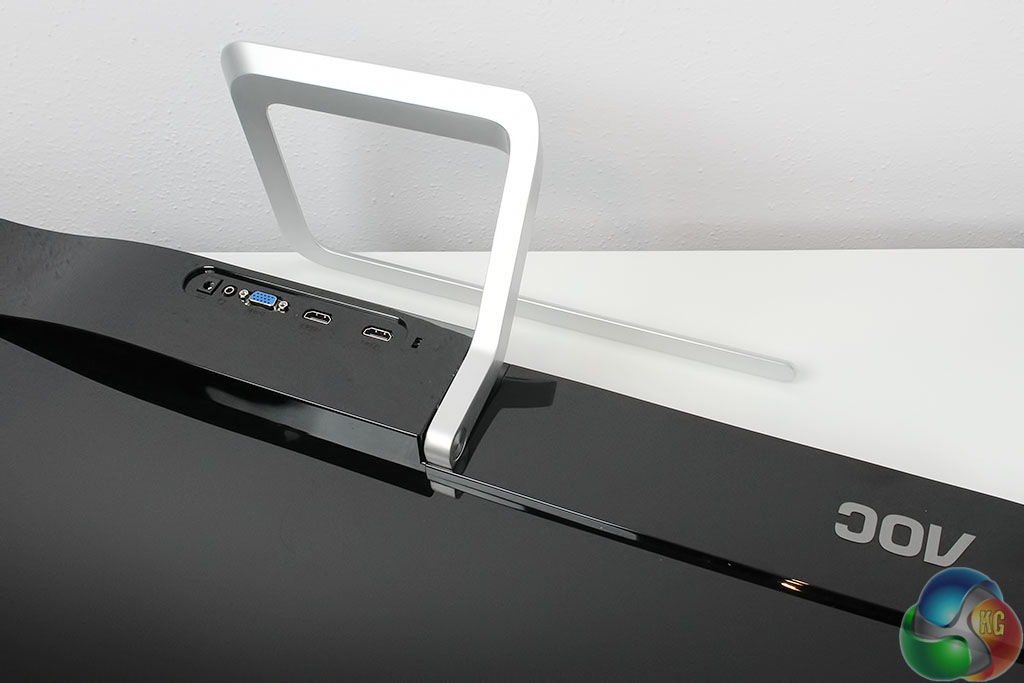
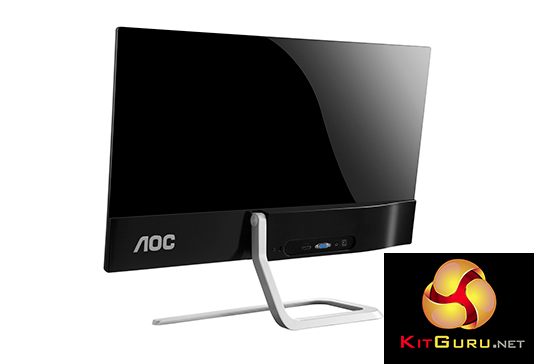
In this shot of the rear, you can see the contrast between the metal stand and glossy black plastic used for the casing.
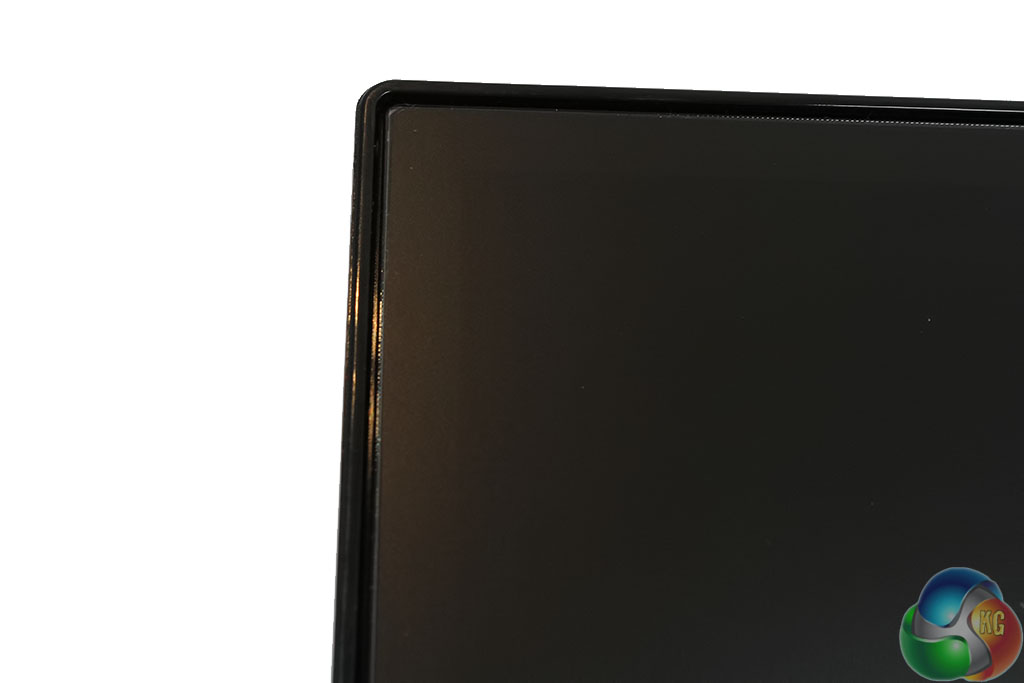
The bezel is just a few millimetres wide, but as with most displays, there’s an additional black border before the image begins, a pseudo-bezel, maybe.
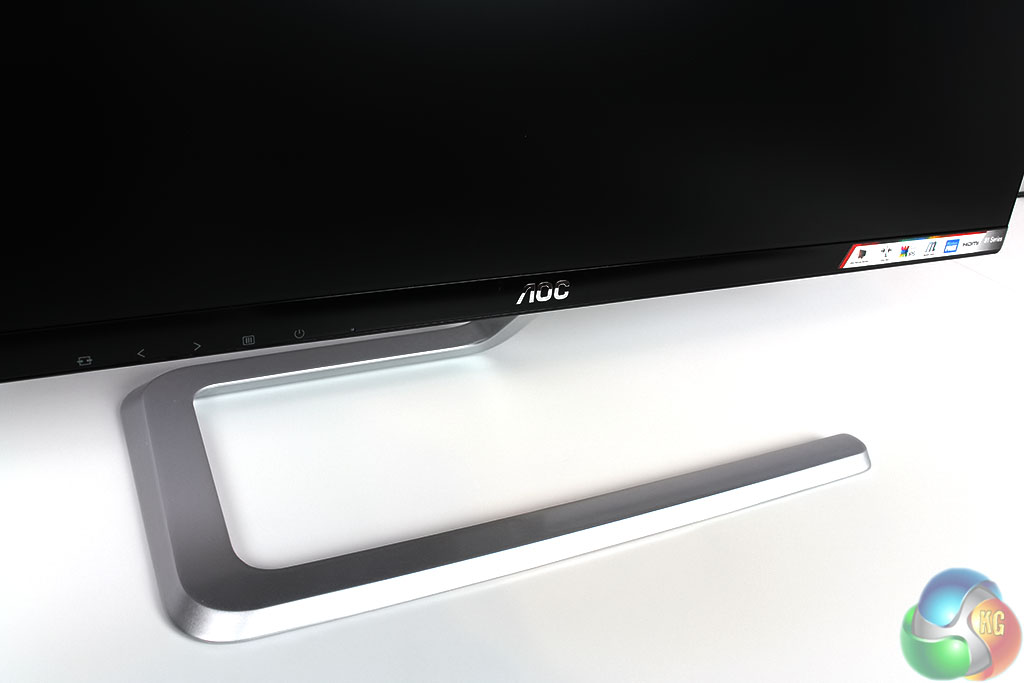
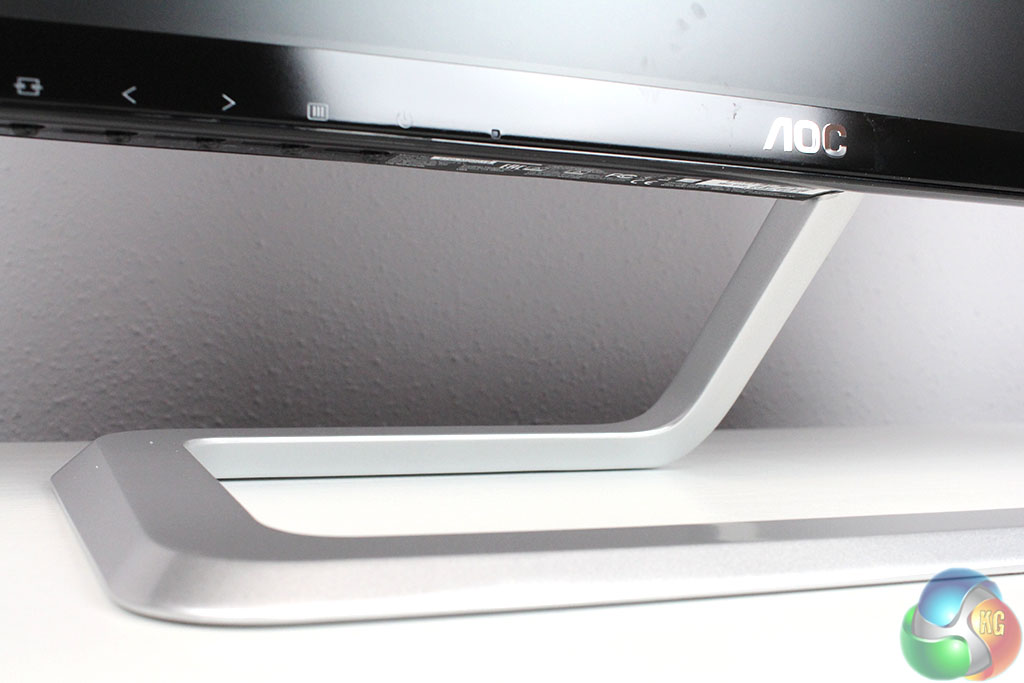
The stand uses smooth curves and is shaped into a sturdy rectangle at the bottom to handle the weight of the display, not that it’s particularly heavy.
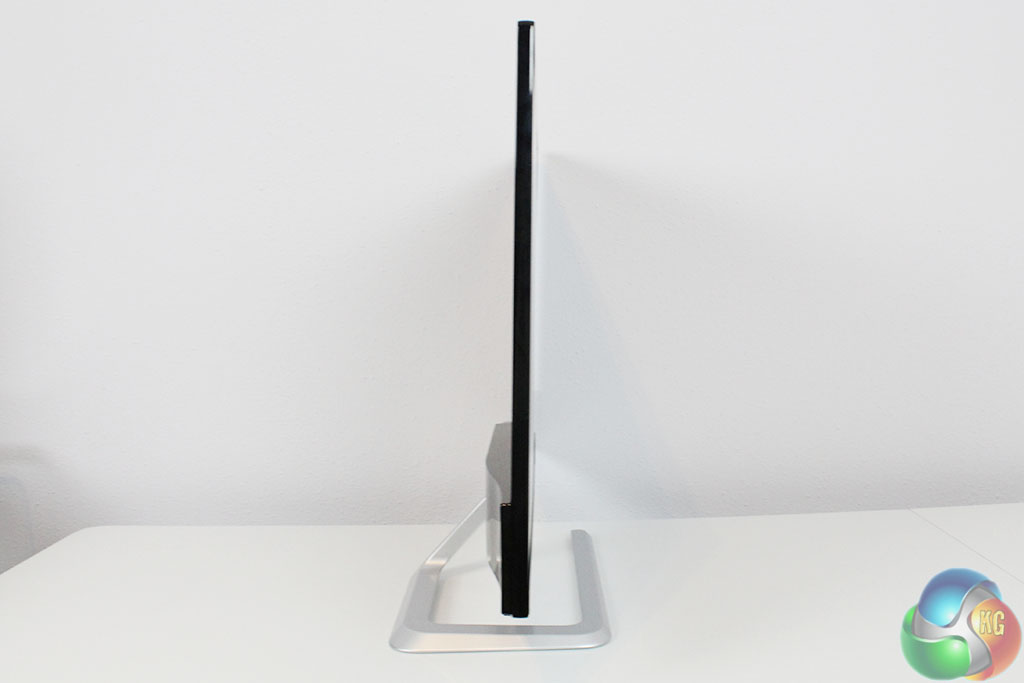

As the stand is pre-fixed to the display, it’s not terribly flexible. It cannot rotate on the spot, be raised and lowered, or pivot round into portrait mode.
It does tilt backwards and forwards though between -20 and 3 degrees.
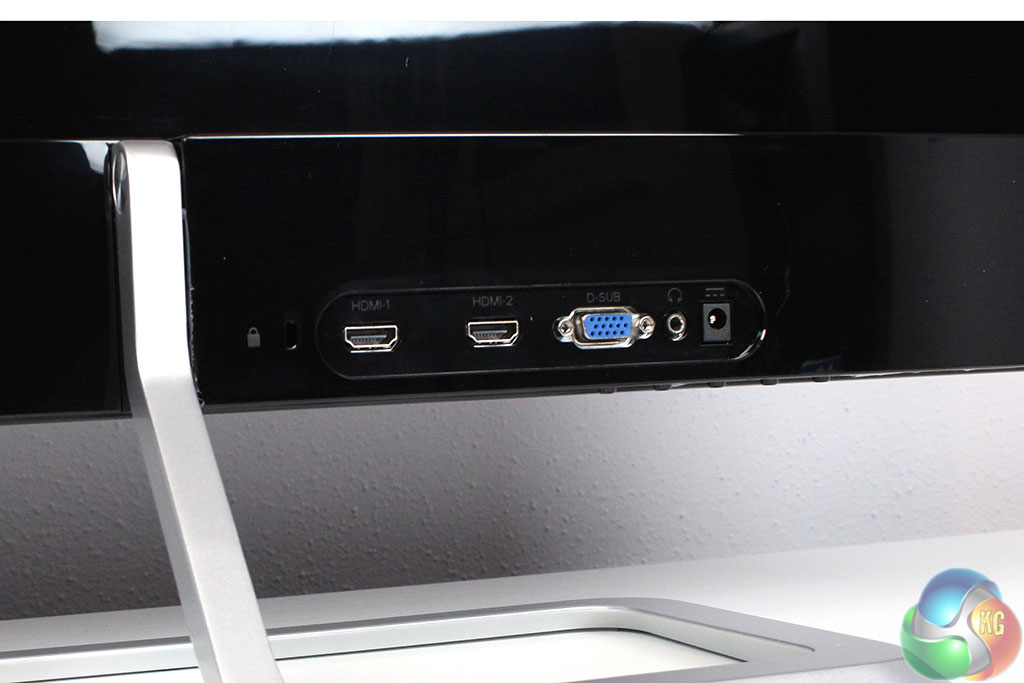
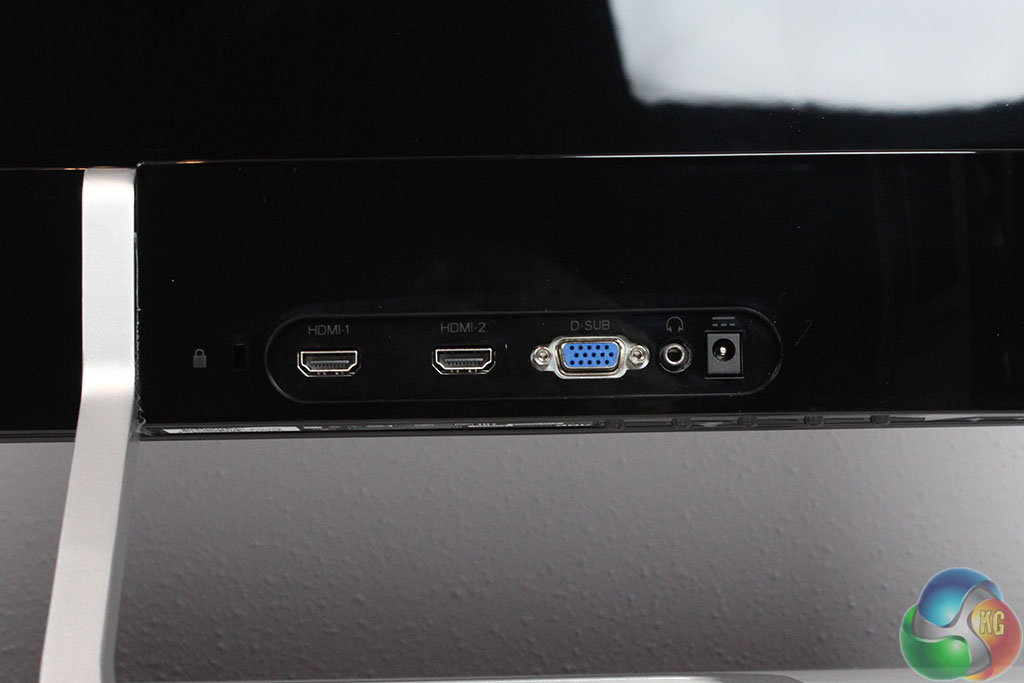
At the back you can see a pair of HDMI ports and a VGA input. There’s also the power connector, and a headphone output to the right, with a Kensington Lock connector to the far left.
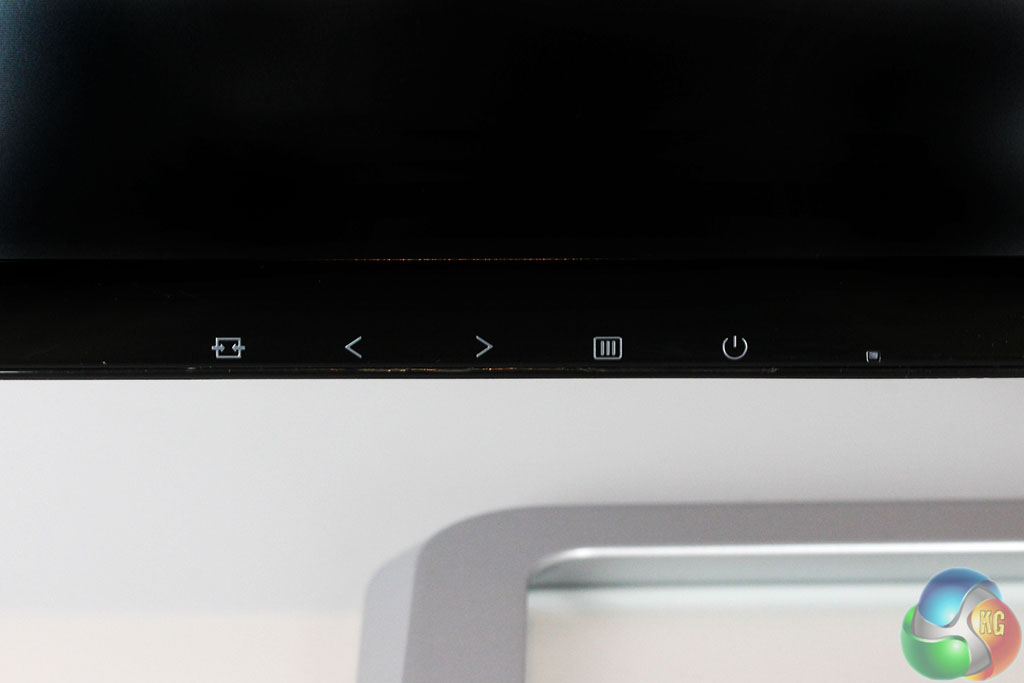
The on-screen display (OSD) is controlled with physical buttons located behind the labels on the front of the bezel, which have a power LED to the right. You have to reach underneath the display to access them.
The OSD and control system is consistent with the style used in other AOC displays. It looks just about identical, with the same settings we’ve seen before.
Left and right buttons navigate through the menus, with a single confirmation, or ‘OK’ button, and a single step back, or ‘cancel’ button.
Pressing any of the buttons in normal use brings up shortcuts to volume control or display input, while the fourth one along brings up the main menu of settings, which appears as a transparent box at the bottom of the screen. As there are no built-in speakers, the volume control only adjusts the headphone output from the rear 3.5mm jack.

The OSD setup screen gives the usual settings to adjust the software appearance. You can move the menu around horizontally or vertically, change the language, adjust the transparent background, change the OSD Timeout and set a break reminder, which warns you to move away from your PC every 30 minutes or so (hah, as if!)

The Luminance menu lets you adjust brightness and contrast, with three gamma settings labelled Gamma 1-3. There’s Dynamic Contrast Ratio support, an Overdrive setting for reduced ghosting, and an ECO mode to dim the brightness and save energy.

The Picture Boost menu provides controls for a setting called Bright Frame. Bright Frame makes a section of the screen brighter than the rest of the display, highlighting something of important (a map in an FPS game, perhaps?) You can adjust the size and position of it, but in use this was a setting we left turned off.

The Color Setup screen let you adjust the colour preset, with Warm, Cool and Normal available, along with a User mode which gives access to a three-way RGB colour slider on the right.
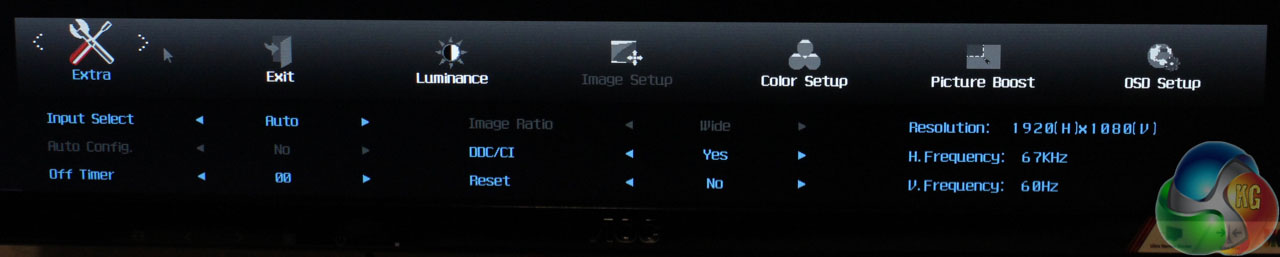
The Extra menu has a few more useful settings. Change the input manually, set the screen to power off when not in use, change the image aspect ratio and reset the AOC I2781FH to its default settings.
Our first test involves using a DataColor Spyder Elite 5 Colorimeter to assess a display’s image quality. The device sits on top of the screen while the software generates colour tones and patterns, which it compares against predetermined values to work out how accurate the screen is.
The results show –
- A monitor’s maximum brightness in candelas or cd/m2 at various levels set in the OSD.
- A monitor’s contrast ratio at various brightness levels in the OSD.
- The brightness deviation across the panel.
- The black and white points
- The colour accuracy, express as a Delta E ratio, with a result under 3 being fine for normal use, and under 2 being great for colour-accurate design work.
- The exact gamma levels, with a comparison against preset settings in the OSD.
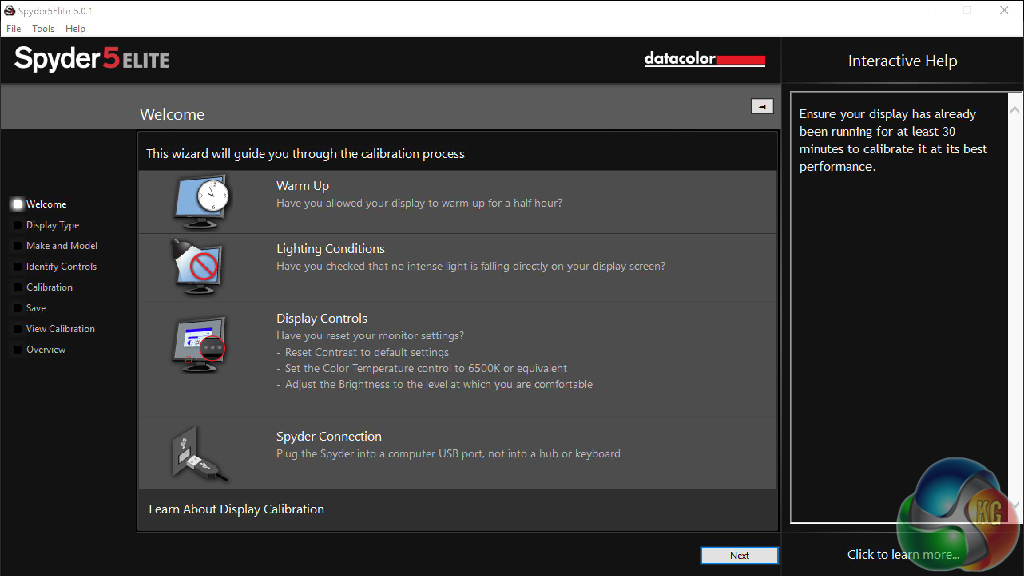
We first run this test with the display in its default, out-of-the-box state, with all settings on default. We then calibrate the screen using the Spyder software and run the test again.
We always test the display subjectively on the Windows desktop, using it for general tasks such as browsing and word processing, and with games as well, even if the display is not intended solely for that purpose. We pay careful attention to any artefacts, ghosting or motion blur, and enable any gaming specific features, such as adaptive-sync settings like G-Sync, using a compatible graphics card in our test PC.
We also measure a display’s power consumption at 100% brightness.
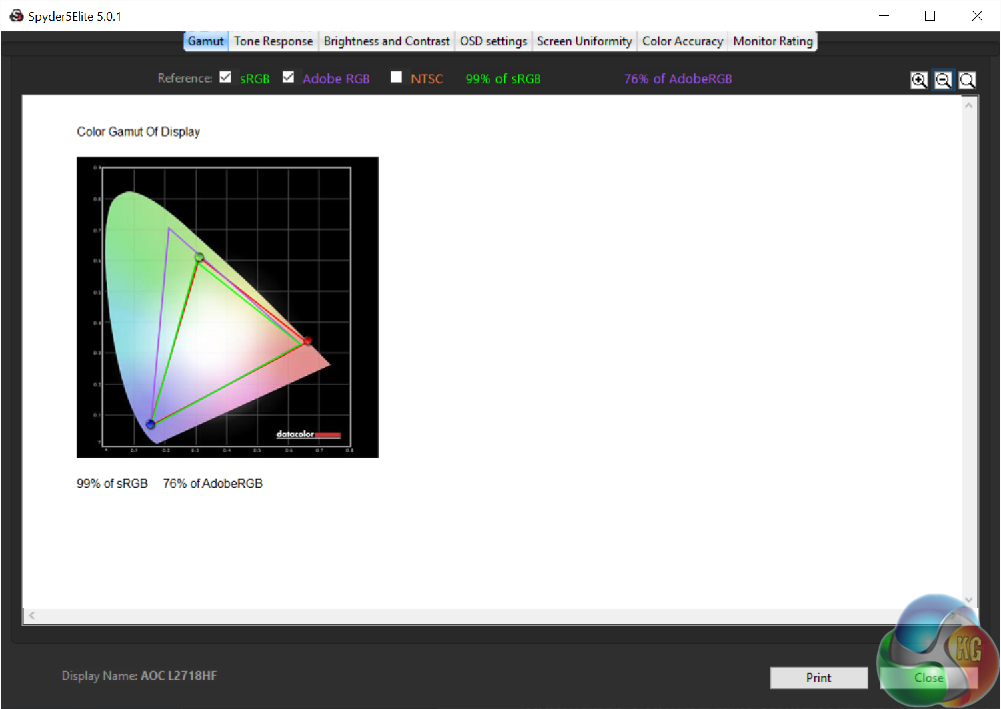
Close to 100% sRGB coverage and 76% AdobeRGB are fairly standard results for any IPS panel.
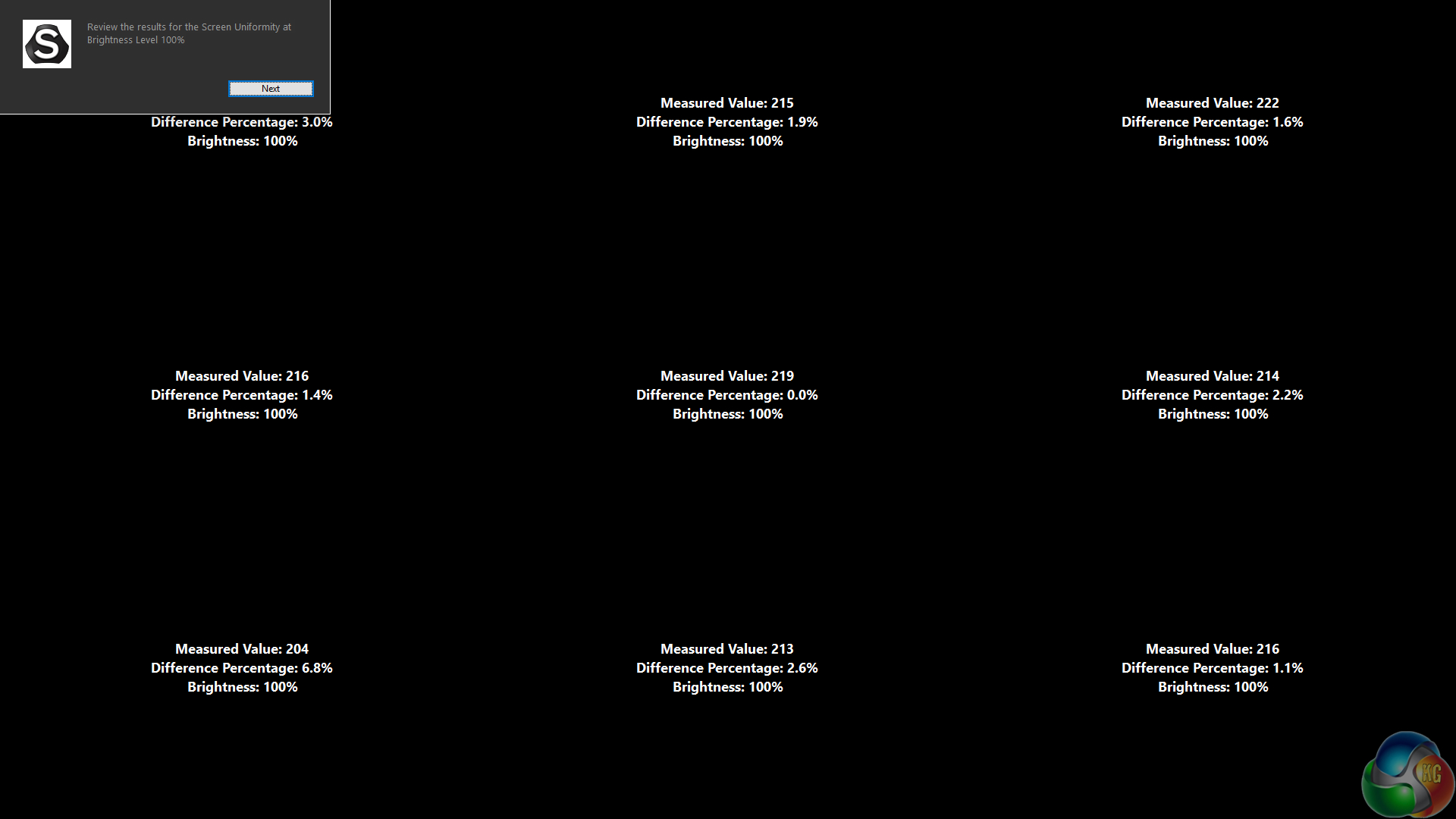
The brightness distribution is remarkably good here, with not much deviation across the panel. Impressive.
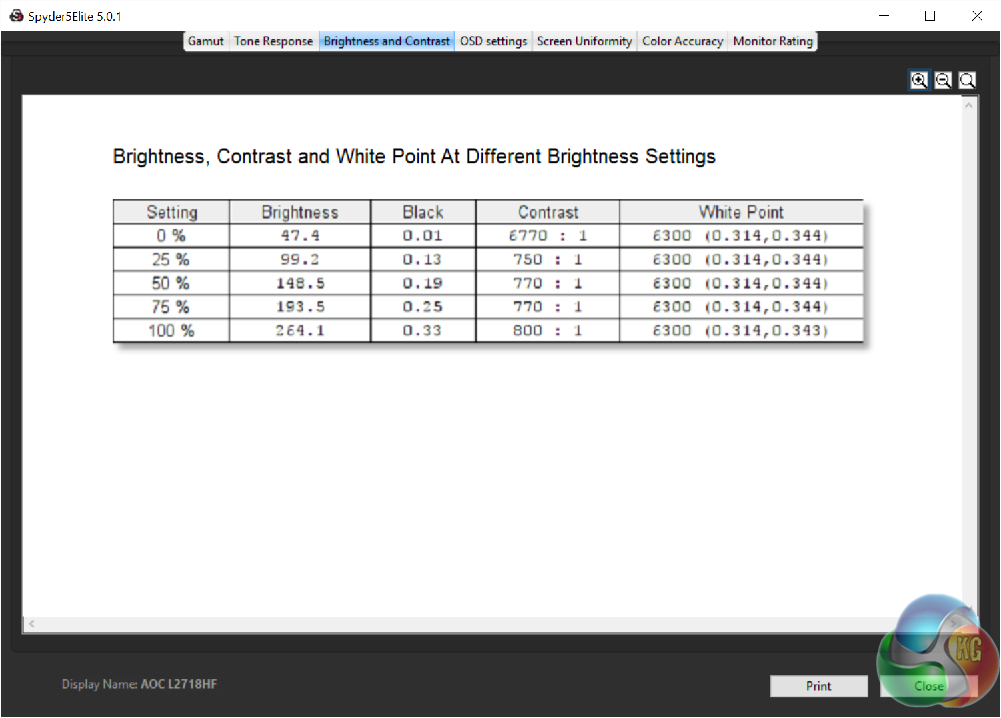
Brightness results of 264 candelas and contrast of 800:1 are excellent results for a display in this price segment
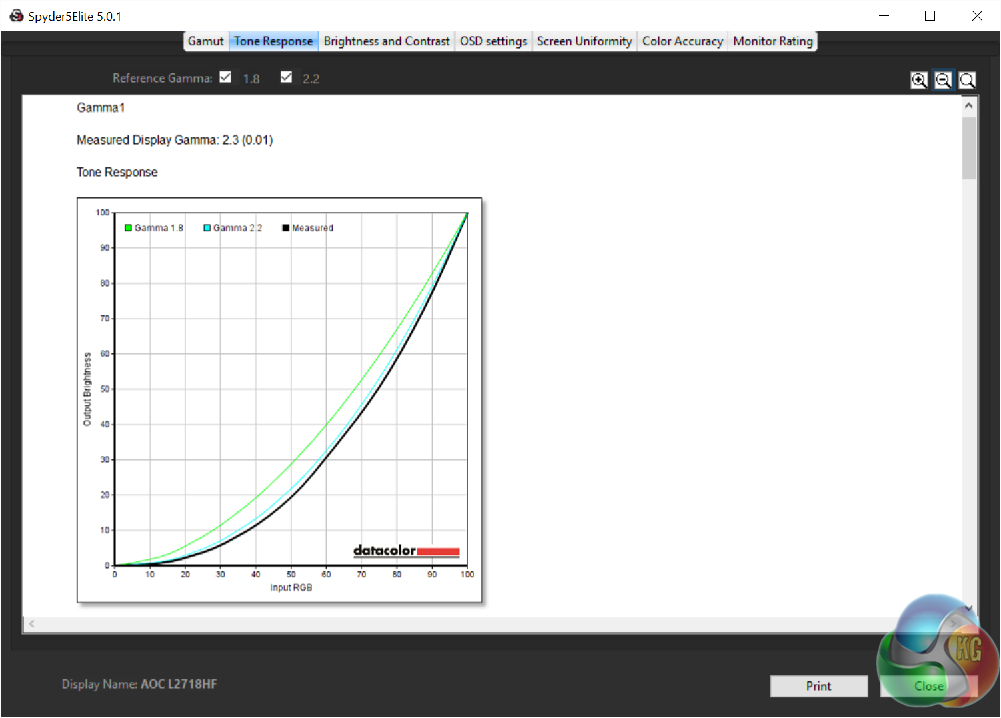
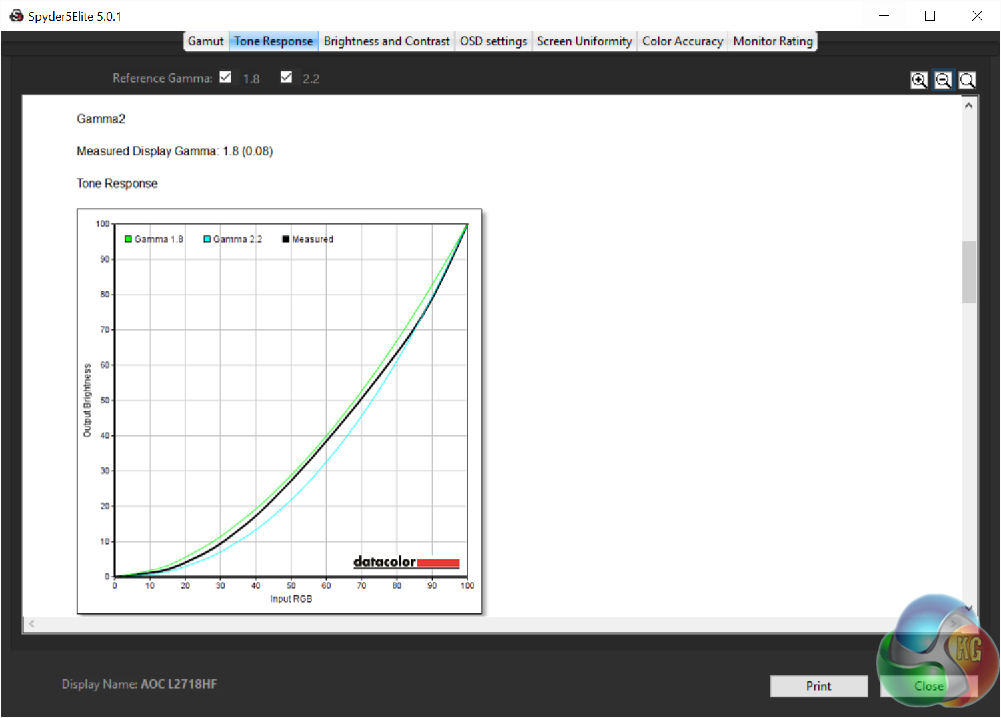
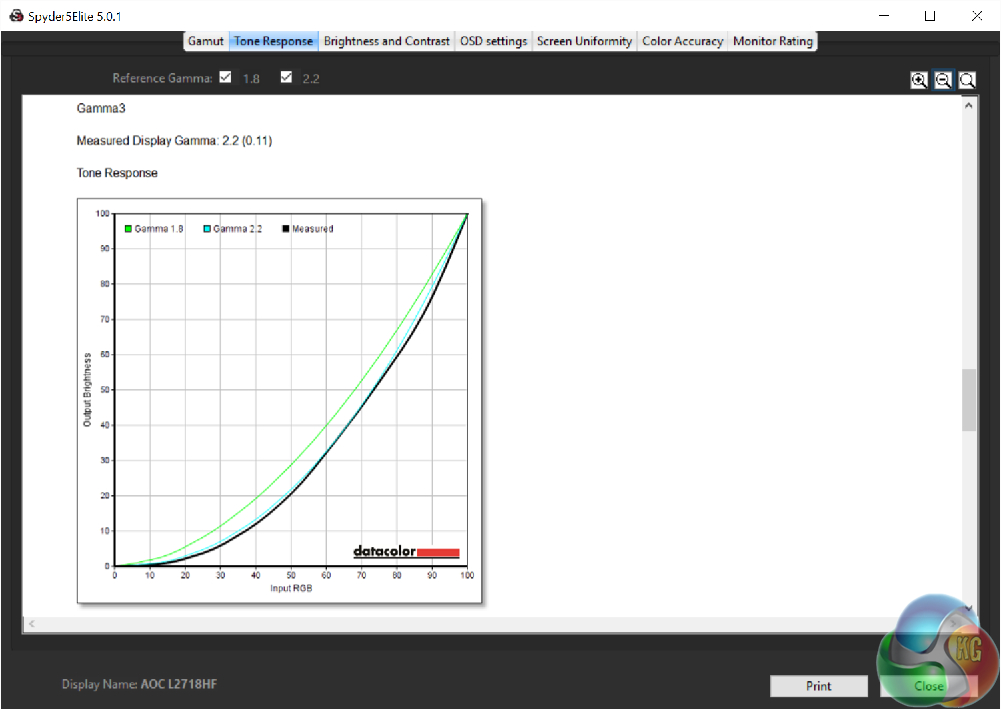
The Gamma 1 setting gives a result of 2.3. Gamma 2 shows a result of 1.8 and the Gamma 3 setting shows a result of 2.2.
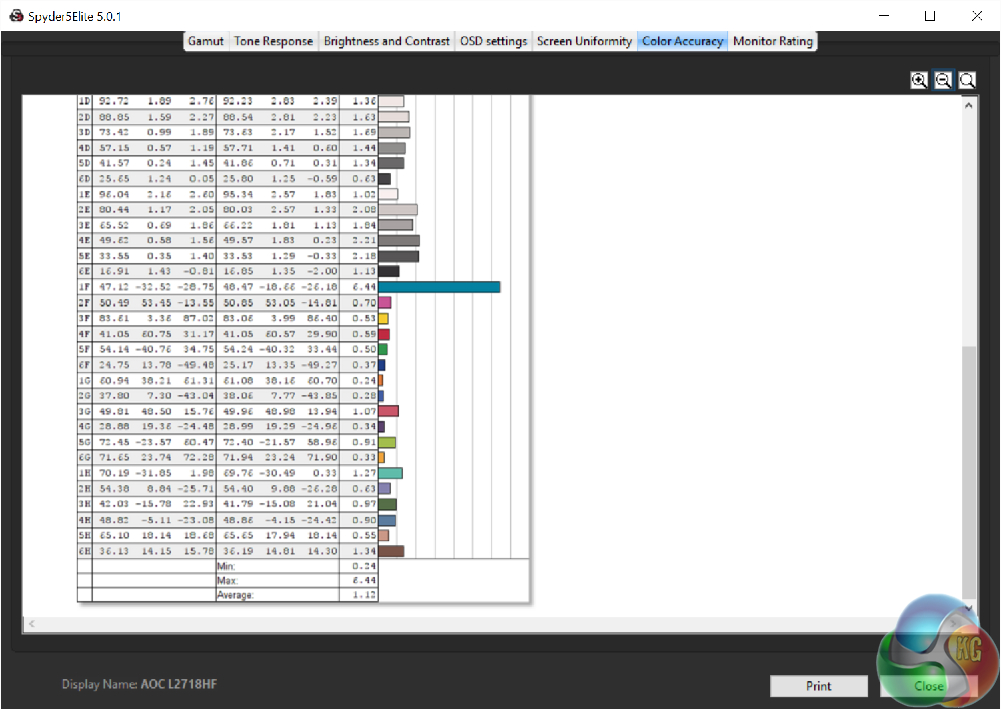
An uncalibrated colour accuracy result of 1.12 is a great result.
And then after calibration:
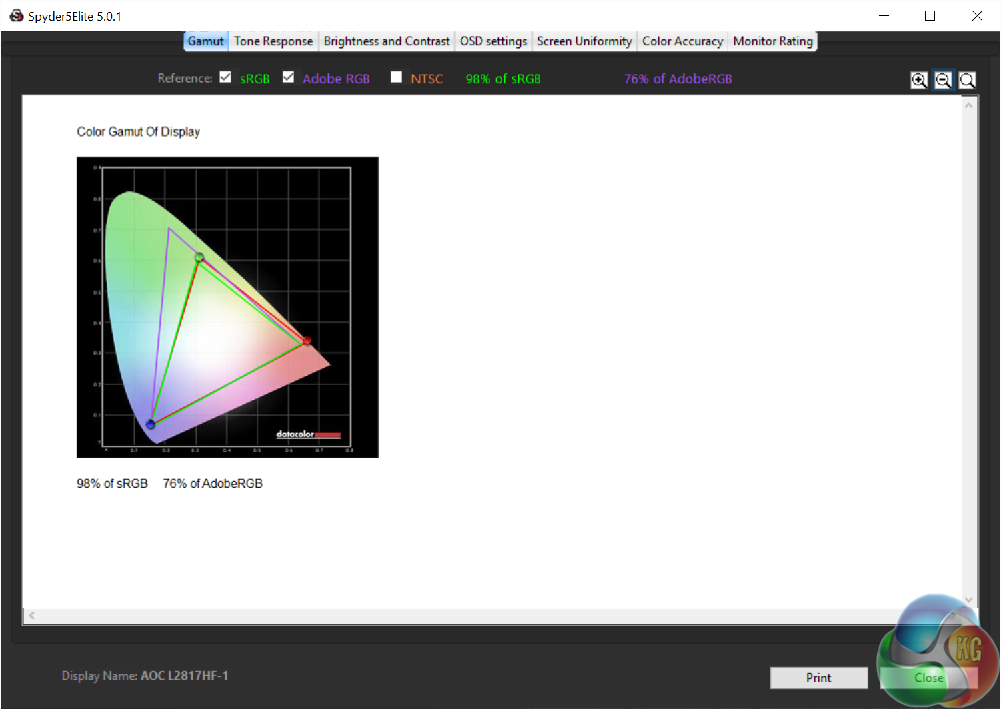
As usual with IPS screens, the gamut remains the same.
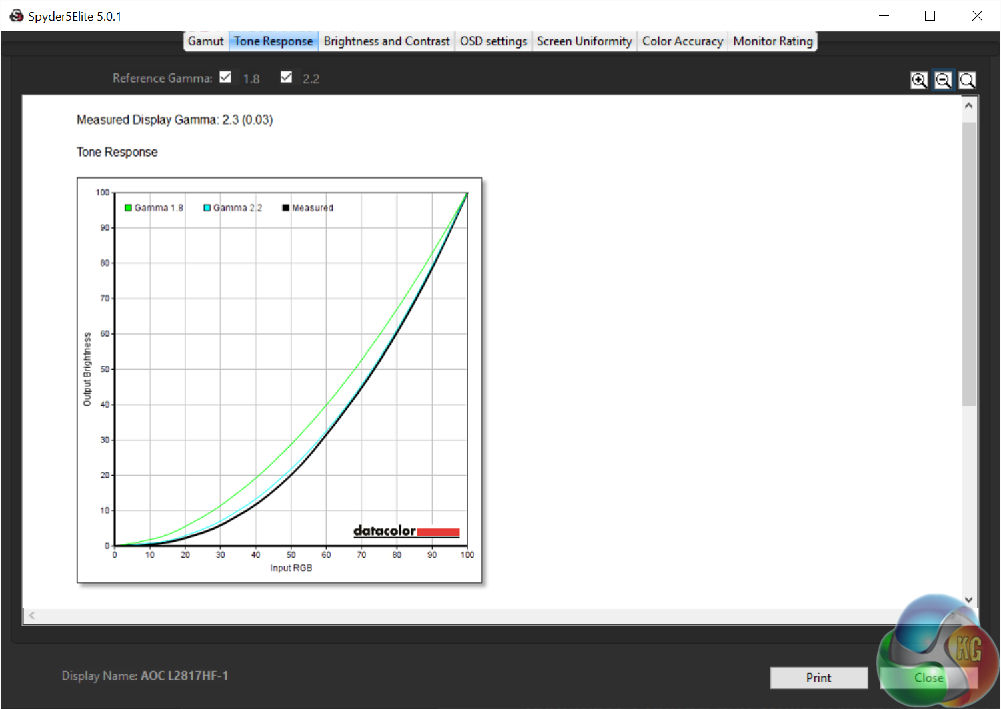
The gamma setting hits 2.2
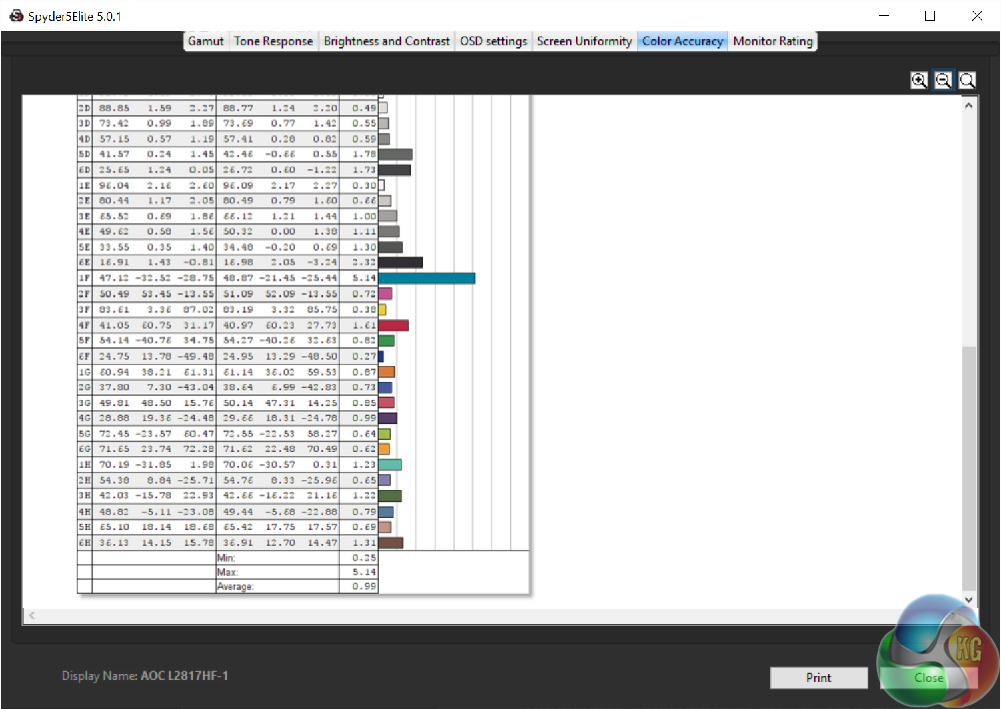
And the accuracy hits a DeltaE just under 1.
We tested the AOC I2718FH with Battlefield 4 multiplayer and noticed no significant motion blur, or ghosting. It works just fine as a gaming display. And on the Windows desktop, colour appear as bright and colourful as can be expected from any IPS display.
Lastly, the power usage at 100% brightness was 26w, which is very economical for a 27-inch panel.
The AOC I2781FH costs £199, a remarkably good price for a 27-inch IPS panel. In this price range, most competitors either use smaller screens or TN panels, making this screen comparatively good value for money.
So in our evaluation, we’re not going to be critical of its lack of high-end features like G-Sync, a 4K resolution or 100% Adobe RGB coverage for supreme colour accuracy. If you want them, you have to pay considerably more.
What about speakers though? It’s disappointing that some firms cut costs by removing on-board sound. You might not think you need it, since for PC gaming, most people use external sound systems, but in other scenarios, where the AOC I2781FH is used as a standalone display, the lack of sound will be noticeable. Although most hardcore PC gaming enthusiasts are likely to have a better sound system, on-board sound is useful for convenience.
Indeed, we envisage an affordable screen such as this being used for mid-range family PCs, where on-board sound means no external desktop speakers are needed. It could equally well serve as a cheap secondary display, or external monitor for a laptop. As it stands, if you want audio, you’ll need to connect a 3.5mm jack to the headphone output at the back.
But besides the lack of sound, we think the AOC I2781FH will work just fine in any of those scenarios. With an IPS screen, viewing angles are good, the picture looks bright, even if the results show it falling slightly behind alternative displays, and the colours are as rich as you’d expect from most IPS screens.
Actually, our results show it's better than that. 800:1 contrast at 100% brightness is an excellent result, the brightness uniformity is very even across the whole panel, and the colour accuracy hovers around a Delta E of just one. Great results. It worked just fine in games too, without noticeable ghosting, thanks to the fairly low 4ms response time.
Every time we review an AOC display, the single area we we find ourselves criticising is the OSD. It’s a similar one used here, and it's not great. AOC could do with stepping up its game in this respect. Other firms offer better looking menus and settings that offer more features, fewer useless gimmicks like Bright Frame and better navigation methods.
But nobody sane spends their time gawping at display settings for longer than needed, and while it’s not much to look at, the OSD at least contains the basic settings the vast majority of people will use. Navigation is fairly easy and it updates just about quickly enough to not become annoying. The external appearance gets a better thumbs up for its design, arguably a more important factor.
The thin bezel and slim depth of the screen itself look good, and the stand adds some style, differentiating the AOC I2781FH from other low-priced displays. Admittedly, it’s nothing particularly fancy, but at this end of the market, it’s enough to make the display stand out from the crowd.
With all this in mind, we think the AOC I2781FH is a good budget display and absolutely worth recommending if your budget cannot meet a more high-end model. You're certain to get a good picture, and that is, after all, what a monitor is meant for.
Pros:
- Good viewing angles, as expected from an IPS panel.
- Bright and crisp picture quality that even beats more expensive screens in testing.
- Thin bezel, slim screen, funky L-shaped stand.
Cons:
- No built-in speakers.
- Naff OSD design.
- Aside from tilting back and forth, screen position cannot be adjusted.
Kitguru Says: £199 for a 27-inch IPS screen means you won’t get every advanced feature going, but the AOC I2781FH is still perfectly adequate for a number of uses. It looks fairly stylish and the picture quality is excellent, even better than you might normally expect from an IPS panel.


I just purchased one of these last night and I’m glad it doesn’t have built in speakers as it doesn’t have the unneeded weight or interruption to the finish. Monitor sound is rubbish anyway.
super slim, but for a 27 inch monitor, resolution 2560×1440 is a must.