 KitGuru KitGuru.net – Tech News | Hardware News | Hardware Reviews | IOS | Mobile | Gaming | Graphics Cards


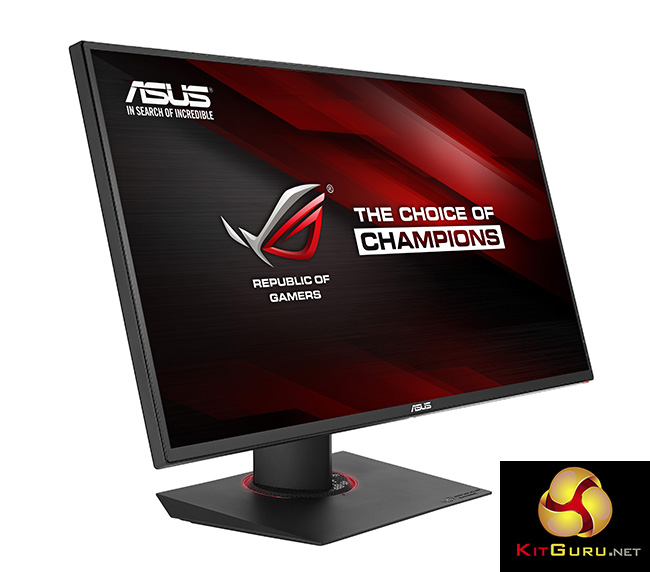
The ROG Swift PG27AQ is a 4K gaming monitor from Asus that supports Nvidia G-Sync up to 60Hz. It’s a 27-inch IPS display with a 4ms response time and a 10-bit colour panel. Add on a flexible stand with pivot, tilt and rotate support, with a redesigned software interface, and it could be a contender for the best gaming display on the market.
Displays have gone from being a rather mundane area of technology, without much changing all that drastically over the years, to now being one of the most exciting areas of computer hardware. As such, a quality display is now the cornerstone of a great gaming experience.
TN panels have improved dramatically, with much better brightness and contrast, while continuing to offer low 1ms response times, which is great for fast, twitch-based gaming. IPS technology has fallen in price, with screens that have longer response times but much better viewing angles.
We have a wide number of new and exciting technologies that make displays far more interesting. This includes adaptive-sync, where the output of frames from the video card is synchronised to a monitor’s refresh rate, eliminating the tearing effect you sometimes see in games. There are also larger 4K resolution displays which look unbelievably good in games, as long as a PC’s graphics card can pump out pixels fast enough.
There are plenty of examples of displays that either come with adaptive-sync or 4K resolution, but few that offer both. And the vast majority of G-Sync and FreeSync monitors are built with TN panels.
That is what makes Asus PG27AQ so special. It offers a native resolution of 3840×2160 across its 27-inch IPS screen, and it is compatible with G-Sync, so it offers adaptive sync with Nvidia graphics cards. The combination of all three technologies in a single display sounds like a dream come true for a lot of gamers.
It’s not the only 4K display with G-Sync. Acer’s XB280HK (Review HERE) came out a few months ago and offers a very good combination of both G-Sync and 4K.
But there are two differences between that screen and the Asus PG27AQ. The XB280HK is based on TN panel technology, while the PG27AQ is IPS. And with the PG27AQ, Asus has addressed one of the main issues with G-Sync, that it only comes with a single DisplayPort 1.2 input, by building in a second circuit that allows for an extra HDMI port (although the PG27AQ is still based on the G-Sync 1.0 standard).
While not everyone will ever need more than one video input, having a second is important for anyone who wants to use a games console or second PC with their monitor.
It only supports G-Sync up to 60Hz. The previous Asus G-Sync display, the ROG Swift PG278Q, has a 1440p native resolution, and supports G-Sync up to 144Hz, as do many other displays, although once again, that is a TN screen. While the G-Sync effect will be noticeable even at 60Hz, it’s not as impressive as when its running at 144Hz.
But unfortunately, if you want 144Hz 4K you will have to wait until at least 2016, as the current DisplayPort 1.2 standard cannot offer the required bandwidth to refresh a 4K pixel count 144 times a second. The DisplayPort 1.3 standard does, but no graphics card currently offers it. We expect both Nvidia and AMD’s next-generation cards to adopt it, but it’s not available yet.
If you want 4K and G-Sync in a display it seems this is a compromise we simply have to put up with for now. But to make up for this slight limitation the PG27AQ has a lot of other extras to offer. It is a 10-bit flicker-free panel, with a great (for an IPS display) 4ms response time, it has superb build quality and the now-ubiquitous Asus red joystick to navigate through the screens of a well-designed OSD. It all sounds very impressive.
Specification:
Screen size: 27 inch
Native resolution: 3,840 x 2,160
Refresh rate: 60Hz
Panel type: IPS
Display inputs: DisplayPort 1.2, HDMI 1.4
USB hub: 2x USB 3
Tilt: -5 to 20 degrees
Raise: Yes
Swivel: Yes
Other: Nvidia G-Sync, 10-bit colour, flicker-free panel, low-blue light settings.
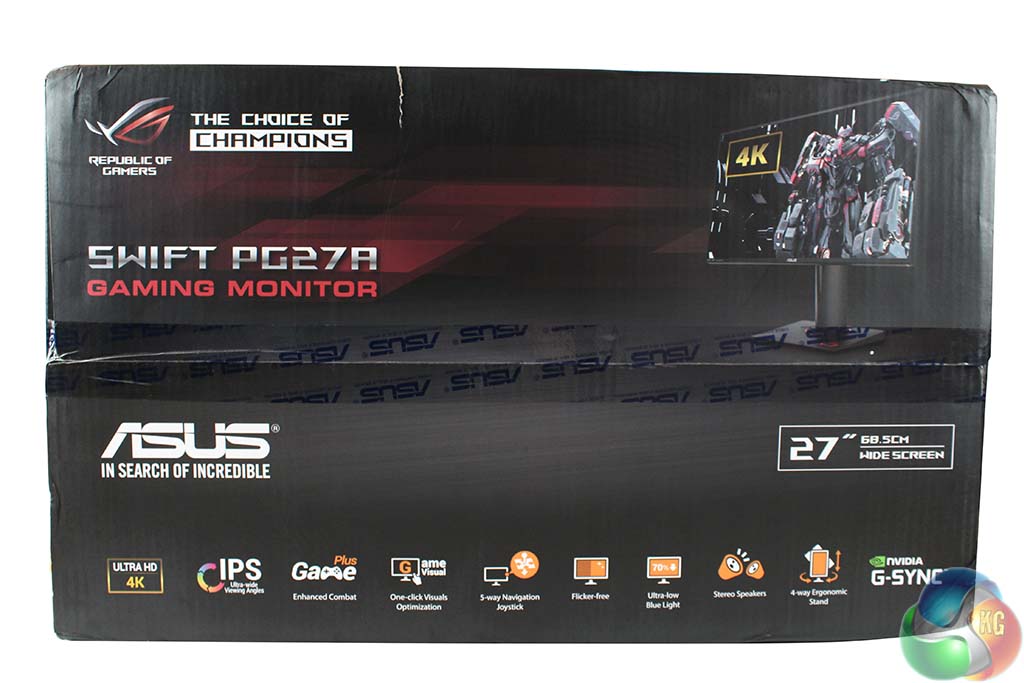
As a 27-inch display, the Asus Rog Swift PG27AQ ships in a fairly large box, with the typical Asus marketing information along the bottom, listing its main features.
The panel is connected to the stand when you remove it from the packaging, but it can be removed to attach a monitor arm, and up to three PG27AQ displays can be run at 4K resolution simultaneously. If you have the necessary graphics card power on hand that is.
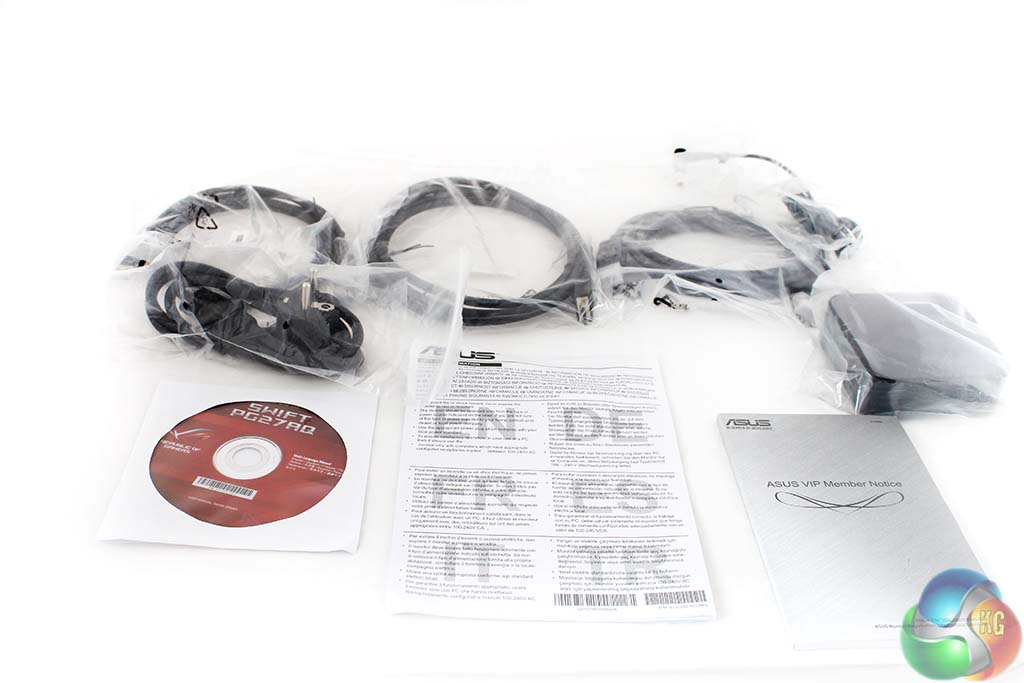
Along with the usual quick-start guide and software CD, you get a number of cables – HDMI, DisplayPort and a USB 3 uplink cable.
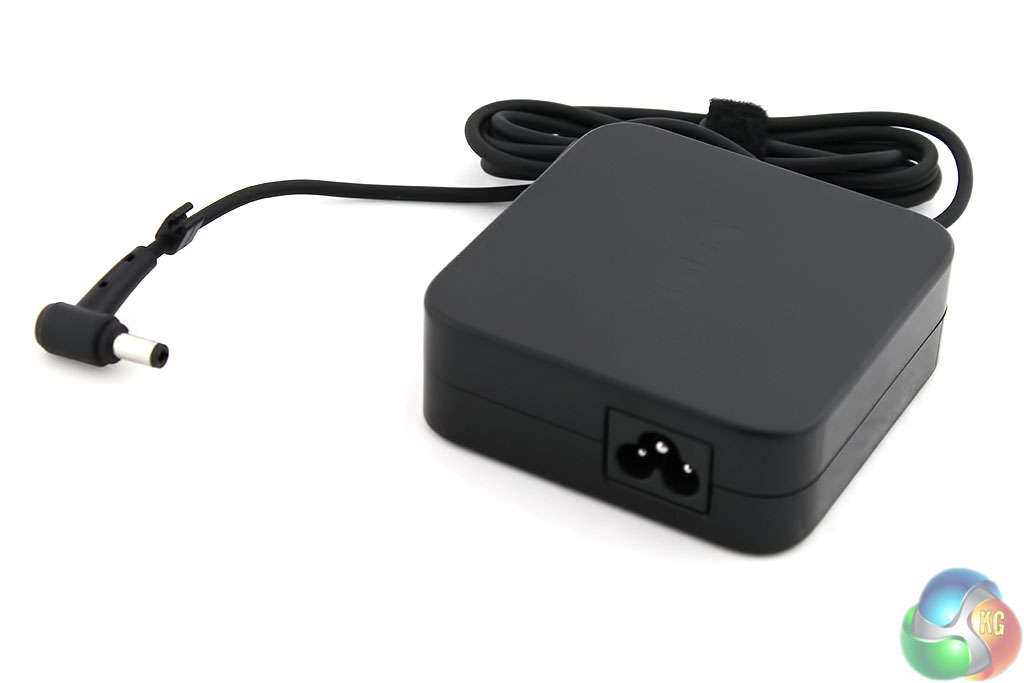
The PG27AQ uses an external power supply that takes a 3-pin power cable with the “cloverleaf” layout.
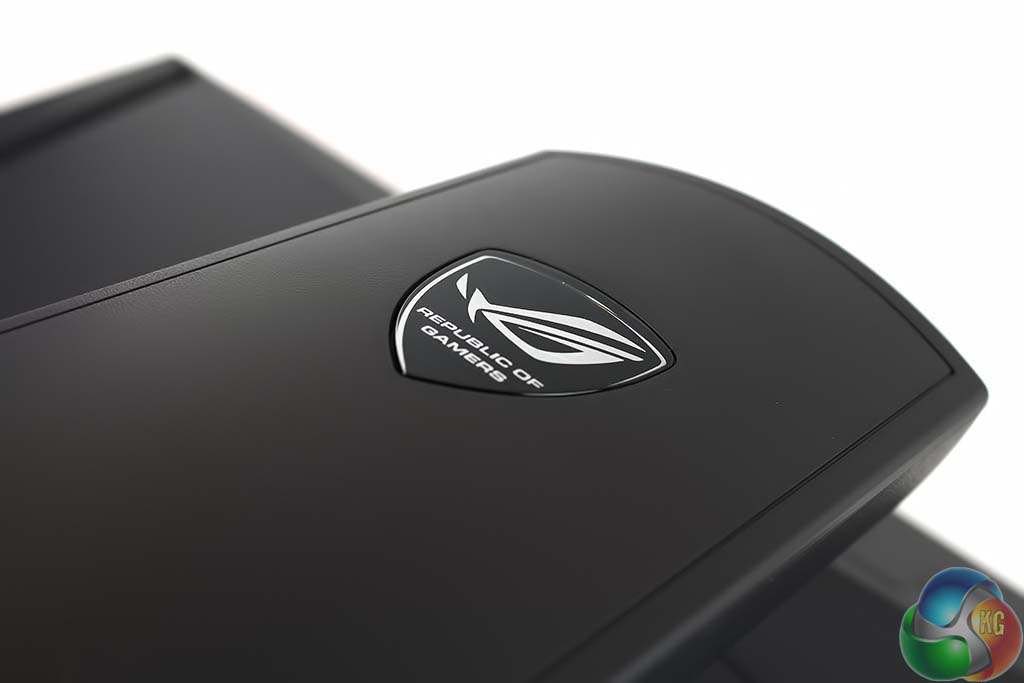

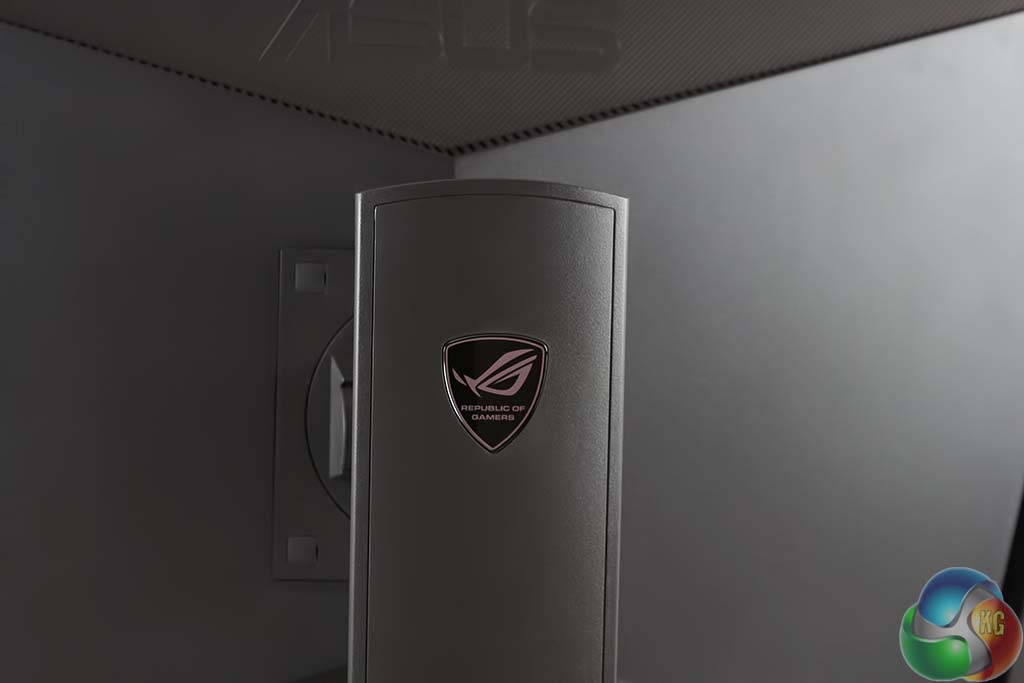
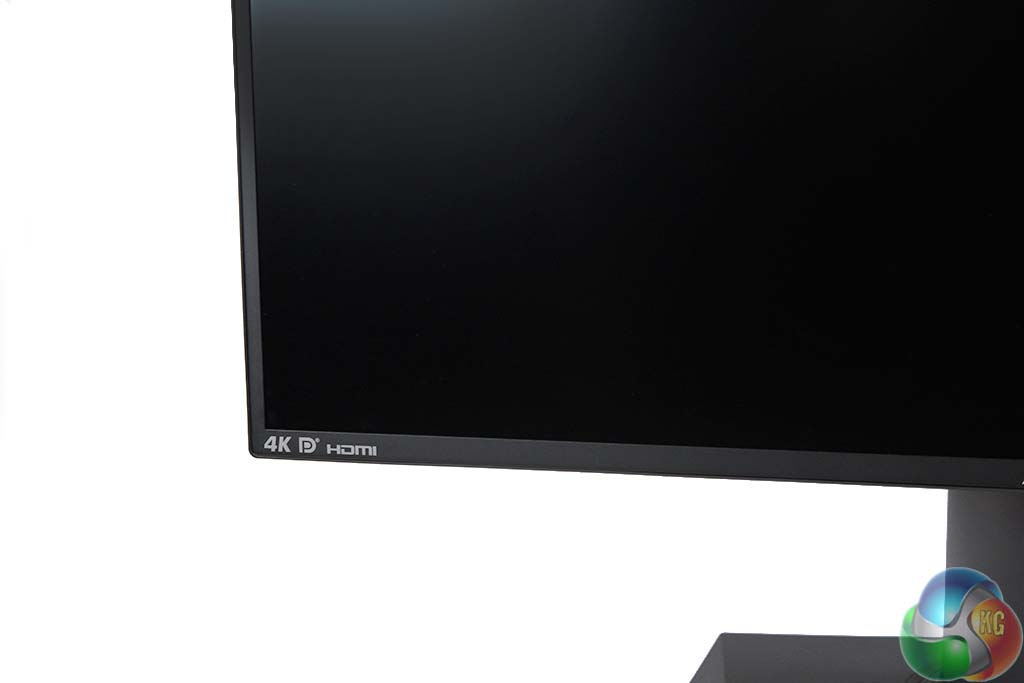
The panel itself has a number of logos showing that it’s a G-Sync monitor with 4K support. A nice way to make your friends jealous.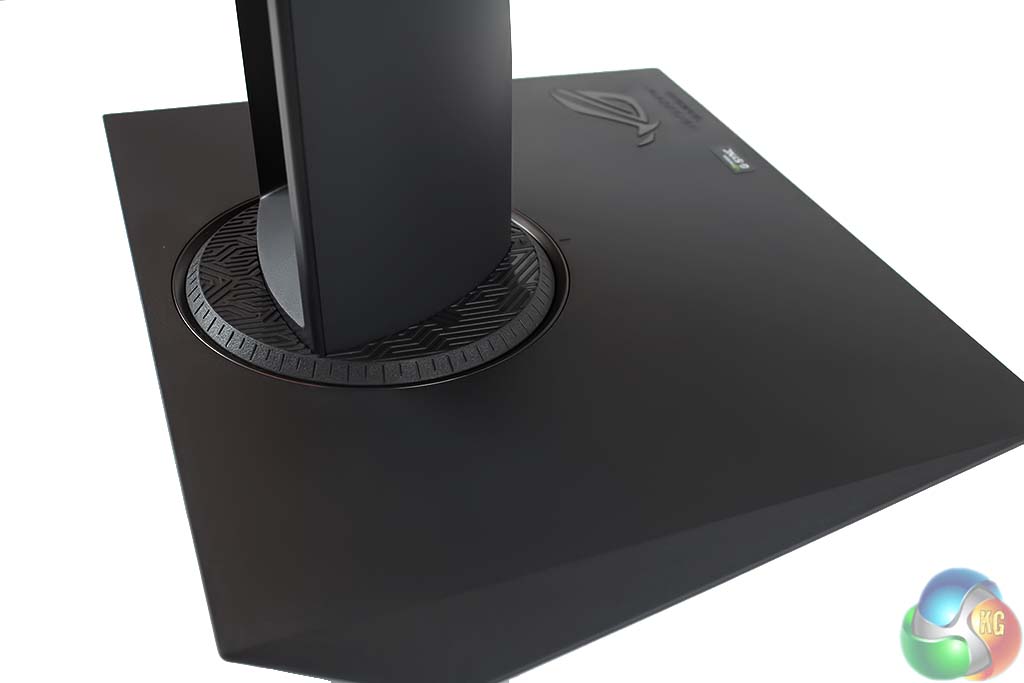
Both the plastic rim around the stand and Republic Of Gamers Logo on the base light up in red by enabling a setting in the OSD. It’s just a small cosmetic touch that serves no purpose at all, but something some users will no doubt appreciate.
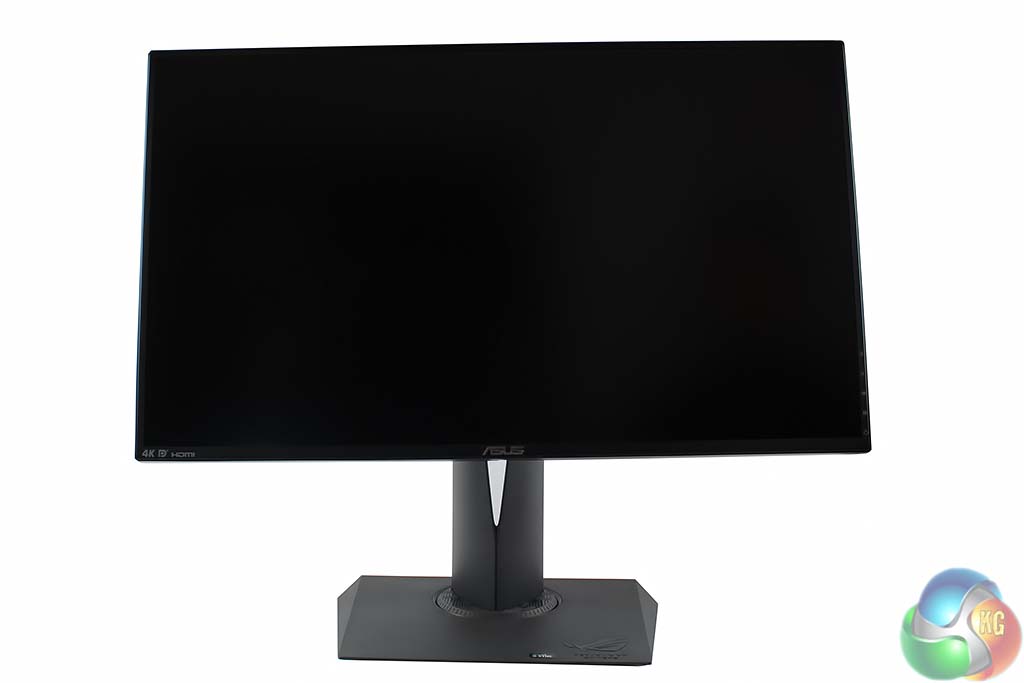
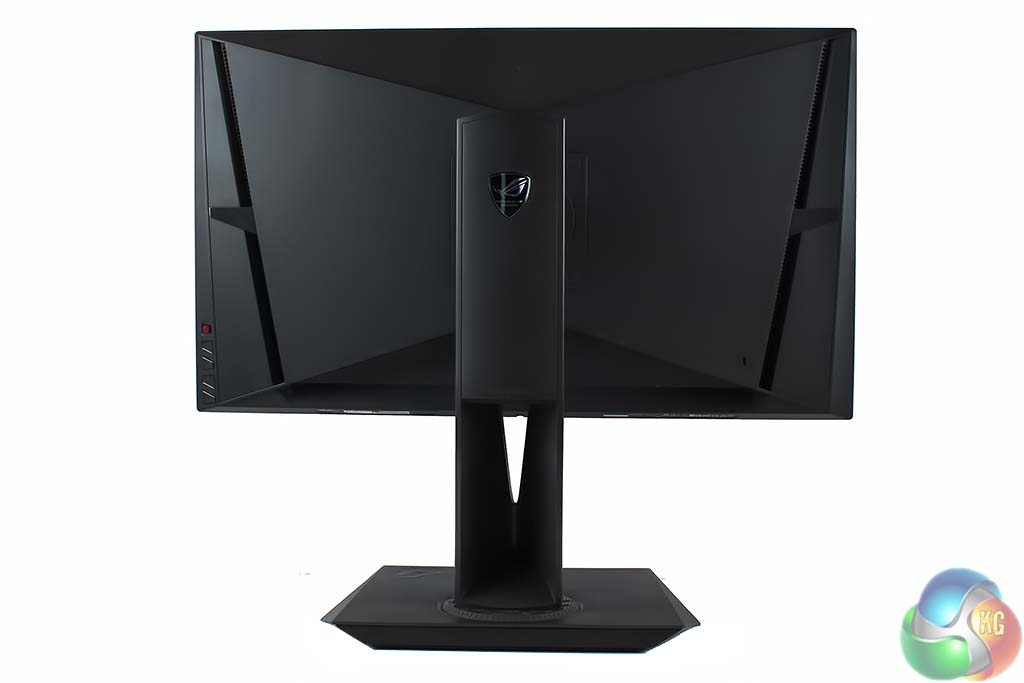
The panel around the bezel is quite thin, no more than a few centimetres. At the back you can see a long gap used for cable management.
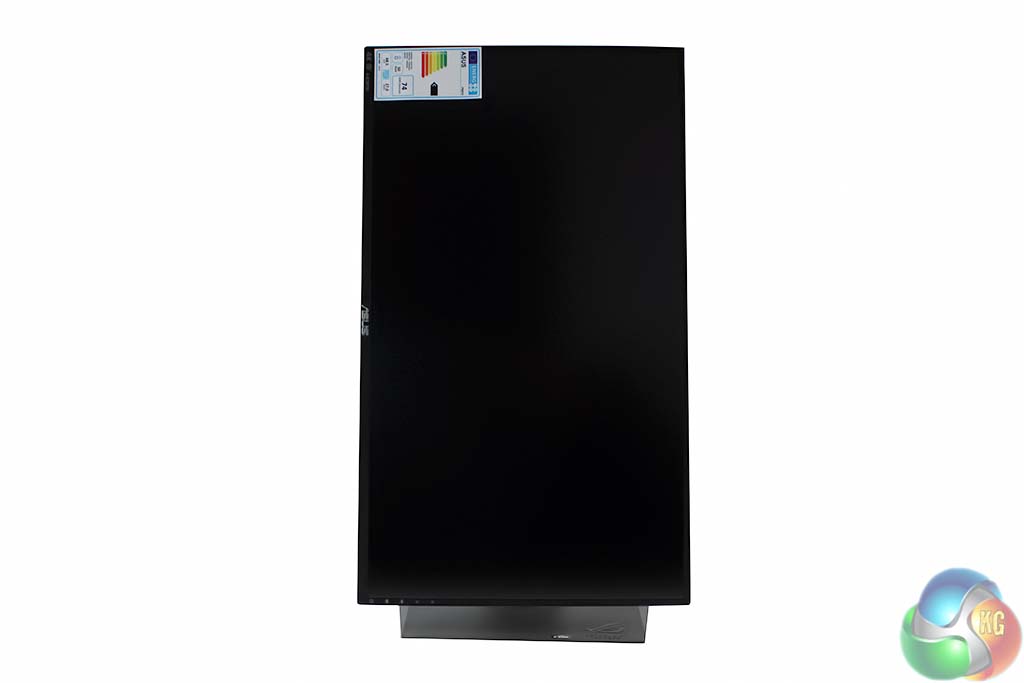
The screen pivots 90 degrees.
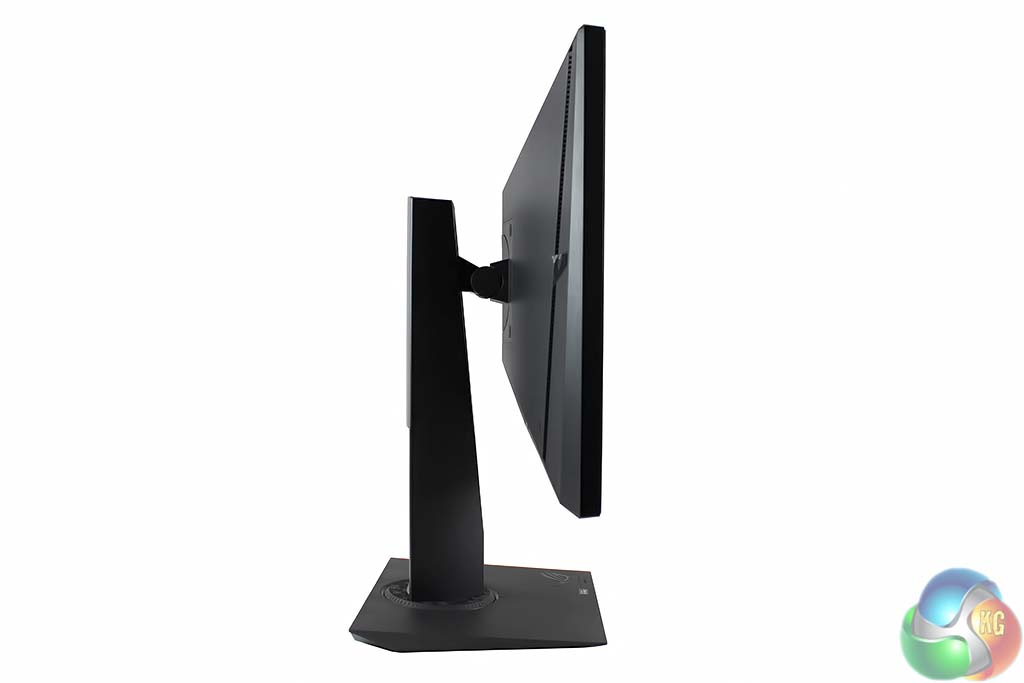
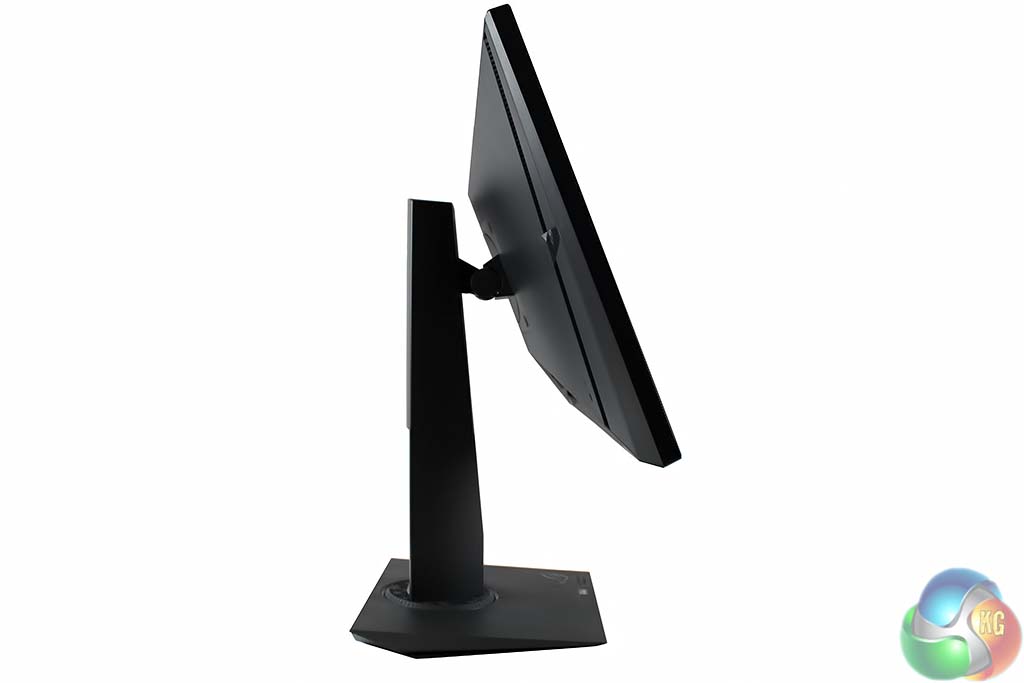
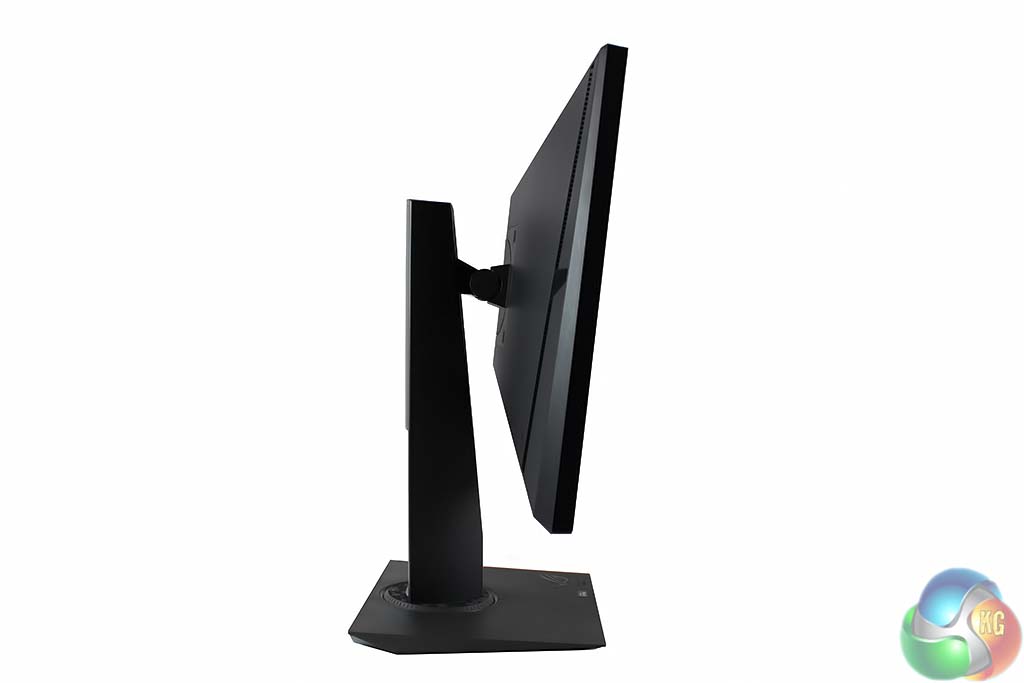
It tilts back 5 degrees, and forward 20 degrees, as you’d expect from a high end display.
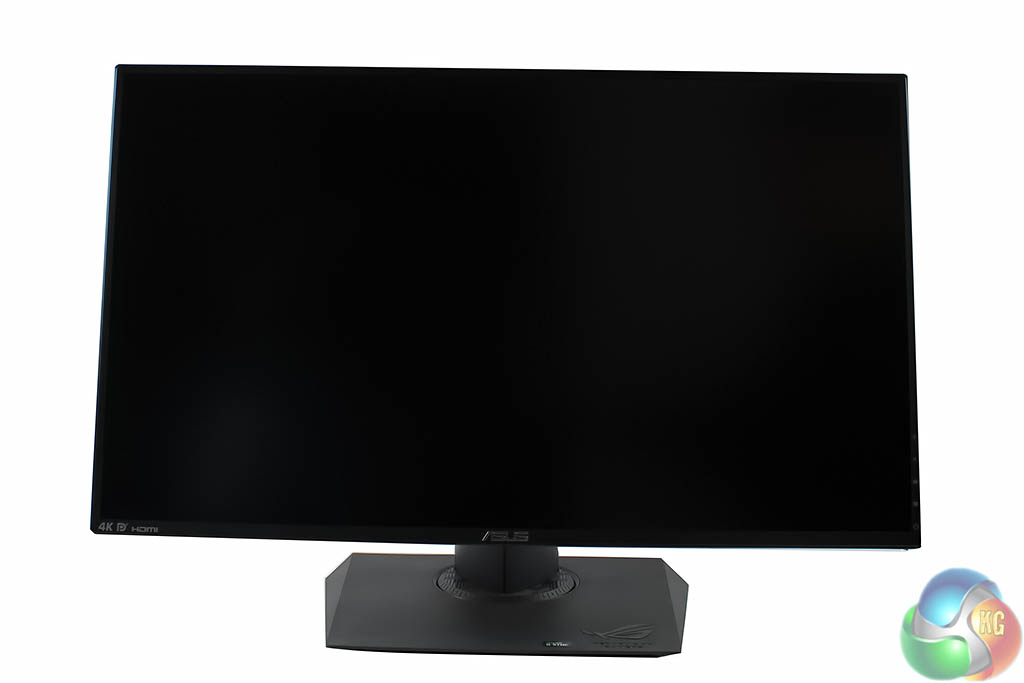
And can be lowered 120mm.
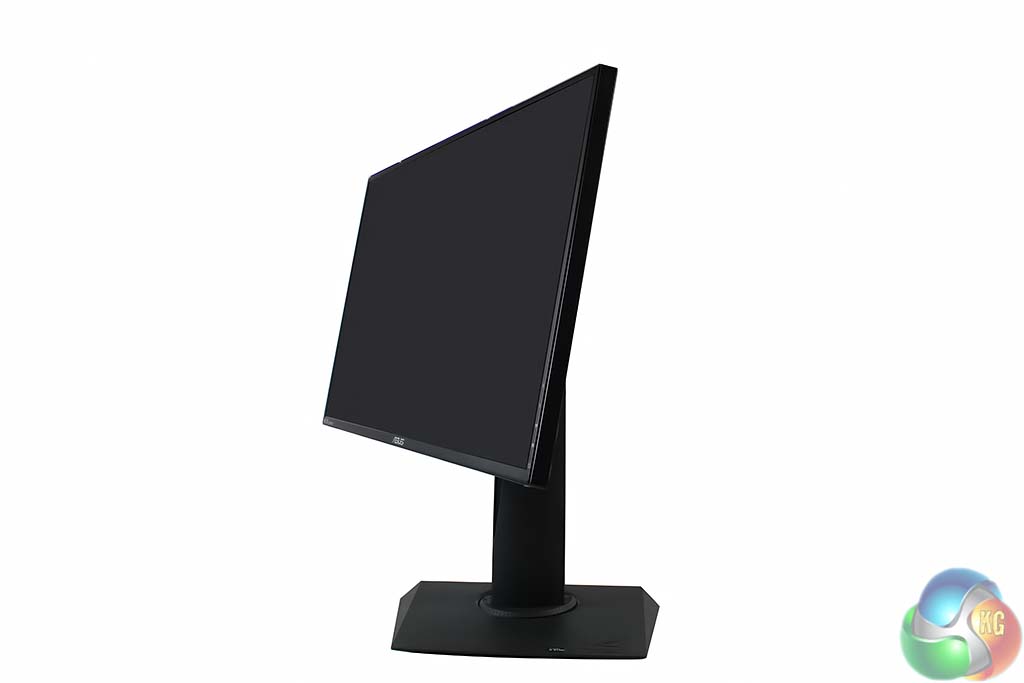
The screen can be rotated horizontally, 60 degrees in either direction.

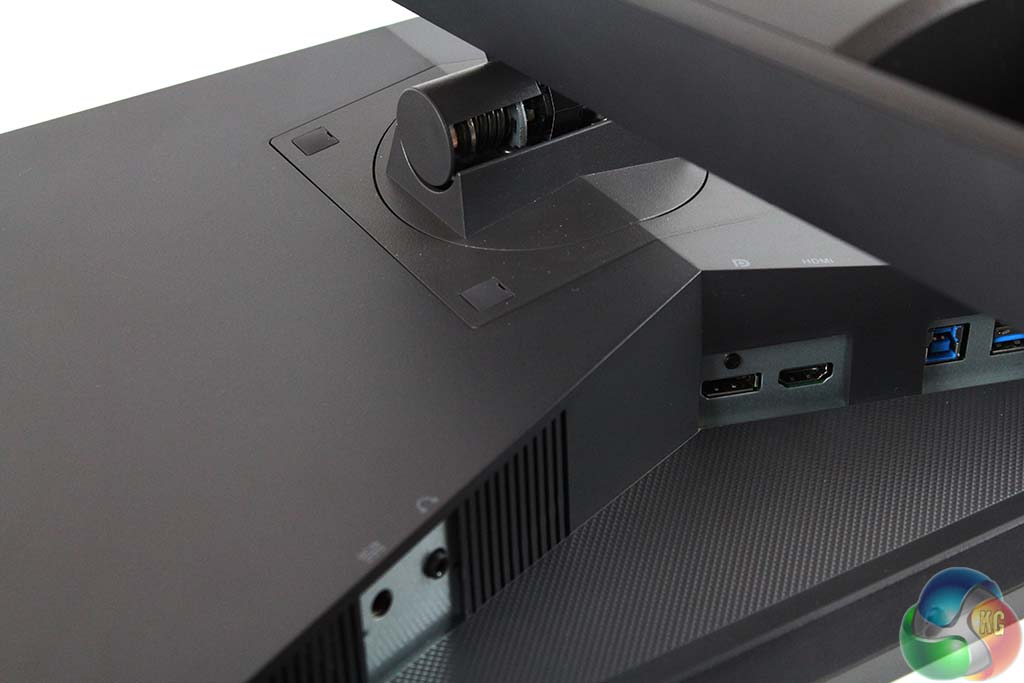
Underneath the display, the array of ports seems quite slim, compared with some displays. On the left-hand side, there’s a 3.5mm audio output jack, and the connector for the power supply.
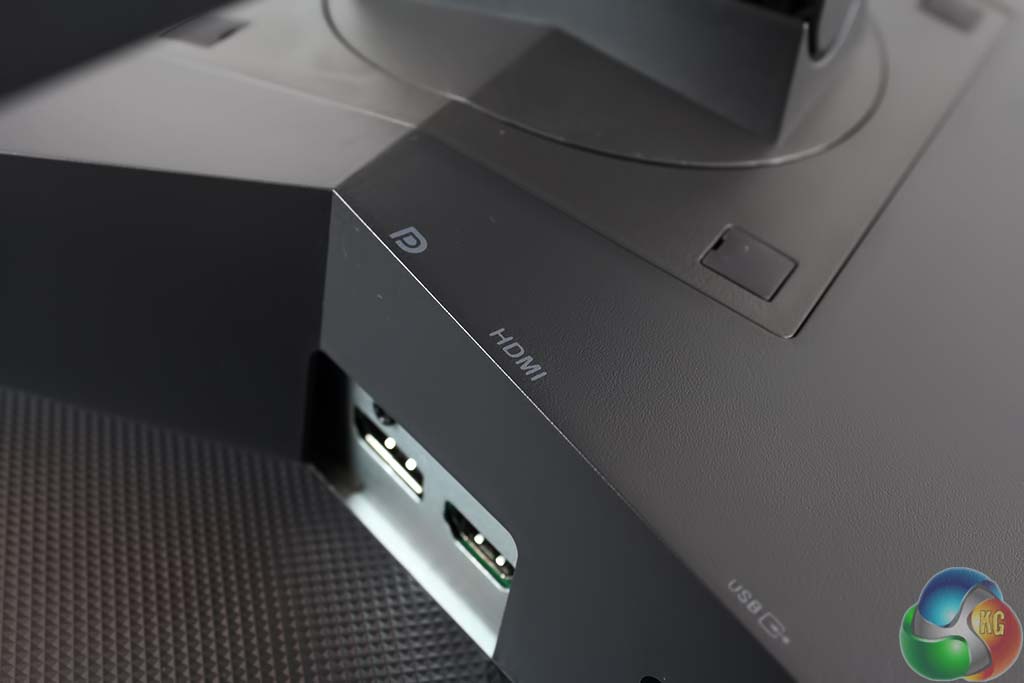
The G-Sync module is limited to a single DisplayPort input, and Asus has added a second HDMI port. But that’s still only two, a problem that won’t go away for G-Sync any time soon.
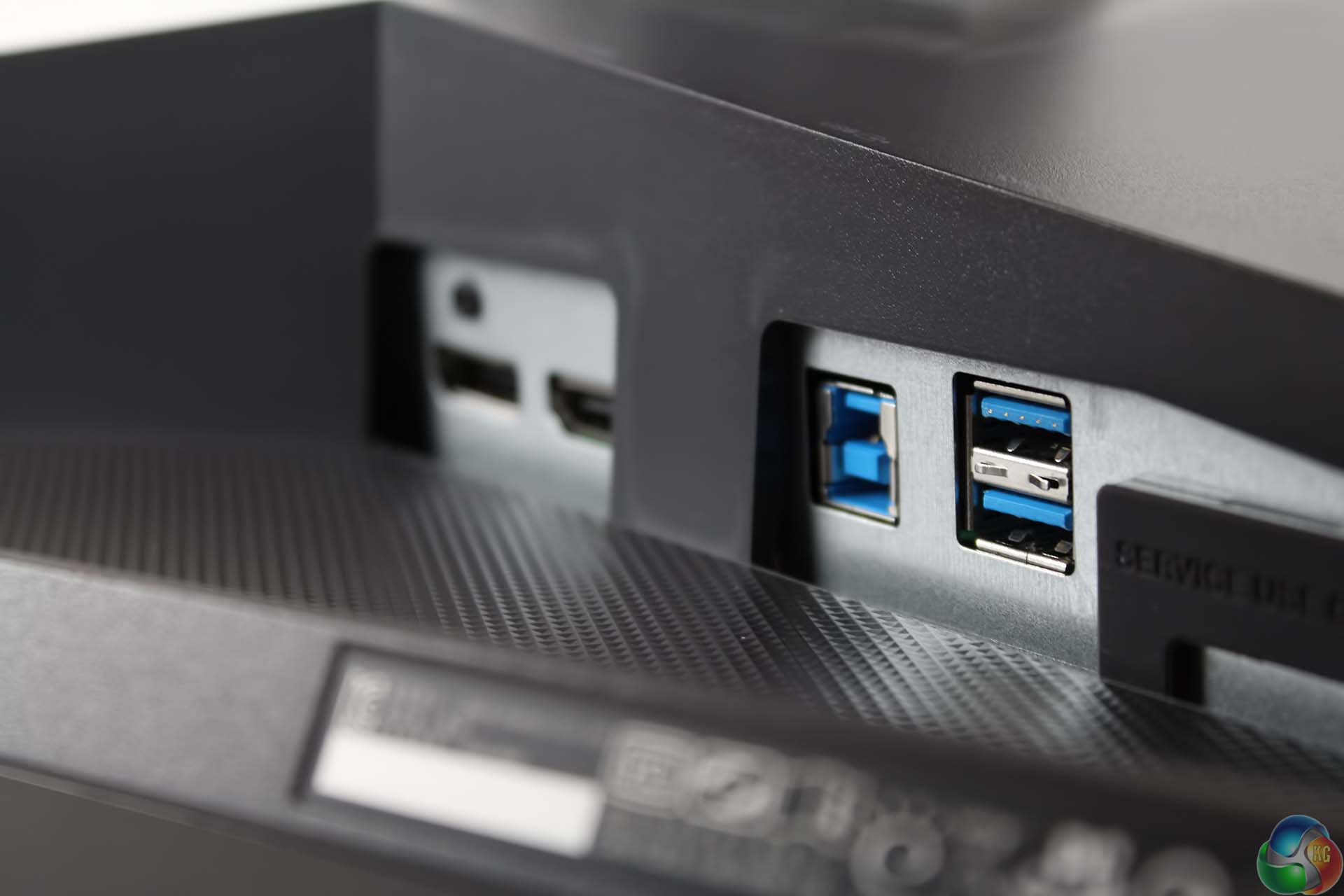
There’s also a pair of USB 3 ports with an uplink port.
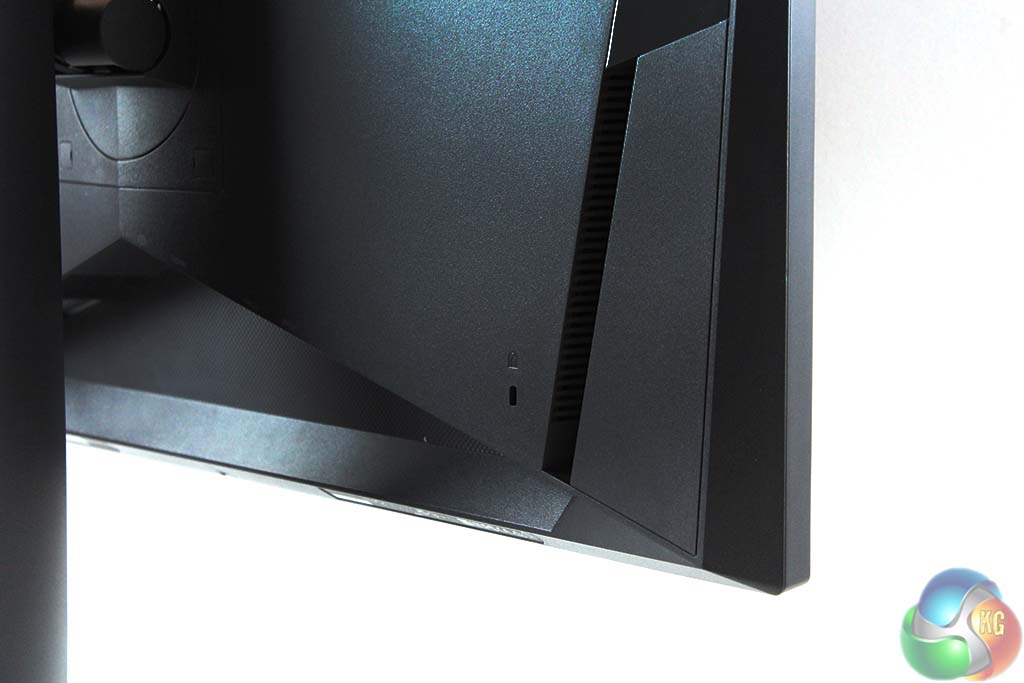
As expected, there’s support for Kensington locks.
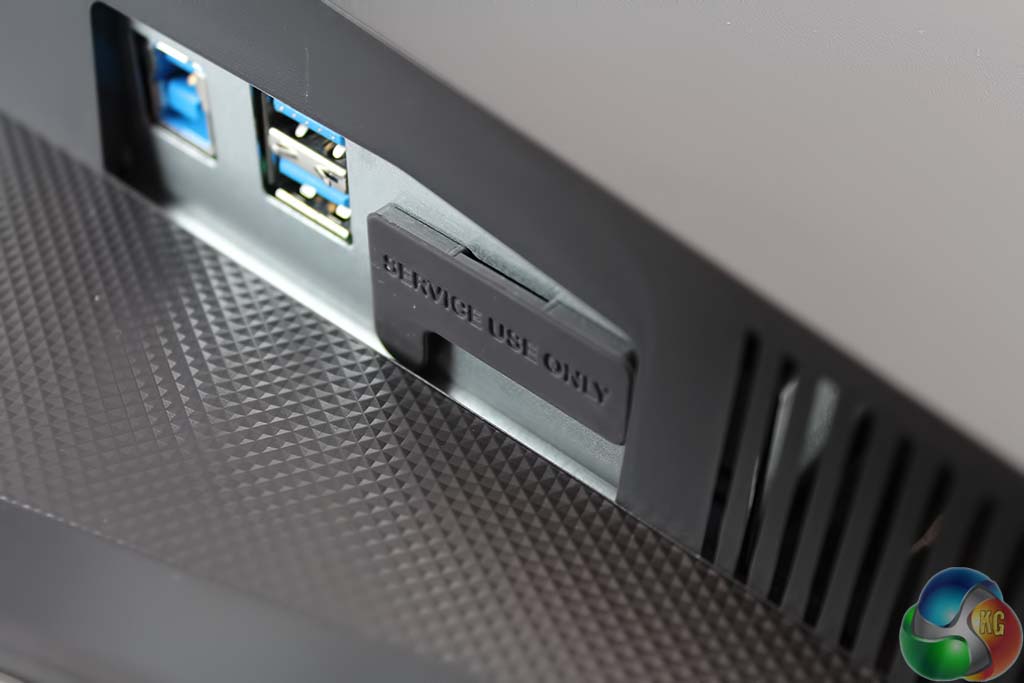
And at the bottom a service port, used for updates, but it is unlikely that Asus will allow users to do this procedure, as they say it’s for their engineers only.
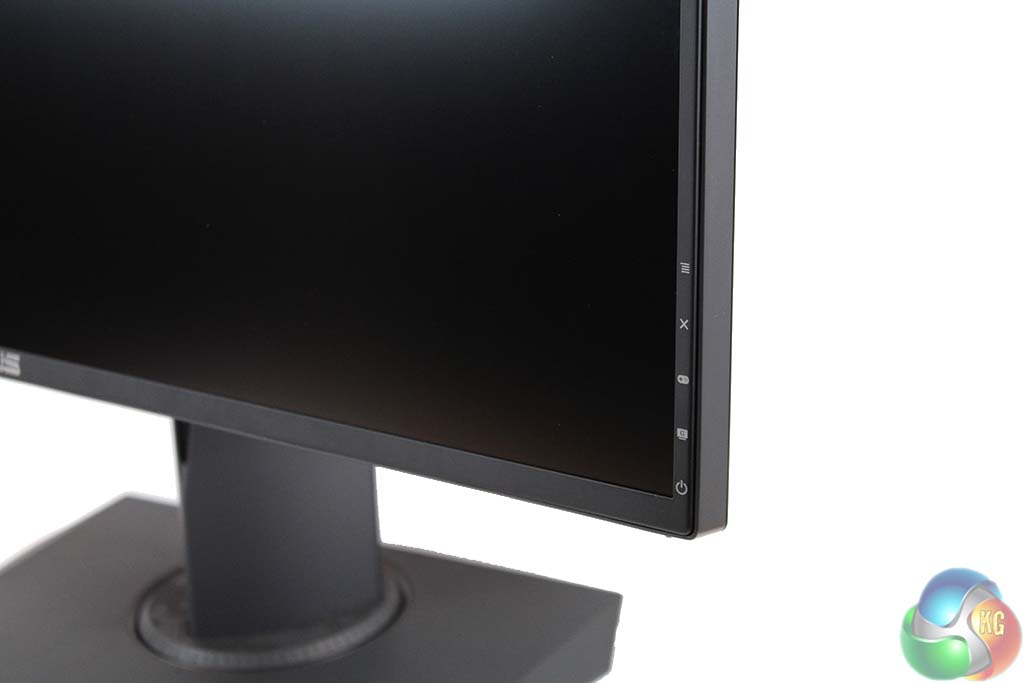
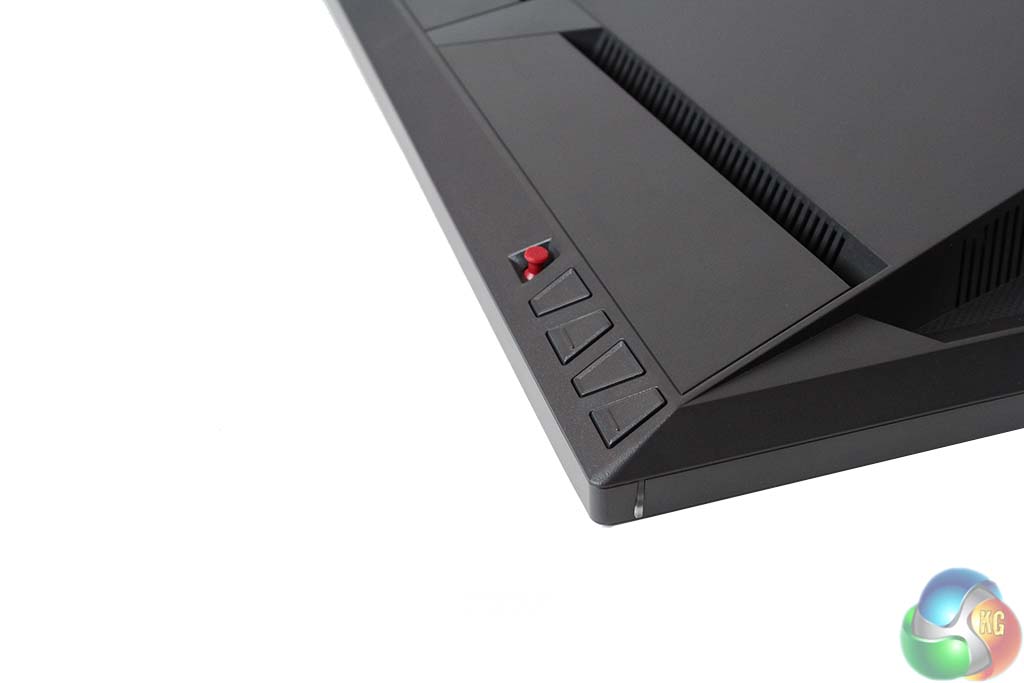
Identically to other ROG displays, the PG27AQ has a number of triangular buttons on the rear of the panel, with a red joystick at the top that’s used for navigating the OSD.
Asus isn’t entirely alone here, since some other manufacturers also offer a great OSD control system. Philips helpfully included a small joystick at the back of the BDM4065UC (review HERE) and BenQ has a USB remote control on some of its displays, such as the BL3201PT (review HERE).
But not all display firms have realised that great OSD controls make displays less frustrating to use. Until they do, Asus’ efforts with its ROG Swift displays really stand out.
While the buttons look the same on the outside, the OSD software inside the PG27AQ has a different design from that of the other ROG Swift displays we’ve covered this year. By default, it sits in the bottom right and has been somewhat streamlined, with smaller text, more compact menus and a different structure to the layout of settings, which makes a lot more sense.
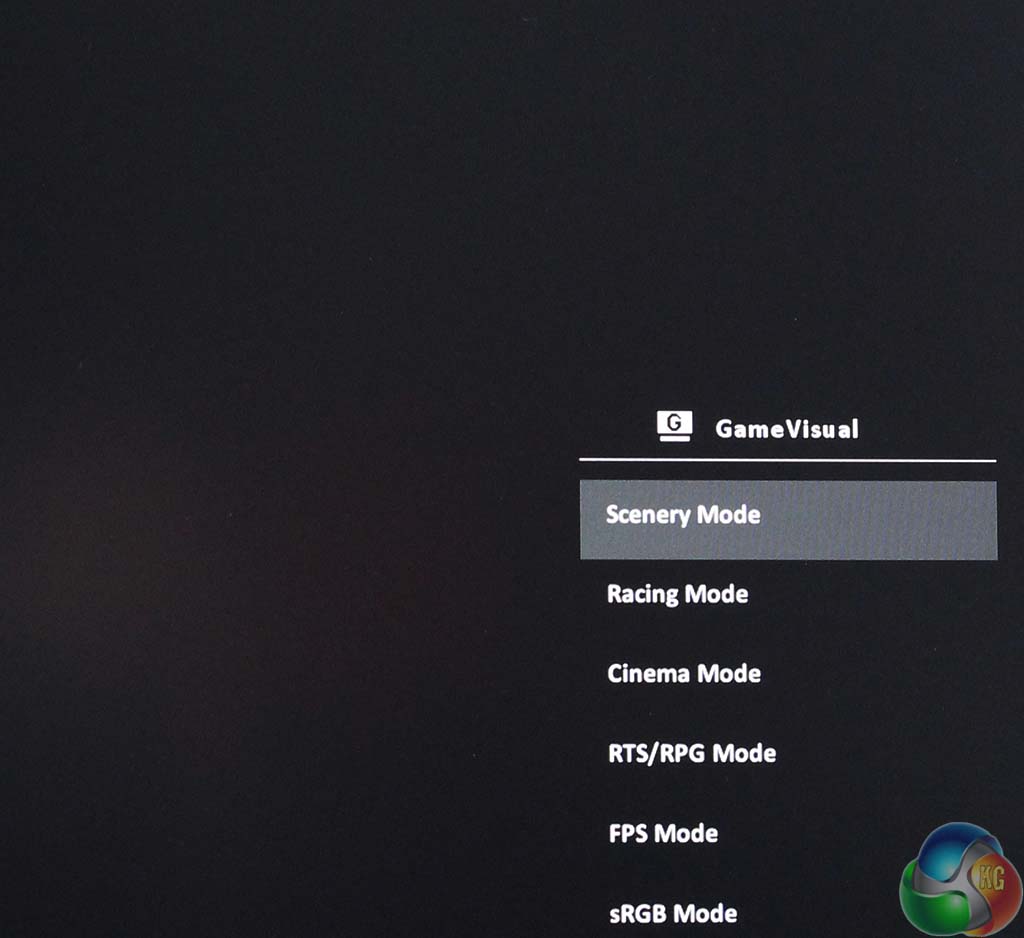
If you press the lowest button it brings up the GameVisual menu, used to choose an image preset.
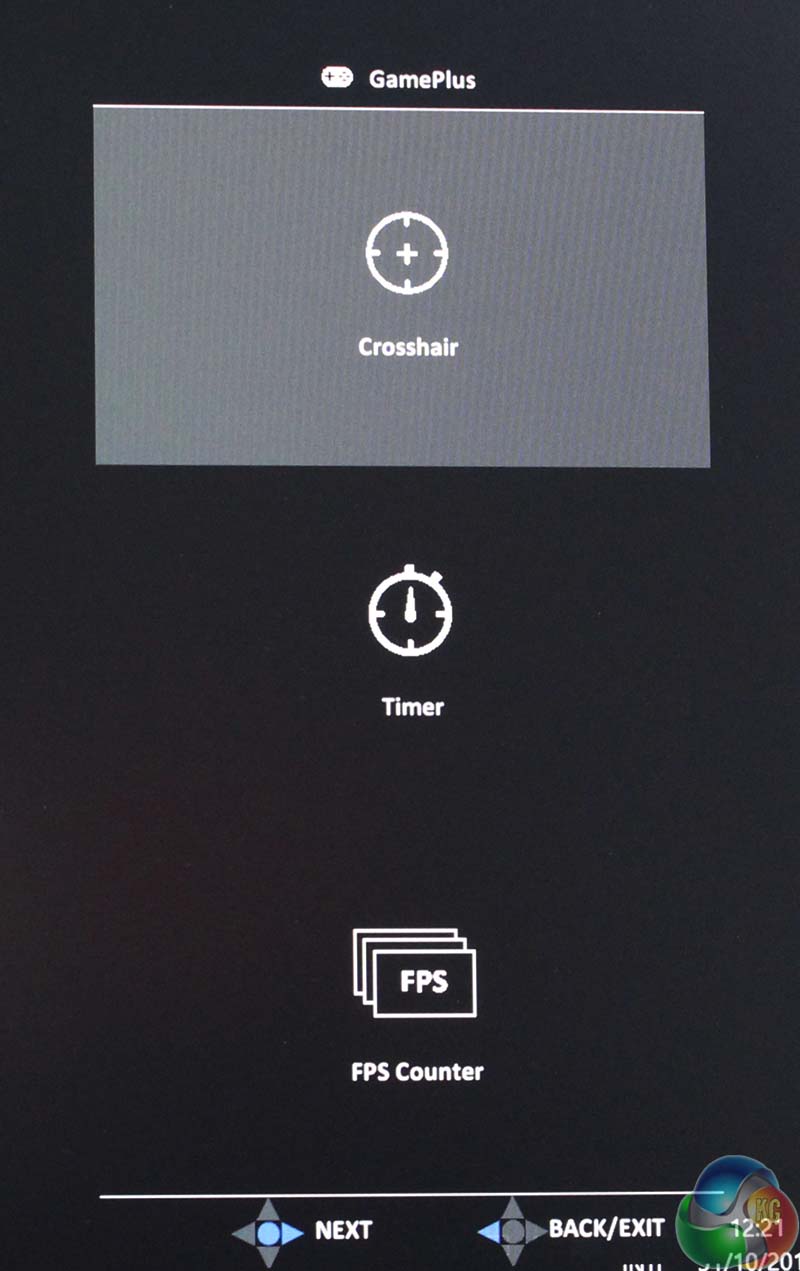
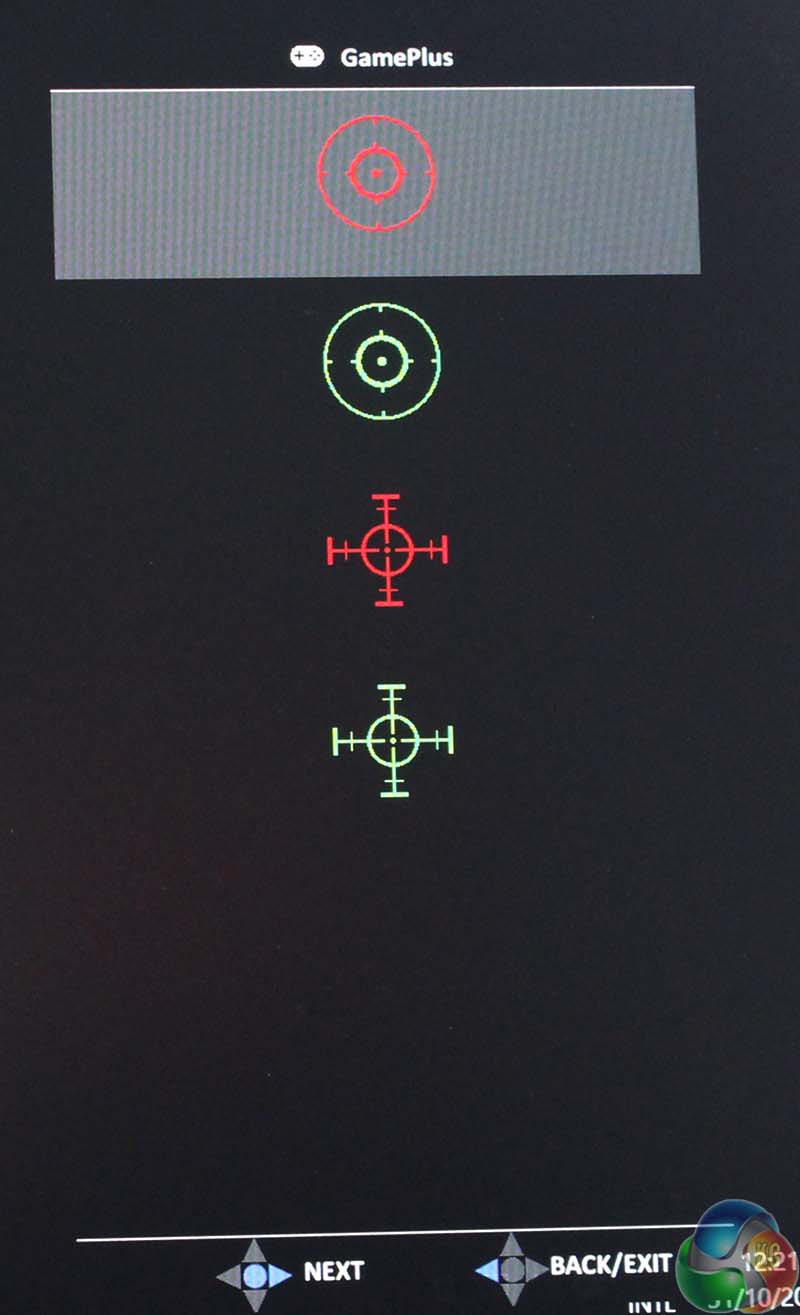
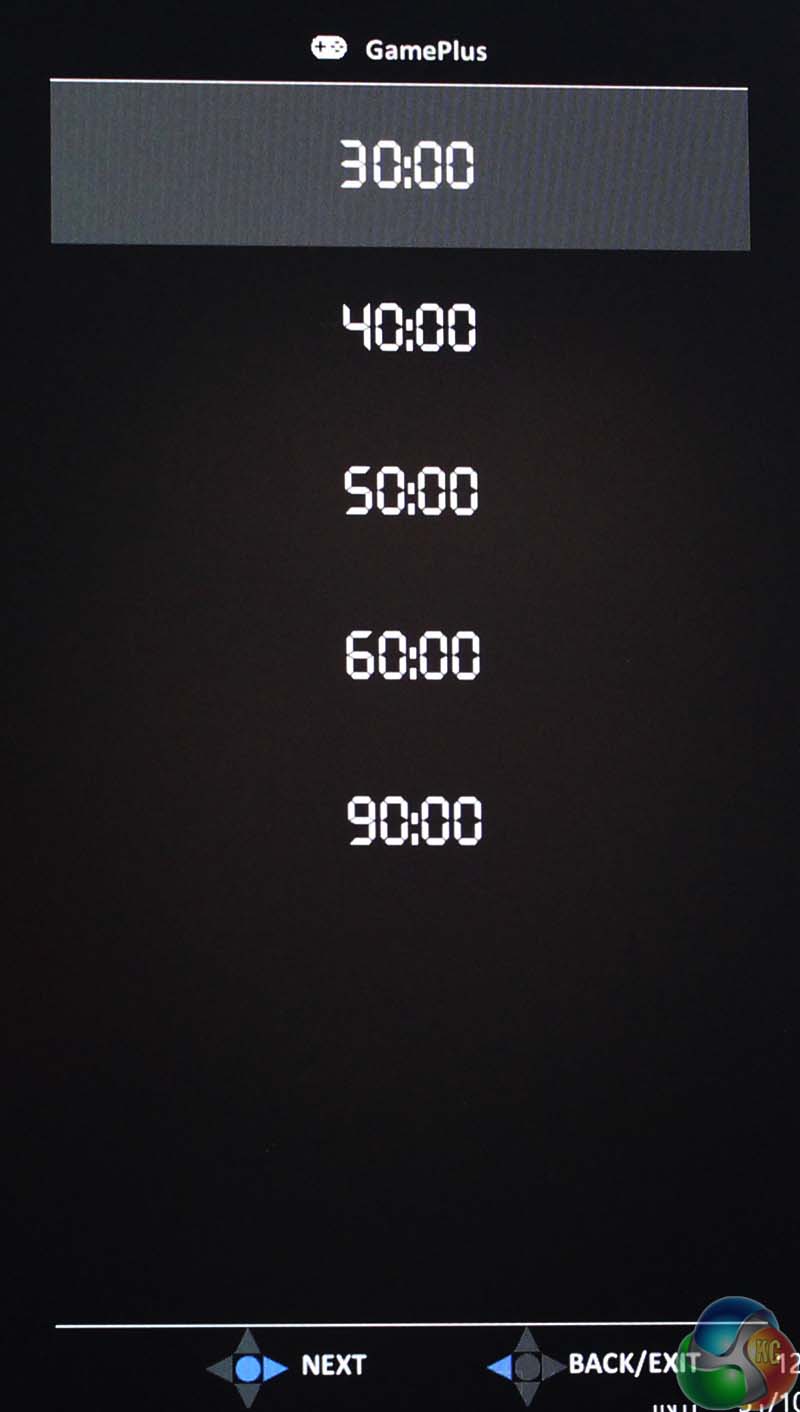
The next button up is the GamePlus menu, and like on previous G-Sync ROG Swift displays, it has an on-screen crosshair, timer and frame rate counter.
Without G-Sync, the frame rate counter is useless, but when the video card and display are synchronised it can accurately tell you the frame rate you are seeing as long as it’s below 60fps.
Above that is a cancel button. At the top is the mini joystick, which shows the main OSD menu when you press it inwards.
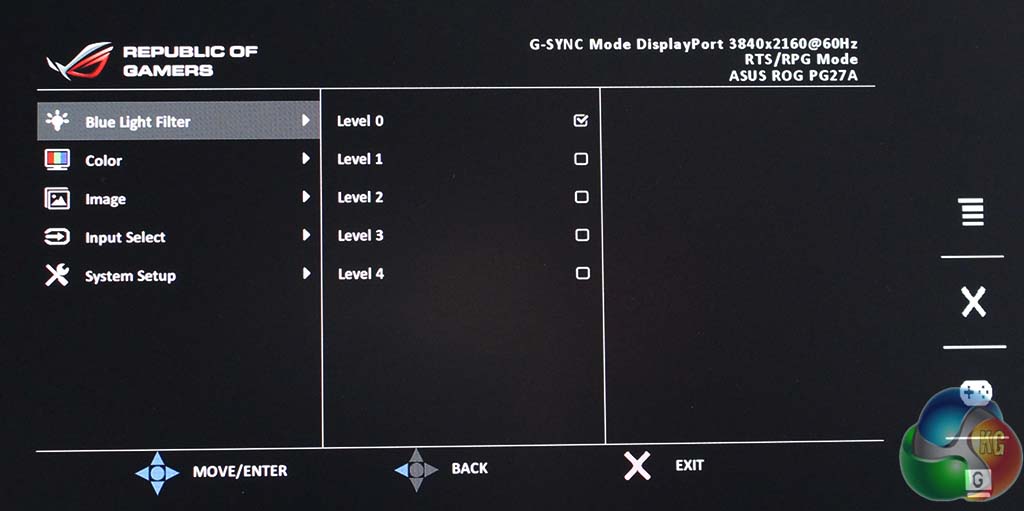
The PG27AQ supports low blue light modes, with five settings to choose from.
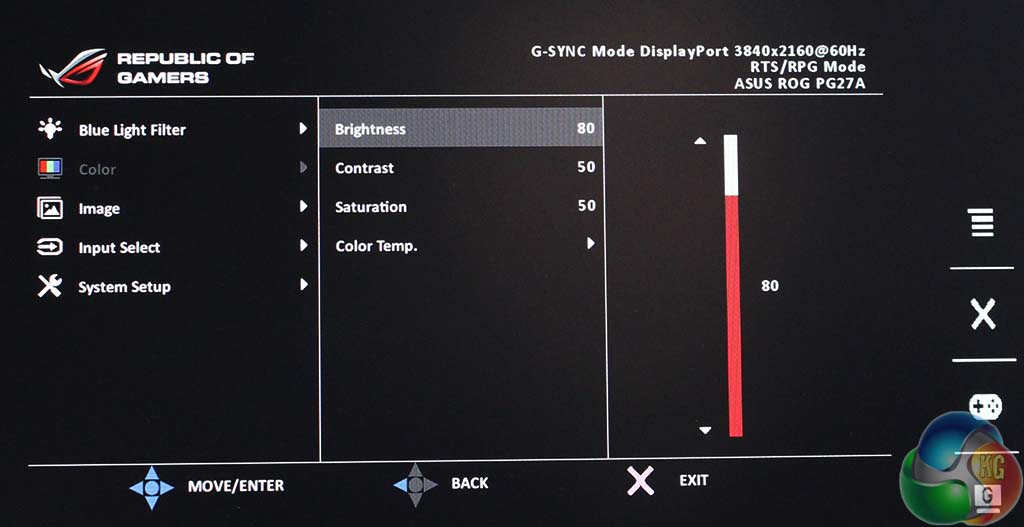
The Color menu provides settings to adjust the brightness, contrast and saturation. By default after a factory reset, this is set to a User mode, and the ‘Normal’ setting is a little too blue for our taste.
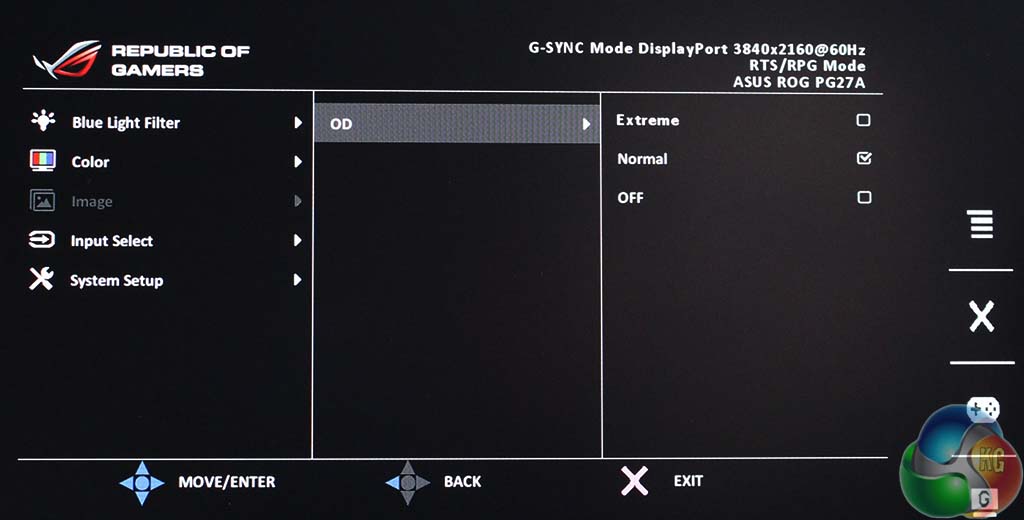
There’s an Asus Overdrive setting to reduce ghosting.
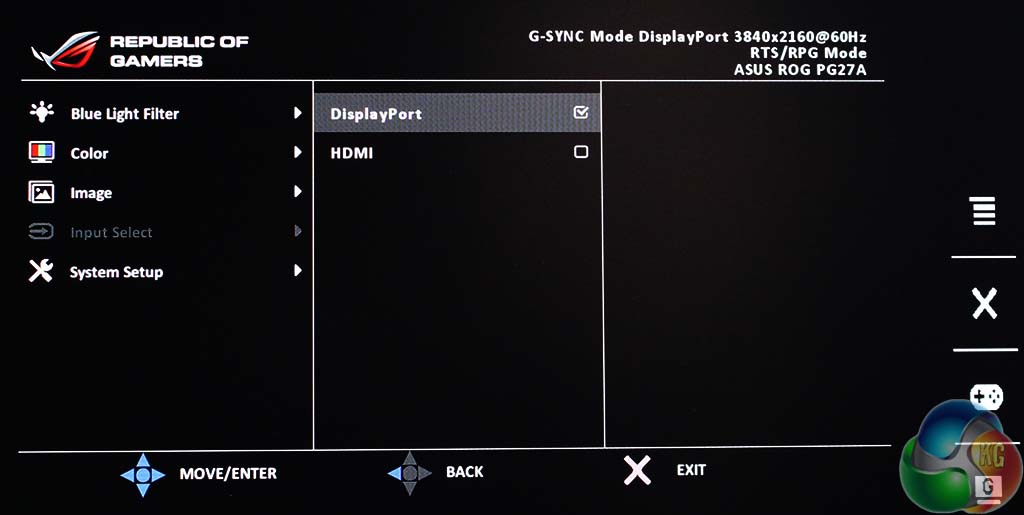
This is the first Asus G-Sync monitor to offer two display inputs and you have to go into this menu to switch between them. Note there is no picture-in-picture or picture-by-picture setting.
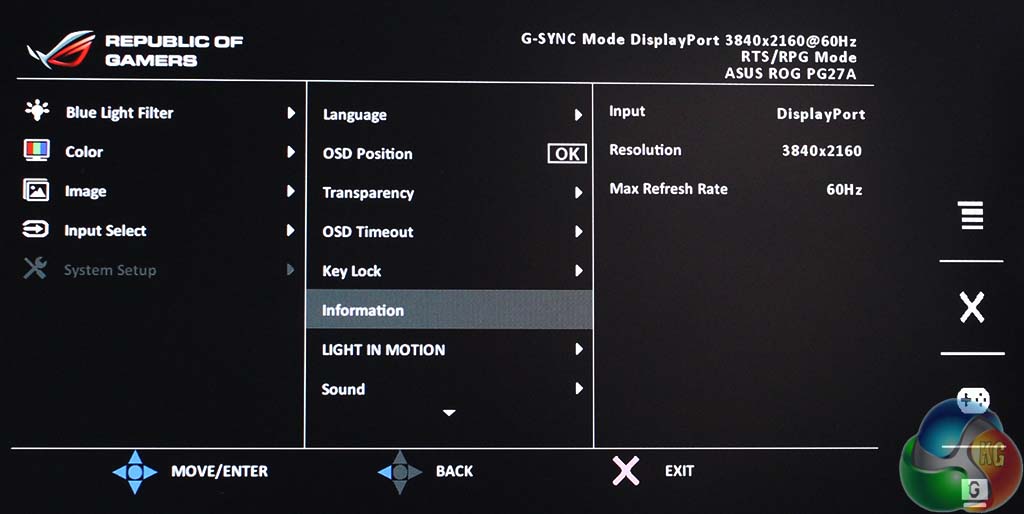
Asus has placed every other setting in a single menu called System. Along with multiple language support, there are options to control the OSD transparency, timeout and position on screen.
There’s a key lock function, which can be cancelled by holding the top-most button underneath the joystick for 5 seconds.
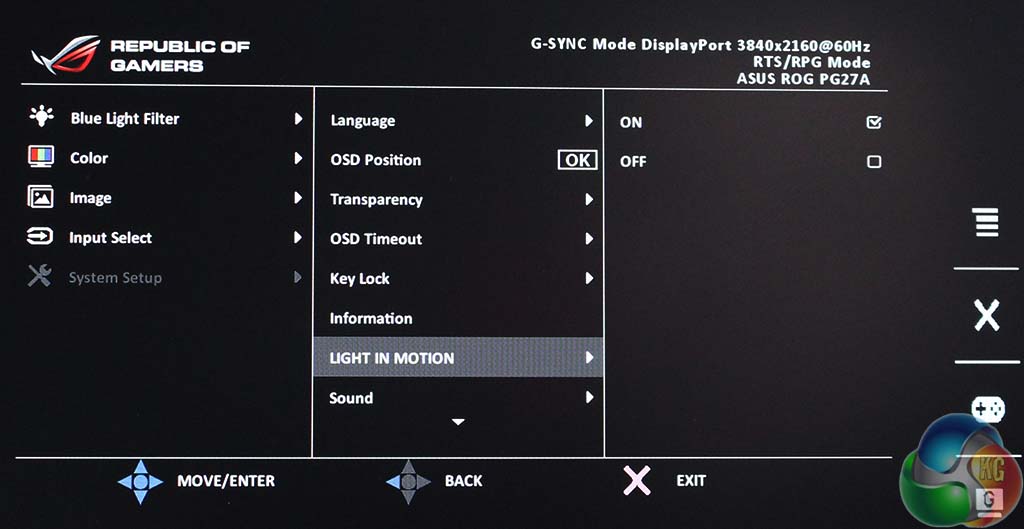
There is also an option to enable or disable the Light In Motion function, which illuminates the stand with red LEDs.
You can also reset the OSD settings to factory default.
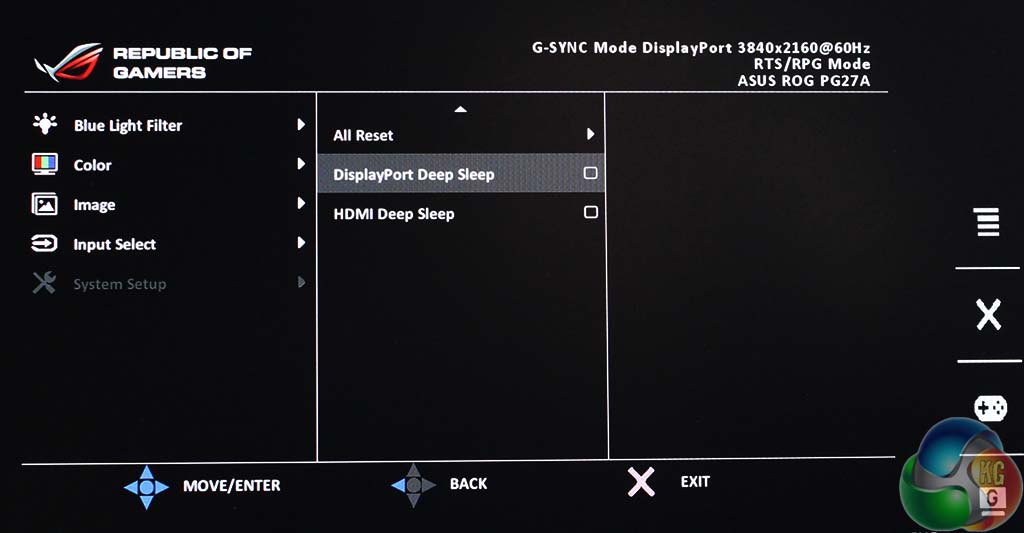
And enable both HDMI and DisplayPort deep sleep modes.
Overall, the OSD is great to use, easy to navigate with the joystick and perhaps most importantly, it load each page without any lag, which you sometimes find on cheaper displays. A half-second delay sounds like nothing but when going through dozens of menus, it quickly becomes frustrating, and that is most definitely not an issue with PG27AQ.
The PA27Q is a gaming display, not one that’s specifically intended for high-end photo editing or graphic design. It’s only rated to 300 cd/m2 brightness by Asus, which isn’t as high as some displays, but we must stress that this wasn’t a problem in use, and it never appeared dull or washed out. With the brightness turned up, the screen looks vivid and colourful, and most importantly, games look really good on it.
We used a Spyder 4 Elite Colorimeter to measure the colour accuracy of the PA27Q, as we do with all displays. We reset the screen to factory defaults, to measure its out-of-the-box performance, then we calibrated it and measured its colour accuracy afterwards.
Calibration was set to 120cd/m2 and we also tested all the presets, since there are quite a few on offer.
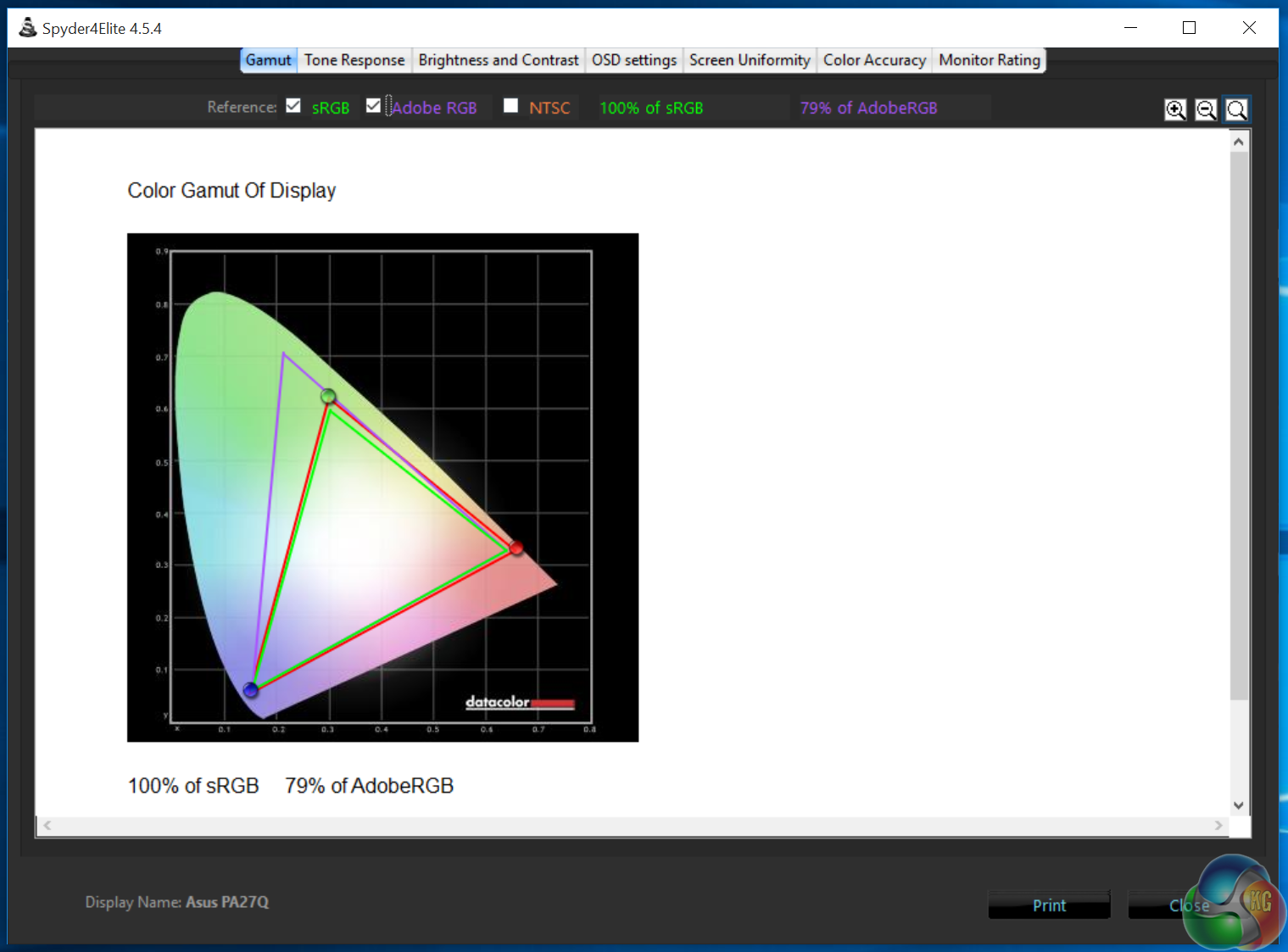
We now expect close to 100 per cent sRGB coverage from every screen we test these days, and that’s exactly what we get here, with 79 per cent Adobe RGB. Panels are really good these days, and for better results, 99 per cent Adobe RGB coverage is possible only with high-end displays aimed at graphic design work.
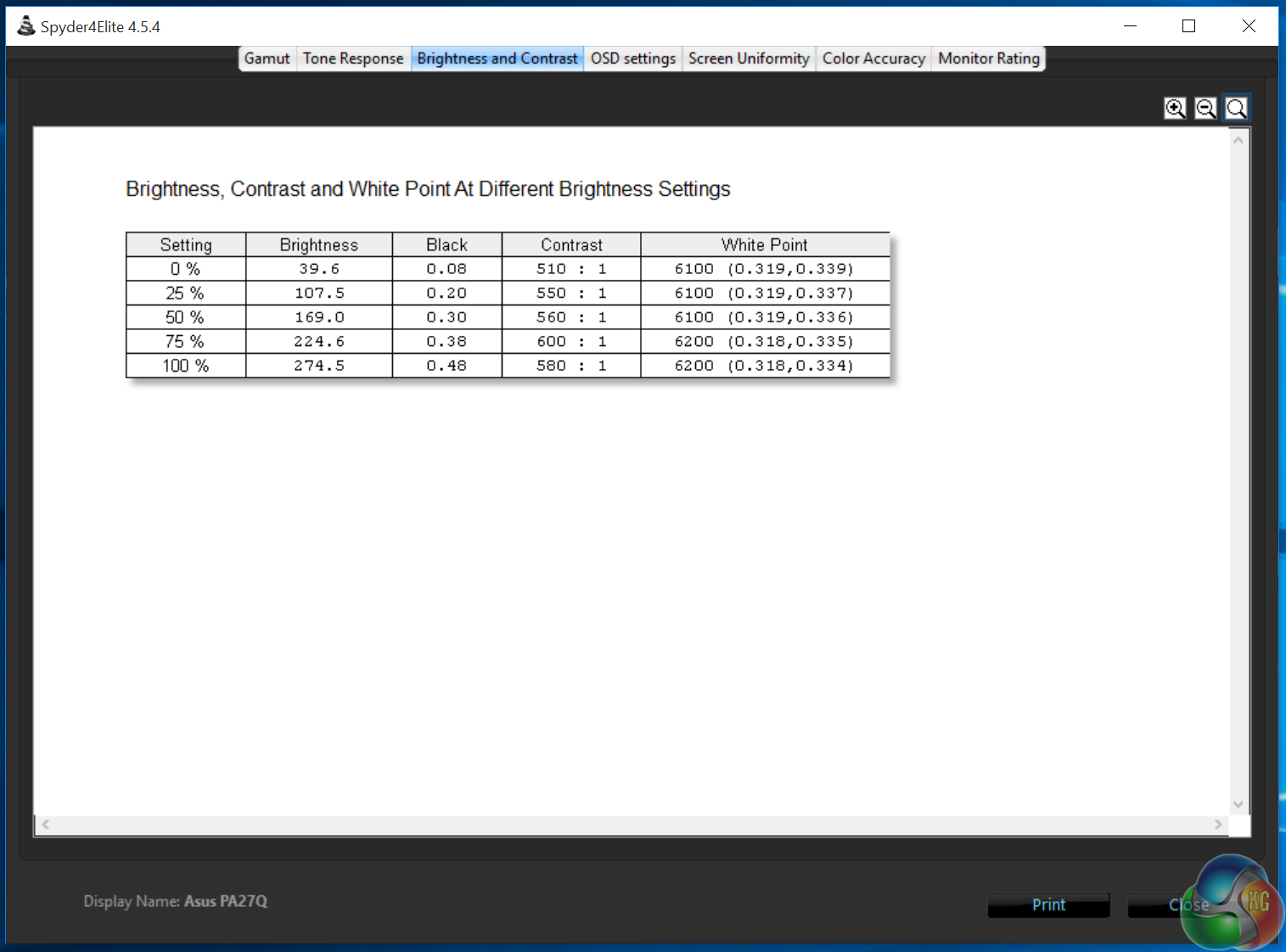
The measured brightness comes out slightly lower than Asus’ 300 cd/m2 figure, but after using the screen for a while, although the PG27AQ isn’t capable of retina-burning brightness, it does not appear dull or washed out in any way. We spent a lot of time testing it with various images, web pages and playing games.
The 550:1 contrast levels are noticeably spectacular though, with some very deep blacks that enhance dark areas in games. The white point is at 6200K, while the black point is 0.48, fairly average for a gaming display.
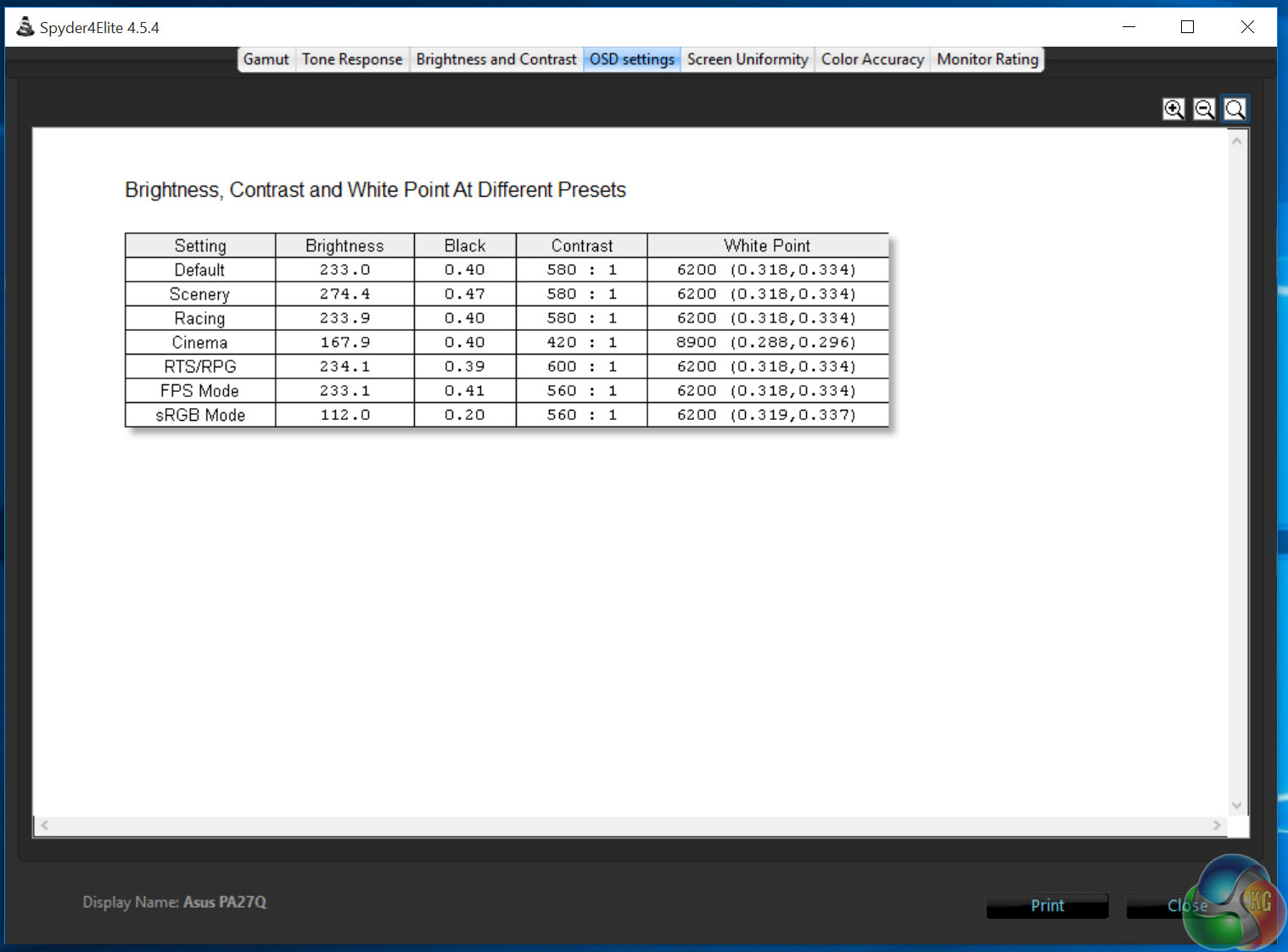
The GameVisual OSD presets show a lot of variation. The sRGB mode does darken the screen a bit, and the RTS mode looks very good.
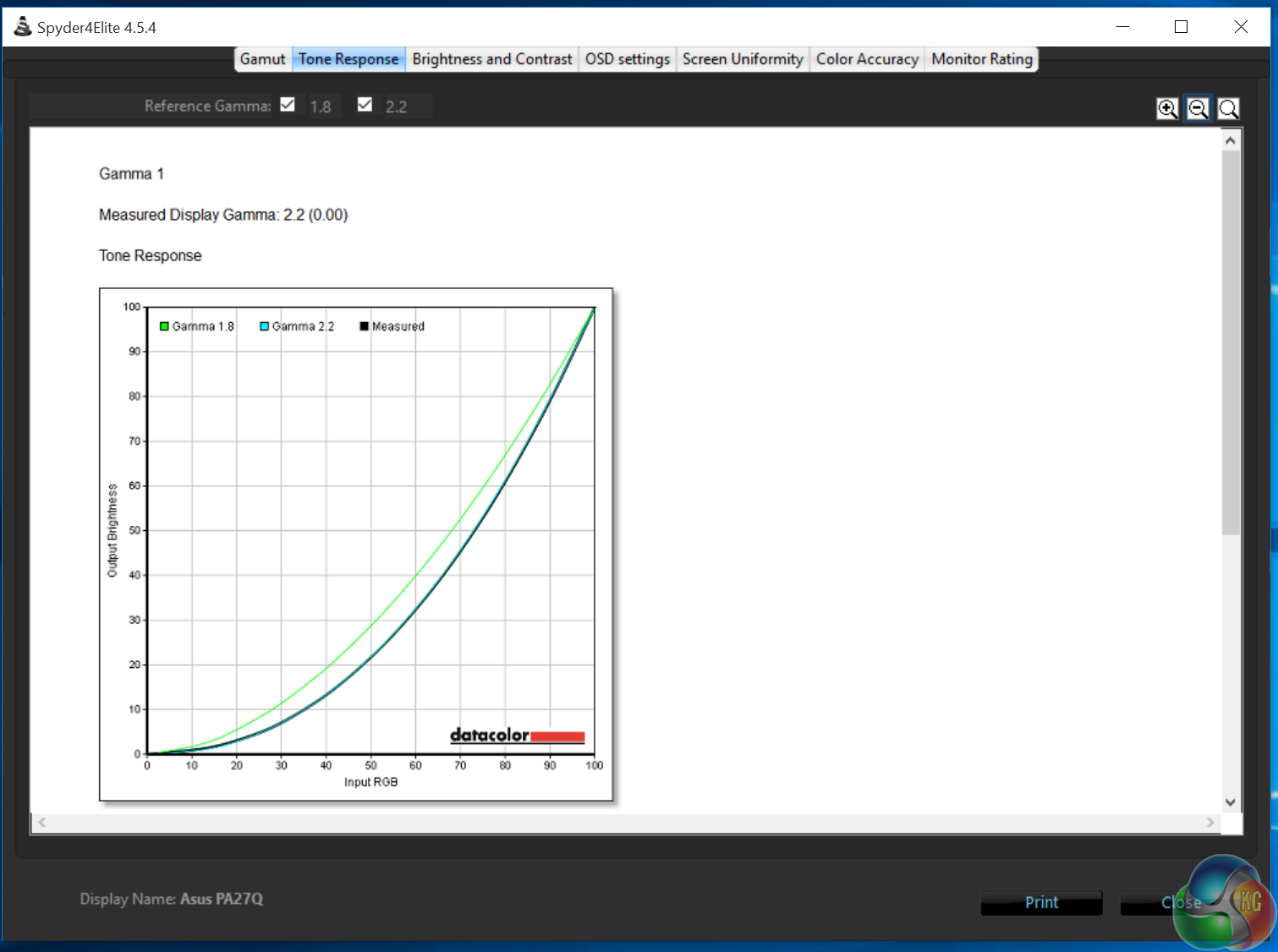
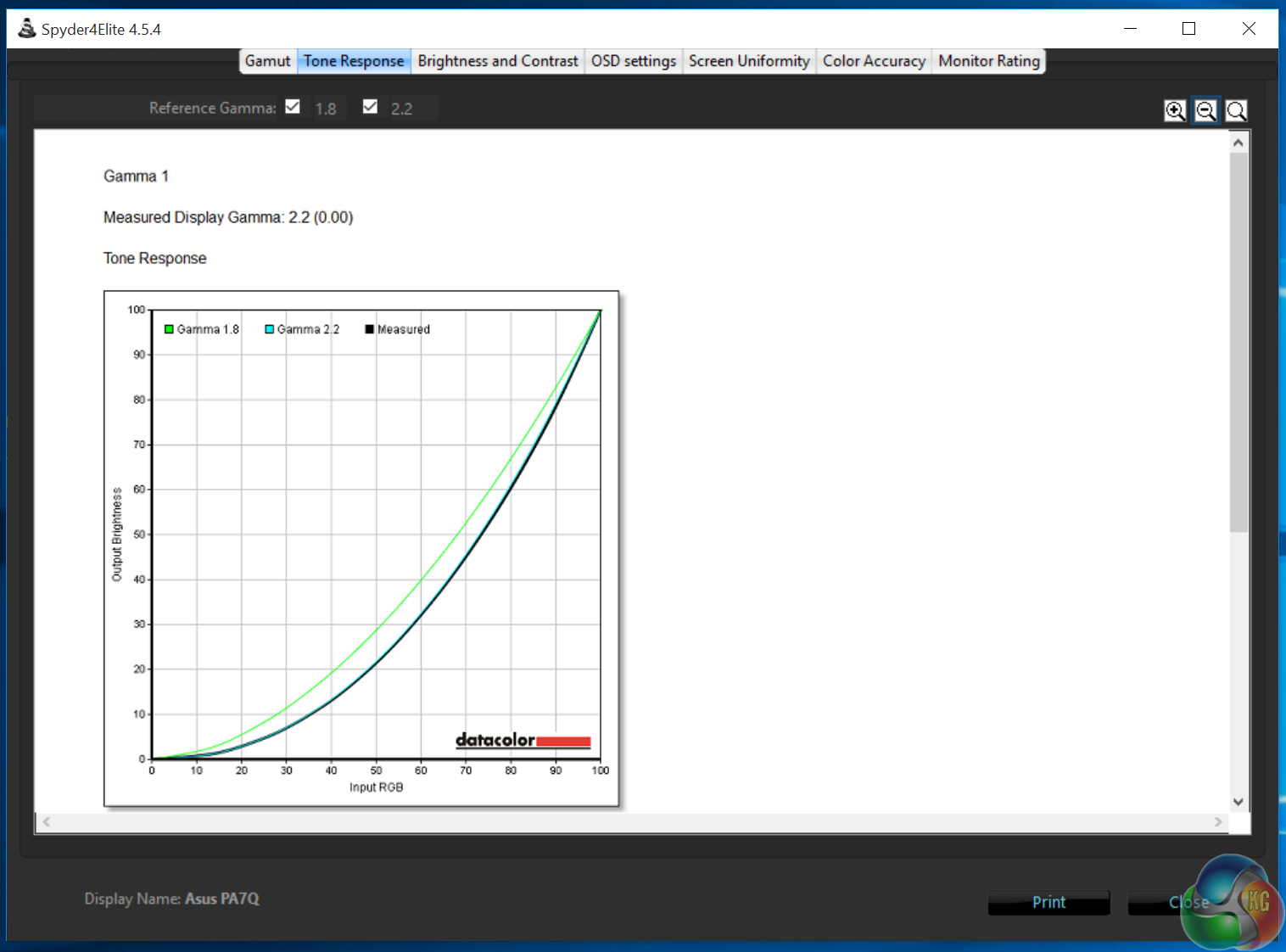
The default gamma, which cannot be adjusted, is bang on 2.2
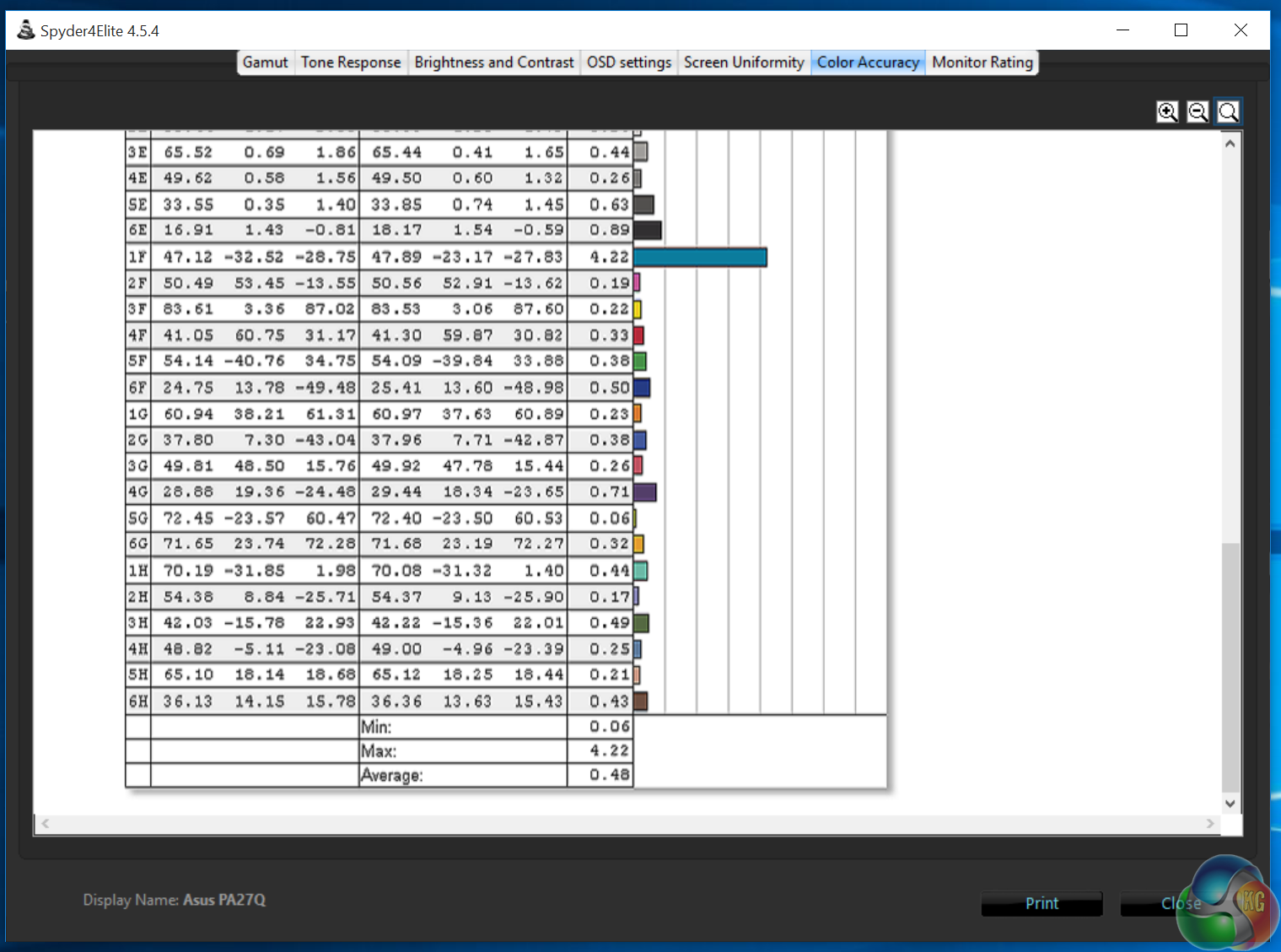
And lastly, we get a colour accuracy result with a Delta E under 1, superb for a gaming display.

The brightness uniformity is all over the place with a gradual shift in brightness from the top to the bottom of the screen. It would be a serious concern in a display aimed at graphic designers, but this is perfectly acceptable here. And really, isn’t at all noticeable.
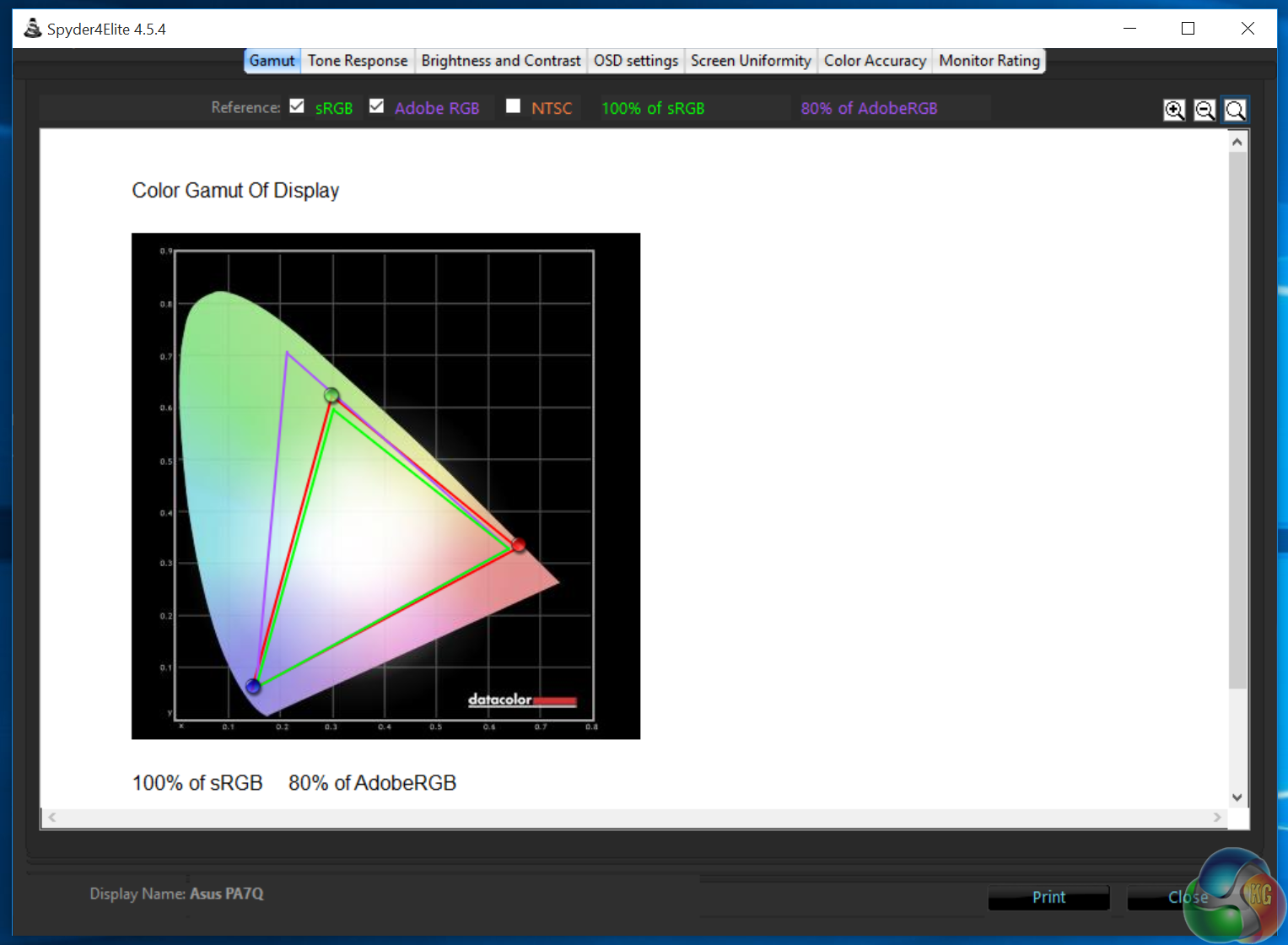
Once we’d calibrated the screen, the Adobe RGB increased slightly to 80 per cent coverage.
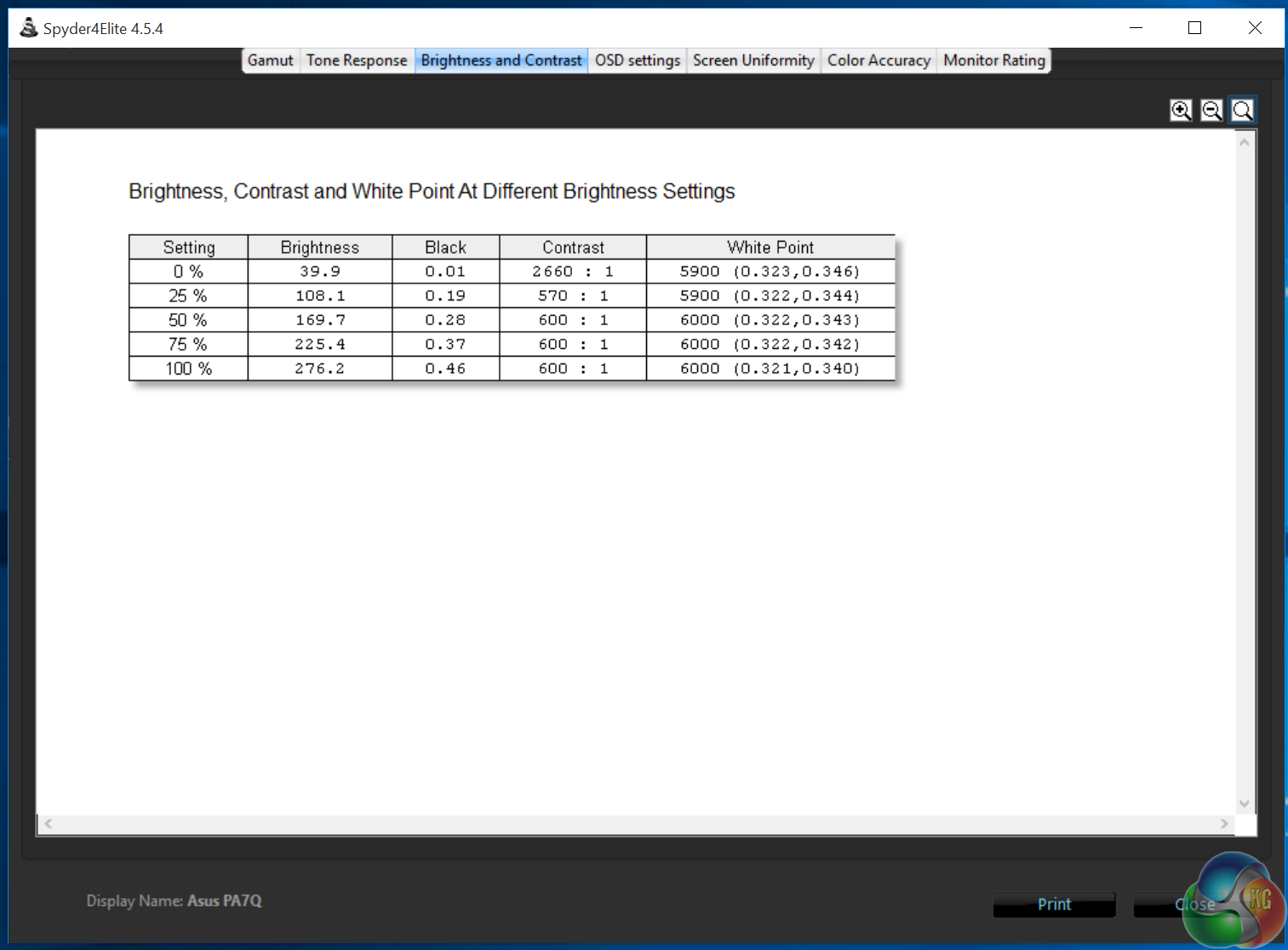
Brightness and contrast are roughly the same
As is the gamma level.
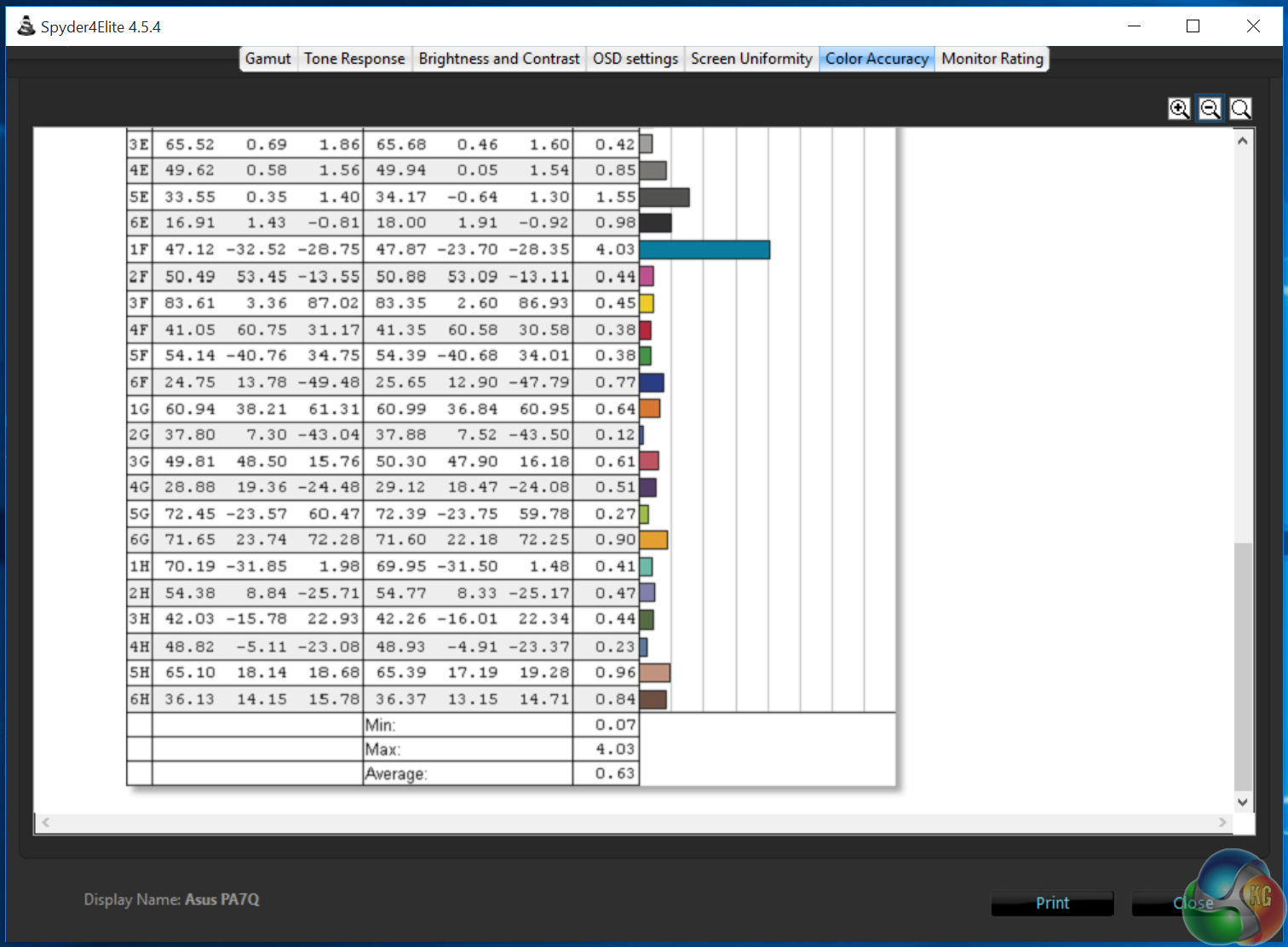
The colour accuracy remains under 1, although notably increases slightly over the factory configuration, although this is such a small difference it could be explain as with the margin of error.
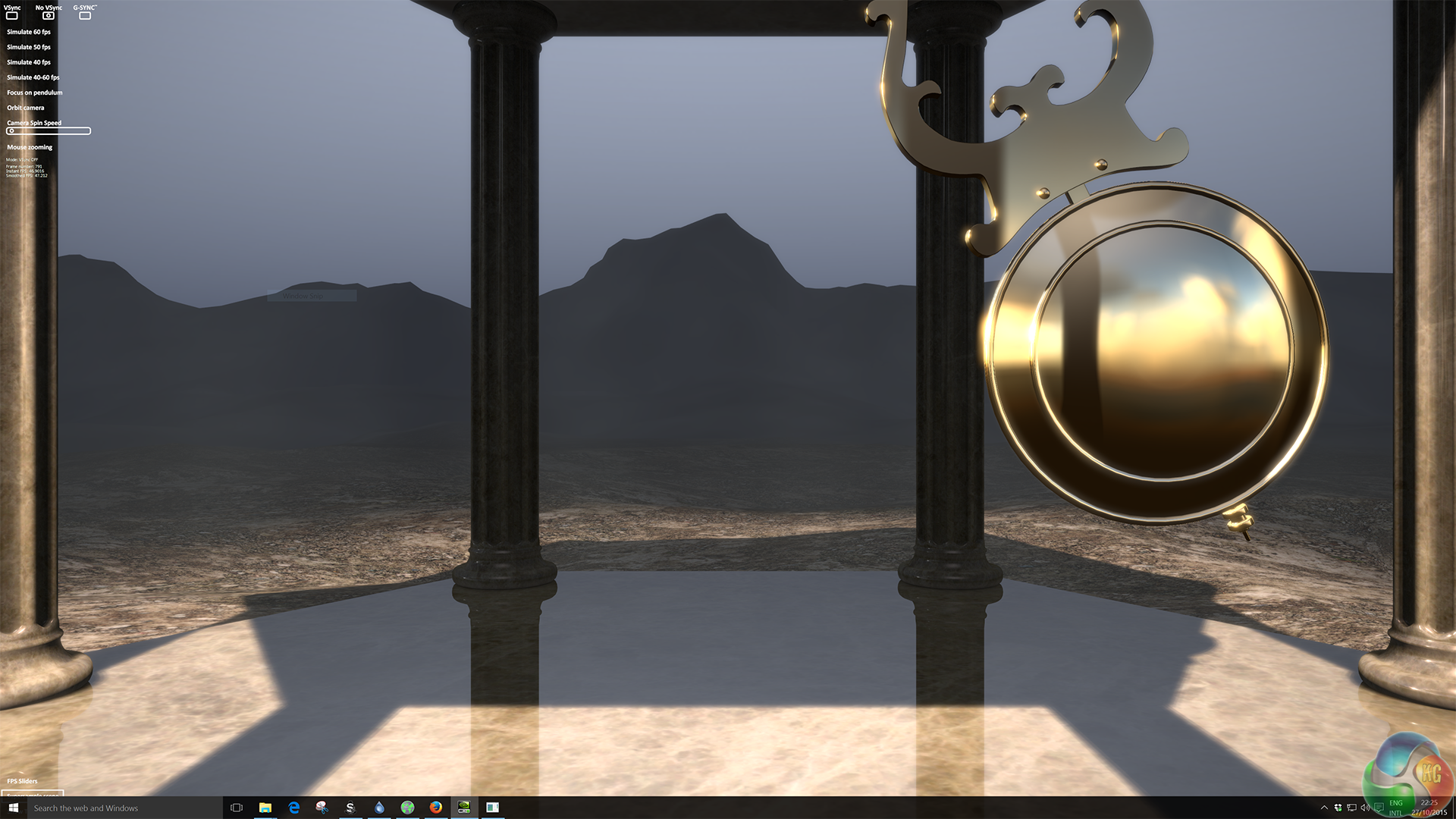
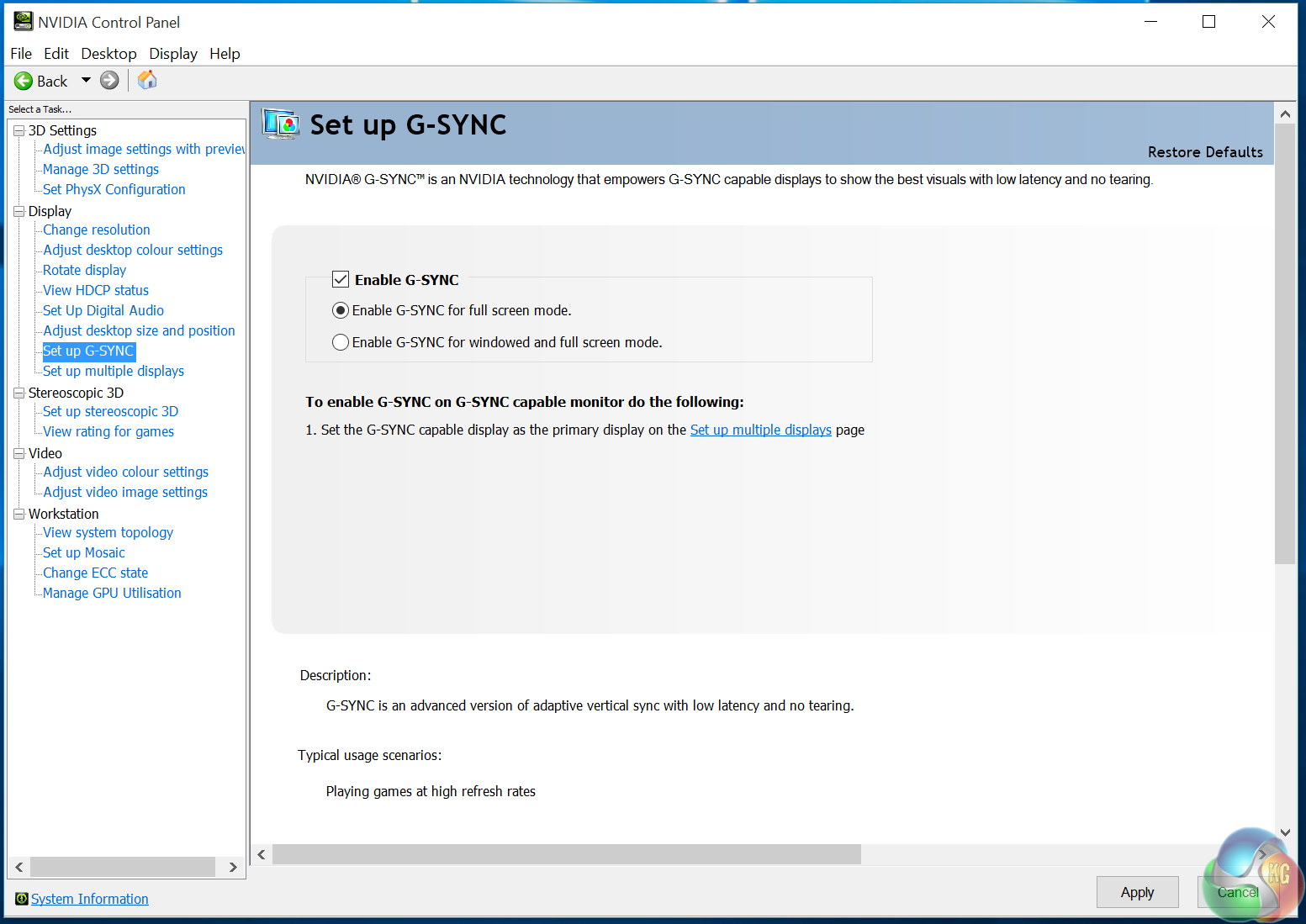

Of course, we also tested the PG27AQ with 3D applications and games to see how well its G-Sync feature worked. The first way is with Nvidia’s Pendulum demo, a scene with a pendulum swinging. With G-Sync disabled, its motion causes severe screen tearing, but this glitch goes away when G-Sync is turned on. And with the PG27AQ this effect was very noticeable and worked well.
We also had a go with Battlefield 4, still a relatively modern and demanding game. What’s notable is that, even on a GeForce GTX 970, for a solid frame rate at 4K resolution that never dropped below 60fps, we had to reduce the game’s detail settings to medium, with it dropping below 60fps at ‘High’ detail in some of the more busy scenes.
With G-Sync turned on, gameplay with medium detail settings in Battlefield 4 was fast and fluid at 4K, as expected, with no screen tearing or jitter.
We ran into a small technical issue with the PG27AQ. Switching between HDMI and DisplayPort would occasionally cause the buttons to stop responding to presses. Every time it happened it was right after we had used an HDMI device. This could be just a glitch with our review sample though, and possibly connected to the HDMI Deep Sleep setting in the OSD.
Lastly, we measured the power consumption, which we expected to be higher than a standard 1080p display, given the higher number of pixels to illuminate. The reading was 47.7 watts, more than most displays but not particularly high for a 4K screen.
There’s so much to like about the Asus ROG Swift PG27AQ. First off, it’s great that it’s an IPS panel. Despite the lower response times of TN technology, in a side-by-side comparison, IPS wins every time. The superior viewing angles, and the generally better overall picture quality are preferable, so we’d always choose an IPS display over TN, given the choice. To now have that with 4K and G-Sync is great.
G-Sync only goes up to 60Hz with the PG27AQ so the effect isn’t quite as striking as on a 144Hz display, but gaming at 4K with the smooth tear-free animation of G-Sync was still a great experience. Battlefield 4 ran as superbly as we could have hoped and having G-Sync enabled really enhanced the experience.
In general, the picture quality is superb. We recorded some great colour accuracy results, a low black point, and a gamma of 2.2 that was precise, even in an uncalibrated state. And don’t forget that Delta E result below 1.
We recorded a low figure for brightness in our testing, but to reiterate, the PG27AQ does not appear dull or washed out in any way and this is not an issue.
The Spyder 4 measures a screen’s maximum brightness value, a setting that a user may choose to reduce anyway.
The contrast levels make up for it. With 550:1 ratios it looks impressive in our testing, but subjectively, in person the PG27AQ looks really good. We played games on it for quite some time and it was hard to go back to the picture quality of an older display with worse contrast.
Even so, the PG27AQ is most definitely a gaming display rather than one for graphic design. The low brightness might be an issue for artists, but the lack of multiple gamma settings is likely to more of a problem. For those users, a ProArt display is a better choice from Asus.
Possibly the deal breaker for graphic designers is the poor brightness uniformity we recorded, with serious deviation across the panel, worse than other screens, with some backlight bleed in the bottom right as well. Both of these are unforgivable in a display aimed at graphic designers, but again, it’s not an major issue with a gaming display.
That said, it still offers great colour accuracy and a 10-bit panel though.
The build quality is as good as you could hope for. The red illuminated logo and ring around the stand are a bit of a gimmick, but the thin bezel and the stand’s ability to pivot and rotate are excellent. We generally prefer internal power supplies to the external one that comes with the PA27Q, but even that has a very stylish look.
Even the speakers are just right. At no point did they sound tinny, and bass comes through clear, although as you might expect, it isn’t particularly loud as they are still just monitor speakers.
The Asus OSD and its associated joystick control on the rear of the screen is another plus point for the physical design, and its probably the best OSD control system on the market. One quick tap brings up the various menus, and another hides them again. There’s very little lag. It’s the best we’ve seen on any display.
The OSD also looks good, it’s fast, as simple as it needs to be, which makes it very easy to navigate, and it stays out of the way. A number of other manufacturers make a good effort with their OSD, but many others fall short, while Asus is far ahead in this area. One thing we would have liked is the ability to customise the shortcuts, to add frequently used functions to the buttons, and maybe a few more options like gamma controls might have helped too.
There are a few other minor criticisms. Due to technical limitations, Asus has had to cut support for 3D Vision and ULMB (ultra-low motion blur), which will be annoying for anyone who particularly likes either feature. According to Asus, ULMB wasn’t possible with a 4K G-Sync device.
The 60Hz G-Sync limit might put some people off, if they want a super-fast refresh rate for gaming performance. A current 144Hz model from any manufacturer will certainly enhance the adaptive-sync effect, but up to that 60Hz limit, it still works very well on the PG27AQ. But as we explained, 4K at 144Hz is not possible until DisplayPort 1.3 hardware hits the channel.
For them, Asus has another new screen, the 1440p PG279Q, which runs at up to 165Hz, offering just enough bandwidth to squeeze into a DisplayPort 1.2 cable.
And there’s another fairly good reason to not worry too much about 144Hz 4K performance – few people have a rig to run the most recent games in 4K at that frame rate, at least with all the detail settings turned up to maximum anyway.
Potentially, 4K at 27 inches has a PPI that’s a bit too low to comfortable. Windows 10 addresses this issue and automatically increases the size of text and icons to fit a screen resolution, which works well, so you don’t really notice this, but 4K is always more impressive on larger screens, so we’d love to see Asus come up with a version of this screen with a screen size of 32 inches or more. The PA32AQ? You read it here first.
And while it’s great to see Asus has gone to every effort to provide more than just a single DisplayPort connector, we just want a full quota of inputs like on any other display. It’s embarrassing that such expensive screens are limited in this way, when a cheaper monitor isn’t, but Asus has recognised this and at least gone to the effort of adding a circuit for HDMI, something absent from most G-Sync displays at the moment.
The price is perhaps the last thing to mention. At £799, the PG27AQ is unfortunately out of the reach of many gamers. Asus is not really overcharging for the PG27AQ as it offers a wide and unique set of features that go a long way towards justifying the expense, but it’s still beyond many people’s budgets.
But many of the best things in life unfortunately aren’t free, and the PG27AQ offers the best experience of 4K gaming we’ve yet seen. It’s worth the extra money.

Buy from Overclockers UK for £799.99 inc vat HERE.
Discuss on our Facebook page, over HERE.
Pros:
- 4K, G-Sync and IPS are a unique combination.
- Brilliant OSD design.
- The joystick makes navigation easy.
- Superb contrast level.
- 10-bit colour support, 4ms response time, flicker-free panel.
Cons:
- High-end pricing for a high-end monitor.
- Not as bright as competing displays.
- No Nvidia 3D Vision, or ULMB.
Kitguru Says: The PG27AQ is the best 4K gaming monitor on the market.

For 4K @ 144Hz, they can just add second DP 1.2, similar to 5K displays. Could be more future proof, as most cards have multiple DP outputs.
The initial 4K displays used multiple displays inputs and that didn’t work well at all. Loads of problems with tearing and such.
Wasn’t that because the displays were set up to treat the 4K screen as two separate “halves”?
Yeah, and that’s what you’d have to do with TristanSDX’s solution.
Weren’t the early panels physically 2 panels though? I seem to recall hearing that the split wasn’t just logical, that a single 4K panel was too expensive to make back then so two cheaper 1920*2160 panels were stuck together in a single frame to make it work.
Why couldn’t the bandwidth provided by the 2 DP cables be aggregated without having to virtually split the screen into two halves?
Leo should have done a video review of this.
Any way to get this in the USA yet???
You can get it now at Newegg. And some time soon Amazon will have it in stock.
You say that gsync effect is striking at 144hz and less so at 60hz? 144hz does not and never has needed adaptive sync to make it impressive. I really wonder if some of the people singing gsync praises had ever used a high refresh monitor before they tested gsync. All the explanations of the benefits gsync has at 120hz and above are actually the benefits of 120hz and above.