 KitGuru KitGuru.net – Tech News | Hardware News | Hardware Reviews | IOS | Mobile | Gaming | Graphics Cards


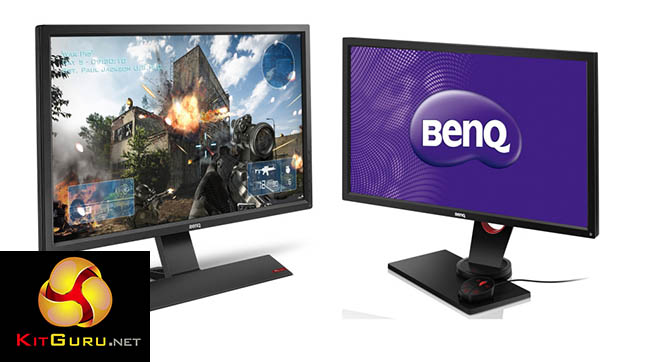
The BenQ RL2755HM is a 27-inch gaming display with a TN panel and a 1ms G2G (grey-to-grey) response time. BenQ talks up its gaming credentials for both PC and consoles, thanks to its dual HDMI ports and a few ergonomic tricks such as an extendable headphone rest and a stand that’s shaped for gripping joypads. With a price that’s reasonable and competitive with other 27-inch screens, the RL2755HM is certainly worth a look if you’re after an affordable gaming display.
We’ve seen some great displays from BenQ recently. The company’s high-end 4K BL3201PT treated us with superb desktop picture quality, good gaming performance and an excellent design.
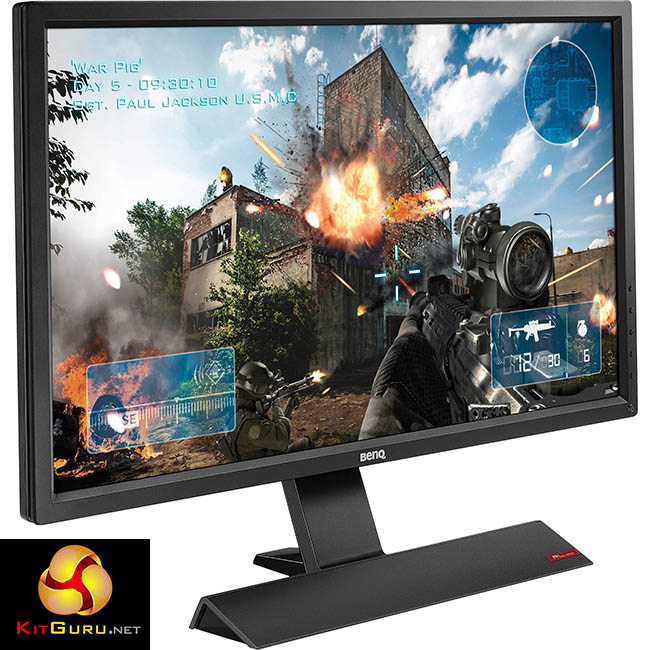
The RL2755HM is aimed at the opposite end of the market. It’s far more affordable, and has a 27-inch screen rather than 32-inch. Based off TN panel technology with a 1ms response time, it’s a display that’s intended squarely at gamers, with features that will appeal to players of both console and PC titles.
This includes small additions such as the extendable headphone rest built into the side, and the rubber grip on top of the stand to hold joypads in place. There’s also a list of preset colour settings for specific types of game, which BenQ says have been developed with the help of both colour experts and pro gamers.
Many gaming enthusiasts play both PC and console games, so for some, a big consideration when choosing a display is the variety of inputs. Dual HDMI means, in addition to having a PC connection, you could plug in a Nintendo Wii U and an Xbox, and so on.
It’s only a 1080p panel though, when many displays of this size support WQHD (2560 x 1440) resolution. This might mean the Windows desktop icons are a bit too big for comfort, but depending on your taste, it may be just right for you.
Its viewing angles are quoted as 170 degrees horizontal and 160 degrees vertical, fairly typical of a TN panel.
There’s also a pair of built-in 2 watt speakers, another major consideration for a display intended for gaming. Many gamers rightfully shun built-in display speakers and rely on an external sound system, but it’s still very useful to have them included for situations when external sound isn’t available.
Featuring the company’s now-familiar design black appearance, with a subtle hint of red, the RL2755HM looks really good as well.
BenQ RL2755HM features:
- Ultra-Fast 1ms GTG Response Time
- Bringing Everything Together to Complete Your Console Gaming Experience
Every detail about the RL2755HM screams out perfection for console gaming – even when it comes to storage for your gaming gear. The next-generation angular, compact base stand has been enhanced with slip-resistant rubber finish on the inner side to effectively grip your controller, so you can easily tuck it away and out of the way after each game.
* Dual HDMI for Added Flexibility
Equipped with two HDMI ports, the RL2755HM allows you to connect your game console and another HDMI device at the same time. So there’s no need to frequently plug and change your connection.
* Console Game Mode Colors
Gaming is in the details. Every feature and function of the RL2755HM is designed and tested by professional gamers and BenQ color experts to provide you with vital visibility and command for console gaming.
* 20-Level Color Vibrance Setting to Optimize Gaming Precision
It is absolutely vital that the RL2755HM give you the flexibility you need to get the color performance you seek. This is why BenQ built into the monitor 20 levels of Color Vibrance setting to meet gamers’ specific viewing requirements and preferences for all types of gameplay.
* Fighting Mode to Sharpen Your Focus
Absolute focus on characters is the key to master every fighting game. To optimize the gamers' chance of winning, BenQ invited fighting game legend, Justin “JWong” Wong of Evil Geniuses, to co-design the Fighting Mode.
* Low Blue Light as Eye Safety Precautionary Measure
Practice long hours with clear, comfortable vision or compete with top-notch vision condition with BenQ’s new Low Blue Light.
* Gaming-comfort Flicker-free Technology
Co-developed by pro gamers, the RL2755HM is upgraded to eliminate flickering at all brightness levels, effectively reducing eye fatigue herewith providing extreme comfort for even the most hardcore gamers after long hours of play time.
* Customize Your Individual Viewing Preference
The Display Mode and Smart Scaling features allow you to change the monitor view to suit your liking and to simulate any in-game experience.
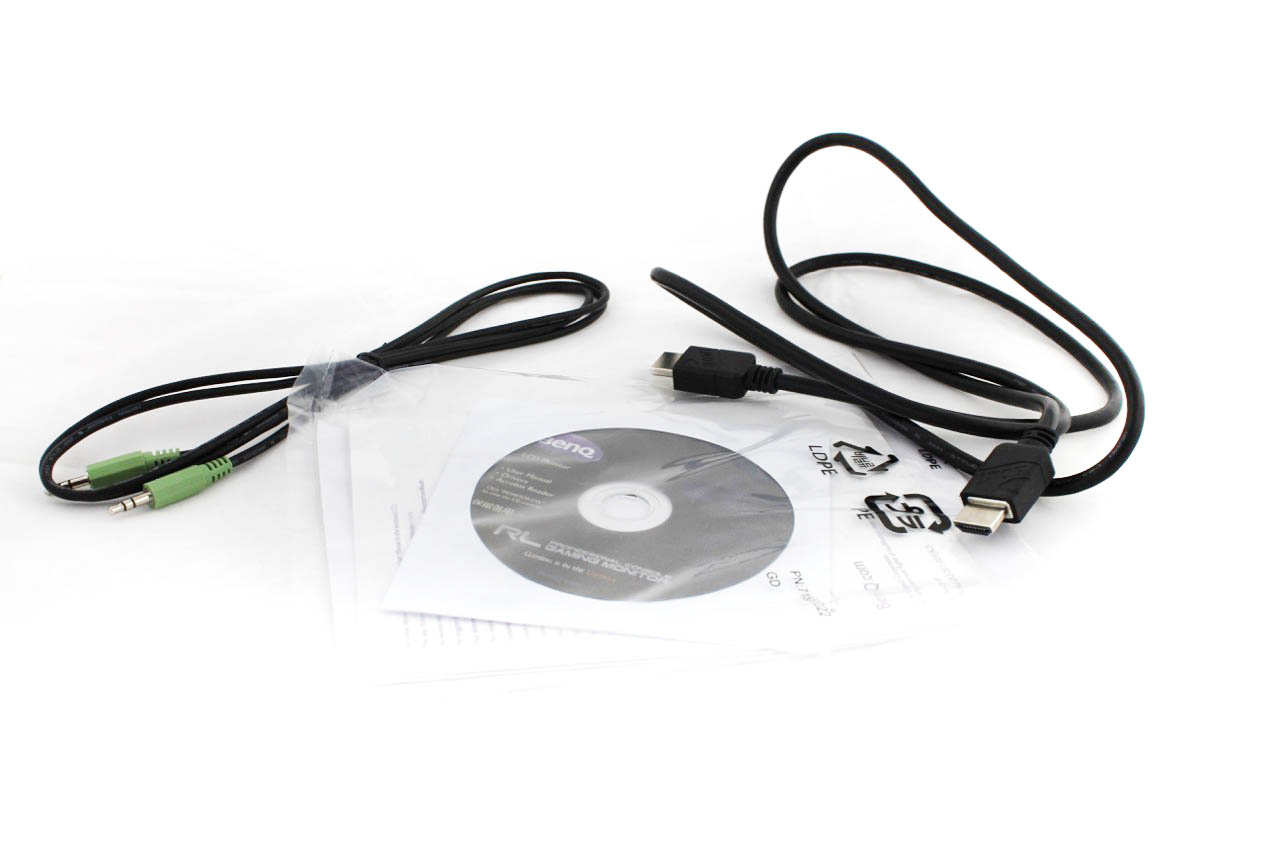
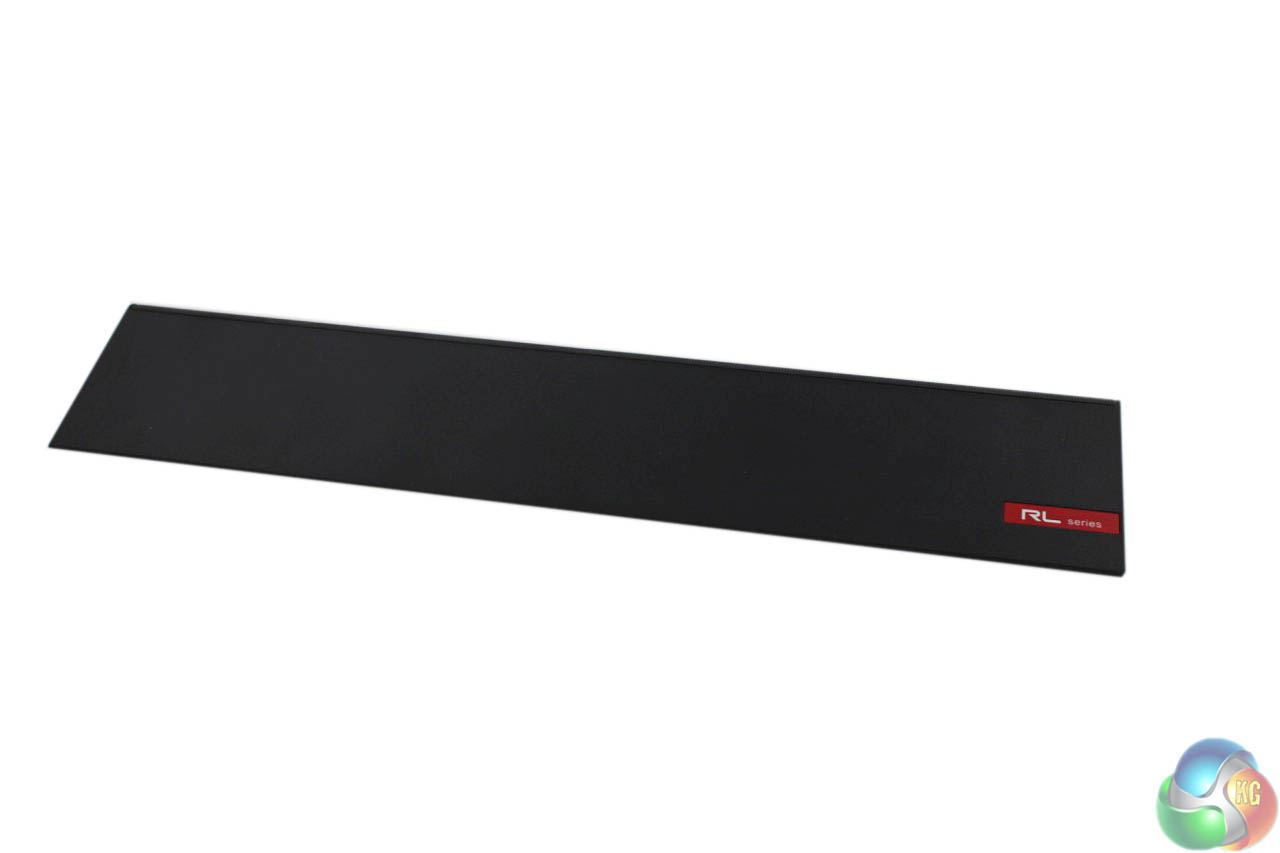
The RL2755HM review sample we were sent was light on accessories, with an audio passthrough cable, HDMI cable, power lead (not shown) and the manual and extra software on a CD, with only warranty information in print.
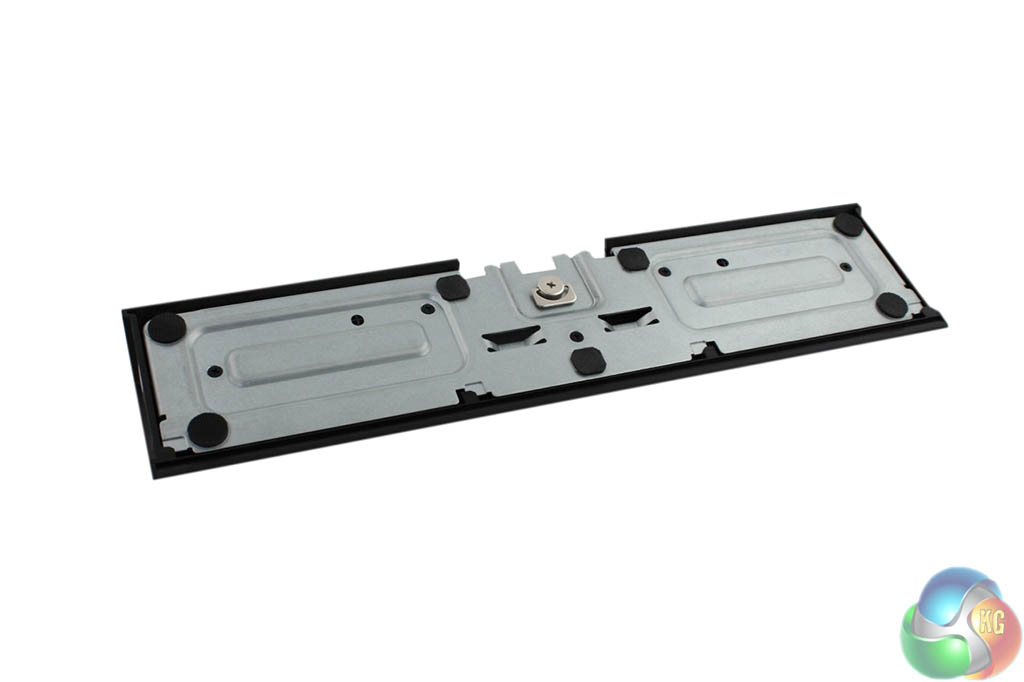
The stand comes in two parts – the main section and the base, which requires securing by turning a metal ‘key’ underneath it, as with many other monitors.
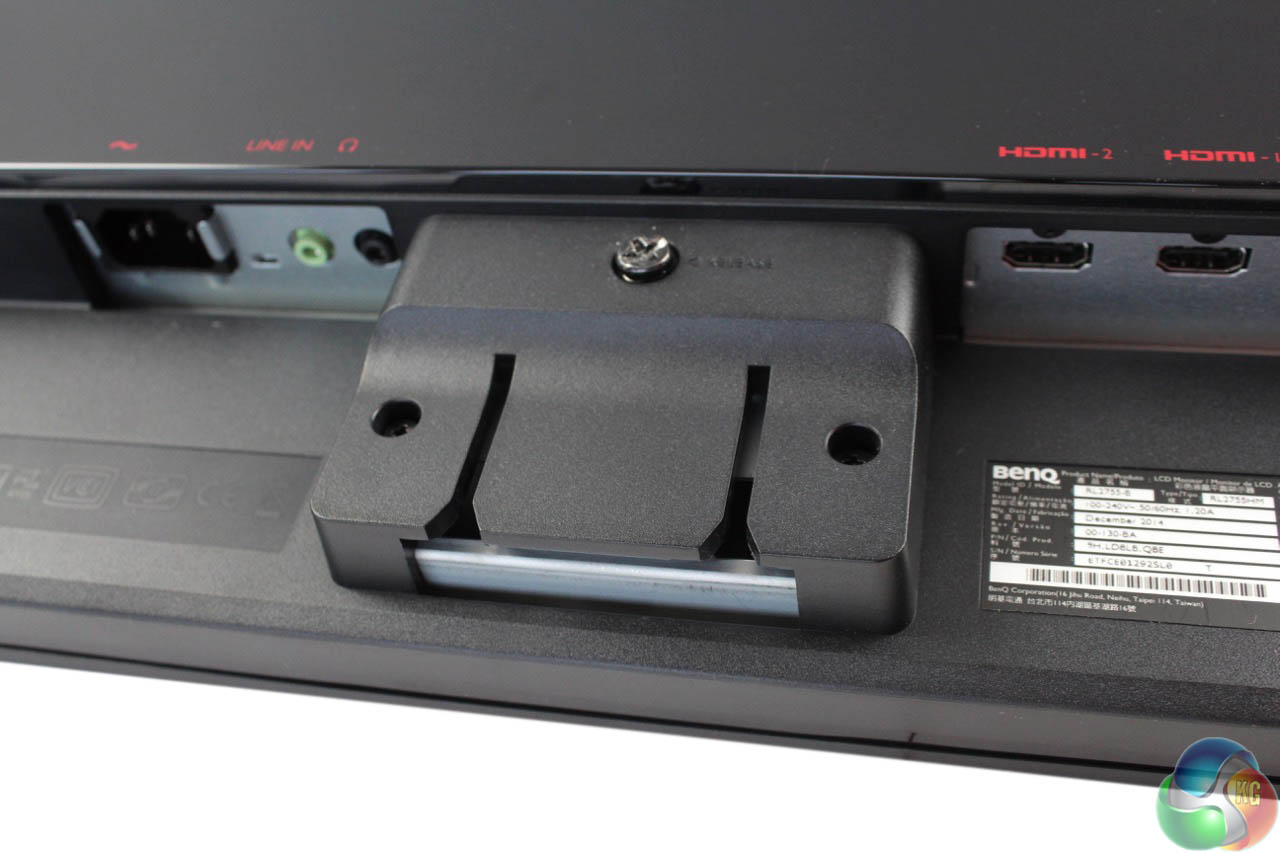
The stand then slots into a section at the back of the panel. It’s easiest to lay the panel down flat and push it in. It’s then secured by tightening a single screw at the back, which is best done with a flat-head screwdriver.
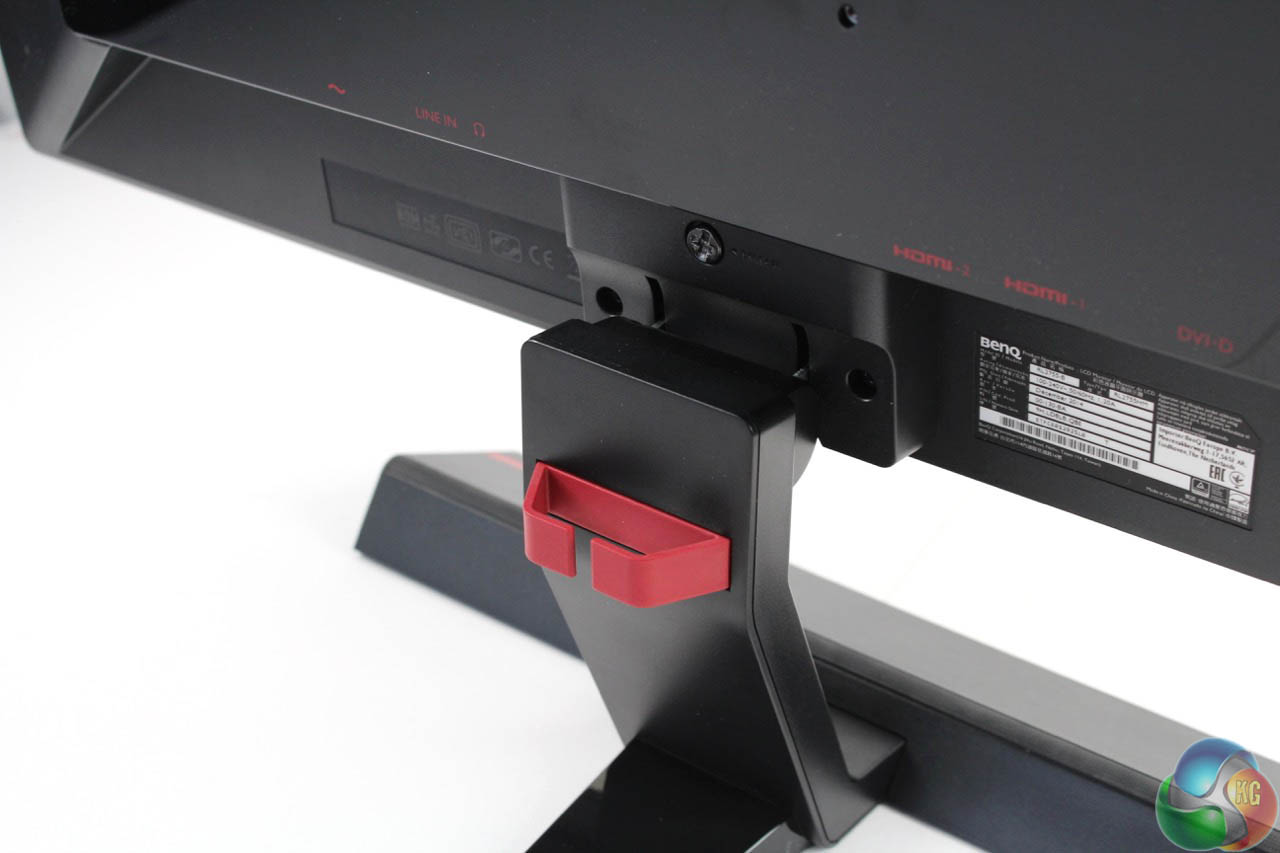
The stand has a cable management clip at the back and the aforementioned rubber grip for holding joypads in place.
It cannot be rotated or pivoted, and the height is fixed. However it can be tilted forwards and backwards from -5 degrees to 15 degrees, just slightly narrower than alternative displays.
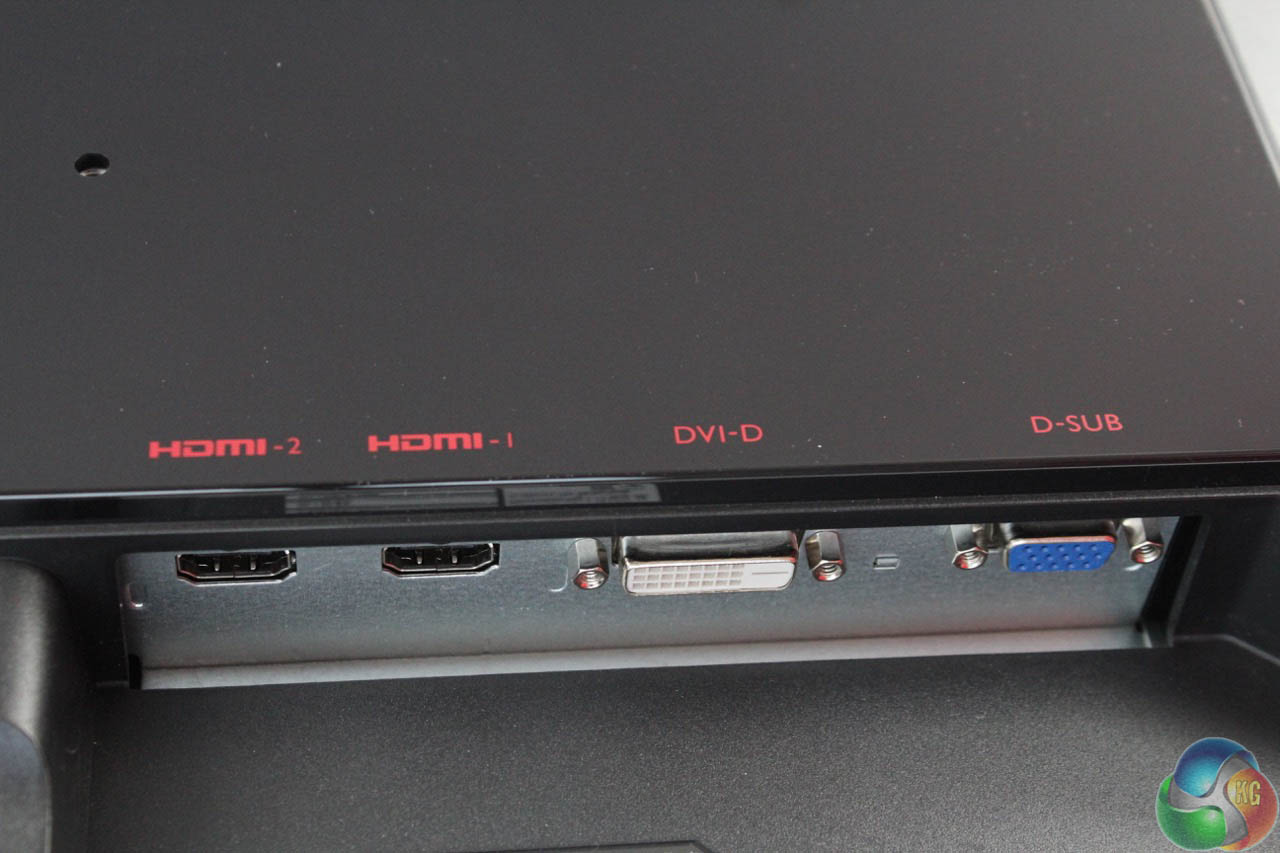
There are four video inputs on the underside the display: two HDMI, DVI and VGA. No DisplayPort input is present.
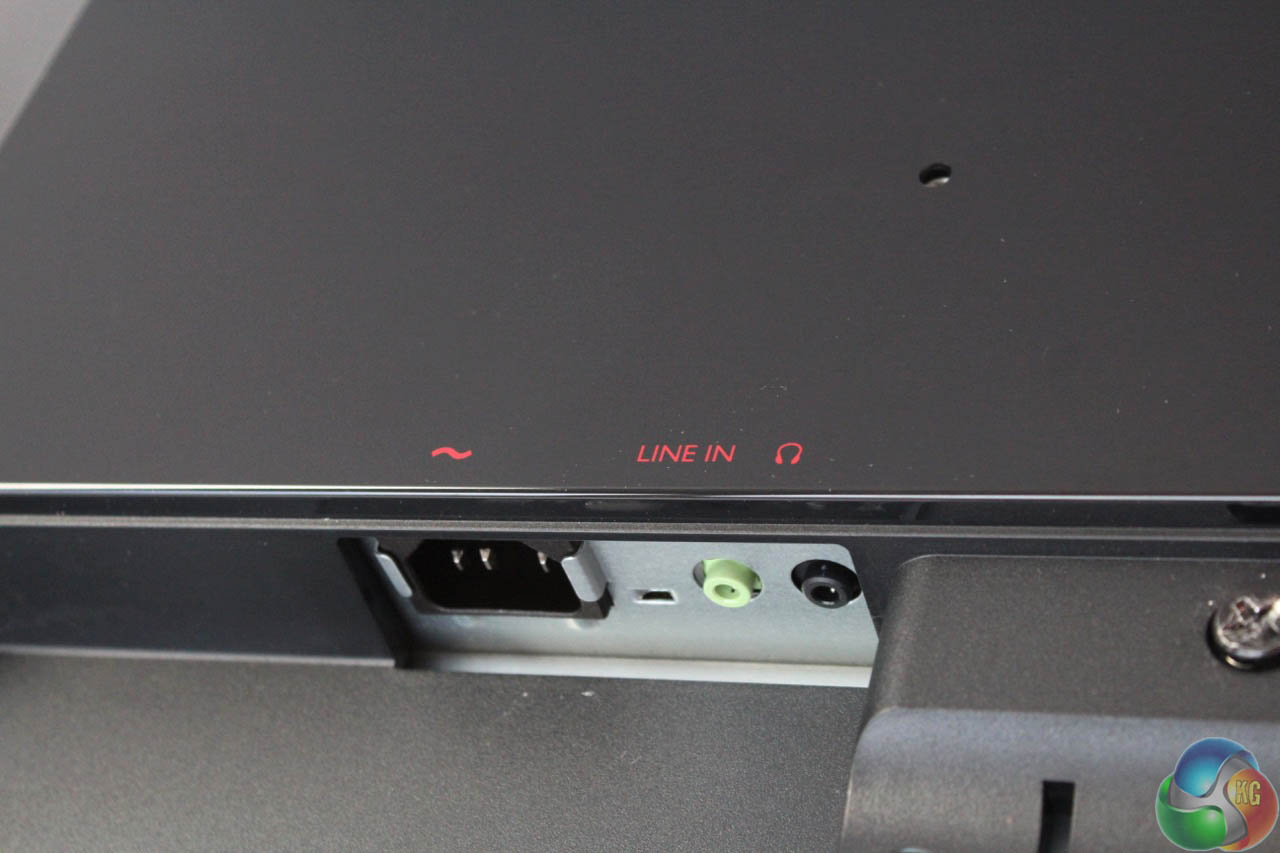
On the other side is the IEC power connector and 3.5mm audio jack, for connection to external speakers or headphones.
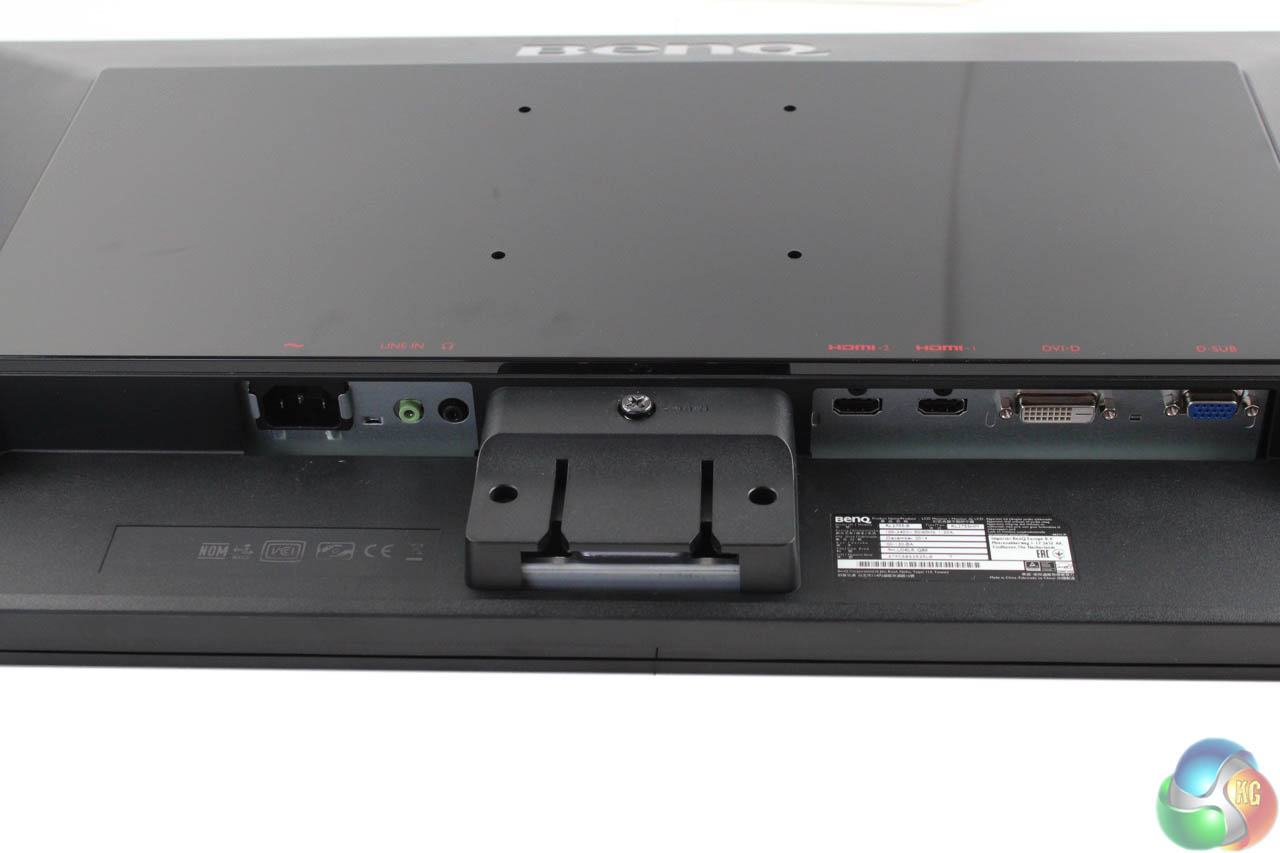
At the back of the panel are four 100mm VESA mounting holes
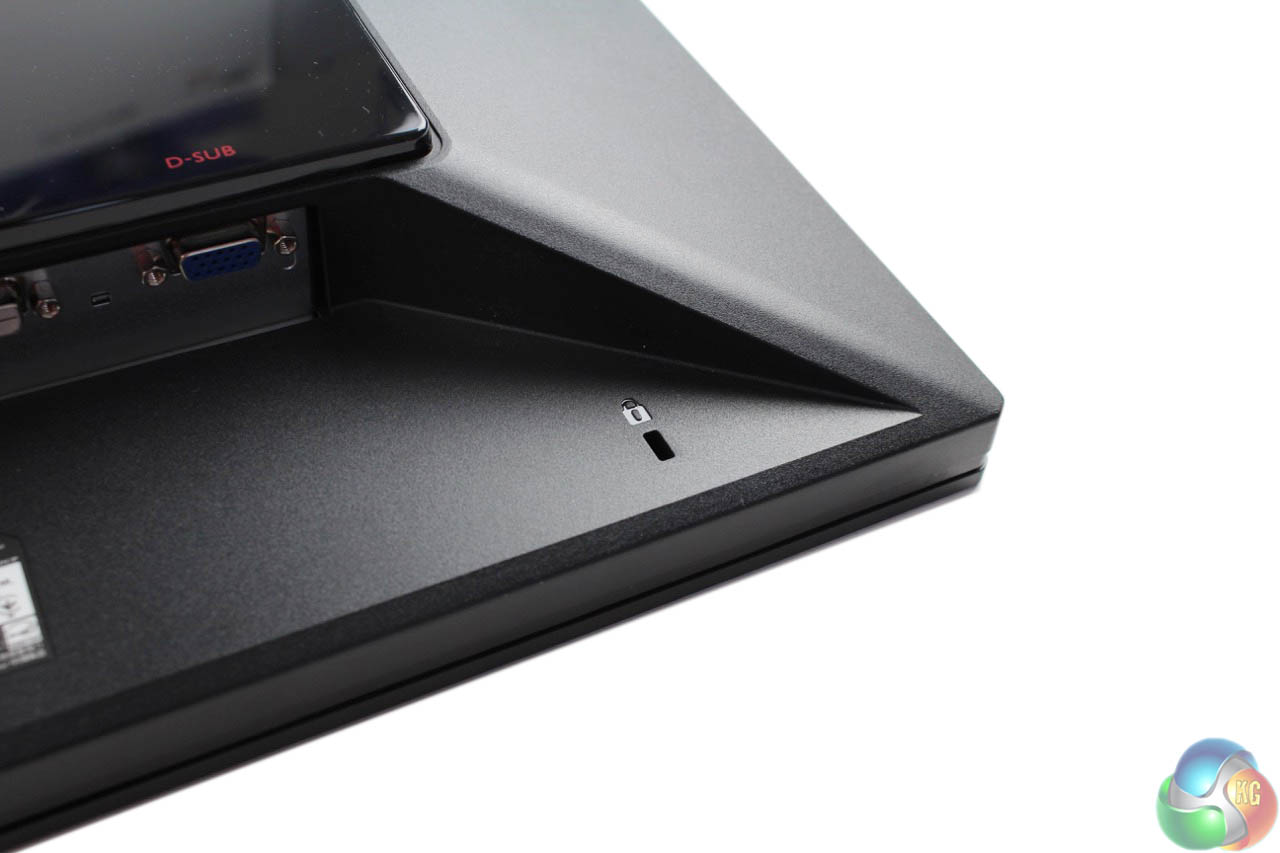
And a Kensington Lock in the lower right
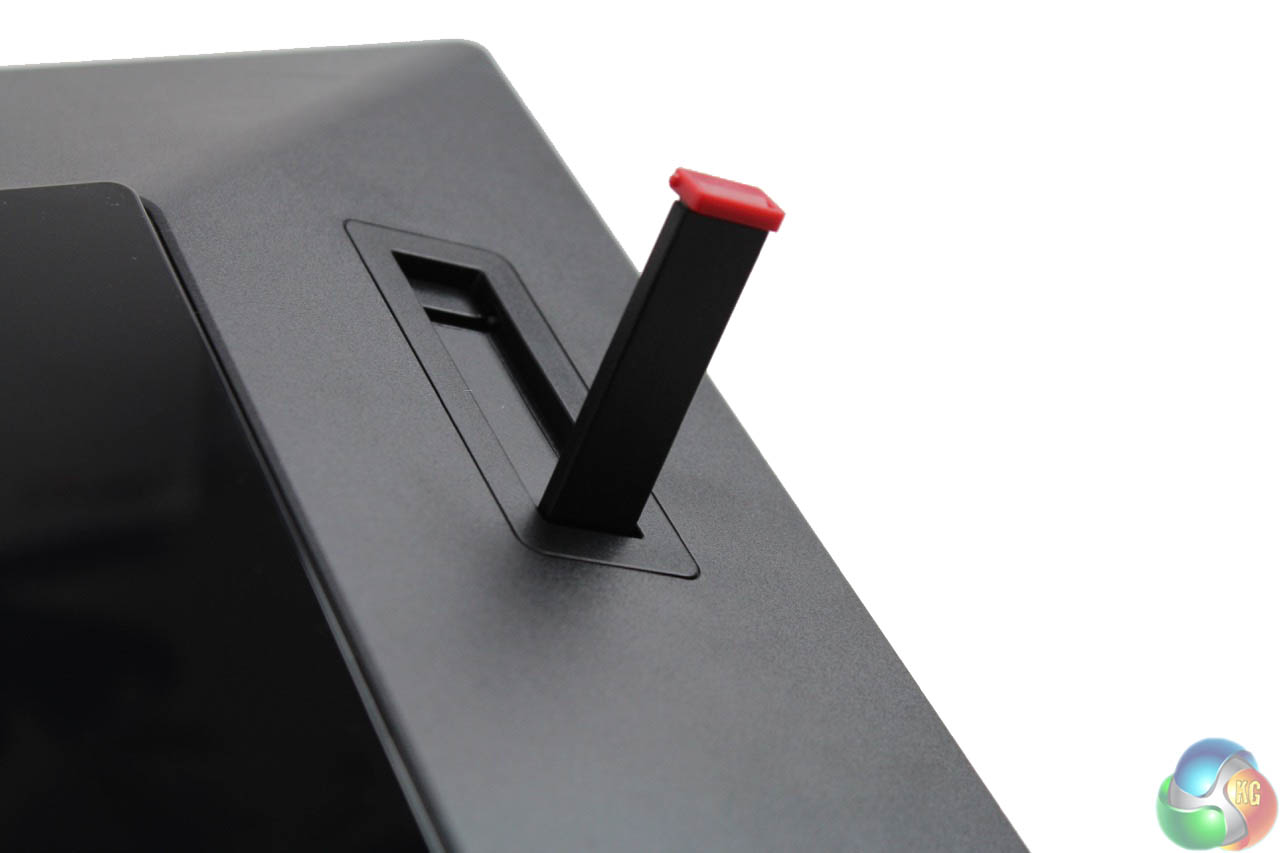
Above the lock is a piece of plastic that extends outwards, for resting headphones on, decorated in red and black, in keeping with the rest of the design.
As we’ve seen from the last few BenQ displays we’ve reviewed, they’re one of the few monitor firms to really put some thought and effort into the design of its on-screen display (OSD). A simple set of five physical buttons on the right-hand side of the screen allows for easy navigation, with a high contrast menu showing bold text on a black background.
Unlike some of the pricier BenQ displays, there’s no external remote control for quick access to the shortcut buttons, but plenty of effort has still gone into the OSD.
It’s not just the visual design that’s good, but also the ease of navigation through the various submenus. This not only makes it easy to get to any option in just a few button presses, but it’s nearly always obvious how to return to the previous screen.
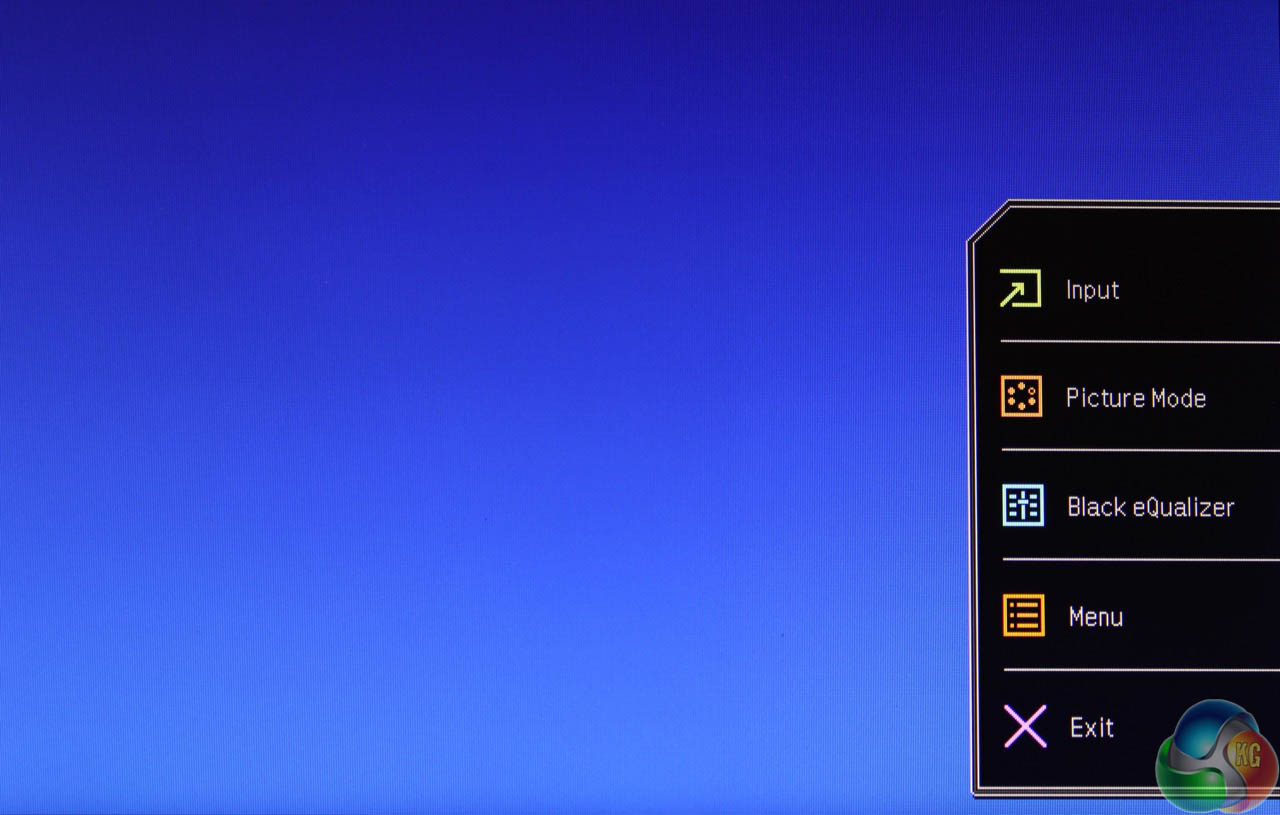
Pressing any of the buttons brings up a simple menu with five options: ‘Input’, ‘Picture Mode’, ‘Black Equalizer’, ‘Menu’ and ‘Exit’. A press of the corresponding button next to each option opens a further submenu.
In another setting buried deeper in the OSD, the middle three buttons can be customised to present a different set of options. We’re not too bothered about the ‘Black Equalizer’ setting for example, but thankfully this can instead be changed to adjust the volume or brightness.
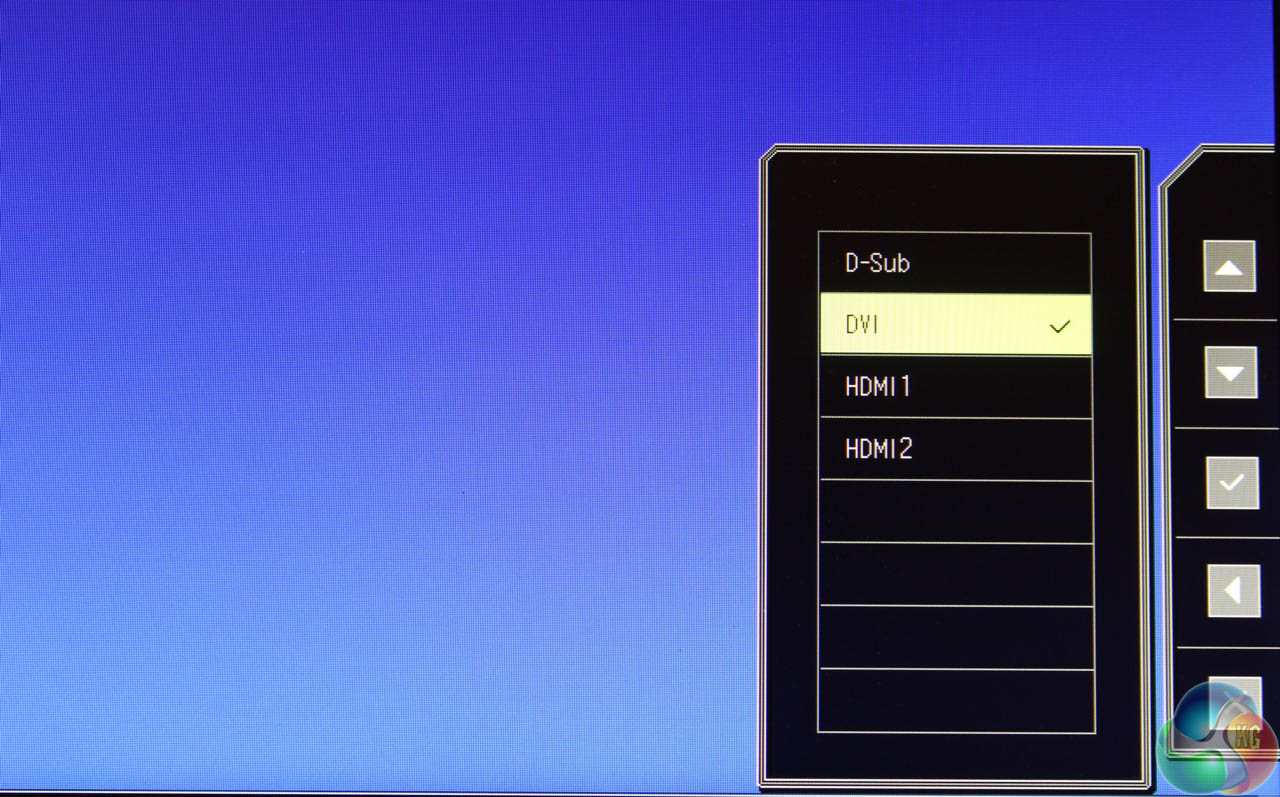
When you enter any of the submenus, a set of navigation arrows appear on the right. The buttons now let you move up, down, forward and back in the menus, and a tick and cross allow you to confirm or cancel any changes.
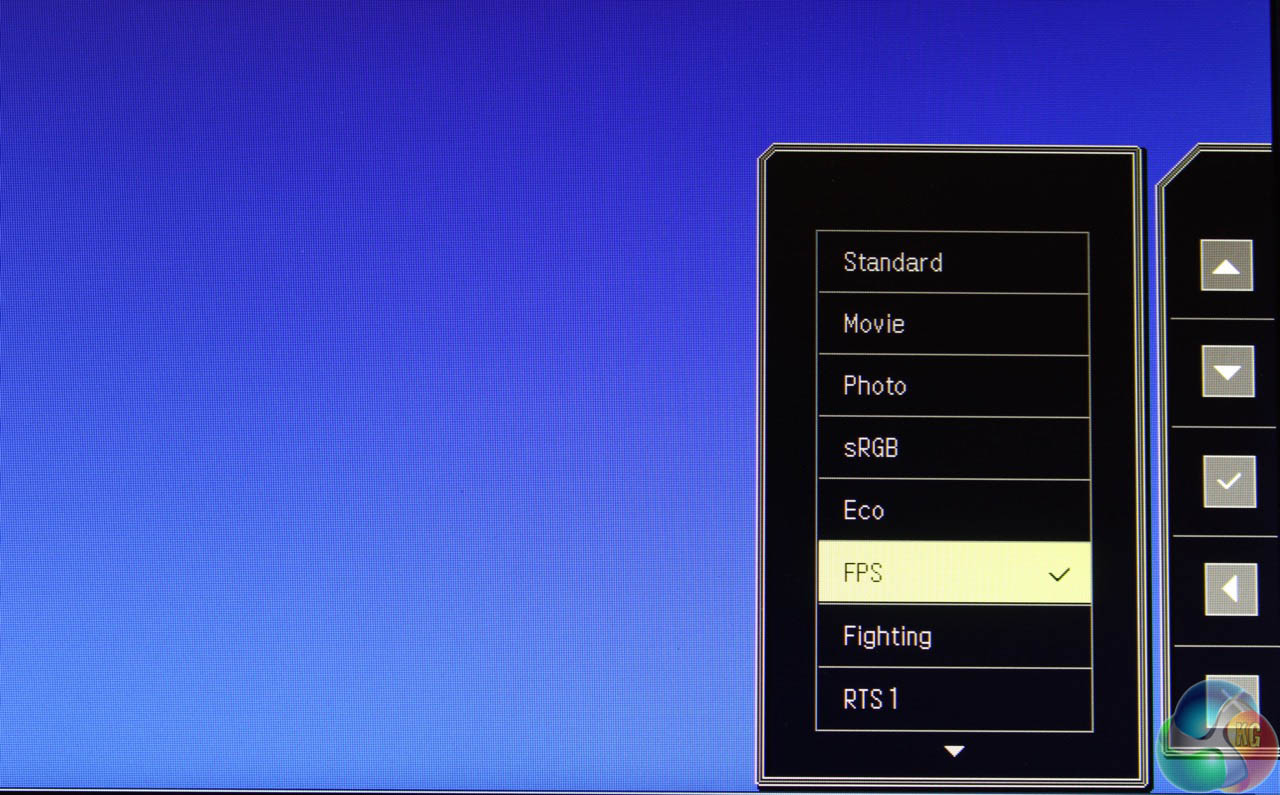
Pressing the second button down provides quick access to all the preset colour modes. BenQ includes a wide variety for many different genres of games. It’s a tad overwhelming, and although there are some big differences between them, in reality most users’ preferred colour settings will vary and could be happier playing an RTS game in ‘FPS’ or ‘sRGB’ mode than with the actual RTS option. It’s entirely subjective.
The default option is ‘FPS’ mode, indicating someone at BenQ assumed (perhaps wisely) that the vast majority of PC gamers will be playing this genre of game.
As such, we ran most of our tests of the RL2755HM using this setting as its out-of-the box default. For some of the other tests such as the Gamma settings (more on this later) we had to enable the Standard mode to enable the option.
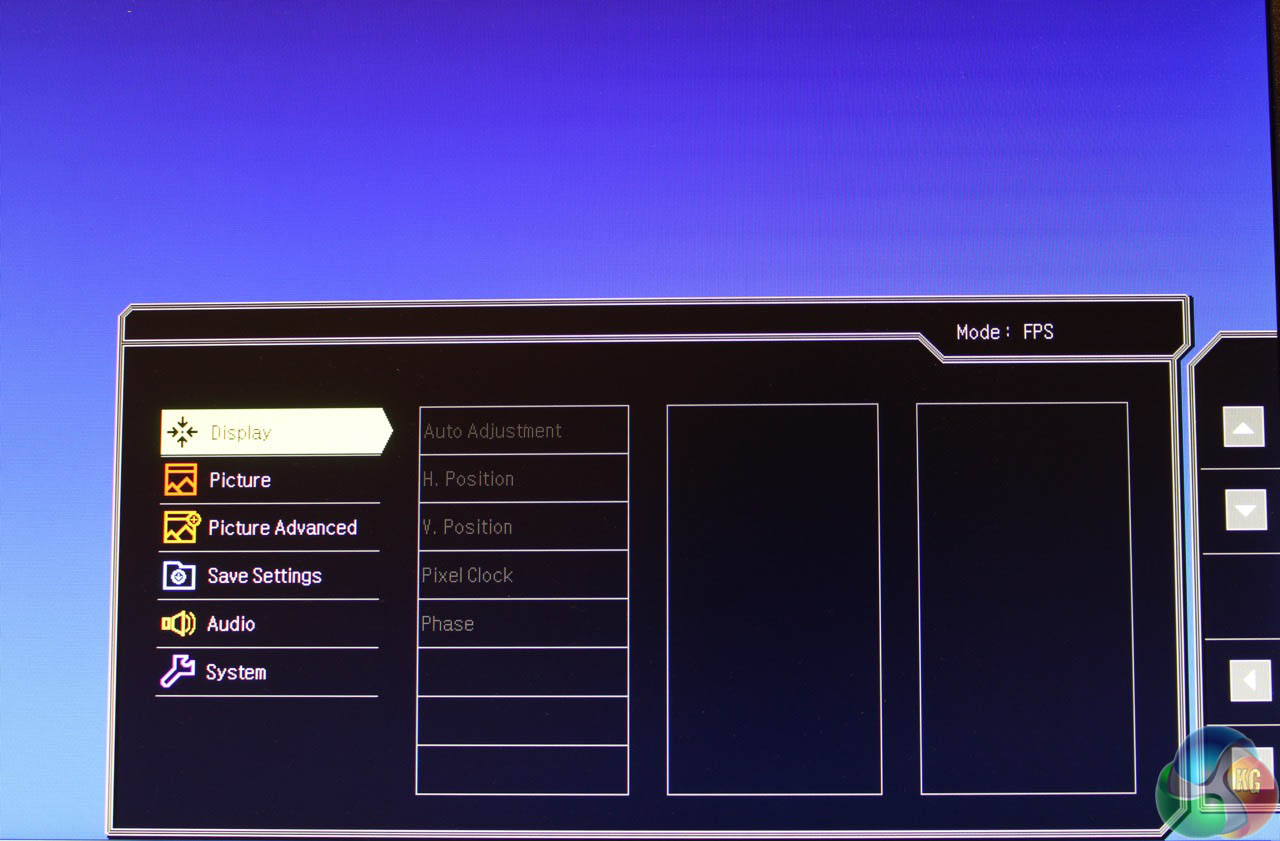
The fourth button down brings up a menu of more advanced settings. It’s laid out like Miller Columns in Finder on Apple’s OS X, with each previous menu remaining visible at all times, so you can see exactly how to get back to the previous setting. A great idea for a monitor OSD, which can often be a nightmare to navigate.
And you can see why it’s useful. There are dozens of extra settings, some of which are more useful than others. The main ‘Display’ menu lets you move the OSD around the screen.
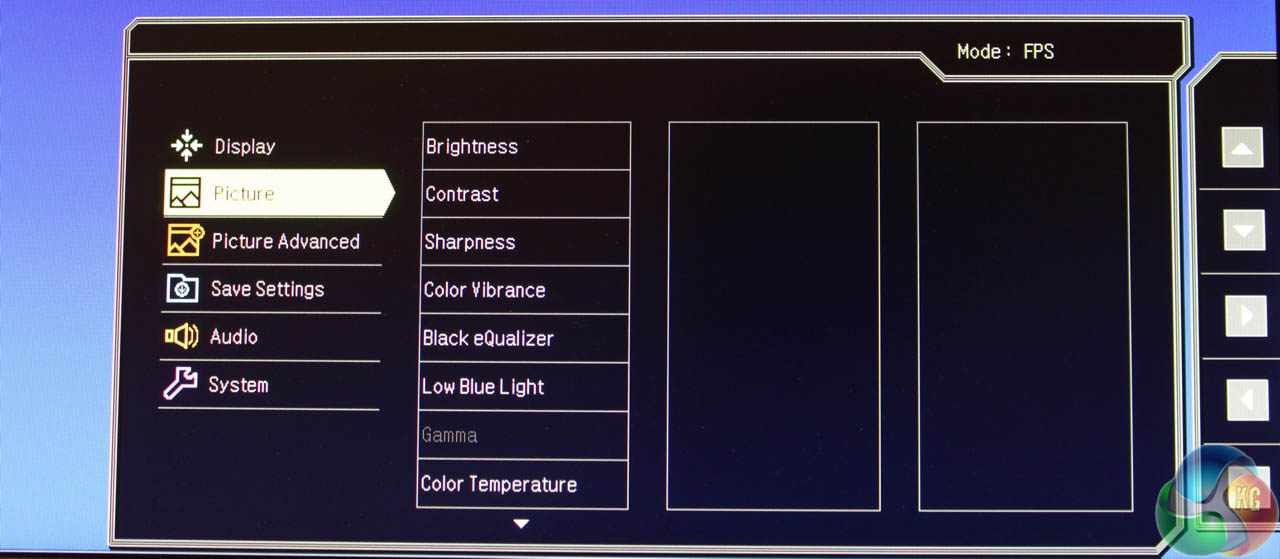
The Picture menu leads to the Brightness and Contrast settings, Sharpness, Color Vibrance (which really over saturates colour), Black Equalizer, Gamma and Color Temperature.

The Advanced Picture menu is another way to adjust the colour preset, there’s a Sensesye Demo, Dynamic Contrast, Overscan, and a Display Mode option which lets you simulate the display size of a 17-inch,19-inch, 21.5-inch screen and so on. We think that option is fairly useless.
The audio menu allows you to change the volume and select an audio source

The Save Settings option lets you save all your preferred colour, brightness, gamma choices (and so on) to a preset called Gamer 1, 2 or 3, which is accessible from the main list. A nice idea, given there are so many options to choose from.
We tested the BenQ RL2755HM with a colorimeter for accurate out-of-the-box results of the screen’s colour reproduction, while also spending a good time playing PC and console games on it as we'll as using it as a desktop display, for a subjective view of its performance.
As previously stated, the default colour preset is called ‘FPS’ mode. We measured the screen first using this mode, and also in ‘Standard’ mode. We also measured the brightness, black point and contrast ratio of every preset, and measured the Delta E accuracy in both ‘Standard’ and ‘FPS’ presets, since the results were wildly different.
From daily use of the RL2755HM, we had no complaints about its picture quality when playing games. No serious ghosting was noticeable, and sometimes we did mess about with the Vibrance setting for some seriously bright colour. We imagine Mario Kart in particular would be amusing to play with this setting set to maximum.
But as this is a gaming screen, so we’re not expecting the absolute best colour reproduction or brightness uniformity. It’s not designed for that, and if that’s what you’re looking for, you’ll probably need to spend a bit more and go for a display intended for graphic design work. But it’s still fine for general desktop use.
Even then, the results from our tests are mostly good.
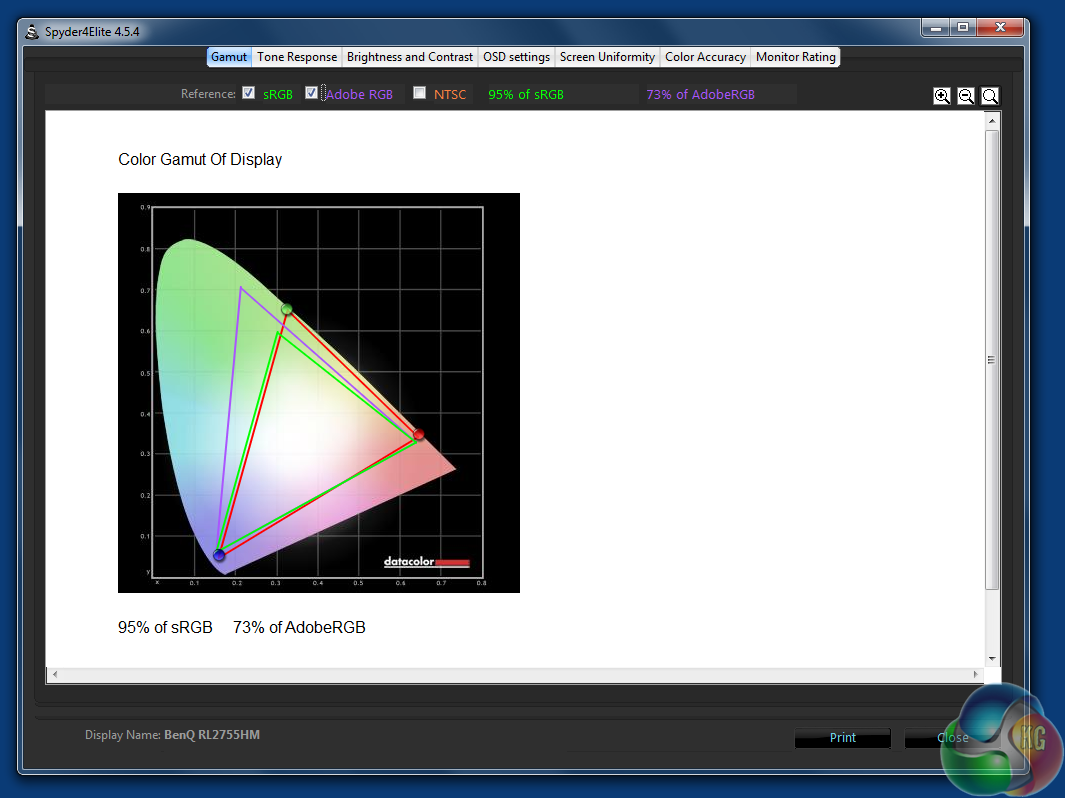
95 per cent sRGB and 73 per cent Adobe coverage isn’t quite up there with some of the displays we’ve seen, but it’s a result that’s fine for daily use.
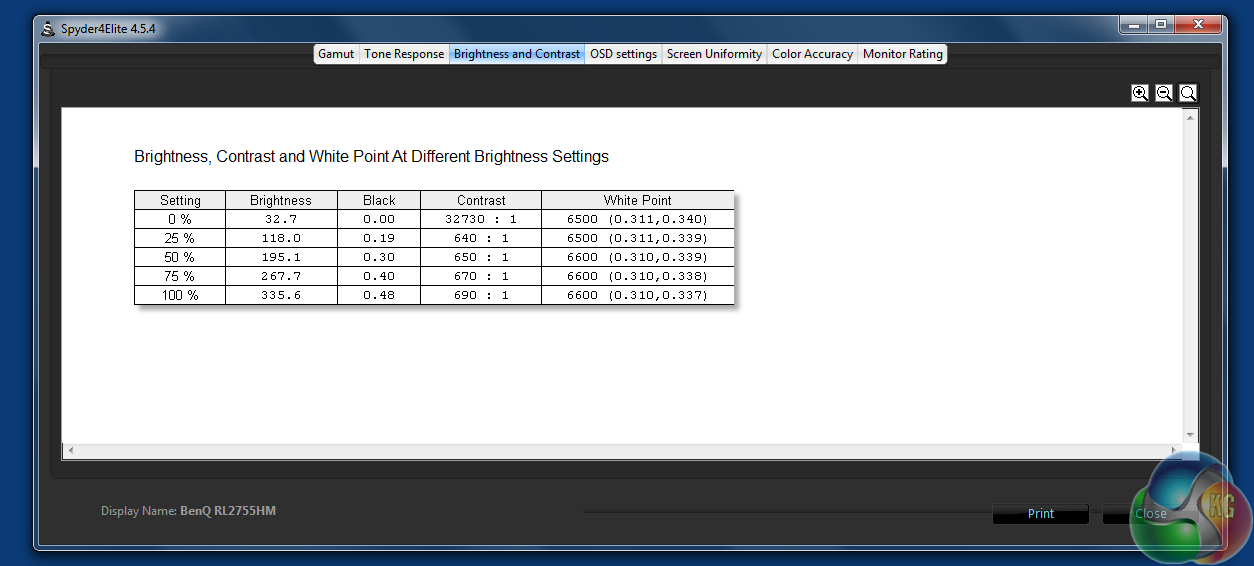
Uncalibrated brightness levels of 335 nits and a black point of 0.49 (in the default ‘FPS’ mode) are fine results, while the measured contrast ratio of 690:1 is excellent, with a white point very close to 6500k.


From the five presets, Gamma 1 is close to 1.8 while Gamma 3 is closer to 2.1.

However, the Delta E result in FPS mode is awful, with a result under 5, and a maximum value above 10. This is typical of many gaming-focused presets on monitors, colour accuracy simply isn’t a consideration.
Switching to ‘standard’ mode made things look a bit better though.
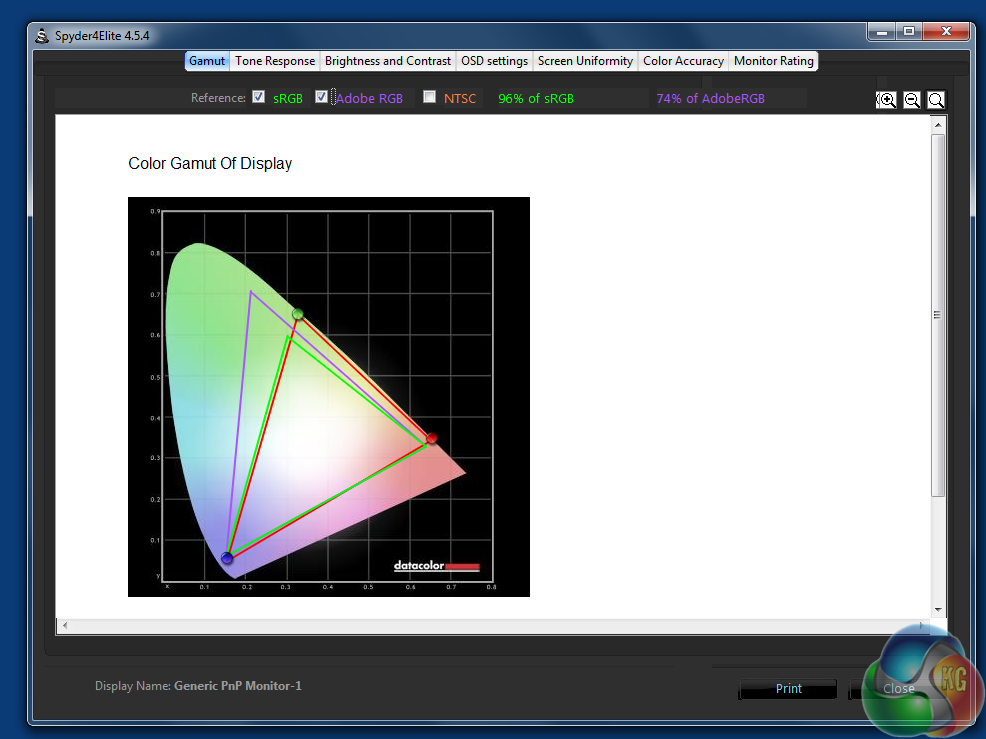
In ‘standard’ mode the sRGB coverage increases to 96 per cent, with 74 per cent Adobe.
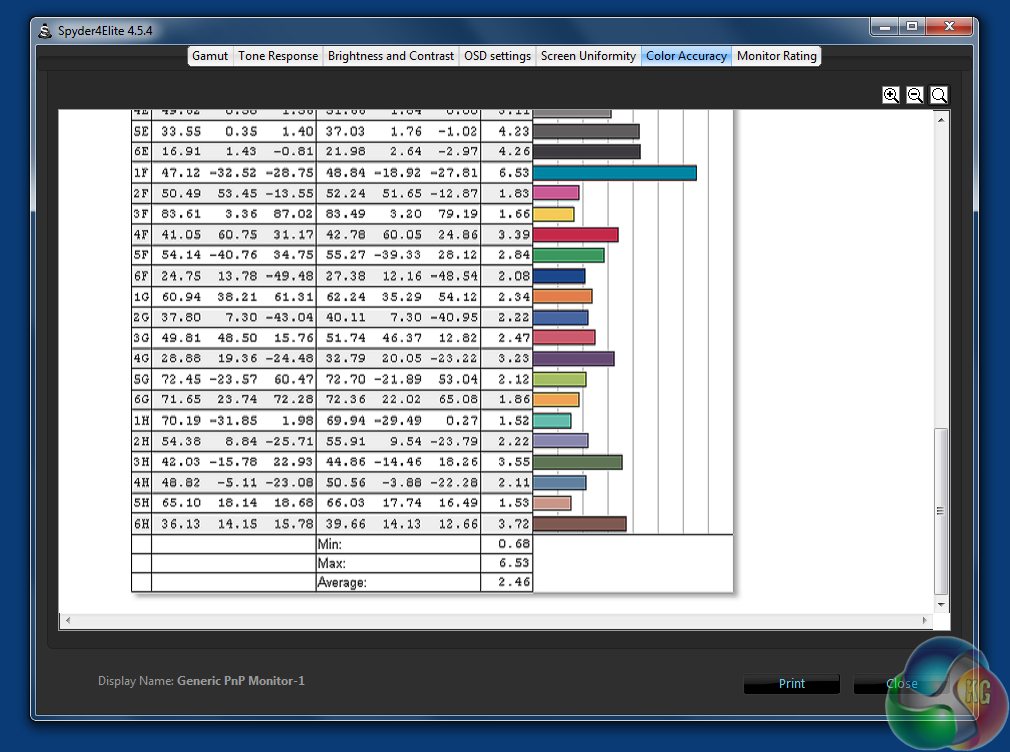
Colour accuracy returns to acceptable levels, with a result under three, in line with many TN gaming panels at this price point.

We went through all the presets to measure contrast, colour accuracy and brightness.
As you can see, they vary quite a lot, with the ‘sRGB’ and ‘Game’ settings increasing contrast to 720:1, and the ‘RTS 1’ and ‘RTS 2’ figures adjusting the white point, for a more blue overall look. We weren’t too keen on the effect, though.
Finally, we calibrated the display when in ‘Standard’ mode, although it didn’t seem to affect the results.
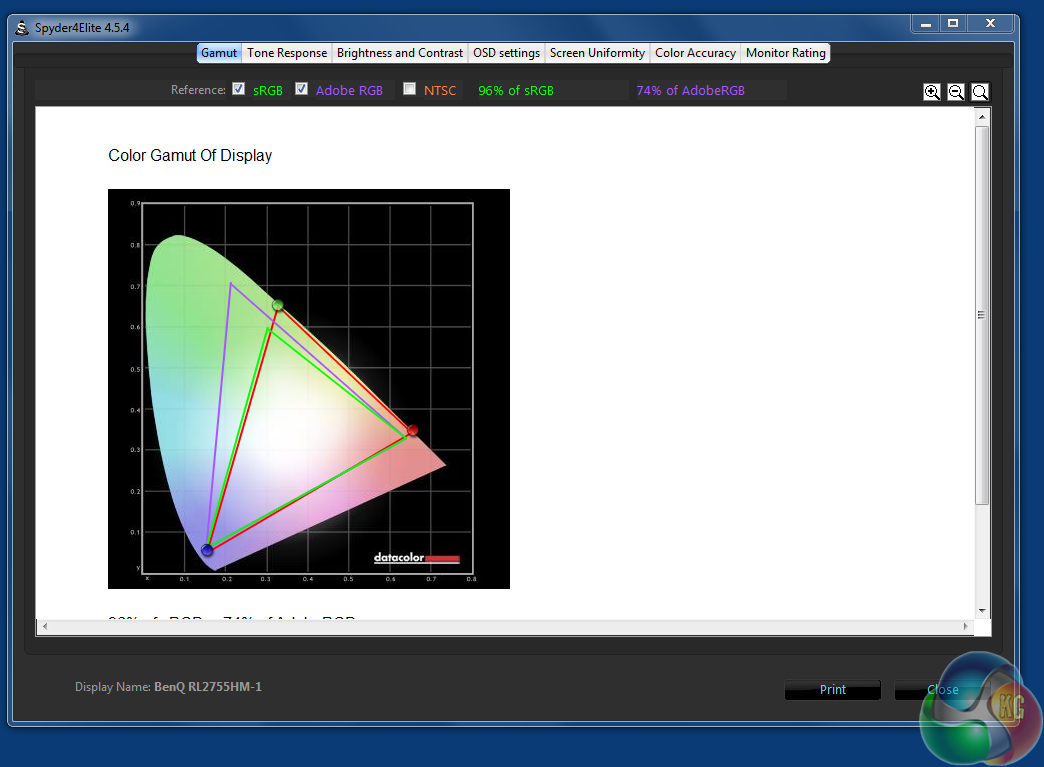
sRGB and Adobe coverage remains identical.
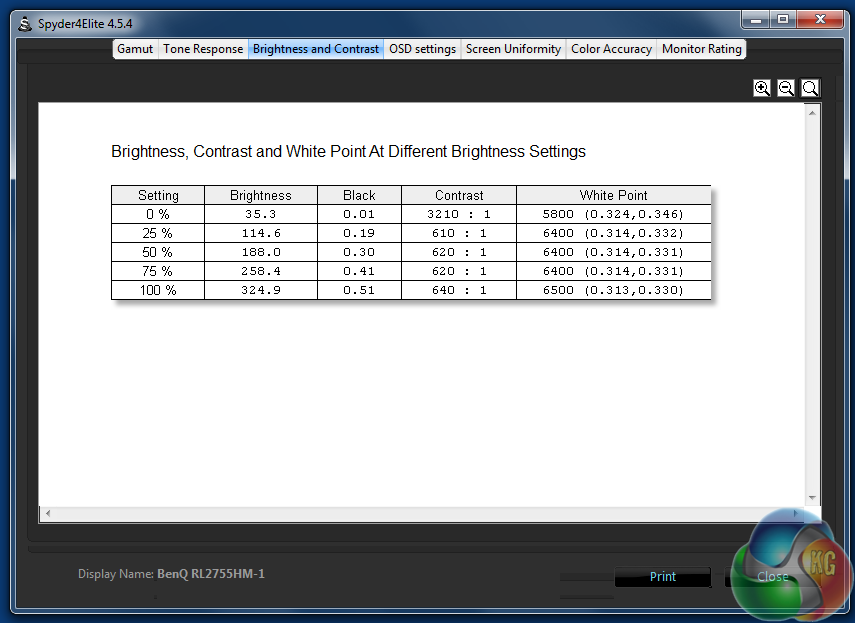
Brightness levels remain similar, with the white point hitting 6500k.
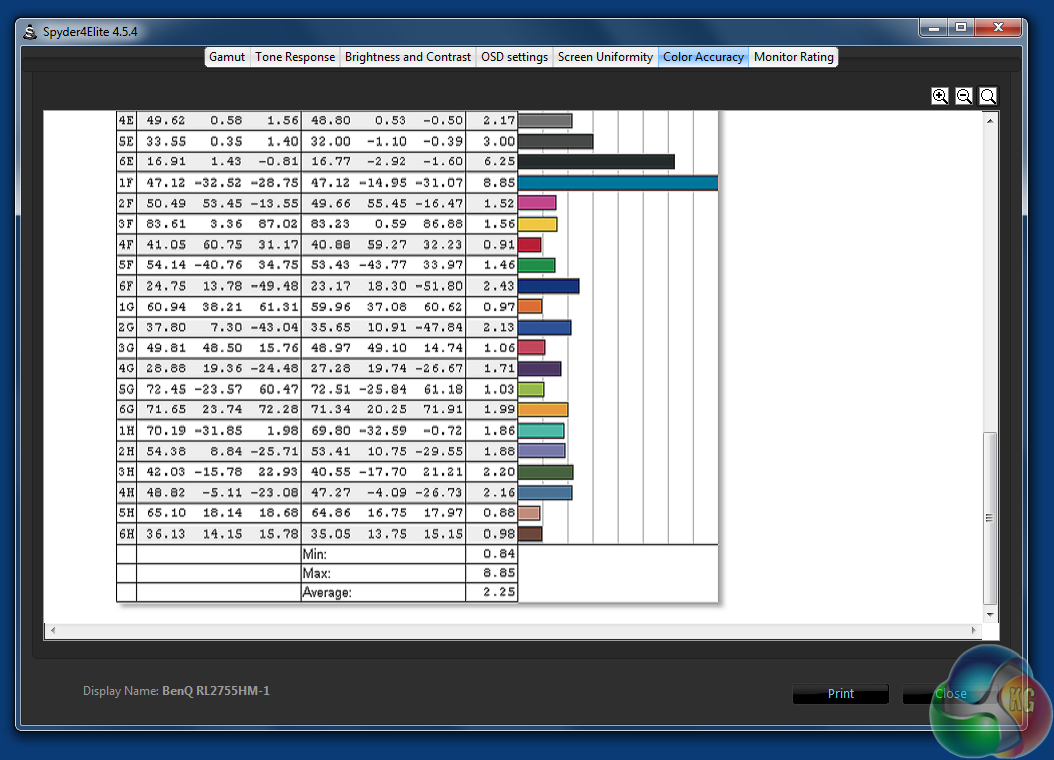
And the colour accuracy improves slightly, with an average Delta E closer to 2 than before calibration.
The 2-watt speakers were a bit of a let down. At normal levels they sound ok, but when at maximum volume they started to sound a bit tinny, notably more so than many other displays we’ve reviewed.
Cheap, entry-level and affordable are relative terms. What may be the lower end of one person’s budget is the maximum amount someone else is willing to spend.
But clearly the BenQ RL2755HM has been designed to be affordable, as it has a fairly reasonable price but is missing a few things that come as standard on pricier displays. The lack of DisplayPort and maximum resolution of 1080p on a 27-inch screen are giveaways, as is the stand’s lack of pivot and rotation.
Technically, the lack of DisplayPort isn’t a problem, as it’s only required for resolutions higher than 1080p. Although it might require you to buy a converter if your GPU only has DisplayPort outputs.
BenQ has added value to the RL2755HM wherever it can though. The rubber joypad grip and headphone rest are certainly gimmicks, but a lot of thought has gone into the colour presets. You may or may not like using these and BenQ may have even gone overboard in presenting so many presets to the user. But overall we think they enhance, rather than detract from the overall offering.
We admittedly had fun trying out different presets for different games, even though in reality it doesn’t make too much difference to how you play the games.
The OSD is brilliant, easy to use and well thought out. Otherwise, all these presets and options would be a nightmare to use, but BenQ has sensibly made it as simple as possible to navigate the menus.
It looks ok on the Windows desktop. To us, the 1080p resolution is fine on a 27-inch screen, although once again that’s something maybe not everyone will agree on. The colours do look noticeably off in the corners though, an effect you don’t get with IPS panels.
Brightness and contrast levels are excellent, but the colour accuracy isn’t great. However, that’s not something you’d expect from a gaming screen.
Overall, this is a display that has plenty to offer gamers for its wealth of related features, low price point and low ghosting levels. It’s fine on the desktop too, but if you’re not a gamer, an IPS display is probably a better choice.

Buy the BenQ RL2755HM direct from Overclockers UK for £199.99 inc vat.
Discuss on our Facebook page, over HERE.
Pros:
- Good gaming performance with low ghosting levels
- Great brightness and contrast results
- Superb OSD design
Cons:
- No DisplayPort input
- Stand cannot be raised or tilted
- Only goes to 1080p resolution
Kitguru Says: The BenQ RL2755HM is for gaming, perfectly reasonable for other uses and good value for money.

Check out with this site kitguru _____ ……………Keep Reading