 KitGuru KitGuru.net – Tech News | Hardware News | Hardware Reviews | IOS | Mobile | Gaming | Graphics Cards


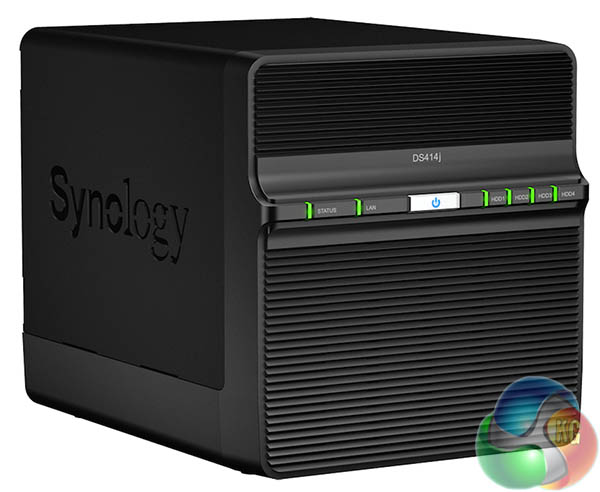
Synology describes its new DS414j as the successor to the DS413. It’s a 4-bay NAS device, aimed at home users and SOHO environments requiring up to 20TB of storage, and they put the emphasis on the ‘retro looking black chassis, dual core CPU … and USB 3.0 which combine to make it ‘the fastest and most powerful J series NAS from Synology to date.'
It seems more logical to me to compare the DS414j with the DS414 as they are both current models. The DS414 is the more expensive model that is aimed at the Home to Business Workgroup market while the DS414j lops off the best part of £100 and is intended for Home to Small Office users.
The specifications of the two NAS look very similar – click here. It isn't especially obvious at first glance how one model sells for £349 while the other is much cheaper at £258. I say ‘much cheaper' however £258 is still fairly expensive for a four bay NAS that is supplied without storage.
By the time you have loaded the Synology with high capacity hard drives you would be up to the £800 mark.
Highlighted features
- Number of drive bays Four
- Claimed Max Read speed 112.3MBps
- Claimed Max Write speed 80.4MBps
- External ports One USB 3.0, one USB 2.0
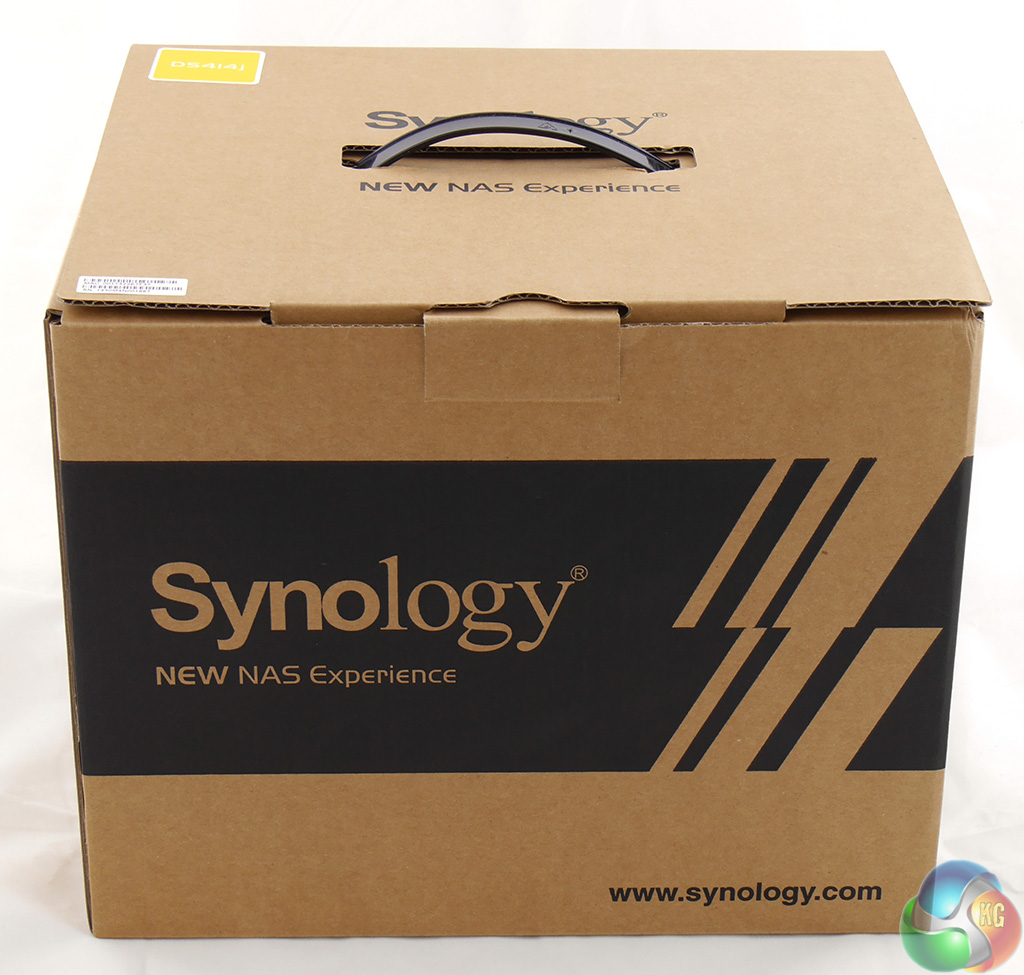
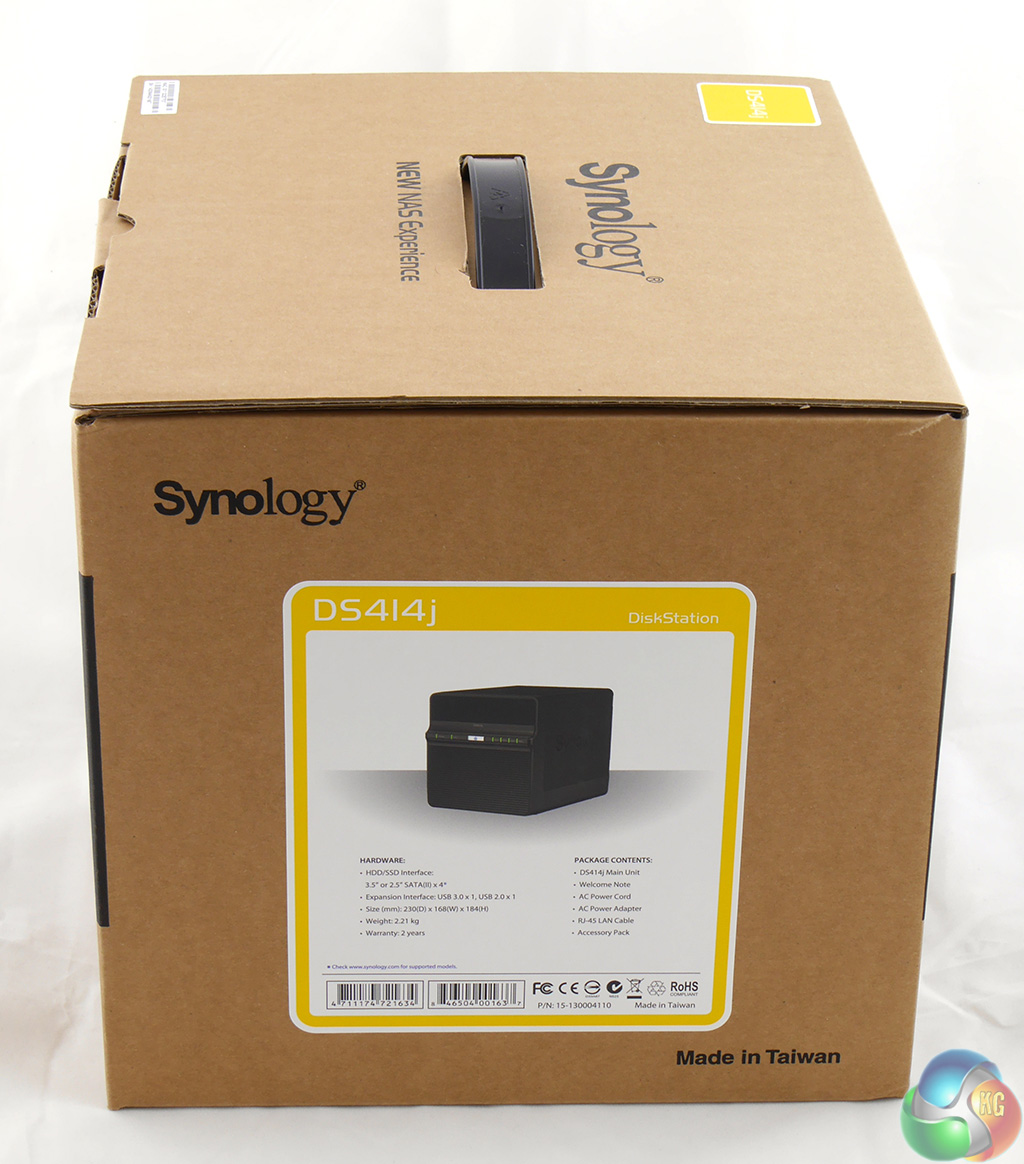
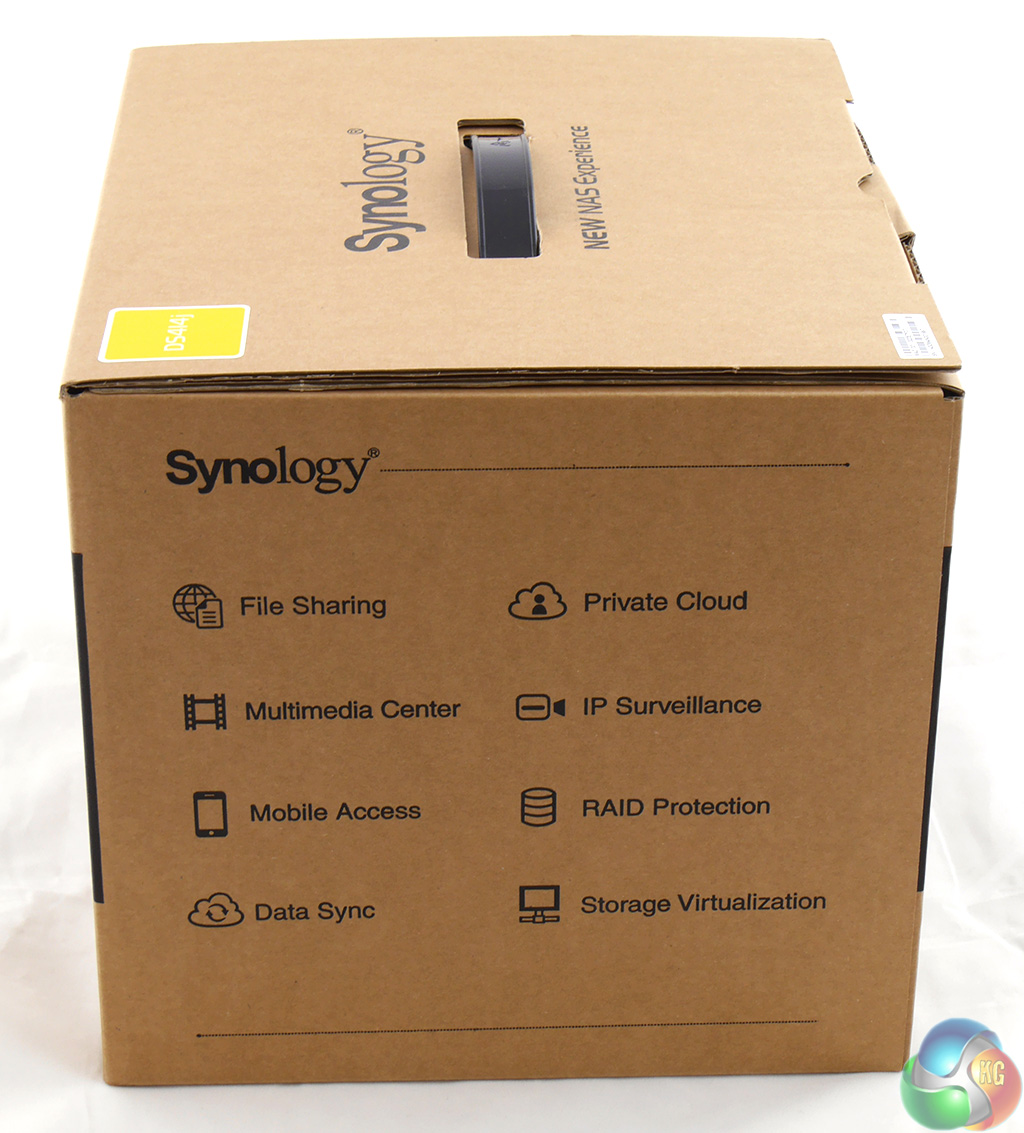
Let's start at the beginning. The package is Synology's usual sturdy cardboard box and in this particular case it is a brown box that reflects the ‘work' nature of the DS414j, rather than the more colourful ‘home' package you get with some other models.
Inside the box the NAS is supported by foam blocks that ensure it is delivered in mint condition.
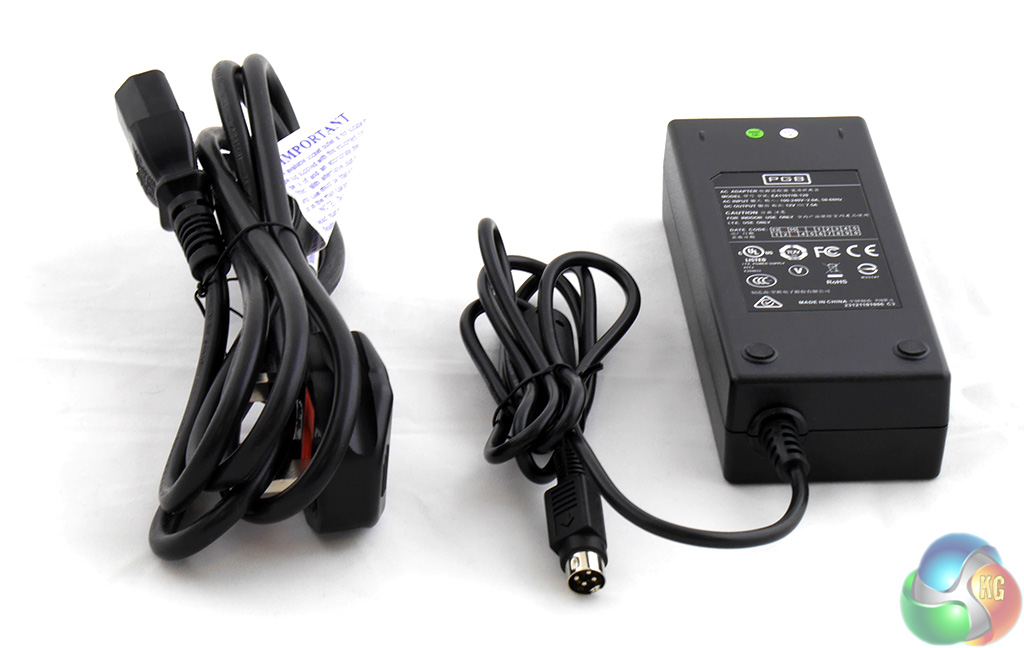
The most important accessory in the package is the power supply which has a UK power cord. In addition you get a handful of screws to fasten the 2.5-inch or 3.5-inch drives in their caddies.
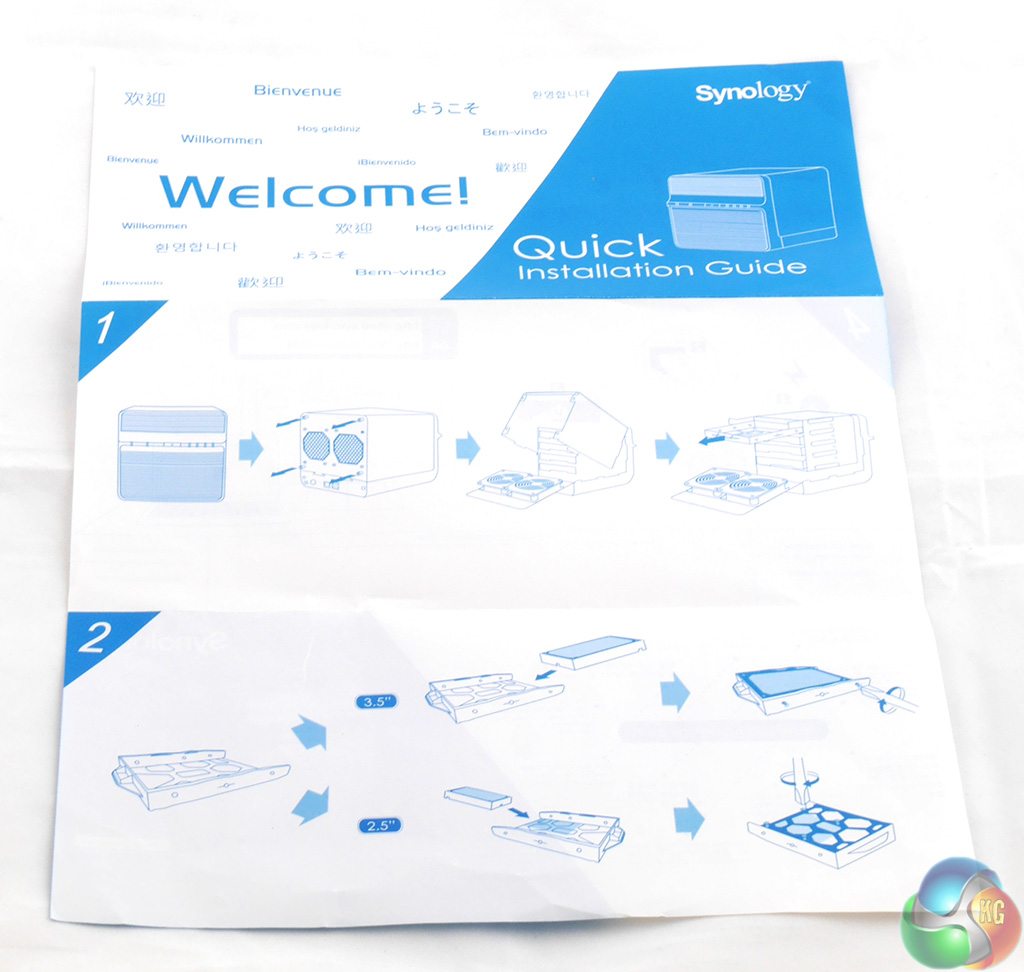
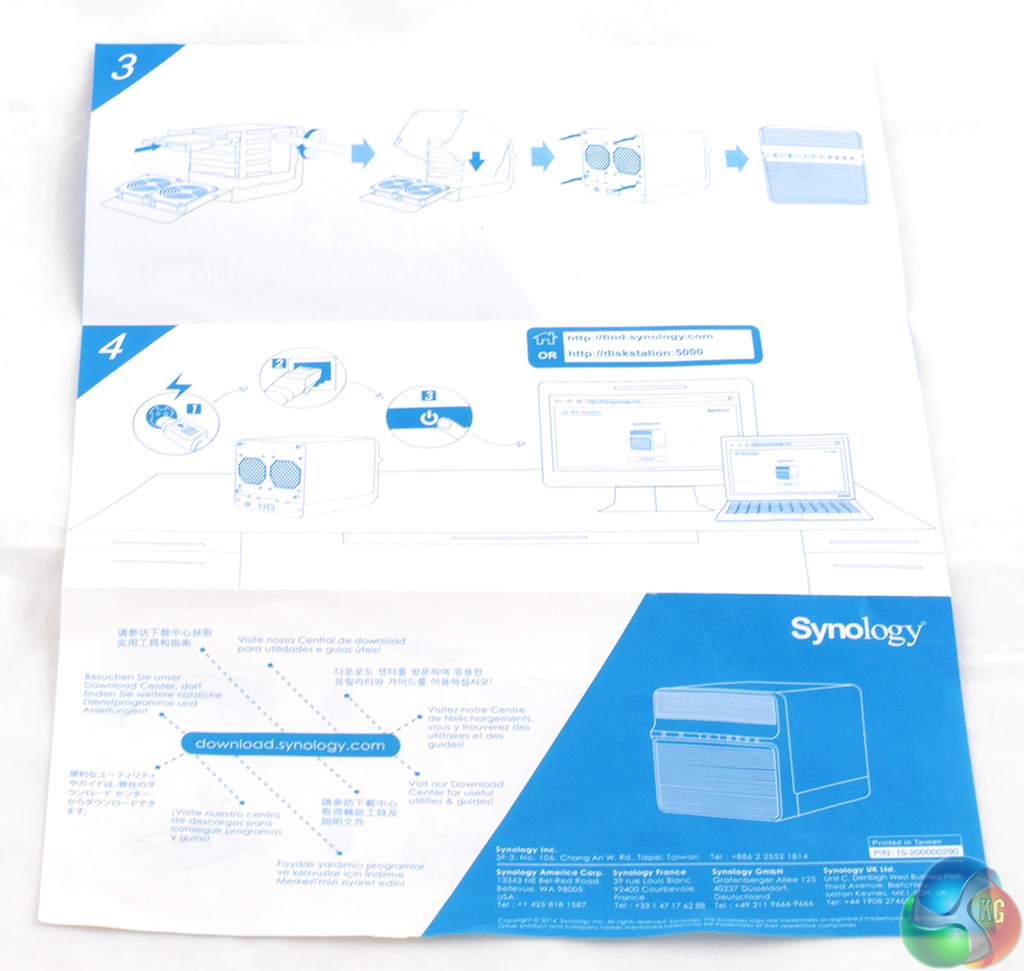
You also get a set-up sheet that shows you how to open the DS414j to fit the drives and then install the Synology DSM software.

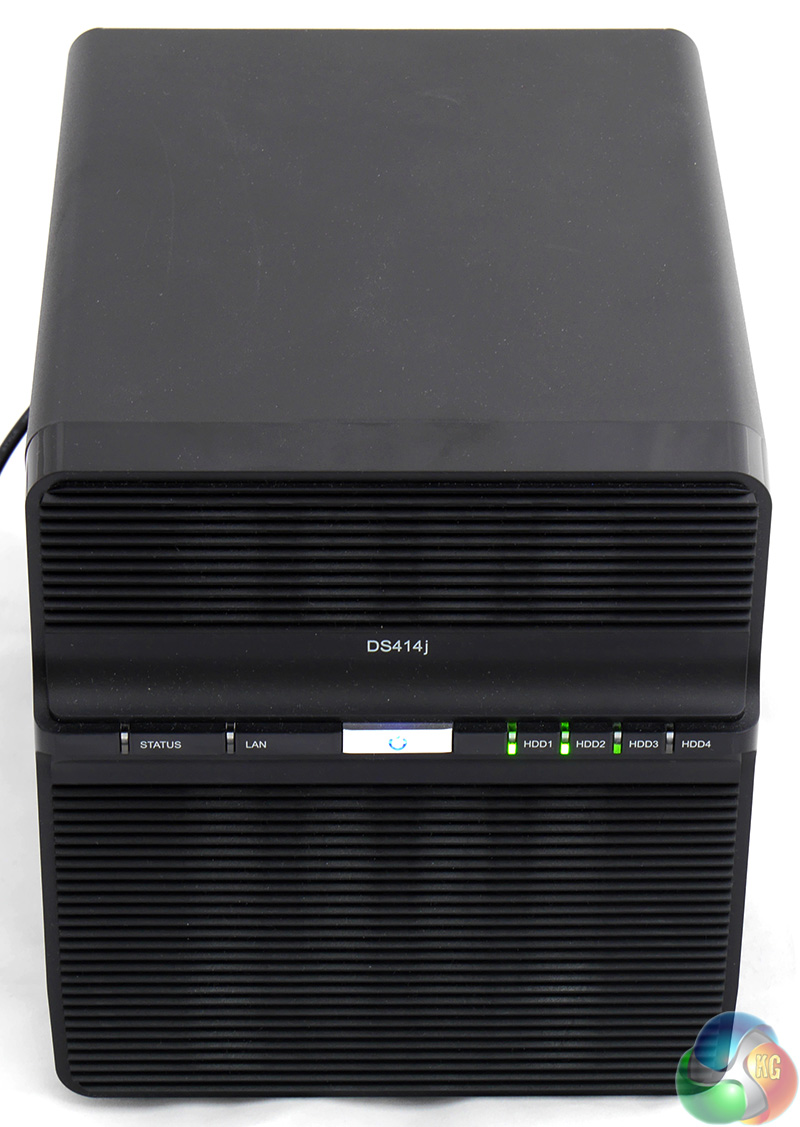
Although the specifications of the DS414 and DS414j are very similar, the two NAS have a number of differences.
The DS414 uses the modern Synology approach where the plastic front panel pops off to reveal the drive bays. This front cover is spaced away from the chassis to allow cooling air to flow across the drives.
By contrast the DS414j uses a ‘retro looking black chassis' which appears to mean that the plastic front panel is louvered to provide airflow and the construction of the chassis is similar to a traditional PC case where you remove the main cover in one piece to expose the innards.
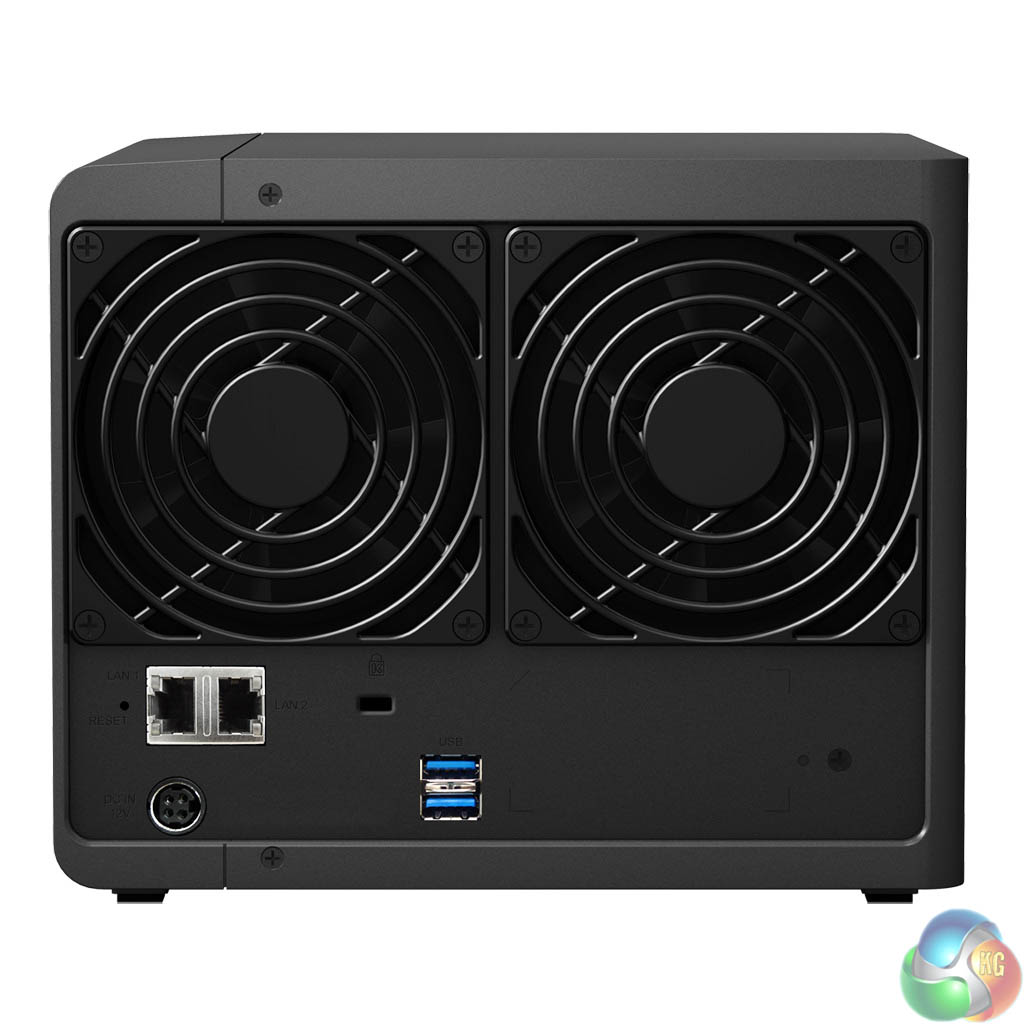
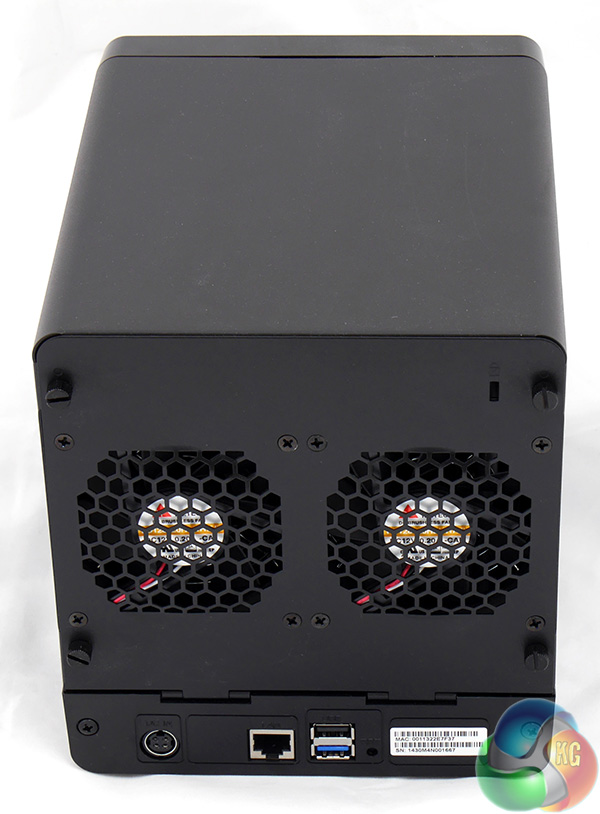
You can see the difference between these two approaches by looking at the back of the two NAS where the DS414j (above right) sports a pair of 80mm fans along with a certain amount of space while the DS414 (above left) fills the area above the ports with two 92mm fans.
Although the two model codes are similar the DS114j has far more going on than a simple change to the processor.
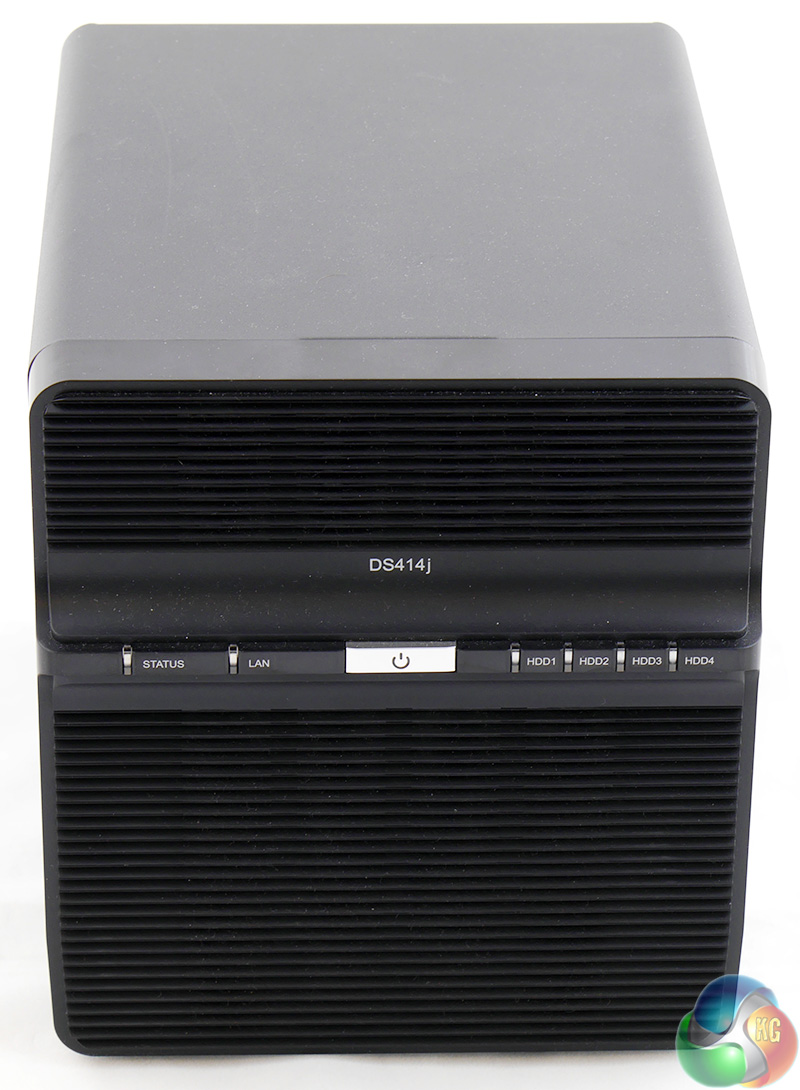
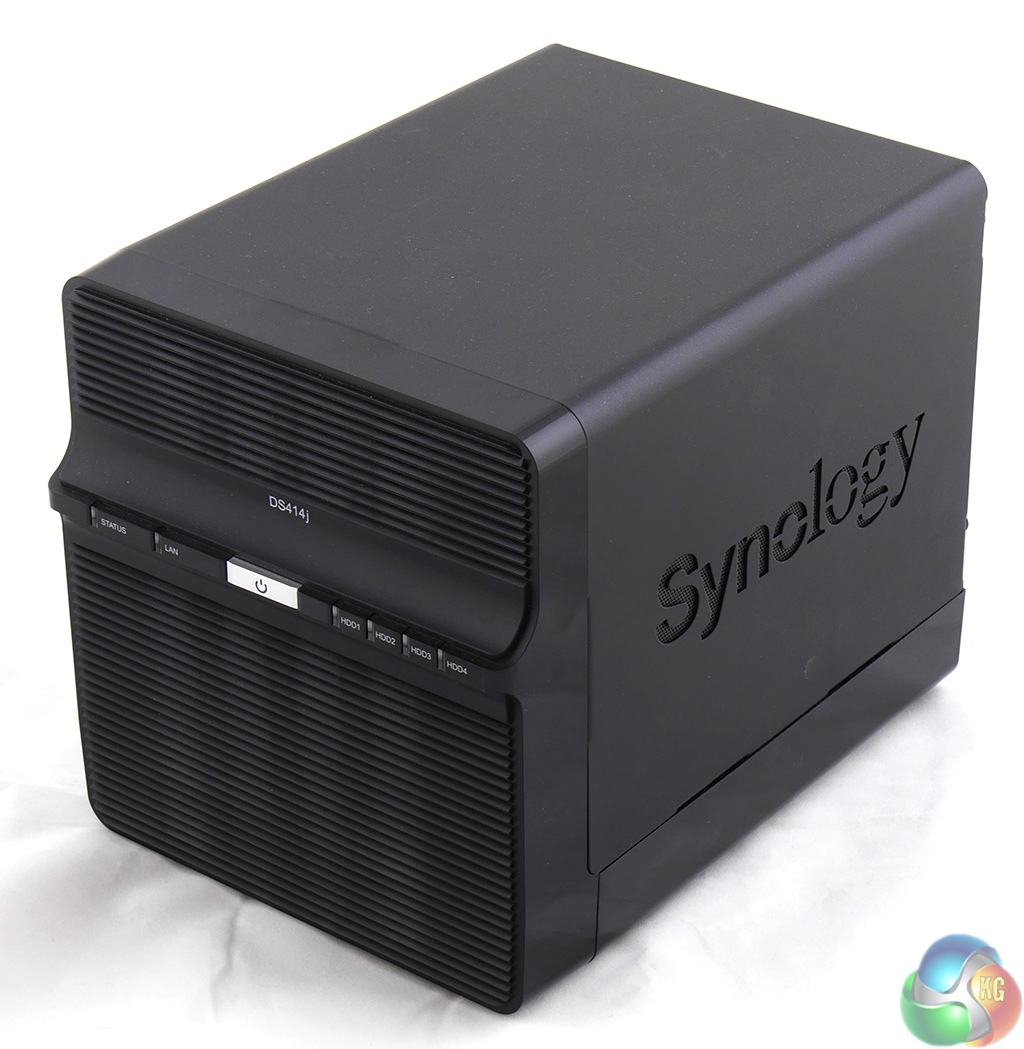
The front of the DS414 shows the power button in the middle of the panel with the LAN and Status lights to the left so you can see the state of the network connection and whether or not the hard drive array is behaving. On the right hand side there are four LEDs, one per drive, where green is good, solid orange shows the drive is filling up and flashing orange indicates a problem.
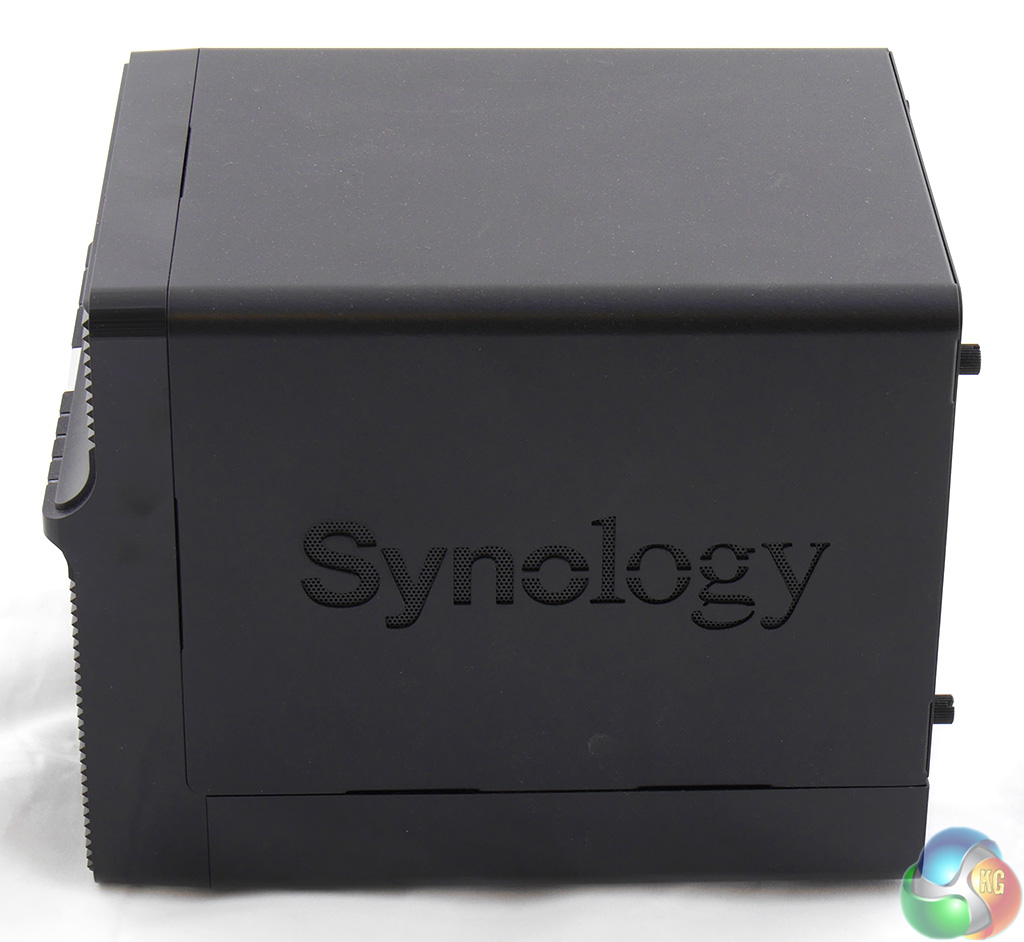
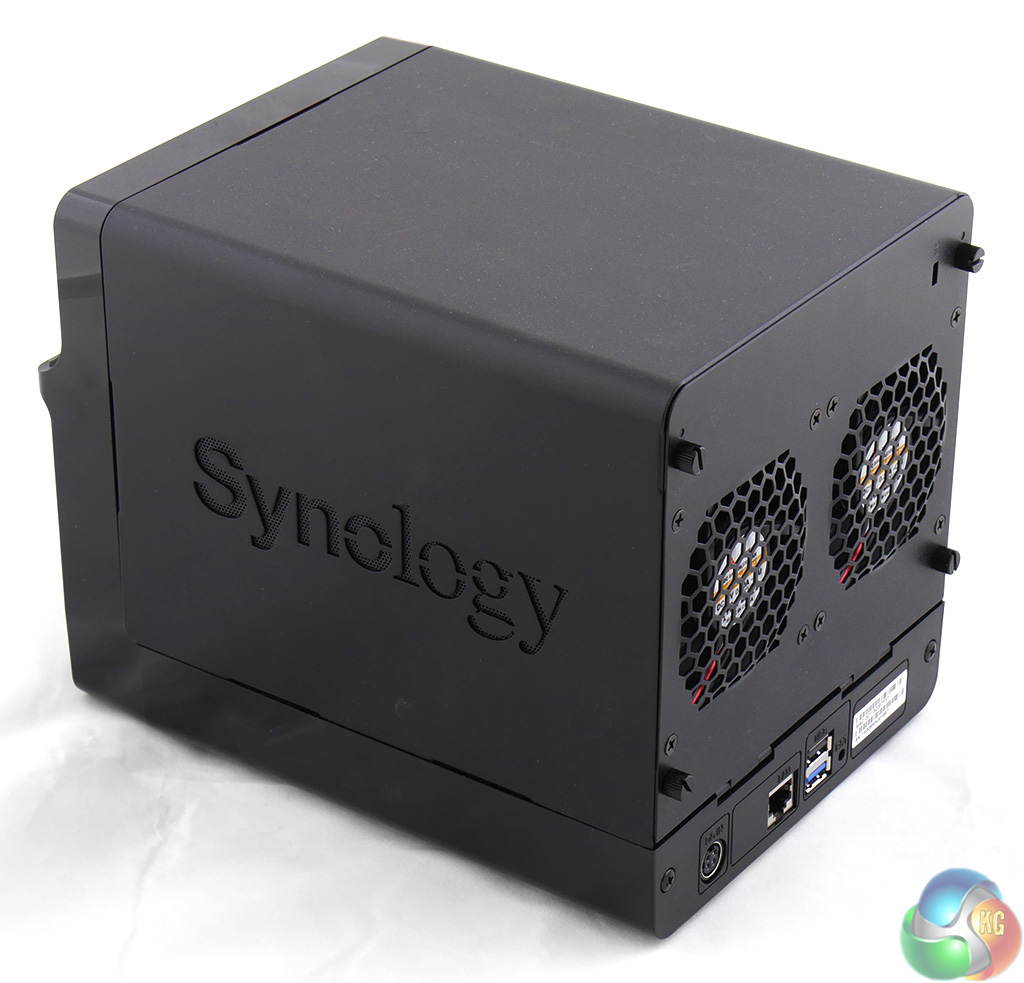
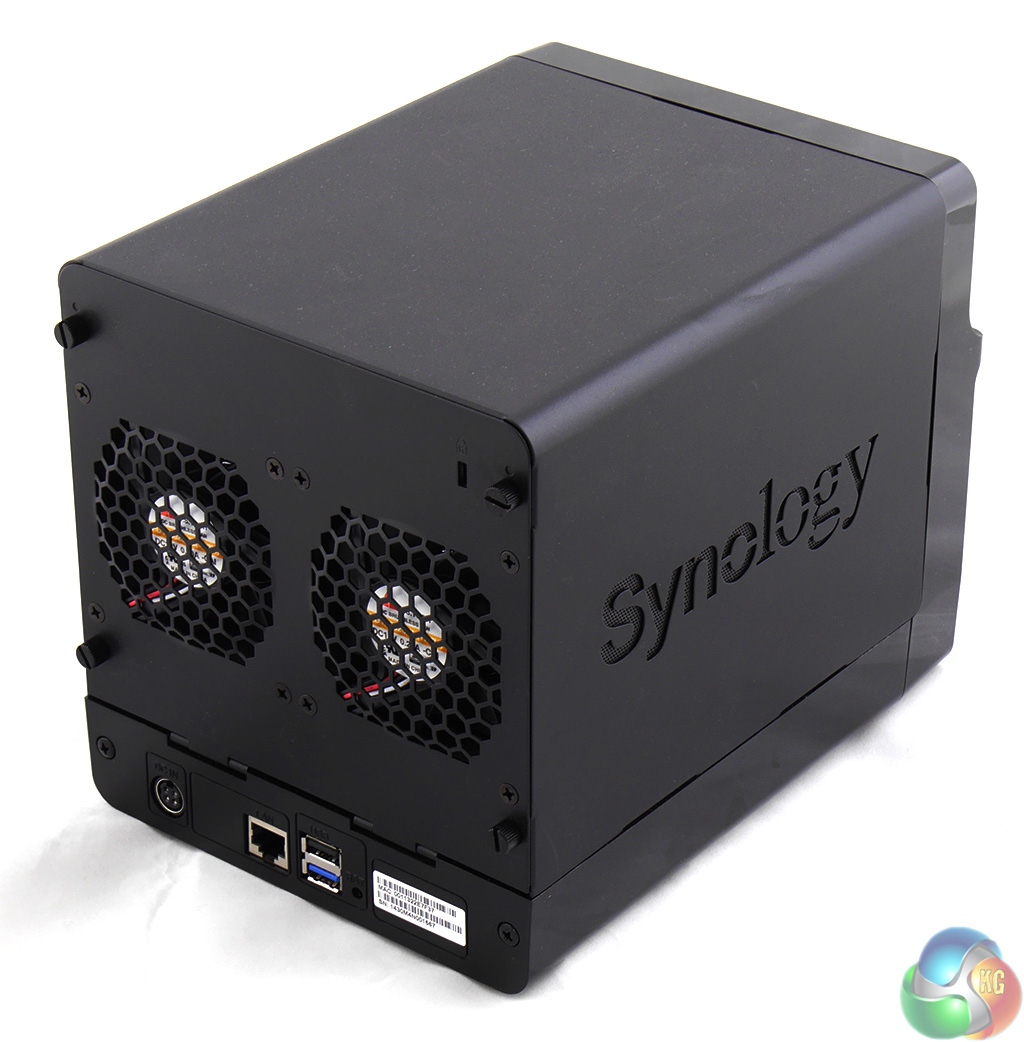
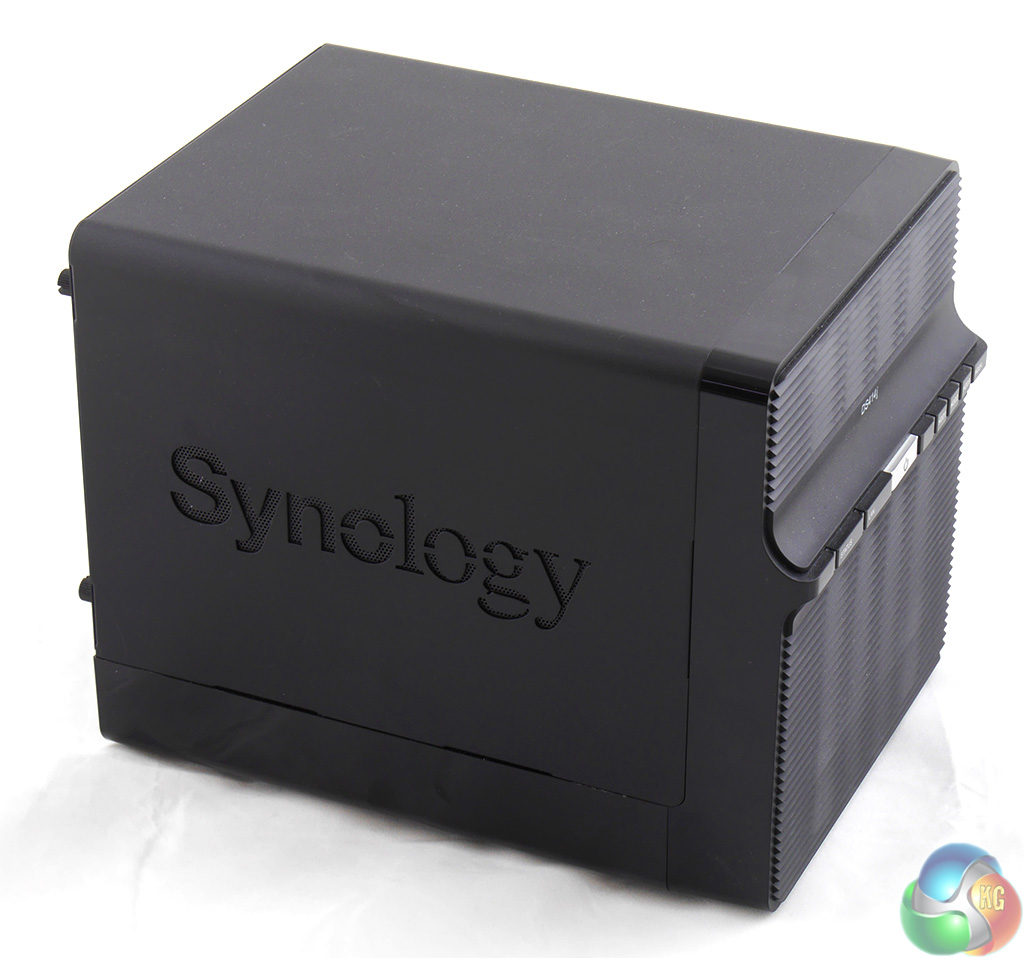
The Synology logo on each side of the chassis is perforated and acts as part of the cooling system.
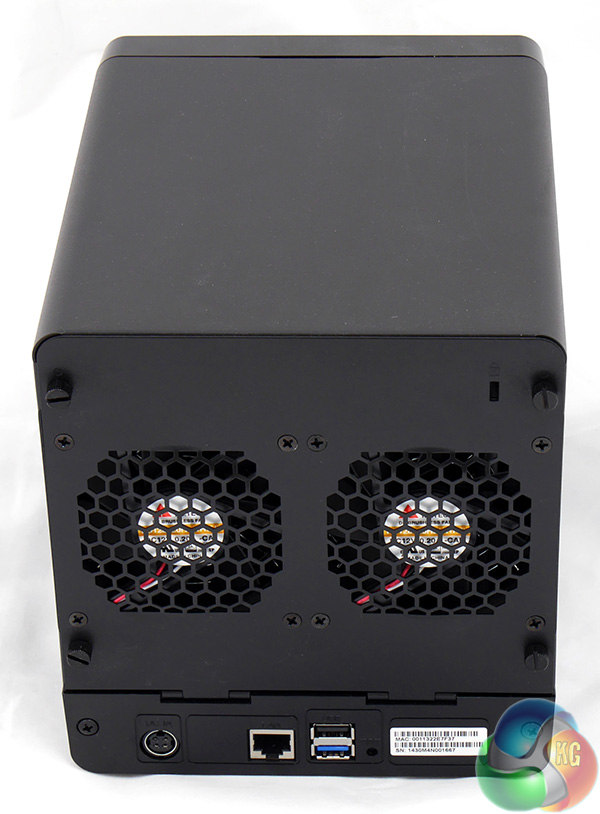
Most of the interesting stuff is on the back of the DS414j, although that may not be immediately apparent. The power jack is there and so are the two 80mm fans, along with the Gigabit Ethernet port.
This is interesting in the sense that the budget DS414j only has one network connection whereas the DS414 has two that can be joined using link aggregation. This allows Synology to claim upload and download speeds for the DS414 (135.6MBps and 207.1MBps respectively) that are almost double those of the DS414j (80.4MBps and 112.3MBps).
The aspect that I understand least about the DS414j is the inclusion of a single USB 3.0 port alongside a USB 2.0 port. Both ports are on the rear of the NAS, which is a shame as a front mounted port would be more convenient. You only get one USB 3.0 port to save on costs.
I don't know the difference in price between USB 2.0 and USB 3.0 but I struggle to believe that it would cost much for a company such as Synology to make life simple and supply two USB 3.0 ports, ideally one at the front and one at the rear.
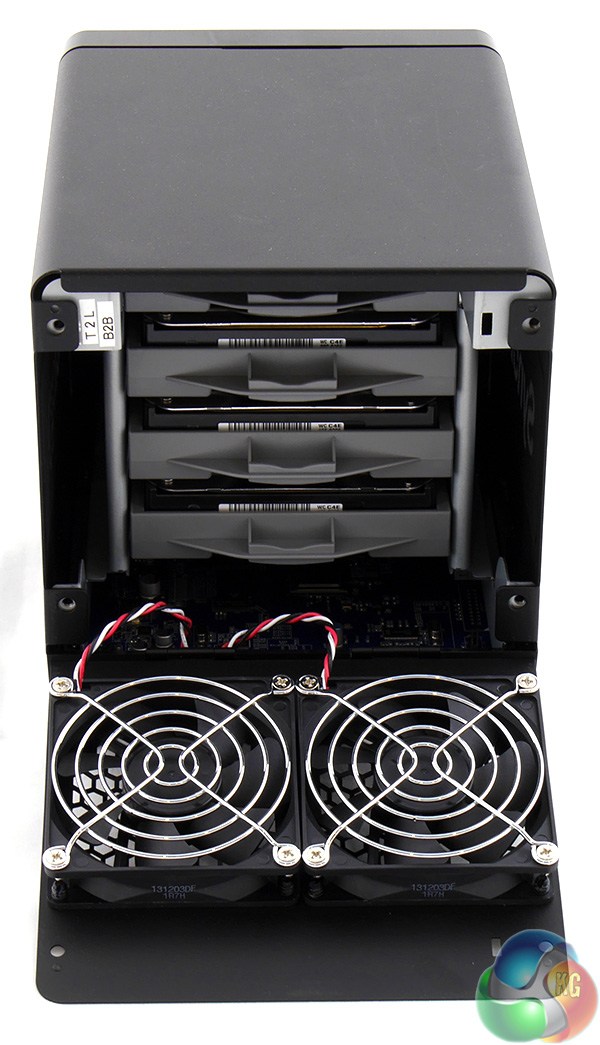
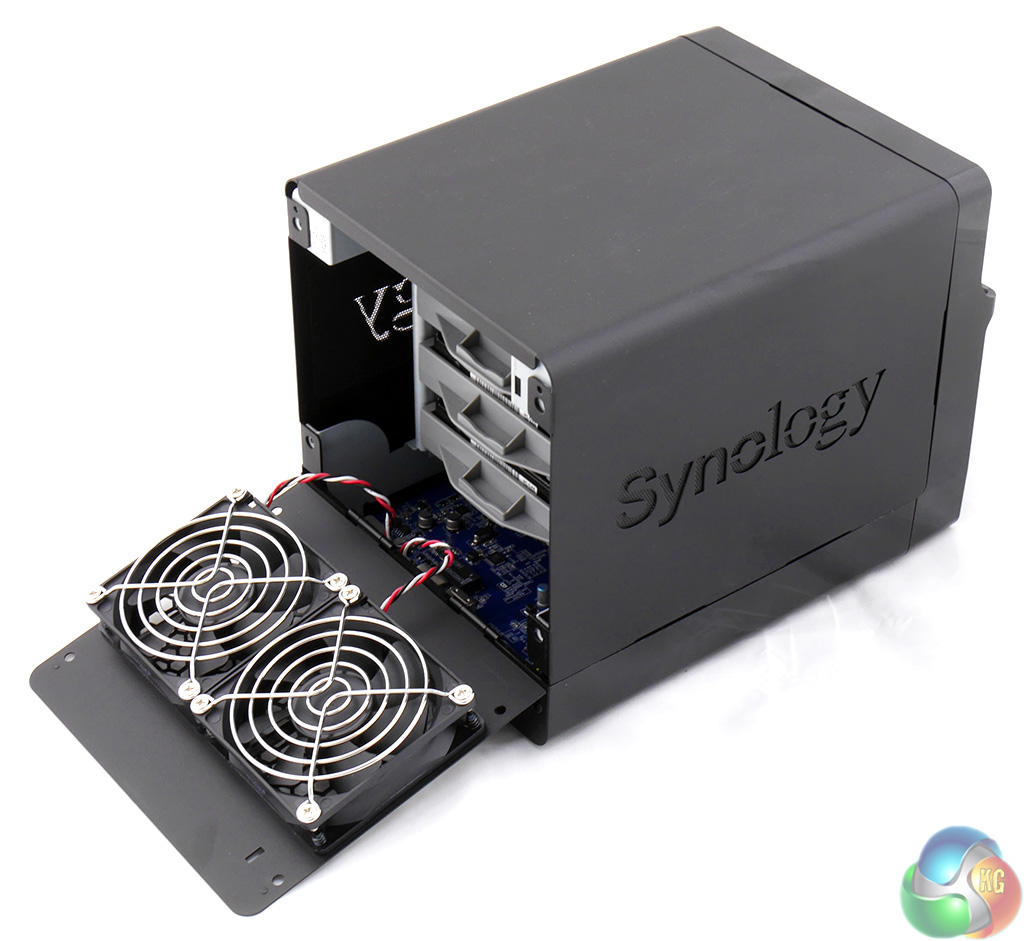
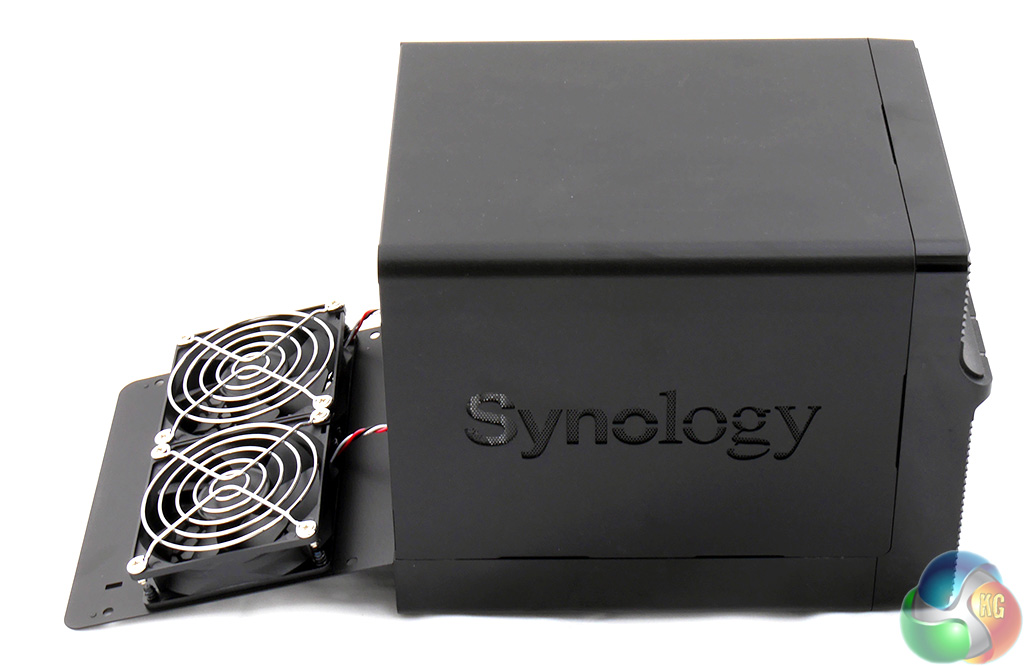
The other point to note about the rear of the DS414j are those four thumbscrews. Remove them and the back of the NAS drops down to reveal the four drive caddies.
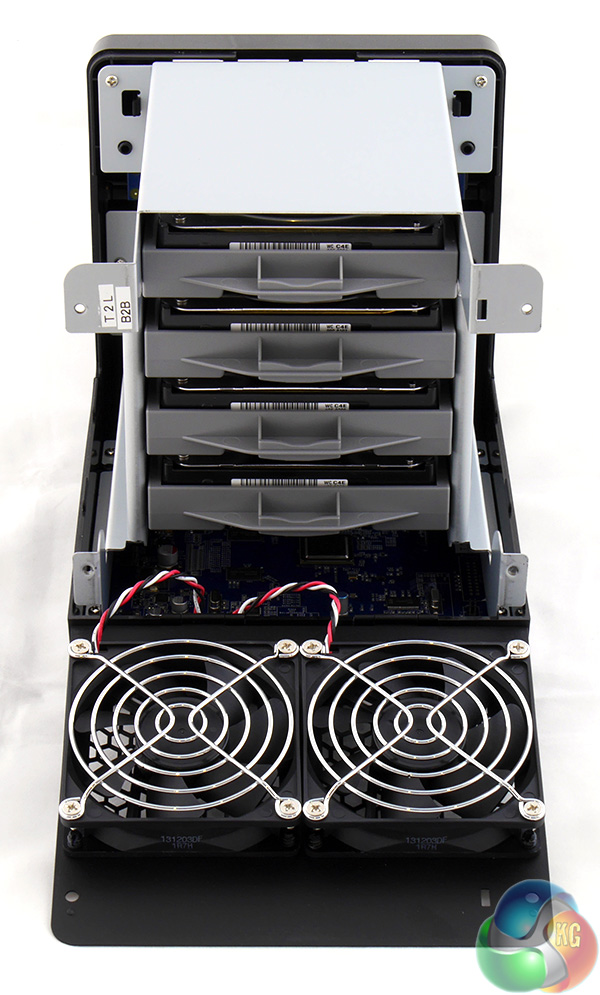
At this point you can lift away the main cover to give full access to the drive caddies.
This is a completely different operation to popping the front off the DS414 which is significant as the more expensive NAS supports hot swap drives while the DS414j does not.
This gives me pause for thought as I can see two reasons for buying a four bay NAS rather than a cheaper two bay. The first is that you want loads of hard drive capacity, perhaps in a number of volumes, in which case hot swap isn't necessarily a big deal.
For me, however, the main reason for using a four bay NAS is so you can use RAID 5 with the option of replacing a failed drive without any interruption to your network. I can see this is a dividing line for potential customers and I wish that the Synology specification included a big red X next to ‘Hot Swappable Drive' rather than a discreet dash.
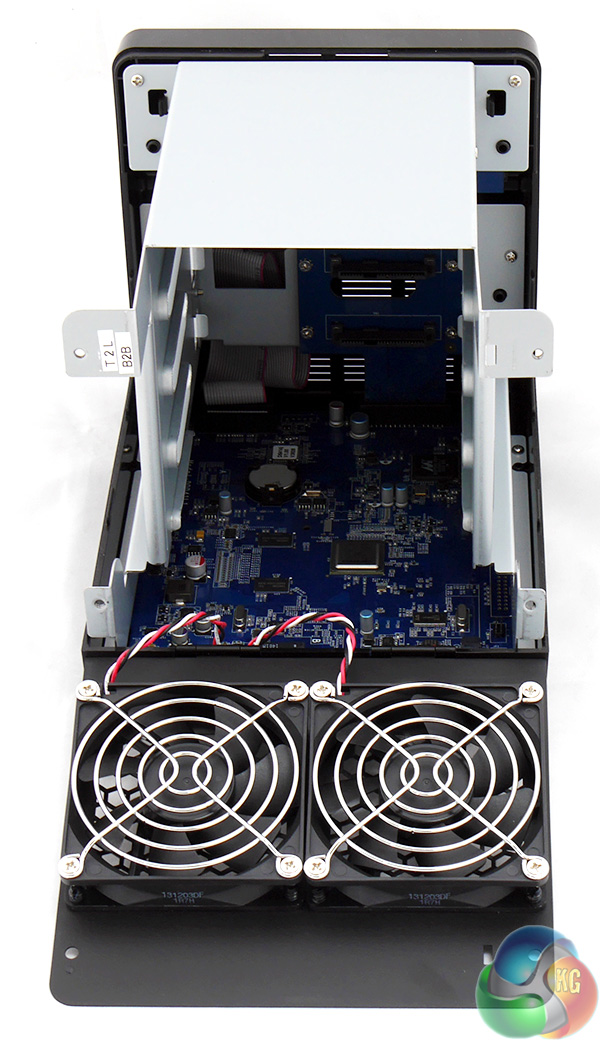
With the caddies removed from the DS414j you are pretty much left with a small motherboard sitting inside a basic steel box.
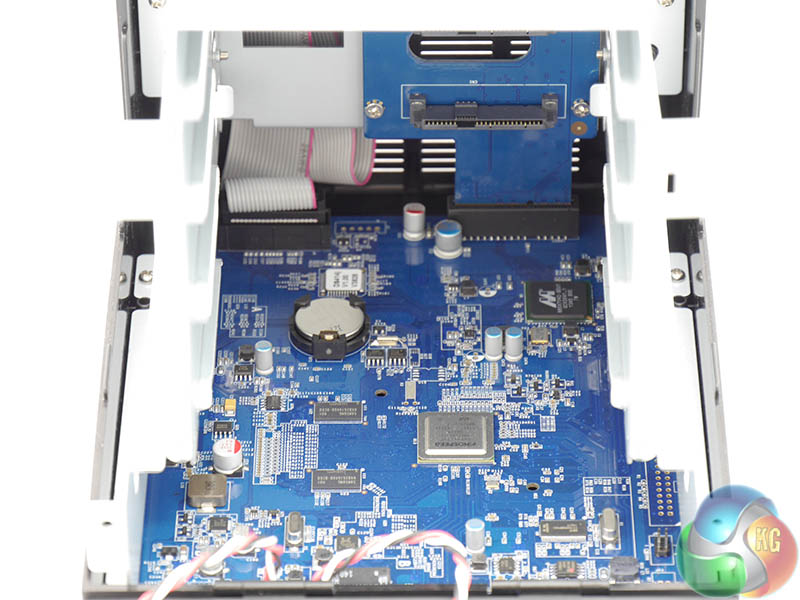
This takes us to the heart of the matter which is the Mindspeed Comcerto processor. This is a dual core ARM processor that runs at 1.2GHz. I have seen Marvell ARM processors inside Synology NAS on a number of occasions but Mindspeed was a new one on me.
A small amount of research shows that Mindspeed was recently bought by Freescale which, together with Synology's expertise in the field, gives me every confidence in the hardware.
I assume that Synology chose the 1.2GHz Mindspeed in DS414j in place of the 1.33GHz Marvell in the DS414 to cut costs. To my way of thinking it should be a relatively simple matter to replace one ARM chip with another as they use a common architecture.
I suspect that a good deal of R&D actually goes on behind the scenes. When I received the DS414 I was given a link to download DSM 5 and a second link to download a number of software packages (AudioStation, iTunesServer, SurveillanceStation and others) to deliver the full set of features for the DS414j. These software packages came in a folder named ‘Comcerto multimedia' which suggests they were compiled for this family of processors. That's just a side note as the process is entirely transparent to the end user.
The specification of the DS414j mentions support for the latest 5TB Seagate drives which means this NAS should support 20TB (unformatted) in JBOD. If you use RAID the capacity is lower as you effectively lose one or two drives.
I asked Synology why the DS414j specification puts a limit on each volume of 16TB and was told “That’s a limitation of the processor, not the DSM. Basically it means that each volume can only be a maximum of 16TB but if you have a 20TB HDD then you can just split the volume into 2 so 2 x 10TB or 16TB and 4TB.”
Or indeed you can use RAID 5. This limitation has no practical impact for the time being but when we have 6TB or 8TB drives on sale it might be something you need to check.
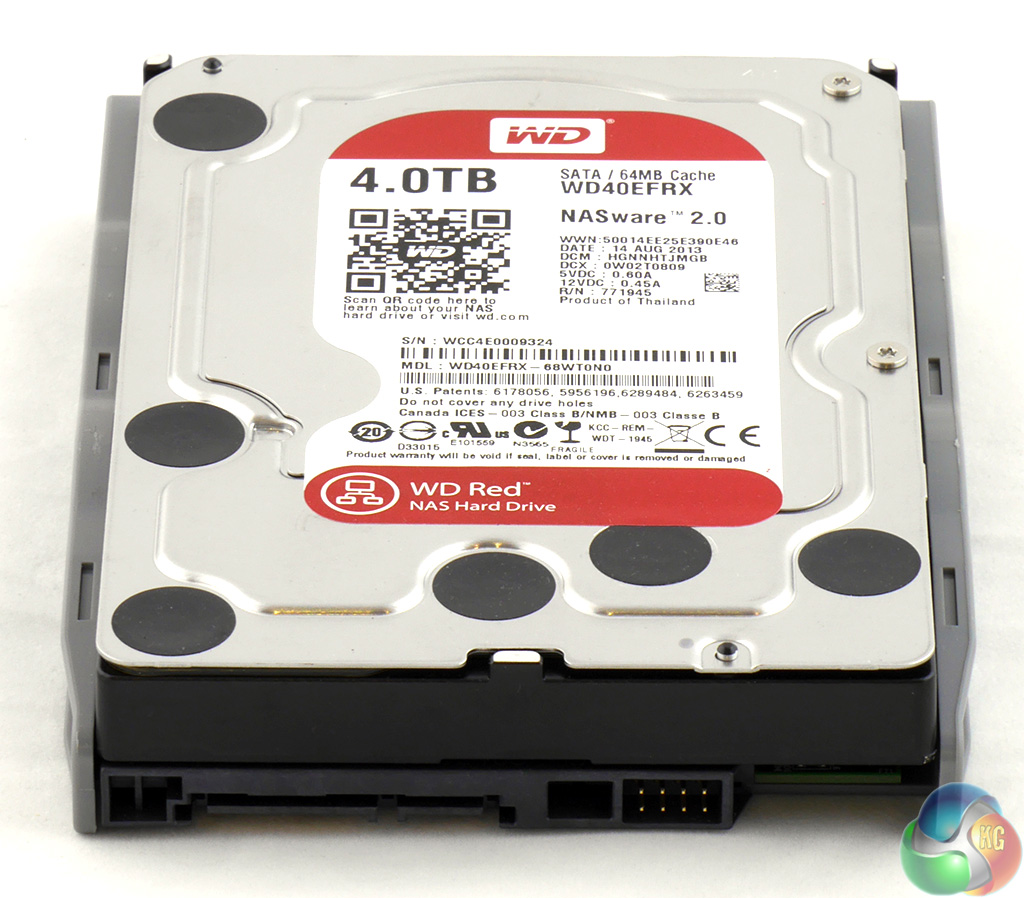
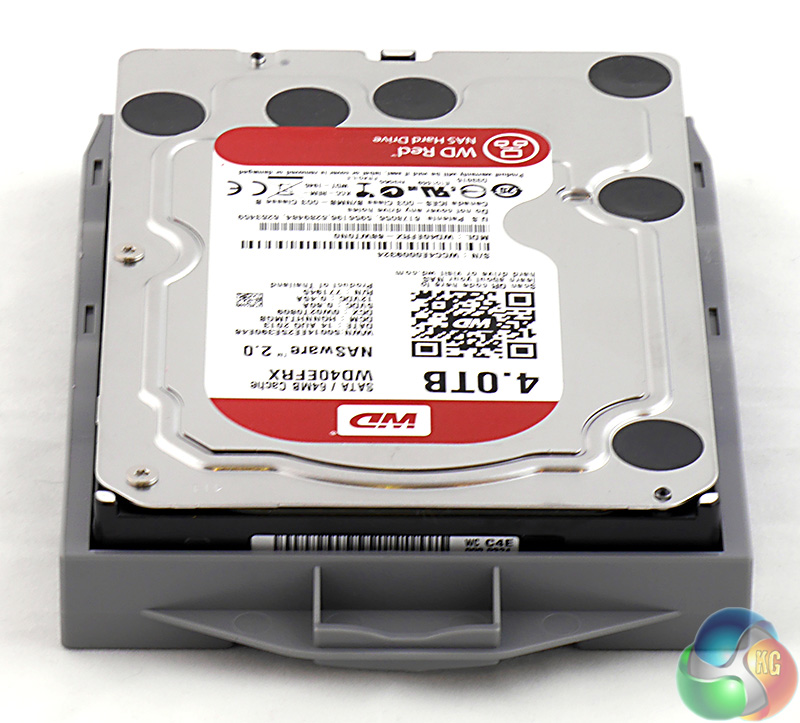
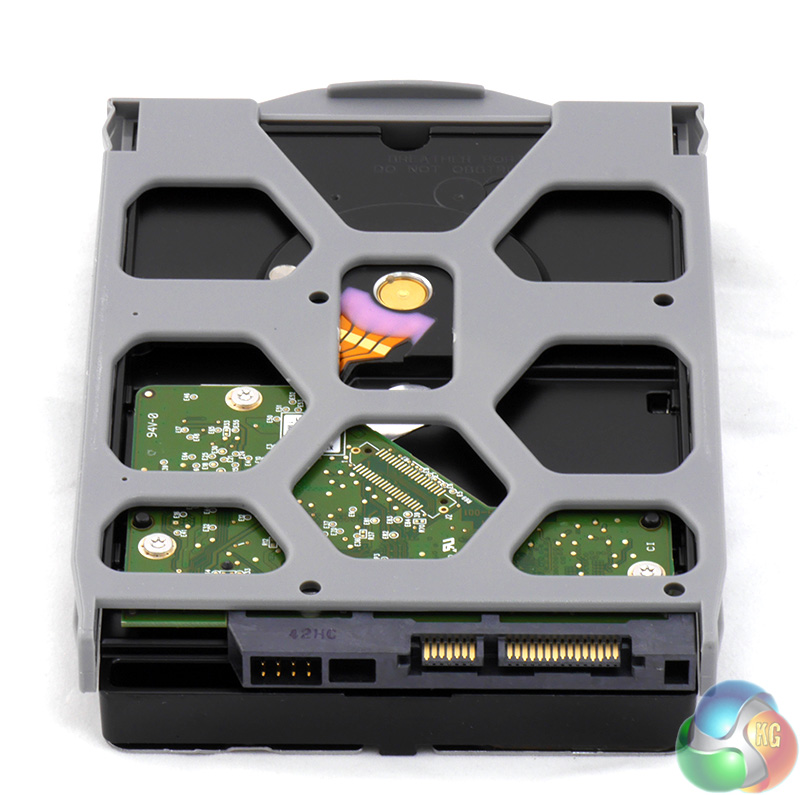
Installing the drives in their caddies is a simple matter of running four screws into the sides in the usual way. If you are using 2.5-inch HDD or SSD the screws go in the underside, just as you would expect.
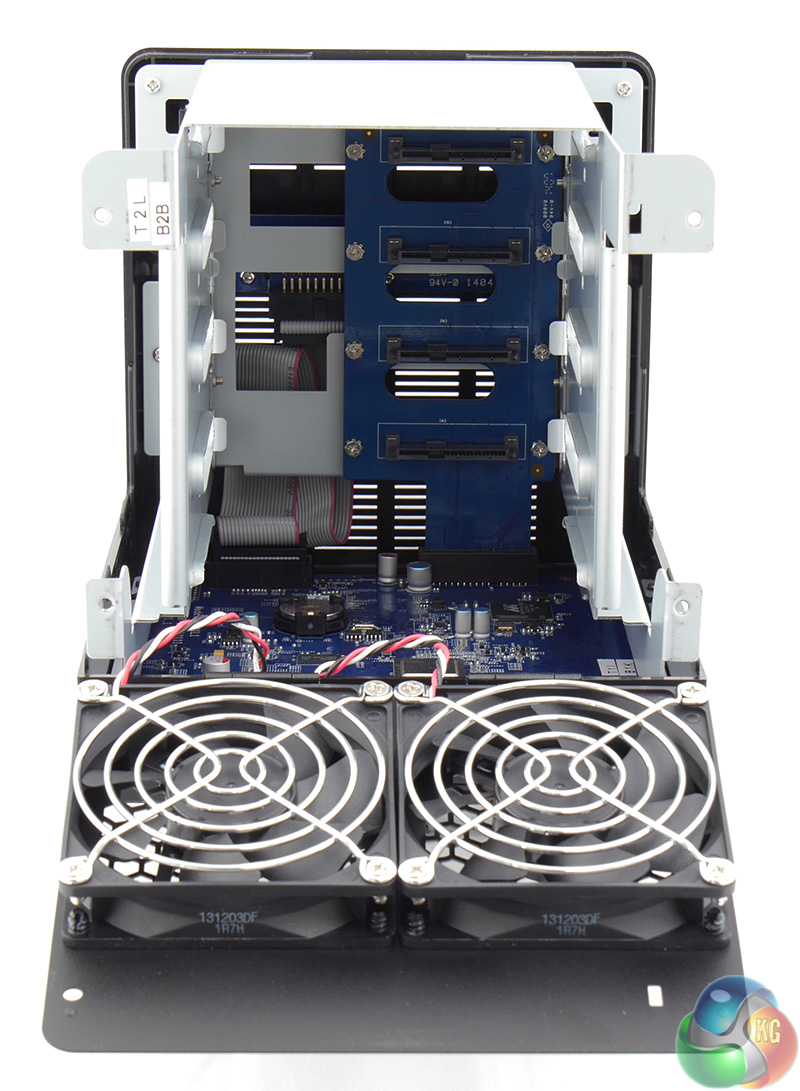
Looking inside the chassis you can see the SATA connectors at the back of the chassis although it isn't apparent these are SATA 3Gbps rather than SATA 6Gbps.
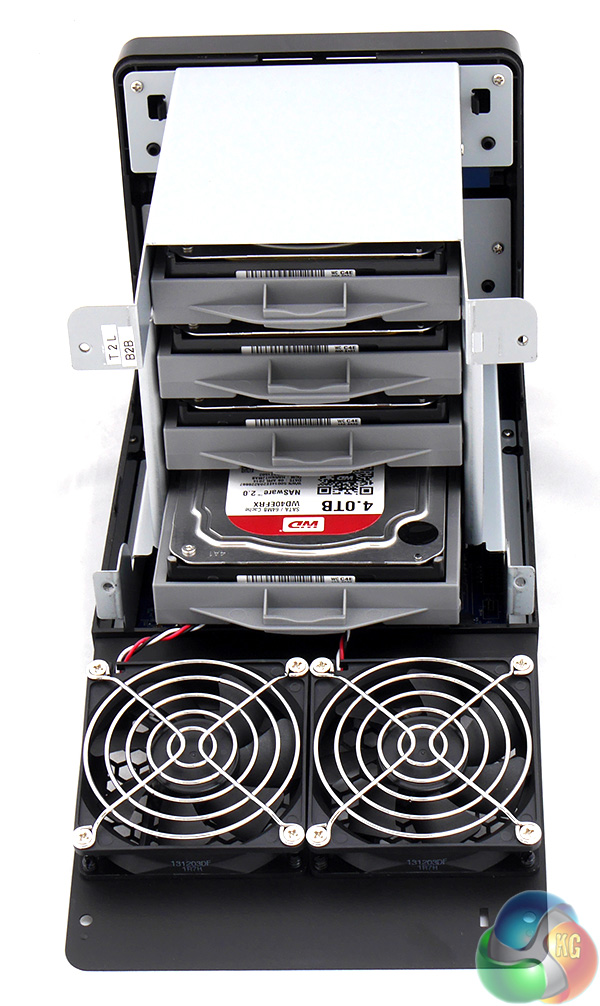
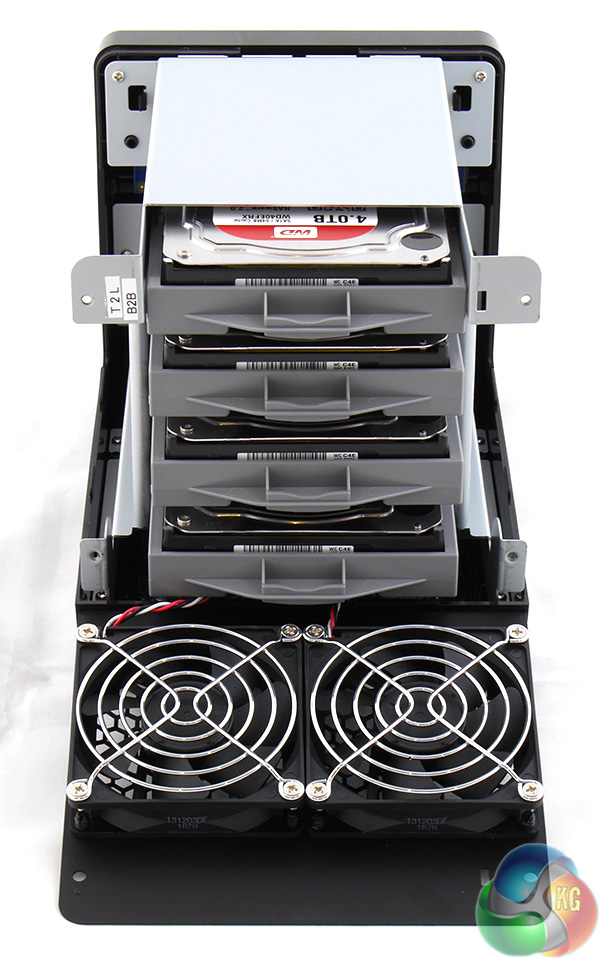
With the drives installed in their caddies you simply slide them into place.
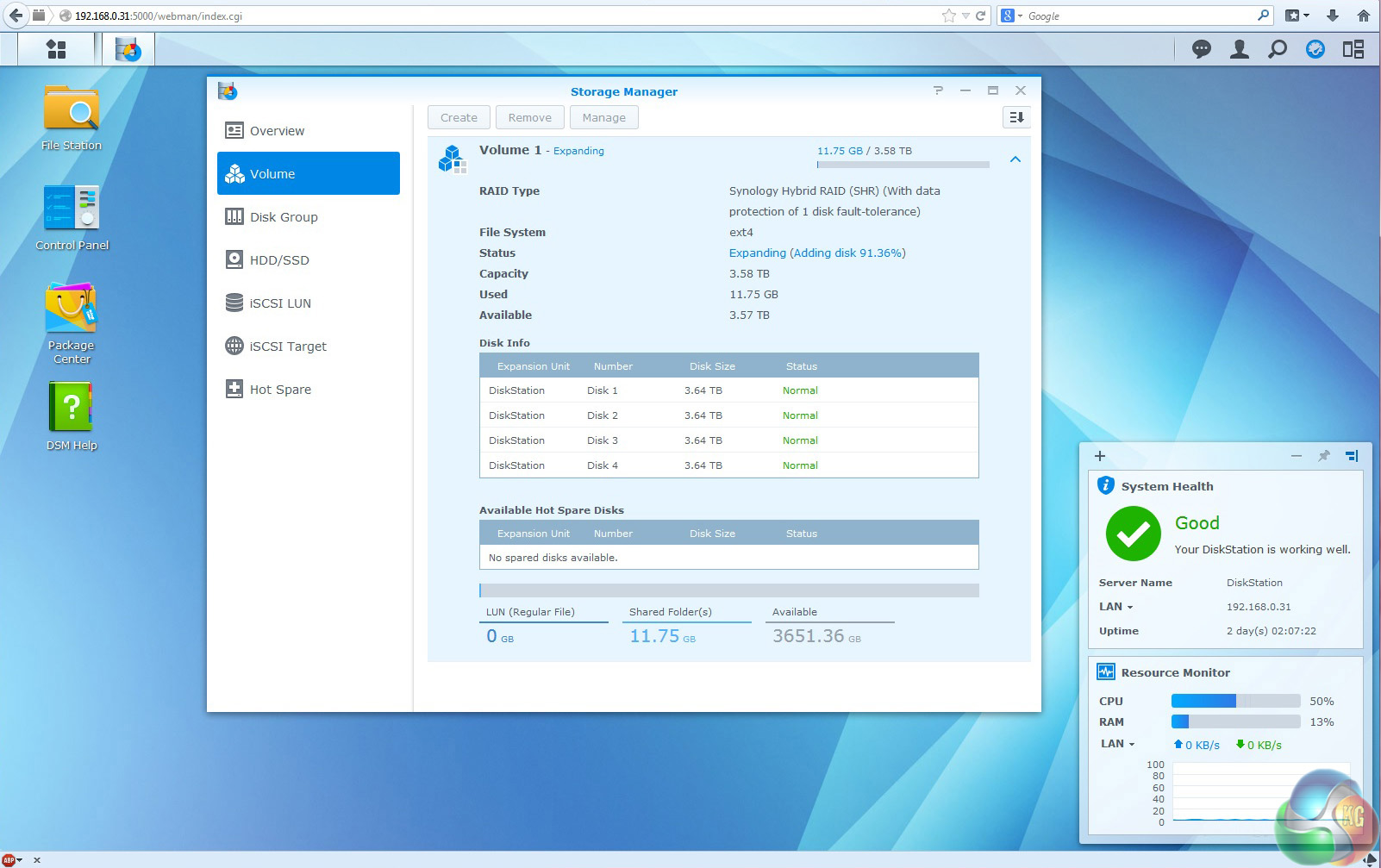
Plug in the power and network cable, turn the NAS on and wait until the flashing LEDs have settled down. Installing DSM 5 takes about ten minutes, however the process of checking the RAID array took 60 hours or two and a half days. If there is an option for disabling error checking then I couldn't see it anywhere and had no choice but to let the process continue as it diligently checked my shiny new WD Red drives.
DSM 5 is the latest version of Synology's NAS Operating System but you don't have to rush out and buy a new Synology if you fancy an upgrade as DSM 5 is supported by all Synology NAS from 2010 to the current day.
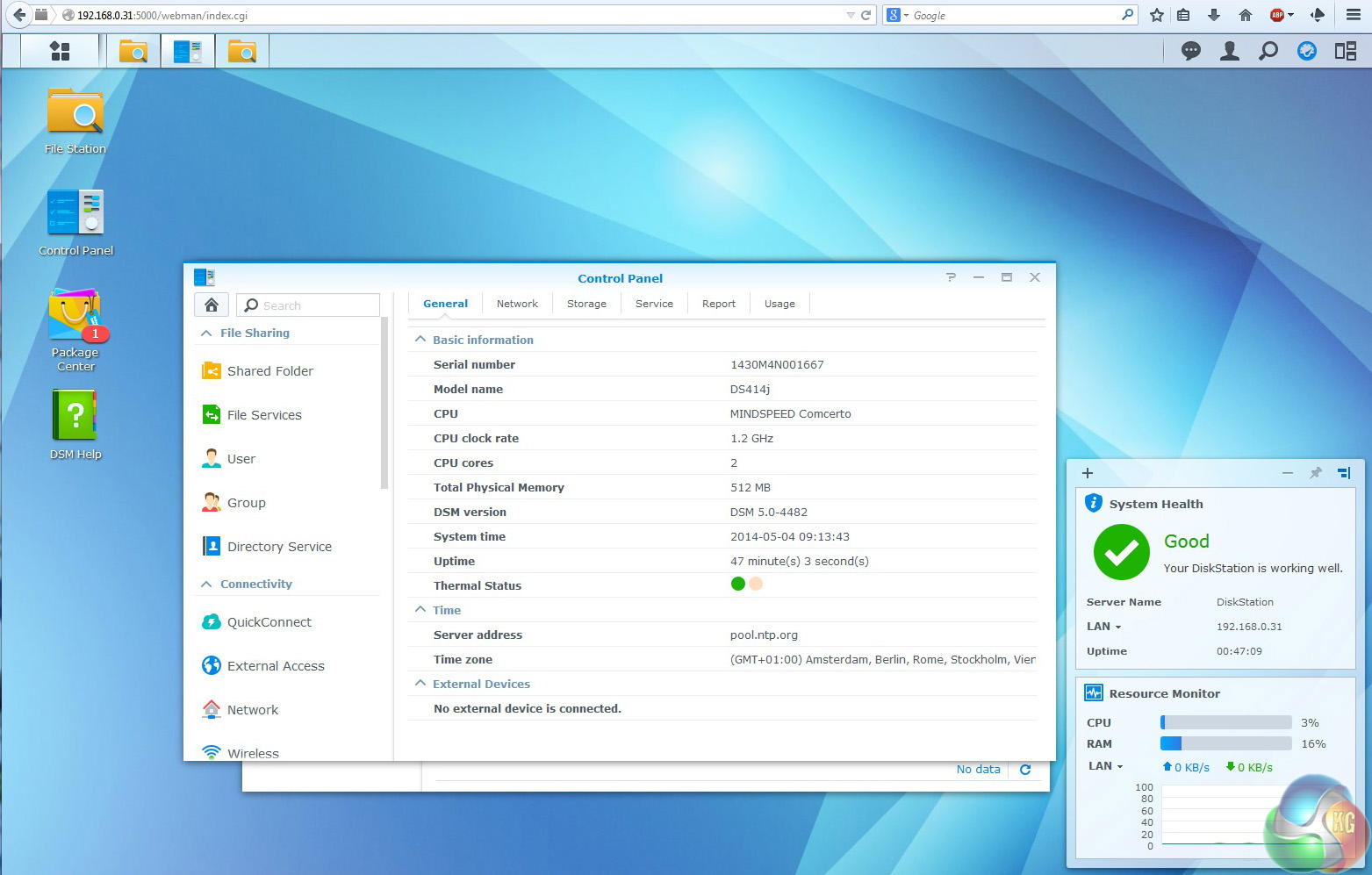
When the process was finished I had a healthy row of green LEDs (ignore the missing LAN LED in the photo as I moved the NAS to take the picture).
As you can see the hardware consists of the dual core Mindspeed Comcerto processor along with 512MB of DDR3 memory.
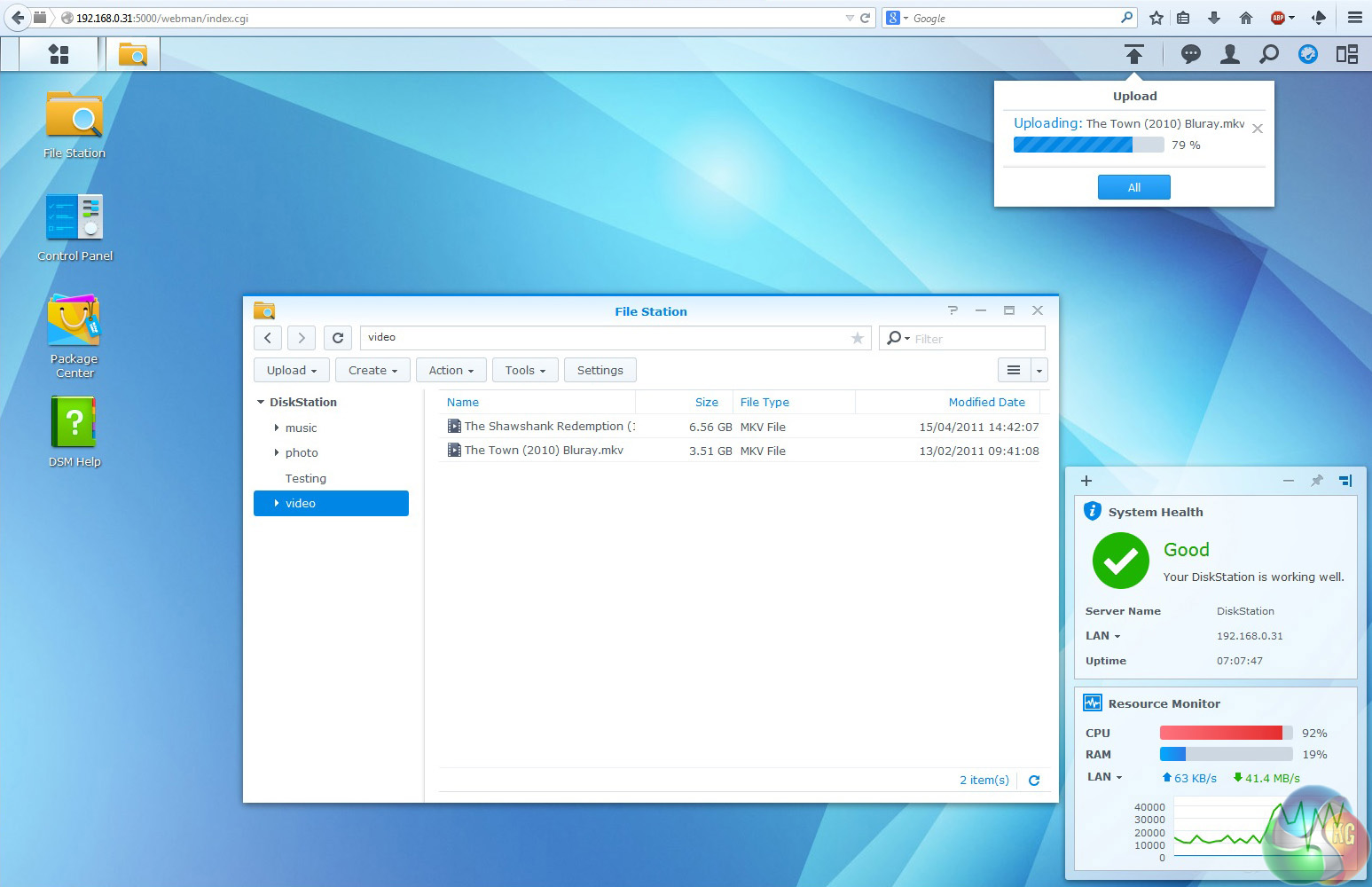
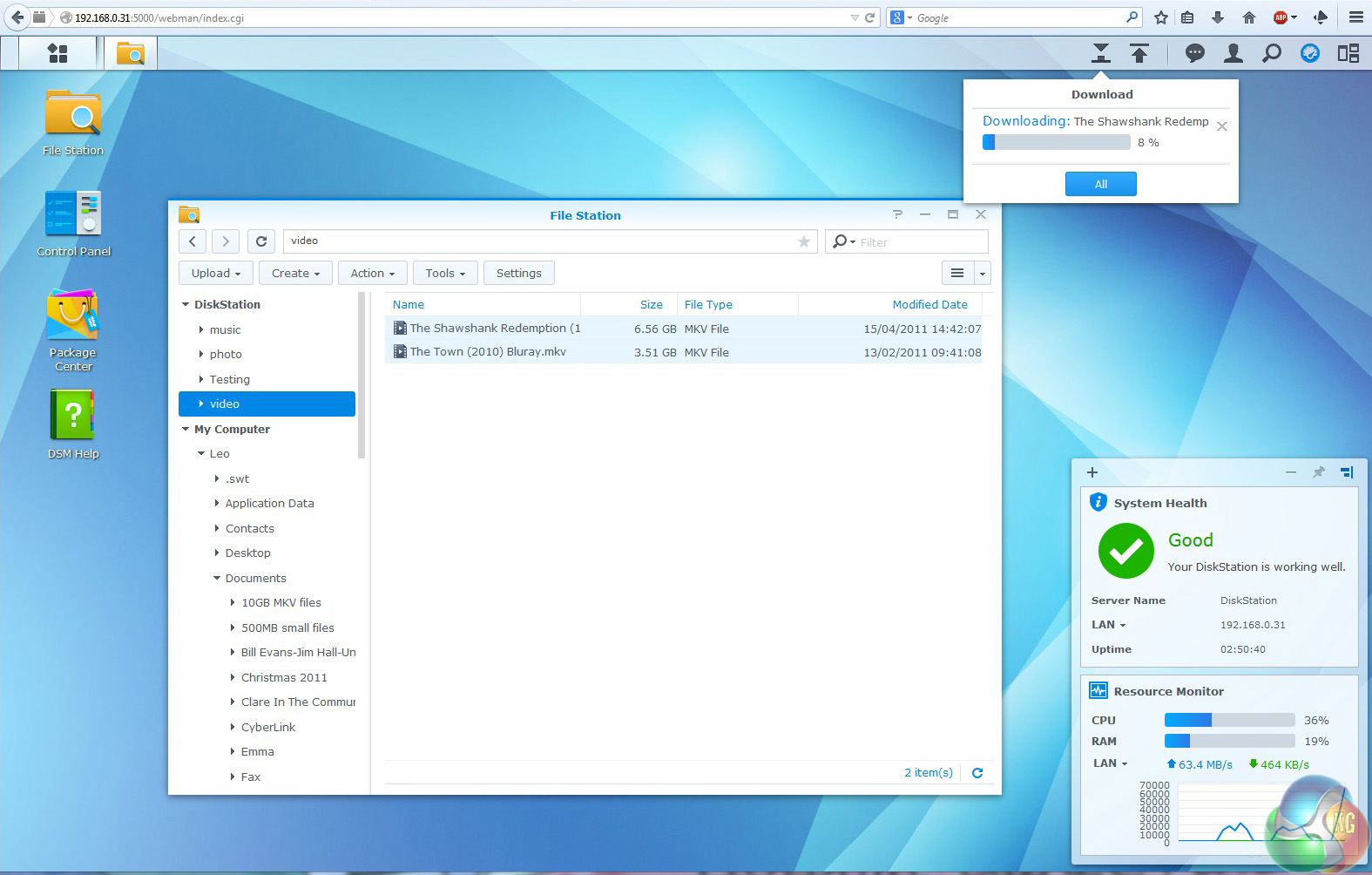
Uploading 10GB of movies in two files gave me an average speed of 30.5MBps and downloading those same files ran at 67.3MBps. Those figures are comparable with the budget DS214se and slower than the DS214, but of course the DS414j has the extra workload of RAID 5 to deal with.
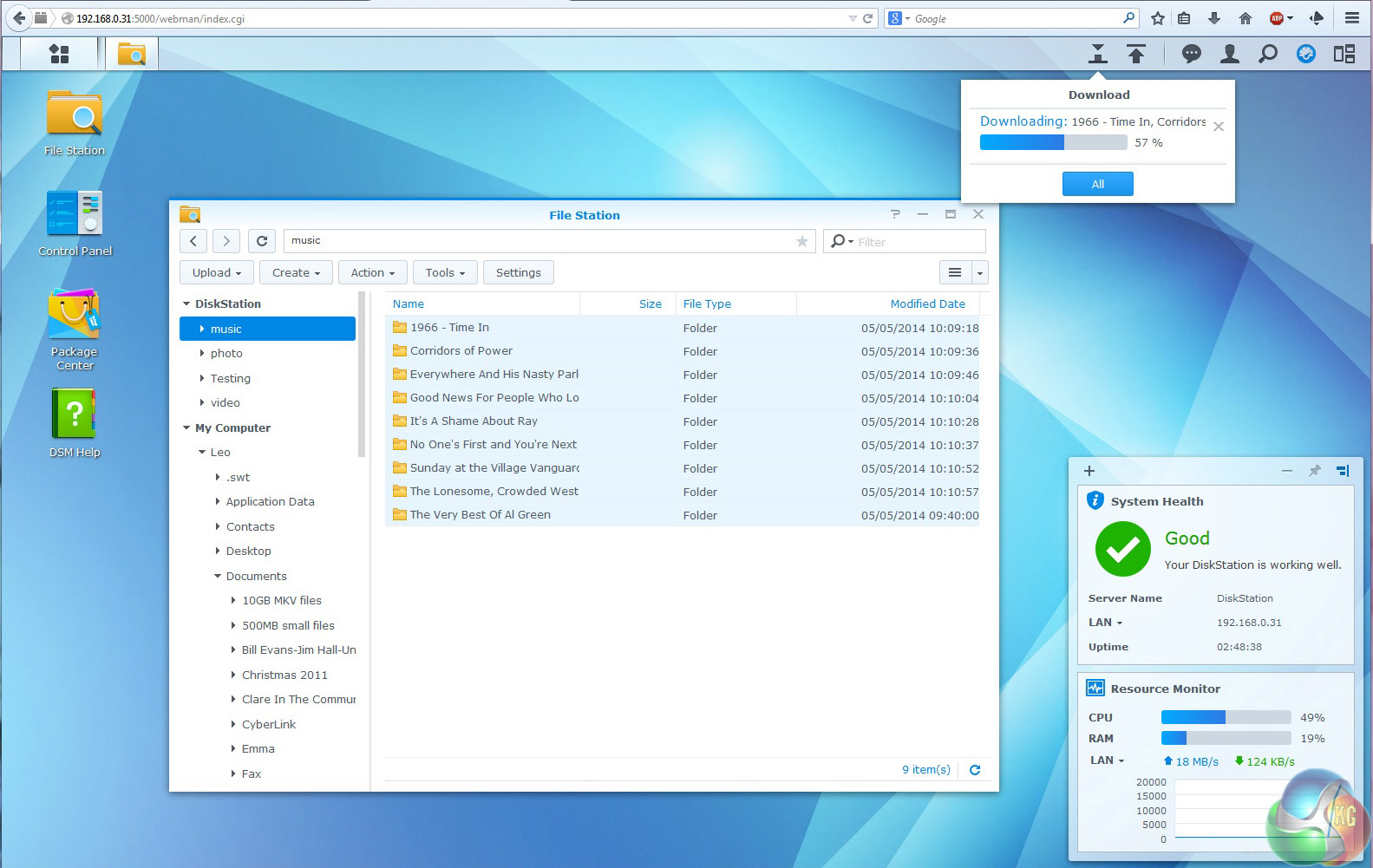
Working with 500MB of music files that are arranged in folders slowed things down significantly. The upload speed was 4.4MBps and download was 14.8MBps which is very close to the DS214 and while the figures sound low they are perfectly acceptable for that sort of work.
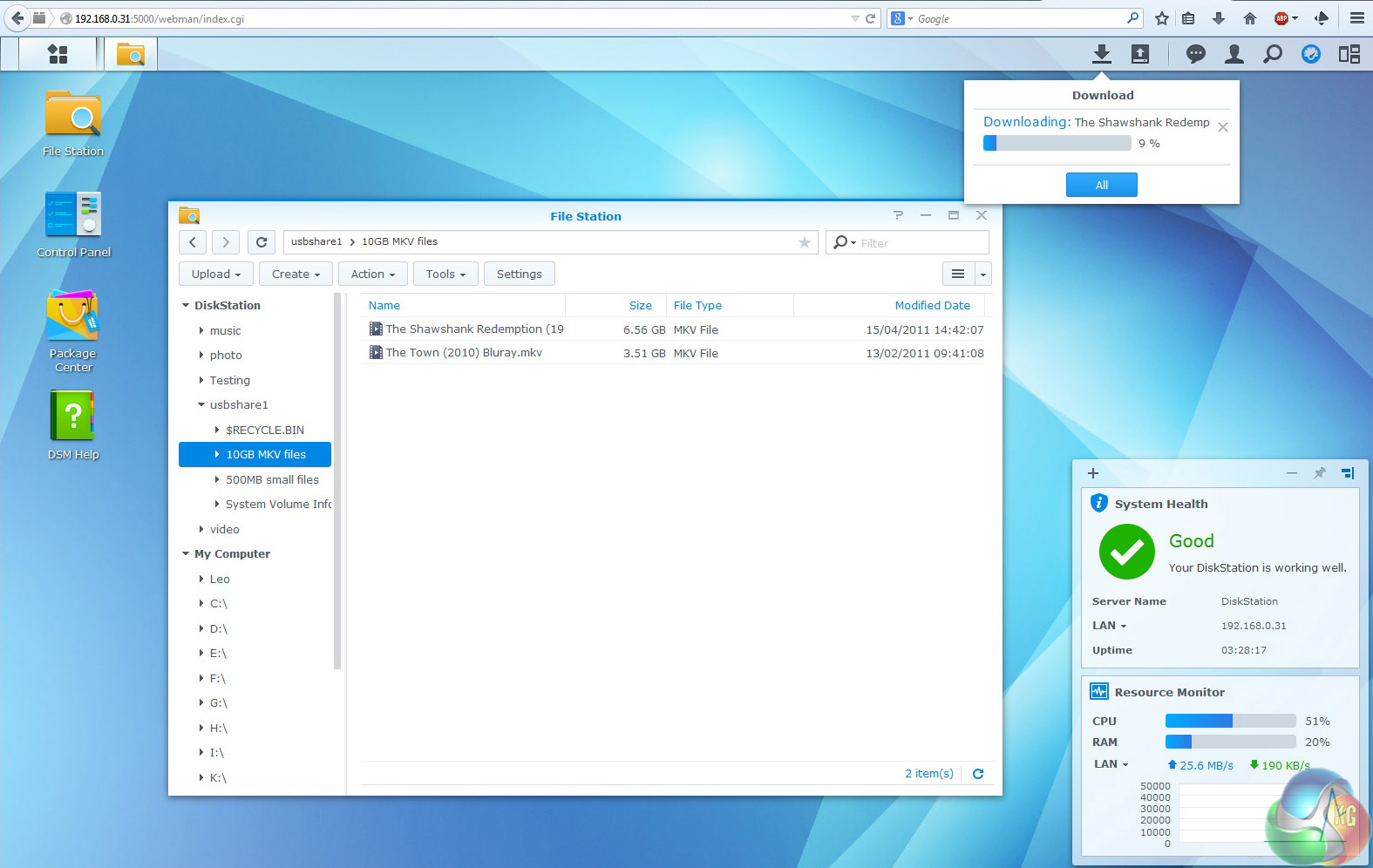
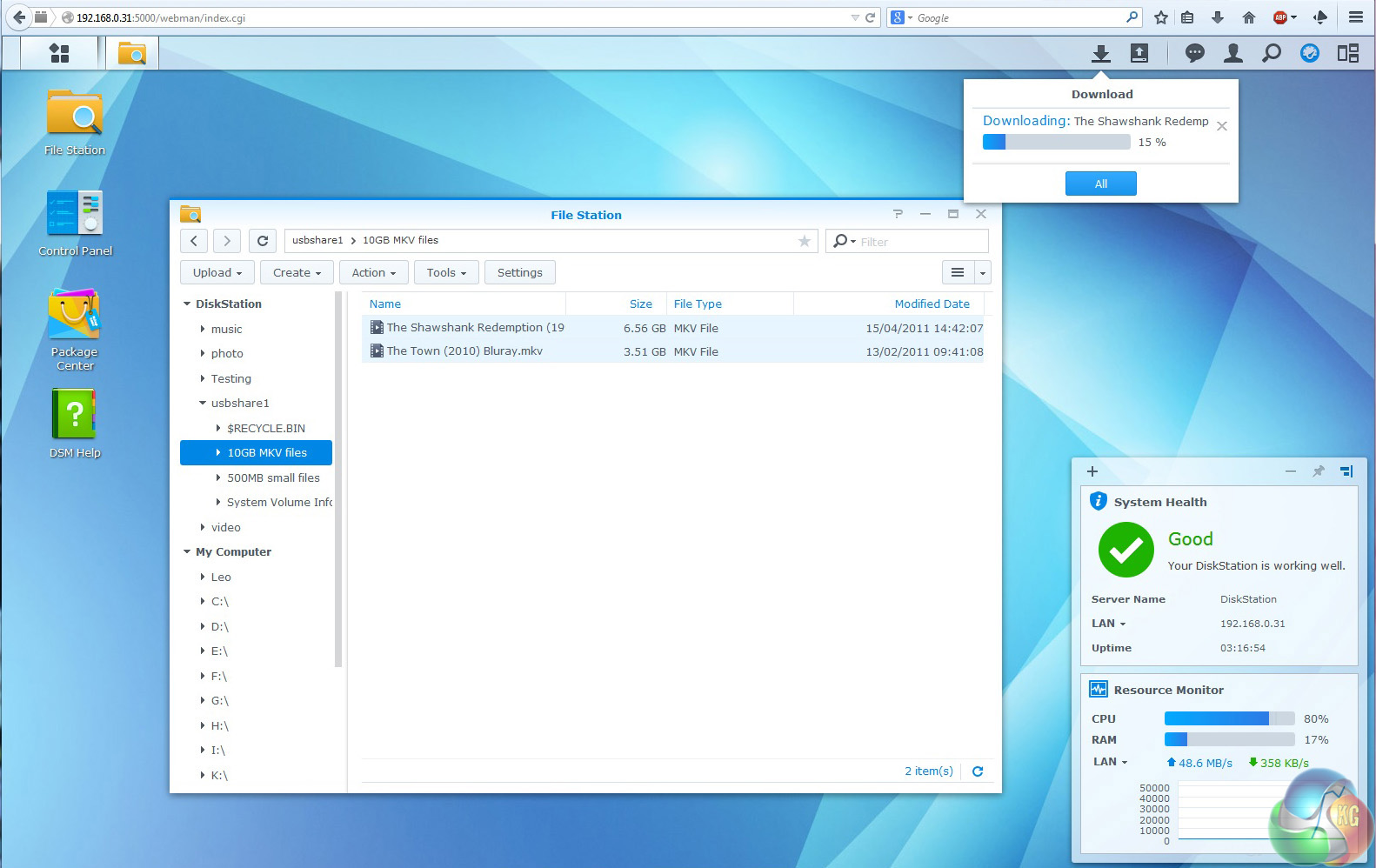
Downloading the same 10GB of files from a USB flash drive plugged in to the DS414j confirmed that USB 3.0 is indeed faster than USB 2.0 with respective speeds of 42.8MBps and 26.7MBps. Interestingly I could see no mechanism for directly transferring files from a USB drive to the SATA array so you would need to download from USB to a local machine and then upload to the RAID array.
I have rushed through the testing as the figures confirm that the DS414j performs perfectly adequately and in line with its J budget designation.
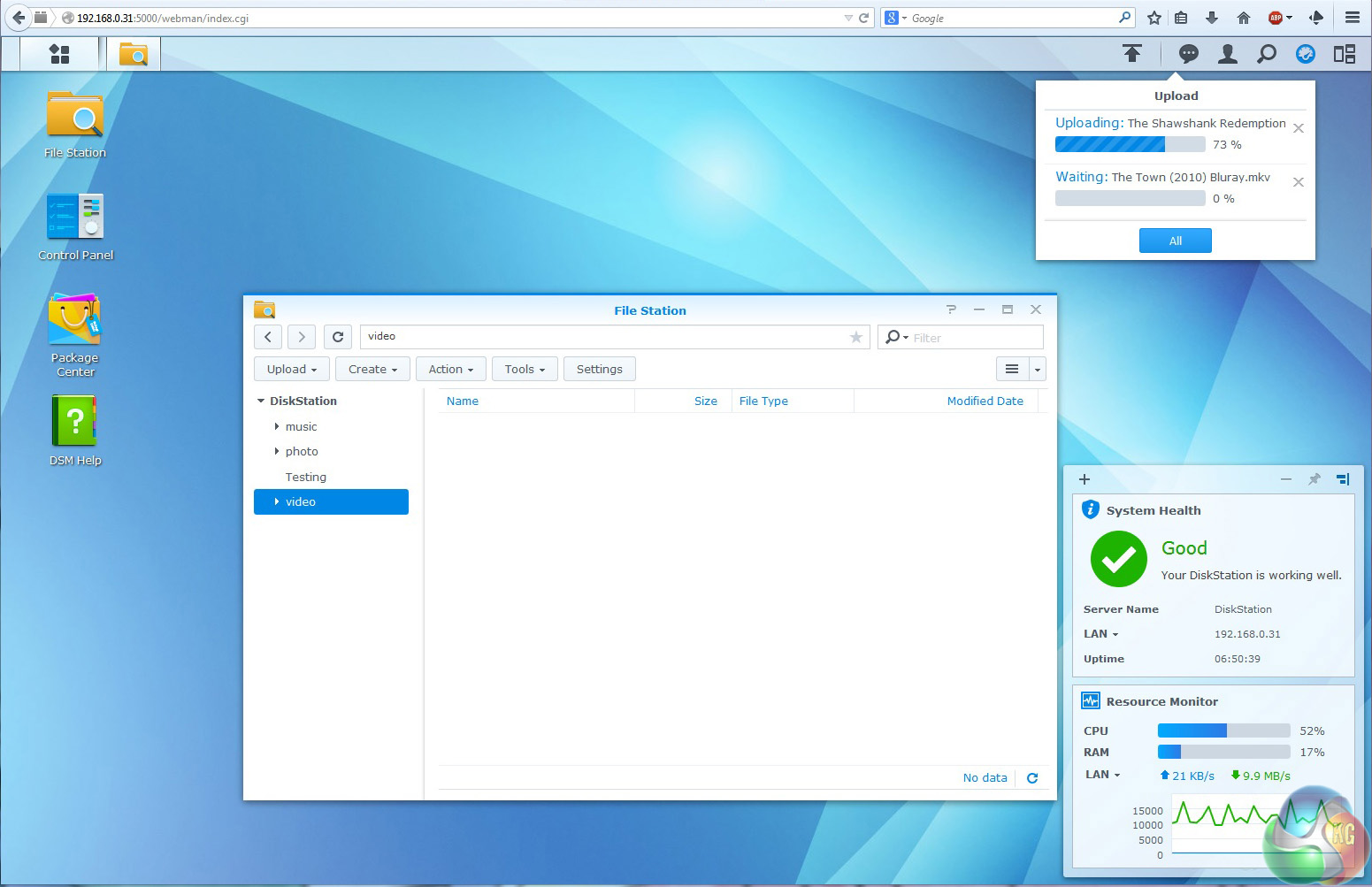
What I haven't told you is how I tested the DS414j. Initially I connected the NAS to my home network which has a Virgin Super Hub at the centre, as that is how I would use it in the real world. When I came to move files around the network the results were awful.
Transferring 10GB of movies took twice as long as the figures mentioned above but moving 500MB of small files was a different league of terrible. Instead of taking 33.8 seconds the test actually took longer than 11 minutes which is less than 1MBps.

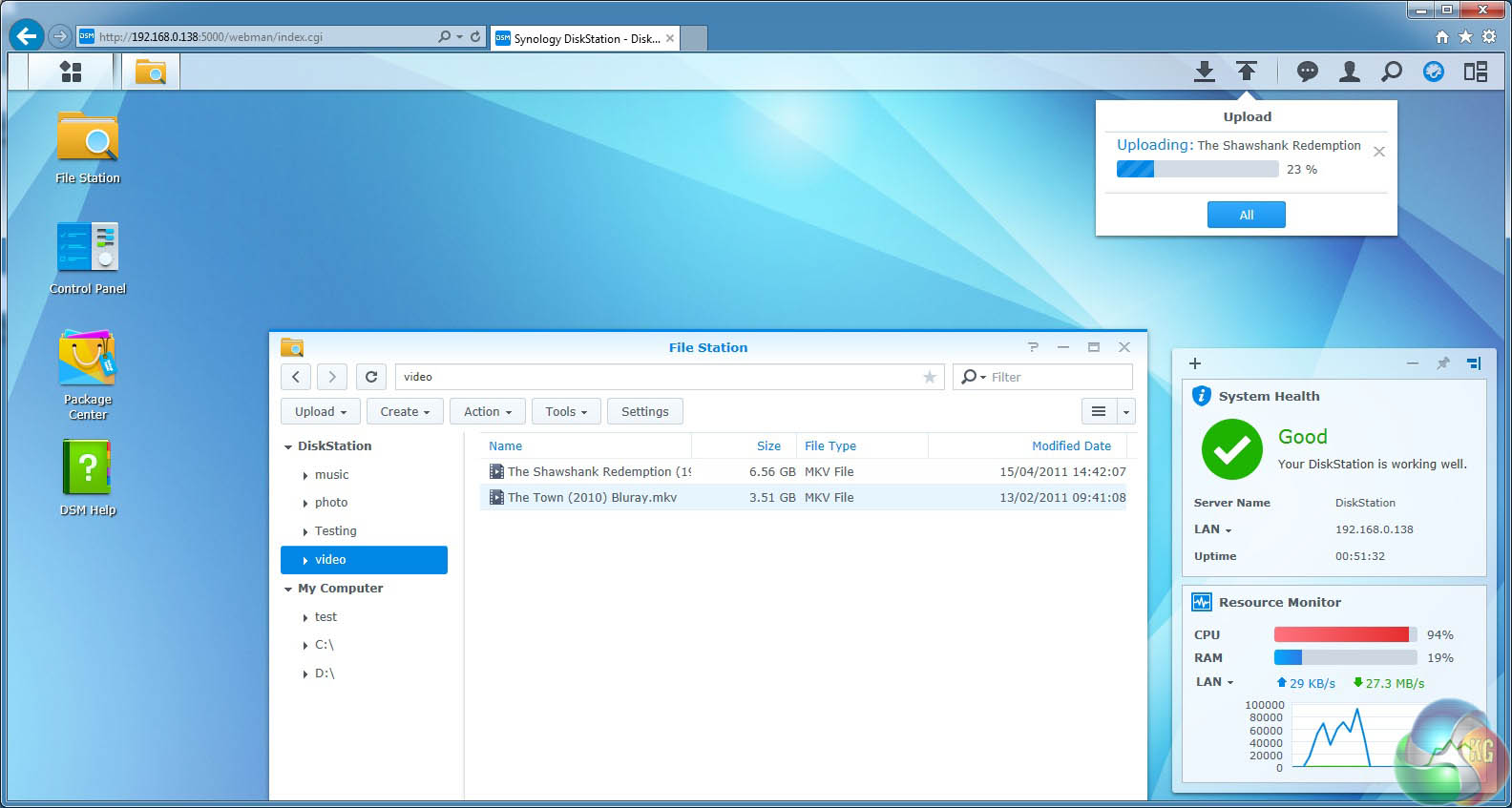
I knew the Synology couldn't be to blame so I grabbed an old D-Link DI-724GU router and connected the Synology and a single PC. The result was network speeds that made sense and file transfers that worked exactly as I would expect with movie uploads at 30.8MBps and downloads at 63.5MBps.
So what the heck was wrong with my home network? The Internet connection here is fine and no-one has any obvious problems yet the Synology was clearly unhappy. I rebooted the Virgin Super Hub which, despite its name, is a very average Netgear router.
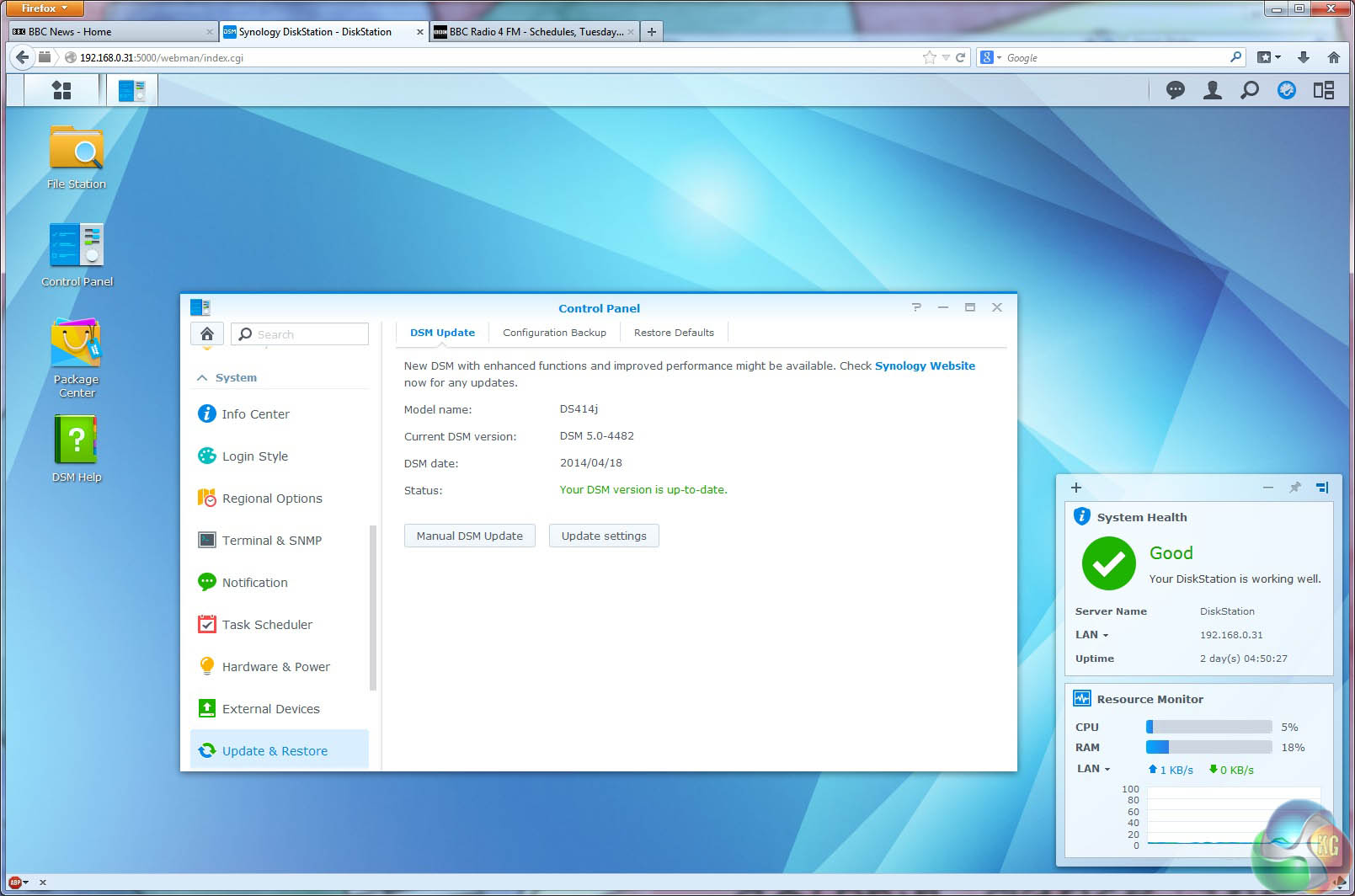
When I opened my preferred browser Firefox to connect with the Synology I was faced with a Java plug-in permission request. Firefox had updated itself to version 29 four days previously so this didn't appear to be related to the latest Firefox update but something was clearly going on.
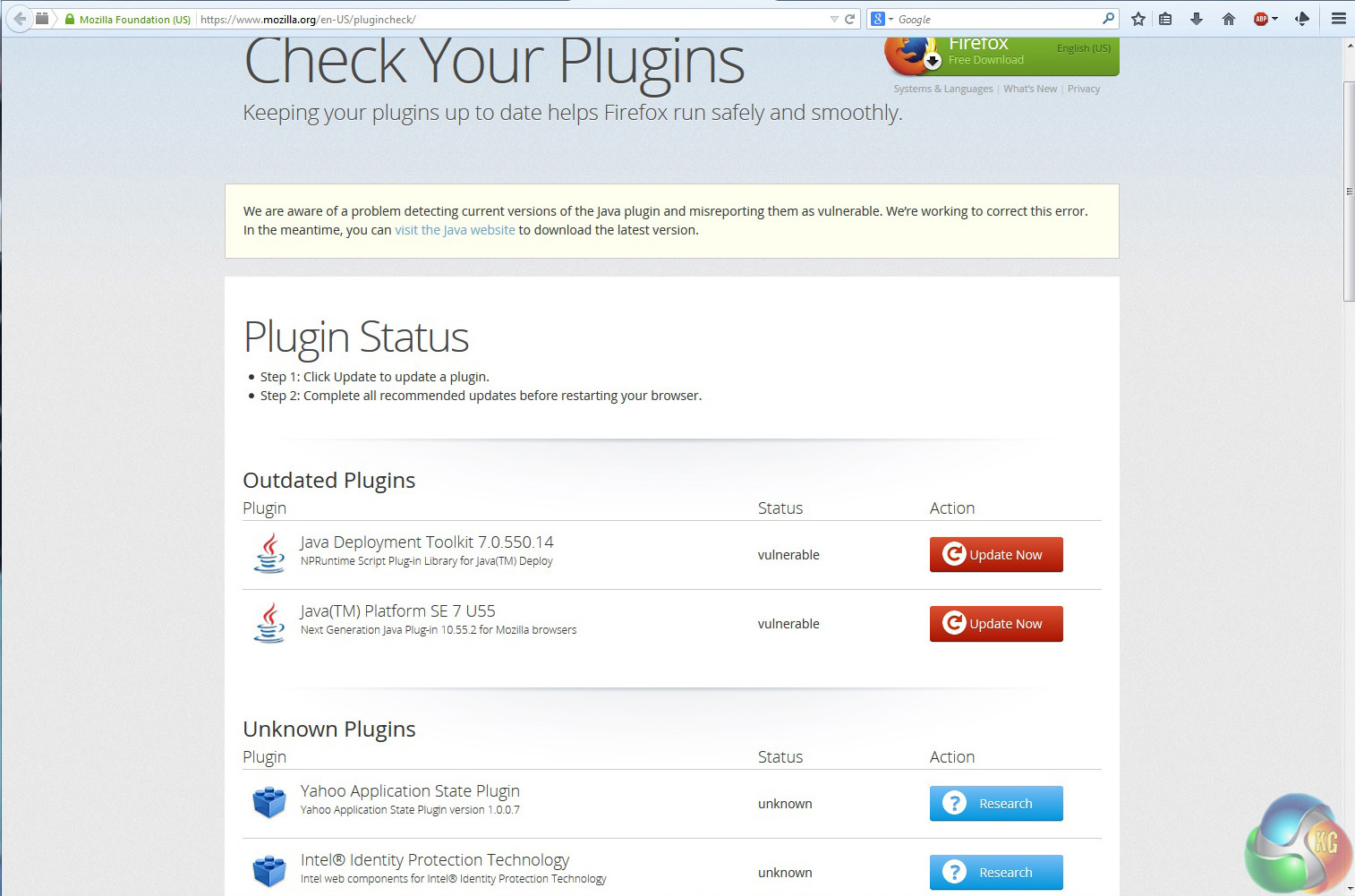
I investigated the Plug-ins in my browser and came up with with this rather worrying message which says that current versions of the Java plug-in are reported as vulnerable to security flaws. This leads Firefox to attempt to block Java and this must surely have an impact on Synology as the Control Panel runs on Java.
This isn't a cast iron explanation but I can see why my PC and the home network all behave nicely yet the Synology suffered terribly at first. My advice here is to check your router, check your browser and check your connection speeds.
In essence the Synology DS414j is a no-frills steel box that holds four hard drives. Perhaps the most exciting feature is the single USB 3.0 port and to be honest that isn't especially exciting. You don't get hot swap drive bays or link aggregation but for many small office and home office users those features are frivolous luxuries that cost money without providing any benefit.
If you simply intend to fill the NAS with drives and park it in a corner of your office then I am confident you will be happy with your purchase. The status LEDs are informative without being too annoying and the DS414j is impressively quiet in operation. If you leave it idling for a while it will shut down and sleep until it is required and will then spring into action.
Synology has chosen the 1.2GHz dual core processor with great care. When I was uploading large movie files the CPU load crept just above 90 percent which is a red alert. Usually it dropped below 90 percent which is amber and for day-to-day use you can expect to see a CPU load under 40 percent – where the meter is blue in colour.
You get 512MB of DDR3 memory but are unlikely to need it all unless the entire office piles in and attempts to make a connection.
Overall I liked the DS414j but when I make a mental list of the people who should buy this NAS it is a very short list. Most people will find a two bay NAS is adequate as they can have two 4TB or 5TB drives in RAID. You get a lot of files on a 5TB drive and the second drive offers security.
On the other hand if you want four huge drives with RAID 5 (and that's a good call) then I think the DS414 gives you more options. It costs an extra £90 but that is only ten percent of the total once you buy four decent hard drives.
Provided you are certain you don't need hot swap drives or the extra performance of link aggregation then yes, the DS414j is the NAS you should buy.
Discuss on our Facebook page, over HERE.
Pros
- Decent performance.
- Reasonable cost.
- One USB 3.0 port.
- Synology DSM 5 software.
- Support for 5TB drives.
Cons
- Old school styling.
- No hot swap drives.
- Only one USB 3.0 port – I want two.
- SATA 3Gbps rather than 6Gbps.
- No link aggregation.
KitGuru says: The DS414j is a basic four bay NAS but it does a decent job for the price.

Thanks for the review!
However, according to their product page (http://www.synology.com/en-global/products/spec/DS414j) it actually is SATA 3 (6Gbit/s).
You test nas from dsm web? Why not samba? Web transfer speeds are obviously lower…