KitGuru KitGuru.net – Tech News | Hardware News | Hardware Reviews | IOS | Mobile | Gaming | Graphics Cards


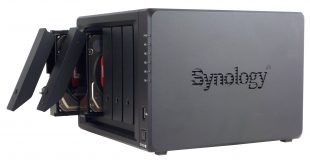
Synology's DiskStation DS1520+ is a 5-bay NAS designed for small offices and IT enthusiasts featuring a pair of M.2 NVMe slots for SSD caching and four Gigabit Ethernet ports.
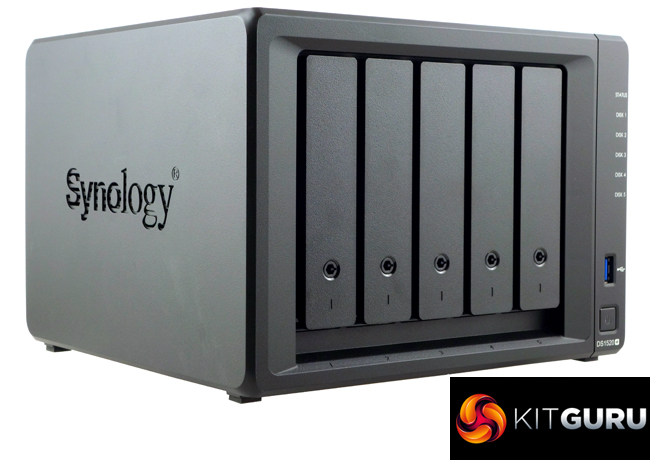
Powered by an Intel Celeron J4125 quad-core processor clocked at 2.0GHz (burst up to 2.7GHz) the DiskStation DS1520+ comes with 8GB of DDR4-2666MHz memory which is the most the motherboard supports. It also supports an AES-NI hardware encryption engine.
Synology quote Sequential throughput performance for the D1520+ as up to 451.28MB/s for reads and 451.18MB/s for writes although those figures are from the NAS being tested with all four LAN ports being used in Link Aggregation mode. As well as the four network ports the DS1520+ sports a pair of NVMe supporting M.2 slots for cache duties.
Synology back the DS1520+ with a 3-year warranty.
Physical Specifications
Processor: Intel Celeron J4125 (2.0 (base) / 2.7 (burst) GHz).
Memory: 8GB DDR4-2666.
Gigabit Ethernet Ports: 4
Rear panel connectors: 2 x eSATA, 1 x USB 3.0.
Front panel connectors: 1 x USB 3.0.
RAID support: Synology Hybrid RAID, JBOD, RAID 0, RAID 1, RAID 5, RAID 6, RAID 10.
Cooling: Active – 2 x 92mm.
Drive Bays Supported: 5.
Maximum hard drive size supported: 16TB.
Maximum Capacity: 80TB.
Maximum single volume size: 108TB.
M.2 drive slots: 2 x NVMe.
Internal File System support: Btrfs, EXT4.
Dimensions (D x W x H): 223 x 230 x 166 mm.
Weight: 2.62kg.
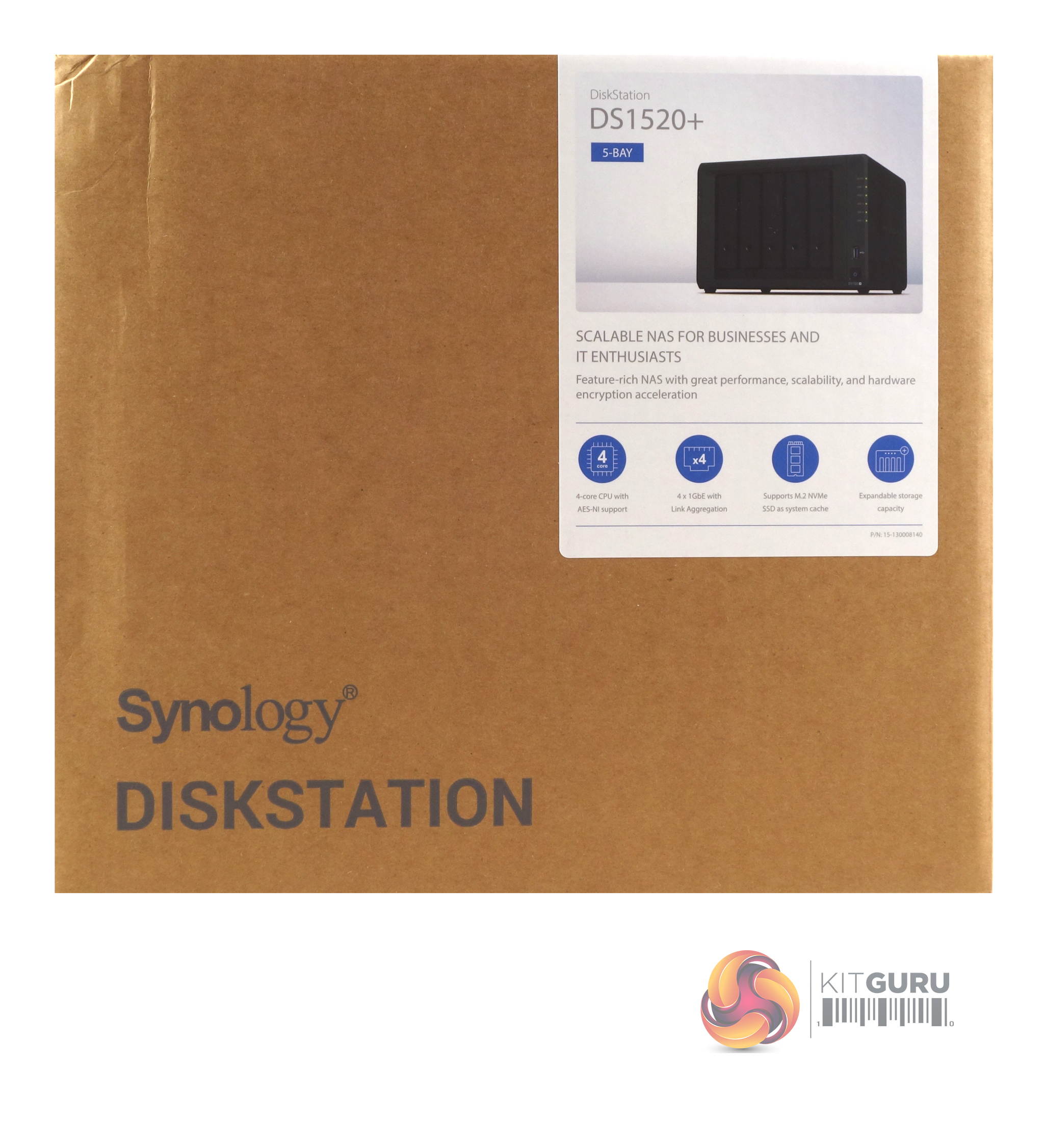
The Synology DiskStation DS1520+ arrives in a smallish brown box with a label on the top right-hand corner. The label contains an image of the unit and which of the DiskStation series it is. Under the image is a panel with four icons representing features of the NAS; Quad-core CPU with AES-NI, expandable storage, 4 x LAN with Link Aggregation support and the fact it supports for two M.2 NVMe SSD for caching duties.
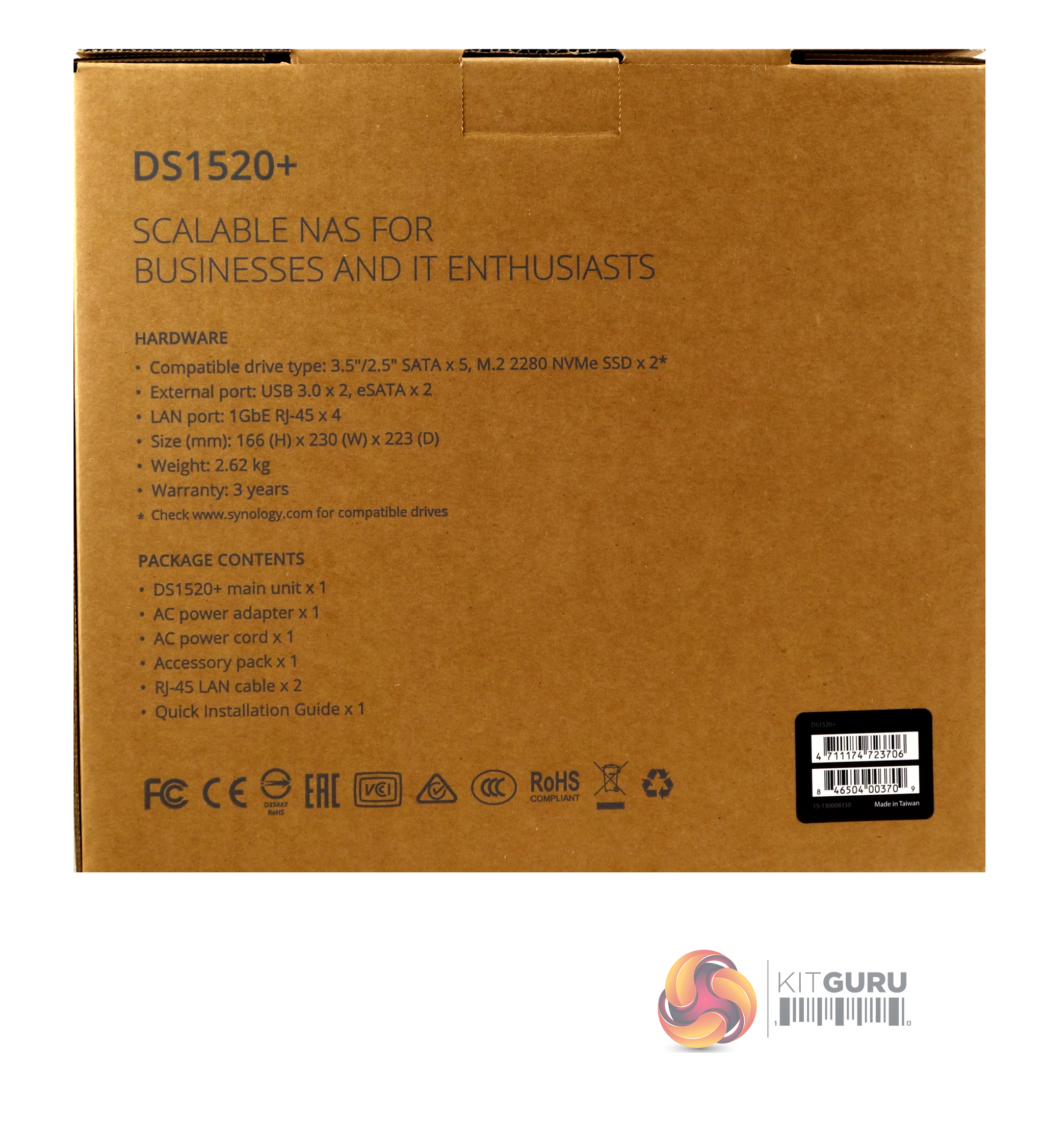
Printed directly on the rear of the box is a small list of some of the DS1520+ hardware features and a package content list.
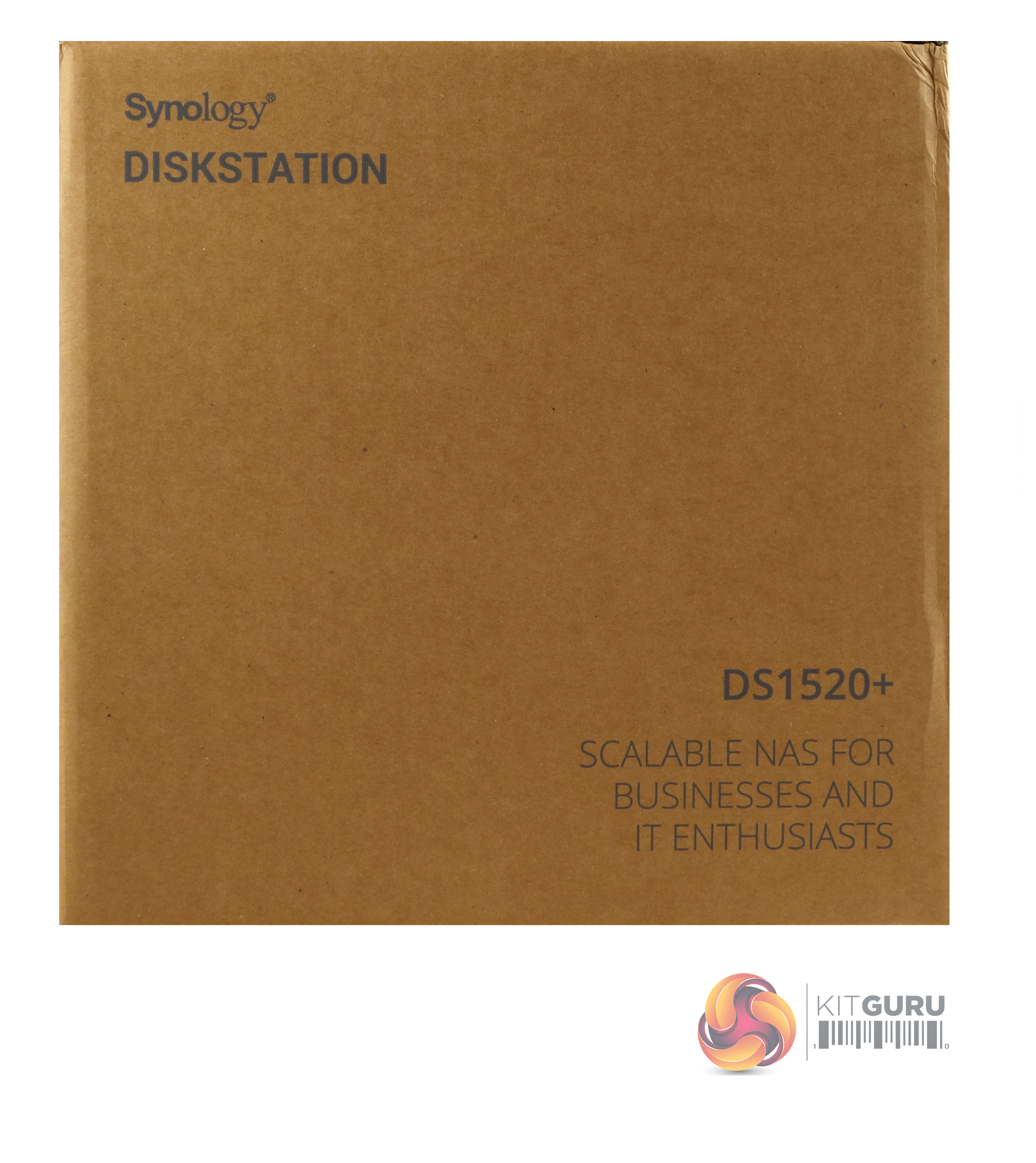
Both side panels carry the same “scalable NAS for business and IT Enthusiasts” marketing message.
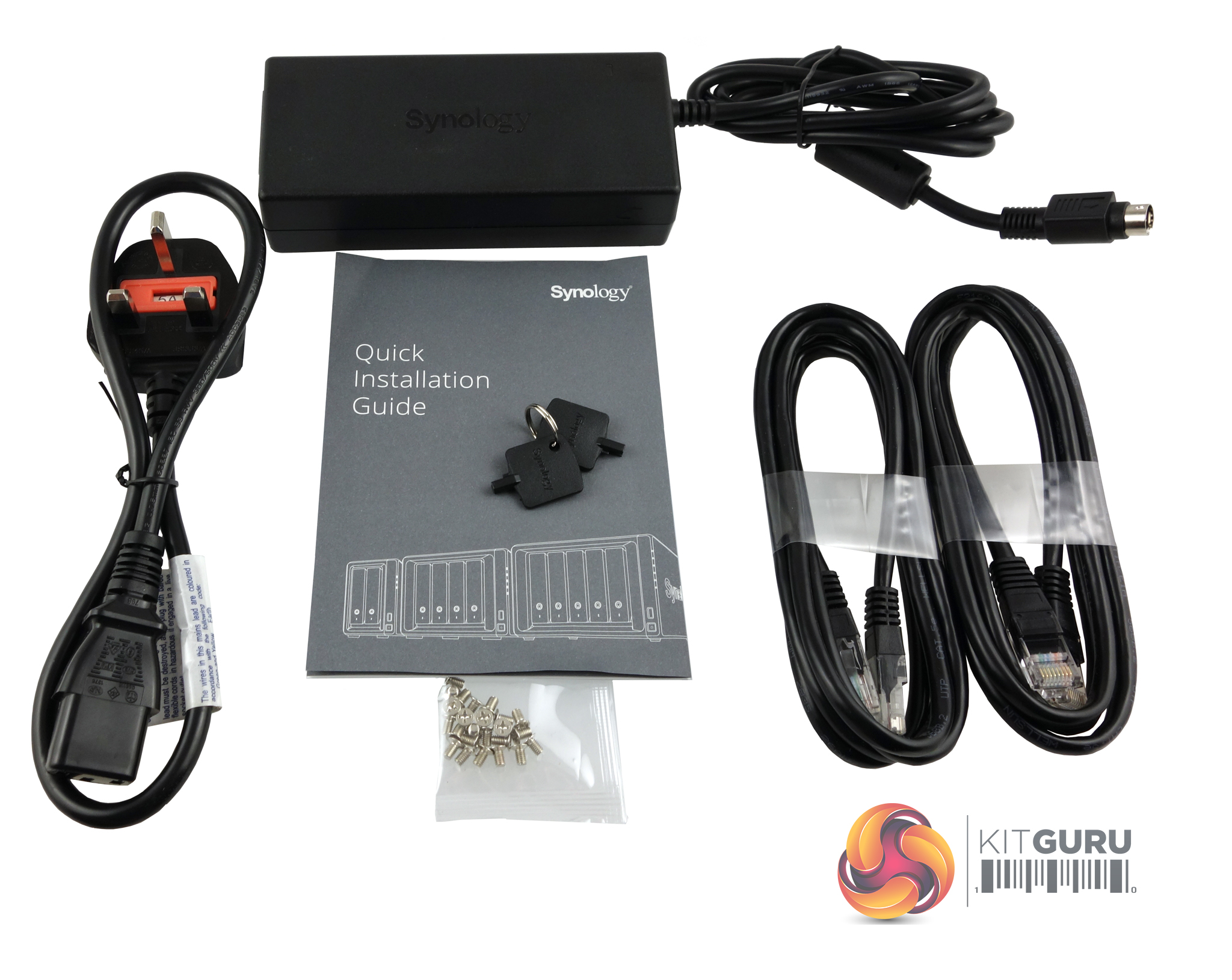
The box bundle contains everything you need to get started; PGB EA11011D-120 power adapter (rated at 100W), a pair of Ethernet cables, fixing screws for 2.5in drives, two drive bay keys and a quick install guide.
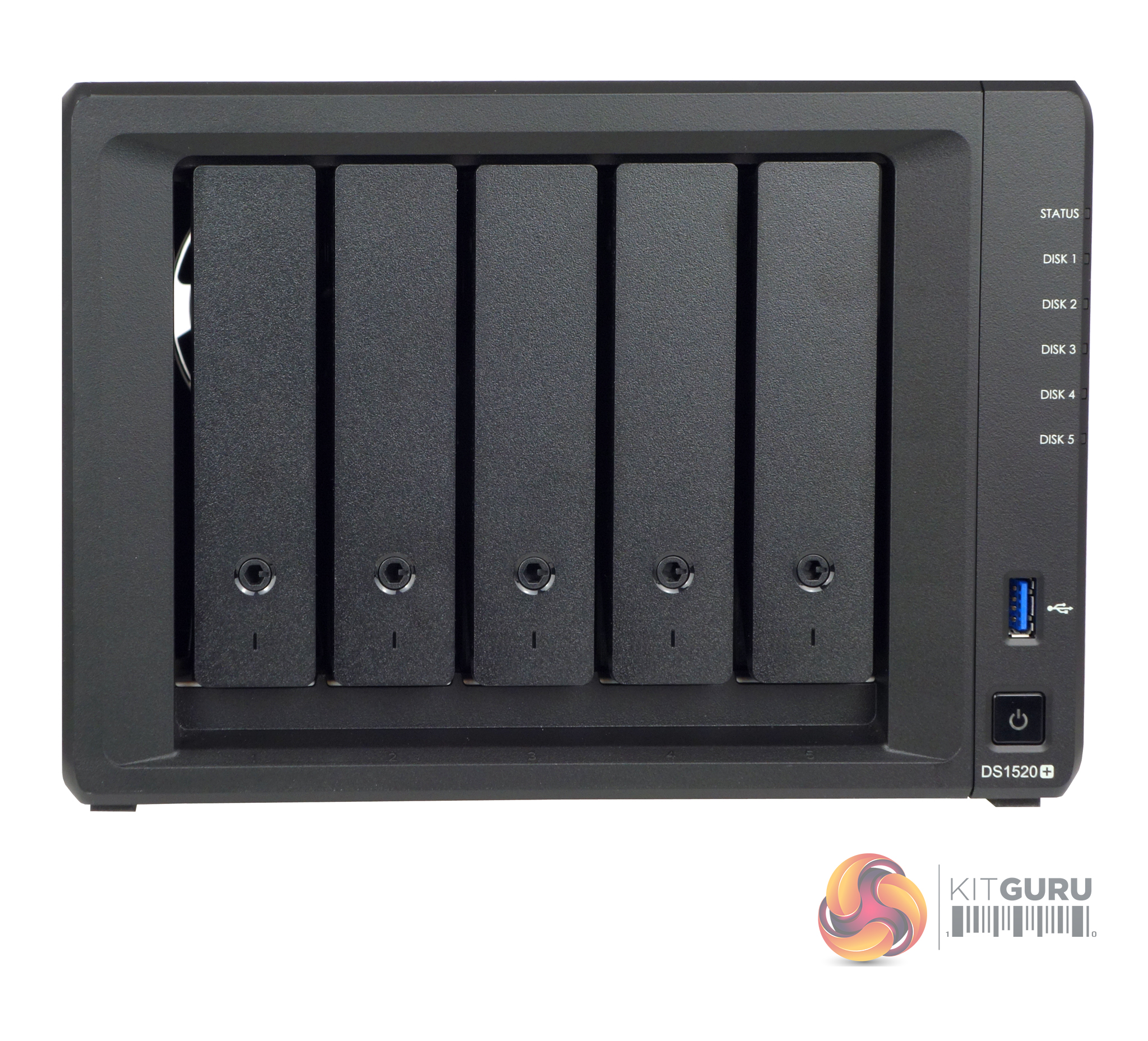
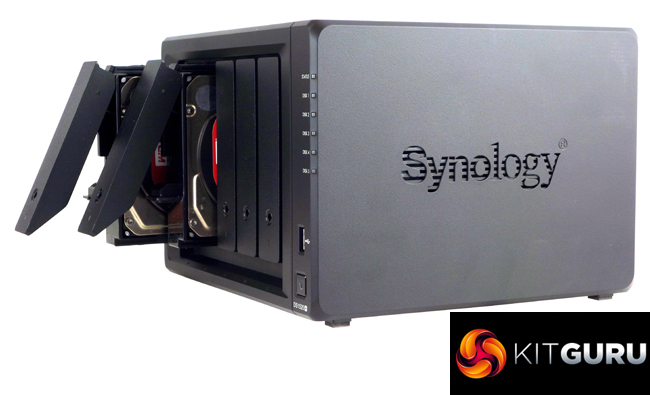
With its five vertically mounted drive bays Synology's DiskStation DS1520+ is a compact tower design. To the right of the drive bays sit the six vertically mounted indicator LEDs; the top one is for system status with the remaining five indicators for drive activity. Under these and towards the base of the unit sit a vertically mounted USB 3.0 port and the power button.
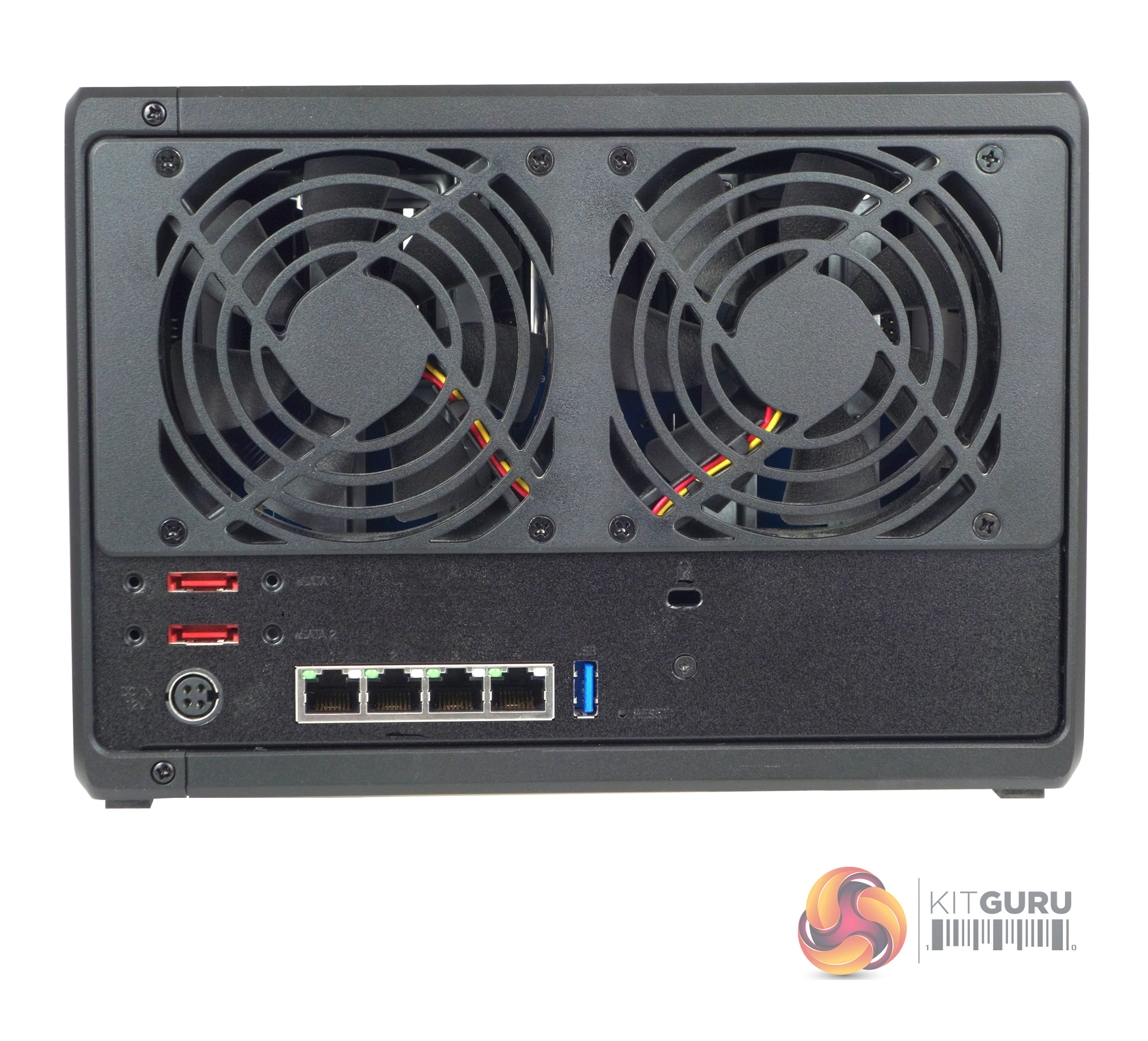
Dominating the rear panel are the grills for the pair of 92mm system cooling fans. Under the left-hand grill sit the four Gigabit Ethernet ports, a pair of eSATA ports, a vertically mounted USB 3.0 port, the power in port and a reset button. Under the right hand, fan sits a Kensington lock slot.
Now adding eSATA ports might seem to be old school when you have very high-speed USB ports in the market place but in this case, it’s what brings extra capacity support to the DS1520+ as the NAS supports Synology’s DX517 Expansion Unit, in fact, two of them.
The DX517 is a 5-bay expansion unit which currently (at the time of writing) supports up to 16TB drives which means by plugging a pair of DX517 units into the DS1520+, the storage capacity of the NAS increases by 160TB.
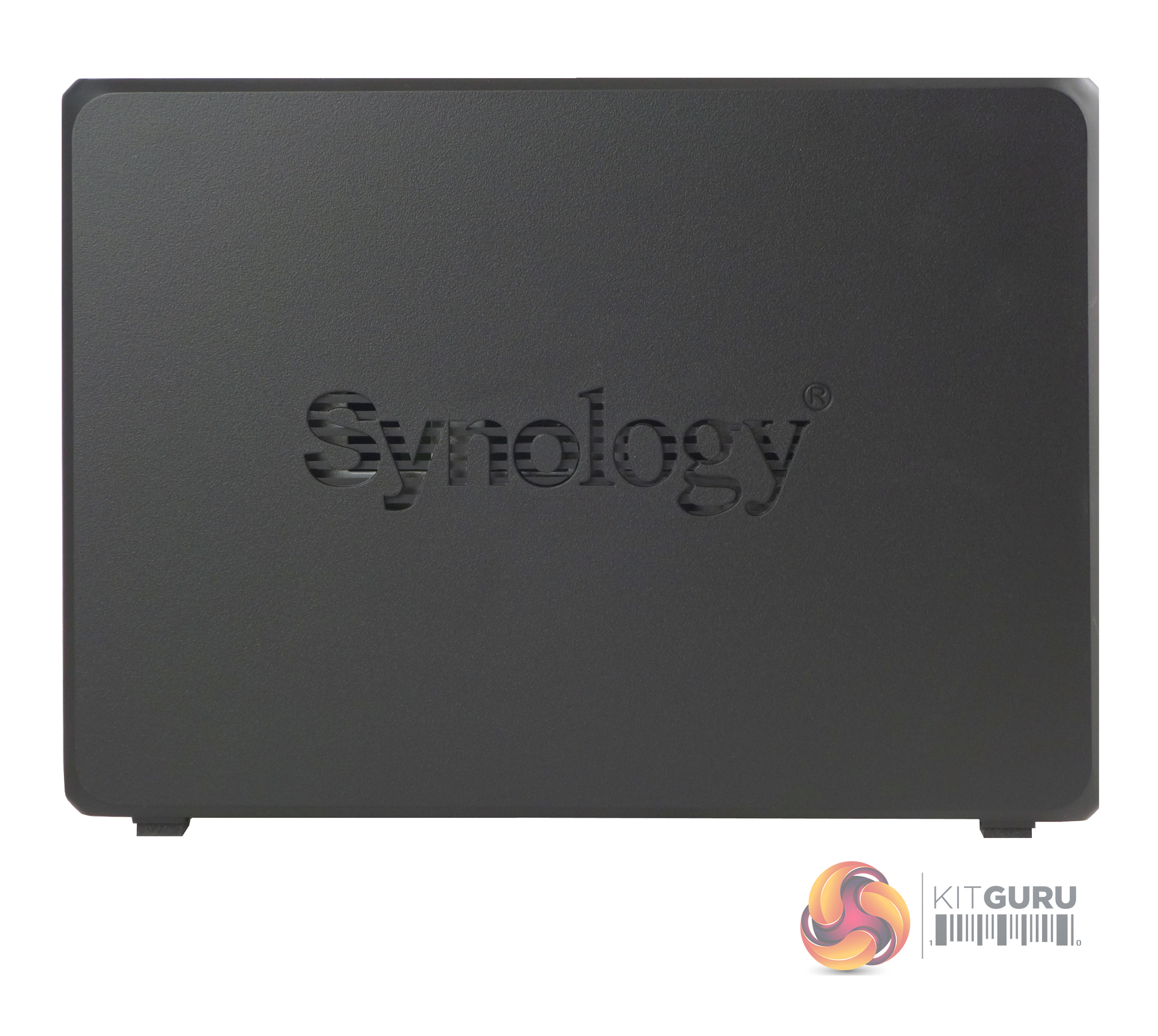
The side panels of the DS1520+ have Synology branding cut into them with a mesh backing to provide extra ventilation for the NAS.
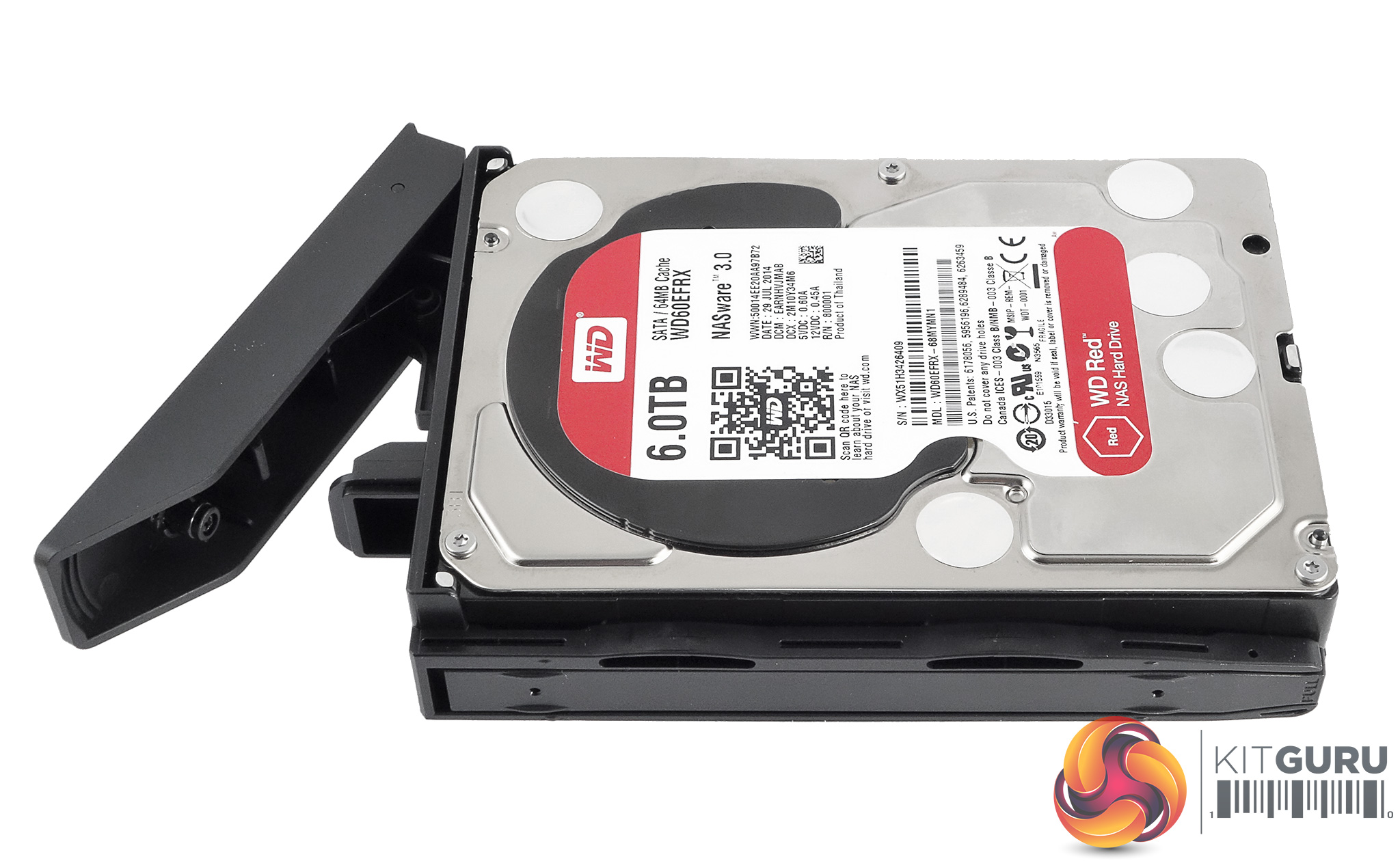
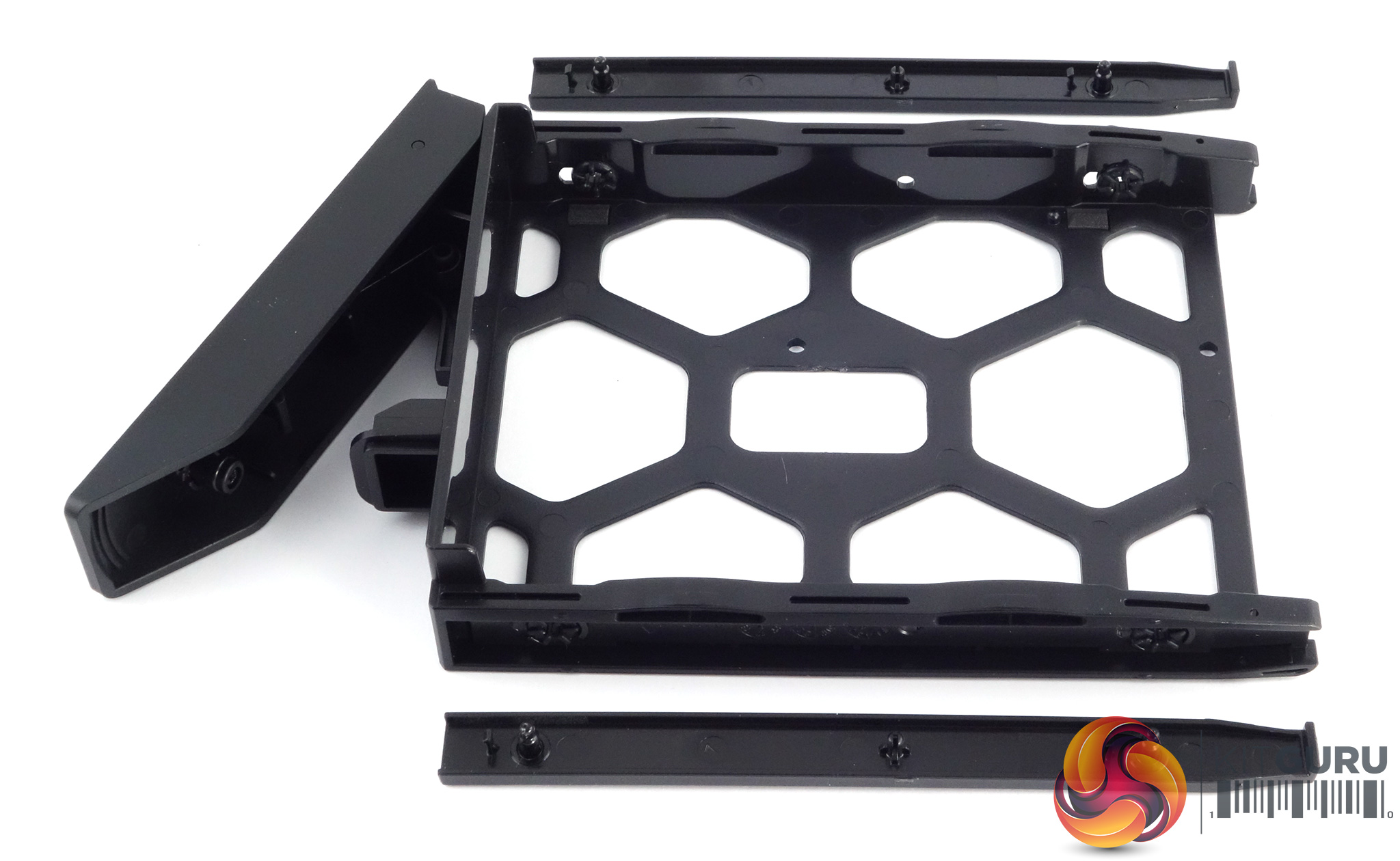
The plastic drive trays are tool-free for 3.5in drives but 2.5in drives will need fixing to the bays (enough screws are provided in the box). The larger drives are held in position by plastic strips which have pins on them to go through the holes in the sides of the trays and into the mounting holes of the drive, a simple but very effective tool-free design. The drive bay doors have physical security in the shape of simple locks (Synology bundle a pair of keys with the NAS).
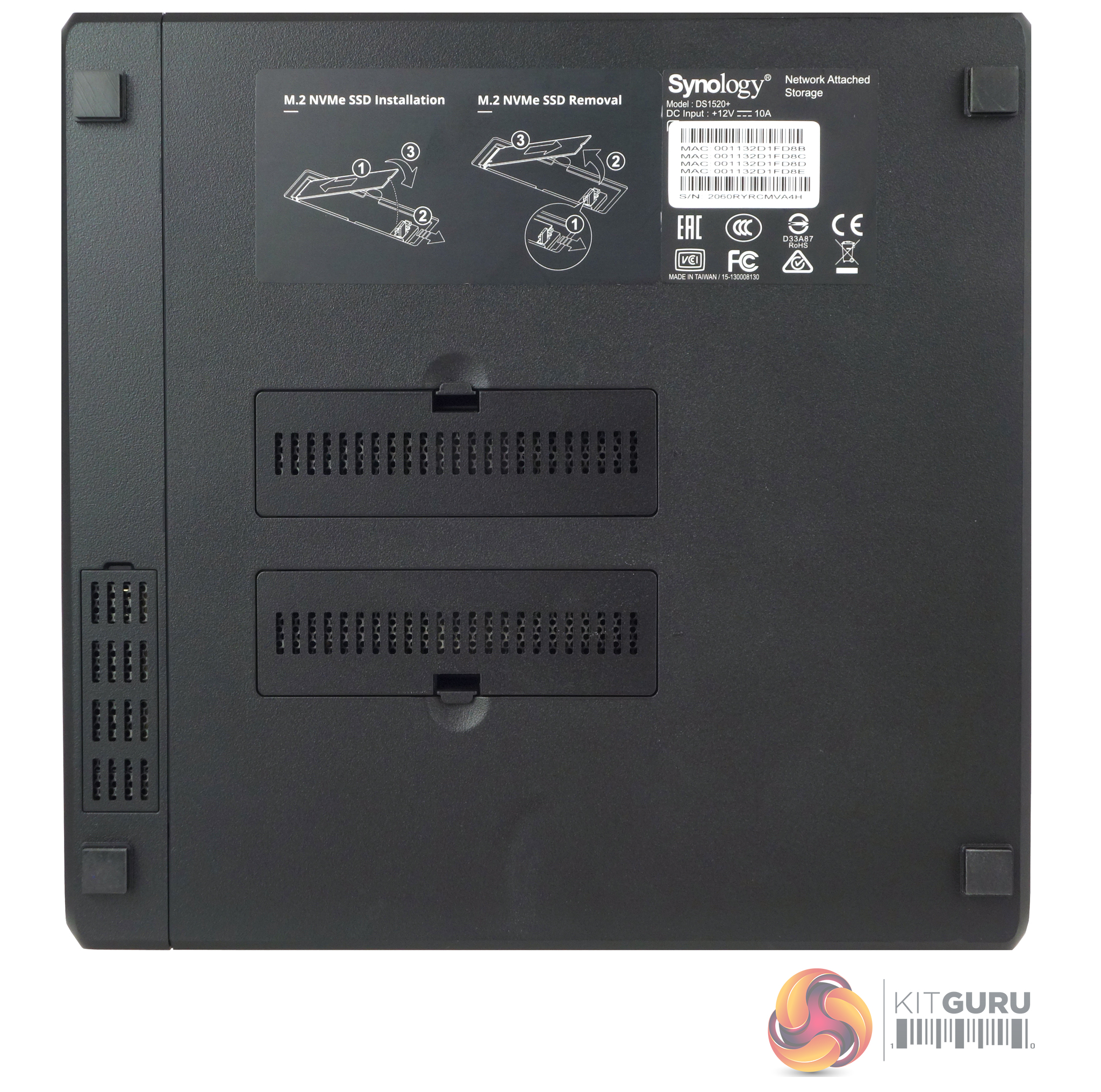
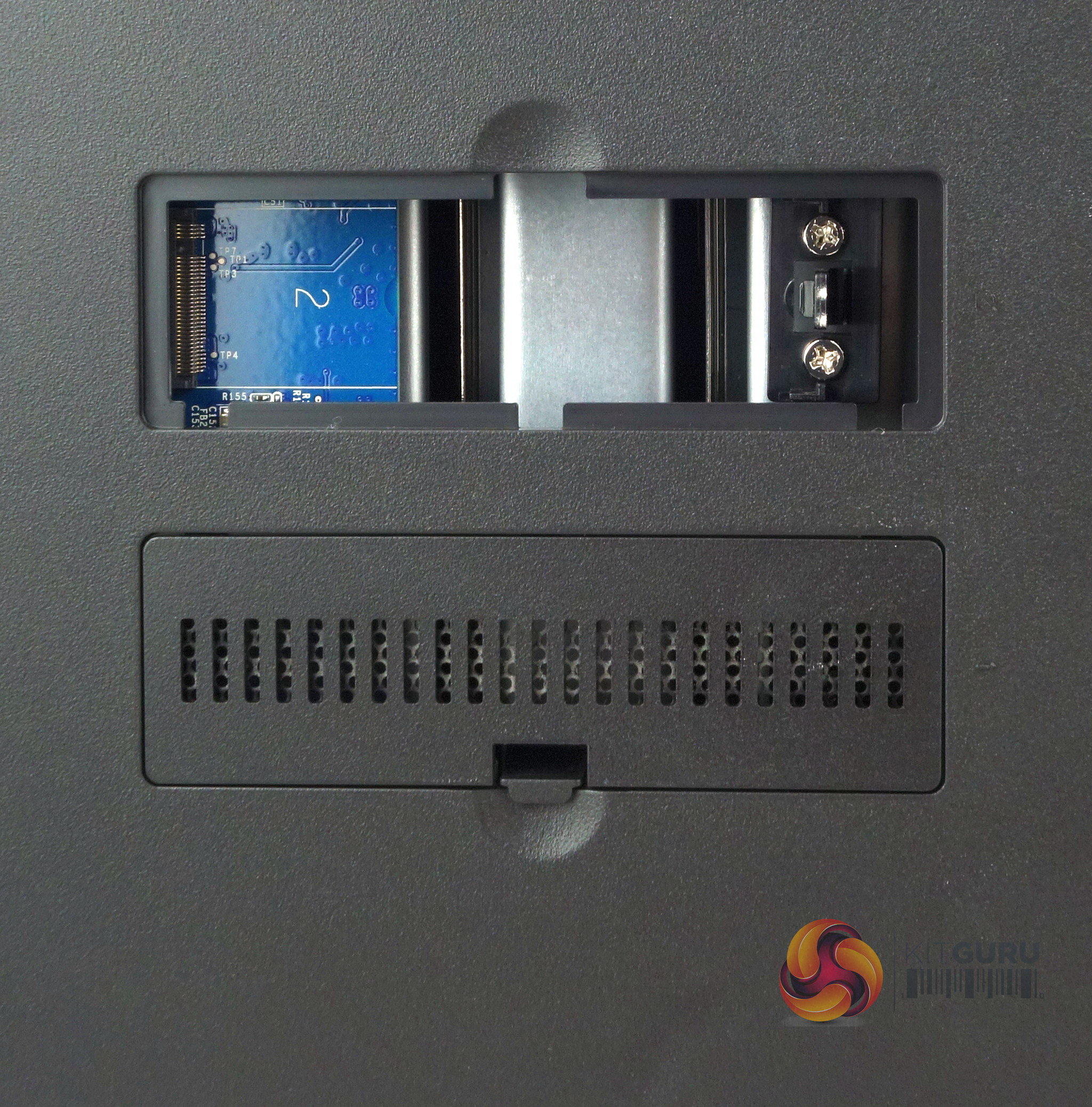
To give the DS1520+ more performance when it comes to caching duties, Synology has built in a pair of NVMe supporting M.2 slots which sit behind hatches in the base of the NAS.
To test the DiskStation DS1520+ we used version 6.2.3-25426 (update 2) of Synology’s DSM (DiskStation Manager) OS. DSM has a graphically rich interface with all the major features of the OS clearly listed. Synology updates it at regular intervals to add more features and apps.
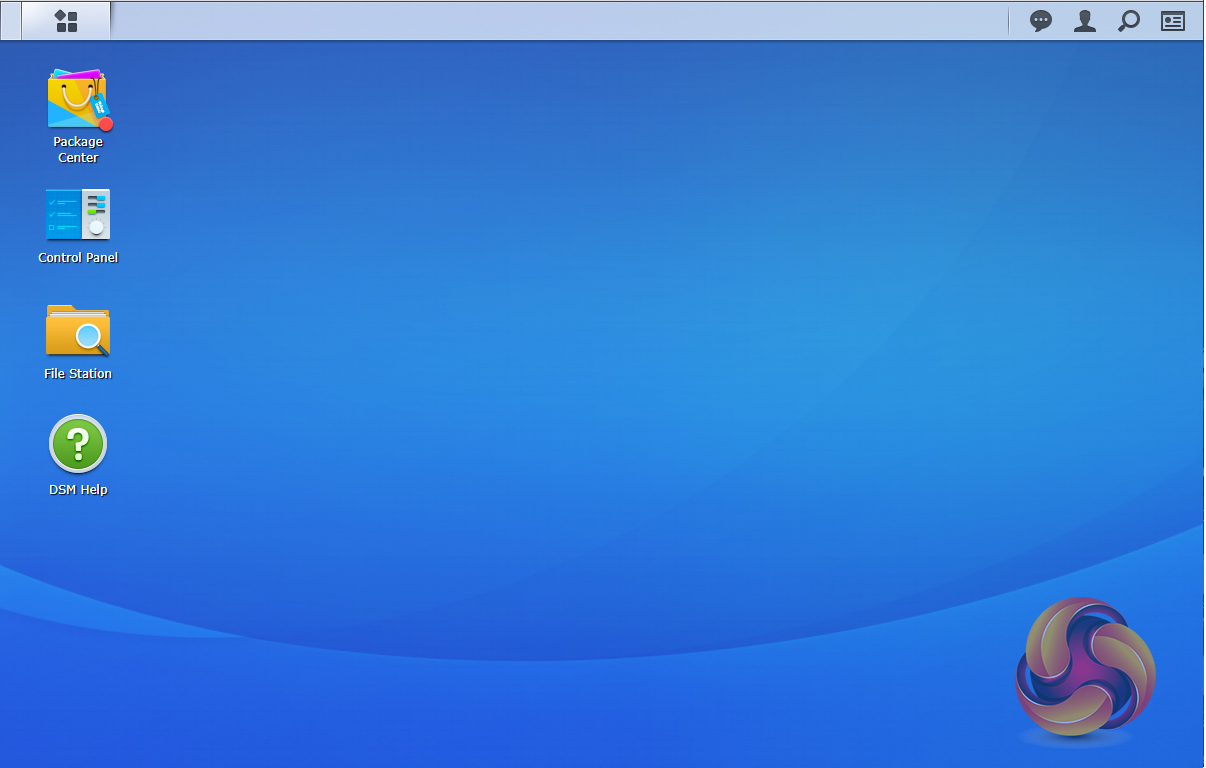
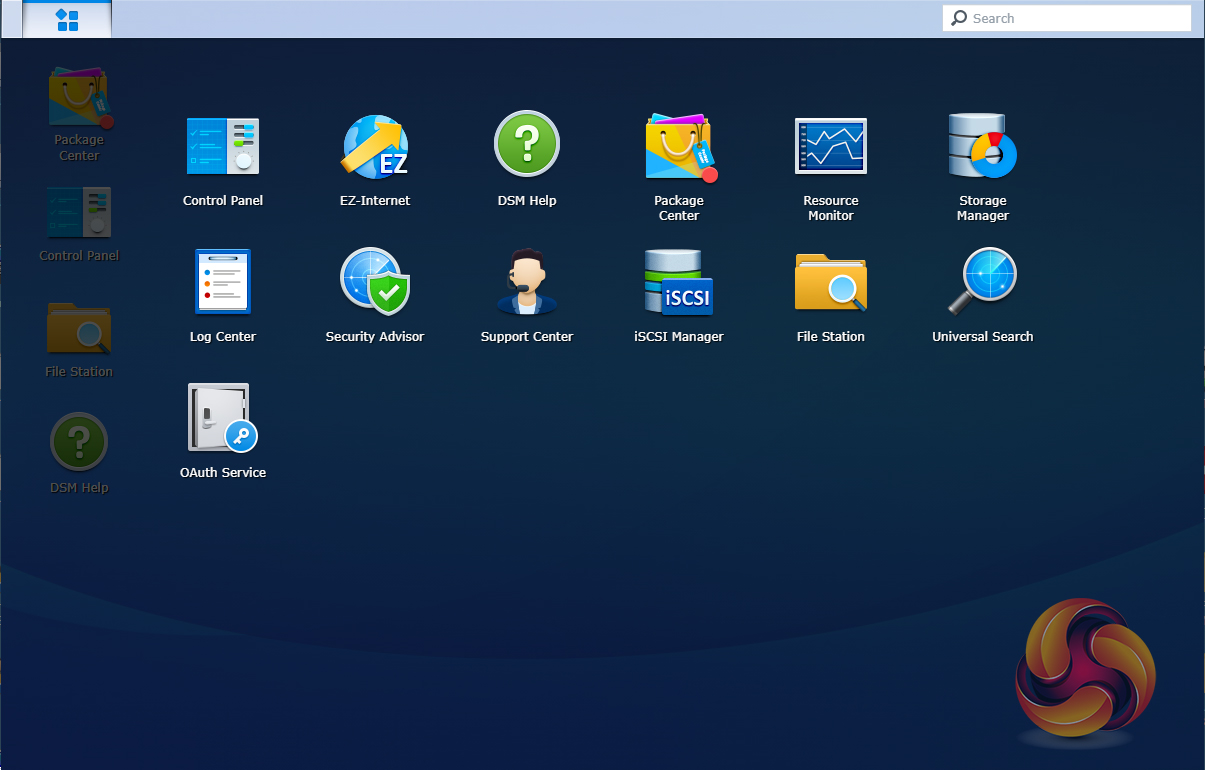
The basic start page just lists four items; Package Center, Control Panel, File Station and DSM help. Clicking on the left-hand top tab opens a small window with more advanced menu choices than the basic one.
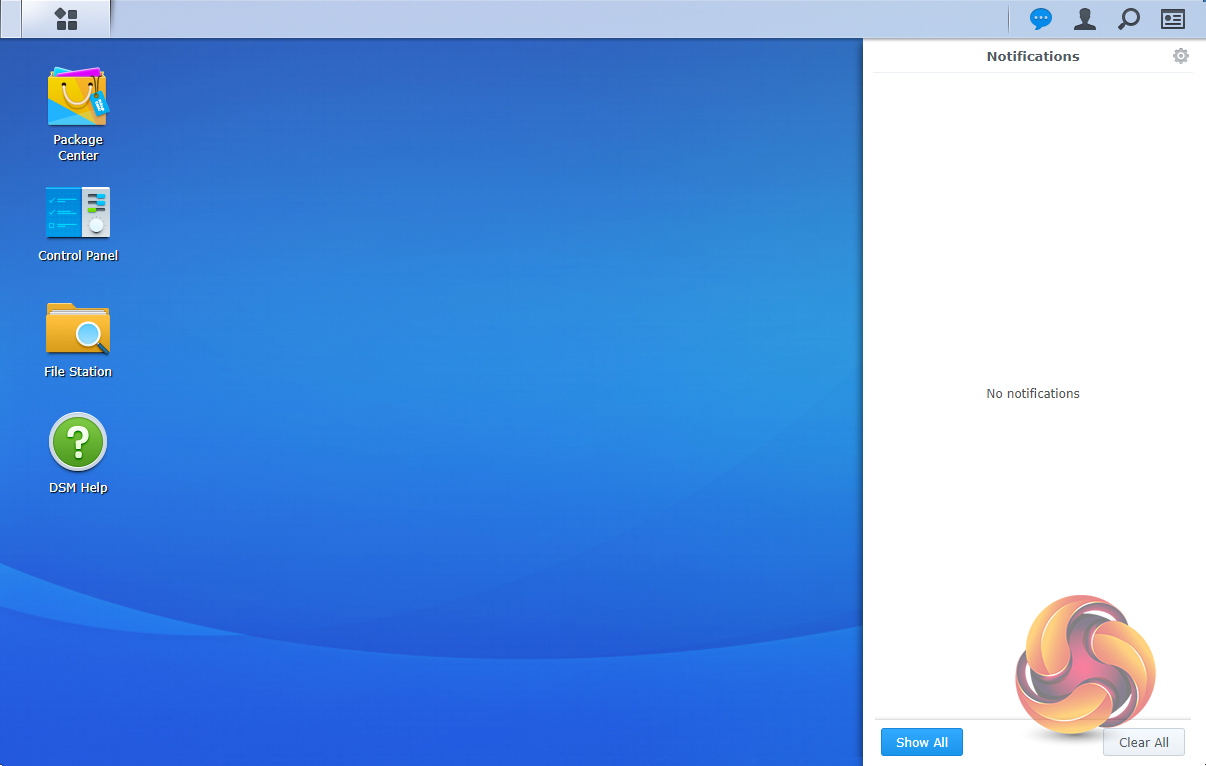
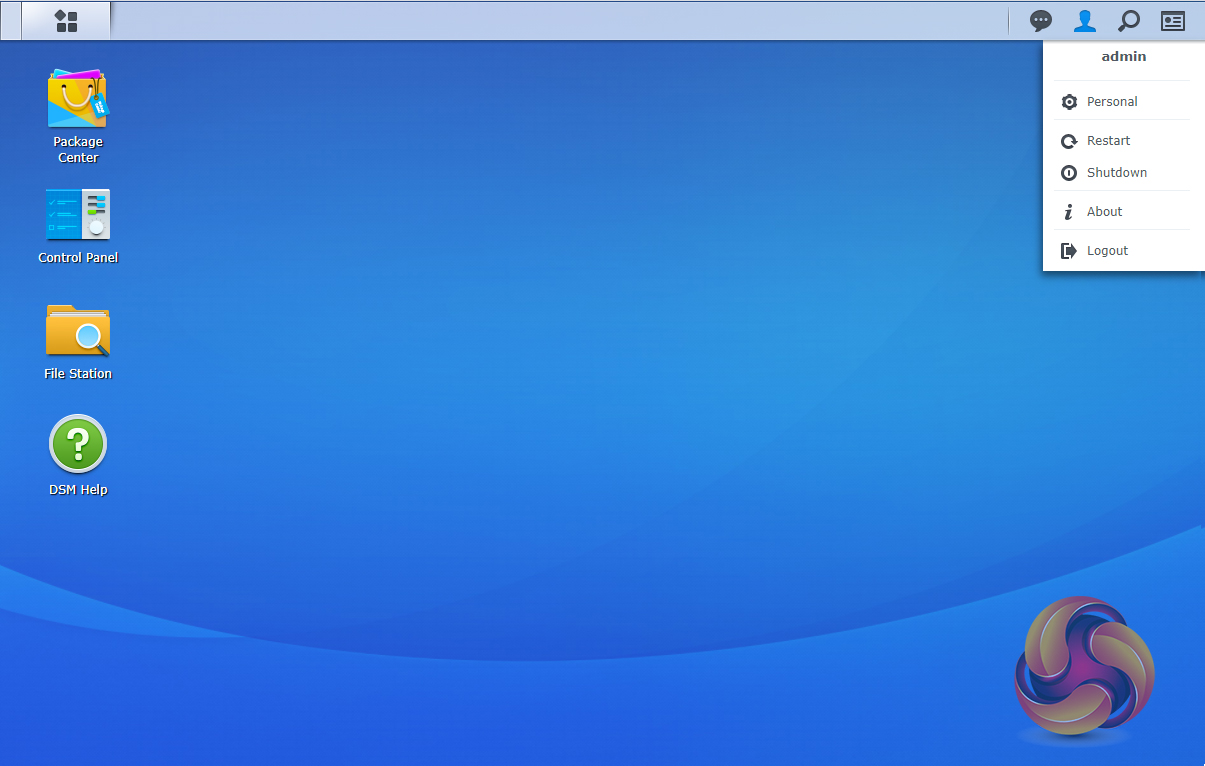
Along the top right-hand side of the main window are shortcuts to four useful tools. The first of these is the notification tool which can be customised to show different system notifications. Next up is the admin drop-down menu which allows access to personal details (log on password etc) and to shut down. log off or restart the system.
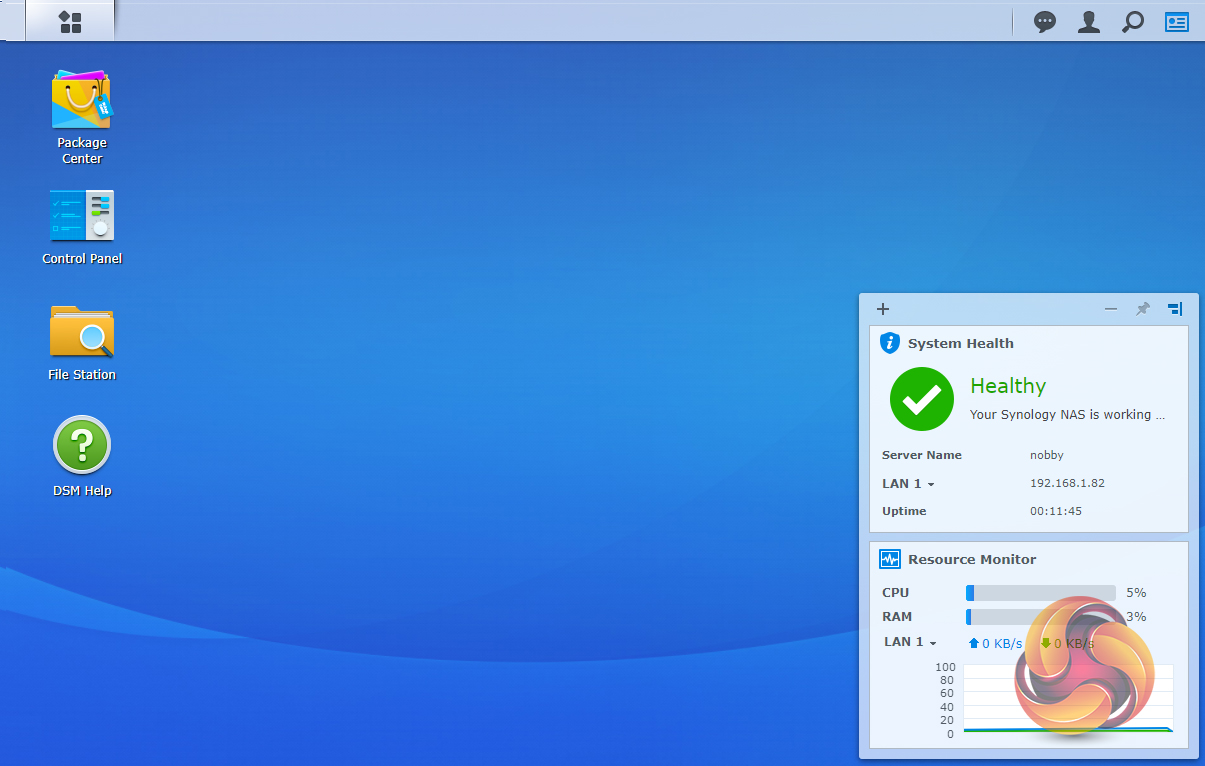
Clicking on the furthest right-hand icon at the top of the window opens the very useful System Health and Resource Monitor widget. Various items such as System Health, Resource Monitor, Storage and Scheduled Tasks can be added to the widget so you can keep an eye on the NAS without having to delve deeper into the OS.
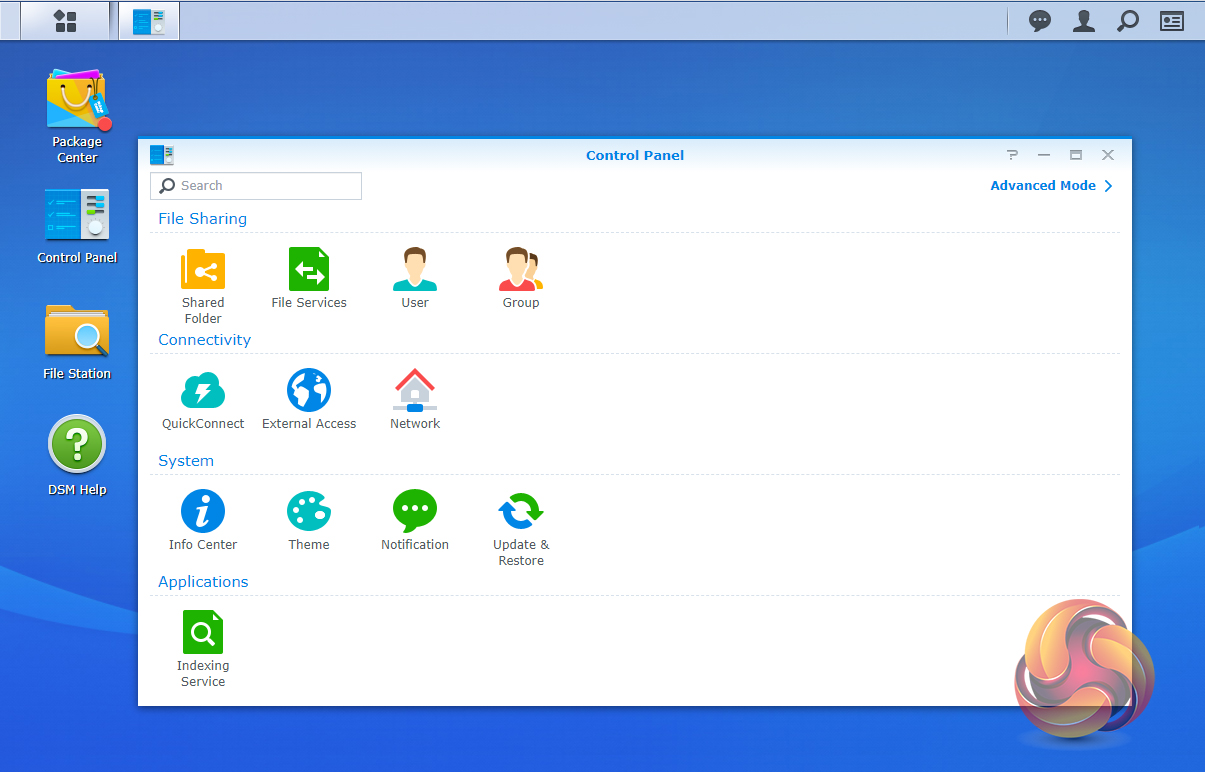
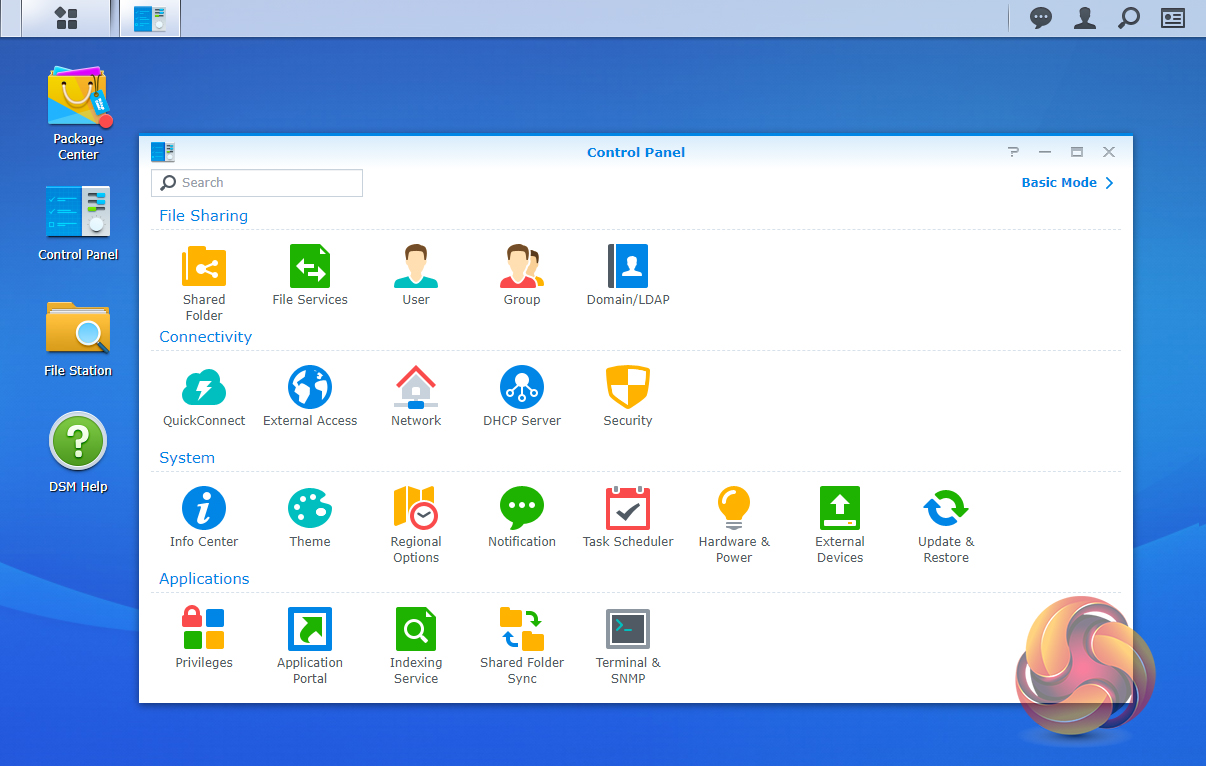
There’s a choice of control panels, Basic which displays the features most people will want to get to grips with, while the Advanced option offers plenty of scope for those that want to delve deeper into the system to take advantage of all the features the software offers.
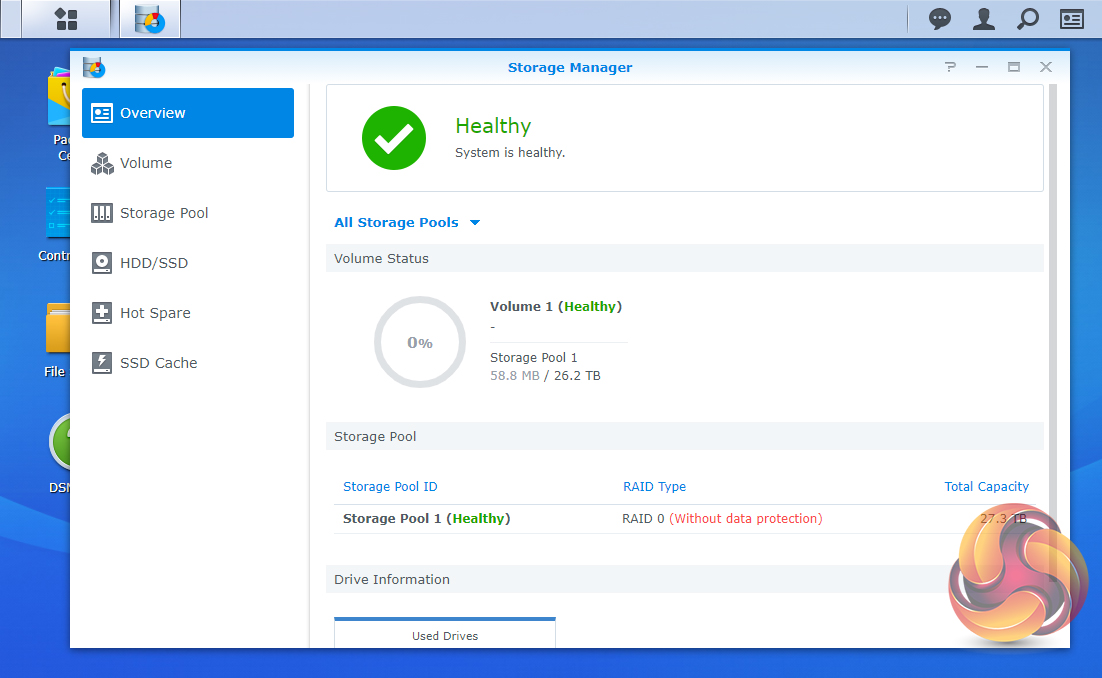
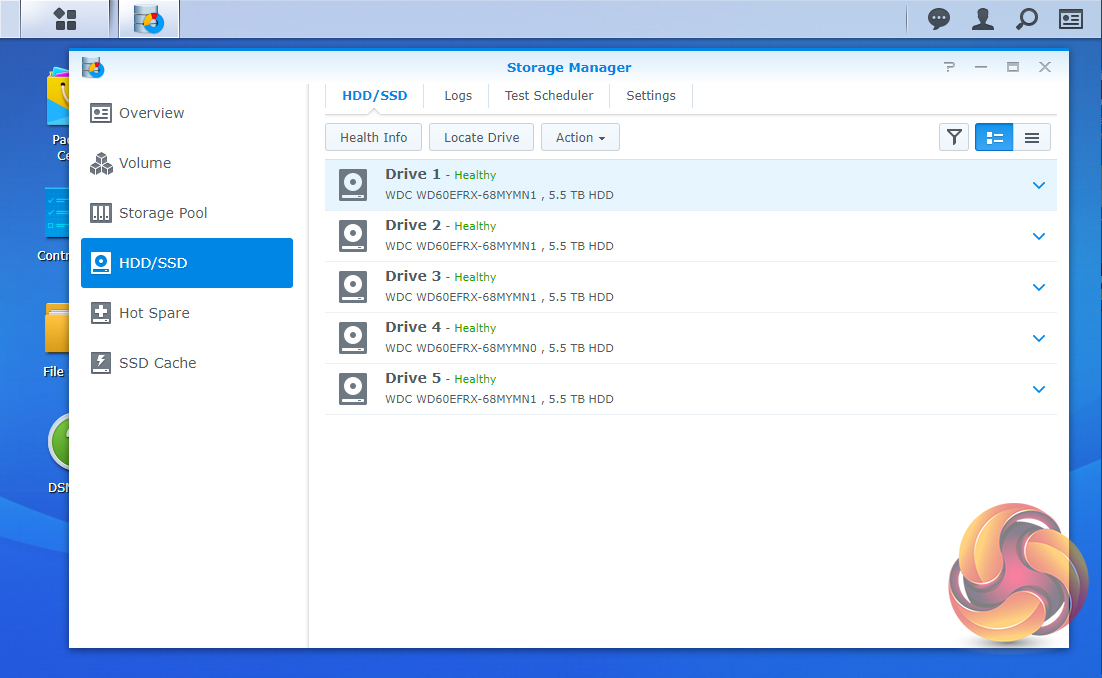
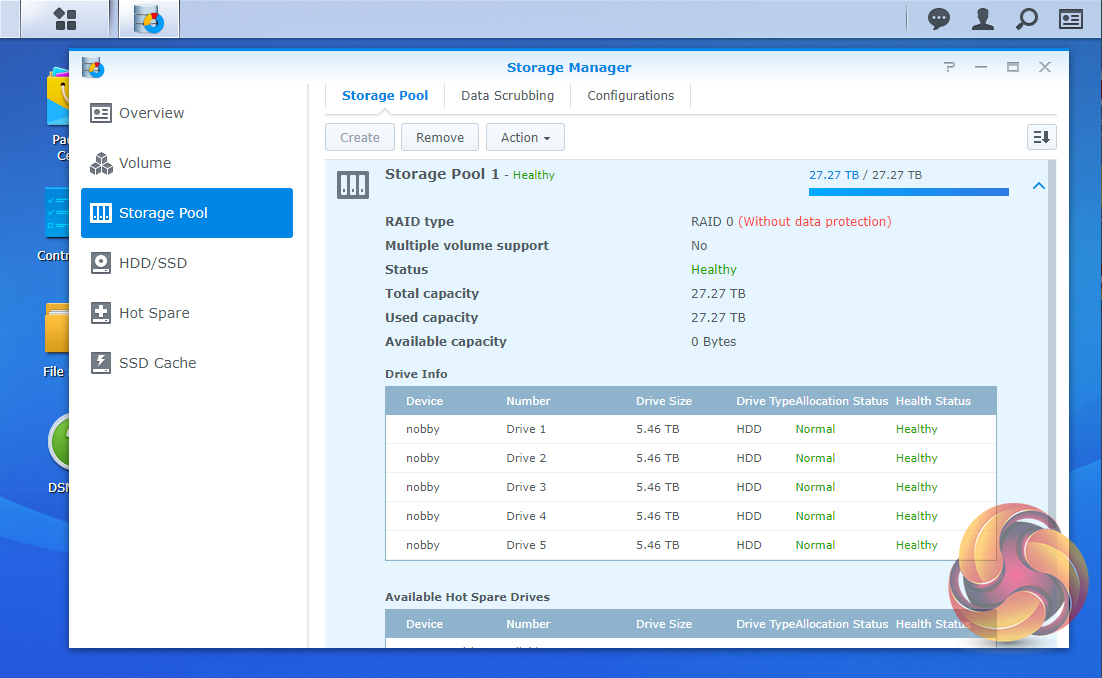
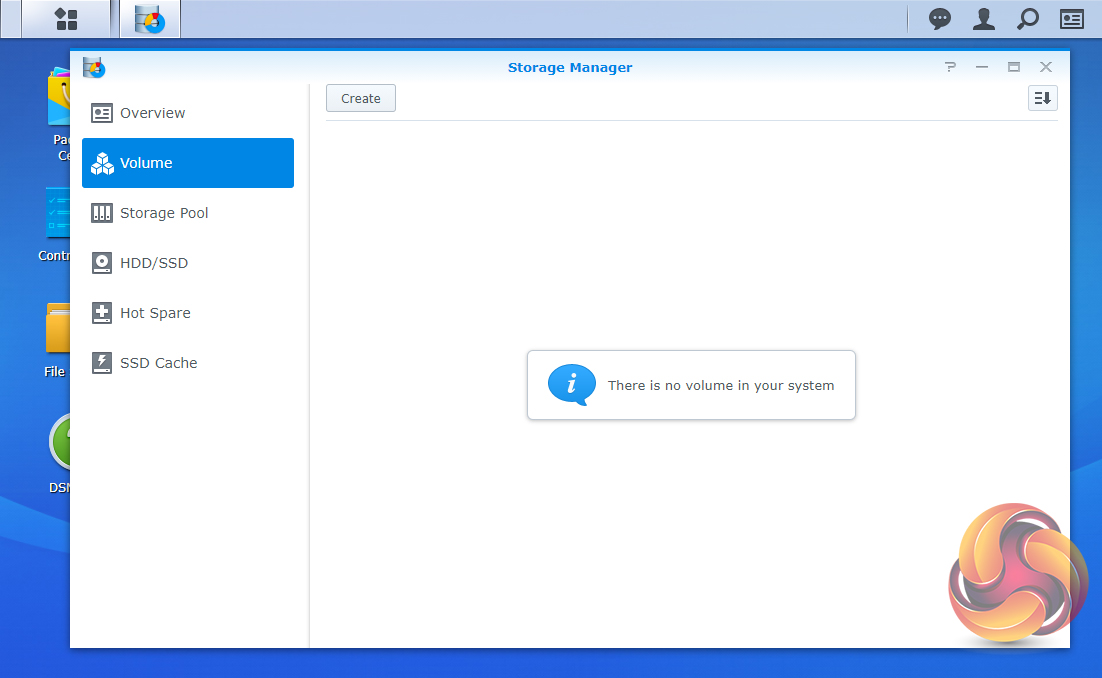
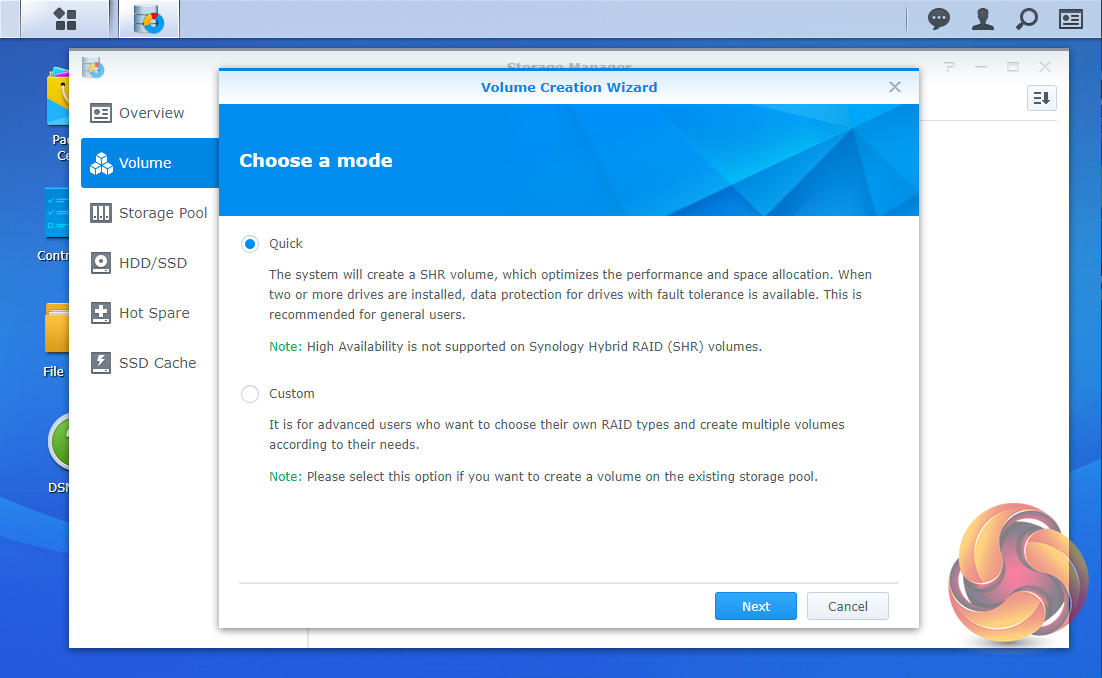
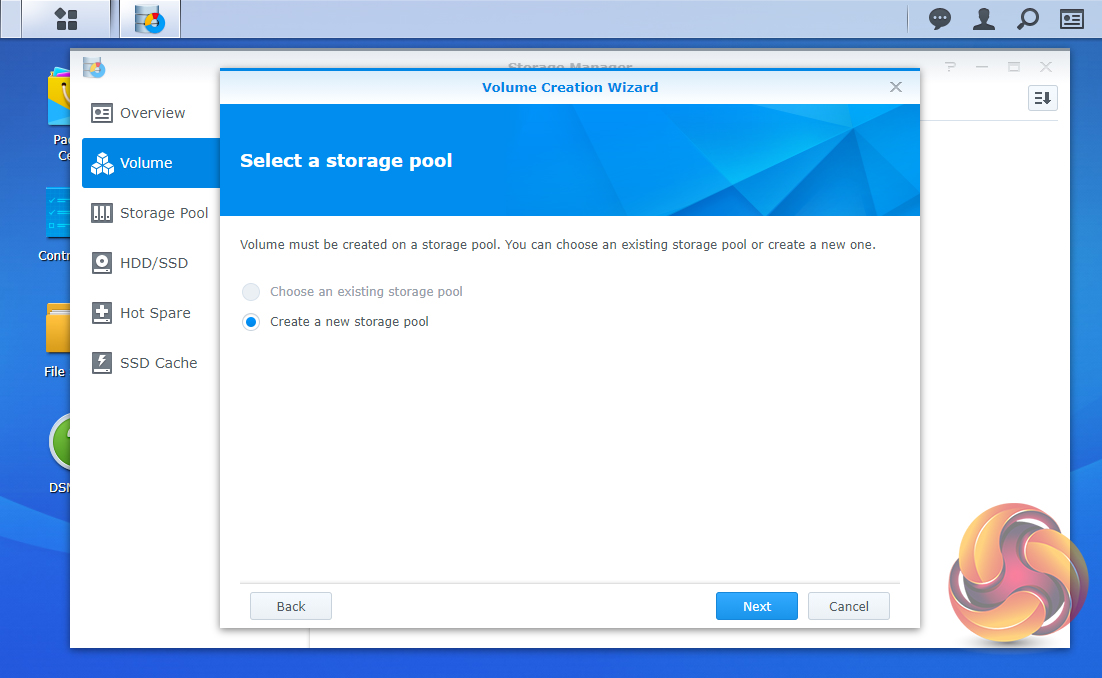
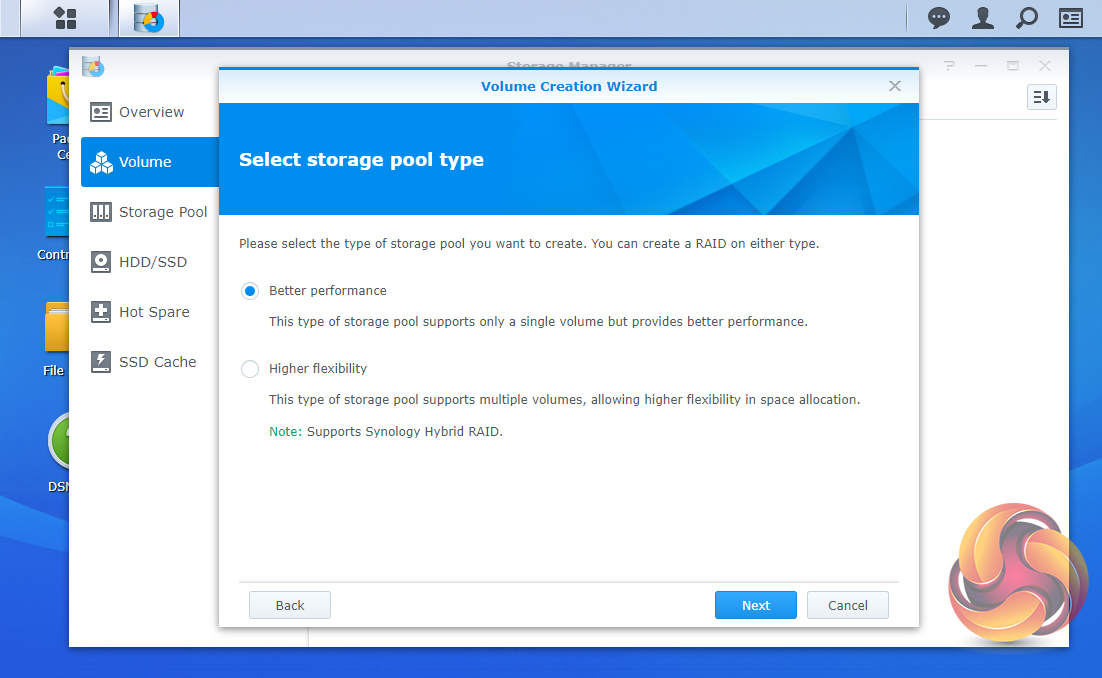
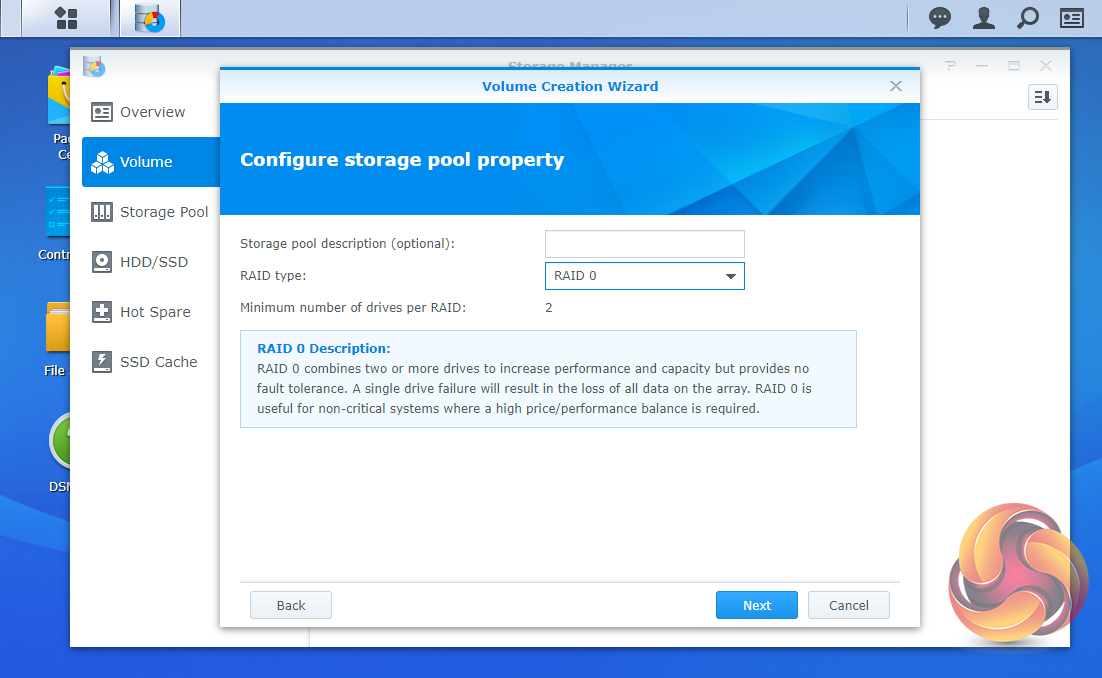
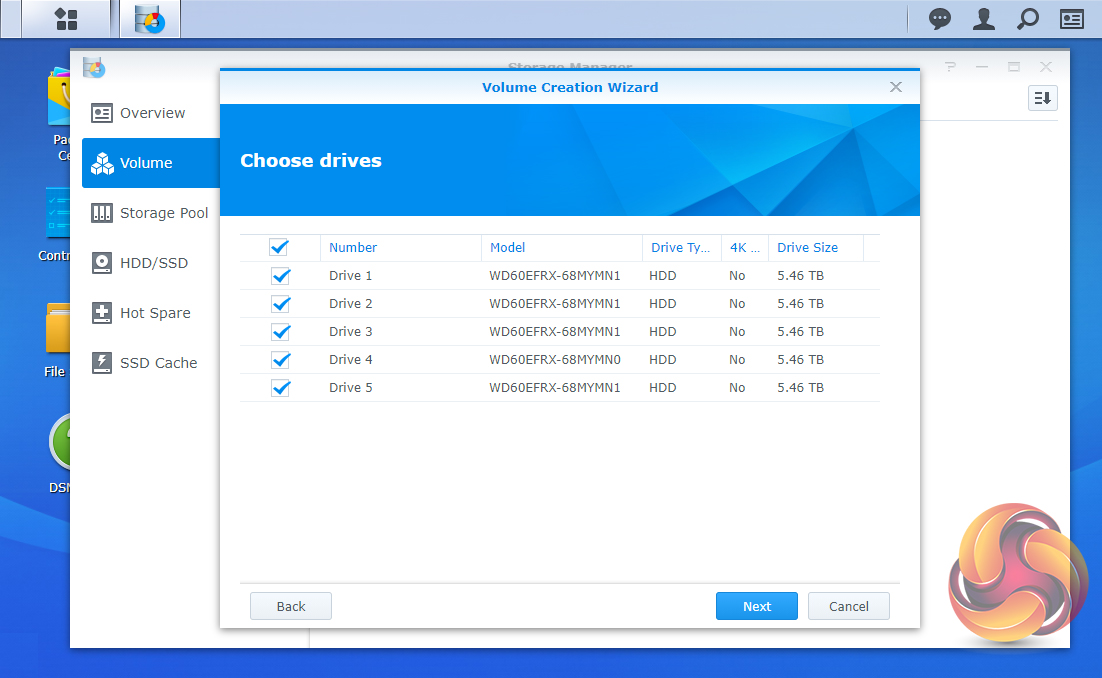
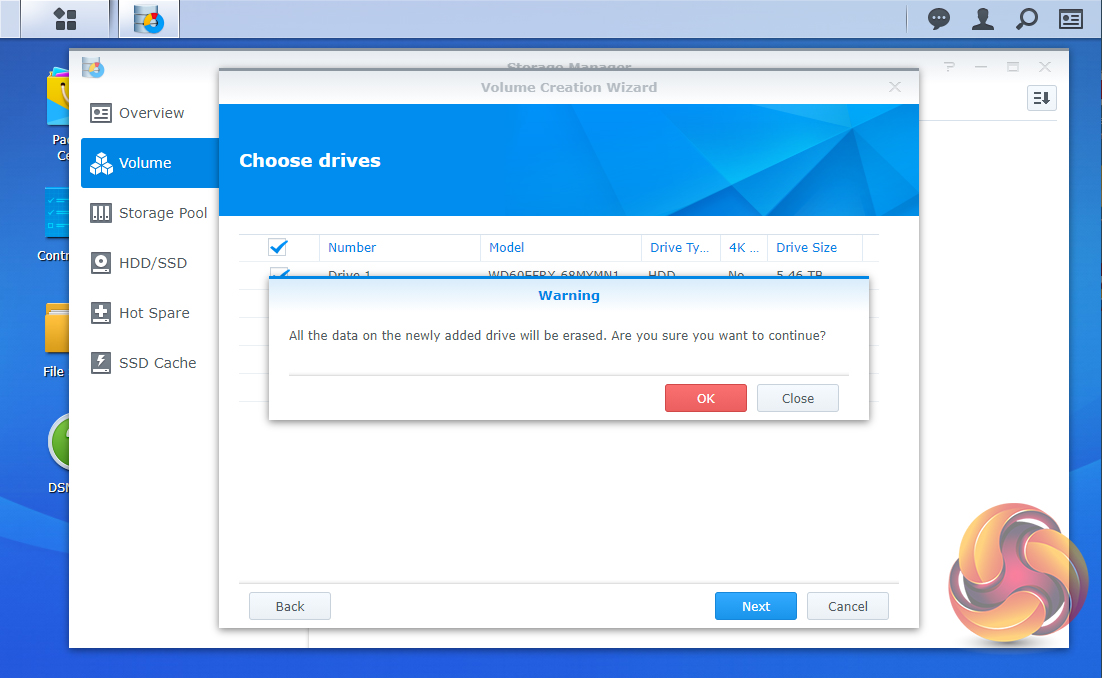
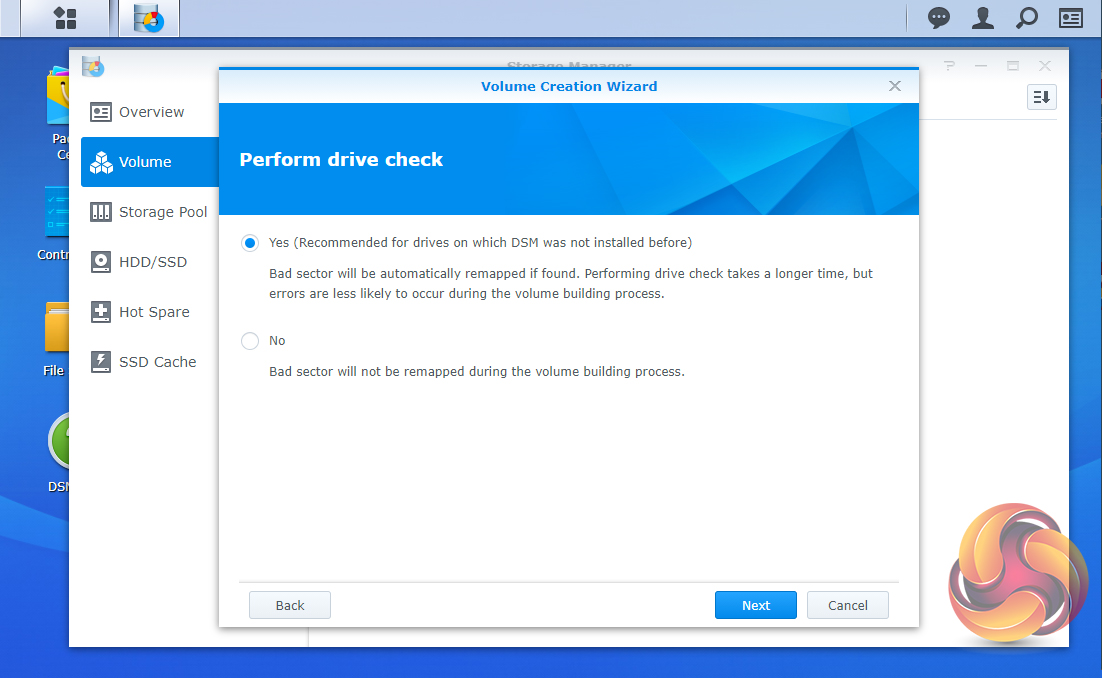
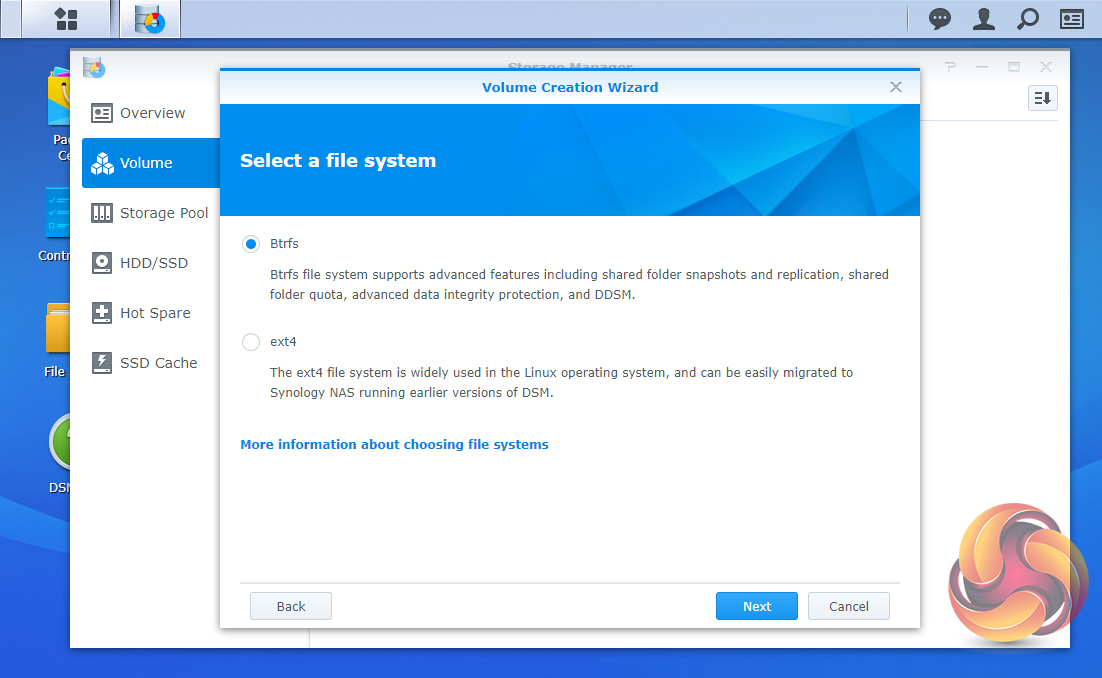
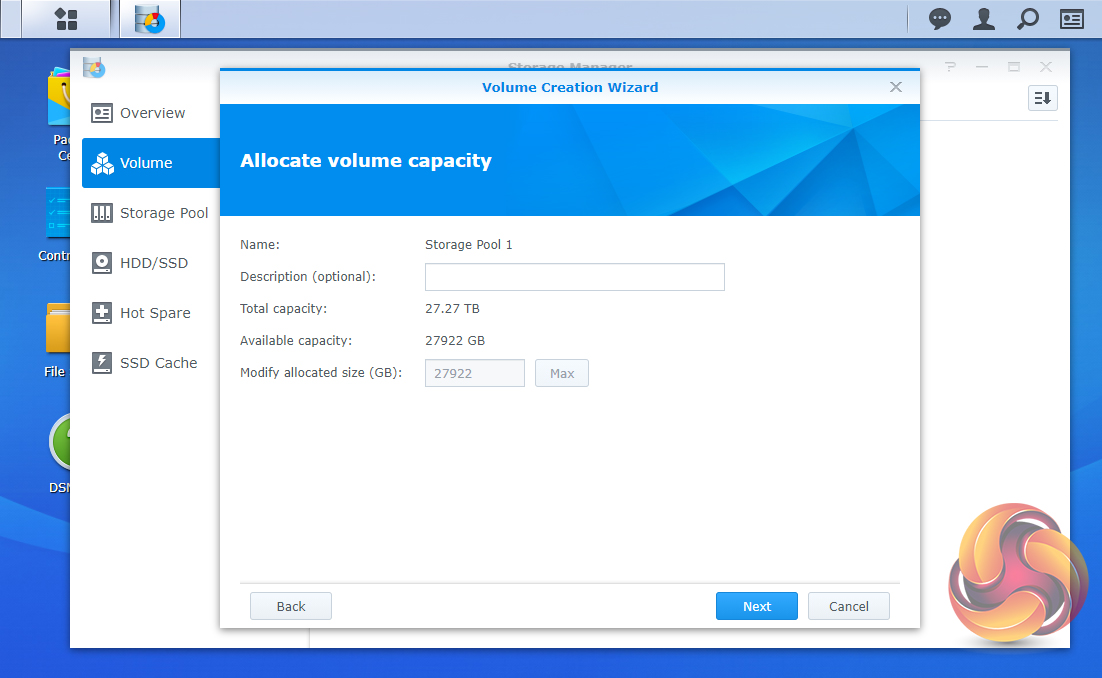
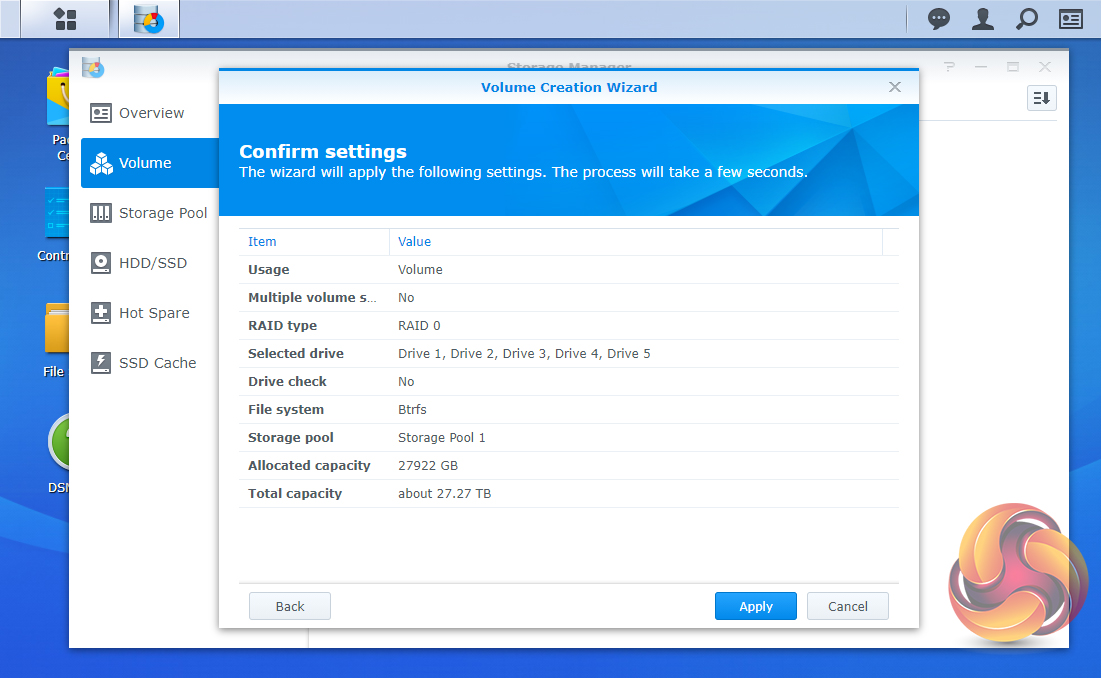
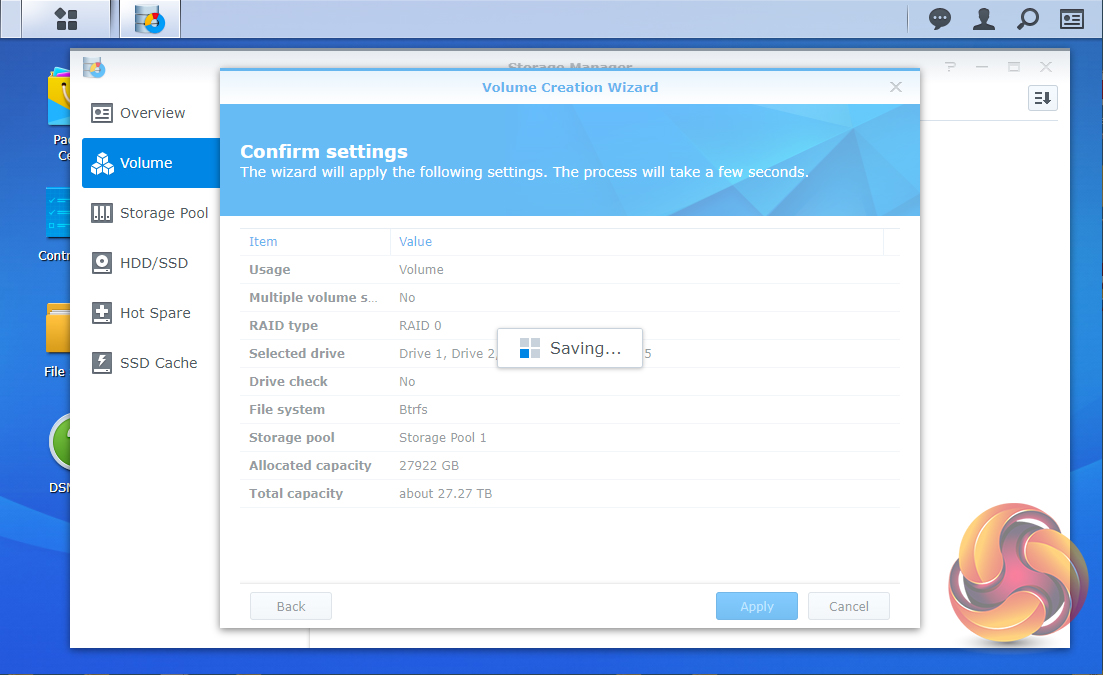
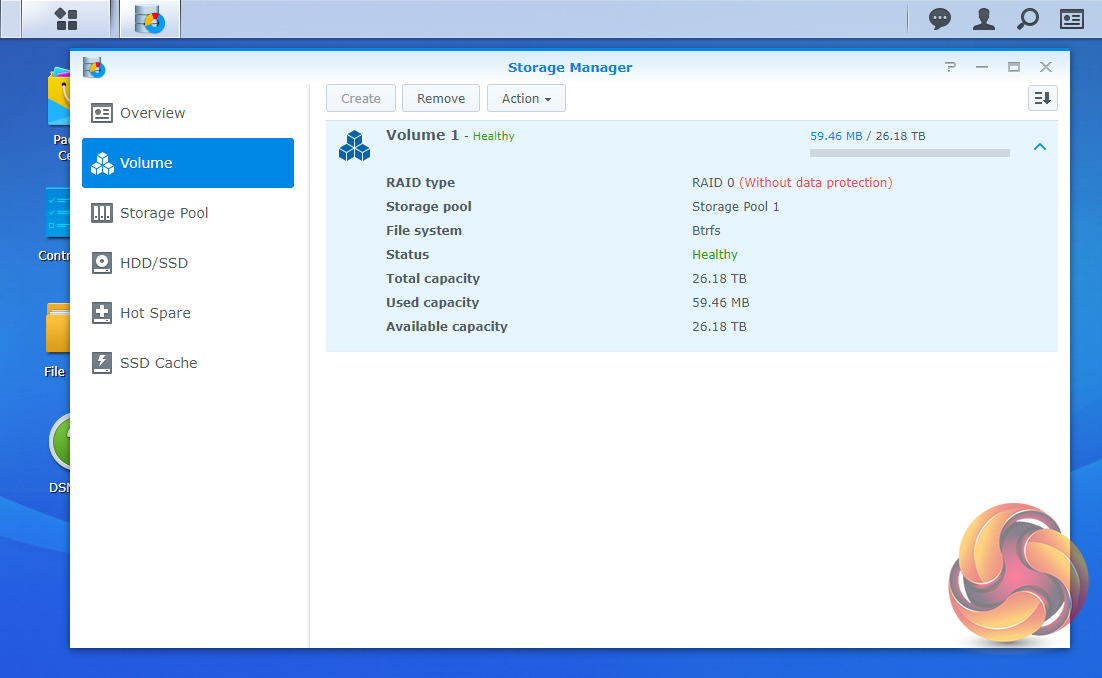
At the heart of DSM is Storage Manager. Storage Manager looks after RAID setups, volume creation and all other disk management duties and is a powerful tool without being overly complicated to use.
Creating storage volumes and pools is easy and straightforward thanks to the easy to follow setup wizard.
File Station is a multi-platform file manager supporting Windows, Mac and Linux PCs as well as Android, iOS and Window Phone mobile devices. With it, you can access and share your files on the DiskStation from anywhere.
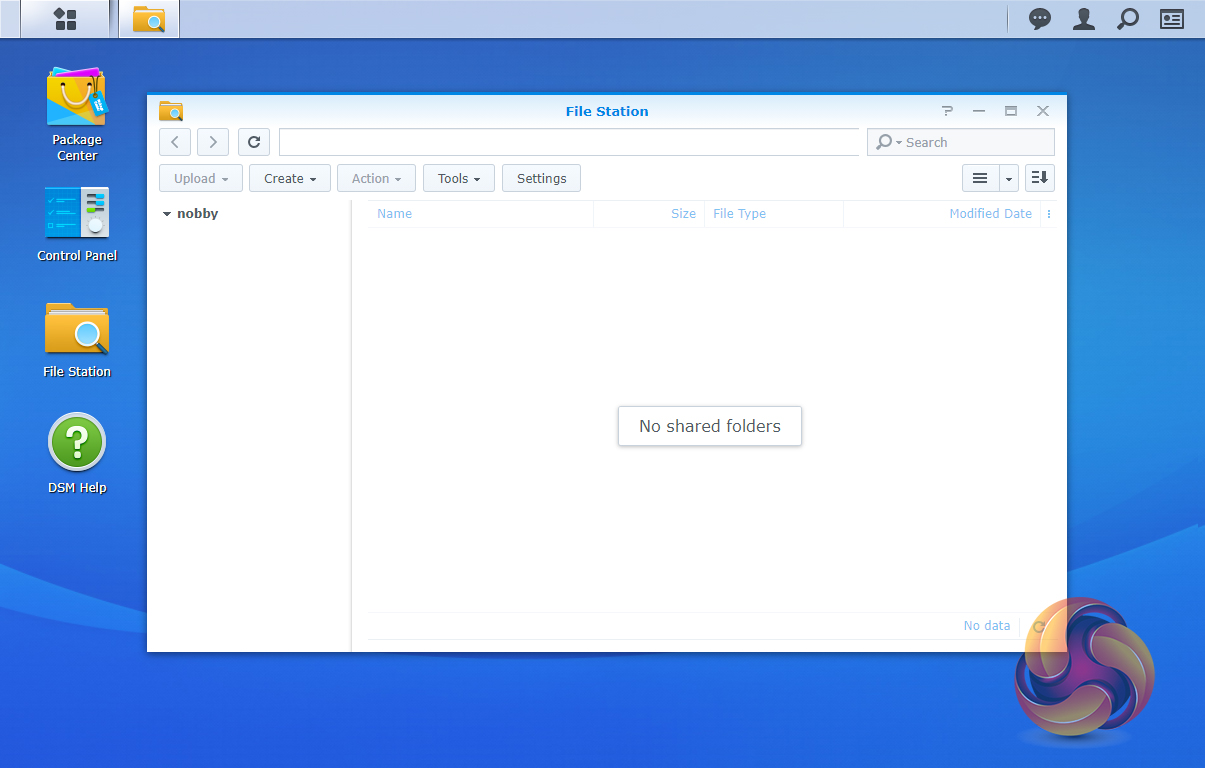
By using Dropbox, Box, Google Drive and Microsoft OneDrive mounted to File Station you can access remote data in the same way as locally stored files via a variety of different protocols (FTP, STFP, WebDAV, and WebDAV HTTPS).
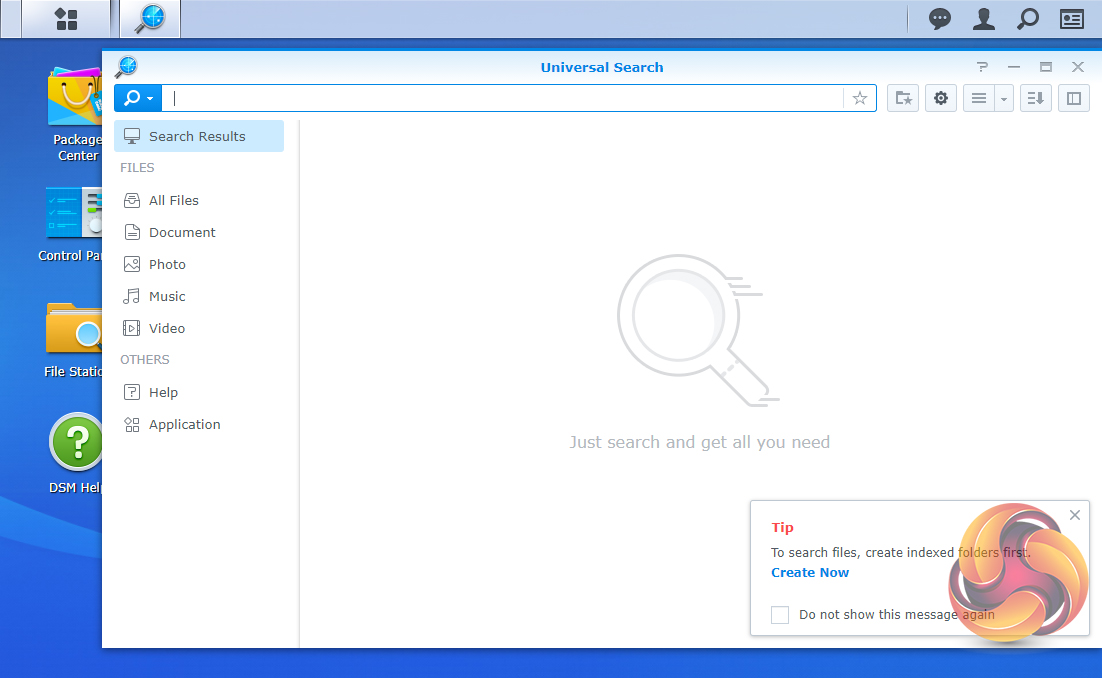
Synology Universal Search is a search tool that includes multimedia files and apps and offers previews of metadata and contents of files with just a mouse click. USB Copy 2.1 auto copies data to a from a USB storage device and can be configured to set backup destinations, copy mode and any file filters.
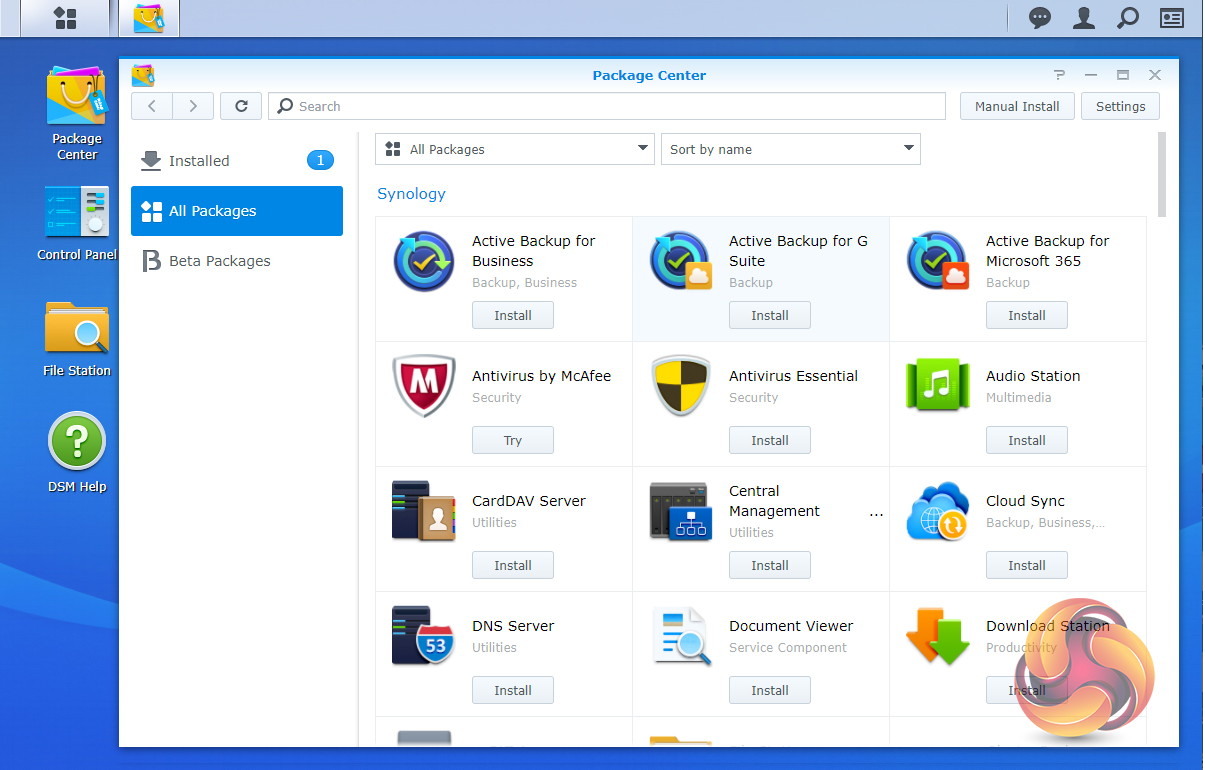
Package Center is where you’ll find all the add-in apps and with over 120 apps in it already you should be able to tweak the DS1520+ to meet your own needs.
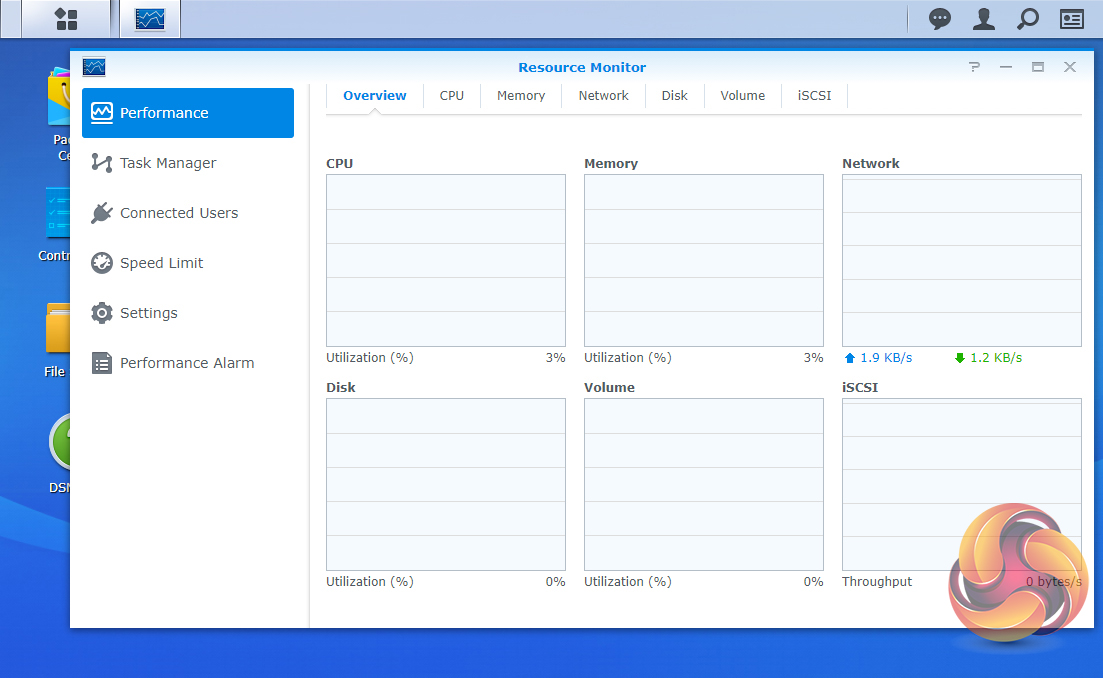
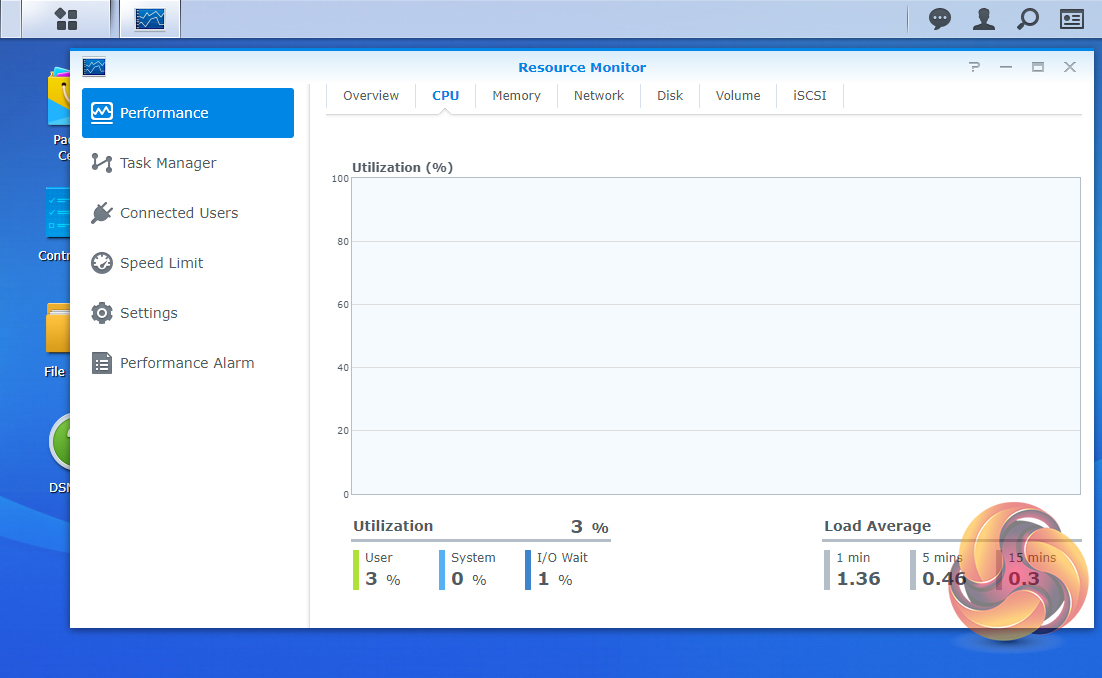
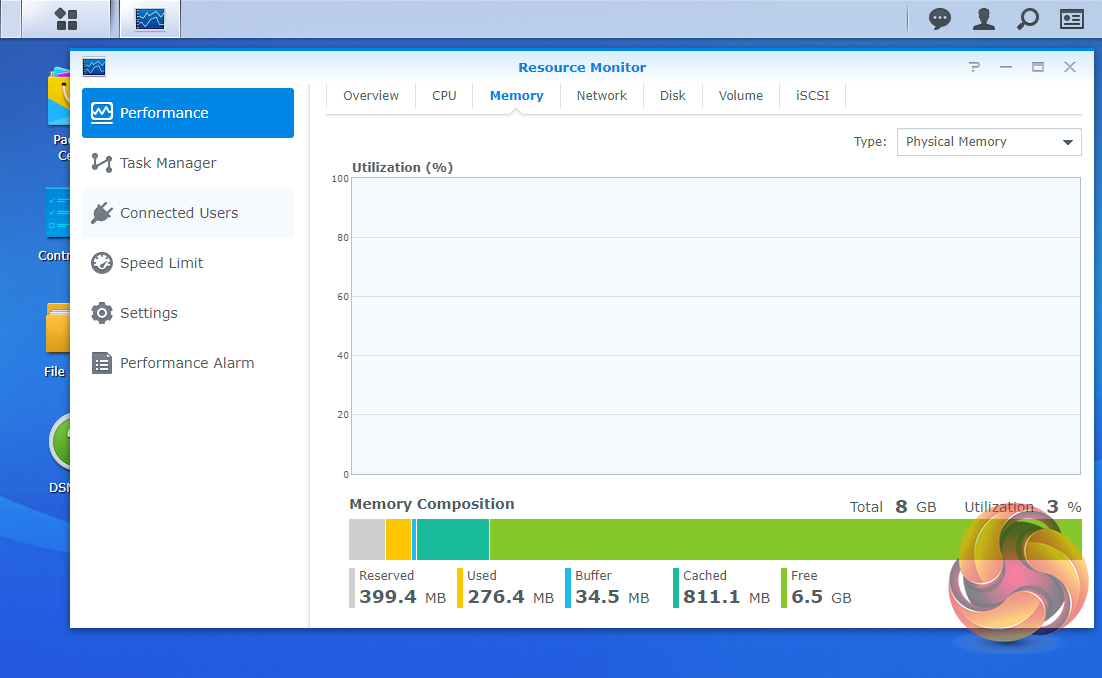
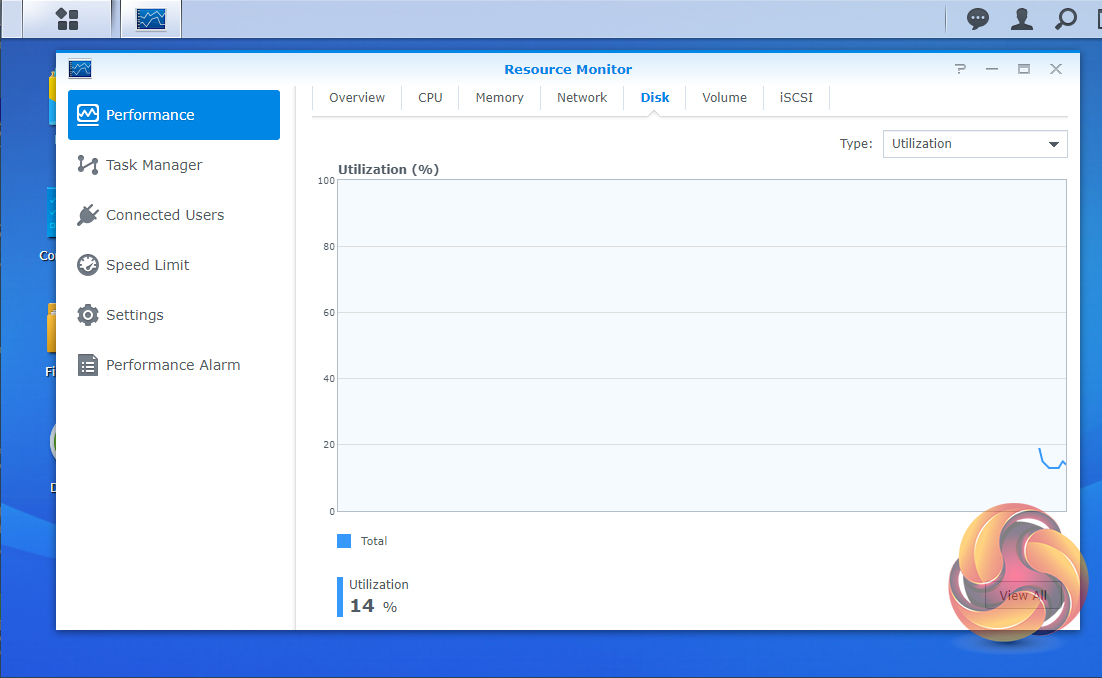
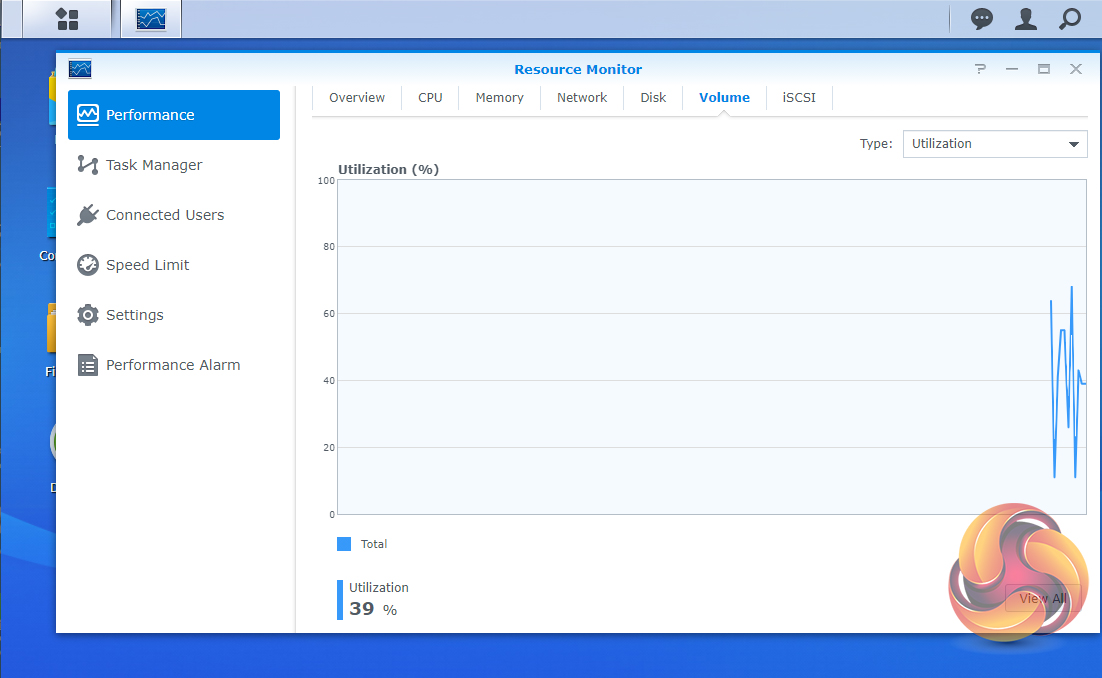
A very useful and easy to use tool for keeping an eye on the DiskStation’s resources is the Resource Monitor. With it, you can monitor CPU usage, memory usage, disk utilisation and network flow in real-time or historically. It can also be added to the widget section of the main window so that it's easier to access.

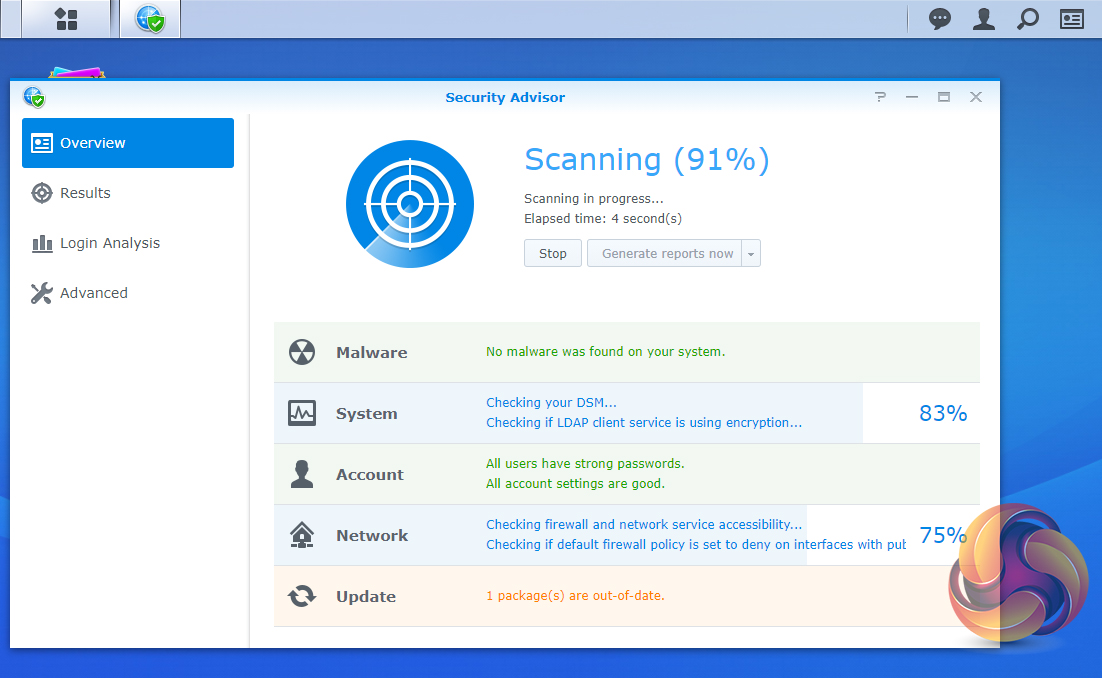
Helping to keep the NAS safe is Security Advisor. As you might have guessed from the name, Security Advisor scans the NAS providing detailed reports on any security problems it finds and lists any actions that might be needed to be taken. So it’s quick and easy to find out where and what’s needed to correct any errors.
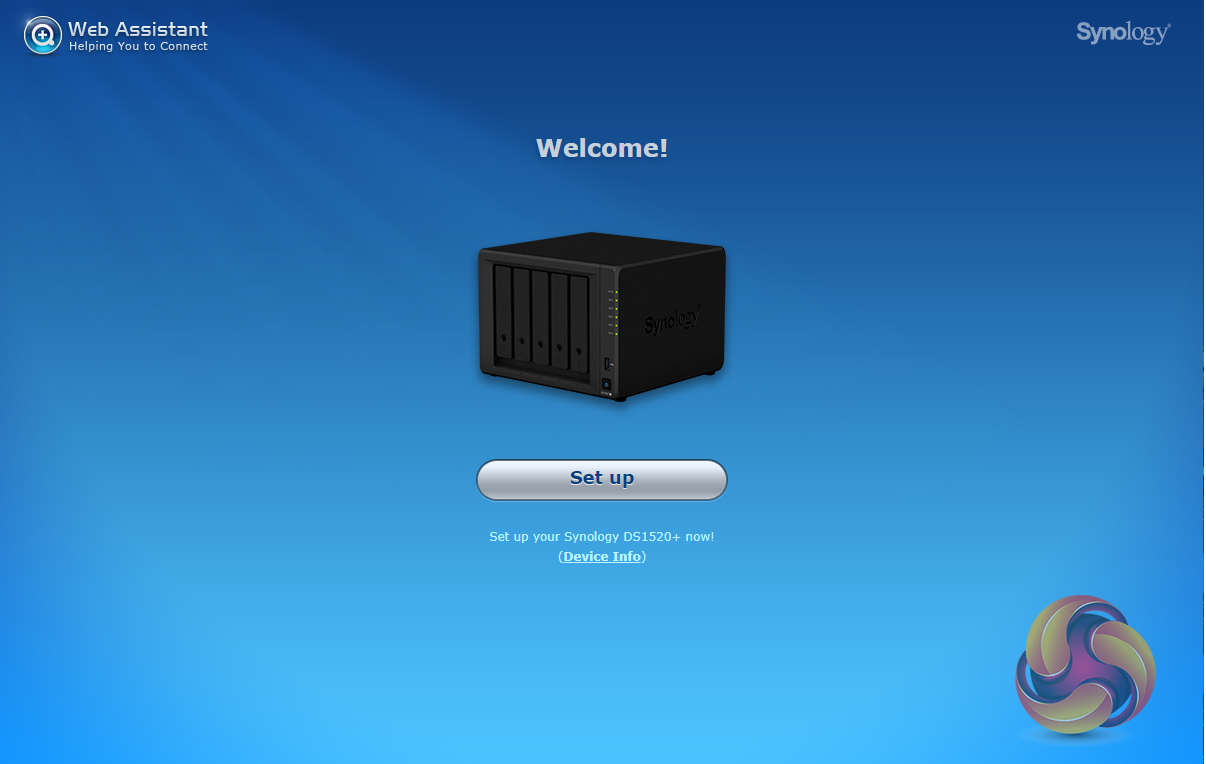
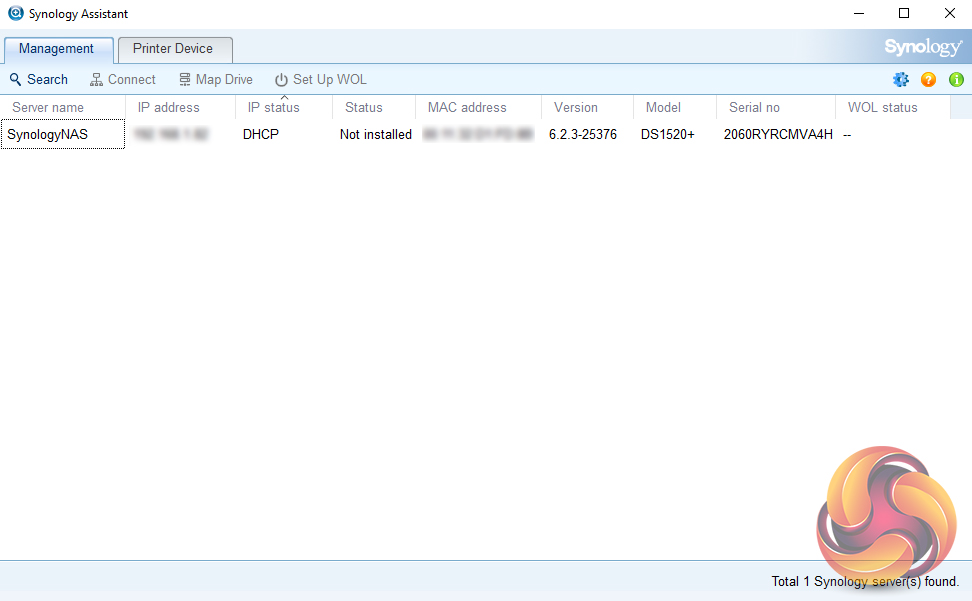
As with all Synology NAS units, the first part of setting up the DS1520+ involves going to http://find.synology.com which launches Web Assistant. This app searches for all DiskStations on the network so you can begin the install. If this method fails to find the NAS, the App has a link to the Synology Download Center where you can download Synology Assistant to your PC to search again for the NAS.
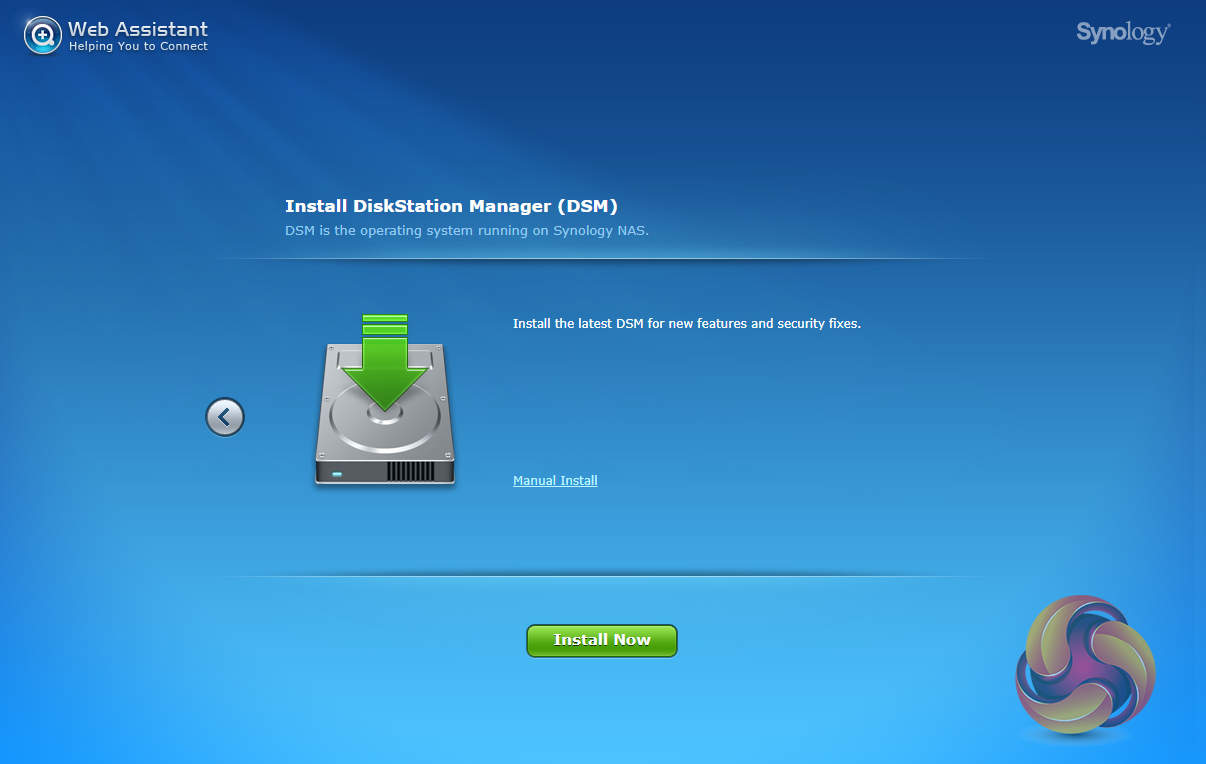
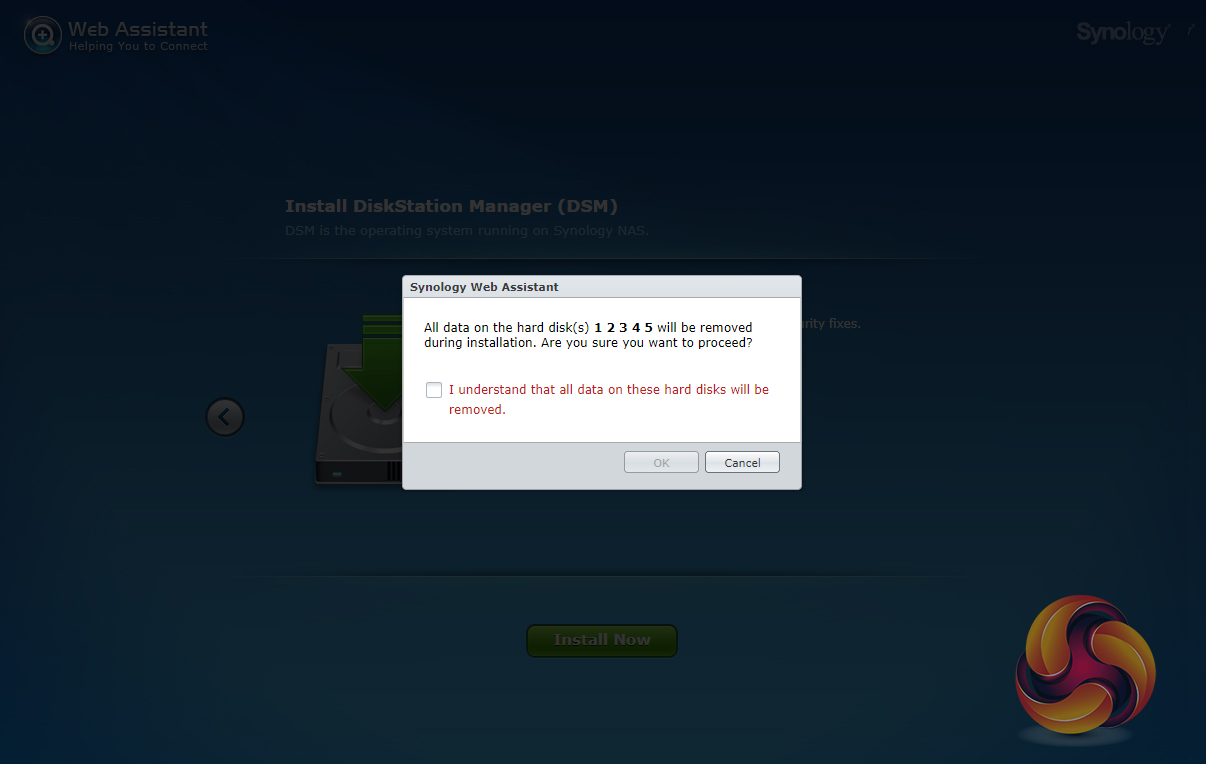
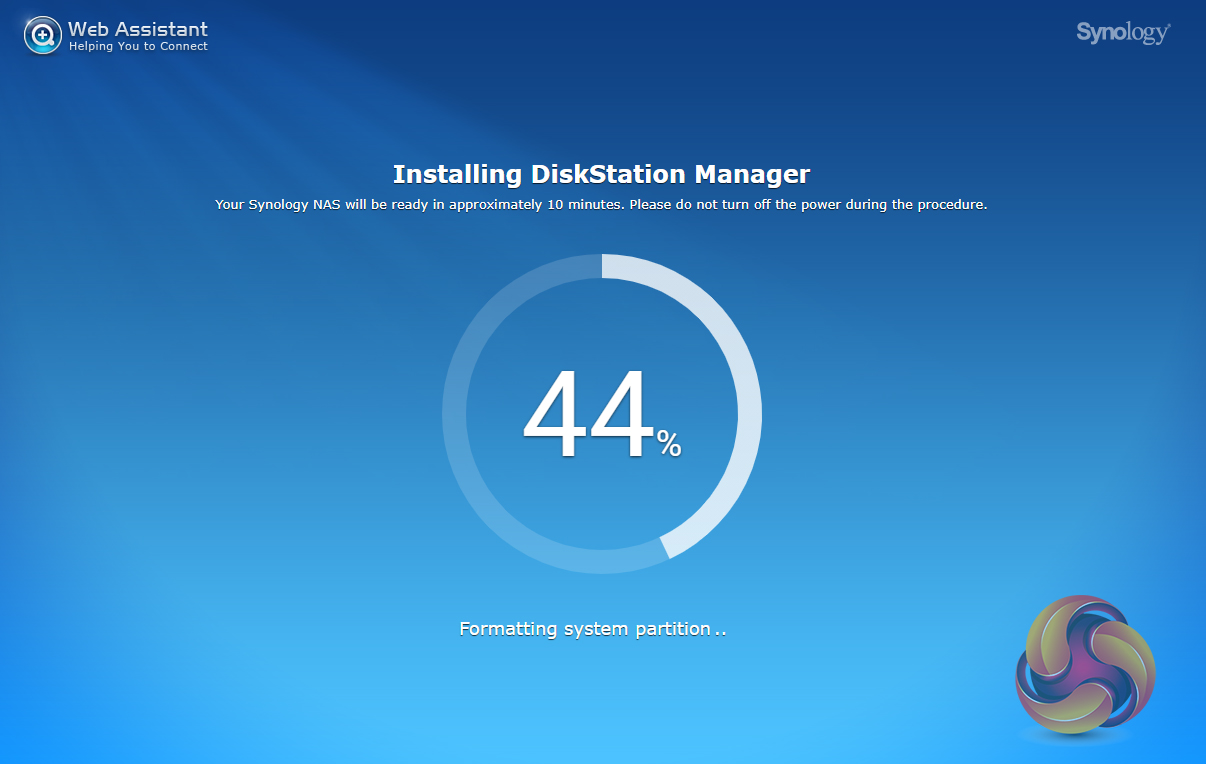
Once the NAS is found, the first window of the DSM setup wizard appears. Pressing install (there’s also a manual install option to install a downloaded instance of DSM) automatically downloads the latest version of DSM and starts installing it after reminding you that any data on the hard disks will be deleted.
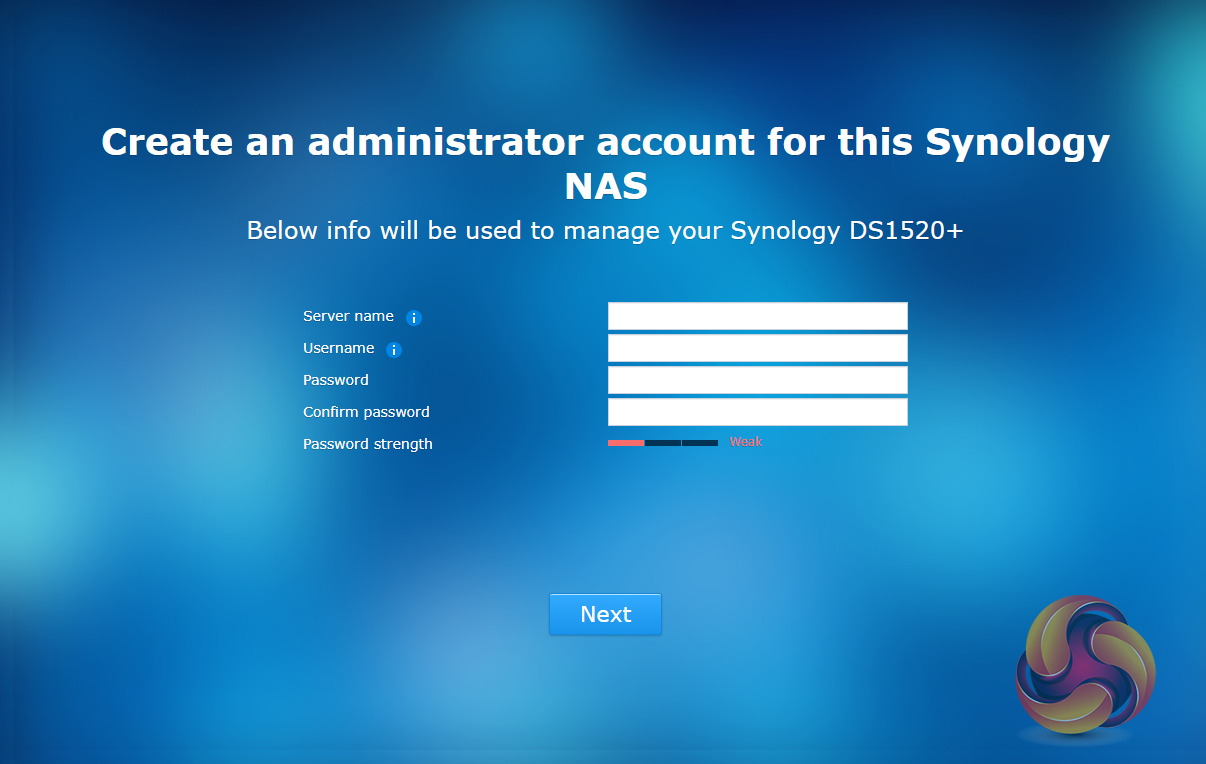
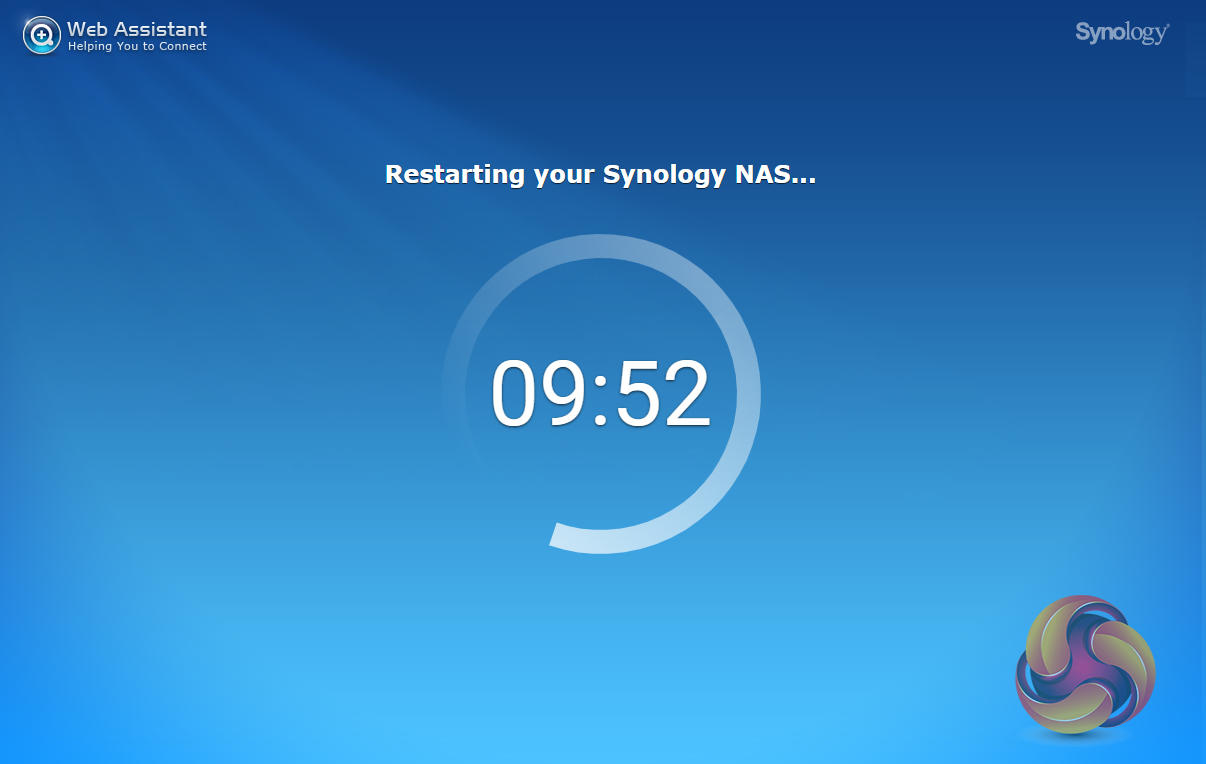
After the basic install has finished, the NAS is restarted and next up comes the setting up of the NAS account management, where you assign a server name, admin user name and password.
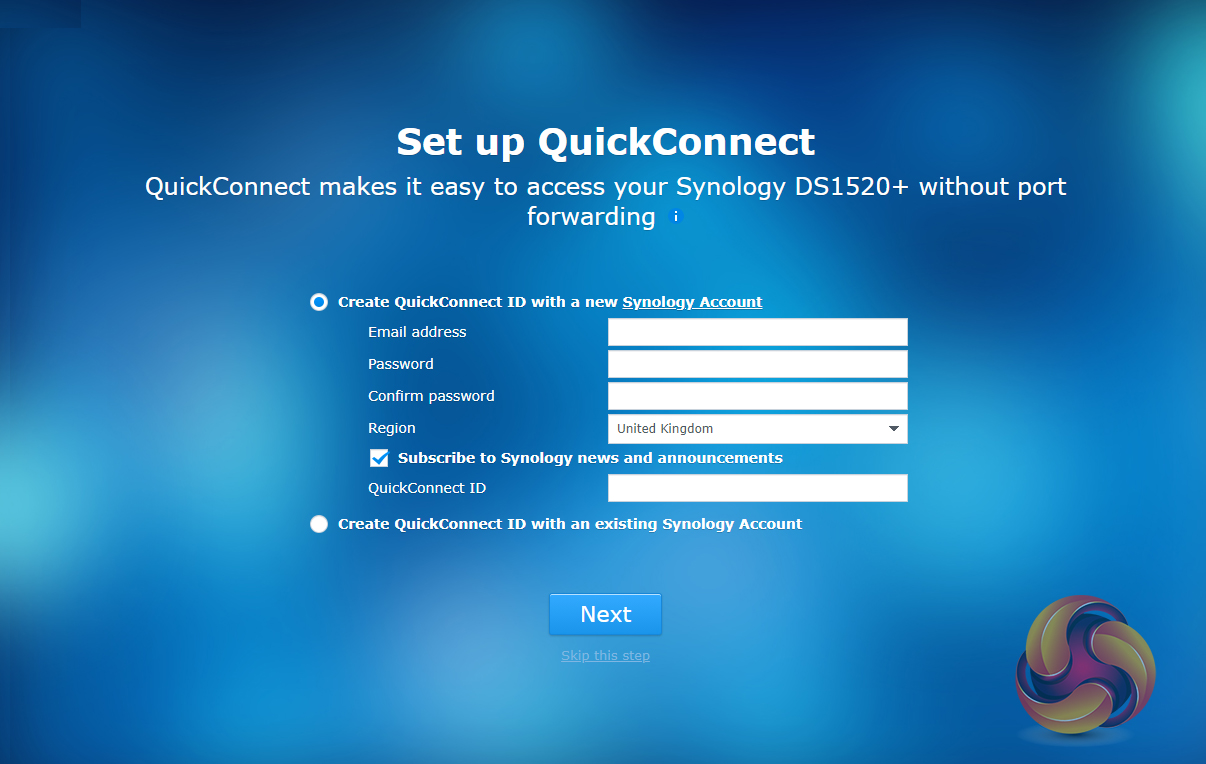
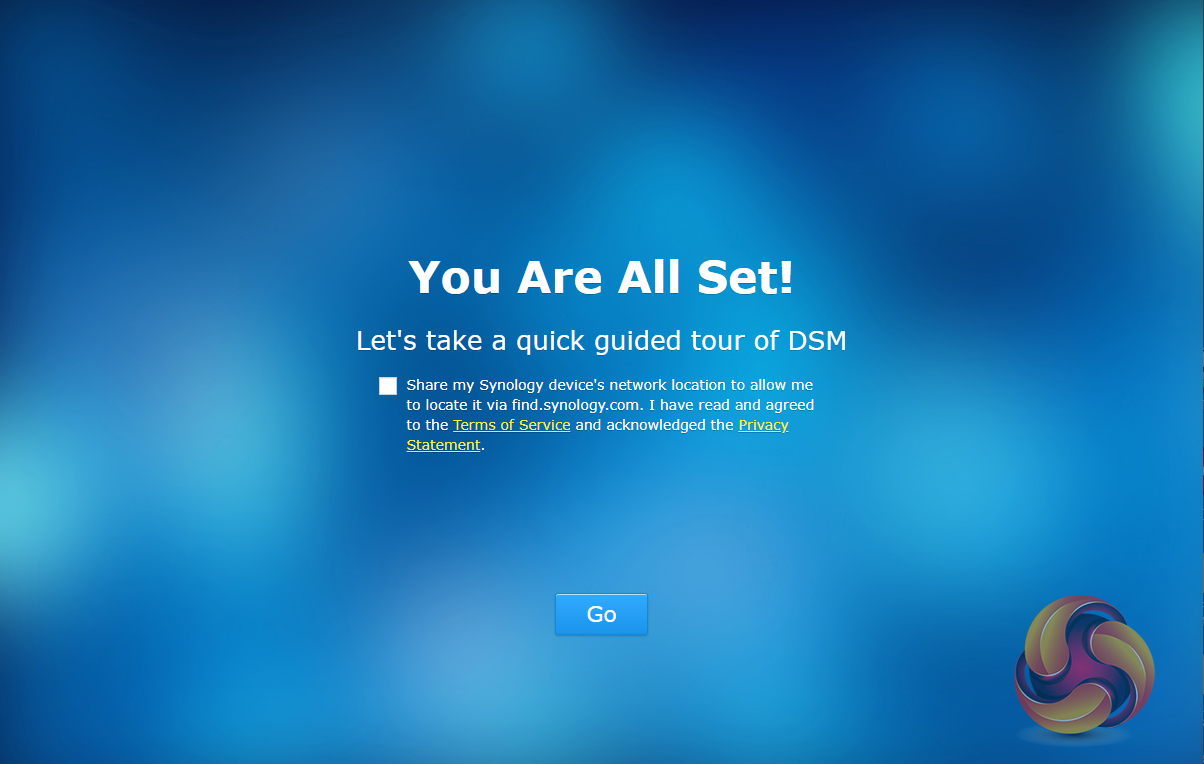
Next, you can set up Quick Connect (remote access to the DiskStation) or skip it and set it up later as you can with the install of Synology’s recommended packages; Photo, Video, Audio and Download Stations and Media and cloud Station Servers as well as Hyper Backup and that’s the setup complete.
To test the DiskStation DS1520+ we used five 6TB Red drives (WD60EFRX, 5,400rpm class, 64MB cache), built into RAID arrays; RAID 0 (5 disks),1 (2 disks), 5 (4 disks), 6 (5 disks) and 10 (5 disks) and then tested.
Software:
Atto Disk Benchmark.
IOMeter.
Intel NASPT.
PCMark 10 Data Drive Benchmark.
The ATTO Disk Benchmark performance measurement tool is compatible with Microsoft Windows. Measure your storage systems performance with various transfer sizes and test lengths for reads and writes. Several options are available to customize your performance measurement including queue depth, overlapped I/O and even a comparison mode with the option to run continuously.
Use ATTO Disk Benchmark to test any manufacturers RAID controllers, storage controllers, host adapters, hard drives and SSD drives and notice that ATTO products will consistently provide the highest level of performance to your storage.
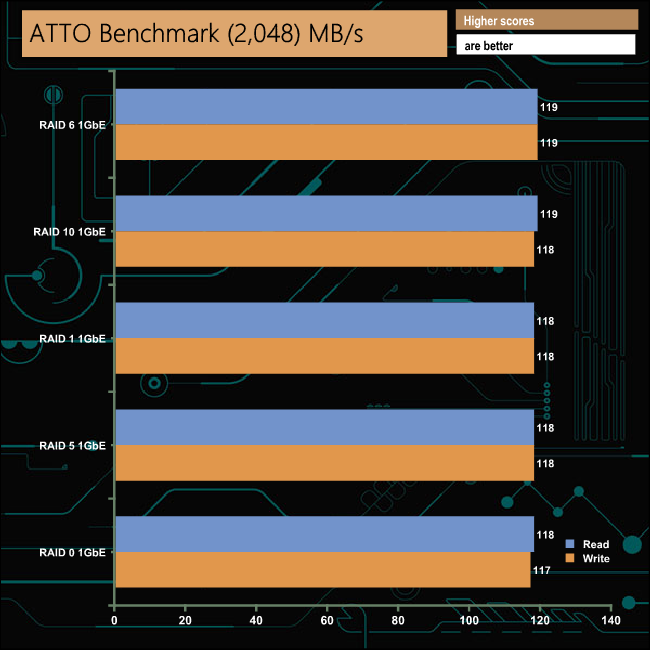
Synology quote Sequential throughput figures for the DS1520+ at up to 451.33MB/s for reads and 449.52MB/s for writes but this is with all four Ethernet ports being used in Link Aggregation mode. With a single Gigabit connection, we got an average of 118MB/s for both reads and writes.
Intel’s NASPT (NAS Performance Toolkit ) is a benchmark tool designed to enable direct measurement of home network-attached storage (NAS) performance. NASPT uses a set of real-world workload traces (high definition video playback and recording, video rendering/content creation and office productivity) gathered from typical digital home applications to emulate the behaviour of an actual application.
We’ve used some of the video and office apps results to highlight a NAS device’s performance.
HD Video Playback
This trace represents the playback of a 1.3GB HD video file at 720p using Windows Media Player. The files are accessed sequentially with 256kB user-level reads.
4x HD Playback
This trace is built from four copies of the Video Playback test with around 11% sequential accesses.
HD Video Record
Trace writes a 720p MPEG-2 video file to the NAS. The single 1.6GB file is written sequentially using 256kB accesses.
HD Playback and Record
Tests the NAS with simultaneous reads and writes of a 1GB HD Video file in the 720p format.
Content Creation
This trace simulates the creation of a video file using both video and photo editing software using a mix of file types and sizes. 90% of the operations are writes to the NAS with around 40% of these being sequential.
Office Productivity
A trace of typical workday operations. 2.8GB of data made up of 600 files of varying lengths is divided equally between read and writes. 80% of the accesses are sequential.
Photo Album
This simulates the opening and viewing of 169 photos (approx 1.2GB). It tests how the NAS deals with a multitude of
small files.
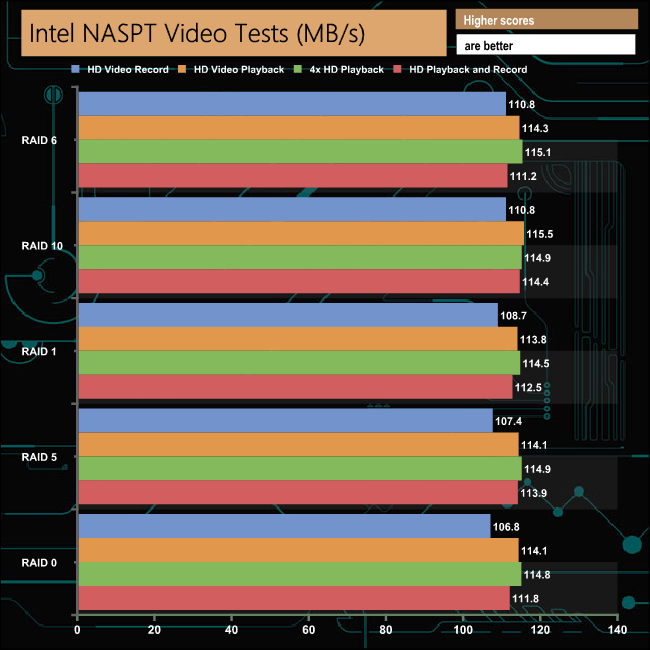
In the video tests of Intel’s NASPT benchmark, the DS1520+ showed strong performance breaking the 100MB/s mark for all tests.
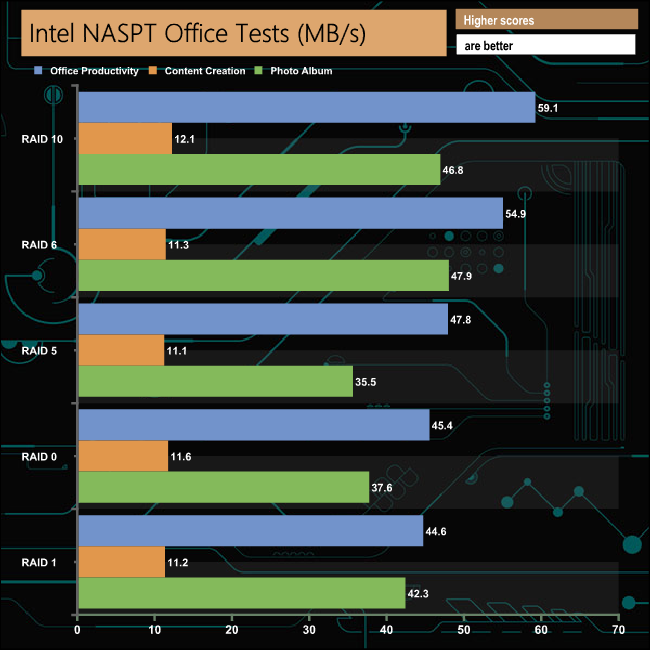
In the office tests, the DS1520+ displayed strong performance with a pretty good level of consistency across the tested arrays. Best performance came in the Office Productivity test where it averaged 50.36MB/s. When dealing with the multitude of small files that make up the Photo Album test it averaged 42.02MB/s while in the Content Creation test it averaged 11.46MB/s.
IOMeter is another open-source synthetic benchmarking tool which is able to simulate the various loads placed on hard drive and solid-state drive technology.
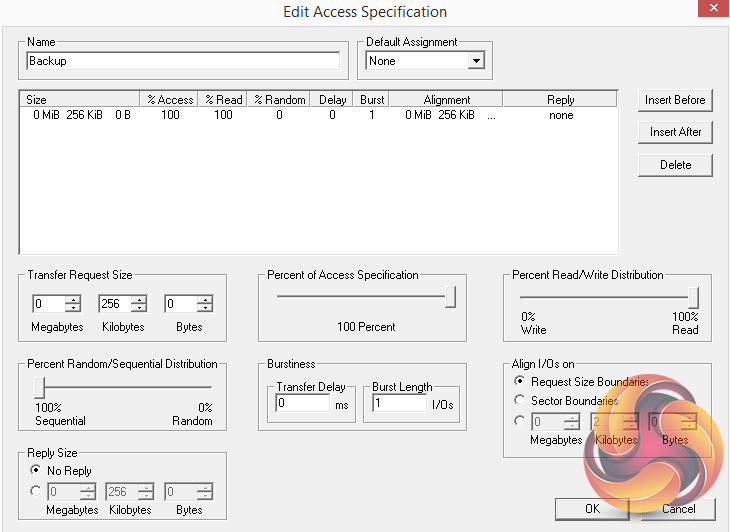
We set IOmeter up (as shown above) to test both backup and restore performance on a 100GB partition.
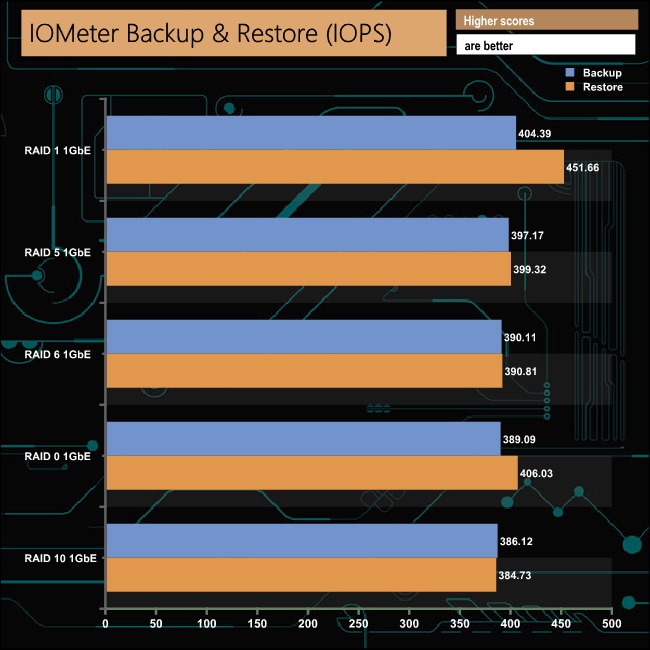
Our backup and restore tests proved no obstacle for any of the RAID arrays.
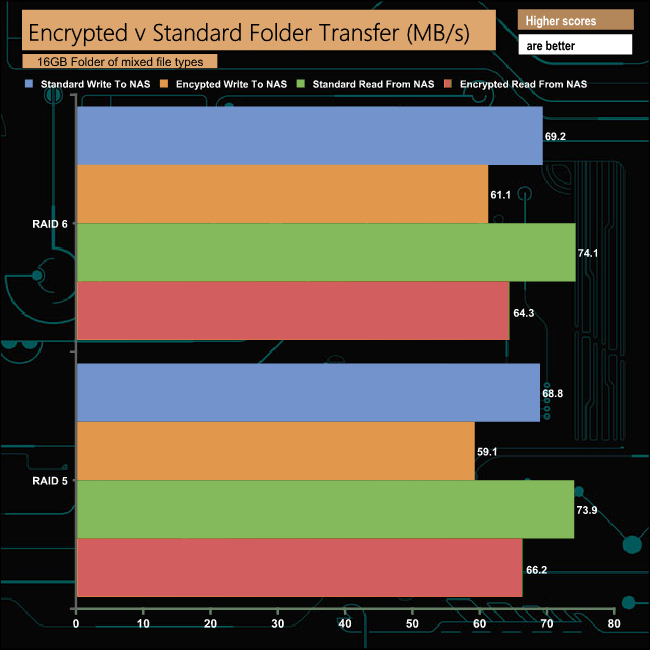
The AES-NI hardware encryption engine in the DS1520+ does a very good job of negating the effects of dealing with data encrypted transfers. In a RAID 5 array, there’s only an 8MB/s drop in performance when writing to the DS1520+ and just 10MB/s are dropped when reading the data back.
In RAID 6 the write performance drops 10MB/s while read performance drops 7MB/s.
We tested the DS1520+ with a number of scenarios that it may face in the real world. The settings for these scenarios are as follows.
File Server
512MB file size, 16KB Block size, 80% Read 20% Write 100% Random, I/O queue depth 128.
Web Server
1GB file size, 16KB Block size, 100% Read 0% Write 100% Random, I/O queue depth 64.
Workstation
Transfer Size: 8K Reads: 80% Writes: 20% Random: 80% Boundary: 8K Outstanding IO: 64 Threads/Workers 4.
Database
2GB file size, 4KB Block size, 90% Read 10% Write, 90% Random, 10% Sequential, I/O queue depth 128.
Media Streaming
160GB file size, 64K Block size, 98% Read 2% Write, 100% Sequential, Boundary: 4K, I/O depth 64, Threads/Workers: 8.
Video On Demand
160GB file size, 128K Block size, 100% Read, 100% Random, Boundary: 4K, I/O depth 512, Threads/Workers: 8.
Digital Video Surveillance
160GB file size, 128K Block size, 90% Read 10% Write, 100% Sequential, Boundary: 512K, I/O depth 64 Threads/Workers:8.
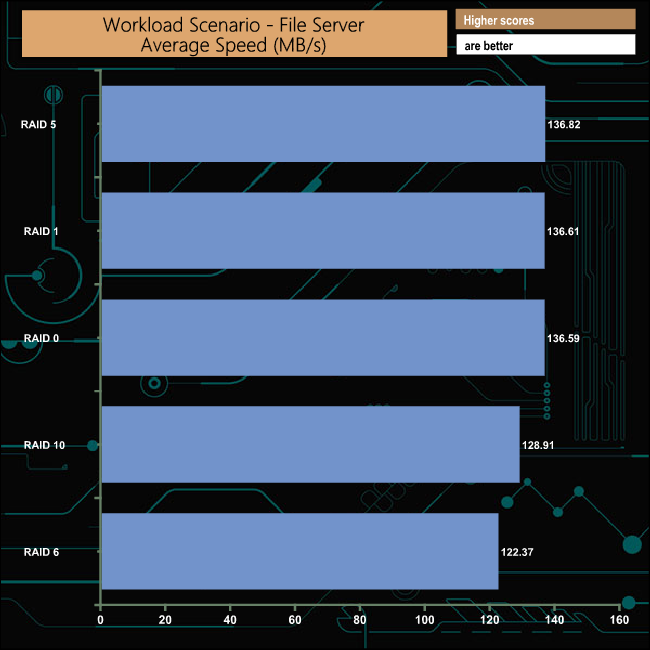
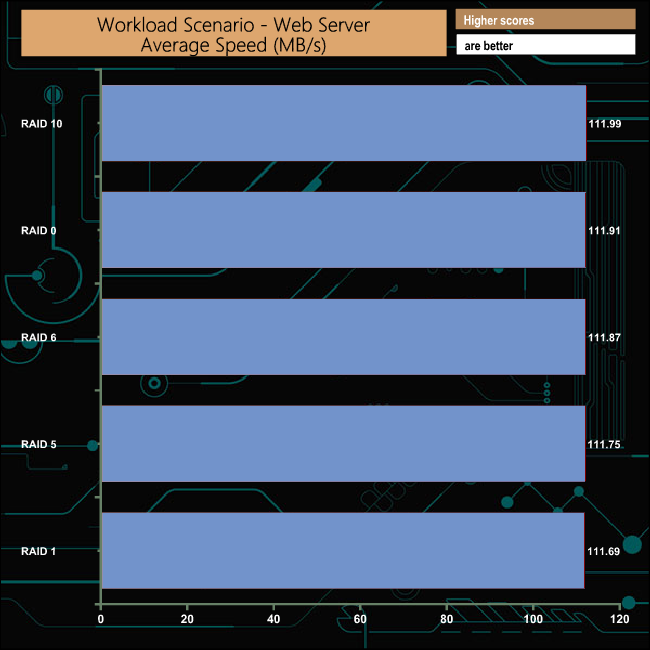
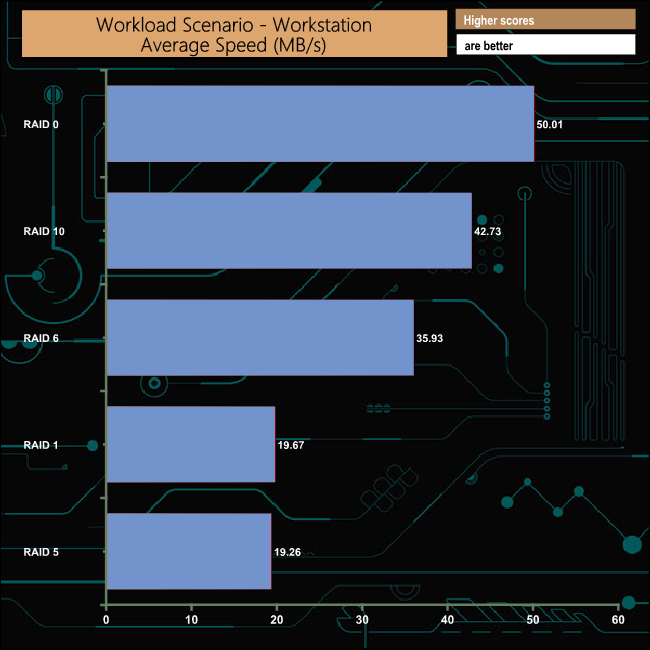
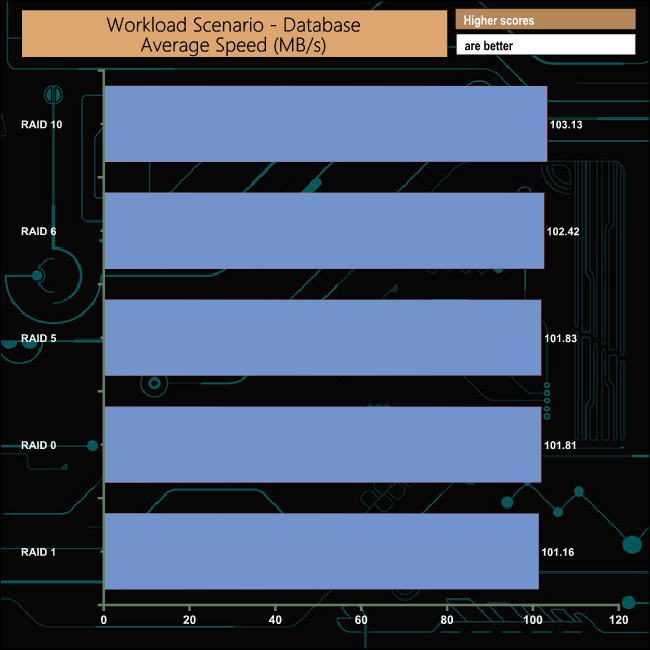
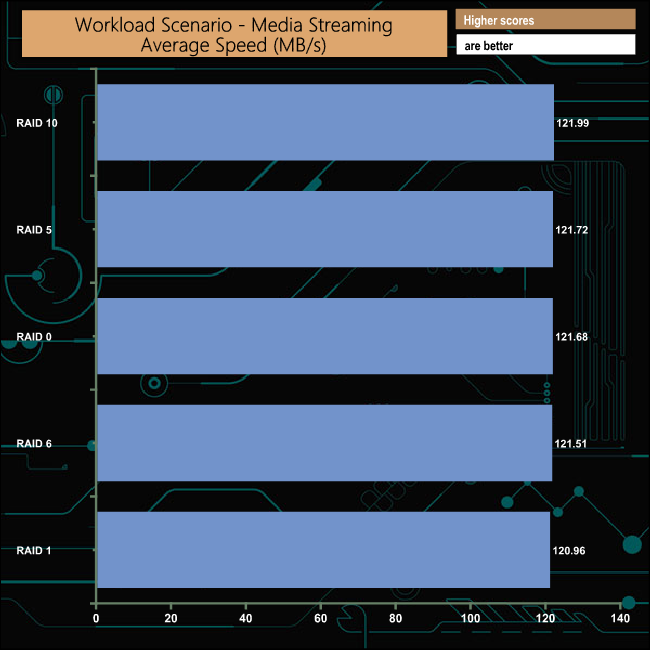
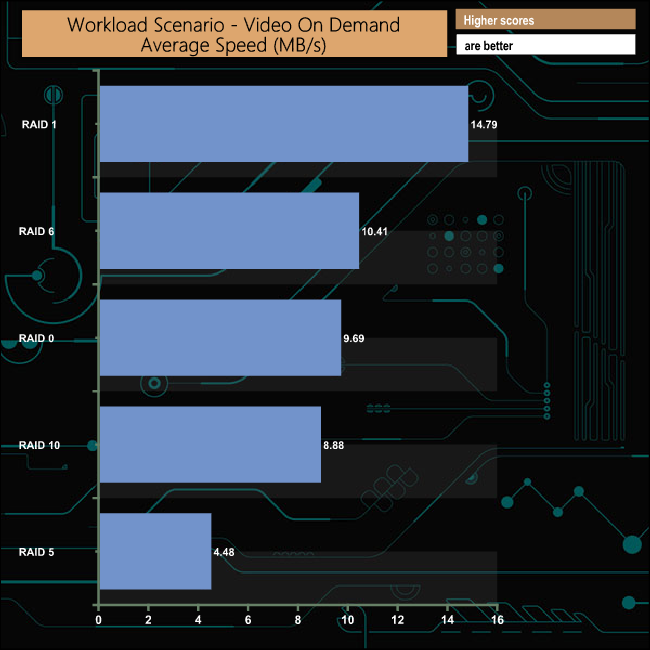
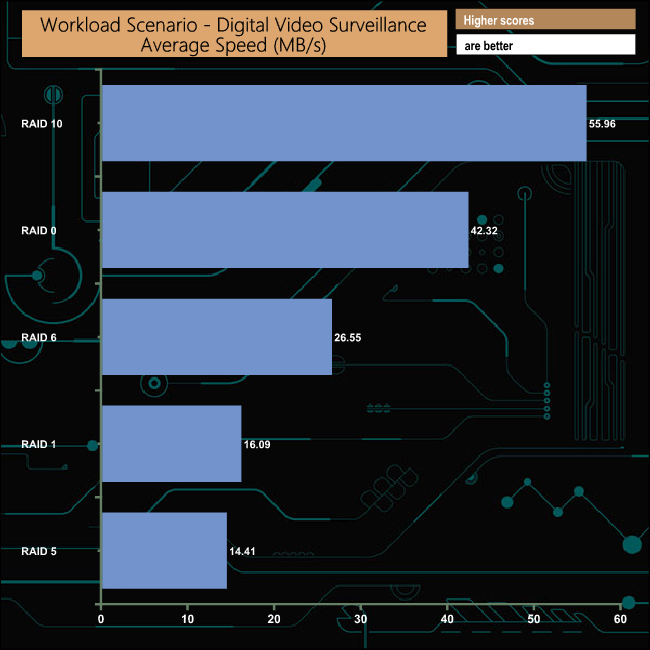
We also tested the DS1520+ in a few scenarios it might be used for in an office environment. It produced average bandwidth speeds of 132.06MB/s and 111.84MB/s for the File Server and Web Server tests respectively, 33.97MB/s for the Workstation test and 102MB/s when tested with the Database trace.
The PCMark 10 Data Drive Benchmark has been designed to test drives that are used for storing files rather than applications. You can also use this test with NAS drives, USB sticks, memory cards, and other external storage devices.
The Data Drive Benchmark uses 3 traces, running 3 passes with each trace.
Trace 1. Copying 339 JPEG files, 2.37 GB in total, in to the target drive (write test).
Trace 2. Making a copy of the JPEG files (read-write test).
Trace 3. Copying the JPEG files to another drive (read test)
Here we show the total bandwidth performance for each of the individual traces.
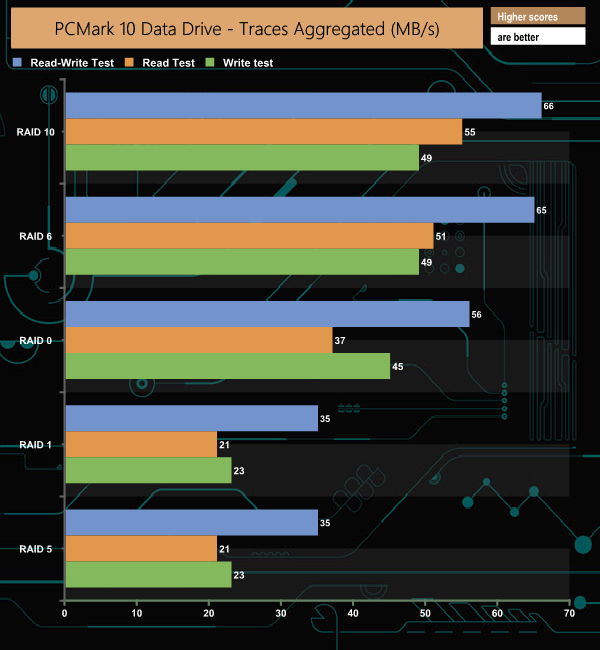
The DS1520+ displays strong performance for all three test traces across RAID 0, 6 and 10 arrays but in RAID's 1 & 5 it does seem to struggle a little with the tests.
To test real-life file/folder performance we use a number of different file/folder combinations to test the read and write performance of the NAS device. Using the FastCopy utility to get an MB/s and time taken for each transfer, the data is written from and read back to a 240GB SSD.
100GB data file.
60GB iso image.
60GB Steam folder – 29,521 files.
50GB File folder – 28,523 files.
12GB Movie folder – (15 files – 8 @ .MKV, 4 @ .MOV, 3 @ MP4).
10GB Photo folder – (304 files – 171 @ .RAW, 105 @ JPG, 21 @ .CR2, 5 @ .DNG).
10GB Audio folder – (1,483 files – 1479 @ MP3, 4 @ .FLAC files).
5GB (1.5bn pixel) photo.
BluRay Movie – 42GB.
21GB 8K Movie demos – (11 demos)
16GB 4K Raw Movie Clips – (9 MP4V files).
4.25GB 3D Printer File Folder – (166 files – 105 @ .STL, 38 @ .FBX, 11 @ .blend, 5 @ .lwo, 4 @ .OBJ, 3@ .3ds).
1.5GB AutoCAD File Folder (80 files – 60 @ .DWG and 20 @.DXF).
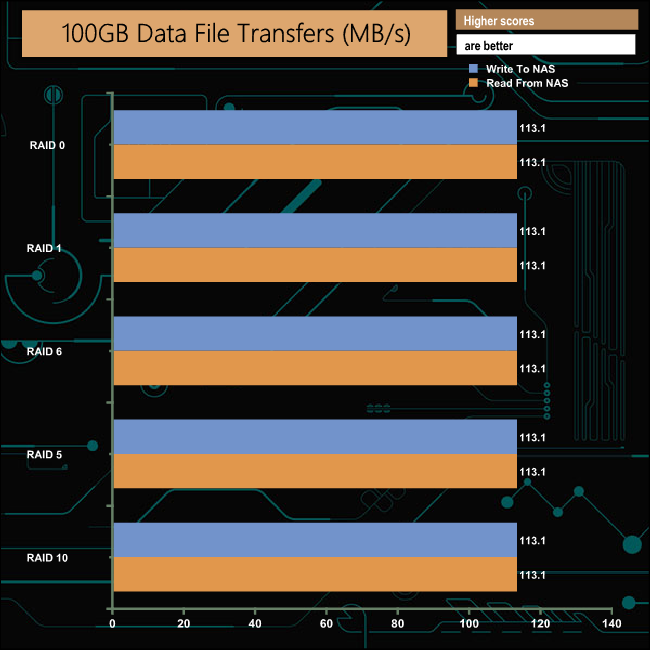
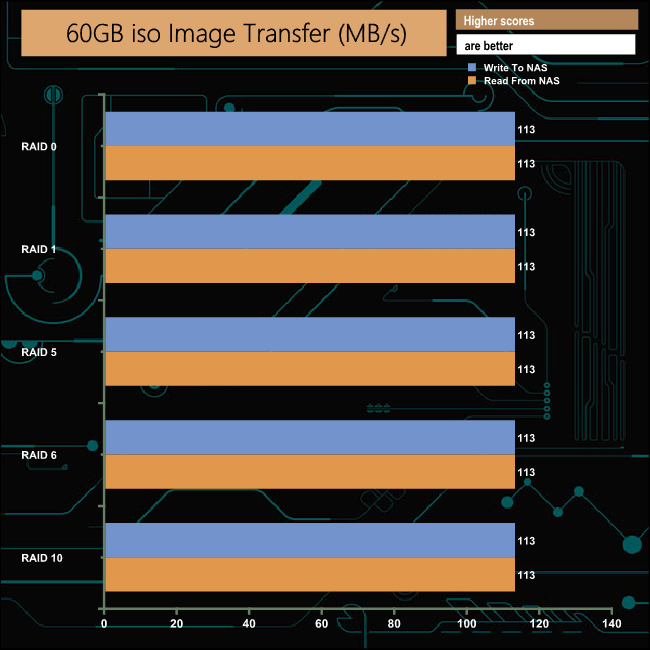
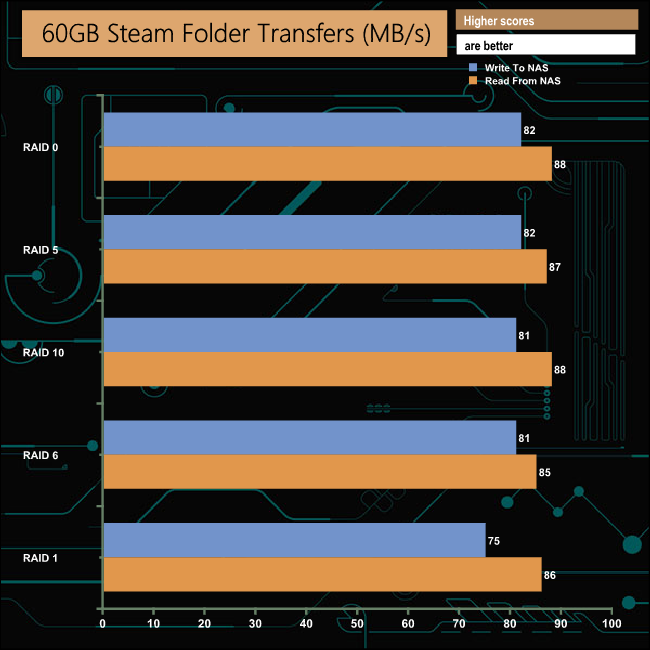
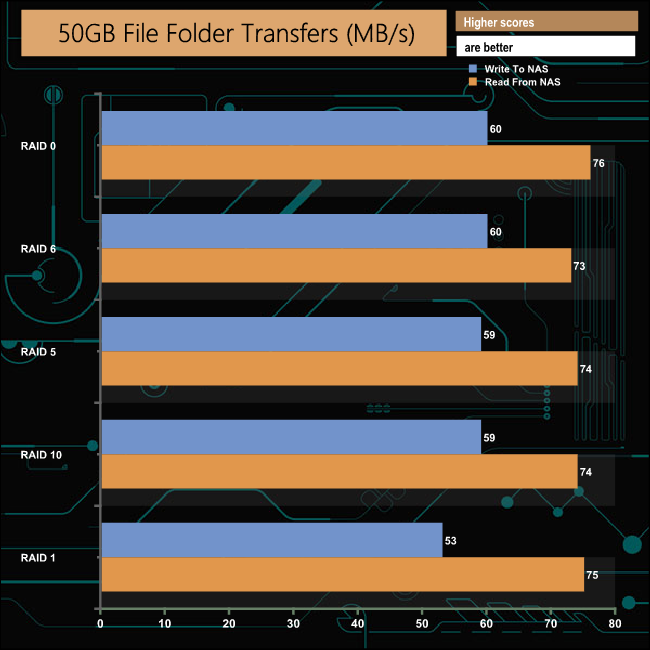
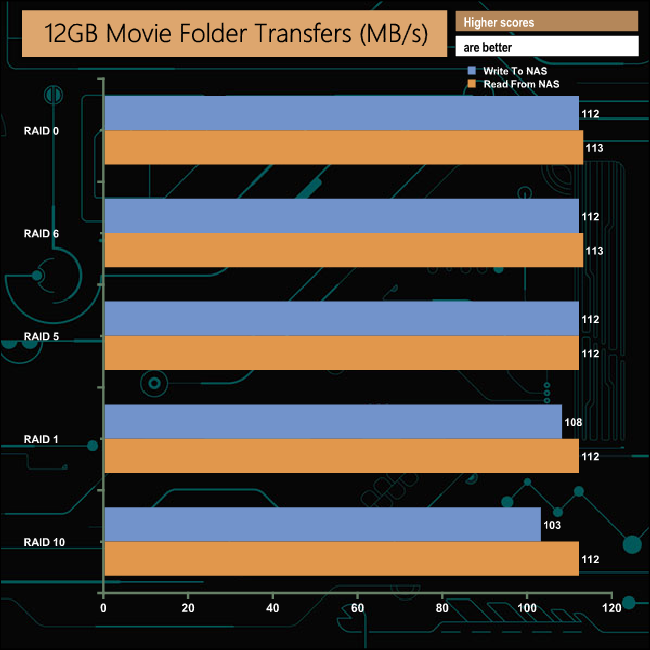
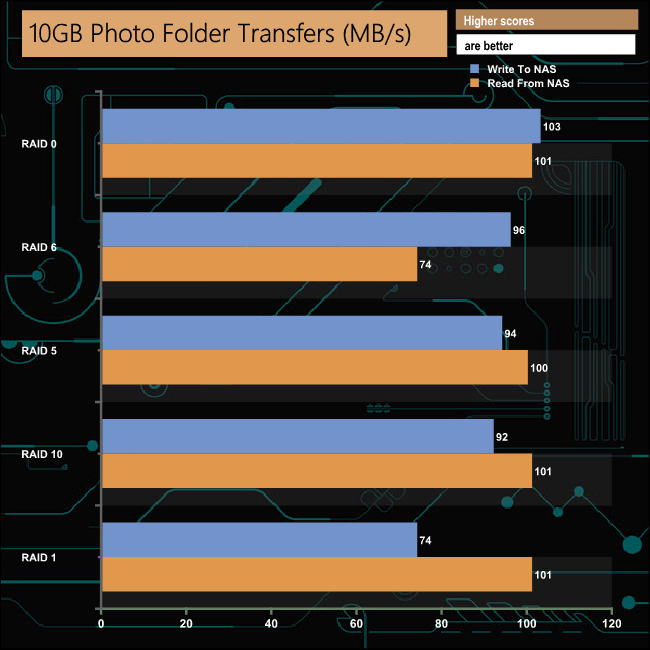
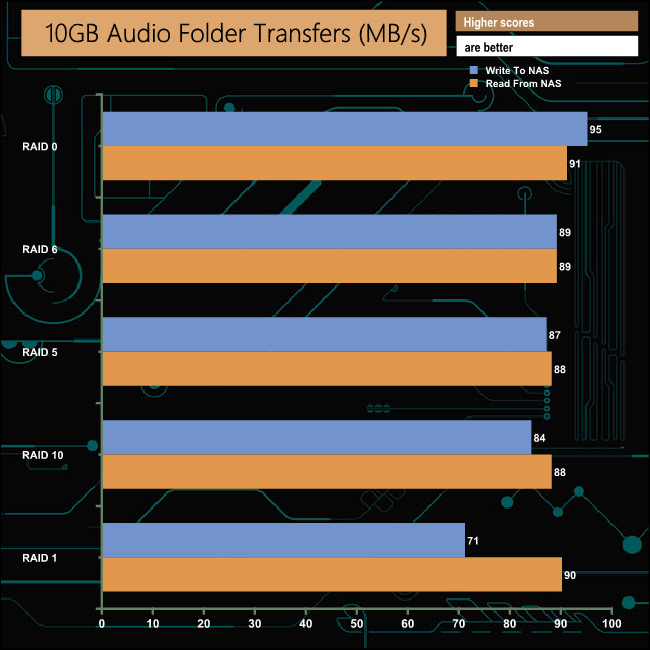
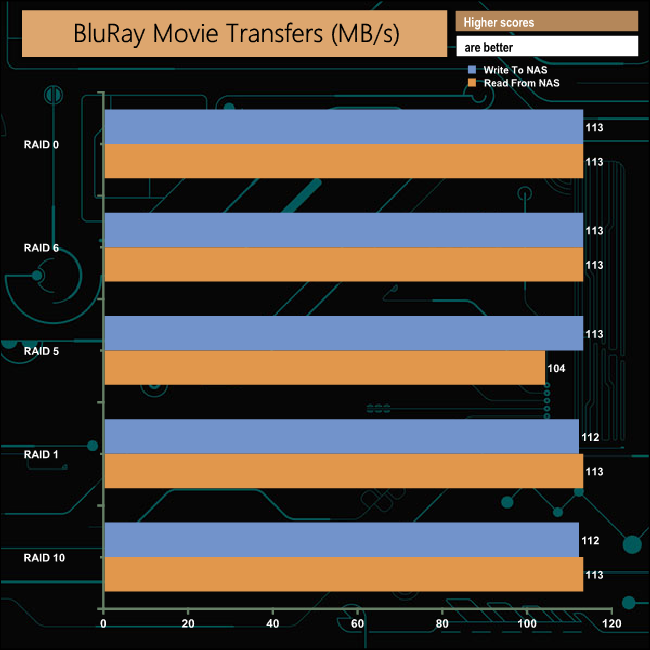
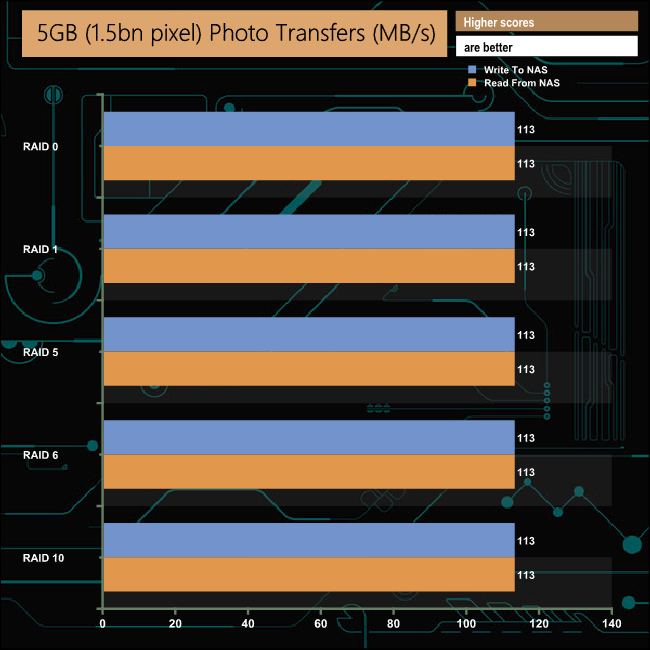
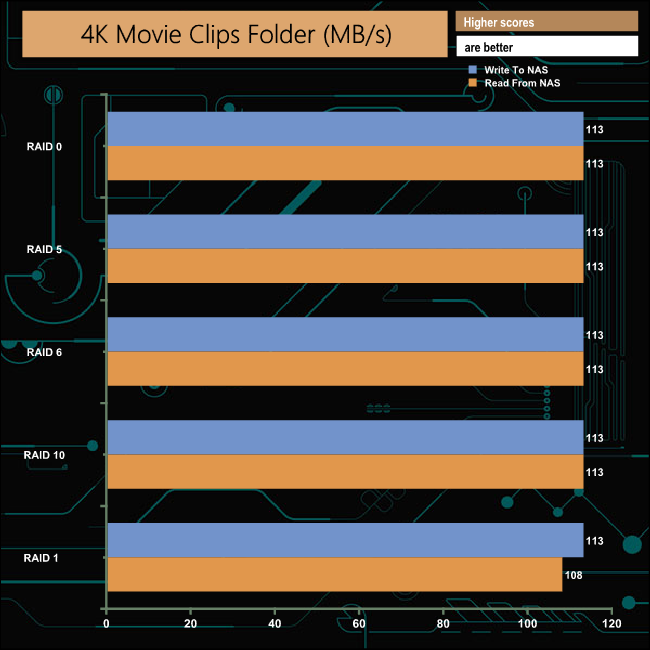
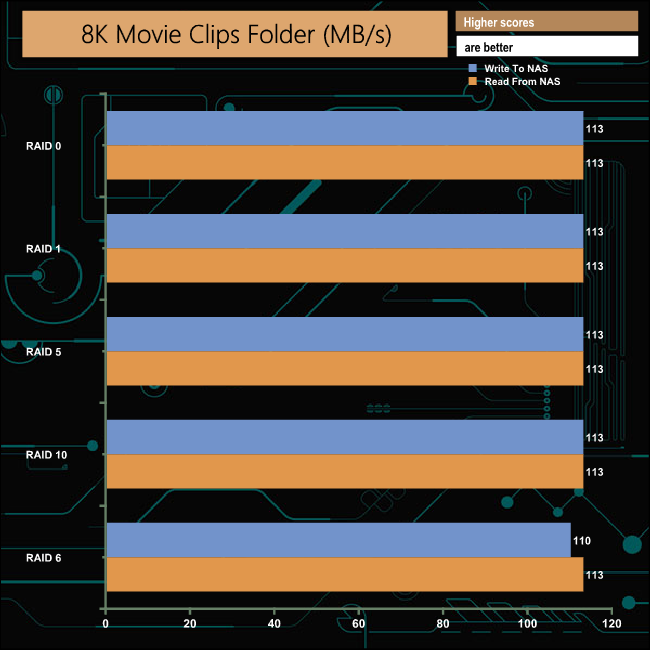
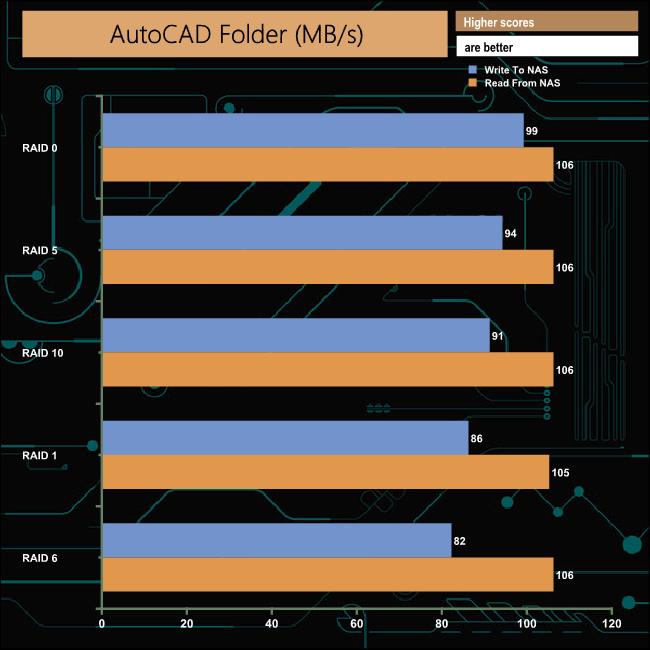
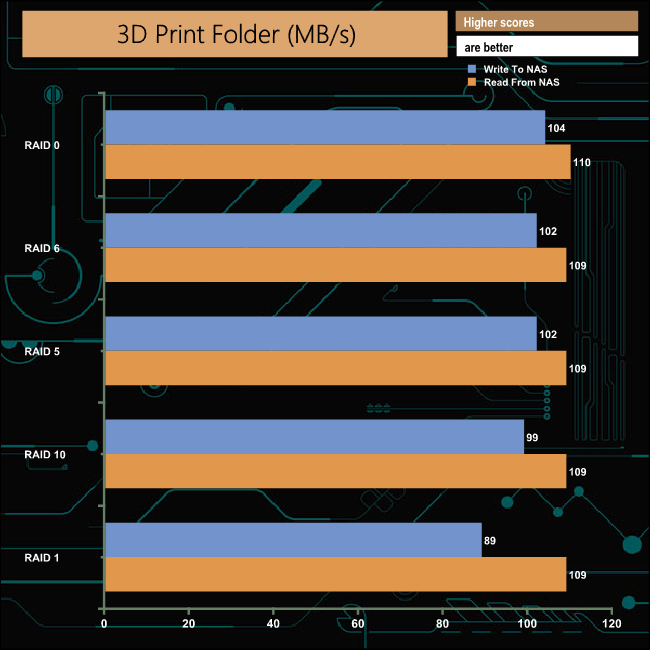
The DS1520+ dealt with our real-life file transfer tests without any real problems and displayed a good deal of consistency across the tested arrays.
We tested the peak power consumption of a NAS at the wall during a run of CrystalDiskMark 5.0.2 as this version of the benchmark runs the read and write benchmark suites separately so its easier to monitor what power the device is using during each function.
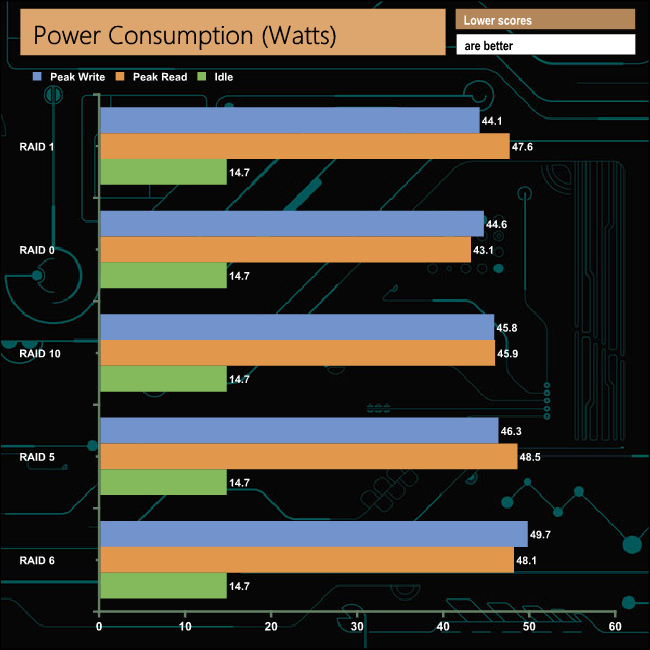
Synology quote a 36.67W power access figure for the DiskStation DS1520+ using five 1TB WD Red (WD10EFRX) drives. For testing purposes, we used five WD Red 6TB drives which are a bit more power-hungry at 5.3W (active read/write) than the 3.3W active figure for the 1TB version of the Red.
Synology’s DiskStation DS1520+ is the sole 5-bay member of the Plus series. Powering the NAS is an Intel Celeron J4125 quad-core processor clocked at 2GHz (2.7GHz burst) backed by 8GB of DDR4 memory, the maximum amount of memory supported by the motherboard.
Built into the base of the NAS are a pair of NVMe supporting M.2 SSD slots for high speed caching purposes. Having these two dedicated slots of cache drives means that you don't have to give up any of the main storage capacity to make use of Synology's caching technology.
On the back of the NAS are a pair of eSATA ports that you may feel are a little of place on a modern NAS but they are the answer if you begin to run out of main storage capacity (at the time of writing the DS1520+ supports drives up to 16TB). This because the DS1520+ can support a pair or Synology’s DX517 Expansion Units which provides an additional 5 drive bays each of storage capacity (80TB capacity at the time of writing) to the NAS, meaning that you can add another 160TB of storage in total, which should be enough to keep you going for a while.
With all four Gigabit LAN ports connected in Link Aggregation mode, Synology quote Sequential throughput figures for the DS1520+ at 451.25MB/s for reads and 451.34MB/s for writes. We tested it with a single Gigabit connection and got an average of 118.8MB/s for both reads and writes for the five array types (RAID 0,1,5,6 & 10) that we built the hard drives in for testing.
Synology’s NAS OS is DiskStation Manager (DSM), one of the better NAS operating systems out there. Fast to install and feature-rich it uses clearly labelled icons to display the large range options you can choose from. There are two ways of tackling what the software has to offer. The Basic main and control panel pages offer quick and easy access to the basic features making it easier for the first time user to find what they need and feel comfortable with.
However, should you want to delve in deeper to the OS to find out all it offers then the Advanced main and control panel pages have many more options to choose from.
We found the Synology DiskStation DS1520+ on Span.com for £730.80 (inc VAT) HERE
Pros
- DSM OS.
- Overall performance.
- NVMe M.2 SSD slots.
- Expandability options for storage.
Cons
- USB 3.0 ports only.
- Only a maximum of 8GB of memory supported.
Kitguru says: Synology’s DiskStation DS1520+ is a powerful, flexible 5-bay NAS for the home or office. With a pair of dedicated M.2 NVMe slots for caching duties, four Gigabit Ethernet ports and the ability to add a whole lot more capacity via a pair of expansion units should the need arise, it will able to keep pace with demand as an office environment grows for quite some time.