KitGuru KitGuru.net – Tech News | Hardware News | Hardware Reviews | IOS | Mobile | Gaming | Graphics Cards


Ever had that sinking feeling when a file or folder gets lost or goes missing, and you suddenly remember that you told yourself you would do the backup later? Or have you ever deleted a partition and then realise that yes, that stuff on it was needed after all? If so, it's time arm yourself with some data recovery software. Stellar Data Recovery is quick to install and is a powerful data recovery tool that is available in a number of options and price plans.
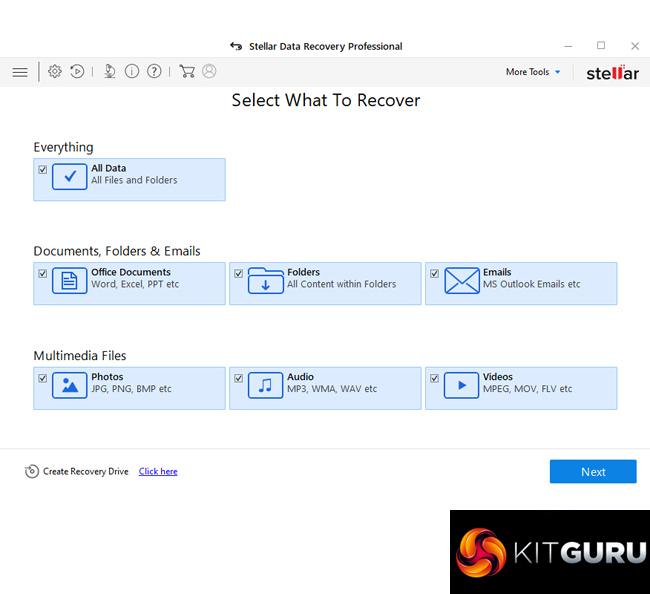
Previously known as the rather long-winded Stellar Phoenix Windows Data Recovery Professional, Stellar Data Recovery Professional supports data recovery from SSDs, hard drives and USB drives formatted with NTFS, exFAT and FAT (FAT16/FAT32). It also supports data recovery from a crashed and/or unbootable system as well as recovering files from scratched or partially burned optical media such as CD or DVDs.
Besides the Professional version, there are five other Windows Stellar Data Recovery options: Free, Standard, Premium, Technician and Toolkit. Each jump in the food chain brings extra features and recovery tools. It also comes in three Mac versions; Free, Professional and Premium.
It supports file recovery from over 200 different file types including office documents, PDF, emails, images, database, audio, video, archive and databases:
| Acrobat Files | |
| Archive Files | ARJ, CAB, 7Z, LZA, RPM, TAR, BZ2, HQX, RAR, SIT, SITX, ZIP |
| Audio Files | WAV, AIFF, RPS, MIDI, MID, M4A, AU, OGG, WMA, AAC, RFL, RNS, RA, RM, MP3, M3D, CDA, AU, OGG, WMA, AAC, RFL, SND |
| Database Files | MDF, DBF, CSV, MDB, ACCDR, ACCDT, ACCDA, ACCDB |
| Documents files | MDB, ACCDB, PDF, PS,C WK, FM3, FMT, WK1, WK3, WK4, DOC, DOCX, XLS, XLSX, PPT, PPTX, SDW, QXD, QXP, EPS, QBB, QBW, WPD, DOT, WBK, DOCM, DOTX, DOTM, DOCB, XLT, XLM, XLSM, XLTX, XLTM, XLSB, XLA, XLAM, XLL, XLW, POT, PPS, PPTM, POTX, POTM, PPAM, PPSX, PPSM, SLDX, SLDM, ADE, ADP, MDA, MDN, MDT, MDF, MDE, LDB, AND, ACCDR, ACCDT, ACCDA, MDW, ACCDE, LLACCDB, XPS, ODT, OTT, ODM, ODS, OTS, ODP, OTP, ODB |
| Email Files | EMLX, PST, MSG, EDB, MBOX, NSF, GWI, EML, DBX, DCI, VCF |
| Image Files | NEF, CRW, CR2, ORF, SR2, SRF, K25, KDC, DCR, RAF, MRW, PEF, X3F, JPEG, JPG, TIFF, TIF, BMP, GIF, PNG, XCF, PAT, ARW, DNG, PSP, PCT, RAW, MOS, PSD, EPS, INDD, ERF, FH3, FH5, FH7, FH8 |
| Video files | AVI, WMV, ASF, MP4, MOV, M4V, 3GP, MXF, MKV, MTS, DIVX, OGM, MOI, VOB, MPEG, MPG, AVS, DVM, QT, ANM, SMJPEG, SCR, FLC, CLK, ANI, FLA, SWF, FLV, M4P |
| Miscellaneous files | MHT, MHTML, ASPX, JSP, PHP, DBF, QDG, QSD, ABD, CBK, CAS, CHM, HLP, NBP, QDF, RTF, TAX, TXT |
Stellar Data Recovery Professional only takes a few minutes to install. Once installed you are met by the dashboard.
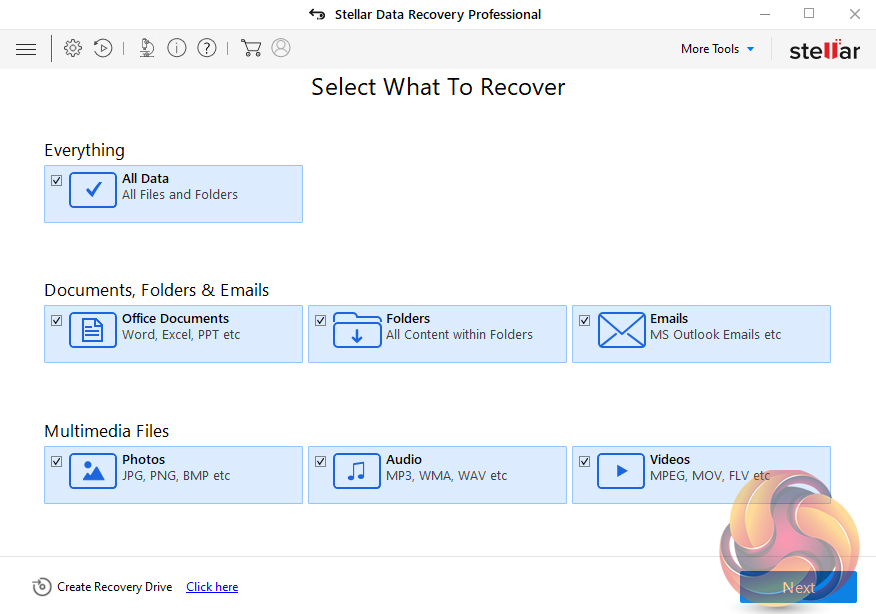
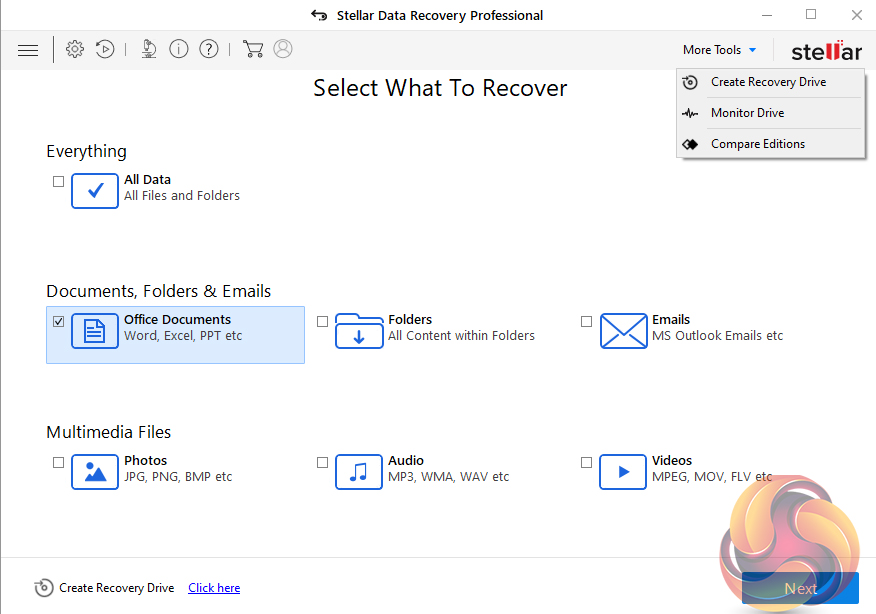
There are seven options for the type of data that needs recovering. First up there is the everything option, this is the option to choose if you just want the software to try and recover everything on a drive. Or you can choose specific options with the remaining six buttons; Office Documents (including Word, Excel, PPT files etc), Folders (all content within folders) Emails (MS Outlook etc), Multimedia (jpg, png, bmp etc), Audio (MP3, WMA, WAV etc) and Videos (MPEG, MOV, FLV etc). A nice extra is that if you hold the mouse pointer over any drive it will display the drive's temperature and health.
Top right of the dashboard is a drop box with three options; Create Recovery Drive, Monitor Drive and Compare editions.
Create Recovery Drive
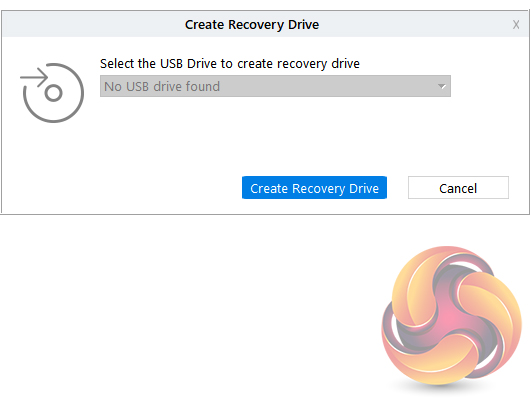
To recover data from a crashed or non-booting Windows PC you need to create a bootable USB drive (empty drive at least 1GB in size) and this is where the Create Recovery Drive utility comes into play. There is also a link to it at the bottom of the dashboard pages.
Monitor Drive
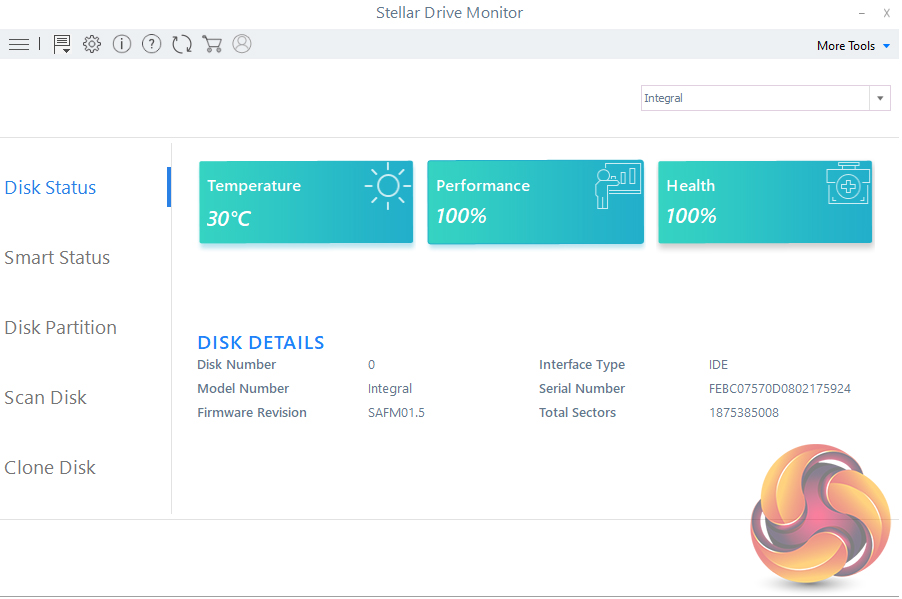
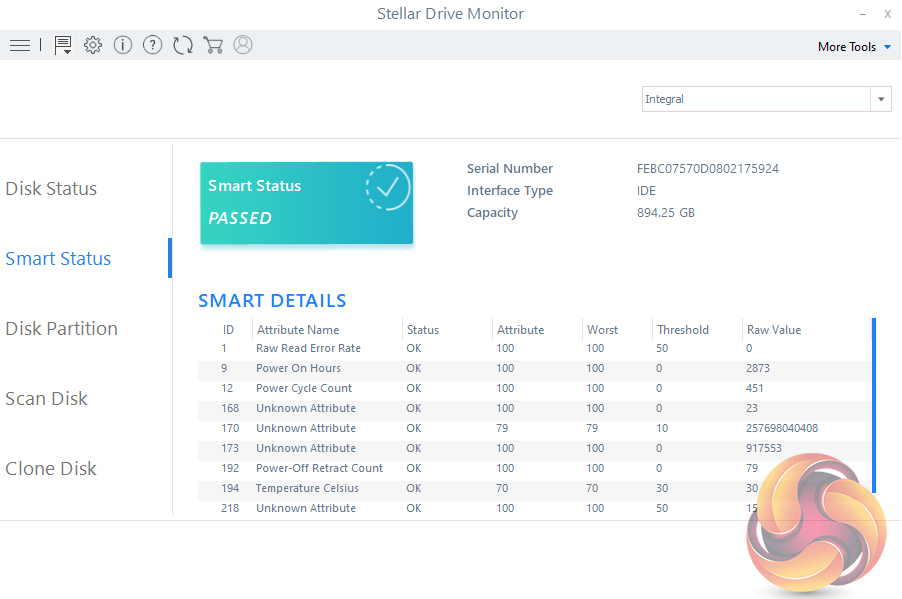
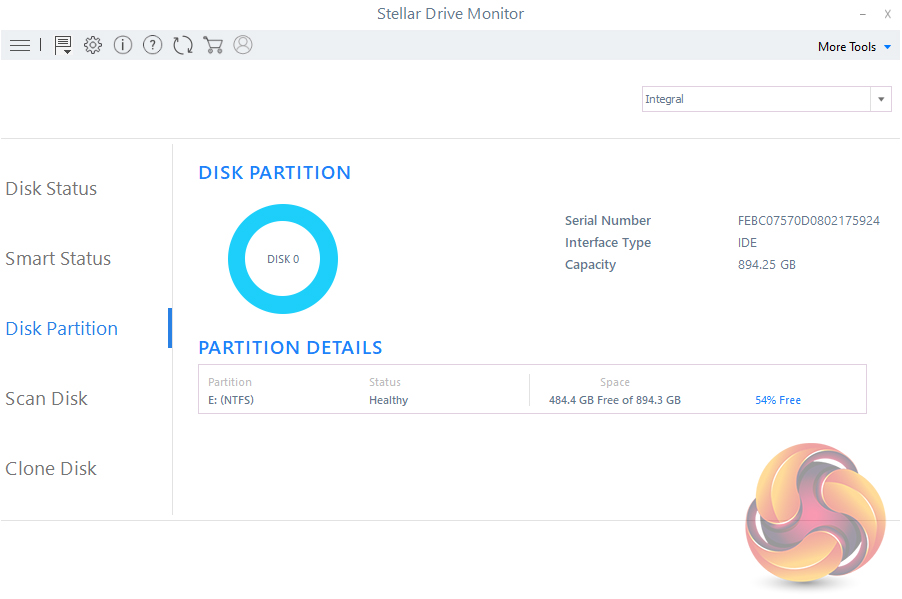
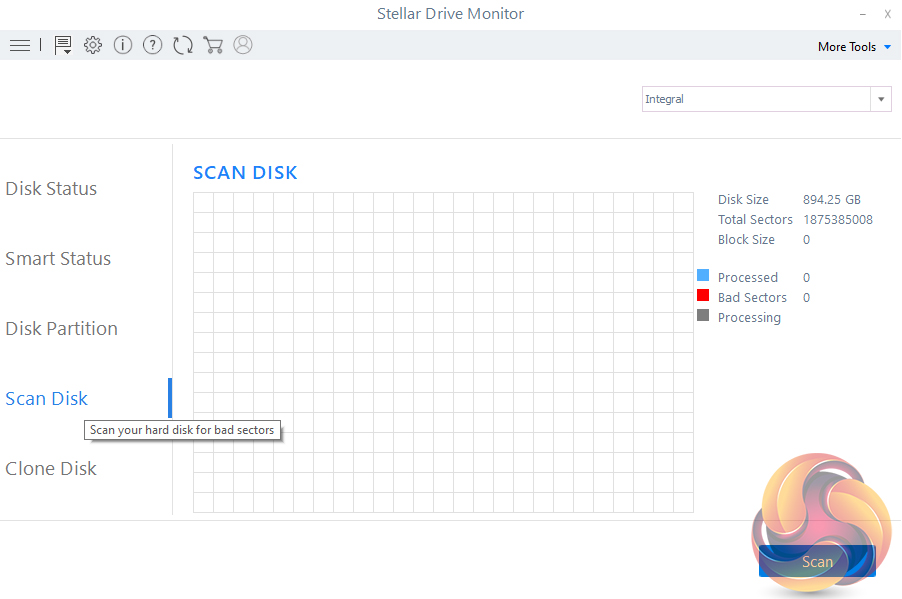
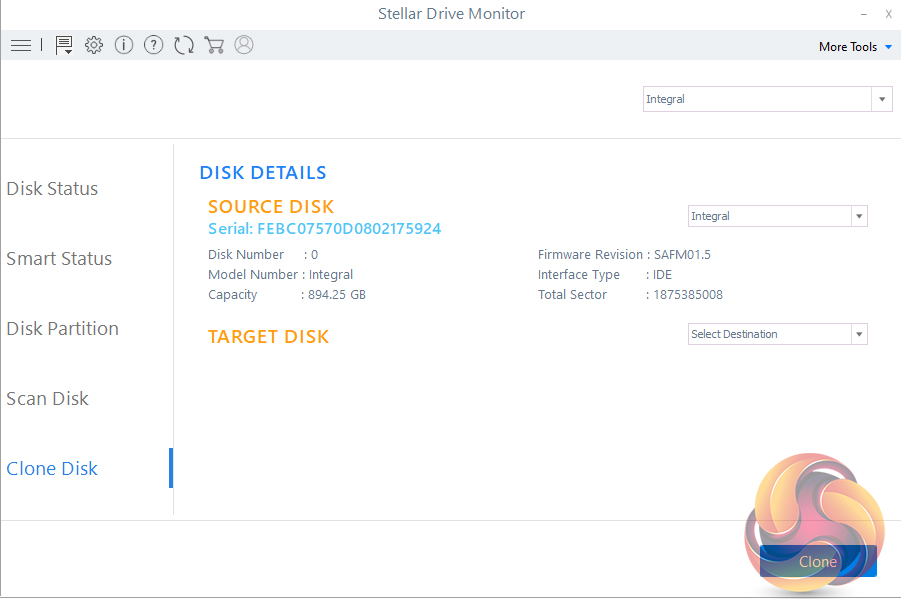
As well as all the data recovery options the software also supports a useful drive monitor. This monitors disk temperature, performance, and health and will send real-time alerts if a problem arises. It also supports disk cloning.
The Compare Edition option links out to the Stellar website allowing comparison between all versions.
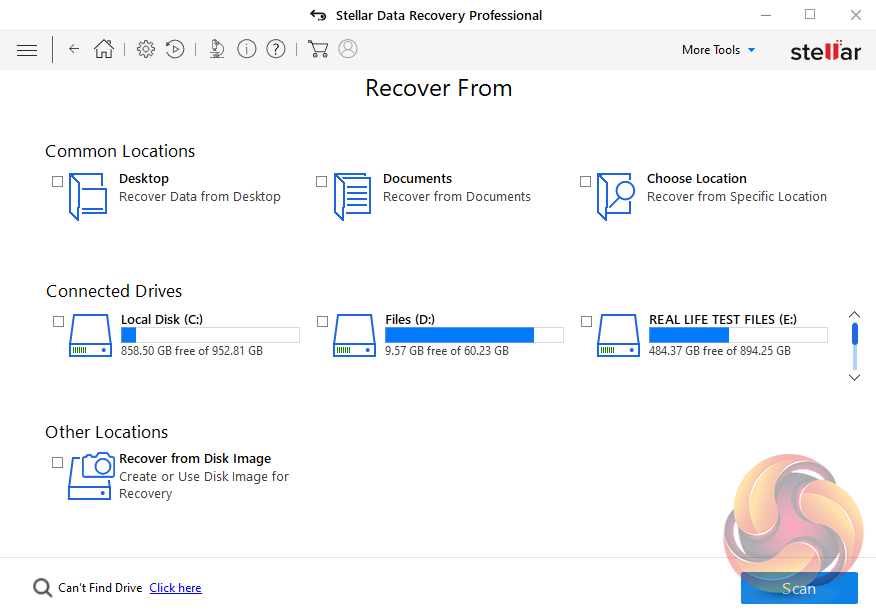
Thanks to the easy to follow dashboard, recovering data is pretty straightforward. The first job is to choose what data you want to recover, once this is done, clicking “Next” brings up the Recover From page. The Recover From section lists all the drives the software has found including external drives, optical drives and flash media. Then it's just a matter of clicking the Scan button. For this testing this software, we are using a Kioxia Exceria 960GB SSD.
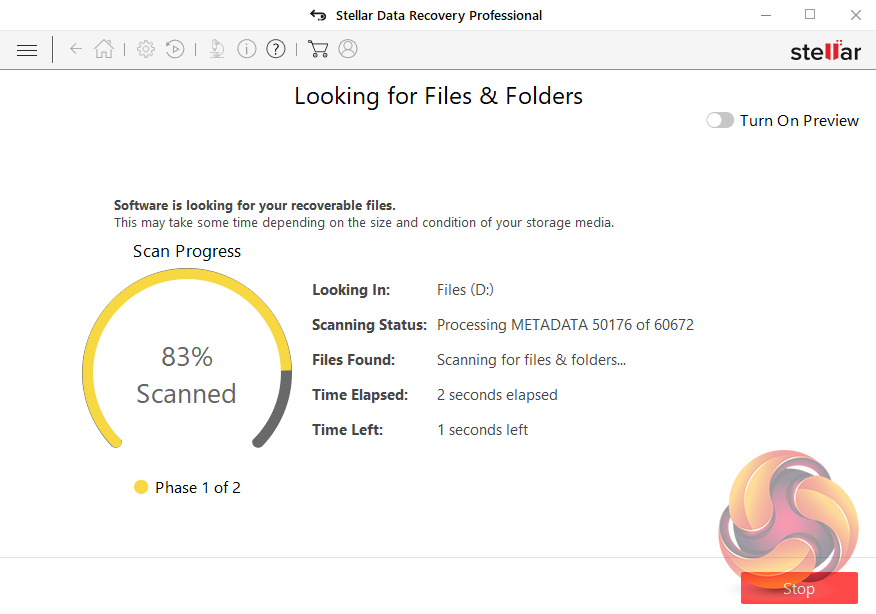
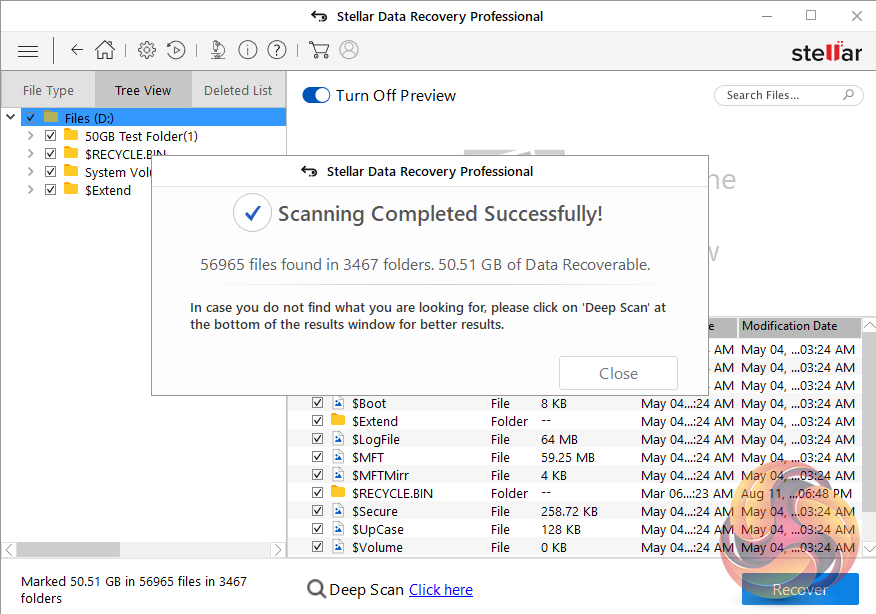
The scan can be stopped at any point. When the scan is completed a dialogue box appears with details of what the scan has found; the number of files, folders and how much data is recoverable. The complete list of data that has been found is clearly displayed. Scanned files are displayed in Tree View, File Type, and Deleted List formats and there is also a preview window that offers a preview of any found file that is supported by the software. This can be turned on or off.
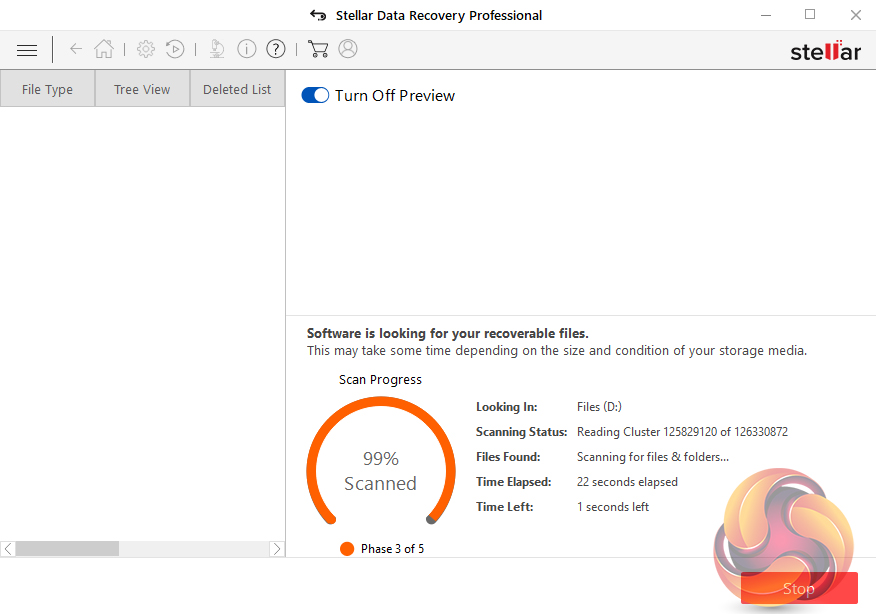
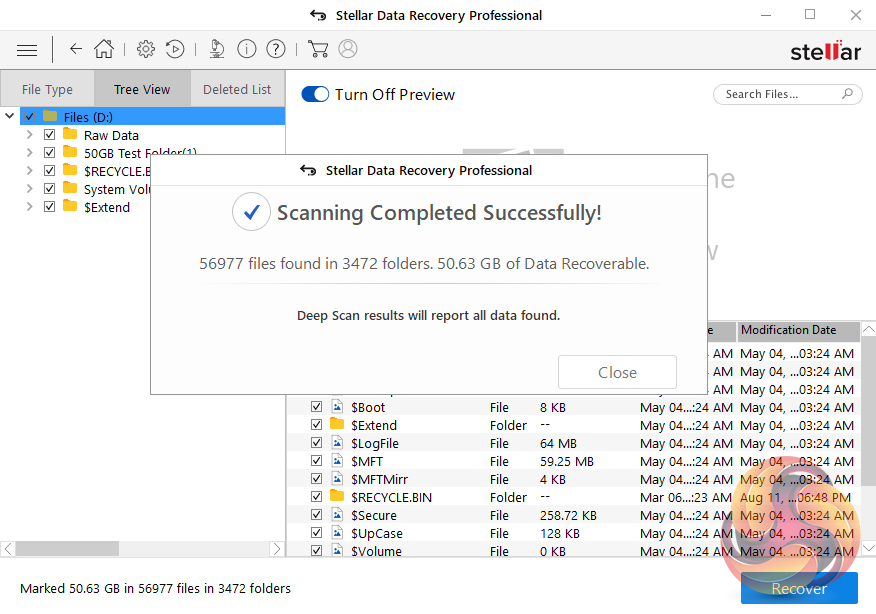
If the data cannot be found with the standard scan then there is the option of trying the Deep Scan mode which scans the drive much more thoroughly. To scan a 50GB partition with the default scan took 3 seconds. The Deep Scan mode took 30 seconds.
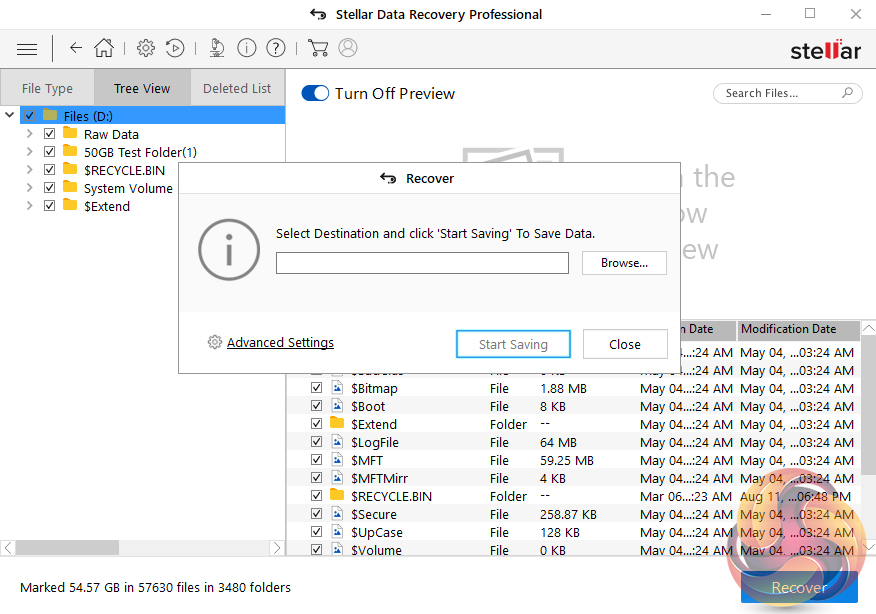
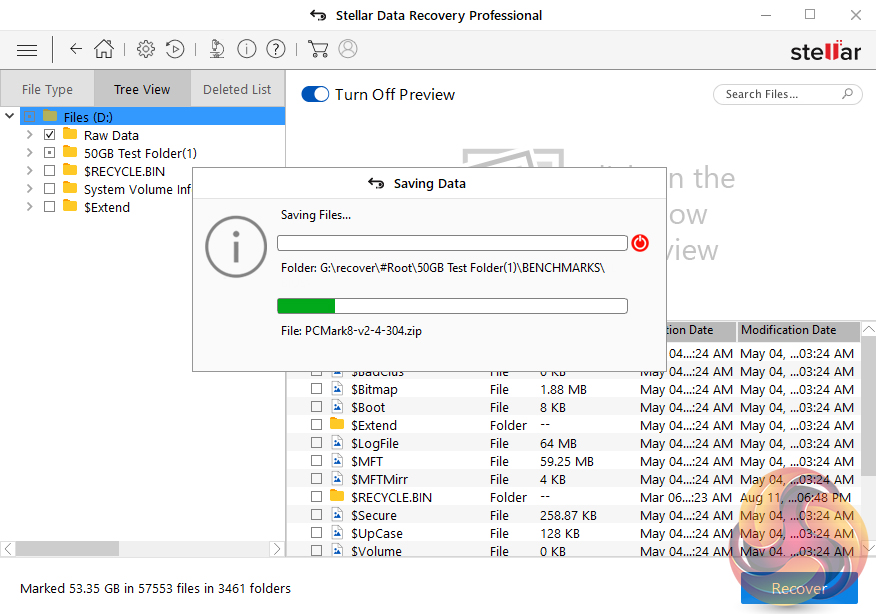
Once you are satisfied that all the files have been found, it's time for the final part of the recovery process, the data recovery itself. First off you need a location to save the data to and then its just a matter of clicking on the Start Saving button. It took 33 minutes for our 50GB of test data to be recovered to the location we had chosen.
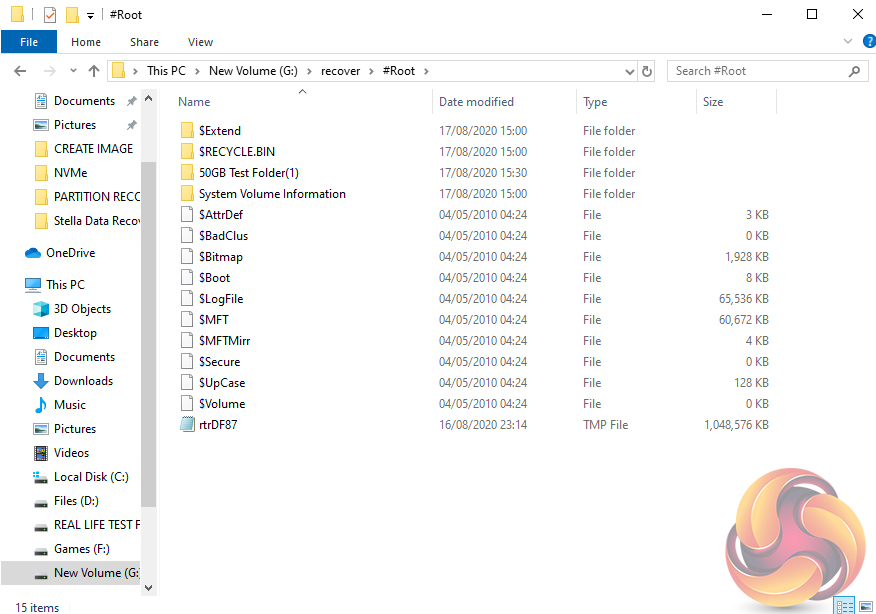
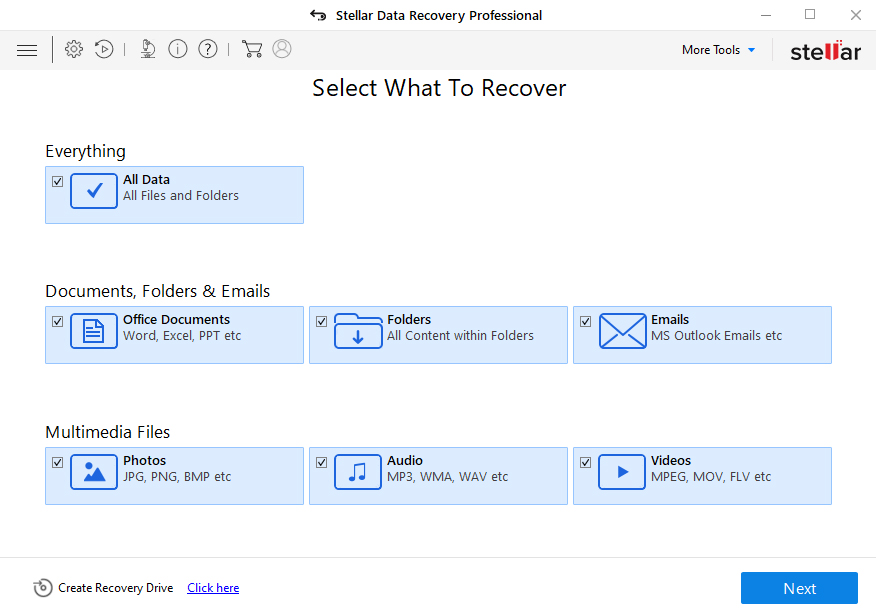
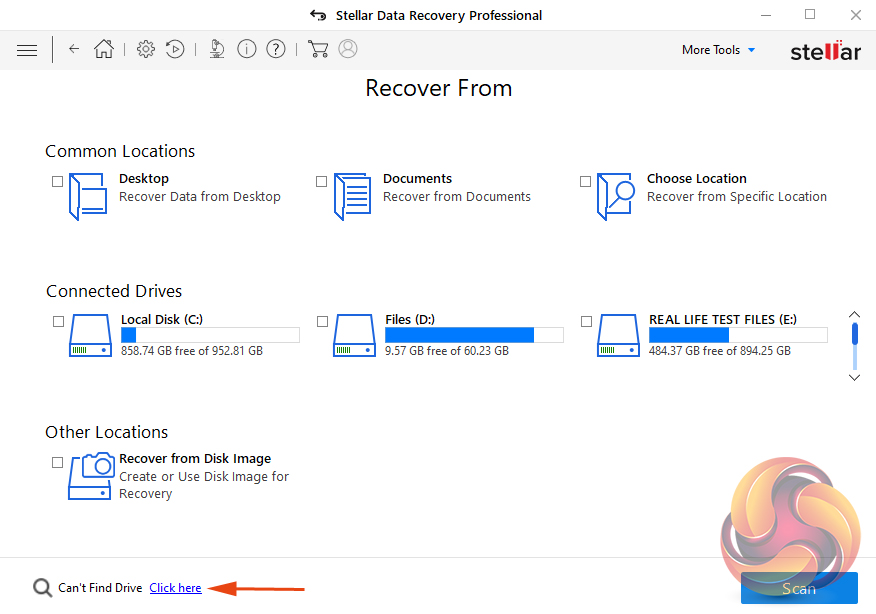
Stellar Data Recovery Professional also locates and restores lost or deleted partitions. In this example, we've deleted one of the partitions on the drive (in this case the 100GB G partition) and tested the software to see how good it is at finding the lost partition. First off, choose All Data from the What To Recover page and then choose the Can't Find Drive link from either the main Recover From page or the link at the bottom of the page. Then click Scan.
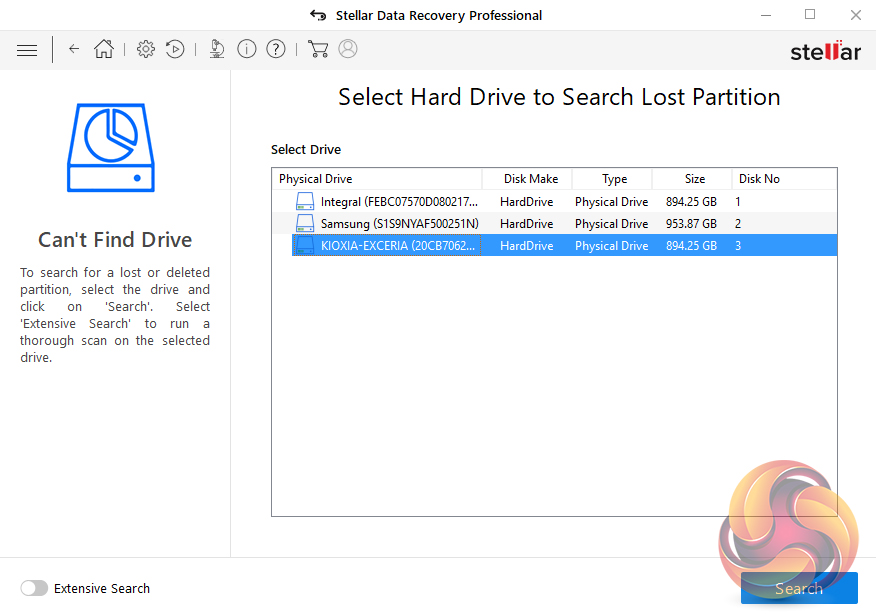
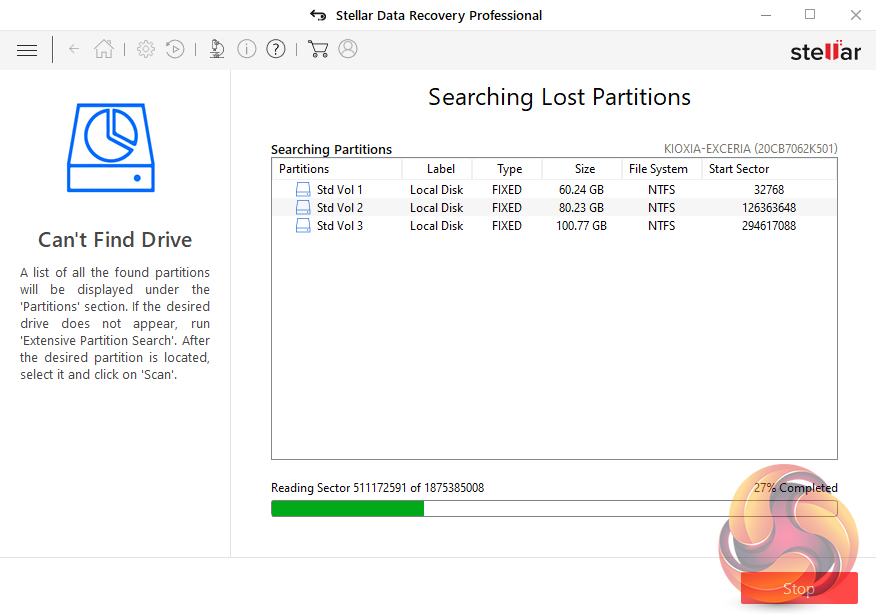
The software then displays a list of drives it has found on the system. Select the drive with the missing partition and then press Search, a scan for lost or deleted partitions will be performed in the selected drive. It took the software just over 21 minutes to scan the complete disk to find the lost partition and its data on the Kioxia Exceria 960GB SSD we were using.
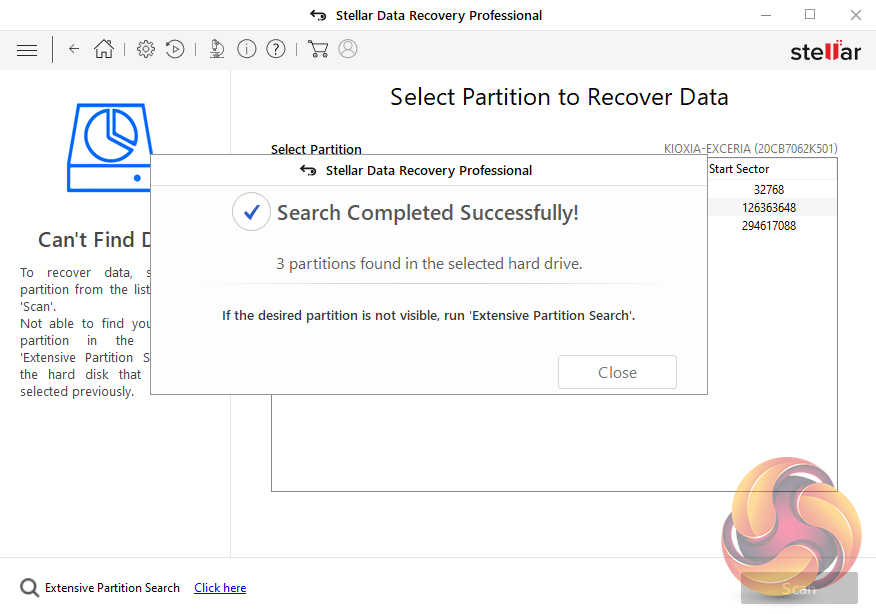
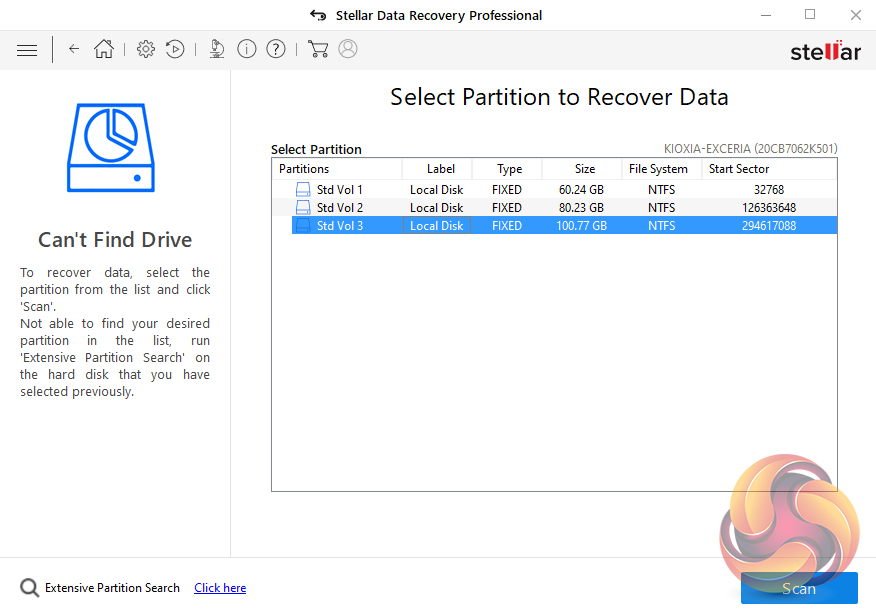
Once the search is completed, the software lists all the partitions it has found on the disk, including the recently deleted one. Should the missing partition not be found with the first pass there is an Extensive Partition Search that digs deeper to try and find it. Highlight the “found” partition and the press Scan to continue with the recovery process.
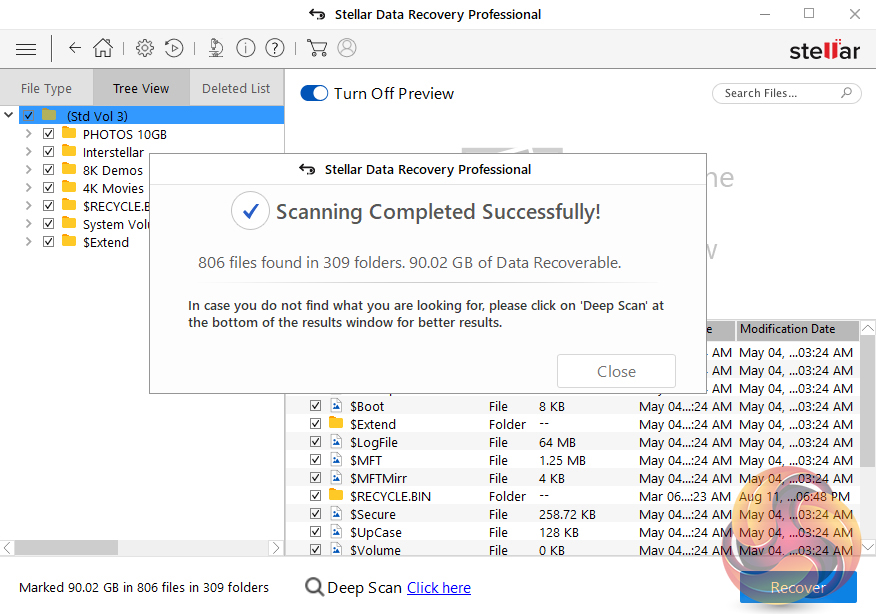
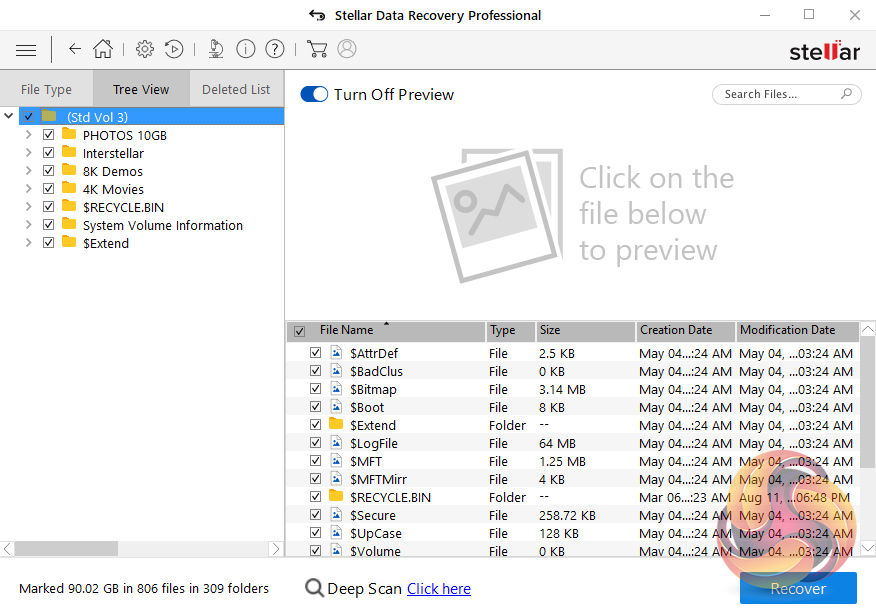
Once the scan is successful you can then move on to recover the partition via the Recover dialogue box.
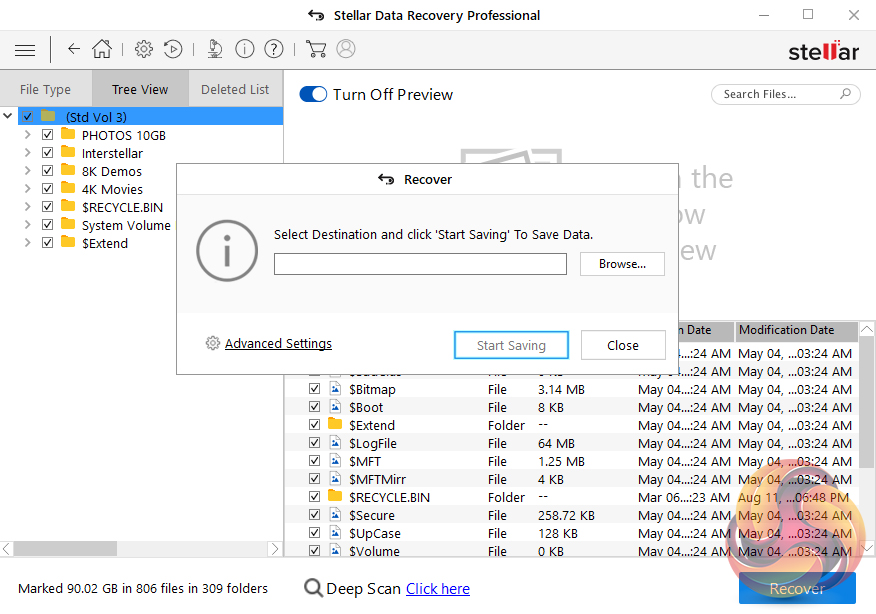
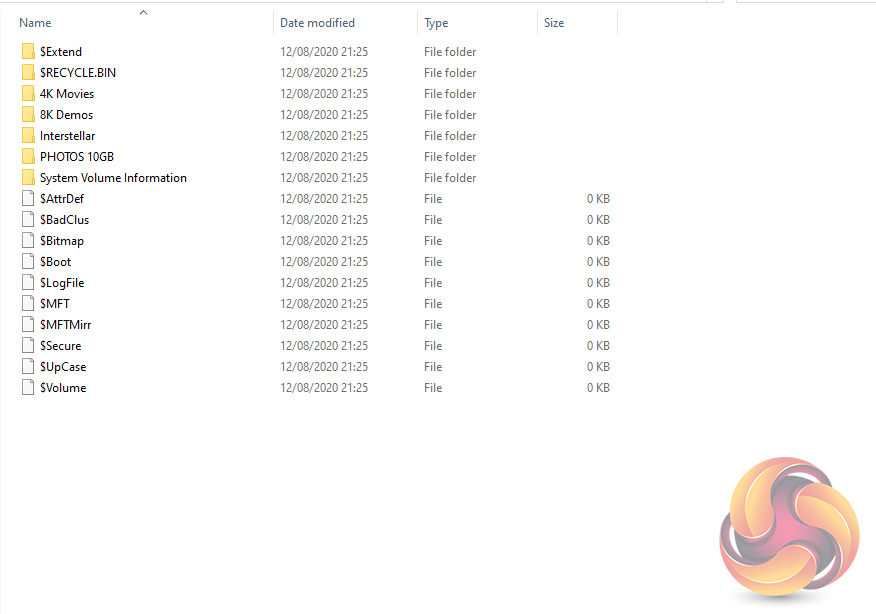
To recover the 100GB partition and its data took just over 2 minutes.
Stellar Data Recovery Professional supports the creation of disc images, saving them as .IMG files. It supports imaging of hard disks, logical volumes on disks, USB drives and external hard drives.
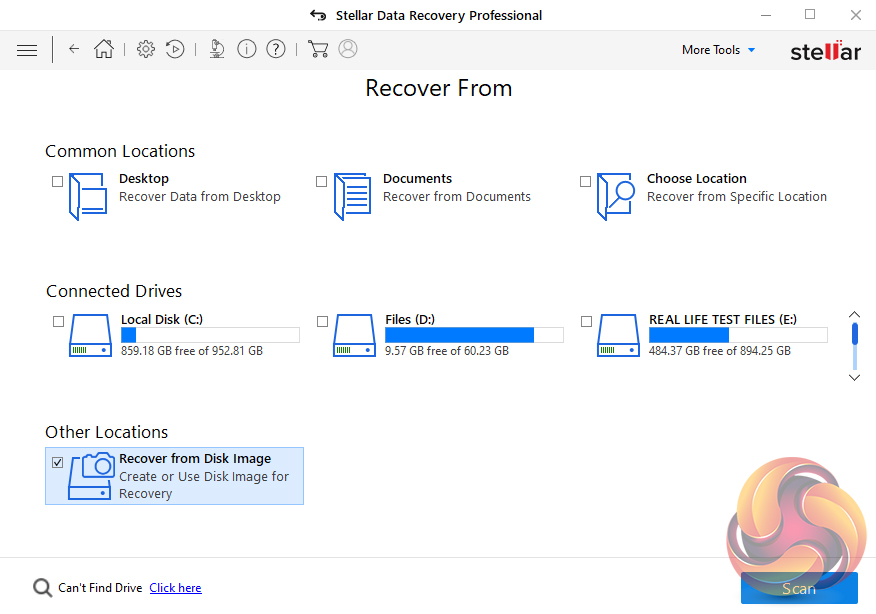
The routine is the same as before, select the type of data from the Select What to Recover screen and move to the Recover From screen.
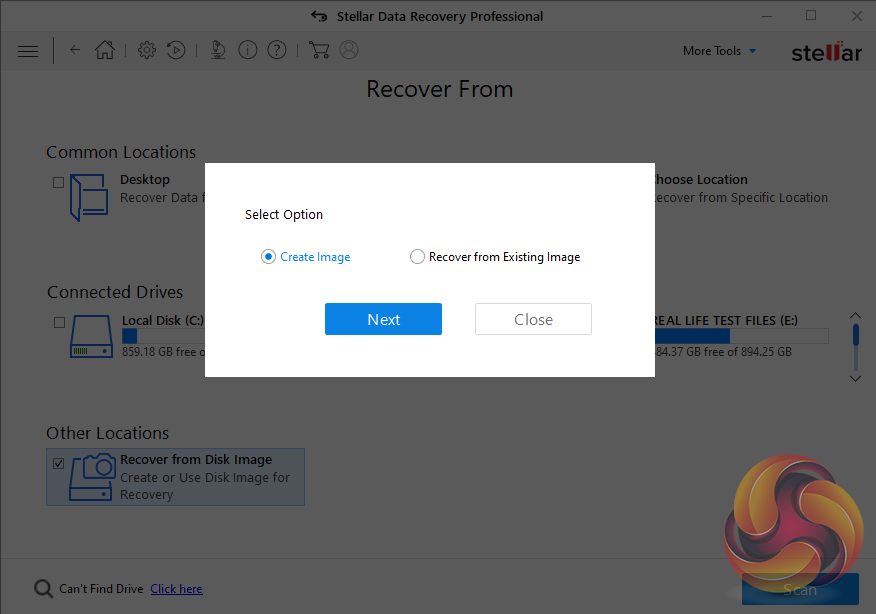
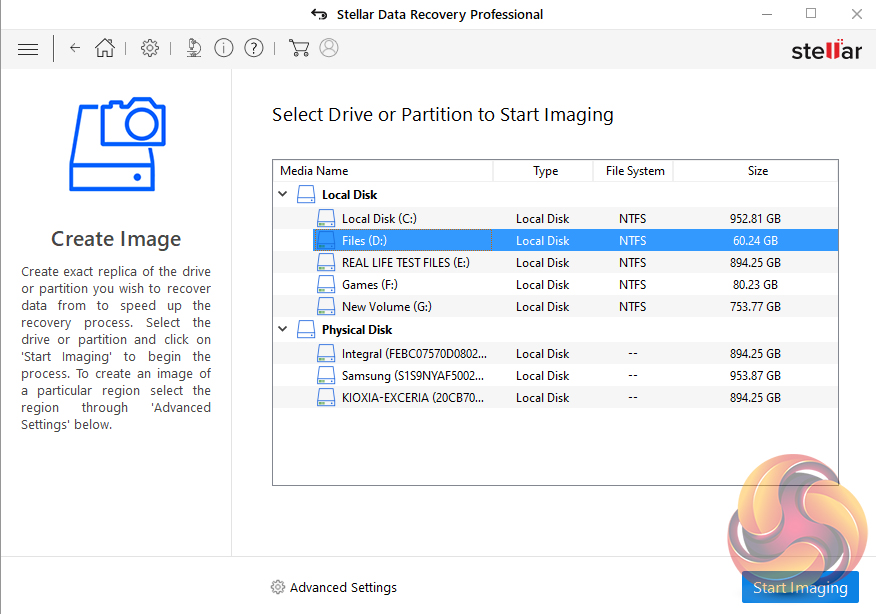
Choose Recover from Disk Image, a new dialogue box will appear, choose Create Image. The next screen is where you choose which drive or partition you want to image, in our case the 60GB D drive.
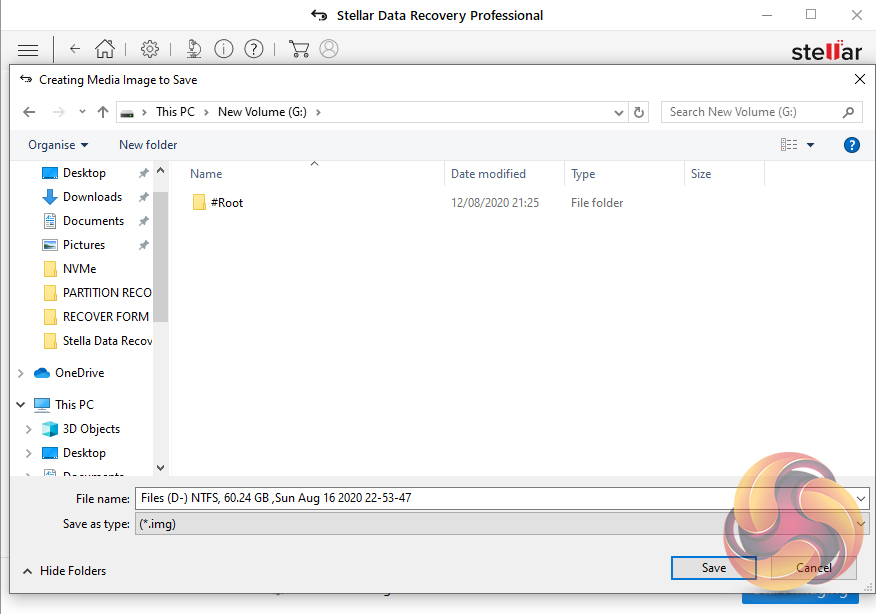
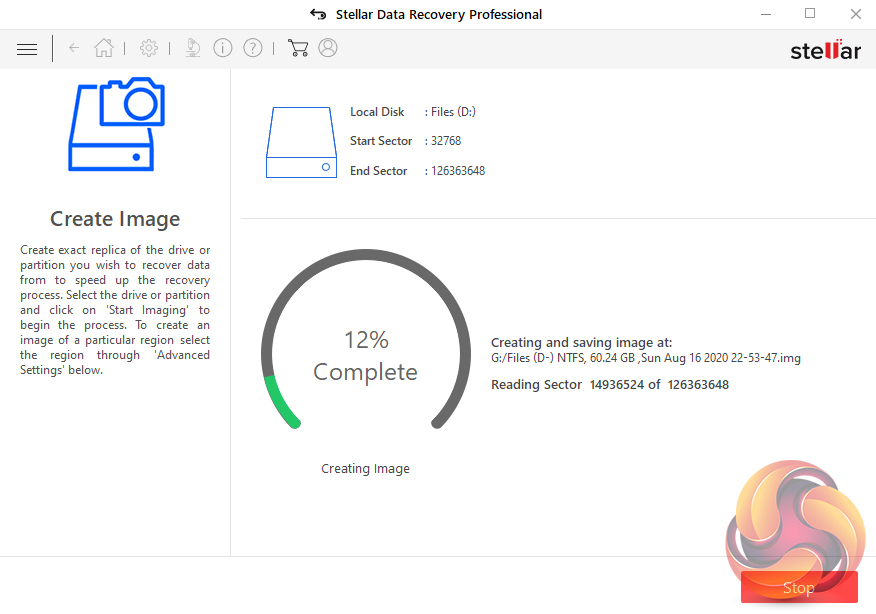
You are then asked in the ‘Create Media Image to Save‘ window to select where the image is to be saved to, once this is done. Click Save and the imaging process begins.
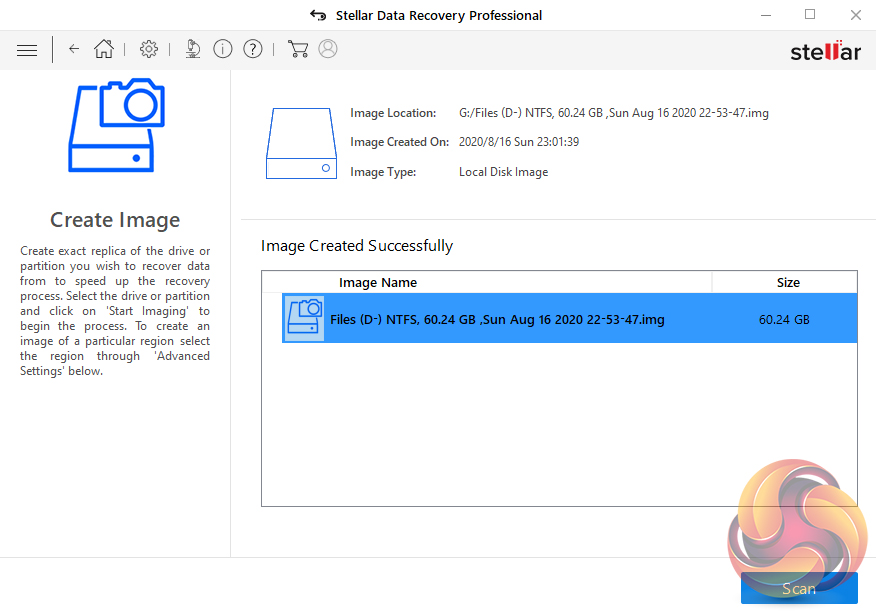
It took just over 9 minutes for the software to create an image of the 60GB drive.
Available for both Windows and Mac, Stellar Data Recovery is a powerful but easy to use feature-rich data recovery tool. It comes in a number of editions (six for Windows, three for Mac) with the feature count and data recovering capability rising with each edition.
The Stellar Data Recovery Professional Edition for Windows sits in the middle of the product line-up. It supports data recovery from the system's hard drive and external drives such as memory cards, USB based flash drives and external hard drives and even from partially burnt or scratched CDs and DVDs.
It supports file recovery from a huge range of file types (over 200) covering just about everything you might come across; office documents, PDF, emails, images, database, audio, video, archive and databases. It can also recover lost and deleted data from a Bitlocker encrypted hard drive (as long as you have the password) whether in the system or an external drive.
The software can also find missing partitions on a drive, which might have been lost due to corruption or accidental deletion so that they can be recovered. On top of all the data recovery options, the software also supports disc imaging with the option of imaging the whole drive or a selected region. It also has its own useful built-in disk monitoring utility.
When attempting to recover your missing data it comes in handy if the software you are using is easy and straightforward to use. Even though Stellar Data Recovery is a feature-rich data recovery tool, Stellar has, by the use of a series of icons and tick boxes made navigating through the basic job of data retrieval less painful than it might be. The preview window is useful to confirm that the files found are the ones wanted. There's also a very good online user manual for the software.
When dealing with something as sensitive as data recovery it's good to know that there is a decent level of support should things go awry. Stellar Data Recovery offers live chat, phone and online ticket support. You also get access to a comprehensive knowledge base and a decent sized FAQ section.
While the Quick Scan option is indeed quick, the Deep Scan does take some time to complete. The actual data recovery process takes a while as well but in this case, it's better to be safe than sorry. The recovery performance can be improved if you know what file types you are looking for as you can specify exactly what file extensions you are trying to recover in the Advanced Options.
Although in the specs for the software it mentions Intel Pentium processors as a system requirement, we used the software on an AMD based rig without any problem.
The free version allows for up to 1GB of data to be retrieved, anything above that and you have to buy one of the paid subscription editions, which are a little pricey. Pricing and features of the six different editions of the Windows version of Stellar Data Recovery are as follows (at the time of writing this review):
- Retrieve deleted files from PC or external hard drive.
- Recover up to 1 GB data absolutely free.
- Get back data from corrupt or malware-infected drive.
Standard Edition £37.99 (1 year, single system)
- Unlimited data recovery.
- Recovers Deleted Photos, Videos, and other Critical Files.
- Recovers from Formatted Systems.
- Recovers from Any Storage Media.
- Recovers Data from Encrypted Drive.
Professional Edition £59.99 (1 year, single system) £75 (Lifetime, single system)
as above plus
- Recovers Files from Lost Partitions.
- Supports Unbootable System Recovery.
- Data Recovery from CD/DVD.
Premium Edition £79 (1 year, single system) £115 (Lifetime, single system)
as above plus
- Repairs Corrupt or Distorted Photos.
- Repairs Corrupt or Distorted Videos.
Technician Edition £154 (1 year, 3 systems)
as above plus
- RAID 0, 5 & 6 Data Recovery.
- Recovers lost or formatted RAID logical volumes.
Toolkit Edition £229 (1 year, 3 systems)
as above plus
- Virtual Drive Recovery.
- Recovers Data from Linux and Mac Drives (HFS, HFS+, ext2, ext3, ext4).
You can read more, or purchase Stellar Data Recovery, directly from their website HERE.
Discuss on our Facebook page HERE.
Pros
- Range of data recovery tools.
- Default scans are quick and efficient.
- Disk monitoring.
- Huge range of supported file types.
Cons
- Deep scans take some time.
- Subscriptions are a little pricey.
KitGuru says: Stellar Data Recovery is an easy to use, but powerful data recovery tool and offers retrieval options from the more basic for home use to advanced for business users.