 KitGuru KitGuru.net – Tech News | Hardware News | Hardware Reviews | IOS | Mobile | Gaming | Graphics Cards


BenQ’s latest mid-range monitor is a 27-inch 1440p screen with an IPS flicker-free panel. It’s suitable for most general tasks, with excellent picture quality and a bright screen. It should be fine for working at the computer, watching movies and web browsing. And with a fast response time of 4ms, it’s great for gaming too. Along with a good feature set and excellent colour reproduction, the GW2765HT looks like a worthy investment, considering its relatively attractive price.
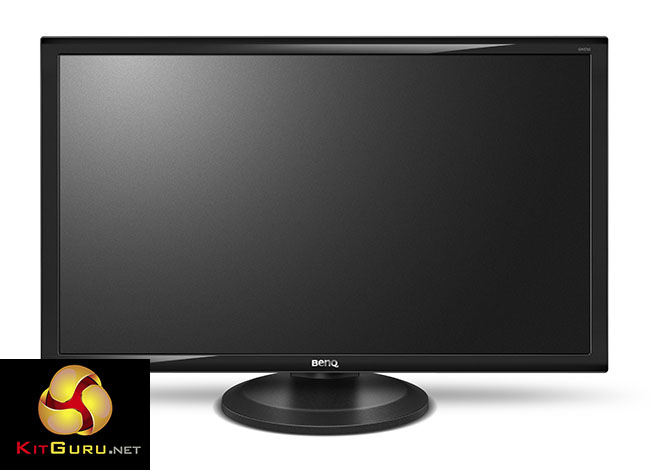
The GW2765HT is a 27-inch 16:9 IPS display that offers a large QHD (also referred to as WQHD) (2,560 x 1,440) resolution. Its feature set and specification make it a good all-rounder for general computing use, with a 4ms response time that’s fine for gaming, along with 350-nit brightness and 178-degree viewing angles, which should mean excellent picture quality on the Windows desktop.
It has a pair of built-in 1w speakers too, along with a stand that supports tilt and pivot modes, not to mention a decent range of inputs. The panel is also flicker-free, with a ‘Low Blue Light’ mode, which are both handy features if you suffer from eyestrain from continual computer use.
Great colour reproduction is something we’re now seeing on more affordable screens, whereas it used to be restricted to more high-end displays. But BenQ also quotes impressive colour accuracy figures, with 100 per cent sRGB coverage and 10-bit colour depth, great to see on a display that’s priced under £300.
A reasonable price with both good picture quality and the potential for superb all-round performance means the GW2765HT looks like a display that’s well suited for just about any situation.
BenQ GW2765HT features:
- Great Color Monitor with IPS Technology Panel & 100% sRGB.
- 27” Big Screen and 2560×1440 QHD(WQHD) High Resolution.
- Flicker-free Backlight for Visual Pleasure.
- Low Blue Light Mode.
- Ergo Monitor – HAS.
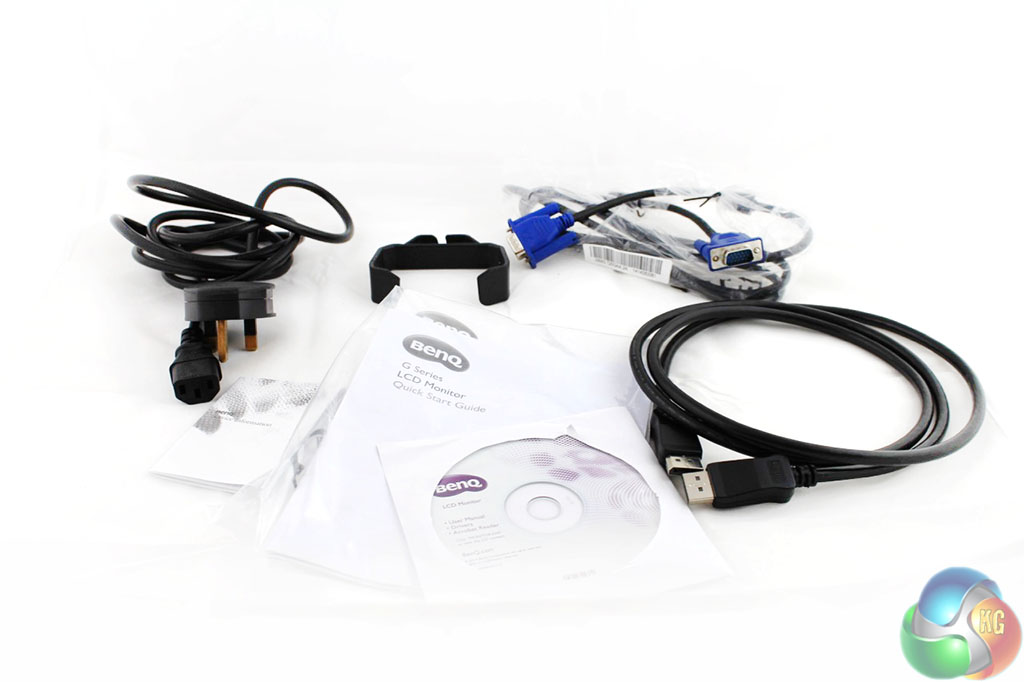
Diving into the packaging, BenQ has included all the usual accessories you get with a display. There’s a DisplayPort cable, VGA cable and the power lead, a standard IEC ‘kettle’ cable that connects directly into the rear of the display, with no external power adapter needed.
A quick-start guide and warranty information are included in print form. A CD contains the user manual and drivers. You also get a cable management accessory for the stand.
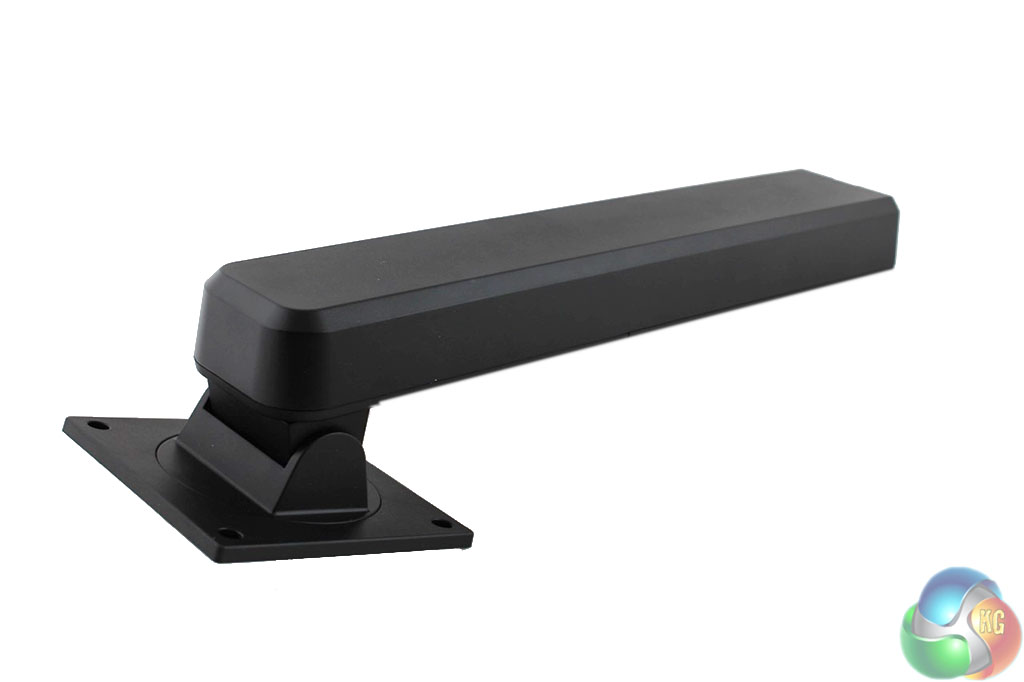
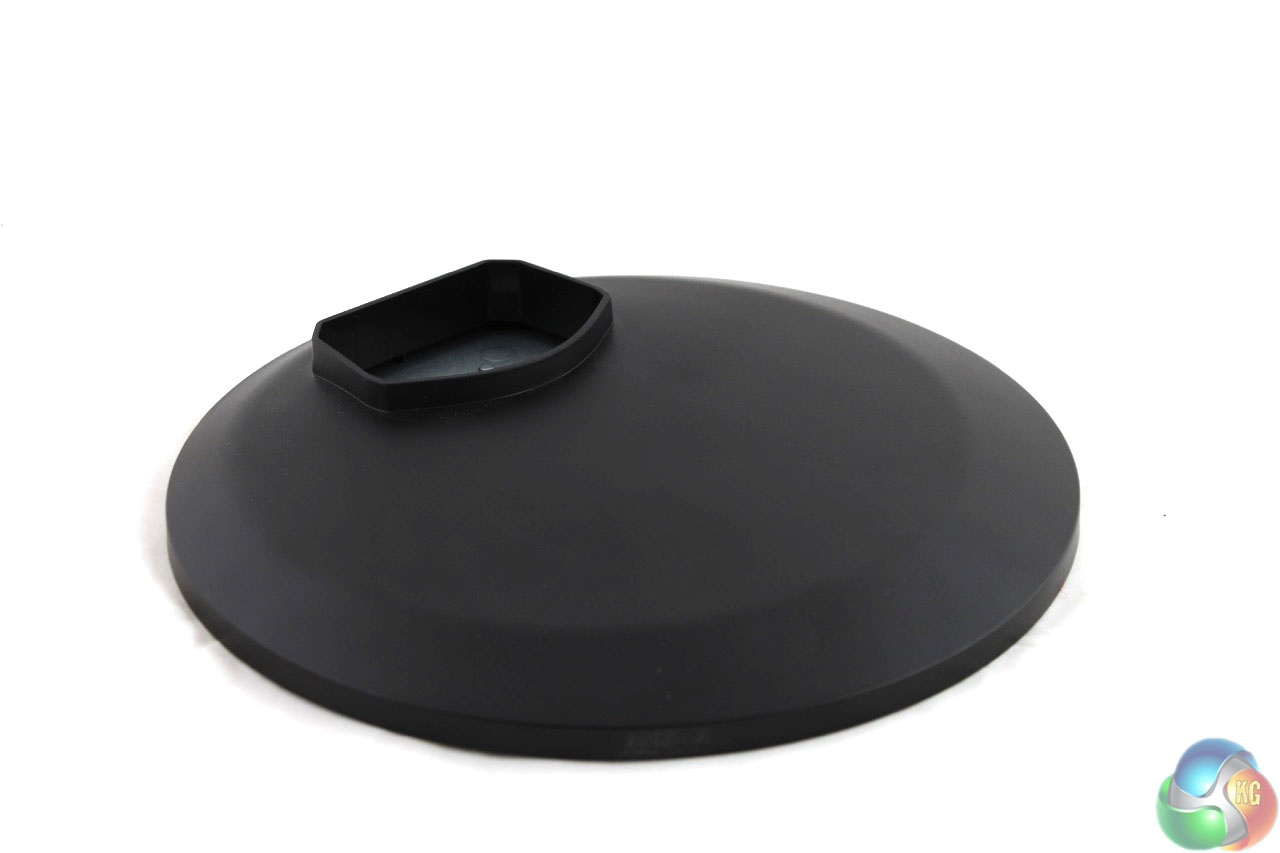
The stand is supplied separately from the main display panel, in two parts – the support column and the base itself.
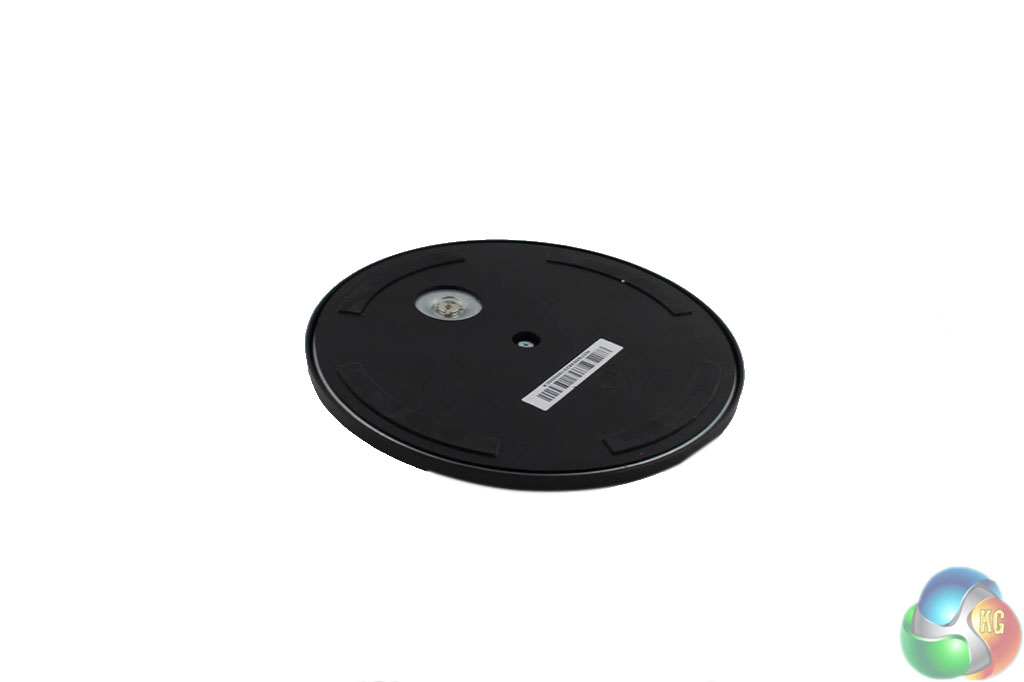
There are some rubber feet underneath the stand, and the usual locking mechanism with a metal key. Just slot the support column into the base and turn the key to secure it.
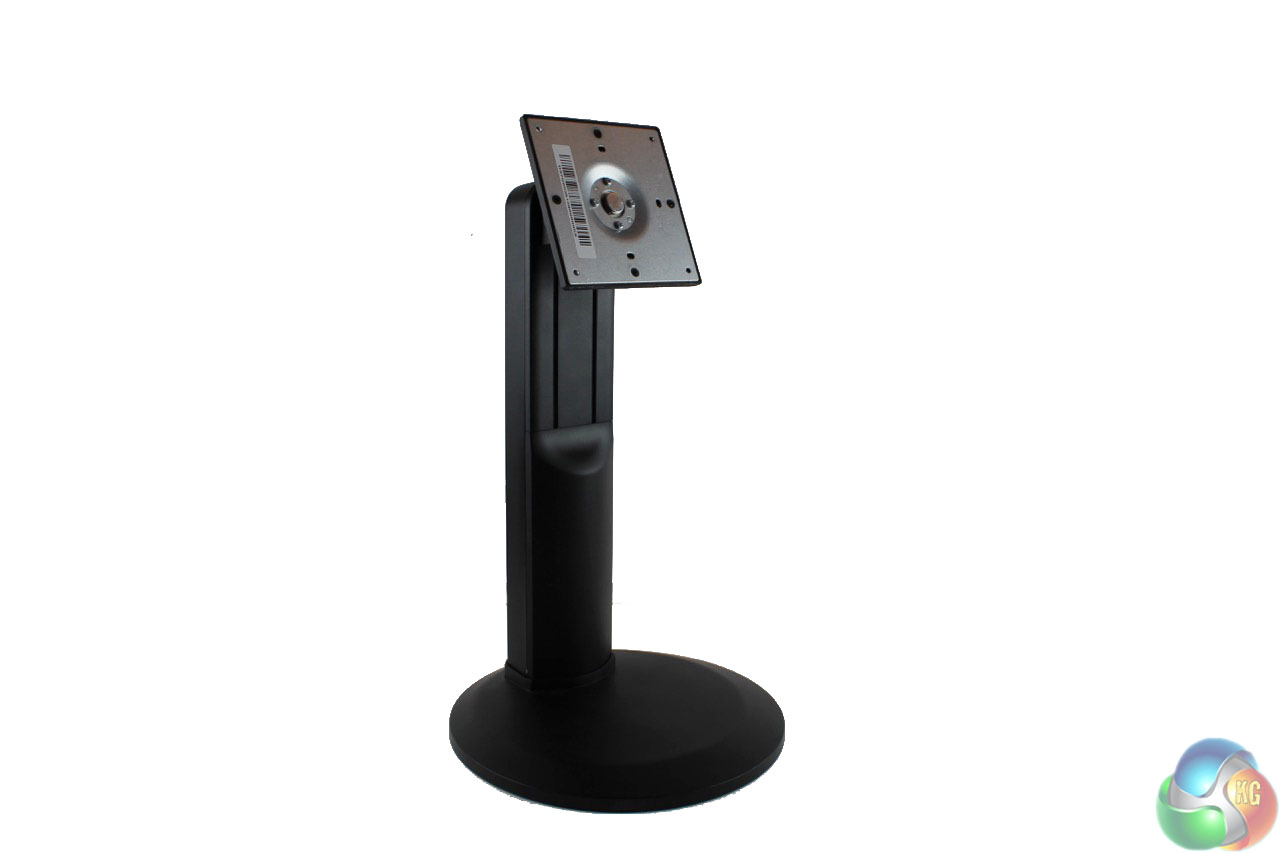
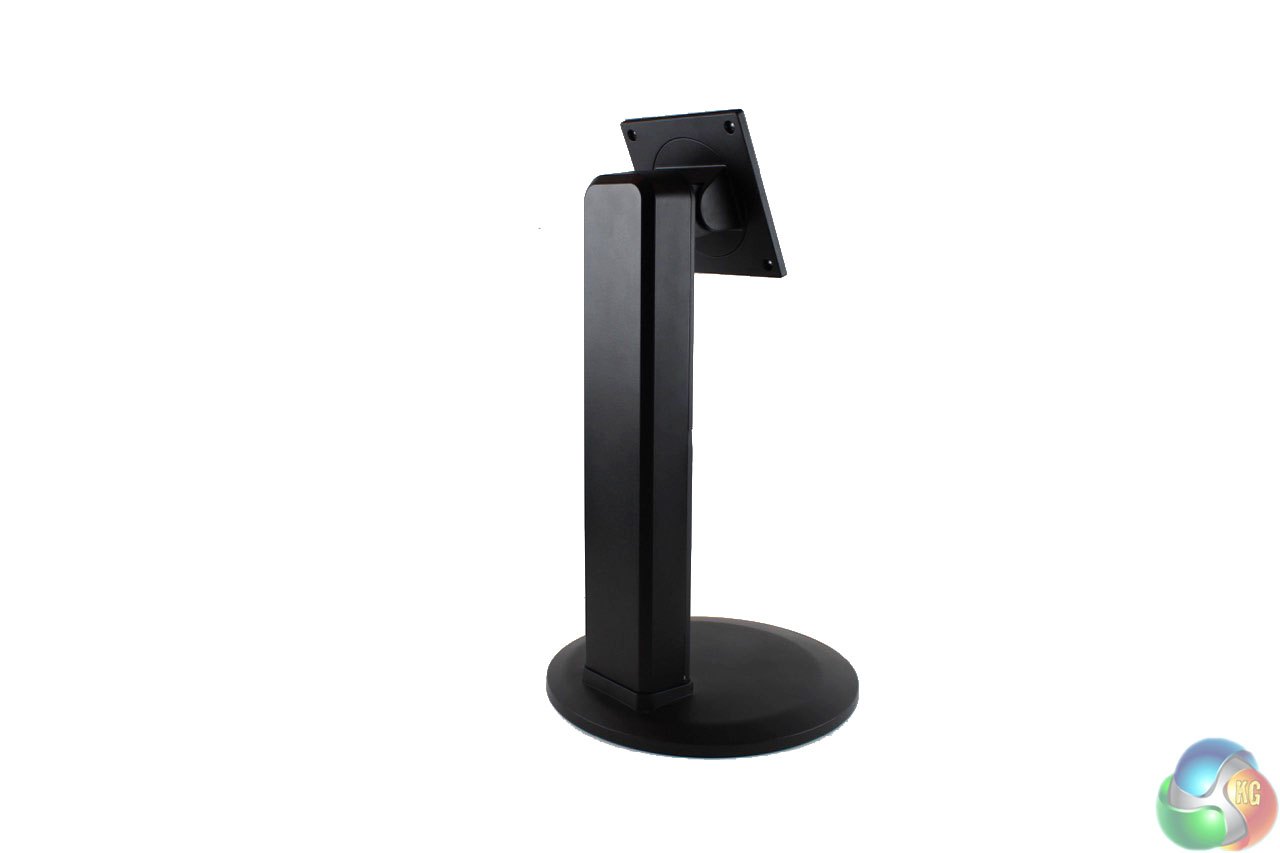
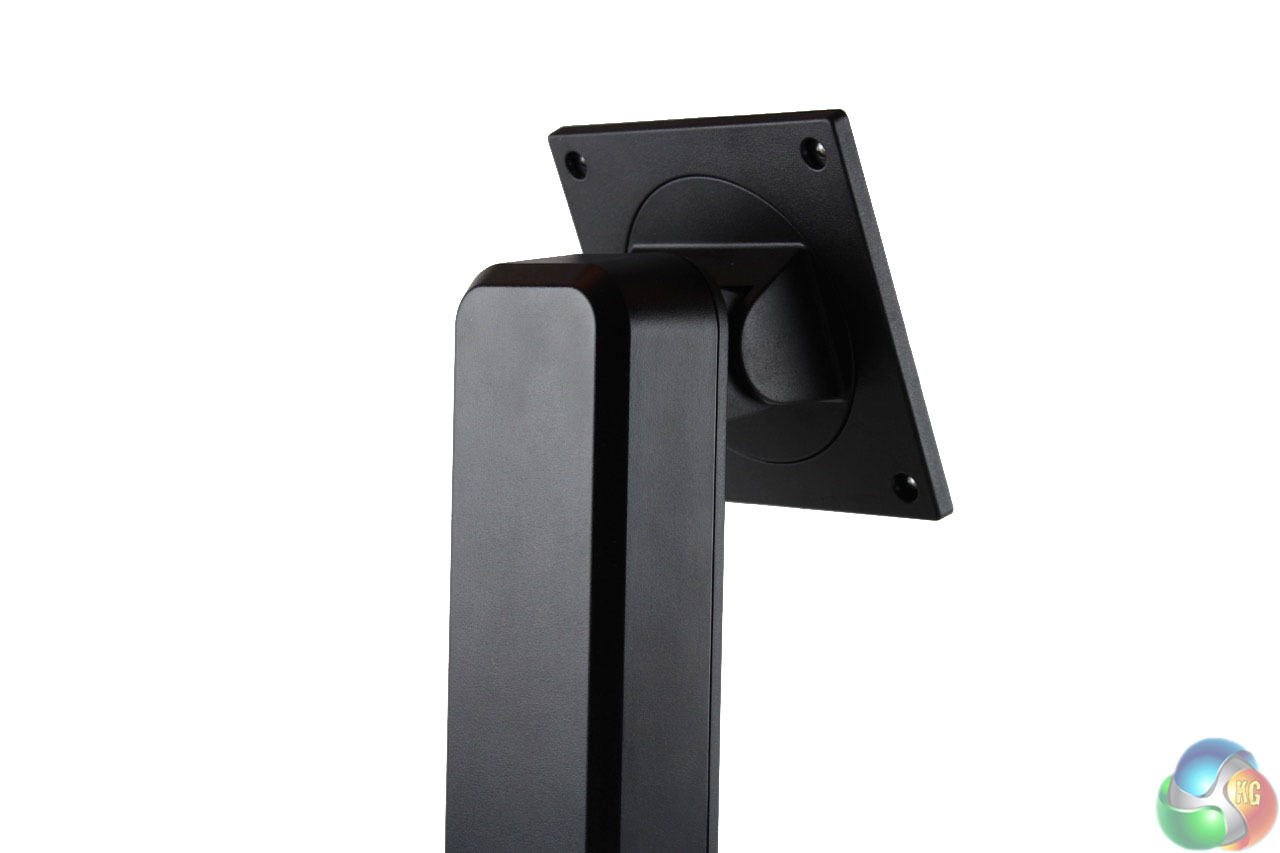
When assembled it connects to the main panel with 4 screws that are secured into the VESA mounting holes at the back.
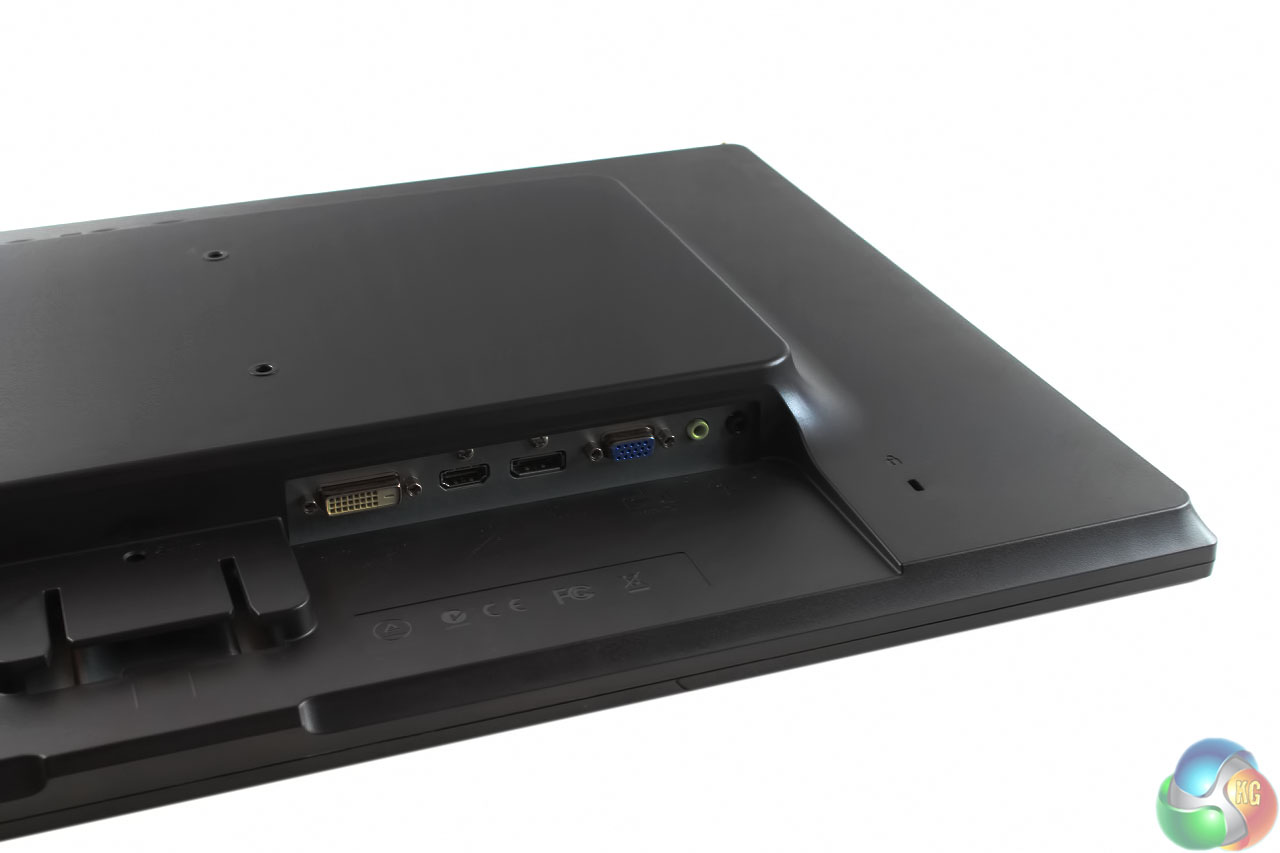
Four video inputs are provided: DVI, HDMI, DisplayPort and VGA, with audio input and a headphone output.
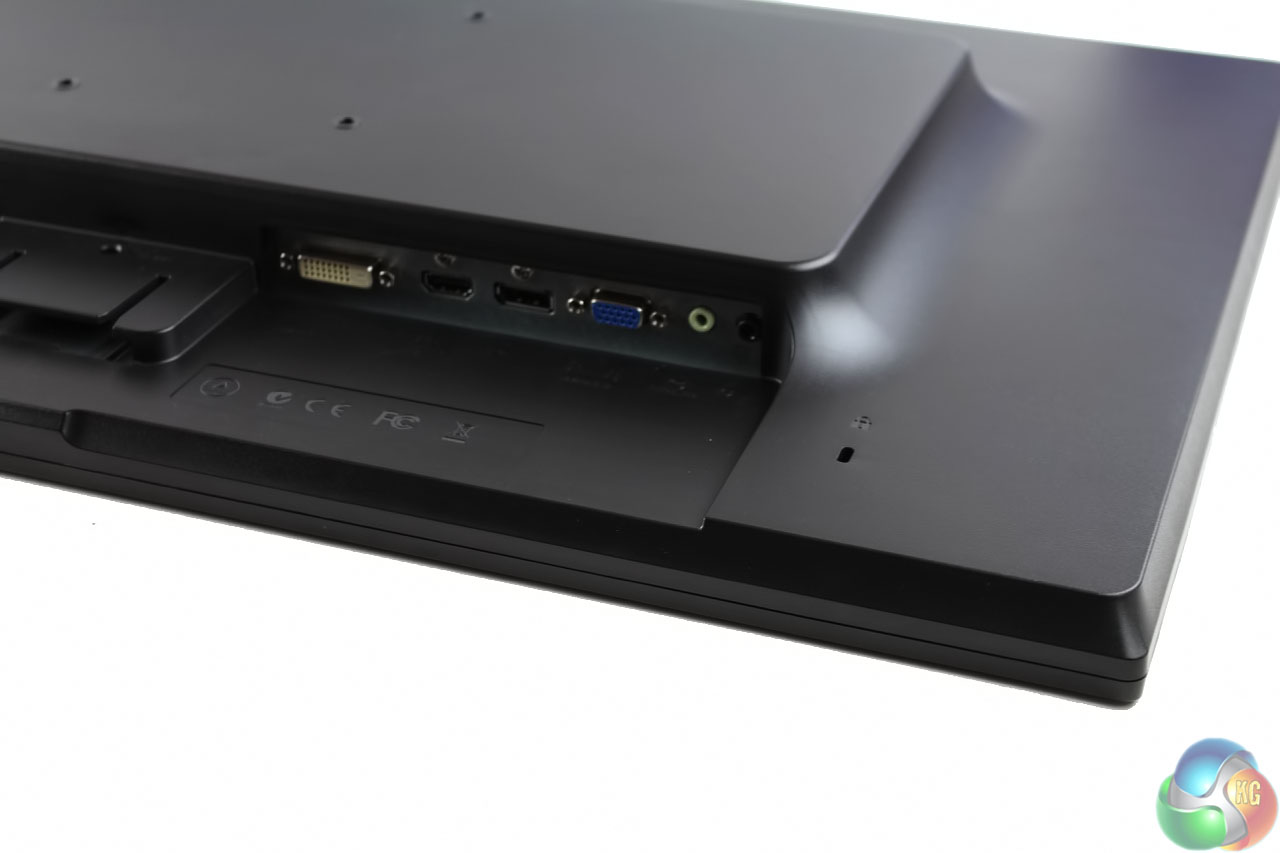
There’s also a hole for a Kensington lock just below them.
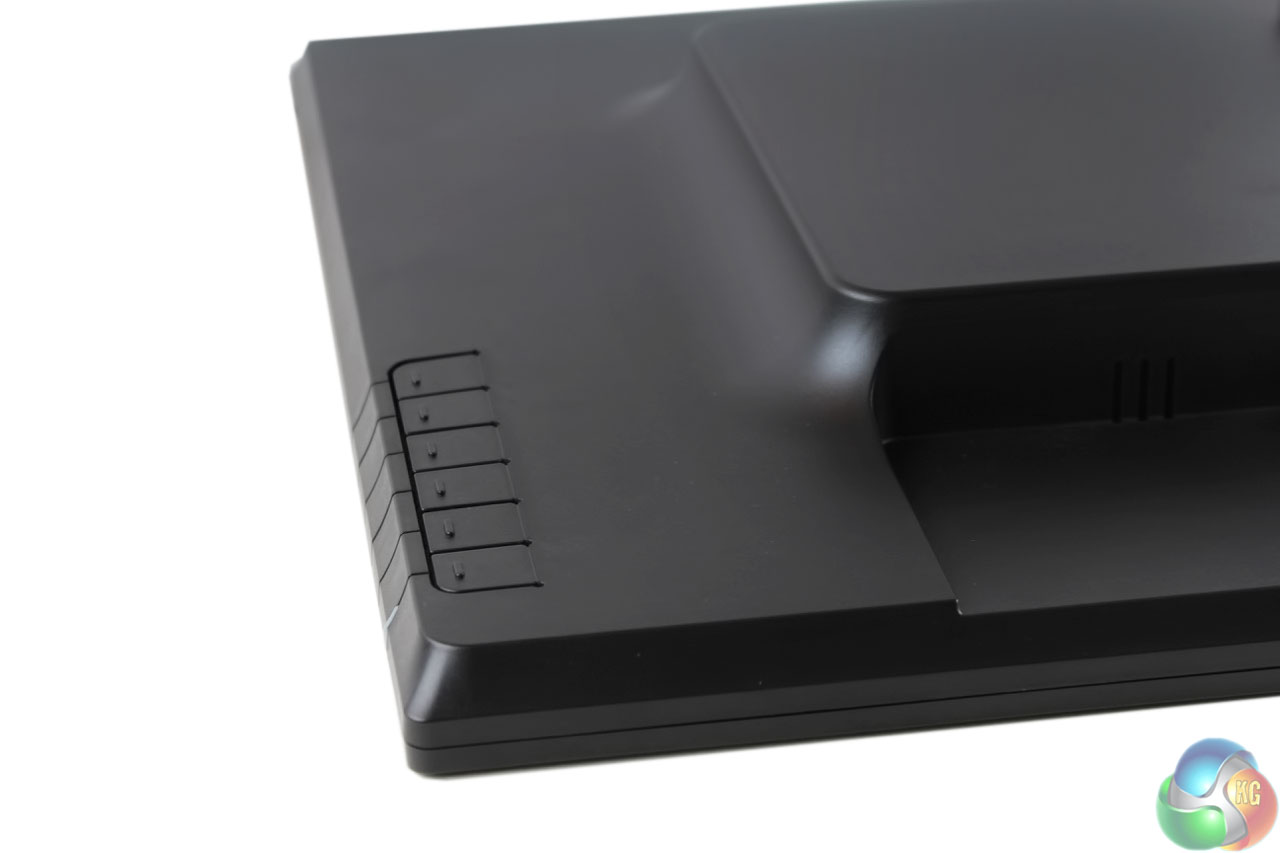
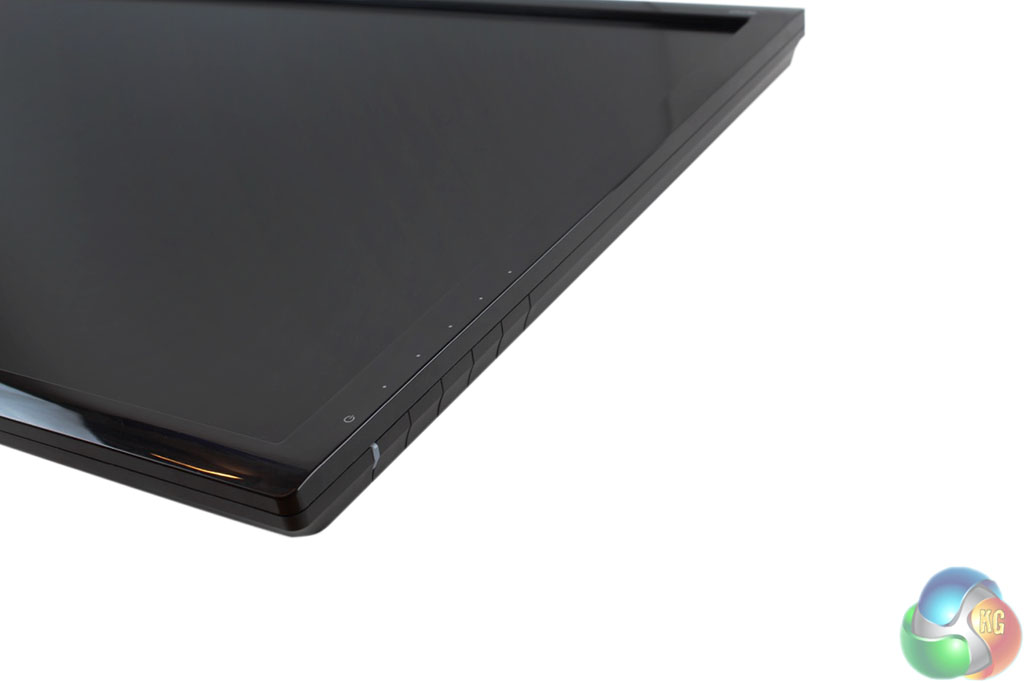
While the stand and rear of the panel are made from a dark grey matte plastic, the front of the panel is surrounded with a glossy black bezel.
There are six buttons on the right-hand side, with nondescript labels on the front of the bezel and a power LED at the bottom.
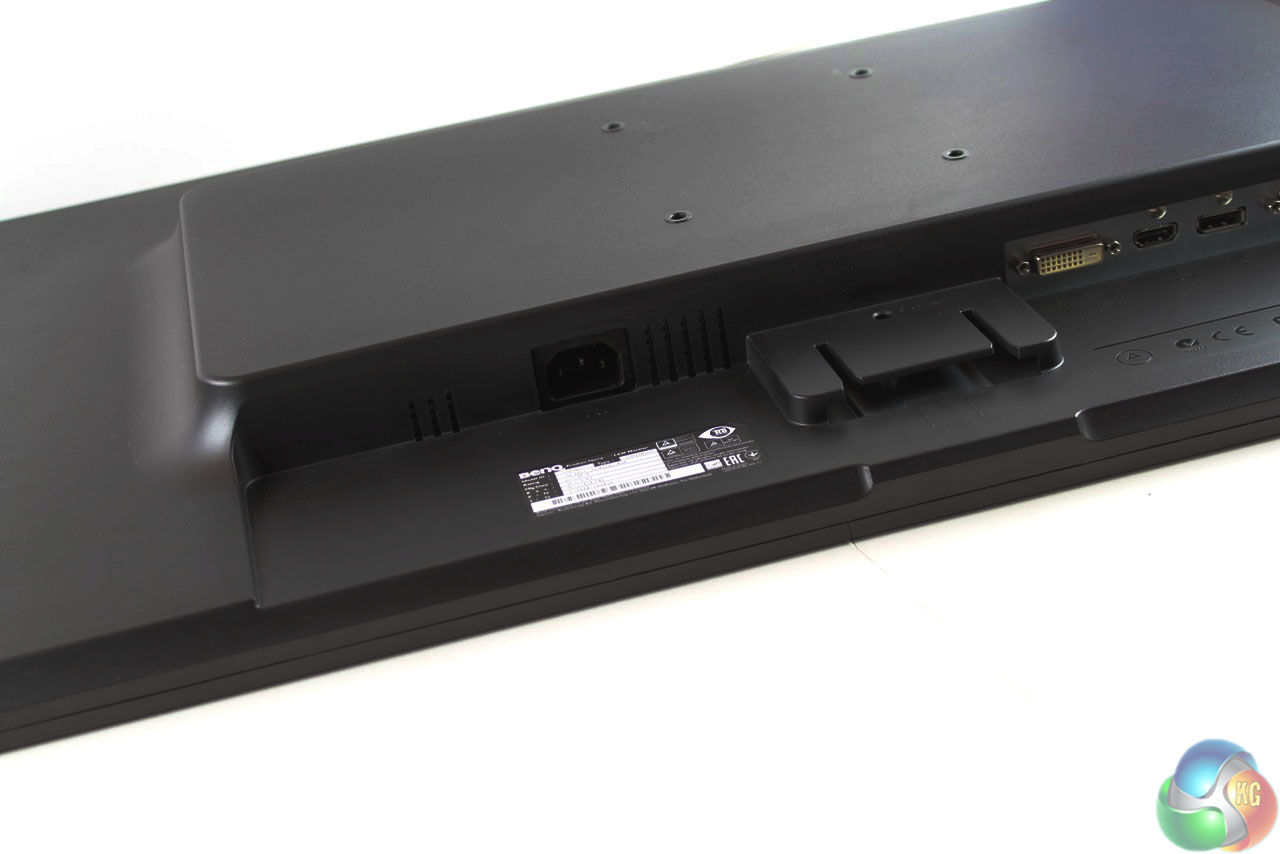
The power connector is on the left-hand side, while in the centre is a stand connector that seems to be totally redundant. BenQ is probably using an identical mould for its display chassis across multiple products, which explains the additional stand connector.
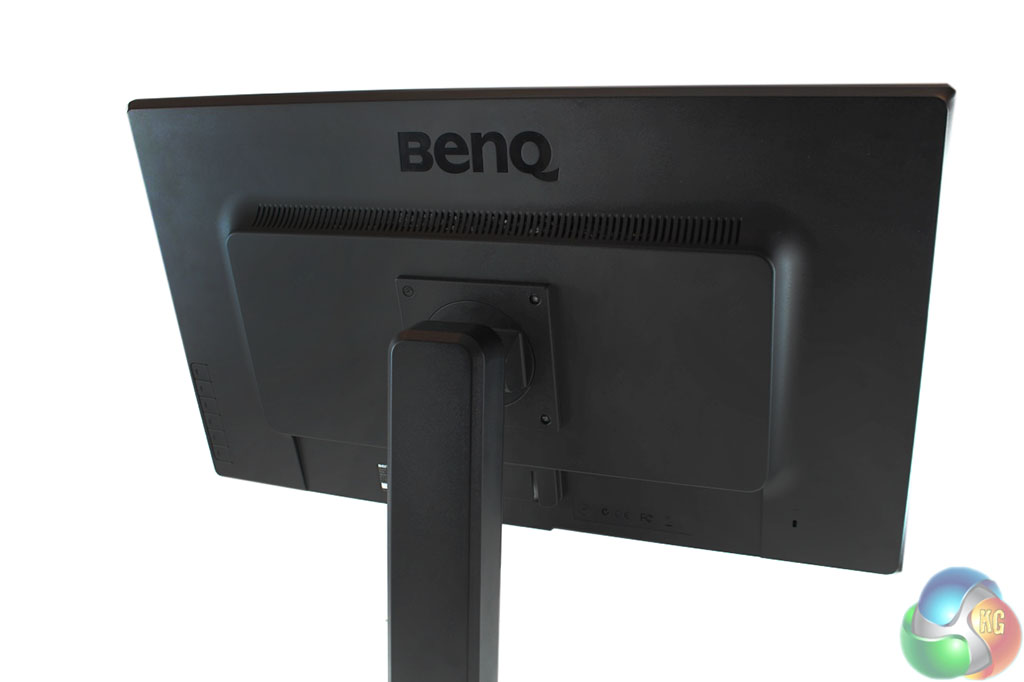
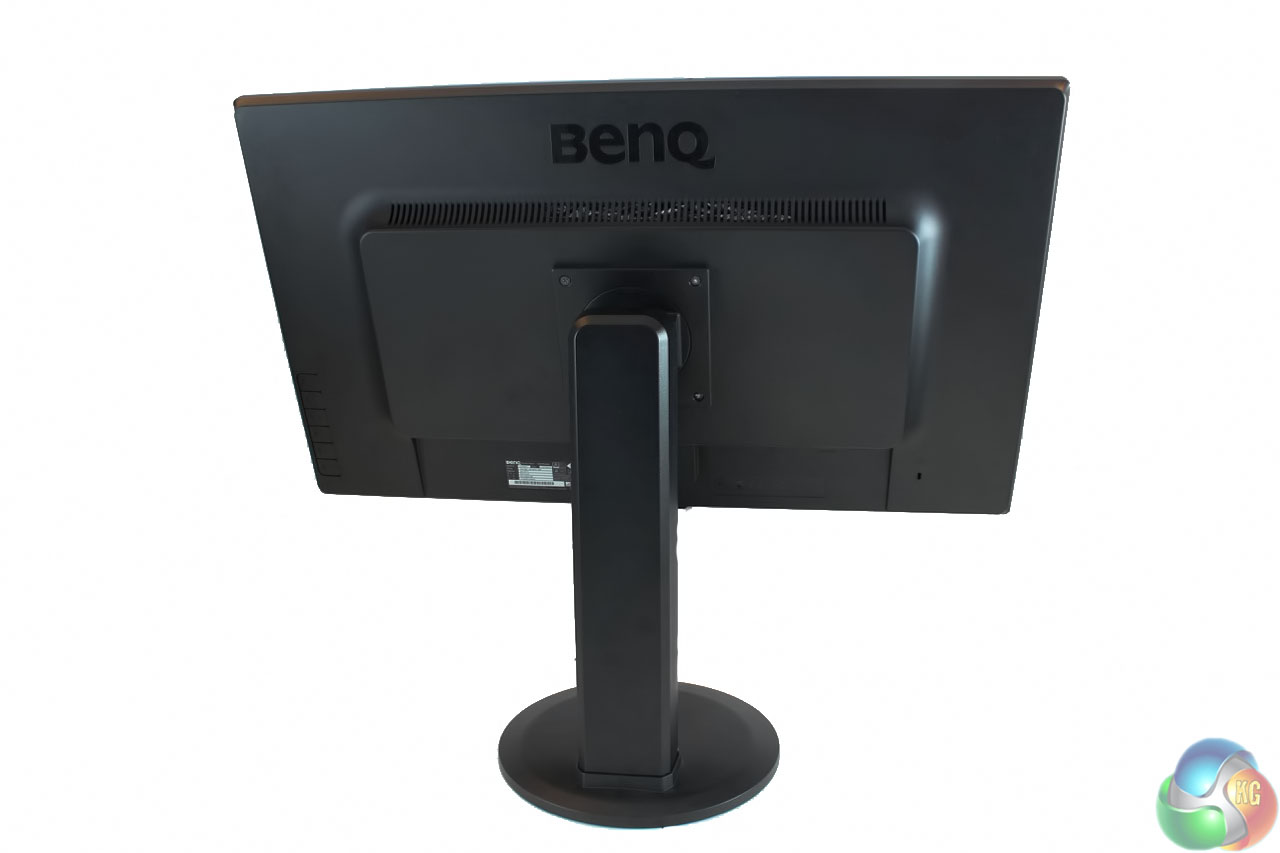
With the stand connected with the four mounting screws, you’re ready to use the GW2765HT. The trademark BenQ logo occupies much of the rear of the panel.
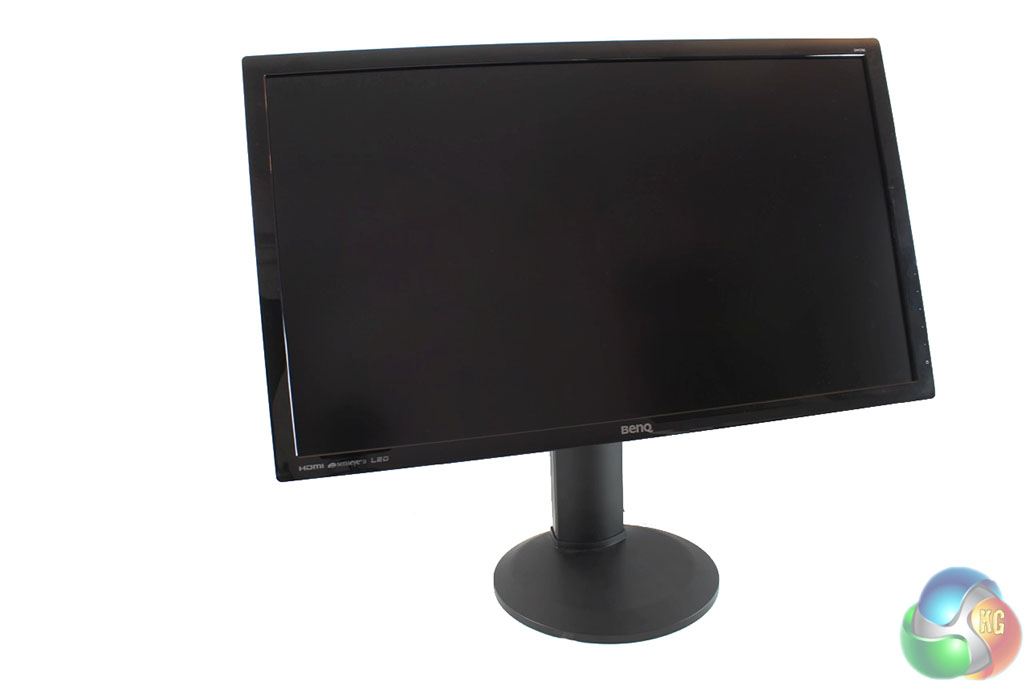
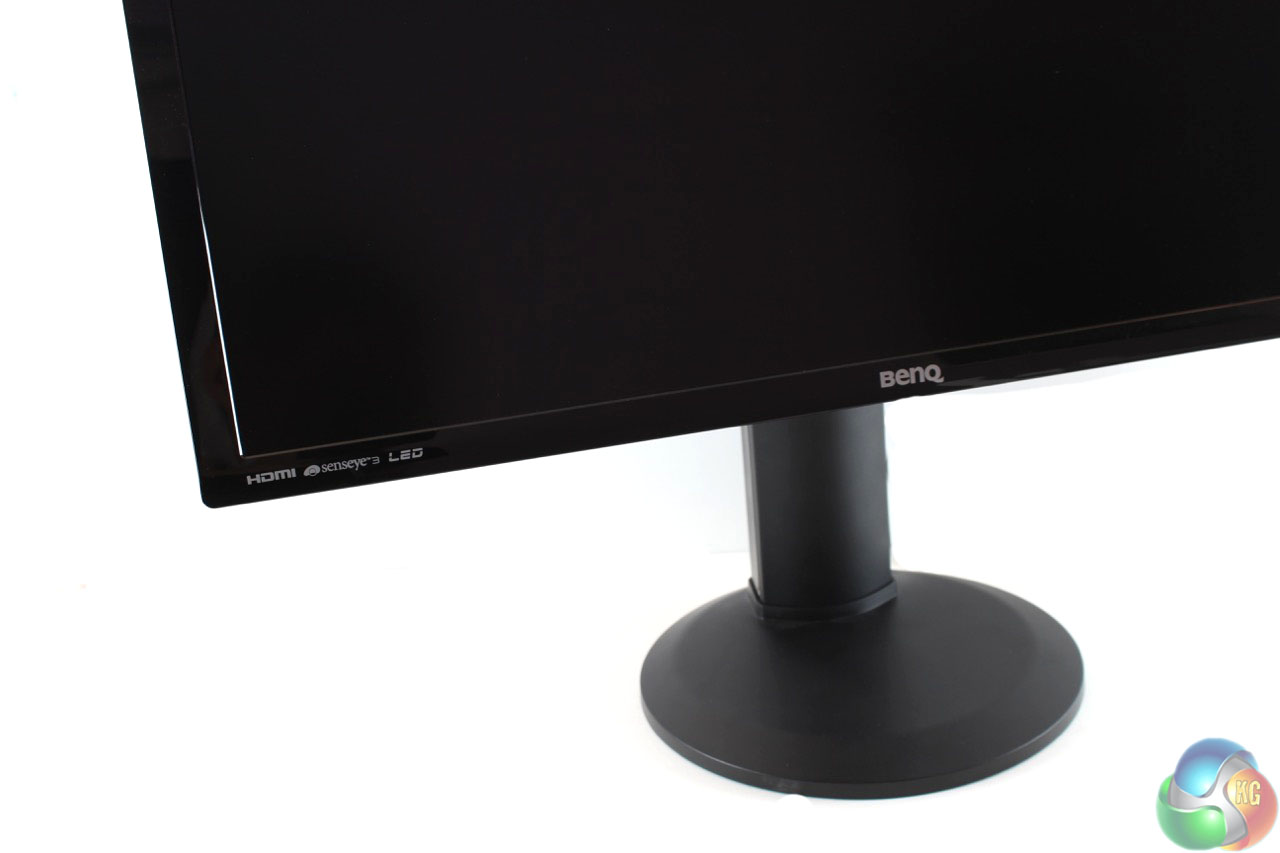
And there’s a second logo at the front, with more labels in the bottom left of the bezel.
BenQ’s OSD is one of the strongest aspects of the GW2765HT, with well-designed and clearly labelled menus, and plenty of extra features and functions.
The GW2765HT is no exception, and the OSD functions almost exactly like that on the RL2755HM although it looks slightly different. It’s mostly excellent, although we did run into a few issues with it.
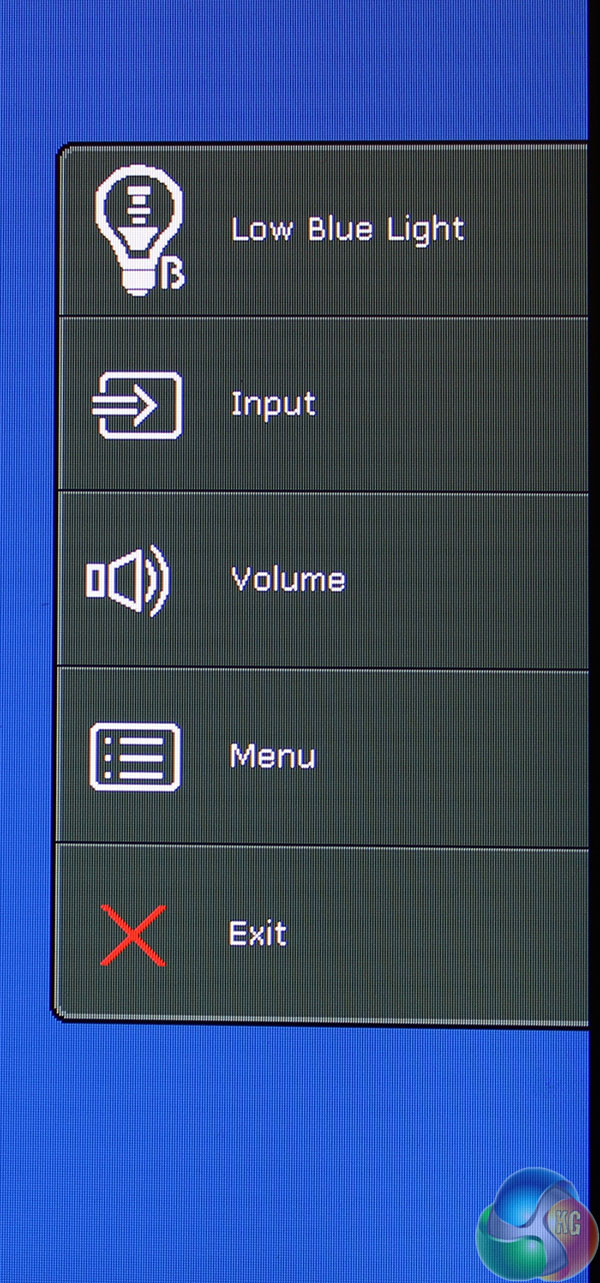
Pressing any of the buttons brings up a simple menu of five shortcuts, accessible by pressing the corresponding buttons on the side of the display. Back and forward arrows let you flip through settings to enable them, and are then confirmed with a blue tick or a red cross to cancel the chances. These shortcuts can be adjusted to lead to a different function if you wish.
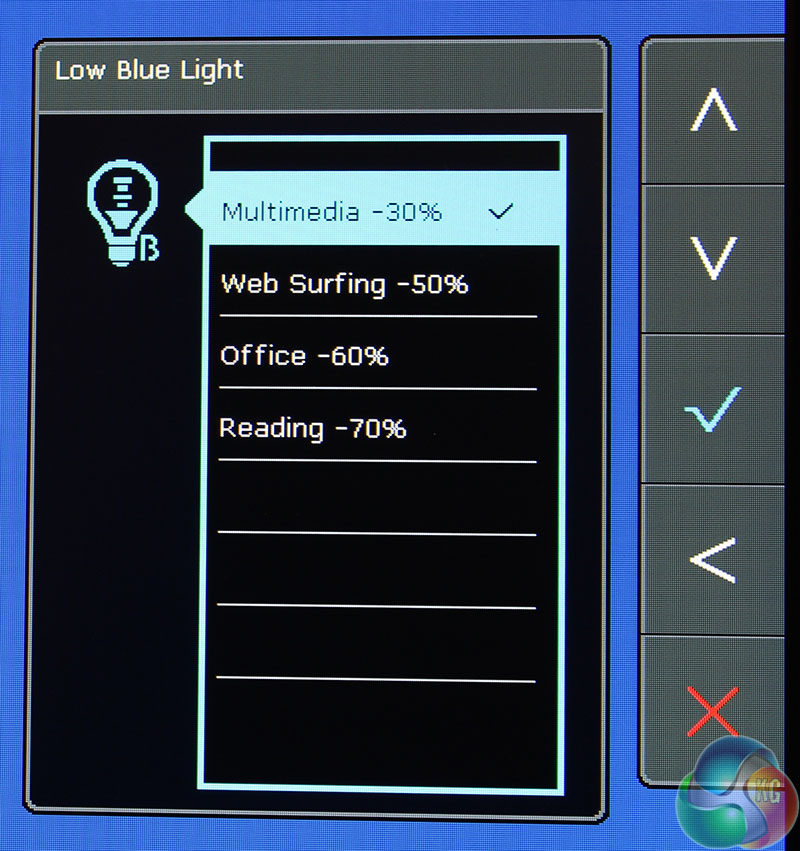
The top-most Low Blue Light shortcut leads to a submenu with four separate options for reducing blue light levels. The options are 30%, 50%, 60% and 70%, and the effect is a reduction in overall brightness and the picture (obviously) losing some of the blue spectrum.
This is where we had an early issue. Press the button and it defaults to the 30% setting. But there’s no way to return to your display back to normal, without going through the main menu and resetting the colour or changing the picture mode. Not a show stopper, but an irritation all the same.
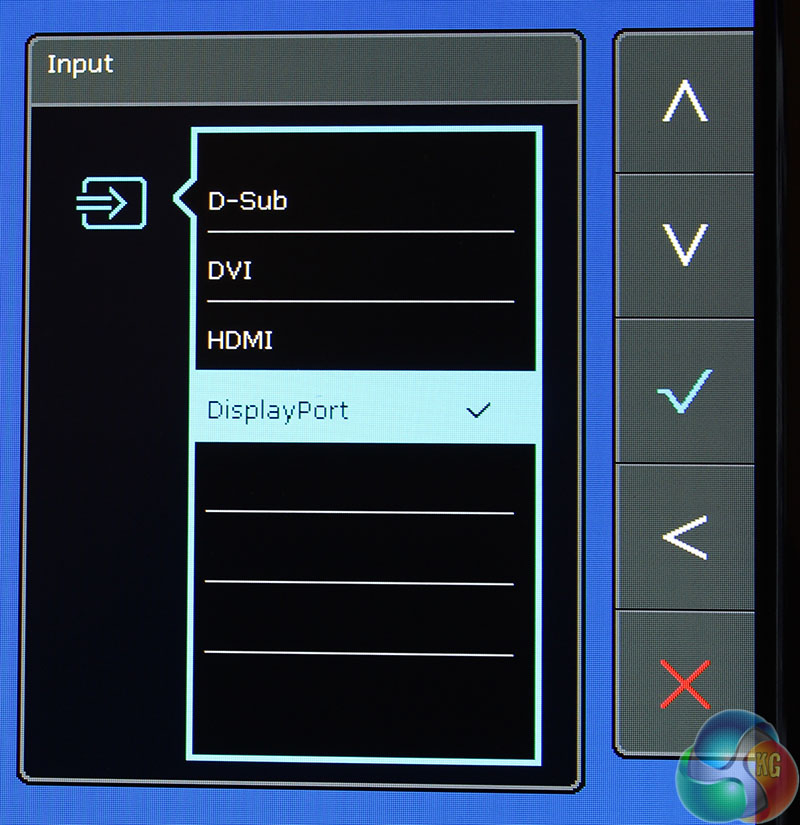
Press the next button down for a list of the video inputs, with up and down arrows to select each one.
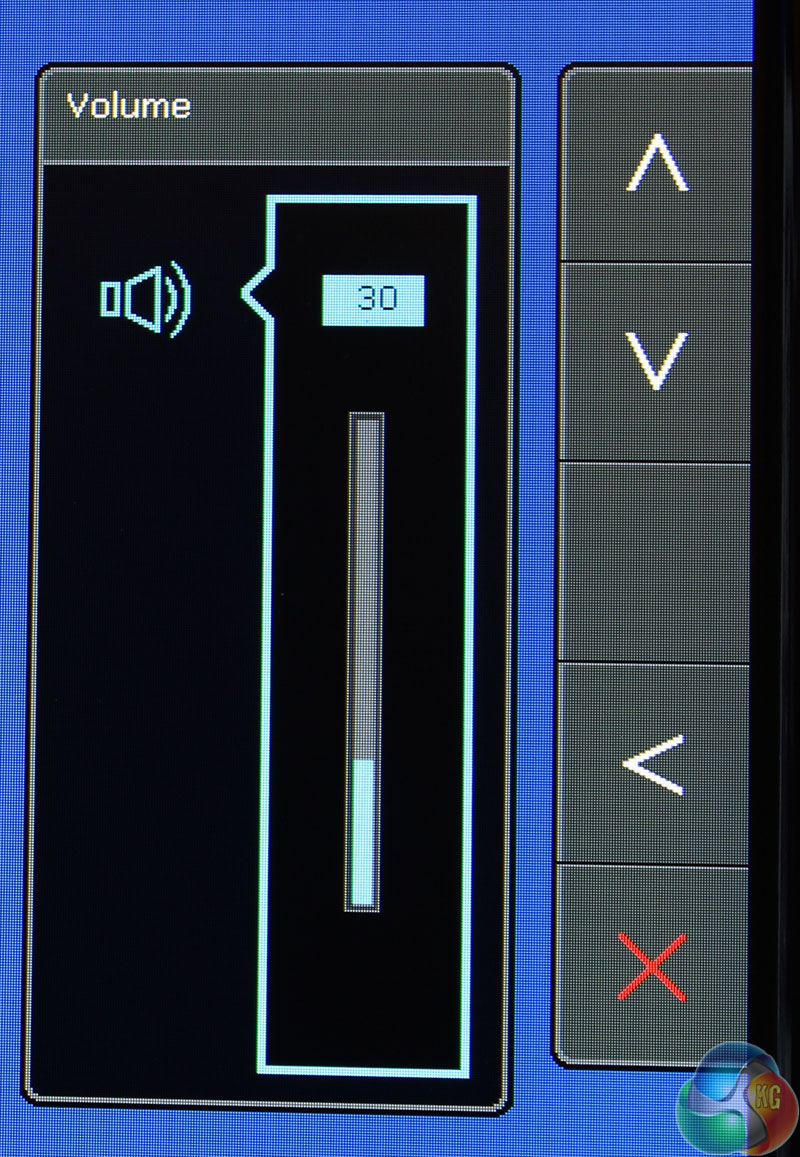
The volume control works in a similar way, raised and lowered with up and down arrow keys.
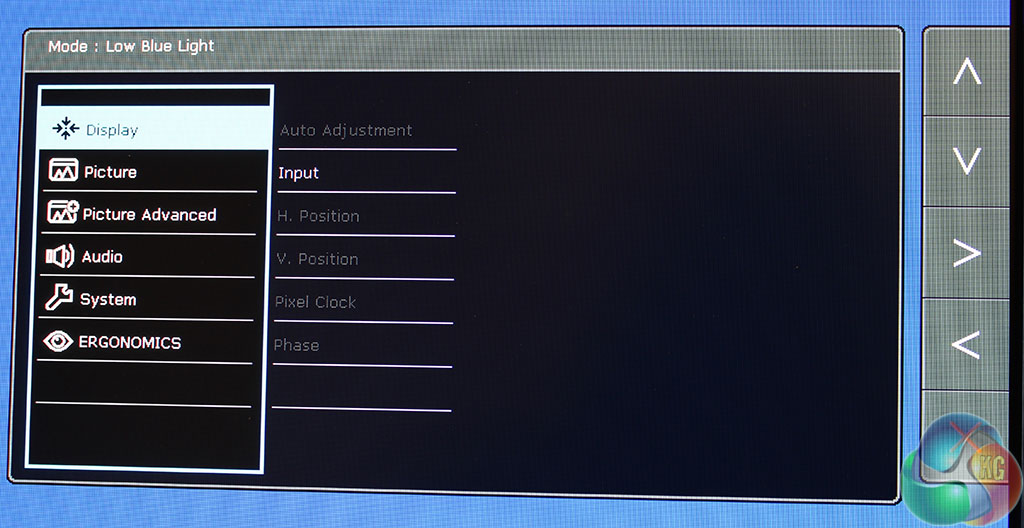
The ‘Menu’ shortcut brings up a whole new area of the OSD with all the advanced settings to fully customise the picture. The main, default setting is Display, which provides a list of basic settings, most of which aren’t too important, although there is one to select the video input.
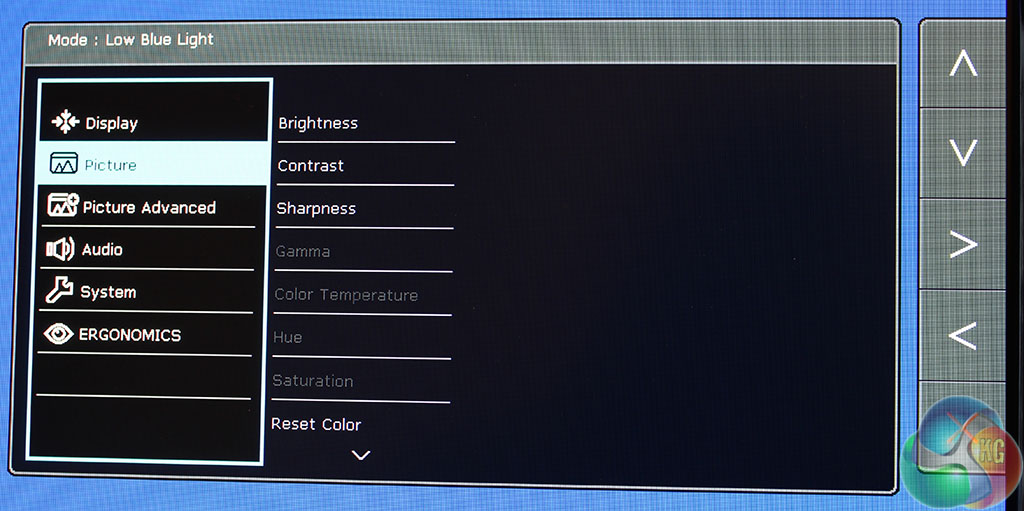
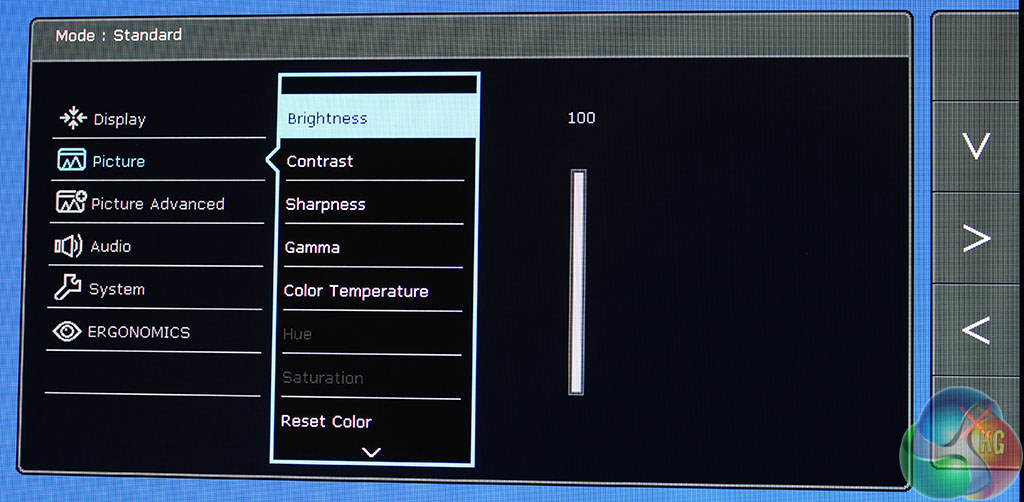
The next menu is labelled ‘Picture’ with controls for the brightness, contrast and sharpness. With the picture mode set to ‘User’ in the next menu, you get access to the extra settings, such as gamma and hue, which are otherwise greyed out.
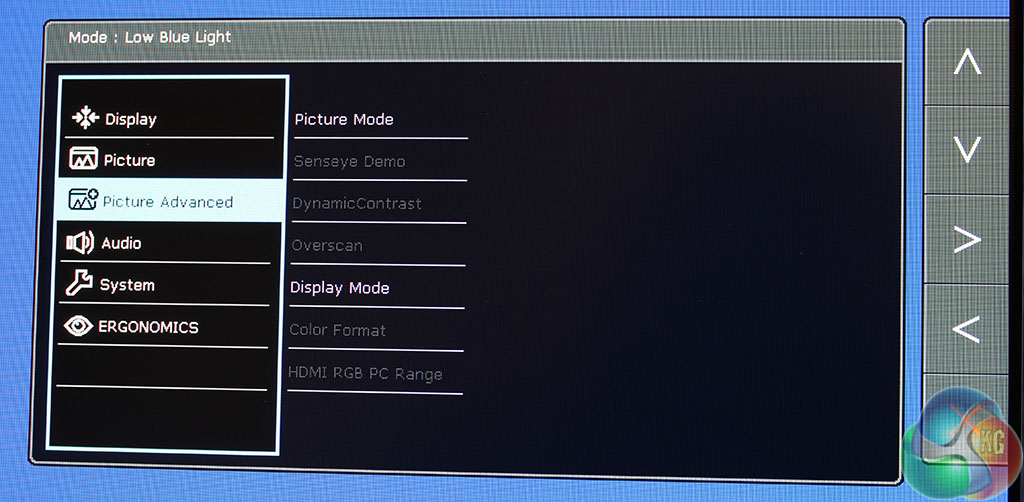
The ‘Picture Advanced’ menu contains a number of further settings. The most useful is the ‘Picture Mode’ which lets you choose from a long list of preset display settings.
The list is quite comprehensive, with: ‘Standard’, ‘Low Blue Light,’ ‘Movie,’ ‘Game’, ‘Photo,’ ‘sRGB,’ ‘Eco’ and the ‘User’ setting. We’ll take a look at what happens to the image with each one on the next page.
As above, some settings are greyed out, depending on the mode you are using.
The ‘Senseye Demo’ splits the screen in half to demonstrate the effects of BenQ’s dynamic content analysis software, which slightly adjusts brightness and contrast depending on the on-screen content.
The ‘DynamicContrast’ setting dramatically improves black levels in dark scenes, but no longer allows you to manually adjust the brightness and contrast. We prefer to leave the setting off while testing, but with any display, in use this is up to the preference of the user.
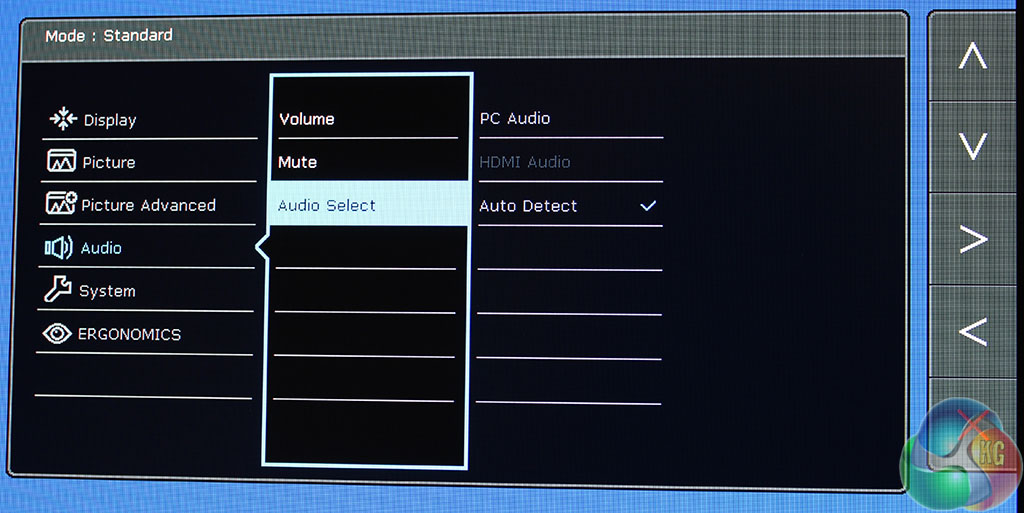
The ‘Audio Select’ menu gives you manual controls over the audio input. It’s best left on auto, unless you specifically wish to keep music coming from a PC or sound from a games console.
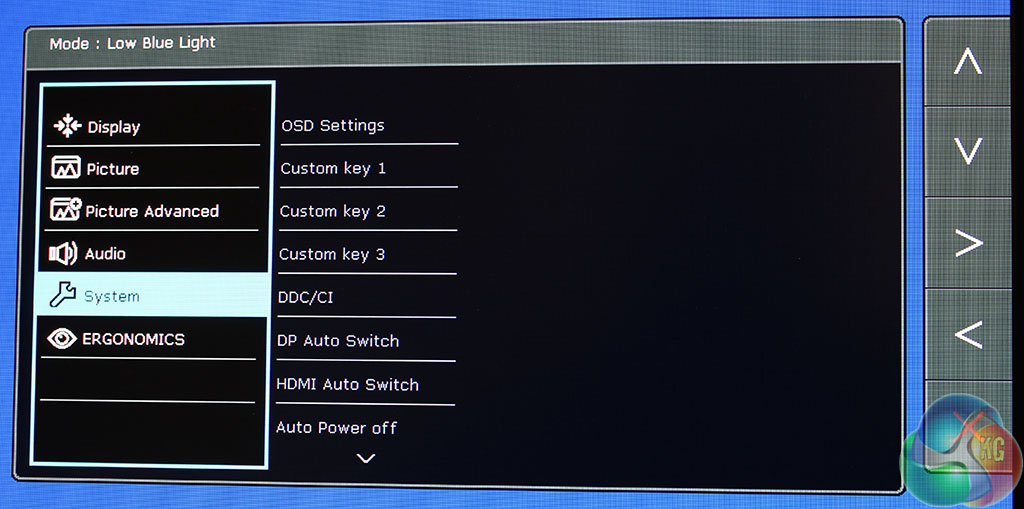
The ‘System’ Menu mainly contains settings to customise the OSD, along with a few other bits and pieces.
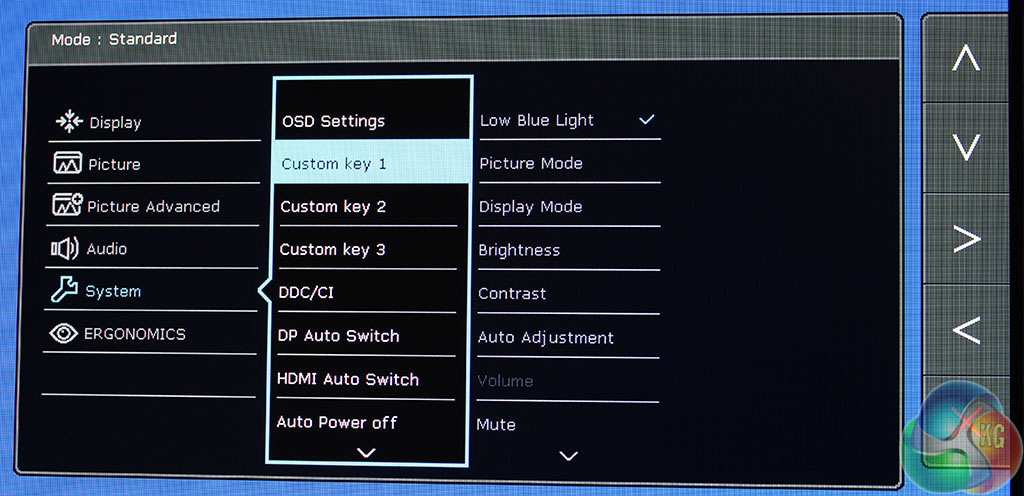
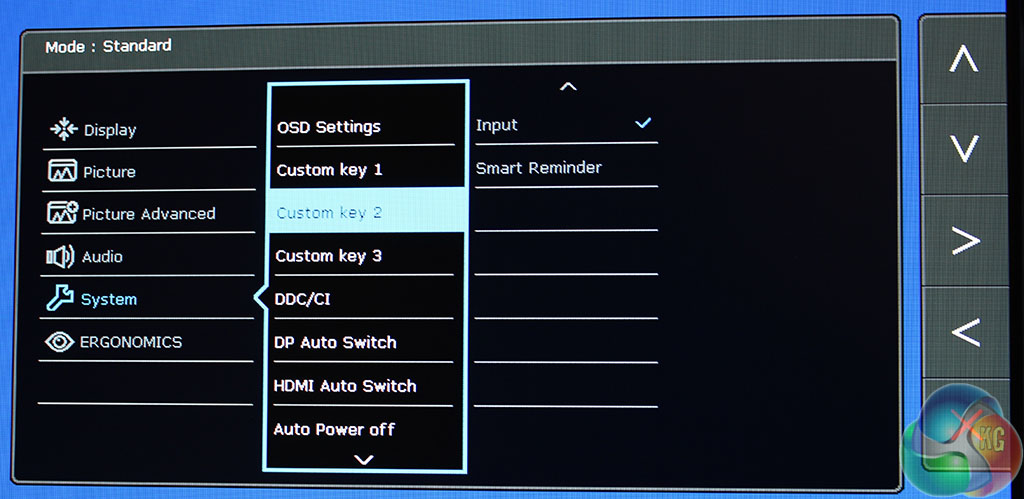
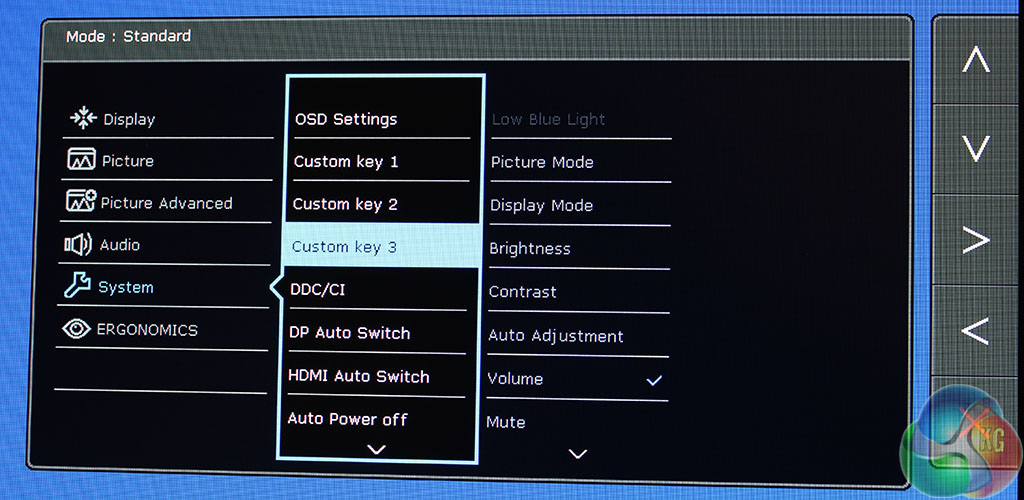
The three shortcut keys can be customised here with pretty much any setting from the monitor’s OSD. We’re not fussed about the ‘Low Blue Light’ setting for example so we changed this to Brightness.
The Auto Power Off setting sets a timer to turn off the display, either for saving energy or preventing screen burn. DDC/CI is supported, with a few options to customise the HDMI and DisplayPort auto switching.
As usual we relied on a Spyder4 Colorimeter to gauge the colour reproduction, brightness, contrast and panel uniformity of the BenQ GW2765HT.
Before running the tests, we reset the display to its default settings. We tested the display before calibration, for an accurate assertion of what to expect from its out-of-the-box performance. We then calibrated it.
In addition we spent some time using the display for a subjective view of image quality and gaming performance. It scored highly here. Images and movies looked good, while gaming in Battlefield 4 produced no glaringly obvious signs of ghosting .
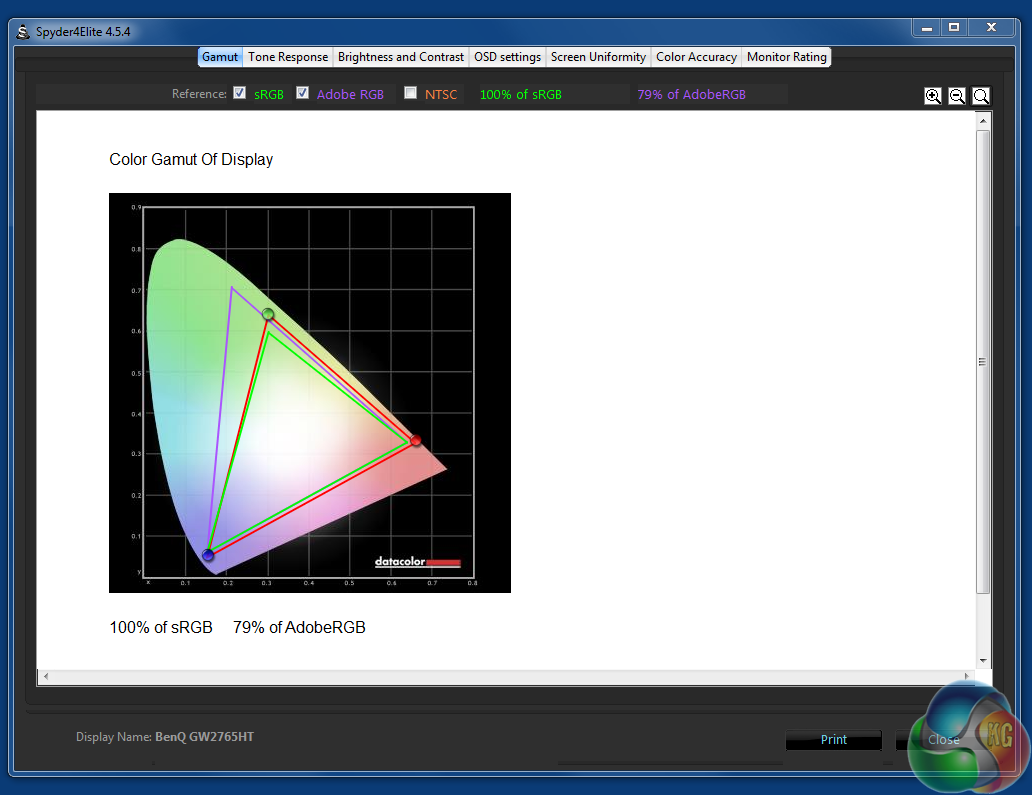
The first test is the colour gamut, which comes out as 100 per cent sRGB and 79 per cent AdobeRGB. A great result and to be expected from a 10-bit panel. But we should mention that we’ve seen similarly great results in this test from other displays at similarly affordable prices.
100 per cent sRGB used to really separate the men from the boys with PC displays, and few could attain such a wide gamut. If you wanted colour accuracy, you had to pay through the nose for it. It now seems panel technology has seriously improved though.
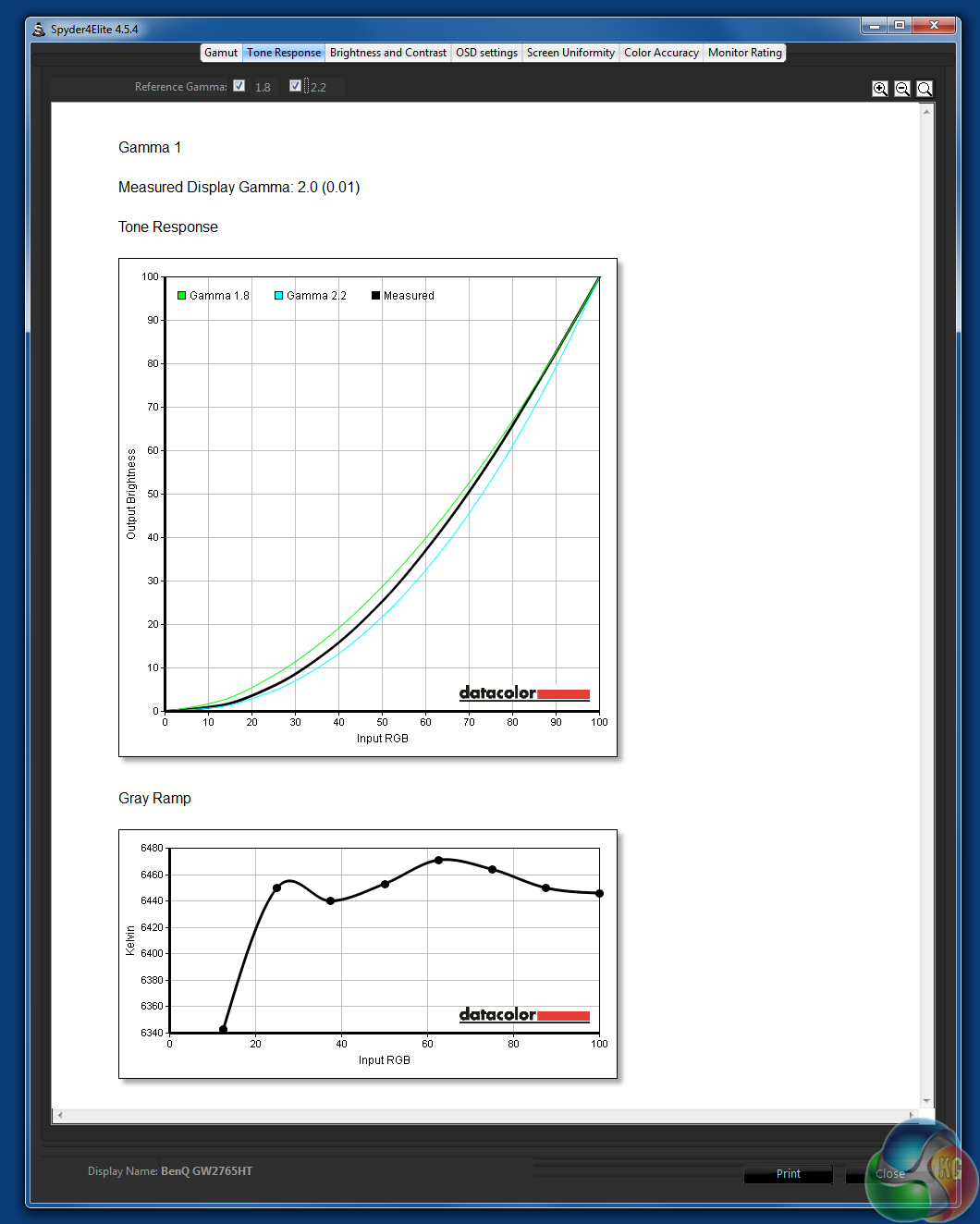
The default gamma setting (3 in the menu) came up as 2.0 during testing.
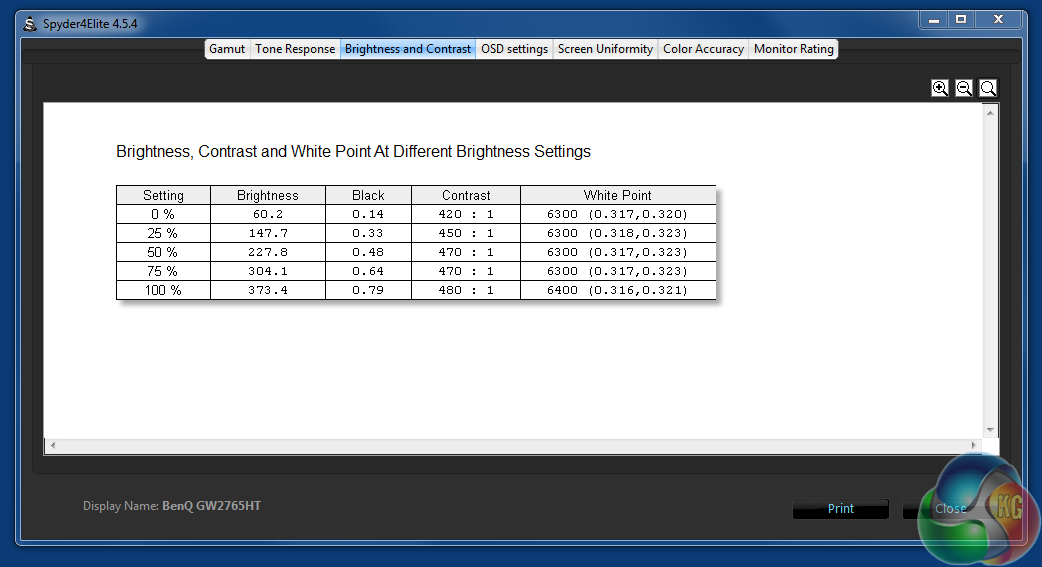
Next up are the brightness and contrast. With 373 nits, the brightness exceeds BenQ’s quoted figure of 350 nits, but the contrast result of 480:1 is disappointingly on the low side. We’ve seen some displays hit 600:1 in this test.
But to make up for it, the white point of 6400k is close to the 6500k target, and the black point of 0.79 is more than adequate.
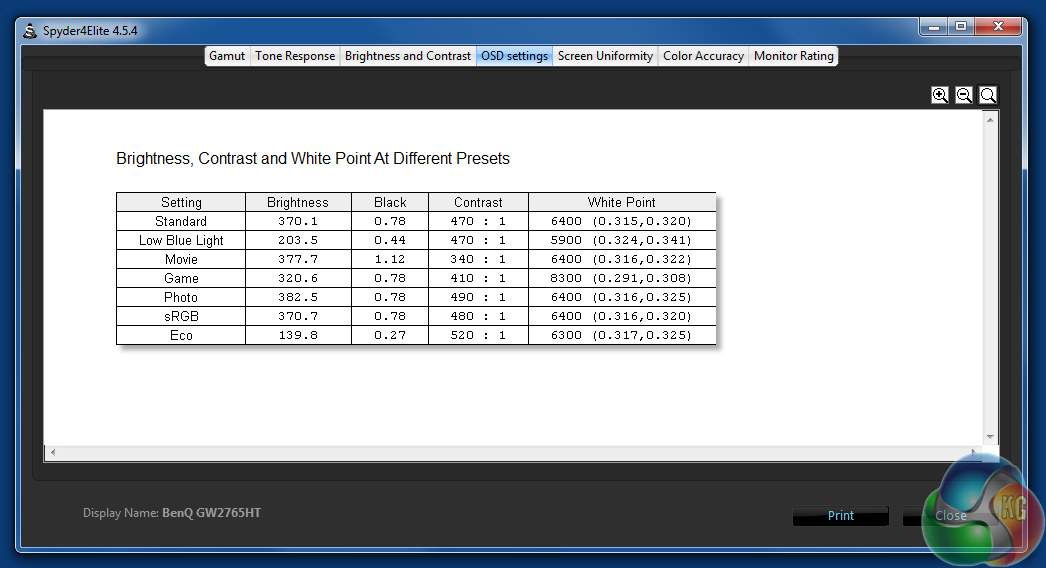
You can get an idea for what each preset mode looks like from this chart. ‘Low Blue Light’ and ‘Eco’ modes are obviously less bright than the others, while the ‘Game’ mode really raises the white point. In use, that mode seems a little too blue for our liking.
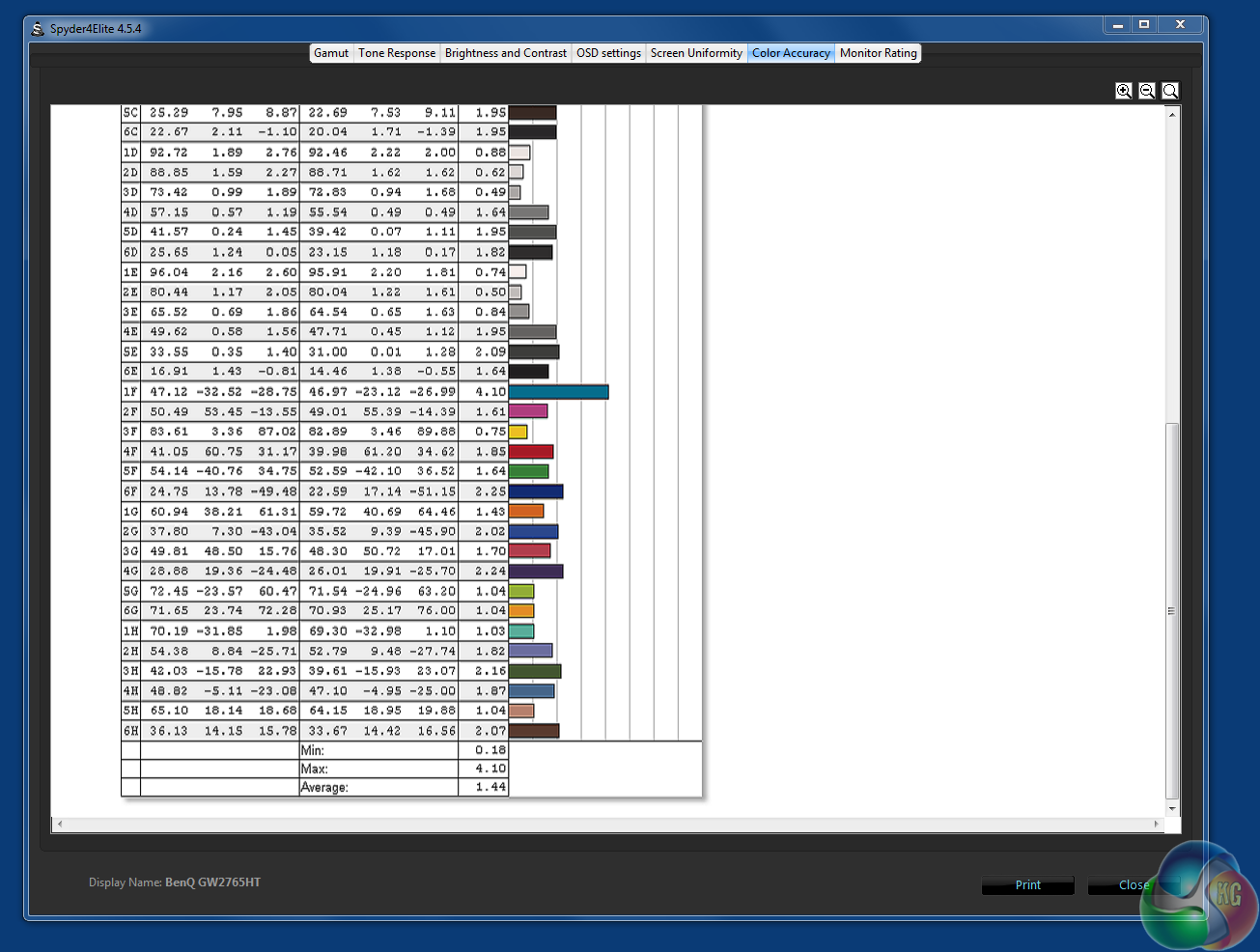
The average DeltaE result under 2 is an excellent score, showing great reproduction out of the box. While not the very best result we’ve seen, it’s nothing to complain about.
We also measured the brightness uniformity, which was much better than many other displays. The highest deviation was at the top where it was between 6.9 and 10.9 per cent less bright, but at the bottom it was surprisingly even, with between just 0.3 and 4.3 per cent difference. Good to see.
We then calibrated the display using the Spyder4 Elite software. It made a small difference to the picture quality, slightly reducing the visible brightness and enhancing the colours, although our results don’t really show it
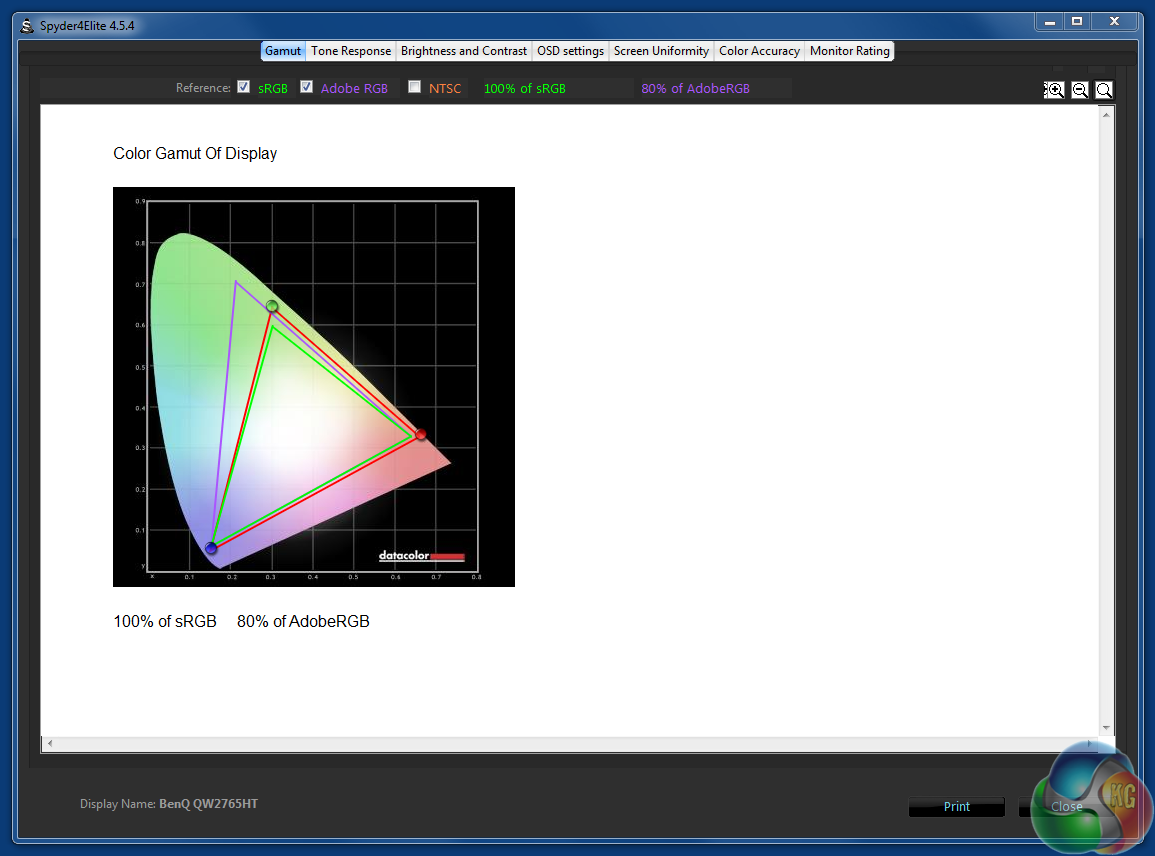
The sRGB coverage and Adobe coverage are mostly unchanged
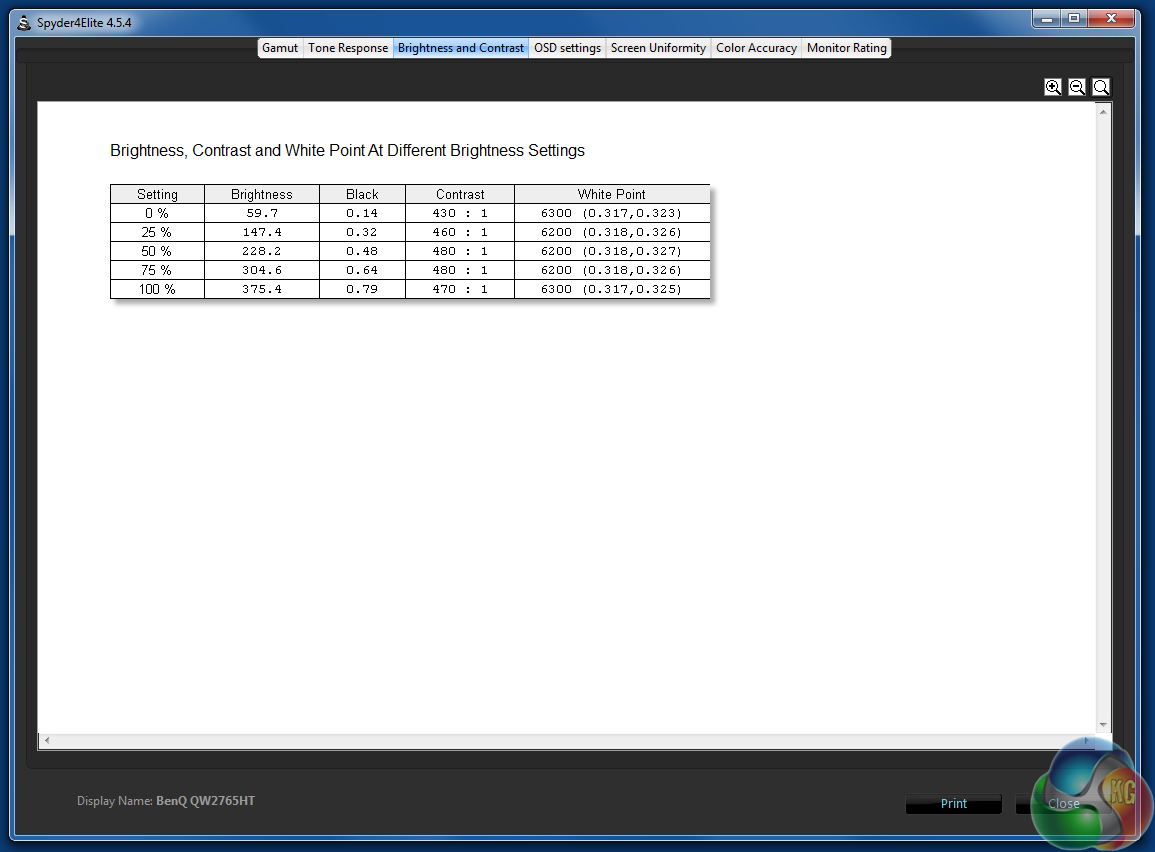
Neither is the brightness or contrast.
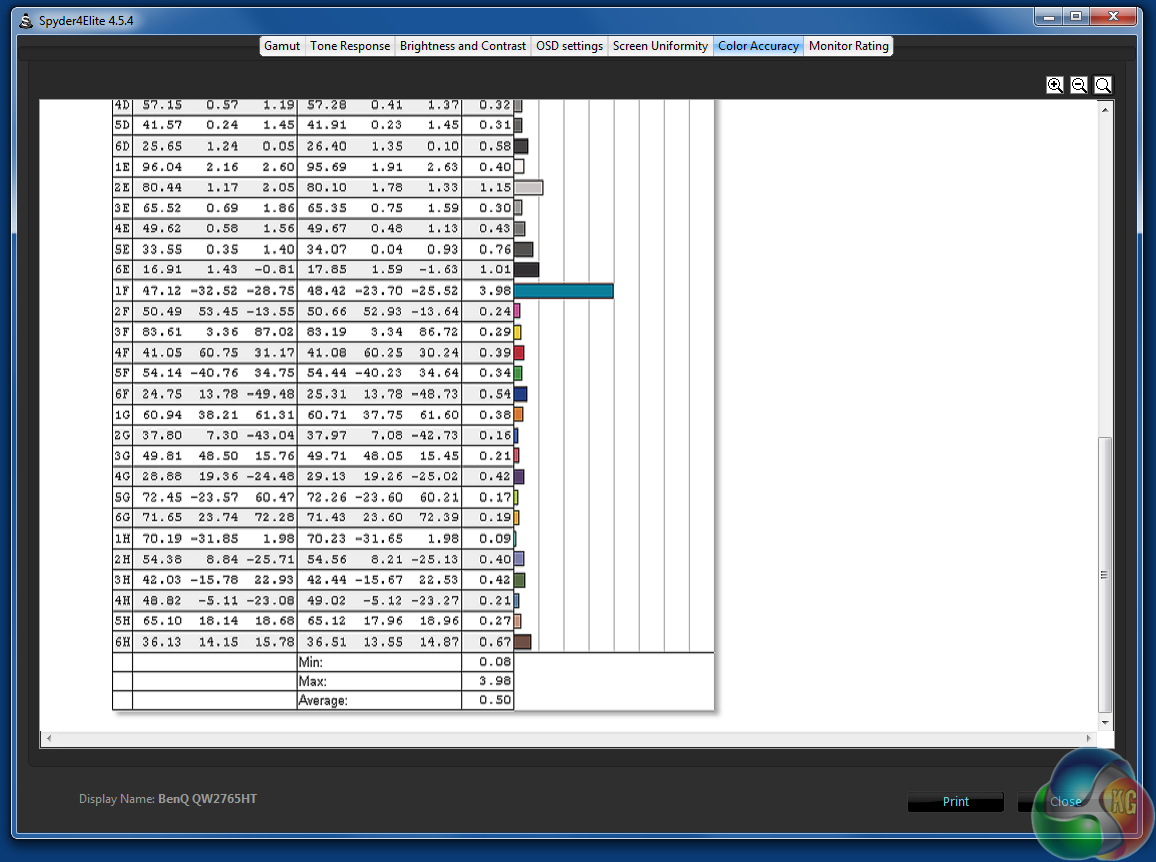
But the Delta E hits a value below 1.
Finally we played games on it, listened to music via the built-in speakers and measured its power consumption. At 100 per cent brightness, the GW2765HT consumes 43 watts of power, which is a tad higher than other displays we’ve reviewed.
The speakers aren’t terrible, at least compared with those on other monitors, although they’re not very loud. While it’s unlikely you'll ditch a high-end audio system in favour of BenQ’s offering, it doesn’t sound tinny at all.
However, while the test results are mostly very positive, the GW2765HT is let down in one key area. There was backlight bleed in the upper left side and top right corner, very noticeable during testing as the Spyder4 software uses a black background which highlights such flaws.
Given the price and all-round good performance of the GW2765HT, it’s certainly appears to be a great monitor. All the right boxes are ticked, the picture quality is great, it’s adequate for gaming and it has a good stand, well designed OSD and a wide range of inputs. Although they lack a bit of volume, the speakers sound reasonable too. You generally get a lot for your money.
While smaller, 1080p IPS screens are now considerably cheaper – with many now available under £200, the increase to WQHD resolution inflates the cost a bit.
Hardcore gamers who are obsessed with the absolute lowest possible response times might choose a TN panel over an IPS screen such as this, but for general gaming use we were happy with it at least.
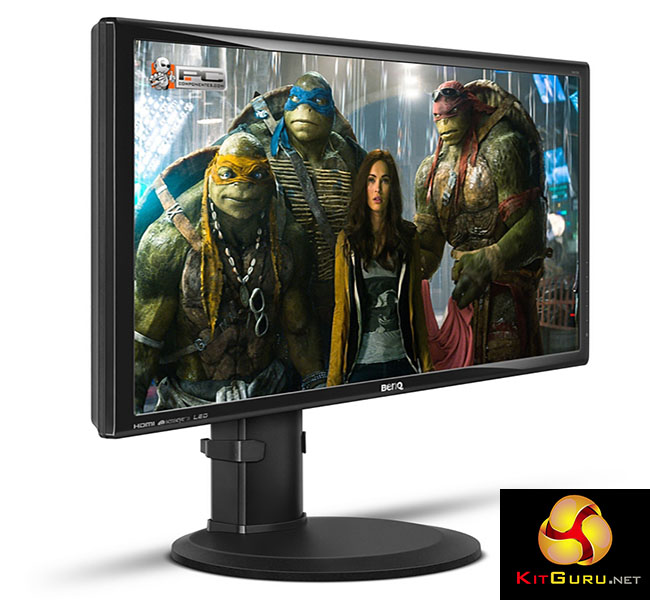
The screen performs well too. Brightness levels around 375 nits can’t quite beat AOC’s 25-inch Q2577PWQ, which achieves over 400 nits, but the result is still good, with an excellent uncalibrated Delta E score, wide sRGB and Adobe coverage, not to mention 10-bit colour support.
But two issues prevent us from awarding the BenQ GW2765HT a top score. The first is the poor contrast ratio, notably lower than many other displays. That’s a minor issue though compared to the backlight bleed.
Backlight bleed is usually an example of a few corners being cut during manufacturing, something that’s almost to be expected with a 27-inch screen that’s priced as reasonably as the GW2765HT.
Everything else stands up well though and you might not even notice an issue with backlight bleeding, as it may not be a universal problem. It was for us though, and the GW2765HT loses a point for that reason alone.
But if you feel this won’t bother you too much, then the GW2765HT has plenty going for it. It presents an excellent picture at a solid 1440p resolution and is great value for money.

You can buy from Overclockers UK for £319.99 inc vat HERE.
Discuss on our Facebook page, over HERE.
Pros:
- Good price for WQHD resolution IPS panel.
- Good brightness and colour accuracy.
- Flexible, adjustable stand.
Cons:
- Our sample suffered from backlight bleed.
- Poor contrast ratio.
- Glossy plastic bezel isn’t out first choice for monitor design.
Kitguru Says: Despite a few issues, the GW2765HT is still worth recommending. For its price, the picture quality and list of features is highly competitive. A good buy.

I really need a monitor that’s easy on eyes. Mine are eye veins are exploding right now. Any suggestions?
Some (wery few) say that eye strain is due to the modern LCD screen LED backlight.
More often it seems to bee the case that one just needs frequent few minute walks around the office, or out of your home. The same eye strain can be achieved just by staring at the wall at an uncomfortable 50-70cm distance.
Really, just walk it off – regulary. If you really think the eye strain is due to the LED emitted blue light spectrum, try using quality eye glasses with the said color spectrum filter.
Well yes, a headache hit me shortly after I made that comment so I had to do 100 squats to make it go away. The side effect is that my eyes aren’t as sore as before either. At least for a while.
Btw. the monitor I have at the office is 10 years old, so most likely not LED.
Same here, i’ve got an Benq fullHD monitor from 2008 (i assume with the CCFL backlight), after 4 hours i get an eyestrain, so I do something else that is not PC related. But I have the freedom to do so, because of self-employment and few different tasks that I have to do that doesn’t center around the PC 100% of the time, not a solution for a programmer or an accountant…
Getting a 27″ IPS panel with a 4ms response time for under £300 is pretty amazing, although as I suffer quite badly from gaming motion sickness, that 4ms might not be enough for me. My 2ms Iiyama ProLites made a big difference, but I really need to move up to something with an LED backlight; the light bleed is around the edges is terrible when watching movies!
I have just looked at this and the Dell as I am not happy with the 4K offerings at the moment.
Was thinking either would be a good stop gap until a Freesync, 144HZ, 28 inch, low response, IPS, 4K monitor is available.
Not asking for much am I..
custom website designing
GET A BEST CAREER ::: @1ma08
bt……
http://www.PINCareersdevelopersclub/sub/maker...
60hz? bleh
Here is tips Easy with kitgur’u ********* Here’s Tips