 KitGuru KitGuru.net – Tech News | Hardware News | Hardware Reviews | IOS | Mobile | Gaming | Graphics Cards


With growing adoption in laptops and portable devices, as well as desktop systems, 802.11ac WiFi continues to gain pace in the consumer market. With a theoretical transfer speed of well over a Gigabit per second, wirelessly, can the Linksys EA6900 802.11ac router prove that ultra high-speed WiFi connections are indeed becoming a reality?
Although still in its infancy, 802.11ac is experiencing increasing adoption by consumers and technology companies. Many of the latest high-end laptops from the likes of Apple and Dell feature a wireless-ac chipset. The same can be said for modern smartphones from the likes of Samsung, HTC, and LG. And we only have to take a quick look at KitGuru's motherboard review section to see that 802.11ac is becoming big business in the desktop market. But support from devices is nothing if the routers themselves aren't up to scratch.
Featuring support for a three-stream 802.11ac wireless connection capable of up to 1300Mbps, Linksys' current flagship EA6900 router aims to prove that WiFi is ready to compete with the tried-and-tested Ethernet connection. Making use of beamforming, and backwards compatible with older wireless-n devices on the 2.4GHz and 5GHz bands, the Linksys EA6900 also offers a quartet of Gigabit Ethernet ports, two USB connections, a DLNA Certified media server, and a number of software benefits.
Theoretically capable of wireless transfer rates in excess of a Gigabit per second, can the Linksys EA6900 router provide a high-speed connection that it is capable of streaming bandwidth-heavy data across the 802.11ac network?
Specifications:
- Standards: 802.11ac, 802.11 a/b/g/n.
- Frequency bands: 5GHz and 2.4GHz.
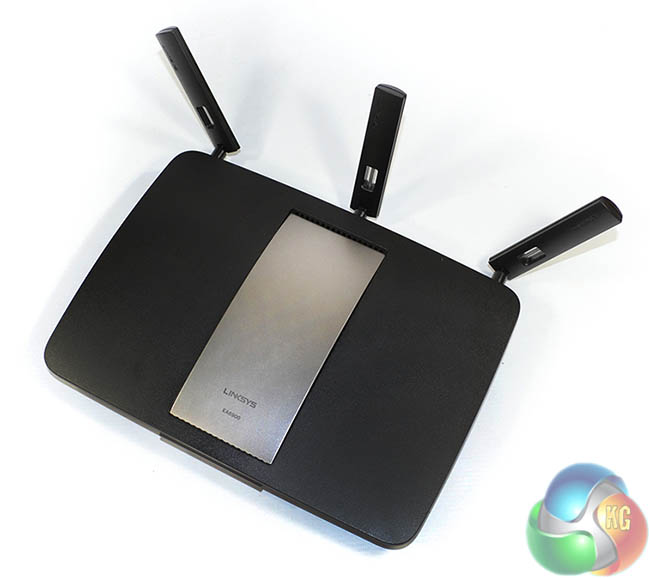
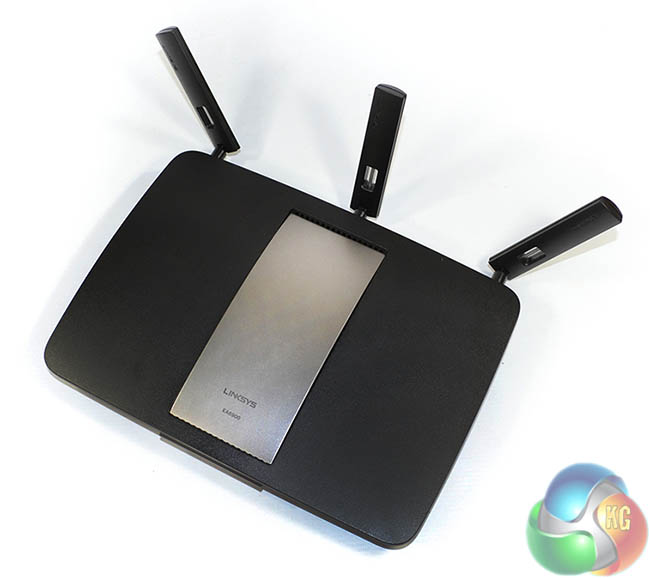
- Antenna: Three external, adjustable antennas.
- Wireless speed: Up to 1300Mbps for 802.11ac, up to 600Mbps for 802.11n.
- Gigabit Ethernet connections: 4.
- Security: Wireless WPA/WPA2 encryption and SPI firewall.
- Features: 1x USB 3.0, 1x USB 2.0, DLNA Certified media server, guest access, device priority QoS, SimpleTap.
- Dimensions (LxWxH) (mm): Approximately 205 x 255 x 35 (including antennas)
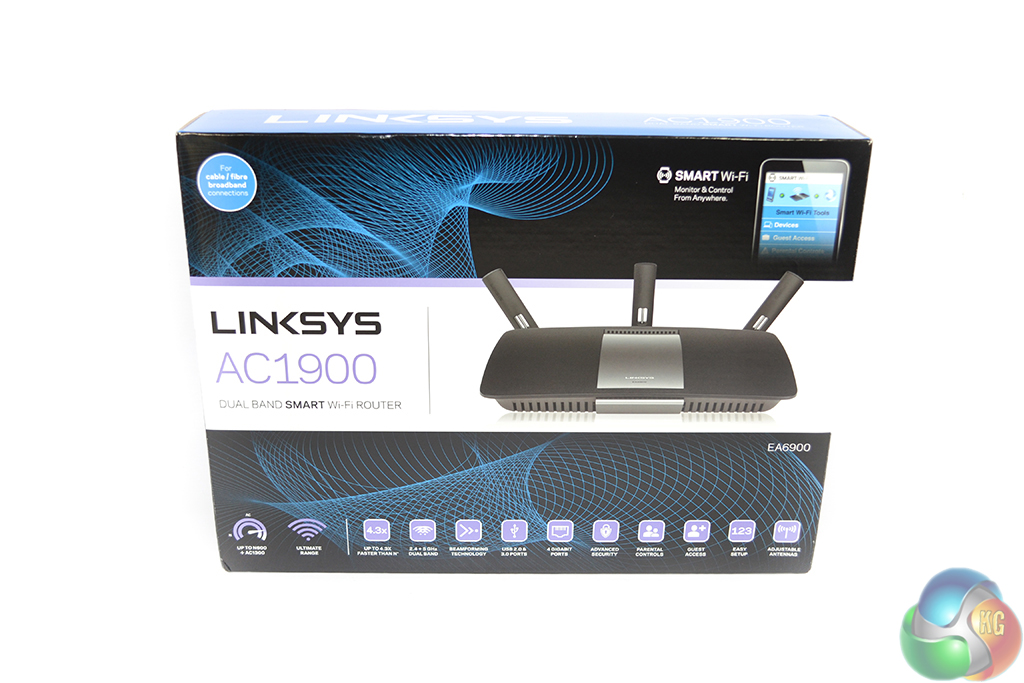
Linksys packages the EA6900 in a box that contains plenty of information regarding the router. Some of the unit's key features, such as the dual band and beamforming technology, are highlighted on the packaging's front side.
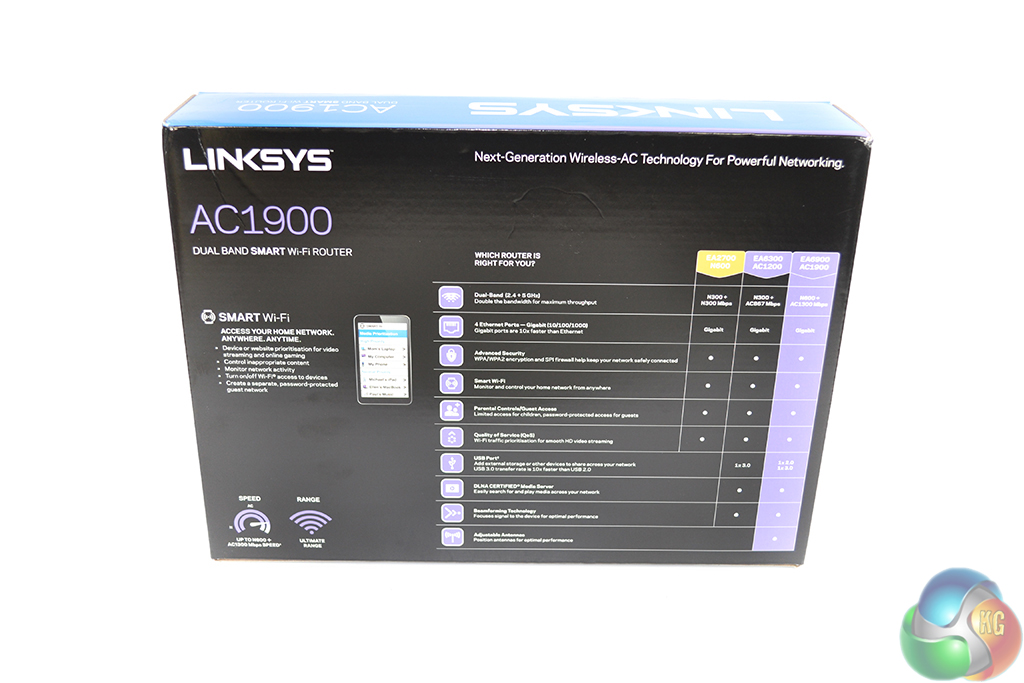
A comparison between the EA6900 AC1900 and two other routers in Linksys' catalogue is made on the rear side of the box.
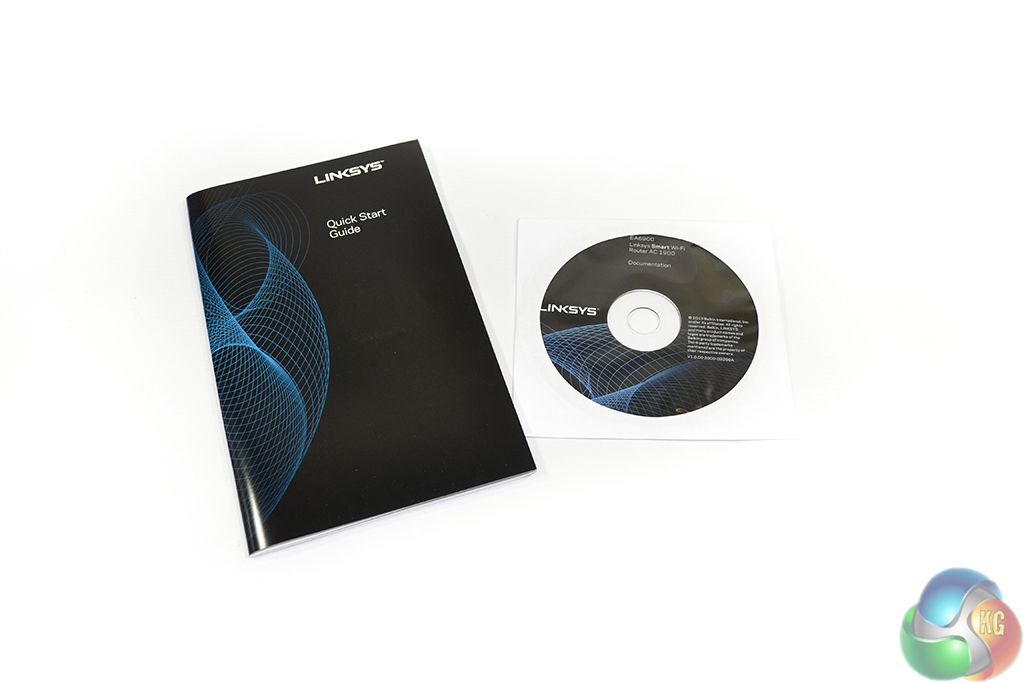
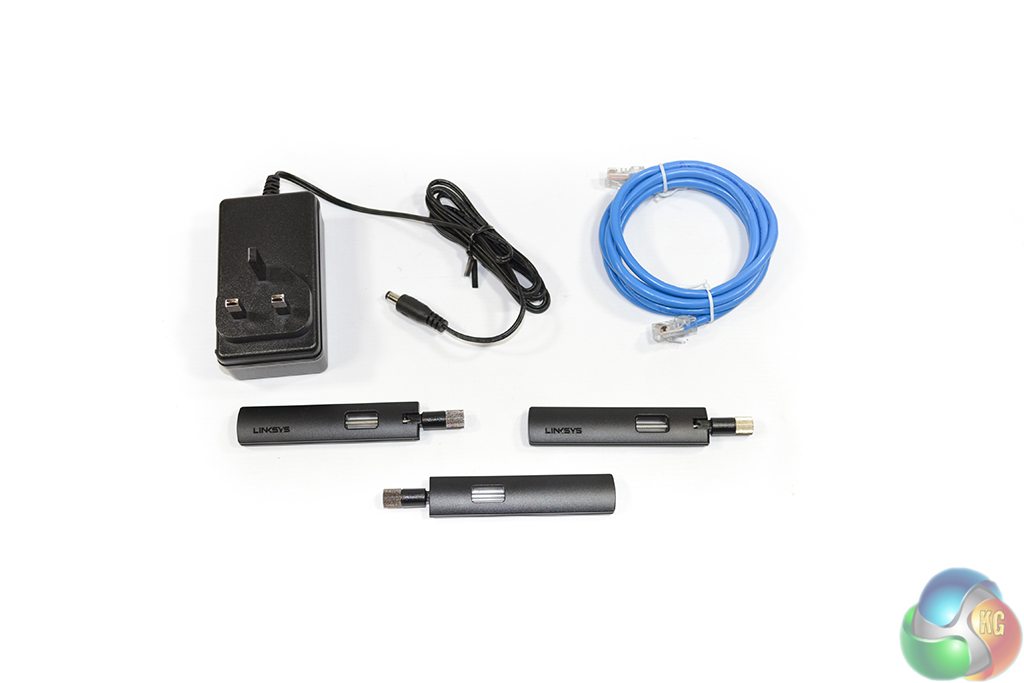
A quick start guide and driver CD form the supplied documentation. The accessory package consists of the power brick, an Ethernet cable which plugs into a modem, and the router's three screw-in antennas. Each antenna is given a good degree of rotational freedom which allows it to be orientated in the preferred manner.
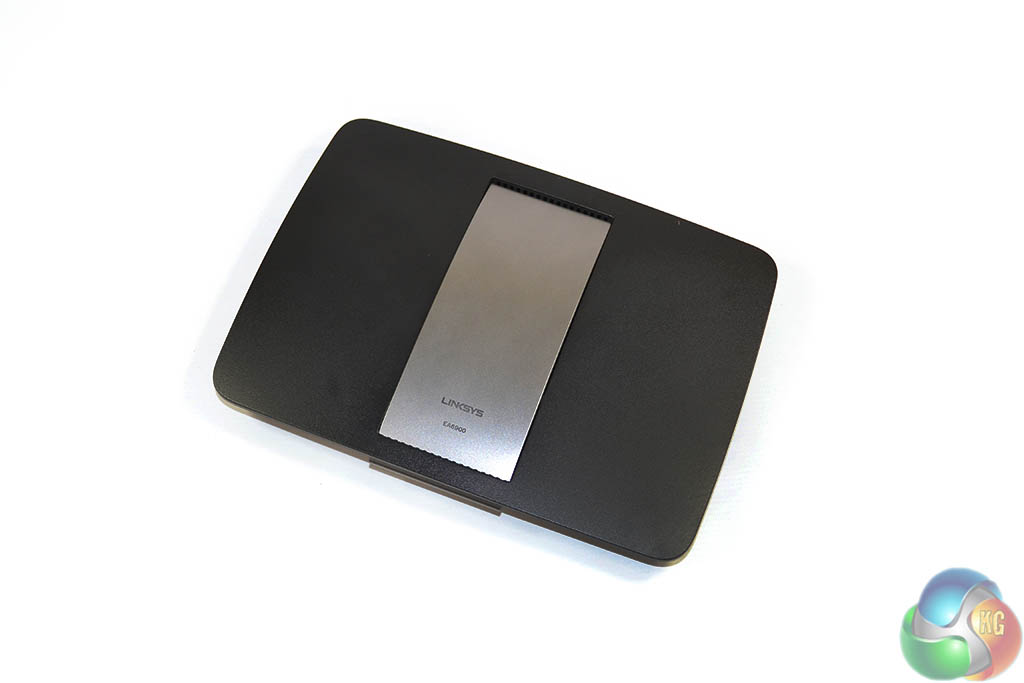
Measuring 255 x 182 mm without antennas, the Linksys EA6900 AC1900 is a large wireless router. The top side of the unit is constructed of a dark plastic material with a silver section that also contains the router's model name.
The Linksys EA6900 AC1900 supports 802.11ac wireless technology, as well as older versions such as 802.11n and 802.11g. Using a 3×3 transmission and reception configuration and operating on the 5GHz frequency band, speeds of up to 1300Mbps are supported on the wireless-ac network.
According to the Linksys specifications, a transfer rate of up to 600Mbps is supported with 802.11n. 33% higher than the theoretical limit for three data streams of 802.11n wireless, 200Mbps per stream (hence 600Mbps in total) is achieved by the use of TurboQAM on the EA6900's Broadcom chipset.
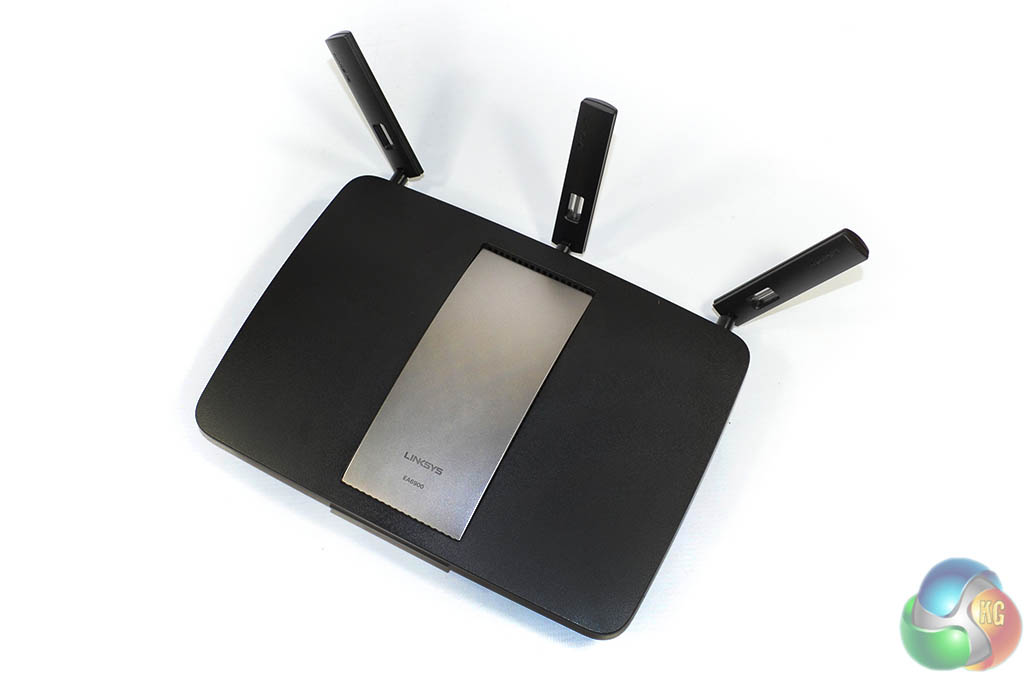
With its reliance on the 5GHz frequency band only, range is a potential issue for 802.11ac routers. The 2.4GHz frequency band is cluttered with everything from mainstream wireless technology to home and kitchen appliances.
Reducing the likelihood of interference problems is one of the key arguments in favour of the 5GHz frequency band approach. But by virtue of its higher transmission frequency, the 5GHz signal is susceptible to attenuation (by building materials, for example) which can lead to a reduction in the network's operational range.
Part of the 802.11ac standard's technology, beamforming is implemented to solve the potential range issues caused by the use of the 5GHz frequency band. In essence, beamforming acts like a homing configuration – it locates the client device that is asking for network bandwidth and focuses the wireless signal to its location, rather than dispersing it in multiple directions.
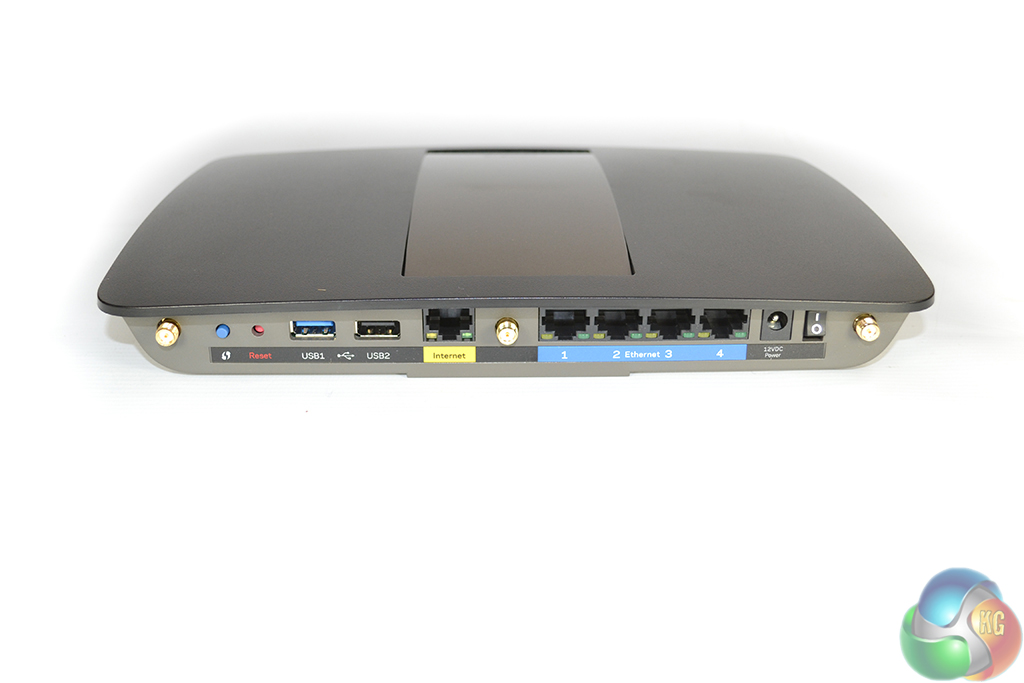
All of the EA6900's connections are located on the unit's rear side. This helps to keep cable clutter in a single location, making it an easier task to deal with. The power connection is located on the far right section, alongside an on-off switch.
A quartet of Gigabit Ethernet outputs is situated towards the middle of the router. A single input connection for the internet signal is also present. One USB 3.0 connection and an additional USB 2.0 port can be used to attach storage to the EA6900 router, making it accessible across a network.
Reset and WPS buttons are located towards the left of the rear section. Three gold-plated antenna connections are spaced equally throughout the EA6900 AC1900 router's rear side.
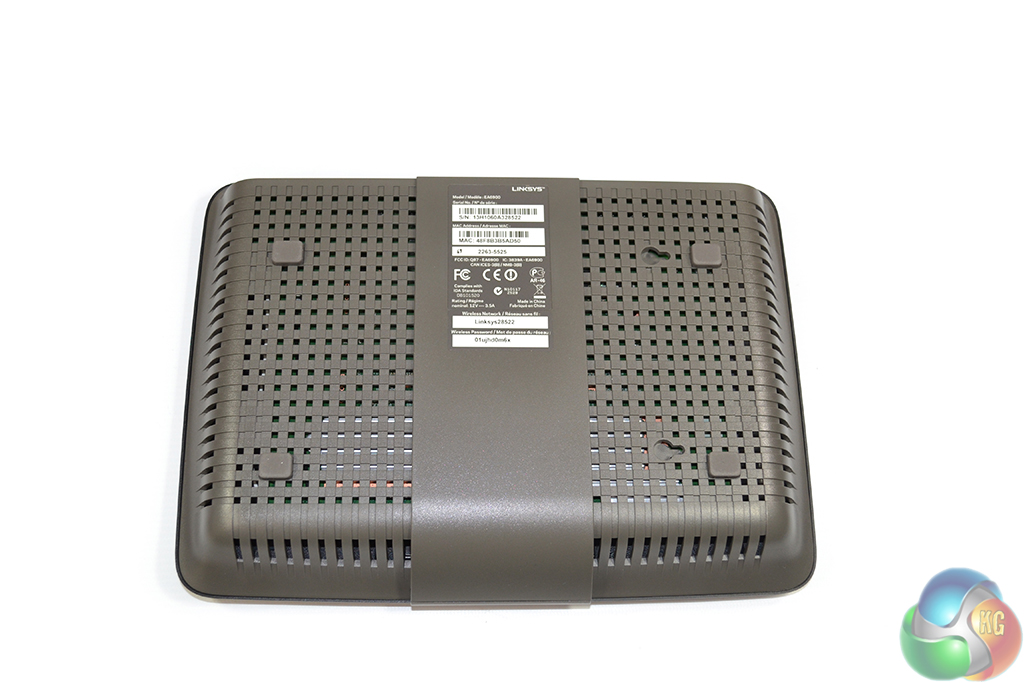
Given the unit's sizeable dimensions, Linksys was wise to provide wall-mounting compatibility with the EA6900. Two screws can be used to attach the EA6900 to a wall or other surface. This not only has the benefit of freeing up valuable desk space, but it can also allow the router's wireless signal to travel a greater distance.
Four rubber feet are used to ensure that the EA6900 does not slide across a surface such as a wooden desk.
Setup
Setup is completed via the Linksys Smart Wi-Fi software approach.

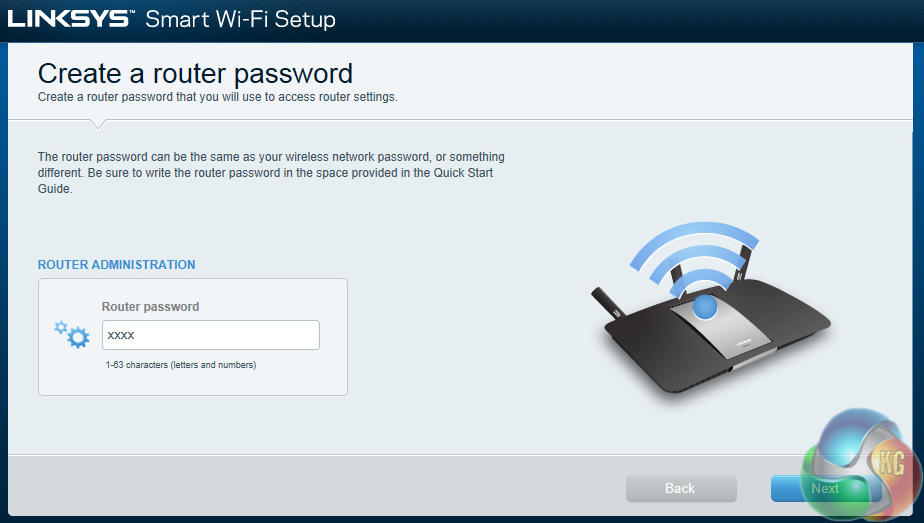
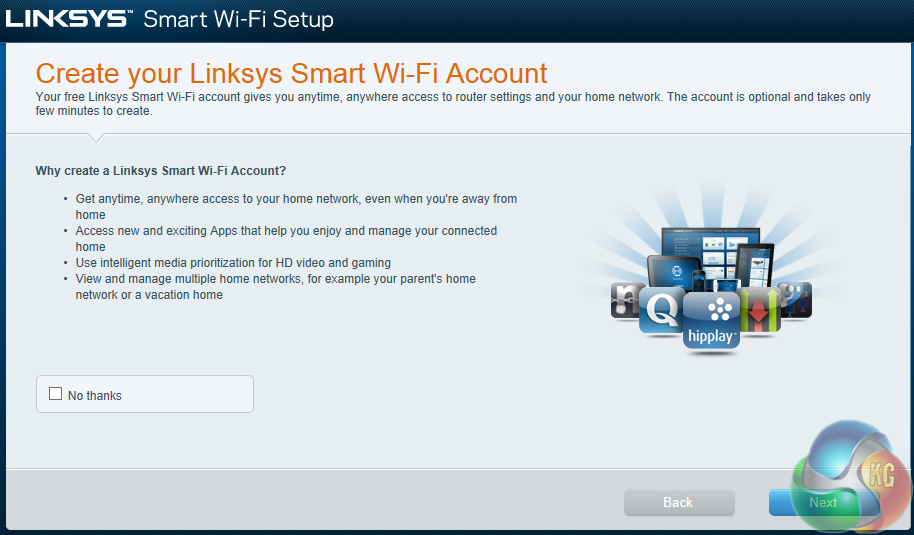
Initial setup of the EA6900 router allows users to opt for a simple configuration process or a more advanced approach that is designed for more knowledgeable users. The straightforward setup process allows users to quickly adjust the network name and password, as well as the password of the router.
Users are also given the option to create a Linksys Smart Wi-Fi account. One of the headline features for Linksys' Smart Wi-Fi is the ability to control the network via an external device. Network apps are also available.
Linksys Smart Wi-Fi
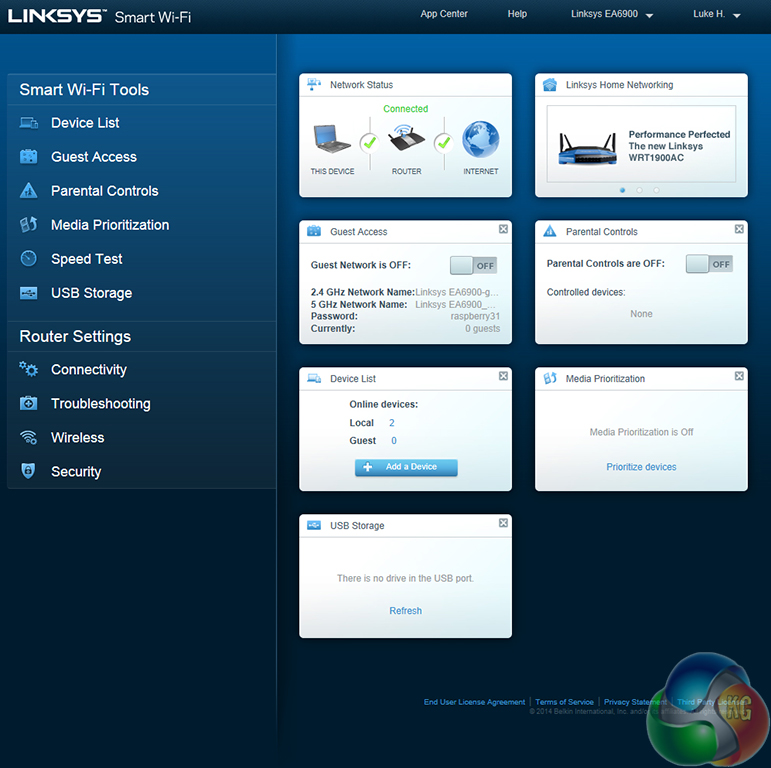
The main page of the Smart Wi-Fi application provides a number of tab locations which feed the user with relevant and easy-to-interpret information. Some of the tabs can be adjusted to suit one's preferences.
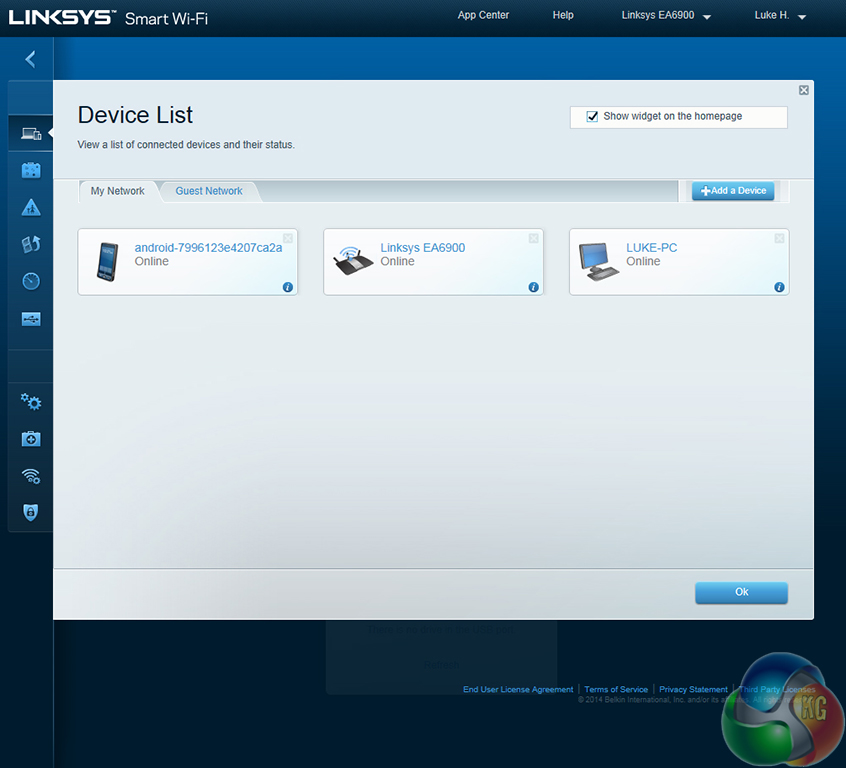
The connected devices are displayed in the Device List section. This can be particularly useful when planning the streaming of media across the network or even when troubleshooting connection issues which may occur.
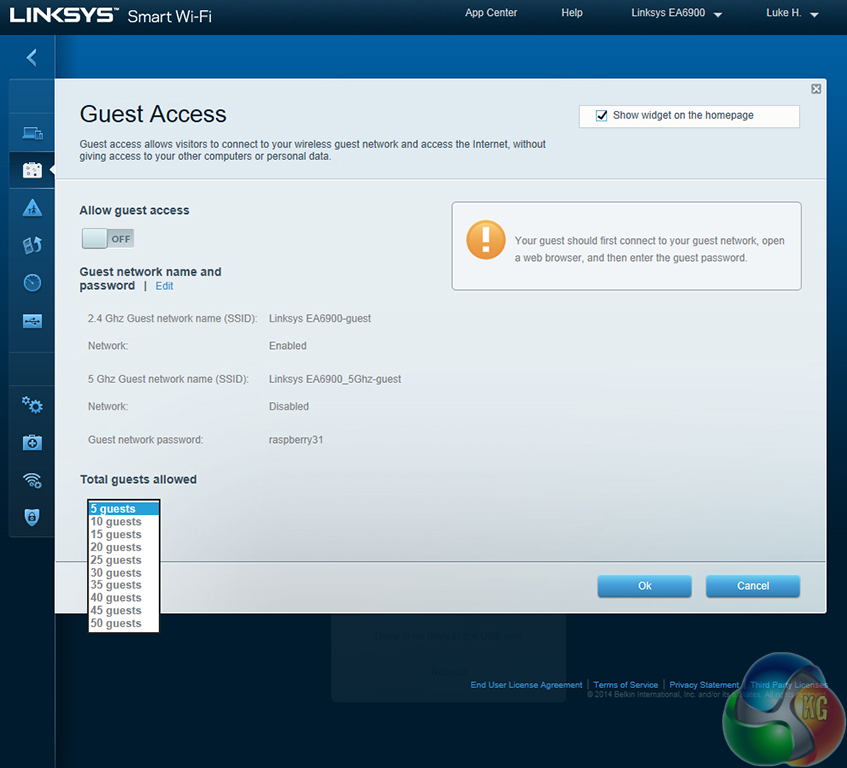
Guest access can be switched on or off, dependent upon personal requirements. Up to 50 guests can connect to the segregated networks which can be deployed over the 2.4GHz or 5GHz frequency bands with their own, unique password.
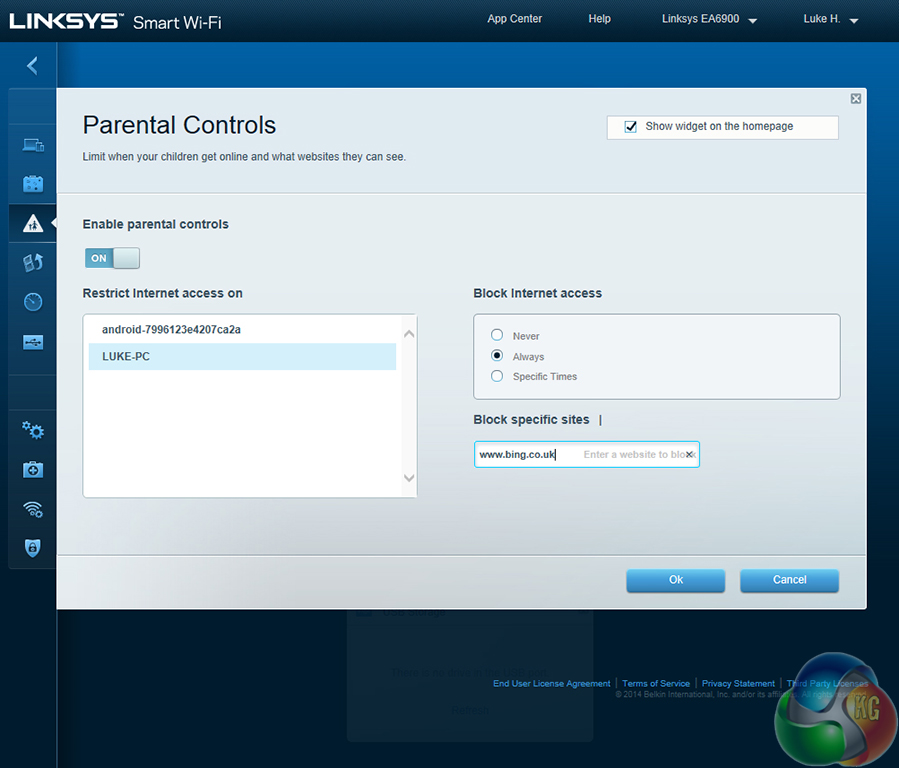
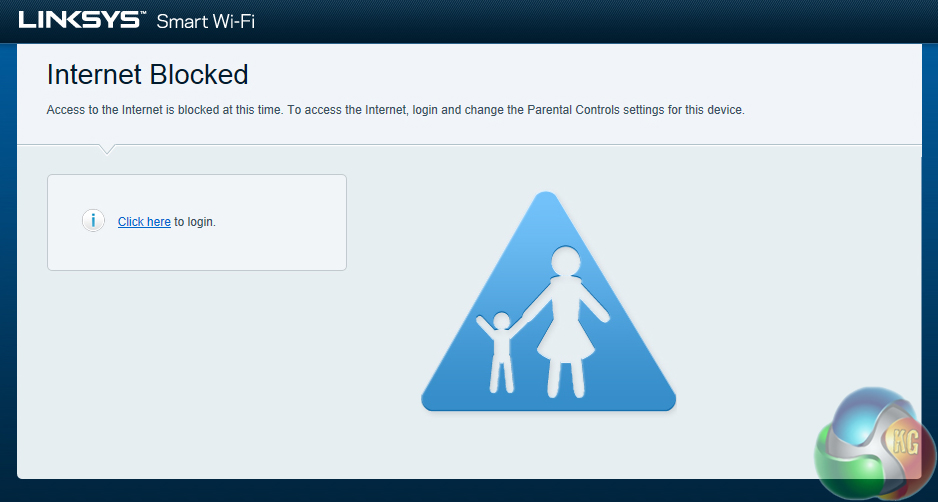
Linksys incorporates an easy-to-use Parental Controls section. The tool can be used to easily adjust the access of a specific device to user-determined webpages. We tested out the operation and found it to work well.
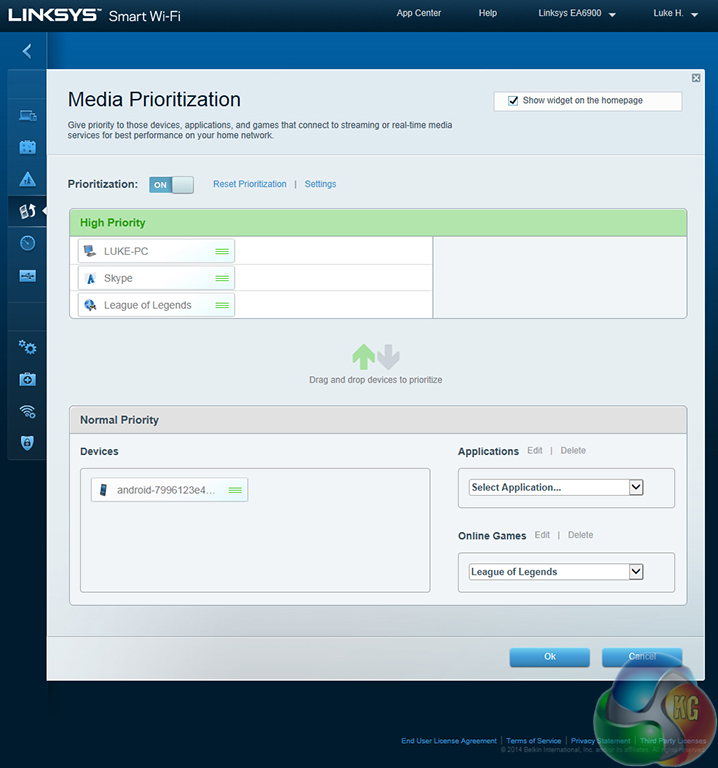
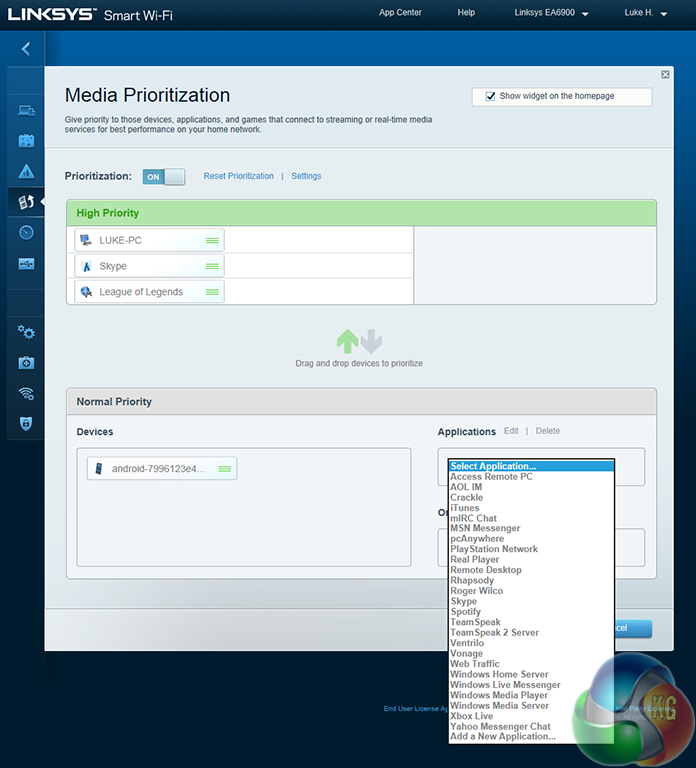
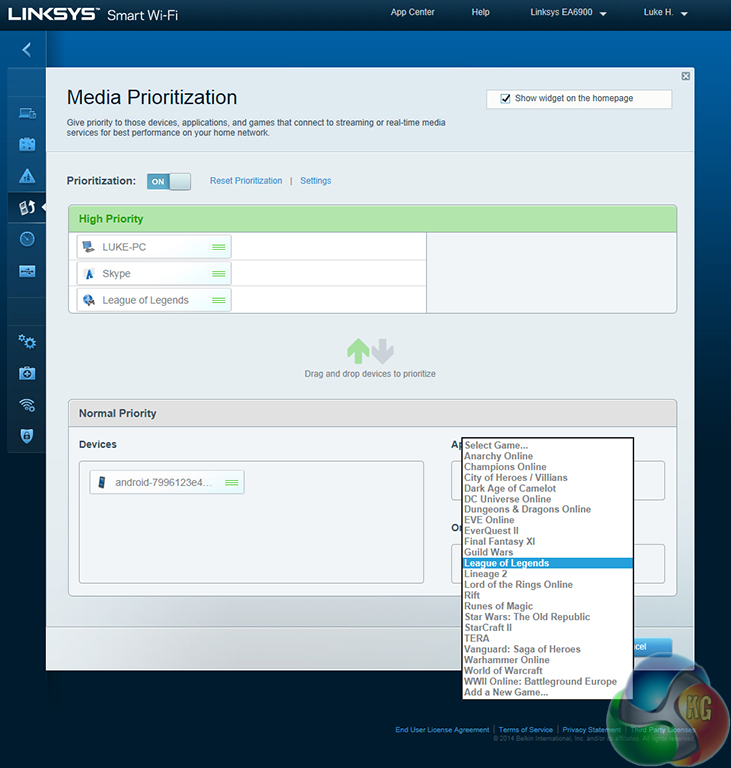
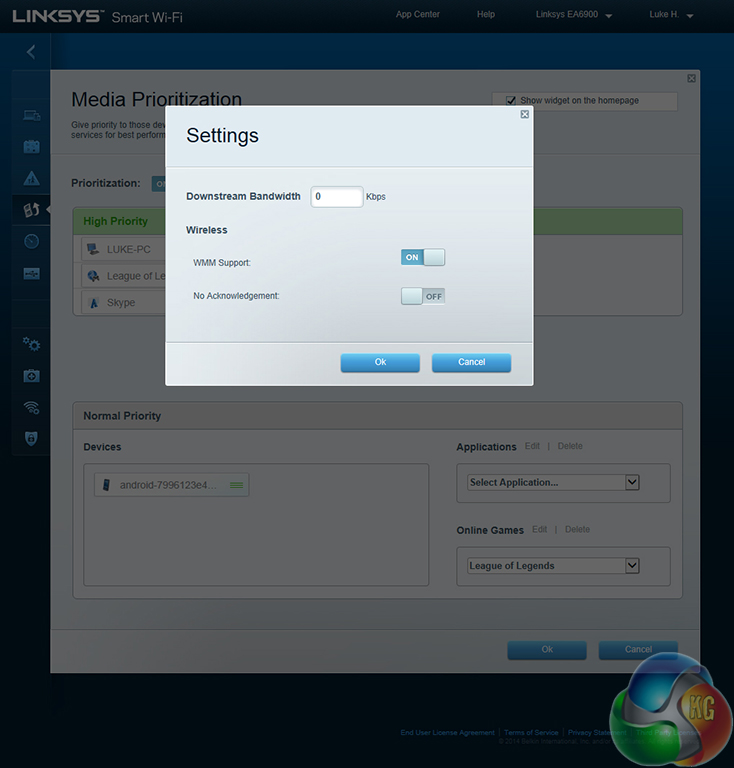
Up to three separate devices or applications can be designated with ‘High Priority' on the network. The box for each devices or application can be dragged to the ‘High Priority' section.
Linksys provides users with a decent number of application priority presets. For users whose app isn't found in the drop-down list, a priority setting can be configured manually.
Additional manual tweaking is available by means of adjusting the network's downstream bandwidth. Support for Wi-Fi Multimedia (WMM) is also featured and could be a useful setting for users who regularly use VoIP and video applications.
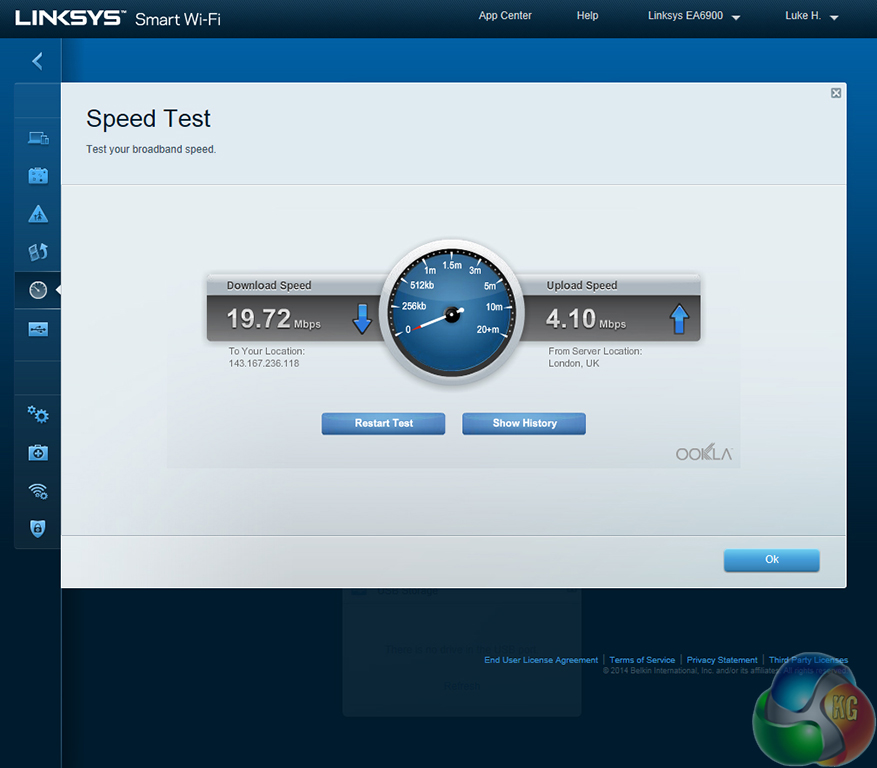
A basic speed testing tool, provided by Ookla (the company behind SpeedTest.net), is built into the Smart Wi-Fi application. The tool also allows users to check a list of their previous results – a feature that could be useful when complaining to internet providers over bandwidth capping or speed reductions.
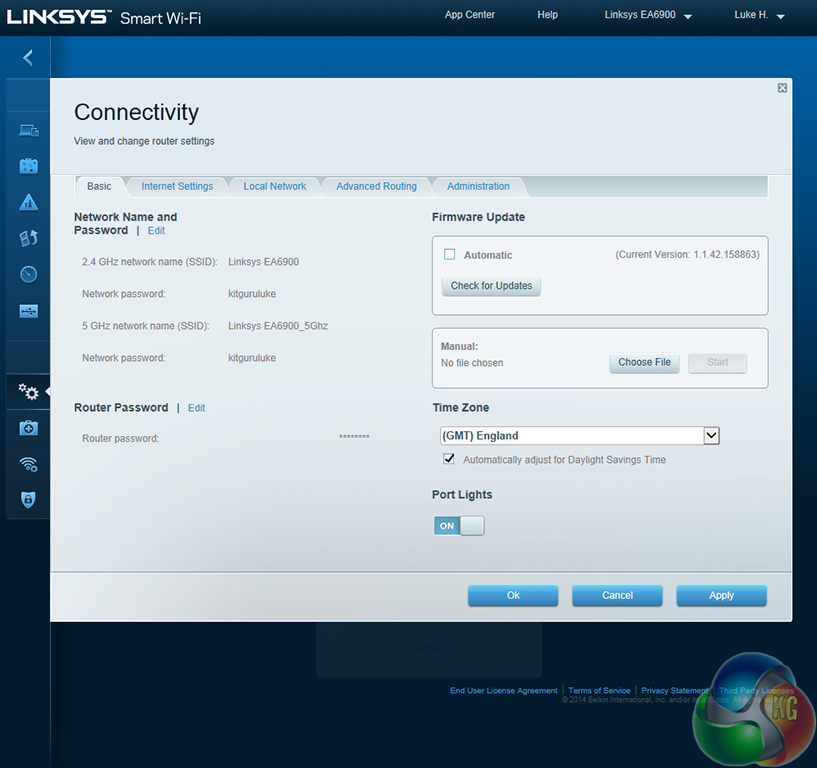
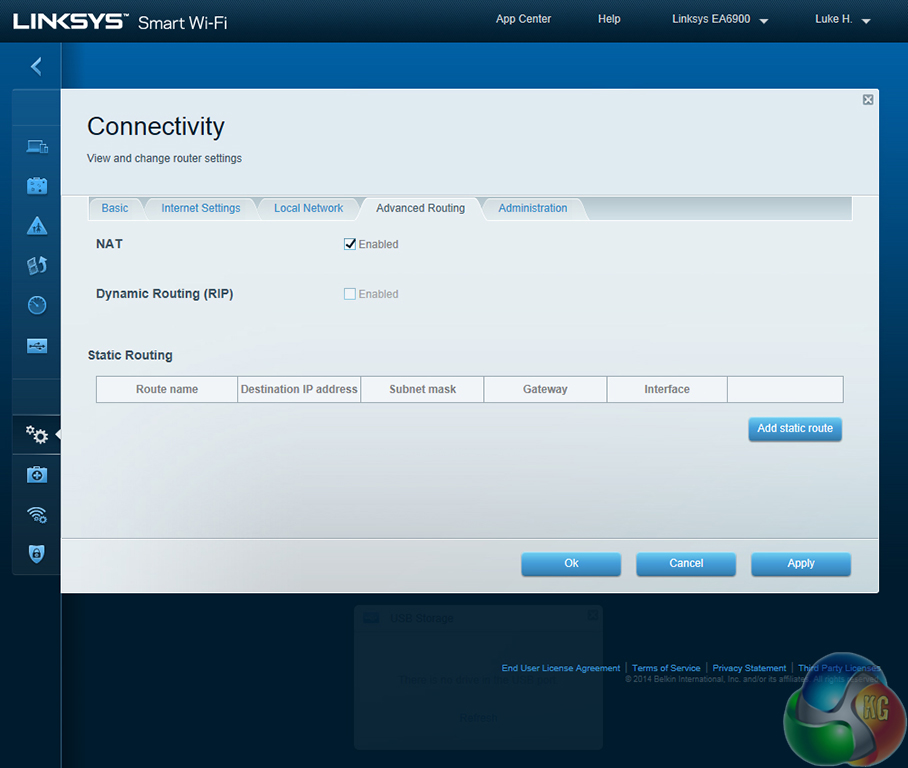
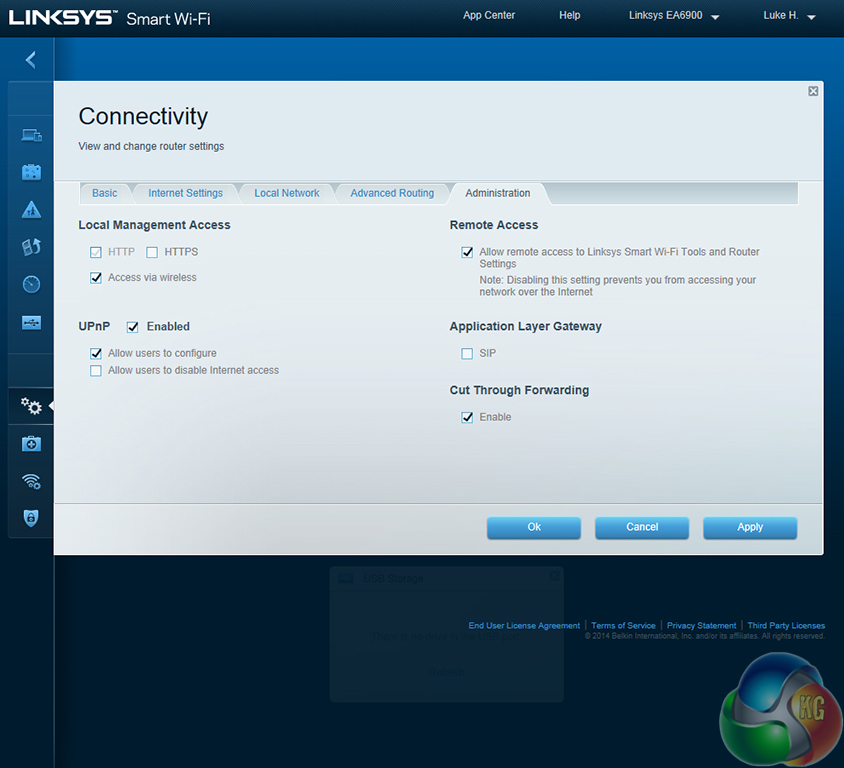
Connectivity is just one of the sections that allows the network's name and password to be changed. Firmware updates can be applied to the router via the connectivity section; Linksys permits for them to be applied in a manual or automatic manner.
Advanced connectivity settings are accessible by cycling through the subsection's tabs.
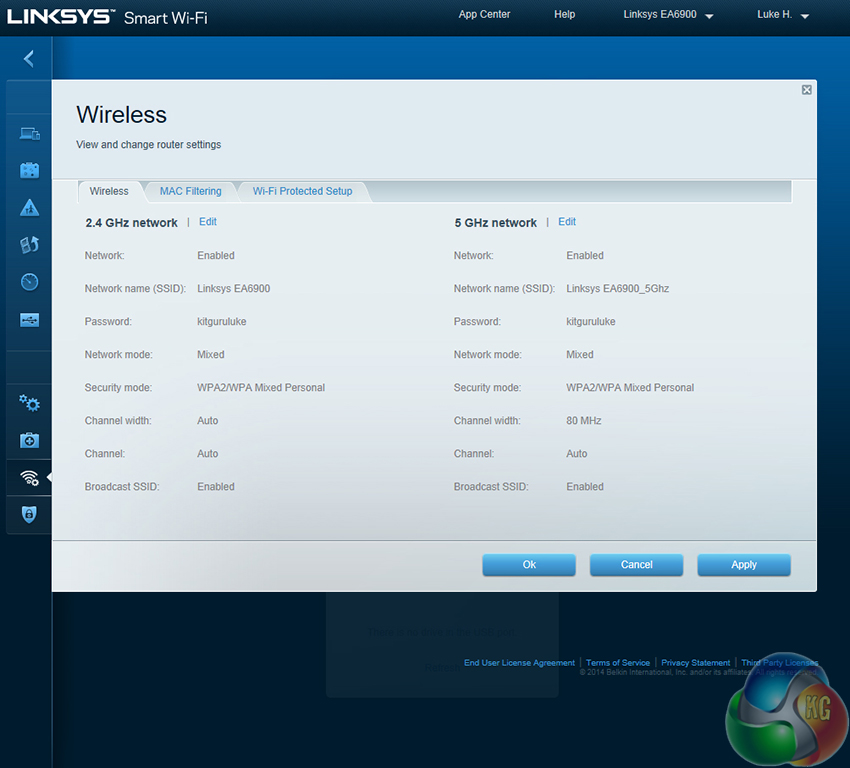
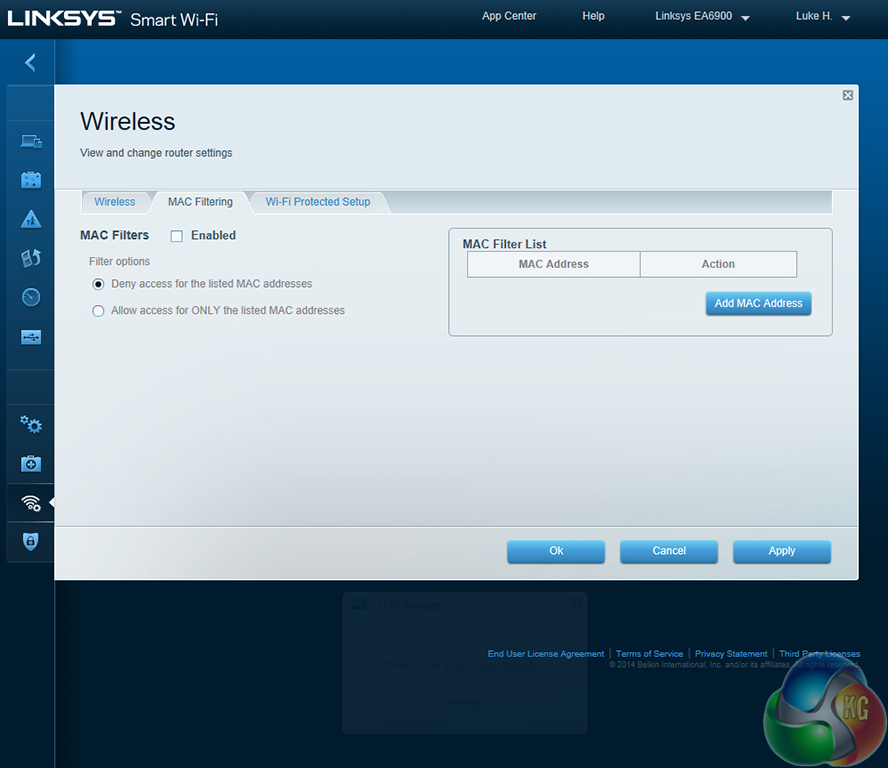
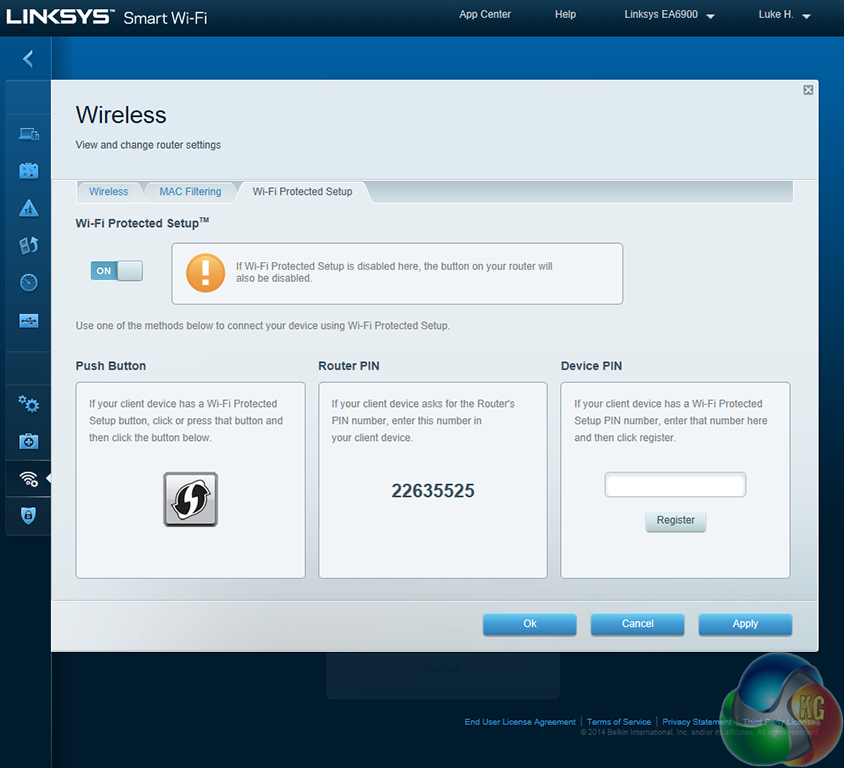
The Wireless section provides users with access to the settings for the 2.4GHz and 5GHz networks. Settings such as the network mode, security mode, channel width, and channel used can be adjusted to a user's preference.
Network access for specific devices can also be adjusted, as can the Wi-Fi Protected Setup (WPS) configuration.
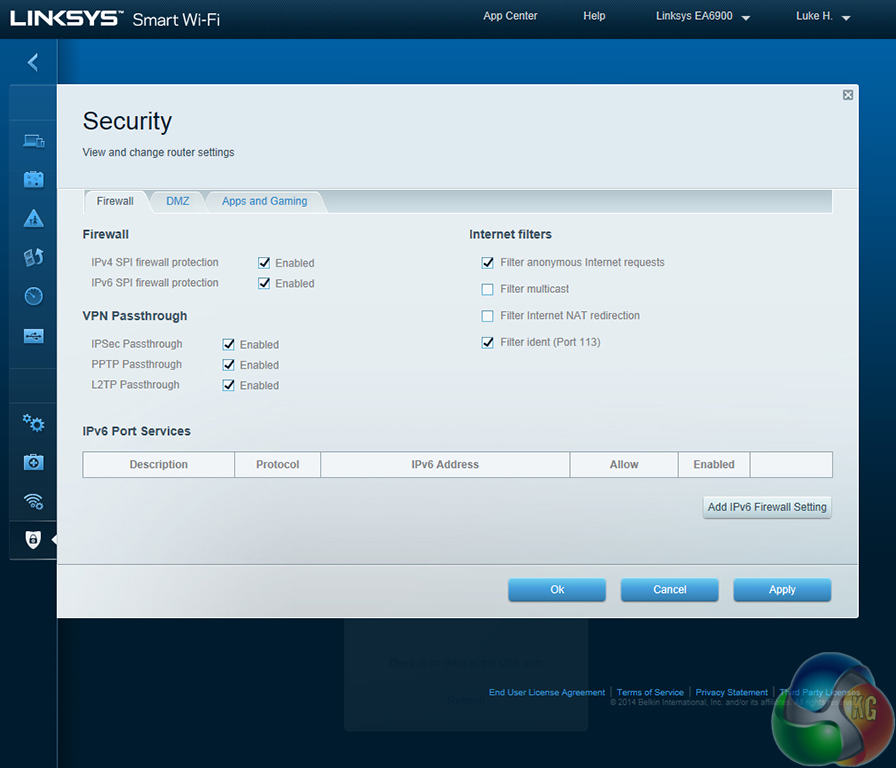
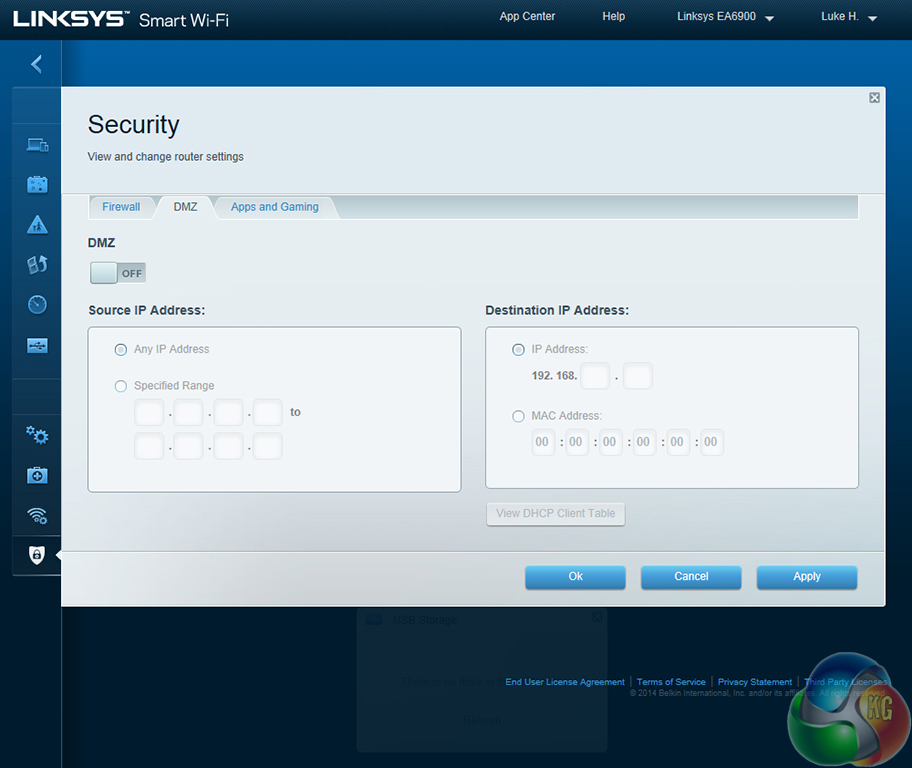
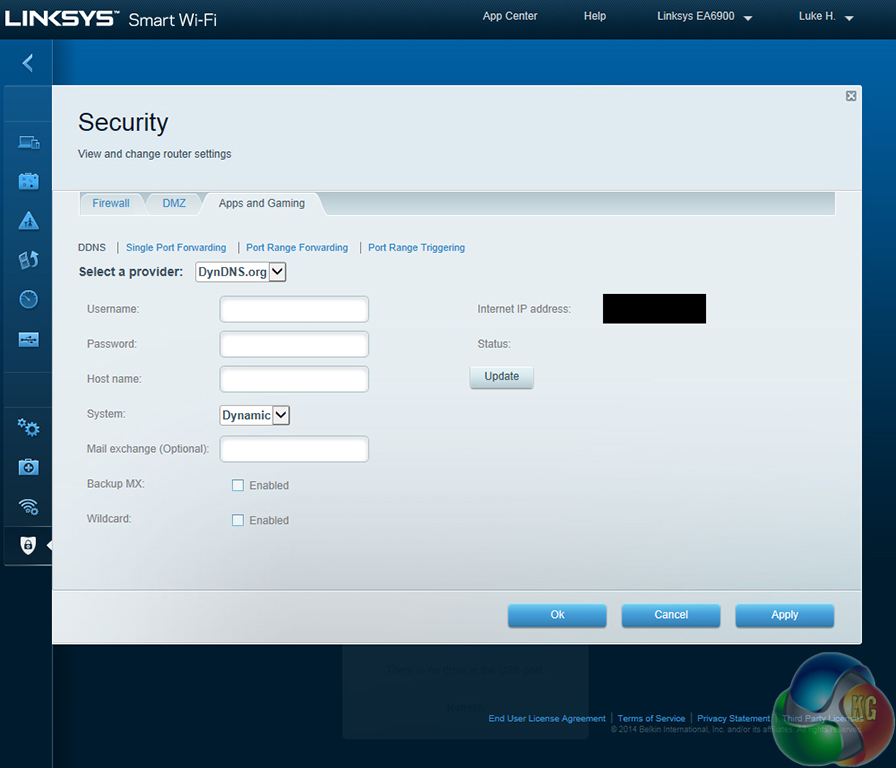
Linksys provides users with a good degree of adjustable security settings. The DMZ can be accessed and Dynamic DNS (DDNS) providers can be added to the system.
Linksys Smart Wi-Fi Android app
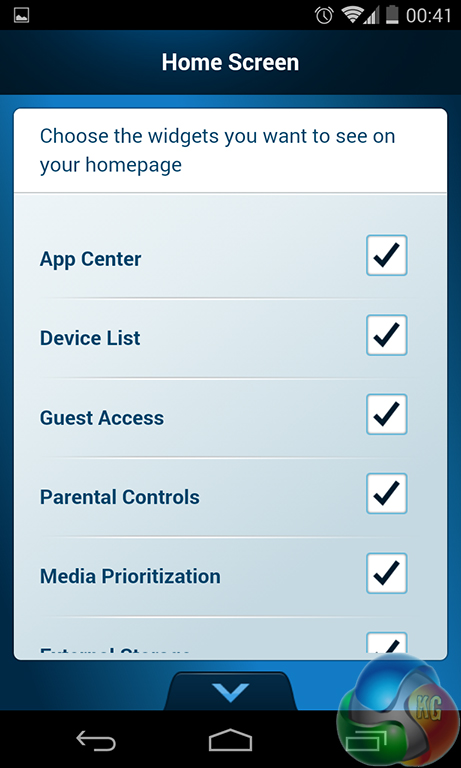
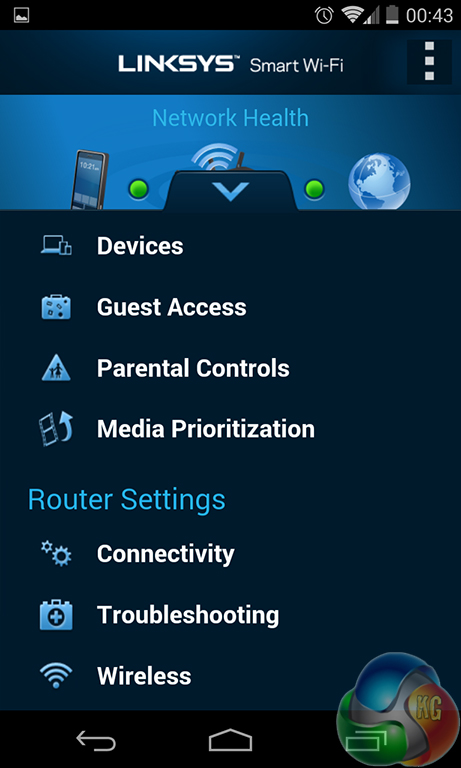
Linksys provides its Smart Wi-Fi app for free in the Android Play store. The app is also free to iOS users via the app store.
As far as layout goes, the application is well-optimised for functionality with a smartphone or tablet device. The text and icons are scaled to an appropriate degree.
Quick access to the important settings can be achieved by tapping the arrow key that appears towards the bottom-edge of the app. A list of shortcuts to key sections appears, allowing users to gain quick access to the setting that they want to adjust.
Browsing through to the settings section allows users to adjust which tabs are displayed on the home screen of the app.
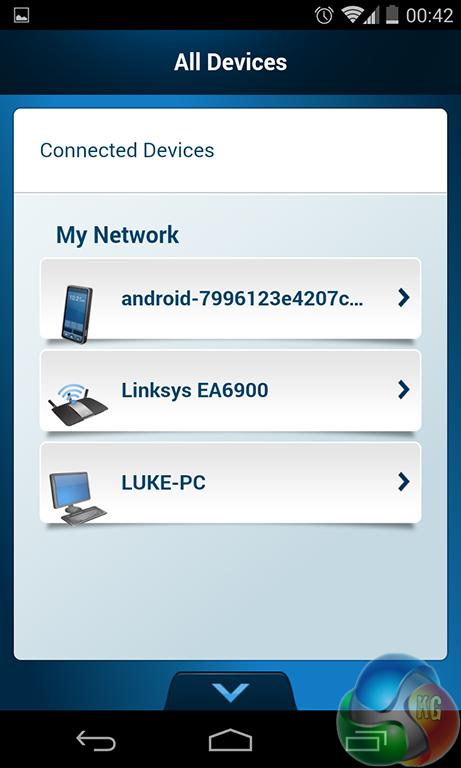
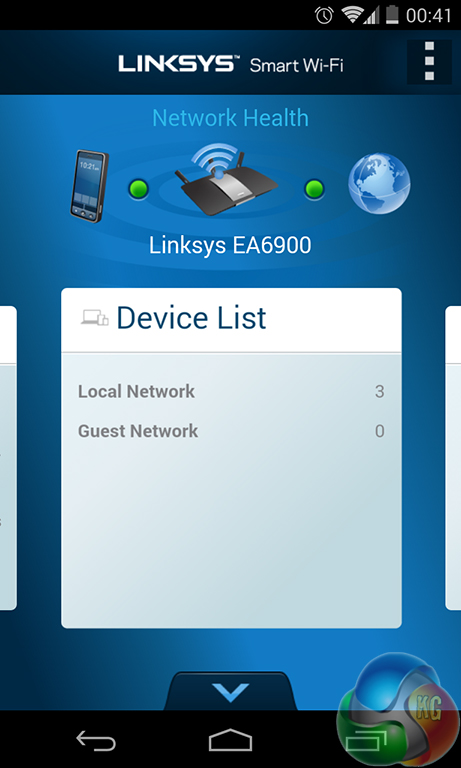
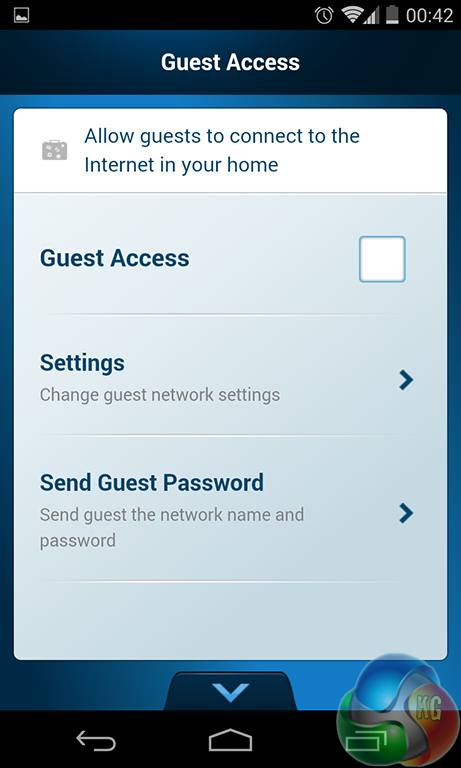
The app features the same general sections as the browser-based version used on desktop computers. This is a strong point for the application as it means that users have a large amount of control over their network, even when their desktop or laptop system is unavailable (when out of the home, for example).
Throughout testing, I found myself adjusting network settings via my Nexus 4 smartphone. Provided the device is connected to the Linksys EA6900 router's network, no sign-in is required. When not connected to the Linksys router, one must sign in to their Smart Wi-Fi account to gain control over the network settings.
Linksys Smart Wi-Fi application
Overall, I have been impressed by Linksys' Smart Wi-Fi software implementation for the EA6900 router. The browser- or mobile device-based application gives users a high level of control over their network. Adjustments can be made and information can be viewed when one isn't even in the same city as the home network.
The Android application manages to maintain an appropriate number of settings from the desktop-based version, and it does so while keeping the interface clean and user-friendly. The same user-friendly, good-looking interface is present on the browser-based version of Linksys' Smart Wi-Fi.
Testing methodology:
We used Totusoft's LAN Speed Test software to measure the real-world network throughput offered by the Linksys EA6900 AC1900 wireless router. Xirrus Wi-Fi Inspector was used for information regarding competing wireless connections and signal strength measurements.
LAN Speed Test provides real-world performance results as it creates the file, measures the time taken to transfer it, and calculates the effective network throughput. Each set of results is certified by measuring the Windows-reported transfer rates when sending a large media file across the network.
To eliminate potential bottlenecks, the ‘server' computer was connected to the EA6900 via Gigabit Ethernet. We tested the performance of the router's 5GHz 802.11ac signal and the venerable 2.4GHz 802.11n connection.
For short range testing, our laptop was positioned 10 feet (3 metres) from the router, in the same room. This represents a typical usage scenario where the EA6900 is required to provide a wireless signal for many devices located in a single room.
For medium range testing, our laptop was positioned around 20 feet (6 metres) from the router, on the building's floor below. The signal has to travel through three plasterboard walls (including two fireproof doors) and a solid brick floor in our converted church building. Due to the building's age and very solid wall material, having the power to project the signal by 20 feet is more demanding than the distance alone would suggest.
We also run a long-range connection test with the laptop positioned around 40 feet (12 metres) from the router (horizontally), on the building's floor below. The signal has to travel through two plasterboard walls and a solid brick floor in our converted church building. Due to the nature of the building, the 40 foot distance is a particularly demanding task for any router. We would anticipate the lower-frequency 2.4GHz signal to fare better (compared to its short range result) in the long-range test because attenuation will be less of an issue.
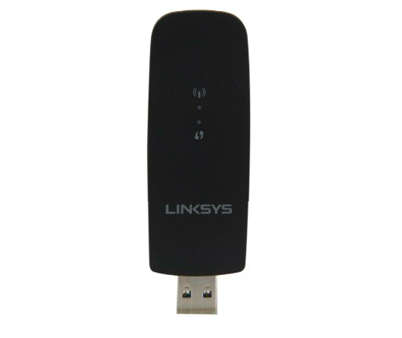
To accurately test the performance of the Linksys EA6900 router, we used the company's WUSB6300 802.11ac wireless adapter. The two-stream adapter operates on both frequency bands, making it capable of speed up to 867Mbps via 802.11ac wireless, and 300Mbps via WiFi-N. A USB 3.0 connection is used to ensure optimum transfer rates.
We also tested the Linksys EA6900 router's wireless performance with a Dell Precision M3800 workstation laptop. The M3800 uses an Intel Wireless-AC 7260 PCIe adapter which operates on the 2.4GHz and 5GHz frequency bands and supports 802.11 a/b/g/n/ac connections.
Wireless-ac adapters are still relatively new on the marketplace and the offerings from Intel and Linksys are no different; both are only able to operate a two-stream 802.11ac connection which results in a 867Mbps speed limit, rather than the three-stream 1300Mbps connection supported by the router.
Note: While we aim to keep interference from other wireless devices to a minimum, there are some parameters that we have no control over. In the mid- and long-range test environments, there are approximately five and ten competing wireless devices, respectively. The test environment also sees the EA6900 competing with one to five high-powered, dual-band Cisco routers, amongst others.
Test Procedures:
- Totusoft's LAN Speed Test software, 100MB file transfer between client and server computers.
- We measure the transfer speed when copying a large media file across the network to certify the Totusoft LAN Speed Test results.
- We run the test five times and take an average (therefore reducing the effect of slight variations in the measured speed of each result).
- When averaging the recorded transfer rates, we will determine and eliminate outlier results and run an extra test in place (therefore reducing the effect of random errors).
- 2.4GHz Wireless-N and 5GHz Wireless-ac connections are tested using each wireless adapter.
‘Server' Computer:
- Processor: Intel Core i7 4770K.
- Motherboard: ASRock Z87 OC Formula.
- Network Controller: Intel I217V Gigabit LAN chipset.
- Test Drive: 120GB SanDisk Extreme SSD (SF-2281).
- Operating System: Windows 7 Professional SP1 64-bit.
- Router Connection: 1Gbps Wired Ethernet.
‘Client' Dell Precision M3800 Laptop:
- Processor: Intel Core i7-4702HQ.
- Test Drive: SK hynix SH920 mSATA 256GB SSD.
- Wireless Adapter (native PCIe): Linksys WUSB6300 & Intel dual-band Wireless-AC 7260.
- Operating System: Windows 8.1 Pro 64-bit.
- Router Connection: 2.4GHz Wireless-N & 5GHz Wireless-ac.
Short range:
During short range Wireless-N testing, we observed between one and four competing wireless signals on the 2.4GHz frequency band.
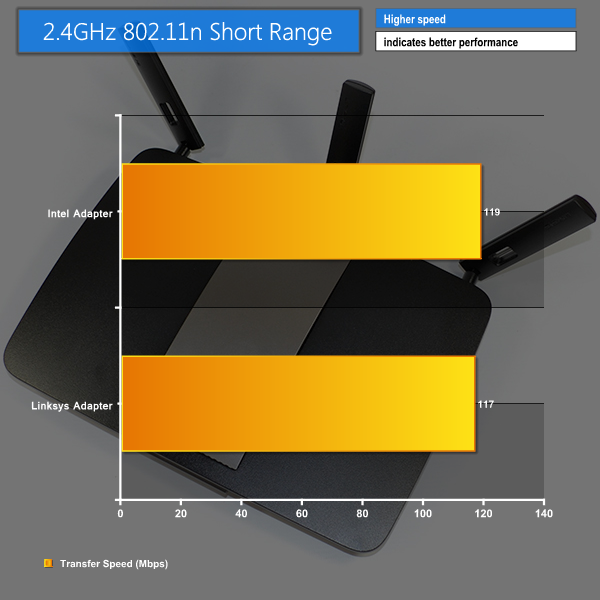
Short range wireless-n performance is nothing out-of-the-ordinary for Linksys' EA6900 router. A maximum transfer speed of just under 120Mbps is actually around 20Mbps slower than the levels achieved by a Tenda N60 wireless router, which was re-tested for comparison purposes.
For my test environment, 2.4GHz performance at short range is stronger than many users living in an urban area may experience. It is almost unheard of for users living in a street of houses to experience only one wireless signal competing for the 2.4GHz frequency band.
Medium range:
During mid range Wireless-N testing, we observed between one and three competing wireless signals on the 2.4GHz frequency band.
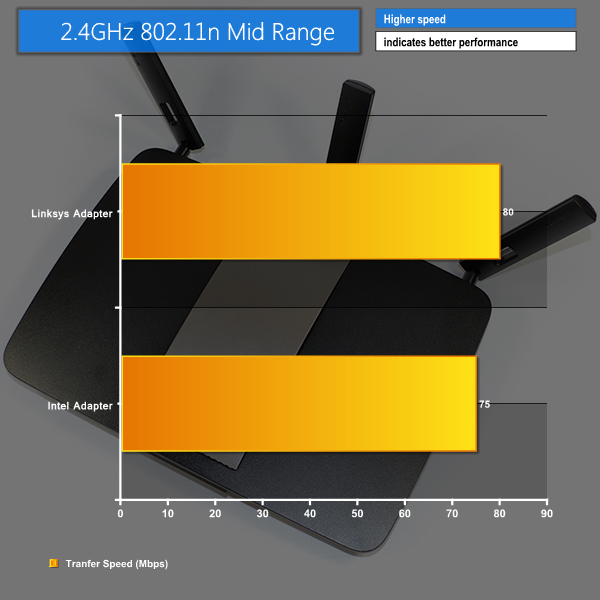
Moving through the 20-foot (6 metre) distance and a number of stationary obstacles, transfer speeds offered by the 2.4GHz 802.11n connections are pleasing. The Linksys WUSB6300 adapter is still able to reach 80Mbps, which is perfectly adequate for streaming HD videos and for making smaller file transfers.
While 80Mbps at a distance of 20 feet (6 metres) may seem like a low score for a three-stream router, as previously mentioned, the environment in which testing takes places is particularly challenging in regards to competing WiFi connections and signal-degrading building materials.
Long range:
During long range Wireless-N testing, we observed between four and five competing wireless signals on the 2.4GHz frequency band.
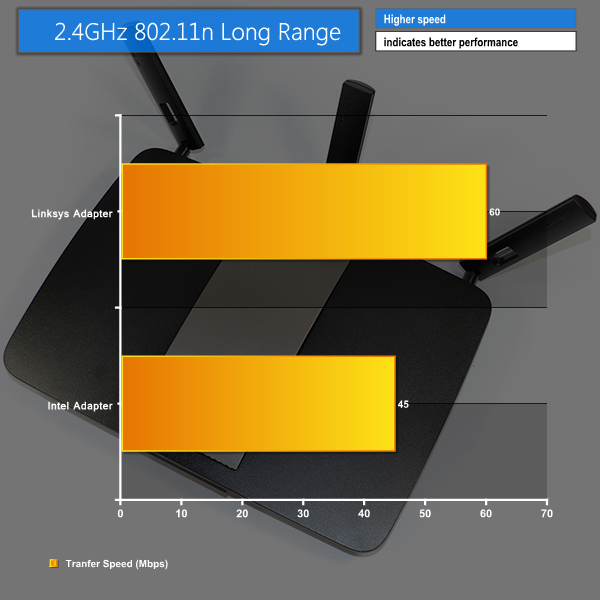
In our analysis environment, the long range testing procedure is highly demanding, there's no question about it. There can be up to sixteen competing wireless connections, interference from home and kitchen appliances, and signal degradation caused by building materials. So why include the results? Because they practically represent a worst-case-scenario environment that those living in a flat or multi-dwelling environment can empathise with.
The 2.4GHz wireless-n connections manage to maintain respectable transfer rates in the long-range test position. Helped by its longer wavelength (in comparison to the 5GHz band), the 2.4GHz signal is efficient in overcoming the degradation effects caused by building materials. Transfer rates of 45-60Mbps were adequate for streaming HD movies, 1080P videos from YouTube, and smaller files.
Despite a challenging test environment that is riddled with interference at longer ranges, wireless-N performance for the Linksys EA6900 is solid. It is likely that signal interference is causing the EA6900 to shy away from the 40MHz channel that would allow TurboQAM to provide a wireless connection of up to 600Mbps 802.11n.
Short range:
During short range Wireless-ac testing, we observed between two and eight competing wireless signals on the 5GHz frequency band.
My test environment (an old church building converted into multiple flats) is an unusual one – there are typically more access points utilising the 5GHz frequency band than there are using the 2.4GHz alternative. Any number from one to five high-powered Cisco access points are gobbling up channels on the 5GHz frequency band, amongst other routers.
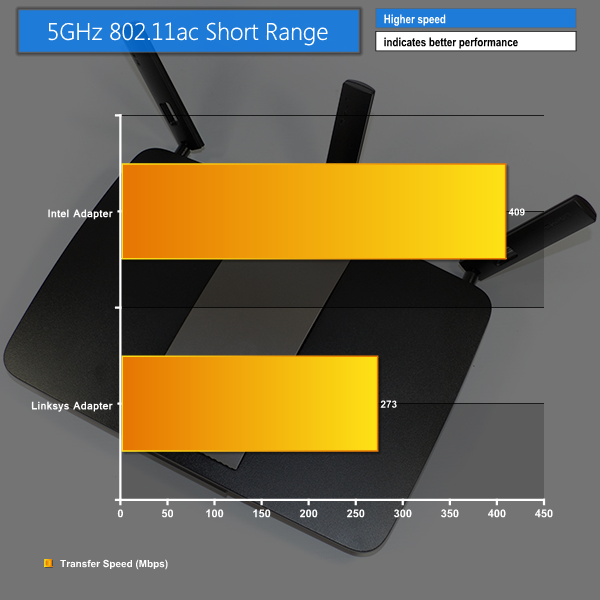
Situated within line-of-sight distance from the router, the EA6900's 5GHz wireless-ac connection is able to provide transfer rates of more than 400Mbps via the Intel PCIe adapter. This is an impressive speed in a relatively signal-heavy test environment.
Line-of-sight performance translates into real-world transfer speeds of just over 50MBps (as confirmed by Windows). This allows a 4.7GB, DVD-sized file to be transferred in little more than one-and-a-half minutes.
With no drop-outs and a reported signal strength of -37dBm (100% and 5 bars in Windows), the 802.11ac wireless connection is likely to be an adequate alternative to the 1Gbps wired connection that many users currently rely upon. A benefit of the wireless route is the omission of cables which are sometimes forced to trail across flooring and other extended spans.
The Linksys WUSB6300 adapter wasn't able to match the performance of Intel's PCIe model, although its 273Mbps transfer speed is an impressive result, nonetheless.
Medium range:
During mid range Wireless-ac testing, we observed between two and three competing wireless signals on the 5GHz frequency band.
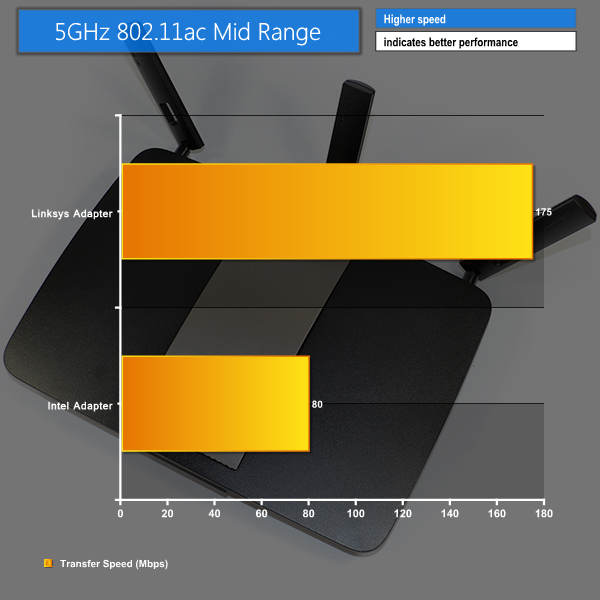
As soon as obstructions such as fireproof doors and partitioning walls are added into the equation, the transfer speeds of the 5GHz 802.11ac signal drops by a noticeable margin. The external Linksys adapter fairs far better with extended range and an increase in the number of obstructions.
The 175Mbps connection speed offered by the Linksys WUSB6300 adapter is sufficient for sending files across the network.
Long range:
During long range Wireless-ac testing, we observed between three and five competing wireless signals on the 5GHz frequency band.
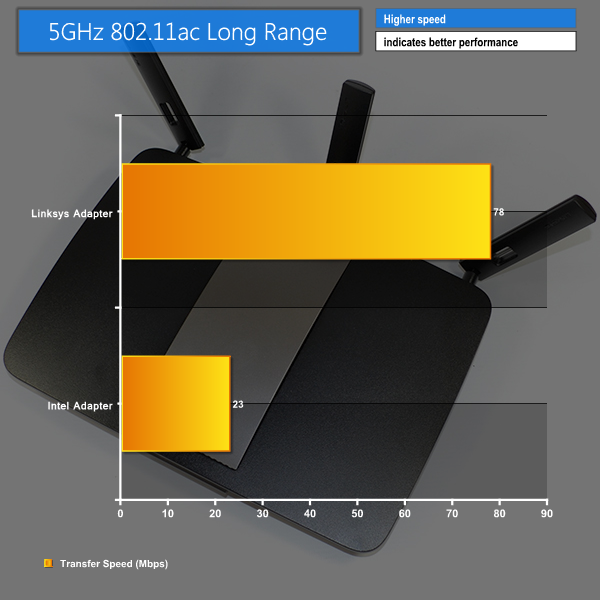
Positioned 40 foot (12 metres) away from the router, with the 5GHz signal being forced to travel through a number of power-degrading objects, the long-range location becomes a challenging environment for the Linksys EA6900 router's 5GHz 802.11ac wireless signal.
Despite the intense challenge, the Linksys EA6900 router is able to send a strong signal to the powerful WUSB6300 adapter. External mounting helps the performance of the Linksys adapter to firmly surpass that of Intel's internally-mounted variant used in Dell's laptop.
A transfer speed of up to 78Mbps at range shows that Linksys' EA6900 has the strength to boost a strong signal around a number of rooms in a household environment, provided the receiving adapter is able to keep up.
The Linksys EA6900 AC1900 wireless router is a powerful device which offers an excellent software implementation and impressive transfer speeds in line-of-sight and extended-range scenarios.
In short, line-of-sight tests the EA6900 is able to offer a 5GHz 802.11ac connection capable of more than 400Mbps in our signal-cluttered test environment. A stable, 400Mbps connection makes a fast wireless network a reality for users who want line-of-sight performance. Copying large files across the network delivered Windows transfer rates of over 50MBps without any noticeable drops in performance.
Short range 2.4GHz 802.11n performance isn't quite as impressive; our testing delivered a maximum speed of 119Mbps, which is average even when compared to budget 802.11n routers. It is likely that signal interference is causing the Linksys EA6900 to revert away from the wireless channel which uses TurboQAM for a 33% increase in 802.11n throughput.
Medium range performance for the EA6900 was strong for our test environment, dependent upon the receiving adapter used. In my test scenario, the Linksys WUSB6300 adapter still managed to perform well with increased range and a greater number of obstacles.
Despite difficulties inherent to the 5GHz band, the high frequency signal was able to penetrate thick obstructions and overcome competition from connections on the same frequency band. A stable connection speed of almost 80Mbps was delivered to the strong Linksys WUSB6300 adapter over a substantial range.
It is important to realise that not only is router performance important, but the operation of the receiving adapter is also critical to achieving stable connection speeds. Even a 5GHz 802.11ac signal is no guarantee of satisfactory wireless performance – that can depend on the characteristics of the receiving adapter that is used. The strong Linksys WUSB6300 external adapter was able to maintain solid performance levels even at longer ranges.
Where the Linksys EA6900 really shines is its software. The level of control offered by the Smart Wi-Fi application is excellent, both on a browser-based system and on the smartphone-developed app. And it's not only functionality that Linksys Smart Wi-Fi delivers – it is well laid-out and is very easy to use.
Available for £149.97 from Amazon, the Linksys EA6900 AC1900 is priced similarly to Asus' RT-AC66U and is £20-30 cheaper than the same company's flagship RT-AC68U. As far as pricing of three-stream 802.11ac routers goes, the Linksys EA6900 AC1900 is a competitive option.
Judging by the 400Mbps performance exhibited in the short-range 802.11ac tests and the ability to send a strong signal to our challenging long-range location, Linksys' EA6900 AC1900 has the potential to form the foundation for a stable, high-speed wireless network based around the new standard – 802.11ac. Just make sure that your receiving adapter can keep up with the router's transfer rates.
Discuss on our Facebook page, over HERE.
Pros:
- Strong 5GHz 802.11ac performance, especially at short range.
- Consistent and stable 2.4GHz wireless-n performance.
- Linksys Smart Wi-Fi is an excellent application.
- Good level of control over settings.
- Competitively priced for an AC1900 router.
Cons:
- 2.4GHz wireless-n speed no greater than that of a budget router.
- Needs a powerful receiving adapter to show strong 802.11ac performance over a long range.
KitGuru says: A solid, sensibly-priced router from Linksys that has the potential to excel when used with a powerful receiver, such as the WUSB6300 adapter.


One comment
Pingback: Linksys EA6900 AC1900 802.11ac Wireless Router Review | Dedicated IPs