 KitGuru KitGuru.net – Tech News | Hardware News | Hardware Reviews | IOS | Mobile | Gaming | Graphics Cards


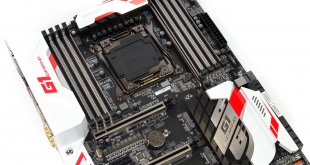
Gigabyte has taken the Broadwell-E launch as an opportunity to update its X99 motherboard line-up. Today we will be examining the X99-Ultra Gaming – a feature-rich motherboard with premium offerings which include multiple PCIe storage interfaces, Intel USB 3.1, and user-customisable RGB lighting.

Alongside the new LGA 2011-3 socket that features additional pins for improved overclocking potential, Gigabyte also qualifies the X99-Ultra Gaming for operation with 128GB of system memory and DDR4 frequency support of up to 3.6GHz. USB 3.1 Type-C connectivity derives from Intel’s well-received controller, while Killer’s E2400 NIC joins the usual Intel offering to give gamers a pair of options.
For storage buffs, Gigabyte offers a pair of PCIe 3.0 x4 links – one M.2 and one U.2 – for fast NVMe SSDs. There’s also slot spacing that’s beneficial to GPU cooling for users interesting in running multiple graphics cards in SLI or Crossfire. Aside from the core hardware offerings, Gigabyte has also outfitted the X99-Ultra Gaming with a revamped UEFI that addresses many user requests from the previous generation of motherboards.
Has Gigabyte’s mixture of features and new UEFI styling combined to form a tempting motherboard in the X99-Ultra Gaming?
Features:
- Intel® USB 3.1 with USB Type-C™ Support
- NVMe PCIe Gen3 x4 22110 M.2 Interface & U.2 Interface for Intel® SSD 750
- SATA Express Connector for Up to 10Gb/s Data Transfer
- Killer™ E2400 and Intel® GbE Gaming Networks
- 115dB SNR HD Audio with Built-in Rear Audio Amplifier
- Ambient Surround LED with RGB Multi-Color Choices
- Ultra Durable Metal Shielding over PCIe and DDR Slots
- Ultra Durable Anti-Sulfur Resistors for Longer Lifespan
- Ultra Durable Anti-Rust Rear I/O Connectors
- Dual Hybrid Fan Headers with Precise PWM / Voltage Control for Water Pump & Fan
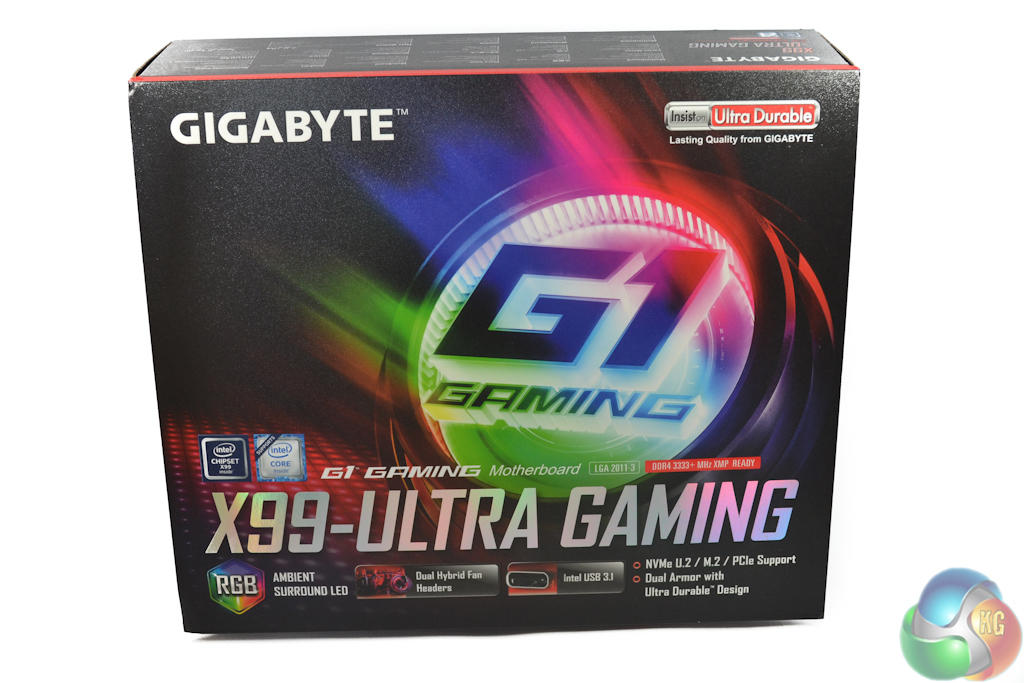
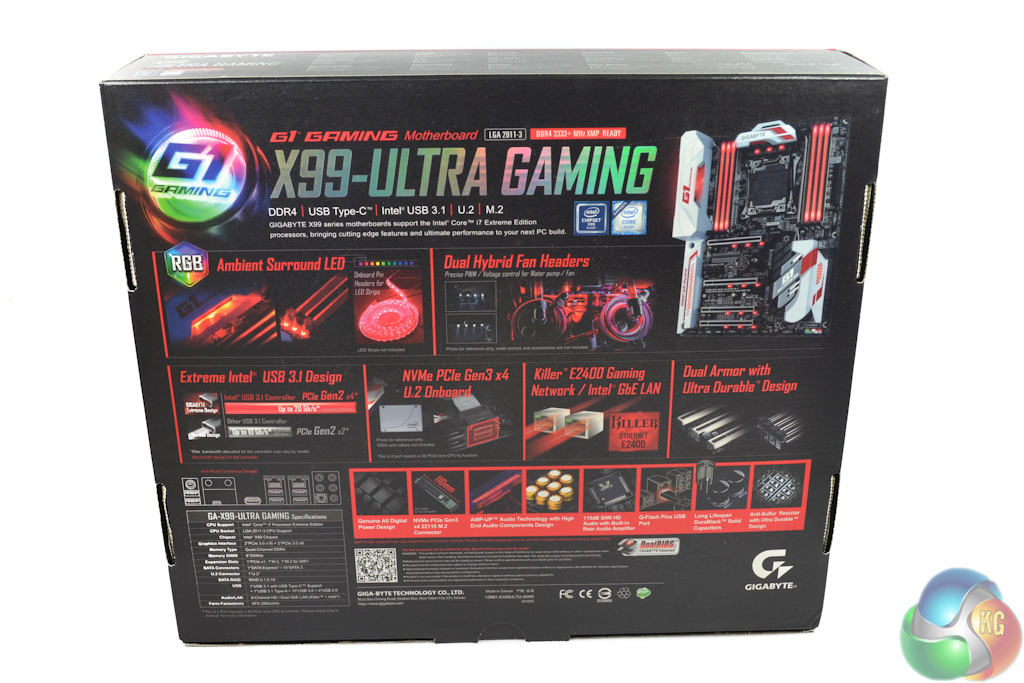
Gigabyte ships the X99-Ultra Gaming in a brightly-coloured box that features product information on the front and a more in-depth look at specifications on the rear.
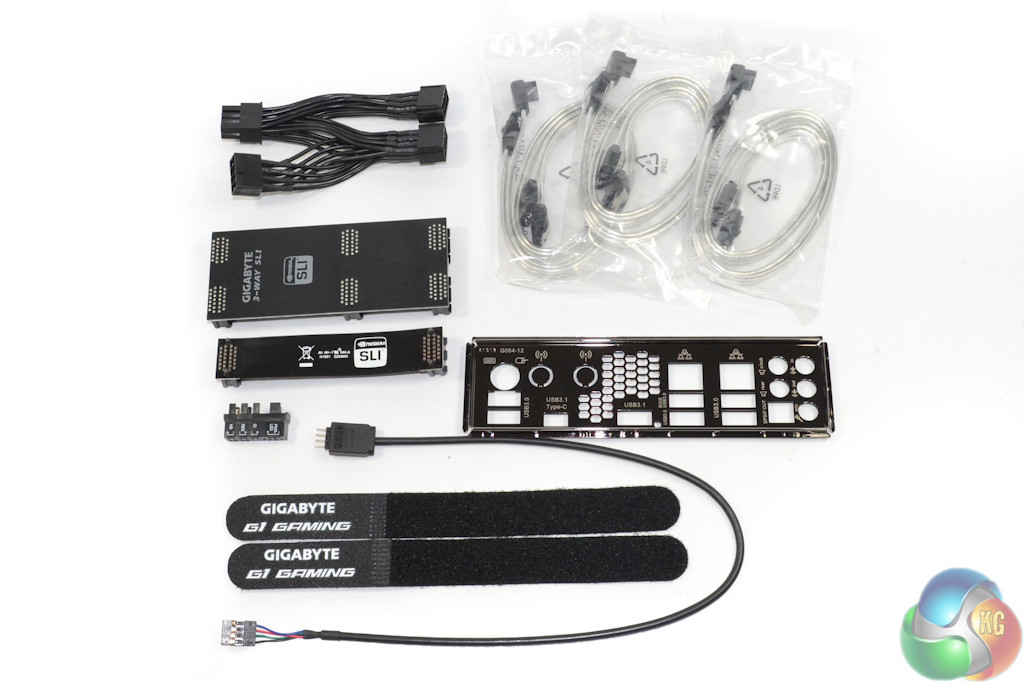
The healthy bundle consists of:
- 6x white/silver SATA cables.
- 2x Velcro cable ties.
- G connector (front panel cable assistance block).
- RGB LED strip extension cable.
- 3-to-1 8-pin CPU power connector cable.
- Rear IO shield (labelled).
- Flexible 2-way SLI ribbon.
- Rigid 3-way spaced SLI bridge.
A free USB 3.1 front panel bay can be added to that list if you buy the board before September 30th 2016 and apply over here. The bay uses a SATA-Express connector to drive one USB 3.1 Type-C and one USB 3.1 Type-A port, in addition to PSU power connectors to allow for 100W power delivery over Type-C.
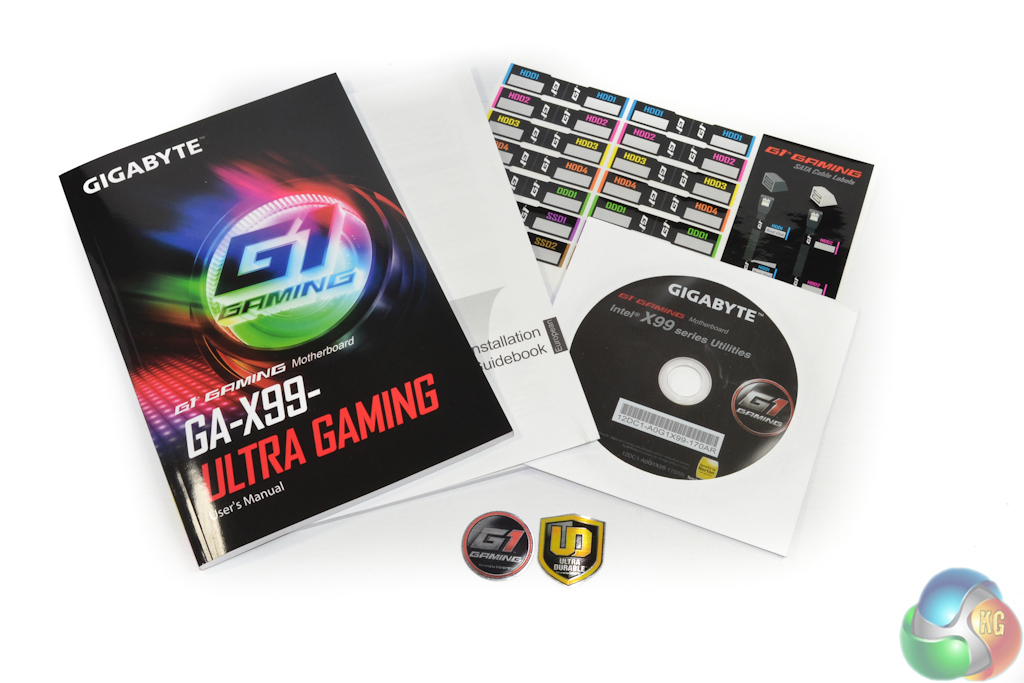
The usual affair of manuals and documentation is provided in addition to a pair of branded case badges and a set of convenient cable label stickers.
Gigabyte also includes a branded door hanger that can be used to avoid interruptions during important gaming sessions.
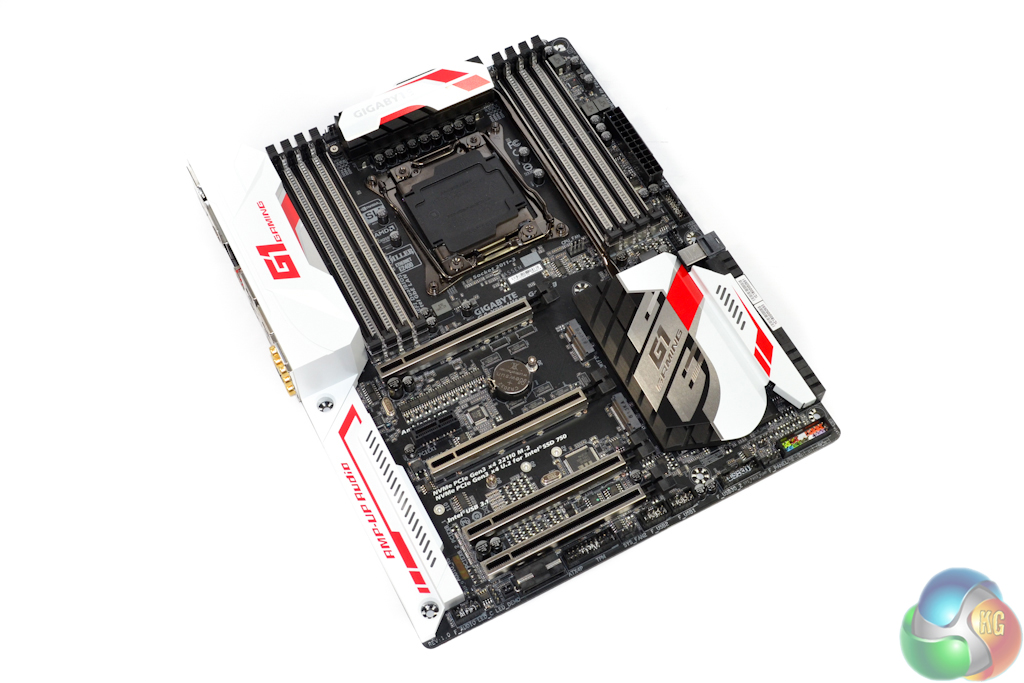
Gigabyte uses the standard ATX form factor for its X99-Ultra Gaming motherboard but still manages to squeeze eight DDR4 DIMM slots and sizeable heatsinks into the allocated space.
A quick overlook of the motherboard points to excellent utilisation of PCB area and smart layout decisions by Gigabyte's designers.
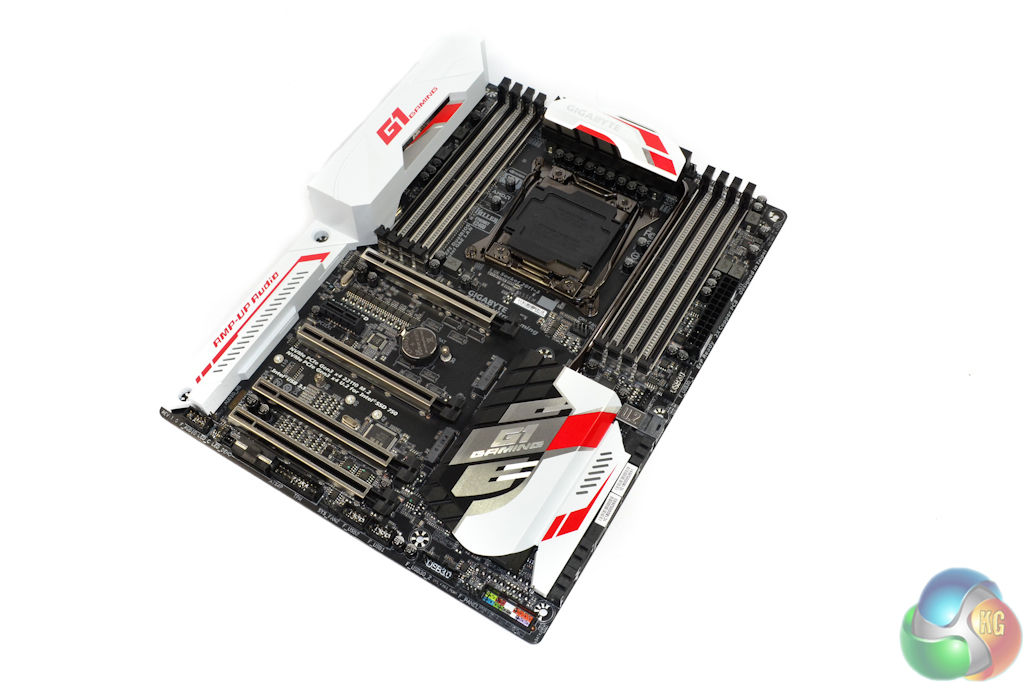
Red and white touches create an eye-catching contrast to the board's largely black underlying appearance. The silver, steel-reinforced PCIe slots and RGB LEDs between DIMM connectors add to the contrast away from the board's pure black PCB. Many enthusiasts who value an attractive build will welcome the rear IO ports cover, albeit a plastic one.
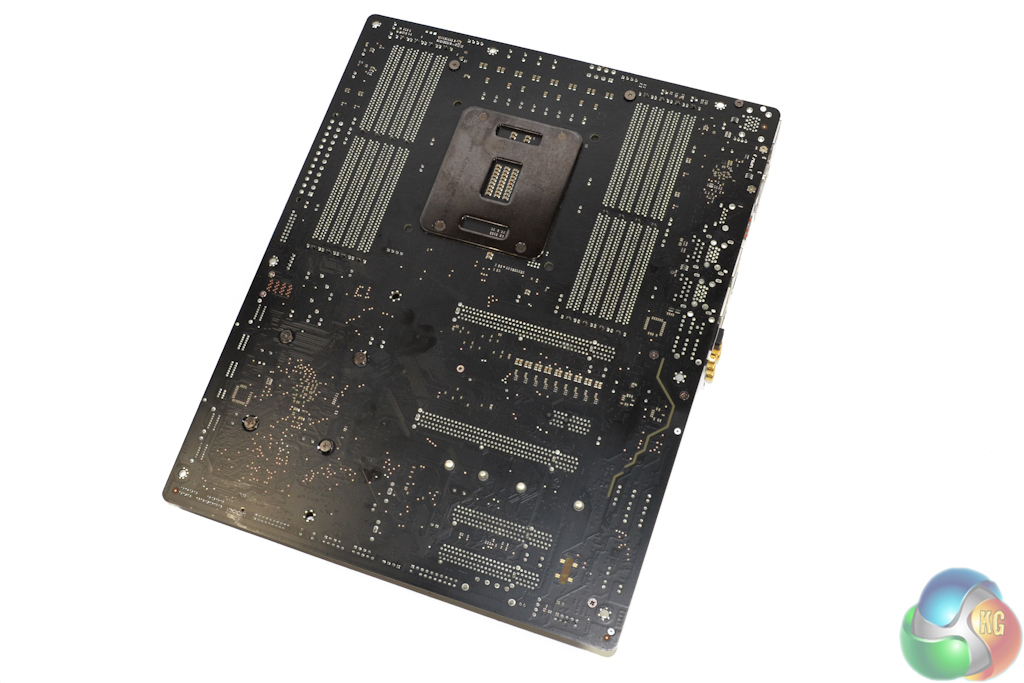
There's nothing of particular interest on the motherboard's rear side. A look around this way does, however, give an insight into Gigabyte's chosen PCIe lane allocations.
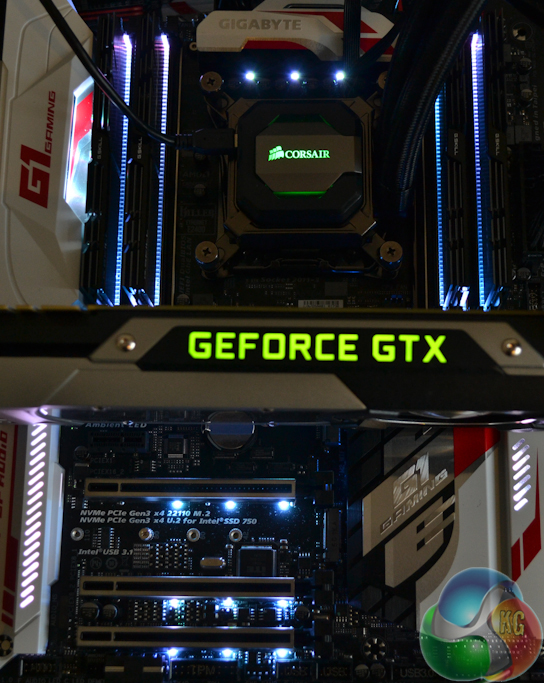
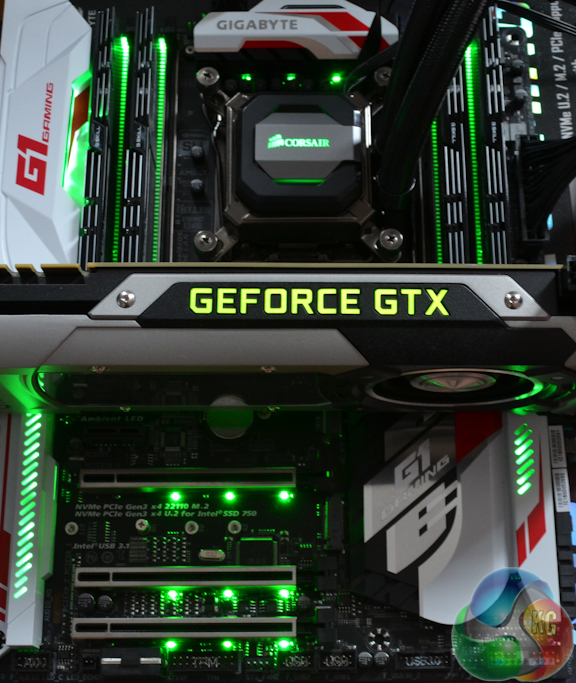
Keeping up with the trend of 2016 – to put RGB LEDs on gaming components – Gigabyte has positioned a good number of RGB LEDs in important locations on the motherboard.
Between the DIMM slots are strips of RGB LEDs that maintain their visibility even with RAM sticks installed. Additional LED strips are found peeping through the chipset heatsink, left-side rear IO and audio component plastic cover. Finishing off the RGB party are numerous 3-LED strips positioned below full-length PCIe slots and the VRM heatsink.
Gigabyte's distribution and positioning of LEDs is excellent, as is the quality of the diodes themselves – they're bright, follow the lighting mode selected, and are accurate against the colours that can be selected via the UEFI. Giving users an ability to select Off, Still, Beat, Pulse, and Auto modes is another clear positive. The only minor complaint that I have on the LED front is that the entire board is lit up the same colour, rather than having the ability to use separate colours in dedicated areas of the PCB.
And if LEDs only on your motherboard simply isn't enough RGB-ness, the X99-Ultra Gaming offers a 4-pin header that can be used to power and control external RGB LED strips. ‘Light it up'.

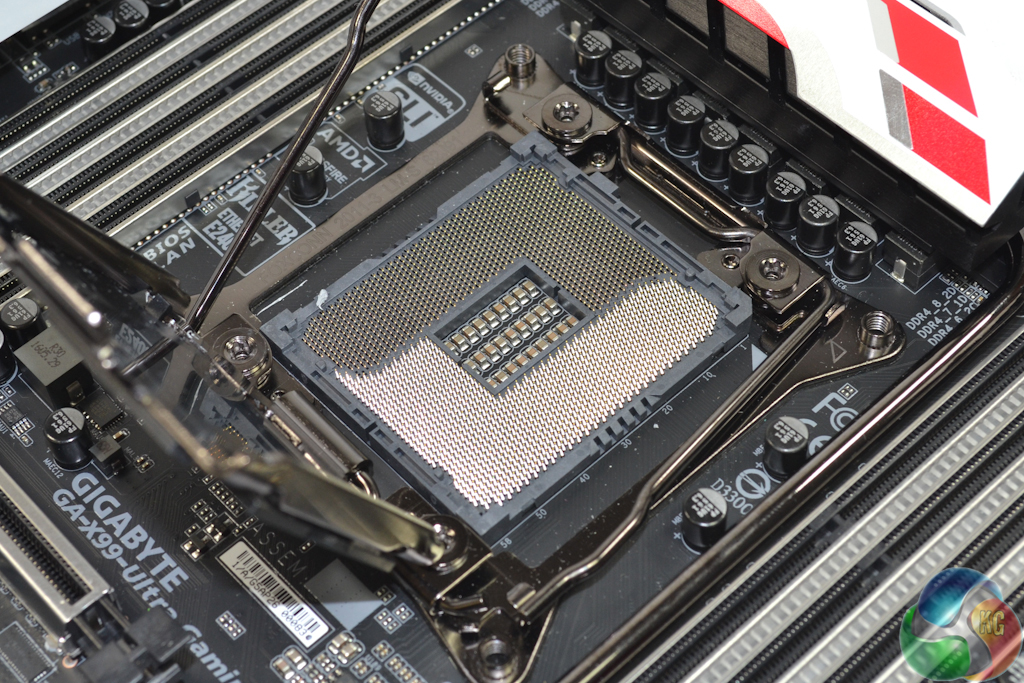
The sizeable LGA 2011-3 CPU socket is flanked by eight DDR4 DIMM banks which support up to 128GB of memory with frequencies as high as 3600MHz when using a consumer Core i7 processor. Use a Xeon as the brain of this motherboard and that opens up support for ECC memory – up to 256GB of it using 32GB DIMMs, which are supported on Gigabyte's QVL.
Each of the DIMM slots is designed with a single latch in order to avoid interference with a graphics card positioned in the top slot.
As has become the norm for X99 boards released after the platform's launch, Gigabyte equips the CPU socket with additional pins that are used to deliver different voltages and voltage levels in order to enhance CPU, Cache, and memory frequency capability.

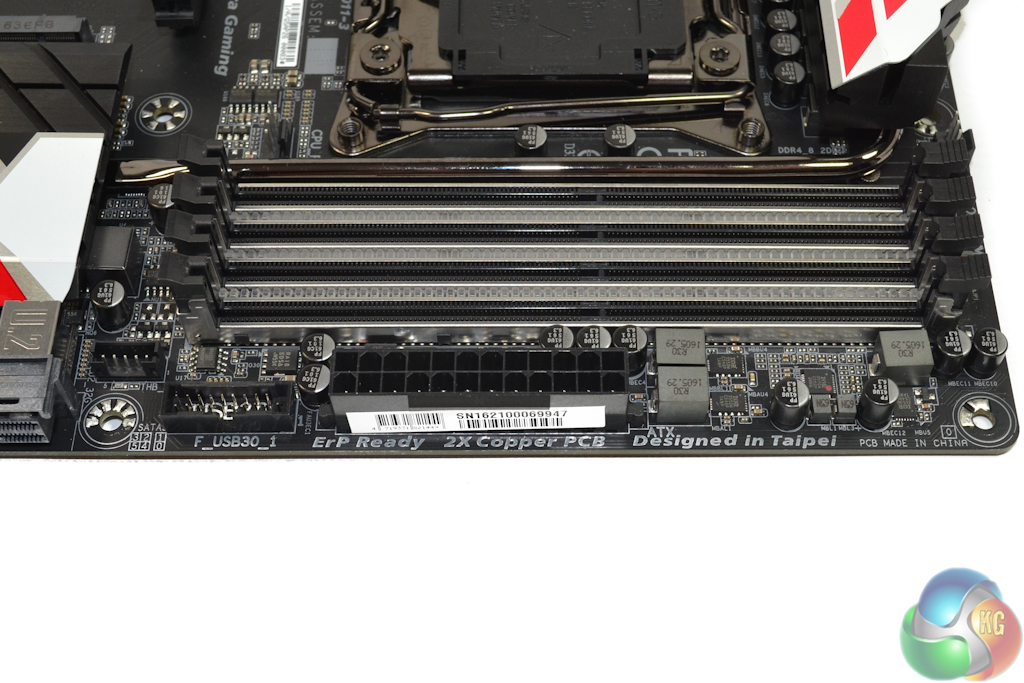
Other than one of the two USB 3.0 headers and Thunderbolt add-in card header, there's not much hardware of interest near the 24-pin connector. That's because Gigabyte has not included onboard power, reset, and clear CMOS buttons or even a 2-digit LED debug display.
This is disappointing for any form of gaming or enthusiast motherboard, not to mention one geared for overclocking on Intel's HEDT platform. Onboard buttons and a debug LED display are always useful in one way or another when overclocking, troubleshooting, or even simply configuring the system for its first use.
Nestled close to the VRM heatsink is the single 8-pin CPU power connector. A single 8-pin is realistically enough for this motherboard's target audience (which is not extreme overclockers), and if it somehow is not, Gigabyte's bundled 3-in-1 power adapter cable may help. Two 4-pin fan headers also reside on the board's upper edge, but oddly enough, neither of them is specifically allocated for CPU duties.
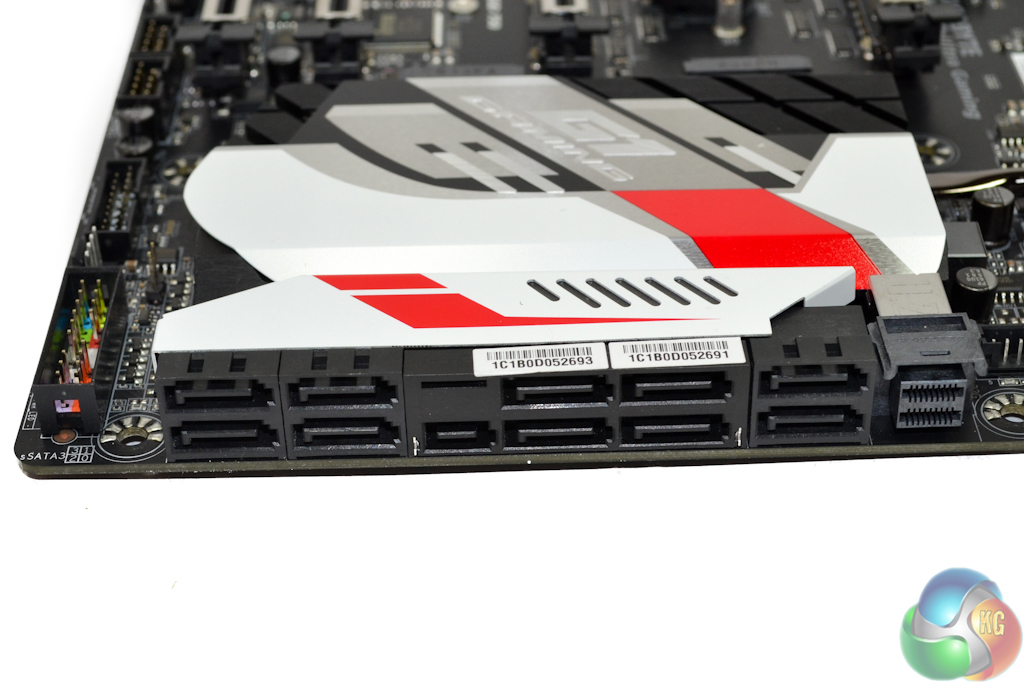
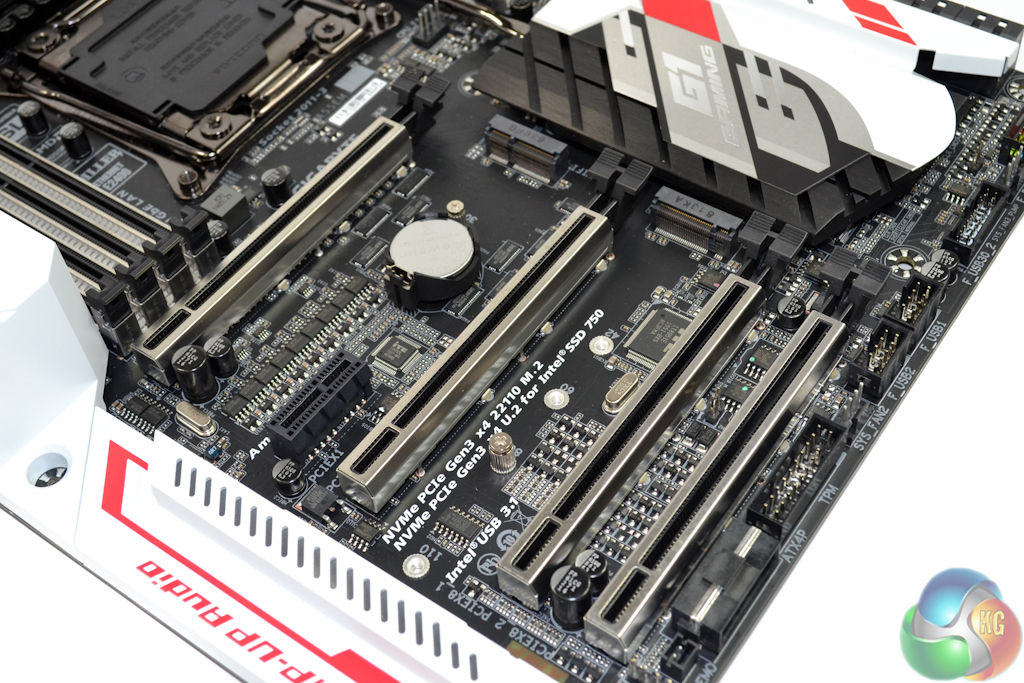
Ten SATA 6Gbps connections operate directly from the X99 chipset. Two of those connections can be combined with an additional PCIe-carrying port to form the board's sole 10Gbps SATA-Express connector (which is useful for front panel USB 3.1 connectivity).
To the right of the SATA bank is a U.2 connector that is fed by four PCIe 3.0 lanes from the CPU giving it a bandwidth of up to 32Gbps. Thanks to Gigabyte's smart PCIe lane allocation, the U.2 connector can be used alongside a similarly-fast PCIe 3.0 x4 M.2 SSD without stealing lanes from each other or the graphics cards. But that's only the case when a 40-lane CPU is used; install a 28-lane 5820K or 6800K and the U.2 slot is disabled completely, which is disappointing. Rearranging lane routings would have been preferable to outright disabling of the connector.
Two M.2 slots are available on the board – one in the Socket 1 form factor for a PCIe WiFi card, and the other in traditional Socket 3 fashion for a M.2 SSD. The M.2 SSD slot (the lowermost M.2 connector) is fed by up to four PCIe 3.0 lanes from the CPU, thus giving it a 32Gbps bandwidth potential. Drives up to 110mm in length are supported. M.2 SATA SSDs are not supported, but this can hardly be noted as an issue.
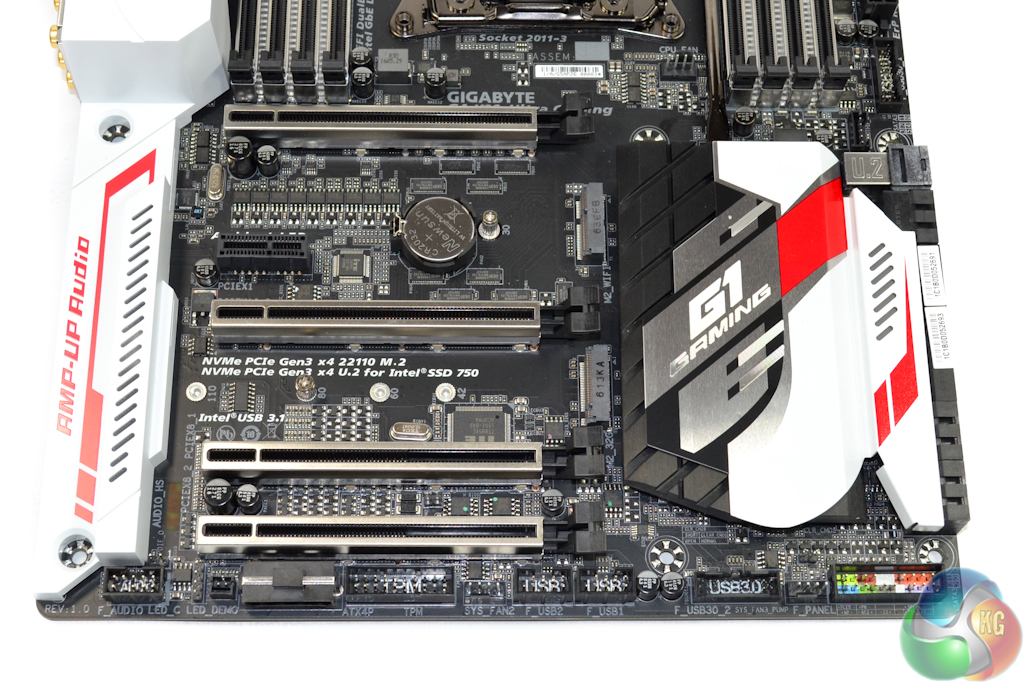
Gigabyte's expansion slot layout is good and clearly caters for users with a pair of larger-than-dual-slot graphics cards. 2-card and 3-card SLI and CrossFire are both supported. The true PCIe 3.0 x16 slots are in the first and second position, so this is where a pair of graphics cards should be installed. They are three slots apart, allowing for a cooling gap between 2- and 2.5-slot graphics cards.
The lower two full-length PCIe slots both operate at a maximum of eight lanes each. The third full-length slot steals eight lanes from the first full-length slot. And the fourth full-length slot steals eight lanes from the second full-length slot. So the PCIe lane configuration using a 40-lane CPU can be x16/x0/x0/x0, x16/x16/x0/x0, x8/x16x/x8/x0, x8/x8/x8/x8. For any configuration, the M.2 and U.2 connectors both run at PCIe 3.0 x4 each.
Switch down to a 28-lane CPU and the PCIe arrangement becomes a little more constricted. The lowest full-length PCIe slot is disabled completely (in addition to the U.2 connector). And the second full-length slot is limited to eight lanes, leaving sixteen lanes to be shared between the first and third full-length slots. So x16/x0/x0, x16/x8/x0, x8/x8/x8 is perfectly usable alongside a PCIe 3.0 x4 M.2 SSD.
There's a single PCIe 2.0 x1 expansion slot thrown in for good measure. Kudos to Gigabyte for putting this in a position where it will not be instantly blocked by a dual-slot graphics card and can actually be useful for an expansion device.
Aside from the disabled U.2 connector for 28-lane CPU operation (allowing it to switch with the M.2 or third PCIe slot would have been preferable), Gigabyte's PCIe lane allocation decisions are superb and accurately deliver what a gaming enthusiast is likely to require most.
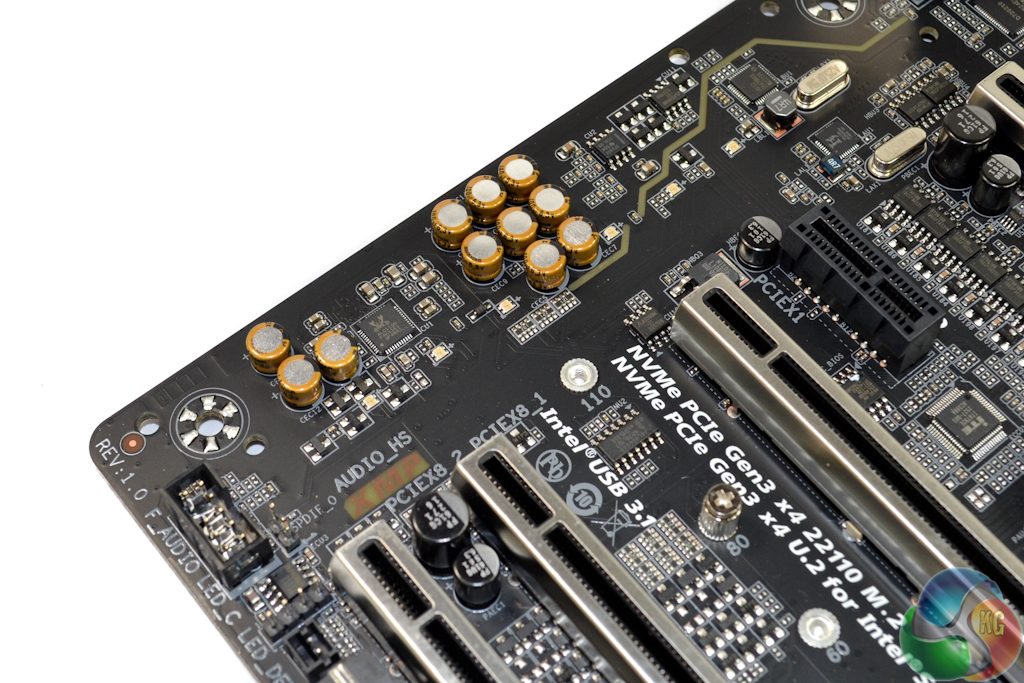
Gigabyte's Amp-Up audio system is built around the Realtek ALC1150 codec. Segregated signal pathways feed signals through sets of Nichicon audio capacitors and a Texas Instruments OP1652 op-amp, before hitting gold-plated 3.5mm jacks.
The Realtek codec itself is unshielded, but the entire set of audio hardware sits beneath a plastic cover on Gigabyte's motherboard.
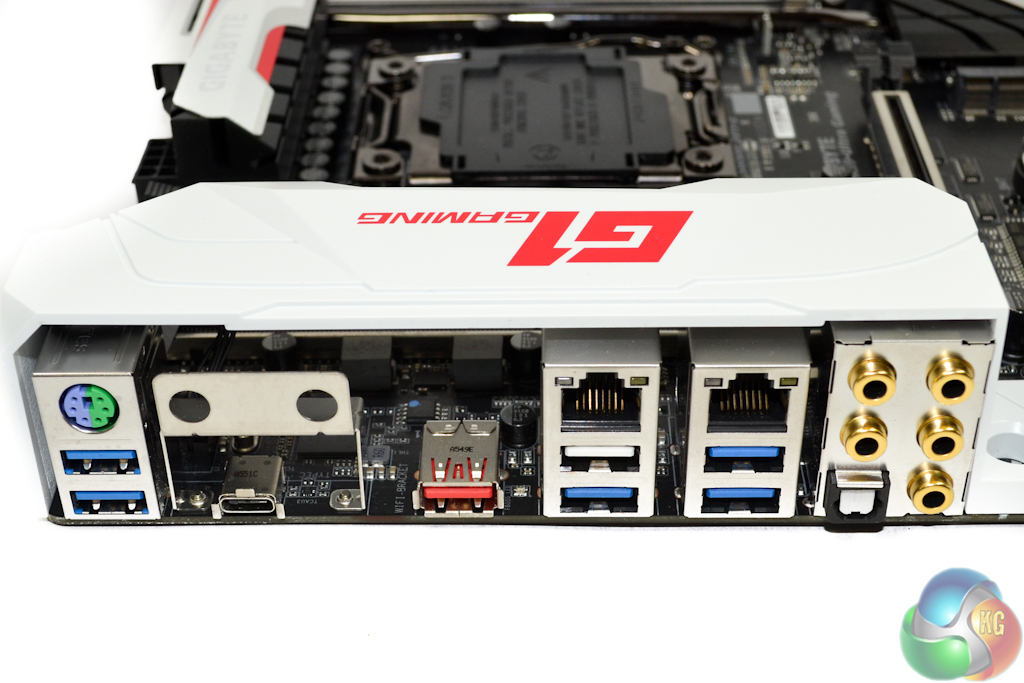
A PS/2 combo and five standard 5Gbps USB 3.0 ports provide peripheral connectivity. The white-coloured USB 3.0 port works as normal and is the specific one to use for Gigabyte's Q-Flash Plus feature. Two Renesas D720210 USB 3.0 hub controllers are used in order to boost the board-wide USB 3.0 total to ten (six on the rear IO, and four from two internal headers).
Intel's high-performance DSL6540 controller (formerly Alpine Ridge) is used for USB 3.1 duties. The controller can provide double the bandwidth of the ASMedia ASM1142 alternative used on many competing motherboards. If you want to use both ports simultaneously, that's important. USB 3.1 is delivered on the X99-Ultra Gaming in Type-C and Type-A form (the red port).
Dual Gigabit Ethernet ports are provided – one from an Intel I218V chipset and the other using a Killer E2400 NIC. I like this decision as it allows gamers to pick their preference between Intel and Killer, but it also provides redundancy and the ability to combine Ethernet ports for a faster LAN connection.
Finishing off the rear IO are gold-plated audio jacks, an optical audio output, and mounting points for a pair of WiFi antennas (to accompany the internal M.2 WiFi connector). A notable omission on the rear IO is a clear CMOS button. Anybody who has overclocked a system with the motherboard inside a case will know just how convenient the button is.
The rear IO ports are neatly covered by a white plastic shroud bearing Gigabyte's G1 Gaming branding.
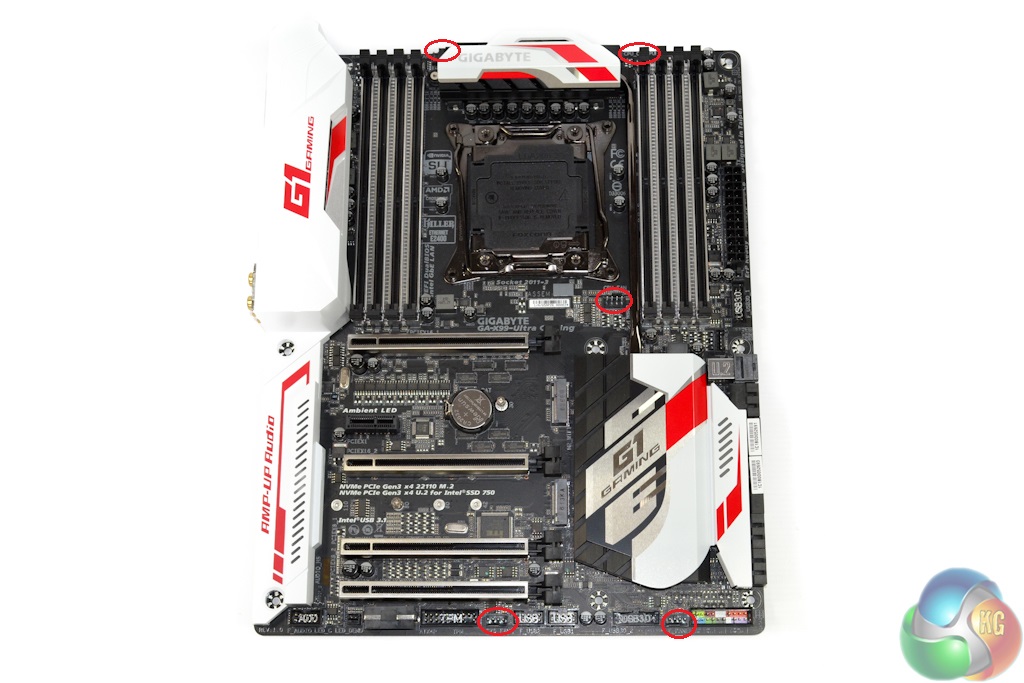
Fan header distribution on the X99-Ultra Gaming is generally good. Three 4-pin headers are within reach of the CPU socket. The actual CPU fan header is the one found below the socket, while the other two above the VRM heatsink are given CPU water pump and system fan control duties.
A further two 4-pin system fan headers are found along the board's bottom edge, one of which can also be used to control a water cooling pump. Gigabyte is keen to highlight the importance of its water cooling pump fan headers, as they ensure that the voltage required for the relevant pump speed is being delivered correctly, rather than PWM control feeding a lower voltage level resulting in reduced pump speed.
As already highlighted, onboard power and clear CMOS buttons are sorely missed. However, Gigabyte's inclusion of dual BIOS chips may act as a redundancy-favouring trade-off.
A group of ITE chipsets (2x IT8792E, IT8620E, and IT8951E) are used for fan control, system monitoring, IO, and Q-Flash duties.
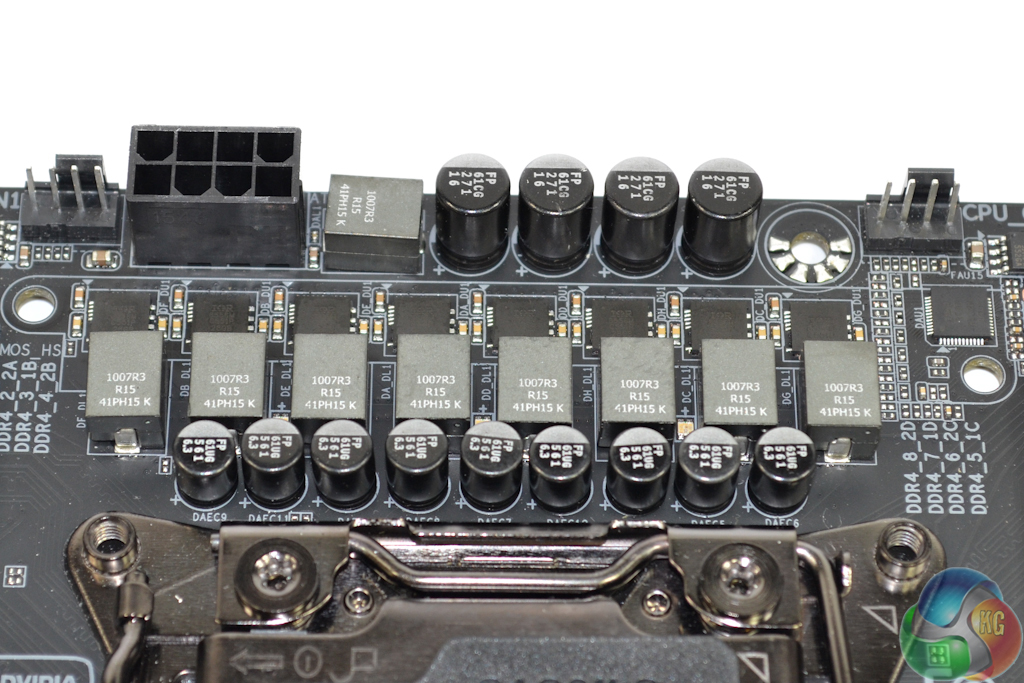
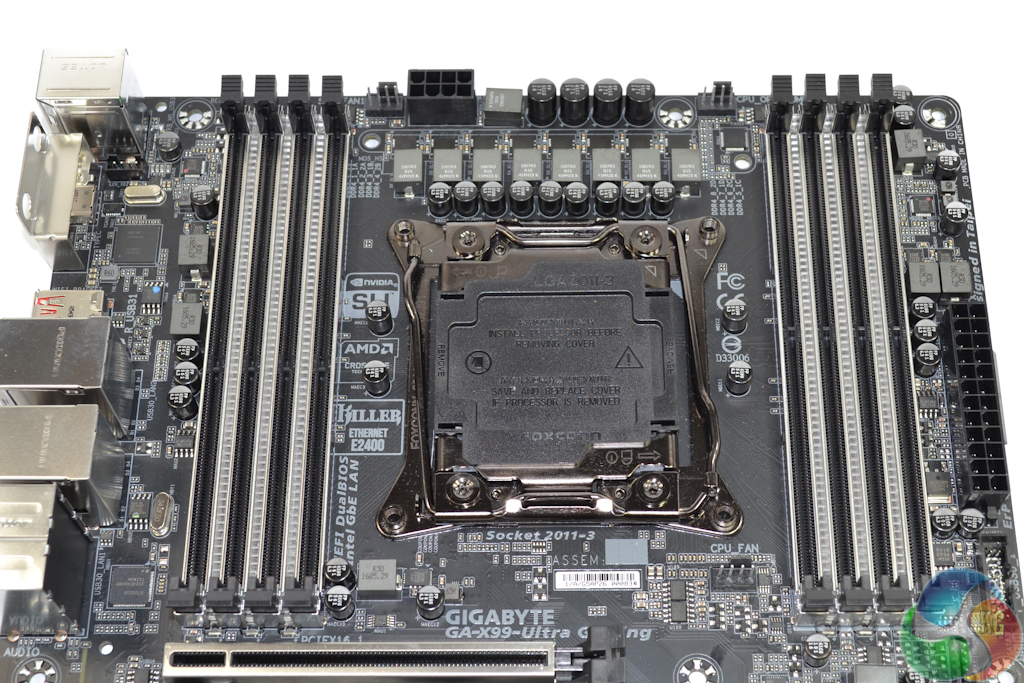
A straight 8-phase power delivery system is used to feed the LGA 2011-3 CPU. This system is managed by an International Rectifiers IR3580 digital PWM controller. Eight of International Rectifiers' 50A-rated IR3556 PowIRstage integrated MOSFET solutions switch power, alongside chokes marked ‘1007R3 R15'.
The memory subsystem is managed by a single IR3570A PWM controller, in addition to two 40A-rated IR3553M MOSFET solutions and two ‘R30' chokes per DIMM bank. A small number of additional IR3553M MOSFET solutions and ‘R30' chokes are allocated for power delivery to other system components.
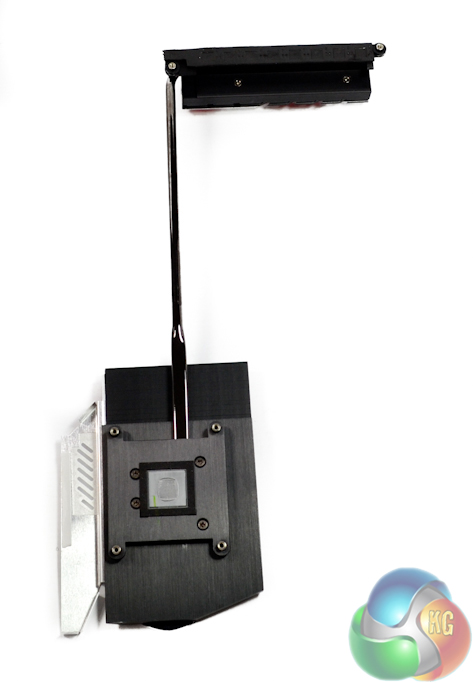
Gigabyte deserves credit for designing and manufacturing a very good heatsink for the X99-Ultra Gaming. The single unit combines two sturdy metal blocks by way of a flattened heatpipe. This helps to balance thermal load over a greater area, which is particularly useful for shifting heat away from a heavily-loaded set of MOSFET packages.
Importantly, the heatsink does its job without being large enough to cause interference or flimsiness when touched.
Gigabyte X99 UEFI
Firstly, we are pleased to report that our generic wireless mouse worked correctly in the Gigabyte X99 UEFI. Some mice can be troubling with UEFI support, so when a generic wireless unit functions correctly in the interface, that is usually a good sign for overall mouse support.
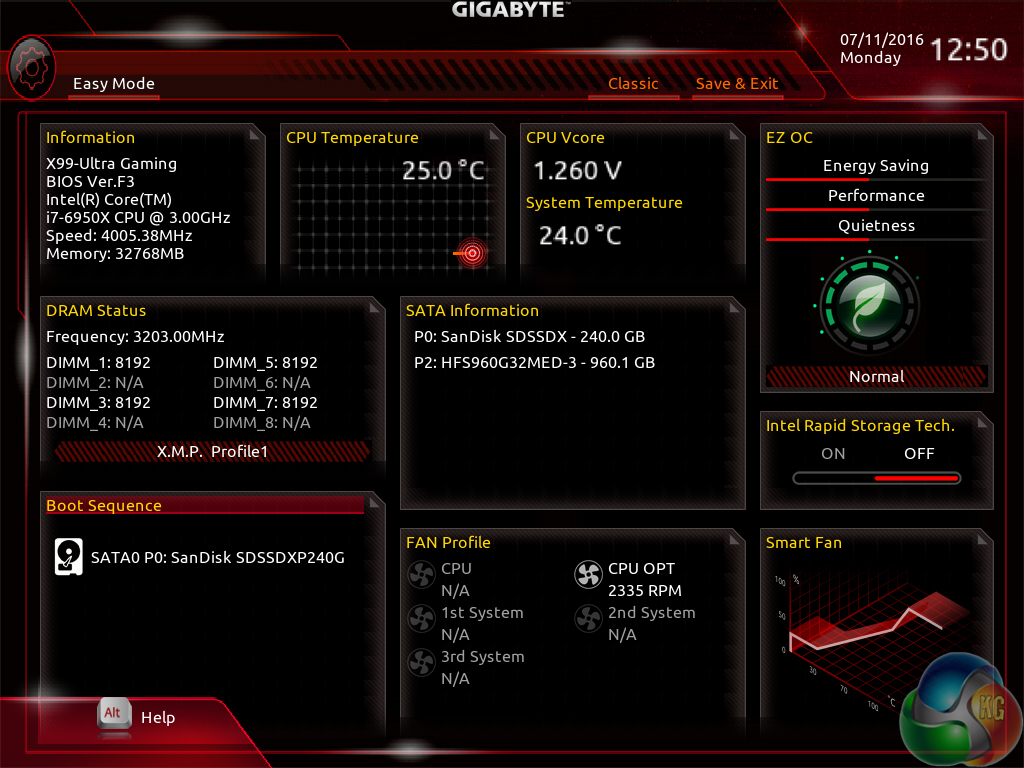
Upon launching Gigabyte's UEFI featuring its new makeover, Easy Mode is entered. From here, key points relating to the system can be observed and managed, such as fan speeds, frequencies, and voltages.
This Easy Mode is ideal for less experienced users who simply want to view how their system is operating, without diving into the more technical section. However, more experienced users will be glad to know that Gigabyte's Classic section contains more in-depth control over an increased range of settings and can be accessed by pressing F2.
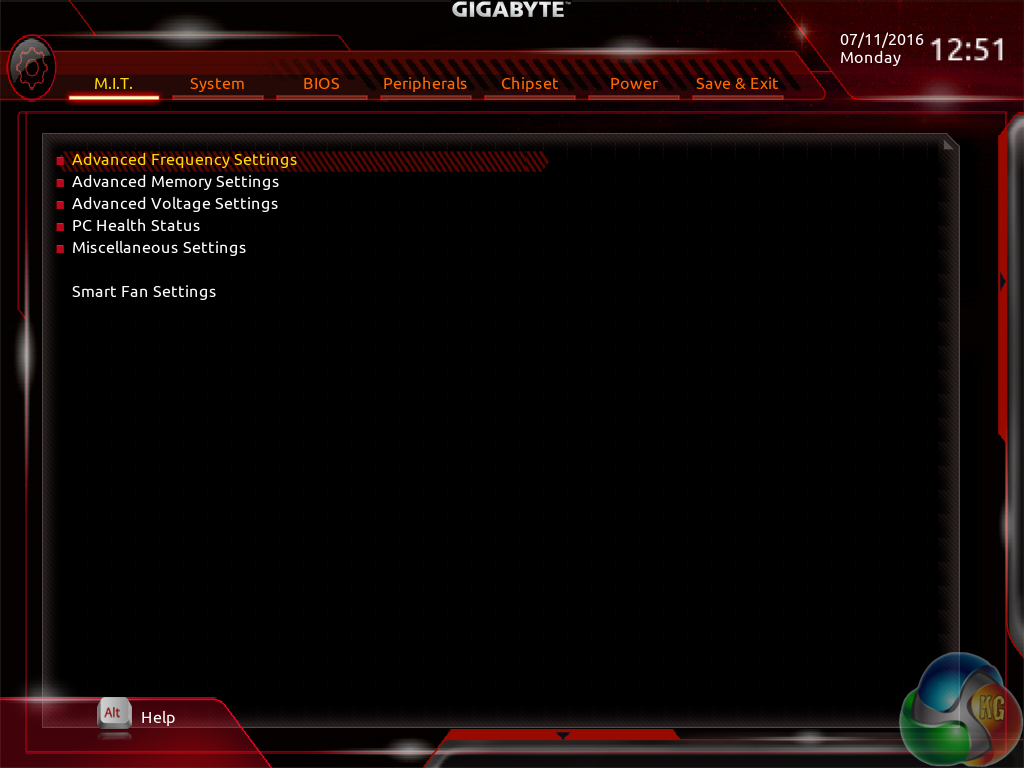
The M.I.T section is used to access settings relating to overclocking, frequencies, and voltages. Gigabyte splits the subsections in order to make navigation easier.
Access to fan control is also provided through the M.I.T section.
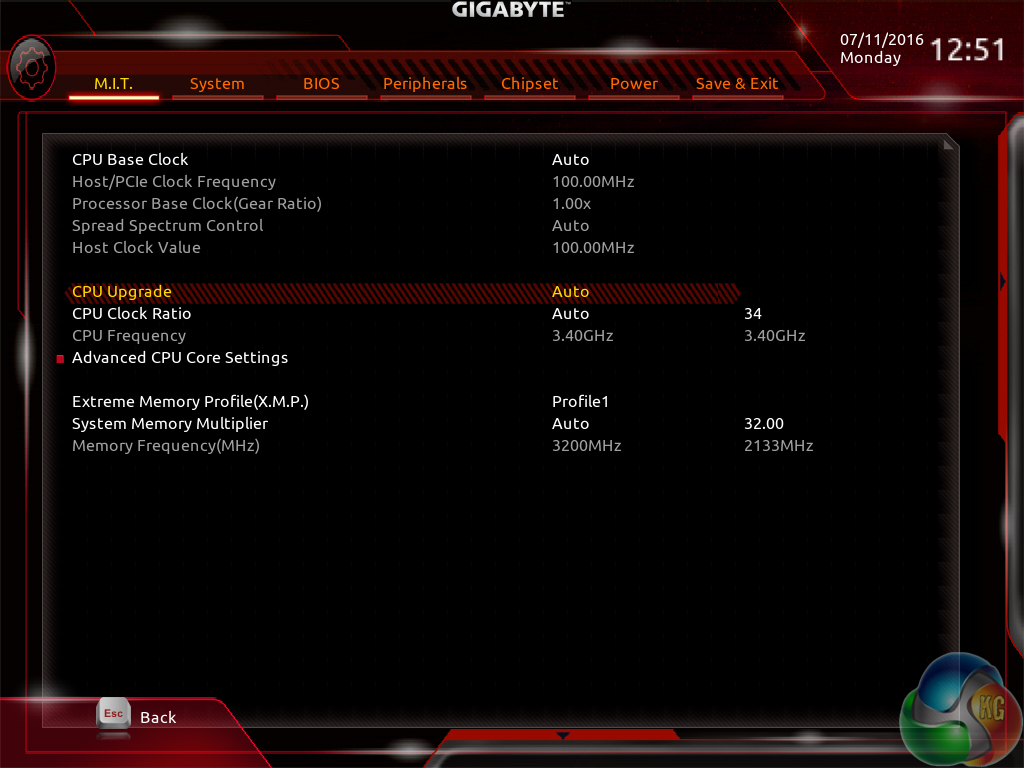
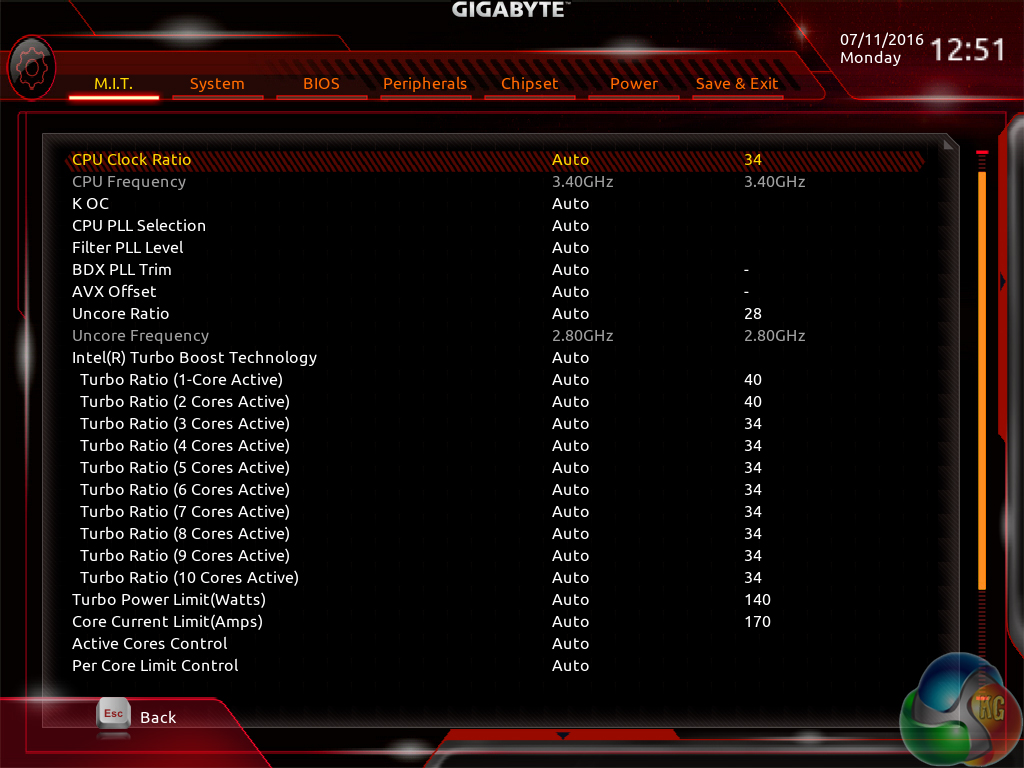
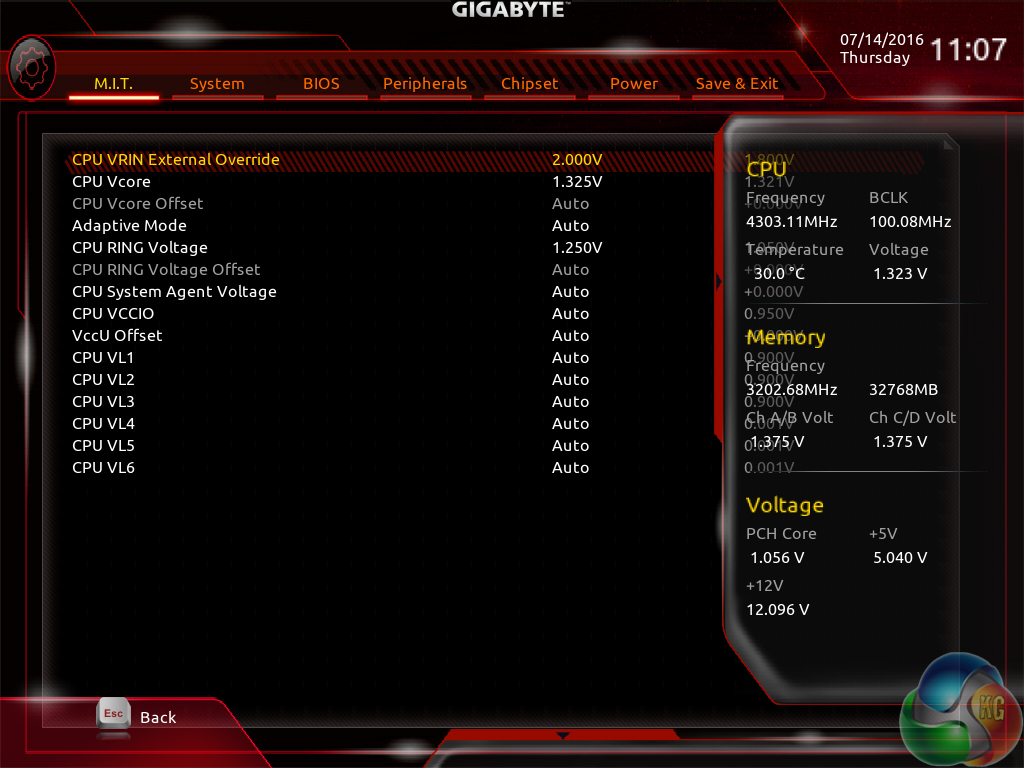
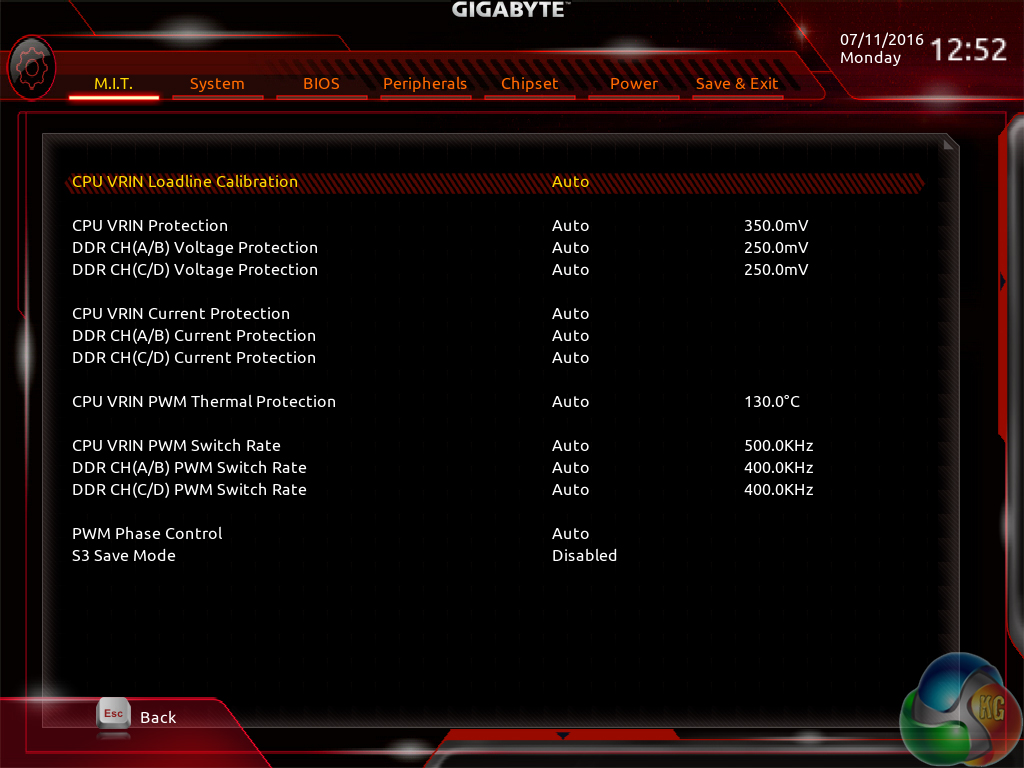
Easy access is given to the primary CPU and memory controls. Gigabyte includes a number of overclocking presets, but as of BIOS version F4, they are only useable for Haswell-E CPUs.
Going through to the Advanced section of the CPU settings page allows parameters such as turbo ratios, the CPU cache (ring) multiplier, and overclocking controls to be managed. I like the number of overclocking-geared parameters that are included, but I would like to see Gigabyte provide a brief description as to whether users should adjust a parameter or leave it alone when overclocking.
Gigabyte gives a good degree of voltage adjustment for overclockers. The primary voltages can be adjusted, and an adaptive mode can be used, but I would like to see a colour scale used to indicate when a selected voltage level is safe, risky, or high. The information overlay on the screen's right side can be useful when fine-tuning an overclock.
Plenty of load-line calibration (LLC) options are provided, which is a positive for overclockers. Gigabyte would be wise to display these options in list form, rather than forcing a user to blindly cycle through them using the +/- keyboard keys.
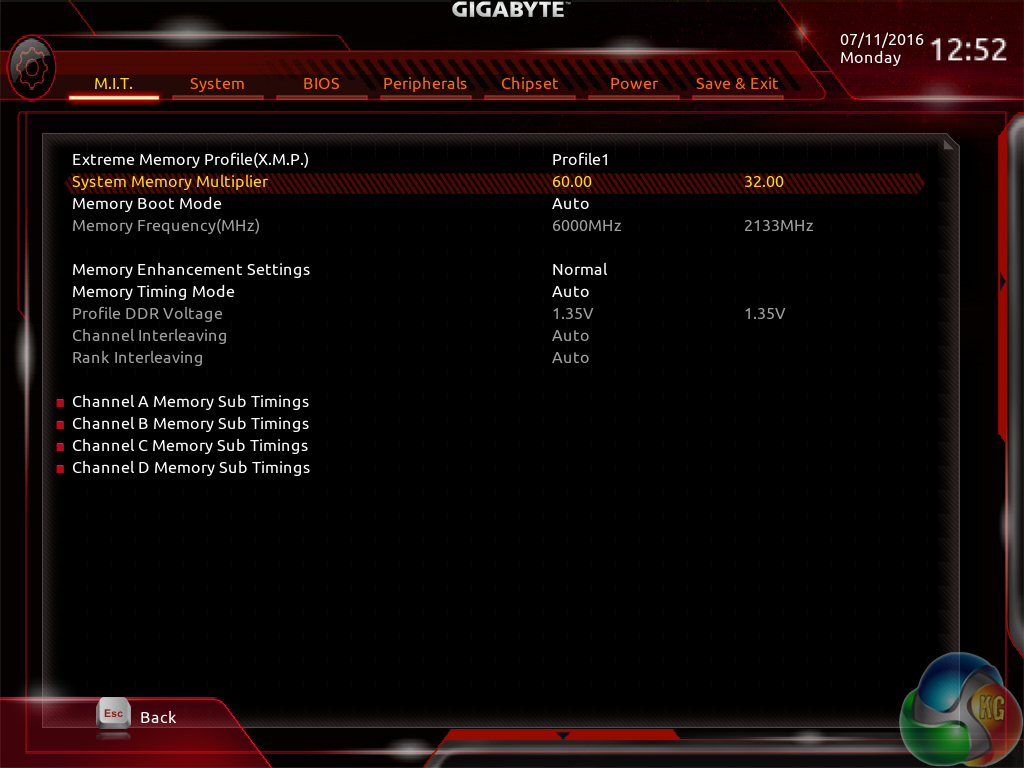
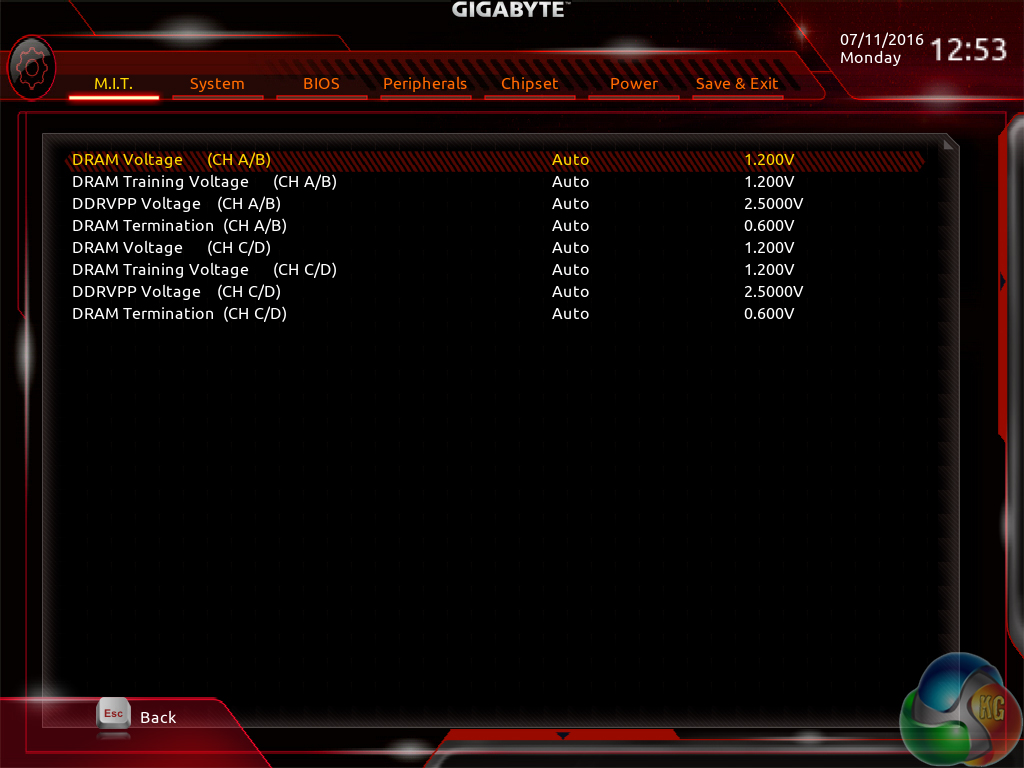
A memory multiplier up to 60 is supported through the UEFI. While this is not going to be used with current hardware, high multipliers may prove beneficial when trying to tweak faster DDR4 modules which may arrive in the future. The ability to view and adjust memory timings is present.
Control over a number of memory-related parameters is provided.
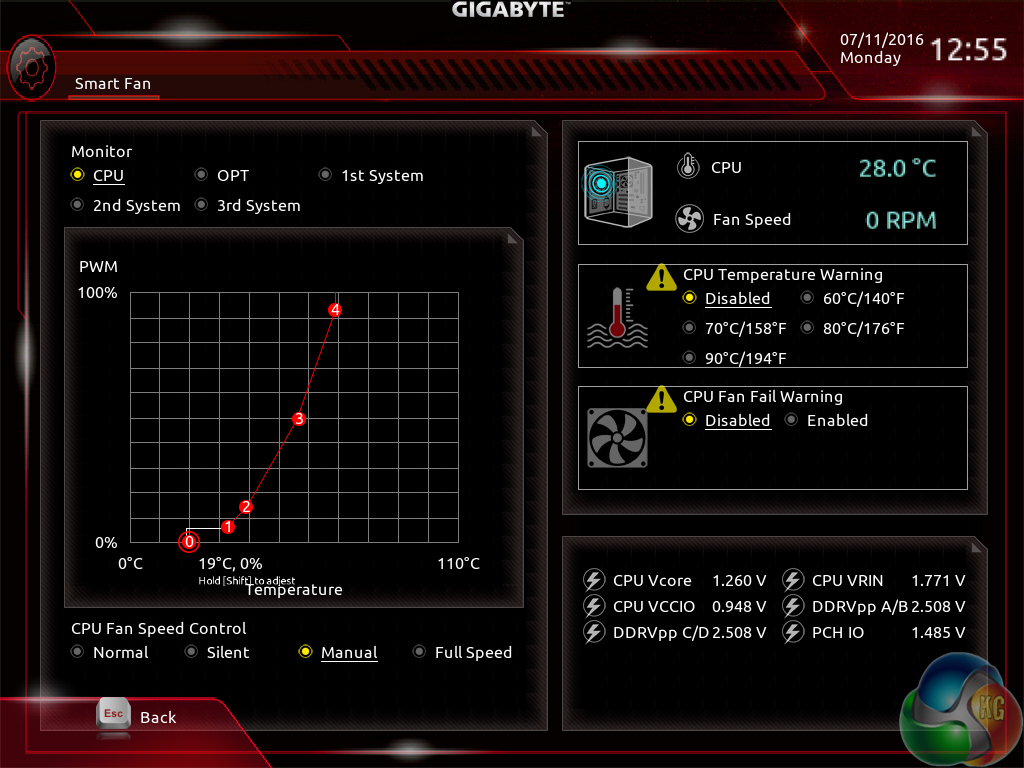
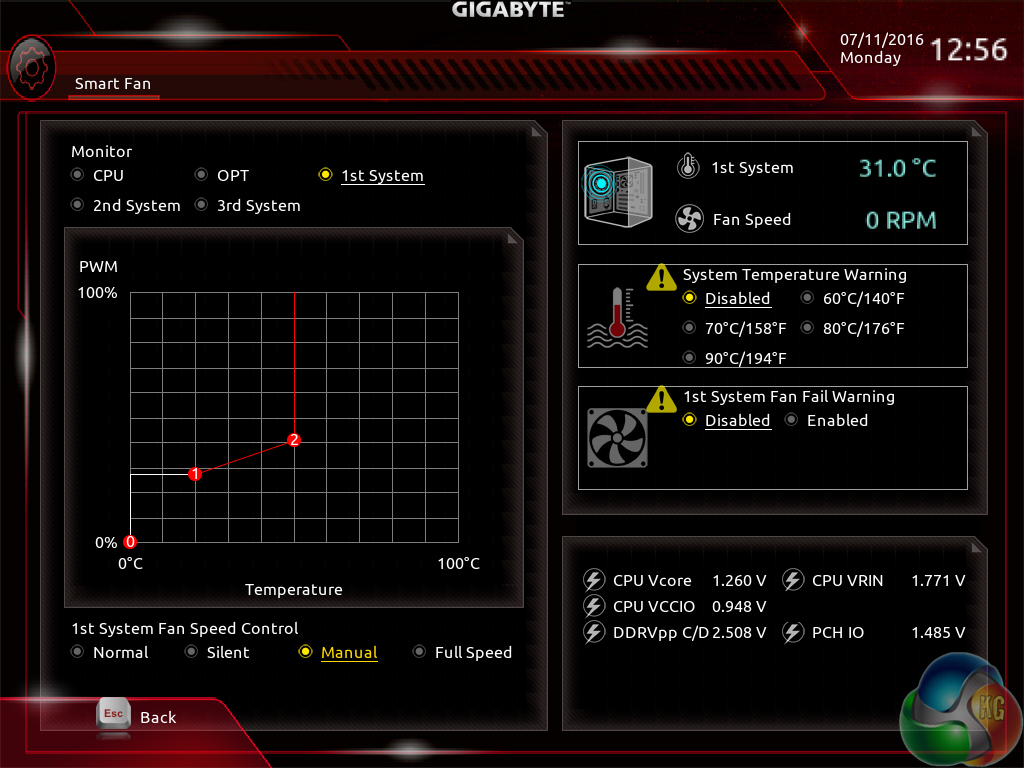
Fan control is an area where Gigabyte's new UEFI really shows drastic improvements. The new Smart Fan section in the UEFI gives precise 5-point curve control to a CPU fan and 3-point management for a system fan. Control is excellent as the user is able to set a 0% fan speed even at elevated CPU temperatures. Provided that the fan itself is able to spin down to 0RPM, this is an ideal way of reducing noise for simple tasks such as web browsing, whilst also maintaining cooling capability for when a more demanding load is applied.
Oh, and if you prefer not to manually set fan speed curves, Gigabyte includes three pre-set modes – Normal, Silent, and Full Speed.
It's worth noting that having this level of fan speed control in the UEFI is better than having it in the Windows OS. If, for example, your computer crashes or you reinstall Windows, the fan speed profiles will still be the same thanks to them being saved in the motherboard's UEFI settings.
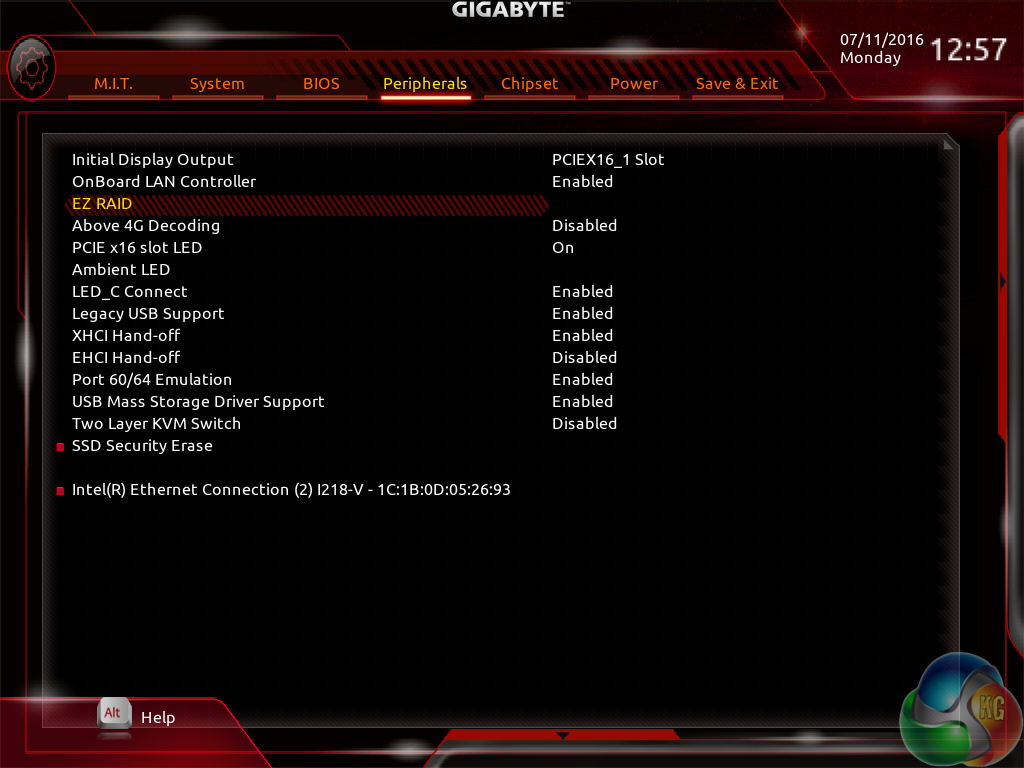
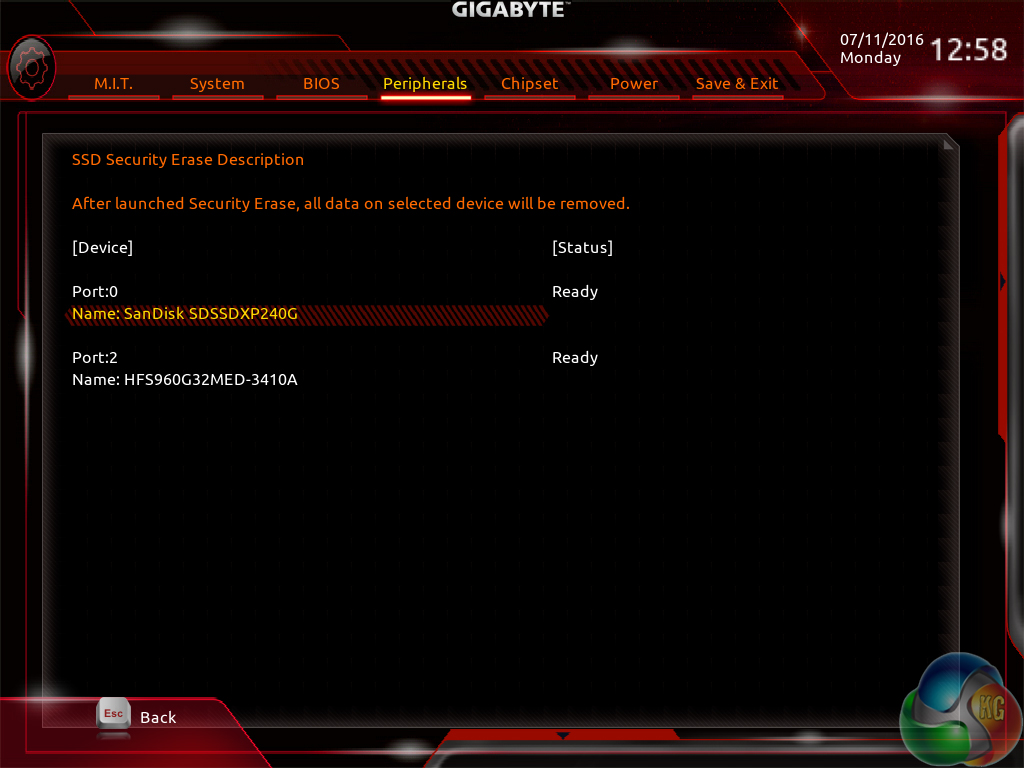
Access to many of the board's features is given through the Peripherals page.
SSD Security Erase is a convenient tool that can be used to wipe a drive. This could be desirable to somebody who is getting rid of their SSD or even if you simply want to ensure that your current SSD is fully clean before a fresh Windows install.
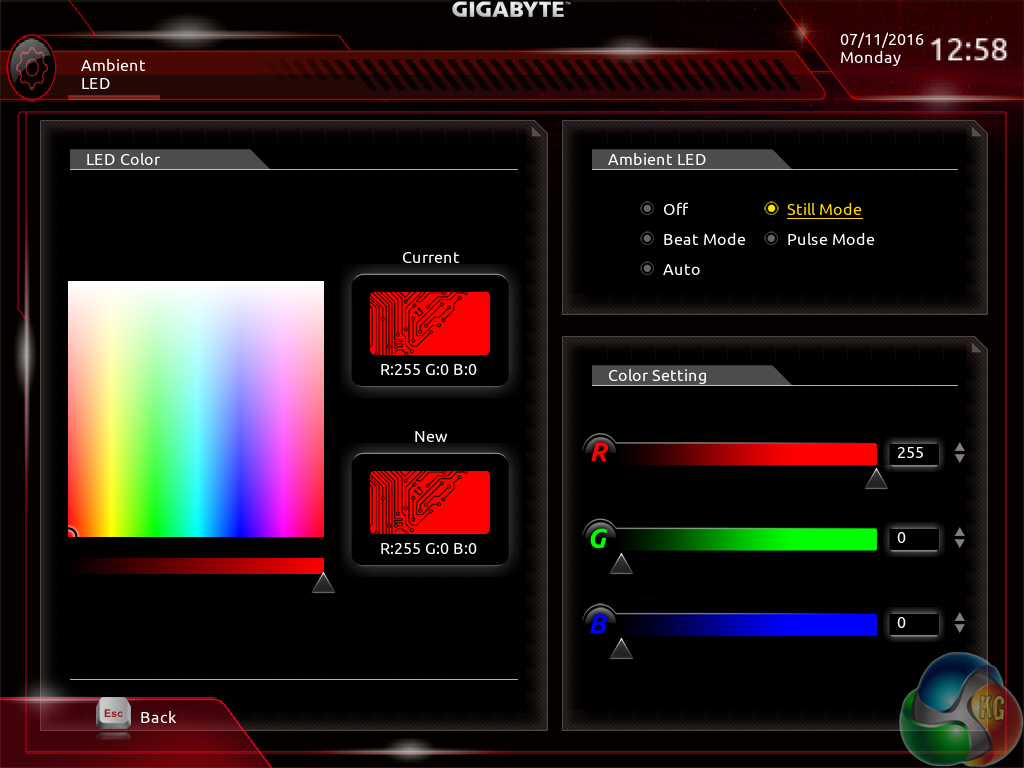
The Ambient LED tool gives users a very good level of control over the motherboard's lighting operation. As is the case with fan control, having this feature inside the UEFI helps to avoid losing your settings in the event of an OS malfunction or reinstall.
Gigabyte provides users with a number of LED operating modes and a superb degree of colour flexibility (full RGB). Equally important is the ‘Off' mode as some users simply do not care about RGB lighting. The only improvement that I would like to see is the ability to light different sections of the motherboard in different colours.
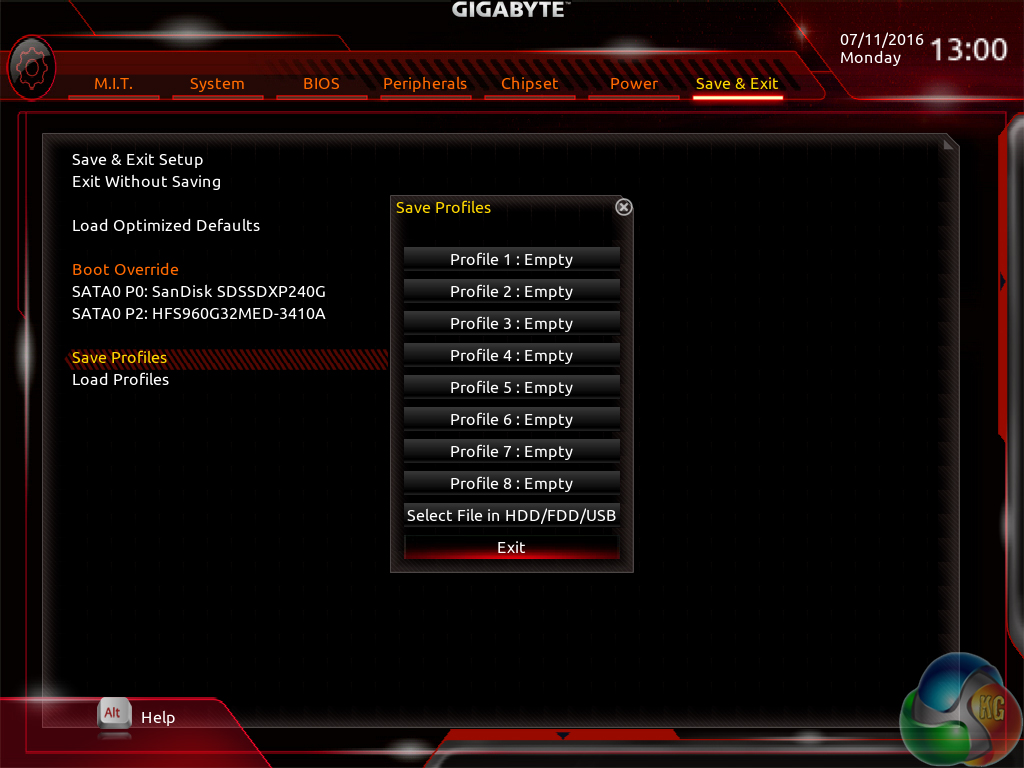
Up to eight profiles can be saved to the motherboard, with the option to save and transfer further profiles using a storage device.
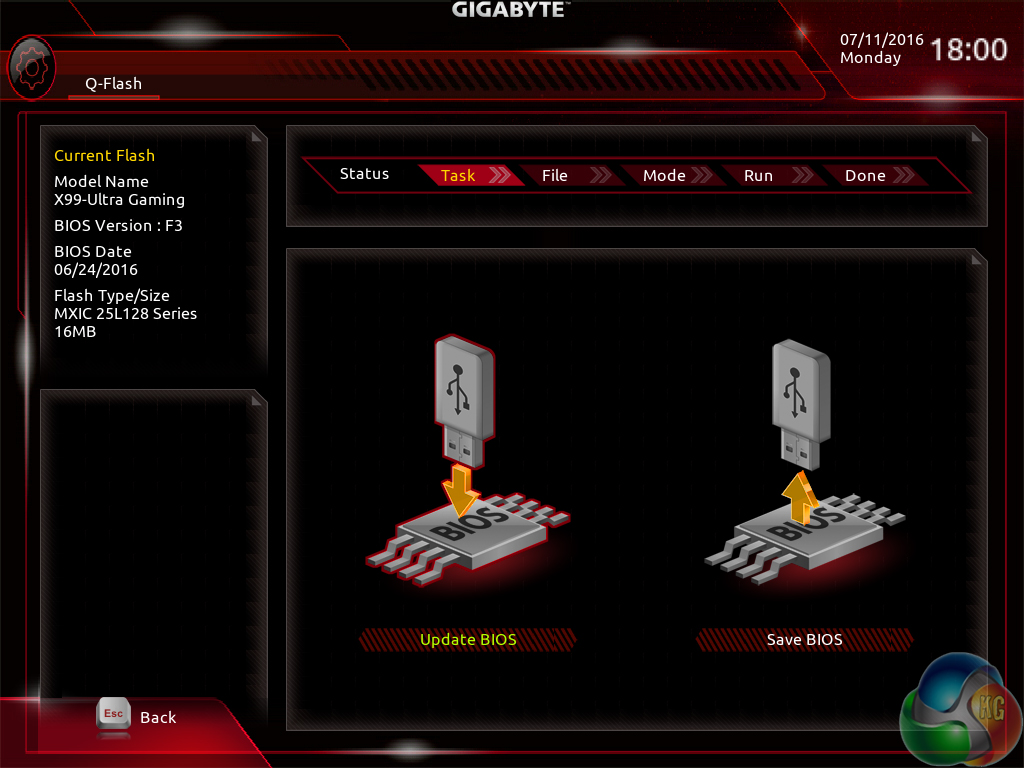
Gigabyte's Q-Flash utility worked well – the tool detected the correct BIOS file on our USB stick and gave the option of flashing to the newer version.
UEFI Comments
Gigabyte has taken huge strides forward with its updated UEFI found on the X99-Ultra Gaming. The interface brings the company in-line with what is expected from a UEFI in 2016 and boosts the interface straight to the top spot when it comes to some functions. Fan control is excellent, as are the options for the LED lighting colours and modes. I like the number of parameters provided by Gigabyte and the Easy Mode starting screen is convenient.
However, there are clear areas where the interface can be improved. Drop-down lists should be provided rather than forcing users to manually cycle through different settings one at a time. Overclocking presets for Broadwell-E CPUs should also be provided in an update. And some additional assistance could be given by using a colour scale to highlight when a voltage setting is safe, risky, or dangerous.
Other than those points, Gigabyte has done well to provide a new UEFI which is functional, easy to navigate, and contains worthwhile features rather than relying upon OS software.
Software
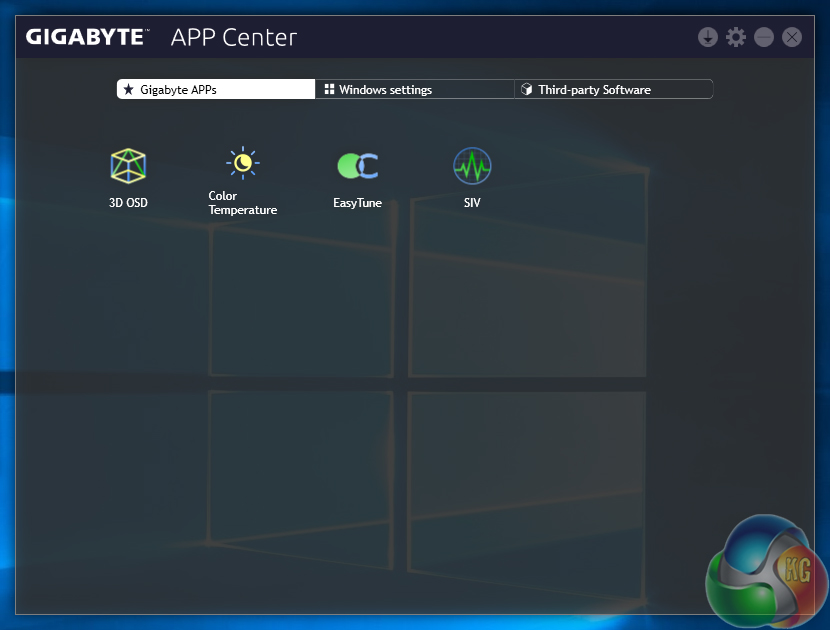
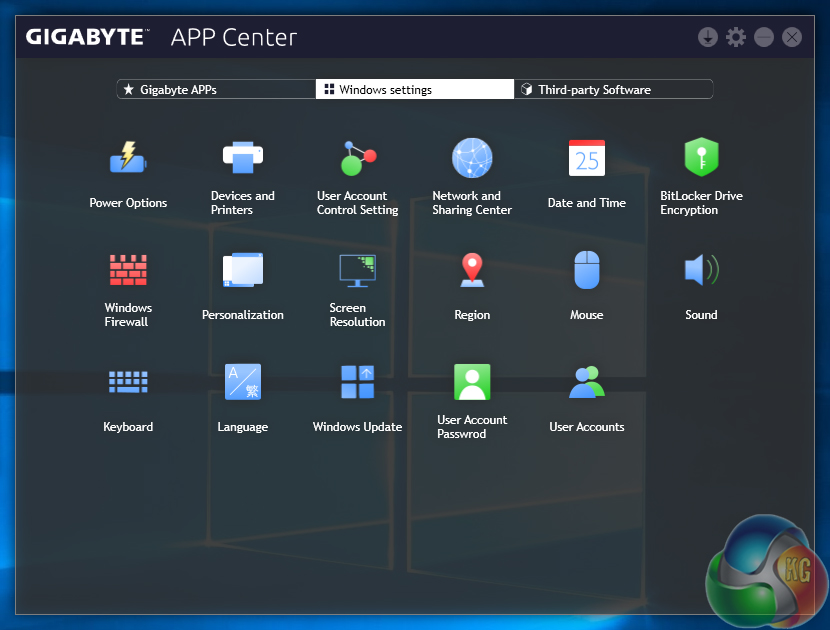
The App Center utility is used to control access to installed software. Gigabyte takes this a step further and also gives the utility an ability to launch commonly-accessed Windows settings such as power options and update.
App Center runs in the background and can be rapidly launched through the system tray.
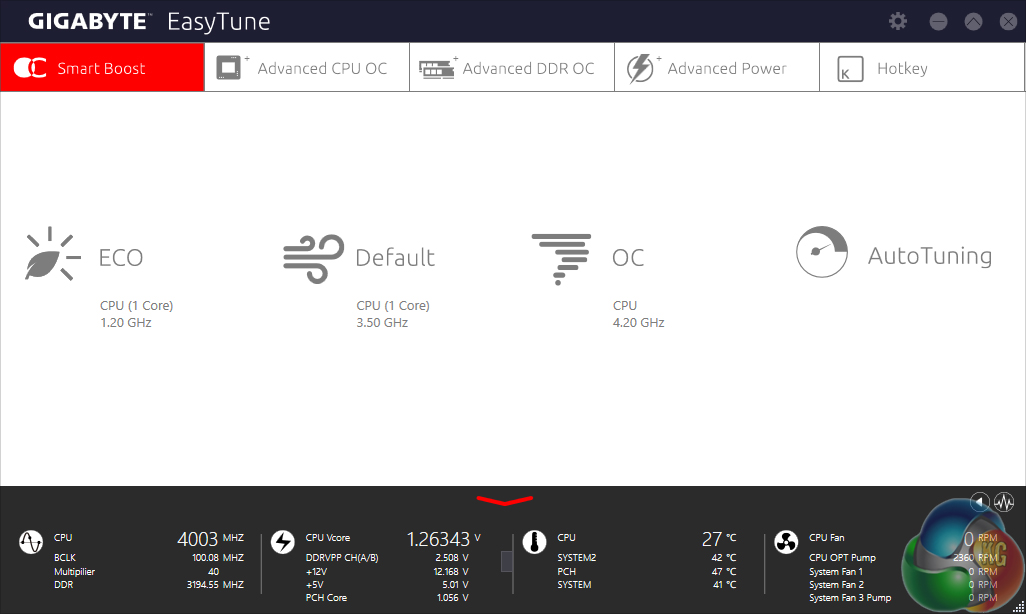
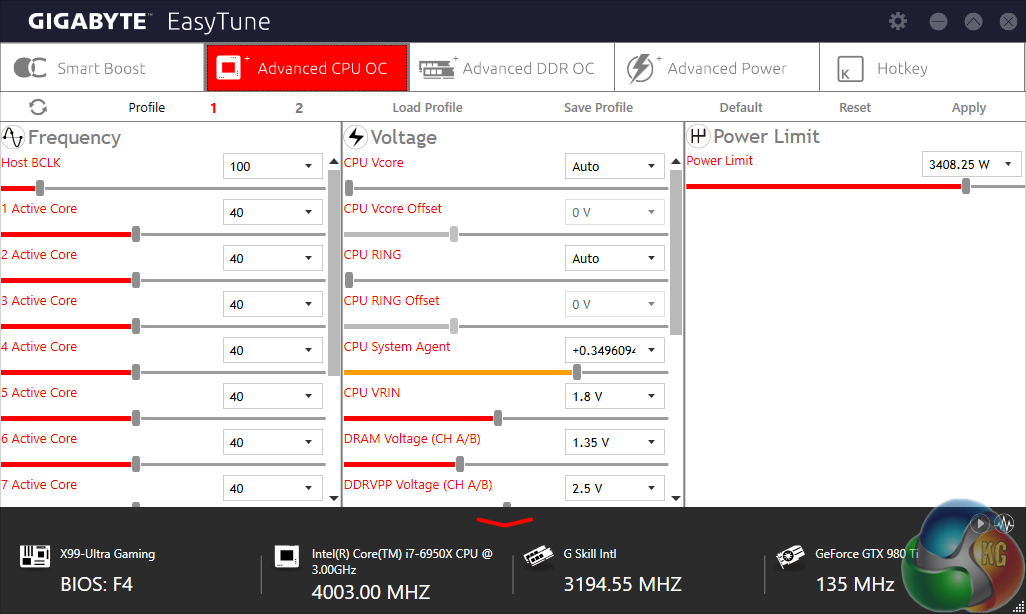
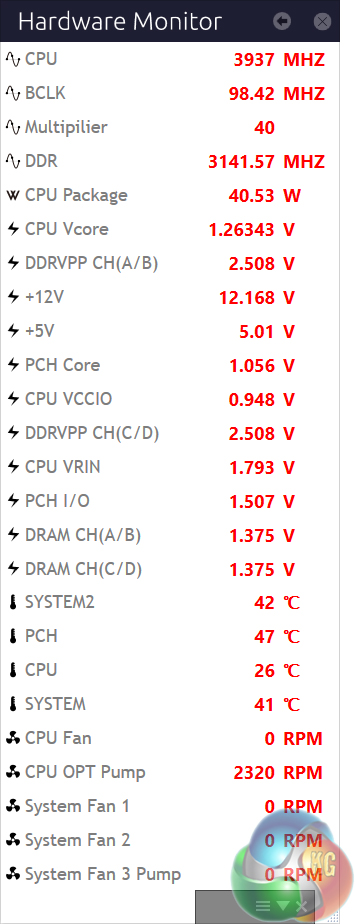
EasyTune is Gigabyte's software tool that can be used to manage system operation. The launch page can be used to quickly adjust the CPU's operating frequency based on the current usage requirements. Further pages are available for viewing and adjusting system parameters such as voltages and multiplier ratios.
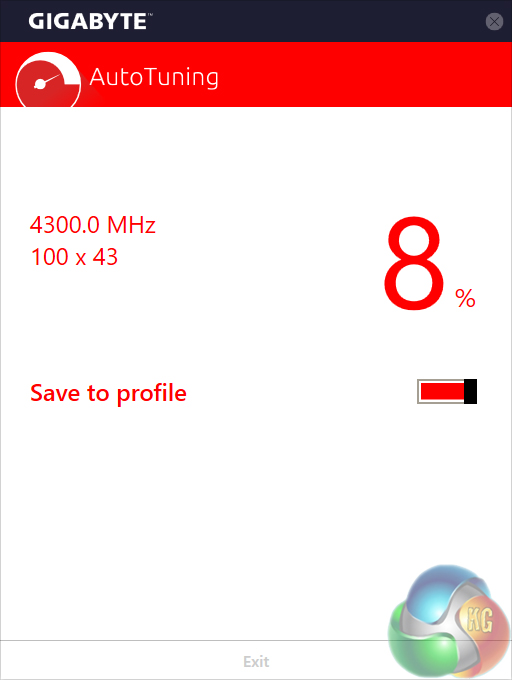
EasyTune includes the ability to automatically overclock the system. The software cycles through a number of frequency selections, including reboots and brief stress testing, before delivering a final improvement. It pushed our chip up by 8%, which is a decent gain for an automated tool to achieve and is in-line with the overclocking capacity expected of our 6950X CPU.
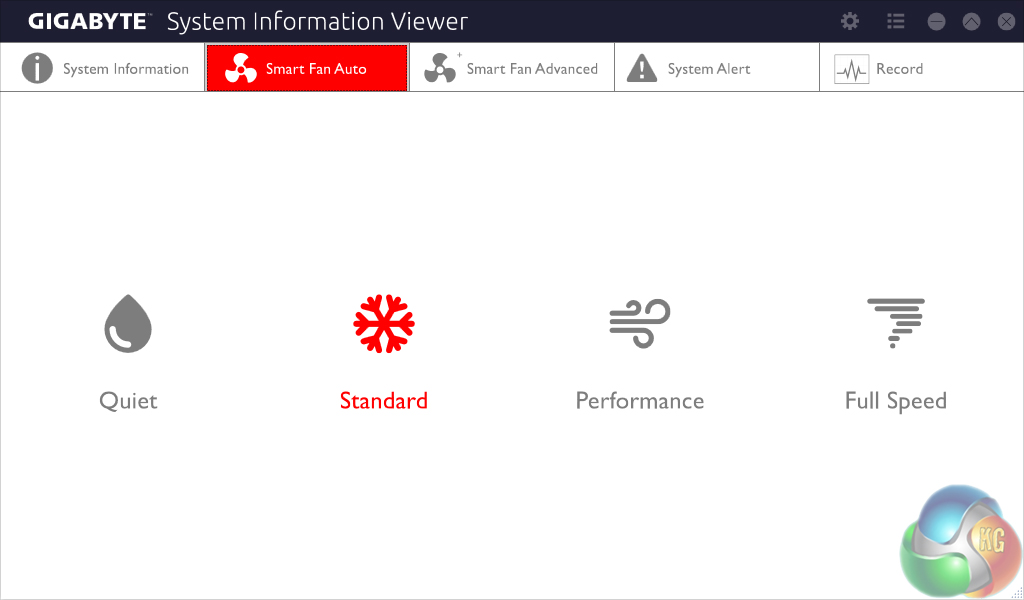
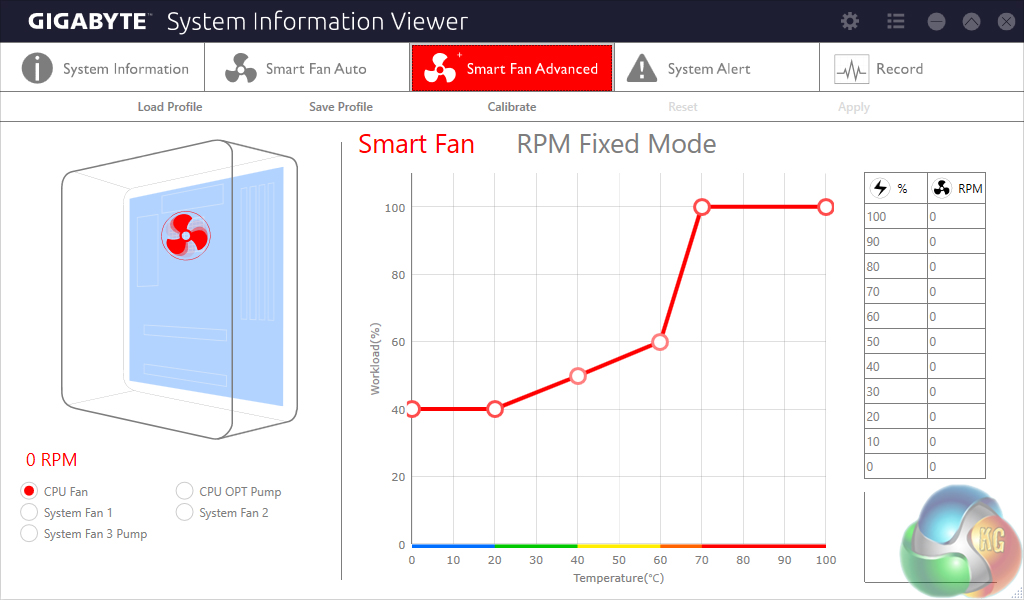
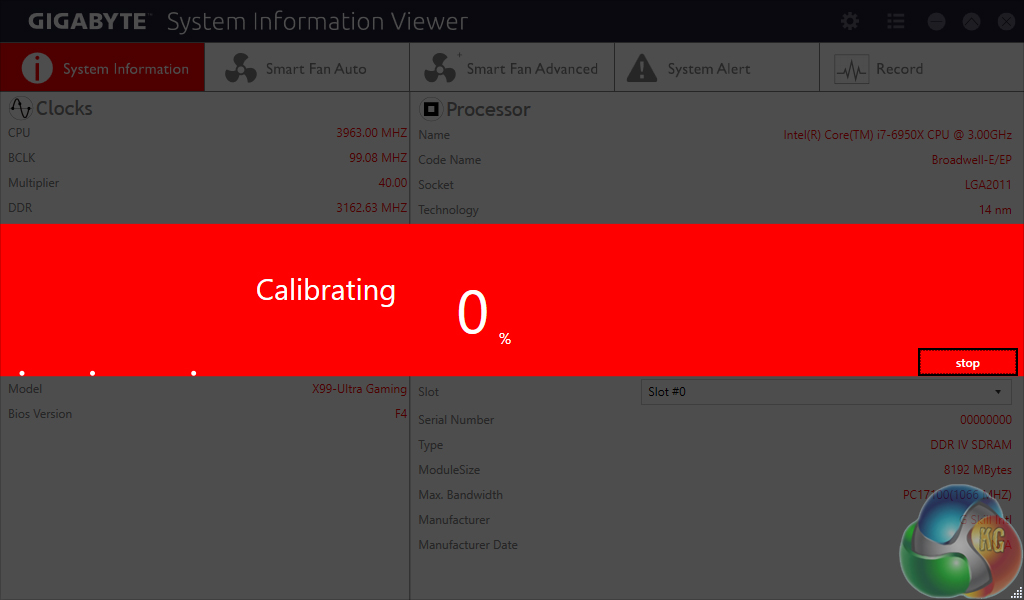
System Information Viewer (SIV) is, as the name suggests, primarily focussed on relaying information related to the system health such as fan speeds, temperatures, and voltages.
The software tool includes heavy focus on fan speed management. Having the ability to quickly adjust fan operating characteristics in the OS is a good addition to the UEFI-led control as one can optimise the speeds depending on their current system tasks.
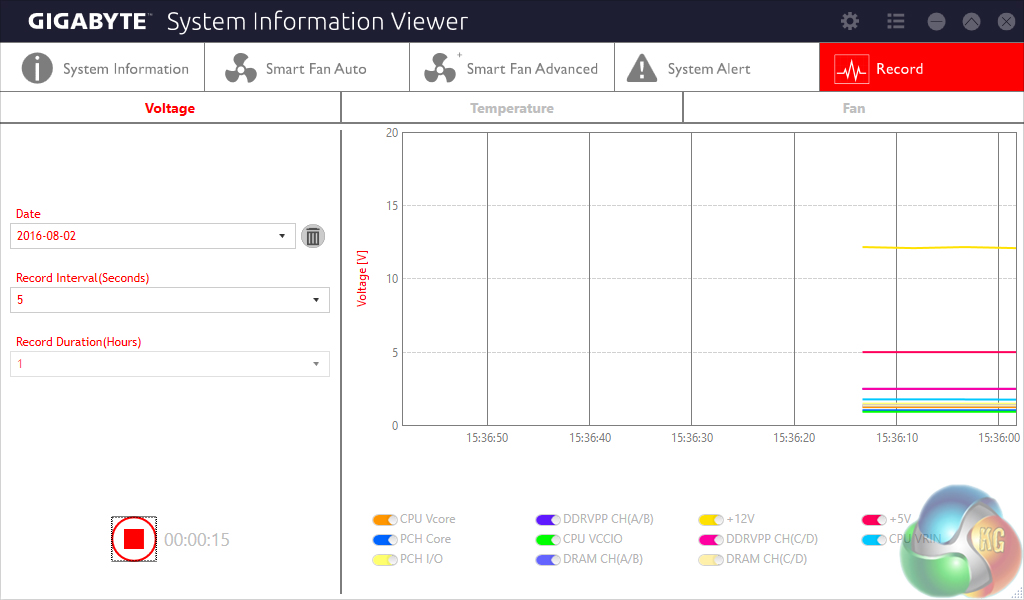
A record function is built into the software, allowing voltages, temperatures, and fan speeds to be monitored. The data can be interpreted visually using a graph and the recording intervals and durations can be adjusted. This is useful for checking how system operating parameters changed during a gaming session or other period of adjusted load.
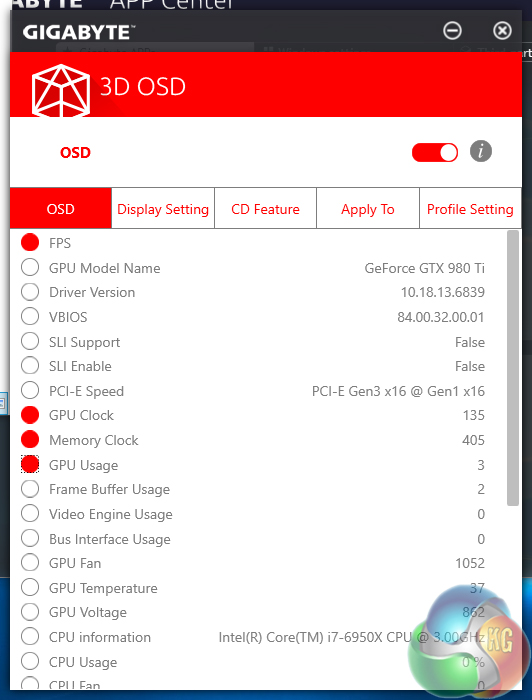
Gigabyte's 3D OSD can be used in a similar fashion to MSI Afterburner. The tool allows a number of parameters to be selected before overlaying them on the screen. This may be useful for gamers who want to know the system clock speeds and FPS during gaming, but the utility faces stiff competition from MSI's established Afterburner software.
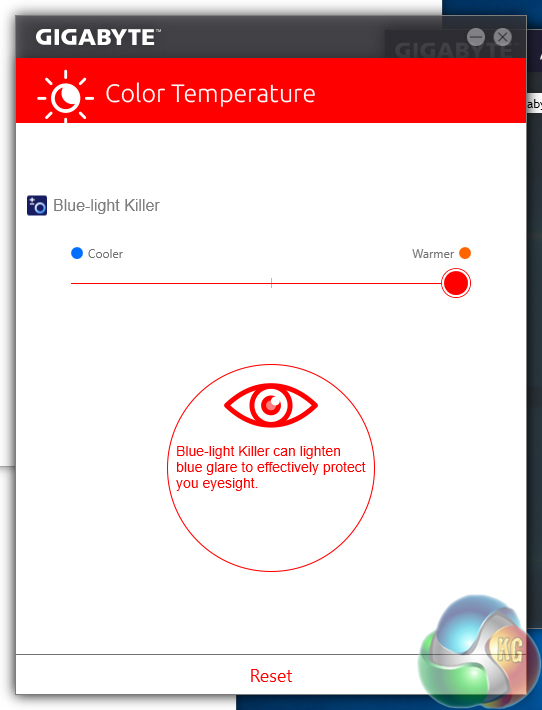
Color Temperature is a utility that caught my eye. The tool can adjust the temperature of a monitor's colour in order to better suit the viewing environment. This is useful for users who want to protect their eyesight when using their computer in a dark environment, for example.
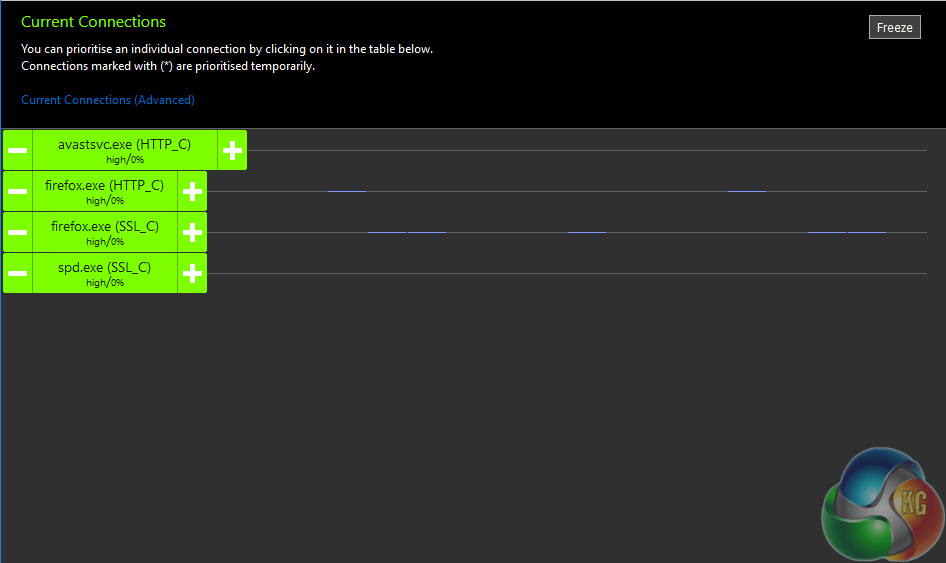
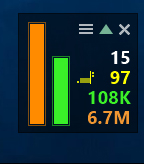
Gigabyte includes the cFos speed utility in order to provide network management capabilities to the NICs. The tool allows for prioritisation to be given to software that is deemed more important by the user. This is similar to Killer's Network Manager utility.
A small on-screen overlay highlights network utilisation information in real time.
Software Comments
Gigabyte makes a good variety of software compatible with the X99-Ultra Gaming. We have only touched on a few of the most-common tools that will be of interest, but the App Center allows items that suit an individual's needs to be downloaded an managed.
We will be outlining the X99-Ultra Gaming motherboard’s performance with the Core i7 6950X CPU and 32GB of 3200MHz G.Skill TridentZ DDR4 memory.
By default, the X99-Ultra Gaming motherboard applies an aggressive multi-core turbo (MCT) state and forces the 6950X to a constant 4.0GHz when XMP is enabled. This is representative of what motherboard vendors perceive to be the maximum all-core stable CPU operating state, as guided by the Broadwell-E CPUs' Turbo Boost 3.0 operations.
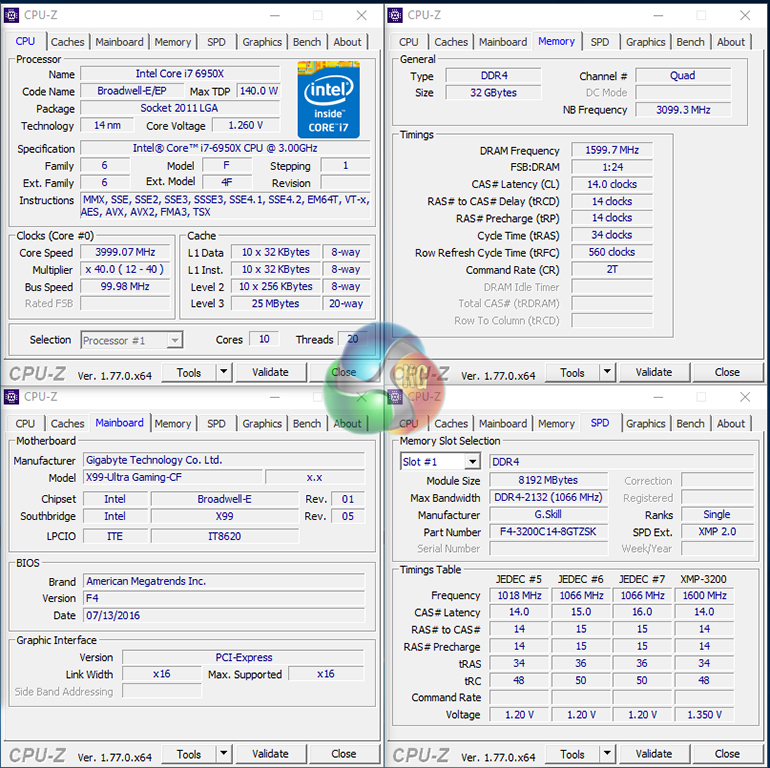
Gigabyte feeds a Core i7 6950X with 1.26V in order to reach its all-core turbo frequency of 4.0GHz. While this is a higher-than-stock voltage level, it should be within the capability of most decent CPU coolers.
Unfortunately we experienced a number of performance issues with earlier testing of the X99-Ultra Gaming. These issues primarily related to instability when trying to use 3200MHz XMP (followed by any XMP speed) and when trying to overclock the CPU. It was only at the point of the full release of BIOS version F4 that we managed to achieve complete system stability.
This is disappointing given that we tried multiple BIOS profiles which were both full release and beta release versions. It also instils a feeling of doubt towards the BIOS updates that Gigabyte is putting out for the motherboard, and that's an unfortunate situation to be in when the new BIOS profile may bring worthwhile features and performance improvements with it.
X99 Motherboard Test System:
- Processor: Intel Core i7 6950X (4.0GHz forced turbo).
- Memory: 32GB (4x8GB) G.Skill TridentZ 3200MHz 14-14-14-34 DDR4 @ 1.35V.
- Graphics Card: Nvidia GTX 980 Ti Reference.
- System Drive: 240GB SanDisk Extreme II SATA 6Gbps SSD.
- Games Drive: 960GB SK Hynix SE3010 SATA 6Gbps SSD.
- CPU Cooler: Corsair H110i GT.
- Power Supply: Seasonic Platinum 760W SS-760XP.
- Operating System: Windows 10 Home 64-bit.
Compared X99 Motherboards:
Software:
- X99-Ultra Gaming BIOS F4.
- GeForce 368.39 VGA drivers.
Tests:
- Cinebench R15 – All-core CPU benchmark (CPU)
- HandBrake 0.10.2 – Convert 1.72GB 1440P ShadowPlay game recording using the High Profile setting and MP4 container (CPU)
- SiSoft Sandra 2016 SP1 (build 2220) – Processor Arithmetic Test (CPU) and Memory Bandwidth Test (Memory)
- AIDA64 Engineer v5.75.3900 – Memory Latency Benchmark (Memory)
- 7-Zip 16.02 beta – Manual 1.72GB ShadowPlay game recording archival, .7z format and normal compression level (System)
- 3DMark Fire Strike v1.1 – Fire Strike (1080p) test (Gaming)
- Ashes of the Singularity – Built-in benchmark tool, 1920 x 1080, Crazy quality preset, DX12 version (Gaming)
- Unigine Valley Benchmark 1.0 – Built-in benchmark, Extreme HD preset (Gaming)
- ATTO – SATA 6Gbps and USB transfer rates (Motherboard)
- RightMark Audio Analyzer – Record and playback test using a line-in to line-out loopback with a 3.5mm audio cable (Motherboard)
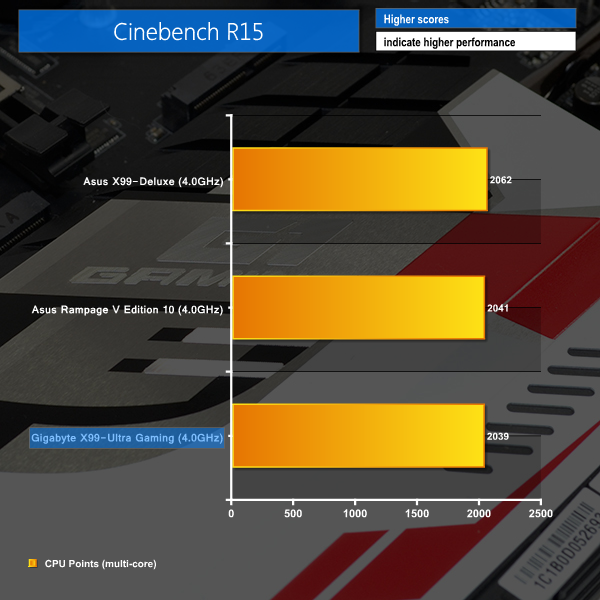
Cinebench R15
Cinebench is an application which renders a photorealistic 3D scene to benchmark a computer’s rendering performance, on one CPU core, all CPU cores or using the GPU. We run the test using the all core CPU mode.
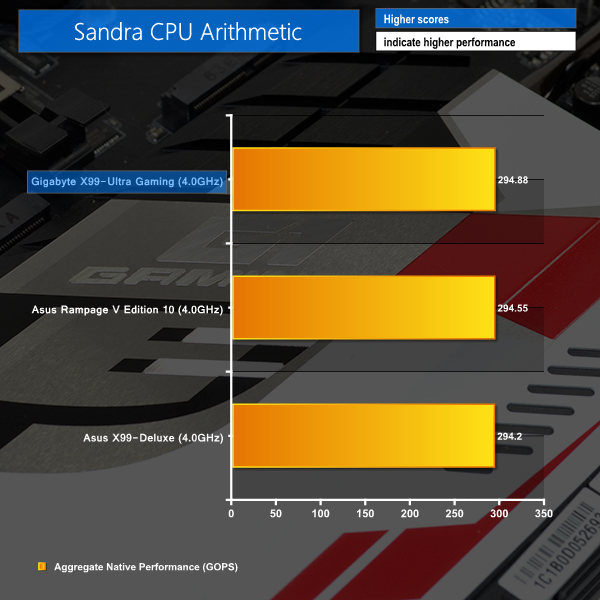
Sandra Processor Arithmetic
SiSoft Sandra 2016 is a multi-function utility program that supports remote analysis, benchmarking and diagnostic features for PCs, servers, mobile devices and networks. We run the application’s processor arithmetic test to gauge the CPU performance on each tested motherboard.
Handbrake Conversion
Handbrake is a free and open-source video transcoding tool that can be used to convert video files between different codecs, formats and resolutions. We measured the average frame rate achieved for a task of converting a 1.72GB 1440P ShadowPlay game recording using the High Profile setting and MP4 container. The test stresses all CPU cores to 100% and shows an affinity for memory bandwidth.
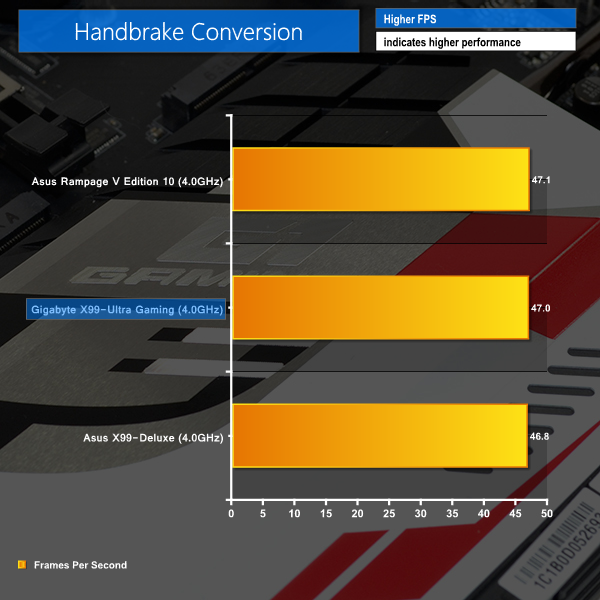
Gigabyte's X99-Ultra Gaming shows good performance in our CPU-heavy benchmarks. The board is perfectly competitive against a pair of Asus competitors in all three of the tests.
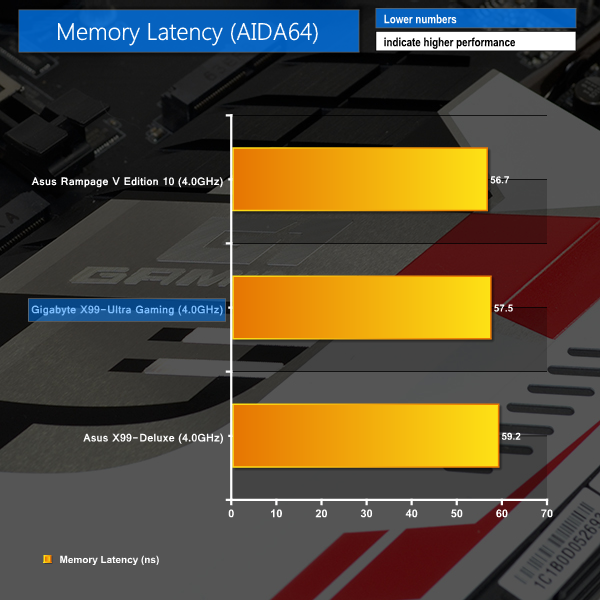
AIDA64 Memory Latency
AIDA64 Engineer is a multi-featured software suite for diagnostics, stress testing, benchmarking, software auditing and various other measurement parameters. We use AIDA64 Engineer to benchmark memory latency.
Sandra Memory Bandwidth
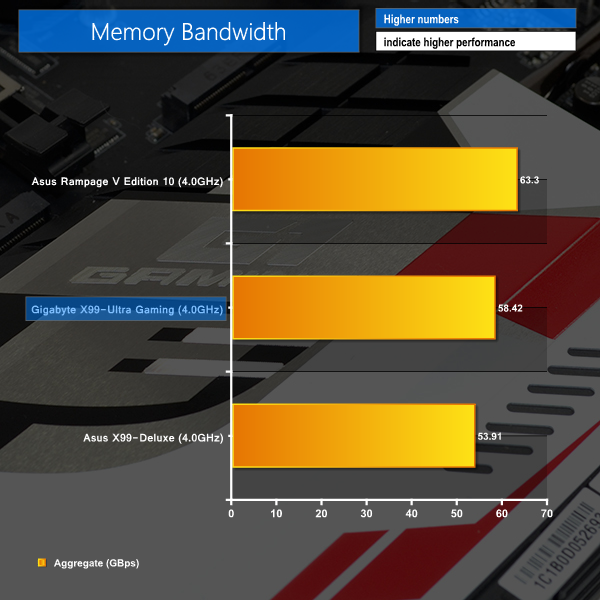
SiSoft Sandra 2016 is a multi-function utility program that supports remote analysis, benchmarking and diagnostic features for PCs, servers, mobile devices and networks. We use the SiSoft Sandra memory bandwidth test to provide a set of memory bandwidth results.
7-Zip
7-Zip is an open source Windows utility for manipulating archives. We manually archive a 1.72GB MP4 game recording. The test stresses all CPU cores to 100% and shows an affinity for memory bandwidth.
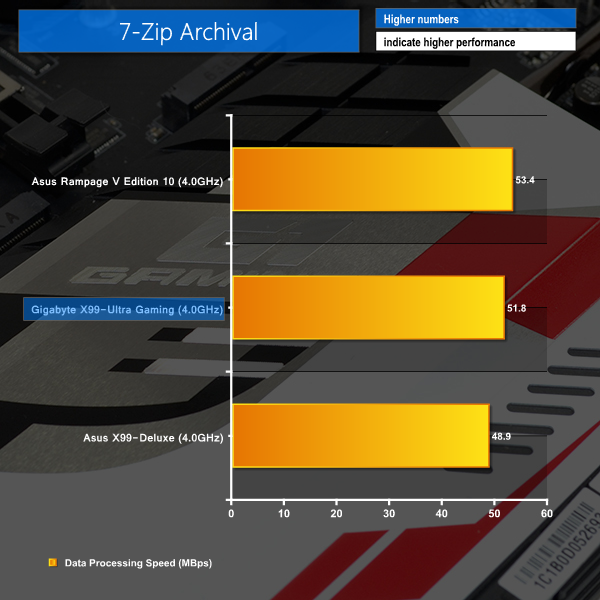
Memory performance of the X99-Ultra Gaming is solid. The board manages to beat out Asus' older X99-Deluxe, but it can't match the numbers shown by Asus' flagship Rampage V Edition 10. That's a pretty fair result given the significant price differences.
3DMark
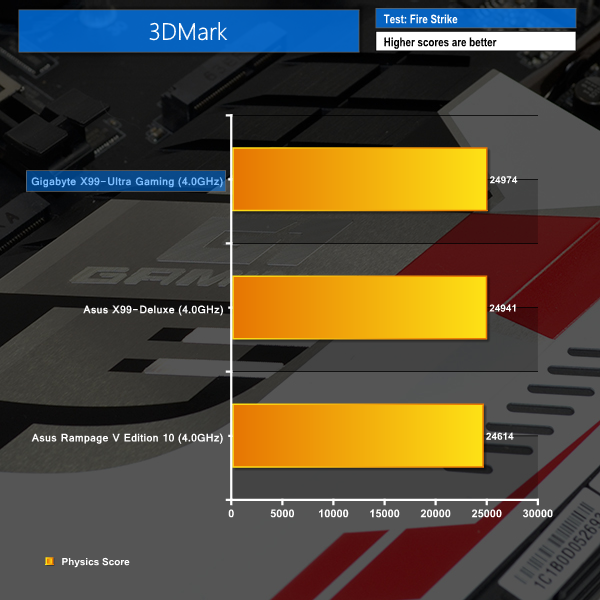
3DMark is a multi-platform hardware benchmark designed to test varying resolutions and detail levels of 3D gaming performance. We run the Windows platform test and in particular the Fire Strike benchmark, which is indicative of high-end 1080p PC Gaming.
Ashes of the Singularity
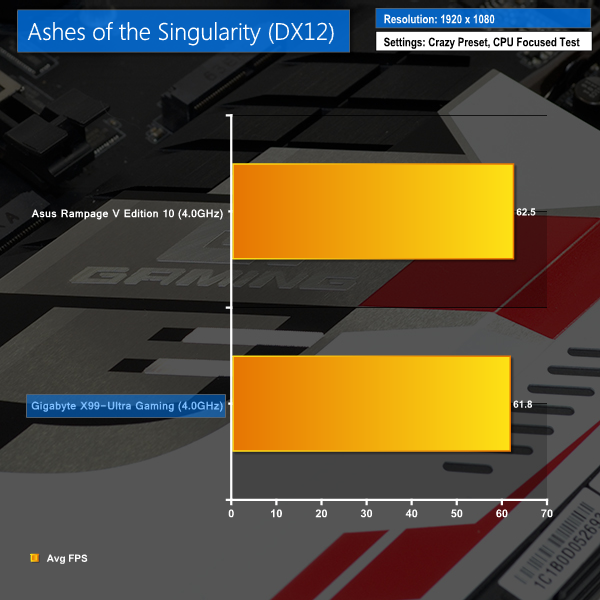
Ashes of the Singularity is a Sci-Fi real-time strategy game built for the PC platform. The game includes a built-in benchmark tool and was one of the first available DirectX 12 benchmarks. We run the CPU focused benchmark using DirectX 12, a 1080p resolution and the Crazy quality preset.
Unigine Valley
Unigine Valley is a GPU stress testing and benchmarking tool that succeeds its predecessor, Unigine Heaven. Valley makes use of dynamic lighting, depth of field, ambient occlusion and dynamic weather patterns. We utilise the built-in benchmarking tool with the Extreme HD preset.
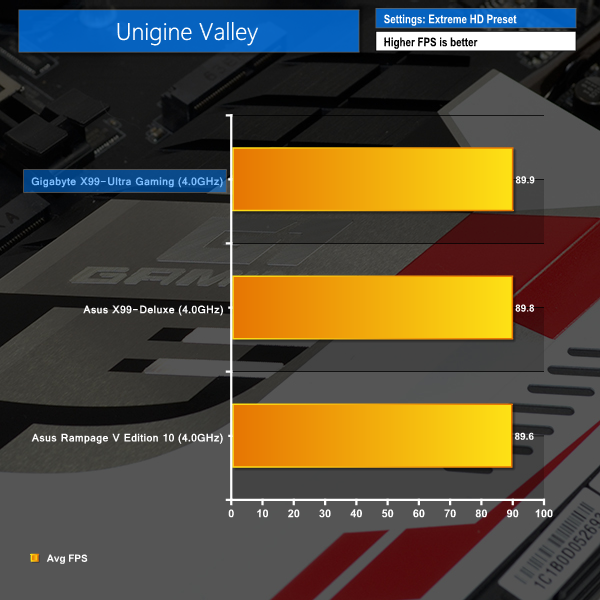
Gaming performance is a positive for Gigabyte's X99-Ultra Gaming. Orr tests imply that Gigabyte's board will have no issues powering high-end graphics cards without bottlenecking.
Automatic CPU Overclocking:
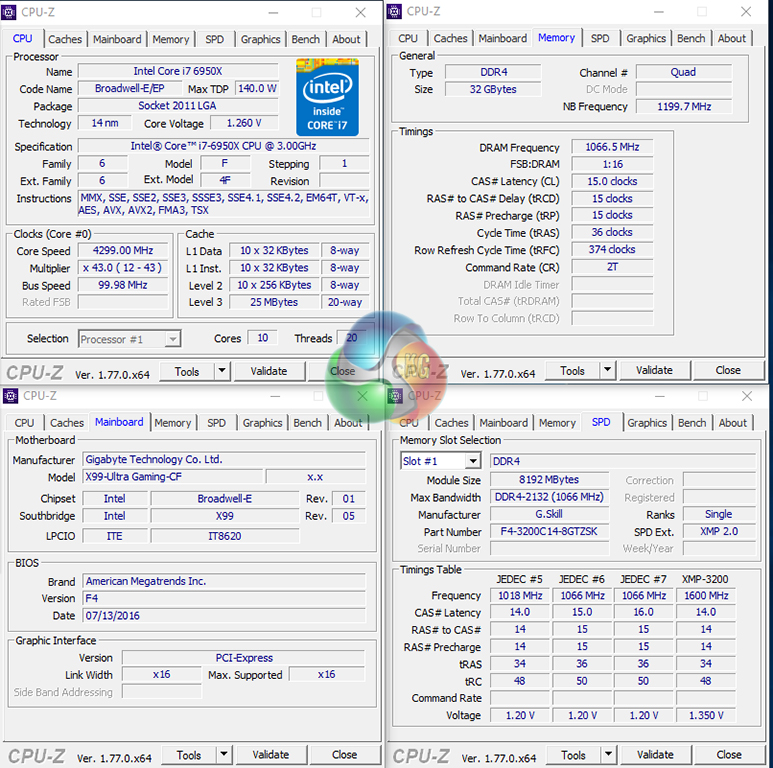
The OS-based automatic tuning found inside Gigabyte's SIV software increased the 6950X chip's operating speed to 4.3GHz. A 7.5% frequency boost while using the same voltage as is applied for the 4GHz turbo state is perfectly welcomed.
Manual CPU Overclocking:
To test the Gigabyte X99-Ultra Gaming motherboard’s CPU overclocking potential, we first increased the CPU VCore to 1.325V, Cache (Ring) voltage to 1.25V, and CPU Input Voltage to 2.0V. LLC was set to ‘standard‘.
We maintained the DRAM frequency at 3200MHz to take its stability out of the overclocking equation.
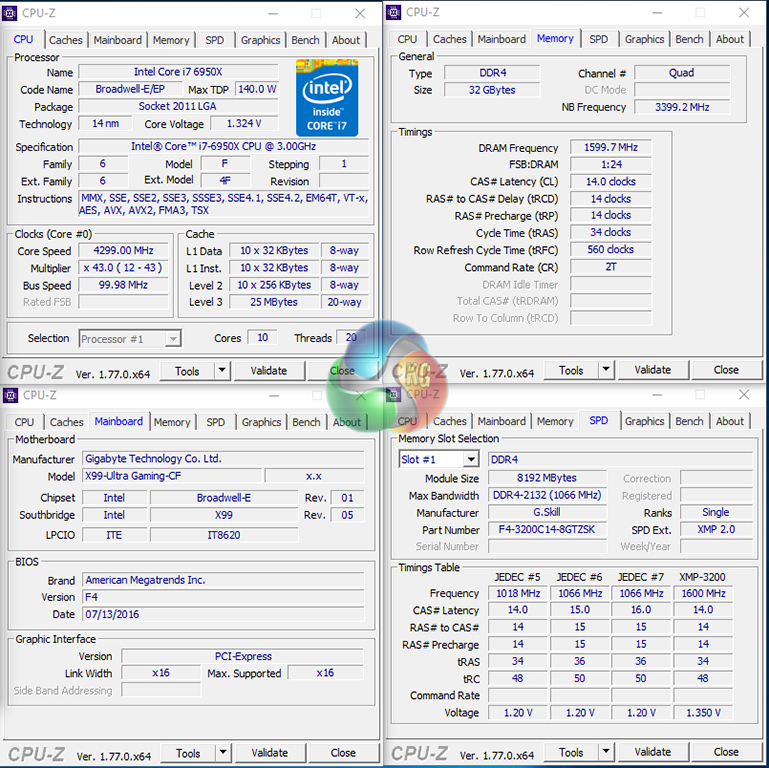
The best overclocking result that we achieved was pushing our 6950X CPU to its 4.3GHz limit, while also increasing the CPU Cache (Ring) frequency to 3.4GHz.
Voltage accuracy was a strength of the X99-Ultra Gaming – we asked for 1.325V and were not fed a significantly different level, as we have seen from some competing vendors' motherboards.
Overclocked Performance
As a performance comparison, we have included the results from competing Asus X99 motherboards. The maximum overclocked configuration achieved with each board was a 4300MHz (43 x 100MHz) processor frequency and 3.4GHz CPU Cache speed, whilst using 3200MHz CL14 memory.
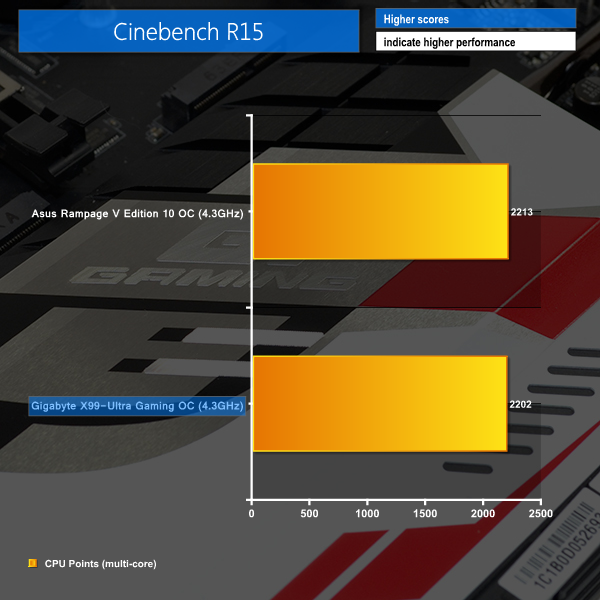
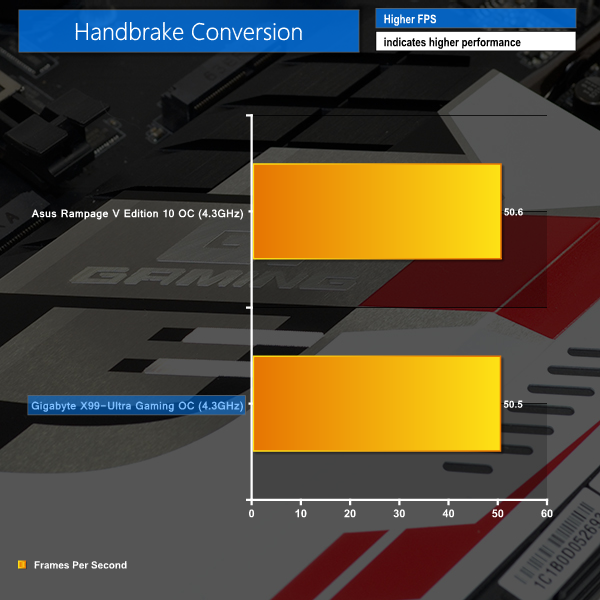
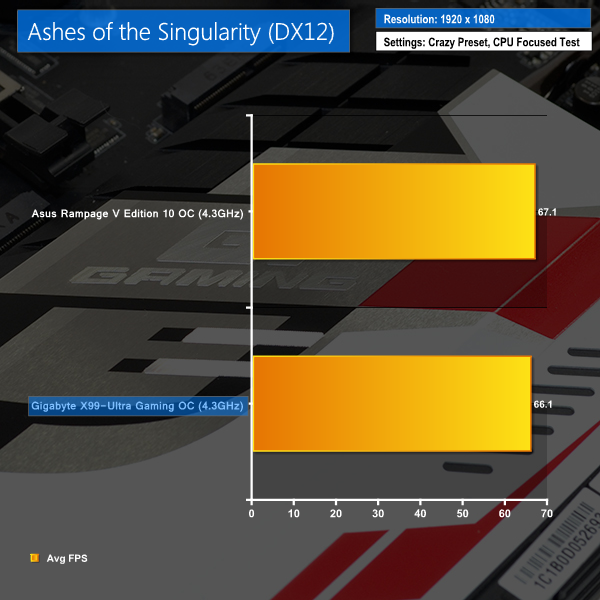
Gigabyte's X99-Ultra Gaming clearly holds its own when being used to overclock the system. Performance is largely identical to that of Asus' Rampage V Edition 10, with only Ashes of the Singularity sowing a slight negative performance gap for Gigabyte's significantly more affordable X99-Ultra Gaming.
ATTO Disk Benchmark
The ATTO disk benchmark is a Windows-based utility for testing storage performance of any storage drive or controller. We use the default benchmark setup.
For SATA 6Gbps testing we use a SK Hynix SE3010 960GB SSD. We test USB performance using a Kingston HyperX 3K 120GB SSD connected to a SATA 6Gb/s to USB 3.0 adapter powered by an ASMedia ASM1053 controller.
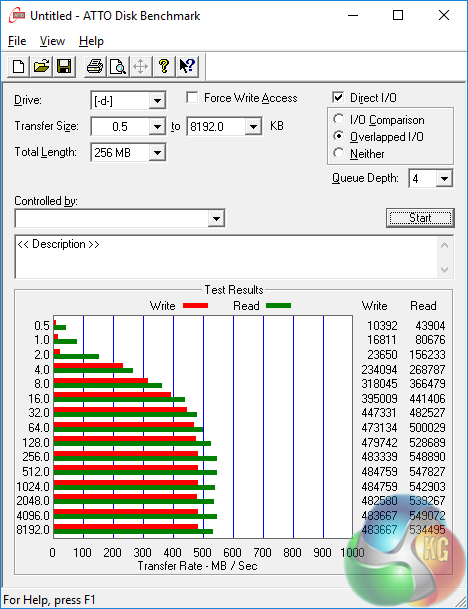
SATA 6Gbps performance is without issue, as one would expect.
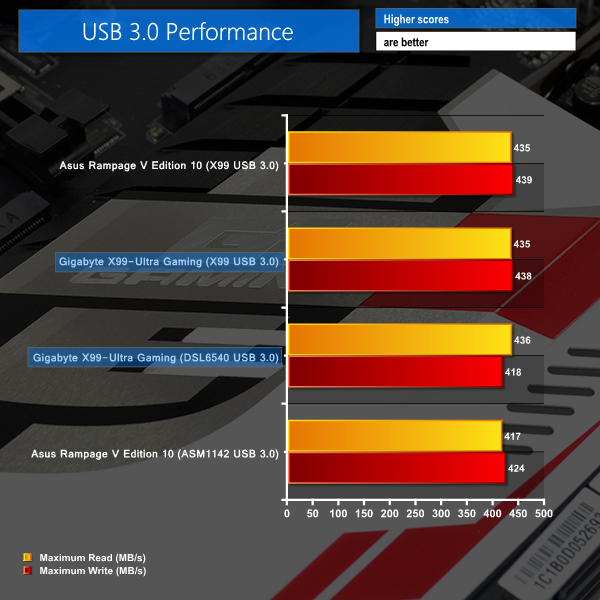
USB 3.0 performance is about as good as it gets whether you decide to use the Intel DSL6540-fed USB 3.1 ports (using a USB 3.0 external SSD) or the native 5Gbps USB 3.0 connectors.
Performance from the X99-fed 5Gbps USB 3.0 ports is particularly noteworthy as they are duplicated through a Renesas D720210 hub. This does not, however, seem to have any noticeable impact on the ports' transfer rates, which is very positive.
Audio
Rightmark Audio Analyser (RMAA) is a freeware benchmarking utility designed to objectively test the performance characteristics of audio solutions. We setup a line-in line-out loop and execute the record/playback test before generating the results report you see below. A sampling mode of 24-bit, 192 kHz was tested.
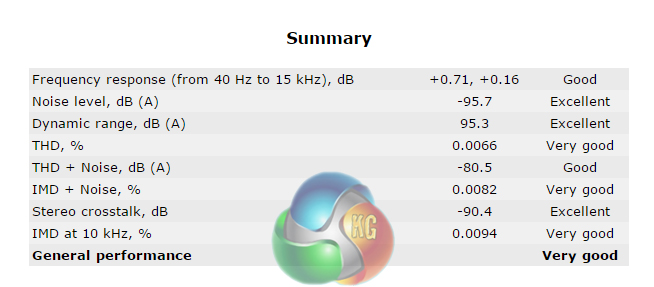
General audio performance is ‘Very good‘ according to RMAA. Noise level and dynamic range performance characteristics are particularly strong thanks to the Realtek ALC1150 codec.
Power
We leave the system to idle on the Windows 10 desktop for 5 minutes before taking a reading. For CPU load results we run Cinebench and take a reading in the middle of the render progress. The power consumption of our entire test system (at the wall) is shown in the chart.
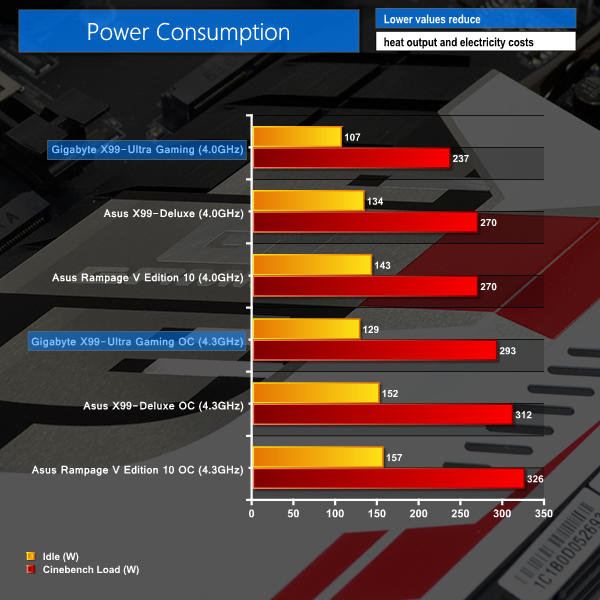
Compared to the Asus competitors, power consumption is a clear advantage for Gigabyte's X99 offering. Significantly lower stock-clocked power consumption numbers are achieved thanks to Gigabyte's more conservative CPU VCore application.
And overclocked power consumption numbers are in Gigabyte's favour thanks to the accuracy and efficiency of the X99-Ultra Gaming's International Rectifiers-based power delivery system.
If shaving a small amount off your electricity bill is important, or simply pumping less heat into your room will be welcomed, Gigabyte's X99-Ultra Gaming delivers on both fronts.
Strong performance, an effective power delivery system and smart design choices are three fundamental characteristics of Gigabyte's X99-Ultra Gaming.
Stock-clocked performance was competitive against a pair of Asus alternatives. Gigabyte's efficient International Rectifiers-based power delivery system scored the X99-Ultra Gaming a win in terms of power consumption, but Asus' flagship Rampage V Edition 10 was marginally faster in memory-related tasks.
Overclocking performance was solid, provided the BIOS profile one uses is free of bugs. We pushed the 6950X to its 4.3GHz limit while also boosting the CPU Cache (Ring) to 3.4GHz and using 3.2GHz DDR4. Unfortunately, we went through numerous flaky BIOS profiles before finally garnering full stability with the motherboard using the F4 BIOS revision.
One dodgy BIOS revision is forgiveable. Two or more is unacceptable and can really put doubt in the mind of a user who wants to upgrade their BIOS for new features, but doesn't want to risk introducing instability. Oh, and don't think that troubleshooting a bug-ridden BIOS is simple – it isn't thanks to the lack of onboard buttons and no debug LED display.
Design and layout are areas where Gigabyte's engineers deserve credit. The ability to operate four high-bandwidth (PCIe 3.0 x8) expansion cards in addition to 32Gbps U.2 and M.2 SSDs is superb. And smart slot spacing means that three of those high-bandwidth devices can be beefy graphics cards. The only disappointing design move is the omission of U.2 capability when using a 28-lane CPU. Intel's DSL6540-based unconstrained USB 3.1 ports are a welcomed inclusion over the inferior ASMedia offerings.
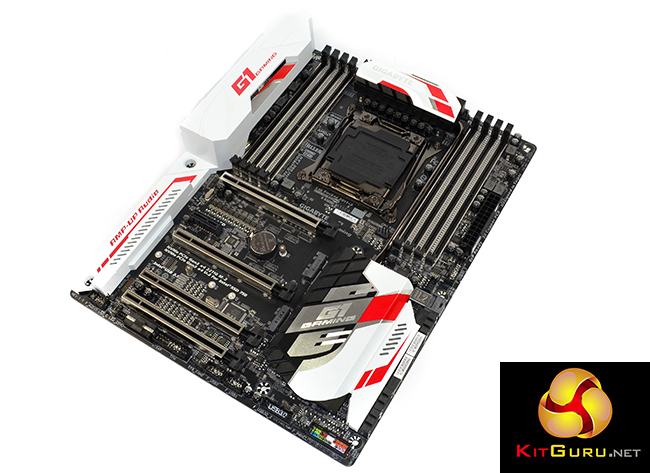
Gigabyte sprinkles RGB LEDs around the board in areas where users are likely to want them. The LEDs are colour-accurate, not overpowering, and able to operate in a number of static or pulse modes. There's also a 4-pin header for managing external RGB LED strips. I am, however, disappointed that Gigabyte hasn't split the LED system into distinct motherboard areas. It would be nice to have the DIMM slots glowing blue while the PCIe slots are lit red, if a user desired. But that's not possible, despite the proficiency of Gigabyte's well-built UEFI-based lighting tool.
The X99-Ultra is one of Gigabyte's first motherboards to be equipped with the company's new UEFI design. Enhanced ease-of-use and a significantly improved layout are positives for the new interface. While it's not quite as kind on the eye as some competing vendors' interfaces, functionality of Gigabyte's offering is a positive, especially when focussing on the excellent fan control options. A few polishing touches and Gigabyte can confidently say that it has a UEFI with positive points over each of the competing vendors' (albeit with some weaknesses too).
At this price point, 802.11ac WiFi seems to be commonplace amongst the X99-Ultra Gaming's competitors. To some, its omission may be an annoyance, but to others it will be a welcomed cost reduction. Either way, Gigabyte has provisioned the M.2 PCIe slot and rear IO connectors to accept a WiFi adapter, so it's a simple drop-in upgrade. Continuing with networking, Killer and Intel NICs give a user choice and redundancy at the expense of increased cost.

Priced just under £250 at Overclockers UK, the Gigabyte X99-Ultra Gaming manages to undercut its primary competitors – MSI's X99A Gaming Pro Carbon and Asus' Strix X99 Gaming – by around 10%. While 10% is typically a noteworthy amount, in a marketplace where the cheapest CPU is pushing £400 and a go-to set of memory is almost £100, £25 less for a motherboard is not a significant saving, but it's still a saving nonetheless.
Against its closest MSI and Asus competitors, Gigabyte has areas where the X99-Ultra Gaming shines – Intel USB 3.1, superb fan control, and Intel plus Killer NICs, for example. But there are also areas where the competition is strong, such as onboard buttons, segregated LED lighting sections, more mature UEFIs, and WiFi (on Asus' board). Gigabyte's free USB 3.1 front panel bay can be added into the value equation, but only until the offer ends on September 30th 2016.
Whether Gigabyte's X99-Ultra Gaming is a more suitable candidate than its closely-priced Asus and MSI competitors is a tough question to answer and depends heavily upon your usage requirements. The Gigabyte offering is, without question, an excellent piece of hardware for its fair asking price, but tough competition from Asus and MSI prevent it from being the outright go-to RGB motherboard in this market section. Ultimately, the Gigabyte X99-Ultra Gaming is a worthy purchase that will happily light up your gaming system in more than one way.
Discuss on our Facebook page, over HERE.
Pros:
- Eye-catching RGB LED system with very good UEFI-based control.
- Excellent fan control system in the UEFI and OS software.
- A good introduction of the new UEFI which is feature-rich, even if it is a little rough around the edges.
- Supports four PCIe 3.0 x8 expansion cards in addition to 32Gbps U.2 and M.2, simultaneously (using a 40-lane CPU).
- 20Gbps-capable Intel DSL6540 USB 3.1 ports.
- Strong power delivery system which provided good voltage accuracy when overclocking and low power consumption.
- Smart design and layout decisions for expansion slots, connectors, and PCIe lanes.
Cons:
- No onboard power, reset, or clear CMOS buttons, in addition to a debug LED.
- U.2 connector being disabled with a 28-lane CPU is disappointing.
- Numerous instability issues with older BIOSes, both in beta and full release form.
- Segregated RGB lighting zones would be a worthwhile improvement.
KitGuru says: RGB LEDs, Intel USB 3.1, and superb expansion capabilities make the Gigabyte X99-Ultra Gaming an alluring motherboard which is priced fairly.

Voltage accuracy is the X99A Gaming Pro Carbon’s weakest link, It had never given what I asked. For example, I asked 1.197 volts, it gave 1.194 volts, and CUP-Z read 1.194 volts. And when I asked 1.199 volts, it gave 1.192 volts, CPU-Z read 1.199 volts, but more stable. I think CPU-Z is the correct one.
So … This motherboard with the Intel 6850k and a STRIX GTX1080 has disabled U.2 AND M.2 ??? Holly …