KitGuru KitGuru.net – Tech News | Hardware News | Hardware Reviews | IOS | Mobile | Gaming | Graphics Cards


If a Z270 Kaby Lake upgrade is on the horizon then a compact mini-ITX motherboard unlikely to be the first port of call in a market dominated by ATX. However, buyers need not be so hasty to dismiss mini-ITX motherboards of the Z270 generation since most are very well equipped, even for a power user. MSI's Z270i Gaming Pro Carbon AC illustrates this point well and is an interesting proposition for anyone looking to down-size their PC.
What constitutes a high-end PC these days? A subjective question but key items on the agenda would undoubtedly be a powerful CPU, high-end graphics card, high-performance memory and PCIe storage. MSI's Z270i Gaming Pro Carbon AC meets all these criteria with support for Intel's latest Kaby Lake CPUs, high-speed memory, PCIe graphics cards and NVMe-ready M.2 drives.
There are obvious limitations of the mini-ITX form factor but for users with a typical amount of hardware – one graphics card, two memory modules, a couple of SSDs and a couple of HDDs – mini-ITX has what it takes. Perhaps it delivers even more than you might expect since MSI's mini-ITX solution also includes USB 3.1, Gigabit LAN, onboard 802.11ac WiFi, four SATA ports, an overclocking-capable power delivery system, RGB LEDs and audio based on Realtek's ALC1220 codec, the current best available on motherboards.
Even from the most critical perspective the only hardware that's missing is supplementary – additional PCIe lanes, memory slots, USB ports and so on. MSI isn't without competition and the majority of what's been written thus far applies to most rival Z270 mini-ITX motherboards from ASUS, ASRock, EVGA and Gigabyte.
Even more interesting for consumers is the fact that motherboard vendors are clustering around a similar price point, around £160-180, meaning most mini-ITX models for Z270 are in direct competition. MSI's unique selling point with the Z270i Gaming Pro Carbon AC isn't immediately obvious since virtually all Z270 mini-ITX motherboards have 802.11ac WiFi, support RGB LEDs and have NVMe M.2 support. However, there's no absolutely no shaming in being the perfect all-rounder – so let's see how MSI's motherboard gets on through our testing.
| MSI Z270i Gaming Pro Carbon AC | |
| Form Factor | mini-ITX, 17cm x 17cm |
| CPU Socket | LGA 1151, 5 phase VRM |
| Chipset | Intel Z270 |
| Memory | DDR4, 2 DIMMs, up to 32GB, up to 3800MHz+ with OC |
| Onboard Graphics | Intel HD Graphics (supported CPUs), up to 1024MB of video memory |
| Discrete Graphics | Single Graphics Card Configurations only |
| Expansion Slots | 1 x PCIe 3.0 16X electrical (wired to CPU) |
| Storage | 4 x SATA III (via PCH) 1 x M.2 SATA (6Gbps) or NVMe PCIe 3.0 X4 |
| USB | 4 x USB 2.0 (2 Front, 2 Rear, via PCH) 4 x USB 3.0 (2 Front, 2 Rear, via PCH) 2 x USB 3.1 (2 Rear, 1 Type-A, 1 Type-C, via ASM2142) |
| Networking | 1 x Intel I219-V Gigabit LAN Intel Wireless-AC8265 802.11ac with Bluetooth 4.2 (populates a second M.2 slot) |
| Audio | Realtek ALC1220-based 7.1 channel HD audio |
| Fan Headers | 3, all support 3/4pin fans (1 x CPU, 2 x SYS) |
| Rear I/O | 1 x PS/2 mouse & keyboard combo port 2 x USB 2.0 ports 1 x DisplayPort 1 x HDMI port 1 x USB 3.1 Gen2 Type-A port 1 x USB 3.1 Gen2 Type-C port 1 x LAN (RJ45) port 2 x USB 3.1 Gen1 Type-A ports 1 x Clear CMOS button 2 x WiFi antenna connectors 1 x Optical S/PDIF out connector 5 x OFC audio jacks |
| UEFI | UEFI AMI |
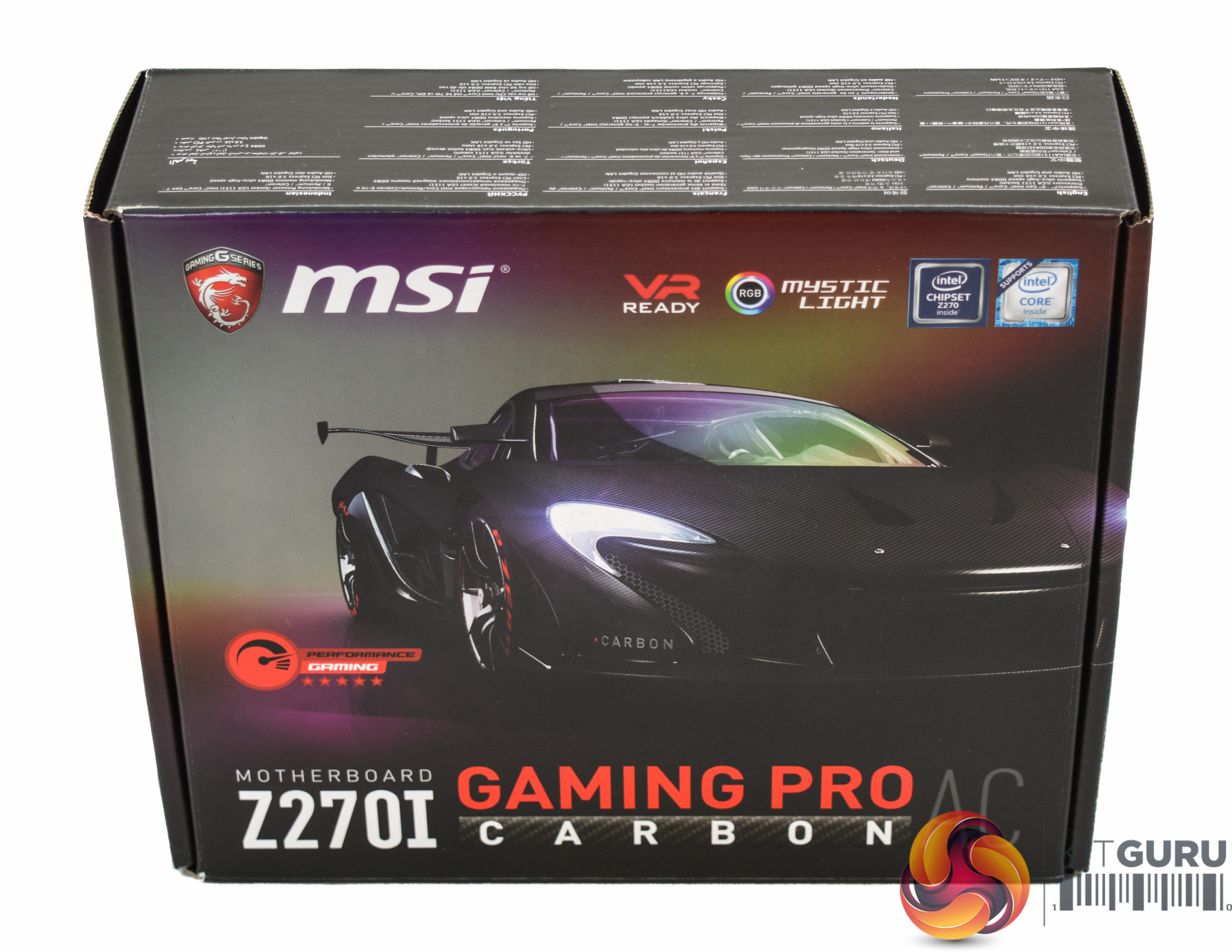
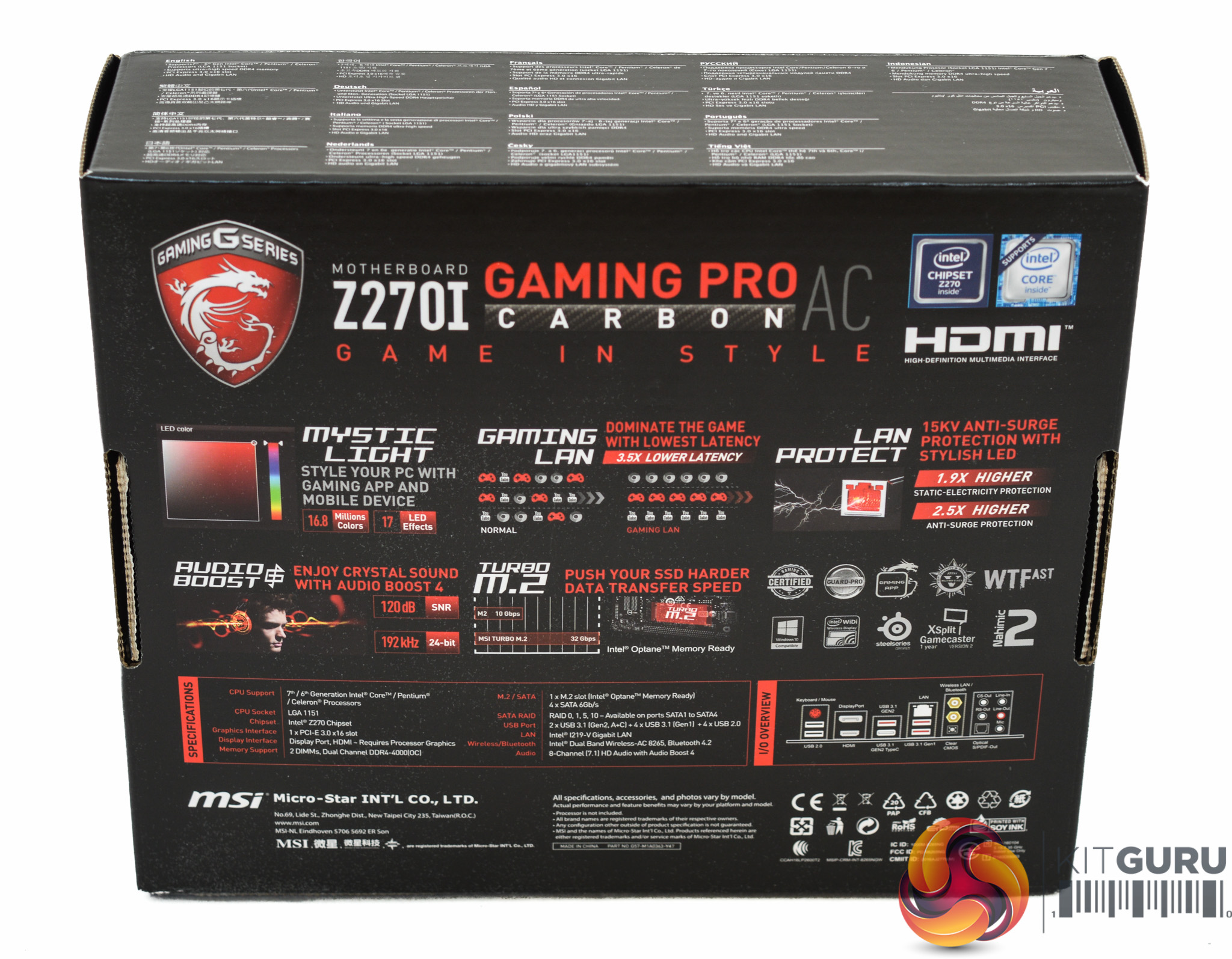
The packaging for the MSI Z270i Gaming Pro Carbon AC is RGB-themed with a focus on the Carbon element of the design. Focal features include the Mystic Light RGB LED system, the NVMe-capable PCIe 3.0 M.2 slot and MSI's gaming LAN solution which is effectively a marriage of Intel's I219-V Network Interface Controller and their Gaming LAN manager software.
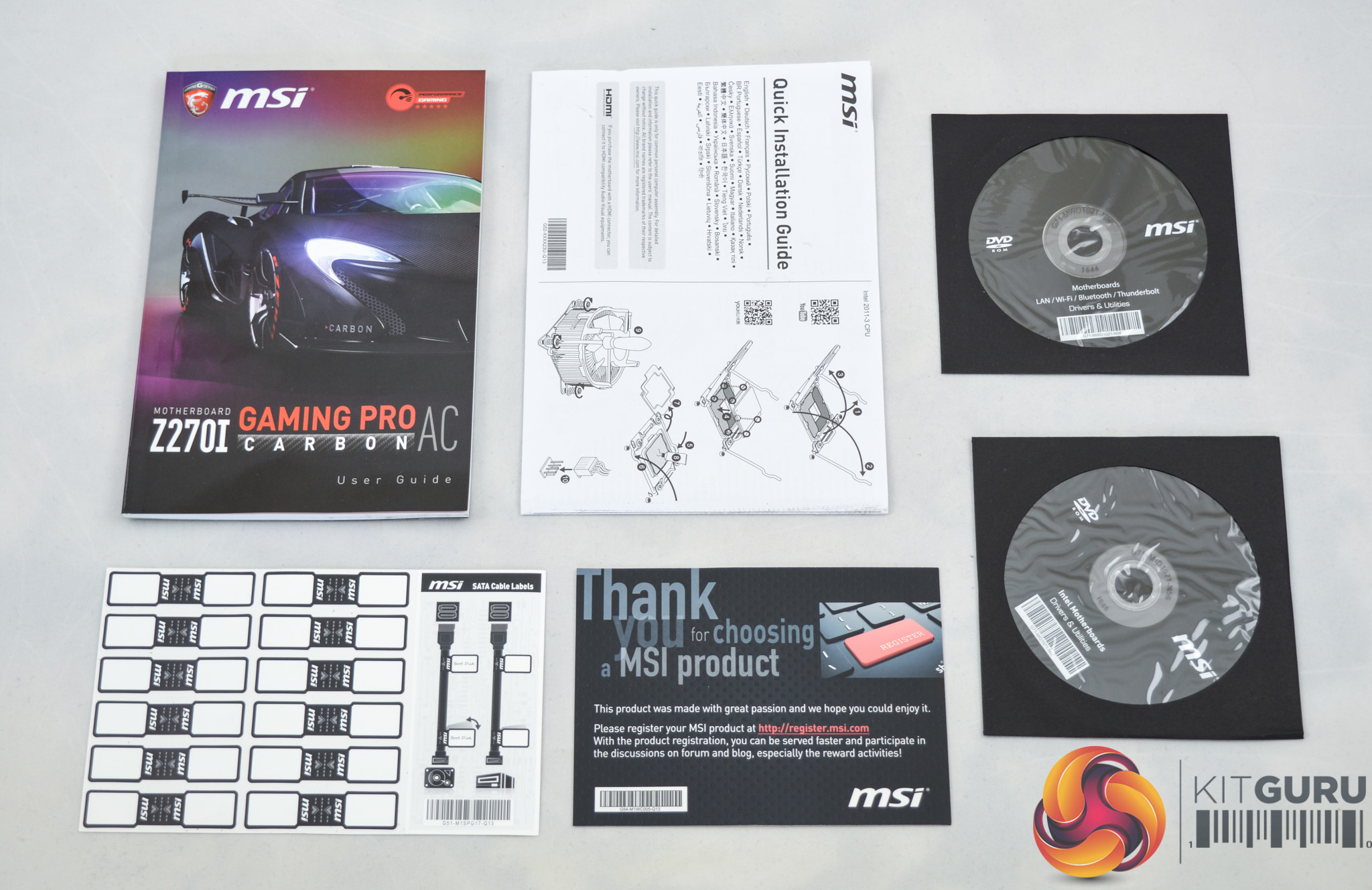
The bundle includes an informative and concise user's manual, a couple of DVDs with drivers, utilities and companion software and some cable labels – not that a mini-ITX system is likely to entail significant cable management.
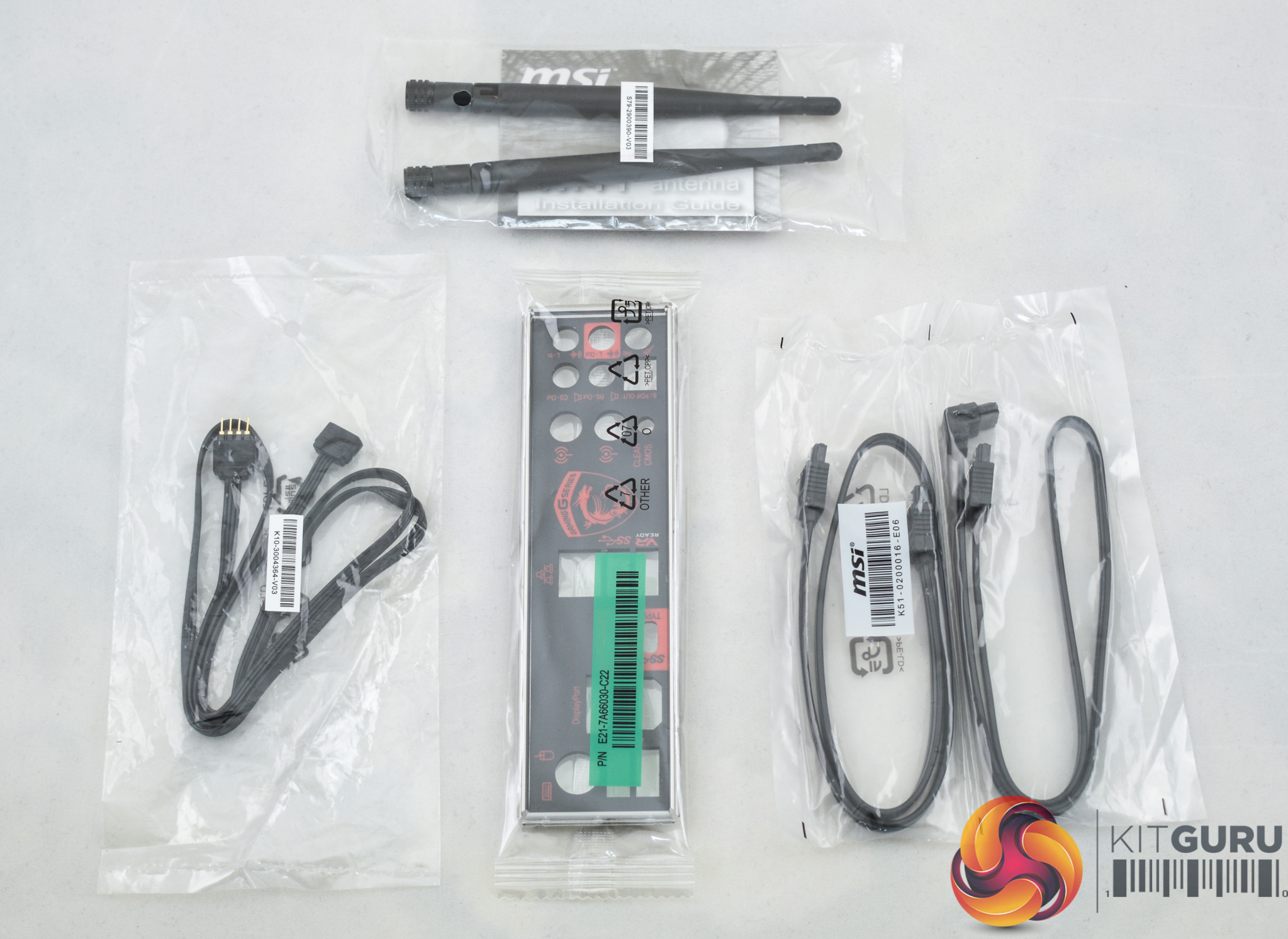
In the way of cables and accessories MSI's provides a couple of SATA cables, RGB extension cable which is useful given the somewhat awkward location of the RGB header, a rear I/O shroud and two WiFi antennae. There is no MSI M-Connector to help with the connecting of front panel cables and after consulting with the user's guide it seems this item isn't included by default, which is a shame.

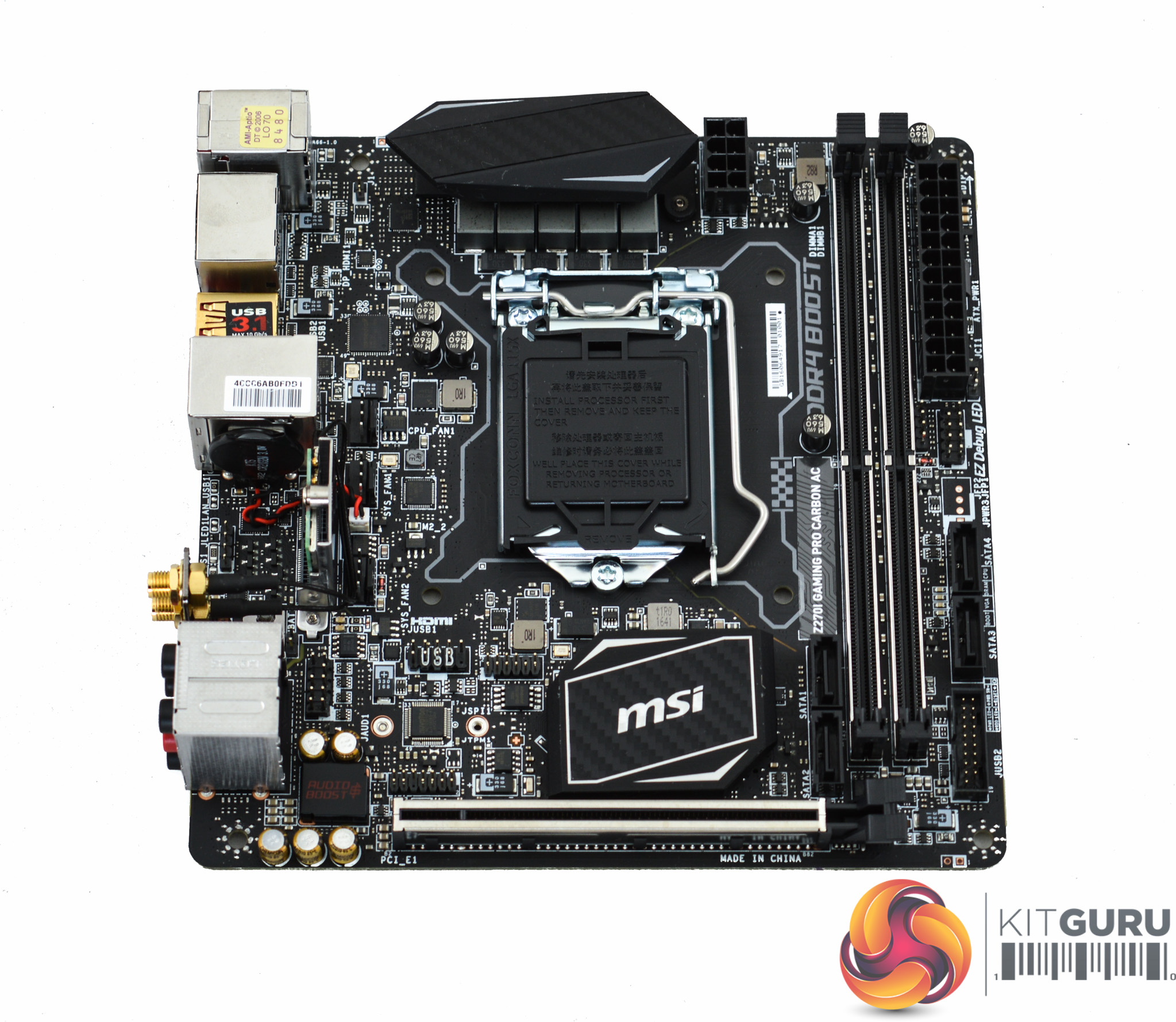
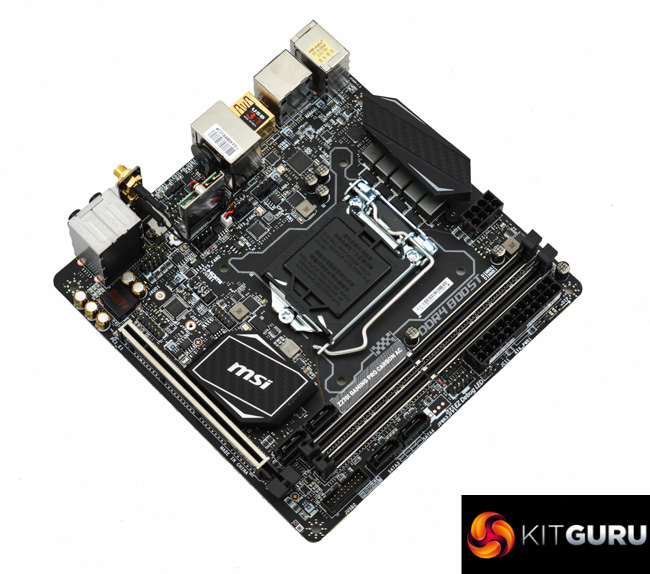
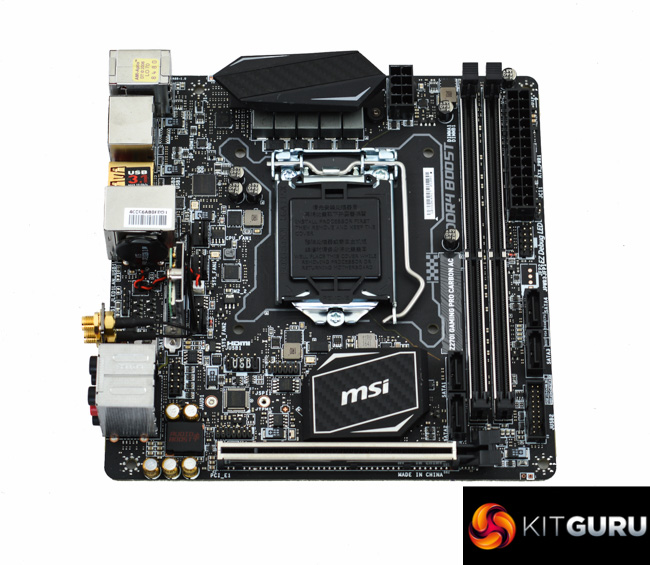
MSI's Carbon series of motherboards have typically used plain black or grey colours with user-customisable RGB LEDs so the Z270i Gaming Pro Carbon AC brings no design surprises. While Carbon by name, there are just two pieces of carbon fibre-style wrap on the whole motherboard – one on the chipset heatsink and one on the CPU VRM heatsink. The lack of a rear I/O Shroud or heatsink near the rear I/O leaves the MSI motherboard looking a little exposed, but it is a clean and tidy overall design.
RGB customisability is available in only two options, a strip running along the edge of the motherboard underneath the DDR4 lanes which is fully customisable and integrated from the get-go. Secondly, a 12v G R B header located near the rear I/O for standard RGB strips. It's an awkwardly placed header but MSI provides an extension cable which goes some way to mitigate that.
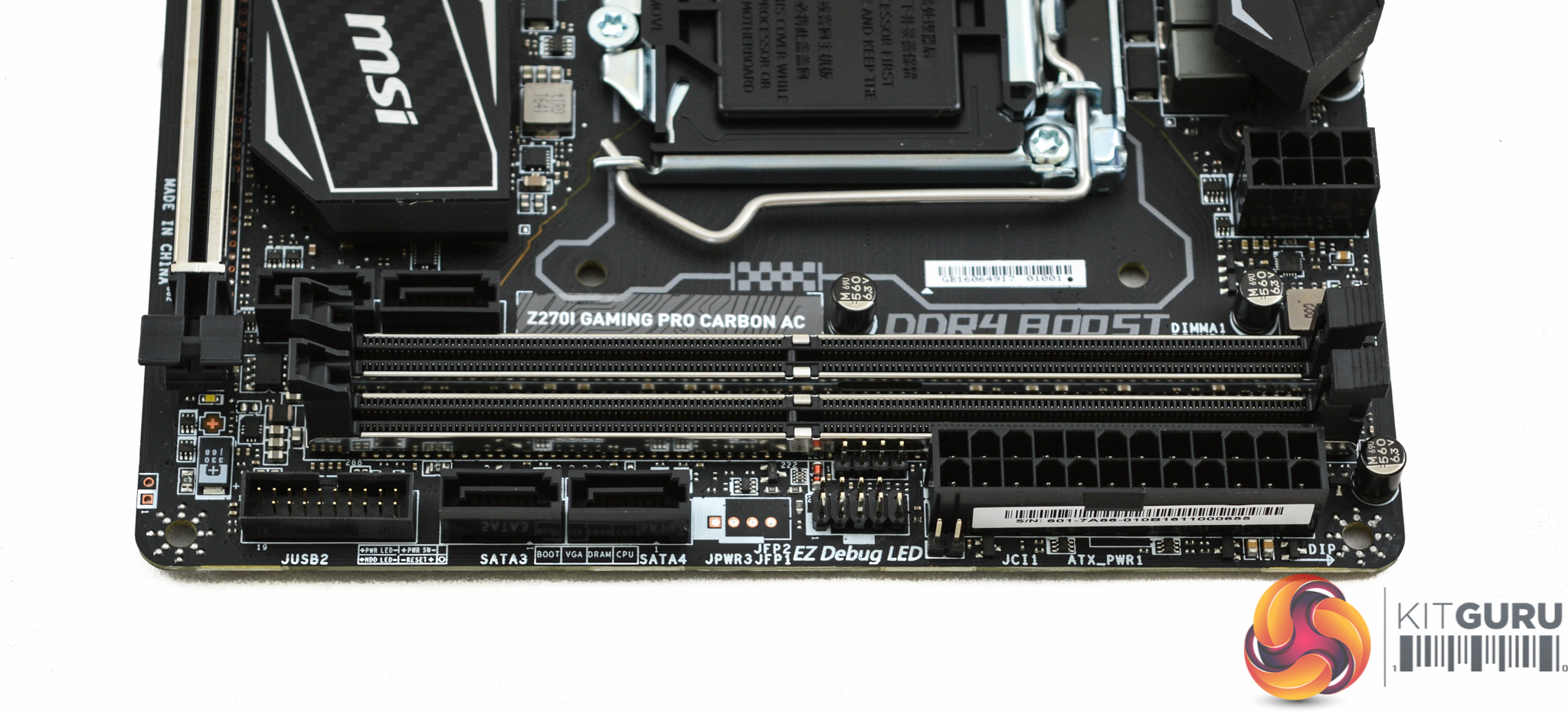
Along the side of the motherboard there are two SATA ports, a USB 3.0 header, plus two front panel headers and a chassis intrusion header. The second front panel header, meant for a motherboard speaker, looks surprisingly like an RGB header so be careful not to confuse the two.
Next to the SATA ports there is a strange space where MSI could have, and probably should have, included additional connectivity like another SATA port. Maybe there was a SATA port there once-upon-a-time since the System Status menu under the UEFI references a SATA Port5, unless this is a placeholder for the M2 port when used in SATA mode.
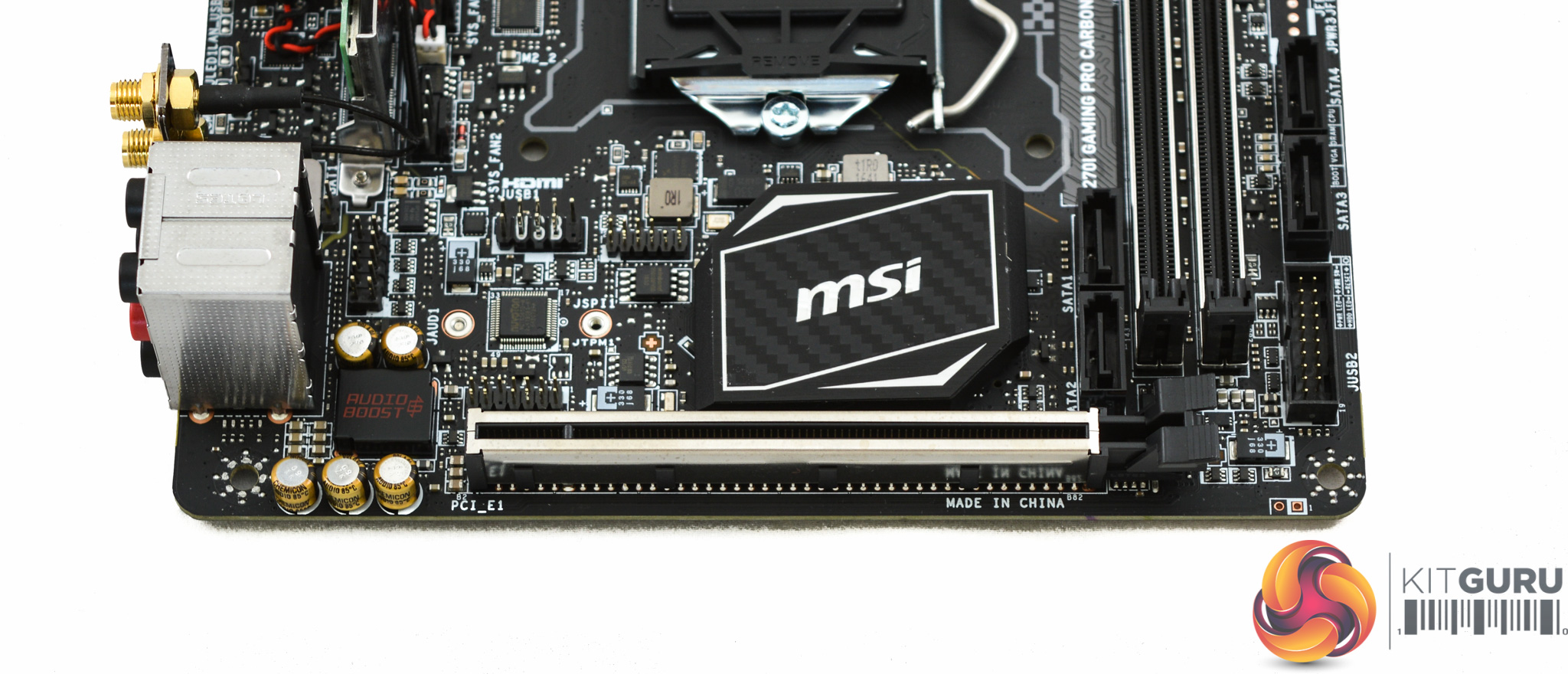
Moving down to the base of the motherboard you'll find a shielded PCIe lane with full 16X electrical bandwidth at PCIe generation 3.0 speeds. A further two SATA ports are sandwiched between the PCIe slot and two DDR4 lanes.
The audio section is crammed in next to the rear audio jacks where MSI found space for 5 audio capacitors and shielding for Realtek ALC1220 codec which integrates a headphone amplifier. Despite the congestion of components MSI still found a way to most isolate the PCB in the audio section, see the photo below of the underside of the motherboard for a clearer view of this.
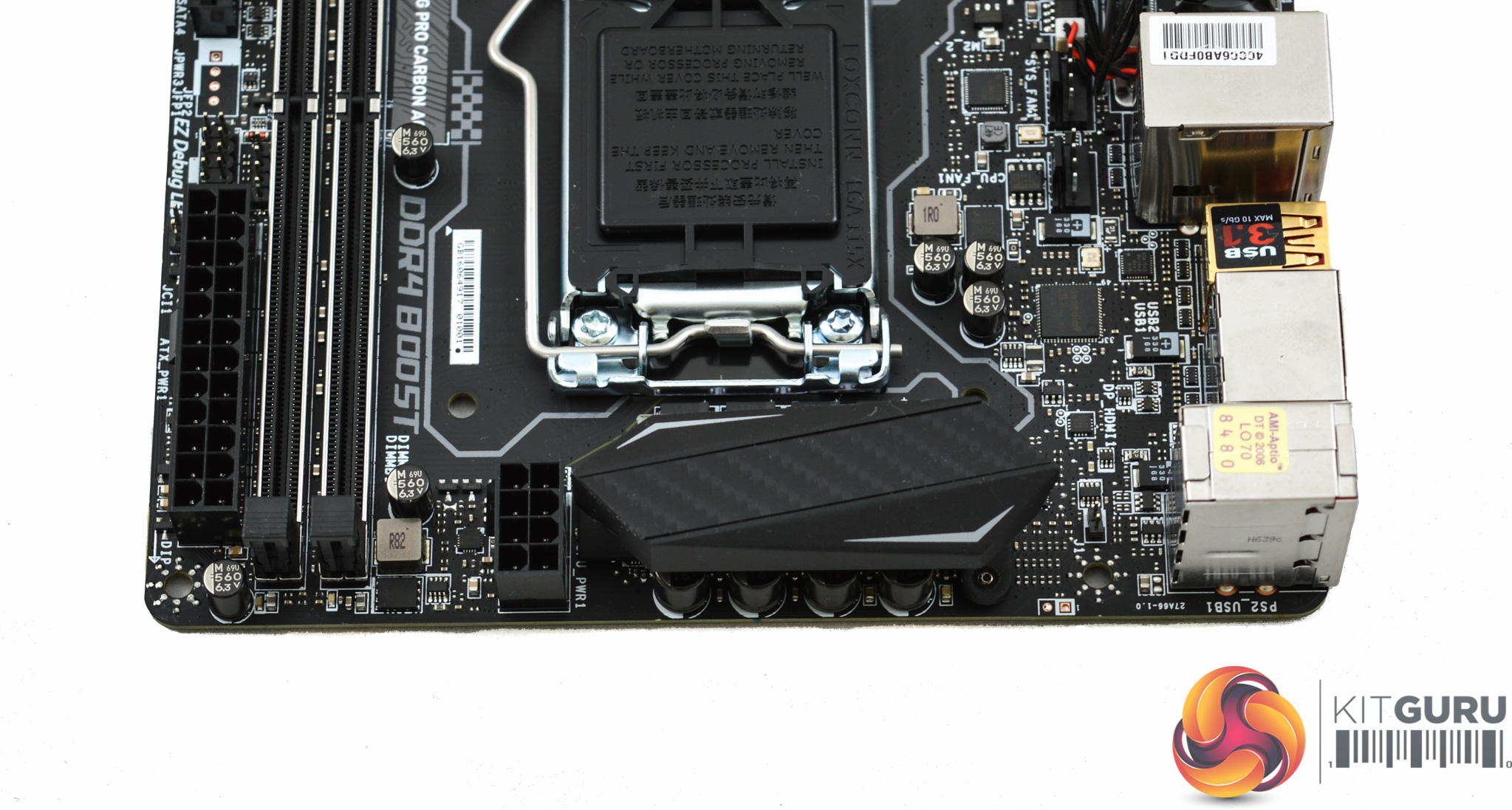
The CPU socket has what appears to be a 5-phase VRM and this is powered by a standard 8 pin EPS connection. The CPU fan header is located next to the two System fan headers by the rear I/O. If the end user has an AIO then now more than ever the integrated fan controllers built into the pumps make a lot of sense otherwise the board's three fan headers are used just for the AIO.
However, any AIO with a fan controller will likely require the single USB 2.0 header on the board for the AIO controller unit leaving no front panel USB 2.0 capability, there is a front panel USB 3.0 header though.
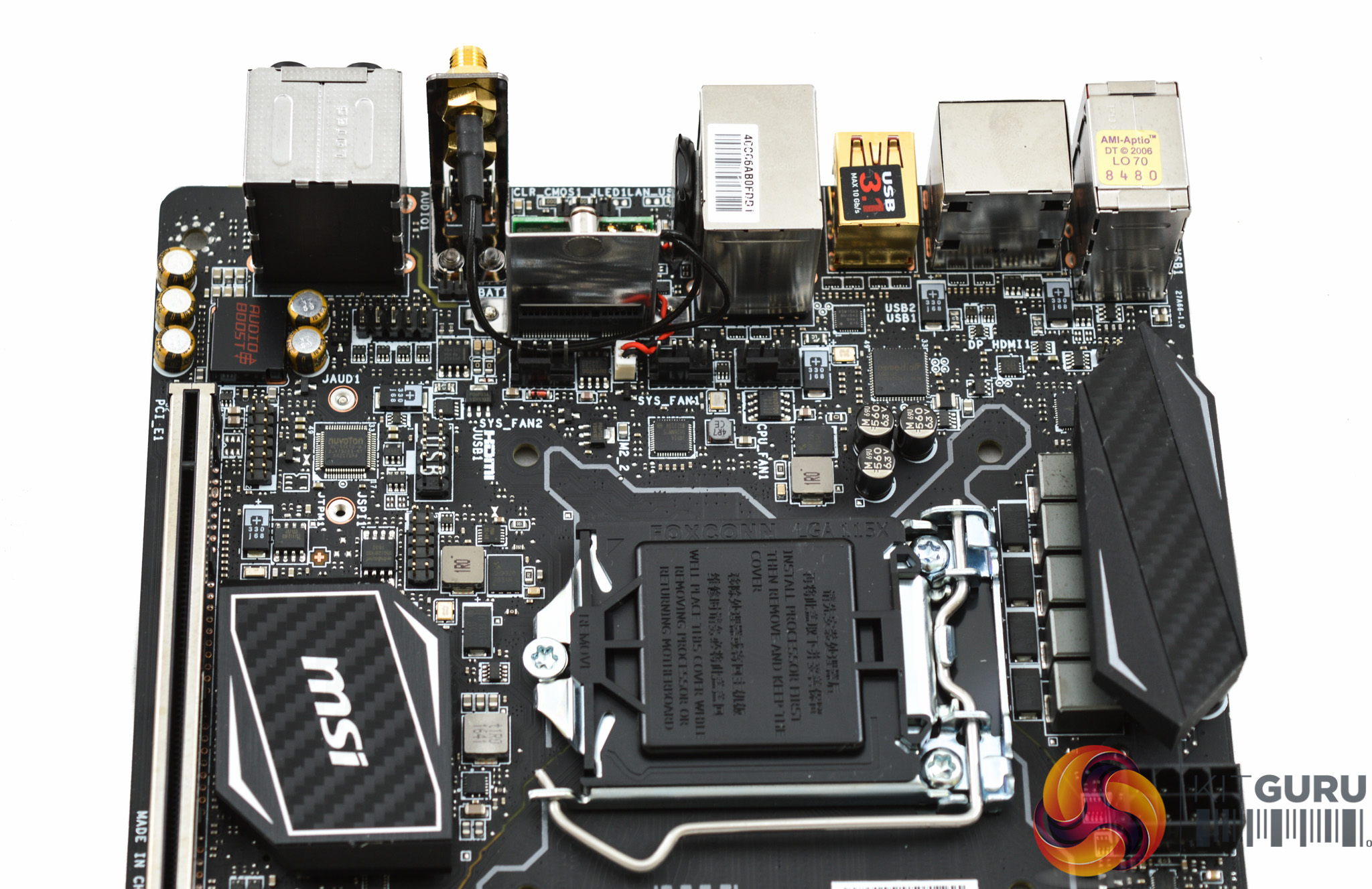
There's a cluster of headers around the back region of the board which include the previously mentioned three fan headers and USB 2.0 header, a TPM header, front panel audio and the LED header, The connector next to the MSI chipset heatsink is JSPI1, apparently an MSI port used to program the BIOS.
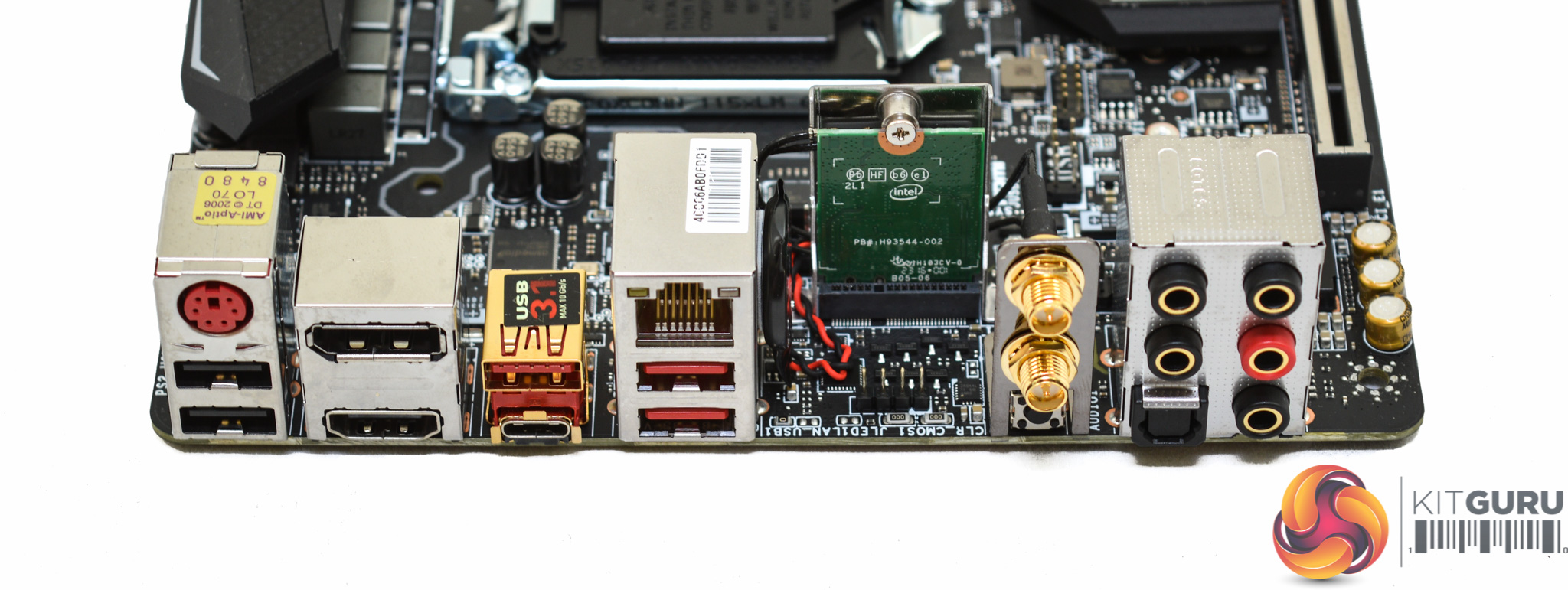
The rear I/O is good for the motherboards size, you get six USB ports of assorted speeds, two display connections, a legacy PS/2 combo, plenty of audio jacks and a clear CMOS button. The two optional WiFi antenna ports can also be populated with the supplied antennae if the user so desires.
From the back there's a clear view of the vertical M2_2 slot used to hold the WiFi Bluetooth combo card and the LED RGB port. MSI has vertically mounted the CMOS battery to save space which is now almost standard practice for mini-ITX motherboards.
The link speed for the M2_2 slot is not specified and MSI doesn't include either of the M.2 slots in the provided block diagram which is included in the manual.
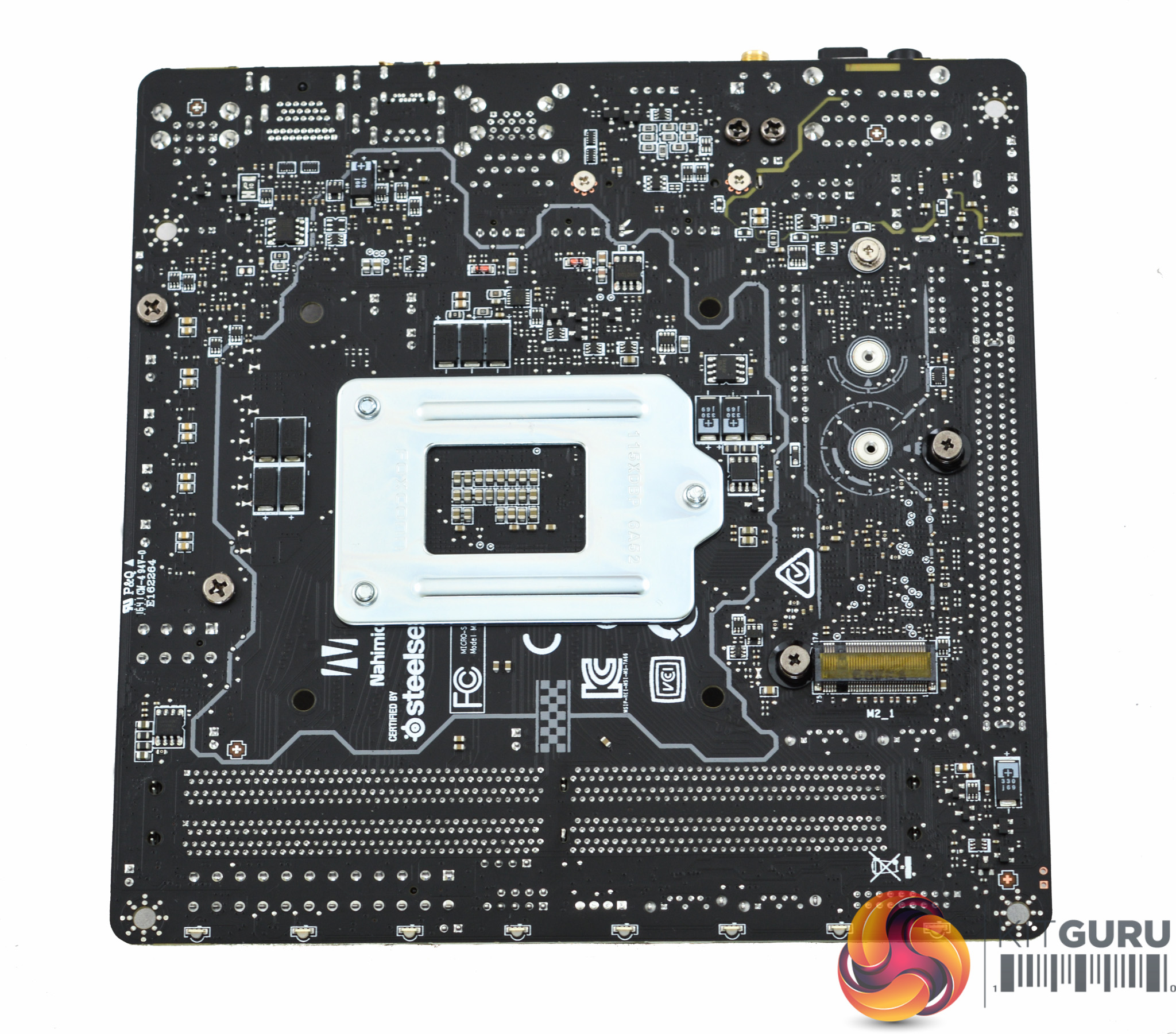
Underneath the MSI board you can see the M.2 slot which is down here as a space-saving measure, thankfully it doesn't conflict with any backplates as it is spaced adequately away from the CPU socket.
The aforementioned audio PCB shielding can be seen a lot clearer from this view. We're not sure as to the purpose of the grey outline that goes roughly around the extent of the CPU socket. It isn't transparent so it clearly isn't intended to enhance the LED system but it's possibly there for isolation purposes given that the underside of this board is so densely populated with components.
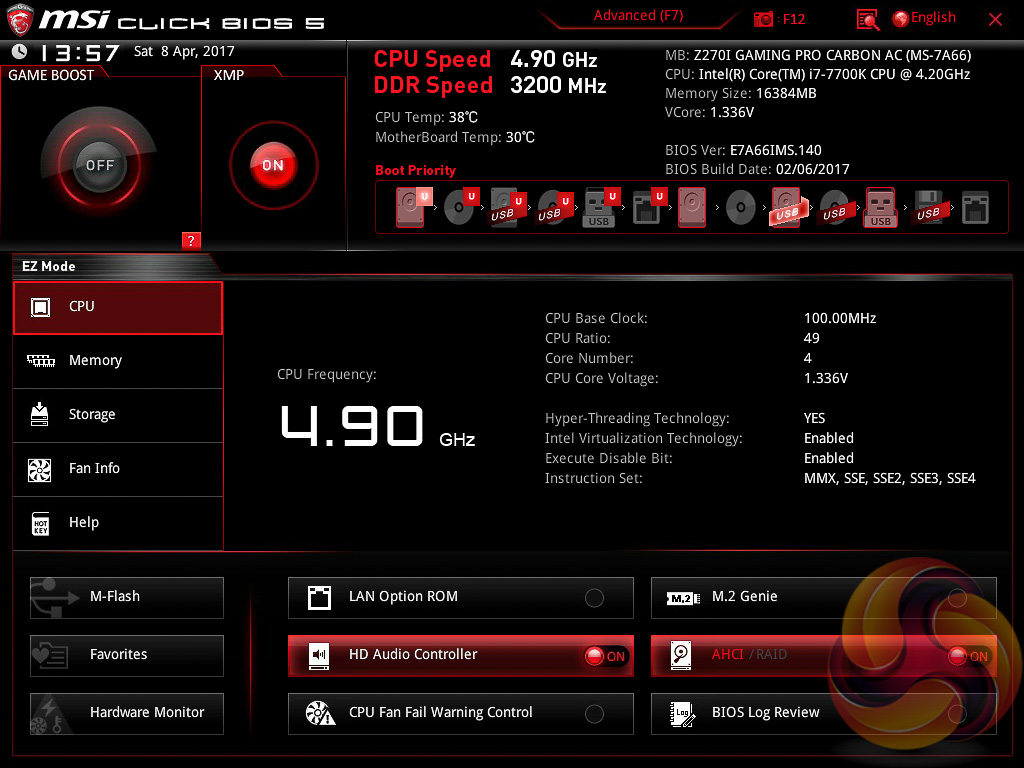
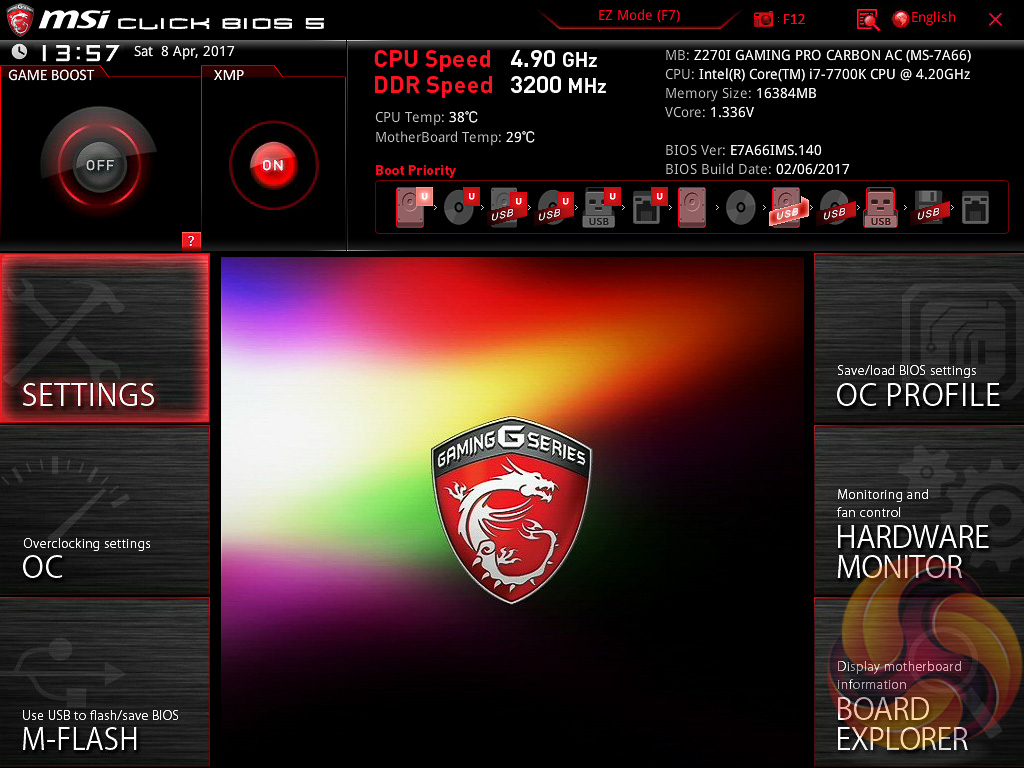
The UEFI with the MSI Z270i Gaming Pro Carbon is well refined and overall Click BIOS 5 is still a solid UEFI implementation that has no significant flaws.
MSI’s UEFI launches into EZ Mode by default, but can launch into Advanced mode instead by pressing F7. The EZ Mode splash page holds the key settings like automated overclocking, boot order, fan profiles, M-Flash and XMP.
The advanced mode is the more typical UEFI implementation and it contains all the key options within one of the six tiles. The design feels a little tight on space since the overly large top-bar persists throughout all sections, except hardware monitor and board explorer, and the left navigation bar also persists.
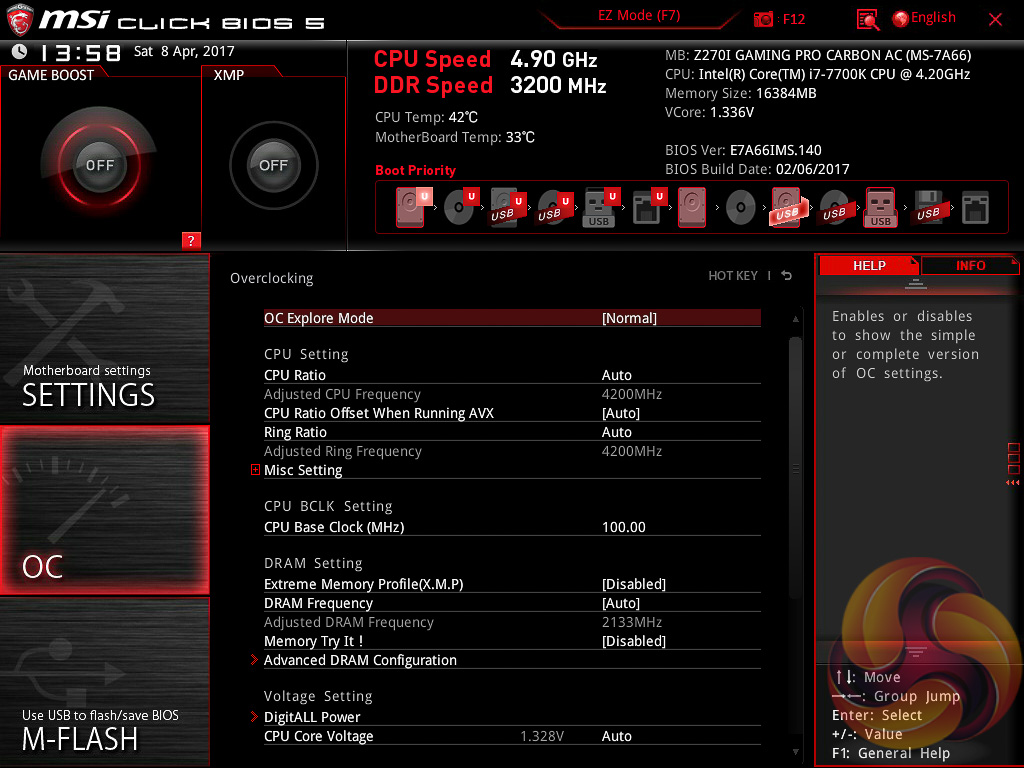
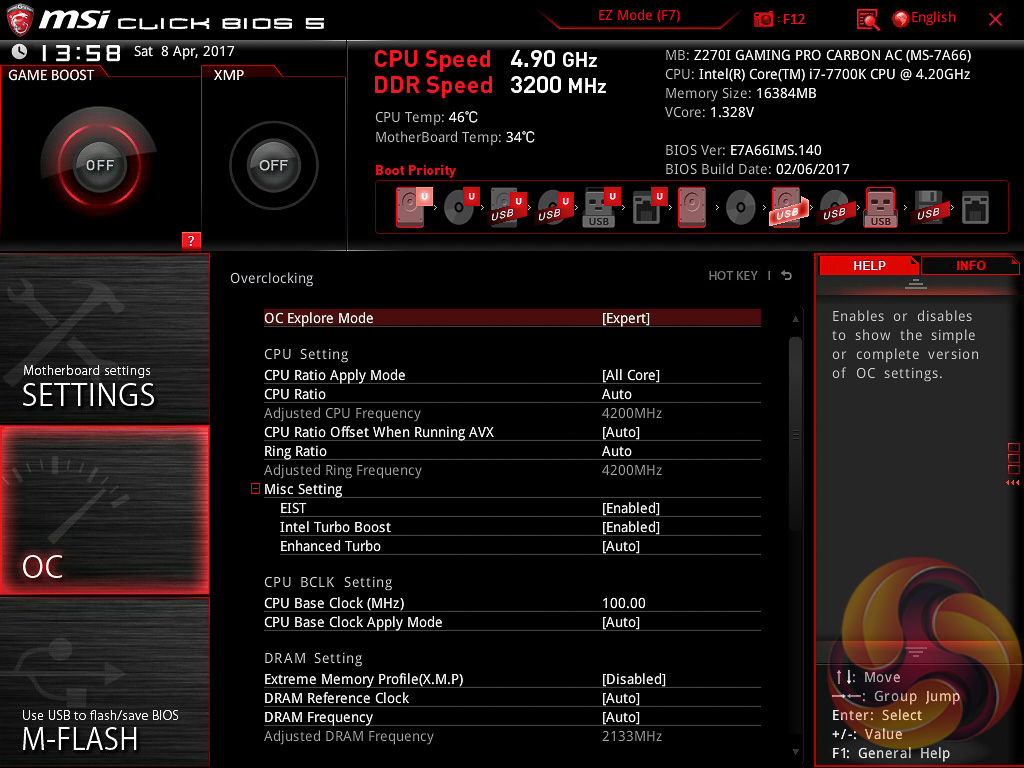
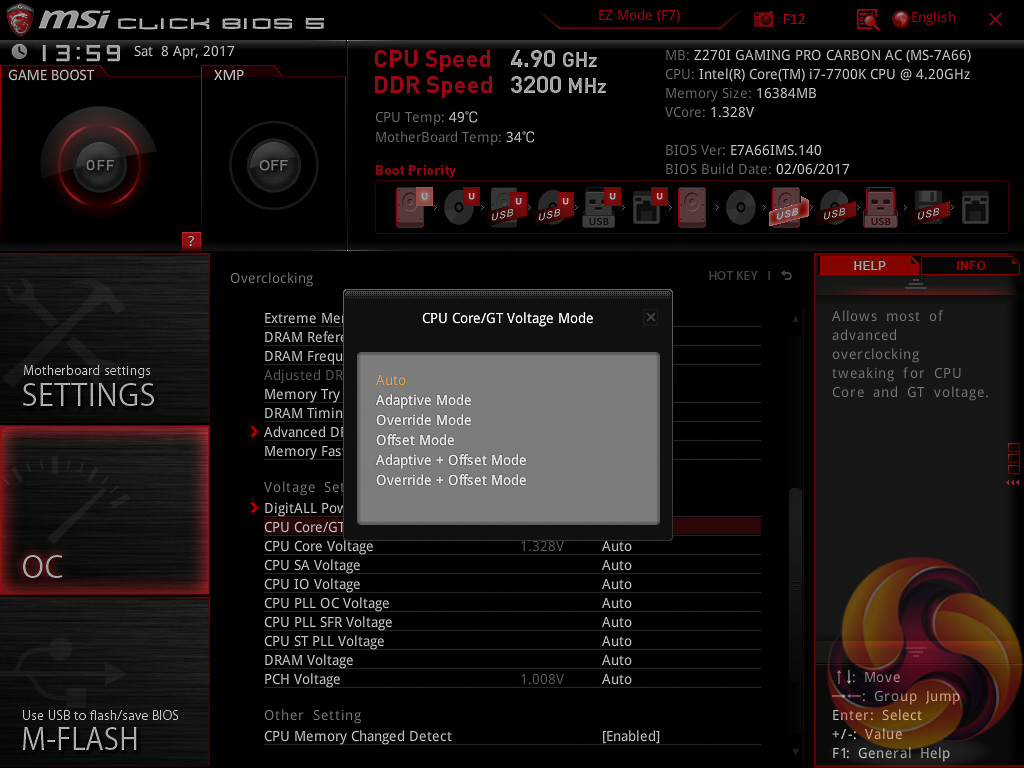
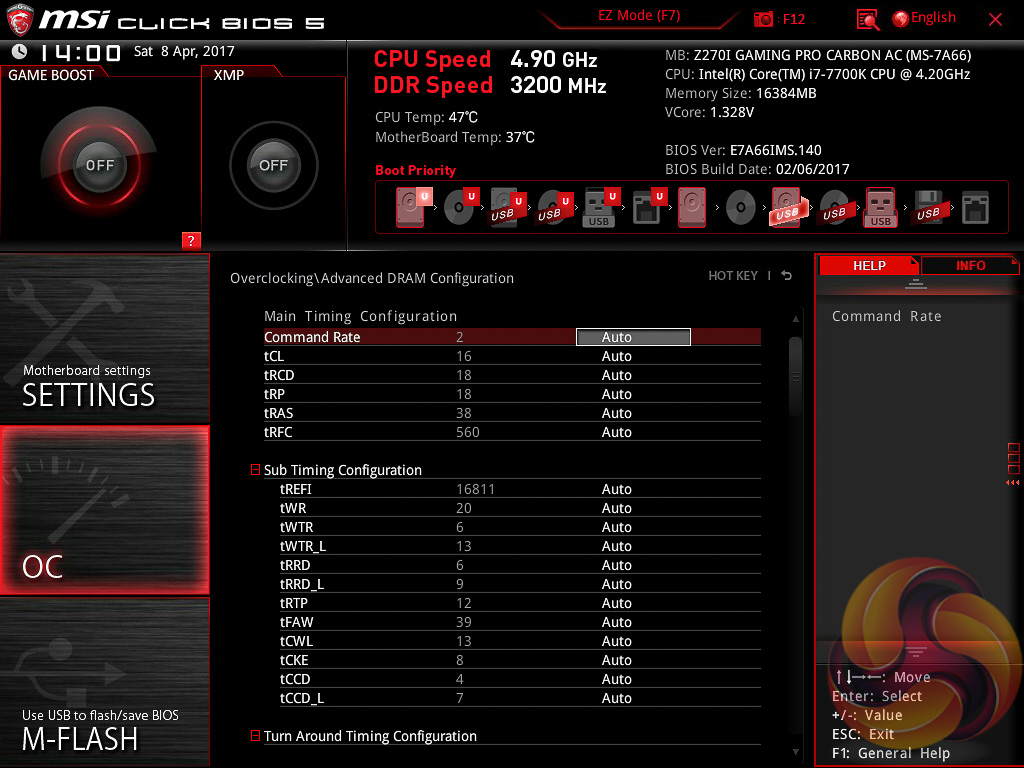
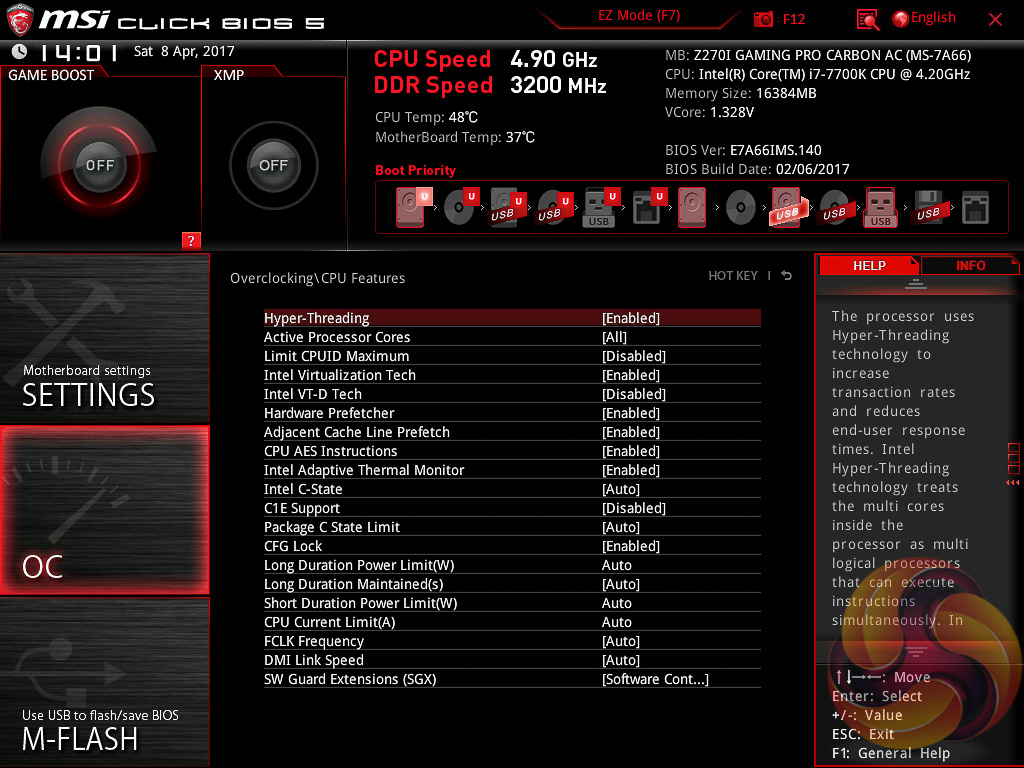
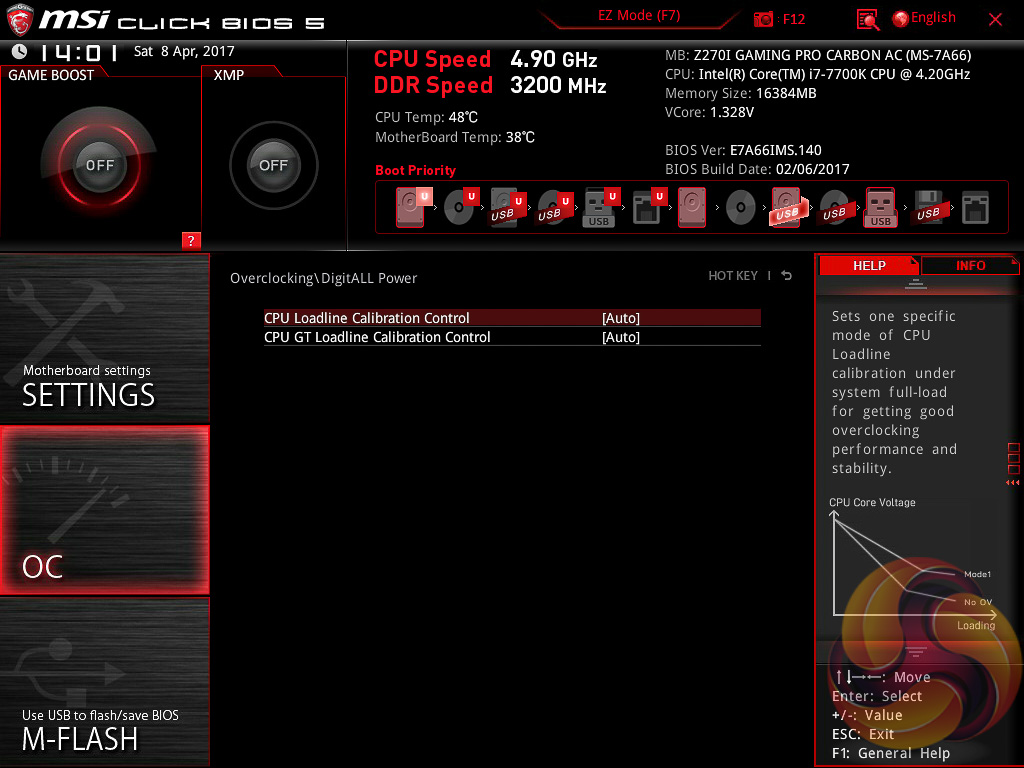
The OC tab is where the important options reside including all frequency and voltage options for the CPU and DRAM. It is recommended to toggle the “OC Explore Mode” into Expert straight away if you’re confident in your own ability since the Normal mode does limit some important options.
The most important of those is the ability to pick how voltage is applied and by default the CPU voltage mode is Auto. We are not sure which mode auto selects once you key in a voltage but by enabling Expert mode you can pick from Adaptive, Override, Offset, Adaptive + Offset or Override + Offset.
MSI allows only two levels of LLC control with the Z270i Gaming Pro Carbon AC which is Mode 1 or Auto. And Auto equals either Mode 1 or no overvoltage beyond Intel's specification. This lack of granularity pales in comparison to the MSI Z270 Gaming M7 which had 8 modes in addition to Auto and No OV.
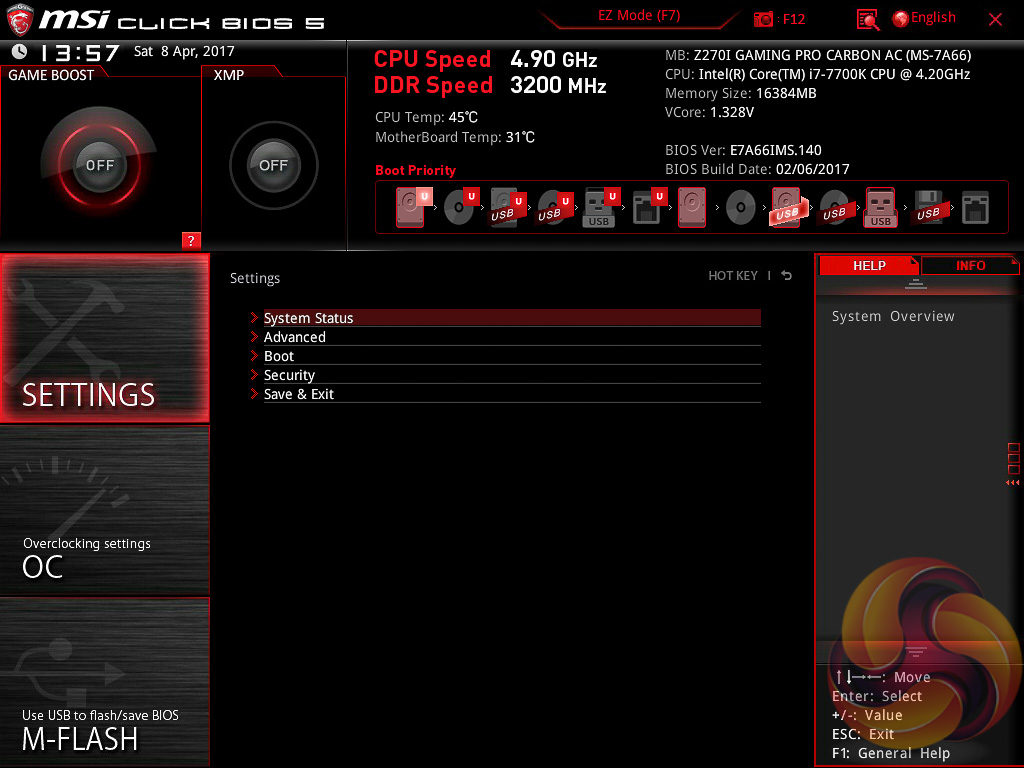
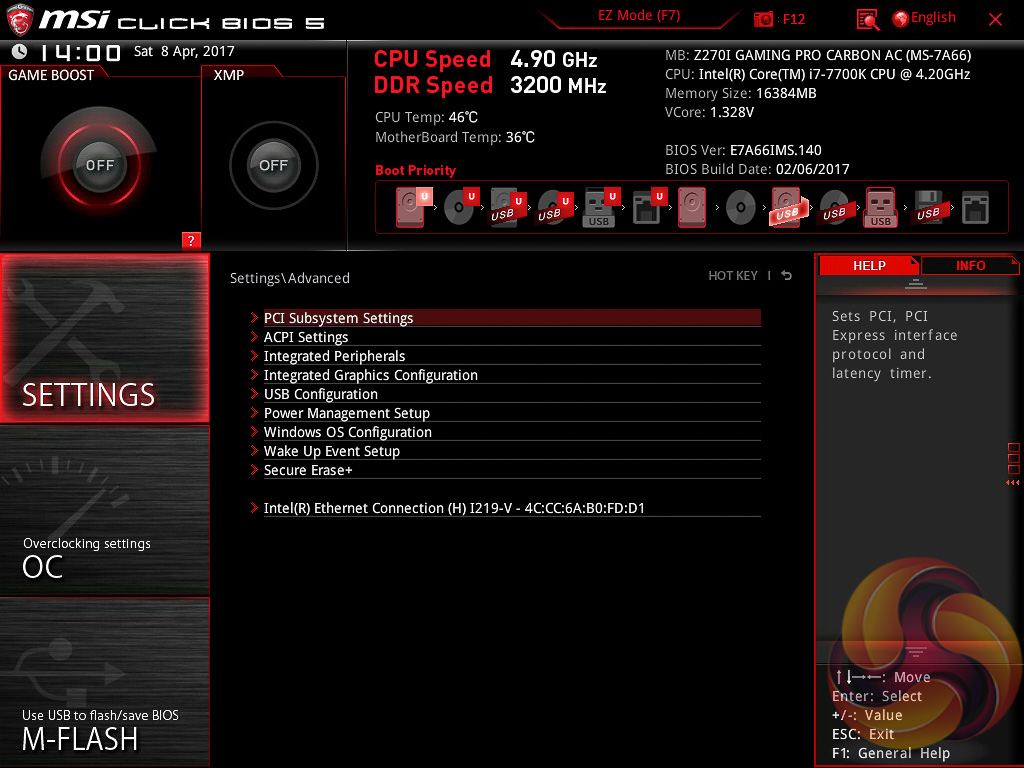
Settings has a number of useful settings for booting and integrated peripherals. The Advanced entry has the most sub menus and options to play with including the ability to toggle various different compatibility modes for storage and USB devices.
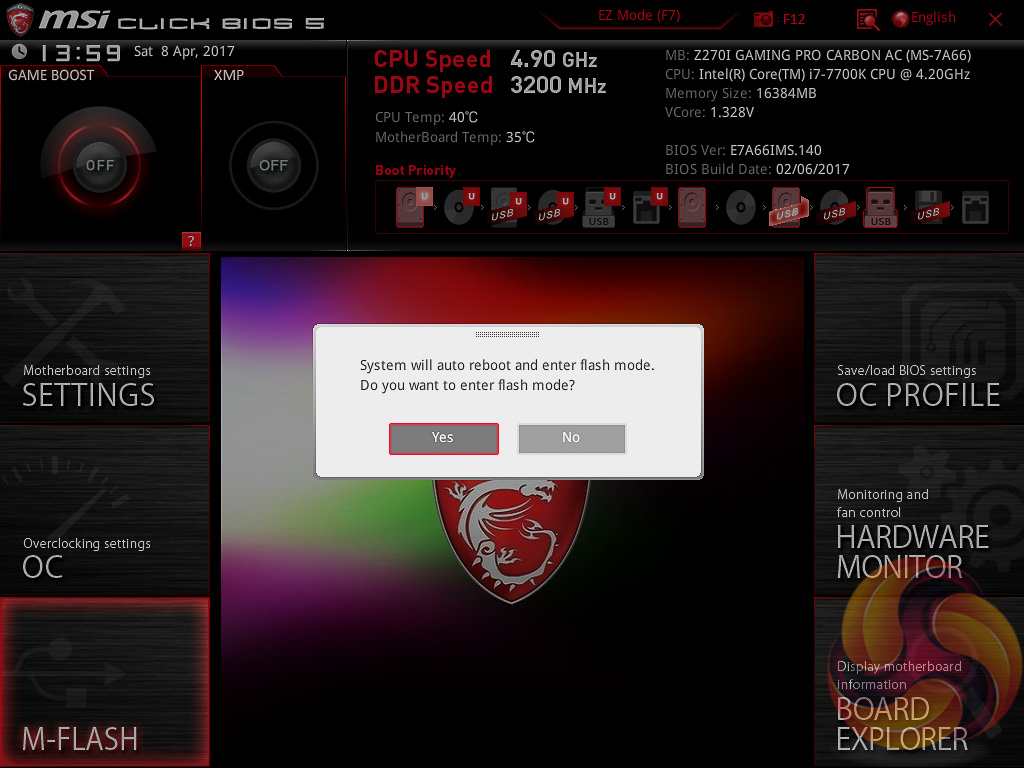
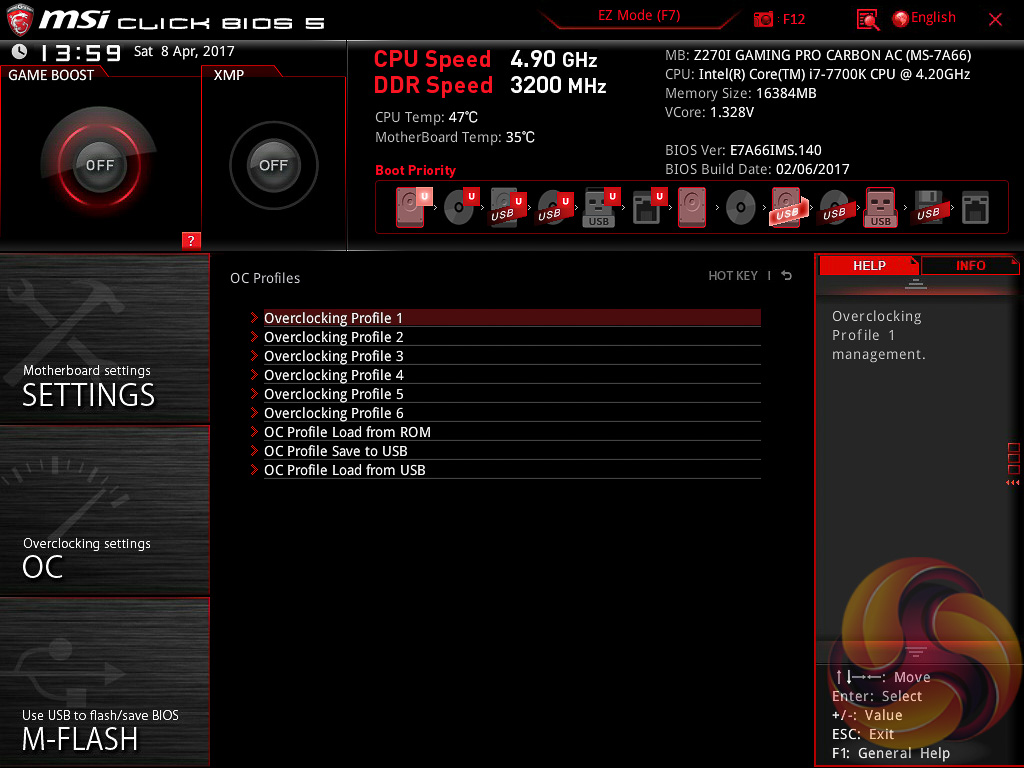
M-Flash forces you to reboot to enter the flashing process which feels a little disruptive though in practice all motherboard vendors will eventually reboot at some stage during the flashing process. However, you can’t view any of the M-Flash options or interface without conducting a reboot, whereas most vendors will allow you to poodle around in the interface, see what options are available to you and even start the flash, before a reboot is eventually required.
The OC Profile section hasn’t changed much in successive generations, it still allows you to save OC profiles to blank slots, load in OC profiles from a USB stick or export them to a USB stick. It’s a handy little feature that should facilitate sharing of decent OC profiles on forums and across the internet more generally.
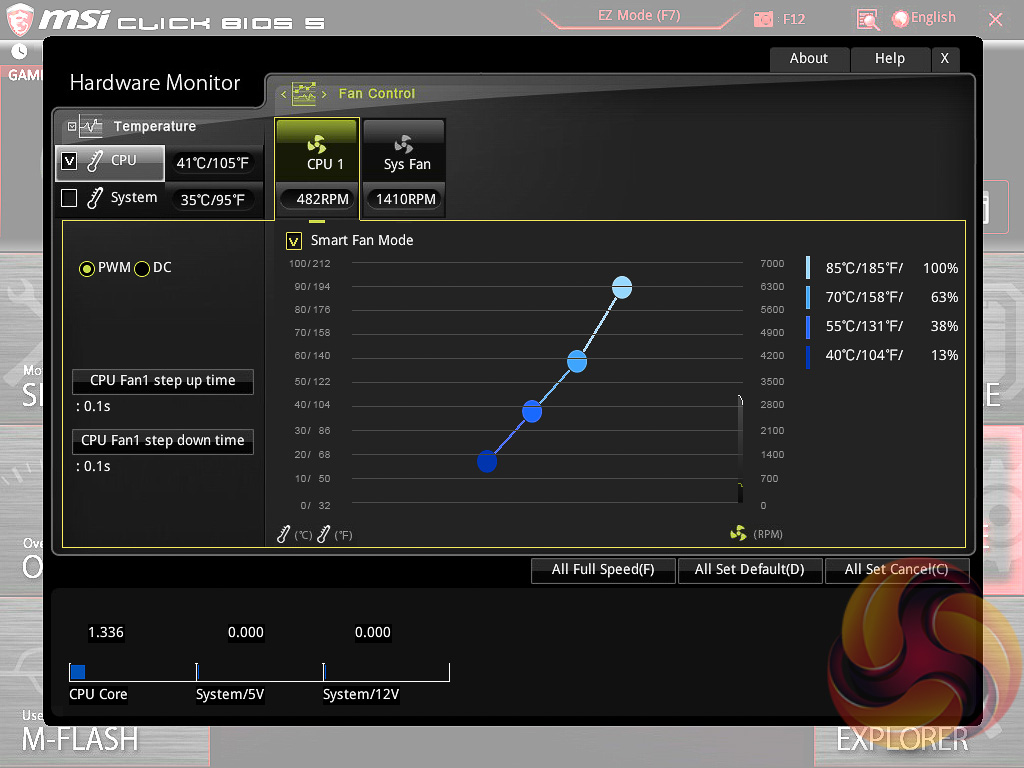
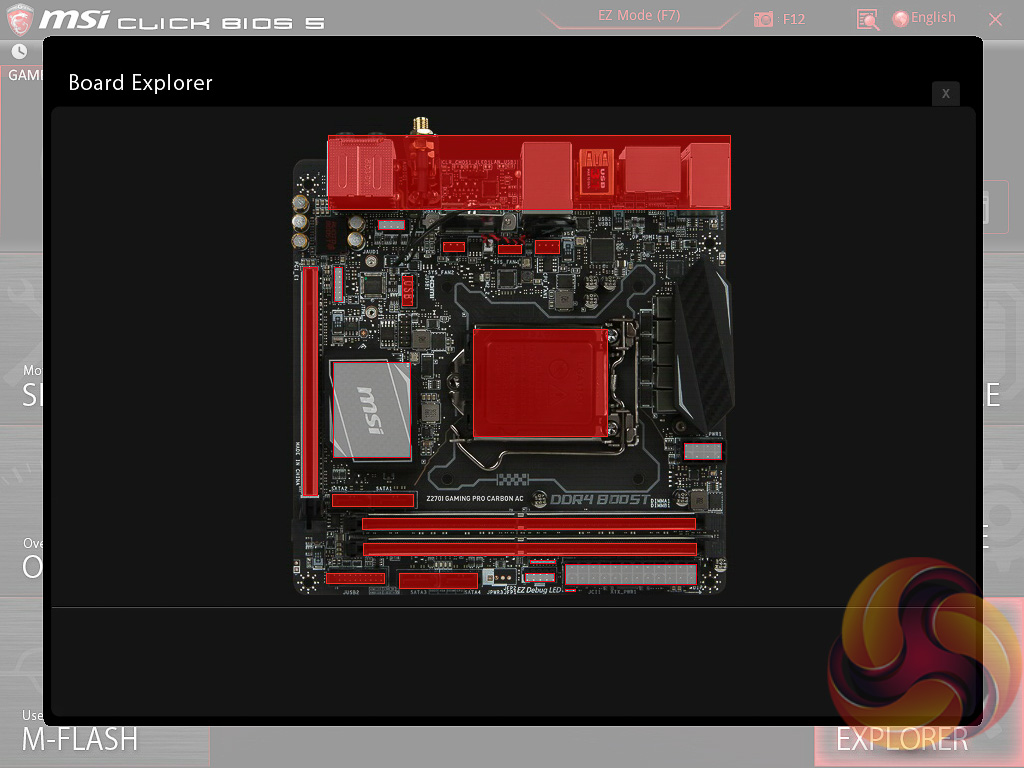
The last two tiles of the MSI UEFI refer to tools. Board Explorer is a visual interface for seeing what is connected to the various sections of the motherboard and some information about those connected entities. Hardware Monitor has more practical use in that it’s the primary method of changing fan profiles within the UEFI environment for each of the three fan headers.
The step up time option presented is the hysteresis between a change in temperature and a subsequent change in fan speed. A user would want to manipulate this when the fans are constantly ramping up and down too regularly because the input temperature is varying in an out of two threshold ranges.
What becomes apparent in hardware monitor is that the system fan 1 and 2 controls are shared on this MSI board . This is highly impractical and it means you have to have the same fan speed profile for both connected devices. In our case we had connected the H100i v2 pump to one system fan port and the H100i v2's second fan to the other.
Normally the pump would be run at full speed for optimal cooling performance and the fan on a quiet profile, but you cannot do this without running the fan at full speed also. Furthermore, the RPM reporting alternates between the fan and the pump (SYS_1 and SYS_2) so the single system fan speed readout for the system headers can change rapidly in few seconds due to the reporting of the two different headers at the same time. This doesn't have any effect on the connected devices though, they still operate normally.
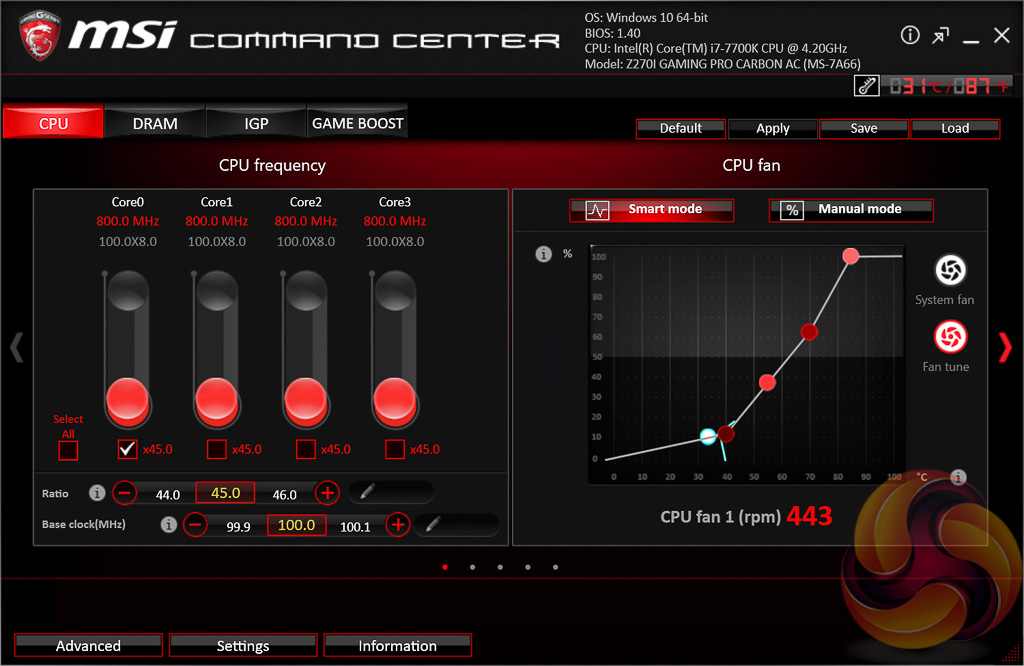
Command Center is the central software for the MSI Z270i Pro Carbon AC and it houses on-the-fly overclocking tools for the the CPU, DRAM and iGPU. The Game Boost function can also be toggled from within here but we find for the effort required users are better off doing their own research to overclock their CPU since MSI has to overestimate the voltage to account for variations across all CPUs.
Other tools the user has access to in Command Center include the fan profile and fan tuning and hardware monitoring.
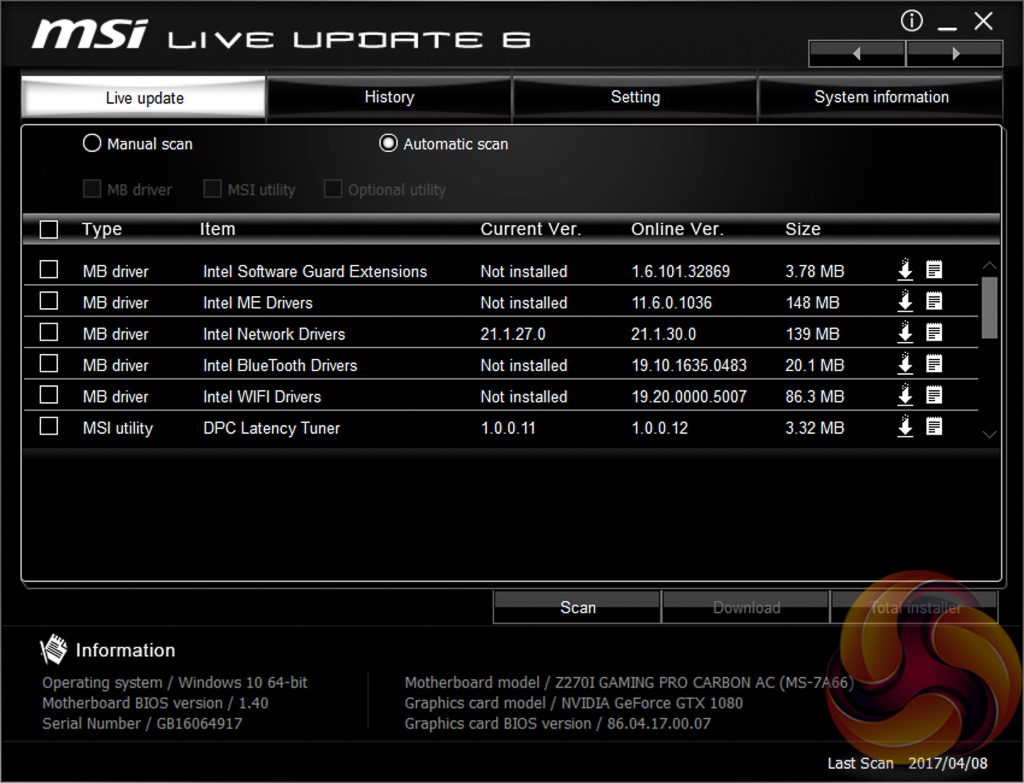
Live Update 6 will keep itself, other MSI software and core motherboard drivers up to date on your behalf. It can be programmed to check for updates on schedule or only when asked by the user. It’s a fairly powerful tool for those who don’t have the time to manually check for updates themselves.
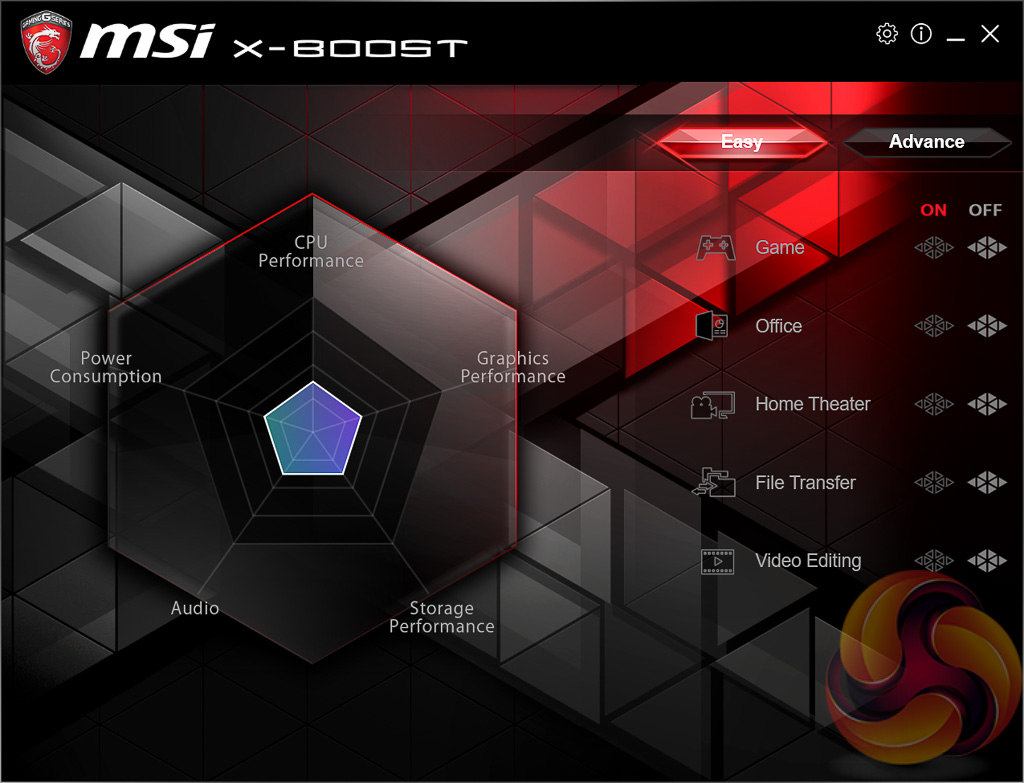
X-Boost seems to be a new MSI utility which functions similarly to something like the ASUS EPU/TPU power & performance profiles. MSI offers five different profile presets (Game, Office, Home Theater, File Transfer, Video Editing) which adjust the priority given to one of five key areas (CPU Performance, Graphics Performance, Storage Performance, Audio or Power Consumption).
However, clicking on the advance tab reveals only storage options can be tweaked so we aren't actually sure what system changes these profiles are implementing. We enabled a variety of profiles but saw no noticeable changes to typical CPU or GPU frequency and system power consumption.
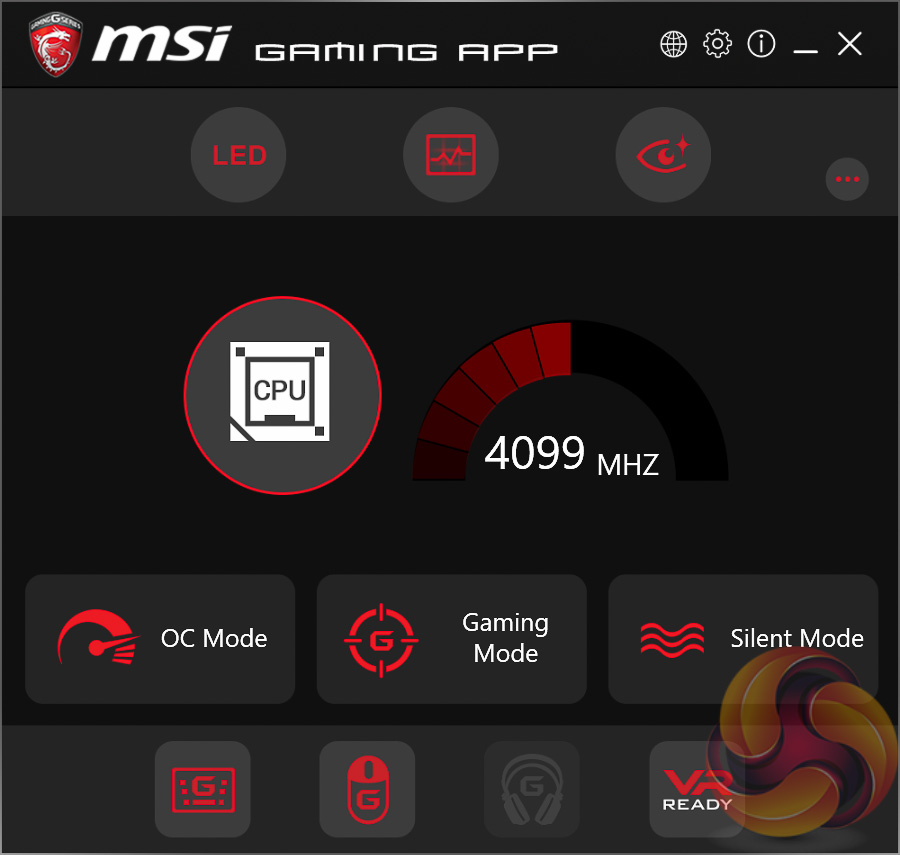
The MSI Gaming App confuses things even more since it also has power & performance profiles in the form of OC Mode, Gaming Mode and Silent Mode. The MSI Gaming App seems like the best choice of the two since it includes the LED software and so will likely be installed with every motherboard.
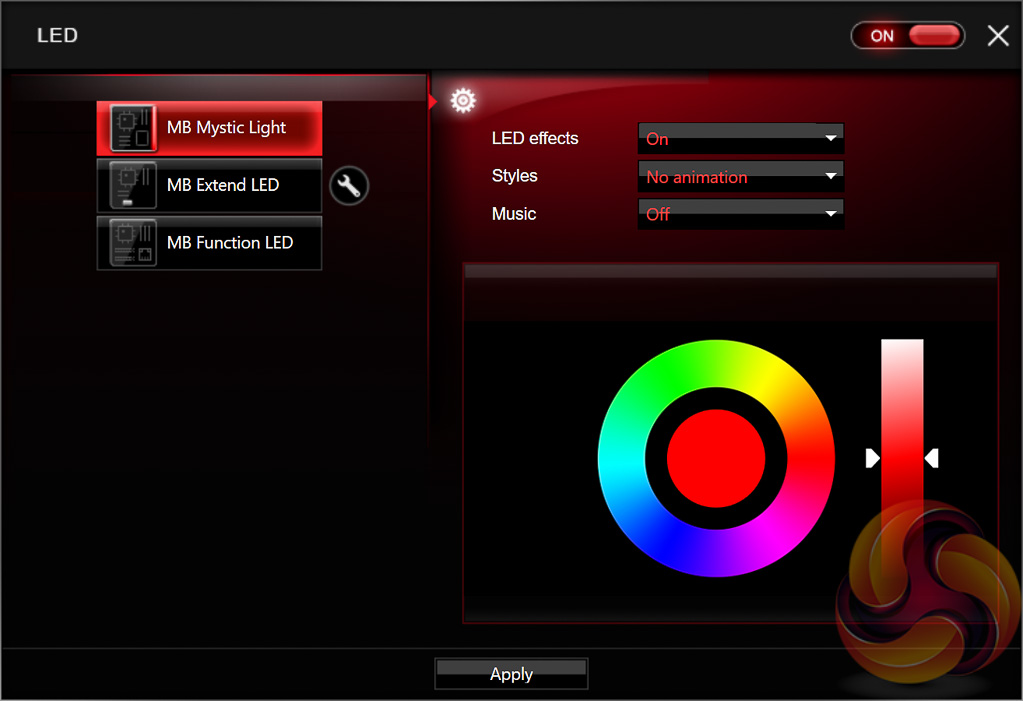
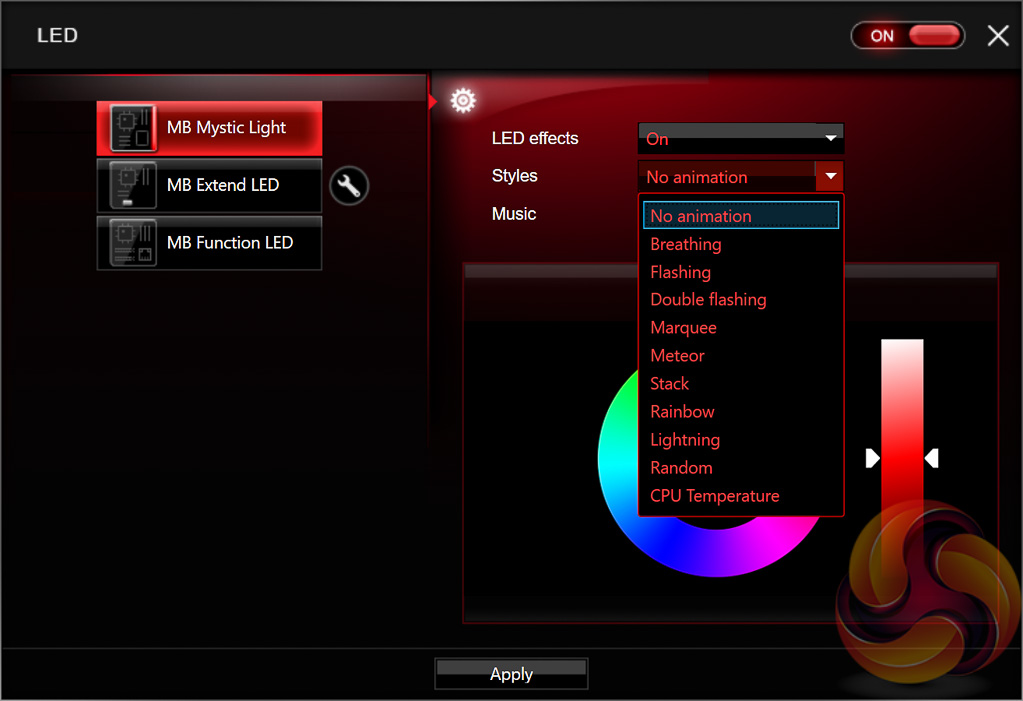
The LED software is has a good range of colours and lighting options to choose from, and fares much better than the previously tested MSI Z270 Gaming M7 that had just 7 colours and 5 lighting modes. The software allows for independent control of each lighting zone but has a mysterious third zone “MB Function LED” which appears to do nothing.
We imagine this, based on the thumbnail diagram of it in the software, is a function that MSI boards with more lighting zones are able to use. MSI most likely didn't disable it in the software for this particular motherboard when it should have. LED controls are good on the whole though we'd like to see a few more integrated LEDs as standard.
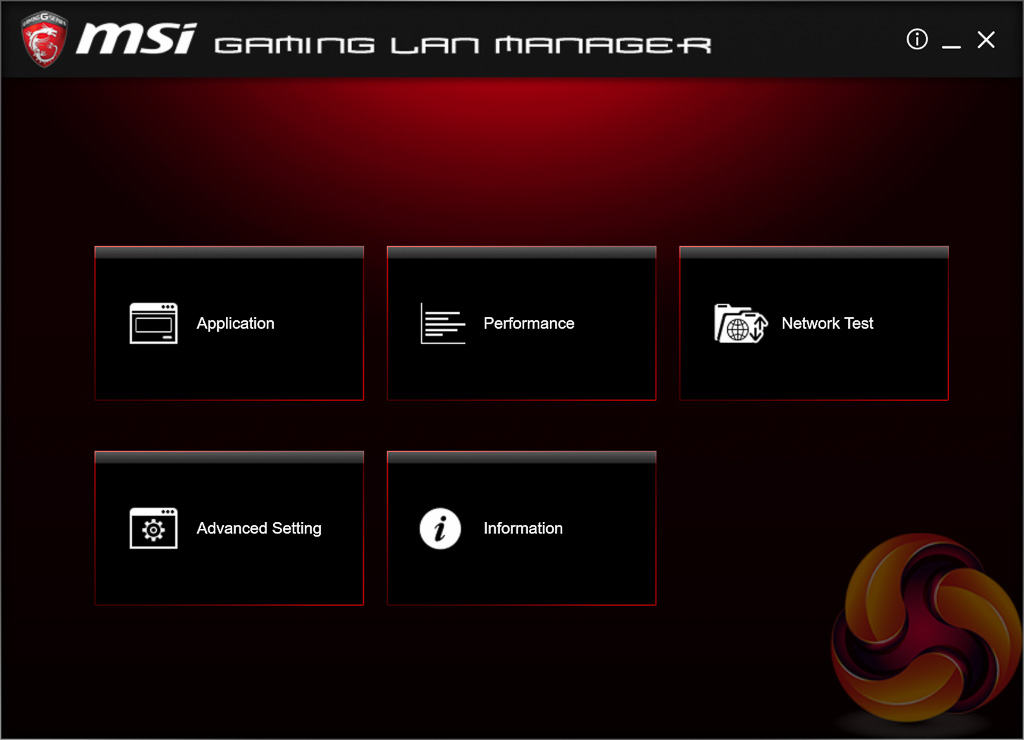
MSI's Gaming LAN Manager, as far as we can tell, is a repackaged cFos product that lets you enable packet prioritisation rules for software on the host system. It has a number of baked-in profiles for different usage scenarios including streaming, gaming and file sharing.
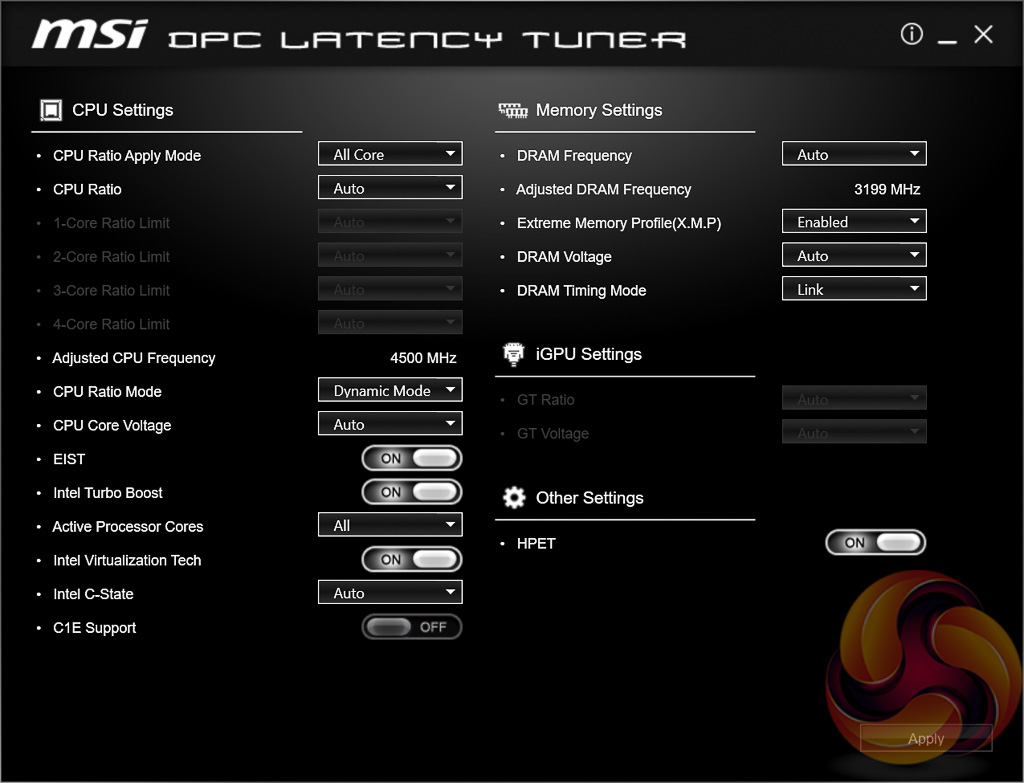
MSI's DPC latency tuner is a new-ish utility intended to improve the experience with audio and video playback. DPC latency is an indicator of how likely you are to experience interference. juddering or stuttering in media playback and by tweaking the settings presented in this software it should be possible to minimise DPC latency. However, Z270 and Kaby Lake aren't exactly known to suffer from DPC latency problems so we're not sure how much utility the software provides.
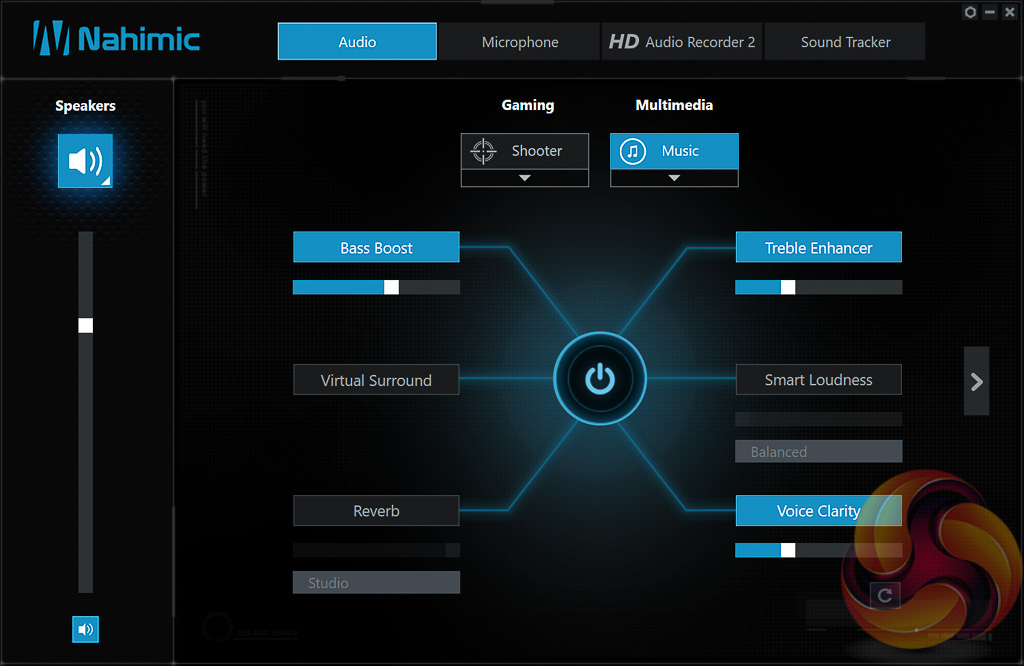
MSI has been bundling Nahimic software with its motherboards for a while now and it is really aimed at users who like to manipulate audio with after effects and processing. The Nahimic software is handy and has a number of tools to alter the audio or recording, there’s even an ASUS Sonic Radar alternative in the form of Nahimic Sound Tracker.
We will be outlining the MSI Z270i Gaming Pro Carbon AC motherboard's performance with the Core i7 7700K CPU and 32GB of 3200MHz G.Skill Trident Z DDR4 memory.
By default the MSI Z270i Gaming Pro Carbon AC motherboard applies a multi-core turbo (MCT) state and forces the 7700K to a constant 4.5GHz when XMP is enabled. Overclocked performance will be outlined later in the review.
Z270 Motherboard Test System:
- Processor: Intel Core i7 7700K (4.5GHz All-Core Turbo).
- Memory: 32GB (4x8GB) G.Skill Trident Z XMP (3200MHz 16-18-18-38 @ 1.35V).
- Graphics Card: Gigabyte GeForce GTX 1080 G1 Gaming.
- System Drive: Crucial M550 256GB SSD.
- CPU Cooler: Corsair H100i V2 with Two ML120 Pro Fans.
- Power Supply: Seasonic Platinum 760W SS-760XP.
- Operating System: Windows 10 Pro 64-bit
Comparison Z270 Motherboards:
- ASRock Fatal1ty Z270 Professional Gaming i7
- ASRock Z270 Extreme4
- ASUS ROG Maximus IX Apex
- ASUS ROG Maximus IX Formula
- Gigabyte Z270N-Gaming 5
- Gigabyte Z270X-Ultra Gaming
- MSI Z270 Gaming M7
- MSI Z270i Gaming Pro Carbon AC
Drivers and UEFI:
- Intel Chipset 10.1.1.38
- Nvidia GeForce 376.33 VGA drivers.
- MSI UEFI 1.4 (06/02/2017)
Tests:
- Cinebench R15 – All-core CPU benchmark (CPU)
- HandBrake 1.0.0 – Convert 6.27GB 4K video recording using the Normal Profile setting and MP4 container (CPU)
- SiSoft Sandra 2016 SP1 – Processor Arithmetic Test (CPU) and Memory Bandwidth Test (Memory)
- 7-Zip 16.04 x64 – Built-in 7-Zip benchmark test (CPU)
- AIDA64 Engineer 5.80.4000 – System stress test and cache & memory benchmark (Memory and Power)
- 3DMark Fire Strike v1.1 – Fire Strike (1080p) test (Gaming)
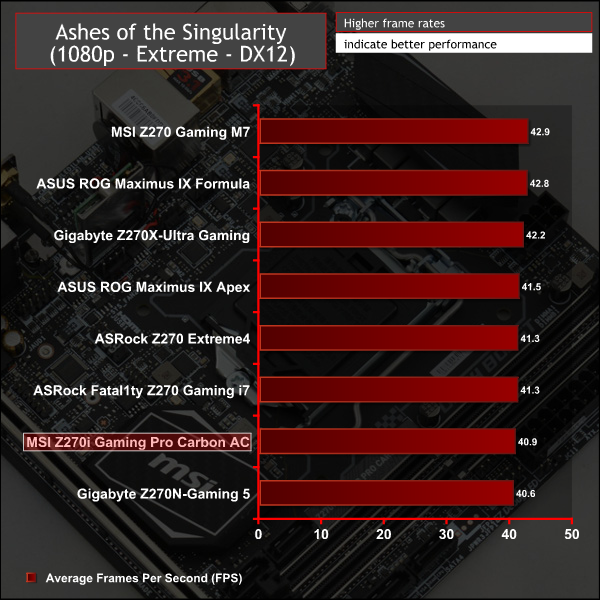
- Ashes of the Singularity – Built-in benchmark tool CPU-Focused test, 1920 x 1080, Extreme quality preset, DX12 version (Gaming)
- Metro: Last Light Redux – Built-in benchmark tool, 1920 x 1080, Very High quality, SSAA, AF 16X, Tessellation: High (Gaming)
- ATTO – M.2, USB 3.0, USB 3.1, and SATA 6Gbps transfer rates (Motherboard)
- RightMark Audio Analyzer – Record and playback test using a line-in to line-out loopback with a 3.5mm audio cable (Motherboard)
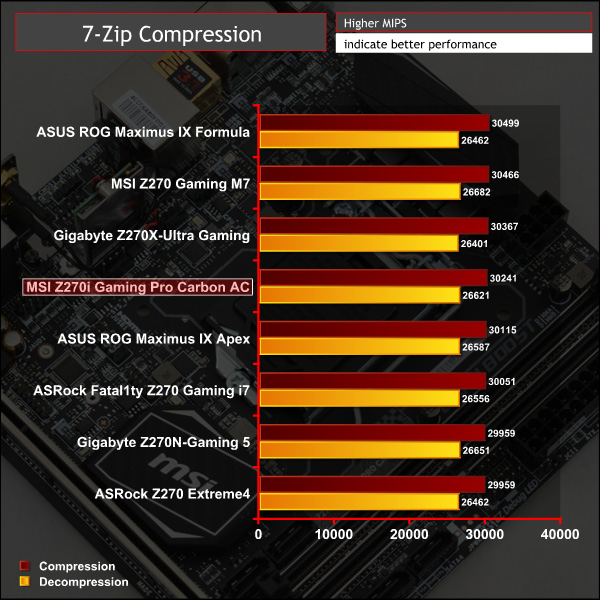
7-Zip
7-Zip is an open source Windows utility for manipulating archives. We measure the Total Rating performance using the built-in benchmark tool. The test stresses all CPU cores to 100% and shows an affinity for memory bandwidth.
Cinebench R15
Cinebench is an application which renders a photorealistic 3D scene to benchmark a computer’s rendering performance, on one CPU core, all CPU cores or using the GPU. We run the test using the all core CPU mode.

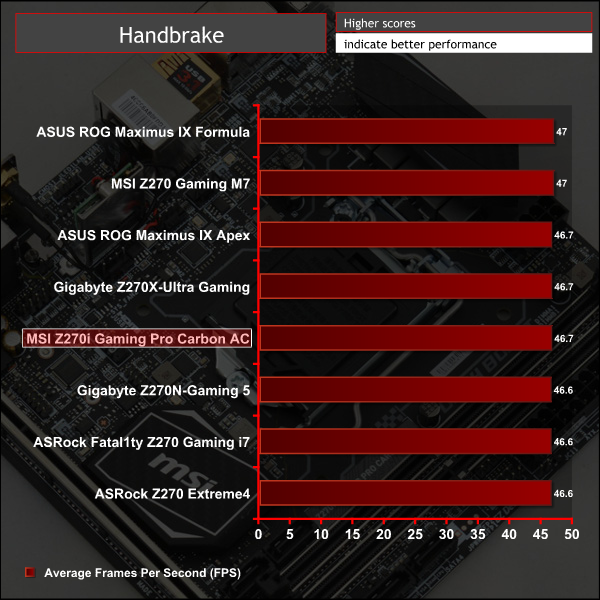
Handbrake Conversion
Handbrake is a free and open-source video transcoding tool that can be used to convert video files between different codecs, formats and resolutions. We measured the average frame rate achieved for a task of converting a 6.27GB 4K video using the Normal Profile setting and MP4 container. The test stresses all CPU cores to 100% and shows an affinity for memory bandwidth.
Sandra Processor Arithmetic
SiSoft Sandra 2016 is a multi-function utility program that supports remote analysis, benchmarking and diagnostic features for PCs, servers, mobile devices and networks. We run the application’s processor arithmetic test to gauge the CPU performance on each tested motherboard.
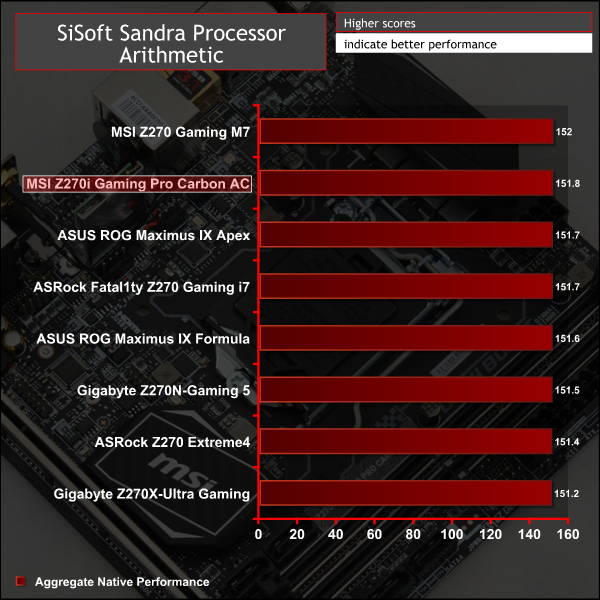
CPU performance is right where it should be.
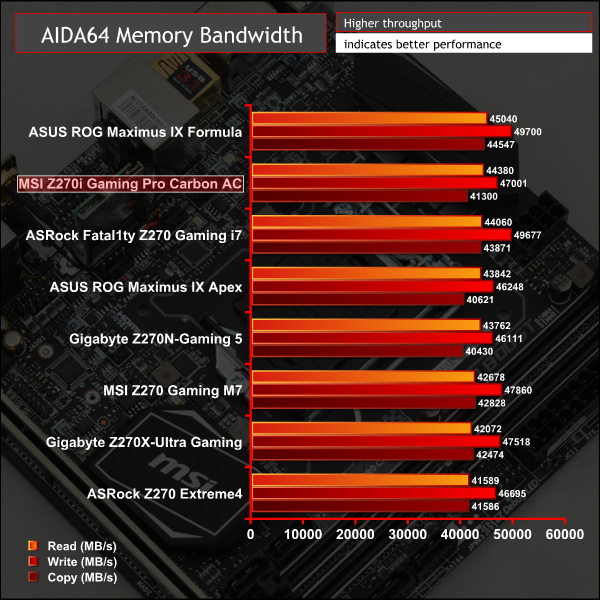
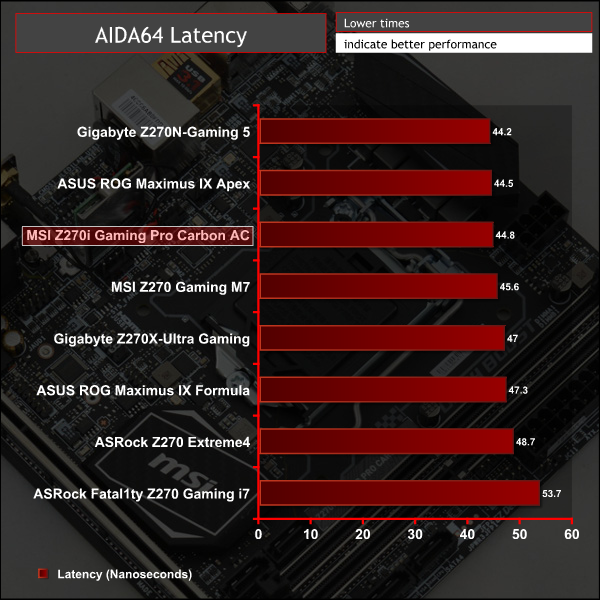
AIDA64 Engineer
AIDA64 Engineer is a multi-featured software suite for diagnostics, stress testing, benchmarking, software auditing and various other measurement parameters. We use AIDA64 Engineer to benchmark memory throughput and latency.
Sandra Memory Bandwidth
SiSoft Sandra 2016 is a multi-function utility program that supports remote analysis, benchmarking and diagnostic features for PCs, servers, mobile devices and networks. We use the SiSoft Sandra memory bandwidth test to provide a set of memory bandwidth results.
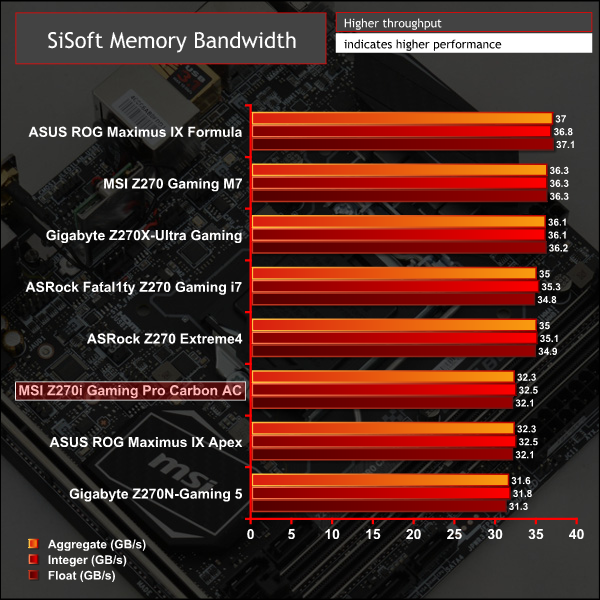
The memory performance aligns with all other Z270 motherboards that could only support two DIMMs (ASUS ROG Maximus IX Apex and Gigabyte Z270N-Gaming 5).
3DMark
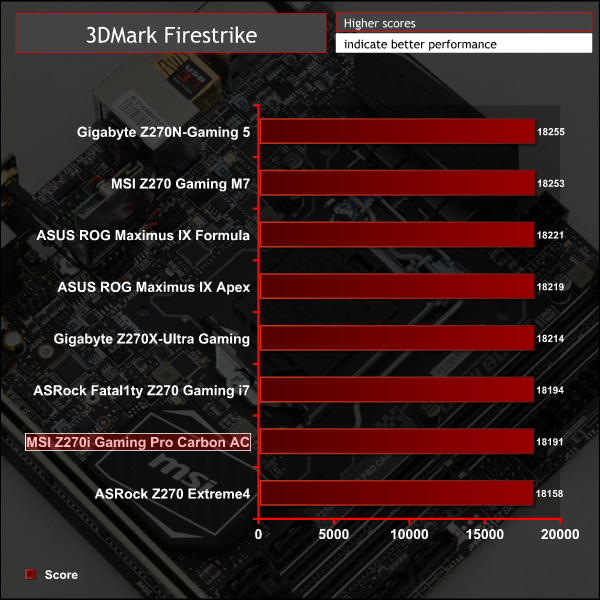
3DMark is a multi-platform hardware benchmark designed to test varying resolutions and detail levels of 3D gaming performance. We run the Windows platform test and in particular the Fire Strike benchmark, which is indicative of high-end 1080p PC Gaming.
Ashes of the Singularity
Ashes of the Singularity is a Sci-Fi real-time strategy game built for the PC platform. The game includes a built-in benchmark tool and was one of the first available DirectX 12 benchmarks. We run the CPU-focused benchmark using DirectX 12, a 1080p resolution and the Extreme quality preset.
Metro: Last Light Redux
Despite its age, Metro: Last Light Redux remains a punishing title for modern computer hardware. We use the game's built-in benchmark with quality set to Very High, SSAA enabled, AF 16X, and High tessellation.
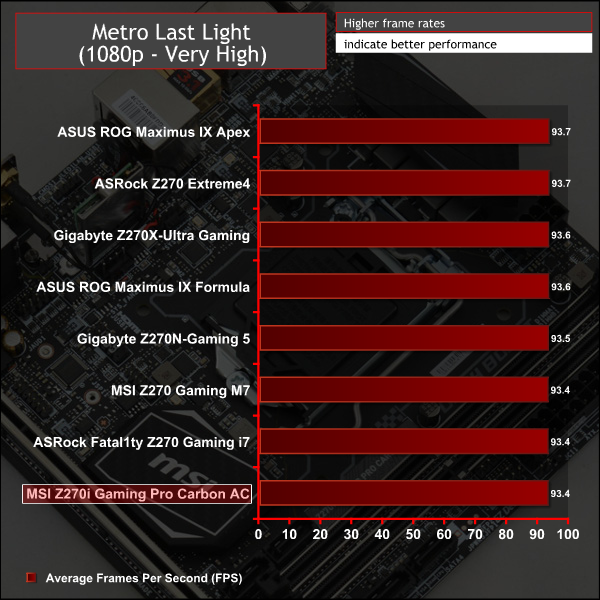
3D Gaming performance brought no surprises either.
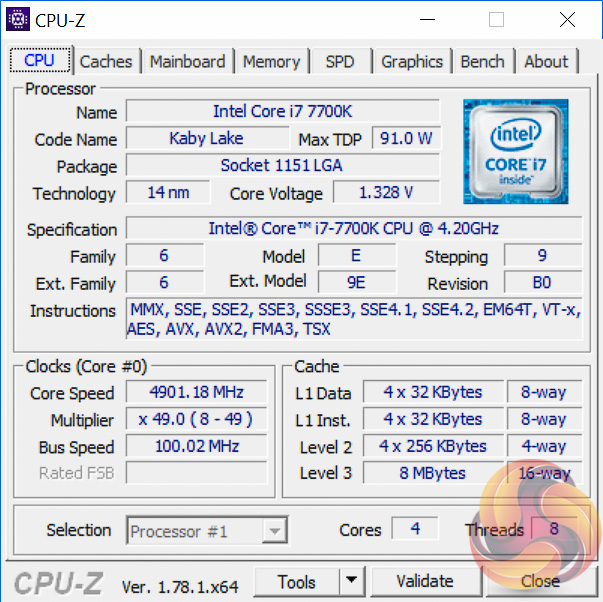
Only one motherboard has been able to keep 5GHz stable and the MSI Z270i Gaming Pro Carbon AC wasn't one of those. It did, however, manage to achieve 4.9GHz without too many issues but required a touch more voltage than the MSI Z270 Gaming M7 presumably because the LLC with this ITX board is not as strong.
We needed 1.3v + 0.05v with Adaptive + Offset and that resulted in an actual voltage of around 1.32-1.33 volts. If you hard-code the voltage to 1.35 volts, for instance, it will keep that voltage under load so there's not voltage drooping to be concerned about.
However, one thing we did notice which was concerning was that the MSI motherboard did not behave itself under overclocked load in certain applications. We use AIDA64 System Stability test for load power consumption and the board would not consistently hold the CPU at 4.9GHz under load – jumping between 4.1, 4.4, 4.6 and 4.9 GHz every few seconds. This MSI motherboard is the only product to have exhibited that behaviour on this test.
We went about diagnosing the issue using a number of methods: setting Windows High Performance Power mode, locking the CPU Core Ratio to 49 in the BIOS, setting the short and long power duration and limits to extremely high values and more volts in case it was a power issue, but there was no getting around the strange behaviour.
3600MHz XMP Memory:
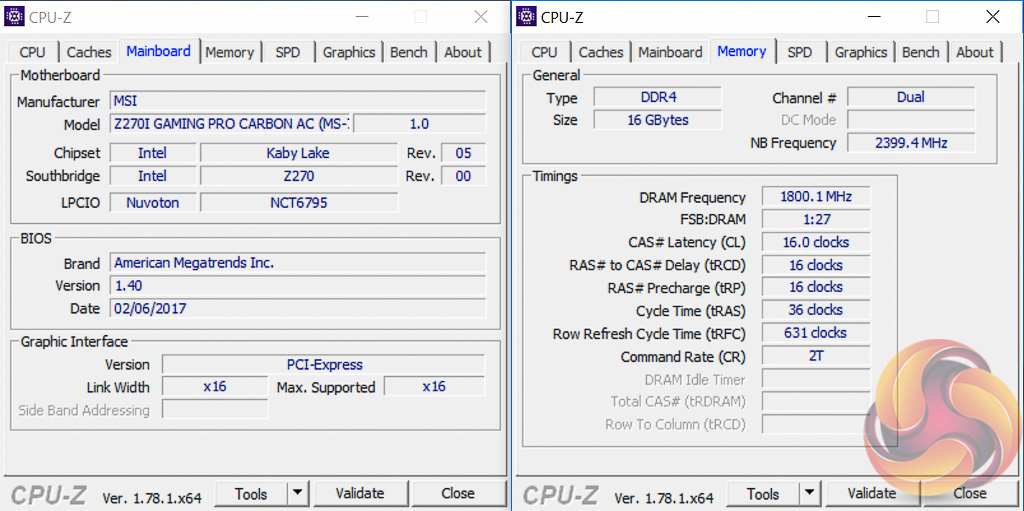
We test the motherboard's ability to run G.Skill's high-speed 16GB DDR4 Trident Z kit at a 3600MHz XMP setting. High-speed XMP settings can prove a challenge for motherboard designers when optimising the settings for stability at the intended DRAM frequency.
MSI Z270i Gaming Pro Carbon AC executed the XMP 3600MHz profile of our G.Skill Trident Z 16GB (2 x 8GB) memory kit with no hesitation.
Overclocked Performance
As a performance comparison, we have included the results from seven other Z270 motherboards. The maximum overclocked configuration achieved with any other board was a 5000MHz (50 x 100MHz) processor frequency whilst using 3200MHz CL16 memory.
Power
We leave the system to idle on the Windows 10 desktop for 5 minutes before taking a reading. For CPU load results we run AIDA64 CPU, FPU, and Cache stress tests and take a reading. The power consumption of our entire test system (at the wall) is shown in the chart.
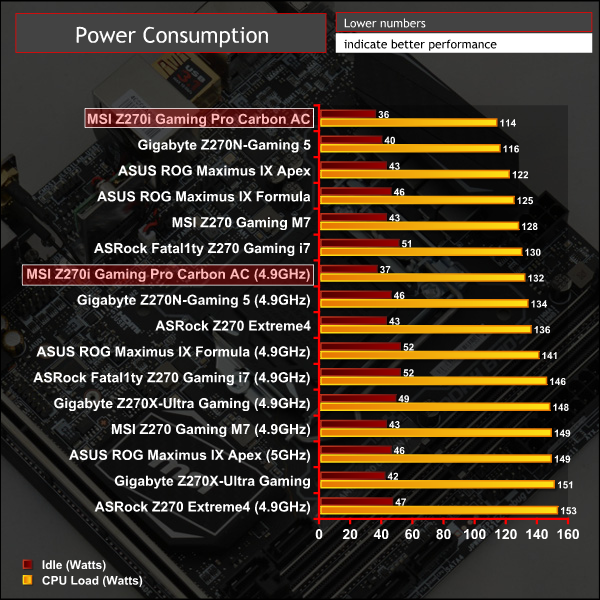
Power consumption aligned with the other Z270 mini-ITX motherboard we tested and was slightly lower than some of the conventional ATX Z270 motherboards.
ATTO Disk Benchmark
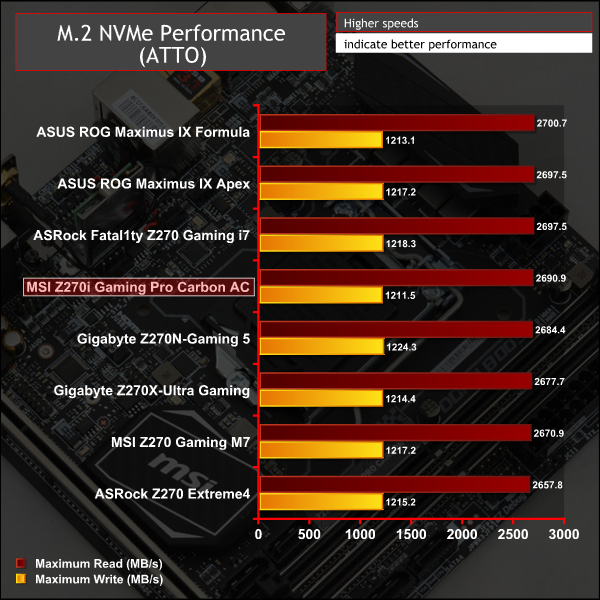
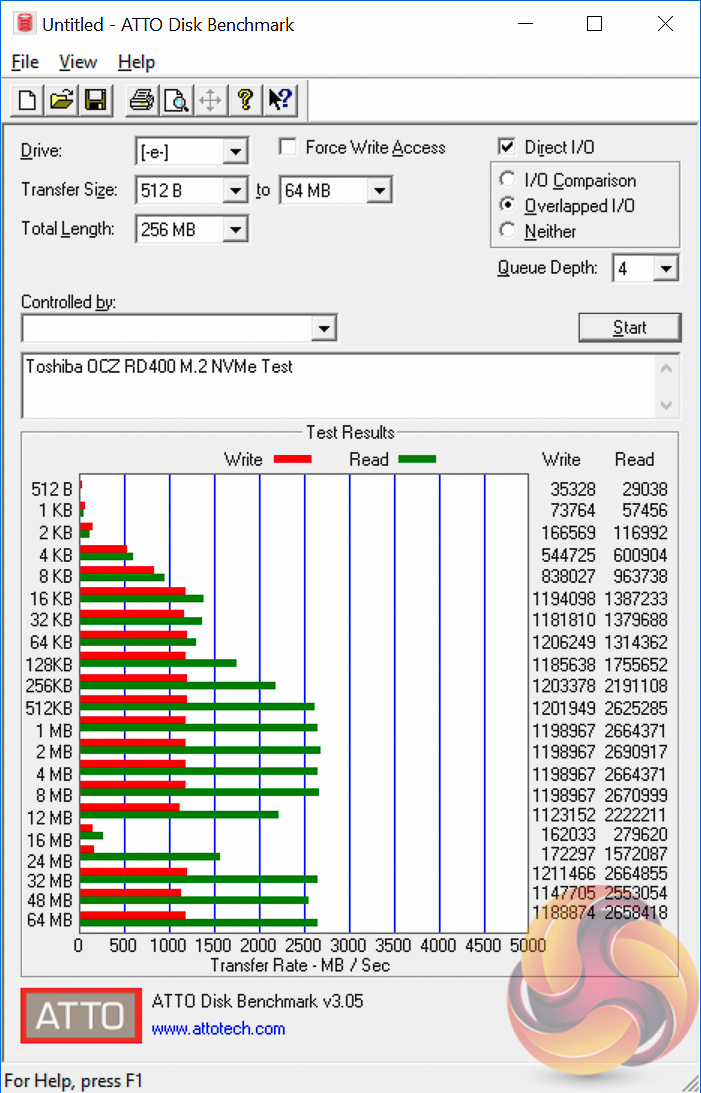
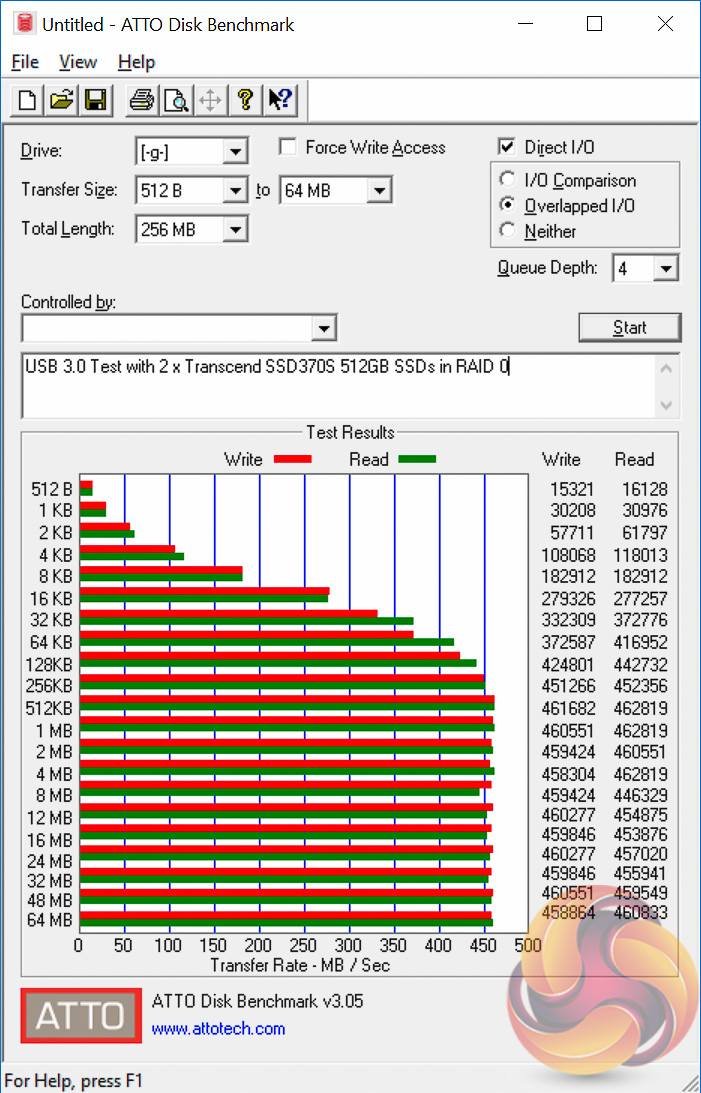
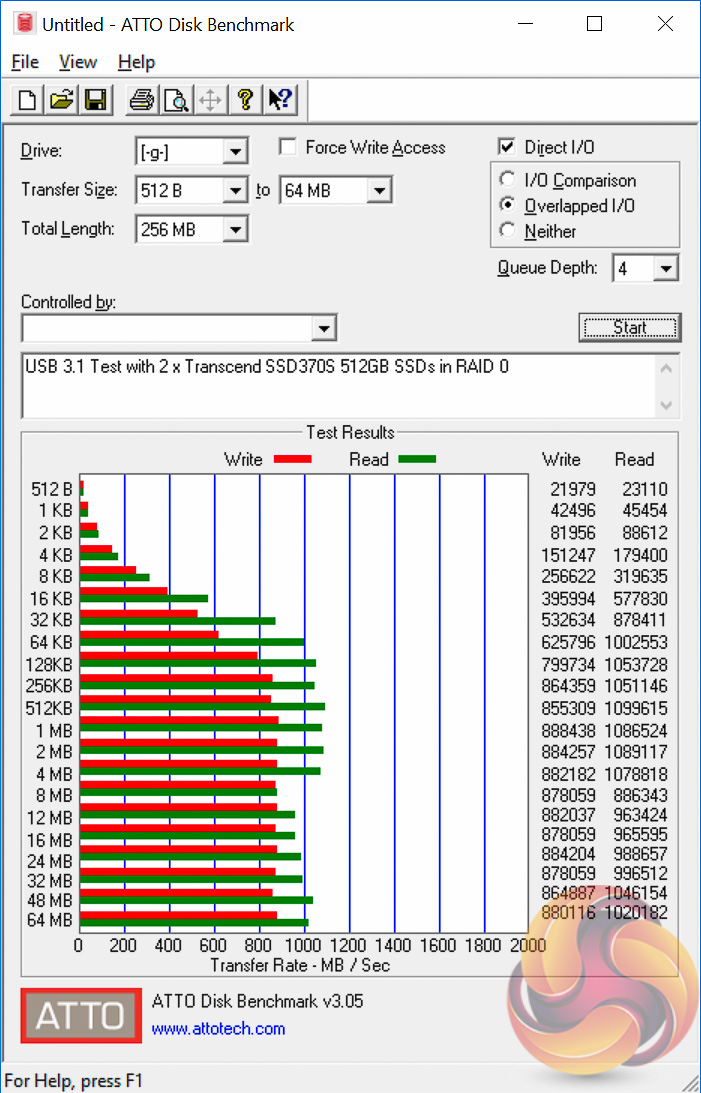
The ATTO disk benchmark is a Windows-based utility for testing storage performance of any storage drive or controller. We use the default benchmark setup.
M.2 PCIe Performance
For M.2 testing we use a Toshiba OCZ RD400 256GB M.2 PCIe NVMe SSD.
USB Performance
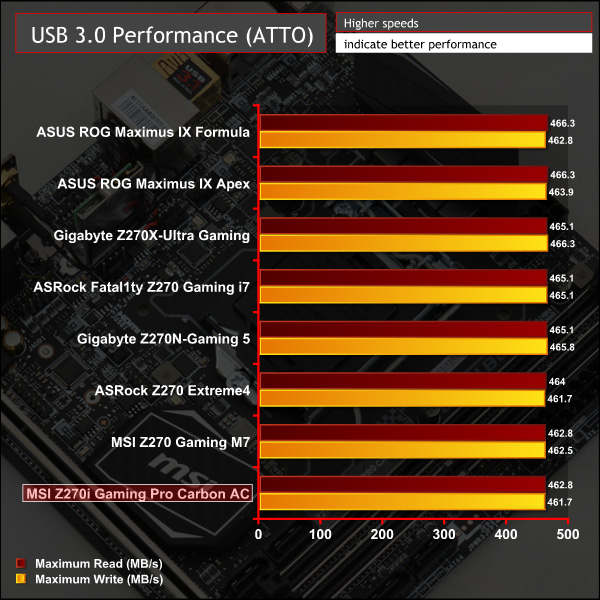
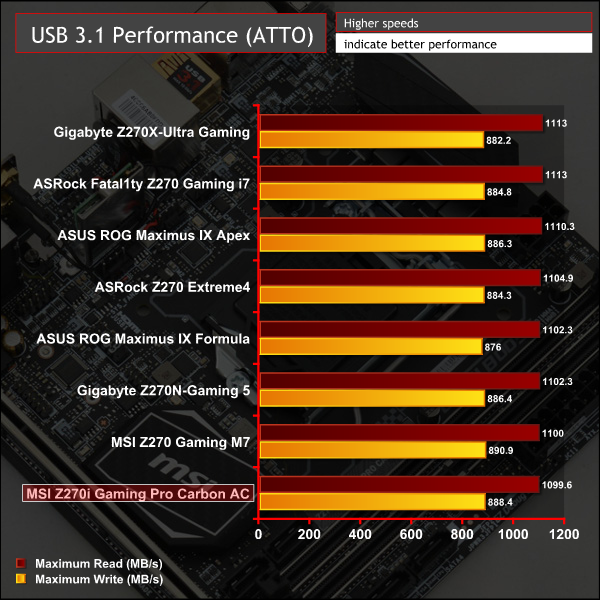
We test USB 3.0 and 3.1 performance using a pair of Transcend SSD370S 512GB SSDs in RAID 0 connected to an Icy Box RD2253-U31 2-bay USB 3.1 enclosure powered by an ASMedia ASM1352R controller.
SATA 6Gbps Performance
For SATA 6Gbps testing we use an OCZ Trion 150 480GB SSD.
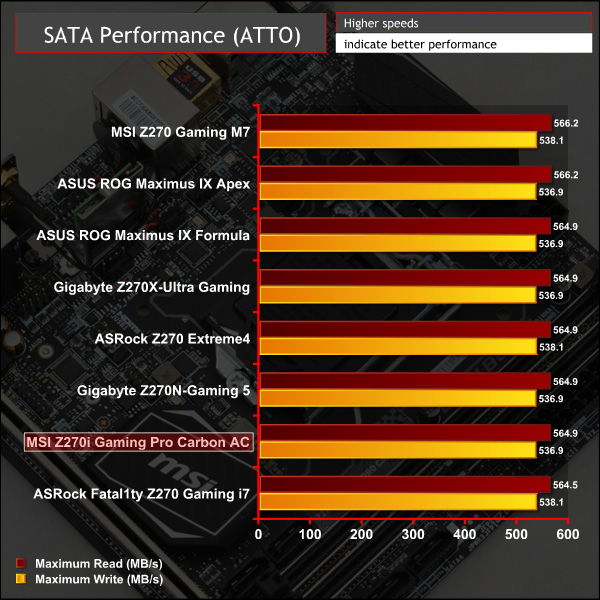
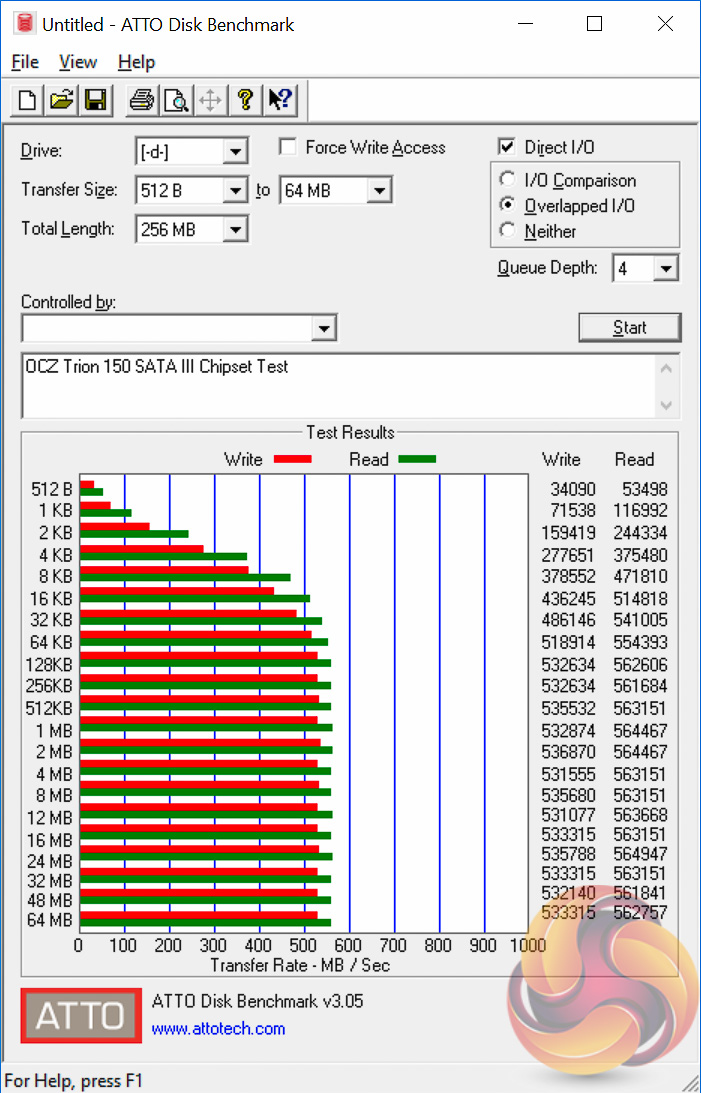
Storage performance across M.2, SATA and USB revealed no anomalies.
Audio
Rightmark Audio Analyser is a freeware benchmarking utility designed to objectively test the performance characteristics of audio solutions. We setup a line-in line-out loop and execute the record/playback test before generating the results report you see below. A sampling mode of 24-bit, 192 kHz was tested.
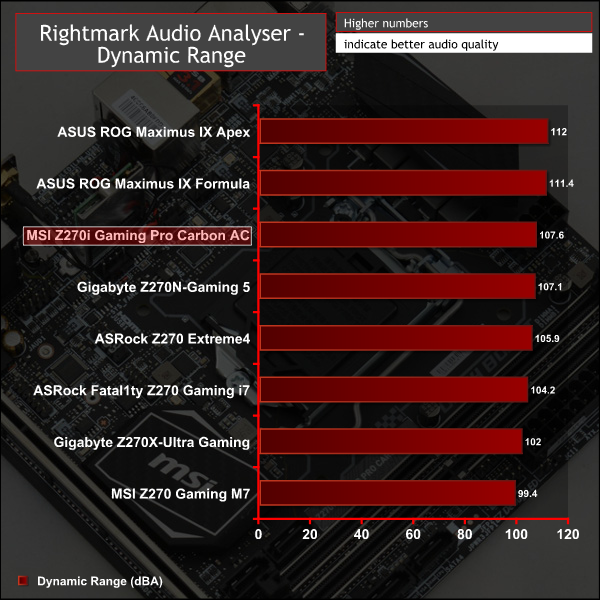
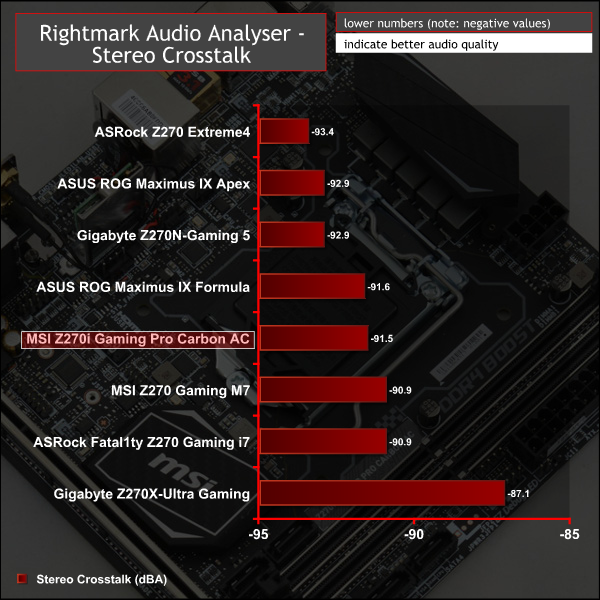
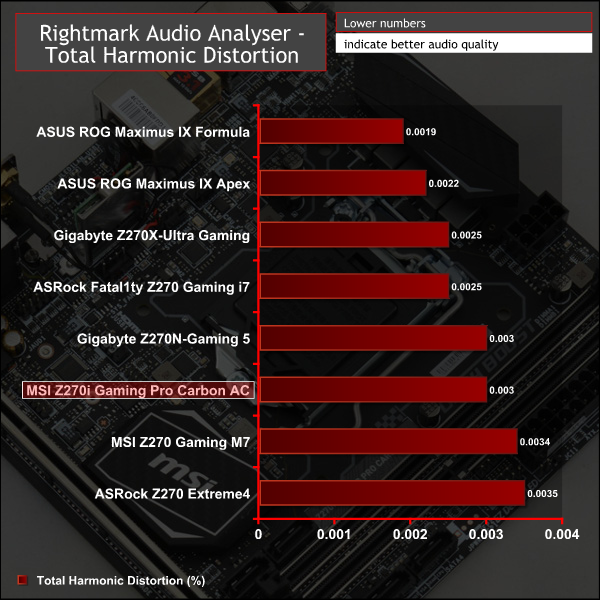
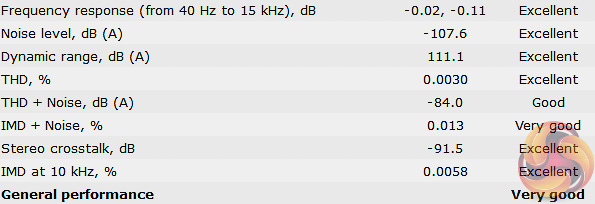
MSI's Z270i Gaming Pro Carbon AC scored Excellent in 6 categories, Very Good in one and Good in one for an overall score of Very Good. It's in the middle of our results for Z270 motherboards all based on the same ALC1220 codec.
Out of the box audio performance is very good and the integrated headphone amplifier of Realtek's new codec helps a great deal in that regard. The Nahimic software offers end-users additional granularity in customising the audio experience but the take-home here is that the onboard audio is more than good enough for most users.
The market for Z270 mini-ITX motherboards is fairly small since it takes vendors considerable R&D to come up with mini-ITX designs due to the increased complexity. The fact mini-ITX motherboards are also niche products that shift lower volumes than ATX boards means less models are designed for market. Despite this, MSI's Z270i Gaming Pro Carbon AC offers a good all-round solution to the prospective Z270 buyer with a nearly mainstream price point.
In the UK it is priced near £170 which puts it in competition with the Gigabyte Z270N-Gaming 5 (£180~) and close to the ASUS ROG STRIX Z270i Gaming (£200~) and ASRock Z270 Gaming-ITX/ac (£200~). ASRock's Z270M-ITX/ac and Gigabyte's Z270N-WIFI aren't really direct competition so the fact they both undercut MSI's offering by around £20-30 is almost non-consequential.
Even though a solid all-rounder the MSI Z270i Gaming Pro Carbon does have drawbacks, mostly with respect to the UEFI, which potentially gives MSI the ability iron these flaws out in the future – provided they are not rooted in the hardware design. If addressed, this MSI motherboard would be a considerably more attractive option than it is at present.
We encountered some issues with the stability of the CPU frequency during overclocked scenarios that were beyond the normal turbo range, these instability didn't seem to be temperature or power related. However, this issue didn't occur in all applications and overclocked performance was mostly comparable to other boards. Another couple of UEFI pitfalls to be wary of were a limited range of LLC options and inability to control system fan headers independently of one another.
There's still a lot to like about the Z270i Gaming Pro Carbon with its sensible choice of connectivity, competent performance, good RGB LED lighting and competitive pricing. Some of its rivals may be slightly better-equipped but there's little to challenge MSI's efforts at the same price point.

The MSI Z270i Gaming Pro Carbon AC is available at Overclockers UK for £172.99. MSI’s standard manufacturer warranty duration for this product is 3 years.
Discuss on our Facebook page, over HERE.
Pros:
- Excellent audio quality
- Solid connectivity and storage options for its size
- Good all-rounder
- Price competitive Z270 Mini-itx option
Cons:
- Limited LLC Options
- System Fan headers not independently controllable
- Awkward RGB header placement
- Some inconsistency with overclocked frequency stability
KitGuru says: A solid all-round mini-ITX gaming motherboard for Intel's Z270 platform, the MSI Z270i Gaming Pro Carbon AC is a sensible choice.