KitGuru KitGuru.net – Tech News | Hardware News | Hardware Reviews | IOS | Mobile | Gaming | Graphics Cards


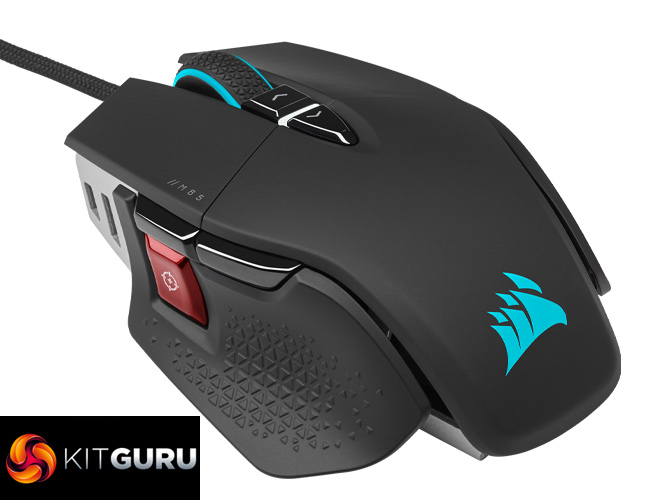
Corsair's M65 gaming mouse is back for 2021, sporting numerous upgrades compared to previous entries in the series. The M65 RGB Ultra features the company's latest Marksman sensor, developed in partnership with PixArt, Quickstrike buttons, optical Omron switches and even customisable tilt controls. Priced at £69.99, let's dig in and find out what this mouse has to offer.
In an age where gaming mice are getting lighter and lighter, it's good to see those who prefer something a bit heavier haven't been forgotten. With a base weight of 97g, a tuneable weights system has long been a staple of the M65 series and things are no difference with the M65 RGB Ultra, so you can max out this mouse at 115g should you wish.
It's also packing a modern paracord-style cable, 8000Hz polling rate thanks to Corsair's ‘Axon Hyper-Processing technology', and two RGB lighting zones. Crucially though, fans of the series will be glad to see the same iconic M65 shape is retained, including the sniper button on the left-hand side.
Specifications:
- Sensor: CORSAIR MARKSMAN, 26,000 DPI with 1 DPI resolution steps, 650 IPS tracking, up to 50G acceleration
- Programmable Buttons: 8
- Onboard Profiles: 1
- Backlight: 2-Zone RGB
- USB Report Rate: Up to 8,000Hz hyper-polling
- Colour: Black
- Mouse Feet: 100% PTFE
- Wired Connectivity: USB 2.0 Type-A
- Cable: 1.8m / 6ft i
- CUE (Software): Supported
- Dimensions: 117.0mm(L) x 77.0mm(W) x 39.0mm(H) / 5.08in(L) x 2.76in(W) x 1.69in(H)
- Weight (w/o cable and accessories): 97g / 0.21lbs
- Warranty: Two years
- MSRP : £69.99
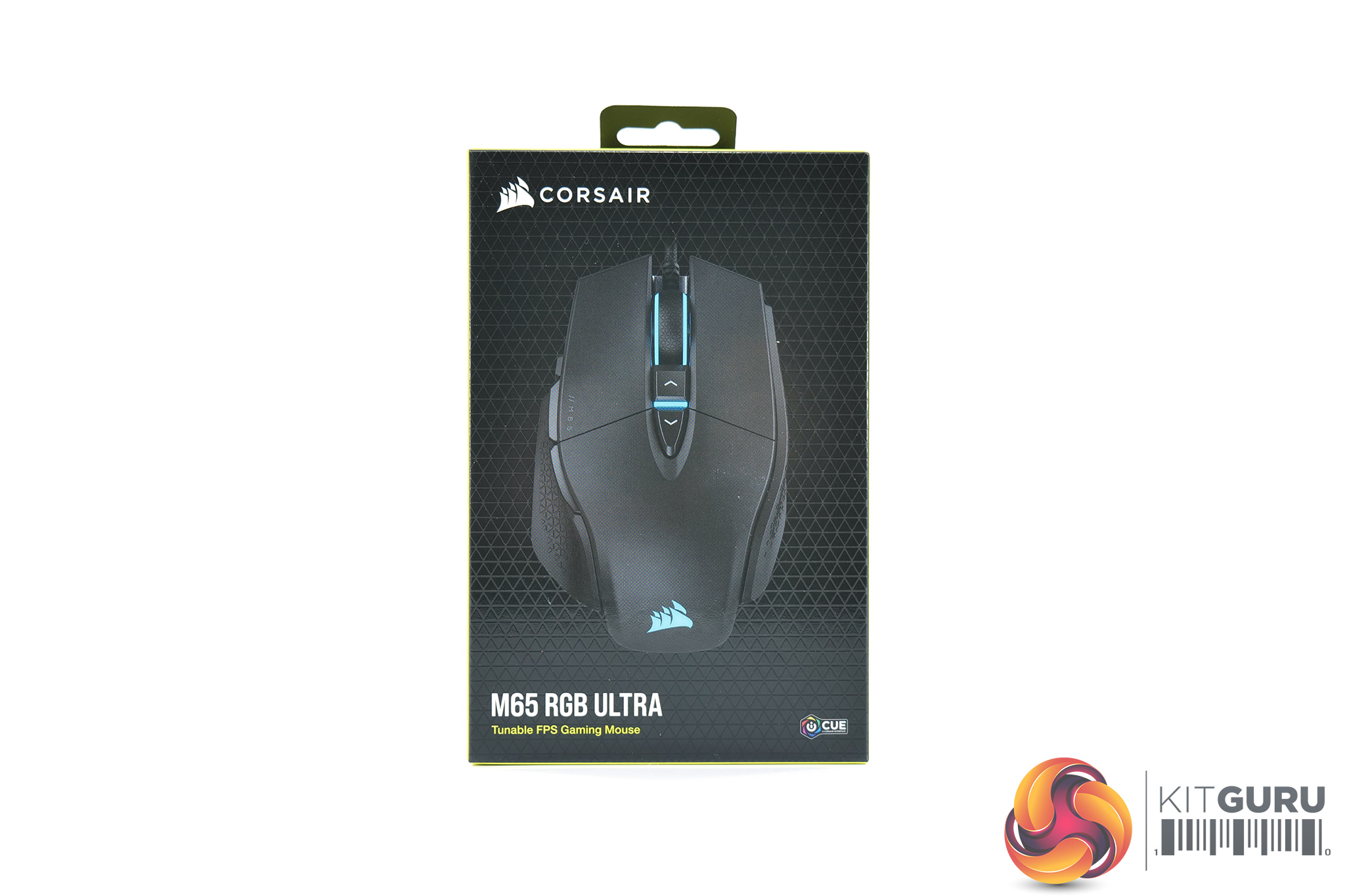
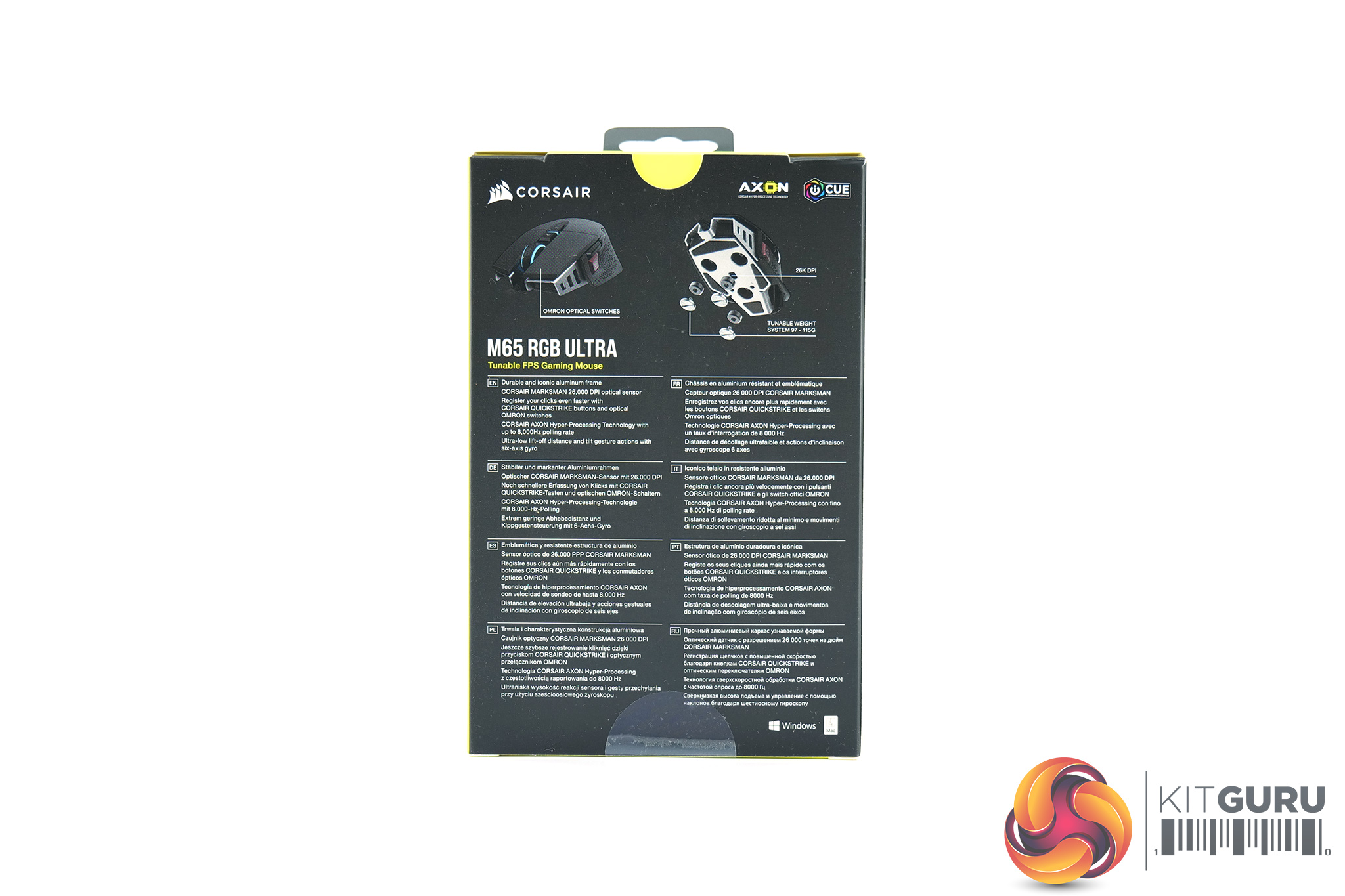
The M65 RGB Ultra packaging is entirely conventional for a new Corsair mouse. A large photo of the mouse dominates the front, while on the back we find various key features highlighted in different languages.
Inside, a quick start guide, warranty guide and safety information booklets are all included.
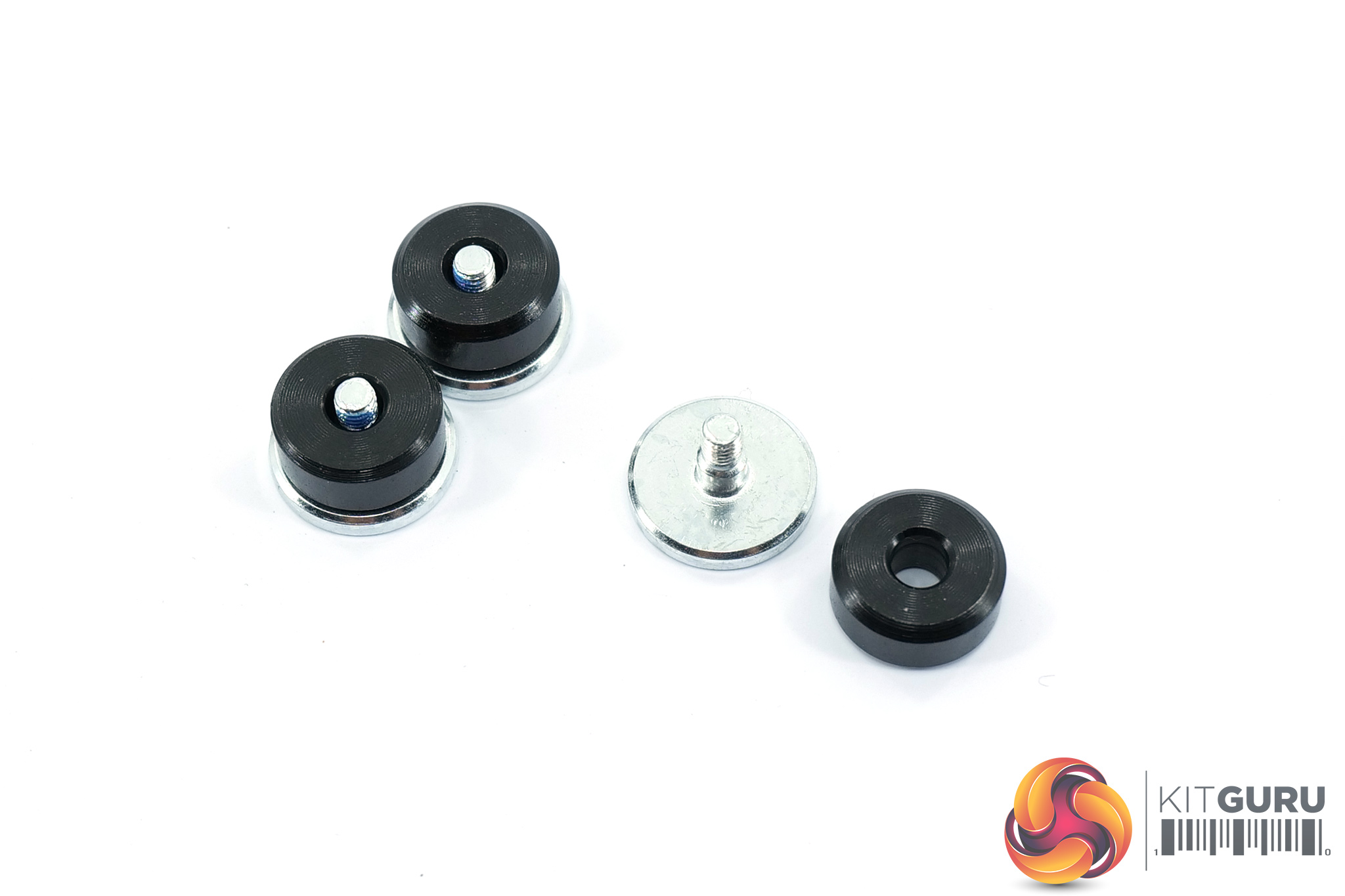
We also get the six extra weights – three silver and three black pieces of metal. These are stackable, so the black weights (at 4.5g) can sit on top of the silver weights (1.5g), to add up to an extra 6g in three different spots on the mouse, as we shall see below. The silver weights screw into the underside of the mouse itself, so it's not possible to only install one of the black weights, but there's a decent amount of customisation available if you want to play about with this feature.
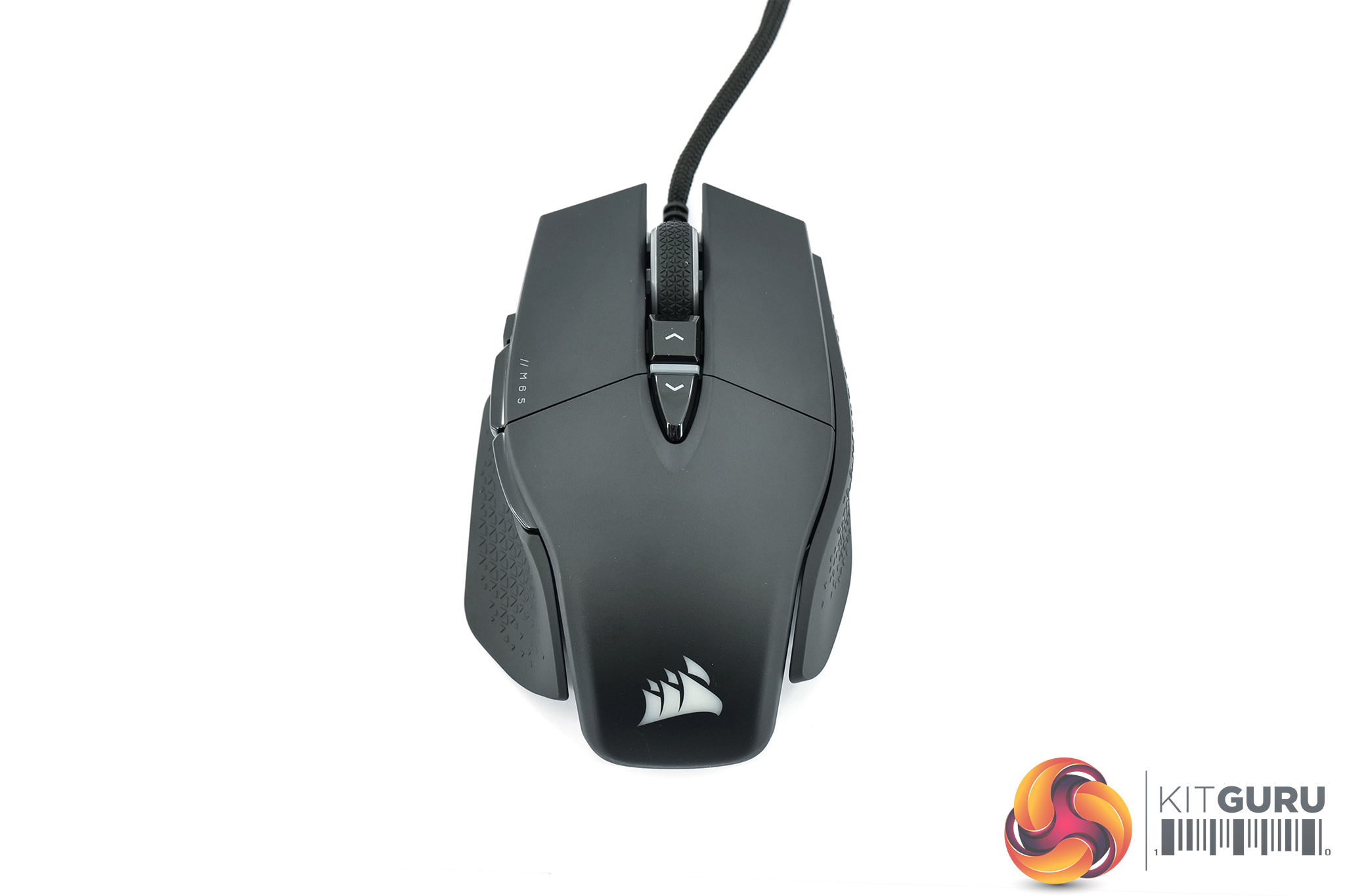
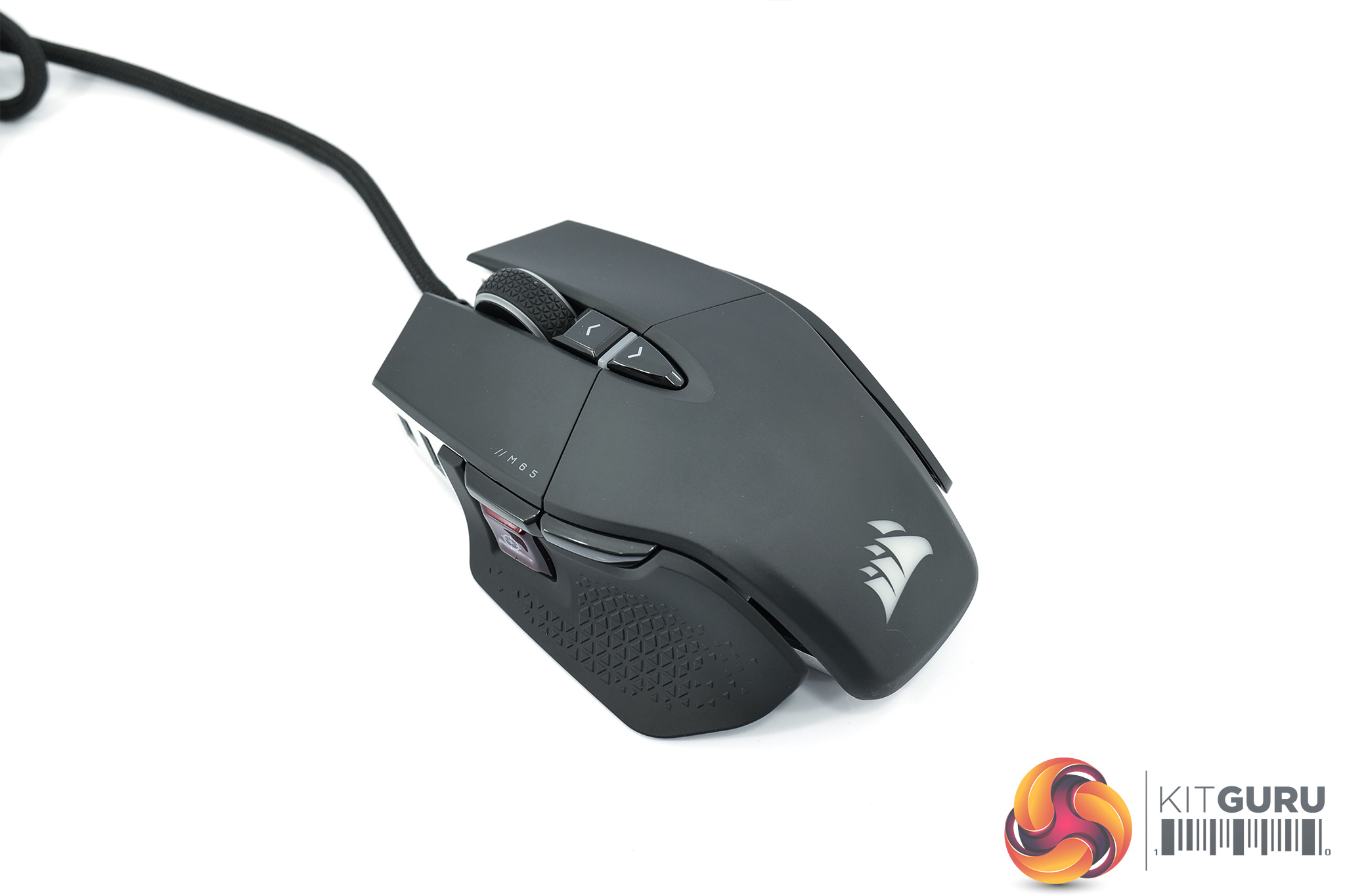
And then we have the M65 RGB Ultra itself. As far as I can tell, the shape and overall body of the mouse hasn't changed since we last reviewed the M65 RGB Elite, and chances are they are using the same outer shell. At the very least, the base weight is the same at 97g, and the shape appears to be identical.
If you've not tried an M65 before, it's a pretty unique shape – nothing immediately springs to mind as offering a similar feel in the hand. We get a hump towards the back of the mouse, but overall it is quite flat and wide. The left-hand side also sports a thumb-rest which flares outwards, making this an ergonomic design for right-handers only.
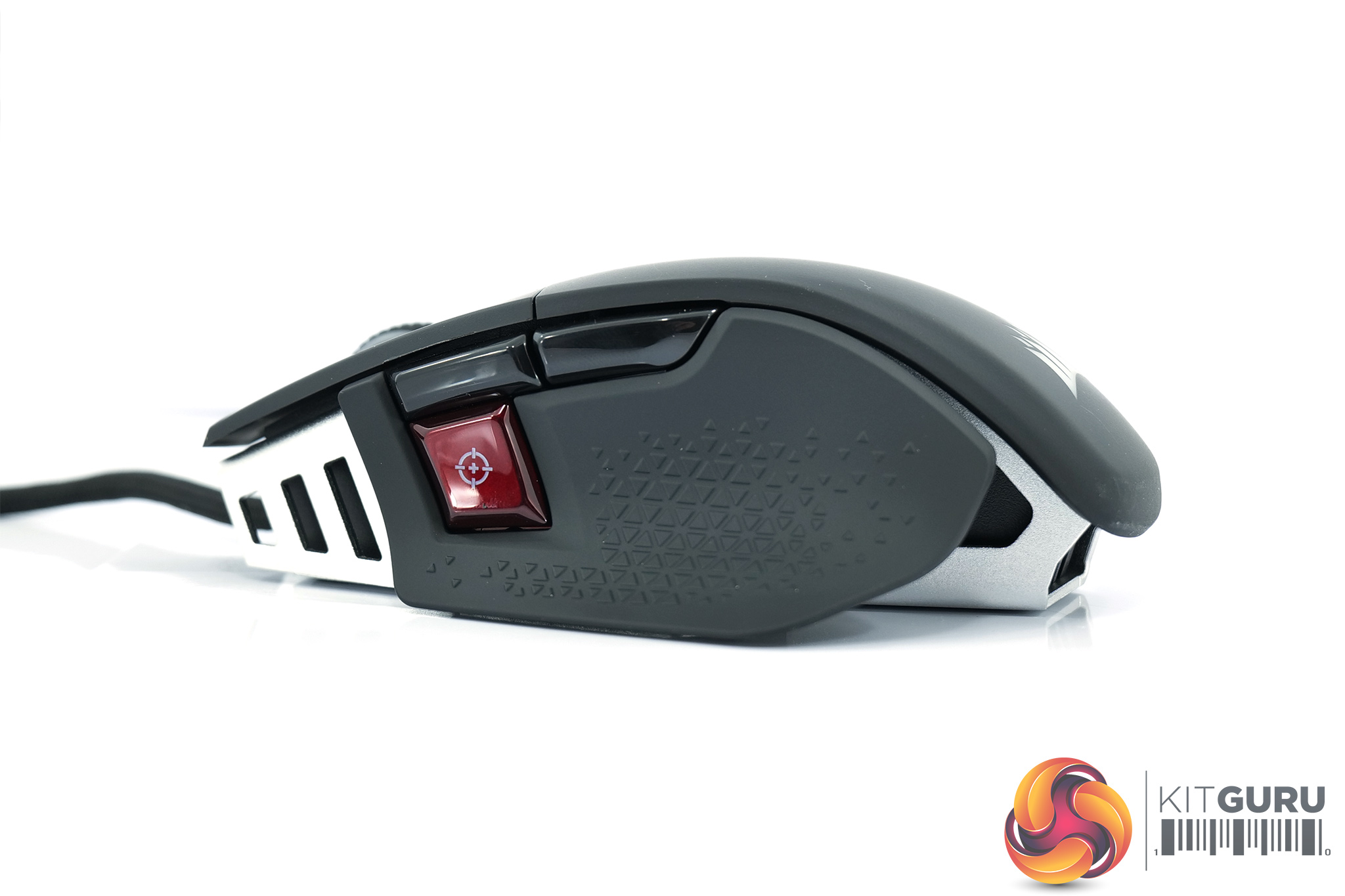
Above that thumb-rest, we get two side buttons as well as the M65's signature sniper button. Out of the box, this temporarily lowers your DPI – supposedly to make sniping easier when you're scoping in on an enemy's head – but this can of course be remapped within iCUE.
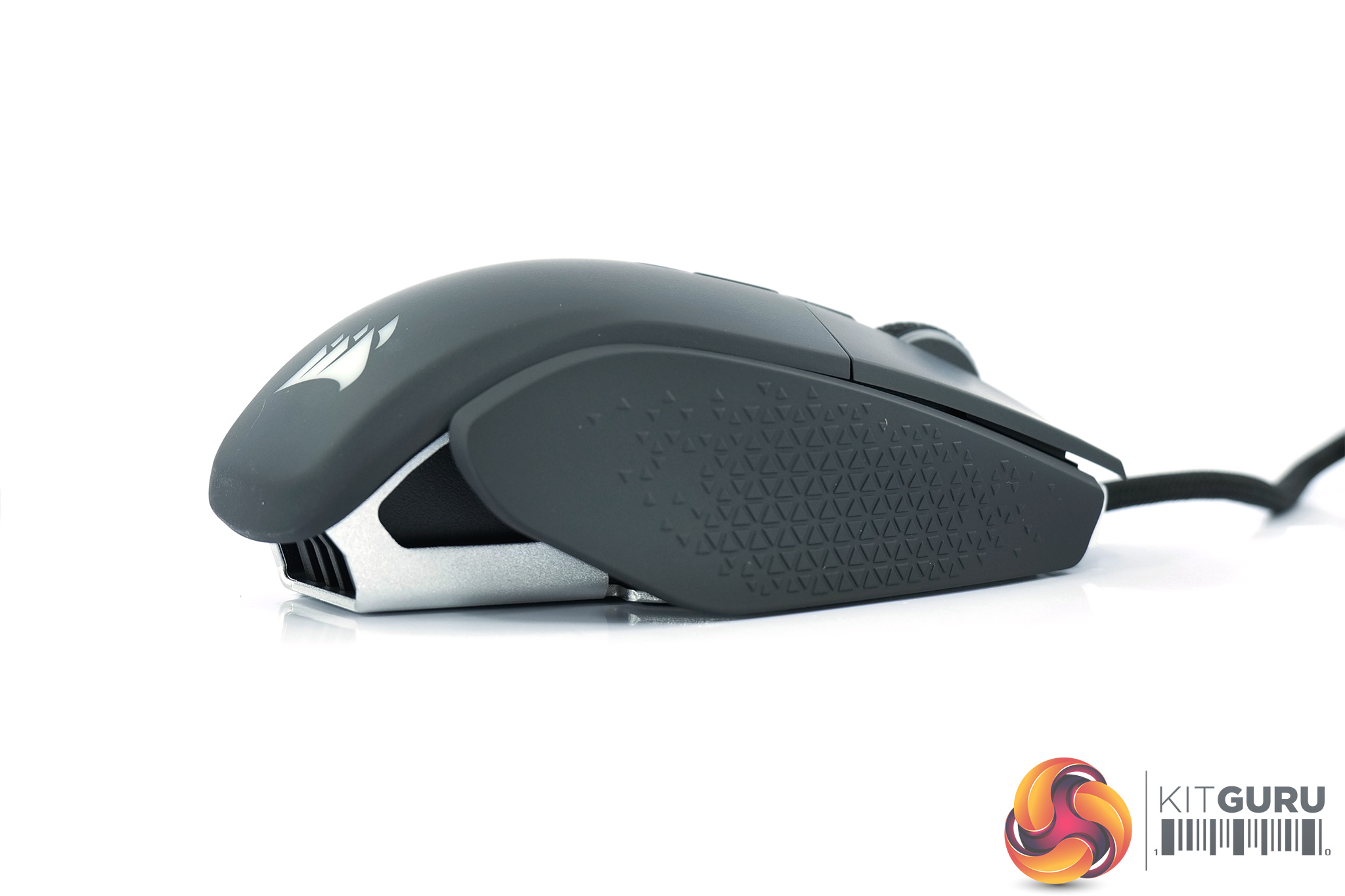
The right-hand side of the mouse is left bare, but Corsair is using a textured material, with lots of little triangles in the plastic, to act as grips. These are directly moulded into the sides of the mouse, so they're not rubber grips that have been glued on.
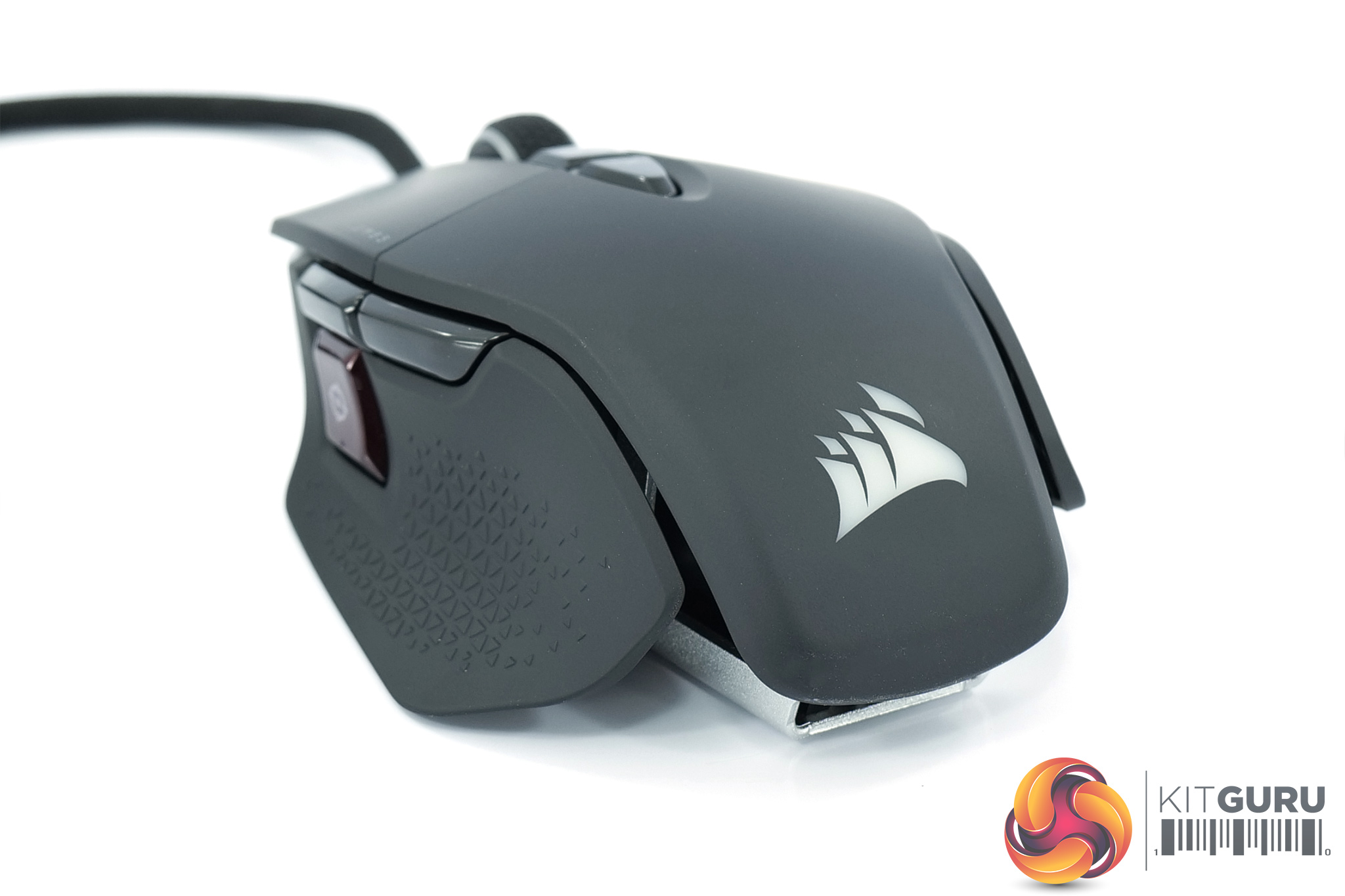
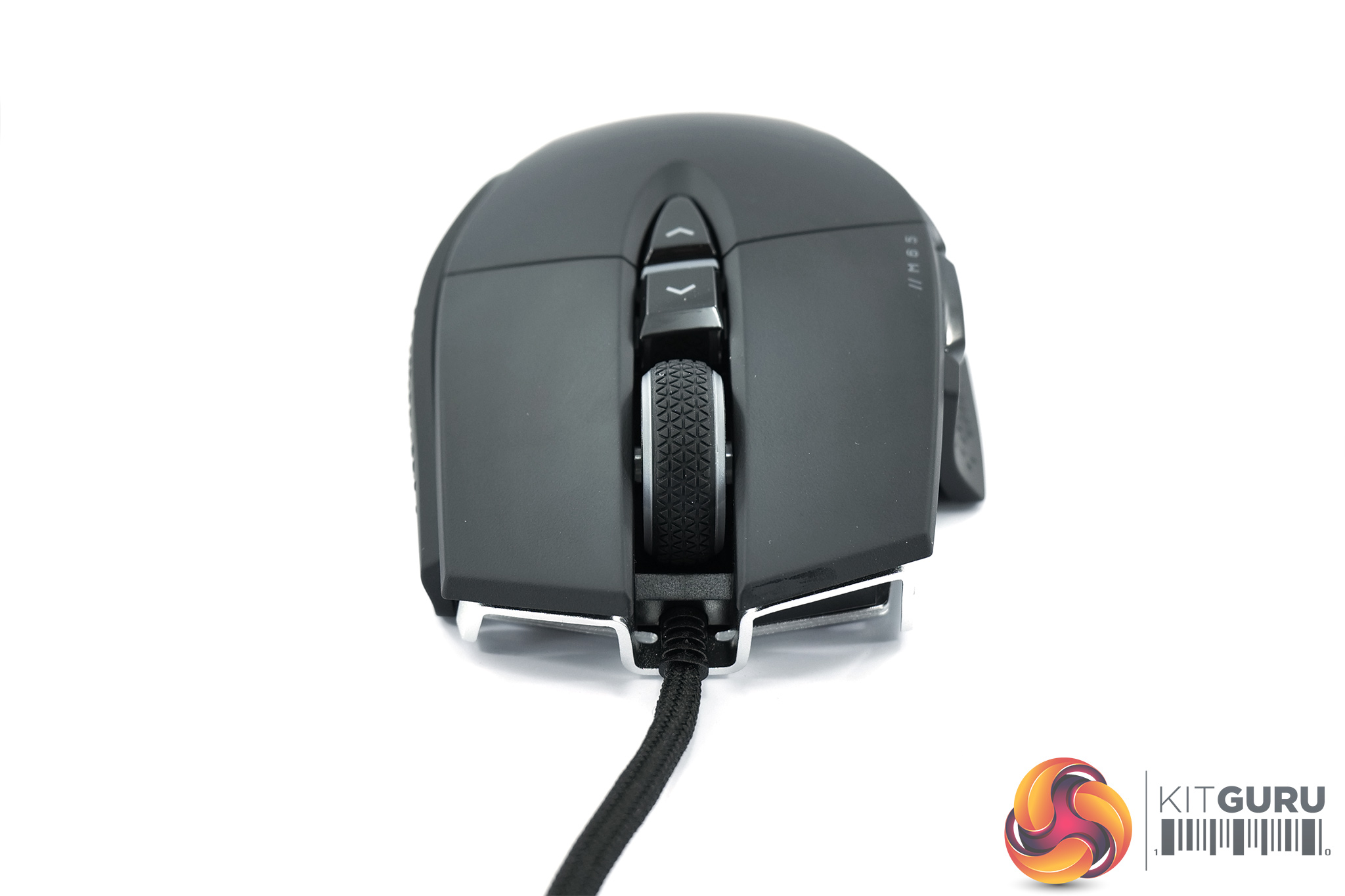
The rear of the mouse tapers down, with the Corsair sails logo visible here, and this acts as one of the RGB zones.
At the front, we get a look at the textured rubber scroll wheel (the second of the RGB zones), as well as the split button design. These buttons use Corsair Quickstrike technology, which is described as a ‘pre-tensioning of the left and right buttons (click plates) with downward spring-loaded force to close the distance between them and their OMRON switches for zero gap.' In other words, it should allow for a more satisfying button press with less pre and post-travel.
Behind the scroll wheel, we can also note two DPI buttons – one for increasing, and one for decreasing, the DPI on the fly.
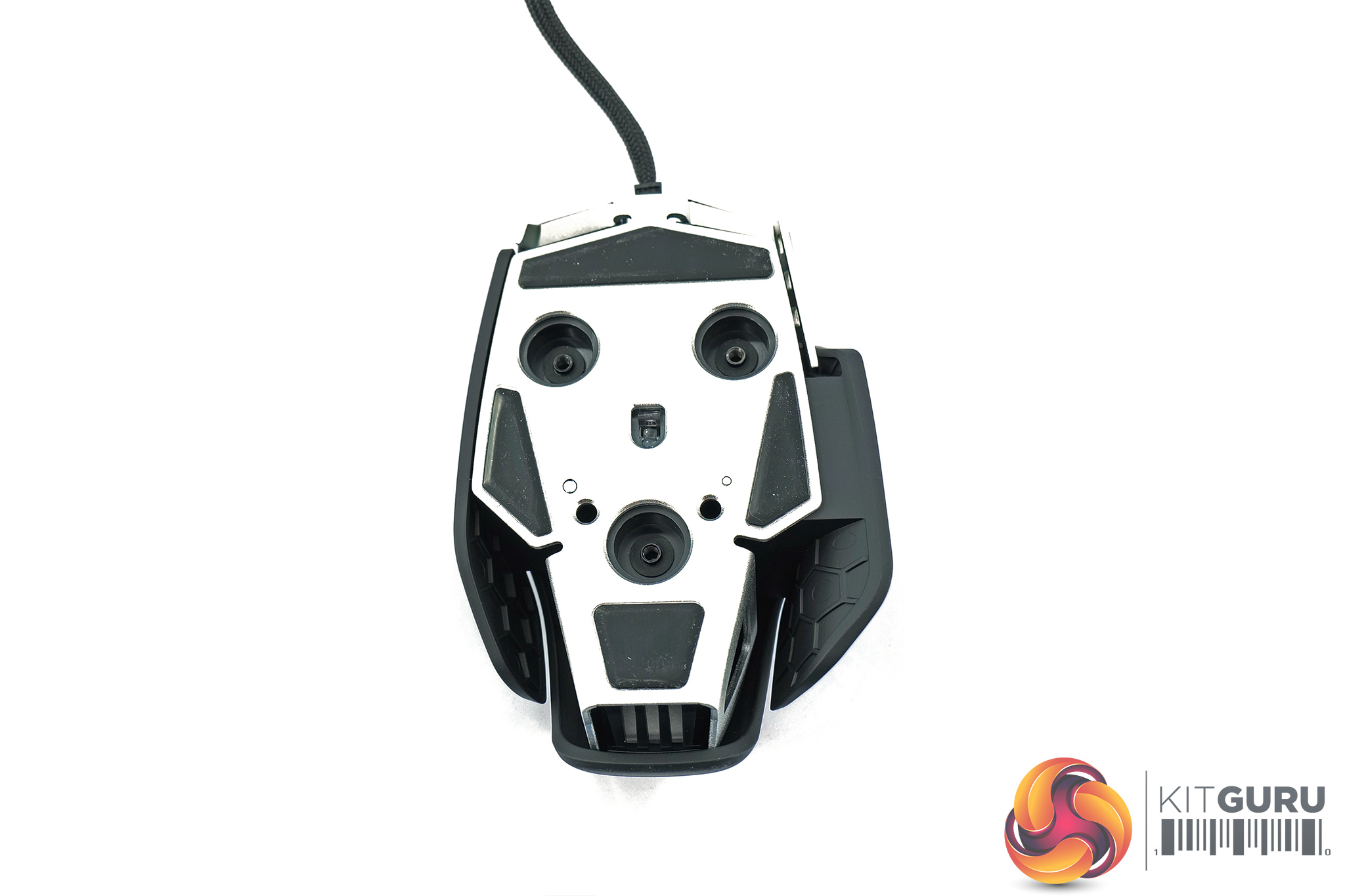
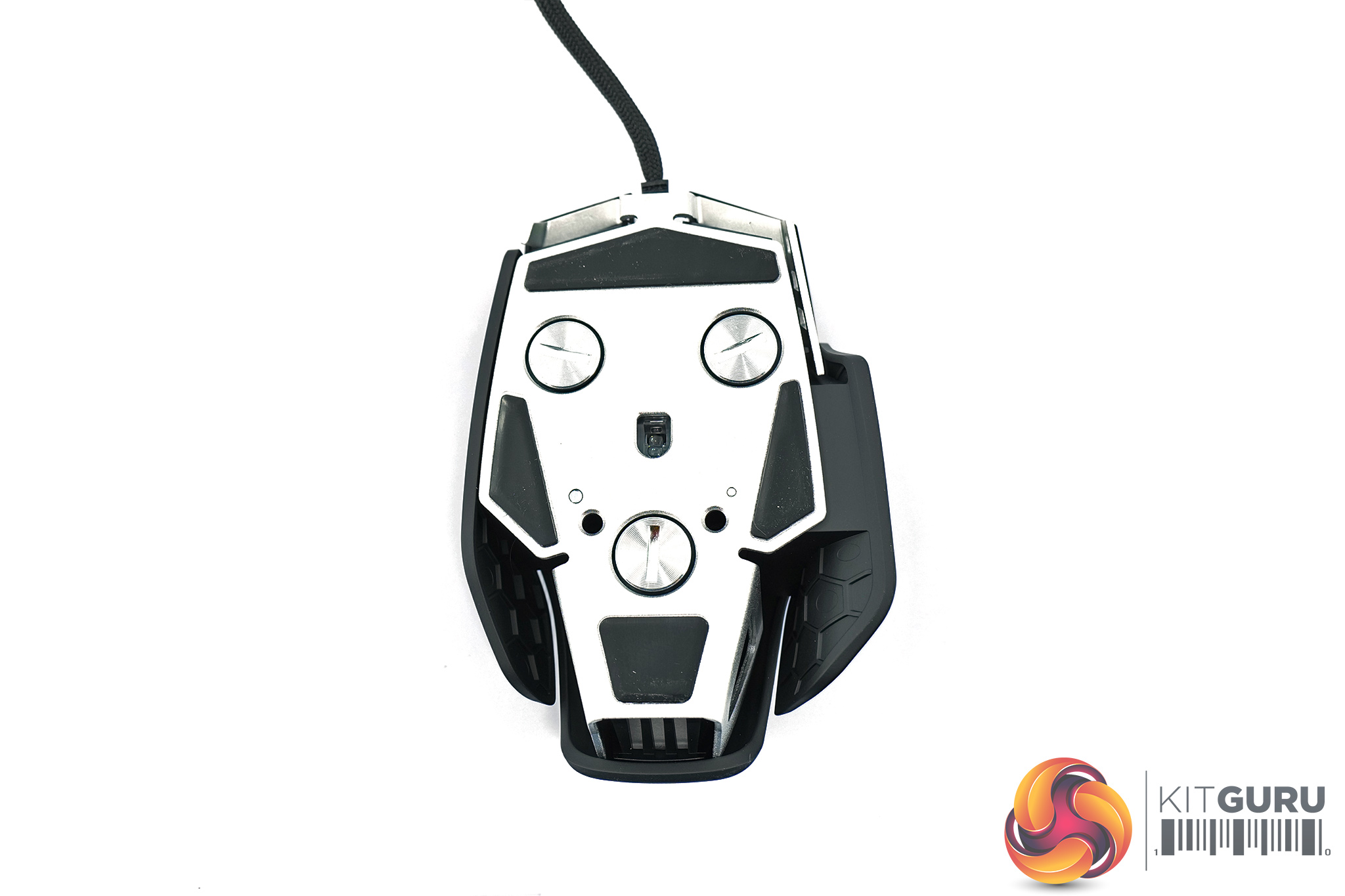
On the underside of the mouse we see the aluminium frame used, another staple feature of the M65 series. The three holes are where the adjustable weights can be screwed in, and you can see how you could – in theory – tune the mouse to be more top or bottom-heavy depending on your preference.
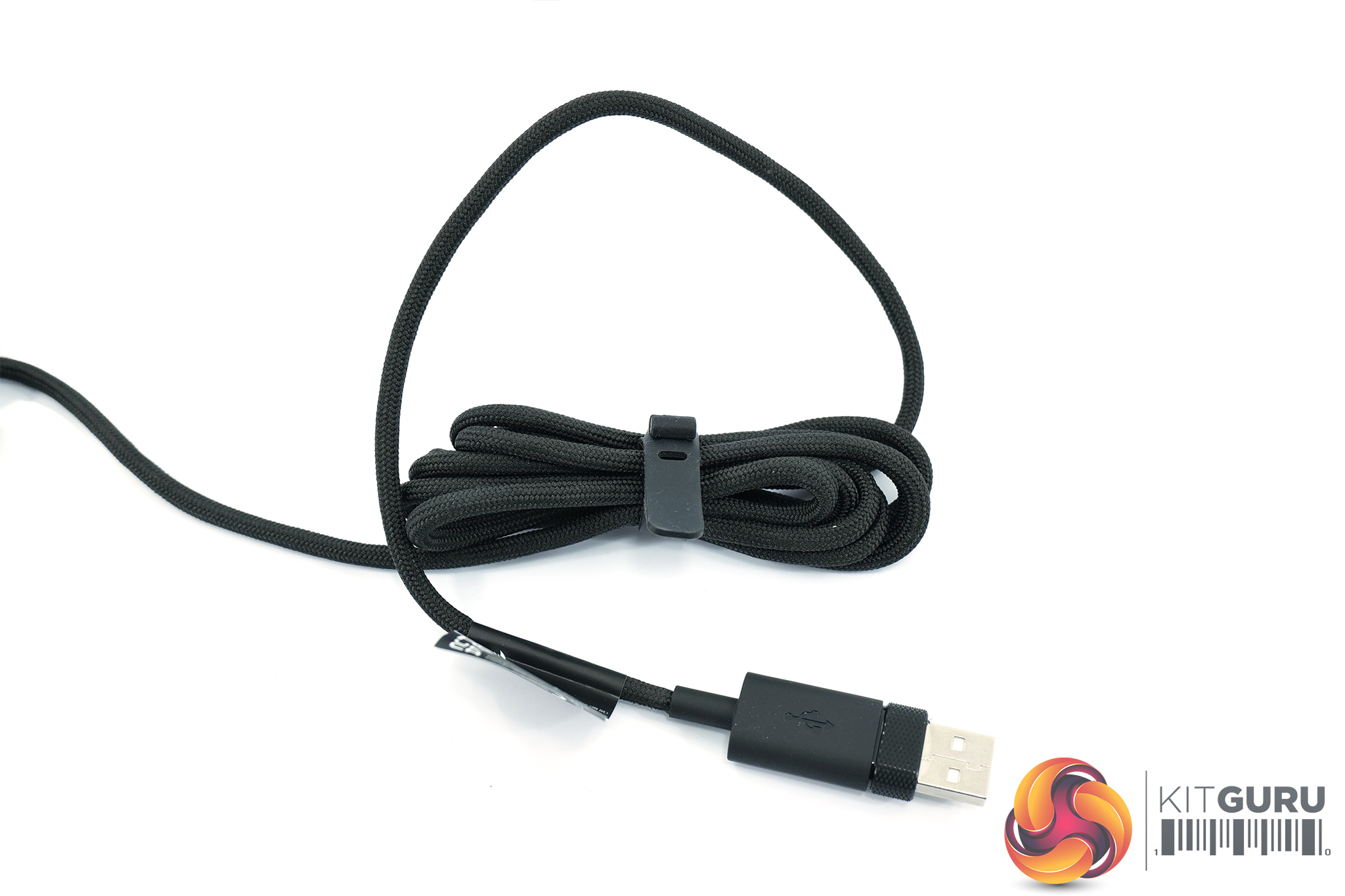
As for the cable, Corsair is calling this a ‘lightweight paracord cable', and it measures 1.8m long, terminating in a USB 2.0 Type-A connector. We talk about cable quality and flexibility on the next page.
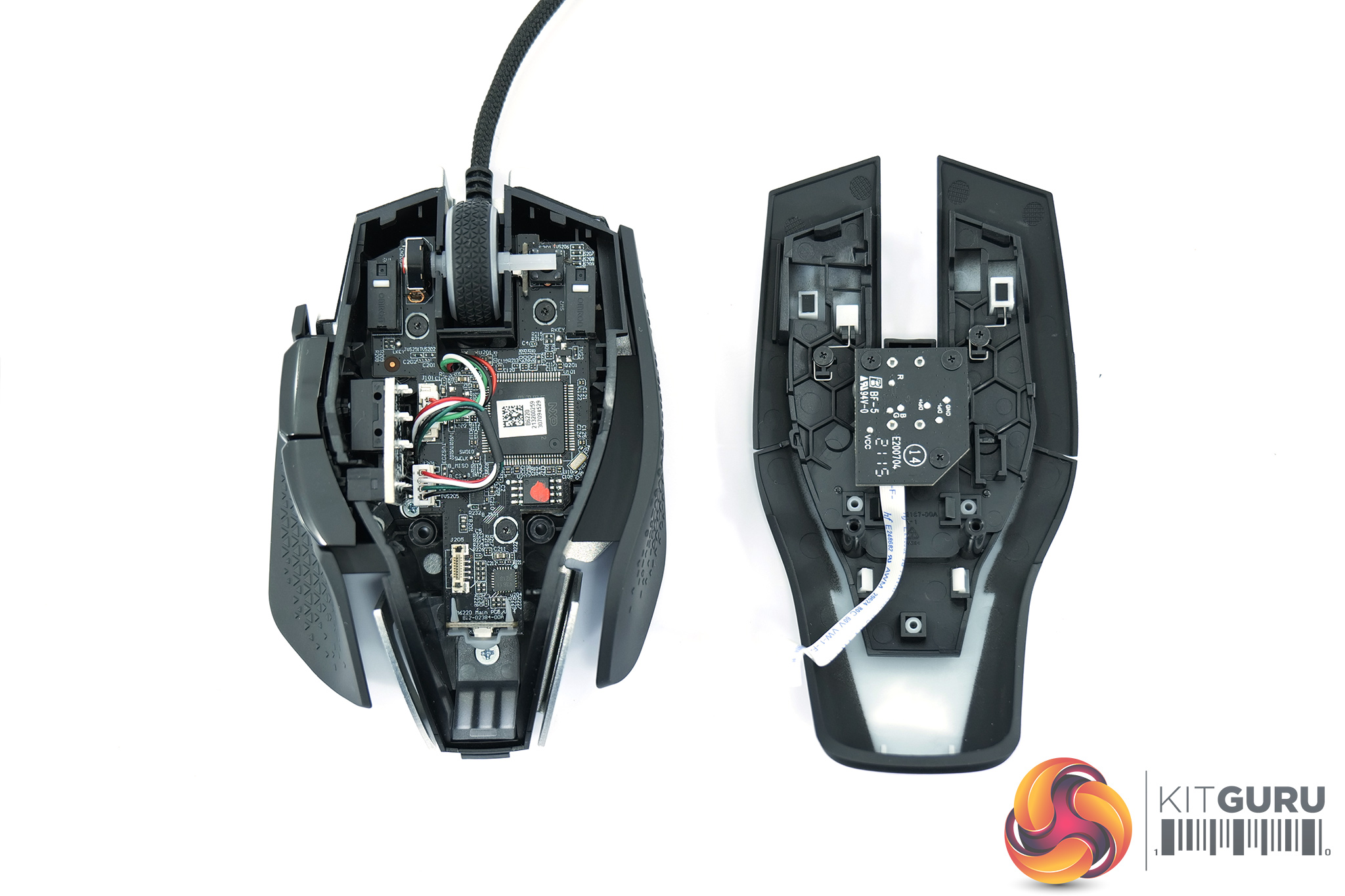
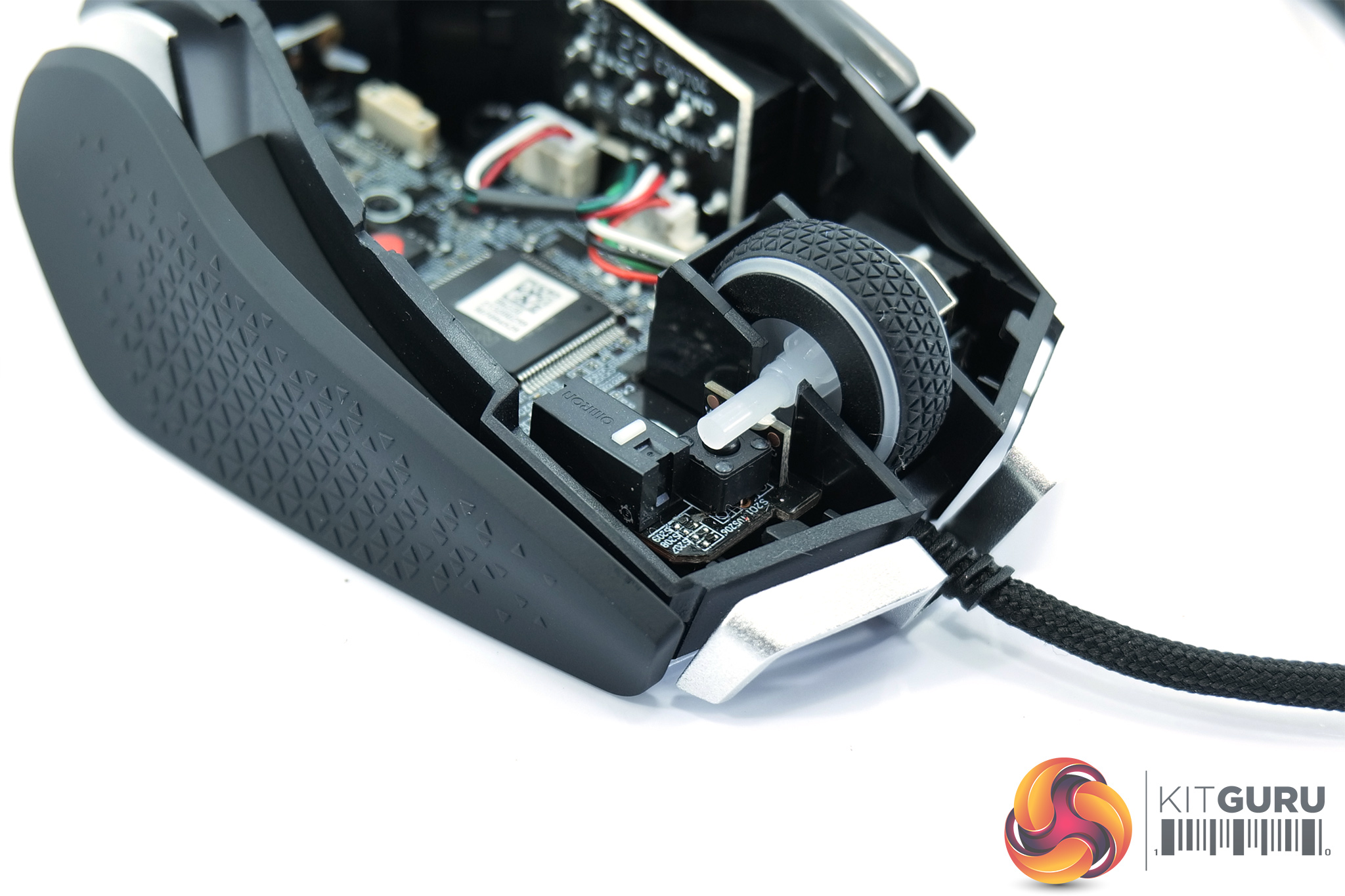
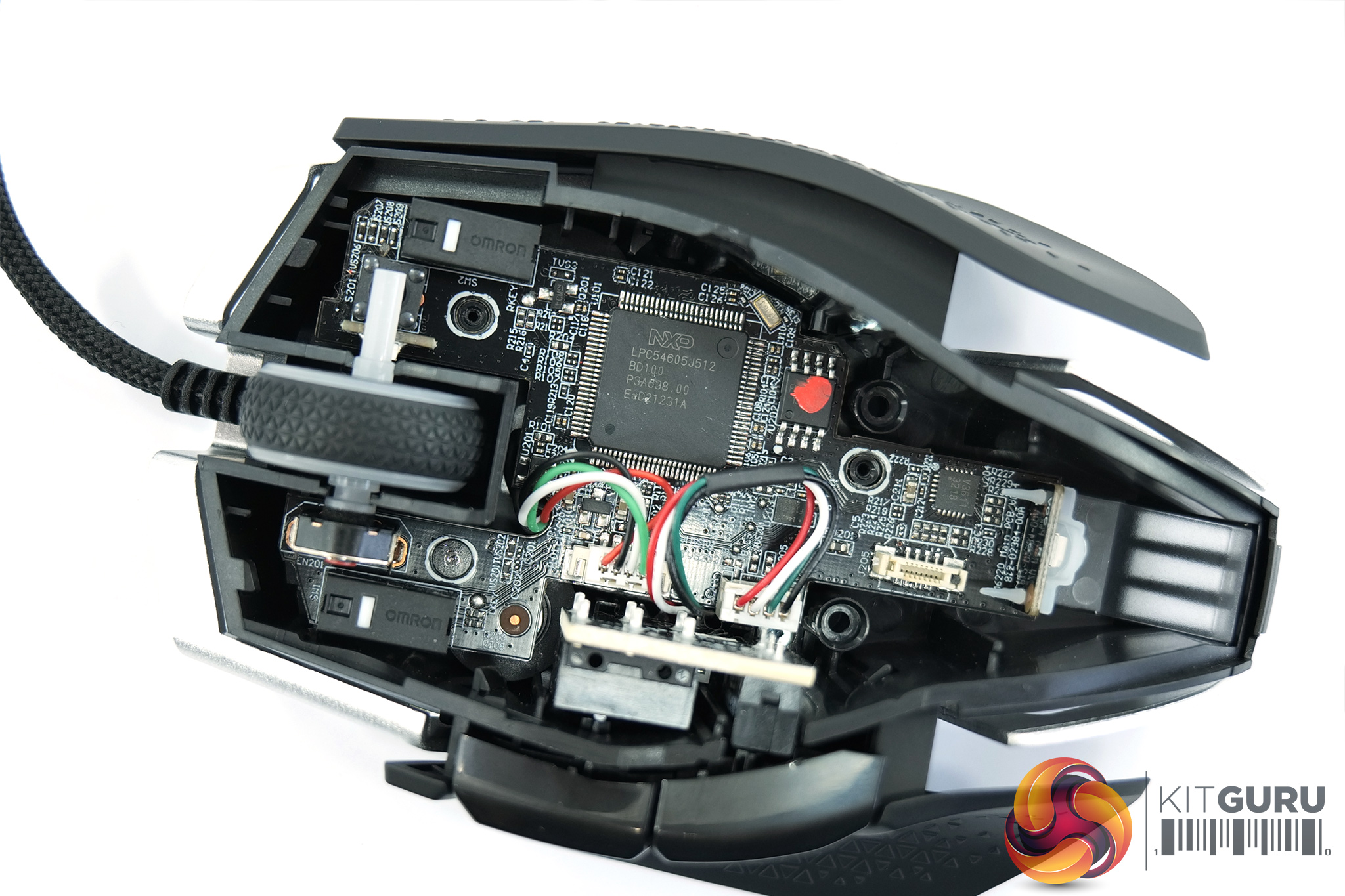
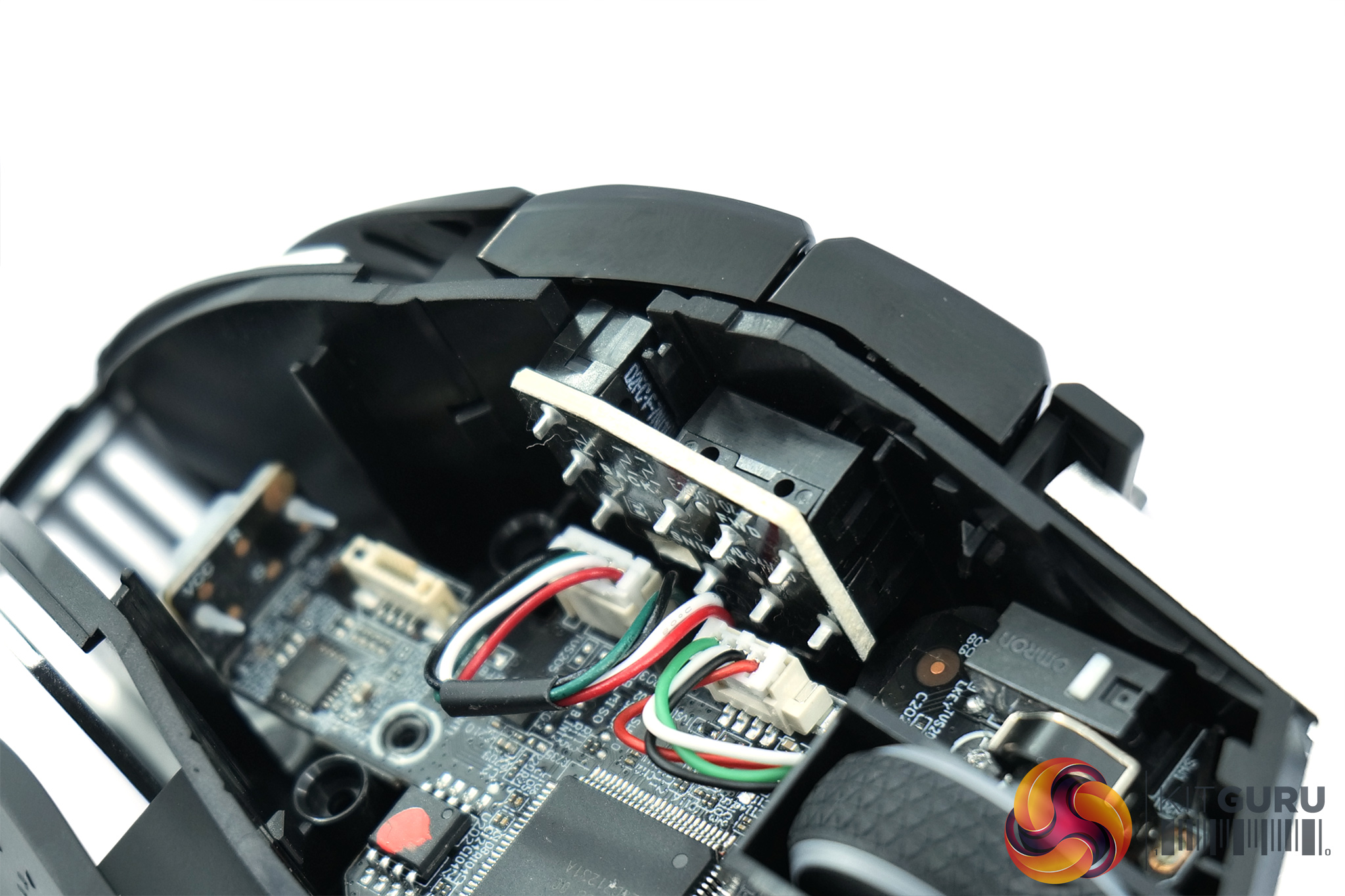
In terms of mouse disassembly, the top of the shell is easily removed once two screws have been extracted from the underside of the mouse. As you can see, the PCB is still somewhat obscured by the sides of the shell, and unfortunately one of the screws holding the PCB in place stripped itself – despite using the same screwdriver to easily remove the other two.
That meant I was unable to get as close a look at the different components as I would have liked, but we can still comment on a few areas. The first of these is the primary button switches, with Corsair using optical Omron switches. I've not tested a mouse with optical Omrons before, so this will be interesting indeed!
As for the scroll wheel, this uses a Kailh encoder along with a standard tactile switch for the scroll click, though I did not see any visible branding on the switch itself. The Marksman sensor is notable as it is not immediately visible, so it is likely on the underside of the PCB. An NXP LPC54605J512 microcontroller is used.
Lastly, we were also able to make out that the side buttons – at least, the forward and back buttons – do use standard Omron D2FC-F-7N(10M) mechanical switches.
We break down testing into four main sections: software, lighting, build quality and comfort, and performance.
Software
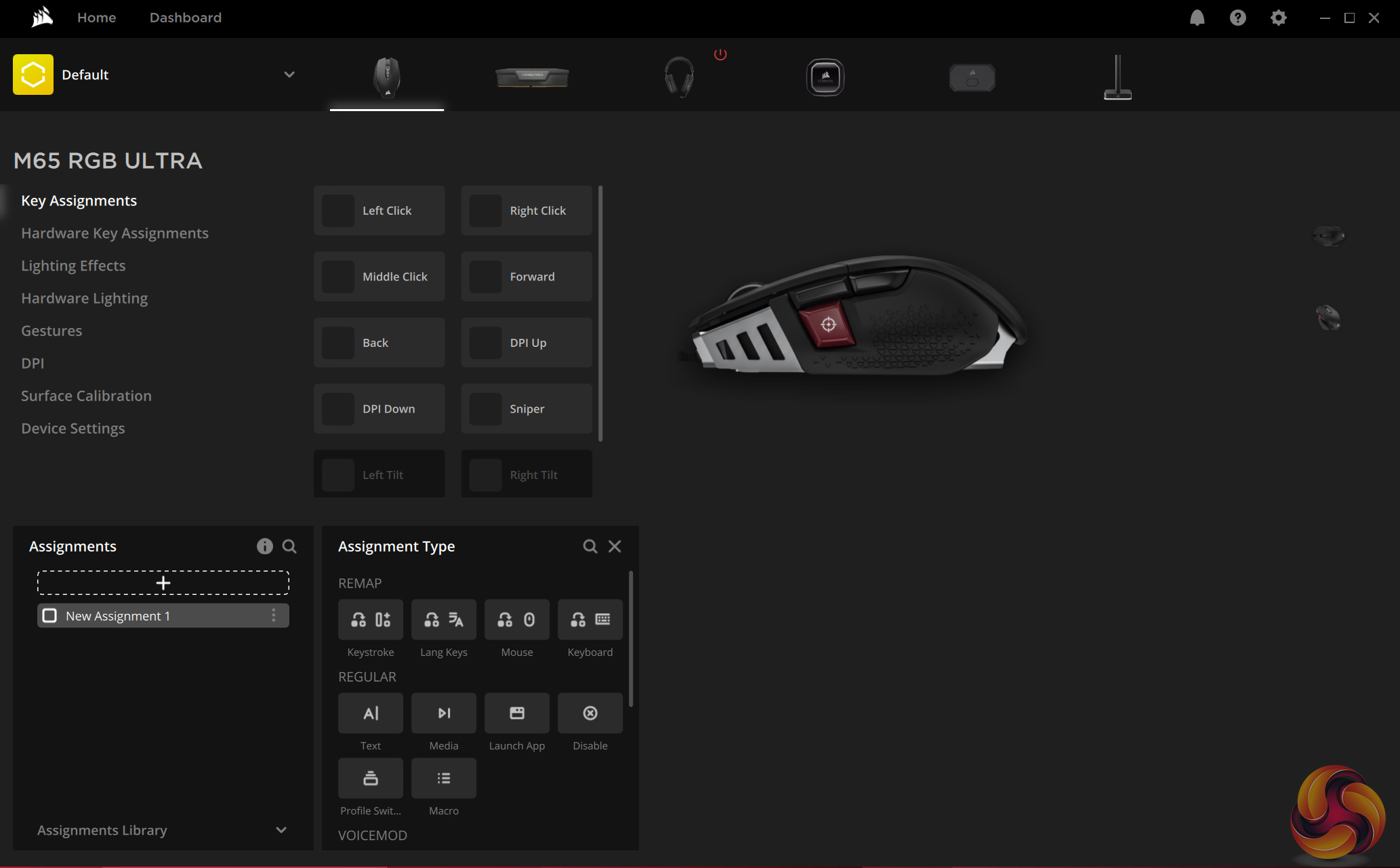
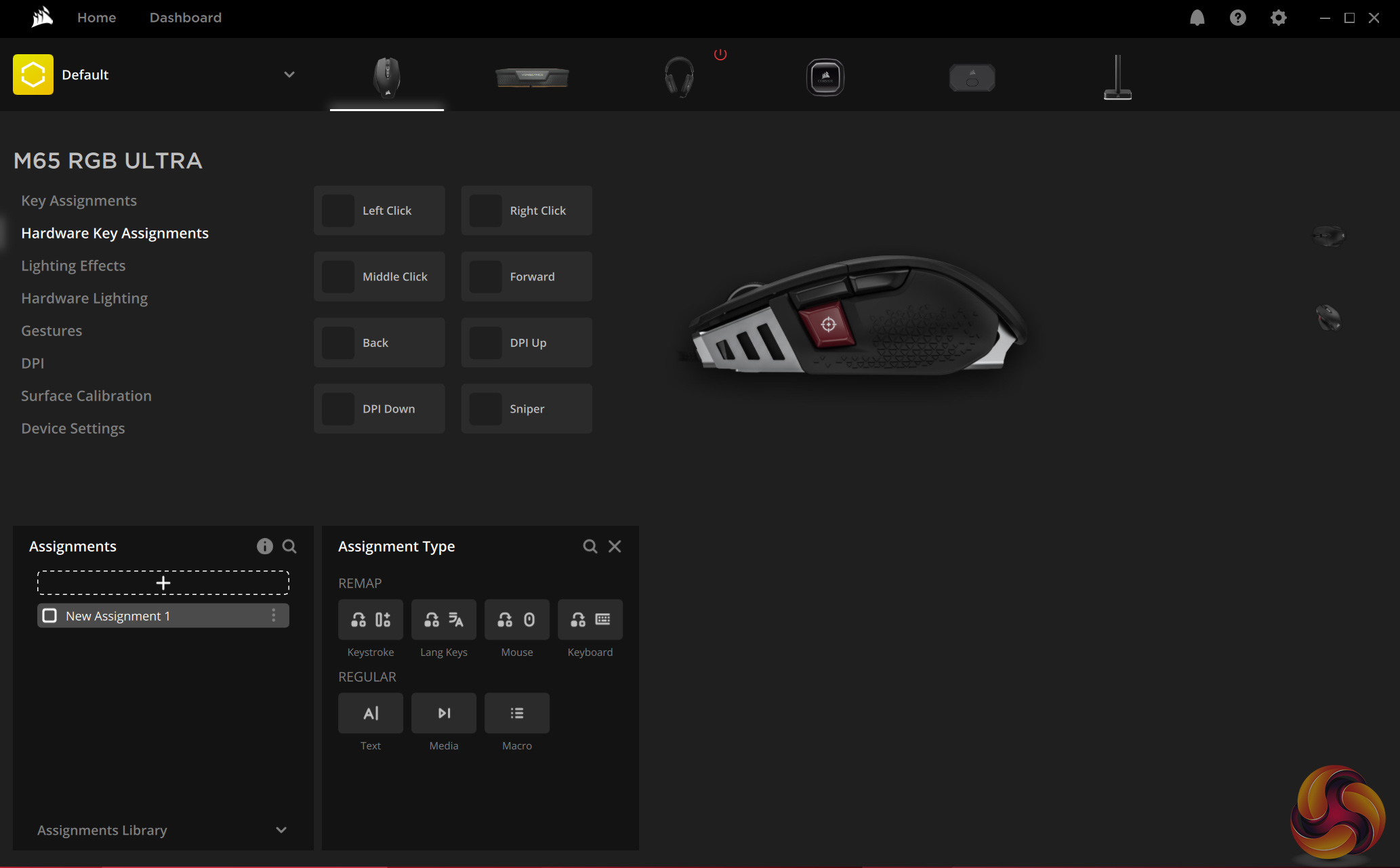
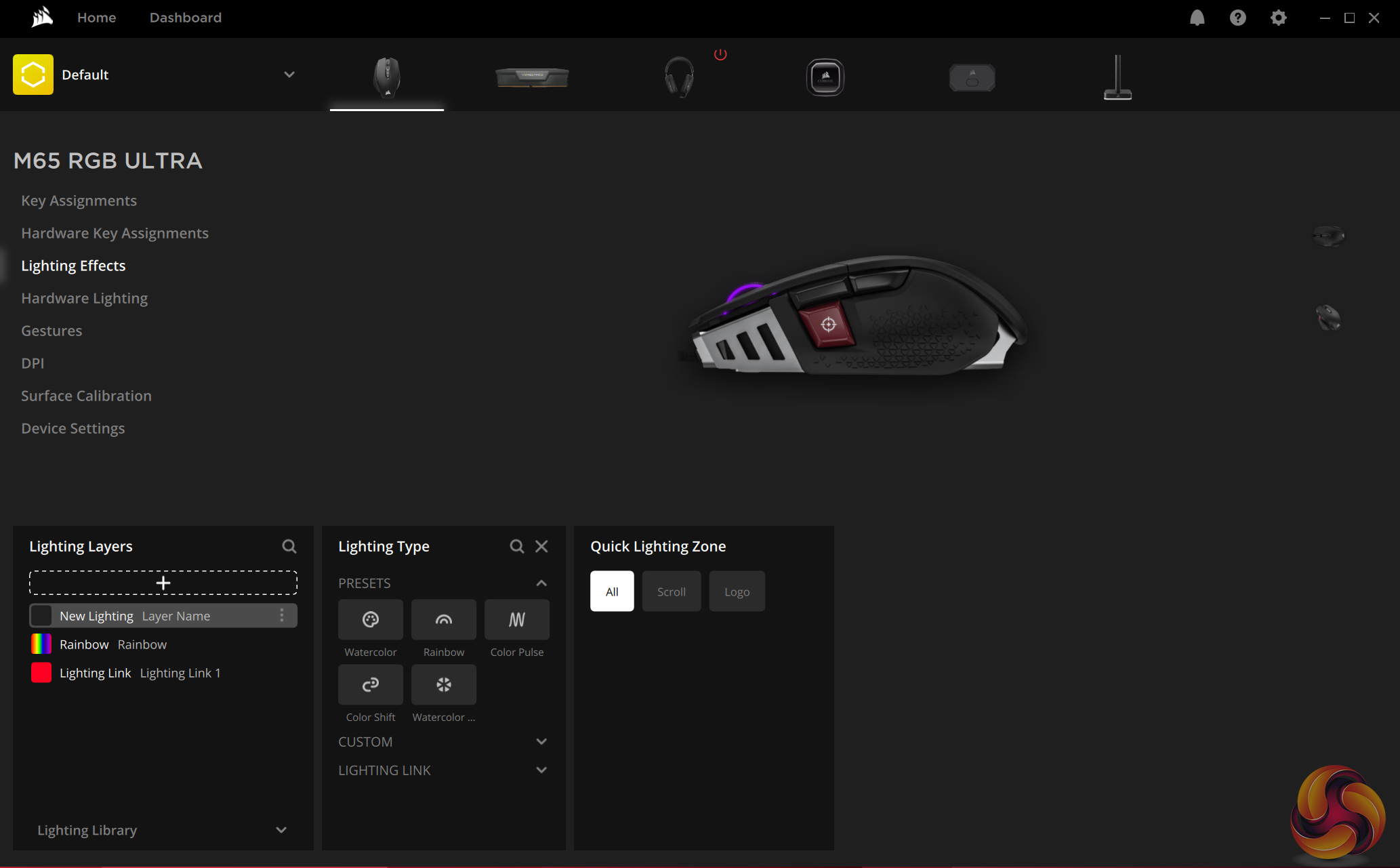
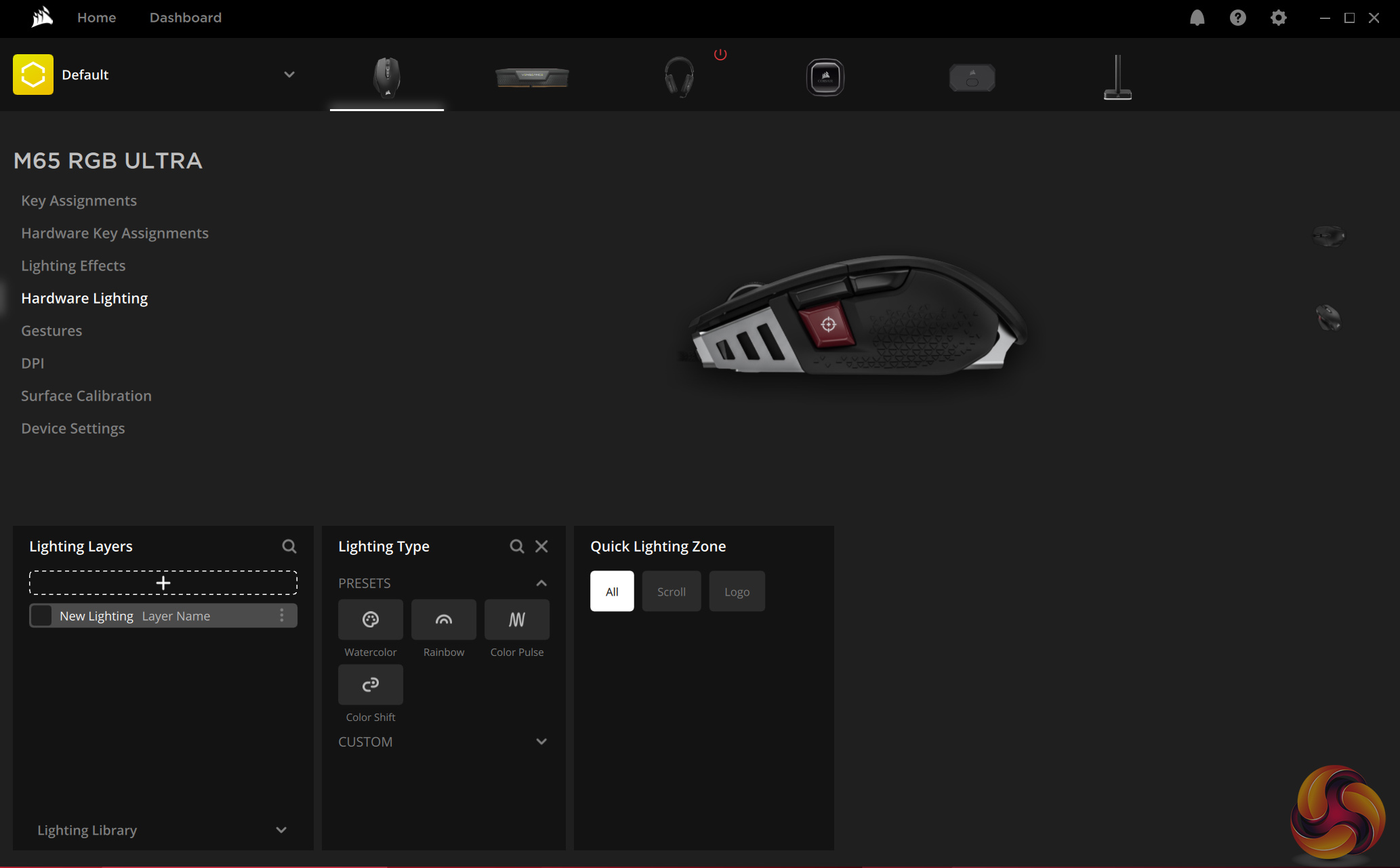
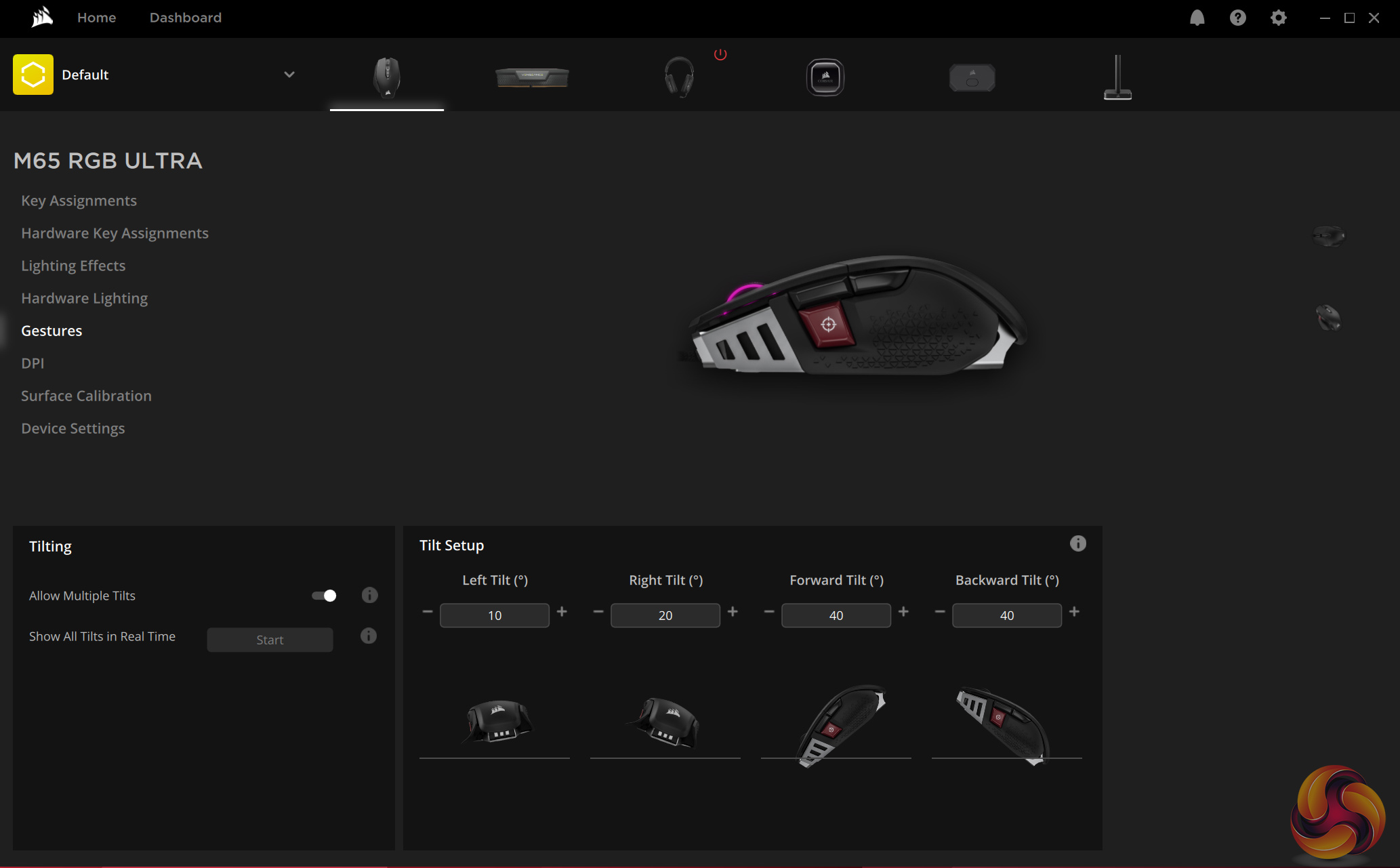
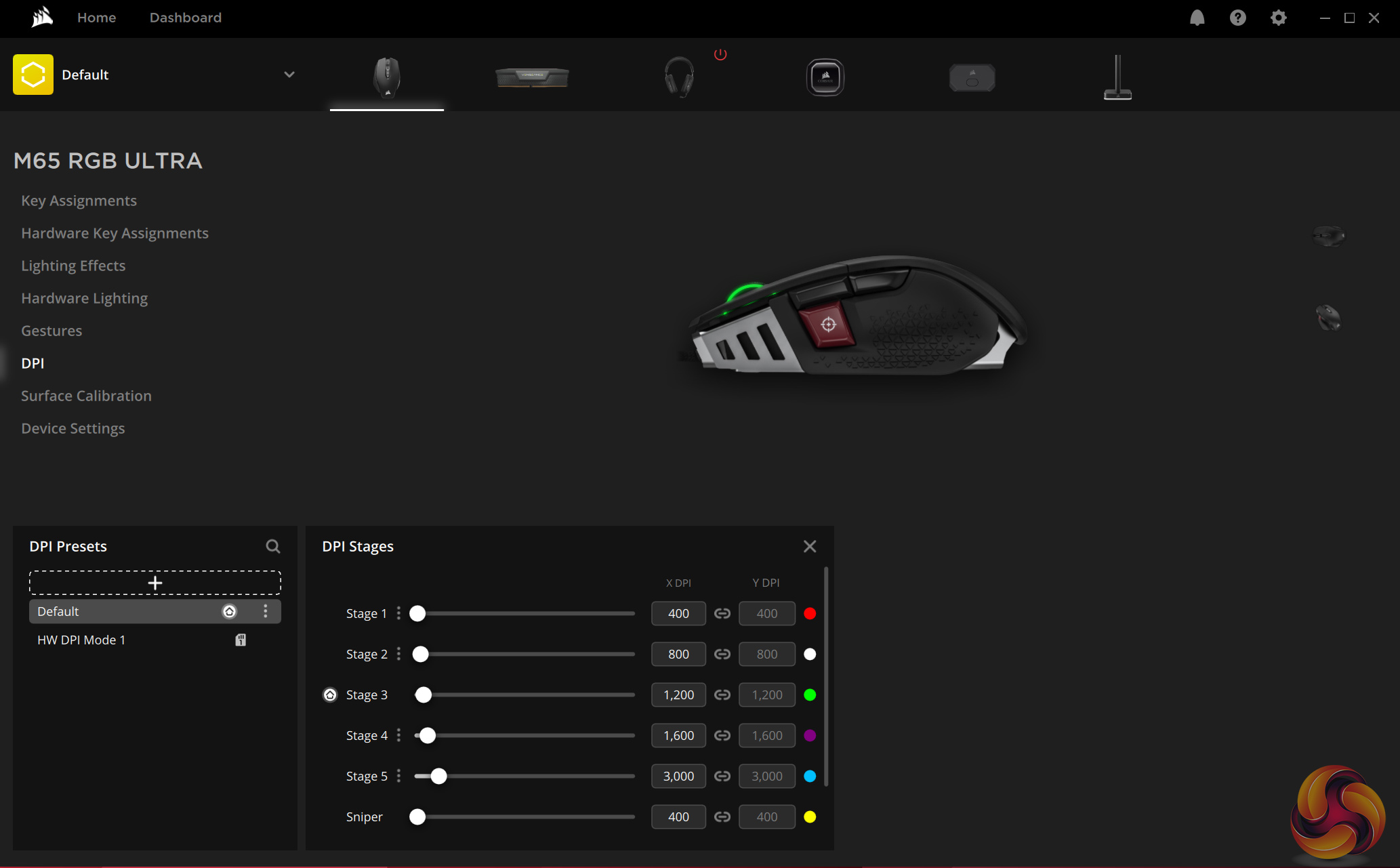
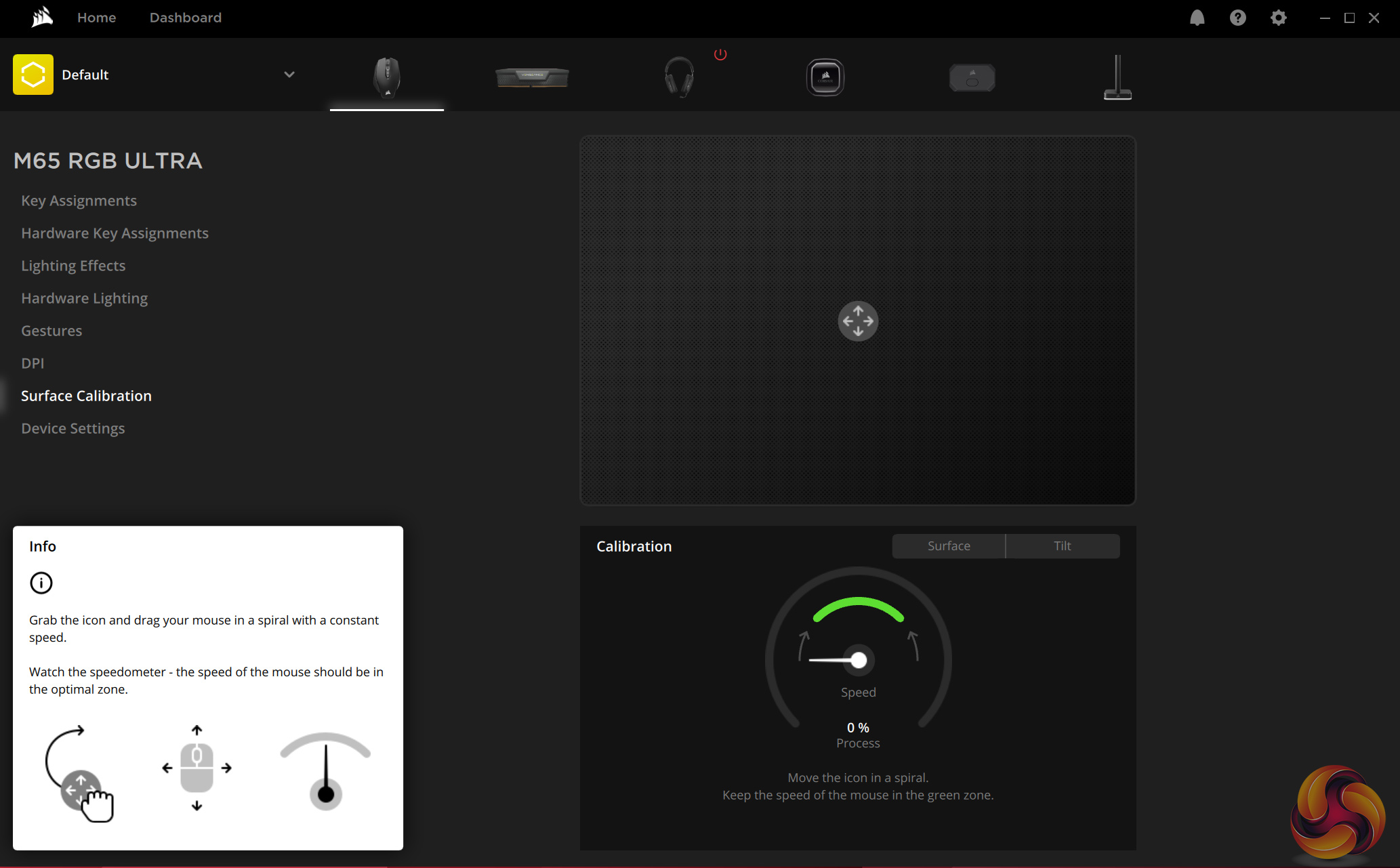
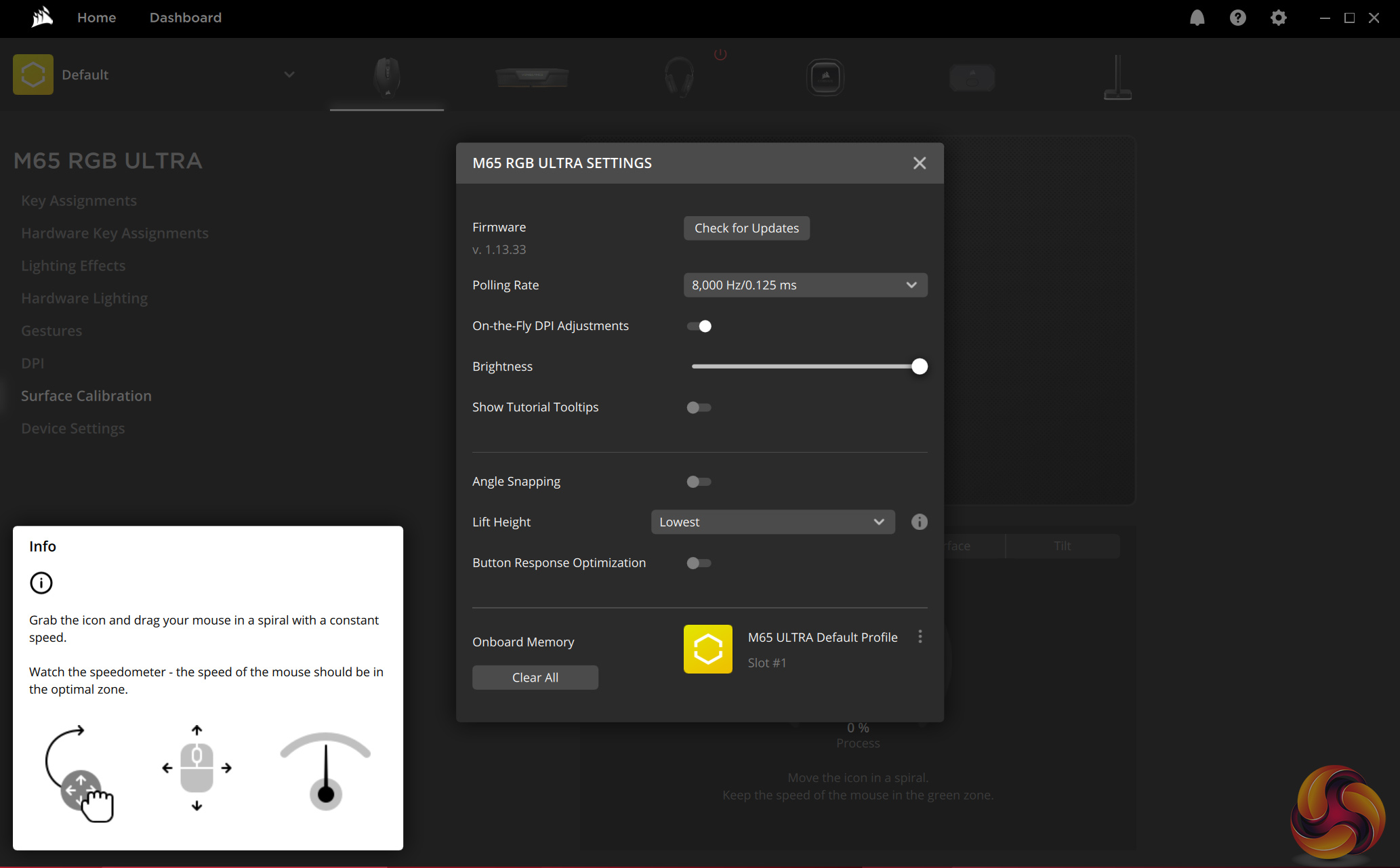
As always, the M65 RGB Ultra uses Corsair's iCUE software. This has received a facelift in recent years but I still find it pretty easy to use and didn't encounter any bugs during my testing.
The software control is broken up into 8 tabs, and most of them are pretty self-explanatory – we have the usual control over RGB lighting, DPI stages, lift-off distance and more, including the ability to remap any of the mouse's eight buttons. One thing to be aware of though, is the fact the M65 RGB Ultra can be used in ‘hardware mode' or ‘software mode'.
This basically means you can either use the M65 RGB Ultra on a system with iCUE installed and have full access to the different customisation options (software mode), or you can use the mouse without iCUE installed (hardware mode) and just be a little bit more limited with your options. For instance, in hardware mode you can only use 5 predefined DPI stages and adjust them in increments of 50 DPI. In software mode, you have complete control over these DPI stages (including assigning a different RGB colour to each stage) and can adjust them in increments of 1 DPI.
Additionally, hardware mode limits you to one predefined lighting effect (which is rainbow, out of the box) whereas with iCUE, you can tweak the lighting to your heart's content. We'll also talk more about this below, but tilt control – a big new feature for the M65 RGB Ultra – is only accessible when using the mouse with iCUE installed.
The good news is there is support for saving custom settings to the M65 RGB Ultra's onboard memory, so even if you never want to use the software again, it's possible to set up your key bindings or DPI stages, save them to the mouse, and uninstall iCUE. Unfortunately, there's only support for one onboard profile, so for any extra customisation that can't be done with a single profile, you'd have to use iCUE.
I do also want to point out one oddity – the ‘device settings' tab has an option called ‘Button Response Optimization’ which is said to optimise debounce time. However, as we noted, the M65 RGB Ultra uses optical switches, so there's no debounce time. We pointed this out to Corsair and they agreed it is not needed for the M65 RGB Ultra, so the company is looking into it.
Lighting
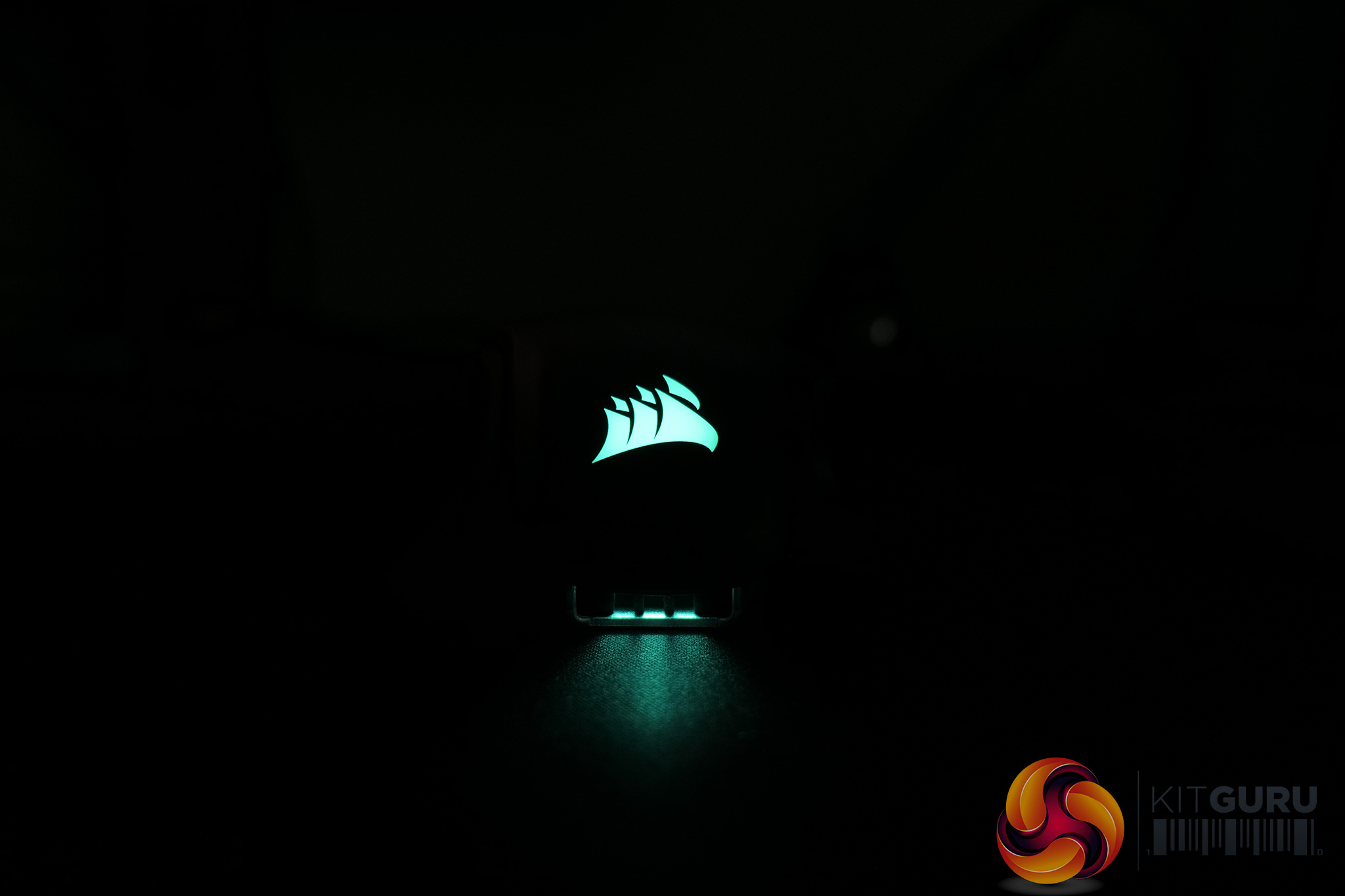
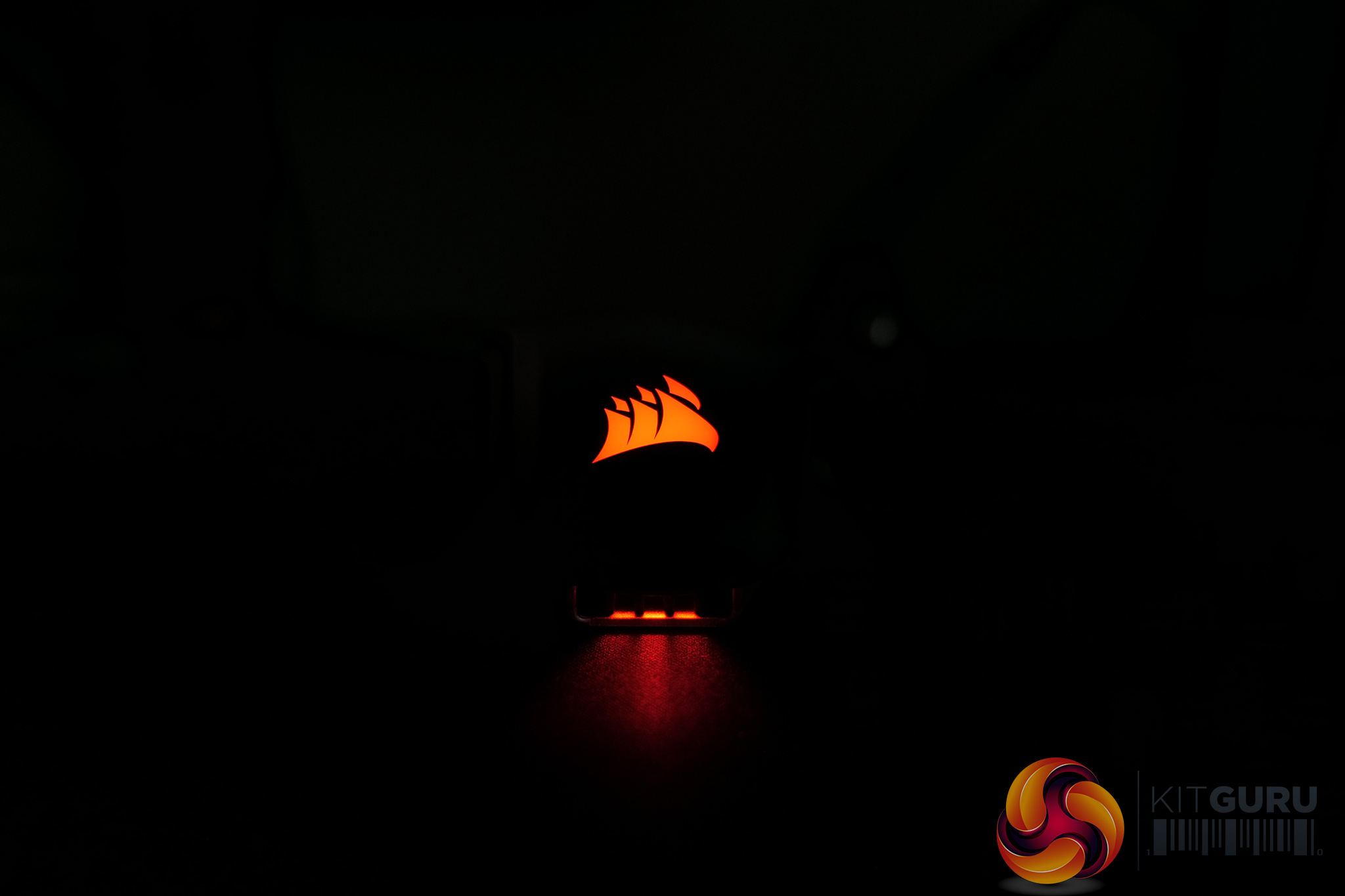
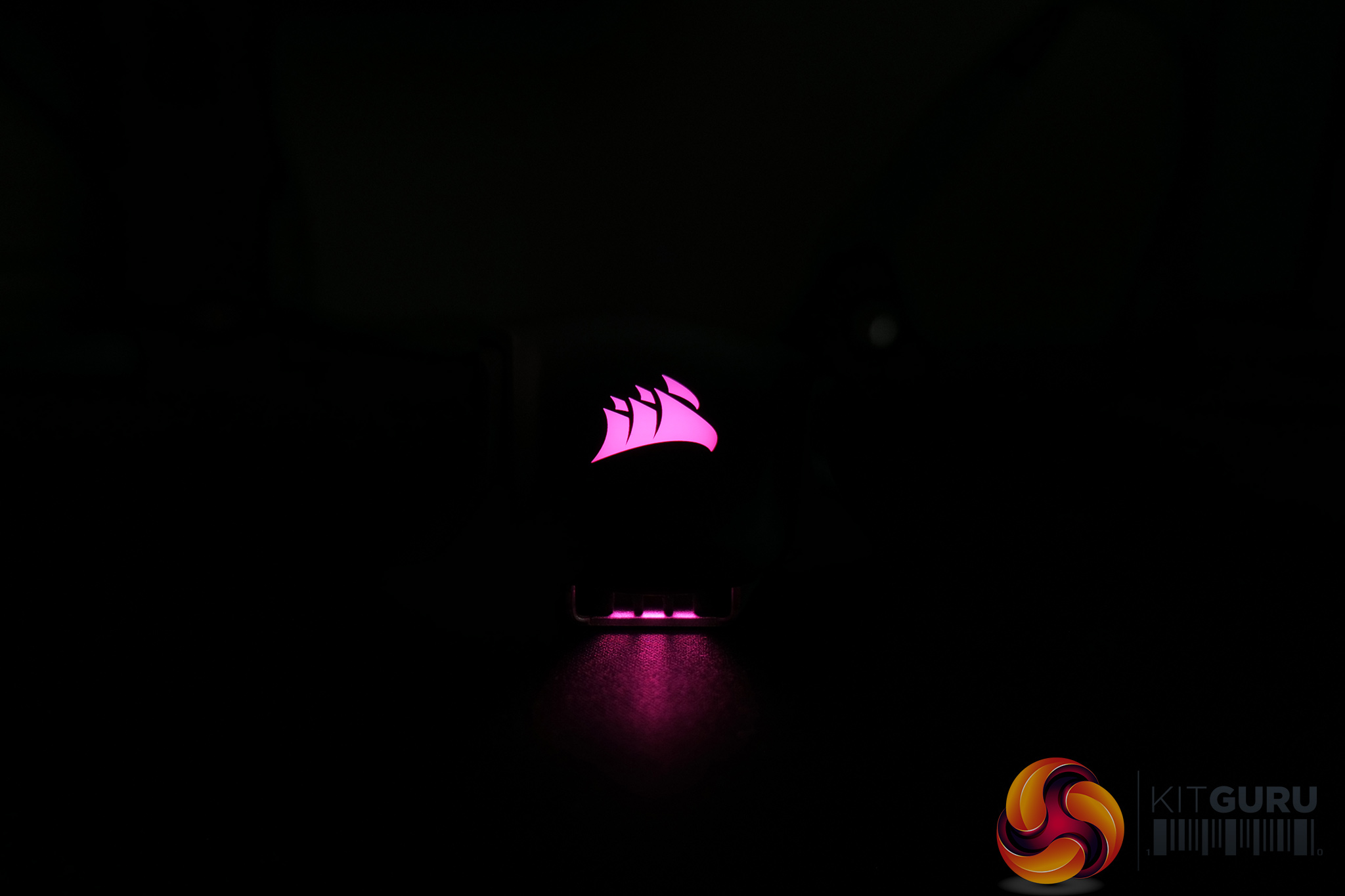
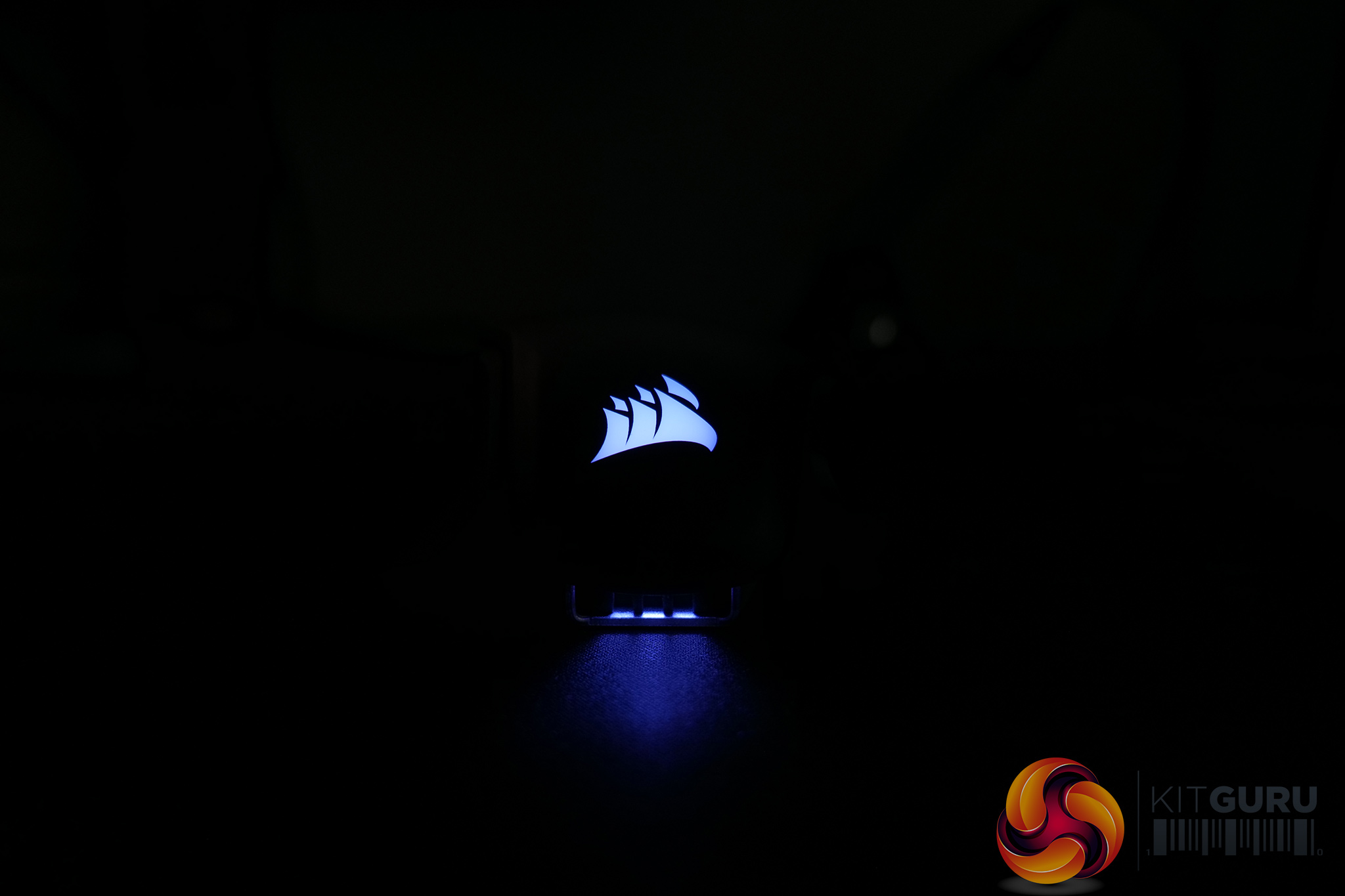
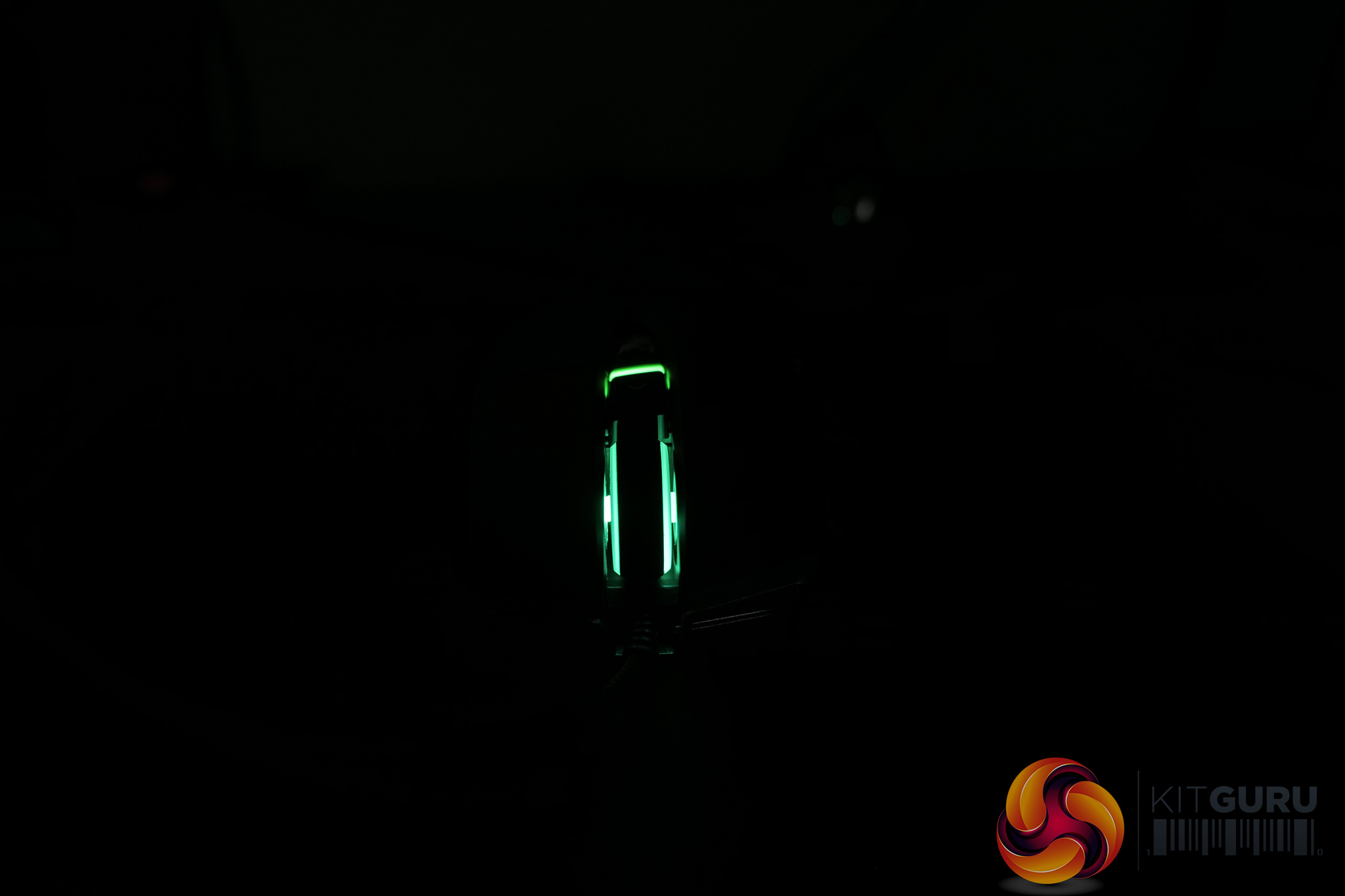
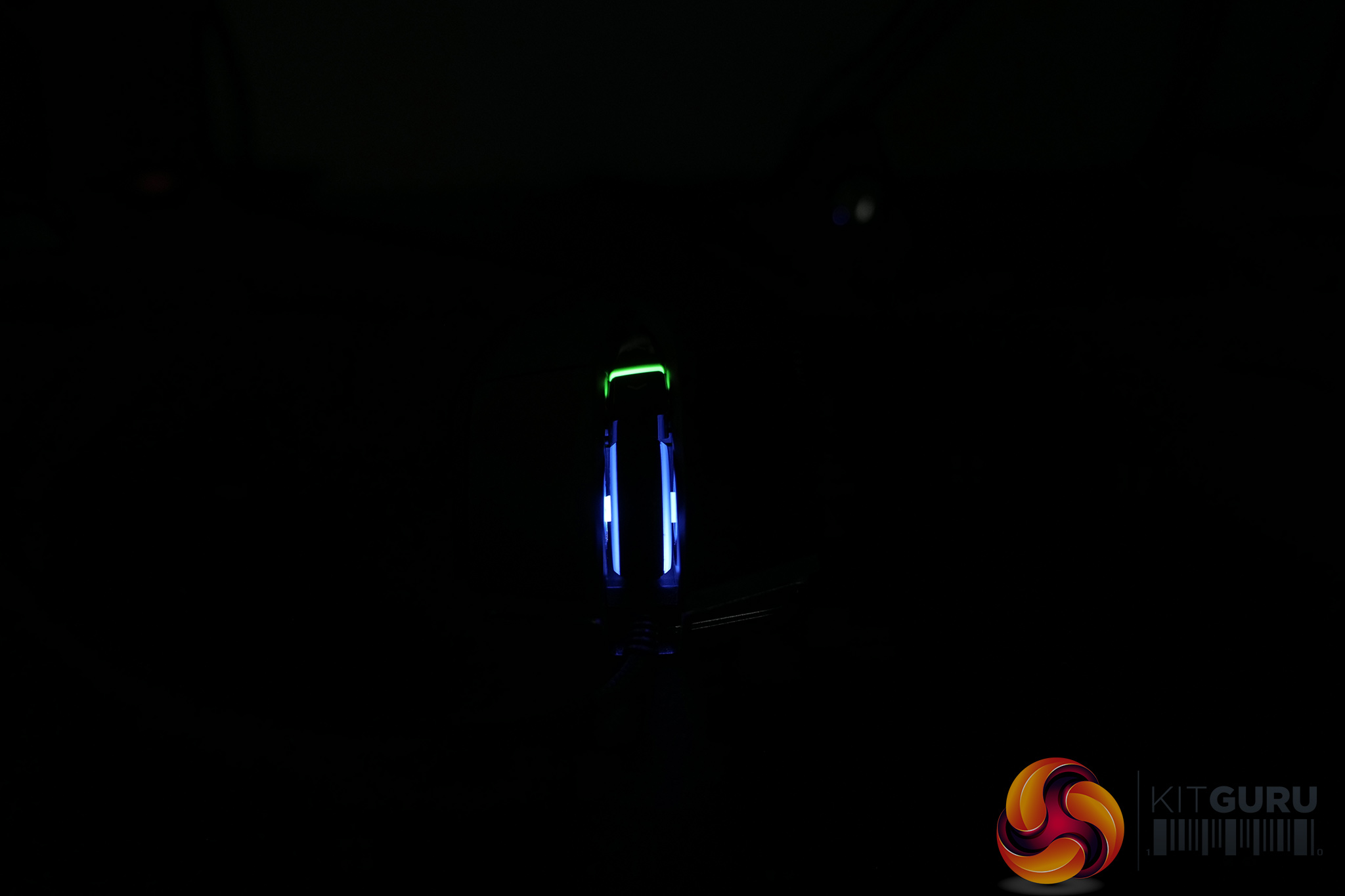
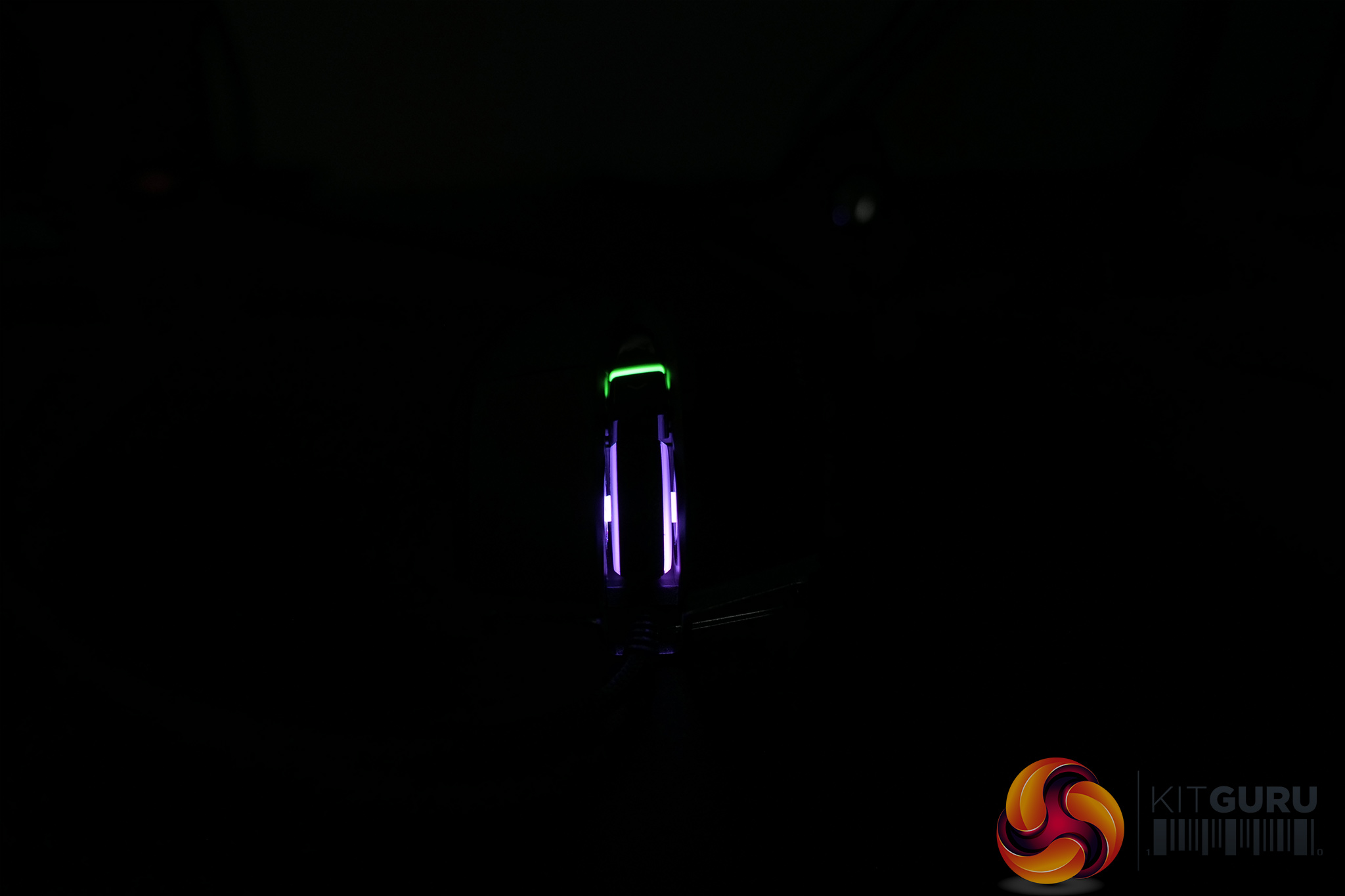
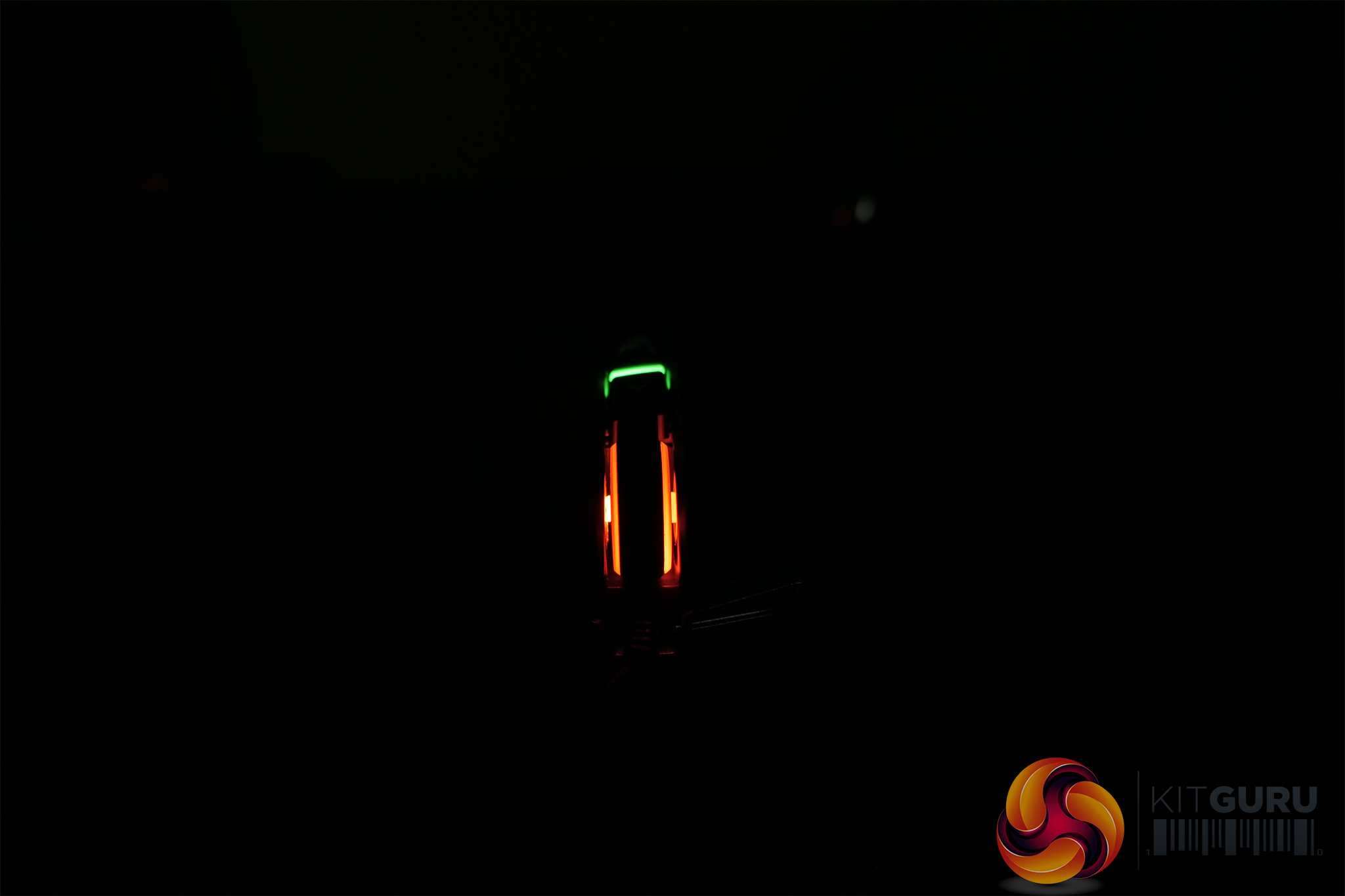
As for the RGB lighting, there's two zones on the M65 RGB Ultra – one LED at the back of the mouse, which shines through the Corsair logo and a separate diffuser right at the bottom of the shell, as well as the scroll wheel. Technically the DPI indicator is also an RGB LED, but this isn't adjustable via the same RGB controls as the actual lighting zones.
Still, the lighting looks very good. By modern standards it is fairly understated, but the colours shine through very clearly and the brightness levels cannot be faulted. I wouldn't say the RGB is key selling point here but I have no complaints about the lighting at all.
Build quality and comfort
Next we'll talk about build quality. Nowadays, this usually means ‘how much flex will this 50g mouse exhibit?', or ‘is it possible to engage the side buttons when squeezing this mouse because the shell is full of holes?' With the M65 RGB Ultra, we have none of those concerns as it's a solid 97g mouse with an aluminium base. There's no creaking or flex when it's squeezed from the sides or top, there is absolutely no way to engage the side buttons while doing so either, and generally this mouse just does not flimsy at all.
The only point worth mentioning is a slight rattle from the scroll wheel when the mouse is picked up and deliberately shaken from side to side, but even when sweeping the mouse back and forth on my mousepad as fast as I could, I couldn't hear any rattle then. So there is some rattle, but it's only audible in an unrealistic scenario, so for me that is just a non-issue.
As for comfort, it's fair to say the M65 is quite a unique shape, so while it may not sound very helpful in a review, my best advice would be to try it out if you can. It doesn't really matter which M65 model you try as the shape is consistent throughout, so maybe if a friend has an older version you could see how you get on with it.
Failing that, I'll describe my experience as best as I can. With 18.5 x 9cm hands, the M65 is a good length for me and I'd say it is definitely best suited to claw grip. It would be possible to palm it too, but if you're a fingertip gripper, I just wouldn't even think about it. I was able to get the base of the mouse into the bottom of my hand quite nicely though, with my index and middle fingers resting about 1cm from the very end of the primary buttons.
The side buttons are also perfectly placed for use with my thumb, but the way this mouse is designed, the end of your thumb will almost always be resting on top of the sniper button. This takes a bit of getting used to, and as the button is made from glossy plastic it's not the perfect surface for gripping on to. You can try moving your thumb back so it's not resting flush against the side of the mouse, but for me this got uncomfortable after a few minutes.
The side grips themselves are pretty comfortable though. The moulded triangle grip sections do a good job at giving your fingers something to hold on to/create some extra friction, and while these little triangles can feel a touch rough at first, I'd expect them to wear down slightly over time. Lastly, the coating used is also excellent, it was very grippy under my palm and didn't show up much grease or skin oil residue at all, so no complaints from me there.
Performance
Let's talk performance now, starting with the buttons. I'll describe these in terms of the feel, but I've also recorded a short sound test of every button on the M65 RGB Ultra, so if you want to hear for yourself, here it is:
The primary buttons use Omron optical switches in conjunction with Corsair's Quickstrike technology. This basically means there's absolutely minimal pre and post-travel, creating a very snappy and fast feeling to the primary buttons. I'd heard good things about Quickstrike before, and considering some of my past experiences with Corsair mice and their mushy buttons, it is great to see the company taking steps to improve things.
The actual switches though, are slightly more odd. Perhaps odd isn't the right word, but having never used optical Omrons before, they are not what I was expecting. They are pretty quiet for one thing, while the sound of the click itself is almost hollow. Again, be sure to listen to the sound test above so you can hear what I mean. Thankfully, the actual feel of these switches is great, they're light and crisp, and with Quickstrike as well, it is very easy to repeatedly actuate the buttons at high speed. If you like a heavier or more tactile switch then these may not float your boat, but I got on with them well.
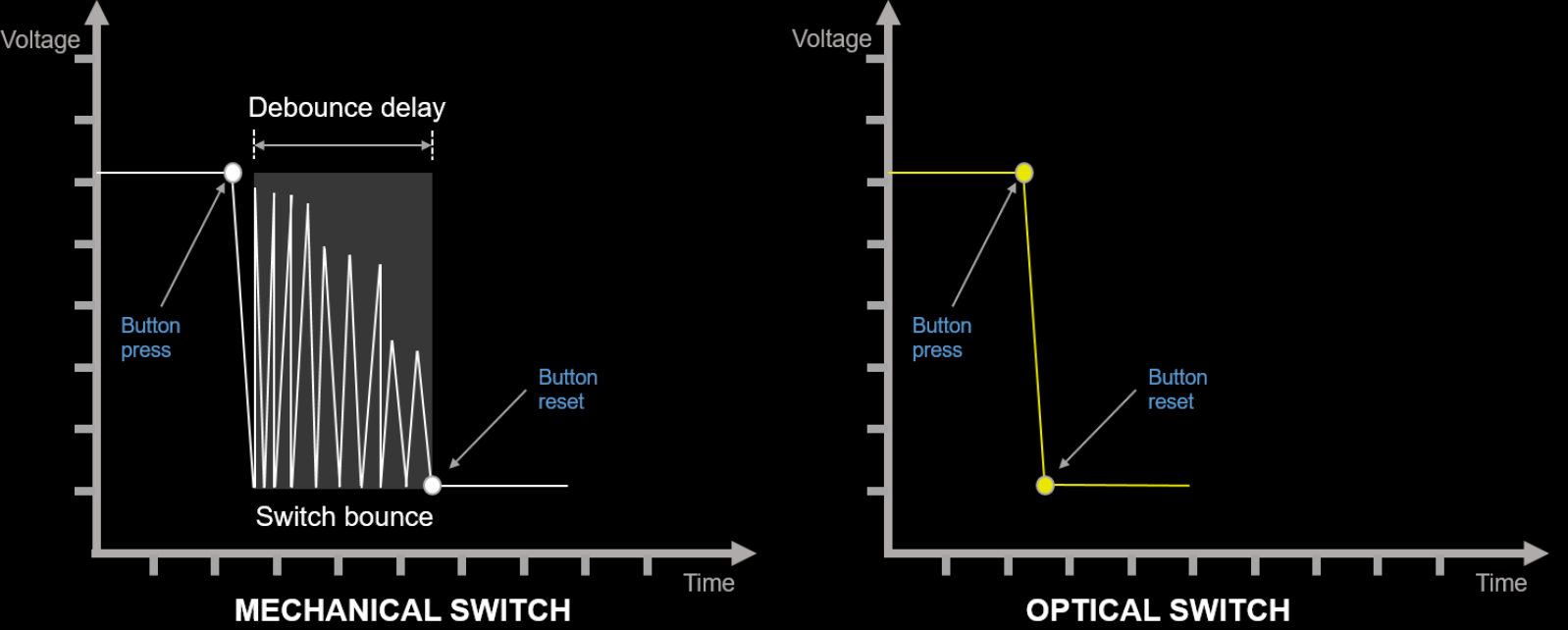
Image credit: Corsair
Also, they are optical, so that means traditional debounce delay can be eliminated, reducing a few milliseconds of wait time before a click is registered by the mouse. Personally I couldn't tell the difference between the M65 RGB Ultra or my own Endgame Gear XM1 (with mechanical Omrons) in terms of speed, but you also know with optical switches that double clicking – at least in theory – should never be a problem.
Then we have the scroll wheel, which I also got on with. It offers nice, distinct steps if you scroll it slowly, but it can also move at a decent pace while still giving a good feel under your finger. It's not the easiest to click in though, requiring a similar amount of force to the XM1, but for me that's what I'm used to so it wasn't a problem.
As for the side buttons, using mechanical Omrons this time, these are of about a medium weight, with a clear audible click and a satisfying tactile bump. They do exhibit a touch more pre-travel than the primary buttons but there's very little post-travel, and I had no issues using these in game. The sniper button does feel heavier though, which I suppose makes sense to avoid accidental presses, and it does have more post-travel but only if you are pressing quite hard. Lastly, both DPI buttons are again very good to use, they are definitely heavier than the side buttons but with absolutely minimal travel. In game I bound these to weapon swap and melee and it actually worked very well, so having a couple of good quality buttons just behind the scroll wheel was definitely appreciated.
Next up is the sensor, Corsair's new Marksman with a maximum DPI of 26K, developed with PixArt. While I was unable to verify the exact PixArt model when disassembling the mouse, we first saw the Marksman with the Sabre RGB Pro Wireless, featuring a PAW 3393 code – so I'd say there's a good chance this is a custom variant of the PAW 3370.
In any case, it's a flawless sensor, as we'd expect from any decent mouse these days. I had no issues with jitter or acceleration, angle snapping can be disabled in software and the overall tracking experience was perfect. Like I said, this is what we expect in 2021, but it's good to confirm there are no issues.
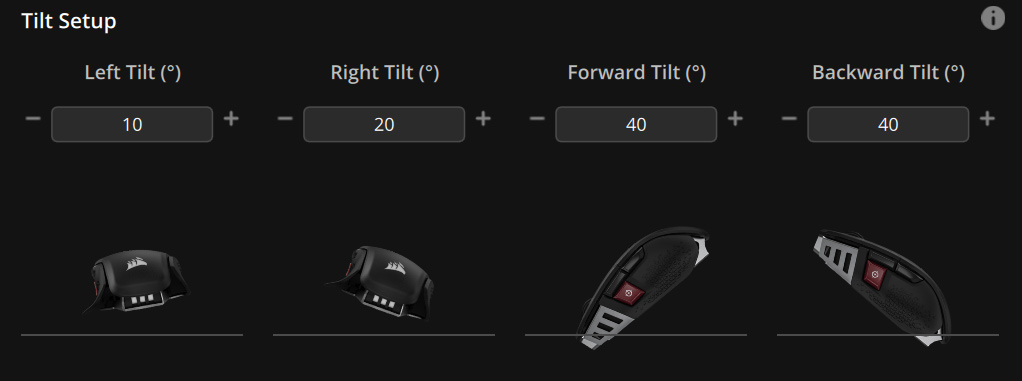
What's more interesting is the addition of a ‘six-axis gyro and accelerometer' within the M65 RGB Ultra, meaning that tilt gestures are now supported. This means you can lift up either the front or back end and left or right side of the mouse and bind that action to a certain function within iCUE – including keyboard keys, opening apps, system functions (like PRINT SCREEN), executing macros and so on. Each of the four tilting directions allows for a different degree of tilt before the action is executed, adjustable from 10-80° in 10° steps.
This is a cool feature and I can certainly see the utility, but I am not sure the M65 is the best mouse for this task – at least not while gaming. What I mean is, even if you have set a tilt distance of just 10° (the minimum value), it still feels a bit clunky and ungainly to lift this mouse up by that amount. I'd argue you'd want the mouse to be as light as possible for this feature, to make the physical movement as easy as possible.
For instance, when gaming, I mapped backward tilt at 10° to the ‘Z' key, allowing me to mount my gun in Warzone with a tilt. In practice, it was just easier to press the Z key with left hand – every split second you tilt in game, is time you can't then mouse the mouse to track an enemy or reposition. If it was a very quick flick on a mouse that weighed 50g, I could see it being more viable. For me though, I'm not sure how often I'd really want to do this in-game.
I do feel there is much more benefit to using this for productivity workflows though. Setting a tilt for ‘Ctrl+K' to cut a clip in Adobe Premiere, or others for ‘Ctrl-C' and ‘Ctrl+V' for copy and paste, is a lot less of a burden when you're not focusing on a game and actually ended up being a valuable feature for me.
The gyro and accelerometer also have benefits for lift-off distance (LOD). Within iCUE, there are now five options for LOD – lowest, ultra-low, low, medium and high. The only thing to note here is if you are using the lowest two settings, tilt gestures will be disabled. I tested each of these settings on my HyperX Fury mousepad, placing one DVD at either end of the mouse, and then adding more disks until the sensor stopped tracking. Here's what I found:
- Lowest LOD – did not track at 1 DVD high.
- Ultra-low LOD – did not track at 1 DVD high.
- Low LOD – did not track at 1 DVD high.
- Medium LOD – tracked at 1 DVD high, did not track at 2 DVDs high.
- High LOD – tracked at 1 DVD high, did not track at 2 DVDs high.
So while we didn't see much difference with our usual DVD test, I did feel the difference between lowest and low settings, and the same for medium and high – the higher the LOD, the more the cursor skips along the screen when re-positioning it. That said, the differences are not massive, but I went for the low setting to still use tilt controls and had no problems.
It is also worth mentioning the fact the M65 RGB Ultra supports an 8000Hz polling rate, something which isn't new but it is still not a mainstream feature just yet. Polling rate simply determines how frequently a mouse communicates with the host PC – at 1000Hz, it reports every 1ms, so at 8000Hz it reports every 0.125ms. This means, the higher the polling rate, the faster your clicks or movements are registered by the PC.
In practice, I wasn't able to tell the difference between 1000Hz and 8000Hz. I was testing the M65 RGB Ultra with AOC's U28G2XU, a 4K/144Hz display, and I do wonder if a 360Hz display would show the benefits more clearly. However, there is an objective benefit to 8000Hz, it just may not be perceivable to everyone depending on how sensitive you are to this sort of thing, or what refresh rate your monitor can offer. It is also worth pointing out that 8000Hz has to be set manually in iCUE due to potential compatibility issues with older systems.
Lastly, we have the cable to mention. Credit to Corsair here, the paracord-style cable on the M65 RGB Ultra is a lot better than the company's previous offerings. The last Corsair mouse I reviewed was the M55 RGB Pro, so it has been a while, but the new cable is noticeably more flexible and less stiff. It's still not perfect though, with the likes of the MM720 and Endgame Gear XM1 offering a thinner and lighter cable, but using it in a bungee, it didn't bother me at all. I would still like to see more improvements in this area, but I also wonder if the 8000Hz polling rate means a thicker cable is required due to increased shielding.
Corsair's M65 is undoubtedly one of the company's most iconic mouse designs. Debuting as the M60 back in 2011, it has undergone several revisions since then, and today marks the release of the M65 RGB Ultra.
This update brings several improvements from the previous M65 RGB Elite, and it feels like a device fit for 2021. The sensor is flawless, optical switches are used for the primary buttons and the cable is the most flexible I've ever used on a Corsair mouse.
That's not to mention the new tilt gesture functionality, achieved thanks to the inclusion of a six-axis gyro and accelerometer, allowing you to map various commands to a physical tilt of the mouse itself. This is something I have never seen before on a gaming mouse, and while I can't say it changed how I game, it is definitely a boon for productivity users.
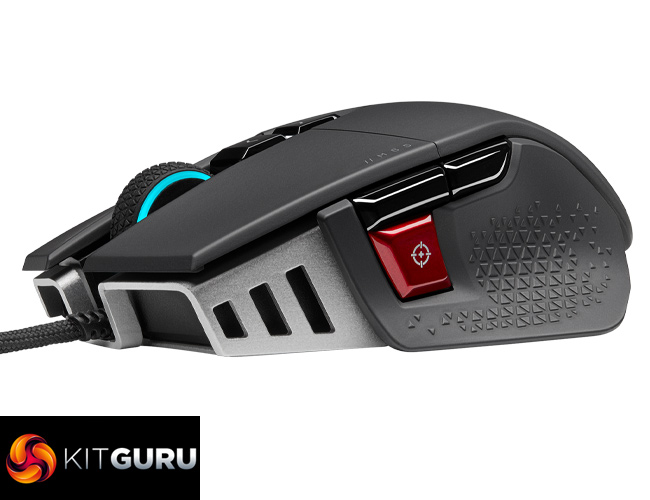
So what we have here can be easily summed up as ‘Corsair's best ever M65 mouse.' But you'd hope that would be the case, right? I would certainly expect every new iteration to be better than the last, with more modern features, an improved sensor and so on.
The thing is, the M65 is a very unique shape that won't suit everybody, and the same goes for its weight. The fact it is 97g out of the box and you can actually make it heavier will make absolutely no sense to some people.
What I am really trying to say then, is if you know you like the M65 shape, then the M65 RGB Ultra is an excellent modern mouse using that shape. But if the original M60, or the M65, or the M65 RGB Pro didn't work for you… then this won't either. It's the perfect illustration of the fact that everybody is different and not all shapes work for all people.
Still, from an objective sense, it is very hard to fault this mouse, which is why it wins our top award. The buttons, sensor, build quality – all are excellent. If possible, we just recommend trying out the shape to see if it works for you before buying one.

You can buy the M65 RGB Ultra for £69.95 from Overclockers UK HERE.
Discuss on our Facebook page HERE.
Pros
- Excellent build quality.
- Primary buttons use optical switches, with a light and fast actuation.
- Similarly impressive side buttons and scroll wheel.
- Flawless sensor.
- New tilt controls are handy for productivity tasks.
- Most flexible cable on a Corsair mouse I've used.
- Five lift-off distance options to choose from.
Cons
- We have used more flexible cables (though not on mice that also offer 8000Hz polling rate).
- I found tilt controls work better for productivity usecases than for gaming.