KitGuru KitGuru.net – Tech News | Hardware News | Hardware Reviews | IOS | Mobile | Gaming | Graphics Cards


A year or so ago, the 34in curved ultrawide screen was an ostentatious novelty, and not something you'd want for gaming. No 34in screen had 144Hz adaptive sync, and all were aimed more at general media usage than Triple-A gaming. But now the game-focused models such as ASUS' monster PG35VQ and MSI's MPG341CQR are arriving regularly. The AOC CU34G2X takes things one step further still – 34in 144Hz ultrawide screen gaming for around £500.
Like most curved screens, the AOC CU34G2X is based on VA panel technology. This gives it the usual characteristics of this display type, with a high 3,000:1 contrast, although the brightness is just 300cd/m2. The screen can provide its native resolution up to 144Hz with adaptive sync, but only AMD FreeSync is mentioned, not NVIDIA G Sync compatibility. A quick look at the NVIDIA G-sync list shows that the CU34G2X is not currently included. However, the list doesn't appear to be fully up-to-date as we've seen screens not included that manufacturers claim are accredited.
Although AOC states a 1ms response, we're pretty sure that like other VA panels this will mean MPRT not grey-to-grey. AOC also claims 119 per cent of sRGB coverage, which sounds promising. There's no mention of support for any HDR standards, however. The brightness level probably precludes this.
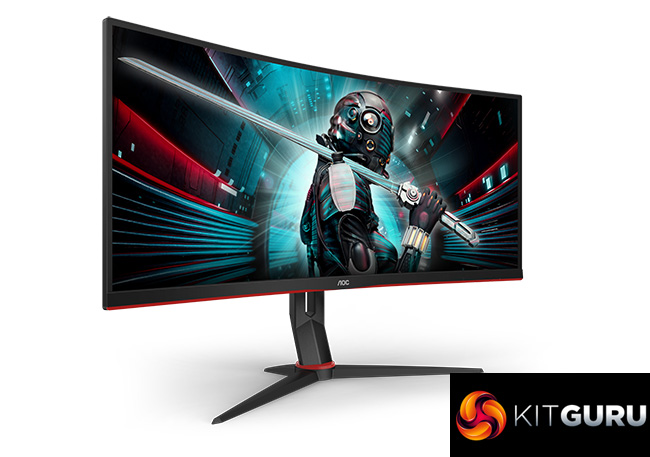
There's a good range of ergonomic adjustment available, with height variation, swivel and tilt available. The video inputs are reasonable too, including two HDMI 2.0 and two DisplayPort 1.2. However, you do also get a four-port USB 3.0 hub, plus analog audio output, but no built-in speakers.
Overall, this looks like a solid specification for the money. This screen wasn't listed on any mainstream UK shops at the time of writing, but the suggested price of £499 sounds very reasonable for a 144Hz 34in curved ultrawide panel. Let's find out if this is an affordable option to give your high-refresh gaming a wider perspective.
Specification:
- Screen size: 34-inch, 21:9 aspect
- Native resolution: 3,440 x 1,440
- Refresh rate: 144Hz, FreeSync 2
- Panel type: VA
- Contrast ratio: 3,000:1 (typical)
- Brightness: 300cd/m2
- Response time: 1ms MPRT
- Display inputs: 2 x HDMI 2.0, 2 x DisplayPort 1.2
- USB hub: Yes, 4 x USB 3.0
- Tilt: 4 degrees forward, 23 degrees backward
- Raise: 130mm
- Swivel: 32 degrees left and right
- Portrait: No
- Other: Audio output
Retail Price: £499 (inc. VAT)
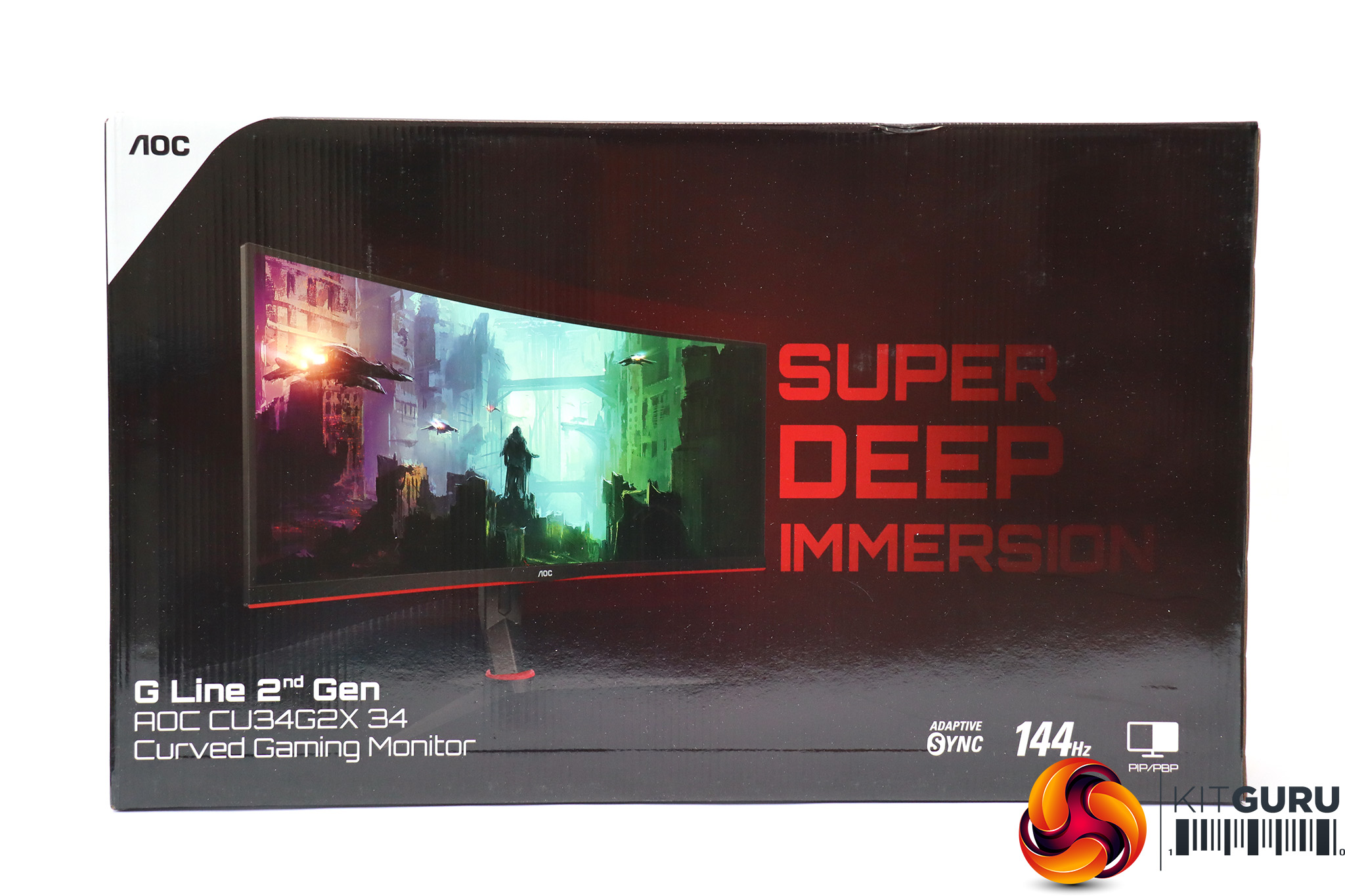
The AOC CU34G2X box looks exciting enough for a gaming monitor. Perhaps we'd have liked to have seen a giant explosion or a threatening alien creature jumping out of the screen. But in the end it's just a box.
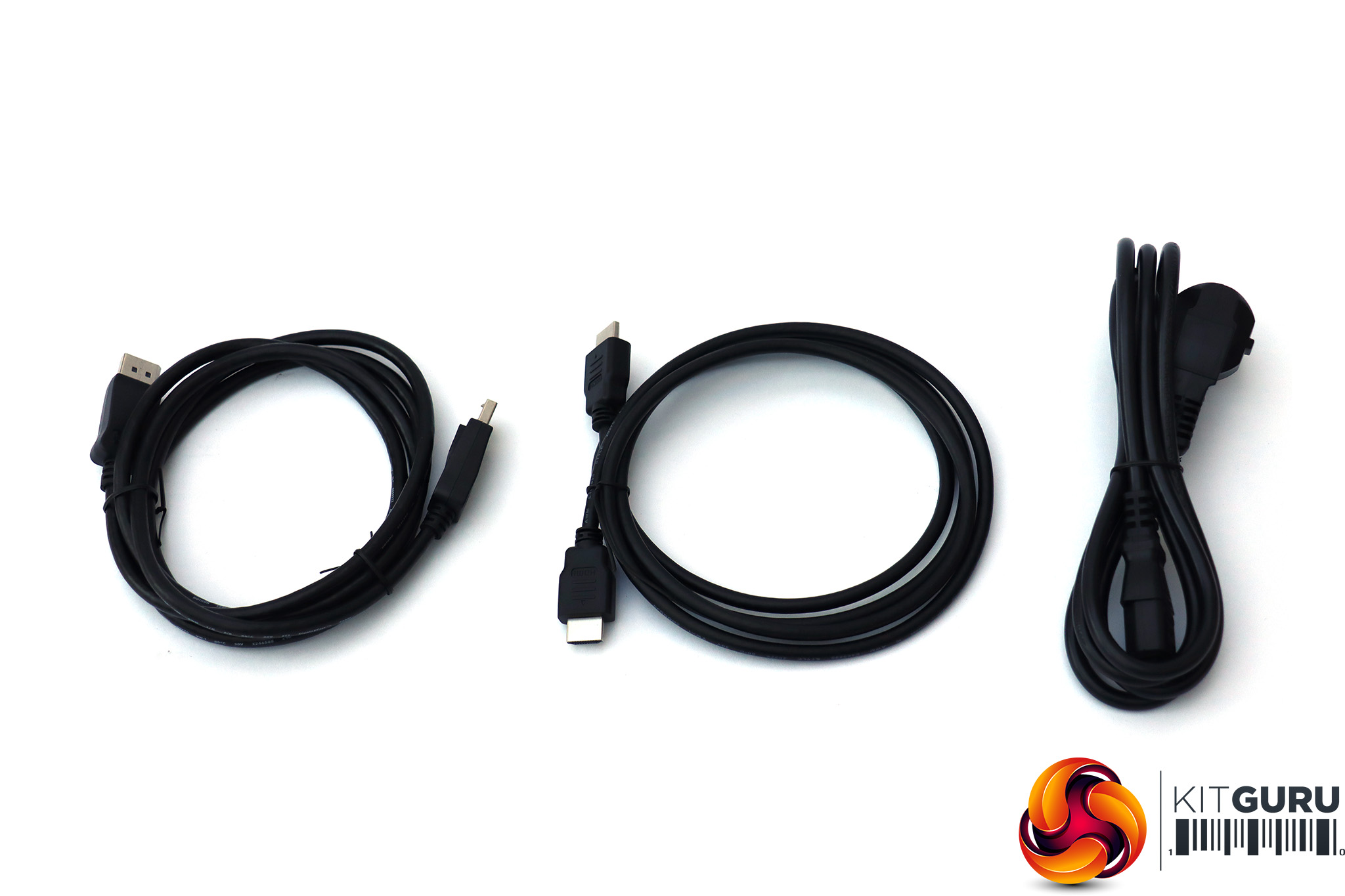
The box contents are a little minimalist, with just a power cable plus HDMI and DisplayPort. A USB upstream cable is conspicuous by its absence.
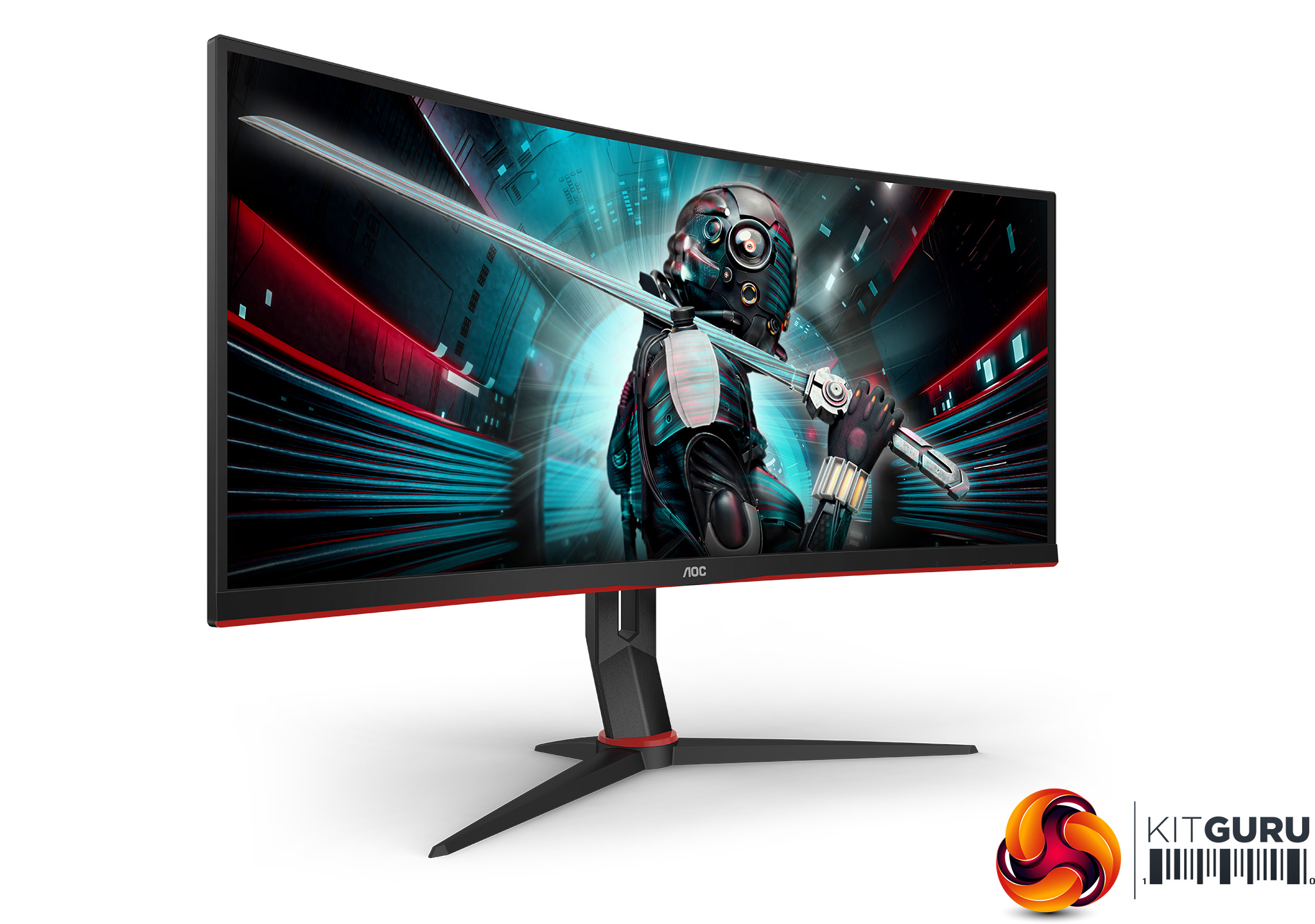
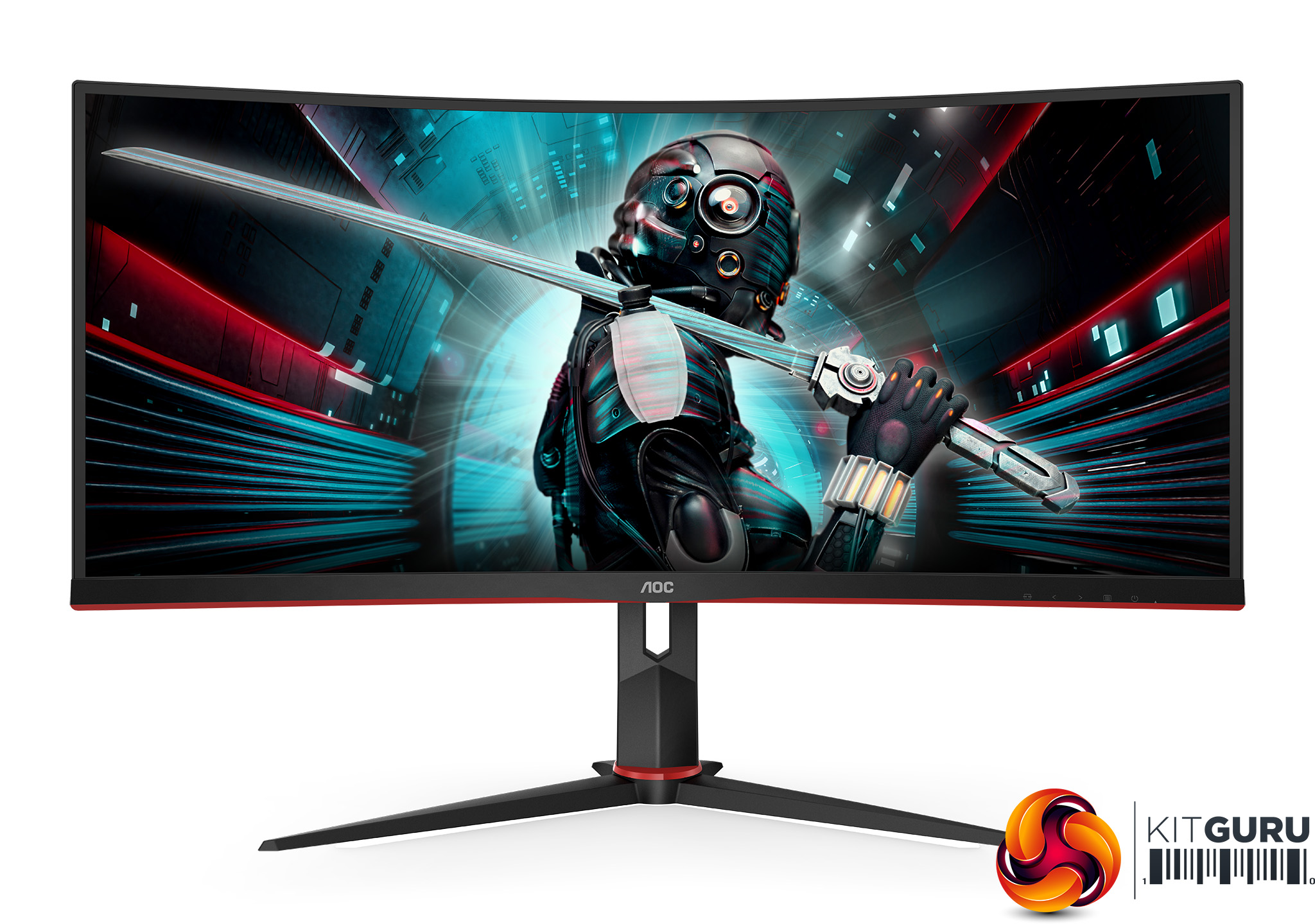
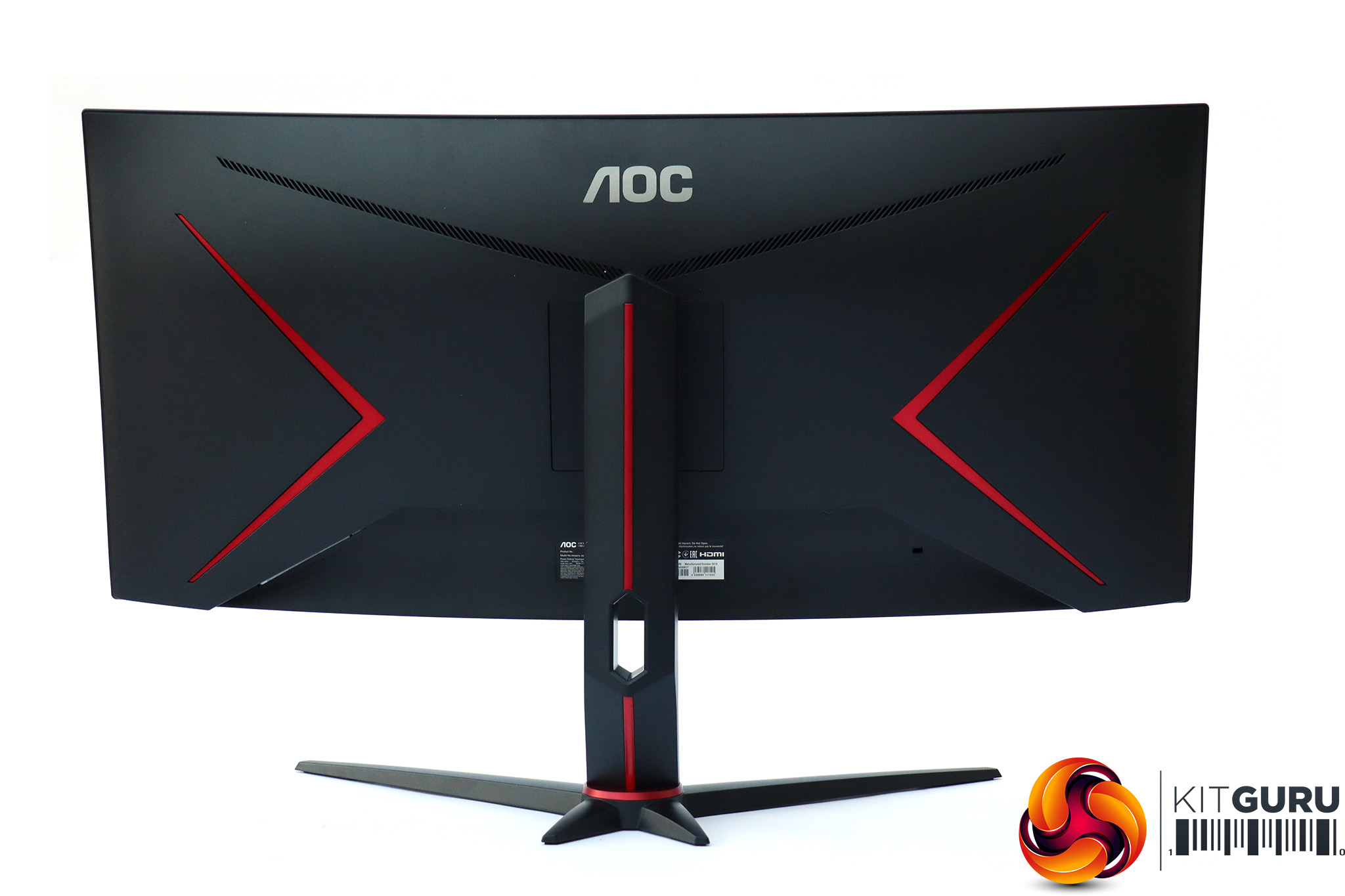
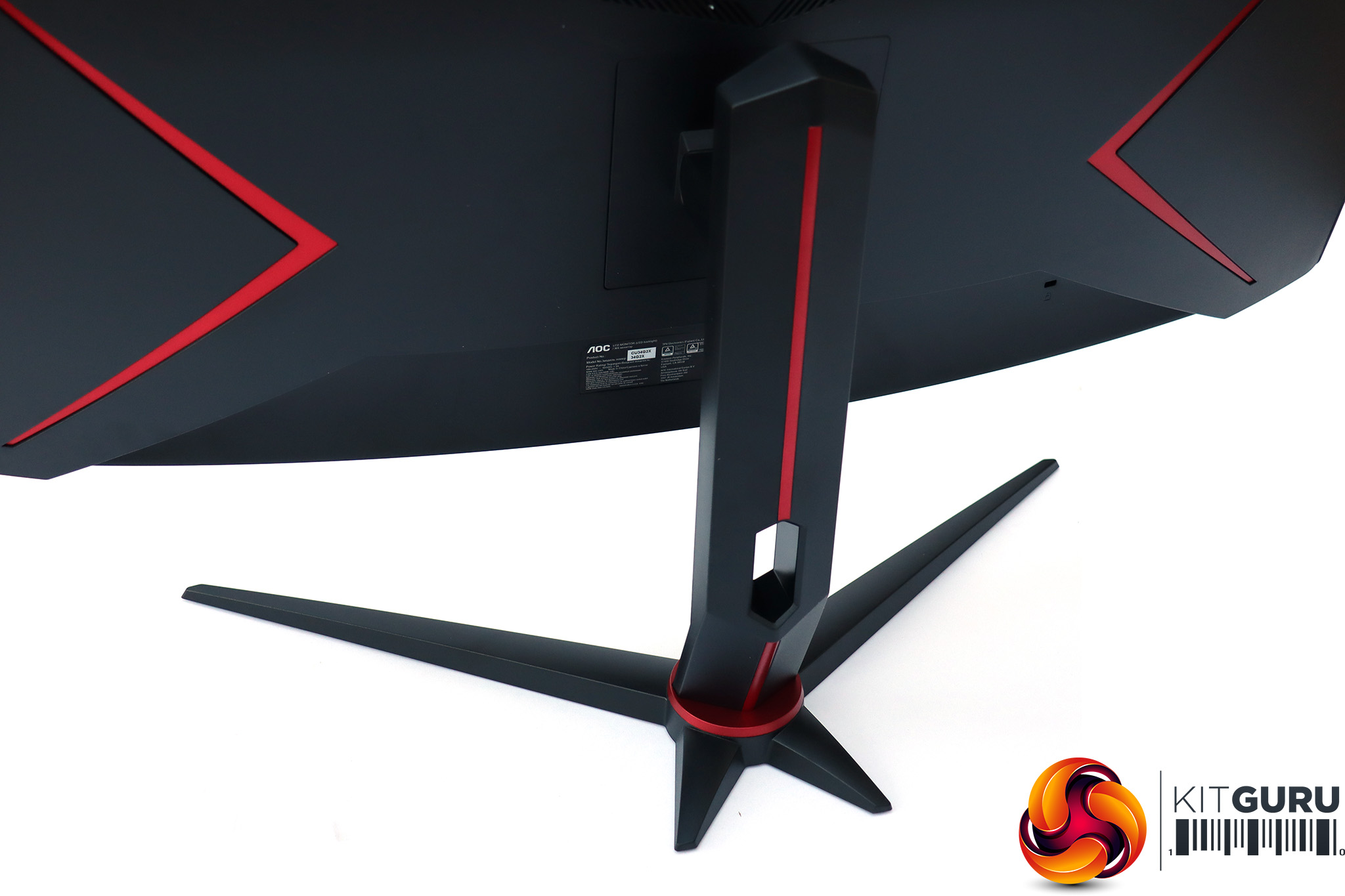
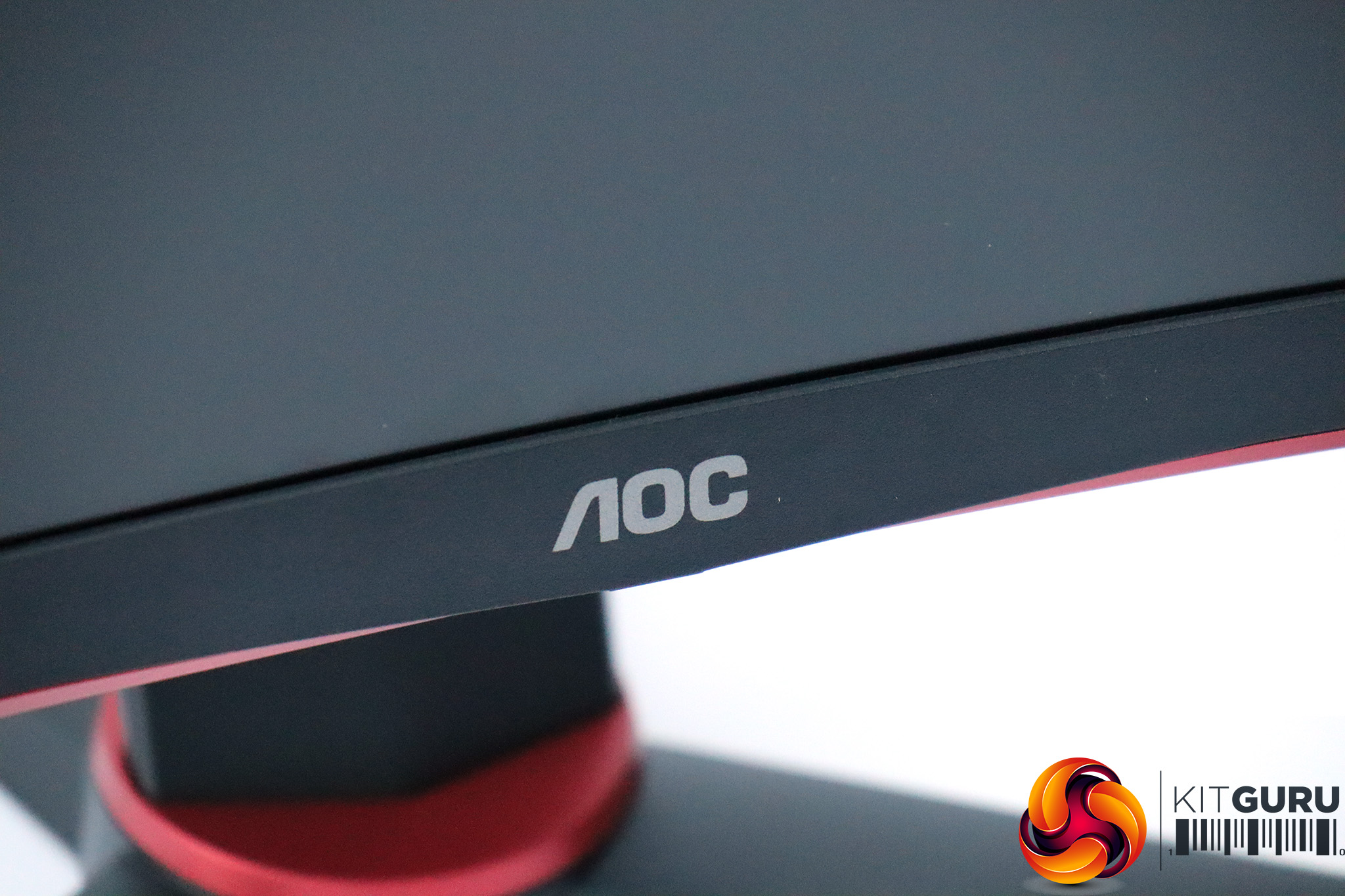
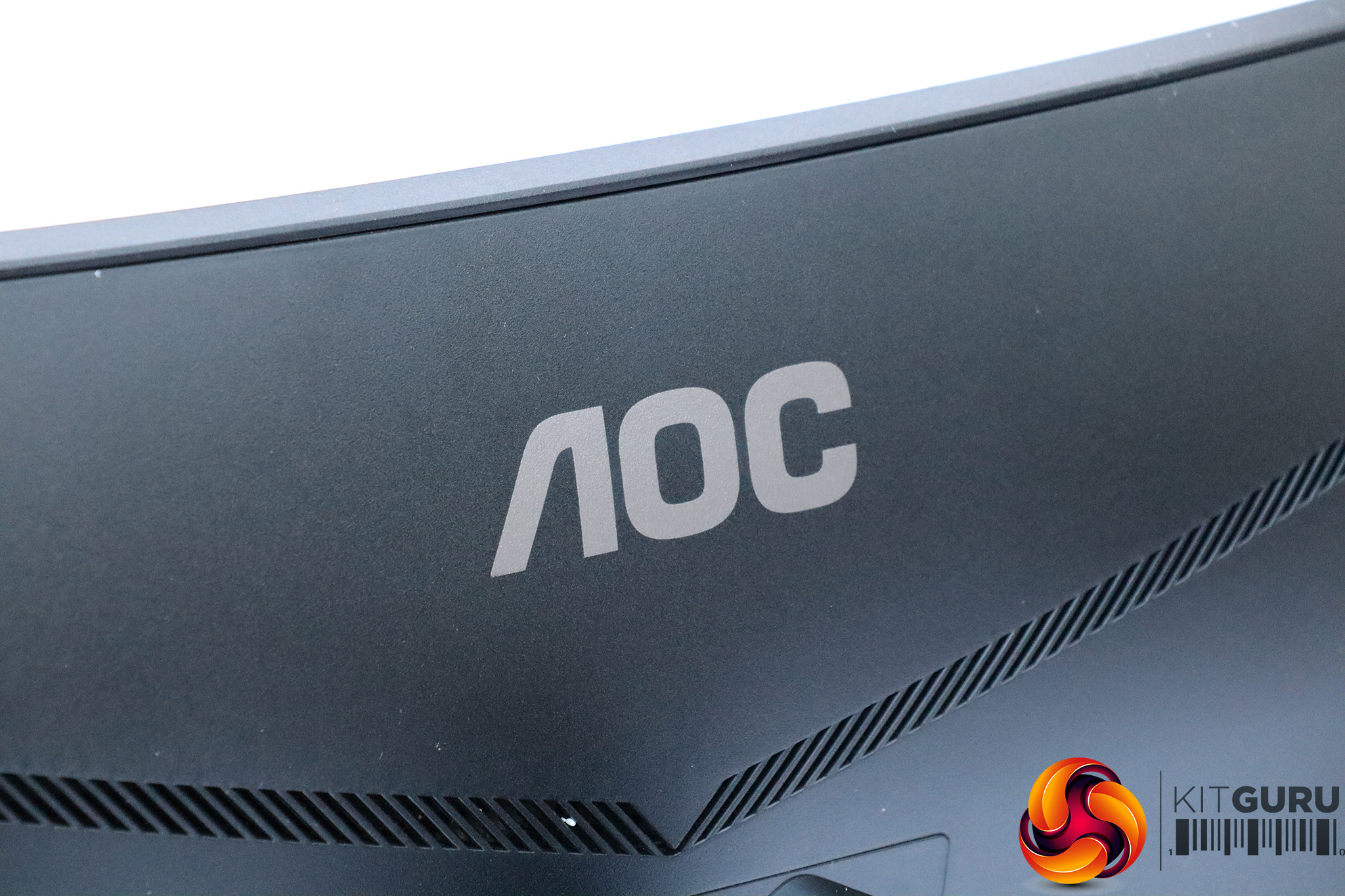
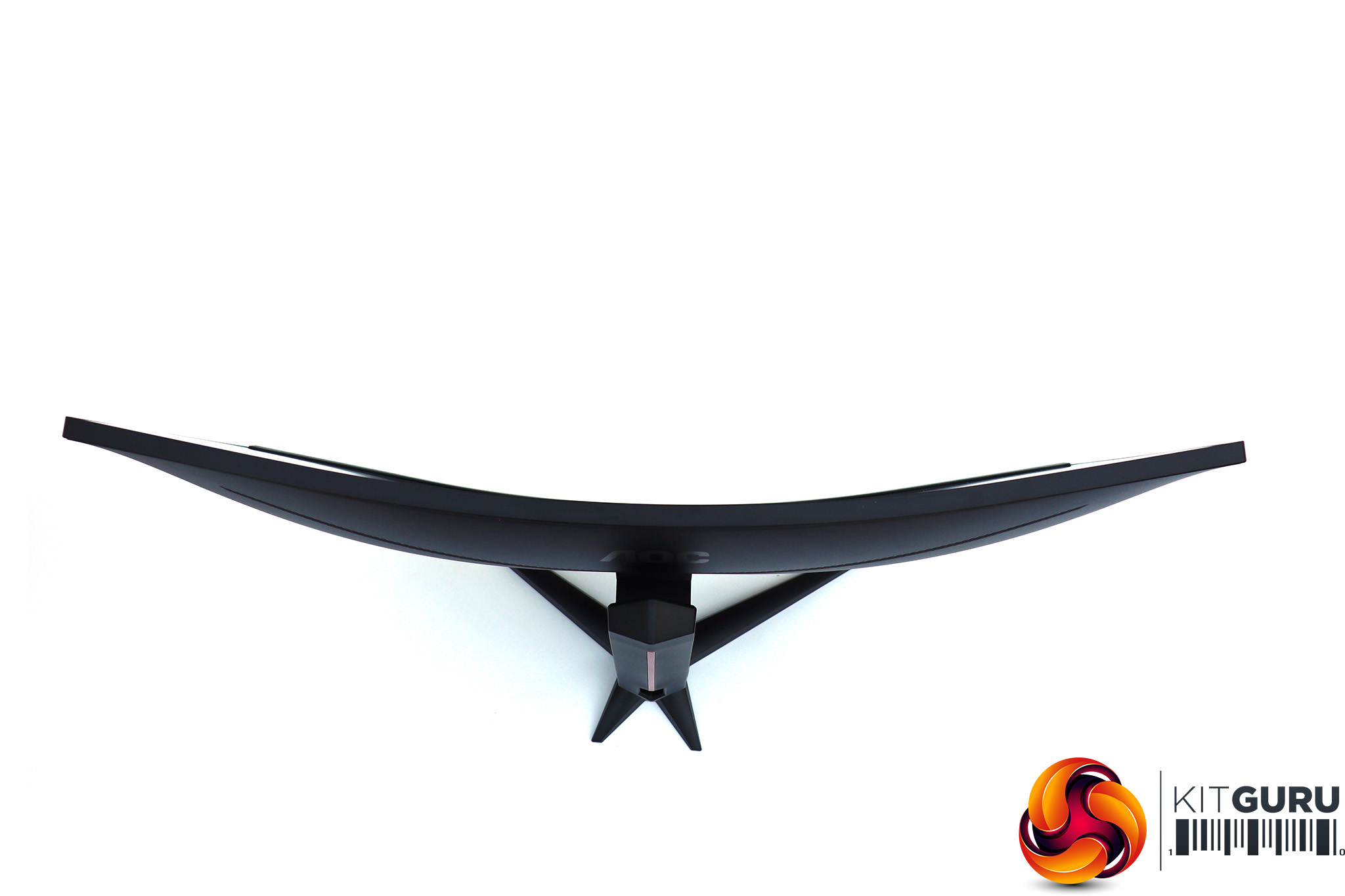
This is a good-looking screen, with mostly a dark grey plastic exterior, plus a few flashes of deep metallic red to add interest, particularly at the rear. The curvature is a relatively pronounced 1500R. Although this screen has a 34in diagonal, the 21:9 aspect means that it's not as large and heavy as that might imply. It's more thin and wide.
We really like the 3,440 x 1,440 resolution as a happy medium between 2,560 x 1,440 and 4K. With 2,560 x 1,440 being a bit of a sweet spot for graphics card capability, you can enjoy games at this resolution or wider if supported. But in regular desktop mode you get almost two Full HD screens side-by-side, which is great for productivity. Add in the 144Hz support and you have a potentially very flexible monitor.
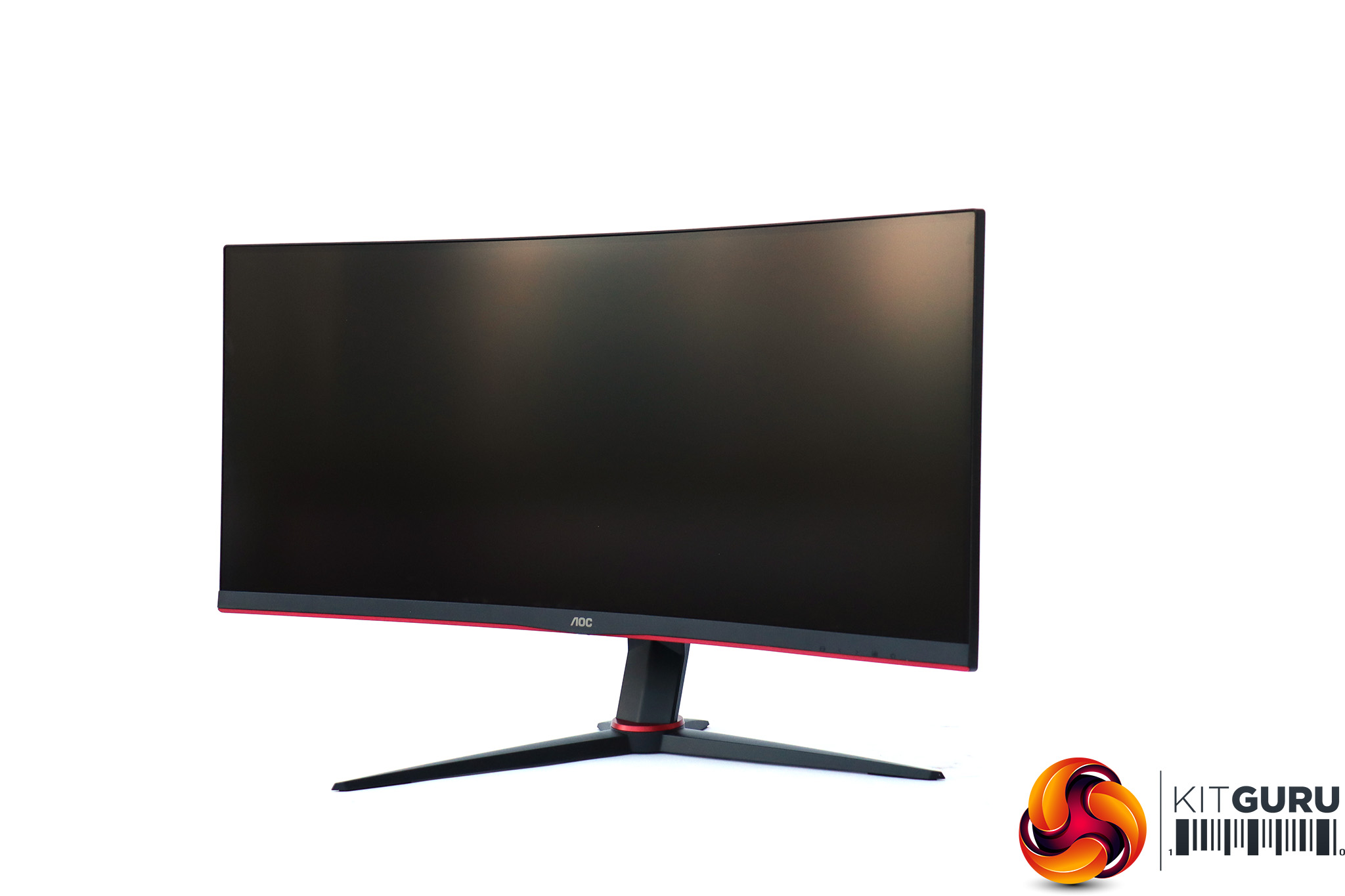
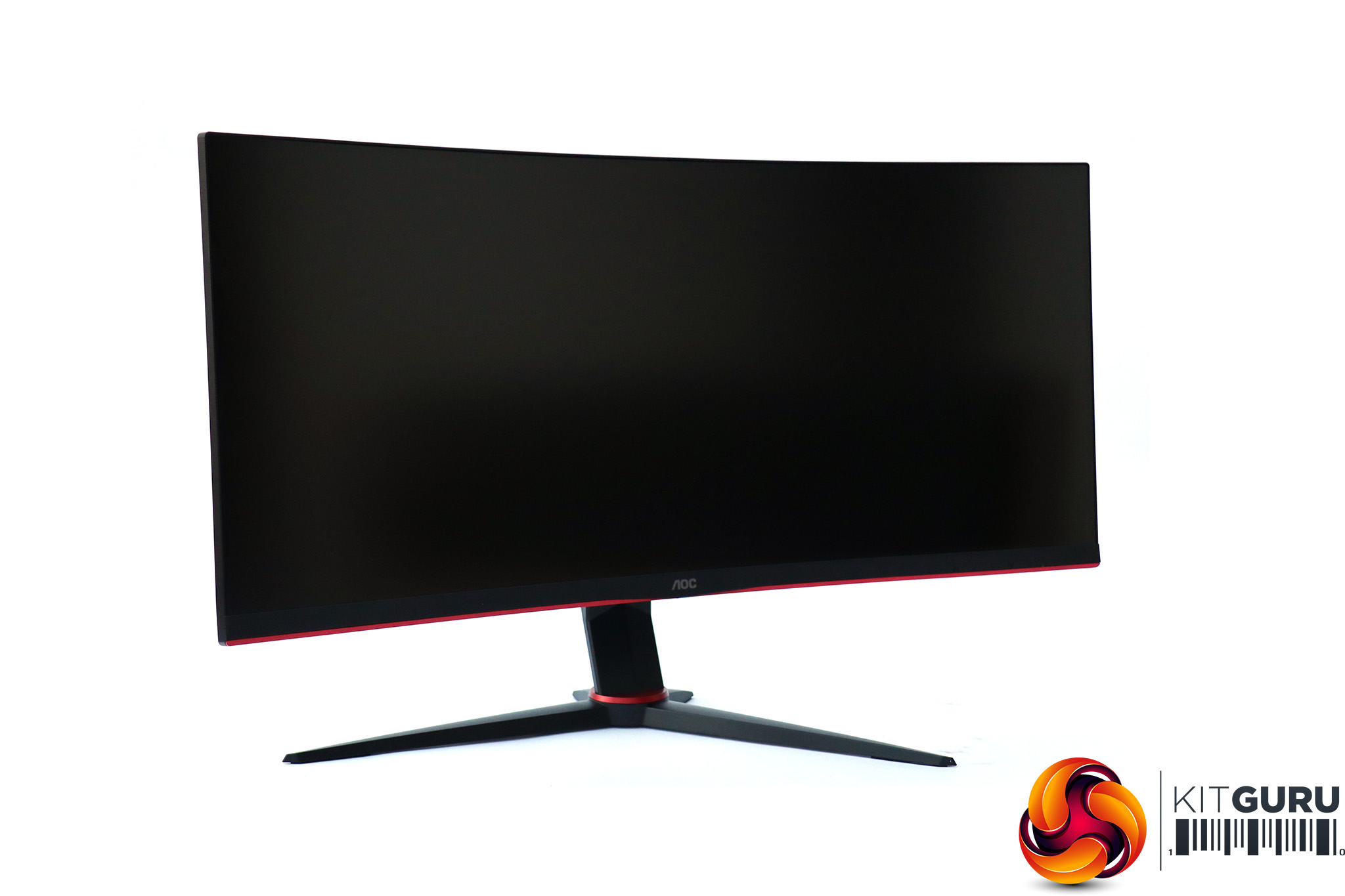
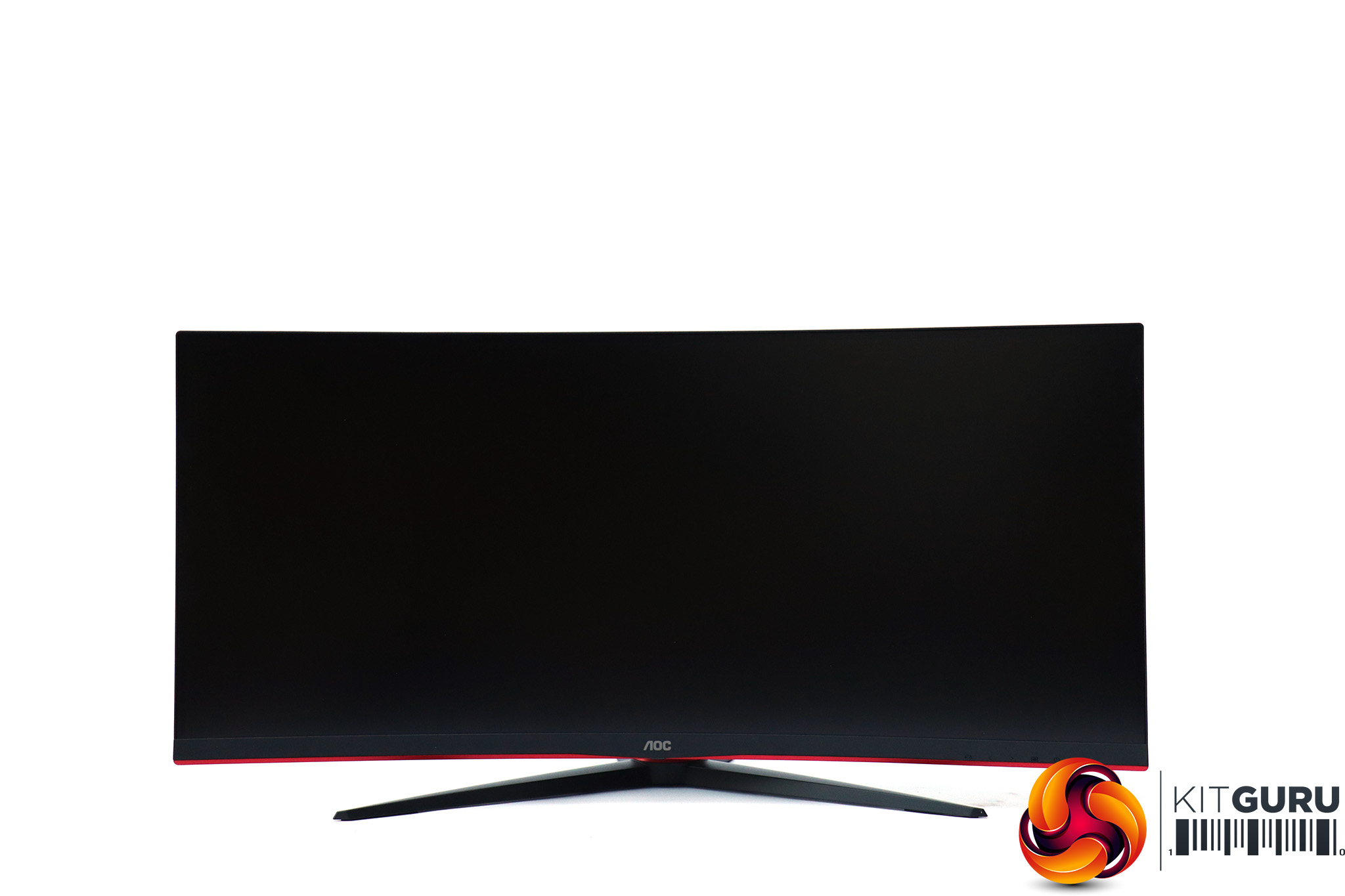
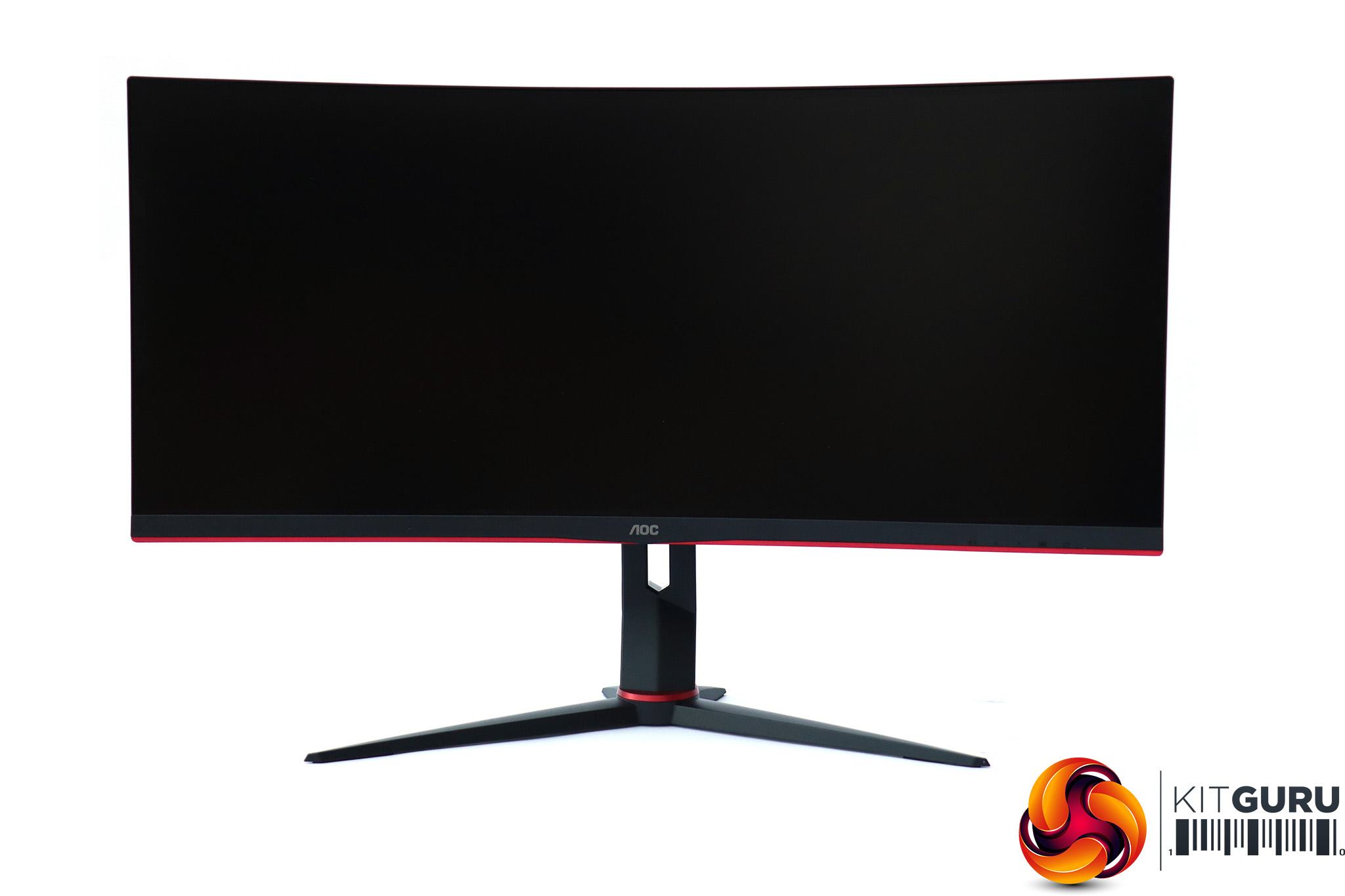
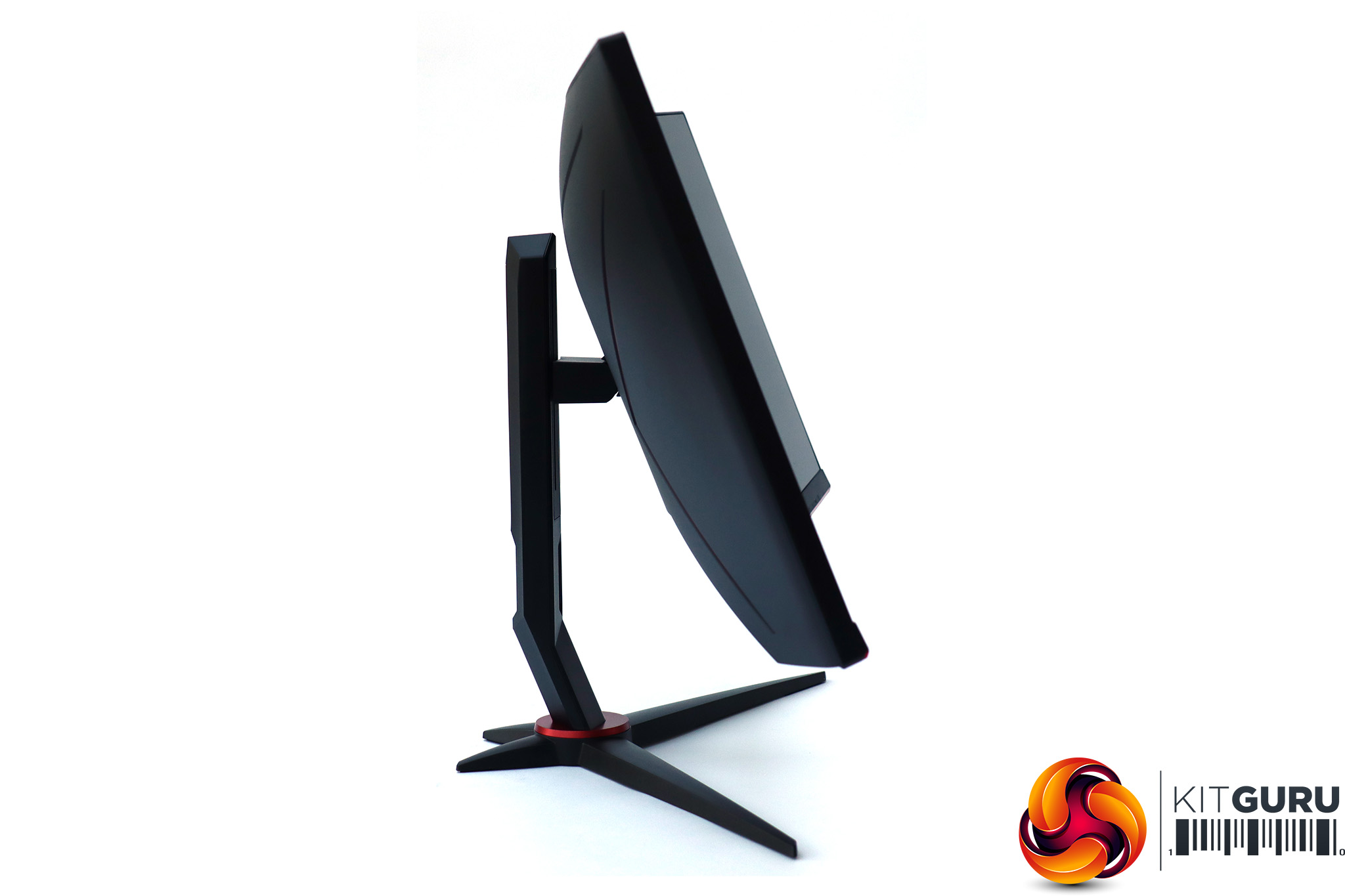
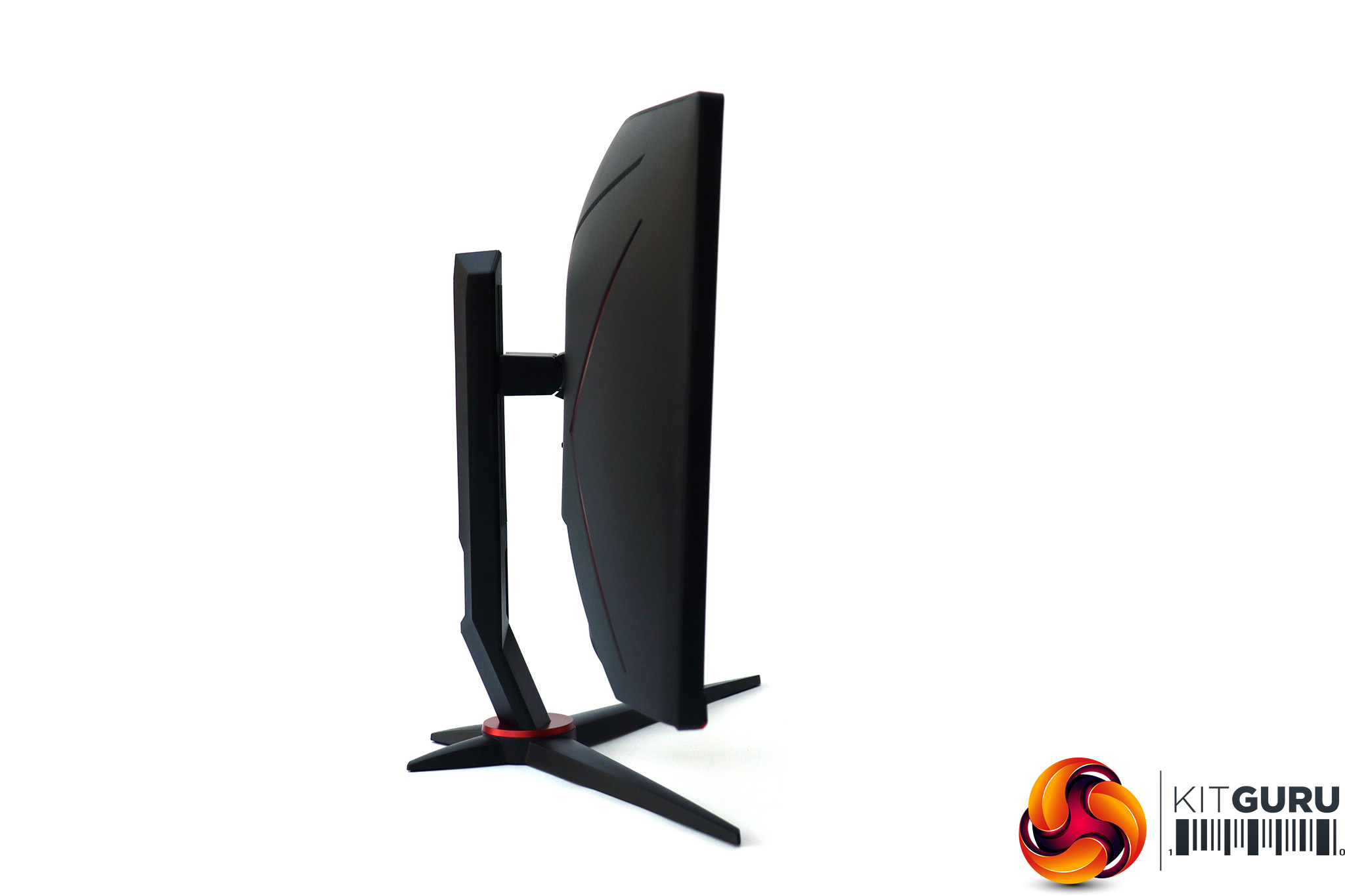
This screen has plenty of adjustment available. You can swivel 32 degrees left or right around the stand, and raise the panel up and down through 130mm. You can also tilt the screen 4 degrees forward or 24 degrees backward. So it's not that hard to find the perfect positioning.
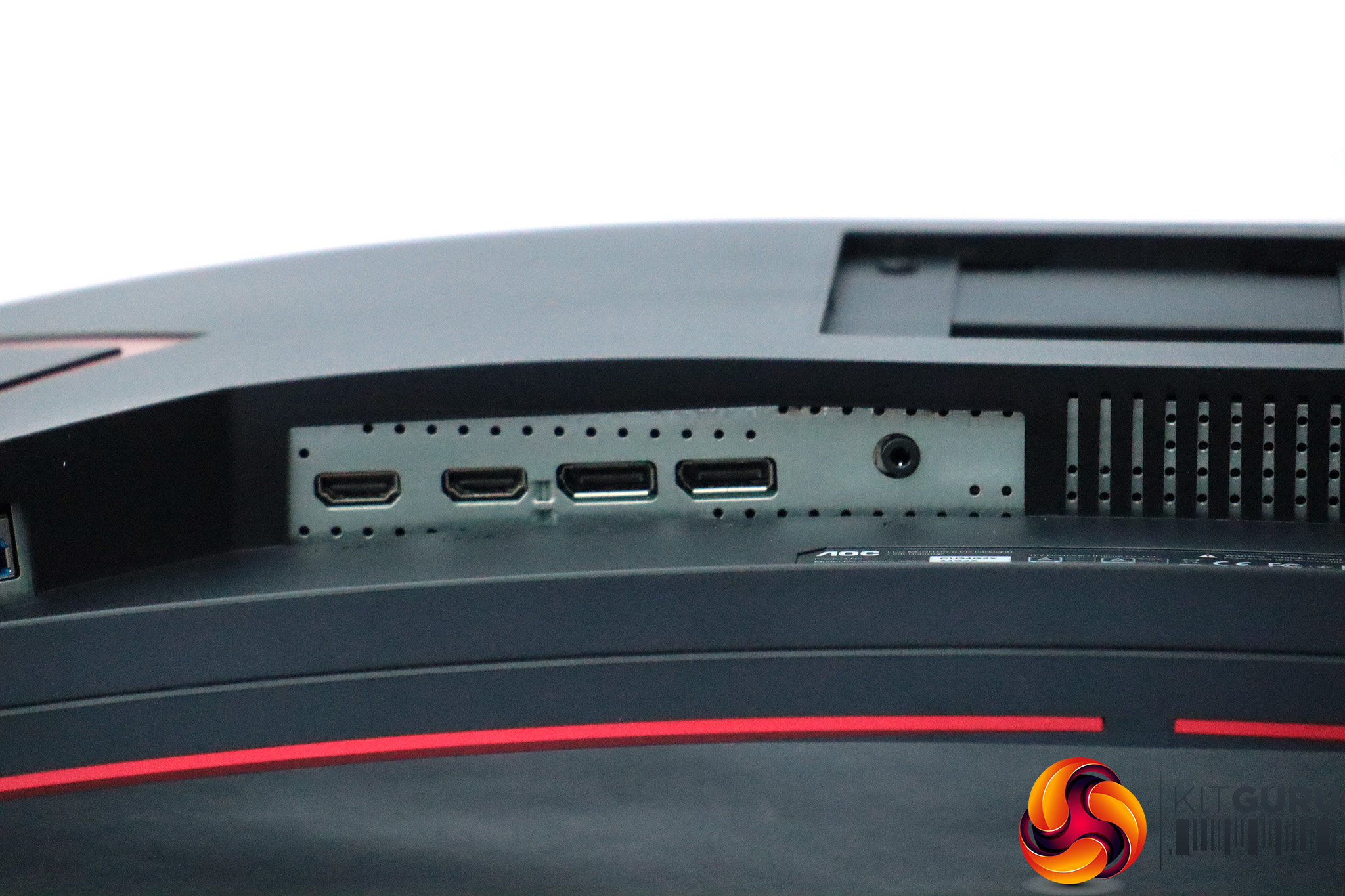
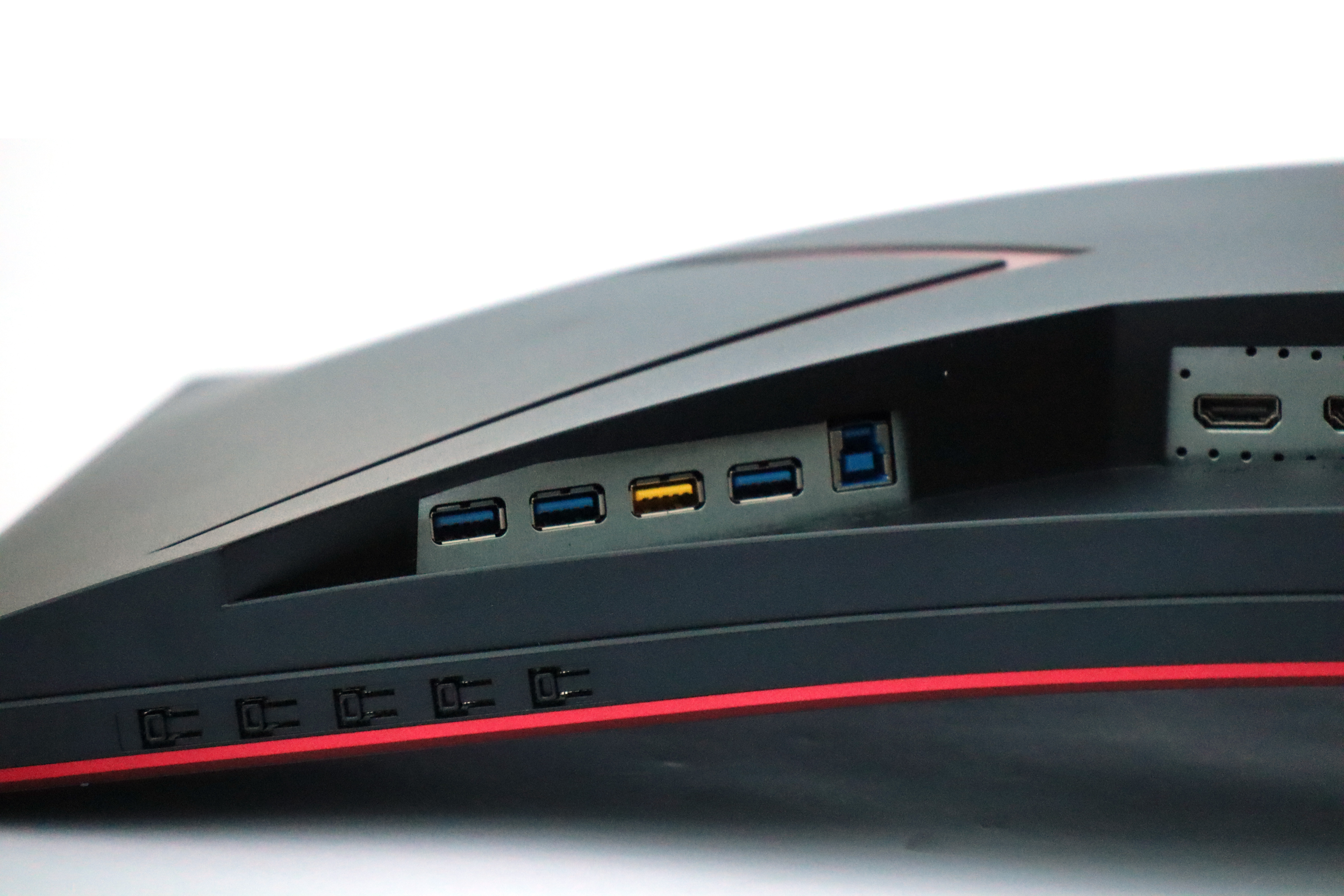
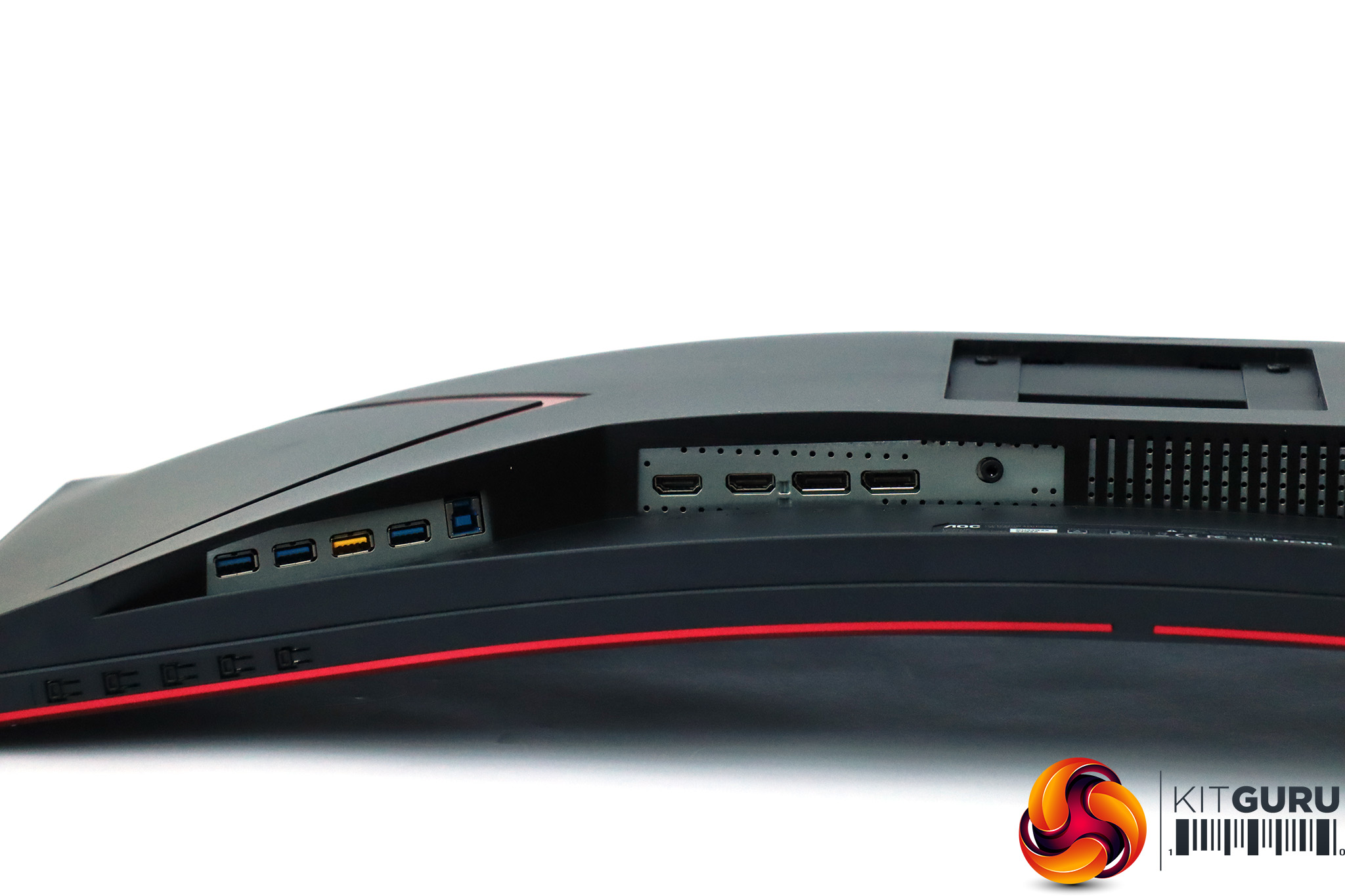
All the ports are at the rear facing downwards, in two banks. The video ports are closer to the centre, with two HDMI 2.0 and two DisplayPort 1.2 plus the analog audio minijack output. The USB ports are to the side (the right when looking from the front), with an upstream and four downstream USB 3.0 including one that can provide fast charge when the monitor is off.
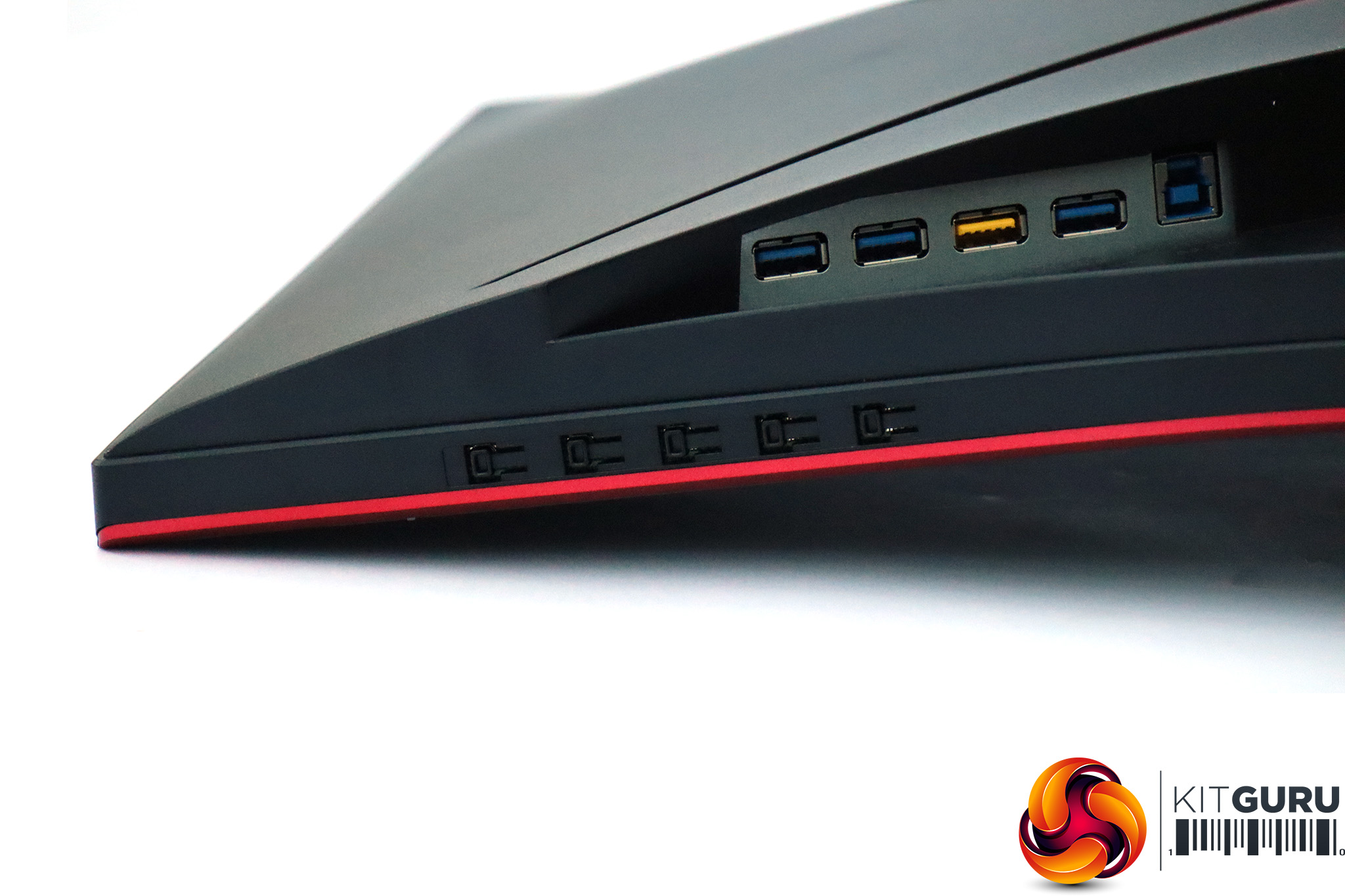
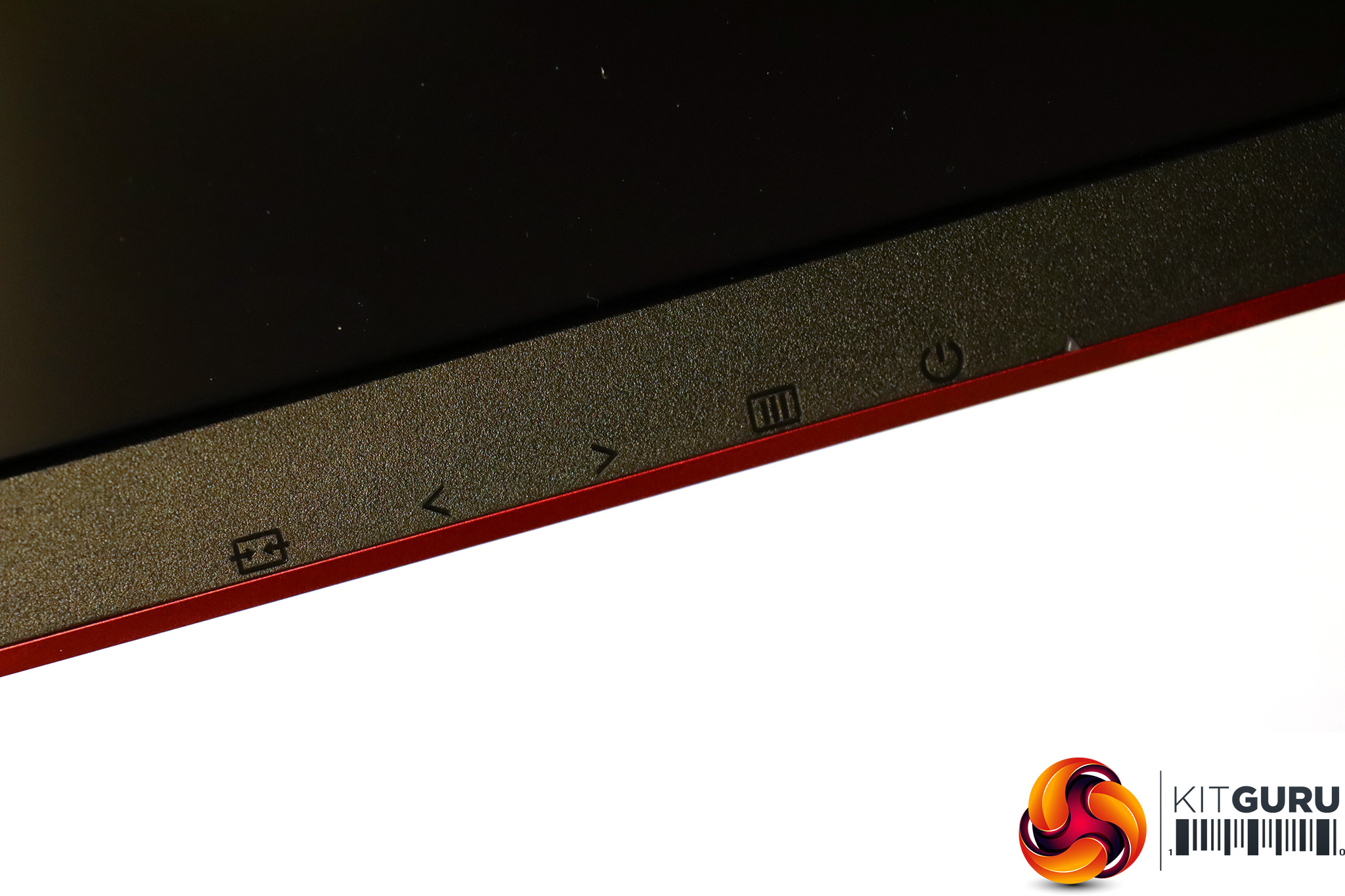
The menu control buttons are just below the USB ports. There are five buttons, with very discreet icons on the front of the panel to indicate their usage.
The button on the far right merely toggles power, so we'll start with the one on the far left.
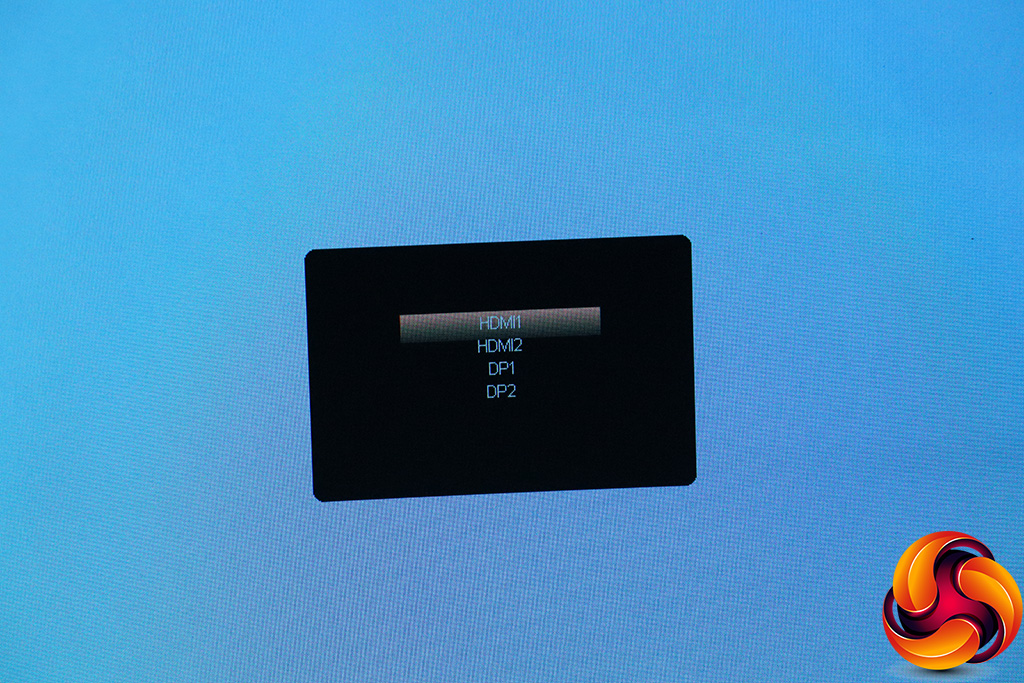
The first button on the left calls up video inputs so you can manually switch between the four options.
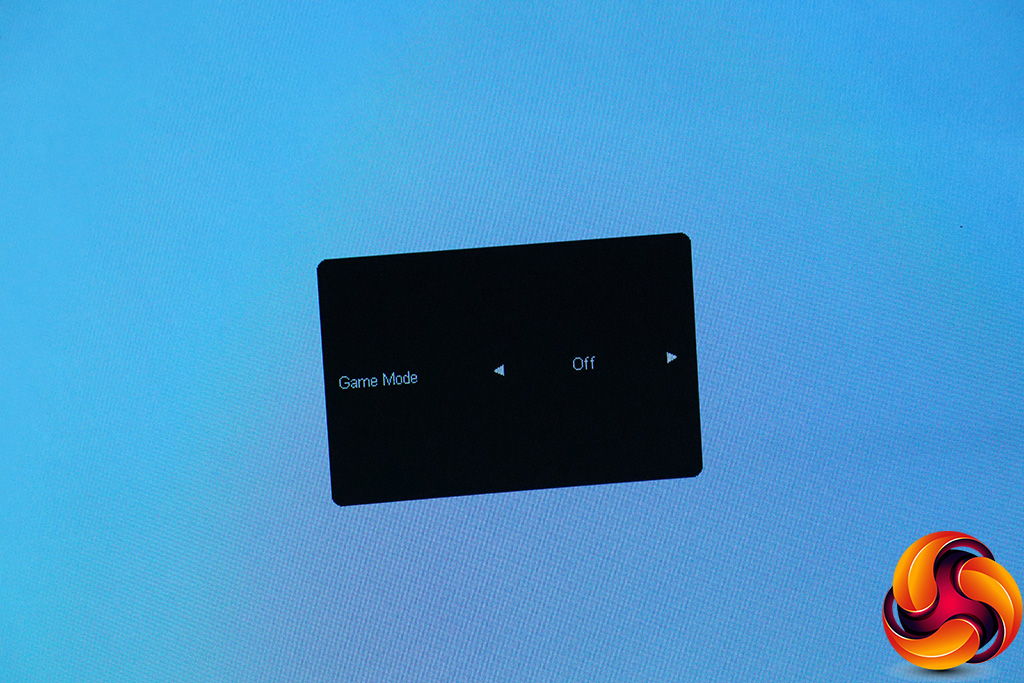
The next button calls up the quick menu for the Game Modes. These include FPS, RTS, Racing, and three user-configurable options.
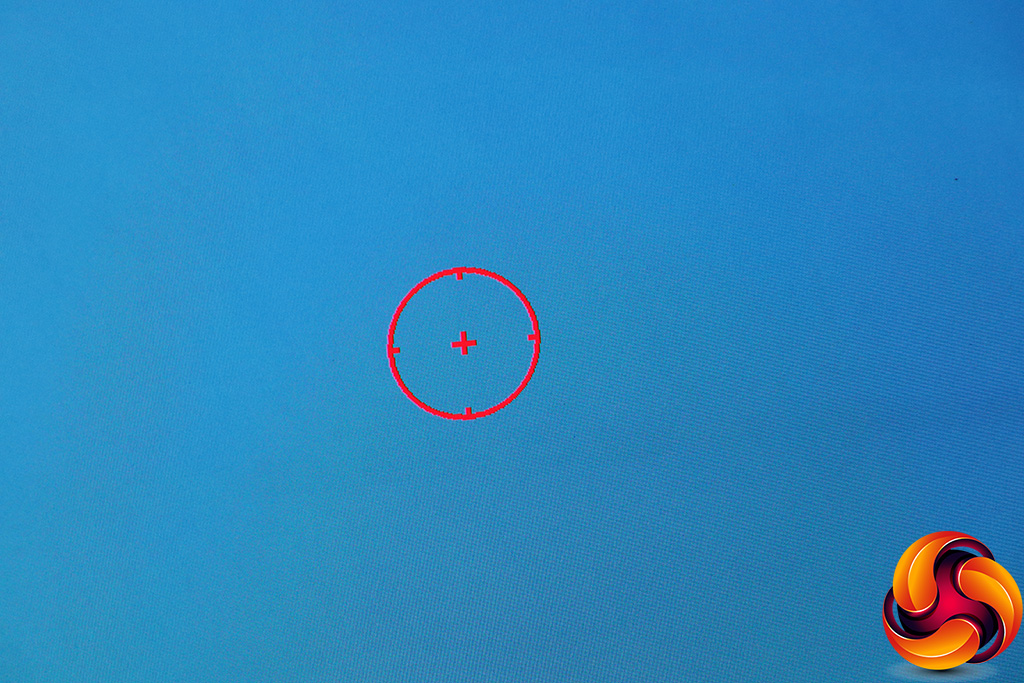
The third button lets you enable an onscreen hardware crosshair.
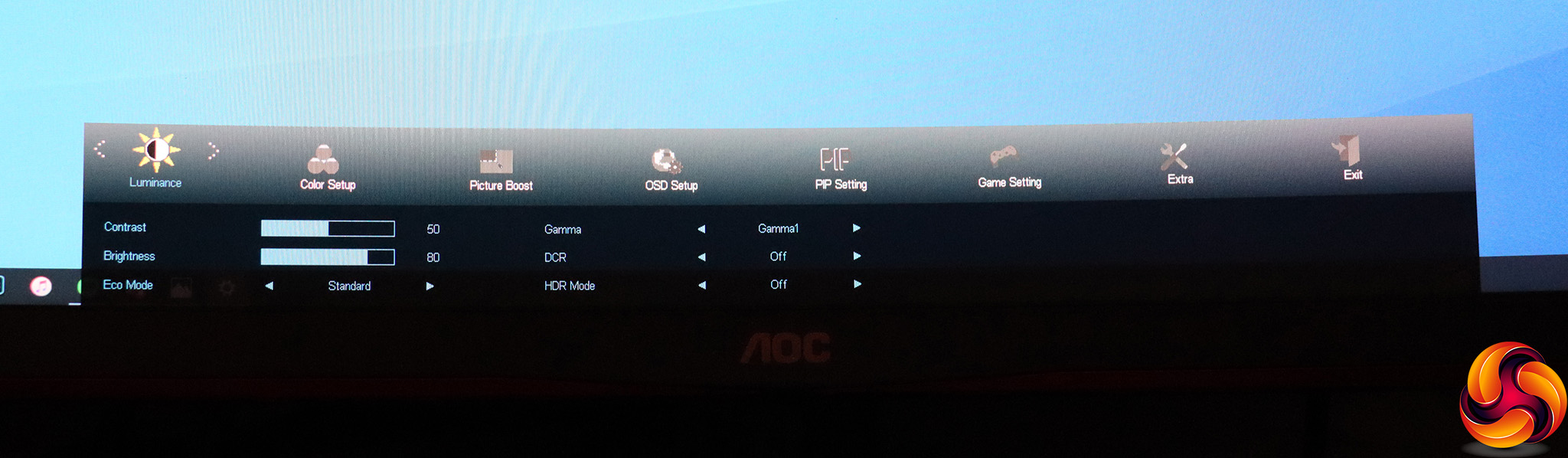
The fourth button takes you to the main menu, which sits along the bottom of the screen rather than being in the middle like the quick menu options. The first section to appear is Luminance, which includes controls for contrast and brightness, plus access to the Eco Modes, which are actually the OSD presets. The options include Standard, Text, Internet, Game, Movie, Sports, Reading and Uniformity. There are three Gamma options, and this is also where you can enable DCR dynamic contrast and HDR Mode, although this screen only conforms to the basic HDR-10 not any of the more feature-rich levels.
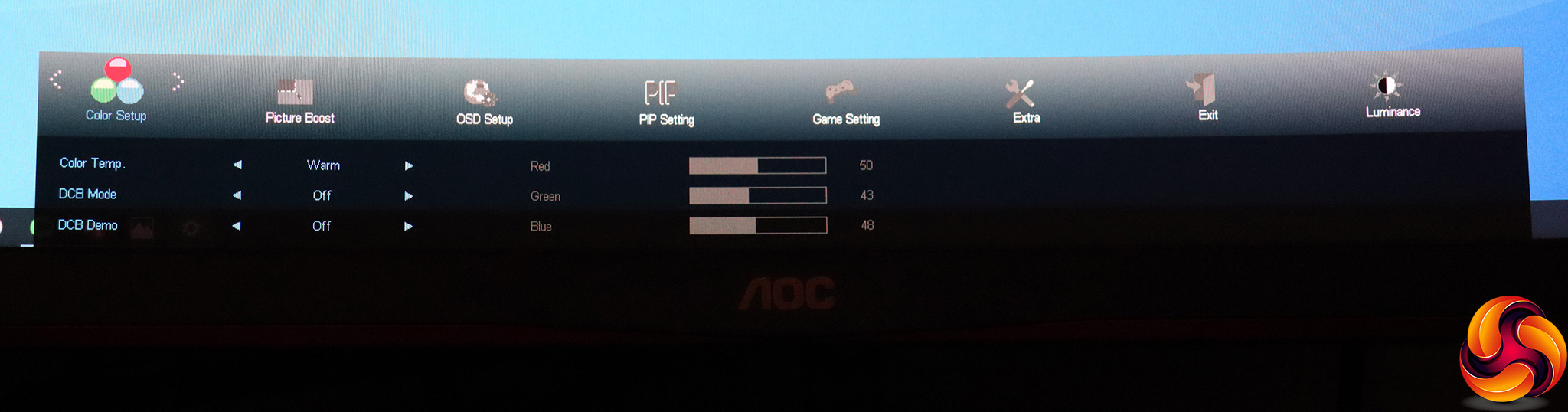
The next menu section is Color Setup. Here you can choose Warm, Normal, Cool, sRGB and User Color Temperatures. The latter enables the separate Red, Green and Blue controls. There are Full Enhance, Nature Skin, Green Field, Sky-blue and Auto Detect DCB Modes, plus a demo option.
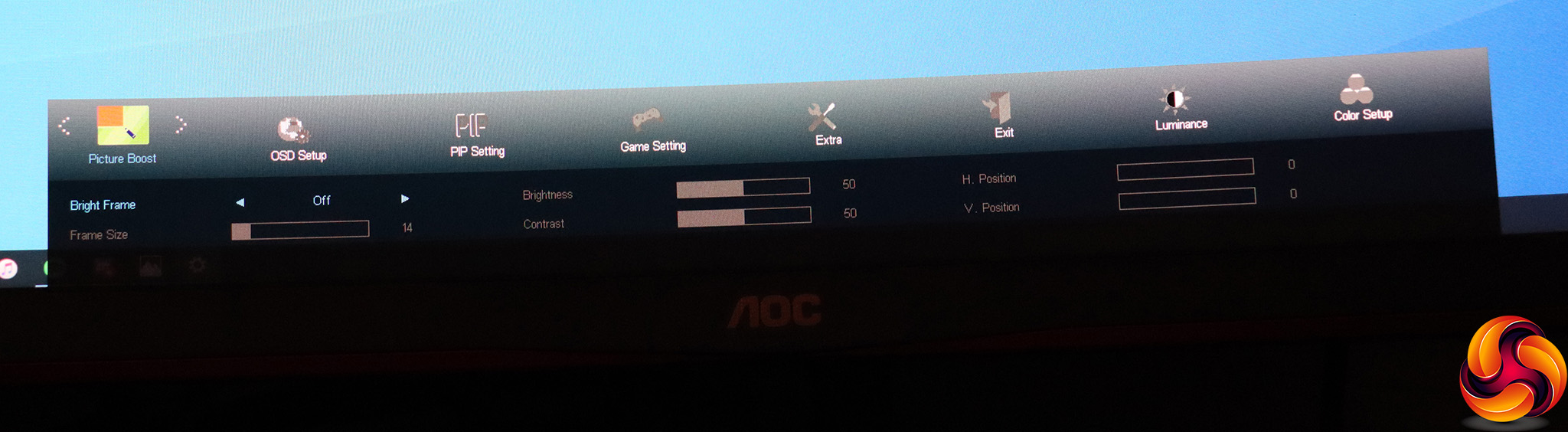
Next along is PictureBoost, AOC's enigmatic feature that includes Bright Frame, where you can select a rectangular portion of the screen to apply separate brightness and contrast settings to. We've seen this many times, and still don't know quite what it's for.
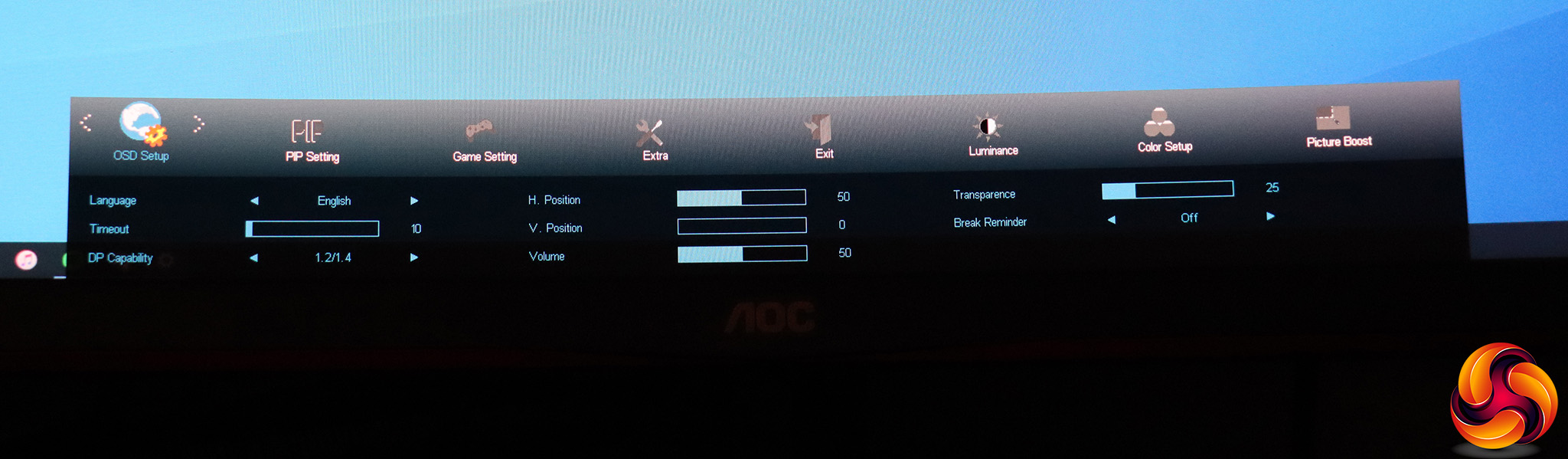
OSD Setup options include the usual parameters such as selecting the language, timeout, positioning and transparency for the OSD. But you can also change the audio volume here, set a break reminder, and change the DisplayPort level if a higher one is causing problems for your graphics card.
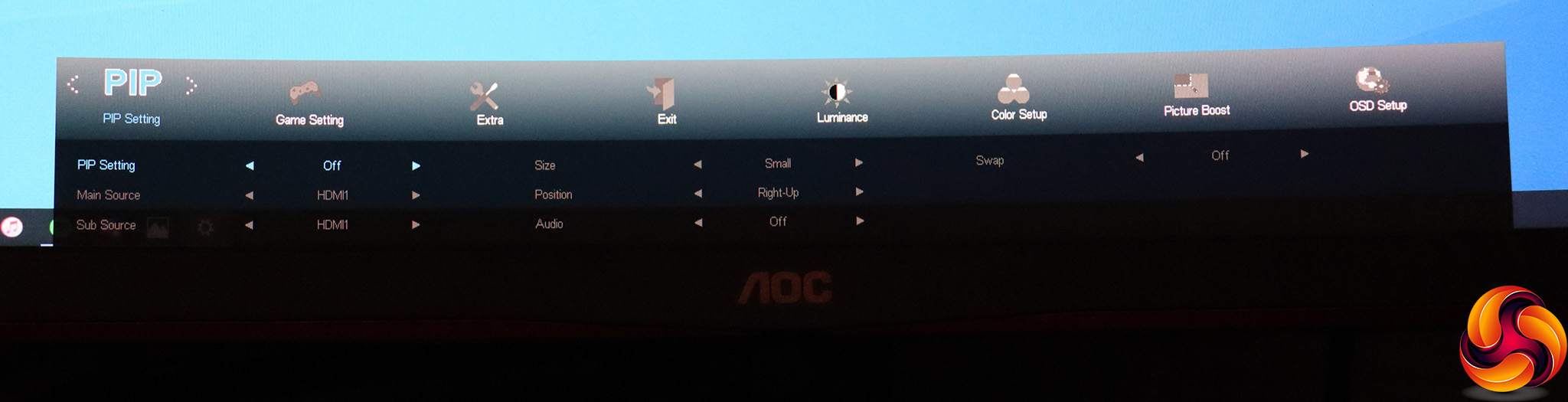
The PIP Setting section lets you choose between picture-in-picture or picture-by-picture options (the latter will be particularly useful with a 21:9 screen). You can choose main and sub sources, size, position, and which source supplies the audio.
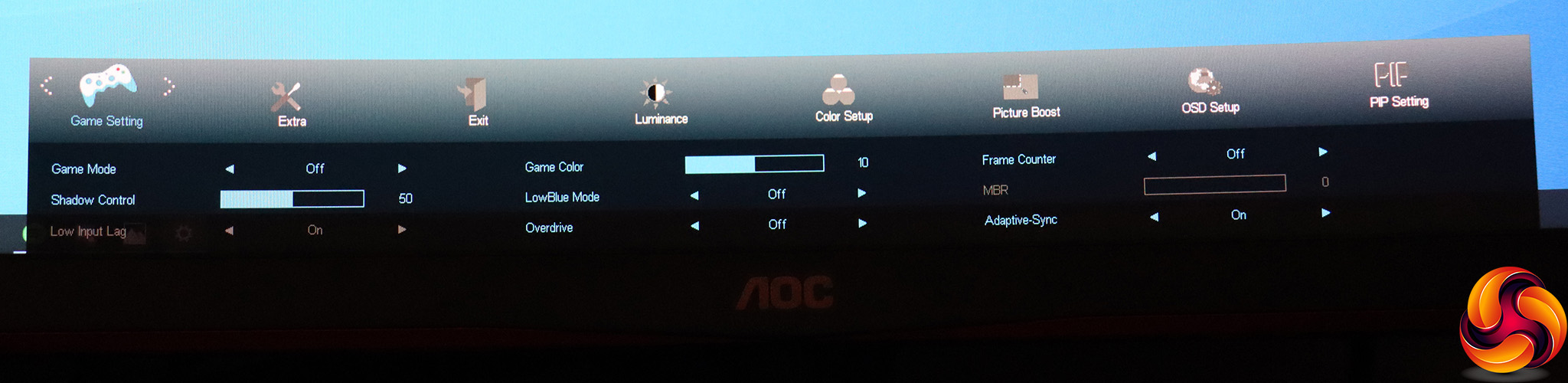
The penultimate section in the OSD is for the Game Settings. You can select a Game Mode here, but also access a variety of improvements including boosting detail in shadows, increasing the saturation for games (Game Color), reducing motion blur (MBR), toggling adaptive sync, enabling pixel overdrive and Low Input Lag, both of which improve response at the potential expense of image quality. You can also select a LowBlue Mode to reduce eye strain, and superimpose a frame counter onscreen.
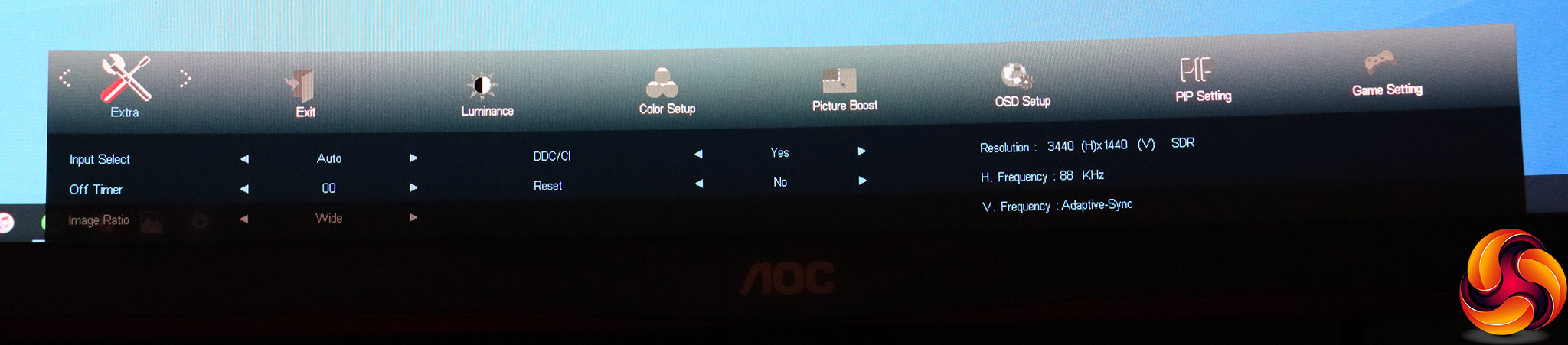
Finally, the Extra section pulls together sundry features such as choosing the video input manually, turning the screen off after a preset time, selecting an image ratio for a non-native input, toggling DDC/CI control, and resetting everything to default. You also get info on the current video signal.
Overall, the OSD doesn't have as many options as AOC's AGON range, and the use of traditional buttons makes the settings a little harder to get to than with joystick-enabled models. But otherwise there is a decent amount of configuration here, including some useful settings to improve your gaming experience, plus some presets for specific game types. As always with AOC monitors, however, we question why these are separate from the ECO mode presets for more general usage. The separation of the two is a bit unintuitive.
Our main test involves using a DataColor Spyder Elite 5 Colorimeter to assess a display’s image quality. The device sits on top of the screen while the software generates colour tones and patterns, which it compares against predetermined values to work out how accurate the screen is.
The results show –
- A monitor’s maximum brightness in candelas or cd/m2 at various levels set in the OSD.
- A monitor’s contrast ratio at various brightness levels in the OSD.
- The brightness deviation across the panel.
- The black and white points.
- The colour accuracy, expressed as a Delta E ratio, with a result under 3 being fine for normal use, and under 2 being great for colour-accurate design work.
- The exact gamma levels, with a comparison against preset settings in the OSD.
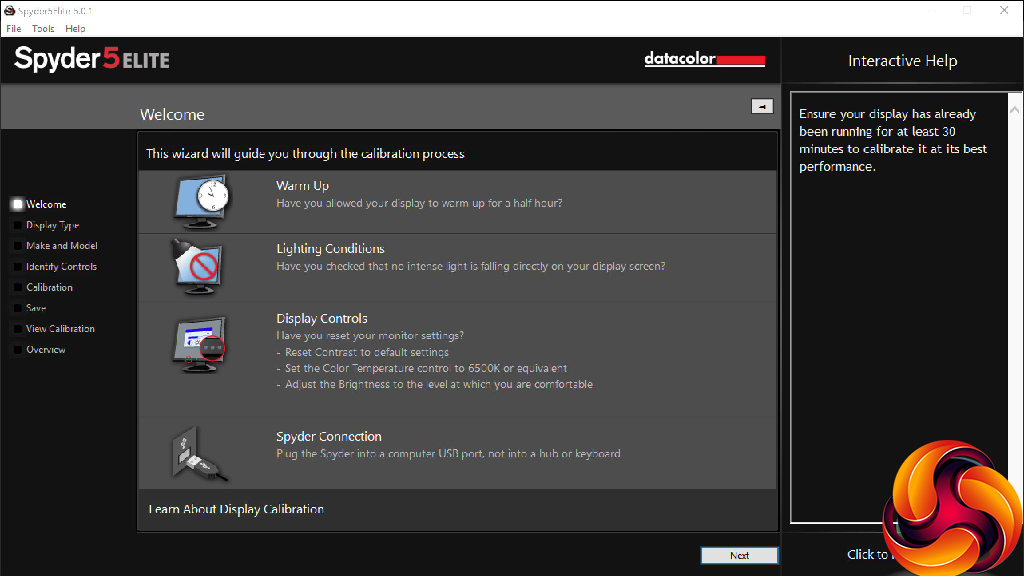
We first run this test with the display in its default, out-of-the-box state, with all settings on default. We then calibrate the screen using the Spyder software and run the test again.
We always test the display subjectively on the Windows desktop, using it for general tasks such as browsing and word processing, and with games as well, even if the display is not intended solely for that purpose.
We pay careful attention to any artefacts, ghosting or motion blur, and enable any gaming-specific features, such as adaptive-sync settings like G-Sync or FreeSync, using a compatible graphics card in our test PC.
We performed the quality tests on the AOC CU34G2X at its native 3,440 x 1,440 resolution in the default mode, after resetting the OSD, which sets the refresh to 60Hz. Our test system was equipped with an AMD Radeon Vega Frontier Edition graphics card, which supports FreeSync.
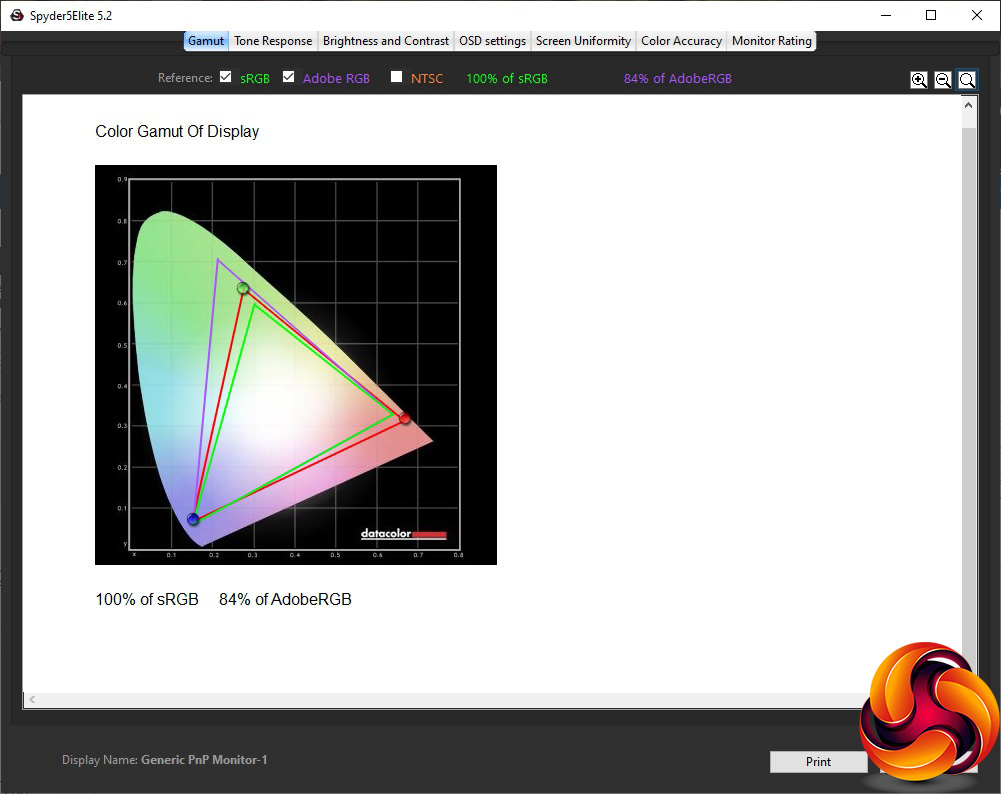
The gamut makes for a good start. The sRGB result of 100 per cent is as expected, and the AdobeRGB score of 84 per cent is comfortingly high.

Brightness uniformity is also decent, with only the bottom right corner over 10 per cent aberration.


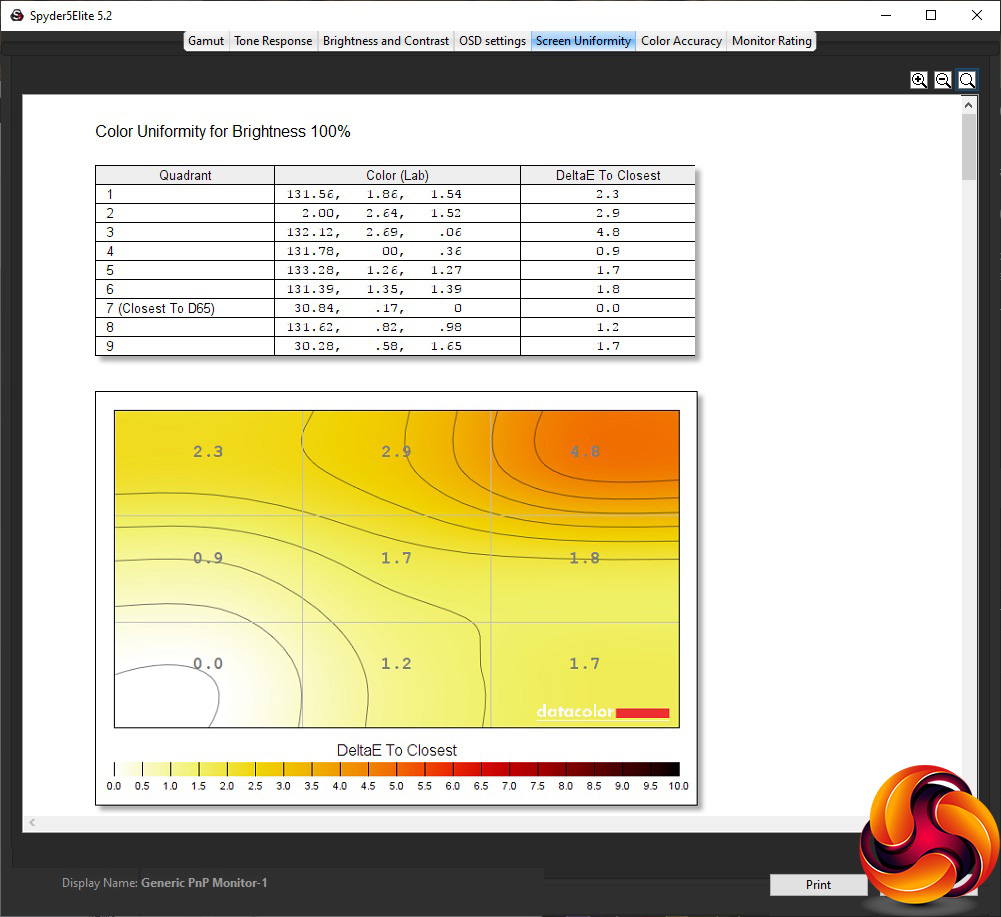

Colour uniformity is even better, with only a bit of divergence in the top right as you approach 100 per cent brightness.
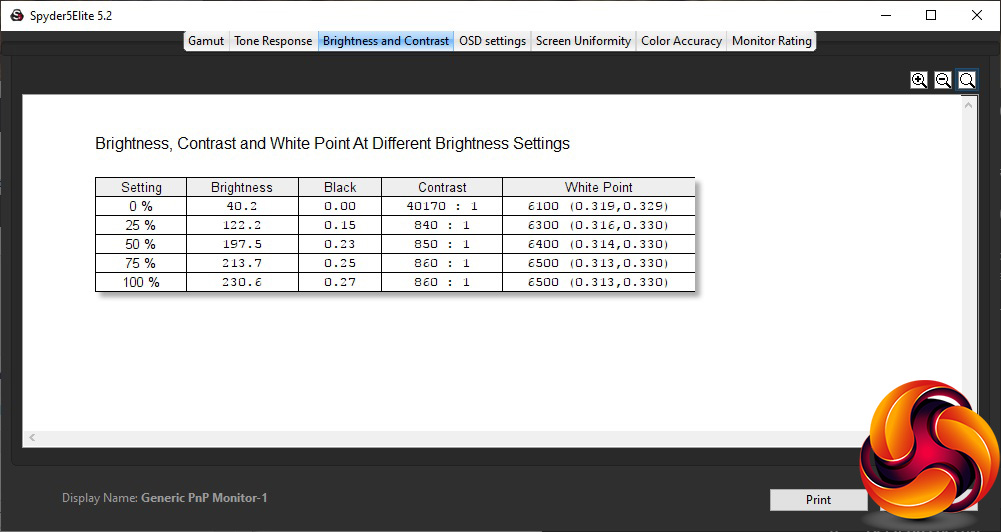
This is not a very bright monitor at all, however, with a maximum of just 230.6cd/m2. The contrast is also a bit disappointing for a VA panel, at a maximum of 860:1, although the default is a 50 per cent setting. The white point is reassuringly close to 6500K from 75 per cent brightness upwards. With 80 per cent the default, this is a valid reading as the graphics card was set to deliver this colour temperature by default.
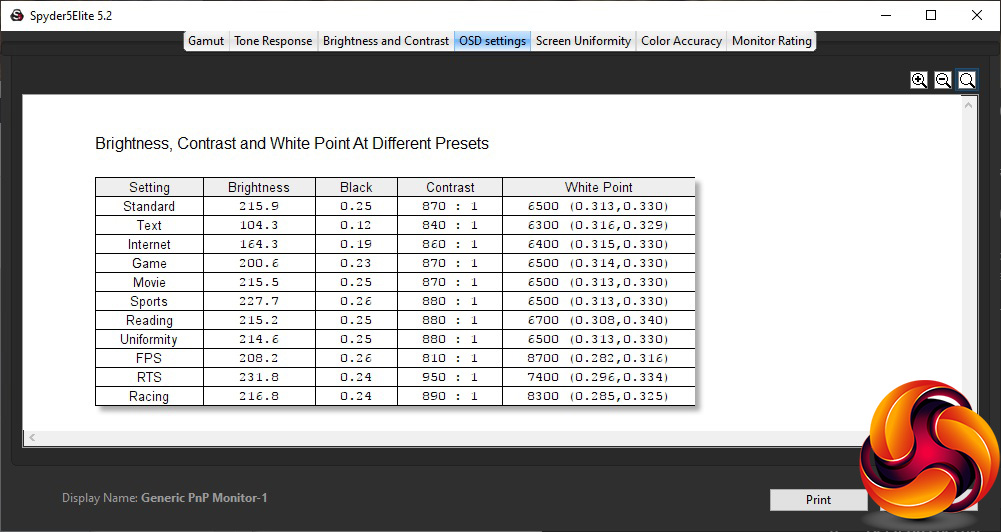
We've tested the Game Modes alongside the Eco Modes for brightness, contrast and white points. The default Standard Eco mode offers mid-range characteristics, including a 215.9cd/m2 brightness, 870:1 contrast and 6500K white point. Text mode is unsurprisingly much less bright at 104.3cd/m2, but contrast and white point are similar at 840:1 and 6300K respectively. Internet mode is a bit brighter at 164.3cd/m2, but again similar in contrast (840:1) and white point (6400K).
Game Eco mode, which is different to the options for specific game genres, is brighter still at 200.6cd/m2, but has the same contrast and white point as Standard mode. Movie mode is exactly the same as Standard mode, whilst Sports mode is the brightest at 227.7cd/m2, with a very similar 880:1 contrast and the same 6500K white point. Finally, Reading and Uniformity have a similar brightness again to Standard mode, but a slightly higher contrast of 880:1. Reading has the highest white point of 6700K, whilst Uniformity uses the Standard 6500K.
The Game Modes are also quite varied. The FPS option is reasonably bright at 208.2cd/m2, with a decent 810:1 contrast but very cool 8700K white point. The RTS option is the brightest of all at 231.8cd/m2, and the highest-contrast too at 950:1, with a cool 7400K white point. Racing mode is closer to the Standard Eco mode with 216.8cd/m2 brightness and 890:1 contrast, but the white point is still cool at 8300K.

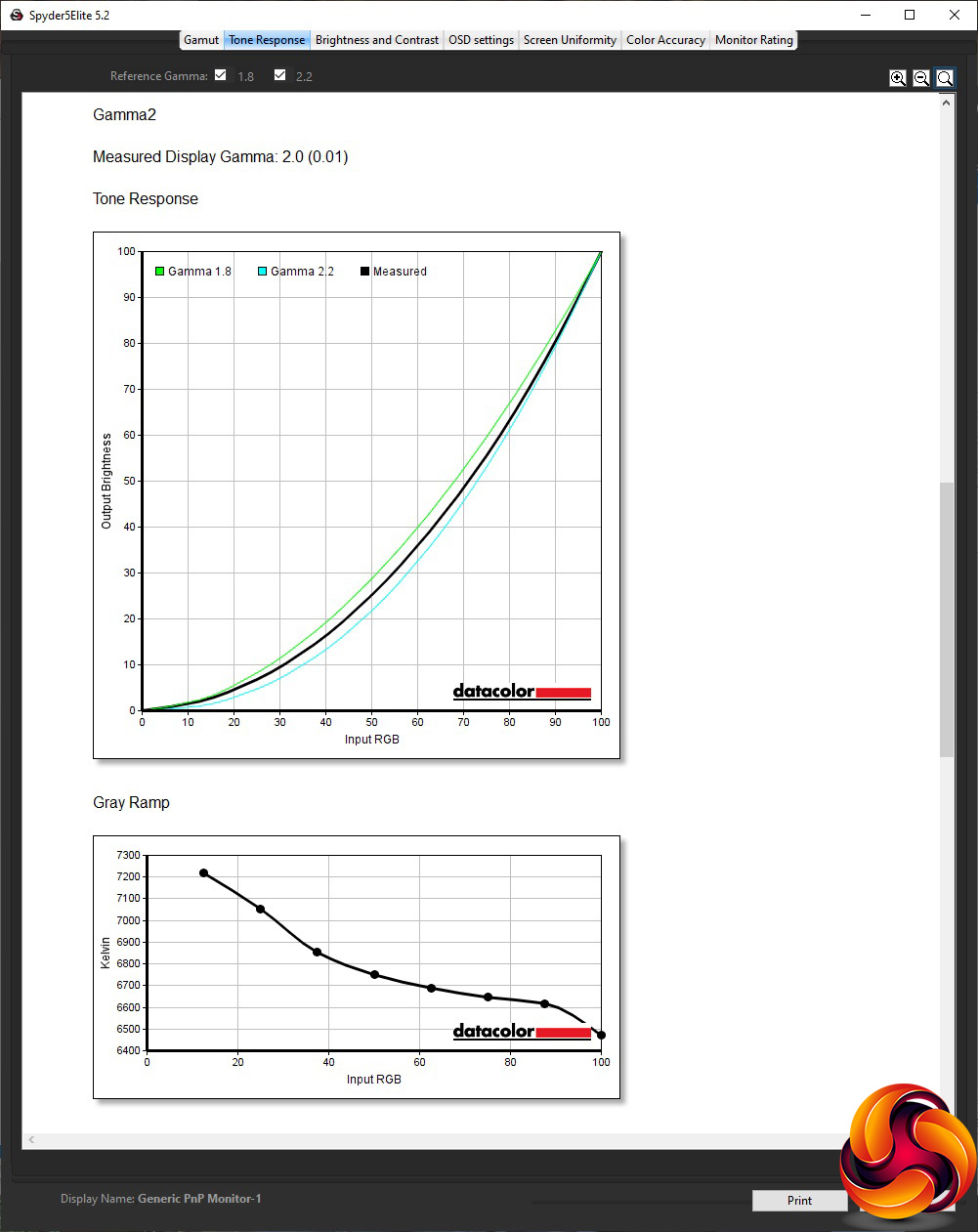
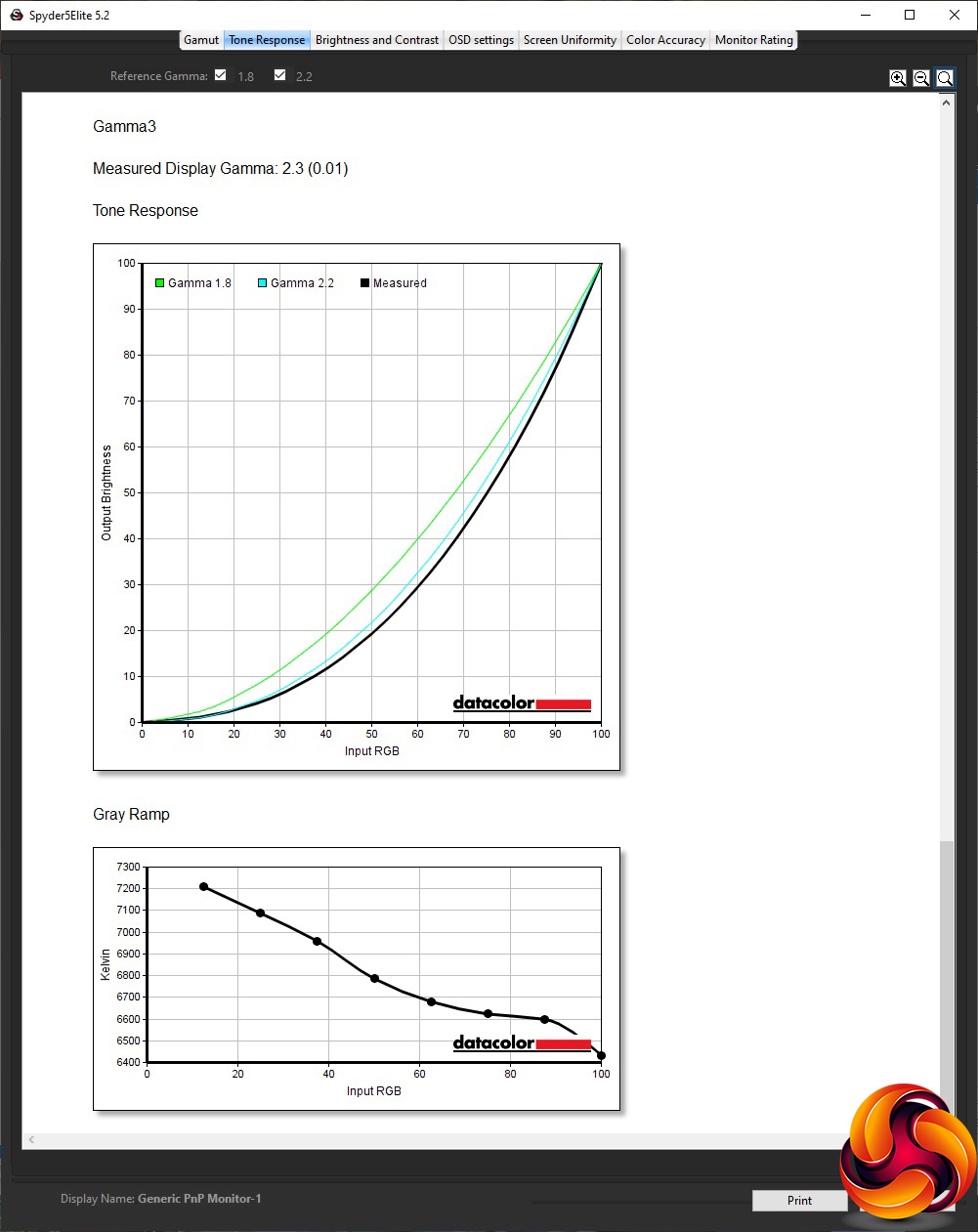
As is usual with AOC monitors, the gamma modes are strange. The default Gamma 1 represents the usual default of 2.2, but Gamma 2 is actually lower at 2.0, whilst Gamma 3 is higher at 2.3. This is a somewhat narrow range and it's odd not to have the values sequential in line with the numerical names.
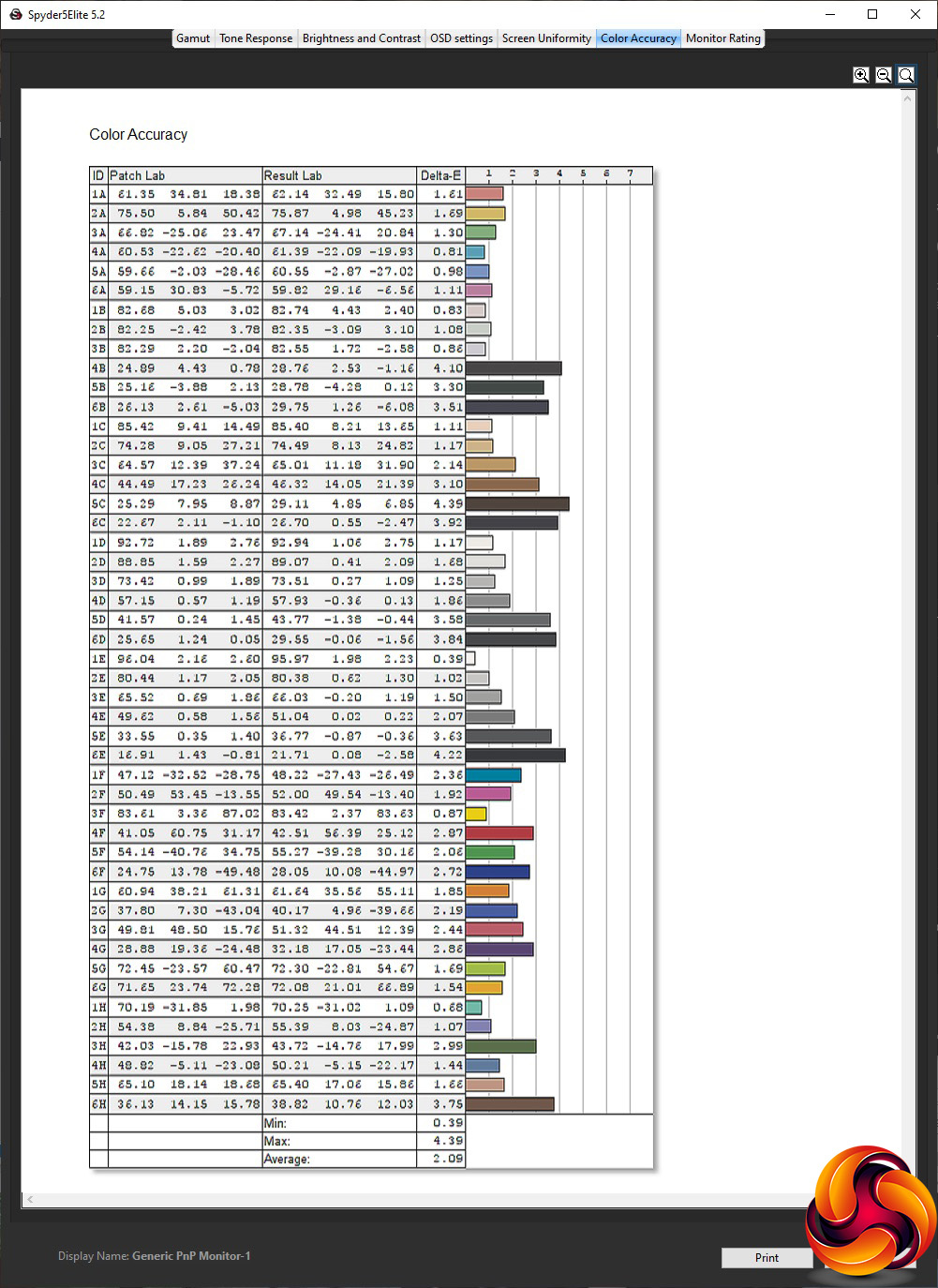
The colour accuracy score of 2.09 average deviation is decent, but not outstanding. So while we always try calibrating every monitor we test, this one seems like a particularly good candidate considering how well it does in other areas (apart from general brightness and contrast).
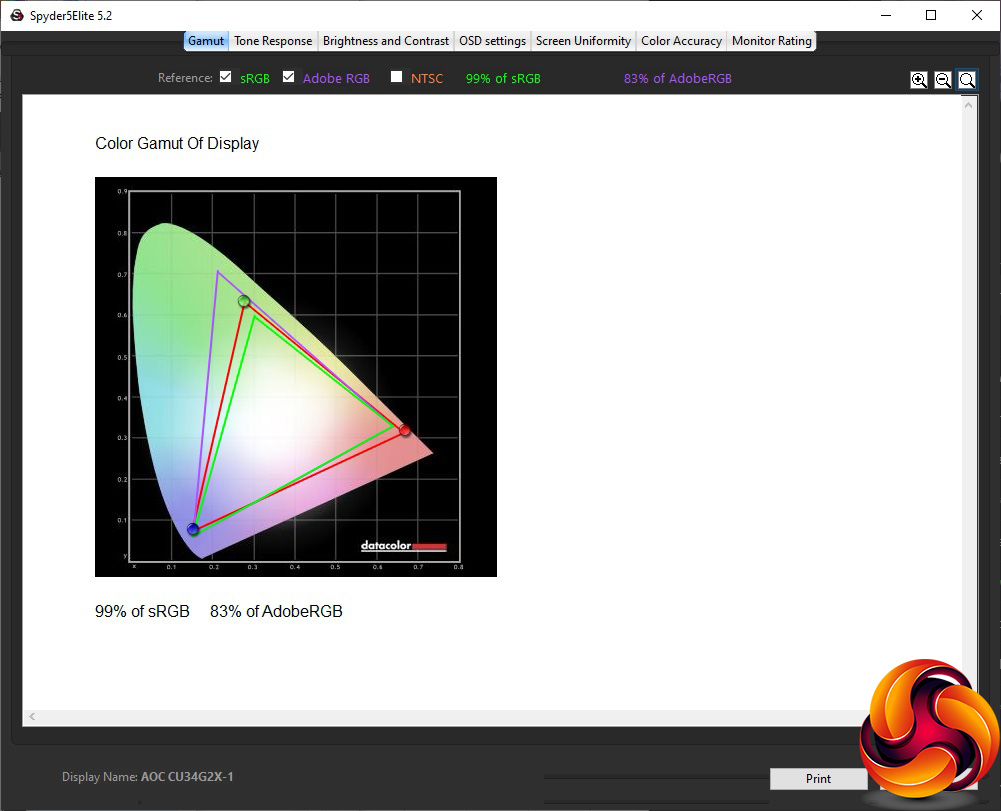
The gamut has dropped down by a per cent in both sRGB and AdobeRGB. Nothing to worry about, but we usually expect this to remain the same.
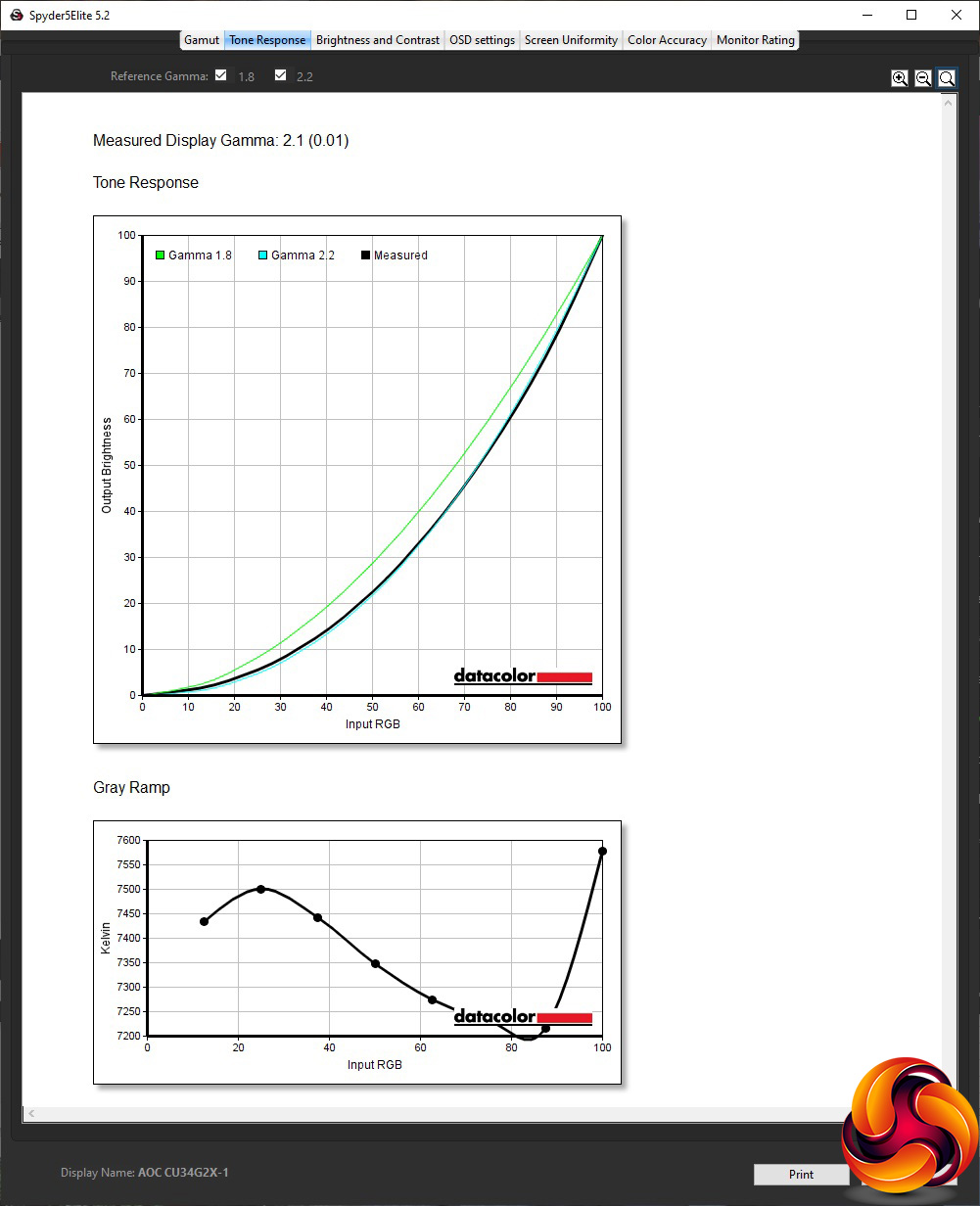
We only retested the Gamma 1 option. Gamma settings don't usually change with calibration either, but this had gone down to 2.1 from 2.2.

On a much more positive note, the colour accuracy had improved a lot to a 0.77 average deviation – amongst the best. So this screen is capable of very accurate colour indeed if you adjust it to provide this.
Overall, this screen is capable of some impressive quality. It's not very bright or as high in contrast as we usually expect from a VA panel (although you could increase contrast from the standard 50 per cent setting). But for gaming when you're sitting right in front of it, this shouldn't be a major issue.
On this front, for subjective testing we ensured FreeSync was enabled and upped the refresh to 144Hz, which necessitated a DisplayPort connection (the limit appeared to be 100Hz over HDMI).
We then fired up our usual selection of comparison titles including CS:GO, Rainbow 6 Siege and League of Legends. We enabled the FPS Gaming Mode preset for the first two games, and RTS for LoL. The frame rates were smooth but the real winner here was LoL. A MOBA game or RTS can really benefit from having lots of screen real estate.
The AOC CU34G2X is a tempting proposition. At the time of writing, no mainstream vendor had this screen listed, although we found one obscure shopping site offering it for higher cost than the RRP at £519 (see below). But even that is a reasonable price for a curved screen this big that offers 144Hz with FreeSync.
There isn't a screen we've tested that boasts these abilities for less. It undercuts the ASUS PG35VQ and MSI MPG341CQR significantly – particularly the former – and yet doesn't seem to have any major corners cut. It's not as bright as the MSI model, but colour accuracy is better and you're saving around £300.
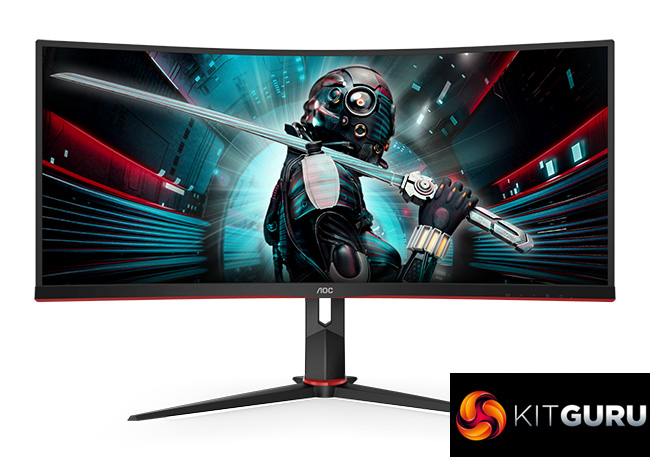
There's plenty of adjustability and a good range of inputs. The USB 3.0 hub will come in handy too, although the lack of any built-in speakers will mean you have to add external amplification if you want to watch videos with friends on this screen.
But considering the price, if you were holding off going for the 21:9 format because gaming-focused higher-refresh screens were just too expensive, the AOC CU34G2X could be the one that convinces you to upgrade.
The AOC CU34G2X is available from Alternate for £519.
Pros:
- Excellent colour accuracy (when calibrated).
- 144Hz refresh.
- FreeSync 2 adaptive sync.
- Keen price.
- Reasonable level of settings in OSD.
- Plenty of ergonomic adjustment.
- Built-in USB 3.0 hub.
Cons:
- Lower contrast and brightness than we expected.
- No USB-C connection.
- No G-sync Compatible accreditation.
- No built-in speakers.
KitGuru says: The AOC CU34G2X is a very tempting proposition, bringing 34in ultrawide screen 144Hz gaming to a new affordable price.