KitGuru KitGuru.net – Tech News | Hardware News | Hardware Reviews | IOS | Mobile | Gaming | Graphics Cards


Iiyama has a long reputation for producing professional monitors, dating back to the days of the CRT. Although we have recently reviewed some of the company's more consumer-oriented models, such as the Red Eagle G-MASTER GB2560HSU, we haven't seen anything from its professional ProLite range for a while. With the ProLite XB3070WQS we aim to set the record straight. This hefty 30in screen is very much for the serious user.
The XB3070WQS is unusual in today's monitor market in that it uses the 16:10 aspect ratio rather than 16:9. So whilst it has 2,560 pixels horizontally, there are 1,600 pixels vertically, when most consumer-grade screens would have 1,440. Before 16:9 became the norm, the 16:10 aspect was the main widsecreen option, and the extra vertical screen real estate will always come in handy for creative work.
Unsurprisingly for a professional monitor, IPS panel technology is used, in this case a variant called AH-IPS. Since this isn't a gaming screen, no high refresh rates are on offer, although up to 75Hz is possible. The brightness and contrast ratings are typical, with 350cd/m2 and 1,000:1 respectively. The 5ms pixel response is also typical, but again as this isn't a gaming monitor it's nothing to worry about.
You get the full complement of connection options, with VGA, DVI, HDMI and DisplayPort all present, alongside an analog minijack for headphones when using digital audio from the HDMI or DisplayPort connections. Stereo 3W speakers are built in as well, plus a minijack for analog audio input. There's no USB hub, however.
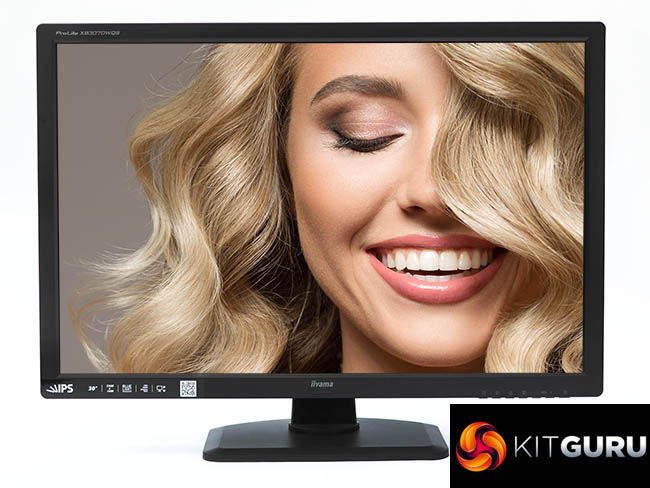
The range of adjustments is reasonable, including 107mm of height variation, swivelling 45 degrees left and right, and 17 degrees of backwards tilt (but none forwards). With a price under £700, the XB3070WQS isn't quite in the same premium category as the ASUS ProArt PA32UC, but with Iiyama's pedigree, this could be a more mainstream professional option. Let's find out how it fares.
Specification:
- Screen size: 30-inch, 16:10 aspect
- Native resolution: 2,560 x 1,600
- Refresh rate: 75Hz
- Panel type: AH-IPS
- Contrast ratio: 1,000:1 (typical)
- Brightness: 350cd/m2
- Response time: 5ms Grey-to-Grey
- Display inputs: HDMI, DisplayPort, DVI, VGA
- USB hub: No
- Tilt: 0 degrees forward, 17 degrees backward
- Raise: 107mm
- Swivel: 45 degrees left and right
- Other: Minijack audio input and output, stereo 3W speakers
Retail Price: £687.78 (inc. VAT)
The Iiyama XB3070WQS is a no-nonsense piece of kit from the packaging onwards.
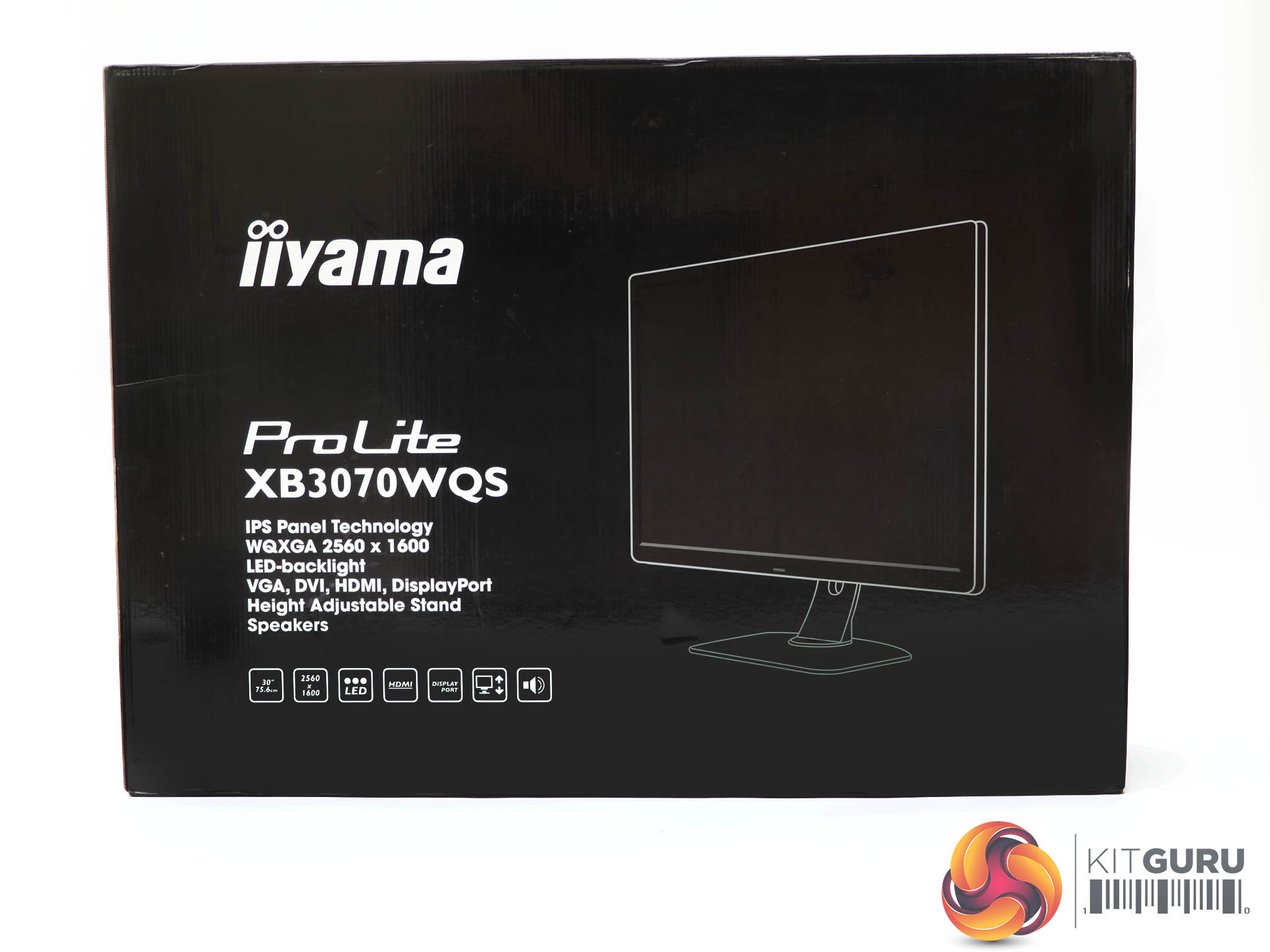
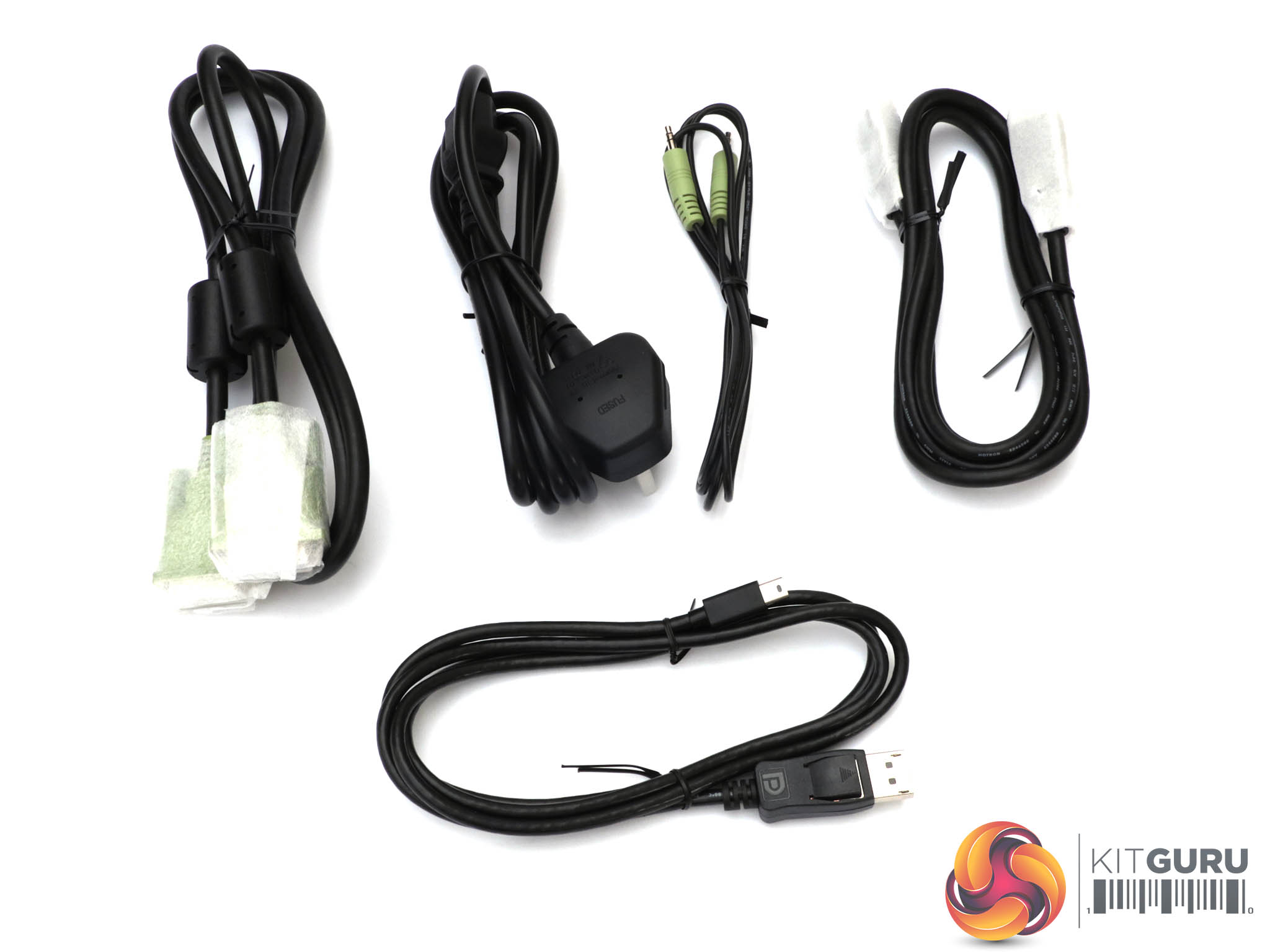
You don't even get a picture of the screen with an exciting fake image on the box, just a line drawing of it with some of the key details of the specification. The bundle includes a DVI cable, power, audio, DisplayPort and Mini DisplayPort, with the latter particularly handy if you're using AMD professional graphics that now only offers this kind of connection.
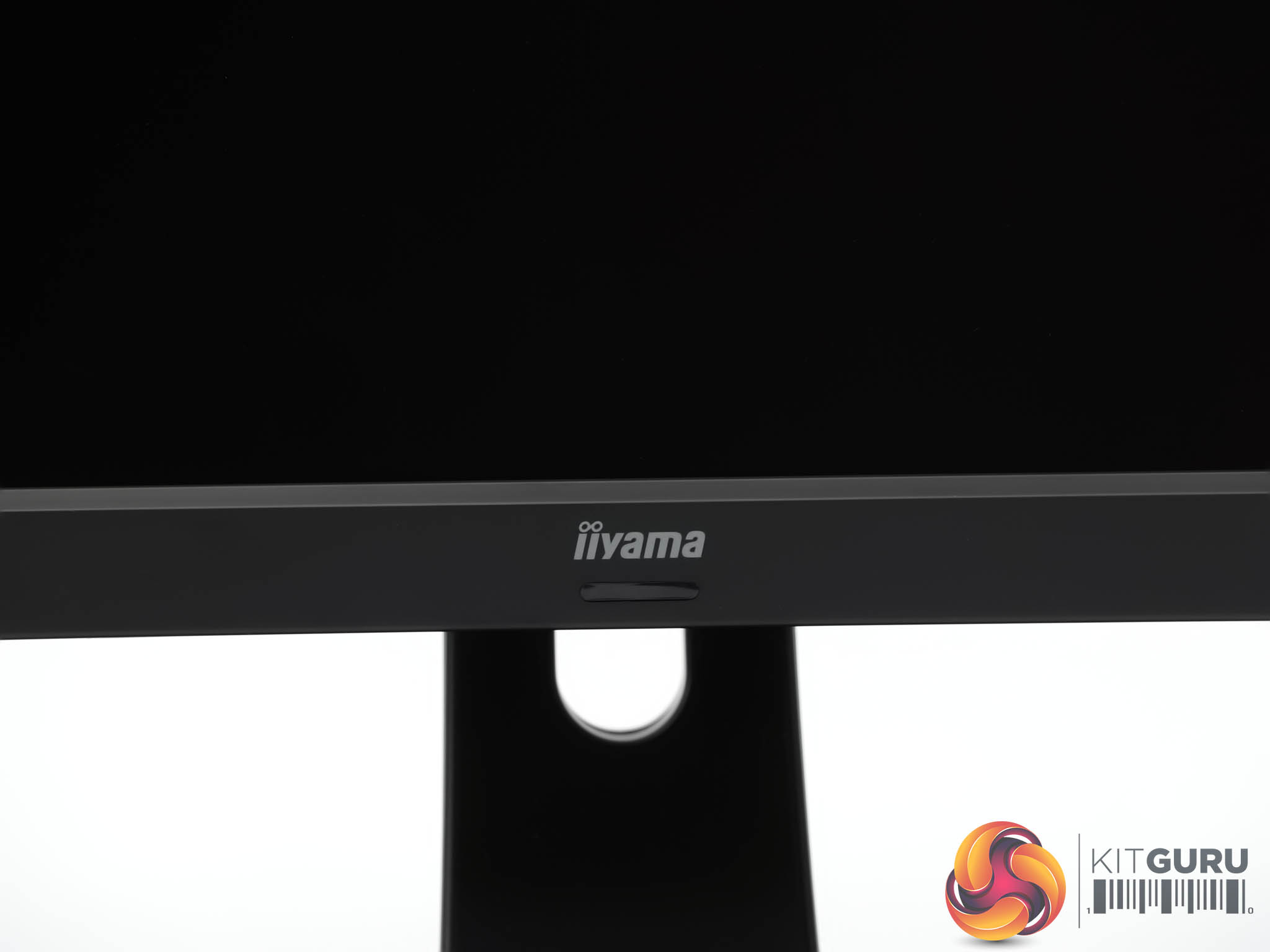
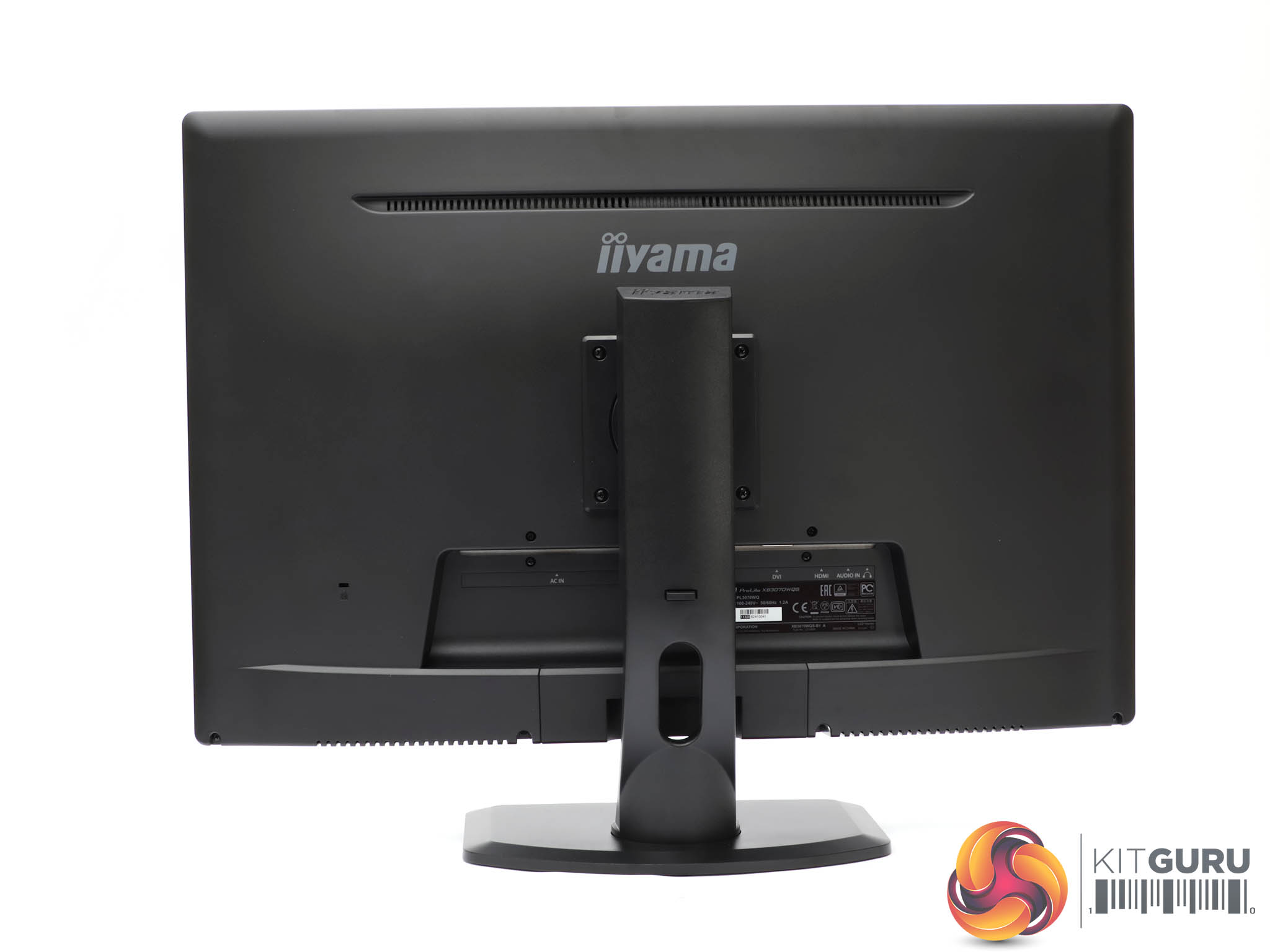
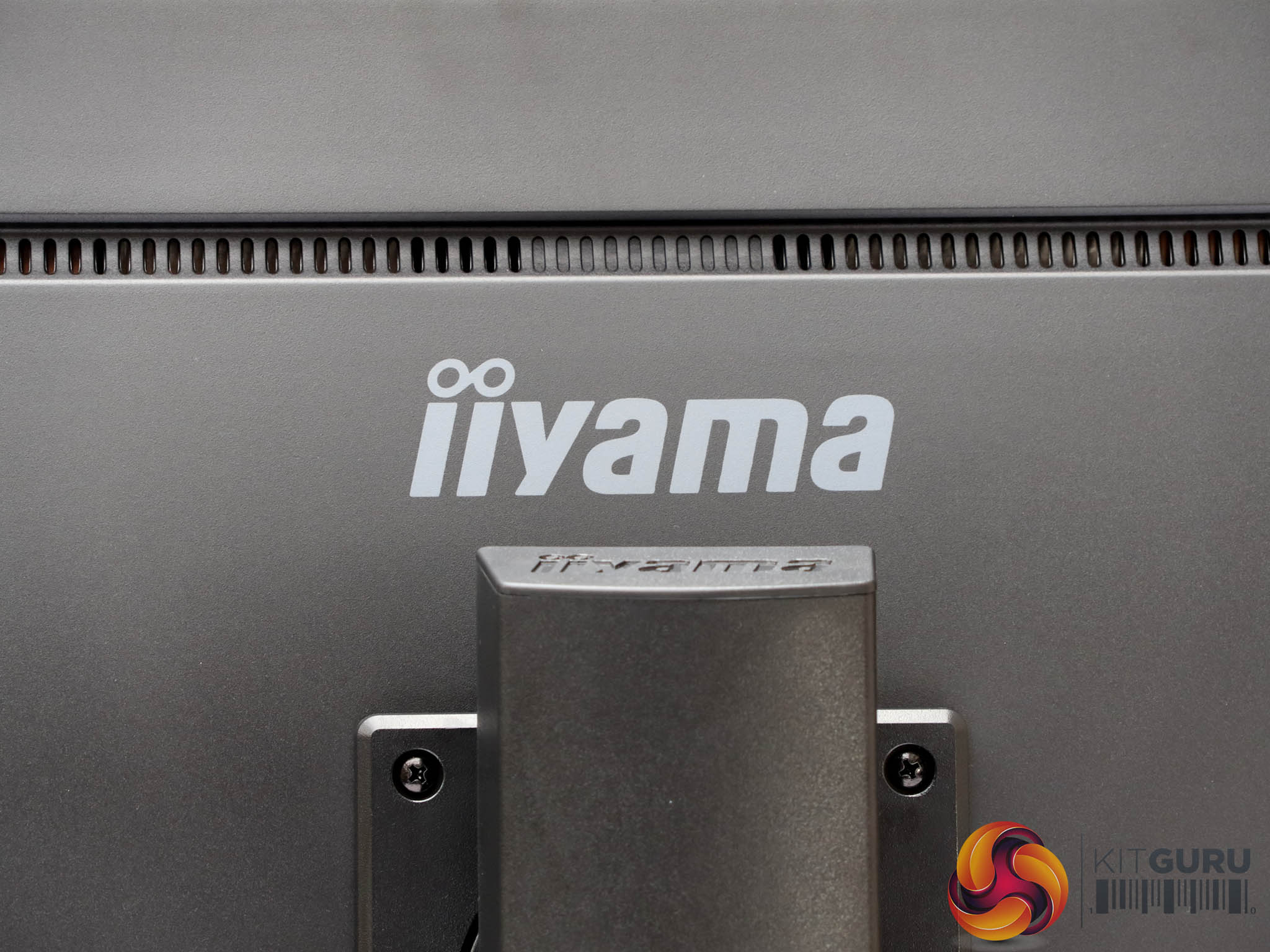
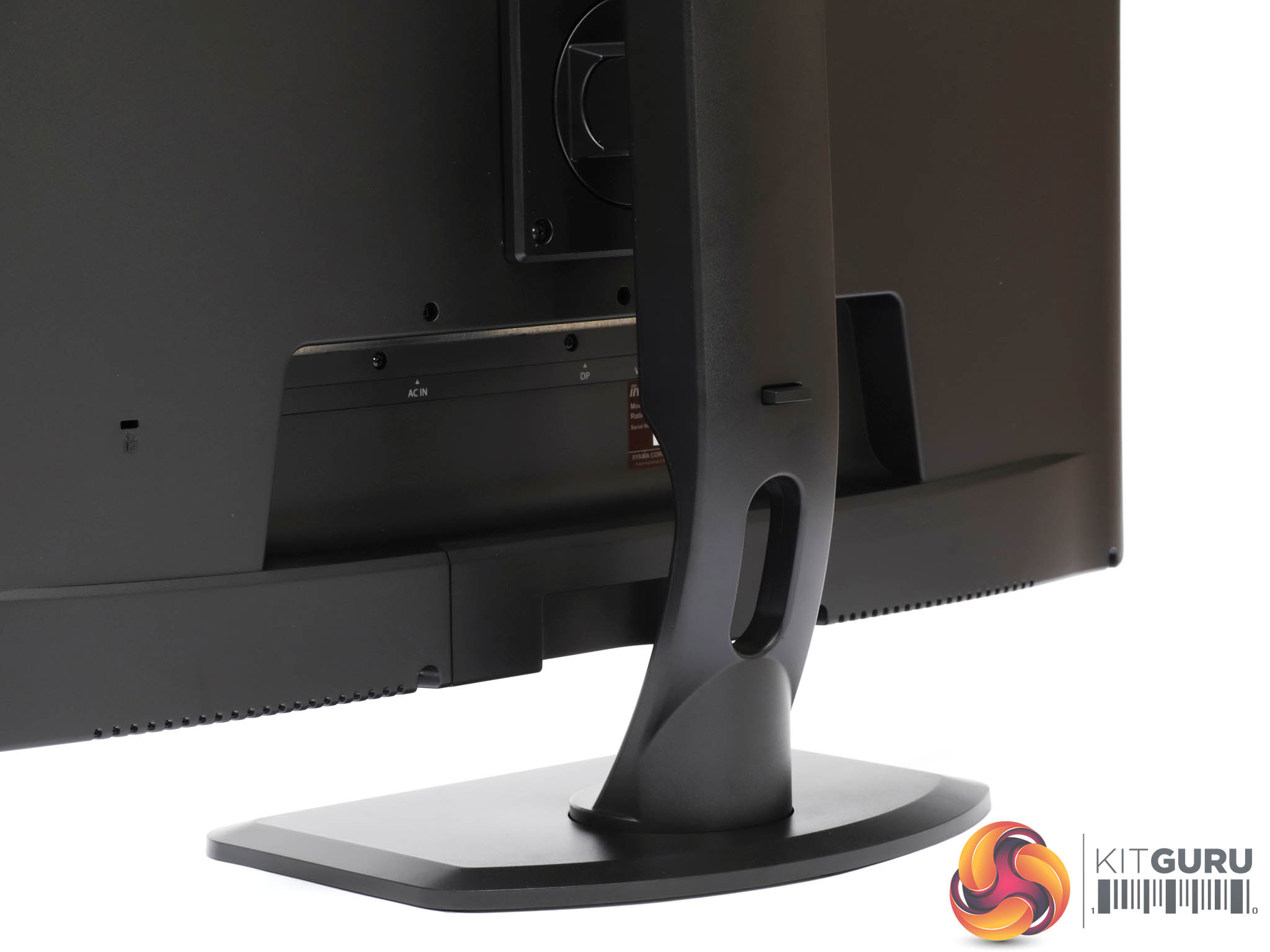
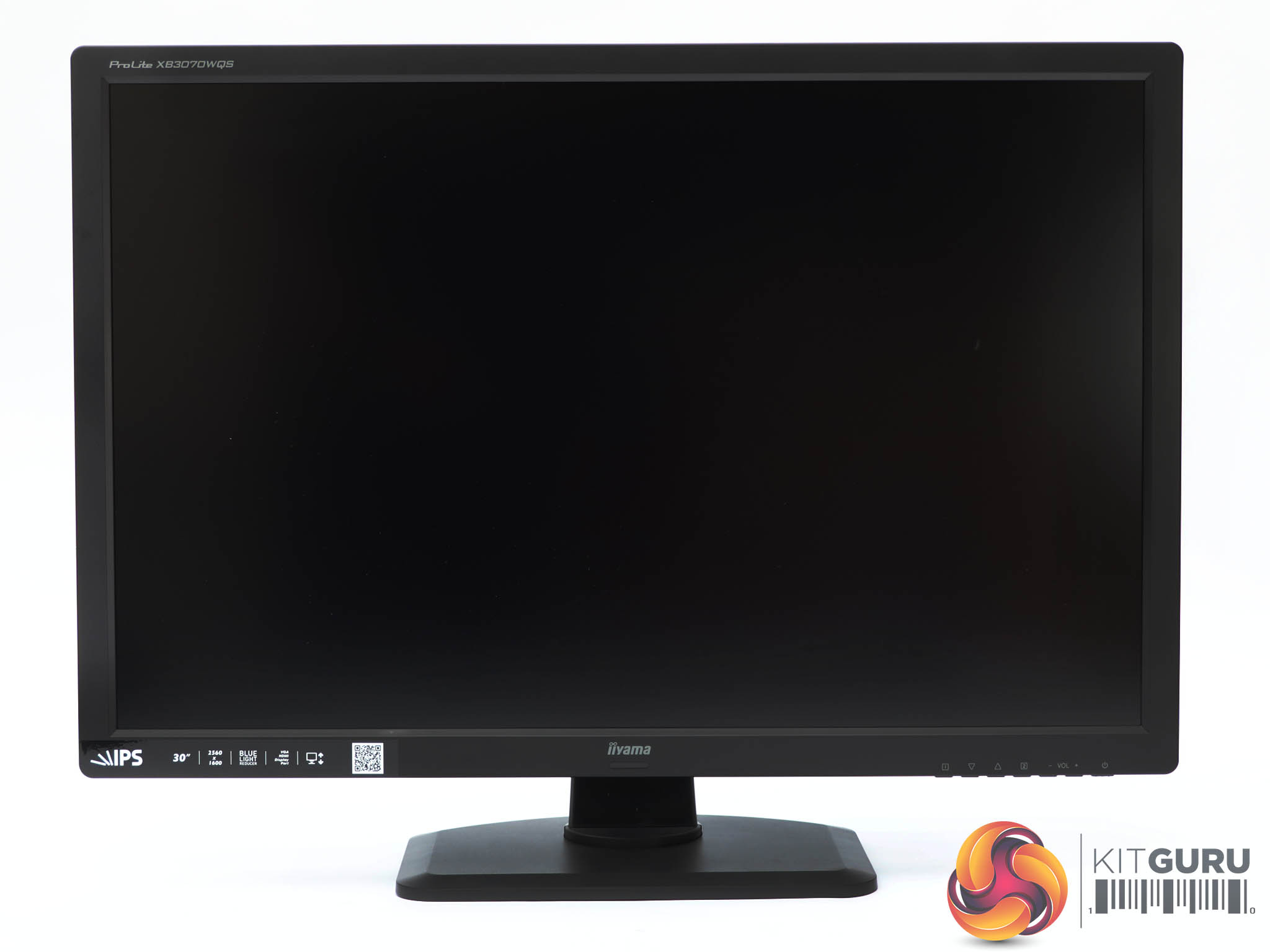
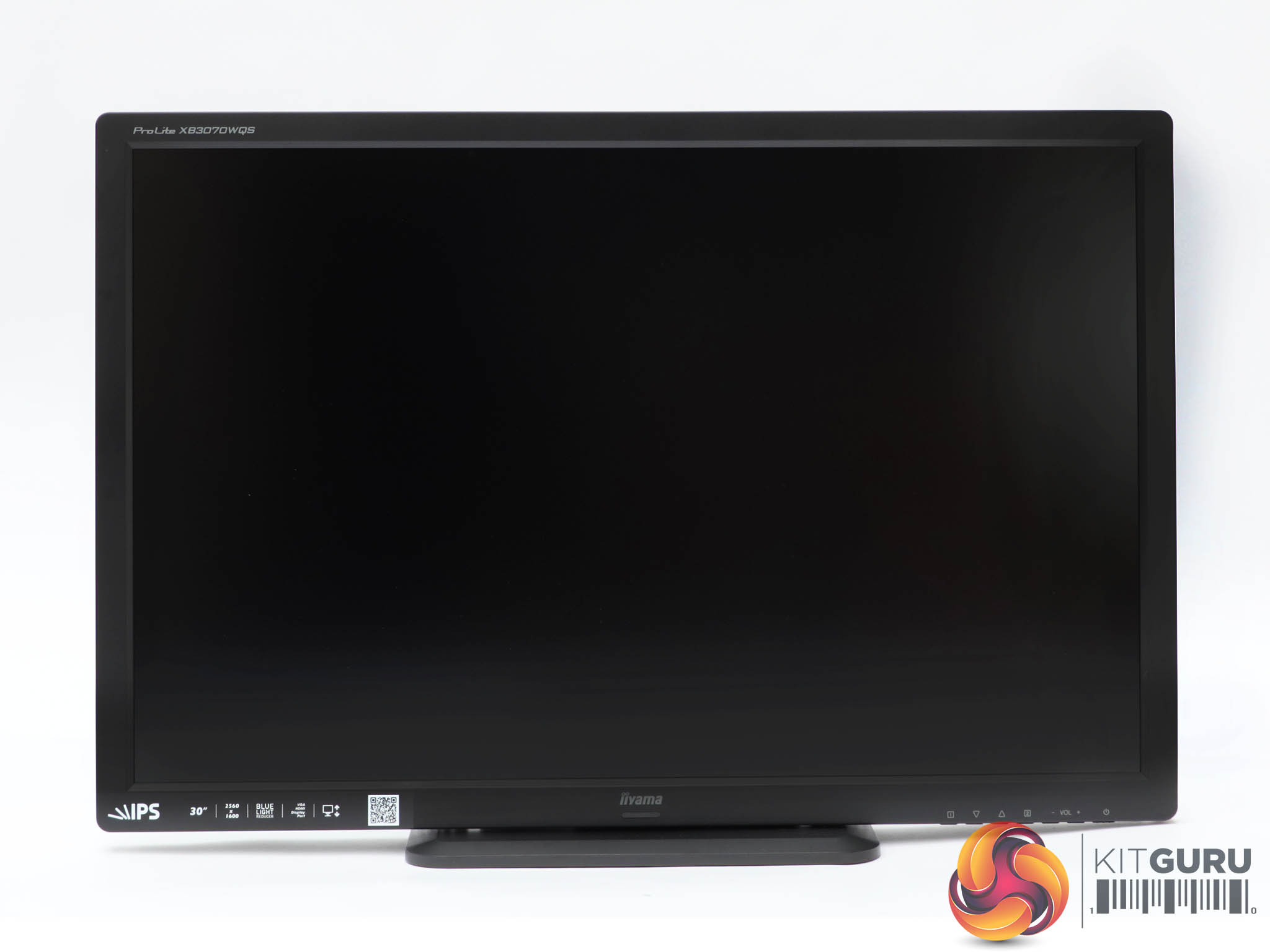
The XB3070WQS is very black, and it doesn't pander to aesthetic niceties like a non-existent bezel. In fact, the frame is quite thick. But the end result is robust and businesslike. The construction is also very solid, which might be what you're looking for if you regularly need to move your screens round a premises or take them on location for work.
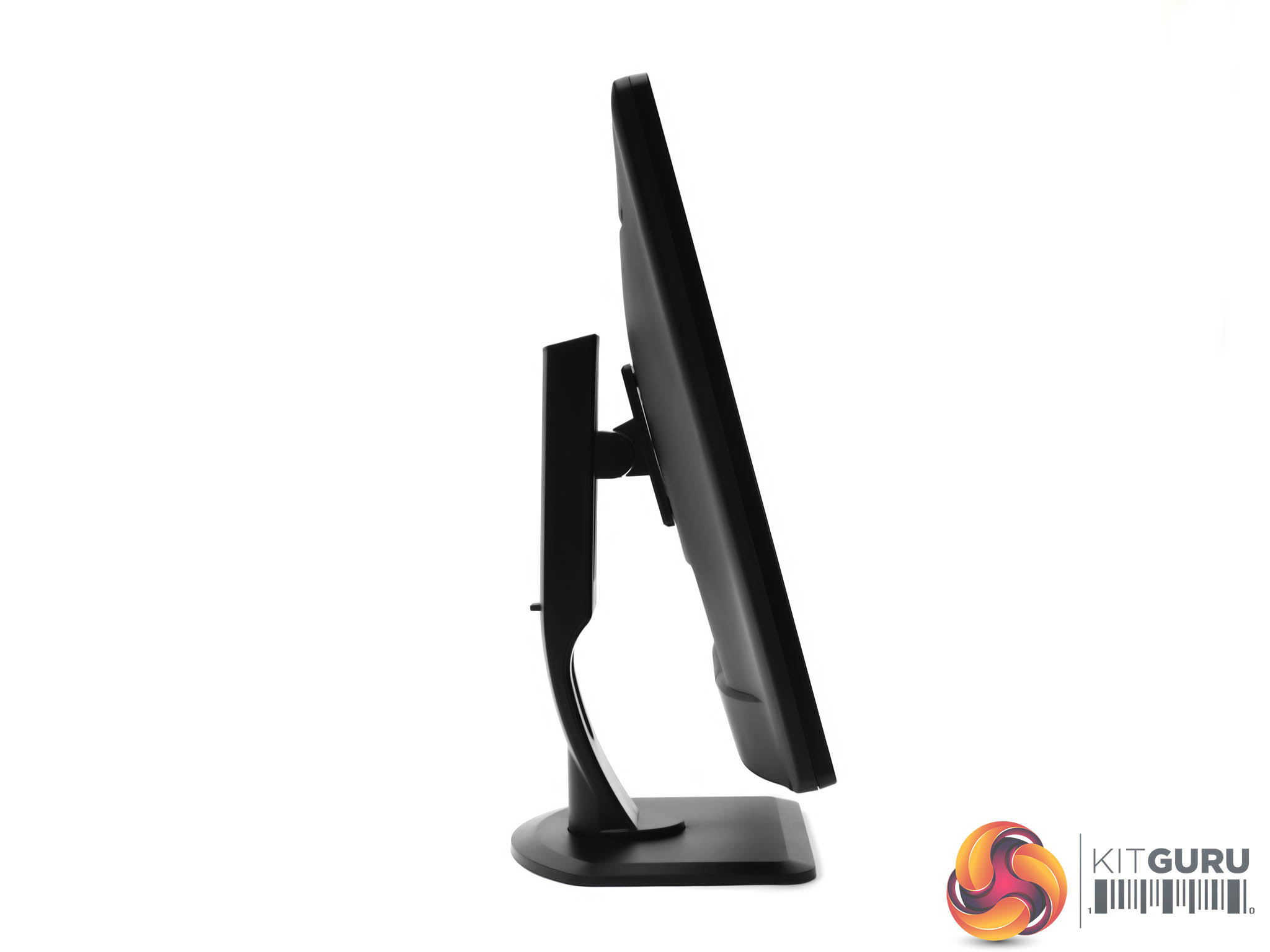
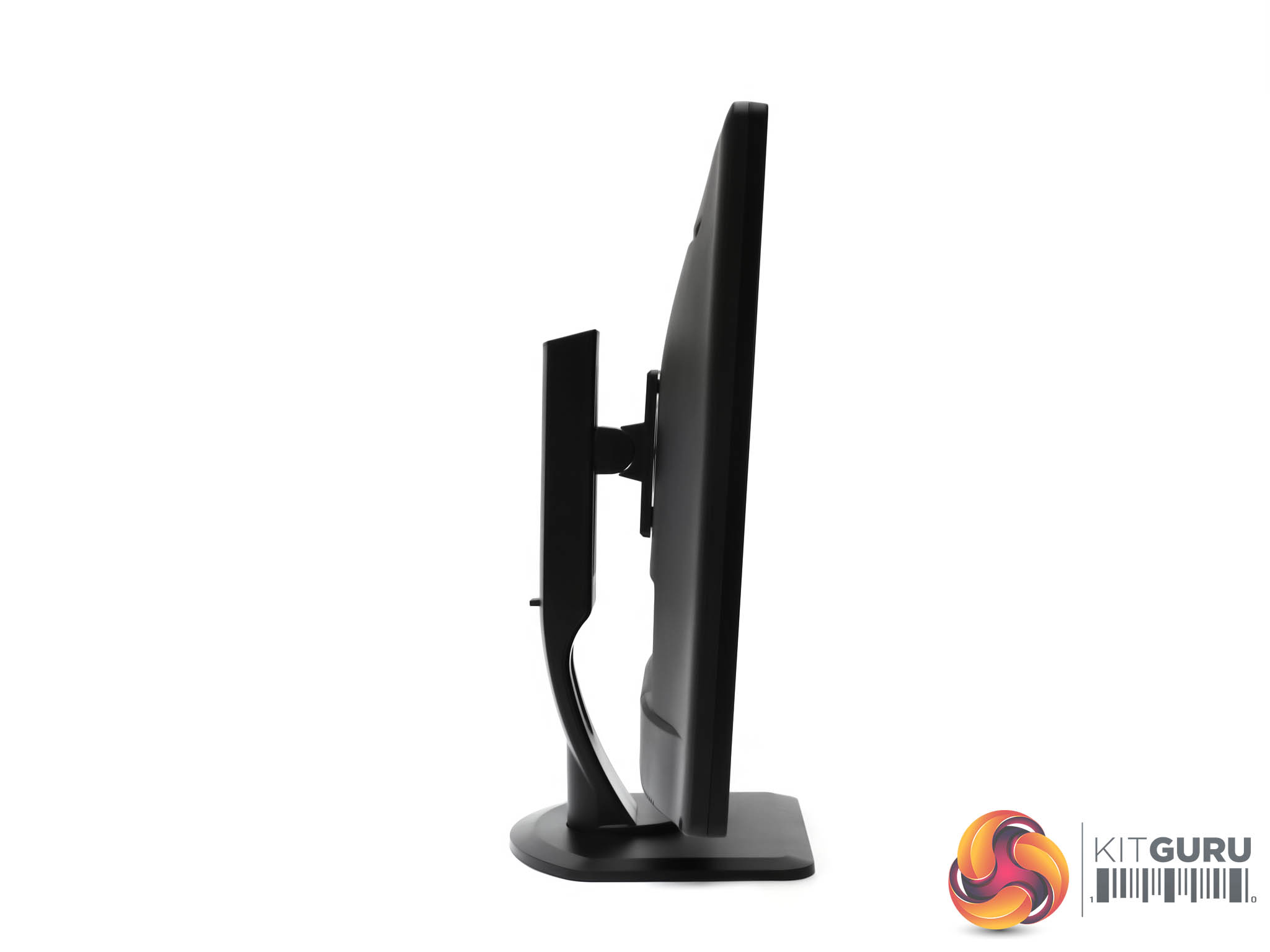
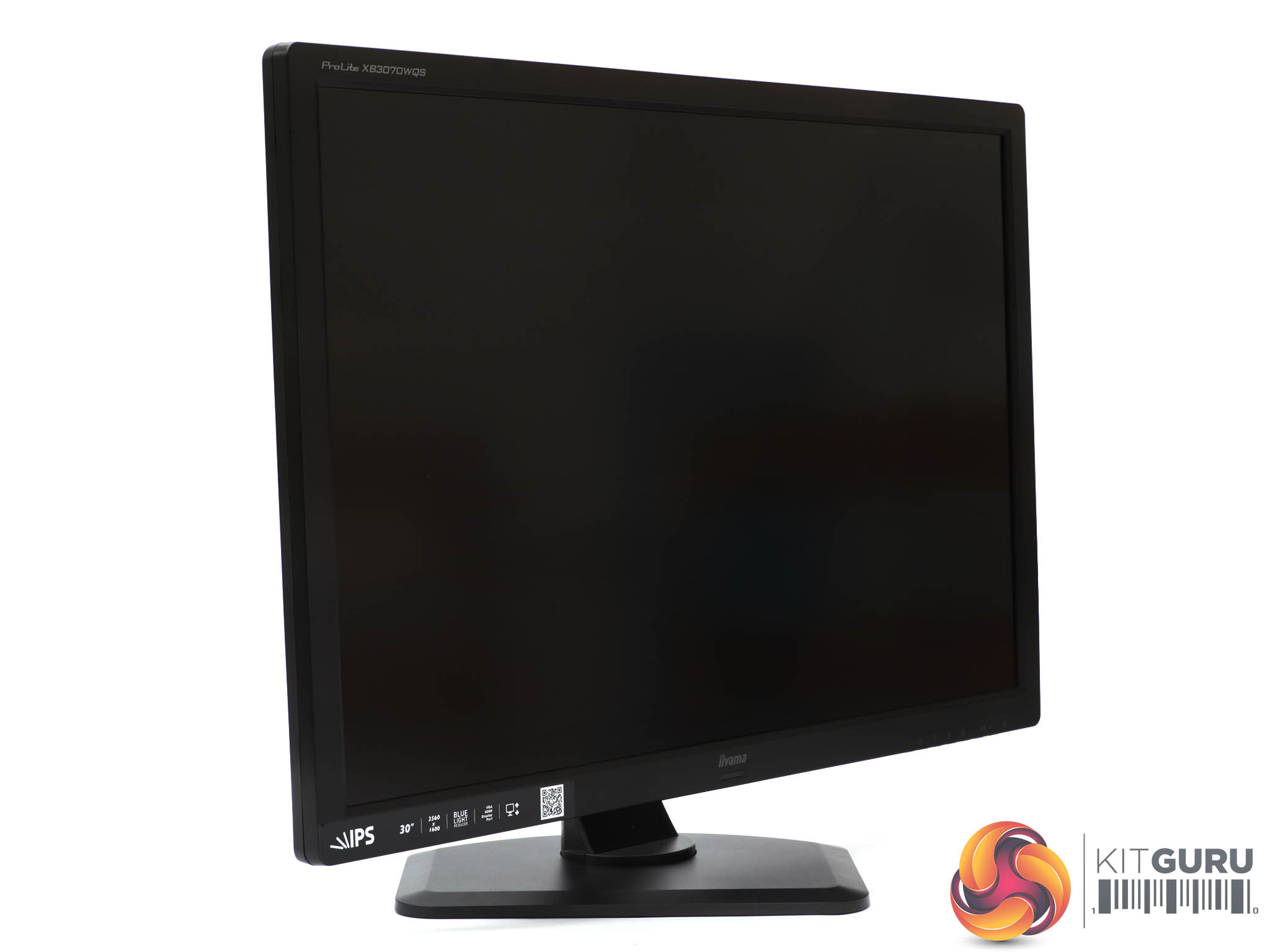
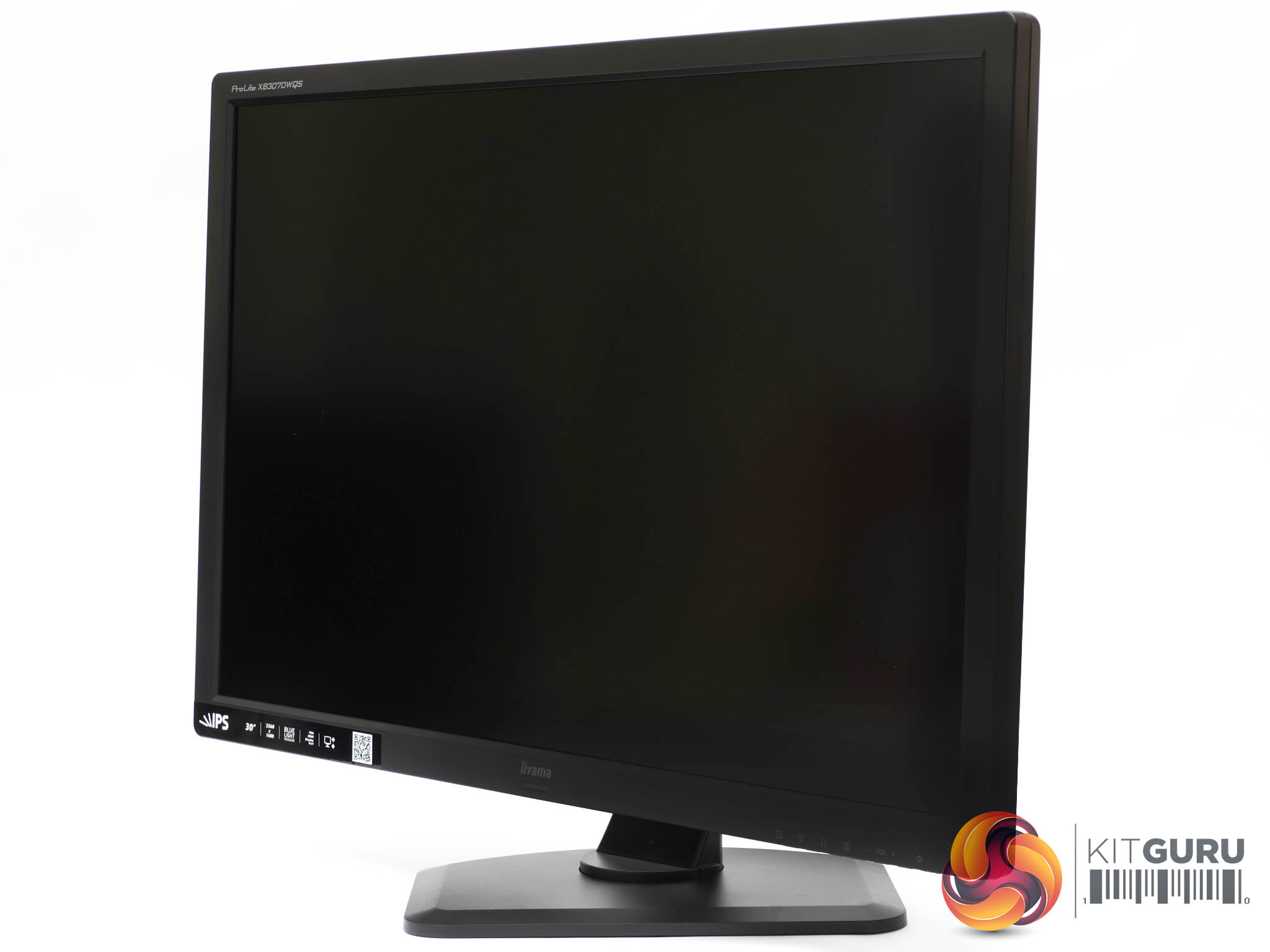
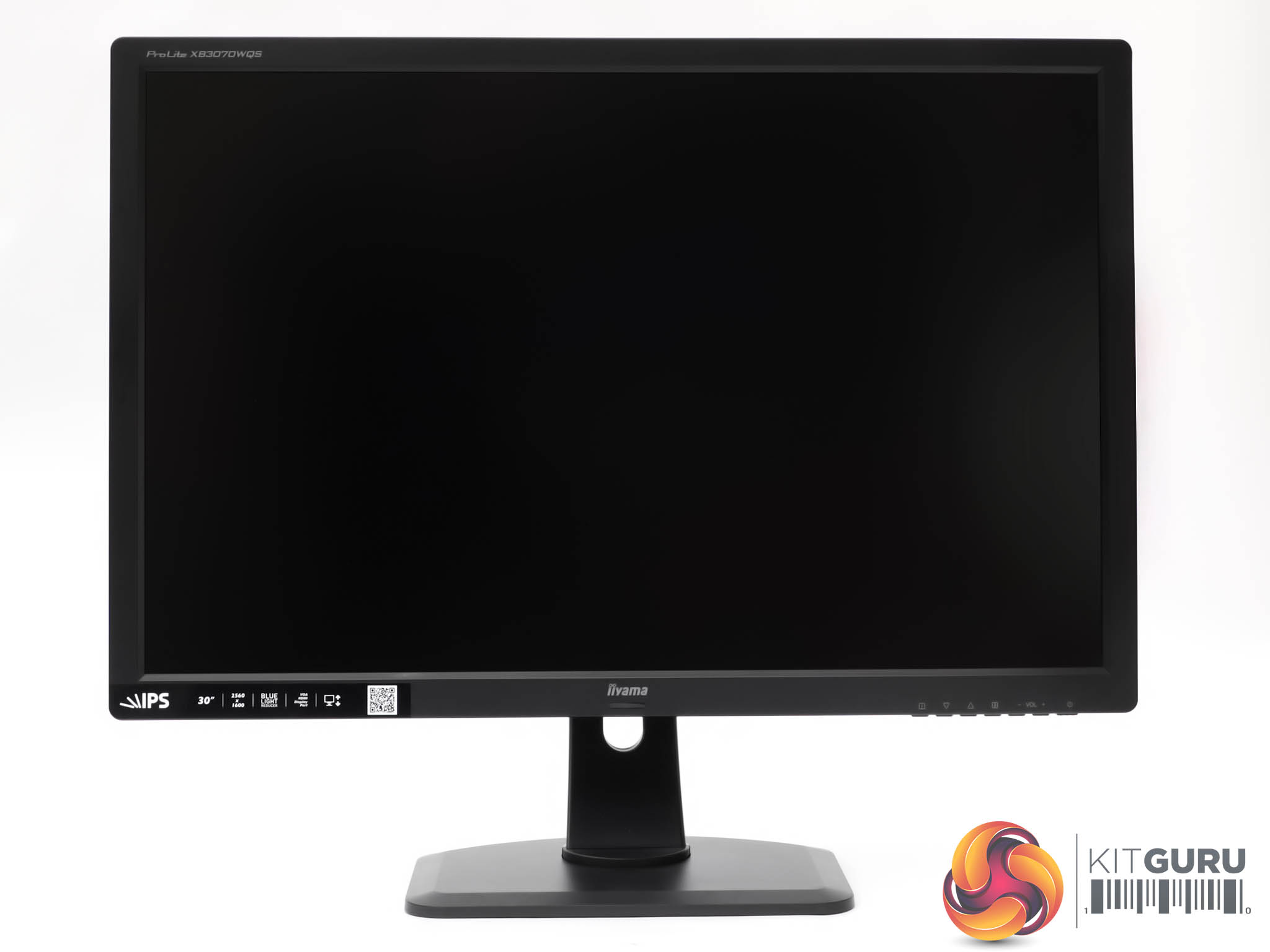
Most of the adjustments necessary for ergonomic usage are available. You can swivel the screen a decent 45 degrees left and right, although the height range only spans 107mm, which is less than some monitors. You also can't tilt this screen forward, only backwards by 17 degrees.
You can't rotate this screen into portrait orientation, either, which might have been handy for working on print documents.
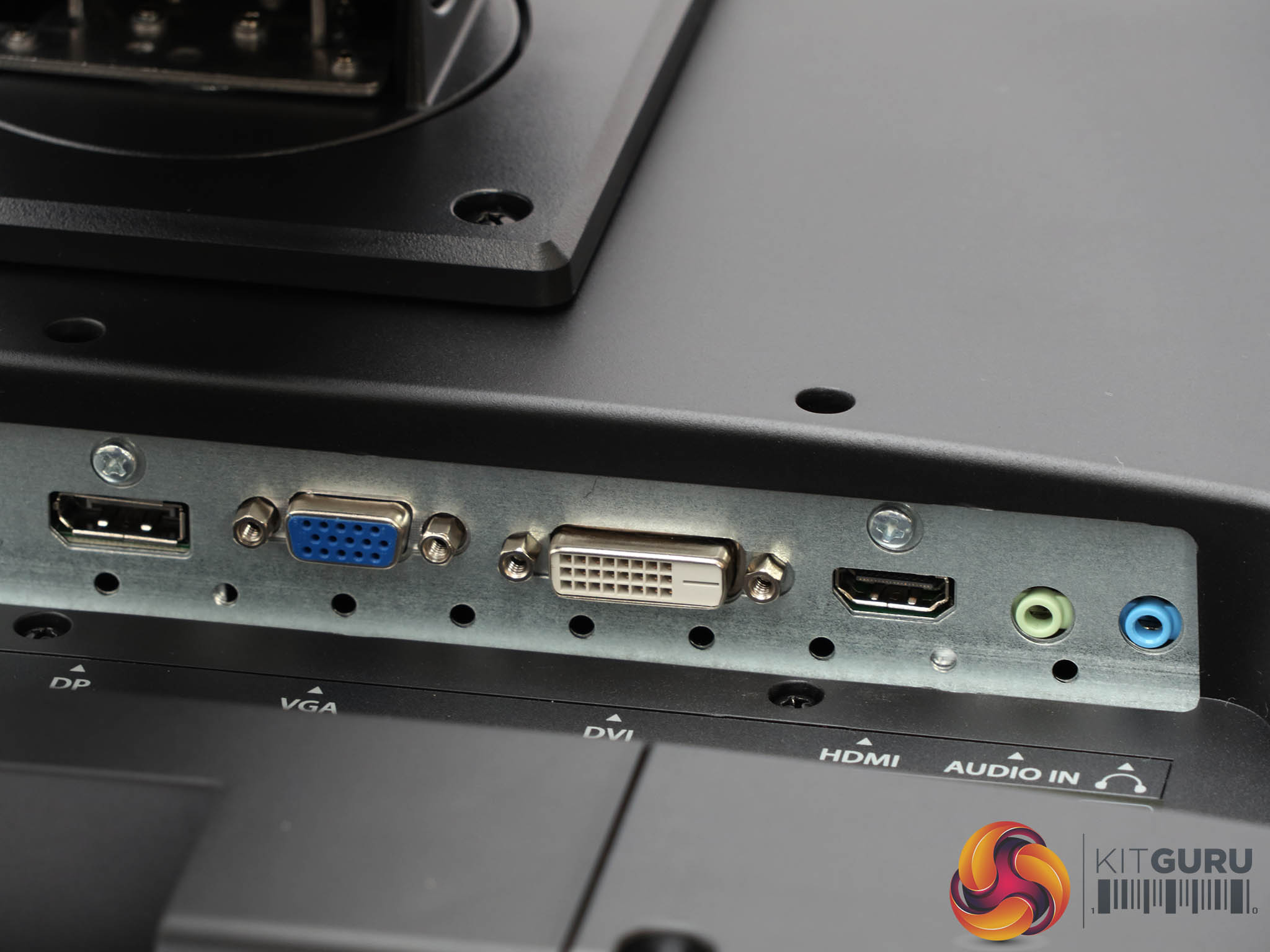
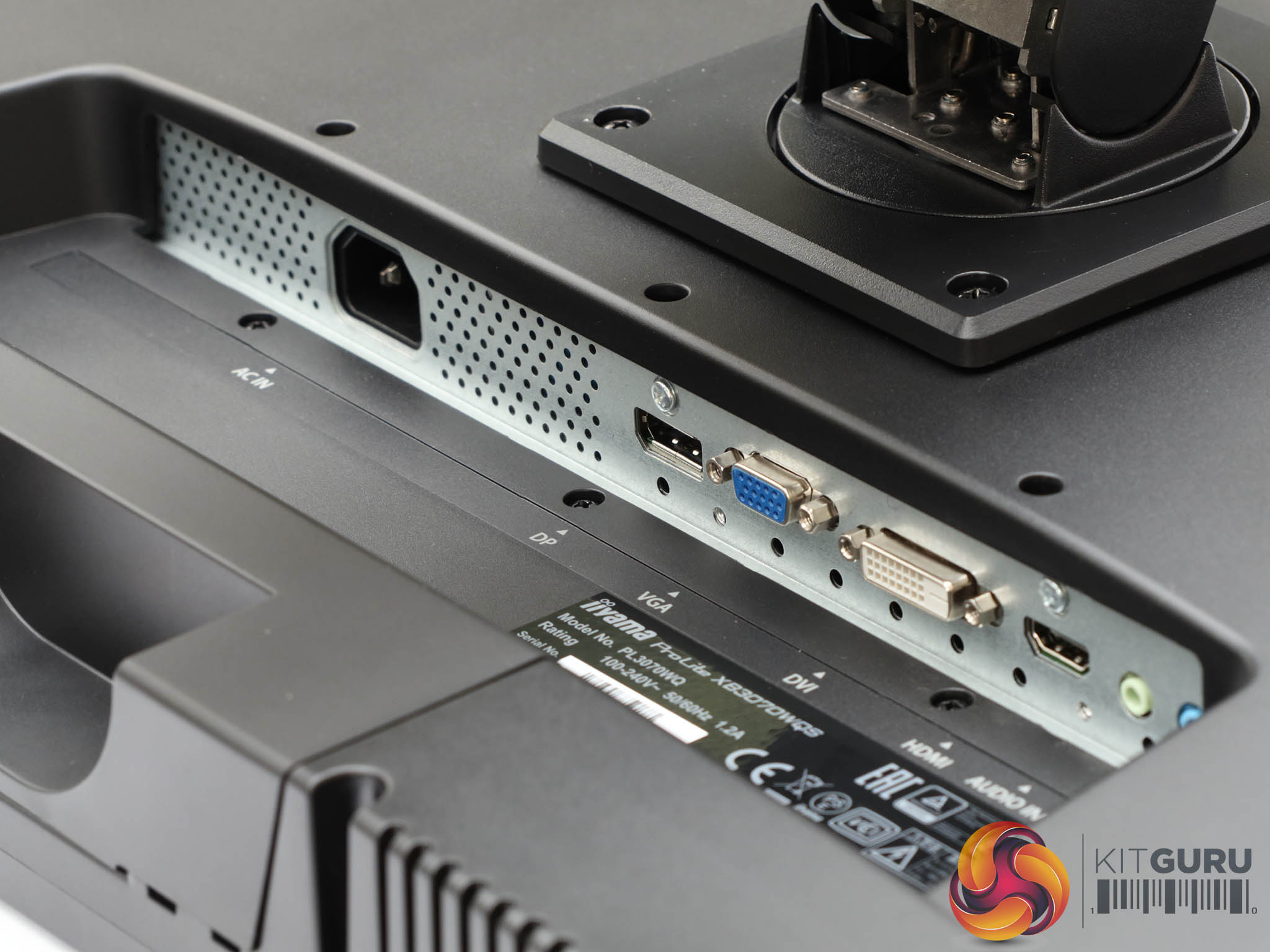
Iiyama has a little of something for everyone when it comes to the XB3070WQS's connectivity. There's DisplayPort, VGA, DVI-D, and HDMI, so pretty much any source can be plugged in. Then you get analog audio minijack input and output. So you can hook up an analog input such as your PC's sound card, and connect headphones to hear the sound piped over one of the digital video connections.
One thing we noticed was that a resolution above 1,920 x 1,080 didn't appear possible over HDMI, implying that the HDMI input is only 1.2. This is detailed in the PDF manual, but you won't find mention of it in the online specifications. You can actually drive resolutions above 2,560 x 1,600 over DVI and DisplayPort, although these are scaled down for display because the native panel resolution is 2,560 x 1,600.
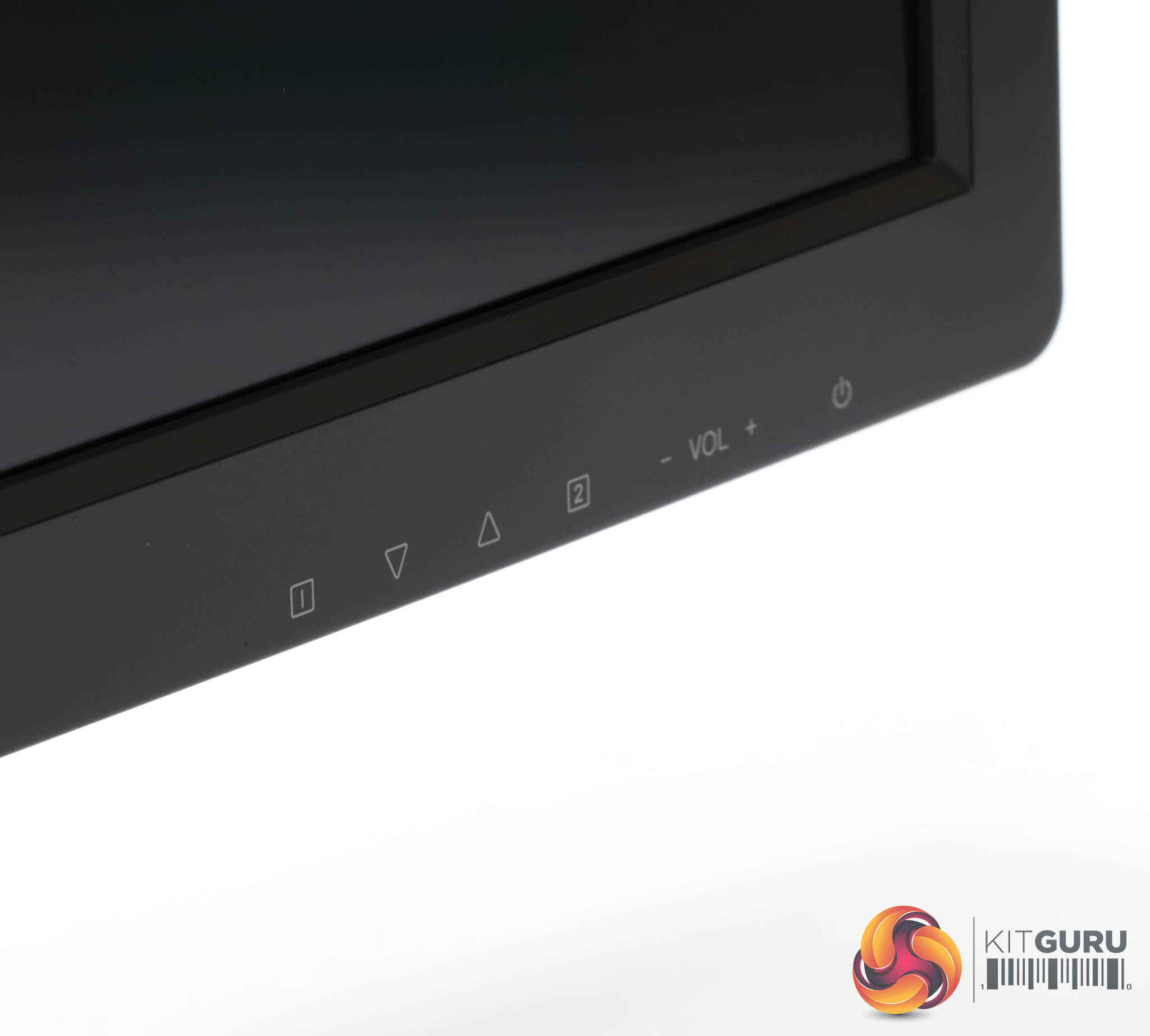
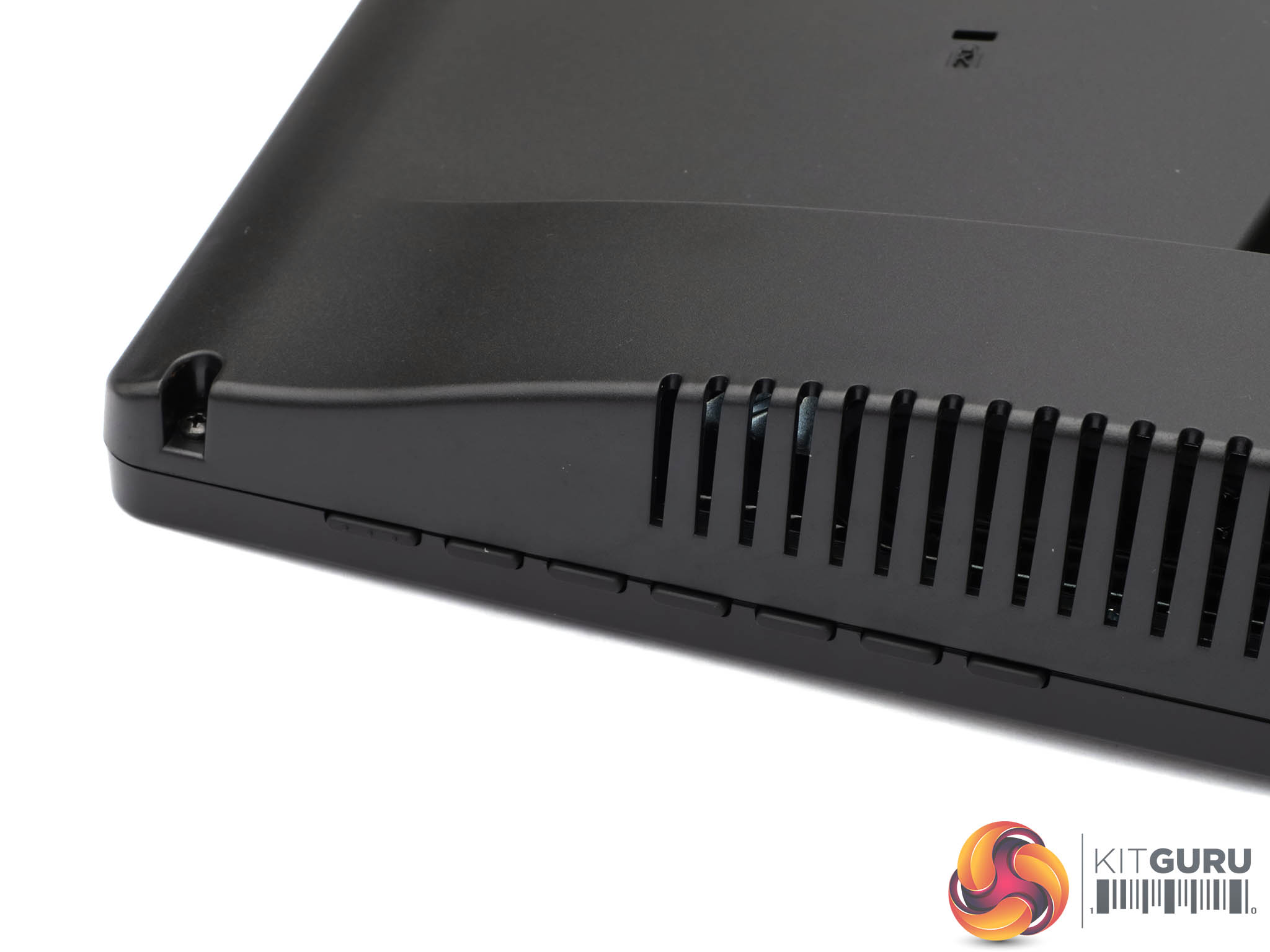
There are no fewer than seven buttons along the bottom right-hand corner of the bezel, their function illustrated by icons on the front of the bezel. However, the three furthermost right are exclusively for turning the monitor on or off and adjusting audio volume up and down, whereas the other four have functions varying depending on context.
We're going to go from right to left with the buttons rather than the other way round, because the button on the far left marked 1 actually calls up the main menu.
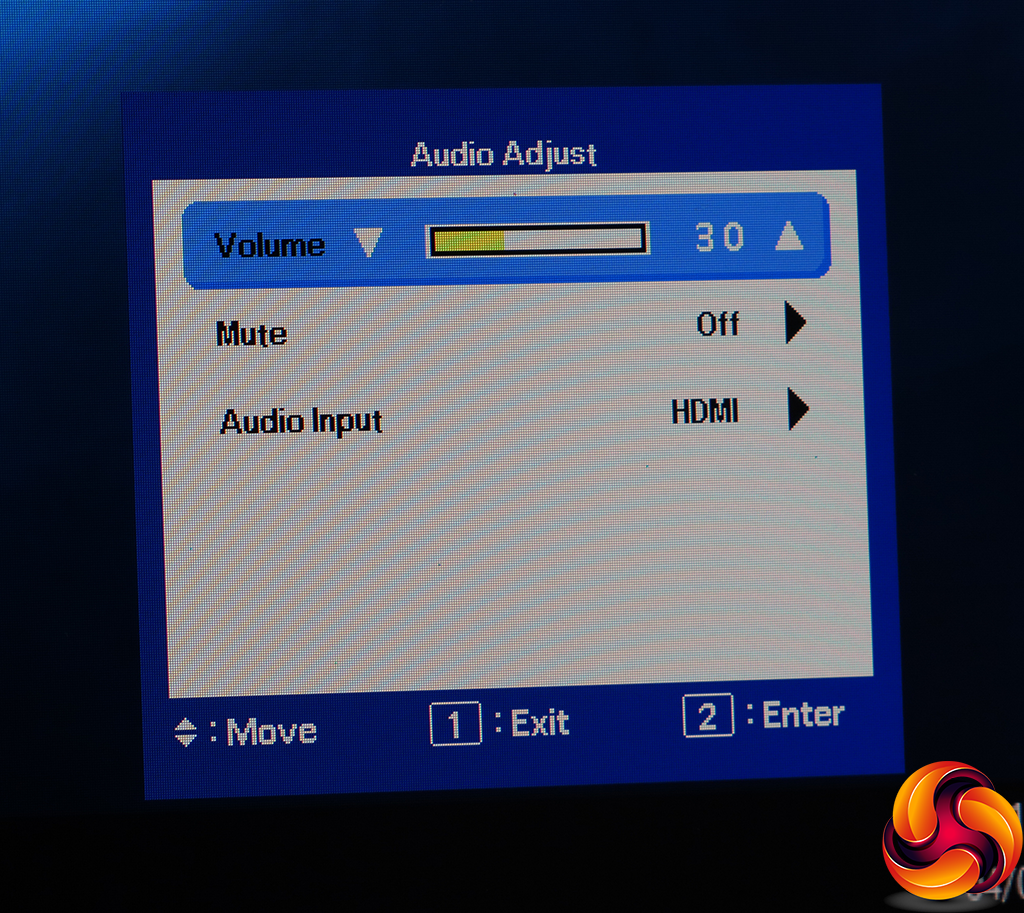
Whichever volume control you press (+ or -), this menu appears, so you can adjust the sound level. However, you can also use the arrow buttons to select the mute control, or change the audio input from the default (which will be the same as the current video input).
This isn't the most aesthetically pleasing OSD we've seen, sitting clearly on the utilitarian end of functional.

The button marked 2 calls up an input list, so you can choose manually if you have multiple sources attached.
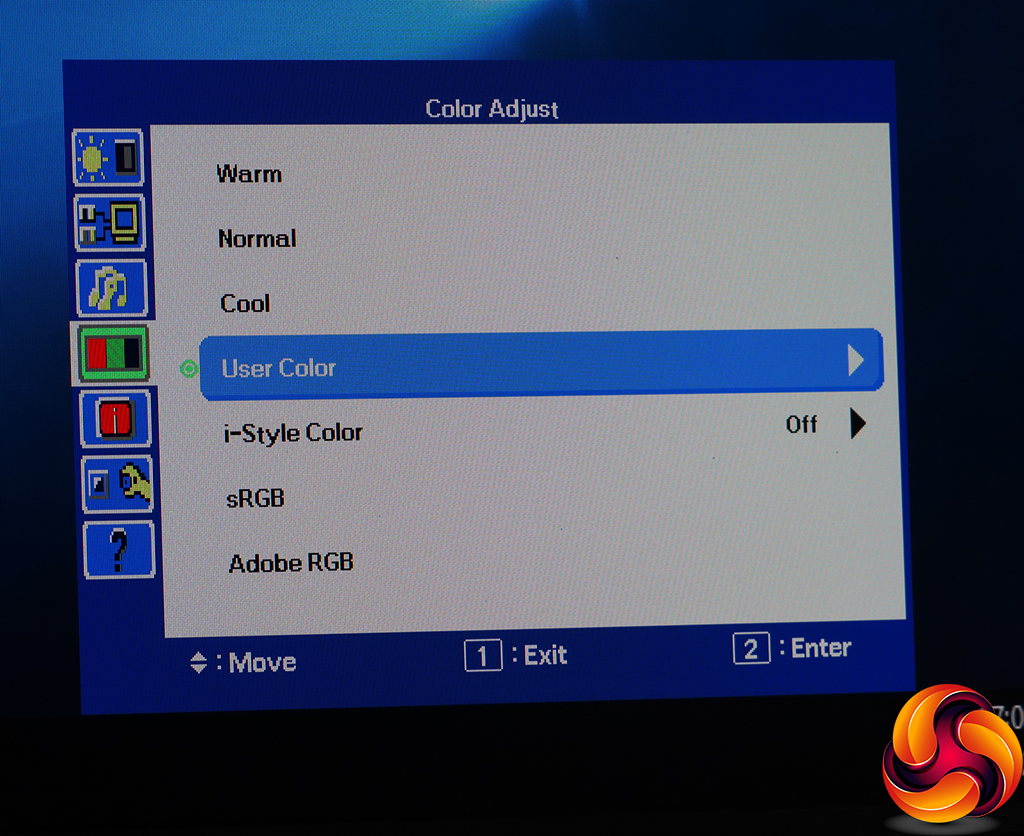
Pressing the “up” button gets you straight into the User Color section, where you can adjust RGB values individually.
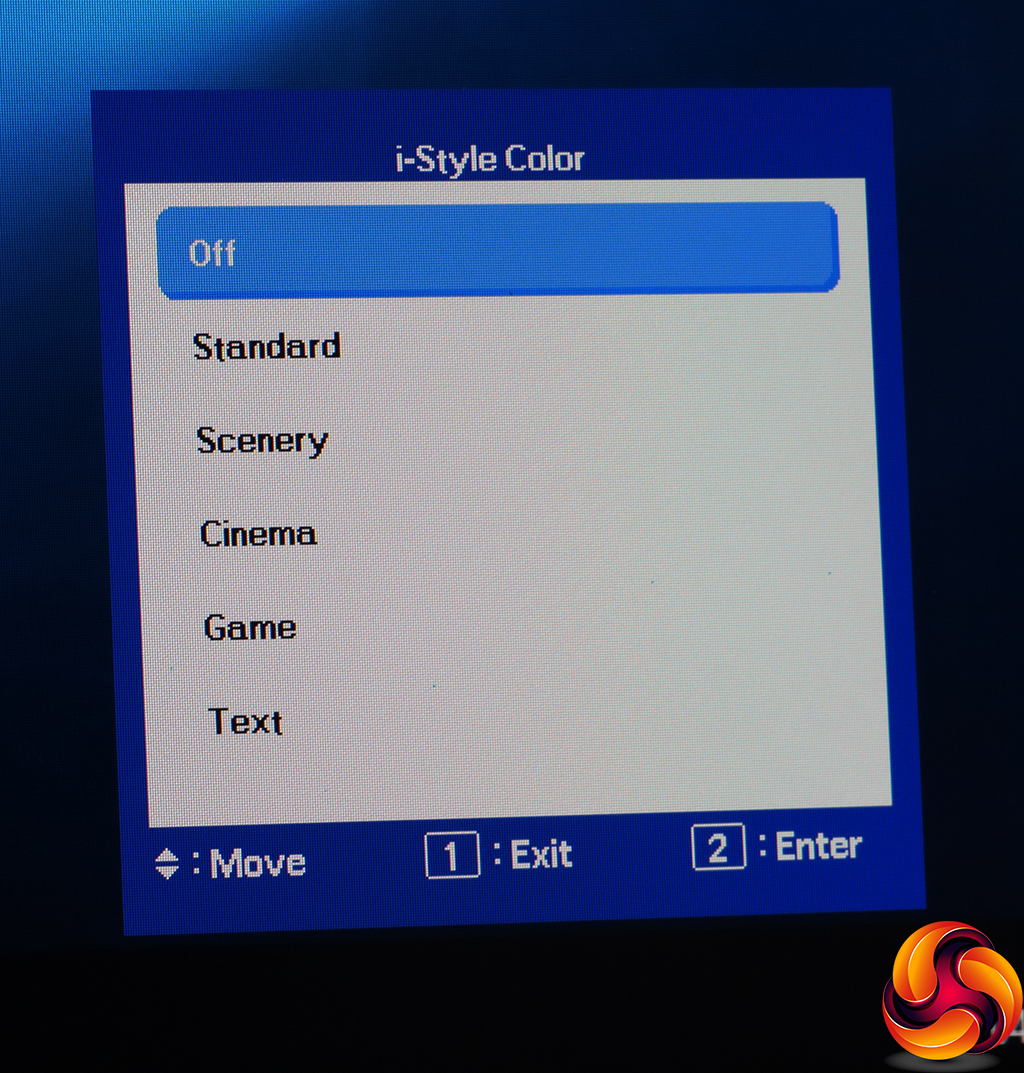
The “down” button calls up the i-Style Color OSD presets, which include Standard, Scenery, Cinema, Game and Text.
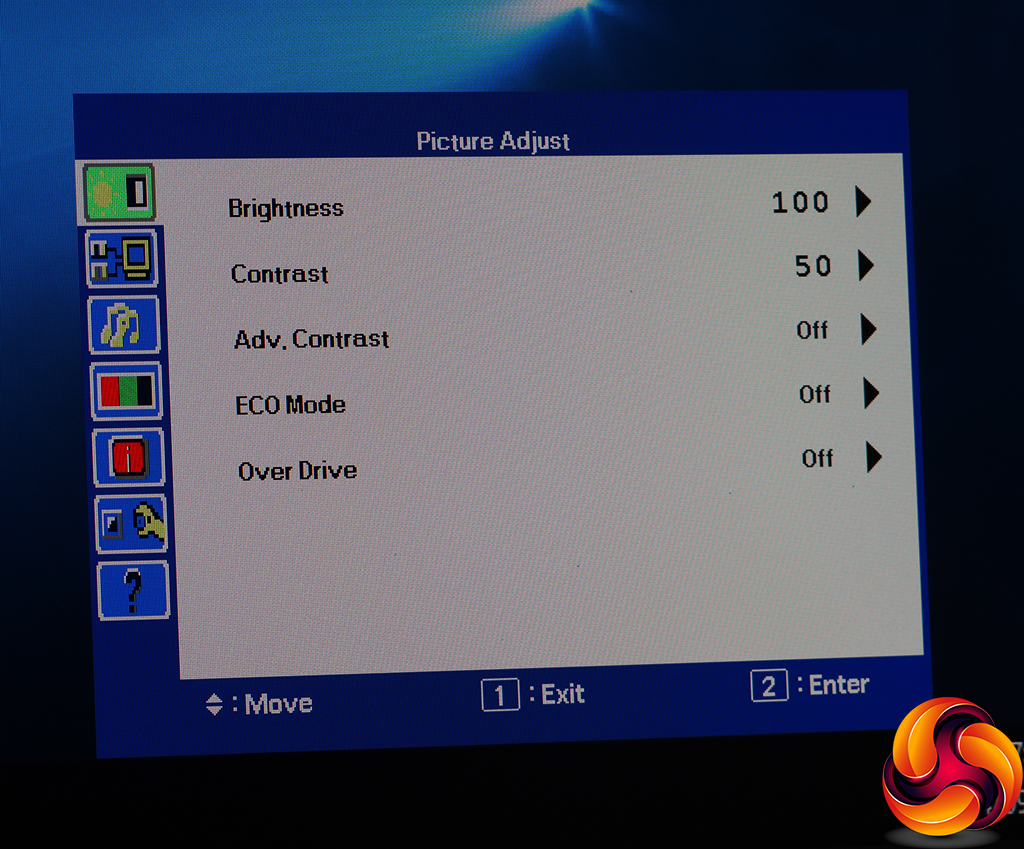
The left-most button, labelled “1”, calls up the main menu with the first Picture Adjust section highlighted. This provides control over brightness and contrast, plus the ability to turn on Advanced Contrast. The latter adjusts the backlight to create a greater perceived contrast, so you can't change brightness manually in this mode. The ECO Modes lower the backlight to save power, and the OverDrive option improves pixel response or reduces it for better quality, with settings ranging from -2 to +2 in single steps.
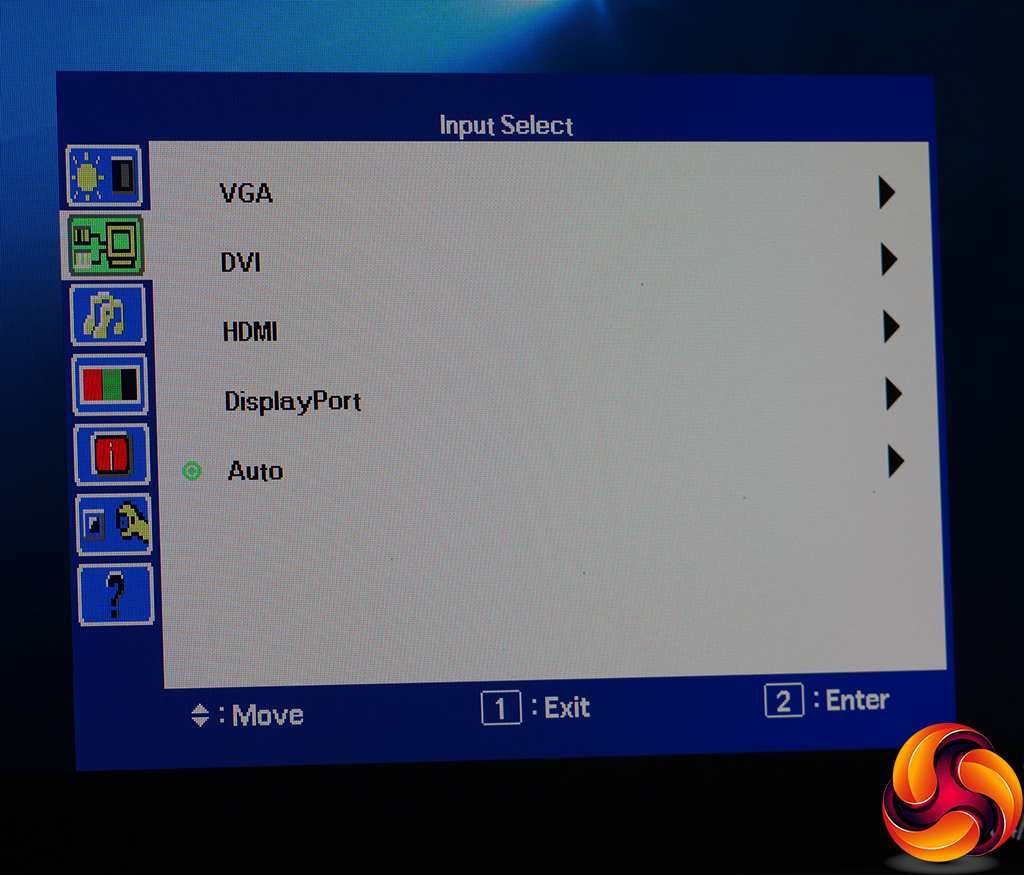
The next entry on the full menu list is another route to changing the video input manually.
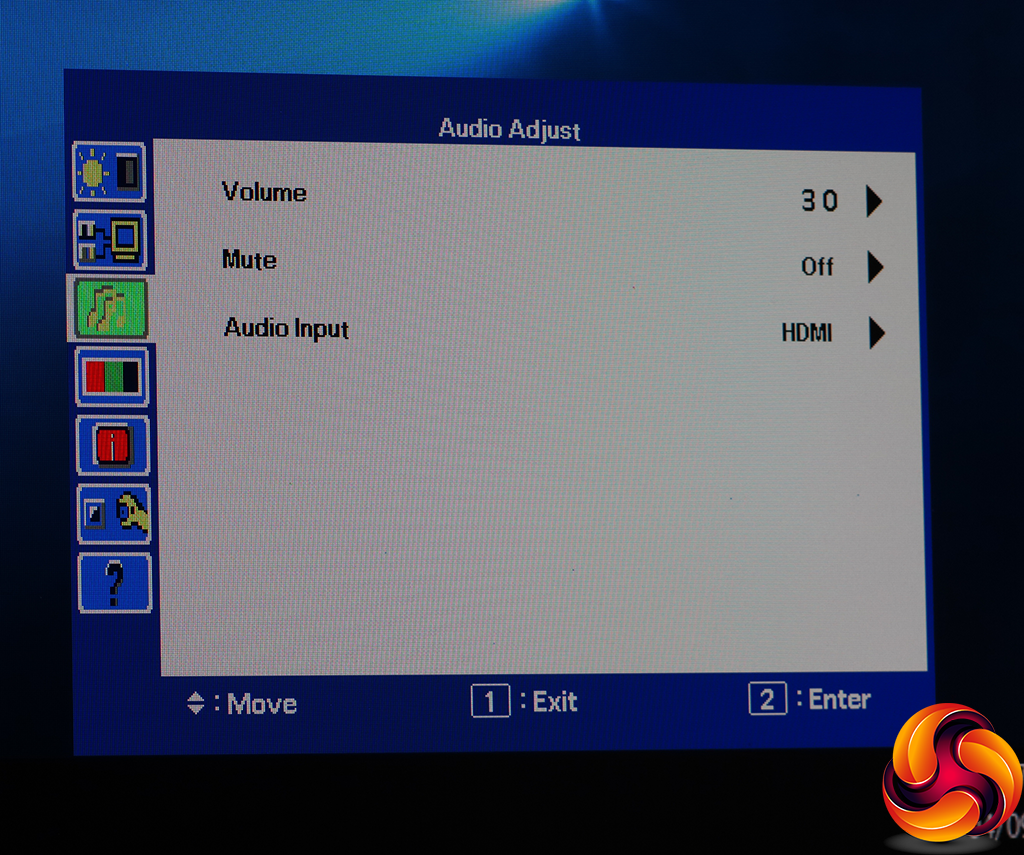
You can access the Audio Adjust submenu via the main menu as well.
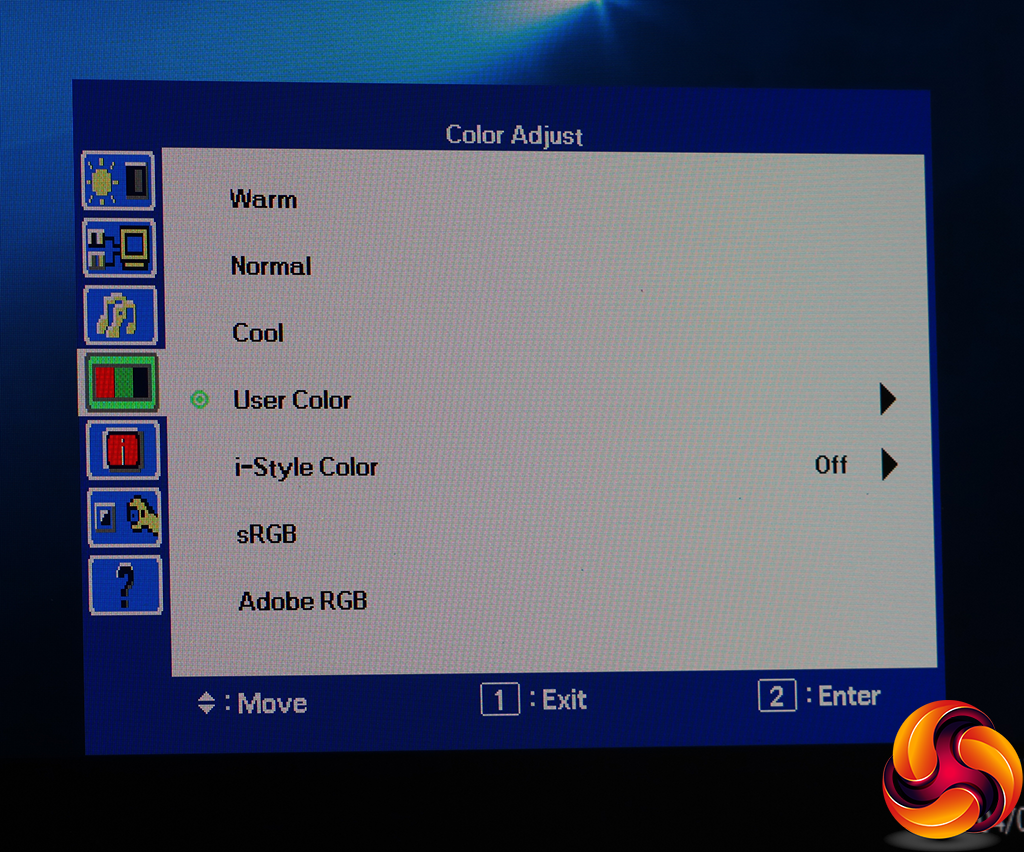
The Color Adjust menu provides temperature presets including Warm, Normal, Cool, sRGB and Adobe RGB, plus access to the User Color and i-Style Color options we described already.
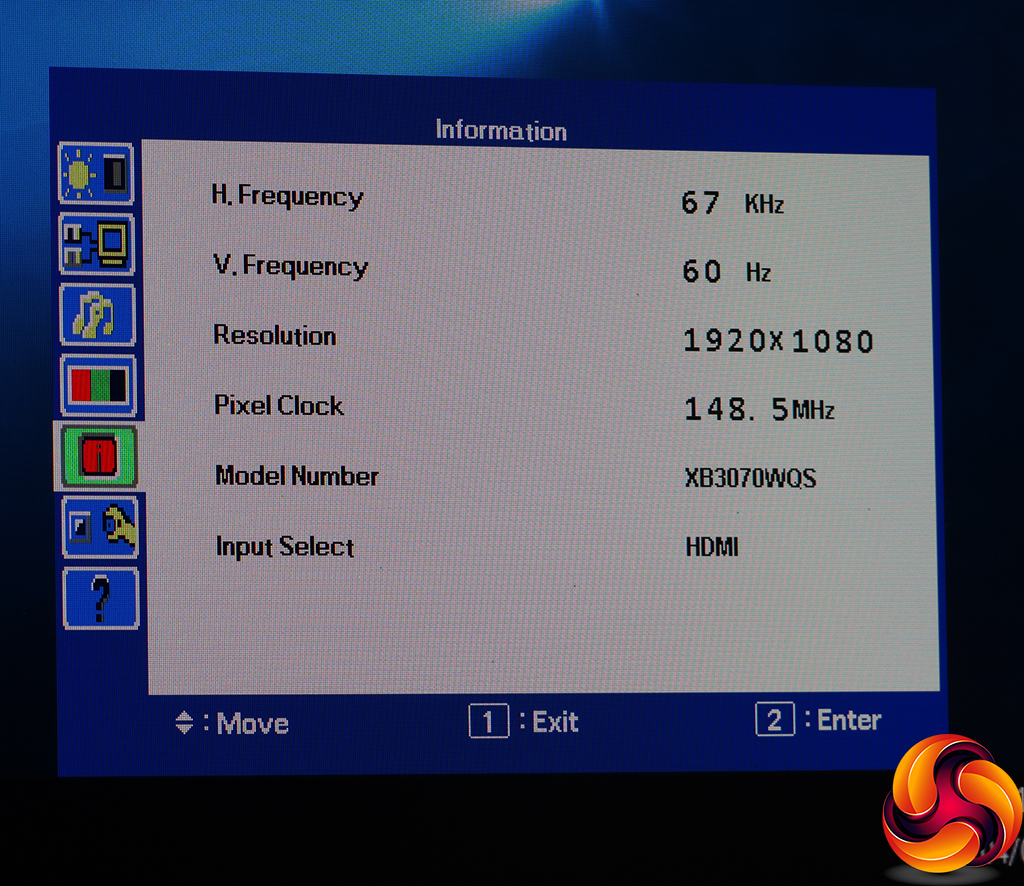
The Information panel merely tells you the current screen frequencies, resolution and input, without the option to change anything.
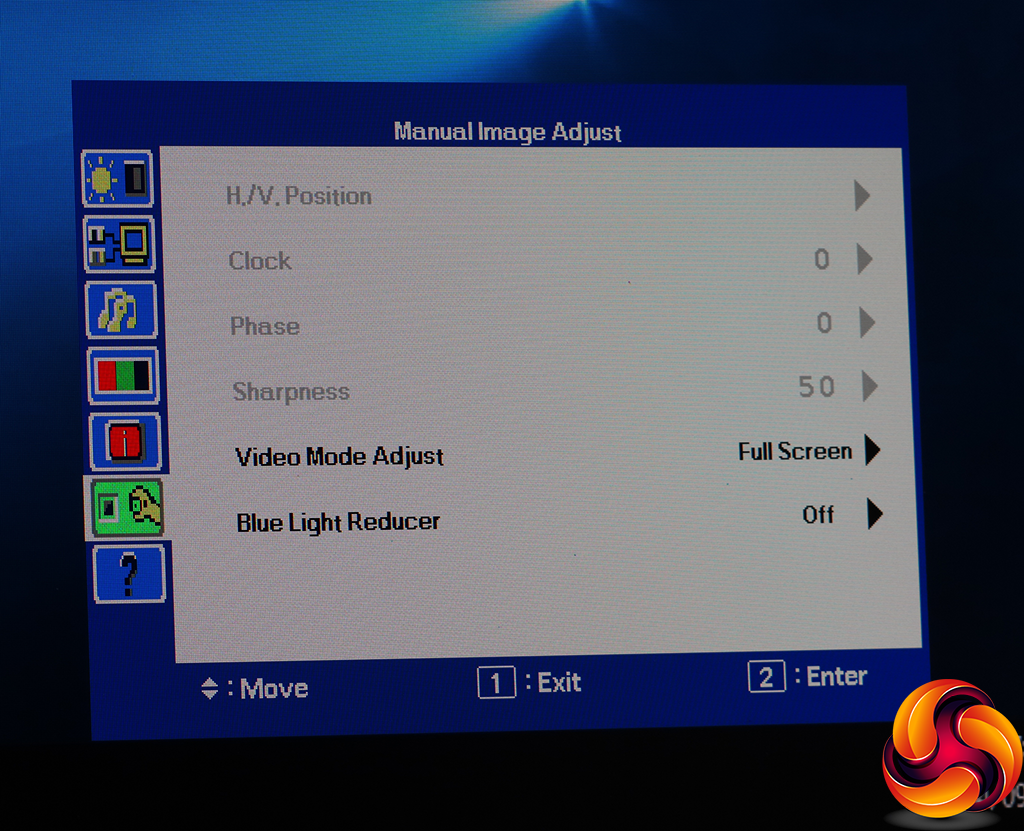
Most of the Manual Image Adjust options are greyed out with a digital input. If you're not running a native resolution, you can choose whether to expand the input signal to full screen, display it with the correct aspect ratio, or simply a pixel-by-pixel window. There's also a Blue Light Reducer to prevent eyestrain, with three levels available.
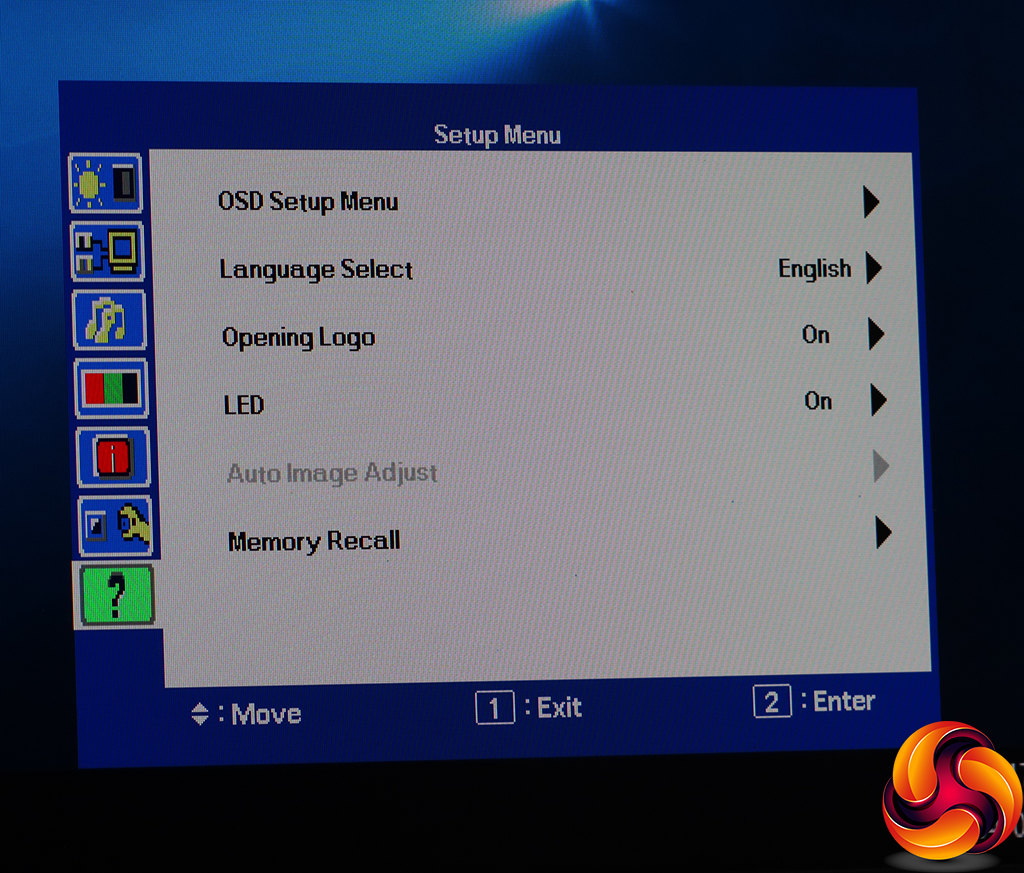
The final menu option provides various options for how the OSD is displayed and whether or not the LED power light on the front is enabled.
Overall, the OSD is very rudimentary in appearance and not packed with a huge range of features, but the colour presets and manual adjustments are easily accessed, which are the most likely options for you to need access to in a professional screen. The only notable omission is control over gamma. Even more important, however, is performance. So let's turn to this aspect next.
Our main test involves using a DataColor Spyder Elite 5 Colorimeter to assess a display’s image quality. The device sits on top of the screen while the software generates colour tones and patterns, which it compares against predetermined values to work out how accurate the screen is.
The results show –
- A monitor’s maximum brightness in candelas or cd/m2 at various levels set in the OSD.
- A monitor’s contrast ratio at various brightness levels in the OSD.
- The brightness deviation across the panel.
- The black and white points.
- The colour accuracy, expressed as a Delta E ratio, with a result under 3 being fine for normal use, and under 2 being great for colour-accurate design work.
- The exact gamma levels, with a comparison against preset settings in the OSD.
We first run this test with the display in its default, out-of-the-box state, with all settings on default. We then calibrate the screen using the Spyder software and run the test again.
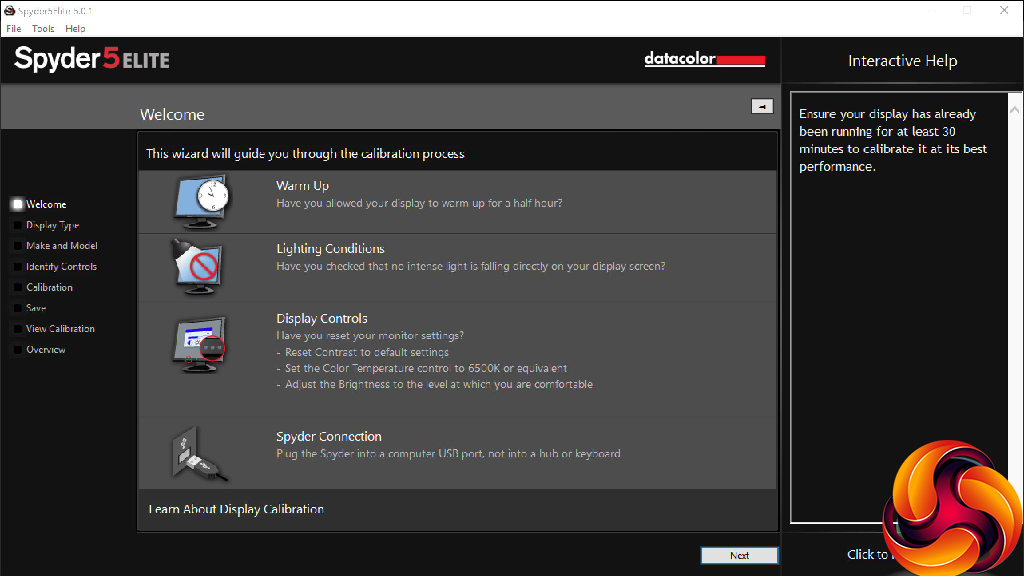
We always test the display subjectively on the Windows desktop, using it for general tasks such as browsing and word processing, and with games as well, even if the display is not intended solely for that purpose.
We pay careful attention to any artefacts, ghosting or motion blur, and enable any gaming-specific features, such as adaptive-sync settings like G-Sync or FreeSync, using a compatible graphics card in our test PC.
We performed the quality tests on the XB3070WQS at its native 2,560 x 1,600 resolution in the default mode using the DisplayPort connection. Our test system was equipped with an AMD Radeon Vega Frontier Edition graphics card.
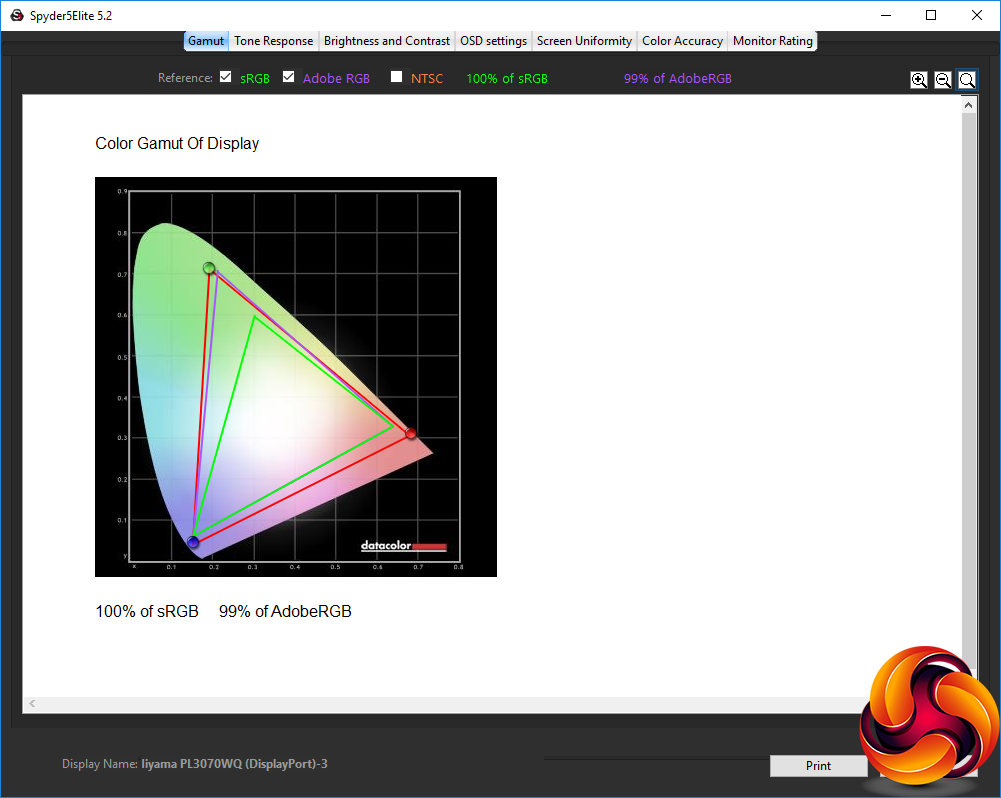
Things get off to an impressive start with the gamut, which stretches to 100 per cent of sRGB and 99 per cent of AdobeRGB. This bodes well for professional work, where being able to see the full range of colour is essential.
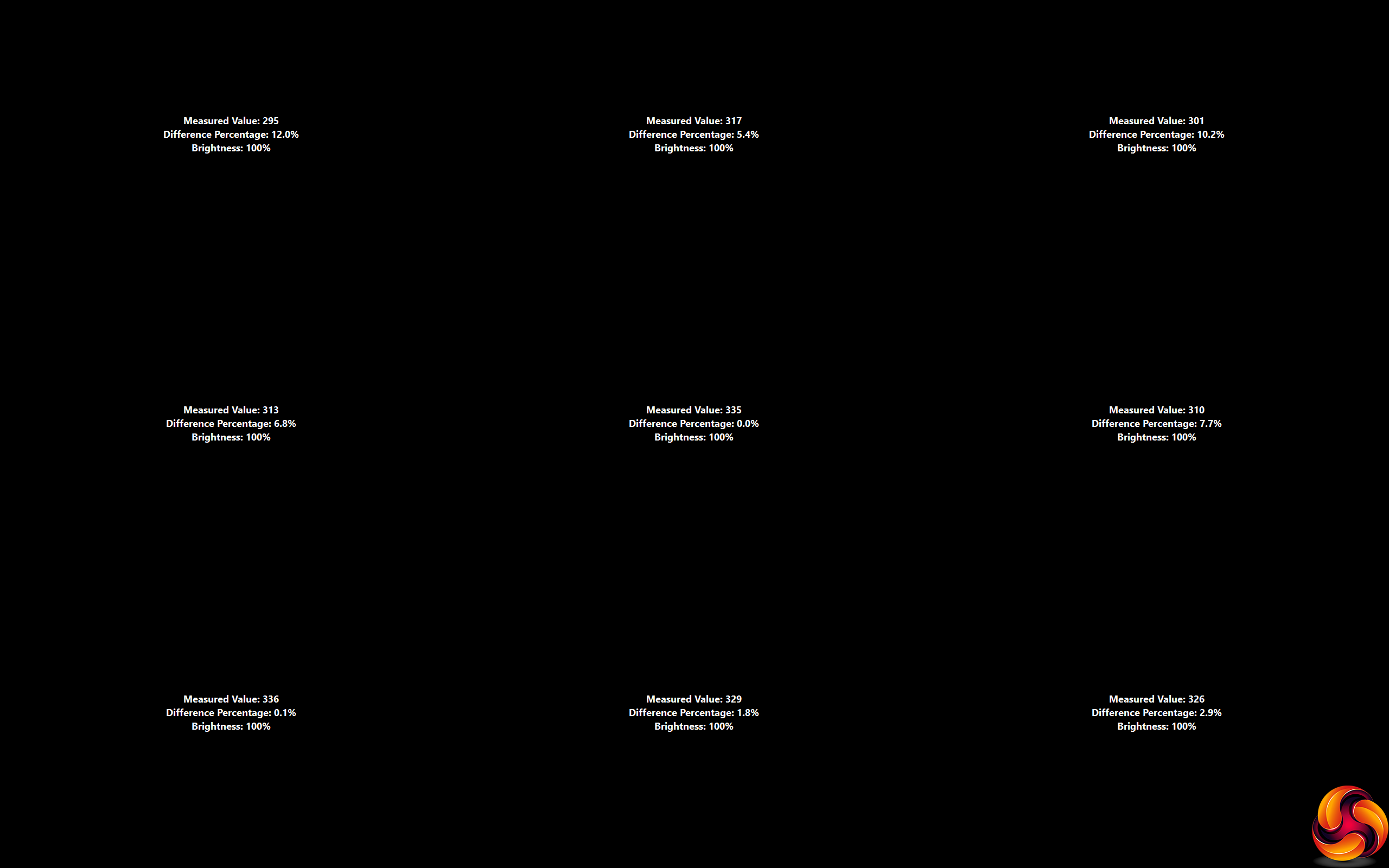
However, there is quite a difference in brightness at the top left and right corners of this screen.
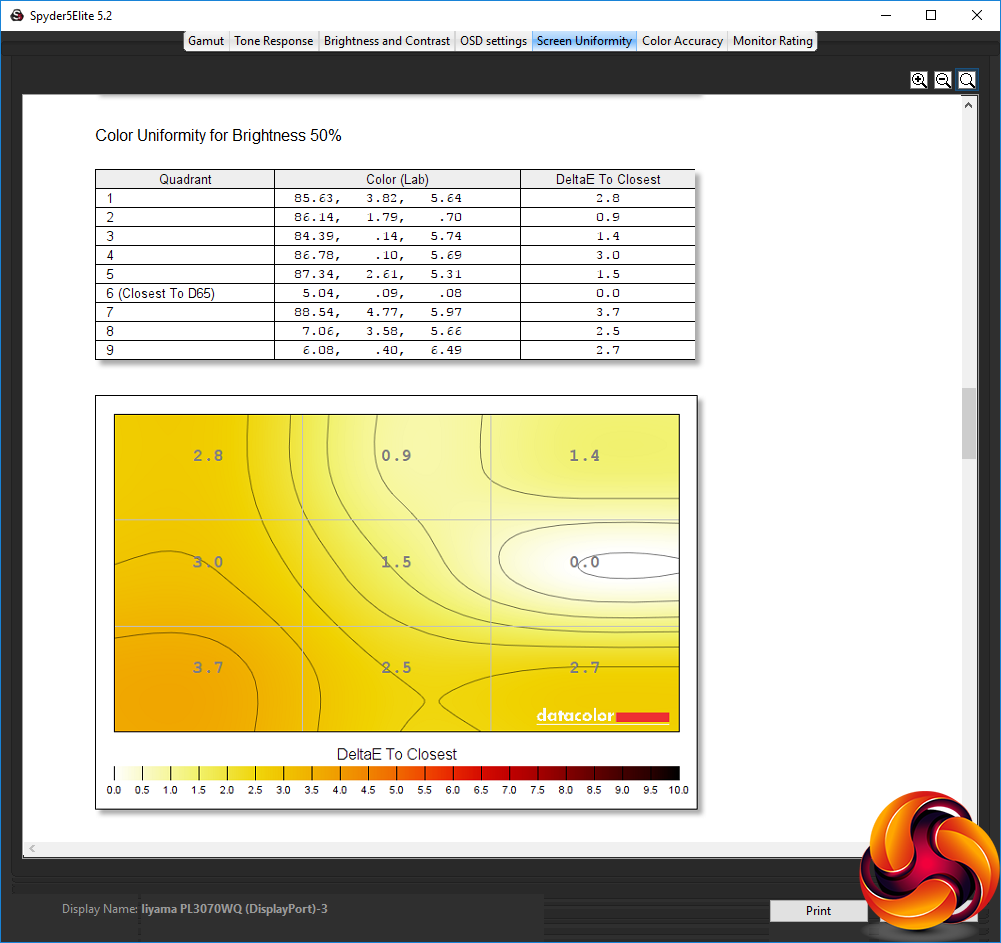
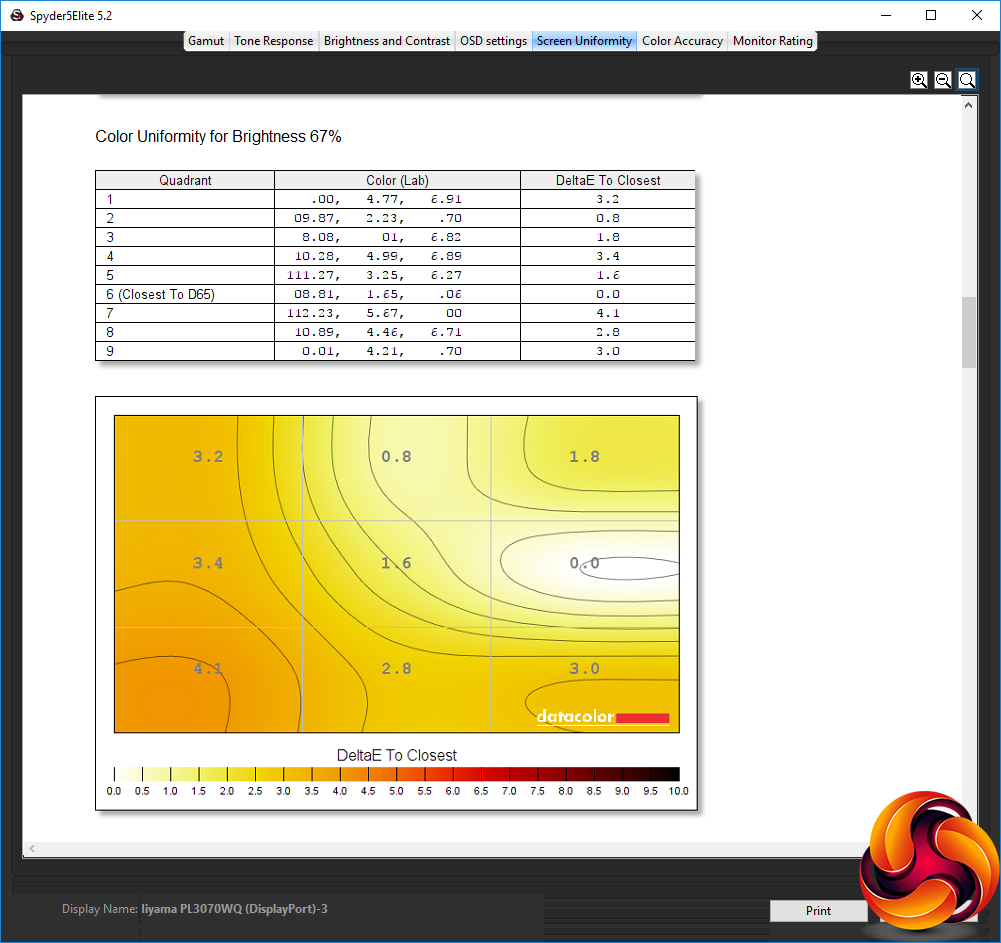
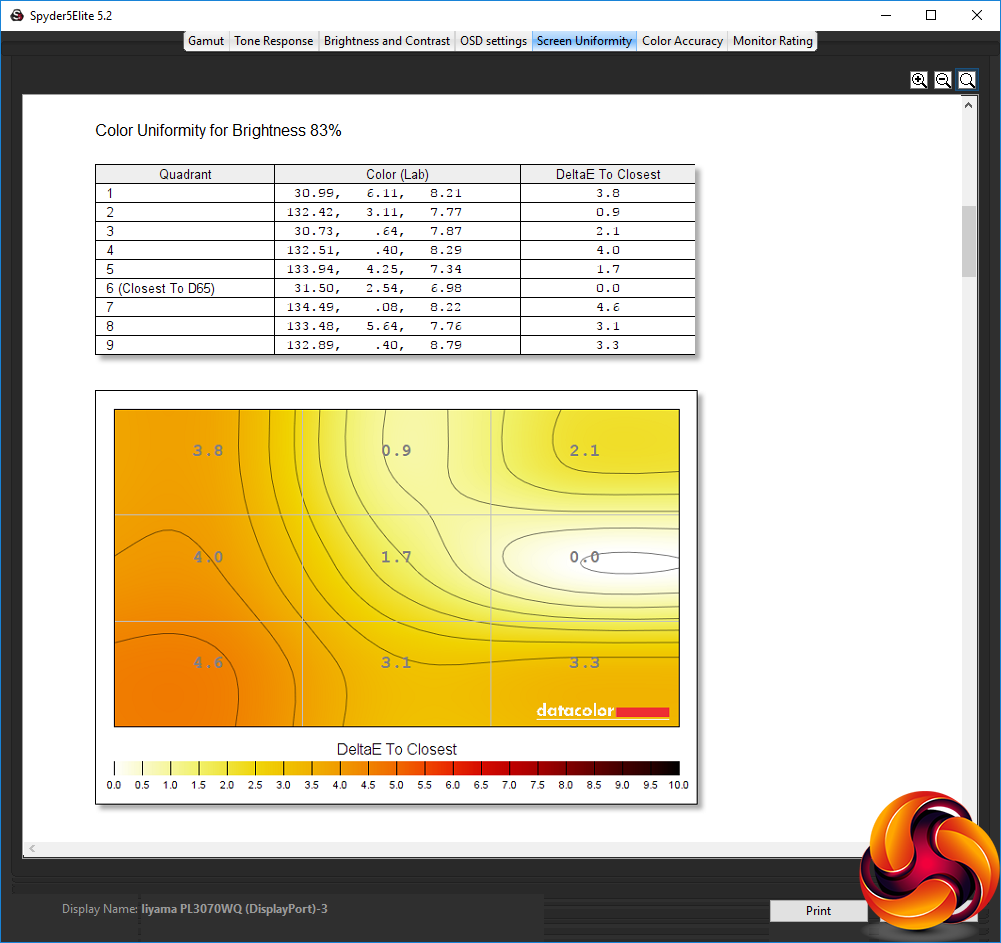
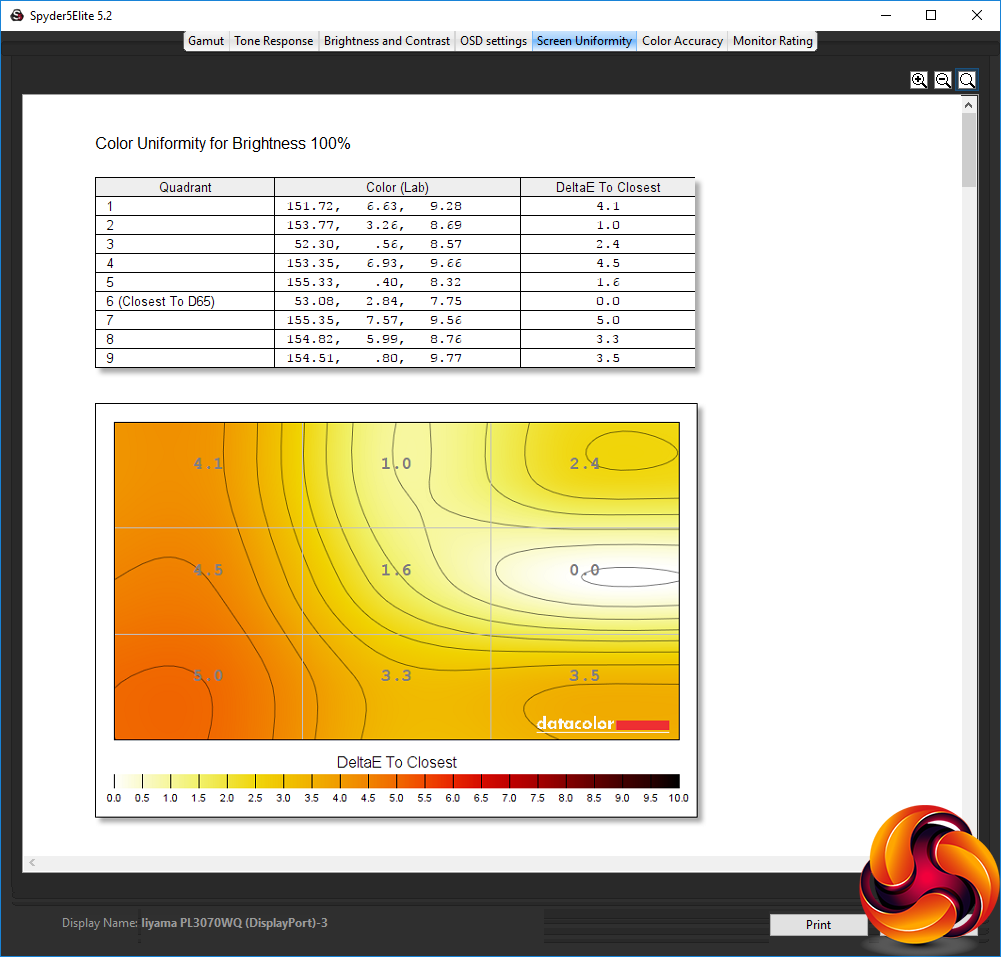
The colour uniformity improves with lower brightness levels. But at 100 per cent brightness there is some variation down the left-hand side of this panel.
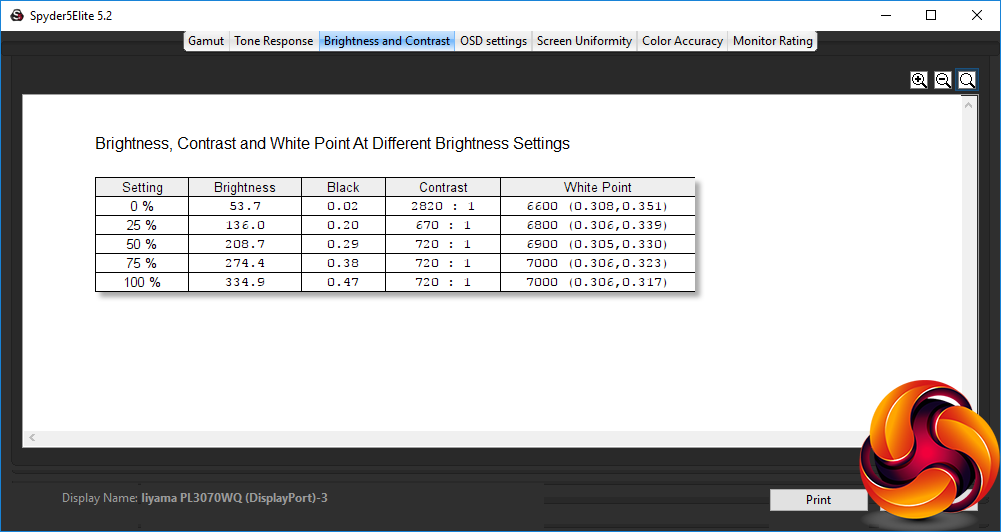
Brightness goes up uniformly as the percentage setting increases. It doesn't quite get to the 350cd/m2 rating, but 334.9cd/m2 is satisfyingly bright and most of the time you will probably want to use a lower setting, even though 100 per cent is the default. The black level also goes up quite a bit as the brightness increases, but contrast settles down to a consistent 720:1 at 50 per cent brightness and above.
The default contrast setting is 50 per cent. The white point also increases a little with higher brightness, although not by much above 25 per cent brightness. The 7000K white point at 75 per cent brightness and above is a little cool, but not excessively so.
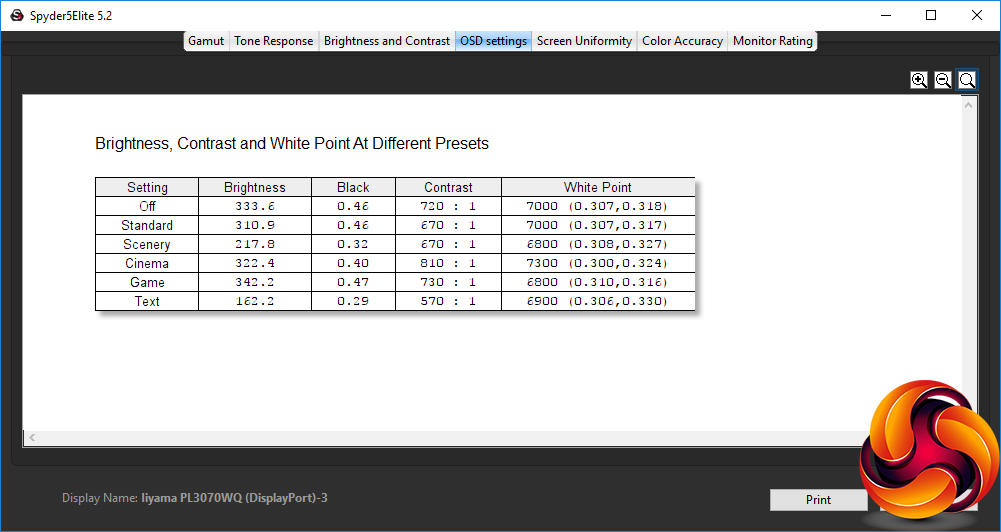
The XB3070WQS doesn't have a huge range of presets. The Standard option doesn't differ too much from the default, with a slightly lower 310.9cd/m2 brightness, the same black level, a slightly lower 670:1 contrast, and the same 7000K white point.
The Scenery option uses the same contrast and white point, but a lower 0.32 black point and lower 217.8cd/m2 brightness. The Cinema mode goes in the other direction, with a high 322.4cd/m2 brightness, high 810:1 contrast, and cool 7300K white point.
The Game mode is even brighter at 342.2cd/m2, 730:1 contrast, and with a warmer 6800K white point. The Text mode, as is usual for settings aimed at lengthy onscreen reading sessions, is the least bright at 162.2cd/m2, with the lowest 0.29 black point, lowest 570:1 contrast, and a slightly warmer 6900K white point. Overall, there is a decent variation between the preset options, and the scenarios represented cover the main tasks you might use this screen for.
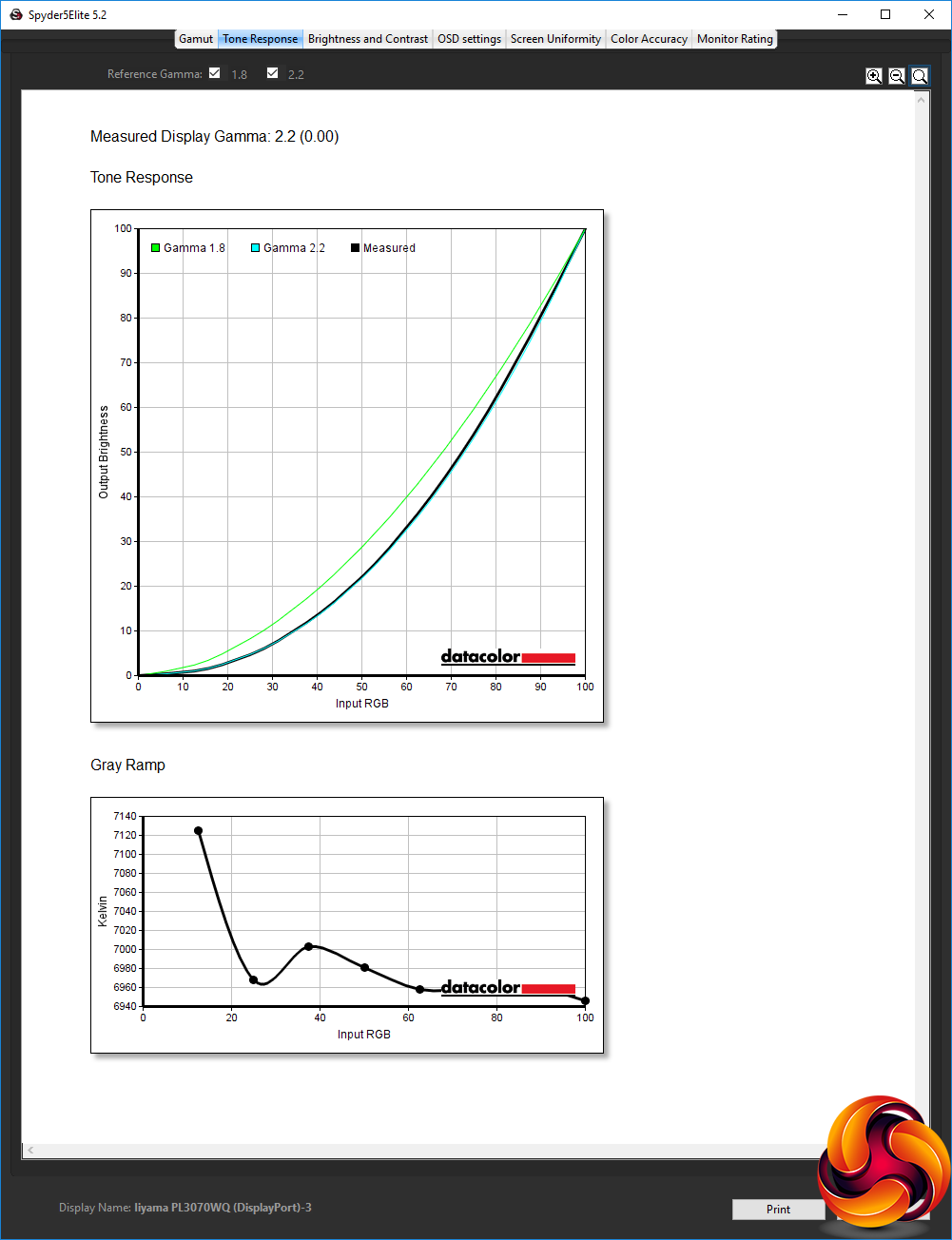
It's a major omission that the XB3070WQS doesn't have gamma settings, but at least its default is bang on 2.2, which is usually considered the middle gamma value.
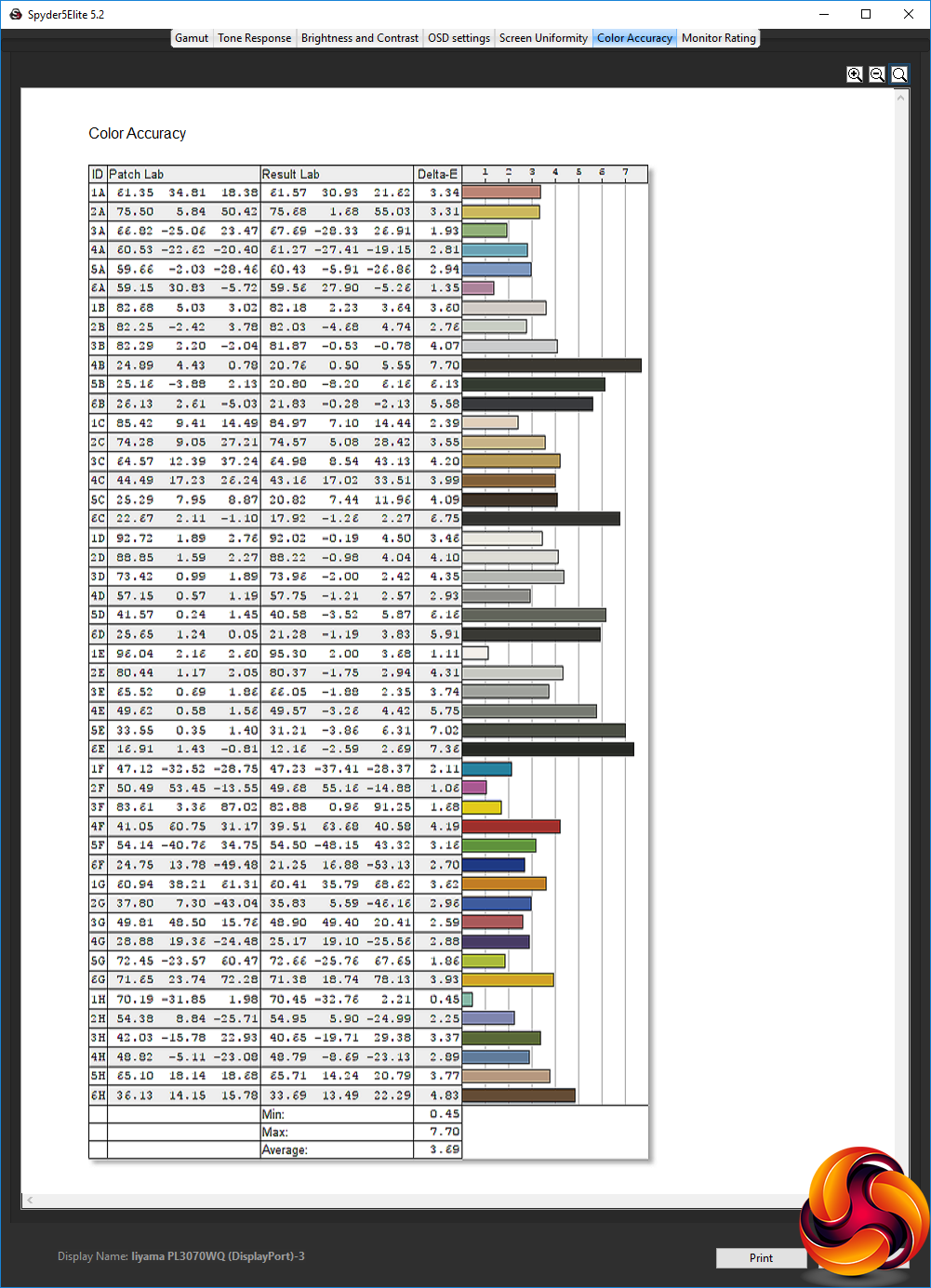
However, the biggest surprise is that, at its default settings, the XB3070WQS colour is not that accurate. The average deviance of 3.69 isn't terrible, but we would have expected more from a premium professionally-oriented screen.
This made the panel a prime candidate for calibration, and our usual testing procedure particularly relevant in this case. So we used the Spyder to calibrate the screen and retested a few key areas.
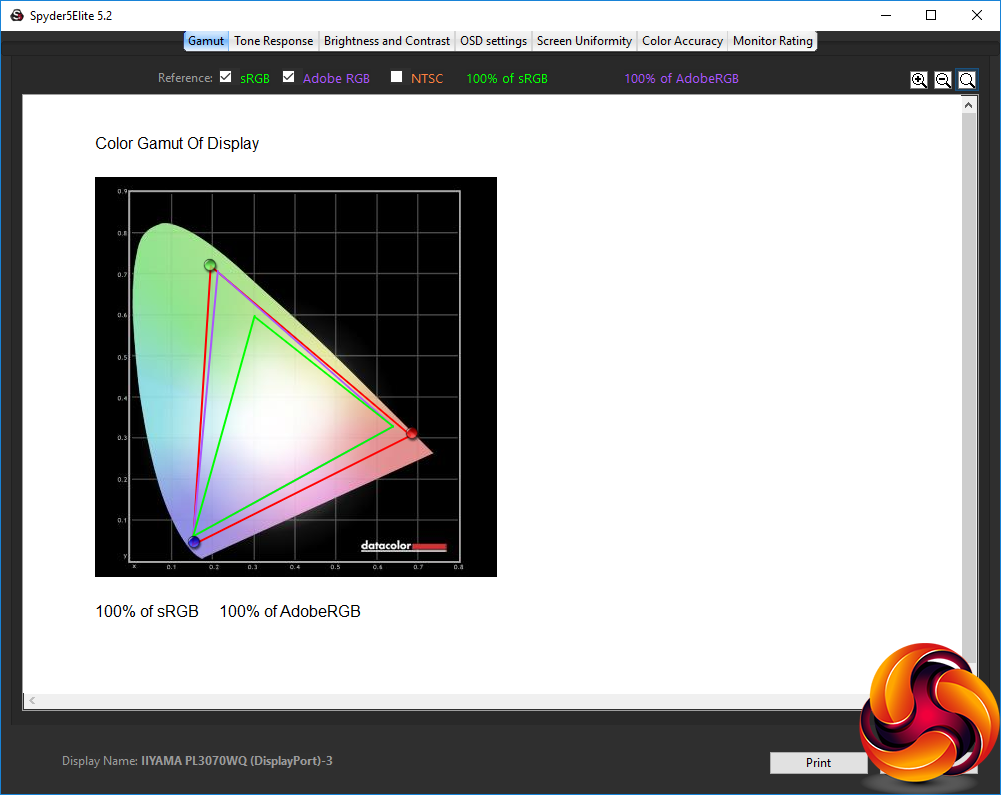
The gamut doesn't usually change with calibration, and the XB3070WQS was already amazing in this area. But after calibration, it was even more amazing, with 100 per cent of both sRGB and AdobeRGB – very reassuring indeed.
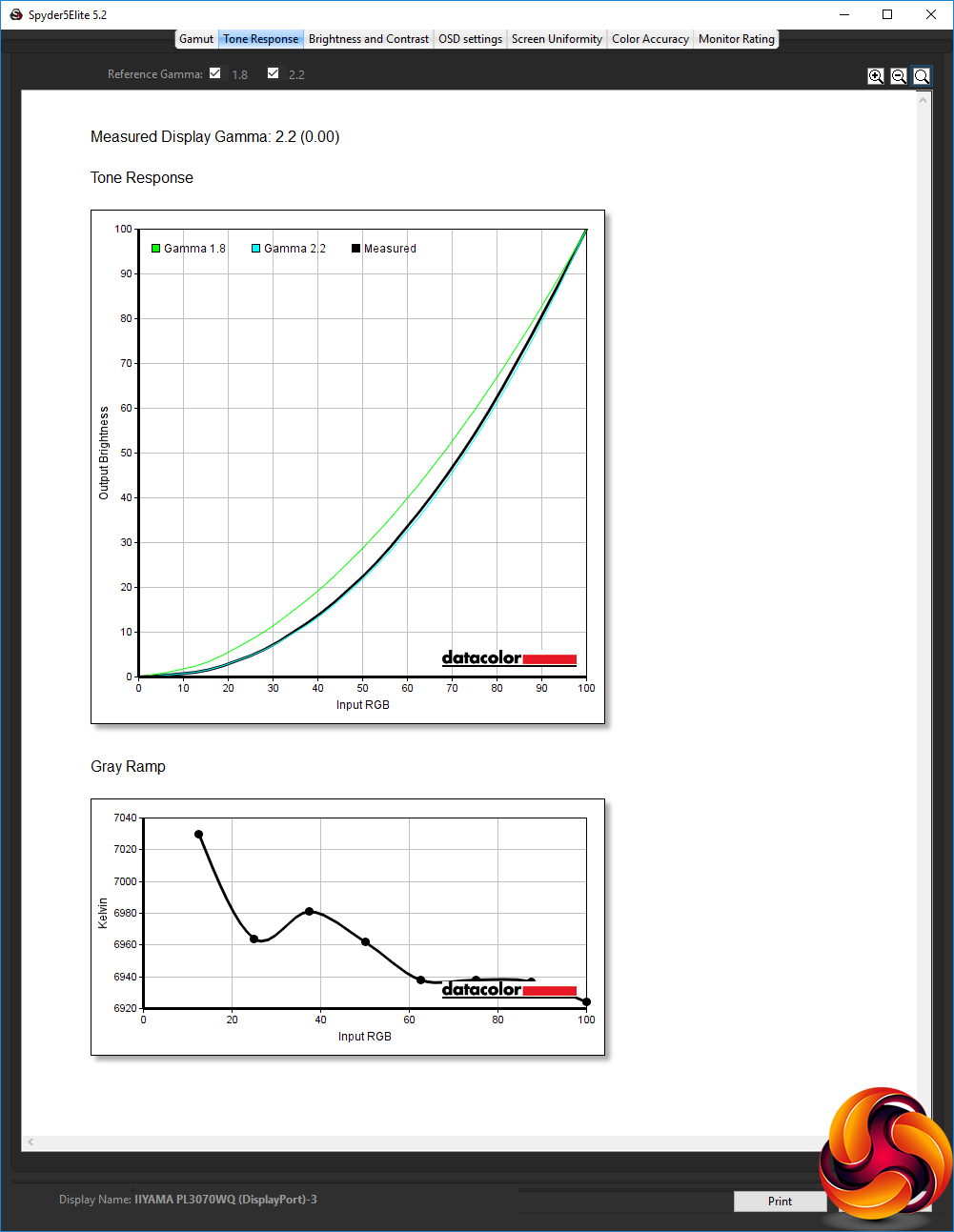
The single gamma setting hadn't changed at all, however, remaining at 2.2.
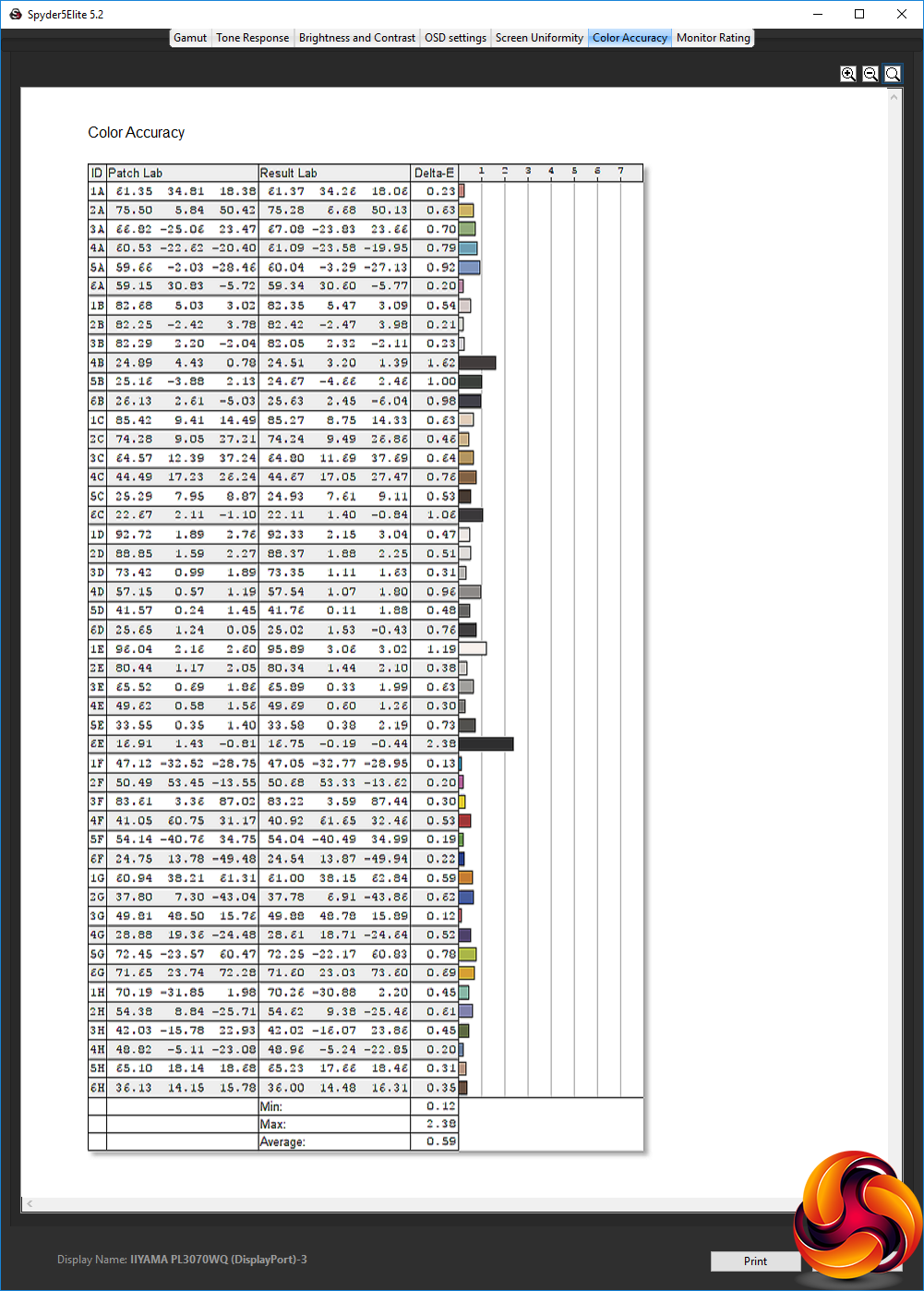
It was a huge relief to see how much calibration improved this screen's colour accuracy. From a decidedly disappointing 3.69 average deviance, the score was now just 0.59, which is the best we have seen.
In other words, you do need to calibrate this screen to get the most out of it, and a factory calibration might have been a sensible move from Iiyama. But nevertheless, the high colour accuracy you can get after calibration and the excellent gamut mean that this is very much a screen that will excel for professional work.
After testing and calibration, we tried a few professional tasks such as image editing with Photoshop and video editing with Adobe Premiere, and this panel was a joy for both activities.
The ProLite XB3070WQS maintains Iiyama's image as a vendor of premium monitors. The OSD design is a bit of a throwback to the 1990s, but it has an adequate level of control. The gamut and colour accuracy after calibration are spot on for design and content creation work, whilst the 2,560 x 1,600 resolution and 16:10 aspect will provide plenty of detail for working with 2K / Full HD assets.
It's not all good news, though. A built-in USB hub would have been handy, and the fact that the HDMI connection is not 1.4-level and therefore doesn't support the full screen resolution as a result is a disappointment. This is also one screen where the ability to rotate into portrait mode could have been a handy option to have in the arsenal.
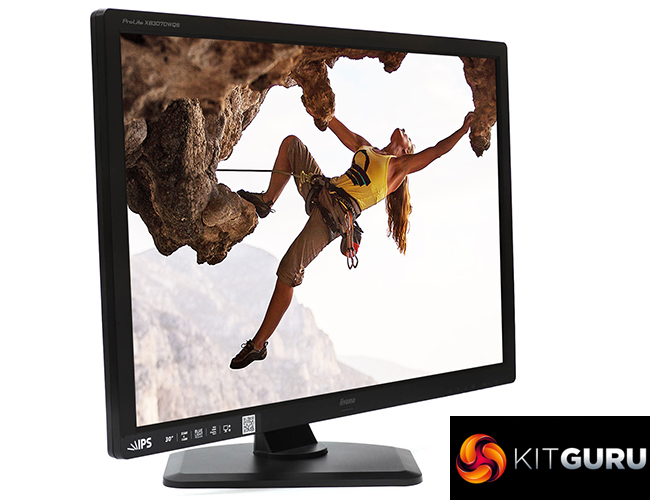
This is not a cheap screen, coming in at around £680, but that's not extortionate for a professional screen – compared to the £2,000 price of the ASUS ProArt PA32UC. The latter obviously has some very special abilities that warrant the huge expense, but as a more general-purpose professional screen, the XB3070WQS fits the bill nicely, offering the dependable quality someone who values accuracy in their design work will need.
The Iiyama ProLite XB3070WQS is available from Amazon for £687.78.
Pros:
- Excellent gamut.
- Excellent colour accuracy when calibrated.
- 16:10 aspect provides some useful extra pixels.
- Not hideously expensive (for a professional screen…).
Cons:
- Calibration is essential.
- HDMI port only supports 1,920 x 1,080 resolution.
- No gamma options.
- No USB hub.
KitGuru says: The Iiyama ProLite XB3070WQS is a very capable professional screen, although you do need to calibrate it to achieve the amazing colour accuracy the panel is capable of.