KitGuru KitGuru.net – Tech News | Hardware News | Hardware Reviews | IOS | Mobile | Gaming | Graphics Cards


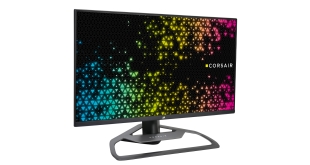
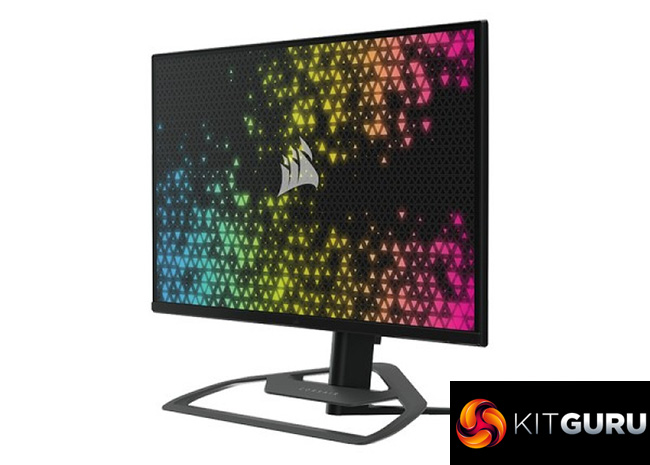
Yes, you did read that correctly. Corsair has indeed come to market with its first ever gaming monitor, dubbed the Xeneon 32QHD165. As monitor naming conventions go, this one is about as good as it gets – it's a 32in 2560×1440 display with a 165Hz refresh rate. It's also using an IPS panel, offering a claimed 3ms G2G response time, alongside the addition of quantum dot technology. It sounds good on paper, but has Corsair really nailed it with their first attempt?
For its first gaming monitor, Corsair hasn't simply slapped its logo onto an IPS panel and called it quits. Instead, the Xeneon 32QHD165 has a few nifty features to take a look at in this review, including iCUE integration, a snazzy cable management solution and a uniquely designed stand. All of that doesn't come cheap however, as the Xeneon will set you back £699.99 here in the UK, or $799 for US buyers. Let's find out if it is worth the cash.
Specification:
- Panel: 32” Diagonal, IPS Quantum Dot, 16×9, Non-Glare, Flicker-Free
- Pixels per inch: 91.8
- Native Resolution: 2560 x 1440 @ 165Hz
- Response Time (MPRT): 1ms
- Response Time (GtG): <3ms
- Display Colors: 16.7M (8-bit RGB)
- Viewing Angles: 178° (H) / 178° (V)
- Peak Brightness: 400 nit (SDR) / 440 nit (HDR)
- Static Contrast Ratio: 1000:1
- HDR Certification: VESA DisplayHDR 400
- Color Gamut (CIE 1976): 98% (DCI-P3), 100% (Adobe RGB), 100% (sRGB)
- Variable Refresh Rate: AMD FreeSync Premium Certified, NVIDIA G-Sync compatible
- HDMI Input: 2x HDMI 2.0
- DisplayPort Input: 1x DisplayPort 1.4
- USB-C Input: 1x DisplayPort 1.4 (USB-C Alt Mode), 15W Power Delivery, USB 5Gbps Data Upstream
- USB-C Upstream Input: 1x 5Gbps USB-C
- USB-A Output: 2x 5Gbps Type-A USB (5V/0.9A *2)
- 3.5mm Audio: Yes, passthrough from video input
- Power Consumption (On): 68W
- Power Consumption (Sleep): <0.5W
- Power Consumption (Off): <0.3W
- VESA Compatibility: 100mm x 100mm
- Dimensions: 732mm x 607mm x 316mm (W x H x D)
- Weight: 9.5kg
- Stand Tilt: -5° / +20°
- Stand Swivel: -30° / +30°
- Height Adjustment Range: 110mm
- AC Adapter: 90W
- Warranty: 3 Years / Zero Dead Pixel
- MSRP: £699.99
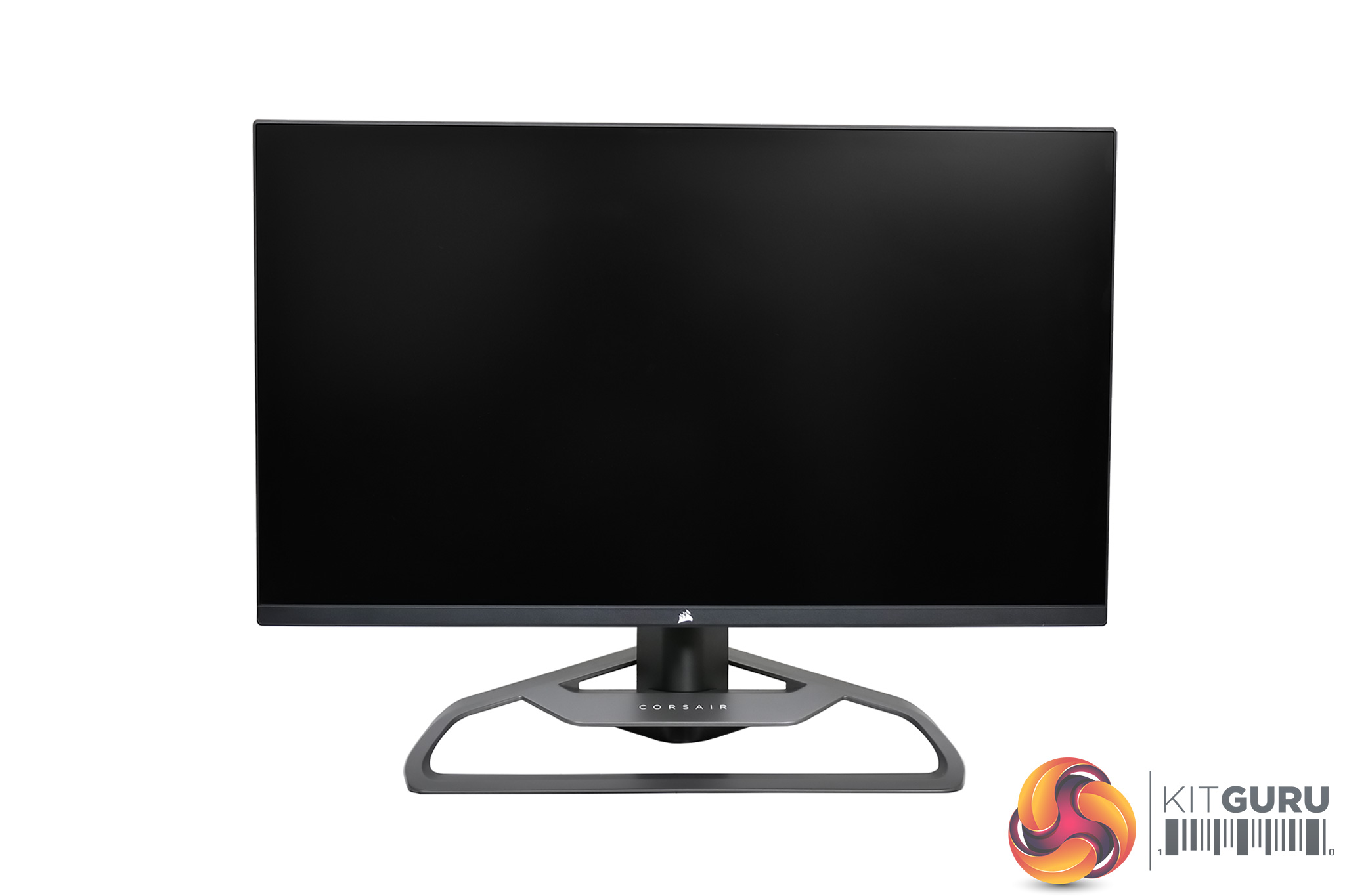
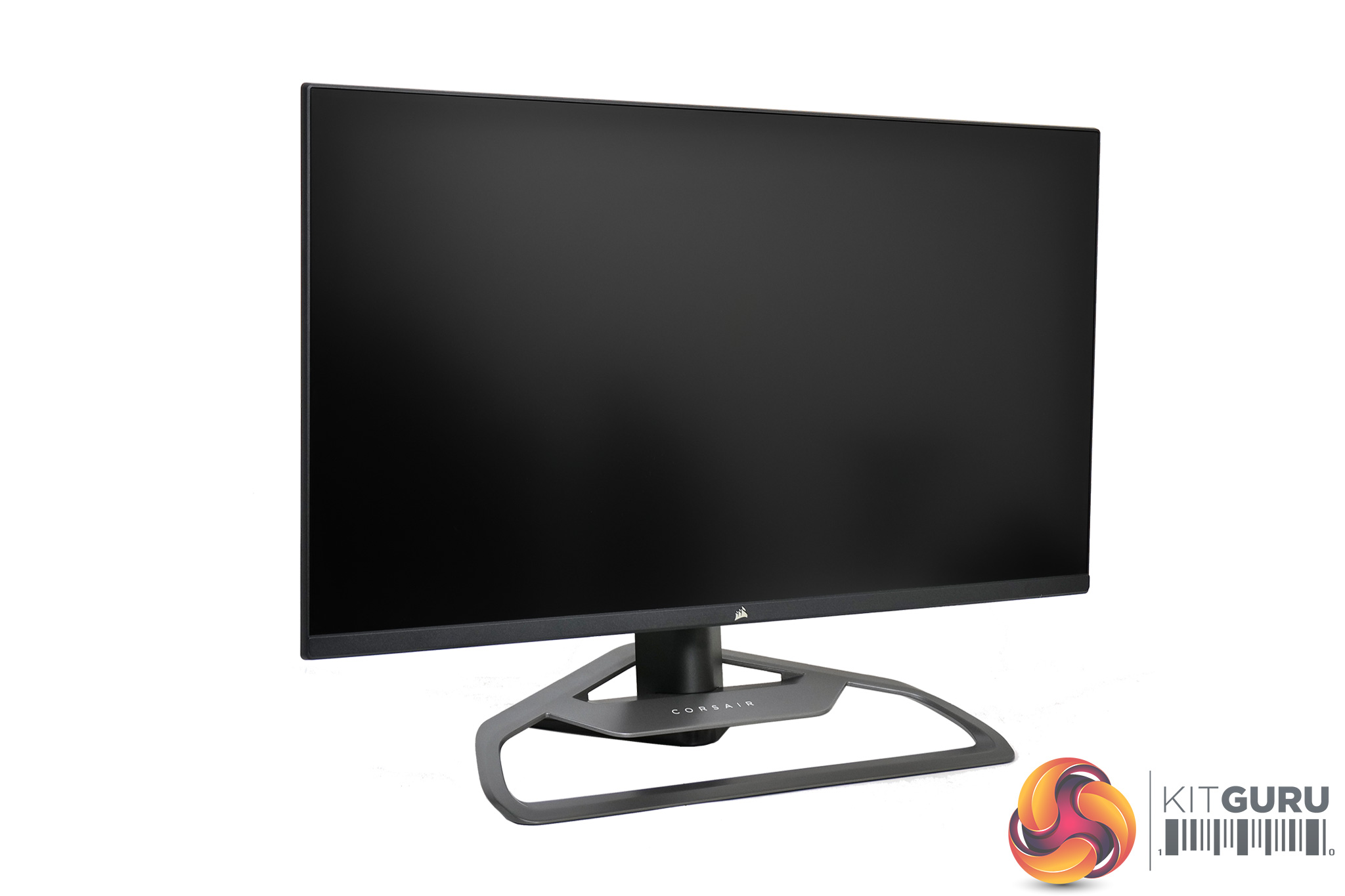
Taking our first look at the Xeneon 32QHD165, we can see Corsair hasn't been shy about making some bold stylistic choices, primarily with the included metal stand – but more on that below.
The panel area itself is fairly conventional but quite sleek overall. It's a 32in diagonal so it's not small, but Corsair has opted for a ‘bezel-less' design, which helps keep things looking nice and trim.
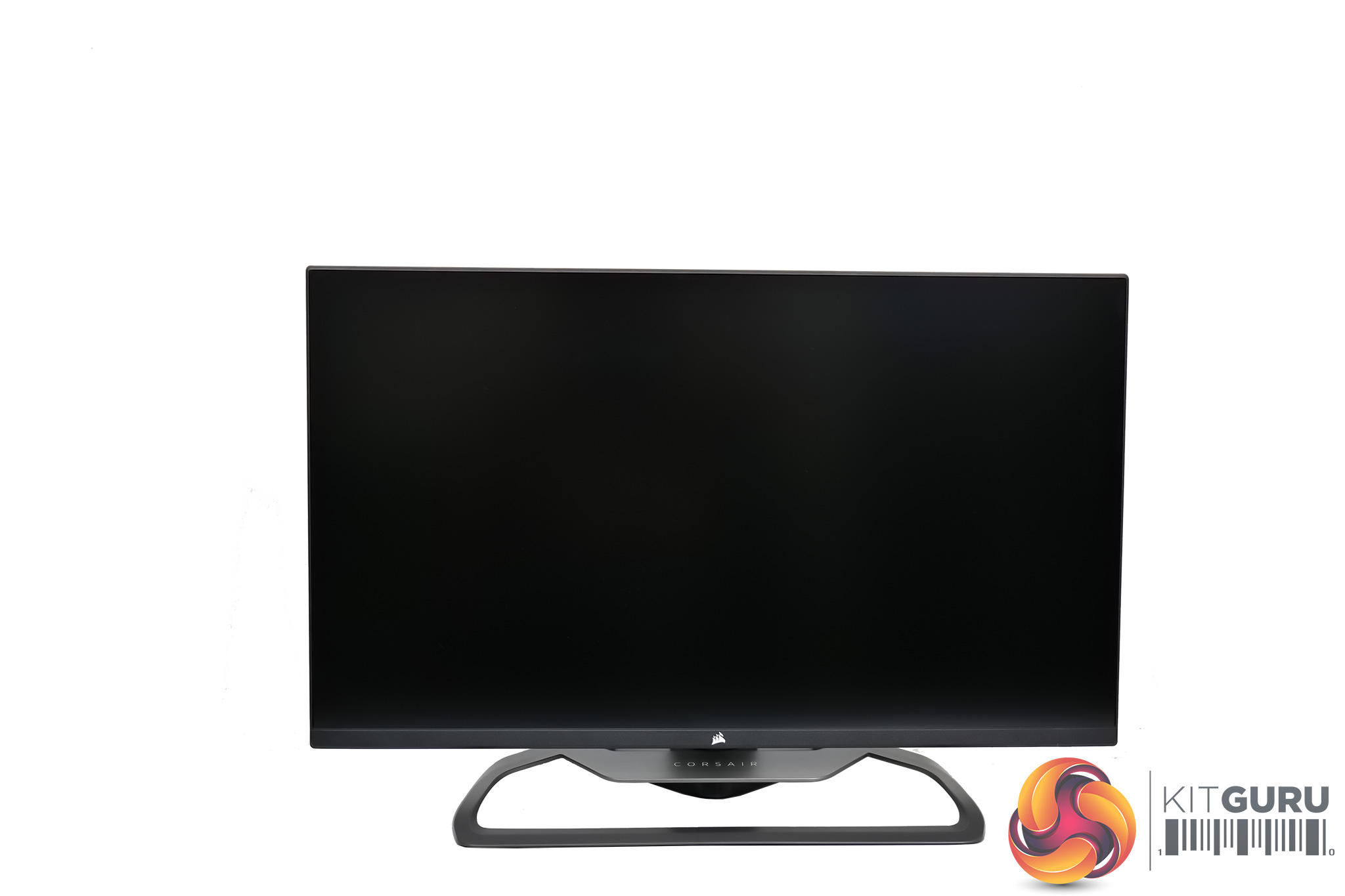
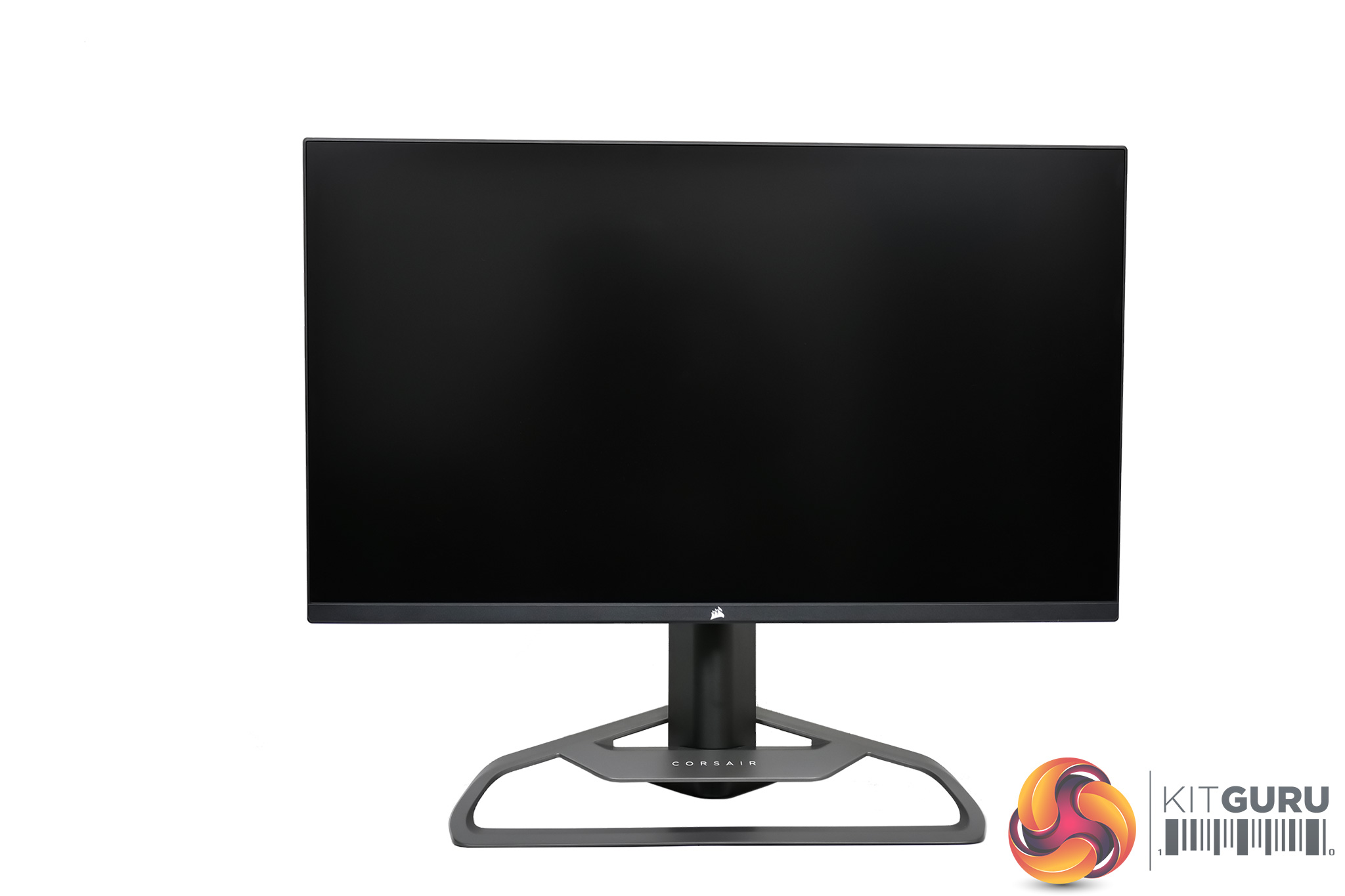
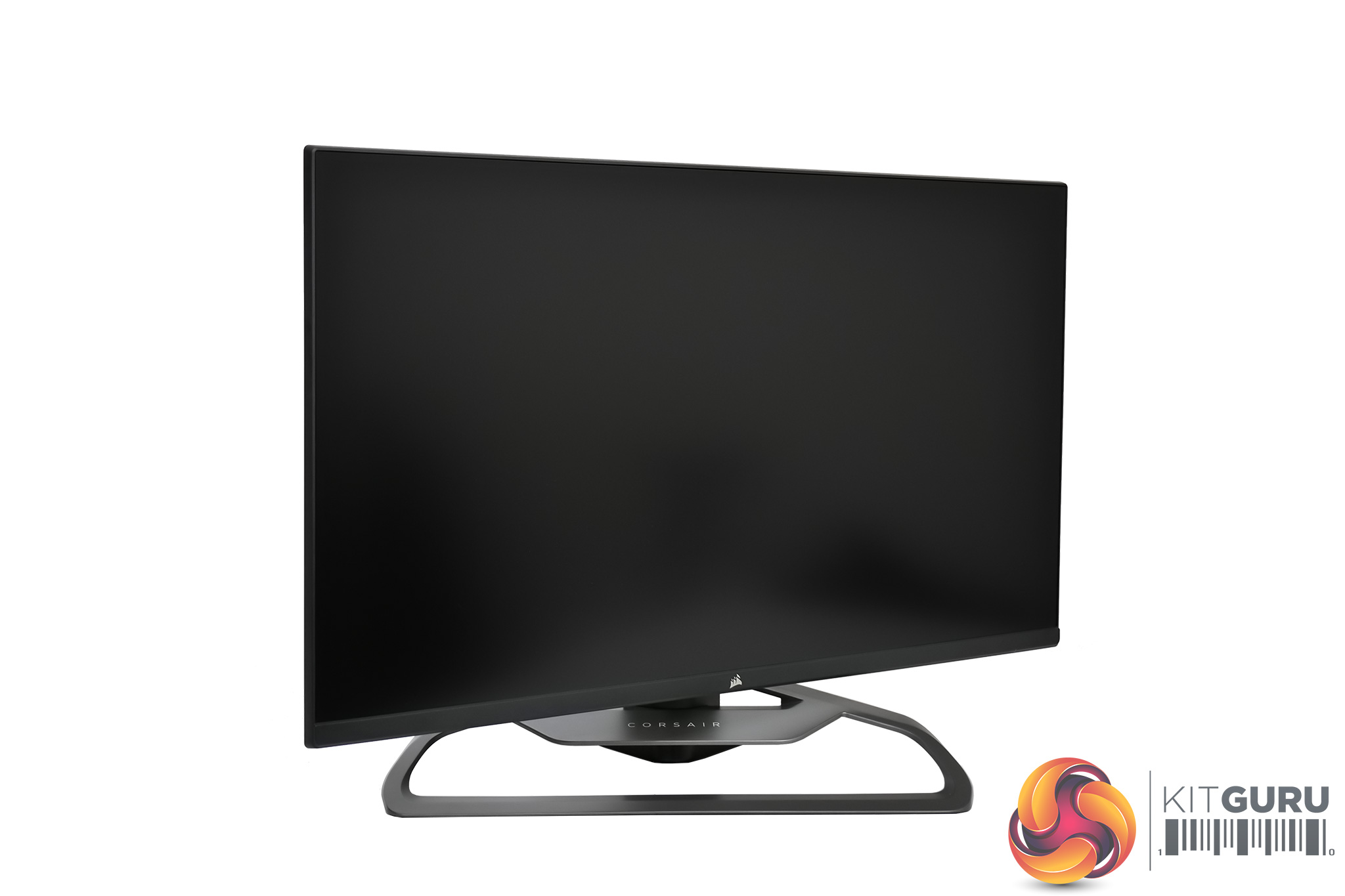
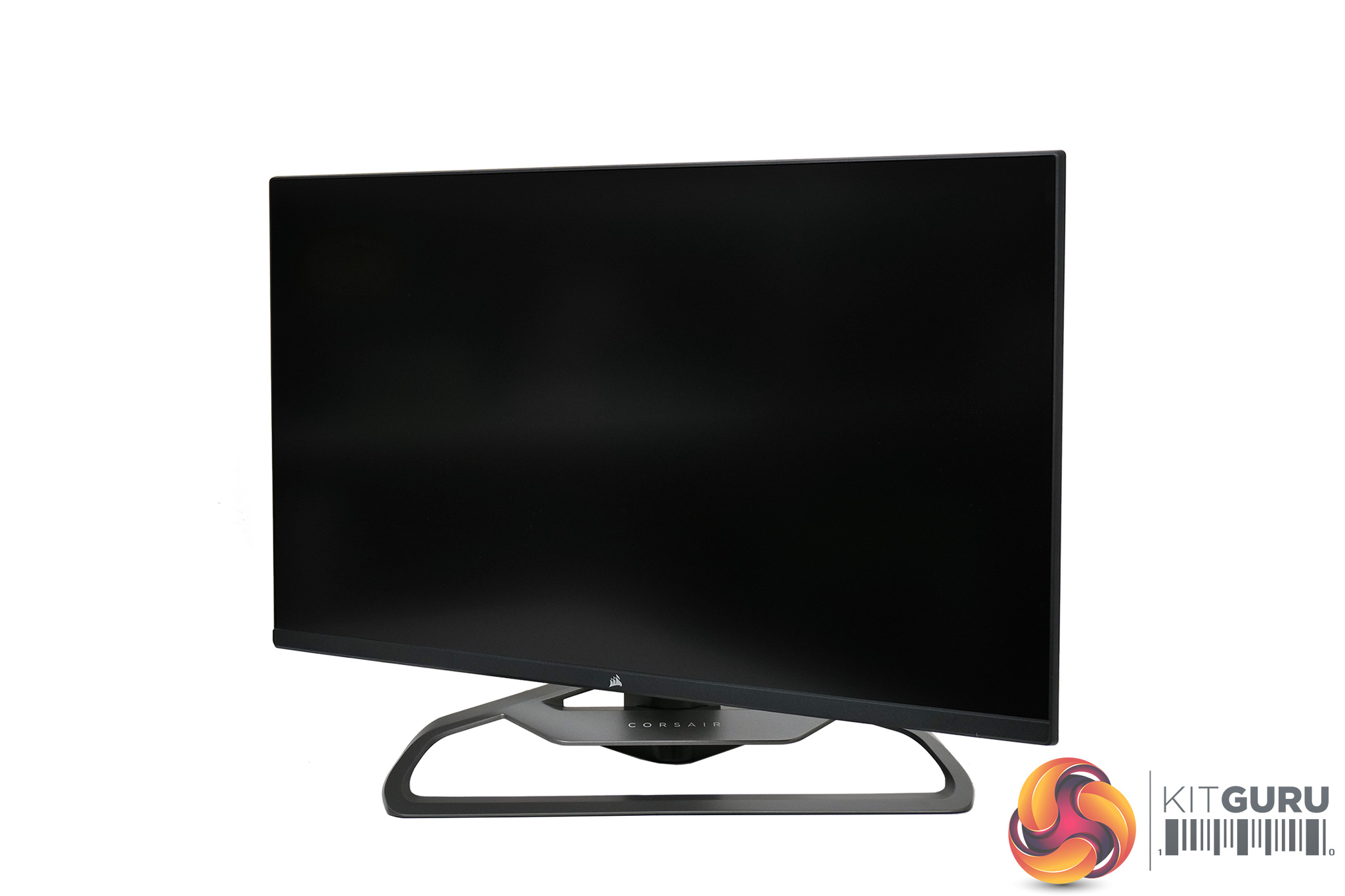
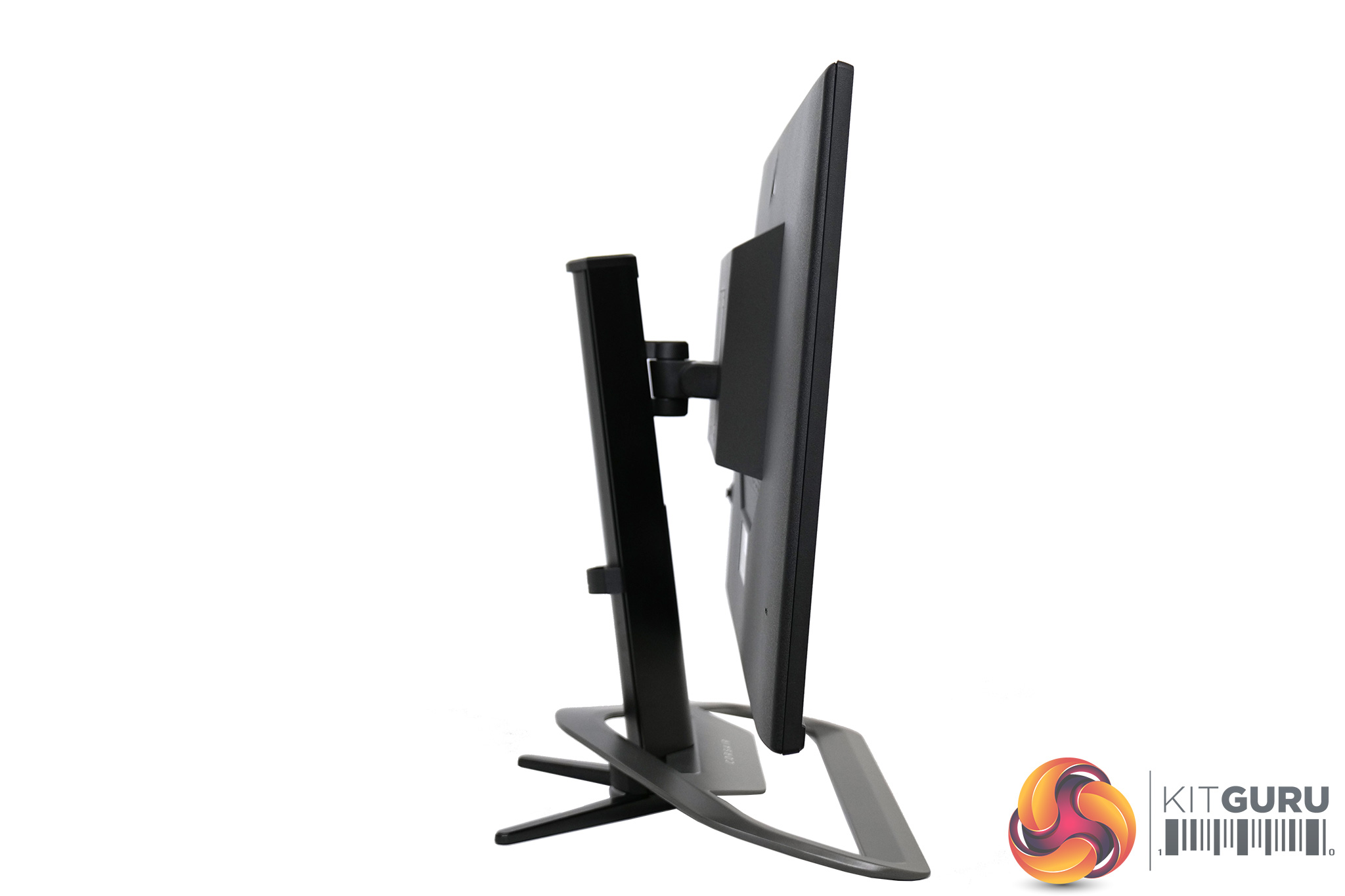
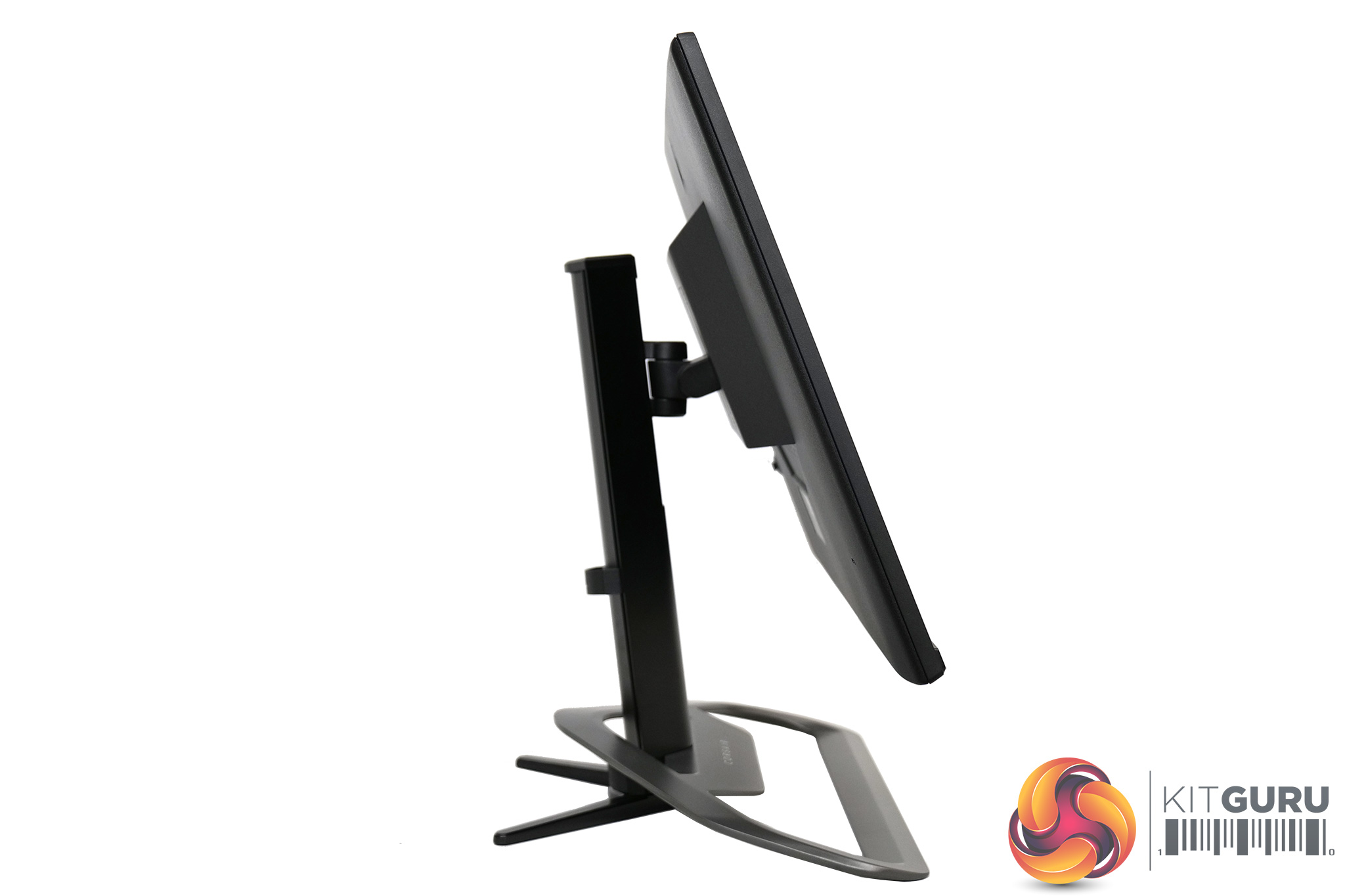
We also get a decent amount of ergonomic adjustments, including up to 110mm of height adjust, swivel from -30° / +30°, alongside tilt from -5° / +20°. The only thing missing is any sort of pivot/rotational ability, but for a screen of this size I can see why Corsair didn't implement such a feature.
The stand uses VESA 100×100 mounting too, so if you want to swap it out for a custom arm or stand then you are free to do so.
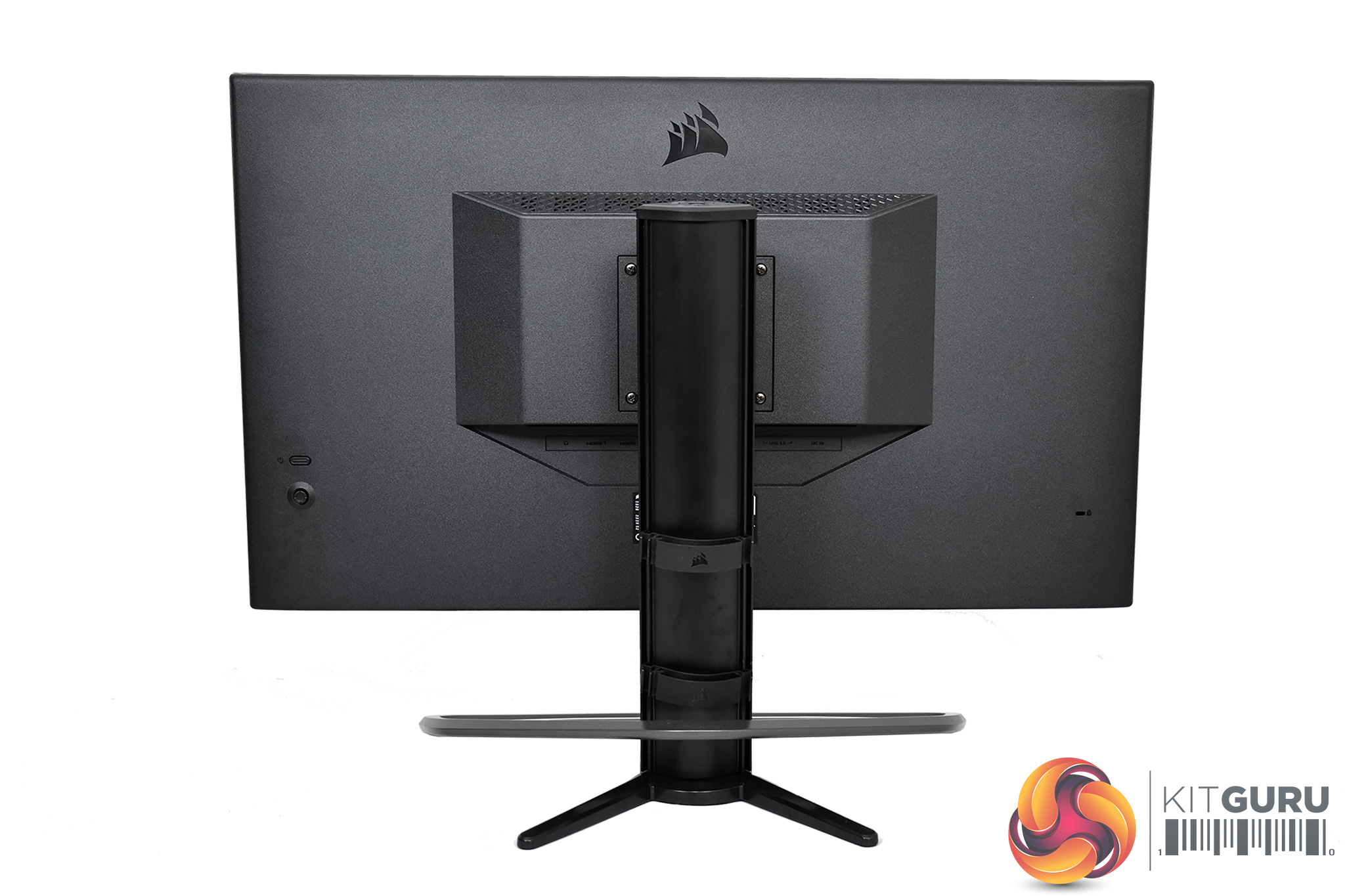
Round the back of the display, Corsair has kept things very understated – it's made of matte black plastic, with a Corsair logo sitting towards the top. This actually means there is no RGB on the Xeneon at all, something I couldn't quite believe at first considering Corsair has been at the forefront of the RGB boom over the last few years. It would seem they are trying to take a more elegant and sophisticated approach with the Xeneon, and it's certainly a good looking monitor.
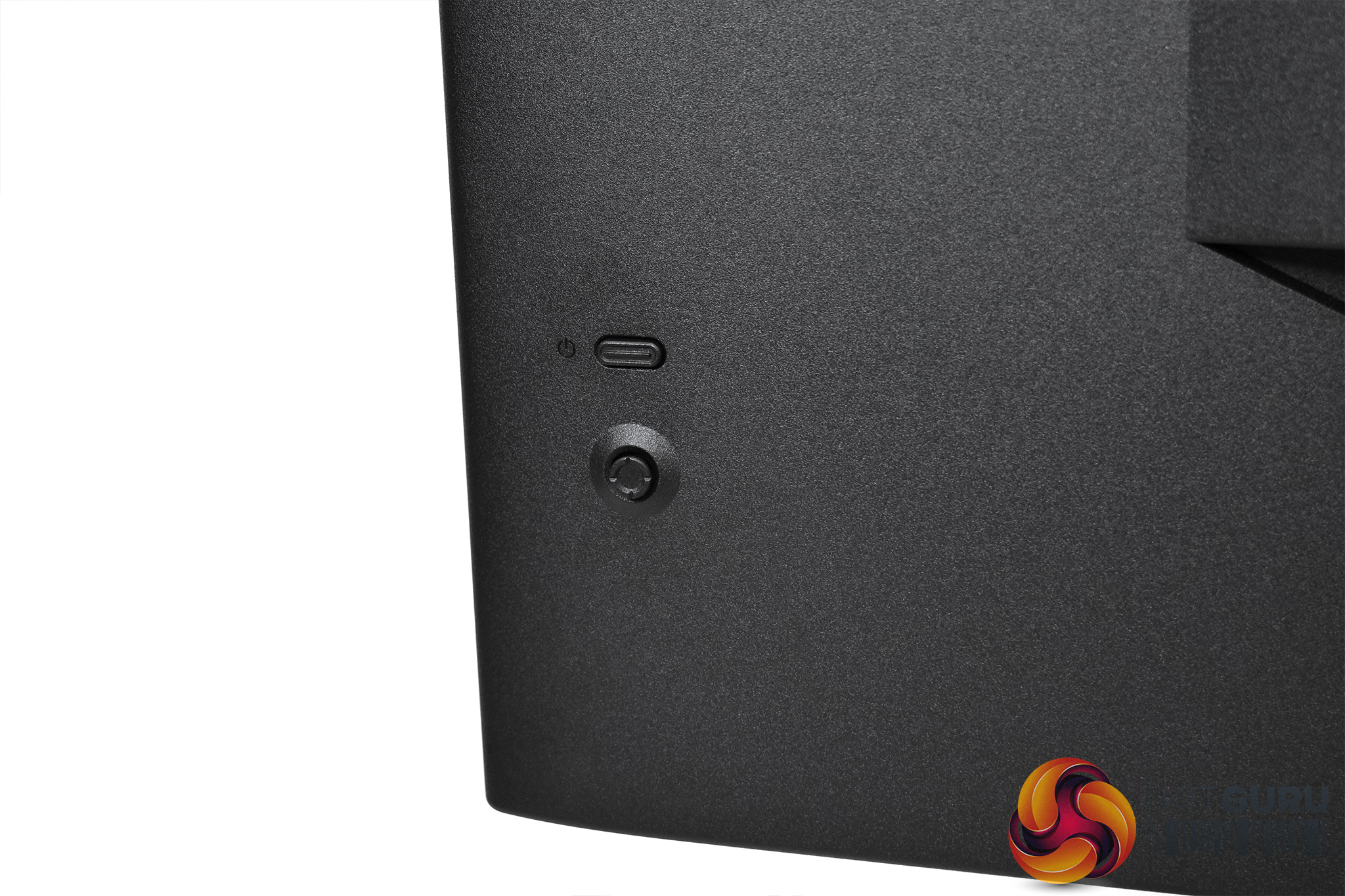
We can note a small joystick and power button in the bottom left corner, with the joystick used to navigate Corsair's OSD – there are no other physical buttons on the monitor.
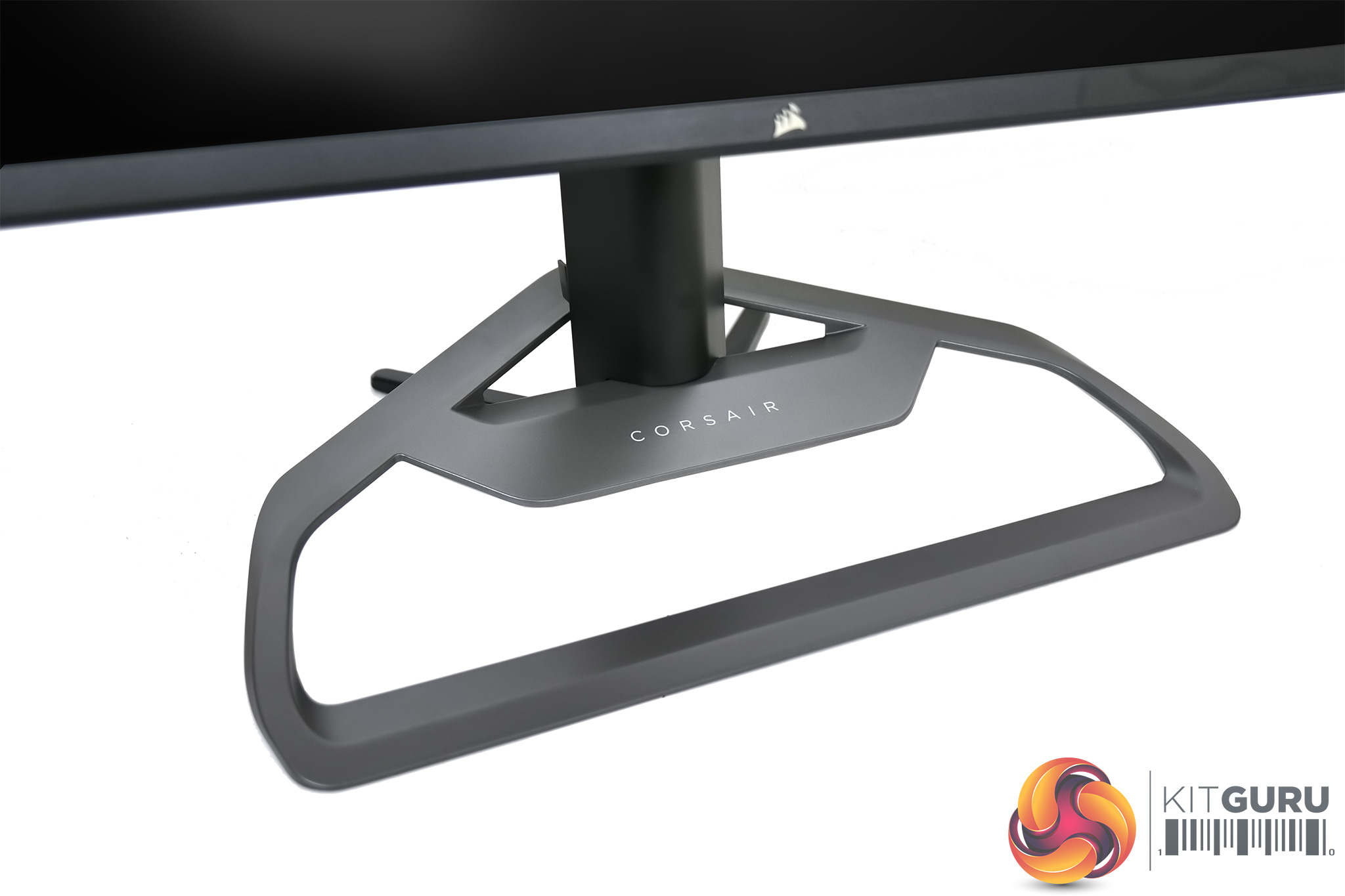
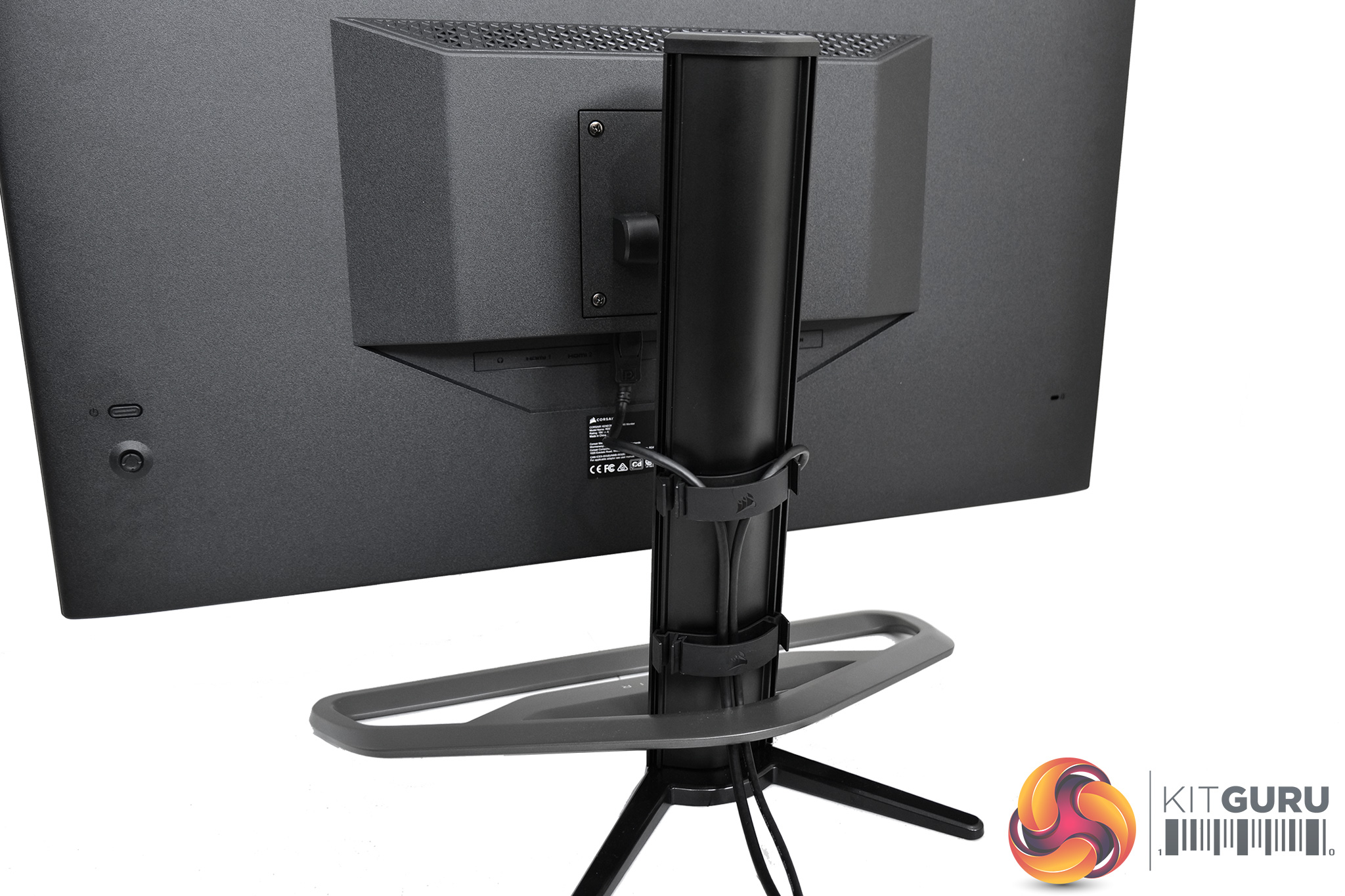
The base of the stand, however, is a bit much for my tastes. It looks fine and is made of metal so it feels very solid, but it is just very large, and unnecessarily so in my option. To give you an idea, from front to back the stand is almost 32cm deep, while its 46cm long across the front. Visually it is certainly unique, but for me I'd have liked to see it scaled down a bit.
I do appreciate the integrated cable management features though, which Corsair calls RapidRoute. This is essentially a few cable management clips placed on the back of the stand through which you can loop all your power and display cables (as shown above), so it seems Corsair has taken inspiration from its chassis business here. It's nothing to go wild about, but it works so it's definitely a good inclusion here.
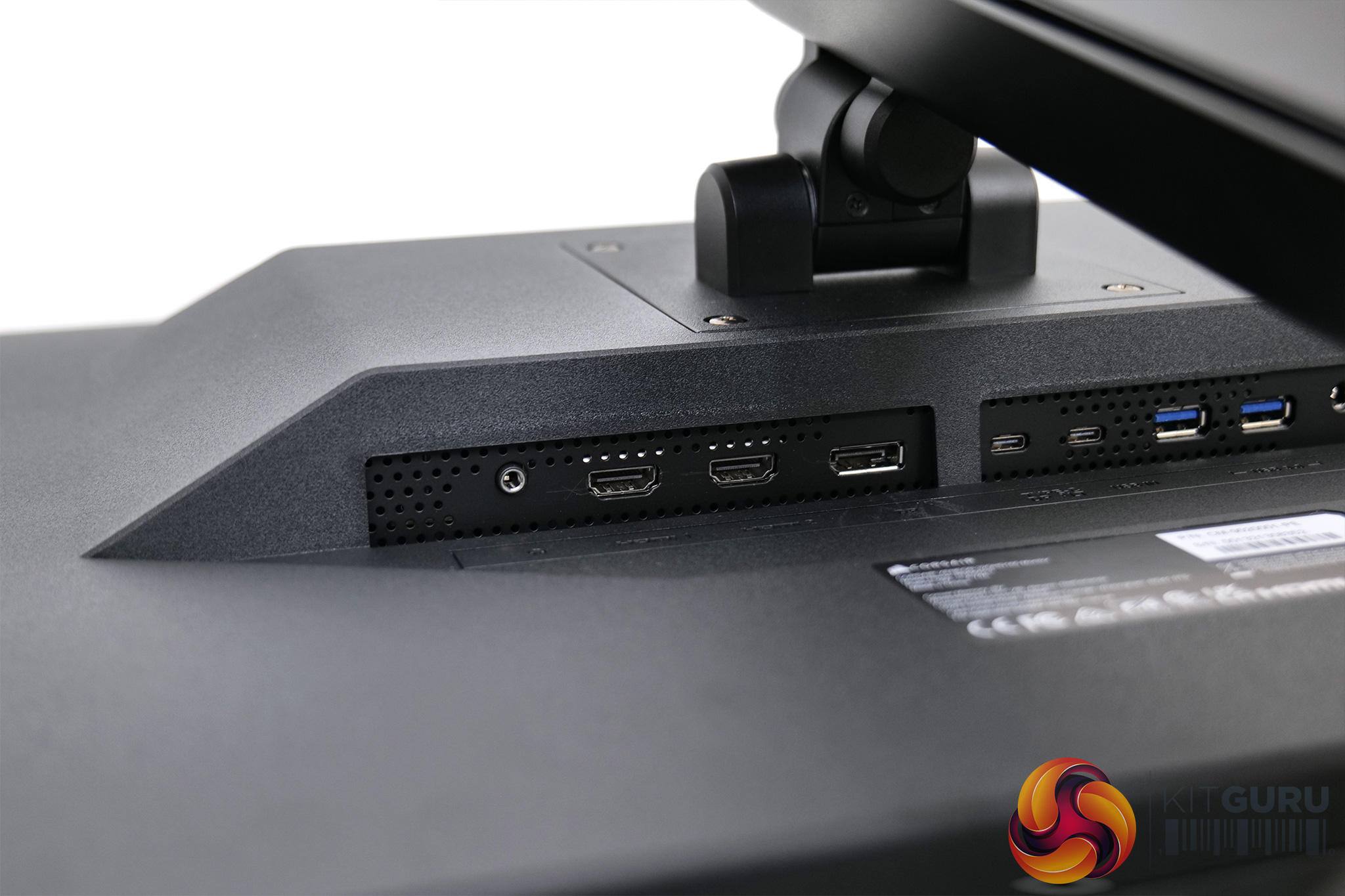
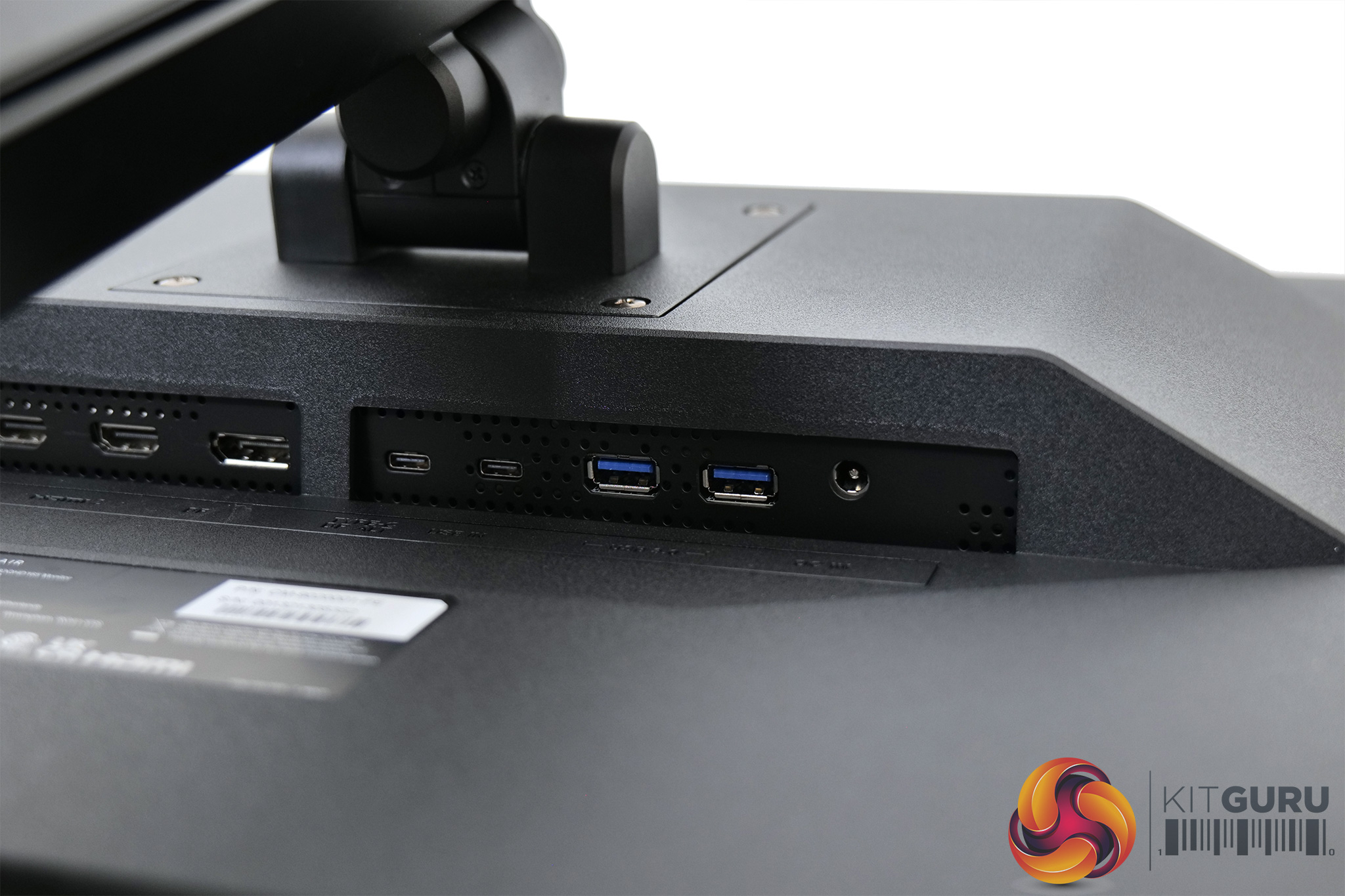
Lastly, for the connectivity options, we find 2x HDMI 2.0 and 1x DisplayPort 1.4 video inputs, as well as a 3.5mm audio jack. One USB-C DP Alt port can also be used as a display input while offering 15W power delivery, while the second USB-C port is used as the upstream connection for the USB hub, which consists of 2x USB 3.0 Type-A ports. The final port is the power input.
As this is Corsair's first gaming monitor, we weren't quite sure what to expect from the OSD. As it turns out, it is clearly laid out and easy to use, with six main tabs housing all the settings.
These are: Picture, OSD Setting, System Setting, Audio, Input Source, Information…
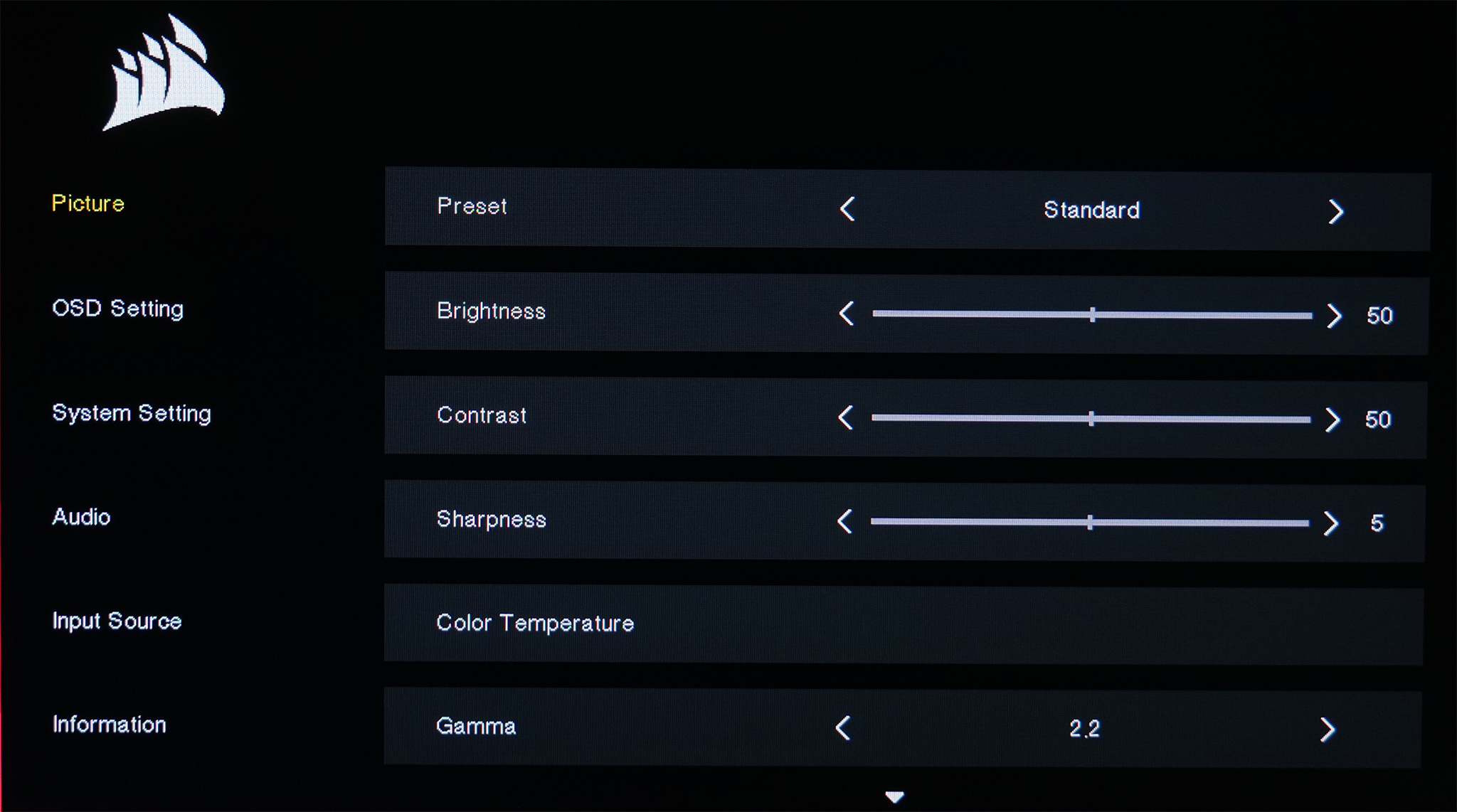
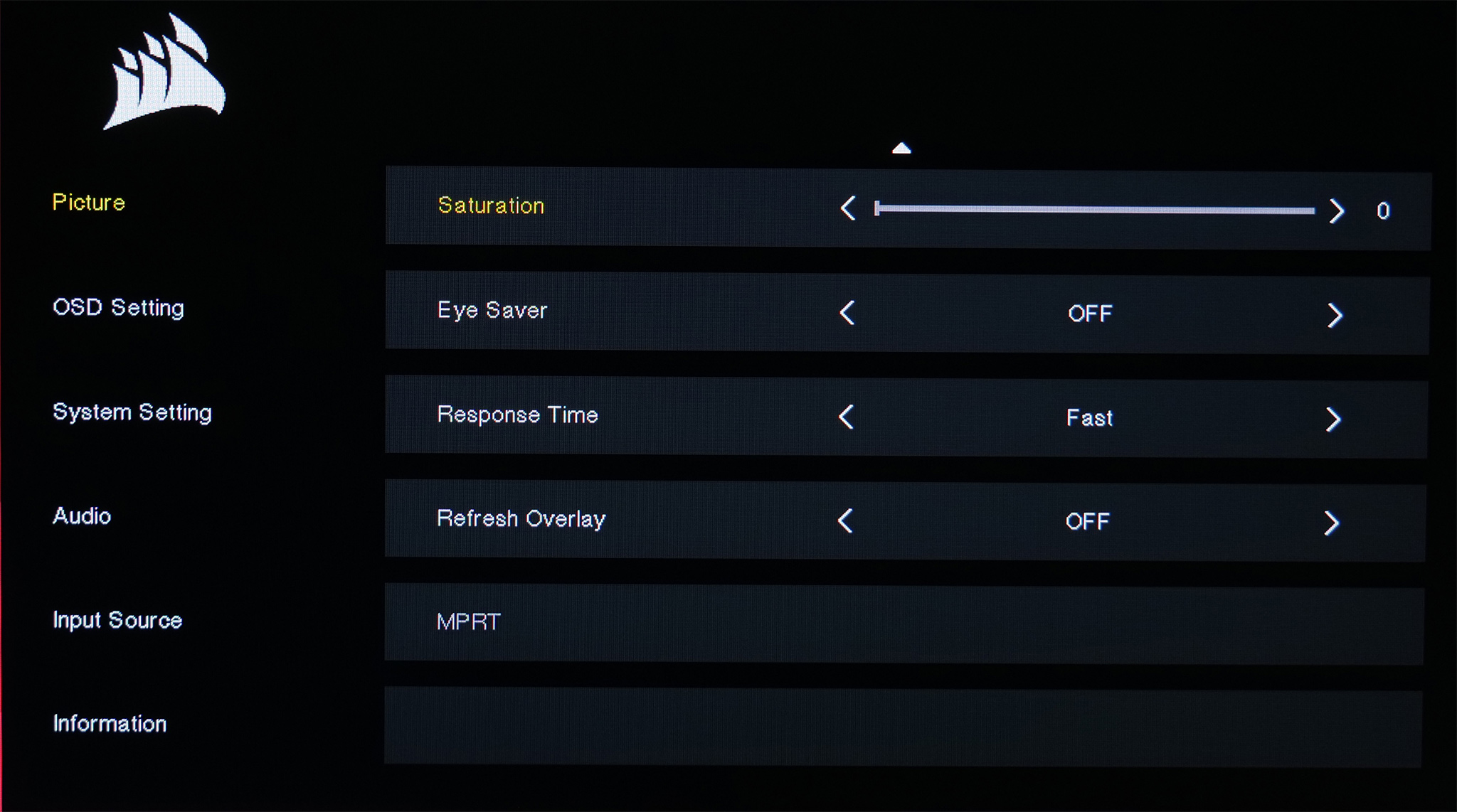
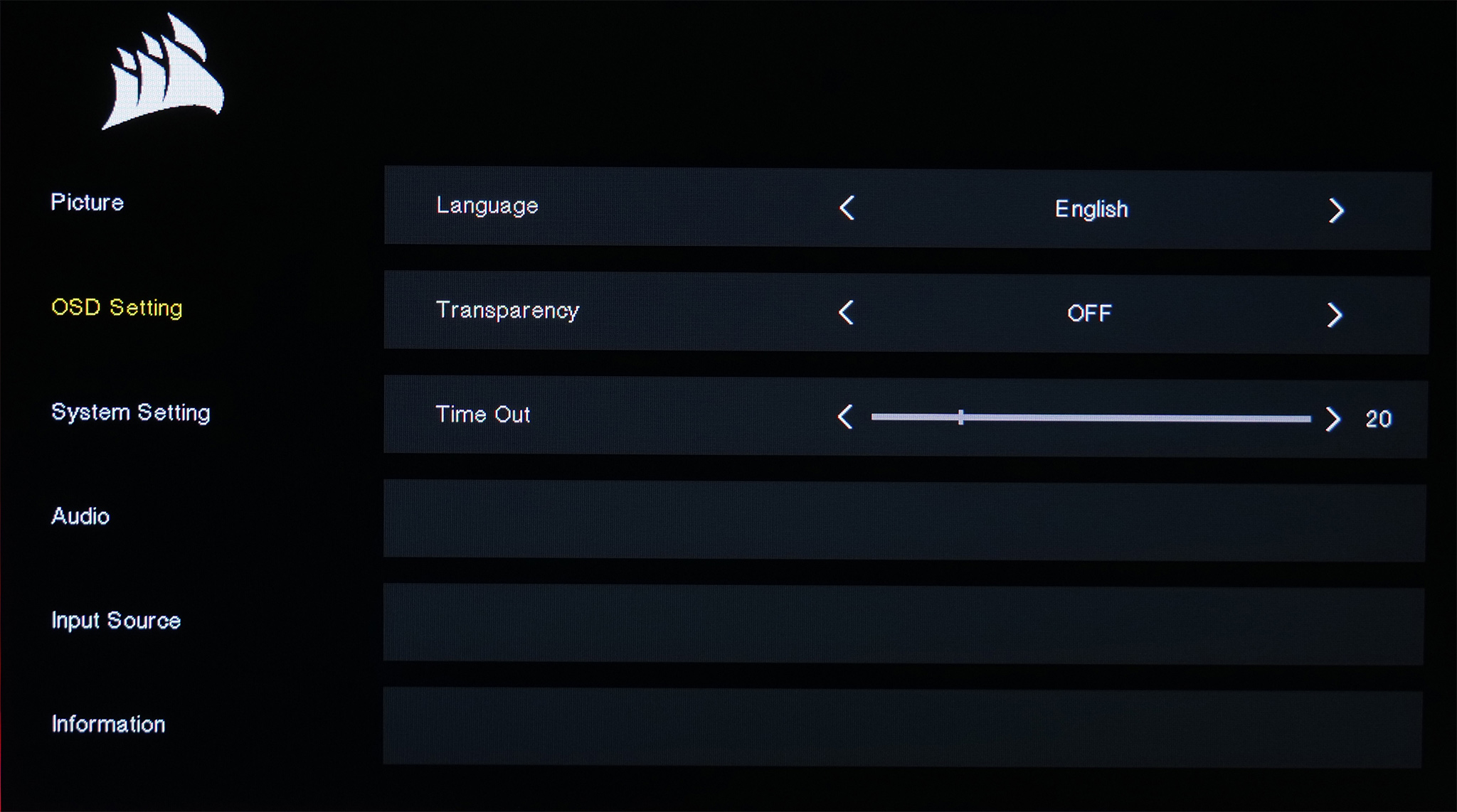
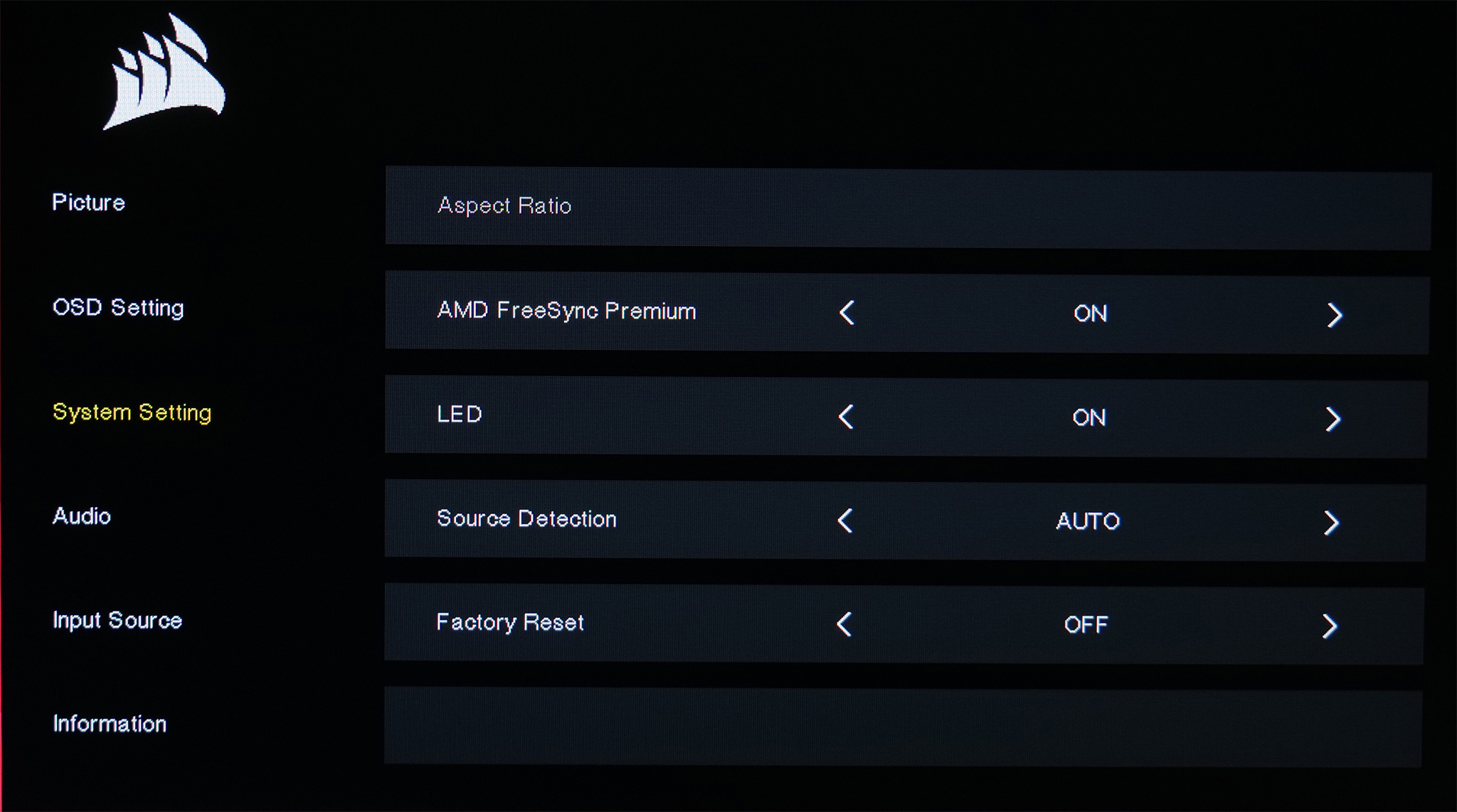
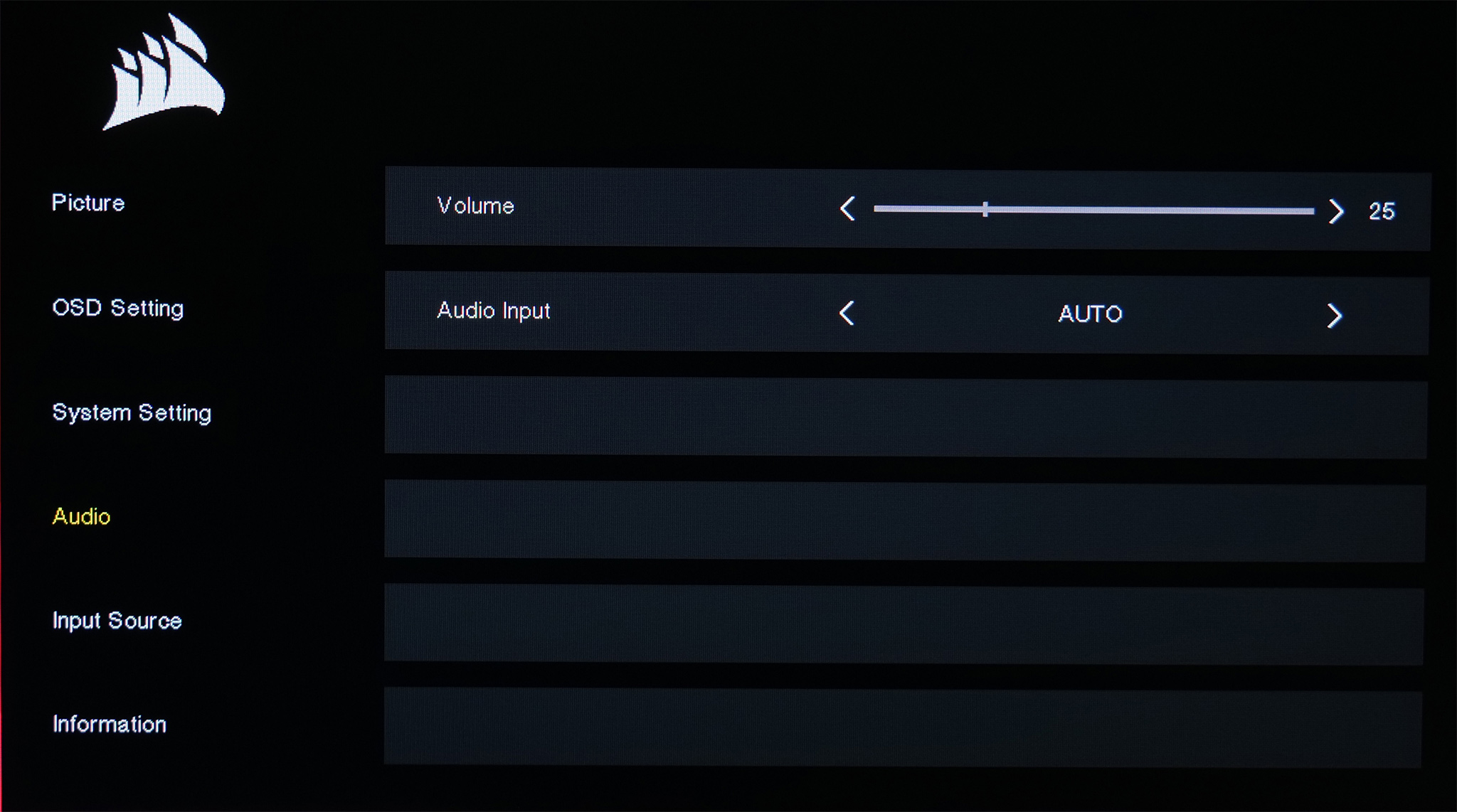
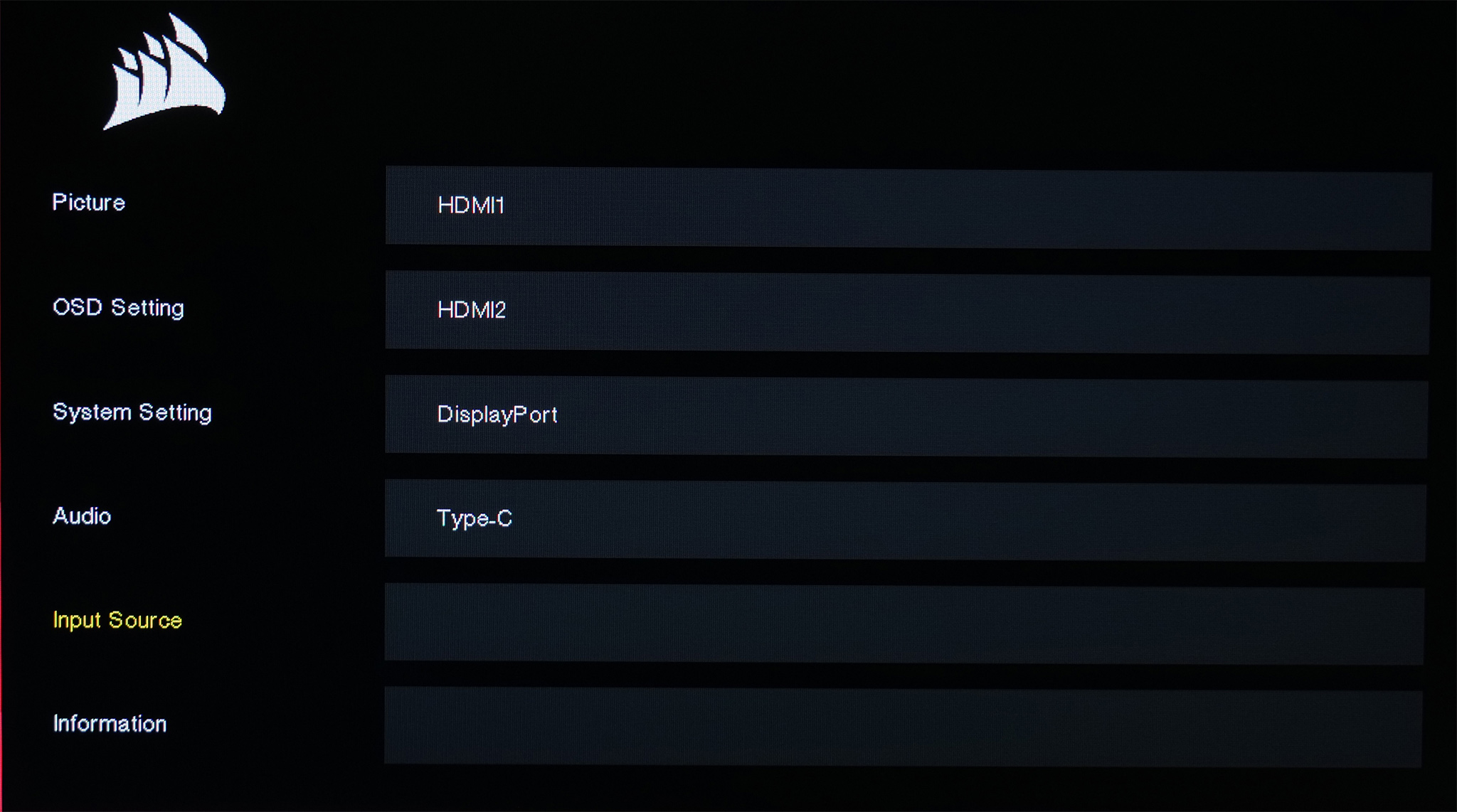

One thing I would say about this OSD system, despite its clean UI and the fact it is easily navigable thanks to the joystick, is that it does appear to be missing a few creature comforts gamers would expect from the likes of AOC, ASUS ROG, LG and so on. As this is Corsair's first monitor, we can understand that ‘nice to have features' aren't necessarily the top priority, but some users may notice the absence of things like an on-screen crosshair, shadow boost or a live readout of system metrics.
It's also not possible to remap the OSD shortcuts – i.e. if you push upwards on the joystick before entering the main OSD menu, you can quickly adjust display brightness. Pushing left bright up volume, right brings up display preset modes. It's good that functionality is there, but I'd like to change what each shortcut does.


Being a Corsair monitor, it's only natural that the Xeneon offers iCUE integration – simply connect a USB cable (either Type-A or Type-C output) to the USB-C input on the monitor, and the Xeneon will appear on your iCUE homepage.
As to what you can tweak and change in iCUE – it's exactly the same settings that are adjustable via the on-screen OSD, only now you can change those settings directly within Windows.
This is fine, but I do feel that Corsair is missing a trick somewhat. I would have liked to see stronger integration with iCUE, giving users extra control that isn't available in the OSD – being able to add custom overlays or crosshairs for instance, or have tweakable overdrive settings that give more control than the three pre-defined presets.
There are more integration features on offer if you have an Elgato Stream Deck or Corsair Nexus, which allow you to change key parameters using said devices (such as toggling between different picture mode presets or adjusting gamma) which is certainly a good addition if you already own those peripherals – but for me the level of control on offer within iCUE itself could be stronger.
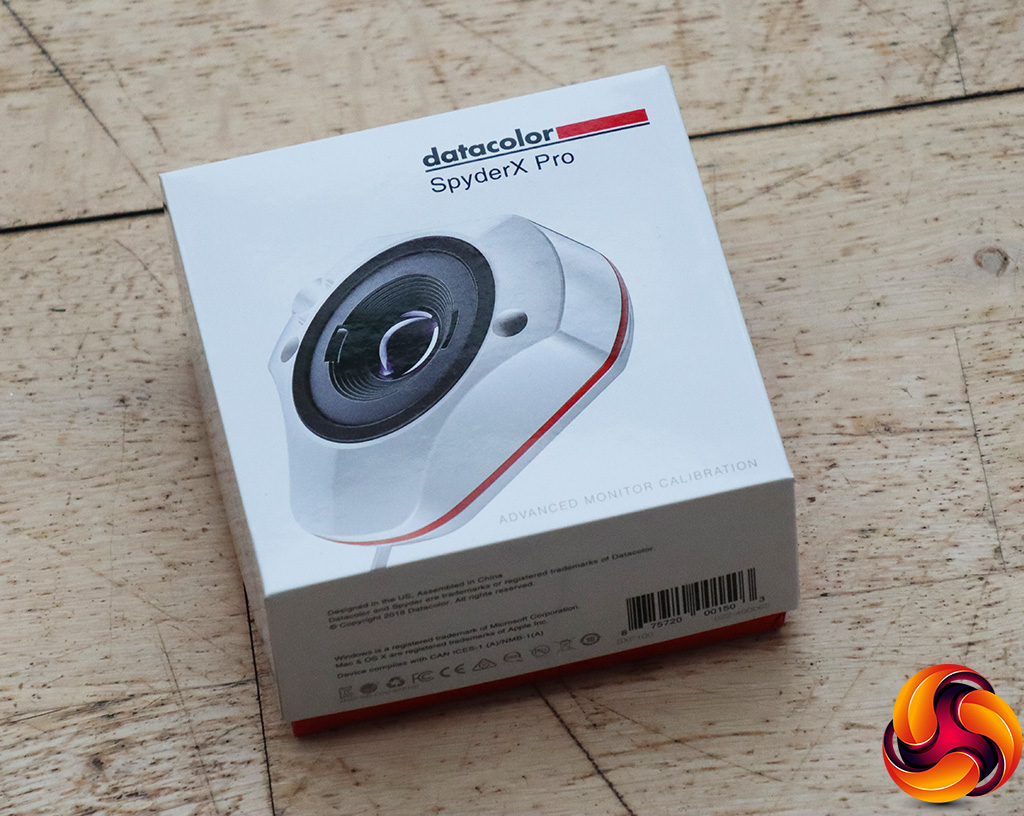
Our main test involves using a DataColor SpyderX Colorimeter to assess a display’s image quality. The device sits on top of the screen while the software generates colour tones and patterns, which it compares against predetermined values to work out how accurate the screen is.
The results show –
- A monitor’s maximum brightness in candelas or cd/m2 at various levels set in the OSD.
- A monitor’s contrast ratio at various brightness levels in the OSD.
- The brightness deviation across the panel.
- The black and white points.
- The colour accuracy, expressed as a Delta E ratio, with a result under 3 being fine for normal use, and under 2 being great for colour-accurate design work.
- The exact gamma levels, with a comparison against preset settings in the OSD.
We first run this test with the display in its default, out-of-the-box state, with all settings on default. We then calibrate the screen using the Spyder software and run the test again.
Pre-calibration
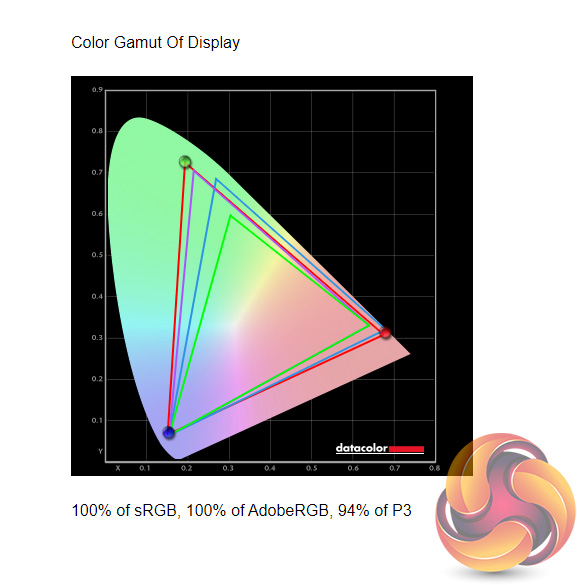
Starting with gamut coverage, here the Xeneon does very well – we see 100% reporting for both the sRGB and AdobeRGB colour spaces, while the DCI-P3 gamut still reports a very impressive 94% coverage.
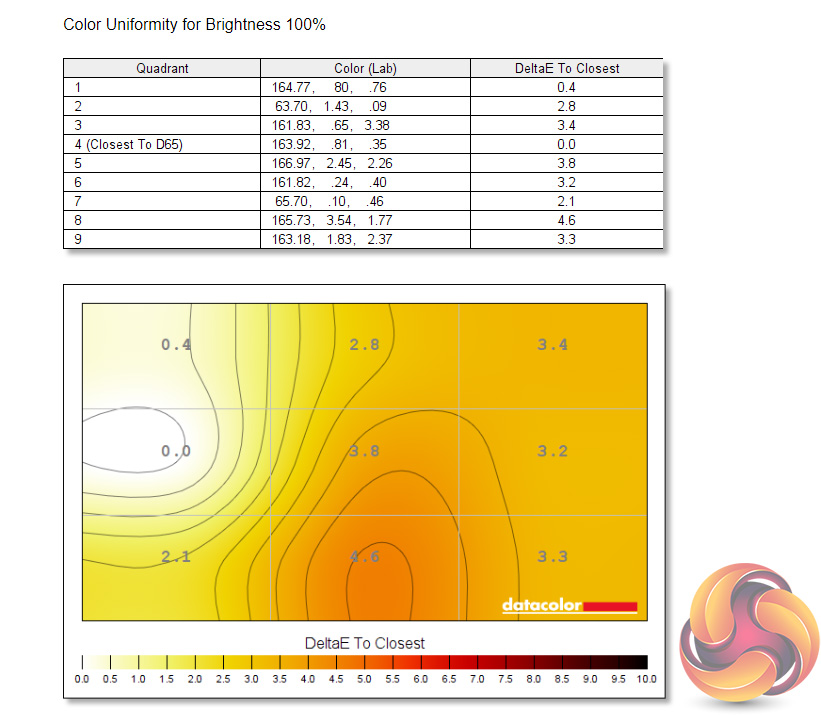
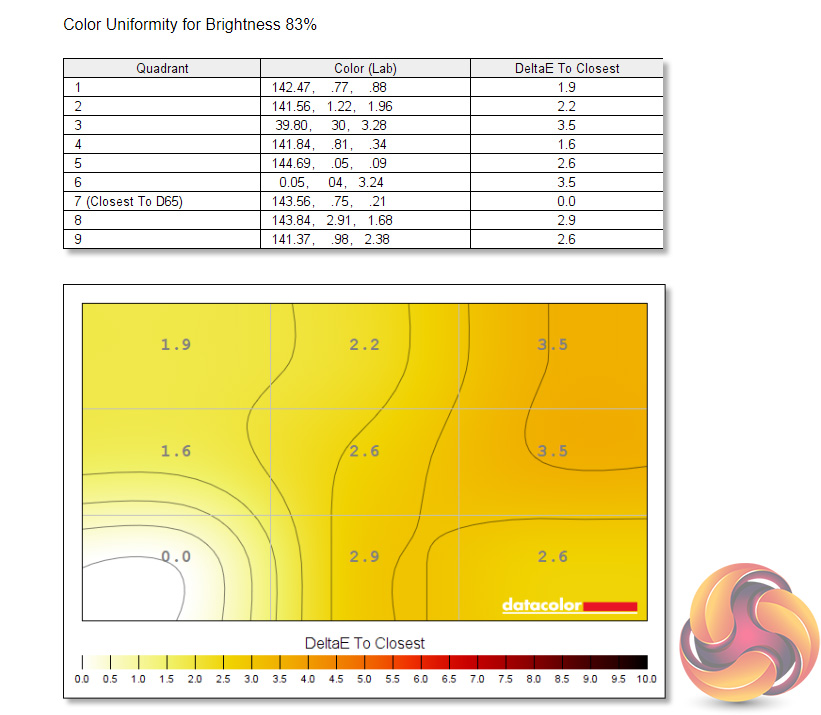
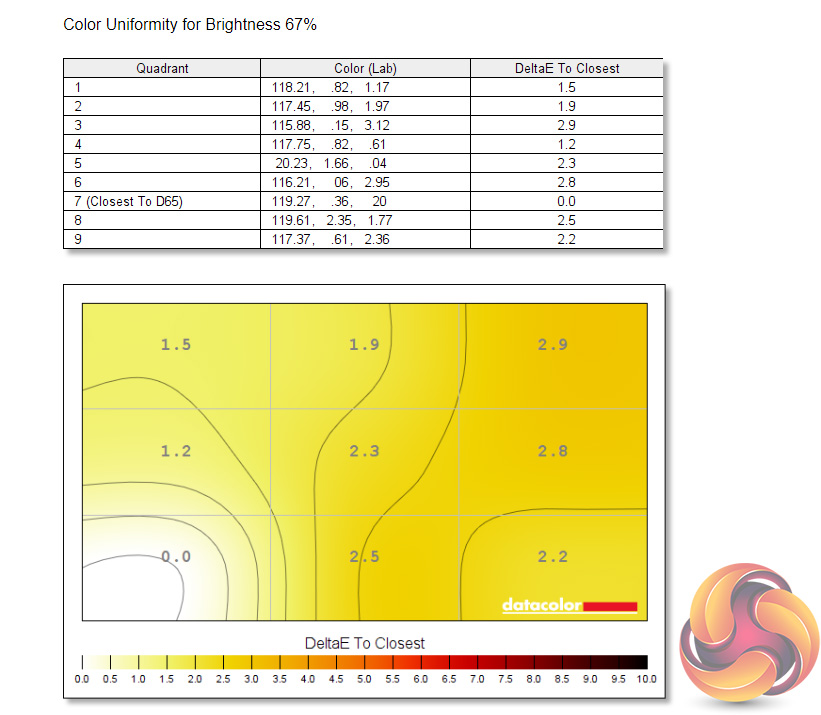
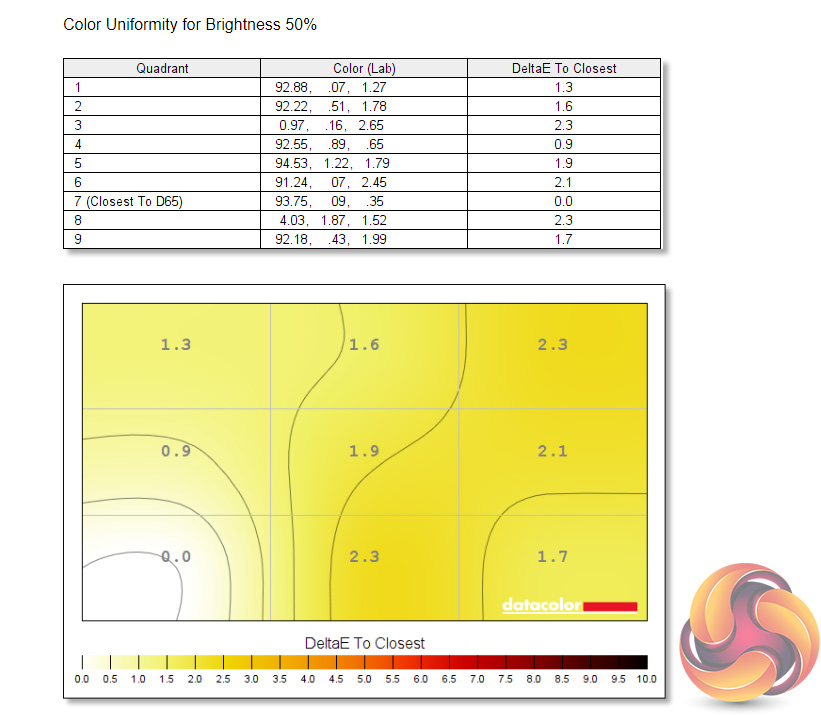
Colour uniformity is more middling however, especially at maximum brightness – if you can get away with using this screen at 50% brightness though, it is not something to worry about.
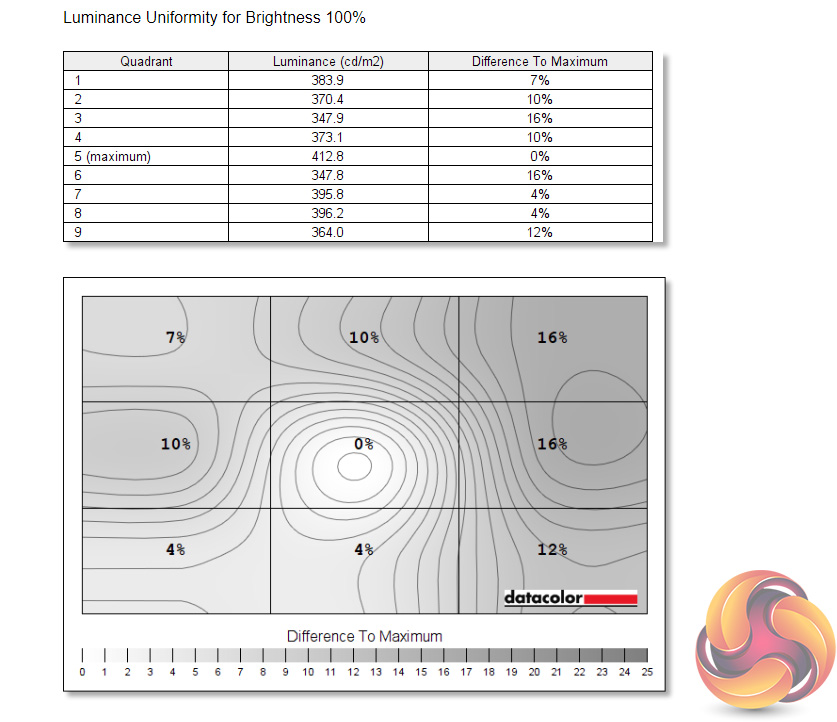
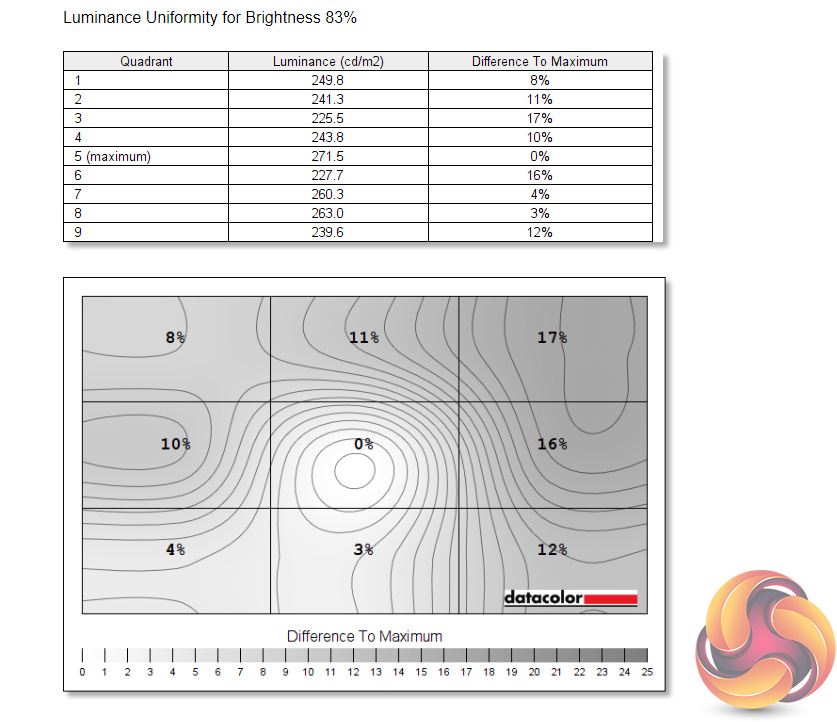
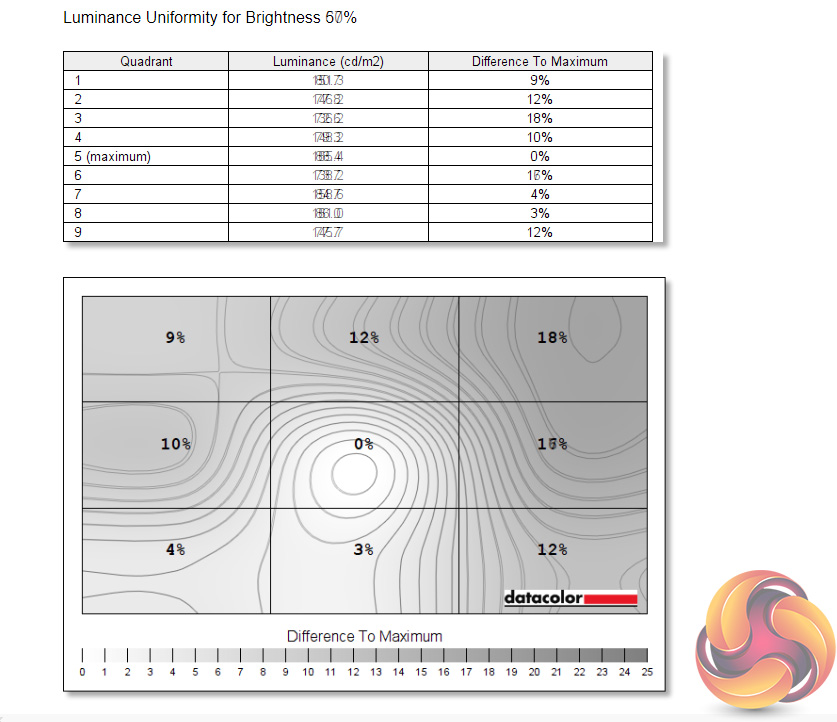
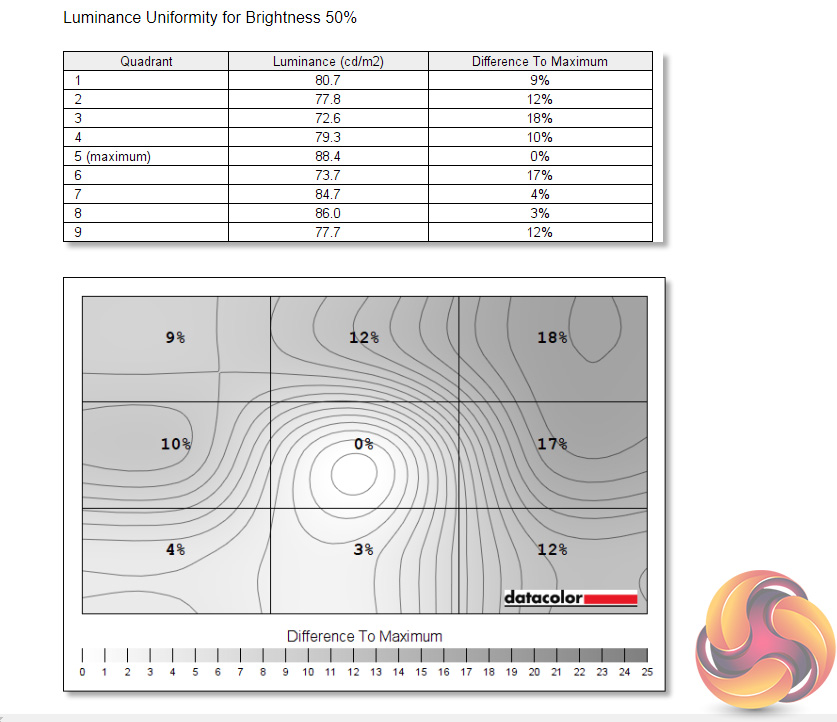
Likewise, we see a fair amount of aberrance when it comes to luminance uniformity, particularly along the right hand side. I didn't really notice this in my real world use, but it was consistent across different brightness levels in our SpyderX testing.
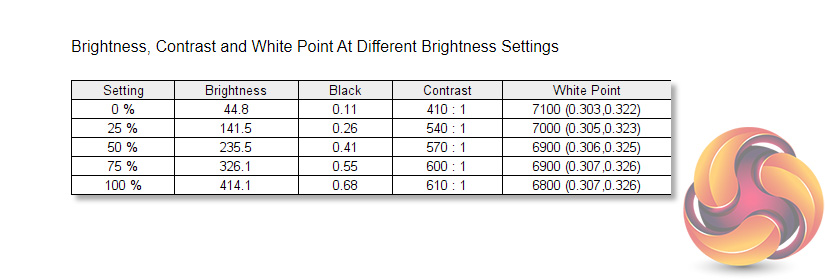
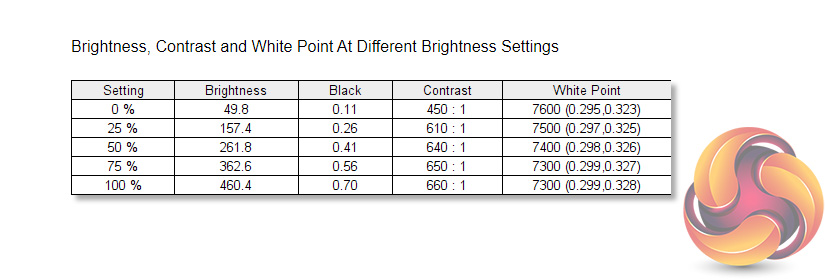
Speaking of brightness, the Xeneon does well here – it peaked at 414 cd/m2 in our testing, while also dropped as low as 45 cd/m2 when set to 0%. For my every day use, I preferred to use the display at around 60% brightness.
Contrast is fairly poor however, registering at 610:1. Even when we cranked the contrast setting to its maximum value in the OSD, this only increased to 660:1, so this is a limitation of the IPS panel used for the Xeneon.
The default colour balance is also slightly cool, hitting 6800K at 1000% brightness, though it is even cooler at lower brightness settings.
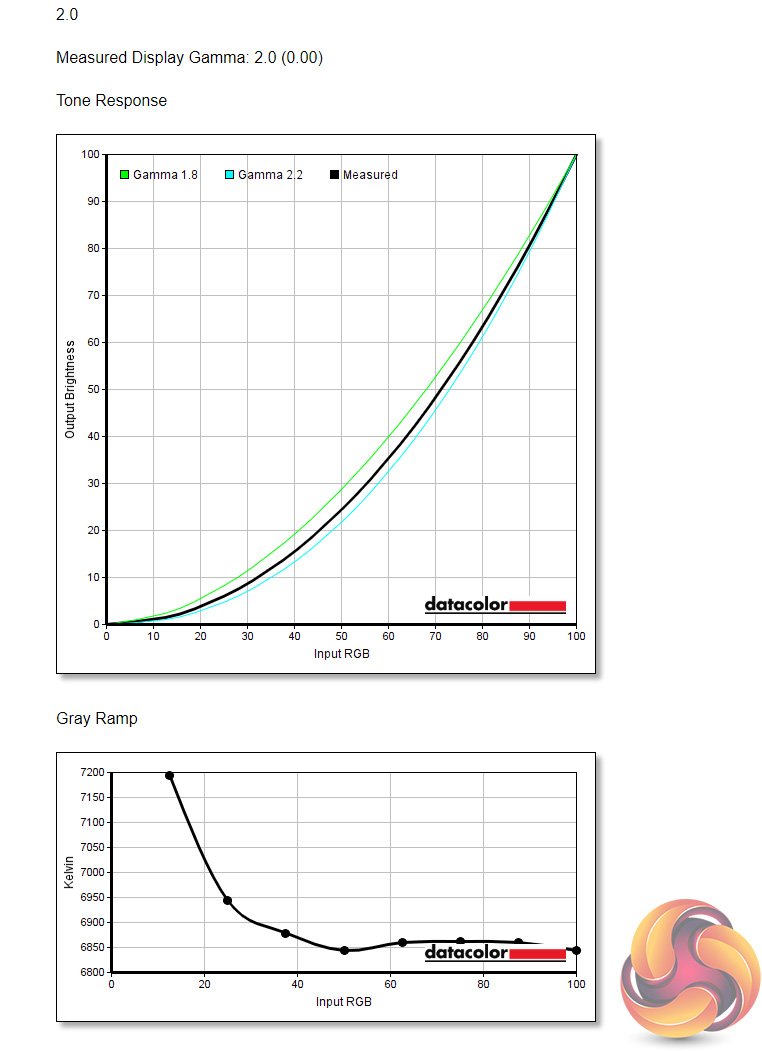
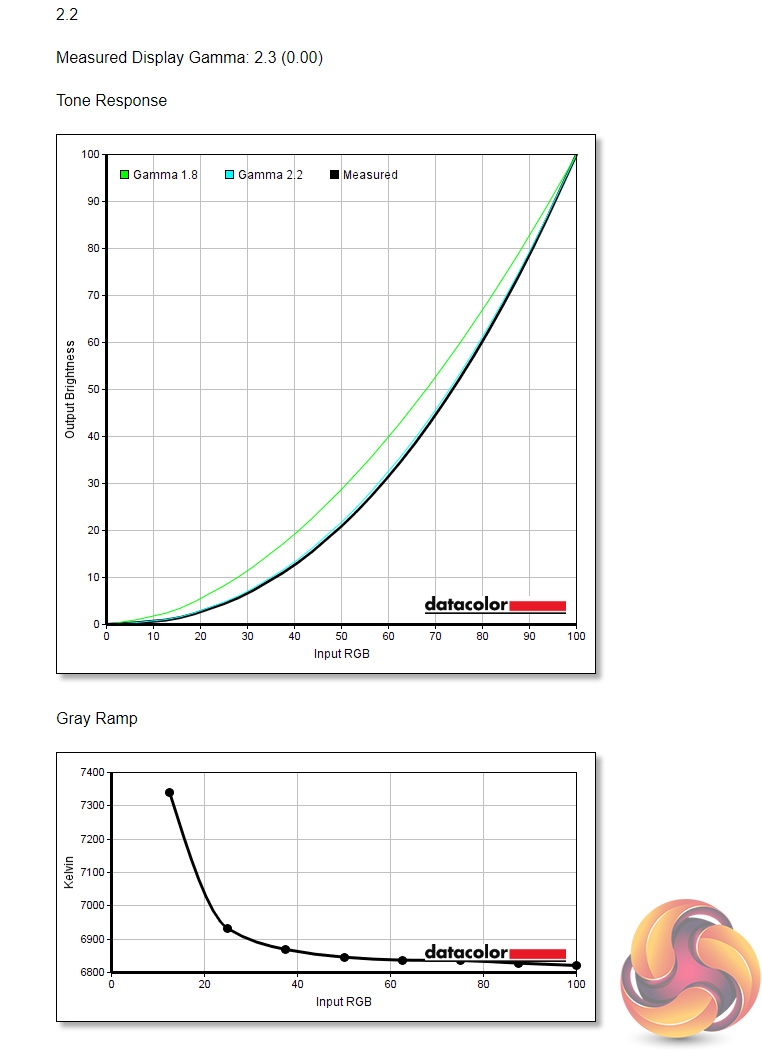
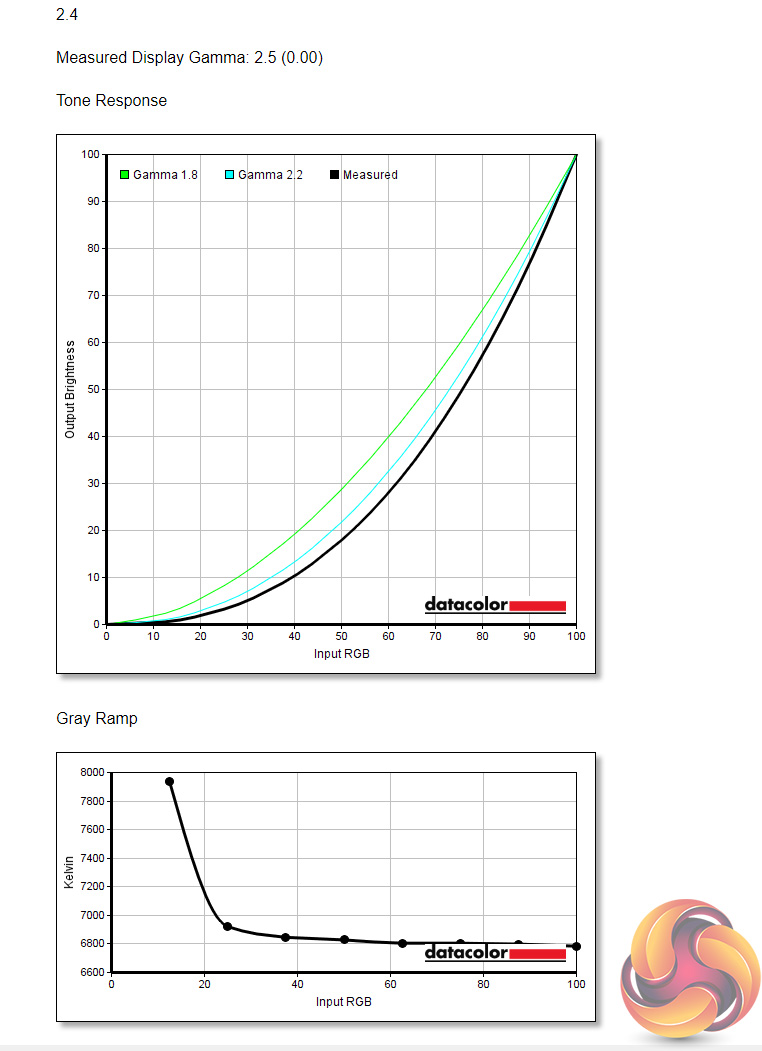
Next up we have gamma settings, with the Xeneon offering three different settings here – 2.0, 2.2 and 2.4. The 2.0 setting did indeed offer a measured gamma value at 2.0, but the 2.2 and 2.4 settings were out by 0.1 – so gamma 2.2 gave an actual result of 2.3, while the 2.4 setting gave a result of 2.5.
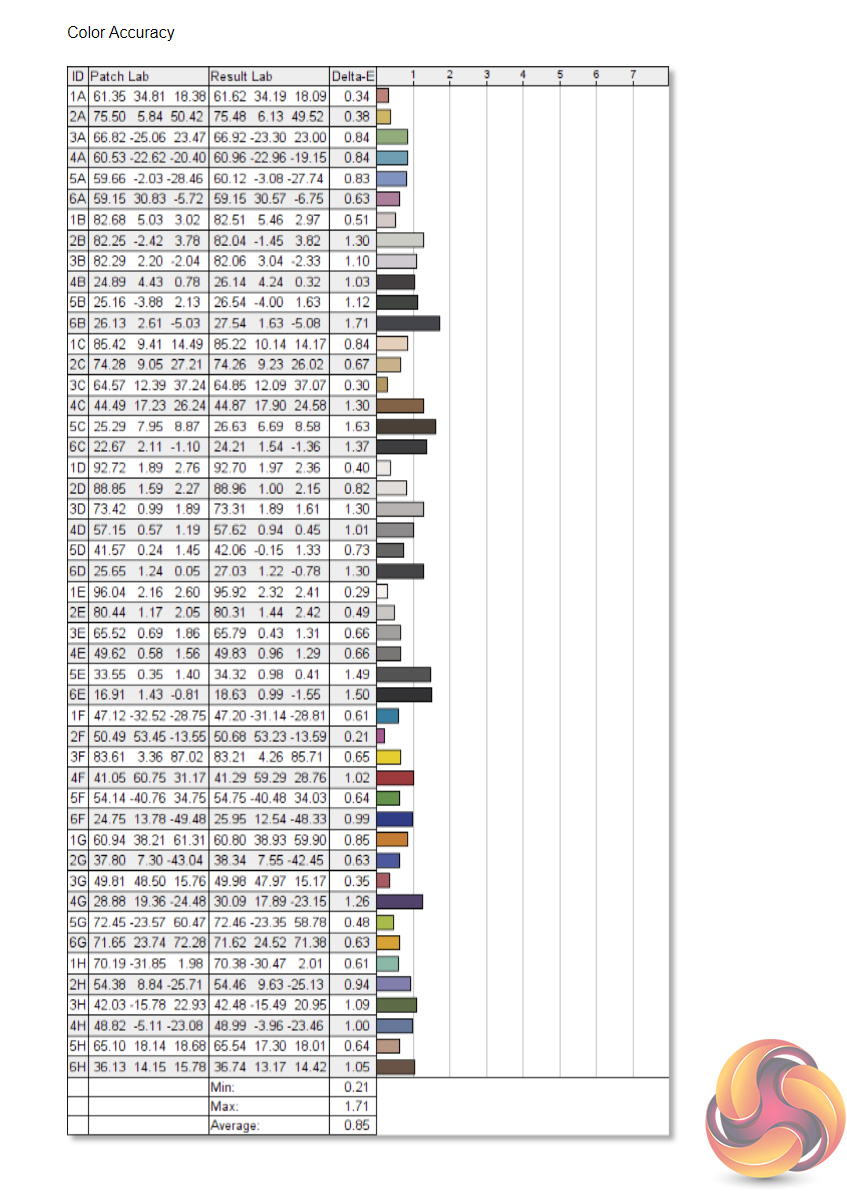
Colour accuracy is very good overall, dare I say extremely good – offering an average deltaE of 0.85 out of the box, and a maximum of just 1.71. This is a terrific result for a gaming-grade screen.
Post-calibration
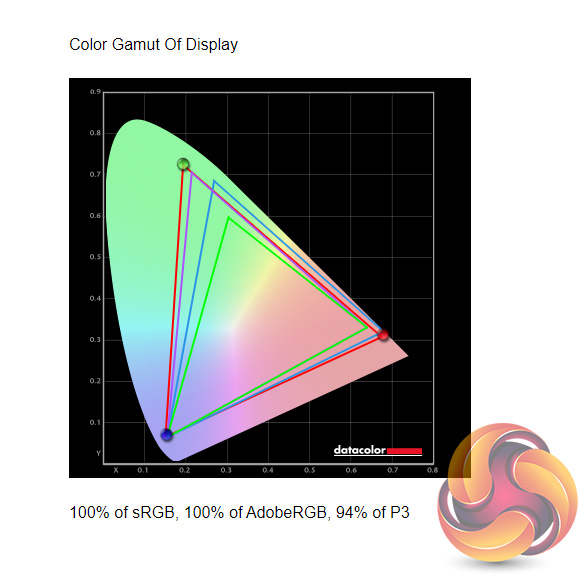
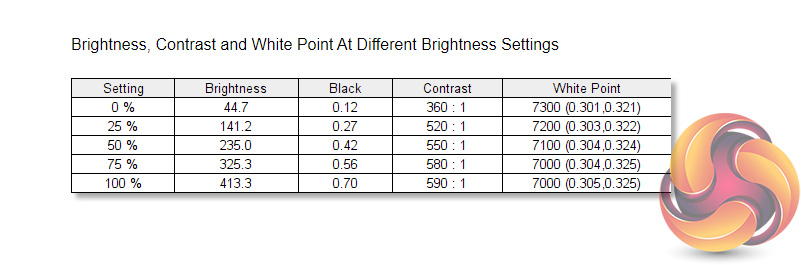
Once we'd calibrated the screen with our SpyderX, not much changed with gamut coverage or with brightness and contrast.
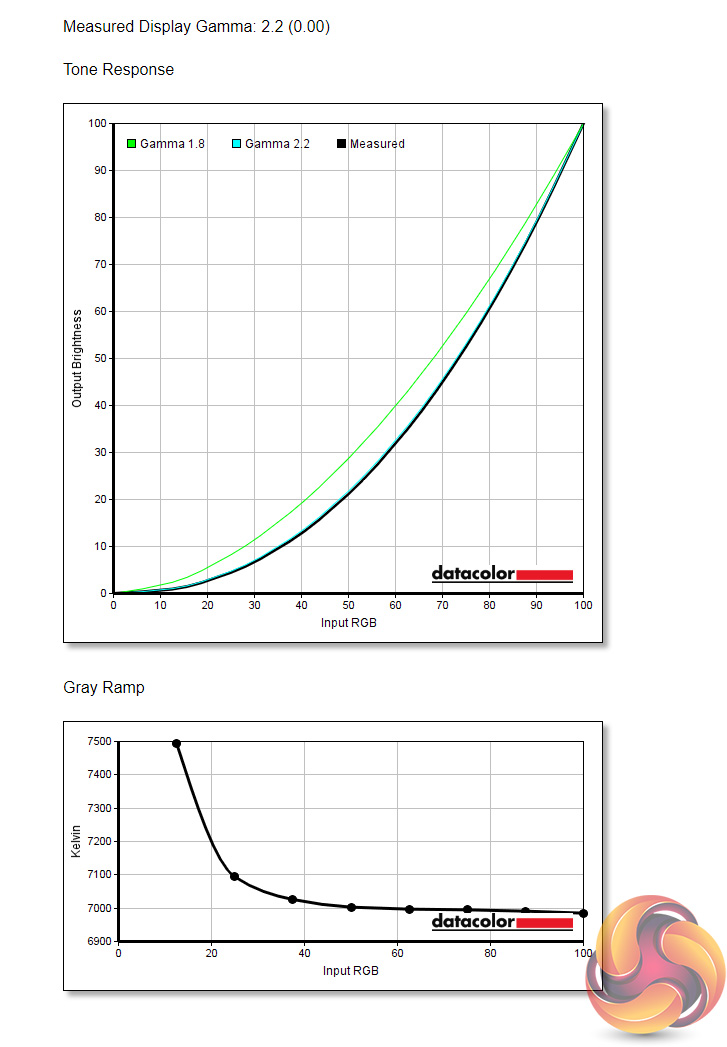
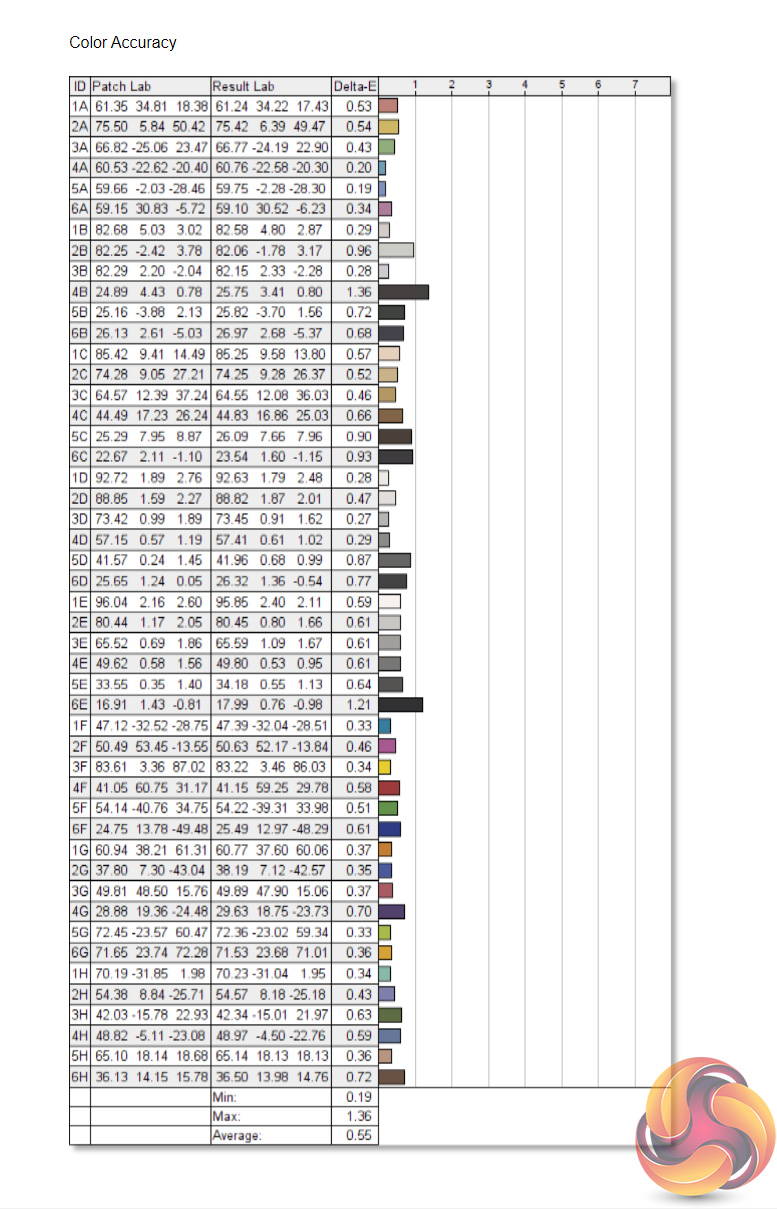
The gamma 2.2 setting is now reporting an actual value of 2.2 however, so that is an improvement, while colour accuracy has improved even further, with a new average deltaE of just 0.55 – one of the best results we have ever seen!
System latency is a new addition to our testing, where we use Nvidia’s Latency and Display Analyzer Tool (LDAT) to measure end-to-end system latency. LDAT itself is a photosensor which is placed on the monitor. It has an integrated mouse button, allowing it to measure the total time taken from mouse click, to an action happening on screen, which is done by measuring a change in luminance. This data is logged to a CSV file over USB, allowing for close analysis of the data.
As this is end-to-end system latency, we are not measuring only the processing/input latency of each monitor we test. However, we can standardise the test process so the monitor is the only variable. It also gives an insight into how different refresh rates and resolutions can affect end-to-end latency, which is of course highly relevant to your purchasing decision.
We use Rainbow Six Siege for this testing. We recently changed the graphics settings we test at, to allow for higher frame rates, so the Xeneon is only the fourth monitor overall we have tested with LDAT using these settings, and the first QHD screen we have tested. That means we currently have limited comparison data, but we will add to these charts as we review more screens.
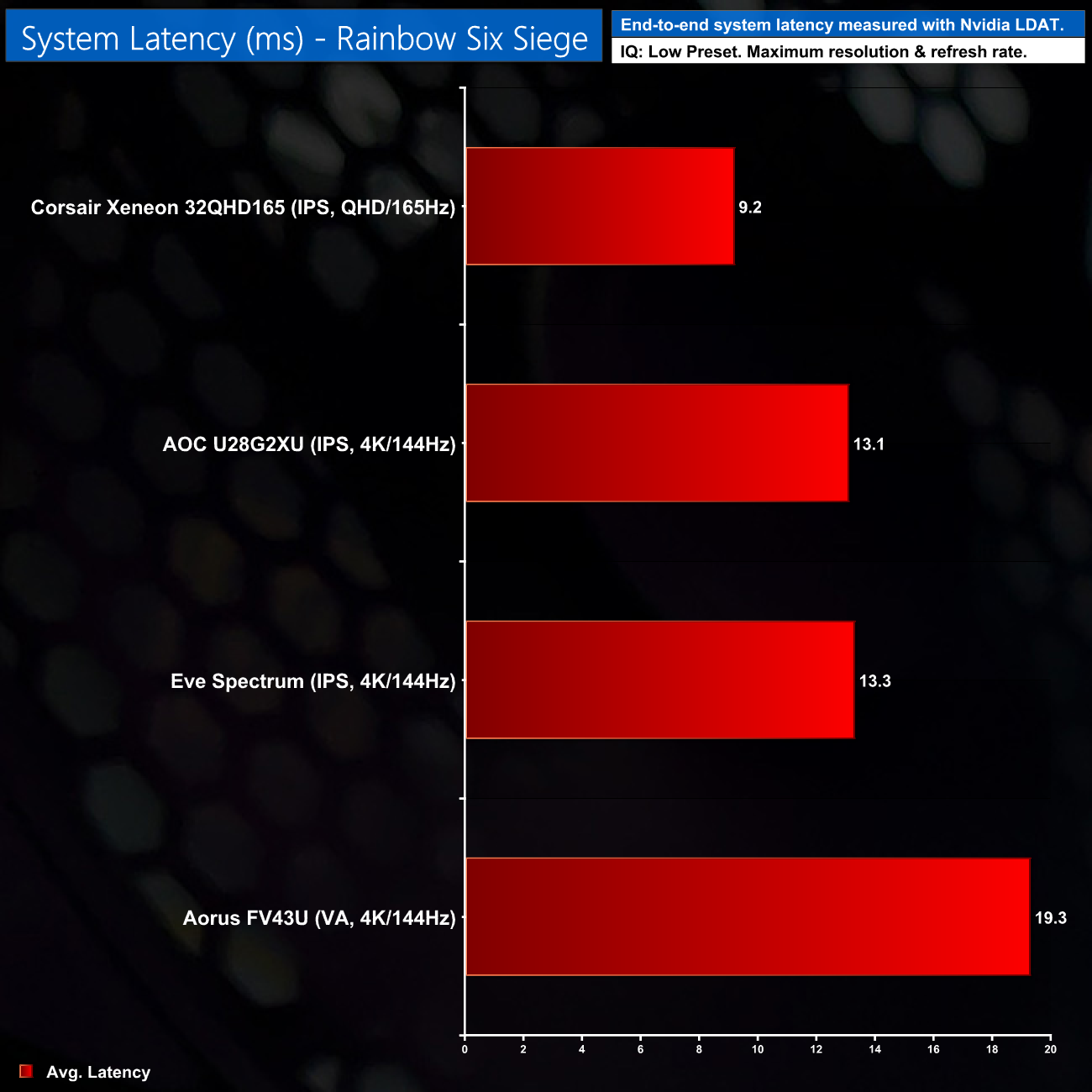
System latency averaged 9.2ms with the Xeneon 32QHD165, about 4ms faster than the like of the AOC U28G2XU and Eve Spectrum. Those are 4K monitors however, so we'd expect lower latency from this QHD panel, but it's good to see that is indeed what was measured.
It's not often a company does something truly new or different, but today we have looked at the Xeneon 32QHD165 – the first ever gaming monitor from Corsair.
For their first effort, the company has got a lot of things right. The Xeneon uses a high quality IPS panel for one, with fast response times and very impressive colour accuracy. In fact, once calibrated, the average deltaE of 0.55 is one of the best results we have ever seen.
Corsair has also done a good job at creating a good-looking but easy to use OSD menu system, navigable with a small joystick on the back of the screen. You even get full control over the OSD settings from within Corsair's iCUE software, so long as you connect the monitor to your PC via USB.
All is not rosy for the Xeneon though. The contrast levels are a bit disappointing, while in my view DisplayHDR 400 is simply not worth using. I'd also have liked to see a bit more from the iCUE integration, as it feels like a bit of a missed opportunity to go the extra mile and give users some fine-grain control over the monitor.
None of those points would be a real dealbreaker in my opinion, but they become amplified by the fact the Xeneon is £699.99 for UK buyers, or $799 in the US. That's getting into 4K/144Hz territory, or you could get a competing 1440p 240Hz display and still have a fair chunk of change left over.
As it is, the Xeneon 32QHD165 marks a good start from Corsair, but to justify that price tag I’d want to see more from the screen overall – both in terms of more powerful iCUE integration, but also some better features such as HDR1000 with proper local dimming. The Xeneon is definitely still one to consider, but you’d want to get it with a decent discount, as right now it is just too pricey for what is on offer.

The Xeneon is available to pre-order from Overclockers UK for £699.95 HERE.
Discuss on our Facebook page HERE.
Pros
- Good-looking, modern design.
- Very colour accurate out of the box.
- 165Hz with good response times.
- iCUE offers control over the key display settings.
- Easy to use OSD.
Cons
- Expensive for what you get.
- HDR 400 is weak.
- Contrast is on the lower side.
KitGuru says: For a first attempt, there is a lot to like about the Xeneon 32QHD165 and Corsair is clearly on the right track. It is very expensive considering the features on offer, though.