KitGuru KitGuru.net – Tech News | Hardware News | Hardware Reviews | IOS | Mobile | Gaming | Graphics Cards


The PE320QK is Acer’s latest professional-level monitor aimed at designers, photographers and videographers who require the utmost in image quality. As well as a massive 32-inch screen size and 4K resolution this display boasts IPS panel technology for stable image quality and wide viewing angles, plus 10-bit colour that allows it to cover 100% of the Rec.709 and 90%+ of the DCI-P3 colour space.
As well as being useful for some professional production work, the PE320QK also supports the full range of colours required for HDR. Indeed, Acer claims the display offers a form of HDR, boasting about its 550nits backlight brightness and 1,000,000,000:1 dynamic contrast ratio.
However, although brighter than most, 550nits still isn’t HDR 10 compliant, and there’s no local backlight dimming here so the dynamic contrast ratio is meaningless in practical terms.
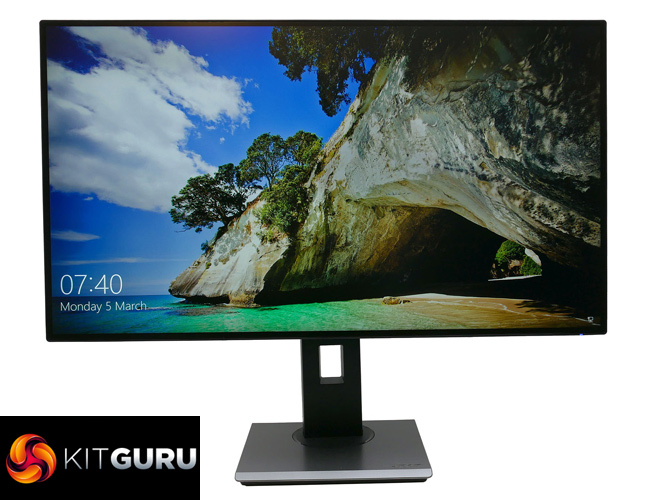
Still, there’s plenty more to like about this display. For professionals, the inclusion of an anti-glare hood will be welcome, while this display can also turn its hand to a bit of gaming, thanks to a reasonably nippy 4ms response time, low input lag and the inclusion of Freesync. In terms of refresh rate, it’s of course stuck on 60Hz.
The included stand offers a full range of adjustments, there’s plenty of connectivity and to round things off the display also has a low profile bezel, which means it doesn’t just create a nice looking image, but the monitor itself looks quite swish, too.
It’s an interesting set of features that potentially elevates the appeal of this display from more than just professionals. There’s the smart design, the inclusion of gaming settings in the menus and the half way house HDR stuff, all of which tick several more boxes.
As such, it’s no surprise this is a very expensive display, coming in at around £1,500. So the question is, does it deliver on its promise?
Specification:
- Screen size: 32-inch, 16:9 aspect
- Native resolution: 3,840 x 2,160
- Refresh rate: 60Hz
- Panel type: IPS
- Contrast ratio: 1,500:1
- Brightness: 550cd/m2
- Response time: 4ms grey-to-grey
- Display inputs: DisplayPort 1.2, 2 x HDMI 2.0, 1 x D-Sub
- USB hub: 1 x USB Type-C, 2 x USB 3.0
- Tilt: Yes
- Raise: Yes
- Swivel: Yes
- Pivot: Yes, bi-directional
- Other: 2 x 4W Speakers, headphone jack, anti-glare hood
- VESA: Yes
- Warranty: 3 years
Retail Price: £1,500 (inc. VAT)
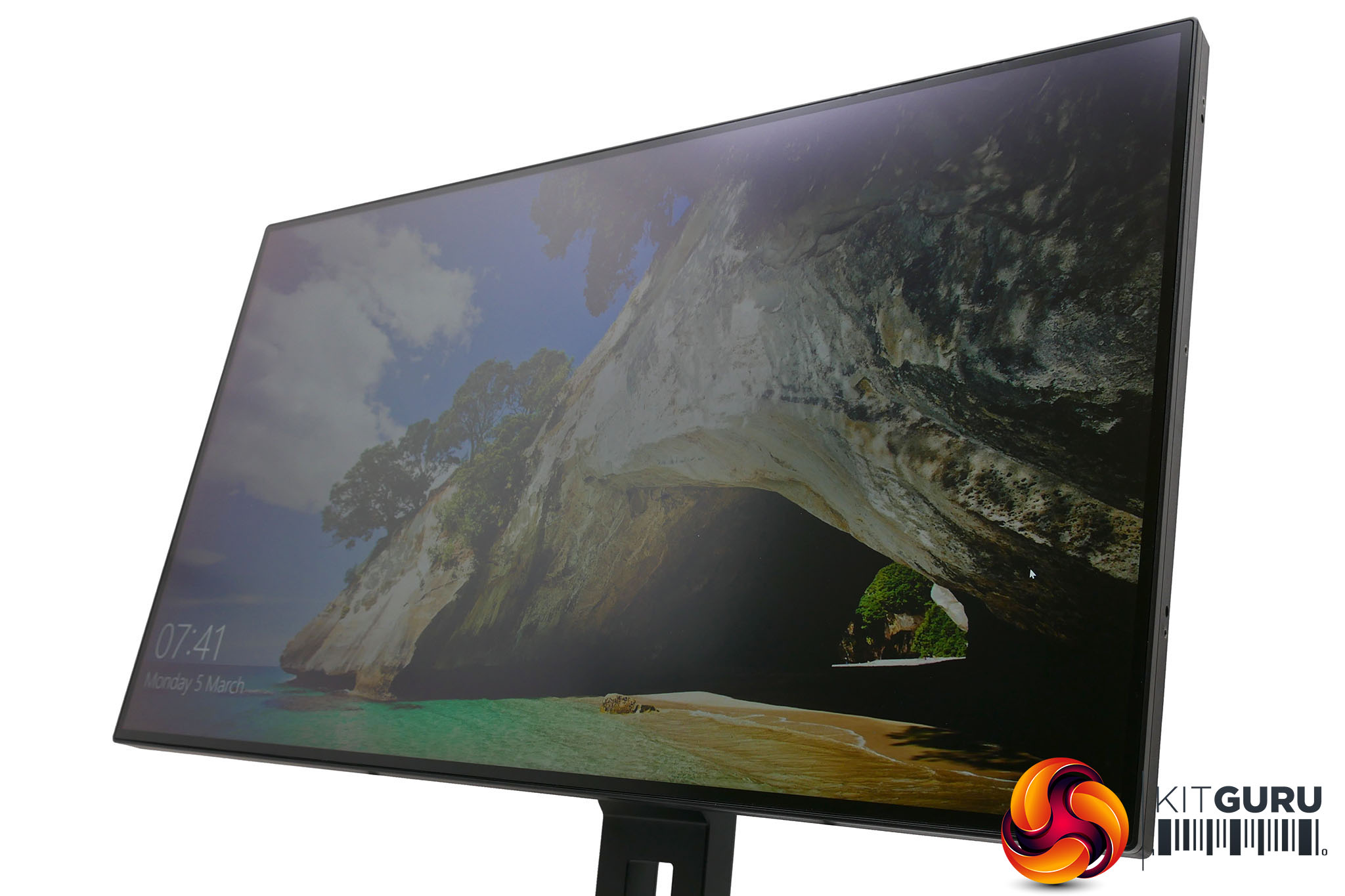
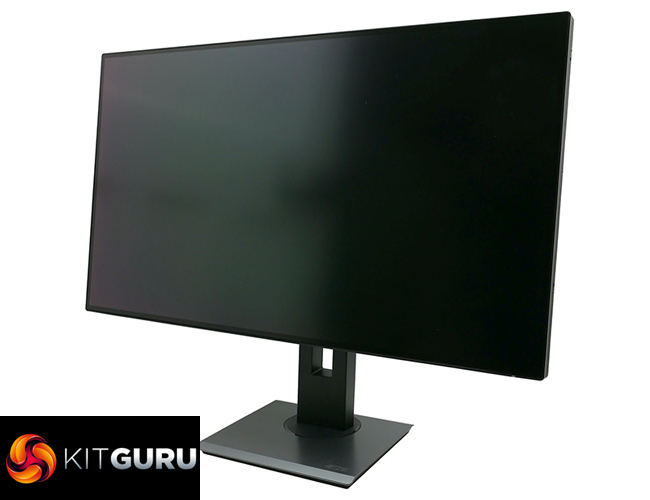
Many professional-grade monitors eschew any sense of styling to ensure the utmost in image quality. However, with the PE320QK, Acer has done what it can to make for a smart looking display that could grace any desk.
The main uplift is the use of a low-profile bezel that immediately gives the display a certain slimness. However, it is a risky move as low-profile bezels tend to be more prone to backlight bleed, which would immediately damage the professional credentials of this monitor.
Thankfully, though, there’s no evidence of this on our review sample, and it seems likely, given that each display is calibrated before leaving the factory, that any such imperfections would be stamped out before the monitor was shipped.
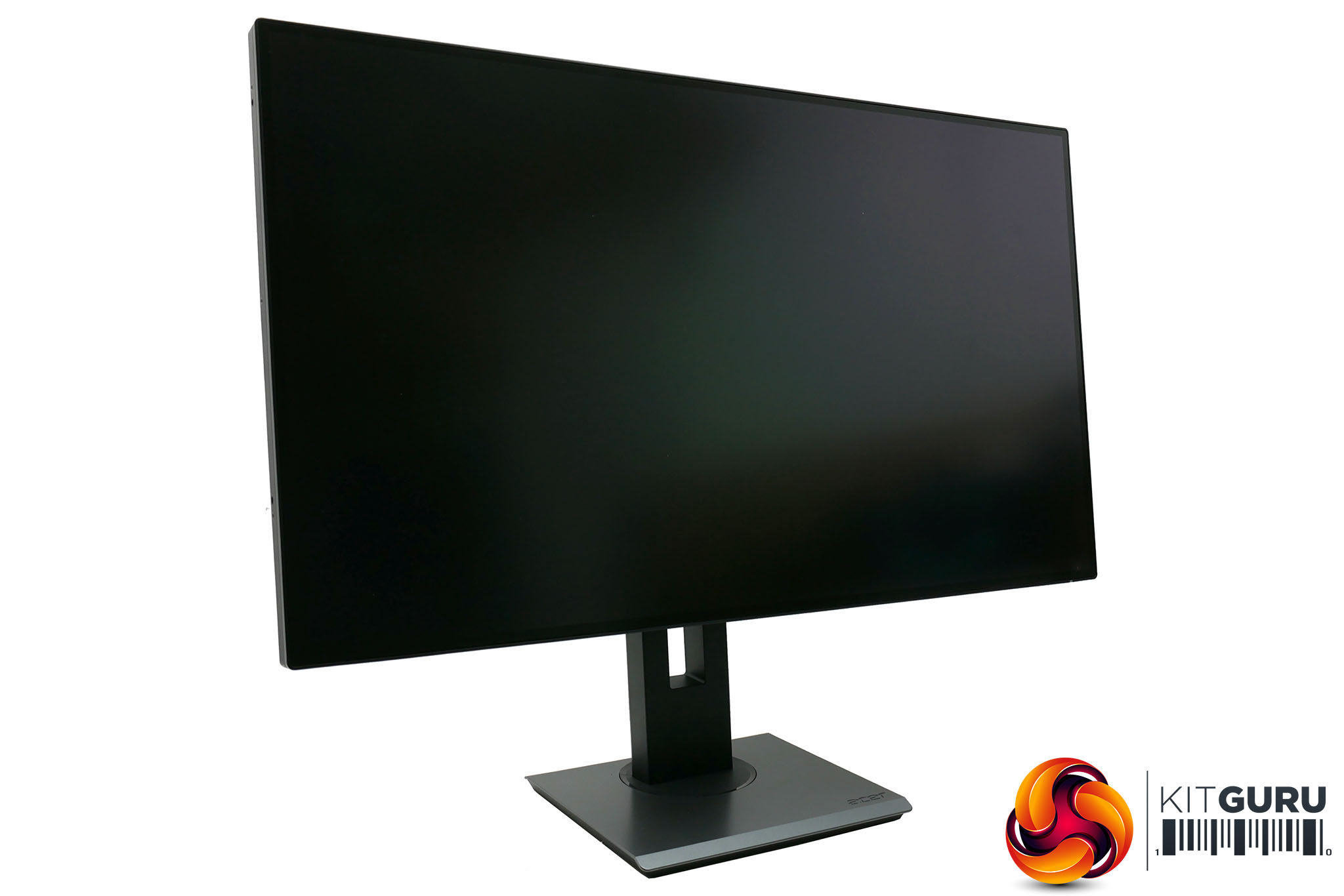
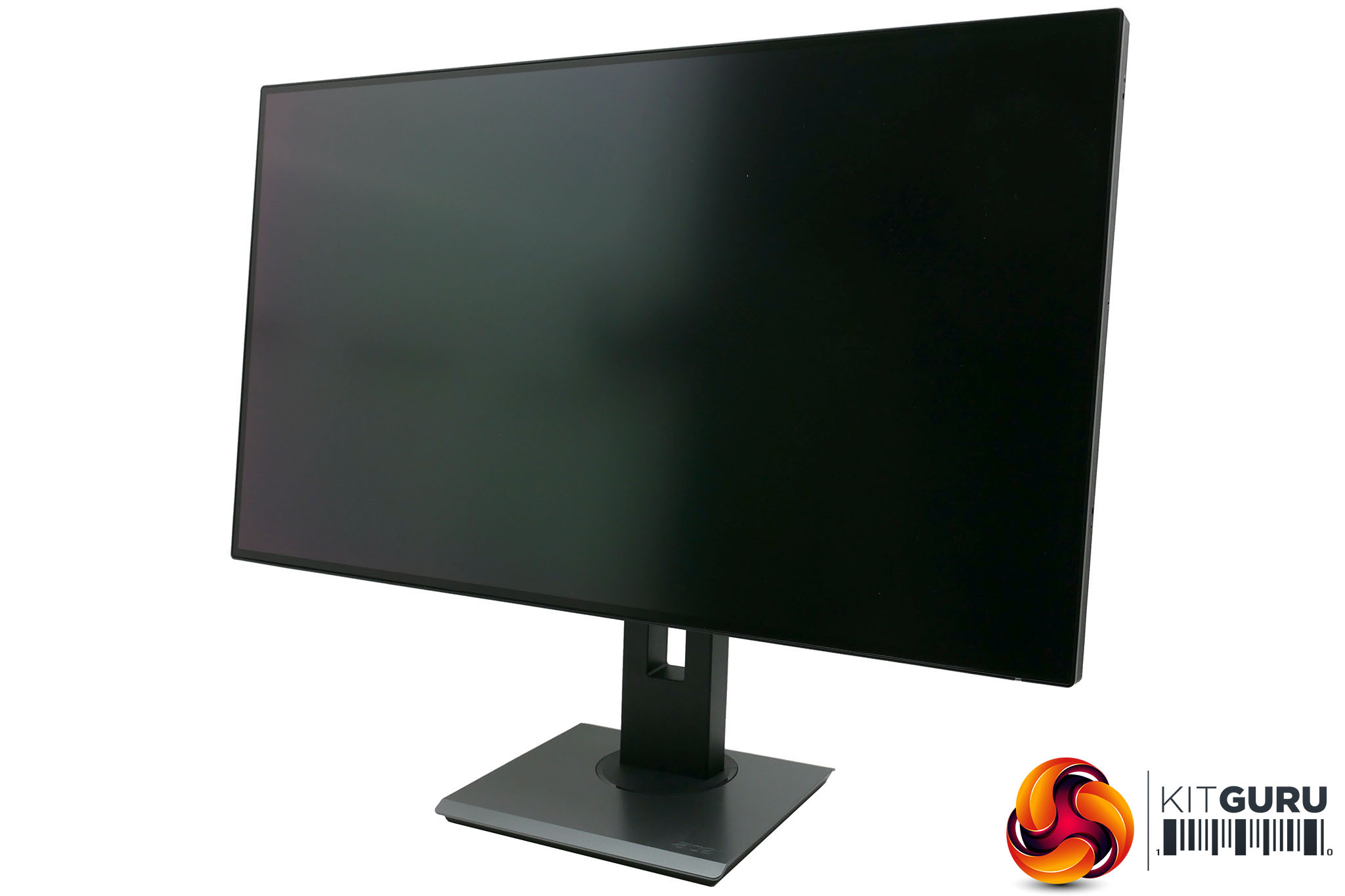
Elsewhere the styling is a nice combination of muted matt black plastics and a dark metallic tone to the top of the stand’s base. If it’s possible for a massive 32-inch monitor to look sleek, the PE320QK manages it.
On a more practical note, the included stand offers all the adjustment you’d expect, with 115mm of height adjustment (up to a total of 600mm), -5° to 20° tilt, 90° of rotation and it can pivot into a portrait mode in both directions. The stand is also very sturdy and all the adjustments are reassuringly smooth.
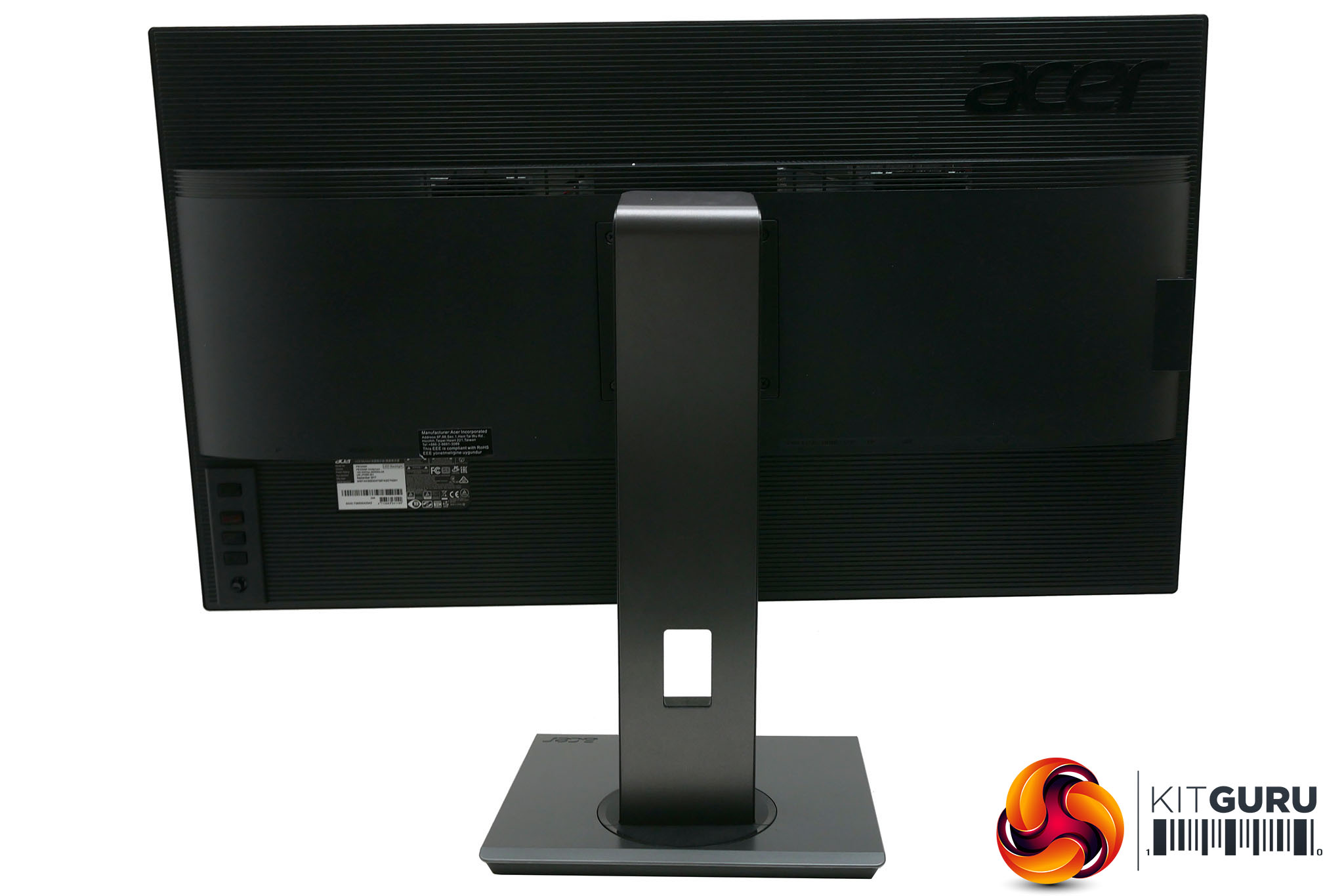
For connectivity you get one DisplayPort 1.2 and two HDMI 2.0 ports. Next to these inputs is a USB Type-C port, which is something we’ve seldom seen before on a monitor. However, this doesn’t serve any particularly exciting purpose. It’s simply the uplink connection for the four normal USB 3.1 ports. Two of these are next to the other connections on the back and two are on the side, where they’re easy to reach.
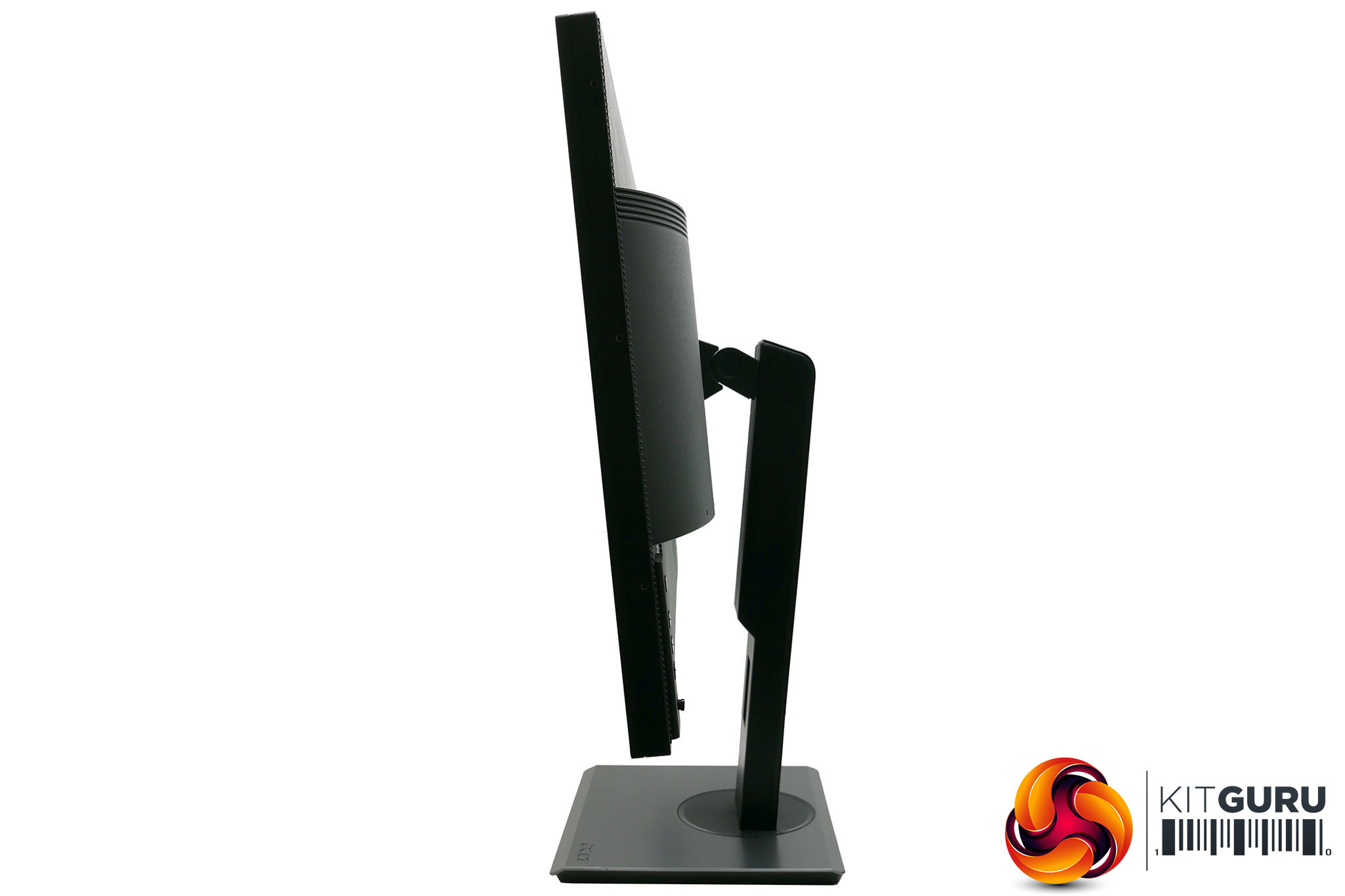
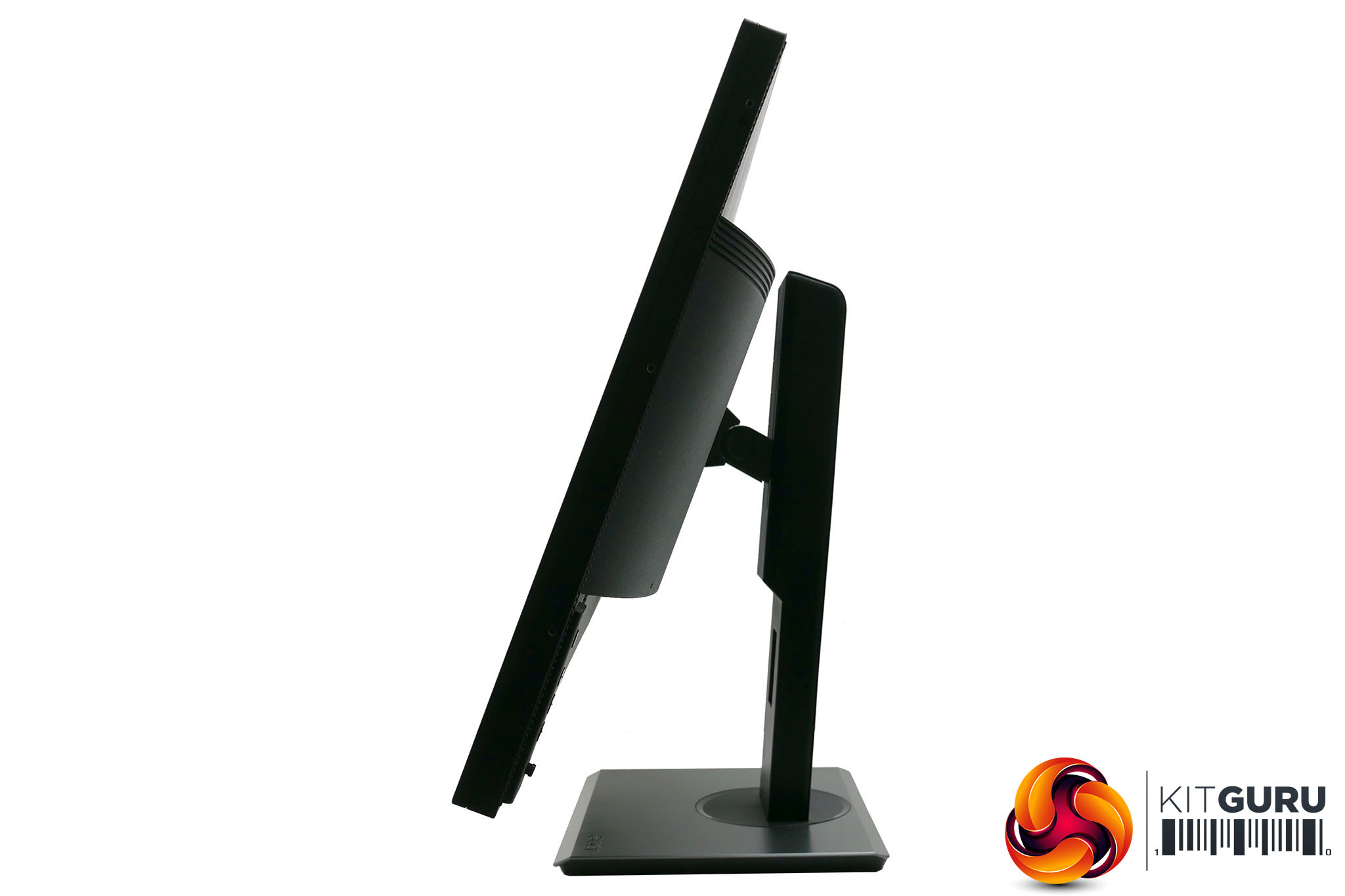
Finishing things off on the connectivity front are a headphone jack and of course the power connection. The monitor uses an internal power supply, so this is just a standard “kettle” lead socket, rather than a proprietary connection that requires a power brick; there’s also proper hardware power switch next to it.
As for the display itself, it’s 31.5-inches from corner to corner and has a 3,840 x 2,160 pixel resolution, for a pixel density of 140ppi. This is high enough that you’ll need to use Windows’ scaling tool to make things a more readable size. This defaults to 150%, which gives you an effective resolution of 2,880 x 1,620 and pixel density of 110ppi.
The Acer PE320QK’s on screen display (OSD) is packed with options but thanks to a responsive control system and intuitive menu layout it’s easy to get to grips with.
It uses a mini joystick for most of the control, but also relies on three buttons to control a few extra features, and its in these three buttons that the OSD makes its only slip up. All the controls are located on the back of the display, so you have to rely on feel to find and activate them. That’s fine for the prominent joystick but the buttons get a bit lost. Thankfully they’re only used on occasion.
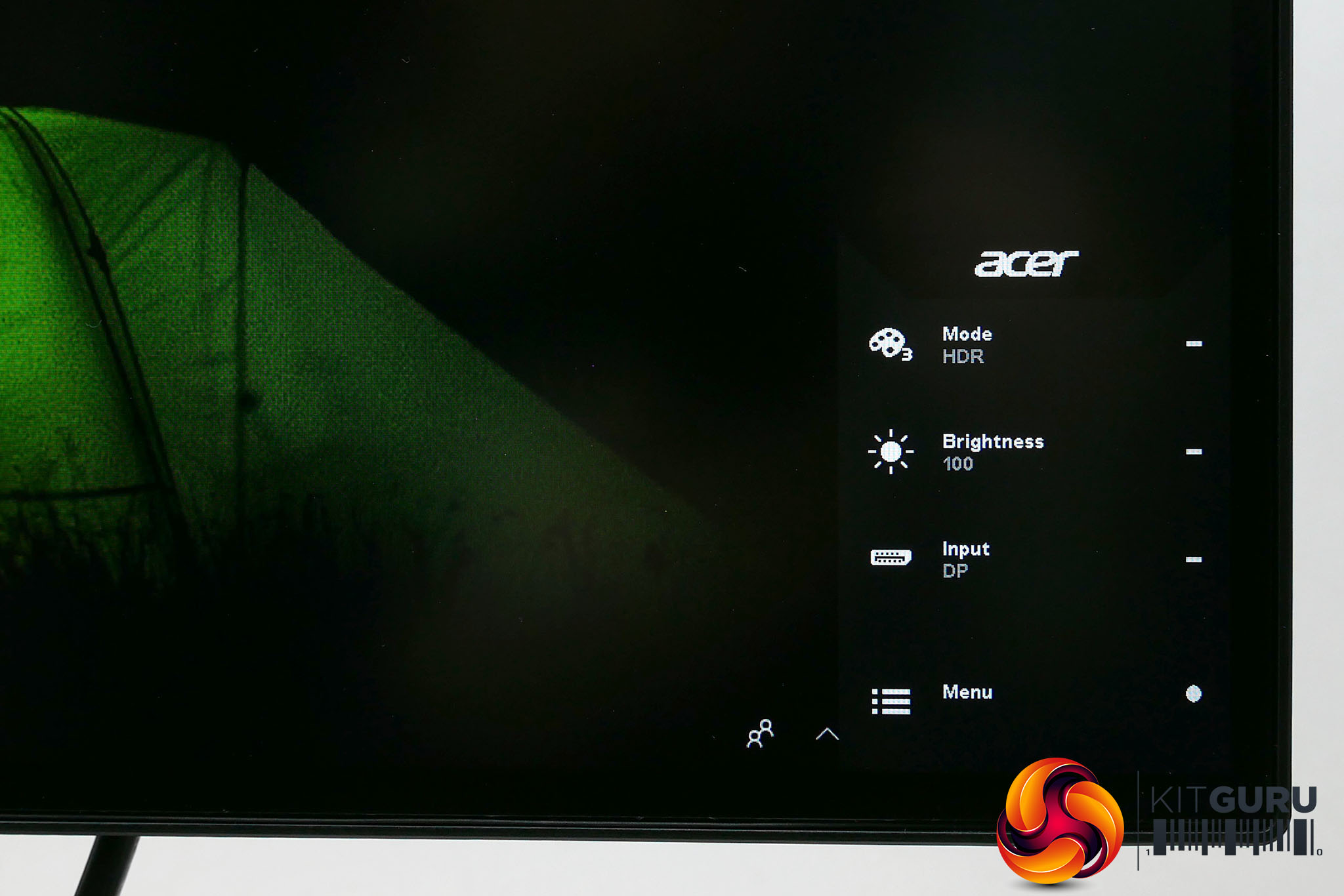
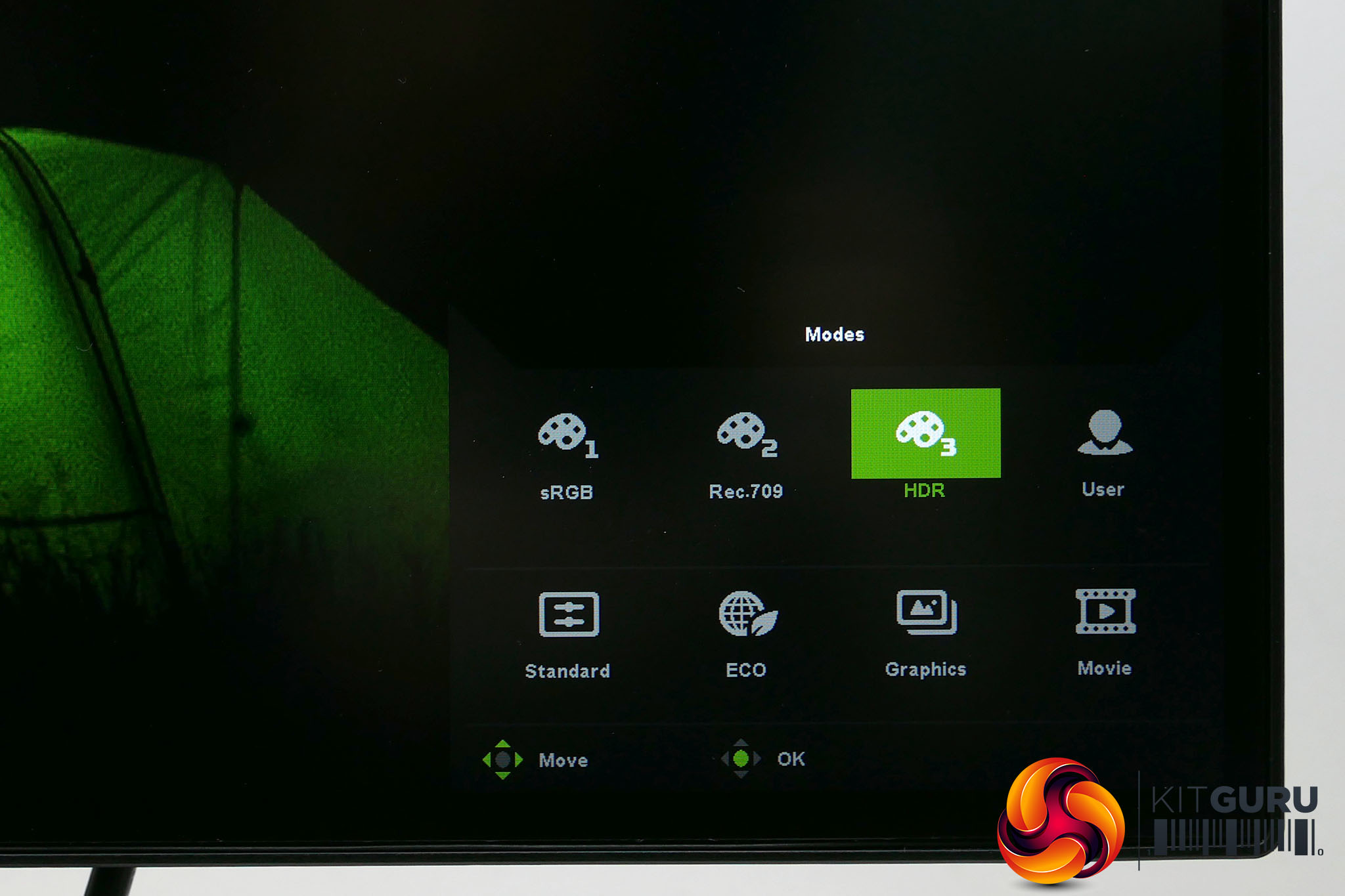
Tap the joystick once and you get the top level menu that provides quick access to four sub menus, which are accessed by pressing one of the buttons or the joystick again. The menu first lets you change what mode the display is in: HDR, sRGB, etc. The second menu is just a shortcut to brightness adjustment, the third provides input options and the fourth takes you into the main menu.
Starting with the Modes menu, you get eight options, including an Eco and Movie mode. However, the main four are sRGB, Rec.709, HDR and Standard/User. The sRGB mode is designed to limit the expanded colour range of this display to the standard sRGB range. It’s this mode that you’d choose for all normal use and particularly for if you’re working in a professional capacity on sRGB images. The Rec.709 option is the same thing but for the Rec.709 colour space.
As for HDR, this enables the brightest 550nits option and engages all the most aggressive dynamic contrast wizardry.
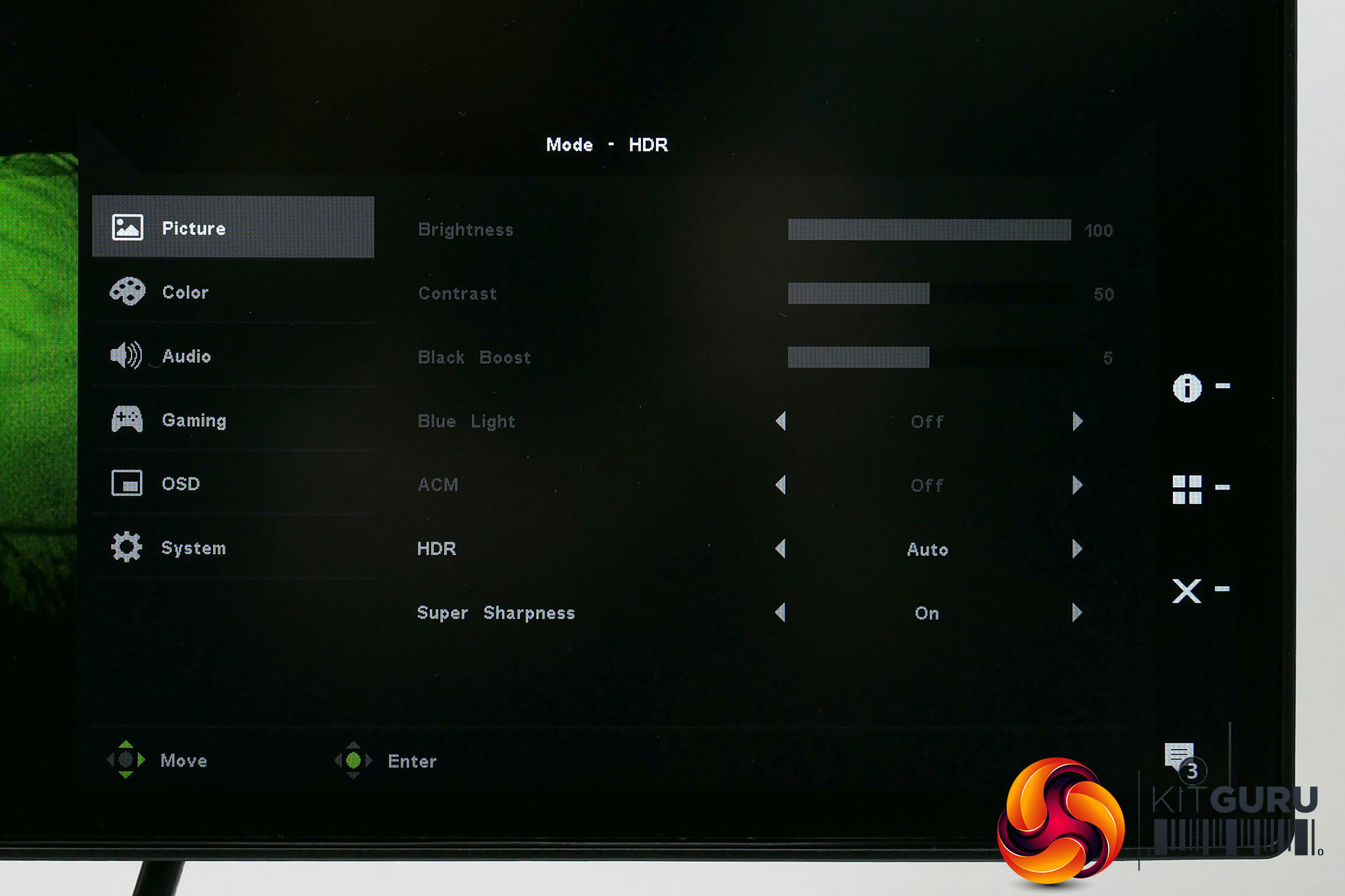
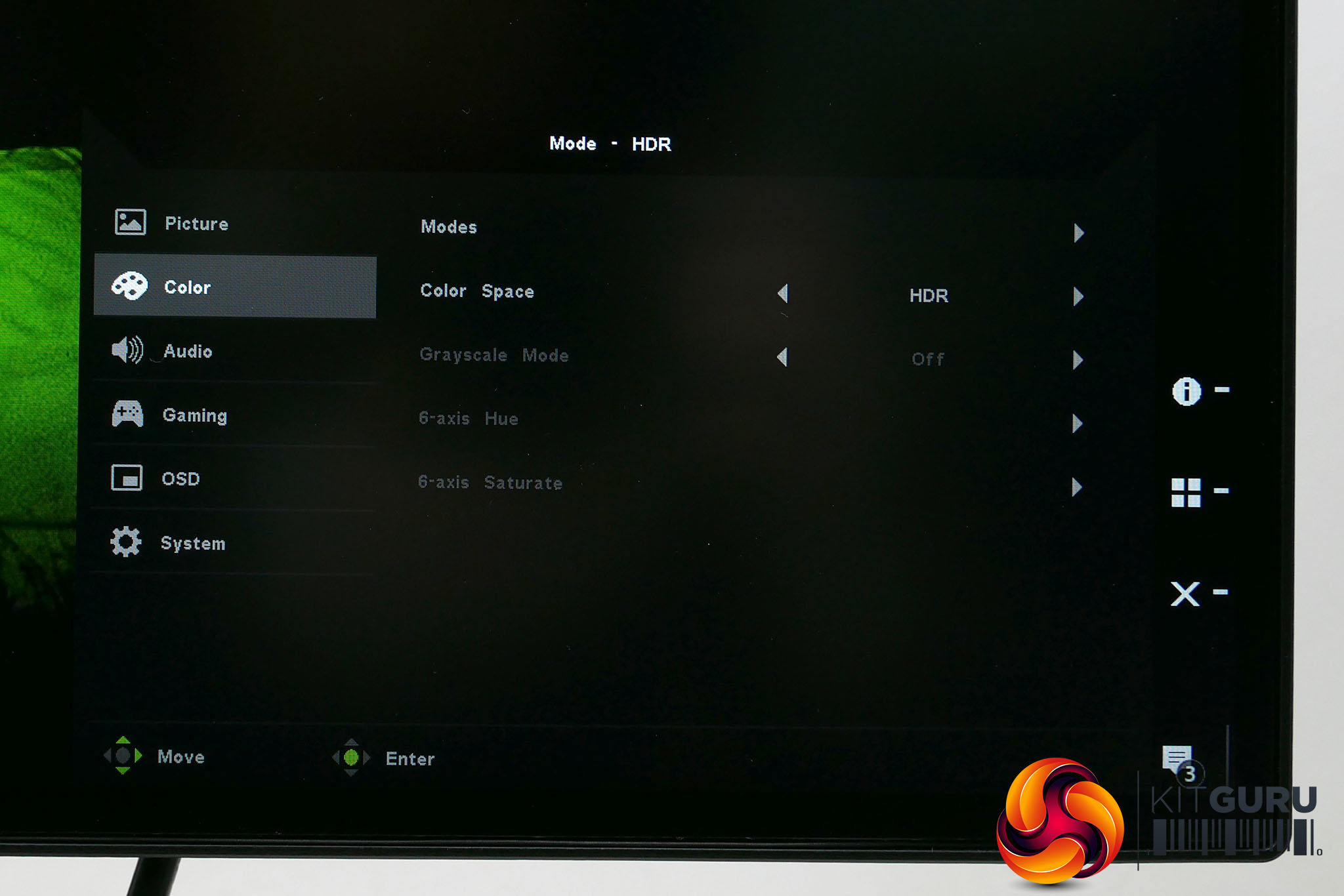
All three of the above options lock out almost all the other options so you can’t adjust anything else, other than via software calibration.
That leaves the Standard option, which automatically turns into the User option as soon as you change any settings. Here you get full access to all the other settings, so you can tweak to your hearts content.
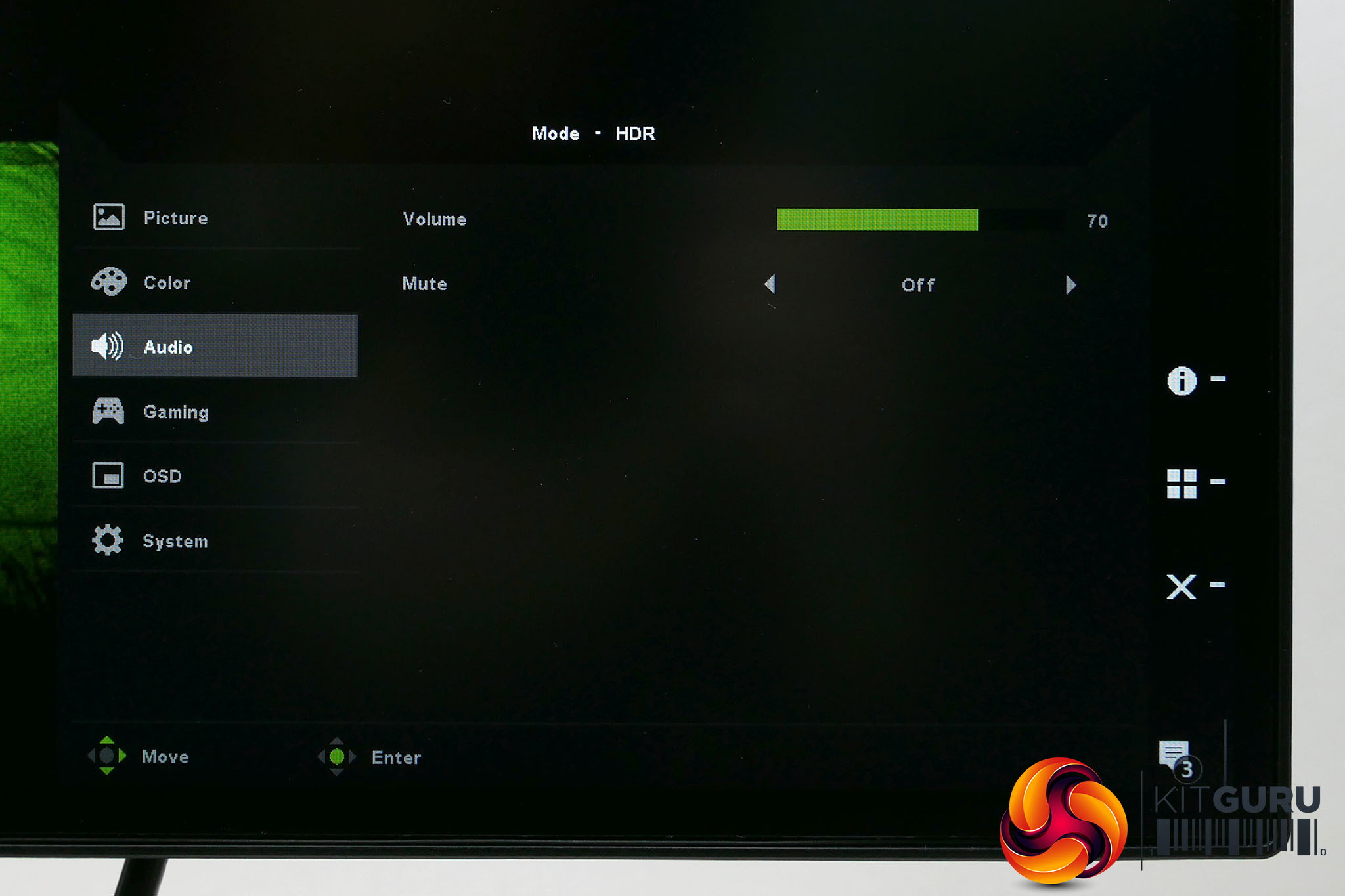
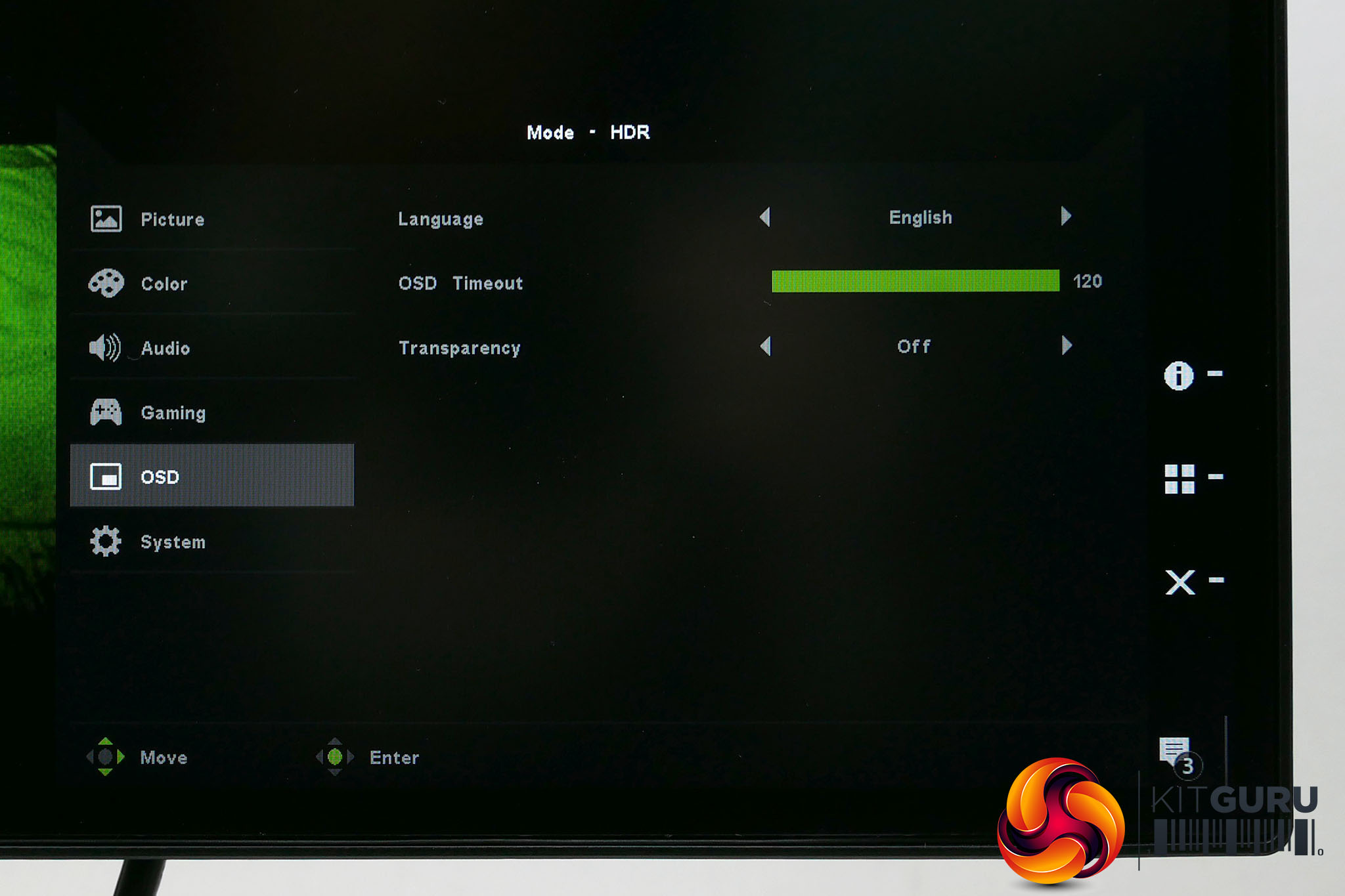
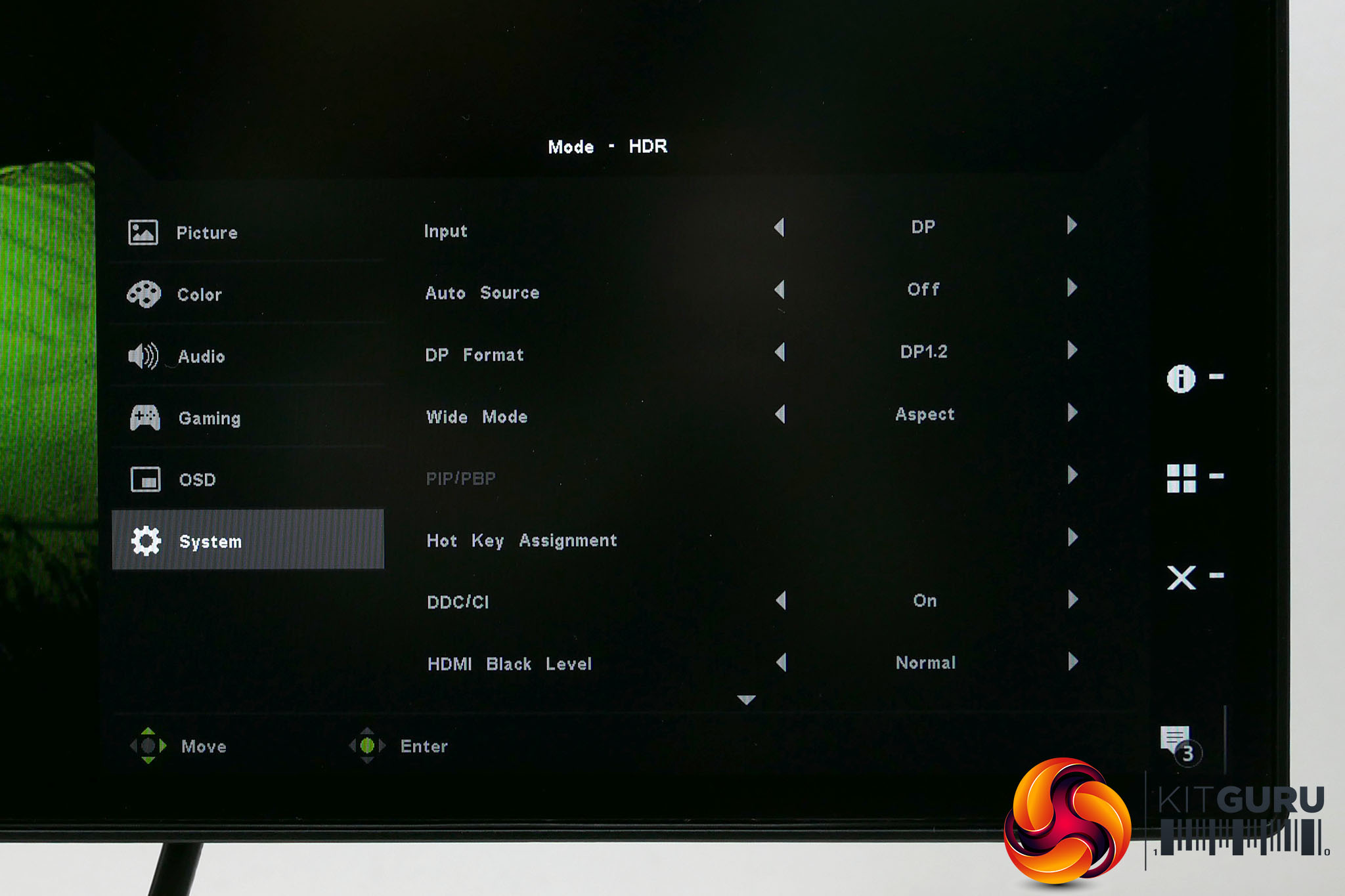
And what a comprehensive selection of them you get. Thankfully the layout makes it easy to work out where the setting you require is located. Picture deals with everything brightness and contrast related, Color provides various colour modes as well as manual colour balance adjustment, Audio gives you volume and mute, OSD lets you change the language, timeout and transparency of the menu and System has things like input options.
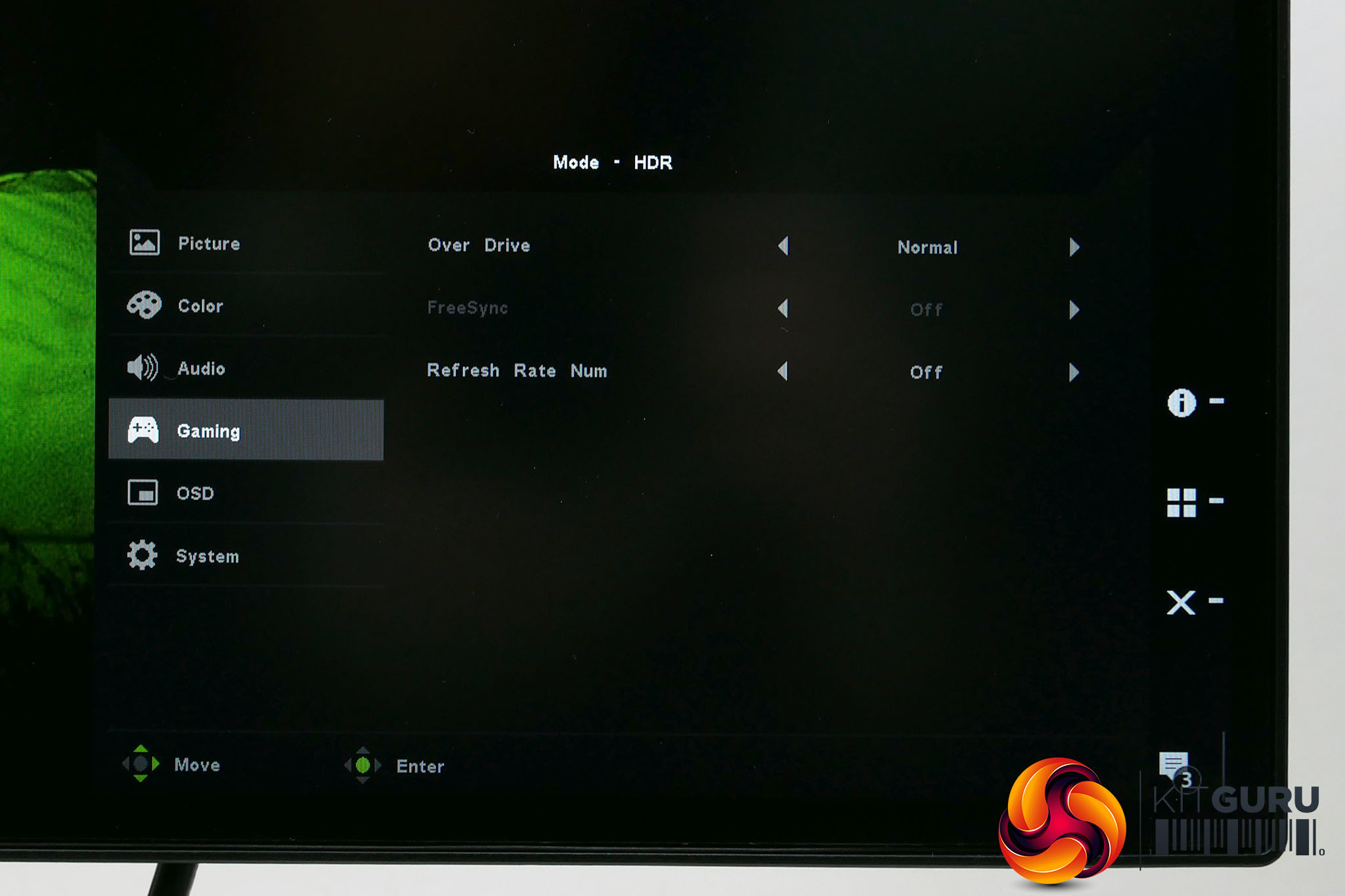
The most intriguing menu, though, is Gaming. For a professional-grade display you don’t really expect gaming to be given any consideration whereas here you get an overdrive setting, Freesync and a refresh rate overlay.
It’s hardly the most comprehensive selection but it does mean you’re given the opportunity to squeeze every ounce of gaming performance out of this monitor.
The moment you fire up this screen, the quality of its image is plain to see. It looks great from every angle, colours have real zing and contrast between the brightest and darkest colours is nice and strong. Then of course there’s the resolution that means everything look pin sharp.
Using the 150% Windows scaling option works well, providing a boost in effective resolution over 1440p displays, while keeping things readable. Plus, you get the extra detail of the full resolution when apps support it – such as when using Photoshop, watching video and of course gaming.
Windows scaling can generally be relied upon to keep everything looking as it should but does slip up occasionally, with some apps appearing at native resolution, and some appearing a bit soft and blurry when enlarged. It’s seldom a major headache though.
But back to those colourful colours, and there’s something crucial to note about them, which is that they’re technically too colourful, at least if you’re not working in a high gamut colour space such as Rec.709 or DCI-P3. As per the normal sRGB colour space that Windows uses this display is over saturated, with some colours looking bolder than they should.
To get round this you’ll want to switch the display to sRGB mode for normal use, and especially for when you’re editing any images. Again, unless you’re specifically working in a high gamut colour space.
Putting that into numbers, we measured the colour space coverage of the monitor in its default Standard colour mode and sure enough this display covers 131% of the sRGB space. That corresponds to 96.1% of the DCI-P3 colour space, meaning this display passes the 90% coverage required for the Ultra HD Premium standard for HDR content.
Switching to sRGB and things are brought back into line, with our colorimeter reporting 95.9% coverage.
However, engaging the sRGB mode also affects the colour temperature. In Standard mode the display is just about perfect, hitting 6441K, where the ideal is 6500K. In sRGB mode, though, this figure drops to 6139K.
This is a bit of a stumbling block, and having the sRGB mode be so locked down is also a bit frustrating, given the wide colour gamut of this display. It means you can’t calibrate the display other than in software, which can be a bit limiting.
Meanwhile, switch to the HDR mode and the display isn’t fundamentally much different from its standard mode. The key thing this display delivers is the wider colour gamut that the HDR10 spec requires.
What this display can’t do, though, is meet the HDR10 contrast requirements. It specifies a 10,000:1 contrast ratio, which can only be achieved on LCD screens by employing local backlight dimming. That’s where the backlight is made up of hundreds of individual LEDs that turn on and off in accordance with what’s on screen. The PE320QK, however, employs a conventional uniform backlight.
That said, this monitor gets closer to true HDR than most. It uses an IPS LCD panel, and these normally can’t push much beyond a contrast of 1000:1. Here, though, this display manages 1453:1. That’s a significant increase that’s clearly noticeable, with darker colours appearing deeper and richer.
One thing this display absolutely nails is its gamma performance. It offers five different settings – 1.8, 2.0, 2.2, 2.4 and 2.6 – and every single one delivers its figure exactly.
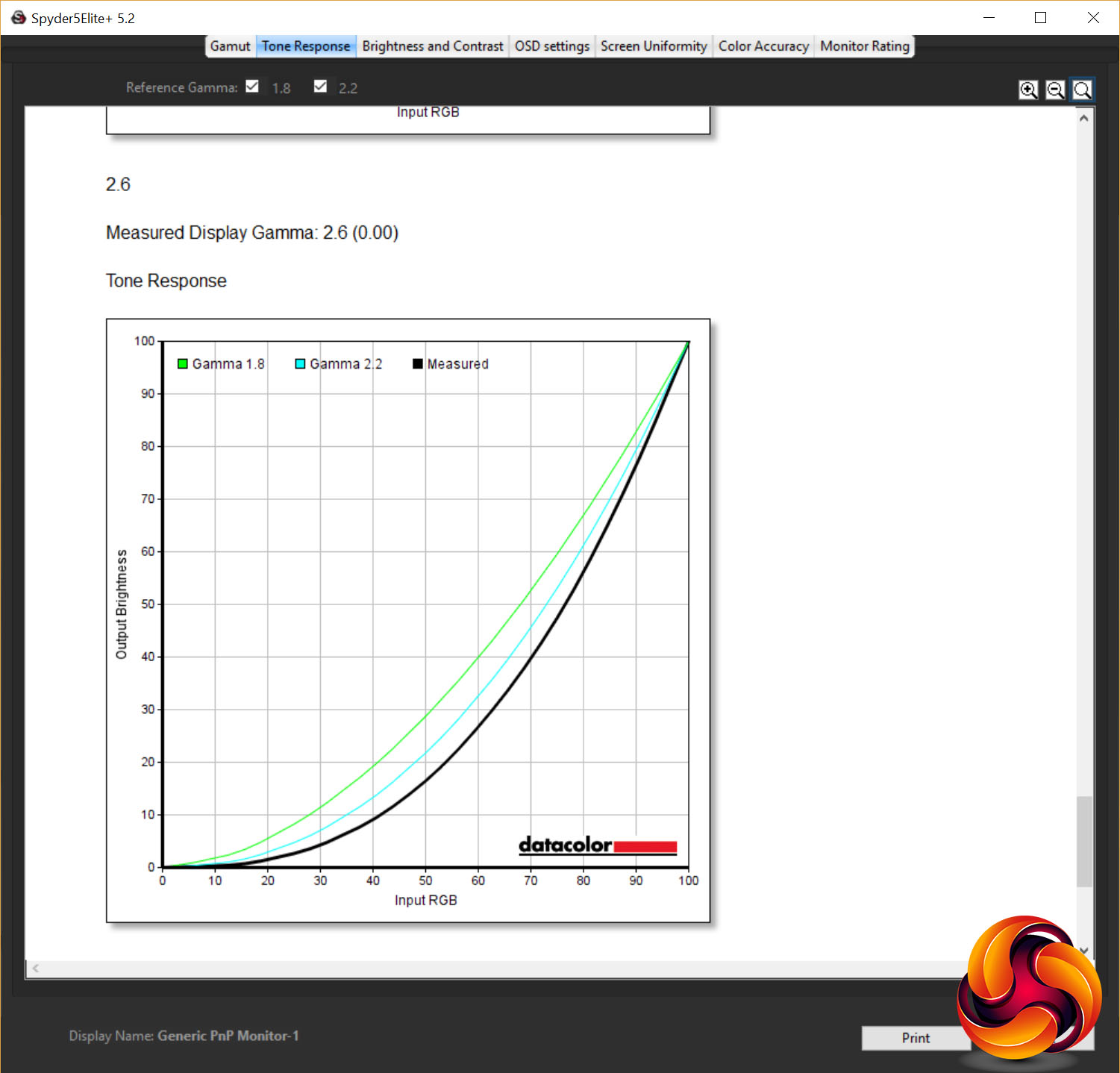
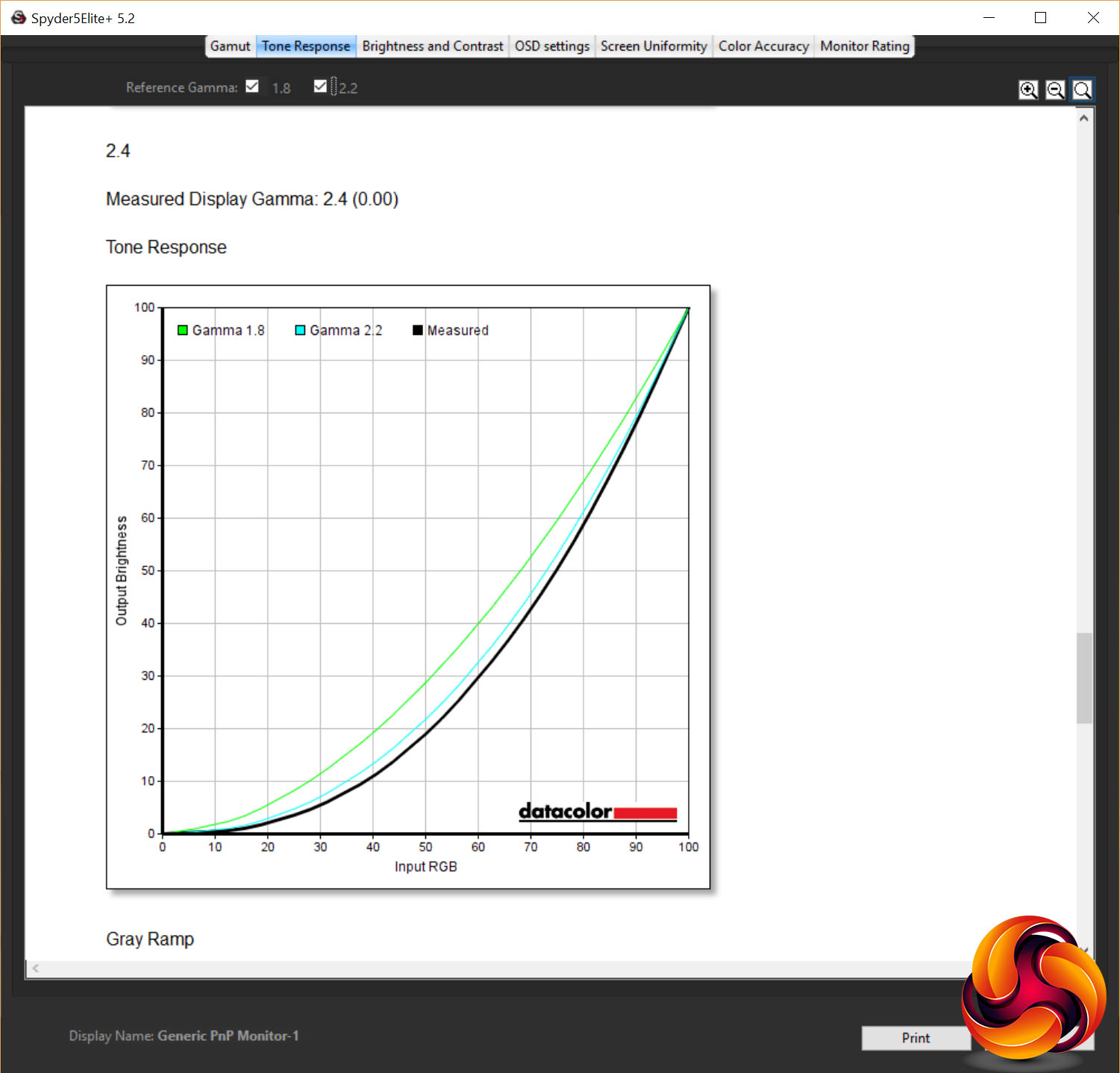
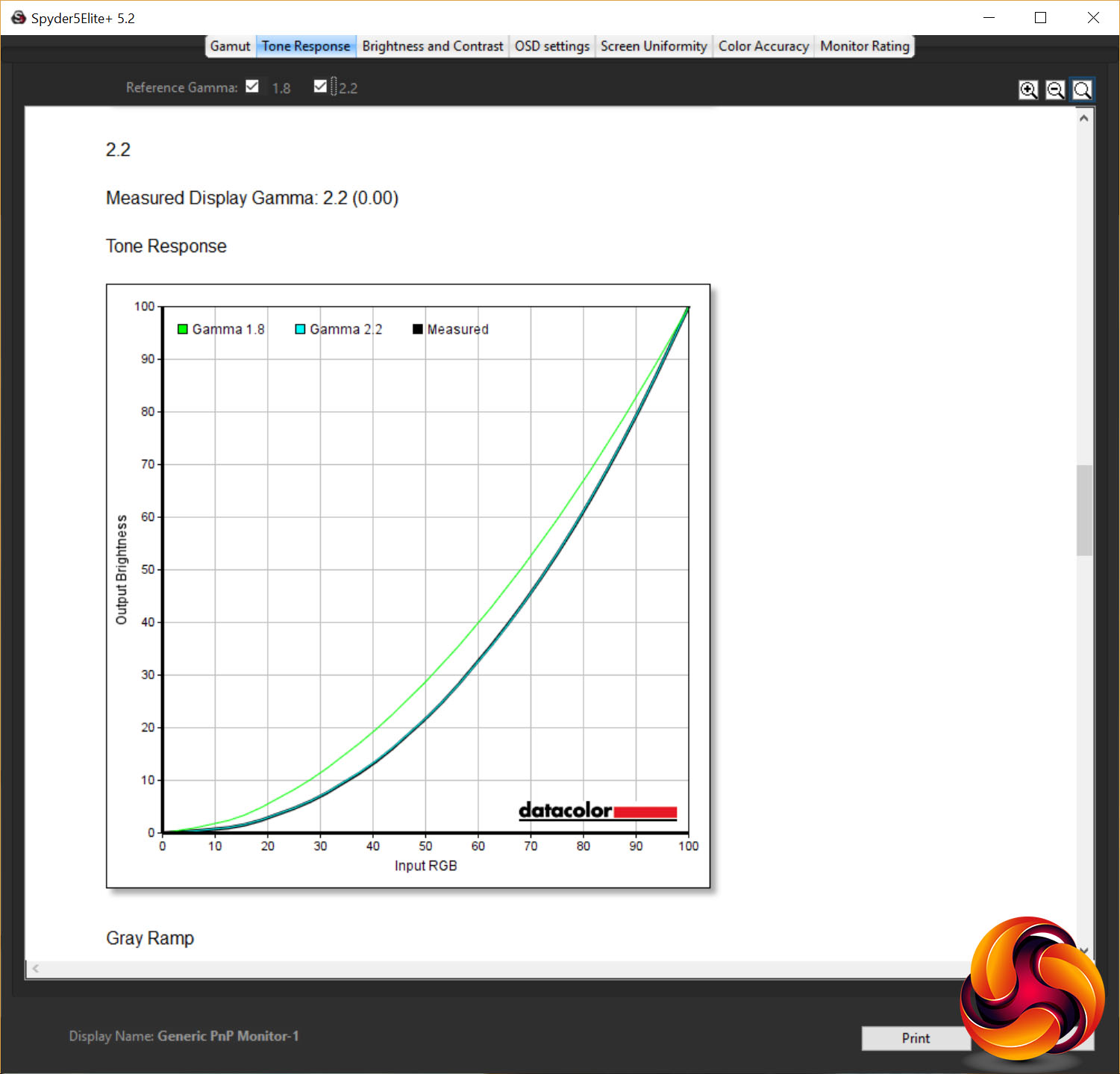
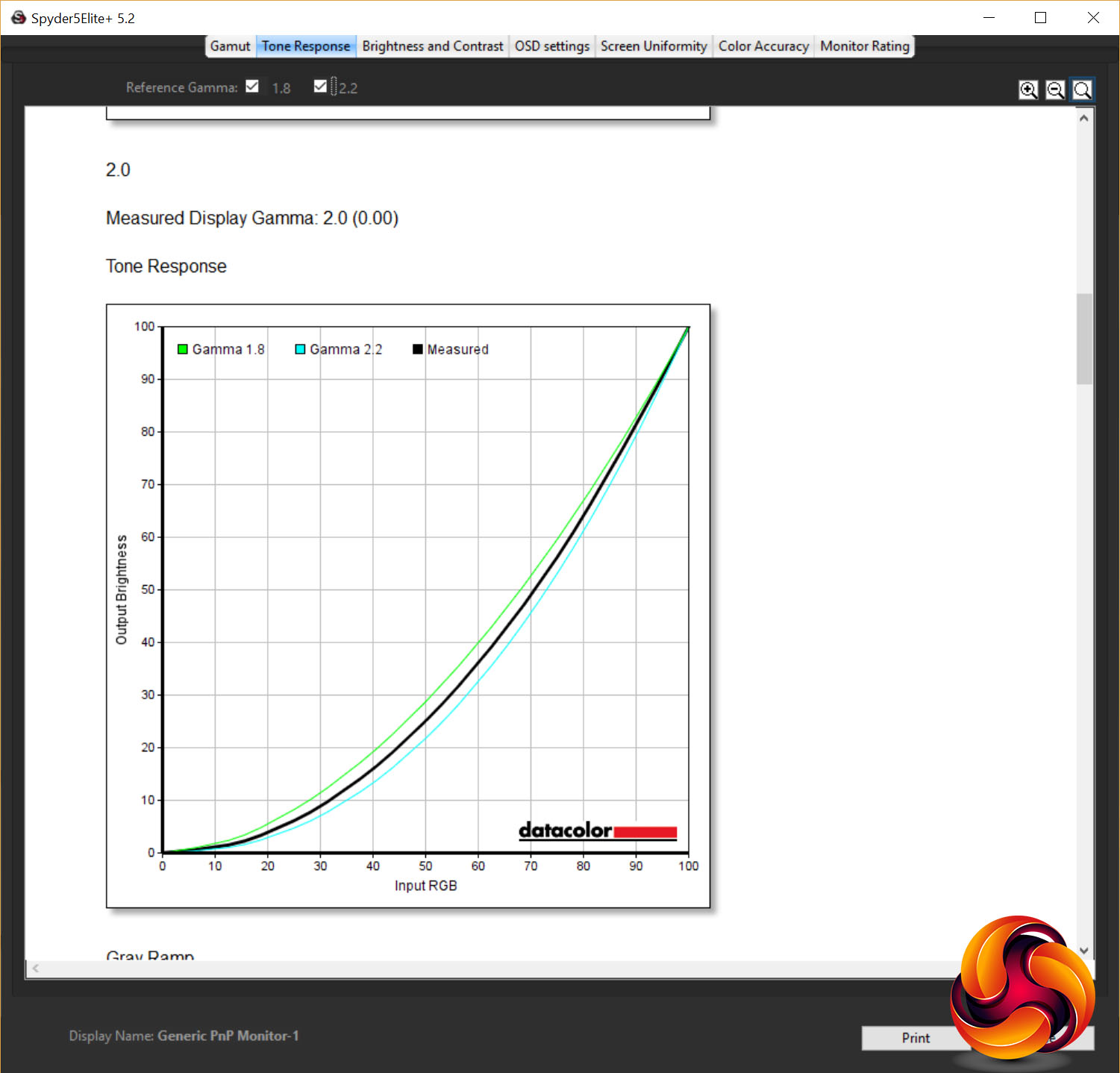
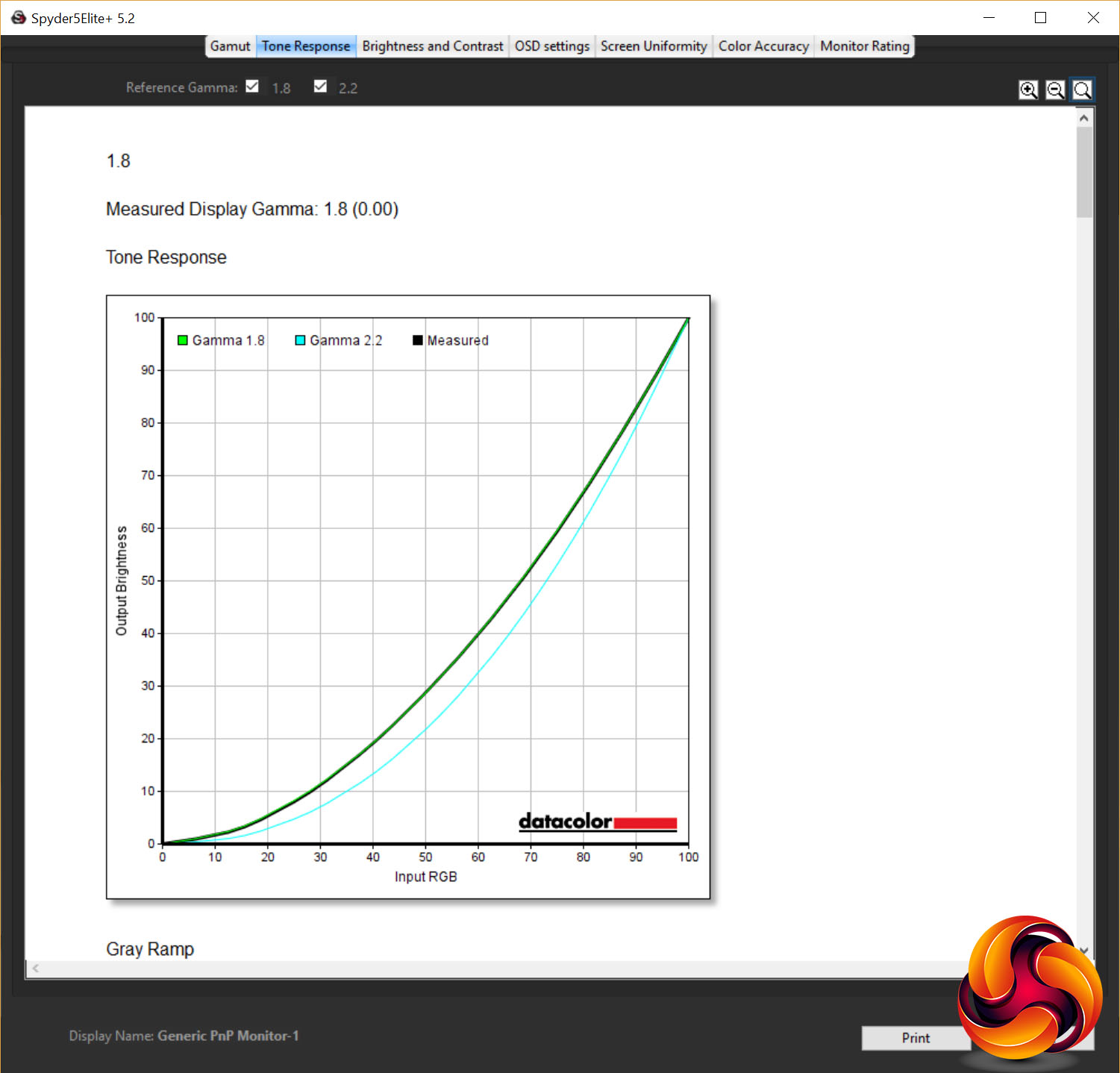
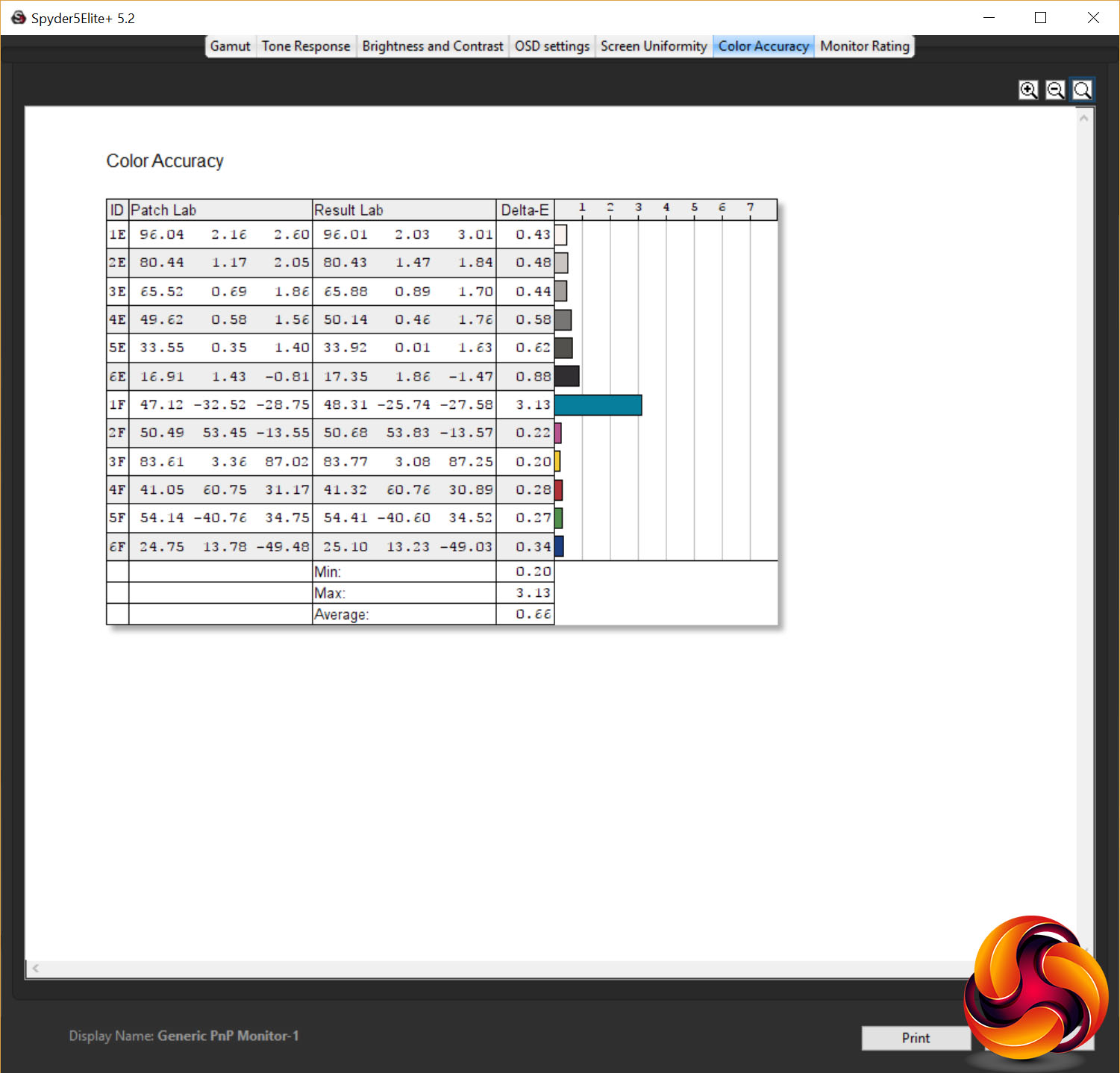
Overall colour accuracy is also exceptional, with an average Delta E of just 0.60 and maximum of 3.13. Anything below 3.0 is considered imperceptible to the human eye while below 1.0 is something only the best panels achieve.
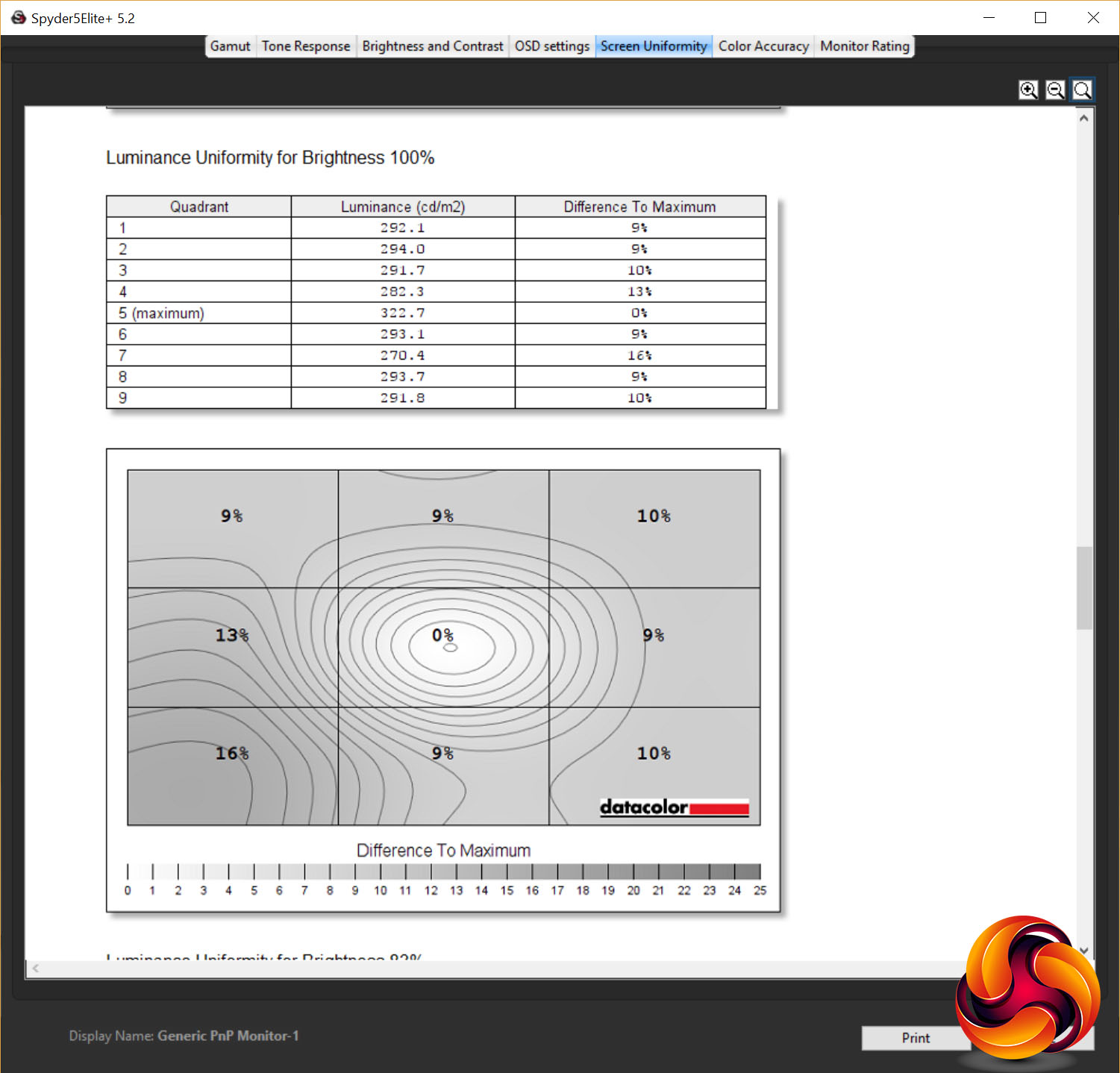
The uniformity of this display is little less impressive. With it being so large, it’s no surprise it struggles a little, but for a professional display we’d hope for a little better. With a peak brightness variance of 16% and average of 9.4%, it’s no better than some far cheaper displays.
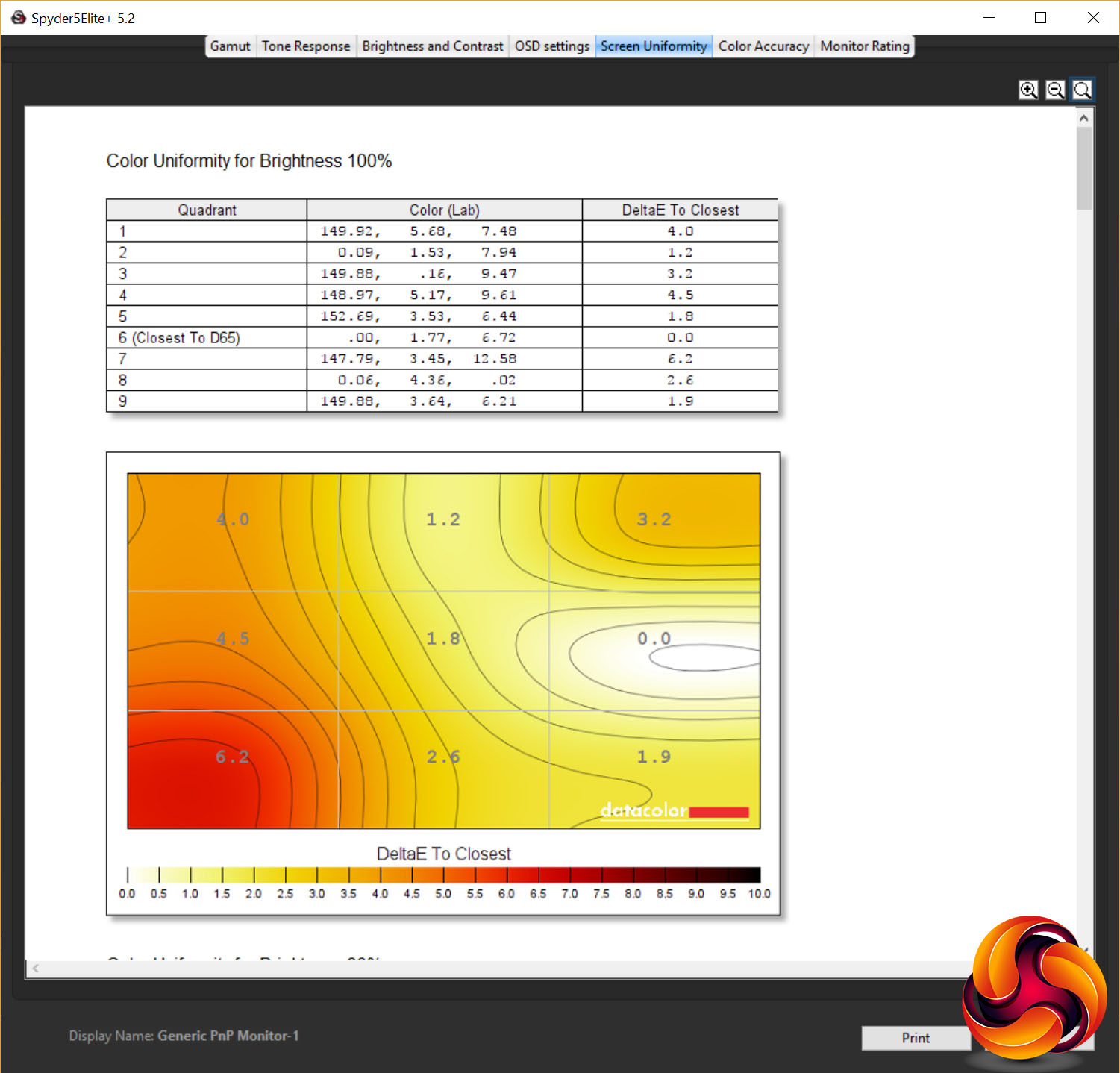
Colour uniformity is better, with a peak of 6.2% and average of 2.8%, though again it’s not significantly better than cheaper displays.
With our use mainly being in the sRGB colour space, we selected this mode then did a software calibration using the Datacolor Sypder5 Elite colorimeter and really it made very little difference. Largely this is because the display is so good already, though notably it didn’t affect the colour balance.
Gaming
This isn’t the sort of display that you’d necessarily prioritise for gaming. However, Acer has done what it can to make this display as good as it can for those who like to play as well as work.
The two most crucial things are that input lag is minimal and response time is 4ms, so although you’re not getting the lightning fast feel of 144Hz+ displays, it doesn’t feel unplayably sluggish.
Then there’s Freesync that ensures you get a smooth, tear-free experience.
The upshot is that for any games that aren’t reliant on super-speedy refresh rates, this display is fantastic. Its responsive enough and the combination of Freesync, 4K and the stunning image quality makes for a sometimes jaw-dropping spectacle.
The Acer PE320QK is a bit of a strange monitor. On the one hand, it’s a straight-up professional imaging monitor, with exceptional image quality as its main priority. On the other hand, it boasts an HDR mode and it has several gaming-centric features.
The result would seem to be the ultimate all-rounder monitor that’s great for work and play. However, it doesn’t entirely deliver on all fronts, making it more a jack-of-all trades than a master of any.
For instance, it doesn’t stretch to 100% AdobeRGB colour space coverage, so that somewhat limits its applications (though the use of AdobeRGB is admittedly very limited). Plus, the HDR mode doesn’t deliver true HDR. It lacks the contrast to meet any existing HDR standard, so only really is useful for colour grading of HDR content, not working on anything contrast related.
Similarly its gaming chops are something of a token add on. While it claims a 4ms response time, it can feel a little more sluggish than that at times and just generally it wouldn’t be the sort of display we'd ever particularly consider with gaming in mind. For instance, Acer’s own XB321HK offers the same 32-inch size, 4K resolution and great IPS image quality (though limited to sRGB colour space only) but also includes G-Sync and costs less than half this display.
All of which isn’t to say this is a bad monitor – far from it – it’s just that without that true HDR capability, it’s hard to see quite who would buy this display.
We found the PE320QK for £1475.98 from CCL HERE.
Discuss on our Facebook page, over HERE
Pros:
- Excellent image quality.
- Very high contrast for IPS.
- Versatile stand.
- Plenty of connectivity.
- Huge screen and high resolution.
Cons:
- Expensive.
- 10-bit colour unnecessary for most.
- Slow response time.
- Not true HDR.
KitGuru says: An immensely capable, professional-grade monitor that also has some gaming features. We’re just not sure who it’s really for.