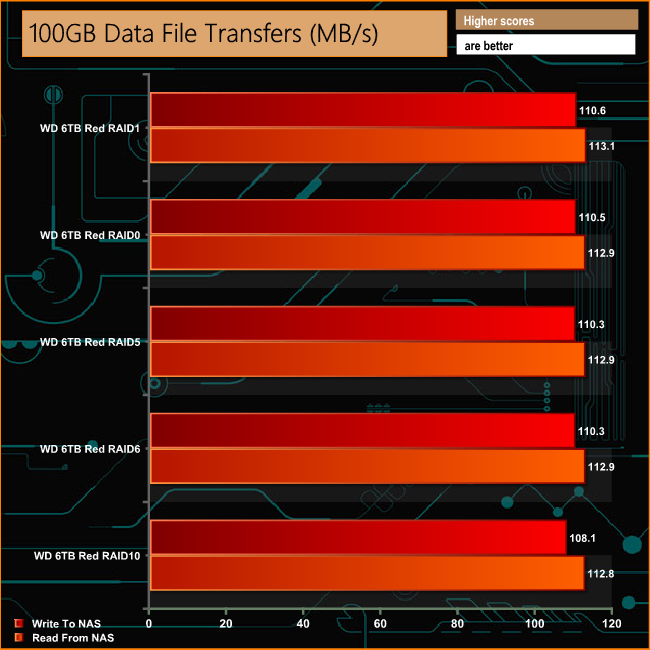
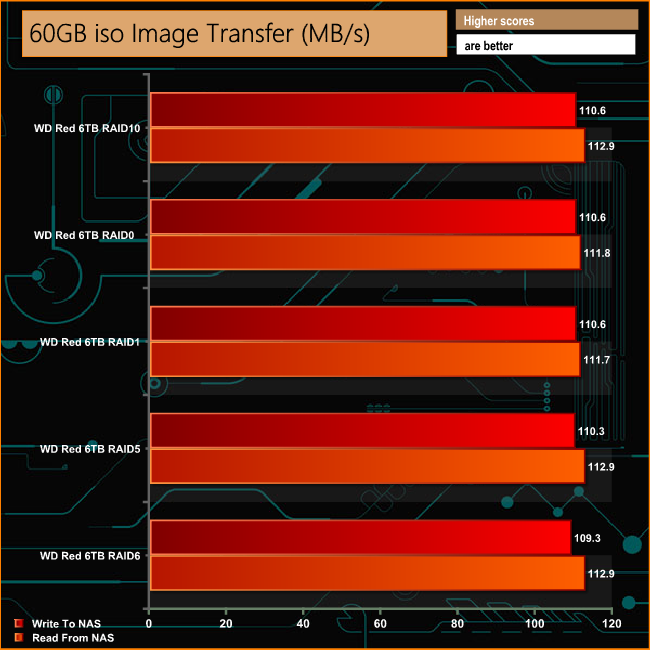
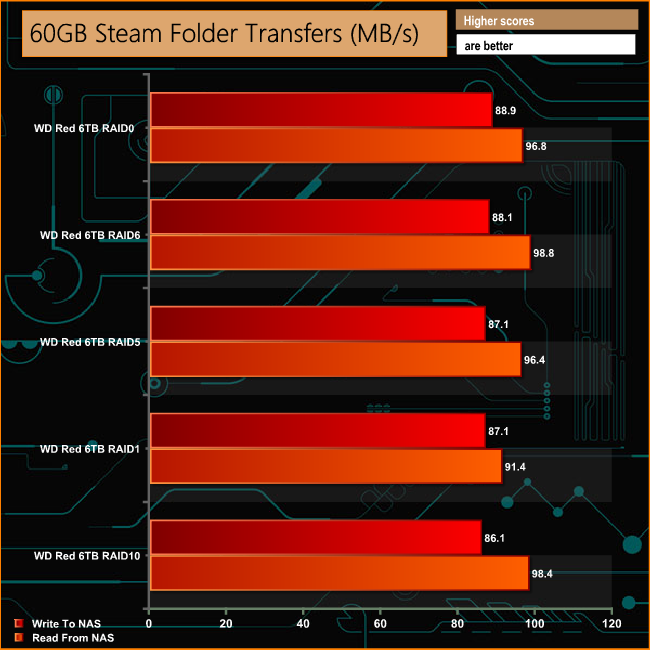
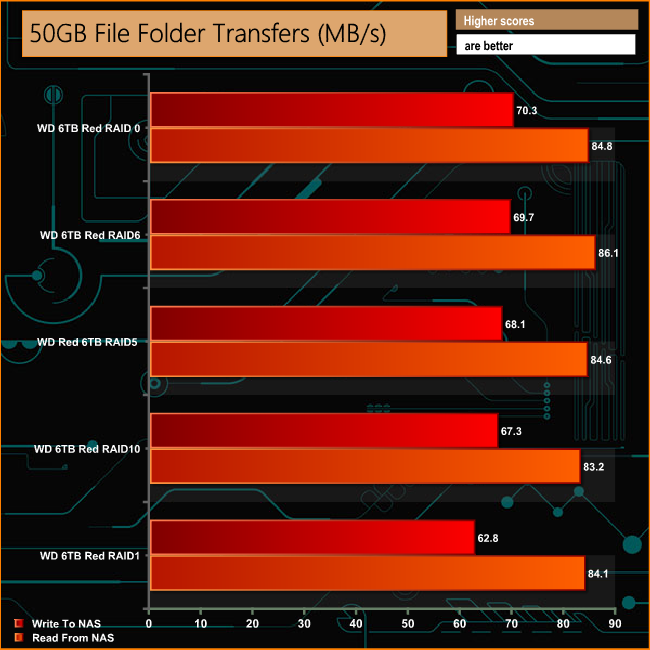
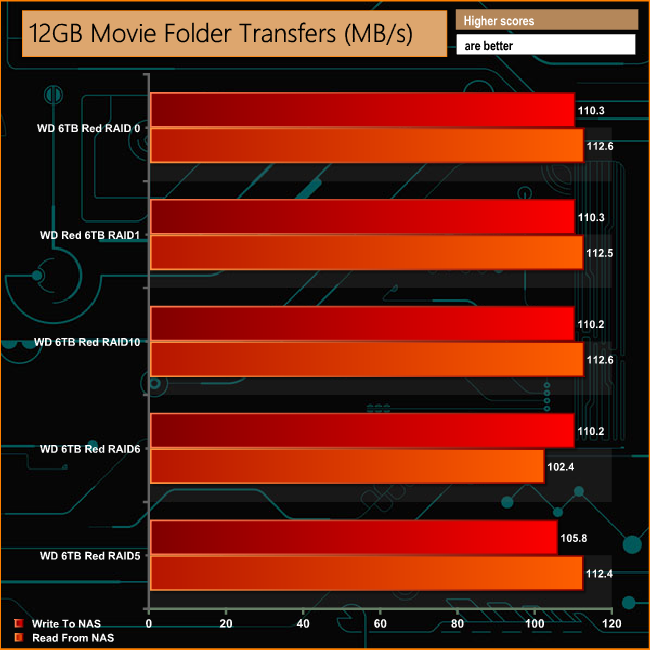
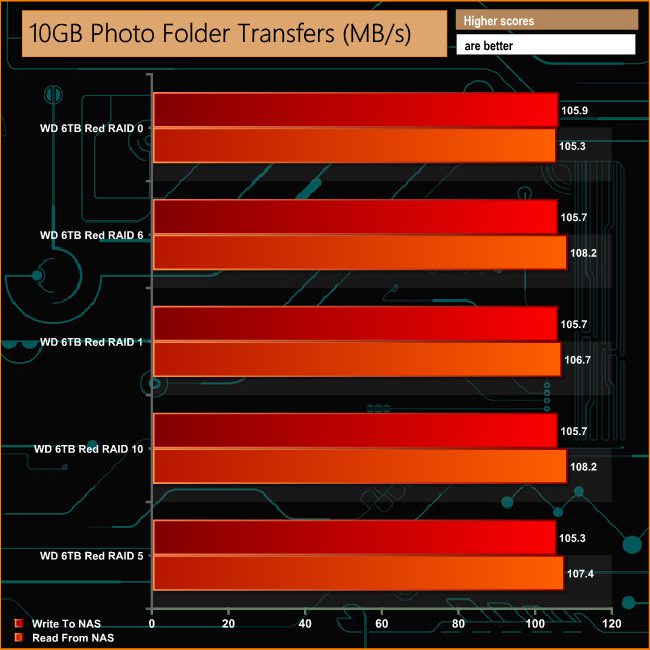
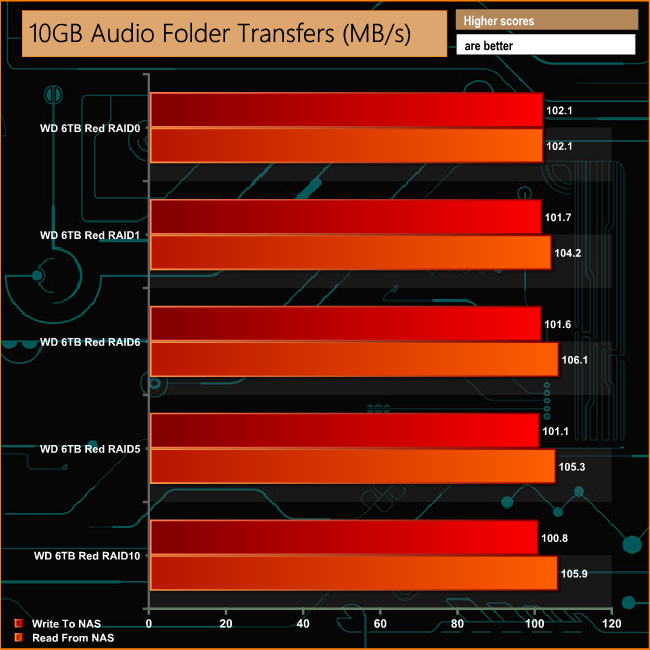
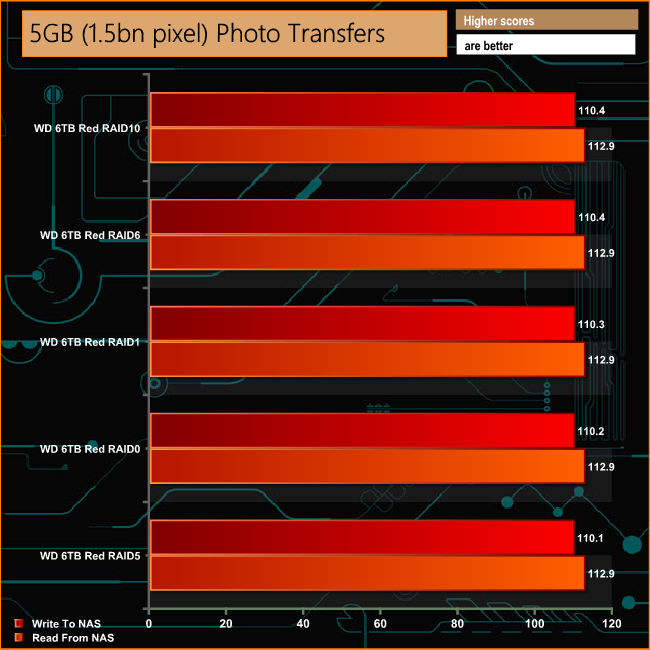
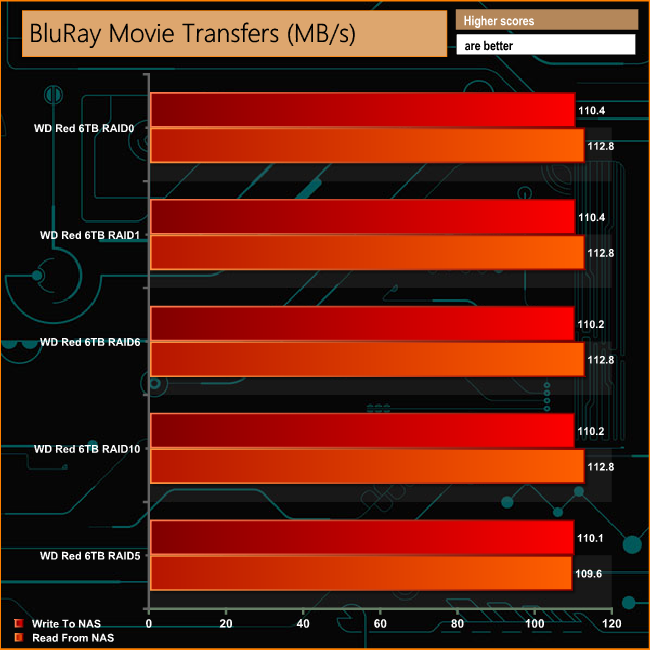
Recently we looked at Synology's DiskStation DS1517+ (review HERE), a 5-bay NAS aimed at the business sector. Now we have its bigger sibling in for analysis, the 8-bay DiskStation DS1817+. The 8-bay DiskStation DS1817+ sits just under the flagship desktop tower system, the 12-bay DS2115+ and offers a total storage capacity (with 10TB drives) of 80TB. Memory wise the DS1817+ comes in two options; 2GB or 8GB of DDR3 and it was the latter version that Synology supplied for this review. Should you require more memory, the unit supports up to 16GB of memory via two SO-DIMM slots. Just like the DS1517+ we looked at recently, the DS1817+ has an Intel Atom C2538 CPU at its heart. The C2538 is a 22nm quad core processor with 2MB of cache running at 2.4GHz with a TDP of 15W. There are four Gigabit Ethernet Ports that support Link Aggregation for faster network connections and failure protection and there's future proofing built in thanks to a Gen 2 x8 slot (x4 link speed) PCIe slot. Physical Specifications Processor: Intel Atom C2538 (2.4 GHz) Memory: 8GB DDR3 Gigabit Ethernet Ports : 4 PCIe slot: Gen2 x8 x4 link Front panel connectors: 1 x USB 3.0 Rear panel connectors: 4 x Gigabit Ethernet (supporting Link Aggregation), 3 x USB 3.0, 2 x eSATA RAID support : Synology Hybrid RAID, RAID 0, 1, 5, 6, 10 Cooling: Active – 2 x 120mm fans Maximum hard drive size supported : 10TB Maximum Capacity: 80TB Dimensions (D x W x H) 243 x 343 x 166mm. Weight kg. 6.0 The front of the Synology box has a label in the top left corner with an image of the drive on it along with the unit version and which memory model it is. Under this image is a row of five icons describing the CPU, the number of LAN ports, options for the PCIe slot and the fact that the DS1817+ supports the Btrfs file system. The rear of the box has a label in the bottom left with front and rear images of the unit along with a numbered list of its features and ports. Both sides of the box feature a row of feature icons along the bottom. One side these display icons for File Sharing, Anywhere Access, Cloud Synchronization and Virtualization Ready while the other side features Mobile Management, Surveillance, Backup and Data Security. The box bundle is a simple affair with just a mains cable, a pair of good quality Ethernet cables, two keys for the drive bay locks and mounting screws if 2.5in drives are being used. There also Quick Installation guide included. Thanks to its vertical mounted drive bays, the DiskStation DS1817+ is pretty compact for an 8-bay NAS measuring 243 x 343 x 166mm. The well built unit is finished in black with a metal cover and a decent quality plastic front bezel. The indicator LEDs sit above the drive bays, either side of the power button. The two to the left display Status and Alerts while the four to the right display network activity. At the bottom right of the front bezel is a single USB 3.0 port. The rear panel of the unit is dominated by the grills for a pair of YS Tech KM121225LL 120mm cooling fans. The KM121225LL spins at 2,000rpm producing a airflow of 61.2CFM with a rated noise level of 31.5dB(A). Handily, if you need to clean these fans they are mounted on a plate which can be removed from the rear panel. To the right of the fans is the blanking plate for the PCIe slot while under them sit the four LAN ports and three USB 3.0 ports together with the reset button. To either side of these ports is an eSATA port. Each end panel of the unit has Synology branding cut into it which helps out keeping the DS1817+ cool. The drive bay doors simply lock in position with a small latch but have locks on them to provide physical security. At the top of each door is an activity indicator LED. The drive trays are made from good quality plastic with the 3.5in drives held in place by simple but effective method. A plastic strip with a pair of pins moulded in sits in each tray side. These pins pass through rubber grommeted holes (helping to reduce drive vibration) and into the mounting holes in the hard drives chassis. The trays support 2.5in drives but these have to be fixed in place with screws (bundled with the NAS) via holes in the tray bottom. Although the DS1817+ comes in two basic memory configurations; 2GB and 8GB, the NAS actually supports up to 16GB of memory via a pair of SODIMM slots. Access to these slots is via a hatch (held in place by 4 screws) on the underside of the unit. The DS1817+ uses a Delta Electronics DPS-250AB-44M 250W internal power supply. To access the PCIe slot you need to remove the cover which is held on by six screws in the rear panel. Currently the slot supports Synology's M2D17 SSD adapter card to add SSD caching capability or the E10G15 10GbE Ethernet card in single port (-F1) or dual port (-F2) versions. The first part of setting up the DS1517+ as with all Synology NAS units is to go to http://find.synology.com which launches Web Assistant. This app searches for all DiskStations on the network so you can begin the install. If this method fails to find the NAS, the App has a link to the Synology Download Center where you can download Synology Assistant to your PC to search again for the NAS. Once the NAS is found, the first window of the DSM setup wizard appears. Pressing install (there’s also a manual install option to install a downloaded instance of DSM ) automatically downloads the latest version of DSM and starts installing it after reminding you that any data on the hard disks will be deleted. After the basic install has finished, the NAS is restarted and next up comes the setting up of the NAS management, where you assign a server name, admin user name and password. The next window is where the DSM update settings are set. Next you can set up Quick Connect (remote access to the DiskStation) or skip it and set it up later as you can with the install of Synology’s recommended packages; Photo, Video, Audio and Download Stations and Media and cloud Station Servers as well as Hyper Backup and that’s the setup complete. We reviewed the DS1817+ with the very latest version of Synology’s DSM (DiskStation Manger) OS, version 6.1 (6.1.3-1552 update3). DSM has always been one of the top NAS OS around and Synology keeps updating it at regular intervals to add more features and apps. The log on screen can be customised via the Login Style page. Here you can add text titles, show or hide local time information, select a template scheme, change the page background or add a logo. DSM has a graphically rich interface with all the major features of the OS clearly listed. The basic start page just lists four items; Package Center, Control Panel, File Station and DSM help. Clicking on the left-hand top tab opens a small window with more advanced menu choices than the basic one. Clicking on the furthest right-hand icon at the top of the window opens the System Health and Resource Monitor widgets. There’s a choice of control panels, Basic which displays the features most people will want to get to grips with while the Advanced option offers plenty of scope for those that want to delve deeper into the system. At the heart of DSM is Storage Manager. Storage Manager looks after RAID setups, volume creation (choose between the default Btrfs or ext4) and all other disk management duties. File Station is a multi platform file manager supporting Windows, Mac and Linux PCs as well as Android, iOS and Window Phone mobile devices. With it you can access and share your files on the DiskStation from anywhere. By using Dropbox, Box, Google Drive and Microsoft OneDrive mounted to File Station you can access remote data in the same way as locally stored files etc. Synology Universal Search is a new search tool that includes multimedia files and apps and offers previews of metadata and contents of files with just a mouse click. USB Copy 2.0 Auto copies data to a from a USB storage device and can be configured to set backup destinations, copy mode and any file filters. Package Center is where you’ll find all the add-in apps and there is an extensive list to choose from, 123 to be exact, allowing the DS1817+ to be customised to your own requirements. One of the updates 6.1 brings is Package Center auto repair to fix apps that might have been broken by a DSM update. The Resource Monitor has had a major facelift, becoming a more comprehensive and easier to use tool to keep an eye on the DiskStation's resources. With it you can monitor CPU usage, memory usage, disk utilization and network flow in real time or historically. Helping to keep the NAS safe is Security Advisor. As you might have guessed from the name, Security Advisor scans the NAS providing detailed reports on any security problems it finds. To help protect business users from potentially damaging service distruptions there is Synology High Availability. SHA allows two Synology NAS servers to be combined into a single high-availablity (HA) cluster with one NAS acting as the active server while the other acts a standby passive server. All services and data requests are handled by the active unit with real time data mirroring being handled by the passive unit. Features Btrfs file support File Station Photo Station Audio Station Video Station Download Station Cloud Station, Cloud Station Backup, Cloud Station ShareSync and DS Cloud. Synology Universal Search Note Station Web Clipper Spreadsheet USB Copy 2.0 Snapshot Replication Active Directory Server Hyper Backup Synology High Availability Virtual DSM Manager To test the Synology Diskstation DS1817+ we used eight 6TB Red drives (WD60EFRX, 5,400rpm class, 64MB cache), built into all the RAID arrays supported by the device (RAID 0,1, 5.6 and 10) using the default Btrfs file system and then tested. Software: Atto Disk Benchmark. CrystalMark 3.0.3. IOMeter. Intel NASPT. To test real life file/folder performance we use a number of different file/folder combinations to test the read and write performance of the NAS device. Using the FastCopy utility to get a MB/s and time taken for each transfer, the data is written from and read back to a 240GB SSD. 60GB Steam folder: 29,521 files. 50GB Files folder: 28,523 files. 12GB Movie folder: 24 files – mix of Blu-ray and 4K files. 10GB Photo folder: 621 files – mix of .png, .raw and .jpeg images. 10GB Audio folder: 1,483 files – mix of .mp3 and .flac files. Crystalmark is a useful benchmark to measure theoretical performance levels of hard drives, SSD’s and other storage devices.We are using V3.0.3. When it comes to handling the small bity files that make up the bulk of everyday use, the DS1817+ shows excellent consistency between RAID's 1, 5 and 6. The ATTO Disk Benchmark performance measurement tool is compatible with Microsoft Windows. Measure your storage systems performance with various transfer sizes and test lengths for reads and writes. Several options are available to customize your performance measurement including queue depth, overlapped I/O and even a comparison mode with the option to run continuously. Use ATTO Disk Benchmark to test any manufacturers RAID controllers, storage controllers, host adapters, hard drives and SSD drives and notice that ATTO products will consistently provide the highest level of performance to your storage. With a powerful CPU and a healthy chunk of memory, the DS1817+ is a pretty powerful desktop NAS. Tested over a 1GbE LAN it averaged 118.4MB/s for Sequential reads and 117MB/s for writes across the five arrays Intel’s NASPT (NAS Performance Toolkit ) is a benchmark tool designed to enable direct measurement of home network attached storage (NAS) performance. NASPT uses a set of real world workload traces (high definition video playback and recording, video rendering/content creation and office productivity) gathered from typical digital home applications to emulate the behaviour of an actual application. We’ve used some of the video and office apps results to highlight a NAS device’s performance. HD Video Playback This trace represents the playback of a 1.3GB HD video file at 720p using Windows Media Player. The files are accessed sequentially with 256kB user level reads. 4x HD Playback This trace is built from four copies of the Video Playback test with around 11% sequential accesses. HD Video Record Trace writes an 720p MPEG-2 video file to the NAS. The single 1.6GB file is written sequentially using 256kB accesses. HD Playback and Record Tests the NAS with simultaneous reads and writes of a 1GB HD Video file in the 720p format. Content Creation This trace simulates the creation of a video file using both video and photo editing software using a mix of file types and sizes. 90% of the operations are writes to the NAS with around 40% of these being sequential. Office Productivity A trace of typical workday operations. 2.8GB of data made up of 600 files of varying lengths is divided equally between read and writes. 80% of the accesses are sequential. Photo Album This simulates the opening and viewing of 169 photos (aprrox 1.2GB). It tests how the NAS deals with a multitude of small files. The DS1817+ sailed through the various Intel NASPT video tests without any problems with the notable execption of the HD Video Playback test in RAID 6, where the peformance dropped pretty dramatically. As with the video tests the DS1817+ has no real problems with the office based tests of Intel's NASPT benchmark with the exception of the Photo Album test when in RAID 6 mode, although the fall off in performance is no where near as dramatic as the drop in the HD Video Playback test . IOMeter is another open source synthetic benchmarking tool which is able to simulate the various loads placed on hard drive and solid state drive technology. We set IOmeter up (as shown above) to test both backup and restore performance on a 100GB partition. The DS1817+ shows a very good consistency of performance in our 100GB backup/restore tests across all the arrays. The AES-NI hardware encryption engine in the DS1817+ helps maintain performance levels when the NAS is dealing with encrypted files. The write performance dropping just 15MB/s with reads losing a mere 11MB/s when tested in RAID 5 mode. When it comes to dealing with our real life file transfers, the DS1817+ shows excellent consistency for reads and writes in all the arrays. We tested the peak power consumption of a NAS at the wall during a run of CrystalDiskMark 5.0.2 as this version of the benchmark runs the read and write benchmark suites separately so its easier to monitor what power the device is using during each function. The 2.4GHz Intel Atom C2538 inside the DS1817+ has a TDP of 15W, so to keep the power demands as low as possible, hard drives need to chosen carefully. The eight WD 6TB drives we used to test the NAS are each rated at 5.3W average when actively reading or writing and have an idle rating of 3.4W. Synology's DiskStation DS1817+ is a compact 8-bay NAS powered by an Intel Atom C2538 2.4GHz CPU backed by either 2GB or 8GB of DDR3 memory. Usefully whichever memory option you choose it can be easily upgraded to a maximum supported memory of 16GB. Upgrading the memory is a doddle as the two SO-DIMM slots sit under an easy to get to hatch in the base of the unit. The DS1817+ offers a couple of useful future proofing features. Should the need for more than 80TB of storage become urgent, the unit supports a pair Synology's DX517, 5-bay Expansion Units (each supporting 5 x 10TB drives) via the two eSATA ports. Adding two of these expansion units gives a total capacity of 180TB. With the addition of the PCIe (Gen2 x8 slot x4 link) slot comes support for either a SSD adapter card (Synology's M2D17) to add SSD caching capability or a 10GbE card (E10G15-F1, single port or E10G17-F2 dual port) for faster networking capability. Synology’s DSM (DiskStation Manager) is one of the best NAS O/S out there, quick and easy to install with a lengthy list of features. Synology constantly update the software with more features; the latest 6.1 version of DSM brings Btrfs file system support to more models in Synology’s product line for example and adds more apps to the already impressively large collection of apps in the Package Center. We found the 8GB version of the Synology DiskStation DS1817+ at Overclockers UK for £989.99 HERE Pros PCIe slot. Capacity expansion. User upgradable memory. DSM software. Cons Still uses eSATA interfaces for expansion units. Not cheap. Kitguru says: A powerful NAS for small business with the ability to add more memory, storage capacity, faster networking and storage access to keep pace with the demands of a rapidly growing business environment.