 KitGuru KitGuru.net – Tech News | Hardware News | Hardware Reviews | IOS | Mobile | Gaming | Graphics Cards


Forming the more competitively-priced option in MSI's LGA 2011-3 OC Series motherboard range, the X99S MPower aims to balance the requirements of overclockers, gamers, and enthusiasts at a sub-£190 price tag. Can the features, overclocking functionality, and likeable yellow and black colour scheme attract overclocking users to MSI's aggressively-priced X99S MPower?
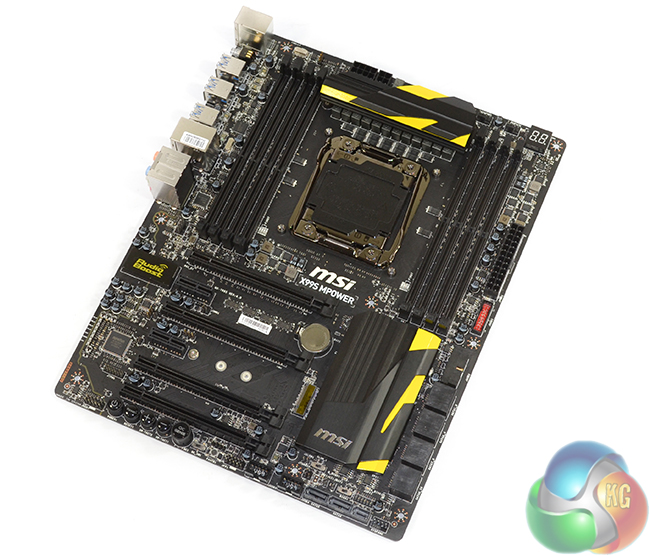
Overclocking capabilities revolve around the well-fed twelve phase power delivery system comprised of MSI's Military Class 4 components. There's also the OC Essentials kit which includes convenient tools such as onboard buttons, voltage check points, and a debug LED. And let's not forget about dual BIOS chips for redundancy.
But don't let a price tag which puts the MPower near X99's entry-point fool you; MSI still manages to cram in support for 3-card SLI/CrossFire, a 32Gbps M.2 connector, SATA Express, and Audio Boost sound. Users also get a selection of worthwhile accessories, such as cable labels, a door hanger, the motherboard schematic, and a brief overclocking guide.
MSI's aggressively-priced X99S MPower gives a power user the capacity to save funds when opting for a Haswell-E build. But does its performance live up to the competition's standard?
Features:
- Supports New Intel® Core™ i7 processors Extreme Edition in LGA 2011-3 socket.
- Supports Quad Channel DDR4-3333(OC) Memory.
- Turbo M.2: delivering next generation M.2 Gen3 x4 performance with transfer speeds up to 32 Gb/s.
- SATA Express + USB 3.0 + SATA 6Gb/s.
- OC Certified: Military Class Burn-in Test Passed.
- Guard-Pro: Improved Protection and Power Efficiency.
- OC Essentials: Convenient Set Of Overclocking Tools While Breaking World Records.
- Intel® Gigabit LAN: Always connected with Intel® Gigabit LAN networking.
- OC Genie 4: Overclock in 1 Second.
- Click BIOS 4: Easily Fine-tune Your System.
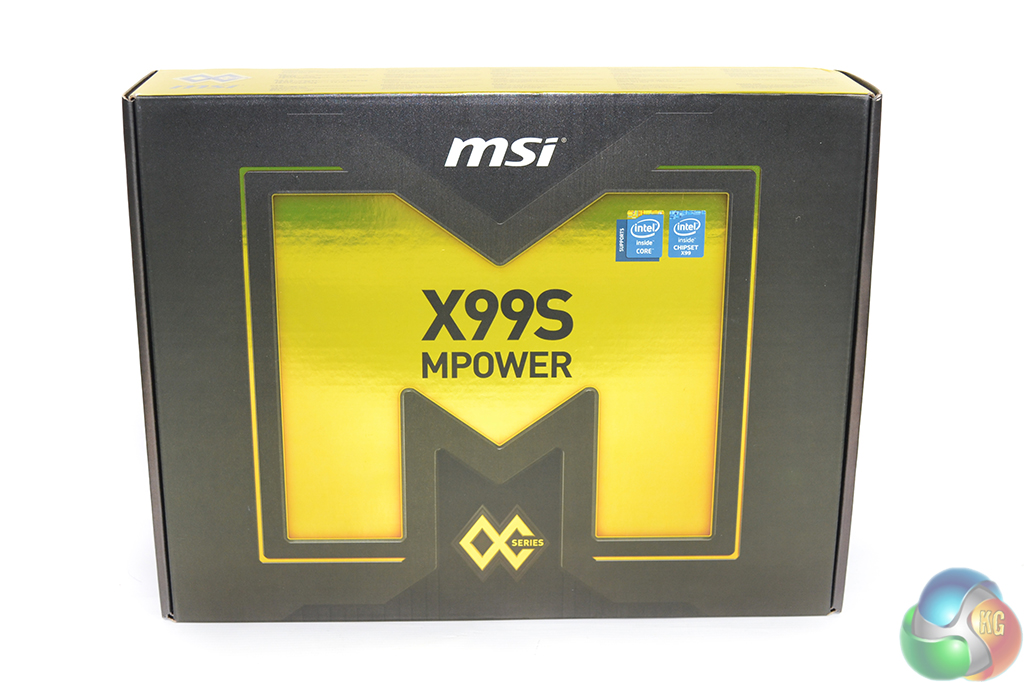
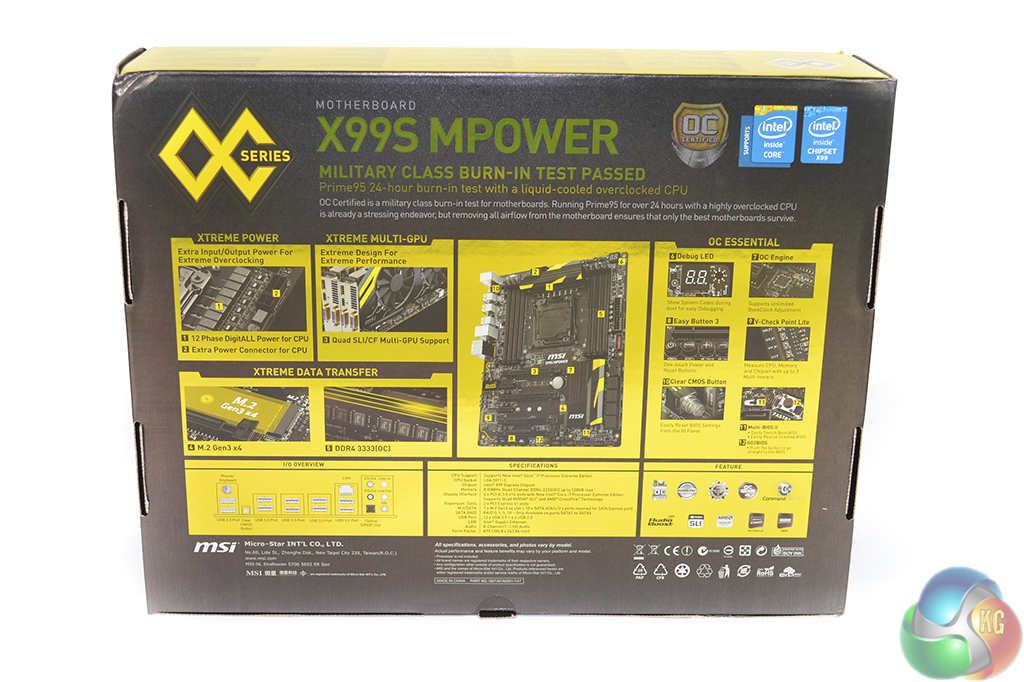
MSI ships the X99S MPower in typical packaging for a motherboard from its OC series. A bright yellow ‘M’ exists on the front of the packaging, while a detailed interpretation of specifications and features is found on the rear.
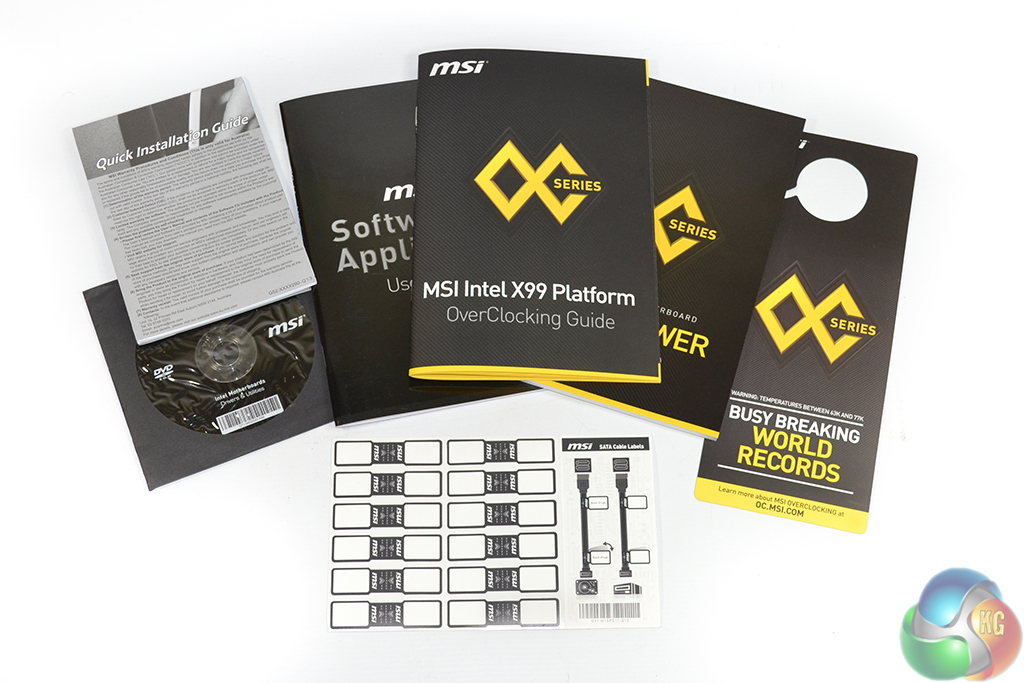
A sizeable set of documents is included with the X99S MPower. In addition to the standard manual and drivers CD, MSI also includes a door hanger, labels for cables, and an overclocking assistance guide.
A large case badge outlining the board’s OC series standing is also included.
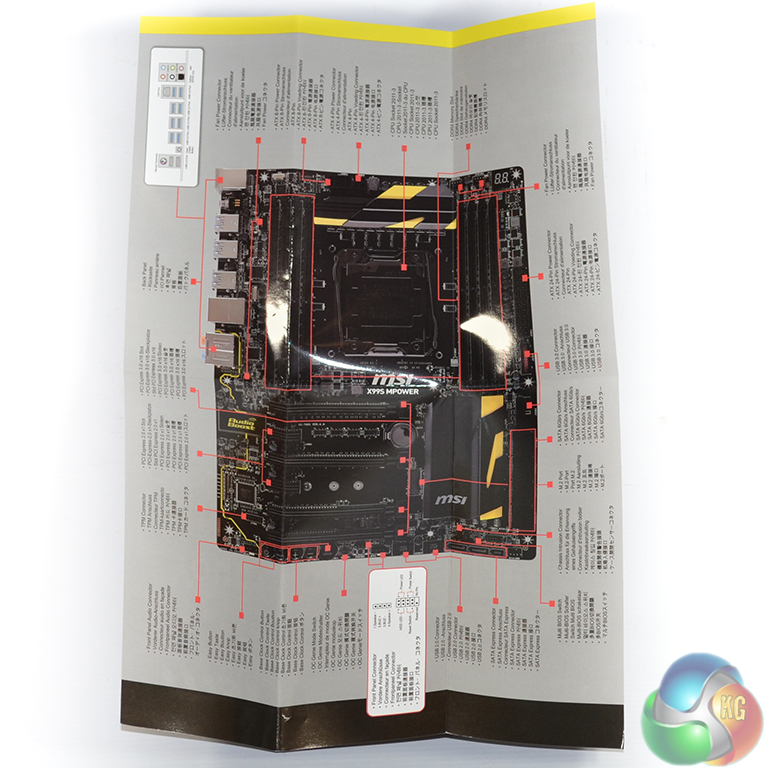
Unfolding an included poster shows a full overview of the motherboard with all of its primary design points outlined. The poster could be useful to users who want to quickly find the best spacing for their graphics cards, or if they want to stick it to their wall simply to impress friends.
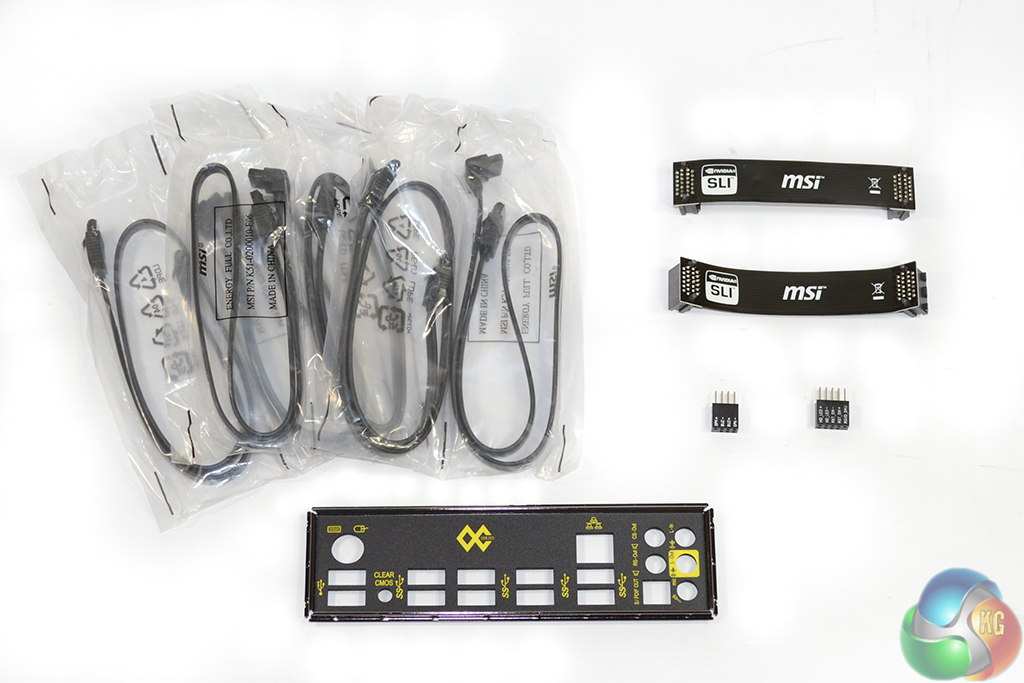
The MPower’s bundle consists of six SATA cables, the labelled rear IO shield, two black SLI ribbons, and M-connectors for the front panel headers and a diagnostic speaker.
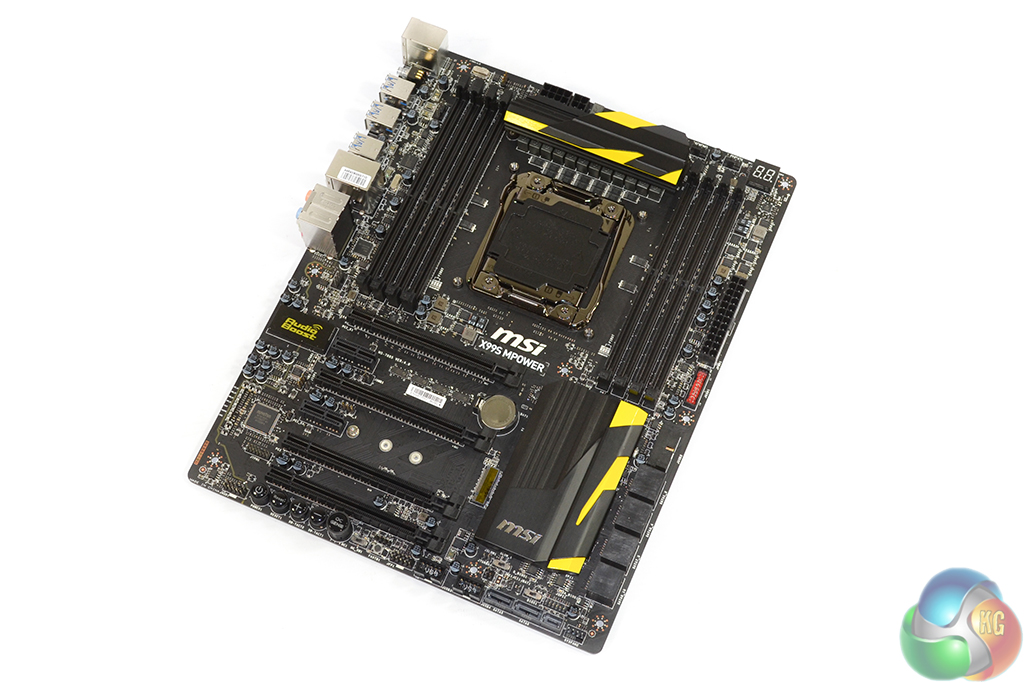
Layout-wise, MSI’s X99S MPower is almost identical to the company’s X99S Gaming 7. The key differences come from switching some of the latter’s gaming-orientated features for ones with overclocking intentions on the MPower.
The board’s standard ATX PCB is entirely black, with all three of the heatsinks featuring subtle yellow hints to create an eye-catching contrast. MSI’s Lightning range of graphics cards are, arguably, the perfect companion for the company’s OC series boards when it comes to colour coordination.
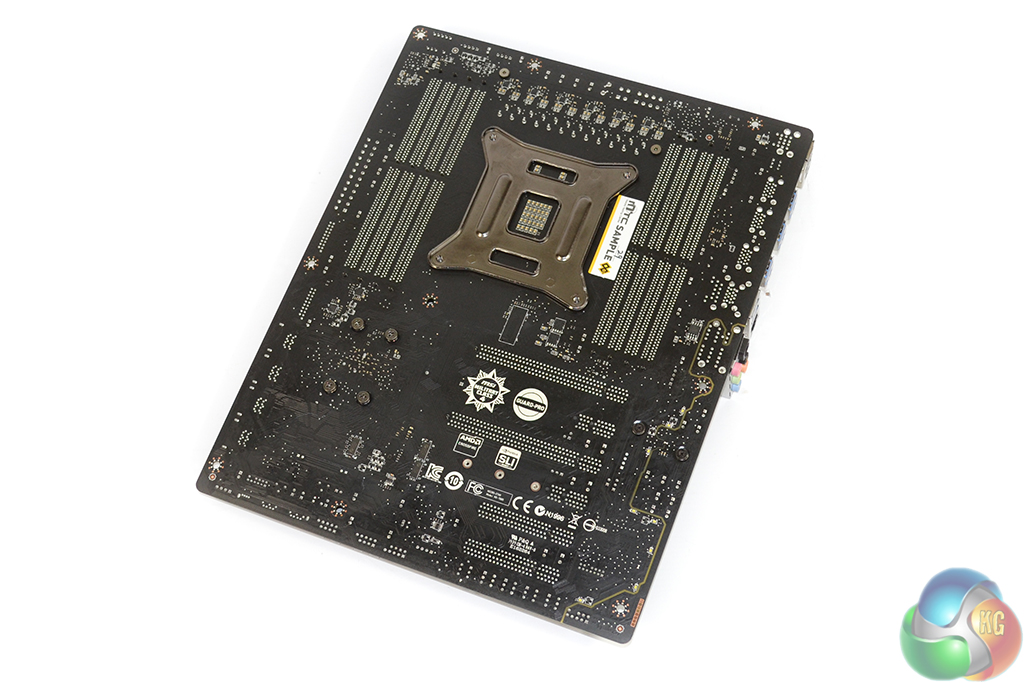
Looking at the rear of the PCB outlines the physical PCIe lane allocation. I am surprised to see MSI omitting a strip heatsink behind the CPU MOSFETs for cooling the six power phase doublers.
A sizable backplate withstands the stress created by a large, hanging CPU cooler.
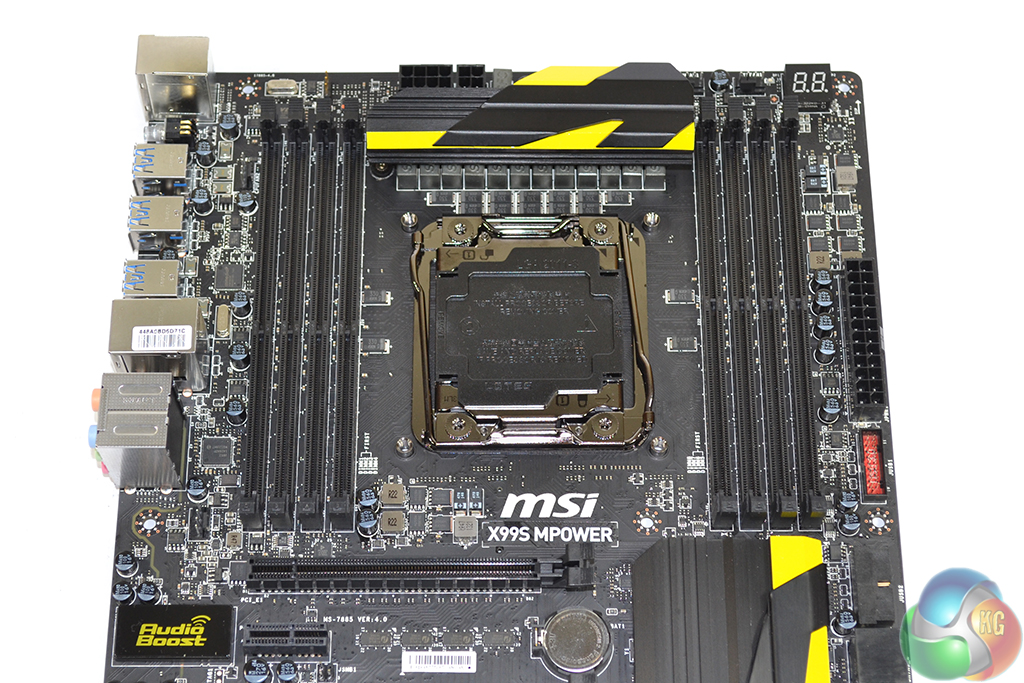
A good amount of clearance is maintained around most of the LGA 2011-3 socket. This will be beneficial to hardened overclockers who plan to use large LN2 or DICE pots.
That same clearance feedback does not hold true when referencing the VRM heatsink above the socket. Wide CPU cooling equipment could see interference problems caused, although the solid metal block is low-profile enough to minimise incompatibility.
Up to 64GB (the manual states 128GB, but good luck finding 16GB non-ECC DIMMs right now) of DDR4 memory is supported, with a quoted maximum operating frequency of 3333MHz, via overclocking. MSI’s current UEFI versions support a 3200MHz multiplier (32x 100MHz, so higher if the BCLK is increased from 100MHz) and we have seen screenshots of G.Skill sticks working at 3340MHz.
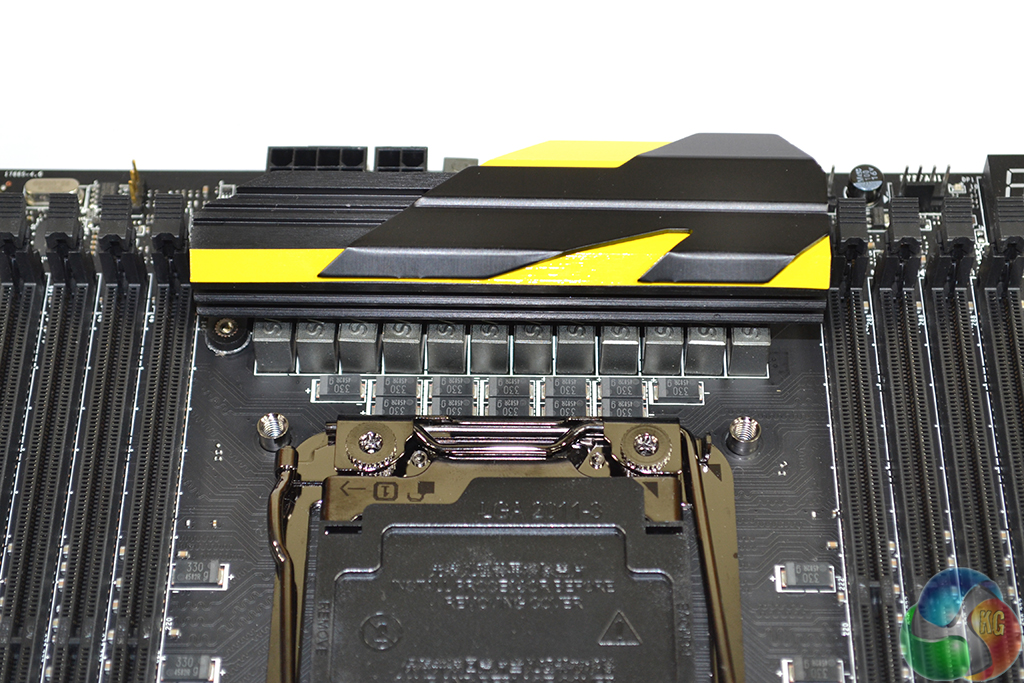
A twelve phase power delivery system is employed to feed a Haswell-E CPU. Twelve Solid Ferrite Chokes (SFC) are joined by a further dozen Fairchild FDMF5823DC MOSEFTs. The Fairchild MOSFETs, which are rated to handle a current of 55A with an operating temperature of up to 150°C, show similarities to International Rectifiers’ respected IR355x solutions.
Intersil’s ‘hybrid’ ISL6388 6-phase PWM controller operates the 12-phase CPU power delivery system with assistance from six rear-mounted phase channel doublers marked ‘617C FMRN’.
Two Powervation PV3203 controllers manage memory system power operations. The memory’s physical power delivery system seems to consist of four (plus one supplementary) MOSFETs marked ‘NTMFS4C05N’ and a further two marked ‘NTMFS4C08N’ per DIMM bank (two sets in total). This is in addition to two 470 microFarad and two 330 microFarad capacitors, as well as two R22 and one ‘tR47’ choke(s) per DIMM bank.
Aluminium-core ‘Dark’ and low-profile ‘Hi-c’ capacitors also form part of MSI's Military Class 4 power delivery system.
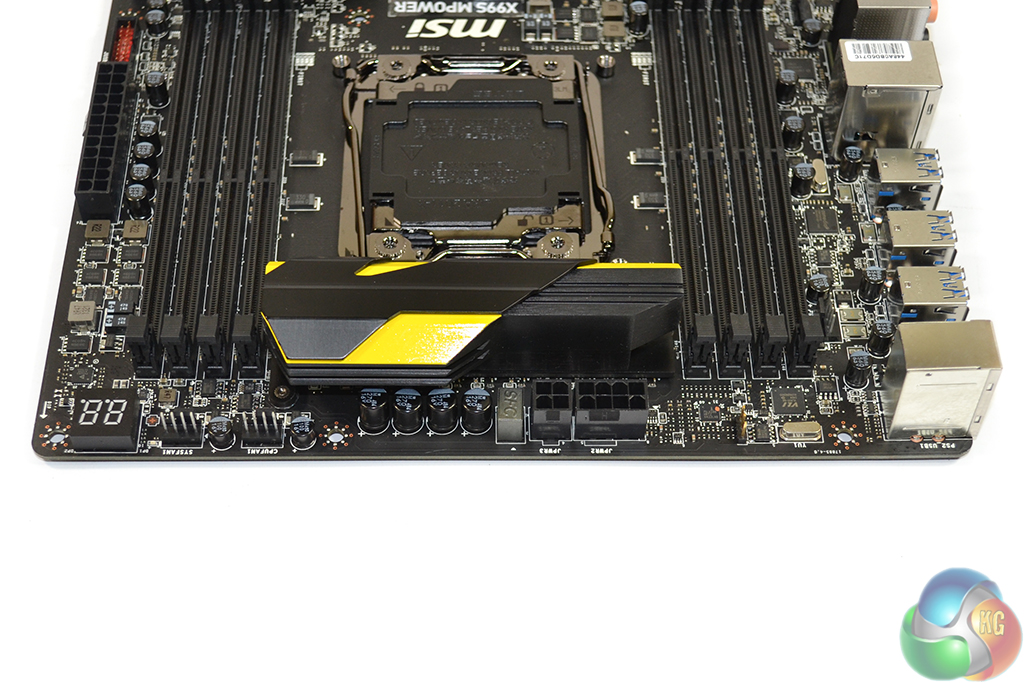
Two 4-pin fan headers are found along the motherboard’s top edge, one of which is allocated CPU duties, with the other running from the system fan channel. The other 4-pin CPU fan header is found between the DIMM bank and rear IO shield.
Next to the fan headers is a convenient two-digit debug LED, which overclocking users will be very happy to see. When Windows is loaded, the current CPU temperature is displayed.
MSI adds an additional 4-pin CPU power connector to bolster the current input from the 8-pin EPS port. Haswell-E CPUs can draw high levels of current when overclocked heavily.
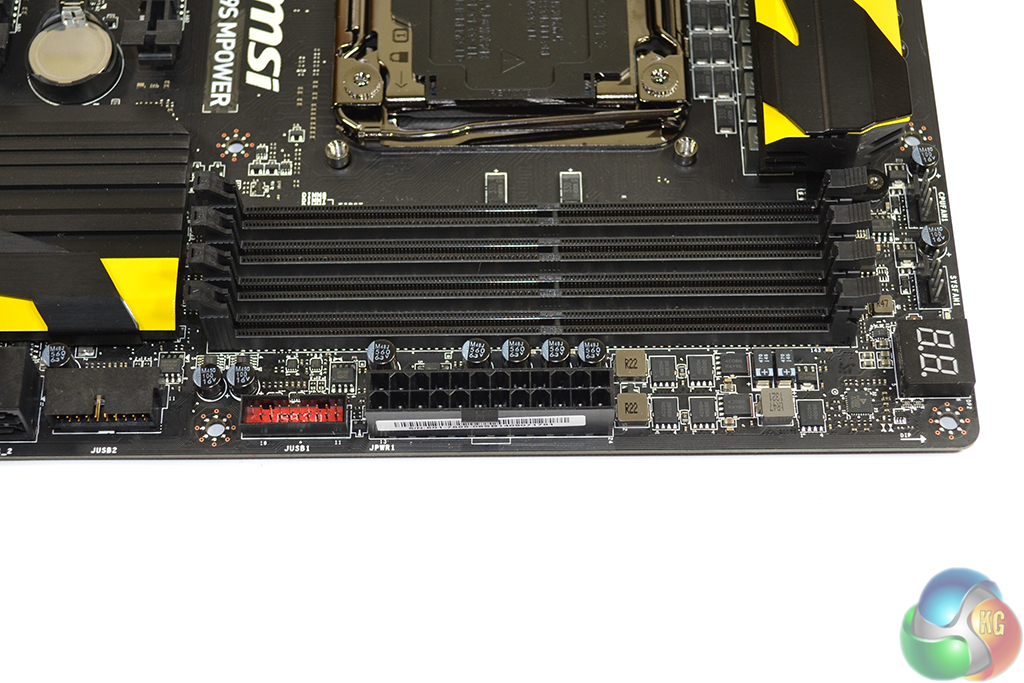
An outwards-facing USB 3.0 header sits adjacent to the 24-pin power port. The USB 3 header operates from the X99 chipset.
This top-right corner is the position where I would have liked to see the voltage (V-check) points placed.
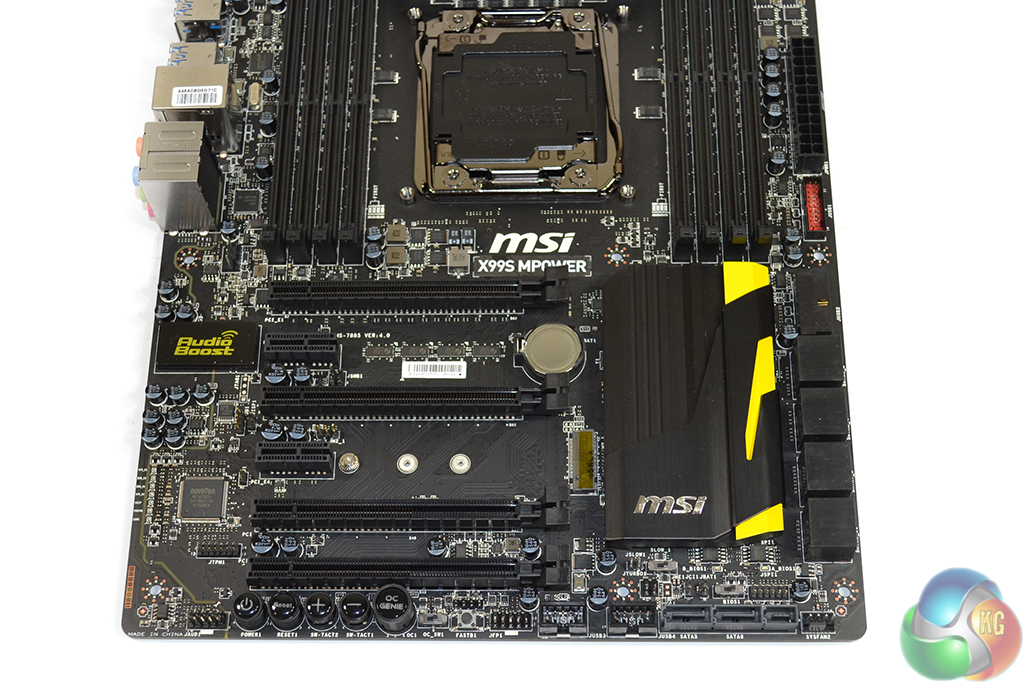
A continuing trend is the similarity between MSI's X99S MPower and Gaming 7. That same trend holds true for the expansion slot arrangement.
Up to 3-way SLI/CrossFire is supported when using either 28-lane (5820K) or 40-lane (5930K, 5960X) processors. 4-way configurations with sufficient bandwidth are not possible (as also suggested by the slot spacing), although I do not see this as an issue for a sub-£190 motherboard.
As with the Gaming 7, the MPower's PCIe connections for a 40-lane CPU are allocated as (from top to bottom full-length PCIe slots): x16 for a single card, x16/x16 for two cards, and x16/x16/x0/x8 for three cards. The one- and two-card configurations support PCIe 3.0 x4 for the M.2 connector, but three graphics cards will drop that link to PCIe 2.0 x2. That’s a big bandwidth hit on the storage front; we would have preferred MSI to drop one of the three cards to x8 link speed and maintain the PCIe 3.0 x4 connection for a high-speed M.2 drive.
Using a 28-lane chip, a single card runs at x16, but two operate via sixteen and eight PCIe 3.0 links, respectively, and three cards all get eight PCIe lanes each. PCIe 3.0 x4 for the M.2 connector is preserved throughout.
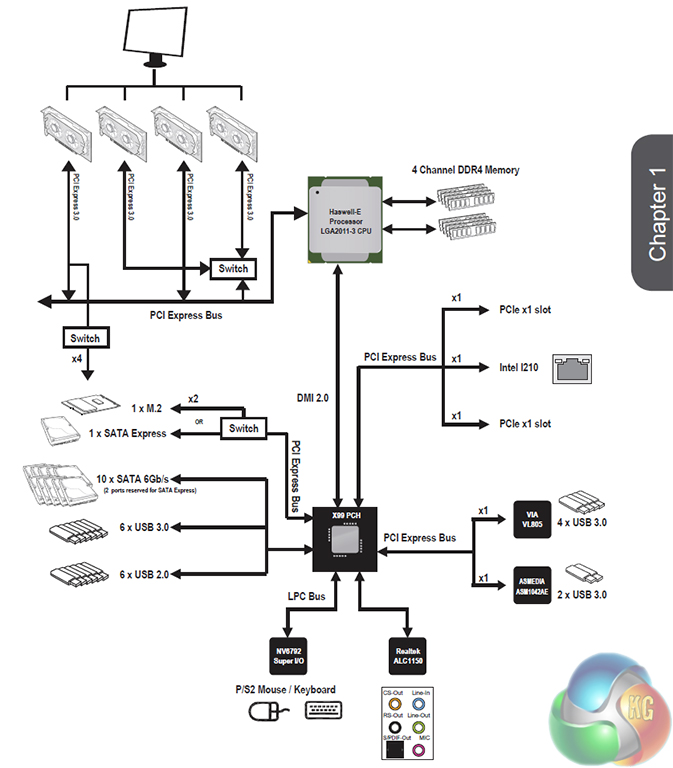
And as was the case for the Gaming 7, PCIe bandwidth optimisation is equally unclear in the MPower's manual.
That third full-length PCIe slot that shares sixteen lanes with the first connector can, despite MSI’s advice, be used with a 40-lane chip. Sticking graphics cards in the first, second, and third full-length slots should, in theory, result in an x8/x16/x8 + PCIe 3.0 x4 configuration. MSI’s documentation doesn’t highlight it, but we see no reason as to why that wouldn’t be supported (as backed up by the above block diagram).
Expansion slot layout is decent, but could be better. I would have preferred MSI to use the first and third full-length PCIe slots for two x16 graphics cards, rather than the first and second. Back-to-back dual-slot boards always present a cooling headache. And that's without considering the potential bandwidth reduction when using triple-slot cards that are popular amongst overclockers.
3-way SLI or CrossFire with a 40-lane CPU sees a potential cooling gap left between the second and third cards (assuming dual-slot coolers), but this also makes the SATA Express connection impossible to use due to its large connector and bad positioning.
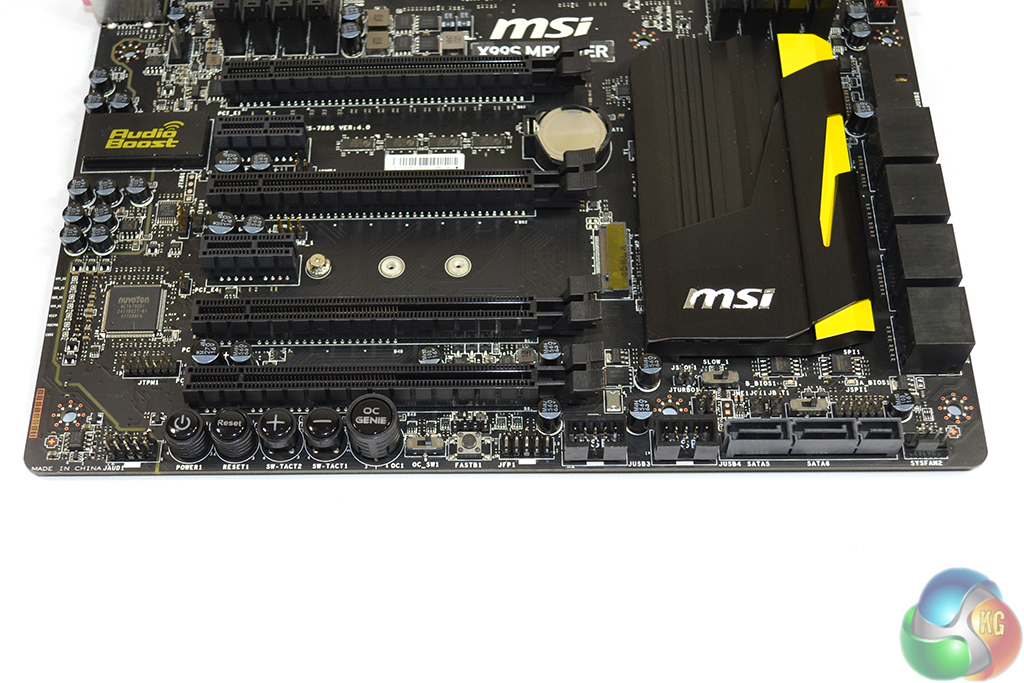
The usual front panel audio, USB 2.0, and chassis headers are found along the MPower's bottom edge. Just below the chipset heatsink are the dual BIOS and slow mode switches.
Coined Easy Button 3 by MSI, the set of onboard buttons can be particularly useful to overclockers who are running the board on a bench setup. Accessing them in a chassis environment is fairly simple too, provided you don't have a graphics board forcing button blockage.
As already pointed out, the 10Gbps SATA Express connector is going to be rendered inaccessible as soon as a long graphics cards is installed in either of the lower two PCIe slots. MSI should have changed its orientation or positioning to avoid such inconveniences.

MSI implements a ‘Turbo M.2′ connector that runs off four PCIe 3.0 lanes from the CPU to provide up to 32Gbps of data transfer speed. Taking its lanes from the CPU means that an M.2 device can be used at the same time as a SATA Express drive. If all of the CPU’s PCIe 3.0 lanes are being used by expansion cards, the M.2 connector can steal the SATA Express port’s two chipset-fed PCIe 2.0 lanes to provide a 10Gbps connection.
M.2 SATA devices are also supported in the slot, although this renders SATA ports 5-6 (and the SATA Express connector) unusable.
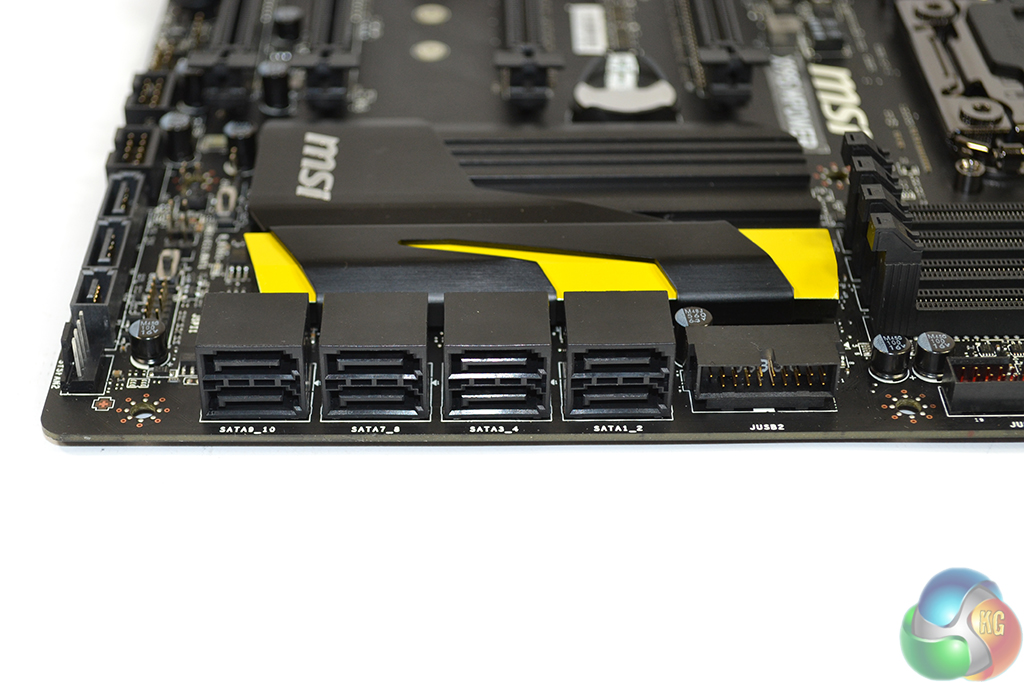
Eight right-angled SATA 6Gbps ports all operate from the X99 chipset. The remaining two connections are bundled together to help form the SATA Express port.
Placing one of the USB 3.0 headers in a right-angled orientation is one of my favourite moves for a motherboard vendor to make. Hiding the cumbersome front panel USB 3.0 cable is a far simpler task when it doesn’t stick vertically out of the board.

Audio Boost mark 1 is used on the X99S MPower. One of the subtle differences between this system and the version 2 used on many of MSI's Gaming boards is the exclusion of the power-boosting header.
Based around the Realtek ALC1150 and its 115 dB Signal-to-Noise Ratio (SNR), MSI’s Audio Boost system also calls upon a pair of Texas Instruments’ OPA1652 amplifiers. We know that the TI OPA1652 is perceived as a particularly potent operational amplifier, capable of driving high – up to 600 Ohm – impedance headphones.
The sceptics may say this is needless hardware causing price inflation, but there will also be users who value the system's addition for periods when they aren't overclocking.
MSI's onboard V-Check Point Lite positions are found in the board's bottom-left corner. This is a bad position because it makes the points almost impossible to access in a chassis or multi-GPU environment. Placing them near the 24-pin connector in the board's top-right corner would have been far superior.
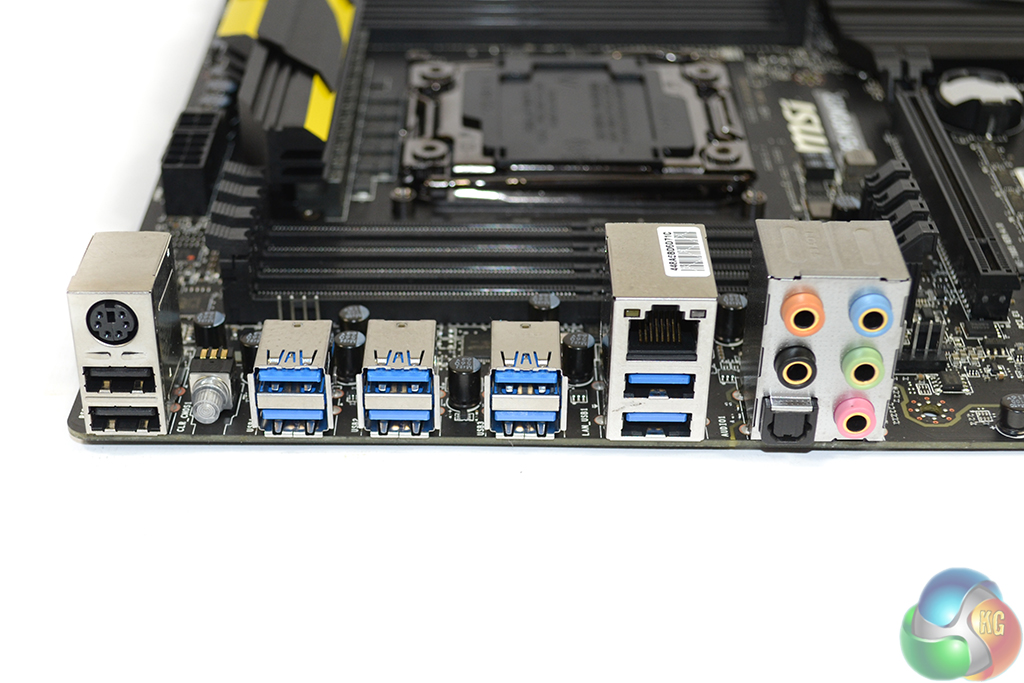
Eight blue-coloured USB 3.0 ports are supplied through a combination of sources. Although it is not listed in MSI’s manual which ports operate from which controllers, our empirical testing gives an insight into where the connections derive. Two ports beneath the LAN connector operate from Intel’s X99 chipset. The two directly to the left of those are provided by ASMedia’s PCIe 2.0 x2-fed ASM1042AE host controller. The remaining four operate from a PCIe x1 VIA VL805 host chipset.
It is important to know how the ports are fed their bandwidth because, as our testing will show, there are noticeable speed differences between each of the USB 3.0 host controllers.
Intel's I210-AT Gigabit NIC is used, as well as a further two USB 2.0 ports and a PS/2 connector. I like the inclusion of USB 2.0 ports because USB 3.0 connectors (especially from third party chipsets) can still cause some issues with Windows installations and other low-level activity.
The clear CMOS button is well-placed to make access simple. It conveniently features a blue LED which is handy for users shuffling around the rear of their case in search of the button.
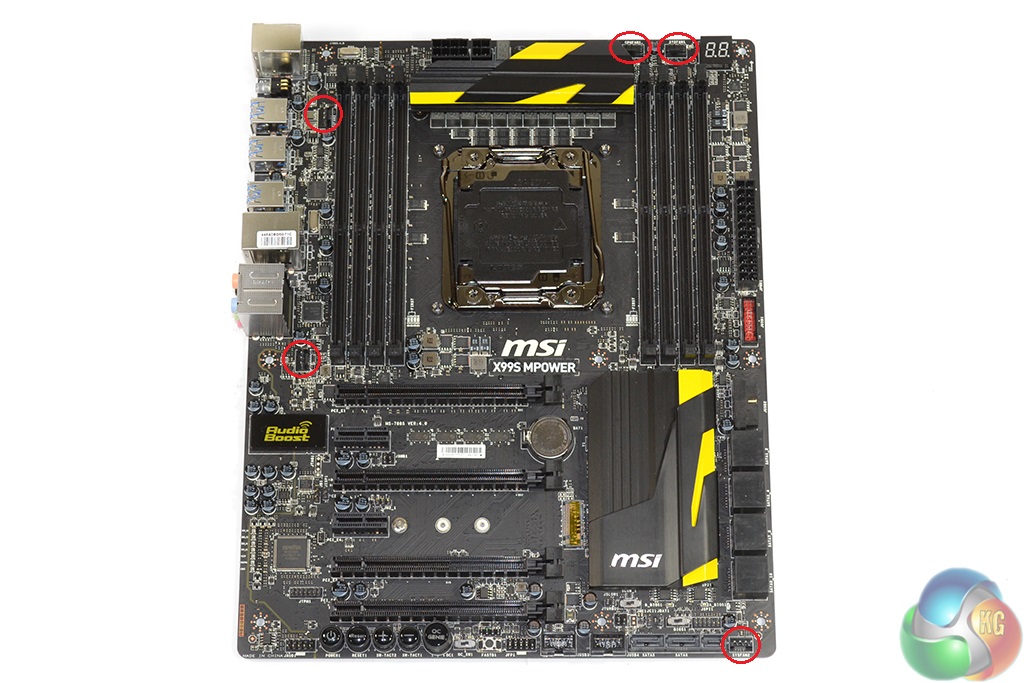
Five 4-pin fan headers are handled by Nuvoton’s excellent NCT6792D+ Super IO chip. The reason we like Nuvoton’s chip so much is because, using a Z97 motherboard with onboard voltage reading points, we have tested its voltage readings to be highly accurate when compared to the levels read from a multimeter.
Distribution of the five fan headers is good. Three fan headers around the CPU area is good for users with dual-fan AIO coolers. I would have liked to see a header placed near the 24-pin connector to cater for users with multiple front chassis fans.
Firstly, we are pleased to report that our NZXT Avatar S mouse worked to its usual standard in the MSI X99 Click BIOS 4 UEFI. We’ve found our NZXT Avatar S to be the most troubling mouse with UEFI support, so when it functions correctly in the interface, that is usually a good sign for overall mouse support.
MSI equips its X99 motherboards with a UEFI implementation that is consistent across the range. Evidently some of the board-specific settings differ between the two interfaces, but the general layout is identical. As such, our analysis is very similar to that provided for other MSI X99 boards featuring Click BIOS 4.
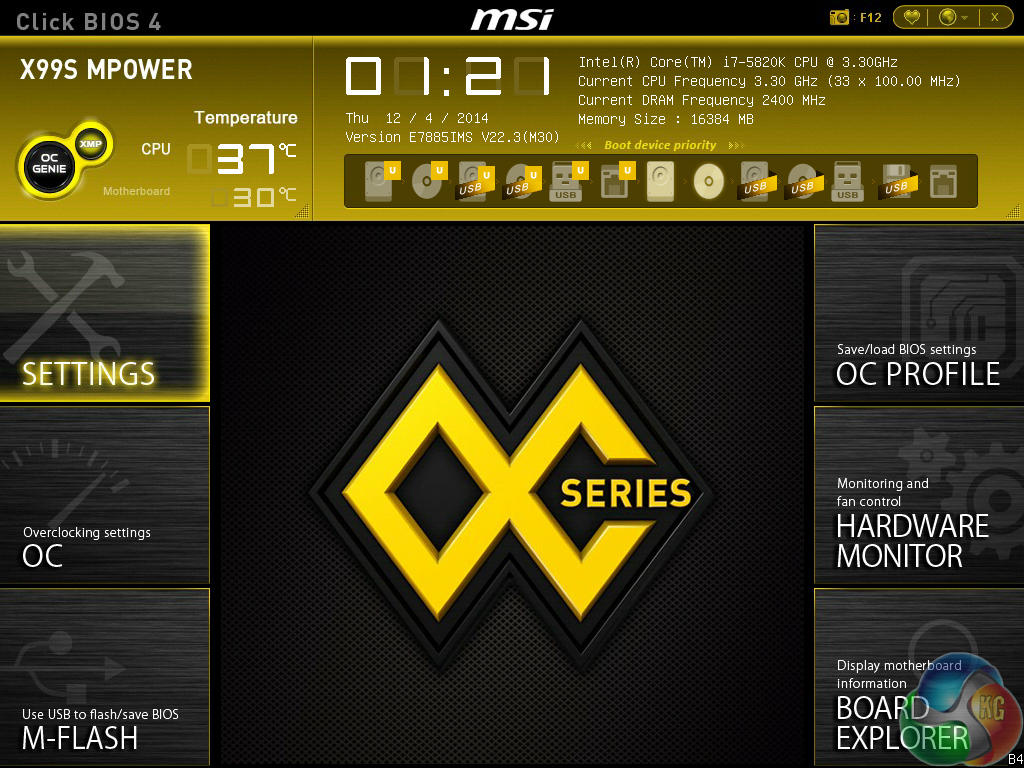
MSI’s UEFI is formed of six key sections, all of which are listed on the frame’s left and right sides. Basic system information is constantly displayed at the top of the screen.
Boot device priority can be quickly adjusted by dragging the relevant drive into its start-up position. The same easy application is true for OC Genie and XMP modes – simply click the relevant buttons in the frame’s top-left corner.
It's quickly noticeable that MSI's interface is heavily reliant upon the function of a mouse, even more so than the systems used by competing vendors. As such, mouse compatibility becomes particularly important. We've found our NZXT Avatar S to be the most troubling mouse with UEFI support, so when it functions correctly in the interface, that is usually a good sign for overall mouse support.

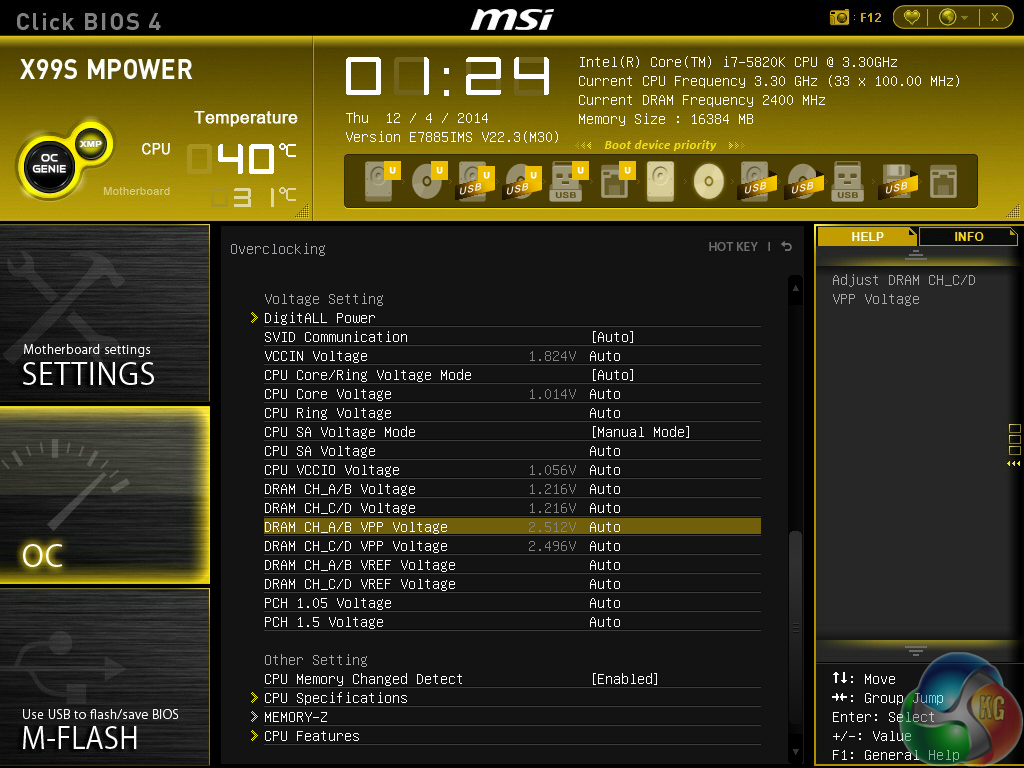
In the Advanced mode, MSI provides plenty of adjustable voltage, frequency, and power settings which give users a good degree of control over their system.
The layout could benefit from a clean-up. A number of readouts are still mixed together with input parameters which makes the interface seem more disordered than it actually is. That said, MSI's interface grows more likeable each time I work with it. Once the initial practice period has been completed, the interface is swift to use.


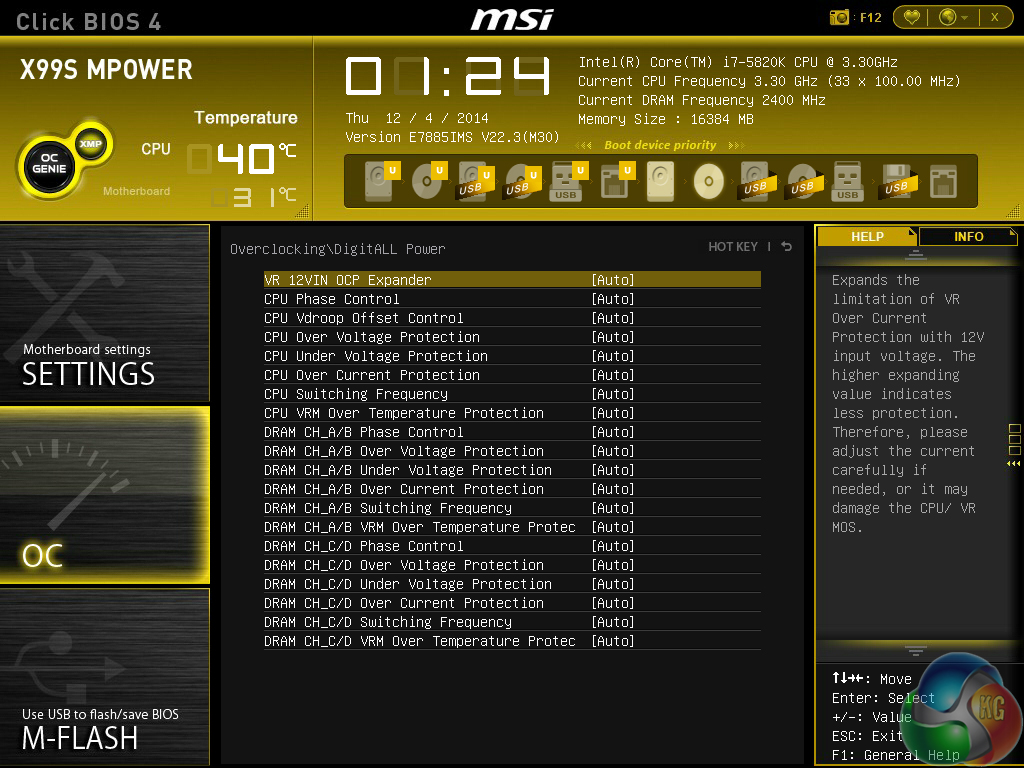
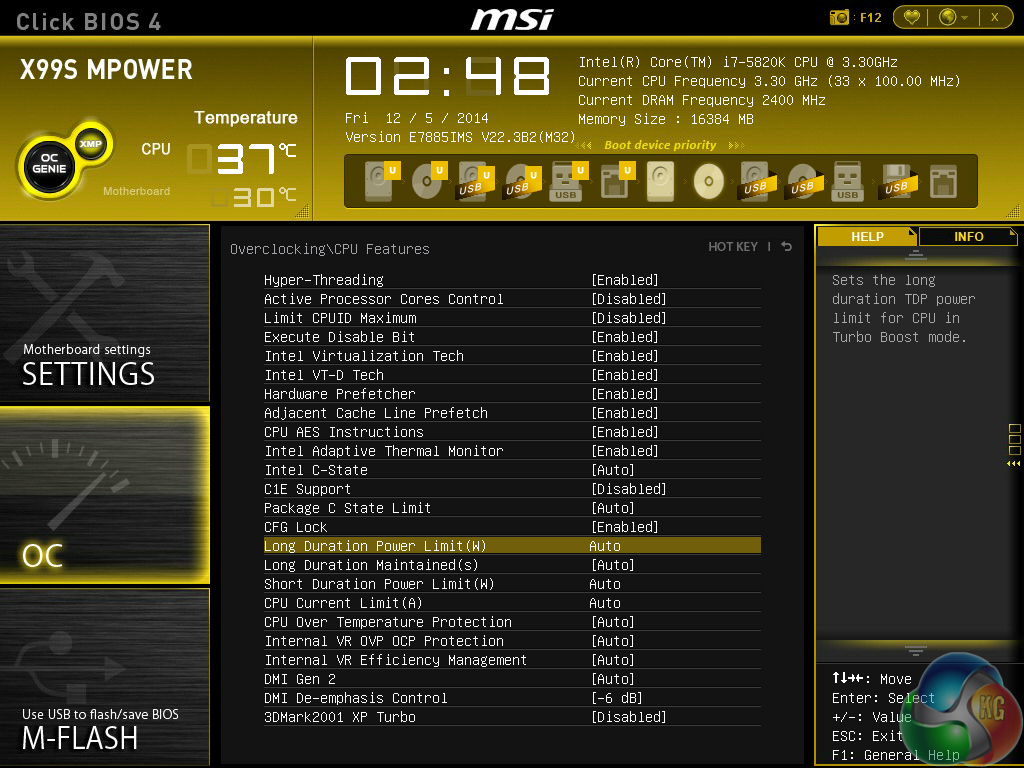
A pair of LN2 overclocking modes automatically adjust a number of power settings in order to enhance the overclocking capacity.
Particularly relevant for the overclocking-geared HEDT platform are the UEFI's power and voltage options. We are happy with the voltage adjustment options that MSI provides – they are going to be sufficient for pushing a chip when using ‘normal' 24/7 cooling, and provide enhanced options for use with extreme cooling.
The same can be said for the board's power options. The only thing we miss is a clear load-line calibration parameter.
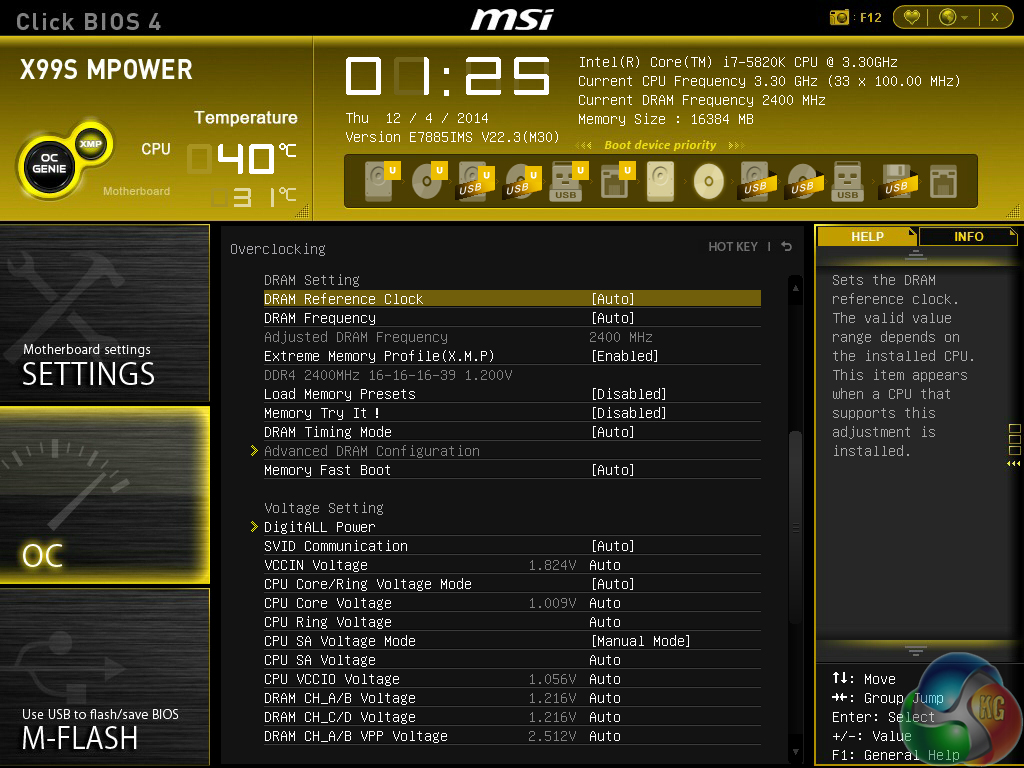

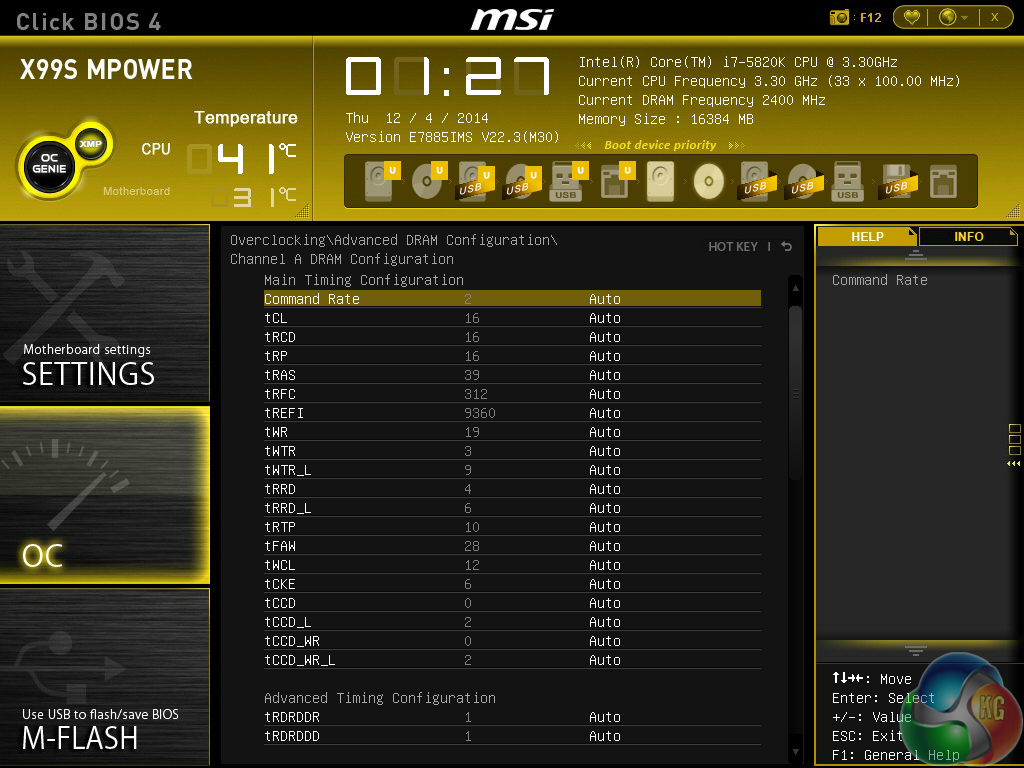
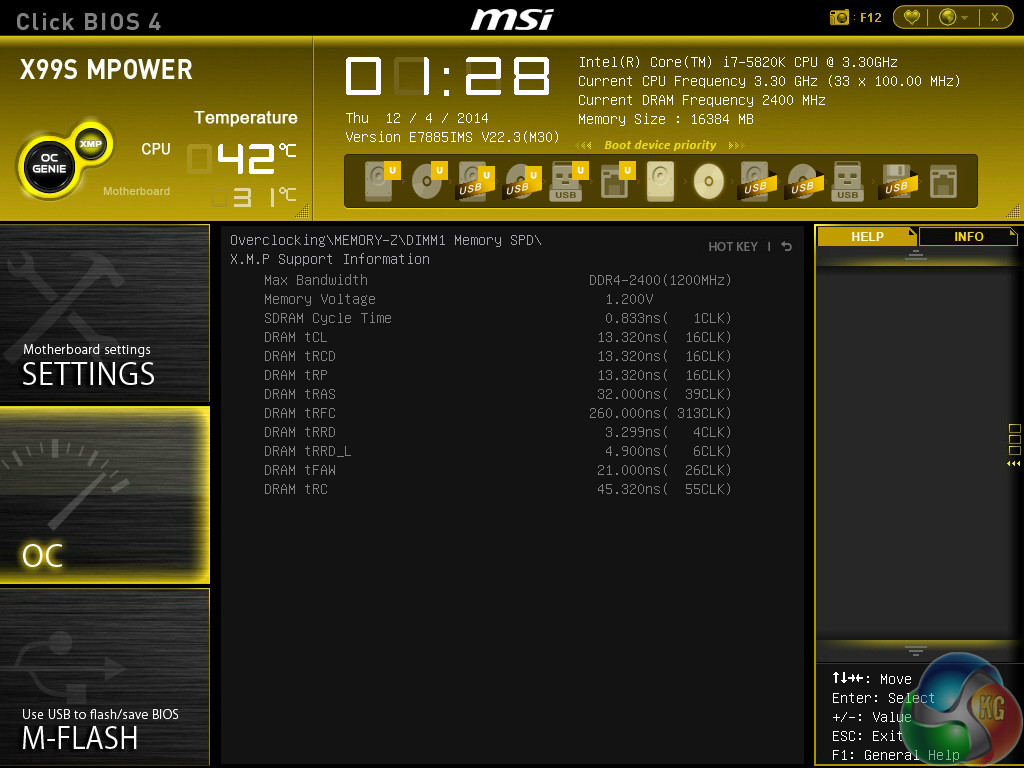
Timings can be manually tweaked to a user's preference and the memory kit's XMP support can be displayed. The XMP information is particularly useful because many modern kits are shipping with multiple profiles.
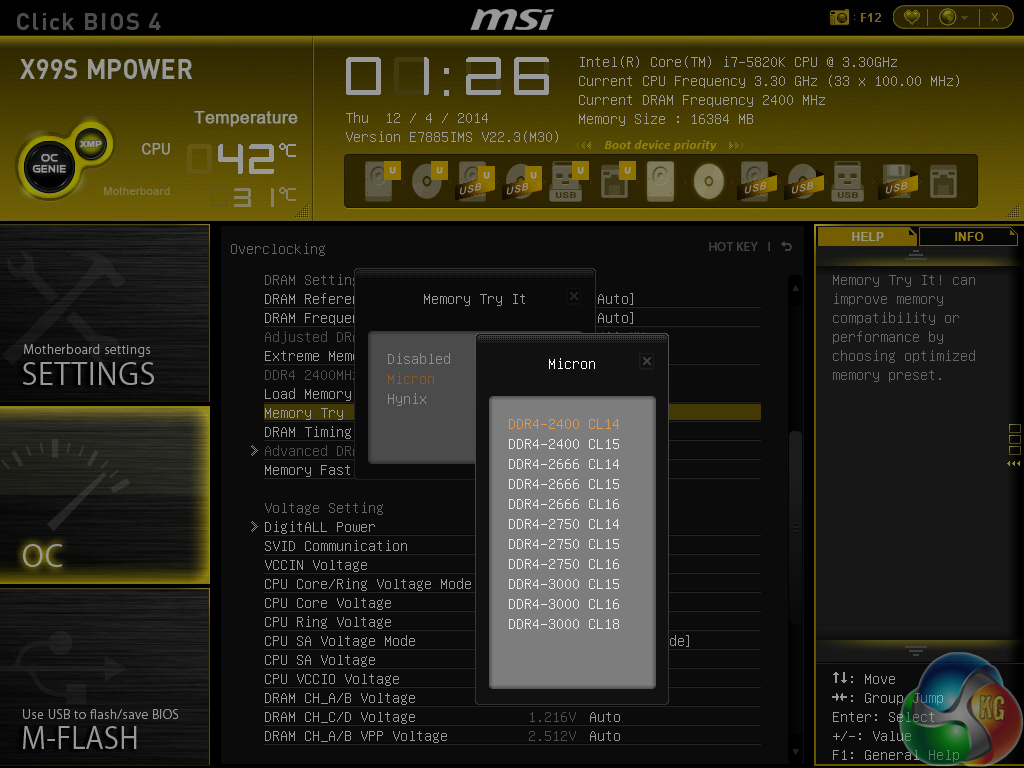
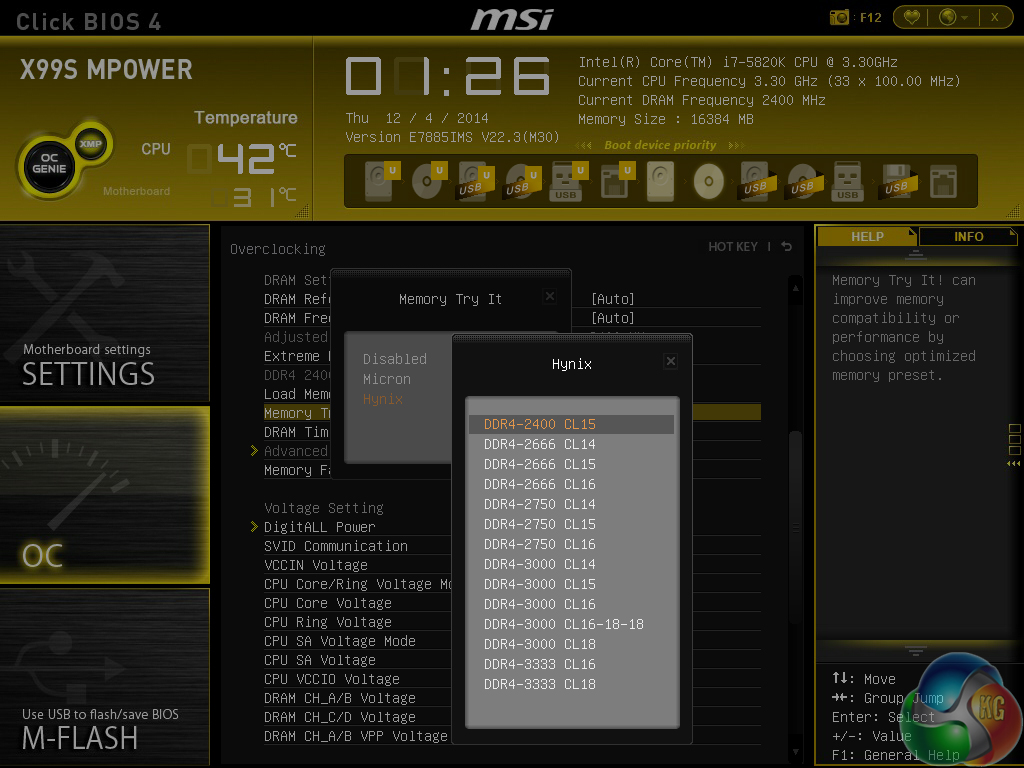
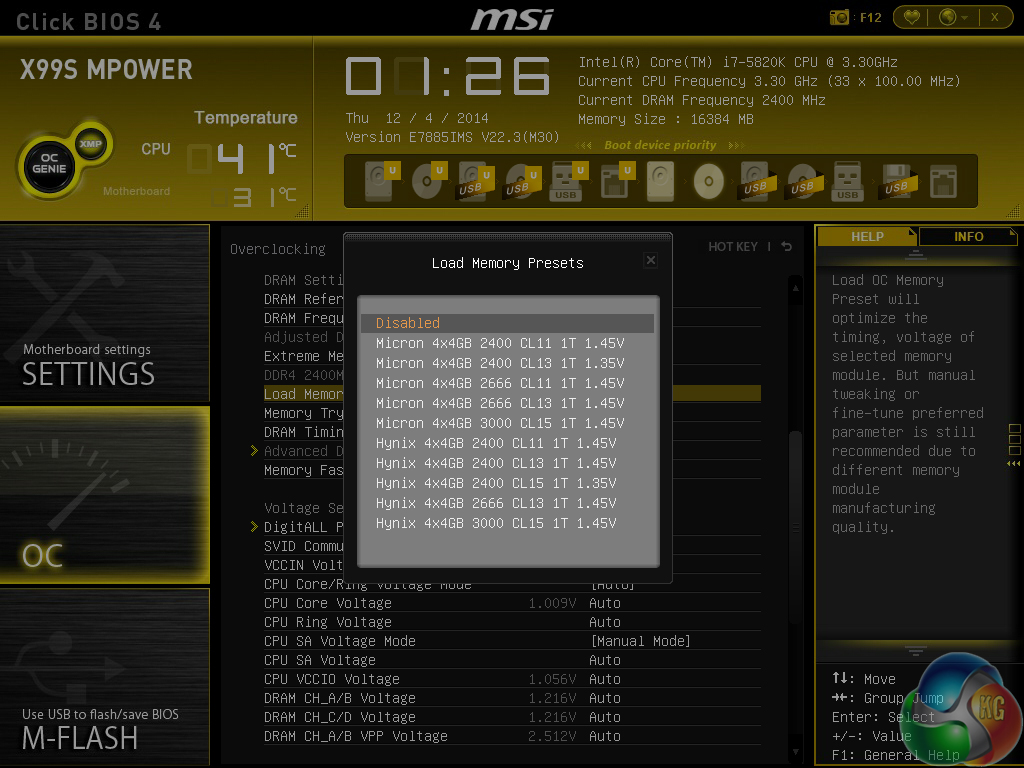
In addition to adjustable system voltage and power parameters are dedicated memory sections. Memory Try It! allows users to apply tweaked overclocking settings to their Hynix- or Micron-based memory kits.
A number of pre-tuned overclocking profiles for certain memory kits are also included.
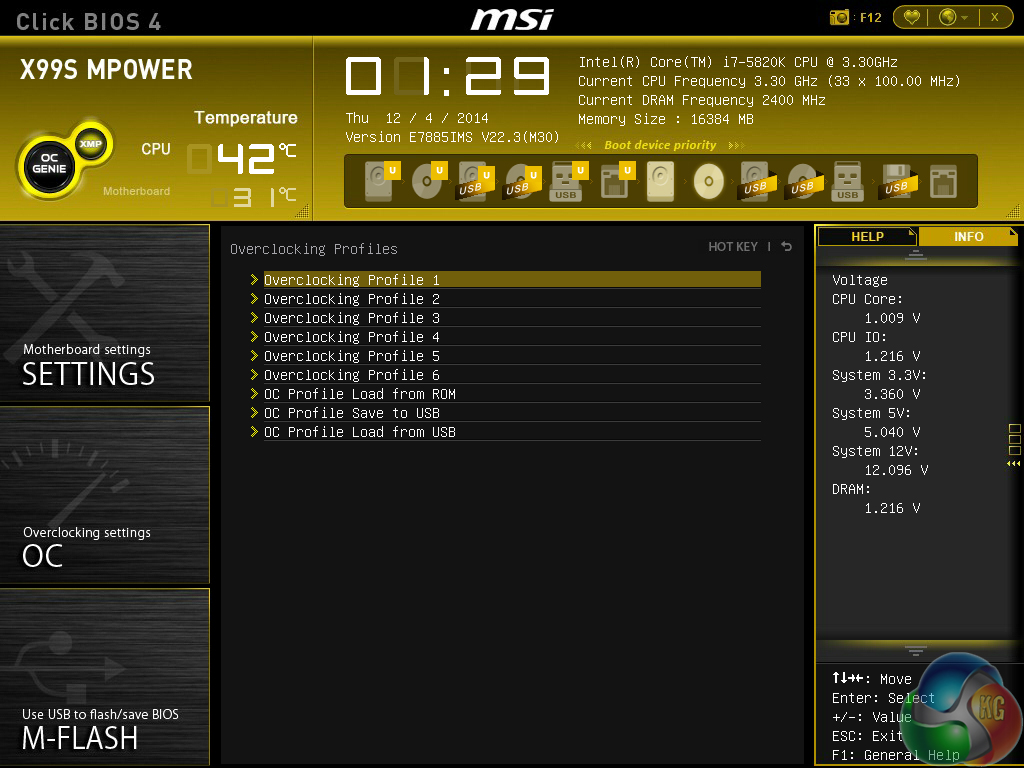
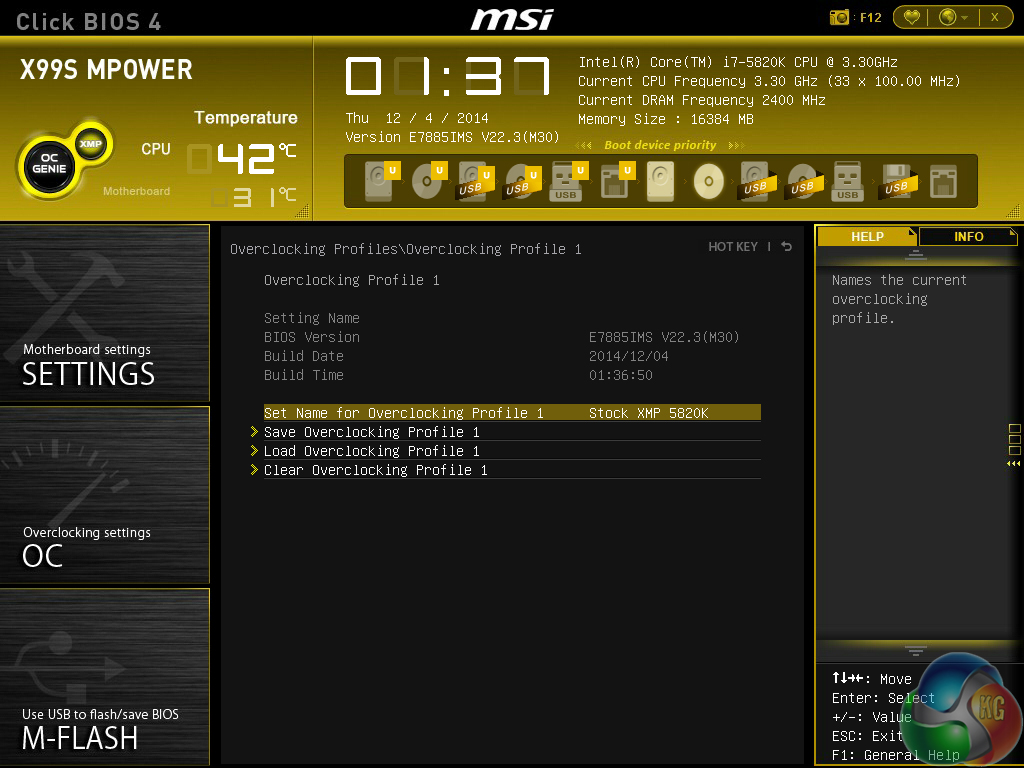
Up to six OC profiles can be saved and named. This is a good number to provide as it gives users flexibility when testing out different overclocking configurations. Profiles can also be imported and exported through a USB drive for backup and sharing purposes.
One of the actions that MSI has taken to tidy its UEFI is adding an Info section on the right side. The section is used to display basic information relating to voltages, irrelevant of the parameters that are being tweaked.
Had MSI used this ‘add-on’ section approach throughout its BIOS, displaying information relevant to the parameter that is currently being tweaked, the interface would have a much tidier feel to it. Some frequency readings would be welcomed too.
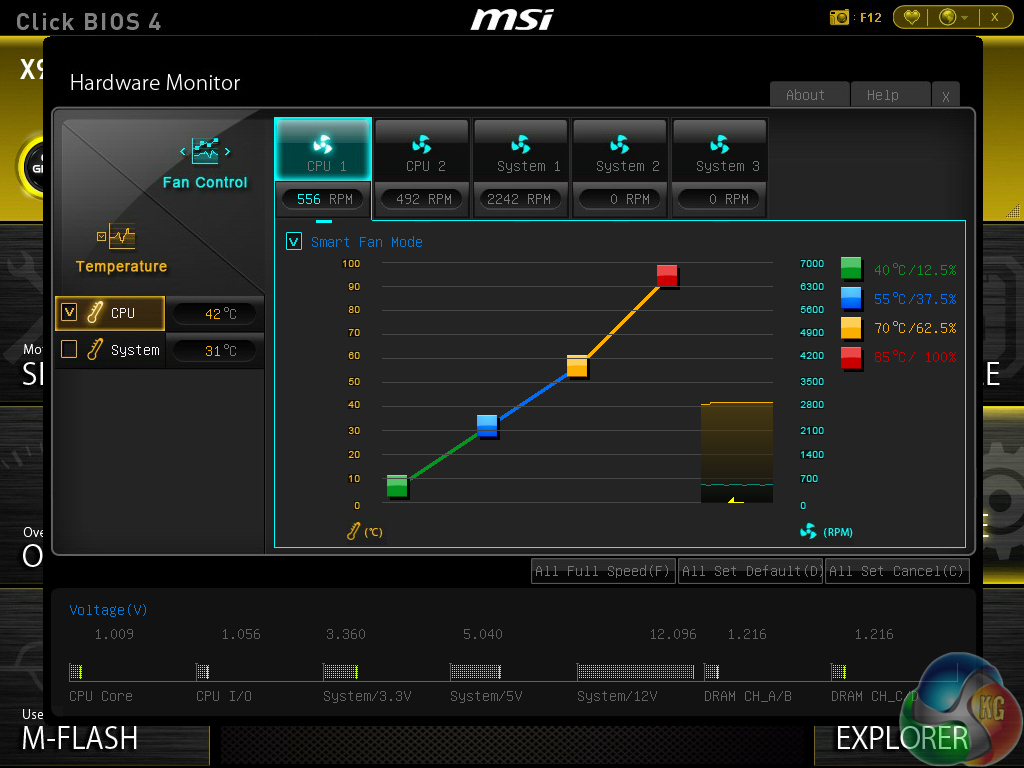
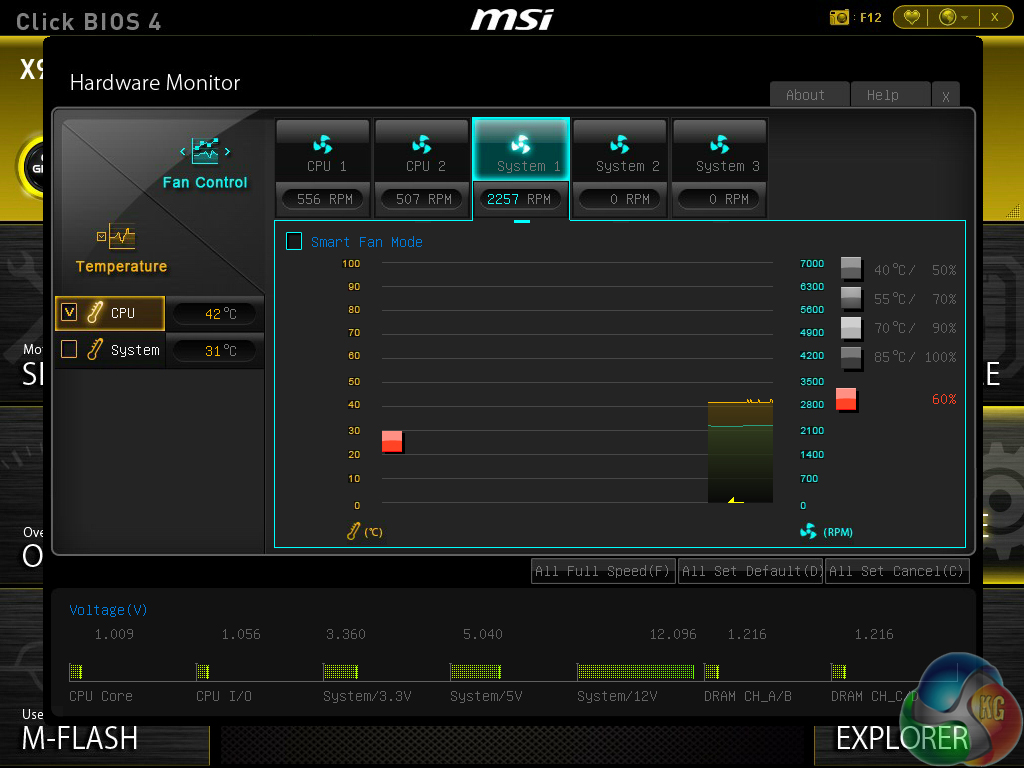
MSI employs a graphical interface that permits for tweaking of fan speeds inside the X99 UEFI.
Four points on a speed against temperature curve can be adjusted to change the fan’s operation. For CPU fans, the minimum point can be set as low as 12.5% speed with a 40°C lower threshold. The same flexibility is provided to system fans, although the minimum speed level is increased to 50%.
For users who prefer a static fan speed level, un-checking the Smart Fan Mode box allows a continuous fan speed percentage to be set.
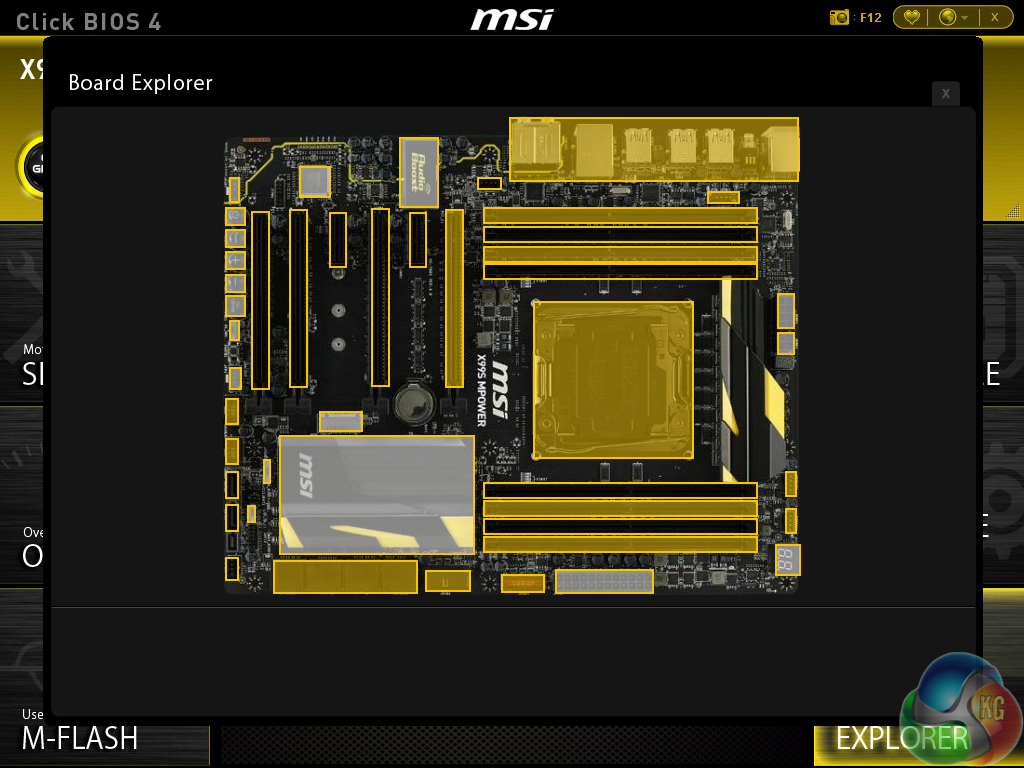
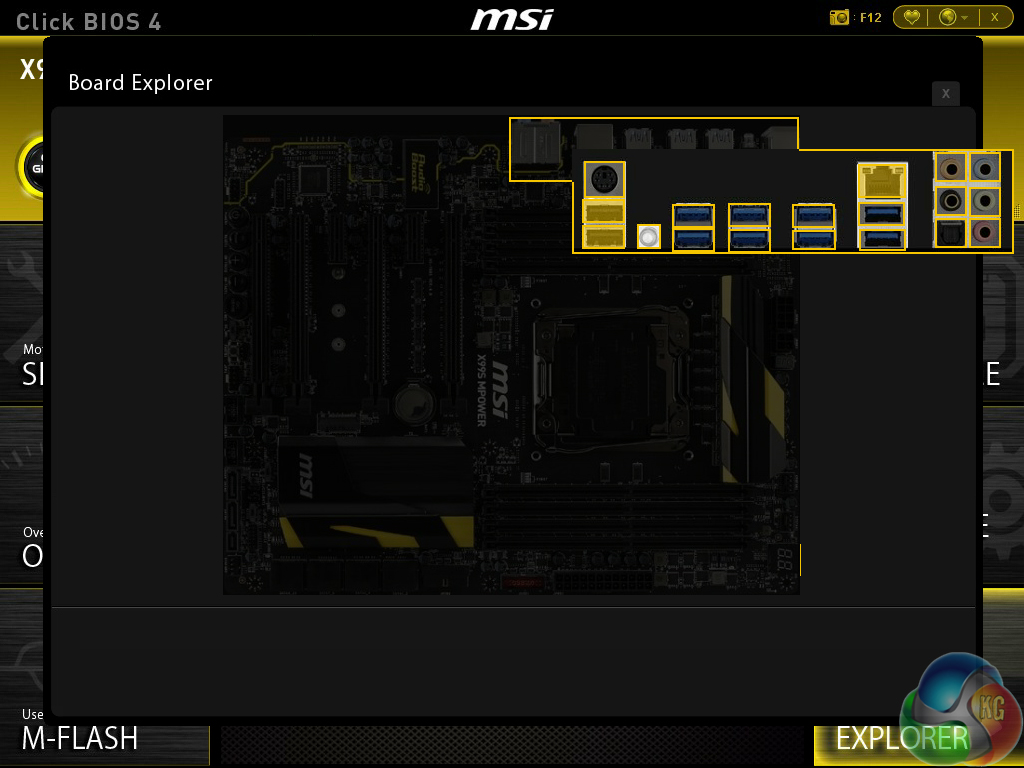
One of the most useful features in MSI’s UEFI is Board Explorer. The tool displays an image of the board which highlights the components that are installed. Hovering over the certain sections displays information regarding the connected components or devices.
The tool has great potential as a troubleshooting measure. For example, a faulty memory stick can be easily identified if its function isn’t highlighted in the board explorer tool.

The PCI Subsystem Settings section is going to be particularly useful to users who install multiple graphics cards alongside an M.2 SSD.
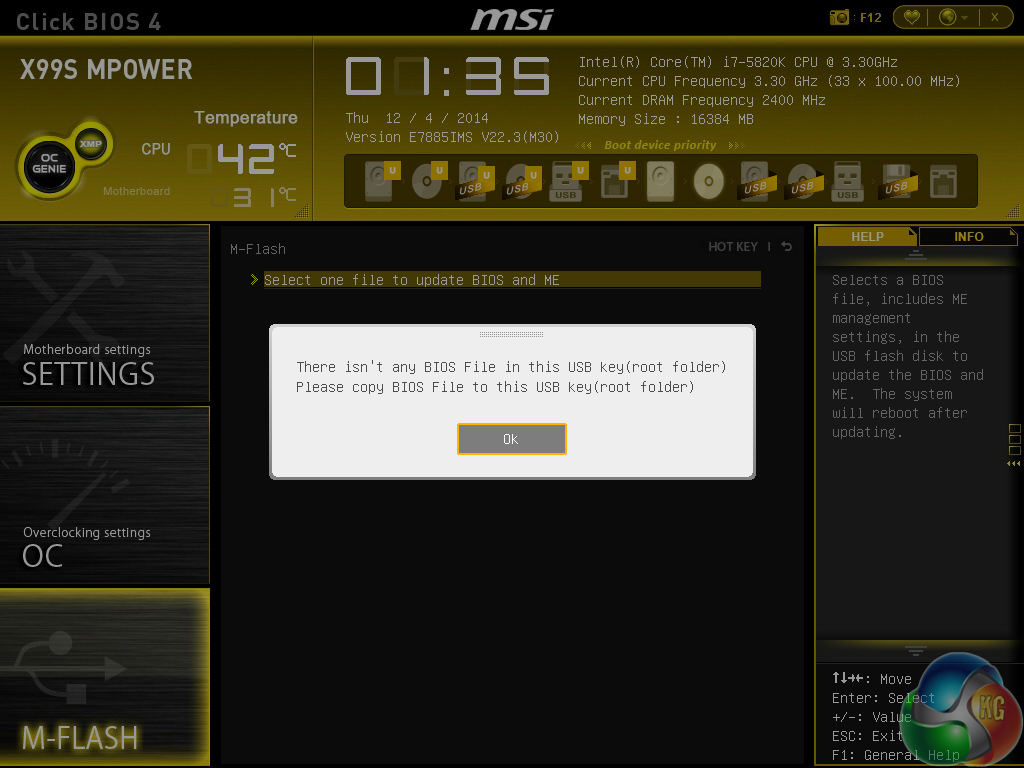
MSI’s M-Flash BIOS updating tool continues to refuse to enter folders in a USB flash drive. This is a negative point because users are forced to mess up their flash drive’s organisation by putting the BIOS file in the root folder. Competing motherboard vendors have tools that are able to navigate storage drives and USB memory sticks with ease. MSI is lagging behind in this respect.
Users are free to add some of their commonly accessed parameters to the Favourites profile. The default home page can also be changed.
UEFI Summary:
MSI’s Click BIOS 4 interface has a strong underlying ease-of-use aspect. Practising overclockers are given additional information and assistance as they learn about specific settings, but there are also plenty of options for more advanced frequency tuning.
The Board Explorer tool and comprehensive, user-friendly fan control system are particular highlights of the interface.
The UEFI still has its issues though, and further updates are required if MSI is to compete more closely with the excellent implementation used by Asus. Some of the layout options still result in a messy appearance. While many of the issues are small, arguably negligible points, they can add up quickly and have the potential to dampen the experience of using MSI’s Click BIOS 4 interface.
The software MSI supplies with the MPower is very similar to that provided with the Gaming series motherboards (both Z97 and X99), feature dependent.
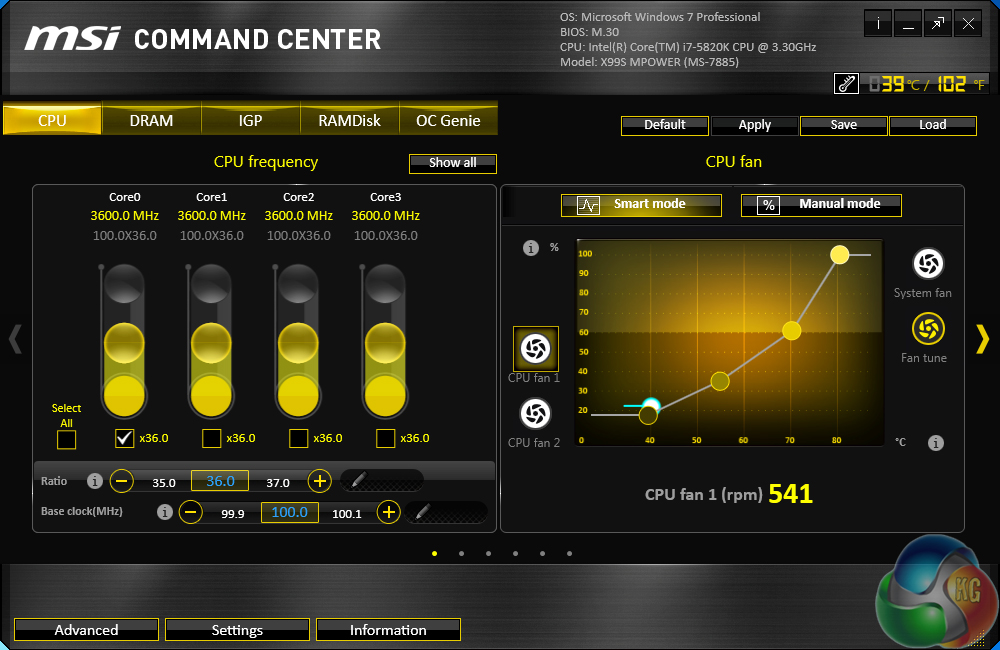
MSI's Command Center opens the CPU page during launch. The current multiplier and base clock levels can be viewed with ease in an eye-catching manner.
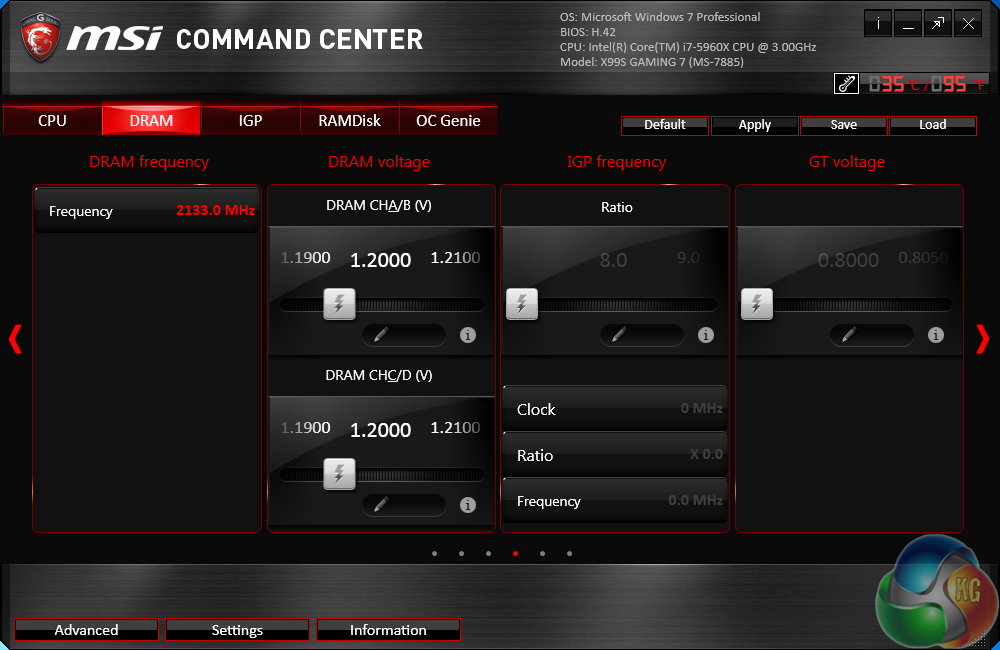
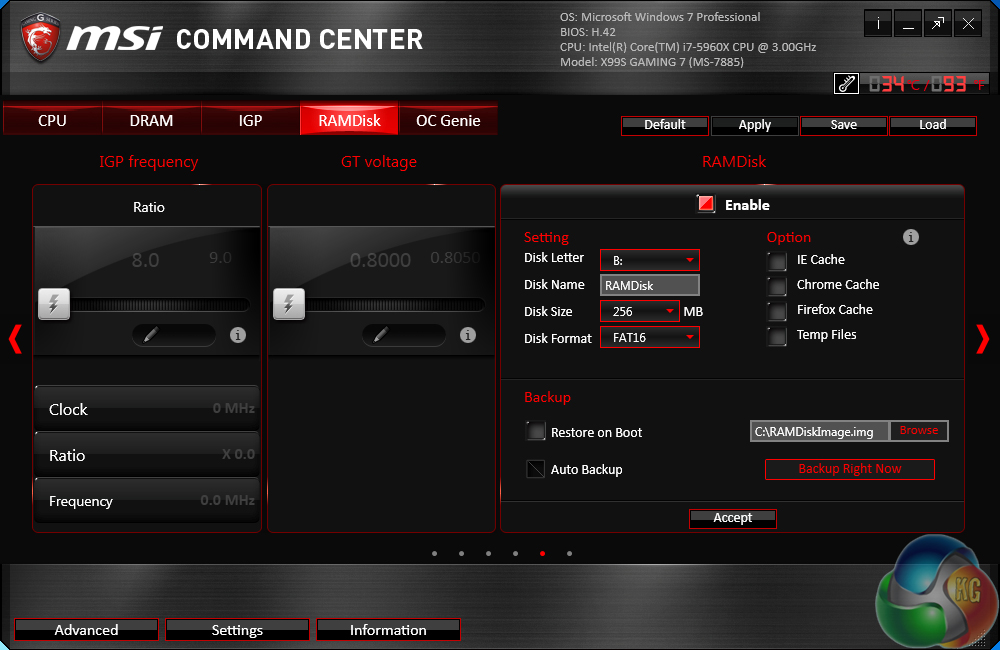
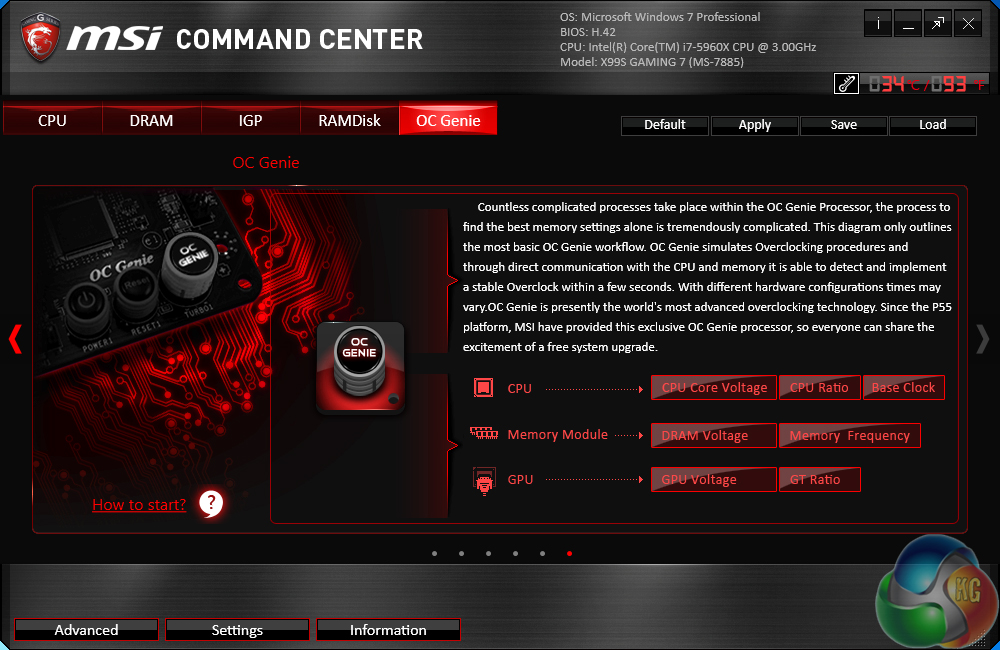
MSI's Command Center software is a comprehensive tool that can be used for a surprisingly diverse range of tasks. General overclocking and frequency-related duties can be handled via the software suite, and a RAM disk can also be created.
Even though the IGP section is left over from the software's Z97 past, there are no settings inside the section.

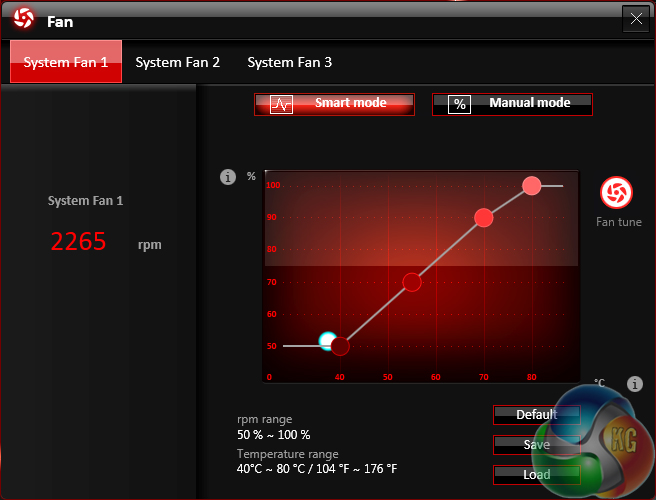
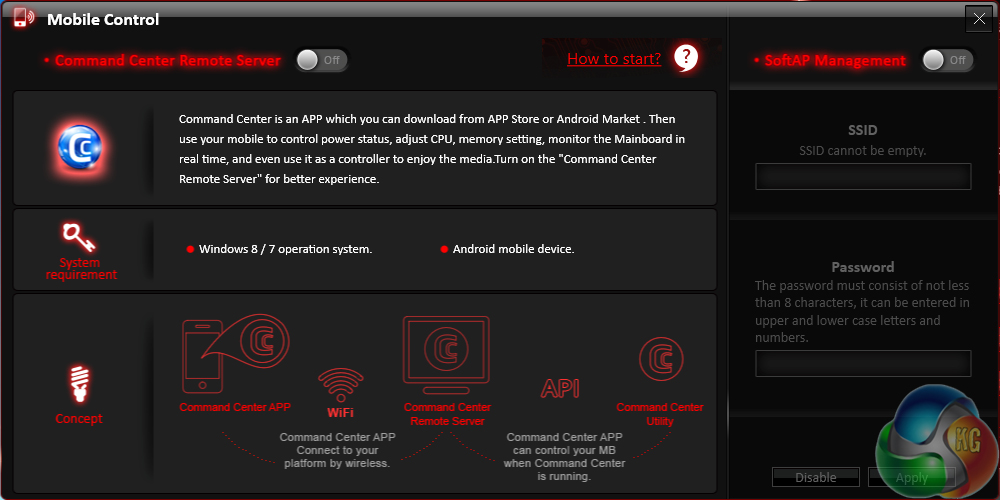
Additional sections at the bottom of each main page allow users to launch specific subsections. Some of the main subsections include windows for adjusting system voltages and fan speeds, as well as a segment dedicated to configuring one's computer as a media streamer.
We would strongly recommend using MSI's Command Center software for voltage readings. We have previously certified its recorded levels with a multimeter connected to a board's voltage reading points and found the software tool's accuracy to be excellent. Third party software (such as CPU-Z) can sometimes display incorrect readings on MSI's and other vendors' motherboards.
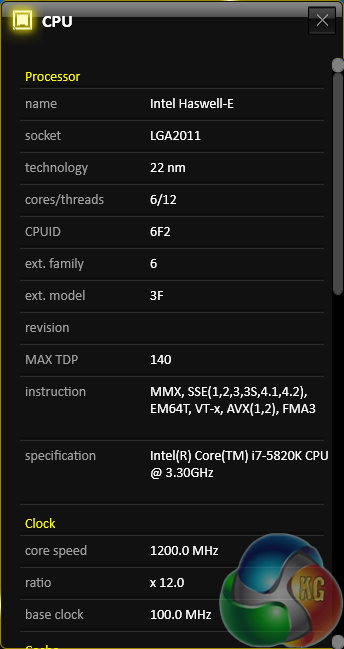
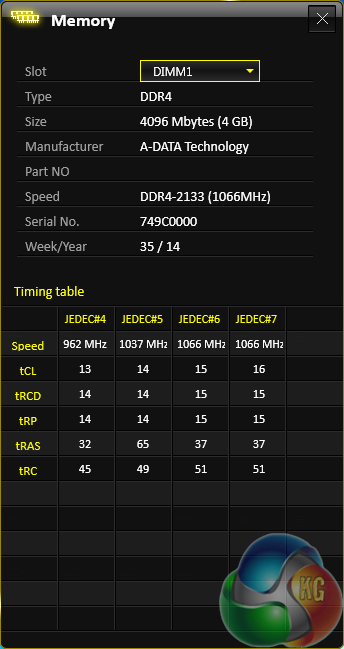
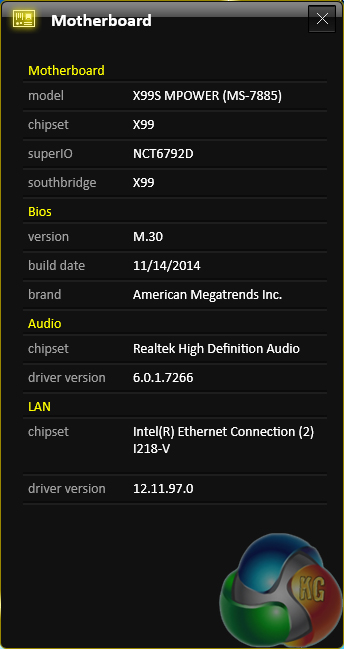
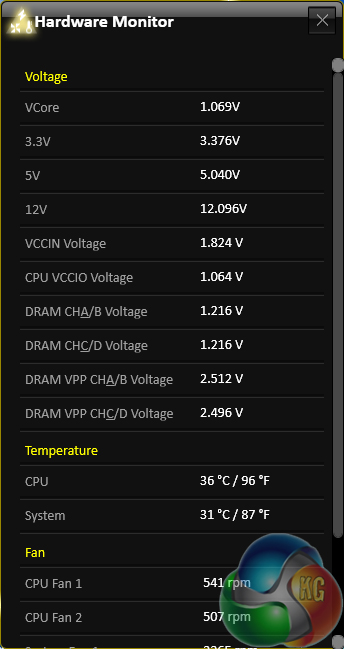
Extra information for other components is provided on the software for MSI's OC series board.
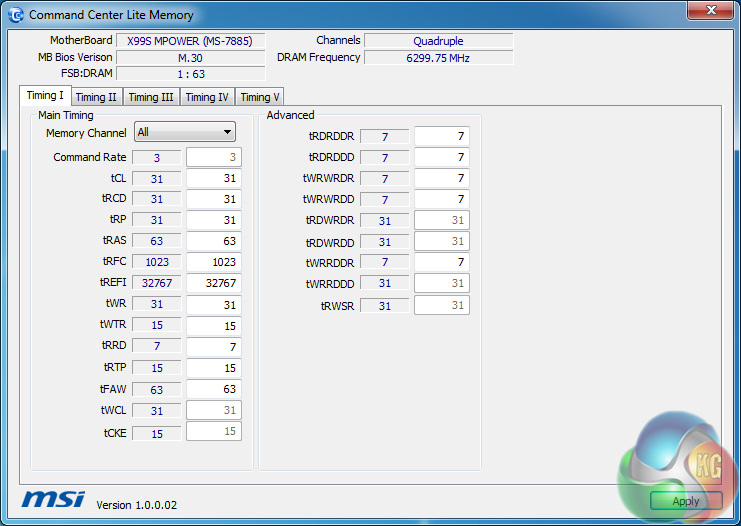
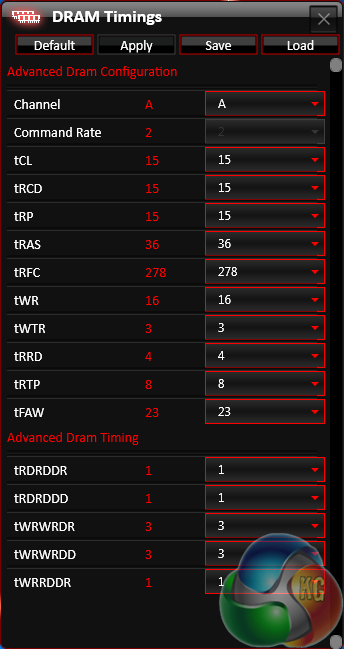
The Command Center Lite Memory tool displays information about memory timings, although it is clearly buggy, reporting a 6.3GHz memory frequency.
Direct OC seems to alter the base clock adjustment between 1MHz and 0.1MHz, although it did not seem to do anything in our testing.
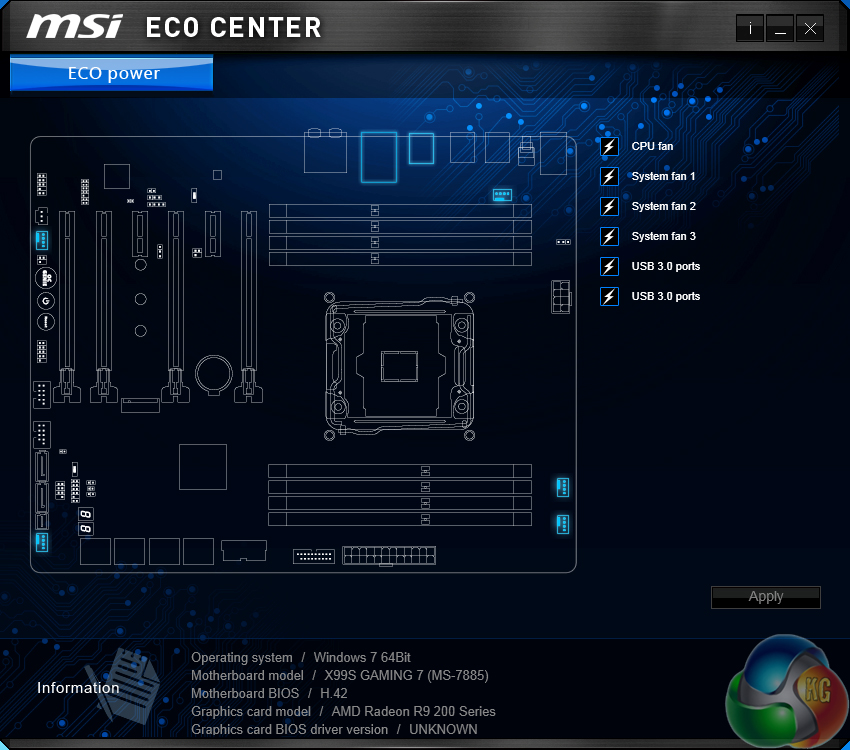
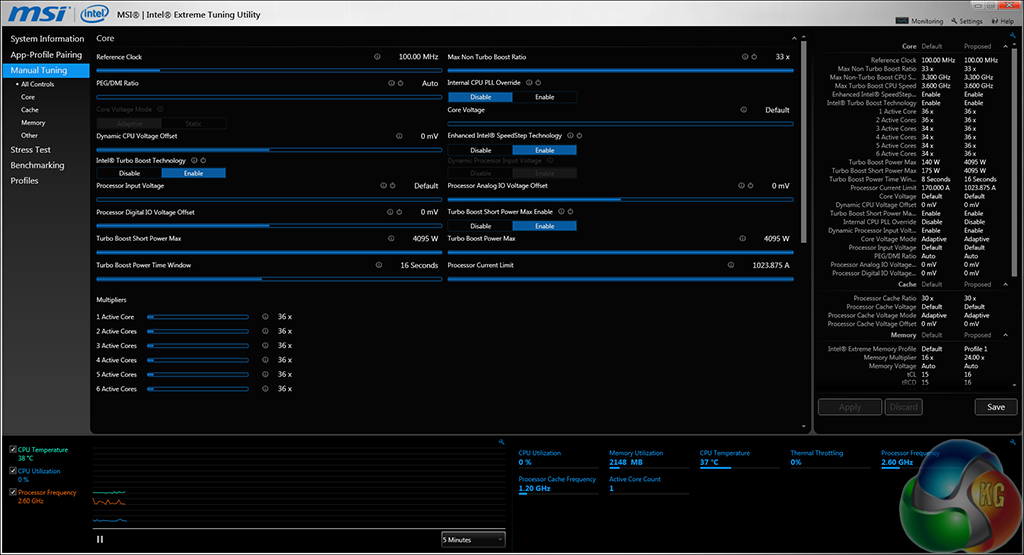
Eco Center allows users to switch off specific components to cut power usage. Intel's Extreme Tuning Utility gives a more in-depth set of voltage and power parameters than MSI's Command Center suite.
We will be outlining the MSI X99S MPower motherboard's performance with the Core i7 5820K CPU at its stock frequency (3.6GHz due to forced turbo). Overclocked performance will be outlined later in the review.
We opted for components representative of an X99-based system that would use a sub-£190 motherboard, which included 2400MHz DDR4 memory and the excellent Haswell-E 5820K processor.
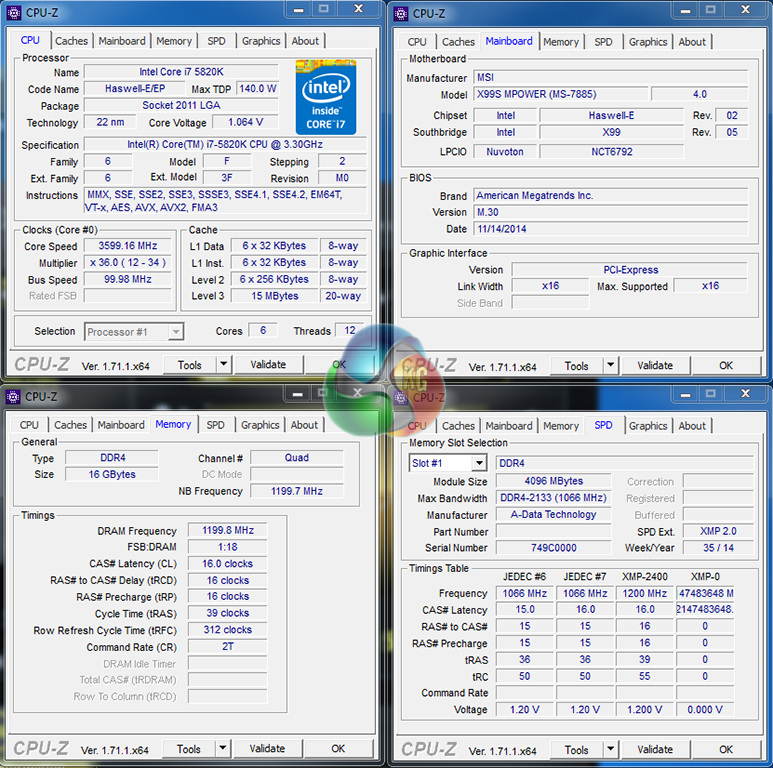
By default, the MSI X99S MPower motherboard applies multi-core turbo (MCT) and forces the 5820K to a constant 3.6GHz when XMP is enabled. This will be displayed as the ‘stock’ setting.
The CPU VCore idles around 0.757V when idling, and increases to around 1.064V when loaded.
X99 Motherboard Test System:
- Processor: Intel Core i7 5820K Retail (3.6GHz forced turbo).
- Memory: 16GB (4x4GB) ADATA XPG Z1 2400MHz 16-16-16-39 DDR4 @ 1.20V.
- Graphics Card: Asus R9 280X Matrix Platinum 3GB.
- System Drive: 500GB Samsung 840.
- CPU Cooler: Corsair H100i.
- Case: NZXT Phantom 630.
- Power Supply: Seasonic Platinum 1000W.
- Operating System: Windows 7 Professional with SP1 64-bit.
Compared X99 Motherboards:
- Asus X99-A (BIOS v0502 and Catalyst 14.4 drivers).
- Gigabyte X99-UD4 (BIOS F9c).
Software:
- MSI X99S MPower BIOS v22.3.
- Catalyst 14.9 VGA drivers.
Tests:
- 3DMark 1.3.708 – Fire Strike (System)
- SiSoft Sandra 2014 SP2 – Processor arithmetic, memory bandwidth (System)
- Cinebench R15 – All-core CPU benchmark (CPU)
- WinRAR 5.10 – Built-in benchmark (CPU)
- HandBrake 0.9.9 – Convert 4.36GB 720P MKV to MP4 (CPU)
- ATTO – SATA 6Gbps, USB 3.0, M.2 transfer rates (Motherboard)
- RightMark Audio Analyzer – General audio performance test (Motherboard)
- Bioshock Infinite – 1920 x 1080, ultra quality (Gaming)
- Metro: Last Light – 1920 x 1080, high quality (Gaming)
- Tomb Raider – 1920 x 1080, ultimate quality (Gaming)
3DMark
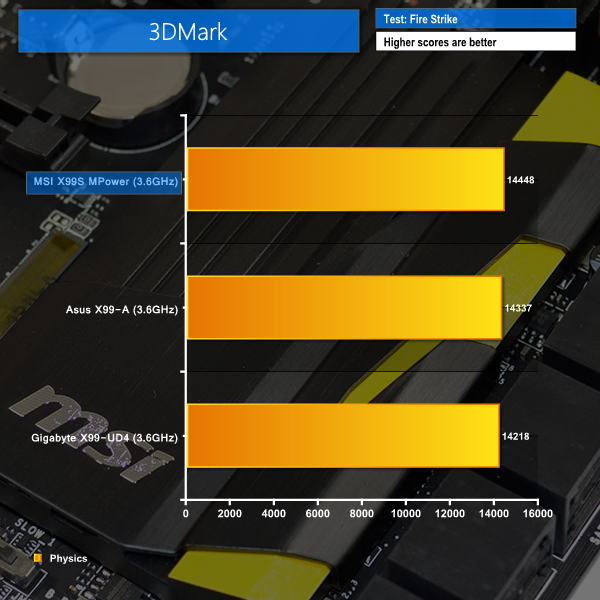
We used 3DMark‘s ‘Fire Strike’ benchmark which is designed to be used on gaming PCs. We opted for the Normal setting, NOT the Extreme mode.
Sandra Processor Arithmetic
Sandra Memory Bandwidth
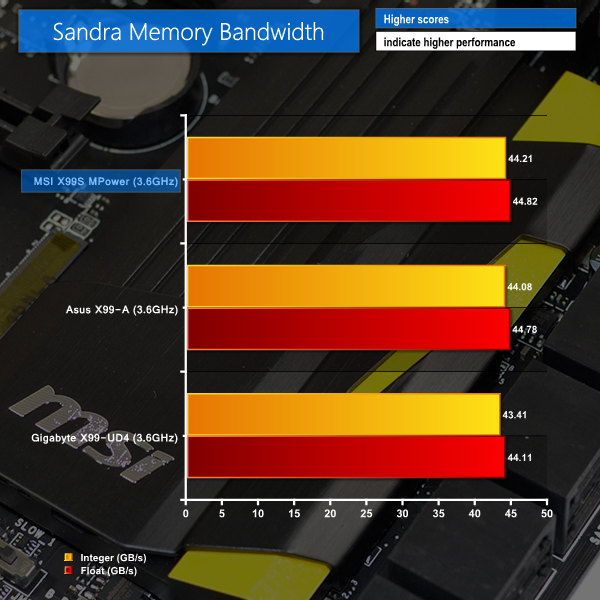
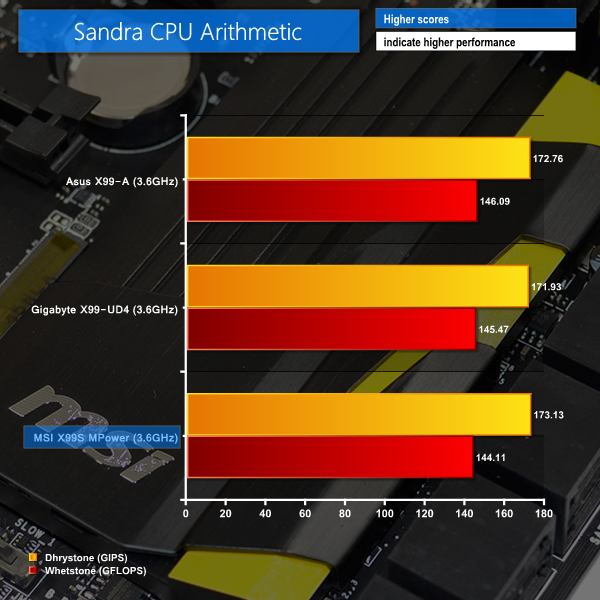
The X99S MPower takes a commanding victory in the 3DMark physics test. Performance is slightly behind the competitors in Sandra's CPU arithmetic test, although the memory bandwidth results paint a positive performance picture.
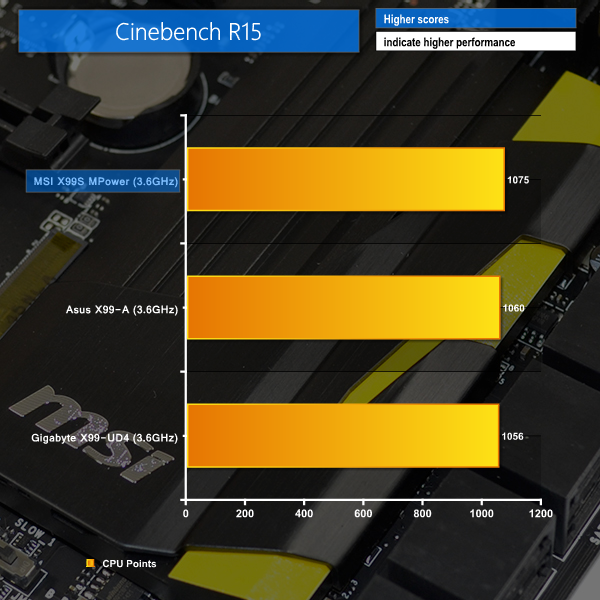
Cinebench
We used the ‘CPU’ test built into Cinebench R15.
WinRAR
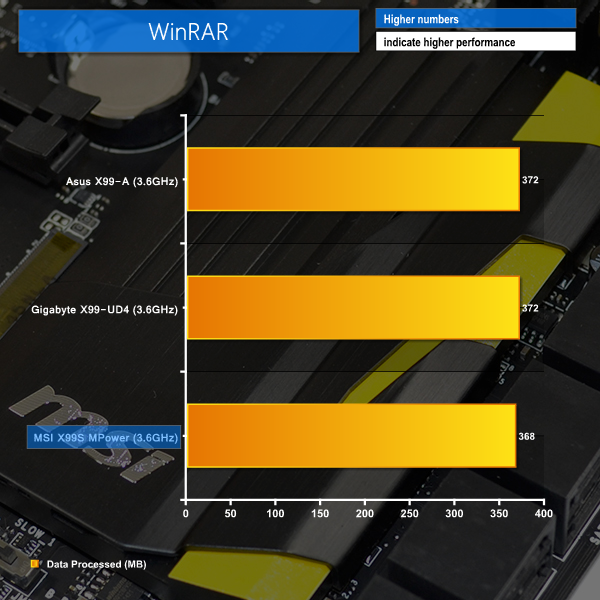
WinRAR’s built in benchmark and hardware test can help us outline the performance differentials between each motherboard. We record the amount of data processed after a 30-second run.
Handbrake Conversion
We measured the average frame rate achieved for a task of converting a 4.36GB 720P H.264 movie (in the MKV container) to one in the MP4 container.
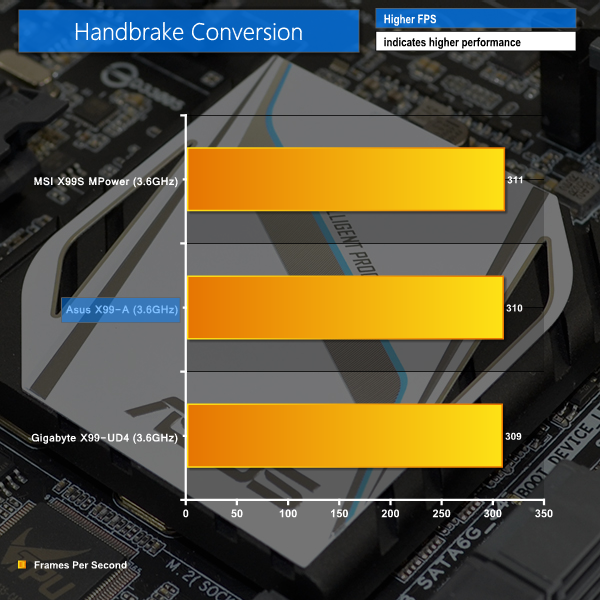
Positive results are shown in the Cinebench and Handbrake conversion tests, with chart-topping performance delivered by the X99S MPower.
WinRAR performance is slightly lower than the Asus and Gigabyte competitors, although the benchmark's numerical rounding process also has an effect on this result.
Bioshock Infinite
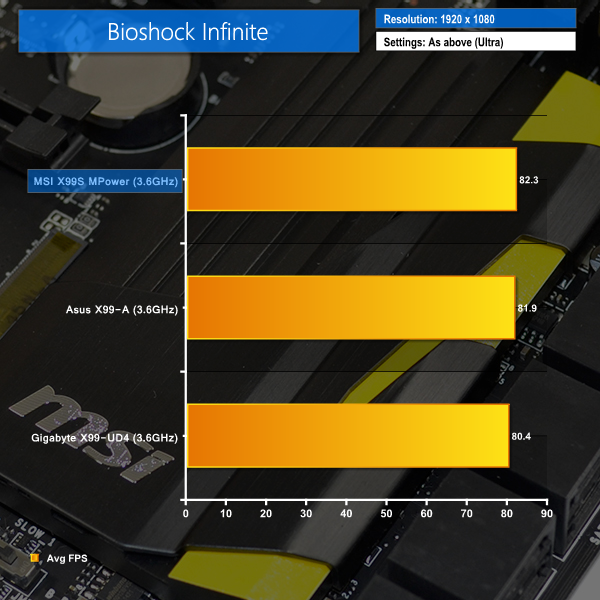
We used the Bioshock Infinite demanding ‘Ultra’ setting and a 1920×1080 resolution to push today’s gaming hardware. Our data was recorded using a section of the game, not the built-in benchmark.

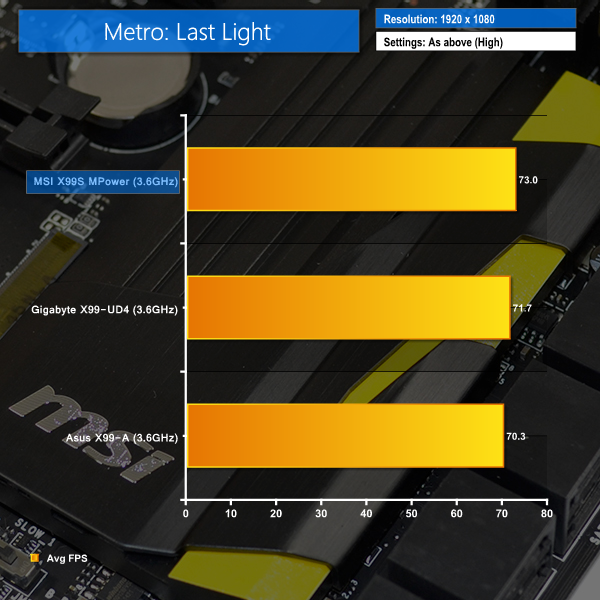
Metro: Last Light
We used a 1920×1080 resolution and the Metro: Last Light built-in benchmark set to ‘High’ quality to offer an intense challenge for the gaming hardware while also making playable frame rates a possibility.

Tomb Raider
We used a 1920×1080 resolution and the Tomb Raider built-in benchmark set to ‘Ultimate’ quality.
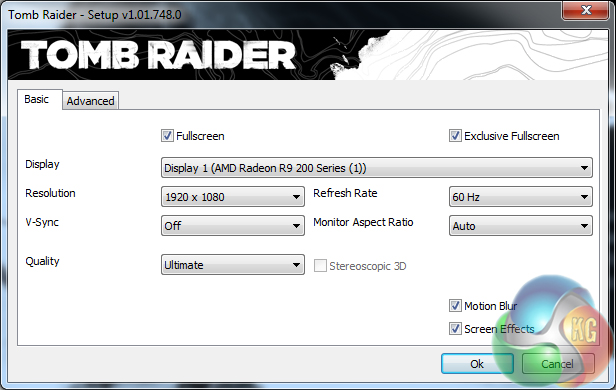
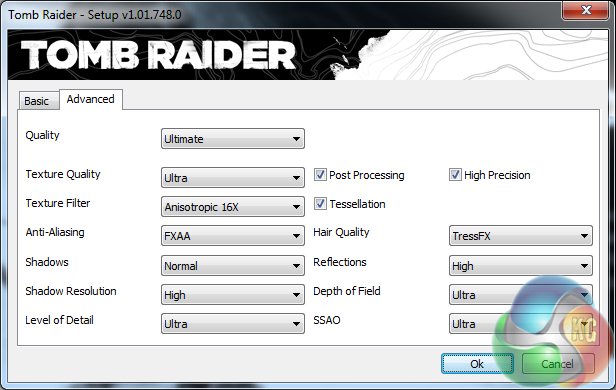
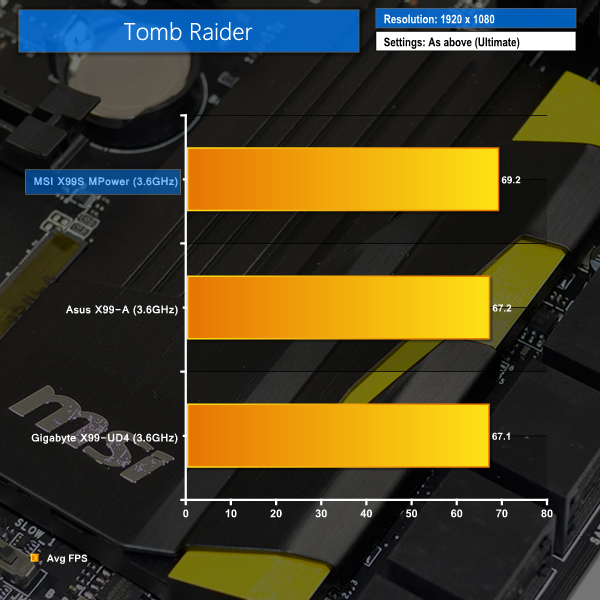
The same positive performance shown throughout the majority of computational and system benchmarks is carried through to the gaming results. Three chart-topping sets of gaming results are shown by the X99S MPower.
A combination of positive computational performance and newer drivers (compared to the Asus X99-A motherboard data) helped the MSI board take three clear top-spots.
M.2 connector
We use Plextor‘s fast M6e 256GB M.2 SSD to test the speed of a motherboard's M.2 connector. We reviewed the 512GB Plextor M6e (and its PCIe x2 adapter card) HERE. Unfortunately we do not have access to a PCIe 3.0-based SSD to fully test the M.2 connector's performance limits.

MSI's Turbo M.2 connector has no problems providing full bandwidth to the PCIe-fed Plextor M6e SSD.
SATA
For SATA 6Gb/s testing we use a Kingston HyperX 3K (SandForce SF-2281) SSD.
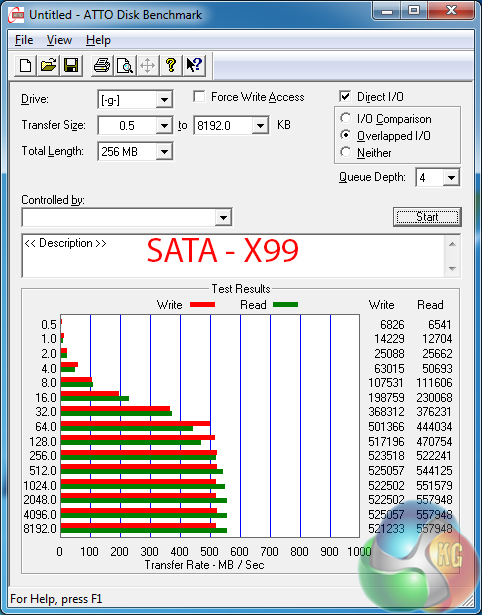
SATA performance is as good as we would expect from X99-based 6Gbps ports.
USB 3.0
We tested USB 3.0 performance using the Kingston HyperX 3K SSD connected to a SATA 6Gb/s to USB 3.0 adapter powered by an ASMedia ASM1053 controller.

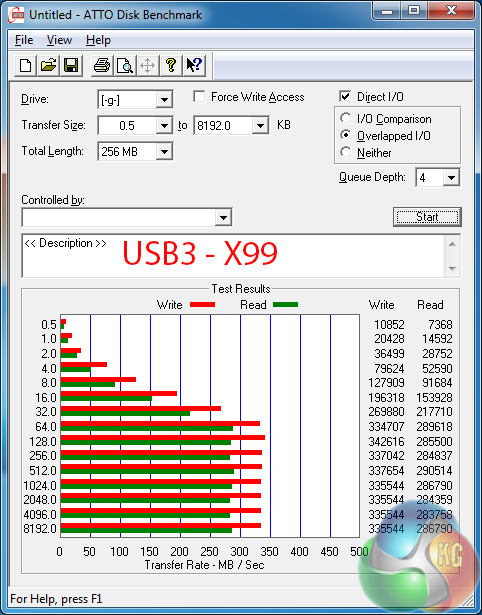
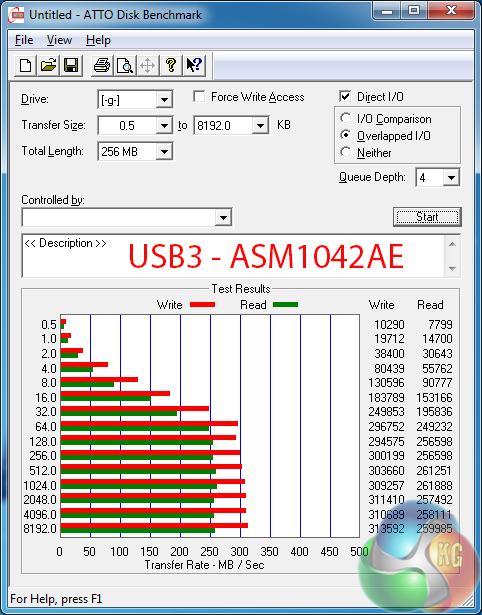
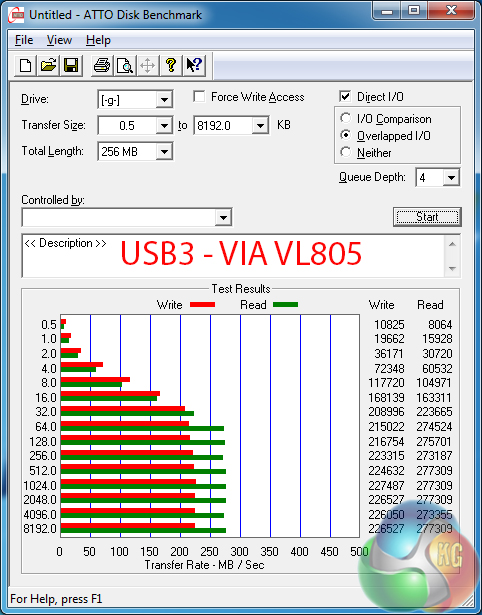
Intel’s X99 USB 3.0 ports are the fastest ones equipped on MSI’s X99S MPower. Whether you’re using them through the front panel of a case or the rear of a motherboard, MSI’s X99 ports still aren’t as fast as their Z97 counterparts (which is likely related to chipset reasons).
Second place on the X99S MPower goes to ASMedia’s ASM1042AE USB 3.0 ports. Using two lanes of PCIe 2.0 bandwidth, the ASMedia ports show an overall speed improvement over the VIA VL805-based quartet.
And on the topic of VIA’s VL805 host controller, with four USB 3.0 ports being fed by a single 5Gbps PCIe 2.0 lane, the transfer speeds will only decrease as more devices are connected and eating into that bandwidth.
MSI does not offer support for UASP to Windows 7 users. While that clearly hurts its USB 3.0 ports’ transfer rates, it is unlikely to cause major concern for users such as overclockers who are unlikely to regularly transfer large amounts of data.
Audio
We use RightMark Audio Analyzer (RMAA) to analyse the performance of the motherboard’s onboard audio solution. A sampling mode of 24-bit, 192 kHz was tested.
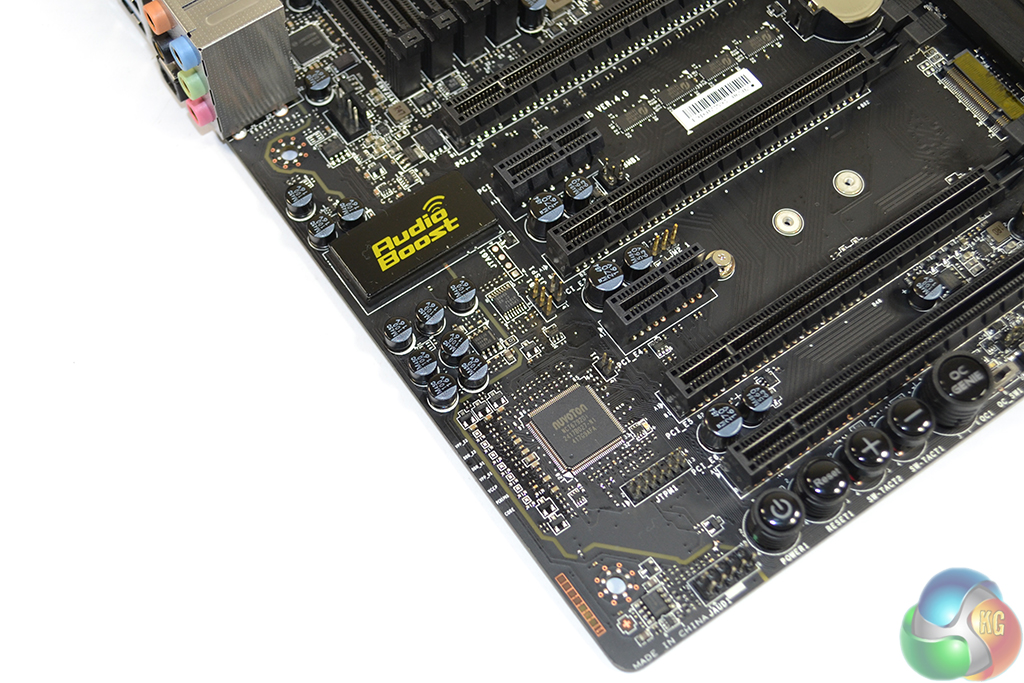
Based around the Realtek ALC1150 and its 115 dB Signal-to-Noise Ratio (SNR), MSI’s Audio Boost system also calls upon a pair of Texas Instruments’ OPA1652 amplifiers. We know that the TI OPA1652 is perceived as a particularly potent operational amplifier, capable of driving high – up to 600 Ohm – impedance headphones.
According to RMAA, the Audio Boost system on MSI's X99S MPower delivers ‘Very Good‘ performance. Signal isolation is very good on the MPower, as proven by the positive stereo crosstalk performance.
Automatic CPU Overclocking:
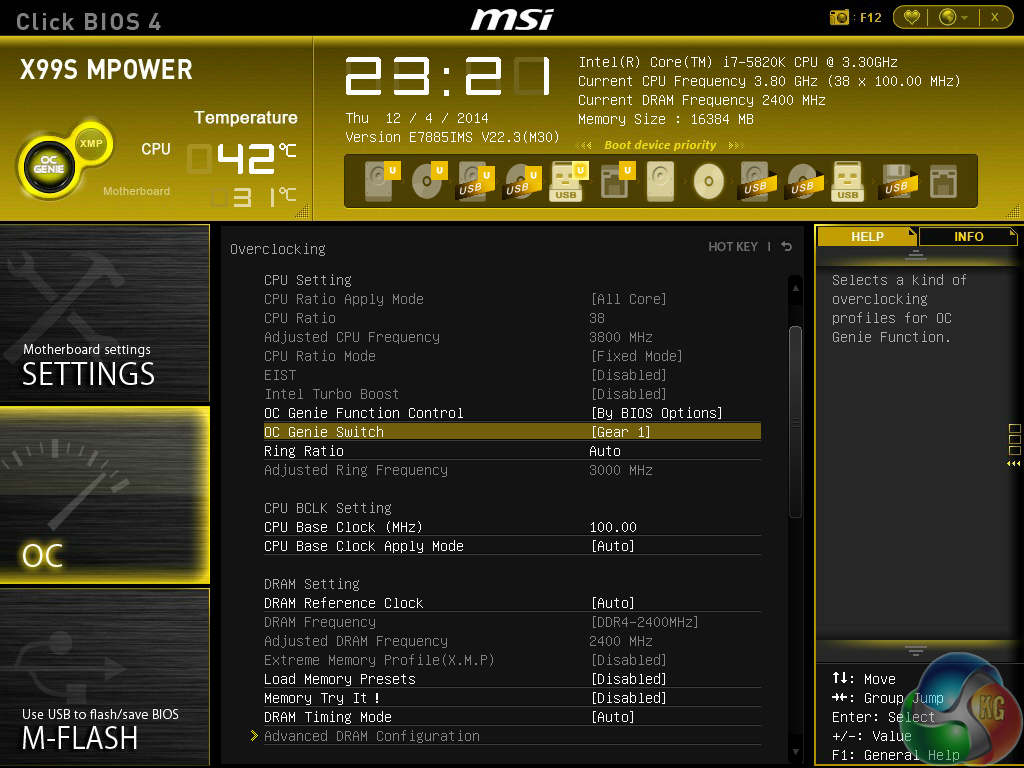
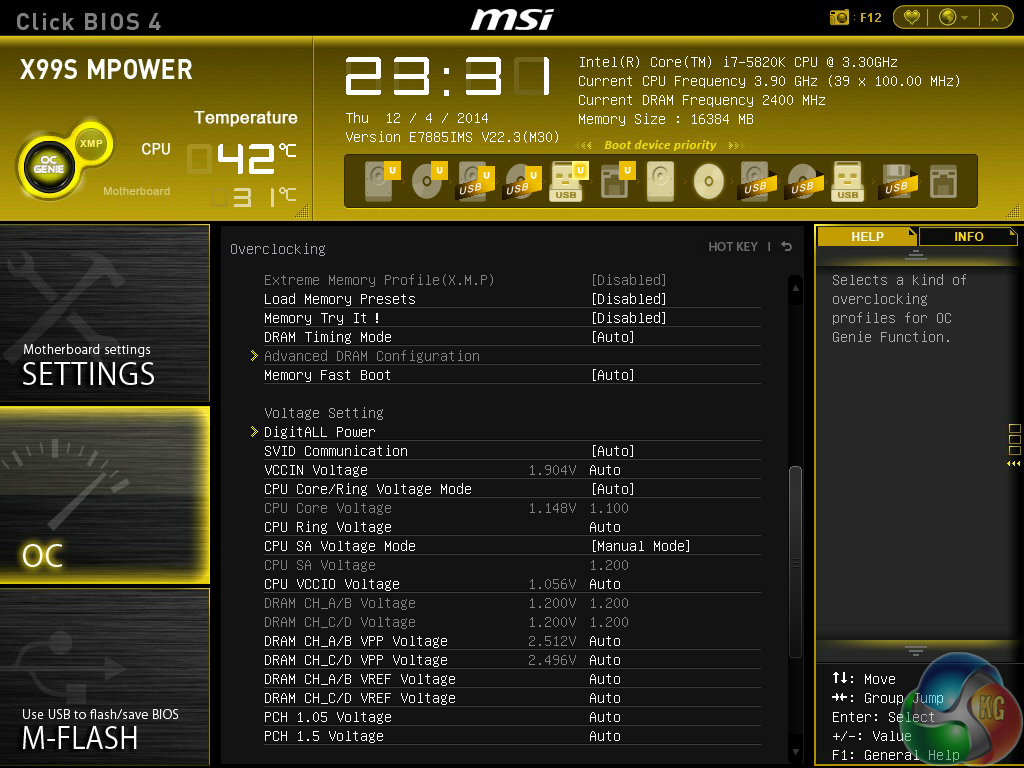
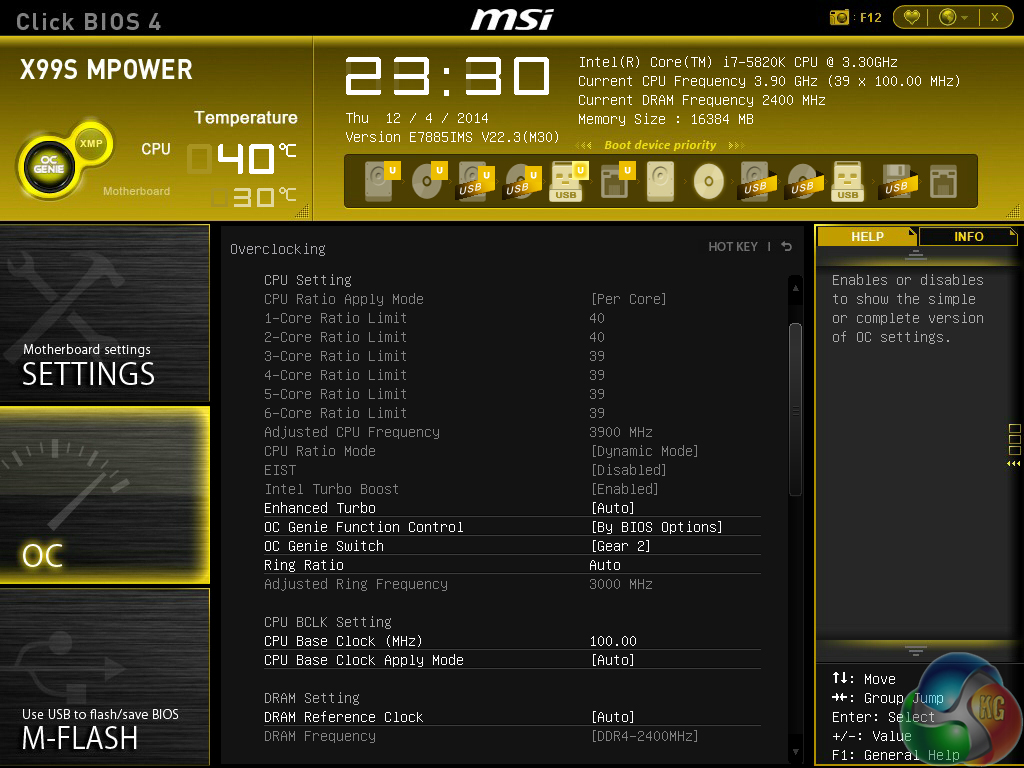
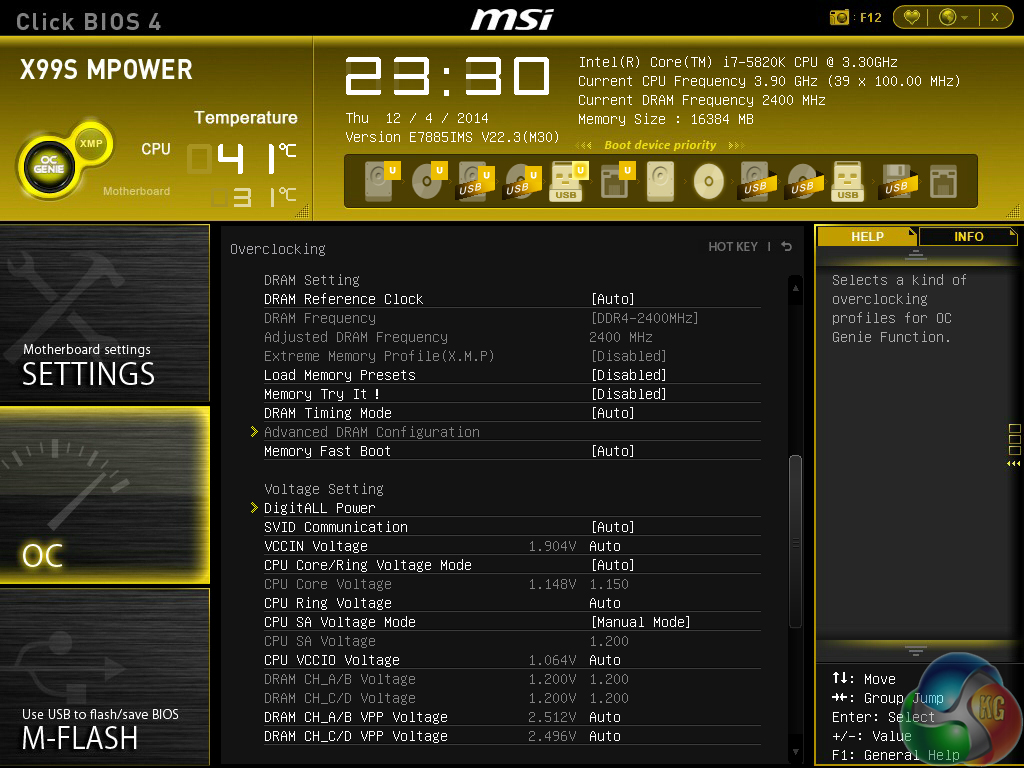
There are two separate modes, called Gear, for MSI's OC Genie automated overclocking tool. Gear 1 sets a static 3800MHz clock speed with 2400MHz memory, while a dynamic overclock that peaks at 4GHz is set with Gear 2.
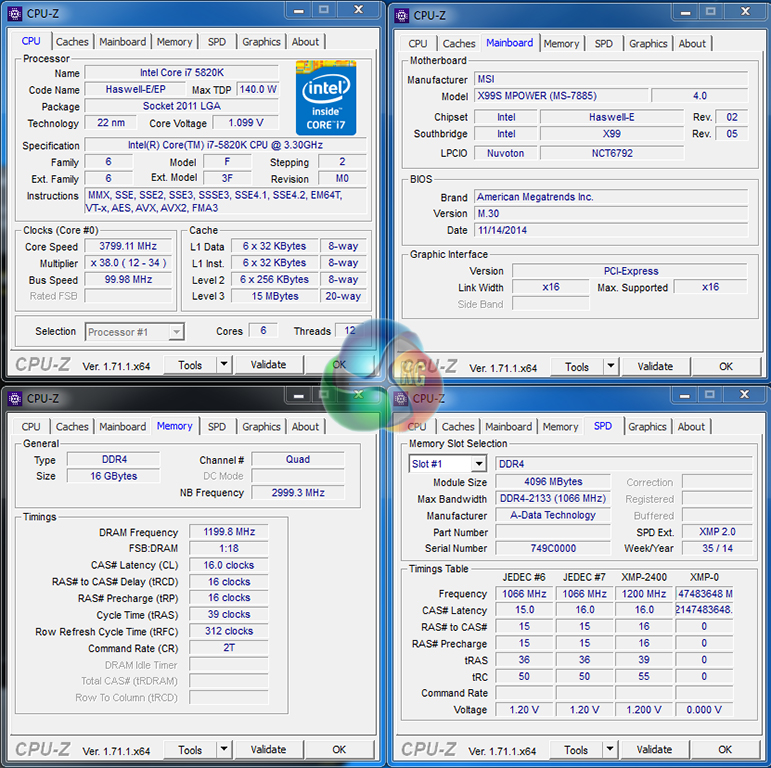
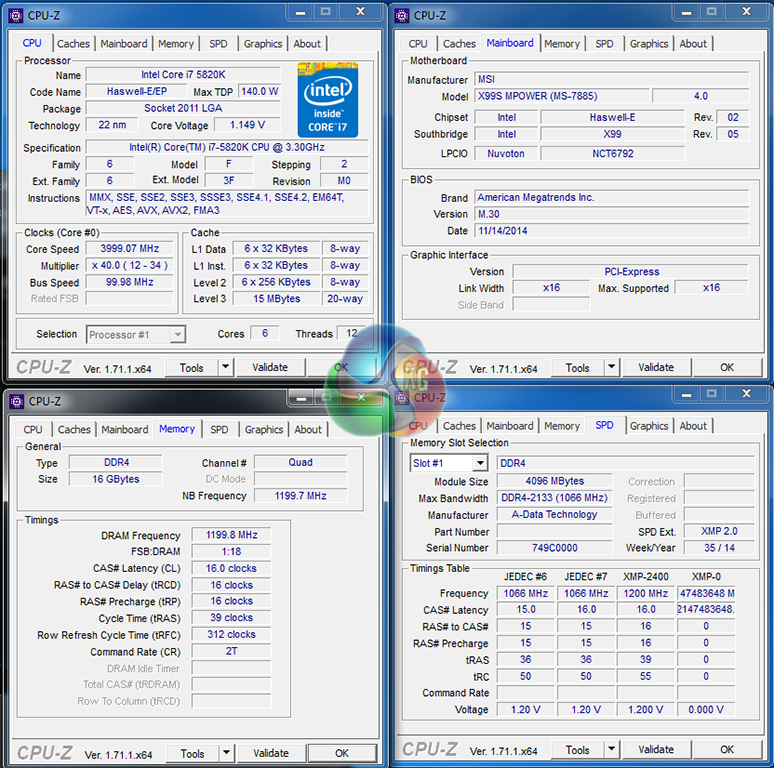
Both overclocking modes disable XMP, which is disappointing for users who have memory that runs faster than 2400MHz.
Sensible voltage levels are applied for both overclocking modes. While we have no complaints about MSI's OC Genie settings, we would be a little surprised if more than a narrow proportion of this board's target audience makes use of them over manual tuning.
Manual CPU Overclocking:
To test the MSI X99S MPower motherboard’s CPU overclocking potential, we first increased the CPU VCore to 1.275V, Cache voltage to 1.25V, CPU Input Voltage to 1.90V. We also disabled SVID support. VDroop was set to auto as it is unclear how MSI's calibration and droop control settings are tuned.
We maintained the DRAM frequency at 2400MHz to take its stability out of the overclocking equation. Cache frequency was maintained at 3.0GHz.
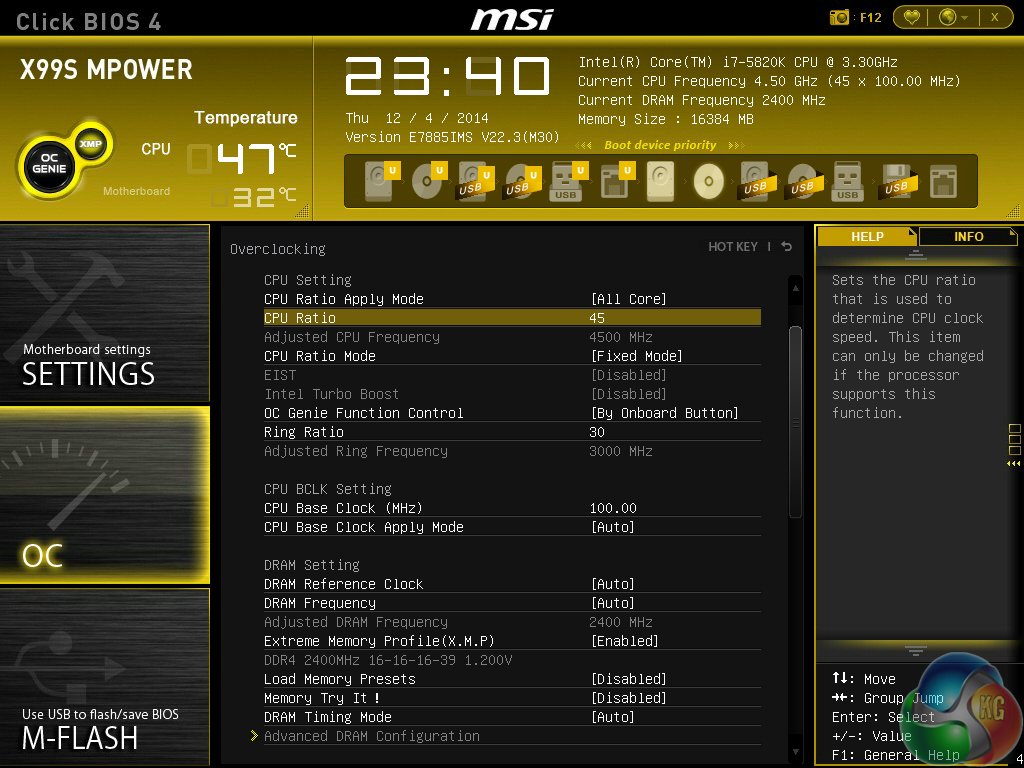
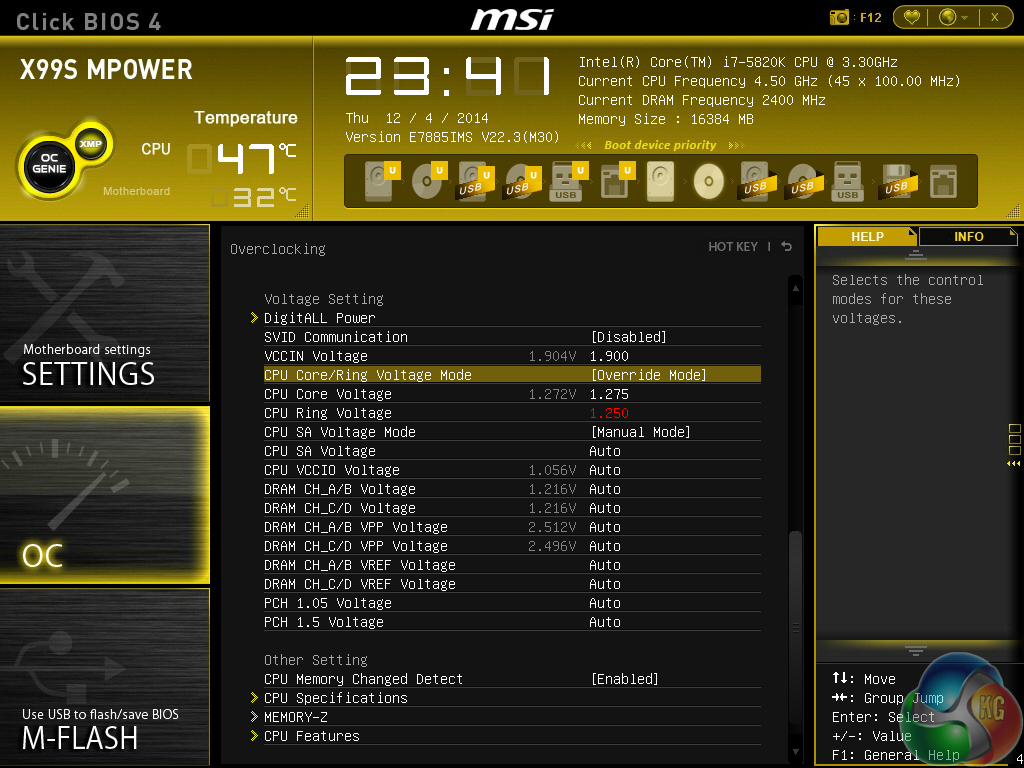
Our chip topped out at its 4.5GHz limit with ease. Manual overclocking with the X99S MPower is as easy as setting the desired parameters and rebooting. We did not suffer any instability or reluctant POST operations.
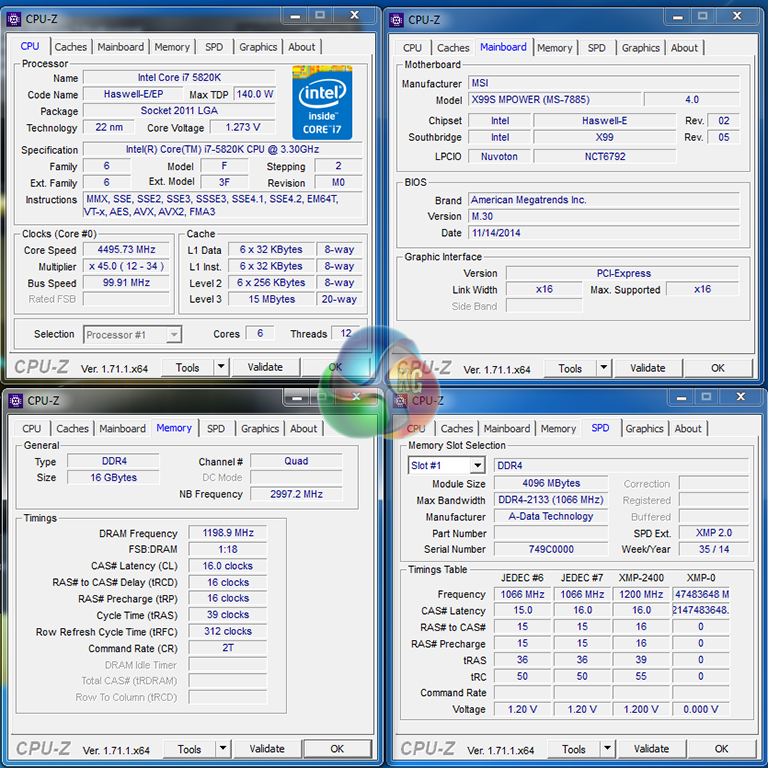
The 4500MHz validation can be viewed here.
Memory Frequency Performance:
Support for high-speed memory kits has been a particularly troubling topic since the X99 launch. We test the motherboard's ability to load the 3000MHz XMP configuration on our G.Skill Ripjaws4 DDR4 memory.
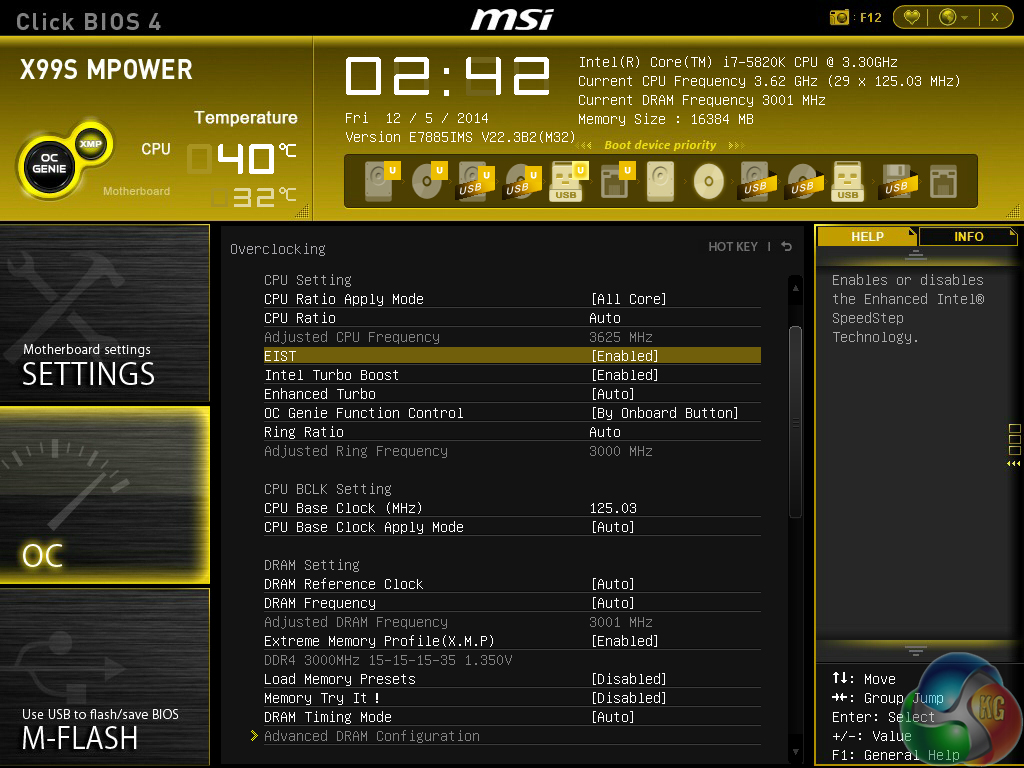
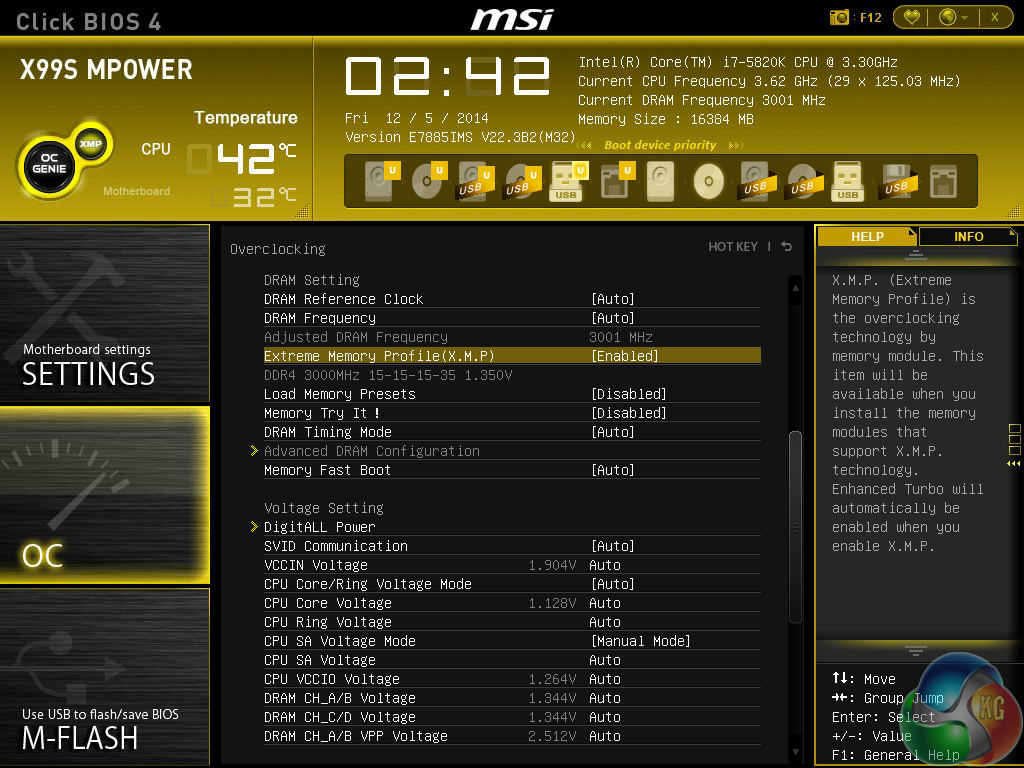
To test memory frequency support, we had to update to MSI's M32 BIOS – a version that is newer than the current public release and is still undergoing internal stability testing.
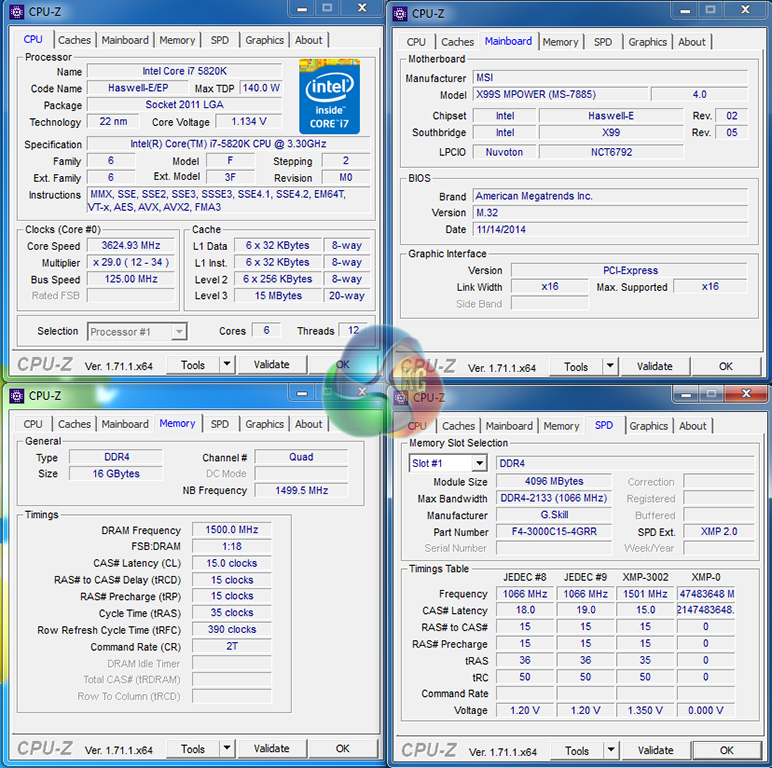
The 3GHz XMP configuration for G.Skill's Ripjaws4 memory kit worked without hassle on the M32 BIOS. The current release v22.3 BIOS (M30) would not work with the G.Skill 3GHz XMP kit.
The 3000MHz XMP validation can be viewed here.
We will outline the performance increases that can be obtained from using the MSI X99S MPower motherboard to overclock our system. Our overclocked processor frequency was 4.5GHz and memory speed was 2400MHz.
As a performance comparison, we have included the overclocked results from two other X99 motherboards. The maximum overclocked configuration achieved with each board was a 4.5GHz processor frequency and 2400MHz memory speed.
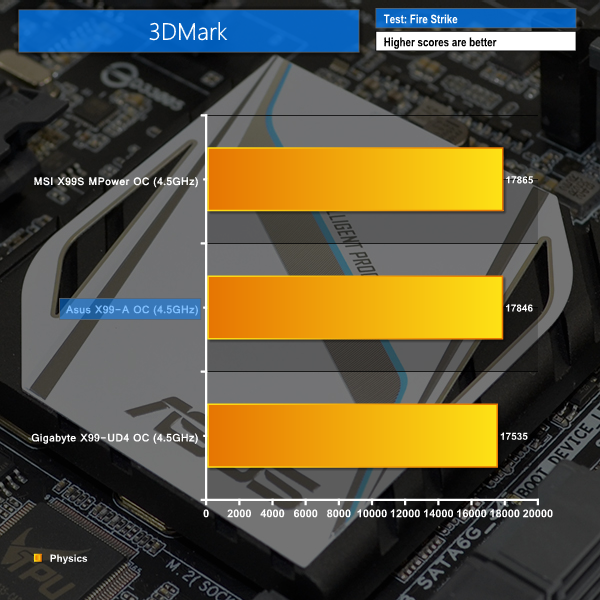

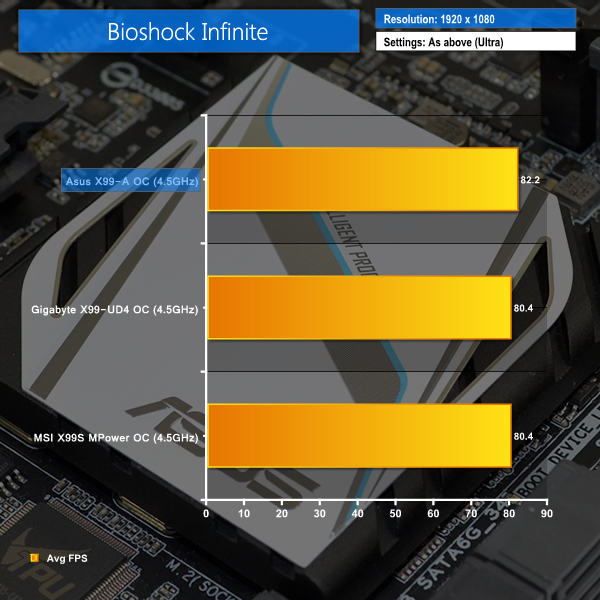
Positive CPU- and system-related performance is continuing through to the overclocked tests. MSI's X99S MPower manages to (marginally) outperform the Asus and Gigabyte competitors in Cinebench and 3DMark physics tests.
Performance in Bioshock Infinite takes a notable drop from the stock-clocked result of 82.3 FPS. We have noticed deteriorating game performance (albeit very small in most occasions) when overclocking X99-based systems on a few occasions. The differential could be related to PCIe link clocks between the CPU and graphics card.
We measured the power consumption with the system resting at the Windows 7 desktop, representing idle values.
The power consumption of our entire test system (at the wall) is measured while loading only the CPU using Prime95′s in-place large FFTs setting. The rest of the system’s components were operating in their idle states, hence the increased power consumption values (in comparison to the idle figures) are largely related to the load on the CPU and motherboard power delivery components.
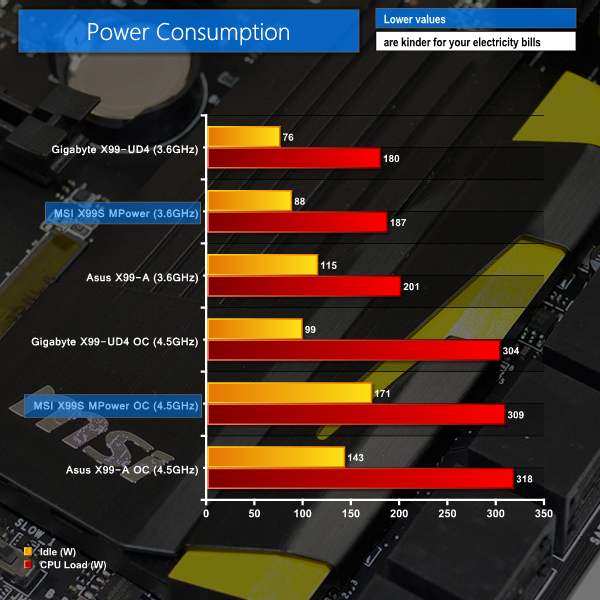
Power consumption numbers for the stock-clocked X99S MPower are positive. The overclocking-geared board shows its efficiency and voltage-control capacity by undercutting the power consumption levels of Asus' X99-A. Gigabyte's excellent CPU power delivery system on the X99-UD4 still wins on the energy usage front, however.
That outlook changes when overclocking is added into the equation. While load power consumption numbers are where we would expect them to be, idle levels are significantly higher than the competition that uses almost identical settings. This is due to a static voltage level being applied to the MPower, and the CPU power controller maintaining that BIOS-set level even during periods of low CPU load.
The MSI X99S MPower offers a solid range of features that will appeal to power users and those interested in overclocking their system. Creating a value-orientated overclocking-geared motherboard can be a difficult task, but MSI has minimised that risk by equipping the X99S MPower with a broad range of general usage features.
Overclocking performance was solid for the X99S MPower. The board had no problem taking our 5820K to its 4.5GHz limit with 24/7-safe voltage levels. 3GHz memory support is also present, although the required BIOS is still undergoing stability testing ahead of its public release. And the range of overclocking-orientated UEFI options is a positive factor.
Performance for the MPower was excellent. MSI's OC series part consistently outperformed similarly-priced competitors in a range of workloads and tasks. That positive performance continued through to gaming and overclocked scenarios.
Board layout is decent, and could easily be better. Firstly, MSI puts the two x16-bandwidth PCIe slots in a position that will force cooling problems with back-to-back dual-slot graphics cards. And then there's the poor positioning of the SATA Express connector and voltage check points.
Other than SATA Express interference, there shouldn't be major layout issues, but the design could have been made better with relative ease. That said, the good fan header distribution and USB 3 connectors positioning are positives that are worth noting.
From a software perspective, the Click BIOS 4 UEFI is functional and filled with adjustable parameters, even if its layout is a little disordered. The range of OS-based tools that MSI includes with its boards is well-suited for an overclocking-geared user; monitoring and tweaking applications take the limelight.

Priced at £187.99 from OverclockersUK, the MSI X99S MPower represents good value for money. It is actually one of the cheapest X99 motherboards on the market, but offers a number of noteworthy upgrades over the lowest cost boards, especially in the overclocking department.
Perhaps one of the biggest considerations for MSI's X99S MPower is its similarity to the company's £10-more-expensive Gaming 7. For that extra £10 you get an almost identical motherboard that switches to red and black colours, a Killer NIC, a better audio solution, and less overclocking flexibility.
Sticking to the overclocking target audience of the X99S MPower, we don't see anything that they will feel is left out on the OC series part when compared to the Gaming 7. And that's a good thing that makes the MSI X99S MPower‘s overclocking-orientated feature set and £187.99 price tag even easier to recommend.
Discuss on our Facebook page, over HERE.
Pros:
- Good overclocking performance with a range of user-adjustable settings.
- A good number of features for a sub-£190 X99 motherboard.
- Solid, in-depth UEFI implementation, even if it is a little disordered.
- 32Gbps Turbo M.2 connector can be used simultaneously with SATA Express.
- Good set of onboard buttons.
- Strong audio performance.
Cons:
- Some layout decisions could be better (especially V-Check Point Lite positions).
- Graphics card spacing needs to be better.
KitGuru says: With the X99S MPower, MSI has successfully brought overclocking-geared features to an even lower-cost segment of the LGA 2011-3 market.

So there’s a new bios out soon that handles high speed ram better then eh? Interesting as I’m running this mobo with 16GB of 3GHz Hyper X Predator ram and currently stuck running it @ 2666 so would be nice if theres a new bios out soon which’ll help take it to full speed…
As for those worried with tight dual GPU placement, I’m running SLI and have the cards in slots 1 & 3 instead with 2 empty, lots of room for cooling that way and works absolutely fine!