 KitGuru KitGuru.net – Tech News | Hardware News | Hardware Reviews | IOS | Mobile | Gaming | Graphics Cards


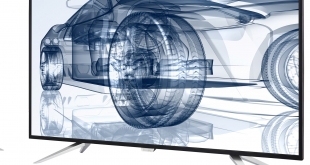
Size matters, and don't let anyone convince you otherwise. It's particularly important with 4K screens. Whilst the pixel count gives you bragging rights in itself, viewing 4K on anything smaller than a 27in screen beggars the point a little, as it will be hard to make out the detail compared to the next resolution down. In fact, the larger the better. So how about a 43in 4K screen instead? This is what Philips has on offer with the BDM4350UC.
This is an absolutely massive monitor, although it's not particularly thick, partly because it doesn't include an adjustable stand, instead relying on a couple of detachable feet on the bottom. These do restrict the orientation of the screen greatly, and will mean it has to sit on a desk at least as wide as it is, which is nearly a metre. You won't be able to adjust it other than physically moving its location or placing it on a higher level.
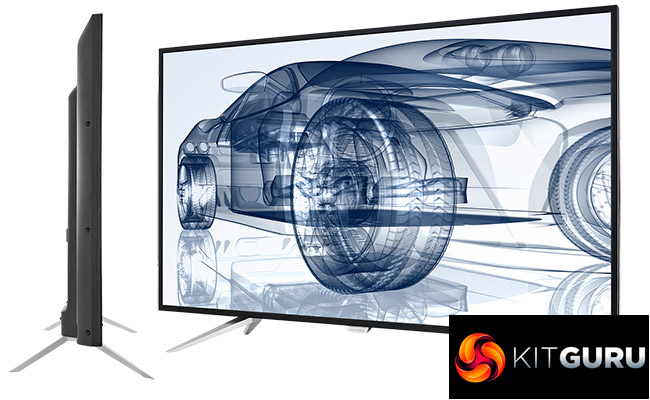
Once you've gotten over the sheer size of this screen, however, the specs are pretty sound. This is an IPS panel, so geared more towards image quality than gaming response. The panel is pretty normal for IPS, with a 300cd/m2 brightness rating and 1,200:1 contrast ratio, plus the usual IPS downside of a 5ms grey-to-grey pixel response. This won't make it a PC gaming impresario, and nor will its maximum 60Hz refresh in 4K. But for general multimedia and professional work, the BDM4350UC's size makes it very tempting.
Many inputs are available, with two each of DisplayPort and HDMI, and even VGA. There's a four-port USB 3.0 port, too, as well as built-in 7W speakers. Amazingly, this 43in 4K screen only costs a little over £500. Is this a monster deal for a monster monitor, or just a monstrosity? Let's find out.
Specification:
Screen size: 43-inch, 16:9 aspect
Native resolution: 3,840 x 2,160
Refresh rate: 60Hz
Panel type: IPS
Contrast ratio: 1,200:1
Brightness: 300cd/m2
Response time: 5ms grey-to-grey
Display inputs: 2 x HDMI, 2 x DisplayPort, VGA
USB hub: Yes
Tilt: No
Raise: No
Swivel: No
Other: Headphone jack, built-in 7W speakers.
Retail Price: £526.98 (inc. VAT)
The BDM4350UC is a huge screen and there's a reasonable amount in the box too.

There's no power brick, as the AC cable plugs directly into the screen. You get one each HDMI, DisplayPort and even VGA, plus an audio minijack pass-through for routing sound from a host PC.
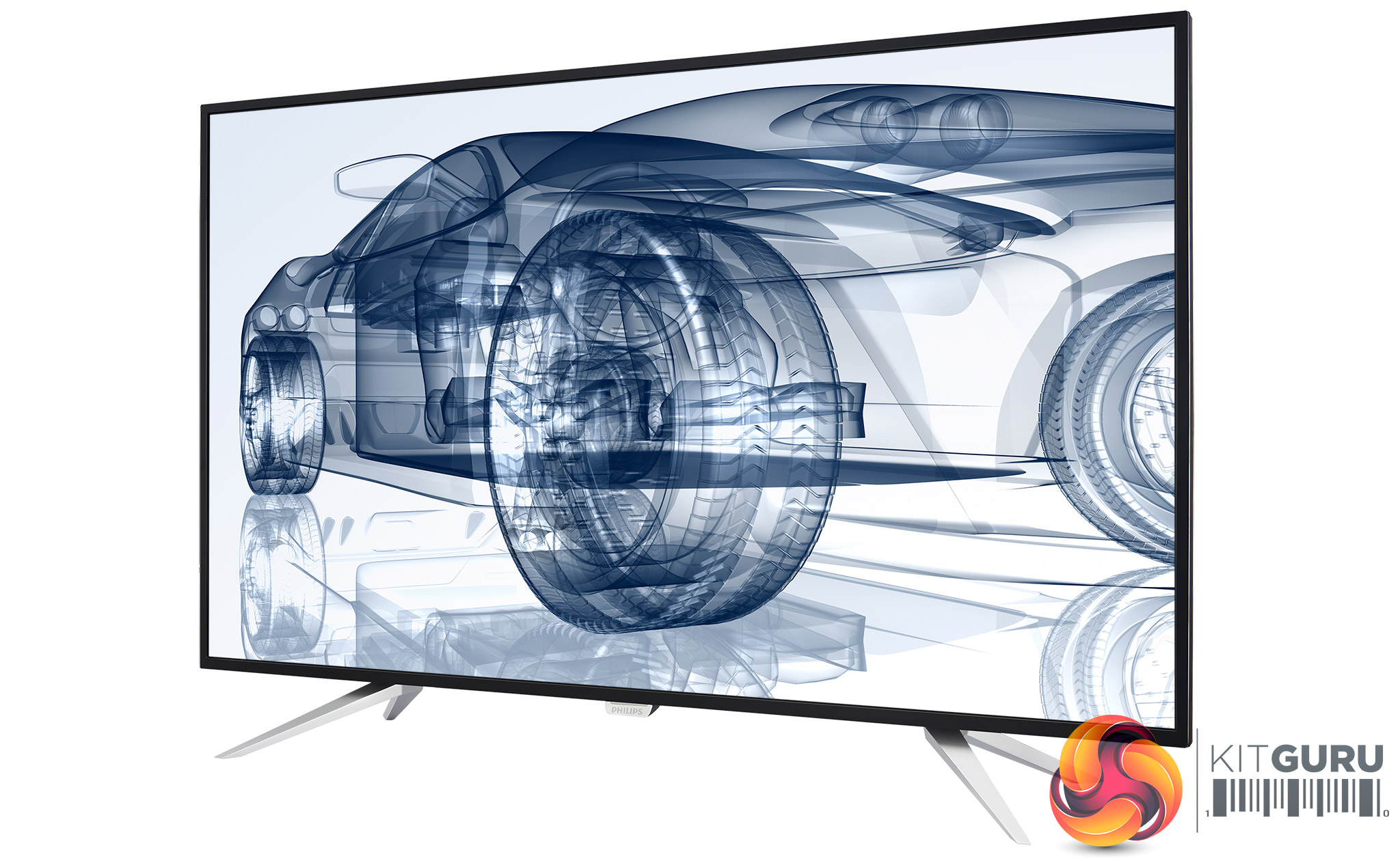
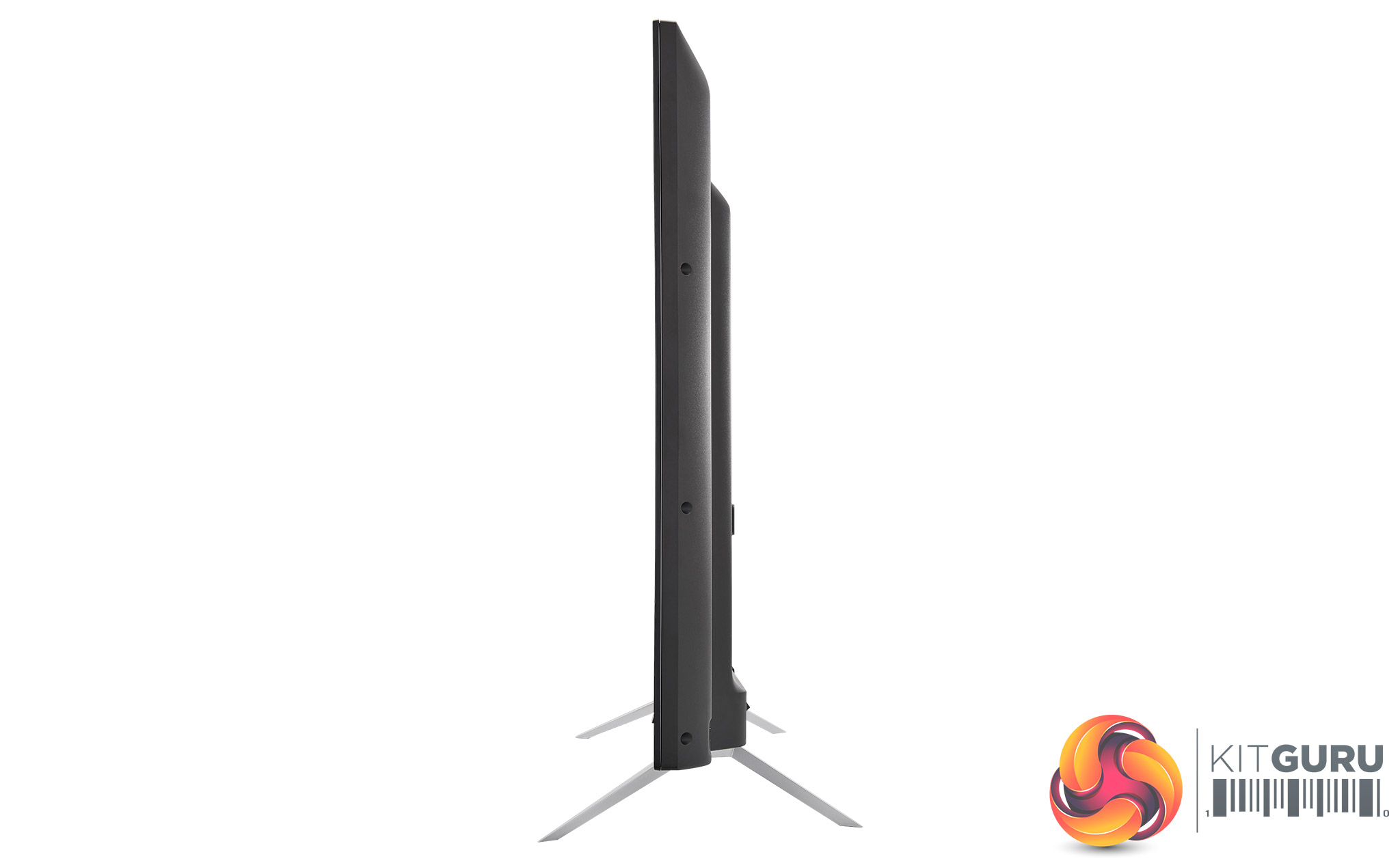
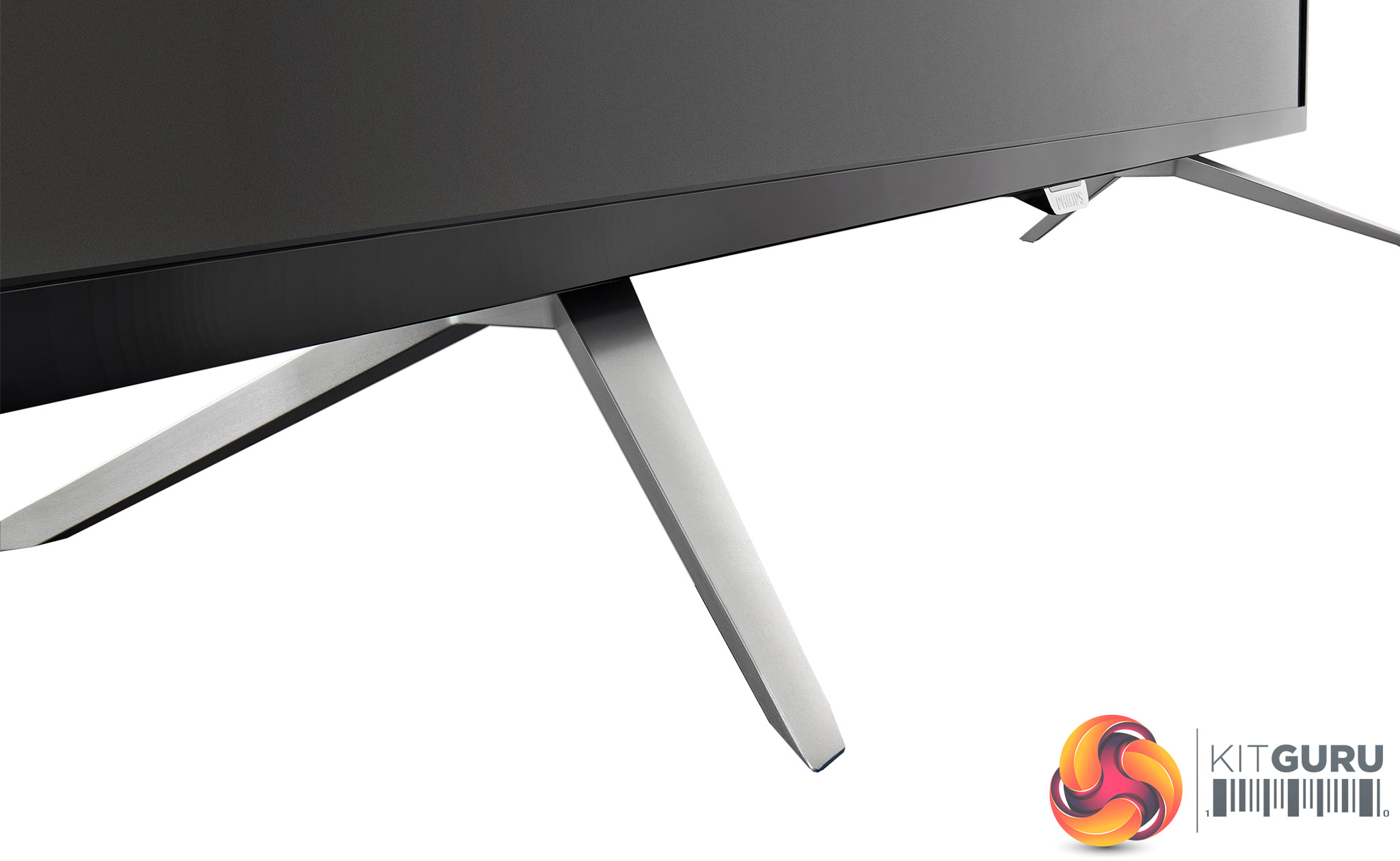
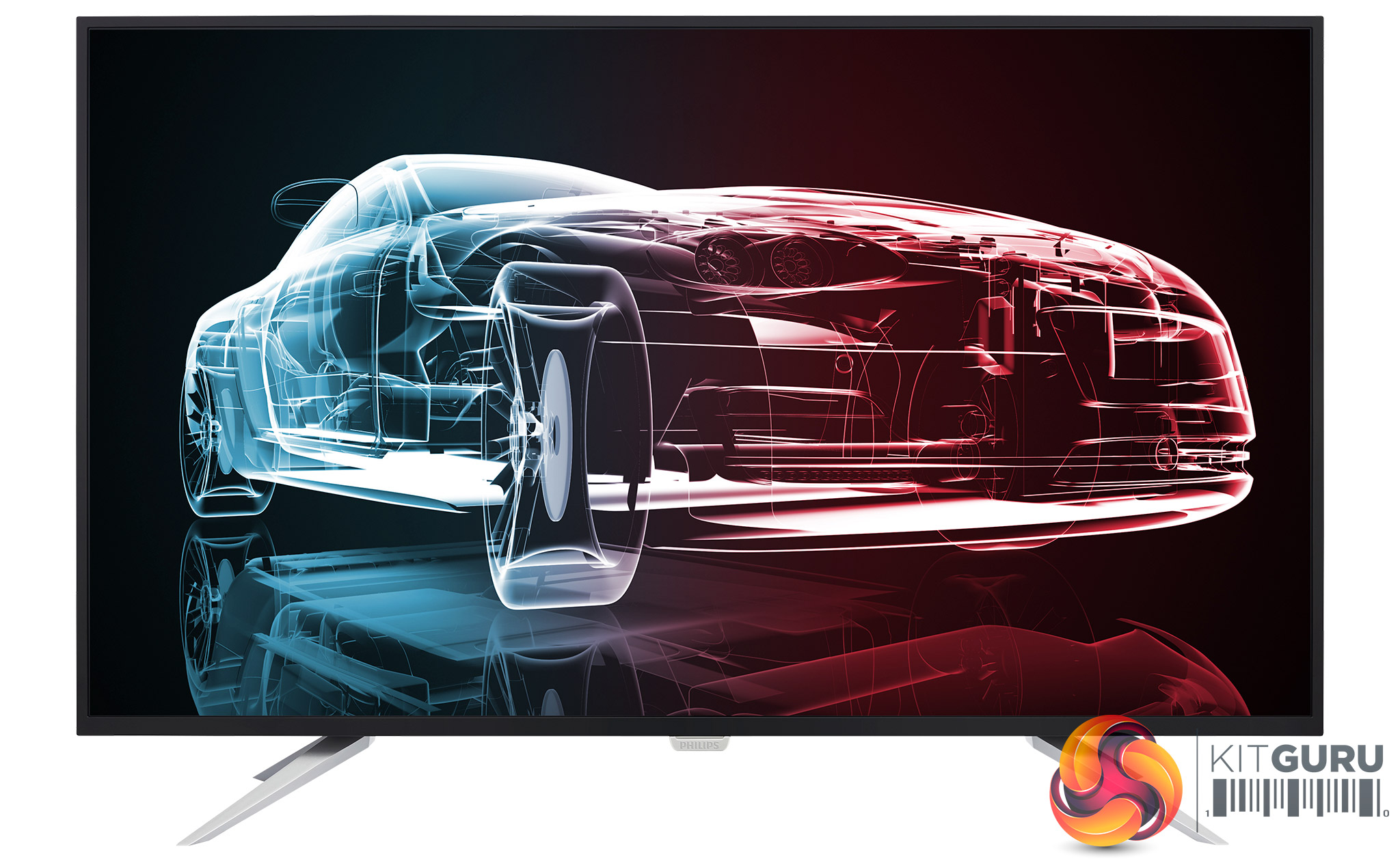
The screen diagonal may be huge, but it's not a thick display – just 82mm. There's no central mount, with the screen relying on two feet that screw onto either end. This won't make adjustment particularly easy. You can't alter the height or rotate the screen. You will also need a desk wide enough to accommodate the full 968mm width.
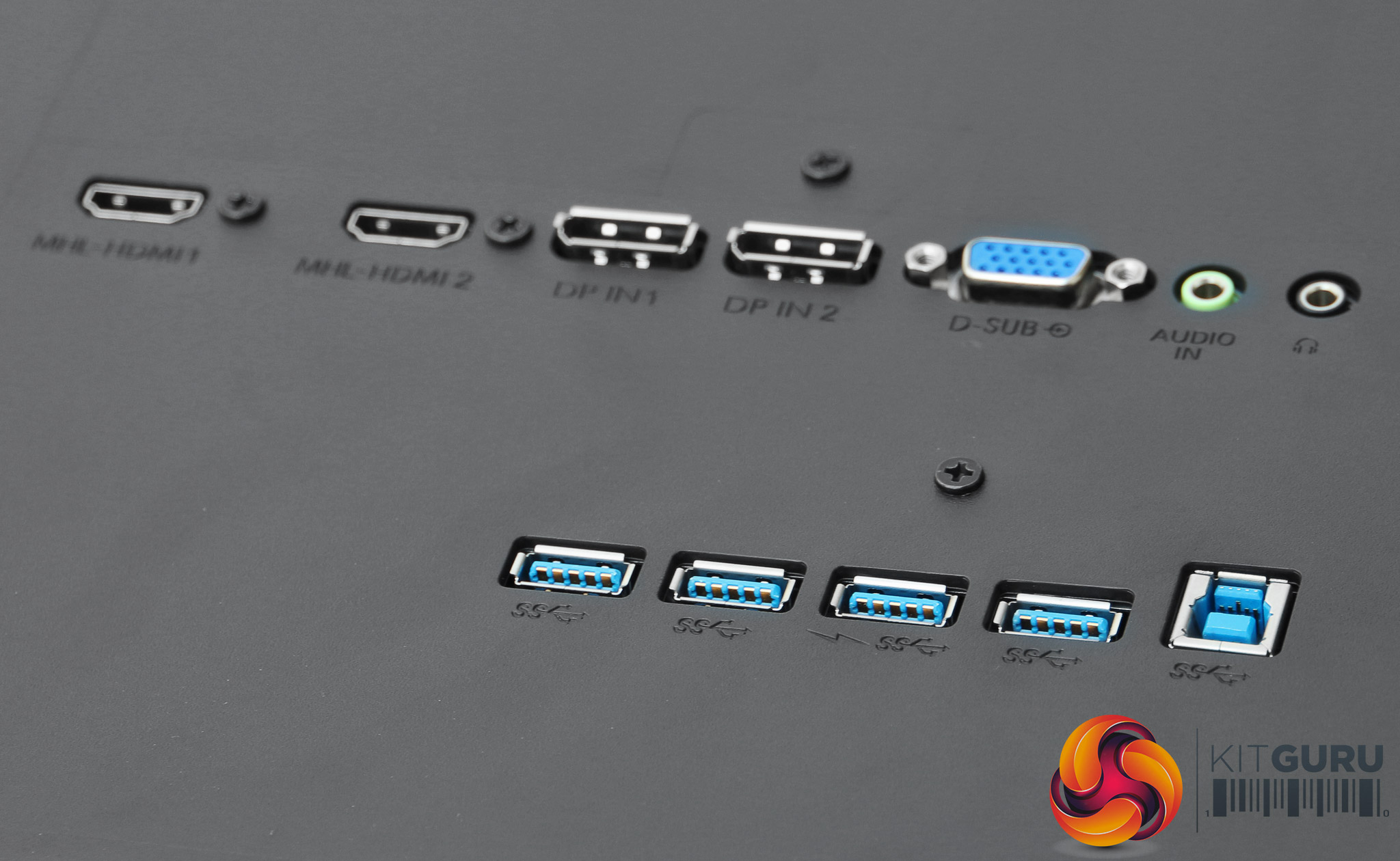
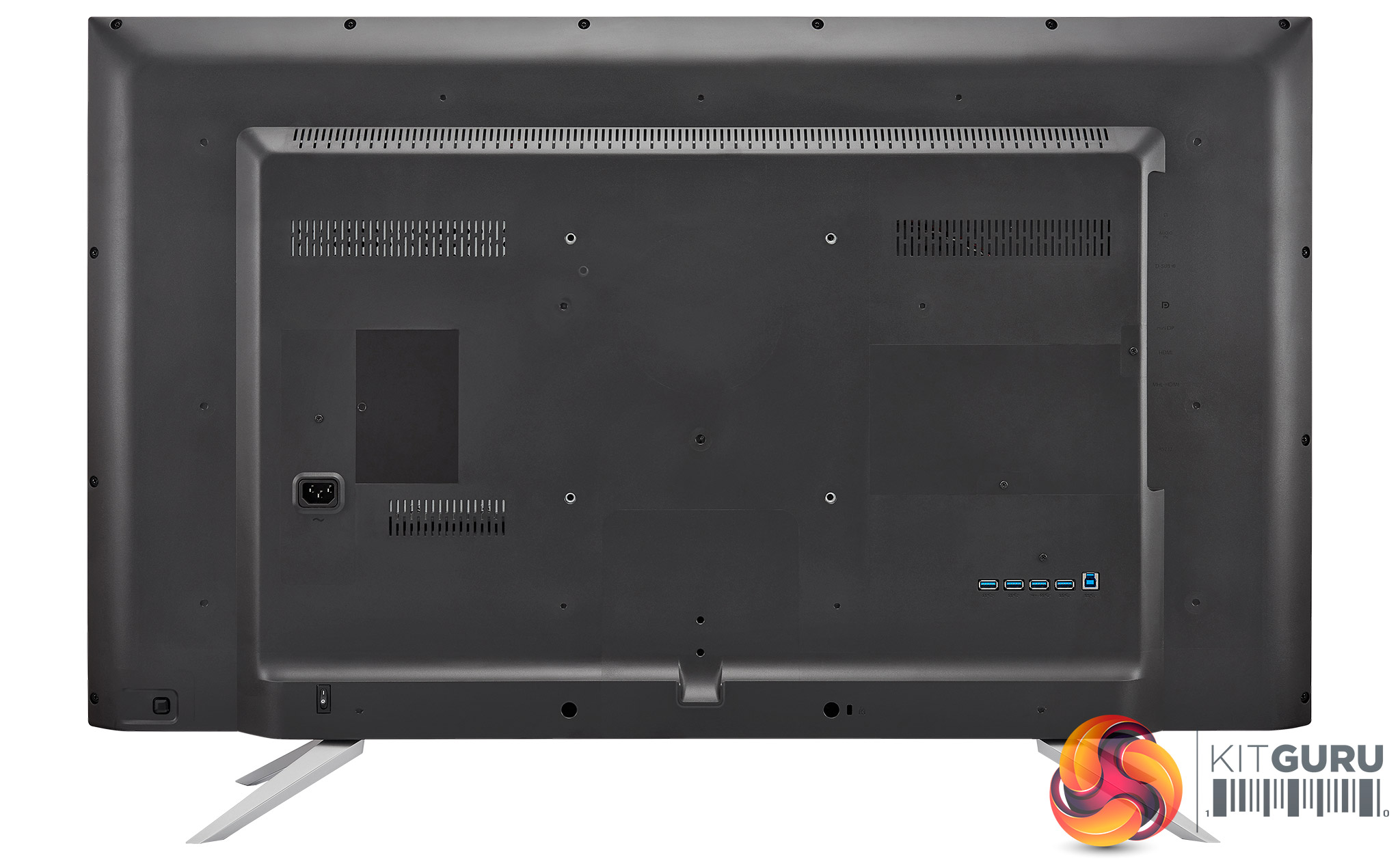
A lot of inputs are on offer. There are two HDMI ports, two DisplayPort connections, and even VGA, which seems slightly pointless on a 43in 4K screen, but it could be useful in a corporate or educational setup. A minijack is provided for routing analog audio from your PC, with a headphone minijack next door.
We'd rather the headphone jack was on the front or side, however. Likewise, the four-port USB 3 hub is a great addition, but its location isn't convenient either. Having a couple of ports on the side would have been useful.
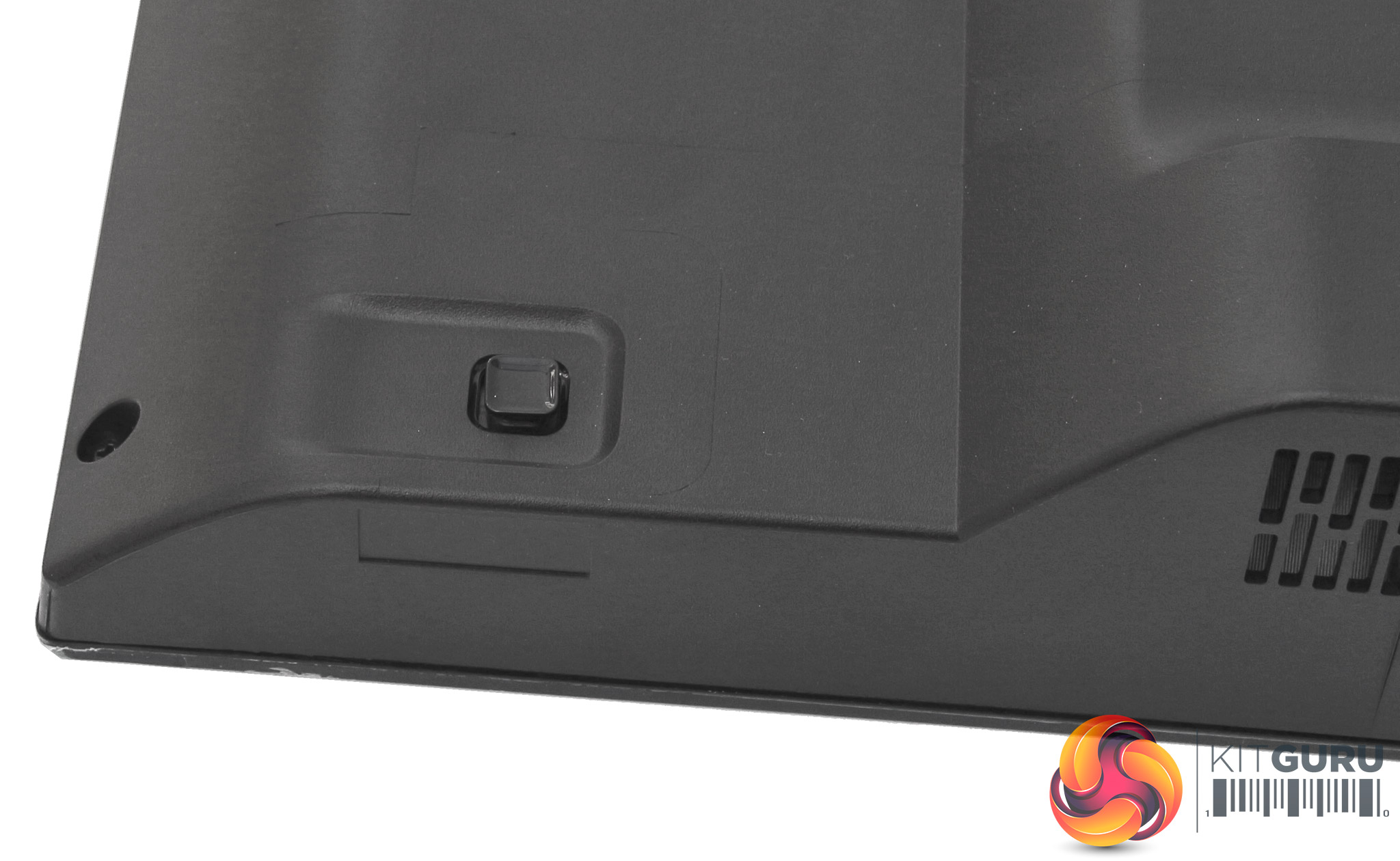

The on-screen display (OSD) menu is entirely controlled with a joystick on the rear, which is easy to access by reaching around the right-hand corner of the screen. There is a separate power switch elsewhere on the back, so this joystick is specifically for controlling software functions.
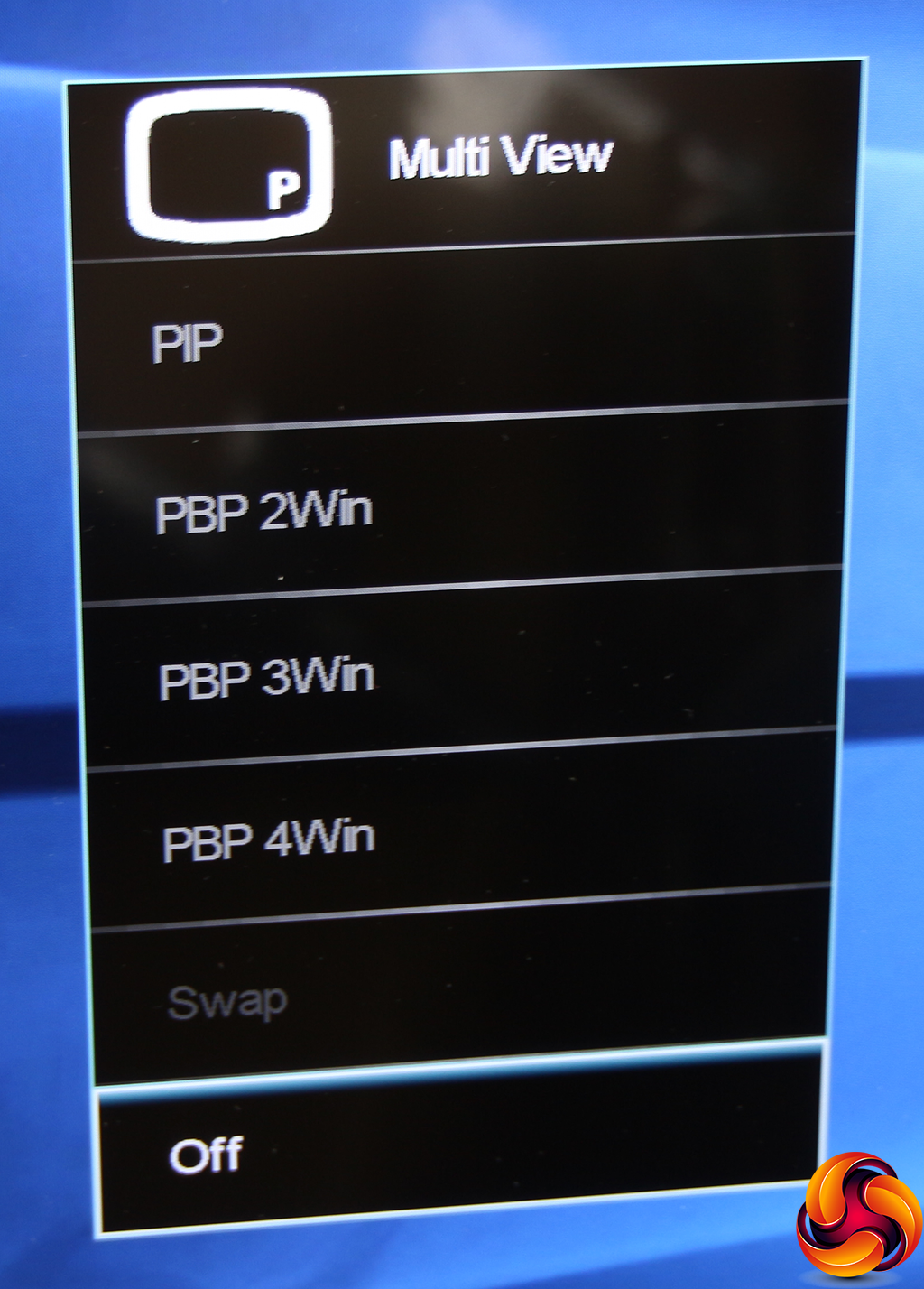
Pushing the joystick up reveals the picture-in-picture quick menu. You can have up to four inputs visible onscreen.
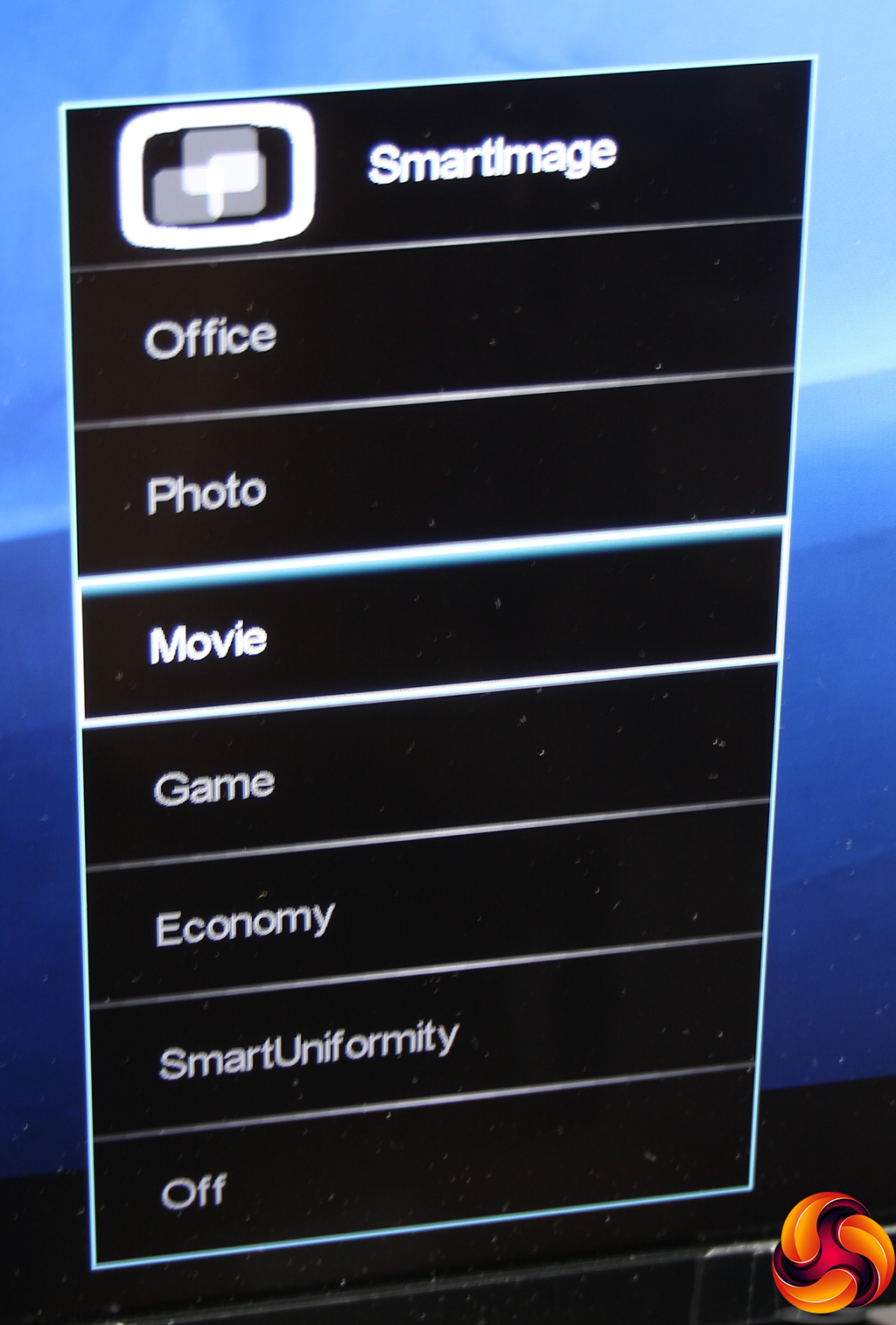
Pushing the joystick to the left opens up the SmartImage menu, which is Philips's name for its presets. There are presets for Office, Photo, Movie, Game, Economy, and SmartUniformity, or you can turn the presets off entirely.
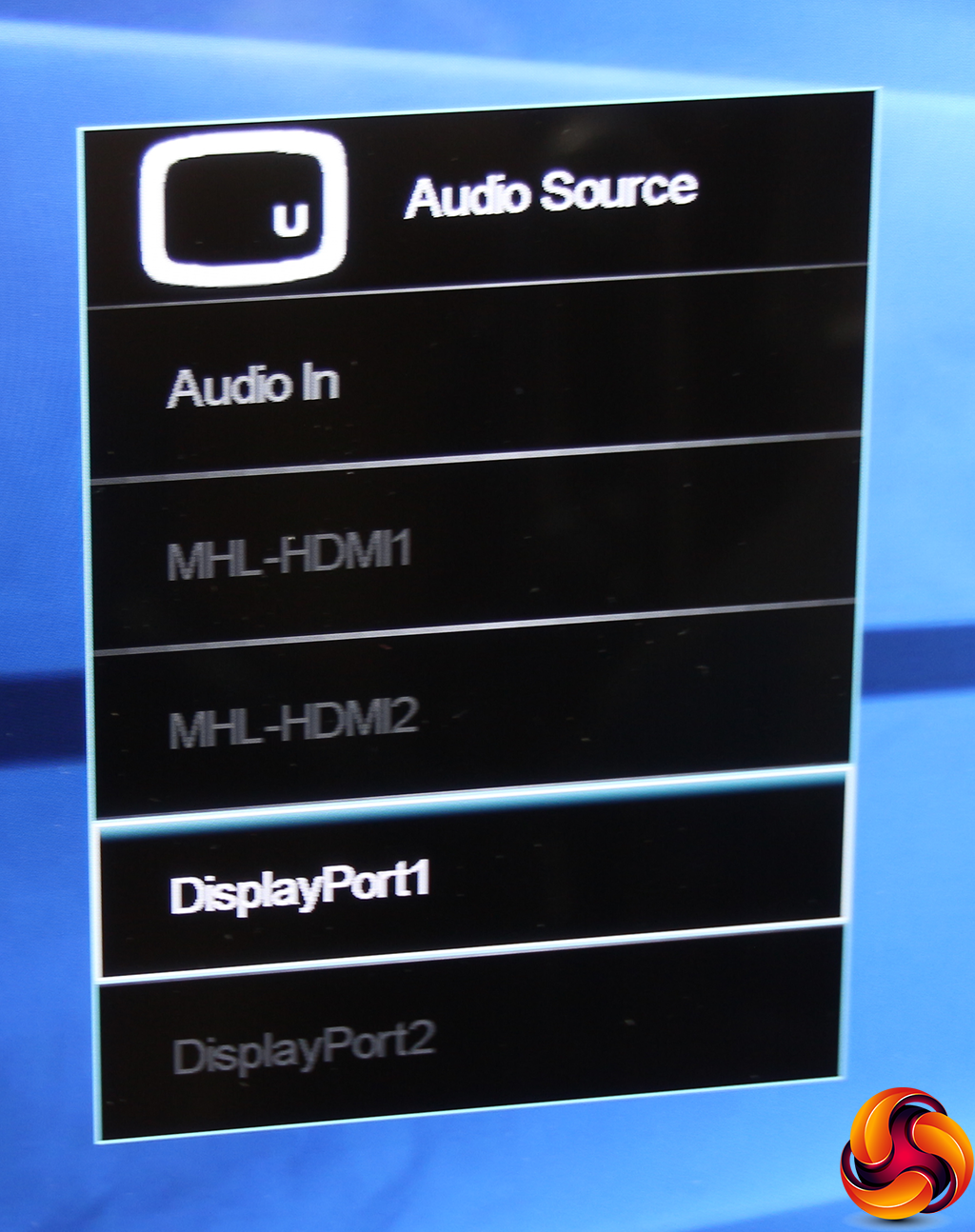
Pushing the joystick down lets you choose the audio source, so you can choose between the four digital inputs or the analog minijack.
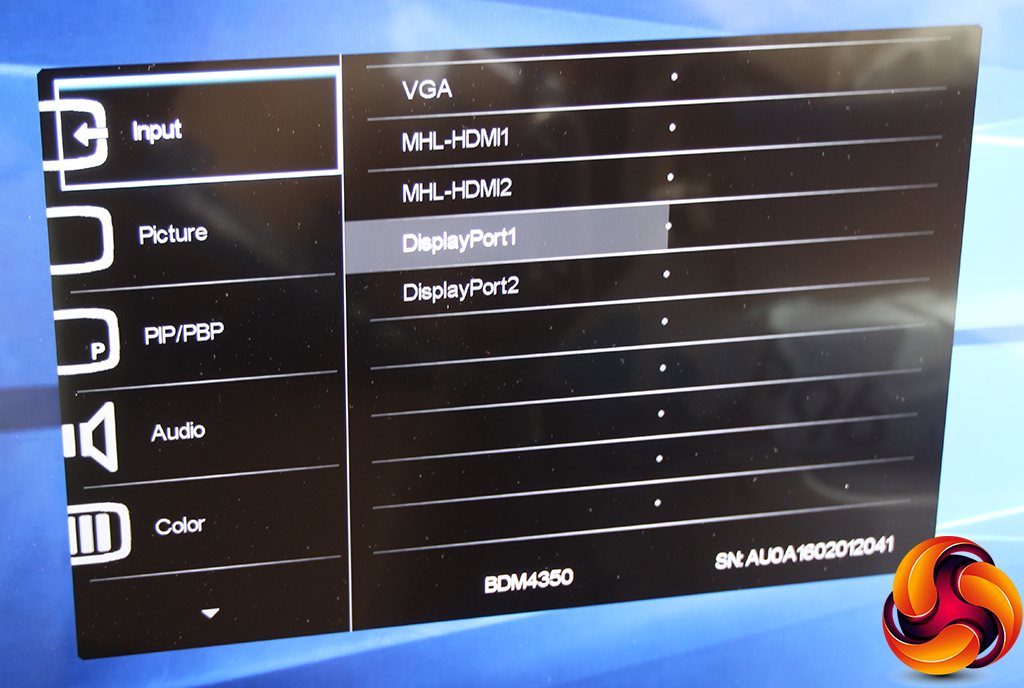
Pushing the joystick right reveals the main menu, with the first option being a choice between inputs.
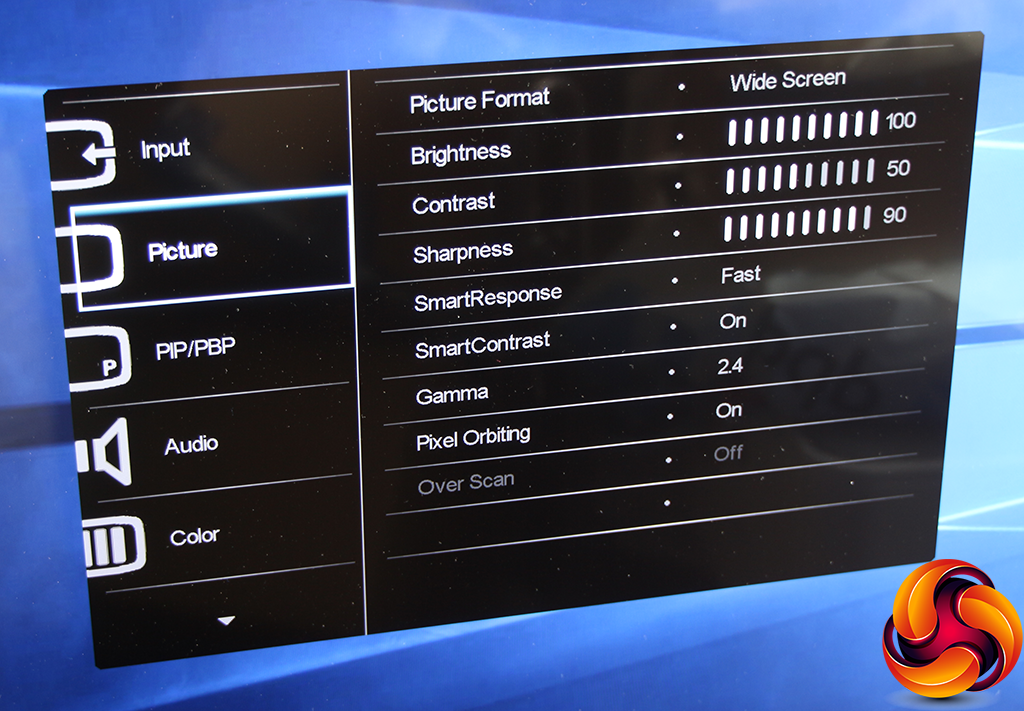
The Picture section provides options for adjusting brightness, contrast and sharpness. There's a pixel response rate improvement called SmartResponse, and a dynamic contrast option called SmartContrast. Gamma modes include 1.8, 2.0, 2.2, 2.4 and 2.6, whilst Pixel Orbiting is a system to prevent burn-in from static images being held onscreen for long periods of time.
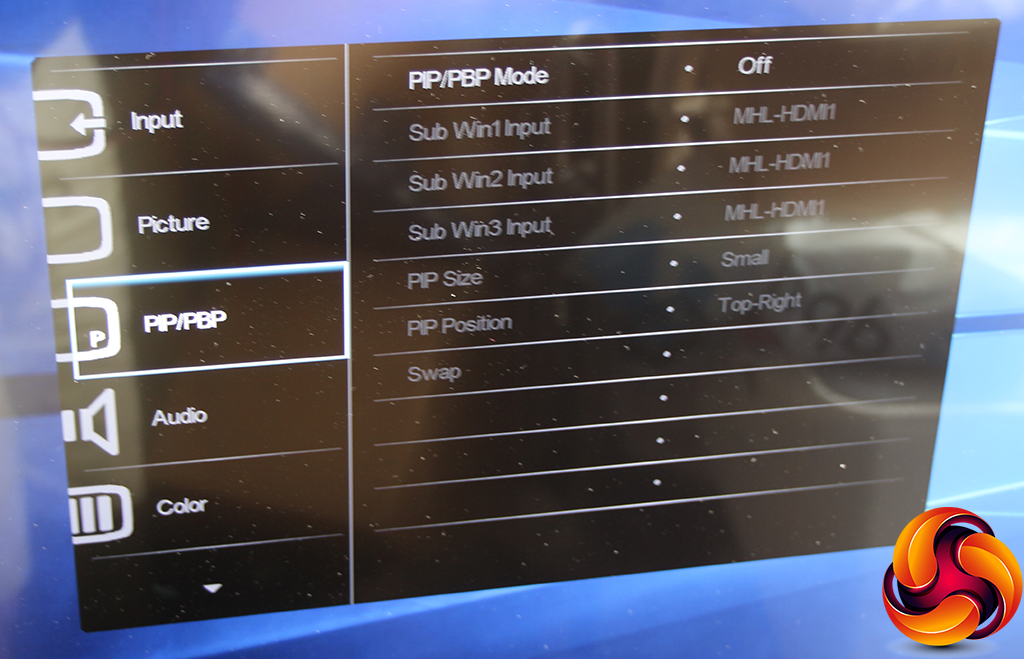
The PIP/PBP mode lets you choose between different styles of picture-in-picture and picture-by-picture, with up to four inputs displayed.
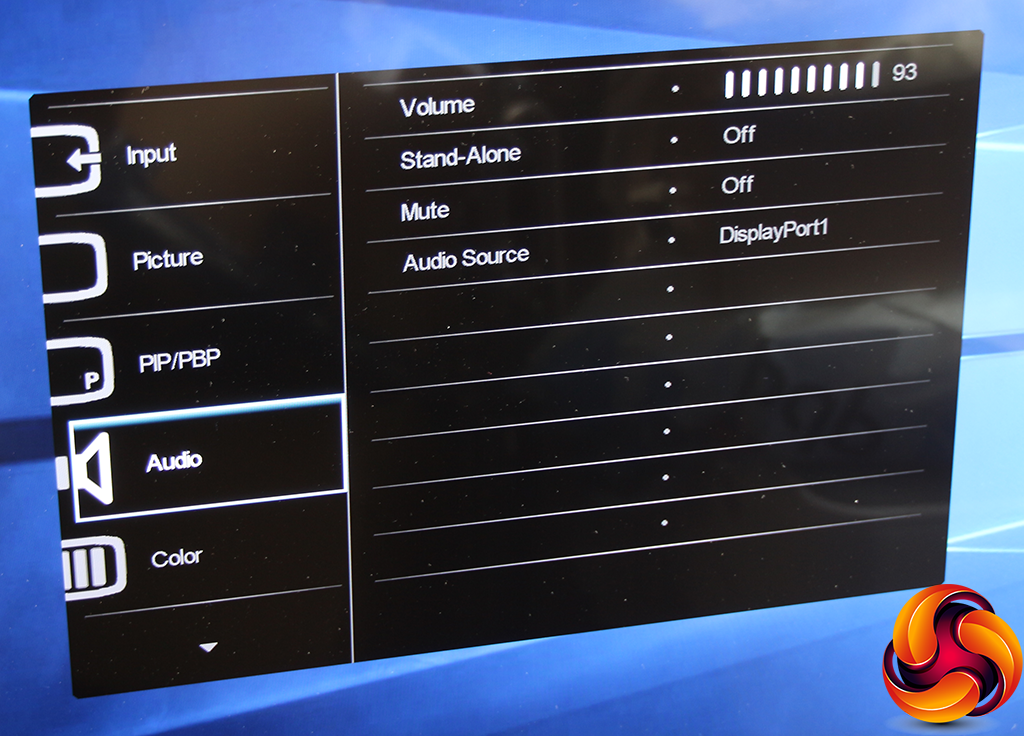
It's a little odd that the only default way to get to the volume control is via the main menu's Audio subsection. You can also select the audio source here.
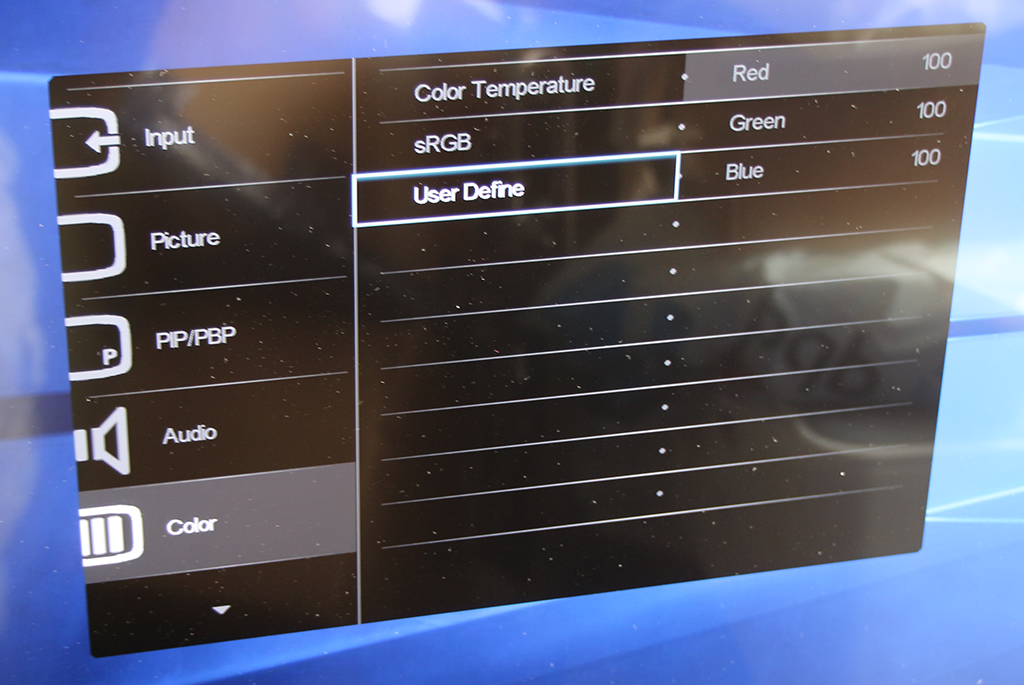
The options for adjustment in Colour are comprehensive, with direct control over K-values for temperature, an sRGB mode, and RGB controls as well.
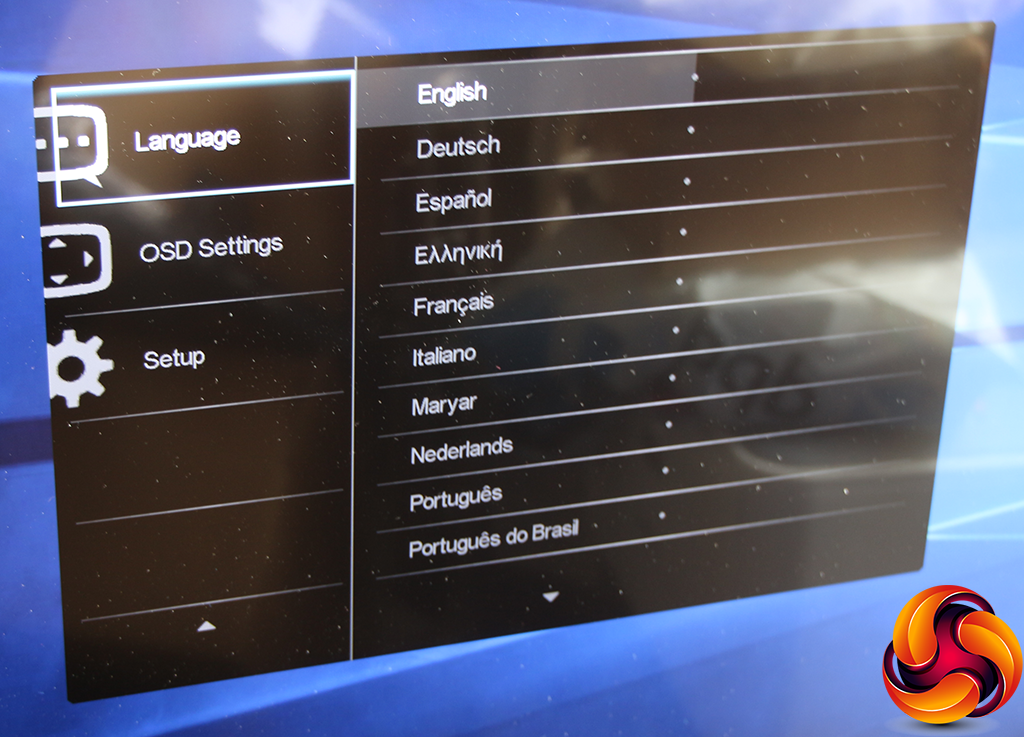
Unsurprisingly, the Language section lets you choose the OSD language.
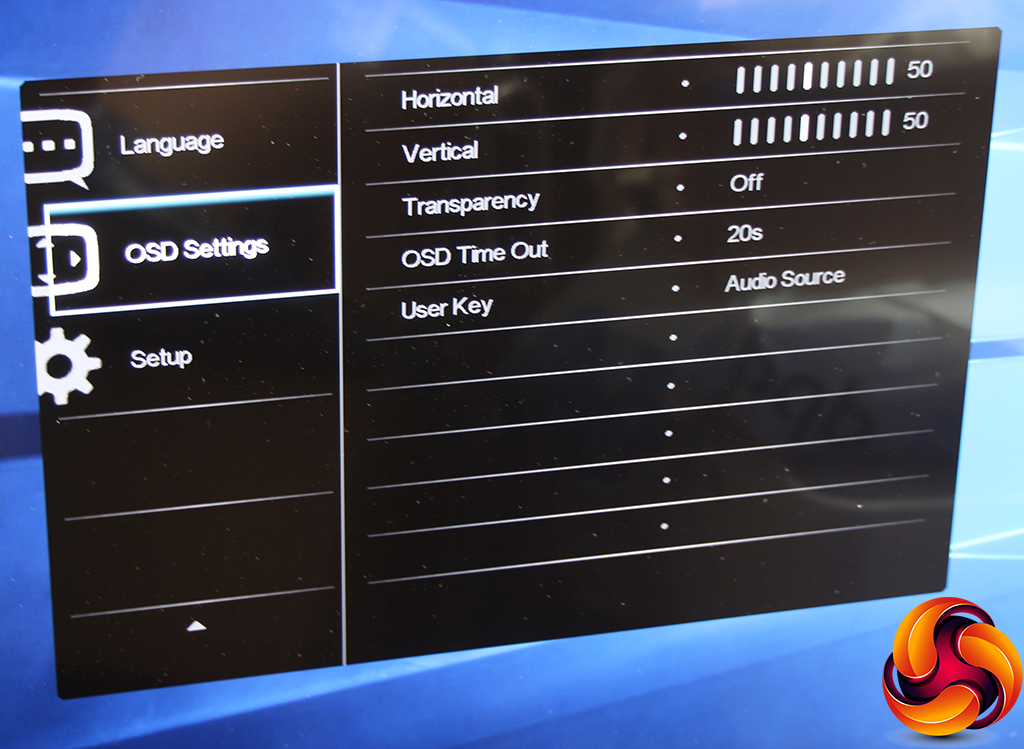
The OSD Settings let you choose the position of the OSD onscreen, plus its transparency and how long it sticks around before disappearing. Here you can also choose what pulling the joystick down calls up. The default is Audio Source, but you can also select Input and Volume, although it would be handy to be able to have rapid access to both the latter.
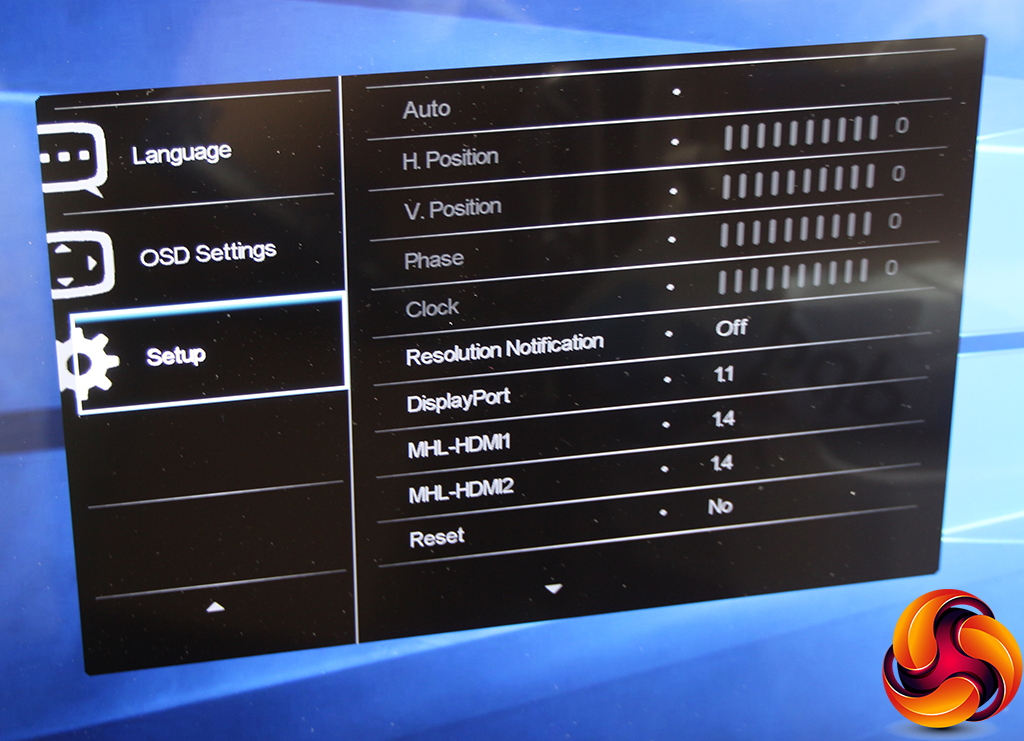
Sundry options can be found under Setup, with the Position, Phase and Clock controls only applicable if you're using an analog VGA input.
Overall, the OSD is adequate. This isn't a gaming or professional screen where maximum tweakability will be essential, though, so there's nothing significant we miss from the controls that are available.
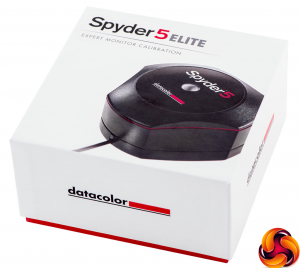
Our main test involves using a DataColor Spyder Elite 5 Colorimeter to assess a display’s image quality. The device sits on top of the screen while the software generates colour tones and patterns, which it compares against predetermined values to work out how accurate the screen is.
The results show –
- A monitor’s maximum brightness in candelas or cd/m2 at various levels set in the OSD.
- A monitor’s contrast ratio at various brightness levels in the OSD.
- The brightness deviation across the panel.
- The black and white points
- The colour accuracy, expressed as a Delta E ratio, with a result under 3 being fine for normal use, and under 2 being great for colour-accurate design work.
- The exact gamma levels, with a comparison against preset settings in the OSD.
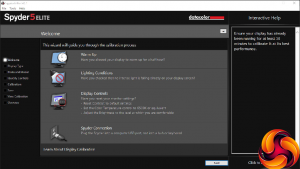
We first run this test with the display in its default, out-of-the-box state, with all settings on default. We then calibrate the screen using the Spyder software and run the test again.
We always test the display subjectively on the Windows desktop, using it for general tasks such as browsing and word processing, and with games as well, even if the display is not intended solely for that purpose. We pay careful attention to any artefacts, ghosting or motion blur, and enable any gaming specific features, such as adaptive-sync settings like G-Sync, using a compatible graphics card in our test PC.
In the case of the Philips, we performed the primary testing at the native 3,840 x 2,560 resolution in the default mode with presets off, apart from during the section that actually tests presets. We left the monitor at 60Hz, which is the maximum in 4K. Our test system was equipped with an NVIDIA Quadro K2200.
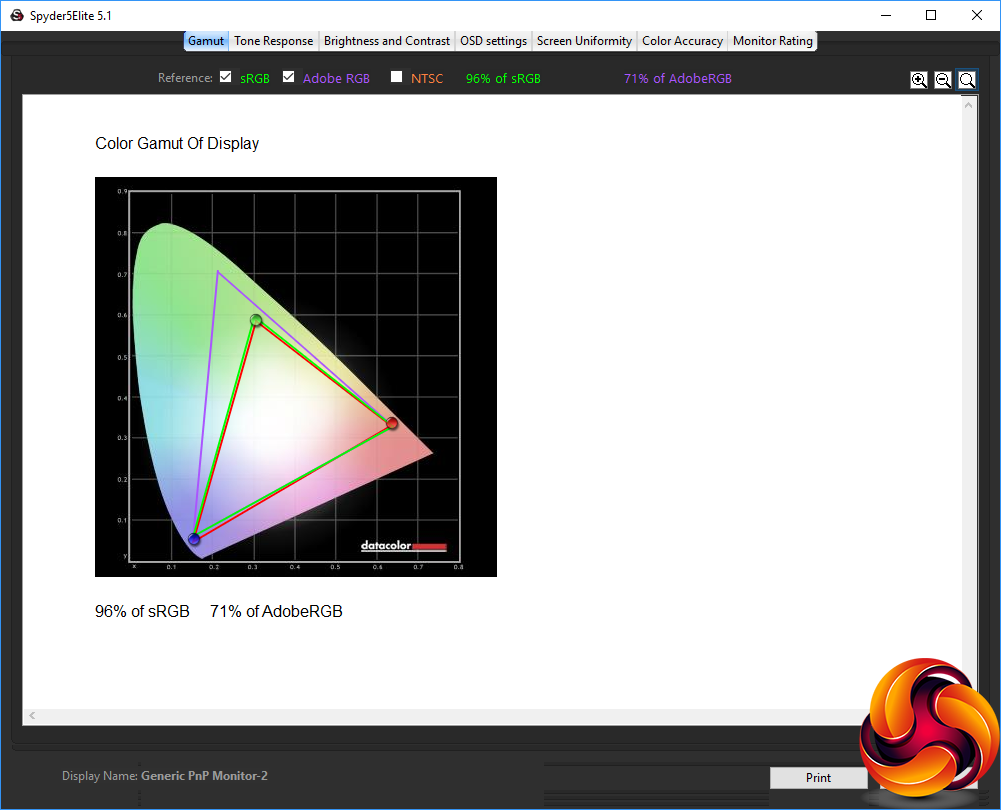
Surprisingly for an IPS panel, gamut is not a strong point for the BDM4350UC. It manages just 96 per cent of sRGB and 71 per cent of AdobeRGB. These aren't bad figures, but we often see better.
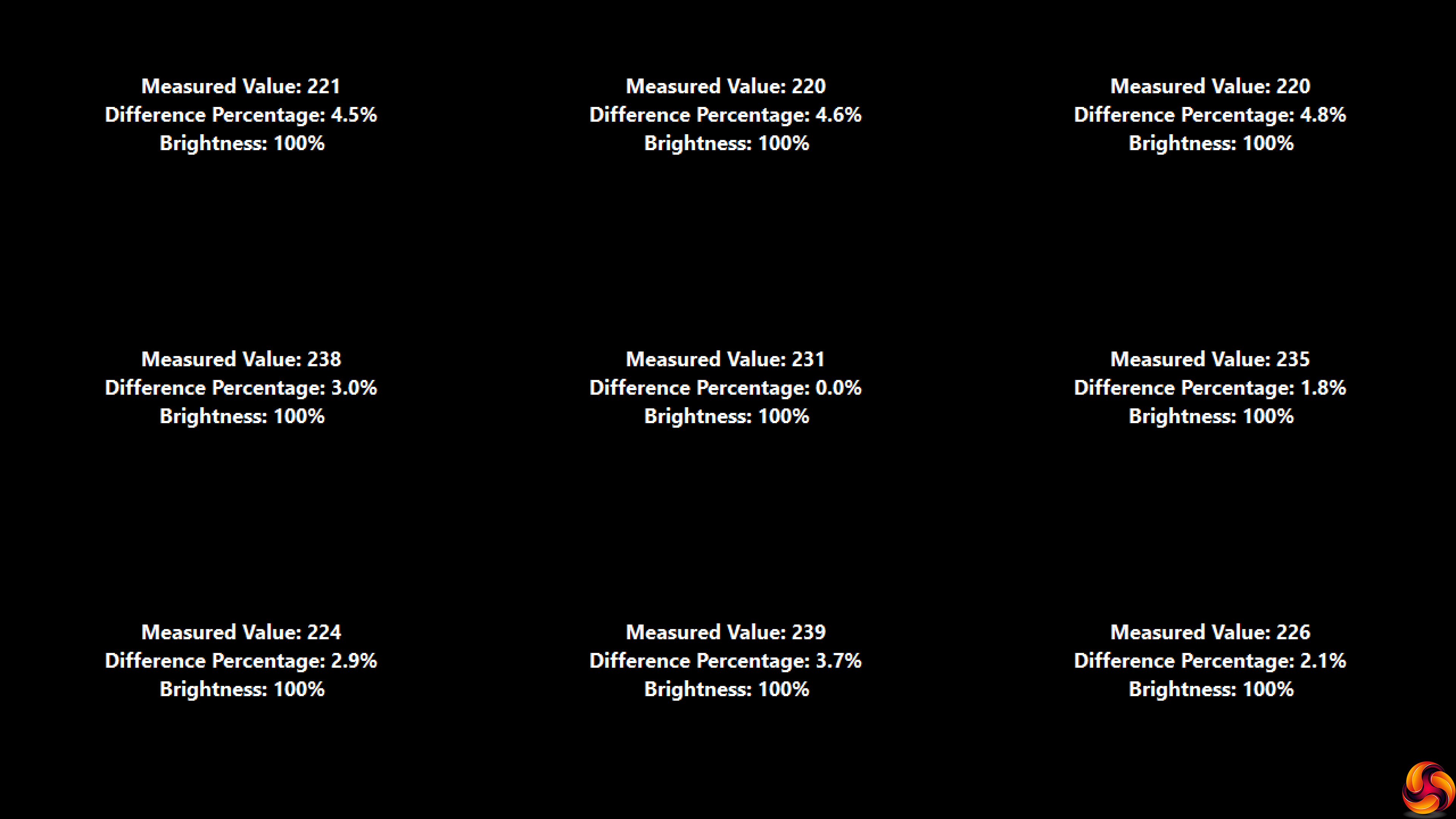
Brightness uniformity, however, is commendable, with nothing over 5 per cent difference in any location. This screen maintains good brightness levels right across its huge area.
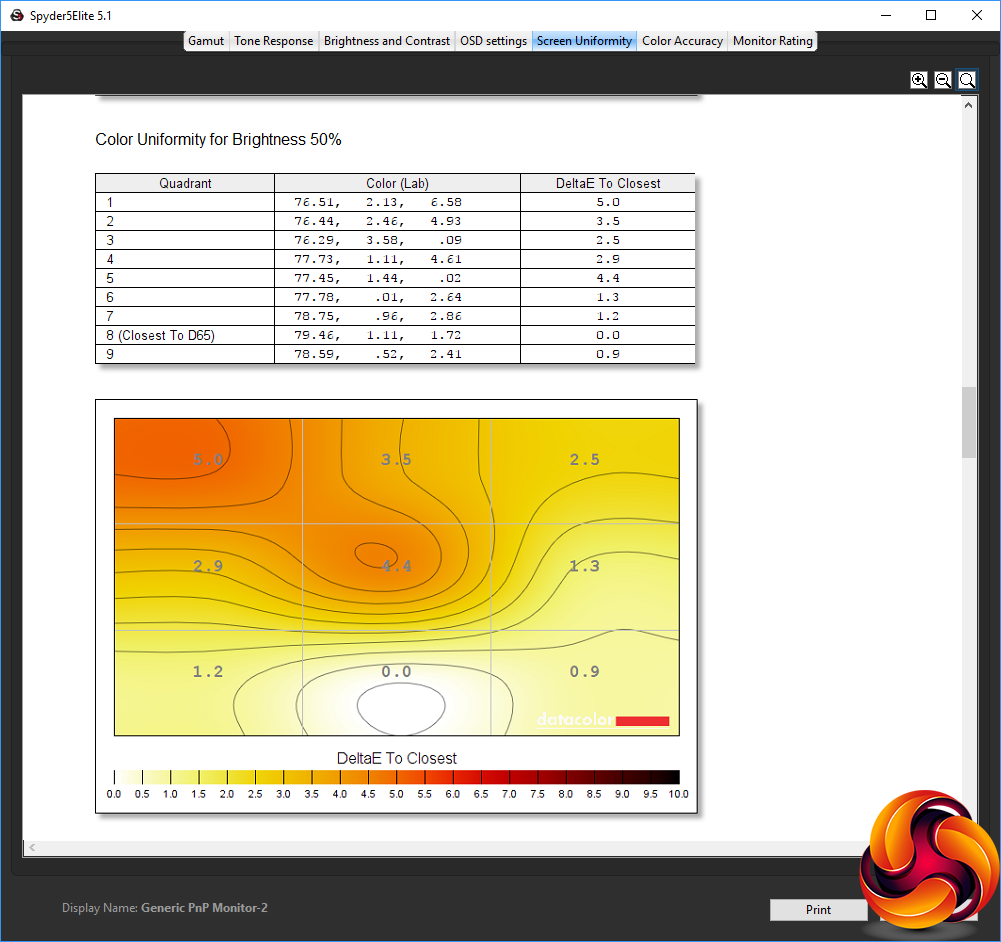
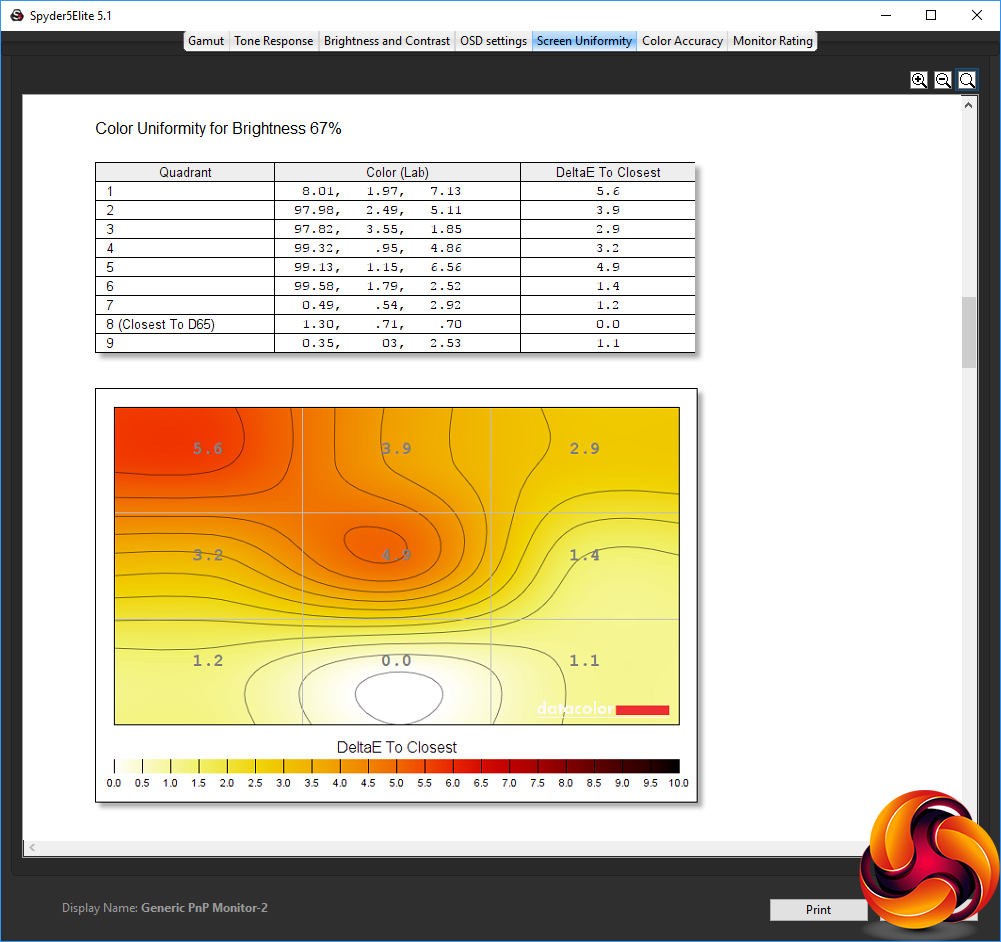
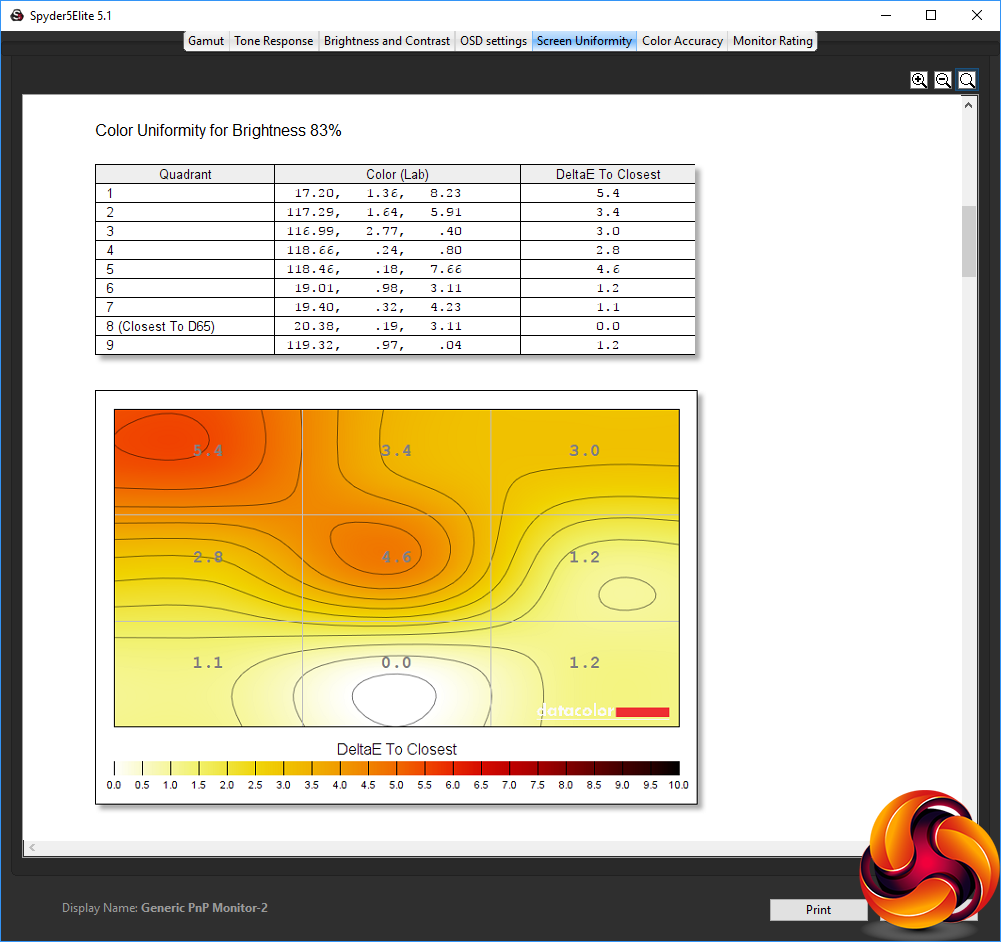
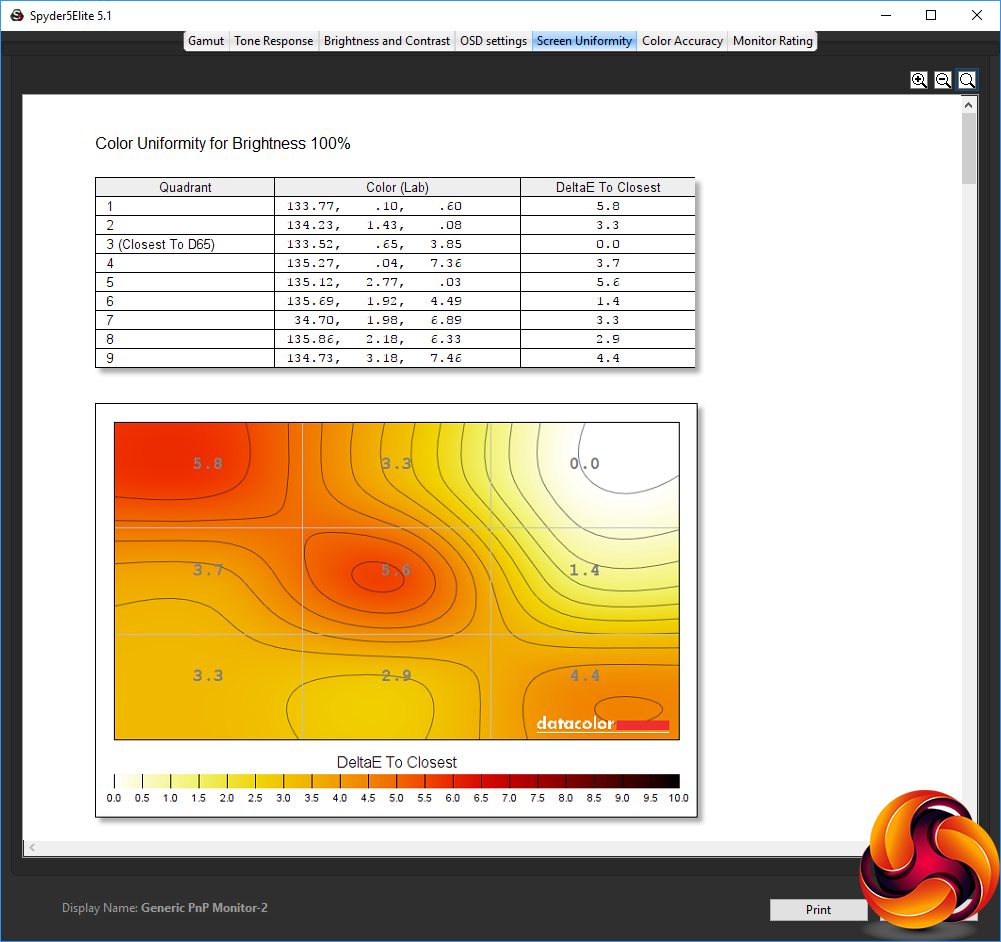
Colour uniformity is also decent, although not as good as some premium displays we've tested recently, with a maximum DeltaE of 5.8.
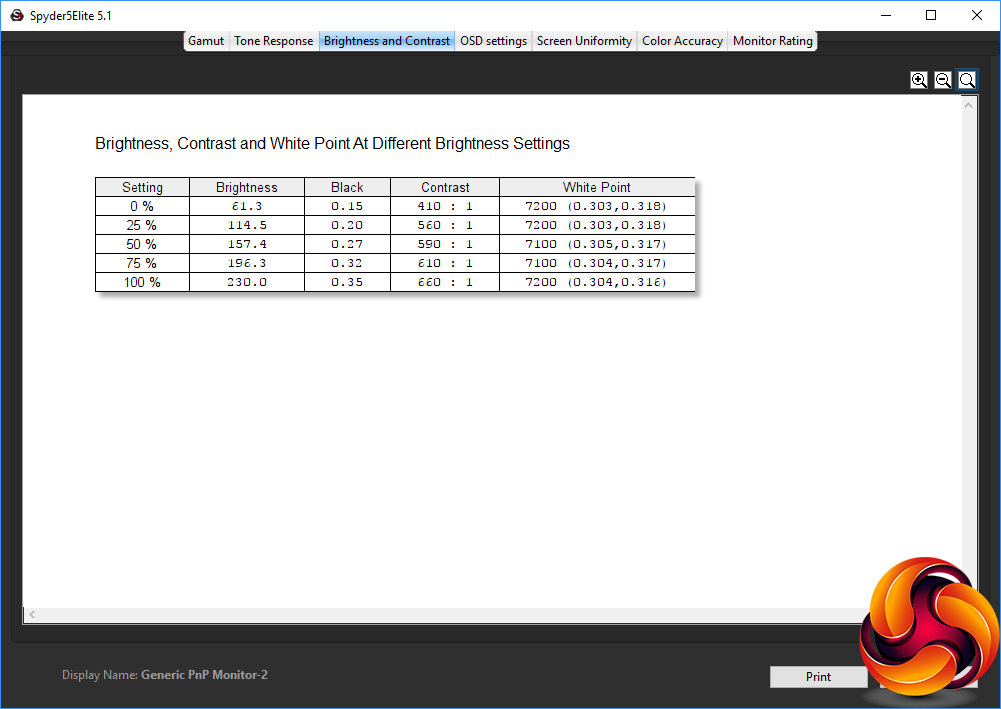
Brightness levels increase quite uniformly as the setting goes up, although the recorded value at 100 per cent is quite a bit below the 300cd/m2 rating, at 230cd/m2. Contrast and black levels also increase with brightness, but the white point is reassuringly either 7100K or 7200K.
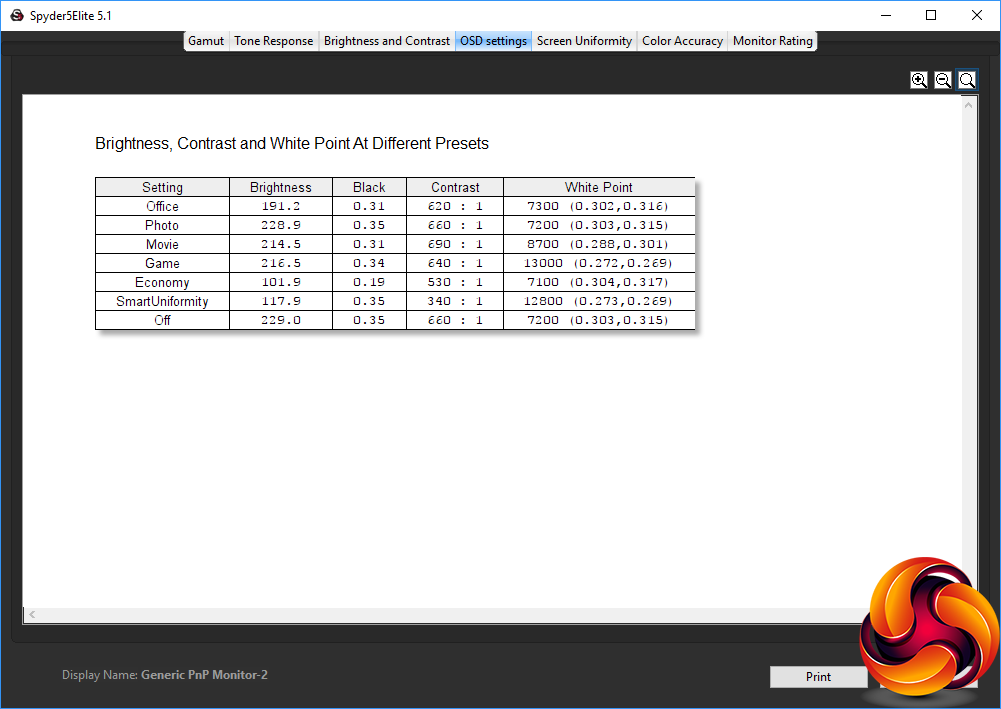
The SmartImage presets provide a useful variation in settings. The Office mode offers a reasonably bright 191.2cd/m2, 620:1 contrast and fairly cool 7,300K white point. Photo mode ups the brightness to 228.9cd/m2, with a slightly increased 660:1 contrast, but a similar 7,200K white point. Movie mode keeps things bright at 214.5cd/m2, and ups the contrast further to 690:1, but opts for a cooler 8700K white point.
Game mode has a similar 216.5cd/m2 brightness and 640:1 contrast, but a very cool 13,000K white point – one of the highest we have seen on a monitor. Economy mode, unsurprisingly, drops the brightness right down to 101.9cd/m2 and contrast to 530:1, but maintains the 7100K white point similar to Office or Photo modes. SmartUniformity is also fairly low brightness, offering 117.9cd/m2, with very low 340:1 contrast but very cool 12,800K white point.
We have included the Off setting here to show how the default mode used for most of our testing compares to the presets. It appears to be almost identical to Photo mode.
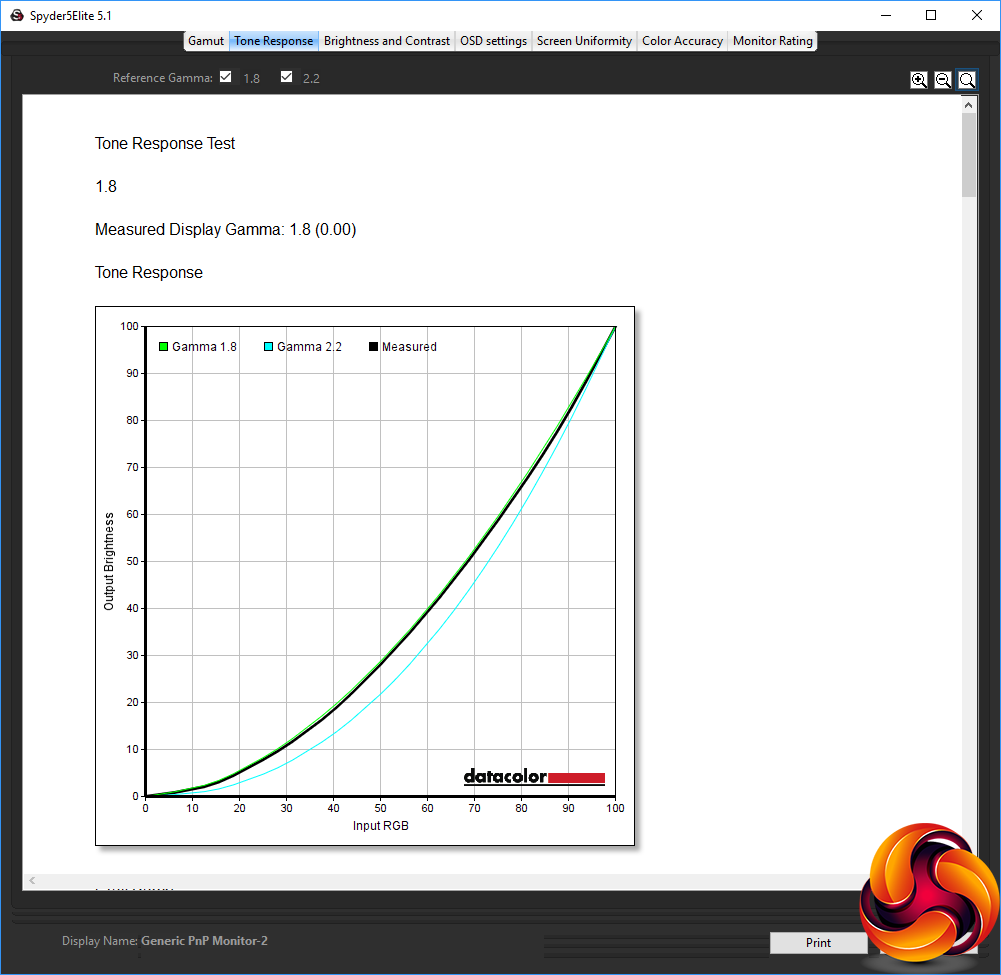
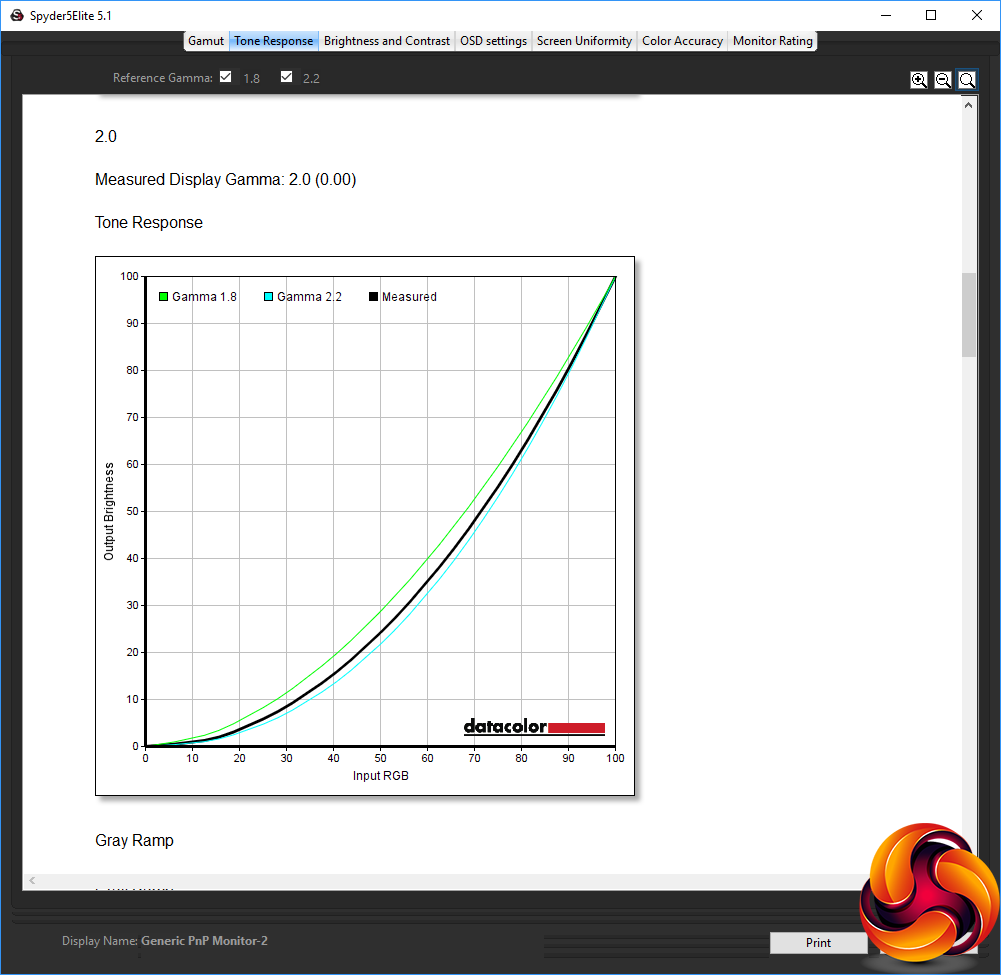
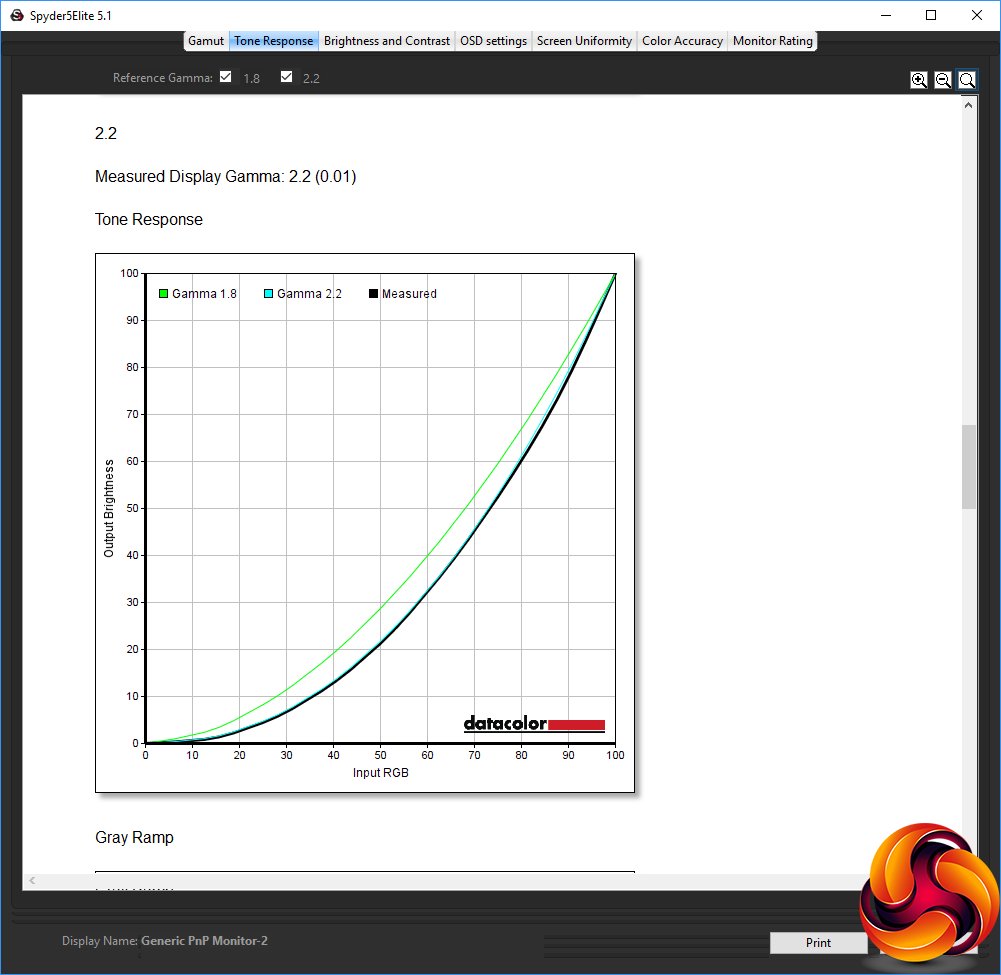
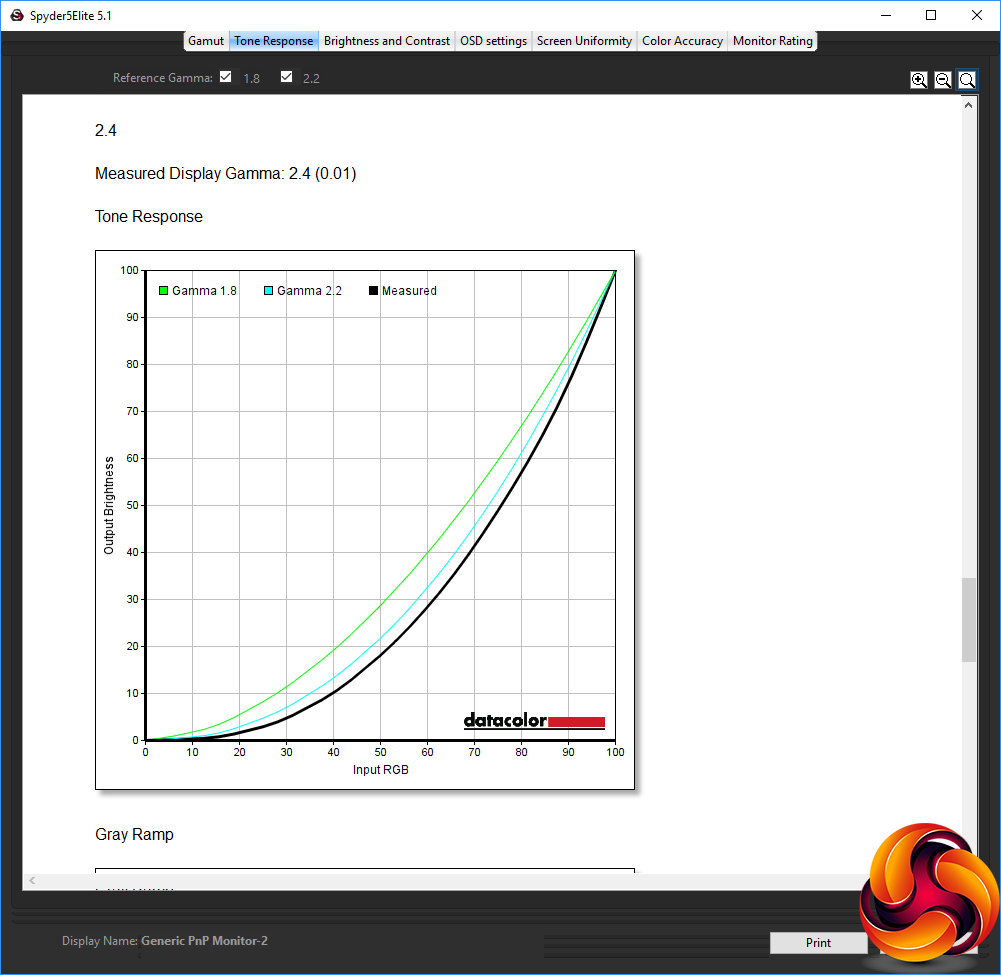
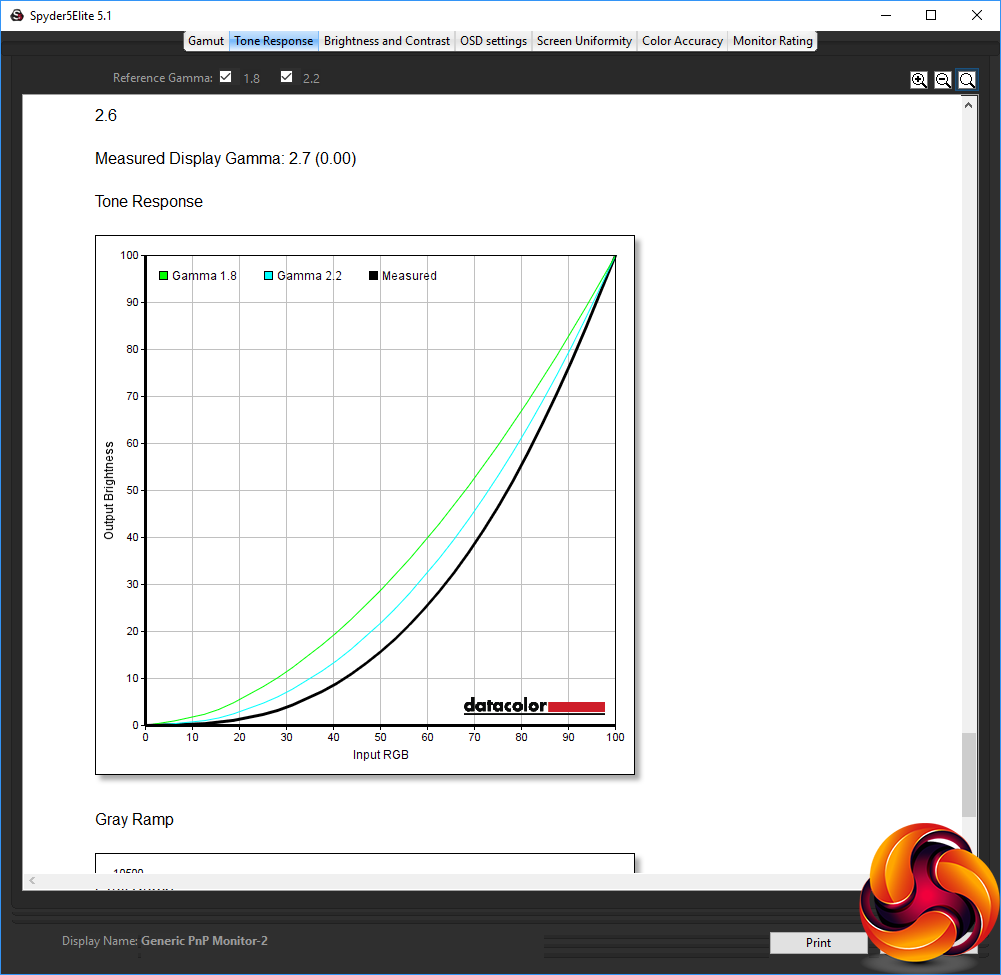
At default settings, the gamma modes are almost completely as advertised. The 1.8 and 2.0 options are spot on, whilst 2.2 and 2.4 are only 0.01 out. The only one that isn't so accurate is 2.6, which was recorded as 2.7 in our test. Nevertheless, it's great to see that the gamma ratings are so close to their number values.
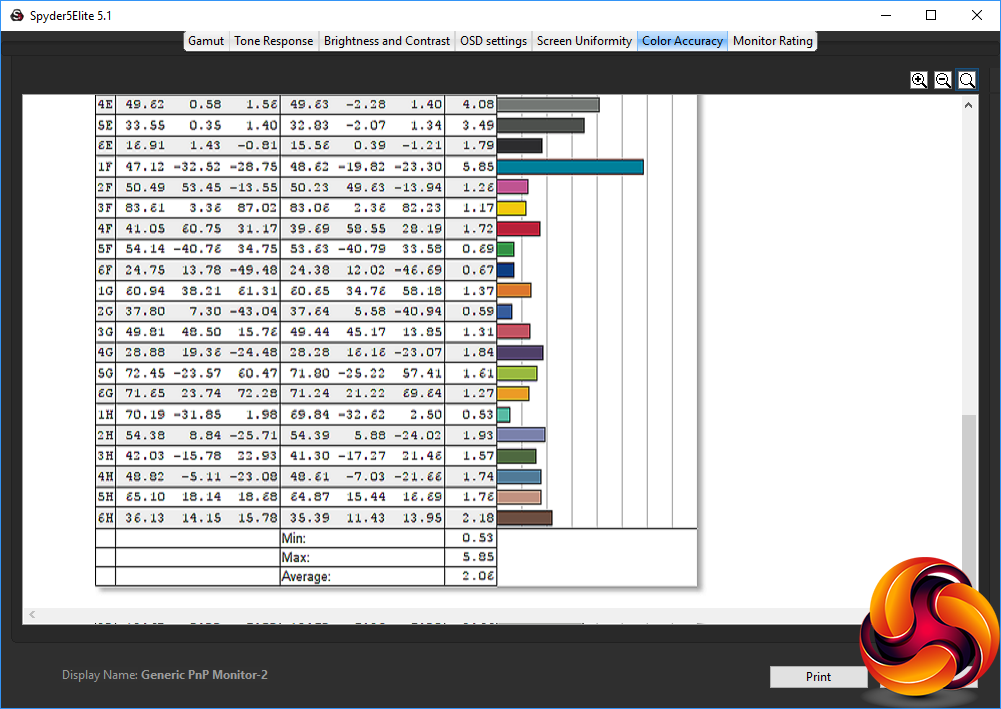
Colour accuracy is also very commendable, at 2.06. You can clearly take this screen out of the box and get a good level of fidelity.
However, as usual we wanted to see if we could improve on this value, so we calibrated the screen using the Spyder to find if this could improve matters.
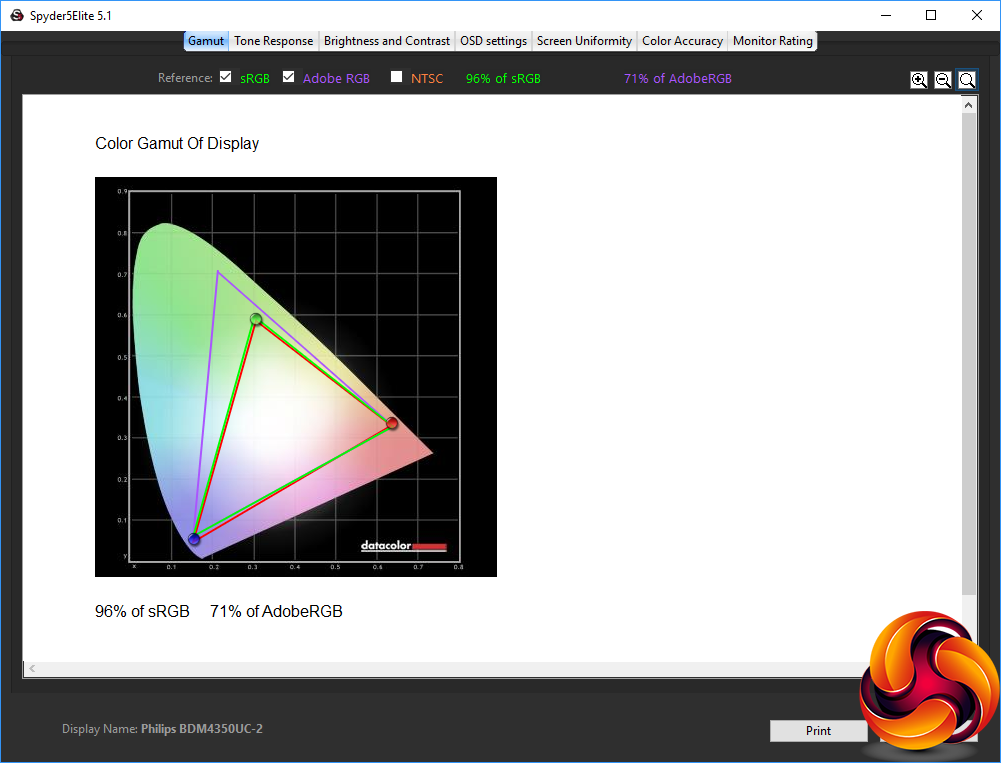
The gamut remained unchanged, with 96 per cent of sRGB and 71 per cent AdobeRGB.
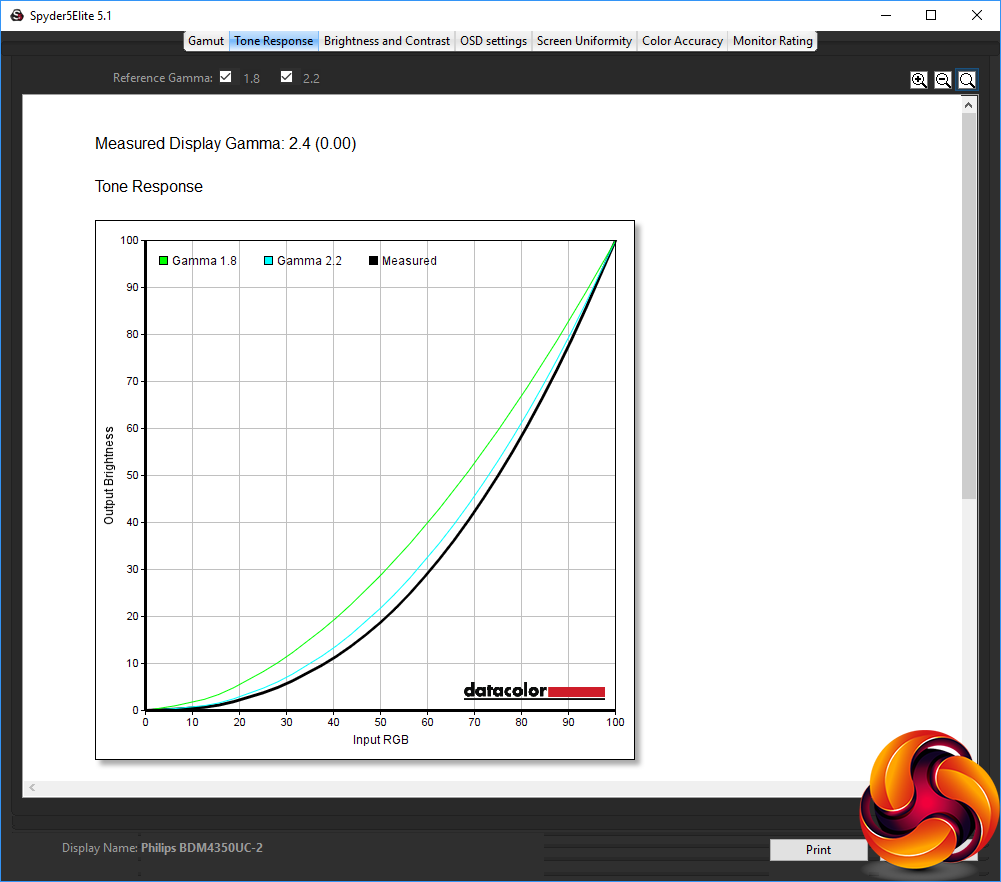
At the 2.2 setting, the gamma has now gone up to 2.4, which is a mild disappointment.
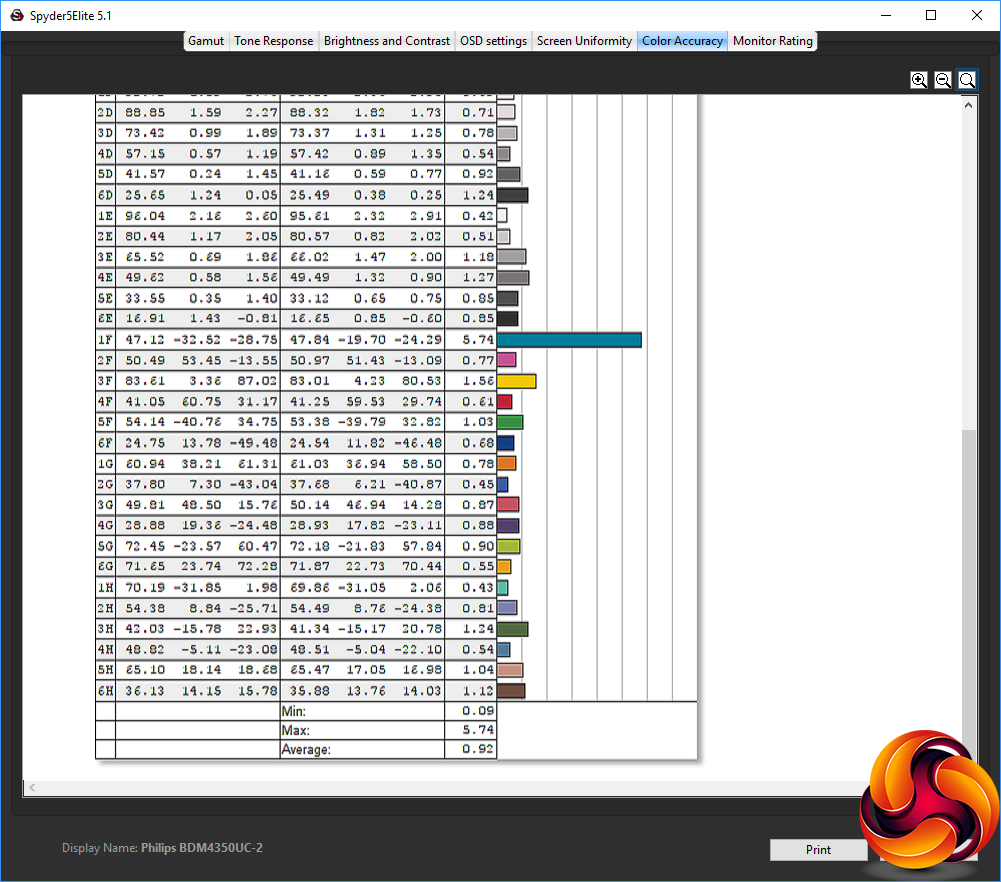
However, what wasn't a disappointment was the improved colour accuracy of 0.92, which is one of the best we've seen. Clearly a bit of tweaking can make the BDM4350UC into a very faithful colour reproducer indeed.
We also tried some games, but you will need a seriously powerful graphics card (or old, undemanding game) to get good frame rates at 4K. Dropping down the resolution of course improved things, but there isn't much point buying a 43in 4K screen to run it at a resolution below this. We wouldn't really suggest this monitor if your main activity is PC gaming, although for 4K console use it could be very handy indeed.
Overall, the Philips BDM4350UC delivers commendable results. The gamut is the only real chink in its armour. This isn't a screen for high-resolution PC gaming, but for multimedia or professional work such as image editing, video production, or 3D content creation, it has plenty on offer.
The Philips BDM4350UC is an impressive piece of kit. It won't be for everyone, as the dimensions will be too big for a lot of desks, and you need some distance to enjoy what it has to offer. This is also not a 4K PC gaming screen. But with those caveats, the features, quality and resolution it has on offer are incredible for the price.
There are plenty of inputs, so you can connect a bunch of PCs and a console, or a 4K video feed from a cable or satellite box. The four-port USB 3.0 hub is handy, although the port positioning is a trifle inconvenient, with all of them round the back.
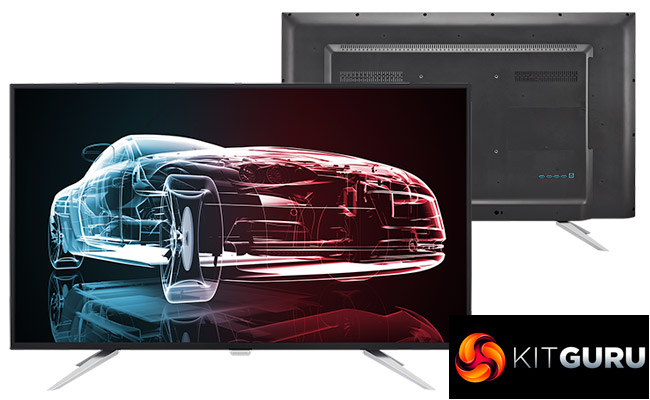
There's good colour accuracy out of the box, and exceptional accuracy available with a little calibration. The presets are also nicely varied for different usage scenarios. Overall, though, it's the price of just north of £500 that really cements this screen as a top choice if you want to add a huge display to your PC, workstation or console.

The Philips BDM4350UC is available from Overclockers UK HERE.
Discuss on our Facebook page, over HERE.
Pros:
- Huge 43in diagonal suits 4K.
- Incredible value.
- Excellent colour accuracy.
- Decent level of adjustments in OSD.
Cons:
- Fixed stand makes positioning complicated.
- You need a big desk.
- Slightly disappointing gamut.
Kitguru Says: The Philips BDM4350UC is absolutely huge, but it also packs great quality for the money. Just make sure you have a desk big enough to accommodate it.

nice
Never, Ever buy this monitor
Inside of screen is so weak that you can even break it while you cleaning it and you can`t ask for warranty because it`s phisical damage