KitGuru KitGuru.net – Tech News | Hardware News | Hardware Reviews | IOS | Mobile | Gaming | Graphics Cards


You might think that a huge 4K monitor is only for those with Russian-donated gold mines. Certainly if you've just got £100 to spend, Full HD and 24in will be your limit. But if your budget is more like £750, how about the 43in 4K Philips Momentum 436M6VBPAB?
Admittedly, £750 is still quite a wedge of dosh. But that's also about how much a smaller premium gaming screen could cost, and quite a bit less than overclocked NVIDIA GeForce RTX 2080 graphics. So if size really does matter to you – and pixel count – the 436M6VBPAB might be the right side of your budget.
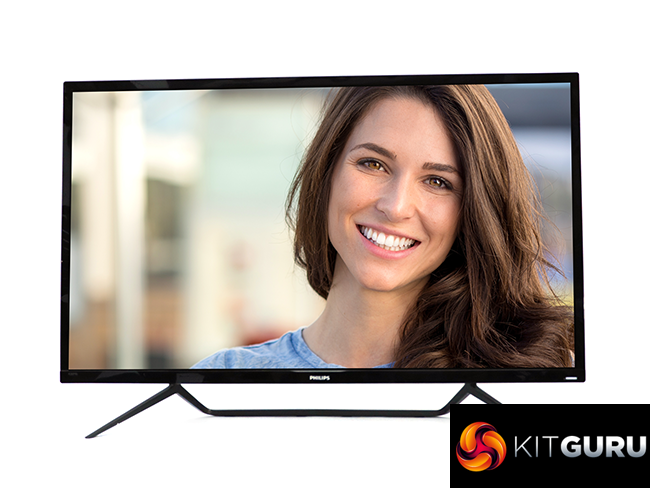
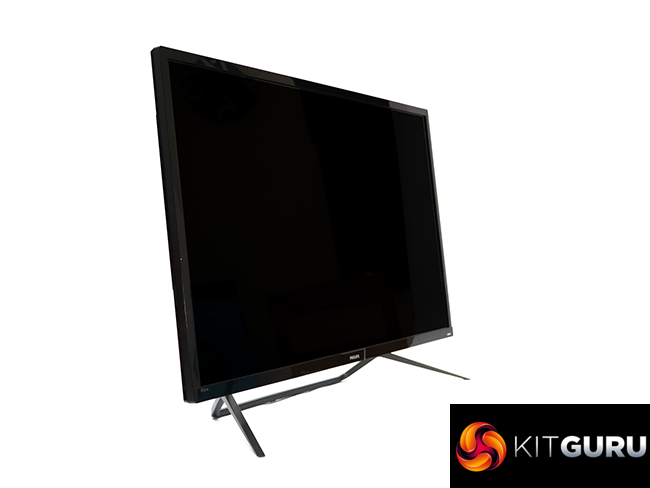
You will probably need a bigger desk, however. A 43in 16:9 screen is a monstrous thing, although Philips has done its best to keep the 436M6VBPAB as slim as possible, and whilst the bezel isn't non-existent, it is pretty svelte. The stand is somewhat minimal as well.
The 4K resolution is the usual 3,840 x 2,160 UHD. The colour gamut claims are quite impressive, including 100 per cent of BT.709 and 97.6 percent of the digital cinema-oriented DCI-P3. The screen is DisplayHDR 1000 certified as well, which is the highest DisplayHDR certification, requiring 10-bit colour processing and 1,000cd/m2 brightness. In fact, this was the first DisplayHDR 1000 screen on the market when it was initially released.
So the 436M6VBPAB is capable of a peak 1,000cd/m2 brightness, and 4,000:1 contrast, thanks in large part to Philips's use of MVA panel technology. However, this also means the pixel response is only 4ms. Although Adaptive Sync is supported, the top 4K refresh is 60Hz.
Despite the relatively slim and sleek appearance, there is a healthy range of inputs, including DisplayPort, mini DisplayPort, HDMI, and USB-C supporting DisplayPort Alternate mode, so it can carry USB and display data simultaneously. Taking advantage of this, the 436M6VBPAB also includes a two-port USB 3.0 hub. There's analog audio input and a headphone output as well, plus built-in 7W stereo speakers. It also incorporates Philips's Ambiglow technology for increased immersion.
There's even a remote control included in the box. So you're getting a hefty amount of screen goodness for your sub-£750 payment. If you've got this kind of money to spend on a huge panel, could the 436M6VBPAB be the screen you need to go large? Read on to find out.
Specification:
- Screen size: 42.5-inch, 16:9 aspect
- Native resolution: 3,840 x 2,160
- Refresh rate: 60Hz
- Panel type: MVA
- Contrast ratio: 4,000:1 (typical)
- Brightness: 1,000cd/m2
- Response time: 4ms Grey-to-Grey
- Display inputs: HDMI 2.0, DisplayPort 1.2, Mini DisplayPort 1.2, USB-C
- USB hub: Yes, 2 x USB 3.0 (one with fast charging)
- Tilt: 5 degrees forward, 10 degrees backward
- Raise: No
- Swivel: No
- Other: Minijack audio input and output; Ambiglow lighting; RC6 remote control; stereo 7W speakers
Retail Price: £726.51 (inc. VAT)
The Philips Momentum 436M6VBPAB is a huge screen in a huge box, and you'll probably need the help of a friend to get it upstairs.
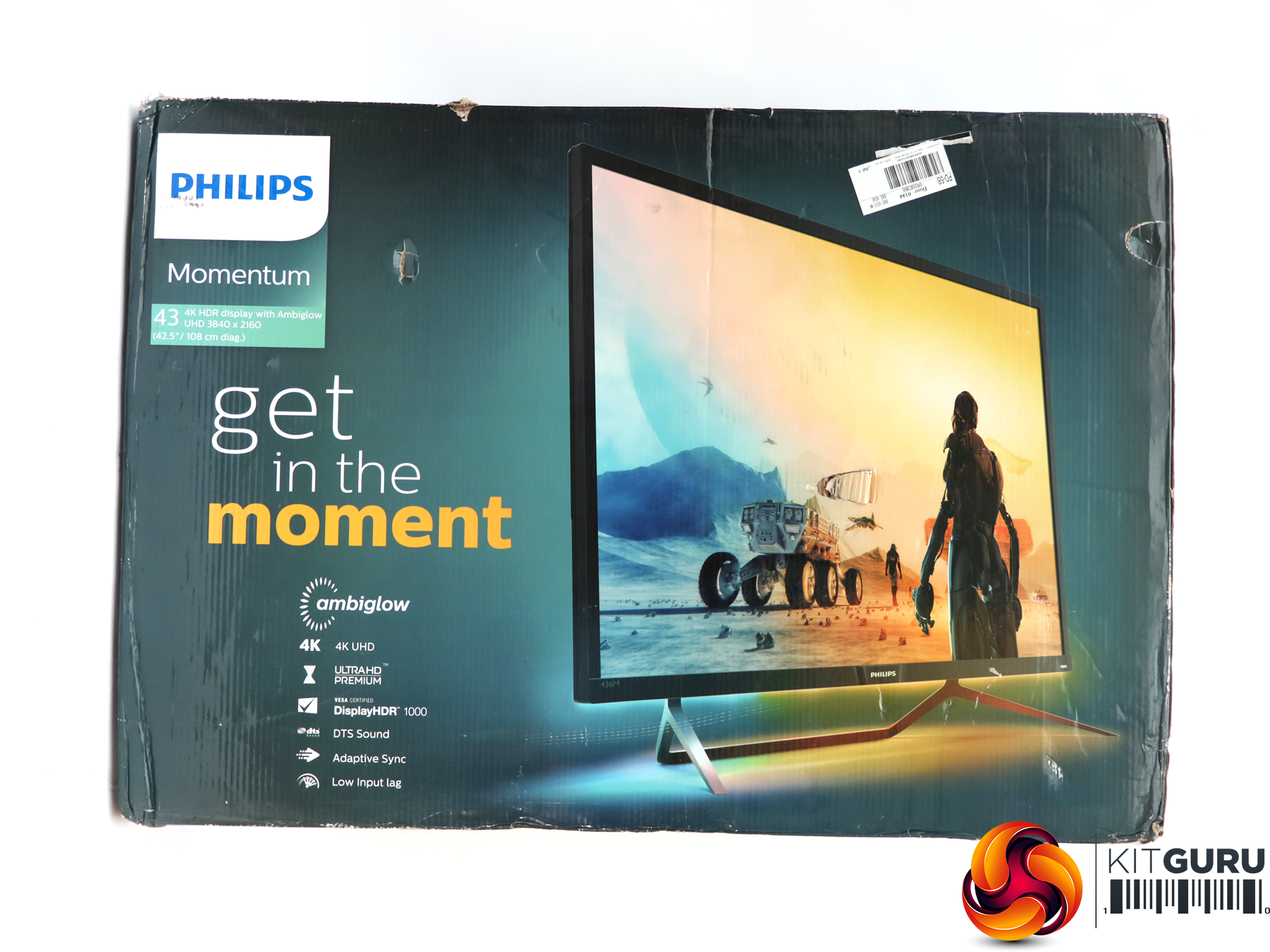
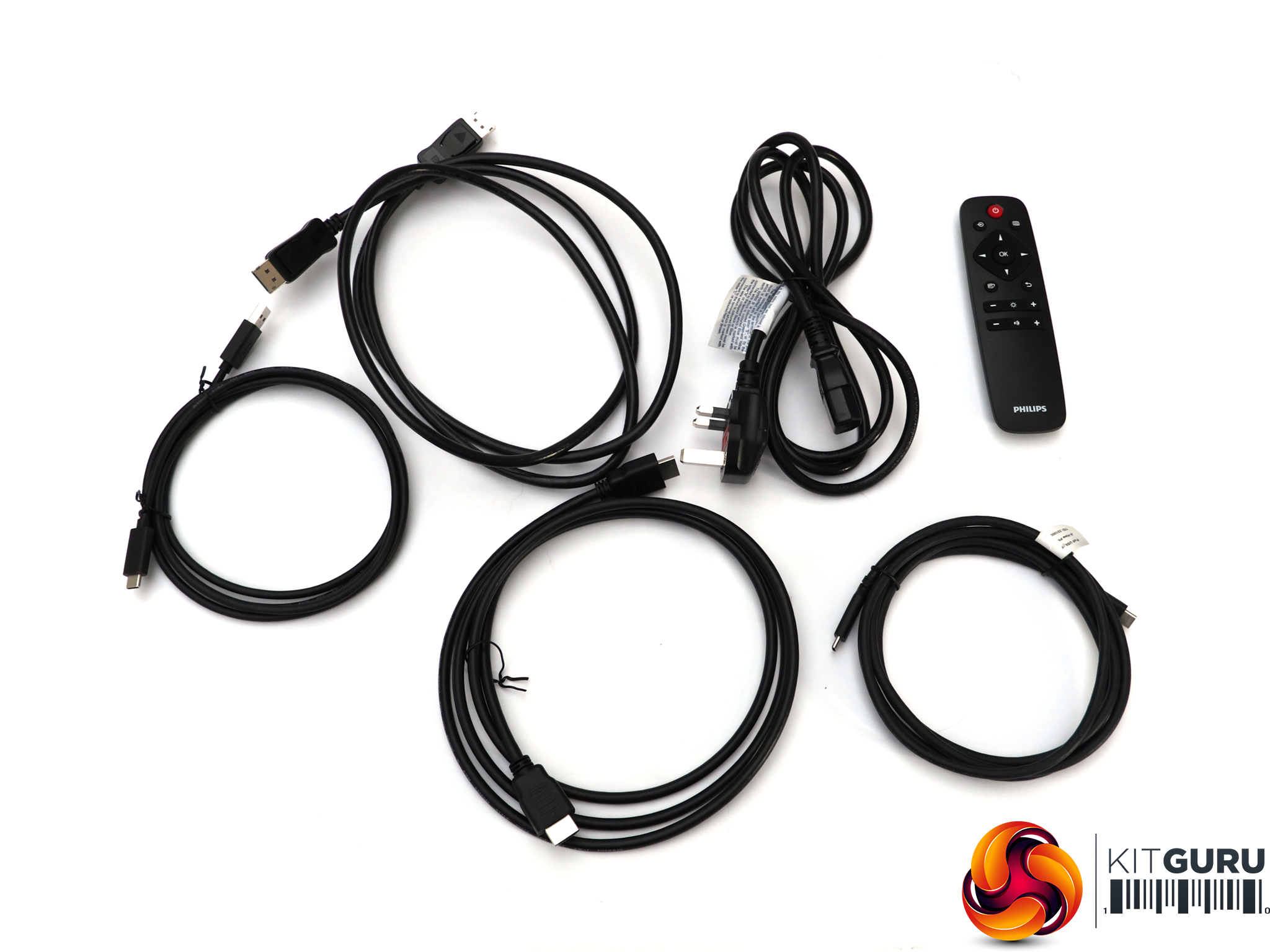
The box makes it pretty clear that this screen boasts Philips's Ambiglow technology, which produces a lit aura beneath the screen that matches what's inside the frame. In the box, you get HDMI and DisplayPort cables, plus wiring for Type A to Type C USB connections as well as Type C to Type C. The hub input uses a Type C upstream connection, so the cables mean you can still use it even if your computer only has Type A connections.
There's also a power cable, of course, but much more interesting is the remote control, which uses the Philips RC6 infrared protocol. This provides volume and brightness control, but also the ability to change the input and operate the menu without having to reach around the rear for the joystick.
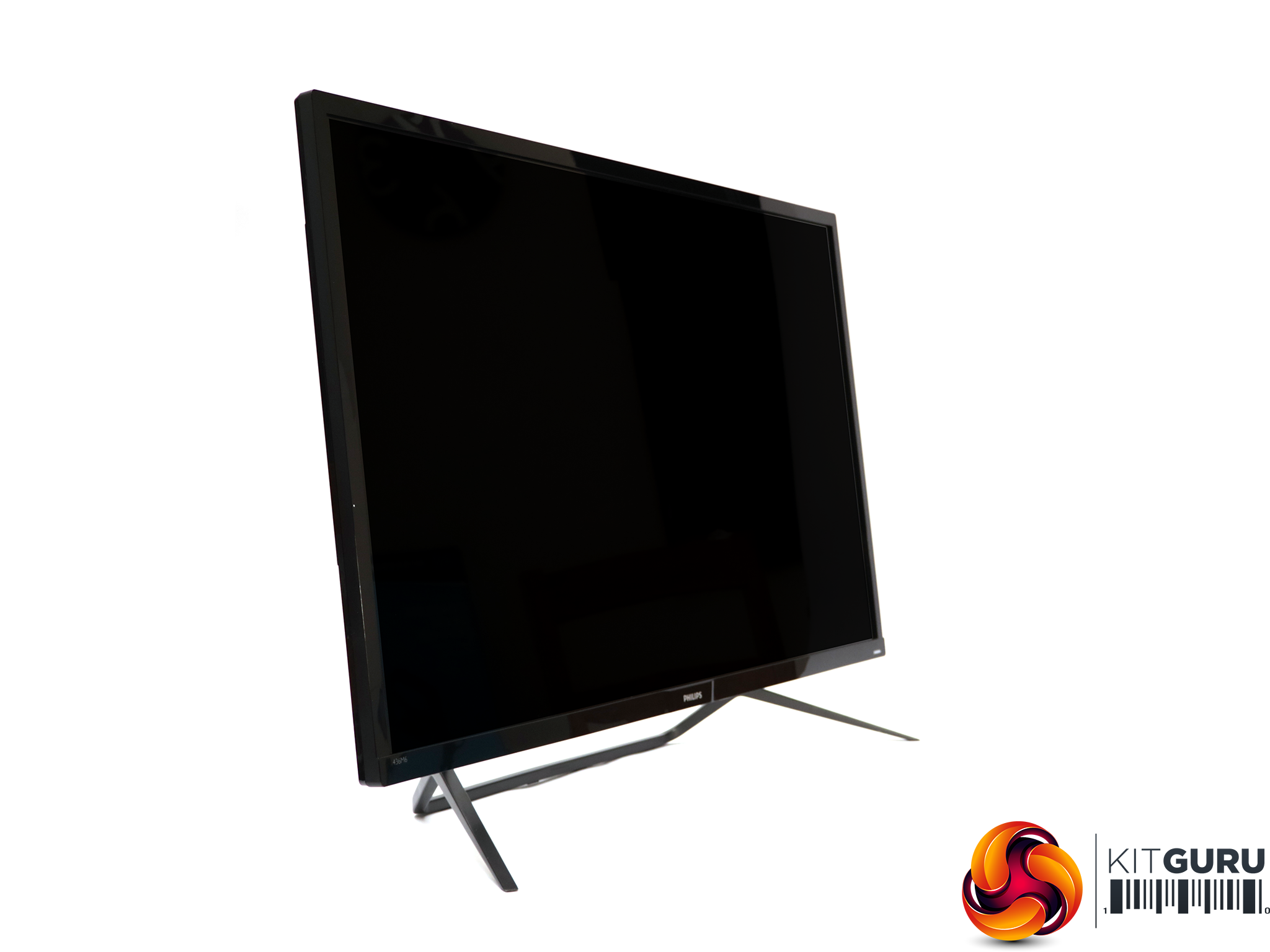
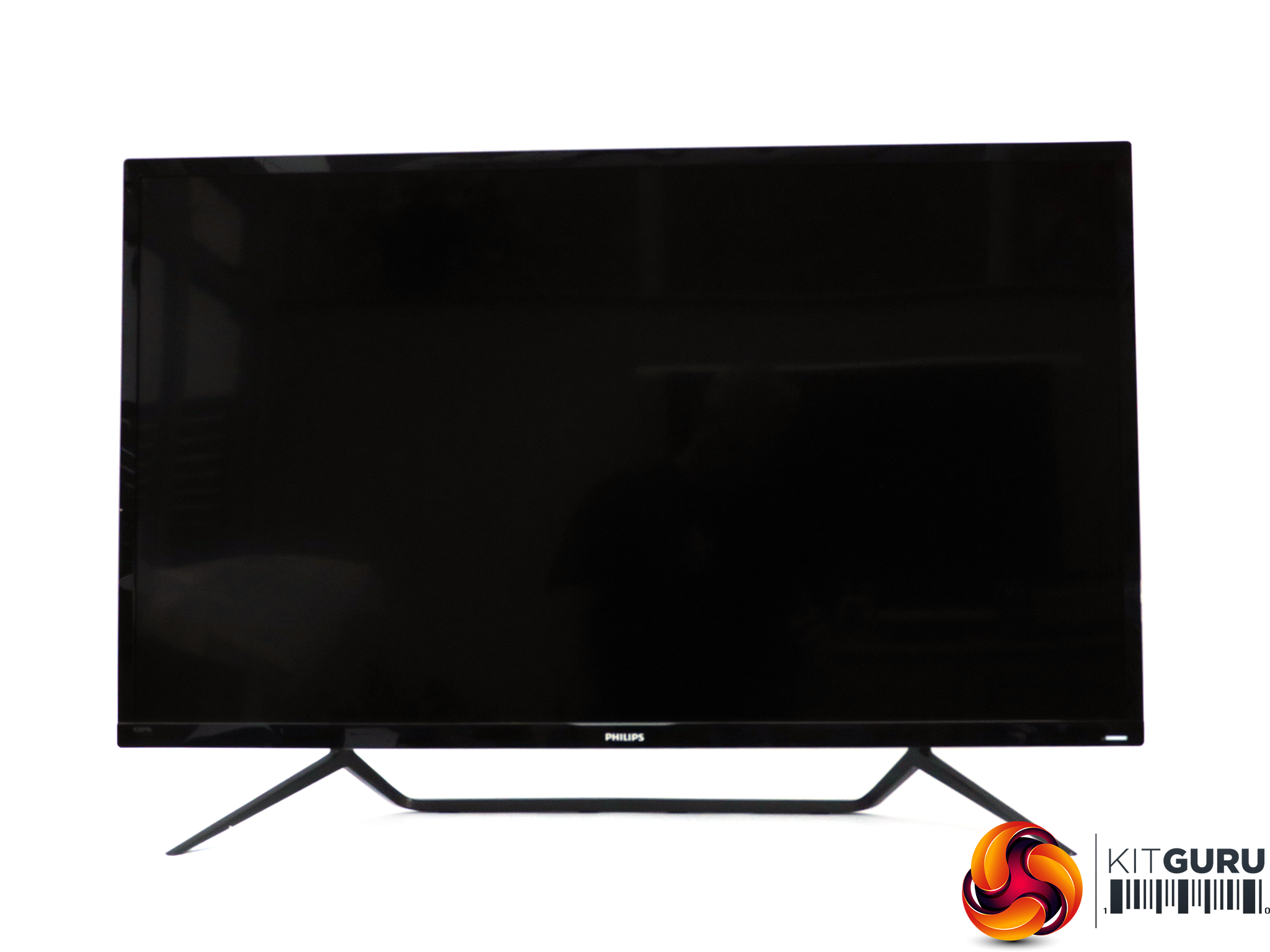
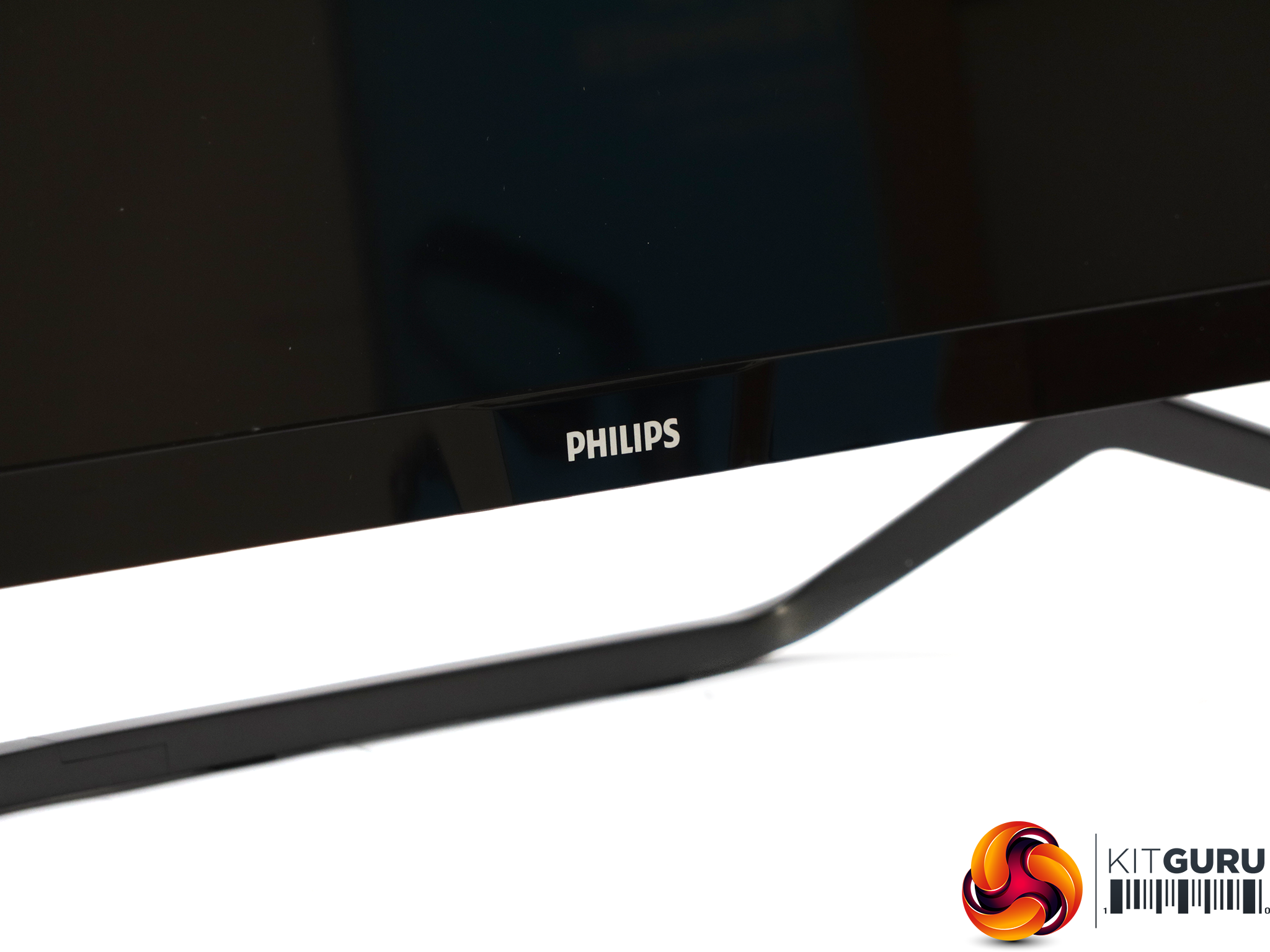
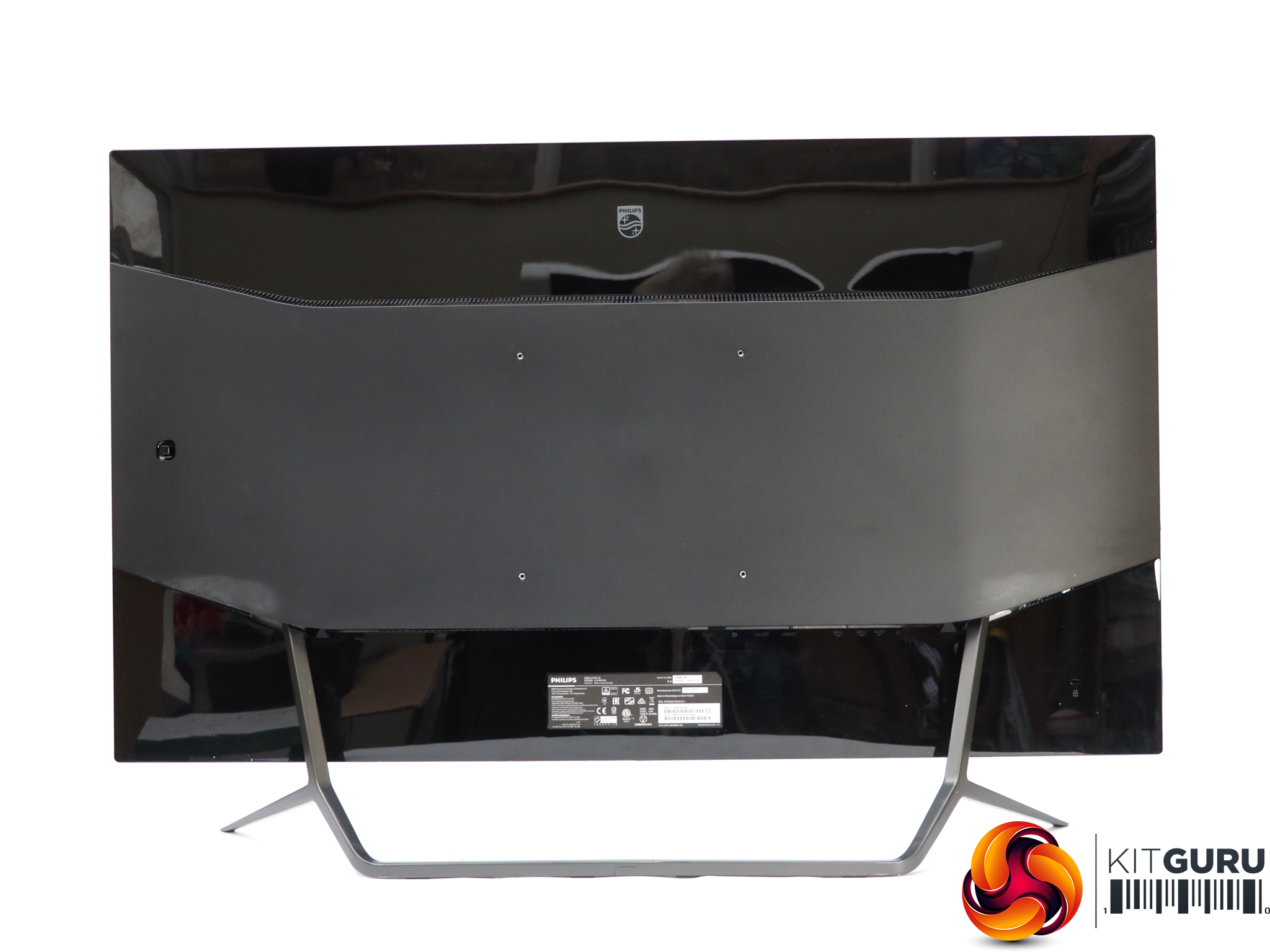
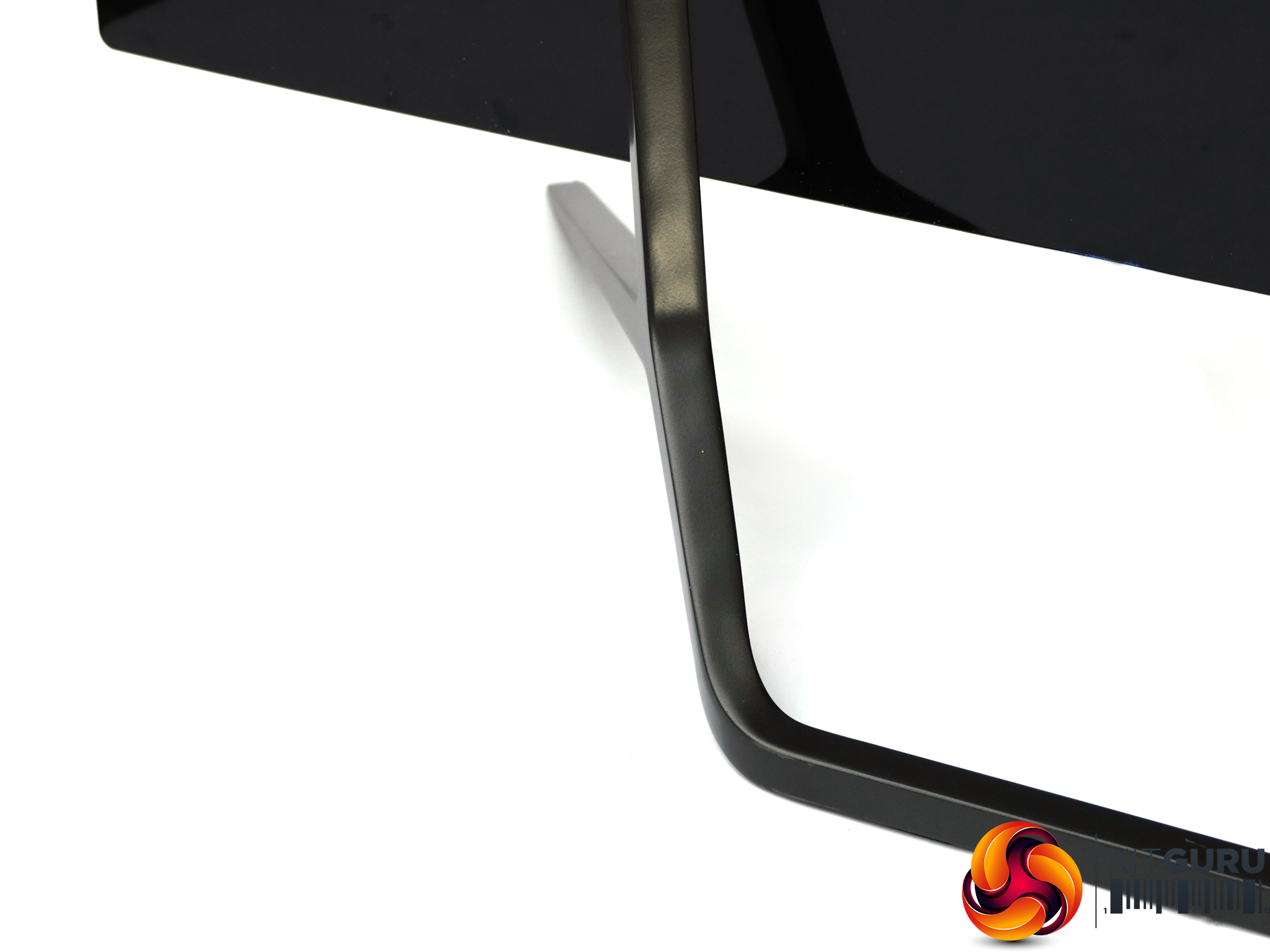
The 436M6VBPAB is an imposing bit of kit. It sits on a minimalist metal stand that comes pre-installed. Some of the plastic used is a bit shiny and will pick up dust and finger marks quite easily. The screen itself is also quite shiny.
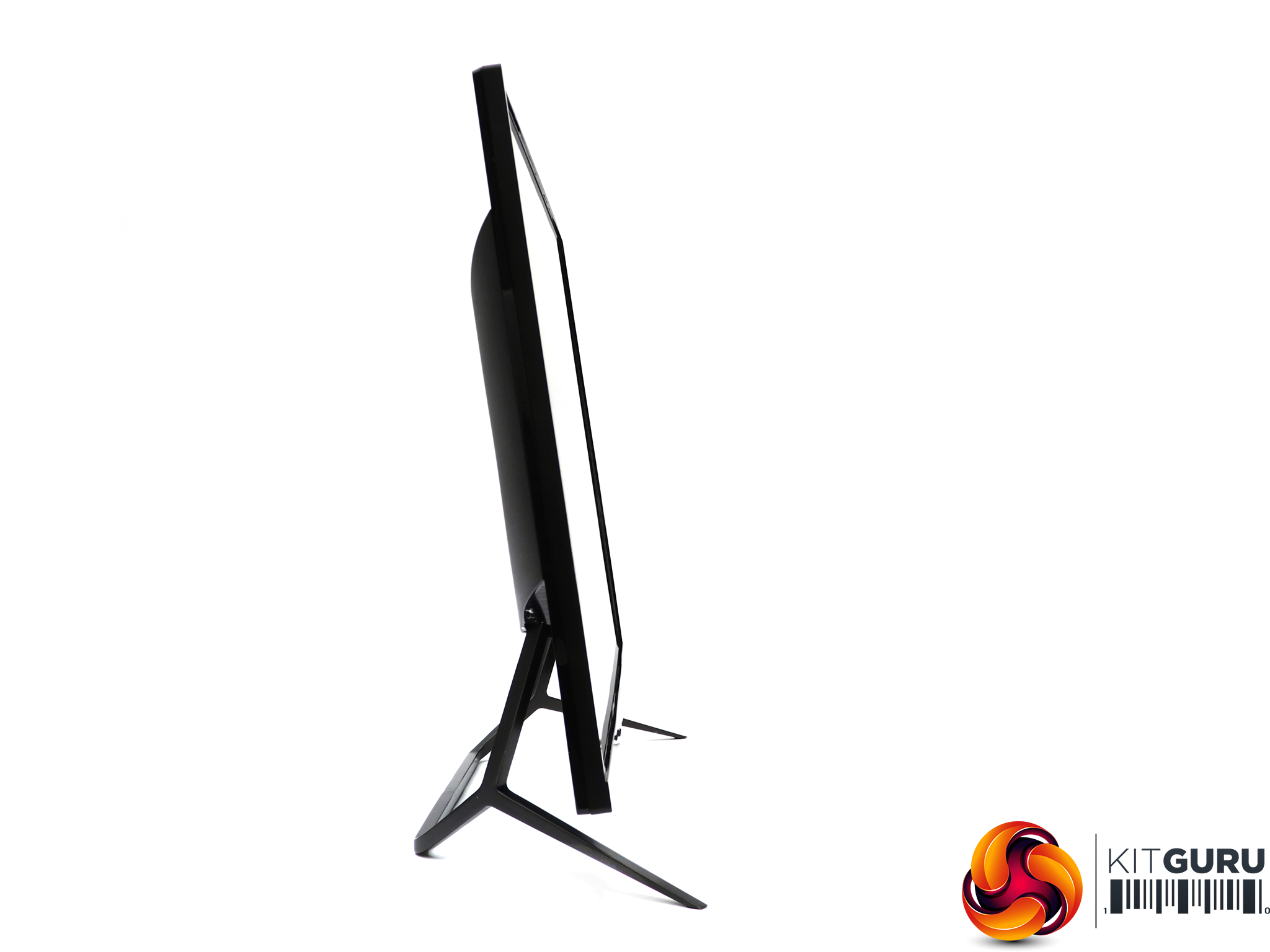
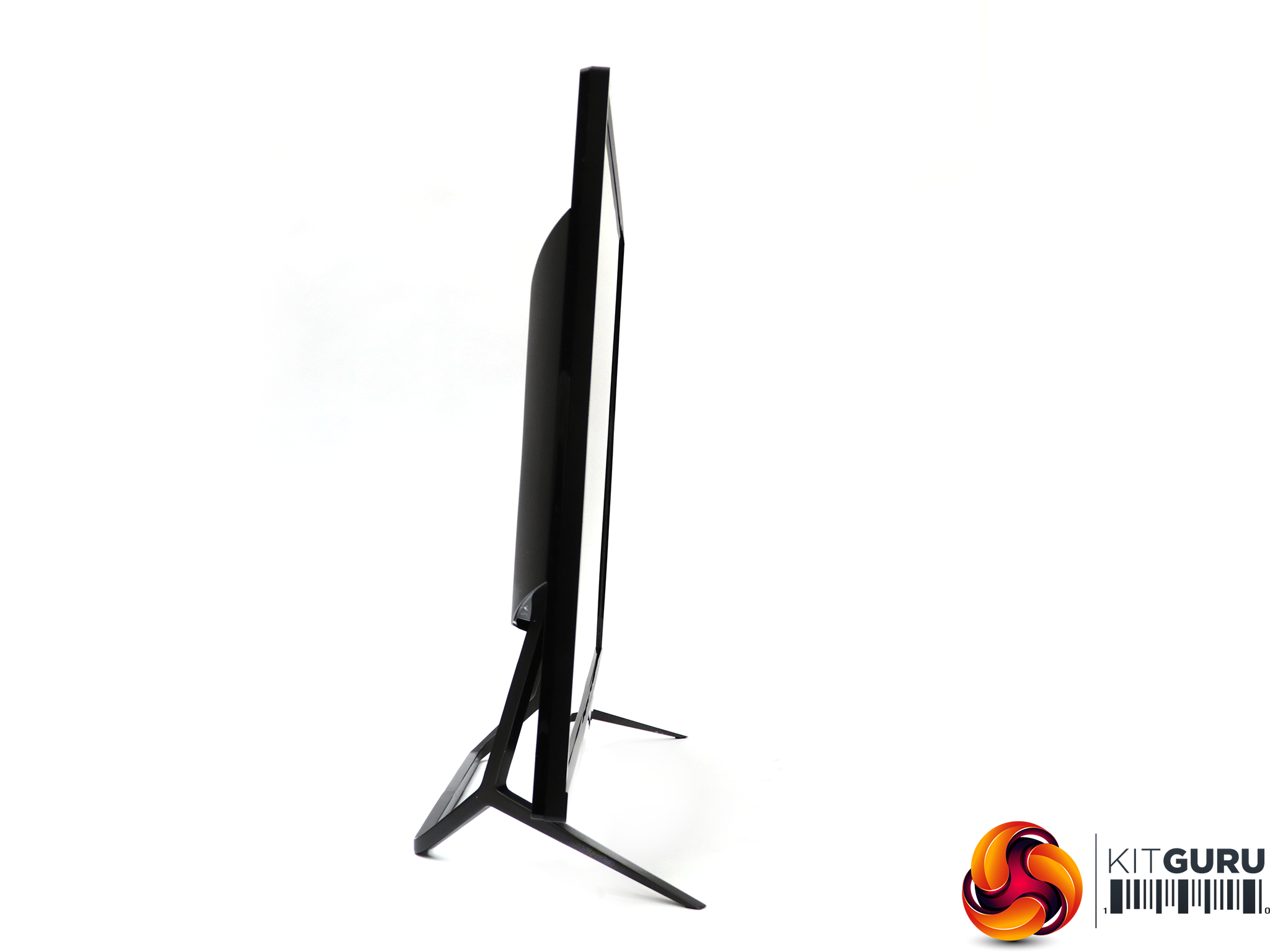
You don't get much in the way of adjustment potential, as the stand is fixed. You can angle the screen forward by five degrees and back by ten. But there's no rotation or ability to raise the height.
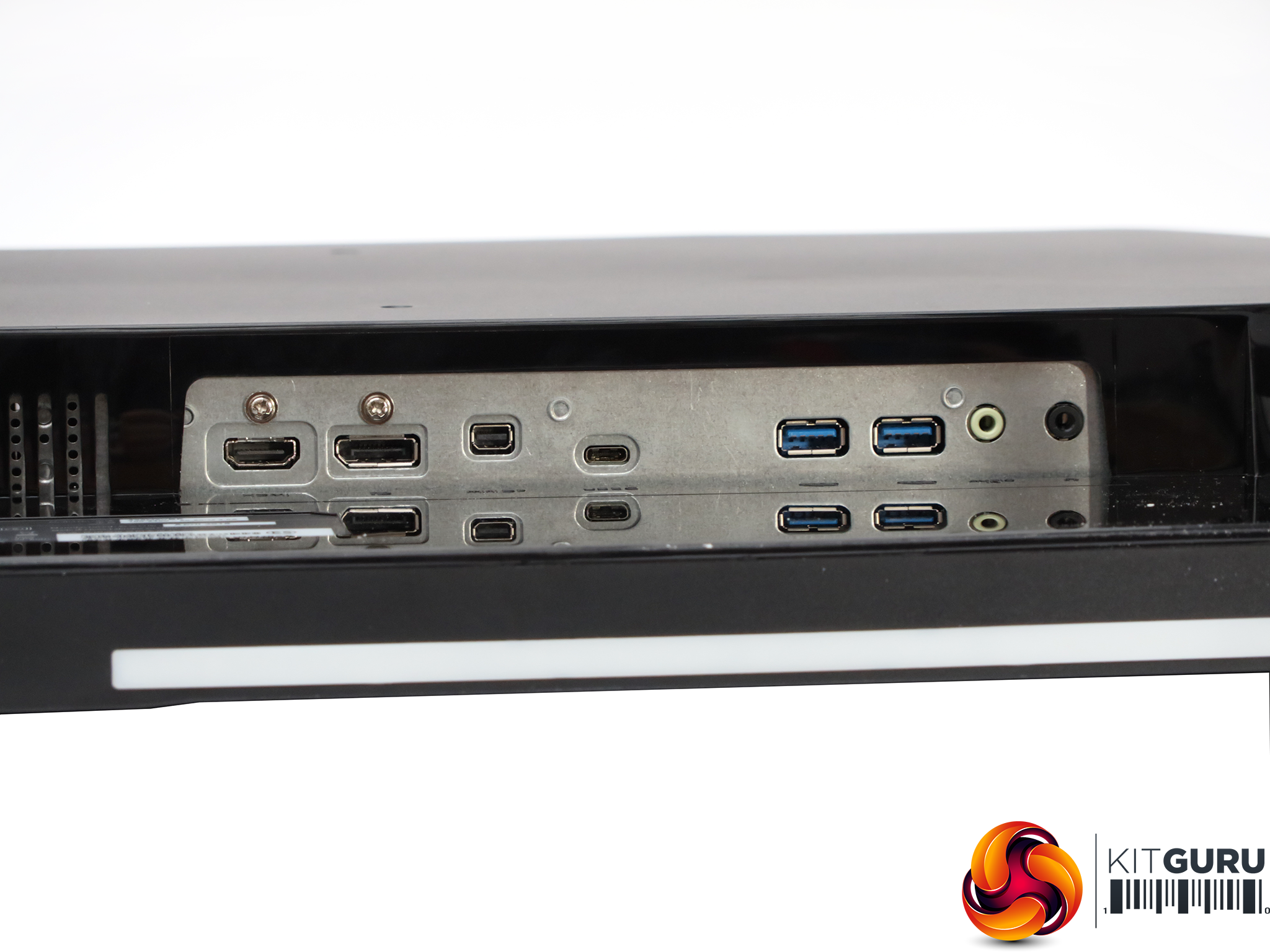
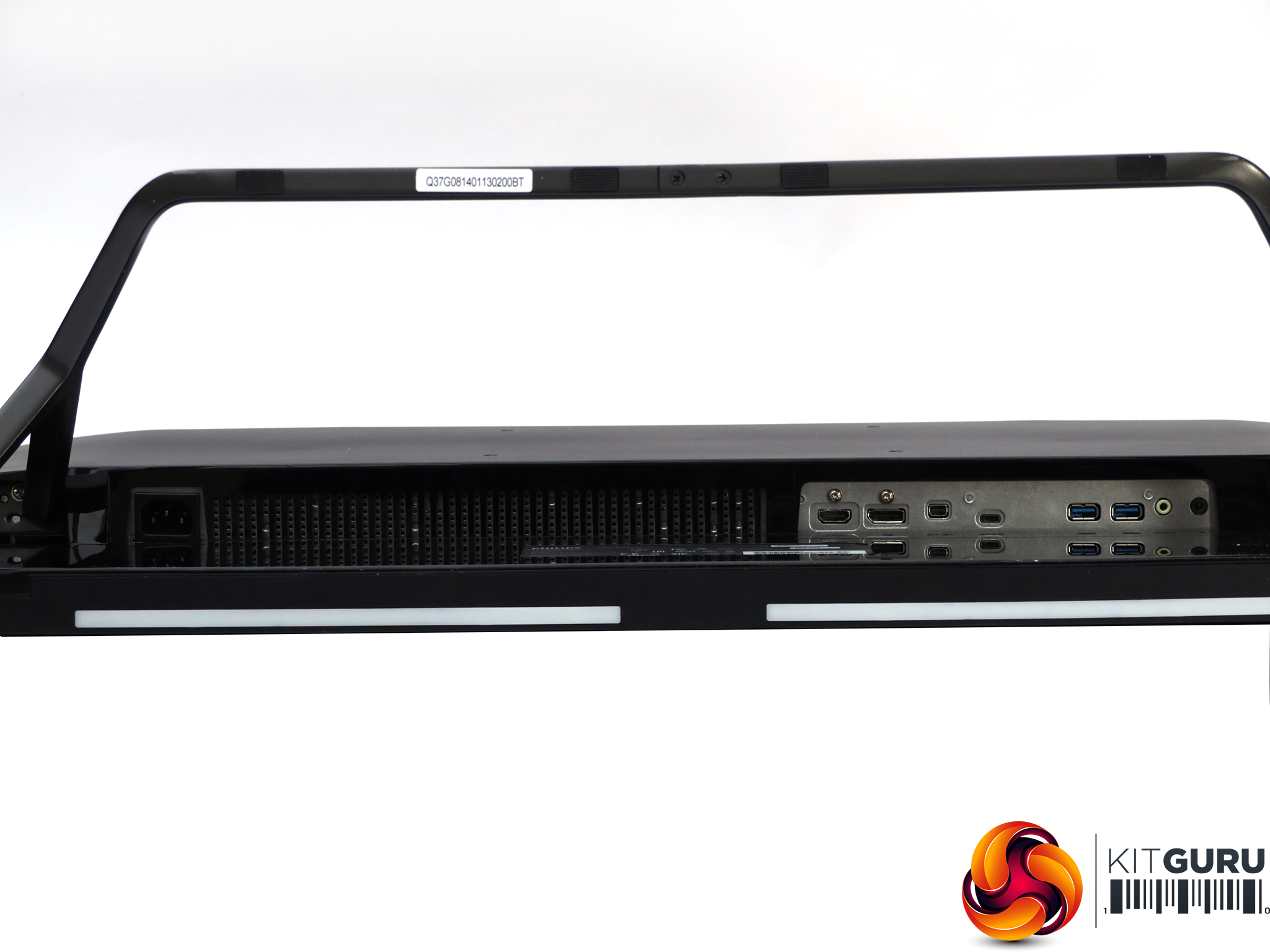
The standard kettle-lead power connection is on one end of the underside, with all the ports on the other. These include HDMI 2.0, followed by full-sized DisplayPort 1.2, then mini DisplayPort 1.2, and finally USB C. The latter supports both video input and upstream data, with the latter driving the two USB 3.0 ports further along.
Finally, there are minijacks for analog audio input and headphone output. The 436M6VBPAB has a pair of 7W speakers built in, which is quite a loud rating for integrated units. These are more generally just 2 or 3W.
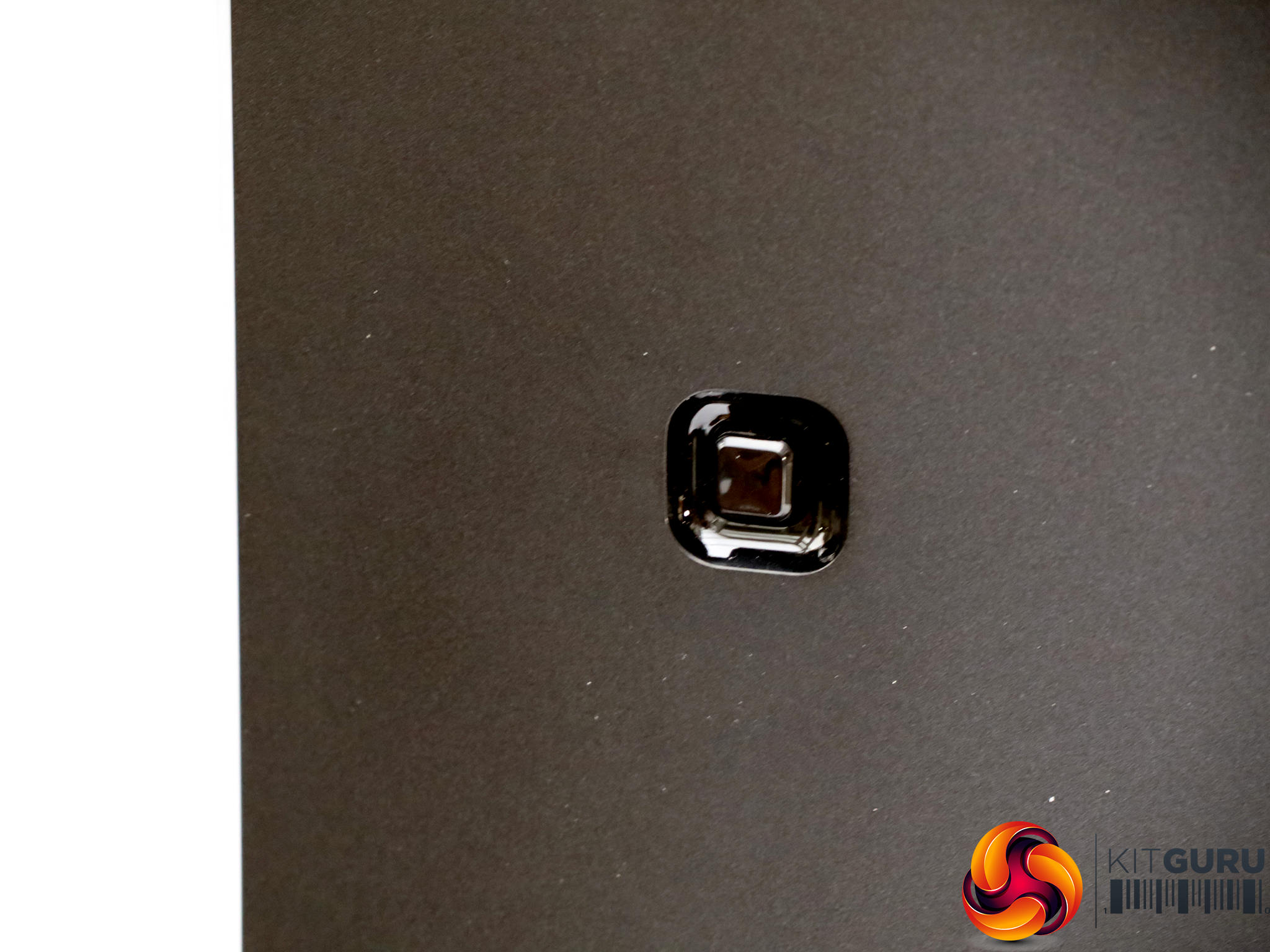
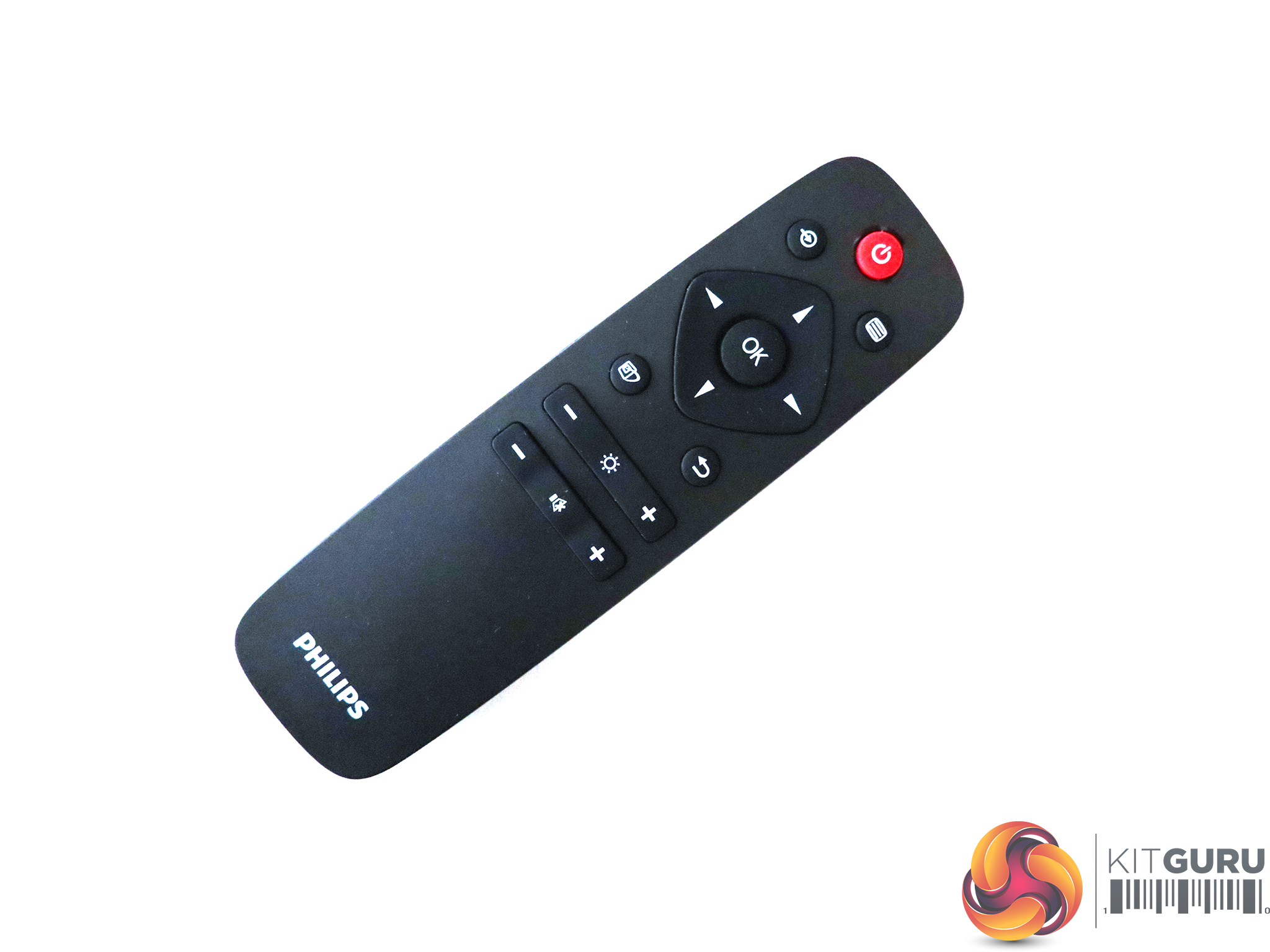
If you need to change the screen's settings, there's a joystick around the back on the right, with no other buttons. But we'd rather use the remote, which is much more convenient. This is an infrared remote, so you do have to point it at the right bit of the monitor for it to work (the bottom right-hand corner).
The joypad on the remote has exactly the same functions as the joystick on the rear of the display, and the remote has other functions, so we will concentrate on how you can adjust this screen with the remote. The latter has dedicated controls for the speaker volume and brightness.
There are buttons that get you directly to the main menu, inputs, and SmartImage presets, too, but we'll mention those as we go through the rest of the control system.
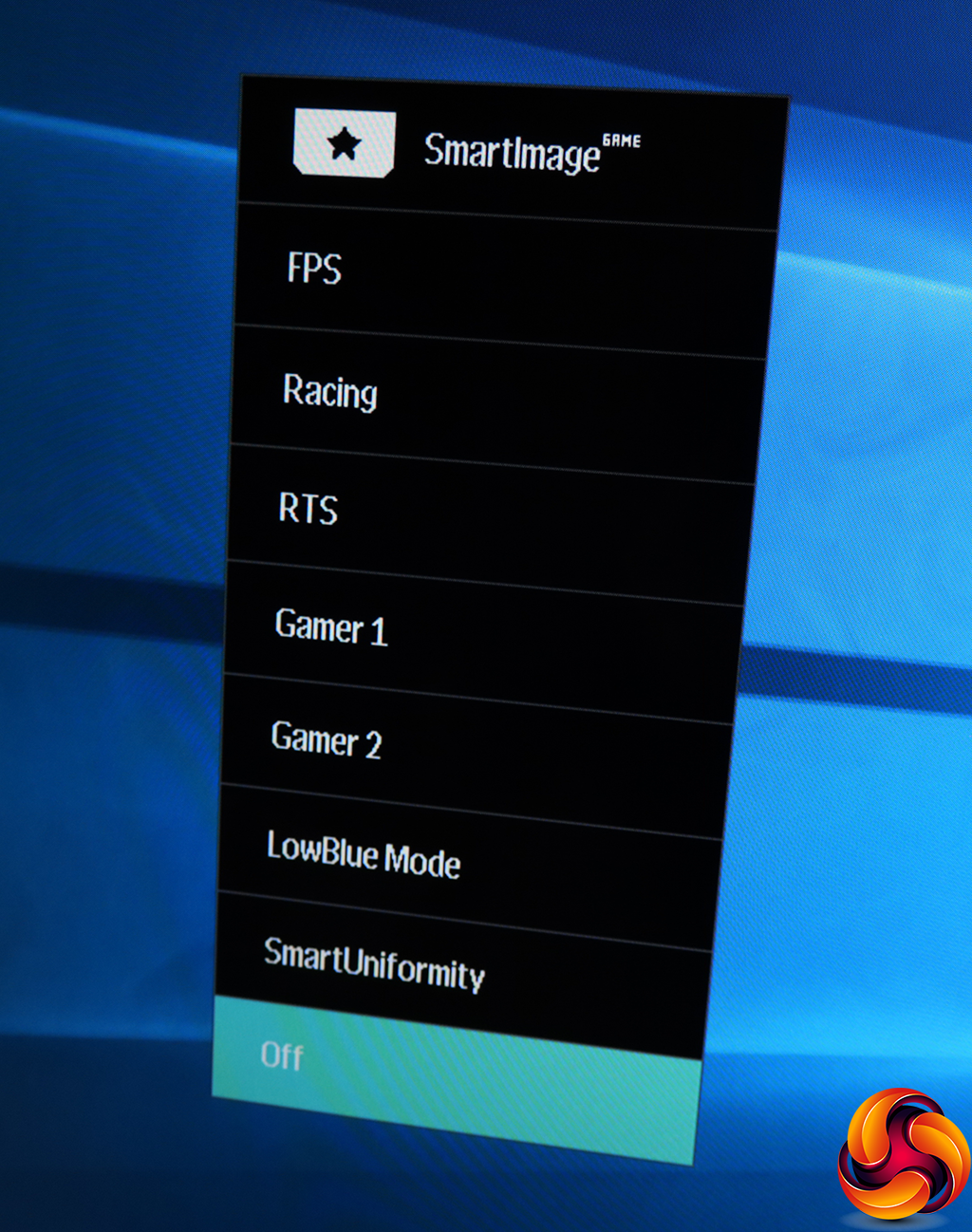
There are lots of different ways to get to to the SmartImage preset menu: push the joypad or the joystick left, or press either of the two buttons beneath the joypad on the remote. One of these is explicitly marked as the one for SmartImage, but the other is just the back button for exiting menu levels. SmartImage options include FPS, Racing, RTS, LowBlue and SmartUniformity.
The latter respectively reduce blue light to prevent eye strain, and enable accurate brightness for image-editing work. There are also two Gamer presets available. If you switch to one of these modes, whatever settings you change will be recalled when you next select that mode.
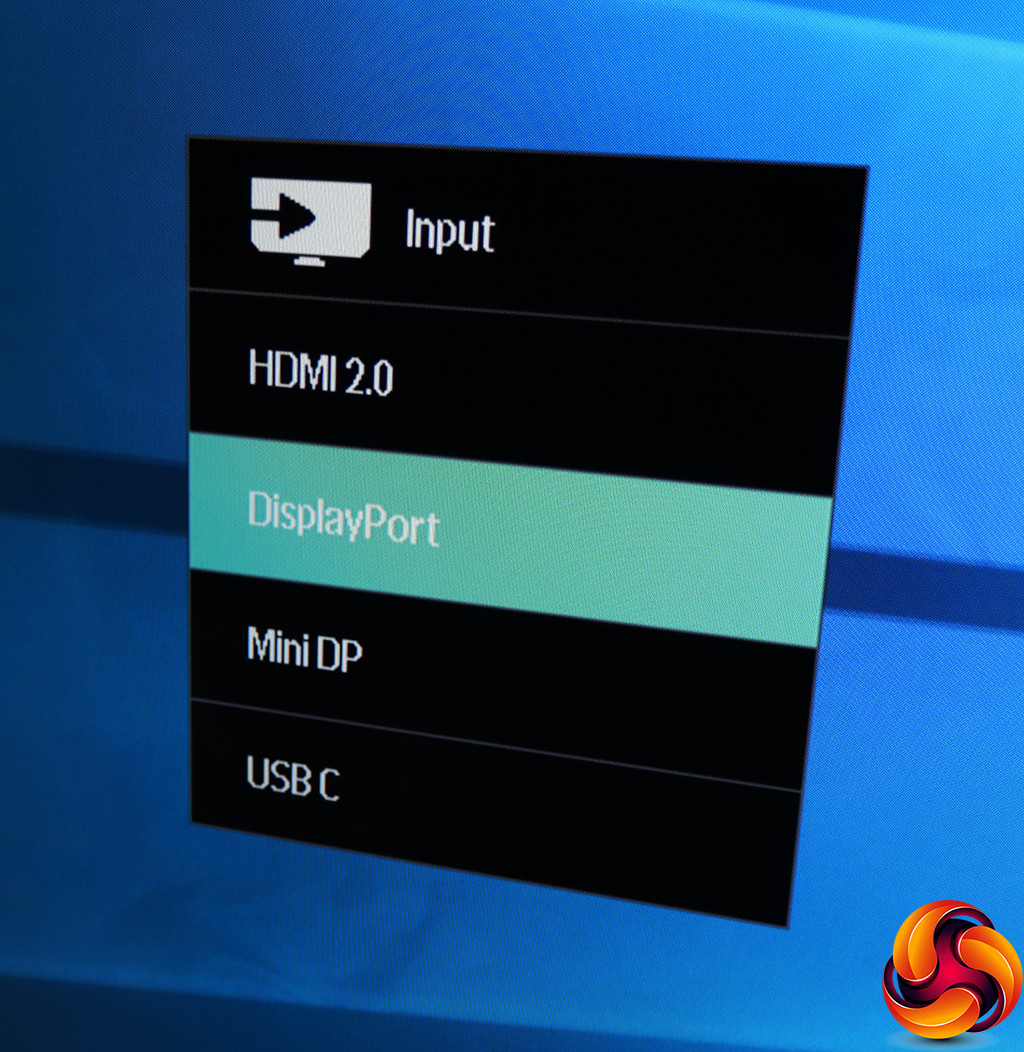
There are multiple ways to get to the manual input selection quick menu, too. Push the joystick or joypad up, or there's a discrete button on the remote.
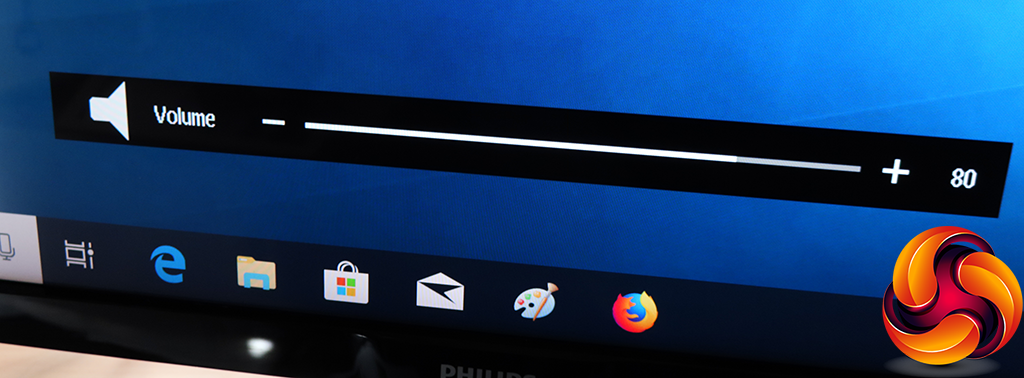
Apart from the dedicated controls on the remote, you can push the joystick or joypad down to access the volume levels.
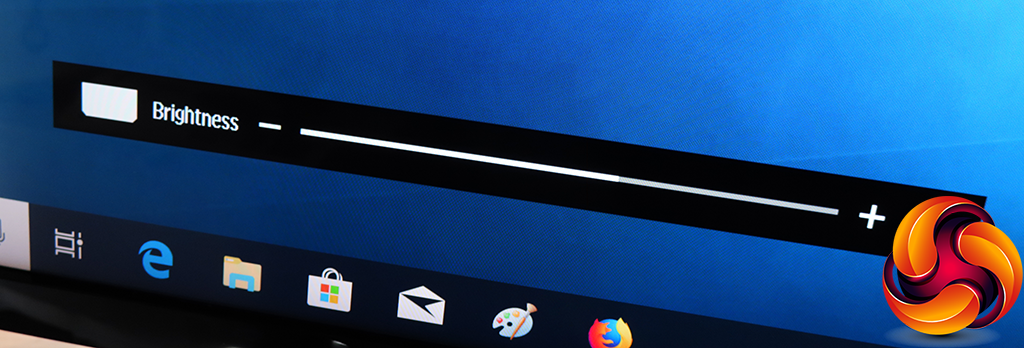
As already mentioned, there are dedicated buttons on the remote to change the brightness as well.
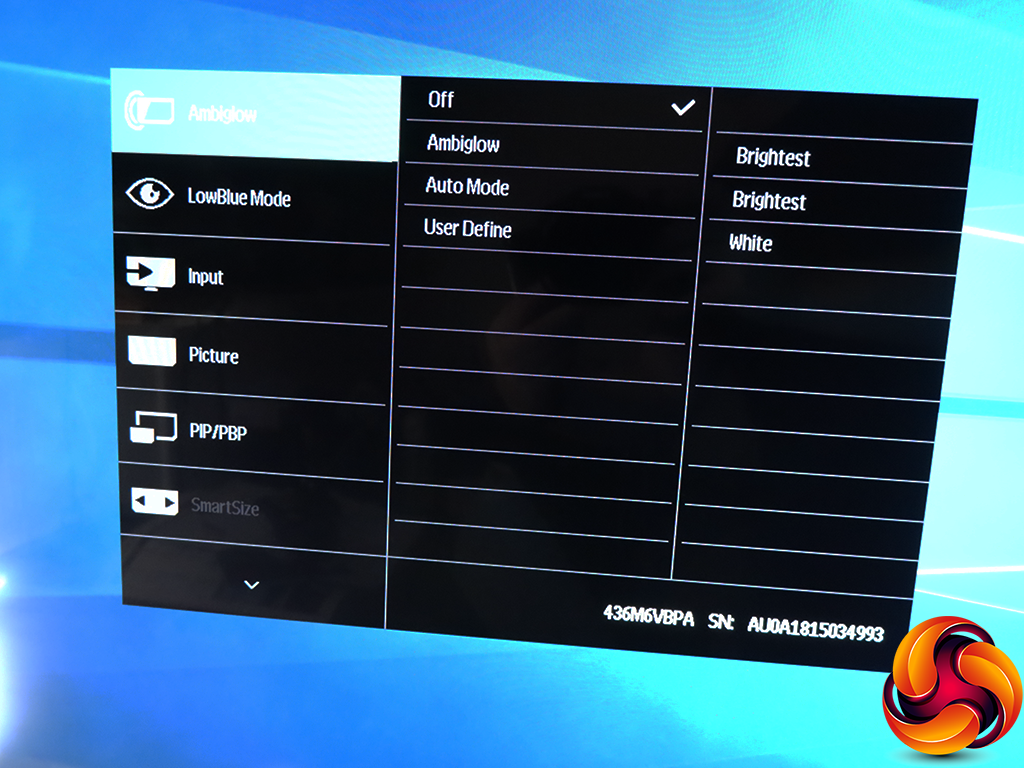
Finally, apart from the button on the remote, you can call up the main menu by pushing the joypad or joystick right, or pushing the joystick in, or pressing the OK button on the remote. The default section of the menu is for Ambiglow, which you can either turn on permanently, set to auto mode, or set to a specific colour.
In case you don't know what Ambiglow is, this screen has LEDs in the bottom that will light up the area underneath to match the predominant shade onscreen, which is supposed to increase the sense of immersion. Whether it does or not is a matter of taste, and it's not unique, with Samsung offering something similar, but it's still pretty cool if you like that sort of thing.
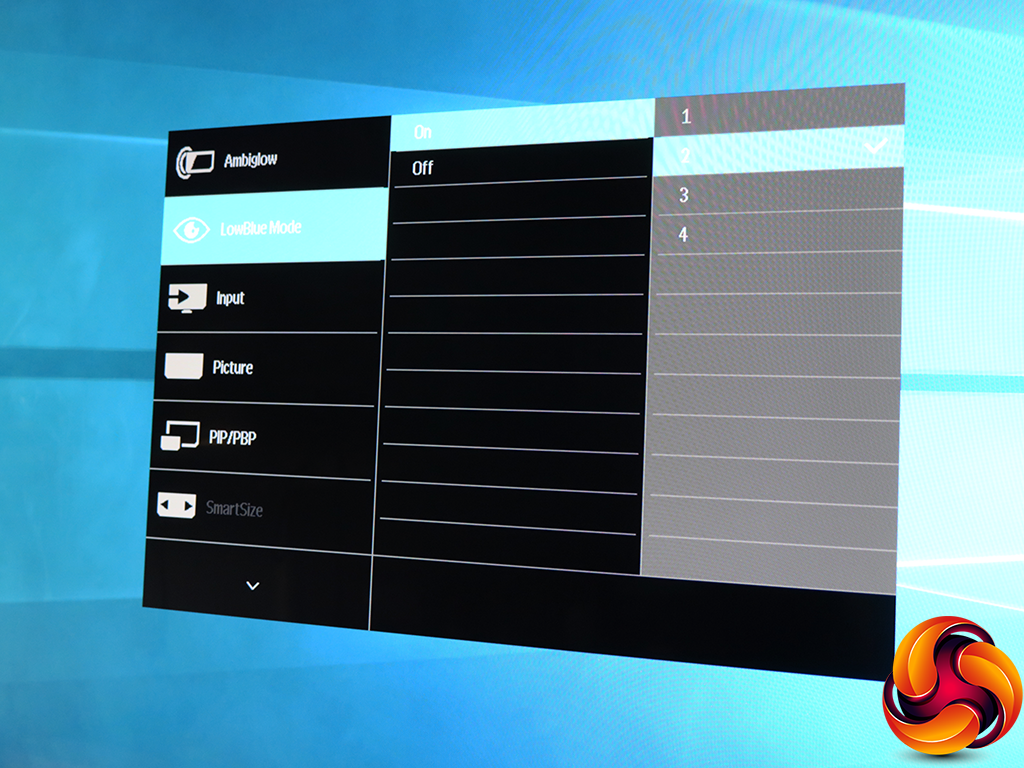
Next down in the main menu are the LowBlue settings, which include four levels.
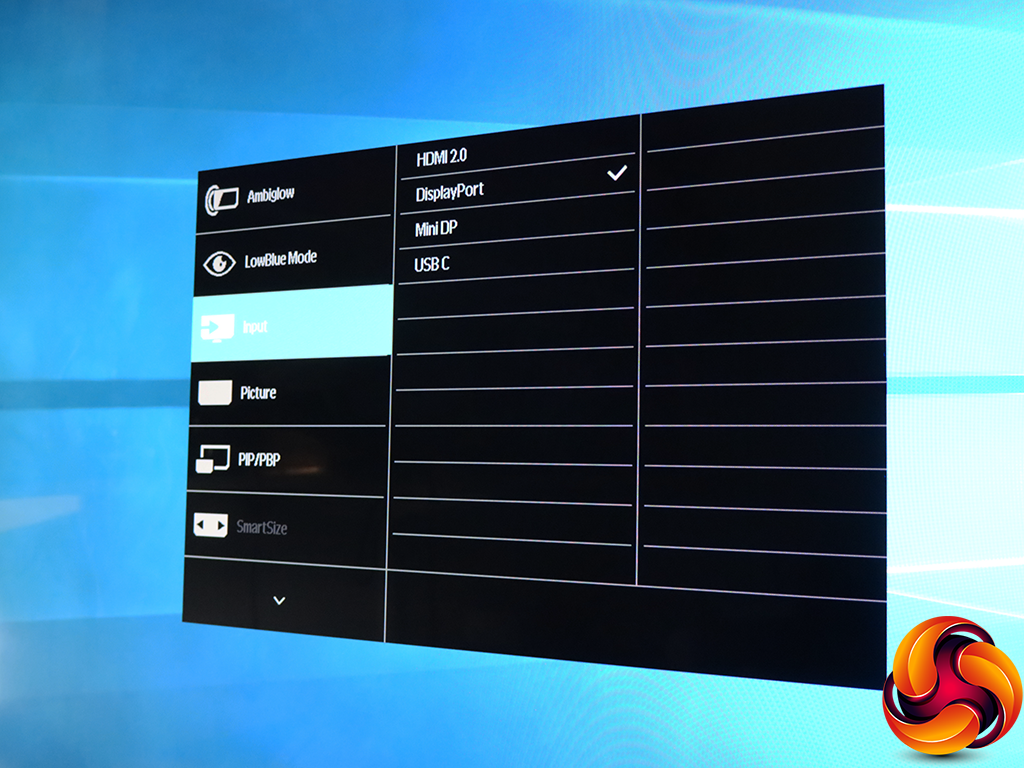
The main menu provides yet another way to get to the manual input settings.
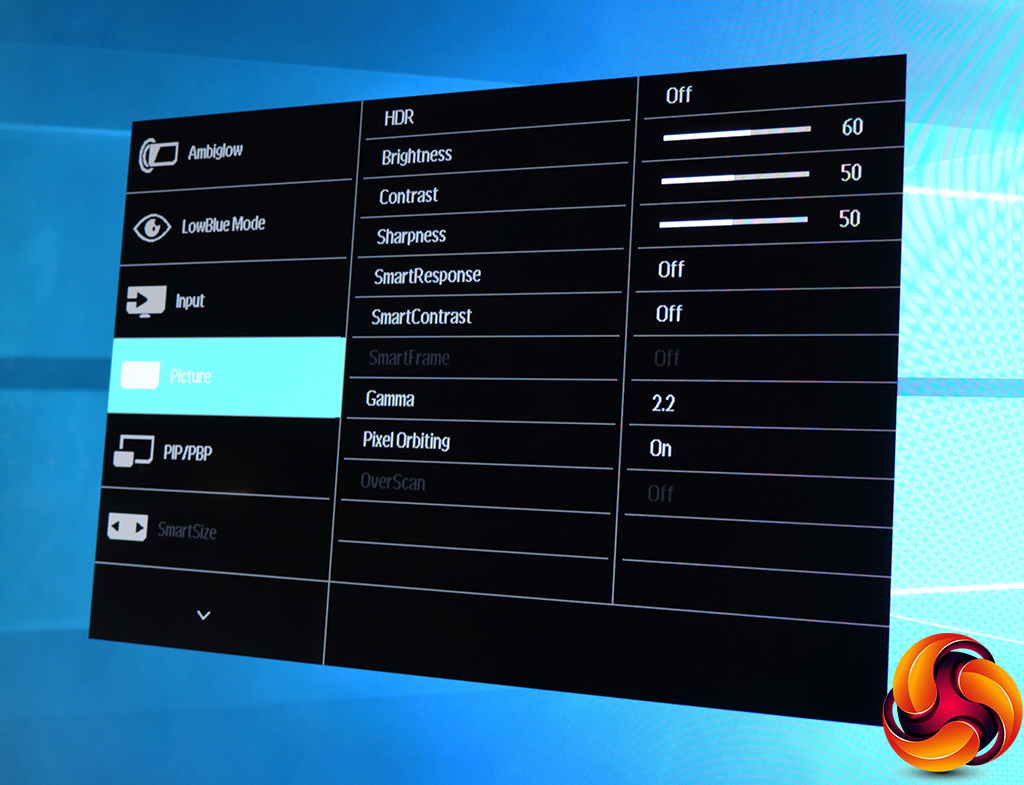
The Picture section is where most of the fine adjustments can be found. You don't just get a single HDR mode, but VESA HDR 1000 and UHDA options. The former is the DisplayHDR 1000 conformity we mentioned earlier in the review, whilst UHDA represents similar specifications to DisplayHDR 1000, except that it also specifies SMPTE ST2084 HDR and at least 90 per cent of the DCI-P3 colour gamut.
You can access controls for brightness, contrast and sharpness, plus the SmartResponse pixel overdrive that reduces the effects of the MVA panel's relatively slow 4ms rate. This has Fast, Faster and Fastest options. The SmartContrast can be either off or on, and varies the backlight to increase perceived dynamic range beyond the panel's actual capabilities.
The Gamma setting has five positions, ranging from 1.8 to 2.6 in increments of 0.2 and with a default of 2.2. Pixel Orbiting prevents burn-in by slightly shifting pixels around when a static image is shown.
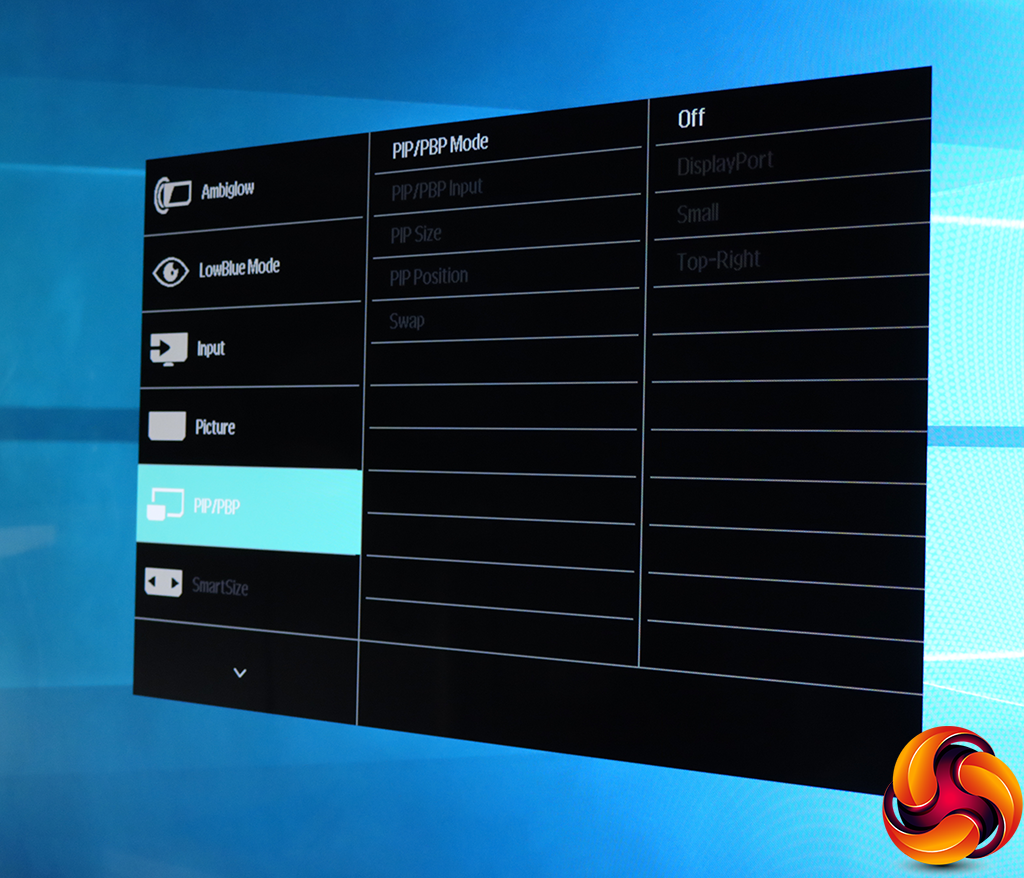
There are extensive options for picture-in-picture and picture-by-picture so you can show multiple inputs onscreen at once, which might actually be useful on a screen this big and with this resolution.
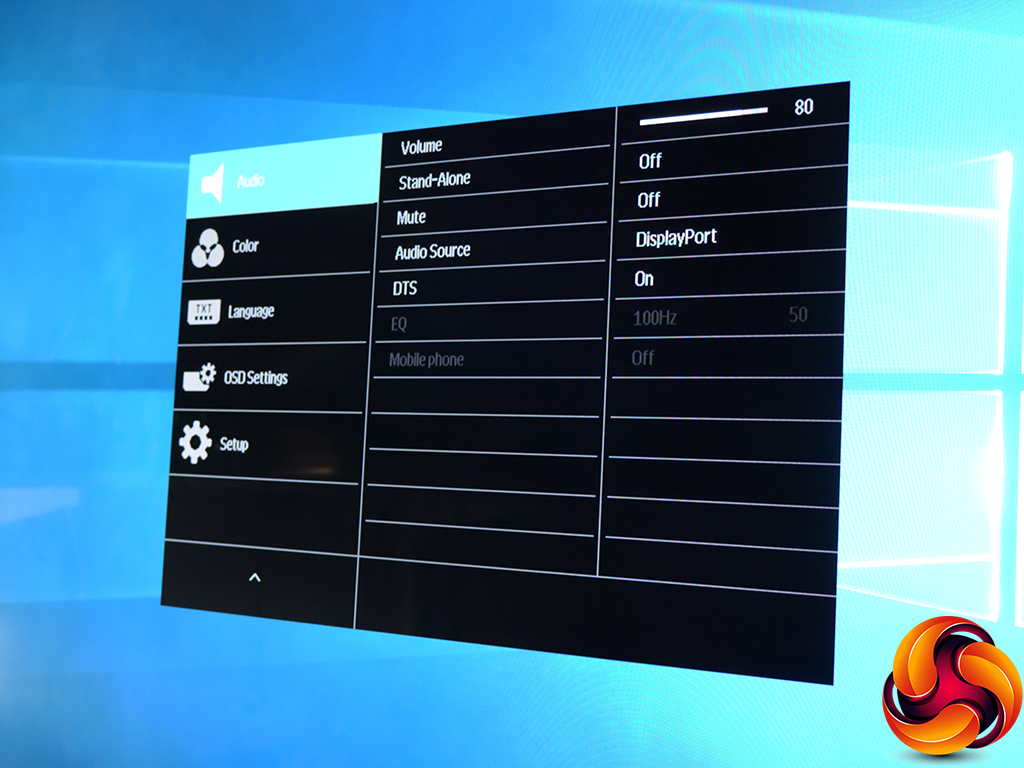
The audio section has a lot more than the usual monitor audio menu. Not only can you manually select the audio source and adjust volume, but also turn DTS support off and on, tell the screen whether it has an analog source that is a mobile phone, and even equalise the sound. However, the latter seemed to be greyed out with every input type we tried.

The colour temperature controls have been given their own separate section. Options include presets from 5000K to 11,500K, an sRGB mode, and direct user control over red, green and blue levels.
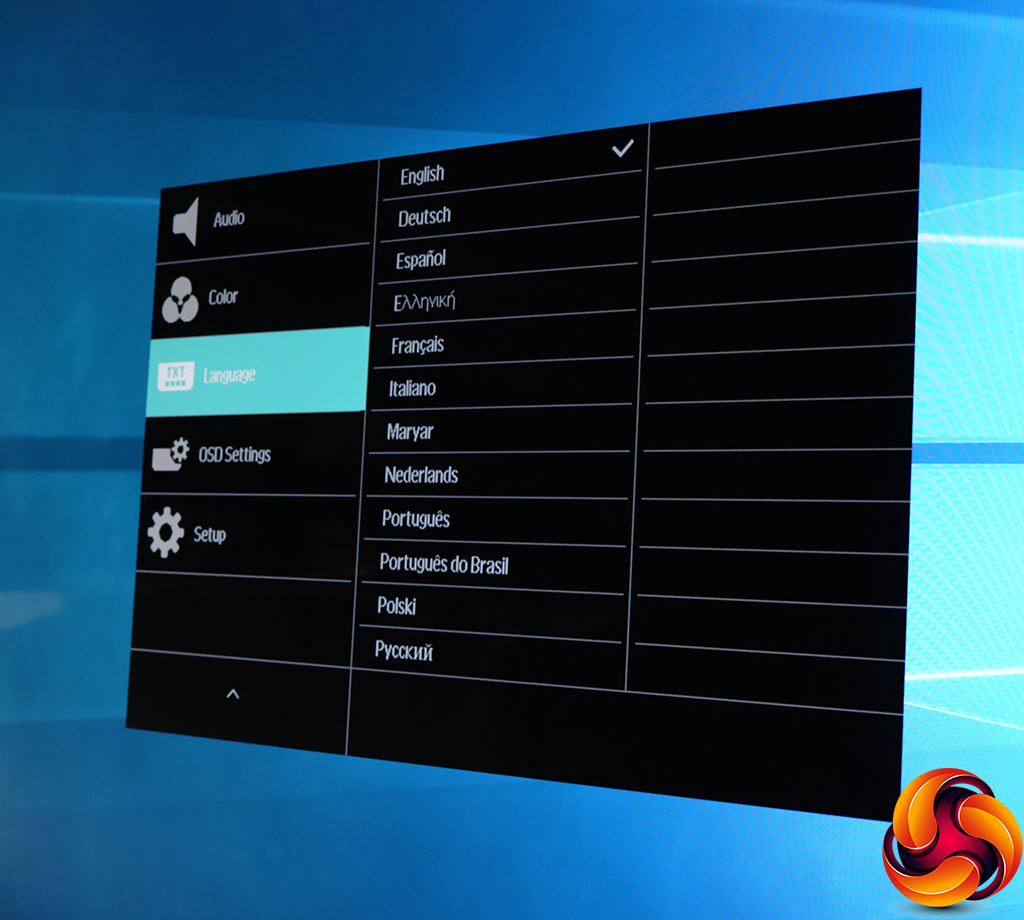
There are lots of different language options for the OSD text.
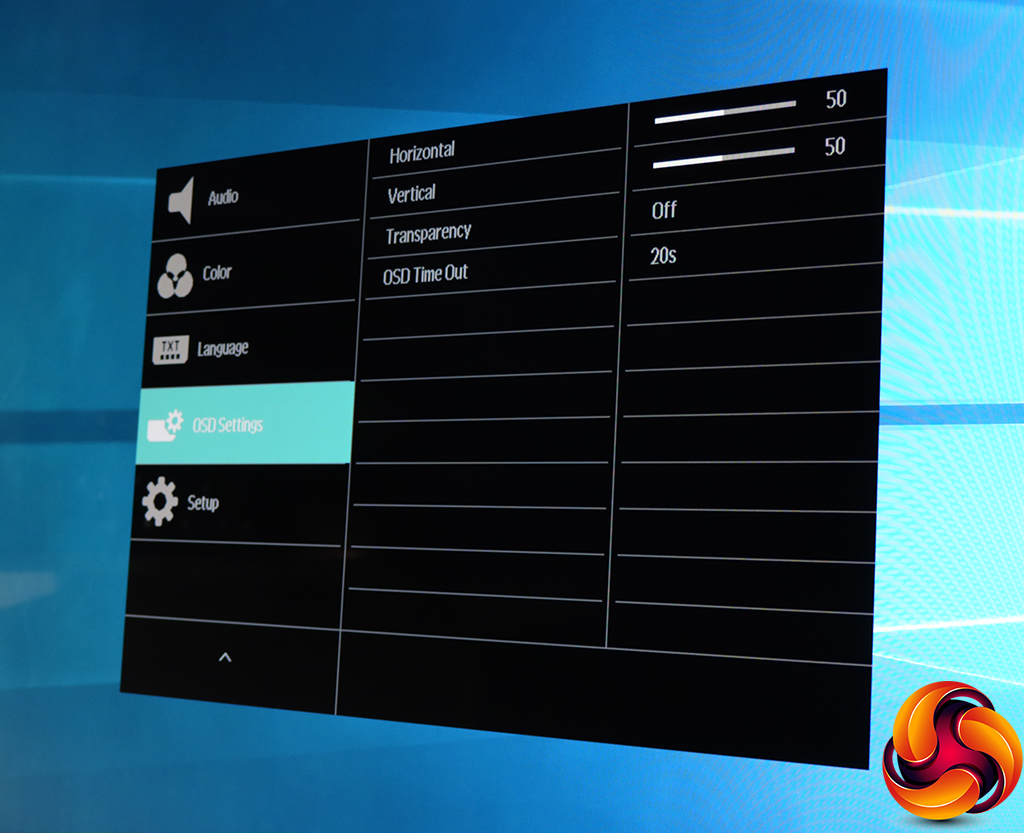
By default, the main menu and quick menus appear in the middle of the screen, and are completely opaque. But you can move these anywhere you like and make them transparent, as well as vary how long the menus stay onscreen before disappearing.
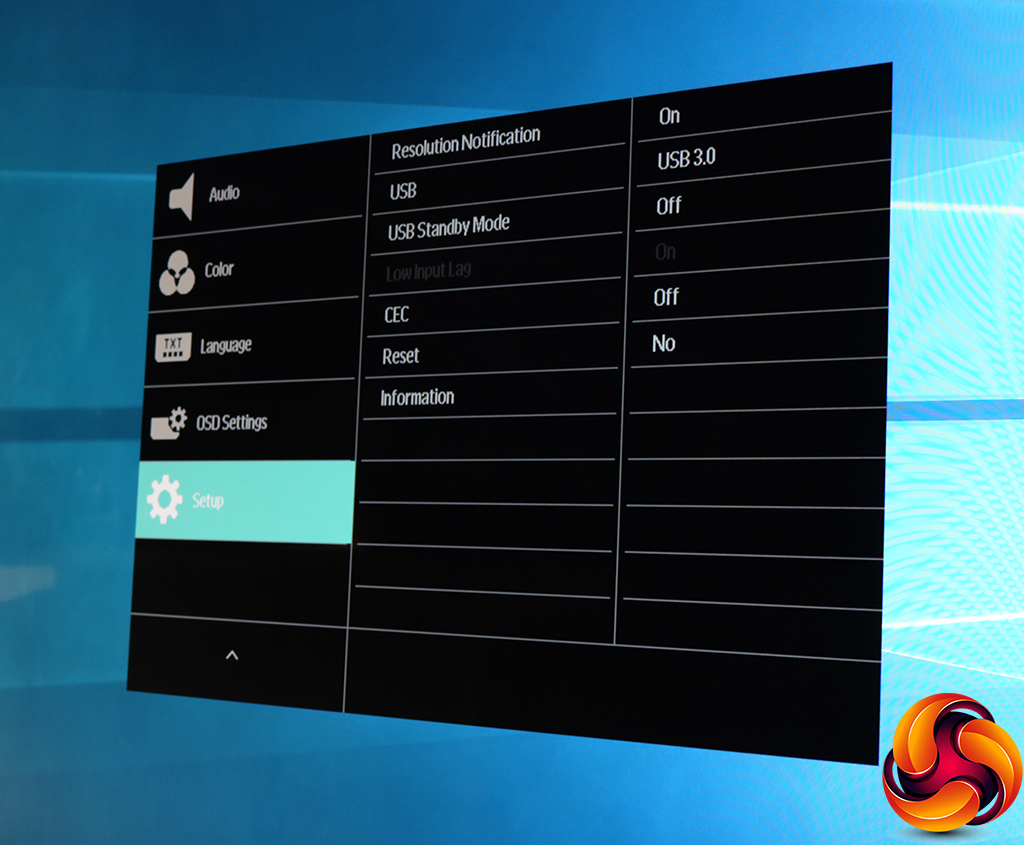
All the remaining sundry abilities like resetting to defaults are in the Setup section. You can also choose whether the USB hub ports are USB 2.0 or USB 3.0. The former is the default just in case your upstream connection is USB 2.0, presumably.
Overall, this is a reasonably feature-rich OSD. There aren't any specific work or movie SmartImage preset options, which is a surprise considering how great this screen is likely to be for watching 4K films. There seems to be a focus on gaming in this respect, which isn't so essential when you're limited to 60Hz in 4K resolution.
But there's enough here for precise adjustment of picture quality to suit your needs, and the two Gamer presets don't actually have to be used for games – you could make these your own custom movie presets.
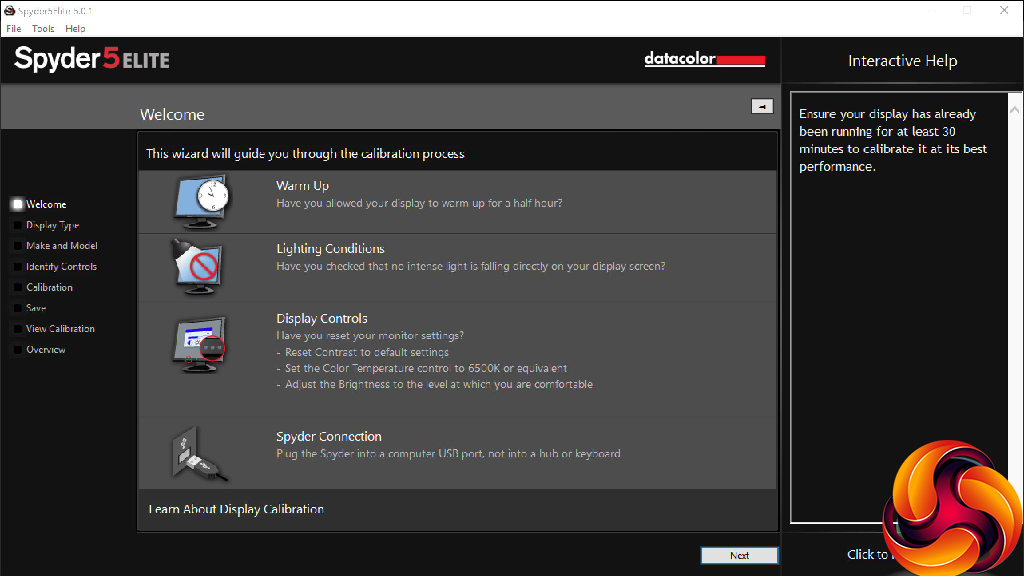
Our main test involves using a DataColor Spyder Elite 5 Colorimeter to assess a display’s image quality. The device sits on top of the screen while the software generates colour tones and patterns, which it compares against predetermined values to work out how accurate the screen is.
The results show –
- A monitor’s maximum brightness in candelas or cd/m2 at various levels set in the OSD.
- A monitor’s contrast ratio at various brightness levels in the OSD.
- The brightness deviation across the panel.
- The black and white points.
- The colour accuracy, expressed as a Delta E ratio, with a result under 3 being fine for normal use, and under 2 being great for colour-accurate design work.
- The exact gamma levels, with a comparison against preset settings in the OSD.
We first run this test with the display in its default, out-of-the-box state, with all settings on default. We then calibrate the screen using the Spyder software and run the test again.
We always test the display subjectively on the Windows desktop, using it for general tasks such as browsing and word processing, and with games as well, even if the display is not intended solely for that purpose.
We pay careful attention to any artefacts, ghosting or motion blur, and enable any gaming-specific features, such as adaptive-sync settings like G-Sync or FreeSync, using a compatible graphics card in our test PC.
We performed the quality tests on the 436M6VBPAB at its native 3,840 x 2,160 resolution in the default mode using the DisplayPort connection. Our test system was equipped with an AMD Radeon Vega Frontier Edition graphics card.
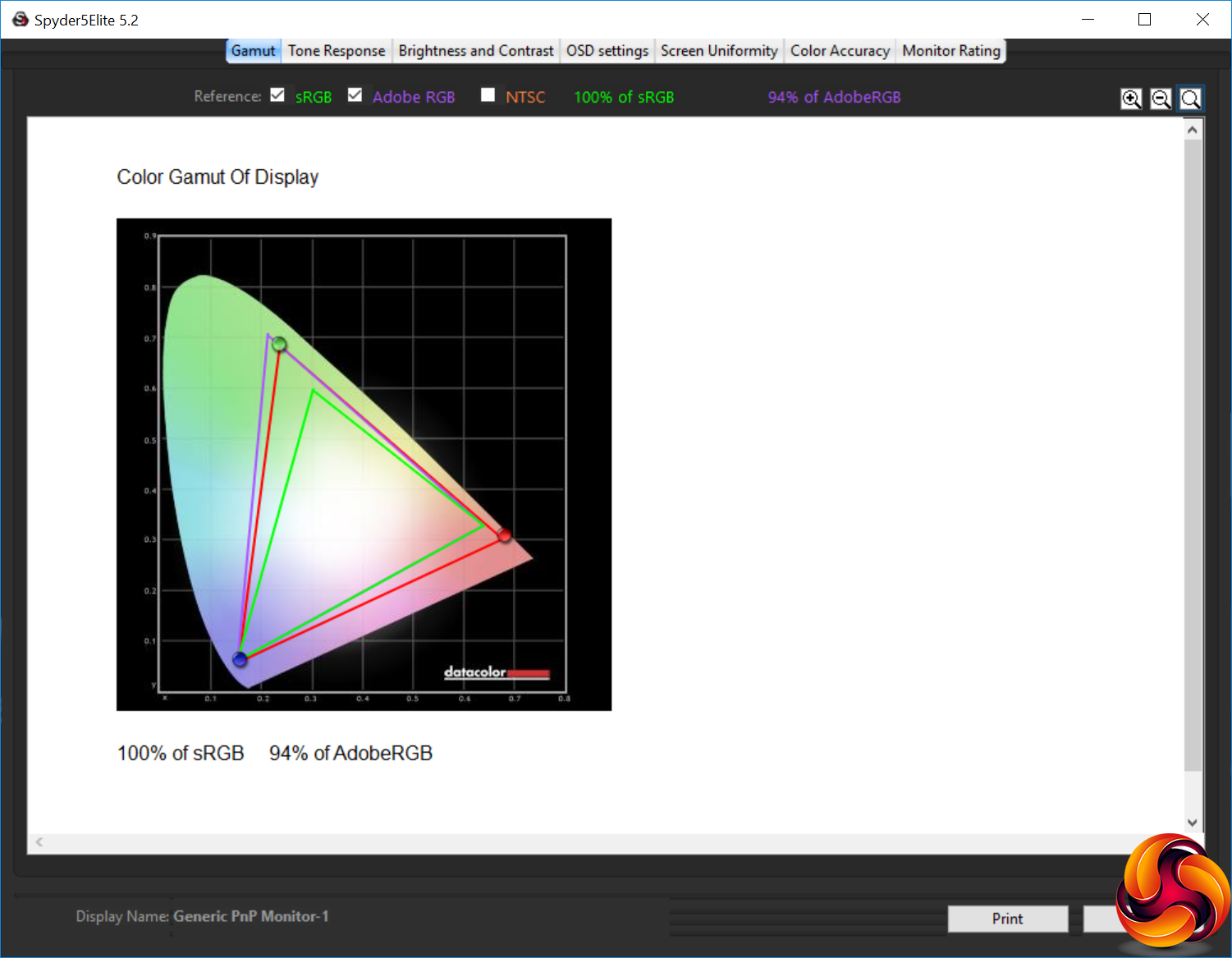
Philips makes bold claims about the 436M6VBPAB's gamut, and in this respect the screen is close to professional-grade. You get 100 per cent sRGB, naturally, but also a very impressive 94 per cent AdobeRGB, showing just what a good range of colour this screen can display.
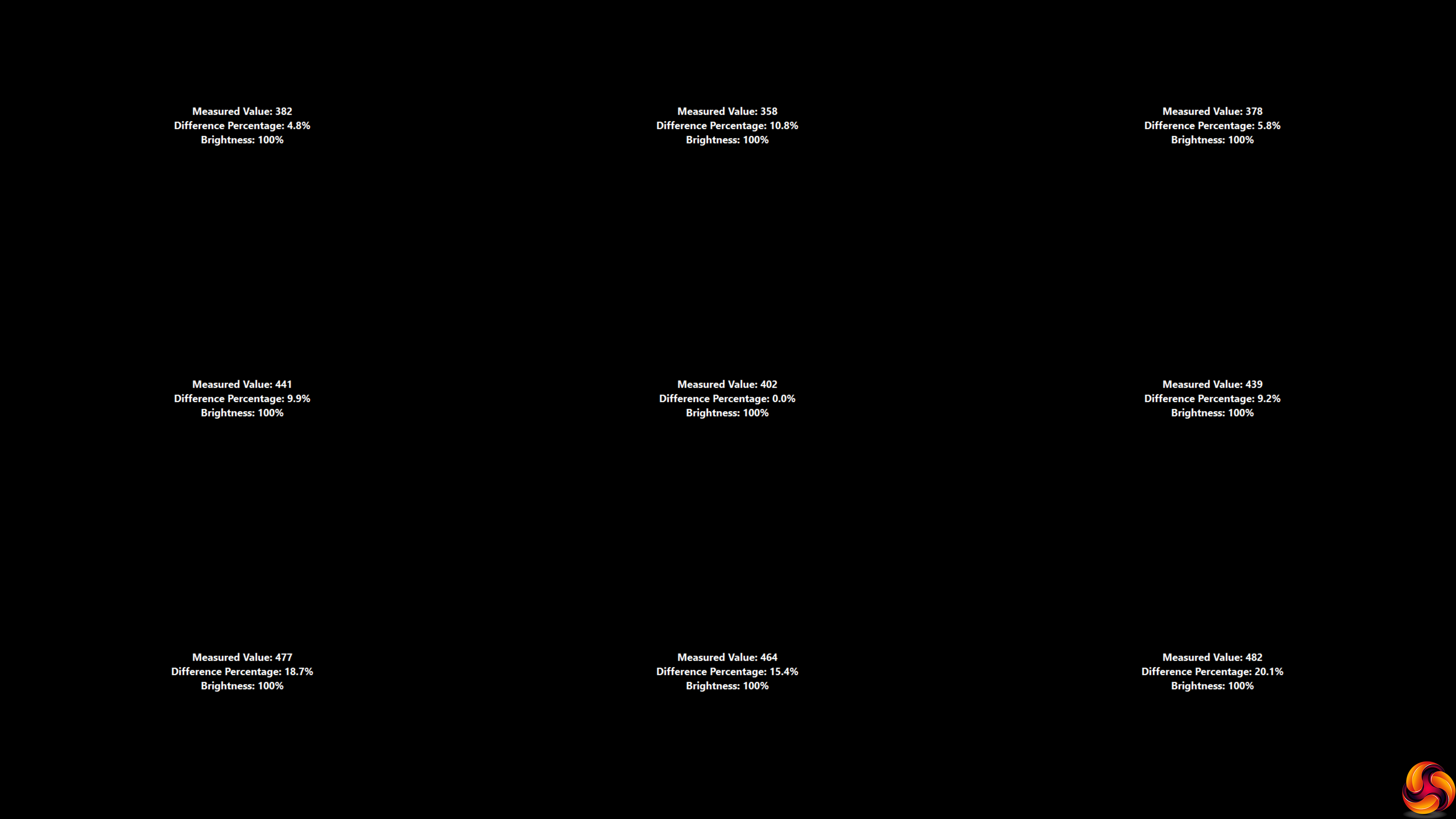
Brightness uniformity, however, is not so earth shattering, with quite a large variation along the bottom of the screen.
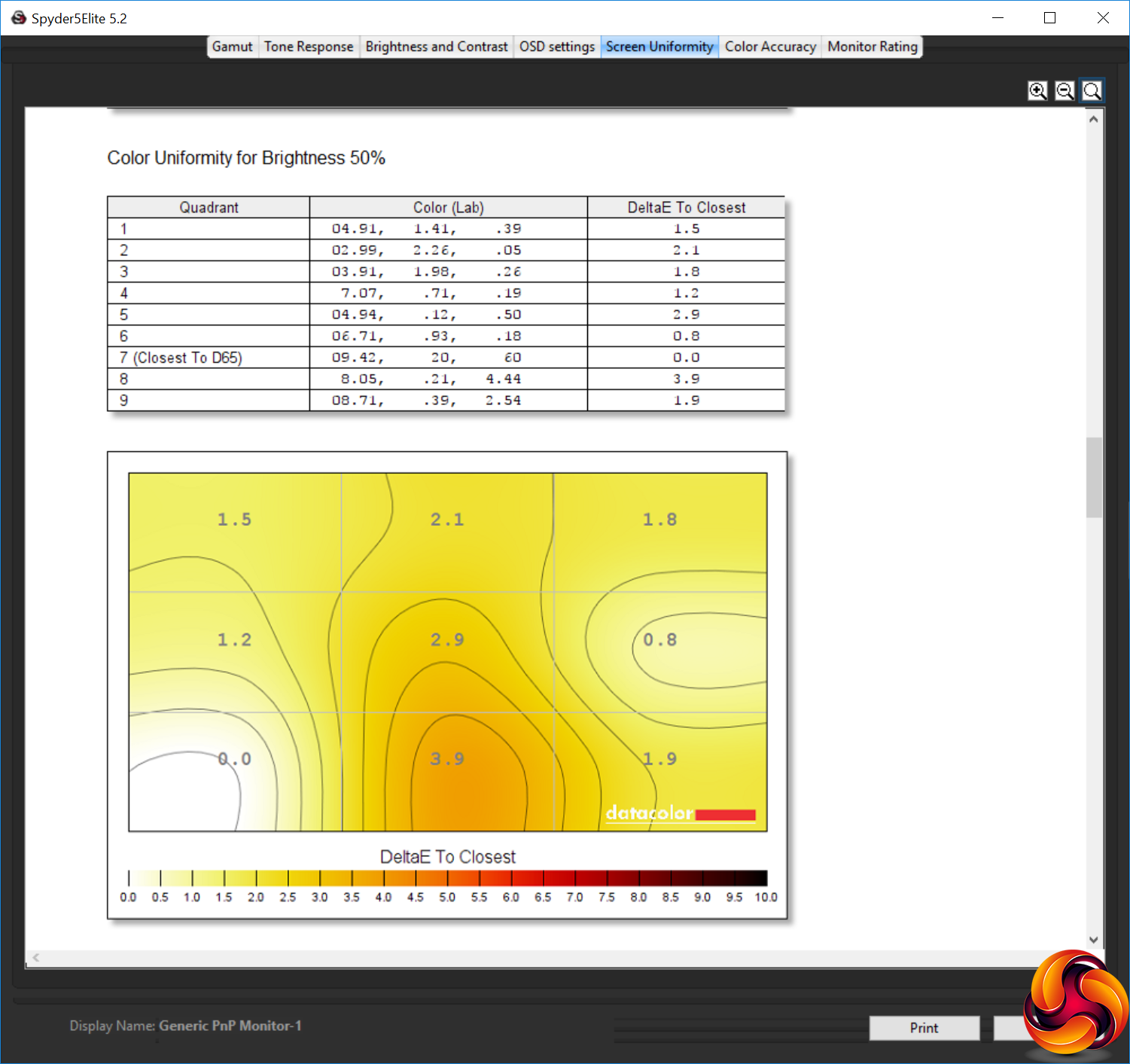
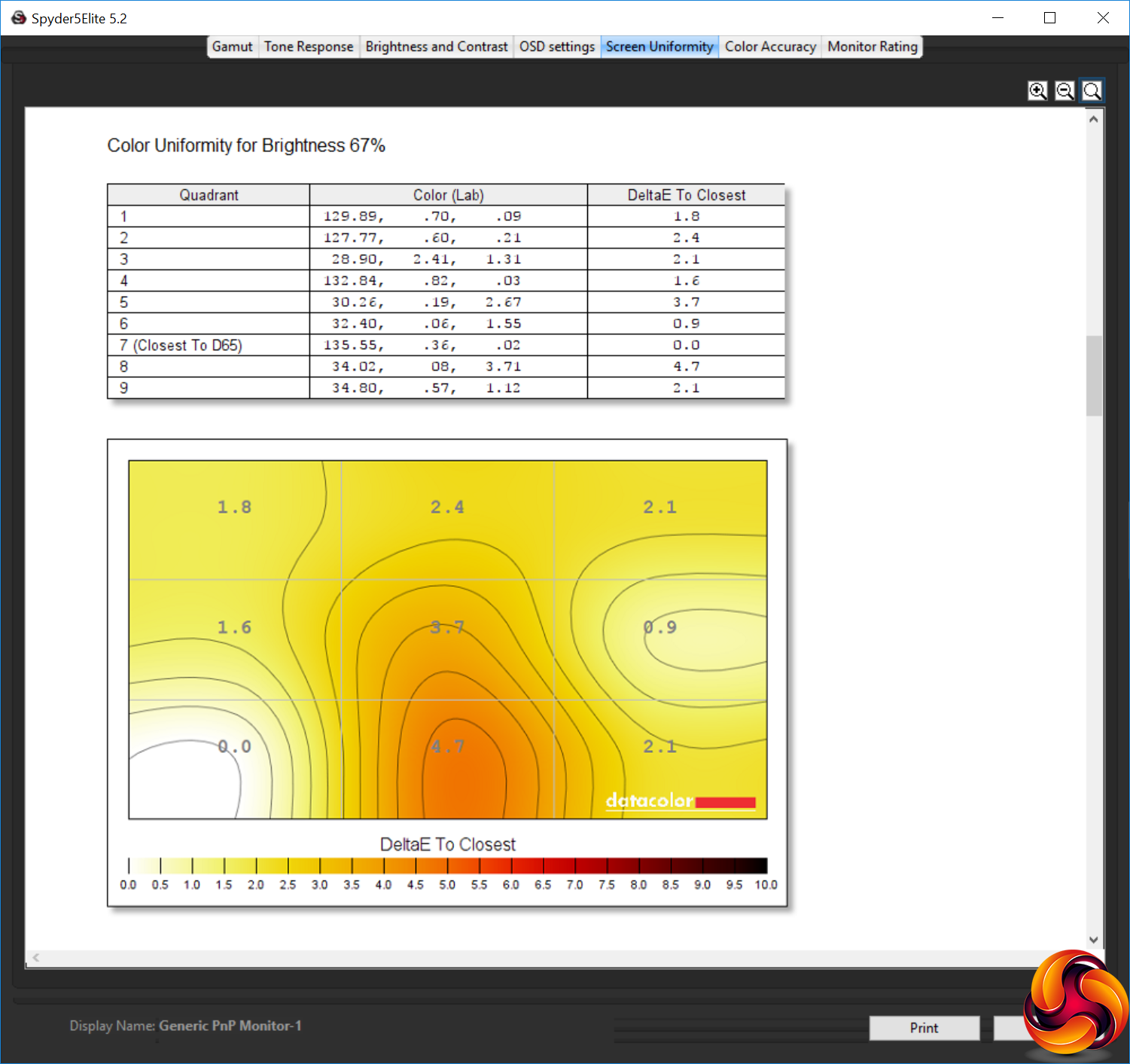
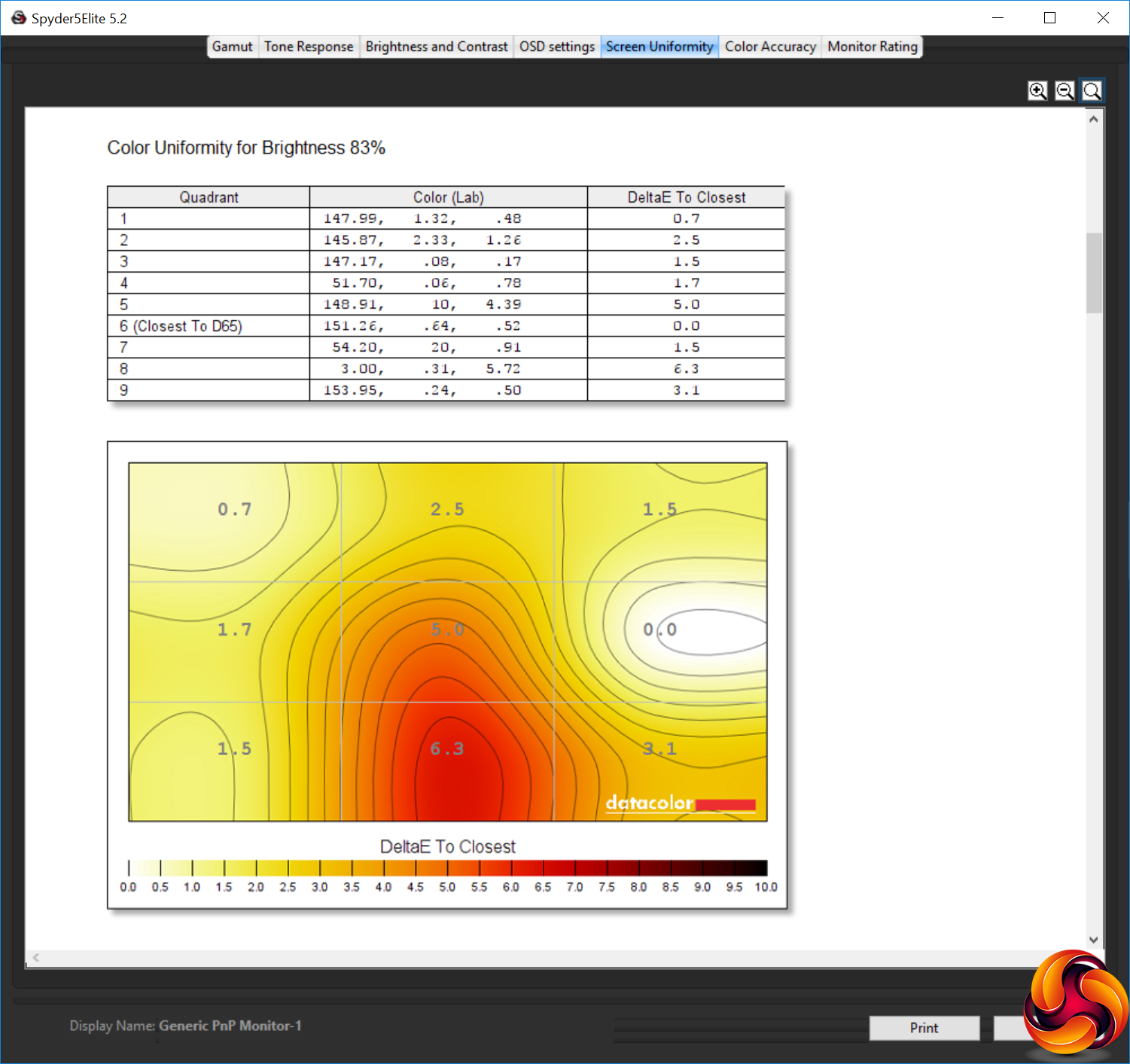
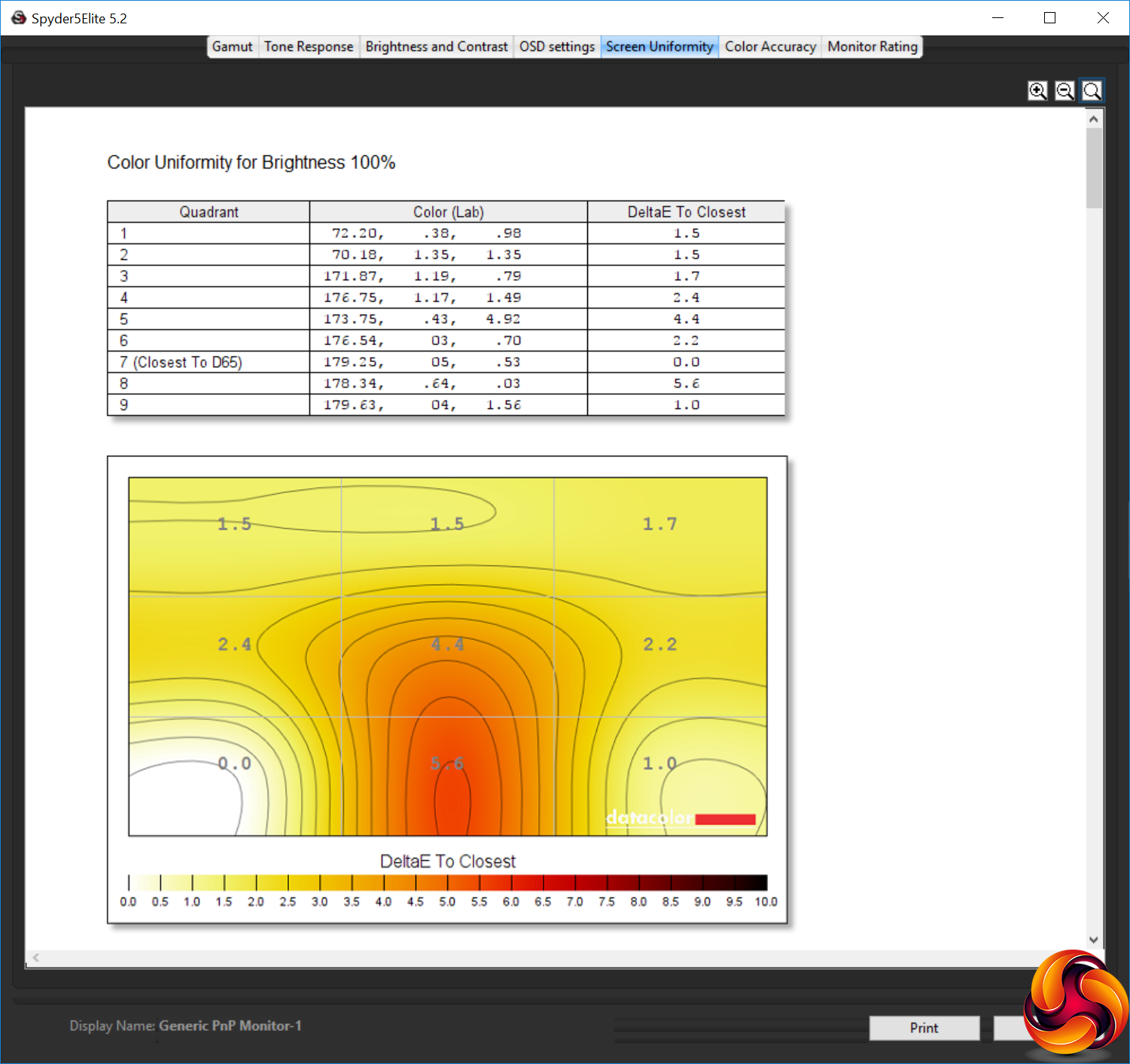
Colour uniformity is better, particularly as the brightness is reduced. This is a very bright monitor, and the chances are you will run it most of the time at a lower setting, unless you're watching 4K movies from the couch.
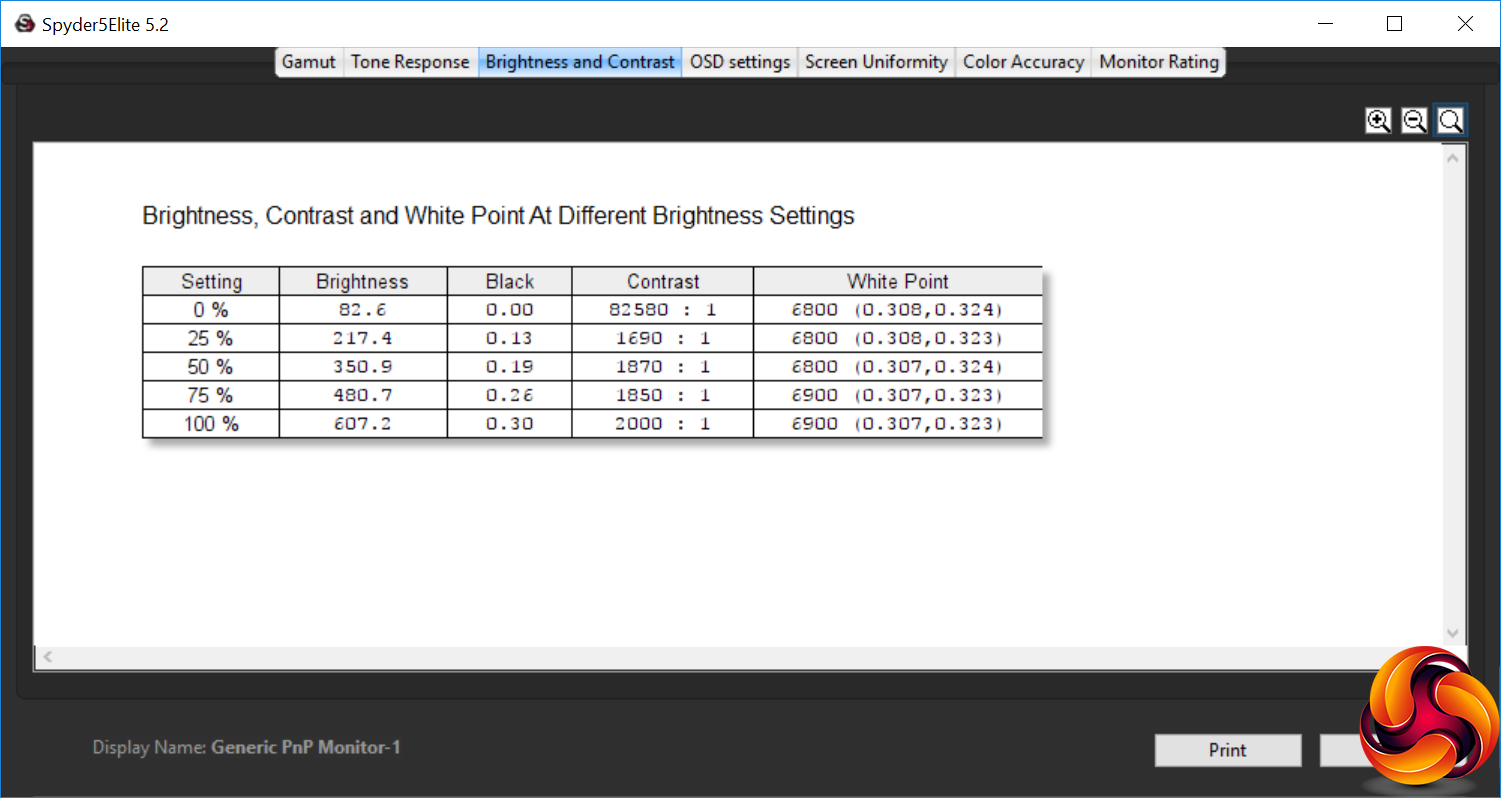
The screen doesn't hit the much-vaunted 1,000cd/m2 brightness even at the 100 per cent setting, but we suspect that this is only available in one of the HDR modes. Nevertheless, 607.2cd/m2 is the highest brightness result we've seen during testing. Given that 0 per cent isn't completely dark, providing 82.6cd/m2 of illumination, the brightness levels increase uniformly. The contrast is consistently high, hitting a healthy 2,000:1 at 100 percent brightness. It should be noted that the Spyder tends to under-report contrast quite significantly, and this is one of the highest contrast values we've seen as well.
The white point is consistently 6800K up to 50 per cent brightness, and 6900K from 75 per cent brightness and above. This is a little cooler than the default 6500K white point it's supposed to be, but not too far off.
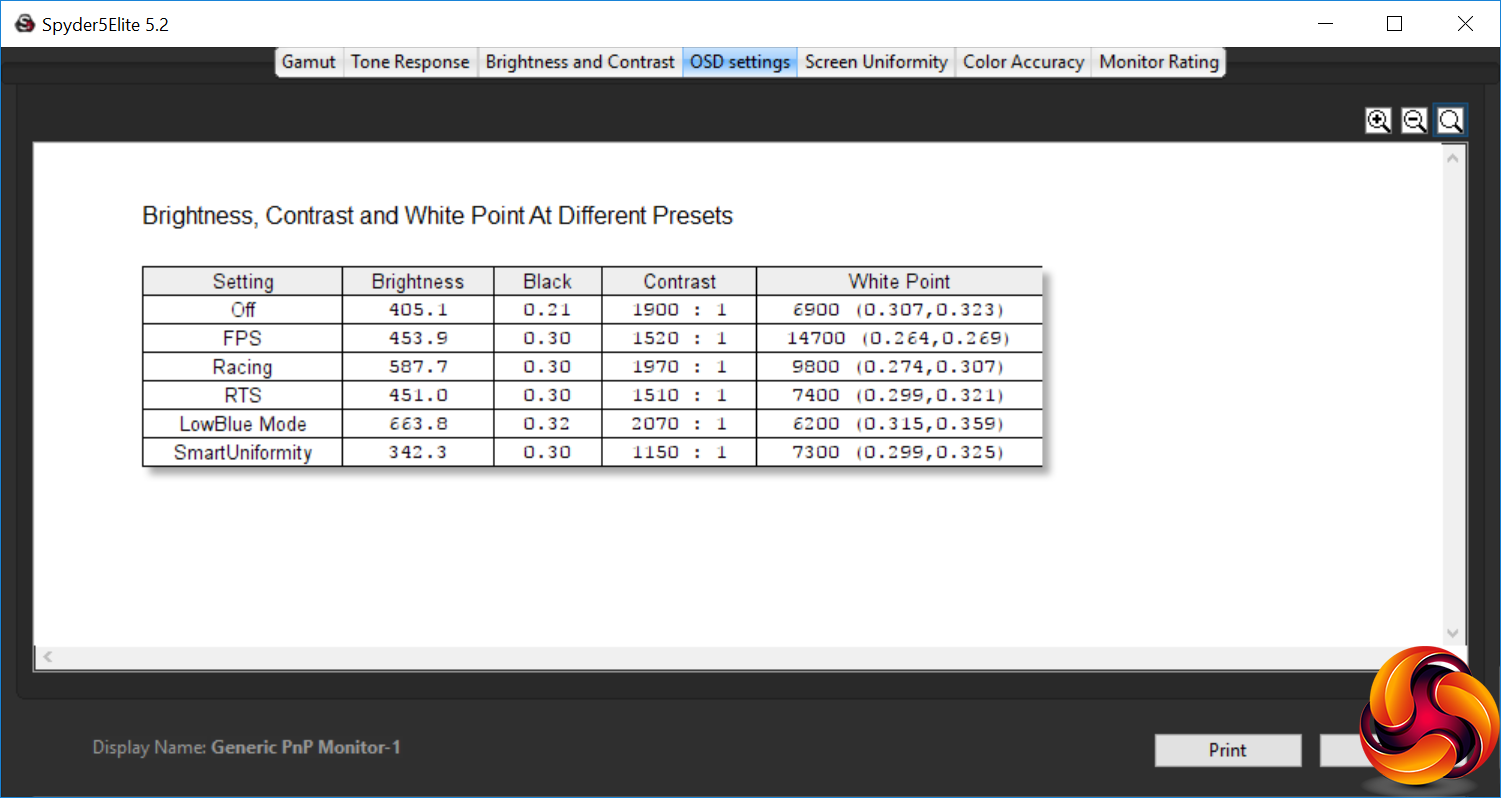
There is quite a variation between the different SmartImage presets. The default mode uses 60 per cent brightness, equating to 405.1cd/m2, a high 1,900:1 contrast and 6900K white point. The FPS mode is a little brighter at 453.9cd/m2, but uses a lower 1,520:1 contrast and a very cool 14700K white point. The Racing mode also uses a cool colour temperature, albeit a more normal 9800K, with high 587.7cd/m2 brightness and high 1,970:1 contrast. The RTS mode uses similar brightness and contrast settings to FPS, but a much warmer 7400K white point.
The LowBlue mode is the brightest preset at 663.8cd/m2 and highest contrast at 2,070:1, but also the warmest with a 6200K white point. SmartUniformity drops the brightness and contrast right down to 342.3cd/m2 and 1,150:1 respectively, but uses a relatively midrange 7300K white point. These are all more like other monitors, which would make sense considering that this is meant to be a setting providing accurate brightness levels.
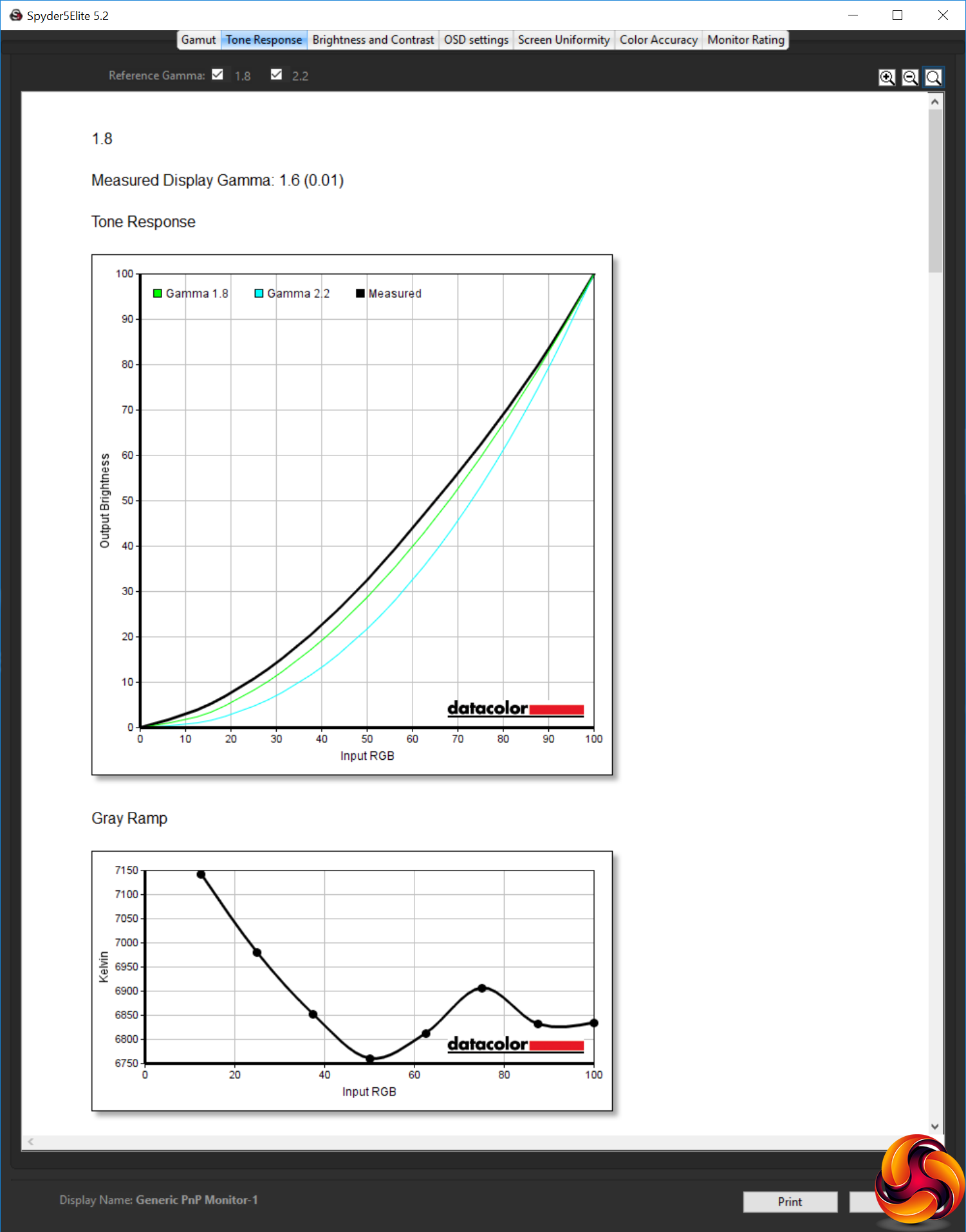
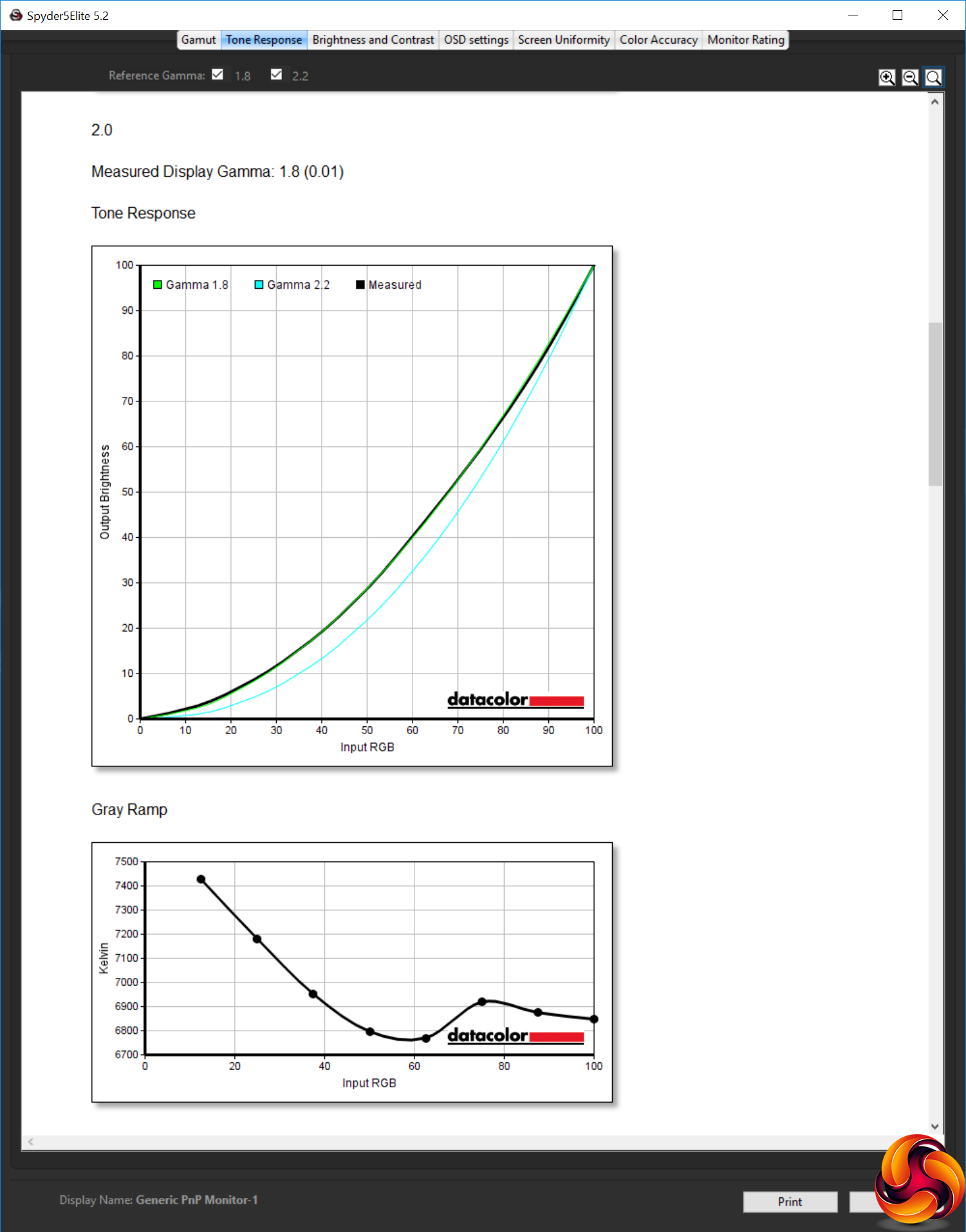
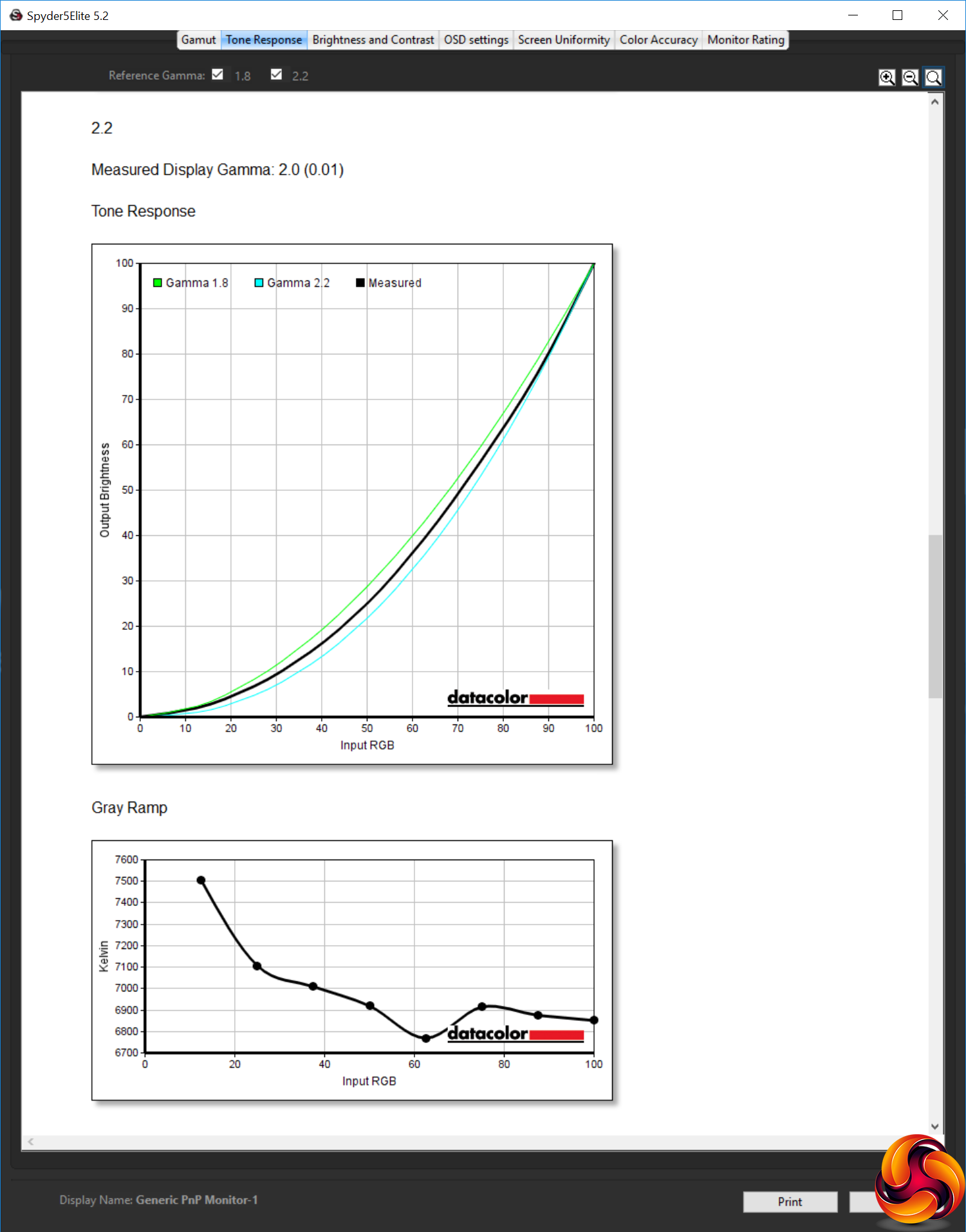
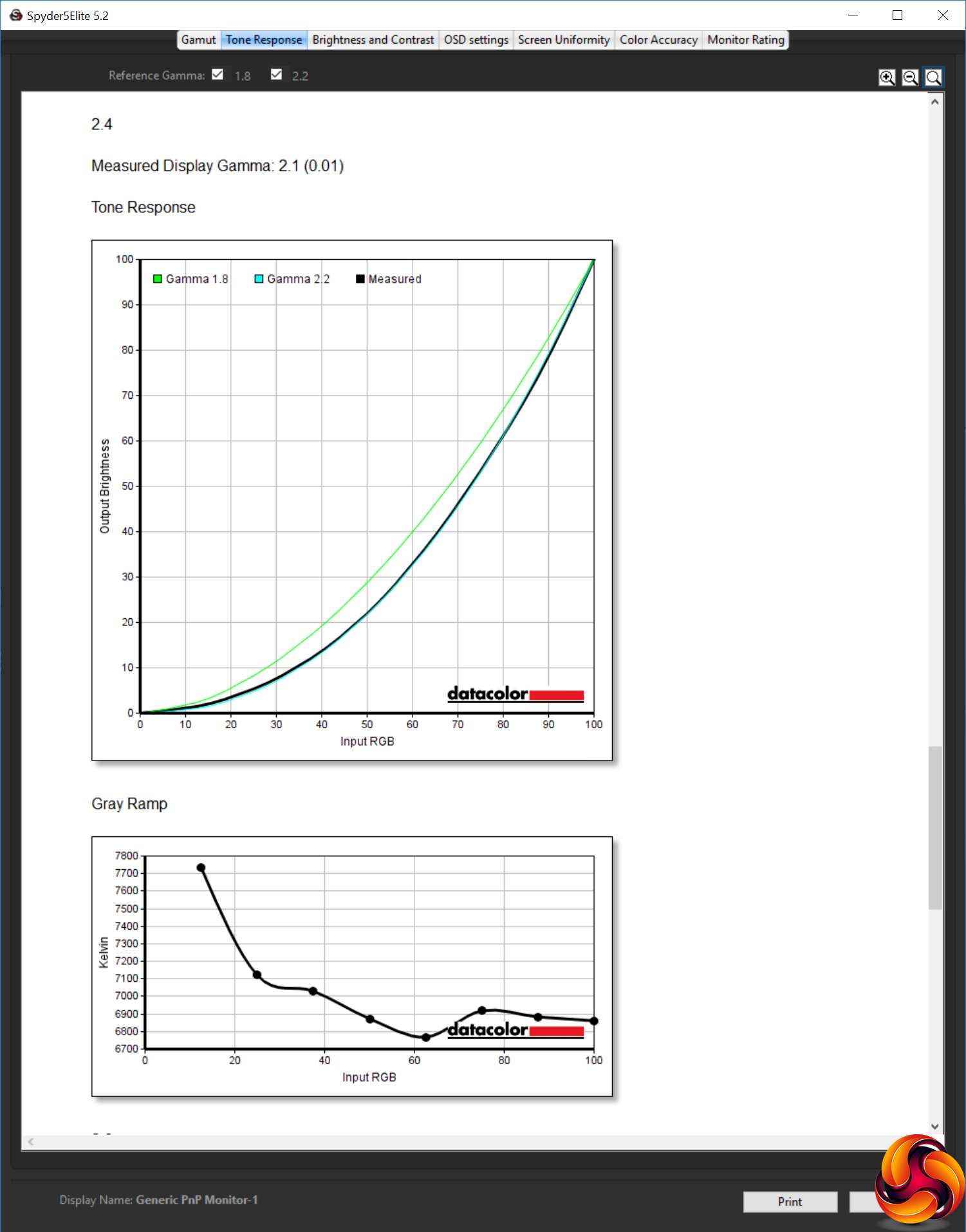
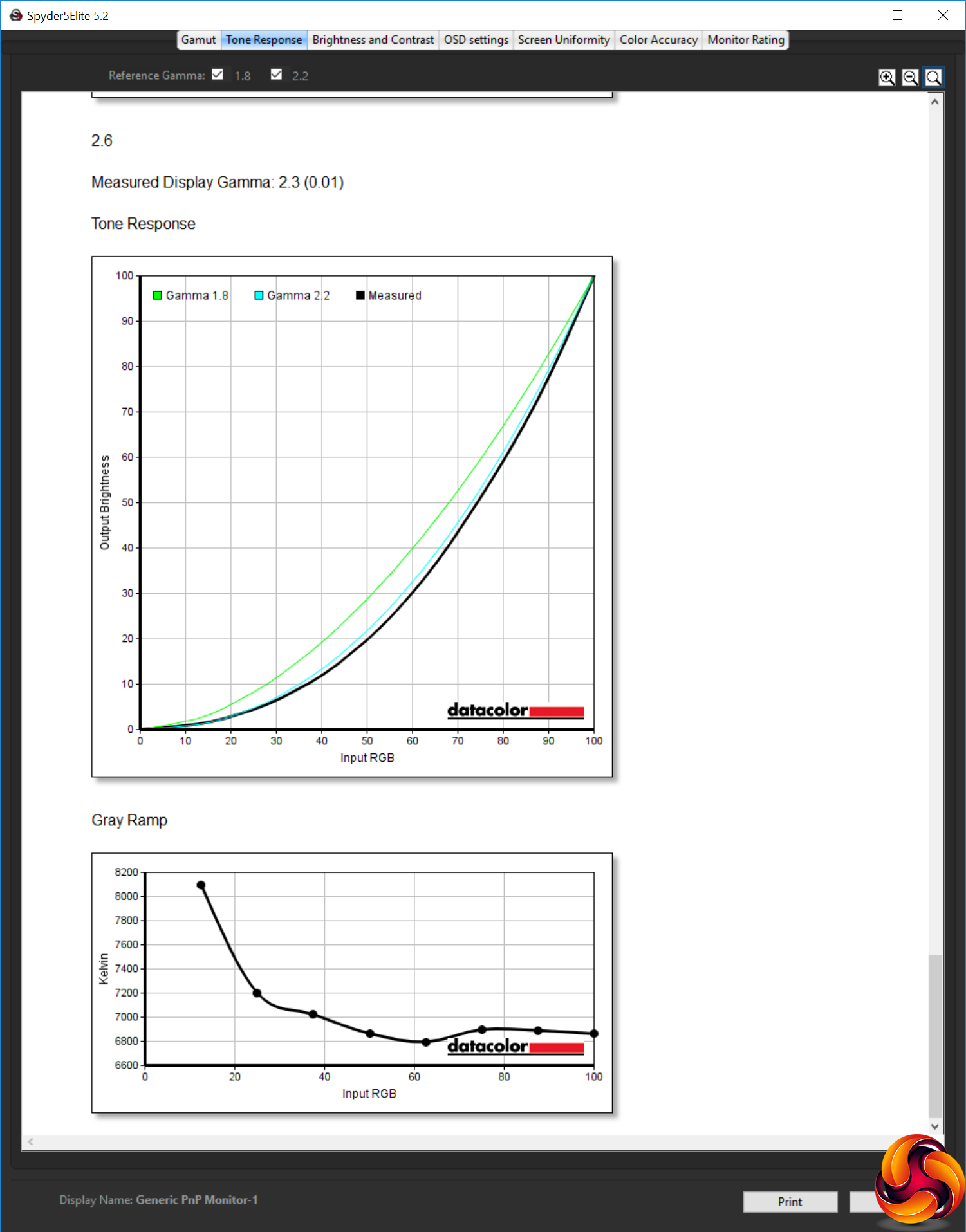
All the gamma settings are well below their nominal values, and not consistently so either. The 1.8, 2.0 and 2.2 settings are all 0.2 lower, whilst 2.4 and 2.6 are 0.3 lower. This isn't the end of the world, and it's good that you have a range of options on offer. But at least if they were all, say, 0.2 lower across the board, you'd just know to bear that in mind and use a mode one above the nominal value you were hoping for.
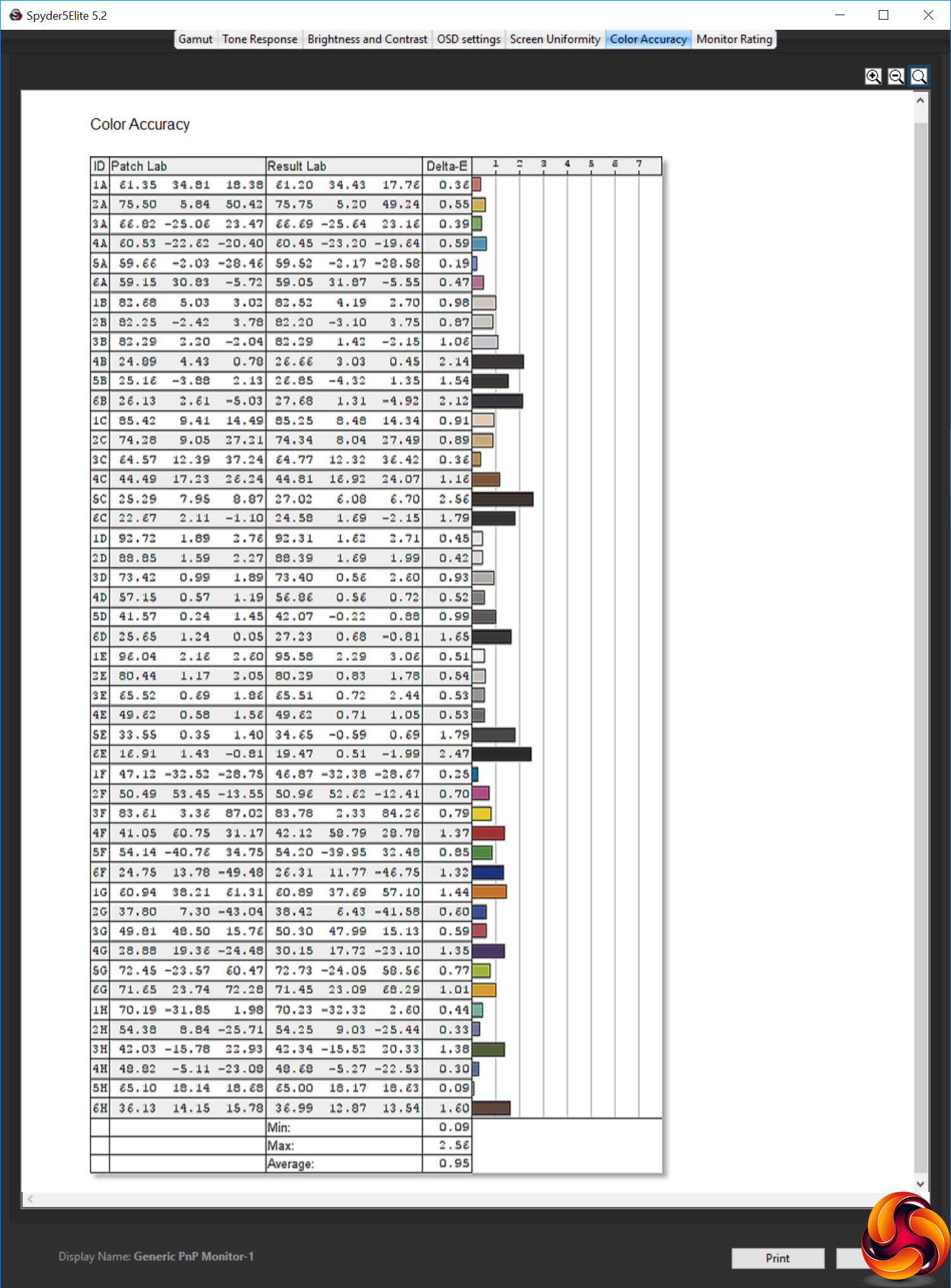
Out of the box, the 436M6VBPAB provides phenomenally accurate colour, with an average deviation of just 0.95 and no single colour more than 2.56 out. This is great news for movie buffs and professionals alike.
But of course we always think we can do better, so as usual we tried calibrating the screen with the Spyder.
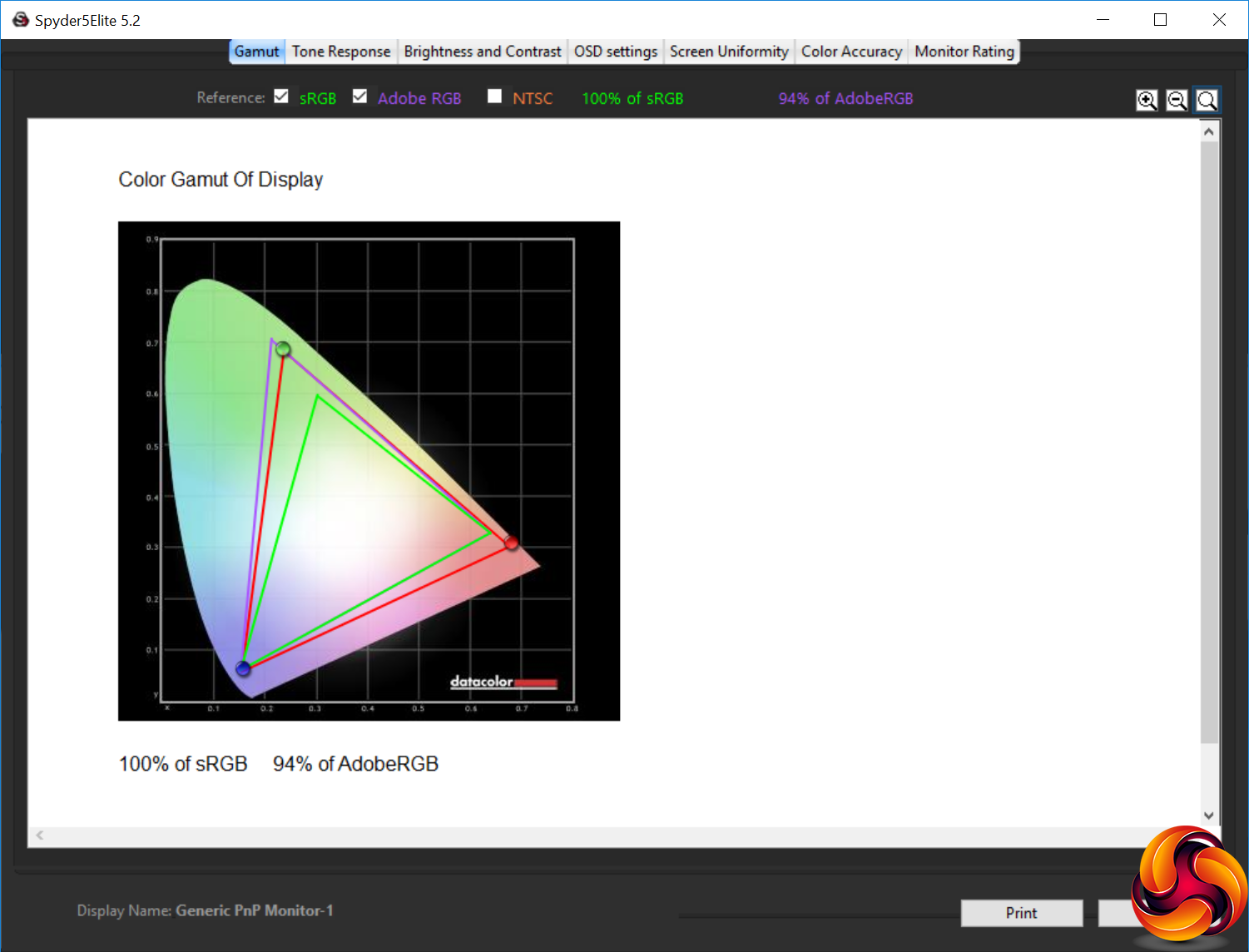
We've only ever seen the gamut change once after calibration, so it's no surprise that this screen is just as good as before, with 100 per cent of sRGB and 94 per cent of AdobeRGB.
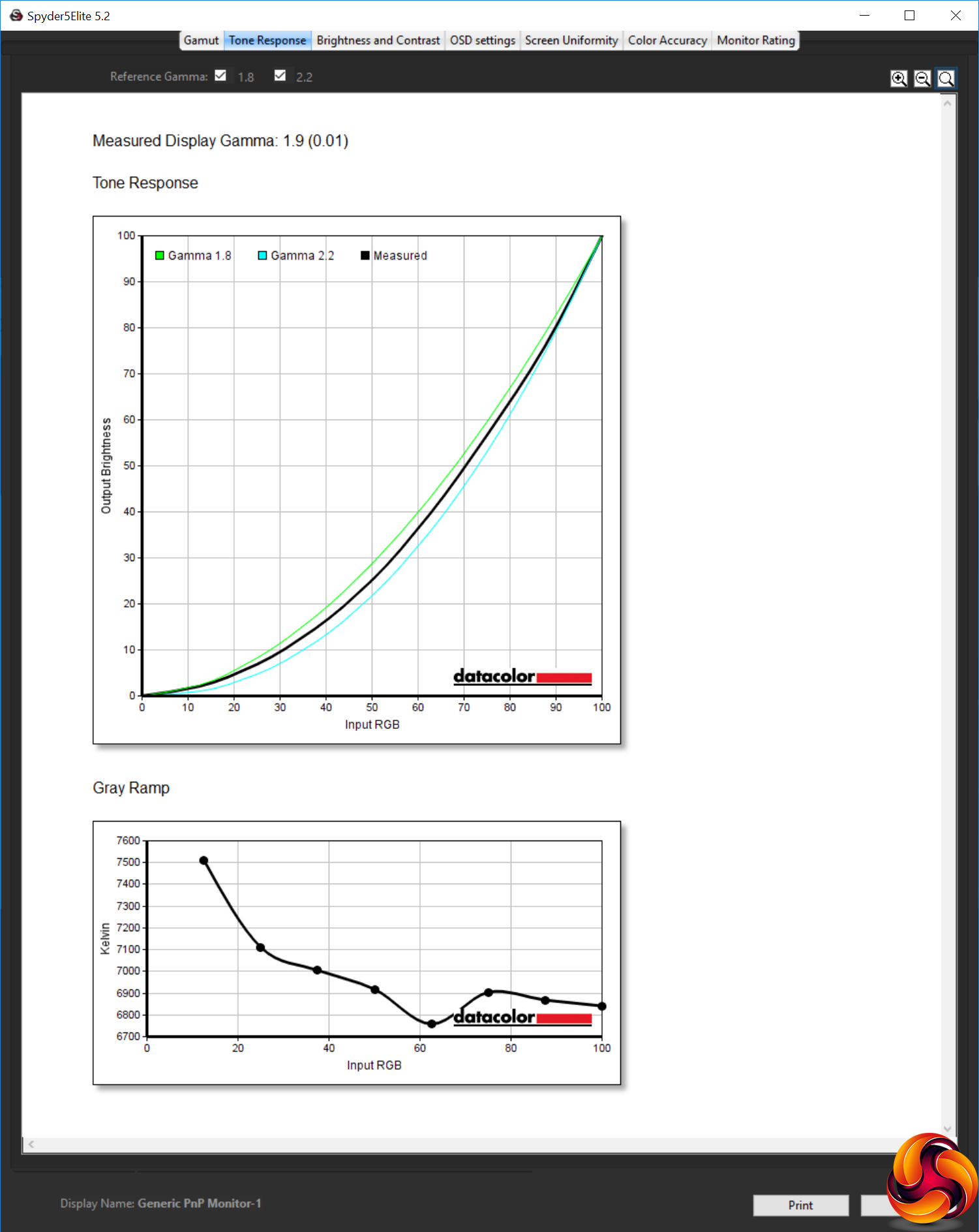
We only retested the 2.2 gamma setting, which was now showing up as an even lower 1.9. It's worth noting that calibration involved turning the brightness down to 8 per cent, which still equates to 120cd/m2.
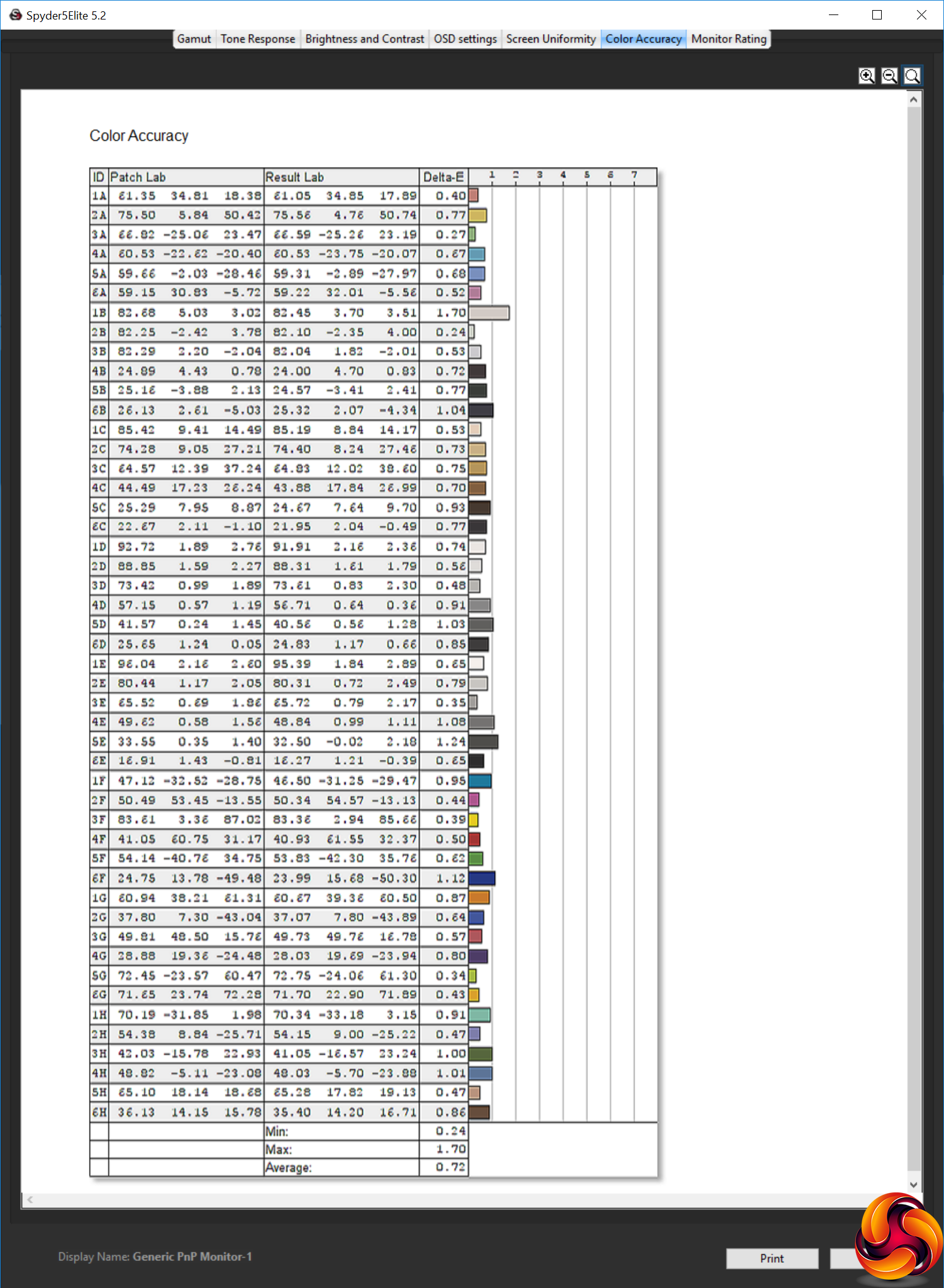
Colour accuracy is an even better 0.72 average variation. If you're doing professional design work, this could be a great screen for ensuring things look exactly as they should.
Overall, apart from the slight aberration of mediocre brightness uniformity, this screen exhibits impressive performance. It's very colour accurate with an excellent gamut, whilst the huge range of brightness and contrast levels provides great flexibility.
We also tried some subjective activities with this screen including gaming, movies and design work. The 436M6VBPAB was brilliant for video editing, thanks to its huge size, 4K resolution and bright, accurate panel. It was merely mediocre for gaming. Turning SmartResponse to Fastest helped with ghosting a bit, but 4K is still not the best gaming resolution unless you have a multi-graphics setup or play older games. Even our AMD Radeon Vega Frontier Edition was only just coping with the number of pixels it had to deliver, although this screen does support FreeSync so will adapt its refresh to the frame rate being provided, preventing tearing. Watching 4K movies with the brightness up, though, was superb. Add in the DisplayHDR 1000 capability when supported by your movies and your experience will be excellent.
The Philips Momentum 436M6VBPAB isn't quite perfect, but it does tick a lot of boxes for certain types of user. Ardent gamers are probably going to want to aim for a 2,560 x 1,440 screen with 144Hz or (if you're minted), a 4K screen offering this frequency. But if your gaming is more occasional, and you primarily watch movies and do design work, this is a very tempting package.
The excellent colour accuracy and gamut are the standout aspects of the screen's measured performance, but the high brightness and contrast put it ahead of most other 43in 4K screens on the market. Add in the handy remote, USB 3.0 hub, variety of inputs including USB C, plus decent built-in speakers, and you get a comprehensive specification for high-quality general multimedia usage.
Although a price over £700 is not exactly cheap for a monitor, it's quite reasonable for a 4K one this size and with this feature set. You can get 43in 4K screens for as little as £200 less than this, but none of them have the 436M6VBPAB's immense brightness and DisplayHDR 1000 rating. So you're paying a premium for the HDR and general luminance capabilities, but not extortionately so, making this a recommended choice particularly if you're an avid 4K HDR movie buff.
The Philips Momentum 436VBPAB is available from Amazon for £726.51.
Pros:
- Huge 43in screen – perfect for its 4K resolution.
- Excellent gamut.
- Excellent colour accuracy, and even better when calibrated.
- Complies with DisplayHDR 1000 standard.
- Extremely high brightness possible.
- Lots of input options.
- Reasonably loud 7W built-in speakers.
- Remote control can operate all screen features conveniently.
- Decent range of OSD configuration options.
Cons:
- Brightness uniformity mediocre.
- 60Hz refresh and 4ms pixel response aren't ideal for gaming.
- Gamma presets somewhat variable.
KitGuru says: The Philips Momentum 436M6VBPAB provides great-looking 4K DisplayHDR 1000 video performance in a huge 43in package, for not as much money as you might expect.