KitGuru KitGuru.net – Tech News | Hardware News | Hardware Reviews | IOS | Mobile | Gaming | Graphics Cards


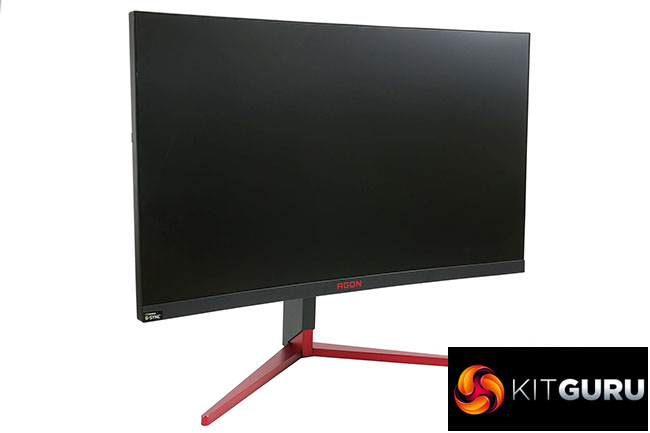
The AOC AGON AG273QCG offers the lightning quick response time and refresh rate of a proper gaming monitor but in a larger, higher resolution form than your typical 1080p gaming display.
This 27-inch monitor has a 1440p resolution but still offers a 144Hz refresh rate (overclockable to 165Hz) and a 1ms response time. This should make it more practical for tasks other than gaming as well as providing a larger, sharper image when gaming too.
The downside is a surprisingly high price of £650, which is very expensive for a monitor that uses TN LCD technology, even if it is slightly curved. Part of the reason for this high price is the inclusion of G-Sync which generally carries a £100 or so premium, plus you get a USB hub, headphone stands and RBG lighting.
Overall, it adds up to potentially being a good option, especially for those that find other LCD types that are more typically used at this display size and resolution to be too slow for proper competitive gaming. The key question will be if it can impressive sufficiently to truly justify that high price.
Specifications:
- Screen size: 27-inch, 16:9 aspect
- Native resolution: 2,560 x 1,440
- Refresh rate: 144Hz
- Panel type: TN
- Contrast ratio: 1,000:1
- Brightness: 400cd/m2
- Response time: 1ms grey-to-grey
- Display inputs: DisplayPort 1.2, HDMI 1.4
- USB hub: USB 3.0, four ports
- Audio: 2 x 2W speakers, headphone jack, microphone jack
- Tilt: Yes
- Raise: Yes
- Swivel: Yes
- Pivot: No
- VESA: Yes
- Extras: Pop out headphone stands on both sides
- Warranty: 3 years
Retail Price: £650 (inc. VAT)
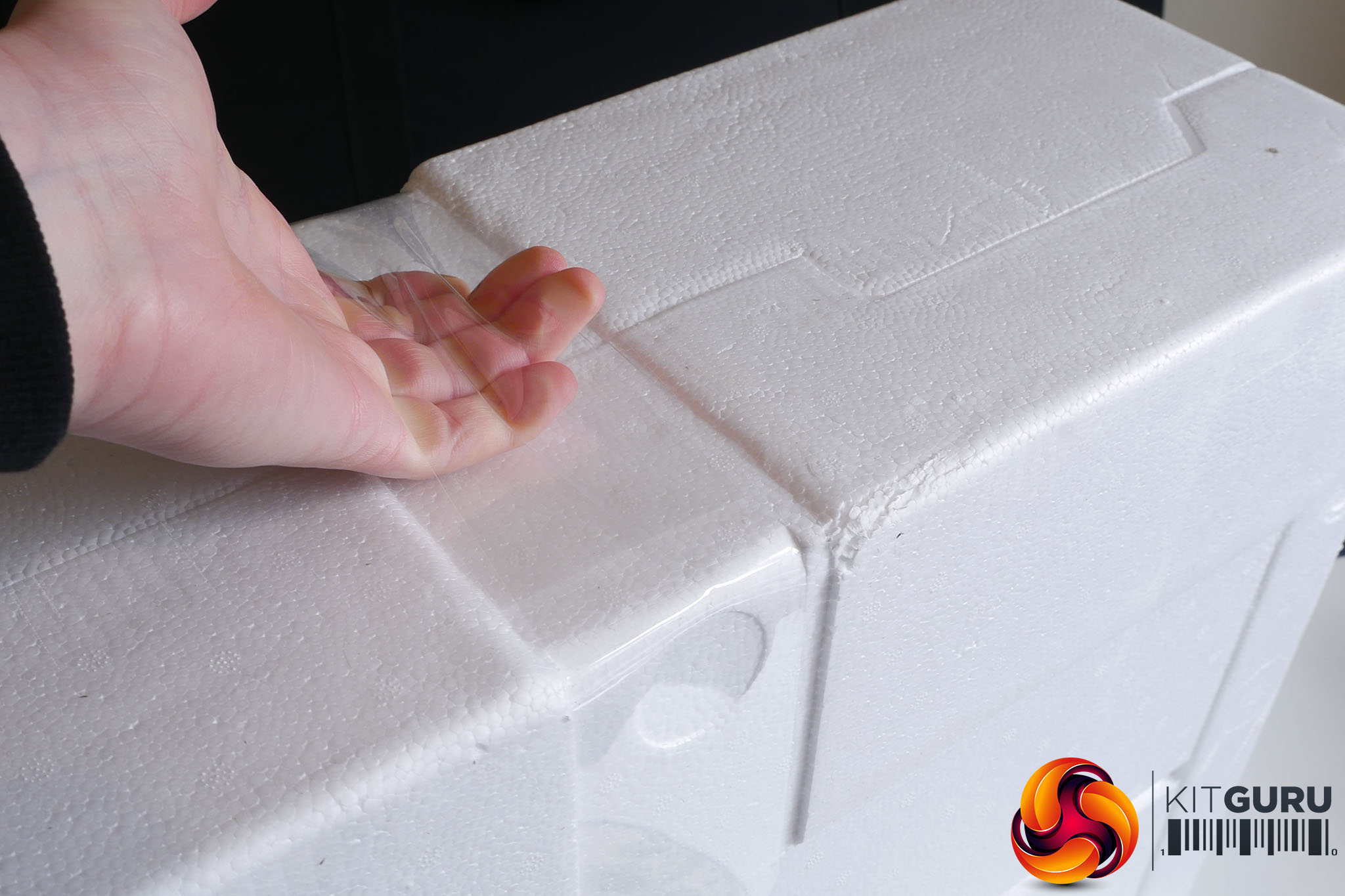
The AOC AG273QCG makes a good first impression for the most mundane of reasons. Open the box and the polystyrene packing is wrapped in a plastic strap that makes it easy to lift the whole lot out. There’s no need to tip the box up or risk breaking the packaging – and potentially the screen – pulling it out. The strap's reusable too.
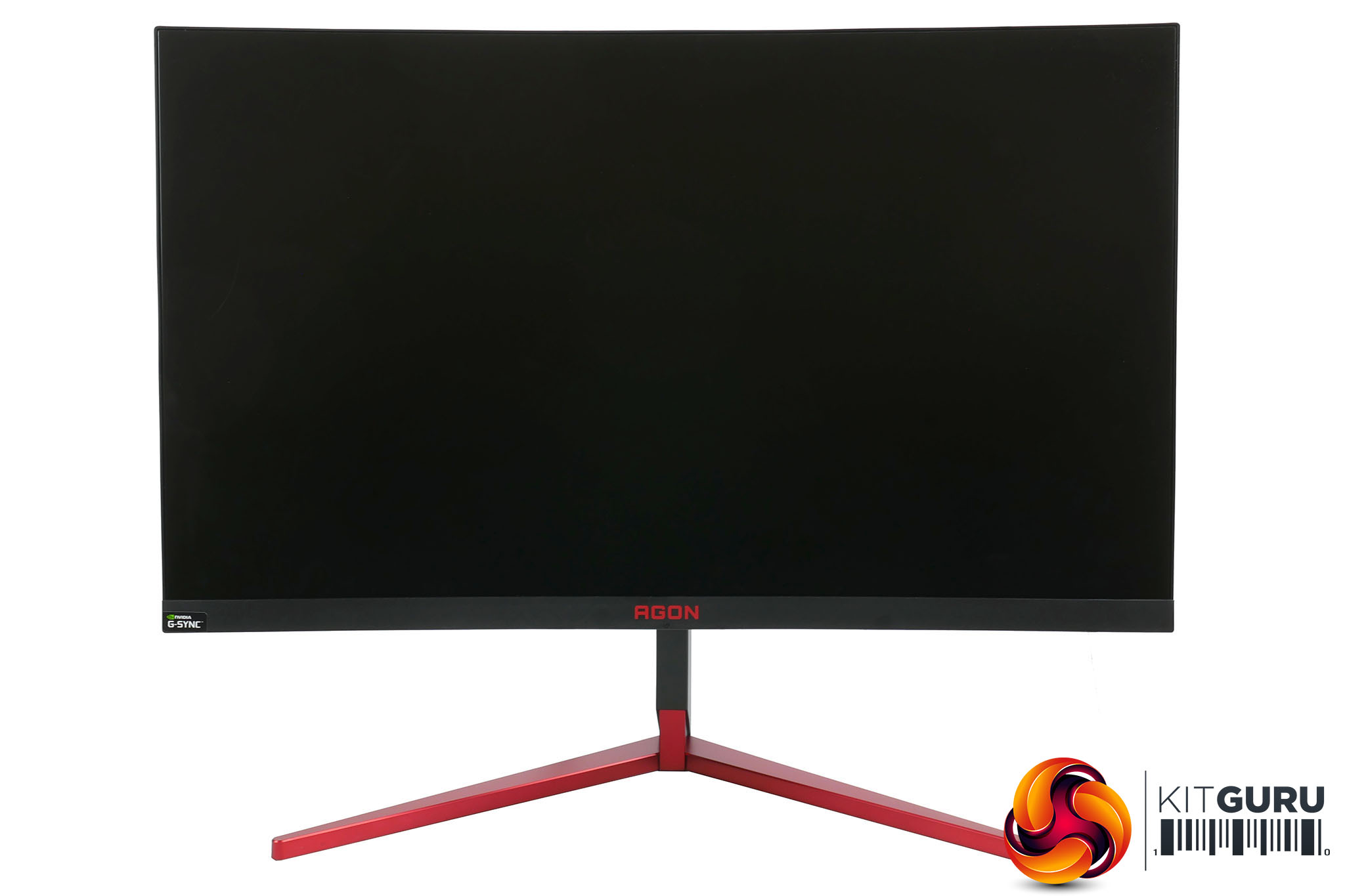
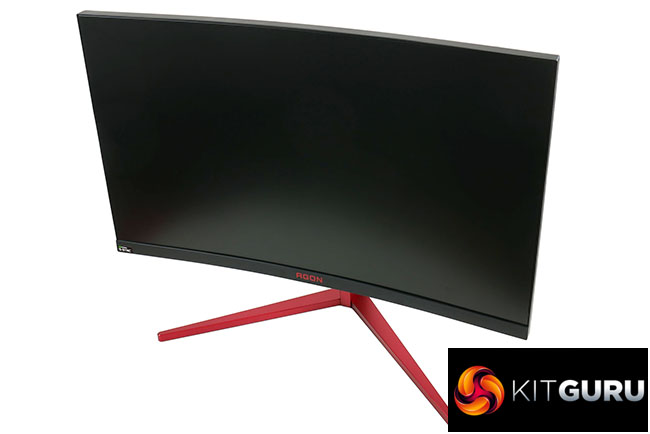
The positivity continues once the display is assembled – a simple case of screwing on the base to the stand and clipping the display on. The display looks very smart, with its gently curved screen, slim, low-profile bezels and slender stand. The red base and AGON logo on the lower bezel aren’t entirely to our taste but they’re not too outlandish.
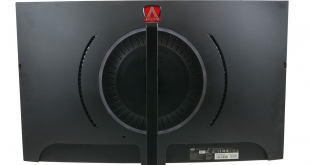
It’s a similar story round the back, with the majority of it sporting a muted matt black plastic finish. At least until you turn the lights on.
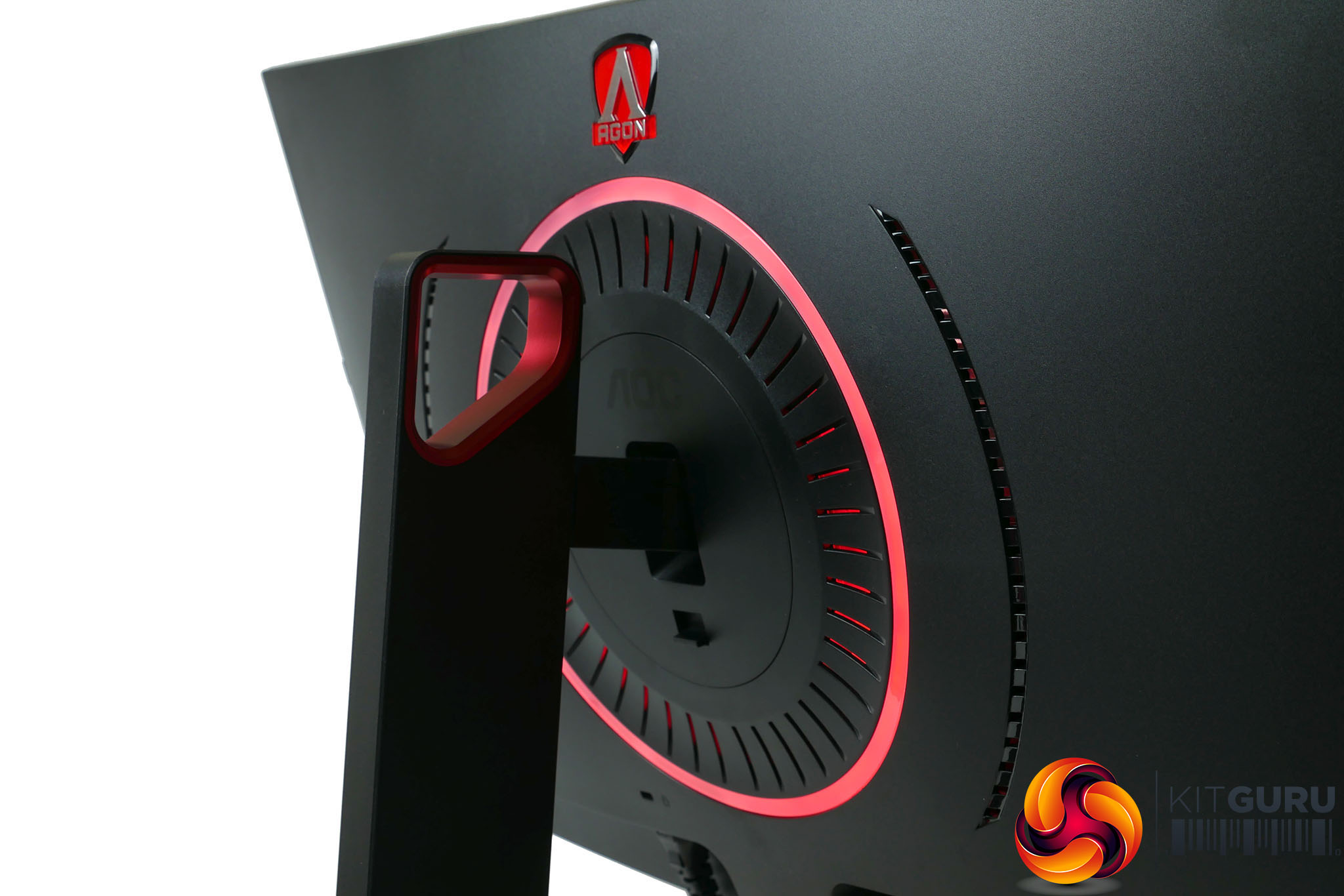
There’s a large ring of light on the back along with a couple more LEDs on the underside of the display. Like many such lights we’ve seen recently these can be set to various static colours (of different brightness) or patterns. However, unlike some we’ve seen, you can’t set the lights to match the colour of what’s on the screen. As we’ll cover in more detail in the OSD section, the menu system for choosing the effect is clunky too.
Elsewhere the display largely continues to impress. Its sturdy stand offers height, tilt and rotation adjustment and even has a carry handle at the top. It does lack the ability to pivot the display into a portrait mode, though, which makes plugging in cables a but more awkward. The screen attaches via a simple clip system so it's easy to remove if needs be. If you do remove if, underneath where the stand attaches is a standard 100x100mm VESA set of mounting holes for use with an alternative stand or monitor arm.
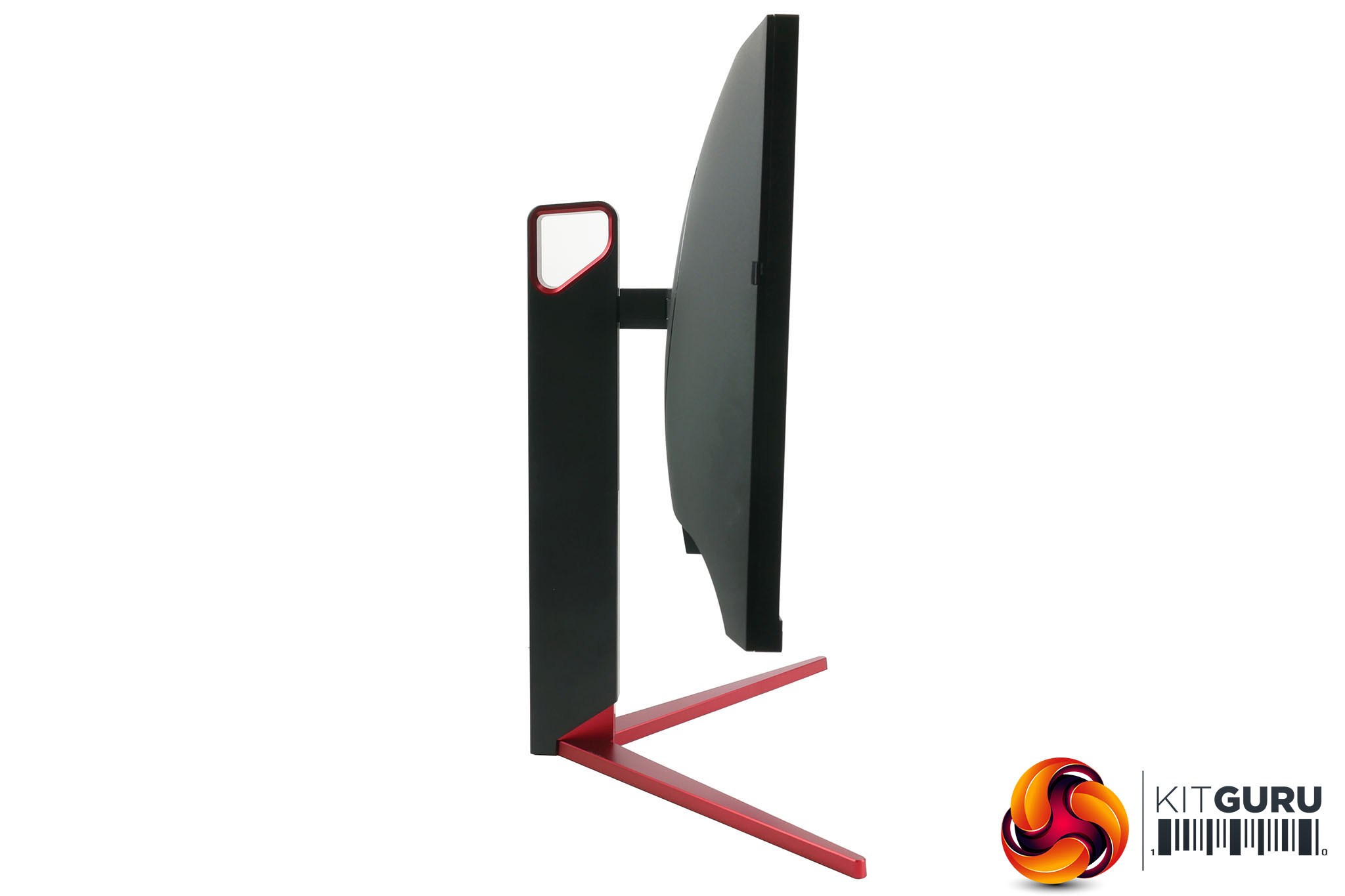
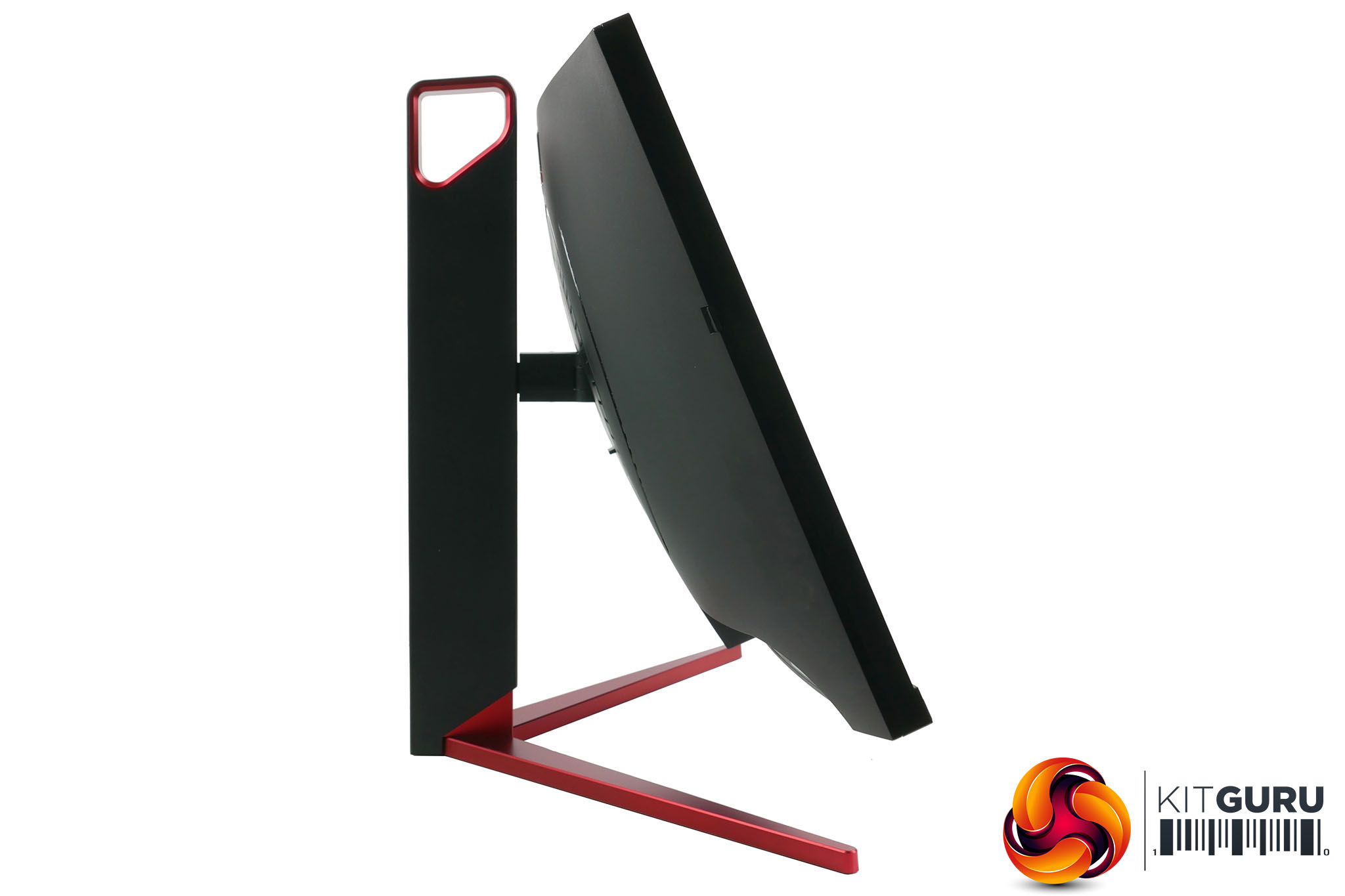
For connectivity you get one DisplayPort 1.2 and one HDMI 1.4 along with four USB 3.0 ports and both headphone and microphone jacks that are all situated on the back of the display, facing downwards. It would’ve been nice to have some of the USB ports mounted on the side, where they’re easier to reach.
You get a pair of speakers too. Rated to 2W a piece, they’re nothing to write home about but do offer ever so slightly more clarity and power than the very worst we’ve heard.
Some very welcome features are not one but two pop-out stands on each side of the display. We say pop-out, they’re more pull-out… awkwardly. You’ll need some fingernails to tease them out. Once deployed, though, they offer a convenient place to rest your headphones or hang your keys.
Finally we come to the screen itself which uses an AU Optronics M270DTR01.0 TN LCD panel that offers true 8-bit colour without dithering. Behind it sits a white-LED powered backlight that uses a non-PWM brightness control so doesn’t suffer from flickering.
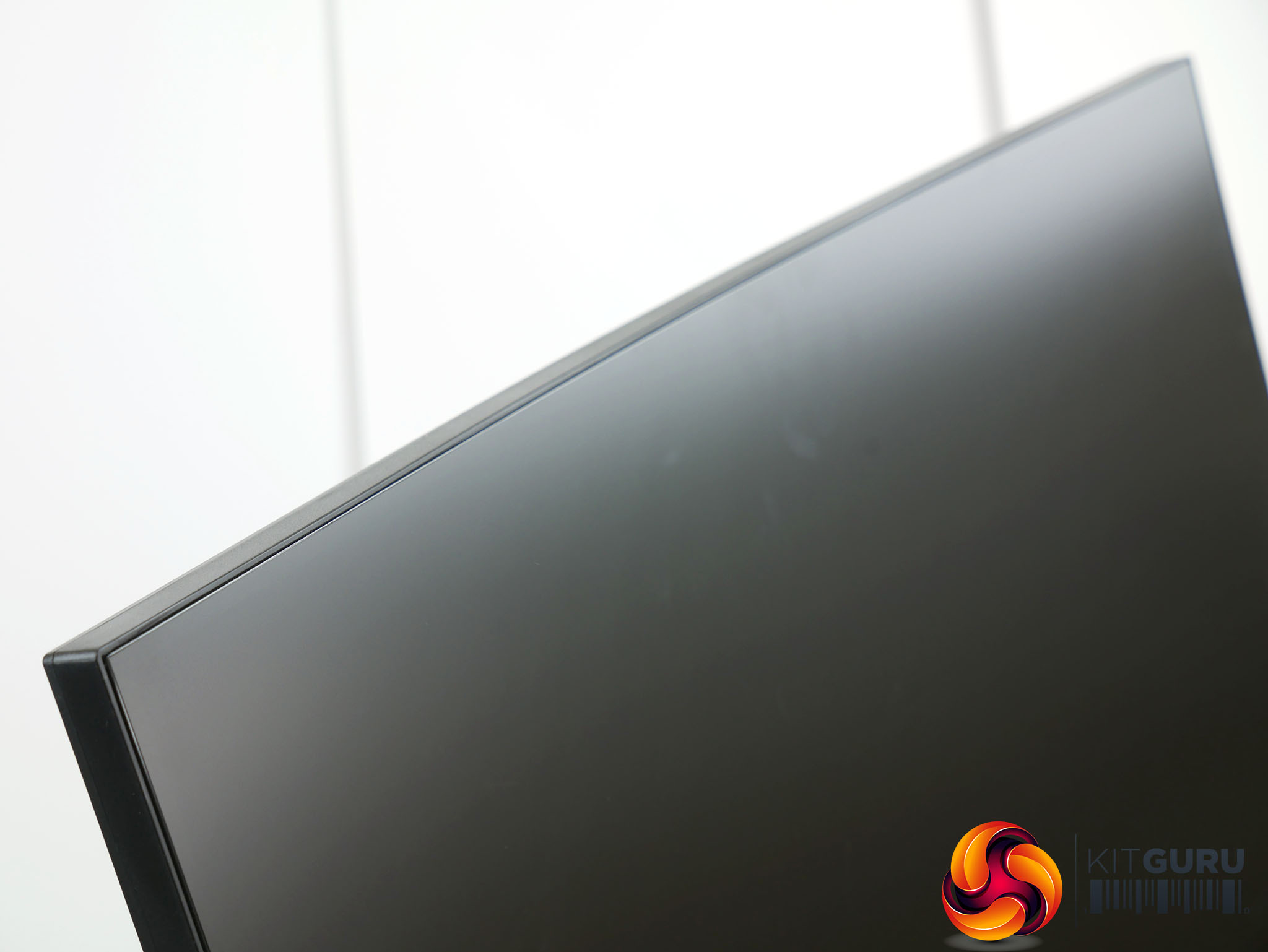
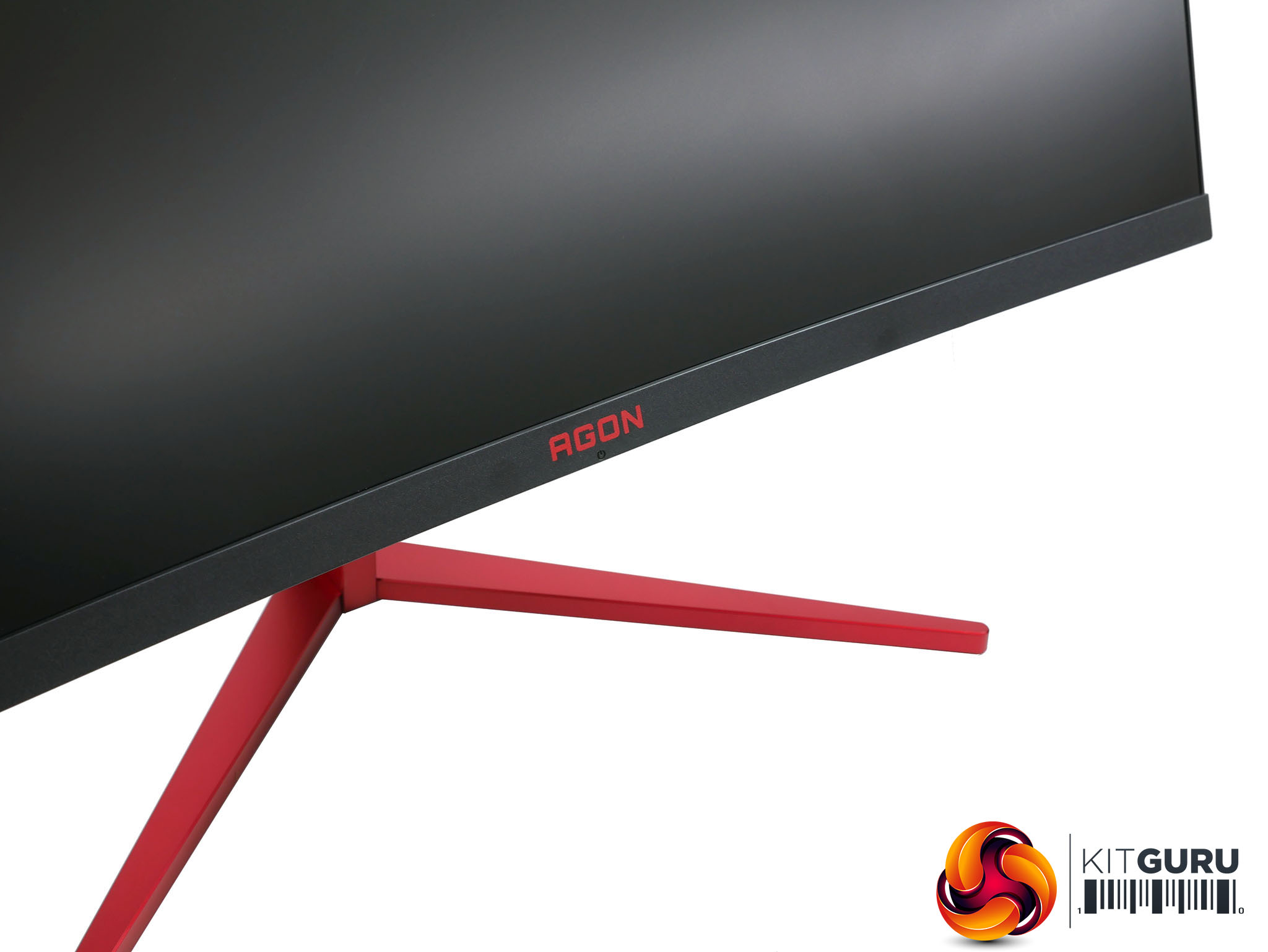
Measuring 27-inch from corner to corner, it packs in 2,560 x 1,440 pixels for a pixel density of 110ppi, which is what we consider ideal. The image is sharp without being too small that you have to use Windows scaling settings.
Being a TN panel its viewing angles are inherently going to be worse than other LCD technologies but AOC has countered this somewhat with the use of a curved screen. The far edges will be that little bit closer to perpendicular to your eyes than with a flat screen.
What’s more, the TN technology allows for this display’s lightning quick 1ms response time, which in turn means this should be a true high-end gaming display.
The AG273QCG’s OSD is controlled via a little four-way directional stick on the underside of the display. We normally consider this a good sign, as menus setup for these control schemes – rather than having a row of several buttons – tend to be quicker and more intuitive. Not so here.
The OSD on this display is one of the worst we’ve seen in a while, at least in terms of ease of use. The controls and the way you move through the menu just never feel intuitive.
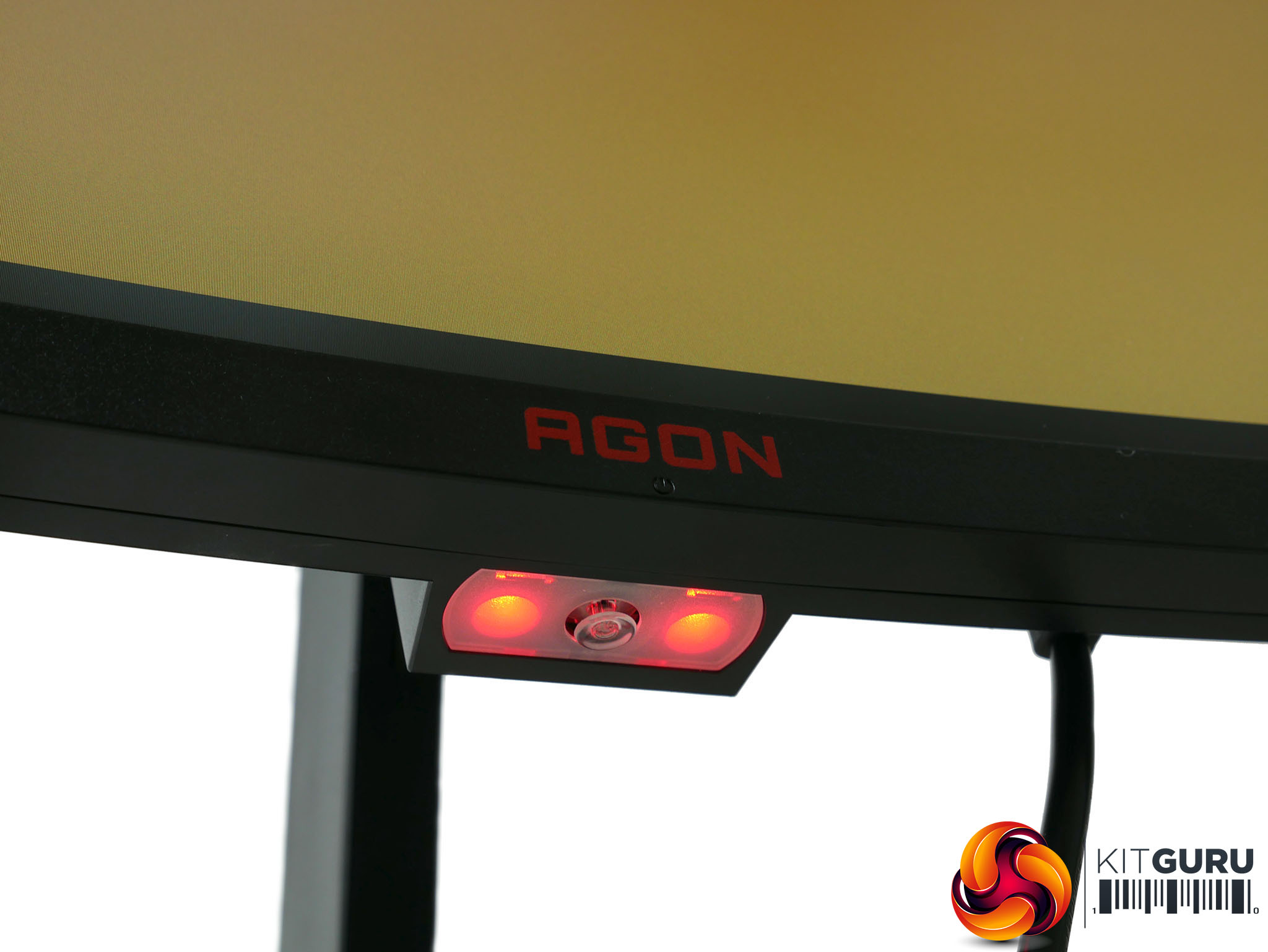
The OSD joystick is flanked by two RGB LEDs
Specifically, the system uses both an inward press of the stick and a movement to the right to indicate selecting an item. So, once you open the main menu by pressing the stick inwards, you can then move around the grid of options as you expect. Tap the stick in and you jump into that sub menu where things are arranged in lists. At this level you now need to tap right to select an item.
Now where things get really odd is that if the item you’ve selected – say, colour modes – is another list of items you now have to once again select the item by pressing the button inwards. Meanwhile if it’s a scale such as brightness the scale appears on screen as a horizontal bar so you have to move left and right to adjust it, hitting the button inward to verify the choice you’ve made. Oh, and you can’t exit one of said menus without choosing an option – there’s no back button.
If that all sounds confusing, you’re getting a good sense of how this menu works. It’s maddeningly bad. Thankfully, the menus do at least respond nice and quickly and the selection of options is comprehensive.
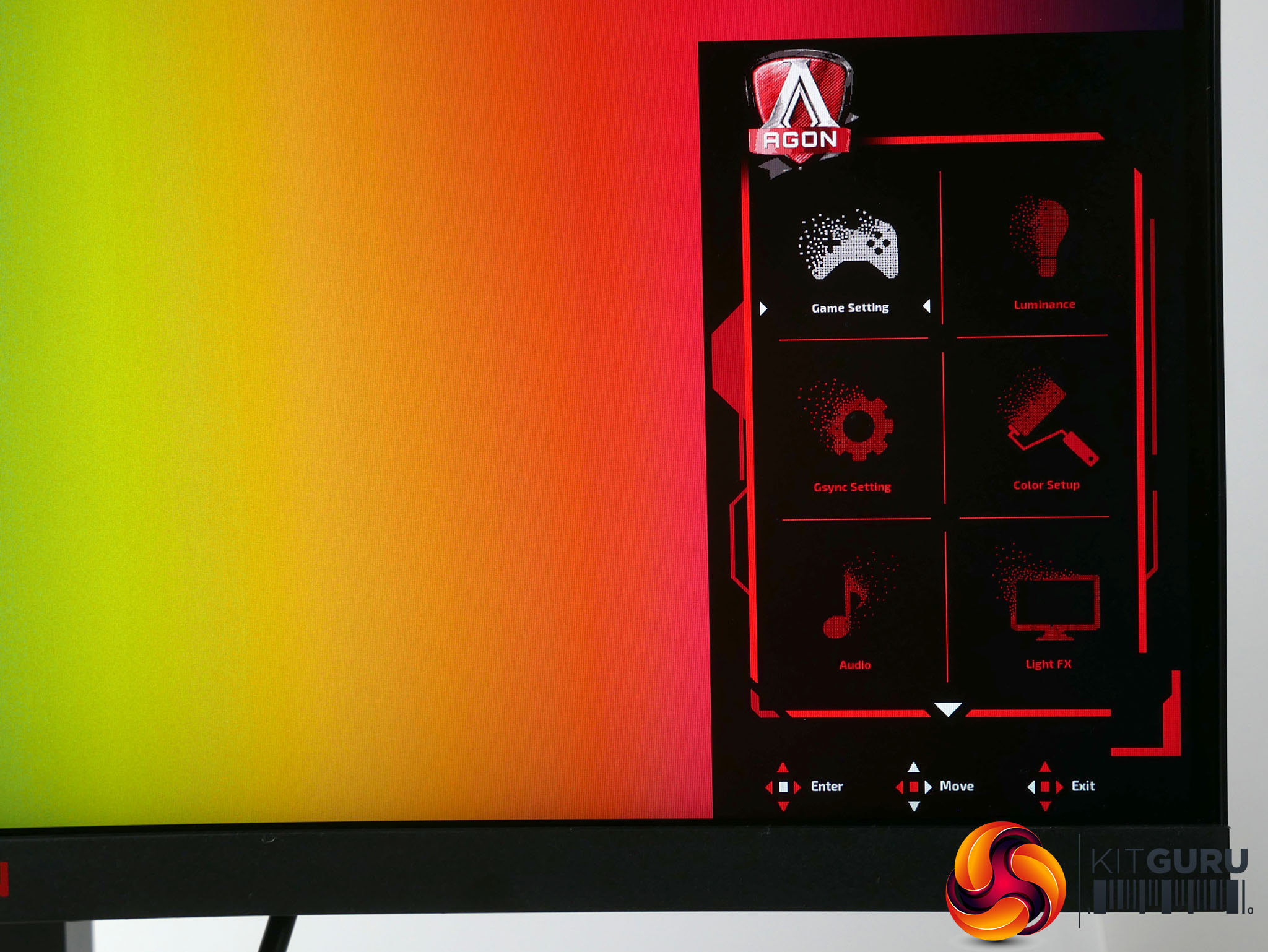
Starting from the top, tap the joystick in and the main menu appears. This consists of a grid of eight options: Game Setting, Luminance, Gsync Setting, Color Setup, Audio, Light FX, Extra and OSD Setup.
Jumping into the main menu options and first up is the Game Setting menu. This provides settings for Shadow Control (an option for brightening the image so you can see enemies in the dark), Game Color (a colour saturation boosting feature), Frame Counter and crosshair overlays, overdrive and Game Modes.
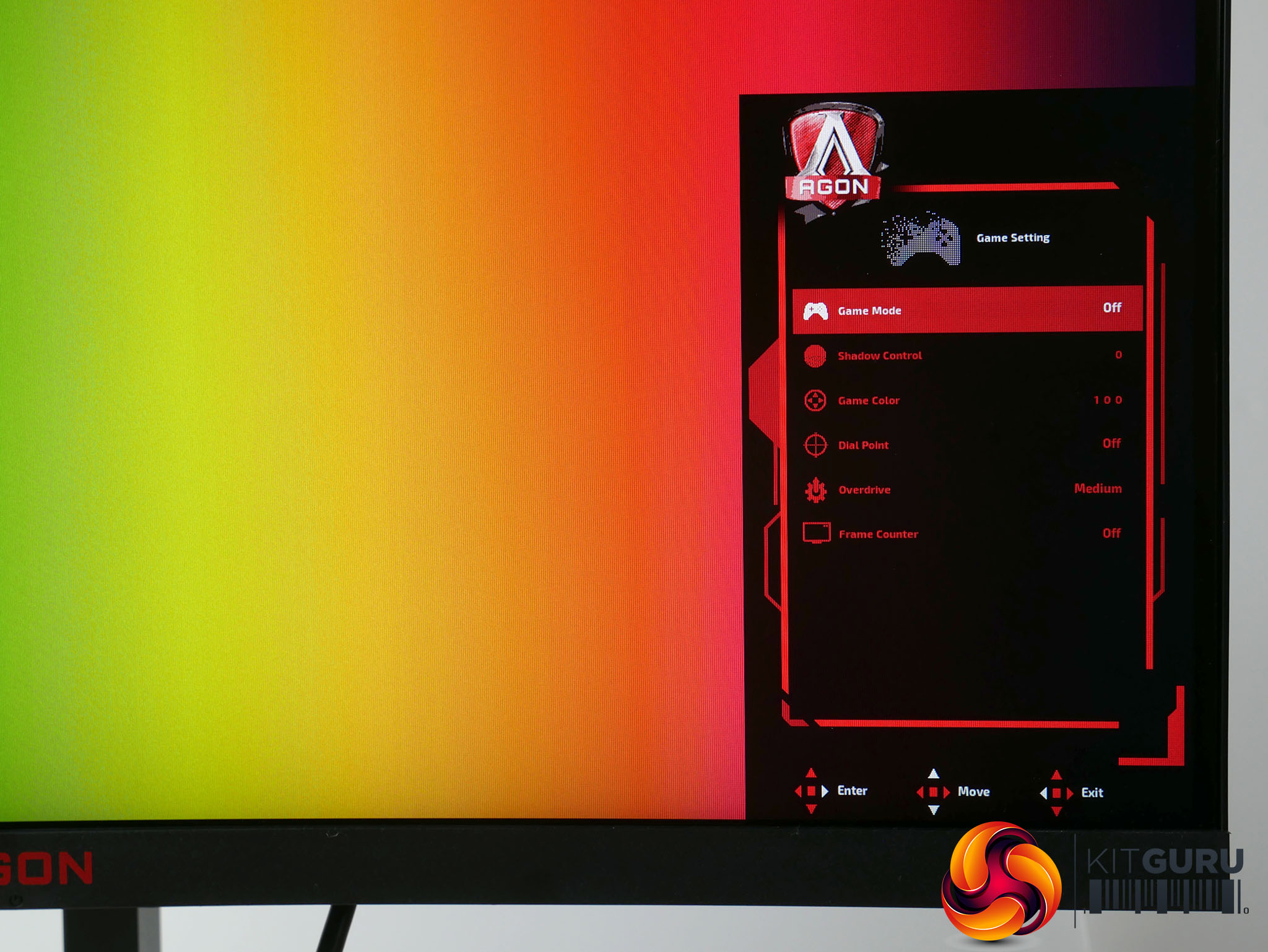
The latter provides access to gaming presets such as Off, FPS, RTS and Racing but they all just change the settings that are otherwise available, so we didn’t experiment much with them. We recommend getting to know what each individual setting does and working out what you want to use for yourself. More useful is that you can select three user-programmable modes, called Gamer 1/2/3.
However, this brings us to another couple of oddities with this menu system. For a start, if you make any changes to the profile you’re already on – such as the default Off profile – then switch to another profile and back again, none of those changes are saved. So, you may receive the monitor and start tweaking the settings then experiment with the Game Modes, only to switch back and suddenly realise you’ve lost all your previous changes.
Also, for all settings other than those in the Color Setup menu, the user-programmable Gamer 1/2/3 settings will properly store and switch between these settings. However, the colour settings will remain throughout all the presets. This means there’s no way to setup completely custom profiles for different uses.
Say, for instance, you like to use the low blue light mode late at night or like a certain colour balance when gaming, there’s no quick way to switch these – you have to just jump into the menu and change them manually.
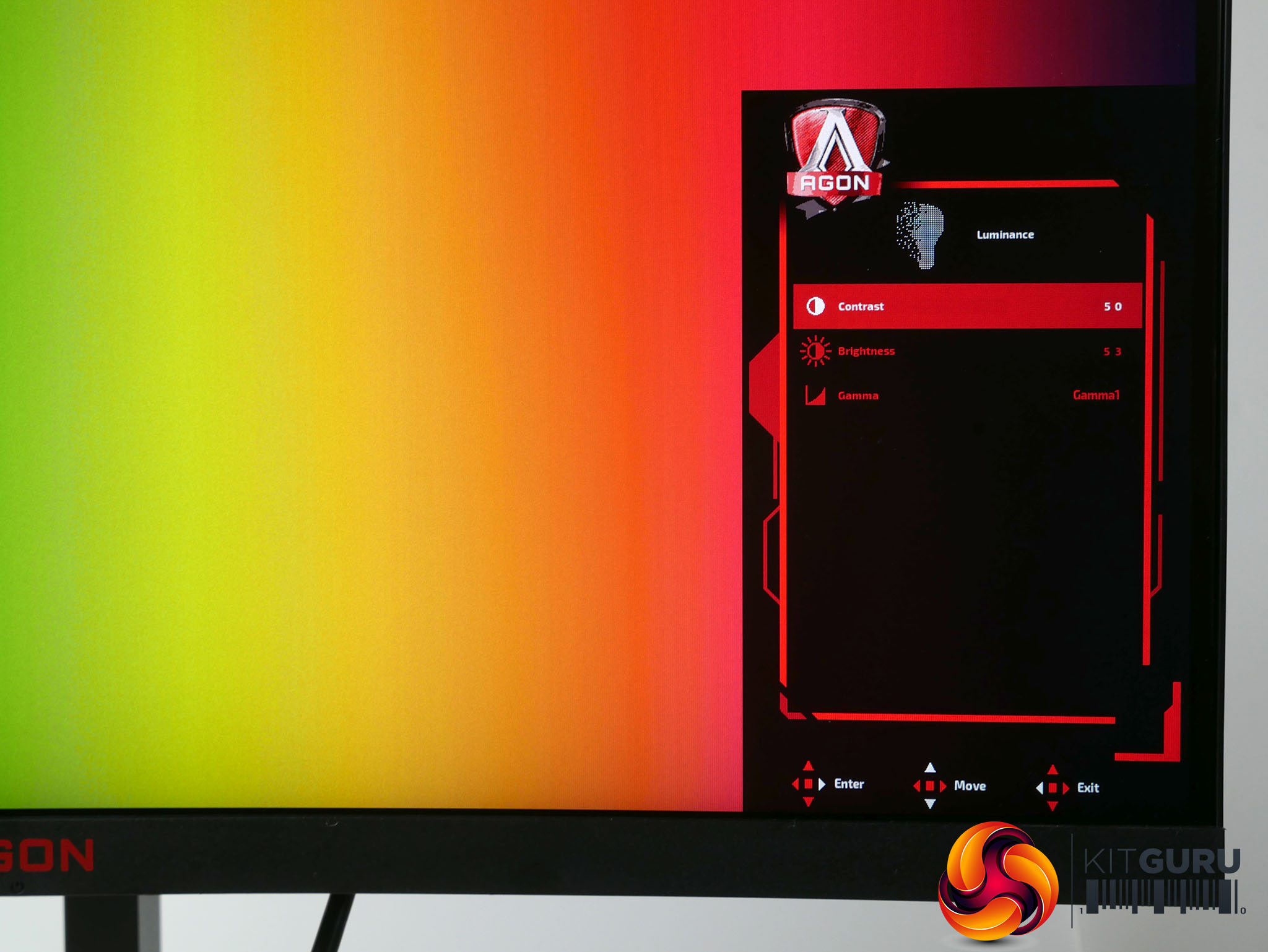
Moving on, the Luminance menu is where you can adjust contrast, brightness and gamma. The display offers three gamma settings that are rather unhelpfully just labelled gamma1, gamma2 and gamma3 – there are no values attached to the settings.
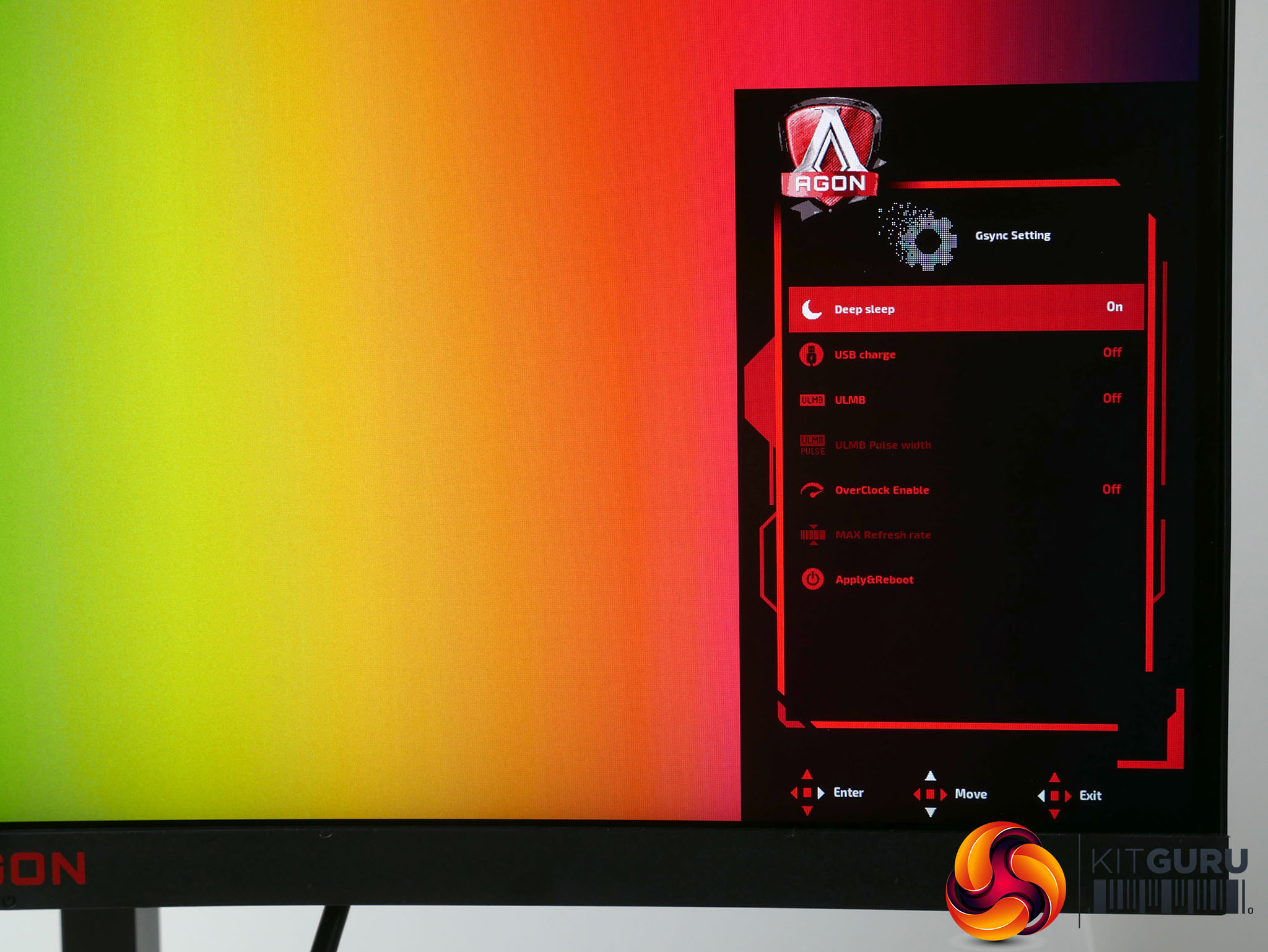
Next up is the Gsync menu. This is a slightly odd one as most of the settings aren’t to do with Gsync. You can overclock the display from its default of 144Hz to 165Hz, turn on USB charging (keeps the ports on when the display is off) and turn on ULMB mode.
This is Nvidia’s proprietary blur reduction mode that flashes the backlight on and off to reduce the appearance of motion blur. Once enabled you can adjust the pulse width modulation (PWM) that’s used to create the effect. Keeping the level high makes the image brighter but has a less noticeable effect while dropping it darkens the picture but further reduces blurring, in theory.
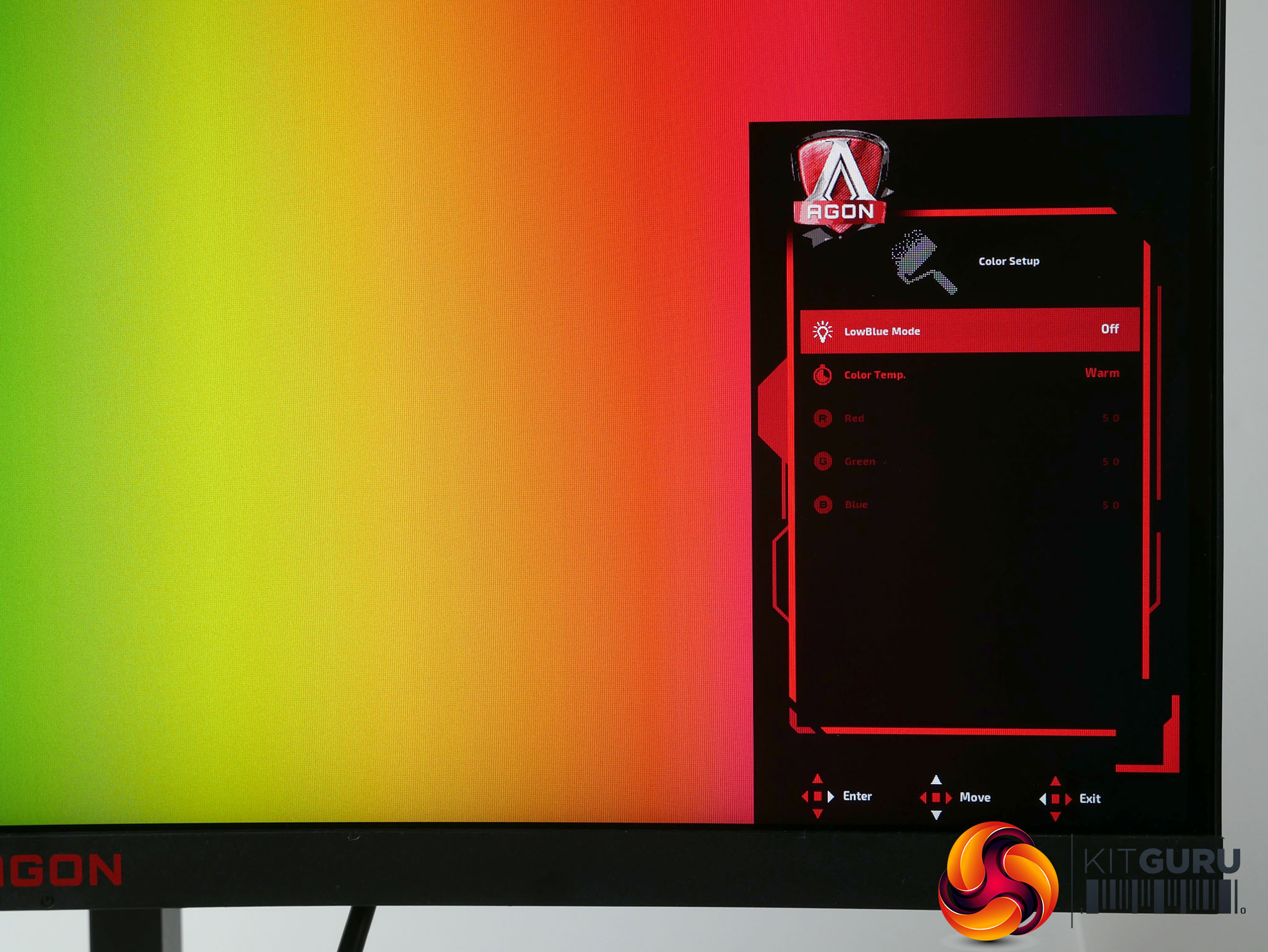
In the Color Setup menu you can turn on a low blue light mode for reducing eyestrain plus there are several preset colour balance options and the option to manually adjust the colour balance.
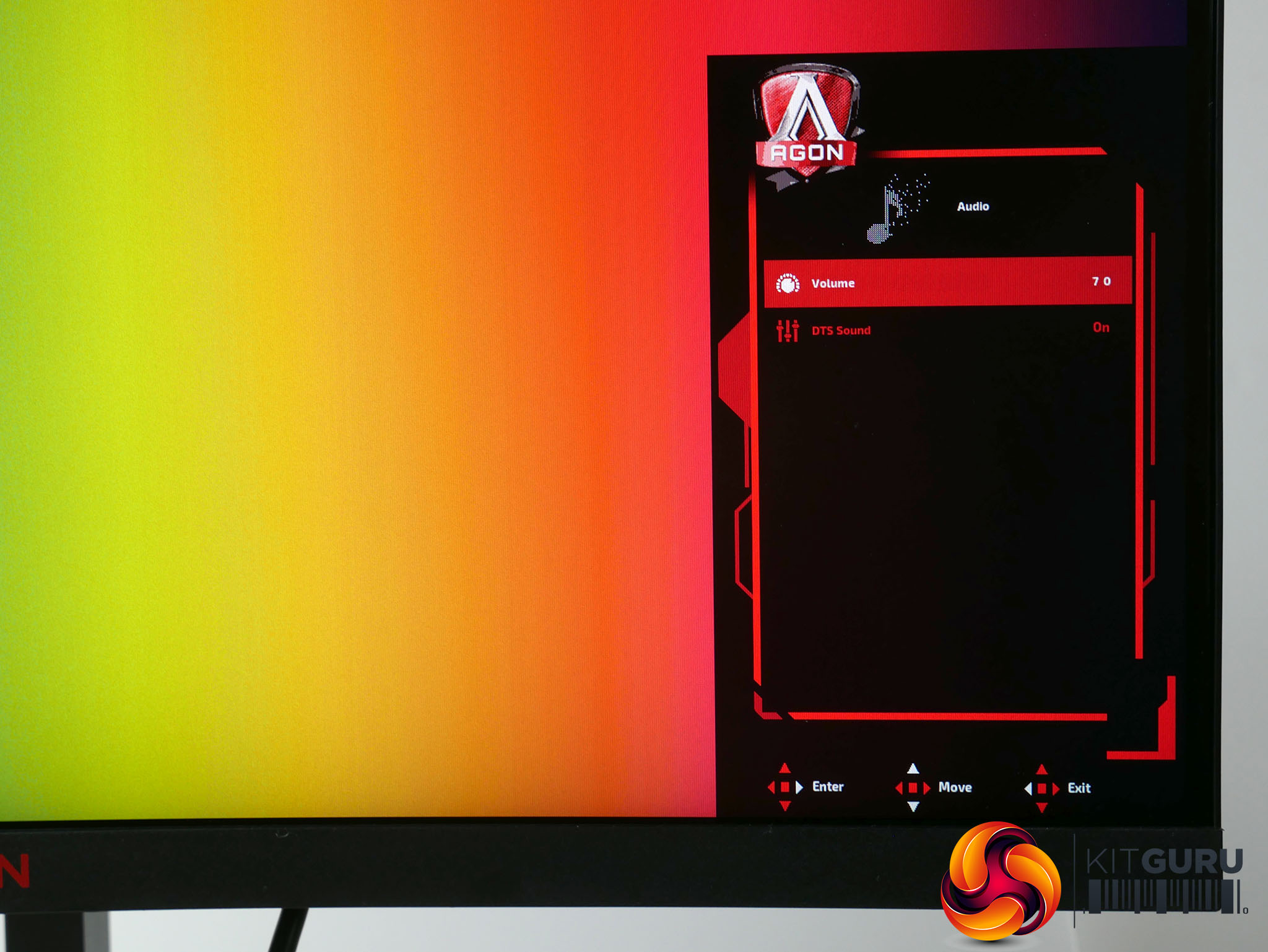
The audio menu contains a volume control for the speakers and an option to turn on DTS audio. Amazingly this does markedly improve the audio, pulling out some of the tinny quality of the speakers and improving the audibility of dialogue, though it can’t work miracles – most laptops put this monitor’s speakers to shame.
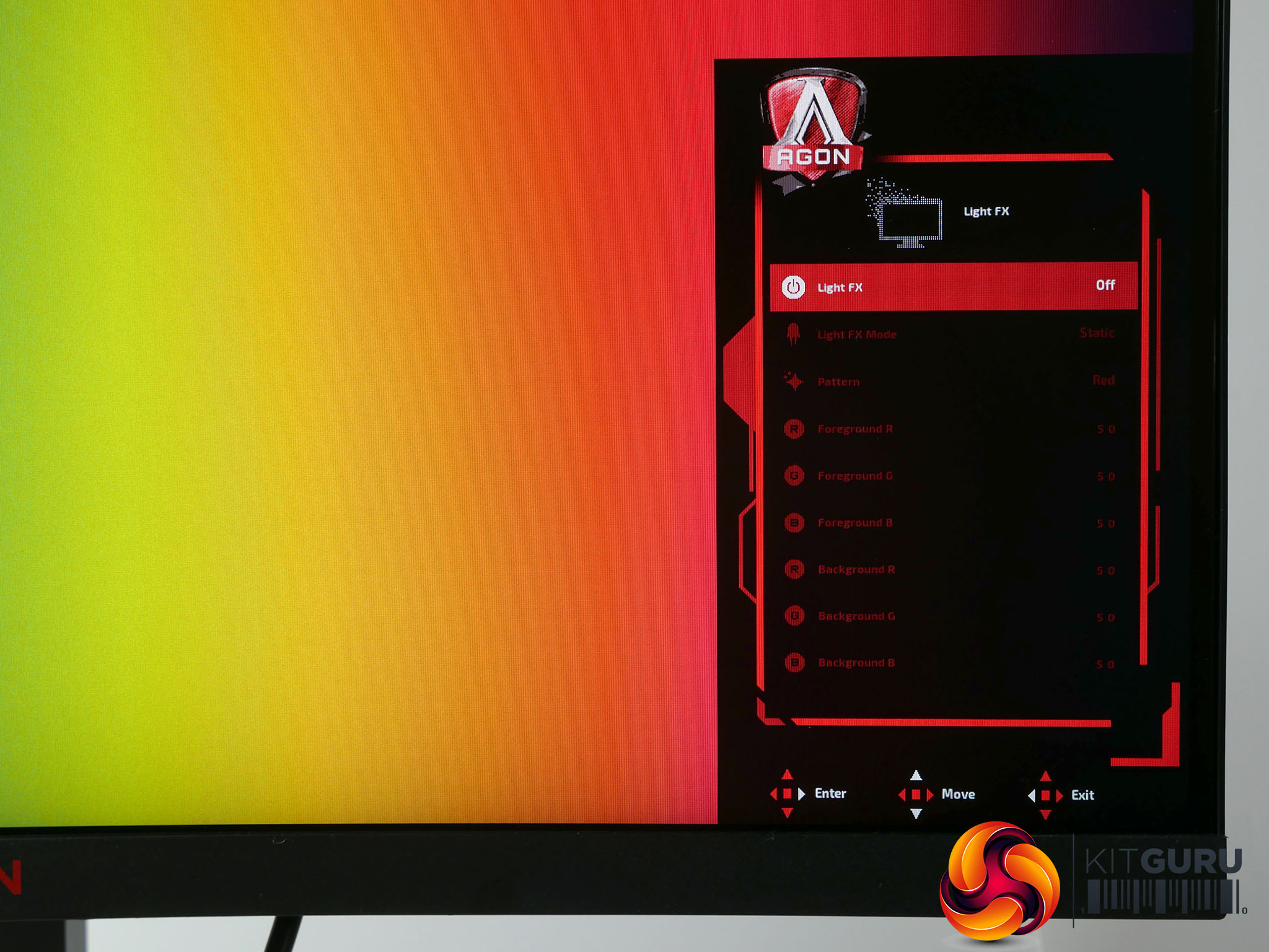
In the LightFX menu you can choose the brightness of the RGB lighting zones, although only in increments of Off, Low, Medium and Strong. There is, however, a massive range of effects and you can manually dial in the exact colour of both the front and back zones.
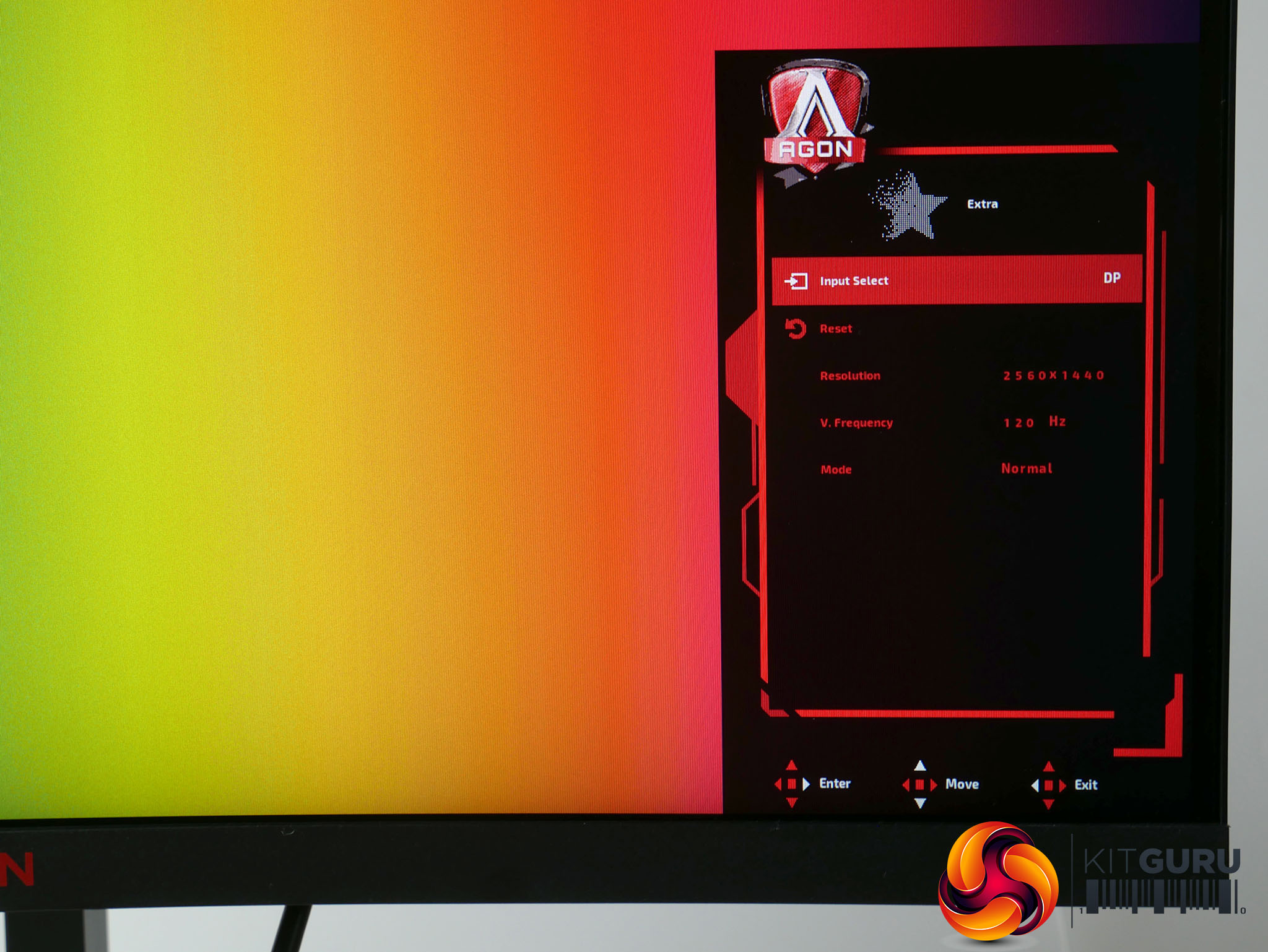
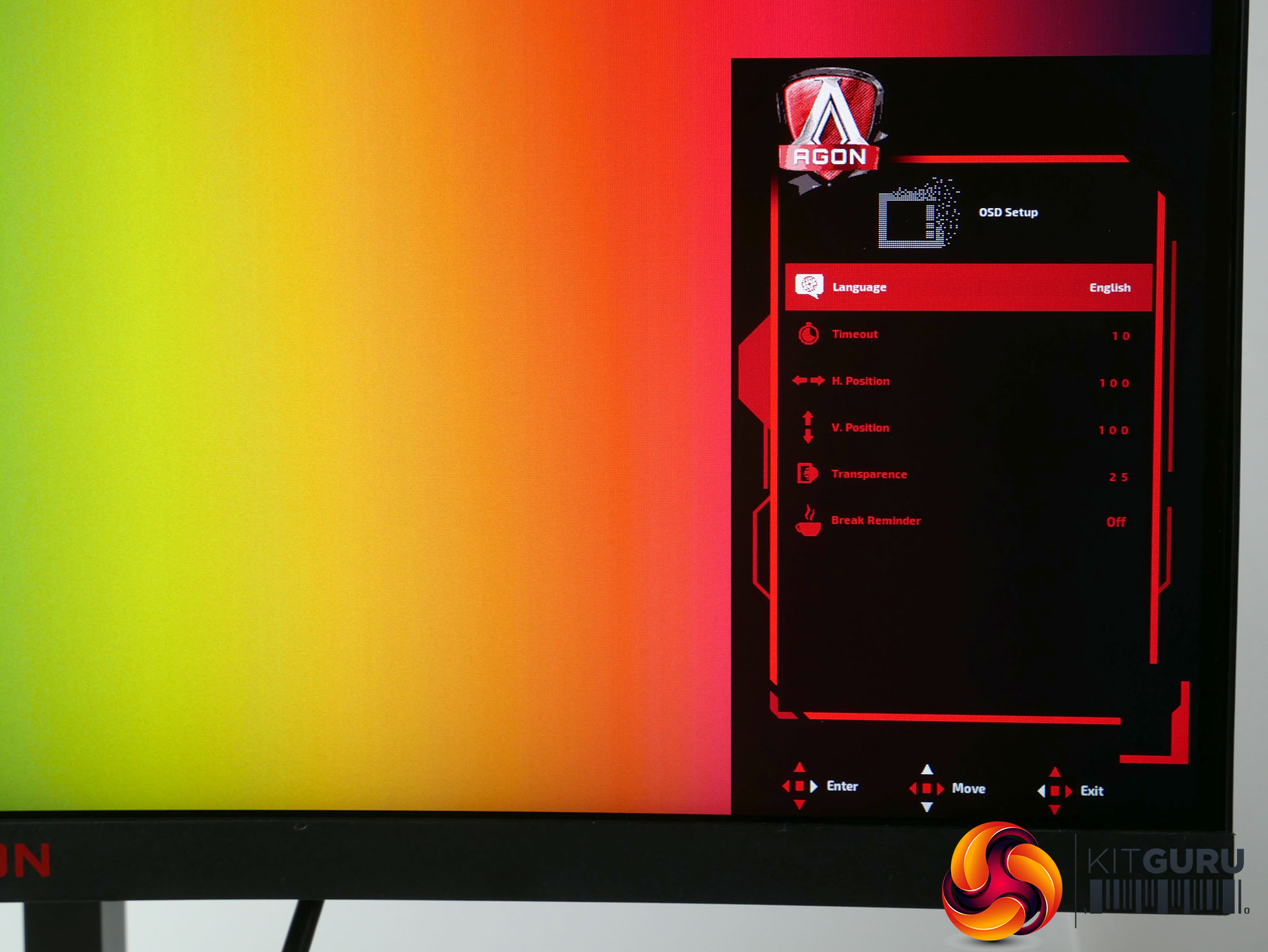
The Extra menu provides some basic information such as the current refresh rate and a reset feature, while rounding things out is the OSD setup menu that has the usual options for positioning the OSD and changing its transparency.
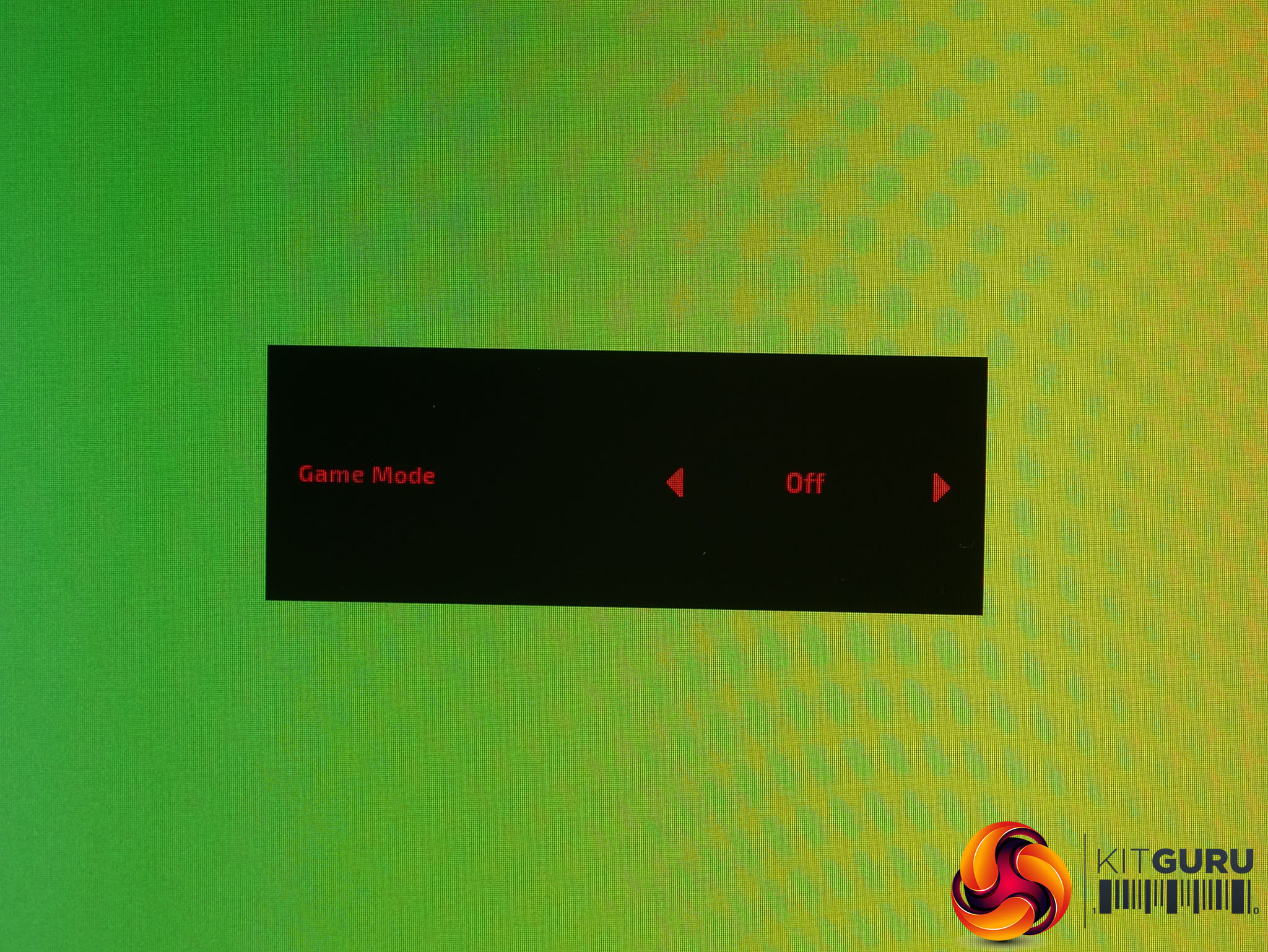
There are also four other quick access menus that are activated by moving the joystick in a direction, rather than tapping it on. Tap the joystick to the left it enters the Game Mode profile menu, making this a quick and convenient way to switch between, say, a gaming profile and a reading profile.
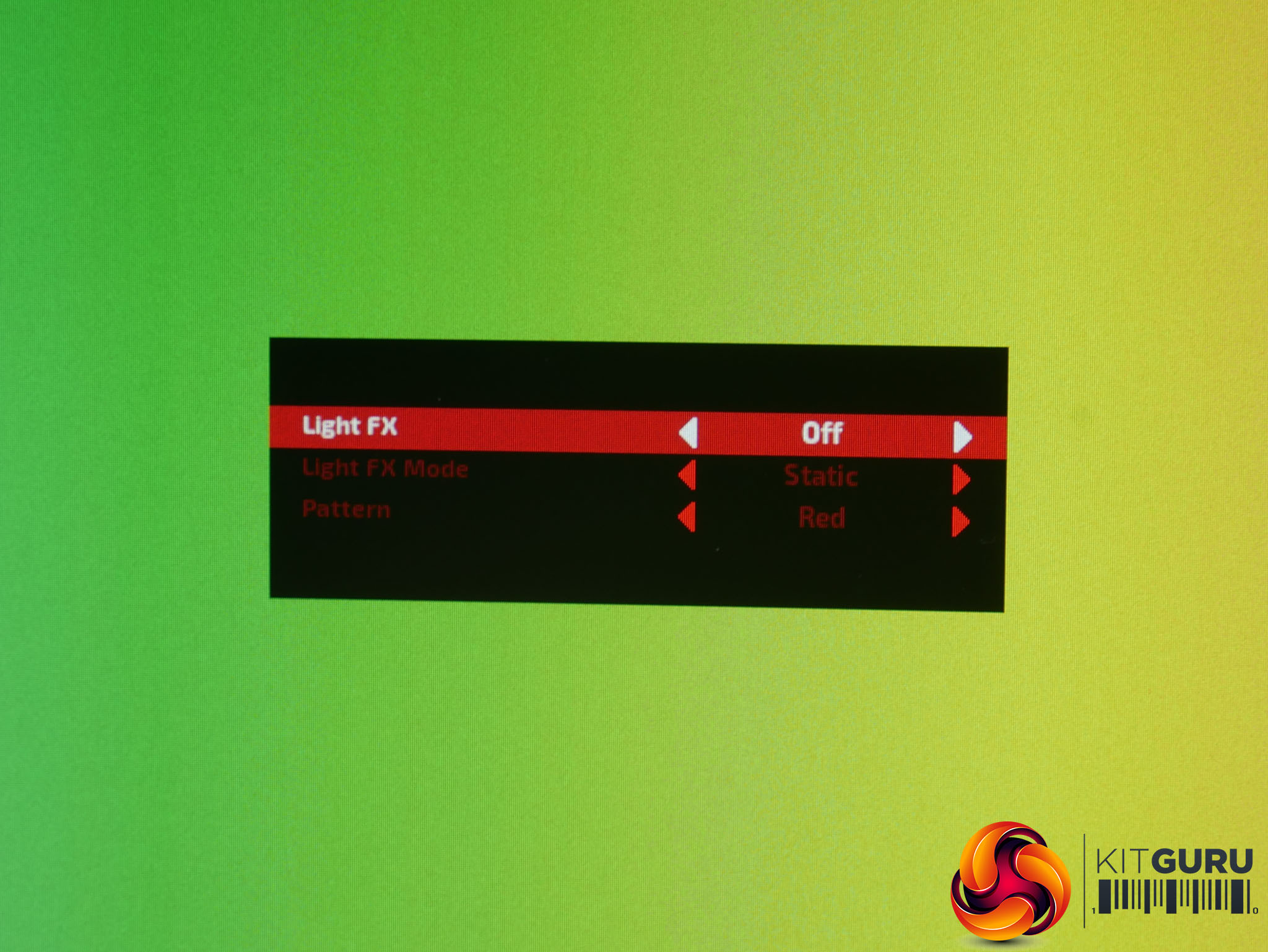
Tap to the right and you’ve got quick access to a basic version of the RGB lighting (called LightFX) menu.
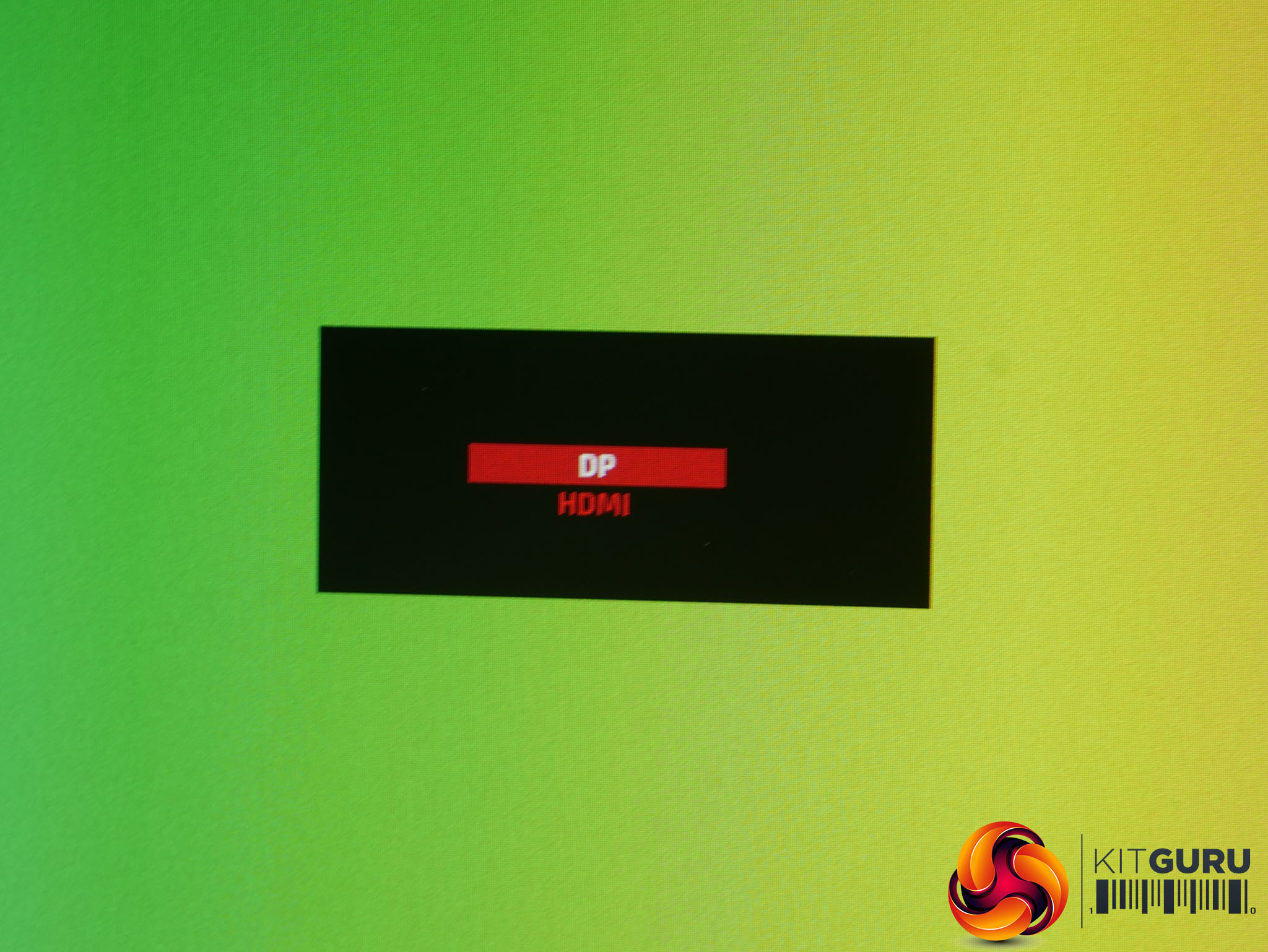
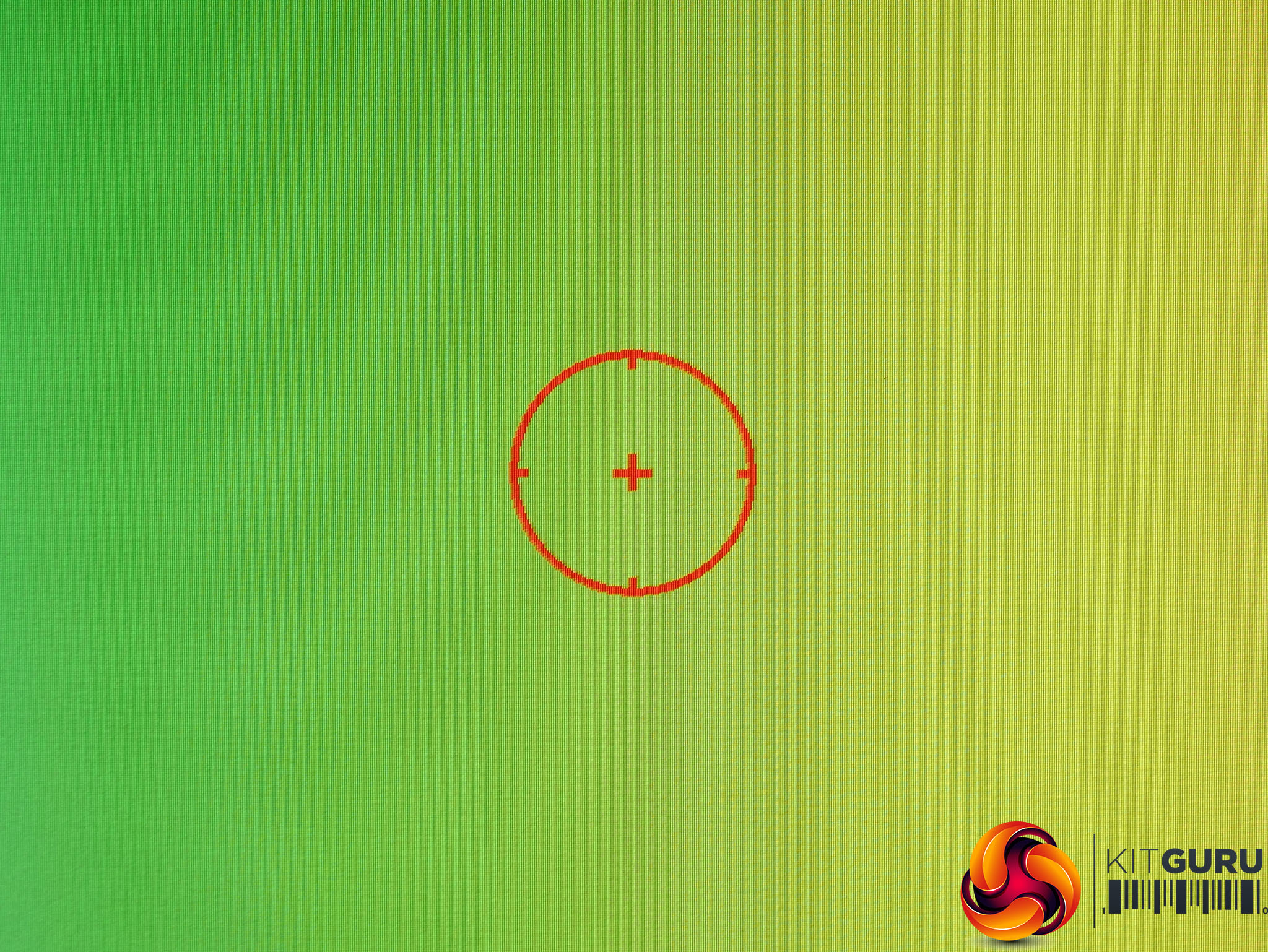
Tap up/back and you can switch inputs while tapping forward/down and you turn on a crosshair overlay in the middle of the screen. There’s no way of changing these quick-launch settings. We’d have preferred to have the forward button turn on the frame rate counter, for instance.
First impressions and subjective testing
First impressions of the AG273QCG’s image quality are excellent, considering it’s a TN LCD display. Yes, viewing angles aren’t as good as some other LCD types but colours are punchy, colour balance is good and contrast is plentiful. This display clearly feels like a step up from cheaper TN gaming displays.
Except for one crucial thing: the whole screen looks grainy. We’re not exactly sure what’s causing this but it may be to do with the type of finish on the surface. It uses what looks and feels like a typical non-reflective matte finish but it may be just that bit rougher, leading to minute diffraction of the light.

The surface of the screen looks grainy
This is particularly noticeable on large blocks of uniform colour such as the white backgrounds that are common across many desktop apps. Navigating your computer's folders, reading emails in Outlook, browsing the web or writing this review in Word, those big blocks of white appear shimmering and multi-coloured, in a very subtle but distracting way.
As for those viewing angles, they’re actually far better than many TN displays we’ve seen. Moved left to right there’s minimal change in the image while tipped up and down and the image does change more but again it’s more stable than most. Crucially, that sense you get with some TN monitors where the slight natural movement of your head is enough to cause the image to constantly shift isn’t present.
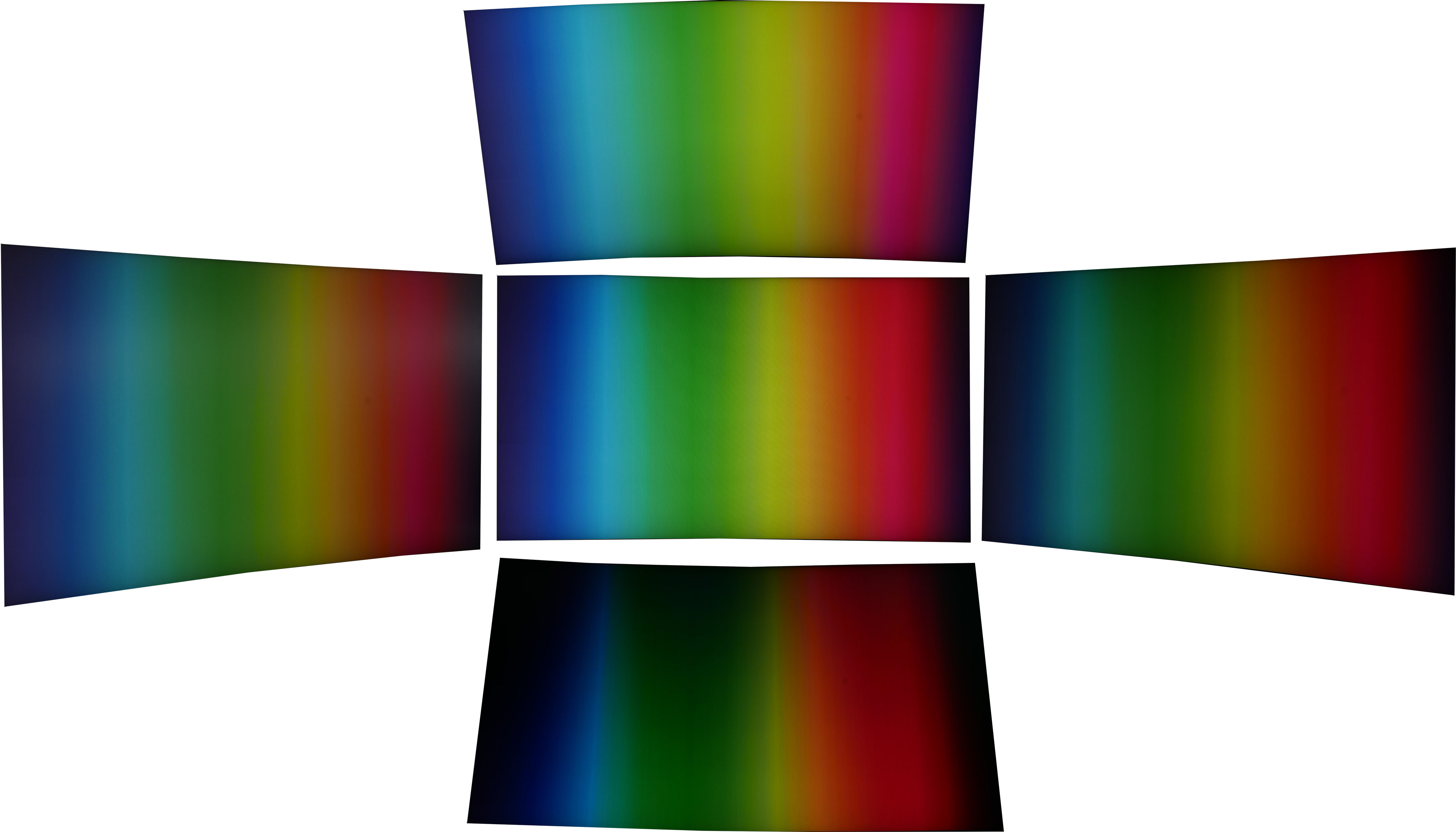
Viewing angles aren't bad for a TN panel, with little discolouration off axis
Meanwhile, firing up a dark and subtlety shaded video like Game of Thrones and there’s none of the obvious telltale signs of some cheaper TN displays. The gamma curve looks correct so the image isn’t washed out or overly dark and nor is there the crushing of colours that can result in a blocky look.
As for the effect of the curved screen, it’s certainly subtle if at all beneficial but certainly it doesn’t detract from the experience. Generally we feel curved screens are more beneficial on larger displays such as 34inch ultrawide models.
Objective testing
Moving onto our objective testing, we used a couple of different colorimeters and measuring software to check the image output of the display.
We start our testing with the Xrite iDisplay Pro, in conjunction with DisplayCal software. This we use to test the contrast of the display, as this is something our other test equipment tends to under report.
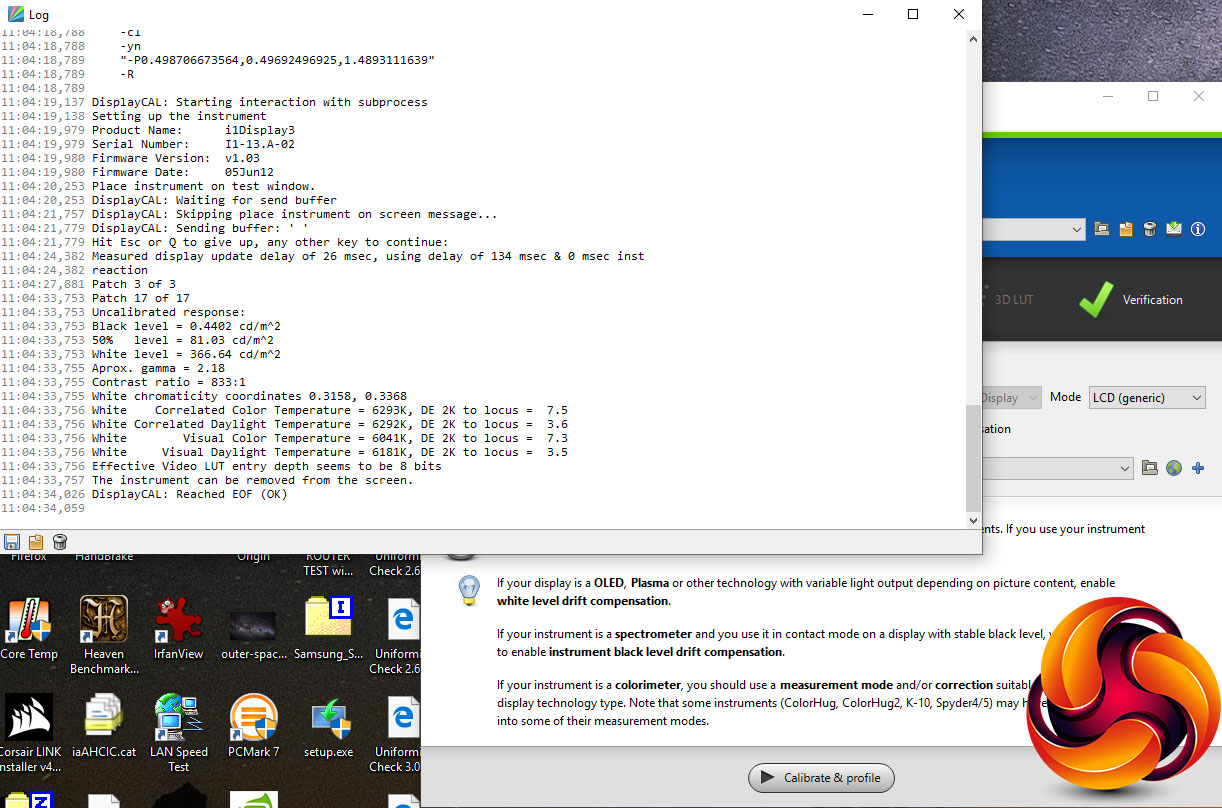
Our testing revealed the display can produce a contrast level of 833:1. This is a touch lower than some TN displays can manage but is within touching distance of the 1000:1 we’d expect. Anything less than 700:1 is where you really start to notice the image looking washed out.
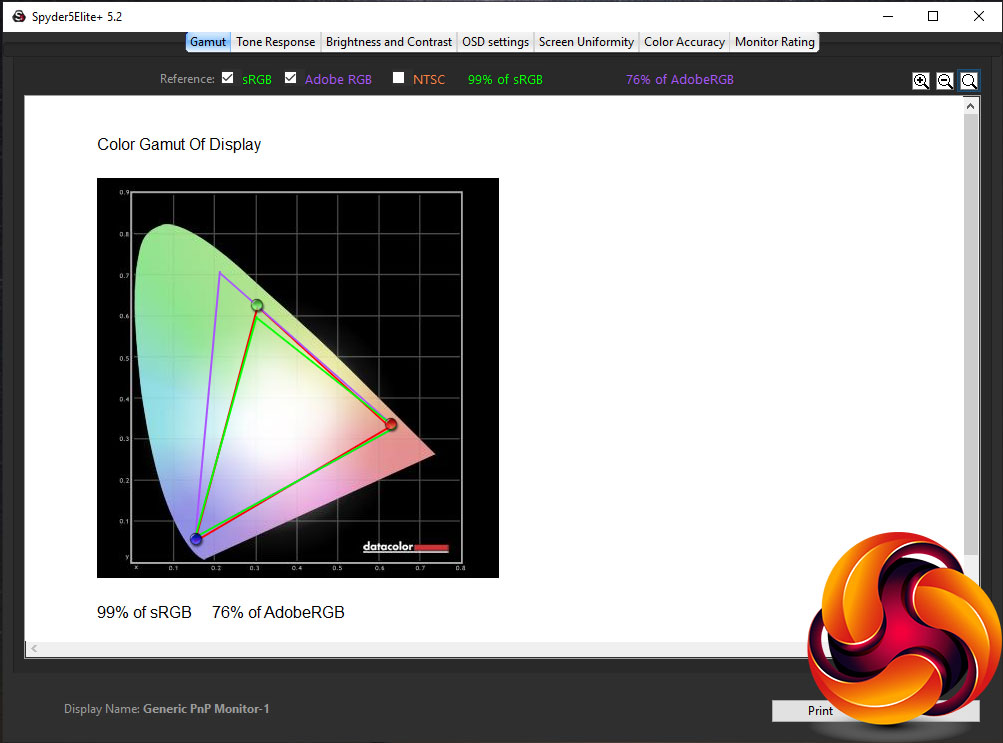
Moving onto our Spyder5Elite colorimeter and software, we next tested the colour space coverage, or gamut, of the display. For a display of this type we’d expect it to cover up to 100% of the sRGB gamut and around 75% of the AdobeRGB gamut, which is almost exactly the result we got.
Next up is the tone response, or gamma test. This checks the gamma curve of the display, which is the measure of how quickly the image changes from light to dark. A higher value makes for a darker looking image while a lower value looks lighter. The standard for PCs is 2.2.
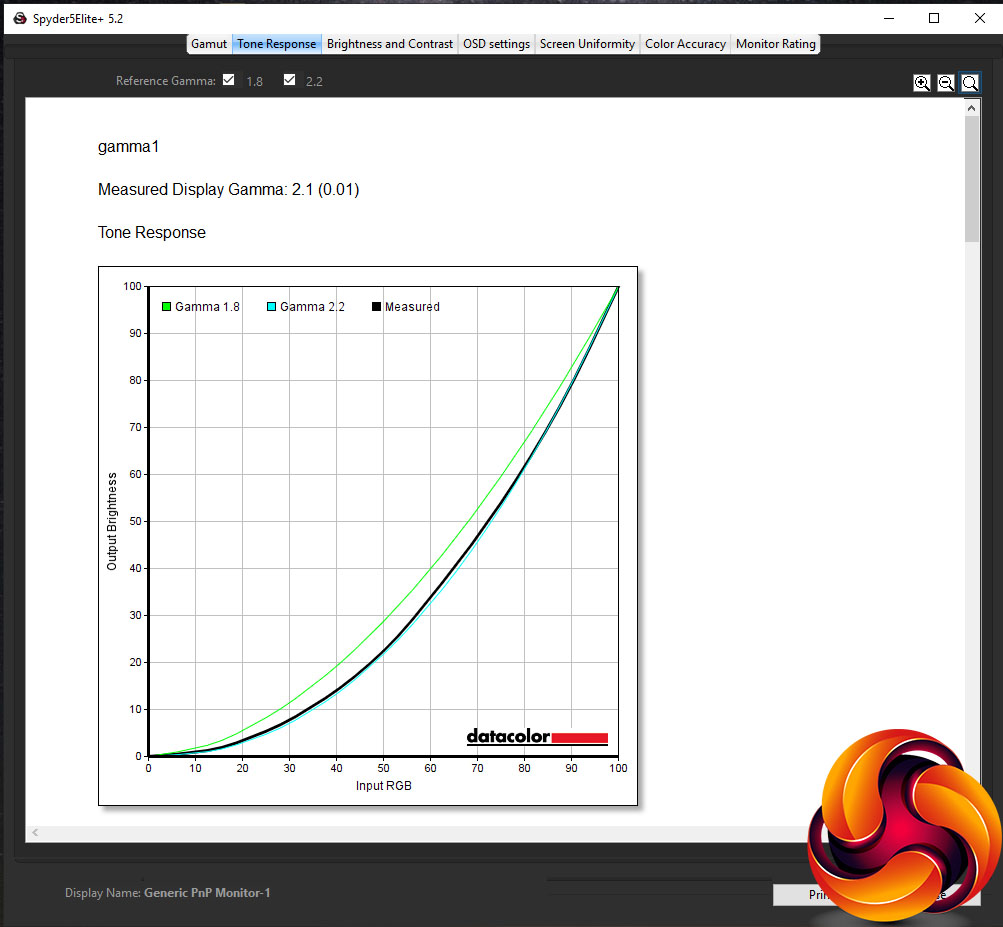
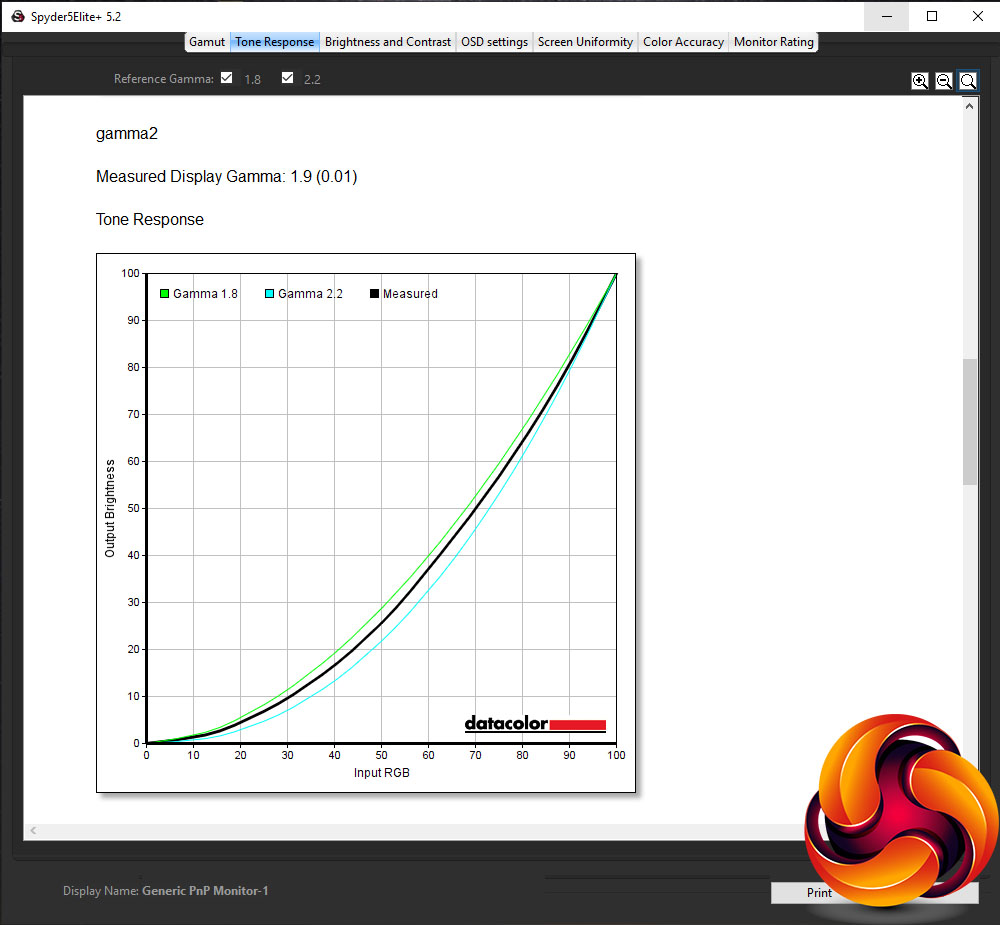
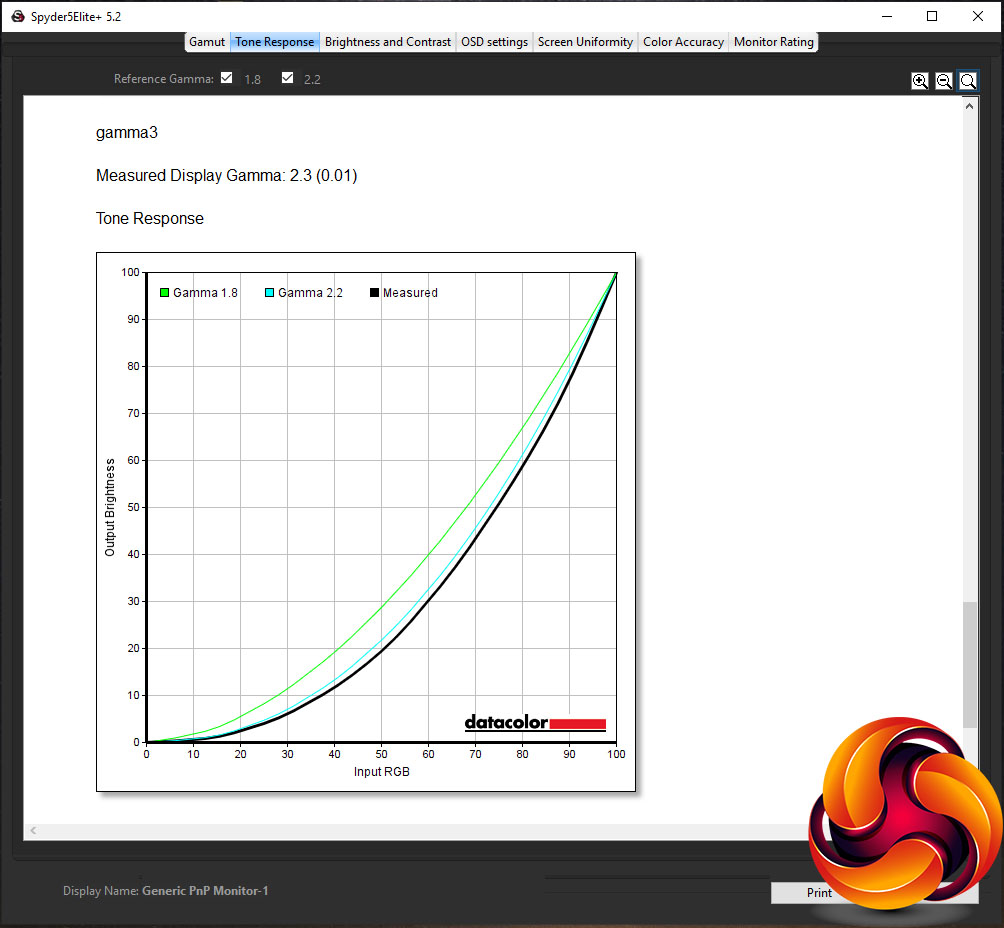
We can see from our test that the default gamma1 setting in the OSD is very close to the ideal of 2.2, so you shouldn’t need to change this. Meanwhile the gamma2 setting offers a lighter-looking 1.9 reading and the gamma3 provides a darker option, measuring 2.3.
The next test measures how the display’s brightness setting ramps up in 25% increments. Ideally a display should offer a reasonably linear change so that it’s easy to dial in the brightness you want.
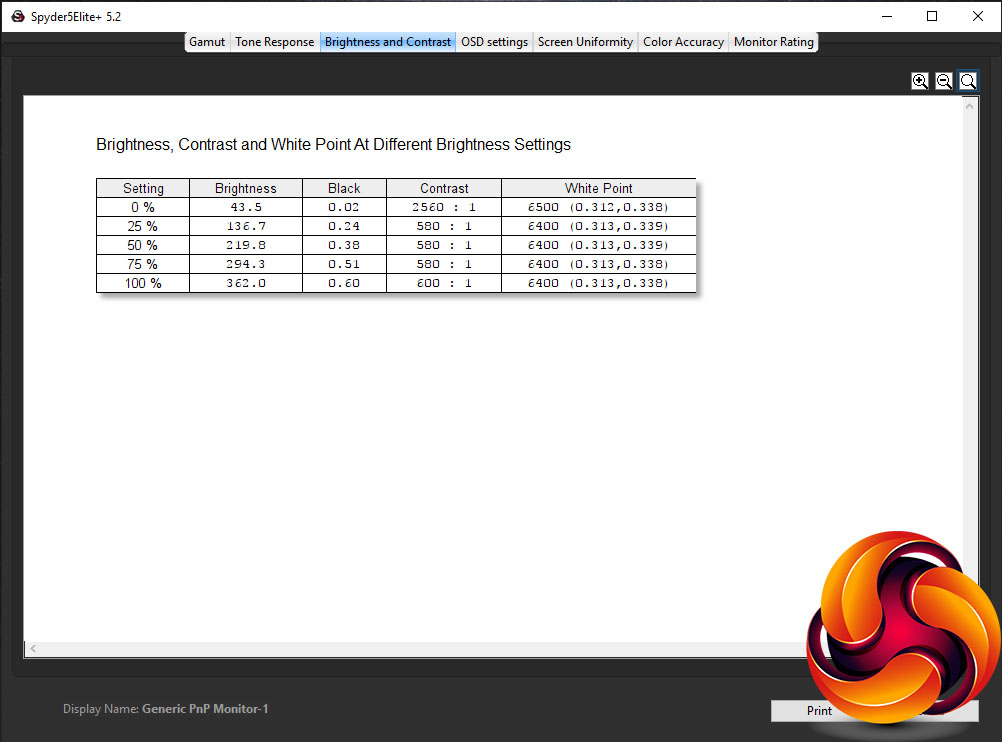
This is precisely what we find with this display, with its brightness steadily increasing as the brightness setting is turned up. Also note the underreported contrast figures.
The OSD settings test is for checking the effect that different colour modes have on the display. We can see from the below that the default Warm setting provides very close to the ideal colour temperature (white point) of 6500K so again most users shouldn’t need worry about changing this.
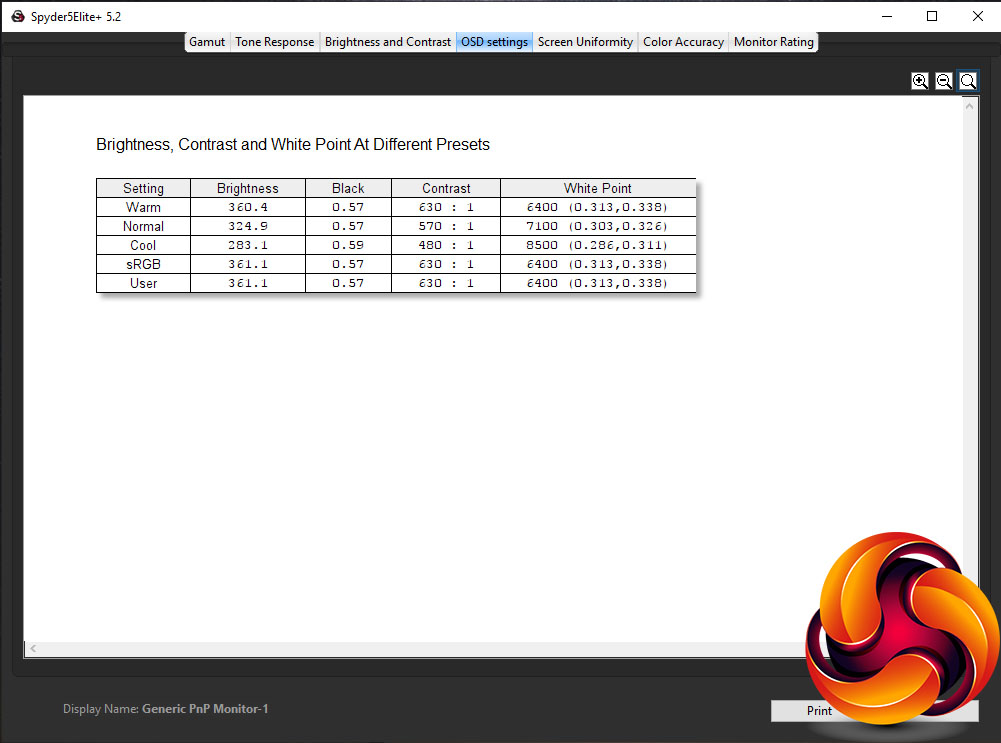
Meanwhile the Normal setting offers a slightly colder-looking image, and the Cool option is even bluer. Opt for the sRGB or User options and you get the same default colour balance as the Warm setting.
The penultimate test checks the uniformity of the display. Ideally a monitor should provide the same image performance across its whole screen, but that isn’t always the case. Here we can see that in terms of the brightness of the image, it’s not too bad but there’s a consistent drop of around 15% across nearly half the screen. However, on average the figure is an acceptable 9% and, moreover, in person the difference isn’t very noticeable.
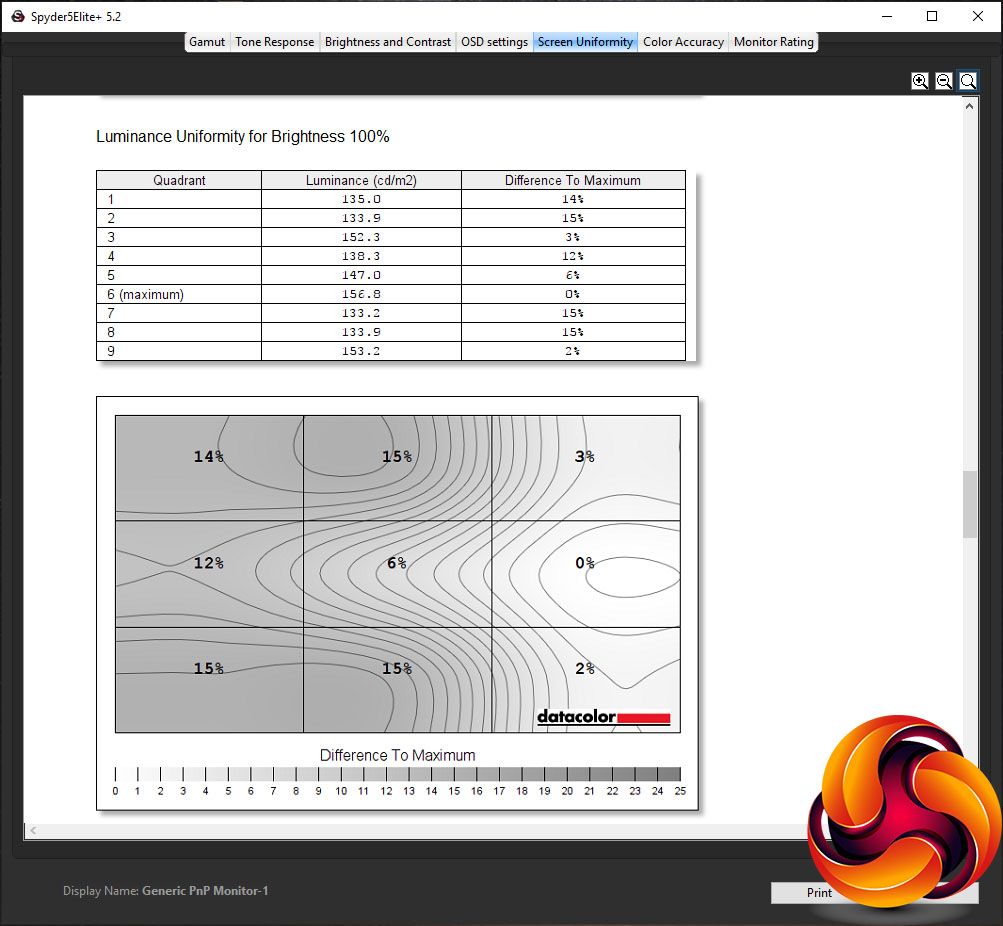
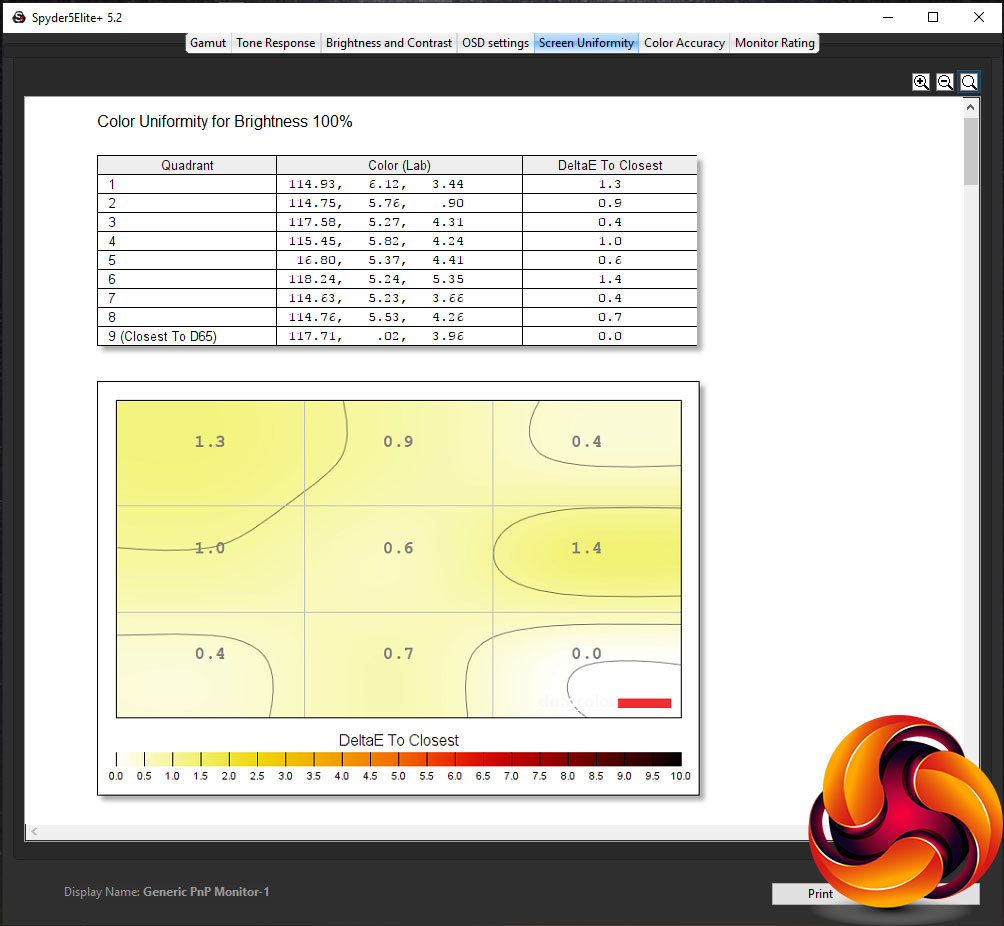
Colour uniformity is much better with just a 0.74 Delta E average variance in the image. However, it’s worth noting that the image will appear worse than this in many instances due to the viewing angle variation of the TN panel.
The final test measures the display’s ability to distinguish between fine differences in colour, a measure called Delta E. An average figure of below 3 is good and below 1 is excellent. This monitor manages 1.27, so it fares very well.
Calibration
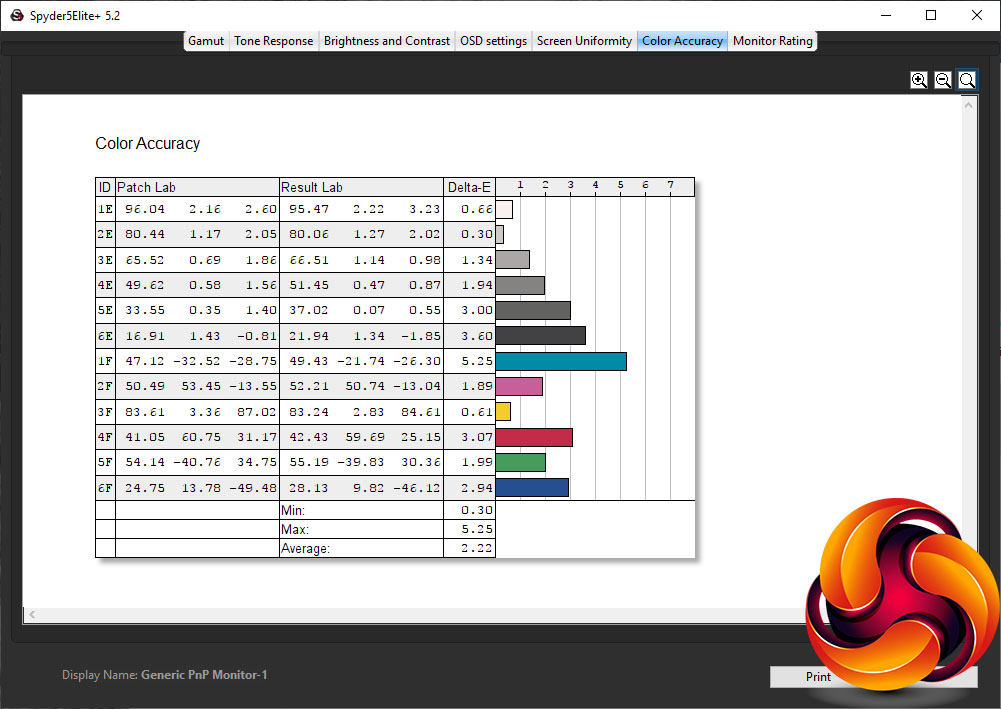
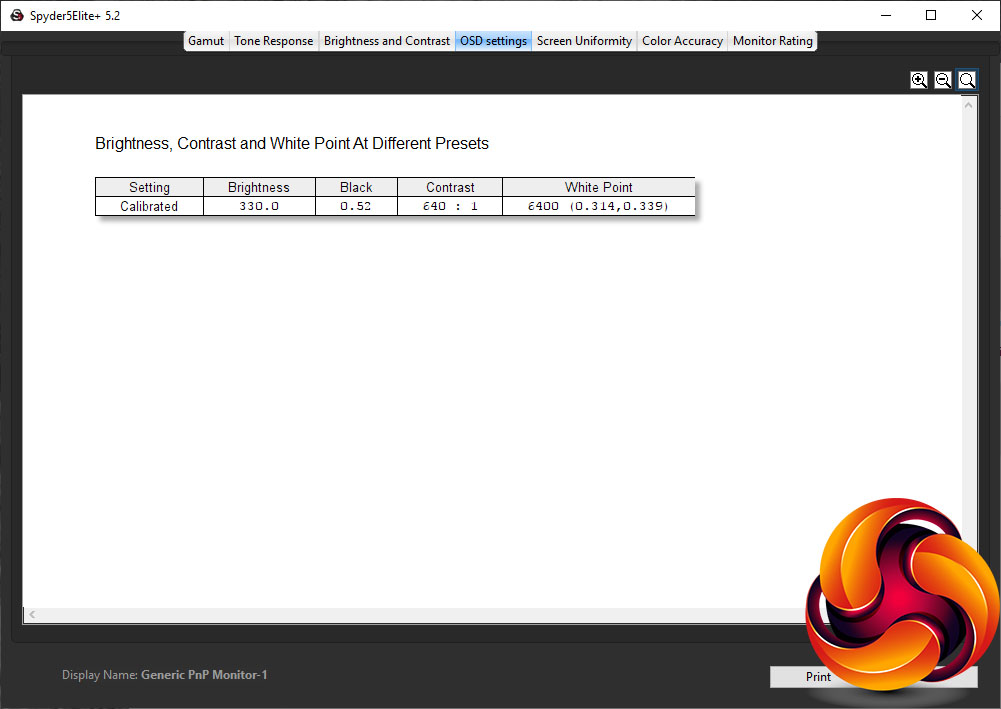
After our initial tests we also applied a software calibration using the Spyder5Elite and checked again for colour balance and accuracy. Bizarrely we see colour accuracy actually dropped after this calibration, potentially as a result of the software fix compressing colours. What’s more, the colour balance didn’t significantly improve. All told, this monitor is good enough out of the box that significant calibration shouldn't be necessary.
The AOC AG273QCG’s core gaming credentials mean that it offers an excellent overall gaming experience. A 144Hz or, when overclocked, 165Hz refresh rate along with a 1ms response time makes for a very responsive feel.
Combine it with G-Sync and you also get tear and stutter-free images for a smooth experience regardless of what refresh rate your game runs at. Move up to a 240Hz screen – an alternative premium gaming monitor option – and you do get an even smoother gaming experience but otherwise this display is comparable to any other 144Hz or 165Hz TN screen.
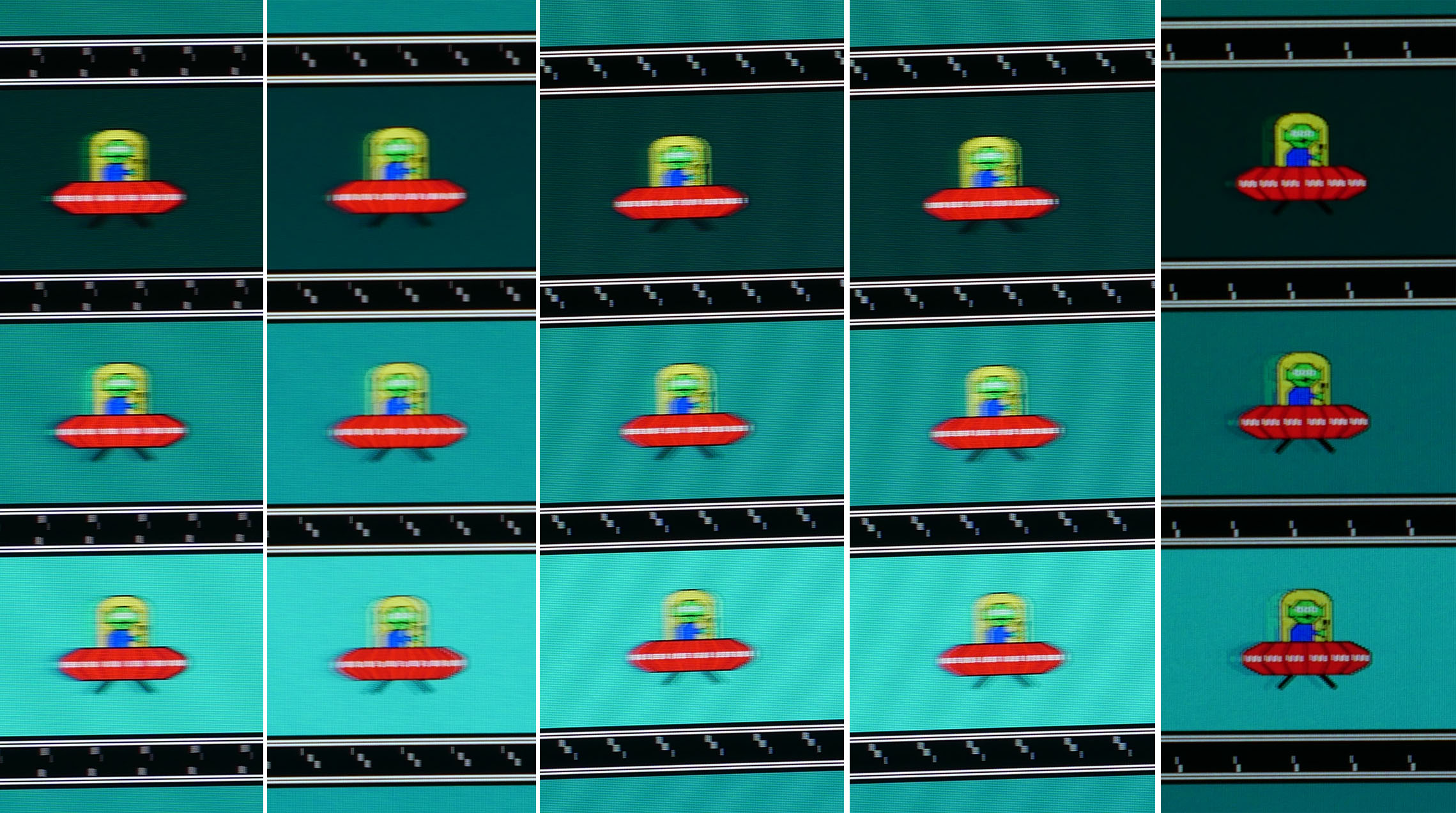
From left to right: Overdrive off/weak/medium/strong and ULMB on
This monitor also offers Nvidia’s ULMB backlight-strobing blur reduction mode and it works very well. There’s a very clear increase in sharpness of moving objects such as in BlurBusters’ moving UFO test (see above). You do actually get an increase in ghosting with this option, such that the UFO appears to have a trailing ghost, but the overall image is clearer.
You’re also able to alter the gap in between light pulses such that you can even further reduce motion blur. However, this darkens the image and we didn’t notice a huge difference in the performance. Enabling ULMB also required disabling G-Sync and is limited to 120Hz. As such, we tended to leave it turned off most of the time.
When gaming the graininess of the screen isn’t so noticeable either so if gaming is you’re primary concern then this shouldn’t put you off buying this screen.
One oddity we did encounter with this screen, however, is that when overclocked to 165Hz it caused games to crash. In particular, playing Apex Legends, the game consistently died five or ten minutes into a match. Once the screen was turned back down to 144Hz this stopped happening.
We’re generally inclined not to bother with the overclocked settings on most gaming screens anyway – just in case it helps to prolong the life of the screen – but this would make us doubly cautious of overclocking this display.
The AOC AGON AG273QCG is an excellent monitor. It offers all the gaming performance you’d expect of a typical 1080p TN gaming display but at a larger 27-inch size and 1440p resolution.
Its use of a high quality 8-bit panel, rather than a 6-bit one with dithering, means image quality is a step up from cheaper TN gaming displays and it arrives well calibrated too. You also get G-Sync and ULMB so you’ve a choice of either a smoother image or less motion blur when gaming.
A reasonably nice design and high build quality add a premium touch while a couple of light zones on the back and bottom add a bit of flare without making the display totally garish. We’re even a fan of the slight curve to the screen.
However, there are a couple of key problems. The first is the slightly grainy surface to the screen that can make using the display for things other than gaming less enjoyable. Any screen that makes large blocks of white look this fuzzy isn’t one we’d want to use everyday.
Then there’s the price. At £650 it’s exceedingly expensive for a TN gaming screen. For instance, you can buy the excellent Asus PG278Q for £570, and although the AOC model does include more lights and those headphone stands, they’re otherwise equals. You can also get the near identical Omen by HP for £599 and it is a far nicer looking bit of kit.
Meanwhile, even something like the AOC AG271QG can be had for less, and it uses a more expensive IPS-type LCD panel. Some users will prefer the image from the AG273QCG as it doesn’t suffer from IPS glow and has the faster response time, but the fact remains that IPS is generally considered a more expensive, premium technology.
For this reason the AG273QCG isn’t a display we’d strongly recommend at its current price. Once it drops in price – as it no doubt will – to closer to £550 it will be more of a contender, though for us the graininess of the screen would still be a concern.
Buy from Amazon for £650 HERE.
Pros:
- Great gaming performance
- Smooth G-Sync gaming
- Decent image quality for TN LCD
- Good calibration out of the box
- Larger and higher resolution than typical gaming screens
Cons:
- Very expensive for a TN LCD
- Slightly grainy image
- TN LCD makes for poor viewing angles
- Not great for work
Kitguru Says: A very competent higher-end gaming screen but it’s let down by a grainy screen surface and high price.