KitGuru KitGuru.net – Tech News | Hardware News | Hardware Reviews | IOS | Mobile | Gaming | Graphics Cards


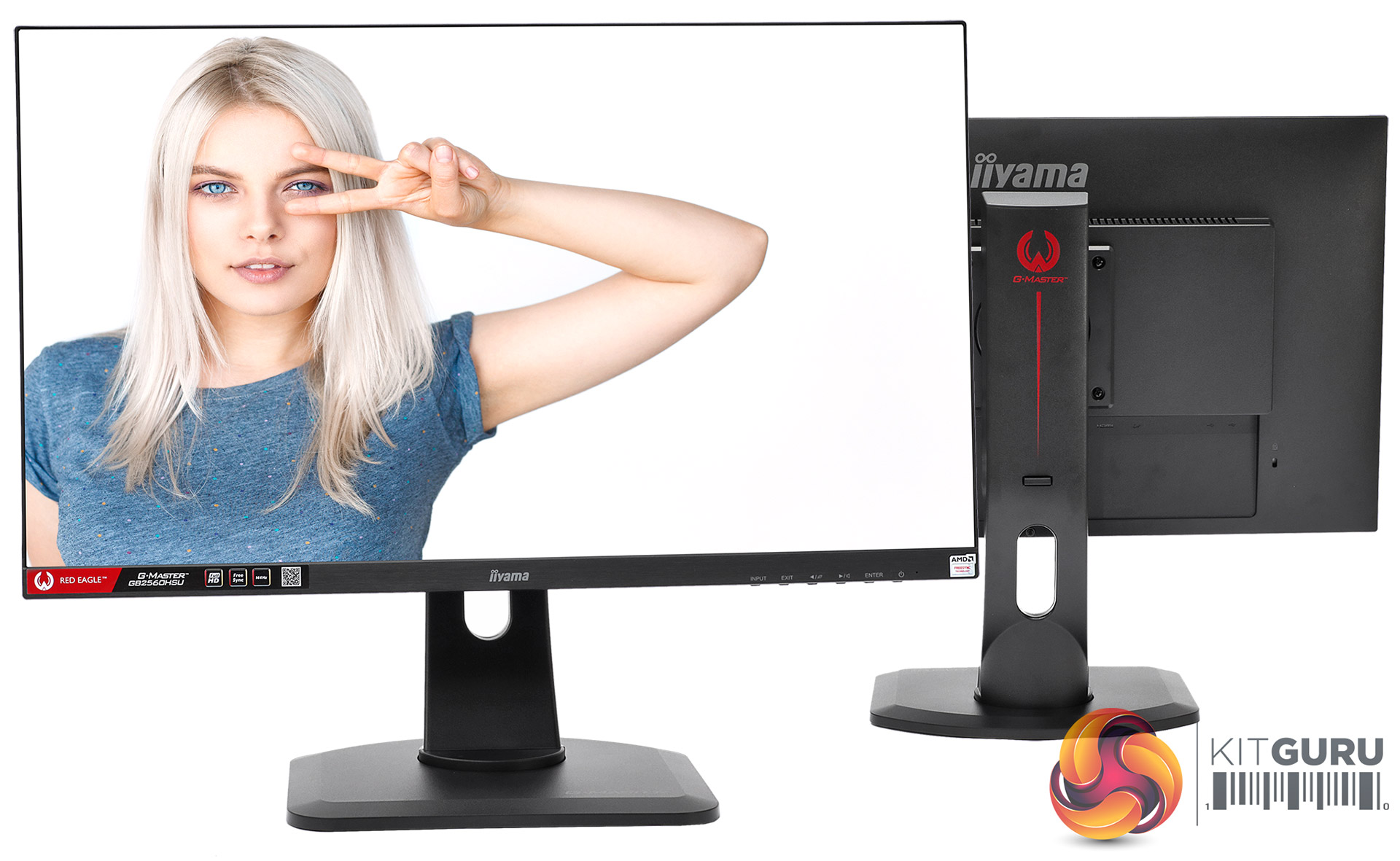
Iiyama has traditionally been a manufacturer associated with the high end and professional markets. But more recently the company has also developed a sizeable portfolio of gaming screens. The Red Eagle G-MASTER GB2560HSU is still a relatively premium option in terms of features, offering 144Hz and adaptive sync, but it costs a reasonable £220 for a 24.5in Full HD panel.
Unlike some manufacturers targeting the higher end of the gaming market, Iiyama has stuck with TN panel technology. This provides the fastest 1ms pixel response rate, which is optimal for this type of user, albeit usually at the expense of colour fidelity and contrast compared to IPS and VA respectively.
Nevertheless, the brightness specification is high at 400cd/m2, although contrast is the usual 1,000:1 rating found with TN panels. The adaptive sync technology used is AMD's FreeSync rather than NVIDIA's G-Sync, the latter being more expensive to implement. So you'll be confined to Radeon graphics if you want to take advantage of this capability.
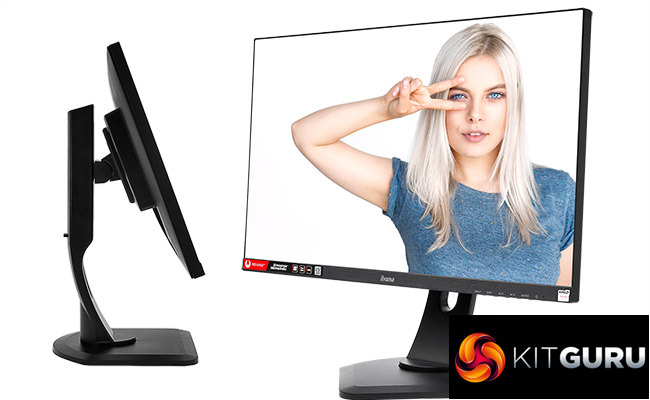
Inputs include an adequate pair of digital-only options – HDMI and DisplayPort. There are no legacy video connections available. As a result, no analog minijack audio input is included, just output. There are also stereo 2W speakers available, but more for convenience as a gamer is probably going to plug headphones into the minijack. A USB hub is included, too, but clearly only aimed at making attachment of keyboard and mouse. It only has two ports, and only supports USB 2.0.
There's a solid range of physical adjustment available, including tilt, swivel, and raising, plus portrait mode. So you can get this screen into exactly the position you want. Build quality is solid and the design has a frameless bezel top and sides. So the GB2560HSU is promising on paper. But how does it stack up in the real world?
Specification:
- Screen size: 24.5-inch, 16:9 aspect
- Native resolution: 1,920 x 1,080
- Refresh rate: 144Hz
- Panel type: TN
- Contrast ratio: 1,000:1 (typical)
- Brightness: 400cd/m2
- Response time: 1ms Grey-to-Grey
- Display inputs: HDMI, DisplayPort
- USB hub: Yes, 2 x USB 2.0
- Tilt: 5 degrees forward, 22 degrees backward
- Raise: 130mm
- Swivel: 45 degrees left and right
- Portrait: Yes
- Other: Audio output, 2W stereo speakers, AMD FreeSync
Retail Price: £219.98 (inc. VAT)
The Iiyama Red Eagle G-MASTER GB2560HSU doesn't come in the most “bling” box we've seen. It's more exciting than some we have been sent recently, but fits the Iiyama brand image of being more about substance than showing off.
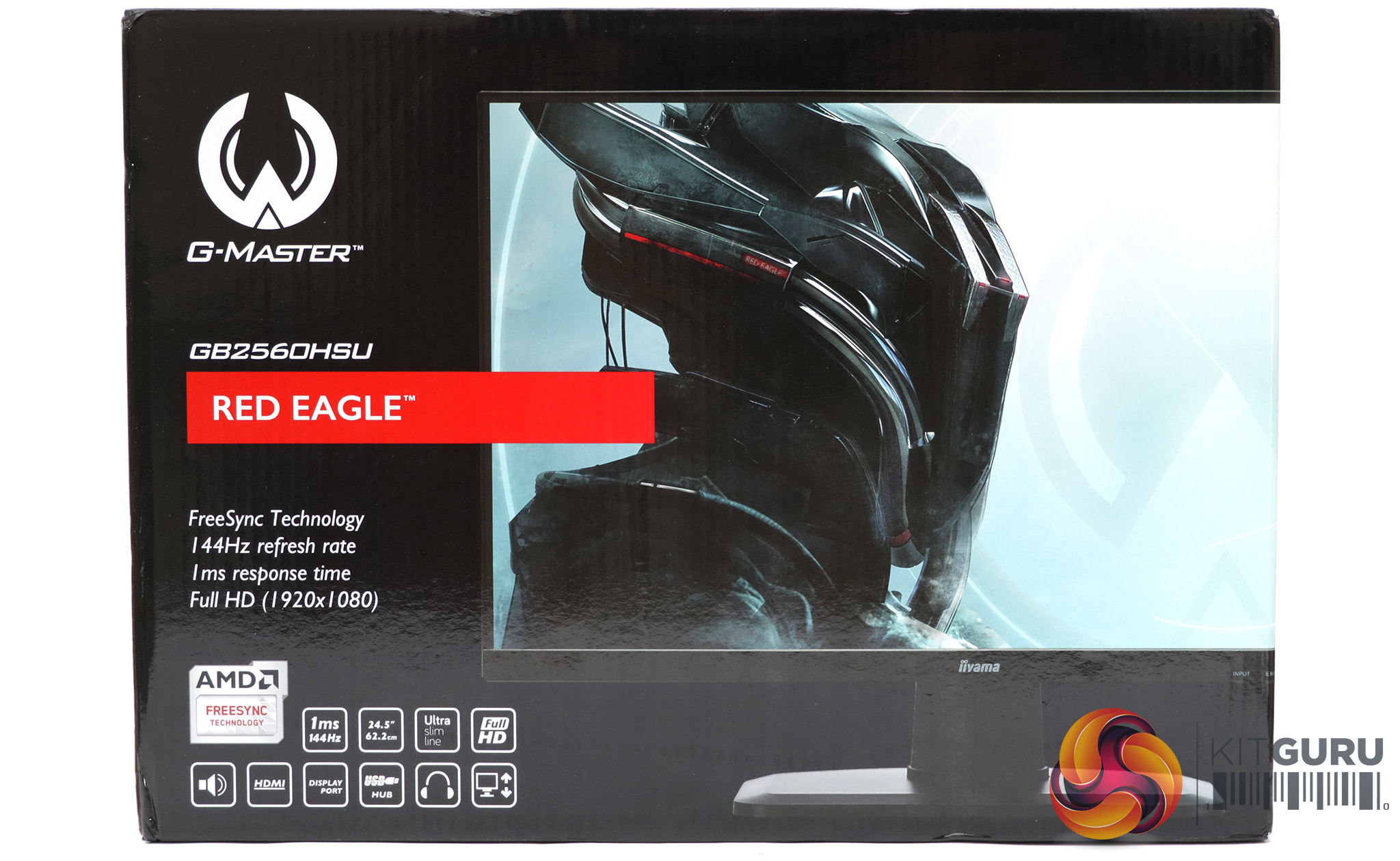
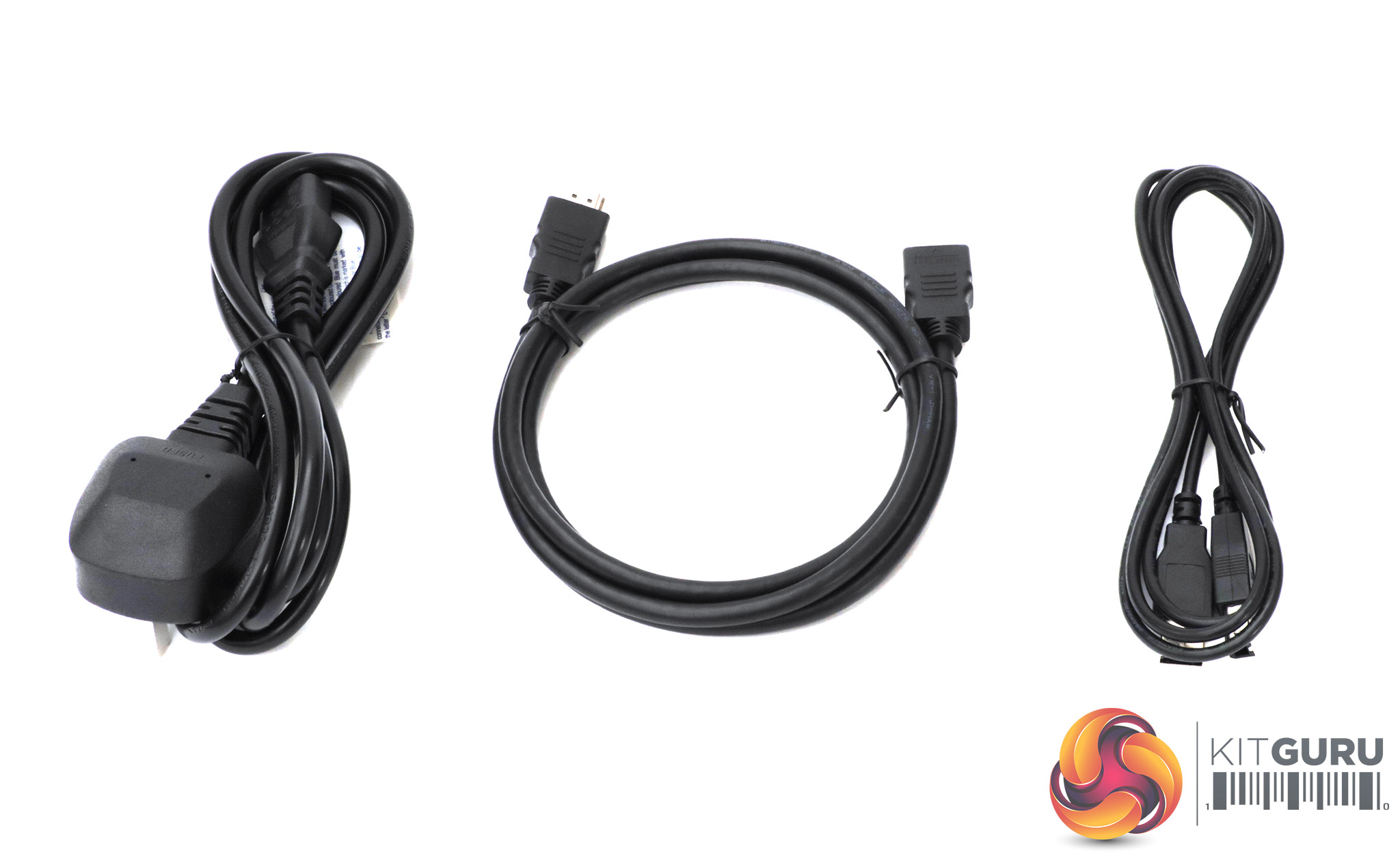
Only an HDMI cable, upstream wire for the USB hub and kettle-style power lead are included in the box. The PSU is build directly into the monitor, rather than being an external unit.
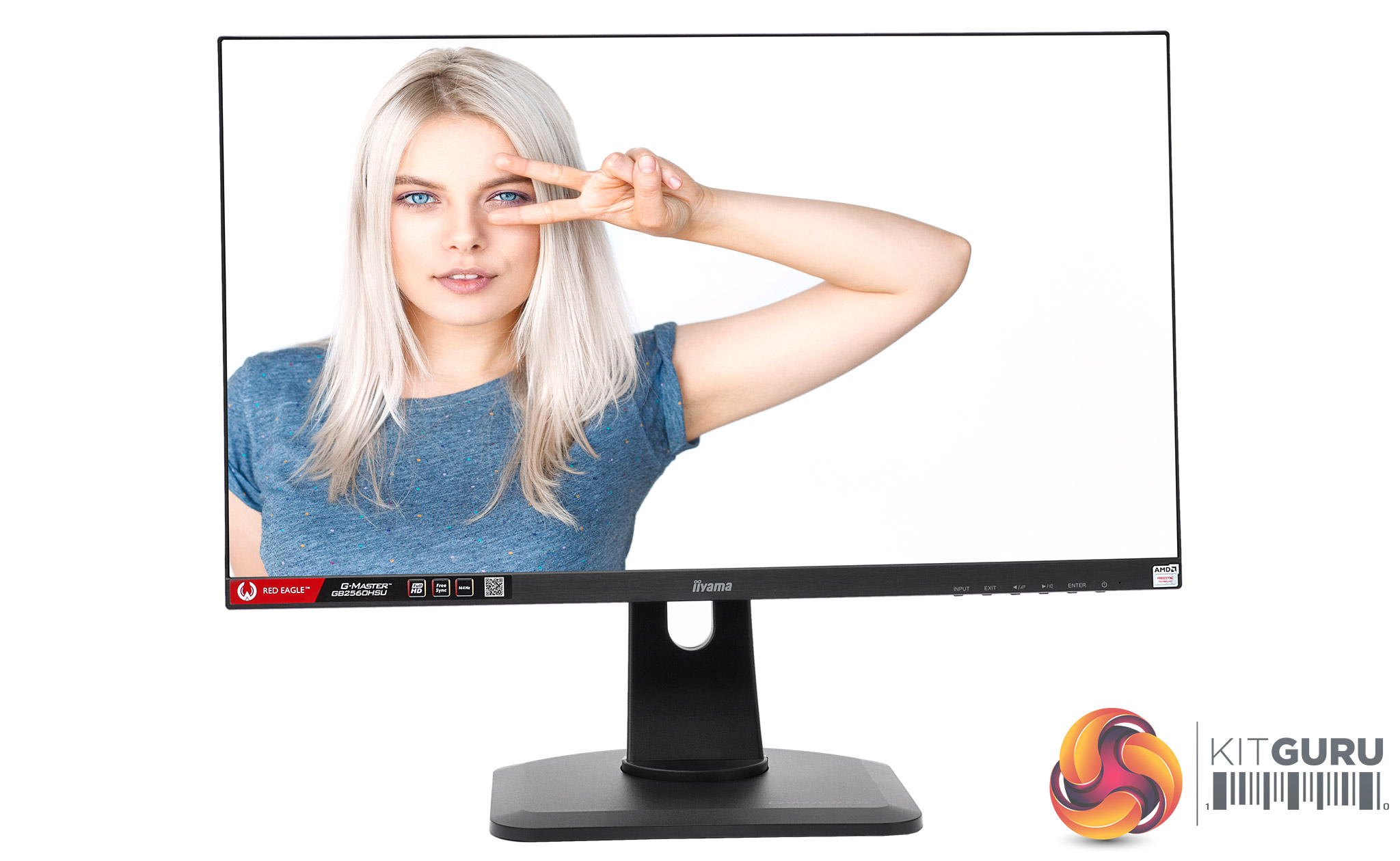
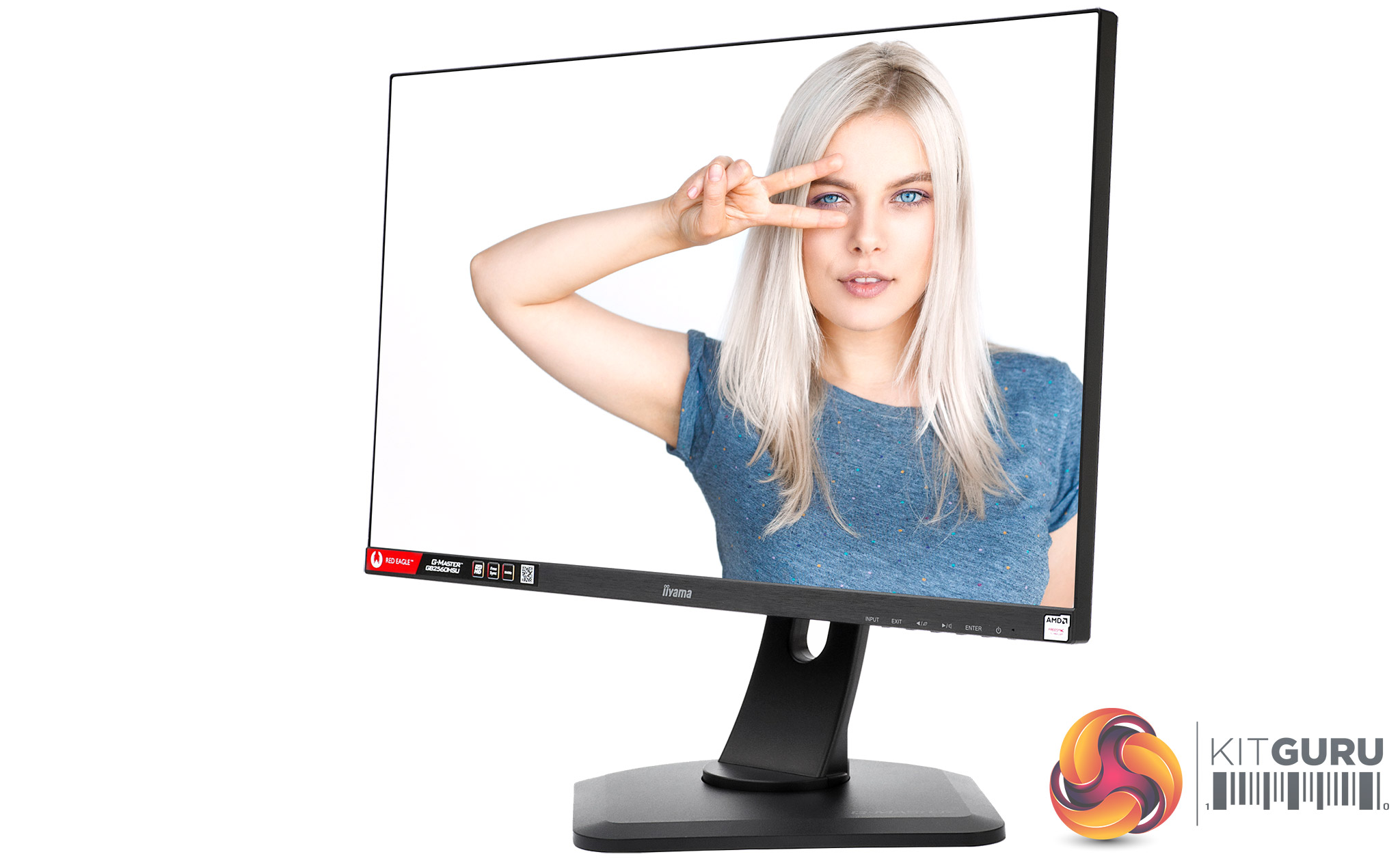
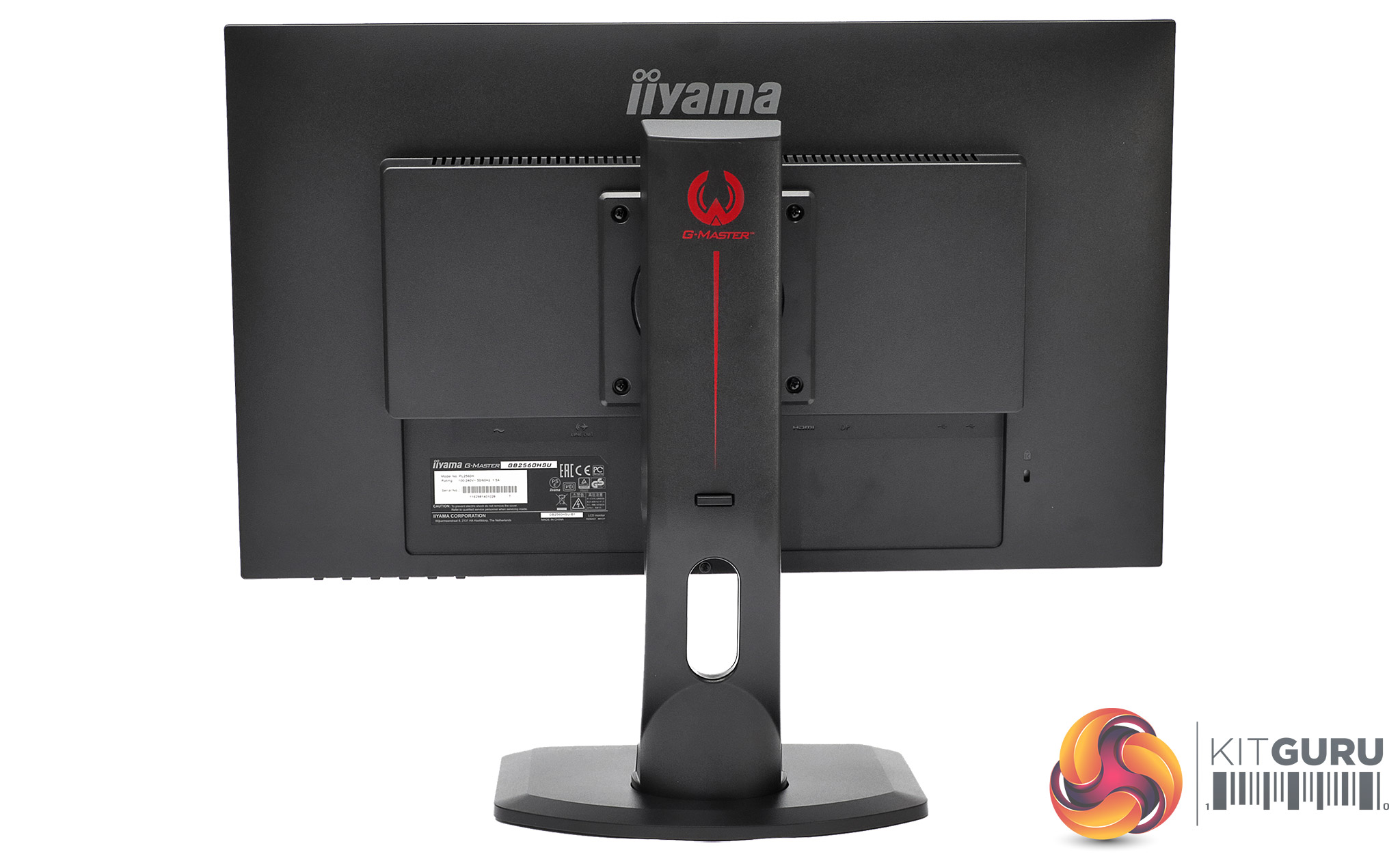
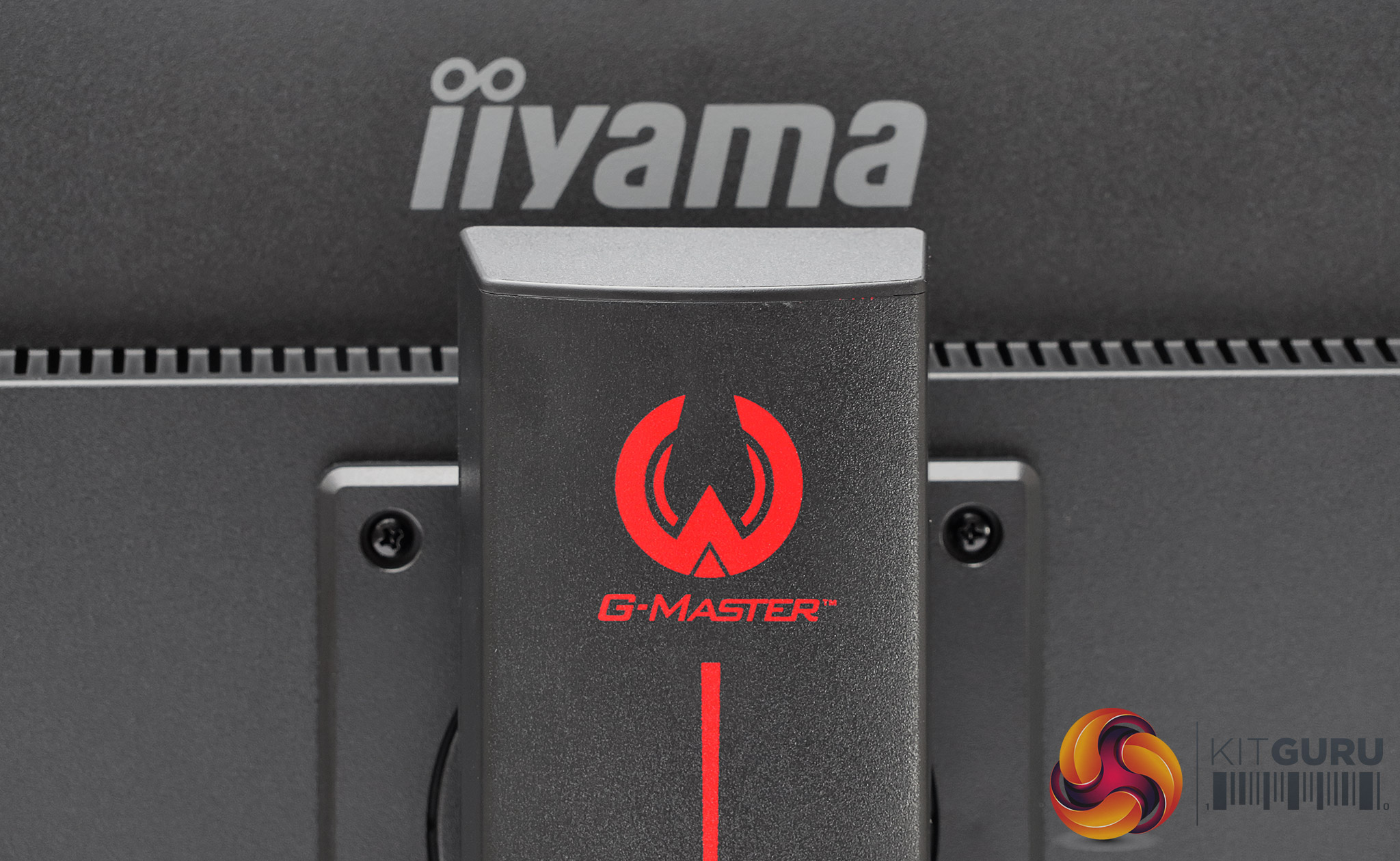
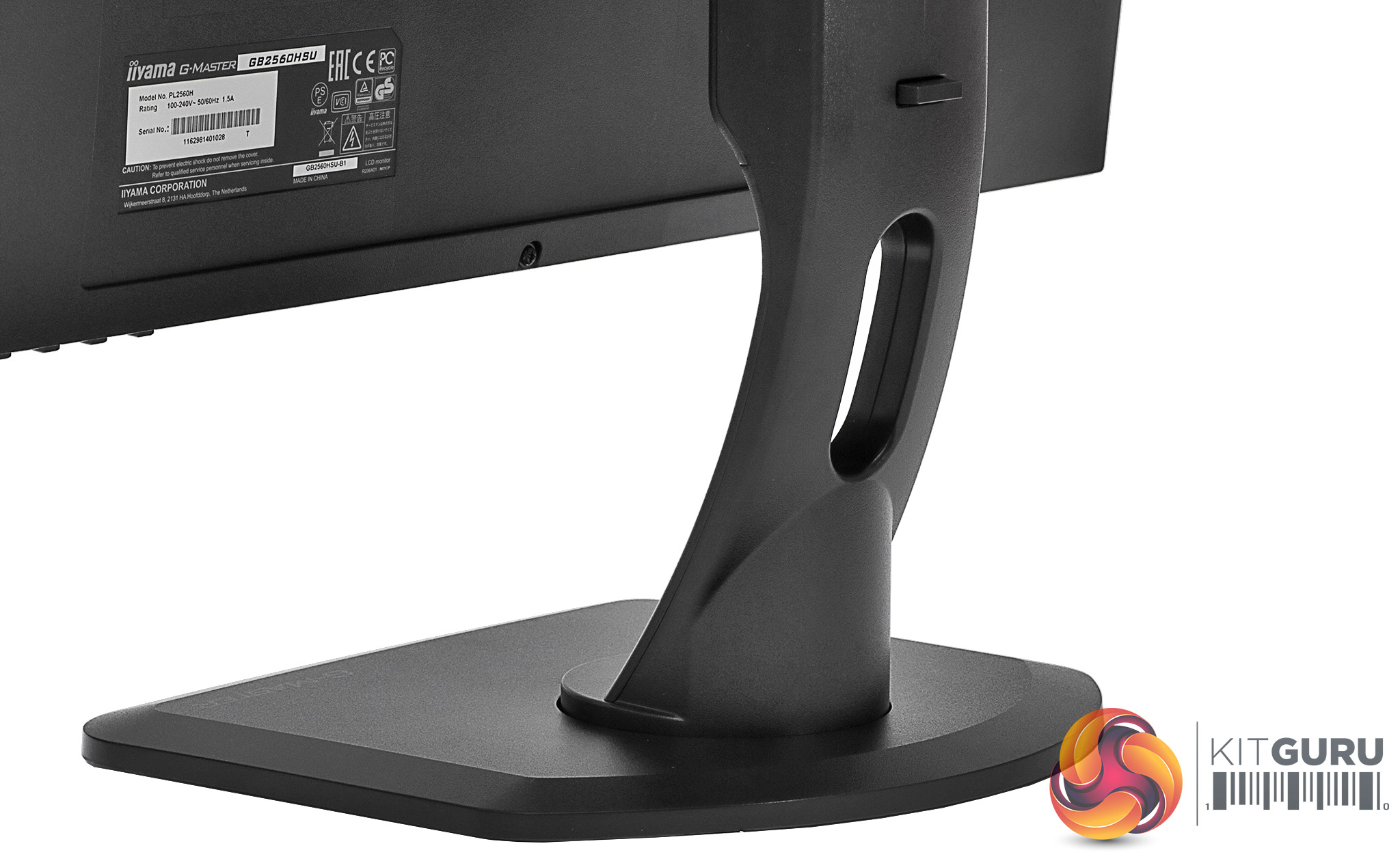
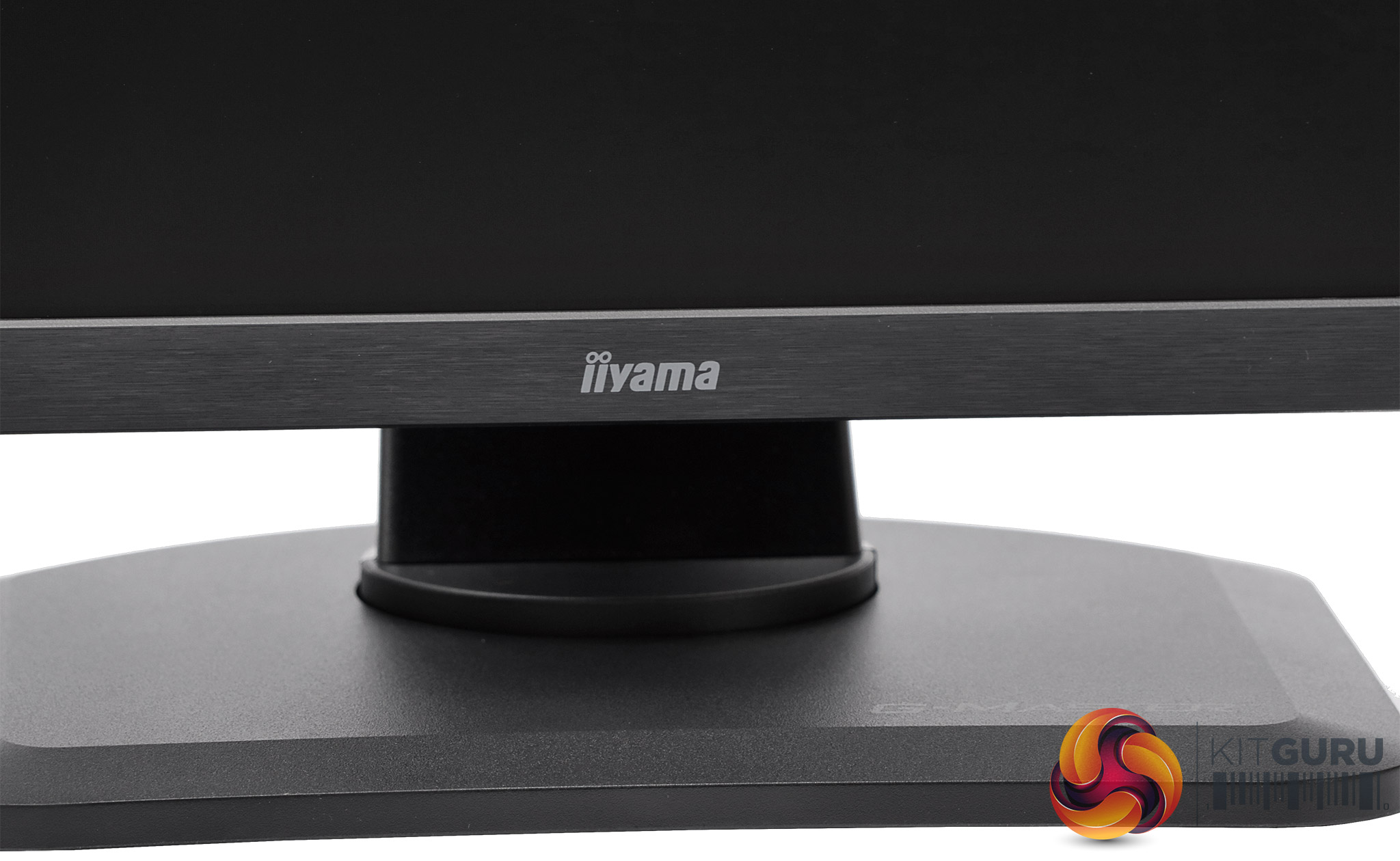
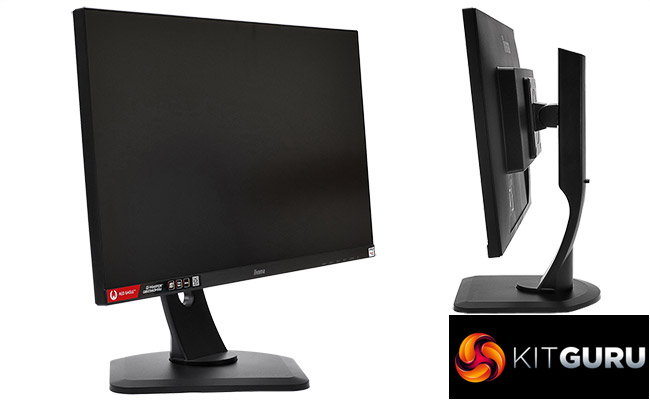
The design of the GB2560HSU is black. Seriously black. Take off the marketing stickers, and the only non-black elements from the front are the Iiyama logo and button labels for the menu control system. The Iiyama logo is larger on the rear, and there's a red “G-Master” label, but sadly no red eagles.
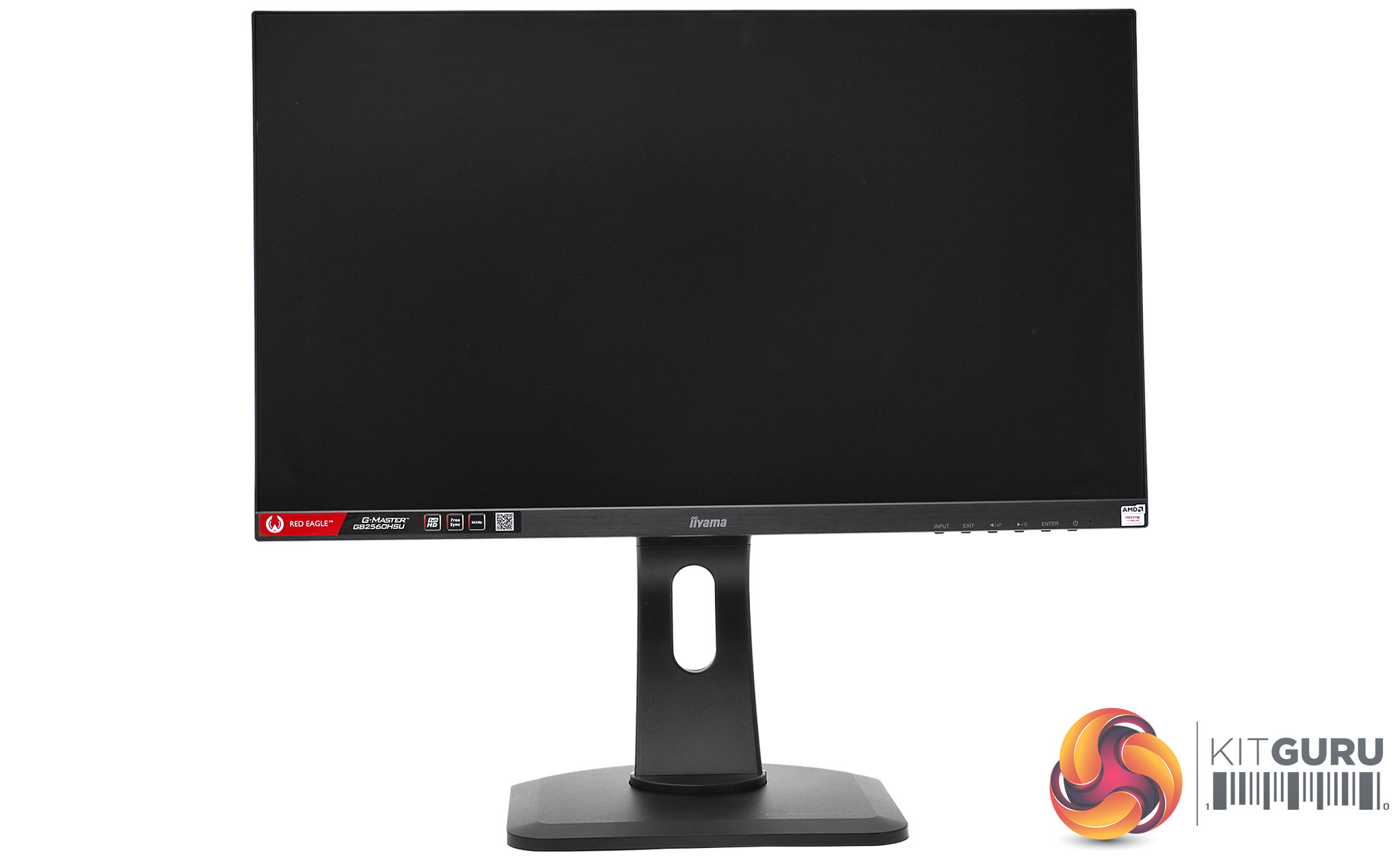
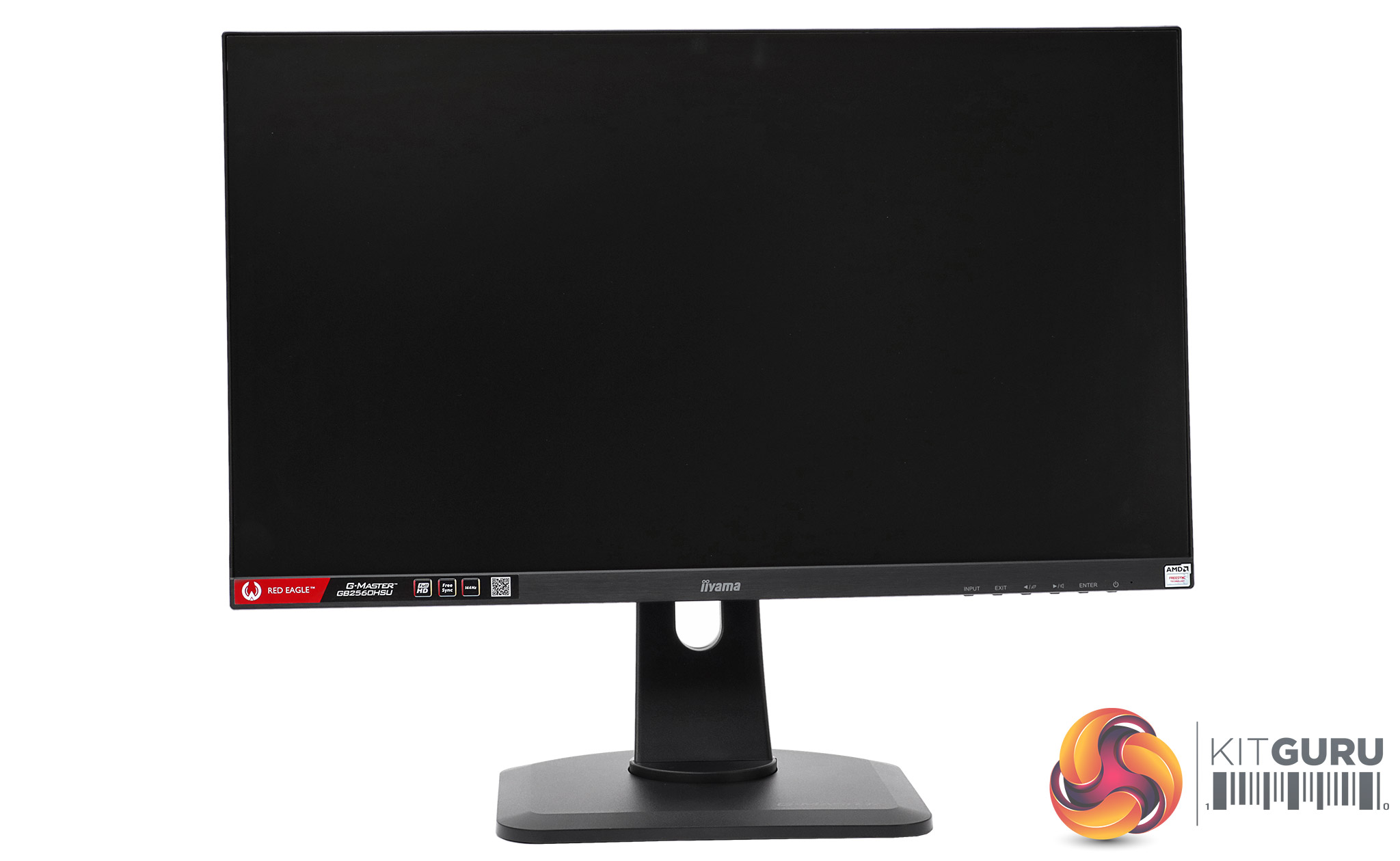
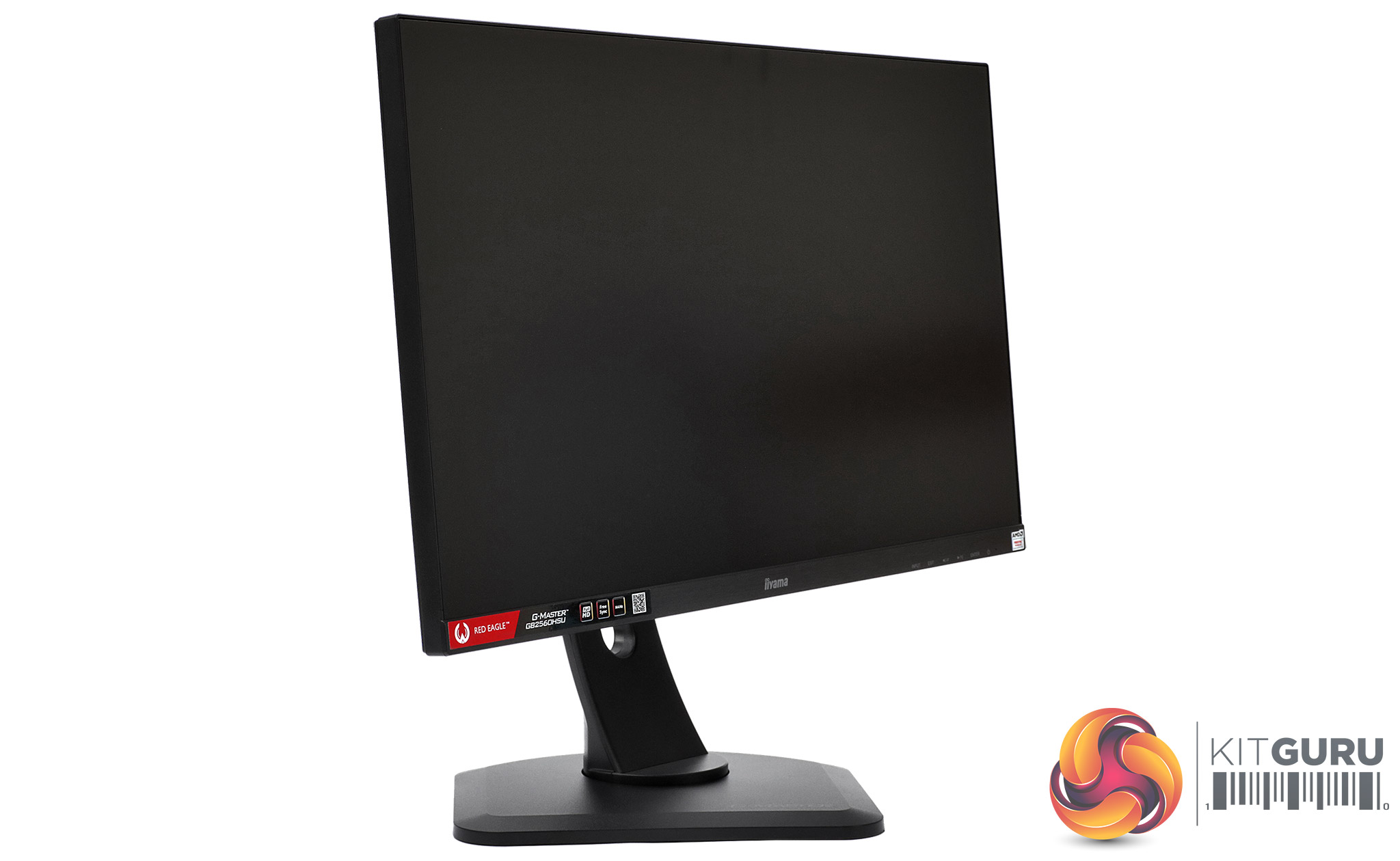
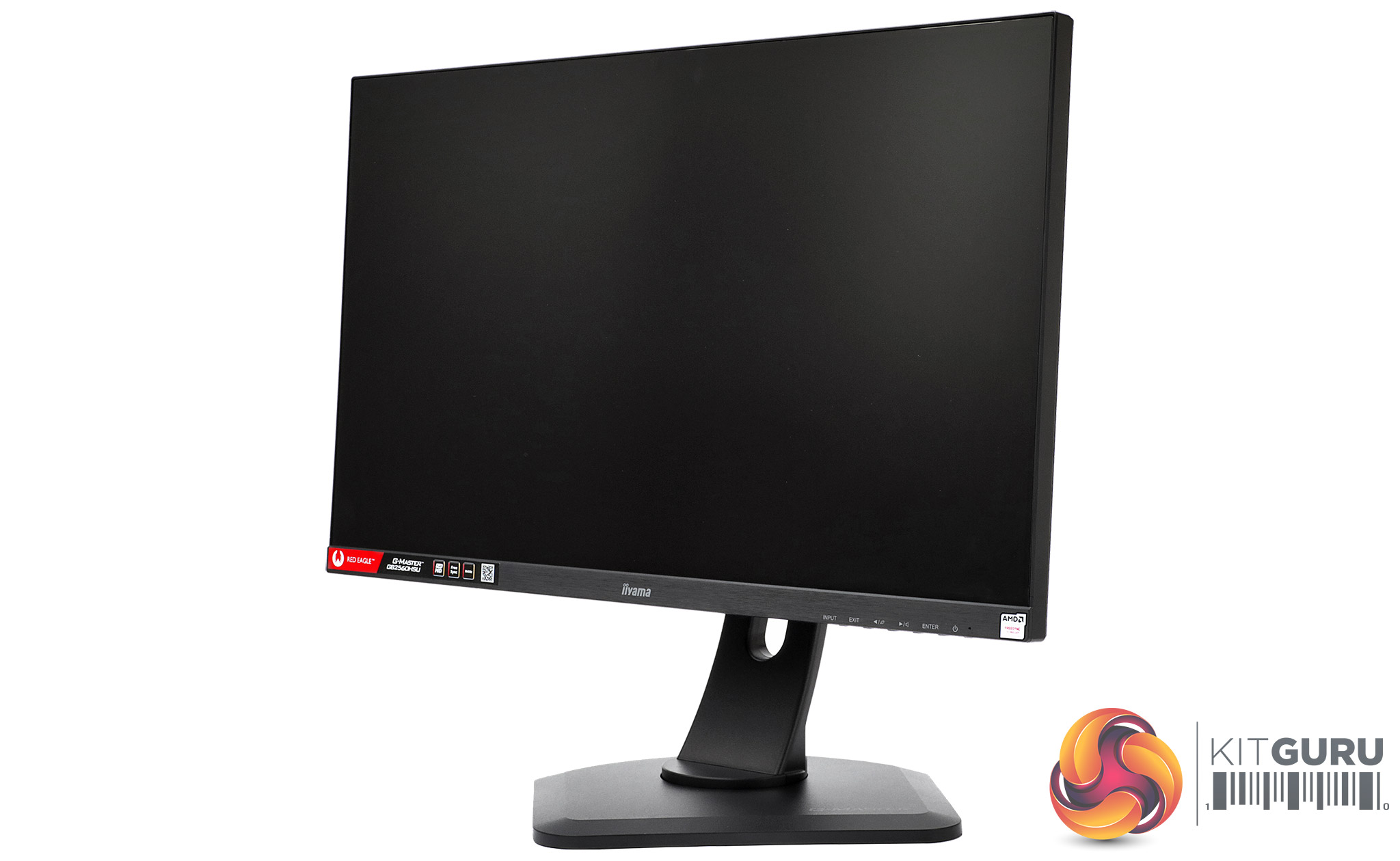
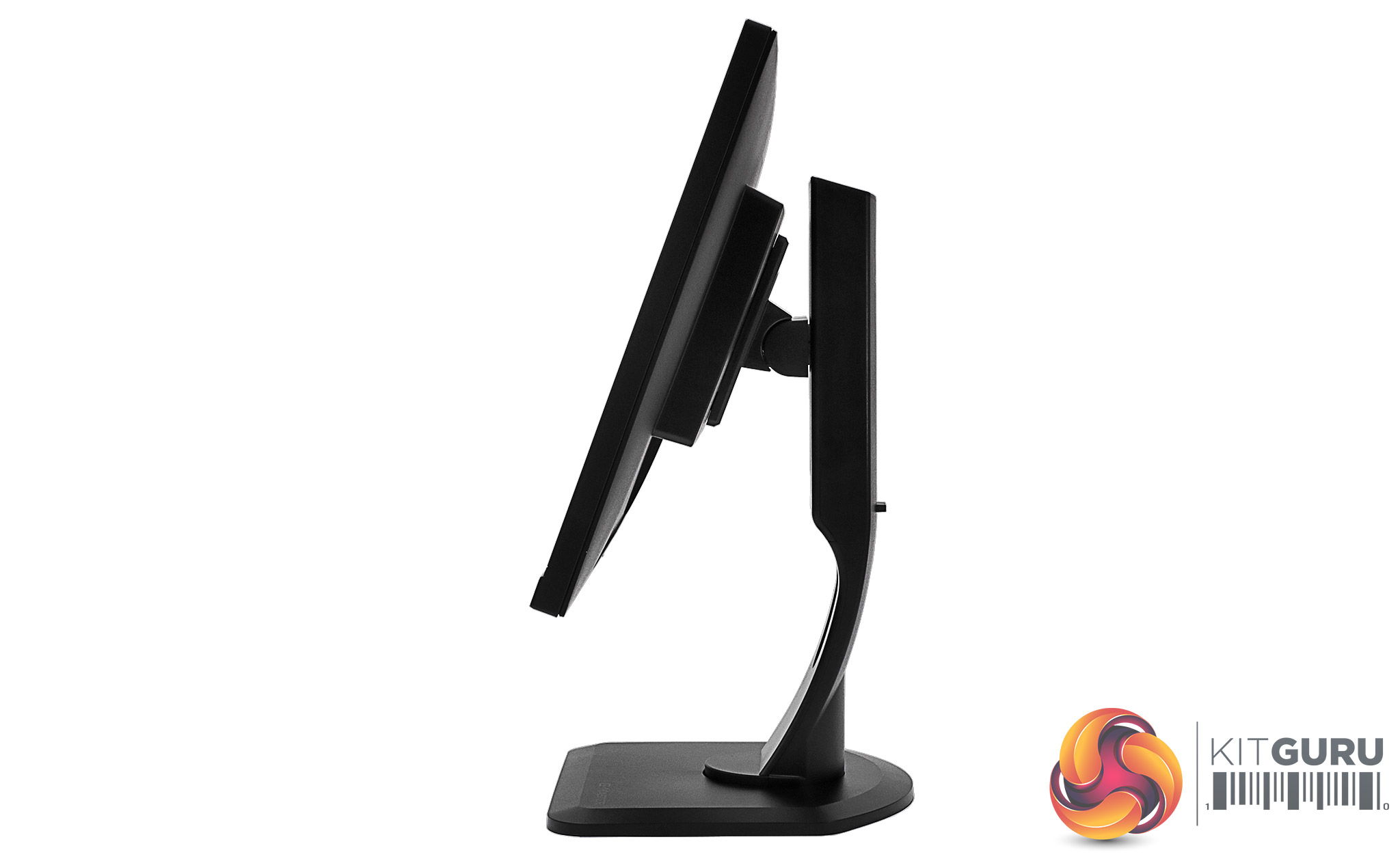
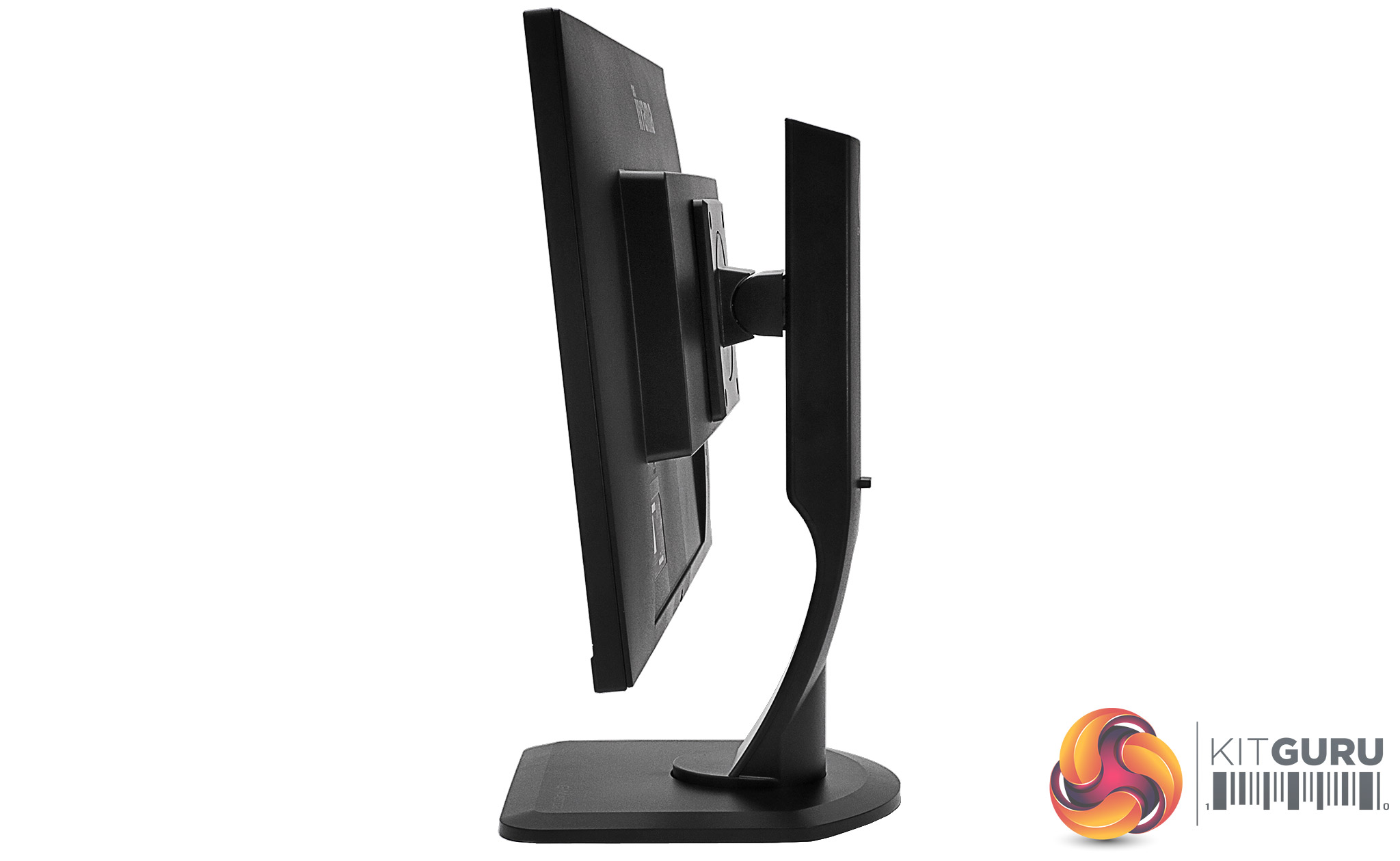
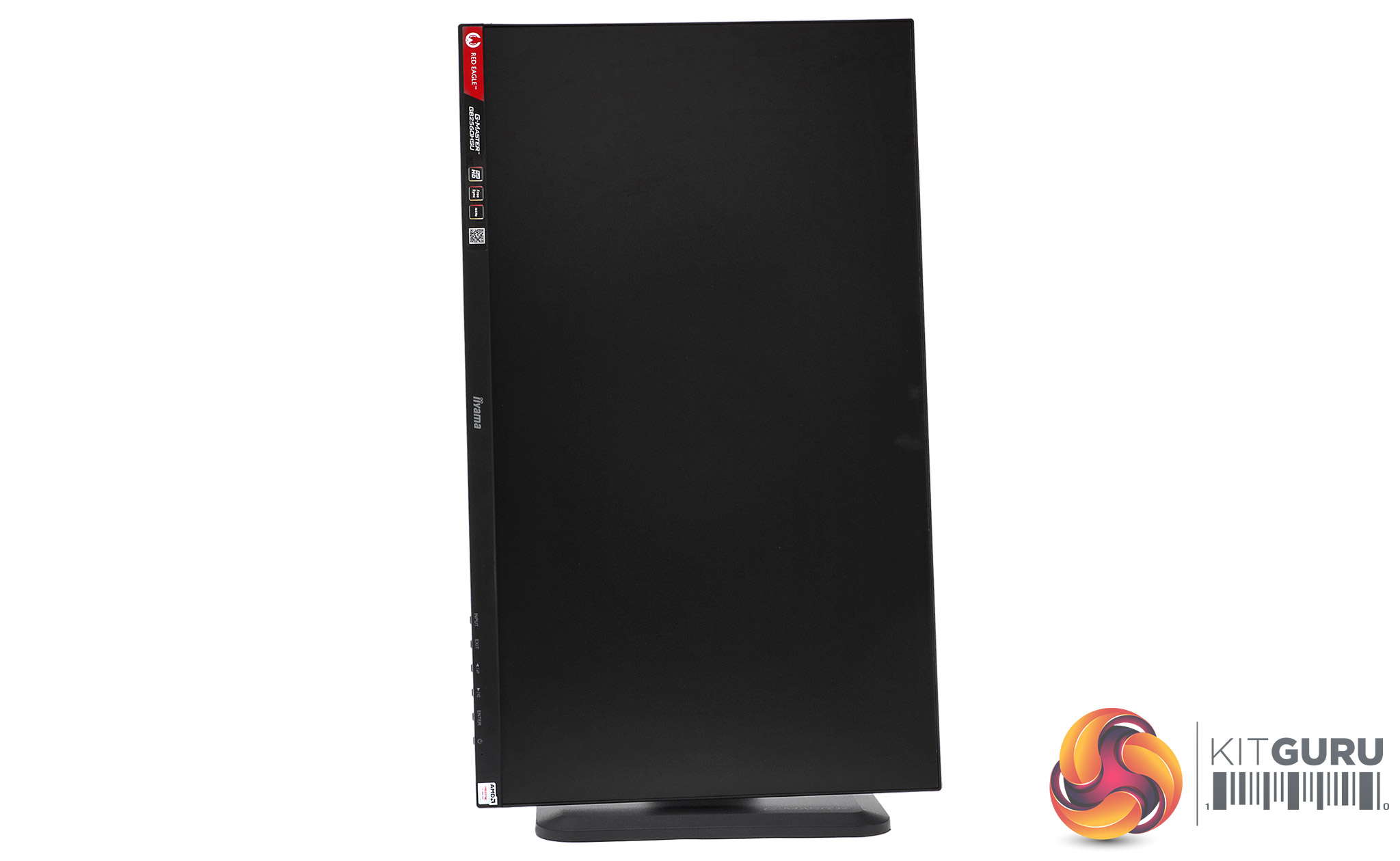
A full range of physical adjustments are available. You can raise the screen up and down by 130mm, and rotate it 45 degrees left or right. The tilt angle is up to five degrees forward or 22 degrees backward. You can also rotate the screen into portrait mode, which can come in handy when reading long documents onscreen.
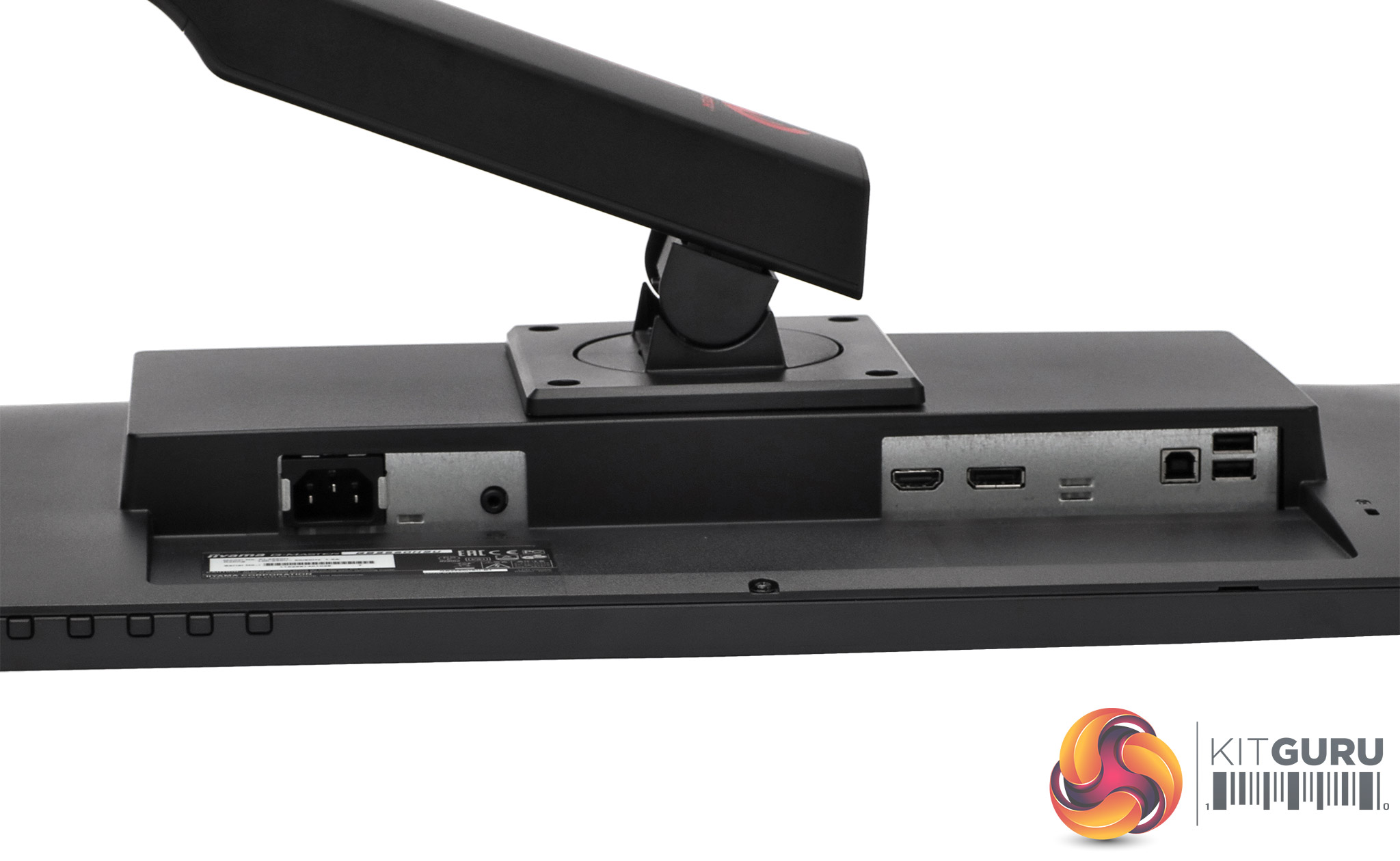
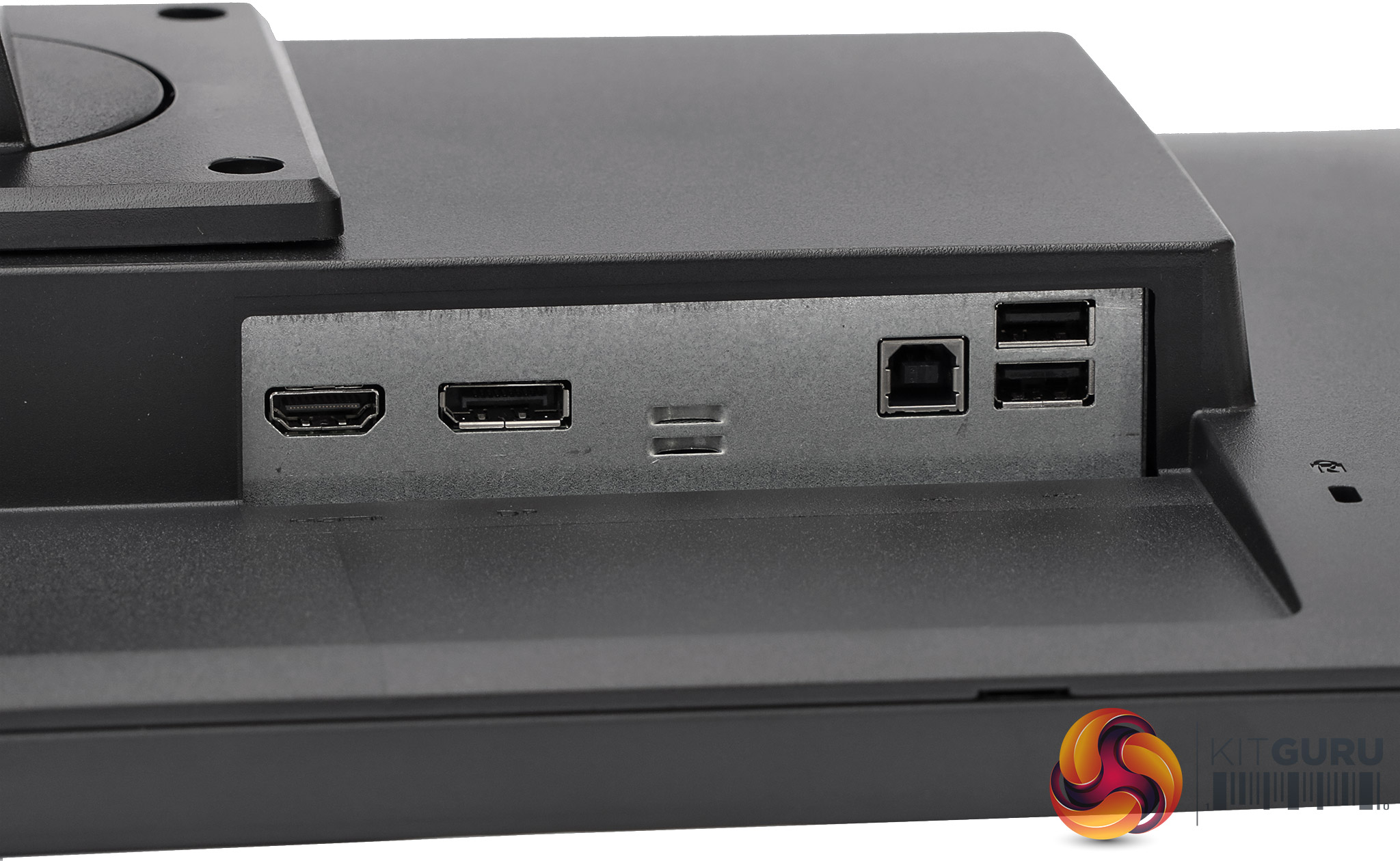
The GB2560HSU isn't the most port-packed monitor. The analog audio minijack output is on the right side next to the power connection. The HDMI and DisplayPort connections are on the left, with the two USB 2.0 ports and USB upstream connections furthermost left (when viewed from the front).
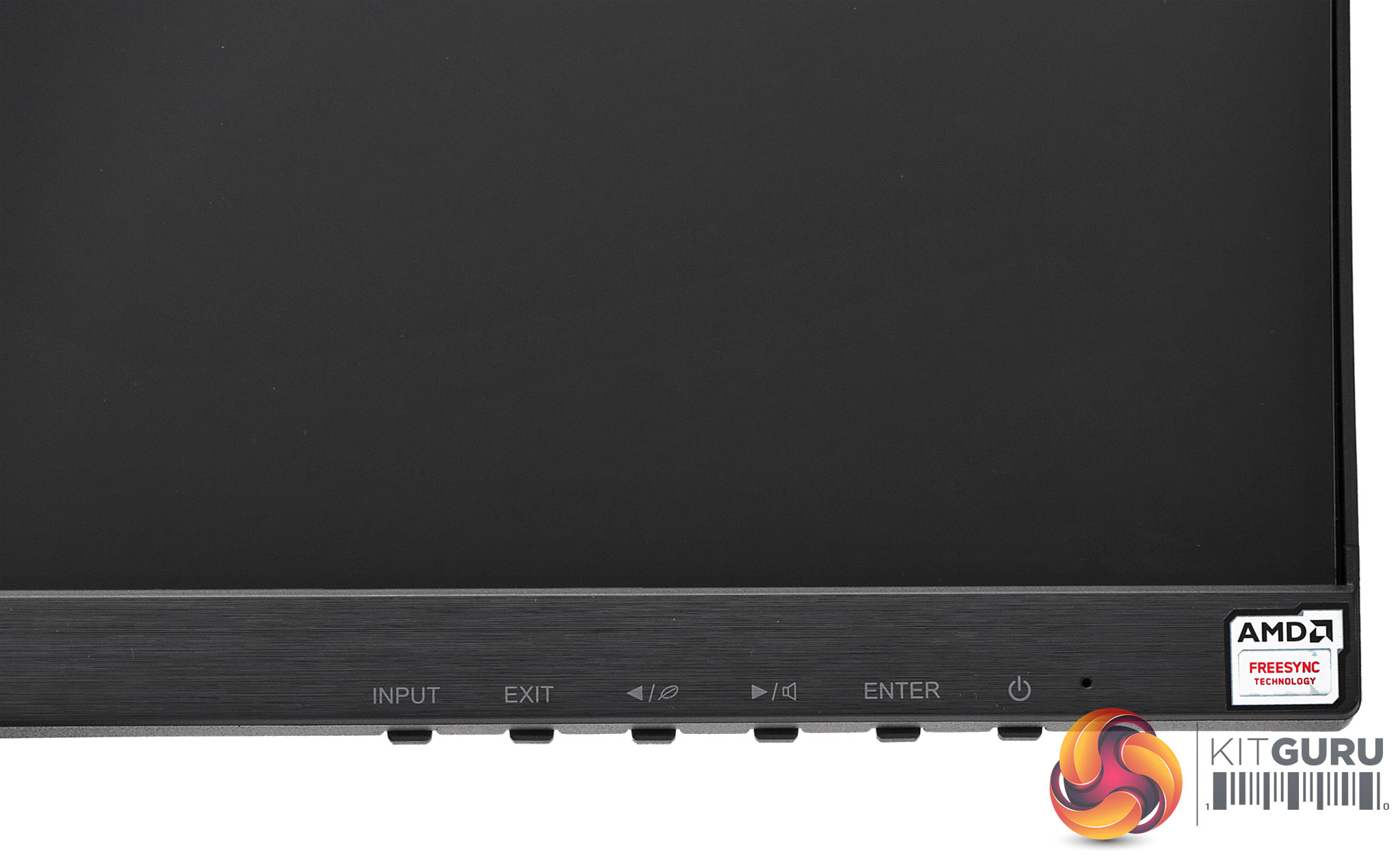
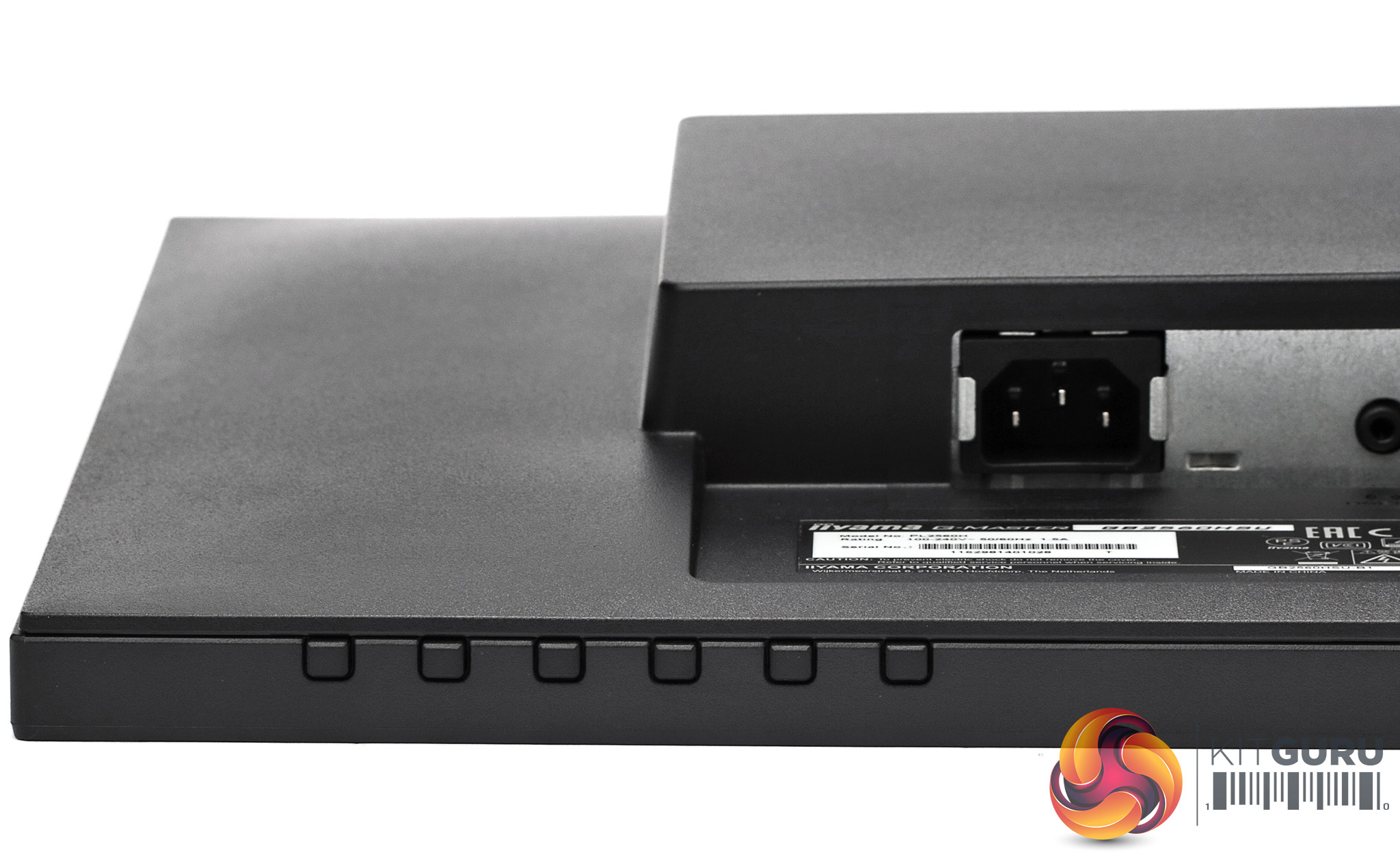
The onscreen menu is controlled with six buttons along the bottom right of the screen, which are clearly labelled on the front. No fiddly joystick nonsense or cryptic multi-function buttons round the rear – Iiyama goes old school, but many will prefer the clarity and obviousness of the system employed. Next, let's find out which functions are on offer via these buttons.
The buttons are clearly marked, although having the menu exit option second from the left doesn't make complete sense. But it has another function, which we will see shortly.
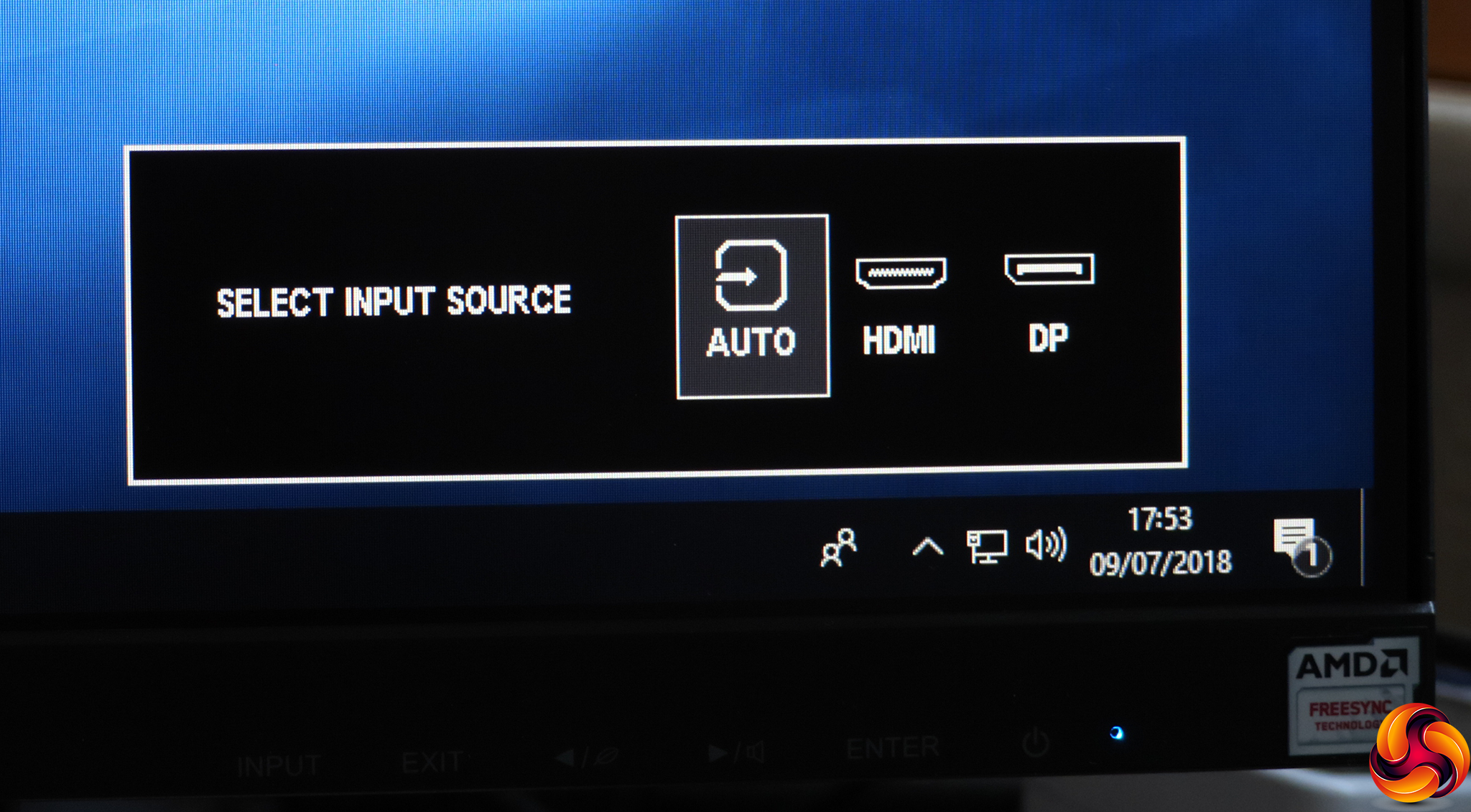
The first button lets you choose between the two inputs manually.
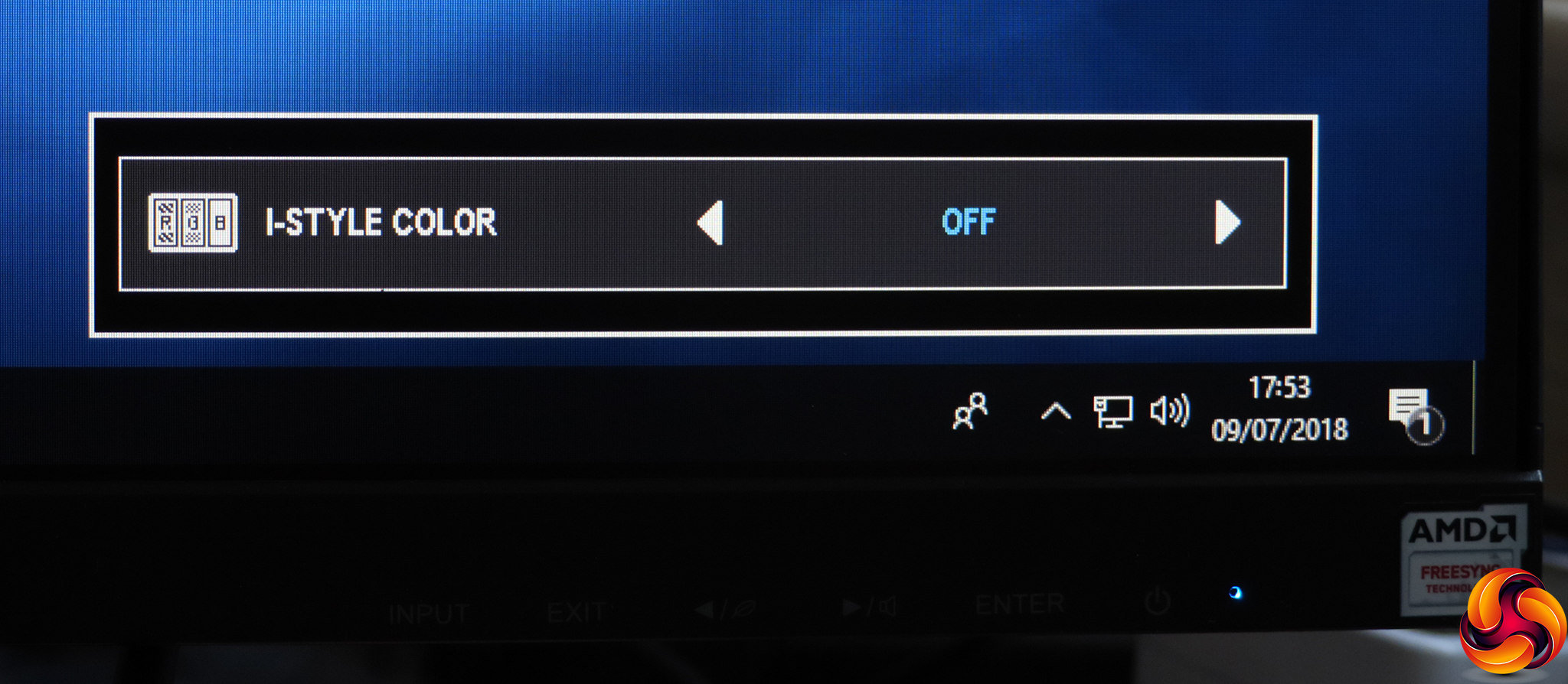
If you press the Exit button with nothing to exit from, the I-Style Color quick menu appears. The I-Style Color modes are Iiyama's presets. These include Standard, Sport Game, FPS Game, Strategy Game, Text, and three user-configurable options.
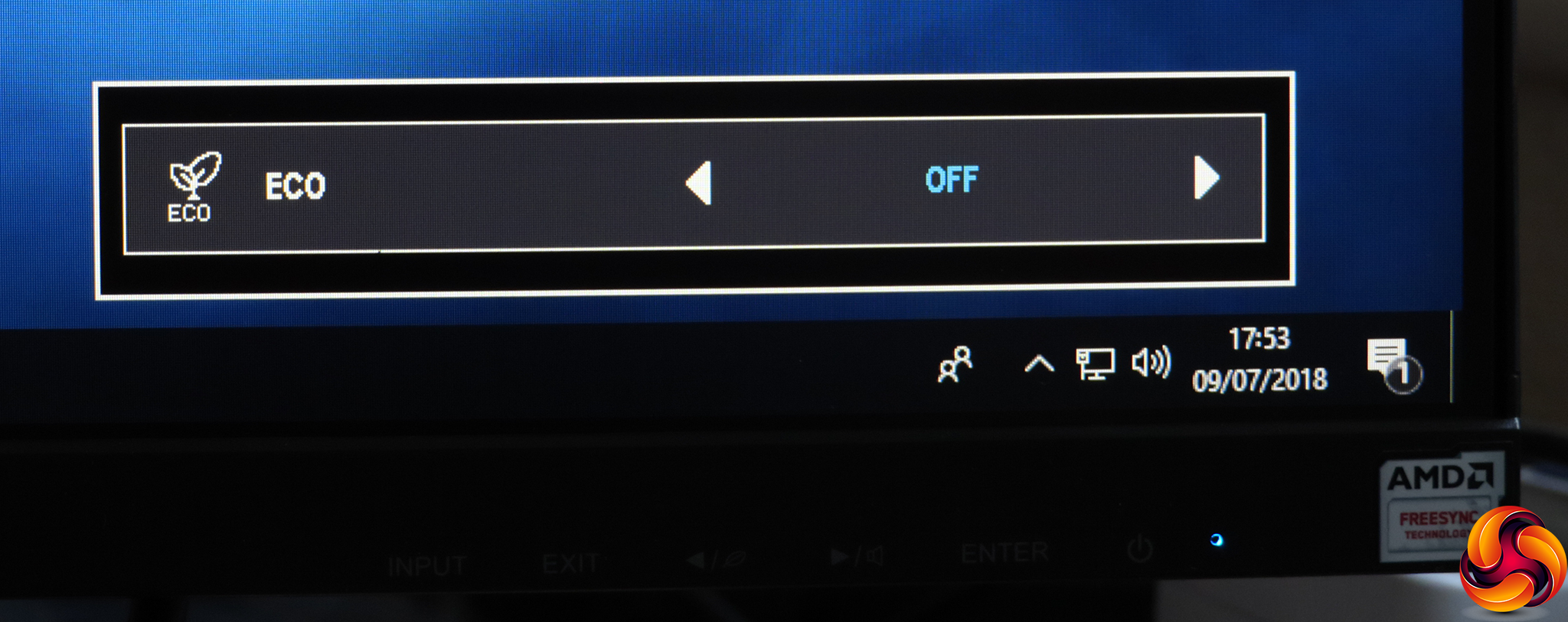
Pressing the button with the left arrow allows you to enable one of the Eco modes, of which there are three, plus the off position.
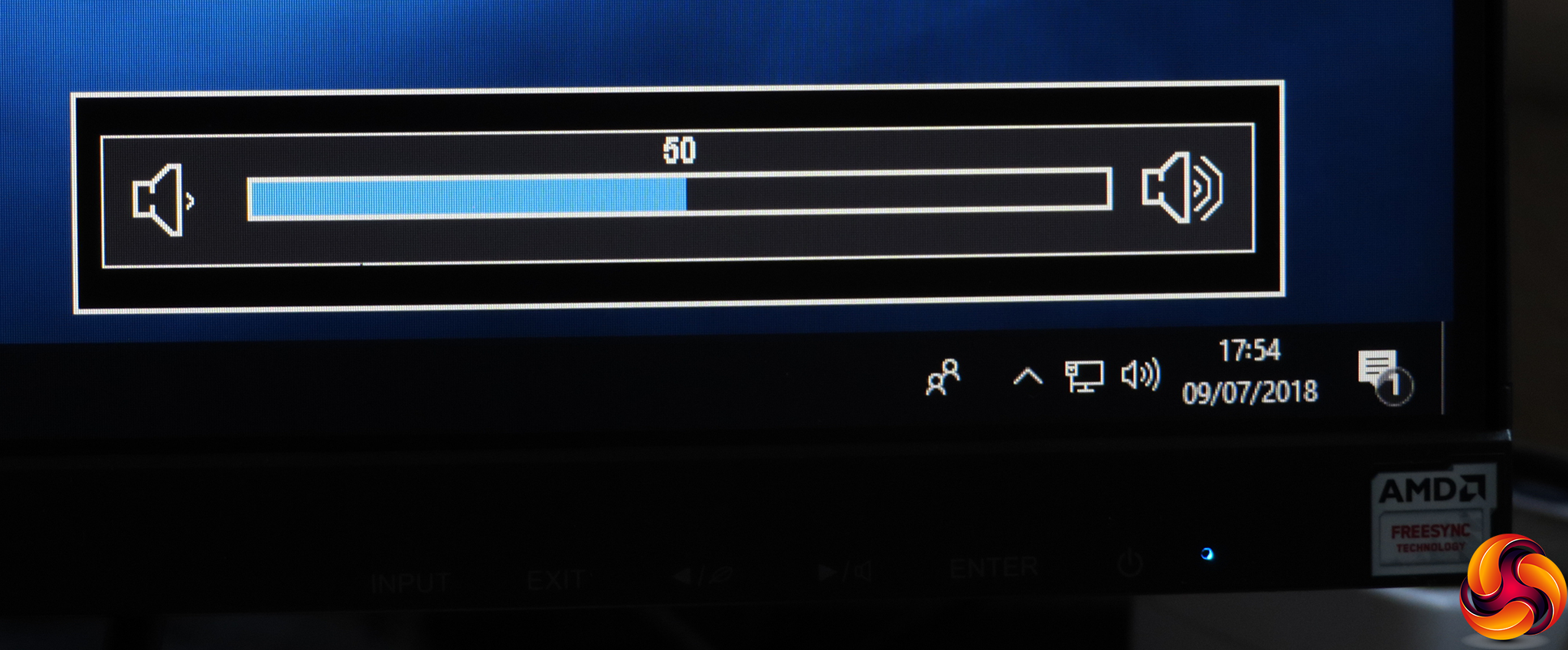
The right-hand menu arrow button simply calls up the volume control for the built-in speakers.
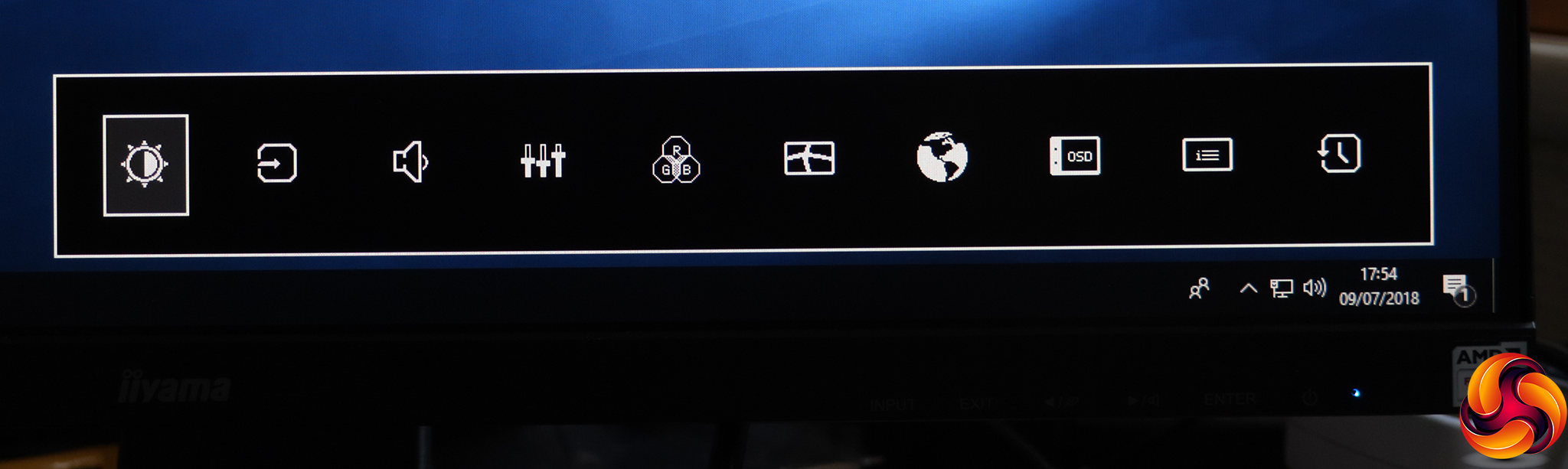
Finally, the ENTER button calls up an icon list for the main menu. You can then select the sub menu you want to go to, which invokes a much larger selection.
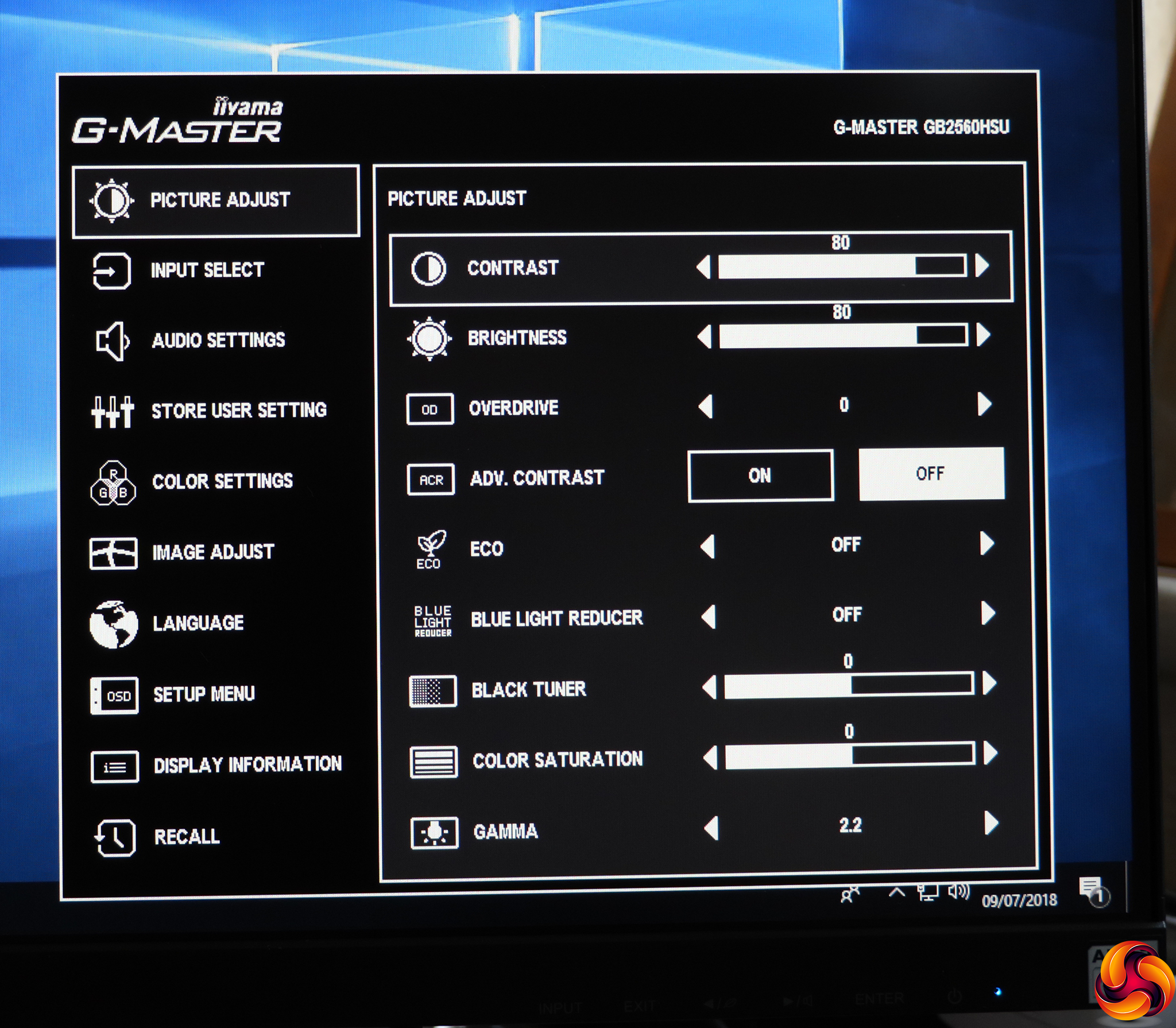
The first of the sub menus is Picture Adjust, and it's packed with options. The menu design isn't exactly funky, but we really like the functional look here, which makes it very clear what your options are and which ones have been selected. Iiyama also doesn't expect you to scroll down for options that are currently off-screen – everything in this category is visible on one page.
Within Picture Adjust, you can configure contrast, brightness, and pixel overdrive. The latter has five levels as well as Off, from -2 to +2. You can turn on Advanced Contrast, which is the usual dynamic system that varies the backlight to produce a greater sense of contrast than the panel can natively display.
You can select one of the three Eco modes on this page, enable a Blue Light Reducer with three levels to soothe eye strain, and vary the black level or colour saturation. Strangely, the gamma options include just 1.8, the default 2.2, and 2.6, which have a large gap between each.
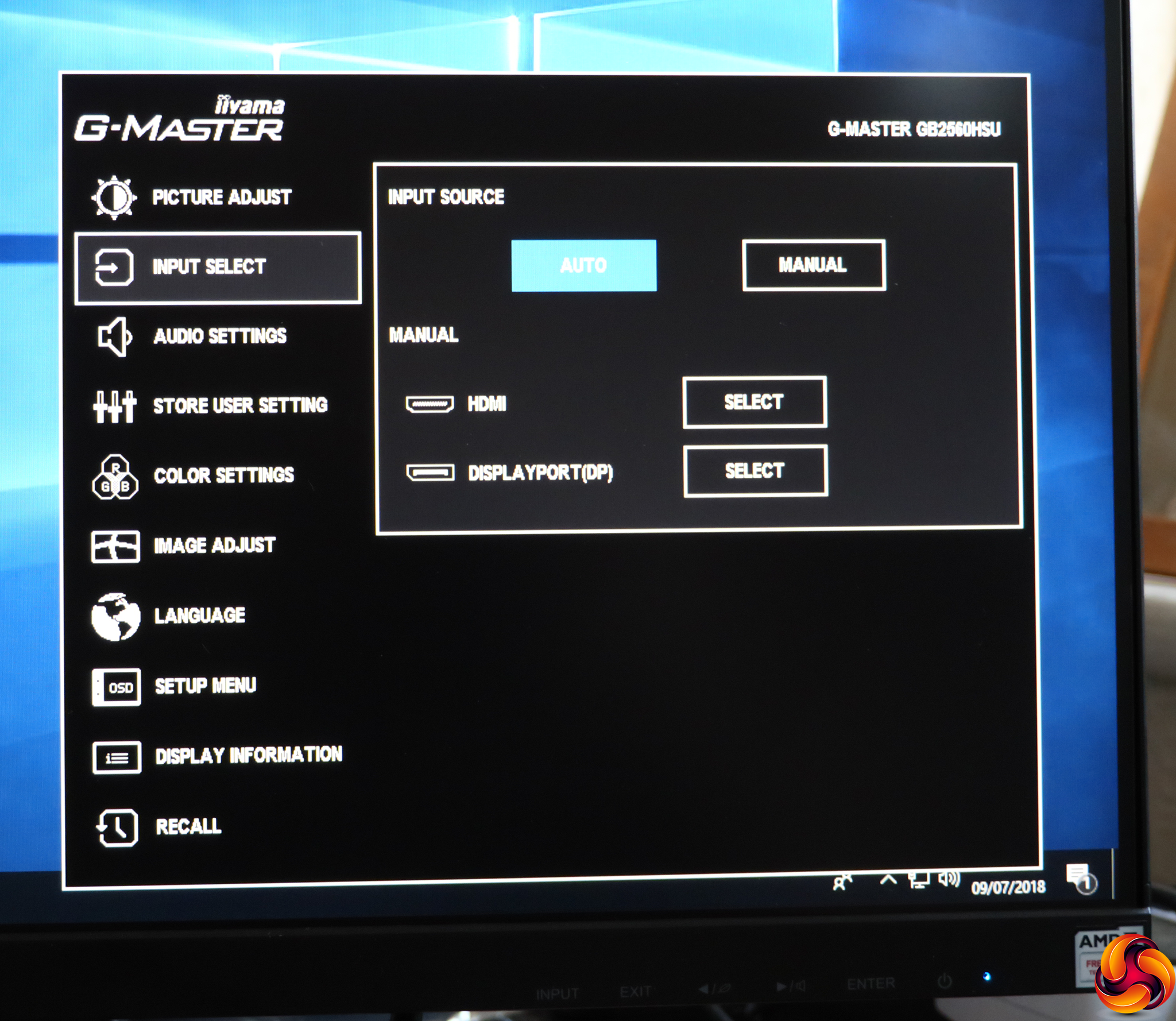
Next along is Input Select, which essentially gives you the same capabilities as the quick menu version.
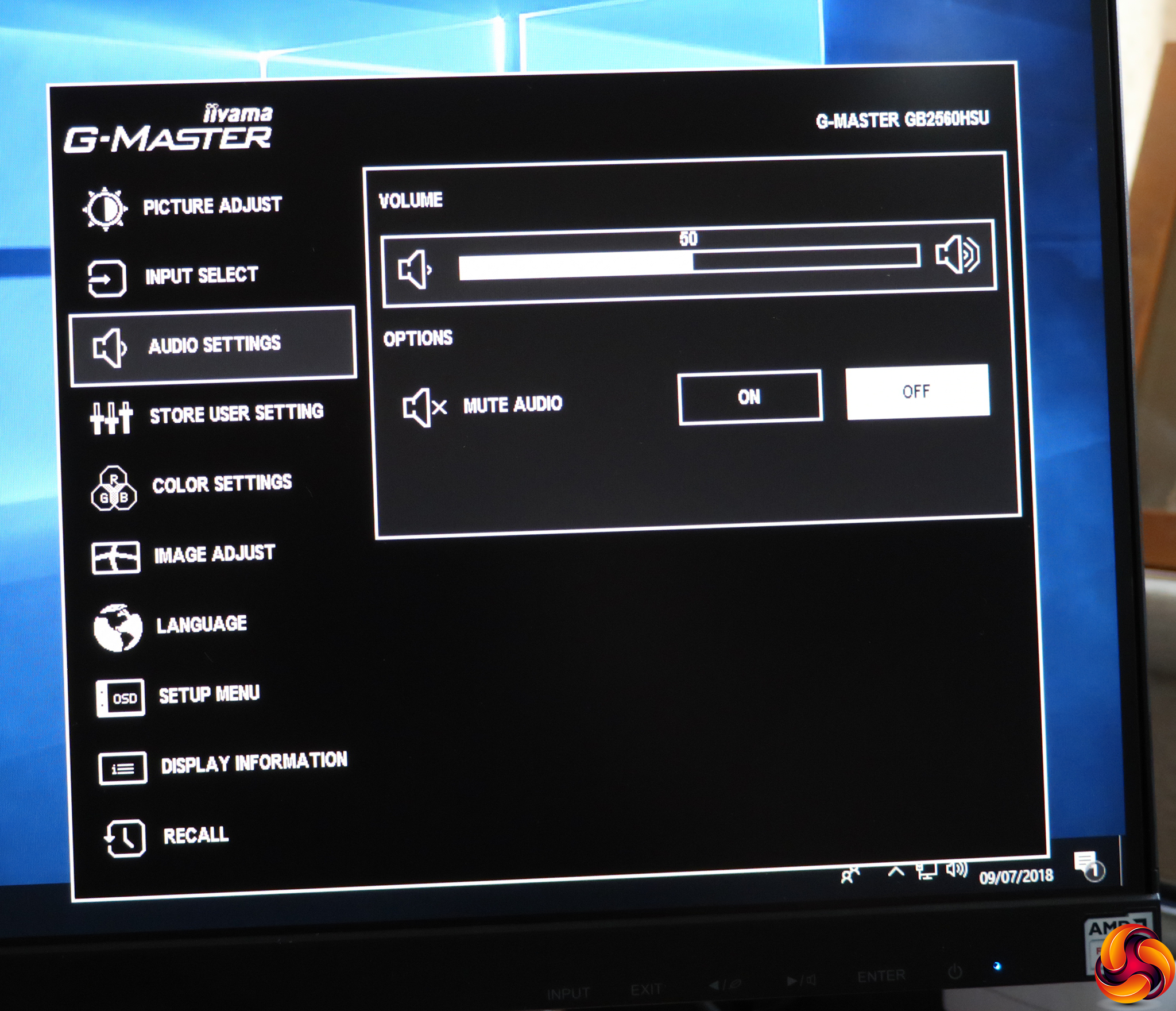
Likewise, the Audio Settings contain virtually the same options as the quick version, except here you can also mute the audio as well as control volume.
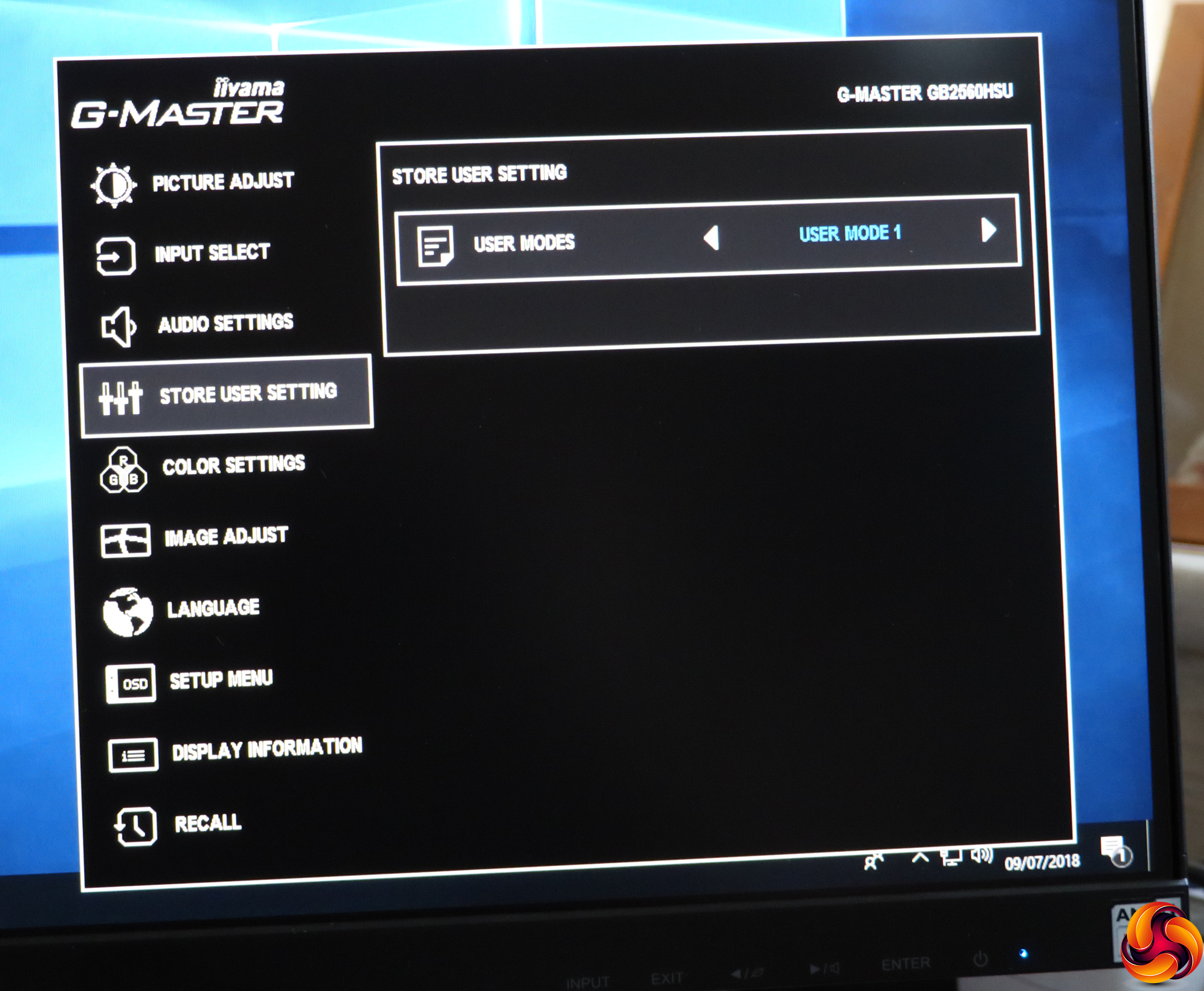
The Store User Setting section is where you save the configurable I-Style Color presets we mentioned earlier.
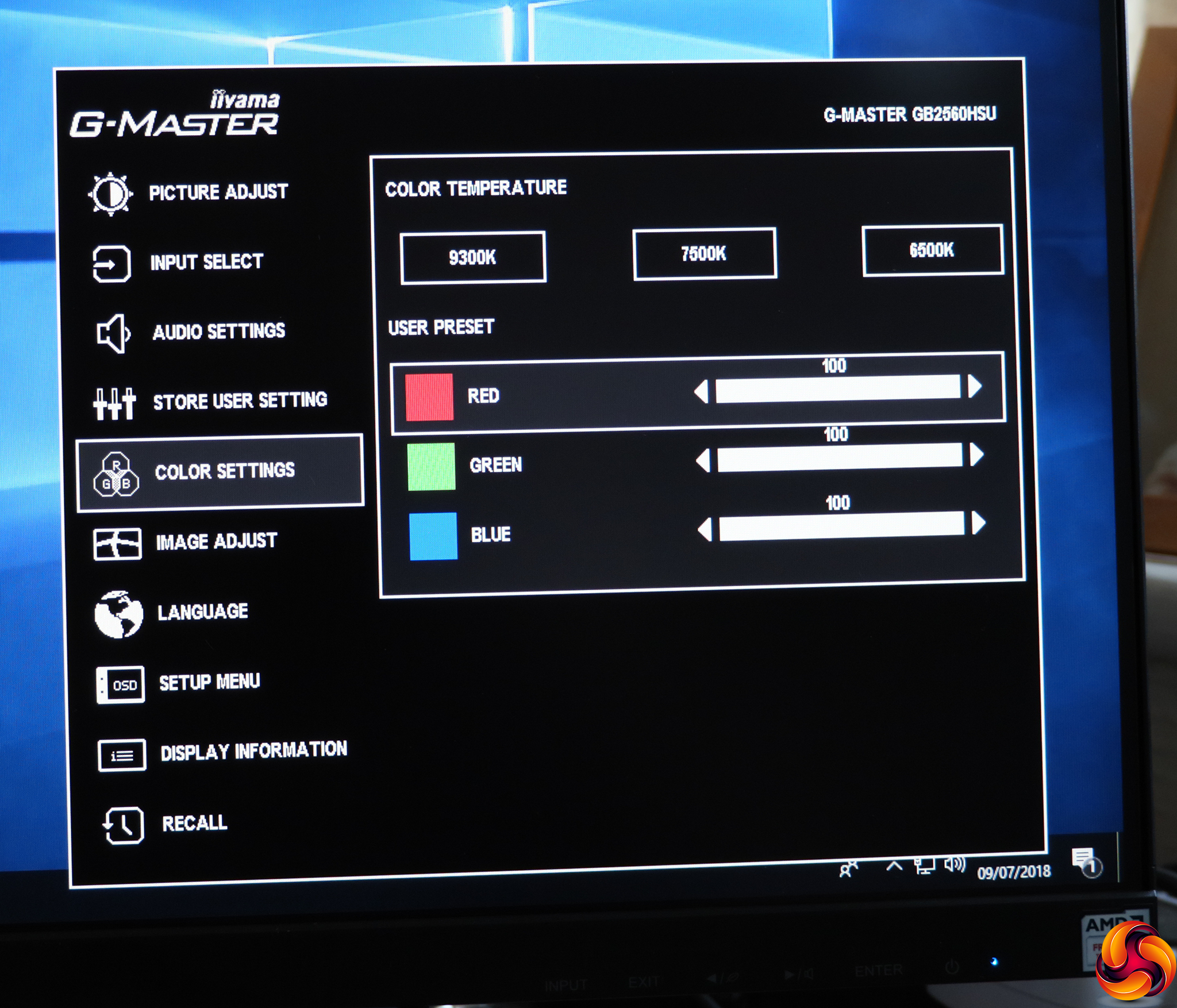
The Color Settings aren't as extensive as you might have expected. There are three temperature presets – 9300K, 7500K, and 6500K – plus the ability to adjust red, green and blue separately.
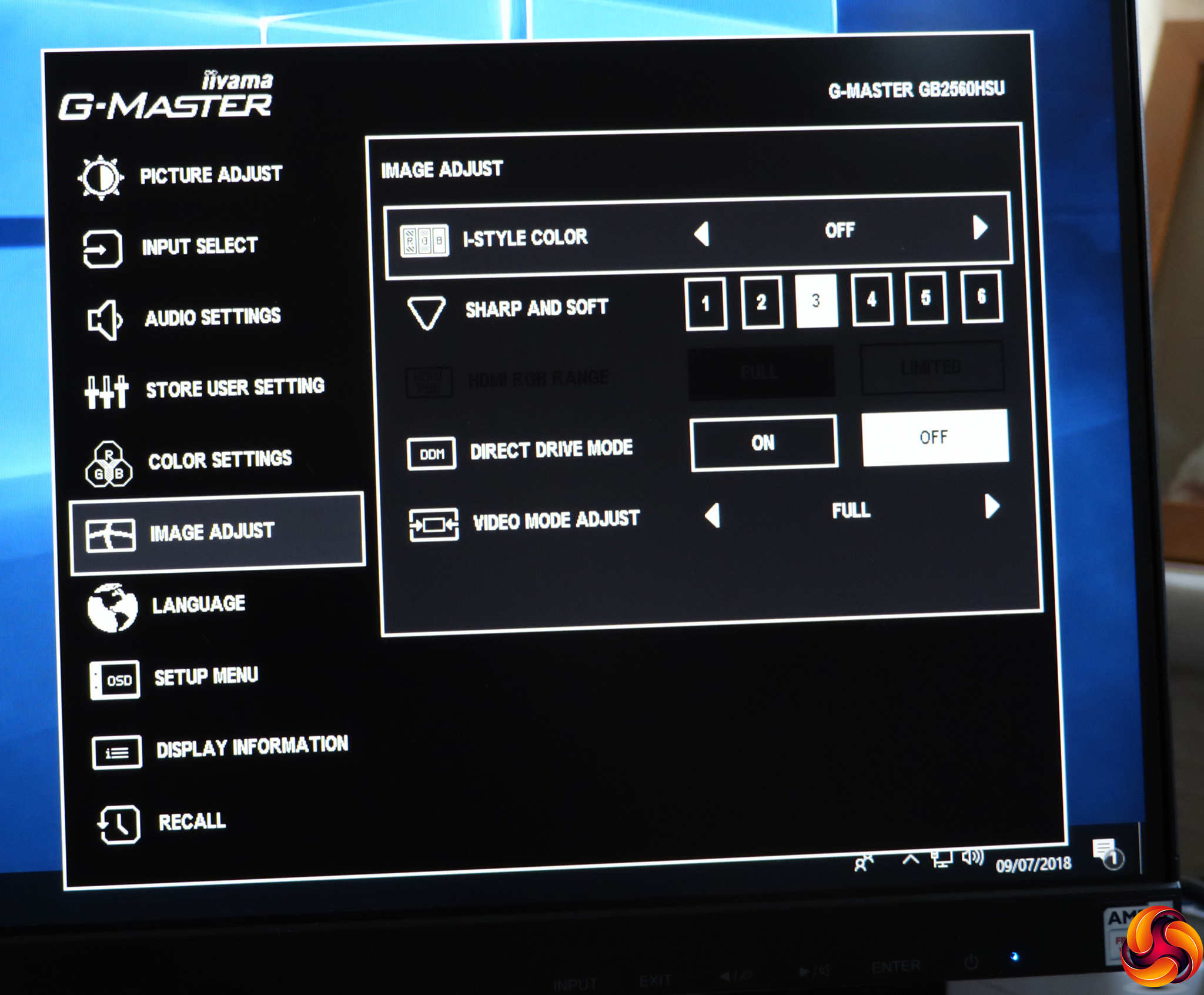
The Image Adjust section provides another route towards the I-Style Color presets, but also access to a sharpness control with six levels. You can turn on Direct Drive Mode, which reduces lag at the expense of quality, and Video Mode Adjust, which lets you switch to different screen sizes, including 17in, 19in, 19.5in, 21.5in, 23in, 23.6in, 24in, and Full. These enable the typical aspect ratio and screen diagonal for the size selected.
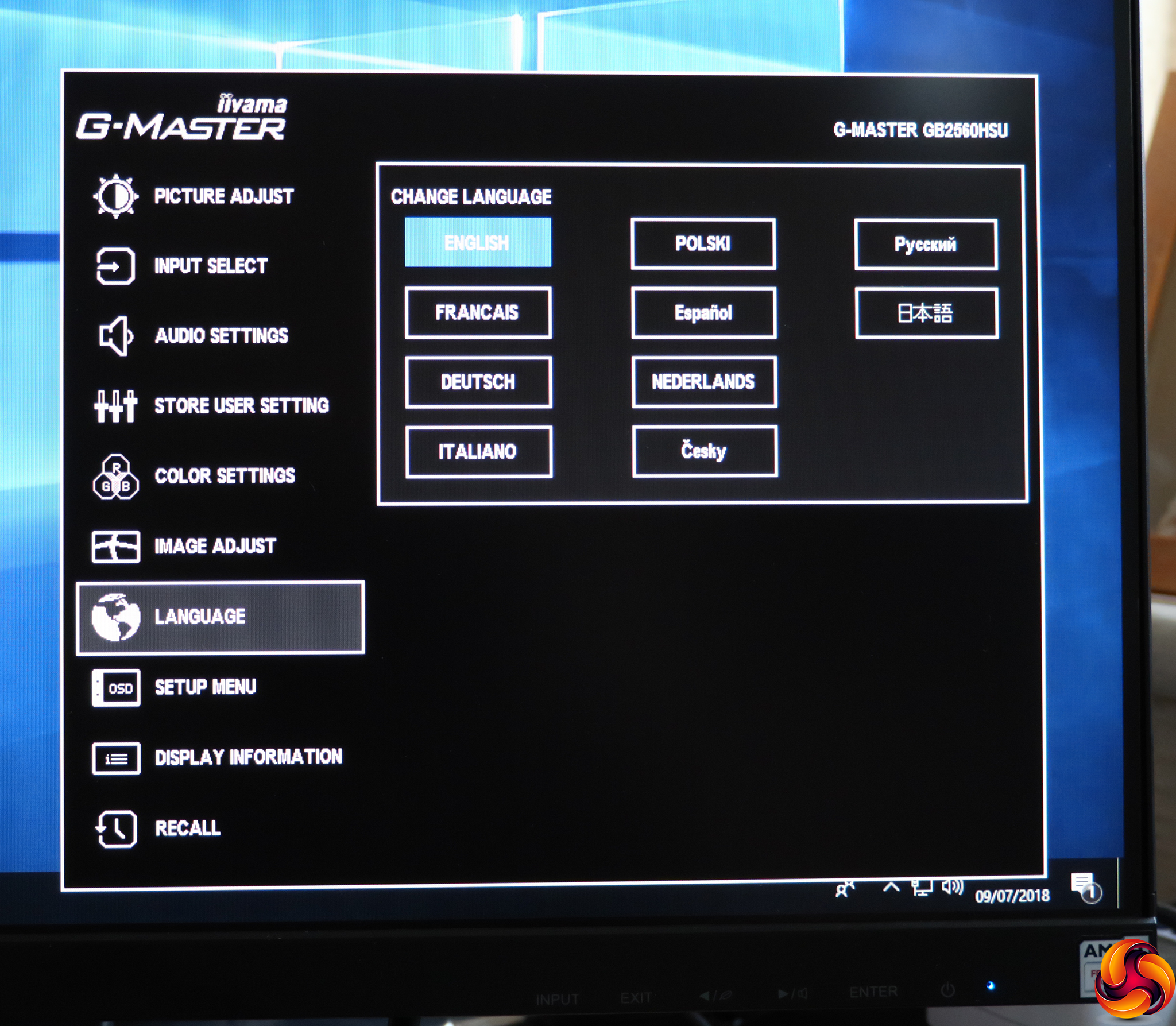
There are ten different language options for the OSD.
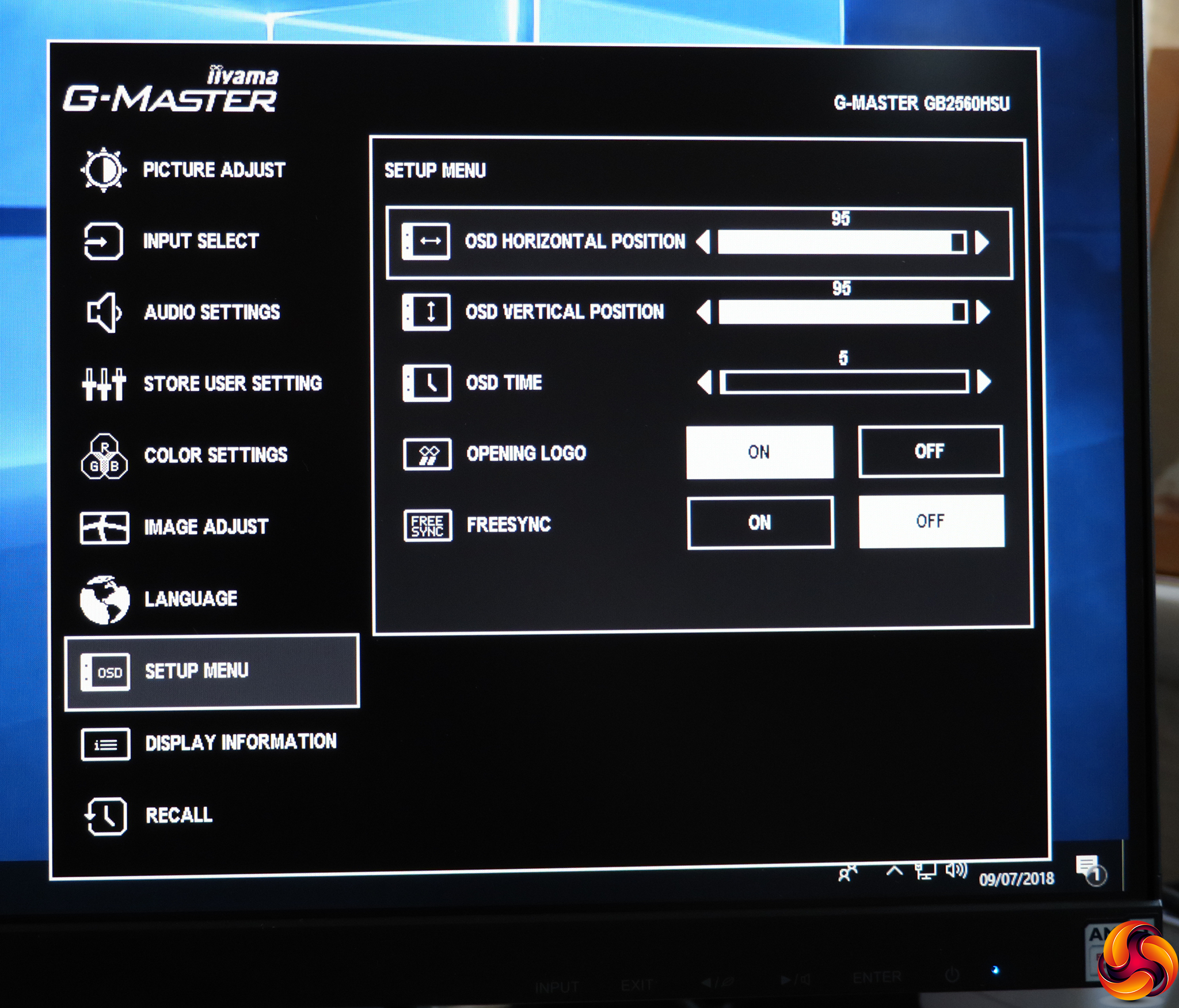
You can configure where the OSD appears in the Setup Menu, as well as how long it stays onscreen and whether a logo is displayed when the screen is turned on. Strangely, this is also where you can enable and disable FreeSync adaptive refresh.
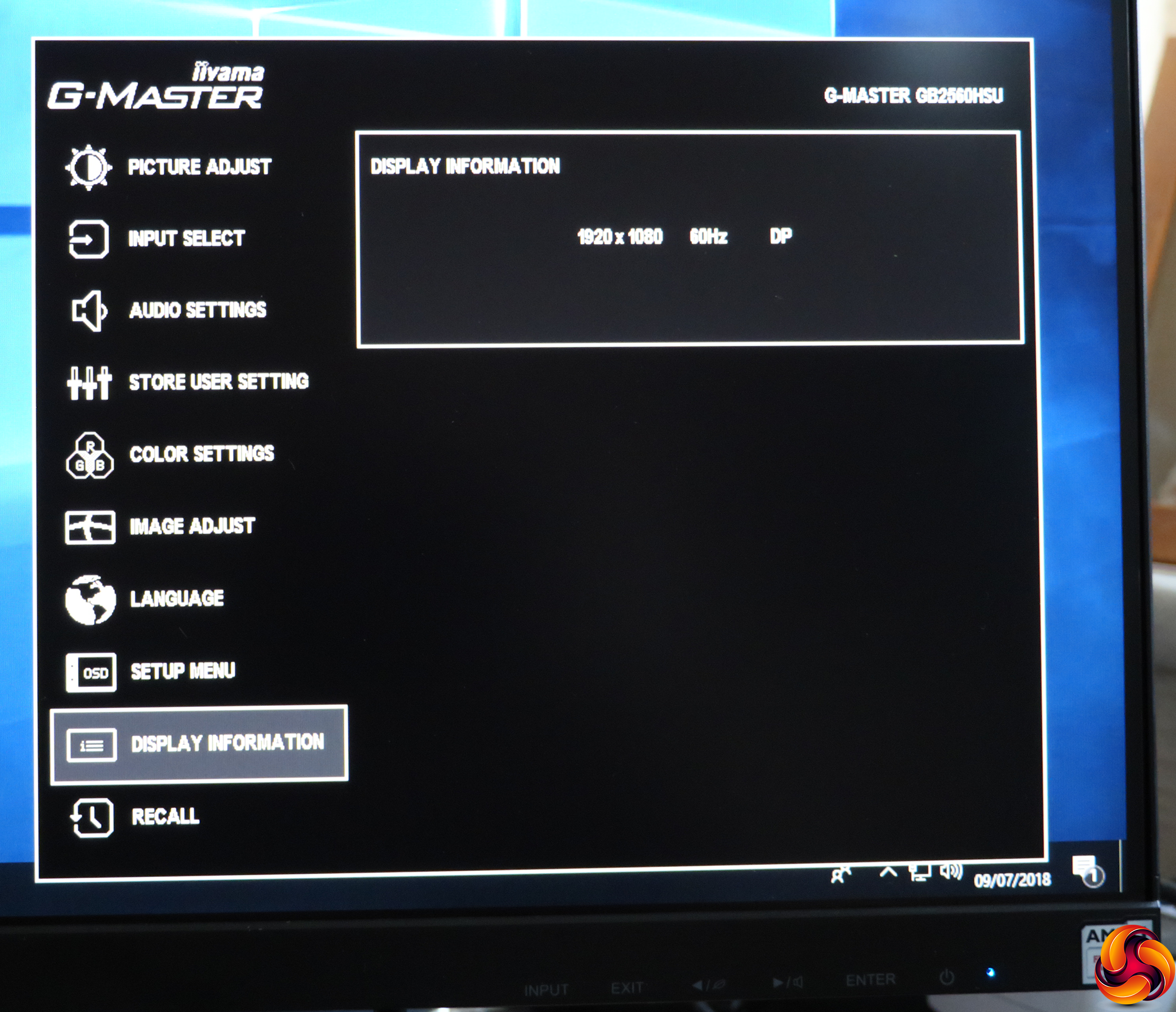
There's not much on the Display Information page – just the current resolution, refresh and input type.
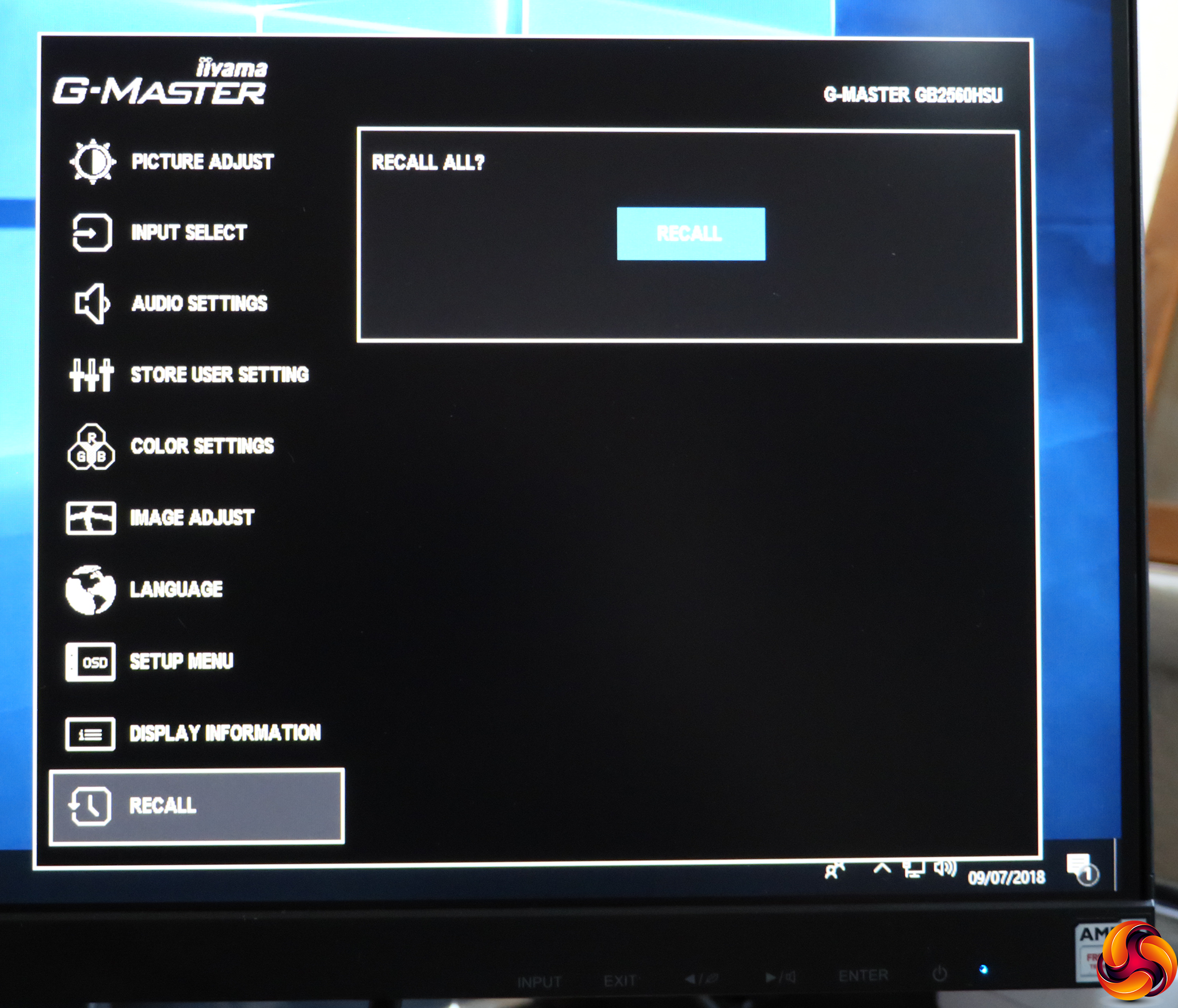
The final section is named Recall, which is actually for resetting to default. It totally recalls all the factory settings.
Overall, the range of options is comprehensive, and we like the no-nonsense style of the menu too. Our only small niggles are the lack of a movie-oriented preset (although you can create your own), and the way you move between main menu options. You can only do this via the initial ribbon, not once you're inside each sub menu. So if you want to switch between submenus, you have to leave the main menu and go back in again. But otherwise, it's pretty easy and quick to make configuration changes, since the options are so clear and sensibly grouped. Next, let's find out if the positive results continue with the image performance.
Our main test involves using a DataColor Spyder Elite 5 Colorimeter to assess a display’s image quality. The device sits on top of the screen while the software generates colour tones and patterns, which it compares against predetermined values to work out how accurate the screen is.
The results show –
- A monitor’s maximum brightness in candelas or cd/m2 at various levels set in the OSD.
- A monitor’s contrast ratio at various brightness levels in the OSD.
- The brightness deviation across the panel.
- The black and white points.
- The colour accuracy, expressed as a Delta E ratio, with a result under 3 being fine for normal use, and under 2 being great for colour-accurate design work.
- The exact gamma levels, with a comparison against preset settings in the OSD.
We first run this test with the display in its default, out-of-the-box state, with all settings on default. We then calibrate the screen using the Spyder software and run the test again.
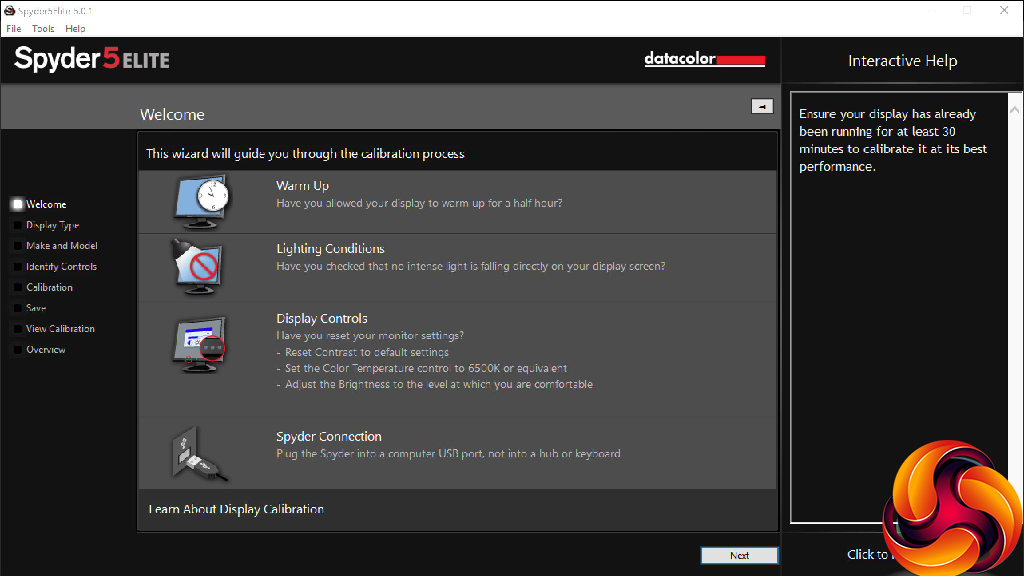
We always test the display subjectively on the Windows desktop, using it for general tasks such as browsing and word processing, and with games as well, even if the display is not intended solely for that purpose.
We pay careful attention to any artefacts, ghosting or motion blur, and enable any gaming-specific features, such as adaptive-sync settings like G-Sync or FreeSync, using a compatible graphics card in our test PC.
We performed the quality tests at the native 1,920 x 1,080 resolution in the default mode, after resetting the OSD, which uses a 60Hz refresh. Our test system was equipped with an AMD Radeon Vega Frontier Edition graphics card, which also supports FreeSync.
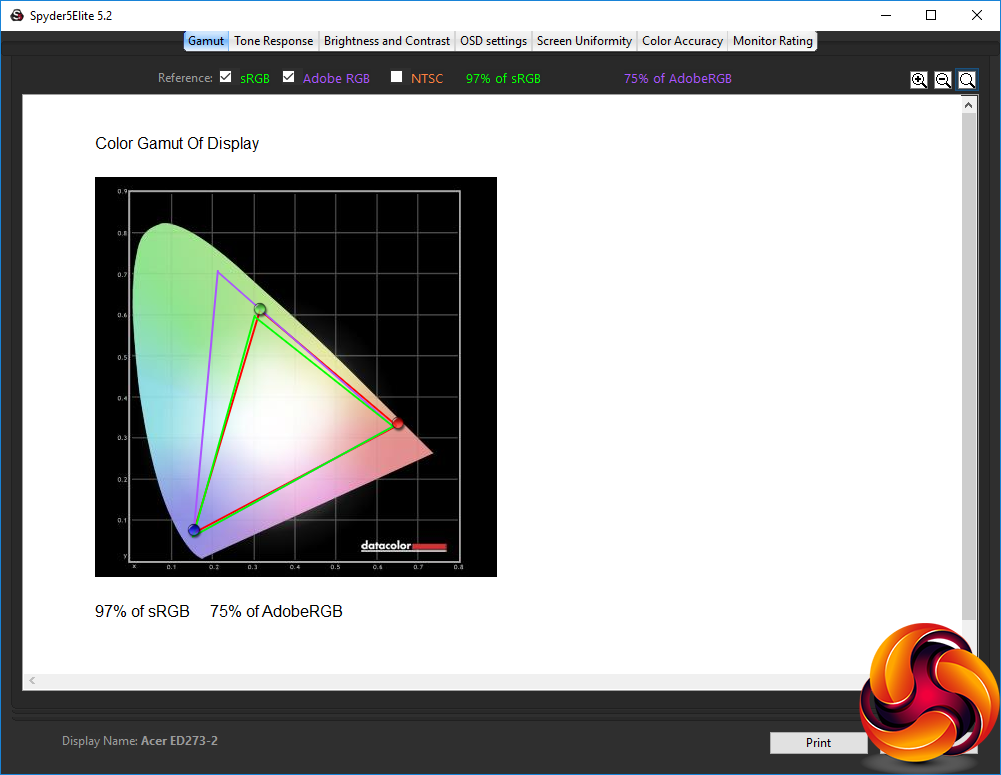
The gamut isn't particularly impressive, with just 97 per cent of sRGB and a lowly 75 per cent of AdobeRGB, which is on a similar level to the budget-oriented Acer ED273.
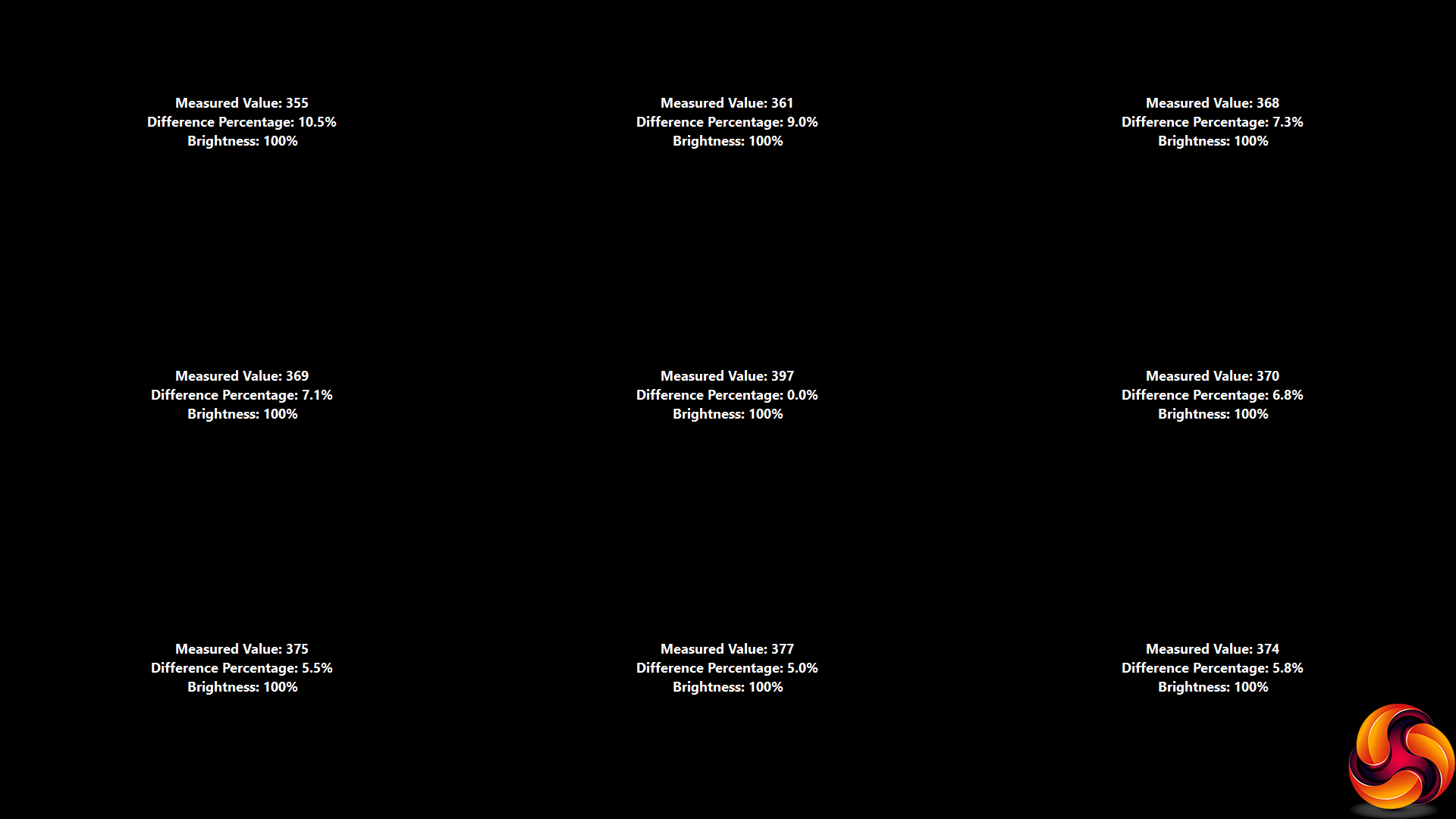
Brightness uniformity isn't particularly great either, with a considerable deviation along the top edge, and almost as large a deviation on left and right.
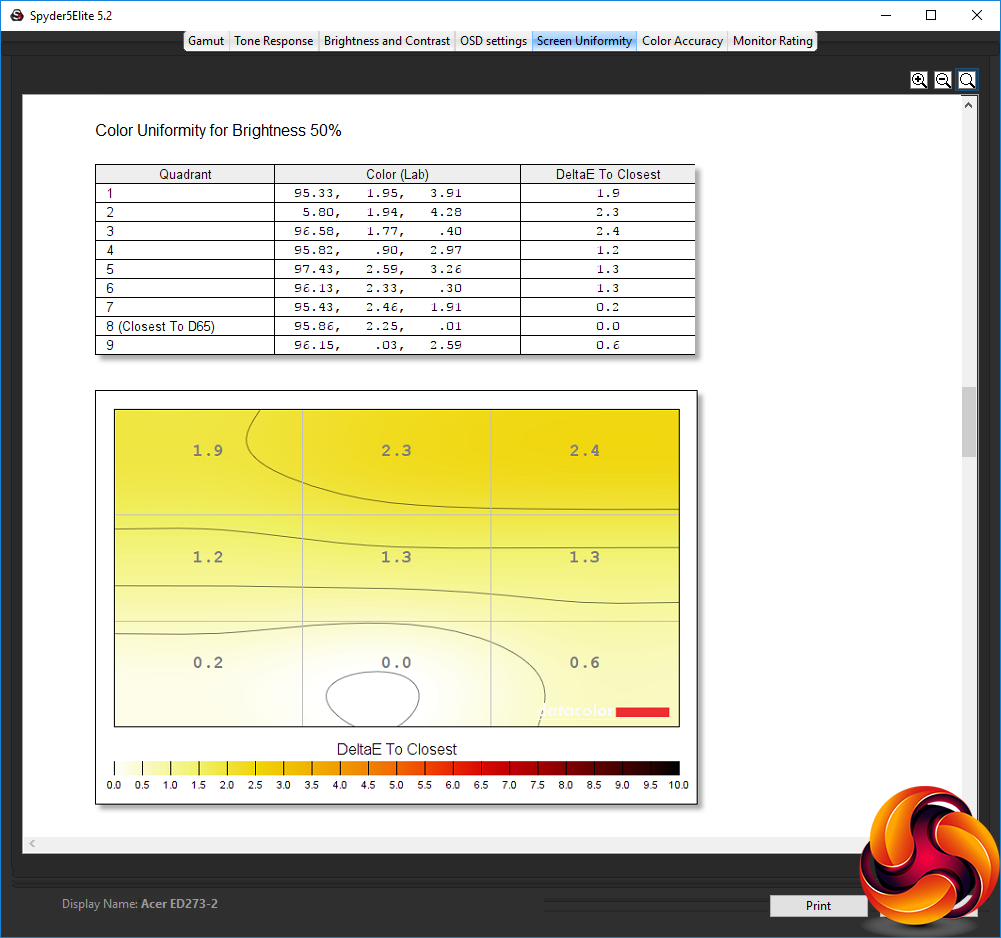
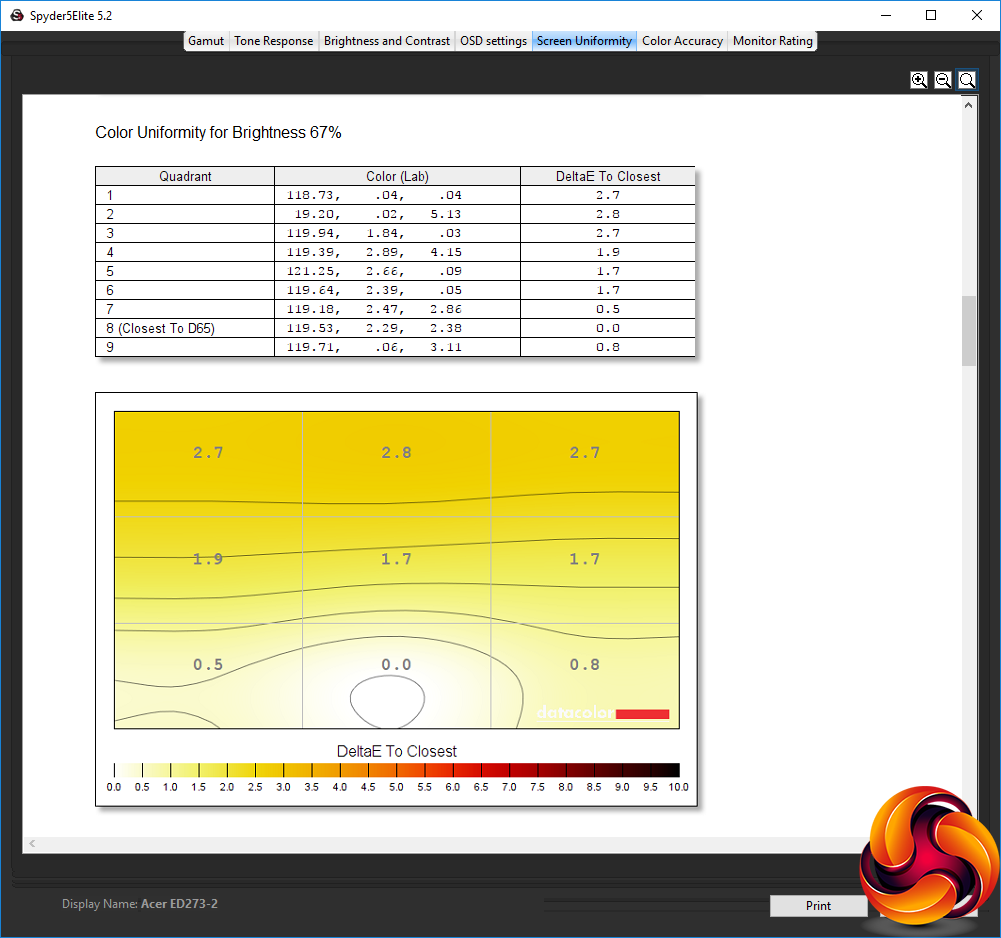
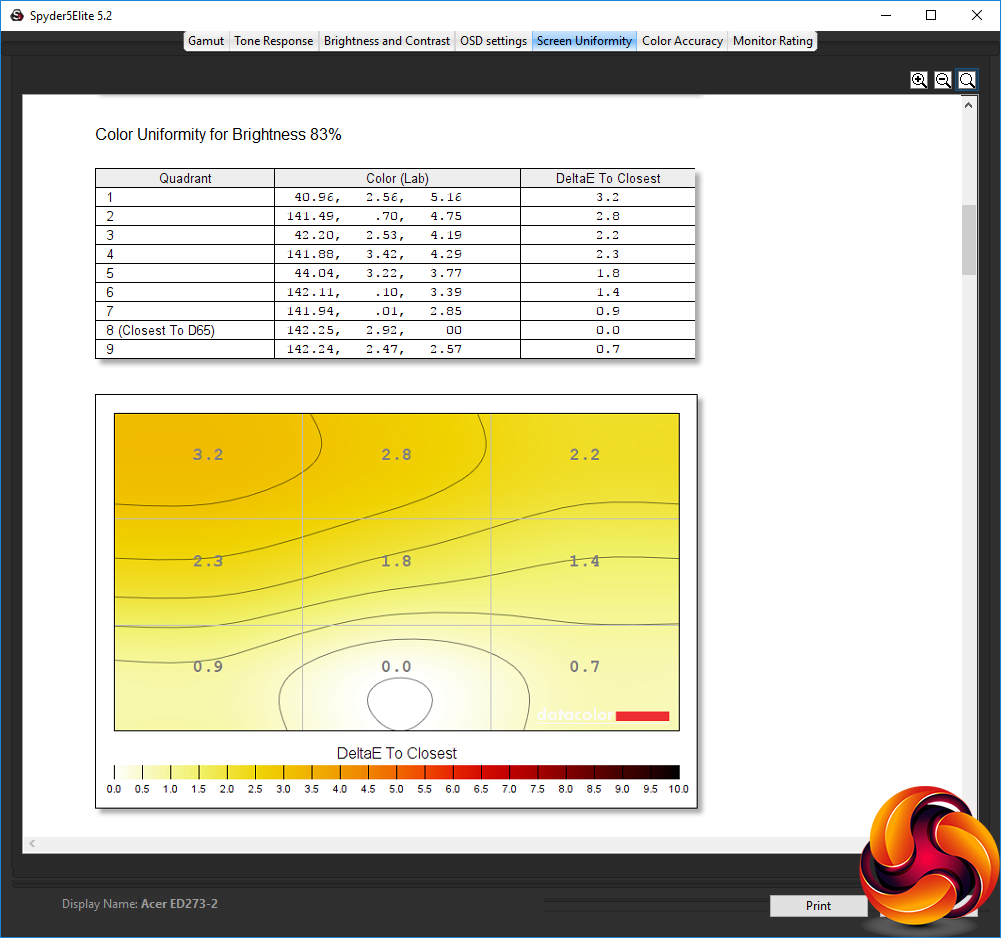
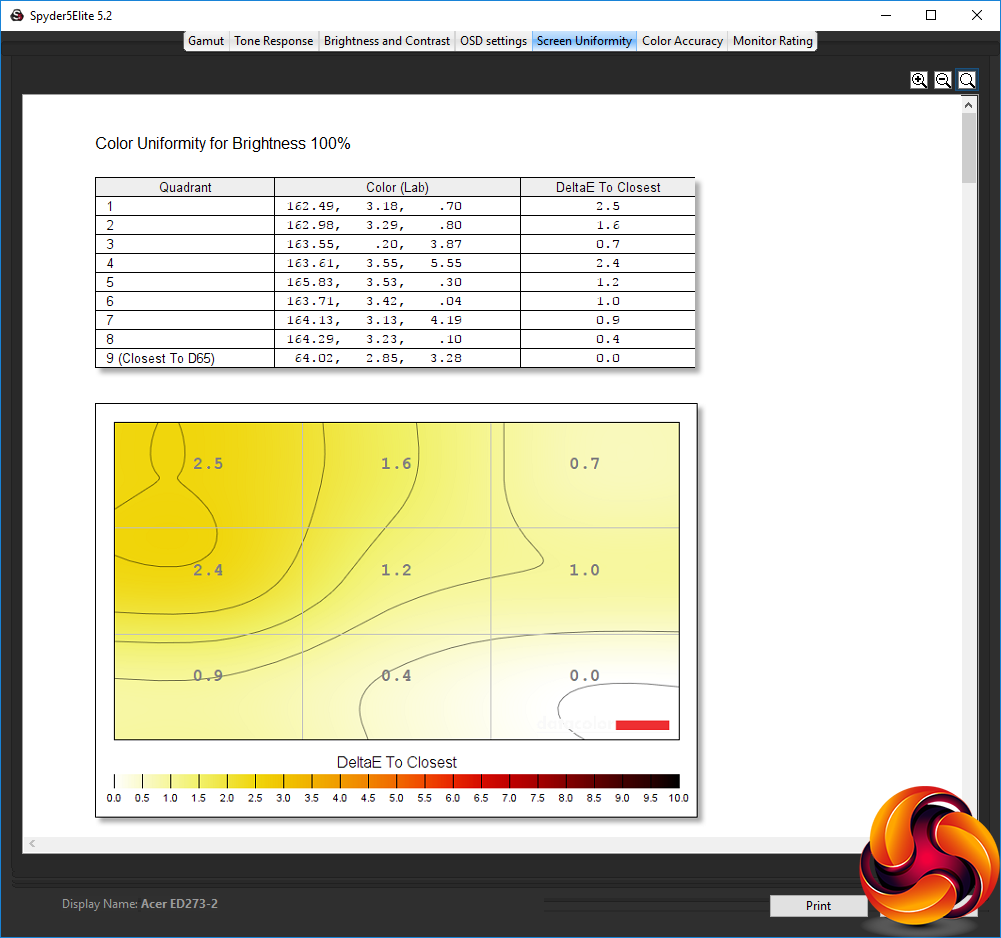
Colours are much more uniform across the screen at all brightness levels, however.
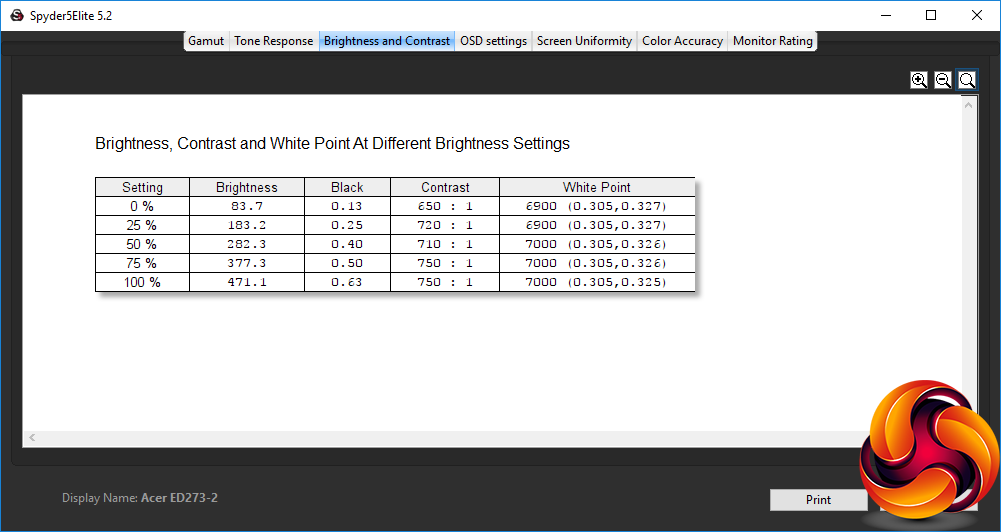
This screen goes well beyond its brightness rating, hitting 471.1cd/m2 at 100 per cent brightness. The default brightness is 80 per cent, which would be pretty much exactly the 400cd/m2 the screen is rated for. Contrast is merely reasonable, as expected for a TN panel, rising to 750:1 above 75 per cent brightness. The white point is a solid 7000K at 50 per cent brightness and above.
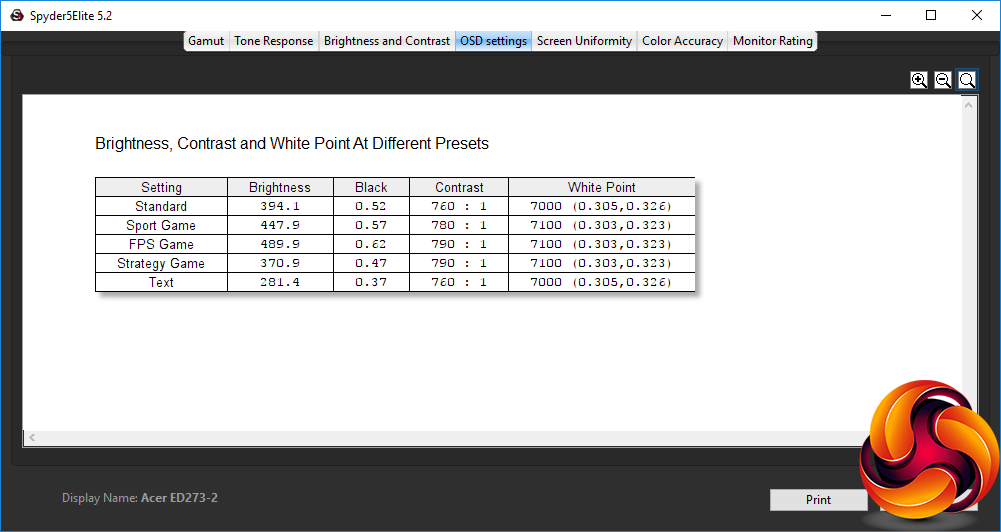
There is some variation between the various presets on the GB2560HSU, although mostly in brightness. Text mode uses the lowest 281.4cd/m2 brightness, but this is still quite bright. FPS Game mode is the highest at 489.9cd/m2. Sport Game is a little less bright at 447.9cd/m2, as is Standard at 394.1cd/m2, and finally Strategy Game at 370.9cd/m2. The black levels are all quite high, with even Text mode using 0.37.
Contrast is fairly consistent, ranging from 760:1 for Text and Standard modes, to 790:1 for FPS and Strategy Games, with Sport Game slightly lower at 780:1. The white point is also consistent, with all the Game modes using a mid-range 7100K, whilst Text and Standard use 7000K.
Of course, there are the user presets to play with, so you can create your own one with greater contrast and colour temperature variation than the pre-supplied options have on offer.
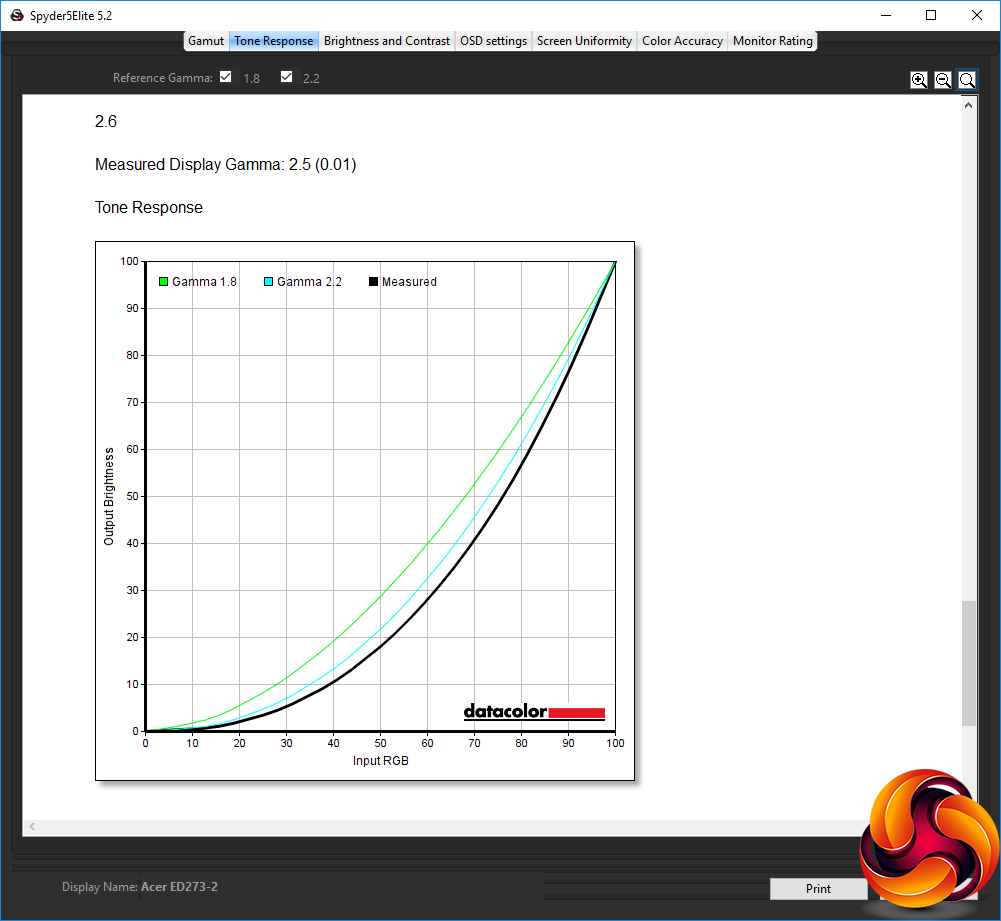
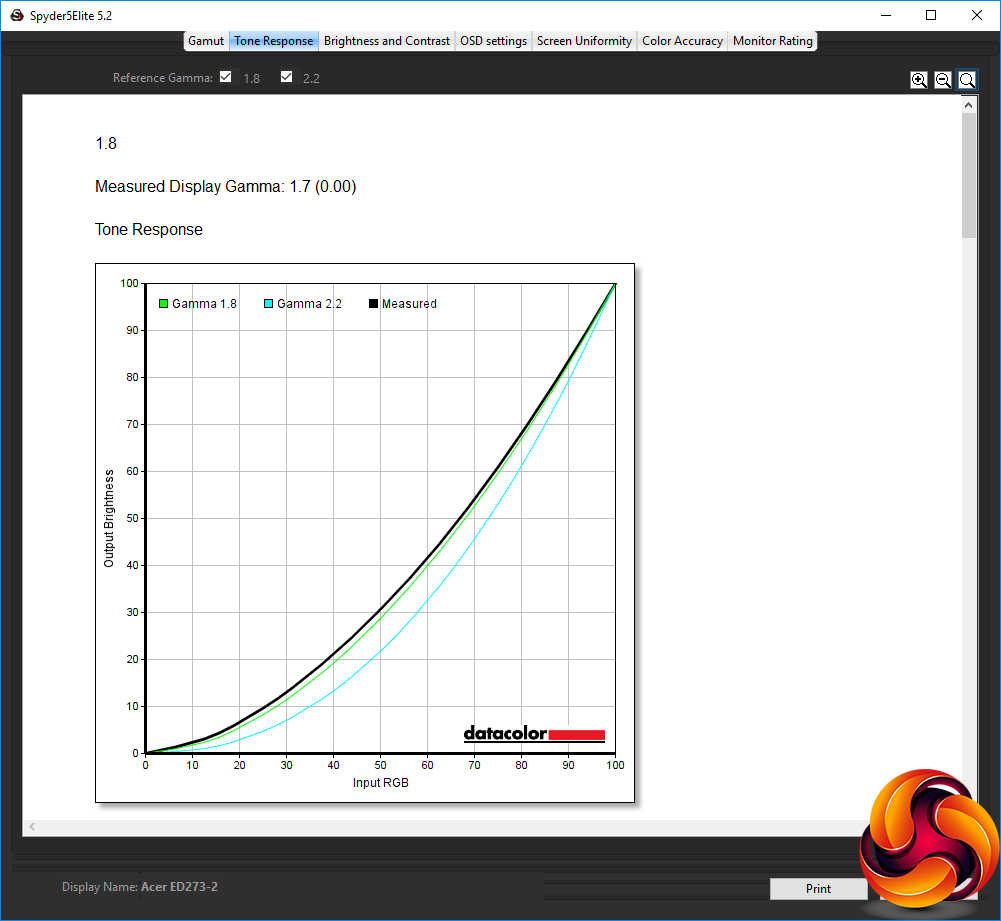
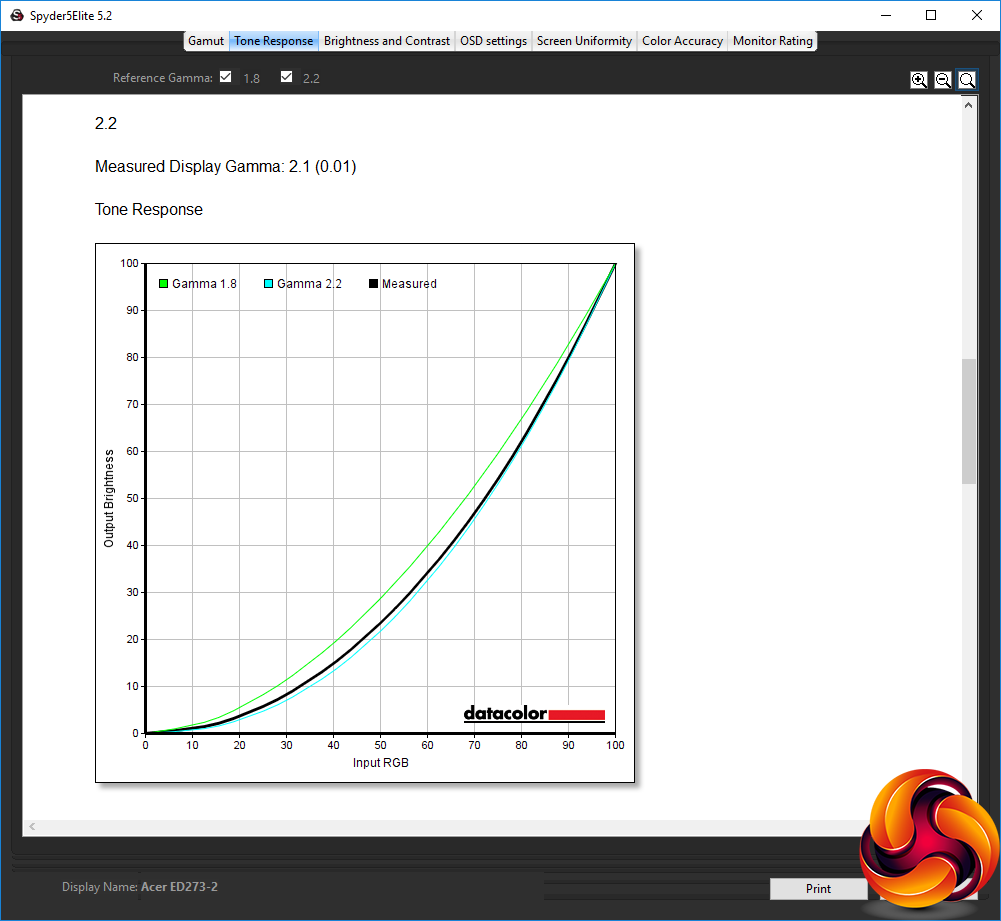
None of the three gamma settings live up to their nominal value, but at least they are consistently 0.1 below what they're supposed to be. We still think it's a little strange only to have three options, each widely separated by 0.4, but at least the options are there.
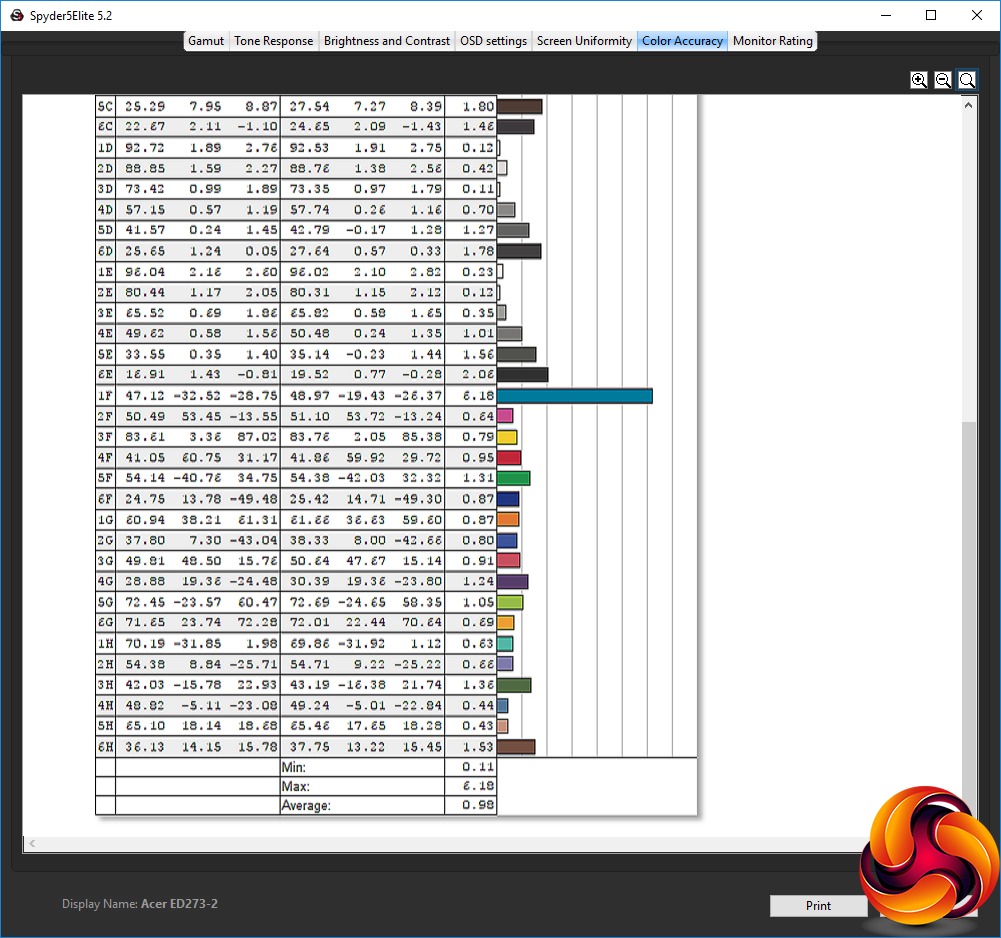
TN panels don't normally provide particularly impressive colour accuracy, but in this area Iiyama is showing the usual characteristic associated with its brand name. The average deviation of 0.98 is excellent, showing that at least you can be sure that colours are pretty close to what they're supposed to be out of the box. But can you calibrate them to be even better? We used the Spyder's facilities to find out.
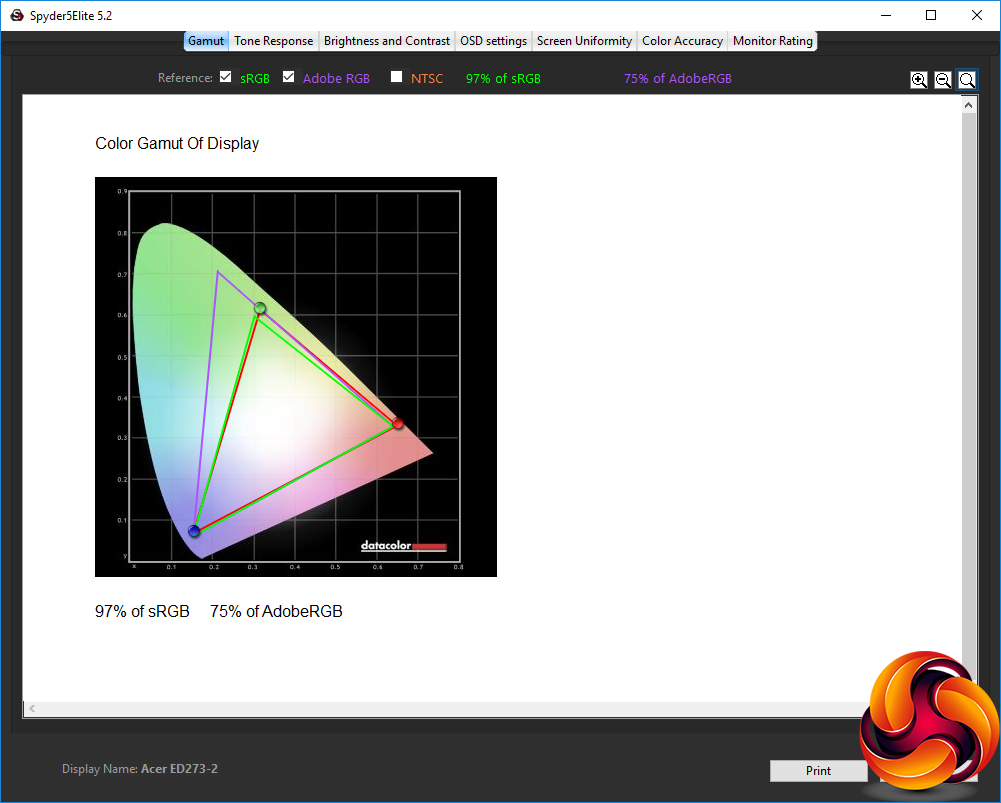
The gamut remains the mediocre level as before, with 97 per cent of sRGB and 75 per cent of AdobeRGB.
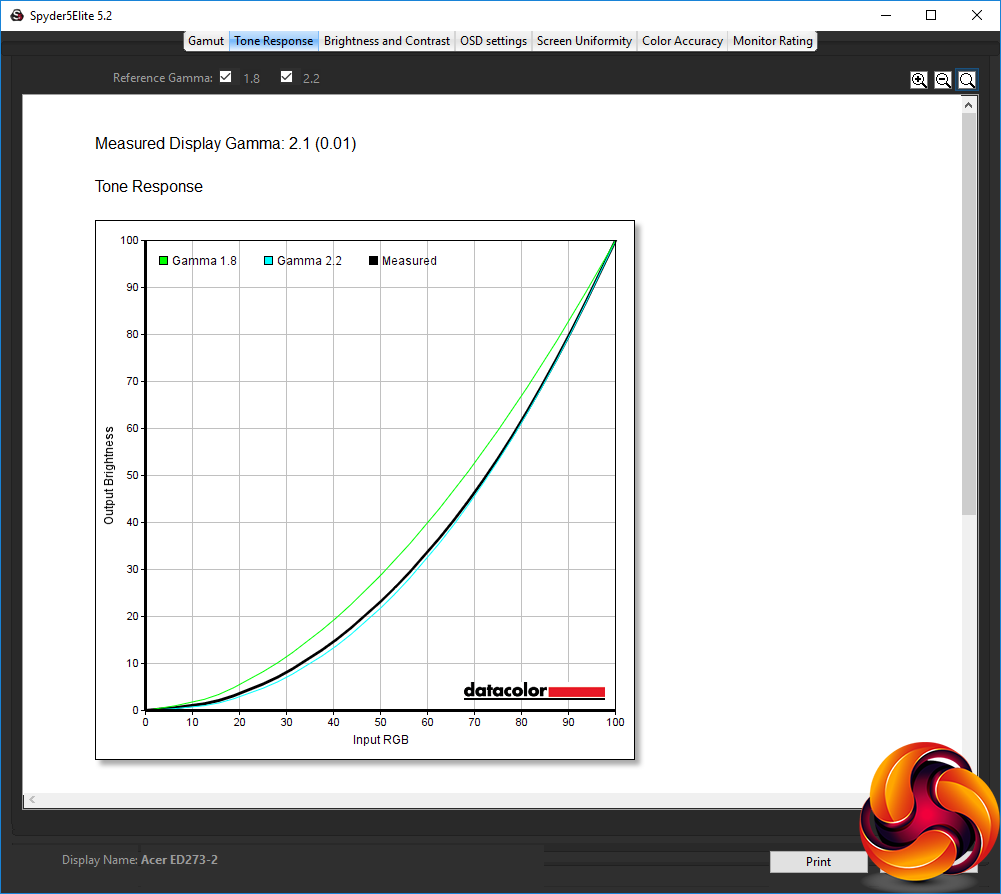
We only retested the default 2.2 gamma preset, which remains 0.1 lower than it should be at 2.1.
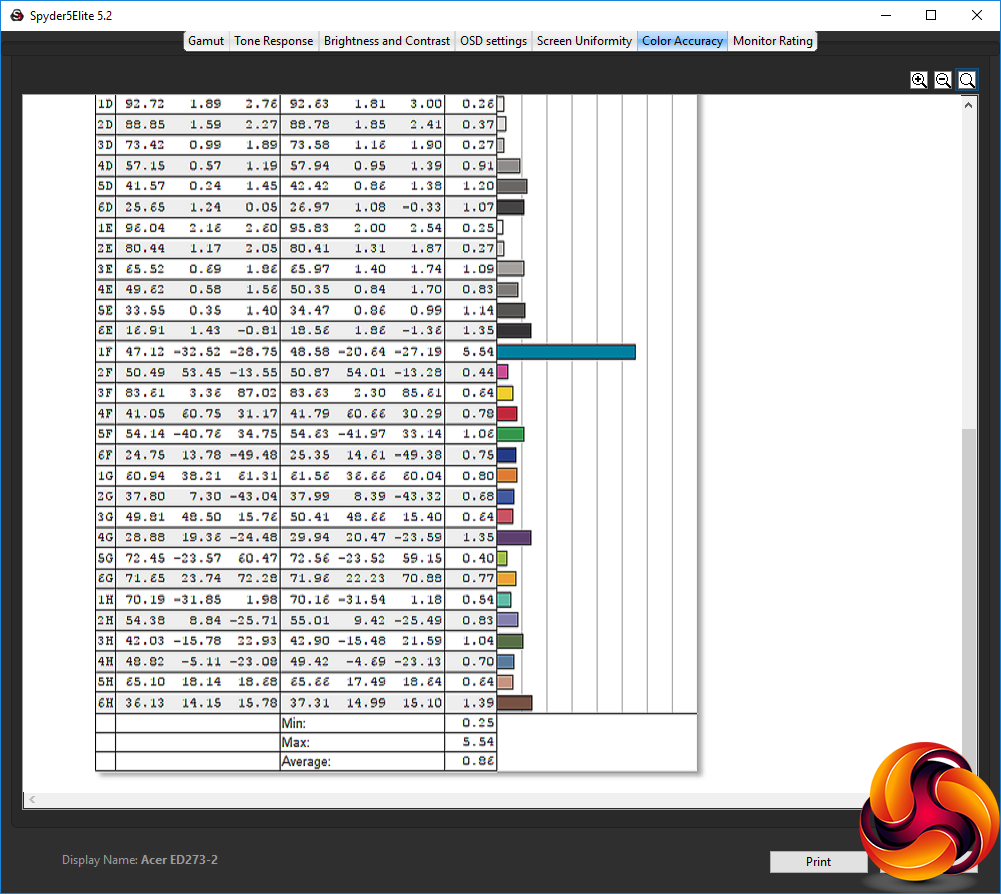
Colour accuracy is even better after calibration, hitting an average deviation of 0.86, which is one of the best scores we've seen.
We also tested the GB2560HSU with everyday activities and – of course – some games. For the latter, we enabled FreeSync and set the screen to 144Hz, as our test rig had powerful AMD graphics able to drive this kind of frame rate and supply the necessary adaptive sync support. We tried CS:GO, Shadow Warrior 2, Rise of the Tomb Raider and Deus Ex: Mankind Divided, using the FPS Game preset. The results were very pleasant, with fluid frame rates and very responsive action.
Overall, although this screen definitely shows the drawbacks of its TN panel, the excellent colour accuracy, high refresh and fast pixel response mean it provides an impressive gaming experience.
The Iiyama Red Eagle G-MASTER GB2560HSU isn't quite the perfect 24in gaming screen, but it does check quite a few boxes. Gameplay is smooth thanks to the 144Hz refresh and adaptive sync (assuming you have AMD graphics), and the colour accuracy is excellent. There's a good range of adjustment available, both physically and via the OSD. It's also not too expensive for a high refresh-rate monitor, at around £220.
However, many gamers may expect a curved screen at this size, or will be considering something larger than 24.5in unless desk space is limited. The 2,560 x 1,440 resolution also appears to be taking its place as the optimum compromise between quality and what graphics cards can smoothly deliver, and this is only a Full HD panel.
The two-port USB hub's 2.0 standard will also mean that it's more for making mouse and keyboard attachment easier, than providing a more convenient way to connect external storage for rapid access.
Overall, though, the Iiyama Red Eagle G-MASTER GB2560HSU gets quite a lot right. It's not exactly a budget option, but if you're after a good high-frequency 24.5in gaming screen for a relatively reasonable price, this screen should be on your list of contenders.
The Iiyama Red Eagle G-MASTER GB2560HSU available for £219.98 HERE.
Pros:
- Excellent colour accuracy, and even better when calibrated.
- 144Hz refresh-rate.
- FreeSync adaptive frame rate synchronisation.
- Lots of options via well designed OSD.
- Comprehensive physical adjustment.
- Built-in speakers.
Cons:
- Mediocre gamut.
- Mediocre brightness uniformity.
- USB hub is only 2.0 speed.
KitGuru says: The Iiyama Red Eagle G-MASTER GB2560HSU provides great colour accuracy and smooth 144Hz FreeSync gameplay for a reasonable price.