 KitGuru KitGuru.net – Tech News | Hardware News | Hardware Reviews | IOS | Mobile | Gaming | Graphics Cards


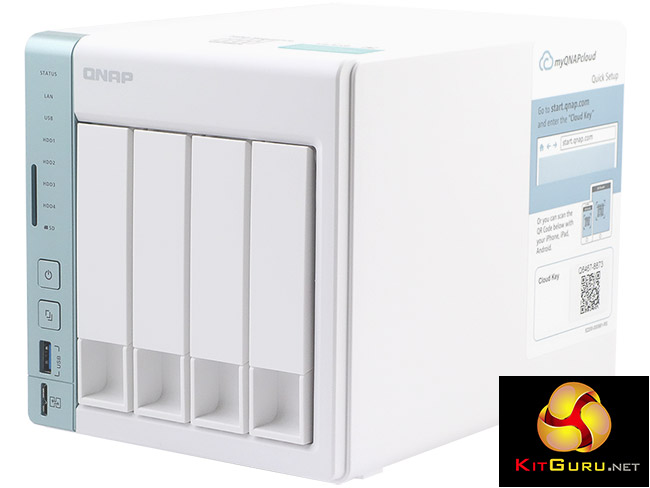
The QNAP TS-451A-4G is a high-end, feature-rich 4-bay NAS aimed at home, SOHO or Work Group usage scenarios. The unit sports an Intel dual-core processor, upgradable memory, two LAN ports and a USB Quick Access connector.
At the heart of the TS-451A-4G is an Intel Celeron N3060 dual-core CPU with a clock speed of 1.6GHz (burst up to 2.48GHz) backed up by 4GB of DDR3L-1600 dual-channel memory. There is a version of the TS-451A which comes with 2GB of memory pre-installed, the TS-451A-2G. Whichever version you choose, the memory is upgradable to a maximum supported 8GB.
QNAP quote performance figures for the TS-451A of 192.13MB/s for reads and 214.4MB/s for writes but as a note of caution, these figures are with both Ethernet ports configured in port trunking (Link Aggregation) mode.
Specifications
Intel Celeron CPU.
Built in AES-NI hardware encryption engine
4GB memory.
HDMI multimedia output (4K, 1080p).
2 year warranty.
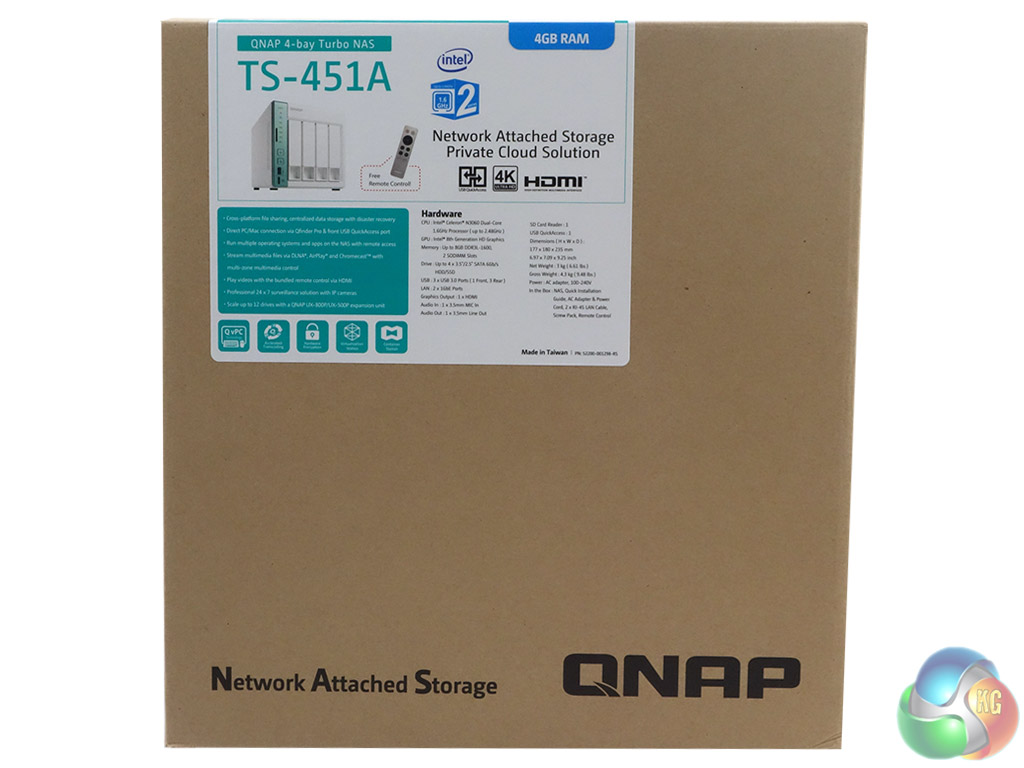
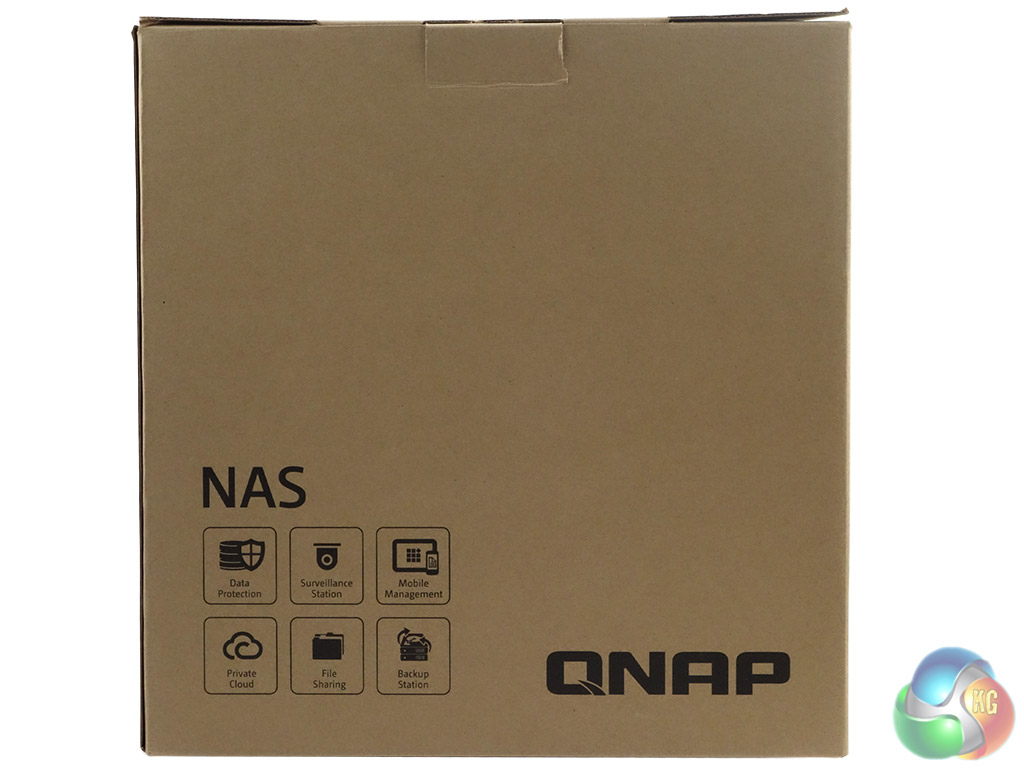
The TS-451A-4G comes in a large brown box with a small label on the front which has an image of the NAS and the model's memory capacity and two panels. The rear of the box just has a group of icons displaying some of the major utilities; Data Protection, Private Cloud, File Sharing, Backup Station, Surveillance Station and Mobile Mangement.
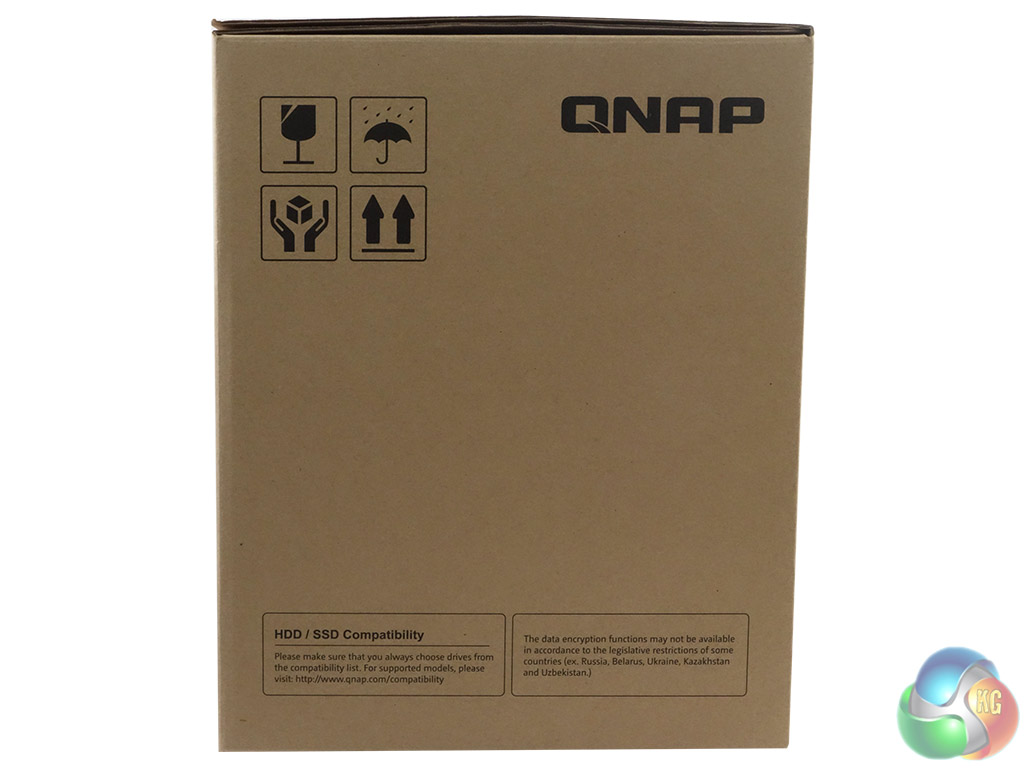
One side of the box has handling instructions as well as two small panels – one informing about drive compatibility, the other noting legal restrictions on data encryption. The other side of the box just has another row of handling and storing icons.
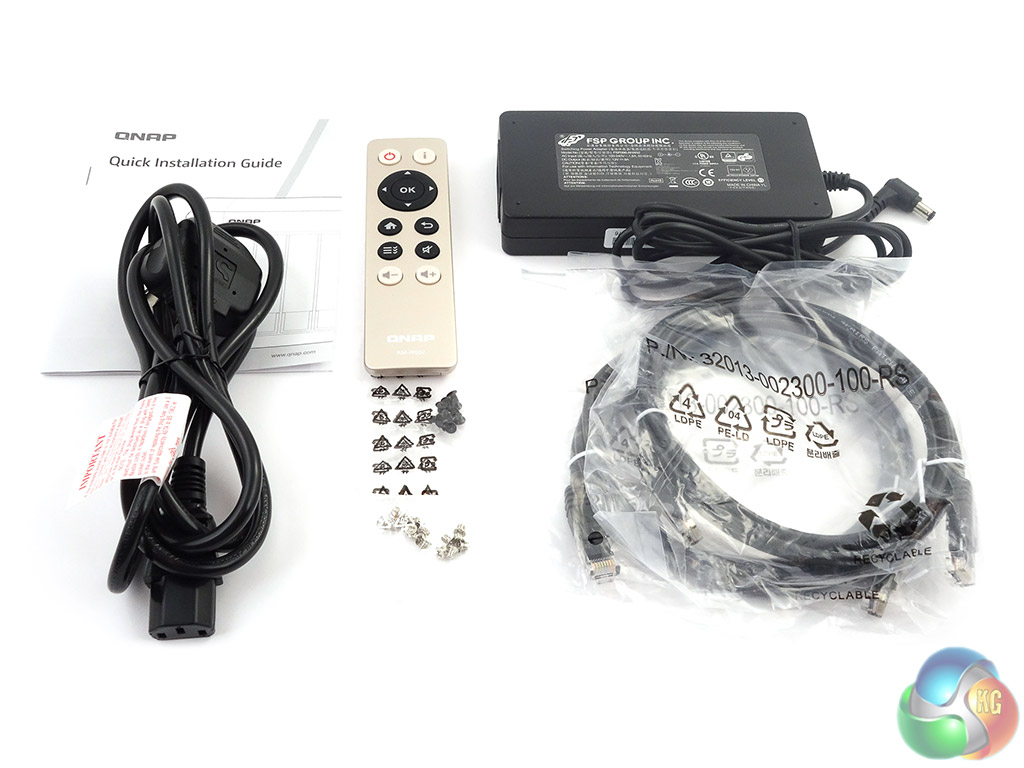
The box bundle is pretty comprehensive; a pair of Ethernet cables, two sets of mounting screws for 2.5in and 3.5in drives, a 96W power adaptor, power cable, RM-IR002 remote control and a quick installation guide.
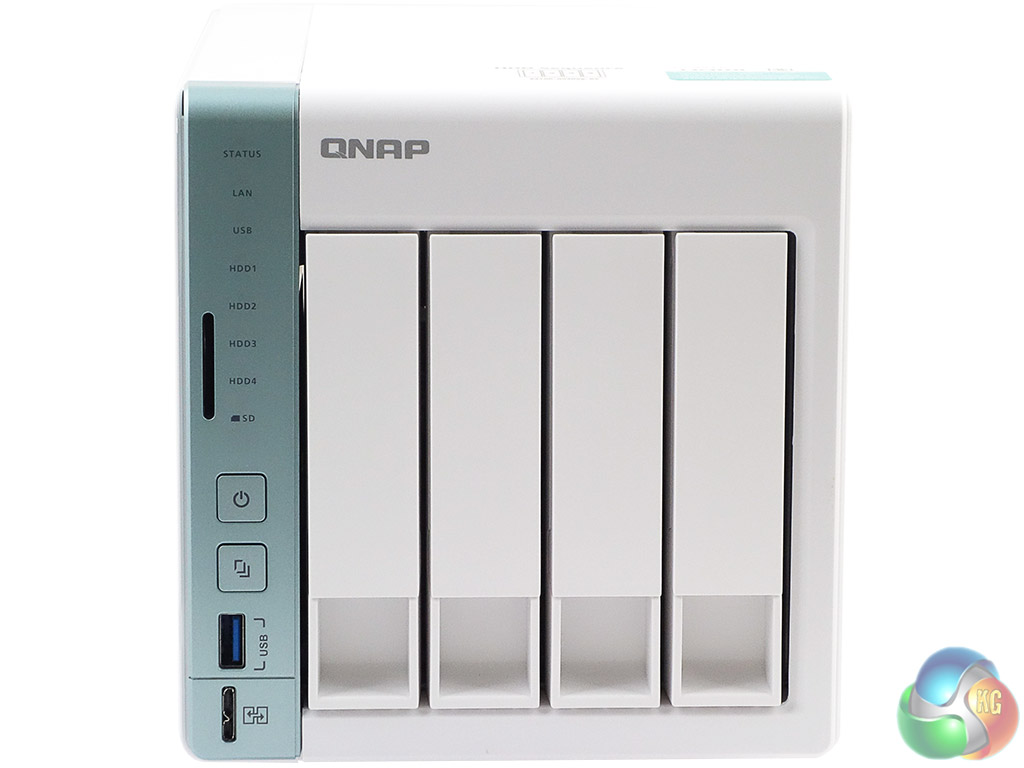
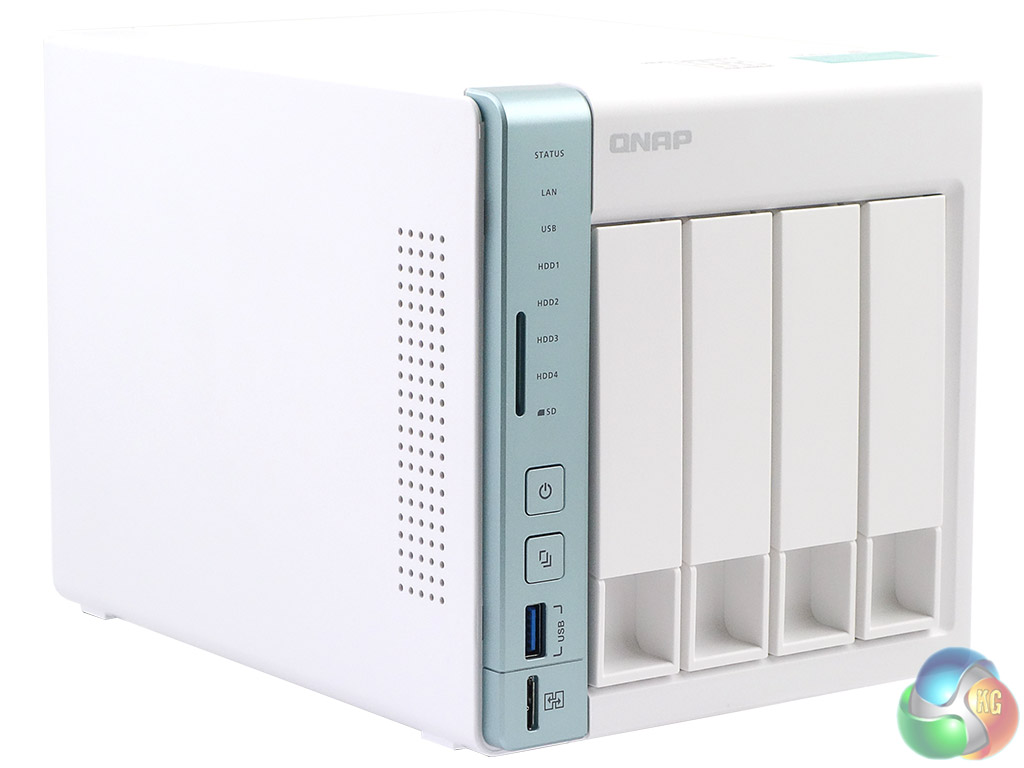
The TS-451A-4G is a stylish tower 4-bay NAS with a white plastic cover. The white finish is set off by a metallic blue-grey strip which holds a multitude of LEDs and ports. There are eight vertical stacked LEDs; status, LAN, USB, four indicating drive activity and one for the SD Card port. The SD card port sits next to the bottom three LEDs.
Under the LEDs are two buttons – the top one being the power button while the lower is the quick copy for the front USB3.0 port which resides directly below it. Under this port is the QuickAccess port which allows the NAS to be used via a USB cable if a wired network isn't available – very clever, although the cable (USB 3.0 A-Male to Micro B-Male or USB2.0 Micro B) you need isn't bundled with the NAS, which is annoying.
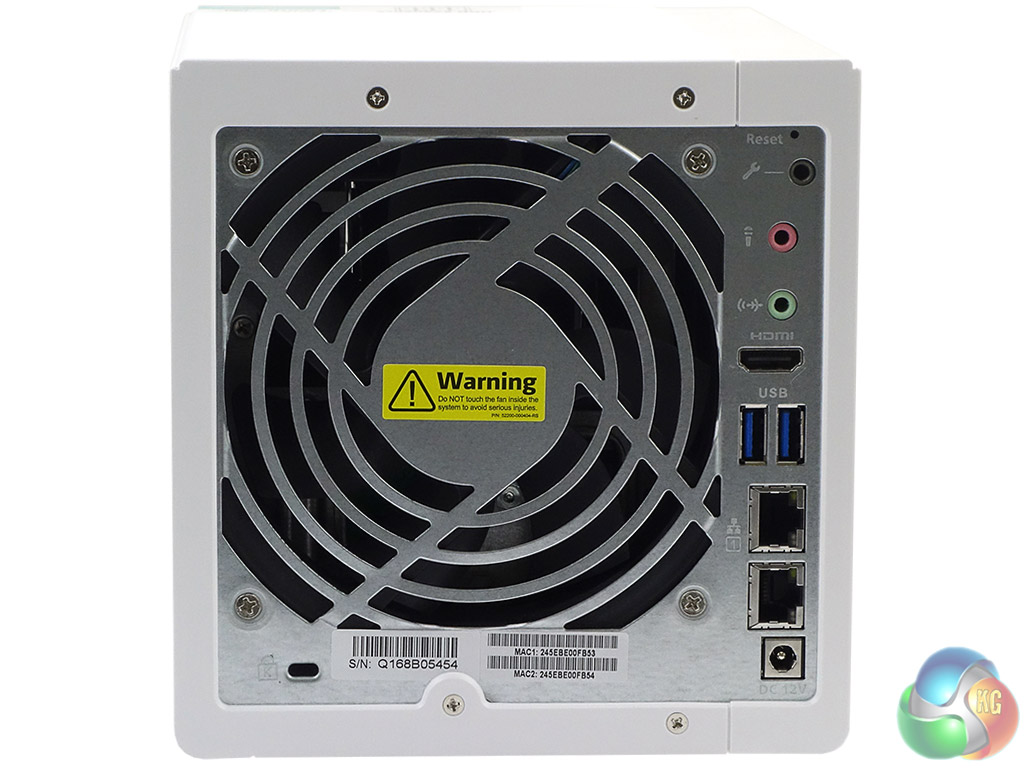
The rear of the unit is dominated by the grill for the large 120mm fan (Y.S. Tech FD121225LB 2-ball bearing, 1,800rpm). Ports are stacked to the right of the grill. The ports are: console, line out and microphone jacks, a single HDMI port, a pair each of USB3.0 and LAN ports and finally the power in port.
To the bottom right of the fan is a Kensington security slot.
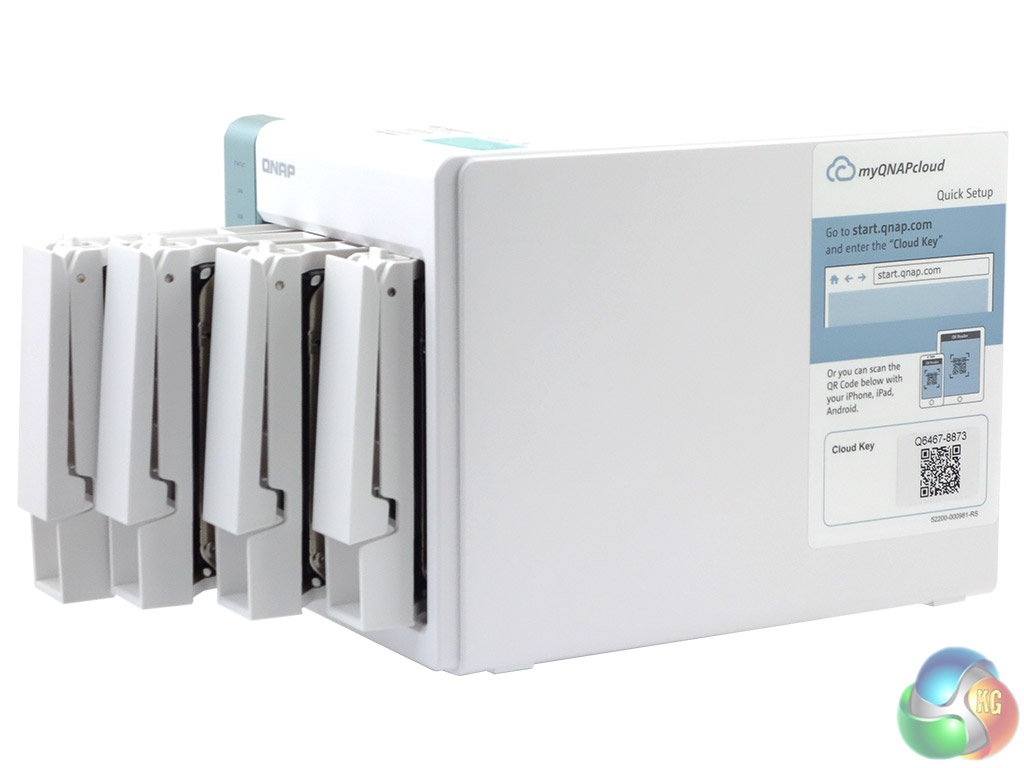
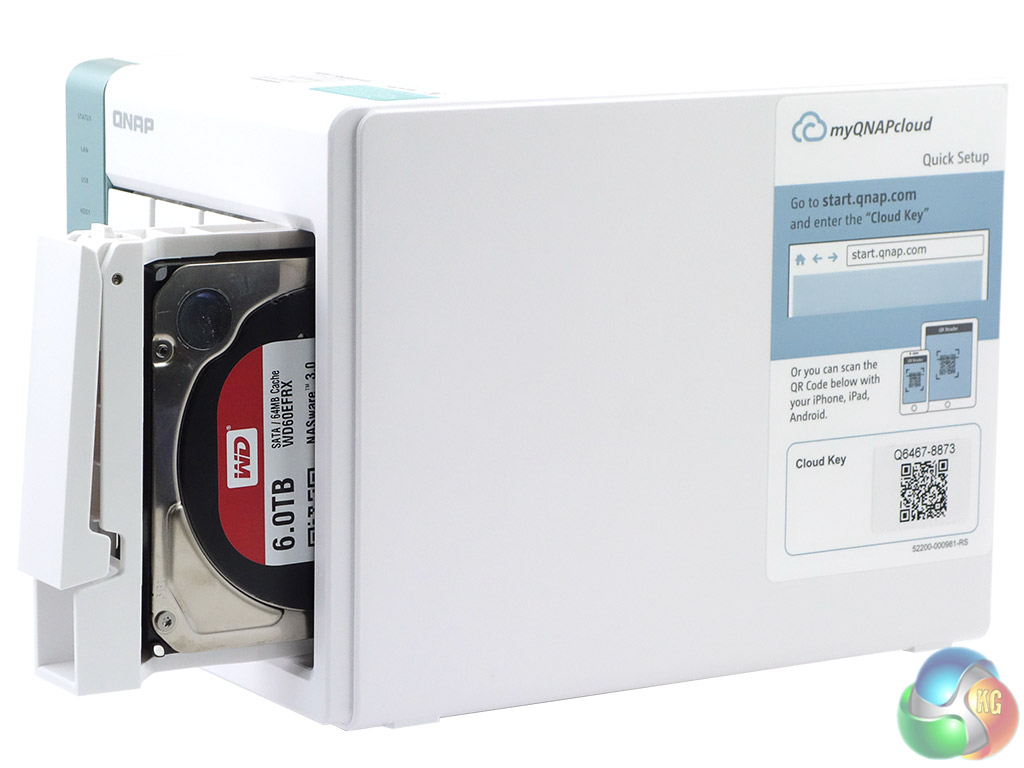
The drive doors form part of the drive trays and have a simple locking latch. There's no form of other physical security for the doors, something worth taking note of if the unit is out in the open in a busy office environment.
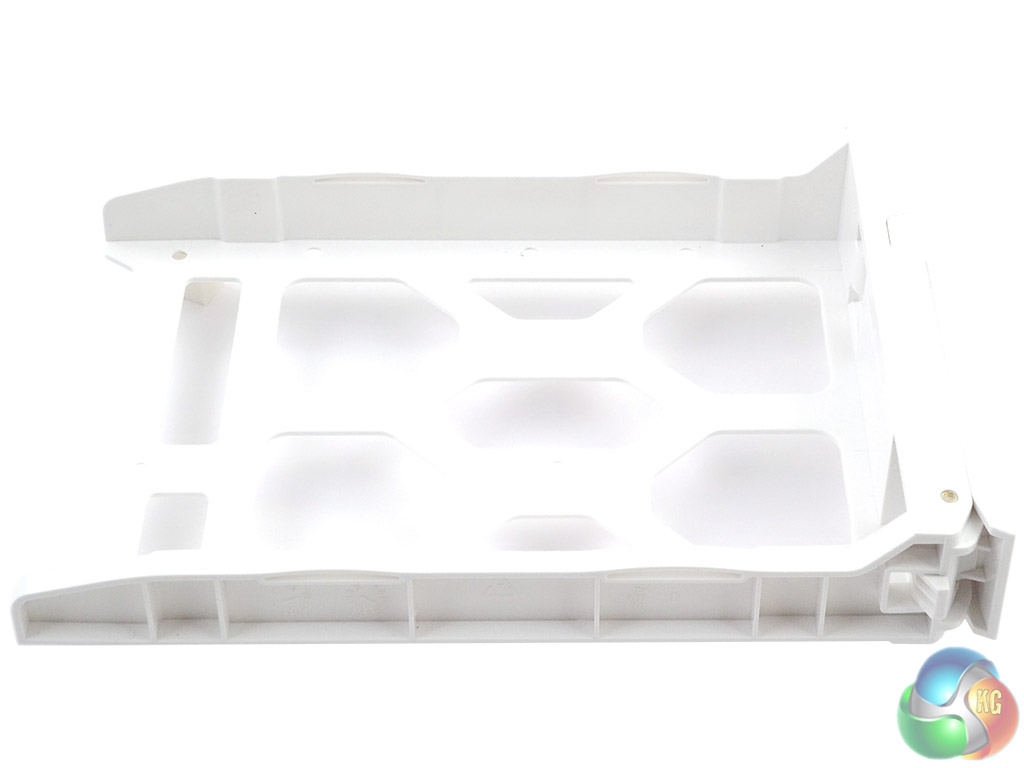
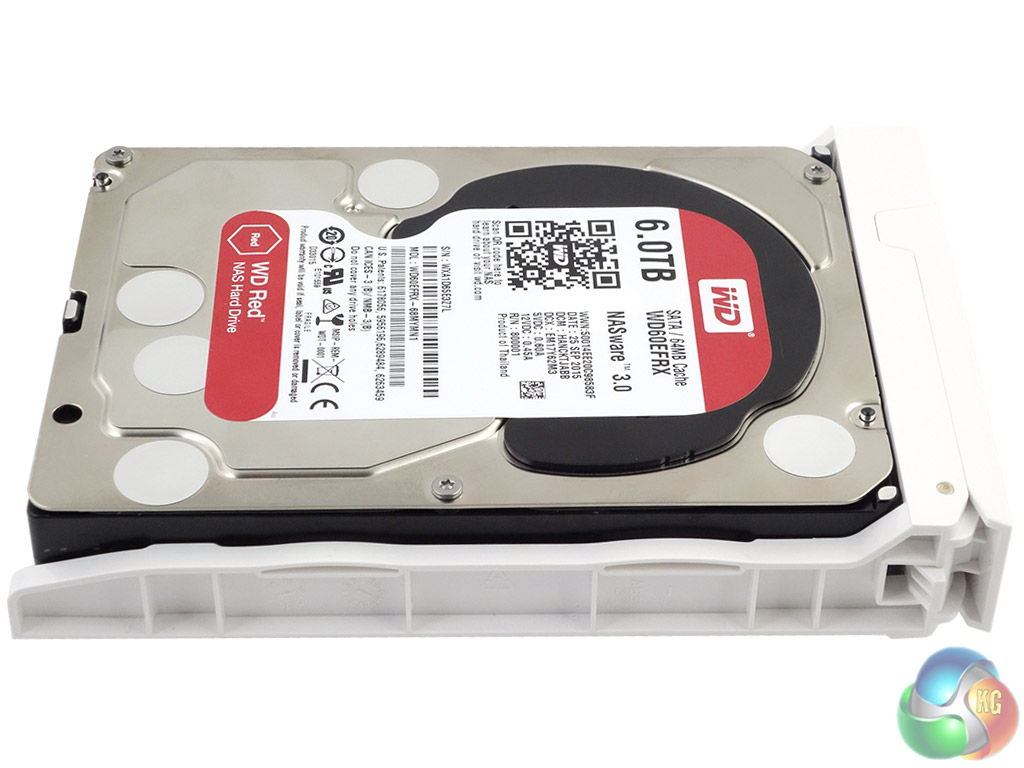
The four drive trays are vertically mounted and constructed from a good quality plastic so they don't flex as much compared to some of the flimsier plastic trays around. Unfortunately, they are not tool free so you need a screwdriver to fix the drives in position. The bays support both 3.5in and 2.5in (including SSDs) drives up to 10TB for 3.5in HDDs and 1TB for SSDs (at the time of writing).
Two of the four SATA ports are controlled by the N3060, while the remaining pair is looked after by an ASMedia ASM1062 IC located on the backplane that houses the SATA ports.
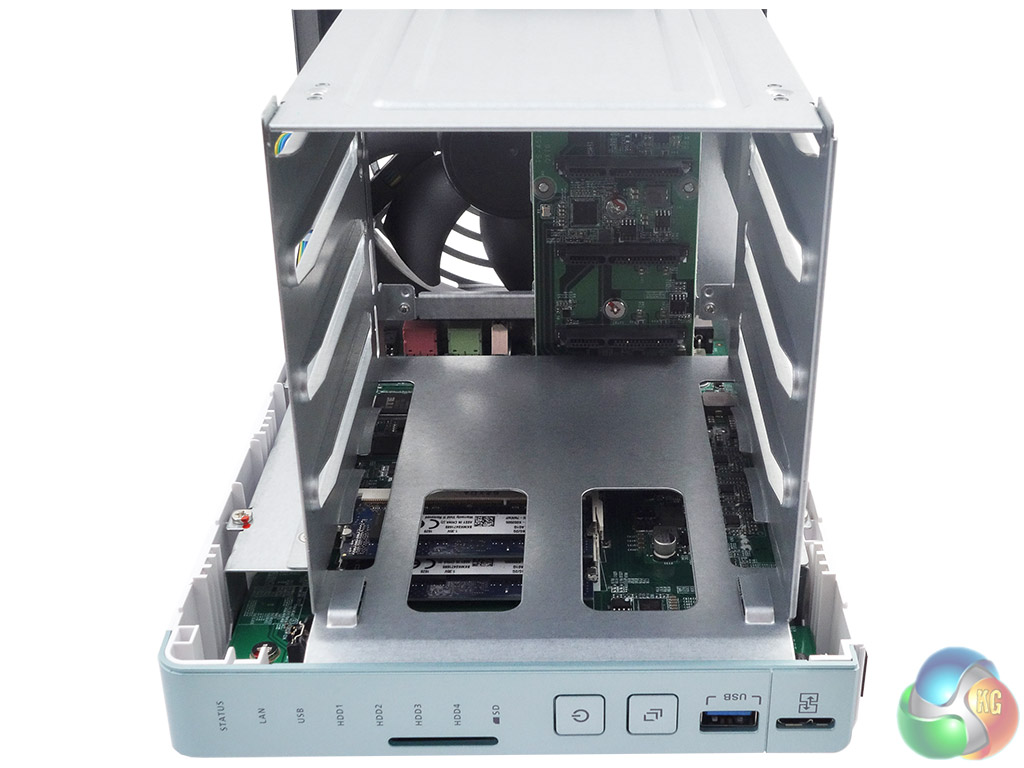
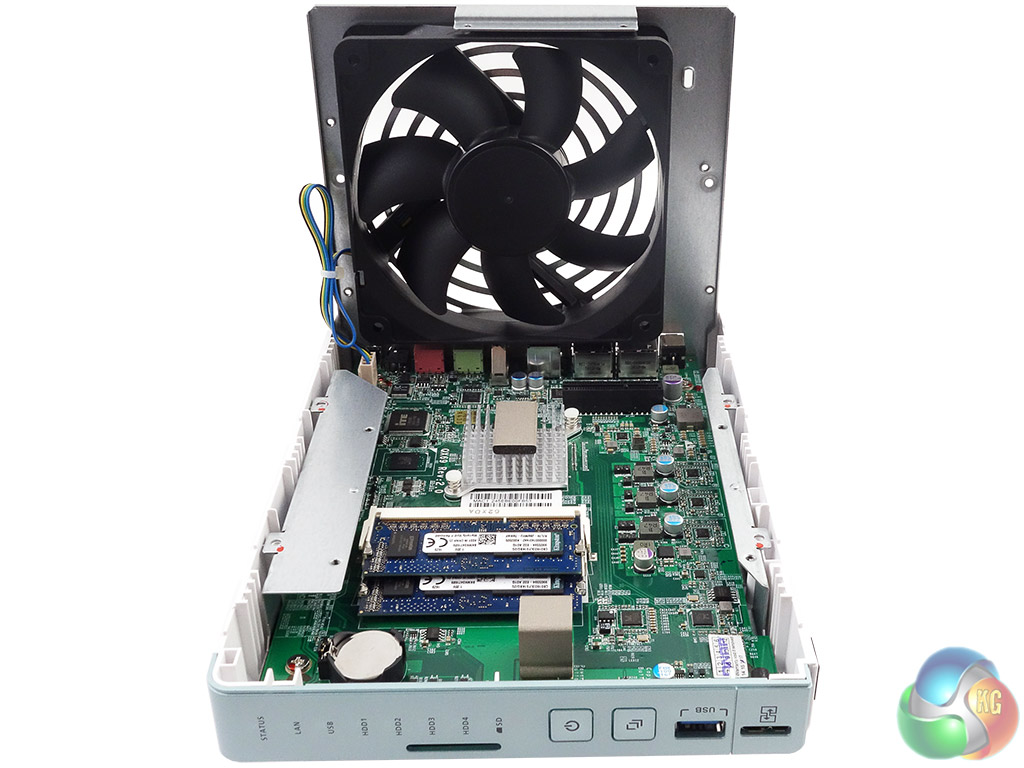
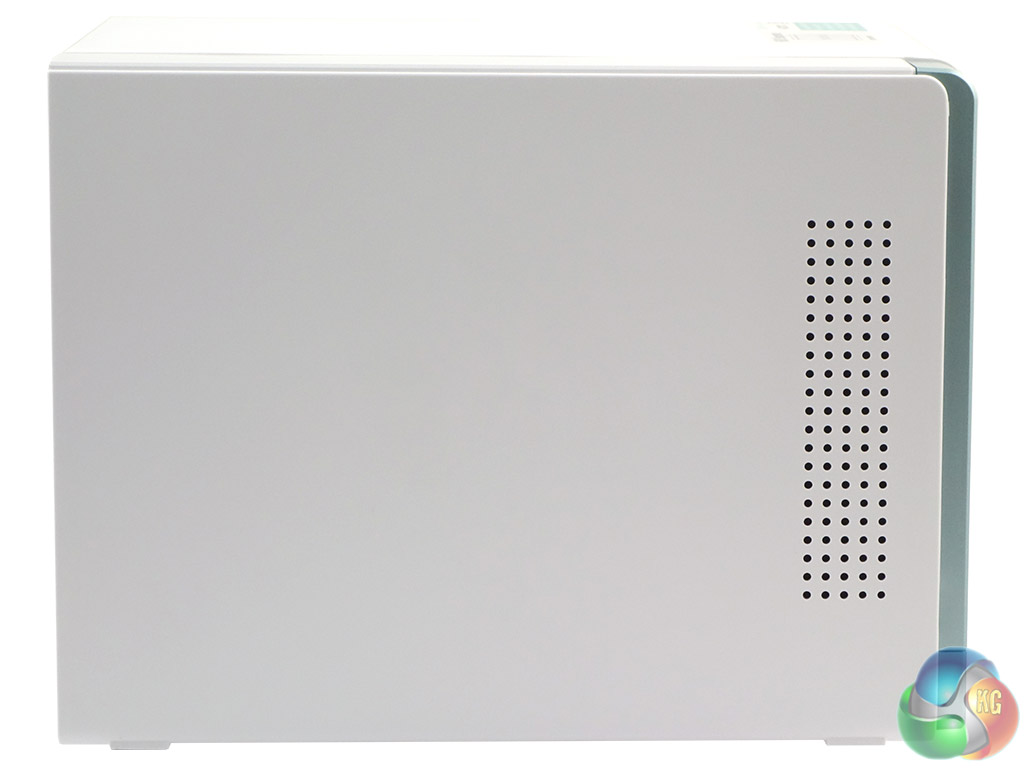
The TS-451A is available in two memory versions – 2GB and 4GB – but it does support up to 8GB of memory via two SODIMM slots. Accessing these slots for memory upgrades is a little more involved than it could be, but easy enough to achieve. First, you need to undo the four screws holding the cover to the back panel, then slide the whole side cover forward (there's a lock/unlock position moulded to the base of the unit).
Once the cover is off, the six screws holding the drive cage in place have to be removed. There are two screws on each side of the cage base and two on the top front. Once the cage is removed it is easy to get to the memory.
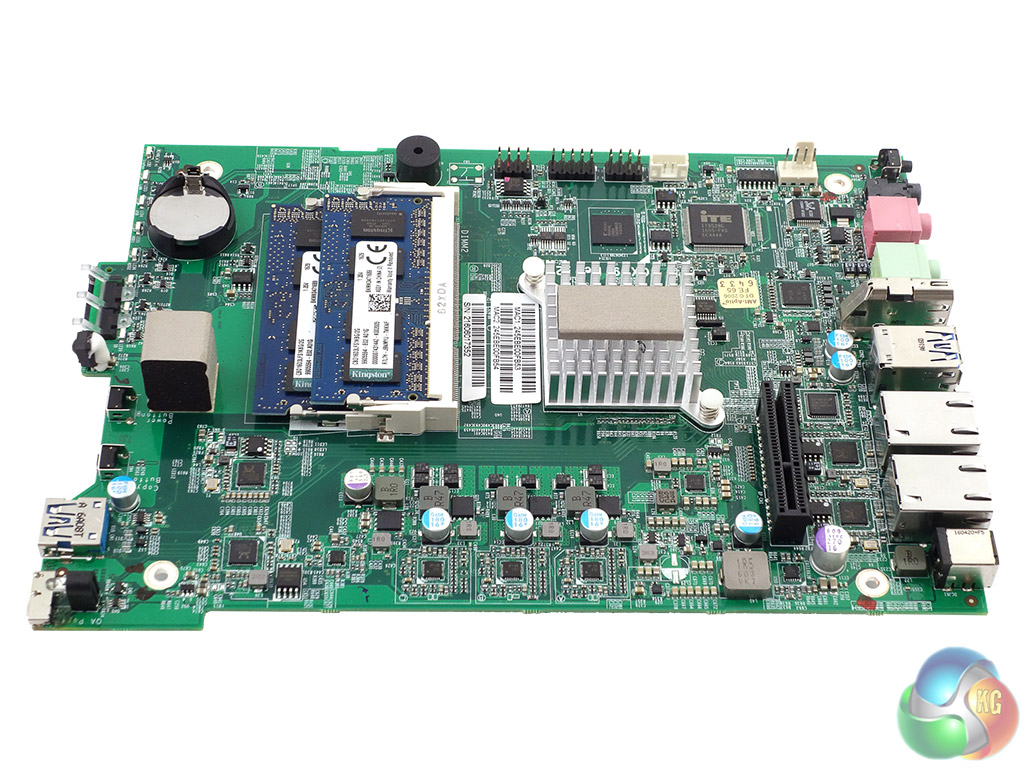
The top of the motherboard is dominated by the pair of SODIMM slots, as well as a passive cooler for the Intel N3060 processor which, with a TDP of just 6W, does not require direct active cooling. Our review sample came with a pair of Kingston CBD16D3LFS1KBG/2G 2GB DDR3L-1600 modules, giving a total of 4GB of system memory.
Joining these is an ITE IT8528E system management IC, a pair of Realtek RTL8111E Ethernet controllers, and a Realtek RTL8153 USB3.0 Ethernet IC which controls the Quick Access port. A Texas Instruments DP139 IC provides support for the HDMI, while a Realtek ALC262 provides HD audio capability.
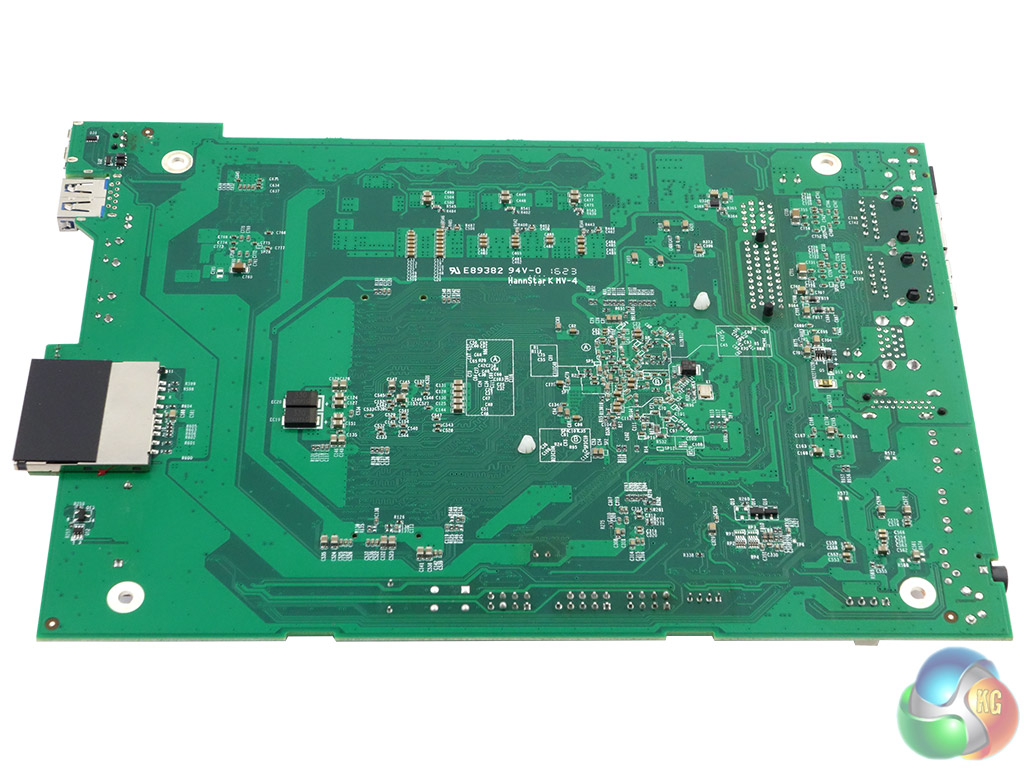
In total contrast, the rear of the motherboard is almost completely free of chips.
Physical Specifications
Processor Intel Celeron N3060 1.6GHz (burst up to 2.48GHz).
Memory 4GB DDR3L-1600.
Gigabit Ethernet Ports x 2.
Front panel connectors 1 x USB 3.0, 1 x QuickAccess.
Rear panel connectors 2 x USB 3.0 , 2 x LAN, 3 x Audio, 1 x HDMI.
RAID support JBOD, RAID 0, 1, 5, 6, 10
Cooling 1 x 120mm fan
Maximum hard drive size supported 10TB.
Maximum Capacity 40TB.
Dimensions (D x W x H) 219 x 160 x 169mm.
Weight 3kg.
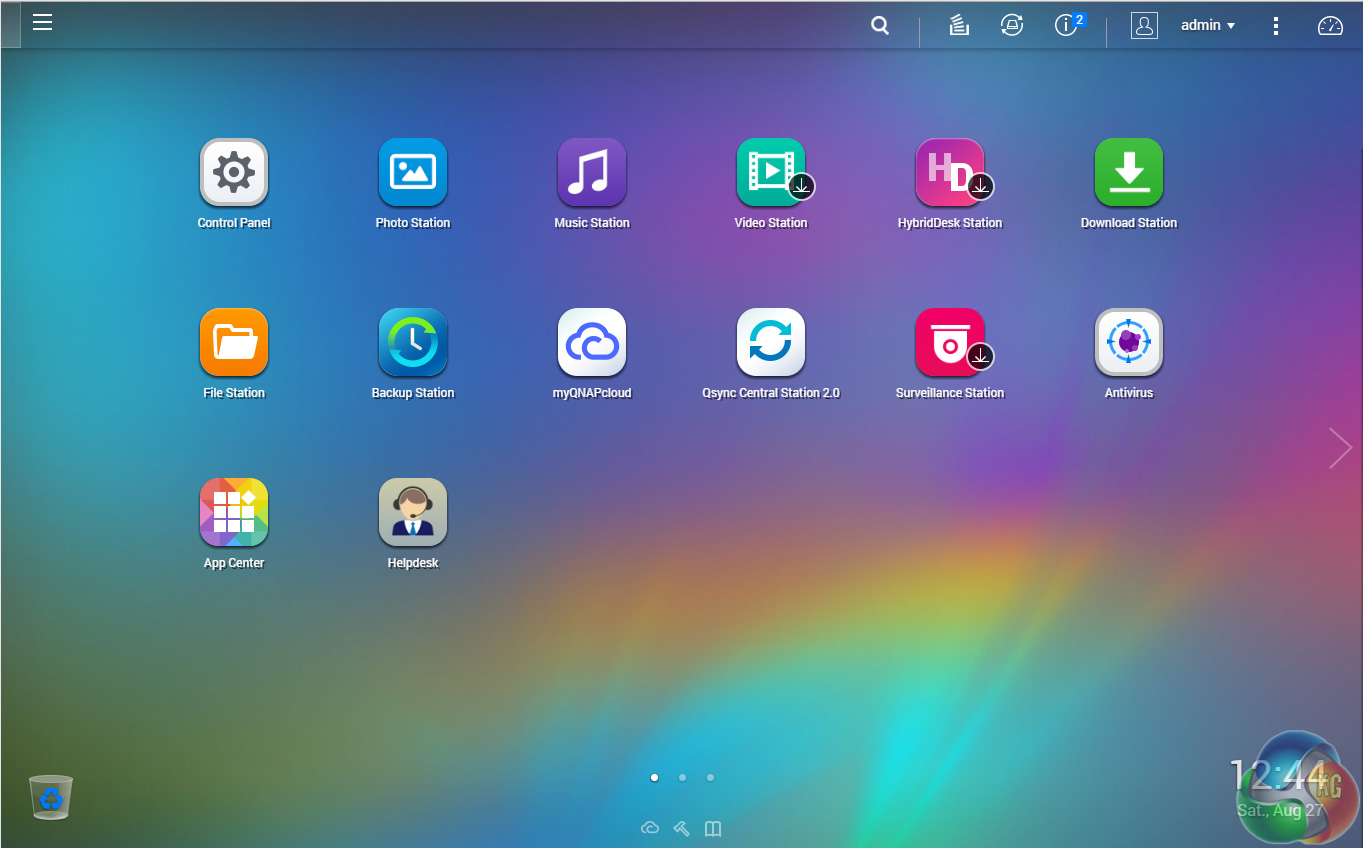
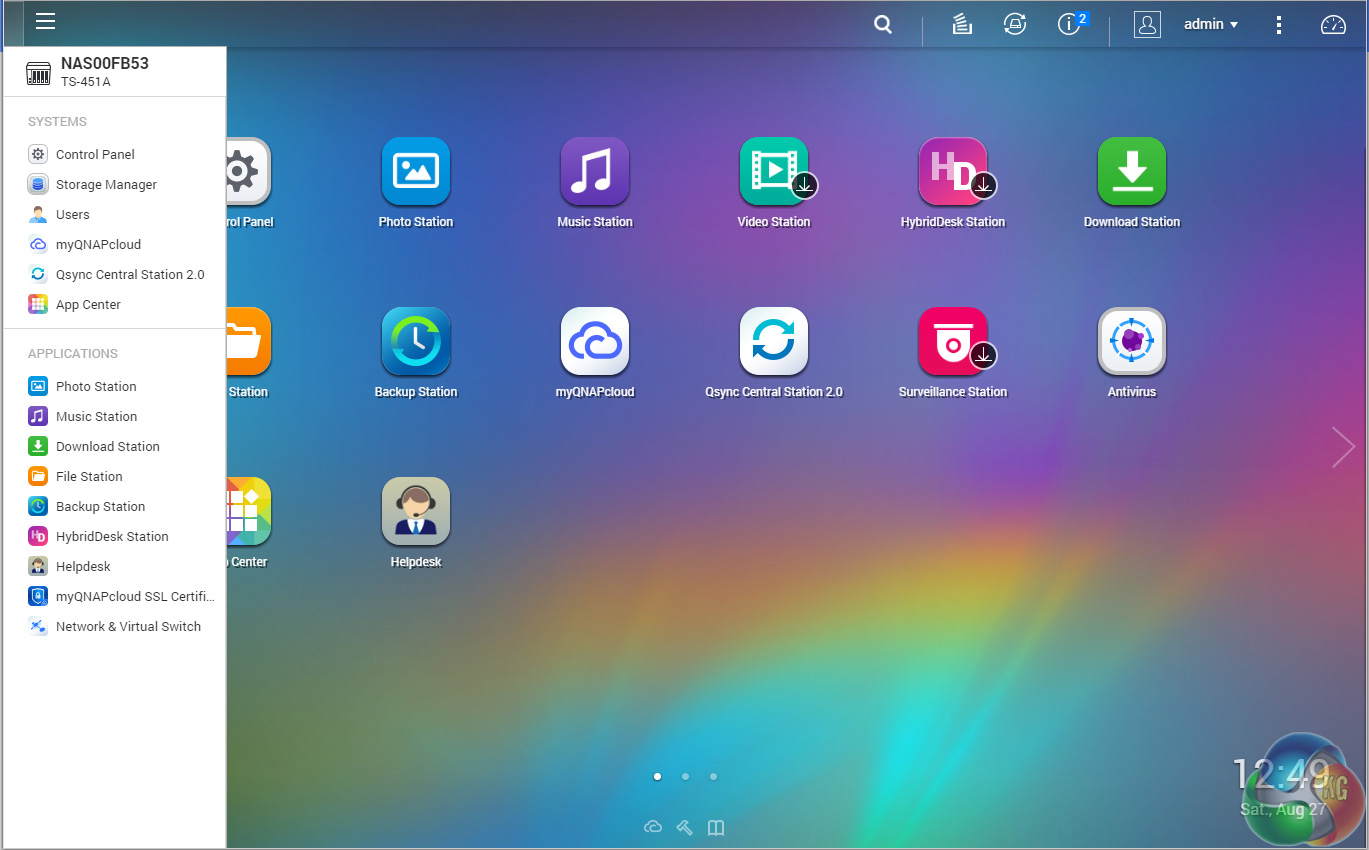
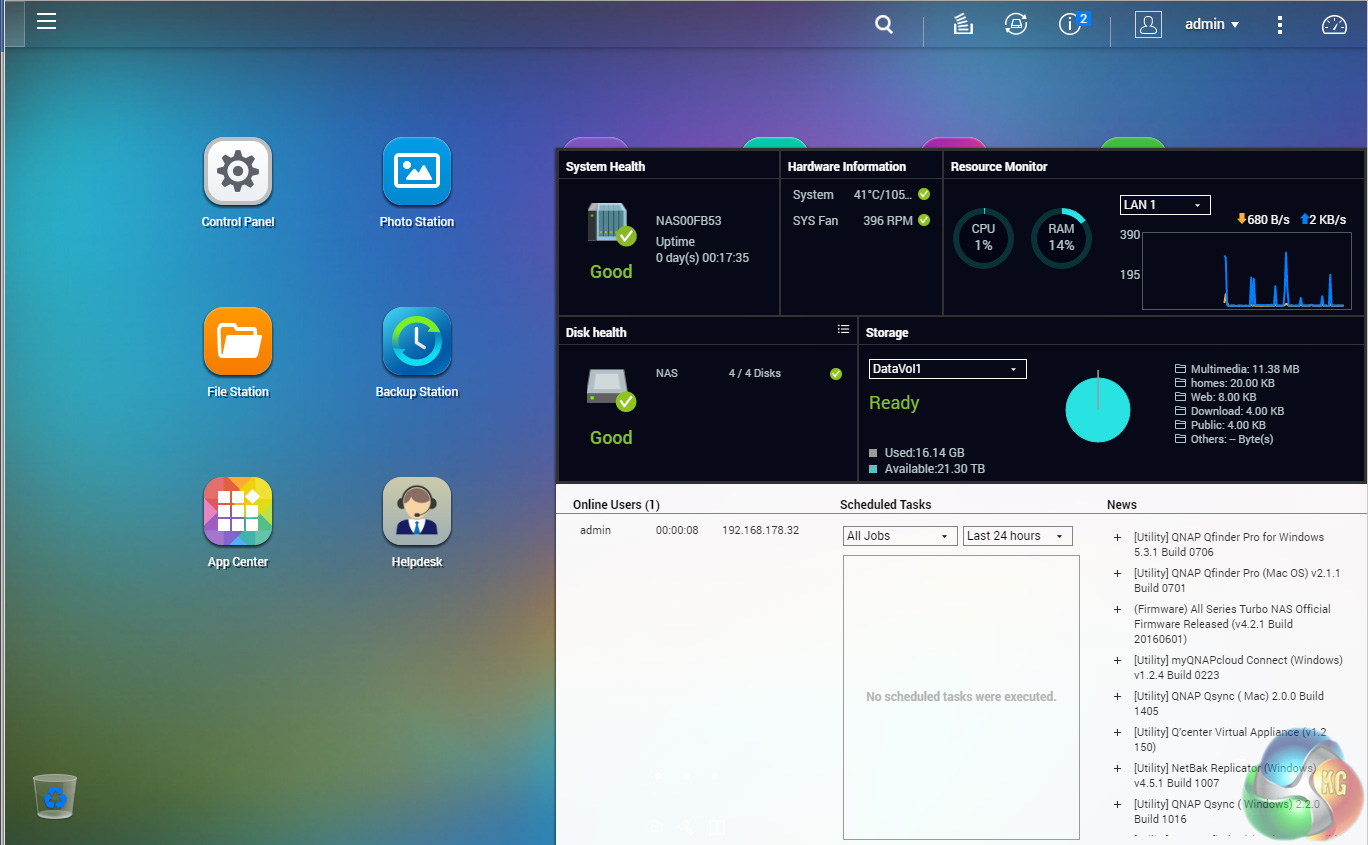
QTS is a graphically-rich OS with the major apps appearing as icons on the main page. Clicking on the ‘hamburger‘ menu icon at the top left-hand side of the screen drops down a very useful side menu. Clicking the icon on the top right of the screen activates the Dashboard page which gives a snapshot of what's happening with the NAS.
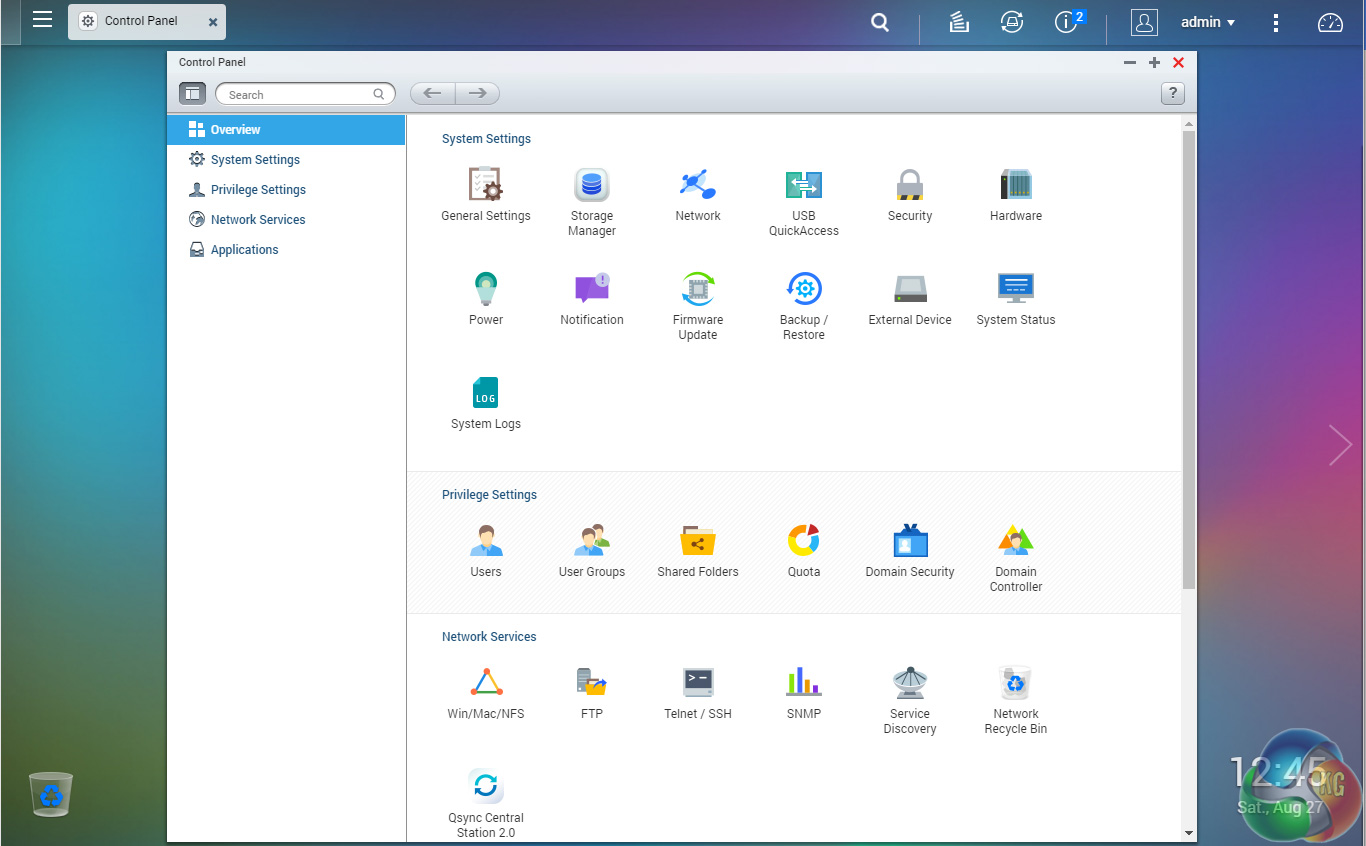
The Control panel overview has all the various functions of the NAS neatly divided into groups; System Settings, Privilege Settings, Network Services etc.
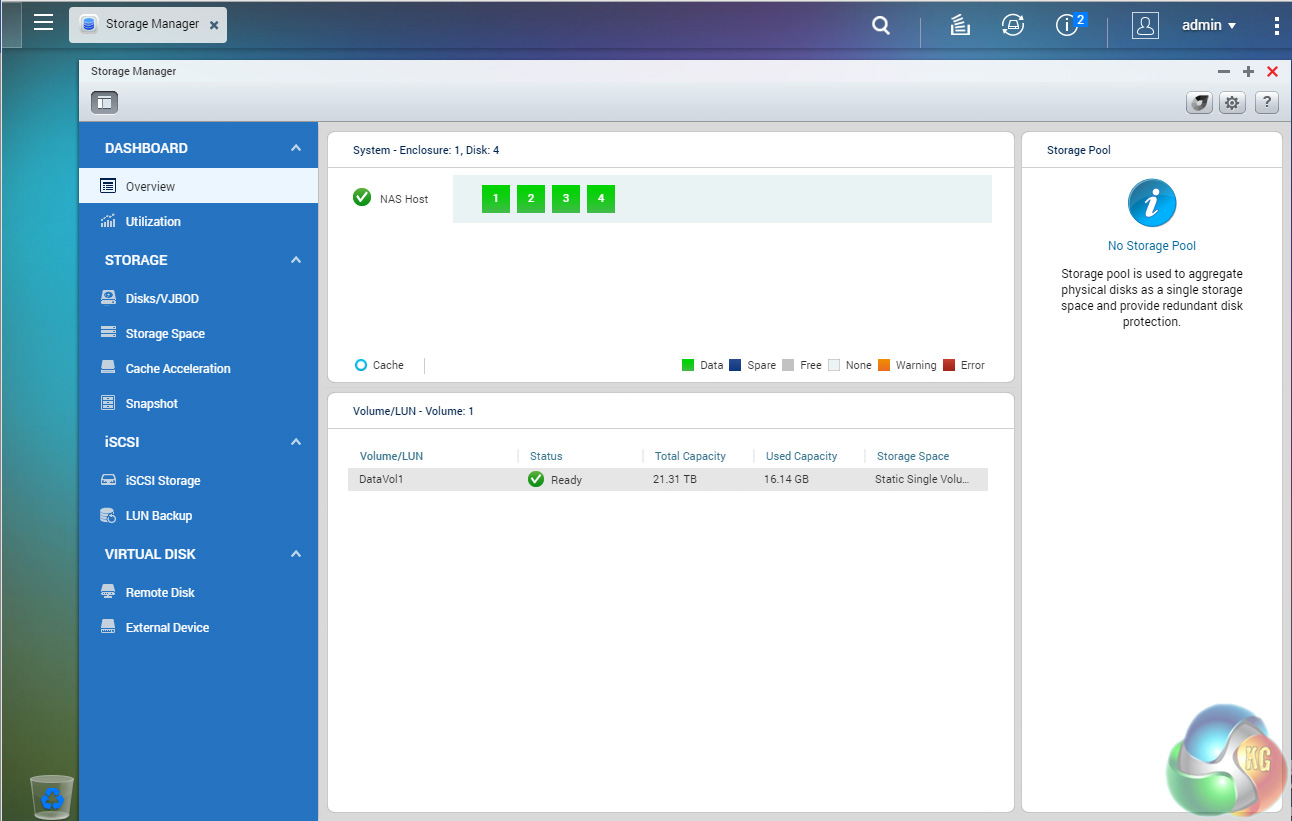
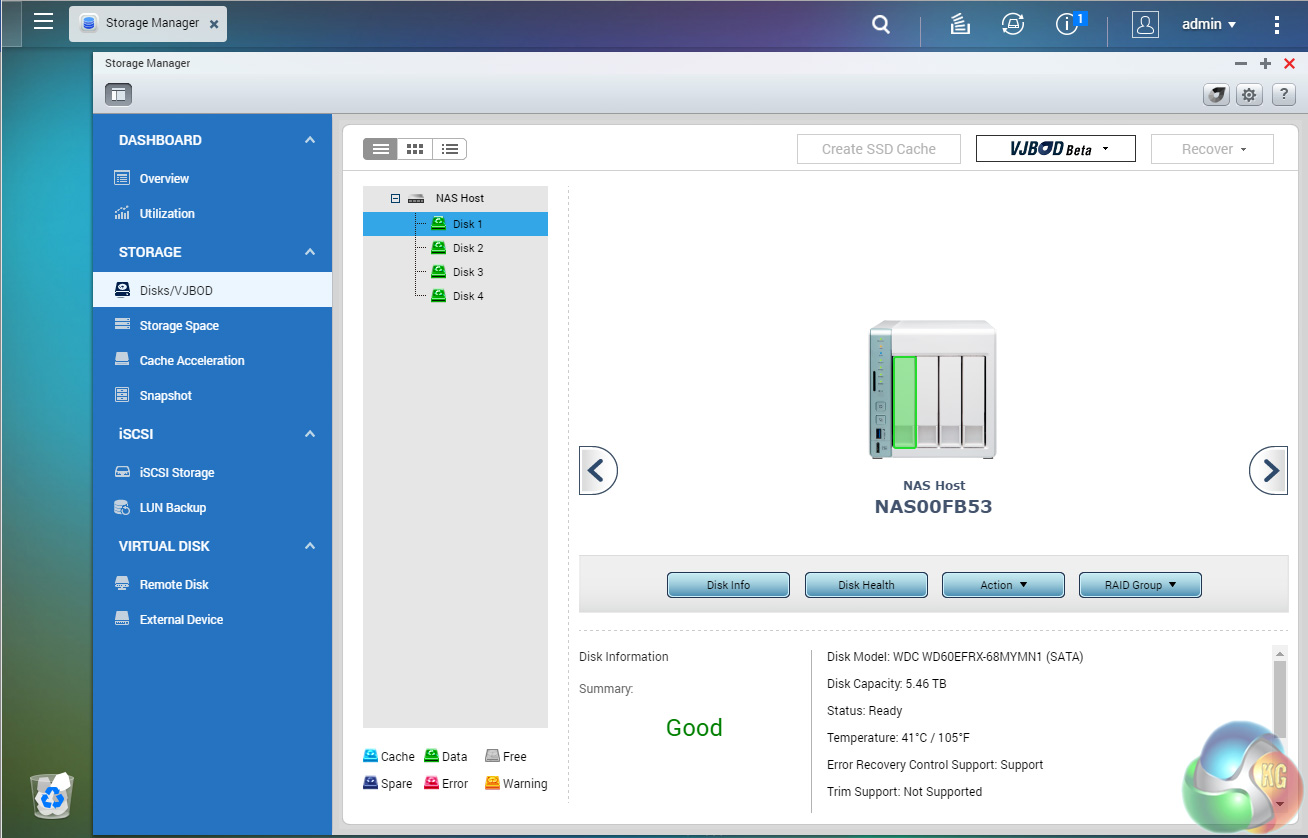
Storage Manager gives you complete control over setting up drives and volumes, in addition to showing how the capacity of the NAS is being used and warnings of potential failures. The Storage/Disks/VJBOD sub-menu displays individual drive information and health with a handy graphical display showing which drive is being interrogated.
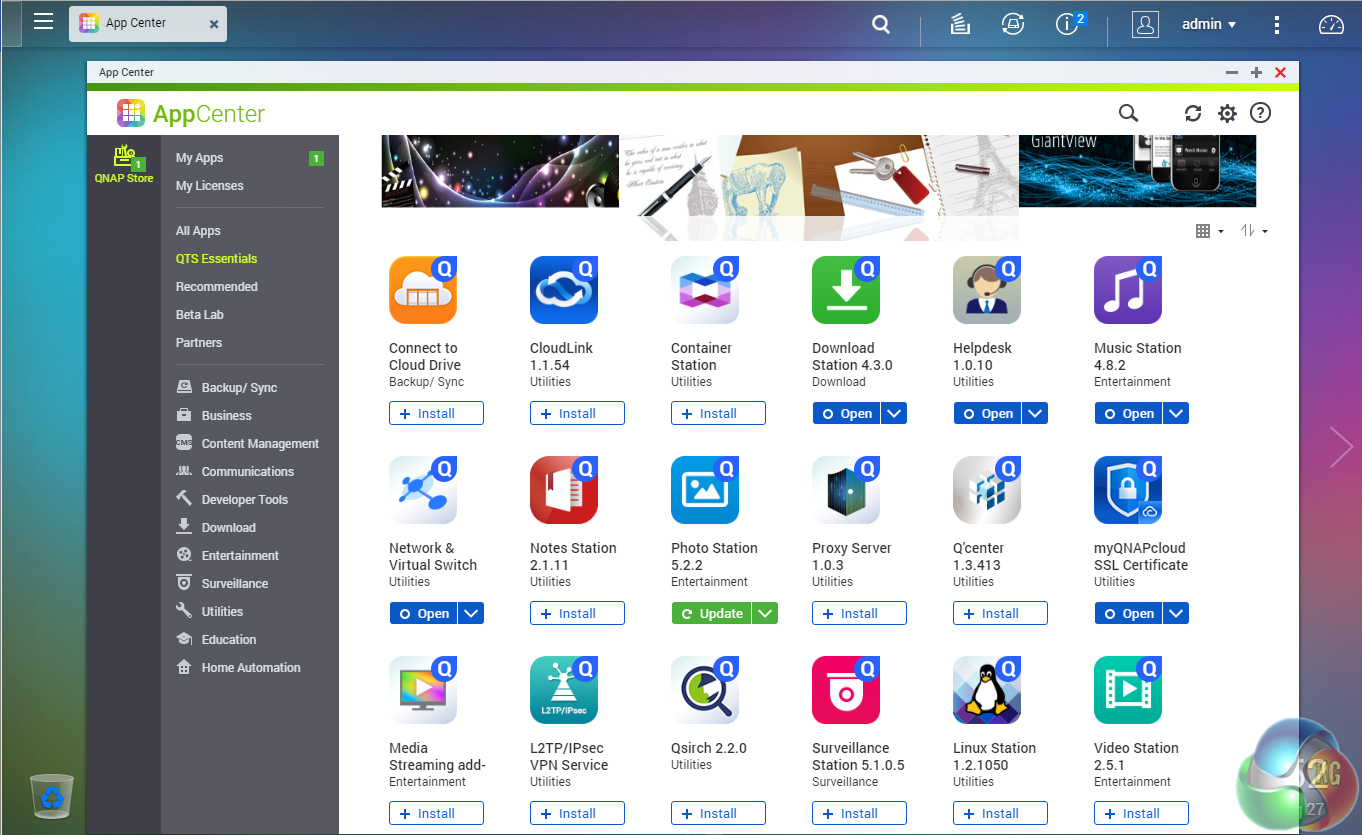
App Center has over 160 apps to choose from covering everything from backups to home automation and pretty much everything in between.
QTS 4.1 Highlights
Backup Station
Photo Station
Video Station
Music Station
File Station
Download Station
App Center
HD Station – Use a QNAP NAS as a home theater center
Storage Manager
QNAP Snapshot Agent
QNAP QvPC – use the NAS as a PC
QUSBCam2 – Surveillance tool
Plex Media Server
Qmedia
myQNAPcloud
QNAP Mobile Apps including
Qremote – Control HD Station with your mobile phone
Vmobile – Professional mobile surveillance app
Vcam – Turn your mobile device into an IP cam
Qmanager – Remote management for NAS
Qfile – Remote file access
Qphoto – Photo sharing
Qget – Remotely manage download tasks
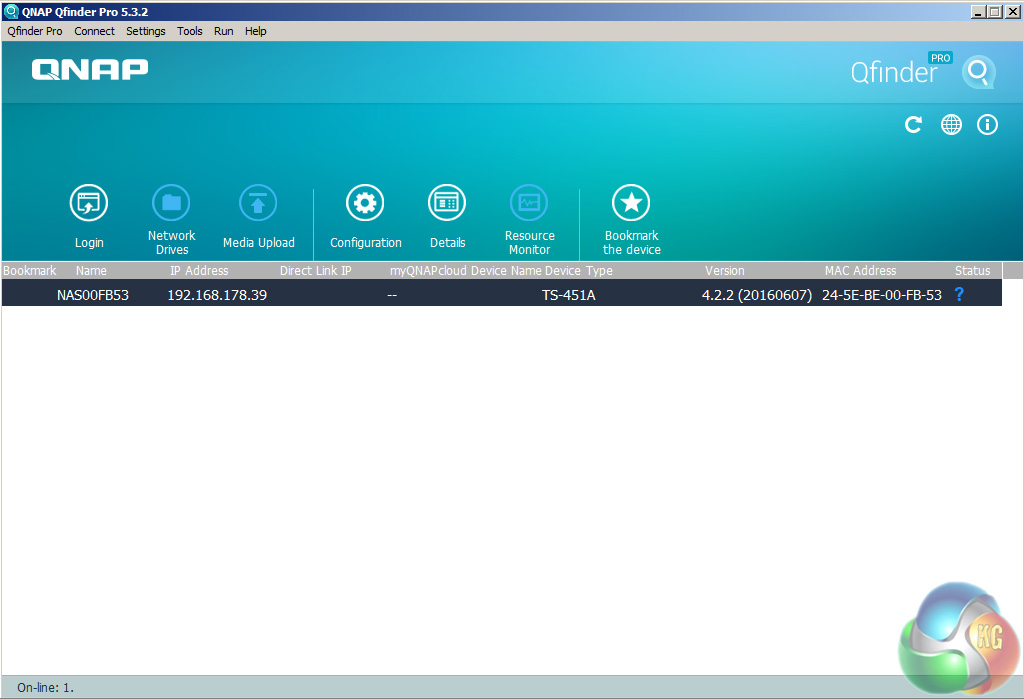
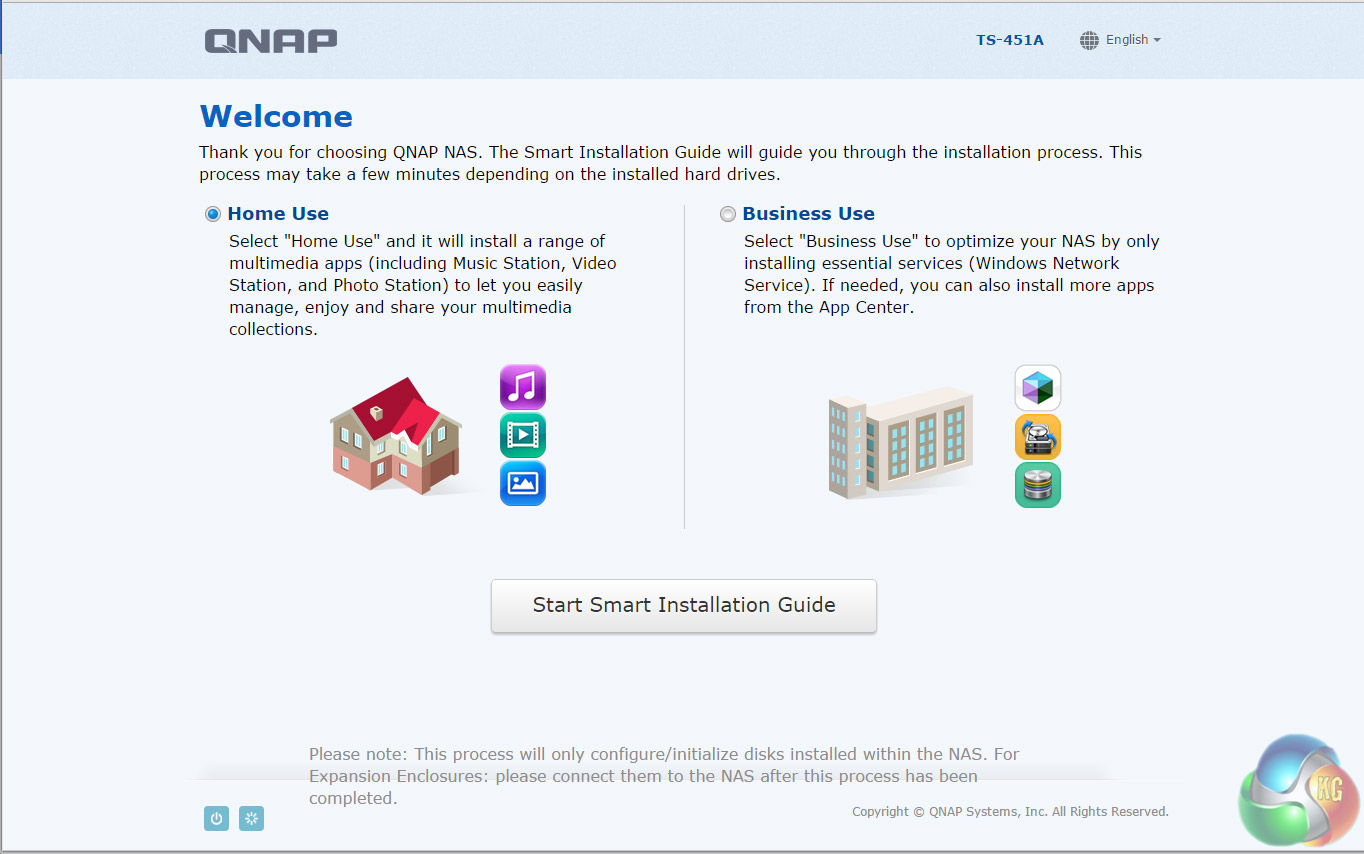
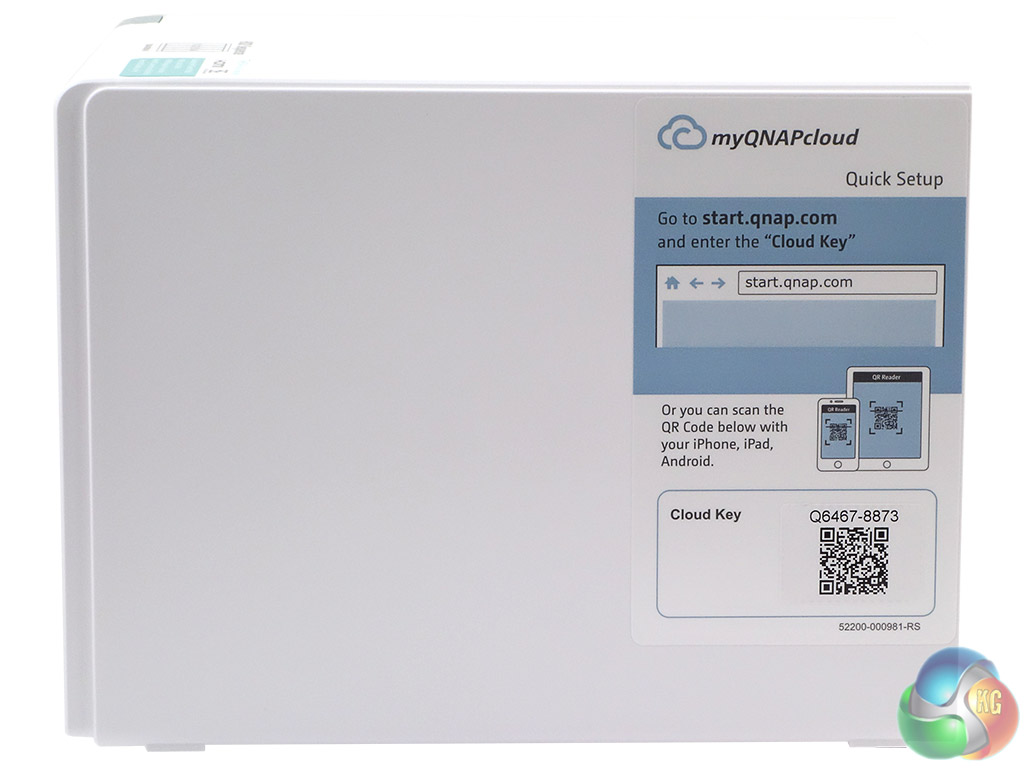
There are two ways of setting up the TS-451A-4G, either online by entering the Cloud key which is on the side of the unit or by using QNAP's Qfinder Pro utility. Once Qfinder Pro has located the NAS, clicking on the NAS details brings up the Smart Install Wizard which gives you a choice of install options; Home or Business.
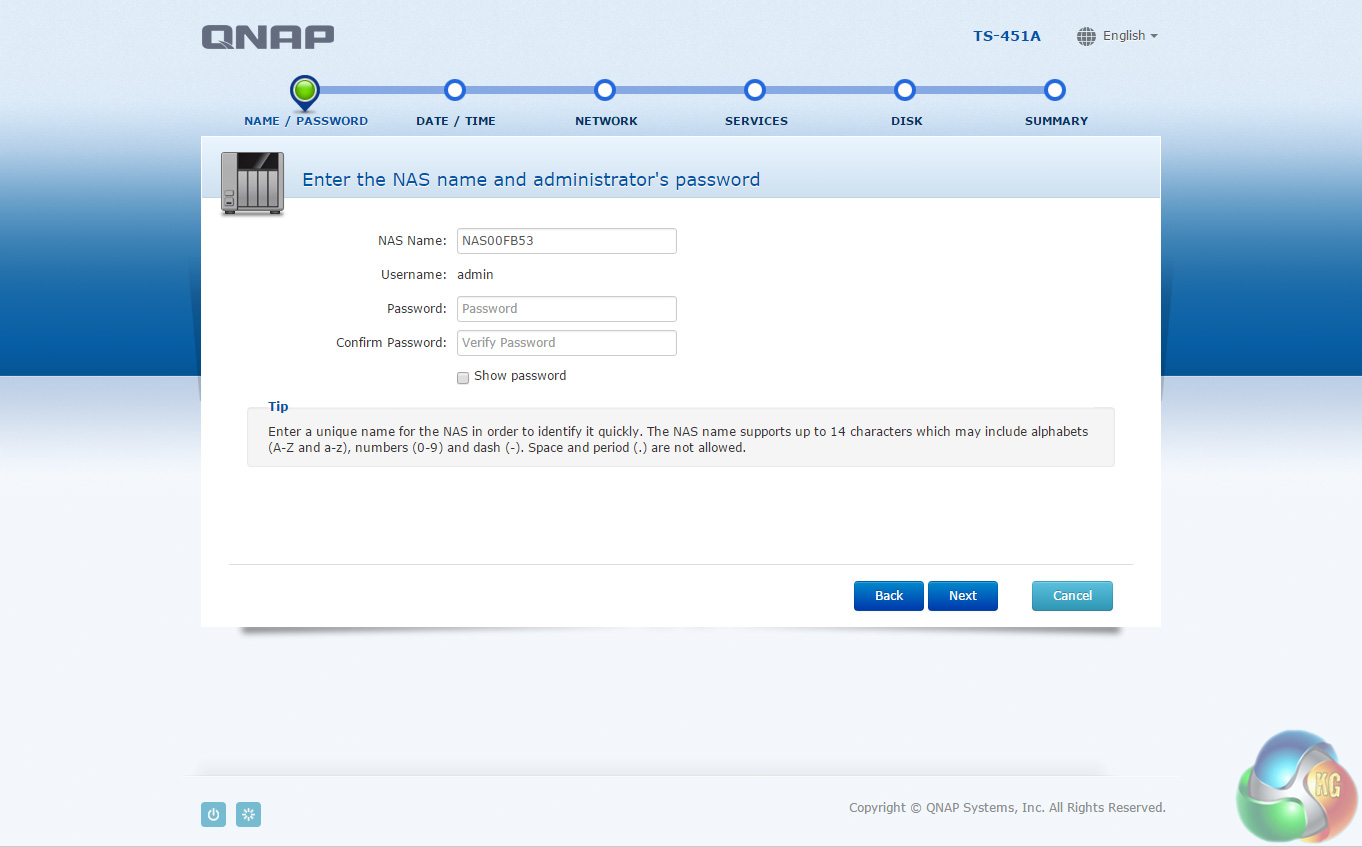
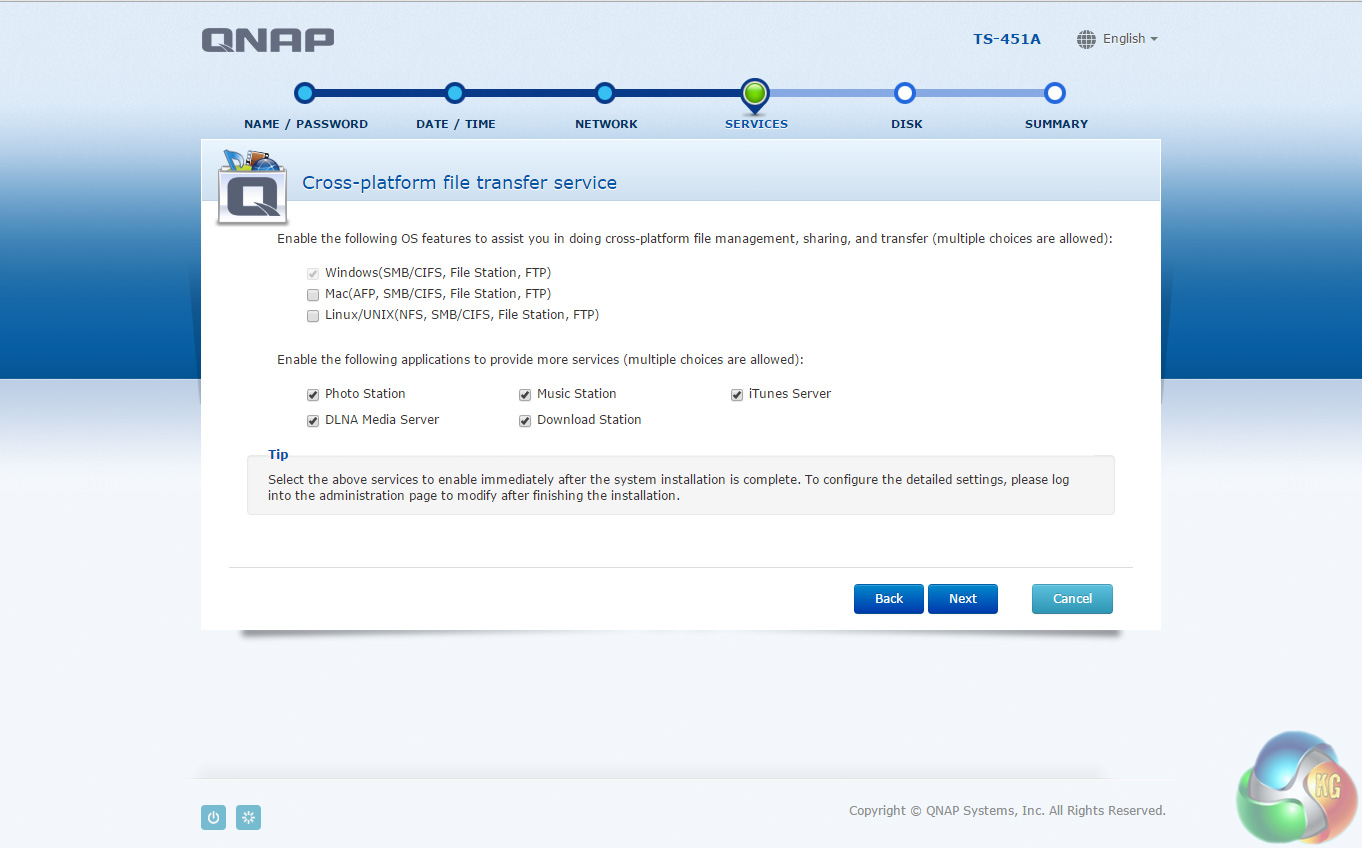
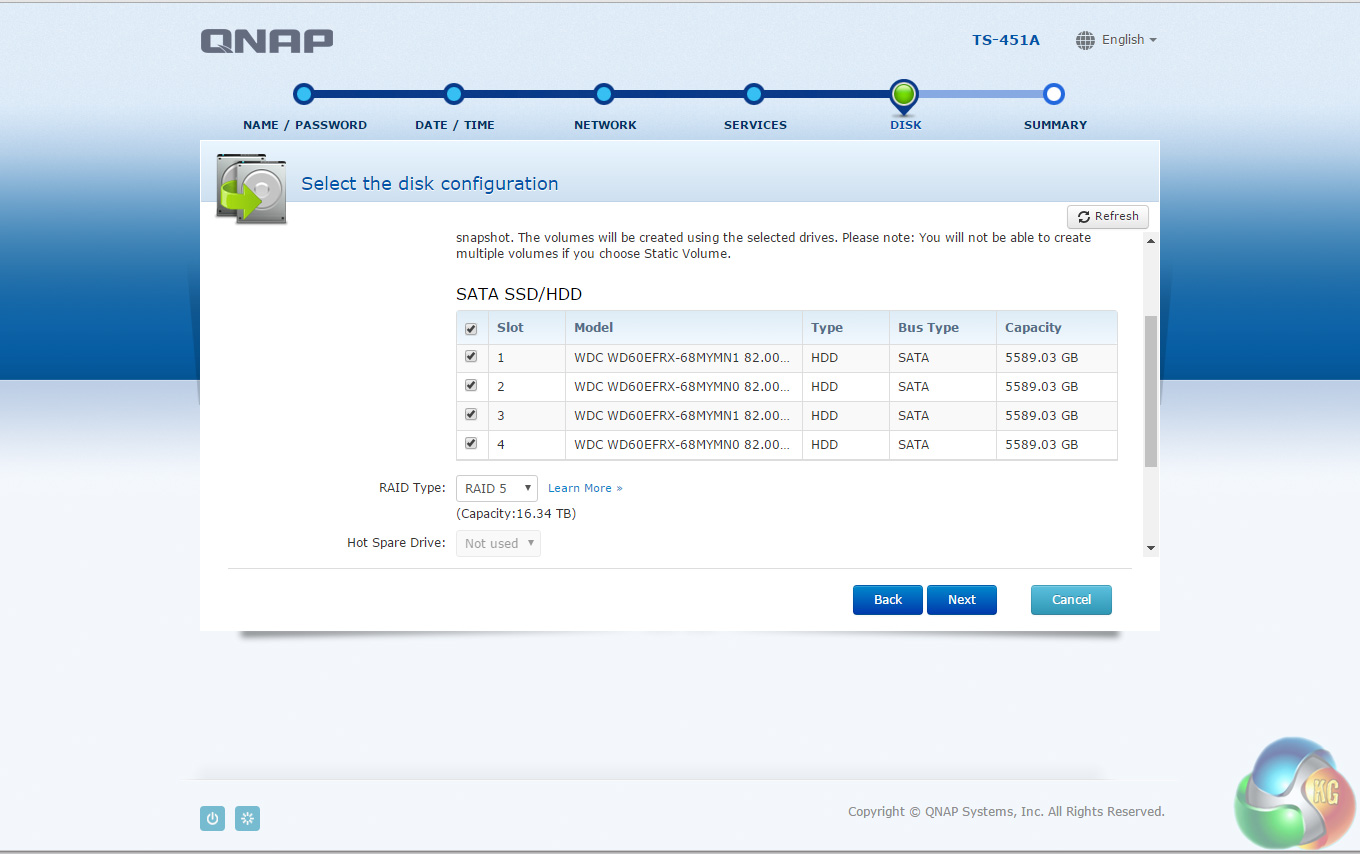
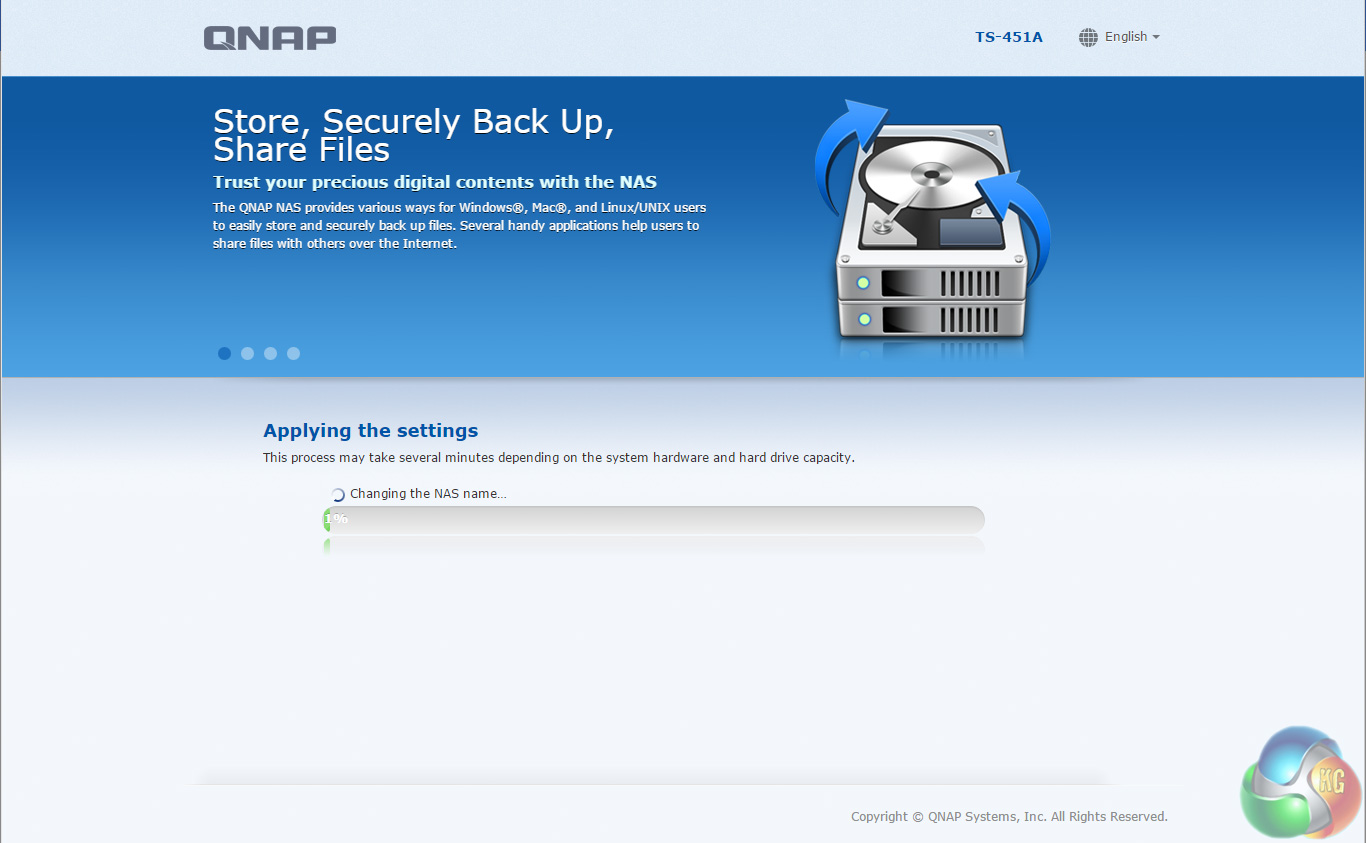
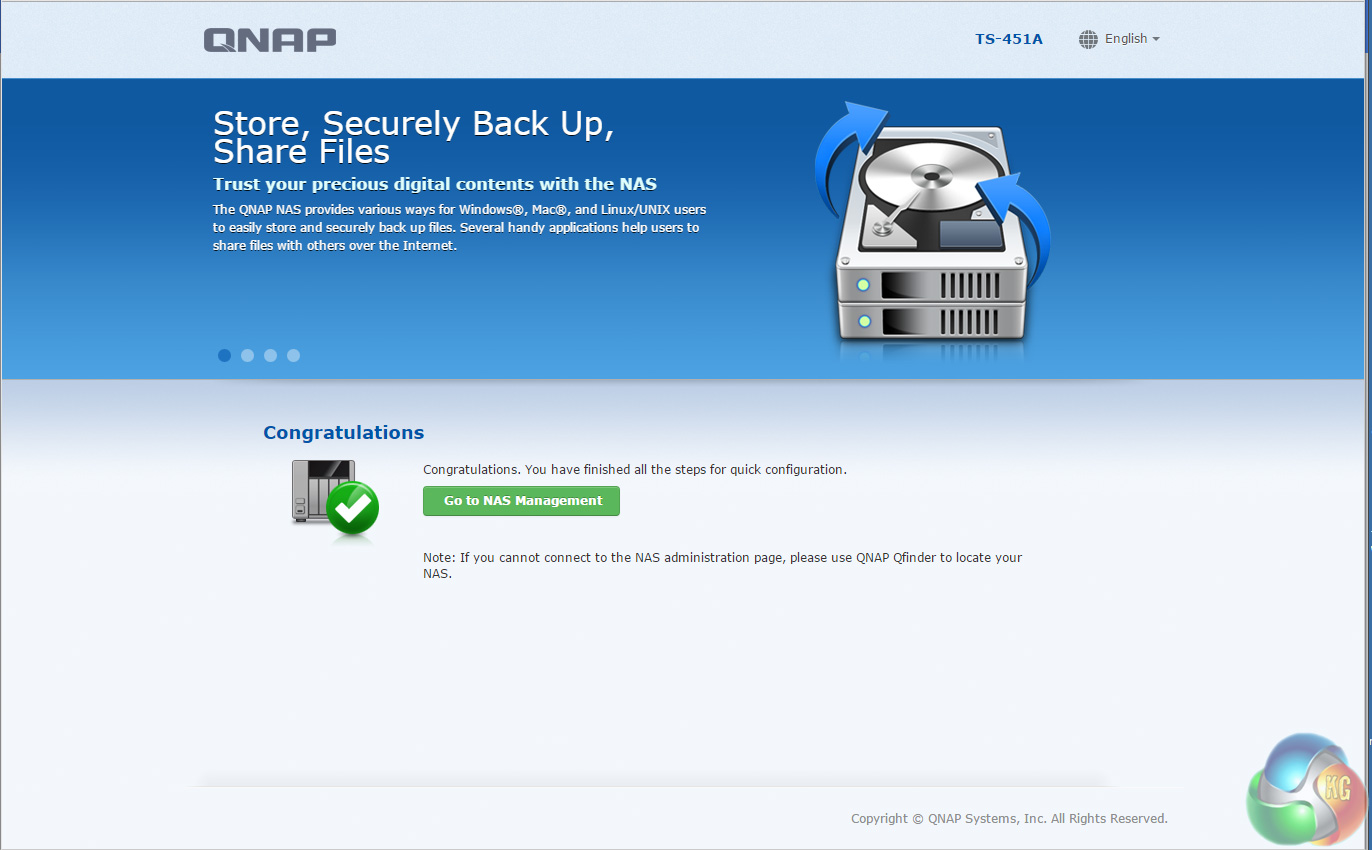
From then on it's just a matter of following the wizard through the install process. During the setup you can enable which OS cross-platform file management service you require; Windows (SMB/CIFS, File Station, FTP), Mac (SMB/CIFS, File Station, FTP) and Linux (NFS, SMB/CIFS, File Station, FTP). At this stage you can also load a few basic apps; Photo Station, Music Station, iTunes Server, DLNA Media Server and Download Station.
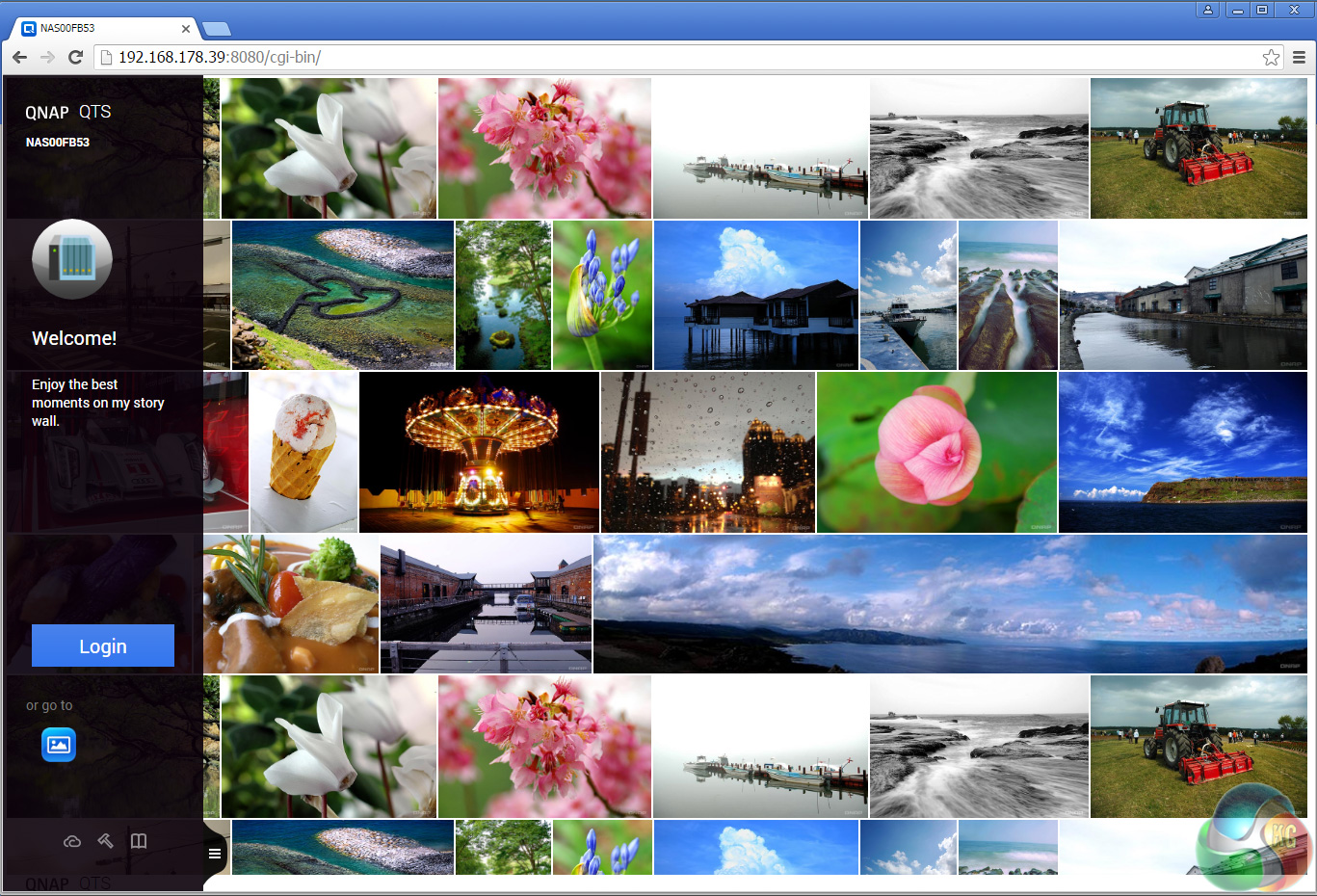
The default setup for the TS-451A-4G with four disks is RAID 5. It takes around 20 minutes to get the NAS set up and ready to use but obviously longer to get the disks synchronised (it took around 15 hours to synchronise the 4 6TB disks we were using for testing in a RAID 5 array). Once the NAS is set up, clicking on the NAS in the QFinder Pro brings up the log in screen.
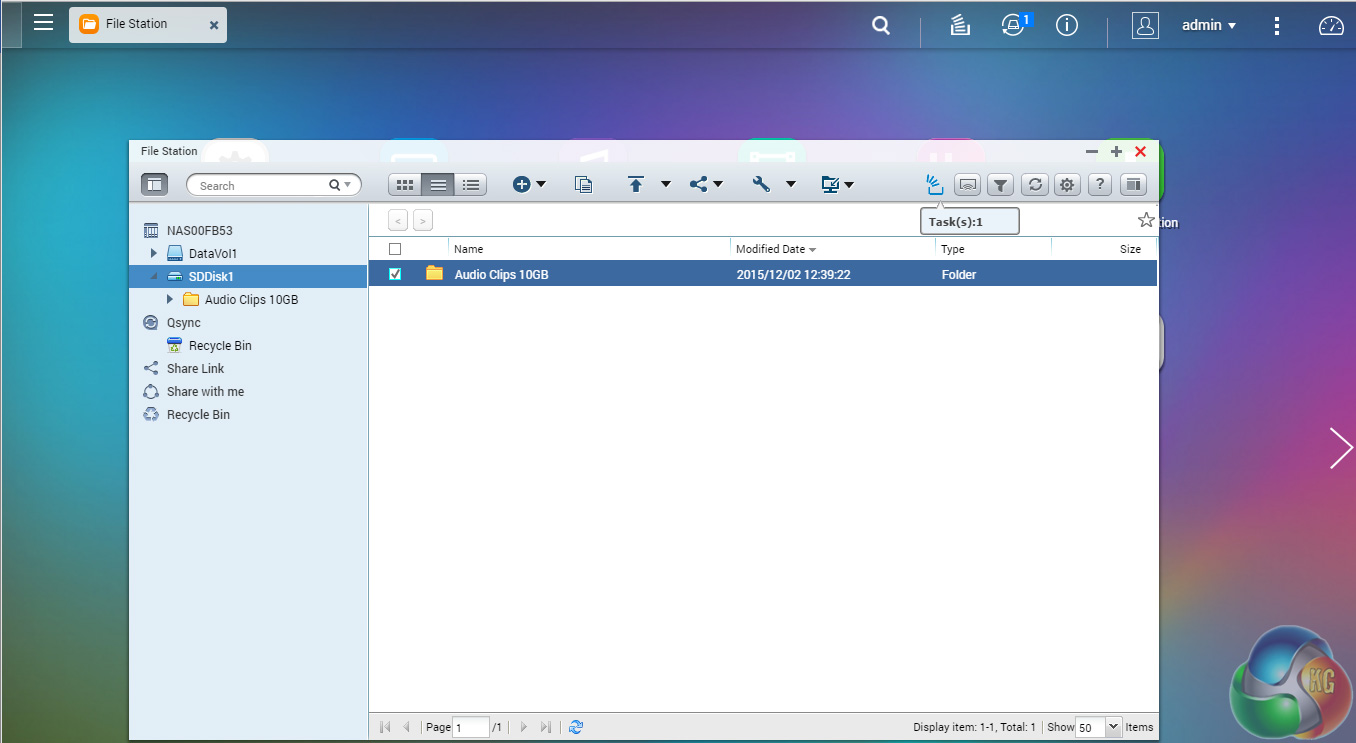
SD Card
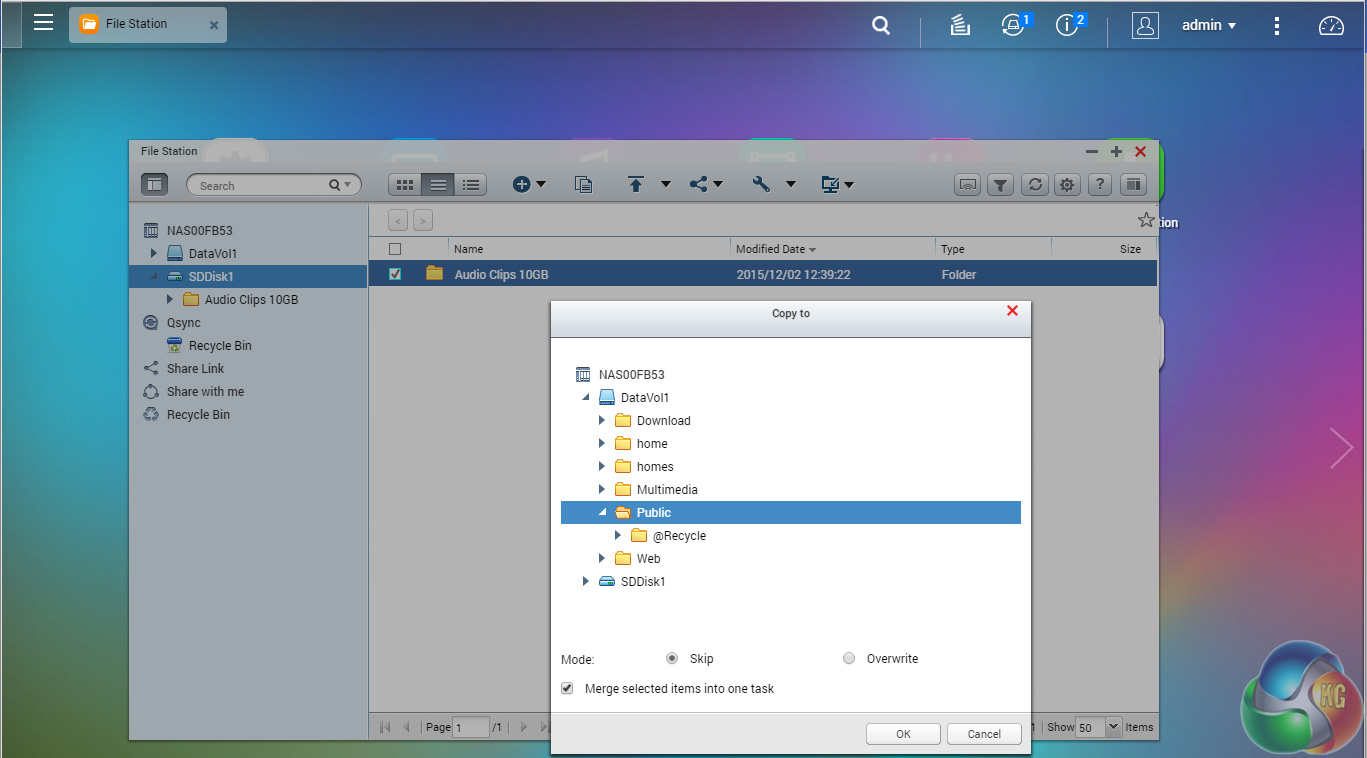
The TS-451A-4G has a handy SD Card slot so files can be downloaded and uploaded directly via the File Manager utility without the need of a separate card reader.
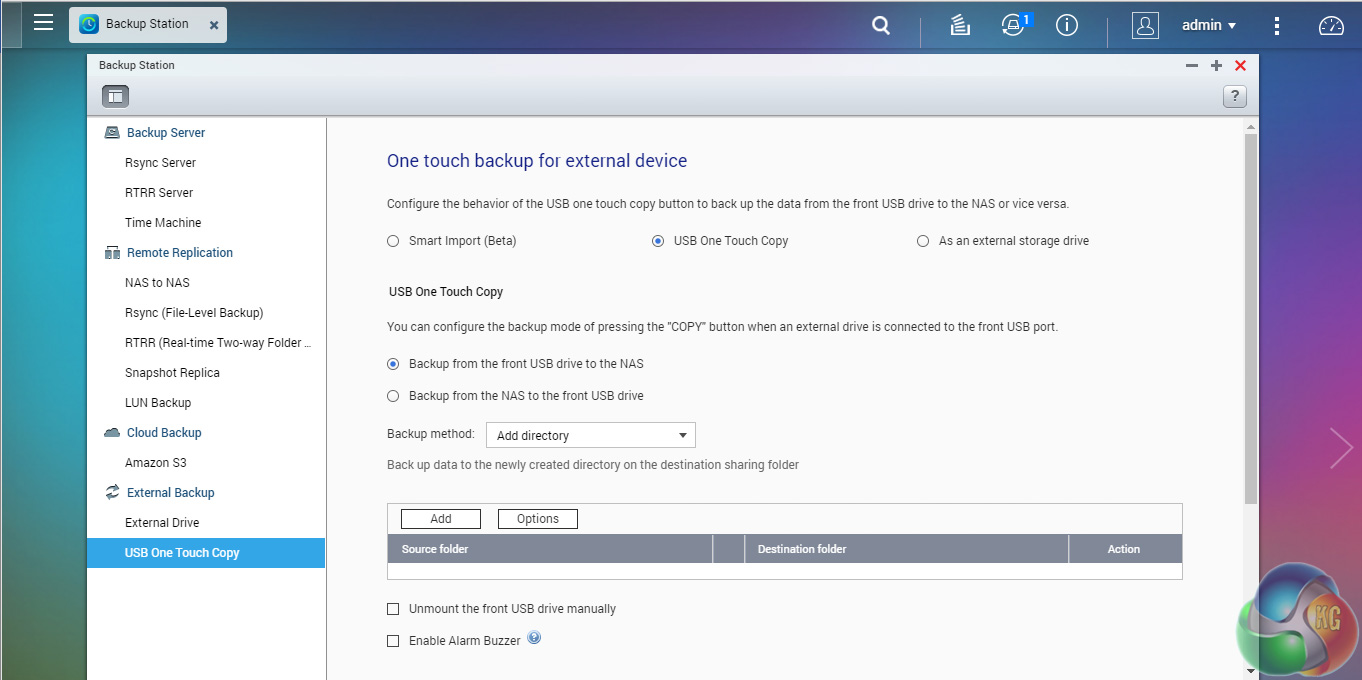
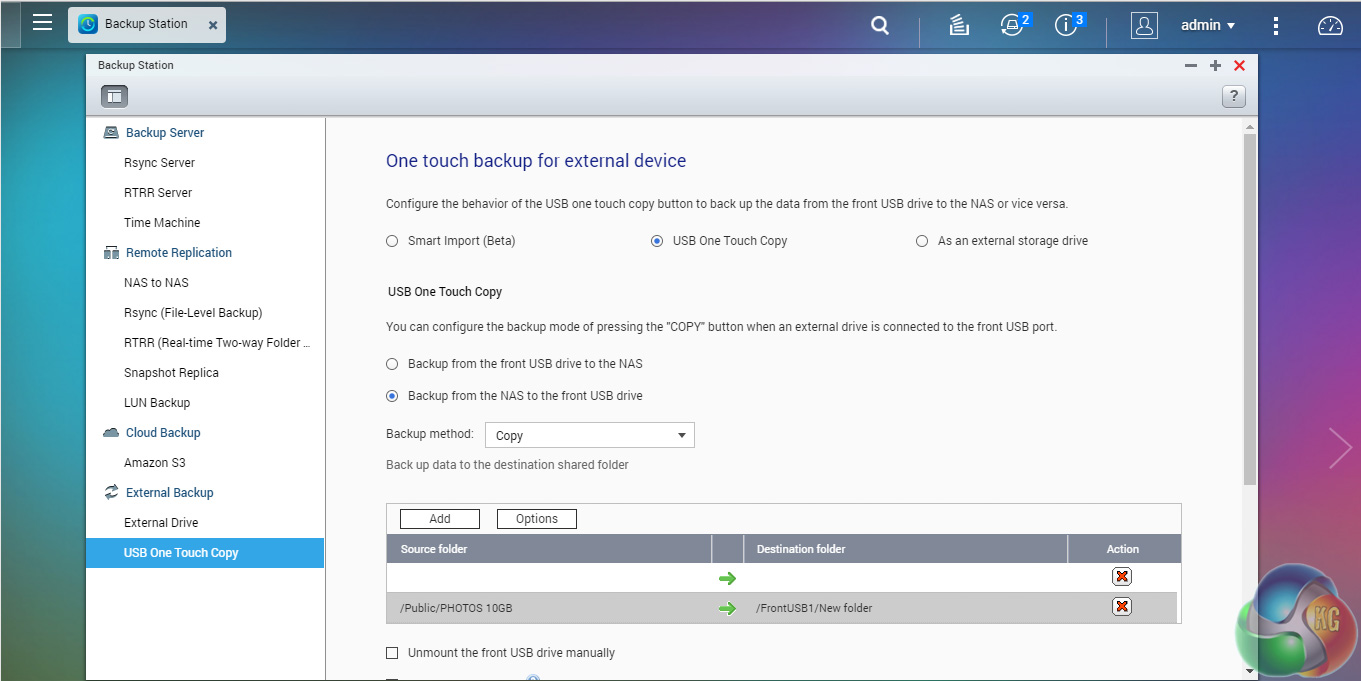
One Touch
The One Touch button on the front bezel can be set up to either upload or download files/folders or backup the NAS to an external USB drive. In the Backup Station pages in the QTS you can set up exactly what you want the One Touch system to do.
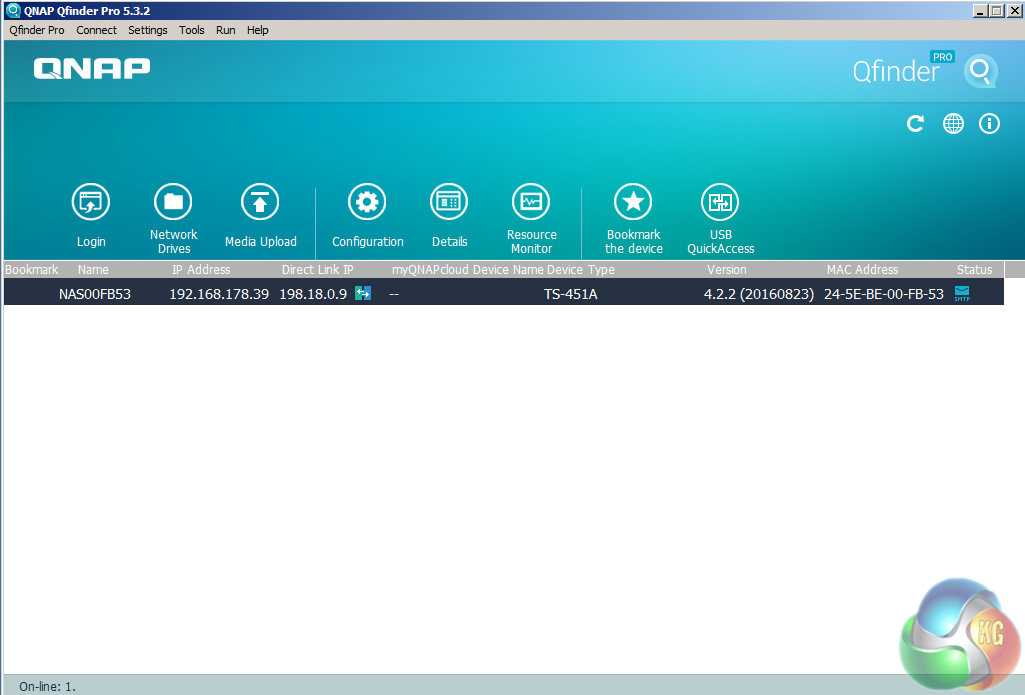
QuickAccess
QuickAccess is a very clever idea. Using the USB QuickAccess port in the front bezel you can connect the TS-451A-4G to your PC via a USB cable to gain access to files and folders on the NAS (it shows up as a QuickAccess icon in Qfinder once connected). So should the network fail or you need to use the NAS in a location without wired Ethernet you can still get to your data – very neat.
The NAS unit is essentially being treated as a DAS.
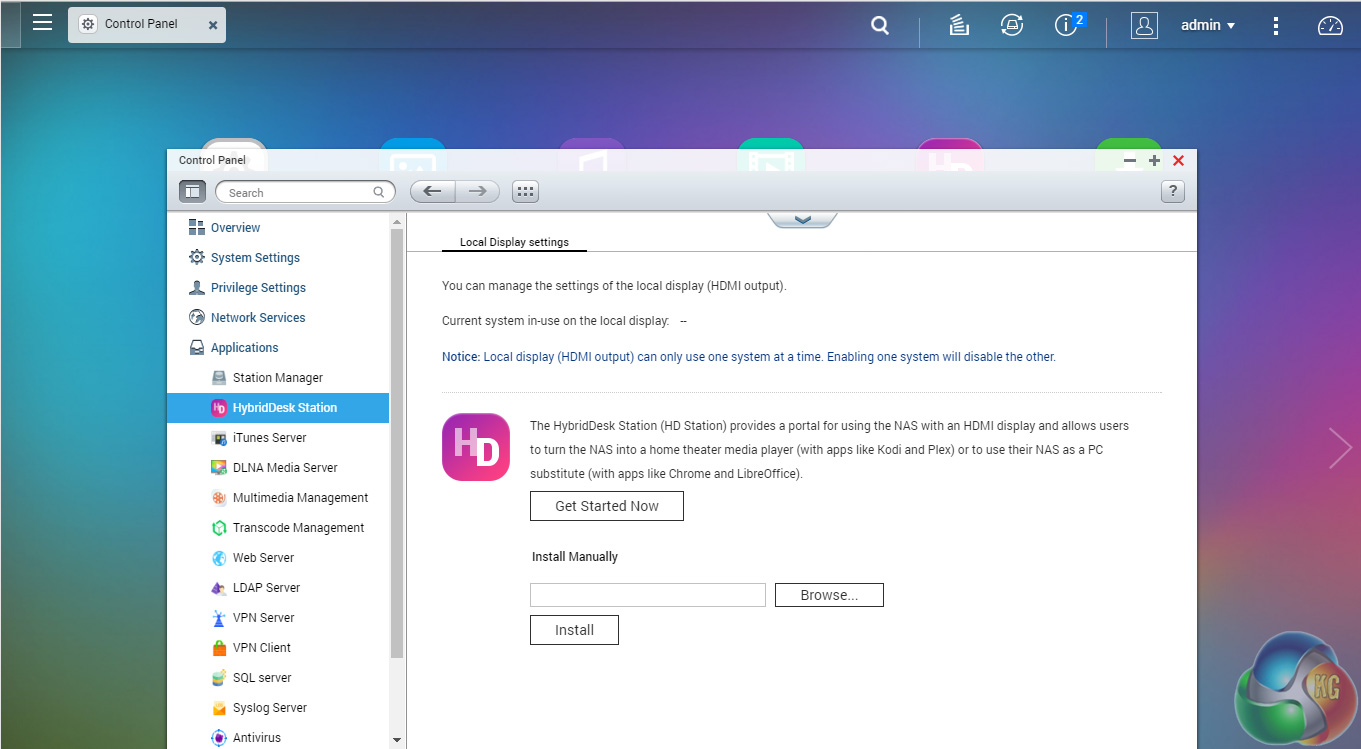
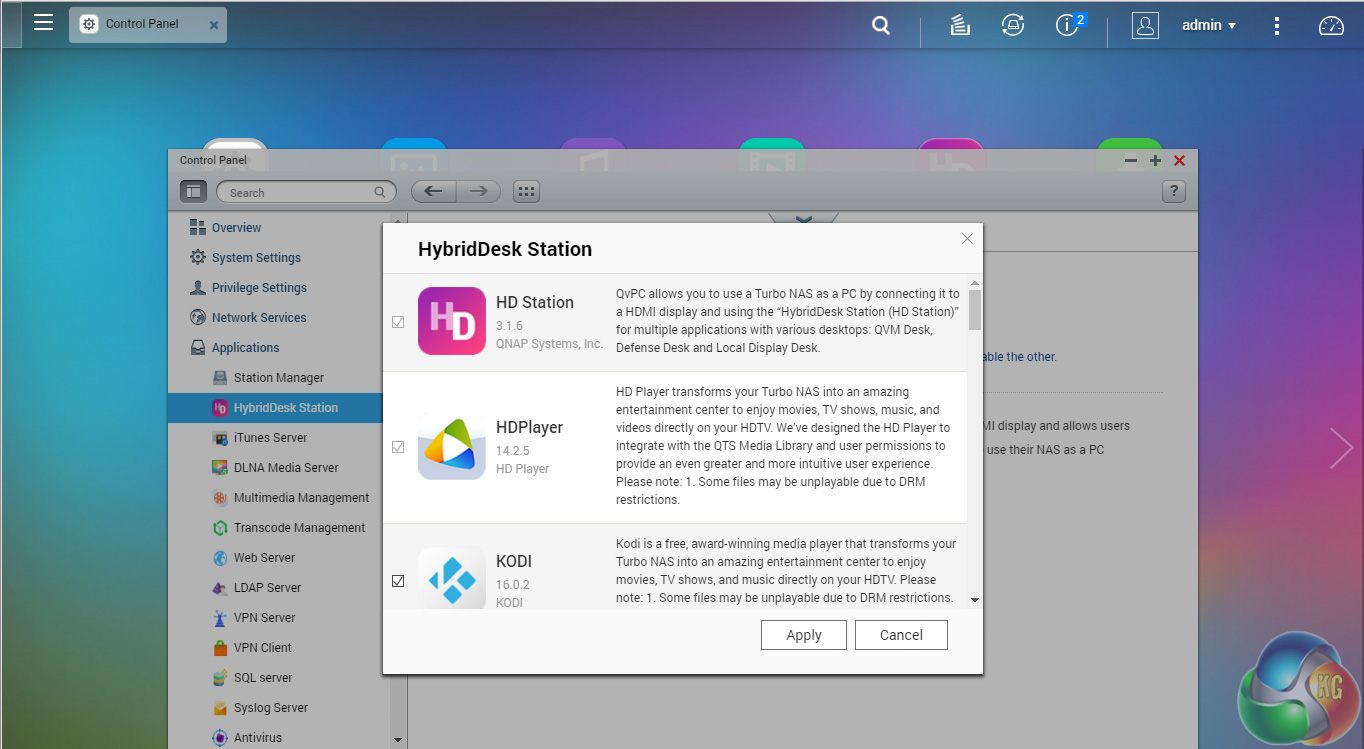
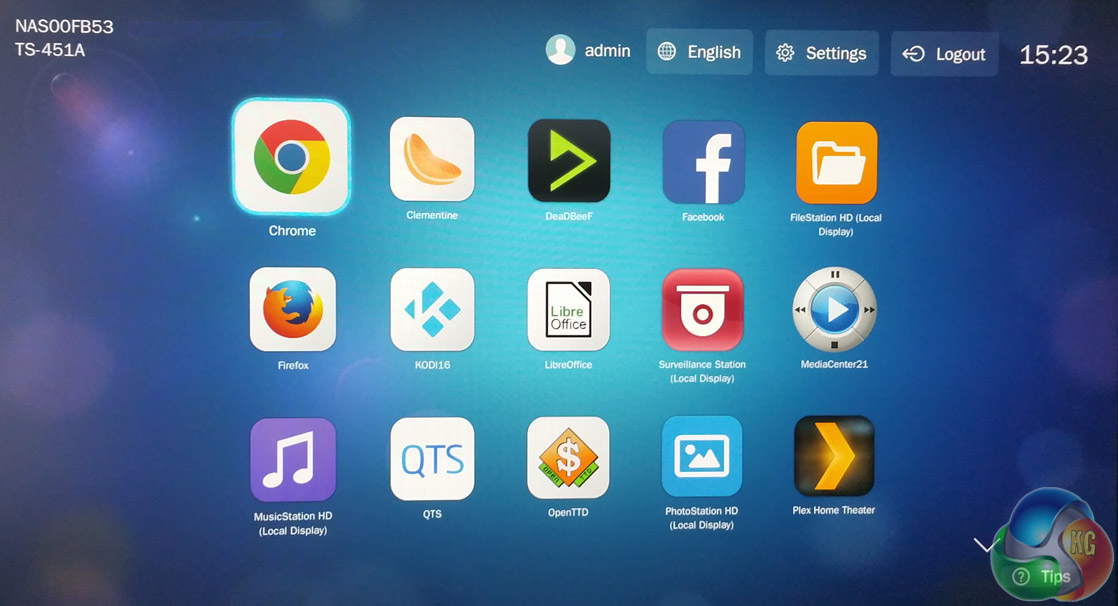
HybridDesk Station
The HybridDesk Station is QNAP's software that allows the NAS to be used as a home media player or a basic PC (via the HDMI port). In this mode you don't even have to fire up a PC to use the NAS. You have a choice of how you want to install the apps that are part of the HybridDisk Station; you can either cherry-pick them from a list and manually install them or simply press the install button and the NAS will load all the appropriate apps.
Plug a USB mouse and a keyboard into the NAS and away you go. Alternatively you could you use the bundled RM-IR002 remote control.
To test the QNAP TS-451A-4G we used four WD 6TB Red drives (WD60EFRX, 5,400rpm class, 64MB cache), built into all the RAID arrays supported by the device; RAID 0,1, 5,6 and 10 and then tested.
Software:
Atto Disk Benchmark.
CrystalMark 3.0.3.
IOMeter.
Intel NASPT.
To test real life file/folder performance we use a number of different file/folder combinations to test the read and write performance of the NAS device. Using the FastCopy utility to get a MB/s and time taken for each transfer, the data is written from and read back to a 240GB SSD.
60GB Steam folder: 29,521 files.
50GB Files folder: 28,523 files.
12GB Movie folder: 24 files – mix of Blu-ray and 4K files.
10GB Photo folder: 621 files – mix of .png, .raw and .jpeg images.
10GB Audio folder: 1,483 files – mix of .mp3 and .flac files.
Crystalmark is a useful benchmark to measure theoretical performance levels of hard drives and SSD’s. We are using V3.0.3.
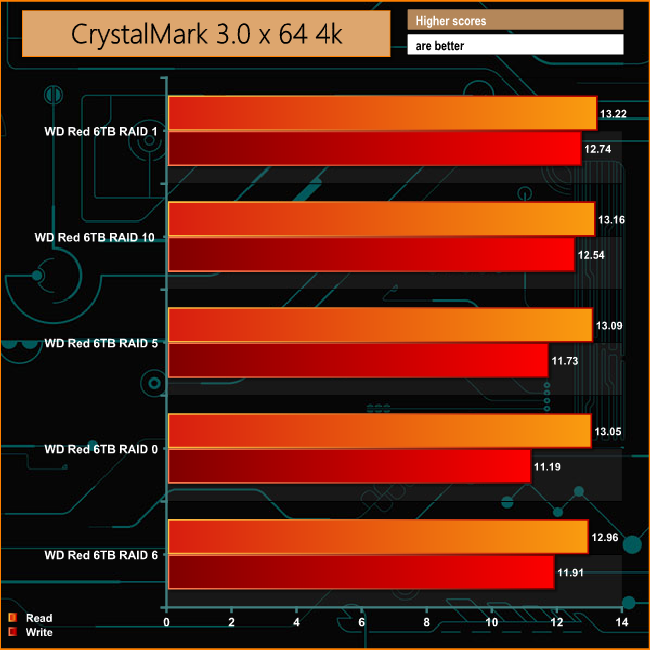
The TS-451A-4G shows good consistency across all the arrays both in reads and writes when dealing with the small bity files of everyday home or office life.
The ATTO Disk Benchmark performance measurement tool is compatible with Microsoft Windows. Measure your storage systems performance with various transfer sizes and test lengths for reads and writes. Several options are available to customize your performance measurement including queue depth, overlapped I/O and even a comparison mode with the option to run continuously.
Use ATTO Disk Benchmark to test any manufacturers RAID controllers, storage controllers, host adapters, hard drives and SSD drives and notice that ATTO products will consistently provide the highest level of performance to your storage.
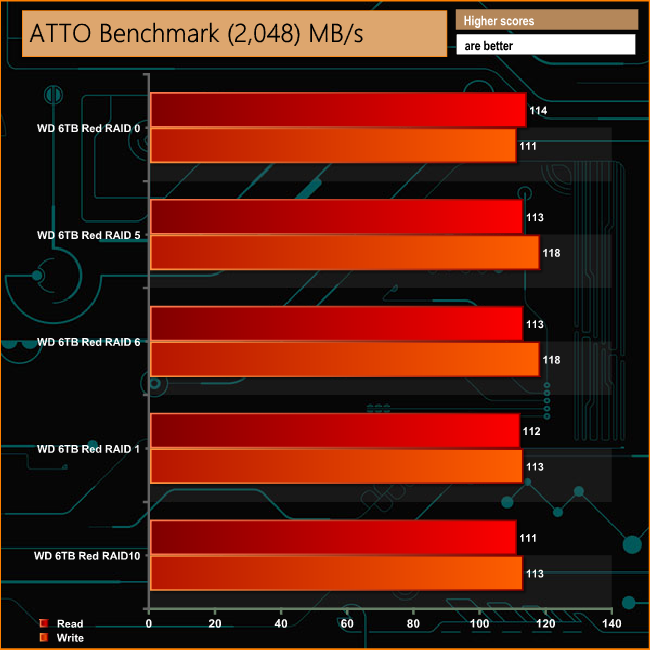
QNAP quote performance figures for the TS-451A of 192.13MB/s for reads and 214.4MB/s for writes but these figures are with both Ethernet ports configured in port trunking (Link Aggregation) mode. With a single Ethernet connection, the TS-451A-4G exceeds 100MB/s for reads and writes across all the arrays.
Intel’s NASPT (NAS Performance Toolkit ) is a benchmark tool designed to enable direct measurement of home network attached storage (NAS) performance. NASPT uses a set of real world workload traces (high definition video playback and recording, video rendering/content creation and office productivity) gathered from typical digital home applications to emulate the behaviour of an actual application.
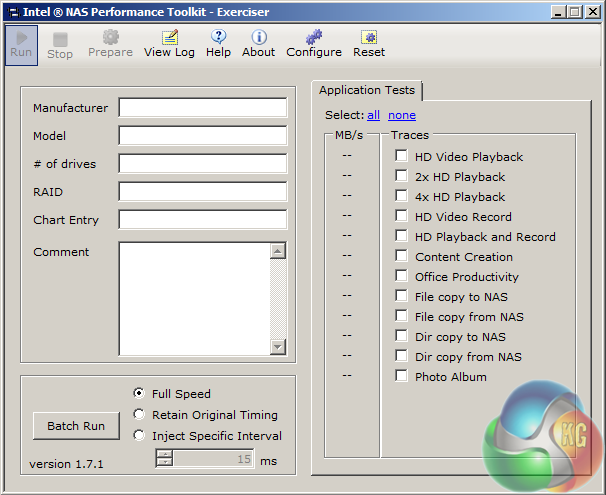
We’ve used some of the video and office apps results to highlight a NAS device’s performance.
HD Video Playback
This trace represents the playback of a 1.3GB HD video file at 720p using Windows Media Player. The files are accessed sequentially with 256kB user level reads.
4x HD Playback
This trace is built from four copies of the Video Playback test with around 11% sequential accesses.
HD Video Record
Trace writes an 720p MPEG-2 video file to the NAS. The single 1.6GB file is written sequentially using 256kB accesses.
HD Playback and Record
Tests the NAS with simultaneous reads and writes of a 1GB HD Video file in the 720p format.
Content Creation
This trace simulates the creation of a video file using both video and photo editing software using a mix of file types and sizes. 90% of the operations are writes to the NAS with around 40% of these being sequential.
Office Productivity
A trace of typical workday operations. 2.8GB of data made up of 600 files of varying lengths is divided equally between read and writes. 80% of the accesses are sequential.
Photo Album
This simulates the opening and viewing of 169 photos (aprrox 1.2GB). It tests how the NAS deals with a multitude of small files.
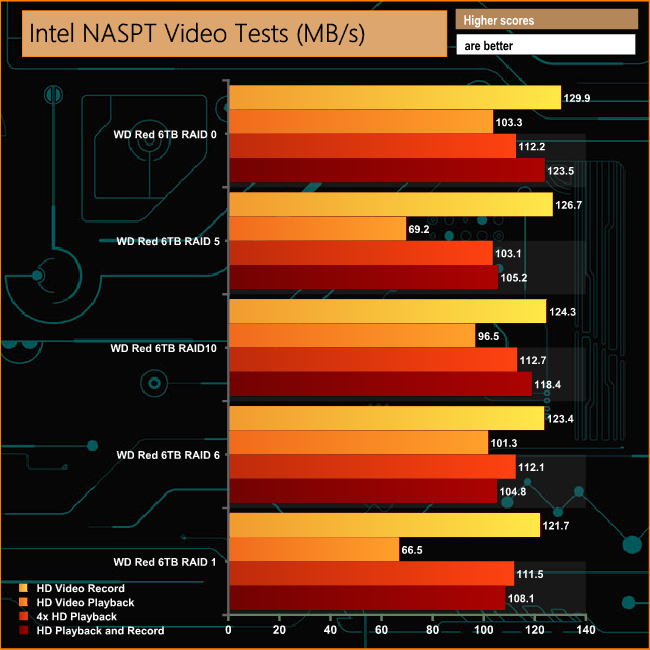
The TS-451A-4G has no problems dealing with the video tests of Intel's NASPT benchmark, producing scores well over 100MB/s for the HD Video Record test in all arrays. In RAID 1 and 5 arrays there is a sharp drop-off in performance in the HD Video Playback test.
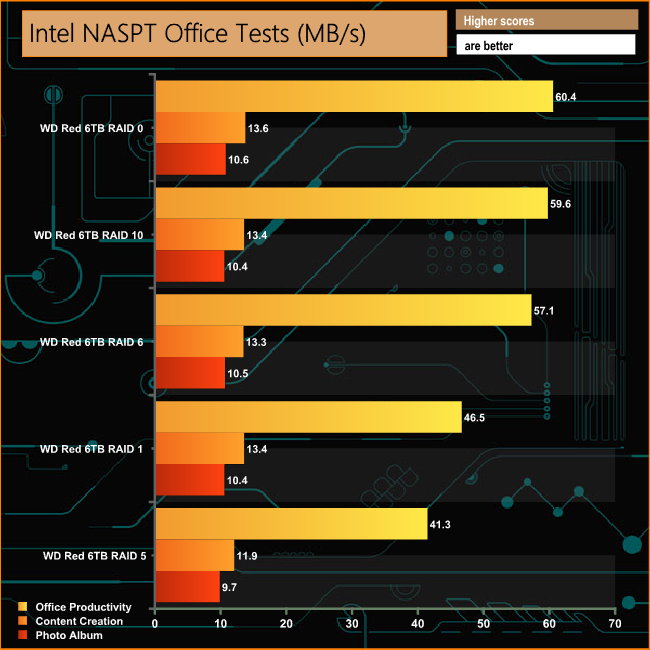
When it comes to dealing with the everyday file sizes of the Office Productivity test, once again the performance is weaker in RAID 1 and 5. That said, the RAID 1 performance does pick up for the Content Creation and Photo Album tests.
IOMeter is another open source synthetic benchmarking tool which is able to simulate the various loads placed on hard drive and solid state drive technology.
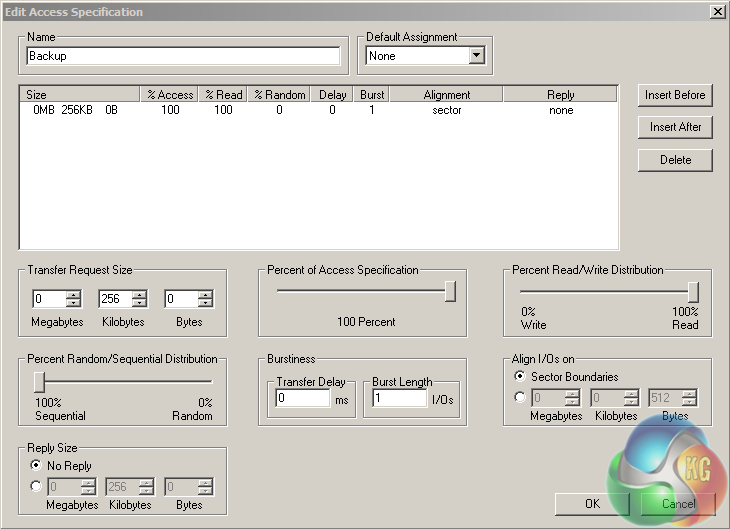
We set IOmeter up (as shown above) to test both backup and restore performance on a 100GB partition.
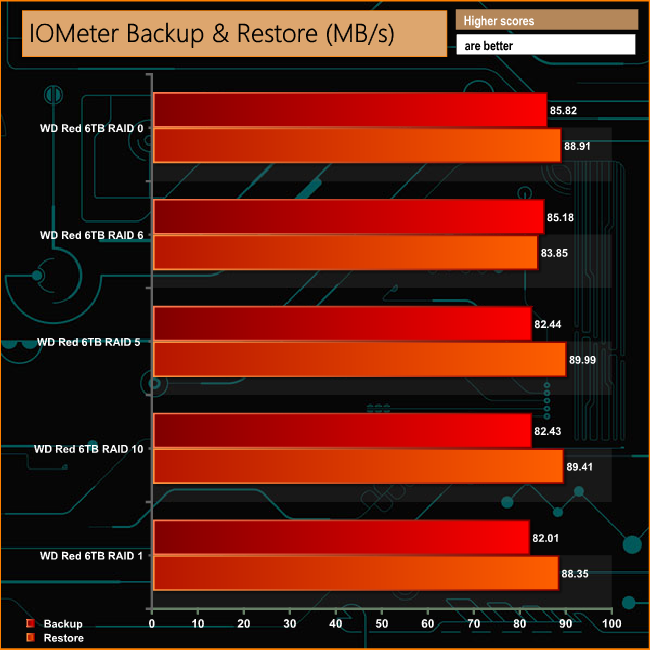
When tasked with backing up and restoring 100GB of data, the TS-451A-4G shows a good deal of consistency in both reads and writes across all of the arrays tested. Read and write numbers are above 80MB/s.
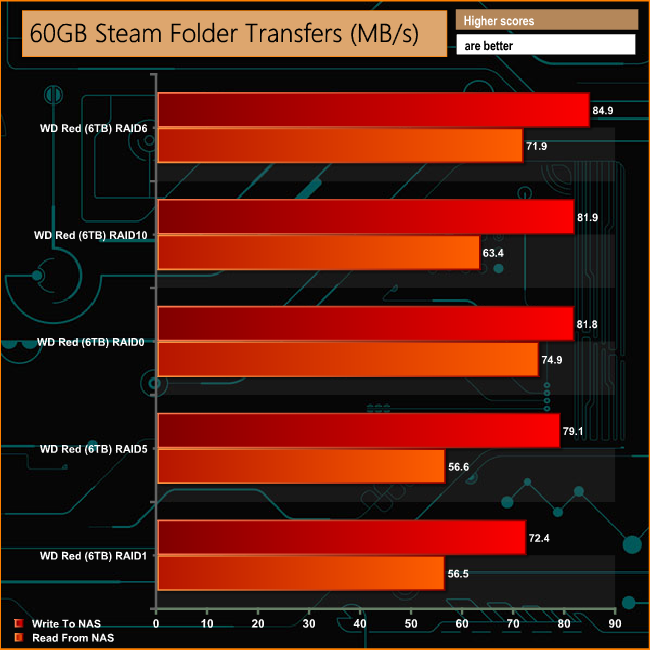
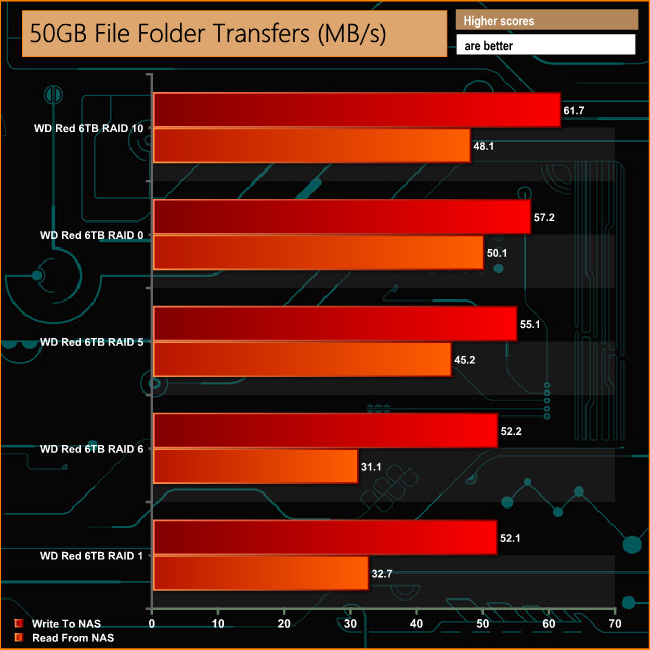

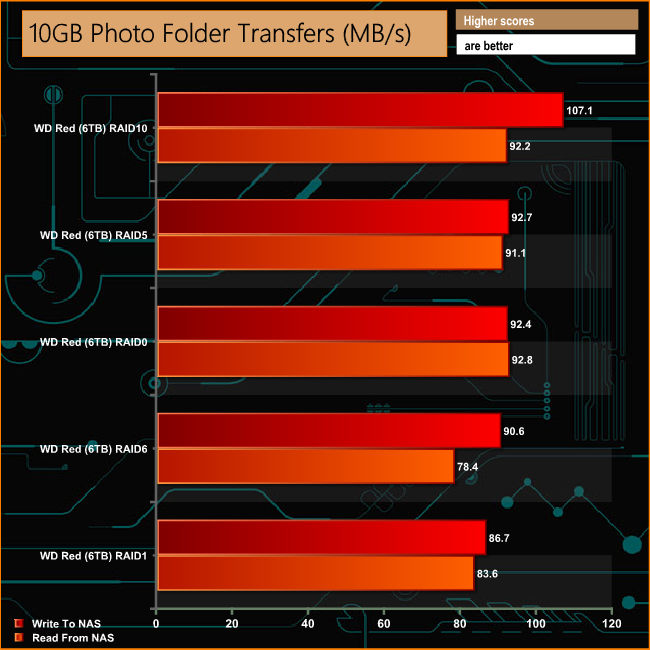
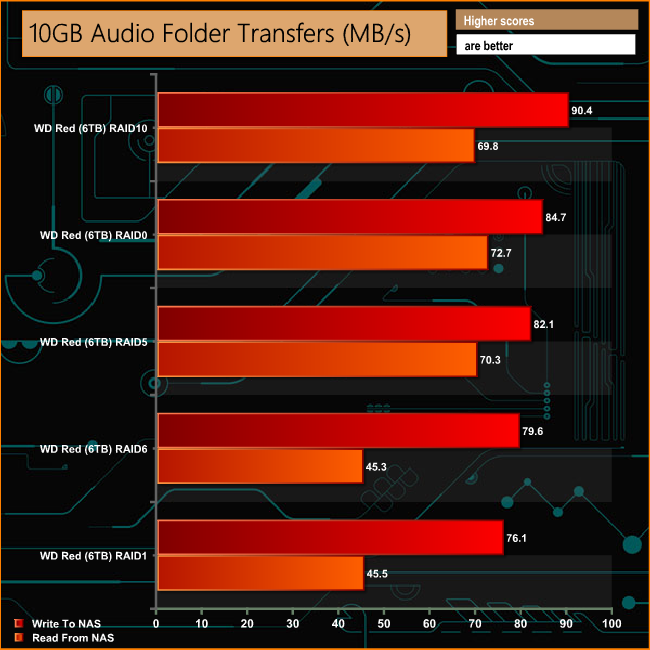
When it comes to dealing with the small files in the 60GB Steam and especially the 50GB file folder, the read performance in RAID 5 and 1 lags behind the other arrays. The RAID 5 read performance improves when it comes to the 10GB Audio folder transfer, but this time it is the RAID 6 and RAID 1 reads that lag behind. The RAID 6 read performance also lags behind when dealing with the larger file sizes contained in the 12GB Movie Folder.
We tested the peak power consumption of a NAS at the wall during a run of CrystalDiskMark 5.0.2 as this version of the benchmark runs the read and write benchmark suites separately, so it is easier to monitor what power the device is using during each function.
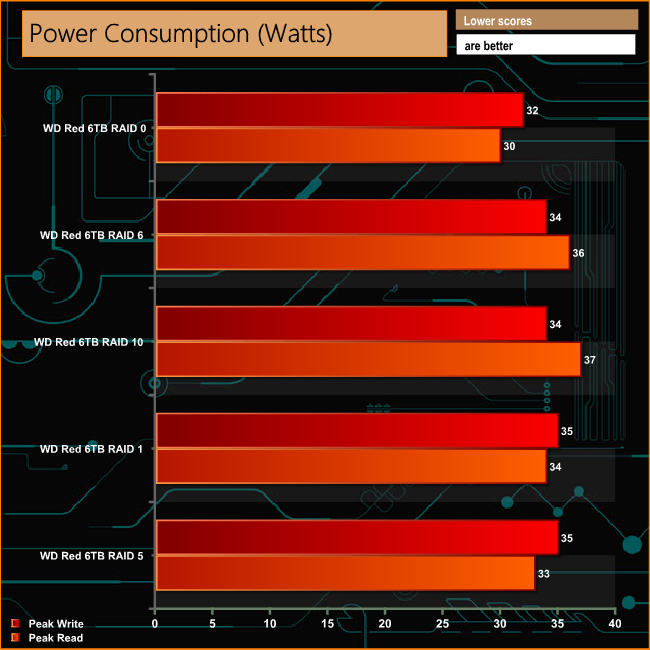
With a CPU that has a TDP of just 6W, the TS-451A-4G is a pretty power efficient NAS. The 6TB WD Reds we used in testing aid the power efficiency with an average read/write power requirement of just 5.3W each, which drops to 3.4W when the drives enter their idle state.
QNAP have aimed the TS-451A at the Home, SOHO and Workgroup markets. While it is indeed equipped to deal with all three potential environments, the NAS does lean more towards home use. With its 4K playback support and HDMI port, plus the streaming and other media apps that are available in the App Center, it would make a powerful home multimedia hub. And by using the HD Station app, the ability for the NAS to be used without needing a PC to be booted up is a real bonus.
As part of its business credentials, the TS-451A-4G has AES-NI hardware encryption, snapshot support and it also supports SMB/CIFS, NFS, and AFP protocols for file sharing across Windows, Mac, Linux/UNIX networks. Hybrid Backup Sync streamlines backup, restoration and synchronisation functions into one app, making data backups and restores more straightforward.
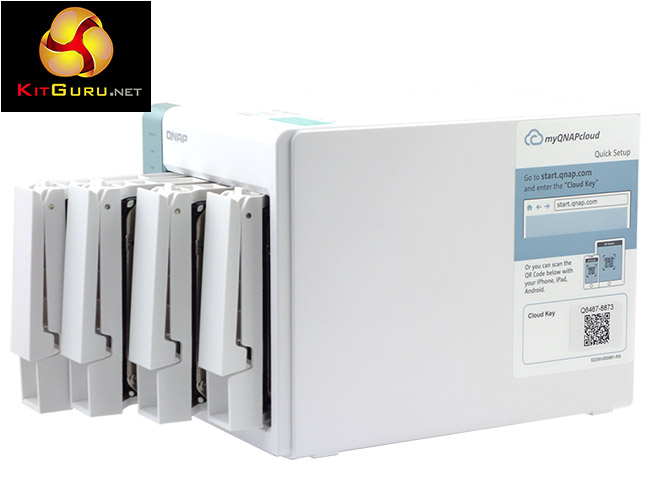
Should you require extra capacity, the TS-451A-4G supports QNAP's expansion enclosures. This is in addition to the company's VJBOD (Virtual JBOD) technology which is a networked-based solution that utilises the unused capacity from other QNAP NAS units on the network to use as virtual disks for the TS-451A-4G.
You can even make the TS-451A-4G the basis for a 24/7 security system. This is possible by combining Surveillance Station with a group of IP camera's (2 free IP camera channels come with the device). The NAS supports up to 32 camera channels but additional licenses have to be bought for these extra channels.
Any NAS worth its credentials has to have an OS that's easy to install and use for newcomers to NAS. But the OS also has to have enough in-depth features to keep experienced users happy. QNAP's QTS is very, very good. It's one of the best around and is quick and easy to install, whilst also being easy to navigate around the graphically-rich interface.
One feature that does stand out is the QuickAccess port. This cleverly allows the TS-451A to be used even where there isn't a wired network or if a network should go down. By connecting up the QuickAccess cable to a USB port on a device, folders and files on the NAS can still be accessed.
It seems a little strange that while a remote control is bundled with the drive, the potentially more useful QuickAccess cable isn't. This definitely seems a little mean considering the price of a USB cable versus a remote control.
You can buy the QNAP TS-451A-4G NAS from Amazon for a little over £400 inc. VAT HERE.
Discuss on our Facebook page HERE.
Pros
- Connectivity.
- QTS software.
- Ease of setting up.
- QuickAccess port.
Cons
- QuickAccess cable not bundled.
- No physical security for the drive bay doors.
- RAID 5 performance lagged behind in some tests.
Kitguru says: QNAP's TS-451A is a very capable NAS equally at home as the central hub of a home entertainment setup or as the backbone of a small office's file system.

On Windows 10 can we access the files on the NAS / DAS using the QuickAccess cable without using adicional software? (without using the QFinder Pro) just using Windows own File Explorer)