 KitGuru KitGuru.net – Tech News | Hardware News | Hardware Reviews | IOS | Mobile | Gaming | Graphics Cards


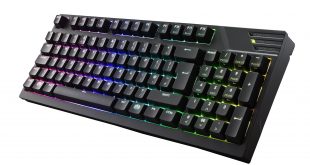
Cooler Master describes the MasterKeys Pro M as a ‘hybrid TKL (ten-keyless)' board because it combines the numpad and the arrows keys to save space. This is certainly an interesting idea, and with per-key RGB backlighting as well as Cherry MX switches, it certainly appeals on paper. Does it do enough to justify the £139.99 MSRP?
Having recently looked at the Cooler Master MasterKeys Pro S White, today our attention turns to the MasterKeys Pro M RGB. I am particularly interested to test out the hybrid nature of the keyboard – combining the numpad and the arrow keys is certainly innovative, but we will have to see how it works in practice. Read on for our full analysis of the build quality, on-board features and performance.
Specifications
- Switch Type: Cherry MX Brown
- Material: Plastic / Metal
- Colour: Black
- LED Colour: RGB
- Polling Rate: 1000 Hz
- Repeat Rate: 1x / 2x / 4x / 8x
- Response Rate: 1ms
- MCU: 32bit ARM Cortex M3
- On board Memory: 512KB
- On-the-fly system: Macro Record and Lighting
- Cable: Detachable, braided, 1.5m
- Dimensions: 377 * 141 * 38 mm
- Product Weight: 1025g (without cable)
- Warranty: 2 years
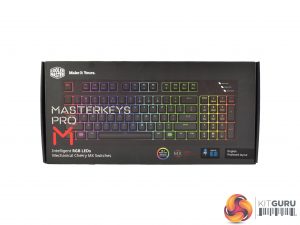
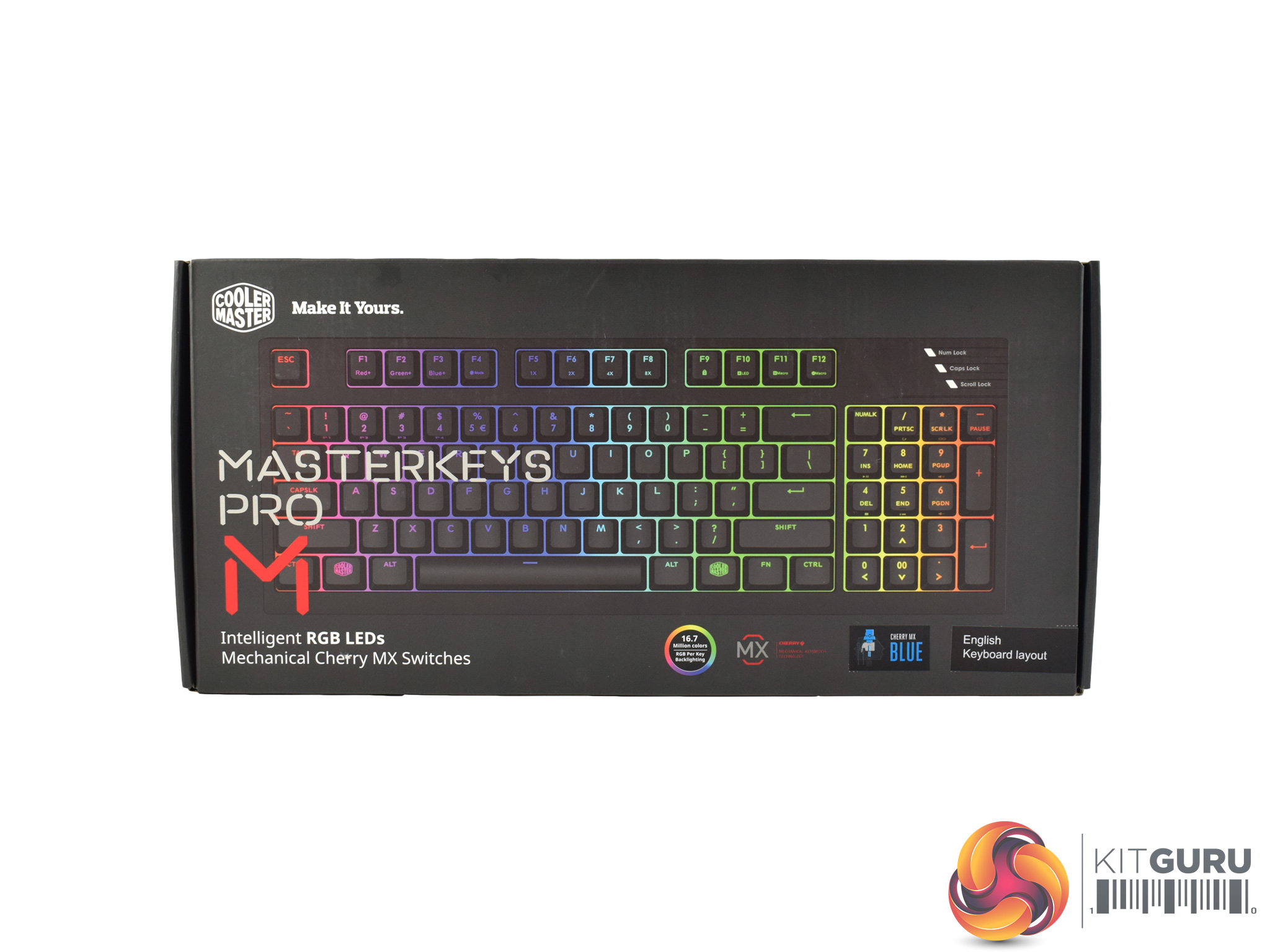
The Cooler Master MasterKeys Pro M RGB ships in a pretty typical black box. However, there is a photo of the keyboard on the front, showing off the 16.7-million-colour RGB lighting.
Inside, Cooler Master include a small manual which explains various functions of the keyboard – like setting a particular lighting effect or recording a macro.
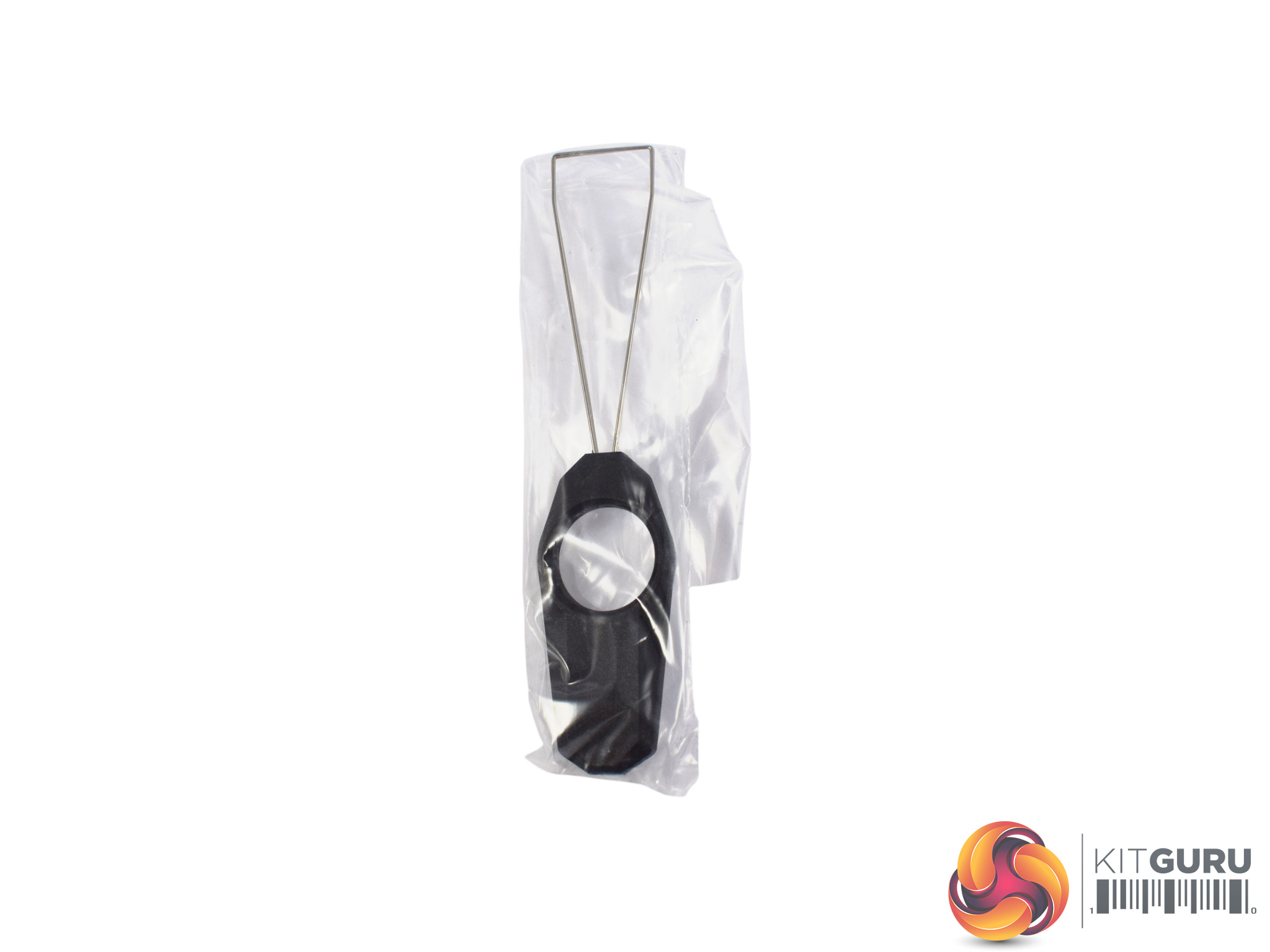
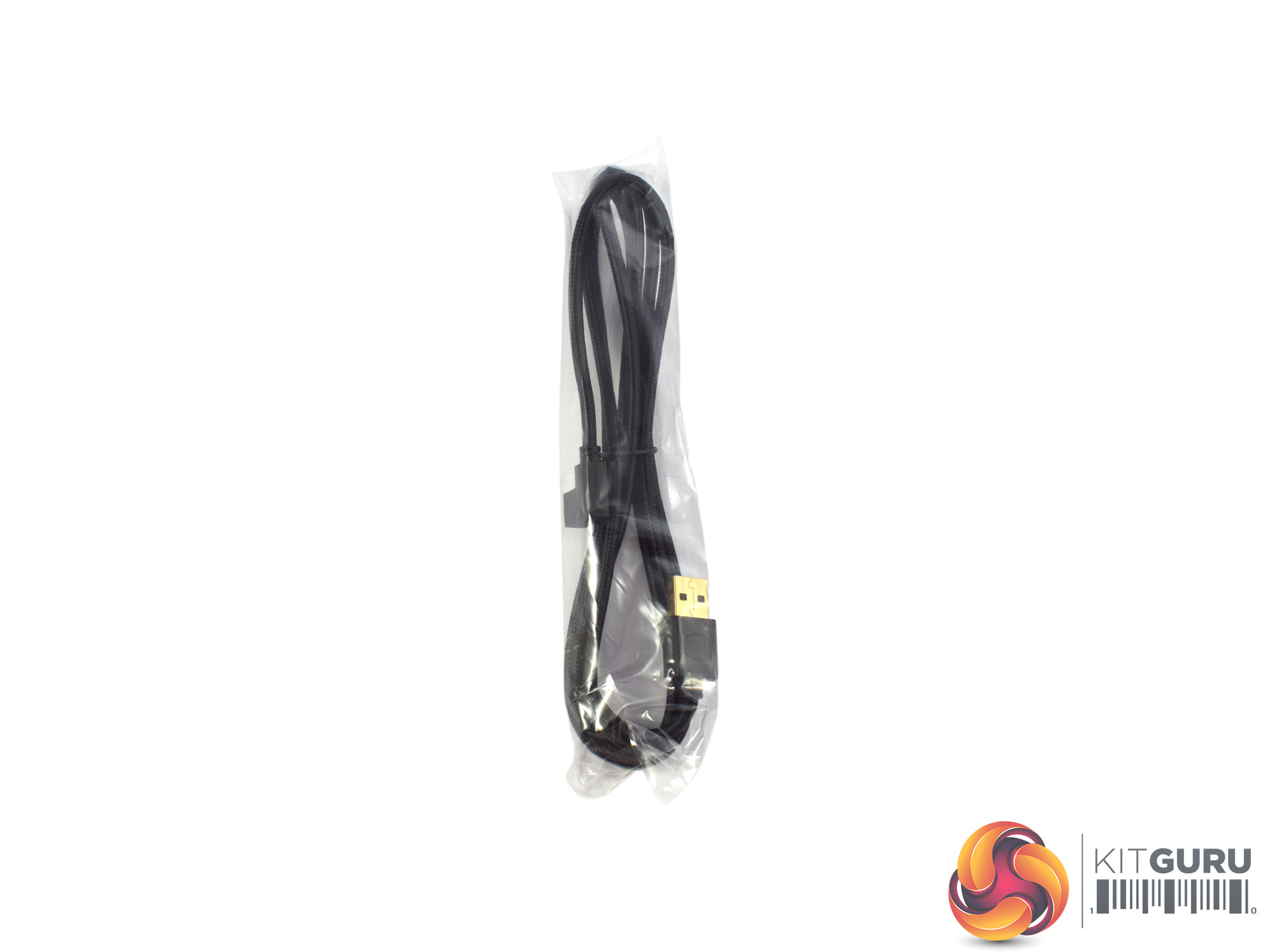
There is also a small key-cap puller included, as well as the 1.5m braided USB cable.
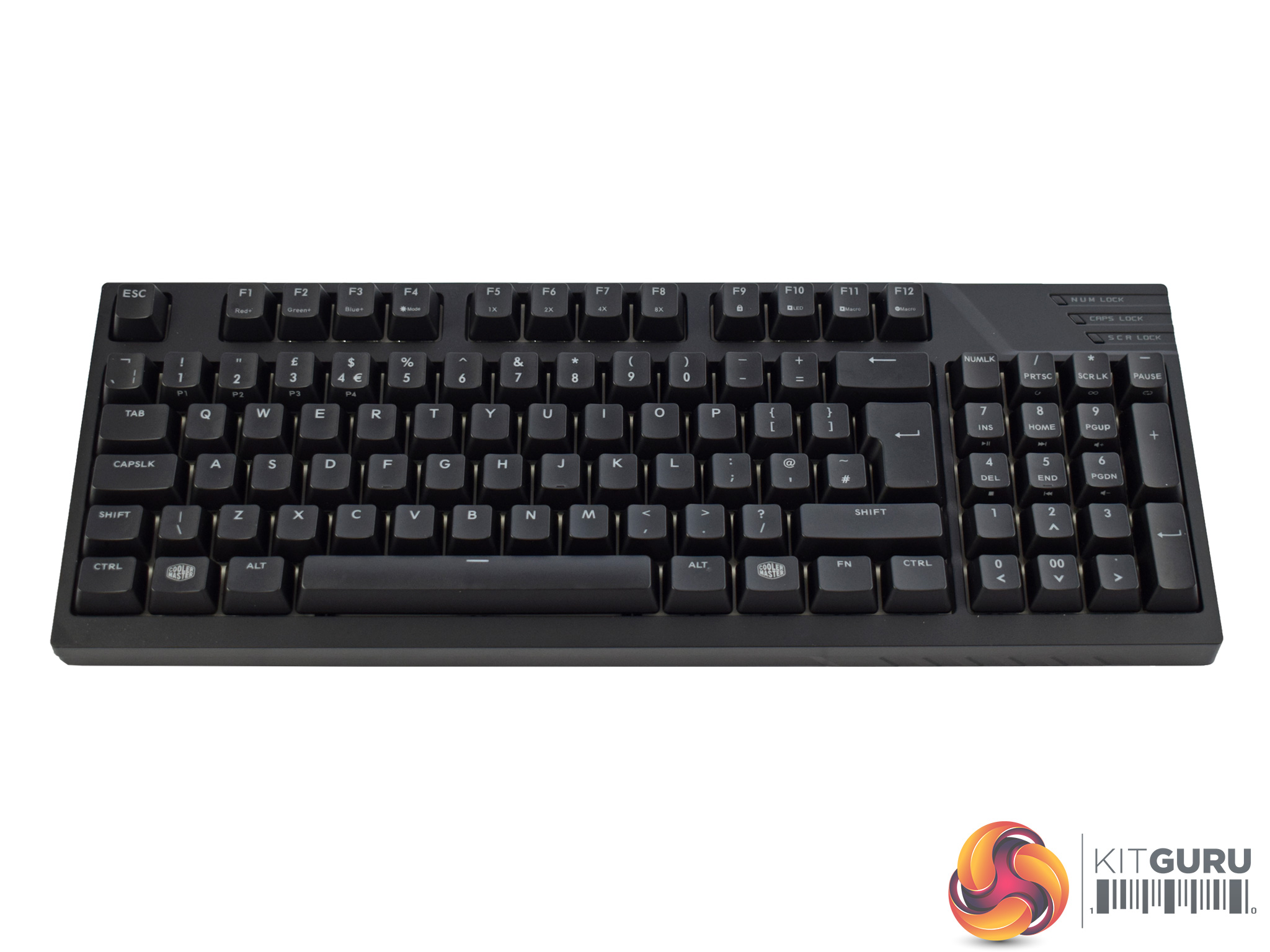
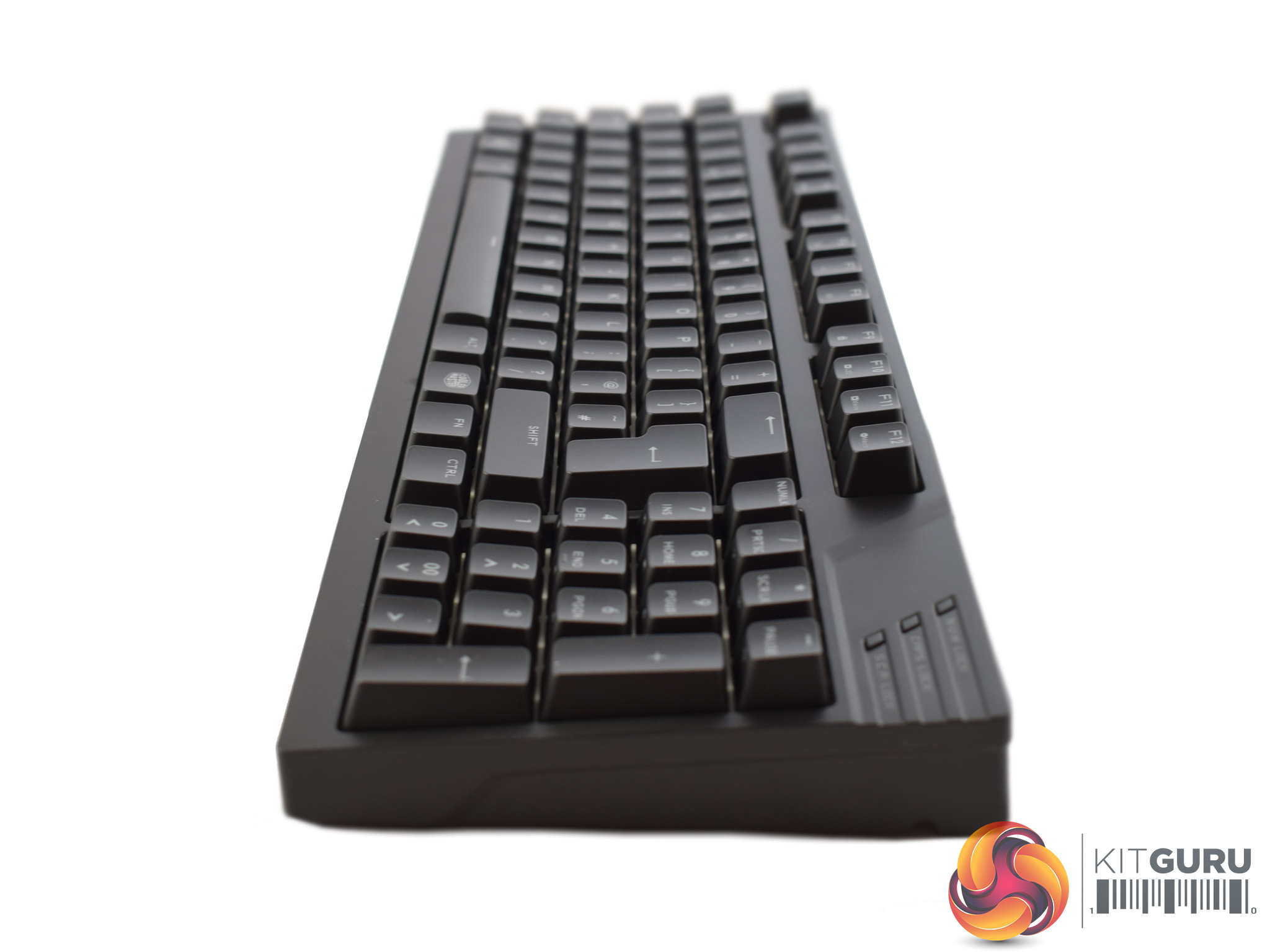
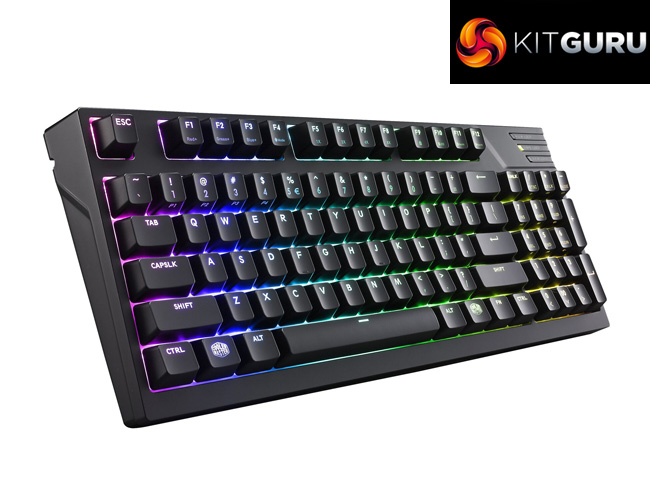
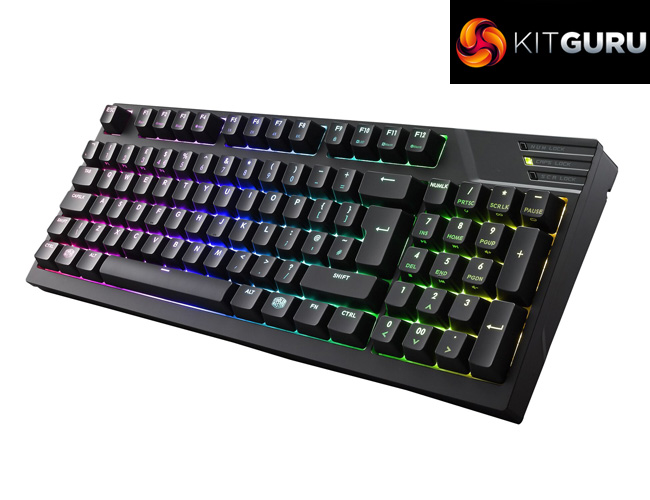
Here we get an overview of the keyboard. Ignoring the fact that the numpad is visible, by the size of the keyboard alone you would think it was ten-keyless: it measures just 377mm wide, which is pretty small. In comparison, the MasterKeys Pro S (a proper TKL board) measures 359mm wide while the MasterKeys Pro L (100% size) measures 439mm wide.
The build quality of the keyboard is also rock-solid. Despite the keyboard having a plastic outer-shell, Cooler Master have fitted a metal frame inside the chassis of the board. This adds great rigidity, and I have no concerns at all about the durability of the MasterKeys Pro M RGB.
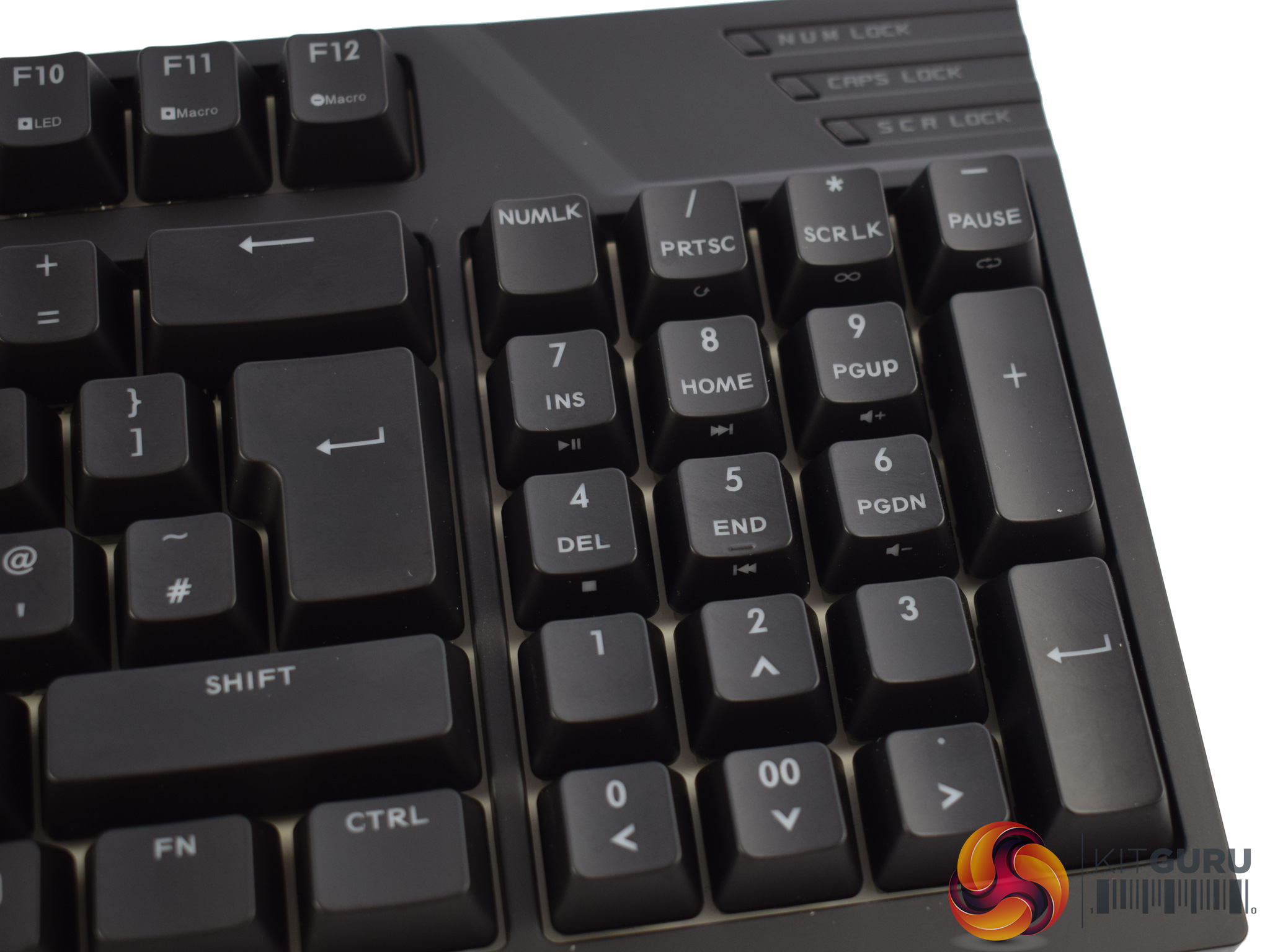
Getting a closer look at the numpad, we can see that the arrow keys share space with the bottom row of the numpad, while the ‘Ins/Home/Pageup' functions are gone altogether. By default, the arrow keys are active, but to enable the numpad, simply press the ‘Numlk' button.
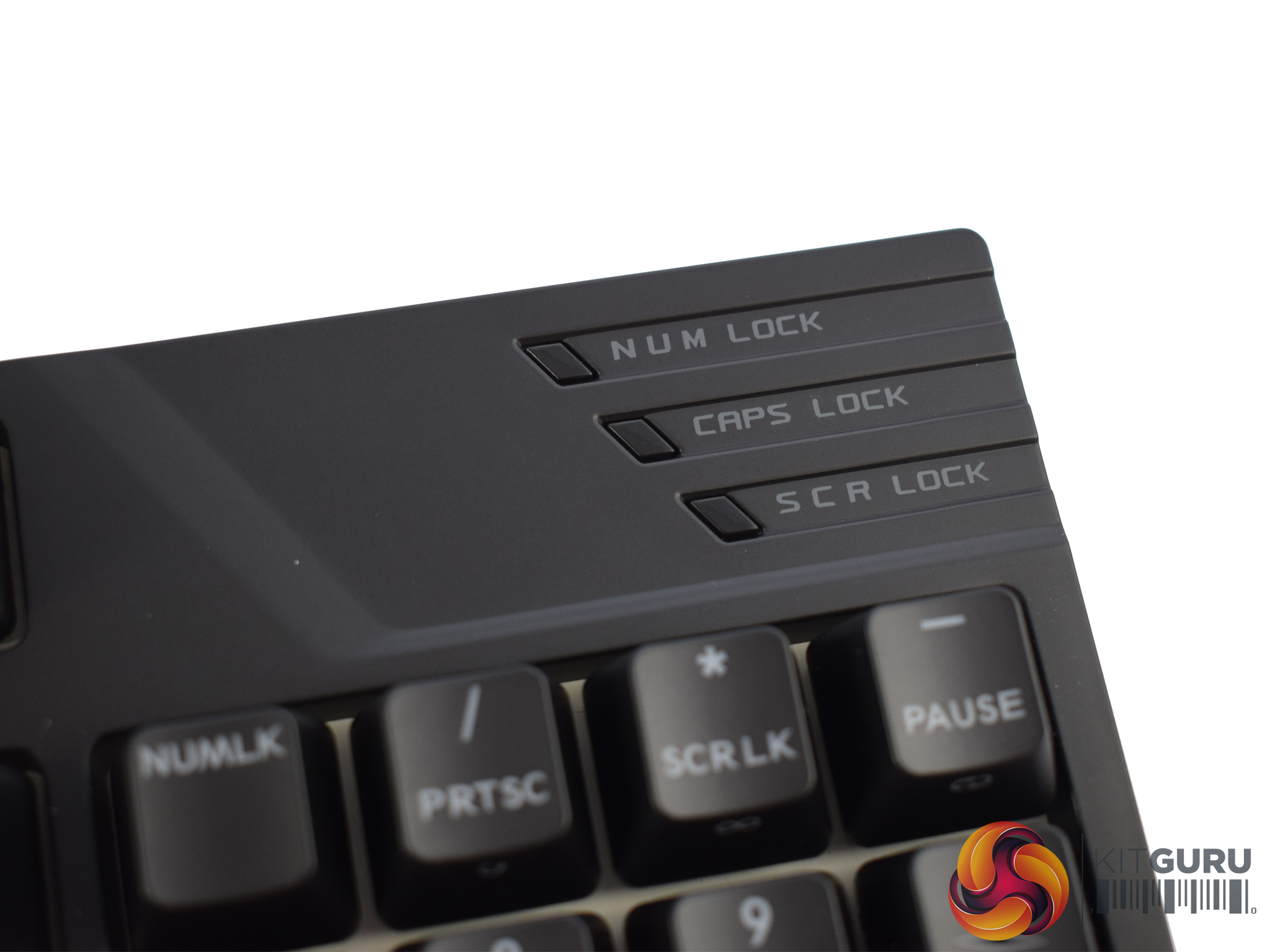
Above the numpad we find 3 LED indicators that let you know if num-lock, caps-lock or screen-lock are enabled.
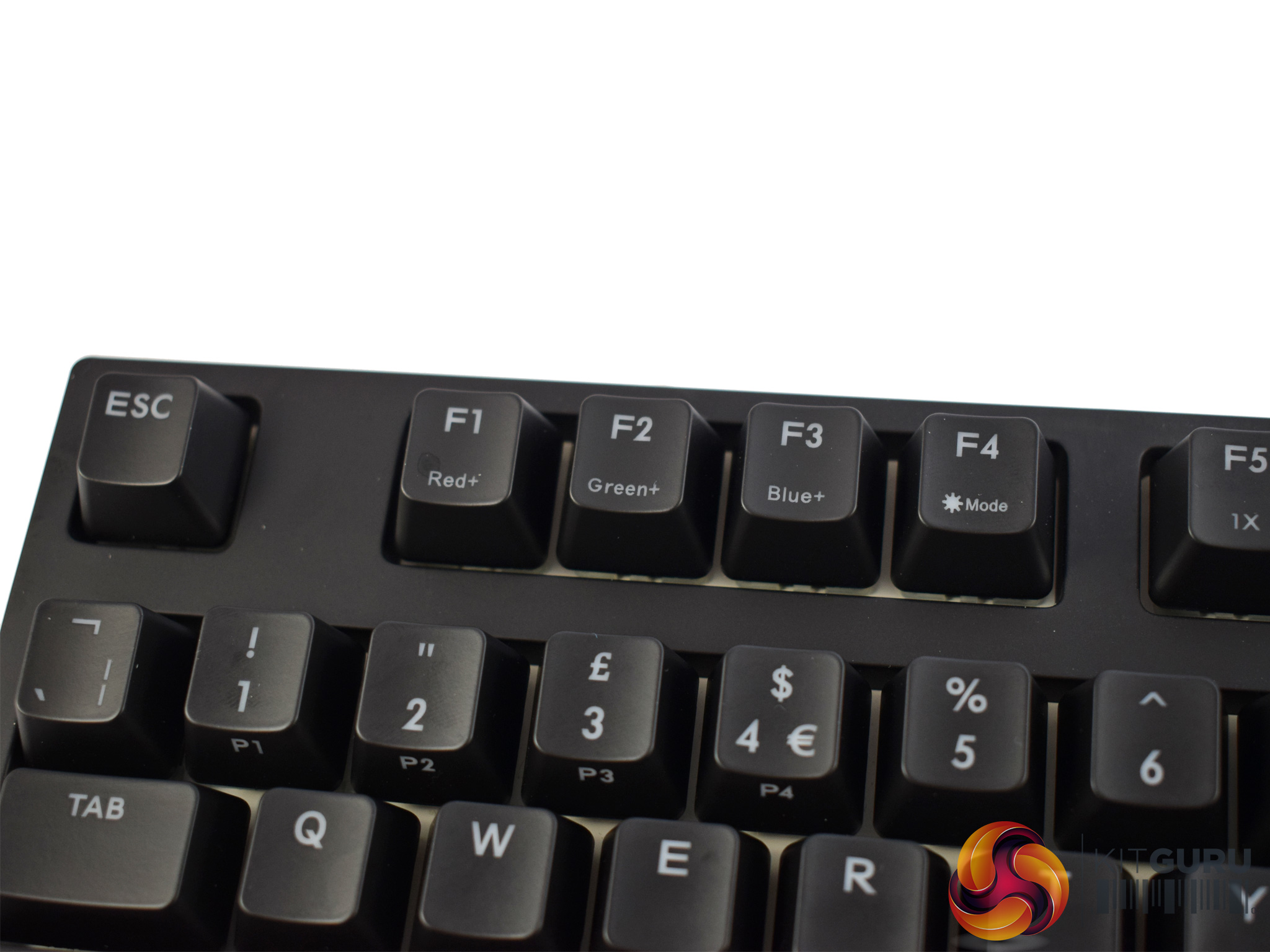
Elsewhere, a number of secondary functions are also assigned to the F-keys. The RGB lighting can be controlled using Fn+F1-F4, though software is also included with the keyboard. We look at both of these features in more depth on the next page.
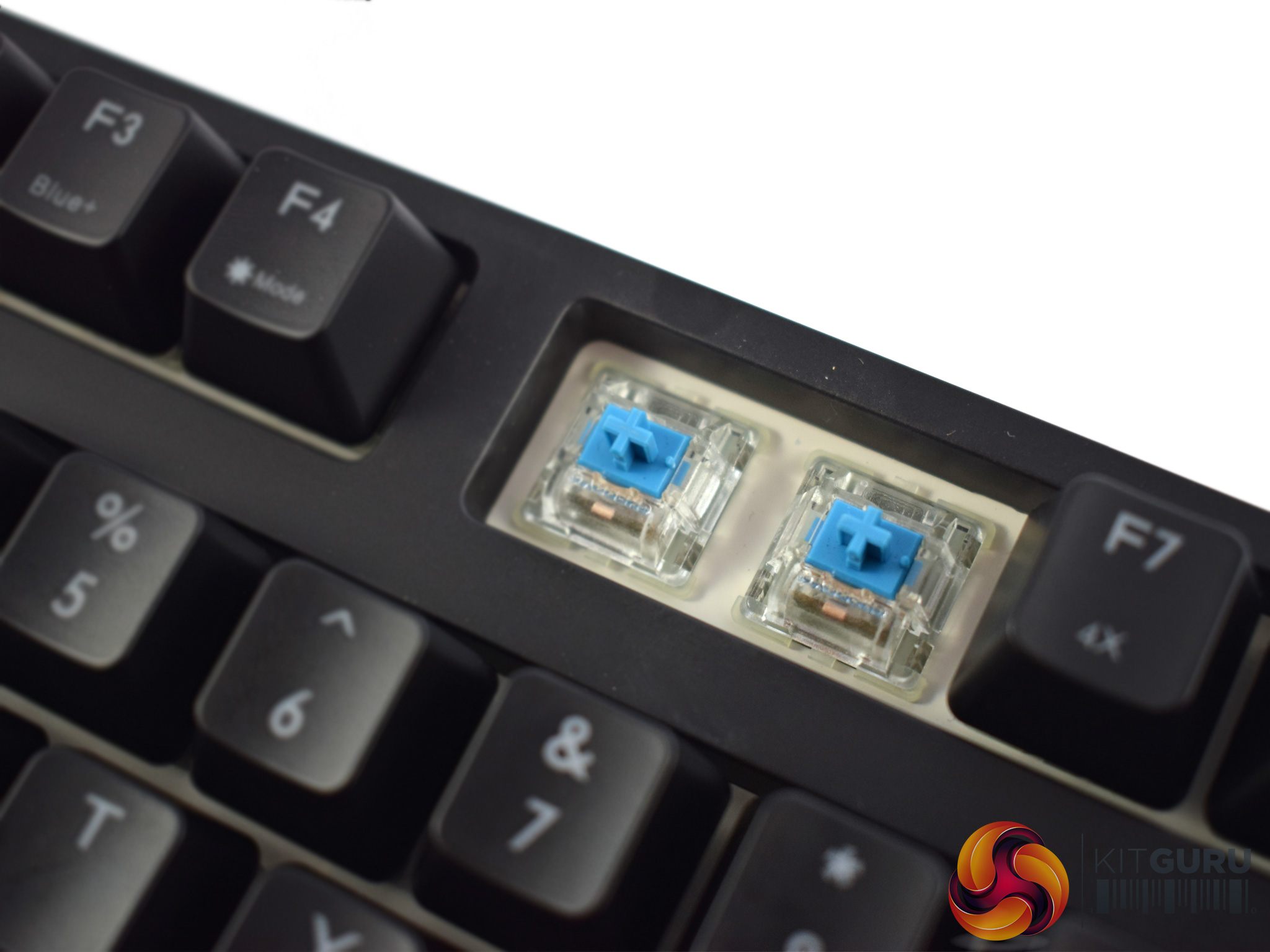
The MasterKeys Pro M uses Cherry MX RGB switches – these have a clear housing to better allow the LED lighting to spread out. Interestingly, my sample uses MX Blue switches, but Cooler Master only brings keyboards with Brown switches to the UK retail channel. This is something to be aware of, as if you were to buy this keyboard, it would come with Brown switches, not Blues.
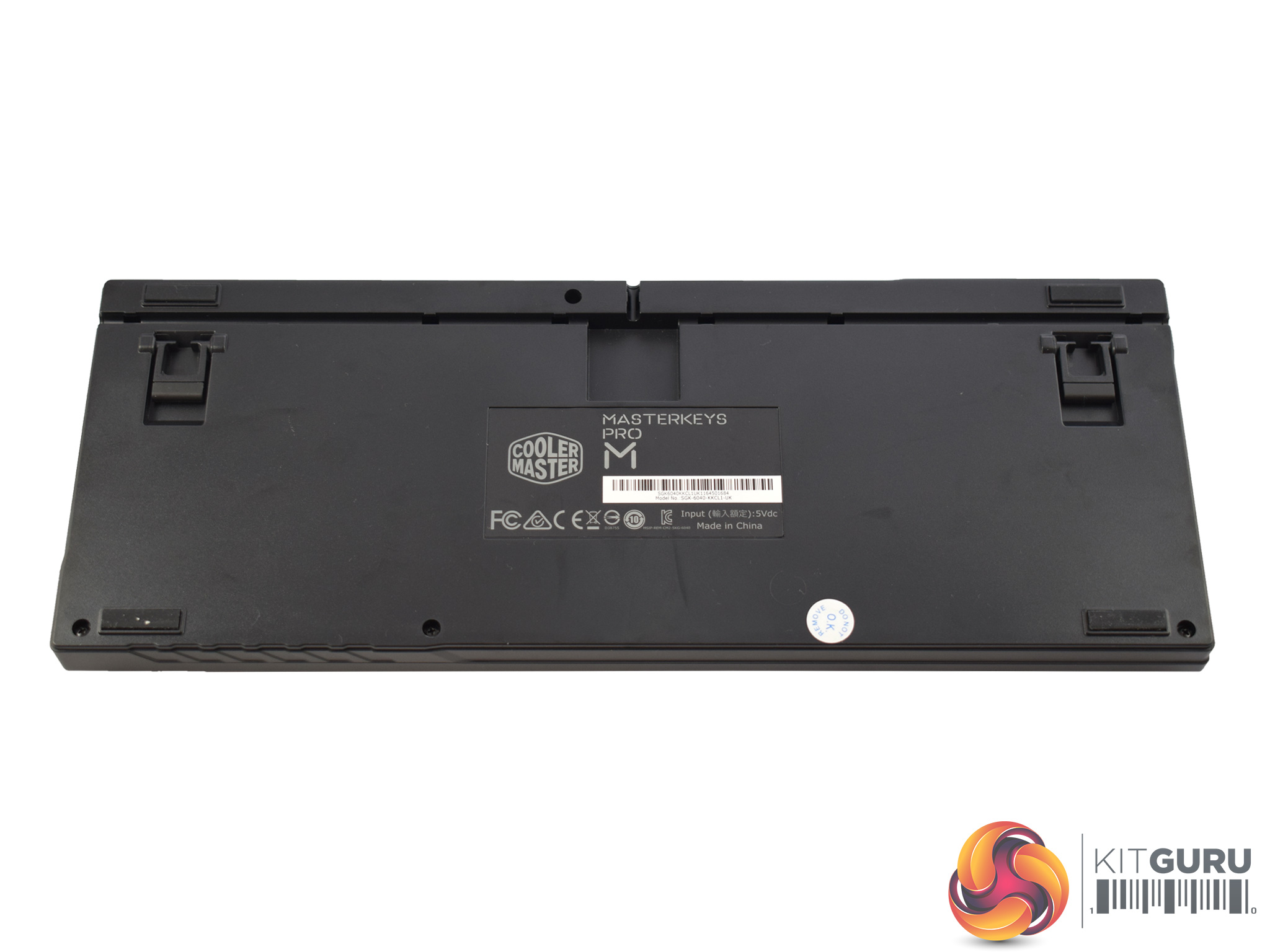
Lastly, we take a look at the underside of the keyboard. Cooler Master have implemented a nifty cable-management solution here – a groove at the top of the board allows you route the USB cable to the left or the right side of the keyboard, giving some extra flexibility when it comes to cable routing.
There are also 4 anti-slip rubber pads placed here, while two small feet can raise the height of the keyboard should you wish.To test the Cooler Master MasterKeys Pro M RGB, I used it as my daily driver for over a week. During this time, I used it to play games, edit photos and type my reviews.
First off, let's take a look at the included software suite.
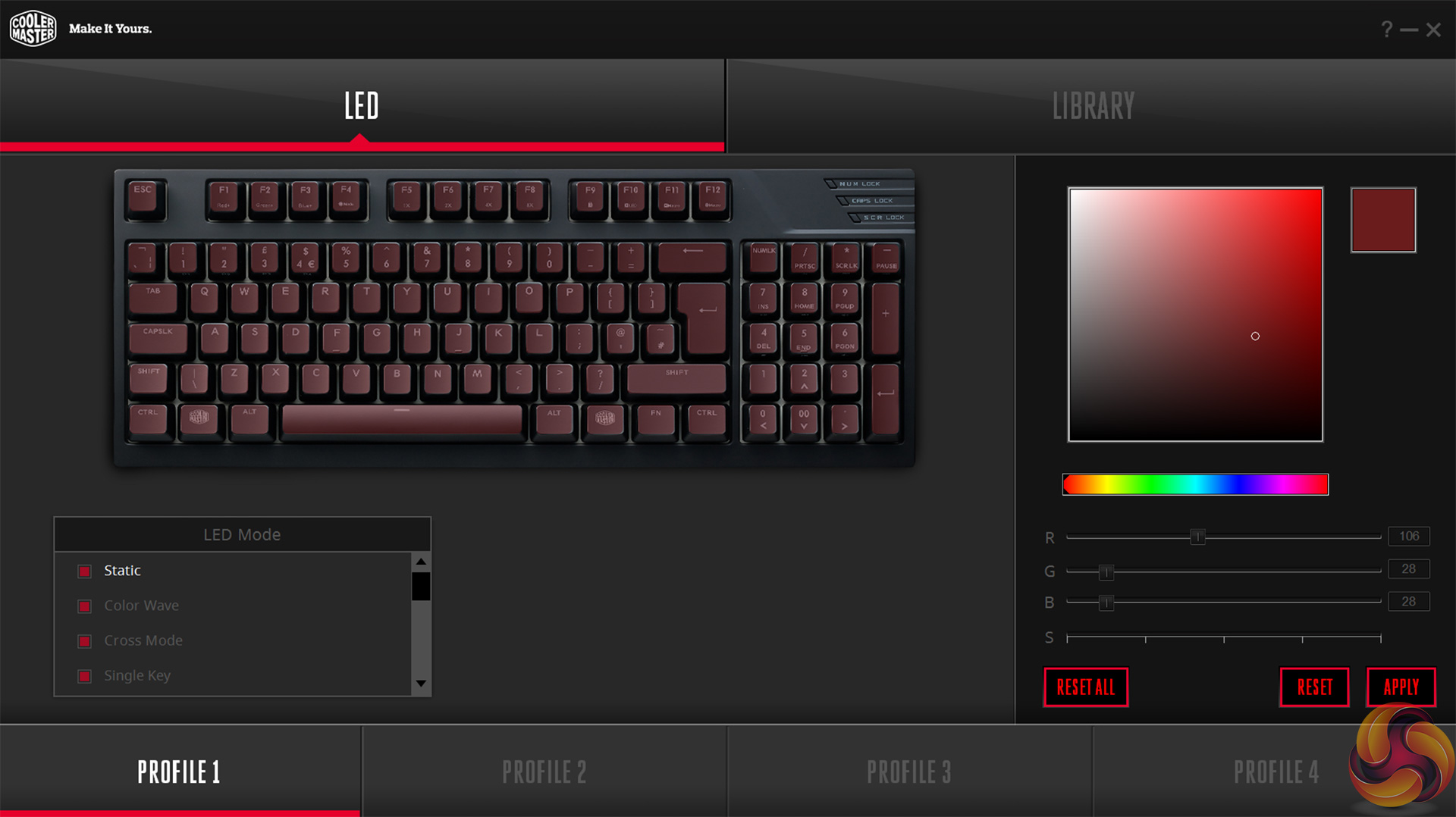
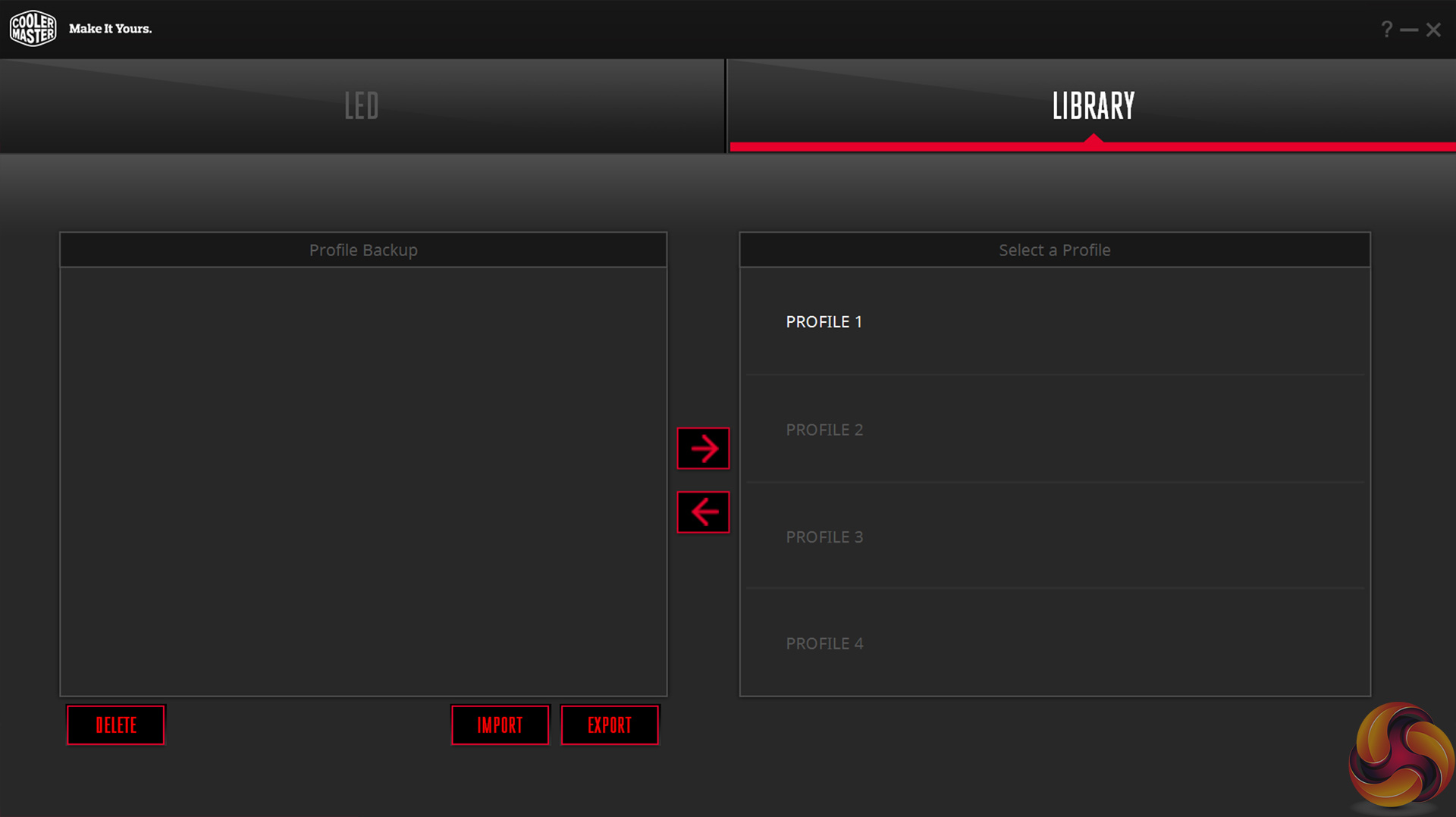
The software is pretty basic, comprising of two main tabs. The first tab lets you adjust the lighting – you can choose from a number of preset lighting effects, such as breathing, wave, ripple etc, while you can even create your own effects.
The next tab is called ‘library' and allows you to import and export your different profiles. This means you could import a profile from a friend, for example.
That is it for the software, though and I do think it is a bit disappointing. When you consider the fact that the likes of Razer and Corsair now have very advanced software suites, with vast number of settings and low-level customisation options, this offering from Cooler Master does seem very basic and lacklustre.
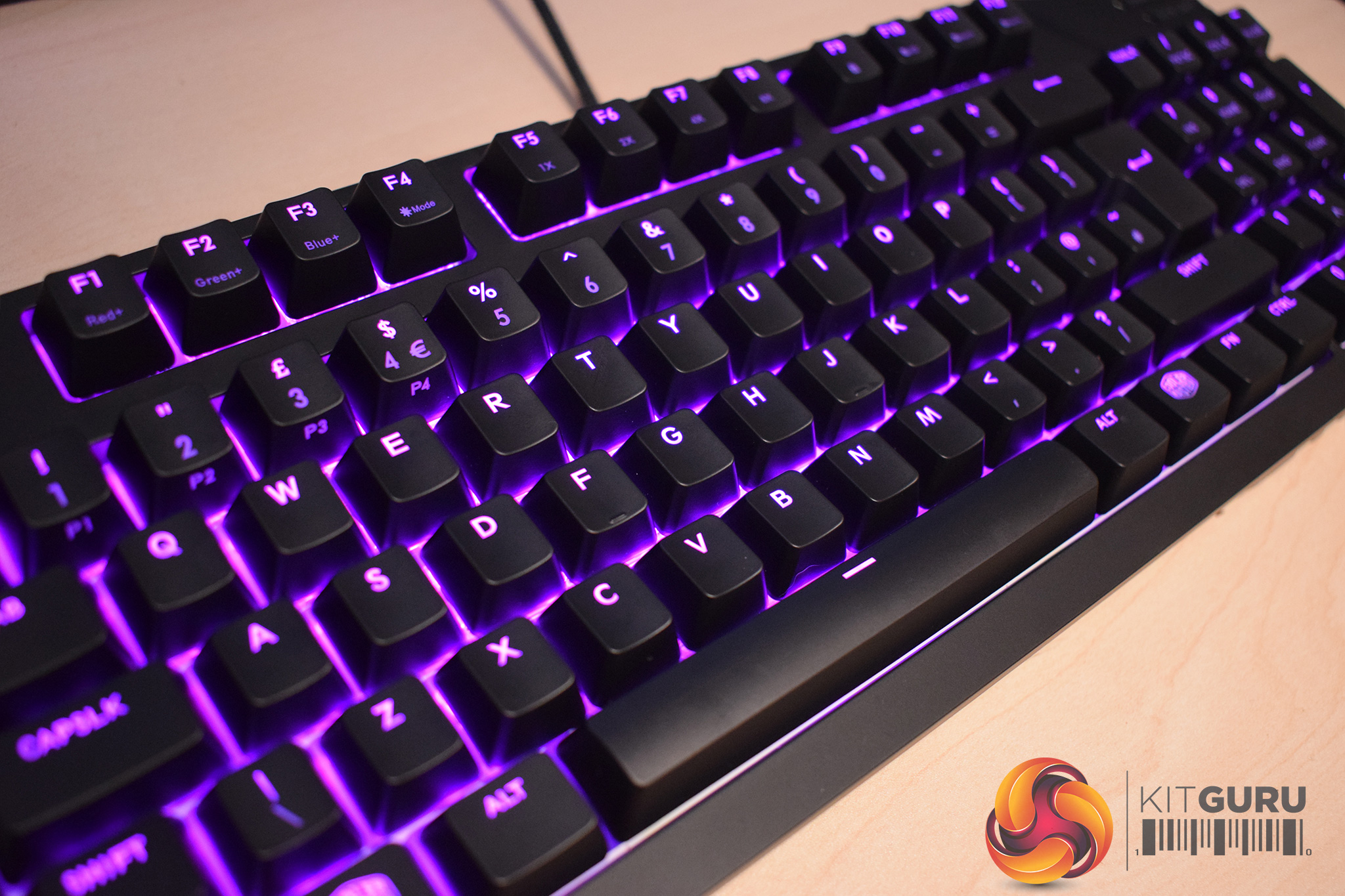
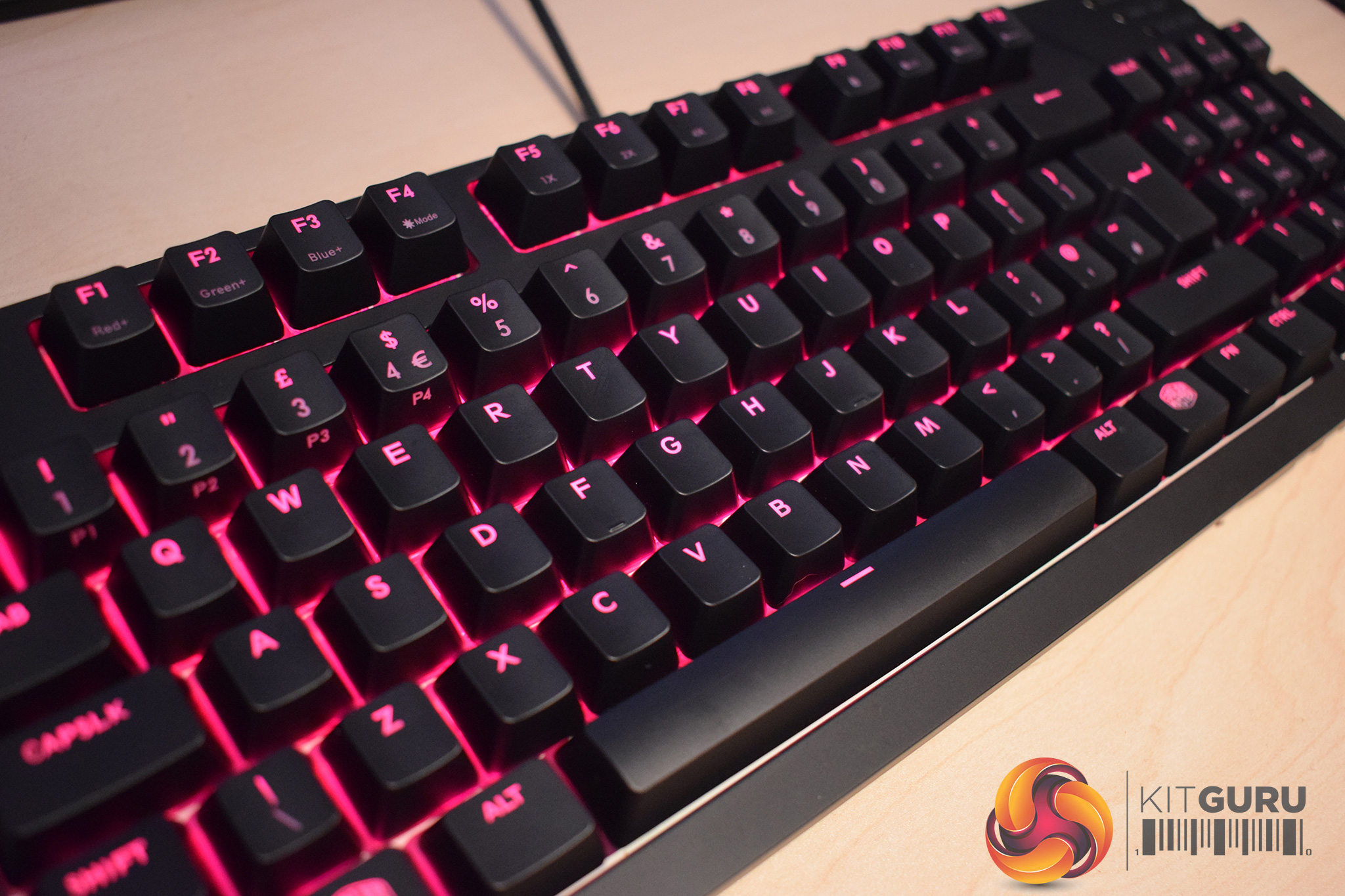
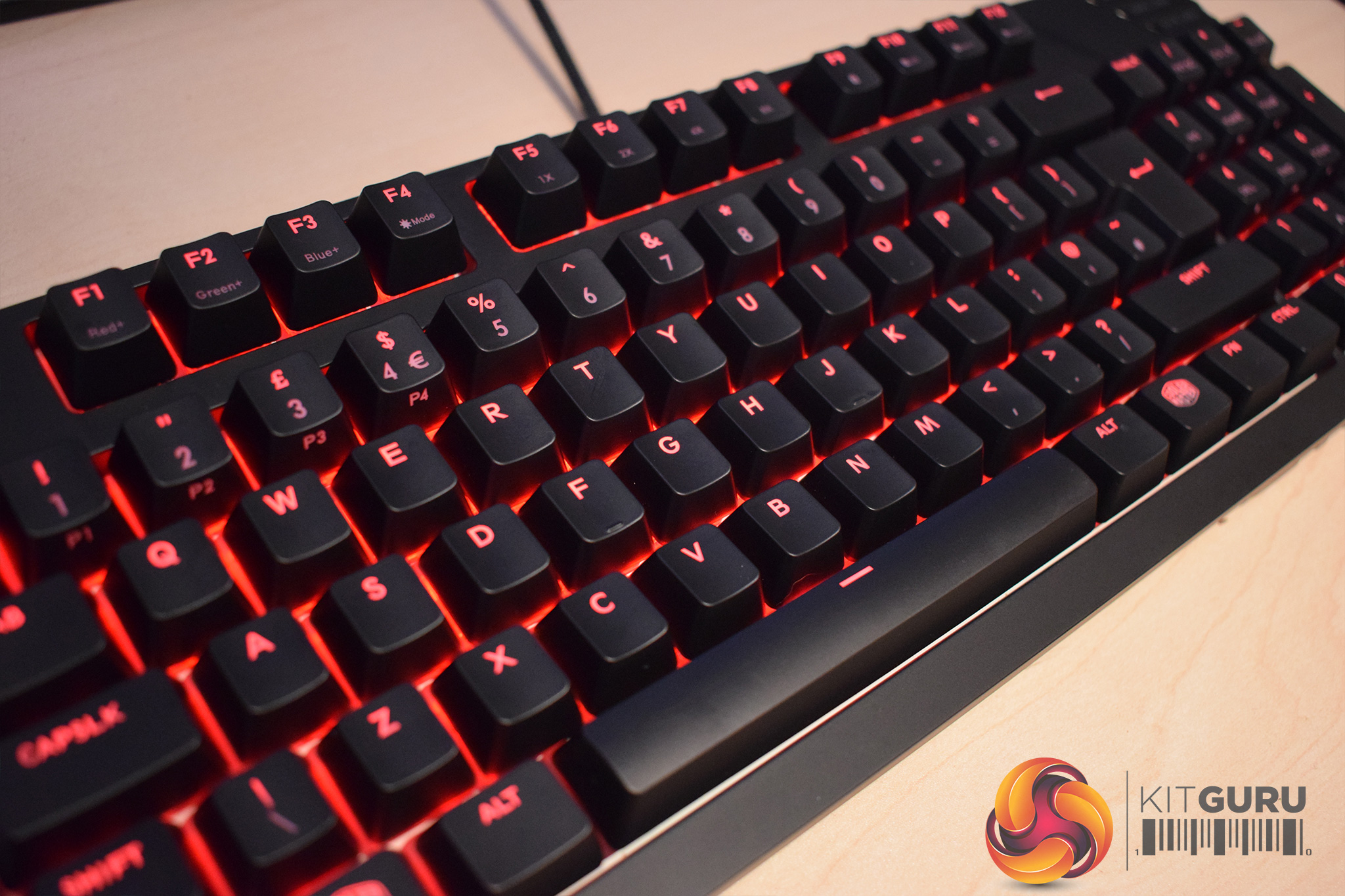
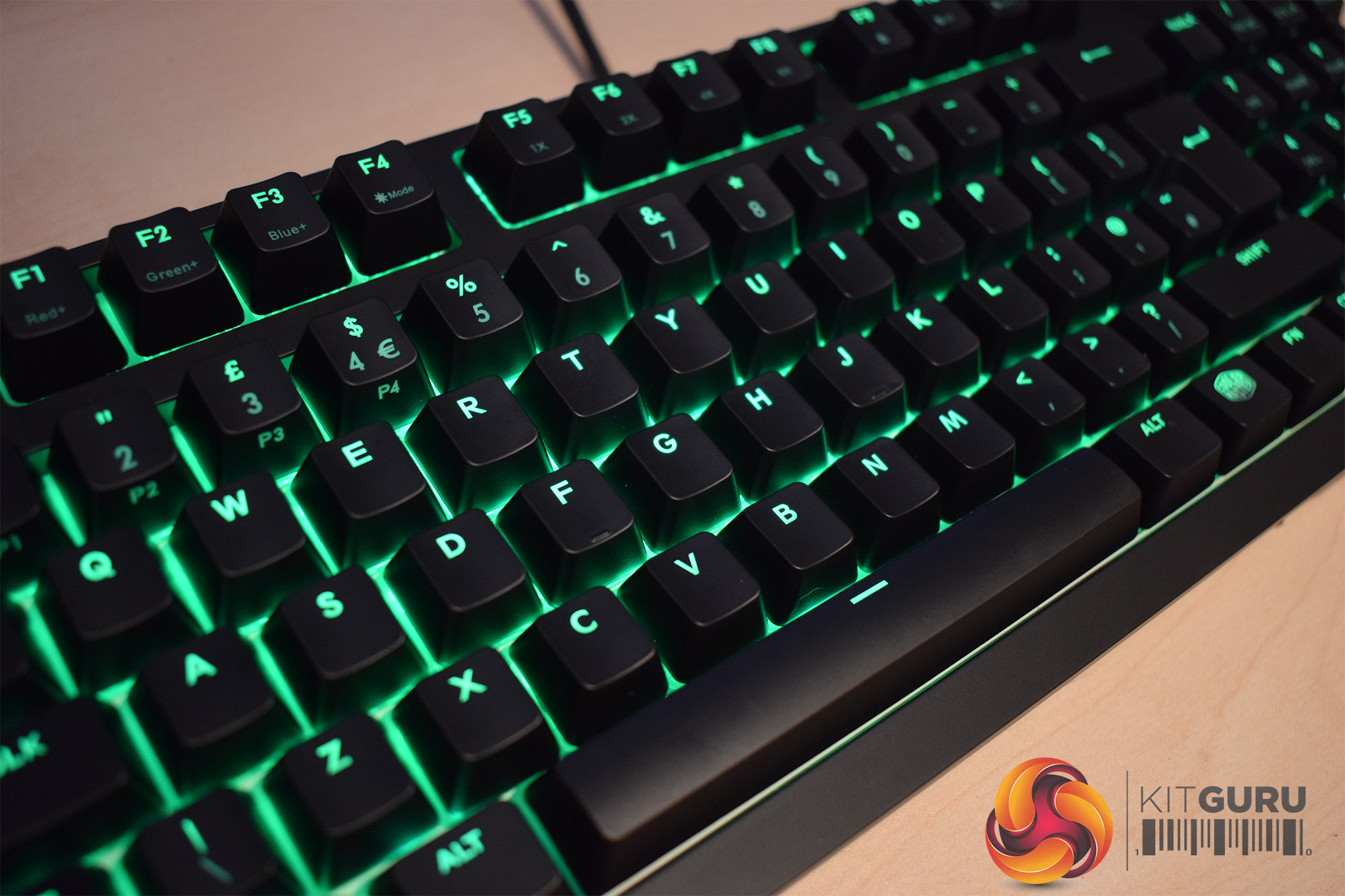
That being said, the lighting is very good. Colours are accurate and the LEDs are very bright, too. The white baseplate also helps the colours to spread out very well – this is something other manufacturers could learn from.
There is one glaring issue with the LED brightness, though, and I am amazed Cooler Master have let this happen. What I am talking about is the fact that there is no way to adjust the backlight brightness from the keyboard. The only way to change the LED brightness is to manually lower the individual red, blue and green levels using either the on-board controls or via the Cooler Master software. This is very annoying – nobody wants to have to manually change all the RGB levels every time they want to turn the brightness up and down – frankly, this is a huge oversight from Cooler Master.
However, as with the MasterKeys Pro S that I reviewed HERE, the on-board control is good. Using Fn+F4, you can cycle through the different lighting effects, and Fn+F1-F3 allows you to set the individual RGB levels without using the software.
Macro recording is also straight-forward: first press Fn+F11 to begin the macro-recording process. Next, choose which key you wish to map the macro to (the available keys flash blue), and then the macro can be recorded. Fn+Esc ends the process.
All that being said, using the combined numpad/arrow keys is a bit fiddly and can get confusing at times. This is because the numpad has so many different functions assigned to its keys that it can be difficult to know what you're actually doing at any given point. For example, the number keys from 4-9 all have three separate functions assigned to them – it all just gets a bit confusing.
In terms of actual typing performance, I had no issues with the MasterKeys Pro M RGB. My sample arrived with Cherry MX Blue switches – my personal favourite, I love the click and the tactile feedback. I also find the increased actuation force (when compared to MX Reds, for instance) gives these switches a sturdy and satisfying feel.
However, all the Cooler Master keyboards sold in the UK ship with MX Browns – Cooler Master do not bring keyboards using other switch-types to the UK retail channel. This is something that I hope will change as different people have their own favourite switch – according to our own data, only 30.7% of our readers prefer Brown switches, while a combined 47% of you prefer Red or Blue switches. This suggests there is a big chunk of the market that Cooler Master are simply not catering to due to their lack of switch options.
Gaming with the MasterKeys Pro M RGB is fine, though. The board features n-key rollover so ghosting was no issue, and there is also a Windows-lock function available.The Cooler Master MasterKeys Pro M RGB is an innovative keyboard, but it does suffer from a few issues.
Starting with the good, though, the Pro M RGB has fantastic build quality thanks to its internal metal frame. This is now something we have come to expect from Cooler Master and it is great to see they continue to deliver on this front.
The RGB lighting is also effective, with plenty of pre-configured options to choose from. You can even create your own lighting profiles using the included software suite.
Speaking of the software, though, it is disappointing that the software is so basic – we have come to expect high-quality software suites from the likes of Corsair and Razer, but Cooler Master's own software is a long way from rivalling CUE or Synapse.
I also find it both baffling and annoying that there is no on-board brightness control. You can change the individual RGB levels from the keyboard, but there is no quick-and-easy overall brightness control. This means you have to manually increase or decrease the individual red, green and blue brightness levels just to tweak the backlight brightness.
We can't finish without mentioning the combined numpad/arrow keys, either. While this may seem like a good idea in theory – you save space but don't lose the added functionality that a numpad brings – in practice, I found it to be a bit fiddly and confusing. This is just because Cooler Master have had to map multiple functions to each key in the numpad area and this complicates matters – I was never quite sure what was going to happen when I pressed a certain key.
As such, we need to bring the review to a close. The Cooler Master MasterKeys Pro M is innovative in that it combines the numpad and arrows keys, but ultimately it falls short in a few areas – including the combined numpad/arrow key functionality.
It is also very expensive at £139.99. For this price, I would certainly expect a better software suite and on-board brightness control – to be honest, I would expect that last feature on any backlit keyboard, so it is truly bizarre that it is not included here.
You will buy able to buy the MasterKeys Pro M RGB for £139.99 in the coming days.
Discuss on our Facebook page, over HERE.
Pros
- Great build quality.
- Combining the numpad/arrow keys does result in a smaller keyboard.
- RGB lighting looks good.
Cons
- No brightness control.
- Software suite is comparatively basic.
- The numpad gets confusing as there are multiple functions assigned to each key.
- It is expensive considering its flaws.
KitGuru says: While the idea of a ‘hybrid TKL' board is certainly interesting and could appeal to many, Cooler Master have not executed it as well as I had hoped.


WTF! I had a Cooler master Quickfire Storm with Cherry Reds that combined the arrow keys and numpad, that was about 2 years ago. They are innovatively renaming something they already had. The hybrid is an absolute nightmare in practice and was the reason I ditched the board. It’s just so confusing, the number of times I went for a number and moved up a line or vice versa. I swore from now on its full size keyboards.
The price is not acceptable
SLOW down…The value of not having a fullsize is night and day for others as their is more mouse rom (also, consider the cost of fullsize actually being MORE materials). The bottom row is changed and can now fit standard keysets.
However, with no backlight adjustment on KB, you would THINK thered be alternate LED palette when Num Lock is engaged =