 KitGuru KitGuru.net – Tech News | Hardware News | Hardware Reviews | IOS | Mobile | Gaming | Graphics Cards


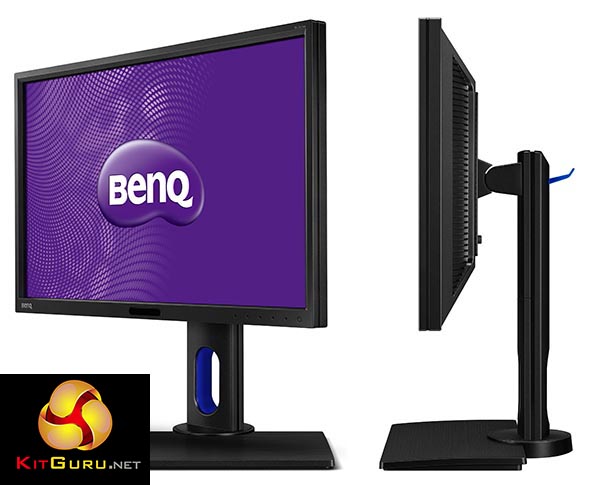
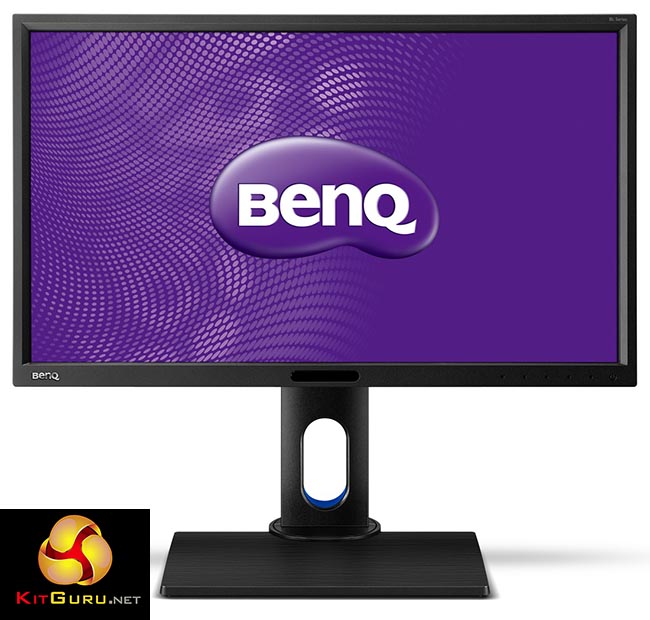
At 24 inches, BenQ’s latest IPS display has the smallest diagonal screen size of any 4K screen we’ve tested so far, which normally come in 27-inch or 32-inch sizes. With a price of around £400, that also makes it a lot more affordable than its competitors and the most reasonable 4K display we’ve seen. Hang on, 24 inches is way too small for 4K, isn’t it? Perhaps at native resolution – but with the scaling in Windows set to exactly 200%, everything looks just the right size, but with razor sharp text rendering, and overall excellent picture quality.
BenQ might not be the most well-known display brand, but are actually the parent company of one of the world’s largest panel manufacturers, called AU Optronics. AU Optronics panels find their way into products from a number of different companies, including smartphones and tablets. We’ve been very impressed by some of their range recently. The 32-inch BenQ BL3201PT (Review HERE) is one of the better 4K screens on the market, with a number of unique features and a great picture due to its bright IPS screen. In many ways, the BenQ BL2420U is a smaller version of it.
The ‘right’ resolution for a given monitor screen size always ends up being about personal taste. Non-4K 27-inch displays come in both 1440p and 1080p, and while we’re inclined to prefer the former, there are some users who do prefer larger graphics and a smaller resolution for better gaming performance.
At 4K resolution, some users might prefer the larger 32-inch screens, but there are plenty of 27-inch 4K models to choose from too, not to mention some 40-inch screens, such as the Philips BDM4065UC (Review HERE) and Iiyama X4071UHSU-B1. Arguably, it’s only feasible to use Windows at native scaling with this massive screen size.
The BenQ BL2420U is at the opposite end of the scale. It’s a 24-inch screen (more accurately, 23.6-inch) with a 4K resolution, aimed at professional CAD/CAM use and multimedia, rather than gaming, due to its 7ms response time, which is notably higher than alternative IPS screens, which hover around 4ms or 5ms.
Due to this screen size, the BenQ BL2420U has an incredibly small dot pitch of 0.1361mm, or the width and height of a single pixel, and half the dot pitch of a 1080p display. However, because this is an exact halving, scaling the BL2420U to 200% DPI in Windows means you get a perfect 2x “Retina-like” resolution, where the desktop looks exactly as it would on a 23.6-inch screen but with the effect of greater pixel density giving smoother curves and crisp text.
That’s the theory, anyway. But there are also some people who simply prefer smaller screens, either due to personal taste or lack of desktop space. Heck, some smartphone screens are now 4K, such as the Sony Xperia Z5 Premium. If there are benefits to Android scaling 4K to a 5.5-inch screen, then Windows at 4K on a 24-inch screen will certainly have value as well.
Specification:
Screen size: 23.6 inch
Native resolution: 3,840 x 2,160
Refresh rate: 60Hz
Response time: 7ms
Panel type: IPS
Display inputs: 1x HDMI 1.4, 1x HDMI 2.0, 1x DVI, 1x DisplayPort 1.2
USB hub: 2x USB 3.0
Tilt: yes
Raise: yes
Swivel: yes
Other: CAD/CAM and Animation Mode, SensEye display dimming technology
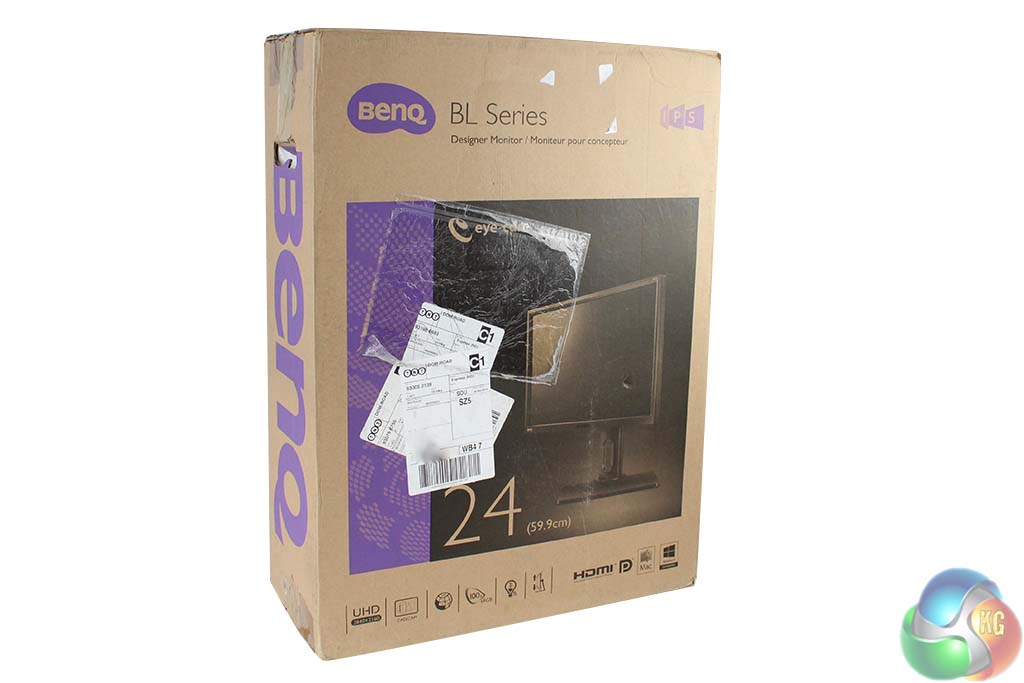
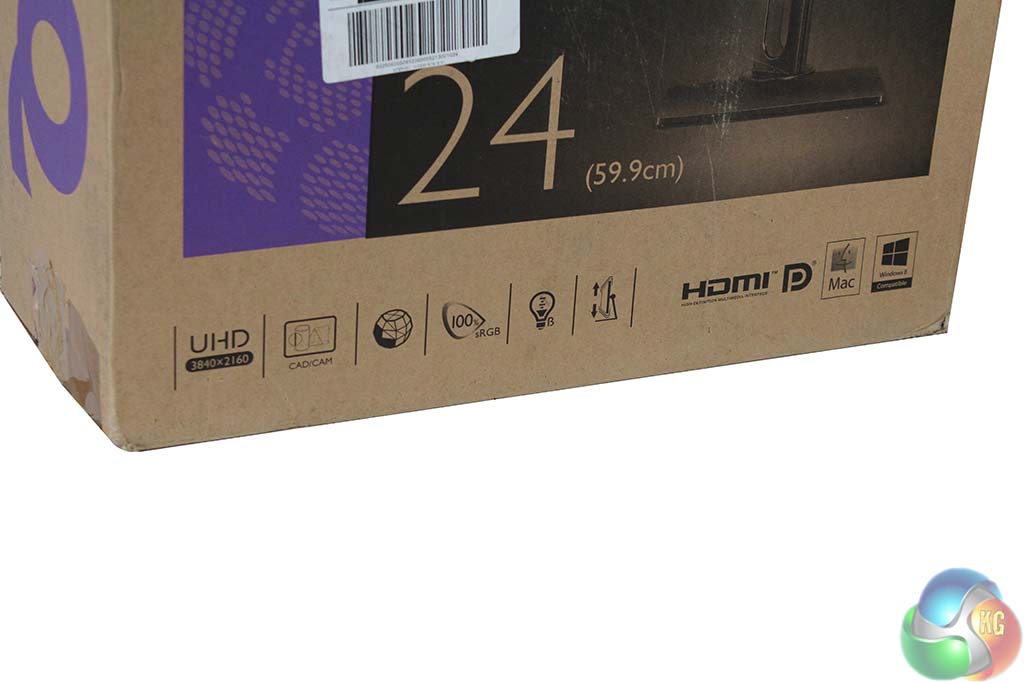
The BenQ BL2420U arrives in a relatively small cardboard box, and is removed by opening the top and sliding the polystyrene protection out. The lower section shows a few of the features – 4K resolution, high sRGB coverage, a flexible stand and a low blue light mode.
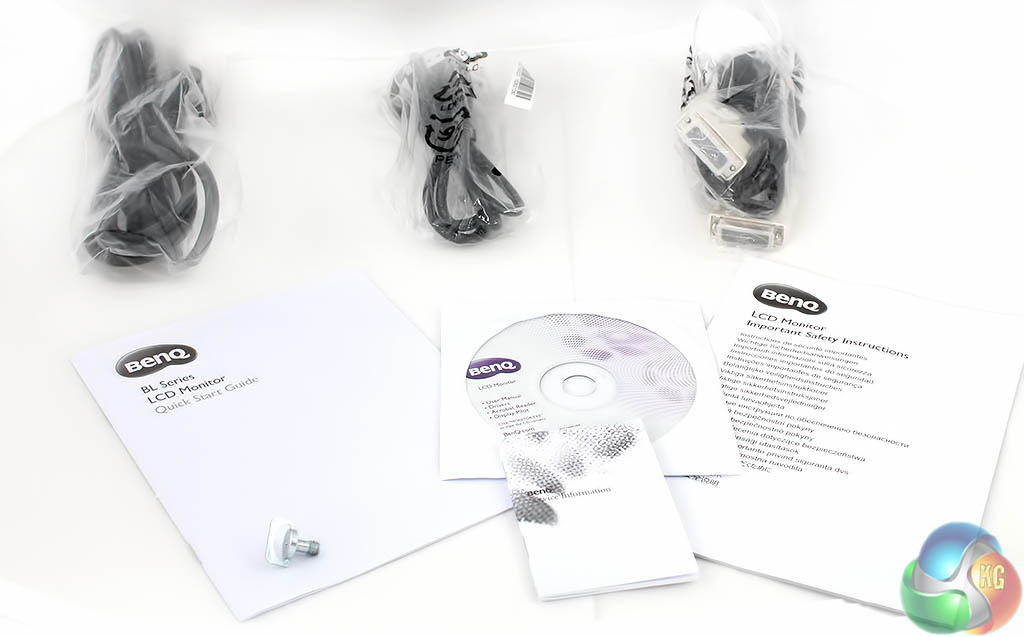
Not all the provided cables were included in our review sample, but we still had the Quick Start guide and safety guide, software CD and warranty information, with a power cable (no external PSU is needed, DVI and DisplayPort cables. There’s also a metal key to secure the stand to its base.
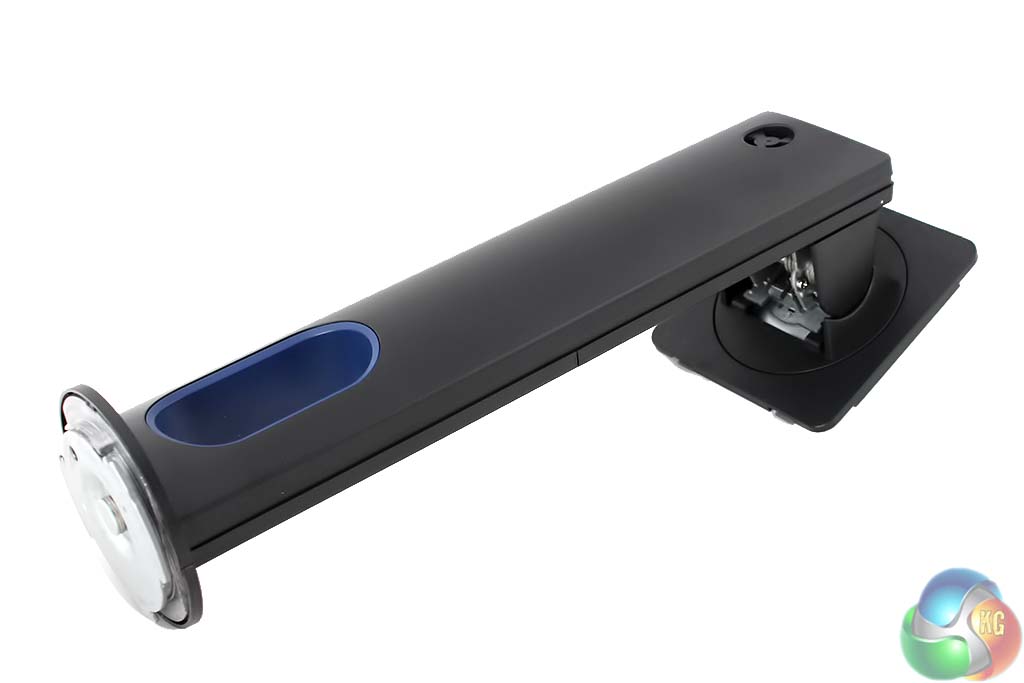
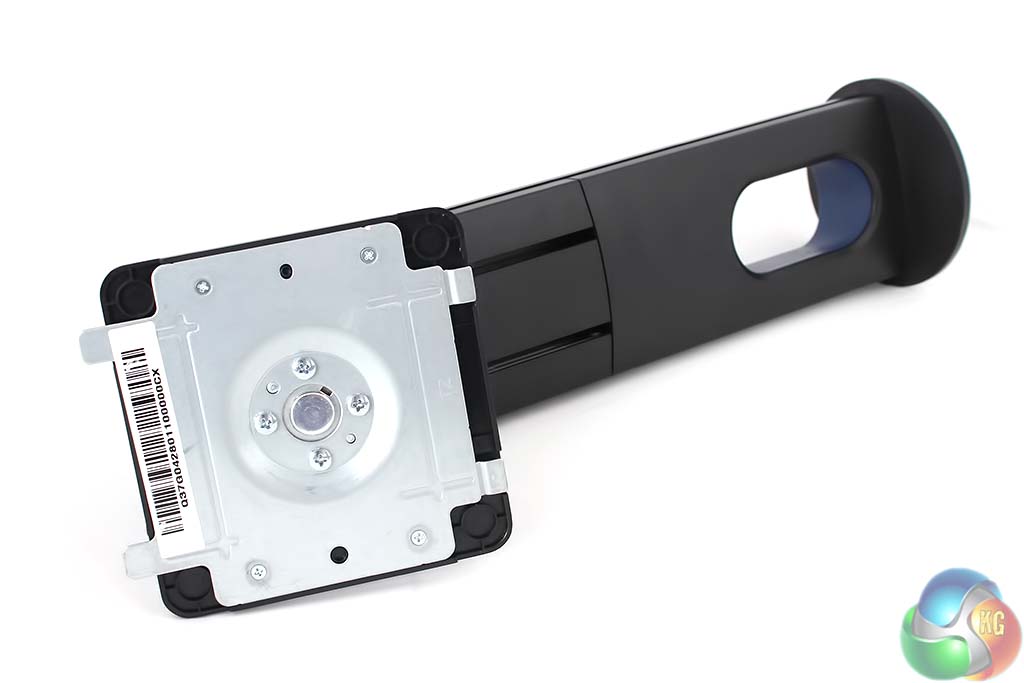
The stand is made from chunky plastic with a small hole for cable management.
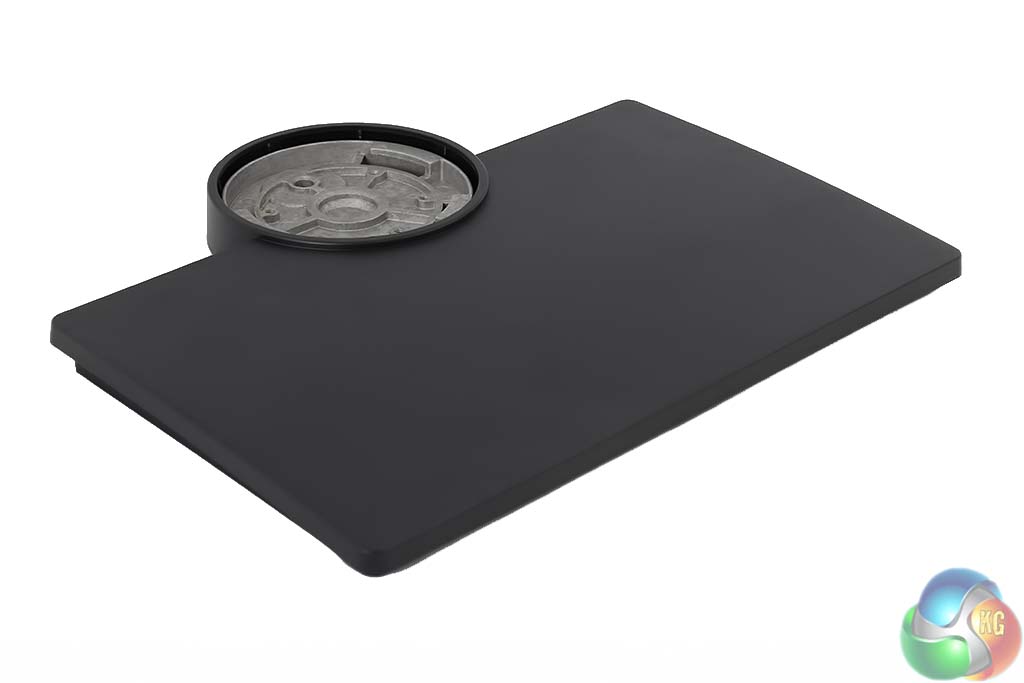
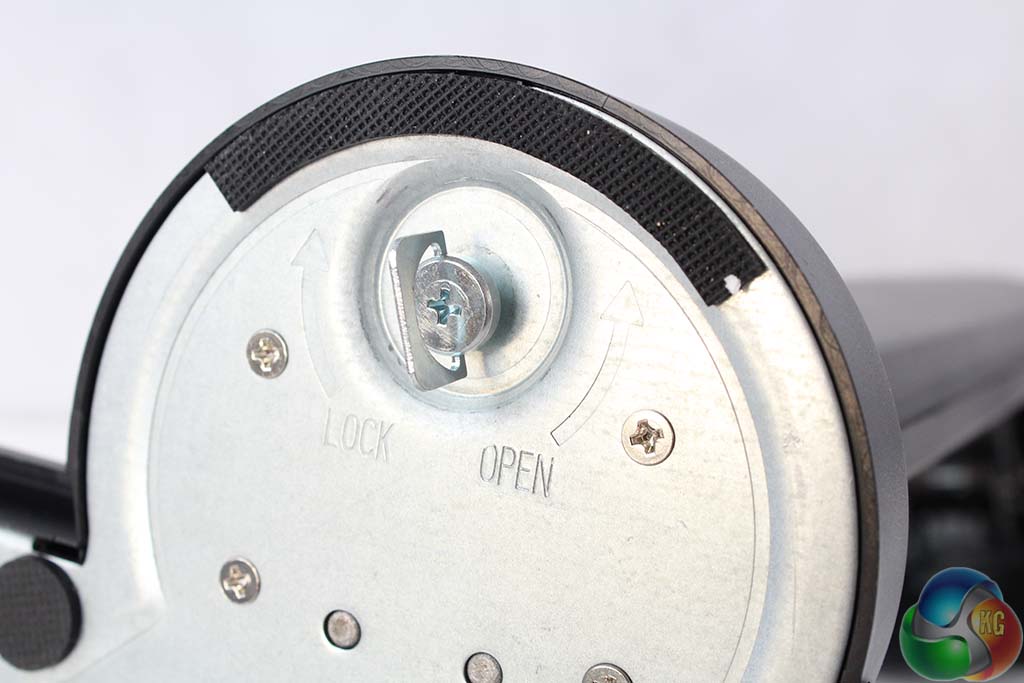
The base is similarly made from chunky plastic. Connecting the stand and its base is quite tricky. You need to rotate the stand for it to click into position, then secure it using the key, with the holes lined up correctly. It took us a few tries to get it right.
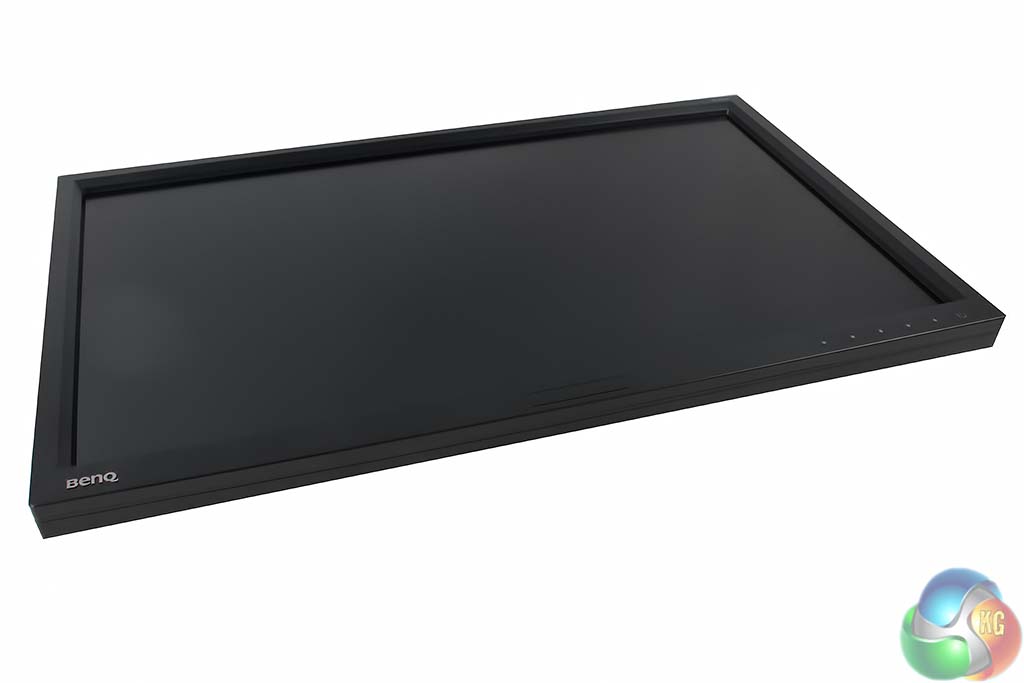
The screen uses a matte anti-glare coating. Right in the middle of the lower bezel is the SensEye motion detector. When enabled in the menu, it turns on two infra-red lights that can detect the presence of a person in front of the screen. It switches off the display when it thinks nobody is in front of the computer.
The BenQ logo is in the lower left. The bezel is notably quite thick, measuring about an inch. It’s the largest bezel we’ve seen on a display recently, a throwback to early TFT monitors. We expect BenQ assumes professional users don’t worry about bezel size in the way gamers do.
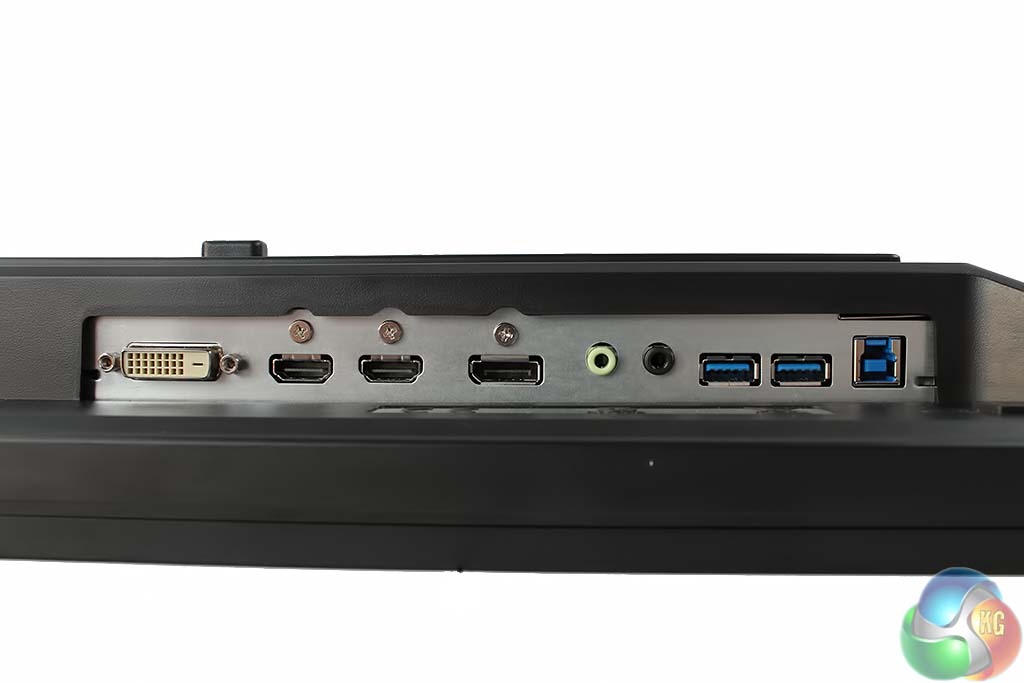
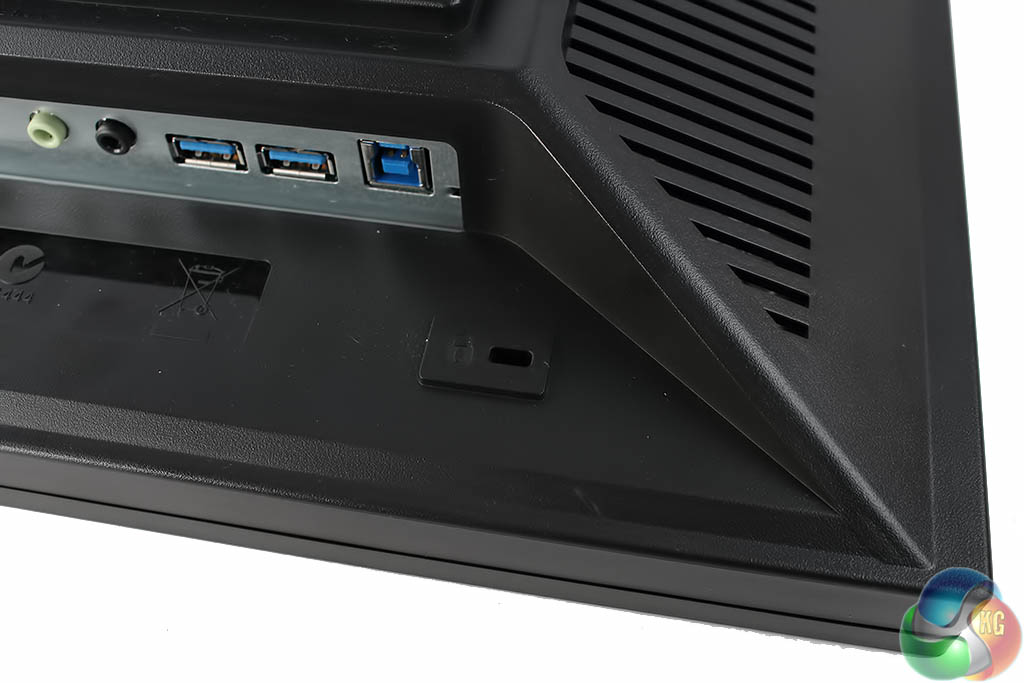
You can clearly see all the video inputs – one HDMI 1.4, one HDMI 2.0, DisplayPort and DVI. There are two USB 3 ports with an uplink, and two 3.5mm audio jacks for input and output.
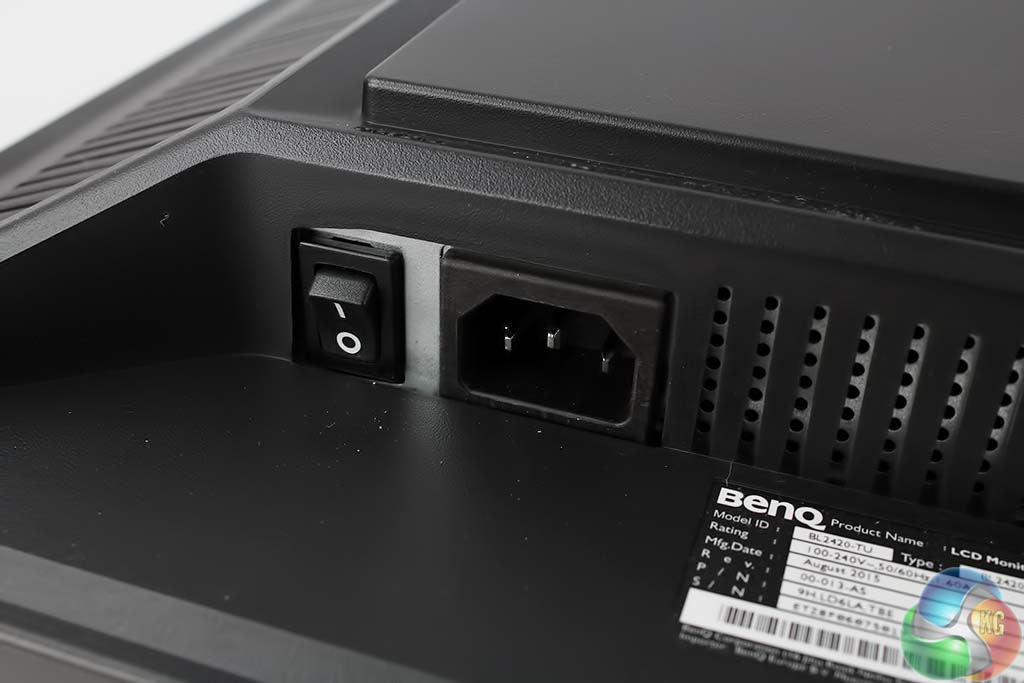
There’s a master power switch just by the power port.
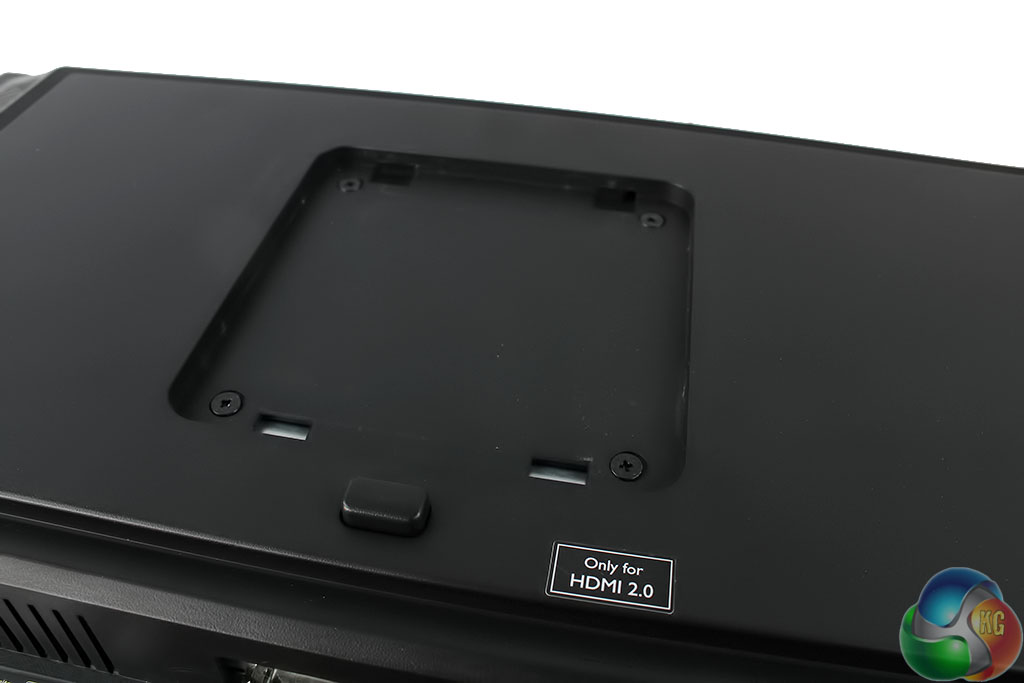
The panel is VESA compliant, up to 100mm.
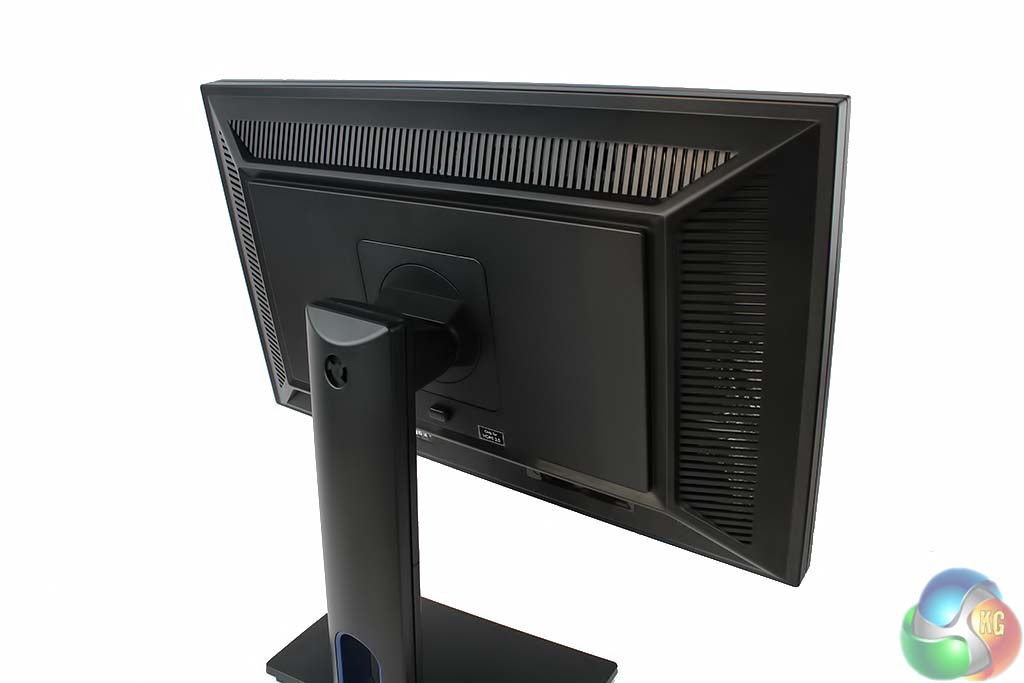
The dark grey matte finish extends over the rear of the display too.
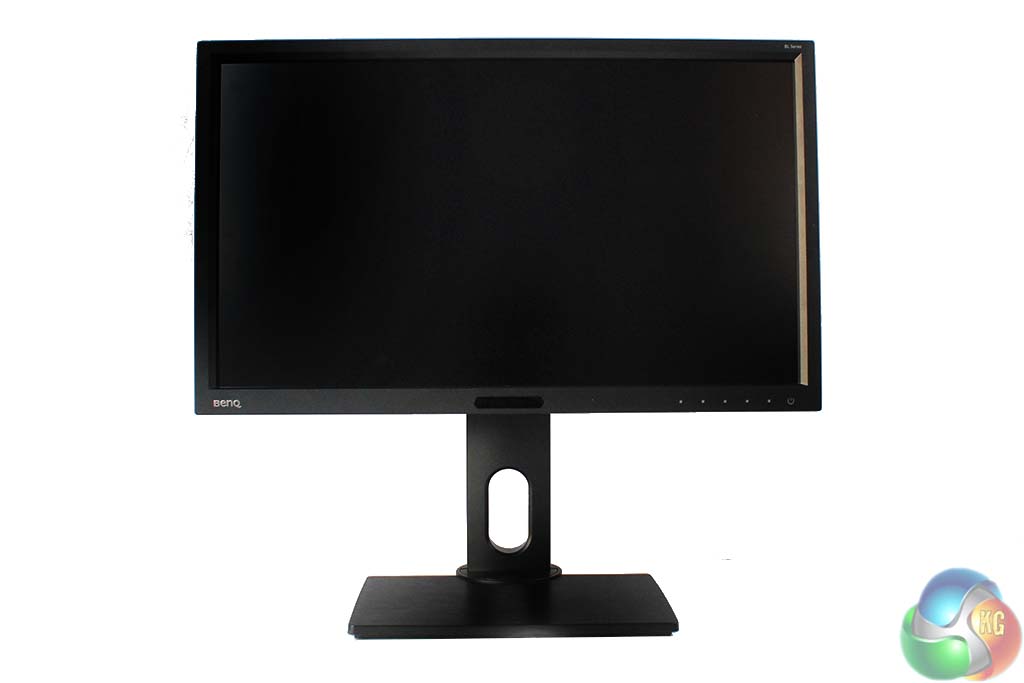
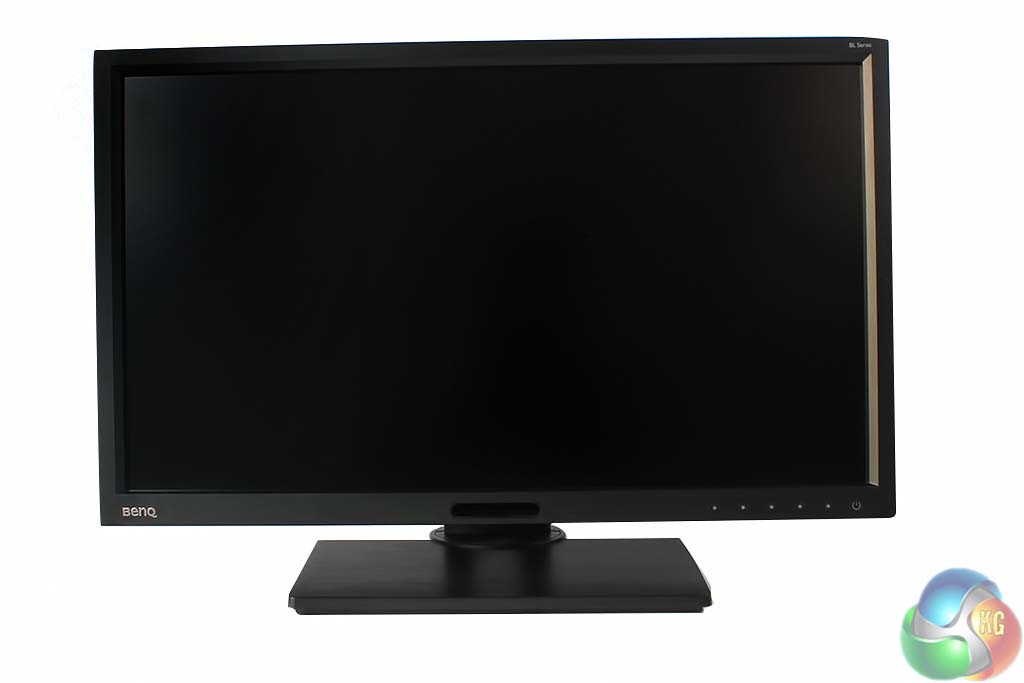
The stand is highly flexible. Along with the ability to swivel into portrait mode it can be raised and lowered.
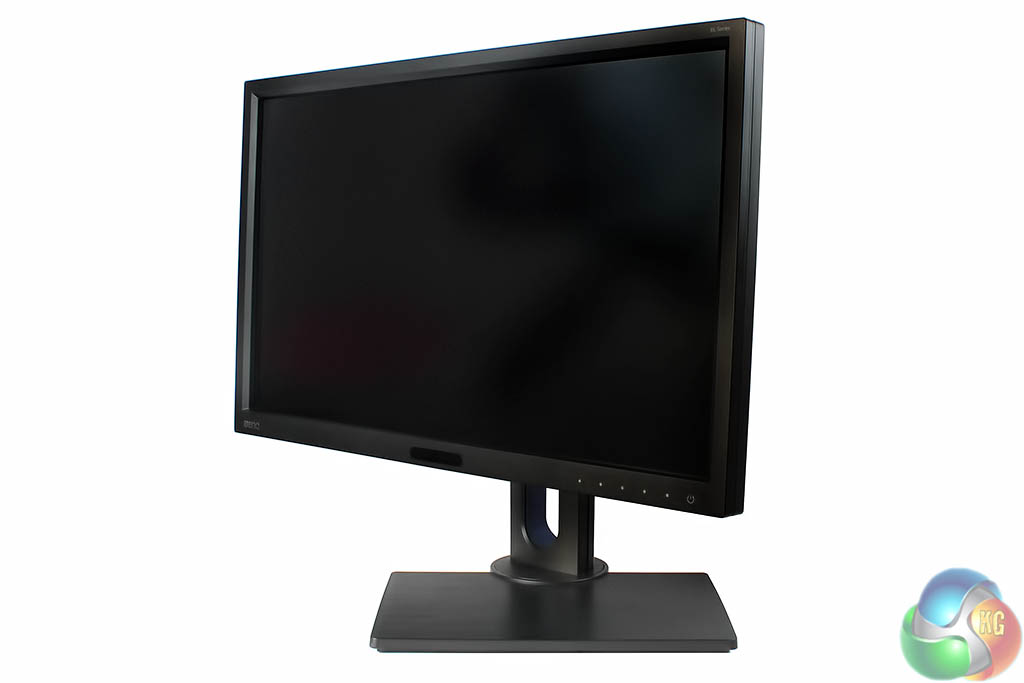
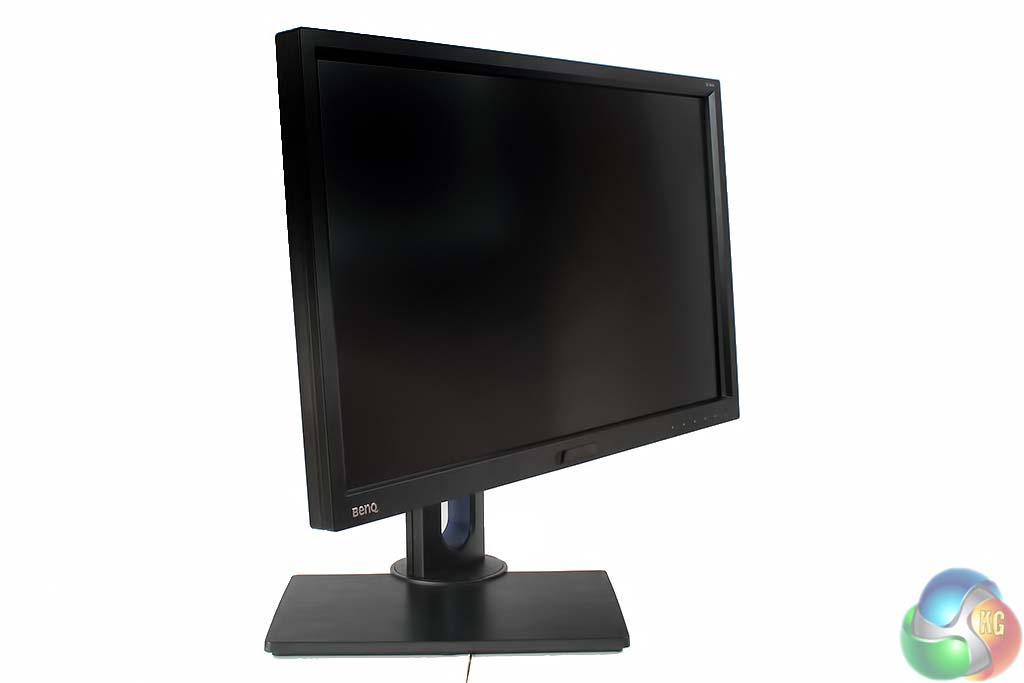
Rotated on the spot.
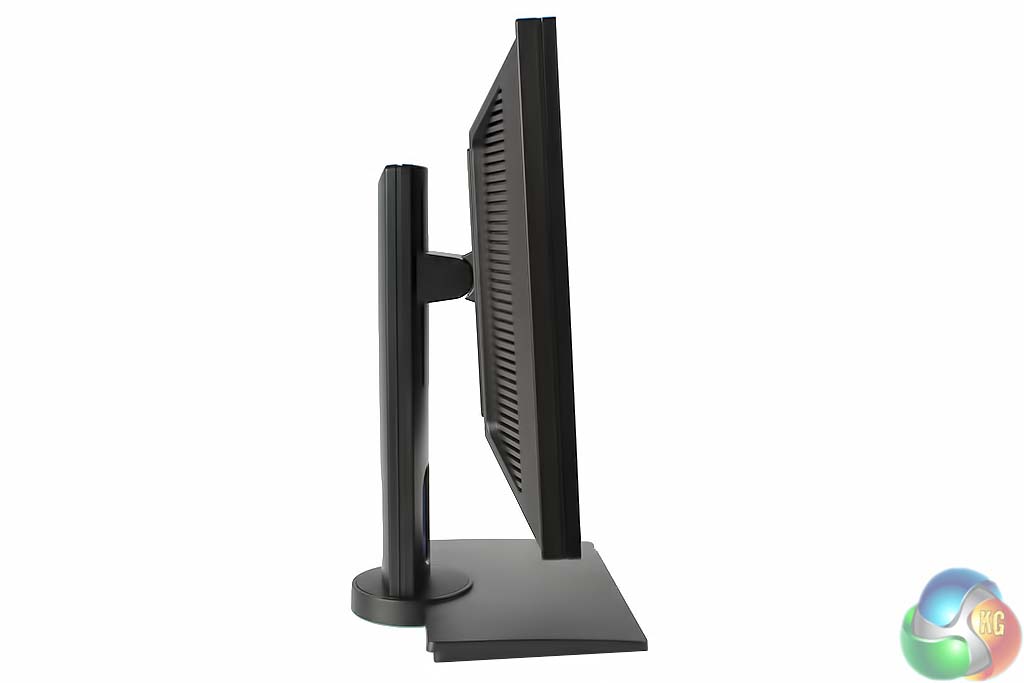
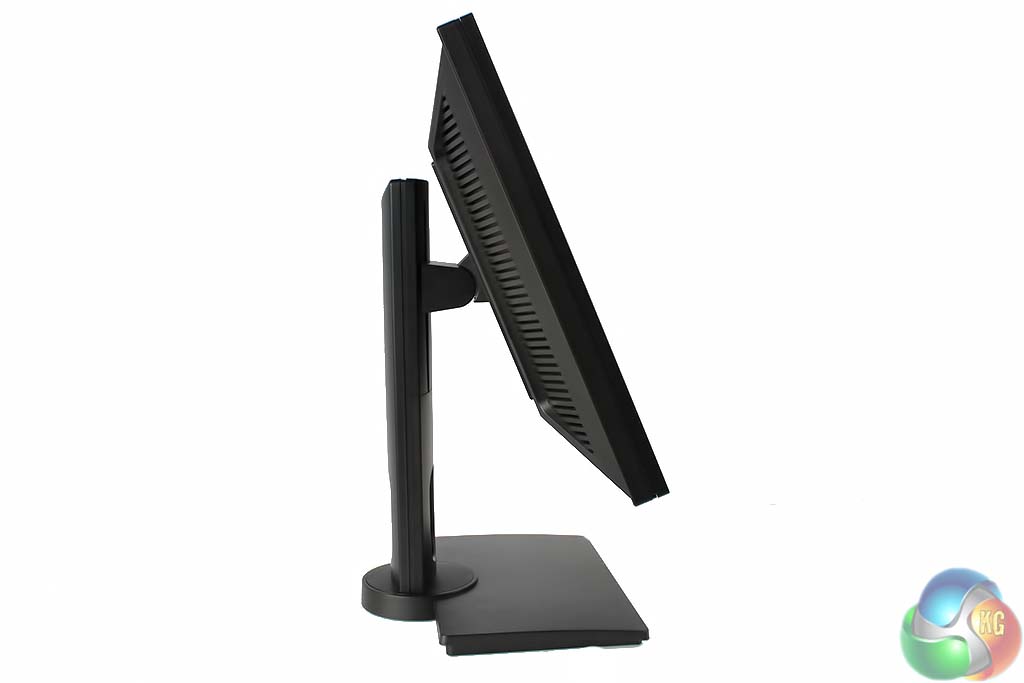
And tilted backwards and forwards.
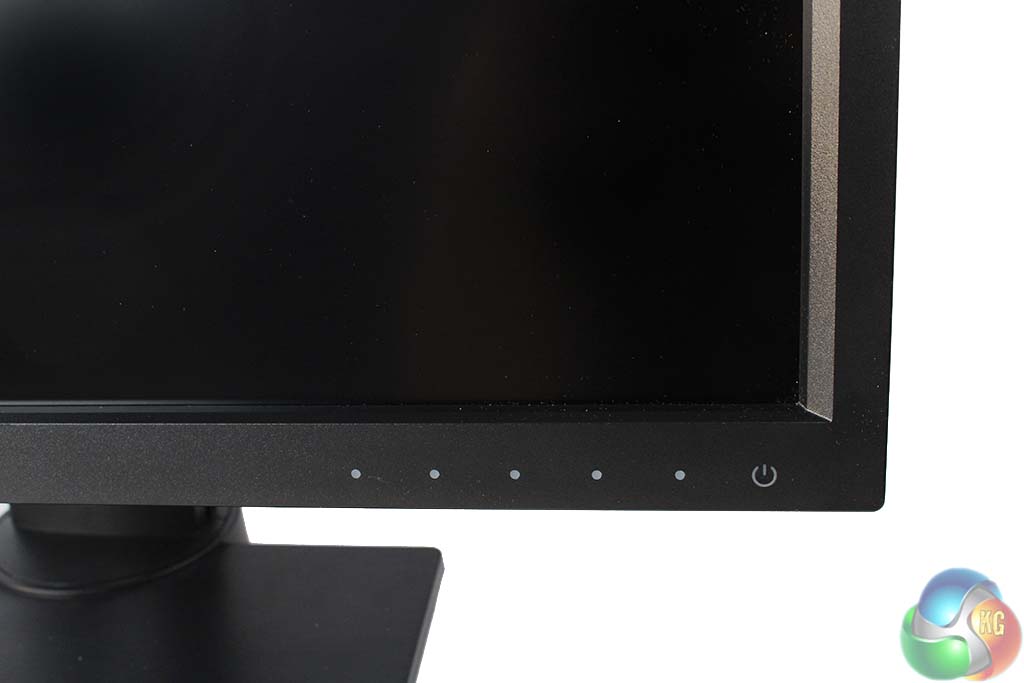
At the lower right corner of the bezel are 5 touch-sensitive buttons to control the on-screen menus, along with a power button.
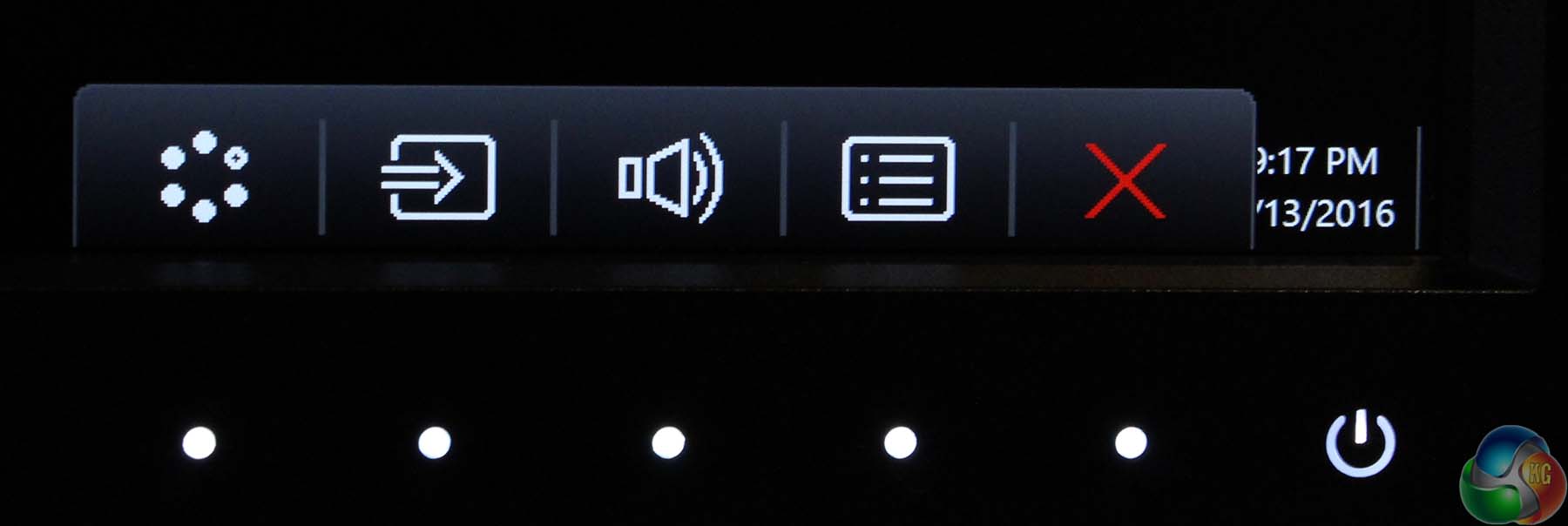
Tap any of them and the white LEDs light up, with a small bar of shortcuts above them. The controls are fairly self explanatory, and it’s dead simple to use, with a red cross to cancel, a blue tick to confirm, up and down arrows and forwards and backwards to go through menus. A great effort. The other three shortcuts can be customised in the menu, but the following are the default settings.

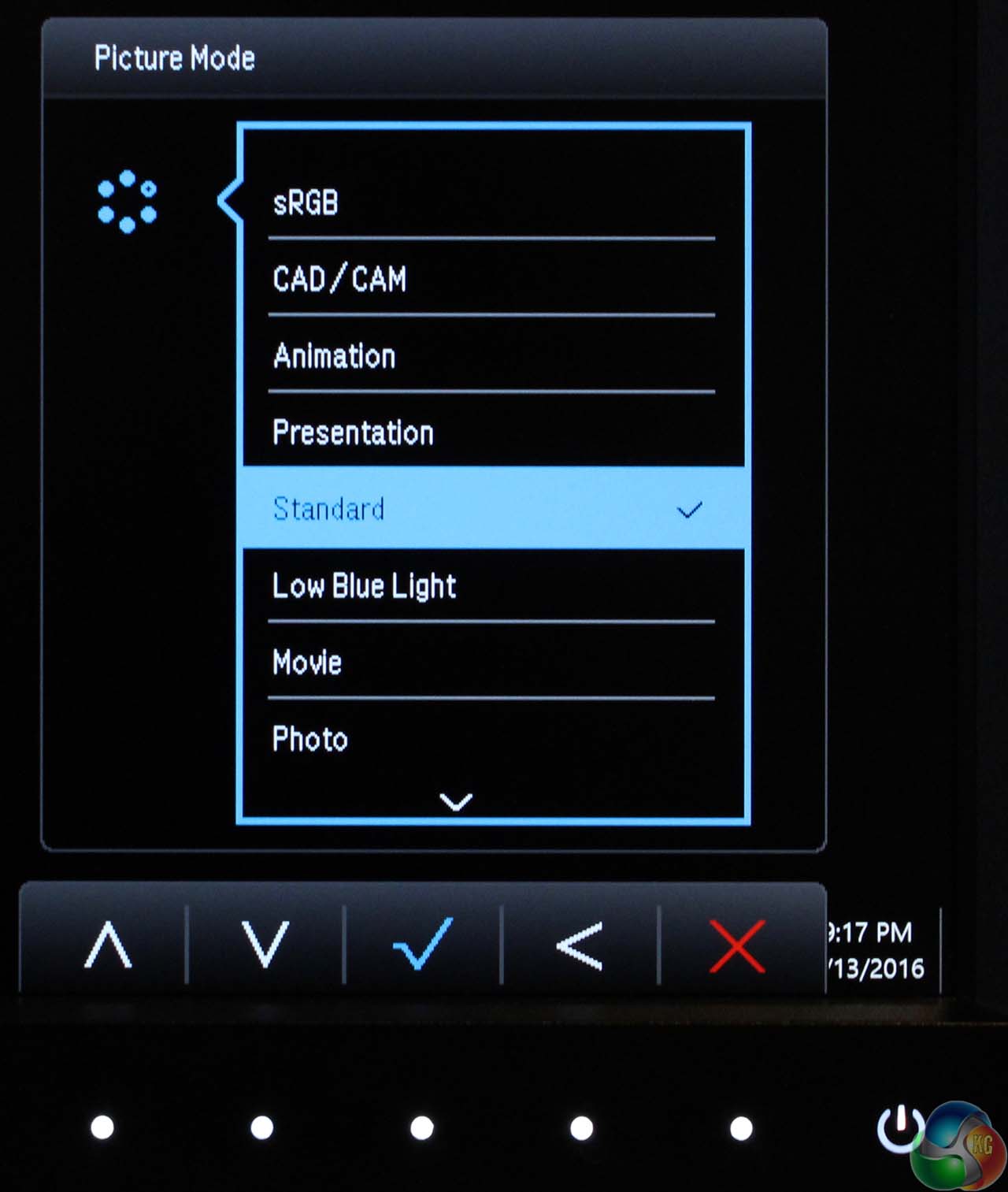
The first shortcut shows the list of display presets.
The next selects the input.
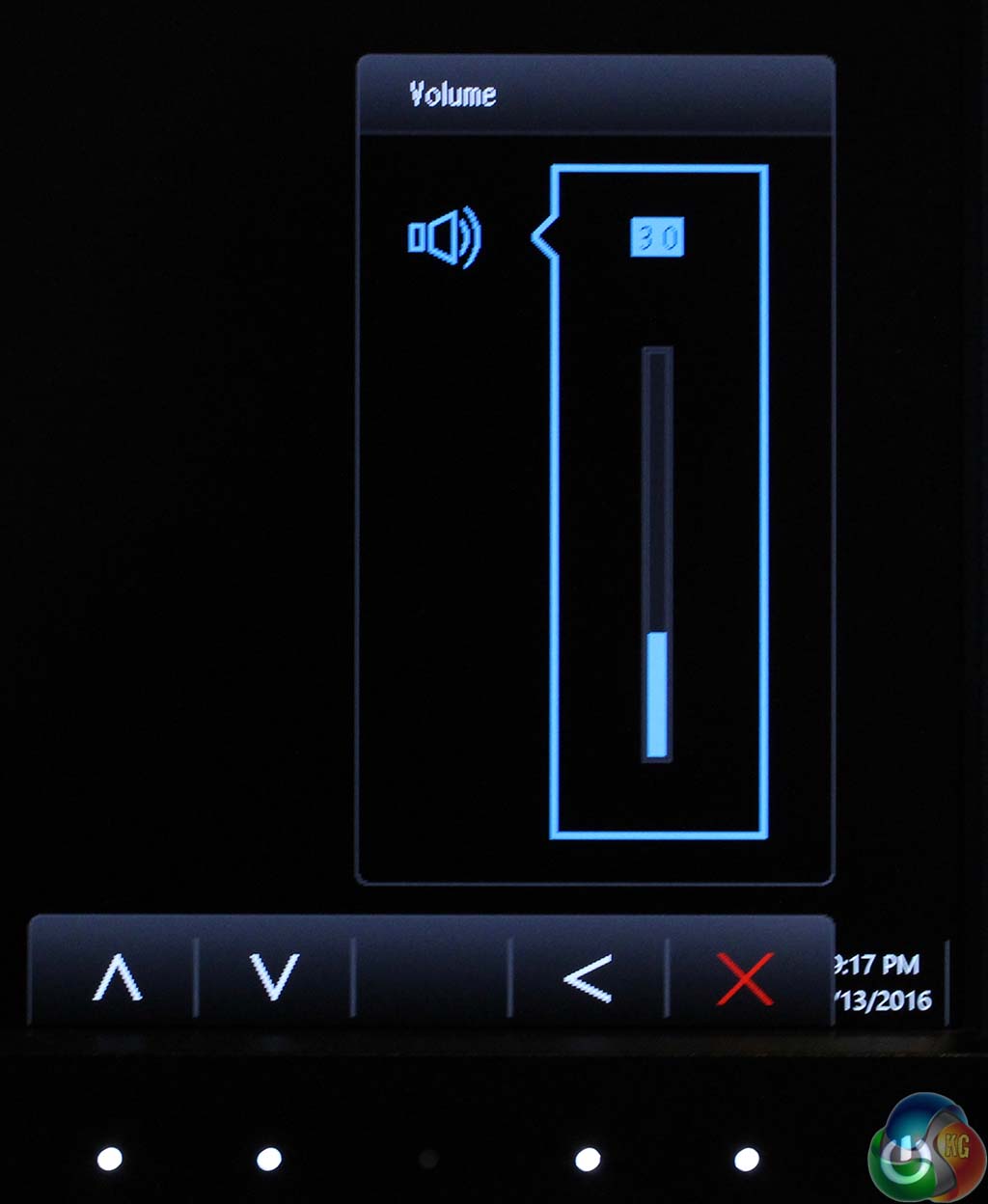
And there’s a volume control.
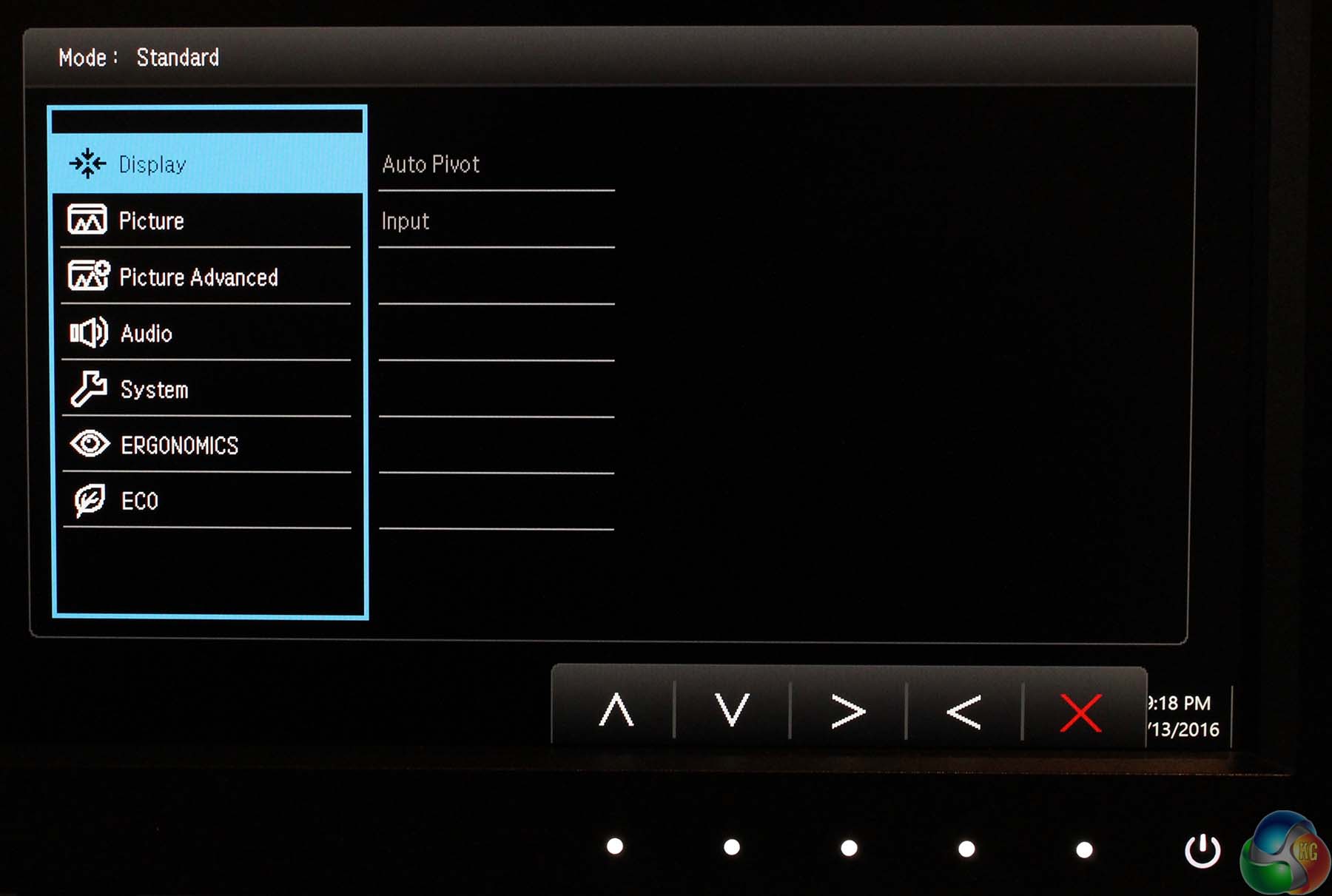
The fourth button along selects the main menu screen, which defaults to a simple Display menu with an input selector and auto-pivot option.
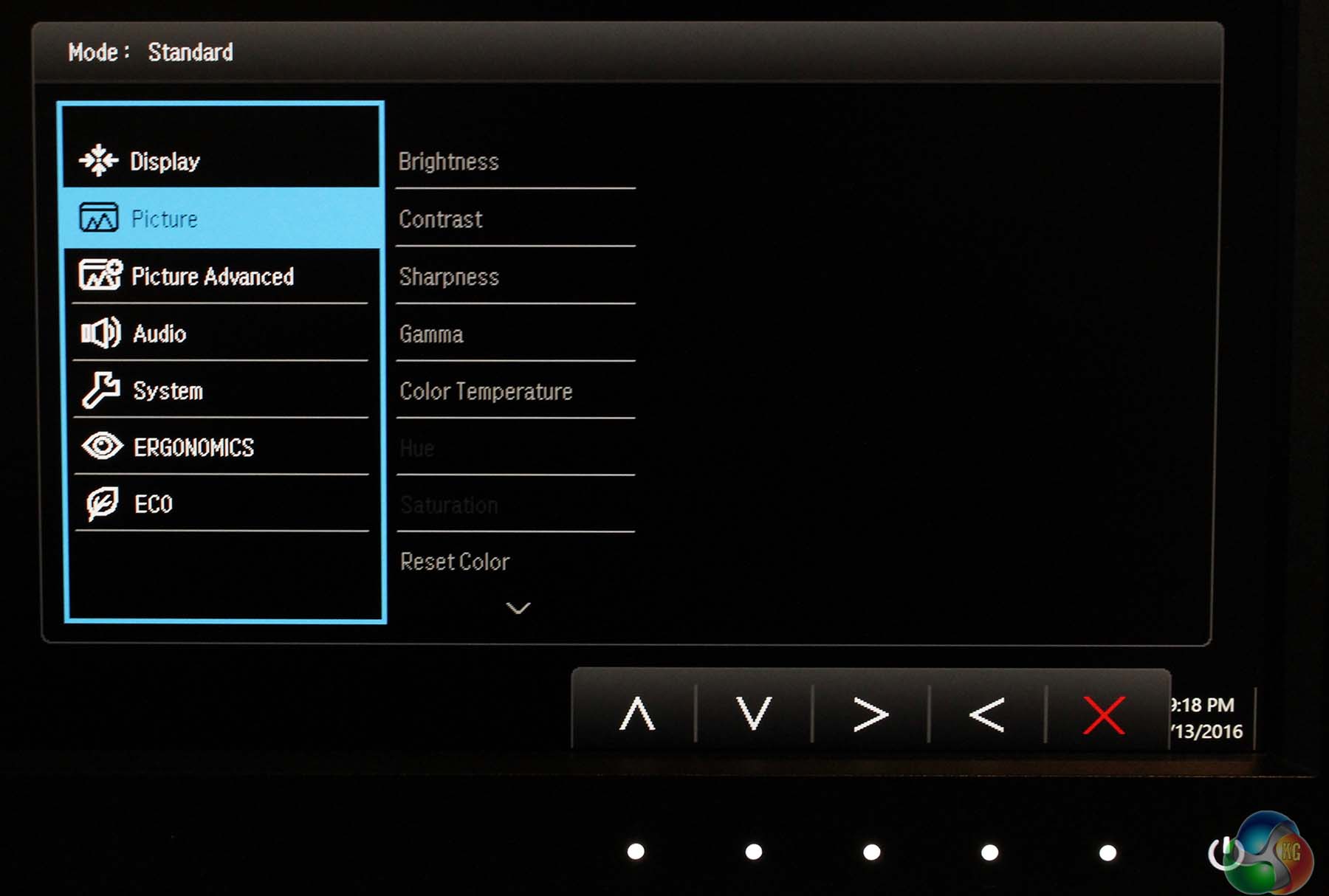
The next one down is the picture menu, with brightness, contrast and sharpness controls. Hue and saturation are blurred out and only become available when creating a user preset. There are also gamma and colour temperature controls.
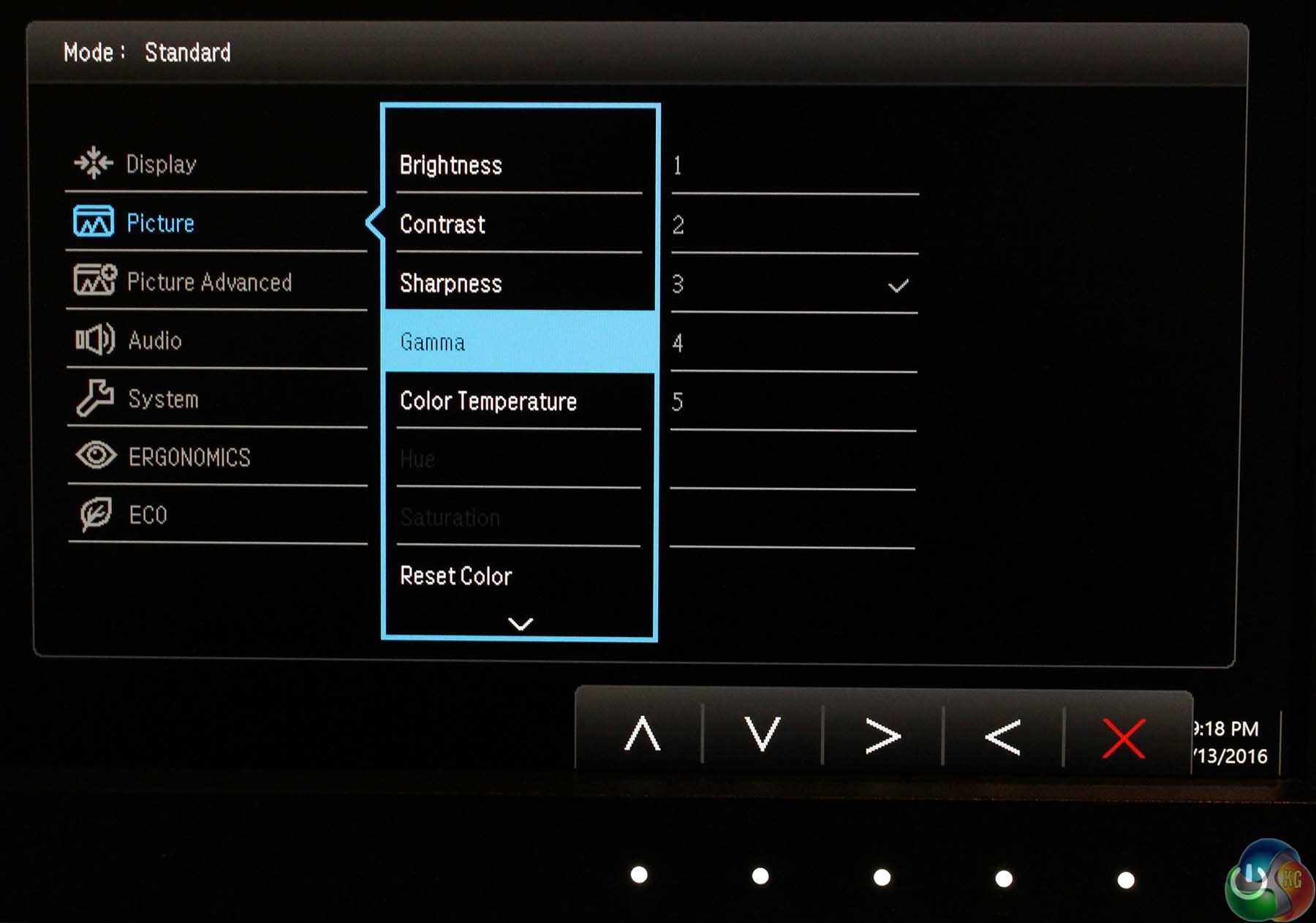
The gamma controls are unhelpfully labelled 1-5, rather than any values. What do they mean? We’ve tested them on the next page.
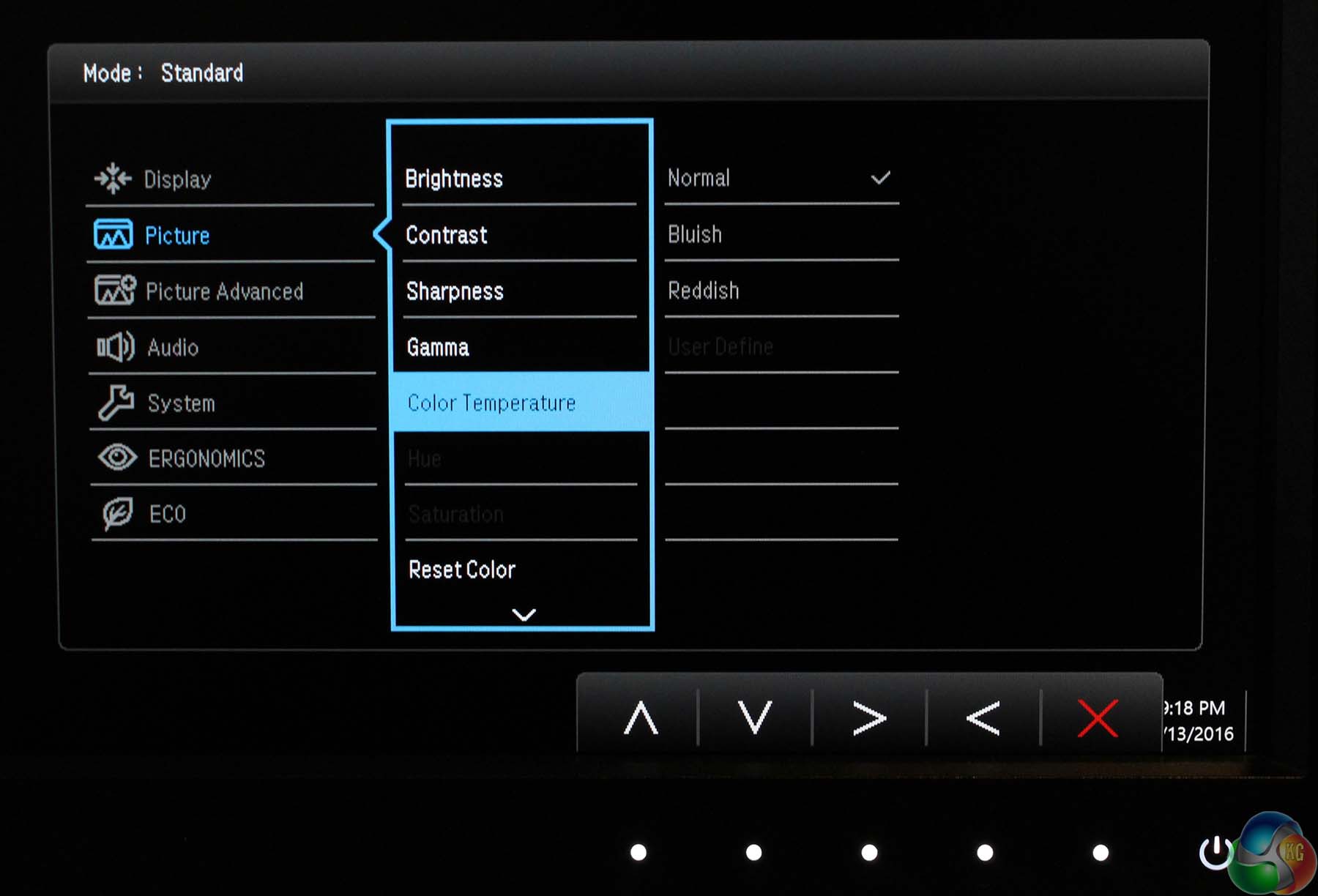
There are also three colour temperatures labelled reddish (warm, a low kelvin), coolish (blue, a higher kelvin) and normal (close to 6500K).
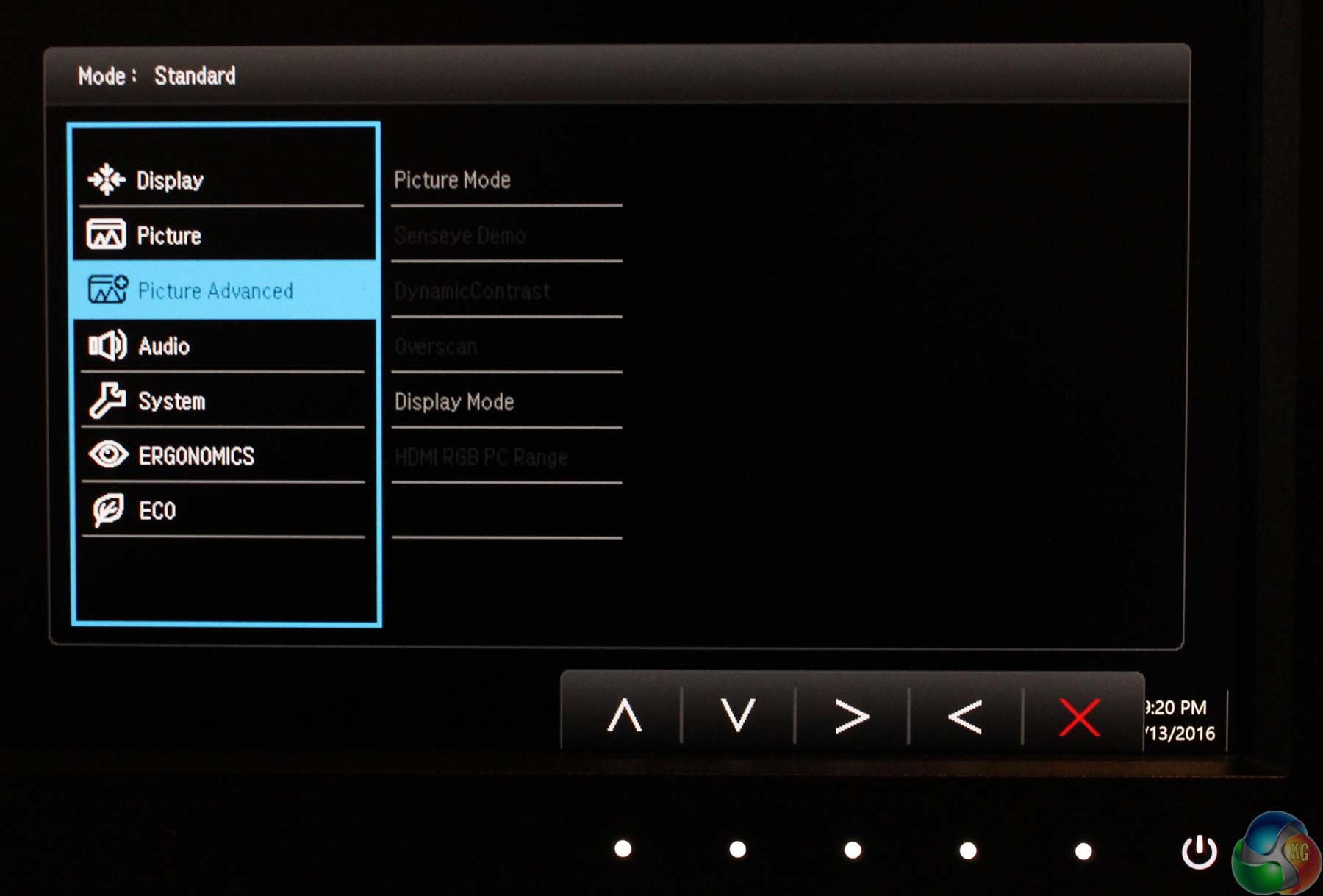
The advanced picture menu has a set of options that are greyed out or enabled depending on the picture mode. The Picture Mode menu shows the list of presets, the Display Mode allows you to change the default scaling (we left it on Full).
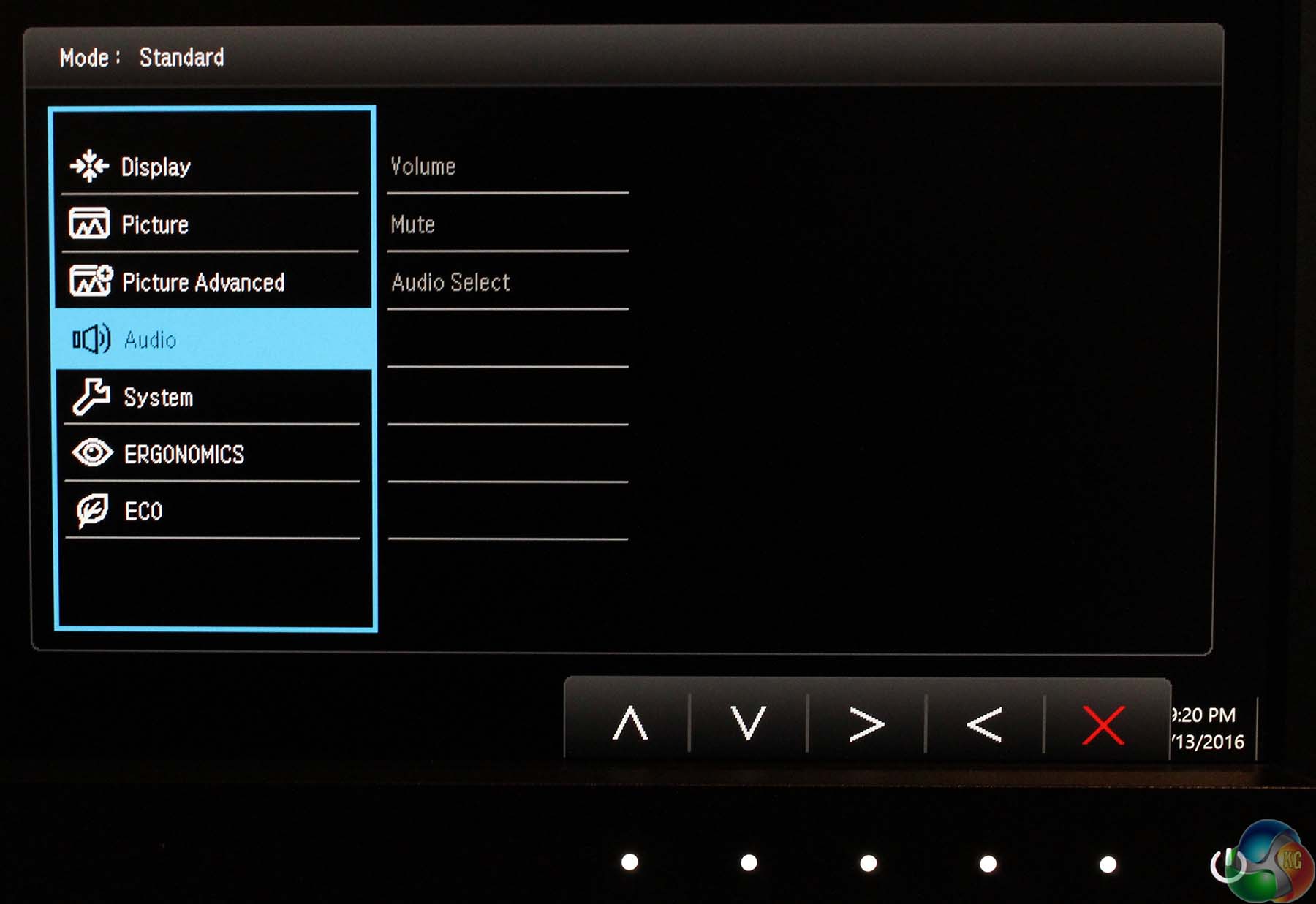
The audio menu has some simple sound controls including a mute option, the volume and audio input selector.
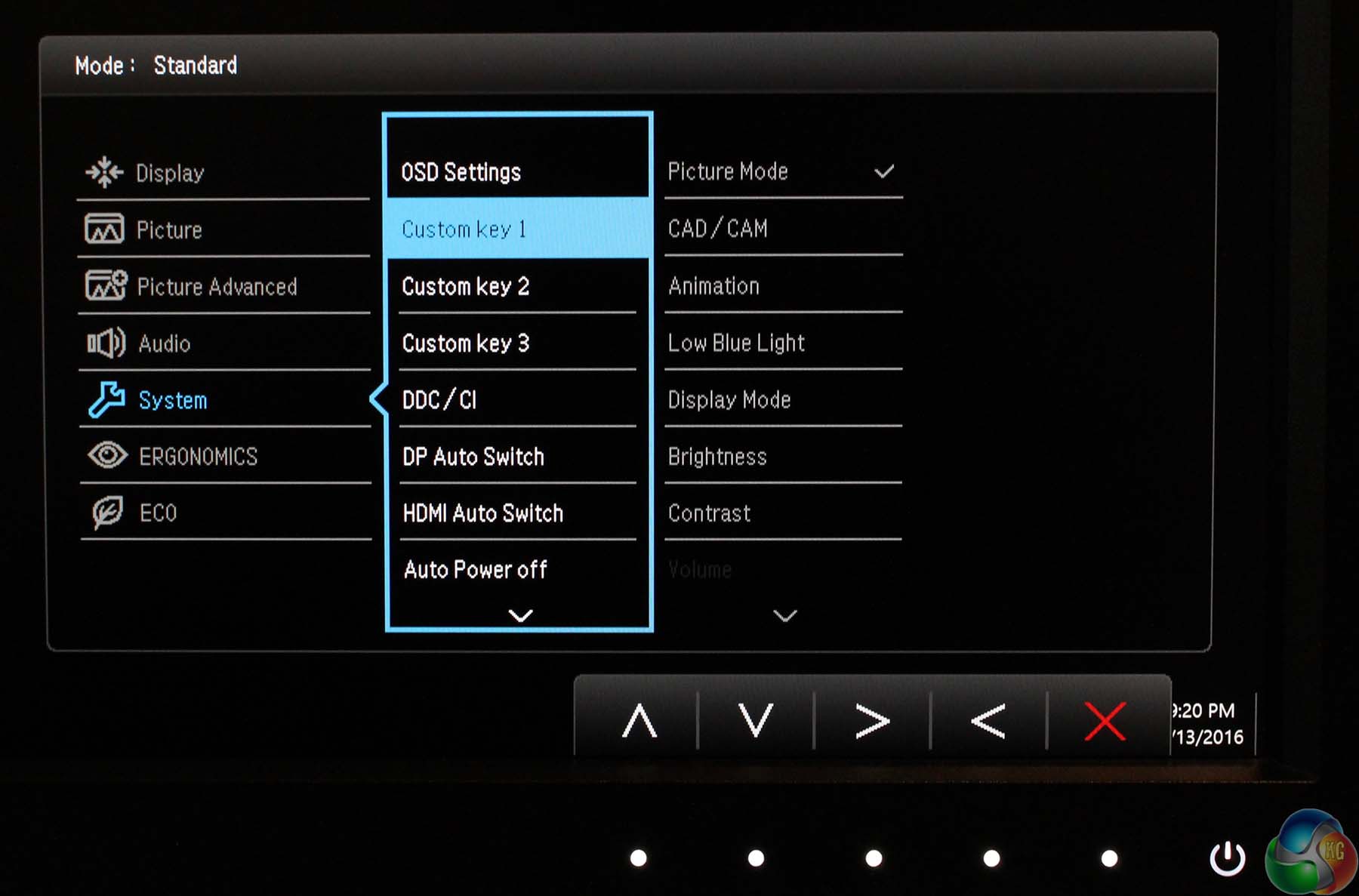
The system menu has a few useful settings, including the option to change any of the three main shortcuts.
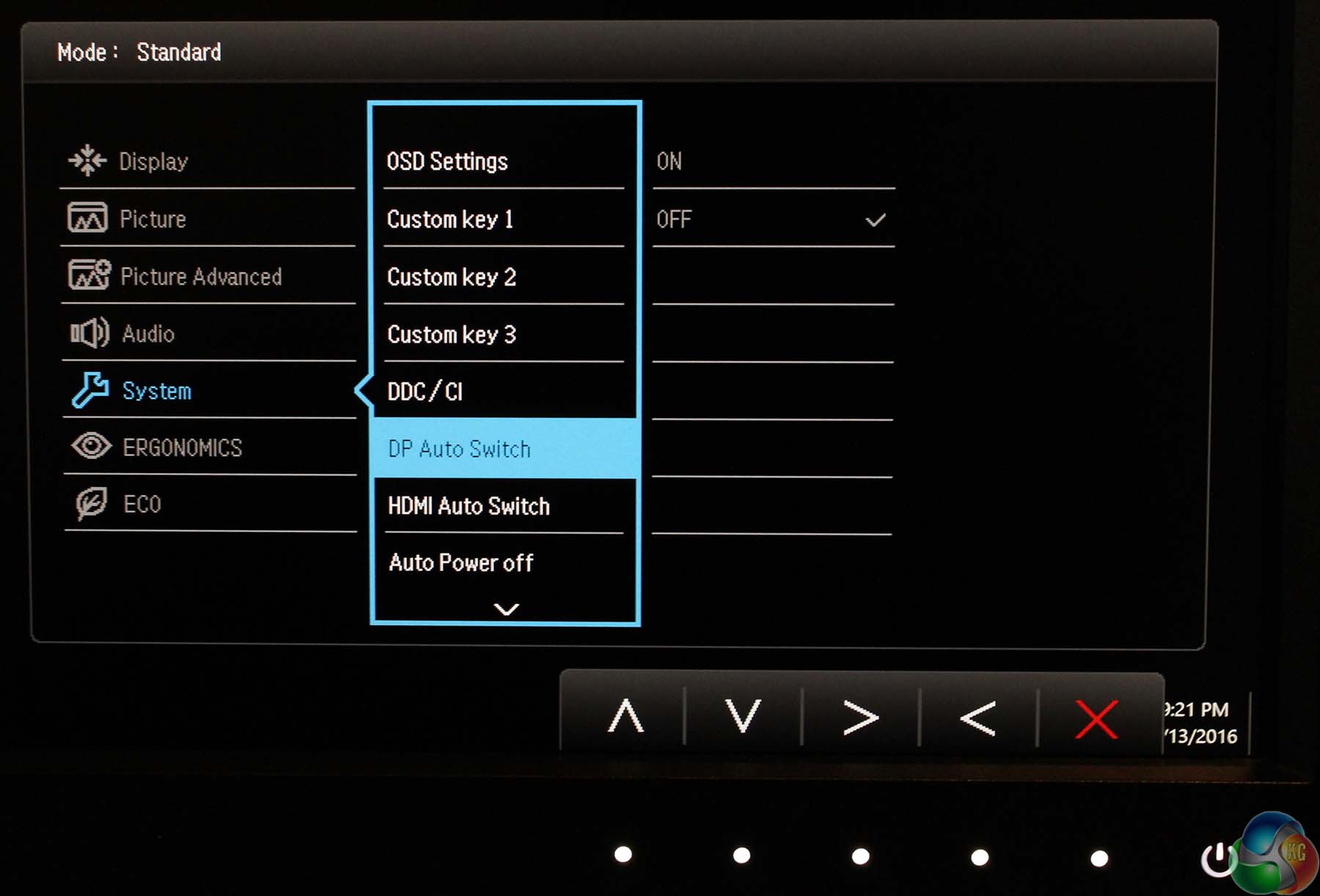
And choose whether to automatically switch to DisplayPort or HDMI inputs.
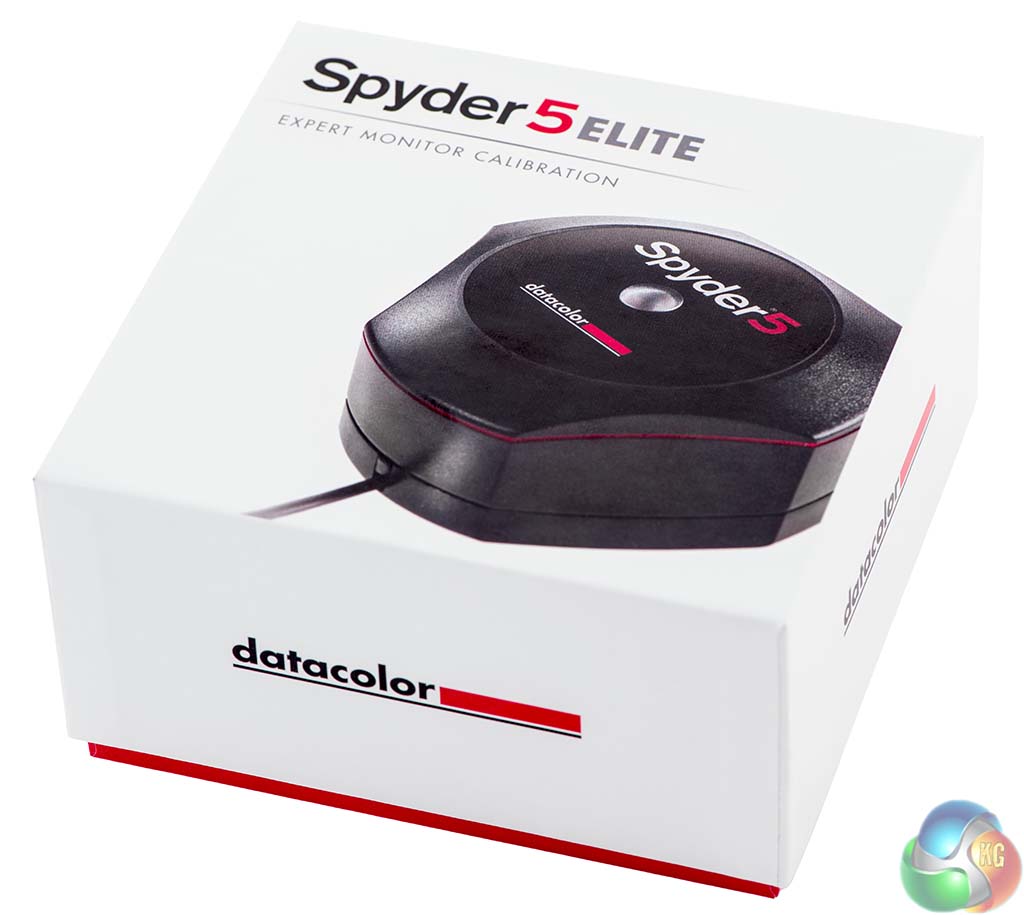
While subjective analysis forms part of any product review, it’s important to measure displays with a colorimeter to ascertain exact, objective results for the brightness, contrast, and colour accuracy.
We use a Spyder 5 Elite colorimeter, which is first run on the screen in its out-of-the-box, uncalibrated state. We check the gamma levels, default brightness and so on, then calibrate the screen and measure it again.
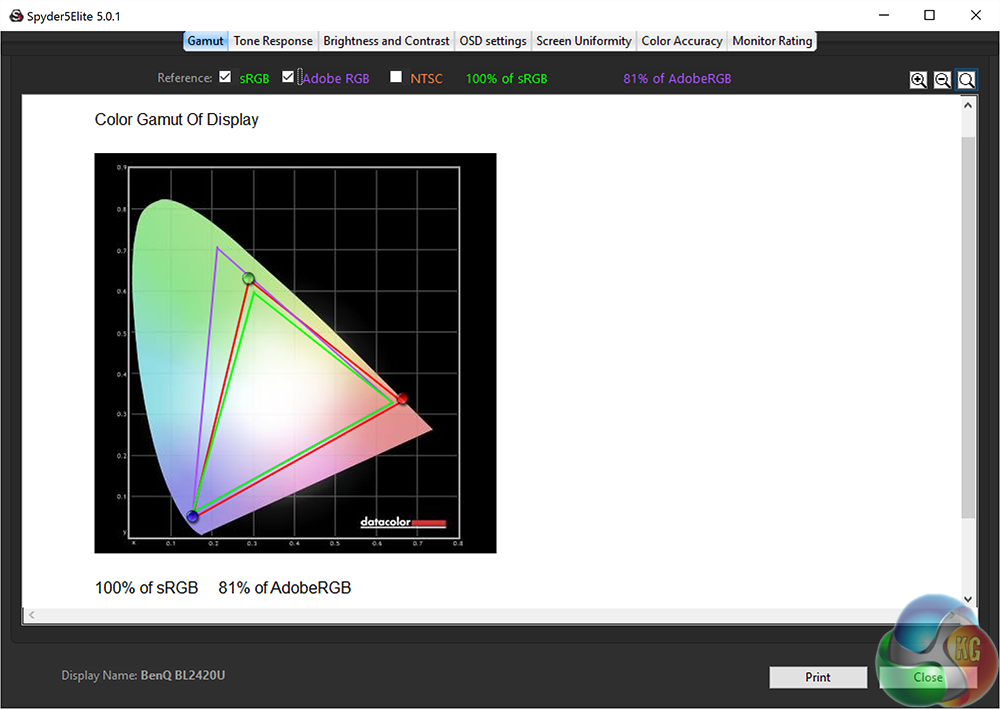
81% Adobe RGB is a good score, slightly ahead of other IPS displays.
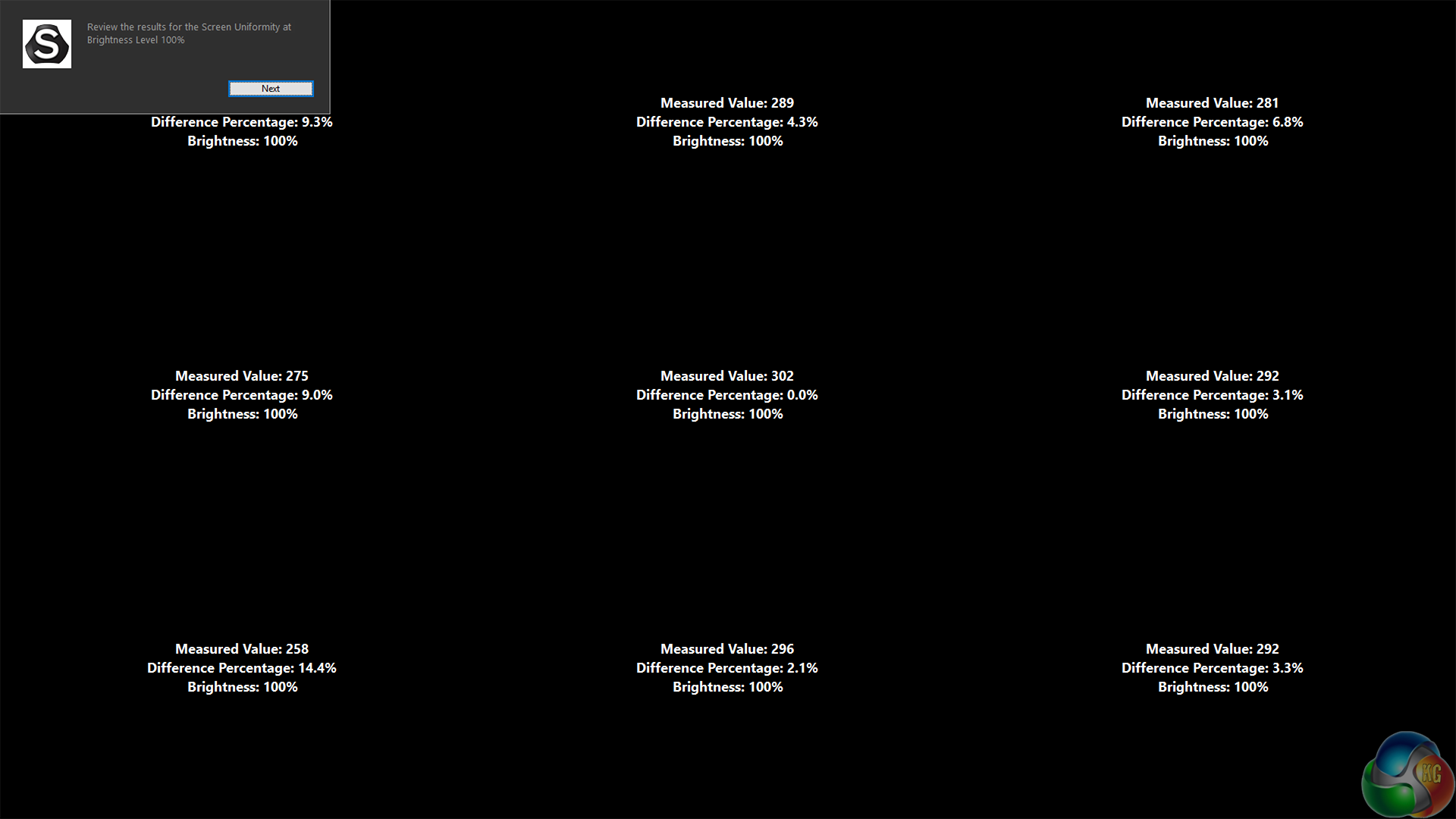
The brightness uniformity is also better in every quadrant, with a variation under 10%, except for the lower left.
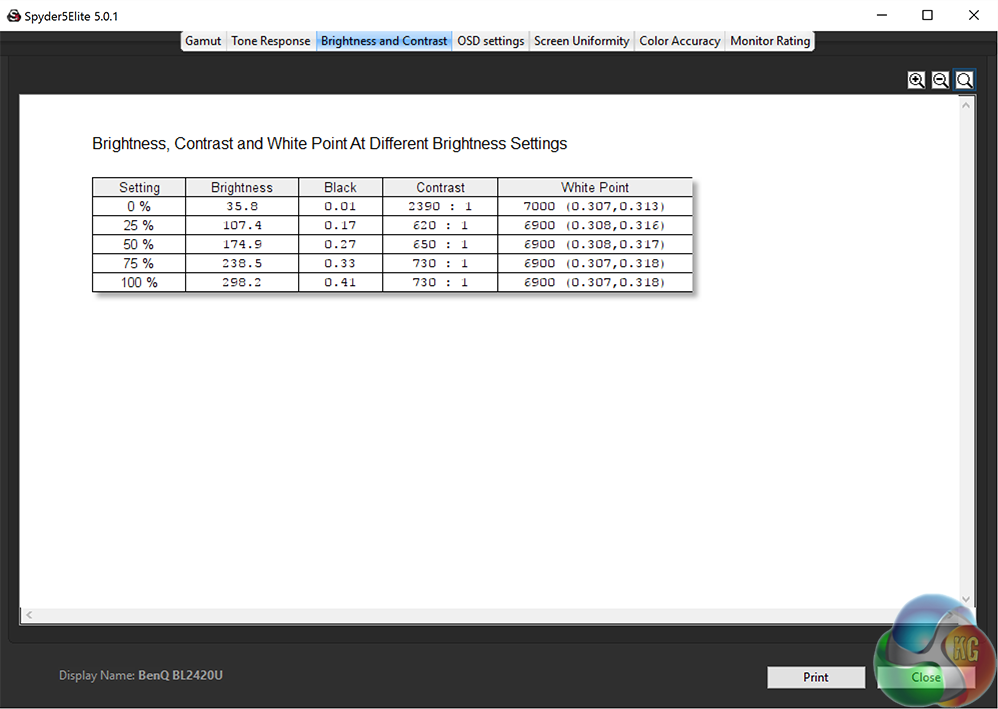
Tests show the brightness of 300 cd/m2 to be exactly matching BenQ’s claims.
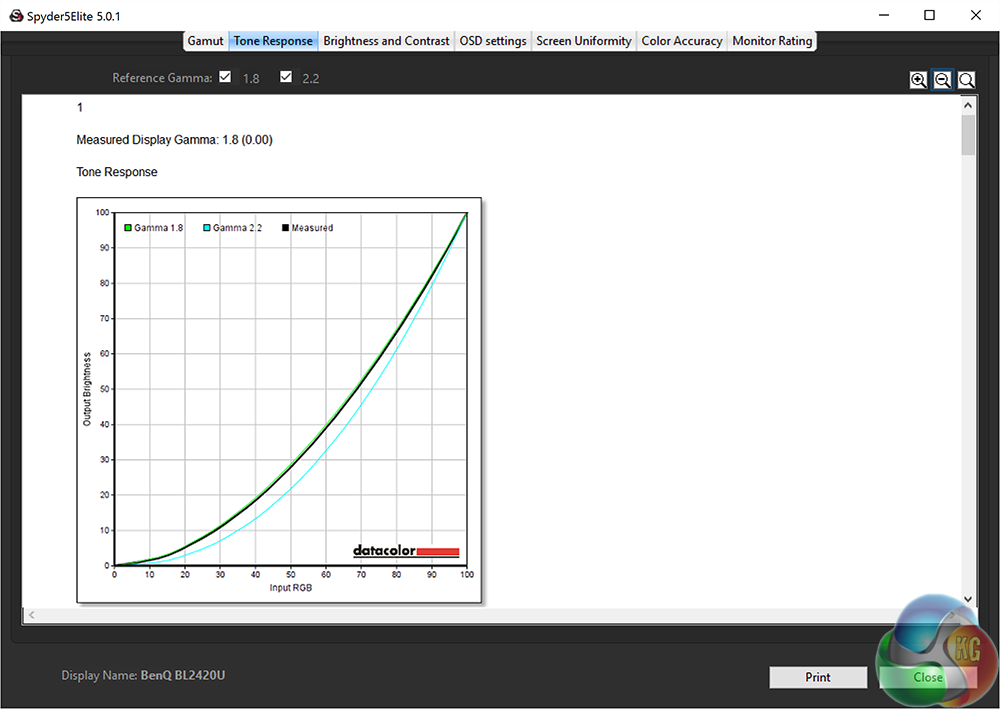
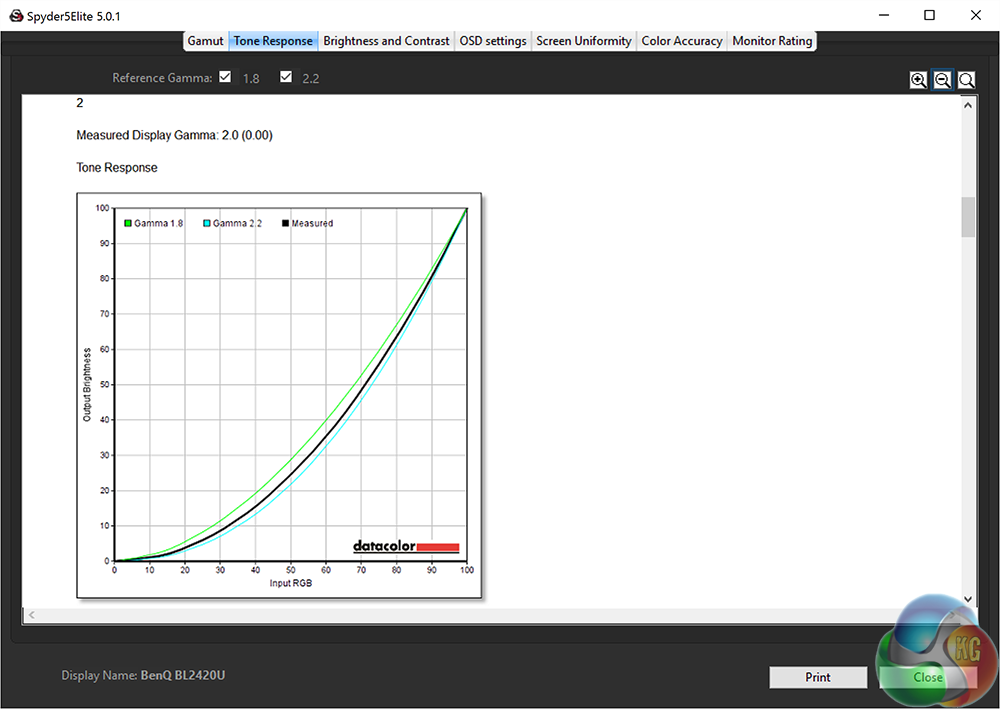
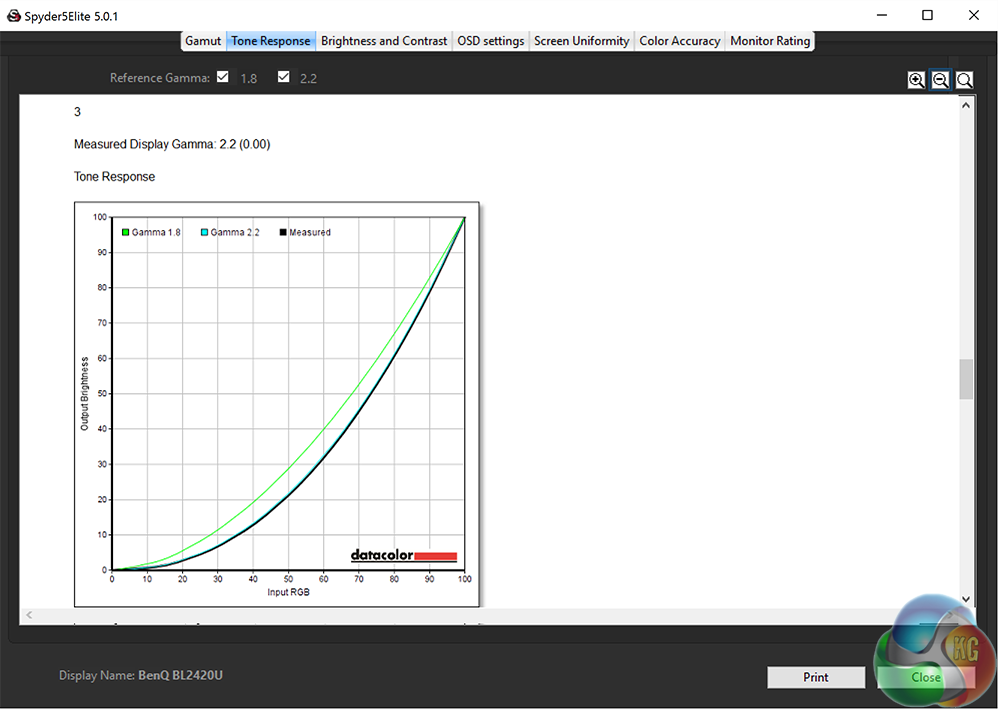
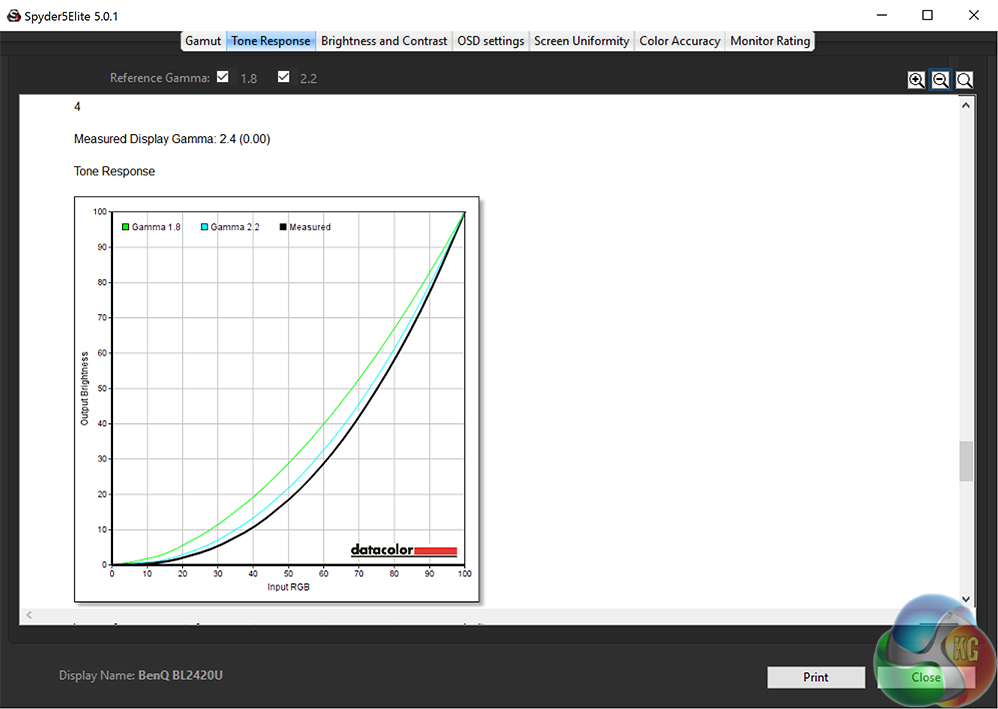
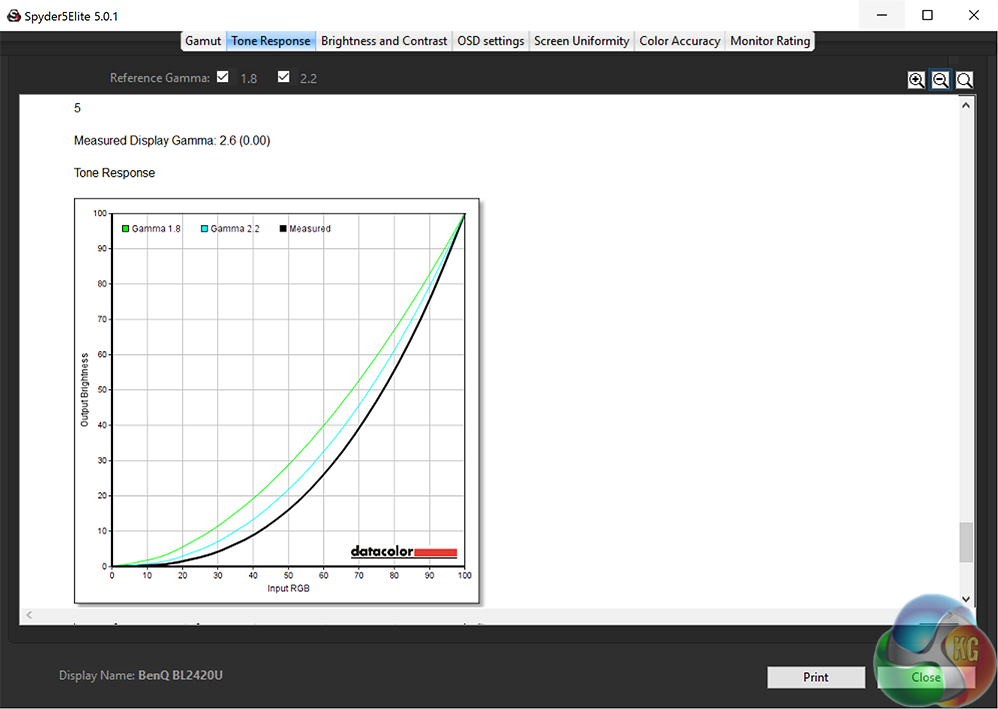
The five gamma values from 1 to 5 correspond with levels from 1.8 to 2.6, with the default set as 2.2, as expected. They’re all very accurate.
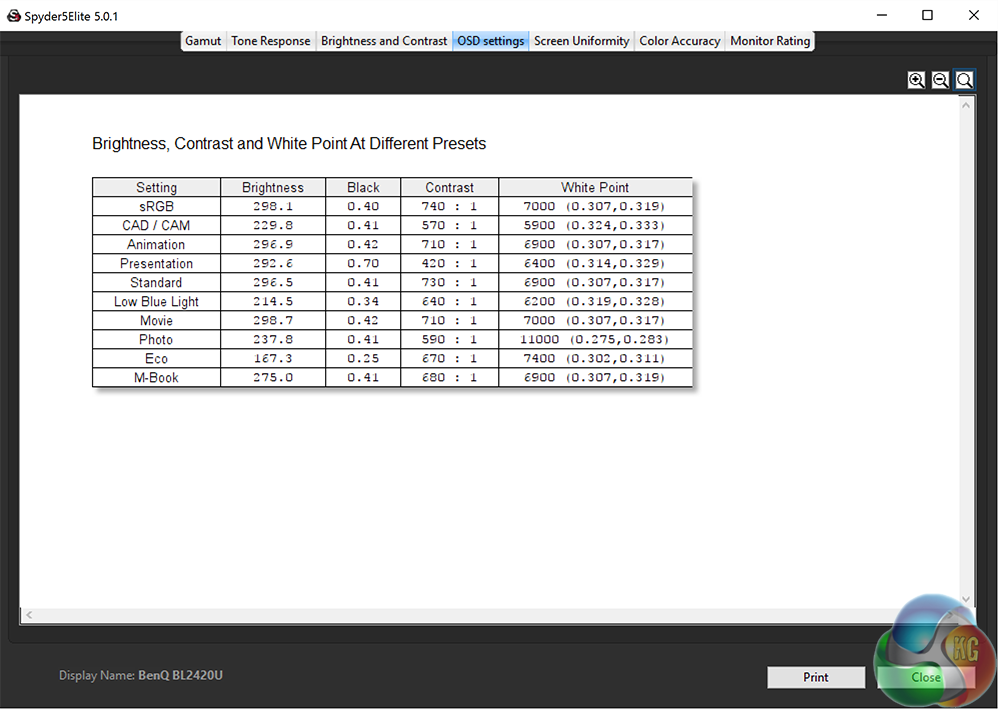
This gives you an idea of the variation between the presets. The photo mode looks far too blue for our tastes, to be expected given the temperature of 11,000K. Low blue light mode has three settings for blue light reduction, for 30% to 50%.
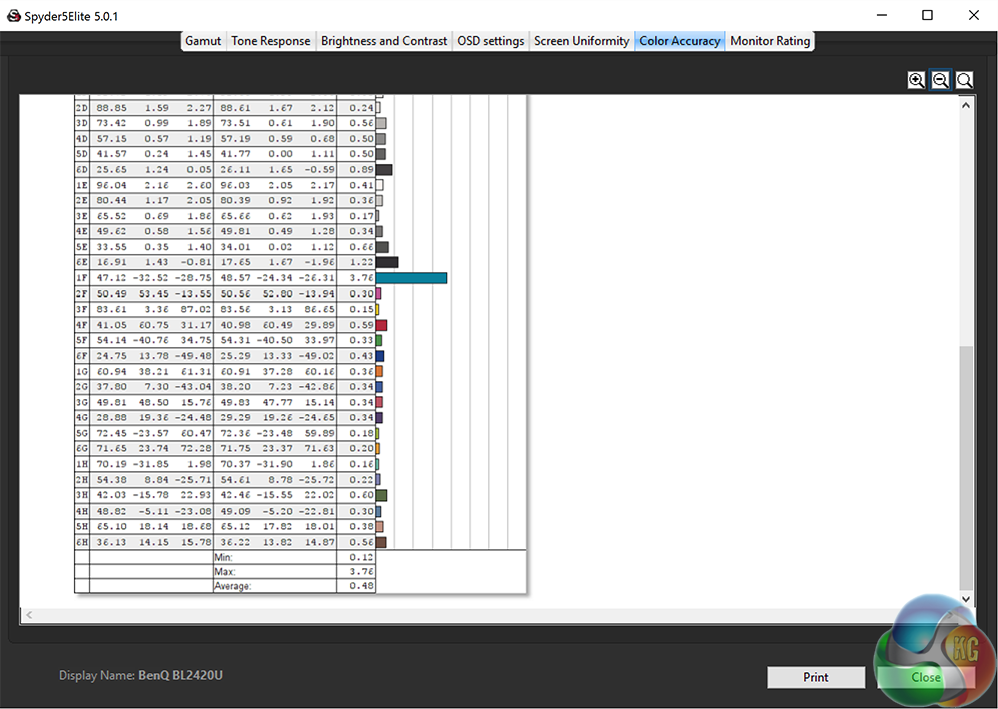
Out of the box colour accuracy of under 1 is a great result.
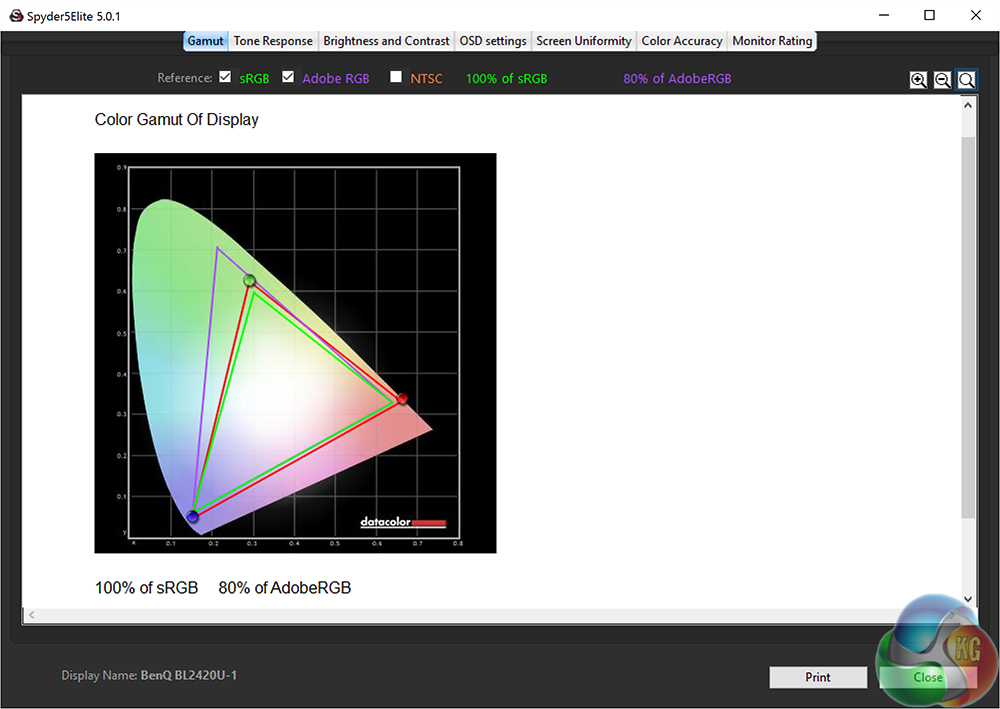
The gamut actually drops slightly with calibration to 80% Adobe RGB.
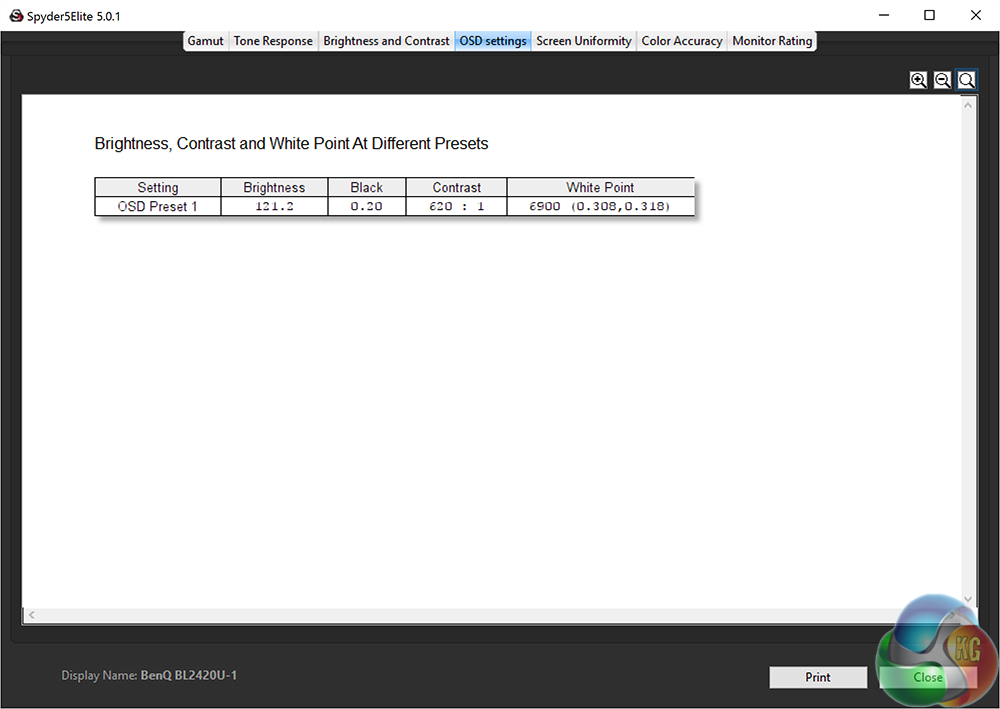
The white point and contrast drop a bit.
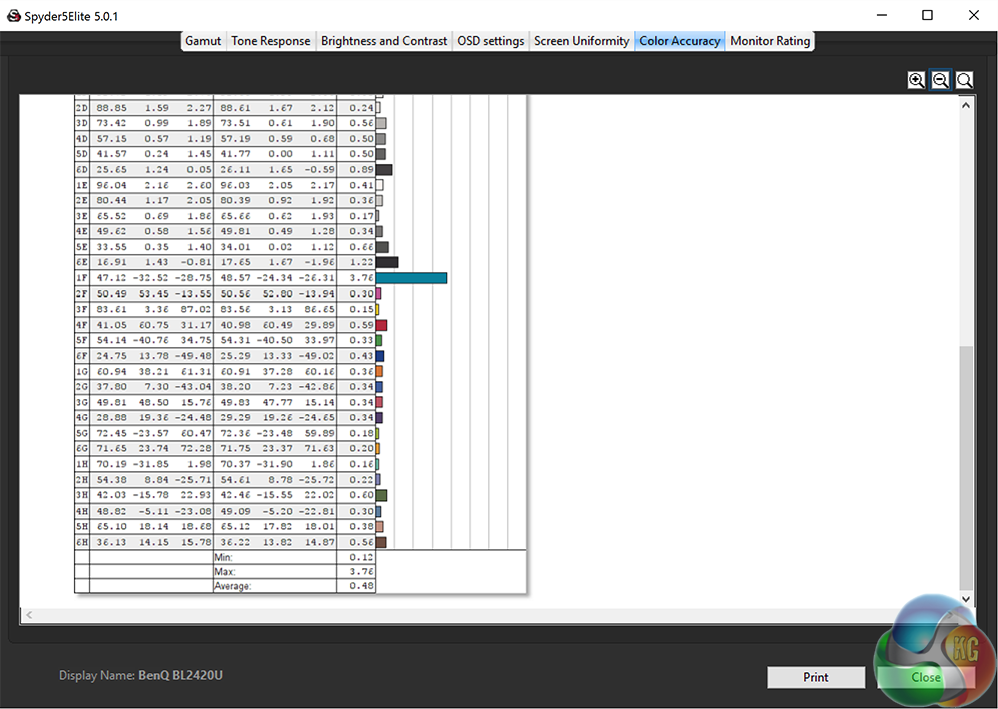
The accuracy remains at the same level.
Despite being billed as a display for professional use rather than gaming, we tried some Battlefield 4 on the BenQ BL2420U at it ran just fine, without a particular blurring or lag, but we stress this is a subjective opinion from a quick 10 minute game.
There was some screen tearing though, reinforcing the fact that no adaptive-sync hardware is present.
The audio levels weren't particularly high. At 100% volume the BL2420U doesn't exactly deliver sound that will shake Wembley stadium, but it is clear and crisp.
At 100% brightness we recorded a power consumption of 30.1w, which is roughly average for a 24-inch display with a high resolution.
The BenQ BL2420U is a great little display, with a strong emphasis on little. As we stated early on, this is a display that’s aimed at professional users rather than gamers. The expansive screen sizes of curved ultra-wide displays measuring 34 inches or 35 inches provide a massive window to gaming worlds, but the 23.6-inch screen is firmly in the opposite direction. In fact, we haven’t reviewed a 4K screen with a smaller size than 27 inches.
Only a few years ago, a 24-inch screen was seen as quite large for a computer display and many people happily used this screen size for gaming on. But the 7ms response time is a deal breaker. It simply isn’t as fast as other displays and it shows slightly in use, and therefore if you are after a gaming monitor, the BenQ BL2420U should not be your first choice.
But outside of this limitation, it’s one lovely screen. It works just great at 4K resolution with the Windows DPI set to 200% and, yes, as we said before, it does look like a giant ‘Retina’ display.
The stand is as flexible as we’d like to see, the SensEye feature works very well, the audio is passable and there’s a generous (ish) range of video inputs.
BenQ deserves a pat on the back for its OSD and menu design too. The shortcuts work brilliantly, with an overlay that appears over the touch controls making it amazingly simple to navigate the menus. Not every manufacturer gets this right, and navigating through archaic menu structures from some fills us with dread when testing them. Not so with the BL2420U though.
In those menus are loads of useful ways to customise the image quality. The range of presets is perhaps excessive, but we were generally very happy with what was on offer.
The screen isn’t particularly bright, achieving just 300 cd/m2 in our tests, as quoted by BenQ. It’s more than passable though, and the contrast, spot-on gamma results and outstanding colour accuracy are all plus points for the image quality.
Unfortunately, there are some times in Windows when a piece of software has not been updated too work properly at 200% scaling. AutoDesk 3DS Max 2015 is one such program, and until recently Adobe software was limited in this way too. Tiny text and icons may make some software unusable on a 24-inch screen. This is not really the fault of BenQ though, and to avoid this, it’s worth using the most up-to-date versions of software.
Finally with a smaller, cheaper panel, it has a significantly lower asking price than other 4K IPS screens. Indeed, some 24-inch 1080p IPS screens are only £100 less. For the same price as some larger 4K screens, you could have two of these, running a massive dual-4K desktop, albeit with a massive ugly bezel down the middle.
It all boils down to what you use your computer for, and whether 24 inches is to be preferred or avoided. But beyond that, the BL2420U is a very good screen with image quality that will not disappoint.
Pros:
- Great OSD
- Great picture and colours
- Relatively affordable
Cons:
- Long Response Time
- Thick Bezel
Kitguru Says: A 24 inch screen might not be for everyone, and the BenQ BL2420U isn’t specifically for gaming, but it’s excellent in every other respect, not to mention good value for money.

what were the proper calibrated settings on the OSD?