KitGuru KitGuru.net – Tech News | Hardware News | Hardware Reviews | IOS | Mobile | Gaming | Graphics Cards


The Drobo 5n is a 5-bay tower NAS designed for SOHO use that does away with conventional RAID arrays and instead uses Drobo's proprietary BeyondRAID technology. Is Drobo a NAS you should consider over better known brands such as QNAP or Synology?
An Introduction to BeyondRAID
Ever since its introduction in the late 1980's, RAID (Redundant Array of Independent Disks) has become the defacto technology for building large amounts of storage with built-in data protection against random disk failures. However large RAID arrays can be complicated to setup, time-consuming to maintain and problematic when boosting capacity.
Drobo's BeyondRAID technology aims to take the best part of RAID – data protection and adds much greater ease of implementation and management while offering larger capacities. Unlike the traditional RAID where there is a protection free option (RAID0), BeyondRAID has only protected levels and then just two; Single disk redundancy (think RAID5) and Dual disk redundancy (akin to RAID6)
One big advantage to BeyondRAID is that you are not tied to using drives of the same capacity, you can mix and match drive sizes.
Another major plus point comes when adding capacity to a RAID group. With traditional RAID the data has to be moved off the group to free all the drive space, then the new drive is added to the group (must be the same size as the others), the array reformatted and the data replaced or the data is migrated to a larger RAID group, either way, it's a very time-consuming procedure. BeyondRAID simplifies this whole procedure offering two ways of increasing the capacity.
Firstly if the Drobo device has a free drive bay then it's simply a matter of adding another drive or if all the bays are full just swapping out the smallest drive and replacing it with a larger one and as hot swapping is supported there is no need to power down the device. There can also be huge savings in time as there is no need for any of the data to be moved during the operation.
BeyondRAID Features
- Thin Provisioning
- Instant Expansion
- Mixed Drive Size Utilization
- Automatic Protection Levels
- Single – or Dual-Disk Redundancy
- Virtual Hot Spare
- Data Aware
- Drive Re-ordering
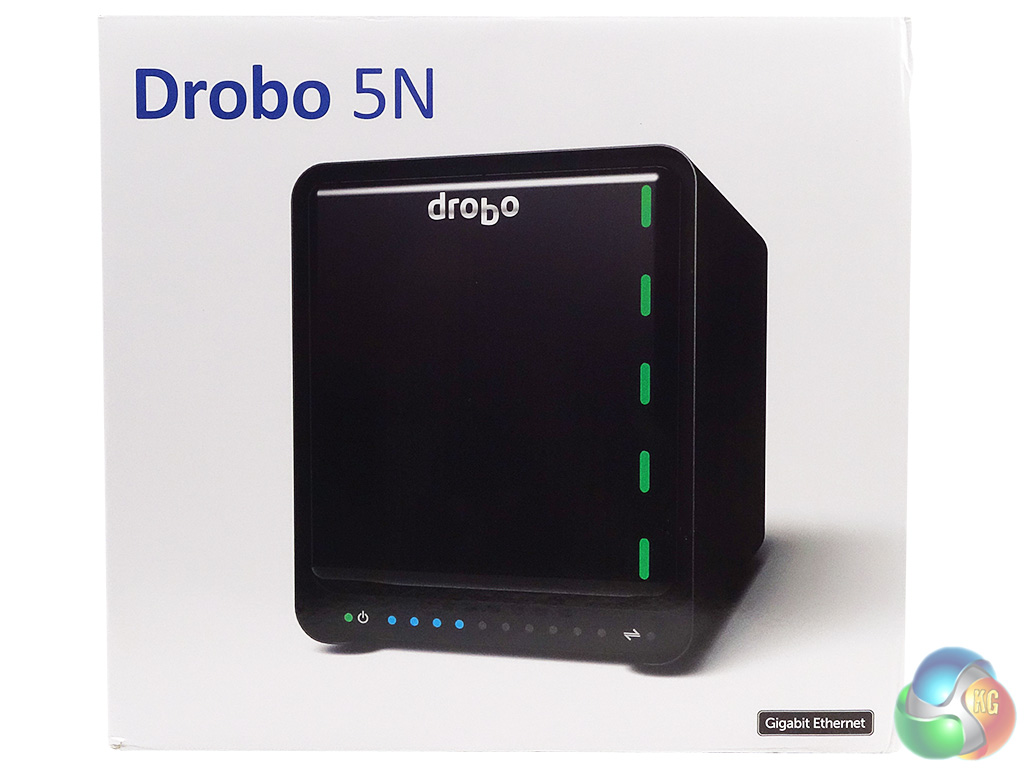
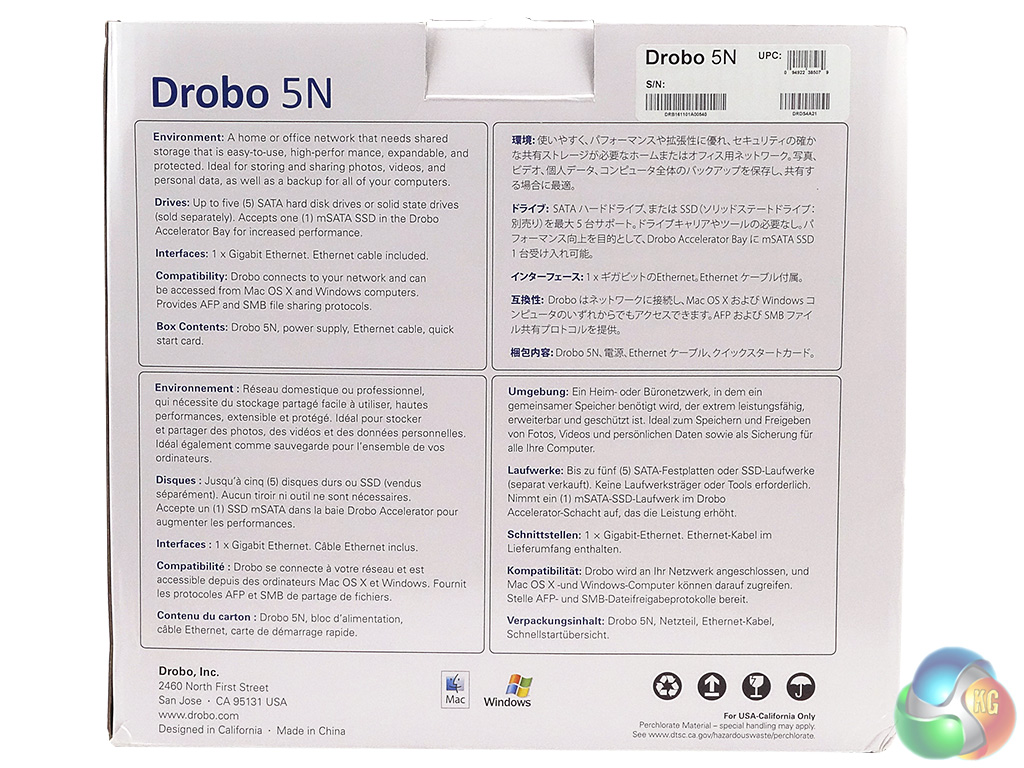
The Drobo 5n comes in a fairly large box with a large image of the unit on the front with multilingual panels on the back describing what the Drobo can be used for, how many drives it takes, its interface, network compatibility and finally what's in the box.
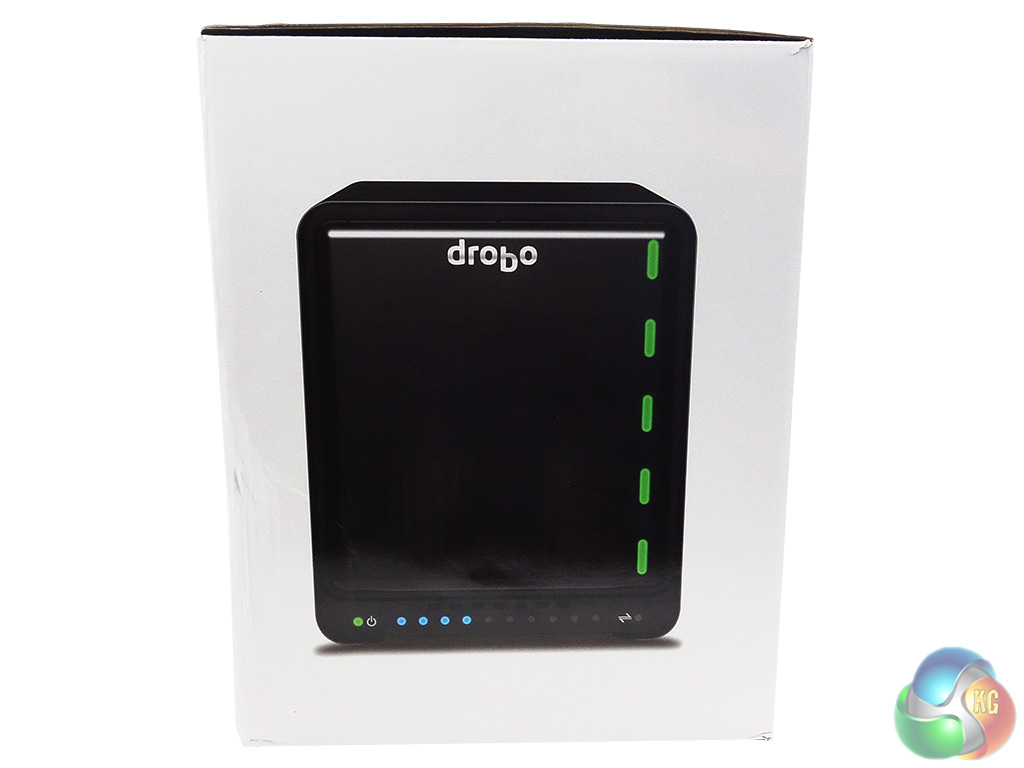
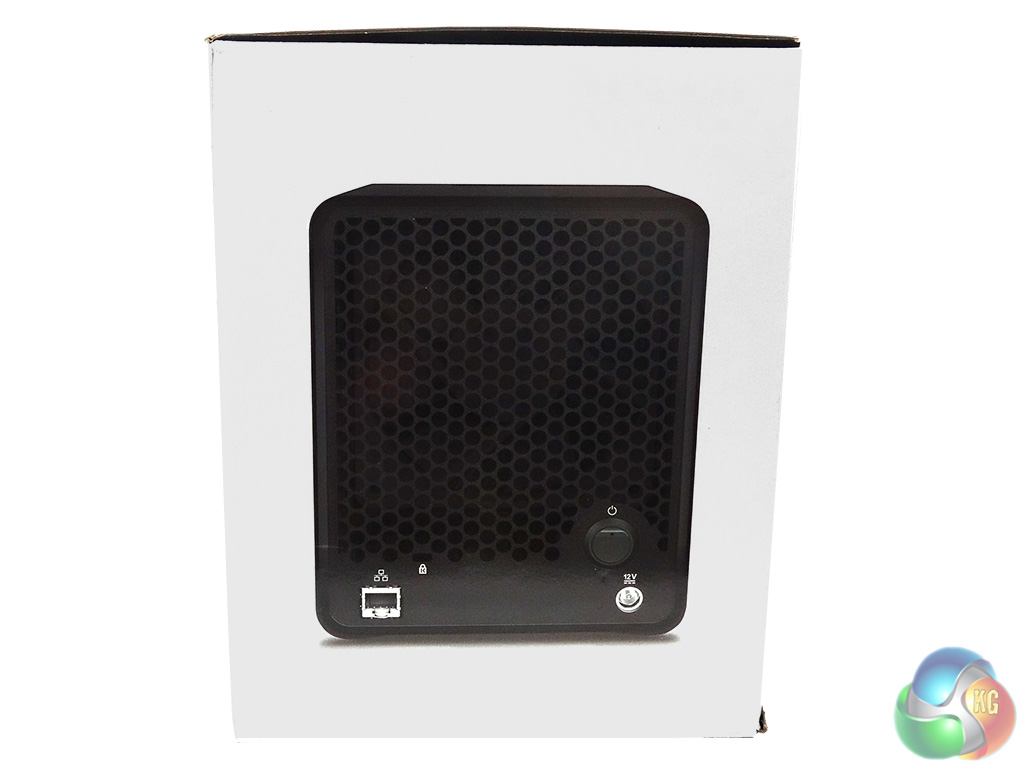
The two box sides display front and rear images of the 5n.
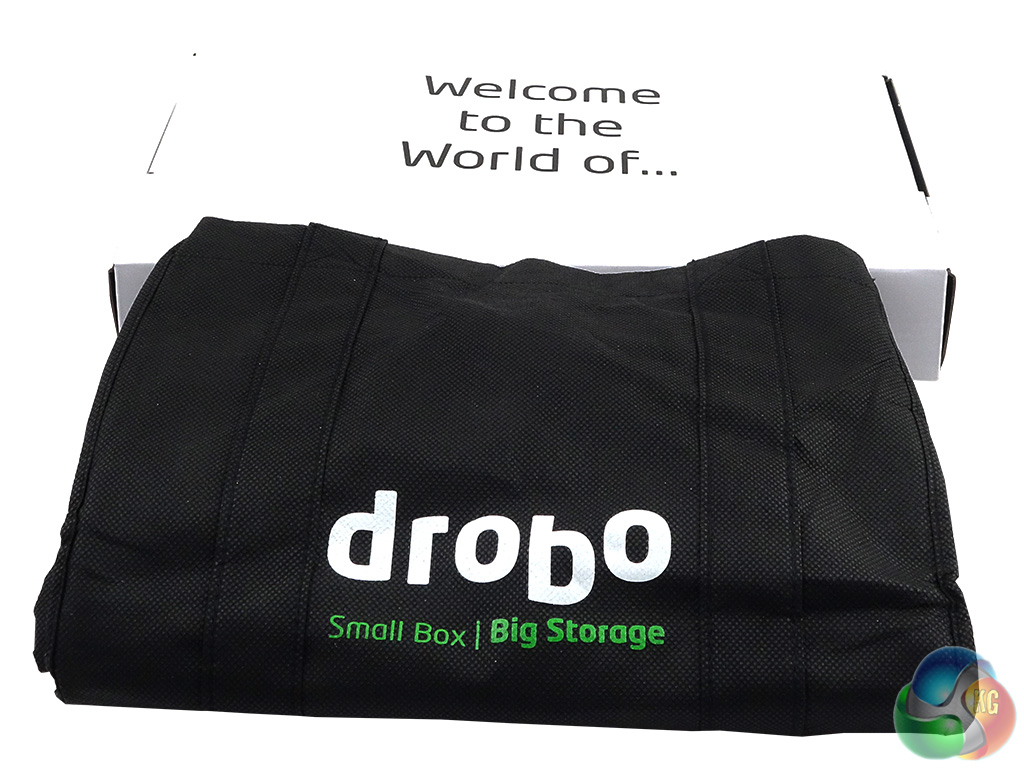
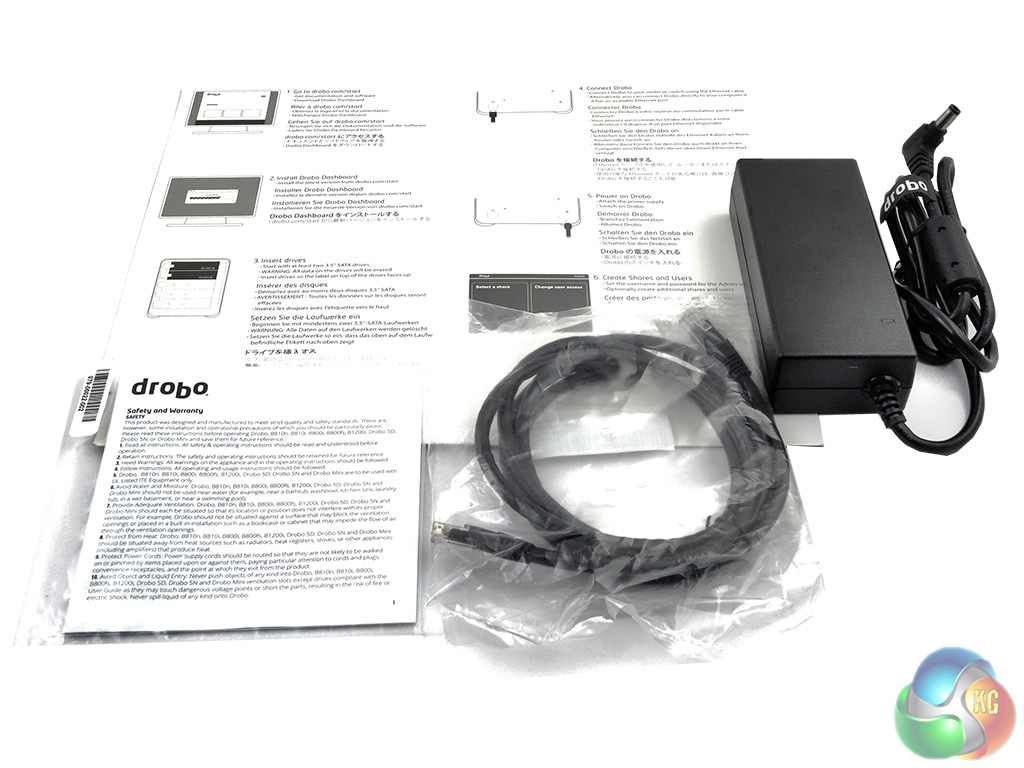
The Drobo comes packed in a black carry bag which is handy should you want to lug it around as it's no lightweight. Instead of the usual nondescript brown box holding all the bits and bobs there is a sturdy large white box.
It's a bit of overkill as all that's in it is the power adapter, an Ethernet cable and a large, clearly laid out quick start card but its the size of this start card that has dictated the larger than normal bundle box.
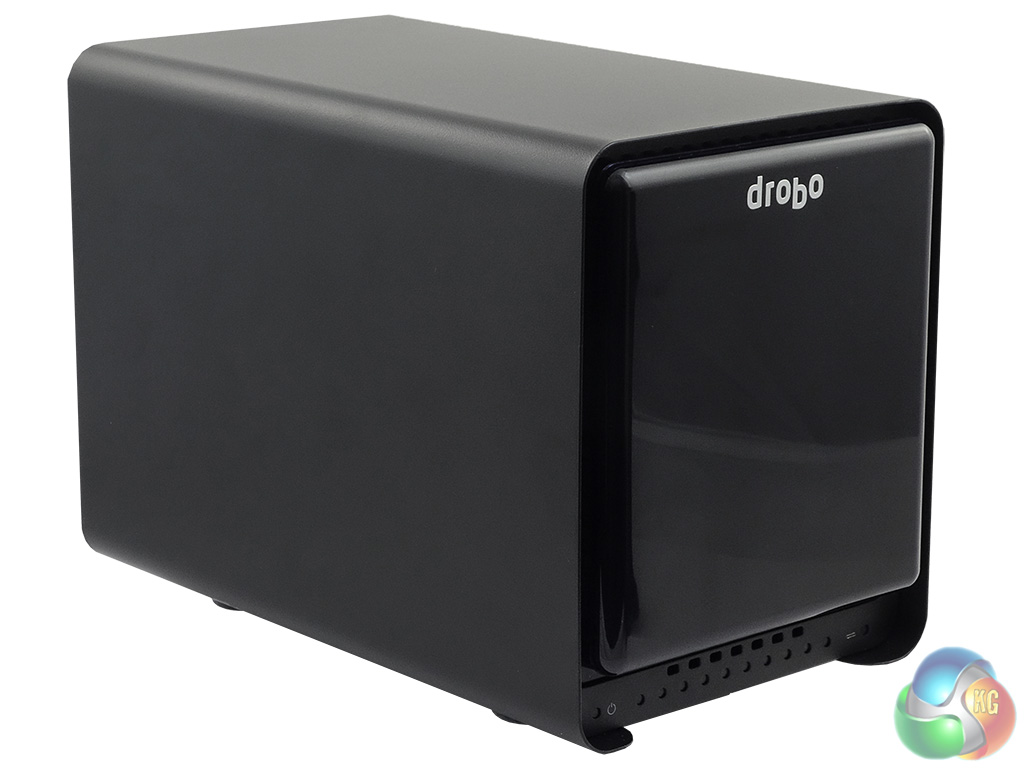
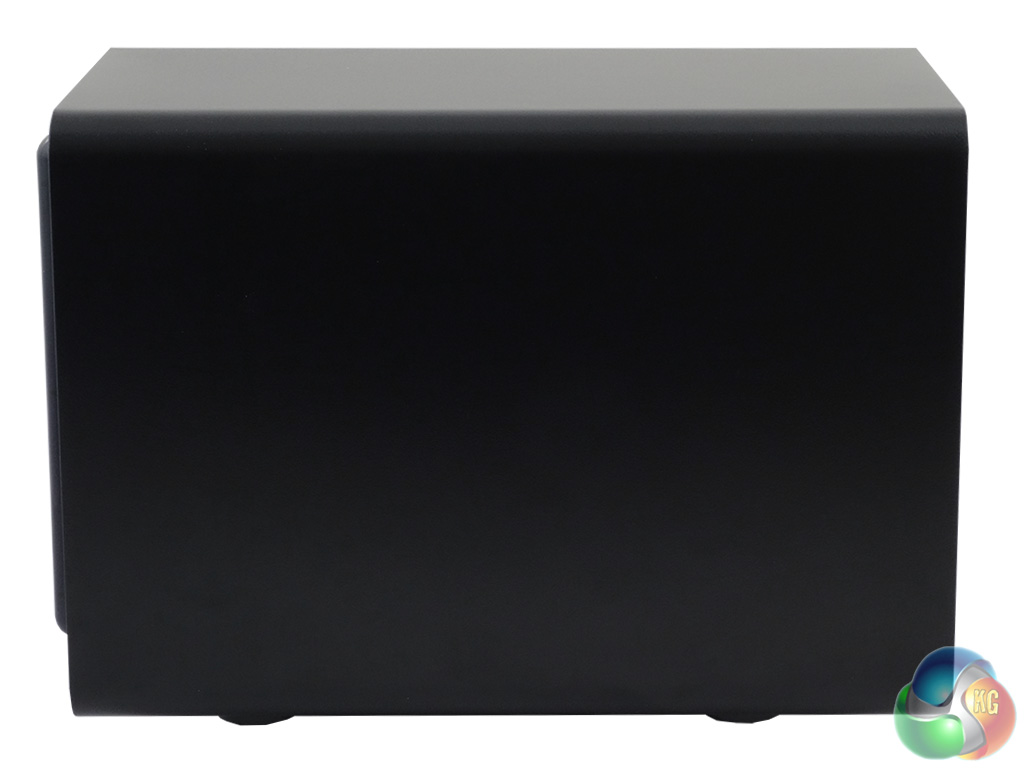
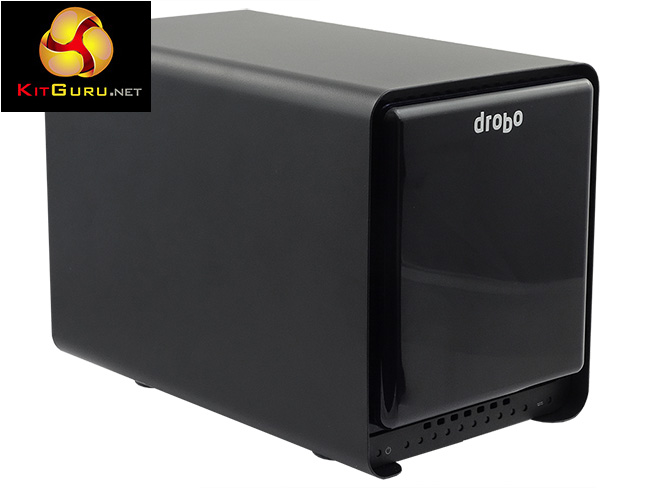
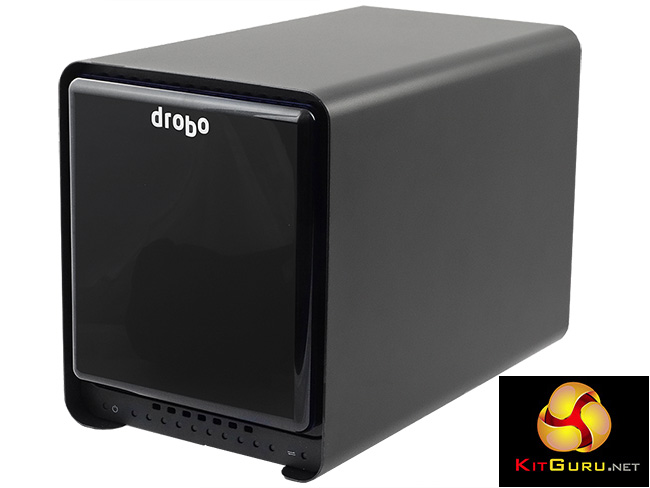
The Drobo 5n is a sturdy, well-built NAS with a mostly metal construction which accounts for its hefty 3.9kg (empty) weight. The detachable front bezel plate is made from good quality plastic, has a shiny finger print attracting Piano Black gloss finish and is held in place by magnets.
The front of the unit is devoid of any ports or power buttons and looks pretty dull, that is until you turn the system on when it lights up like the proverbial Christmas tree. The front right-hand side of the unit holds a vertical row of drive bay LEDs which glow green, amber or red depending on the what the drives are up to. Usefully there is a little schematic on the inside of the front plate that explains what the colours mean and what, if any, action needs to take place.
At the base of the front panel sits a row of twelve indicator LEDs. The first one is the power mode indicator (green – power on, yellow – standby, red – over temperature) while the last one indicates data transfer activity. The ten in between these two display the percentage of storage space used and these are blue. You can set the brightness levels for the LEDs in the Drobo Dashboard.
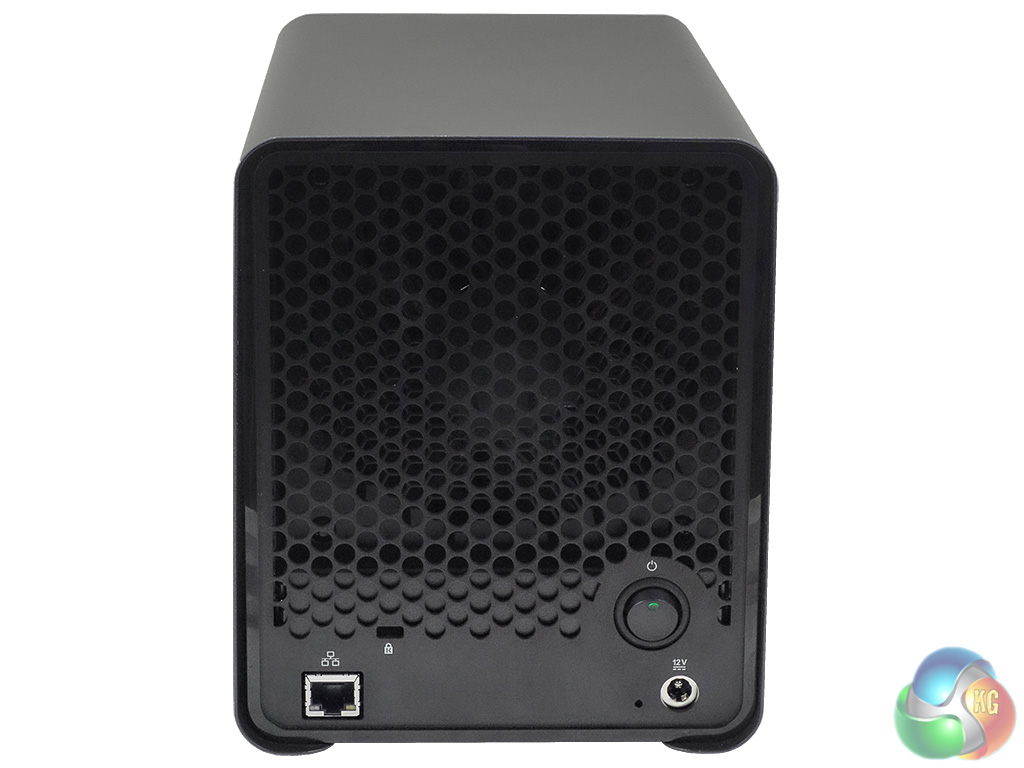
The rear of the unit is dominated by the grill for the cooling fan with the only other things on the rear panel being the ports for the power adapter and Ethernet and the power button. That rear-mounted power button will soon have you cursing if you have the Drobo on a shelf or in a cupboard. The Drobo 5n has no ports to connect an external device to so there's no way to drop data directly off the unit to an external drive for extra security, which is a bit odd for something designed with the small office environment in mind.
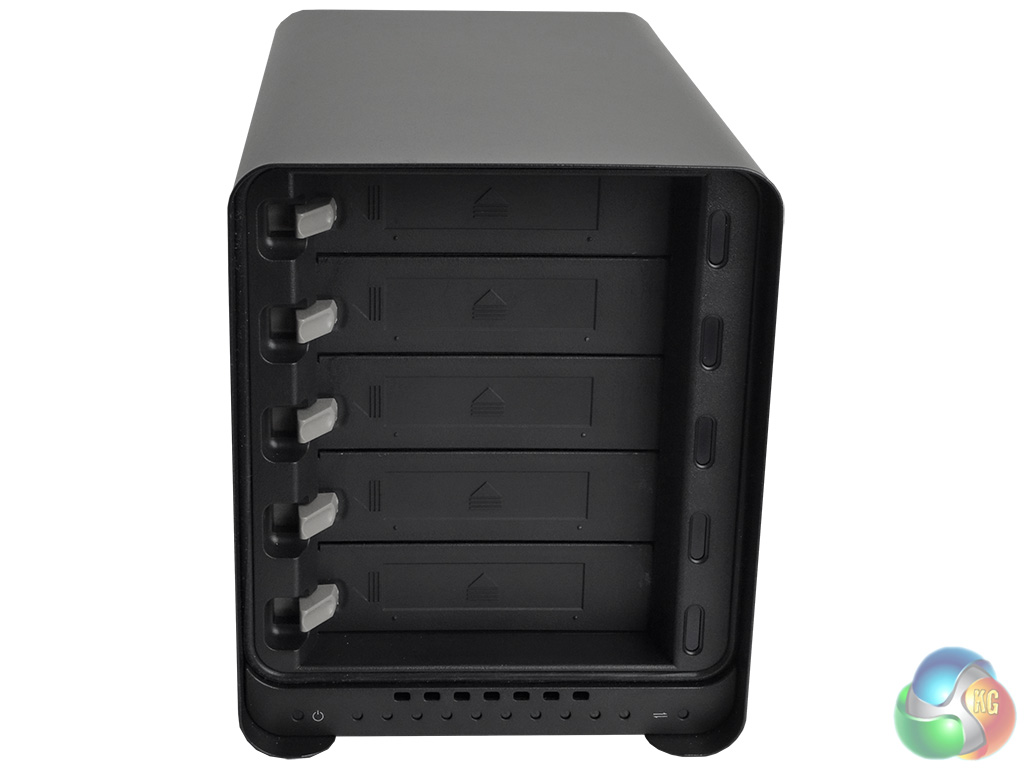
The five drive bays sit behind the detachable front plate and are tool free. The bays themselves are protected by sprung doors which are forced up and out of the way by pushing a drive into them. Each bay has a latch to hold the drive in place. There's no form of extra physical security in the way of drive bay locks etc. The bays support drives up to 8TB in capacity.
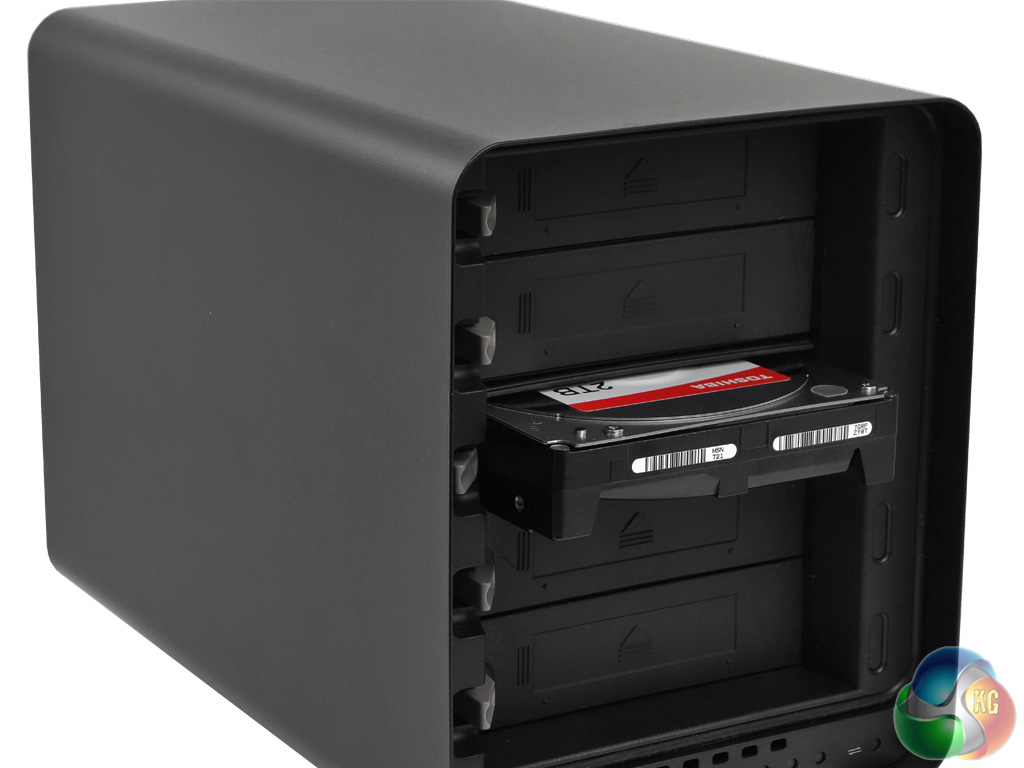
The bays support both 3.5in and 2.5in but in the case of 2.5in drives you need to use bay converters. Incidentally, Drobo recommends IcyBox products on their website but we used Startech 25SAT35HDD converters and they worked perfectly well.
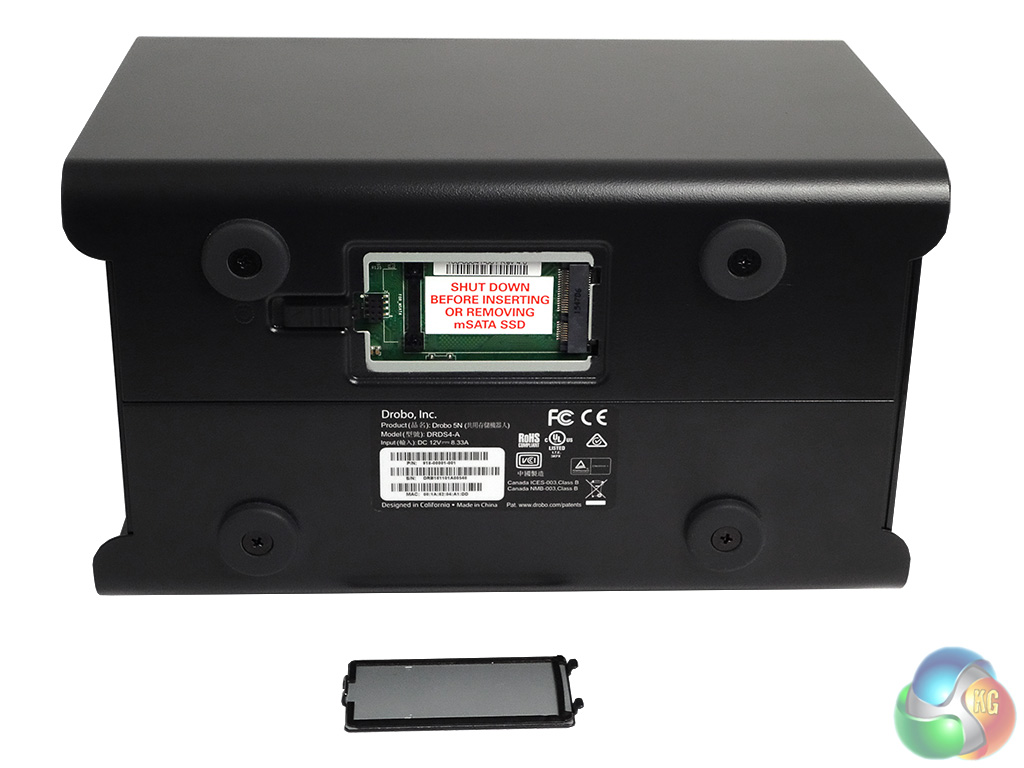
In the base of the 5n is what Drobo calls the Accelerator Bay, a compartment that holds an mSATA slot.
Access to this compartment is via a small hatch that has a sliding lock to hold in place. Drobo recommends an mSATA drive in the 64GB – 120GB range; going larger provides no real benefit. At the time of writing the 5n does not support SandForce based drives in either the main bays or the Accelerator Bay.
Specifications
- Drive bays: 5
- Other drive bays: 1 x mSATA
- Tool free bays: Yes
- Ports: 1 x Gigabit Ethernet
- Dimensions: 150.3 x 185.4 x 262.3mm
- Weight (empty): 3.9kg
- Warranty: 2 years
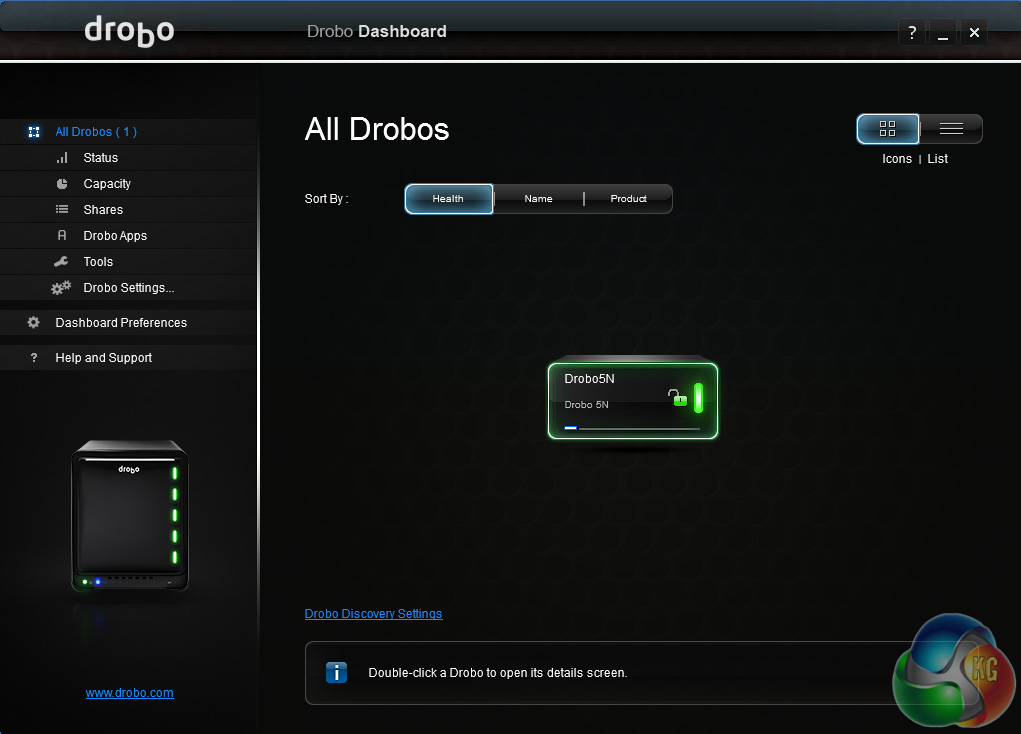
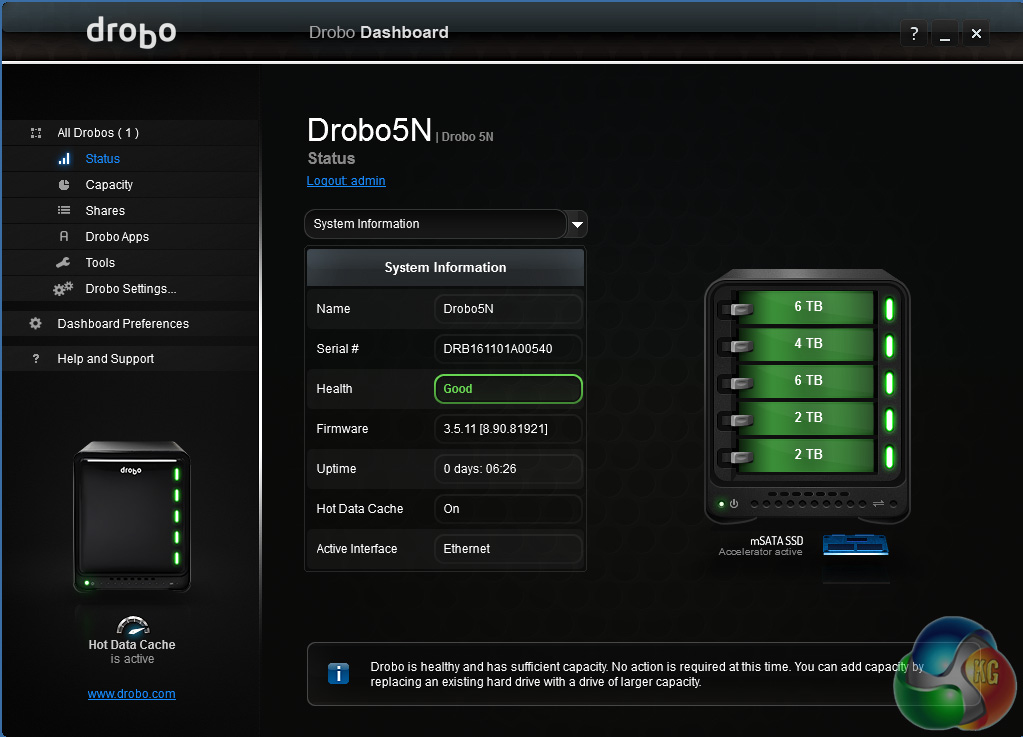
Drobo's NAS OS is called Dashboard. It's not as feature rich as say Asustor's ADM or Synology's DSM but it's easy to navigate through and covers most of the basics really well. It does make use of animated graphics to display drive and drive bay information.
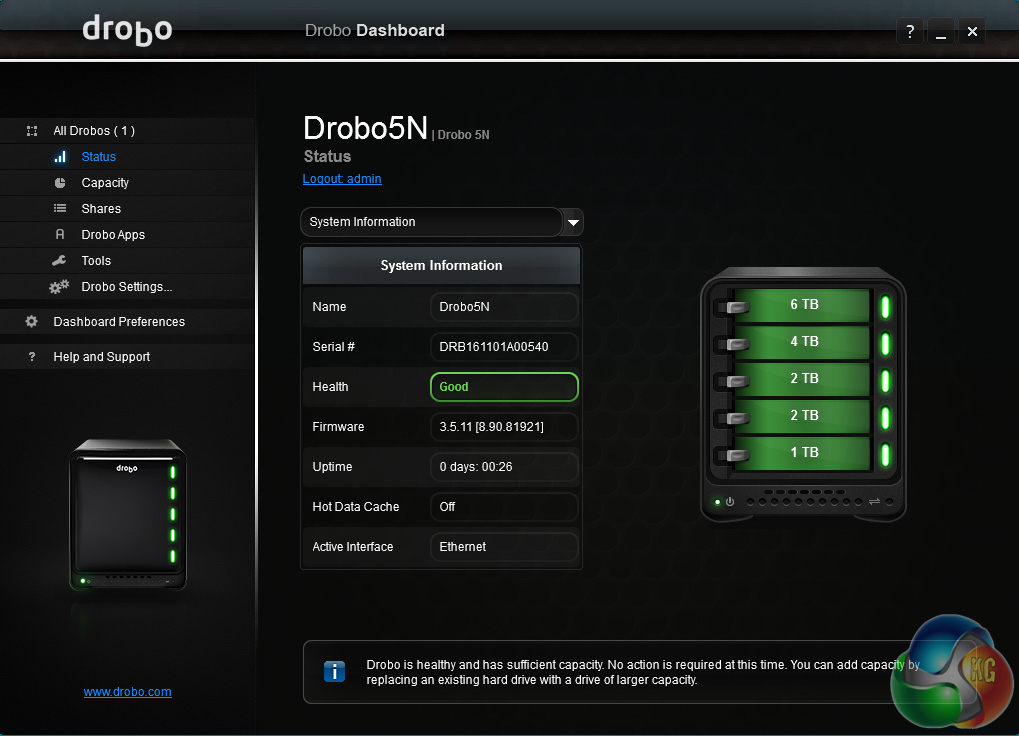
The right-hand side of Dashboard main page has an image of the Drobo with the front bezel removed revealing the drive bays. The image is animated so it mimics what the Drobo is doing, for example, if the drive indicators on the unit are green so are the drive bays in the image, if they should start to flash on the unit, the animation follows suite. There is a smaller animated image of the unit on the right-hand side that does the same.
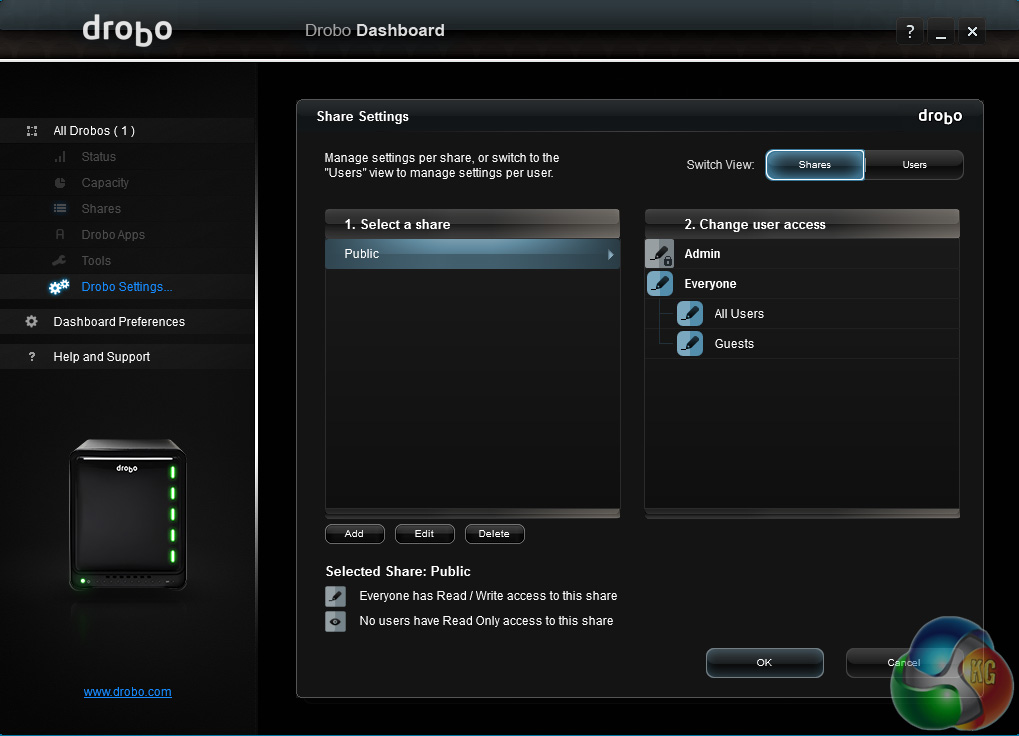
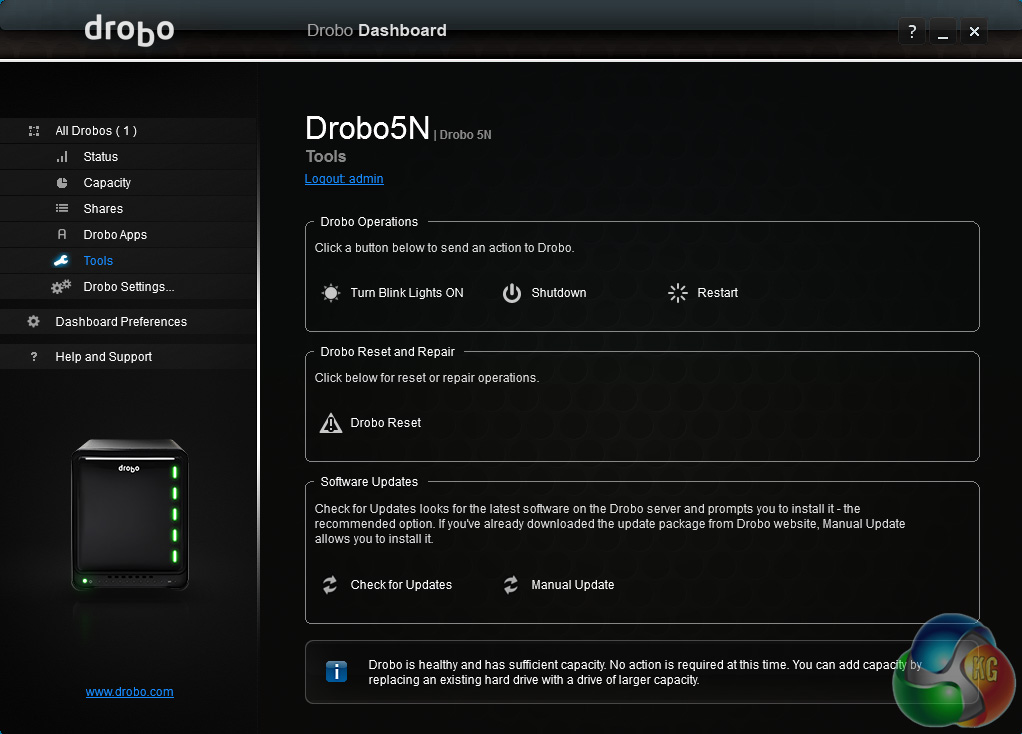
Managing shares and users is straightforward and quick to do via a page in the settings menu. In the Tools page, you'll find options to shutdown, restart or even reset the Drobo, check for firmware updates and either install them automatically or manually.
And finally, if you fancy getting your Drobo into disco mode you can get the lights to blink. Actually, this is a test to check that the Drobo is connected to the host PC.
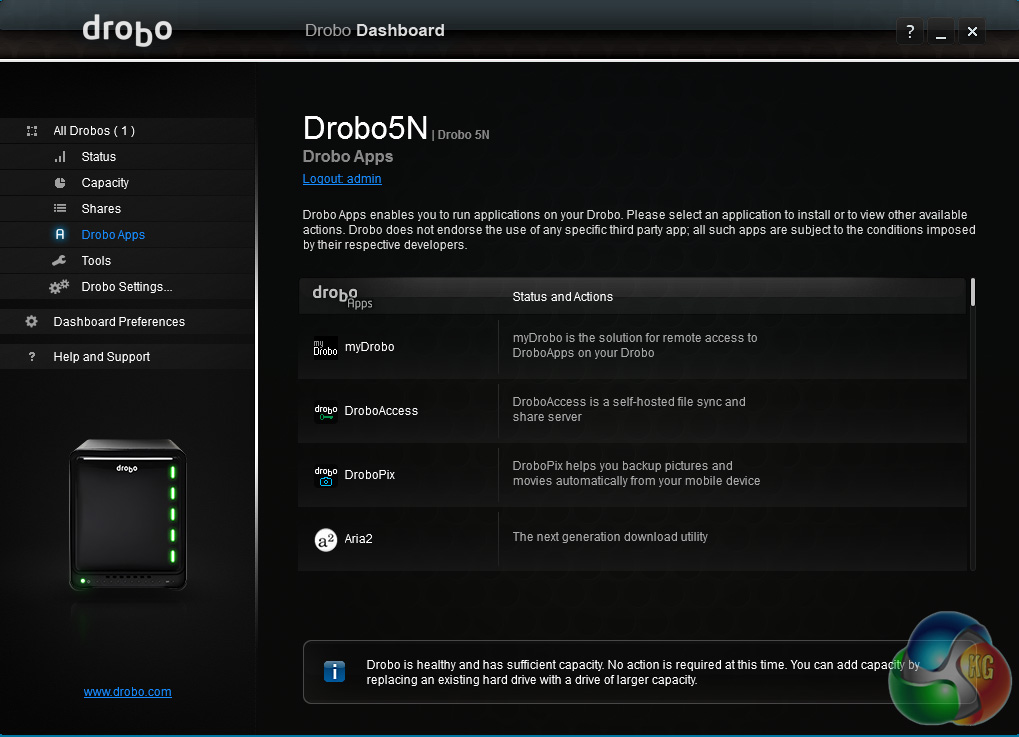
Although the list of apps in the isn't as extensive as some of the competition it's still pretty comprehensive covering a wide range of functions.
To remotely access data and apps securely on the Drobo there is the myDrobo platform. The major part of the platform is DroboAccess. This is Drobo's private cloud service that allows data on the Drobo to be remotely accessed and shared via the web or a mobile device – it supports both Android and iOS.
The recently released DroboPix allows iOS users to upload photos and videos from an iPad or iPhone automatically to the Drobo 5n via their local Wi-Fi network. Currently (at the time of writing), there is no Android version of the app.
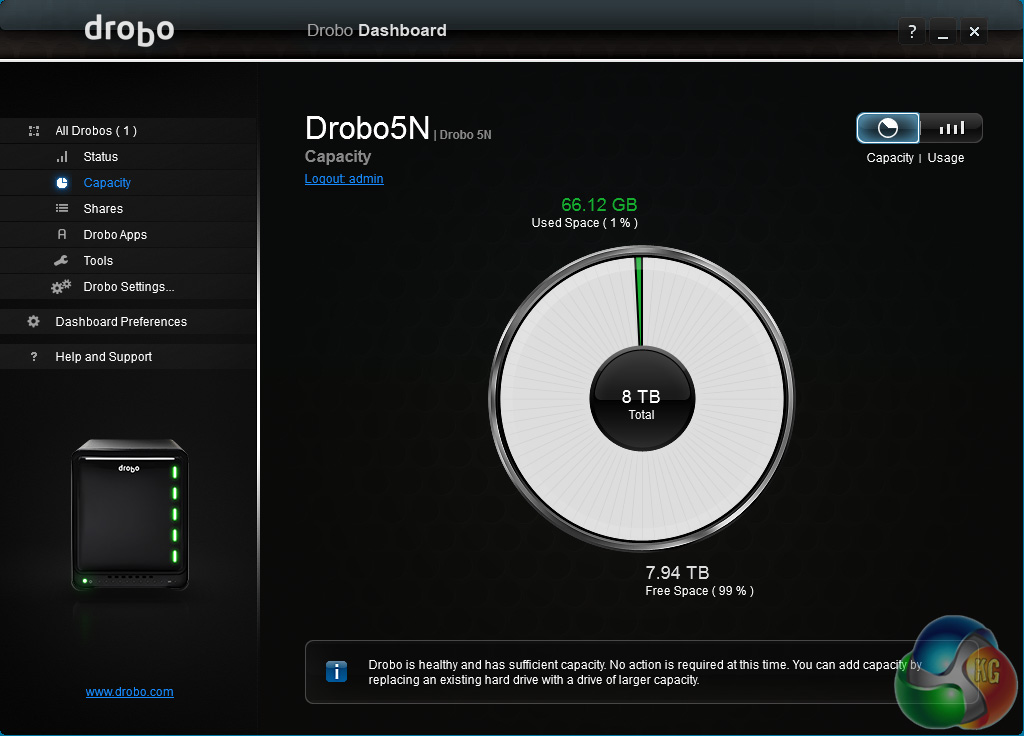
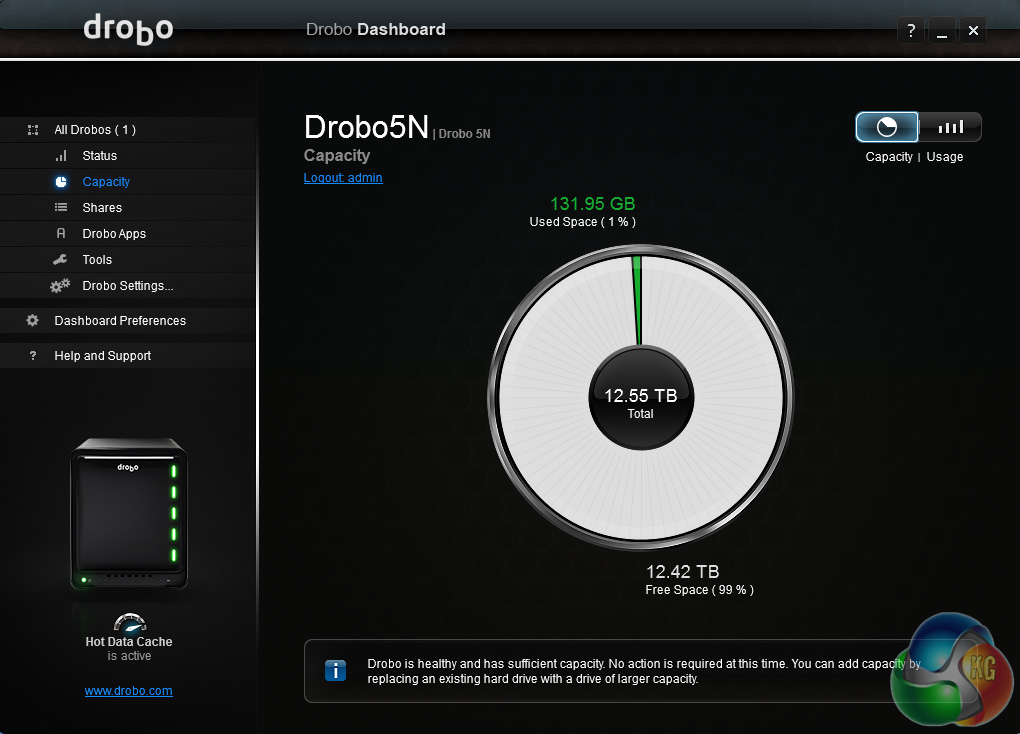
Getting started with the Drobo 5n is pretty straightforward. The first thing to do is to download and install the Drobo Dashboard from the Drobo website. Once this is installed and the drives loaded it takes around another twenty minutes for the installation process to complete.
Adding Capacity
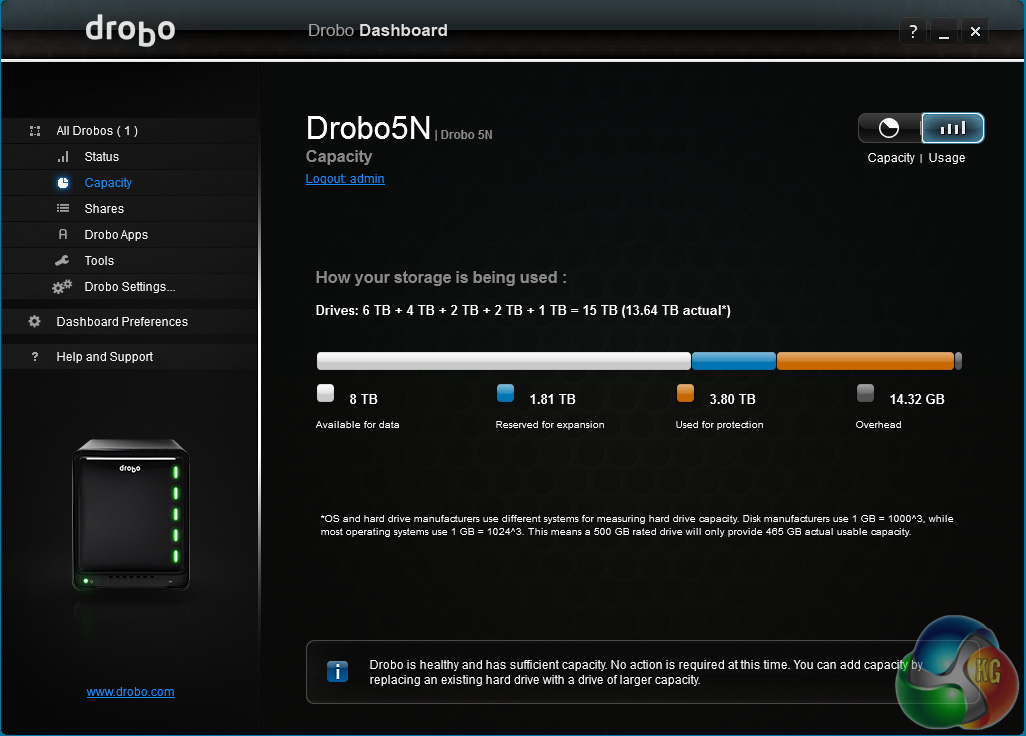
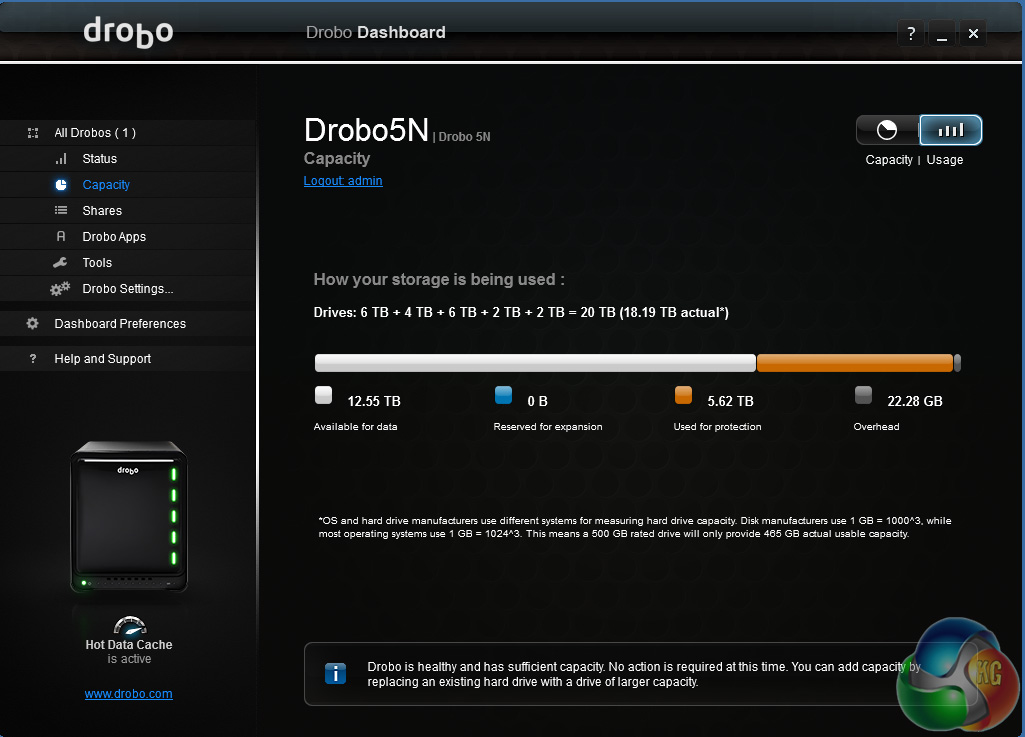
Adding capacity to the Drobo 5n is as simple as swapping out the lowest capacity drive in the unit and installing a larger one. As the unit supports hot swapping you don't even have to power down the Drobo to do it. Once installed the new drive takes around 20 minutes to be fully integrated into the system. While this is happening it's still possible to access any of the data on the NAS.
Disk failure protection.
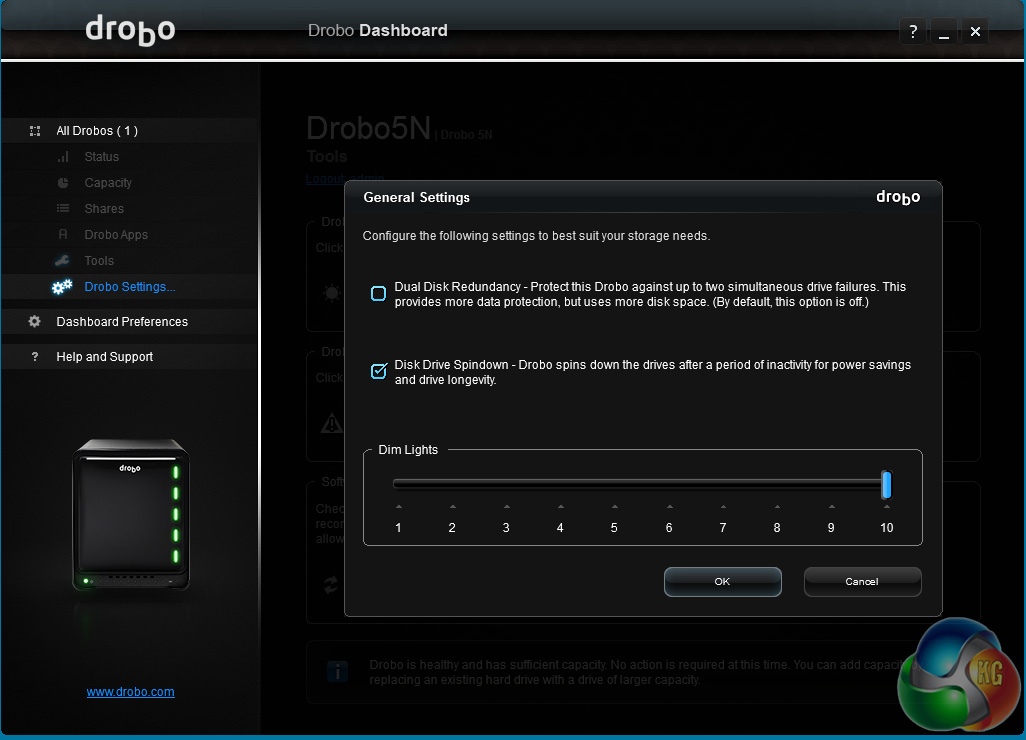
The default setting for protection against disk failure is a single disk but with a click of the mouse in the General Settings screen, this can be changed to two drive failure protection.
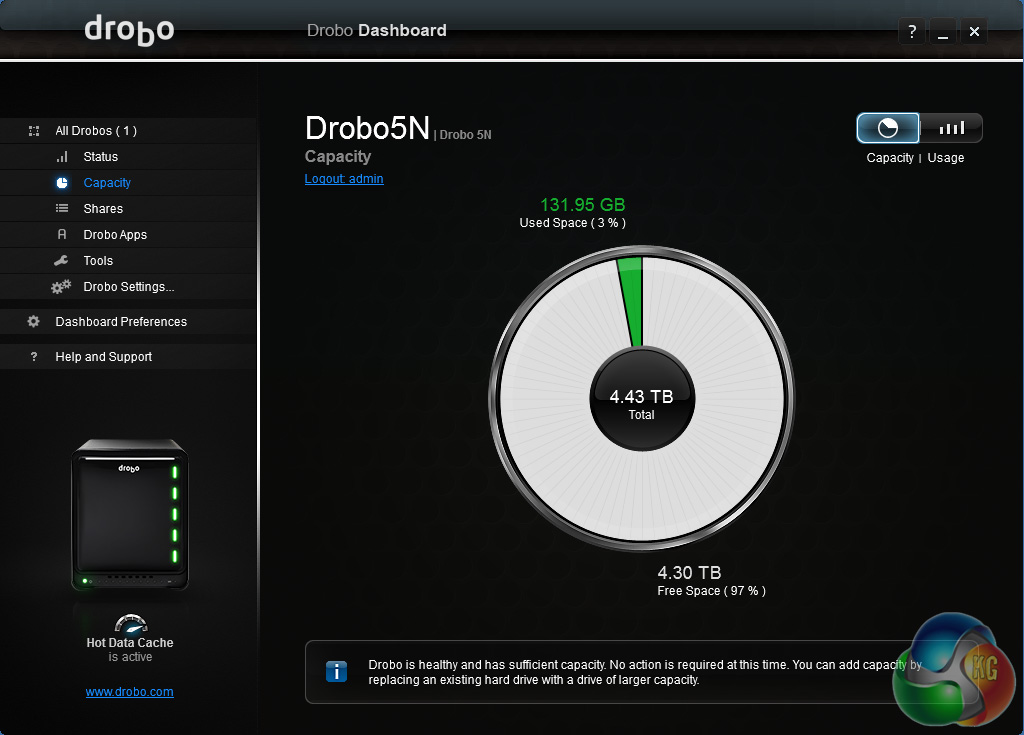
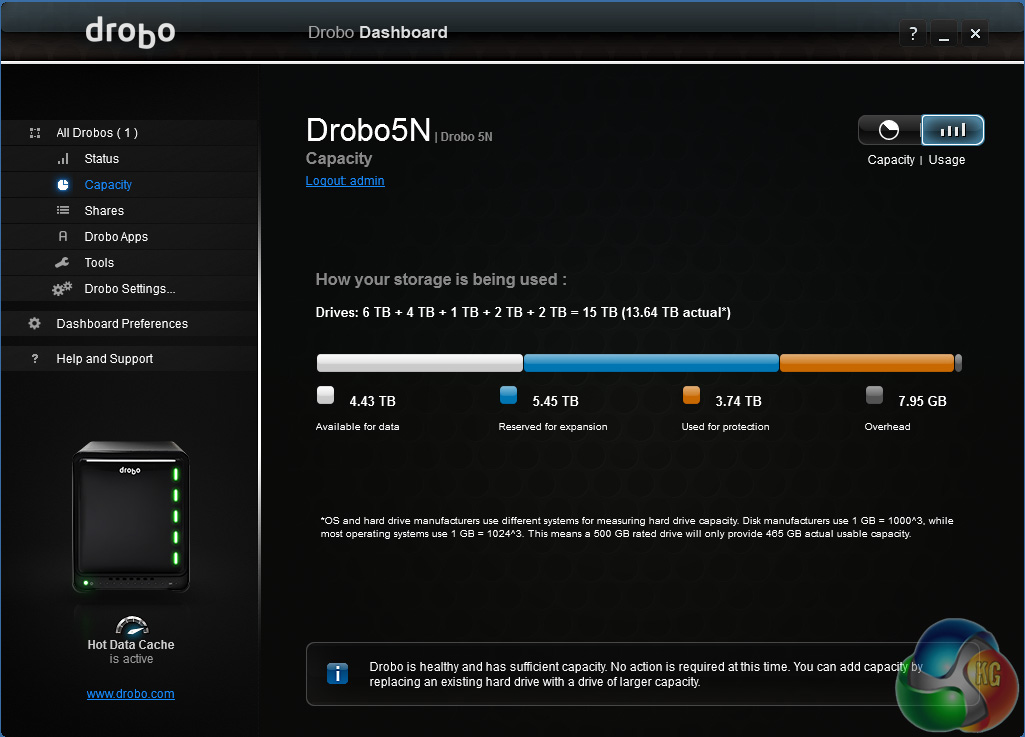
When we tried it with a 15TB five mixed size disk setup it took around an hour to complete the procedure and when finished the usable amount of free space for data dropped from 8TB to 4.43TB. Even while this was going on data can be accessed from the NAS.
As the Drobo 5n doesn't use RAID arrays in the traditional sense, relying instead on the companies BeyondRAID technology we used sets of disks to test its performance.
Disk set 1 (as supplied to test the drive with)
1 x 6TB Toshiba X300, 1 x 4TB Toshiba X300, (7,200rpm 128MB cache) 2 x 2TB Toshiba P300, 1 x 1TB Toshiba P300 (7,200rpm 64MB cache)
Disk set 2
as above but with a 256GB Samsung SSD 840EVO mSATA drive in the Accelerator Bay
Disk set 3 (standard KitGuru test drives)
5 x WD 6TB Red (5,400rpm, 64MB cache)
Disk set 4 SSD (using Startech 25SAT35HDD drive bay converters)
2 x 480GB Samsung 845DC EVO, 2 x 400GB Samsung 845DC PRO, 1 x Corsair 480GB Neutron XTi
Software:
Atto Disk Benchmark.
CrystalMark 3.0.3.
IOMeter.
Intel NASPT.
To test real life file/folder performance we use a number of different file/folder combinations to test the read and write performance of the NAS device. Using the FastCopy utility to get a MB/s and time taken for each transfer, the data is written from and read back to a 240GB SSD.
60GB Steam folder: 29,521 files.
50GB Files folder: 28,523 files.
12GB Movie folder: 24 files – mix of Blu-ray and 4K files.
10GB Photo folder: 621 files – mix of .png, .raw and .jpeg images.
10GB Audio folder: 1,483 files – mix of .mp3 and .flac files.
Crystalmark is a useful benchmark to measure theoretical performance levels of hard drives and SSD’s. We are using V3.0.3.
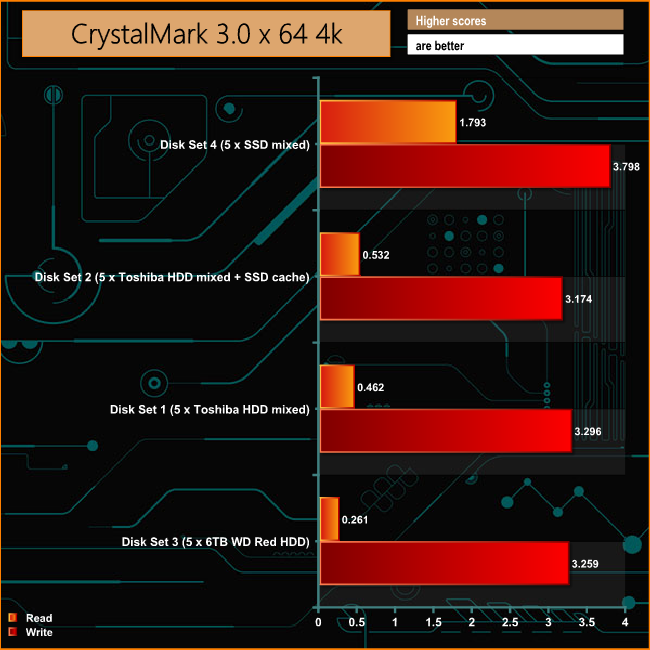
It comes as no great surprise to see that the SSD setup is the fastest when it comes to reads and writes. The SSD cache gives the mixed Toshiba drive setup a small boost in read performance.
The ATTO Disk Benchmark performance measurement tool is compatible with Microsoft Windows. Measure your storage systems performance with various transfer sizes and test lengths for reads and writes. Several options are available to customize your performance measurement including queue depth, overlapped I/O and even a comparison mode with the option to run continuously.
Use ATTO Disk Benchmark to test any manufacturers RAID controllers, storage controllers, host adapters, hard drives and SSD drives and notice that ATTO products will consistently provide the highest level of performance to your storage.
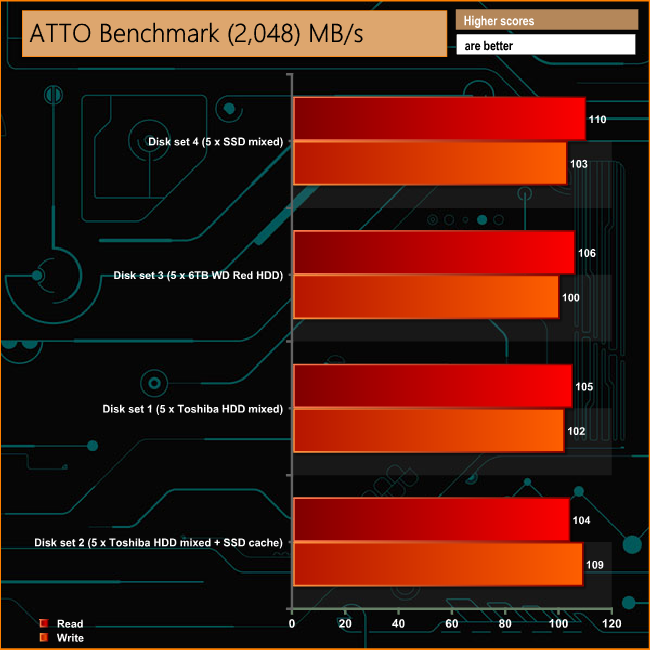
The Drobo 5n is a consistent performer across all the different types of disk setups, breaking the 100MB/s mark across the board.
Intel’s NASPT (NAS Performance Toolkit ) is a benchmark tool designed to enable direct measurement of home network attached storage (NAS) performance. NASPT uses a set of real world workload traces (high definition video playback and recording, video rendering/content creation and office productivity) gathered from typical digital home applications to emulate the behaviour of an actual application.
We’ve used some of the video and office apps results to highlight a NAS device’s performance.
HD Video Playback
This trace represents the playback of a 1.3GB HD video file at 720p using Windows Media Player. The files are accessed sequentially with 256kB user level reads.
4x HD Playback
This trace is built from four copies of the Video Playback test with around 11% sequential accesses.
HD Video Record
Trace writes an 720p MPEG-2 video file to the NAS. The single 1.6GB file is written sequentially using 256kB accesses.
HD Playback and Record
Tests the NAS with simultaneous reads and writes of a 1GB HD Video file in the 720p format.
Content Creation
This trace simulates the creation of a video file using both video and photo editing software using a mix of file types and sizes. 90% of the operations are writes to the NAS with around 40% of these being sequential.
Office Productivity
A trace of typical workday operations. 2.8GB of data made up of 600 files of varying lengths is divided equally between read and writes. 80% of the accesses are sequential.
Photo Album
This simulates the opening and viewing of 169 photos (aprrox 1.2GB). It tests how the NAS deals with a multitude of small files.
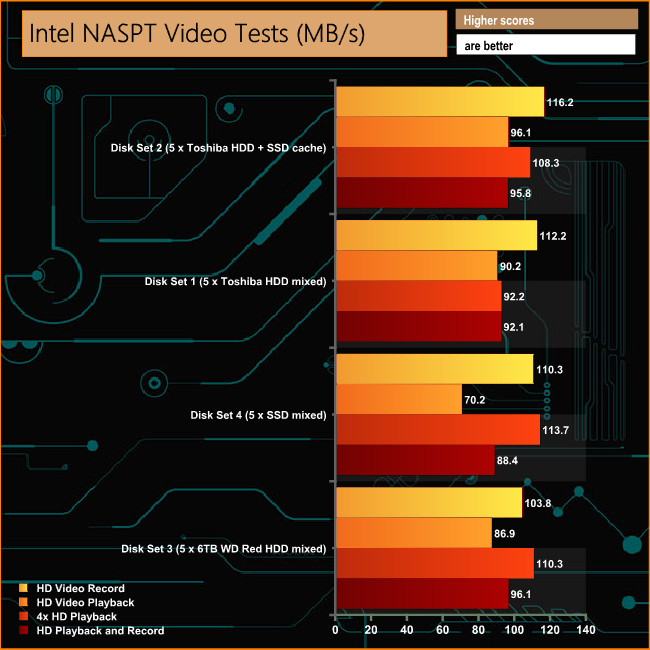
With an SSD cache drive installed the mixed group of HDD's gets a boost in sequential performance for all the tests, particularly the 4x HD Playback test.
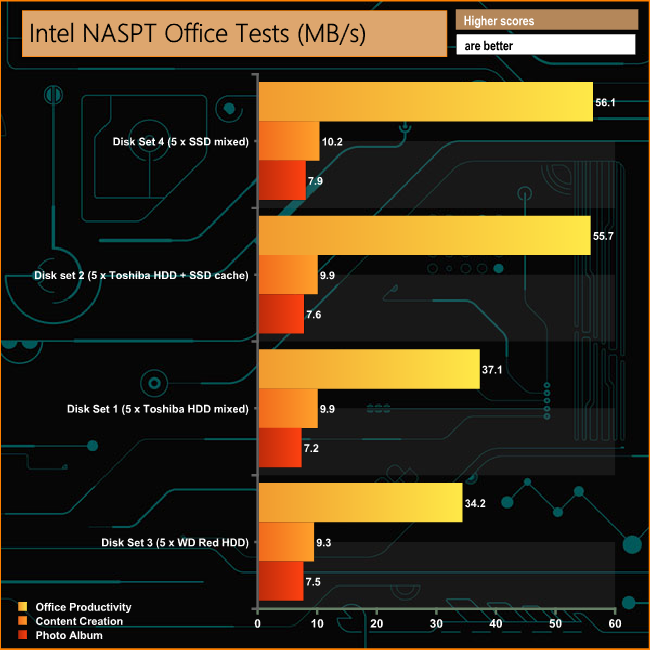
The SSD cache drive gives a healthy boost to the mixed HDD groups performance when it comes to dealing with the many small files of the Office Productivity test. The Content Creation and Photo Album tests show consistency across all the differing drive groups.
IOMeter is another open source synthetic benchmarking tool which is able to simulate the various loads placed on hard drive and solid state drive technology.
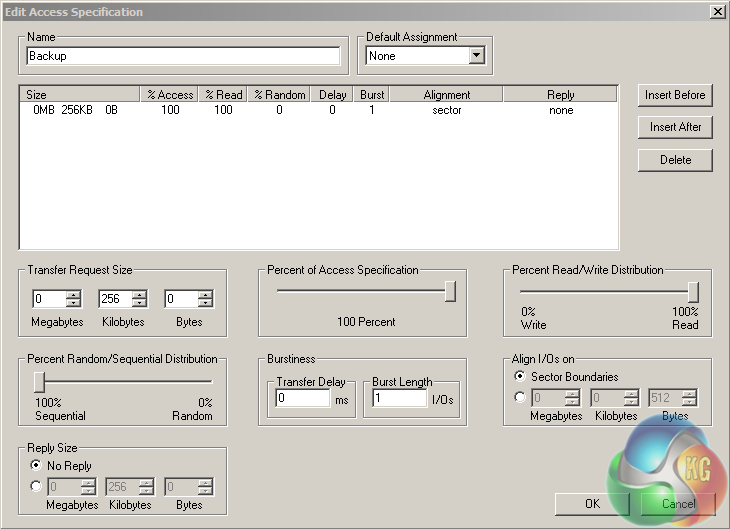
We set IOmeter up (as shown above) to test both backup and restore performance on a 100GB partition.
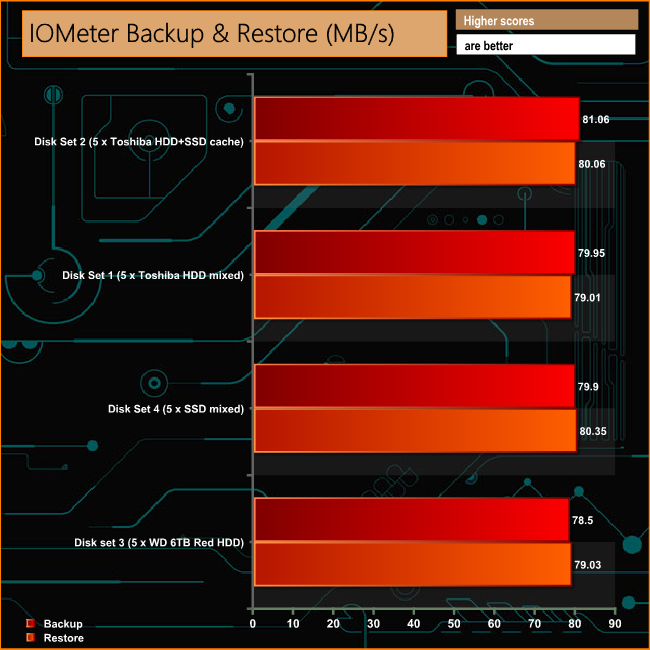
The Drobo 5n isn't a particularly fast NAS but as the IOMeter Backup/Restore tests show its does have high degree of consistency across the different disk groups it was tested with.
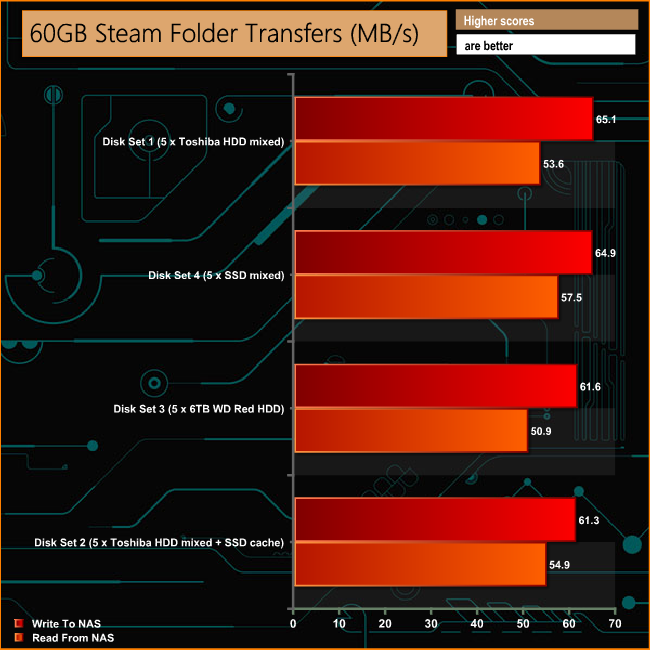
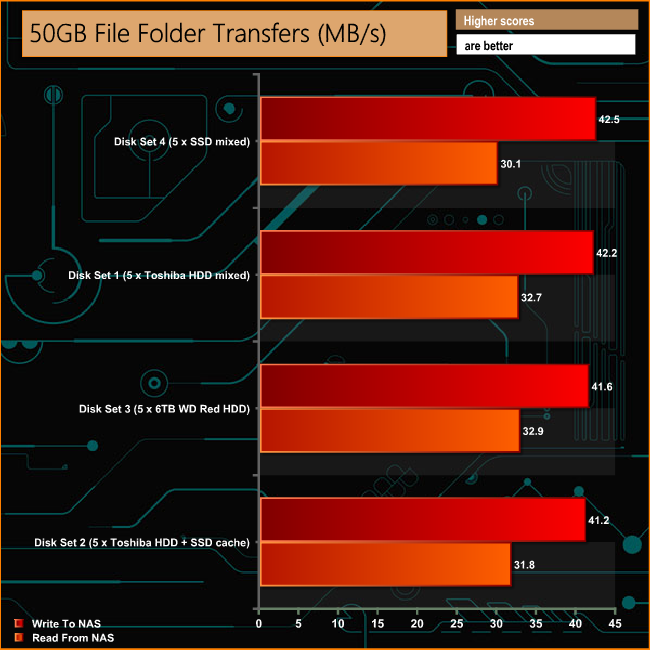
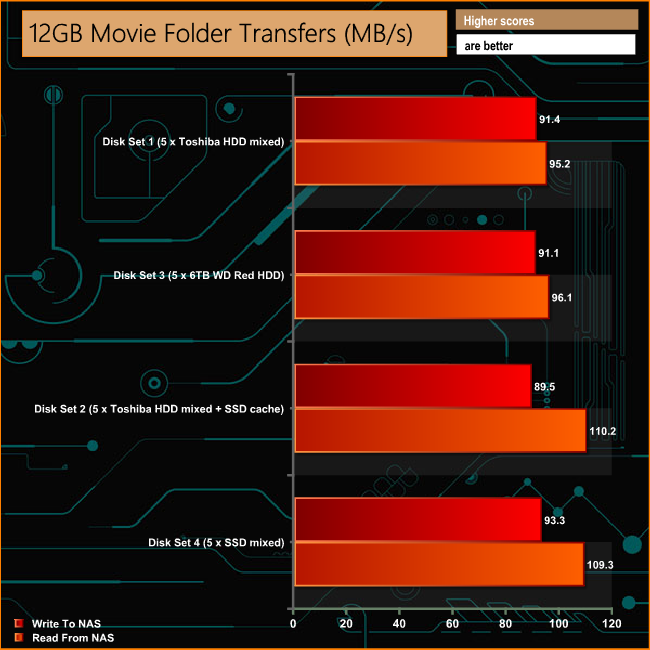

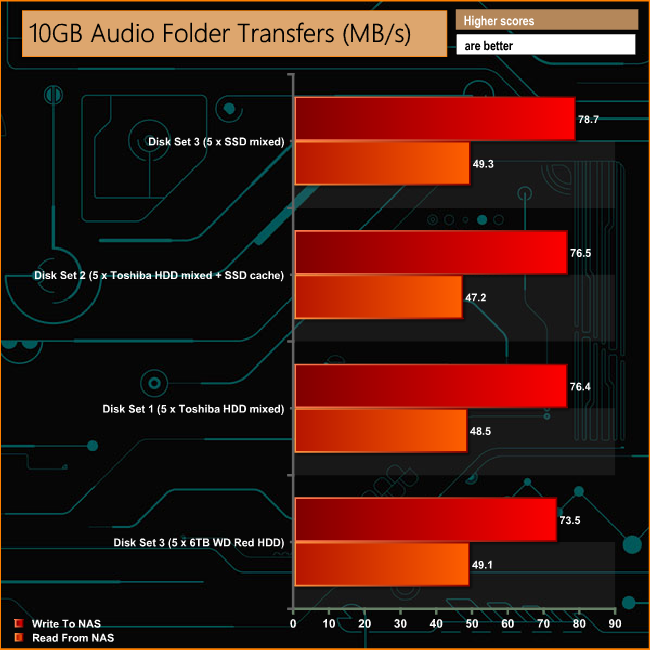
Although it's not the fastest NAS we have ever seen it deals with the tasks of everyday file transfers well enough. The best performance came when the Drobo was dealing with the larger files of the 12GB movie and 10GB Photo folders.
We tested the peak power consumption of a NAS at the wall during a run of CrystalDiskMark 5.0.2 as this version of the benchmark runs the read and write benchmark suites separately so it's easier to monitor what power the device is using during each function.
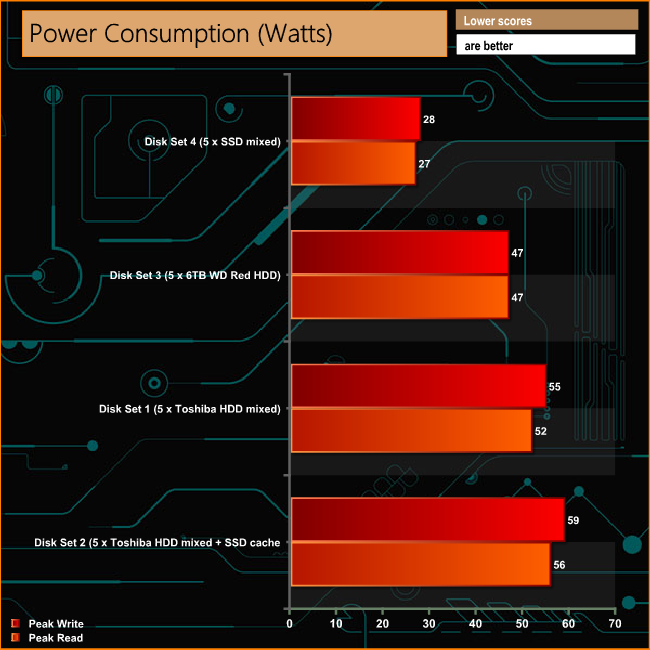
No real surprise to see that the SSD disk group is the most power efficient. Installing an SSD cache drive increases the peak read/write power requirements of the Toshiba mixed disk setup by 4 Watts.
The pair of Toshiba X300 series drives used in the mixed drive group are particularly power hungry at 11.3W each, whereas the remaining Toshiba P300 drives of the group use 6.4W and the WD Reds make do with just over 5W each.
If the thought of trying to work out the intrigues of RAID in a multi-bay NAS was putting you off buying one then the Drobo 5n might be what you are looking for as BeyondRAID does away with all the foibles of traditional RAID arrays.
The BeyondRAID technology allows the Drobo 5n to be far more flexible in terms of capacity management than a conventional NAS using RAID 5 or 6 arrays. With conventional RAID adding another drive to enhance capacity is one that requires careful planning as any data has to be moved before the new drive is added and the array rebuilt, which can be a very time-consuming job running into days. With the Drobo 5n you just add a larger drive in a spare bay or replace the smallest capacity drive with the new drive and the software will integrate the drive in a matter of hours.
The Drobo Dashboard may not be a complex as some of its competitors but most of the basics are there and it's easy to navigate through and use. One trick it does have up its sleeve however, is in the use of animations to display drive bay and drive status. Whatever the indicator lights on the Drobo itself are doing are mimicked by the software. Now you might well think this is a gimmick but if the drive is in a cupboard so the lights can't be seen the software can show exactly where any problem is in a clear and easy to understand way.
In regards to performance it is not the fastest NAS we have looked at but it dealt all our tests comfortably and for the average home or small office user it is perfectly adequate. The one thing we did find with our review unit was that on occasion it did take a while to be found on the network.
Adding a separate drive bay for the mSATA cache drive to help boost random reads is a good idea as it leaves the main drive bays free to use for storage. During testing with an mSATA drive fitted we didn't see that much of a boost in performance, but in certain real-life situations using programs such as Lightroom and Aperture may reap reward.
One puzzling aspect of the Drobo 5n is the lack of any external ports to cater for offline backup demands. The Drobo 5n has a small office environment in mind where data security is very important. The ability to be able to download data onto some form of external drive and taken off-site for extra protection is important to many a small business but the Drobo's design negates any possibility of this being possible.
The Drobo 5n is on sale at Amazon for £353.18 inc vat HERE
Discuss on our Facebook page, over HERE
Pros
- BeyondRAID technology.
- Easy to setup and maintain.
Cons
- Not the fastest NAS around.
- No ports for external drives.
- Rear power button.
Kitguru says: Although it's not the fastest NAS around, the ease in which capacity can be added to it and the straightforward disk management that the BeyondRAID technology provides makes it an interesting proposition.