 KitGuru KitGuru.net – Tech News | Hardware News | Hardware Reviews | IOS | Mobile | Gaming | Graphics Cards


The Asus MG278Q is a 27-inch WQHD (2,560×1,440) TN gaming display that supports AMD FreeSync adaptive-sync technology. When in adaptive-sync mode, it’s capable of a wider frequency range than its IPS cousin, the MG279Q, as it can go from 35Hz all the way to 144Hz. And being a TN panel it has a fast response time of just 1ms – this is a display for people with AMD graphics cards who want gaming without tearing and micro-stutter across a wide frequency range with the lowest response time possible.
If you’ve read our analysis of the Asus MG279Q (review HERE) … an IPS display that supports AMD FreeSync, you might get a sense of deja vu when you see the MG278Q. It’s similarly a 27-inch gaming monitor with a WQHD screen resolution (2,560×1,440) and much of the external design is identical.
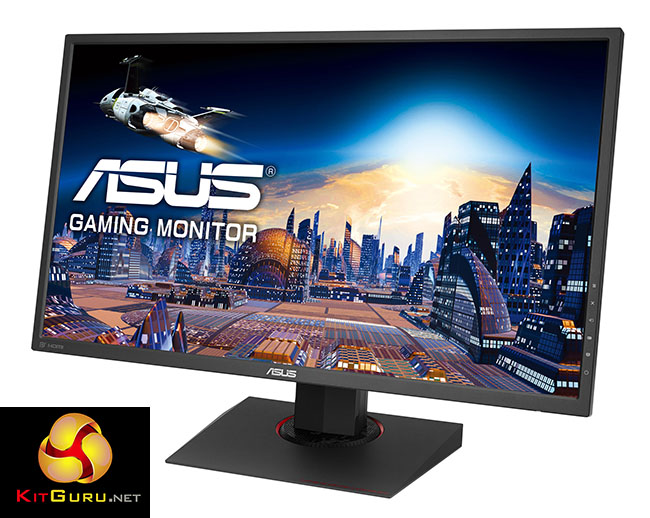
There’s one major difference though. The MG278Q is a TN panel, which means it can handle a wider range of FreeSync frequencies than any IPS panel can. The MG279Q supports FreeSync between 35Hz and 90Hz, while the MG278Q can go all the way to 144Hz when in FreeSync mode.
Asus has a small leg up on its competitors at the lower bound of this range. The majority of FreeSync displays start at 40Hz, below which FreeSync is not supported and frames drift back into the standard non-sync format.
But with both the MG279Q and MG278Q, it starts at 35Hz. This means that a wider range of frame rates are supported in adaptive-sync mode, giving you a bit of extra headroom when adjusting detail settings in games. If you crank up the detail and your frame rate drops, the display and GPU will remain in sync as low as 35fps (and it’s questionable whether below 35fps is a playable frame rate anyway).
And since it’s a TN panel, it has a 1ms response time too, while the IPS panel in the MG279Q is slower, rated at 4ms.
On the flip side, IPS screens generally look better on the Windows desktop than TN panels, with improved viewing angles and colour uniformity, so there’s a clear choice to be made between TN and IPS with the two 144Hz Asus FreeSync displays. Better overall gaming performance, with minimal ghosting and a wider FreeSync range with TN, or (perhaps subjectively) better overall picture quality with IPS, but a limit to the FreeSync range it supports (although both screens will handle 144Hz just fine).
We should also mention that for people who want a G-Sync display, Asus currently only sells a TN panel, the ROG Swift PG278Q, with an IPS G-Sync screen called the PG279Q penciled in for a Q3 2015 release, and a 4K G-Sync display also on the way.
There are a few other differences between the two screens as well. We noticed some minor cosmetic differences, a few new options in the on-screen display (OSD) and a slight adjustment to the video inputs.
There’s also a considerable difference in pricing, mainly down to TN panels being cheaper to produce than IPS. This alone certainly makes it far more attractive. Asus hasn’t yet revealed its final pricing for the MG278Q, but has suggested it will be £150-200 cheaper than the MG279Q. That display retails for around £500, so expect to pay in the region £300-350 for the MG278Q, which is fairly competitive with other FreeSync displays, although you’re still paying a bit more than you would for a standard gaming display.
Asus MG278Q features:
- 27-inch, WQHD 2560 x 1440 resolution display with TN panel technology.
- 144Hz refresh rate and AMD FreeSync™ technology
- ASUS-exclusive Ultra-Low Blue Light, Flicker-Free, GamePlus, and GameVisual technologies
- Ergonomically-designed stand with full tilt, swivel, pivot, and height adjustment
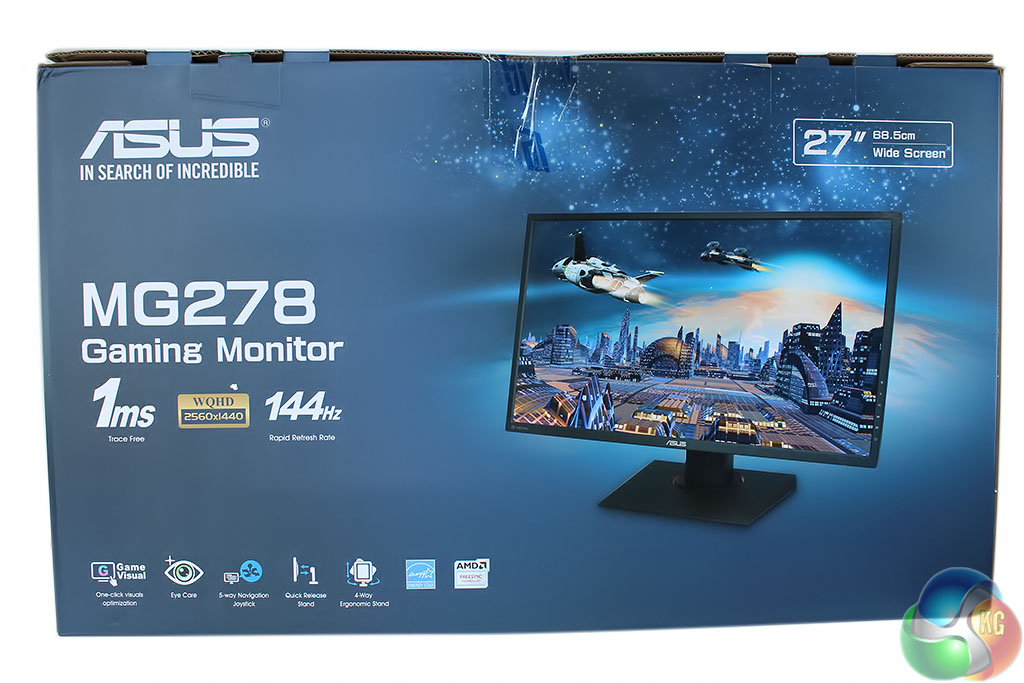
Asus labels the MG278Q packaging with many of the features we’ve already mentioned, with its 1ms response time and 144Hz refresh rate prominently displayed. The AMD FreeSync label is there too, along with indicators of a few other functions.
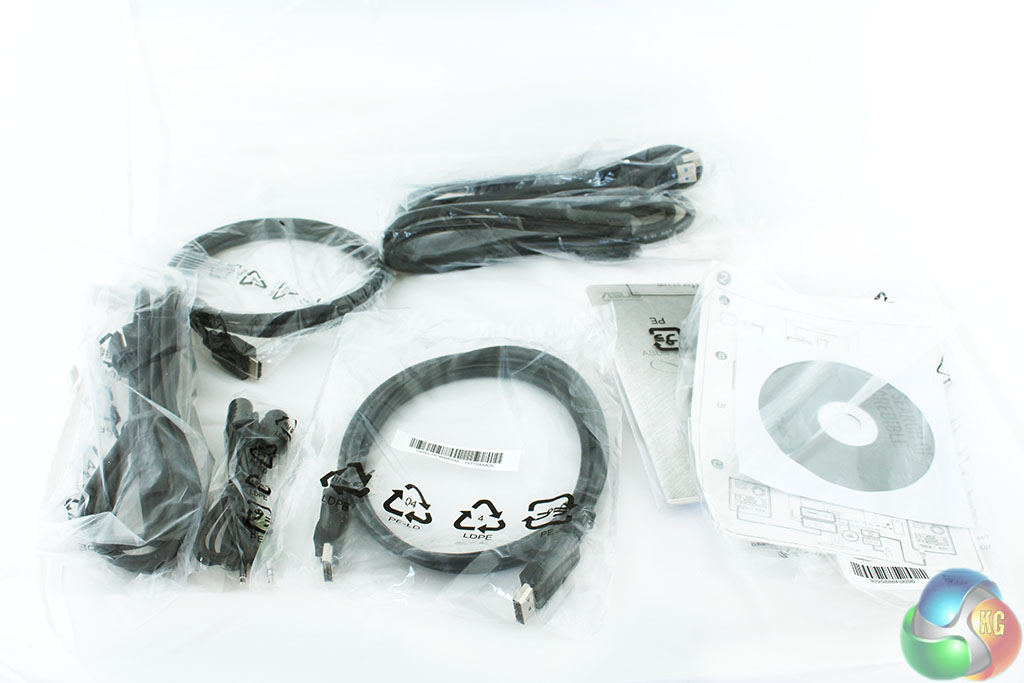
Asus hasn’t left any cabling out. DVI, HDMI and DisplayPort cables are all included, with a USB 3 uplink cable and male-to-male 3.5-inch audio passthrough cable.
There’s also a manual, quick-start guide, and warranty information, along with the standard power cable.
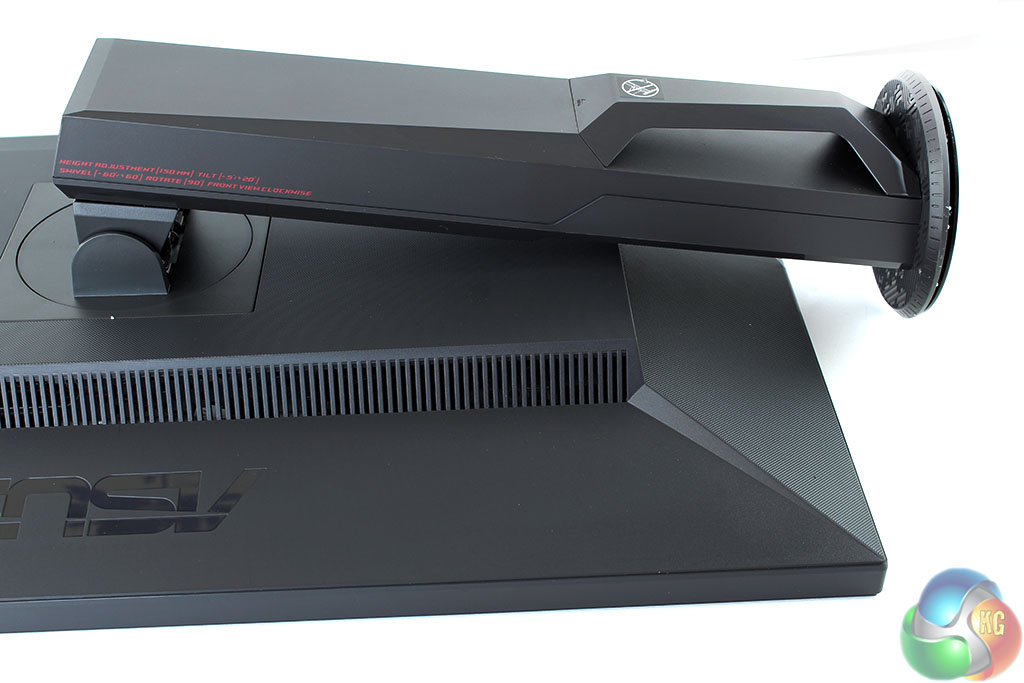

The support column for the stand is attached to the panel when you remove it from the box, and rotated 90 degrees.
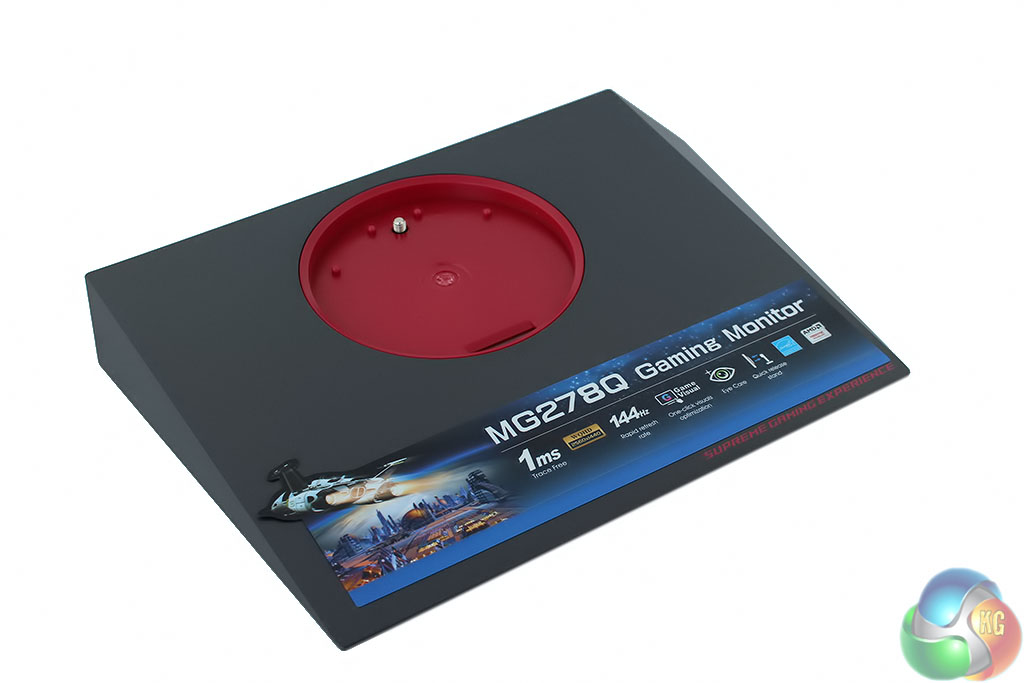
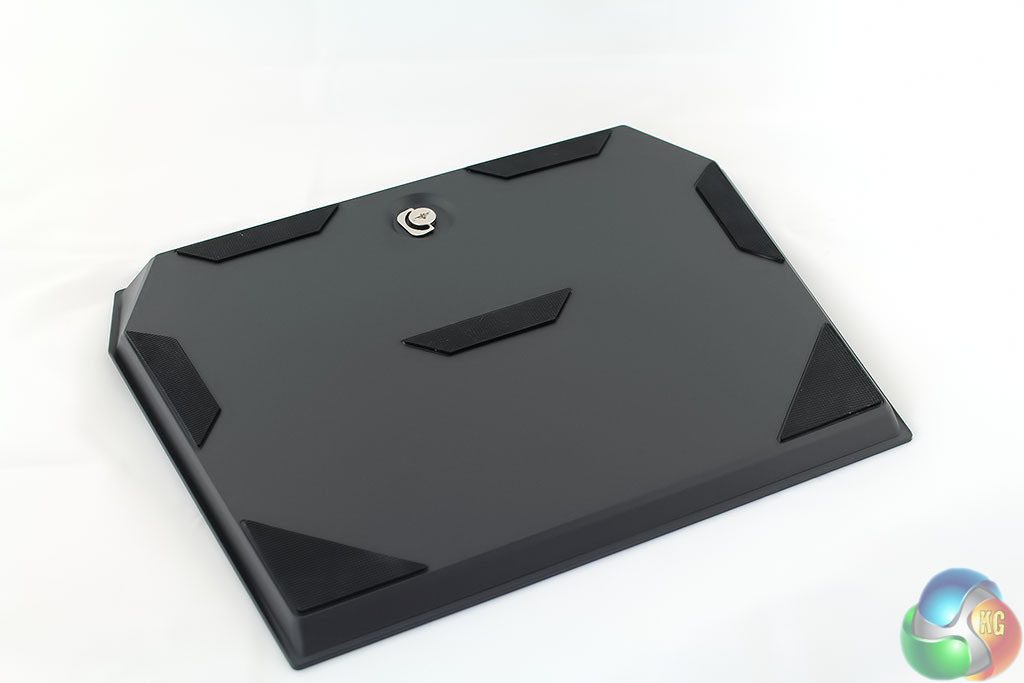
The stand is simple to assemble. A notch at the front of the support column clips into the red section in the base, and then you turn the key to tighten it.
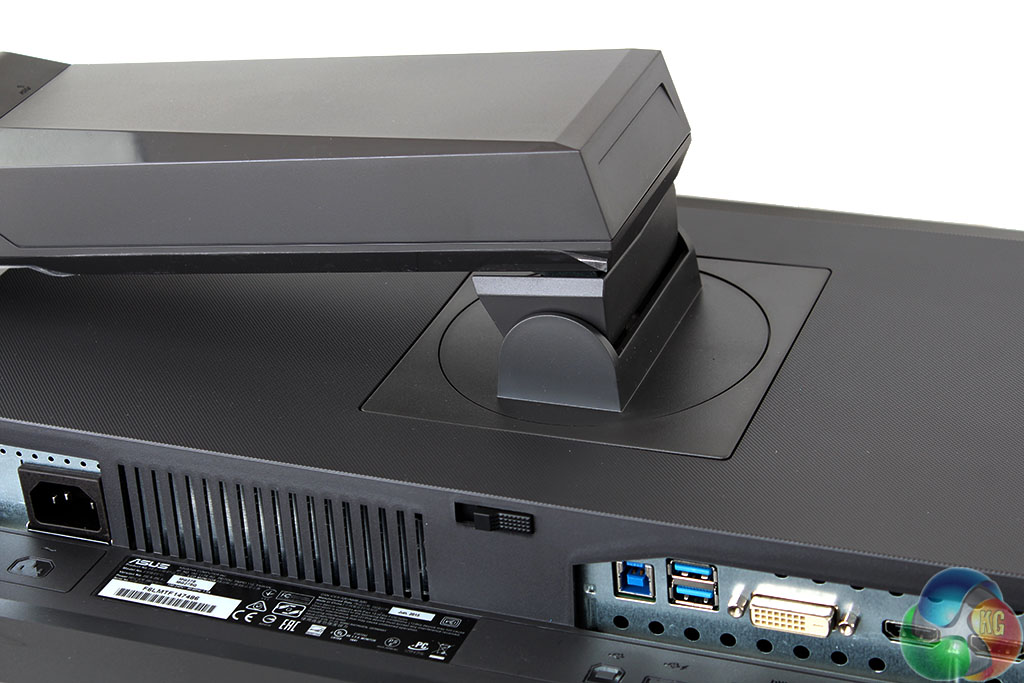
The support column isn’t fixed to the panel with any screws though. By flipping a black switch at the back it just pulls out, and can be substituted for a VESA mount.
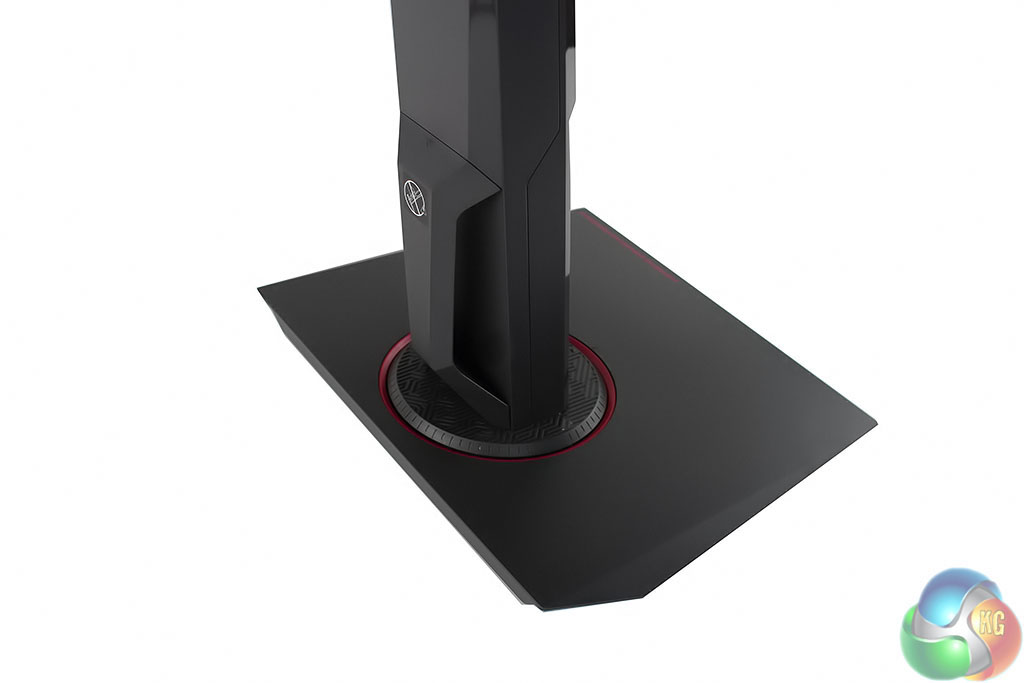
At the bottom of the stand is a detachable cable management accessory, which is a slightly different design to the MG279Q’s.
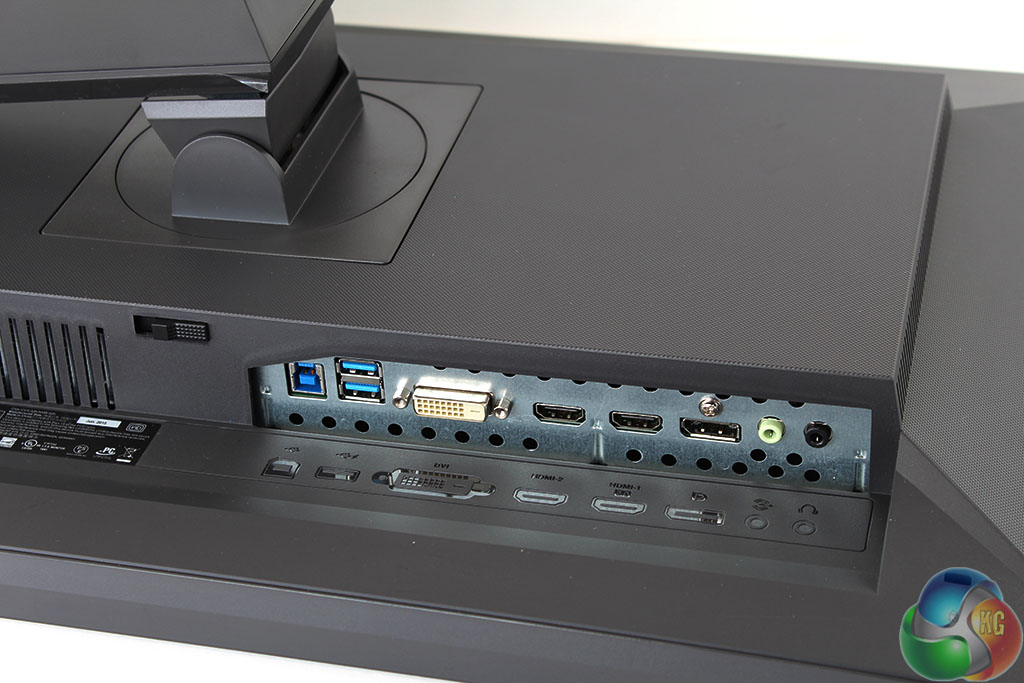
The range of video inputs on the right-hand side has slightly changed from the MG279Q. You now only get a single DisplayPort input, with a DVI port taking the place of the Mini-DP input. In addition there are two HDMI ports, one of which is HDMI 2.0 compatible, with audio input and output connectors.
There’s also a pair of USB 3 ports, with the uplink port next to them.

And the standard IEC power connector is located on the left, with an internal power supply.
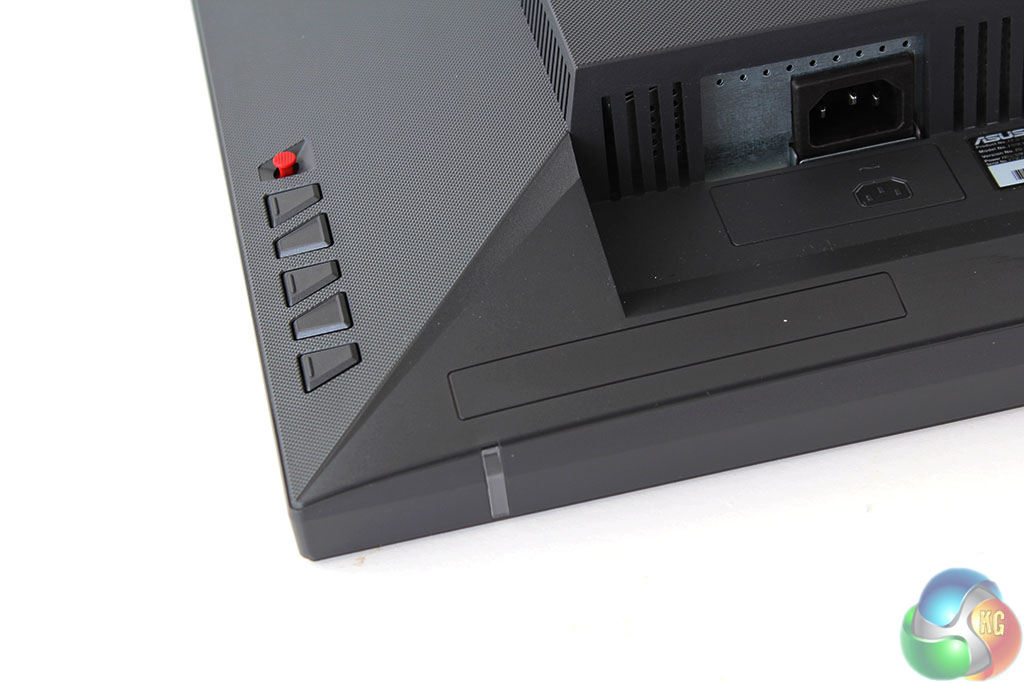
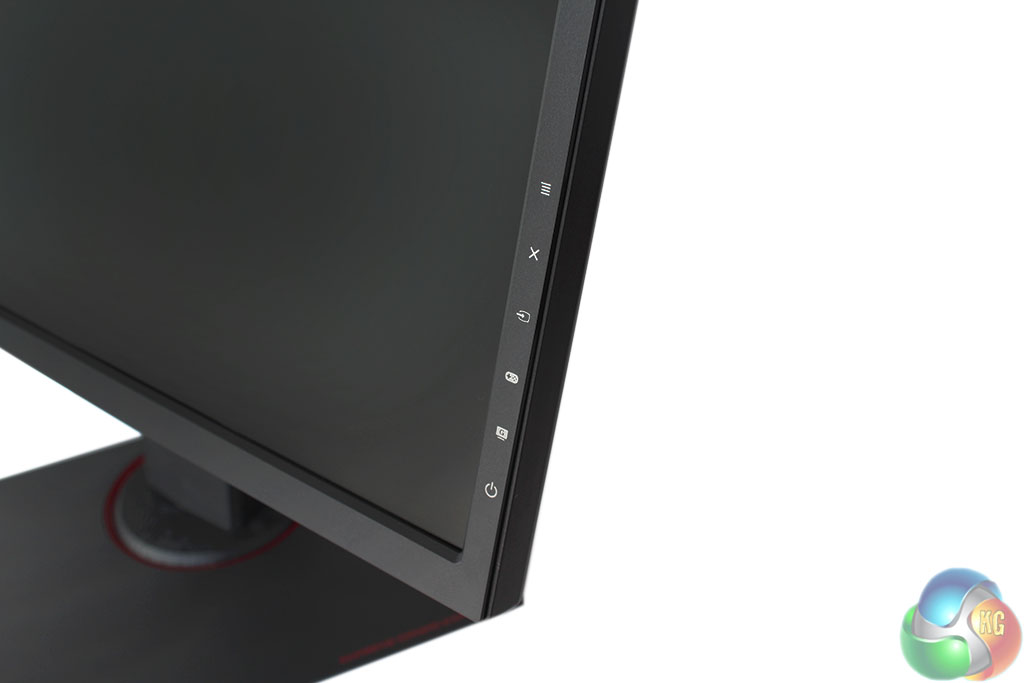
There are five physical buttons on the right-hand side, along with a red joystick to navigate through all the menus in the OSD. Each button has a corresponding label on the front. There’s also a white power indicator sitting underneath the bezel.
As with other Asus displays, we should mention how useful the joystick is, as it makes navigating the menus a whole lot easier than other firms’ OSDs which rely on up/down buttons.
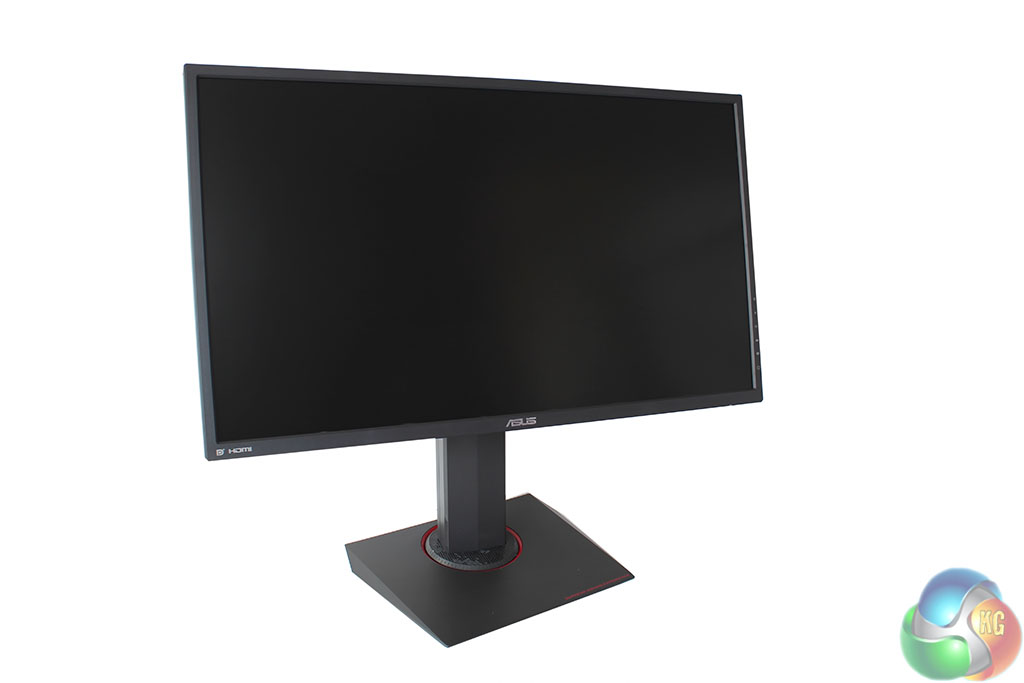
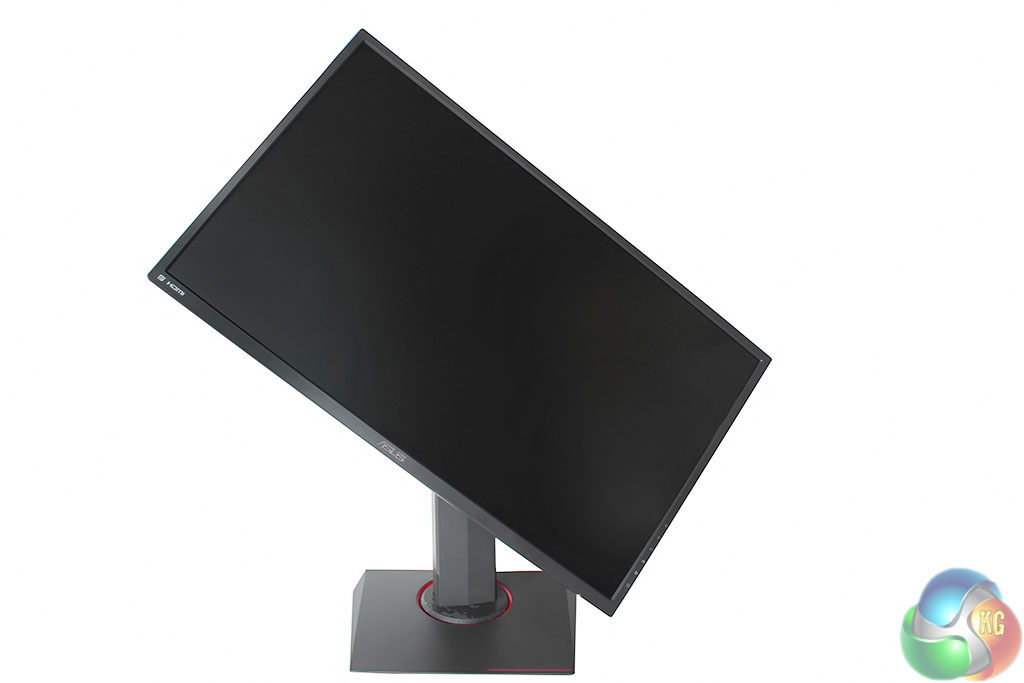
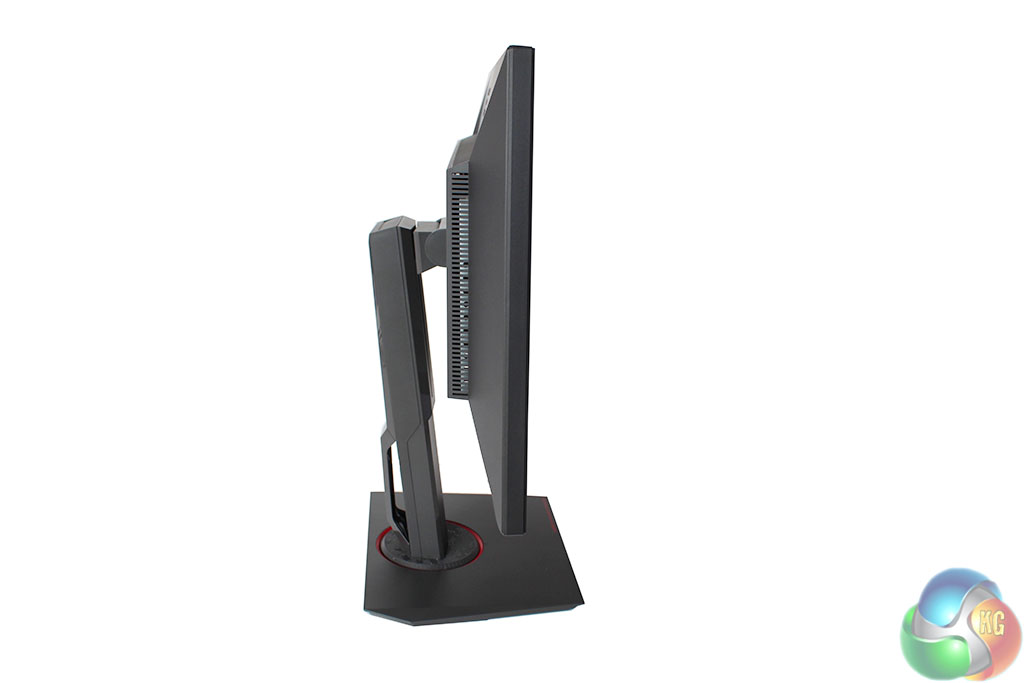
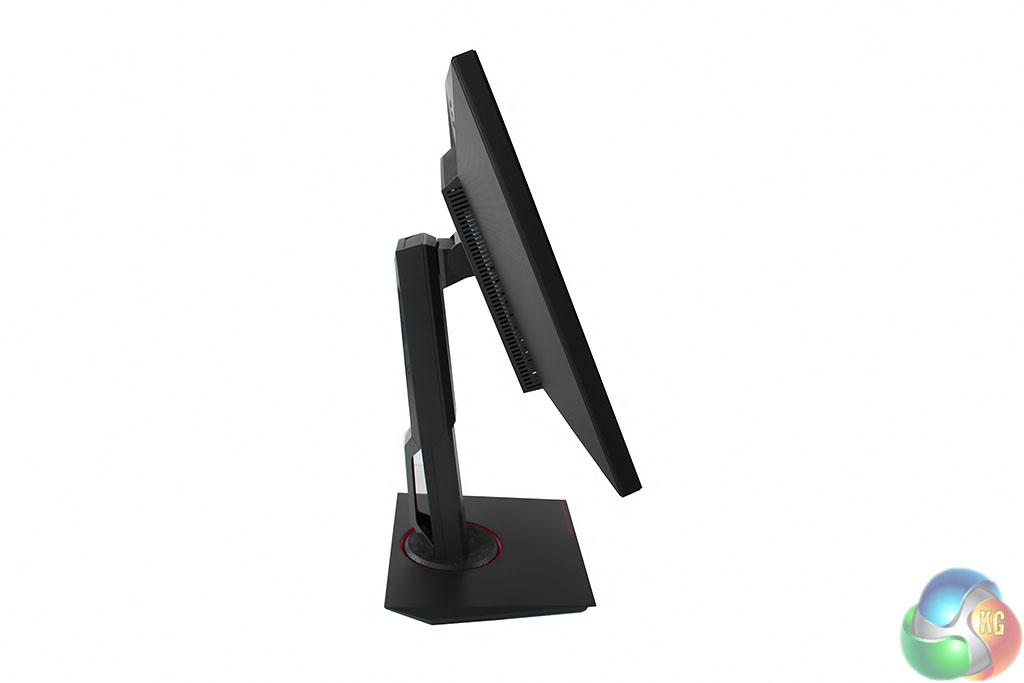
The stand features a full range of movement, with 90˚ pivot, height adjustment up to 150mm, tilt between -5˚ and 20˚ and swivel from -60˚ to 60˚. Good to see.
With the lower button used for power and the top button a dedicated cancel command, the middle three are used for shortcuts to functions in the OSD.
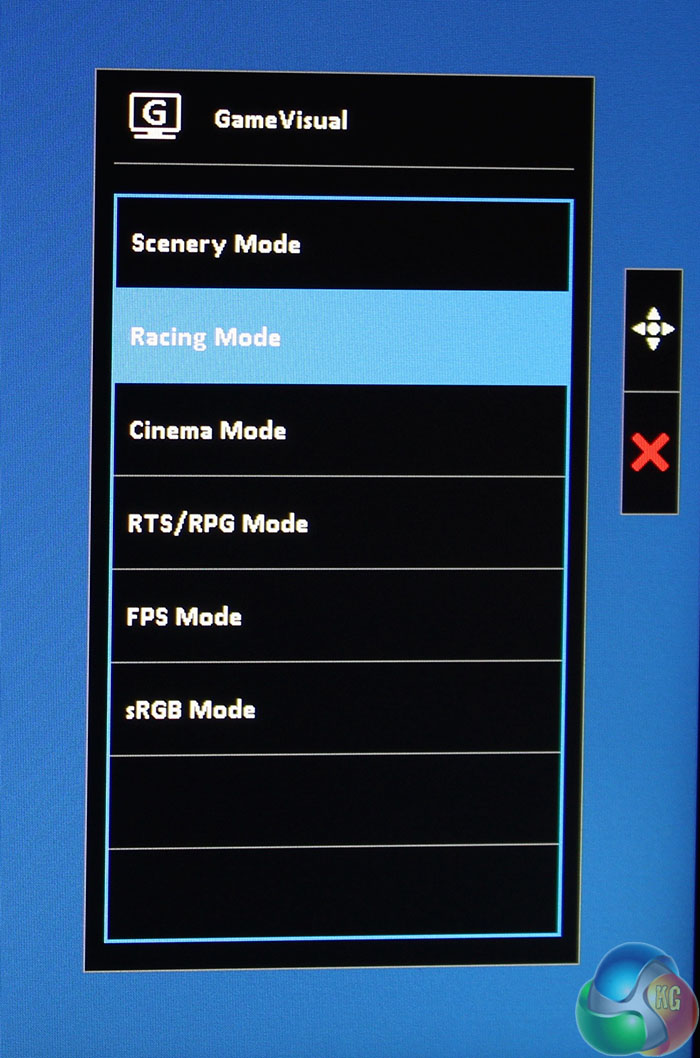
There’s one for the GameVisual presets.
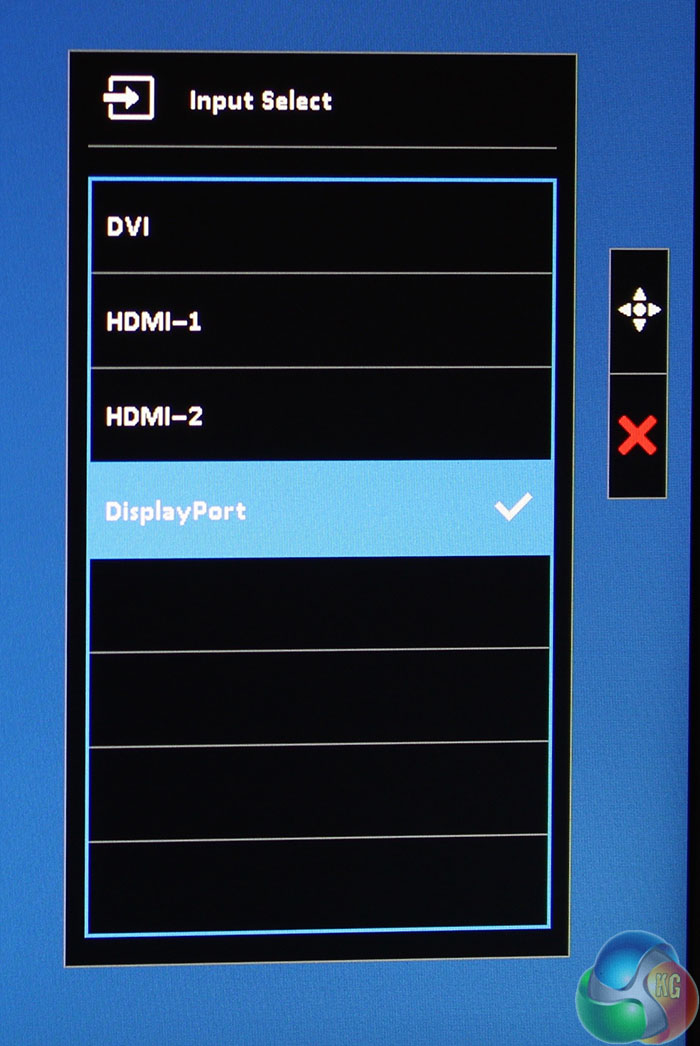
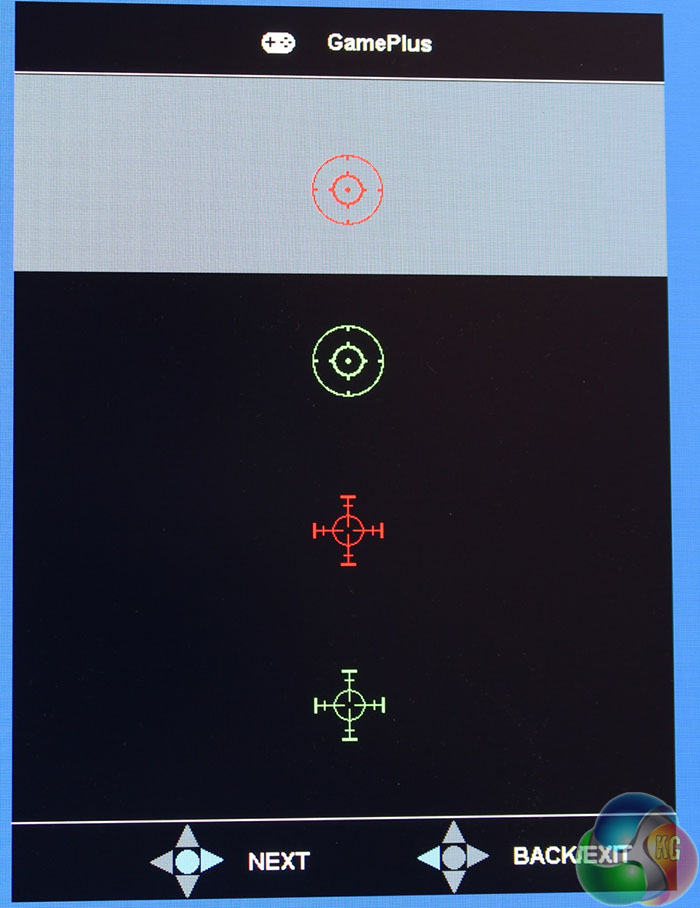
Another for the input selection, and one more for the GamePlus extras, which includes four different on-screen crosshairs.
The crosshairs can be moved around the screen with the joystick in case you need to adjust your aim. Many gaming screens now offer aiming assistance in this way, but not all of them let you move the crosshair about.
There’s also an on-screen timer, which we found to be fairly pointless.
A new addition to the MG278Q is an FPS counter, which displays the screen’s current refresh rate. When FreeSync is disabled, then it shows 144Hz at all times, or whatever refresh rate the screen is set to. In this case it’s not much use as it obviously cannot accurately read a game’s frame rate and you’ll have to rely on Fraps or another similar tool.
But with FreeSync enabled, since the screen is locked to the video card’s frame rate, then this is an accurate reading of the game’s frame rate. As we found it also can be used to diagnose whether FreeSync is enabled, since there is no option to enable it in the monitor’s OSD.
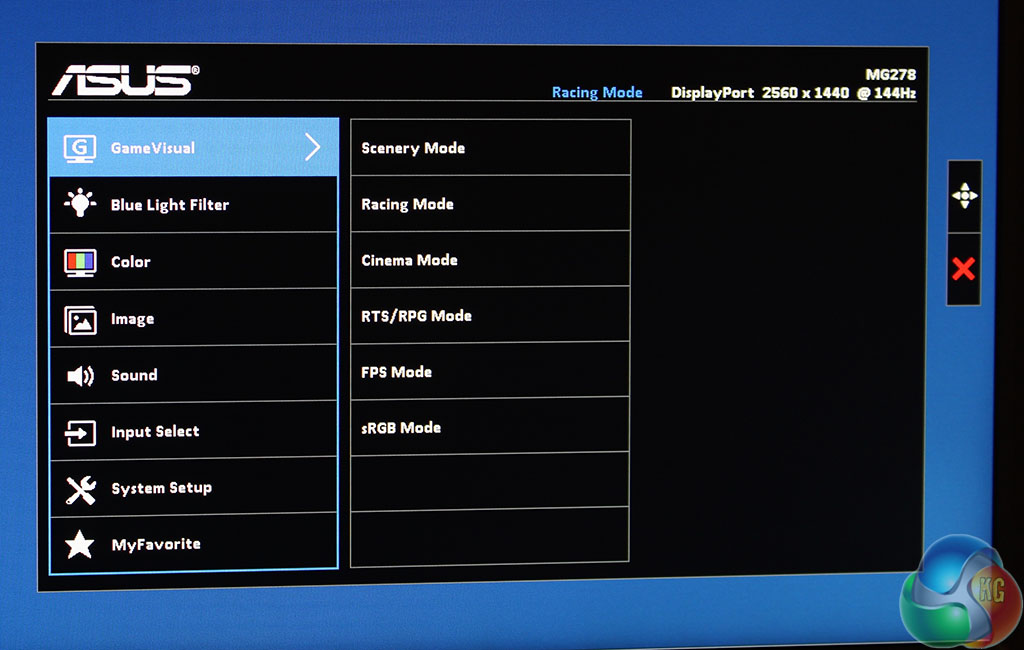
Pressing the joystick inwards brings up a more detailed options menu, which opens on the GameVisual menu.
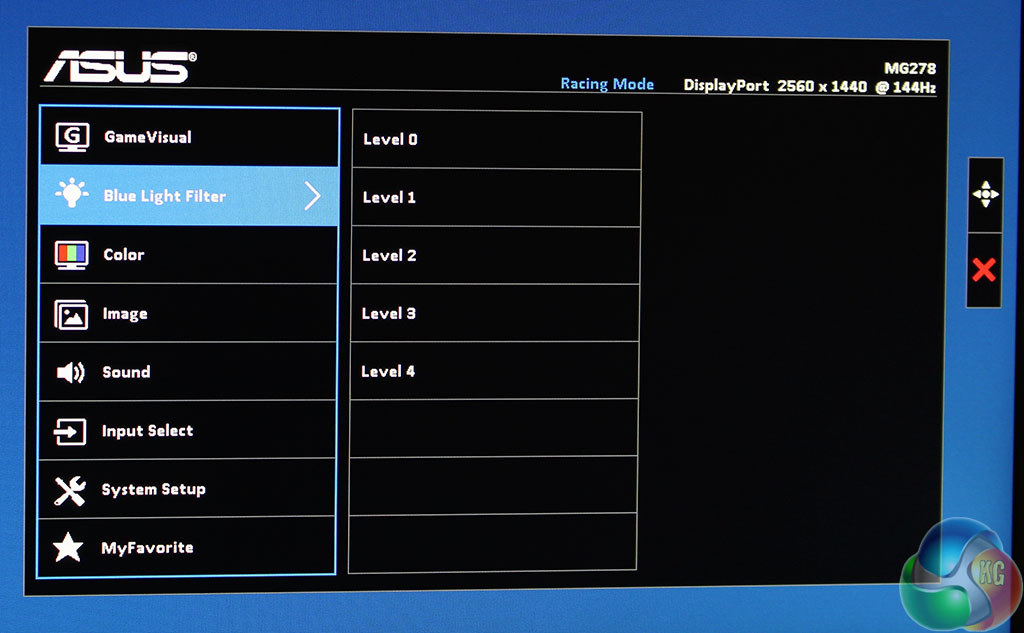
The next menu is for adjusting the blue light levels, a popular modern feature on displays to make it easier to read text late at night, or for extended use.
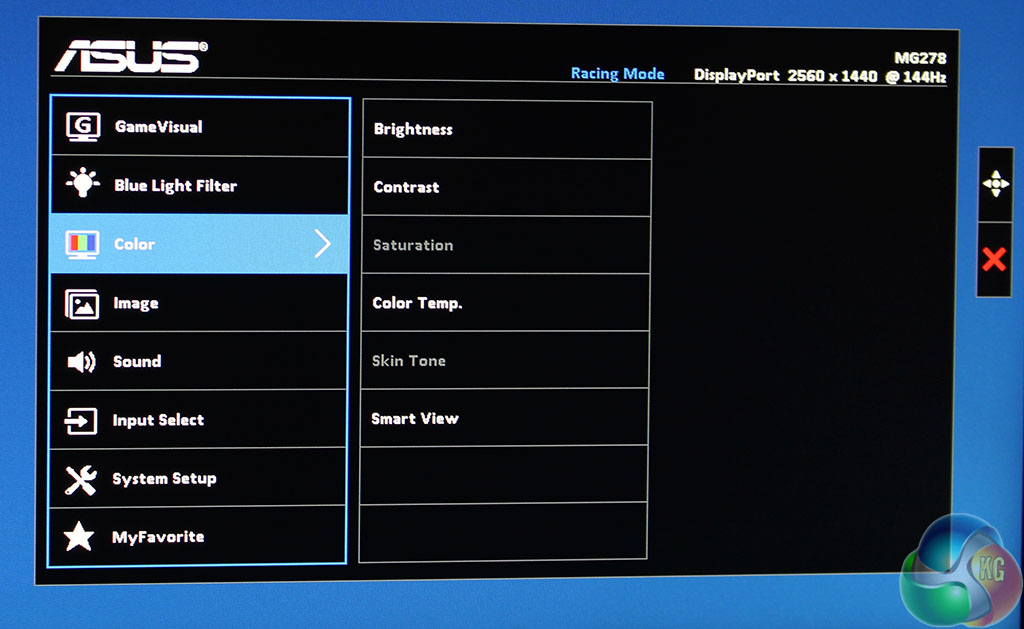
The ‘Color’ menu gives brightness and contrast controls, with settings to adjust saturation, colour temperature and so on
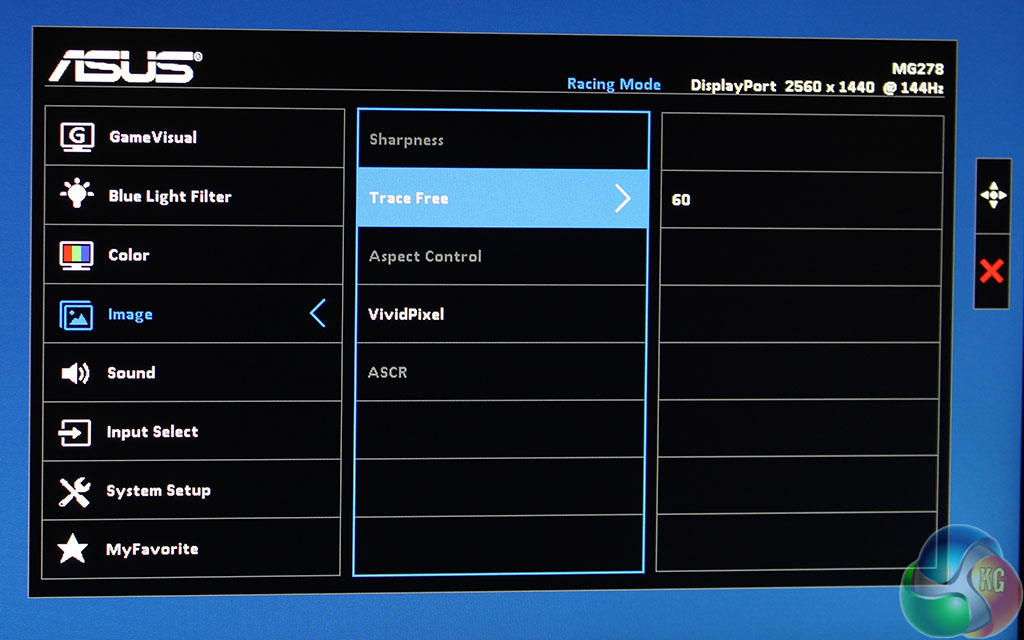
The Image menu provides options for Sharpness, Trace Free, Asus VividPixel and ASCR. With some GameVisual presets, many of these options are greyed out.
On the MG279Q, this menu contains a setting to enable or disable FreeSync, but it has been removed from the MG278Q. Why? Because the panel supports FreeSync up to its maximum refresh rate, unlike the MG279Q, its always on. The only way to enable or disable FreeSync is in the AMD Catalyst Control Centre.
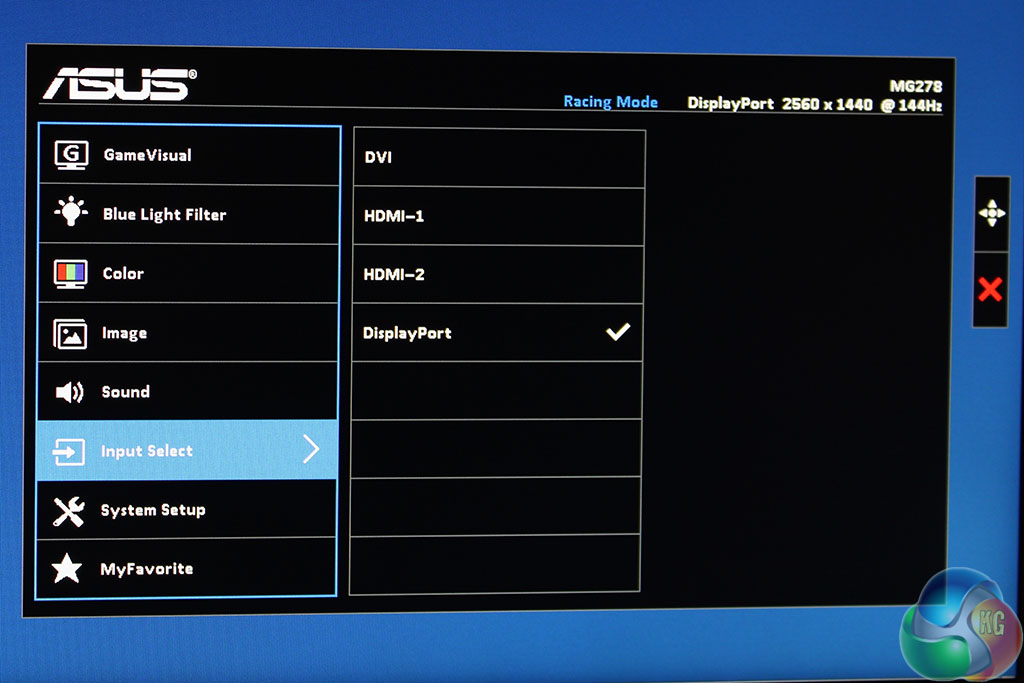
The input menu here displays the same settings as the shortcut, allowing you to choose which input you want to use on the display.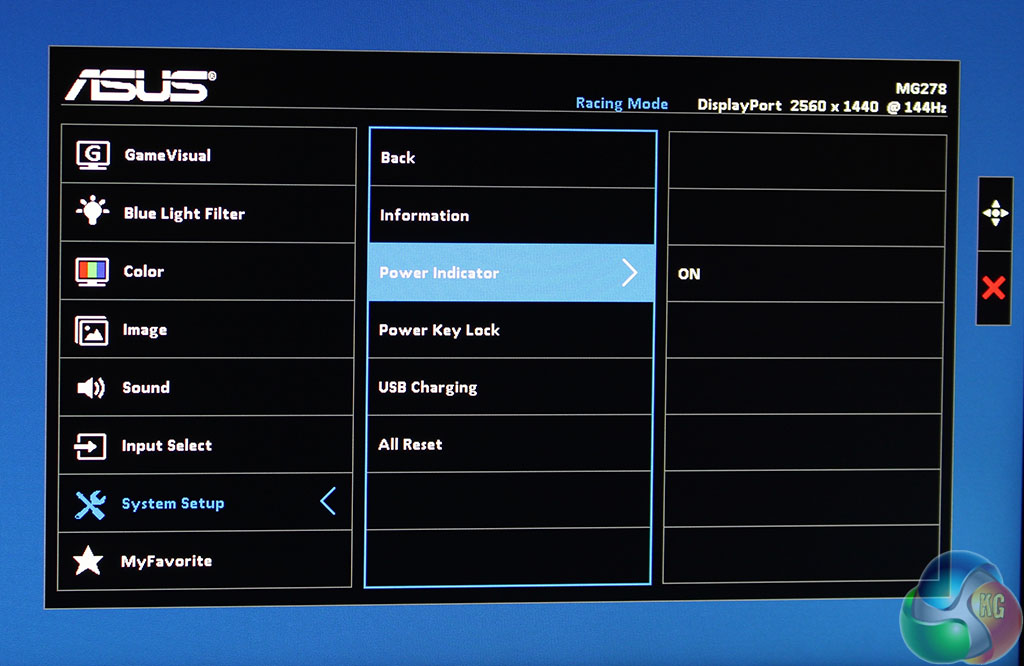
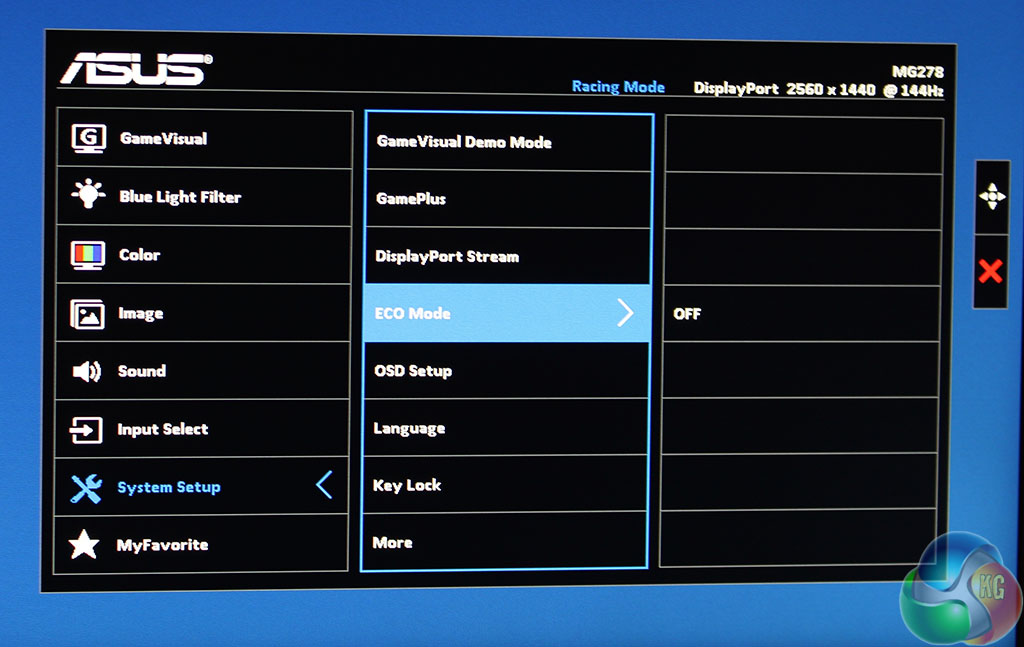
The ‘System Setup’ menu is full of settings, with an ECO mode, OSD setup, GamePlus menu and so on. Further down are more options to enable power management, USB charging and display additional info.
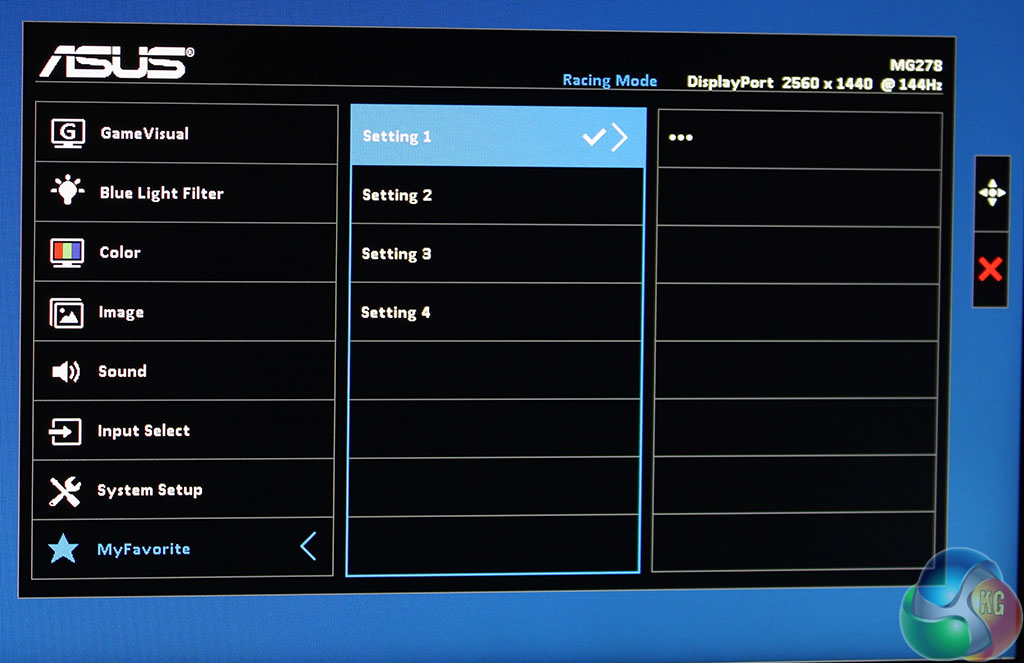
As with the MG279Q and many other displays, you can save your settings to one of the ‘favourite’ slots.
As usual we used a Spyder4 Elite Colorimeter to test the picture quality, measuring its out-of-the-box brightness, screen uniformity, gamma, colour gamut and accuracy (Delta E). We then calibrated the screen and took some measurements again. Unless otherwise stated, all the tests were run in the default ‘Racing’ OSD preset.
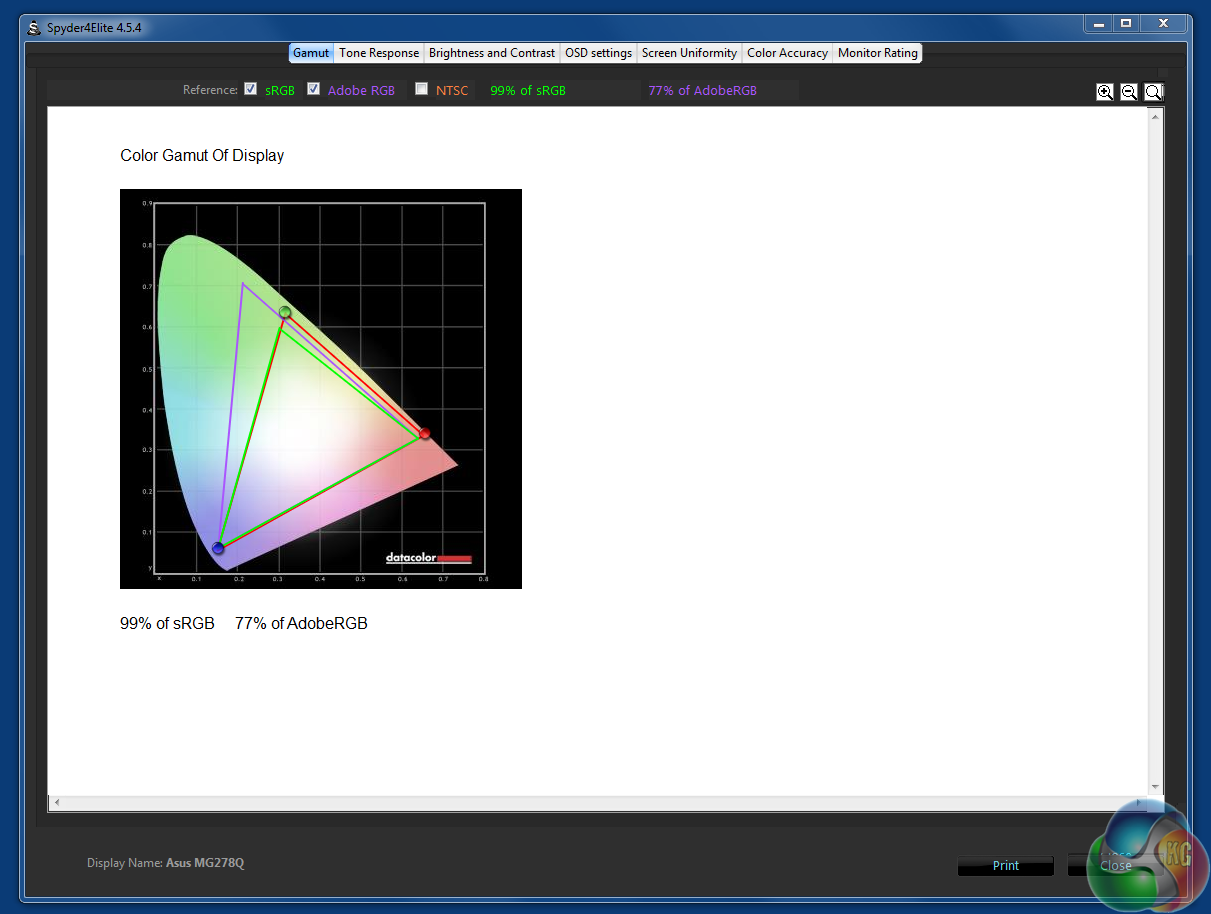
100 per cent sRGB and 77 per cent Adobe coverage puts it in the same region as the M279Q.
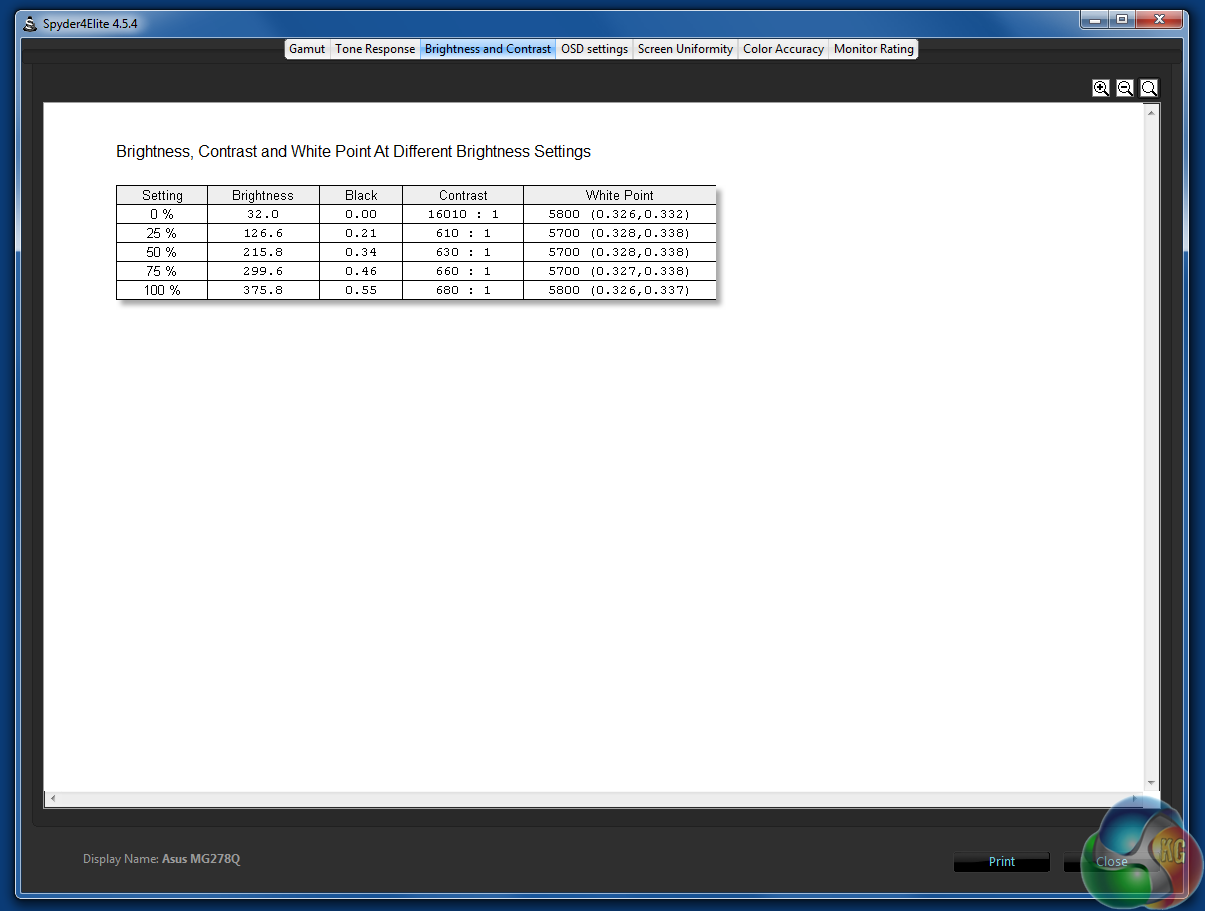
375 nit maximum brightness is comparable with the M279Q, although its contrast is slightly reduced. By default, the white point hovers around 5800k.
The black point of 0.55 is a good result, although again not quite as impressive as the M279Q and its IPS screen.
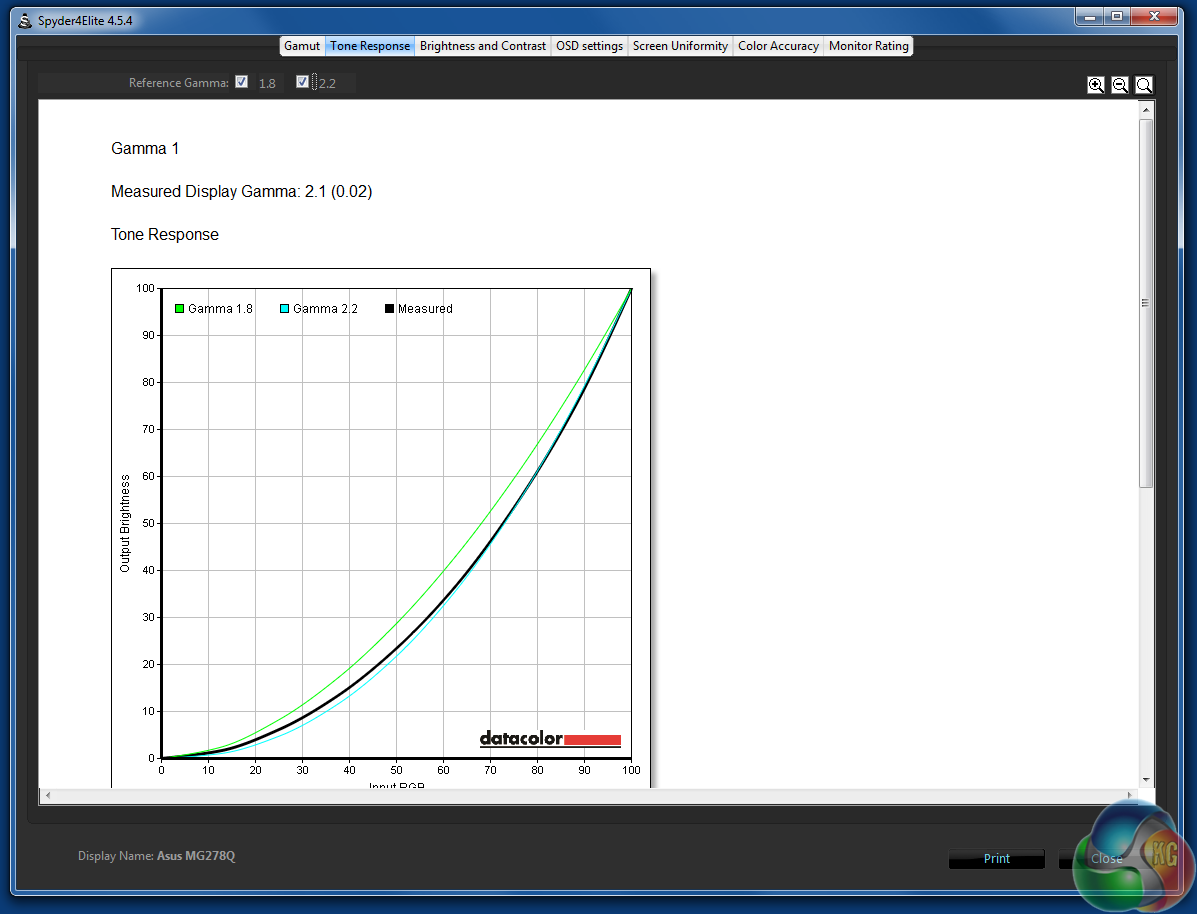
As with the M279Q, it hits a gamma of 2.1 exactly.
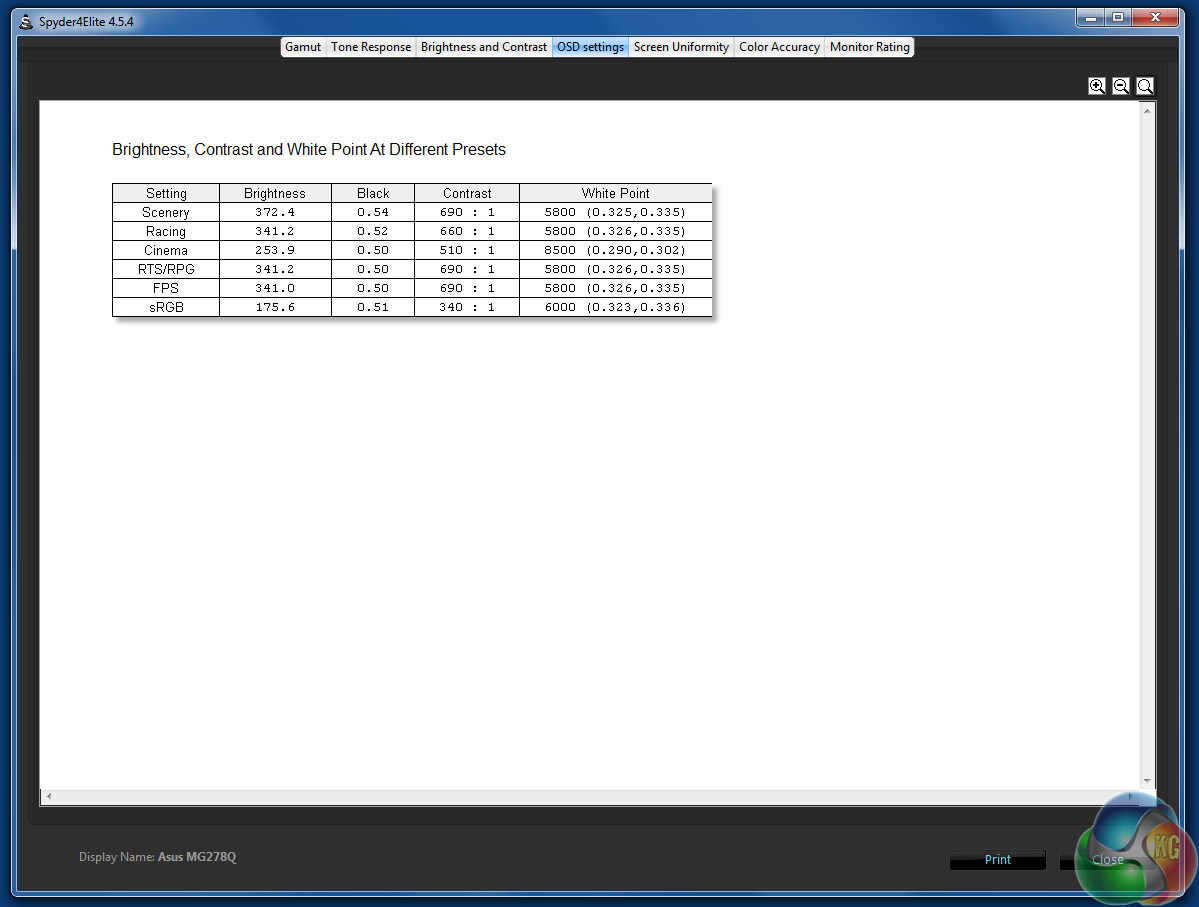
We tested the brightness, contrast, white point, black point and colour temperature of all the presets. The results confirm what our eyes tell us – that some presets are a bit darker, while others look brighter, and warmer.
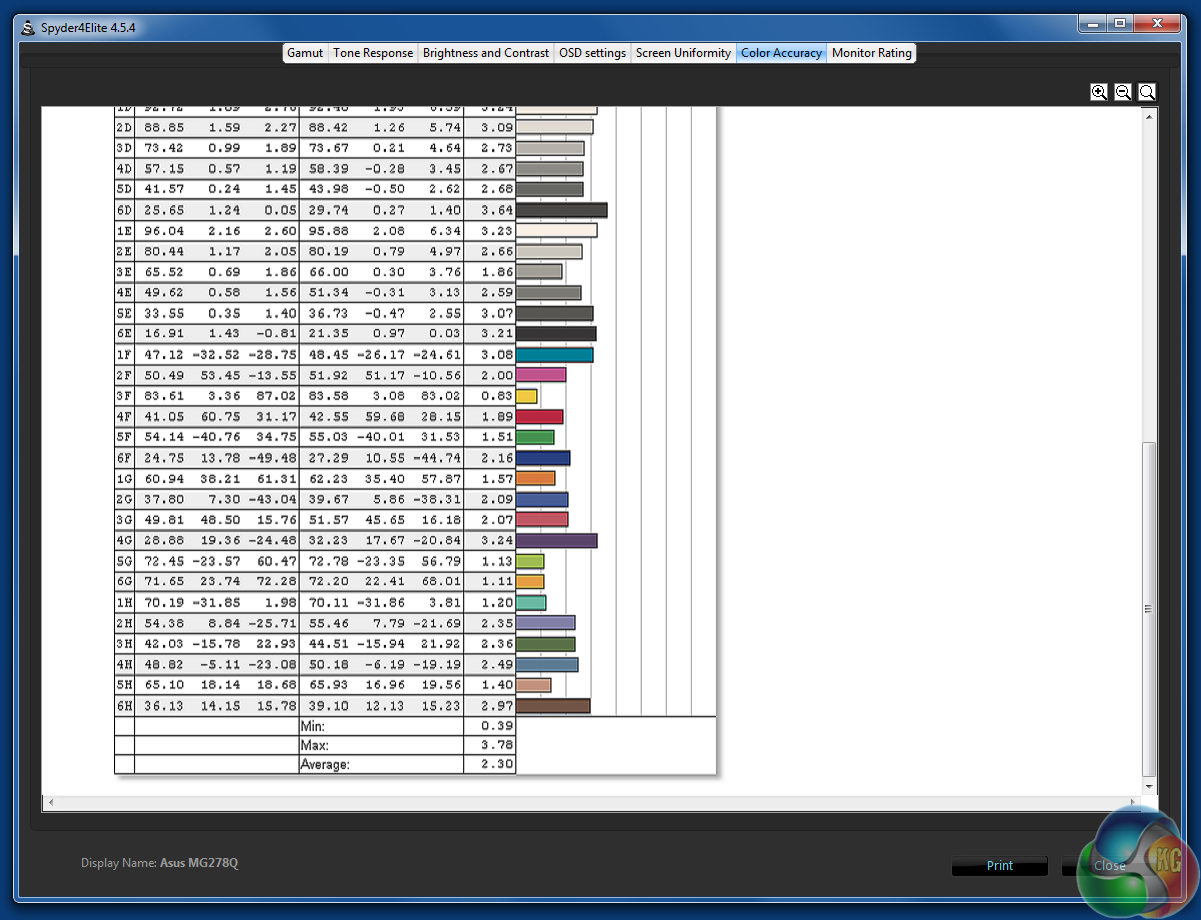
As with all gaming screens, absolute colour accuracy is not a major concern unless the screen is set to sRGB mode. In the default ‘Racing’ mode it’s not a terrible result though.
After calibration the M278Q looked a little less saturated, and richer to our eyes, a definite improvement.
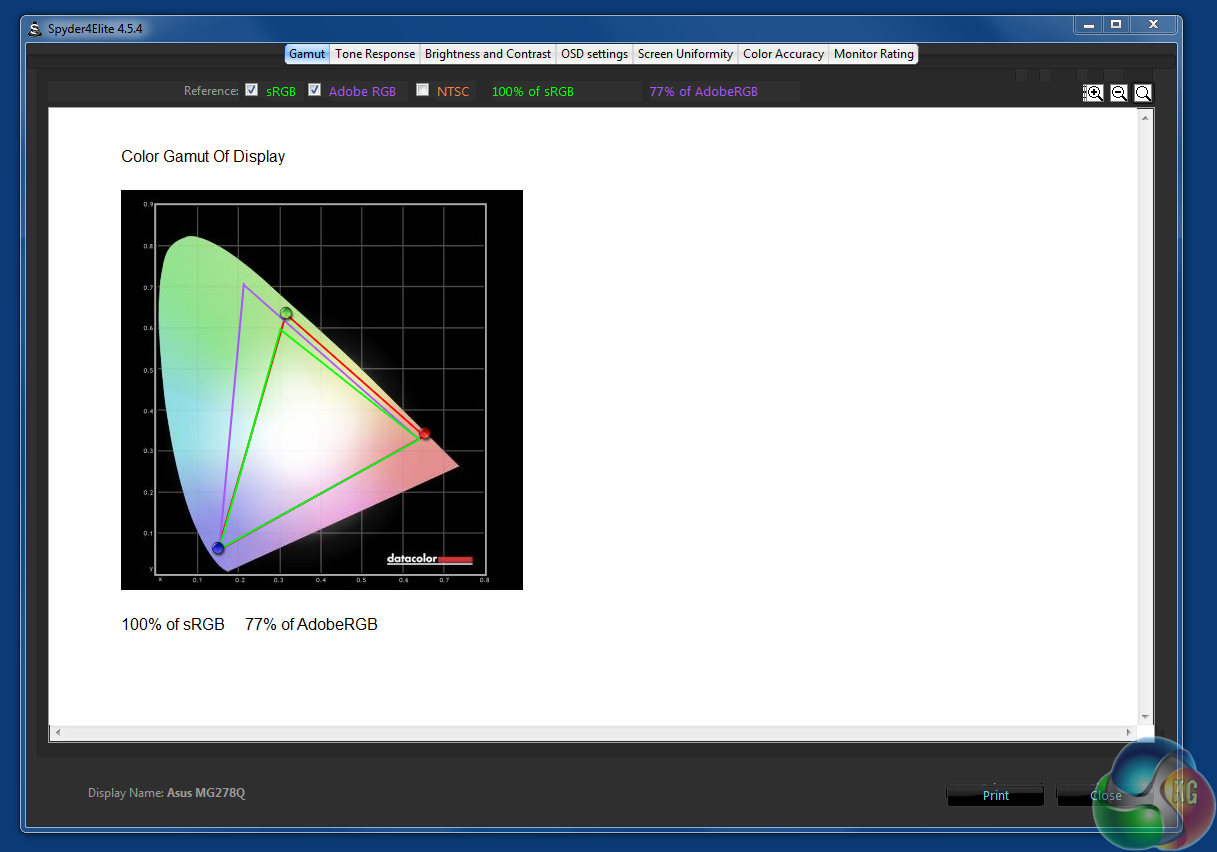
When calibrated, sRGB and Adobe coverage remains unaffected.
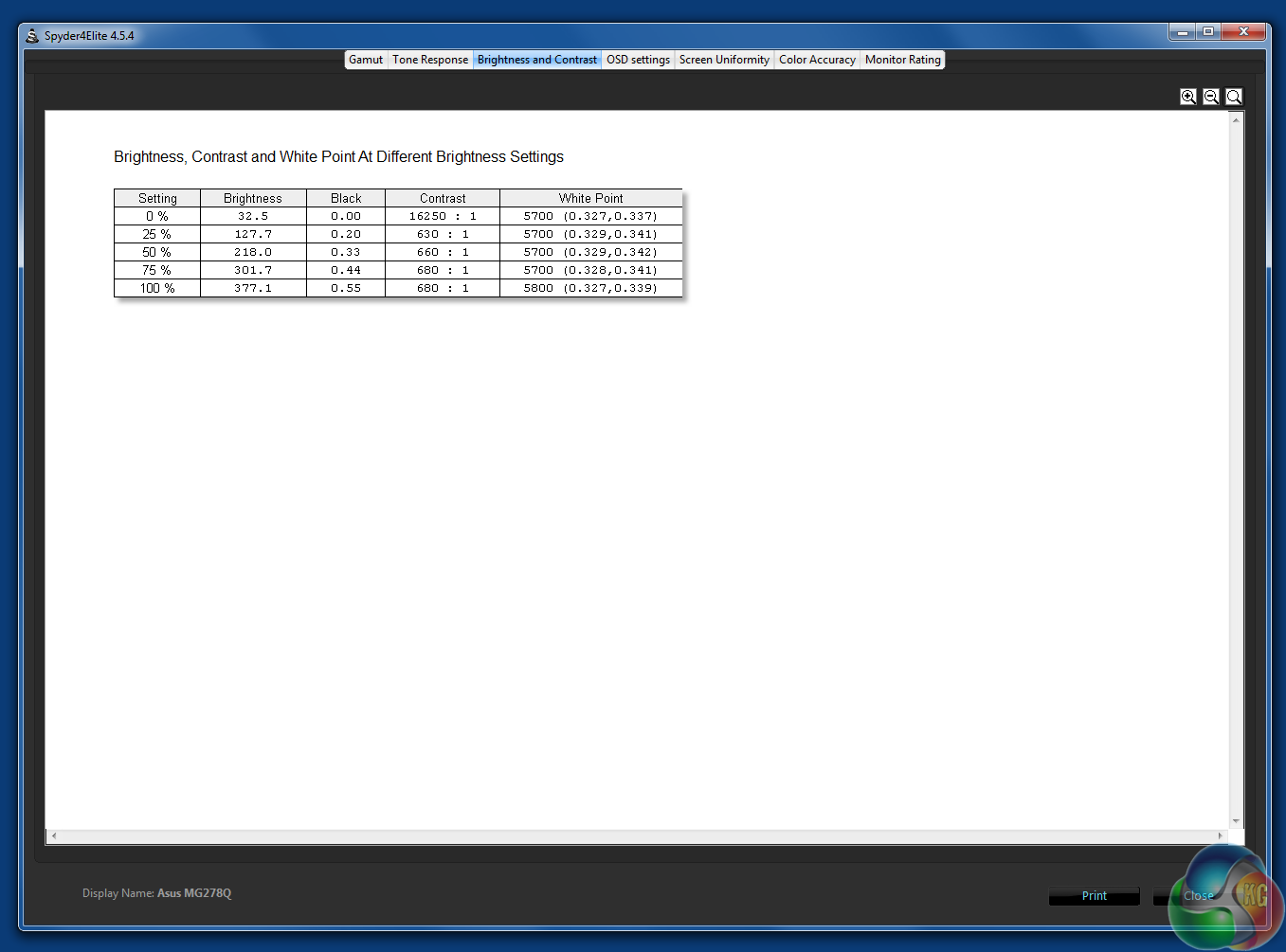
Brightness and contrast likewise are almost identical.
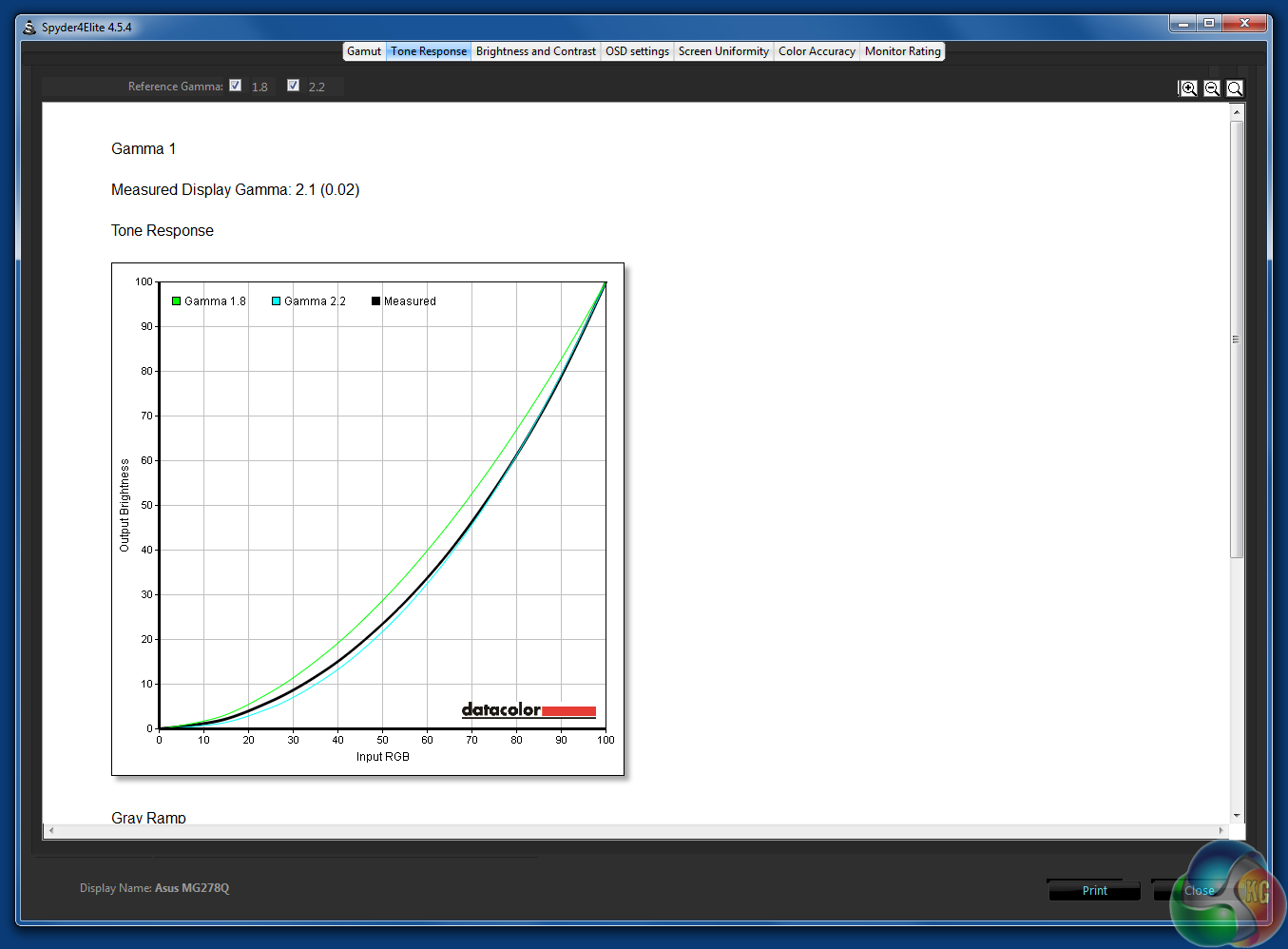
And again, the gamma remains the same.
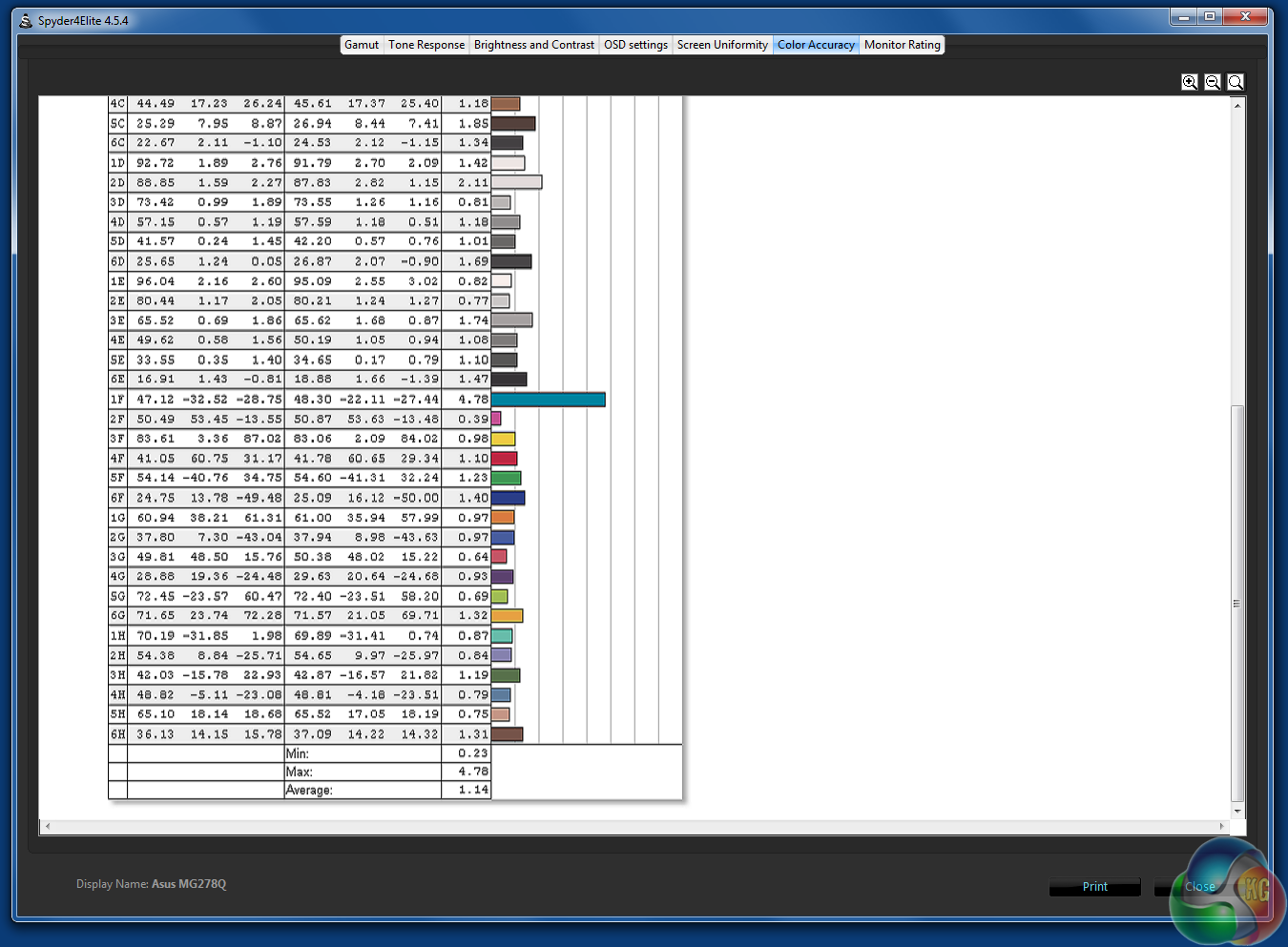
The Delta E results improve greatly though, with a result below 2.
Overall, these scores indicate great TN panel quality, far superior to TN panels of the past. In terms of measured brightness and contrast there is nothing to complain about.
Subjectively, a TN panel isn’t quite as nice to look at as IPS. Even a great example of TN technology such as this doesn’t look quite as sharp as an IPS screen. But that’s the price you pay for 1ms response times.
We also tested the sound, and as with most display speakers, the volume (and particularly the bass) wasn’t very loud, but it wasn’t at all tinny. Music sounded fine playing through it, but you would probably want something better for a party.
And lastly we measured its power consumption as 40.7 watts on 100 per cent brightness.
There’s no testing kit we can use to compare how well two FreeSync screens perform in adaptive-sync mode, but we can fire up some games and relate a subjective view of their performance.
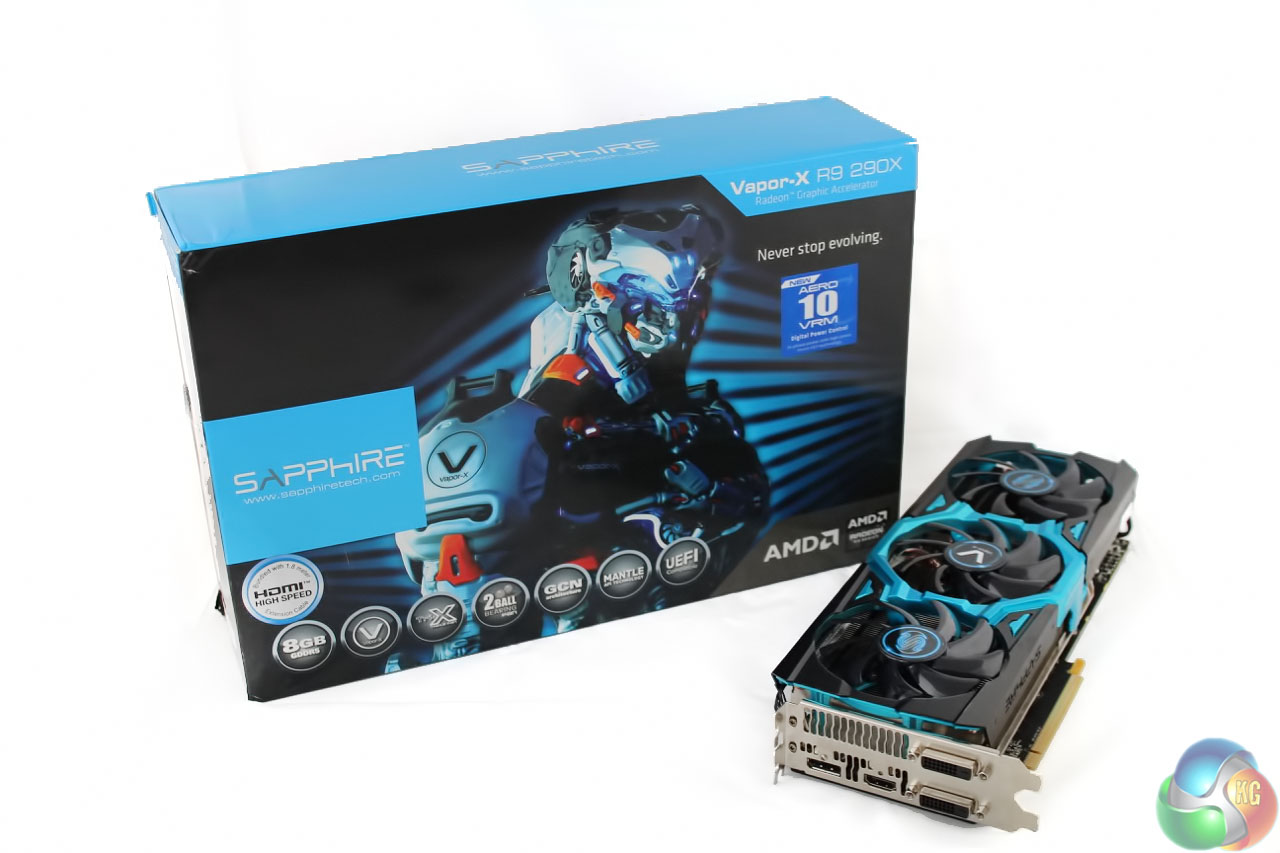
We tried a few games with FreeSync turned off, in standard 144Hz mode, with an Nvidia card, then again with FreeSync turned on with an AMD card, a Sapphire Vapor-X R290X.
The first game we tried in 144Hz was an old one, Battlefield Bad Company 2 (arguably the best Battlefield game yet.) Firing up a quick round of multiplayer, the option for 144Hz was presented in the menu, and when in the game, movement was noticeably silky smooth, and felt better than playing on a 60Hz fixed-refresh monitor. It also seemed to help with gun accuracy and improved reaction times slightly.
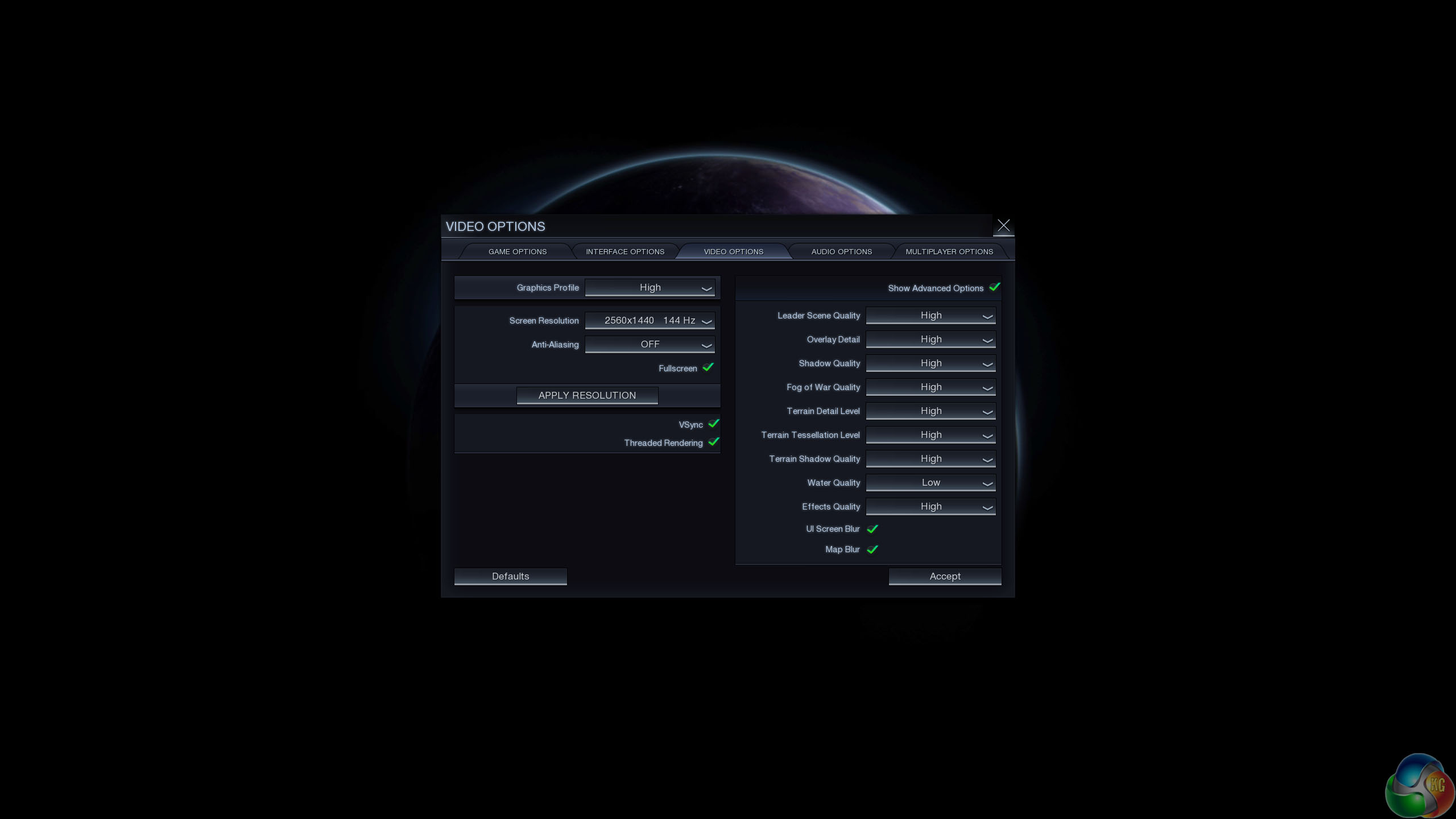
We loaded Civilization: Beyond Earth, just to see what the effect would be in a slow-paced title. Although there’s no fast-paced action in a turn-based strategy game, we observed some odd behaviour. After choosing the correct refresh rate in the menu, the game was still running at 60Hz. Alt-tabbing out and back in got it running at the full 144Hz, and it seemed to considerably speed up the camera. We guess this counts as a bug, but it does show that not all games work perfectly at 144Hz and developers may need to put in extra effort to get them working properly.
We then tried Counterstrike: Global Offensive, a game which is extremely popular with enthusiast gamers. We love gaming, but we’re not exactly the best Counterstrike players in the world and I had my ass handed to me. Nevertheless, the effect was fairly similar to Battlefield: Bad Company 2, with smoother overall movement than you get with 60Hz, but in some scenes there was some noticeable tearing without adaptive sync.
Then we played some games with FreeSync enabled.
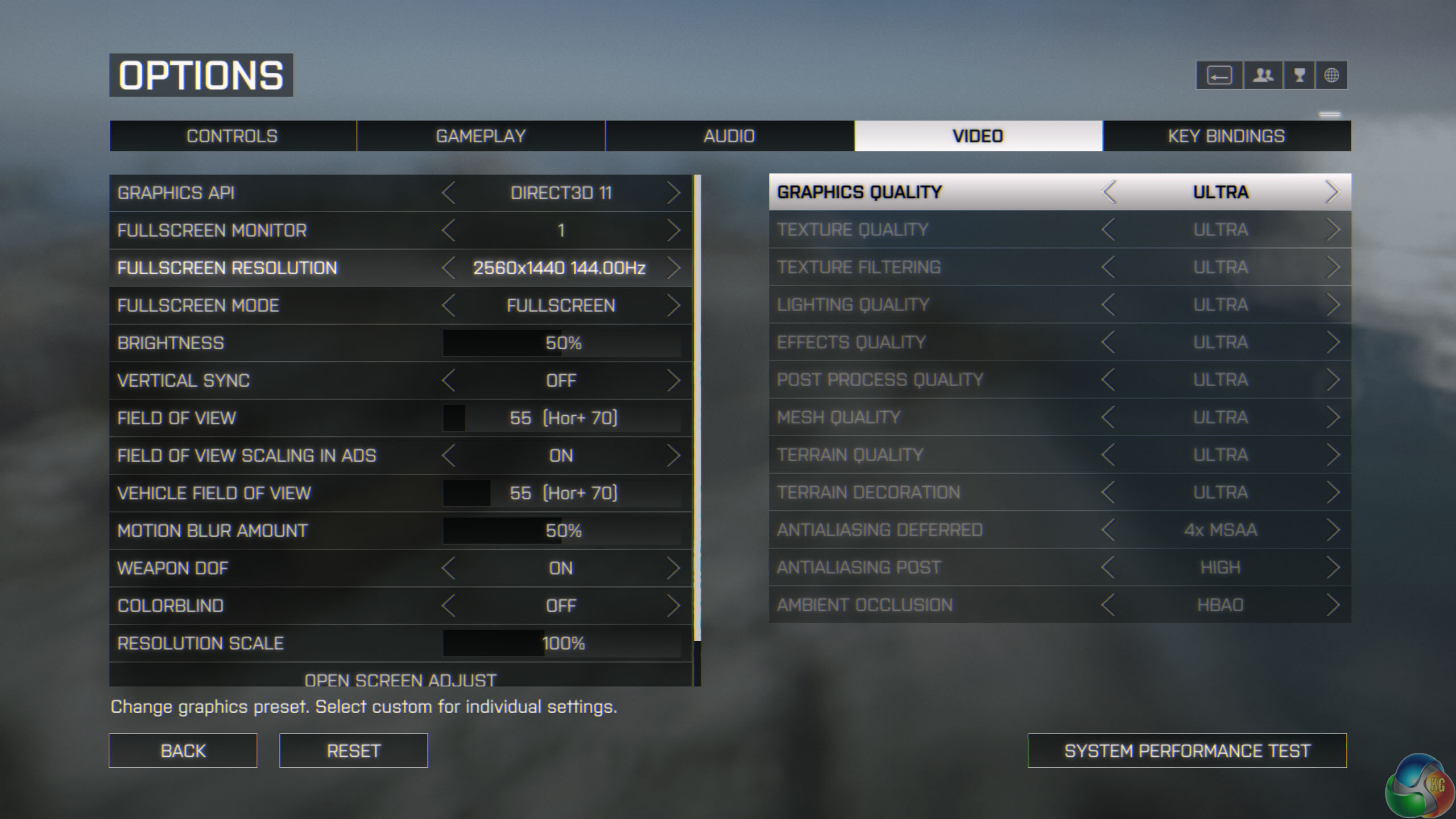
Battlefield 4 in high detail did not maintain a constant 144fps and was dipping between 40 and 70fps, depending on the scene. It was at its lowest in open areas surrounded with buildings on ‘Siege Of Shanghai’ with multiple vehicles and explosions going off, with the frame rate becoming choppy. It was made all the more obvious because of the ultra-smooth movement in other, less detailed environment.
We did encounter an issue with the screen occasionally going blank for a second during Battlefield 4, then the picture reappearing again. This could be a driver problem, and it didn’t happen in other games with FreeSync enabled.
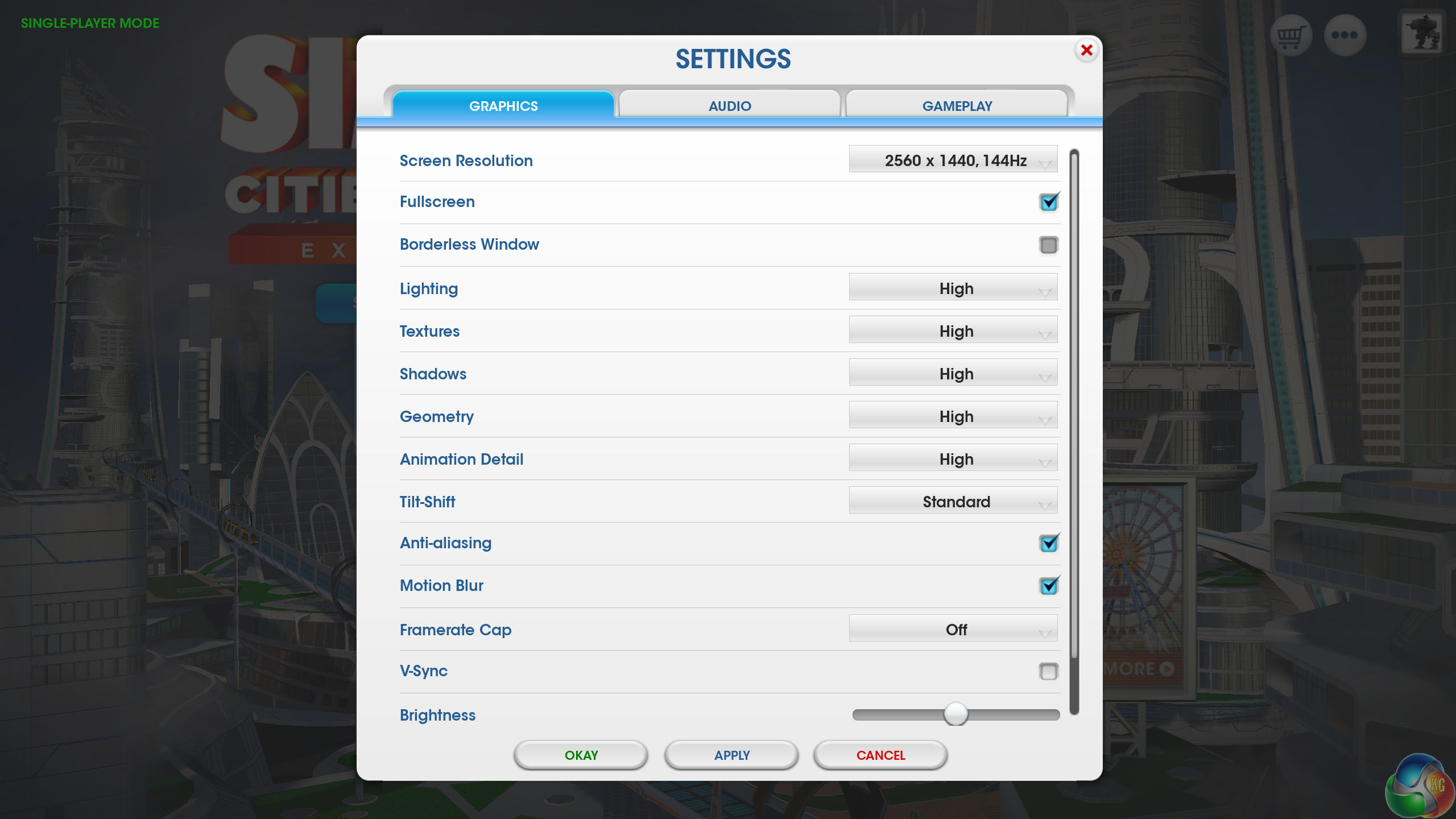
We also tried Sim City (2013) as another example of a slower game, and the camera movement, zooming and panning seemed to be ultra smooth. A definite improvement.
While this report is hardly a scientific test, and it’s only a tiny selection of titles, it does show that not all games behave perfectly with AMD FreeSync or 144Hz, but the issues are relatively minor, and we feel it’s something we could still live with.
As we would expect, the Asus MG278Q is better for AMD Freesync gaming than the MG279Q. That said the MG279Q incorporates an IPS panel so overall picture quality is higher. That’s not to say the MG278Q is bad in any way – in fact, it’s panel is one of the best TN screens we have tested, exhibiting high brightness and excellent contrast. It also helps that it is significantly cheaper than the MG279Q.
So it all boils down to your priorities. The MG278Q is a great FreeSync display, and with a low 1ms response time, it’s probably a better buy if you spend more of your time gaming than anything else. There is some strong competition from other manufacturers, but this display has a few additional benefits. It offers a WQHD resolution, a great OSD, and the joystick is really handy to quickly flip though menus.
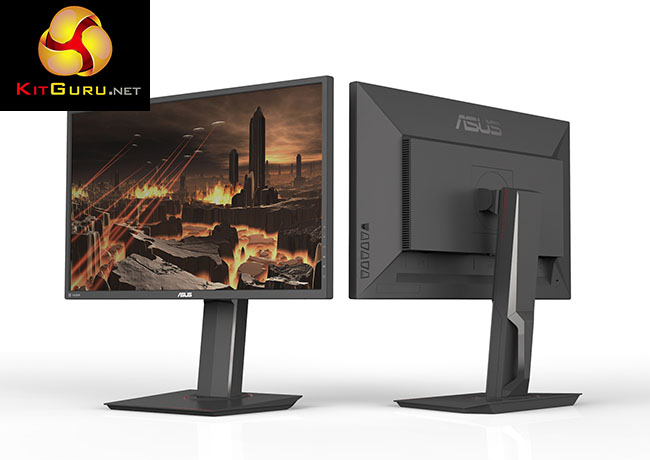
It’s still a TN panel though, and the viewing angles are good, but not perfect. The picture just isn’t as crisp as IPS, and based on desktop picture quality alone, we’d go with an IPS screen every time. But this is a display for fast-paced gaming rather than Photoshop work. For 1ms gaming, this is an unavoidable compromise since IPS panels cannot hit response times greater than 4ms.
If you’re not a gamer, there really is no reason at all to buy a TN FreeSync screen. There are many alternative IPS panels that give a better picture on the Windows desktop.
If gaming is something you dabble in occasionally, or aren’t too obsessed with FreeSync being turned on all the time, the MG279Q still supports adaptive sync up to 90Hz and has all the benefits of IPS technology – admittedly with a heftier price tag.
There’s plenty of competition too as many other vendors sell high quality FreeSync displays. Asus has a few advantages though. But the Asus MG278Q measured up well against them. The screen really is good, its contrast ratio and brightness are excellent and the well designed OSD and joystick are a unique benefit as well.
Discuss on our Facebook page, over HERE.
Pros:
- FreeSync between 35Hz and 144Hz.
- Good brightness and excellent contrast.
- OSD that’s easy to navigate.
- High quality TN panel with 1ms response time
Cons:
- TN panel, so worse viewing angles than IPS screen
- Still notably pricier than a display that doesn’t support adaptive sync
Kitguru Says: Although the MG278Q is a bright panel with excellent colour reproduction, the superb gaming performance with AMD FreeSync is the main reason to buy it.


===
How can a TN be better for gaming comparing to mg279q? IPS is always better with its image quality.
TN is better for competitive gaming because of it’s 1ms response time, such as FPS or RTS.
IPS is better for cinematic experience because of its wider range of colors, such as RPG.
Too expensive for TN. These TN panels need a price drop, they’ve been stagnant for years. A 24″ 1080p 144hz TN should be $199 and a 27″ 1440p 144hz TN should be $299.
I also encounter the issue where the monitor occasionally goes black for a few seconds. For me it seems to be indirectly related to GPU load, and more specifically to GPU voltage (they scale together). As soon as my 290X reaches ~ 1.25V, the screen goes black. This happens periodically in GPU intensive games, but can more easily be triggered by offsetting the VDDC voltage +50mV in any overclocking utility.
Could someone who owns this screen verify this?
“or whatever refresh rate the screen is set to” What other refresh rate settings can you use? I know a few other monitors have the options for 144, 120 and 60. what does this one do?
I ended up getting one of these on sale for $399 :p It’s a really good monitor as stated in this review, i really am impressed with this top tier 8bit TN panel which looks amazing. I’ll be good with this monitor for another 6-7years till 4k becomes mainstream 🙂
dude it pisses me off that im trying to find a new monitor and these old ass monitors are still so high priced, then i see your comment from a year ago on the one monitor i thought might be right. great.
Ya i know, i commented a year ago on its high price and wished it cost $299usd. I ended up finding this monitor on sale for $399usd and just made the jump cause my eyes needed a treat and were getting wrecked with a normal monitor. The low blue light and no flickering is amazing and helps tremendously with long sessions. GL with your decision, i don’t think monitors will go down in price anytime soon as they keep tweaking a tiny feature and keep the price high and then discontinue the older models.
im struggling to find anything that can compete for price to be honest. from an owner perspective is it good? might have to just bite the bullet
Ya its great, i have no real complaints. It even has a great freesync range of 35-144hz
Do you like anti-glare coating on this monitor (MG278Q)
ya it works and it doesn’t dull the screen or colors at all. For comparison the BenQ xl2411Z seems like a grainy overlay on top of the screen vs this one which you can’t notice at all unless you put your face to the screen.