 KitGuru KitGuru.net – Tech News | Hardware News | Hardware Reviews | IOS | Mobile | Gaming | Graphics Cards


The BenQ BL3201PT is a 32-inch monitor aimed at artists and graphic designers, with a 3,840 x 2,160 16:9 UHD native resolution, also known as 4K2K. It has a total of five display inputs, with DVI, two HDMI, a full-sized DisplayPort connector and a Mini DisplayPort connector, along with five USB 3 ports. Offering 100% sRGB coverage, 10-bit colour depth, 178 degree viewing angles and 60hz 4K operation via DisplayPort 1.2, on paper it has all the necessary credentials to be a good choice for people demanding strong colour accuracy.
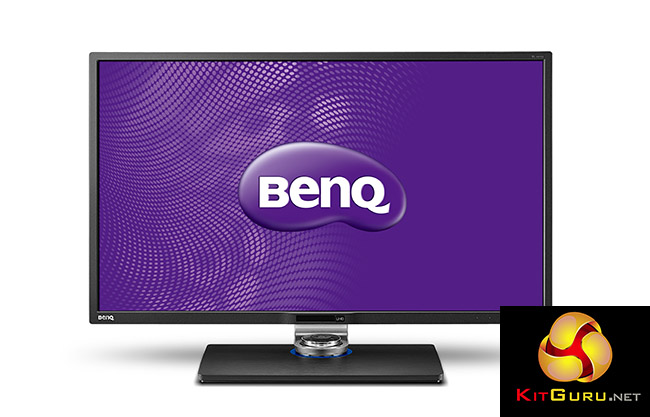
BenQ BL3201PT Overview:
- 32” 4K UHD Monitor
Designed to meet the rising demands for large-sized viewing and ultra-high definition, the BL3201PT boasts a 32”W 4K2K display built with BenQ’s advanced IPS technology, providing professionals in CAD/CAM, animation, video editing and graphic arts ultra-precise color rendition and over 300% working space to enhance their work efficiency and productivity. - 100% sRGB with IPS Technology
Every color is delivered with the finest precision in every detail and at every possible viewing angle for a great viewing experience. With a 10-bit panel that renders more than one billion hues, every image is displayed with the richest, liveliest colors. - 178°/178° Ultra-Wide-Viewing Angles:
For a faithful visual display of truly authentic colors and details from virtually any perspective – left, right, above and below. - 100% sRGB with Ultra-Vivid IPS Technology:
For images that exceed the color performance of standard 72% NTSC monitors with exceptionally rich hues and vibrant tones. - Color Shift-Free Display:
For the most consistent color definition with reduced visibility of color shift between normal and oblique viewing angles.
As a 32-inch display, larger than the average desktop monitor, the BenQ BL3201PT ships in a 15.6kg box that could possibly present an early challenge just to get through the front door or up the stairs to an office.
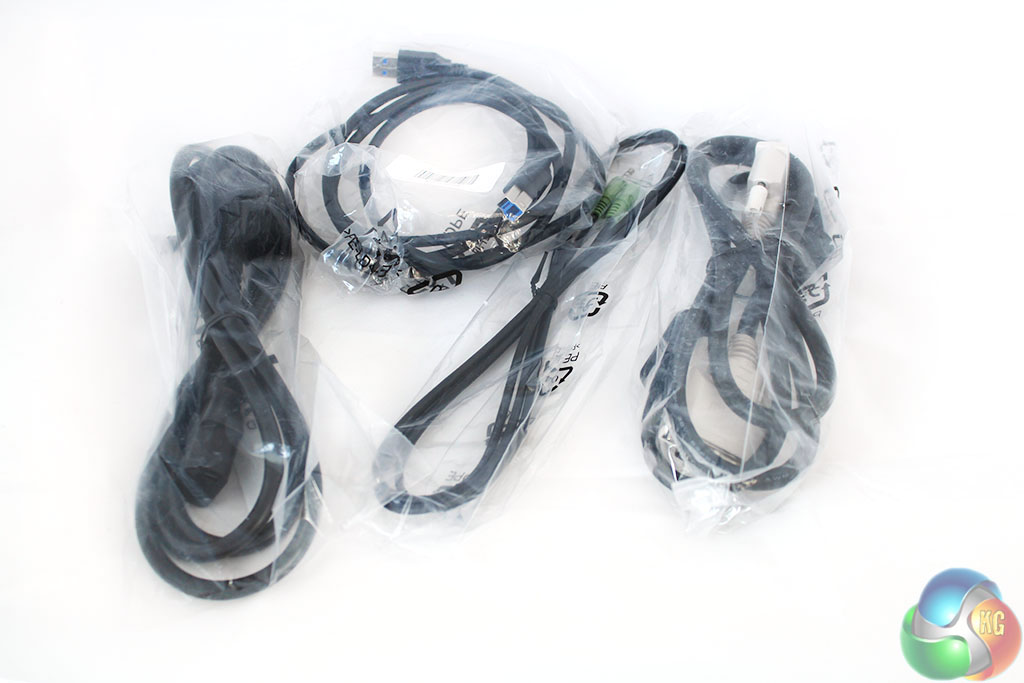
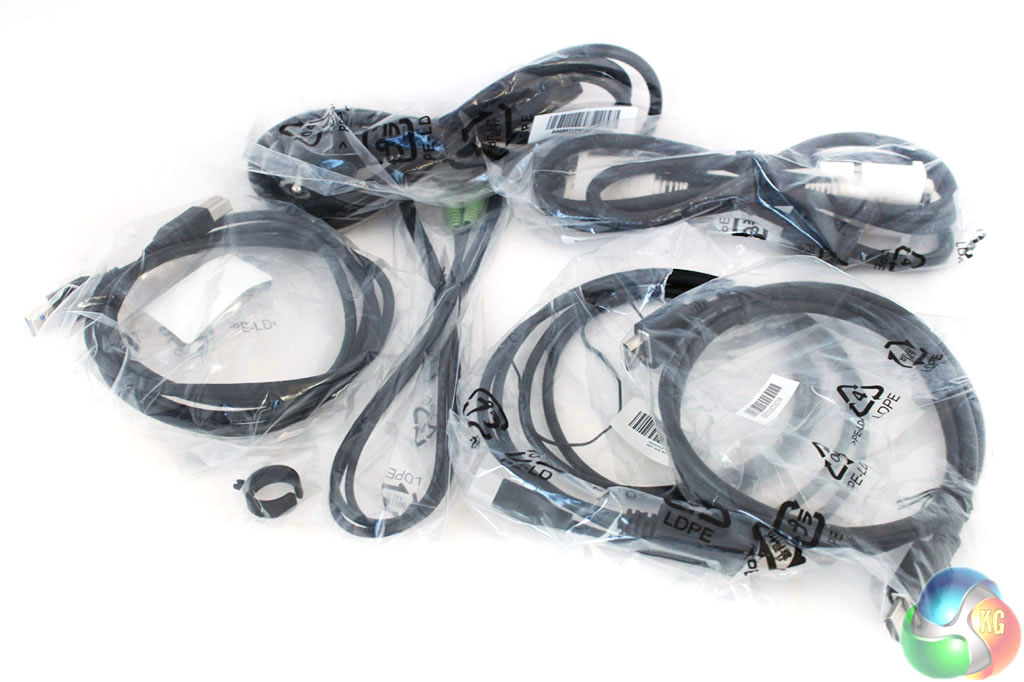
Inside is the usual selection of cabling, including a DVI cable, DisplayPort and mini DisplayPort, HDMI, and a USB 3 uplink cable.
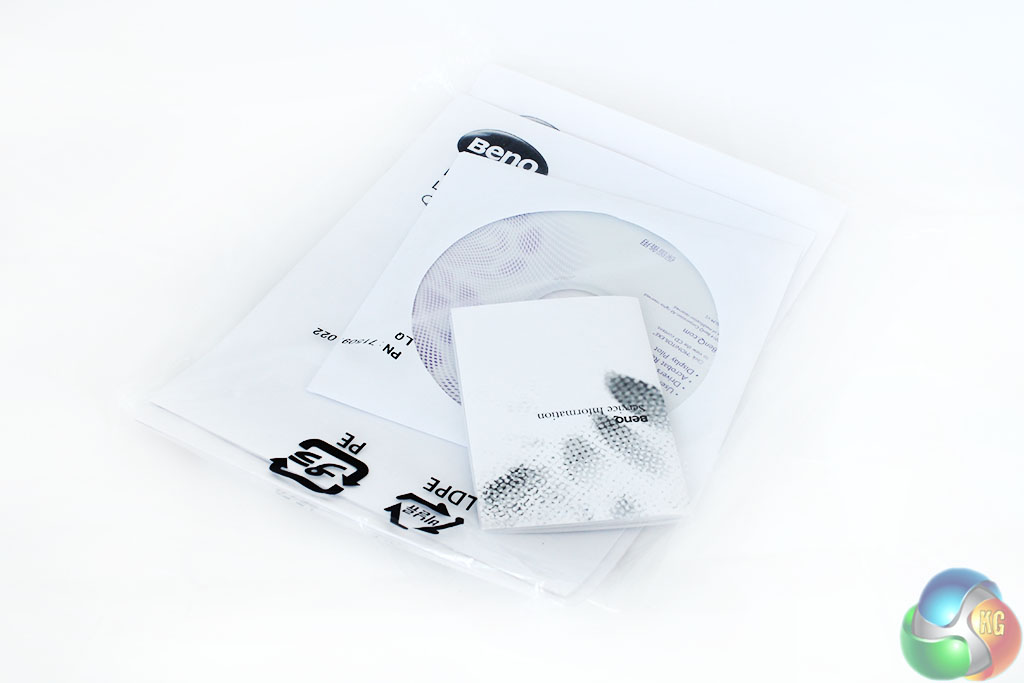
The manual, warranty card and included Display Mate software are supplied in a bag. There’s also a clip to use to hold the cables together.
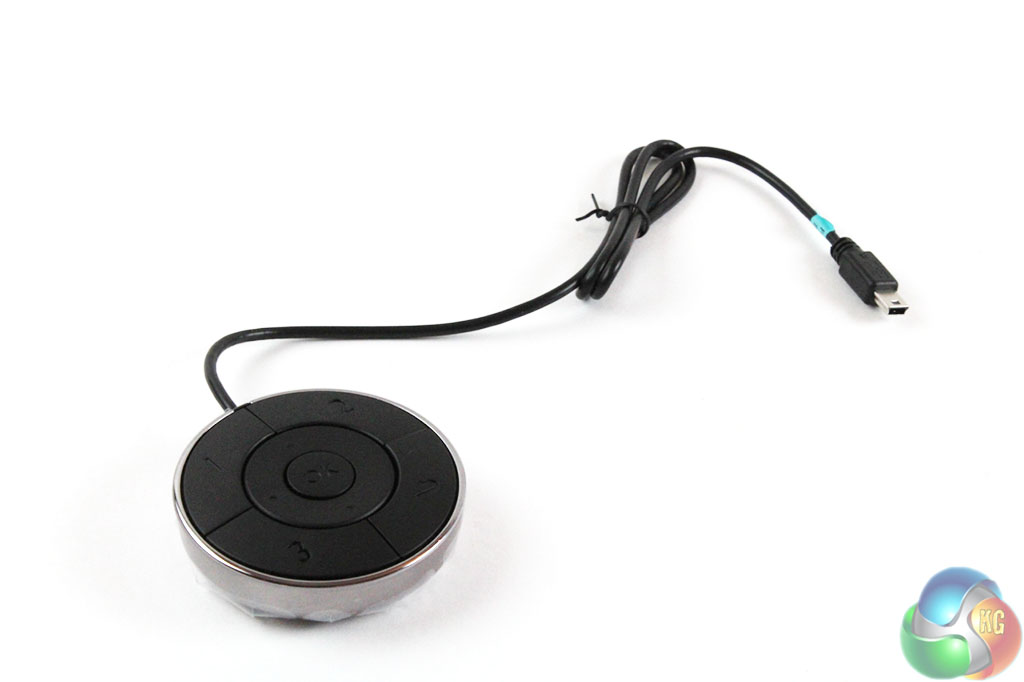
A wired remote control is part of the packaging, connecting to a Mini-USB port on the underside of the display (more on this later in the review).
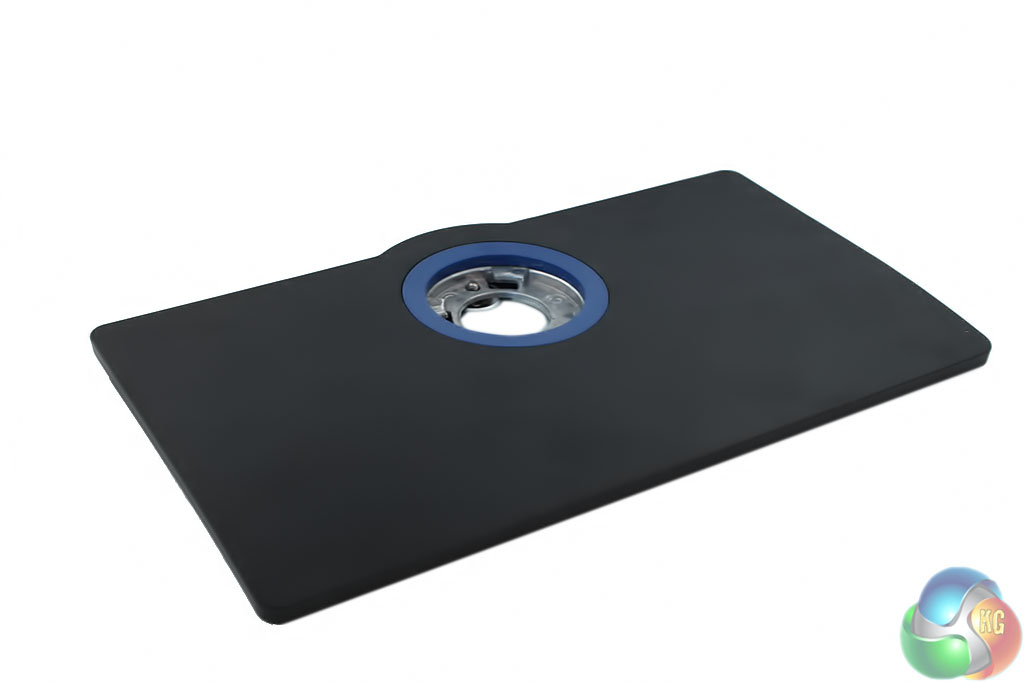
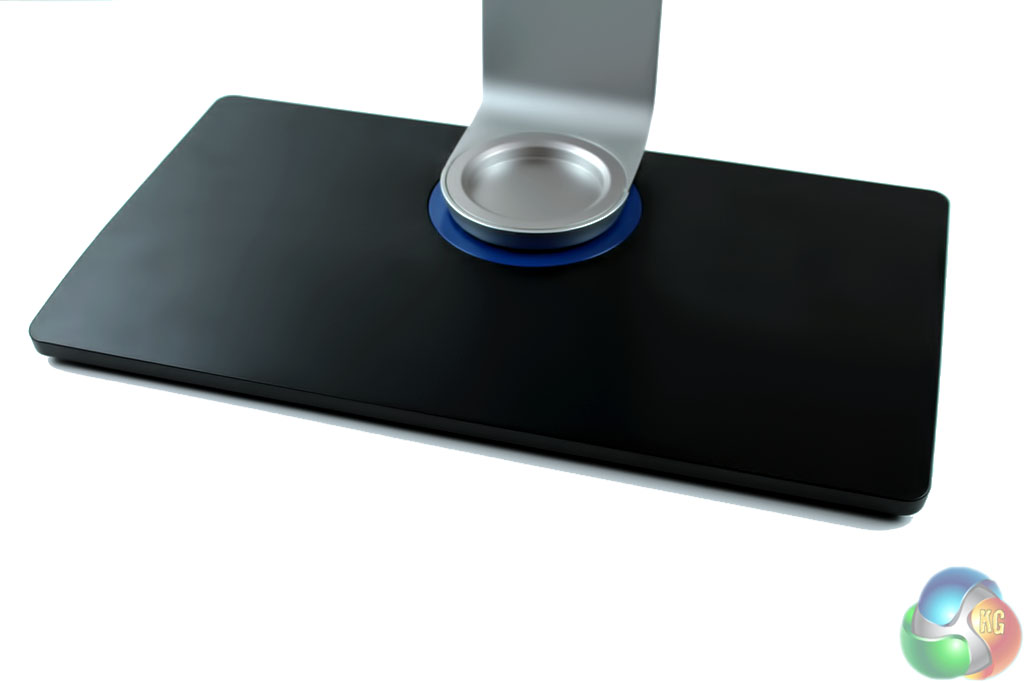
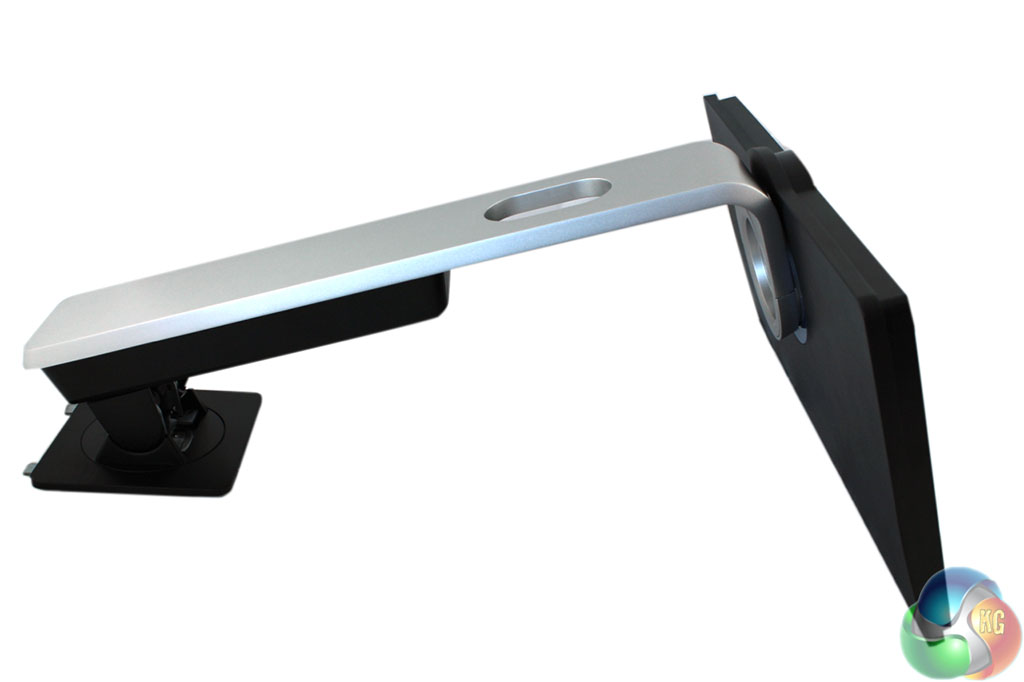
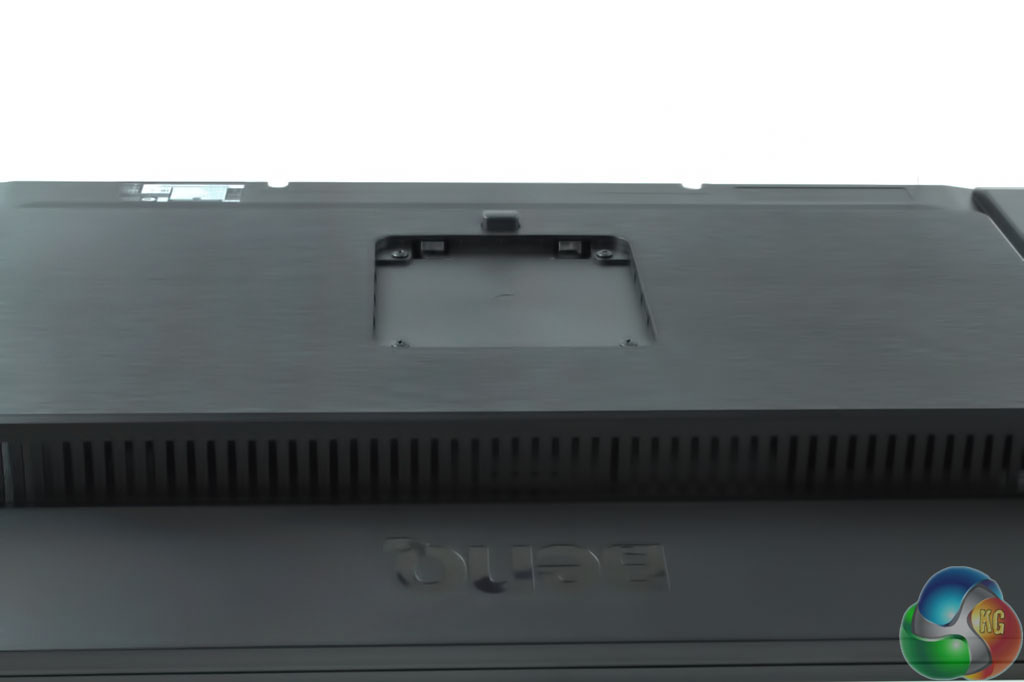
The stand is assembled via a tool-free design, with the base and main section connecting together then secured with a locking mechanism by turning a key underneath the base.
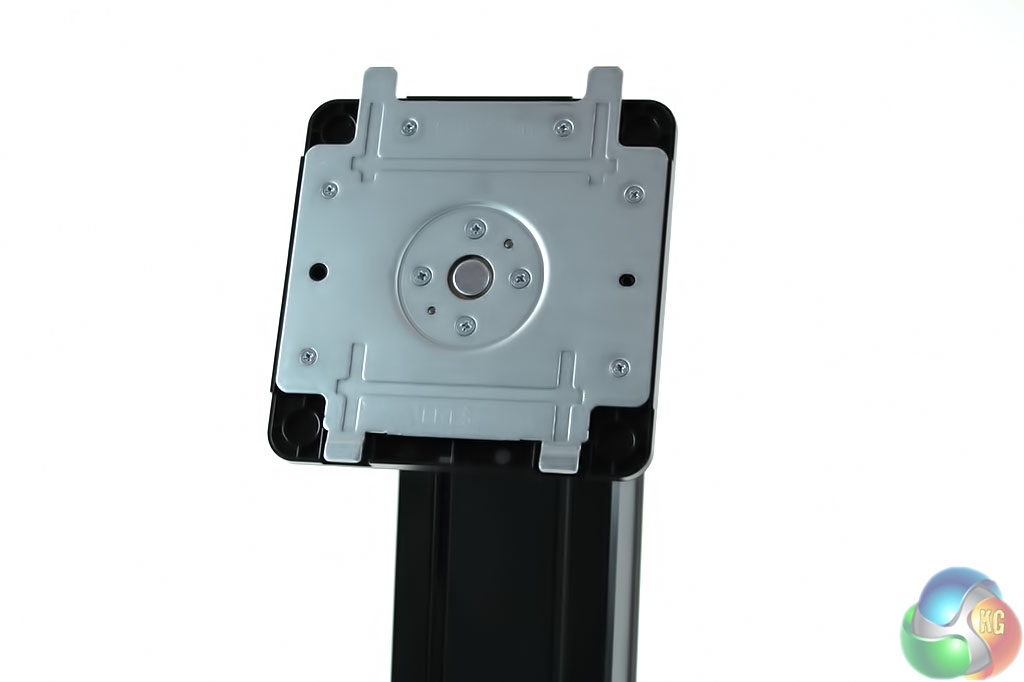
The stand then slots into the screen and clicks into place securely, or can be removed altogether and fitted to a VESA bracket for wall mounting.
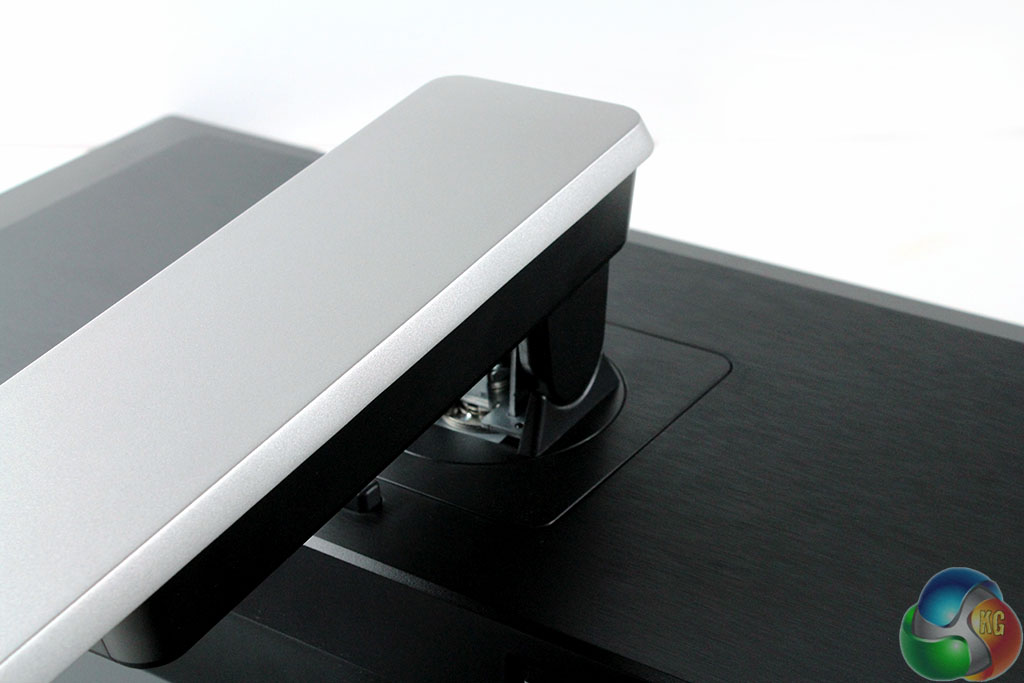
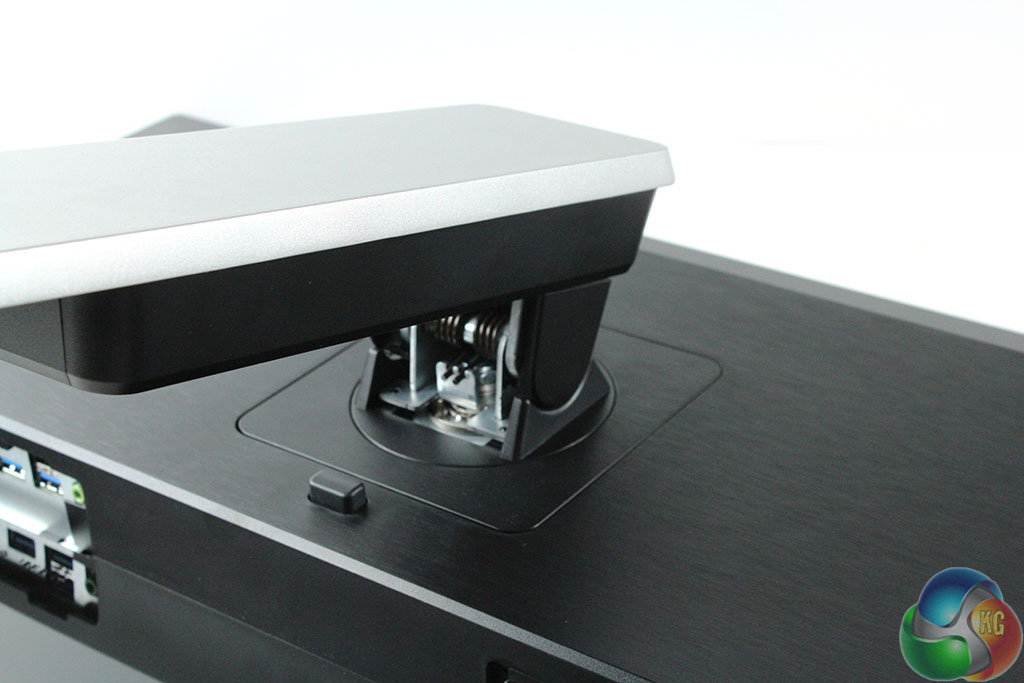
You can swivel the display 45 degrees to the left or right, raise it up to 15cm or tilt it from around -5 to 20 degrees. As with other displays, the BenQ BL3201PT can be turned 90 degrees for use in portrait mode simply by raising it to the maximum height then pushing down on one side.
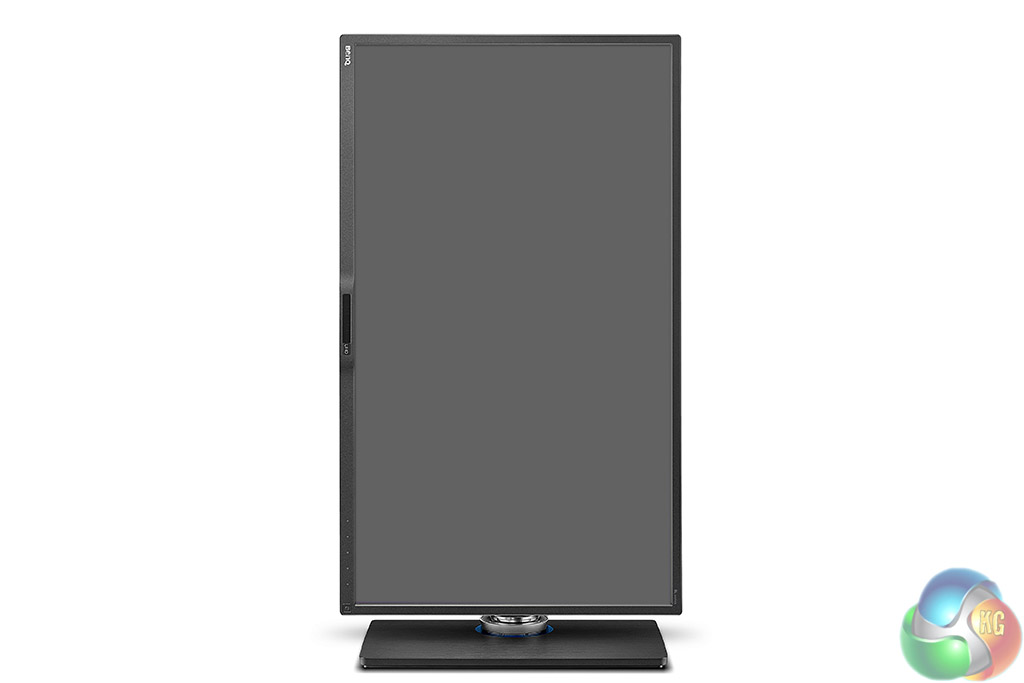
This is not commonly found on screens larger than 32 inches. However, using such a large panel in portrait mode can present a rather strange effect.
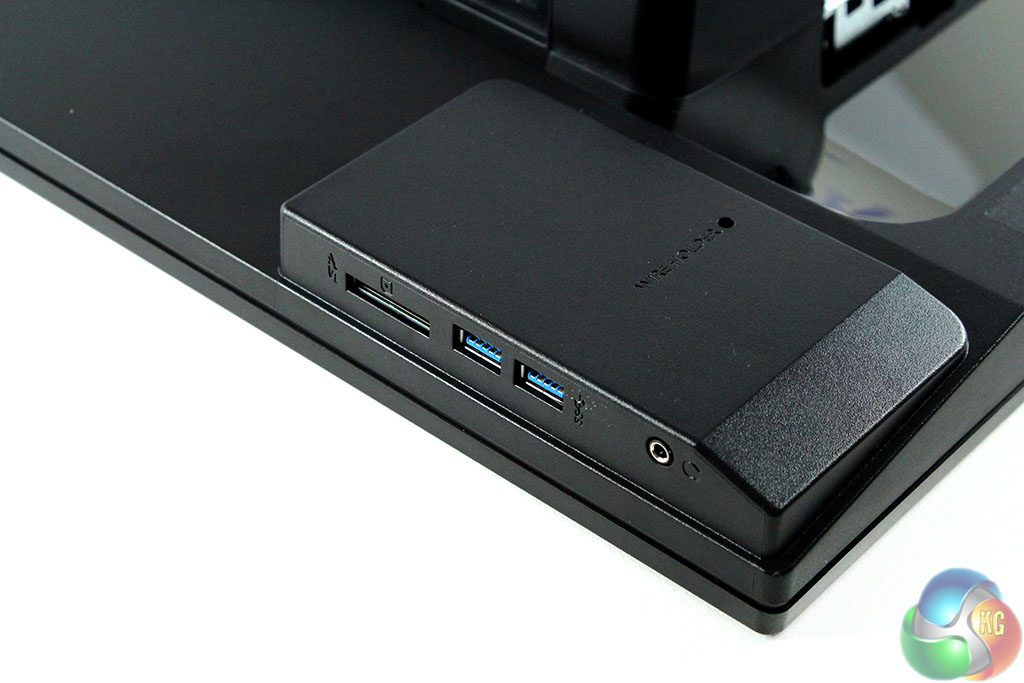
Another relatively uncommon feature of the BenQ BL3201PT is the positioning of the display connectors on the right-hand side of rather than the underside. This makes them much easier to access. You will also find an SD card slot and two of the five USB 3 ports here, with a 3.5mm headphone connector.
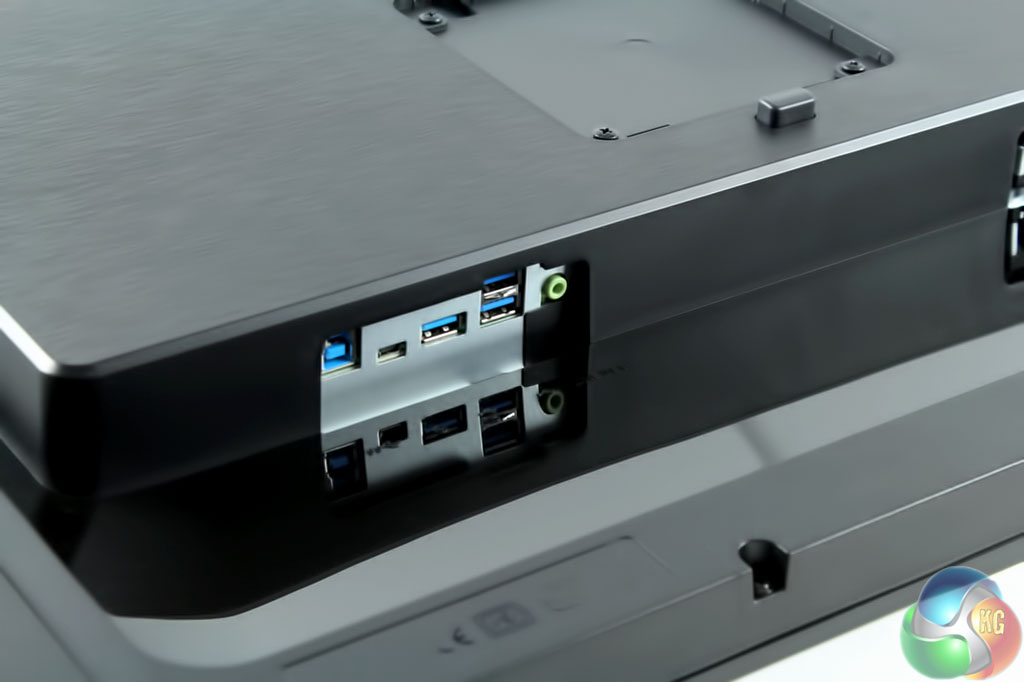
Underneath the display are three more USB 3 ports, the USB 3 uplink port, and another 3.5mm audio line out. A standard (commonly known as kettle lead) IEC power connector is on the left, along with a master power switch.
The OSD can be operated either via the remote control, or via five white LED buttons at the front. A Senseye 3 motion detector built into the front of the panel lights up the LEDs when you move your hand in front of them, which is both a nifty effect and useful for night-time operation.
In its default configuration, each of the buttons corresponds to one of the main monitor OSD functions. With one of these lists of settings open, the buttons then allow you to navigate the options, move back, confirm or cancel a setting.
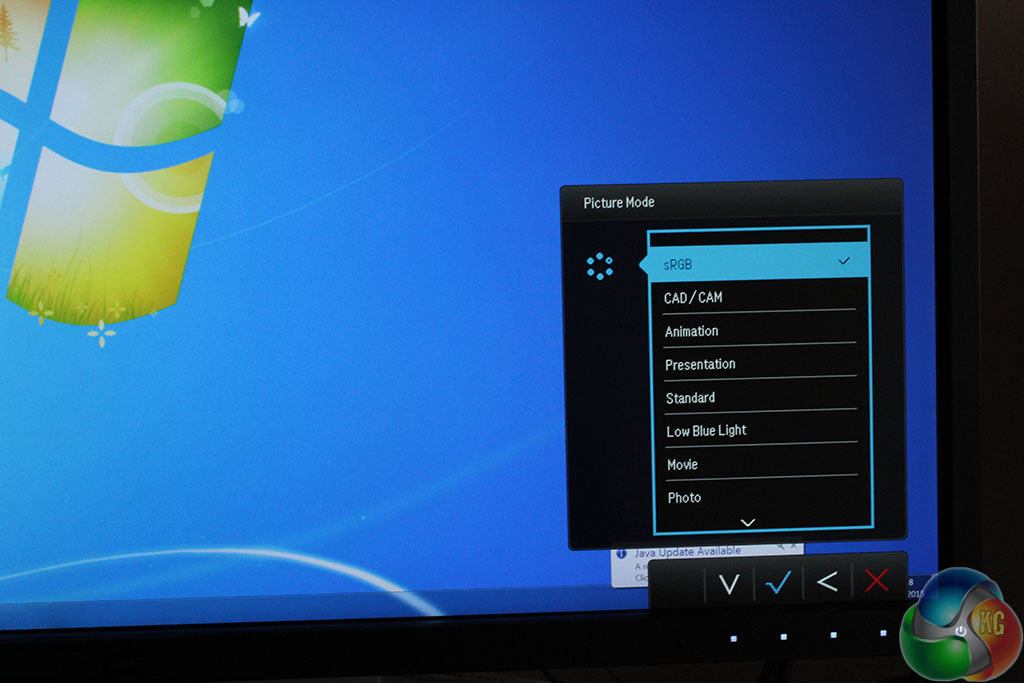
The left-most button lets you choose the picture mode. The default is “standard” which is very close to the sRGB setting. There’s also CAD/CAM, Animation, Presentation, Low Blue Light, Movie, Photo, Eco, M-Book and User, for customised settings.
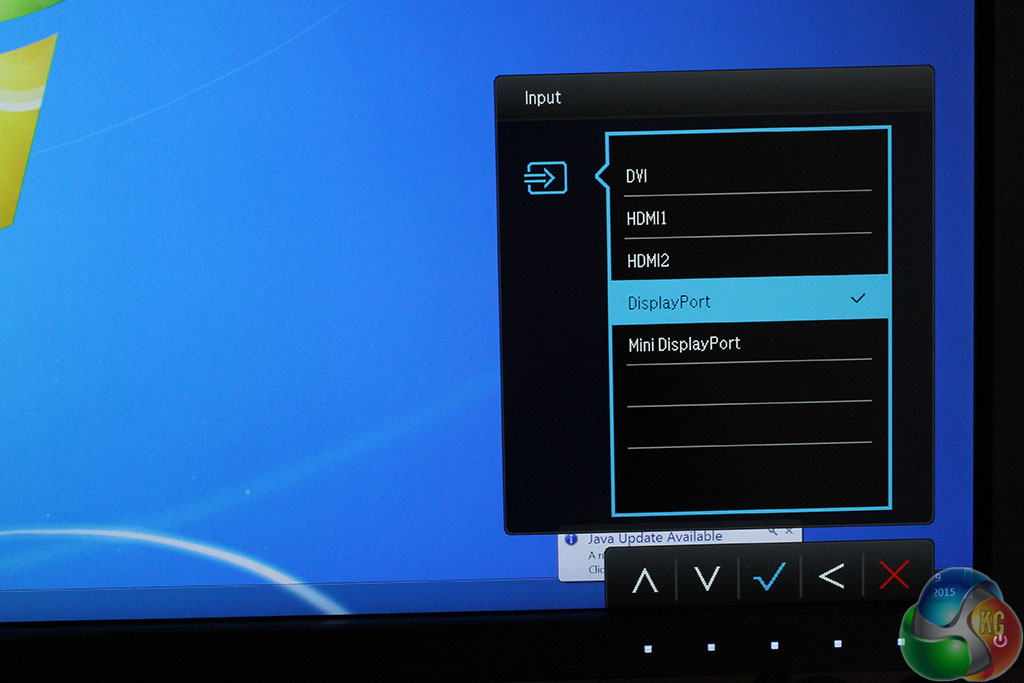
The next button lets you choose a display input.
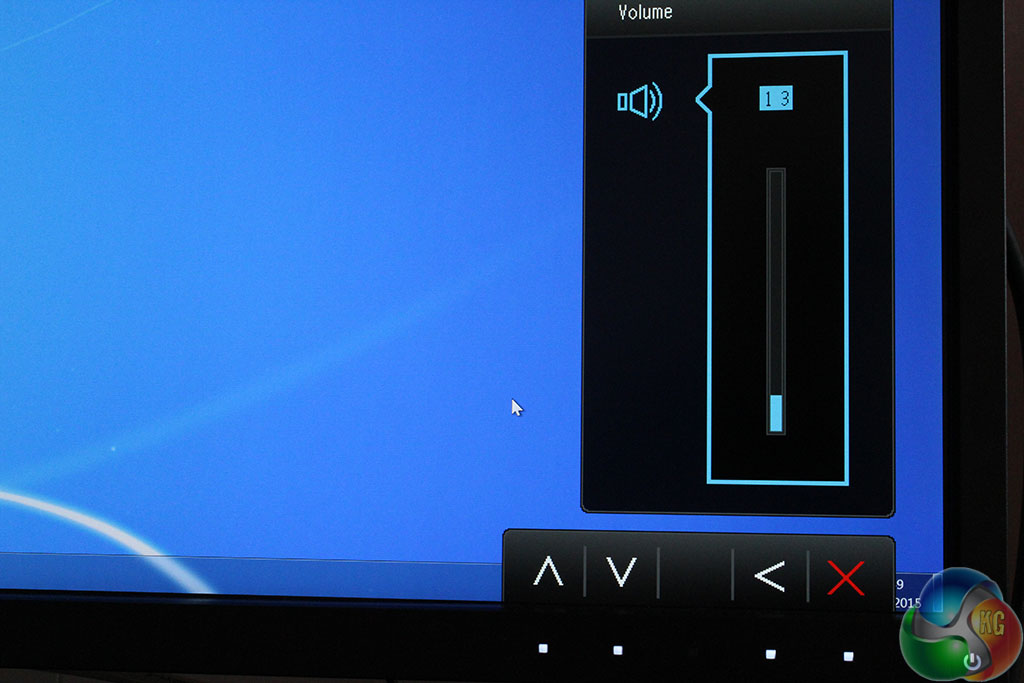
The third button operates the volume.

The fourth brings up the list of advanced options, where you can fine tune and adjust the rest of the BL3201PT’s settings.
This includes the Brightness, Contrast, Sharpness and Gamma, as well as providing access to the picture-in-picture (PIP) and picture-by-picture (PBP) modes.
The fifth button is used to close the OSD.
You can assign a different function to the first three buttons. Under the System menu, the Custom key 1, 2 and 3 can be changed to instead mute the audio, adjust contrast, sharpness, adjust settings for one of the Picture presets or some of the ECO options.
The picture-in-picture (PIP) mode allows you to overlay another of the devices connected to one of the BL3201PT’s inputs in one of the corners. You can choose a size (large, medium and small) and select which corner to position it in.
There is also a picture-by-picture mode that displays both inputs side by side. With this active, both displays are shrunk to exactly fit the width of the monitor, but doing so creates black bars at the top and scales down the image considerably, making it less clear.
Under the Picture Advanced menu is a setting called Display Mode, which allows you to emulate a range of different display sizes and screen formats. It gives you the ability to see how your work will look on a smaller display. For example, you can create a display measuring 27 inches across inside the main 32 inches of the BL3201PT, with 16:10 screen ratio, or a 4:3 screen. The entire 4K image is scaled to fit this emulated desktop resolution, sometimes with odd-looking results.
You can enable an auto-pivot mode, where the screen automatically rotates itself when it is physically turned 90 degrees, without needing to fiddle with software settings.
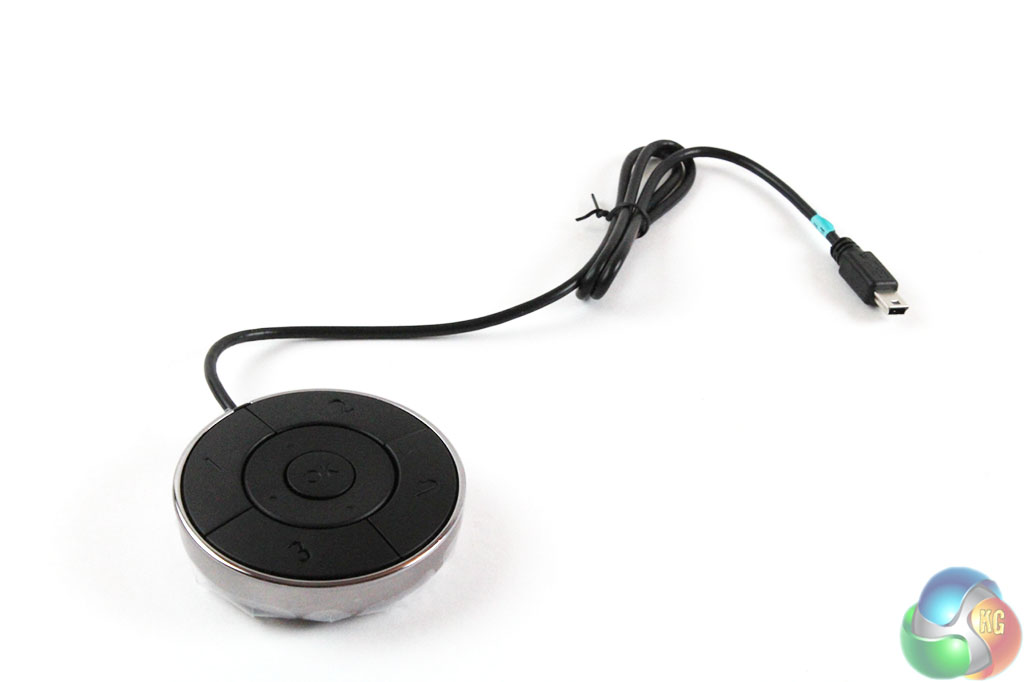
As part of the BL3210PT’s contents, the included circular remote control quickly becomes a useful alternative to having to reach over to the monitor every time you want to change a setting.
The remote has four buttons on the outside, a navigation control in the middle and a single OK button in the centre, used to confirm selections.
By default, the outer buttons are used to switch display modes. 1 corresponds to sRGB, 2 to CAD/CAM and 3 to Low Blue Light, with the final outer button always used to close the OSD.
As with the buttons on the base of the screen, the first three on the remote can be assigned alternate functions by changing the Controller Key 1, 2 and 3 options at the bottom of the System Menu.
You can choose from any of the picture modes along with a volume or input control. Our preferred configuration was to assign our standard picture mode to button 1, with volume on button 2 and input selector on button 3.
The remote works brilliantly, and could easily be a boost for productivity, saving time from having to keep reaching towards the screen, although there are two ergonomic issues with it.
The cable isn’t particularly long, so if you sit away from the screen it may not reach your sitting position. And we found we were constantly pressing the 1 button by mistake, which cancels whatever setting you are adjusting and closes the OSD menu.
I used a Spyder4 Elite colorimeter to gauge the performance of the BL3201PT, with the sRGB preset active. The first test, which also calibrates the display, provides figures for the sRGB, NTSC and Adobe RGB coverage.
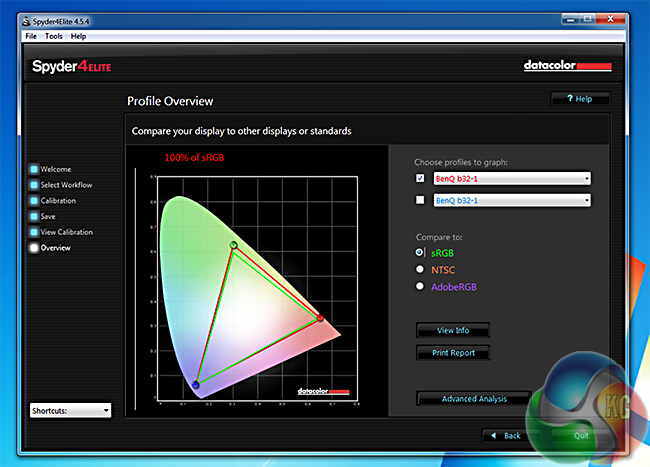
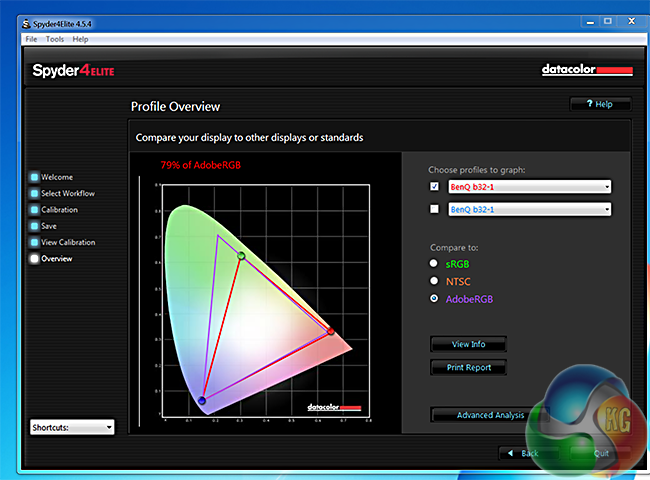
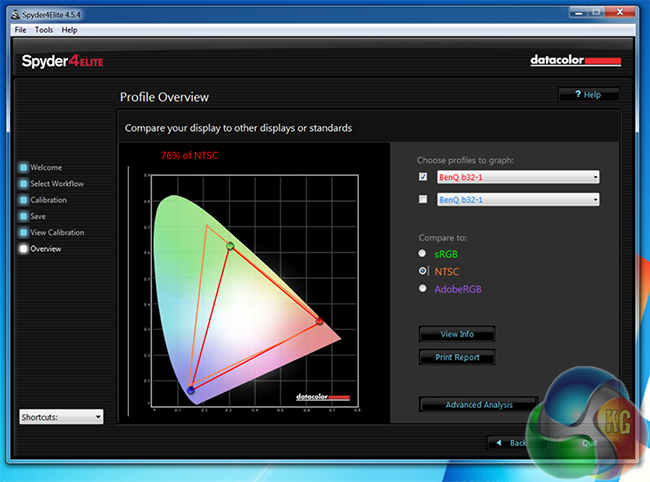
The result was 100 per cent sRGB coverage, as per BenQ’s claims, 76 per cent NTSC and 79 per cent AdobeRGB.
The 27-inch Asus PA279Q managed 97 per cent NTSC and 98 per cent Adobe RGB coverage, Dell’s 4K U3214Q 32-inch monitor achieved 96 per cent NTSC and 99 per cent Adobe RGB coverage.
The brightness distribution is passable. On the left side it deviated by around 5 to 7 per cent, which is a good result, but it’s a bit worse on the right, where a deviation of 10 to 16 per cent was recorded by the Spyder.
These scores look alright against many colour-accurate monitors, which average around 10 per cent roughly, although in the same test, a high-end 24-inch EIZO ColorEdge CG277 display deviated by no more than 0.5 to 2 per cent.
With calibration, the display switches a little more towards the blue spectrum, removing some of the green, but it’s not particularly dramatic, showing good factory calibration out of the box.
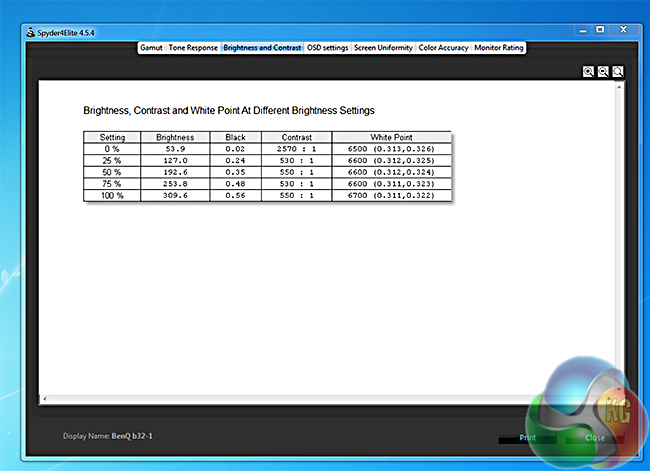
Contrast levels are reasonable. At 100 per cent brightness a contrast result of 530 comes out slightly worse than other displays. The Spyder recorded 630 on the Asus PA279Q, 580 on the DreamColor Display in HP’s ZBook 17 laptop and 550 on the EIZO., although it beat the aforementioned Dell U3214Q, which gave a result of 480.
Brightness results again are average. The result of 310 is lower than the quoted fits squarely in the middle of most displays, Viewsonic’s VP2772 scored 335, while Dell’s U3214Q managed 378.
With a quoted 4ms g2g latency we tested the BL3201PT with a multiplayer game of Battlefield 4, and some Destiny on a connected PS4. Neither caused noticeable lag. It’s hard to see any IPS display being a first choice for a pro-gaming clan, as TN displays cope better with games, but the Bl3201PT isn’t bad in this respect.
Although you only get a pair of 2w speakers, they do sound far better than many 27-inch screens. We’d happily ditch cheap external desktop speakers and switch over to the built-in sound on the Bl3201PT, but if you’ve invested in a more high-end speaker set, perhaps with a subwoofer, you’ll probably want to hold on to it.
One final observation we noticed during use is that the DVI port is effectively useless, unless you only wish to preview images or 30fps video, since DVI cannot handle a 4K image at 60hz, the monitor’s native resolution. A third HDMI port would have been a great alternative.
The BenQ BL3201PT isn’t the most colour-accurate monitor on the market, nor the very best 4K display. Although the sRGB result looks impressive, nearly all monitors aimed at professional use achieve 100 per cent coverage. The NTSC and Adobe RGB results are fine, but under identical conditions, other displays deliver superior results.
Against other colour accurate displays, it’s worth considering what else the BL3201PT offers. The aforementioned EIZO ColorEdge CG277 isn’t 4K, is only 24-inches across and costs considerably more than the BL3201PT. The Asus PA279Q we mention is only 27 inch, and it’s not a 4K monitor, and Dell’s U3214Q carries a price tag that’s about double that of the B3201PT.
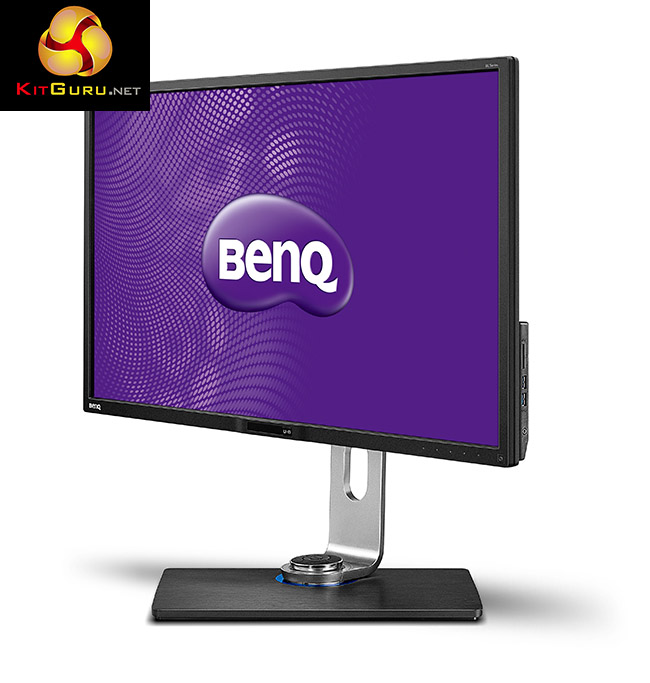
The B3201PT is only £700, around the same price as the Asus PA279Q. Considering the BenQ’s reasonable performance, large screen, great OSD, 4K resolution, wide range of inputs, extra features and good, if not the very best colour accuracy, you are still getting a lot for your money here.
Working with a 32-inch screen may not be for everyone. In use, the most comfortable viewing distance was about a metre away, without the user having to turn their head to see windows in the upper corners. This distance however can make it more difficult to see small text of course.
It really helps that the display can be swiveled and rotated for more comfortable use.
It’s worth considering this when opting for a larger monitor for working on. You get plenty of screen real estate, enough to have a browser, word processor and Photoshop all at a comfortable size, with a file browser, music player and instant messaging program open, still with more room to spare.
At 4K resolution, text still appears a bit too small for comfort without increasing the DPI in Windows to 150 per cent. This comes with the territory with any 4K display, and the effect is even more pronounced on smaller screens.

Buy direct from Overclockers UK for £689.99 inc vat.
Discuss on our Facebook page, over HERE.
Pros
- Good range of inputs.
- Reasonable colour accuracy, brightness and contrast.
- Relatively affordable for the amount of features.
- Excellent OSD and Remote Control.
- 60hz 4K via DisplayPort 1.2.
Cons
- Other displays achieve better NTSC and AdobeRGB coverage.
- DVI port not too useful.
Kitguru Says: A great value 4K display, with performance that’s reasonable enough to warrant a recommendation.

< col Hiiiiiii Friends….'my friend's mom makes $88 every hour on the internet . She has been unemployed for eight months but last month her payment was $13904 just working on the internet for a few hours.
try this site HERE’S MORE DETAIL
????????fgtg
< col Hiiiiiii Friends….'my friend's mom makes $88 every hour on the internet . She has been unemployed for eight months but last month her payment was $13904 just working on the internet for a few hours.
try this site HERE’S MORE DETAIL
????????grf