 KitGuru KitGuru.net – Tech News | Hardware News | Hardware Reviews | IOS | Mobile | Gaming | Graphics Cards


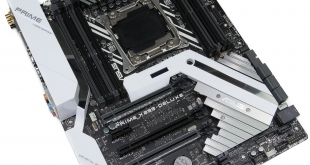
Critical to the operation of a high-end system is its motherboard. The ASUS Prime X299-Deluxe in a high-end part using Intel’s new LGA 2066 socket. Features worthy of note include 802.11ad (WiGig) WiFi, an onboard OLED display, and a smart method for cooling M.2 SSDs.
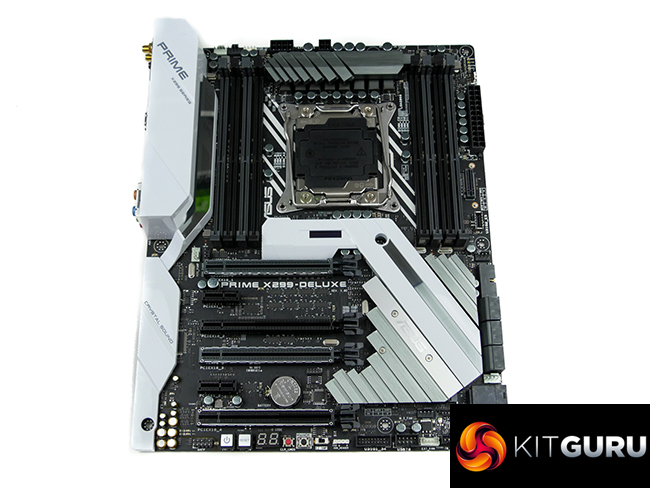
ASUS has changed its styling slightly with the X299 Prime series motherboards. The white is still present, albeit in more of a sharp design for the rear IO cover, while the grey heatsinks of the VRM and chipset are evidently low-profile. RGB lighting is present and one of the most unique features is the onboard – LiveDash – OLED display.
Power delivery comes in the form of an 8-phase system and 8+4-pin connectors to feed hungry Skylake-X CPUs. There’s support for up to 128GB RAM, triple-card SLI and CrossFire, and dual onboard M.2 SSDs. Significant networking capability is built around the inclusion of dual Intel GbE NICs, 2T2R 802.11ac WiFi, and the new 60GHz 802.11ad (WiGig) high-speed WiFi.
Can the ASUS Prime X299-Deluxe prove itself as a premium option for Intel’s HEDT consumers?
Specs (taken from the ASUS product page):
- 5-Way Optimization: One-click, system-wide tuning, delivering optimized overclocks and intelligent cooling for CPU or GPU-intensive tasks.
- Industry-leading cooling options: Comprehensive controls for fans and water pumps, via Fan Xpert 4 software or the acclaimed ASUS UEFI.
- Next-gen connectivity: Supreme flexibility with 2×2 802.11ad Wi-Fi, Thunderbolt 3, U.2, M.2 and front USB 3.1 Gen 2 connector.
- M.2 heatsink: Ultra-efficient heatsink reduces M.2 SSD temperatures by up to 20°C for unthrottled transfer speeds and enhanced reliability.
- LiveDash: A customizable onboard display that shows system temperature, CPU frequency, fan speeds or even your own logo.
- Aura Sync and addressable-LED header: Controllable onboard RGB lighting and addressable-LED-strip header, easily synced with an ever-growing portfolio of Aura-capable hardware.
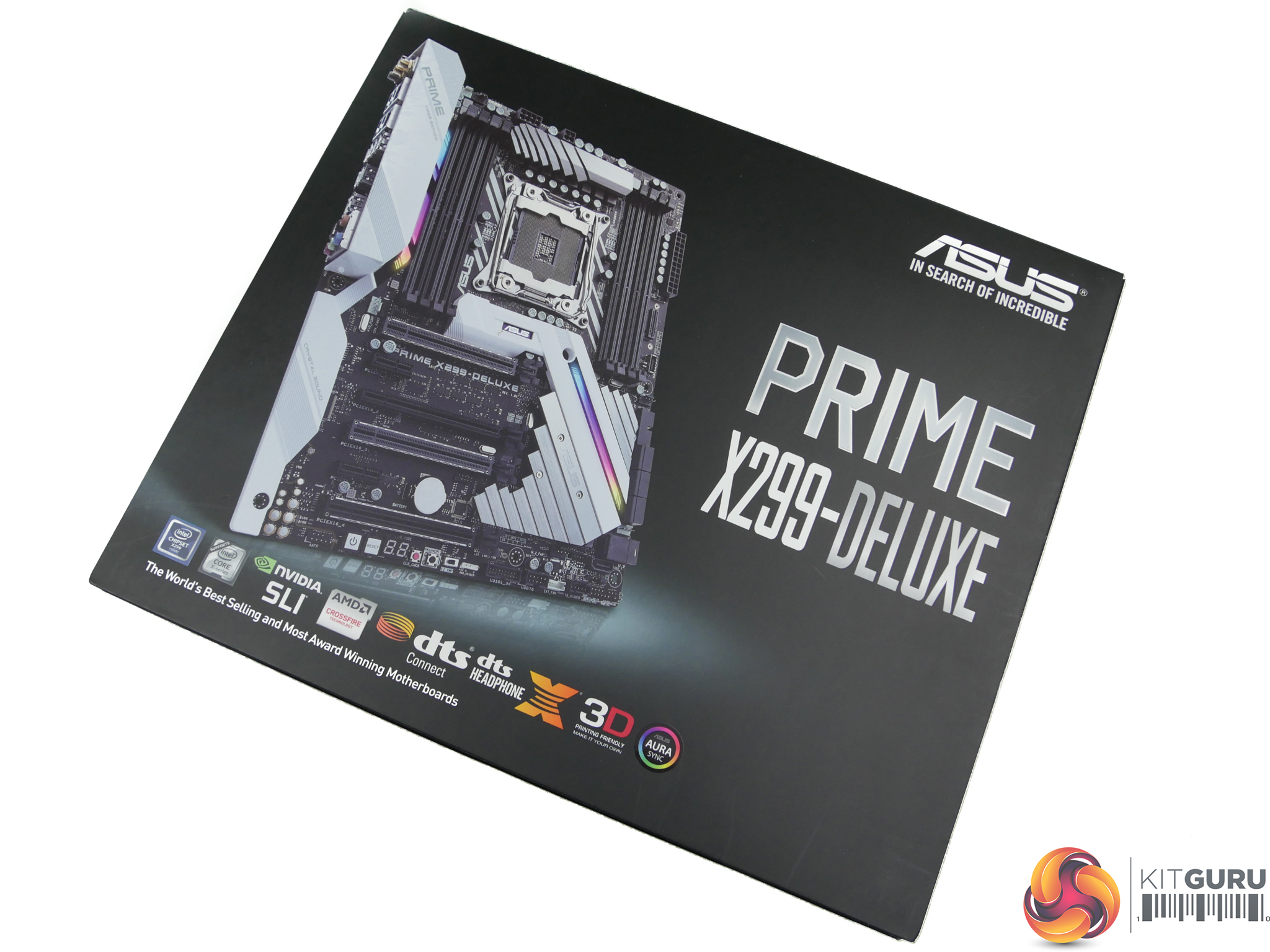
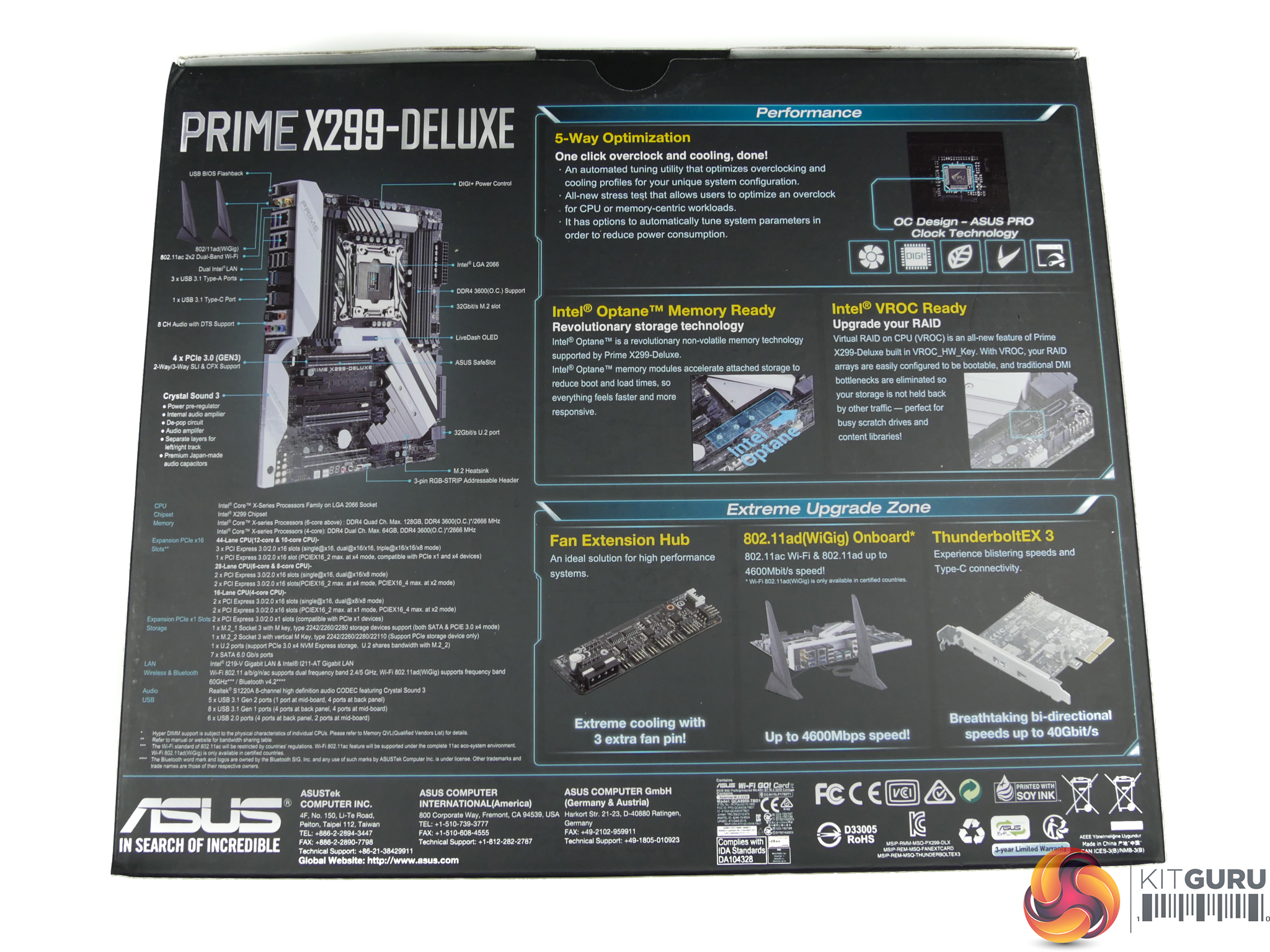
The ASUS Prime X299-Deluxe ships in typical packaging that is built around a black box with plenty of information displayed.
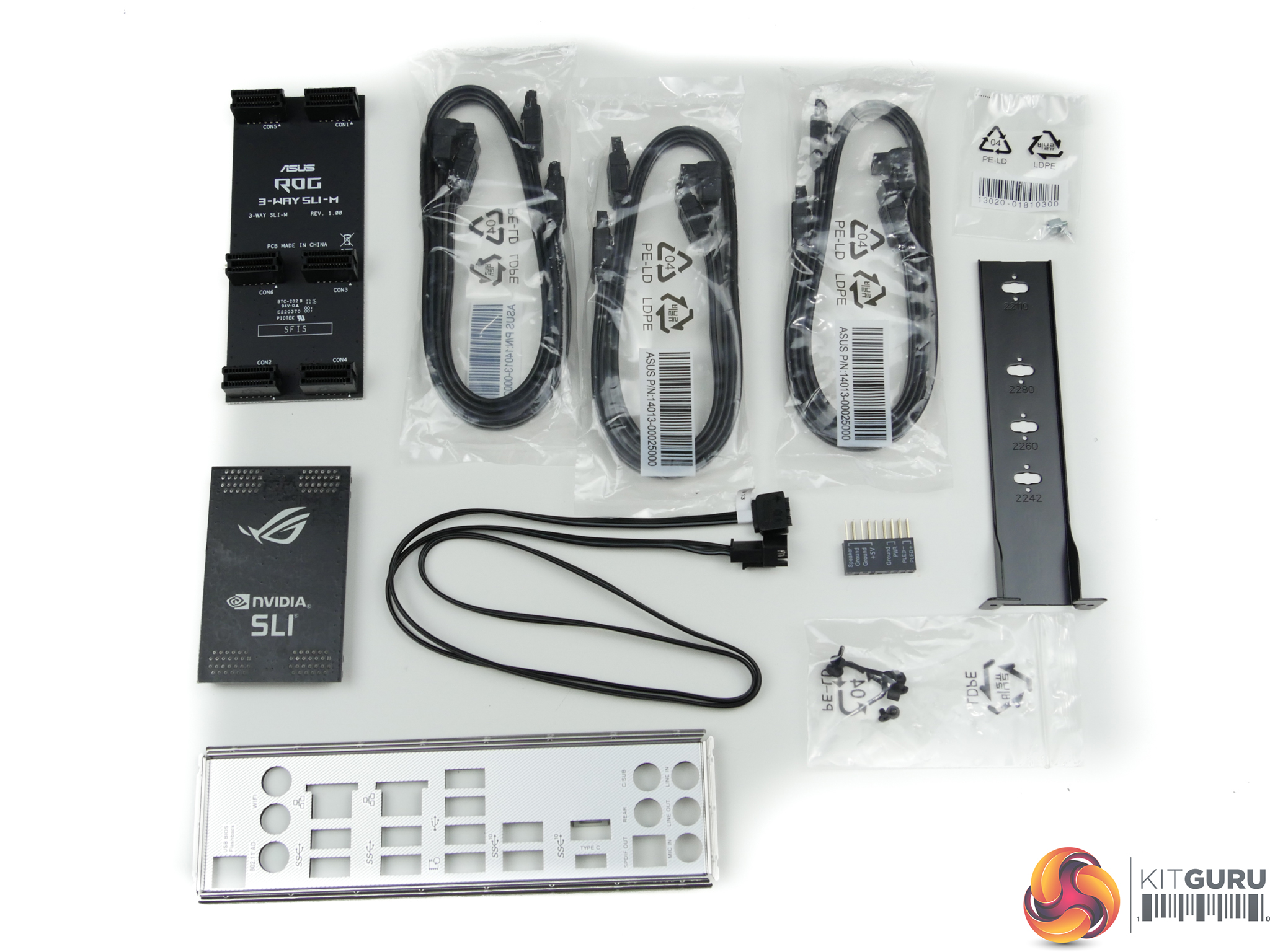
An extremely healthy bundle is one of the key selling points for a premium motherboard. ASUS does not disappoint in this respect, equipping the X299-Deluxe with:
- 6x SATA cables
- 1x rigid 3-way SLI bridge
- 1x rigid 2-way HB SLI bridge
- Q-connector
- Vertical M.2 mounting bracket and screws
- RGB header extension cable
- Rear IO shield
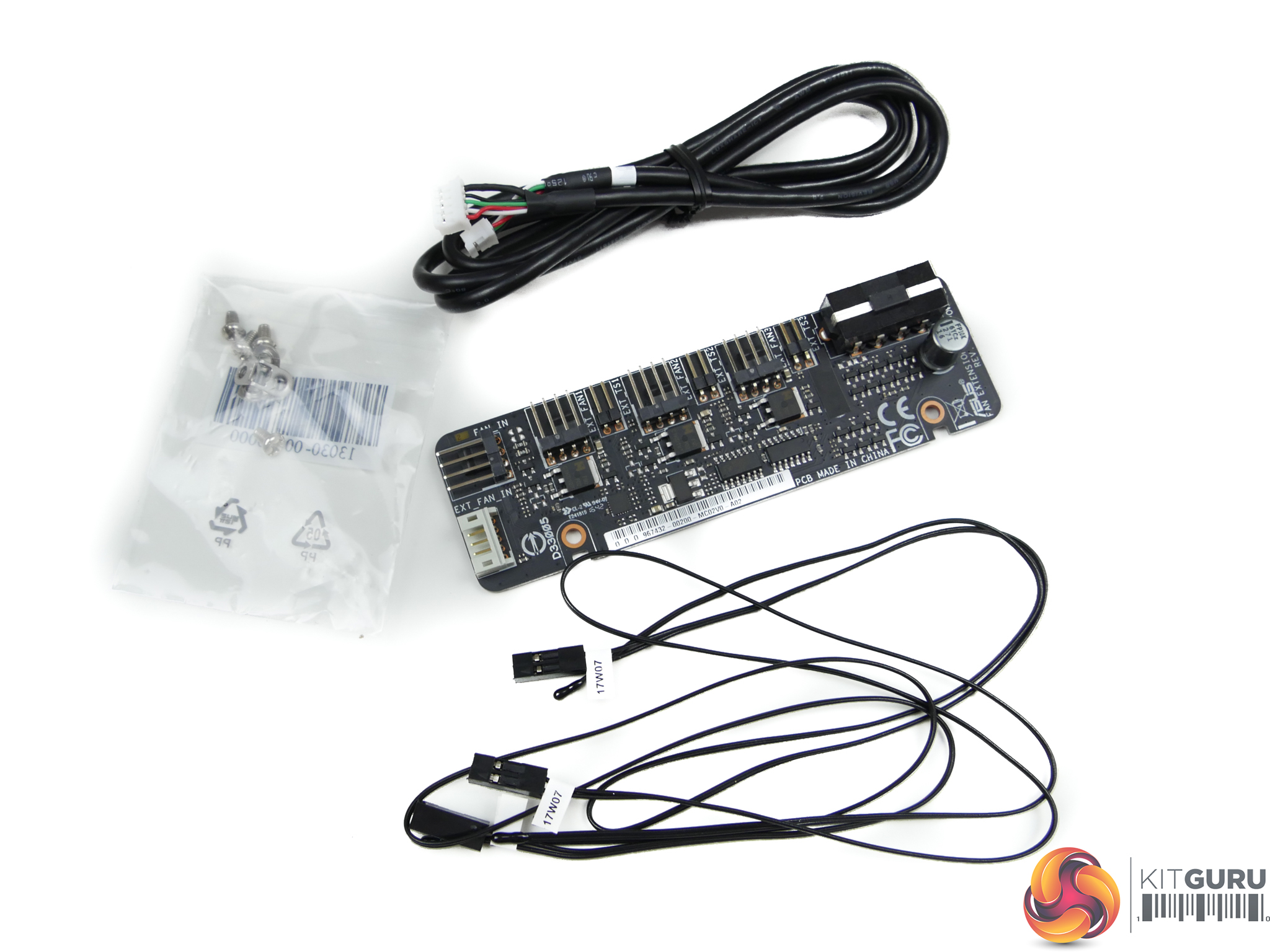
Adding to the core bundle is ASUS’ fan extension card. This molex-powered board is connected to the motherboard using a single cable and allows an extra three 4-pin fans to be connected and managed via software and the UEFI.
There are also connection points for the three included thermistor cables.
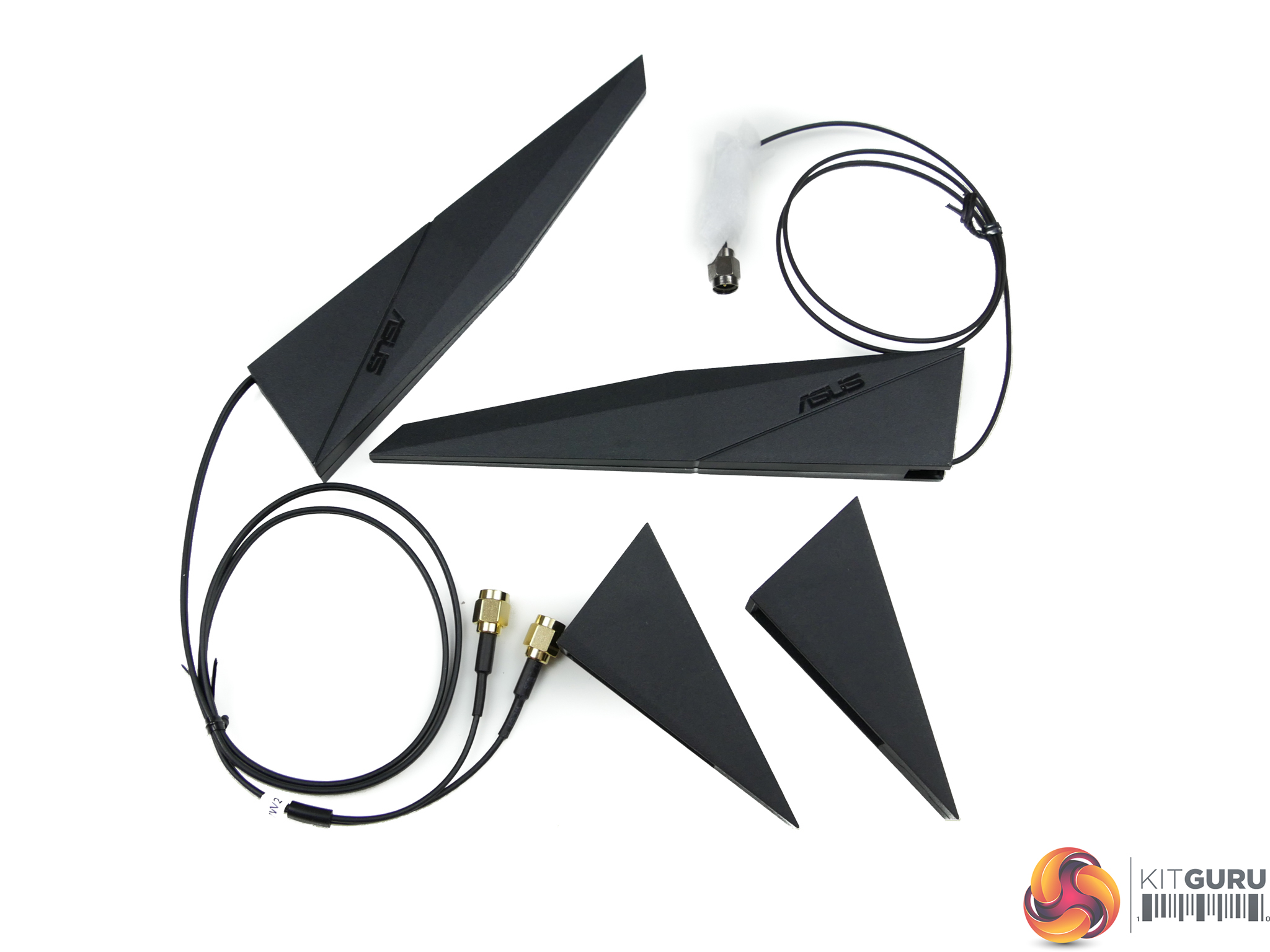
WiFi connectivity for the 802.11ac and 802.11ad interfaces is handled by two separate antennas. The plastic antennas are physically large and connect to points on the motherboard’s rear IO. Their cable allows them to be positioned optimally, rather than the aerials being fed directly out of the motherboard.
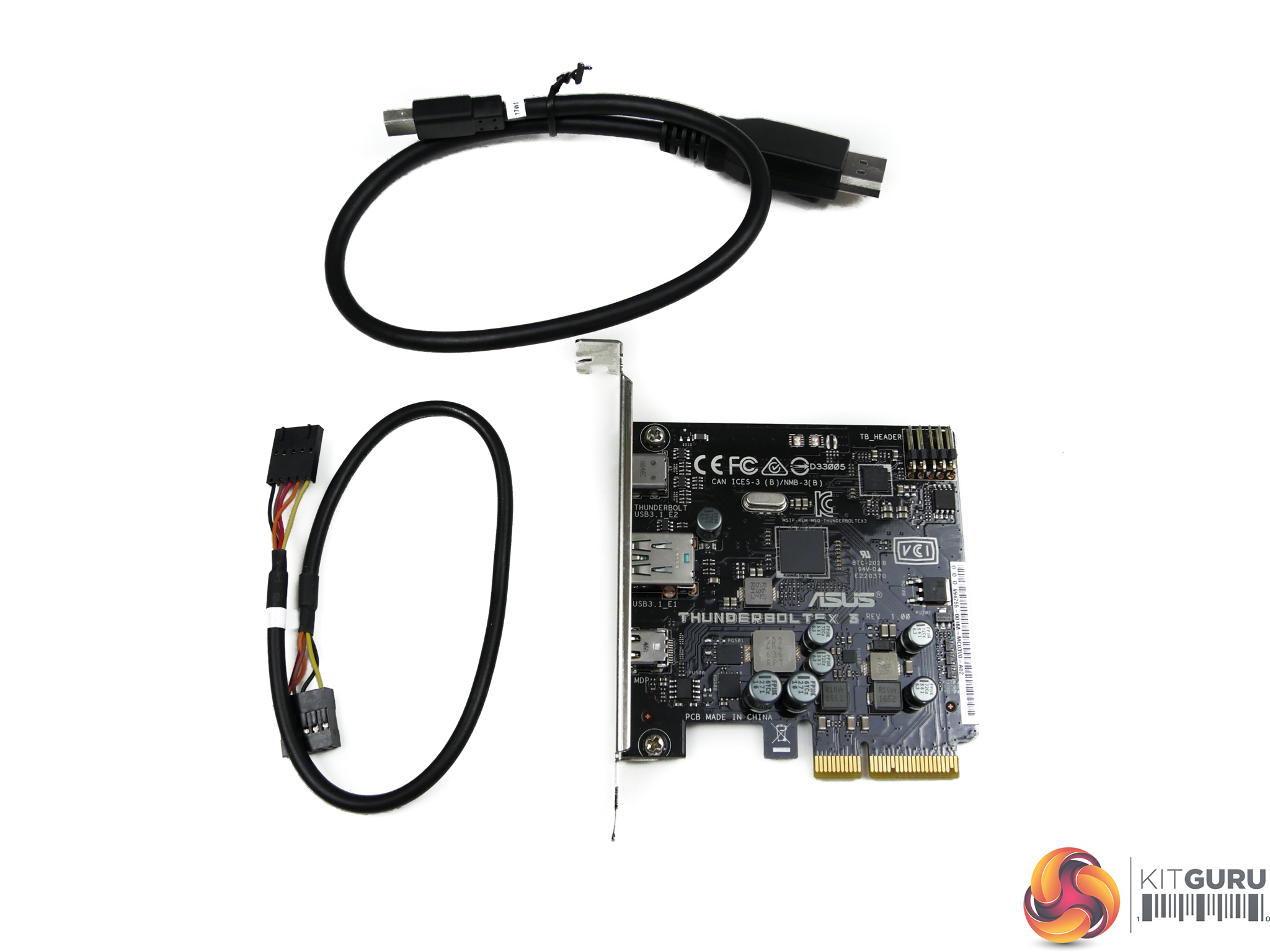
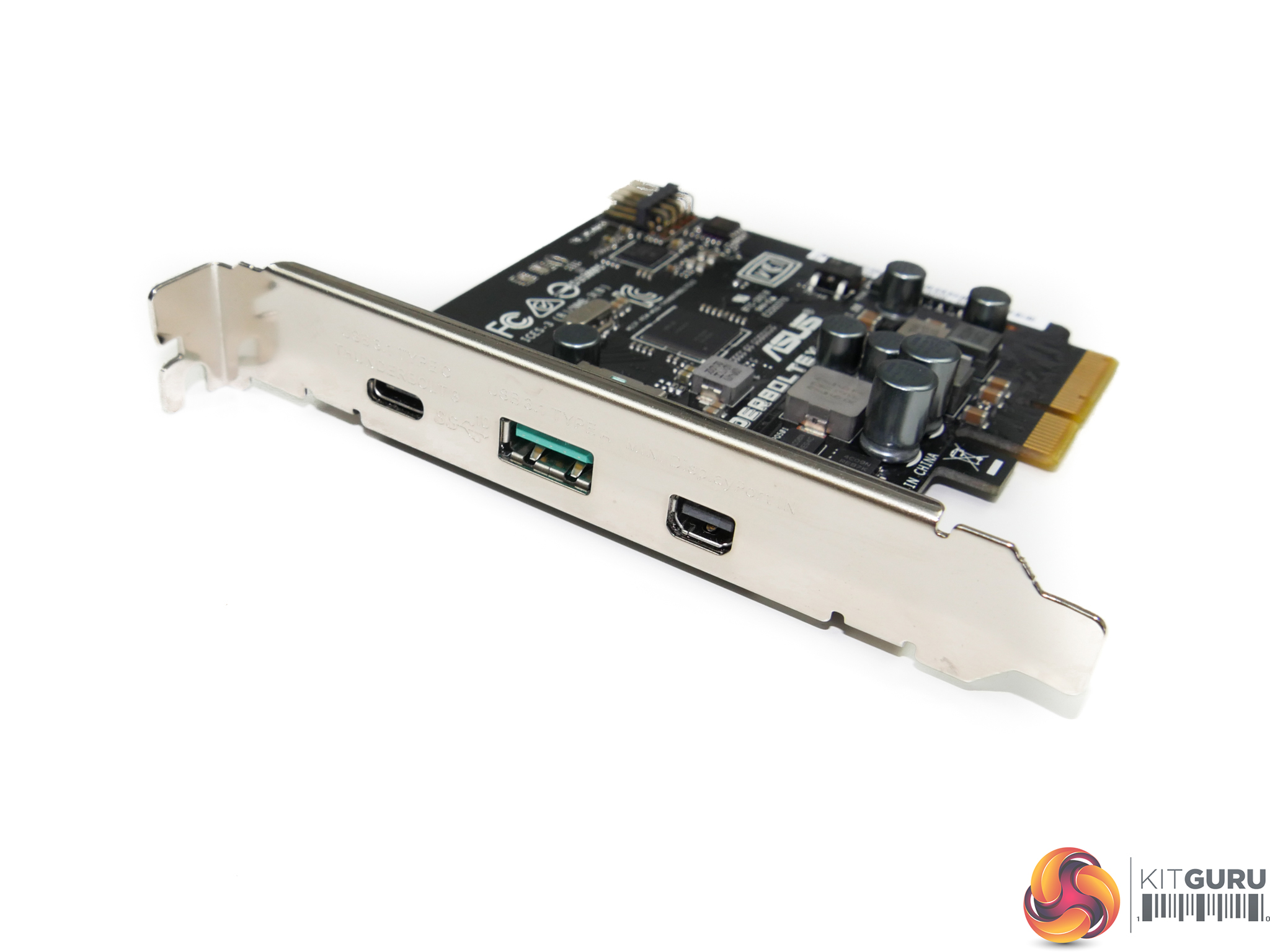
ASUS also includes the company’s ThunderboltEX 3 card to provide the X299-Deluxe with Thunderbolt 3 connectivity over the Type-C connector, in addition to an additional USB 3.1 Type-A port and Mini DisplayPort in (with an adapter cable) for loop-back capability from a graphics card.
Intel’s Alpine Ridge chipset is used an power delivery is rated at 3A over the 5V (15W) or 12V (36W) rails.
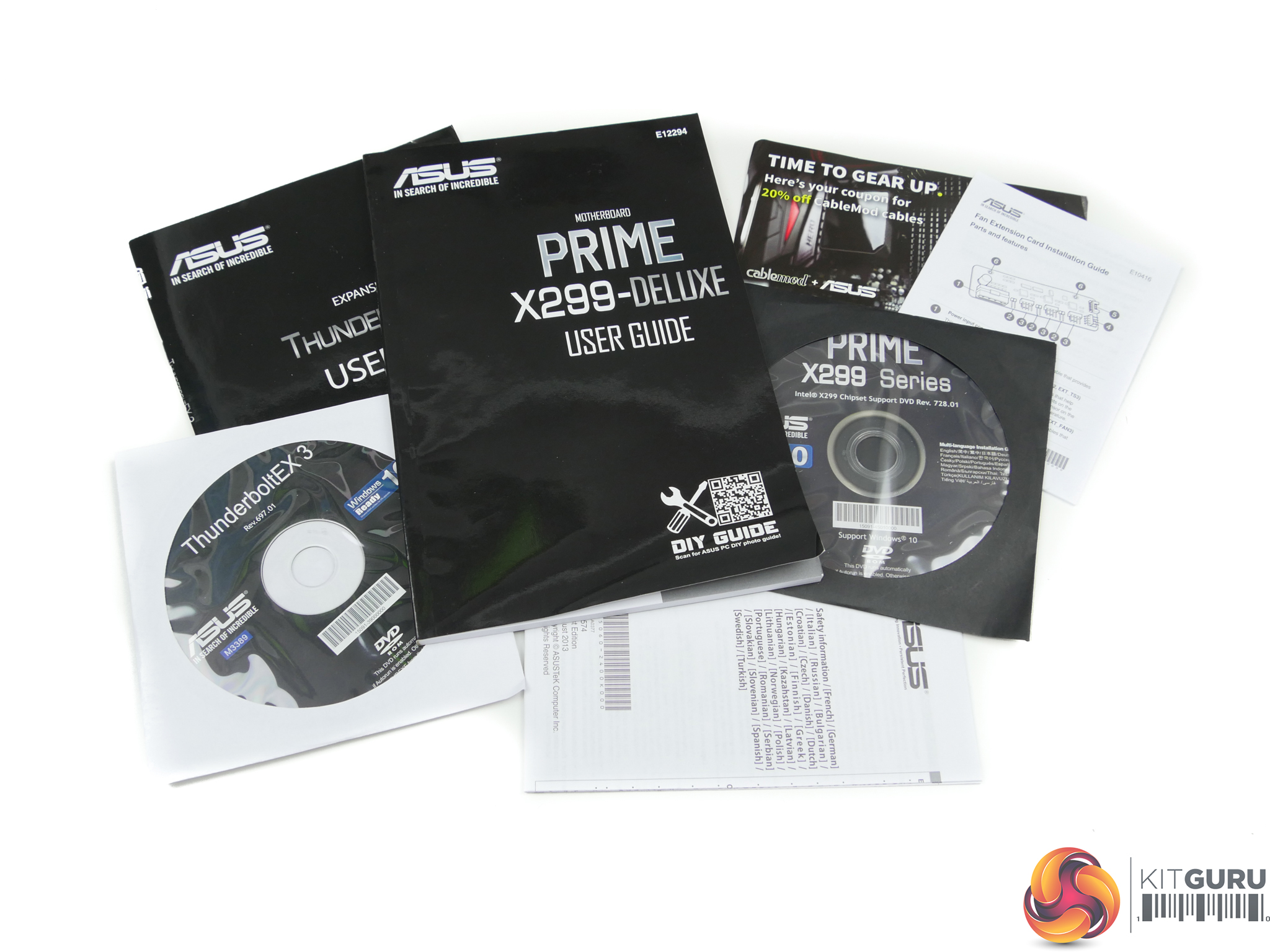
The usual set of documentation is provided, in addition to a 20% discount code for CableMod cables.
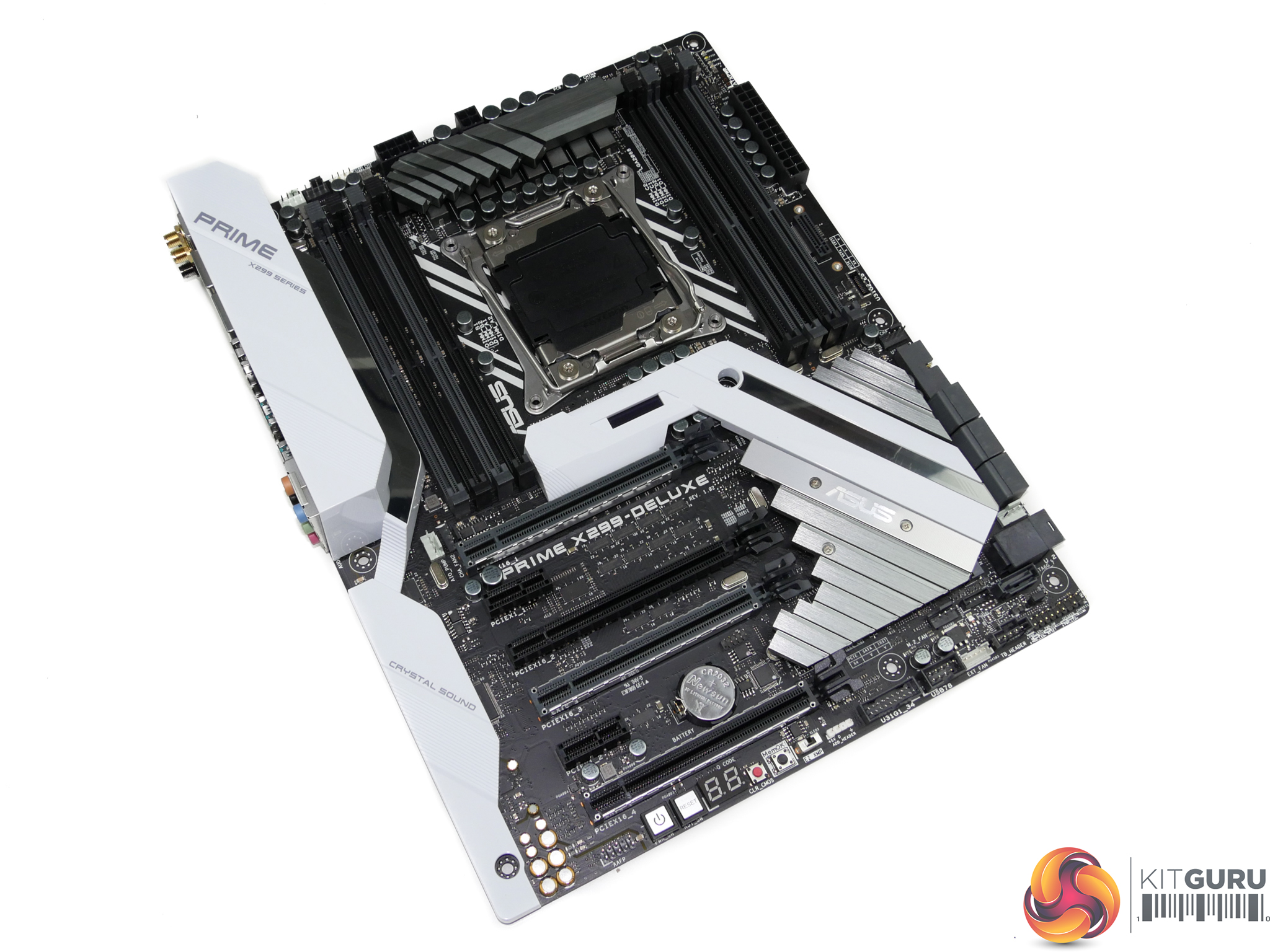
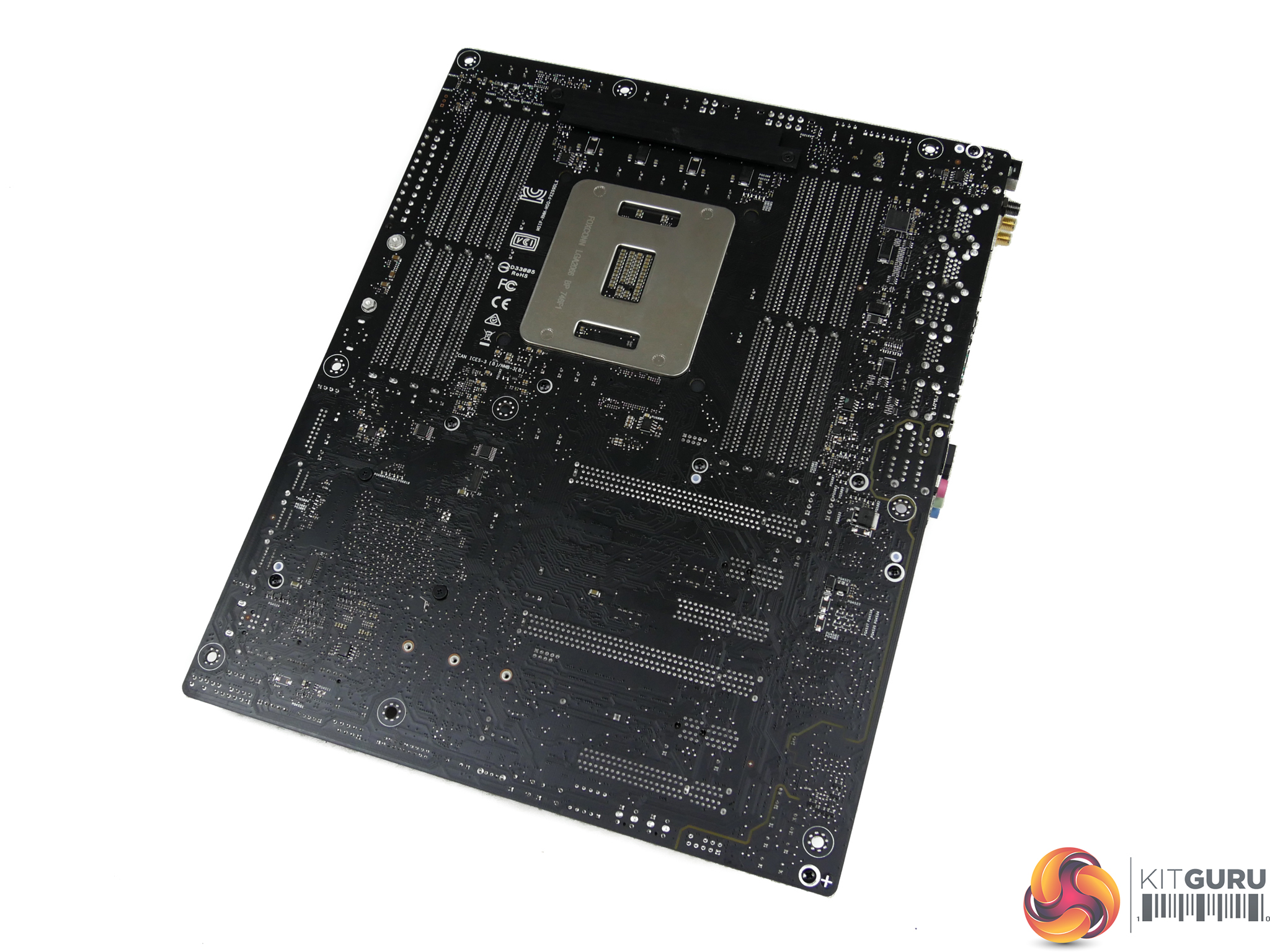
The ASUS Prime X299-Deluxe uses a primarily white, black, and grey colour scheme. Different shades of the three primary colours are spread across the ATX motherboard, with white seeing heavy uses on the rear IO and audio section cover.
Positioned in the centre of the motherboard is the LiveDash OLED display. This screen is used to display information such as the CPU temperature and voltage during usage. It’s a cool addition to the package but its positioning may cause viewability issues to users with large tower air coolers.
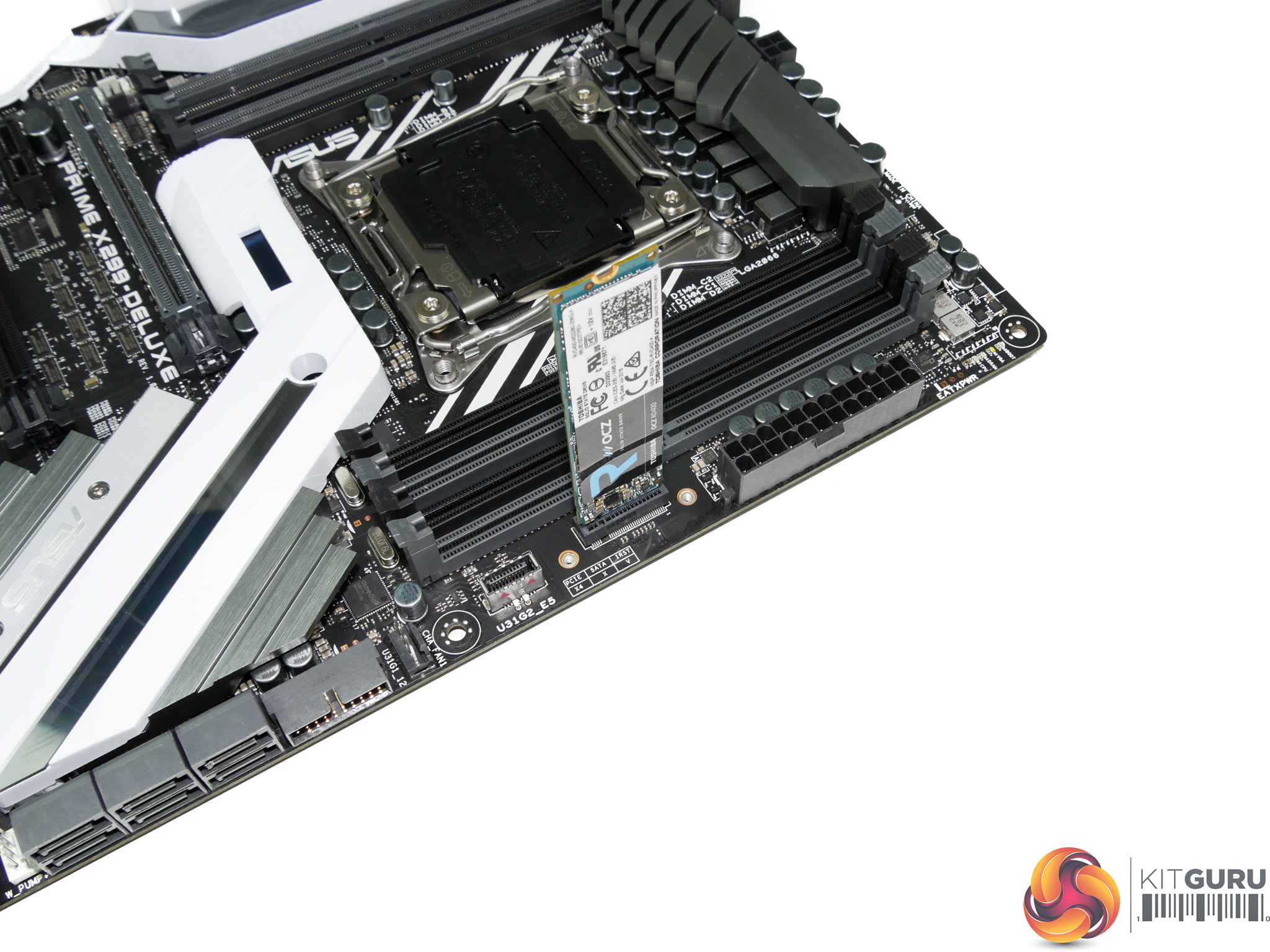
Positioned close to the 24-pin is one of the board’s two M.2 connectors. This PCIe 3.0 x4-only slot is mounted to allow for vertical orientation of an installed M.2 device. A support bracket and screws are included. Vertical mounting is good for putting the device in a direct airflow path, while also minimising the footprint taken up on the board PCB.
ASUS includes one of the new internal USB 3.1 Gen 2 10Gbps headers so that users can get 10Gbps front panel connectivity with future case designs. This connection is powered by an ASMedia ASM3142 USB 3.1 Gen 2 chipset operating in PCIe 3.0 x1 mode from the X299 chipset (and therefore limited to around 8Gbps maximum bandwidth). LEDs for the CPU, DRAM, VGA, and Boot provide basic troubleshooting assistance.
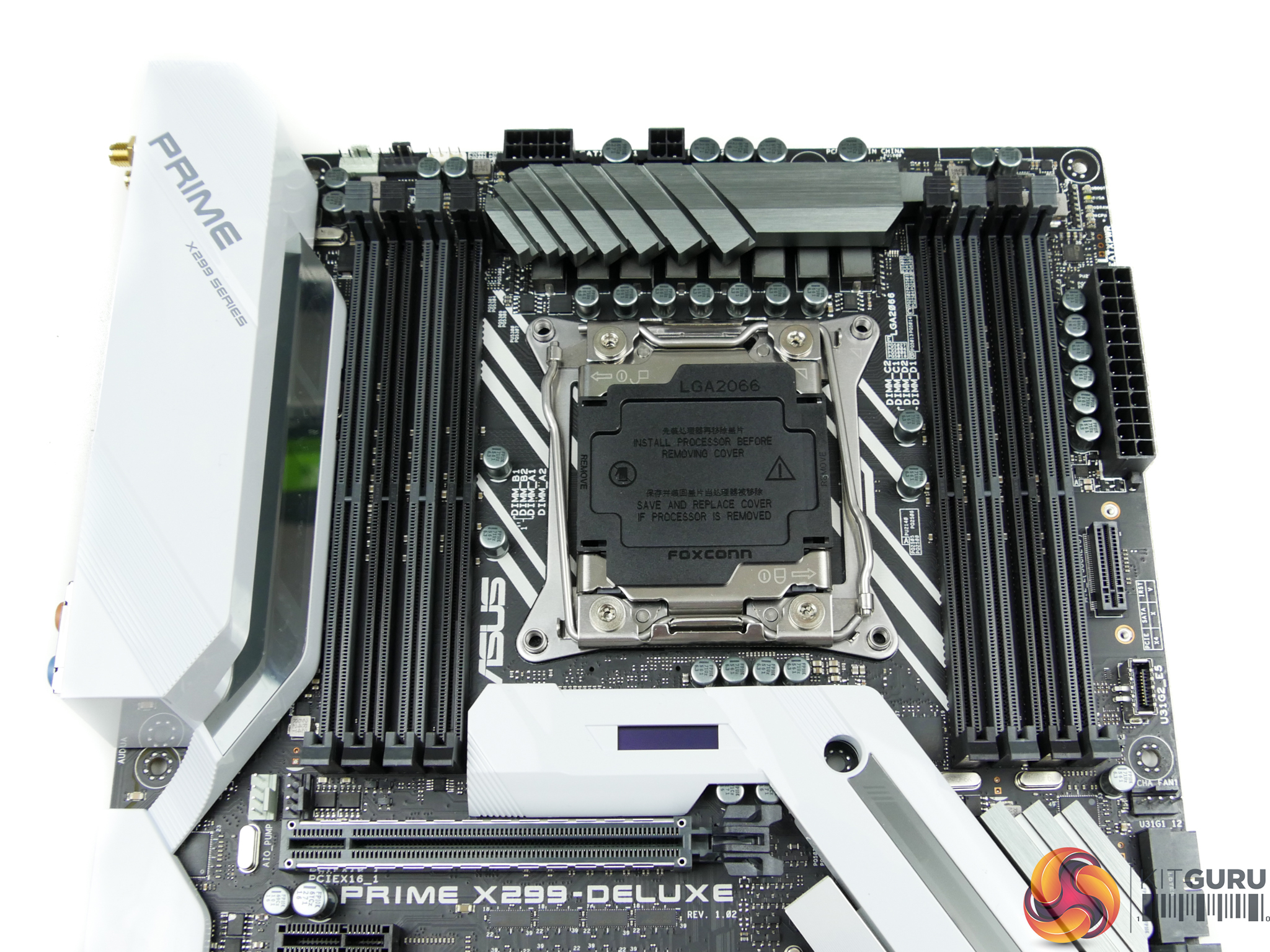
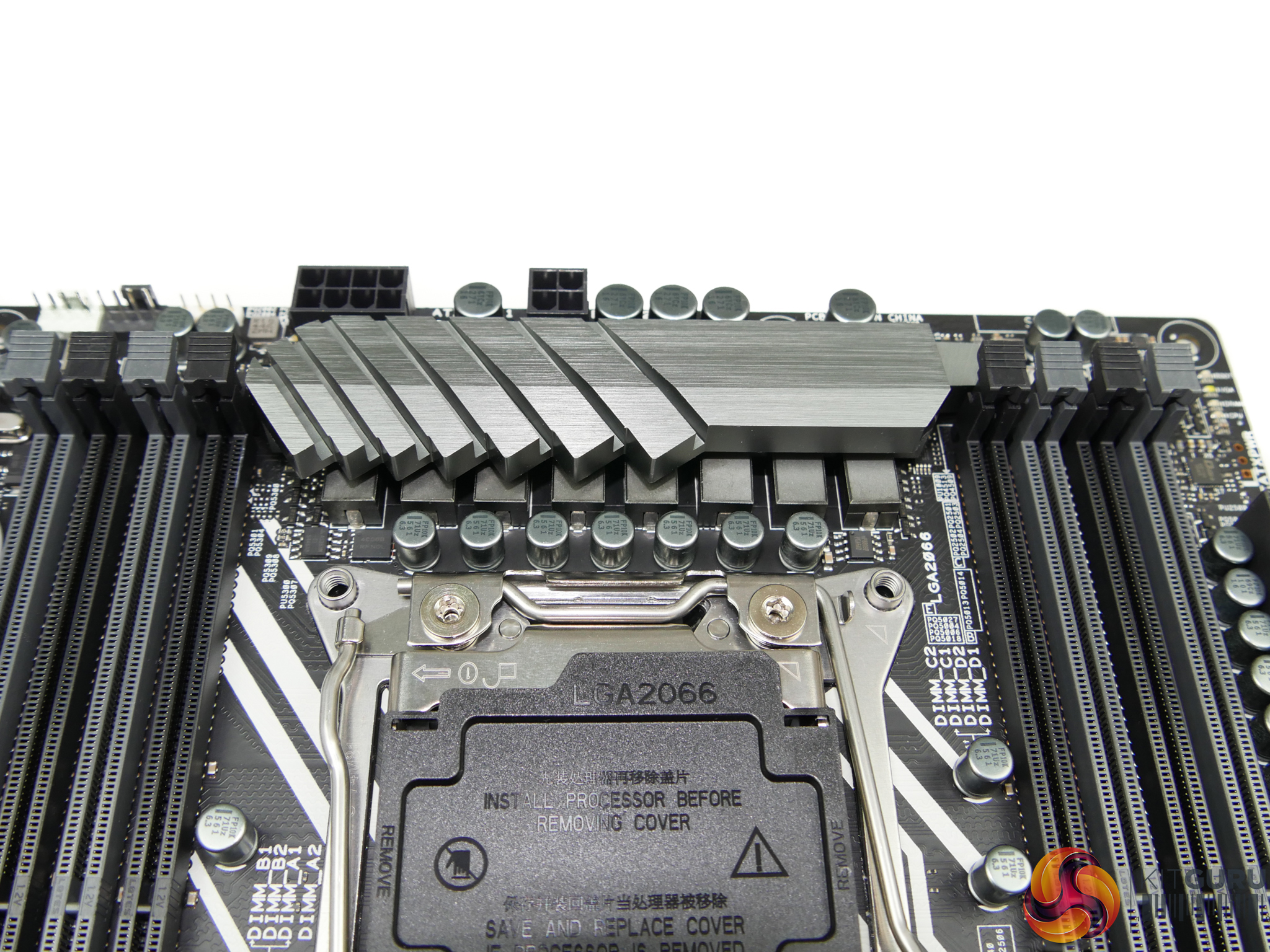
128GB of DDR4 can be installed alongside the LGA 2066 CPU. ASUS feeds the 8-phase CPU power delivery system with an 8-pin plus a 4-pin connector. This helps to allow the provision of more than 300W of continuous power when loading an overclocked high core count Skylake-X chip. Single 8-pin solutions may start to struggle when tasked with loading overclocked 12-18 core CPUs.
Digi+ VRM EPU ASP1103 PWM controllers drive the 2+2 phase DRAM power delivery system.
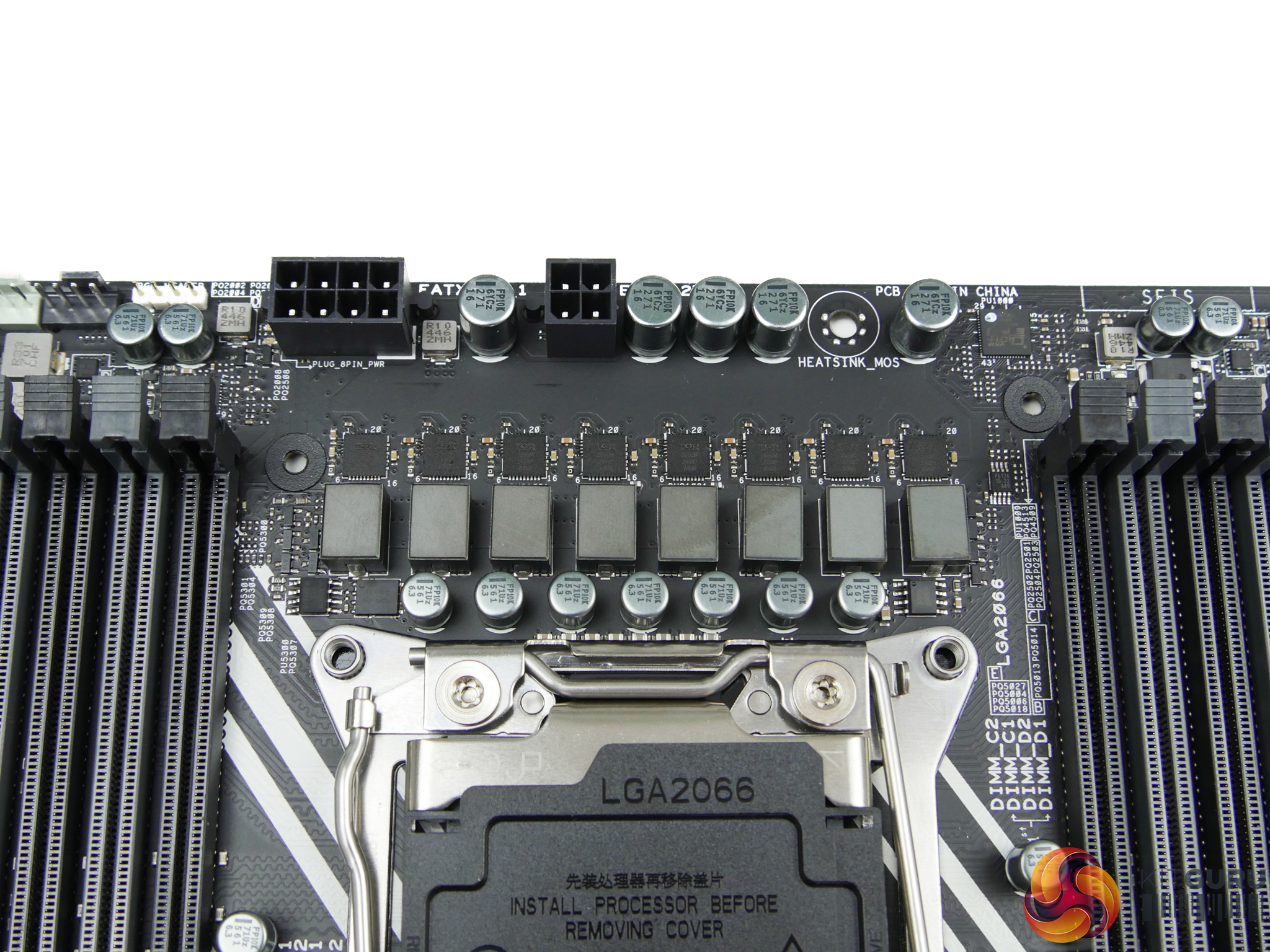
ASUS’ proficient power delivery system is built around the vendor’s ASUS-packaged Digi+ VRM EPU ASP14051 PWM controller. The system utilises eight International Rectifiers IR3555M MOSFET solutions.
These 60A-rated integrated PowIRstage offerings from International Rectifiers are widely regarded as being some of the best power delivery MOSFET solutions on the market. They are both electrically efficient and space efficient, with the latter point being important for the tight space constraints on X299 motherboards. We did, however, notice a little coil whine on our board sample.
ASUS MOSFET heatsink design is sub-par, as has been highlighted by der8auer’s popular videos on the topic of X299 VRM solutions. The small block of metal is clearly a form-over-function design as it looks appealing but does not feature design traits that are associated with an effective heatsink. This poor design may cause issues to more enthusiastic overclockers who push voltages to levels where the block’s cooling capacity is saturated and power delivery capability is limited accordingly.
For average users with non-delidded chips, however, the VRM cooling solution is likely to be adequate. Not proficient or particularly good – just adequate.
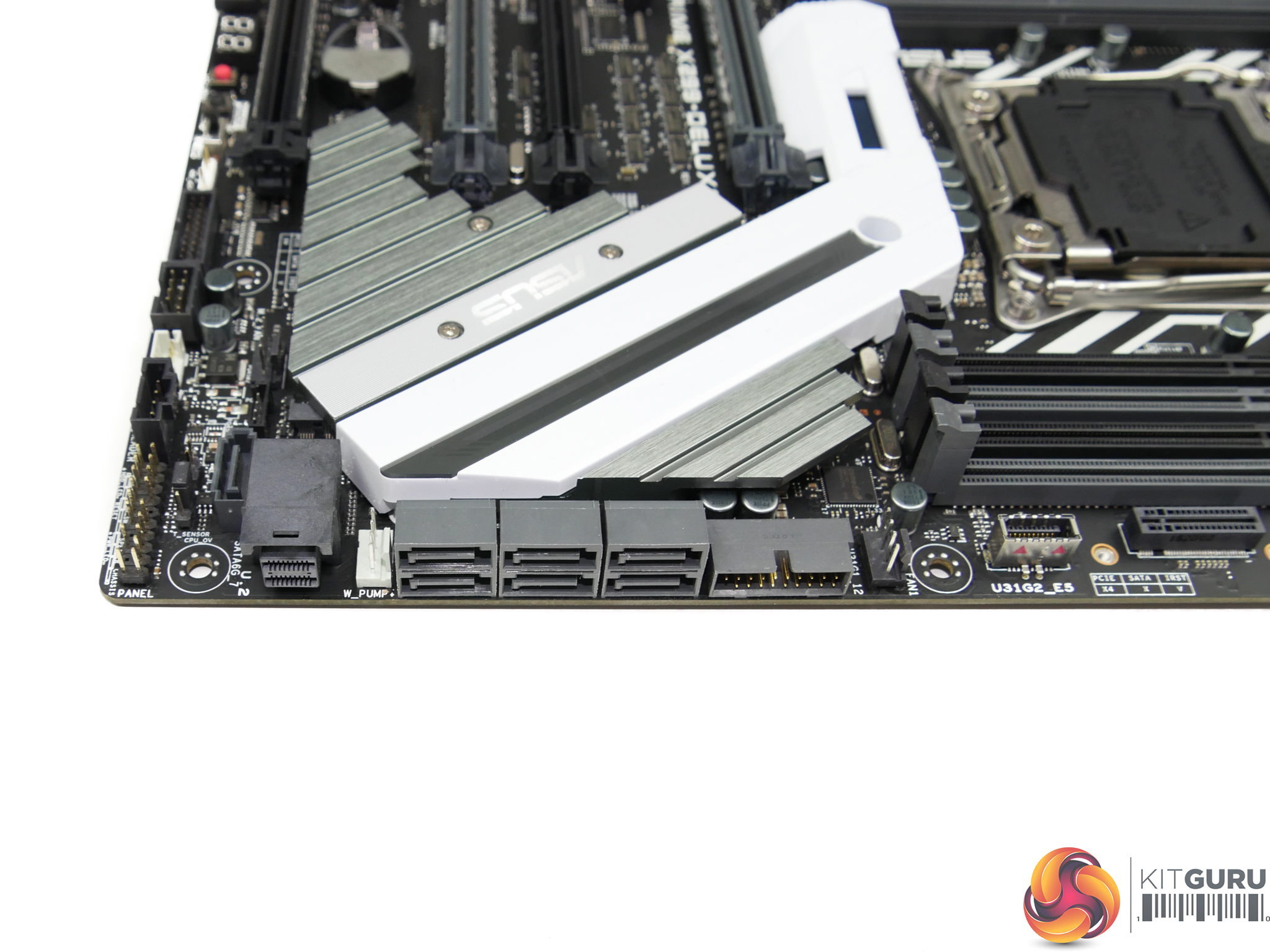
Seven SATA 6Gbps ports are mounted on the motherboard but not all of them can be used at any one time with certain partnering hardware. The bandwidth constrictions on Intel’s X299 platform means that SATA port 7 shares its bandwidth with the PCIEX1_2 slot, while SATA ports 5 and 6 share bandwidth with the PCIEX16_4 when using a 16- or 28-lane CPU.
One of the two internal USB 3.0 5Gbps headers is located next to the SATA ports, with a 32Gbps PCIe 3.0 x4 U.2 connector positioned on the other side. I like the inclusion of the U.2 connector as Intel’s SSD 750 in U.2 form is still a strong choice for workstation users who need significant high-speed, high-capacity solid-state storage. Unfortunately, the U.2 connector shares X299-fed bandwidth with the vertically-mounted M.2 slot, meaning that only one should be used at any time.
The VROC header is located close to the vertically-orientated SATA port.
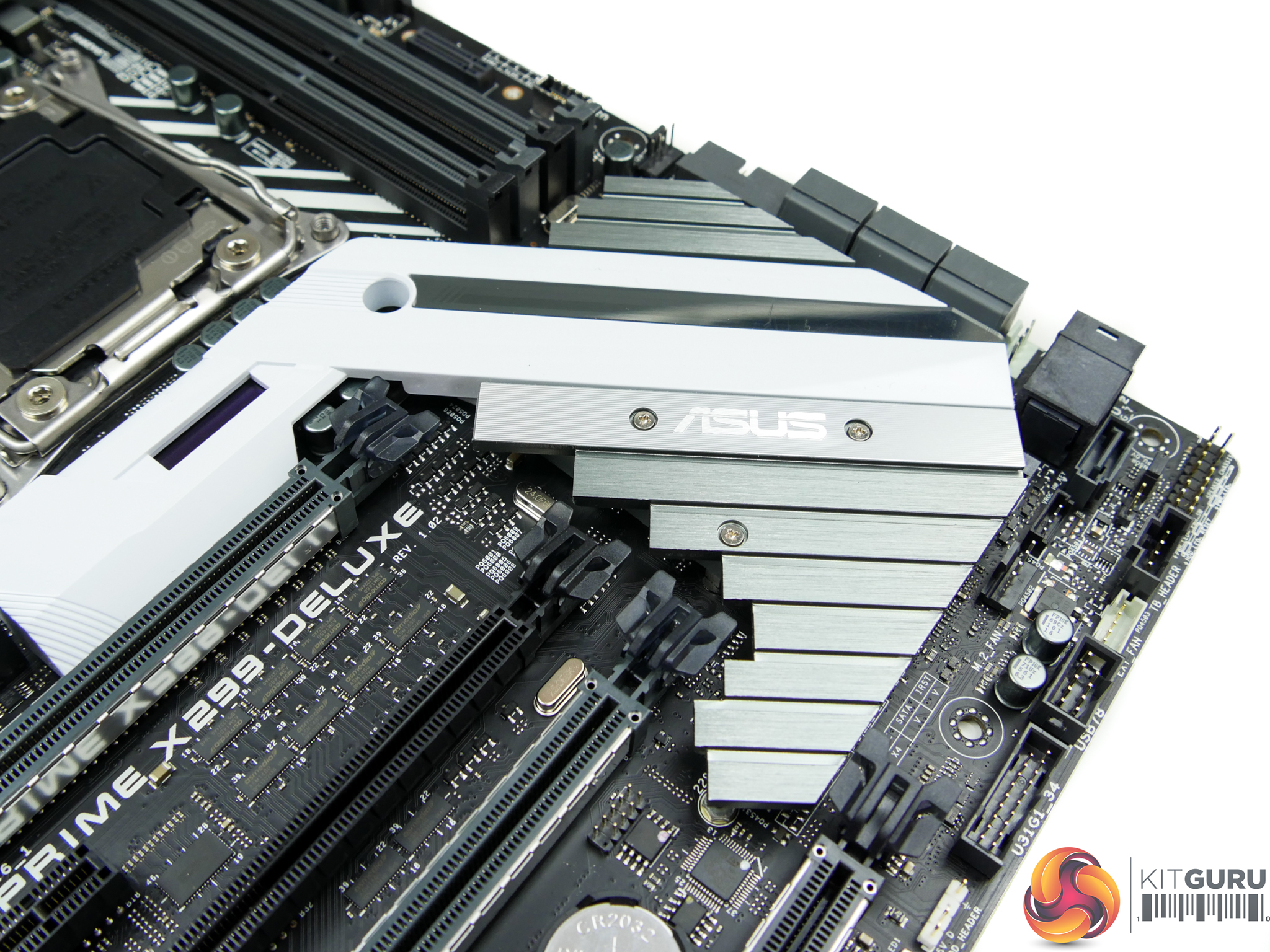
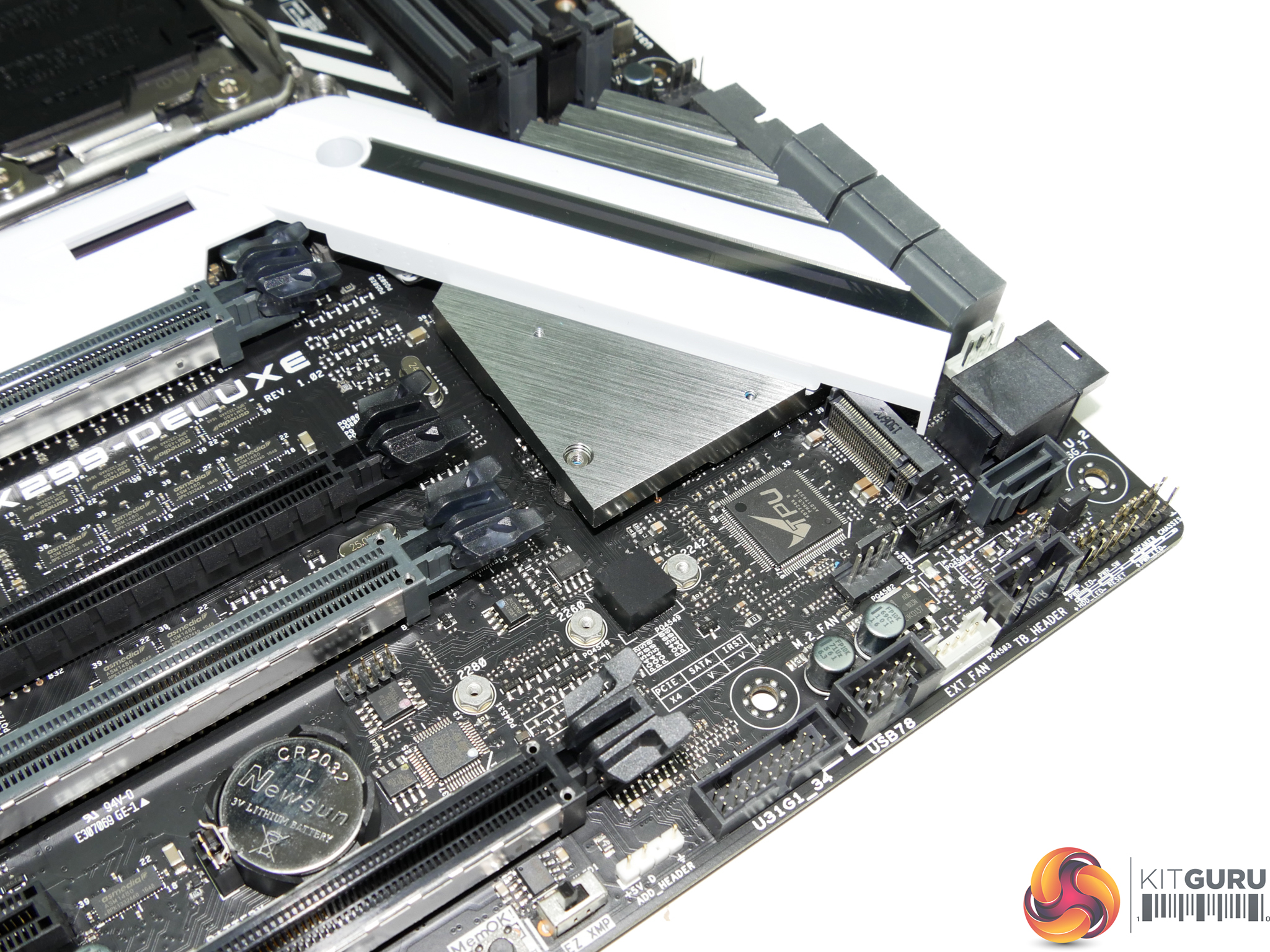
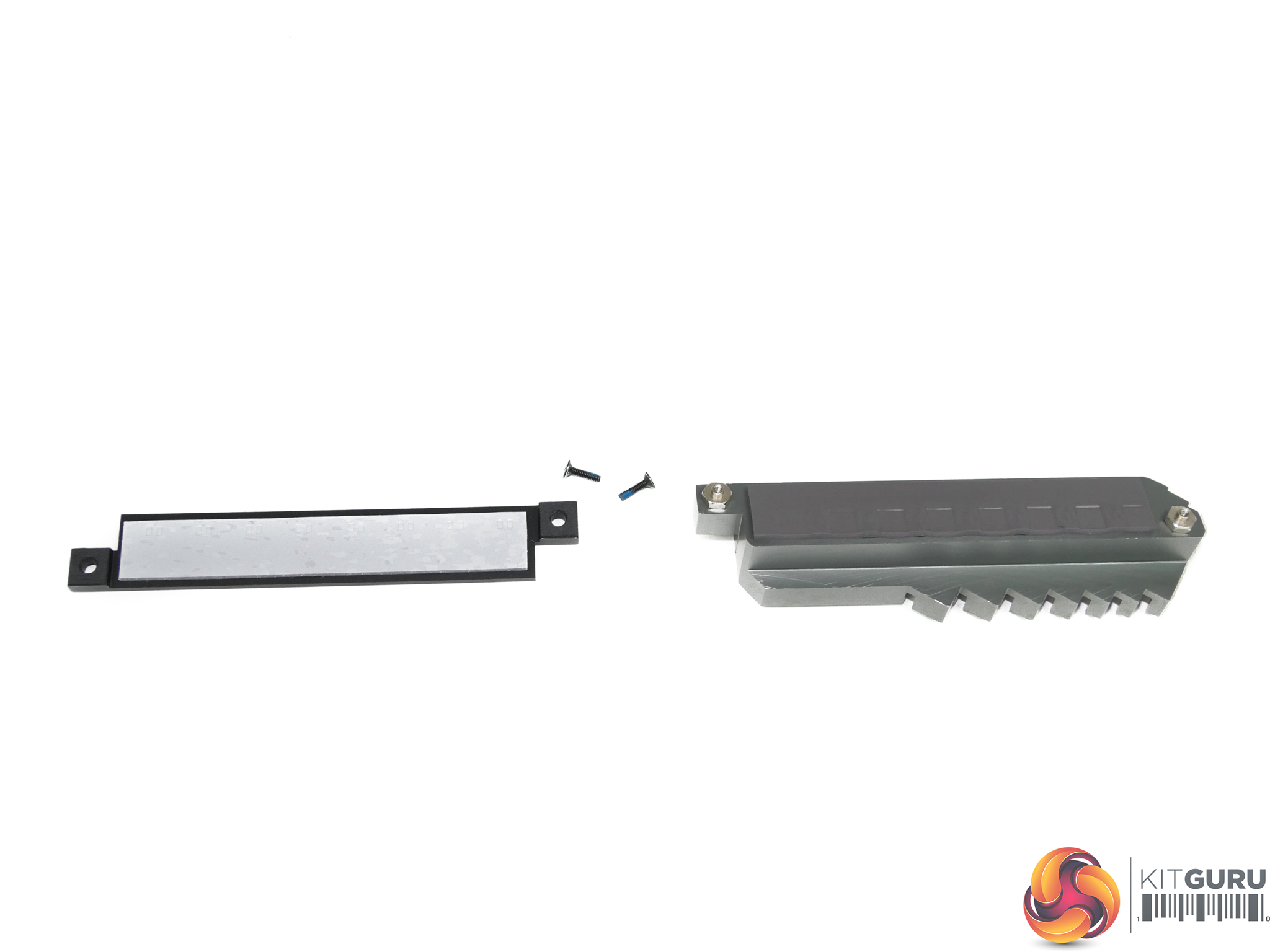
The board’s other X299-fed M.2 connector is accessed by removing a cooling plate connected to the chipset heatsink. This slot can take SSDs up to 80mm long and supports PCIe 3.0 x4 NVMe drives as well as SATA options. Intel Optane Memory is also supported.
ASUS’ cooling design for this slot is smart; a block of metal contacts the SSD via a thermal pad and dumps that heat onto the large chipset heatsink. This gives the system significant thermal mass (with respect to the power output from an M.2 SSD) that can be used to absorb thermal energy removed from the SSD. The design should be significantly better at dealing with thermal throttling on M.2 SSDs than a bare drive that struggles to receive airflow.
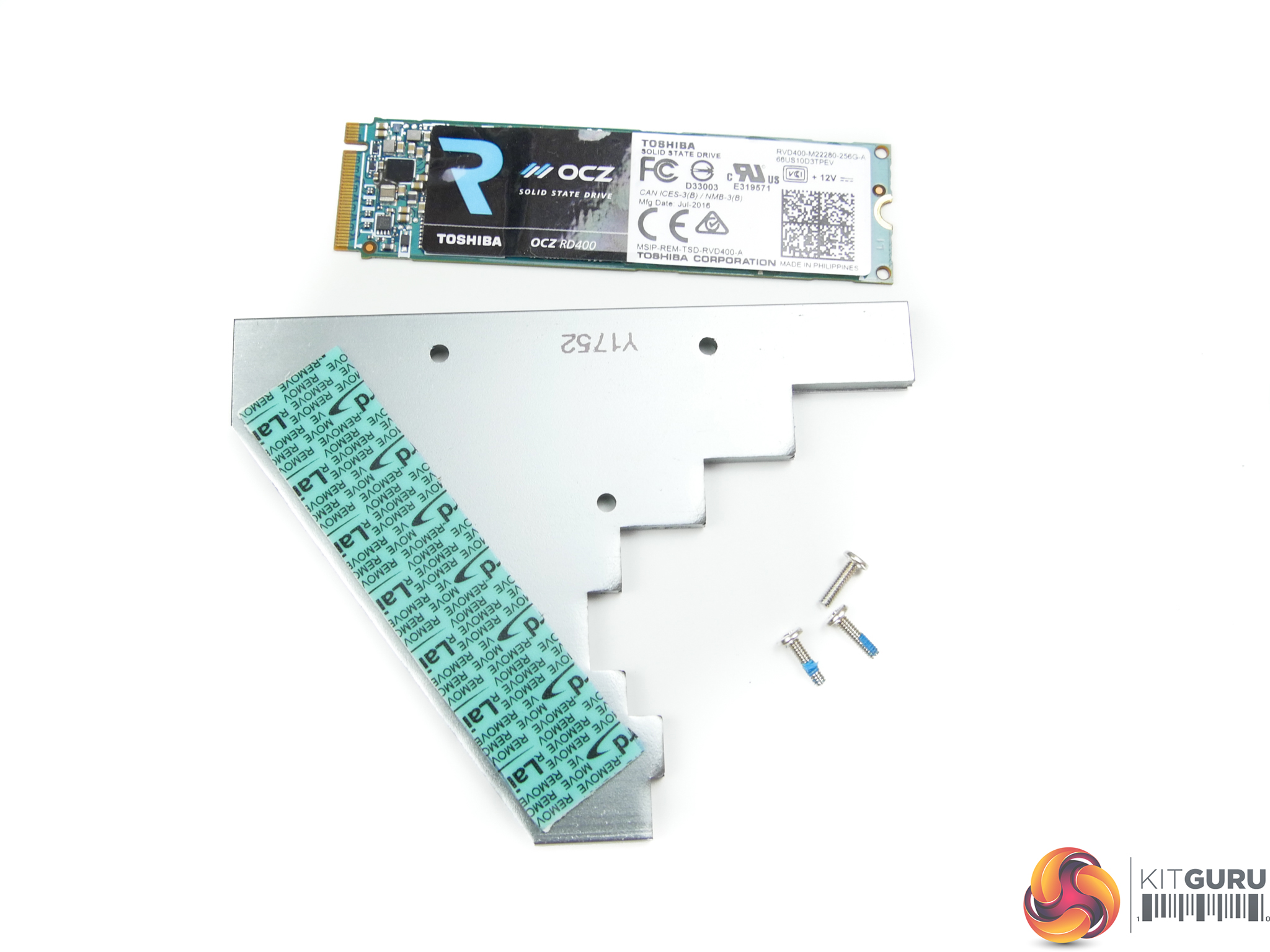
An added quirk of the thermal cover is that the M.2 SSD is hidden. That’s a negative for users who want to show off their shiny new Samsung 960 Pro but it’s a positive to those who want to hide the ugly green PCB on their Samsung SM961 SSD, for example.
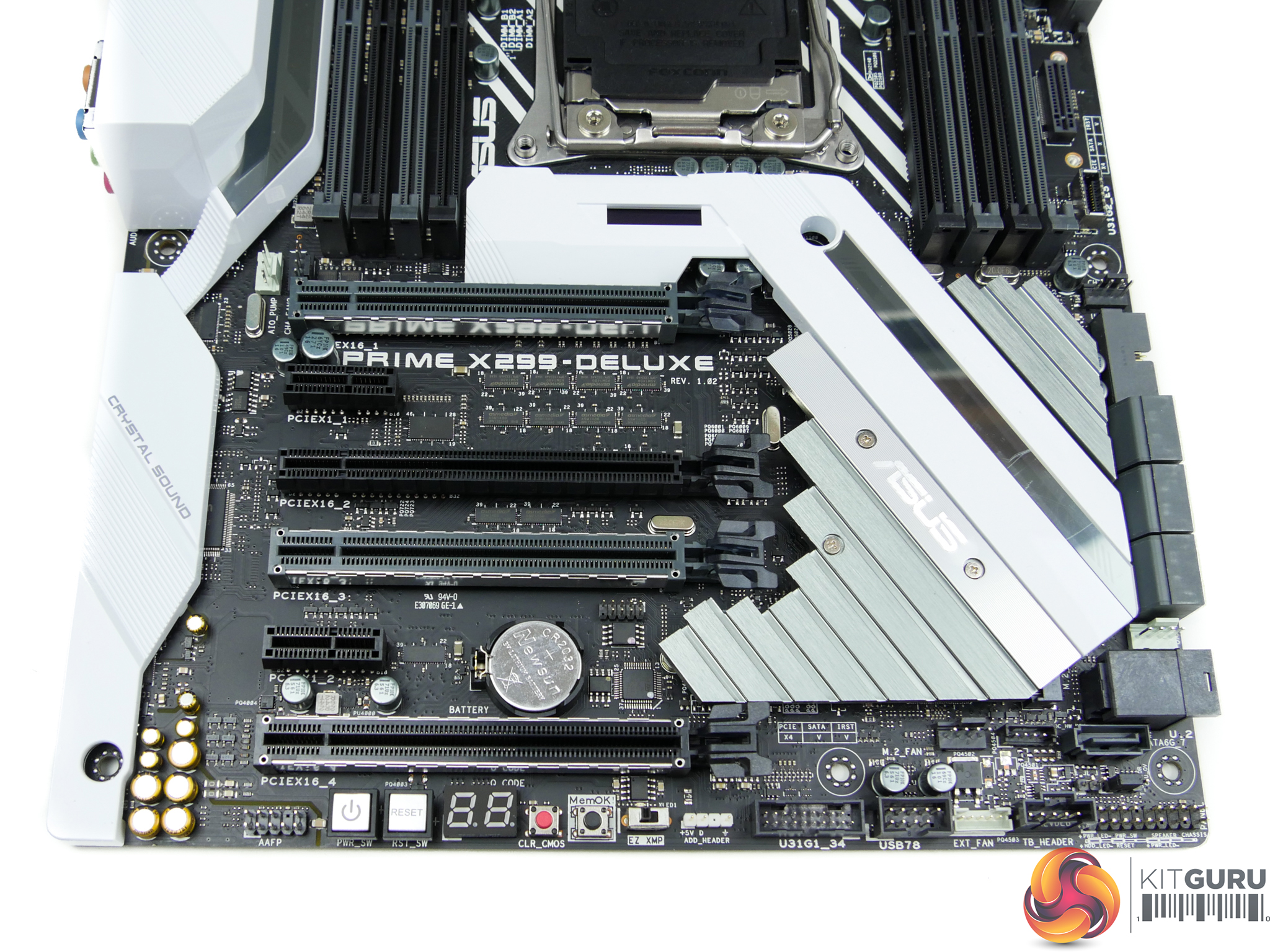
Up to three high-bandwidth PCIe cards, such as graphics cards, can be used with the X299-Deluxe. The three fattened ASUS SafeSlot connectors are where users should install graphics cards or high-bandwidth storage devices (such as ASUS’ Hyper M.2 x16 card).
The three SafeSlot connectors run at x16/x16/x8 with a 44-lane CPU or x16/x8 + chipset-shared at x4 with a 28-lane chip. A 16-lane chip changes that to x8/x8 but buying a 16-lane chip on X299 is stupid anyway.
That black full-length slot operates at PCIe 3.0 x4 from the CPU. This slot is useful for installing a high-bandwidth PCIe SSD (or M.2 SSD using a riser card) as it always runs at x4 bandwidth with a 28-lane or 44-lane CPU. ASUS intends for this slot to be used with the ThunderboltEX 3 add-in-card that is bundled.
Both PCIe 3.0 x1 connectors operate from the X299 chipset but neither of them is free of bandwidth restrictions. The first x1 slot shares bandwidth with the 802.11ad WiGig networking but it is unlikely to be used given its proximity to the graphics card’s x16 slot. The second x1 slot shares bandwidth with SATA port 7.
To save words, the board’s connectivity is significantly adjusted when using a 16-lane Kaby Lake-X CPU and numerous connections are disabled or forced to share bandwidth.
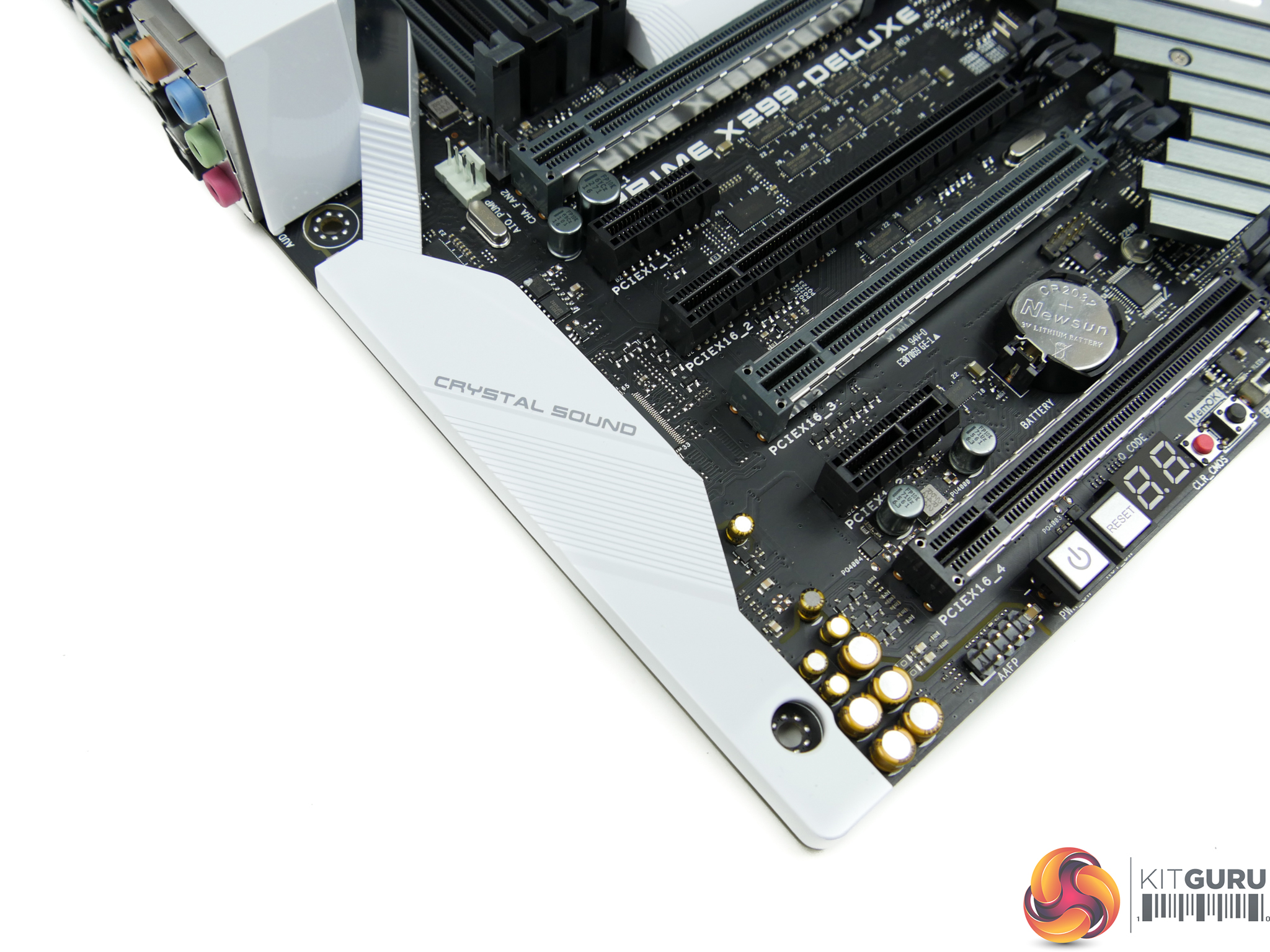
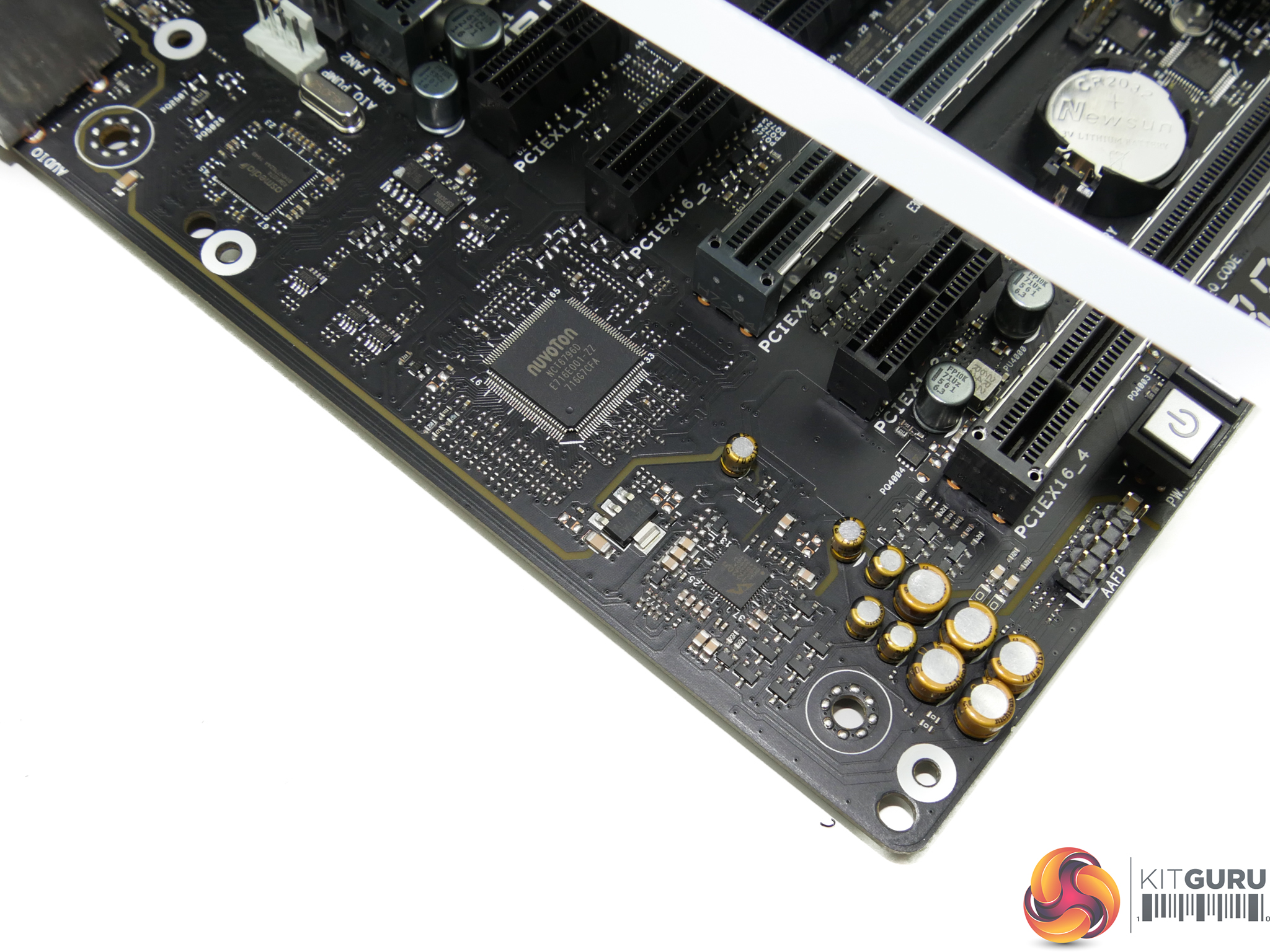
ASUS’ Crystal Sound 3 audio solution is built around a S1220A audio codec with a 113dB line-in SNR and 120dB line-out SNR. Nichicon audio capacitors are also present and there is an impedance sensor that customises levels for specific headphones.
ASUS is keen to point out the effort taken to ensure audio signal quality and noise isolation.
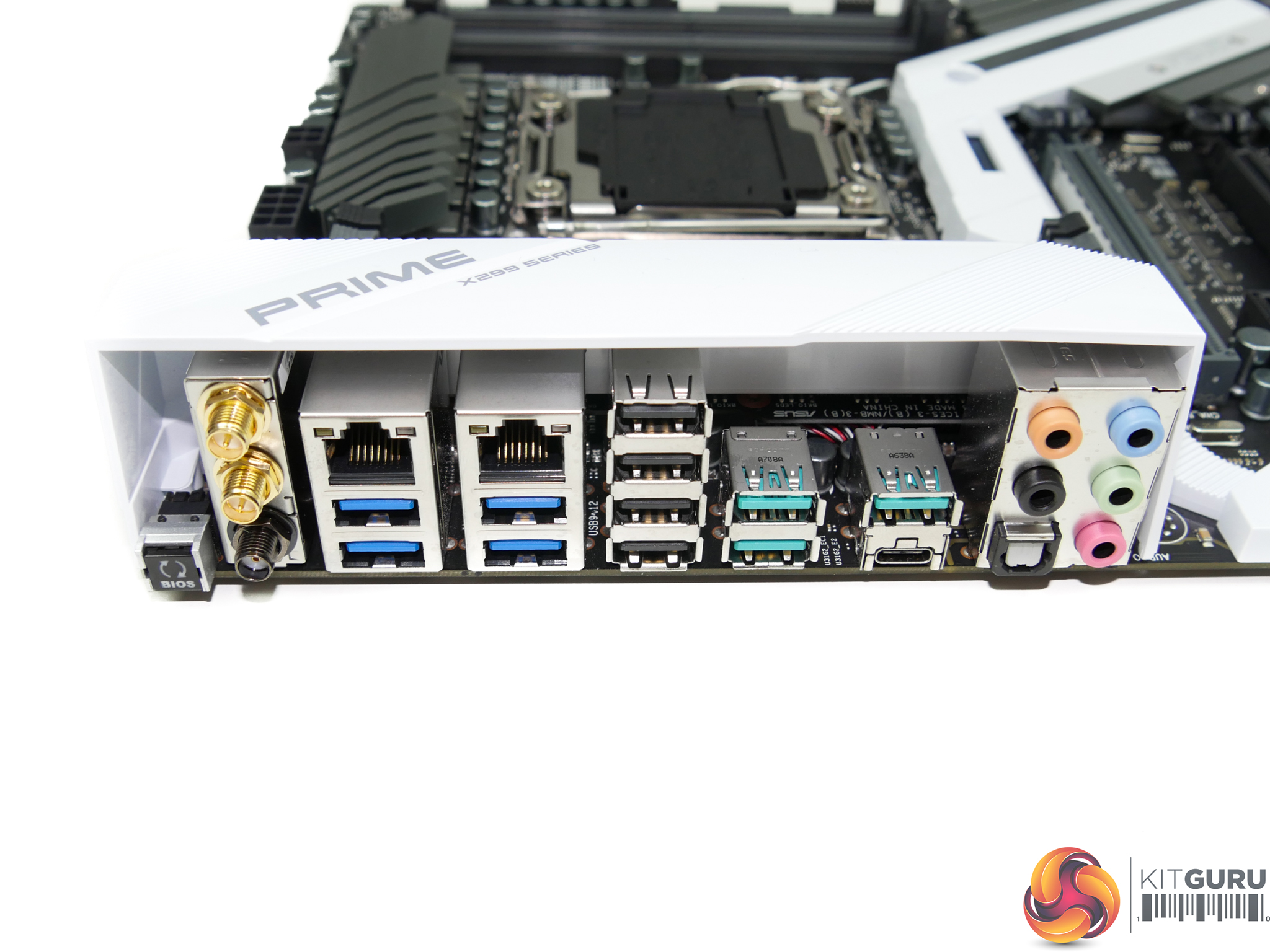
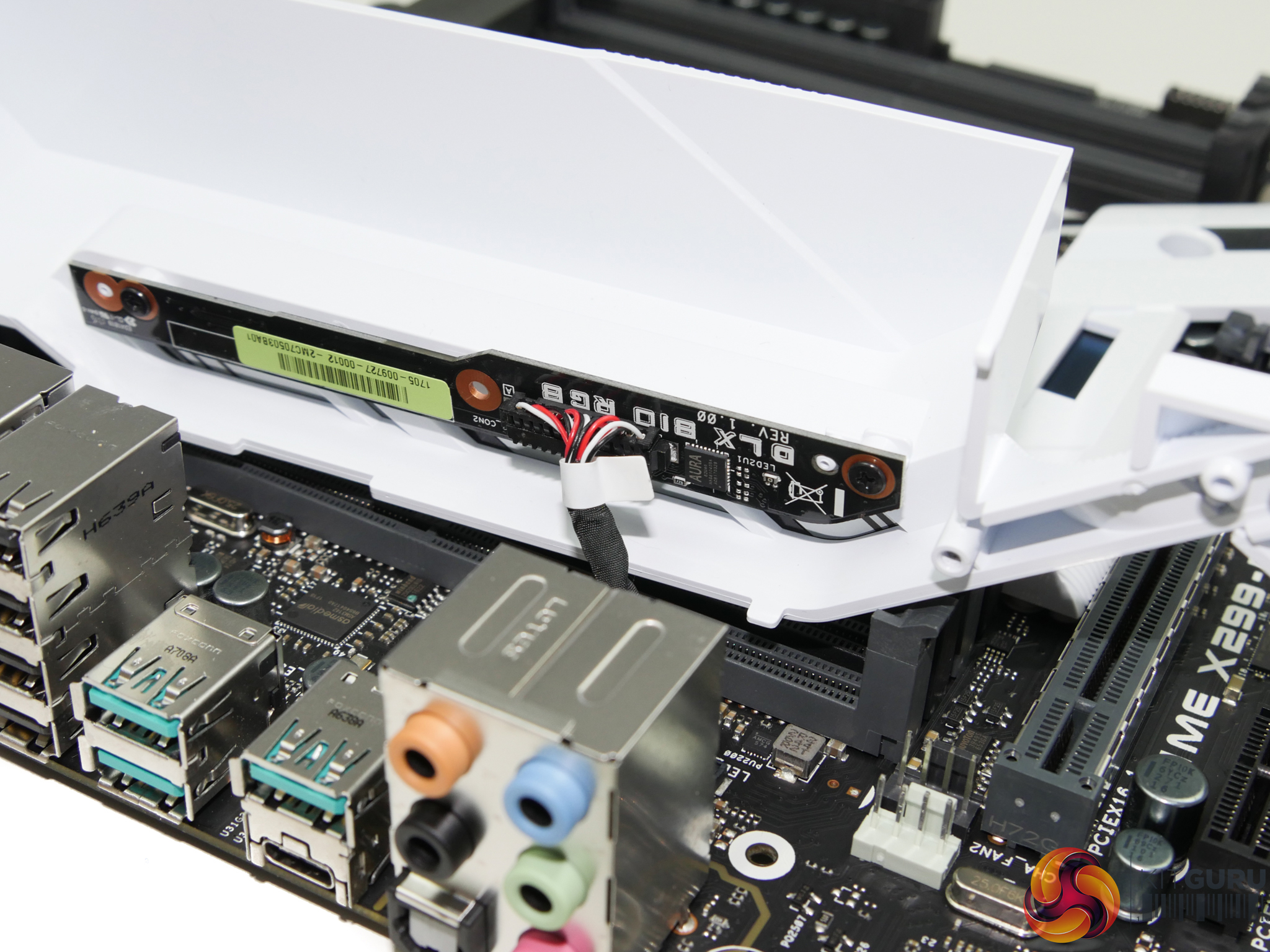
A heavily-packed rear IO is good to see on a premium motherboard that does not feature (potentially) wasted space with display outputs.
ASUS’ useful BIOS Flashback button is present and sits next to the three antenna points used for 802.11ac and 802.11ad WiFi connectivity. Dual GbE connections are provided by Intel I219V and I211AT NICs, both of which feature ASUS’ LANGuard ‘protection’.
Beneath the NICs are four 5Gbps USB 3.0 ports, one of which comes directly from the X299 chipset with the other three being routed via a bandwidth-constricting ASM1074 multi-port hub. All four of the chipset-fed USB 2.0 ports are useful for low-bandwidth device and peripheral connectivity. Two sets of two 10Gbps USB 3.1 Gen 2 connections (three Type-A and one Type-C) are provided by a pair of ASMedia ASM3142 chipset, aided by an ASM1543 IC for Type-C logic. Each of the ASMedia chipsets operates in PCIe 3.0 x2 mode from the X299 PCH and therefore splits 16Gbps of theoretical bandwidth between the two ports it feeds.
Finishing off the rear IO connections is the standard set of 3.5mm audio jacks, in addition to an optical SPDIF connector.
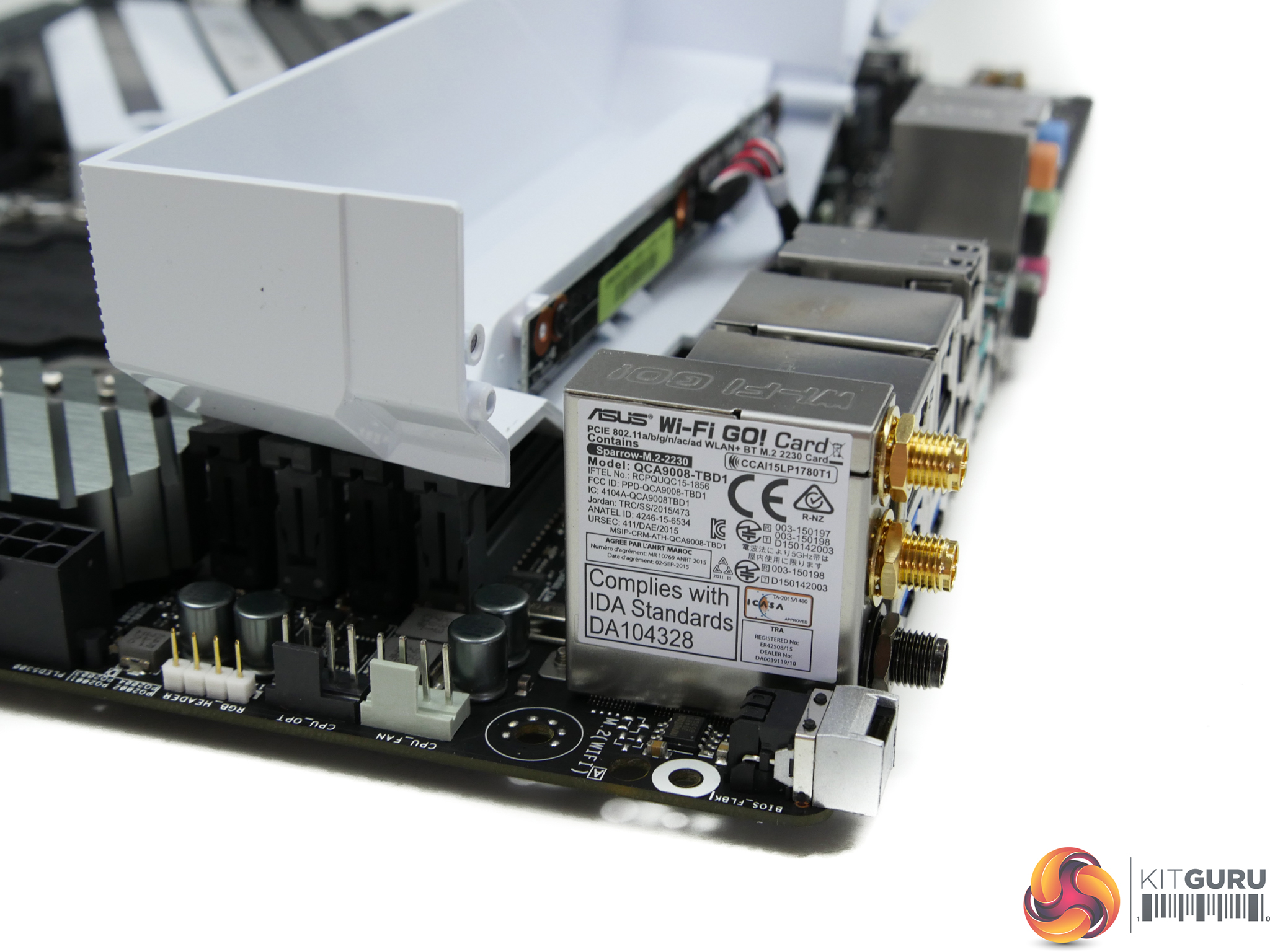
The 802.11a/b/g/n/ac/ad + BT card is packaged as the ‘QCA9008-TBD1’. That model number relates to a Qualcomm-based chipset for 802.11ac/ad and Bluetooth capability.
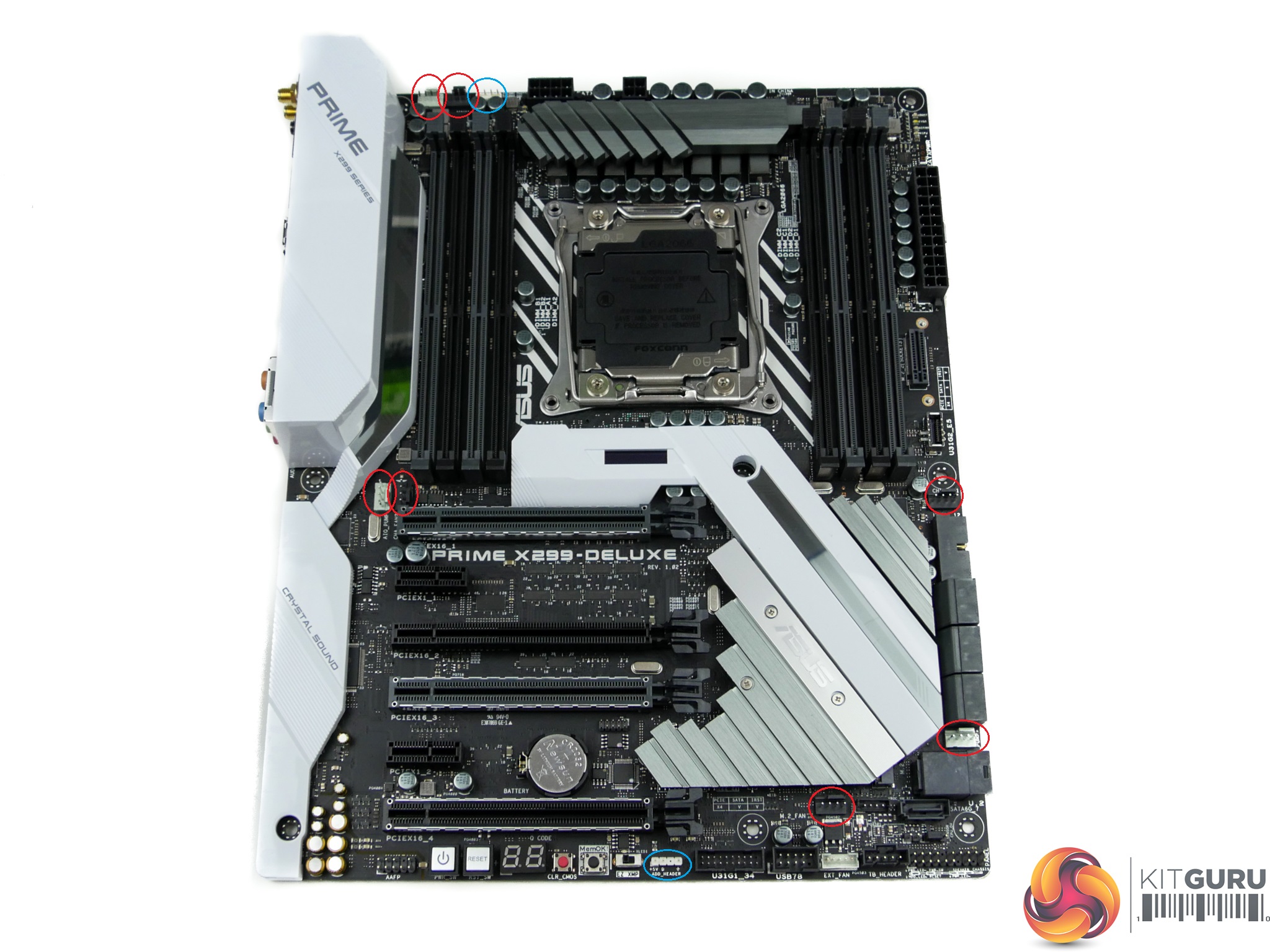
Seven 4-pin fan headers are distributed around the motherboard, with a further three being available via the ASUS Fan Extension card. A Nuvoton NCT6796D chipset is responsible for monitoring and control duties. This is a superb number of fan headers with excellent positioning and a smart spread.
Two RGB LED headers are present – 3-pin addressable along the bottom and a standard 4-pin connection along the top edge.
PCIe slot layout from ASUS is inefficient and severely limiting. The six-slot design cuts down expansion options to a pair of high-powered graphics cards and nothing more, in many situations. Put a pair of ASUS’ own 2.5-slot GTX 1080 Ti STRIX cards on this board and you have blocked all other available expansion slots, included the x4 link for use with the bundled ThunderboltEX 3 card. Mounting a PCIe x4 or x1 slot above the primary GPU slot (by moving the DIMM slots up) would have significantly enhanced expansion options without limiting CPU cooler clearance.
ASUS X299 UEFI
The UEFI used for ASUS' X299 motherboard is almost identical to that found on the Z270 counterparts. As such, we have re-used the bulk of our analysis from the Z270 reviews and updated the text where there are subtle differences.
Firstly, we are pleased to report that our generic wireless mouse worked in the ASUS X299 UEFI. Some mice can be troubling with UEFI support, so when a generic wireless unit functions correctly in the interface, that is usually a good sign for overall mouse support.
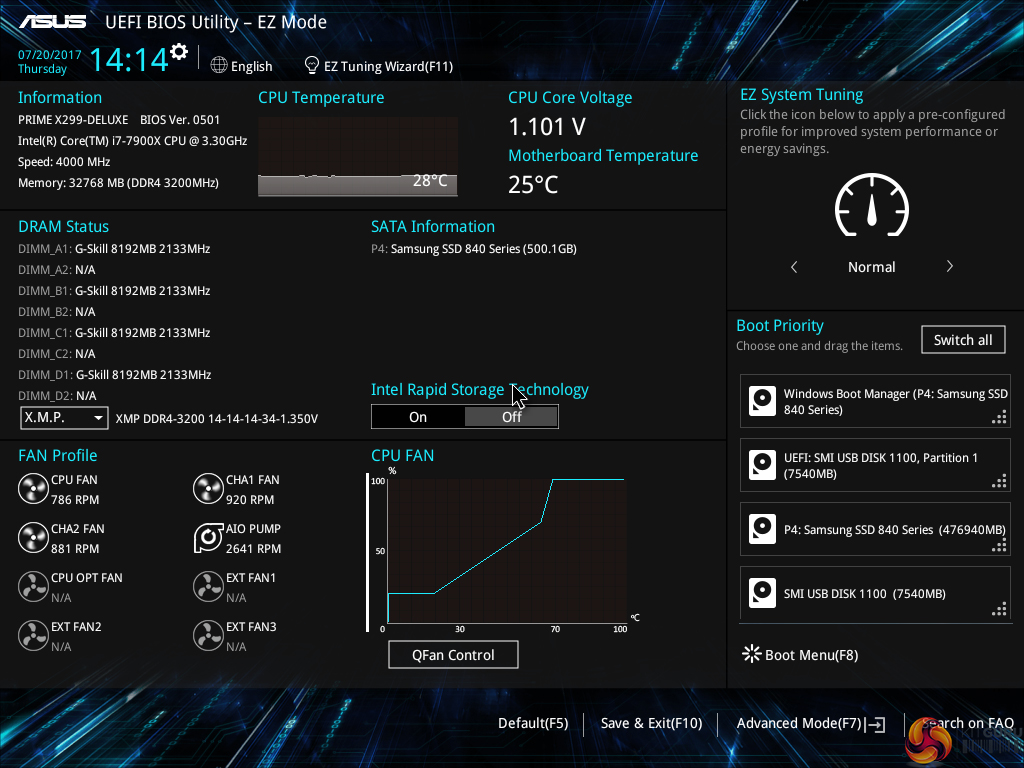
The default entry page for ASUS’ UEFI is EZ Mode. On this page, basic settings relating to fan speeds and boot devices can be adjusted and other important information can be viewed. EZ Mode is simple enough for novice users to not be dissuaded from entering the UEFI.
Hitting F7 allows the Advanced mode to be accessed.
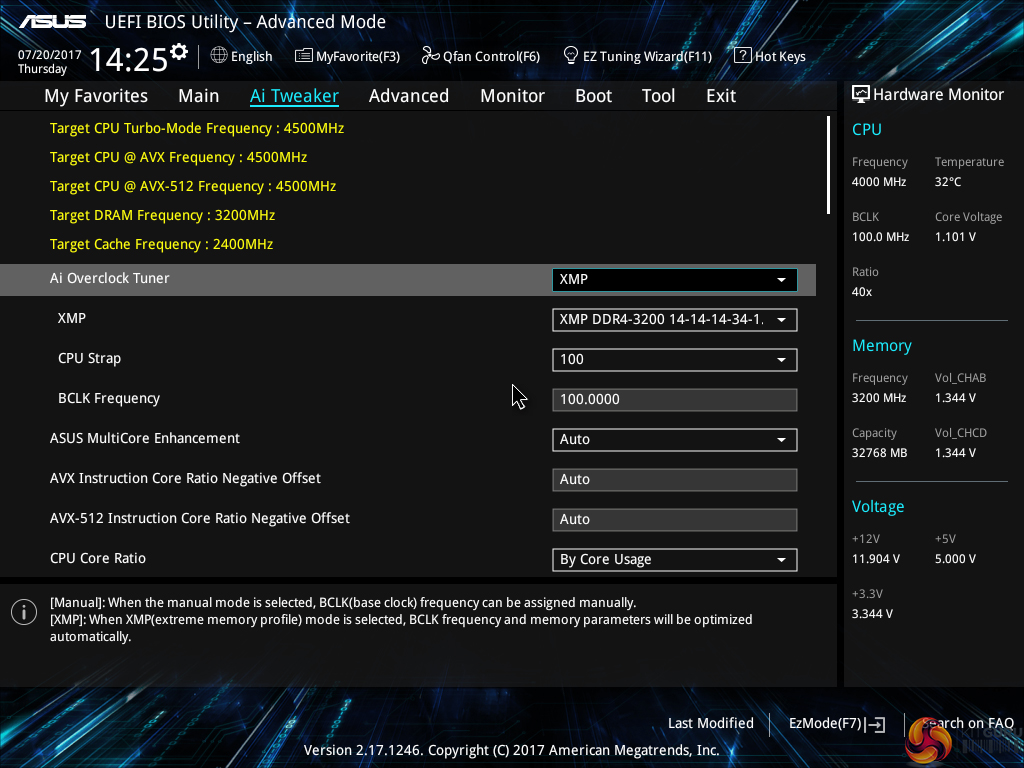
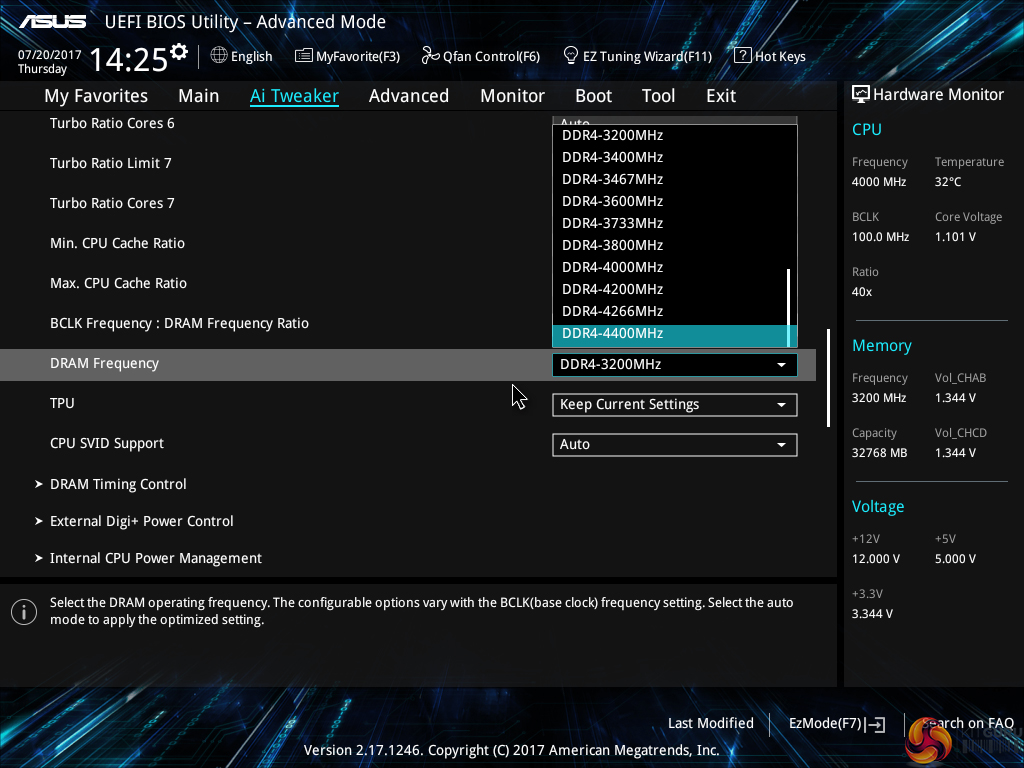
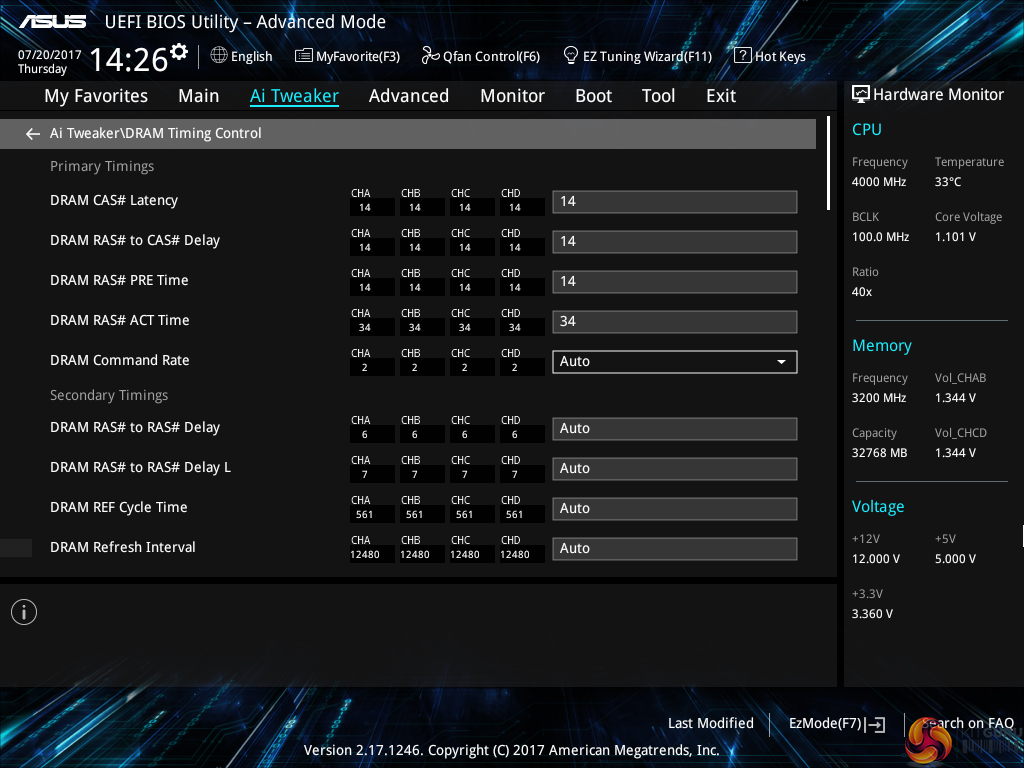
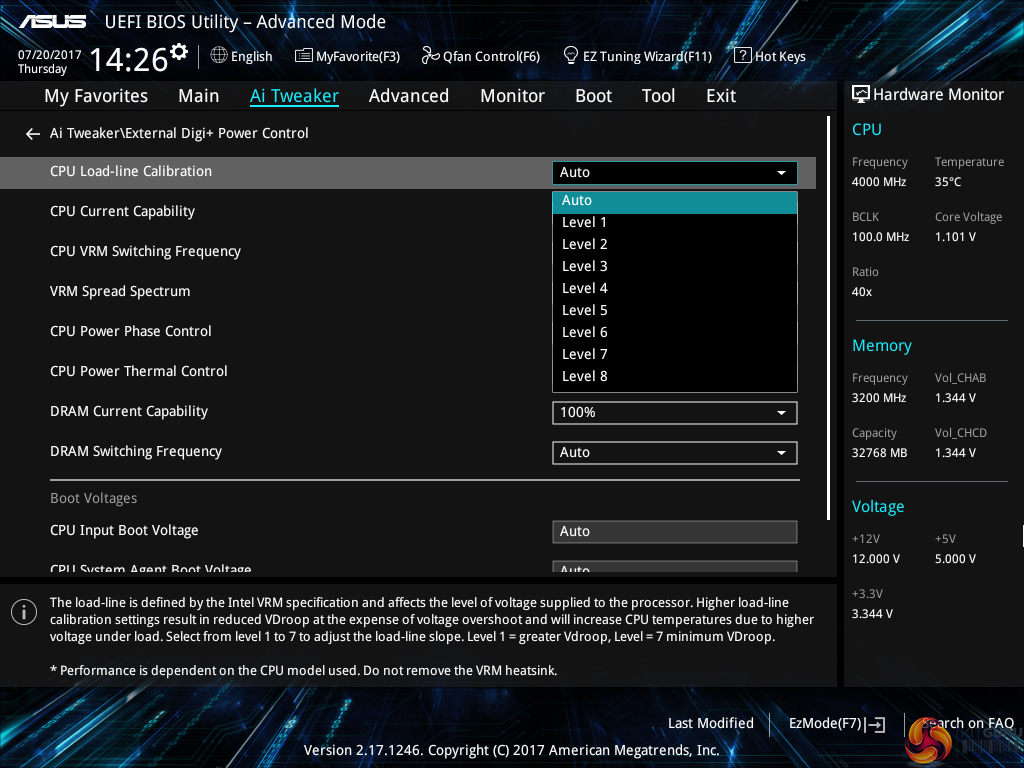
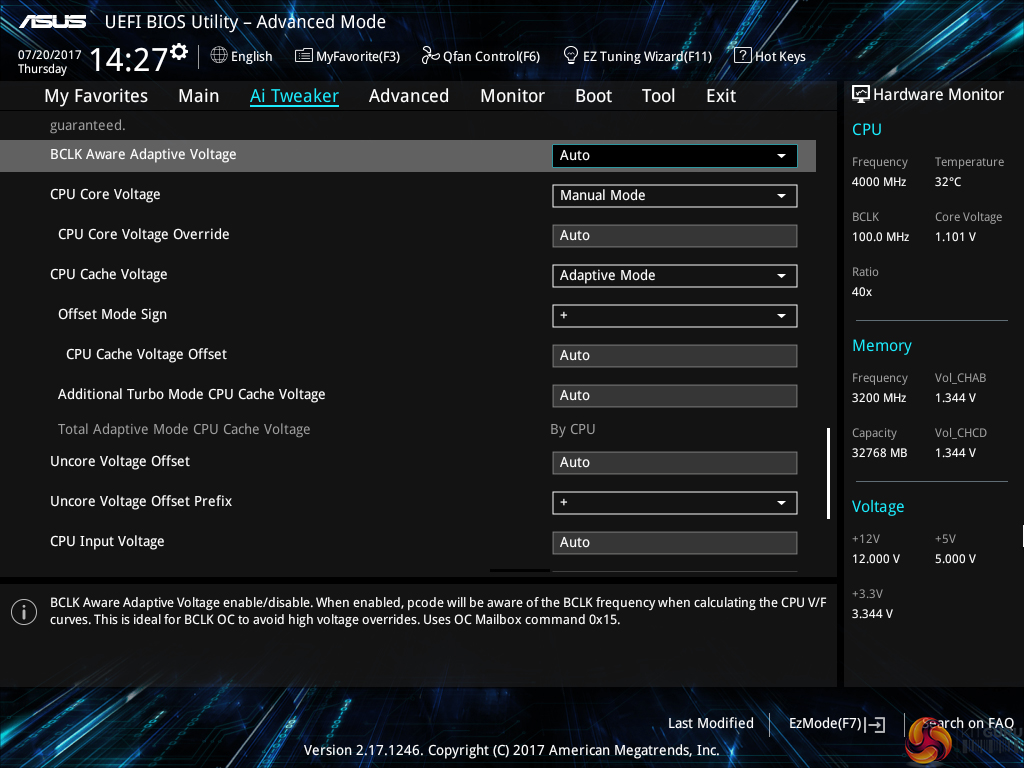
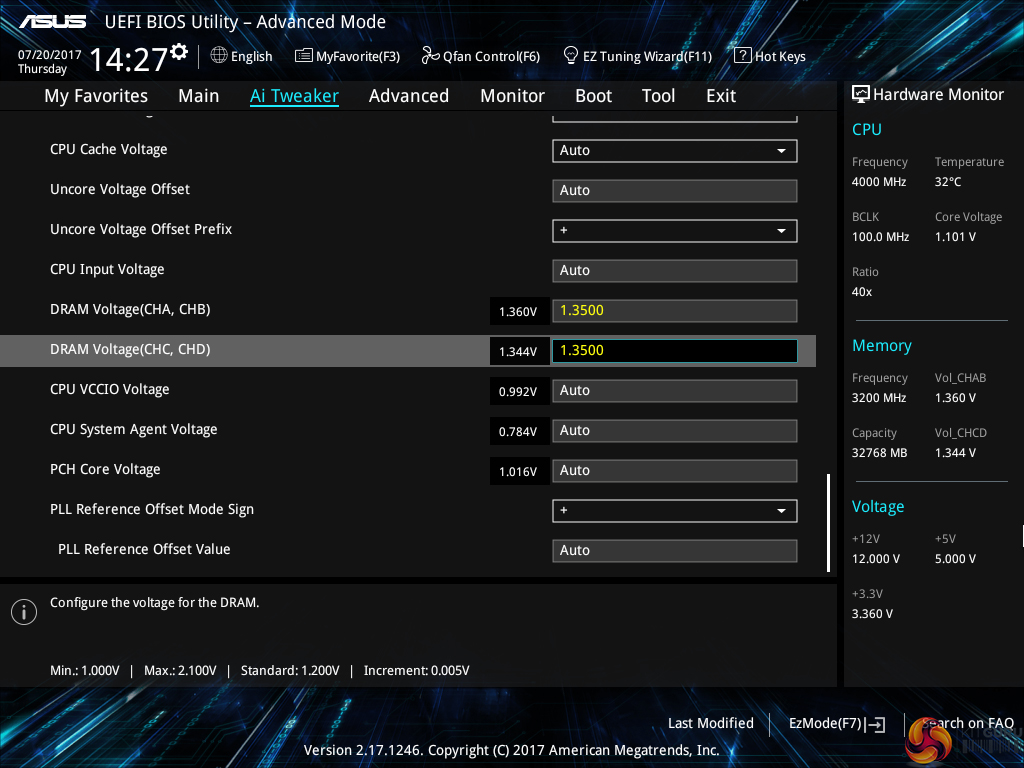
AI Tweaker follows the standard layout that we have come to expect from recent ASUS motherboards, and that’s a good thing. Easy access is provided to ratio, frequency, and voltage settings, allowing users to adjust their system parameters with minimal effort.
Different voltage operating modes are available for the CPU, allowing the user to adjust an overclock to their own preference. Subsections provide users with additional overclocking abilities – External Digi+ Power Control is the focal point.
Load-line calibration (LLC) settings can be accessed through the External Digi+ Power Control page. ASUS provides options from level 1 to level 8 and gives a basic explanation of how LLC works. However, ASUS’ explanation of how voltage changes with load is not as good as MSI’s and ASRock’s visual interpretation using a graph. We had to resort to trial and error in order to find the desirable LLC level, which was a waste of time compared to competing vendors’ solutions.
Memory dividers allowing up to 4400MHz can be selected in the drop-down tab. All of the general timings settings are accessible via their own section.
A colour system to warn users when voltages are safe, borderline, or too high is one of the biggest strengths for ASUS' UEFI.

The EZ Tuning Wizard has an ability to increase system speed for novice users. We would recommend manual overclocking with Skylake-X in order to meet your chip’s specific requirements. We expect that users purchasing this calibre of motherboard will indeed be doing their own overclocking.
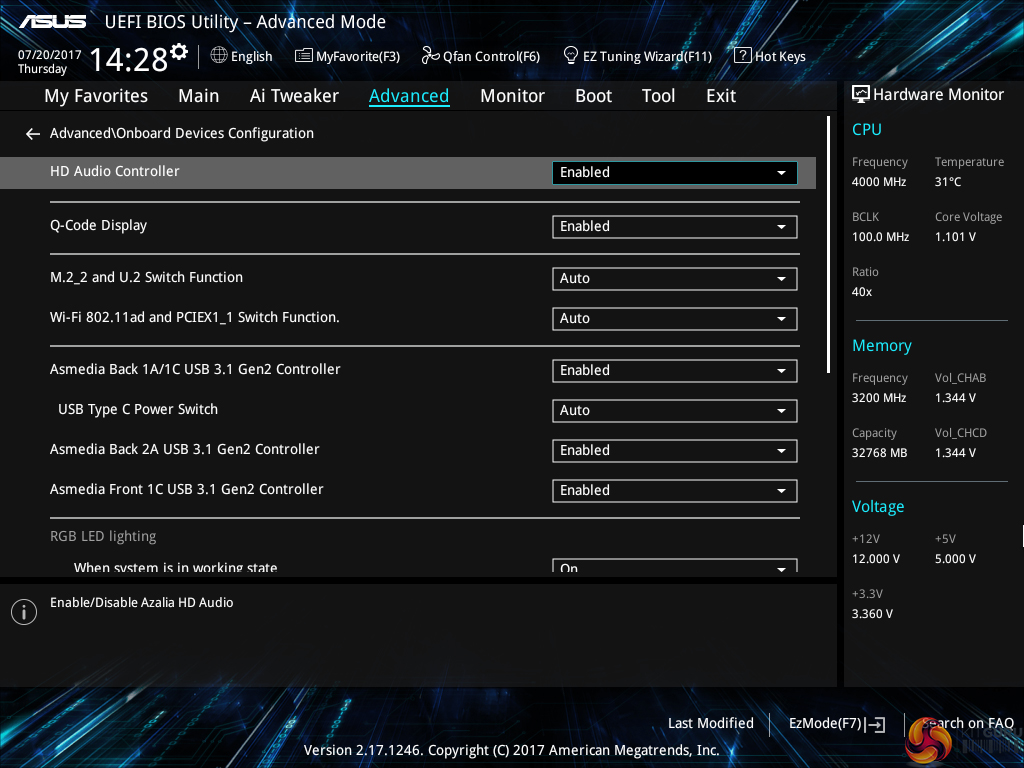
The Advanced tab is where options relating to storage and onboard devices can be adjusted.
Under the Onboard Devices page, operation mode of the M.2 slot can be adjusted in order to get the correct operation. This subsection also provides an option for the onboard RGB lighting to be enabled or disabled during sleep and power-off modes.
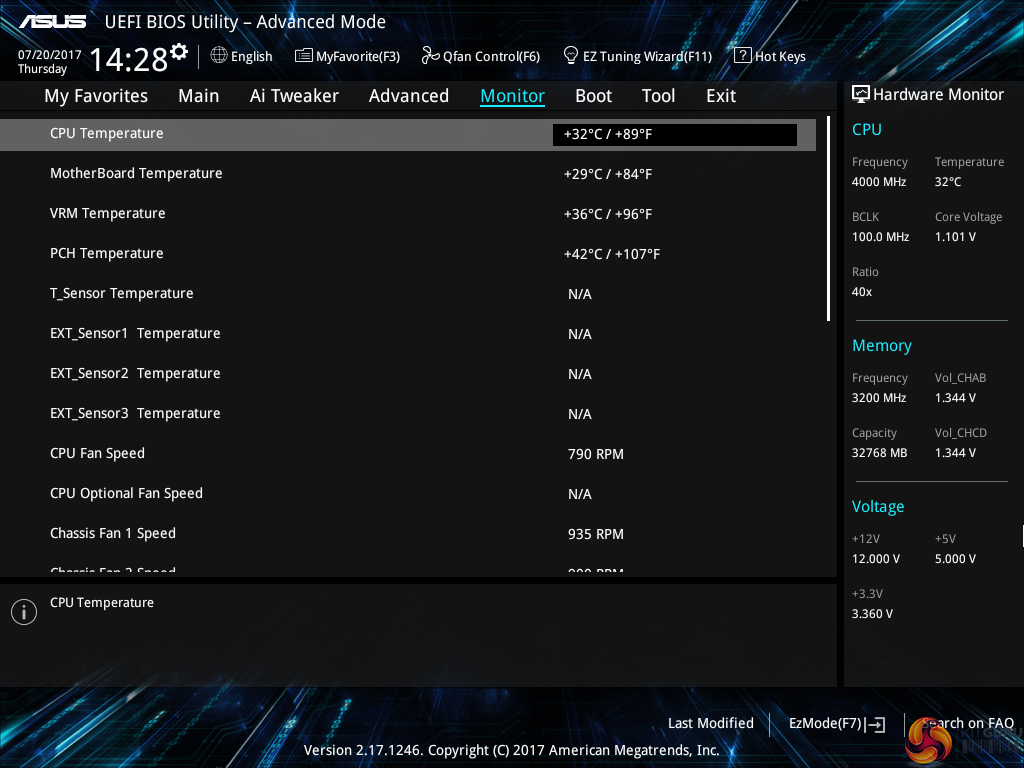
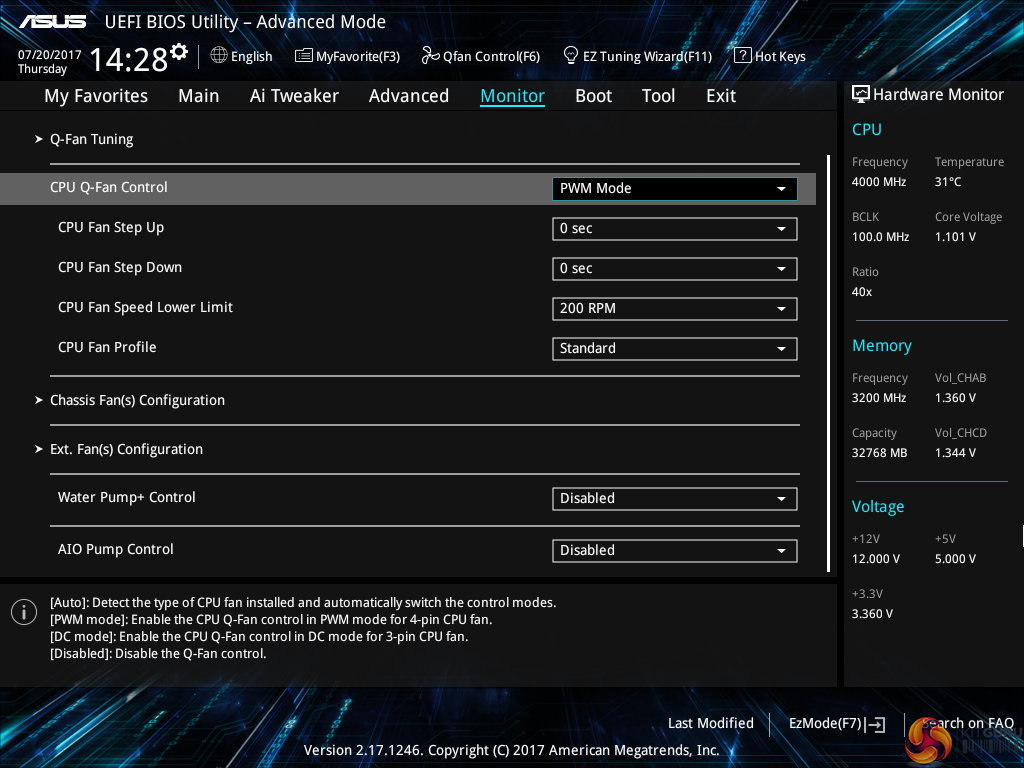
ASUS gives a wealth of information relating to voltages, temperatures, and fan speeds, as displayed in the Monitor UEFI page.
Fan speed control in ASUS’ UEFI is very good, though it is clear that ASUS would prefer you to use the Q-Fan Control option for setting up custom speed curves.
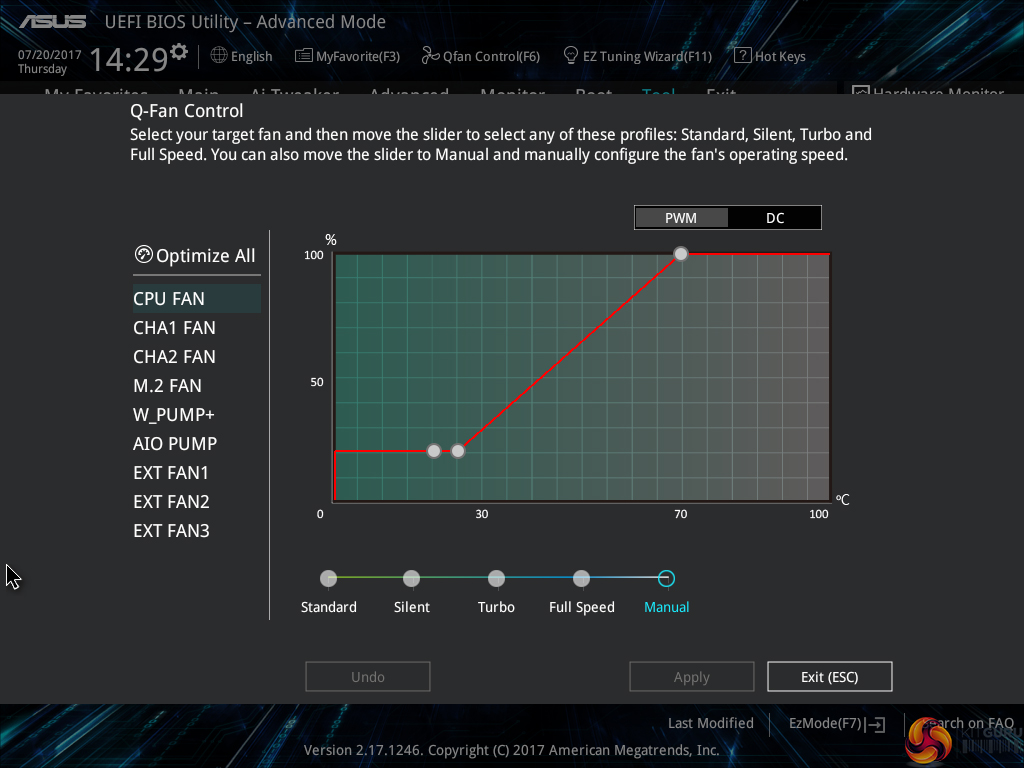
Hitting F6 loads up ASUS’ Q-Fan Control GUI which is a graphical method of adjusting the fan speed curve. Speed curves can be selected and configured for PWM and DC fans.
While the interface is good, it certainly isn’t as strong as Gigabyte’s Smart Fan 5 system which has more granular tuning and better control over temperature relations from motherboard sensors.
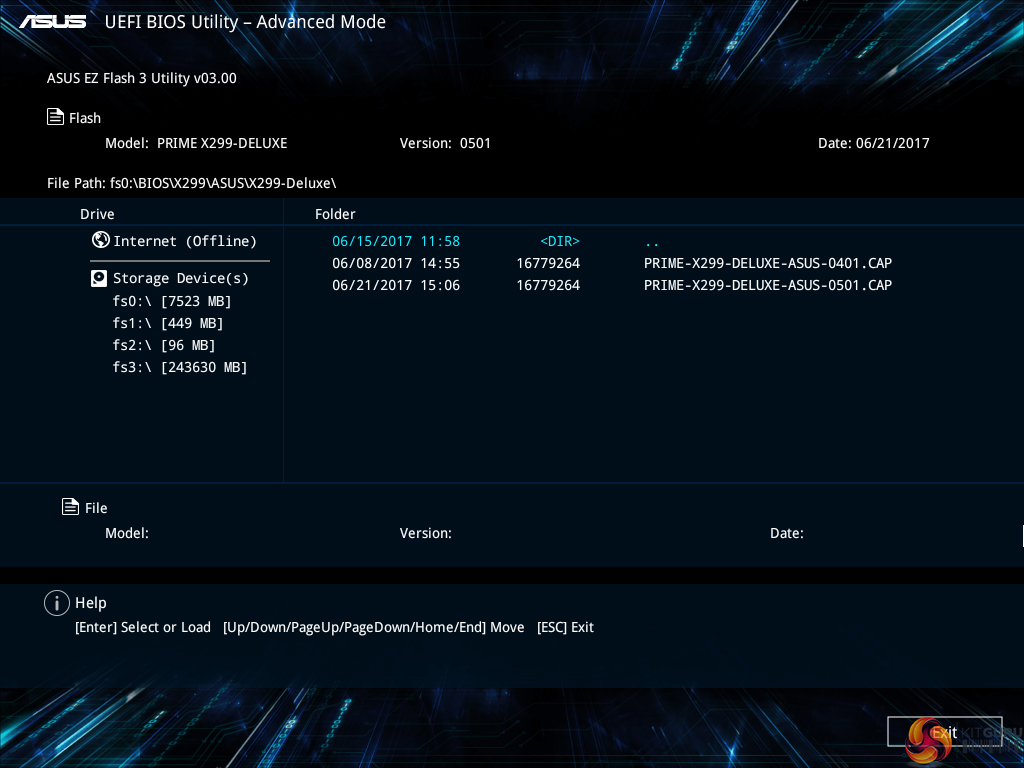
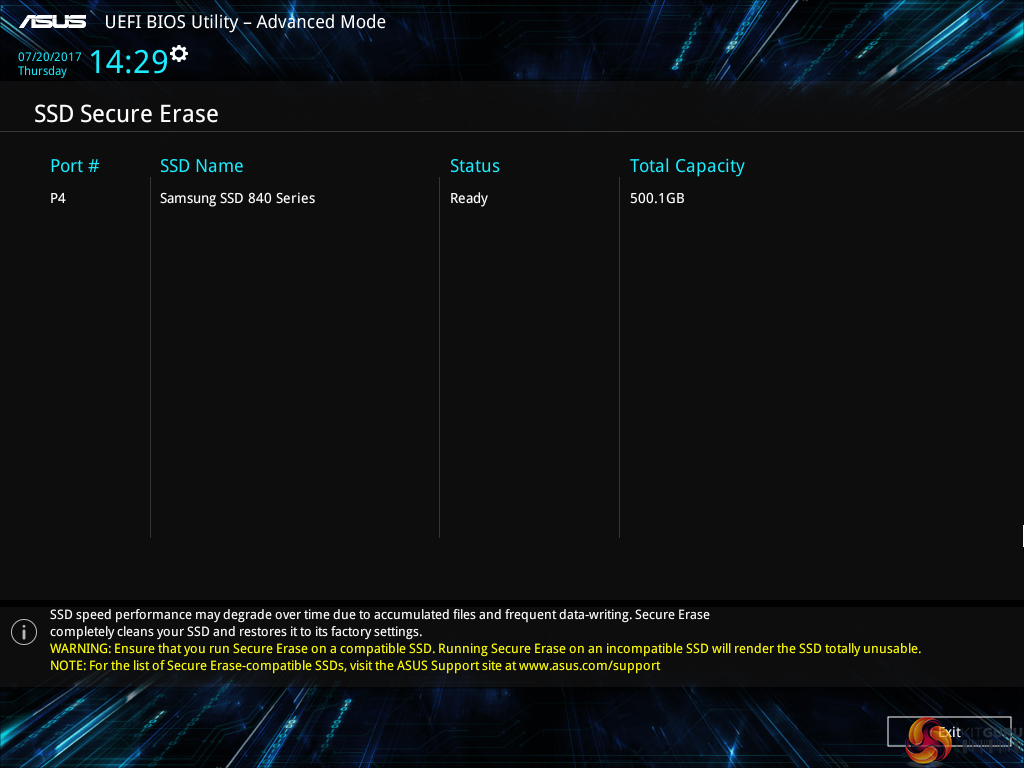
EZ Flash 3 has the ability to update the BIOS using a storage device or over the web.
SSD Secure Erase is a useful tool for securely wiping the contents of an SSD if you are selling it on, for example. There is also the possibility that wiping the data will restore performance, though this was more prevalent with older SandForce drives.
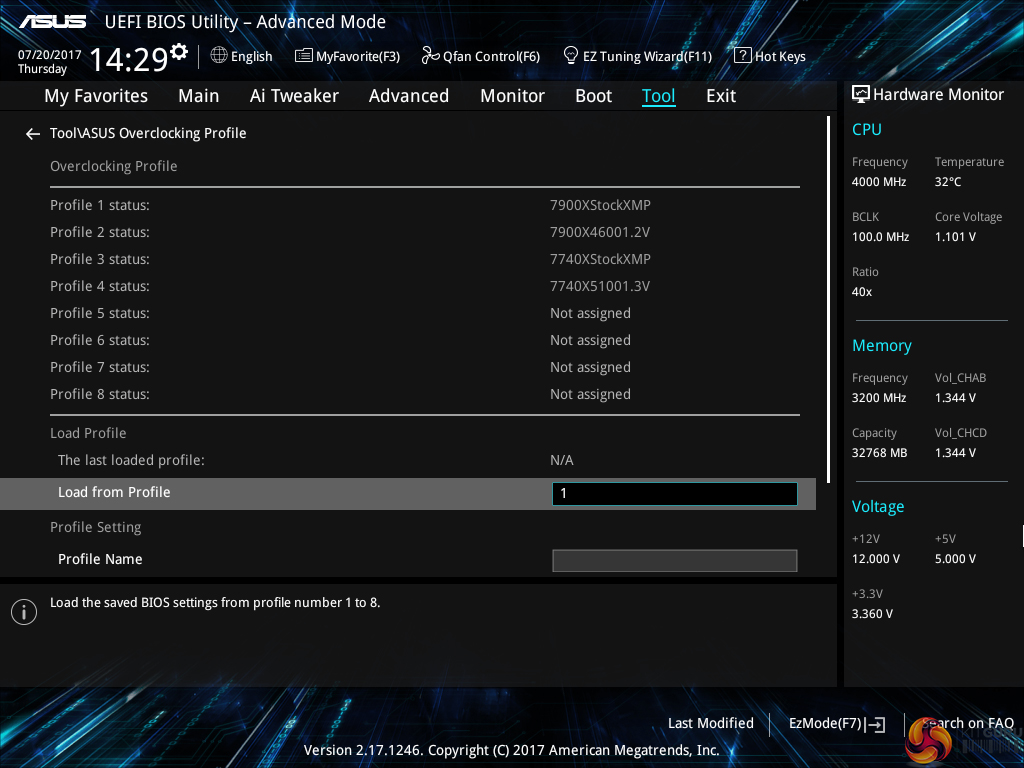
Up to eight settings profiles can be saved and named in the UEFI. Further profiles can be transferred through storage mediums such as a USB flash drive.
UEFI Summary:
ASUS’ overall UEFI is good. The interface is very well laid out, easy to use, and provides plenty of options for system tweaks relating to speeds and voltages. With that said, ASUS seems to be missing out on some updates that competing vendors are providing to bring their UEFI implementations more in-line with the requirements of today.
For example, there is no solution similar to System Browser or Board Explorer, as ASRock and MSI term them, respectively. Such a tool is convenient for basic troubleshooting, such as checking which USB port an external drive is connected to when your system is built and operational (which is relevant given the speed difference between ASMedia and alternative ports).
Another important omission from ASUS’ UEFI is any form of RGB lighting colour or operating mode control. Gigabyte has a tool that allows basic control of the board’s RGB lighting colour without relying solely on OS-based software. While the OS software is far more comprehensive than a UEFI solution, the UEFI option has the benefit of maintaining its operating settings in the event of an OS crash or clean install. And that’s not even accounting for users who simply refuse to install any vendor-specific software that will take up system resources (that UEFI-based control would not do). ASUS should implement some level of RGB LED control in its UEFI.
With that said, stability of the error-free UEFI is superb and fan control is also good thanks to each header’s ability to control PWM or DC fans.
Software
The software used by ASUS is almost identical across its current product range. As such, we have re-used the bulk of our analysis from previous reviews and updated the text where there are subtle differences.
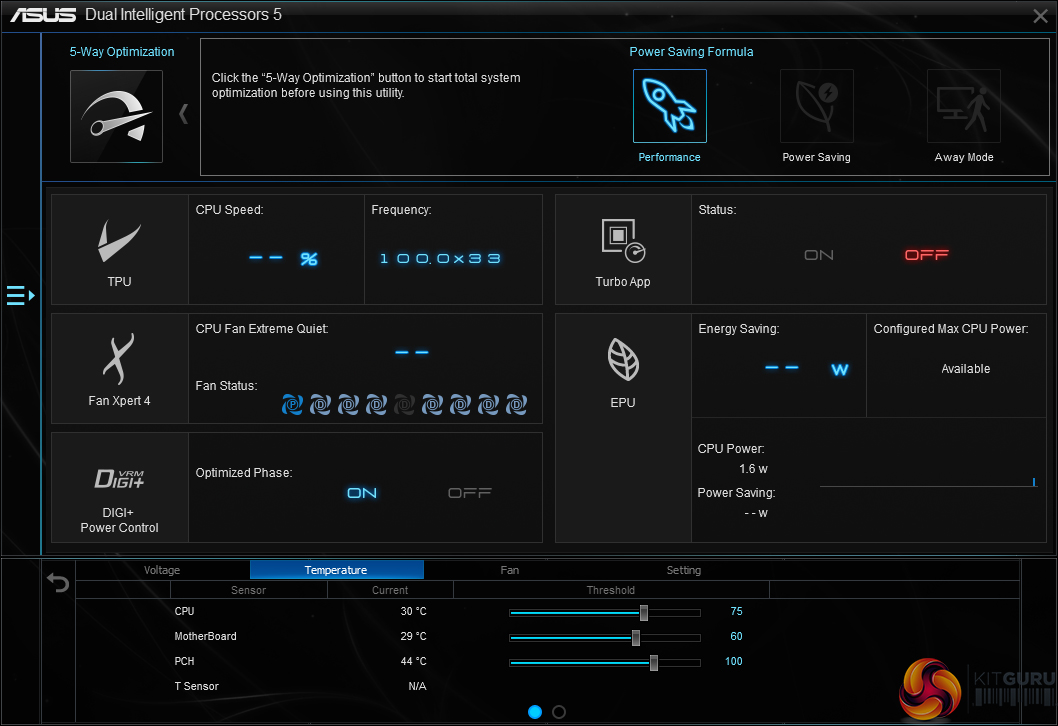
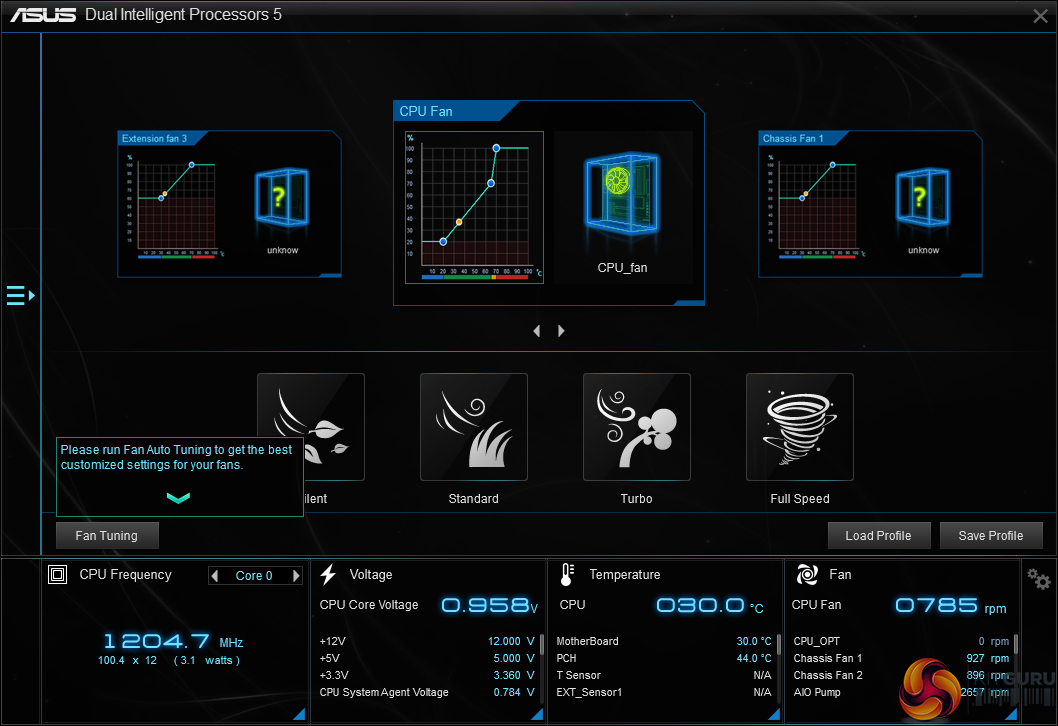
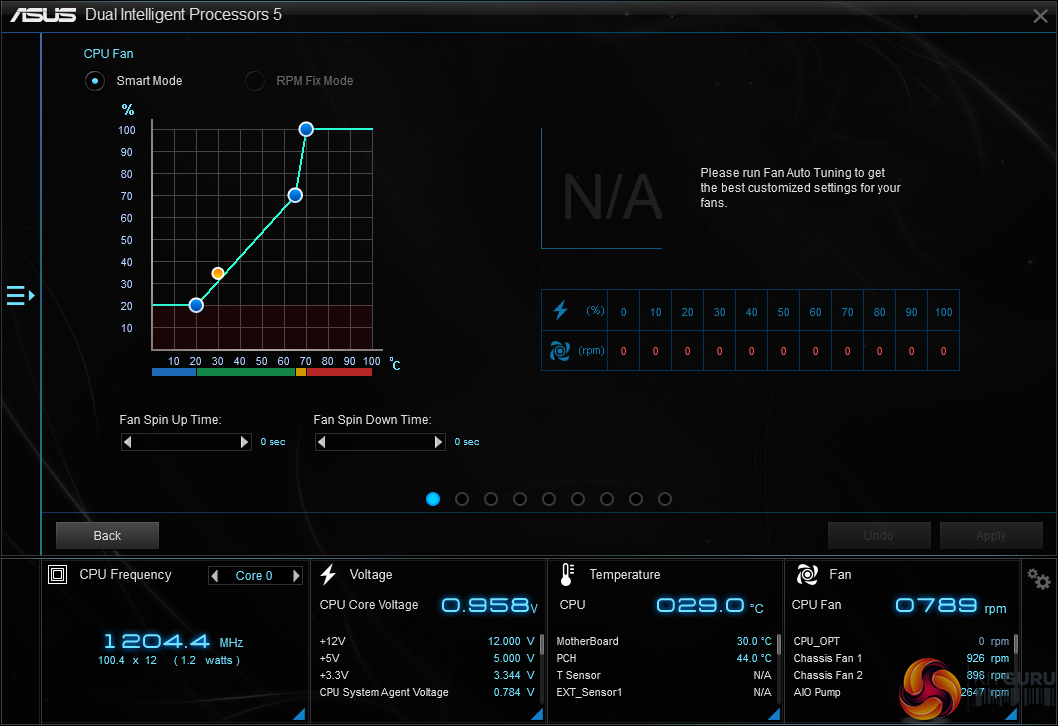
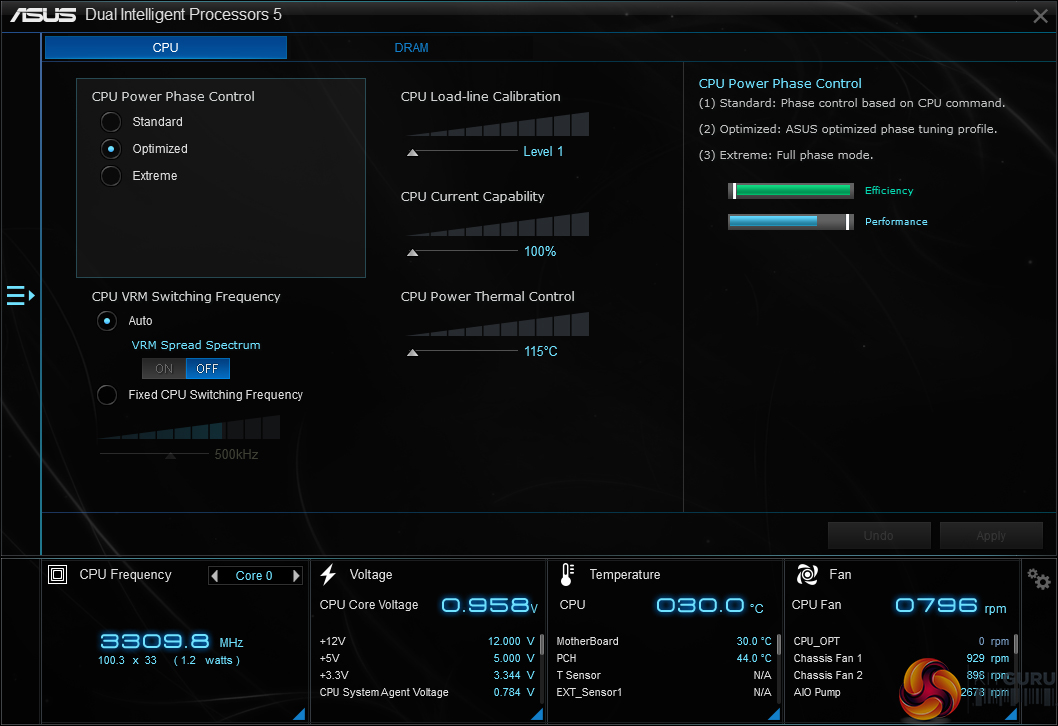
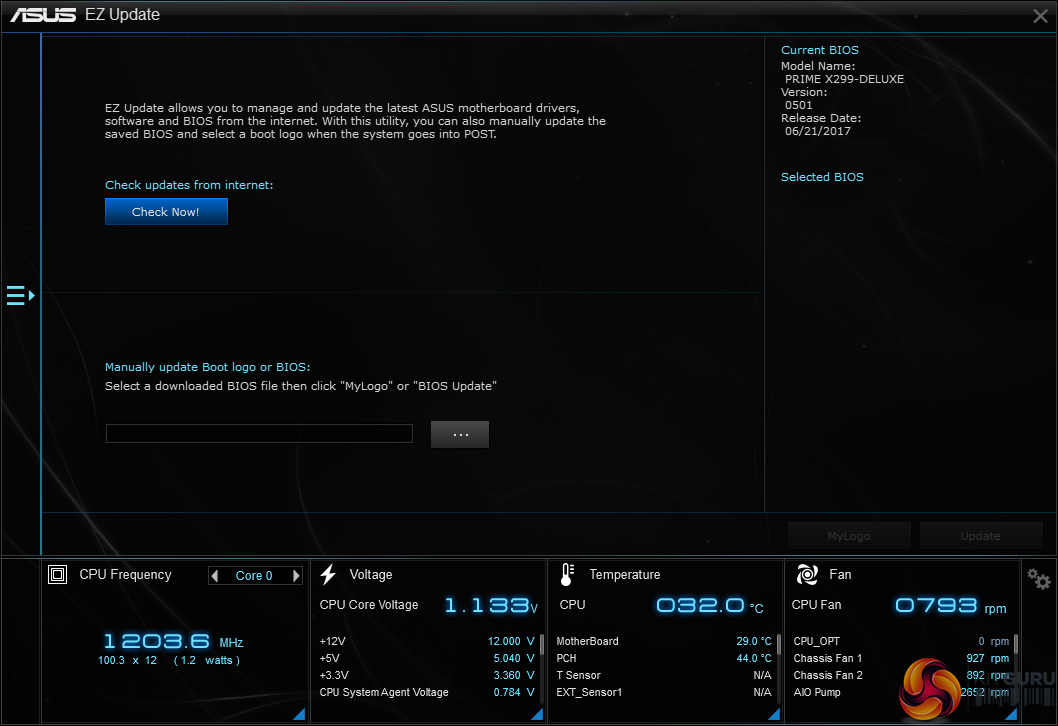
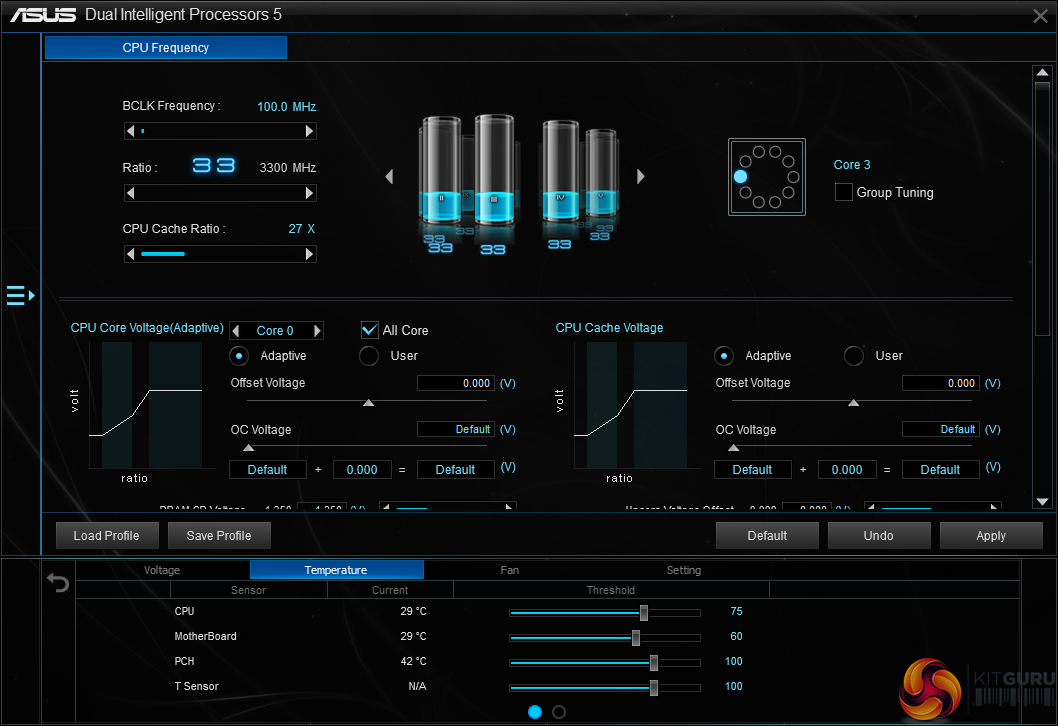
To say that ASUS includes a dizzying amount of software with its motherboards would be an understatement. Thankfully, ASUS uses its AI Suite 3 tool to good effect in managing a large proportion of the software under a single umbrella (though not to the same level that Gigabyte, for example, does).
AI Suite 3 is the go-to point for any settings or information relating to system operations. Want to check temperatures and voltages or adjust multipliers for the CPU and speeds of fans? AI Suite 3. Want to speed up certain programs or reduce the amount of RAM-hogging operations on your system? AI Suite 3. Want to check for a BIOS update? AI Suite 3.
Automated system tuning conducted by the 5-way optimisation tool can also be selected inside AI Suite 3.
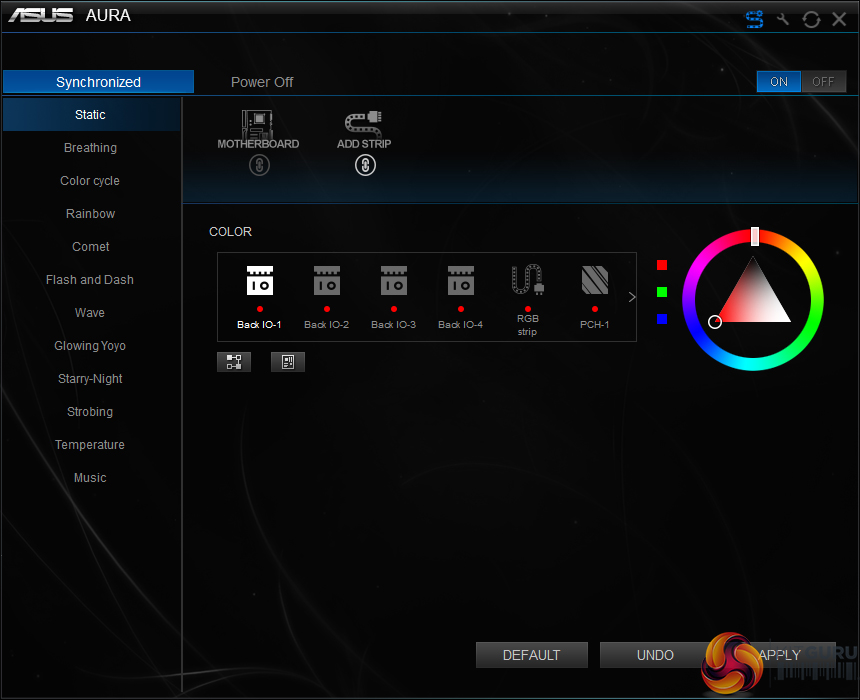
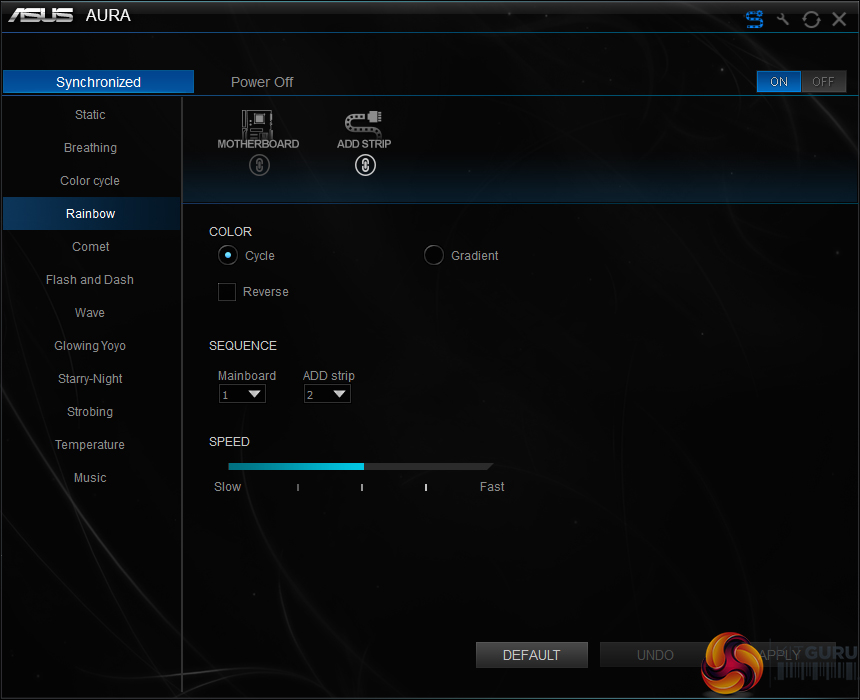
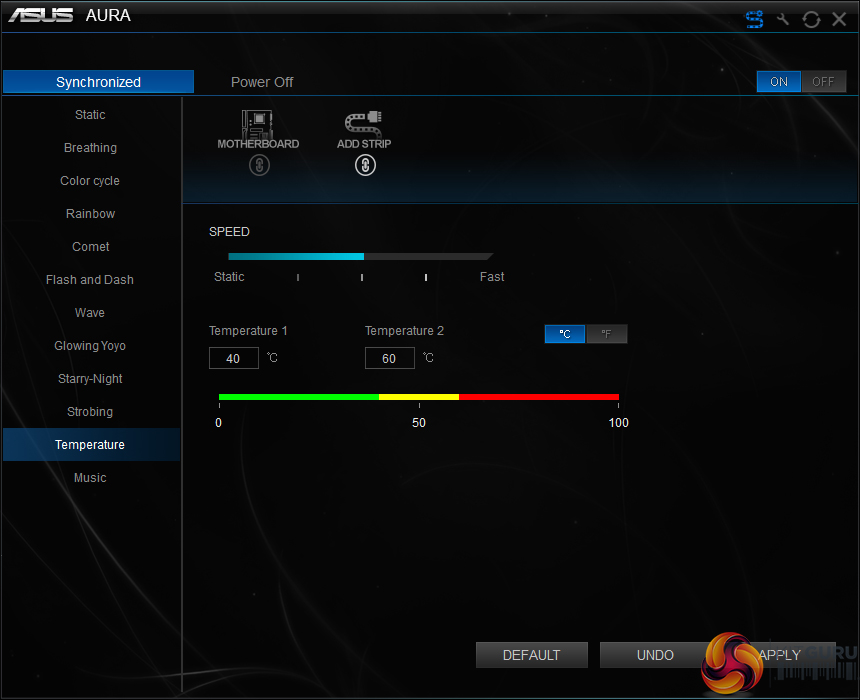
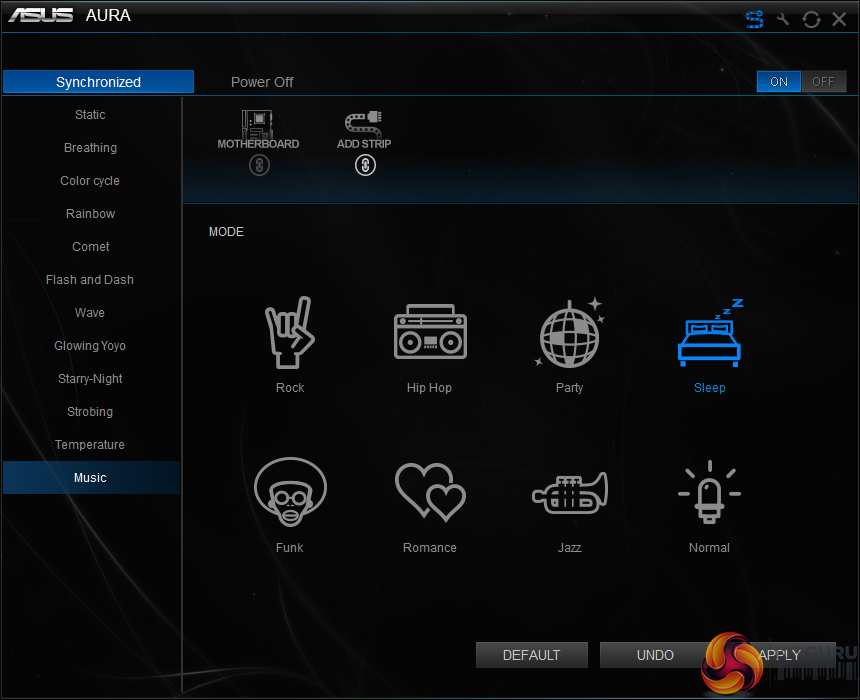
ASUS’ AURA RGB tool is a comprehensive piece of software used for managing the colours and operating parameters of onboard and connected LEDs. LED operating modes can be synchronised with other compatible hardware, such as ASUS graphics cards, or managed for the motherboard alone.
I particularly like the CPU temperature mode that changes the light colour based on processor thermals. This is similar to one of the options in Gigabyte’s ‘intelligent’ RGB Fusion modes (though Gigabyte has additional modes available).
With that said, the layout of AURA is questionable. The colour choice is handled by an outer colour ring and then an inner triangle zone. The ring is meant to provide an estimated colour choice and the triangle allows fine-tuning of the desired colour. Fine in theory, but in practise this can result in the LEDs displaying colours that aren’t close to what was chosen due to the inner triangle’s bias for dark blacks or bright whites.
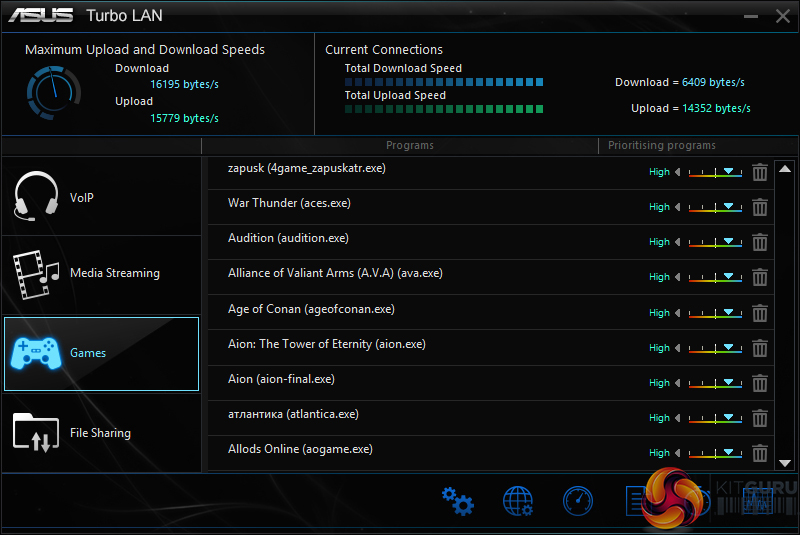
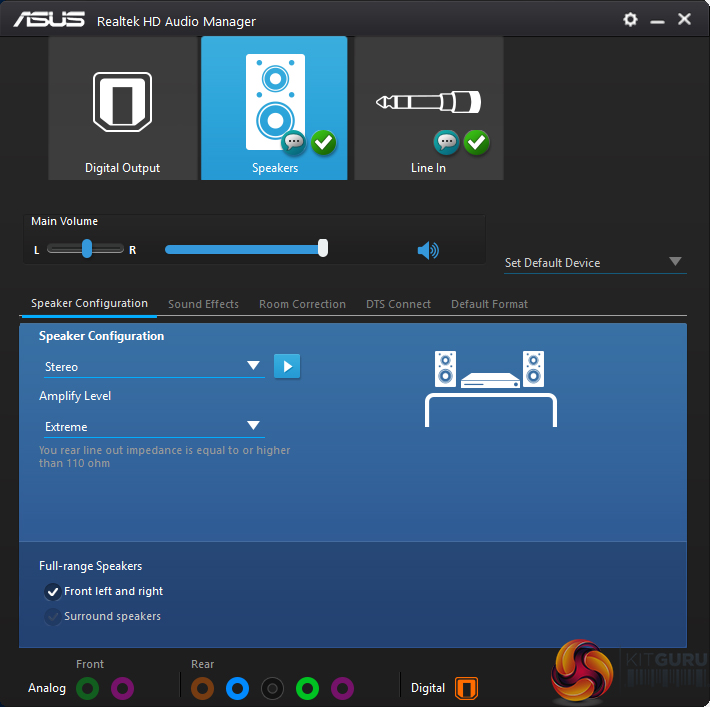
TurboLAN allows basic management of network priorities for the system. ASUS includes a feature-laden skin on the Realtek HD Audio Manager.
OS Software Summary:
The sheer volume and quality of OS-based software that ASUS makes available is impressive. AI Suite 3 is home to the important system-related settings and does a good job at categorising several tools under one single umbrella suite rather than multiple individual shortcuts.
AURA is a solid tool that provides a good degree of RGB customisation in terms of colour and operating modes, provided you can manage the awkward layout of colour triangles. However, more flexibility with respect to ‘intelligent’ lighting modes would be welcomed as this is an area where the likes of Gigabyte and NZXT perform well.
We will be outlining the ASUS Prime X299-Deluxe motherboard’s performance with the Intel Core i9-7900X CPU and 32GB of 3200MHz G.Skill Trident Z DDR4 memory.
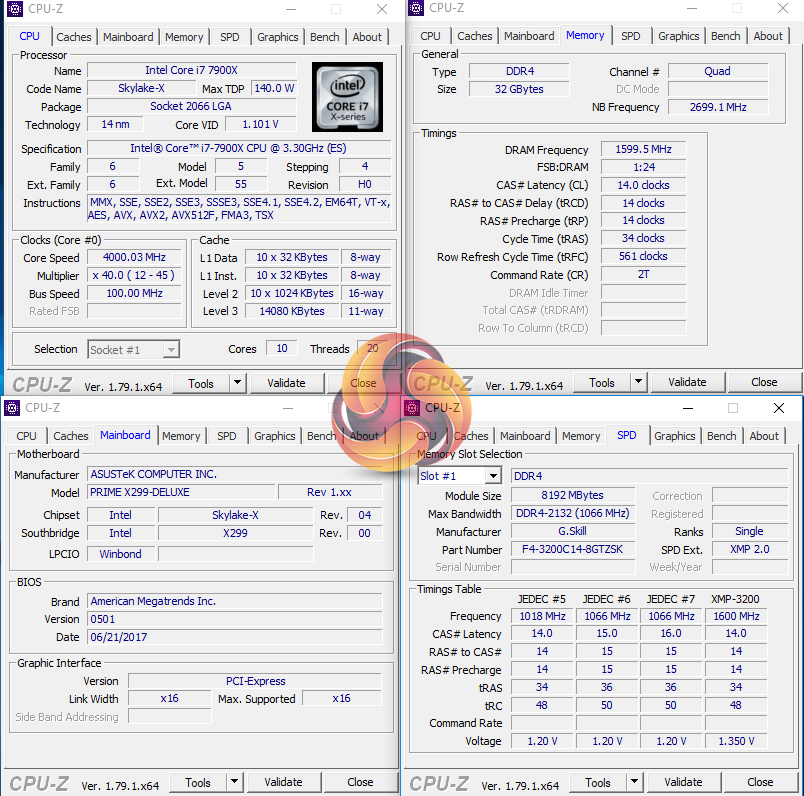
Stock voltage hovered around 1.1V under Cinebench load. This was using the 0501 BIOS (the latest at the time of testing).
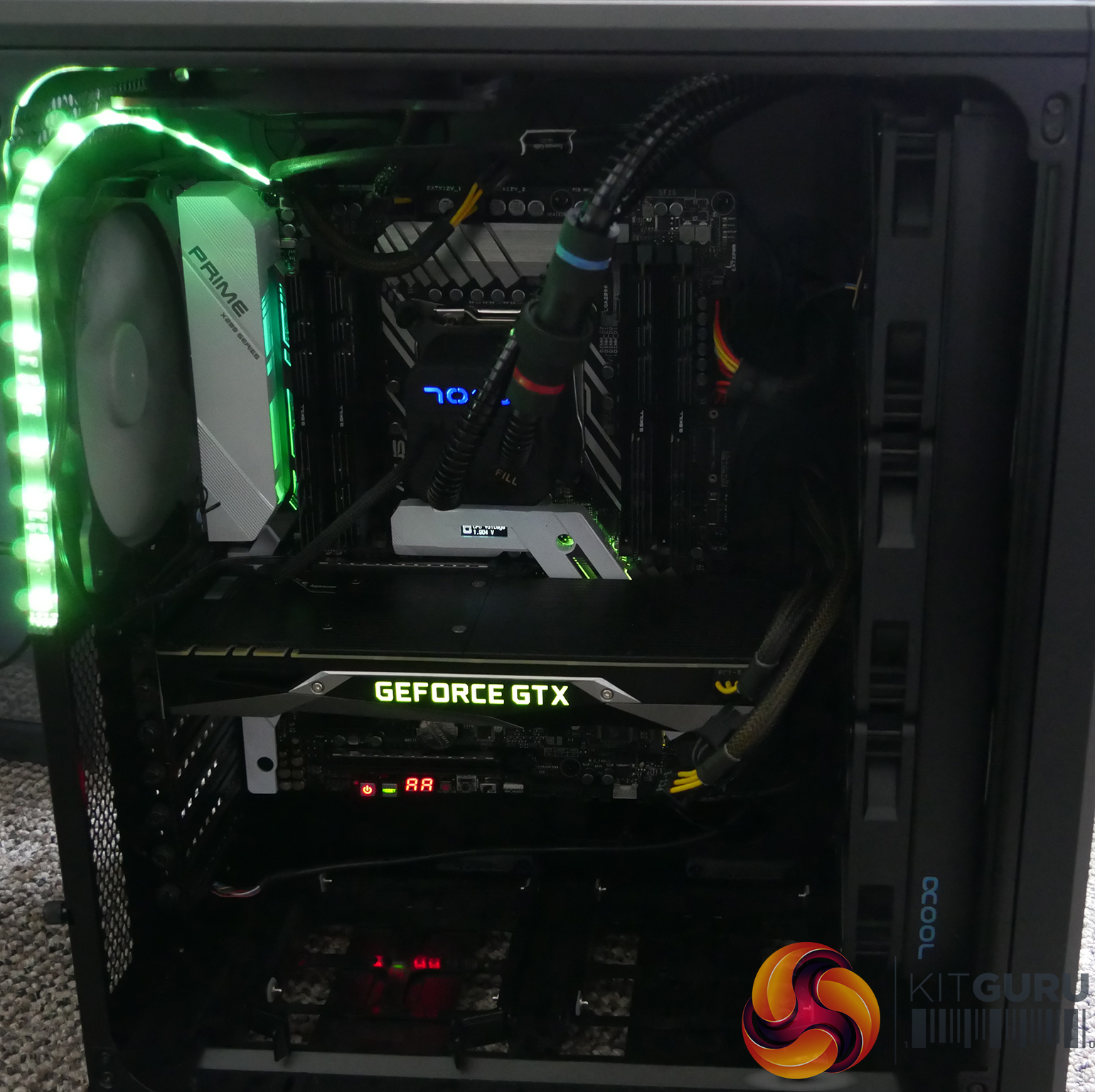
X299 Motherboard Test System:
- Processor: Intel Core i9-7900X.
- Memory: 32GB (4x8GB) G.Skill Trident Z 3200MHz 14-14-14-34 DDR4 @ 1.35V.
- Graphics Card: Nvidia GTX 1080 Ti Founder's Edition (custom fan curve to eliminate thermal throttling).
- System Drive: 500GB Samsung 840 SATA 6Gbps SSD.
- Games Drive: 960GB SK Hynix SE3010 SATA 6Gbps SSD.
- CPU Cooler: Alphacool Eisbaer 360 3x120mm All-in-One liquid cooler.
- Power Supply: Seasonic Platinum 1000W.
- Case: Corsair Air 540.
- Operating System: Windows 10 Pro 64-bit (Creators' Edition).
Comparison X299 Motherboards:
Software:
- ASUS Prime X299-Deluxe BIOS 0501 (latest at the time of testing).
- GeForce 382.33 VGA drivers.
Tests:
- Cinebench R15 – All-core CPU benchmark (CPU)
- 7-Zip – Built-in 7-Zip benchmark test (CPU & Memory)
- SiSoft Sandra – Memory Bandwidth Test (Memory).
- AIDA64 Engineer – Memory latency (Memory)
- 3DMark Time Spy – CPU score (Gaming)
- Ashes of the Singularity Escalation – Built-in benchmark tool CPU-Focused test, 1920 x 1080, Extreme quality preset, DX12 version (Gaming)
- Metro: Last Light Redux – Built-in benchmark tool, 1920 x 1080, Very High quality, SSAA, AF 16X, Tessellation: High (Gaming)
- ATTO – M.2, USB 3.0, USB 3.1, and SATA 6Gbps transfer rates (Motherboard)
- RightMark Audio Analyzer – Record and playback test using a line-in to line-out loopback with a 3.5mm audio cable (Motherboard)
Cinebench R15
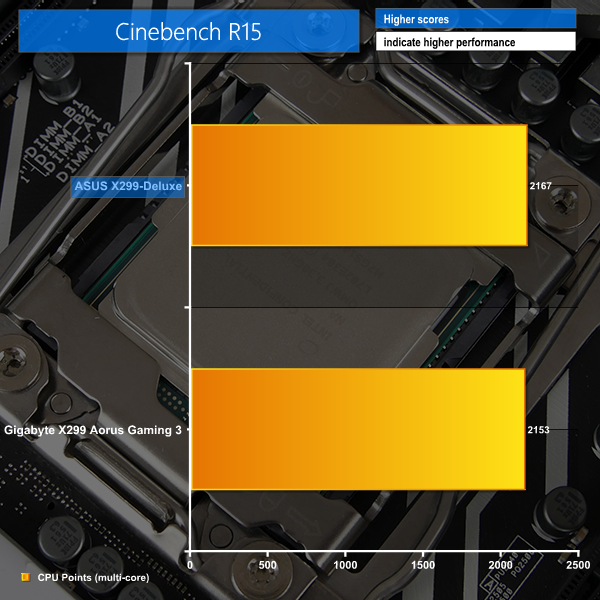
Cinebench is an application which renders a photorealistic 3D scene to benchmark a computer’s rendering performance, on one CPU core, all CPU cores or using the GPU. We run the test using the all core CPU mode.
7-Zip
7-Zip is an open source Windows utility for manipulating archives. We measure the Total Rating performance using the built-in benchmark tool. The test stresses all CPU cores to 100% and shows an affinity for memory bandwidth.
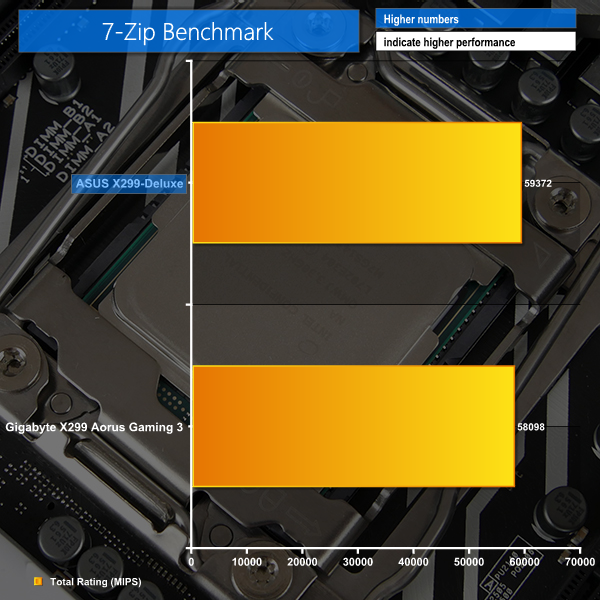
CPU-driven performance for ASUS' premium X299 board is strong. First place finishes are achieved in Cinebench and 7-Zip.
SiSoft Sandra Memory Bandwidth
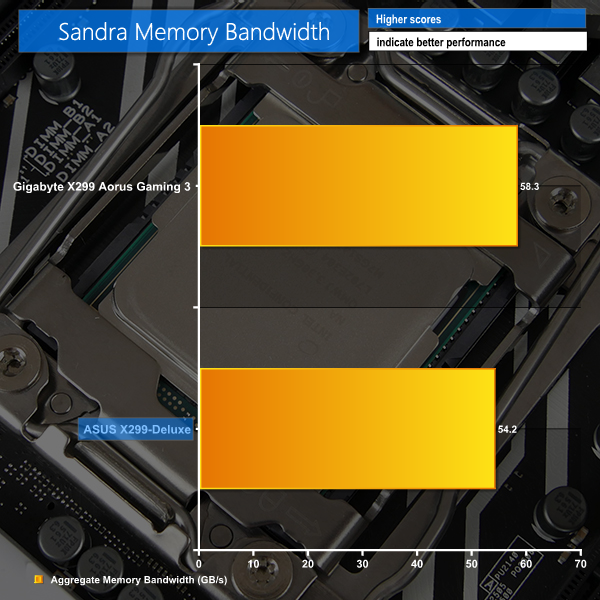
SiSoft Sandra is a multi-function utility program that supports remote analysis, benchmarking and diagnostic features for PCs, servers, mobile devices and networks. We run the application’s memory bandwidth test.
AIDA64 Memory Latency
AIDA64 is a multi-featured software suite for diagnostics, stress testing, benchmarking, software auditing and various other measurement parameters. We use AIDA64 Engineer to benchmark memory latency.
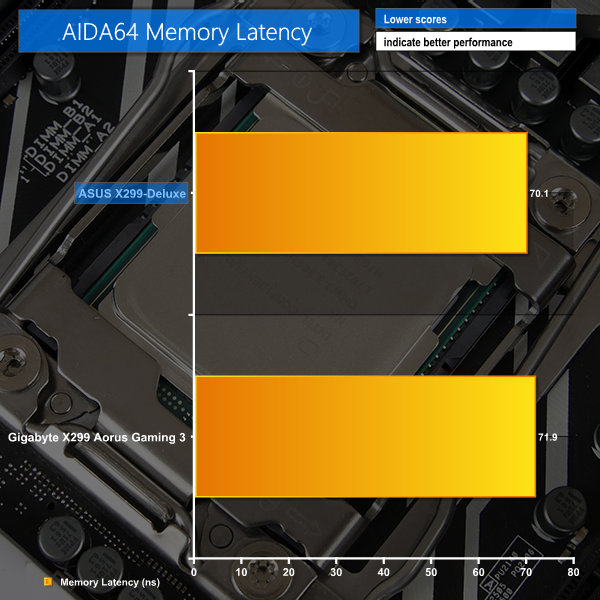
Memory bandwidth is lower than expected from a quad-channel solution. However, ASUS makes up for this with lower latency than a Gigabyte X299 alternative.
3DMark
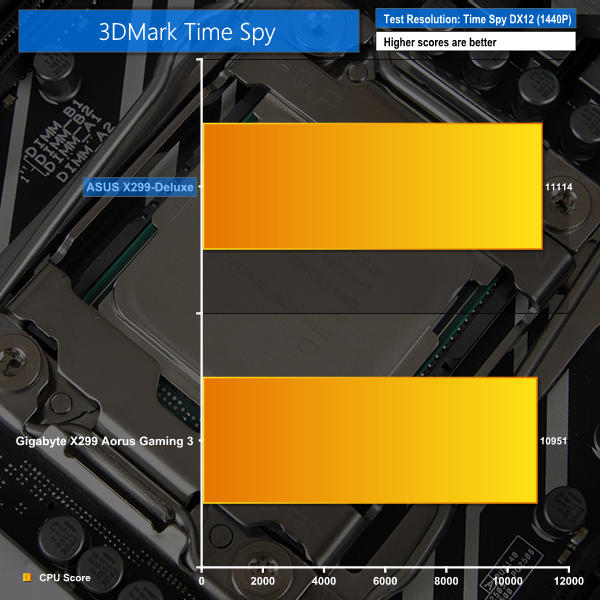
3DMark is a multi-platform hardware benchmark designed to test varying resolutions and detail levels of 3D gaming performance. We run the Time Spy benchmark, which is indicative of high-end 1440p PC Gaming with the DX12 API.
Ashes of the Singularity Escalation
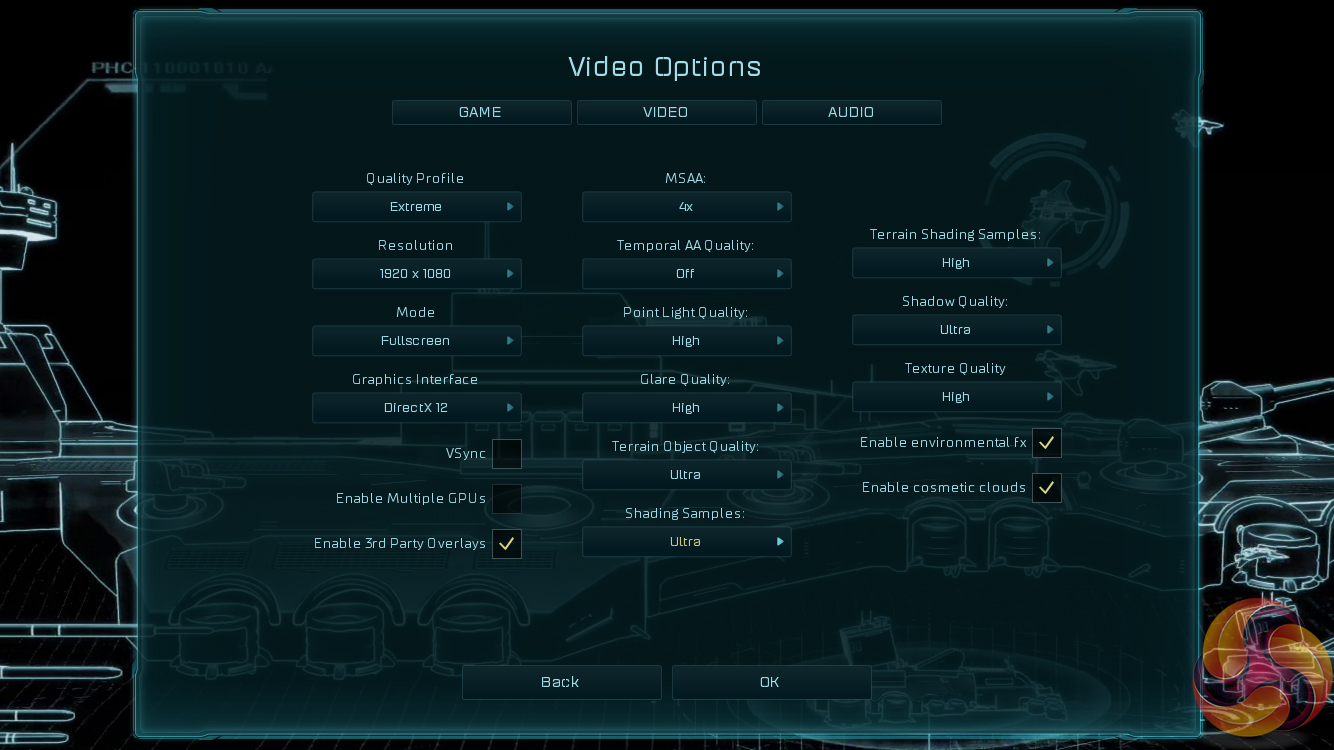
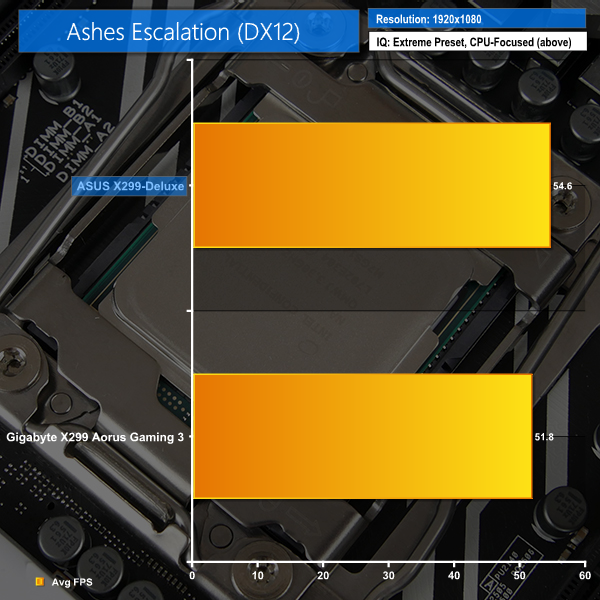
Ashes of the Singularity is a Sci-Fi real-time strategy game built for the PC platform. The game includes a built-in benchmark tool and was one of the first available DirectX 12 benchmarks. We run the CPU-focused benchmark using DirectX 12, a 1080p resolution and the Extreme quality preset.
Metro: Last Light Redux
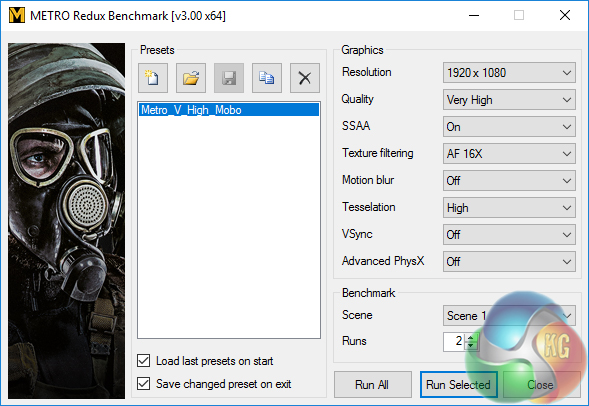
Despite its age, Metro: Last Light Redux remains a punishing title for modern computer hardware. We use the game's built-in benchmark with quality set to Very High, SSAA enabled, AF 16X, and High tessellation.
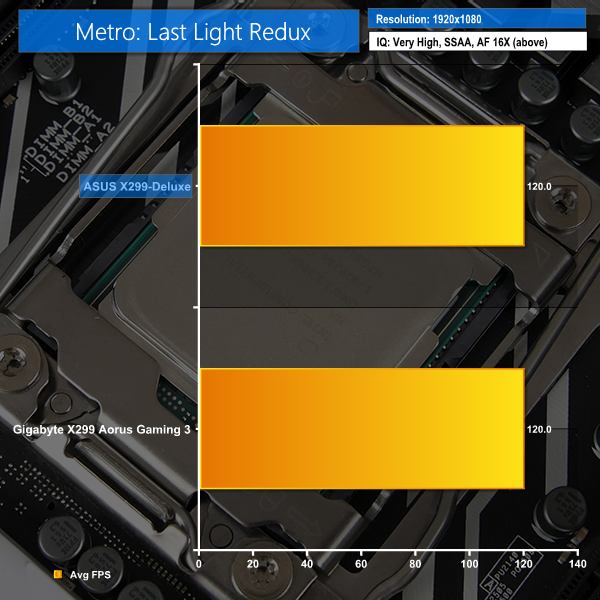
Gaming performance on the ASUS X299-Deluxe is good. Ashes was particularly favourable to the ASUS offering.
Manual CPU Overclocking:
To test the ASUS Prime X299-Deluxe motherboard’s CPU overclocking potential, we aim to set the CPU voltage close to 1.20V. CPU VCore is set to 1.20V.
We maintained the DRAM frequency at 3200MHz to take its stability out of the overclocking equation.
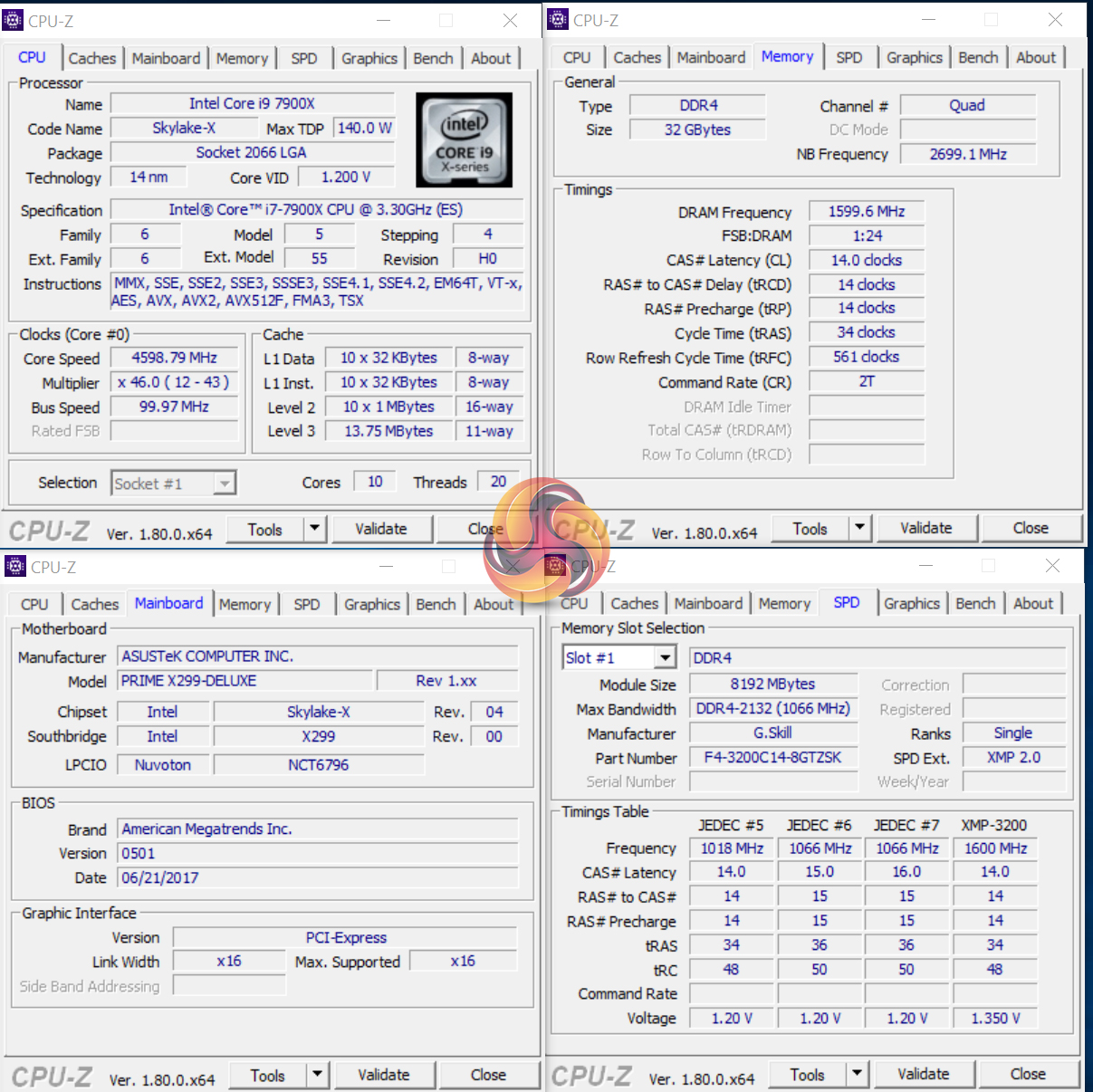
Overclocking was relatively straightforward thanks to ASUS' well-designed UEFI. The LLC settings did not make much sense so a trial-and-error approach had to be used. Voltage accuracy was very good, according to CPU-Z, though there was no way to validate this reading without onboard voltage check points.
As is already known, it is difficult to cool a Skylake-X i9-7900X CPU overclocked with 1.2V even using a 360mm AIO. CPU temperatures were high but reported VRM temperatures inside our Corsair Air 540 test chassis remained well below 80°C even under sustained AIDA64 stress testing. It is likely that you will need a higher core count CPU or a de-lidded chip (or Prime95 AVX) to start stressing the MOSFET heatsink beyond reasonable temperature levels.
Overclocked Performance
As a performance comparison, we have included the results from the Gigabyte X299 Aorus Gaming 3. The maximum overclocked configuration achieved with each board was a 4600MHz (46 x 100MHz) processor frequency whilst using 3200MHz CL14 memory.
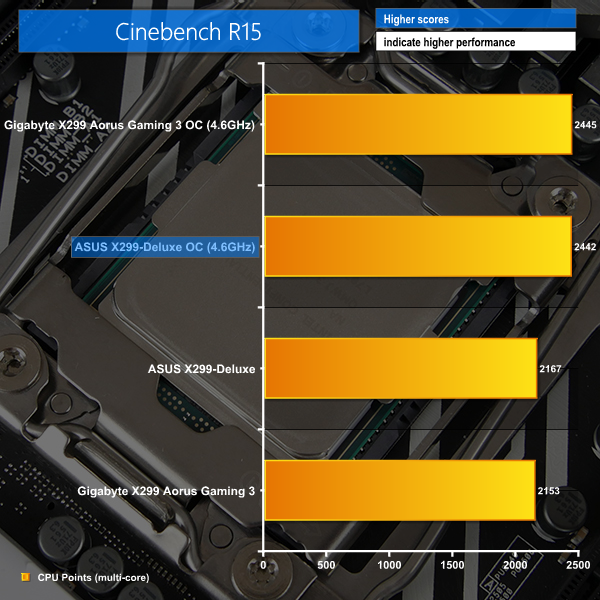
A strong performance increase was obtained by overclocking.
Power
We leave the system to idle on the Windows 10 desktop for 5 minutes before taking a reading. For CPU load results we run Cinebench multi-core and take a reading. The power consumption of our entire test system (at the wall) is shown in the chart.
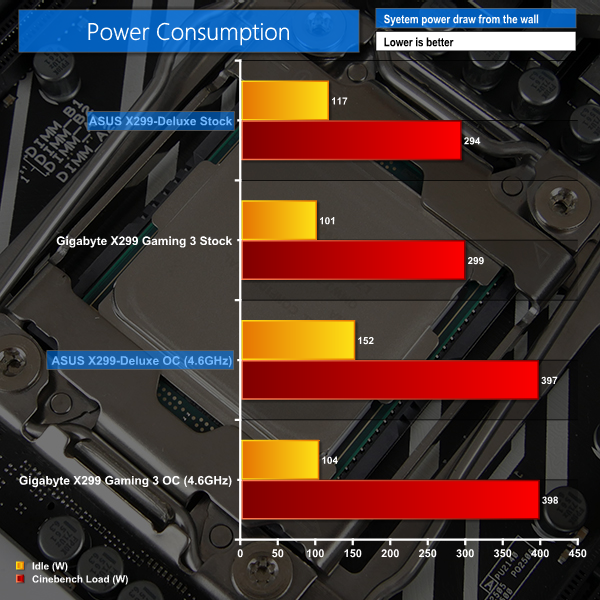
Idle power consumption from the ASUS motherboard is high as the PWM controller looks to be keeping voltage levels elevated even under lower load conditions. A greater number of add-on controllers also contributes to the ASUS board's increased low-load power draw.
However, the strong 8-phase solution proves its efficiency under higher load scenarios, albeit by a few Watts compared to the Gigabyte offering.
ATTO Disk Benchmark
The ATTO disk benchmark is a Windows-based utility for testing storage performance of any storage drive or controller. We use the default benchmark setup.
M.2 PCIe Performance
For M.2 testing we use a Samsung 960 Pro 512GB M.2 PCIe NVMe SSD.
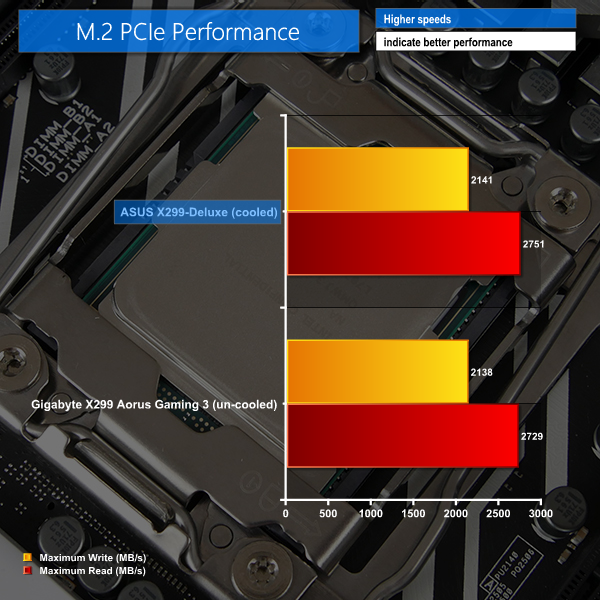
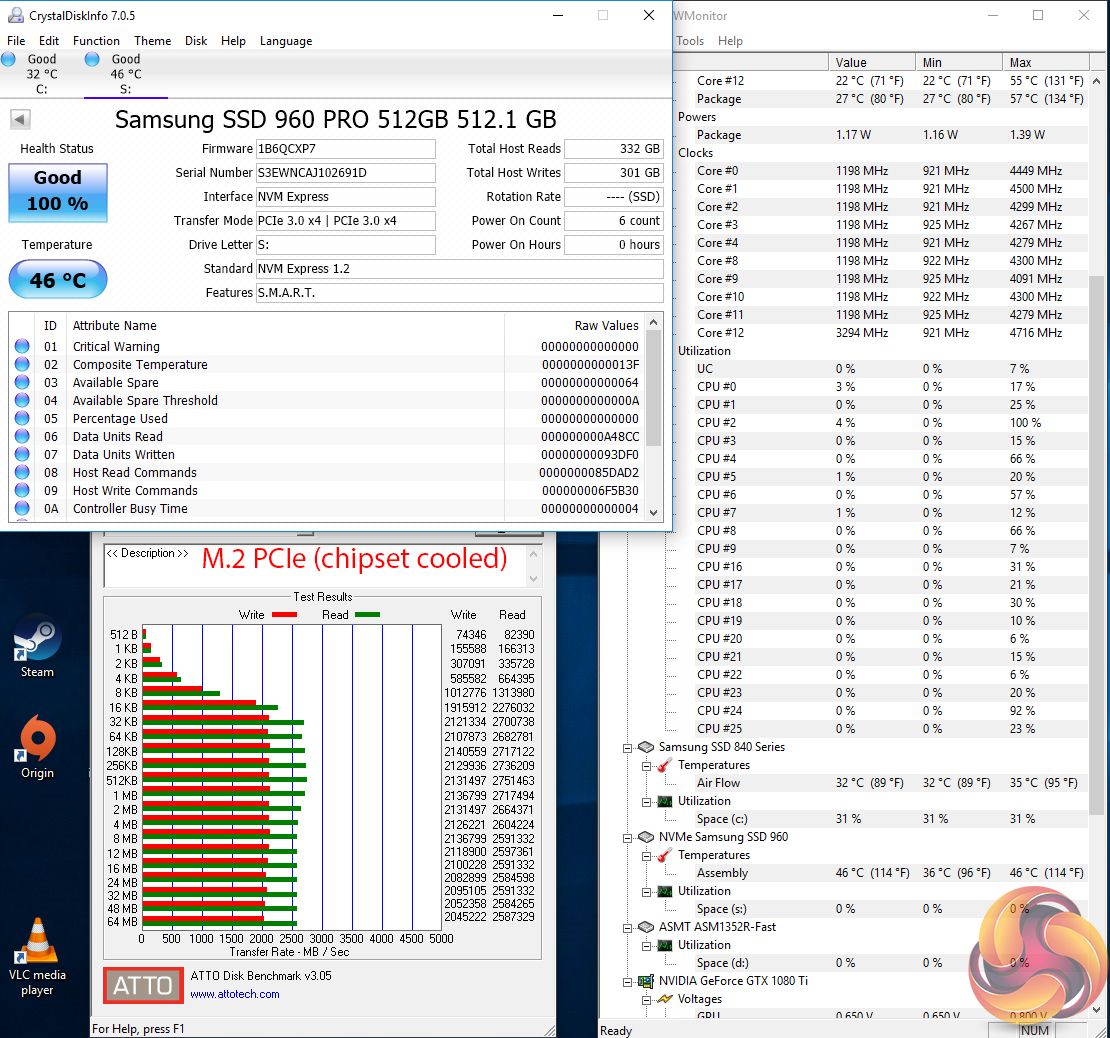
ASUS' innovative M.2 SSD cooling solution beneath the chipset heatsink provides excellent load temperature numbers with a Samsung 960 Pro. The SSD stayed below 50°C – well away from a thermal throttling point – during the ATTO benchmark.
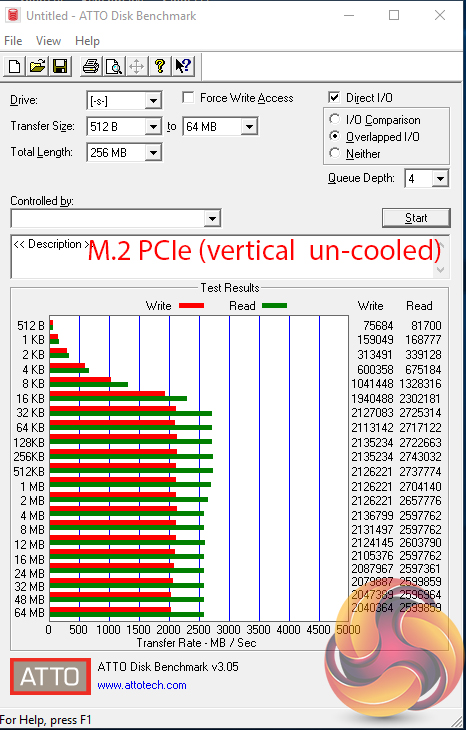
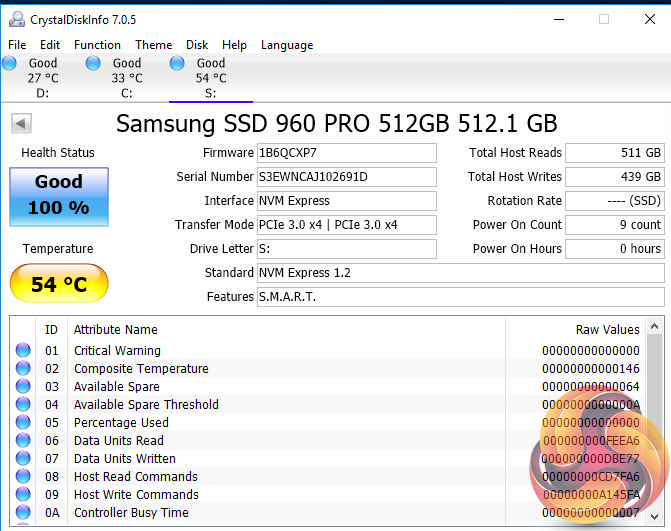
ASUS' secondary, vertical M.2 mount also does well at allowing the SSD to dispose of its heat. However, this location sees our 960 Pro running almost 10°C hotter than the chipset location.
USB 3.0 5Gbps & USB 3.1 Gen 2 10Gbps Performance
We test USB 3.0 5Gbps and USB 3.1 Gen 2 10Gbps performance using a pair of Corsair Force LE 120GB SSDs in RAID 0 connected to an Icy Box RD2253-U31 2-bay USB 3.1 enclosure powered by an ASMedia ASM1352R controller.
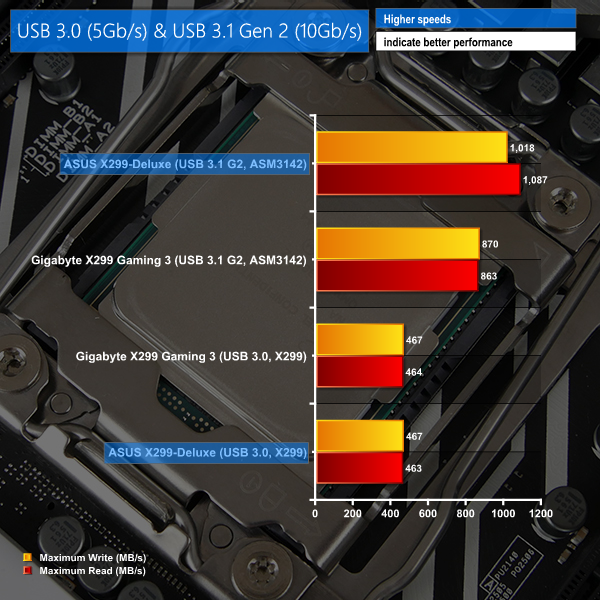
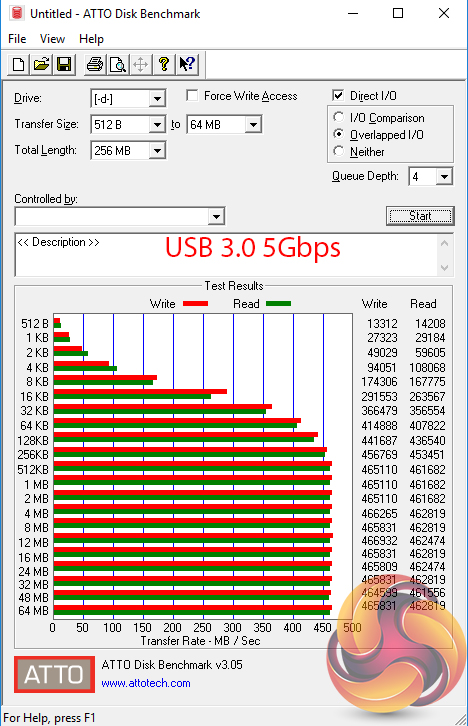
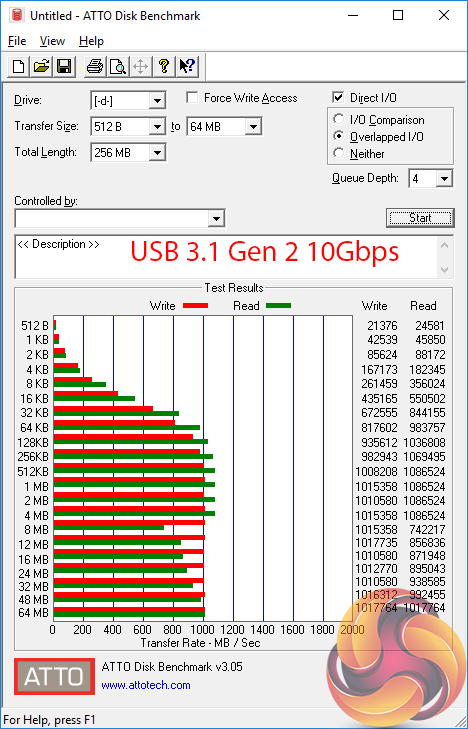
USB performance from the ASUS board is superb. The ASM3142-fed USB 3.1 Gen 2 ports deliver over 1000MBps while the X299-based USB 3.0 ports hit their limit.
SATA 6Gbps Performance
For SATA 6Gbps testing we use a SK Hynix SE3010 960GB SSD.
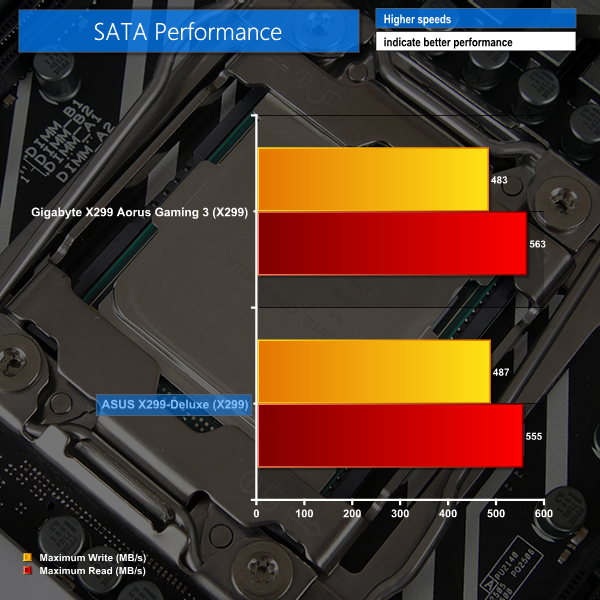
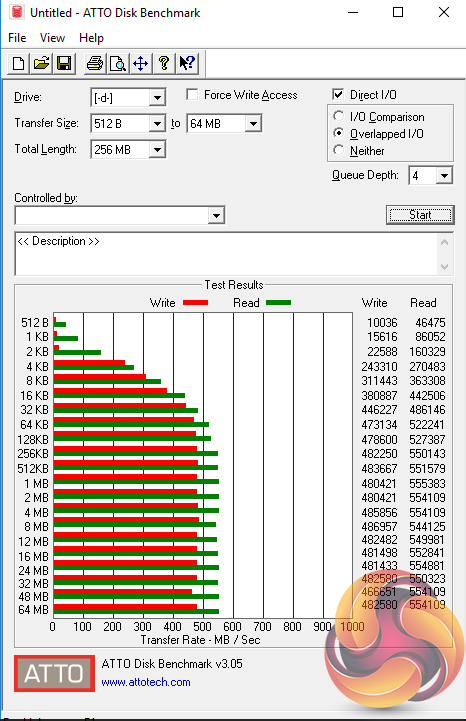
SATA 6Gbps performance is as it should be.
WiFi Performance
For Wireless-AC testing we manually transfer a large video file between the test system and our GbE UnRaid server (with a SSD cache drive).
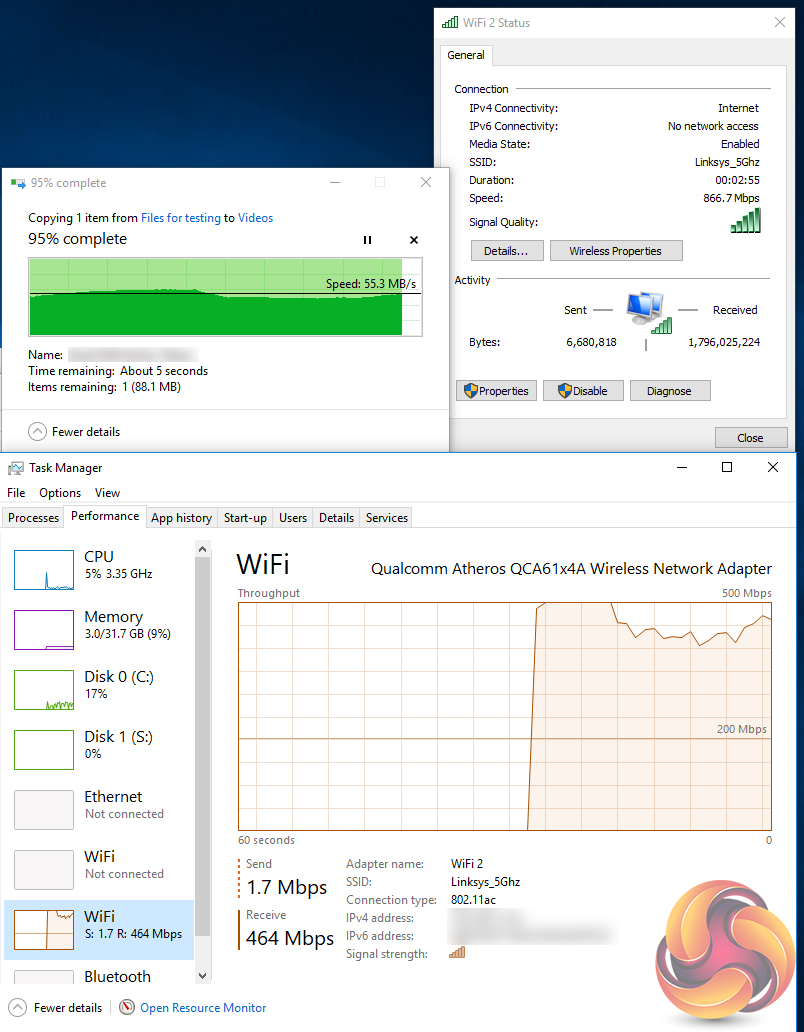
The WiFi-AC solution hit around 55MBps in our testing at a distance of around 10 feet in a signal-cluttered environment. This is a strong score for daily transfers but is still a fair way off wired GbE performance of around 112MBps.
Audio
Rightmark Audio Analyser is a freeware benchmarking utility designed to objectively test the performance characteristics of audio solutions. We setup a line-in line-out loop and execute the record/playback test before generating the results report you see below. A sampling mode of 24-bit, 192 kHz was tested.
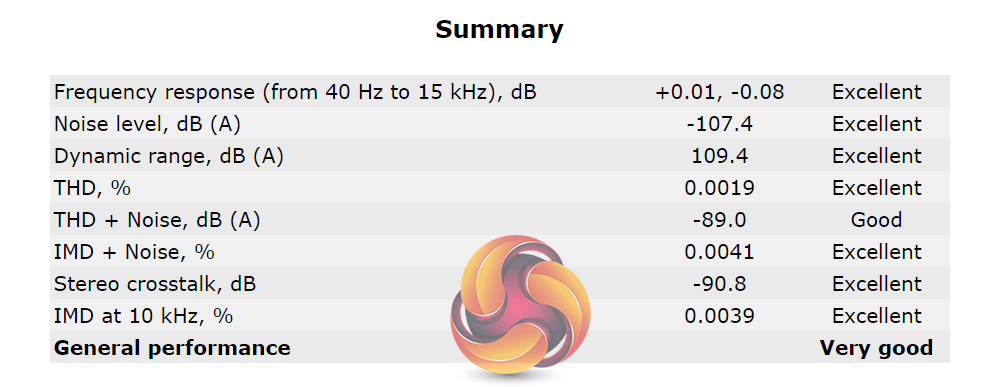
RMAA rates the board's general audio performance as ‘Very Good‘. This rating is perhaps a little harsh given that most of the scoring groups were given ‘Excellent‘ ratings.
The ASUS Prime X299-Deluxe is a feature-filled X299 motherboard that can add valuable assets to an eco-system built around a Skylake-X CPU.
Despite the justifiable complaints towards Intel's handling of the X299 platform, it remains a high-performance solution with numerous valuable features for prosumers. A large proportion of that value comes from motherboards such as ASUS' Prime X299-Deluxe which offers two dedicated M.2 PCIe slots, a strong power delivery solution, and Thunderbolt 3 in the bundle.
ASUS' unique way of managing M.2 SSD cooling issues is worthy of praise. The previously under-utilised chipset heatsink is put to good use by sapping heat away from a high-speed PCIe M.2 SSD. The vertical mount is also a decent option that gives flexibility with drive length.
Including an OLED screen is a bold move by ASUS but it is one that may appeal to some users. Having information such as the CPU temperature and voltage in a location that can be seen through a PC case's side panel window (CPU cooler dependant) is more than a novelty.
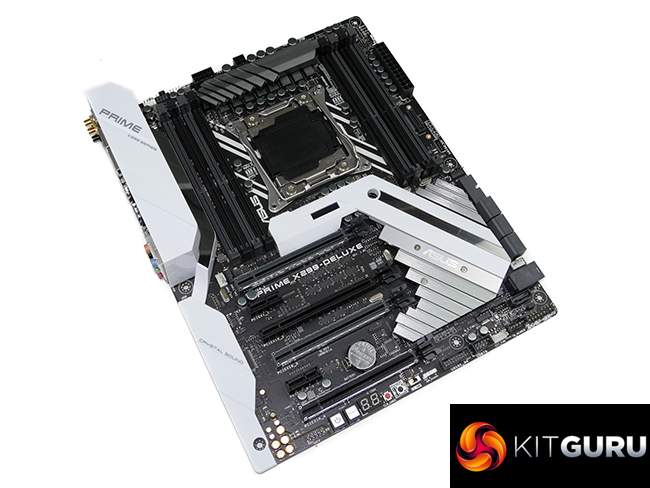
ASUS deserves criticism for equipping the X299-Deluxe with a poorly-designed MOSFET heatsink that is almost unfit for purpose (and may be even less desirable when higher core count Skylake-X models are released).
The PCIe slot layout is also wasteful when factoring in the movement towards 2.5-slot graphics cards from vendors which include ASUS. A pair of GTX 1080 Ti STRIX cards means that the Thunderbolt 3 AIC is left wasted when ASUS could have put the chipset on-board.
These oversights are, in some respects, made up for by ASUS' well-built UEFI and useful software suite. That's in addition to superb fan control and a solid onboard RGB LED lighting system. The supplementary 4-pin CPU power connector is another wise move that extends the realistic overclocked CPU support list for this motherboard, provided you can cool the MOSFETs.

The ASUS Prime X299-Deluxe is available at Overclockers UK for £409.99 (at the time of writing). ASRock's 10GbE-equipped X299 Gaming i9 is a particularly tough competitor at this price point but the ASUS Prime X299-Deluxe certainly has enough of its own positive points to validate its place in the premium X299 motherboard market.
Discuss on our Facebook page, over HERE.
Pros:
- Strong power delivery components with a supplementary 4-pin power connector.
- Excellent fan control system with plenty of headers.
- Robust UEFI and OS software.
- LiveDash OLED display is a unique feature.
- Solid RGB LED lighting system.
- Strong WiFi solution.
- Thunderbolt 3 and U.2 support.
Cons:
- MOSFET heatsink is poorly designed for handling Skylake-X CPUs.
- PCIe slot layout is inefficient, especially with the bundled Thunderbolt 3 card.
- OLED display positioning is questionable (blocked by a large air cooler).
KitGuru says: A high-end X299 motherboard packed with features that will appeal to prosumers and all-round enthusiasts.

Awesome review…..but my heart leapt when I saw the Air 540, I still mourn the day I sold it, I can still see it leaving my street in the back of the guys car. Goodbye little ‘Sugercube’ I still miss you.
PCIE slot placement has always been a thing for ASUS or at least on every board I’ve ever owned, I remember not being able to SLI because a gpu fouled all of the headers on the bottom of the mobo a few years back. Did you try the 5 way optimisation ; ) I’m just curious knowing how generous it can be with voltages, you will get some customers who click it and just trust it knows what its doing.
“Positioned close to the 24-pin is one of the board’s two M.2 connectors. This PCIe 3.0 x4-only slot is mounted to allow for vertical orientation of an installed M.2 device. A support bracket and screws are included. Vertical mounting is good for putting the device in a direct airflow path, while also minimising the footprint taken up on the board PCB”. – Yup and is all the worst way to put one and will get snapped by any wandering hands of if some one mounts a DVD rom’s that are to log for the slot (yes ppl still use DVD roms).