KitGuru KitGuru.net – Tech News | Hardware News | Hardware Reviews | IOS | Mobile | Gaming | Graphics Cards


It wasn't long ago that the 24in Full HD screen was the sweet spot for gaming. But size and resolution have been inflating in the last couple of years, and we've started to see a flow of curved ultrawide screens with a 21:9 aspect ratio. The ASUS ROG SWIFT PG35VQ sits at the pinnacle of this trend. It's a 35in screen with a 3,440 x 1,440 resolution, and is premium in every respect, particularly the price.
Probably the first thing you will notice is that this monitor costs £2,700, an astonishing amount of money even for a top-end gaming screen. But for that you also get something that is rare even in premium flat gaming screens, let alone curved ones with this size and resolution – a 200Hz refresh. This is partnered by G-Sync Ultimate, which means it has built-in NVIDIA hardware for adaptive sync with NVIDIA graphics cards that supports HDR. The 35in diagonal also makes it a little bigger than the 34in models we have reviewed recently, such as the MSI Optix MPG341CQR, or the Samsung CF791 and professionally-oriented ASUS ProArt PA34V.
Another smaller surprise is the pixel response time. This is a VA panel, and we usually associate around 4ms as the response time for this technology. But ASUS claims 2ms for the PG35VQ. Admittedly, TN panels boast 1ms and we've even seen claims of 0.5ms in some cases. But TN is lower quality in most other respects, and doesn't work well for curved screens due to its viewing angle characteristics.
Alongside these headline features are more typical ones for a VA panel – an excellent 2,500:1 contrast ratio and 500cd/m2 typical brightness, although peak brightness can hit 1,000cd/m2 in HDR mode, to fulfil this screen's HDR-10 capabilities. ASUS also promises 90 per cent of the cinema-standard DCI-P3 colour gamut, and there's even an ESS Sabre HiFi DAC built in so that the digital audio from a video input is converted to high-quality headphone sound.
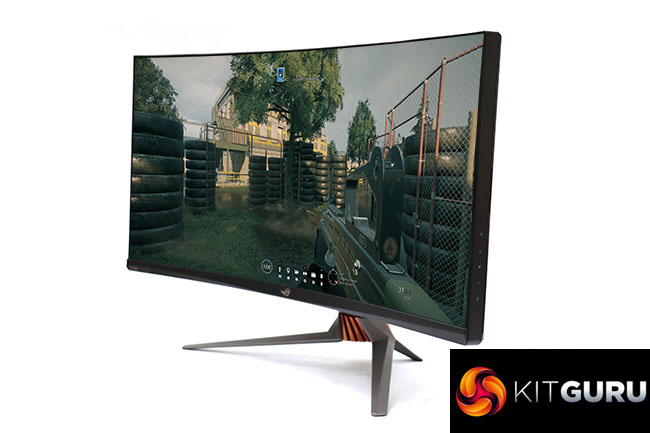
You get plenty of ergonomic customisation, with tilt, swivel, and height adjustments available. But this screen isn't that well endowed for video inputs, with just HDMI 2.0 and DisplayPort 1.4. Also, if you want to take advantage of the 200Hz refresh you will need to use the DisplayPort. There's a USB 3.0 hub, but only with two ports and these are on the rear, as is the headphone minijack.
Nevertheless, this is a monster screen, and has been hotly anticipated in the gaming community. At this price, the market will be serious professional gamers or very rich amateurs. But the rest of us may well be longing for this monitor in the same way as you might desire a Ferrari or McLaren. So let's find out if the ASUS ROG SWIFT PG35VQ can justify our lust, or is it just playing with our affections?
Specification:
- Screen size: 35-inch, 21:9 aspect
- Native resolution: 3,440 x 1,440
- Curvature: 1800R
- Refresh rate: 200Hz, NVIDIA G-Sync Ultimate
- Panel type: VA
- Contrast ratio: 2,500:1 (typical)
- Brightness: 500cd/m2 (1,000cd/m2 peak)
- Response time: 2ms Gray to Gray
- Display inputs: HDMI 2.0, DisplayPort 1.4
- USB hub: Yes, 2 x USB 3.0 Type A
- Tilt: 6 degrees forward, 20 degrees backward
- Raise: 110mm
- Swivel: 35 degrees left and right
- Portrait: No
- Other: Audio minjack output
Retail Price: £2,699.99 (inc. VAT)
The ASUS ROG SWIFT PG35VQ is a monster in ever respect – starting with the packaging.
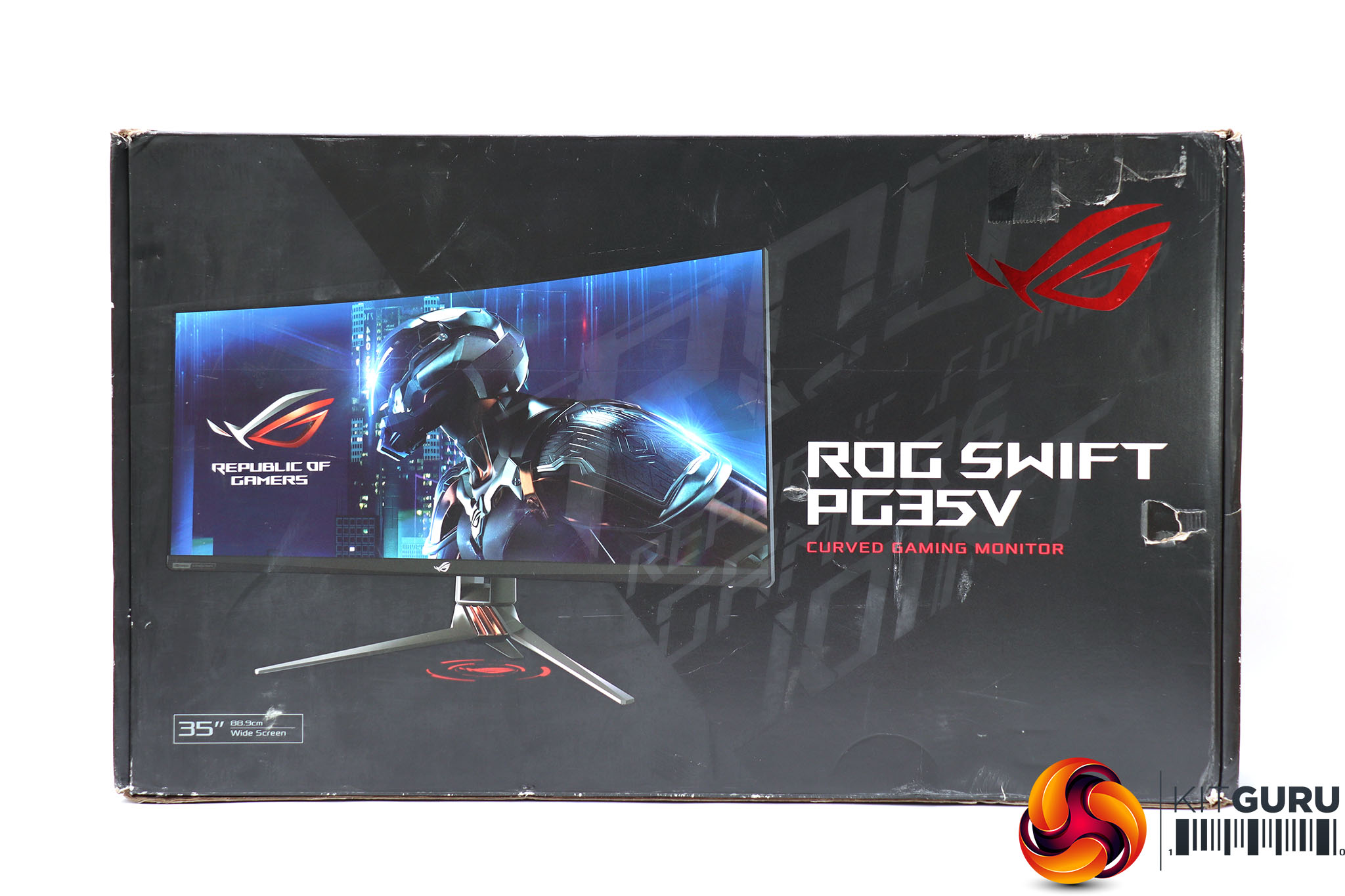
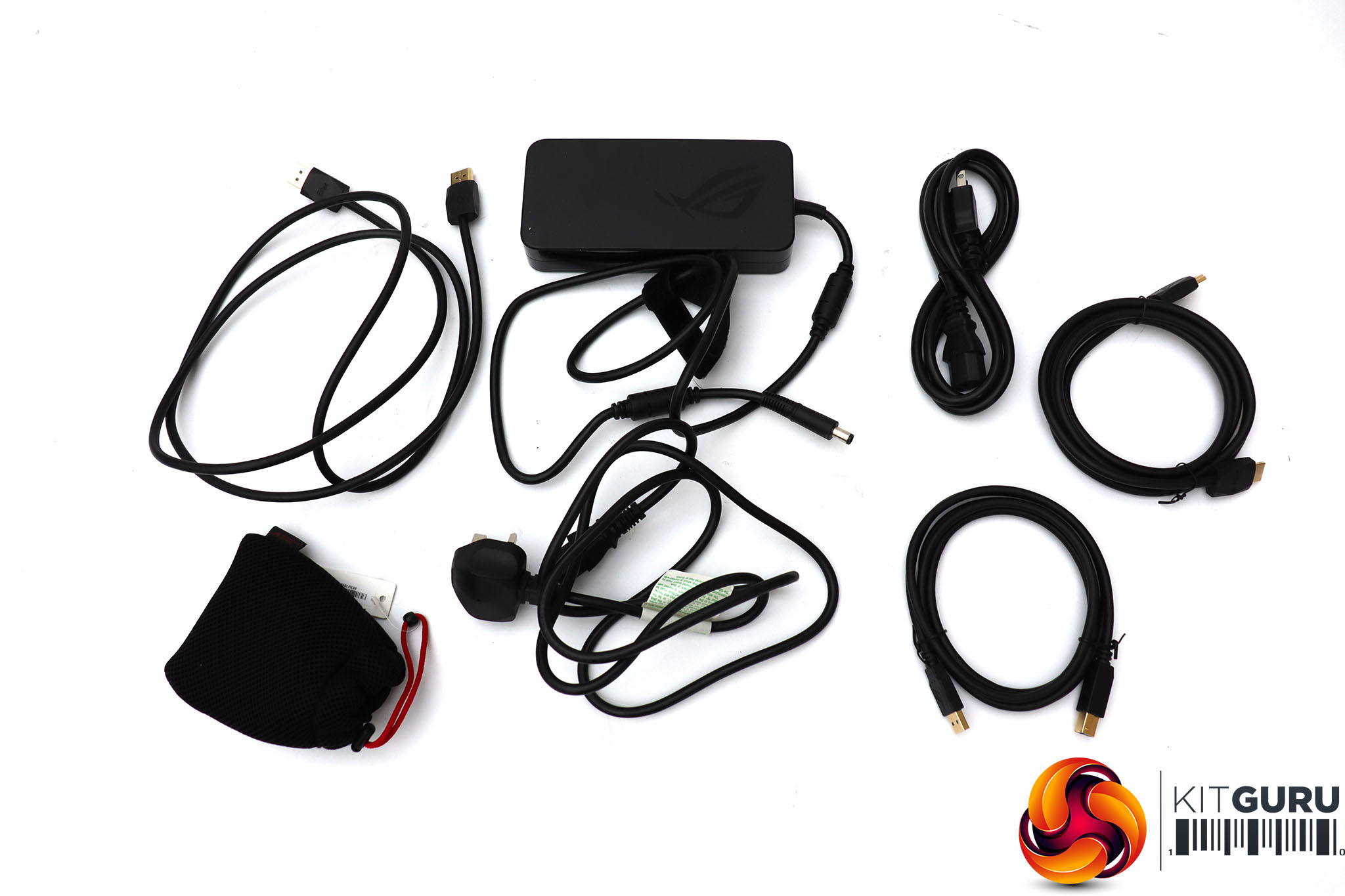
Inside that huge box can be found cables for the HDMI and DisplayPort connections, a USB upstream cable, plus the power supply, which is external, alongside its cords for UK and US mains. There's also a little black drawstring pouch containing clear plastic lenses for the screen's Aura Sync atmospheric lighting system.
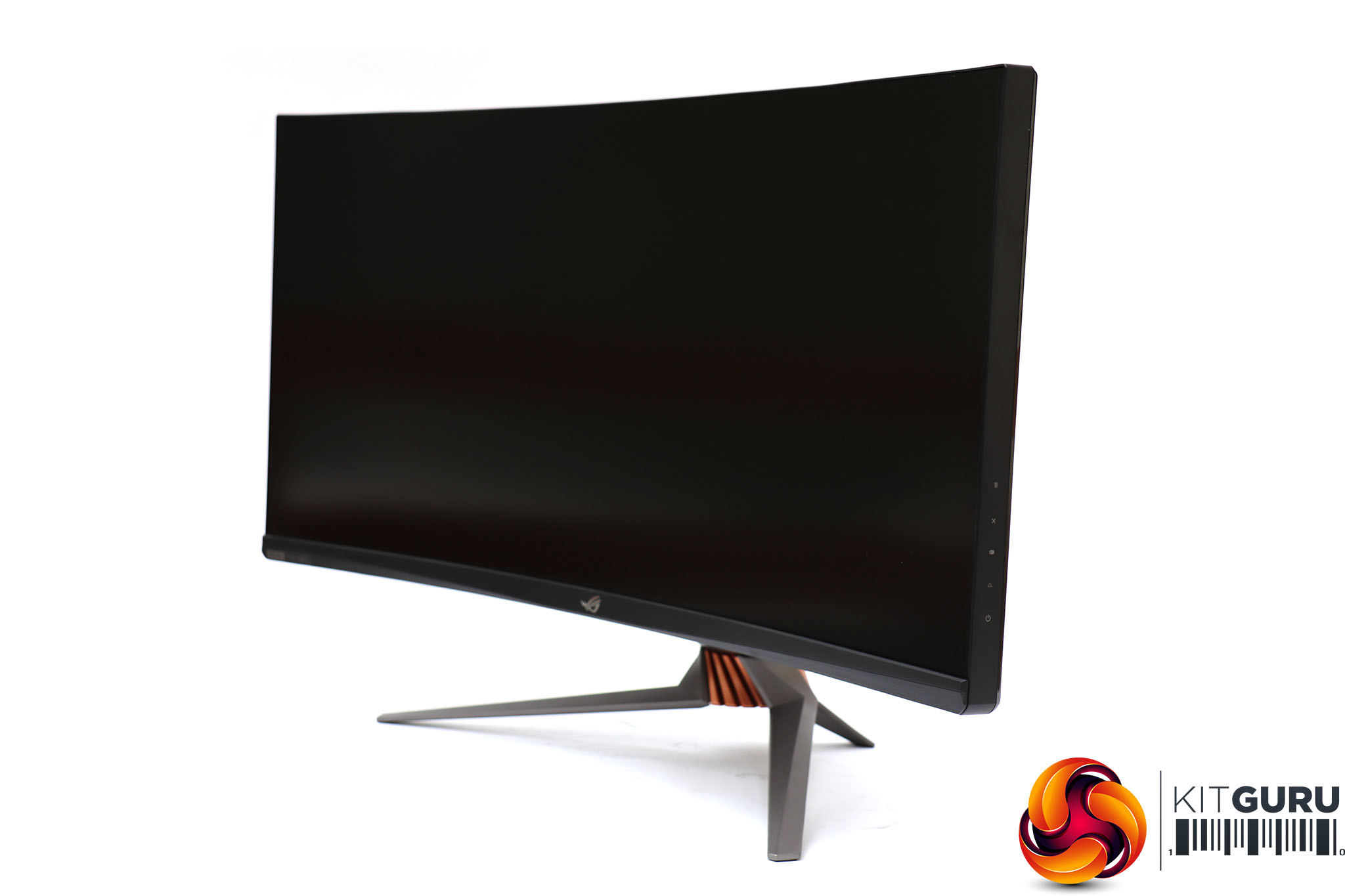
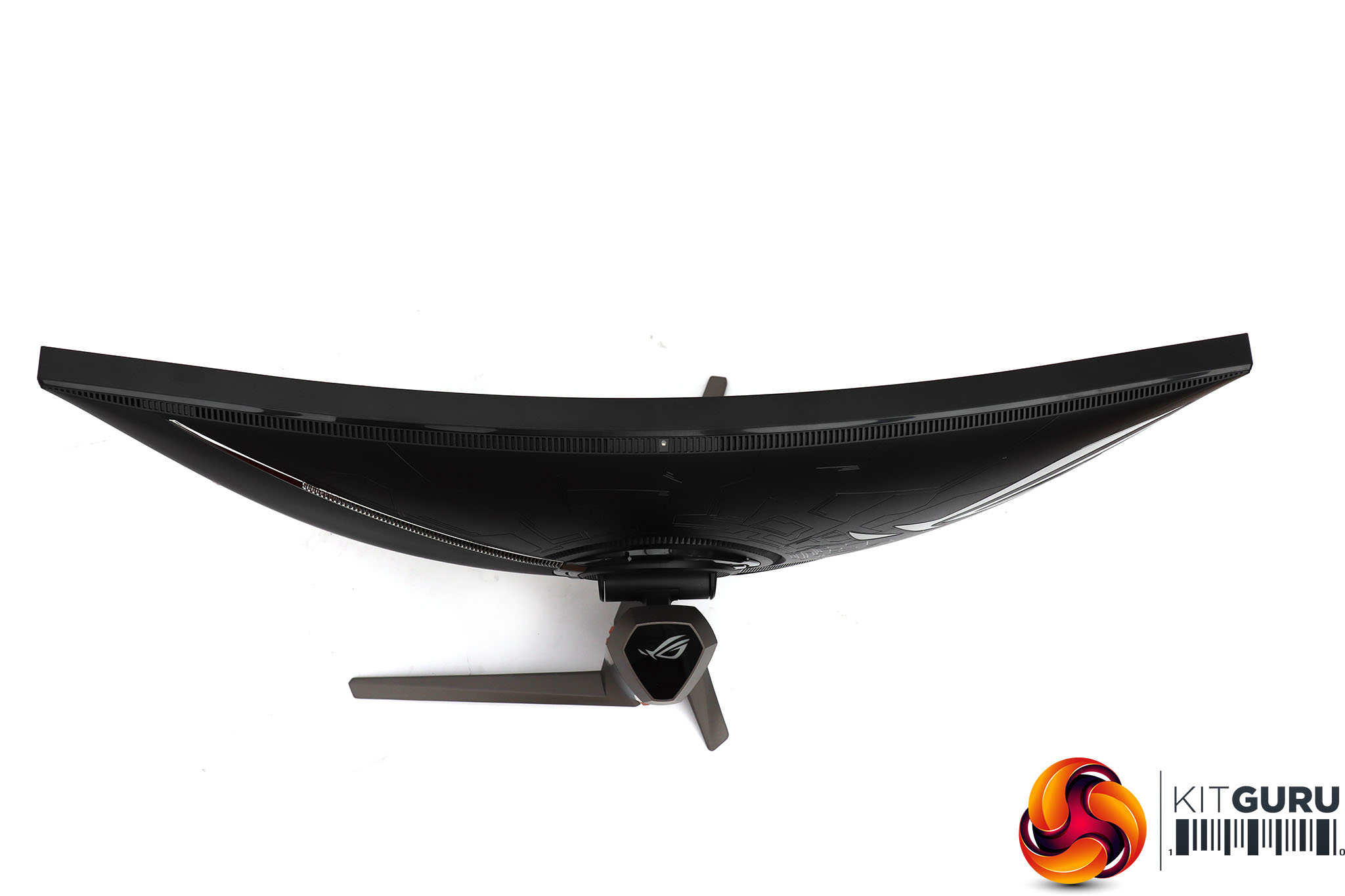
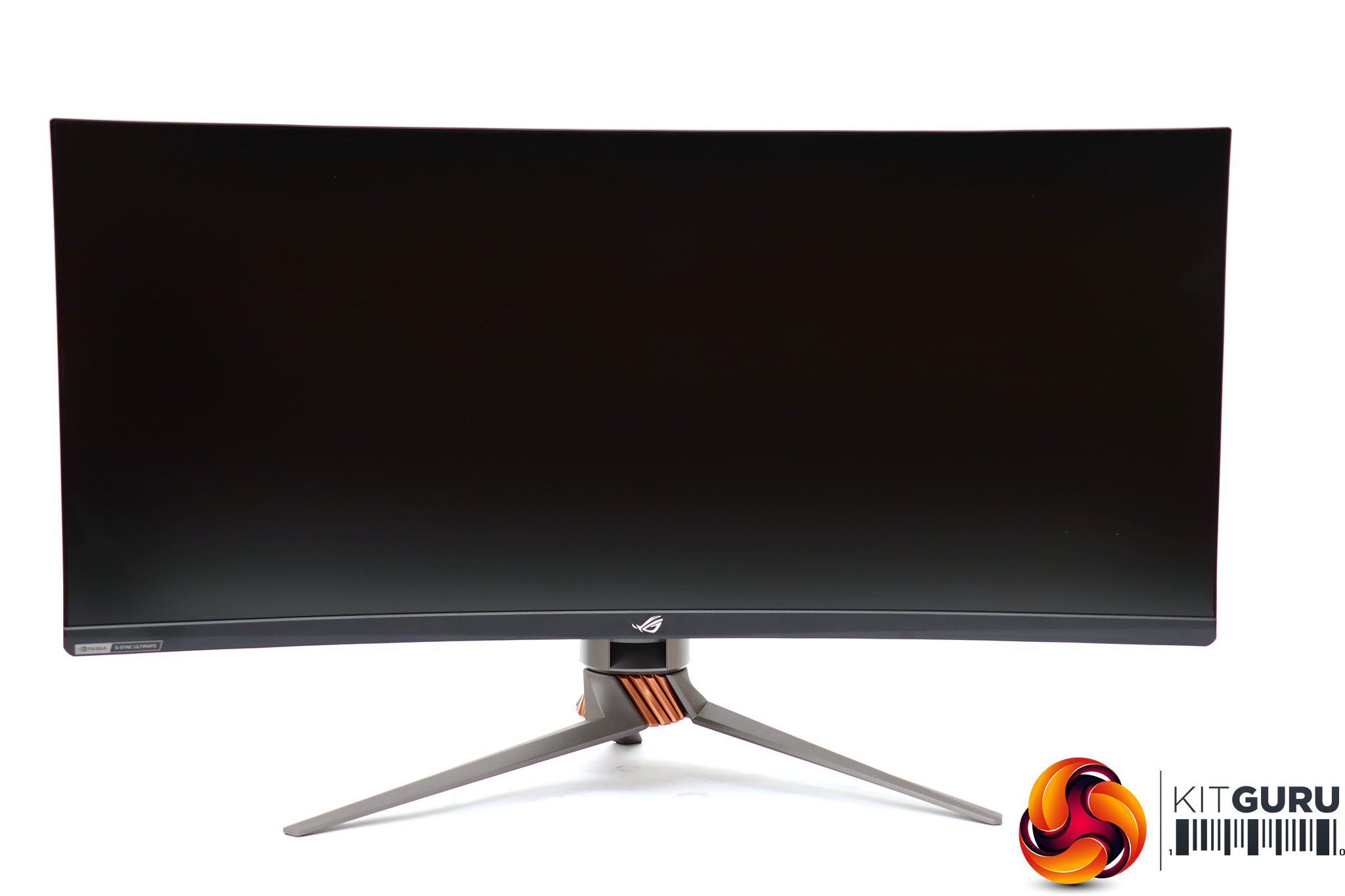
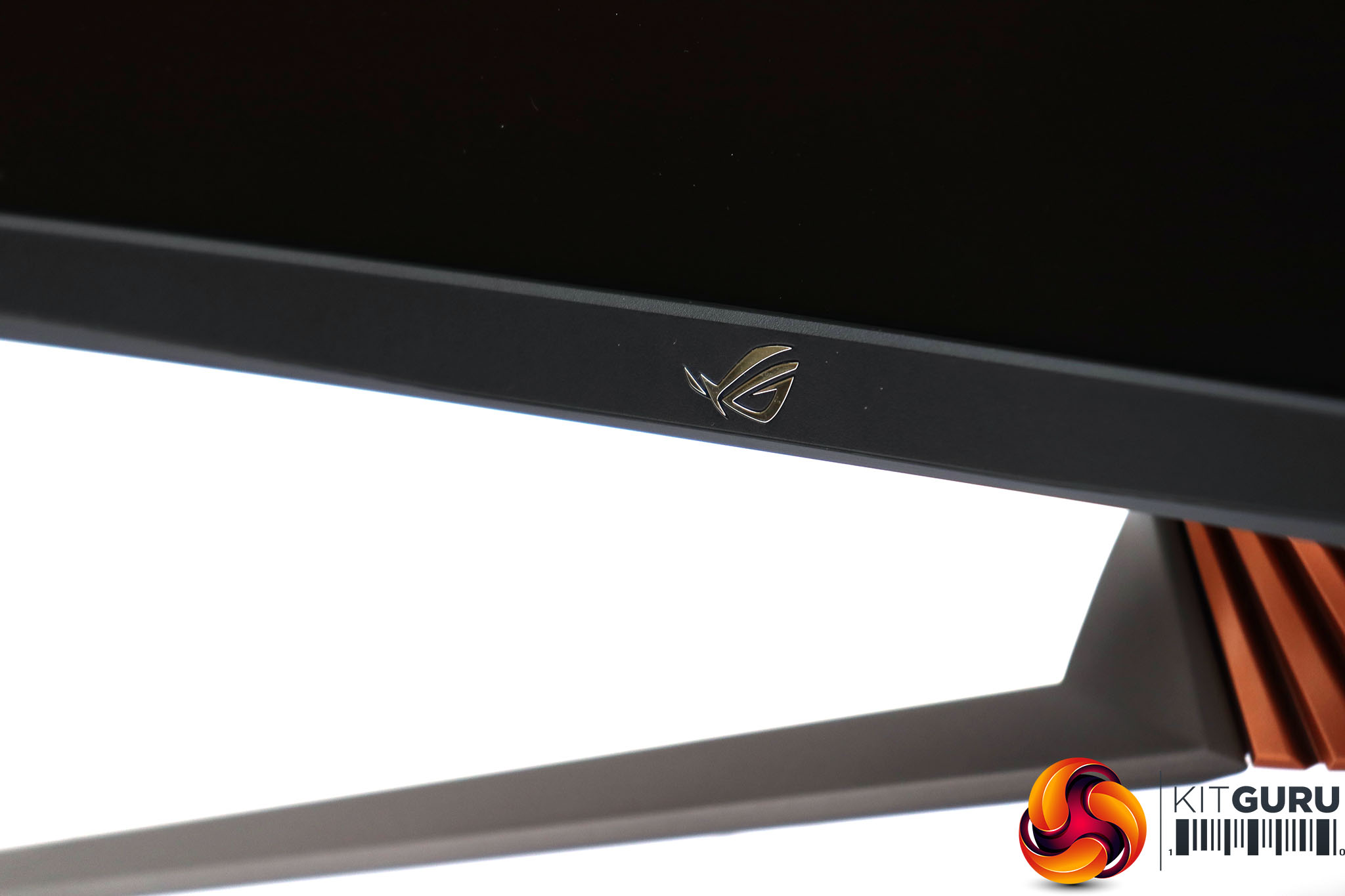
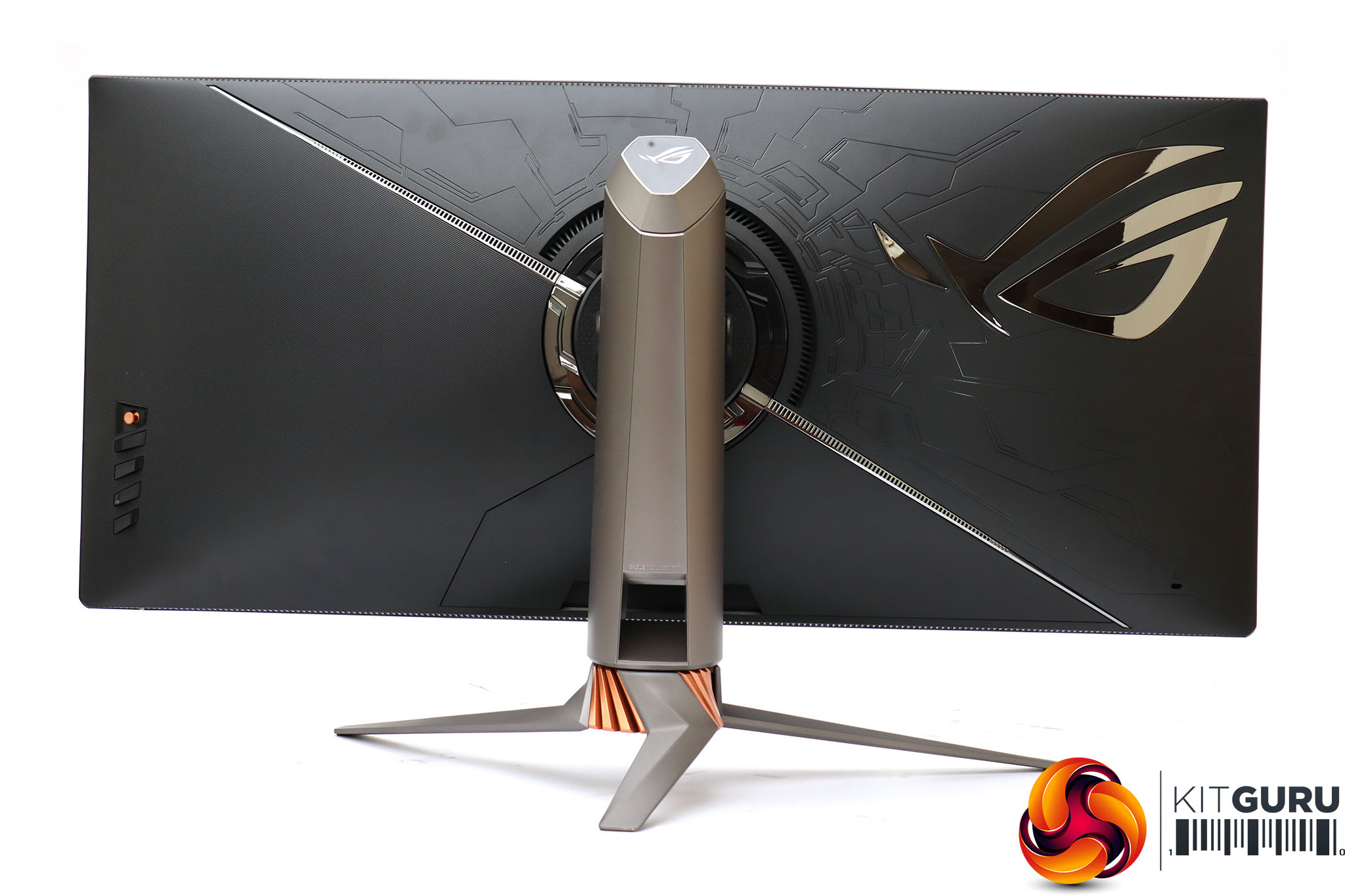
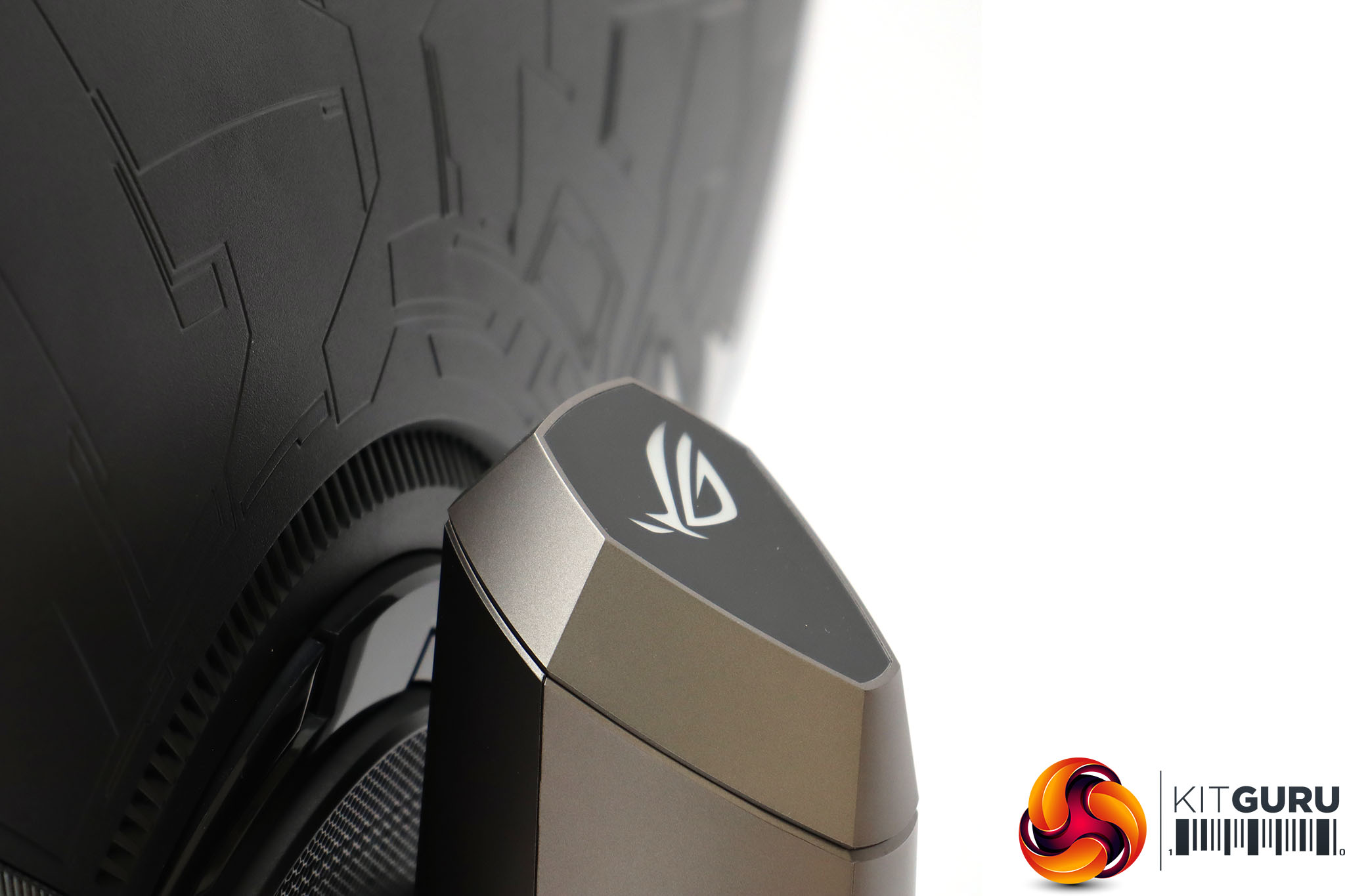
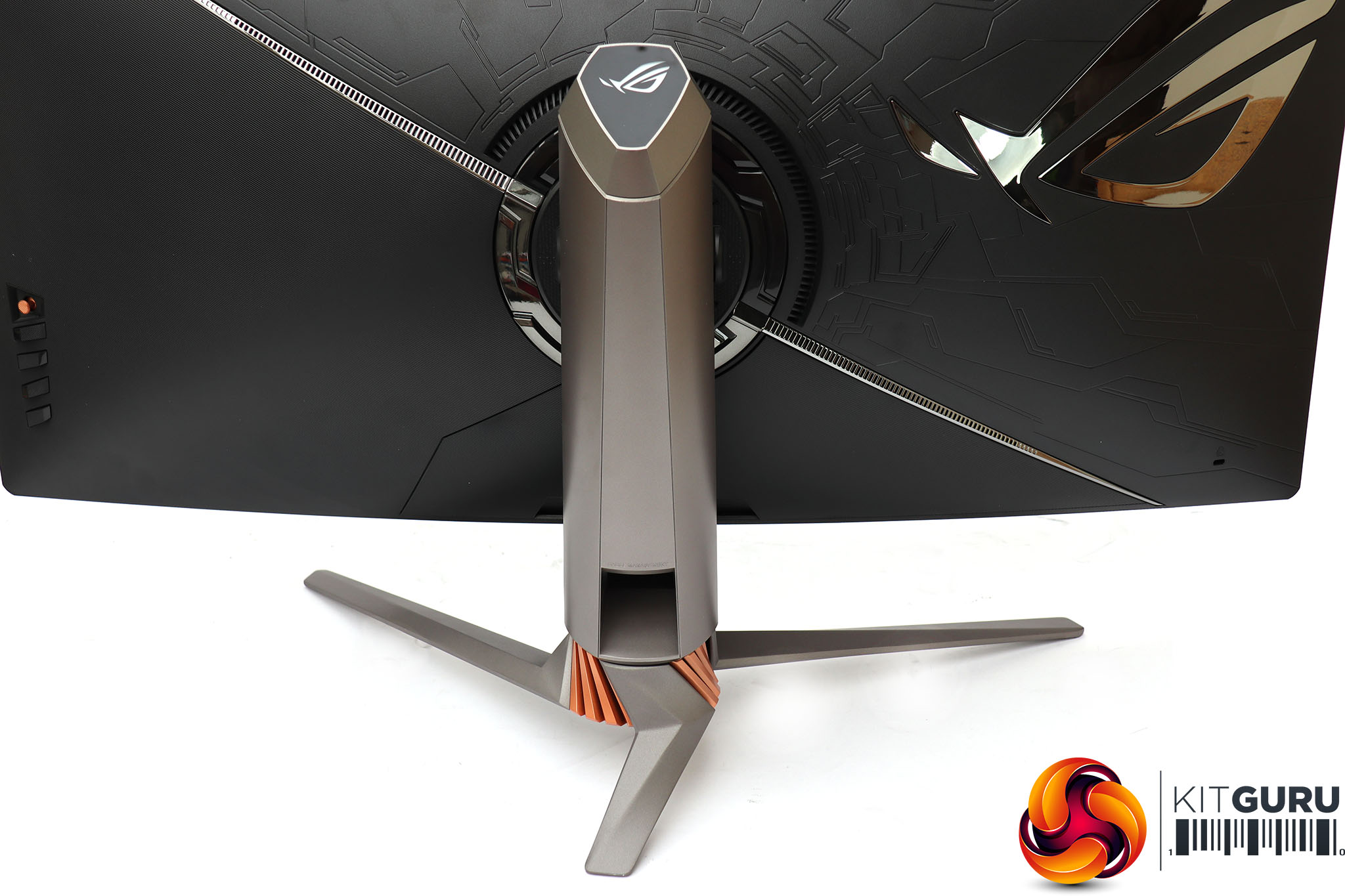
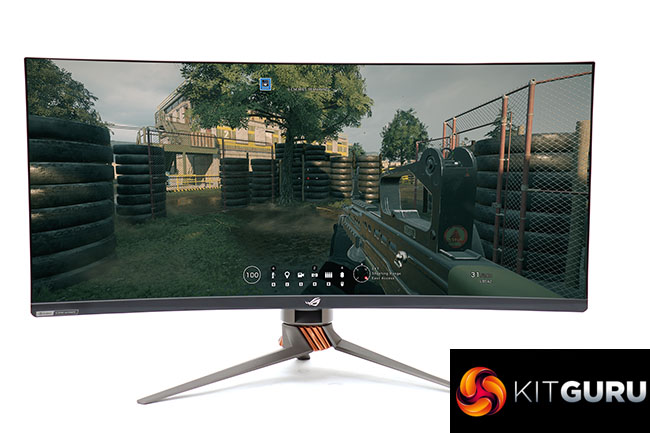
Black, brushed metal and copper appear to be on trend for gaming panels right now – the MSI MPG341CQR had a similar colour combination. The panel has a 1800R curvature, which is standard for most screens this size (although Samsung's CF791 is a curvier 1500R). The ASUS ROG SWIFT branding is subtle on the front and top of the stand, but much more prominent on the back of the screen. As hinted before, this monitor has ASUS's Aura Sync lighting system, which emanates from the bottom of the stand and can be customised with a choice of clear plastic lenses.
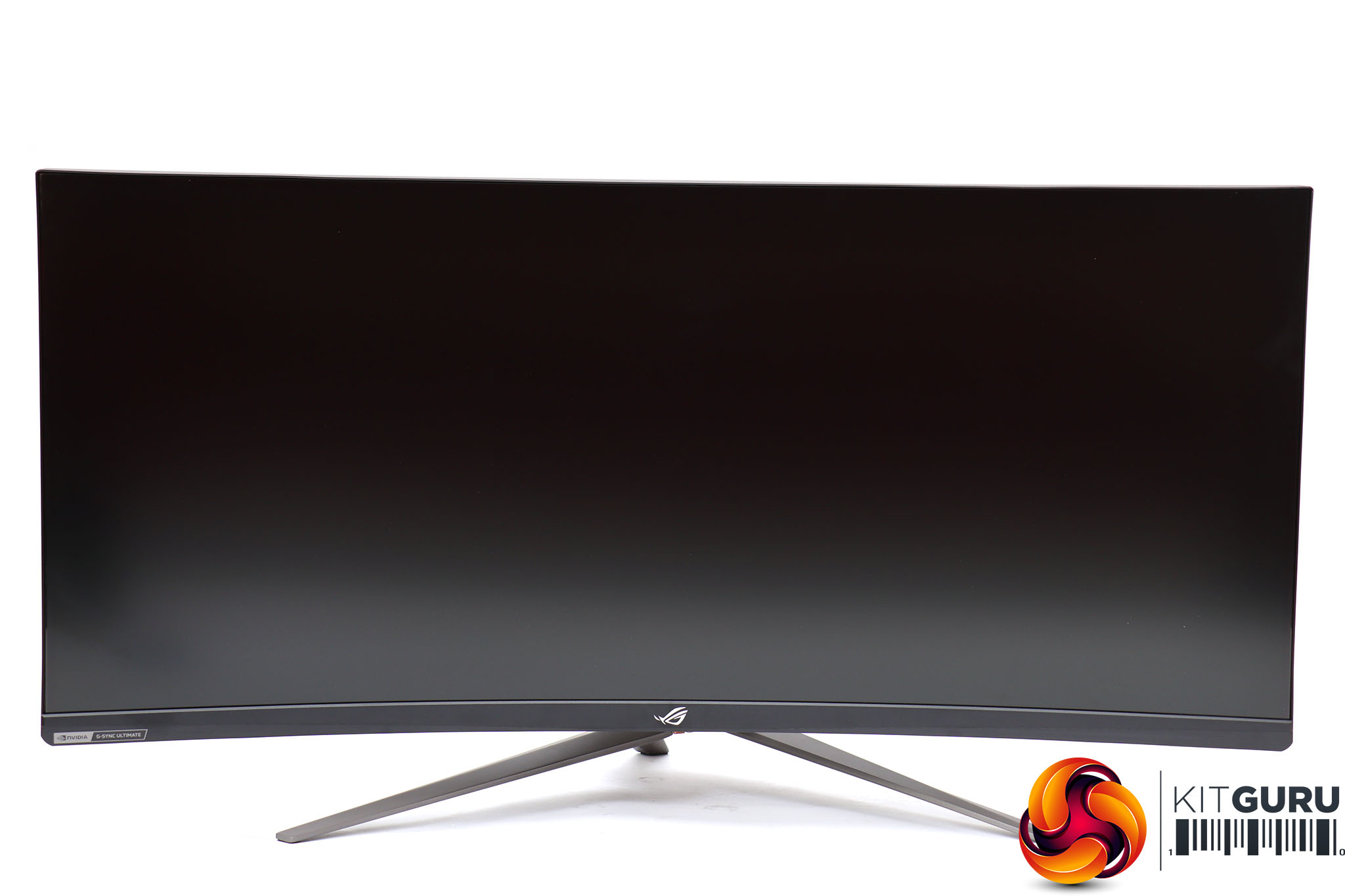
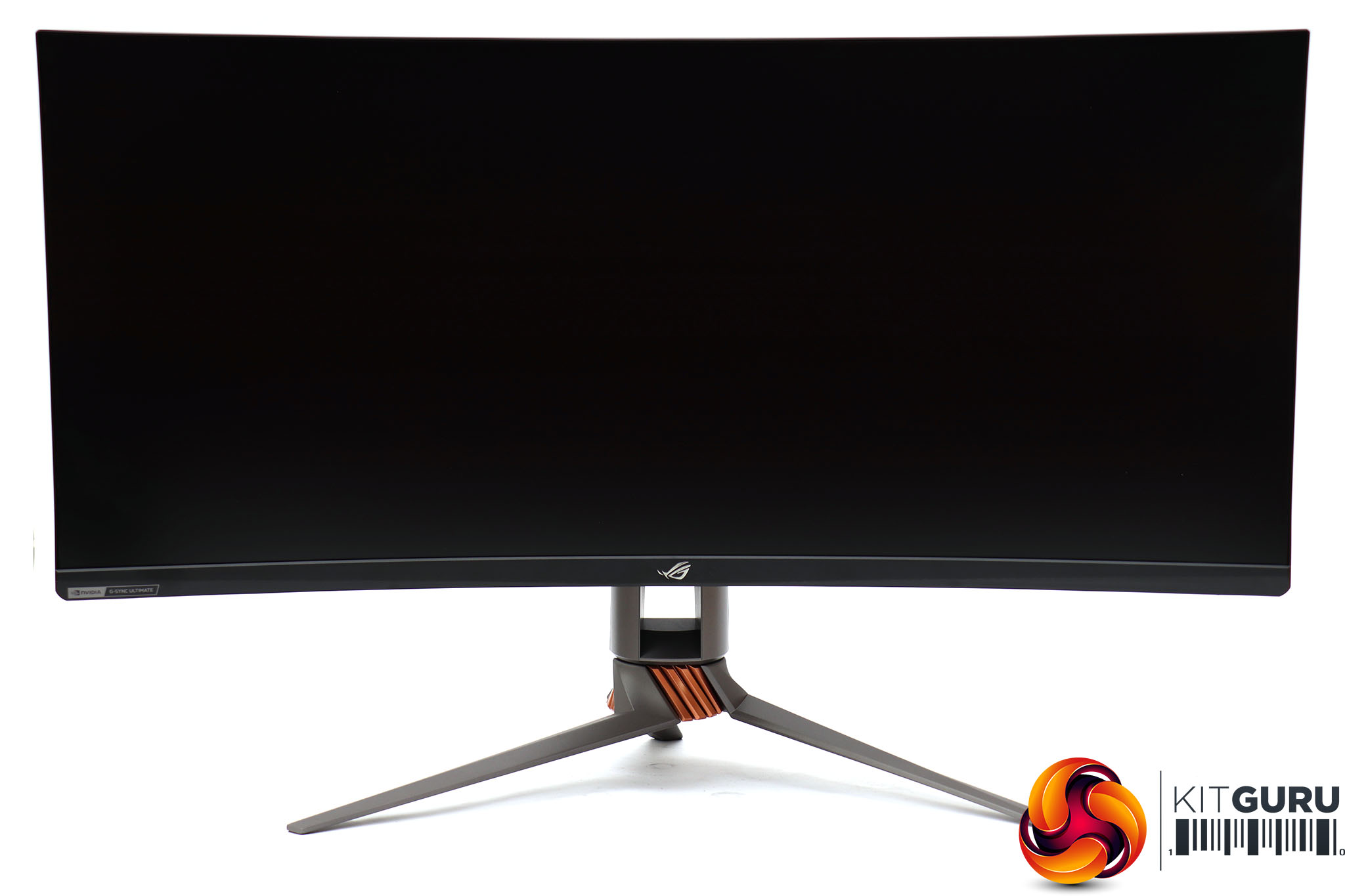
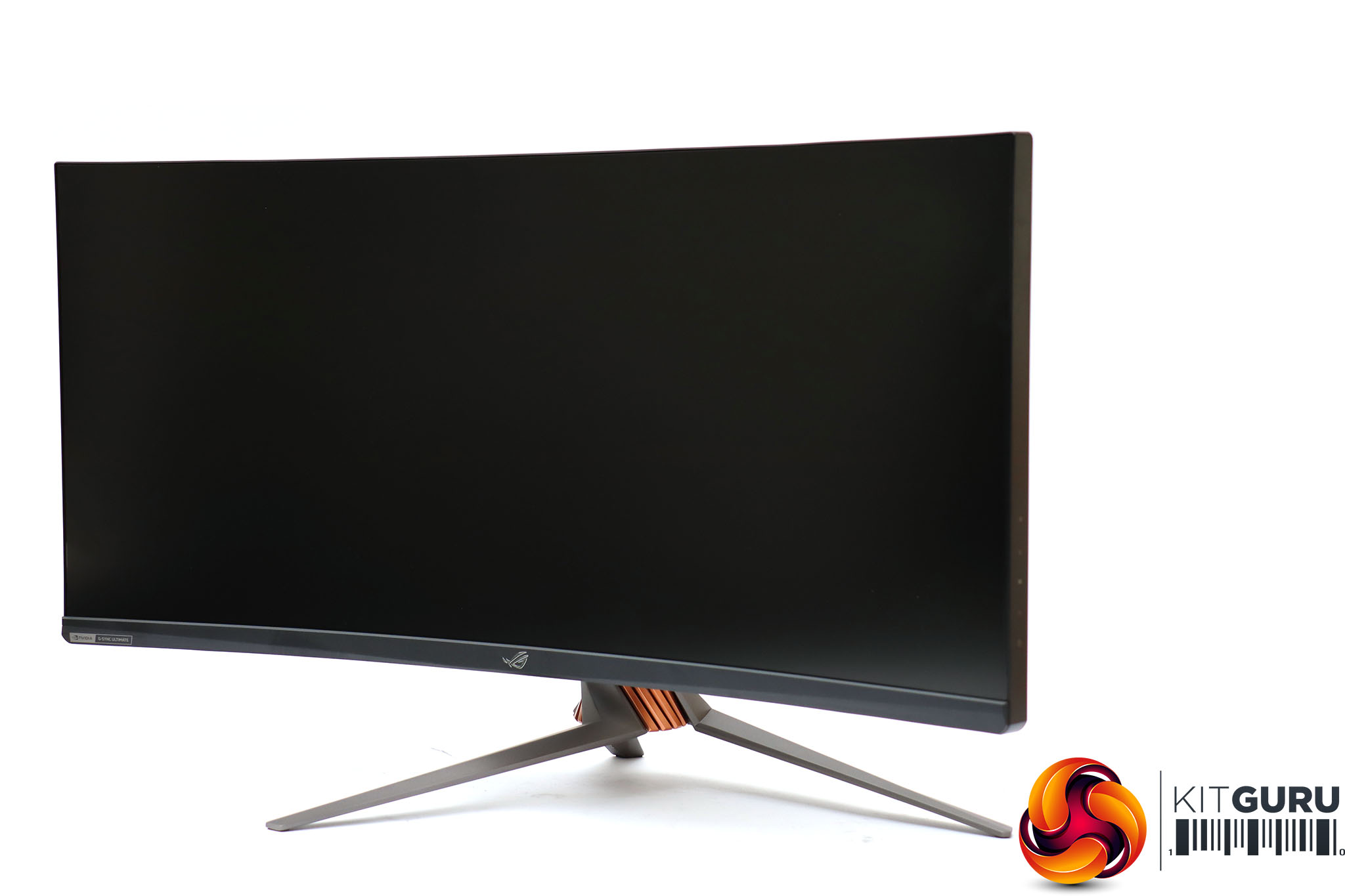
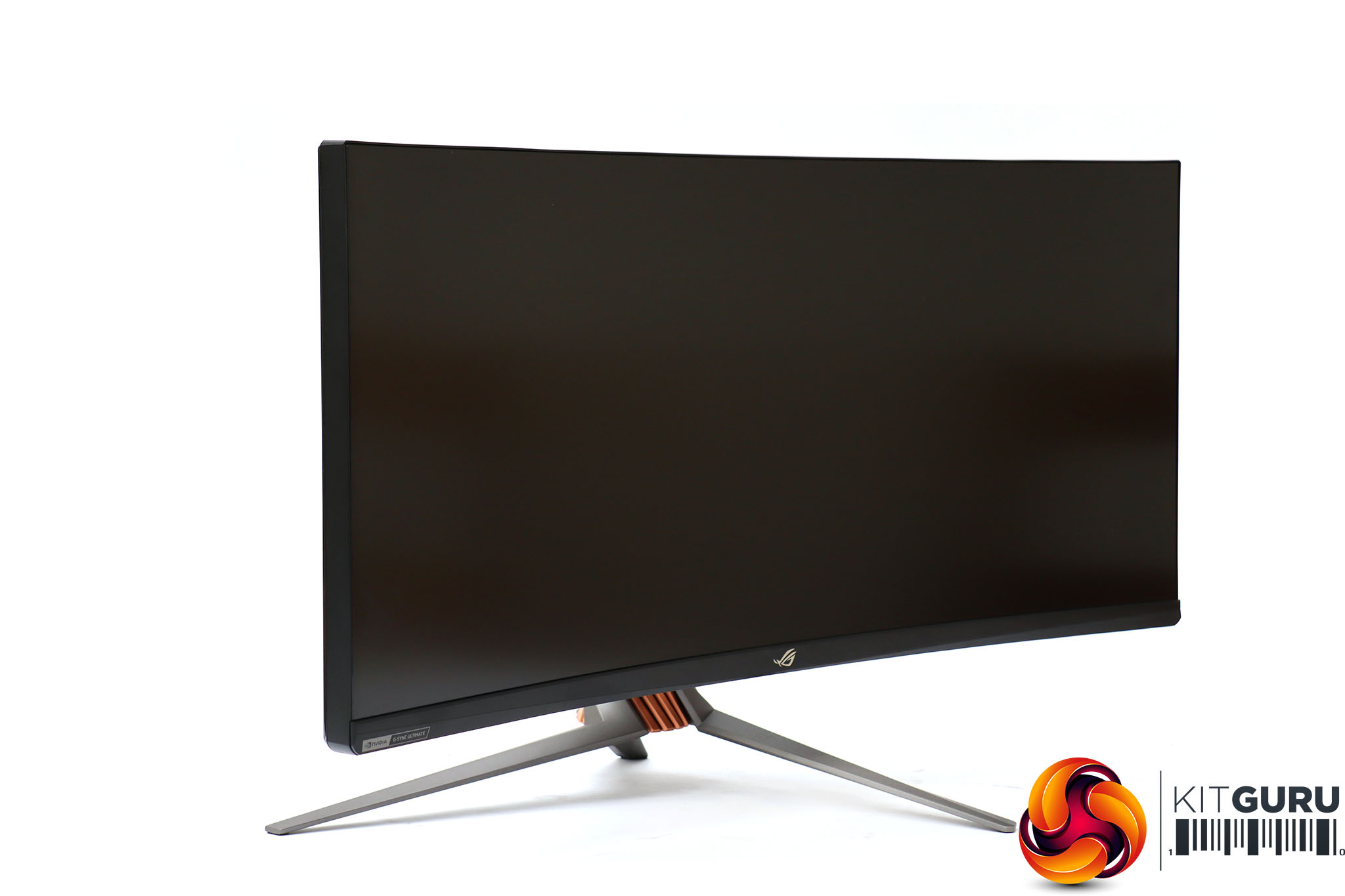
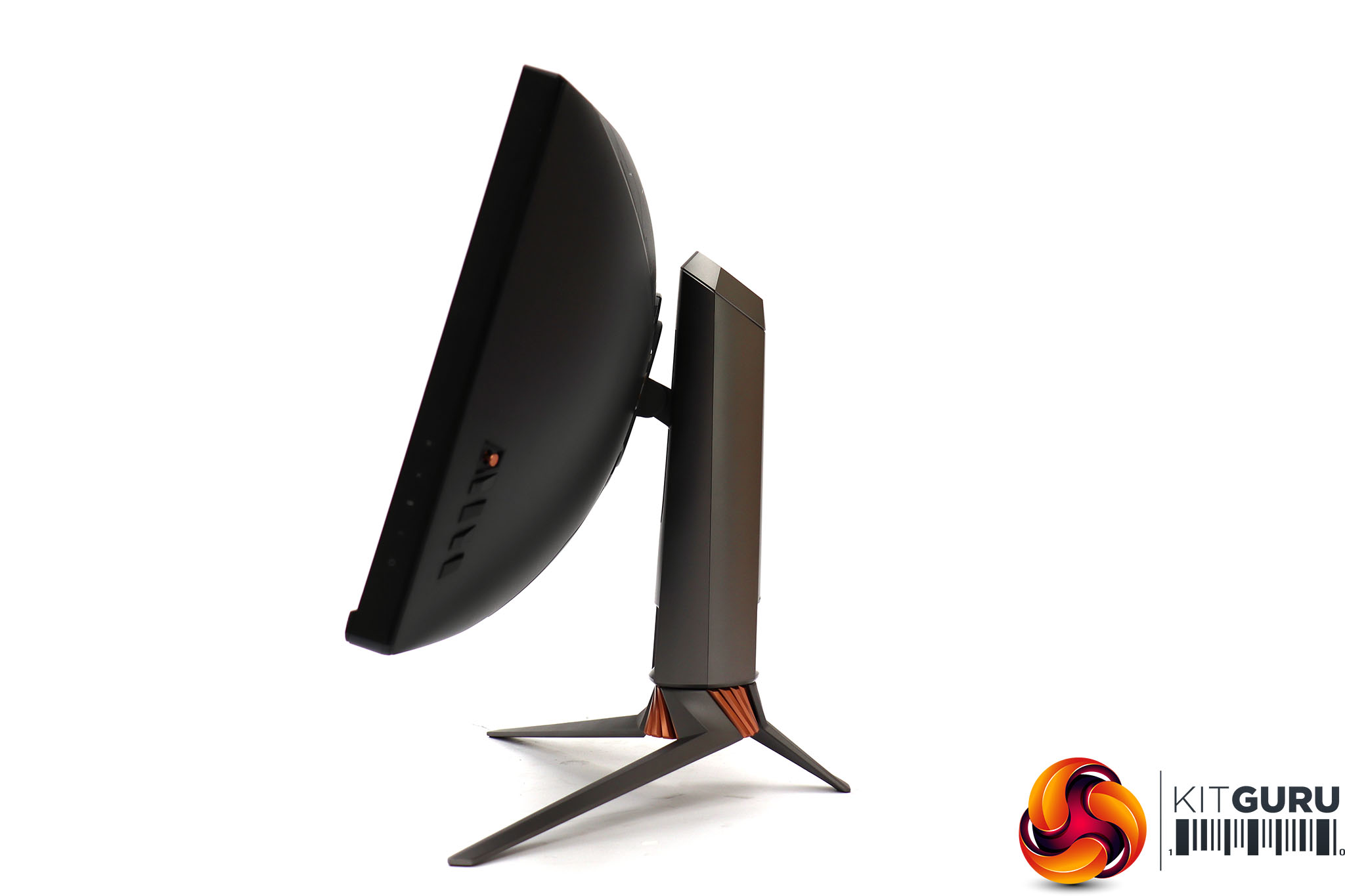
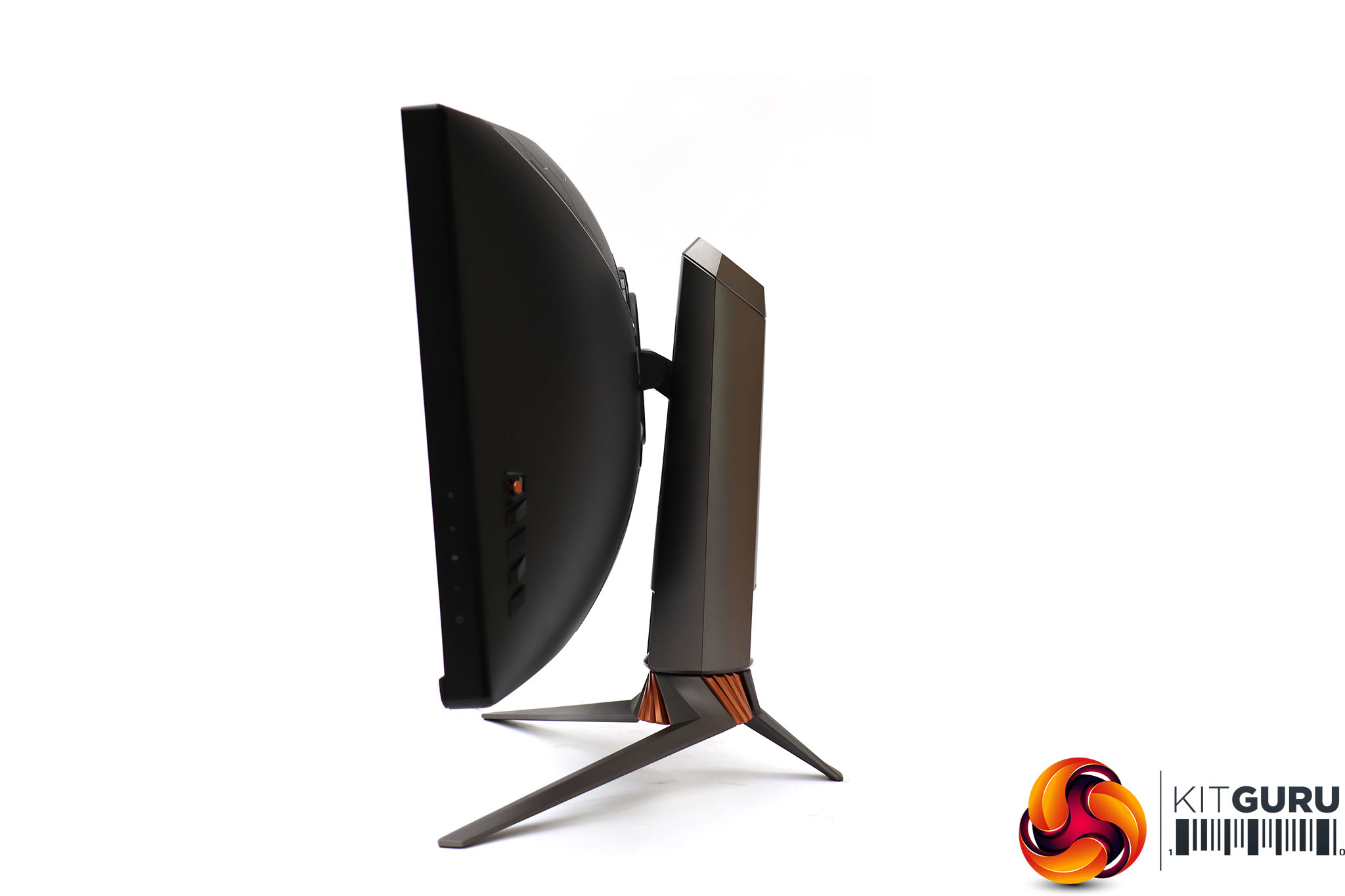
This huge monitor is still quite adjustable. You can raise and lower it through a 110mm range. It can be rotated 35 degrees left and right, and tilted six degrees forward or 20 degrees back. This is very reasonable considering that the weight and width of the panel might have suggested a more fixed stand.
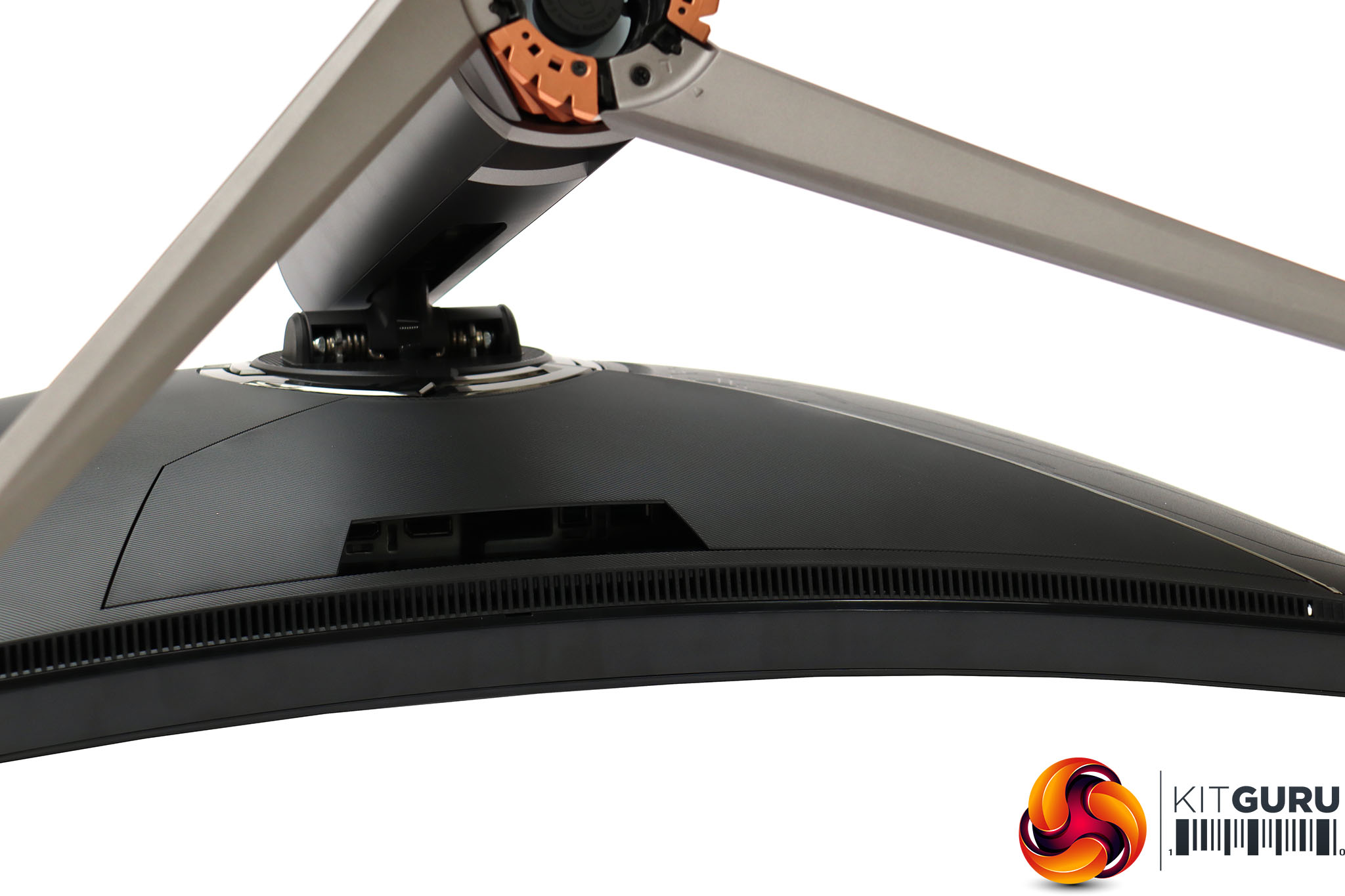
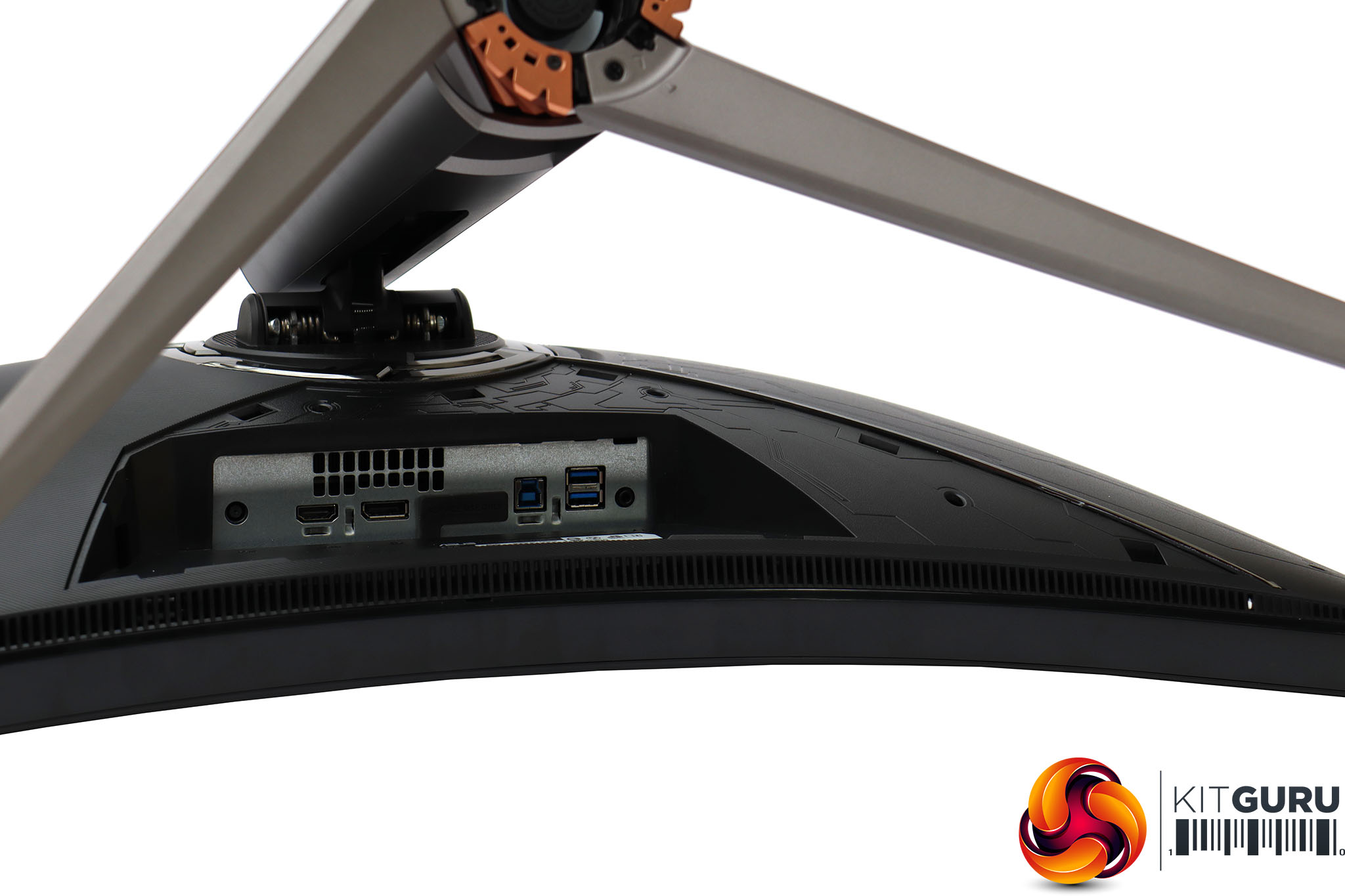
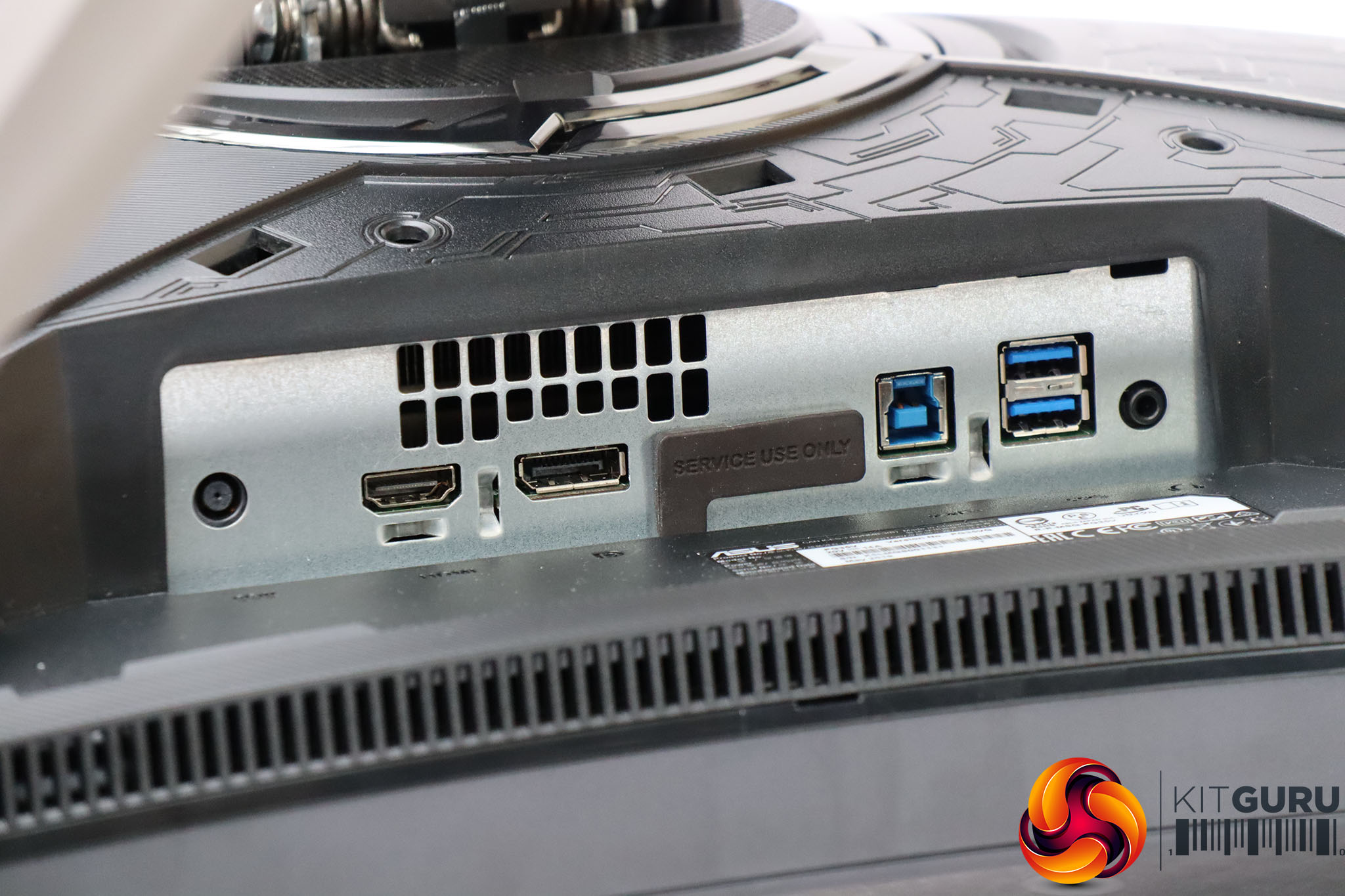
The ports are hidden behind a removable plastic panel. So they're really meant for you to plug into and then not touch after that, including the USB ports. This means you won't be using the latter for conveniently attaching a USB memory key, rather permanent devices like mouse and keyboard. On the plus side, there's a hole in the stand specifically designed for you to route your cables through to tidy them up.
Next to the DC input for the external power brick, there are single HDMI 2.0 and DisplayPort 1.4 connections. As mentioned earlier, the latter is the only option for 200Hz refresh, with the HDMI port limited to 100Hz. Then there's an upstream Type B port for the USB 3.0 hub, a pair of USB 3.0 Type A downstream ports, and an analog minijack for headphones – another port that would have made more sense not being hidden behind a plastic panel. We would have preferred some USB ports and the audio minijack to be on the side of the screen, and there's also no USB Type C video input.
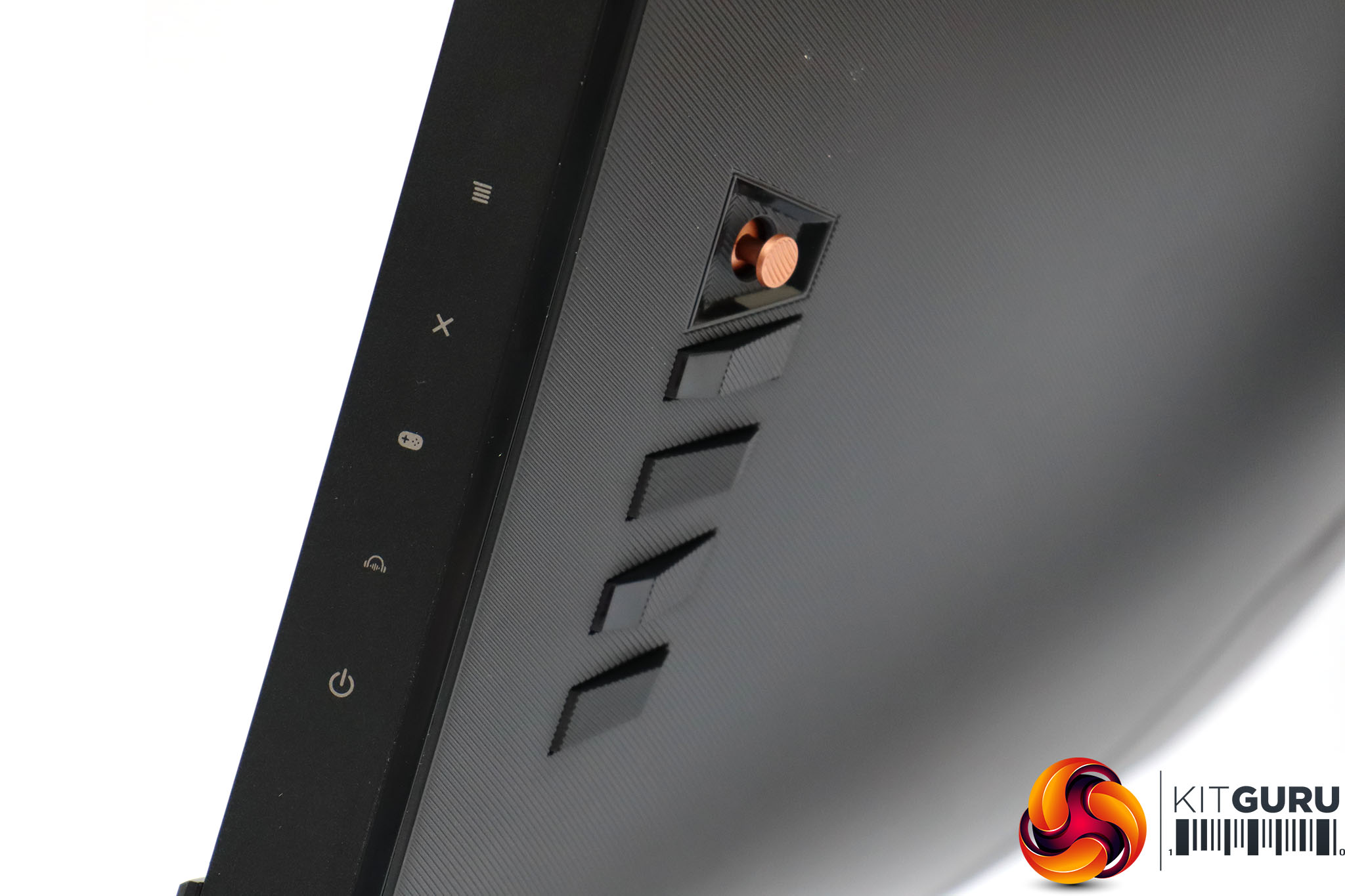
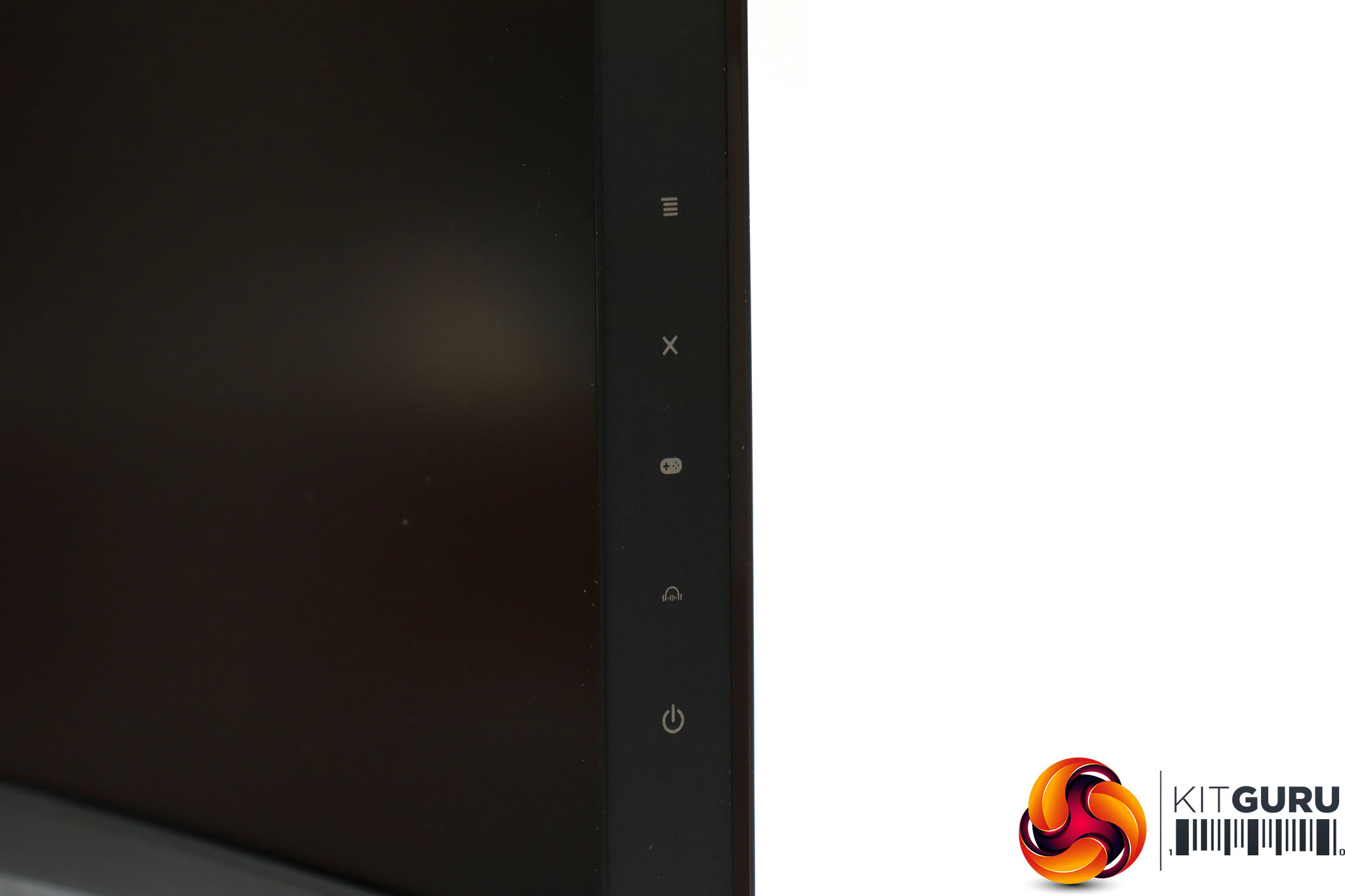
As is usual for ASUS's screens, the menu is operated by a joystick allied with extra buttons. Their function is signalled by icons on the side of the screen, with the bottom button being exclusively reserved for toggling power.
Since the bottom button is used for turning the monitor power off and on, we'll skirt past that one and look at the function of the next button up.
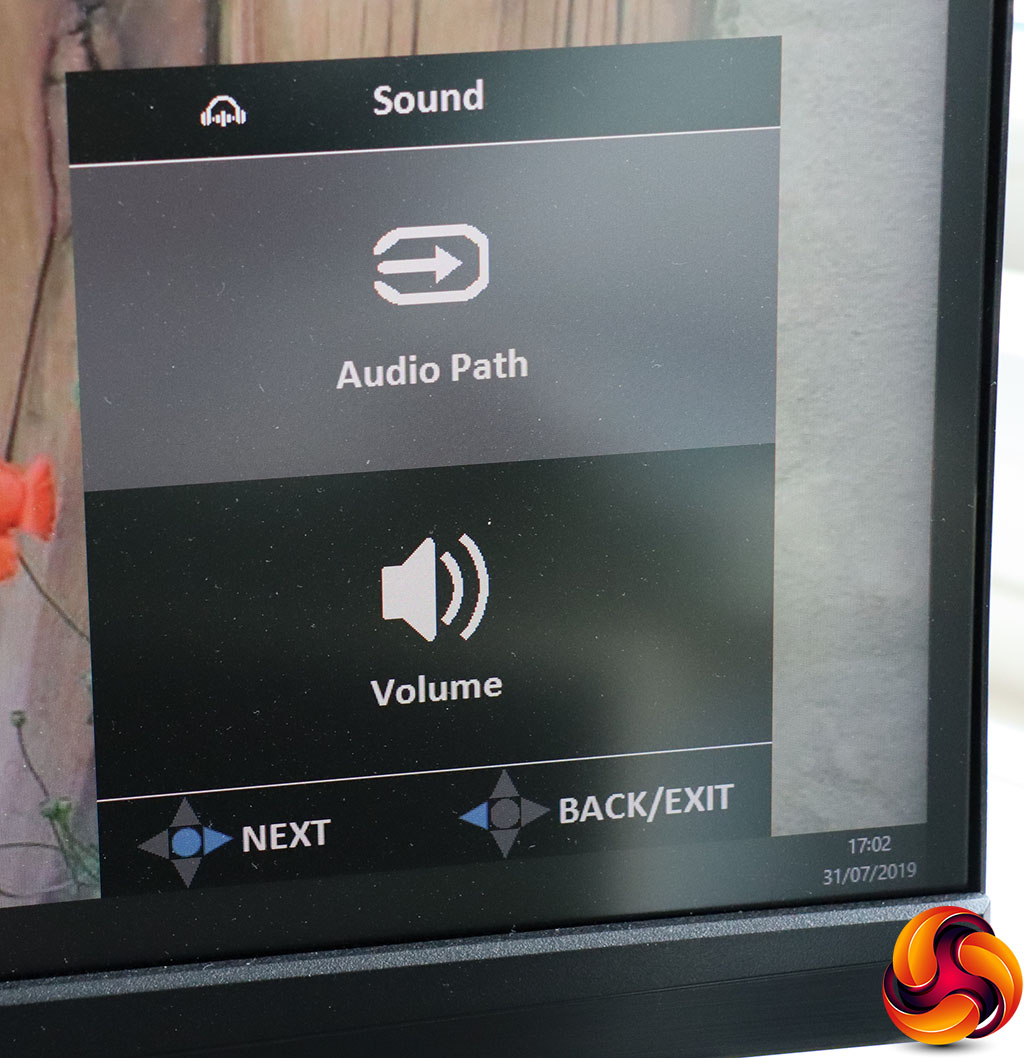
This penultimate button from the bottom calls up sound options. You can choose which of the two digital video inputs supplies sound, and also adjust volume. You can also choose to use the built-in ESS Sabre HiFi DAC as a sound card over the USB connection.
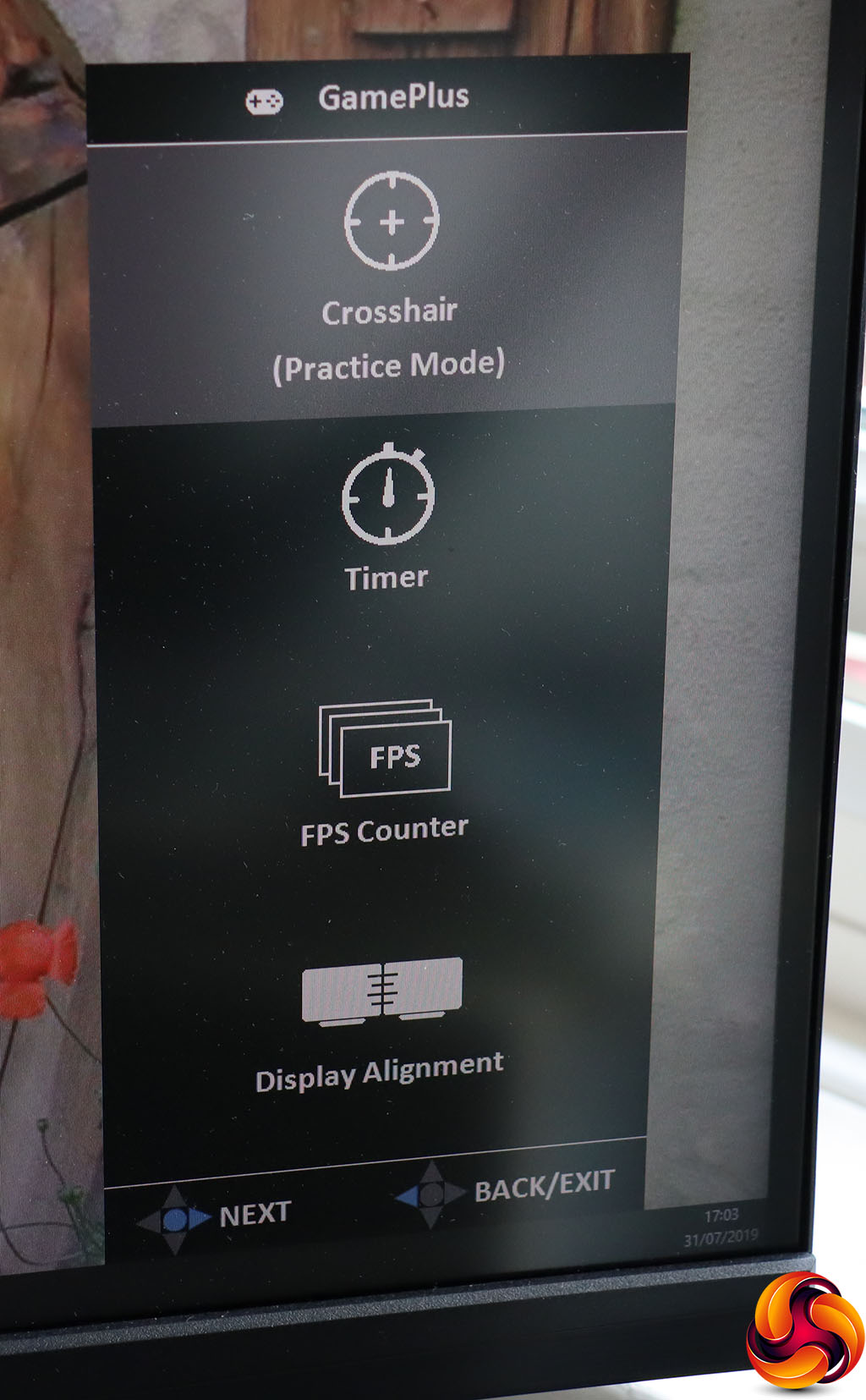
The next button calls up the GamePlus features, which include superimposing hardware crosshairs onscreen, a timer, an FPS counter, and a grid to help you line up a multi-monitor setup. We'd be surprised if you use the latter, though, with a ultrawide screen like this that is already like having two monitors side-by-side, and costs as much as three top-end screens this size already.
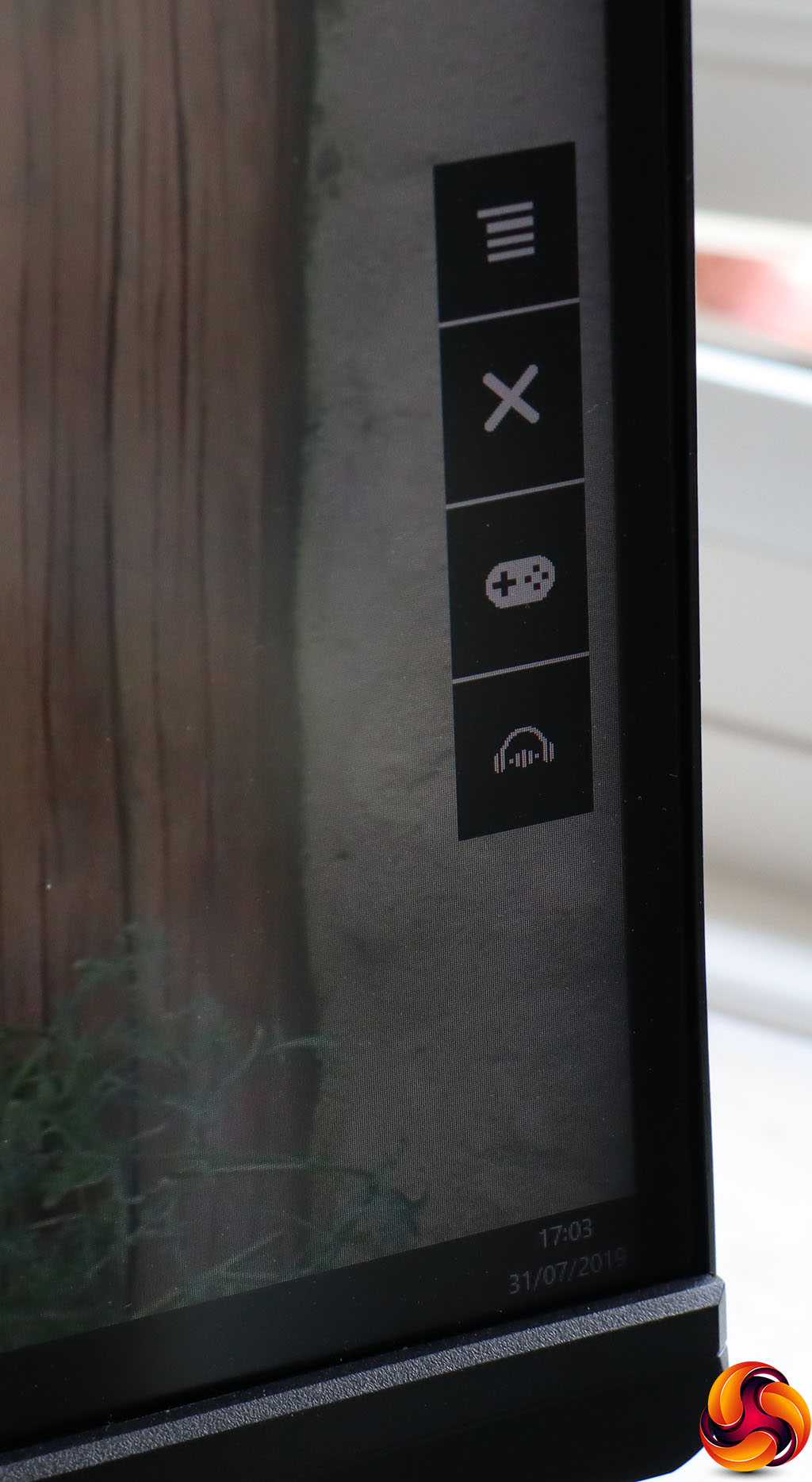
The third button up, directly below the joystick, is merely for exiting menus. Pushing this on its own provides a visual cue as to what the functions of the buttons and joystick are.
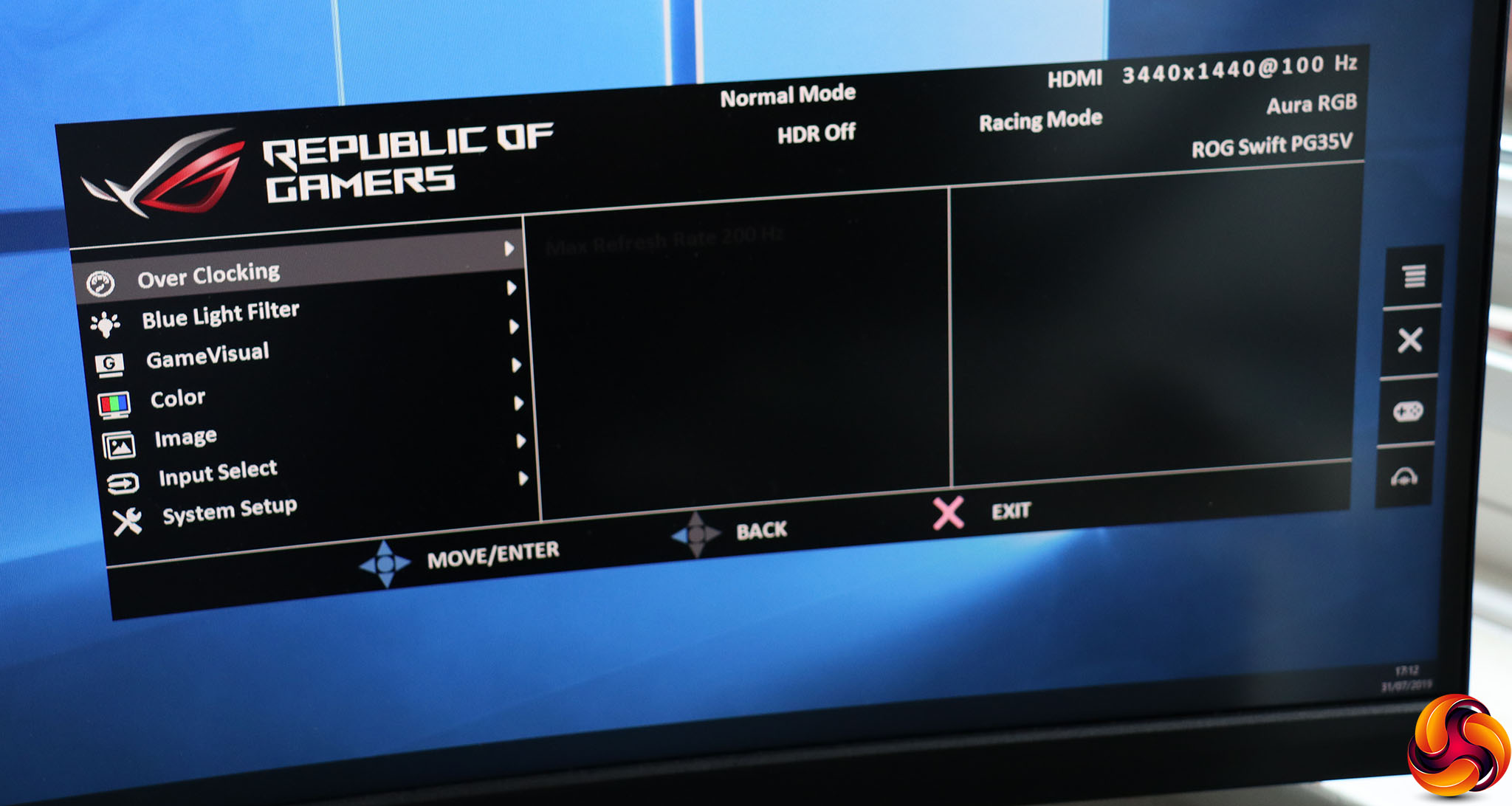
Pushing the joystick in or pulling it to one side or up activates the main menu, with Over Clocking the default option. This is only available with a DisplayPort connection, and allows you to set this up to the 200Hz maximum. By default, the maximum refresh is 180Hz over DisplayPort.
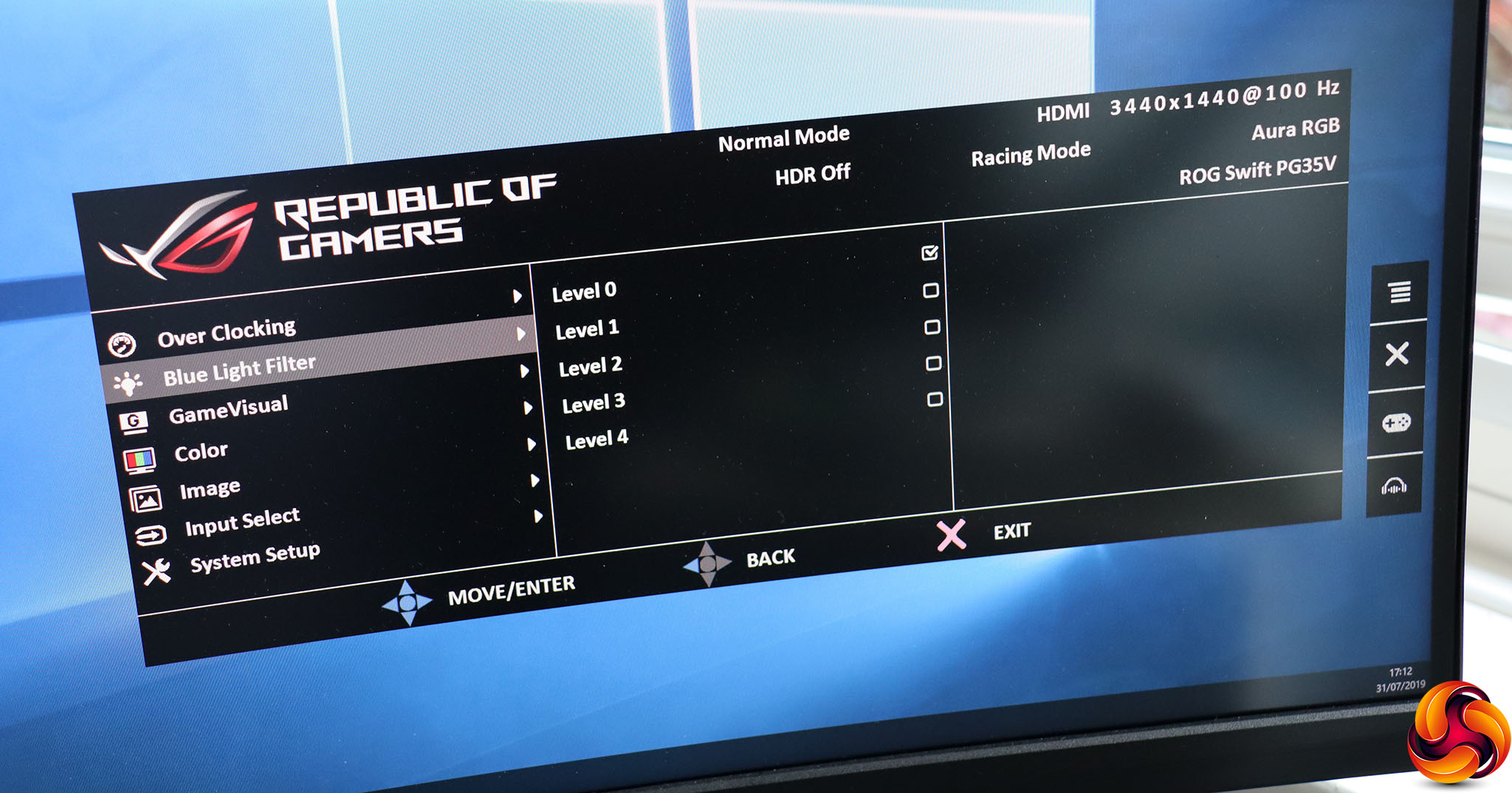
Next down in the main menu is the Blue Light Filter. This is the now familiar option that reduces blue hues to tackle eye strain from long monitor usage. It has four levels of intensity above the off position.
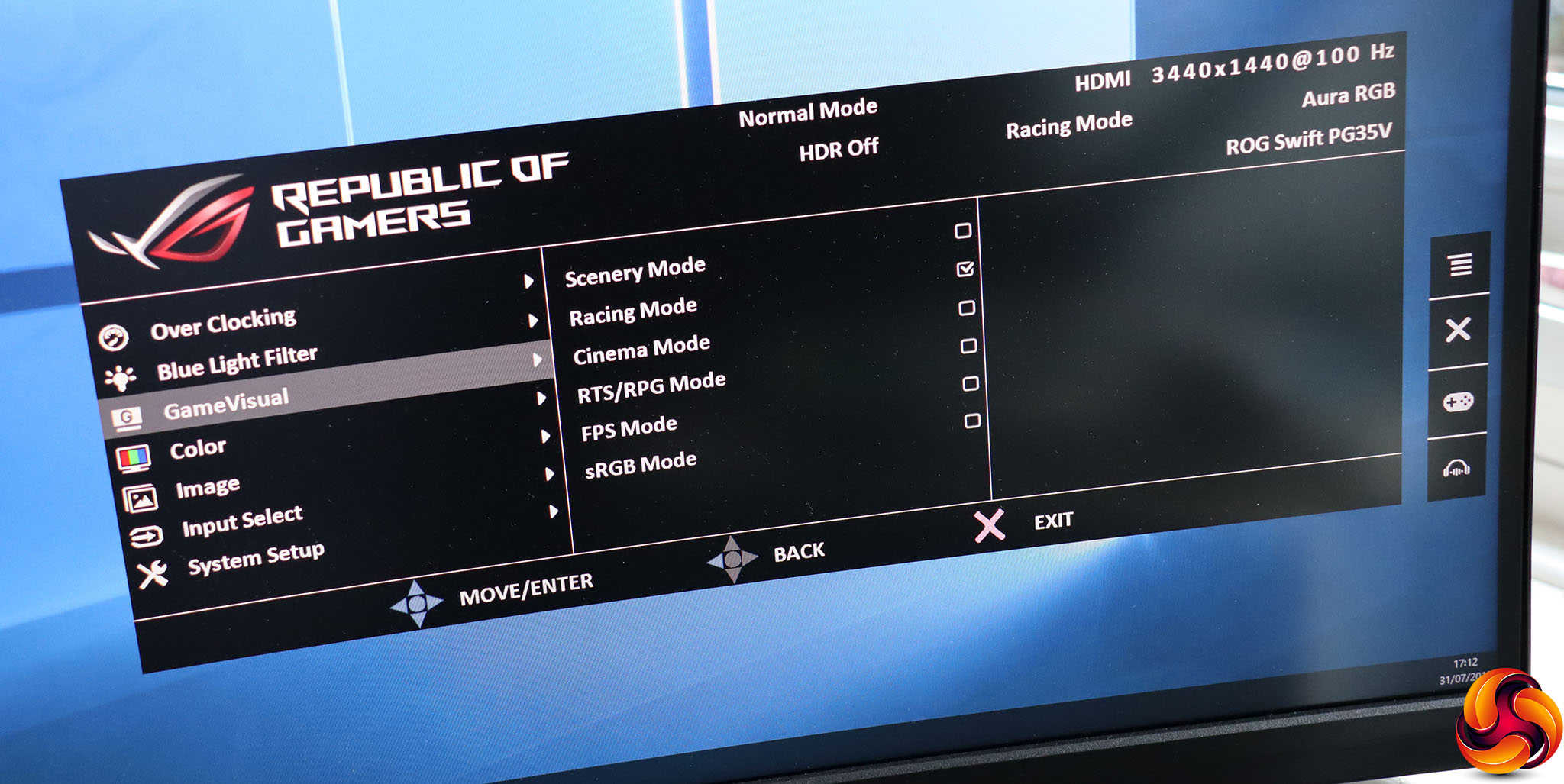
The GameVisuals are (mostly) gaming presets, and include Scenery, Racing, Cinema, RTS/RPG, FPS and sRGB modes. Racing appears to be the default setting.
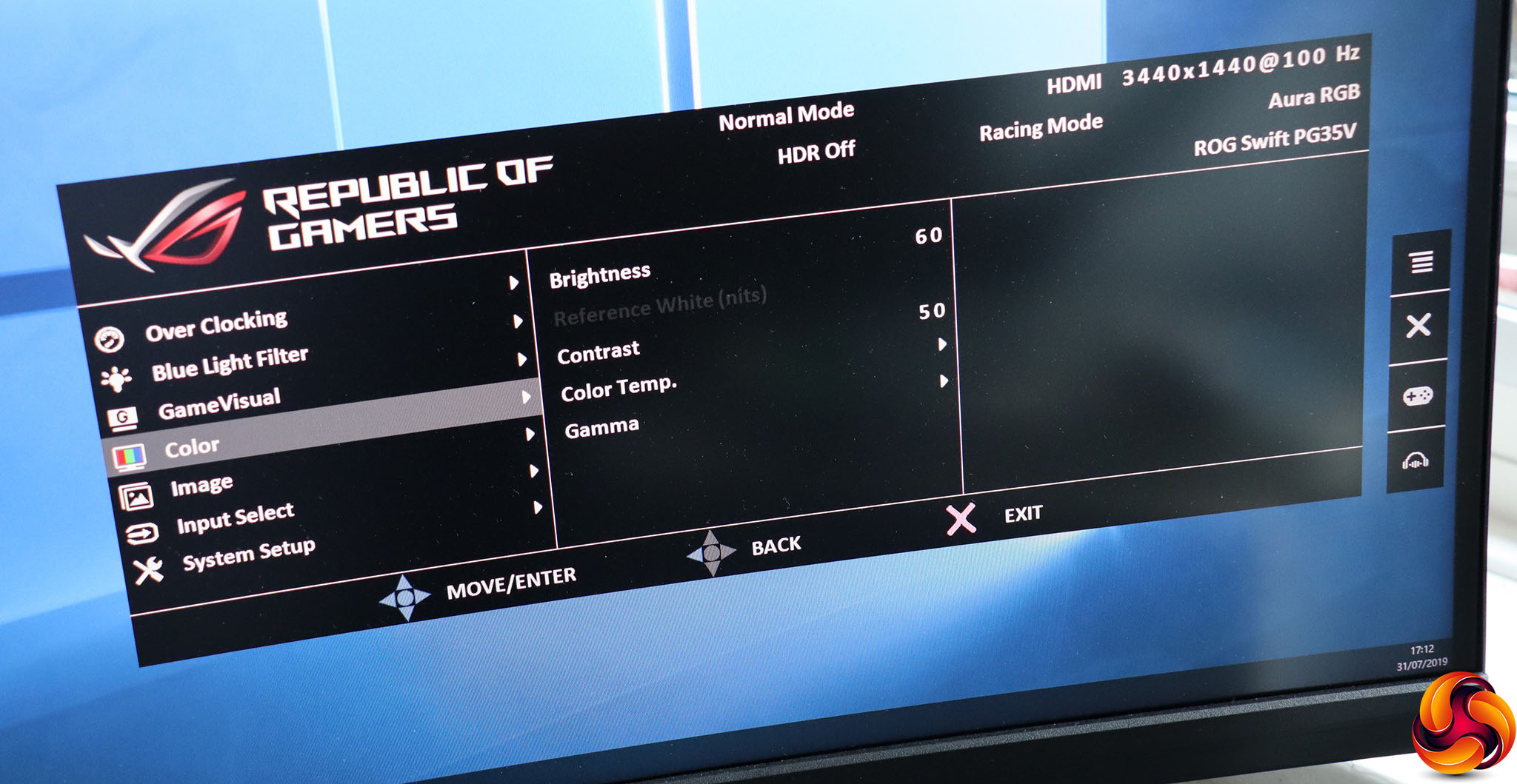
The Color submenu is where you can adjust Brightness and Contrast. There are also Color Temperature options including Normal, Warm and Cool plus a user-configurable setting where you can configure red, green and blue values independently. The five Gamma levels include 1.8, 2.0, 2.2, 2.4 and 2.6, with 2.2 the default.
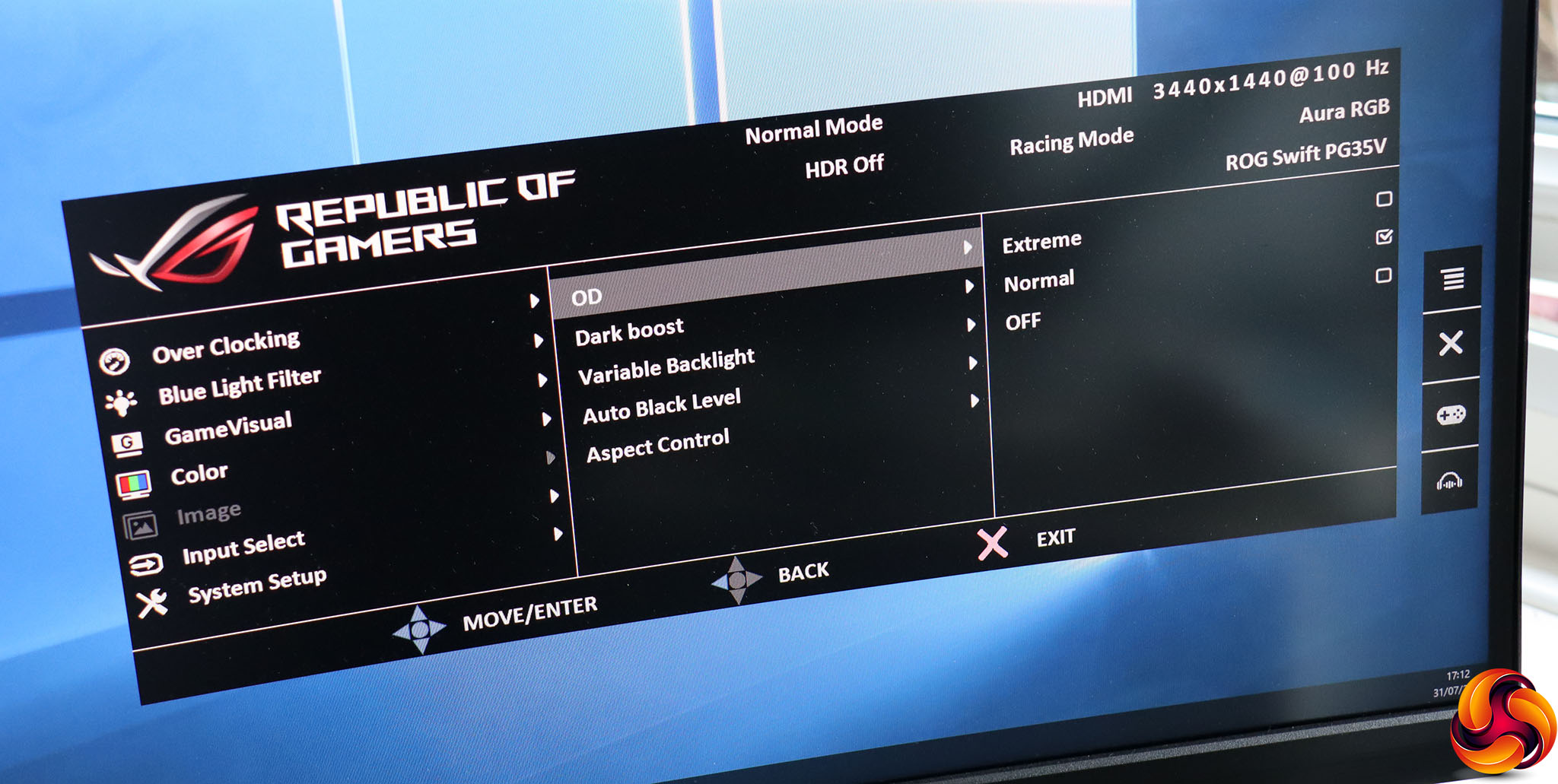
The Image section contains mostly electronic enhancements. The OD option is a pixel overdrive to improve response, with Normal the default and a more pronounced Extreme mode. Or you can turn it off if it's introducing artefacts. Dark Boost enhances contrast in dark areas so you can see more detail.
An unusual option is the Variable Backlight, the behaviour of which can be adjusted according to your current activity. The Fast option is preferable for games, whilst Gradual provides better quality so is better for more business-focused work. Medium is somewhere in between.
The Auto Black Level option instructs the monitor to adjust black level according to ambient lighting conditions. Finally, you can adjust the aspect depending on how you want to display a non-native resolution onscreen.
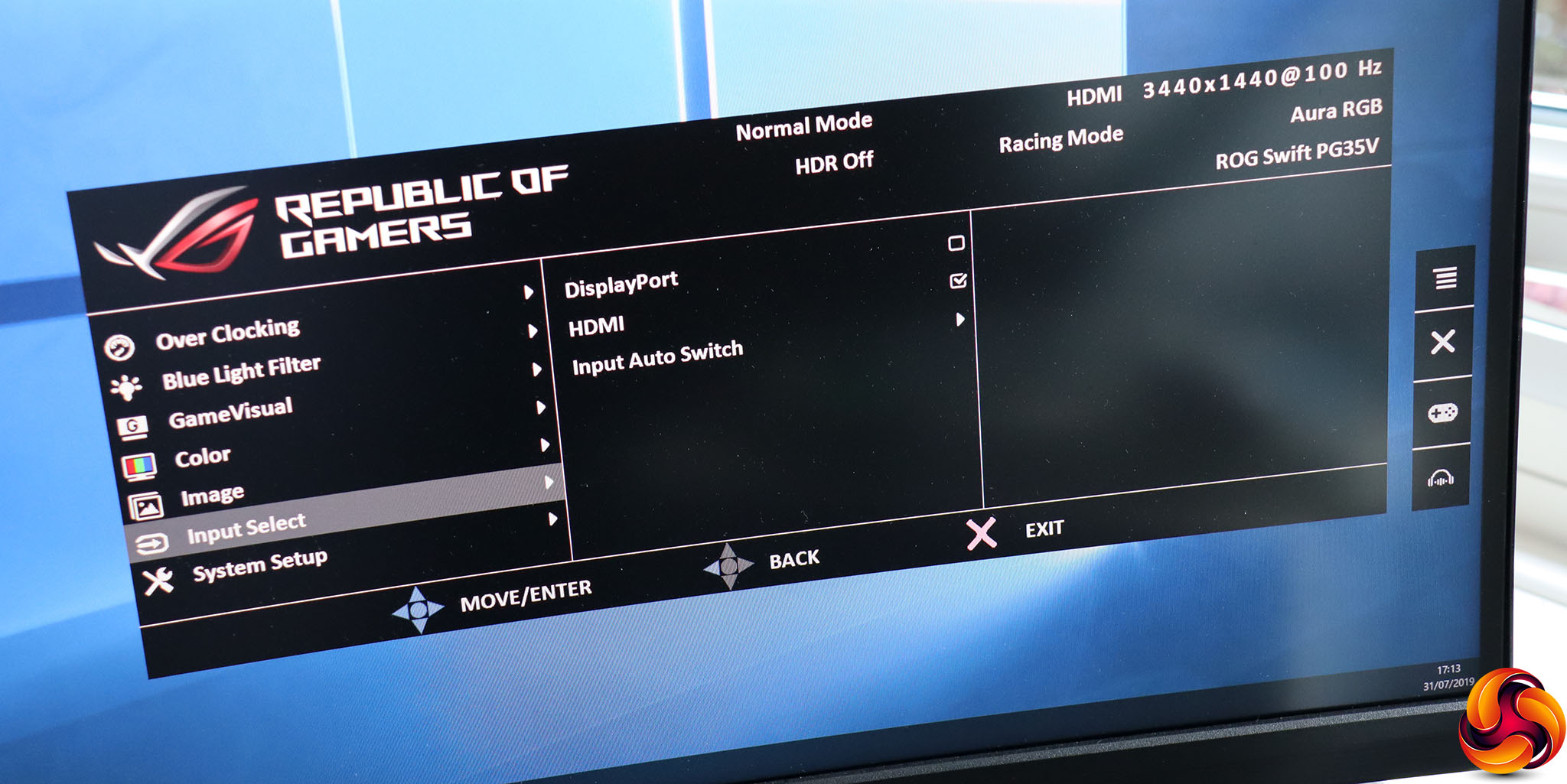
You can use the Input Select submenu to switch between the two video inputs manually.
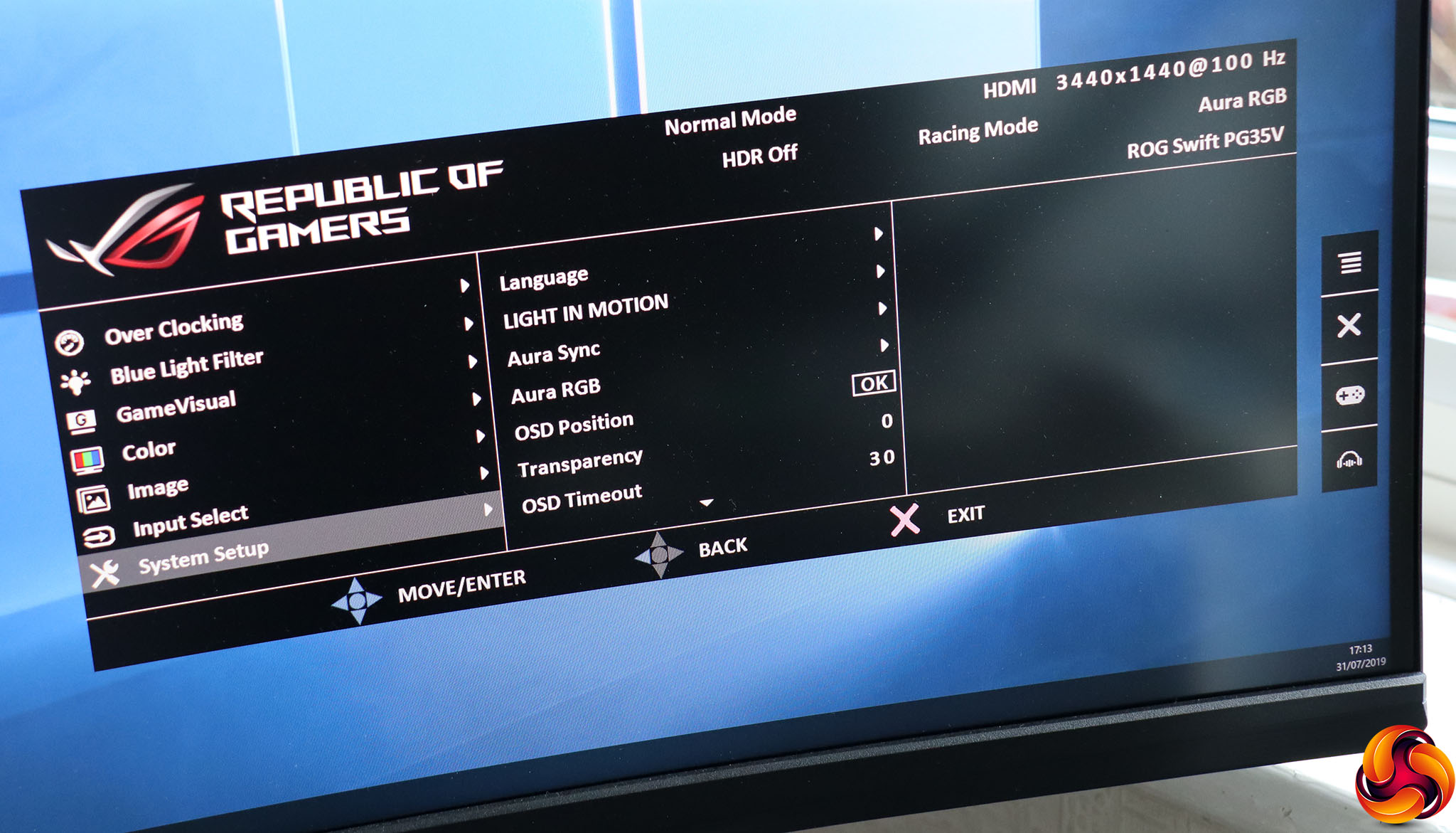
Finally, System Setup presents all the sundry options, including setting the OSD language, as well as the LIGHT IN MOTION, Aura Sync and Aura RGB ambient lighting. The Sync setting keeps your monitor's lighting in tune with your other ASUS Aura-capable devices.
You can dictate where onscreen the OSD appears, how transparent it is, and how long it stays visible before disappearing. Scrolling down the options, you can turn off the function keys with Key Lock, and call up detailed Information about your current monitor parameters. Access to the Sound quick menu mentioned above can also be found here. There are HDMI and DisplayPort Deep Sleep modes, and and an ECO mode to reduce power consumption.
There are also some sundry options for synchronising brightness with ambient lighting levels as well as the gamma curve to use with HDMI or DisplayPort – sRGB and BT.1886 being the options. Finally, you can turn on a Wide Gamut, which is supposedly preferable with a Mac, and reset all the settings to default. However, as we will explain later, the choice between sRGB for PC and Wide Gamut for Mac is not as clear cut as ASUS's manual for this monitor states.
Overall, it's a comprehensive OSD, although placing Over Clocking as the default main menu page is curious when you're likely to set this once and then leave it, whereas you may switch GameVisual presets (for example) a few times a day depending on which genre of title you are currently playing. Nevertheless, there's nothing major omitted.
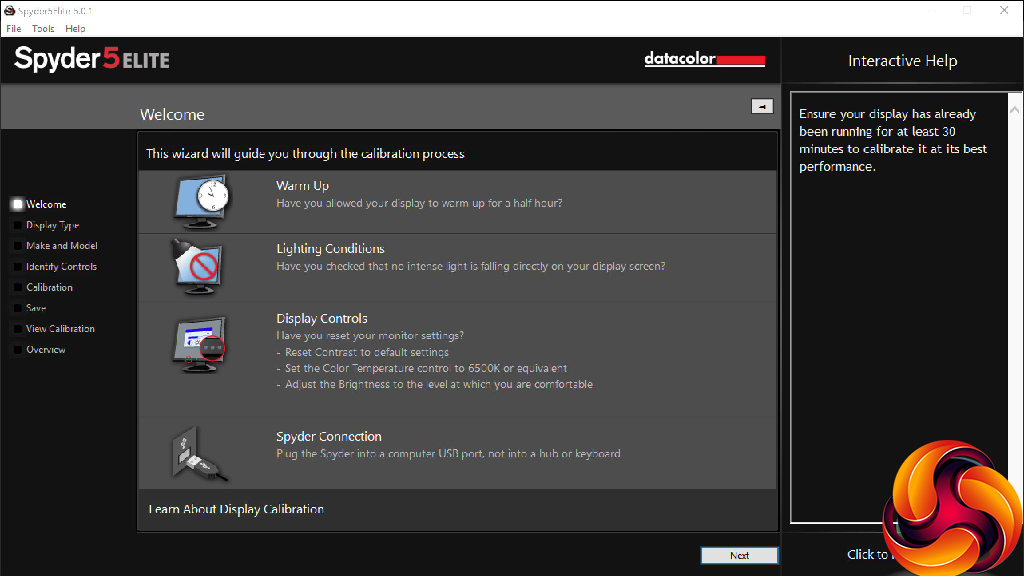
Our main test involves using a DataColor Spyder Elite 5 Colorimeter to assess a display’s image quality. The device sits on top of the screen while the software generates colour tones and patterns, which it compares against predetermined values to work out how accurate the screen is.
The results show –
- A monitor’s maximum brightness in candelas or cd/m2 at various levels set in the OSD.
- A monitor’s contrast ratio at various brightness levels in the OSD.
- The brightness deviation across the panel.
- The black and white points.
- The colour accuracy, expressed as a Delta E ratio, with a result under 3 being fine for normal use, and under 2 being great for colour-accurate design work.
- The exact gamma levels, with a comparison against preset settings in the OSD.
We first run this test with the display in its default, out-of-the-box state, with all settings on default. We then calibrate the screen using the Spyder software and run the test again.
We always test the display subjectively on the Windows desktop, using it for general tasks such as browsing and word processing, and with games as well, even if the display is not intended solely for that purpose.
We pay careful attention to any artefacts, ghosting or motion blur, and enable any gaming-specific features, such as adaptive-sync settings like G-Sync or FreeSync, using a compatible graphics card in our test PC.
We performed the quality tests at the native 3,440 x 1,440 resolution in the default mode, after resetting the OSD, which uses a 60Hz refresh. Our main test system was equipped with an AMD Radeon Vega Frontier Edition graphics card, but we also called upon another system equipped with twin NVIDIA GeForce RTX 2080 Ti graphics cards for subjective gaming that supports NVIDIA G-sync.
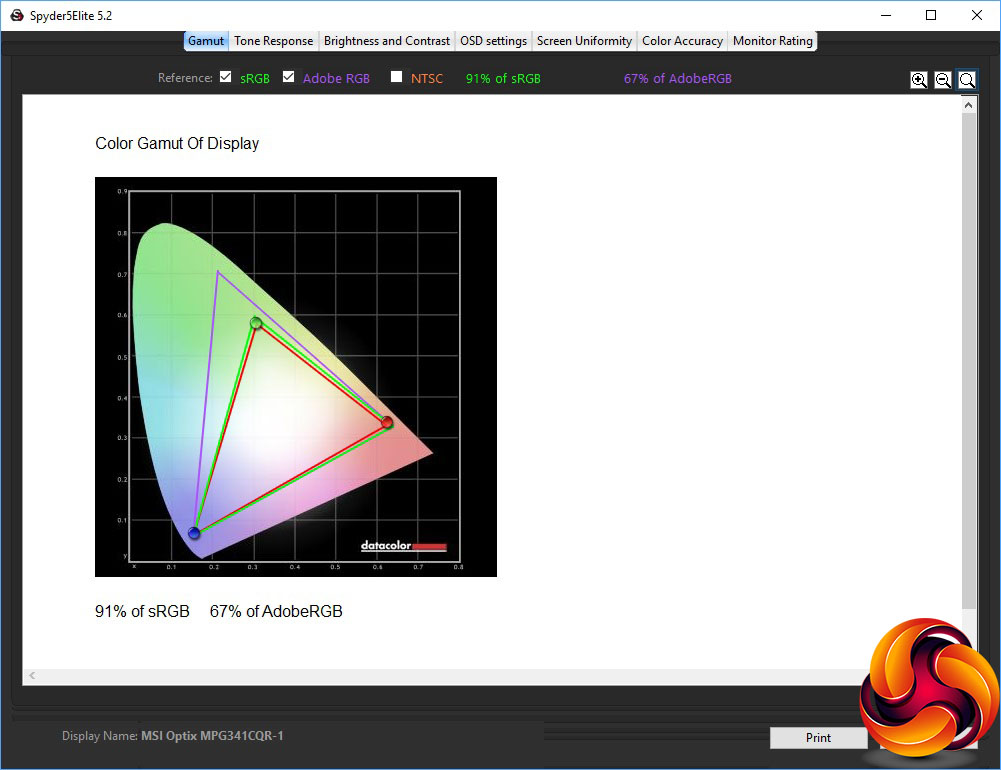
Things don't get off to a great start, with the PG35VQ registering only 91 per cent sRGB and just 67 per cent of AdobeRGB. We were expecting quite a bit more. We will be returning to this issue later in the testing.

Brightness uniformity is better, with particularly impressive values in the middle left and right, top and bottom.
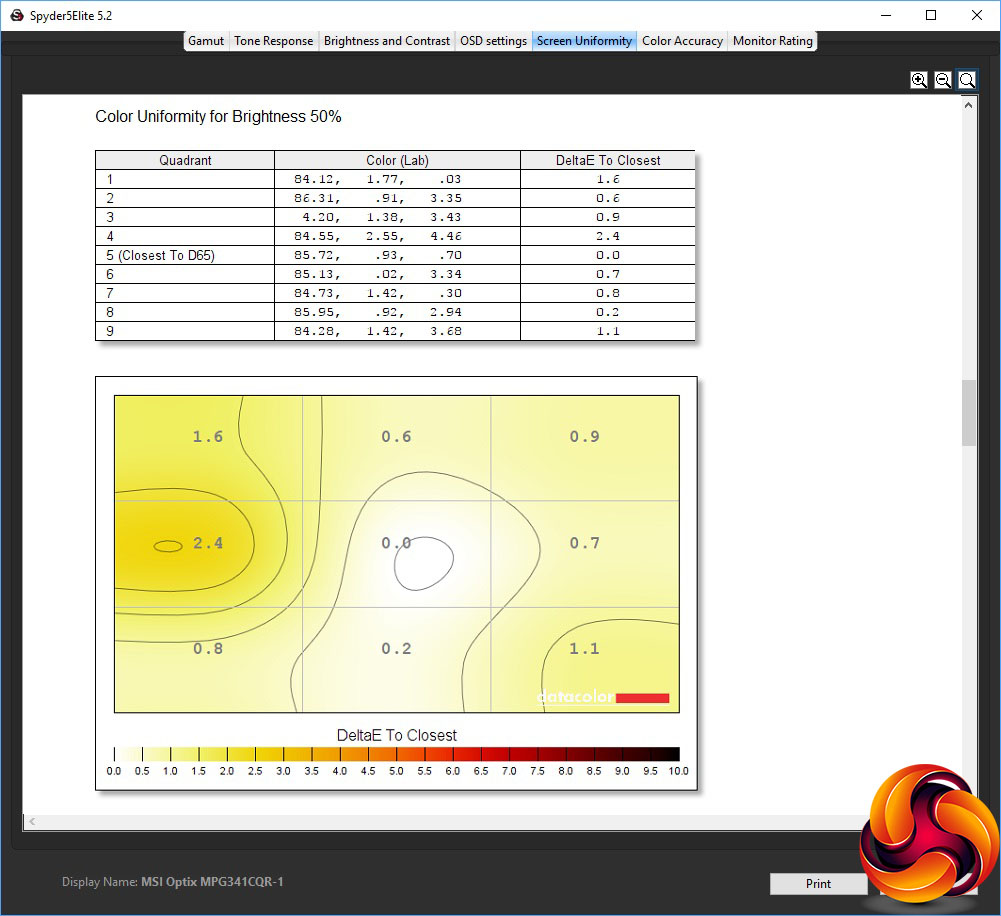
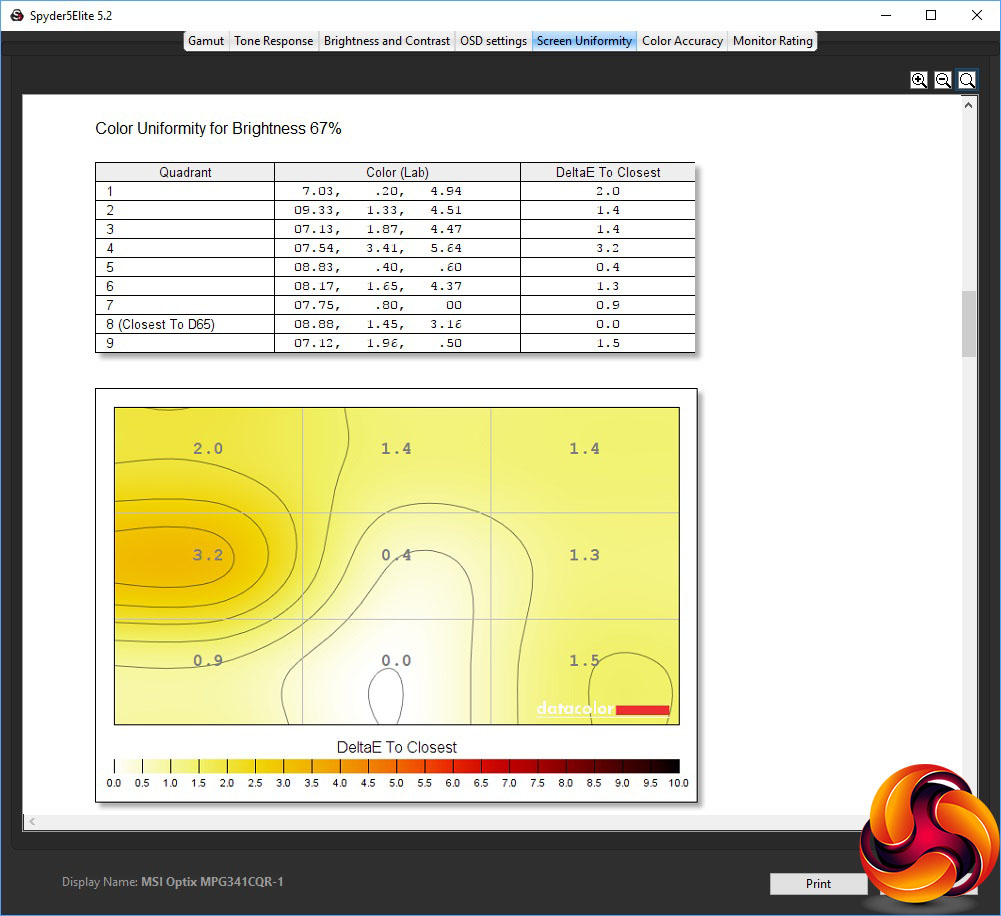
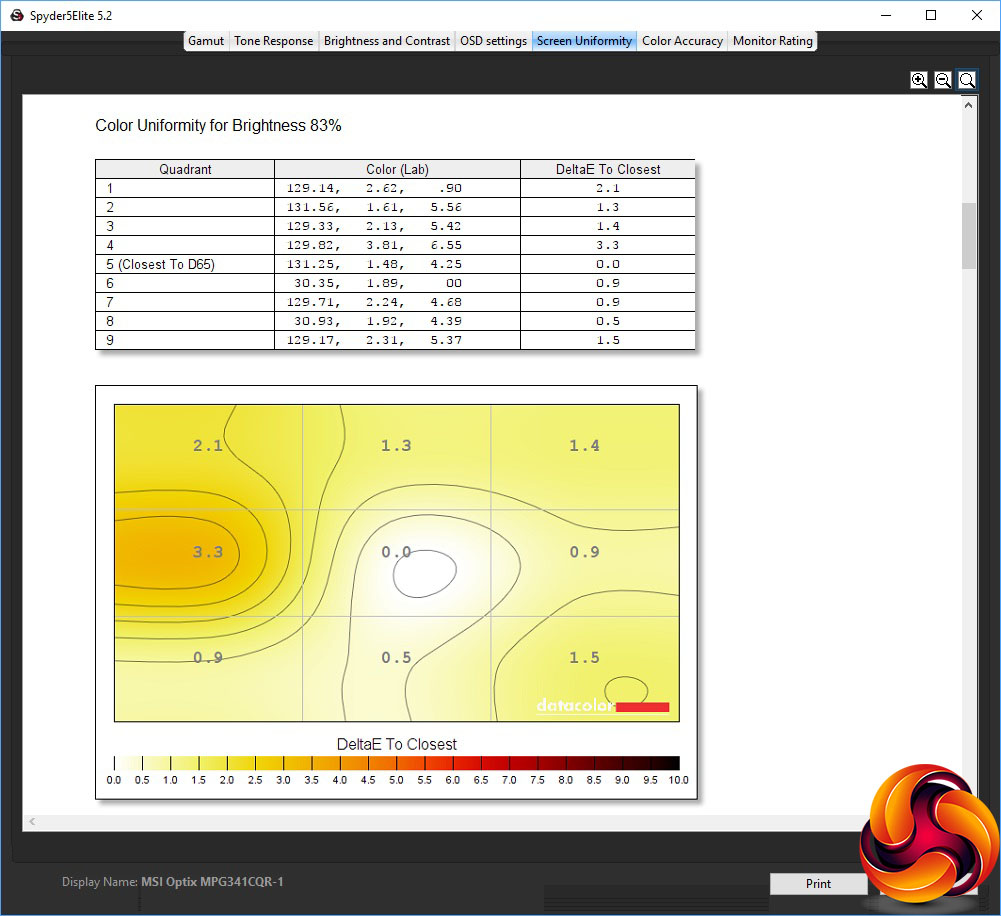
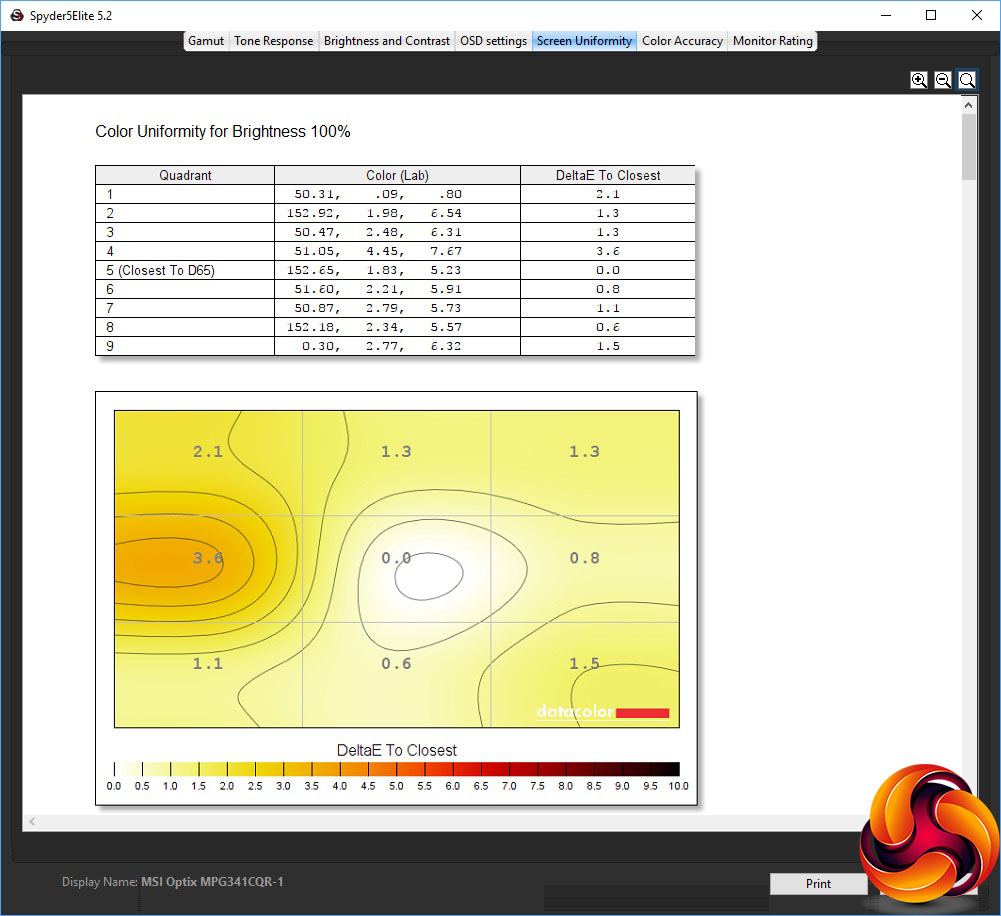
Colour uniformity is excellent at all levels of brightness.
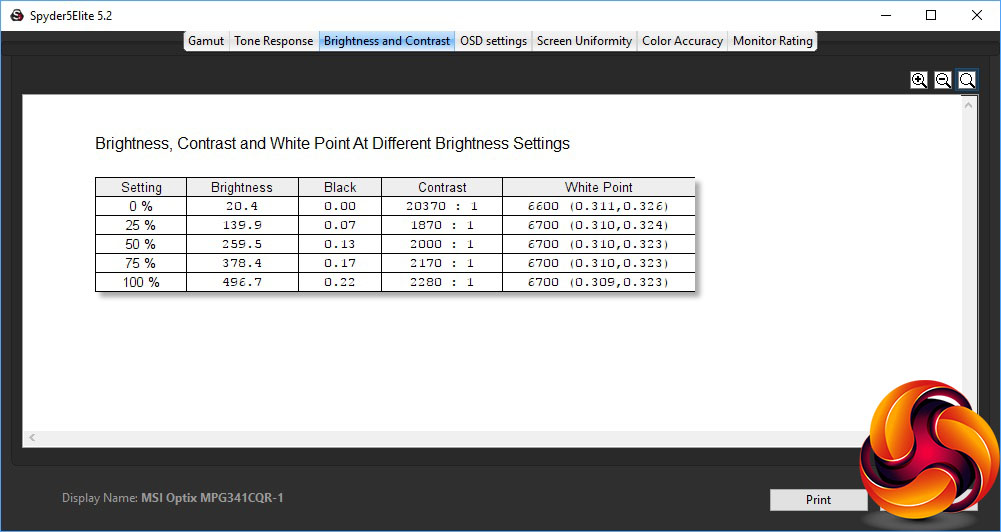
The PG35VQ pretty much hits the exact brightness levels it should at all settings. Unlike some monitors, where 0 per cent is still quite bright, this screen only puts out 20.4cd/m2 at this level, and then reaches 496.7cd/m2 at 100 per cent brightness, which is close to the stated typical maximum. At 50 per cent brightness, the reading is 259.5cd/m2, which is just about halfway too.
The contrast is excellent as well, reaching 2,280:1 at 100 per cent brightness (note that the default contrast setting is 50 per cent, and the Spyder under-reports contrast anyway). The white point is a very consistent 6700K until you near 0 per cent brightness. Overall, these are very dependable results.
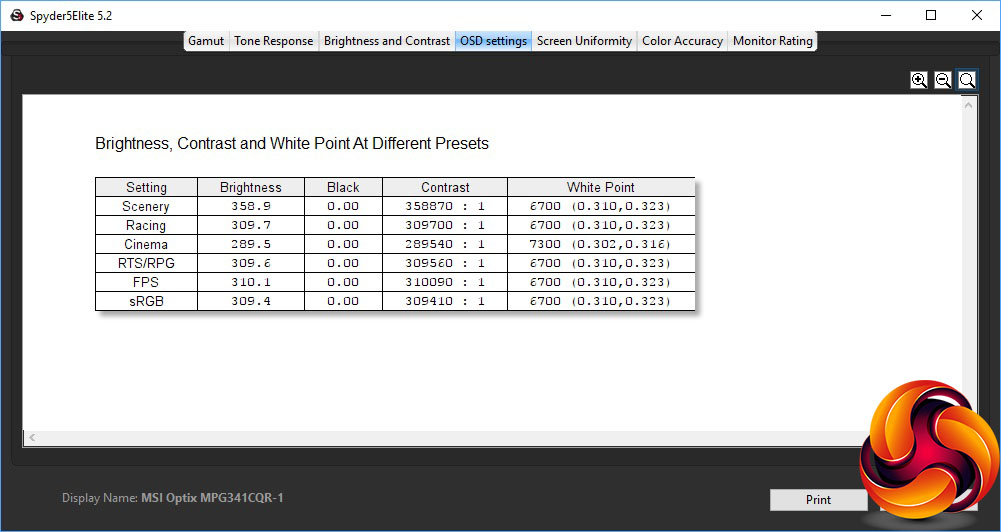
The OSD settings are highly unusual. The variation doesn't appear to be very great. For a start, all but Cinema mode use a 6700K white point and deliver pure black. There is clearly some dynamic contrast enabled, because the values are hovering around 300,000:1. Scenery mode is the brightest, at 358.9cd/m2, and Cinema mode the least bright at 289.5cd/m2. All the rest hover around the 310cd/m2 mark. The difference between these modes is more how the other monitor settings are configured.
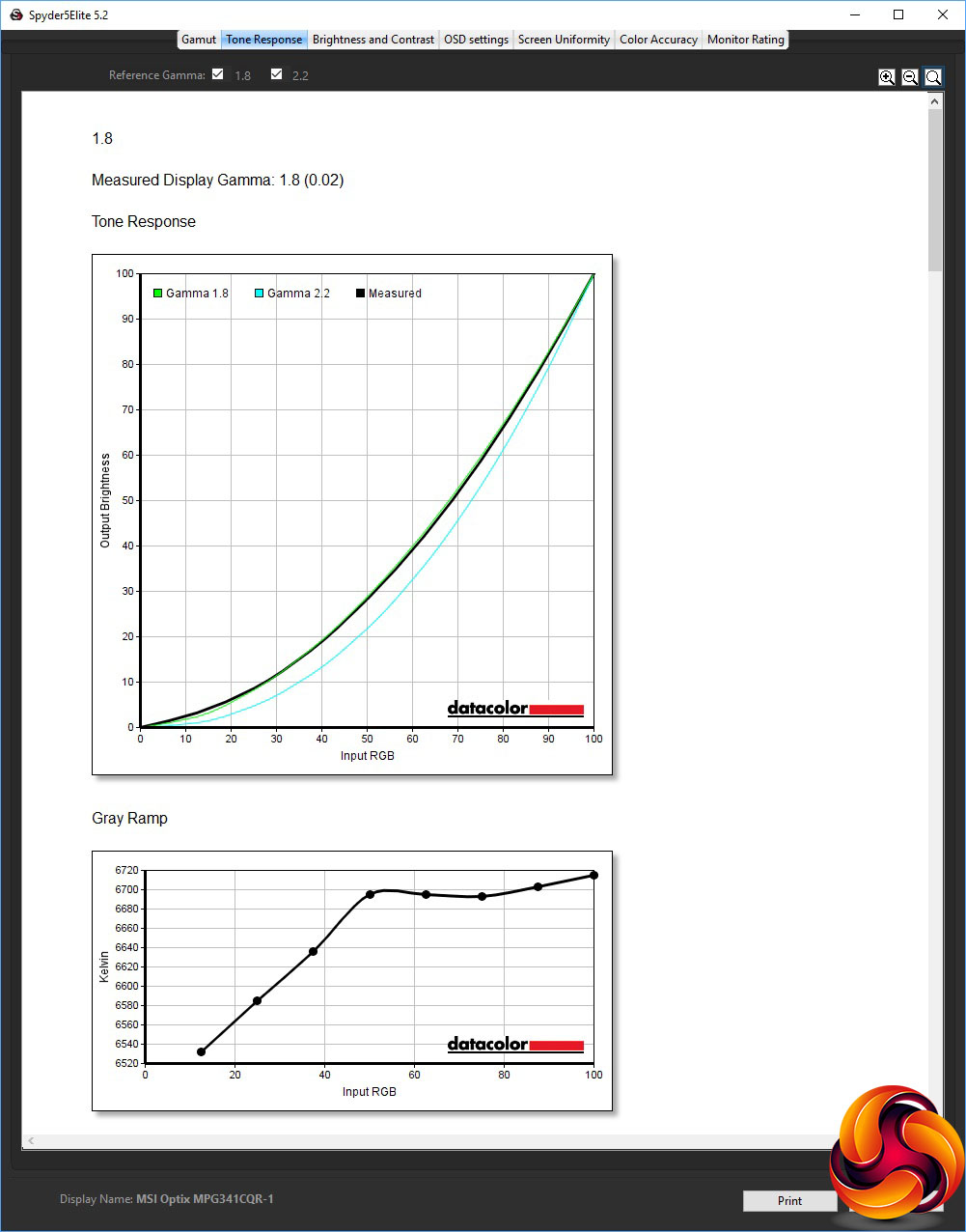
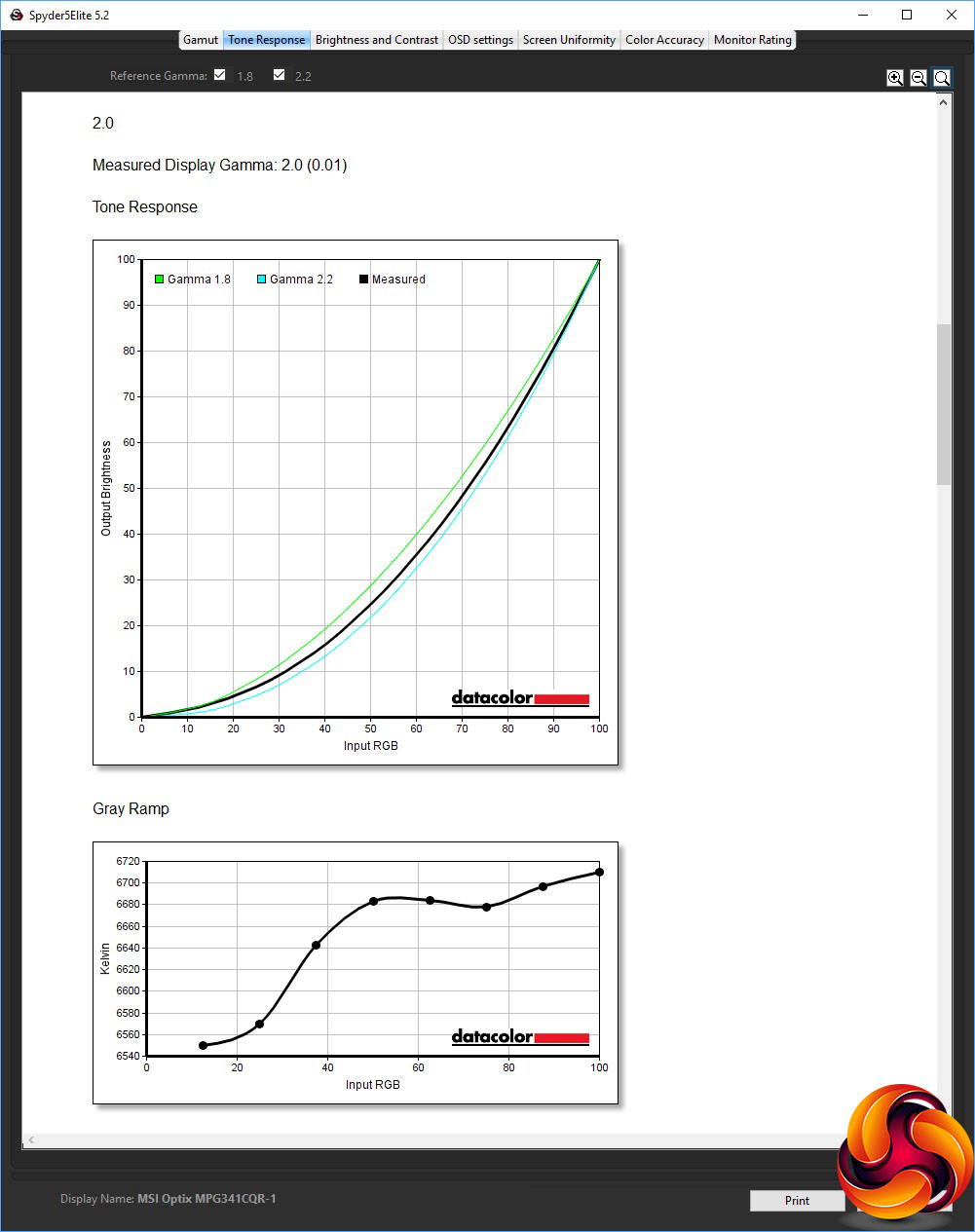
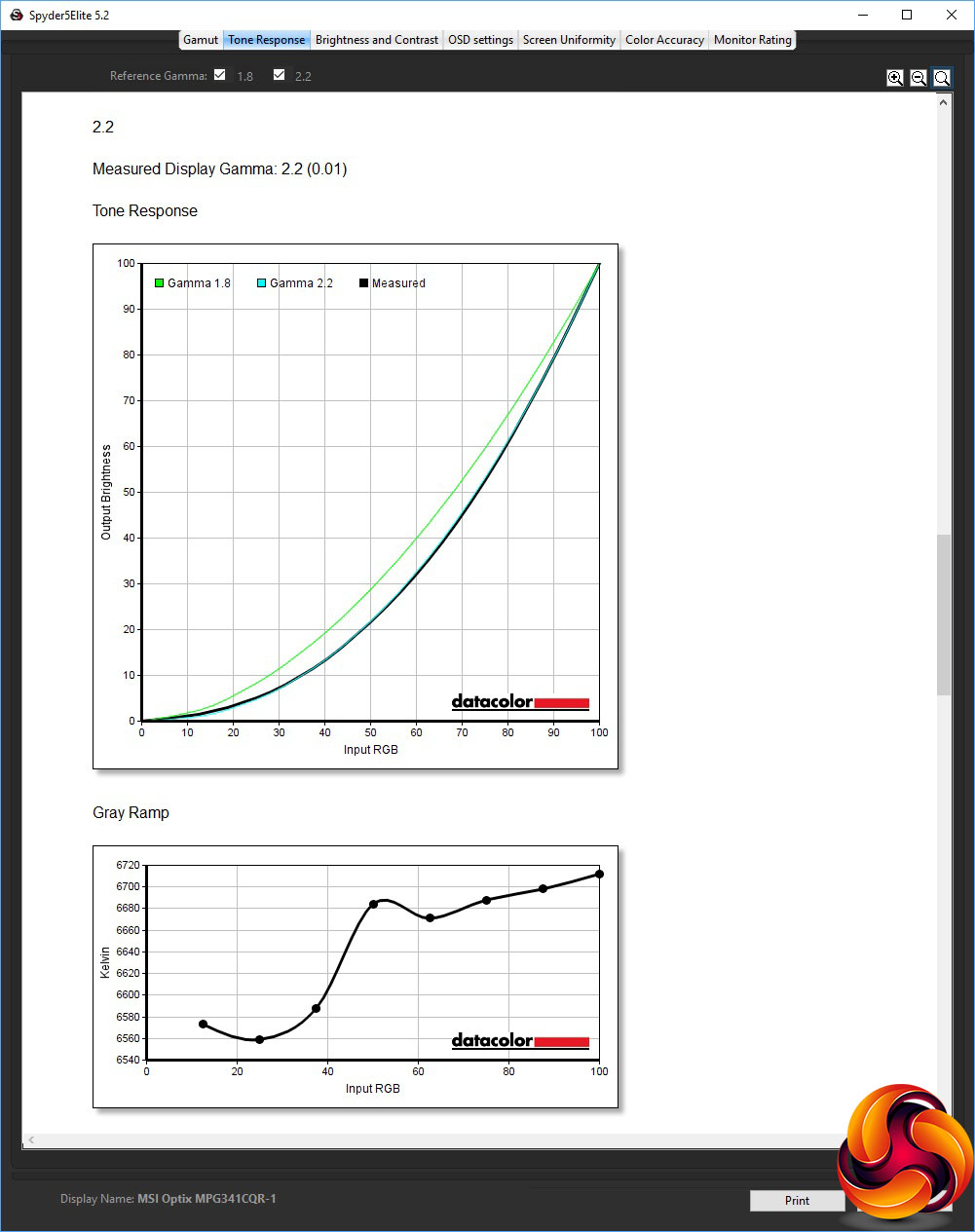
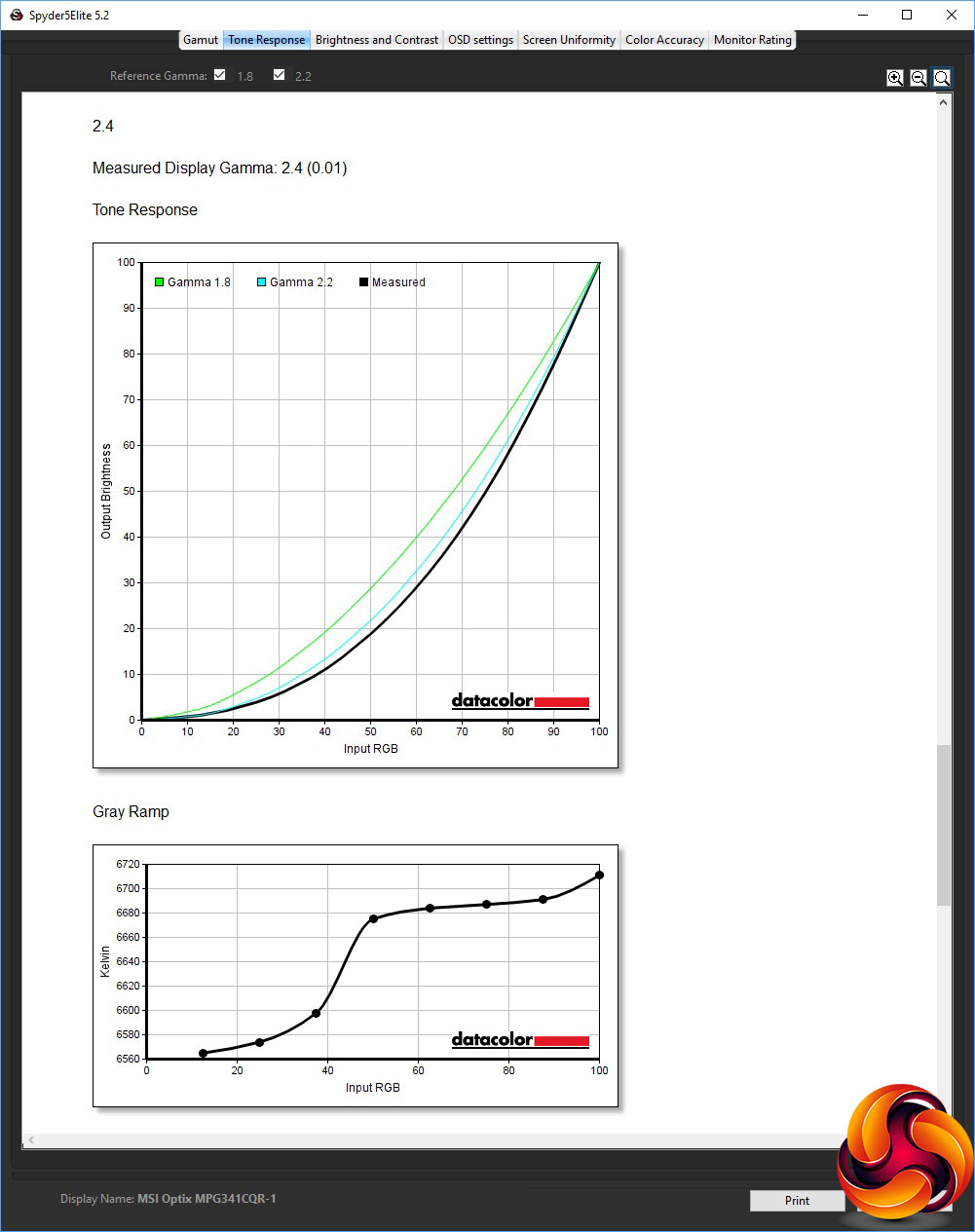
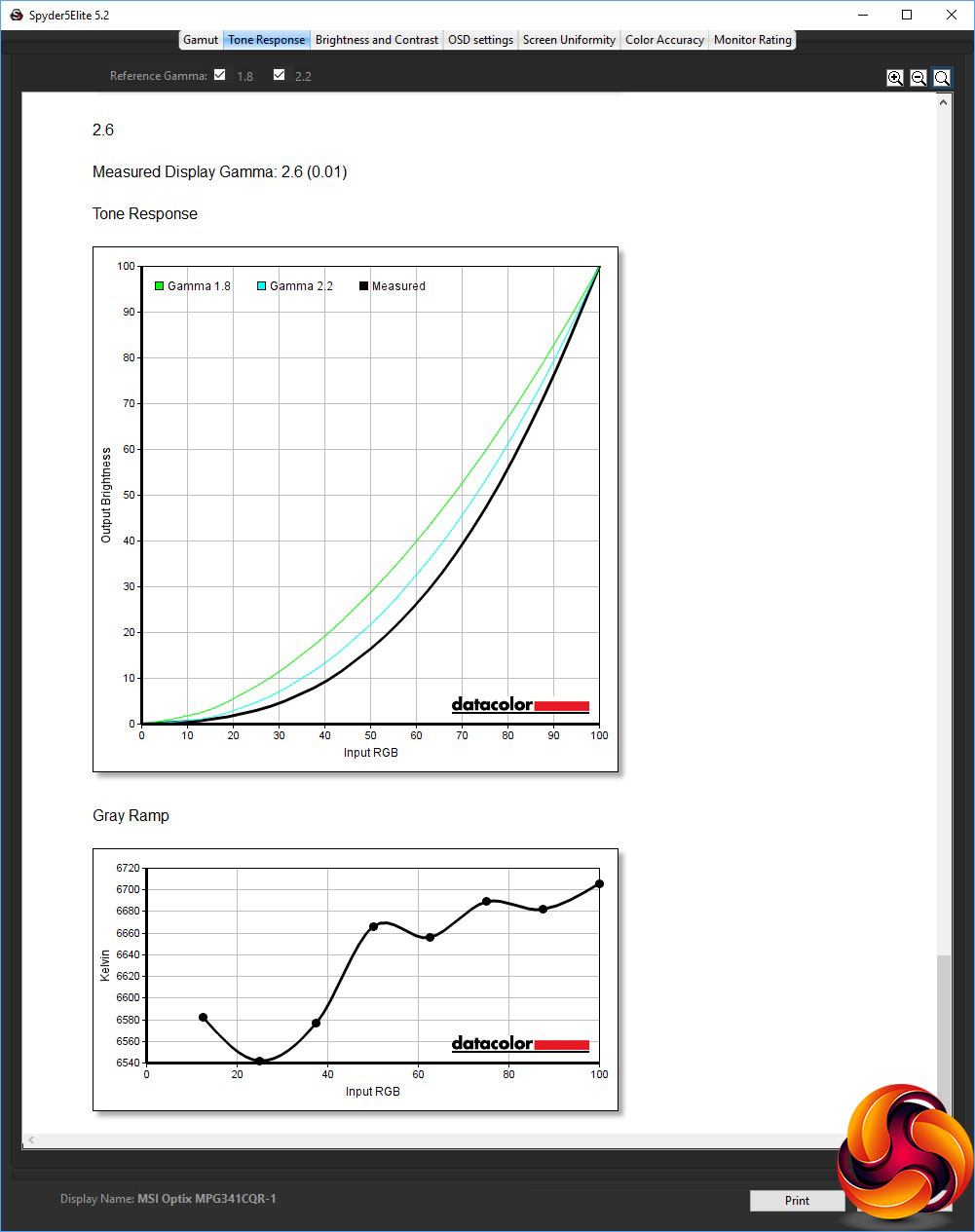
The gamma modes provide another area where this monitor gives you exactly what you're expecting, with every option hitting the gamma level of its name. The default, unsurprisingly, is 2.2, and it's great to have this range available if you want it.
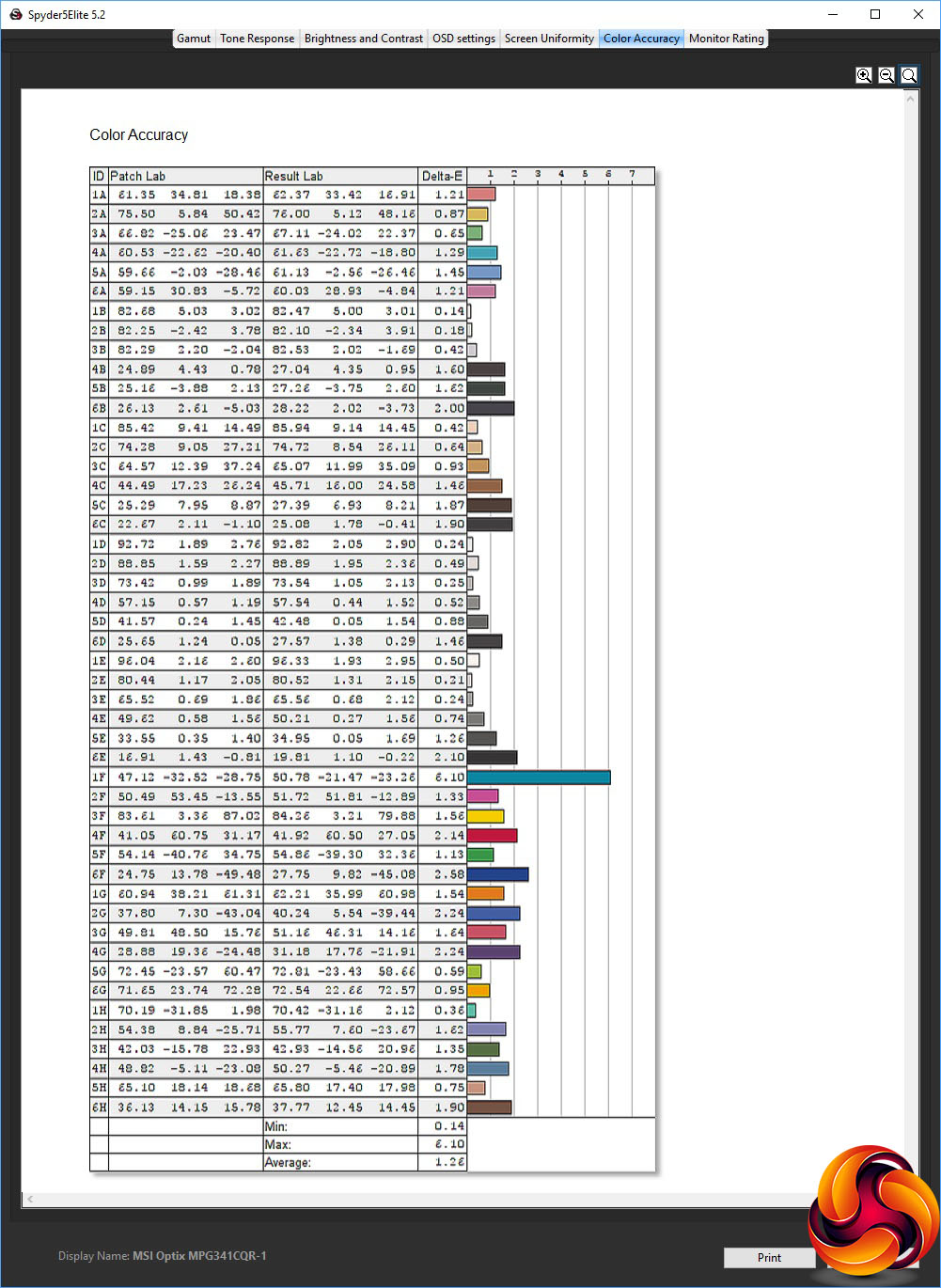
Colour accuracy is another win for the PG35VQ, with an average deviance of just 1.26. We have seen better, but not by much.
Nevertheless, we wanted to see if we could get an improved result with some calibration, so we fired up the Spyder's system to see what it could provide.
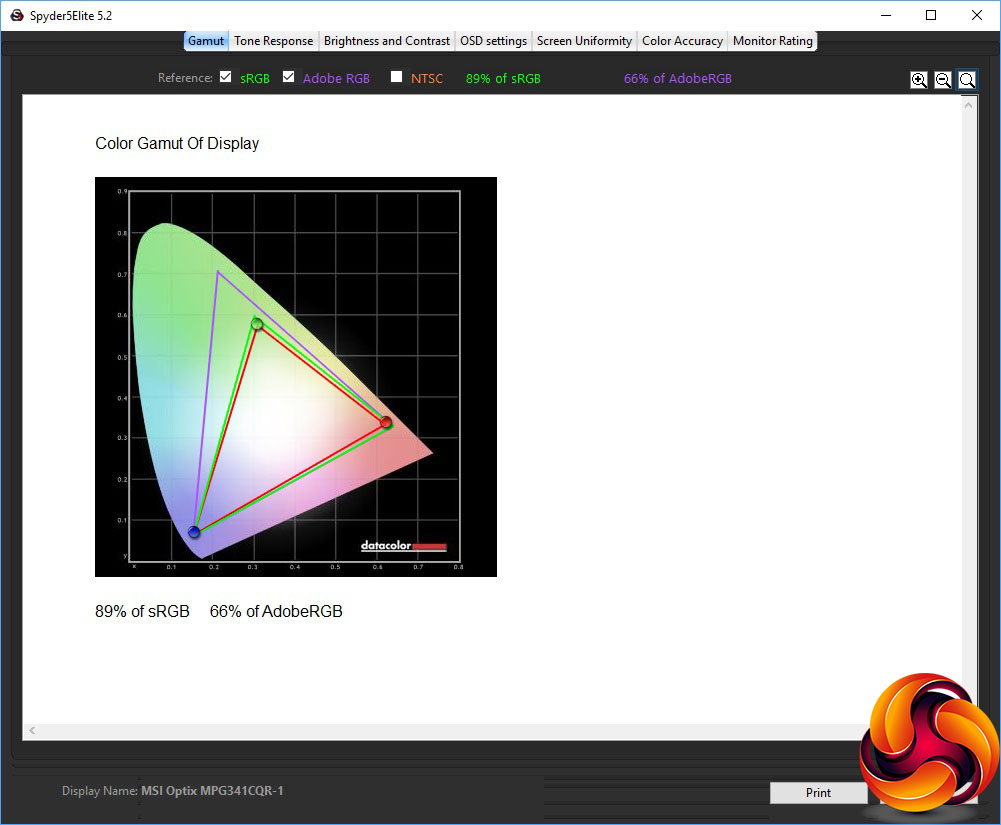
The gamut is just as dismal as it was before, with sRGB and AdobeRGB values that are actually a couple of per cent lower than pre-calibration.
We were very concerned about this result, and tried a bunch of things to try to improve the gamut, including installing our Spyder colorimeter in the NVIDIA-based system. That did improve things a little, but what actually made a real difference was going into the System Setup section and changing the Display SDR Input setting from sRGB to Wide Gamut. This is supposed to be for Mac OS systems, but the results were a revelation.
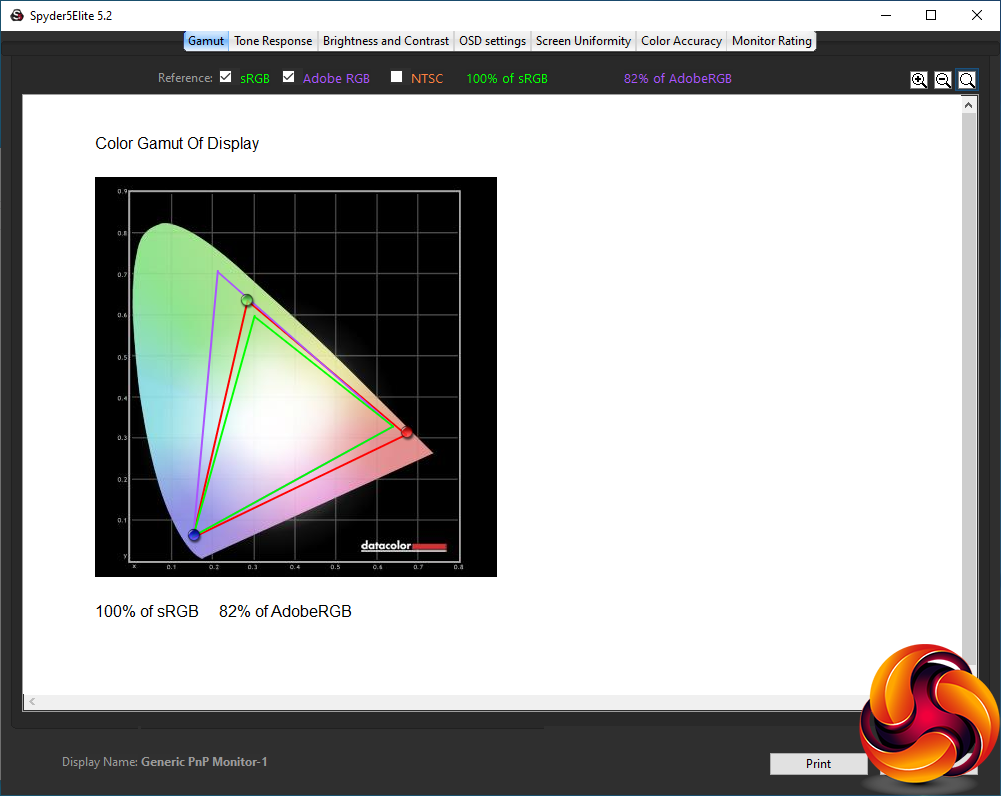
As you can see, we now have 100 per cent of sRGB and 82 per cent of AdobeRGB – a very good result and what we would have expected from this monitor in the first place. We have told ASUS about our findings and they are currently working on a fix for this issue. Either way, if you buy this monitor, switch it to Wide Gamut whether you're using a Mac or not.
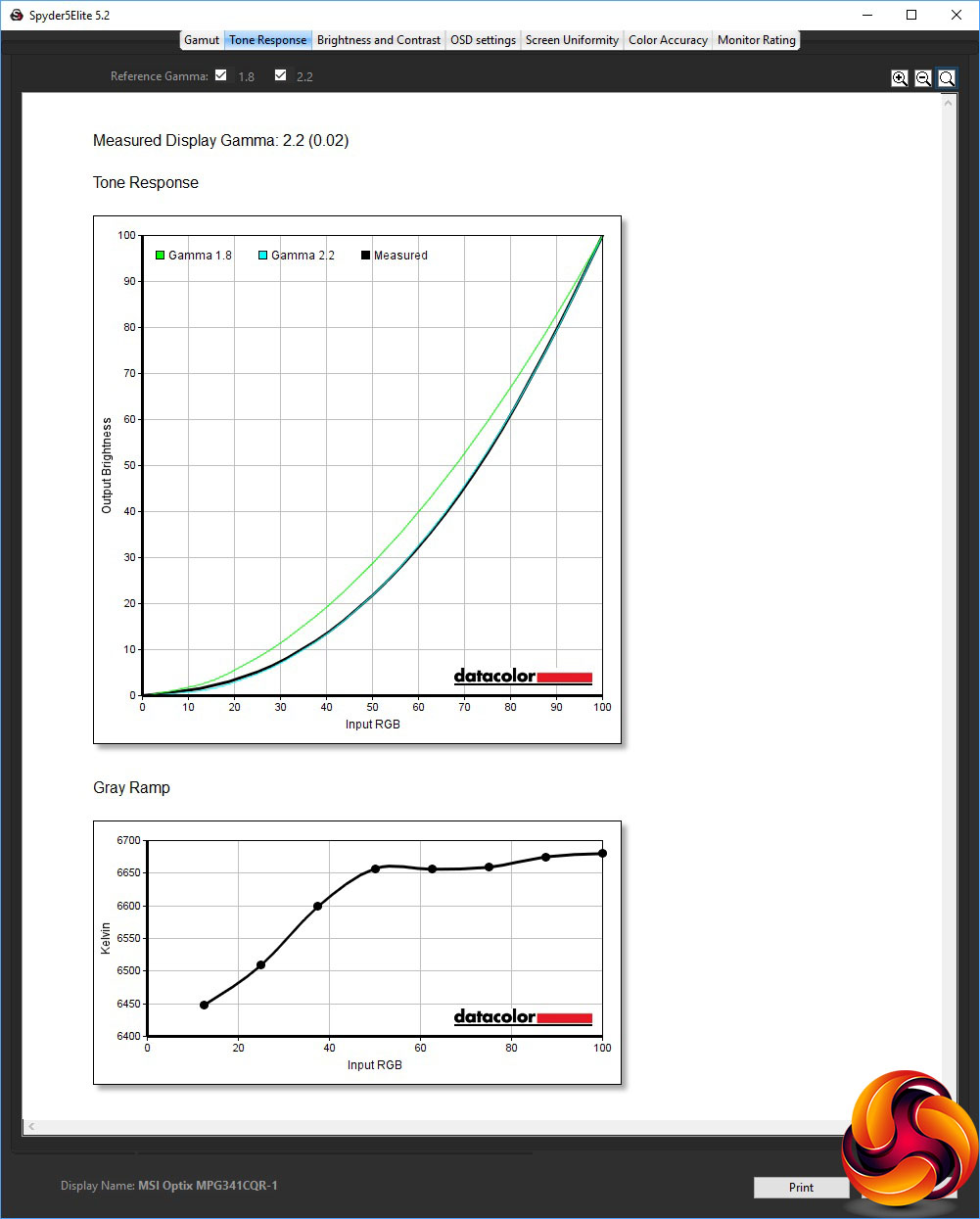
We only retested the 2.2 gamma setting, which remained bang on 2.2.
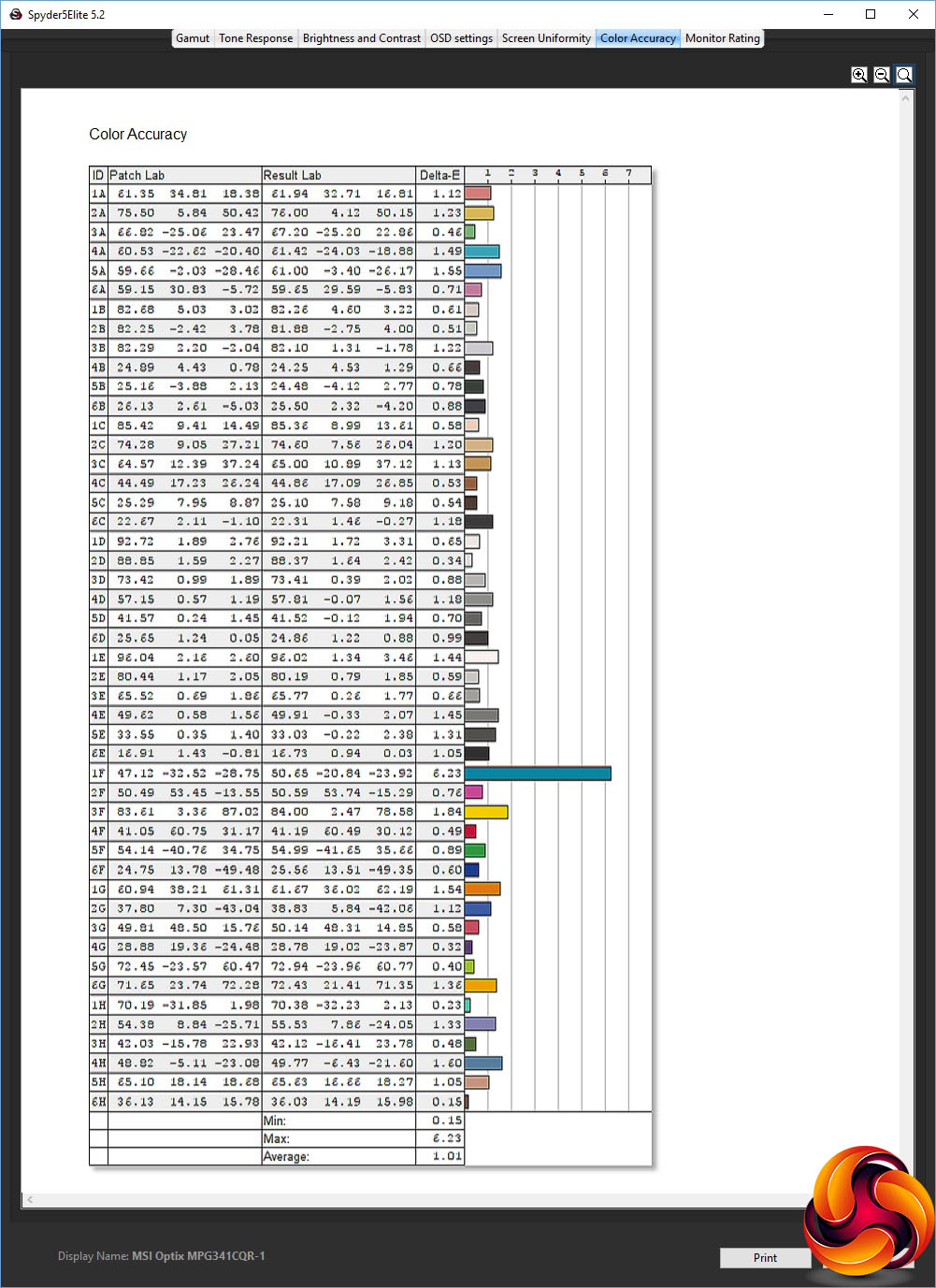
Colour accuracy was even better, with an average deviation of 1.01. The best scores we have seen have been around 0.8, so this is up there with the very best we have ever tested.
Of course, gaming is where this screen is in its elements. We were lucky enough to have a system sporting NVIDIA GeForce RTX 2080 Ti graphics in the lab for some of our test period (and also a 28-core Xeon CPU), so hooked that up to the ASUS ROG SWIFT PG35QV via DisplayPort and tried CS:GO, Shadow Warrior 2 and Rainbow Six Siege with the FPS present, and League of Legends with the RTS/RPG preset.
The screen size is great for a game like LOL, but it was the shooters that really benefited. With the 200Hz maximum refresh allied with NVIDIA G-sync, the screen delivered silky-smooth frame rates, with CS:GO in particularly getting up to the maximum regularly and feeling incredibly responsive indeed. You can also give yourself a bit of slightly frowned-upon advantage using the hardware crosshairs and Dark Boost.
Shadow Warrior 2 also supports HDR, and turning on that provided a quality boost without any noticeable deficit in terms of smooth frame rates. Admittedly, we were using one of the most powerful PC configurations currently available, but if you're going to buy a £2,700 monitor, your gaming system is likely to be similarly top-end.
Overall, apart from the surprising gamut results, this monitor delivers great performance, but the truly unique aspects are the 200Hz refresh and NVIDIA G-sync, which can really deliver if you have powerful enough graphics that can deliver frame rates this high.
The ASUS ROG SWIFT PG35QV is a perfect argument for why the 3,440 x 1,440 ultrawide 21:9 format is fast becoming our favourite screen type. The first monitors we saw with this format forced you to compromise on refresh and gaming features, but the latest batch are just as well specified as their smaller, lower-resolution 16:9 alternatives. With this monitor, you can have it all – humungous desktop real estate, a hugely immersive ultrawide game view, but with the high refresh and enhancements of a true pro gaming screen.
The killer capabilities are 200Hz refresh alongside NVIDIA G-sync Ultimate, which goes beyond the adaptive refresh of regular G-sync to include HDR capabilities at up to 1,000cd/m2 brightness, although with standard dynamic range content the maximum is 500cd/m2, as we found during testing. No other screen we know of provides these features alongside a 21:9 3,440 x 1,440 resolution.
The PG35QV has comprehensive features elsewhere, too. The built-in ESS audio will keep sound quality high if your motherboard's chipset is mediocre, the gaming presets cover the main genres, and you have bonus extras like the FPS counter and hardware-delivered crosshairs. The colour uniformity and spot-on gamma settings indicate a quality panel. However, we would have liked to see the USB 3.0 ports and headphone minijack in a more accessible location than hidden behind removable plastic panel.
Our biggest concern is the bizarre gamut result, which makes no sense for a screen this good in every other respect. But at least you can fix it by changing the settings, and ASUS may have sorted it out soon anyway as our sample was an early one.
Or course, the elephant in the room is the price. For this screen's £2,700, you could get three MSI Optix MPG341CQR monitors. But that model maxes out at 144Hz and doesn't have the NVIDIA G-sync hardware, just FreeSync 2. You simply can't buy a screen with 200Hz NVIDIA G-sync Ultimate and a 35in curved 3,440 x 1,440 resolution for less elsewhere – or at all. In other words, this is going to be a screen that most of us long for. But only a few will be able to afford it.

The ASUS ROG SWIFT PG35QV is available from Overclockers UK for £2,699.99.
Pros:
- 200Hz refresh-rate.
- NVIDIA G-sync Ultimate.
- HDR-10 support up to 1,000cd/m2 brightness.
- Excellent colour accuracy, and even better when calibrated.
- Immersive 35in 3,440 x 1,440 21:9 superwidescreen.
- Curved panel.
- Gaming-focused presets.
- Built-in ESS Sabre HiFi audio DAC.
- Useful extra gaming functions including crosshairs.
- Comprehensive physical adjustment.
- USB 3.0 hub, with convenient side ports.
Cons:
- Incredibly expensive.
- Need to turn on Wide Gamut even if you're not using a Mac.
KitGuru says: The ASUS ROG SWIFT PG35QV sets a new high bar for premium gaming monitors, with silky-smooth 200Hz NVIDIA G-sync Ultimate adaptive refresh in a huge ultrawide format – but you pay an immense amount for the unique ability.