 KitGuru KitGuru.net – Tech News | Hardware News | Hardware Reviews | IOS | Mobile | Gaming | Graphics Cards


The Asus ROG Swift PG348Q is the company’s first 21:9 ultra-widescreen gaming display, entering a nascent section of the displays market, but one that’s growing rapidly. It could make quite a splash though, as it has a 34-inch IPS screen and a native resolution of 3,440 x 1,440, with Nvidia G-Sync support and a maximum overclocked refresh rate of 100Hz. Not to mention a highly unusual, eye catching design.
Asus has recently adopted an interesting approach to the appearance of some of its products. The safe and same approach has gone out of the window, and a new design language has taken over that really makes some of its products stand out.
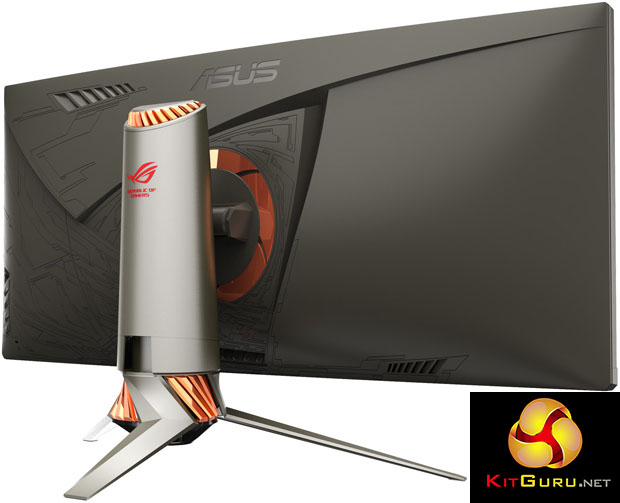
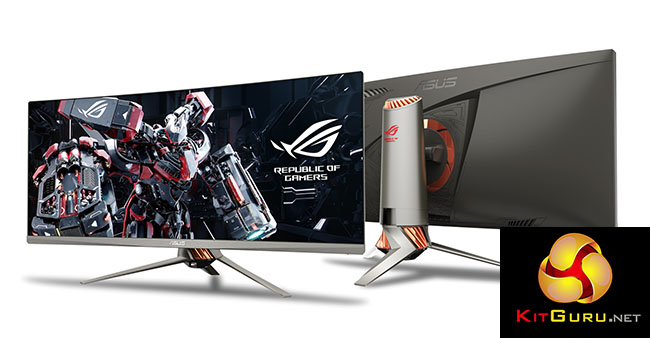
We’ve already seen the Asus RT-AC5300 (Review HERE), which is a rather bizarre looking 802.11ac router. Now we have the ROG Swift PG348Q, a curved 34-inch ultra-wide display with a 21:9 aspect ratio, and what is possibly the boldest looking monitor design we’ve seen.
Decked out in a mid grey and orange colour scheme, christened ‘Plasma Copper’ and ‘Titanium Armor’ by Asus, there are metal sections that look like cylinders and a stand that’s shaped like a blade, all of which gives contributes to a strikingly futuristic and industrial appearance.
Display technology is going through something of a renaissance right now. Advancements in panel quality, affordable 4K screens and refresh rates beyond 60Hz mean a monitor is the centre of a PC specification, no longer the last thing to be added to a shopping cart when buying a PC.
Manufacturers are simultaneously paying more attention to the design and appearance of displays as well. Acer in particular is stepping up to the mark, with the aggressive red and black appearance of the Acer Predator Z35 (Review HERE). Asus is clearly trying to match, or even beat its arch rival’s bold design.
Besides its unusual appearance, the Asus ROG Swift PG348Q has a specification that hits the high notes. It has an IPS panel capable of 10-bit colour processing, achieved with FRC (frame rate control) or dithering, applied to an 8-bit panel. It has a response time of 5 ms and a native resolution of 3,440 x 1,440.
And it supports Nvidia G-Sync, with an overclocked refresh rate that goes up to 100Hz via a setting in the menu.
Specification:
– Screen Size Class (diagonal): 34″ Curved
– Panel Type: IPS
– Aspect Ratio: 21:9
– Resolution: 3440×1440
– Refresh rate: 100Hz (G-SYNC)
– Brightness (typical): 300 cd/m2
– Contrast Ratio(Original): 100M:1
– Response Time: 4ms
– Viewing Angle (CR>10): 178/178
– Connectivity: 1x HDMI & 1x DisplayPort
– Speakers: 2x 2W
– Tilt: Yes
– Height Adjust: Yes
– USB 3.0 Hub
– VESA: 100 x 100
– Warranty: 3yr
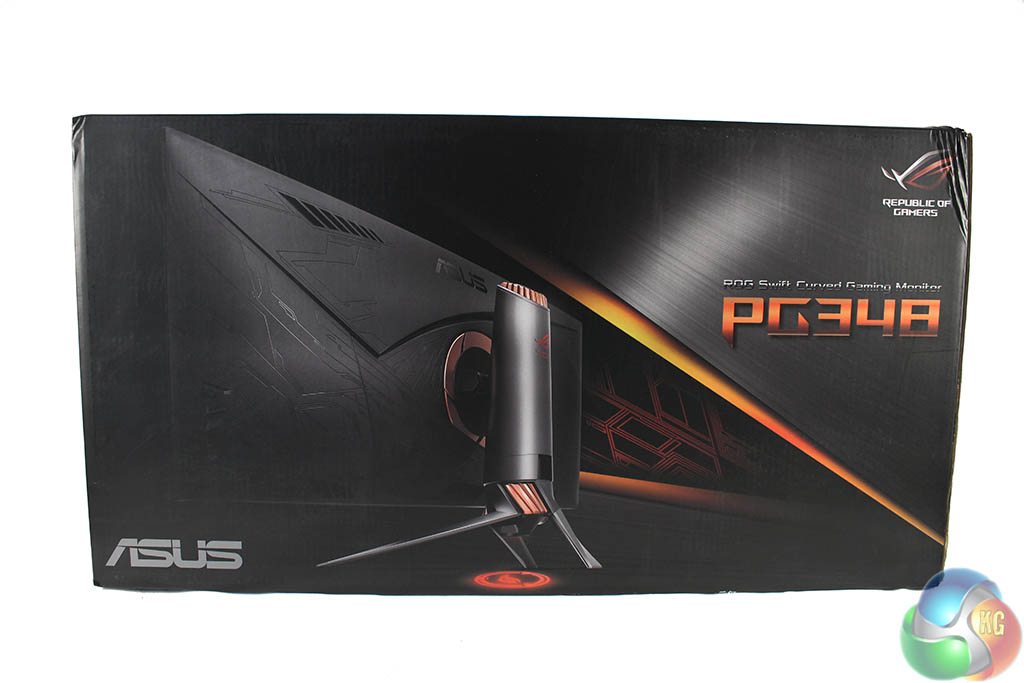
We don’t usually spend time talking about packaging for displays, as it’s generally something even the most ardent nerd would find deeply dull.
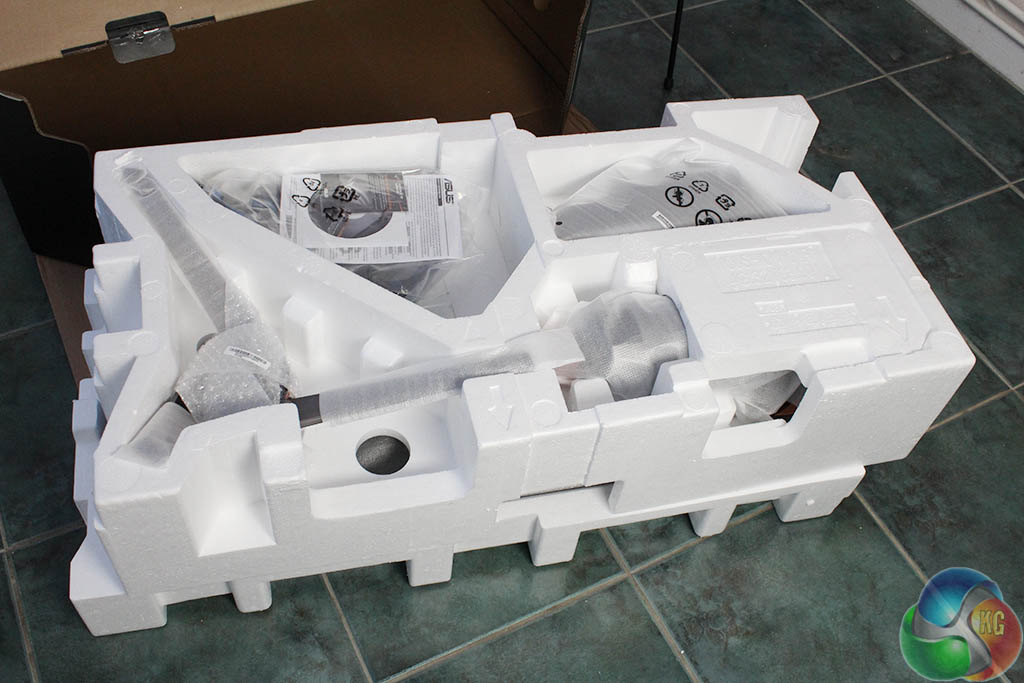
But packaging for such large products is quite a challenge, as it can be for us when assembling them. With most ultra-wide displays, two large pieces of polystyrene are used to encase the screen, with small sections cut out for the cables, accessories and stand.
The trouble is, the screen is so big it can be hard to remove it from the box. The general technique is to lay the box flat and slide the polystyrene out.
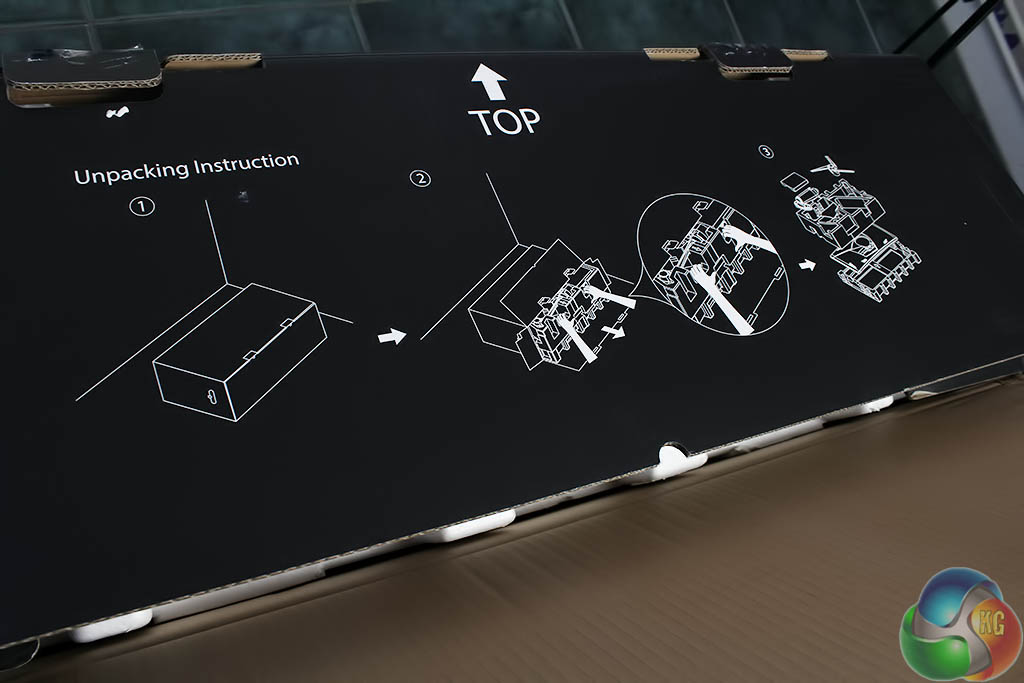
It might not be obvious to anyone who isn’t used to the process, which is why Asus has sensibly printed instructions on the side of the box to show exactly how to remove the screen.
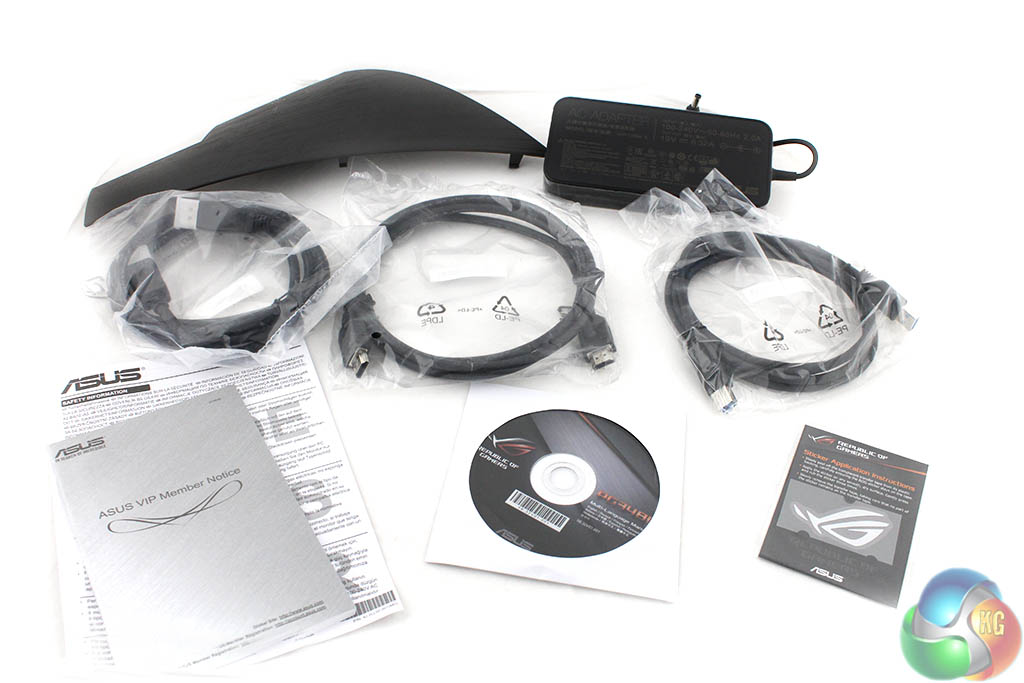
One HDMI cable, one DisplayPort cable and one USB uplink cable are included, with the manual, VIP notice and software CDs included, along with some stickers. There are also two ‘keys’ for attaching the base to the stand, supplied in a small plastic bag.
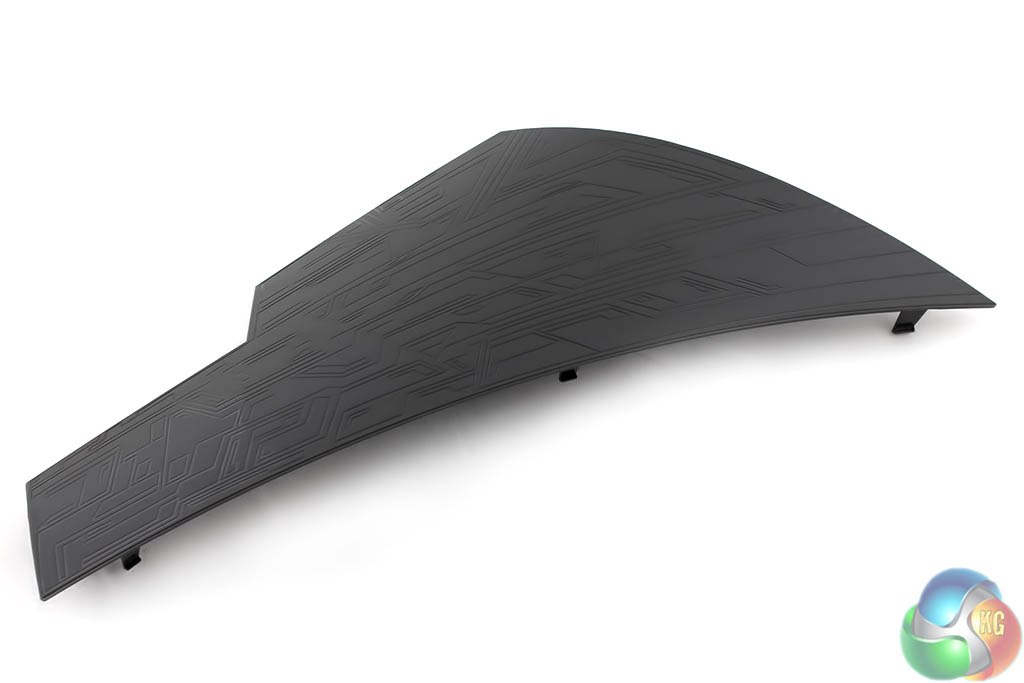
Right at the back, the oddly shaped black thing is a plastic backing plate to cover the rear ports.
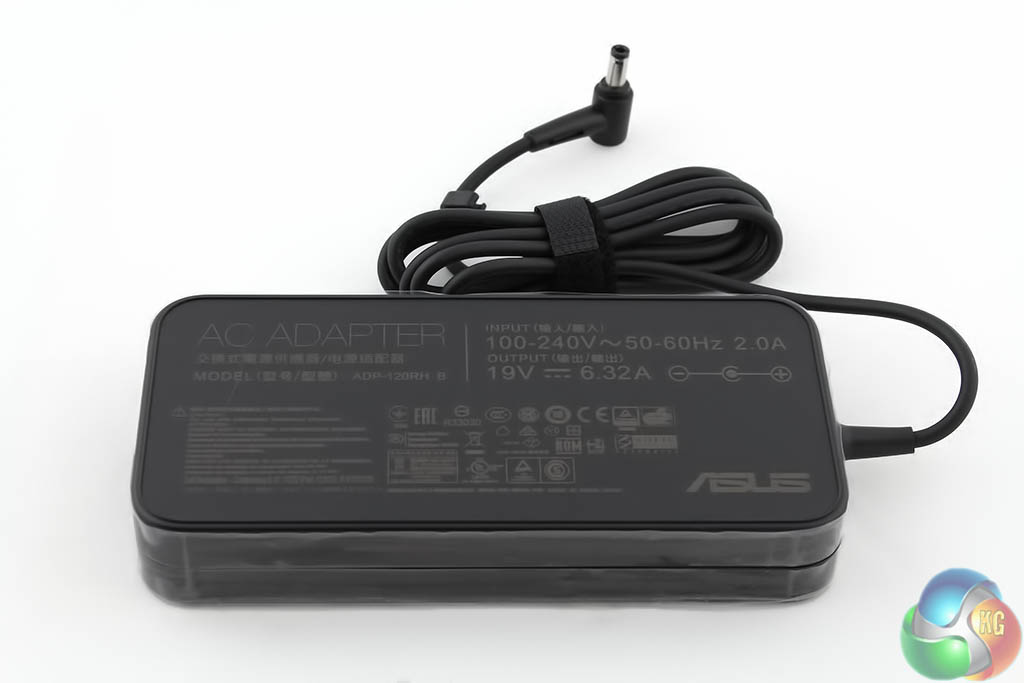
There’s also a relatively slim, unobtrusive power supply. Some bright spark at Asus came up with the idea that by printing some descriptive information on it, it might be easier to find around a crowded desk with multiple power supplies lying around it. A good design choice. Solving first-world problems, one at a time.
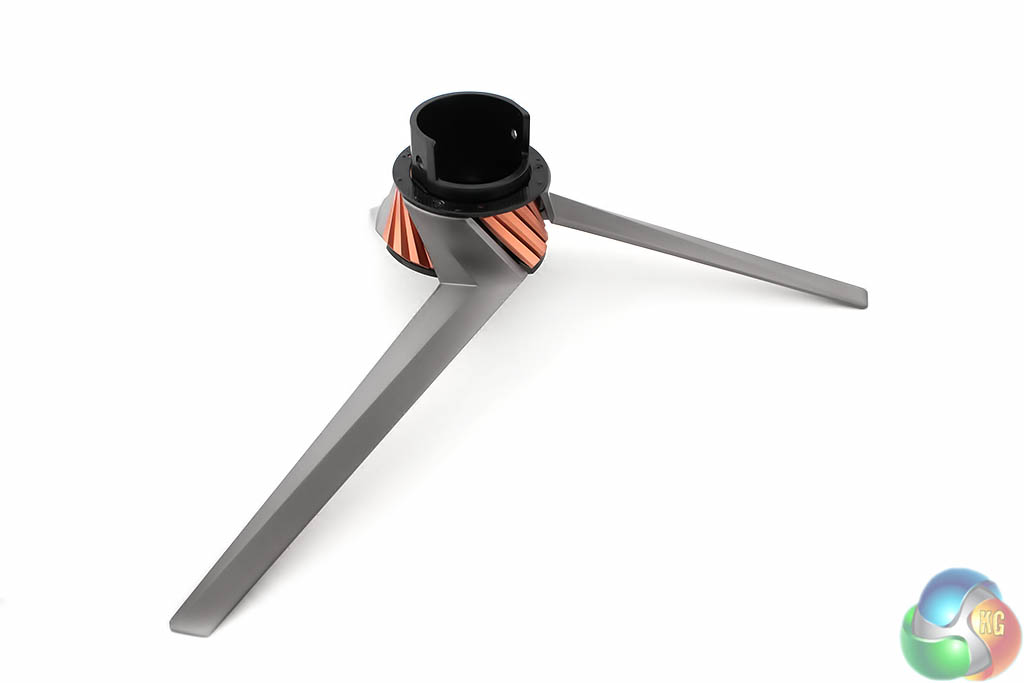
The stand and its base for the Asus ROG Swift PG348Q look quite different to the vast majority of displays.
It has a striking look that’s almost like a wind turbine, or perhaps a blender, with three supporting legs, all of which are different lengths. The shortest of these is mounted nearly vertically.
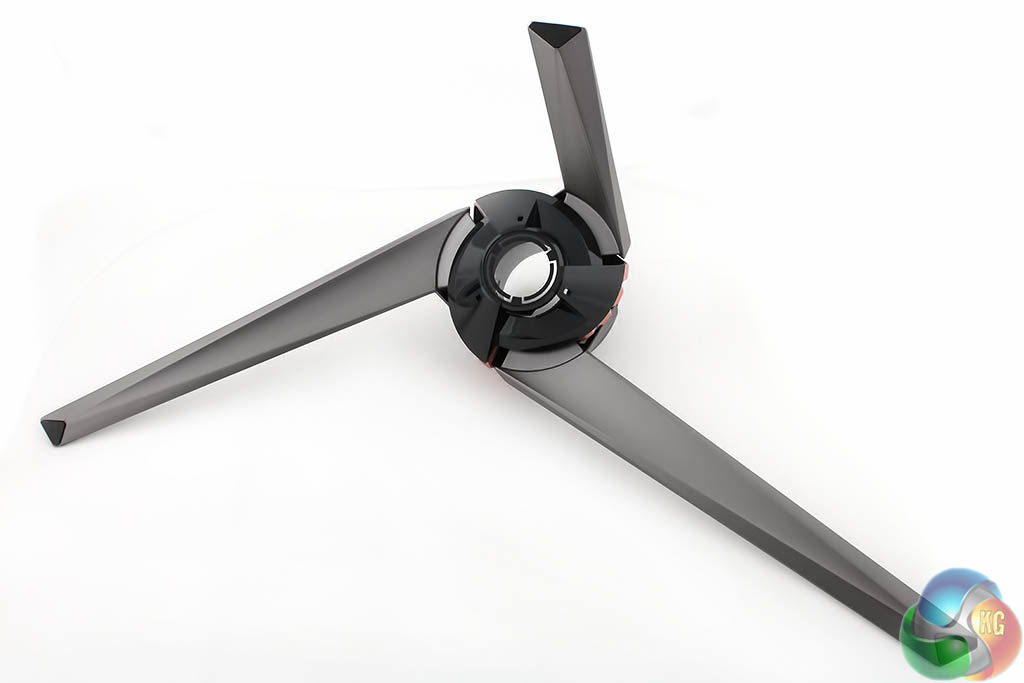
There’s a hole in the middle of it, which is used for the bright red LED on the base of the stand.
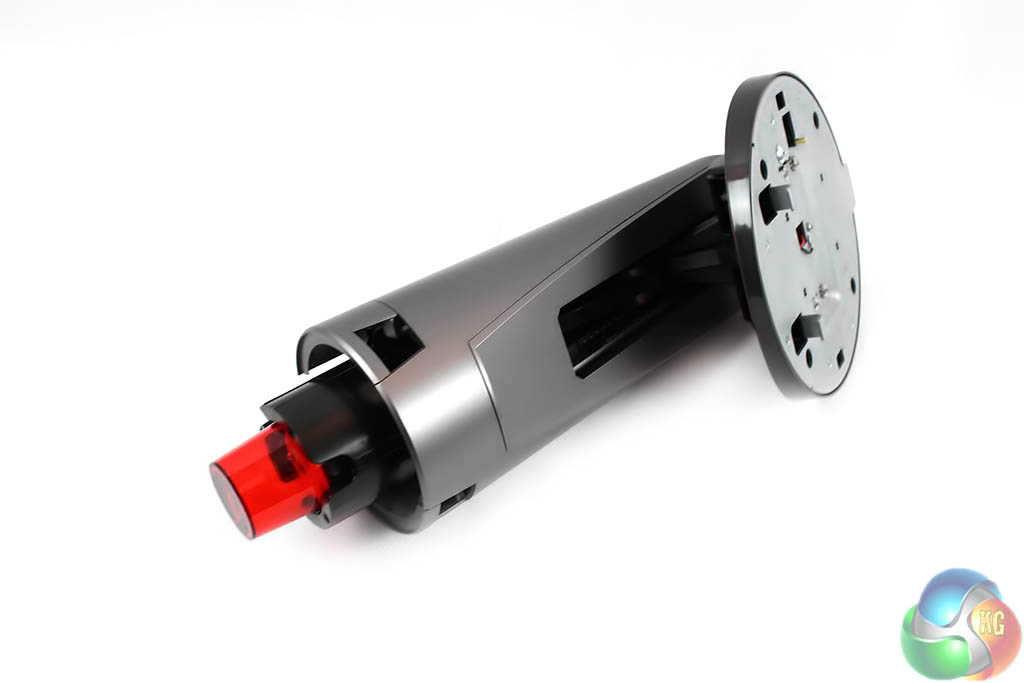
You can see this large LED clearly here.
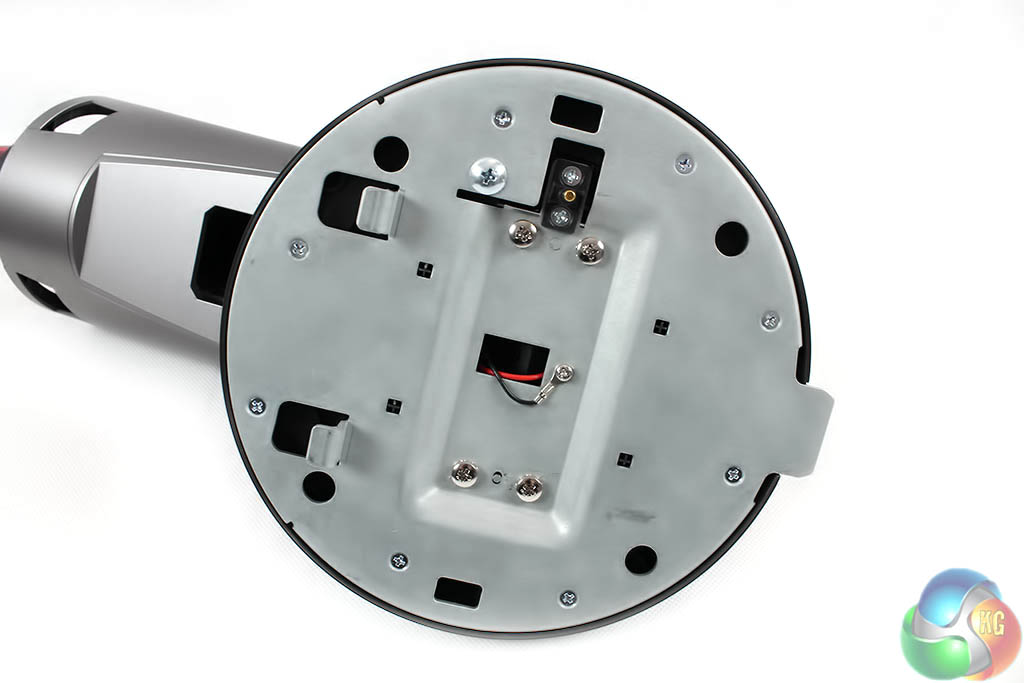
It has to take power from the display itself, and therefore the stand has electrical connectors built into it.
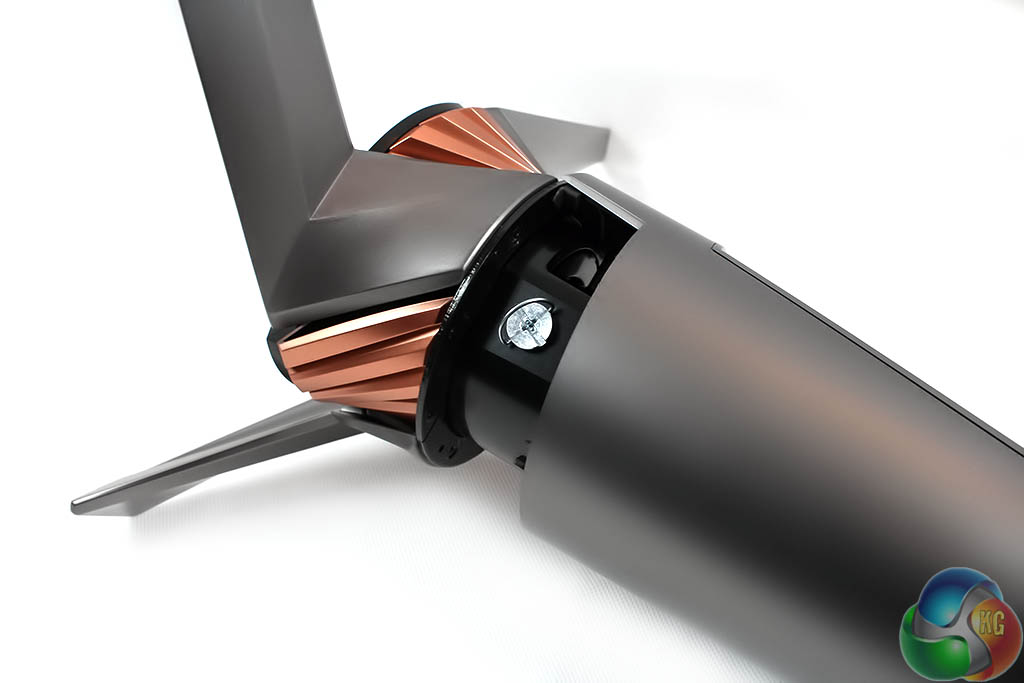
Attaching the stand to its base is a bit tricky though. You have to manually secure it using the two supplied locking keys. To access the holes for these you need to carefully remove the plastic guards at the bottom of the stand. It took us a short time to realise this as it’s not immediately obvious.
The guards snap off by applying a little pressure.
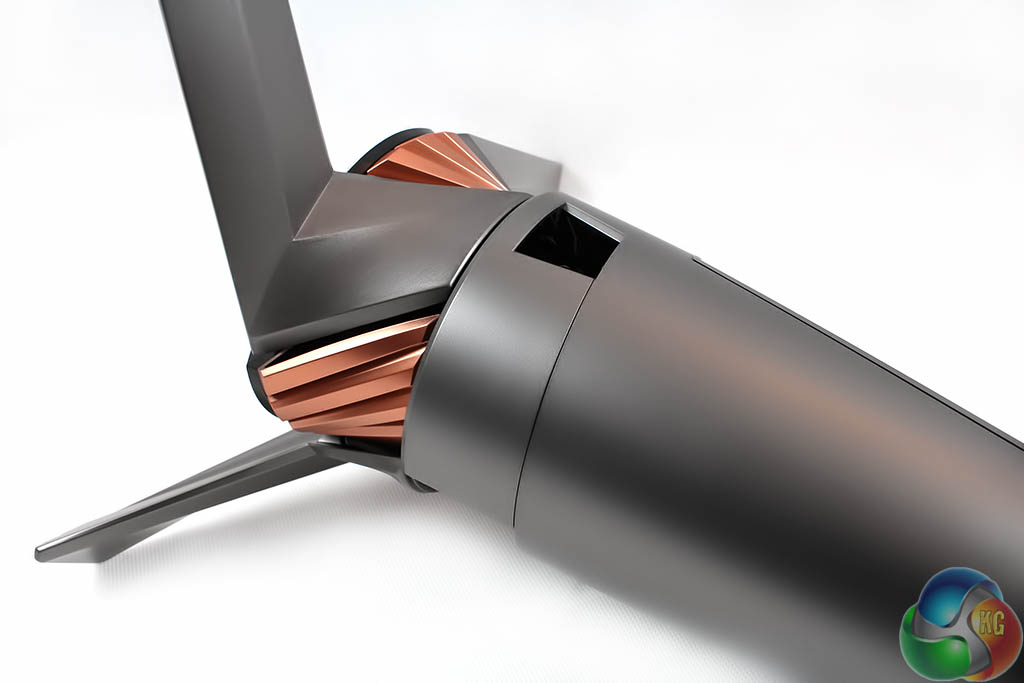
Once the keys are in place and the stand is secure, the plastic covers can be refitted, ensuring the overall look and feel of the Asus ROG Swift PG348Q is maintained.
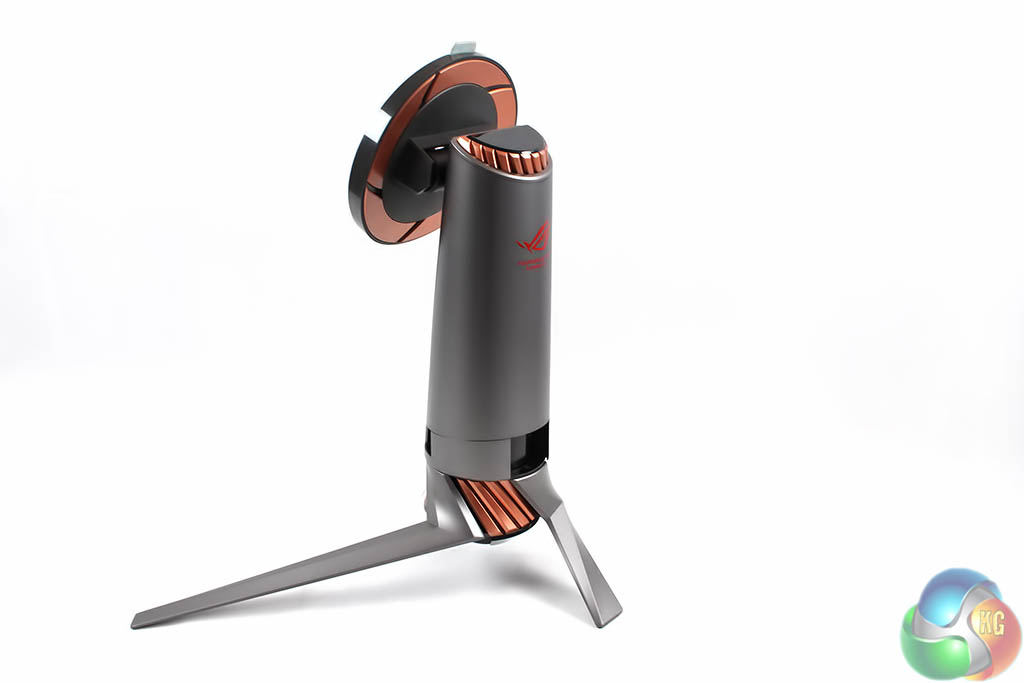
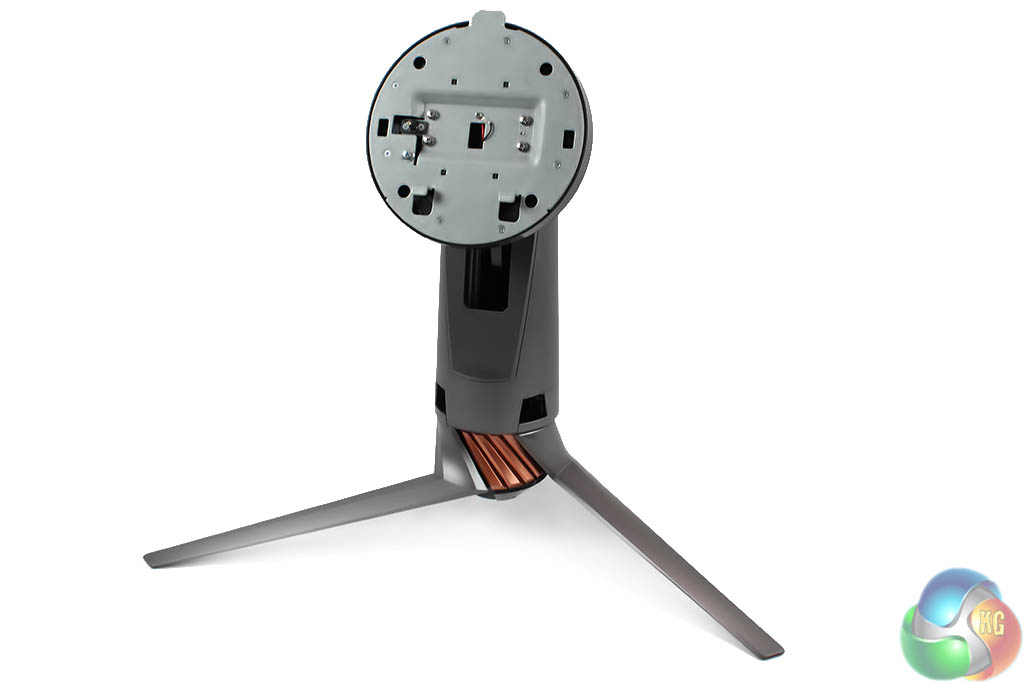
When assembled and sitting upright, the stand reminds us of a sentry gun, such as the one in Team Fortress 2. It’s an interesting look.
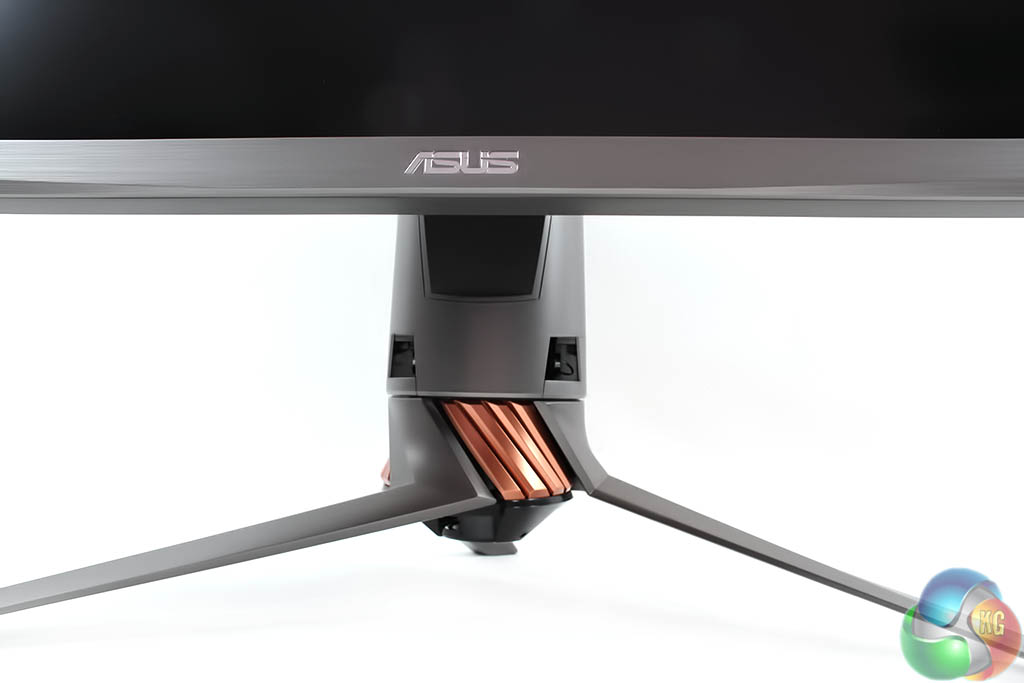
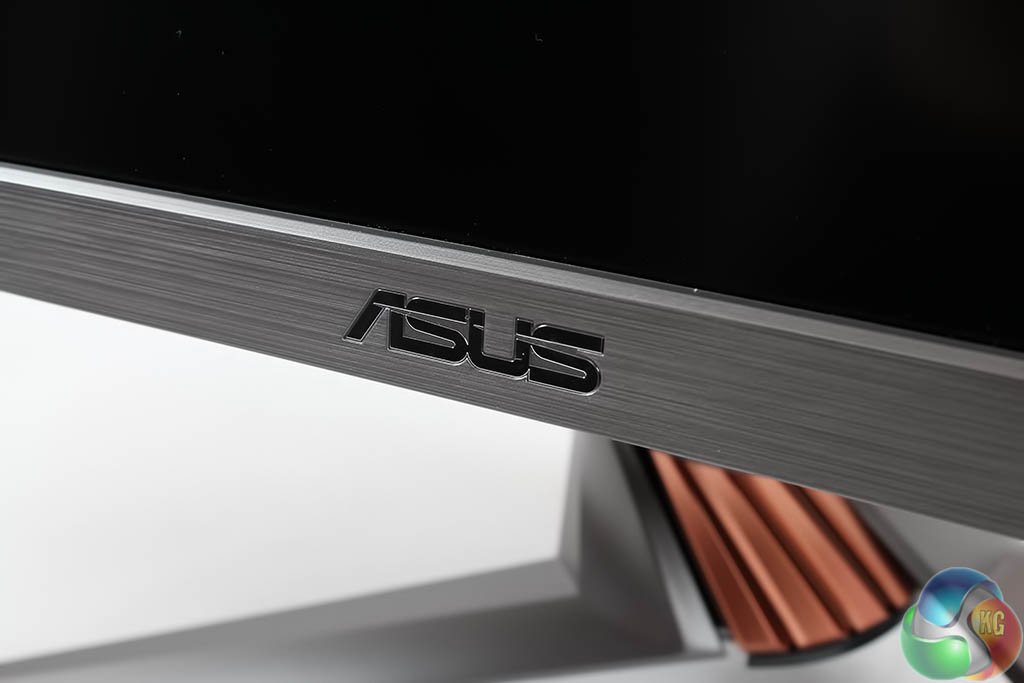
On a desk, the stand looks really good, complimenting the grey bezel.
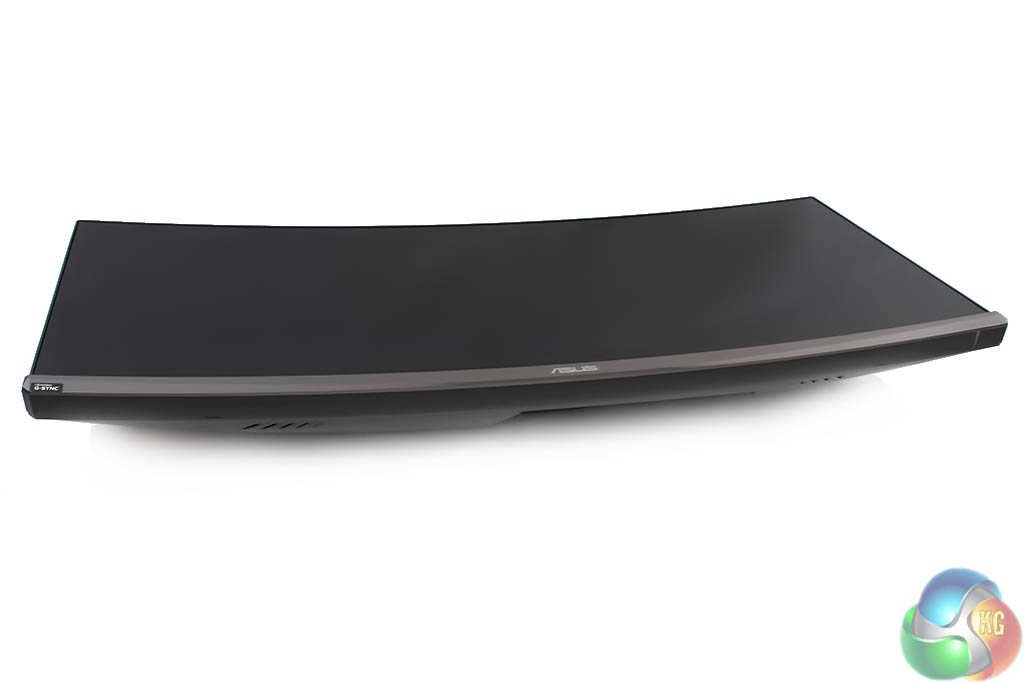
Lying on its back, you can see how big this screen is, and the curvature is clearly visible.
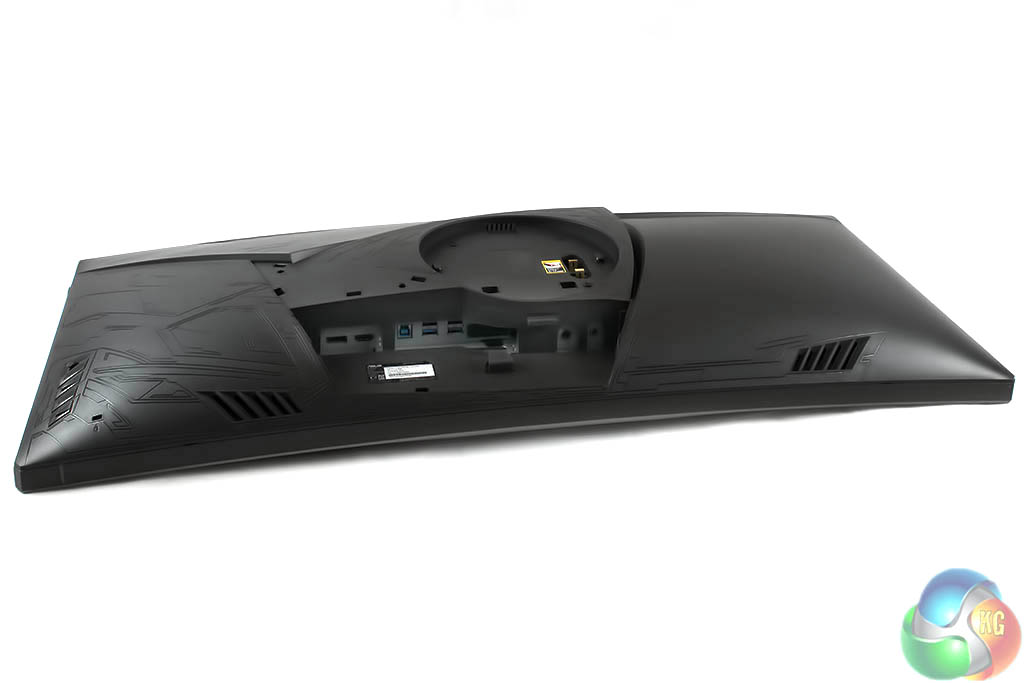
And on the rear you can see some of the detail, such as the lower exhausts and the stand connector.
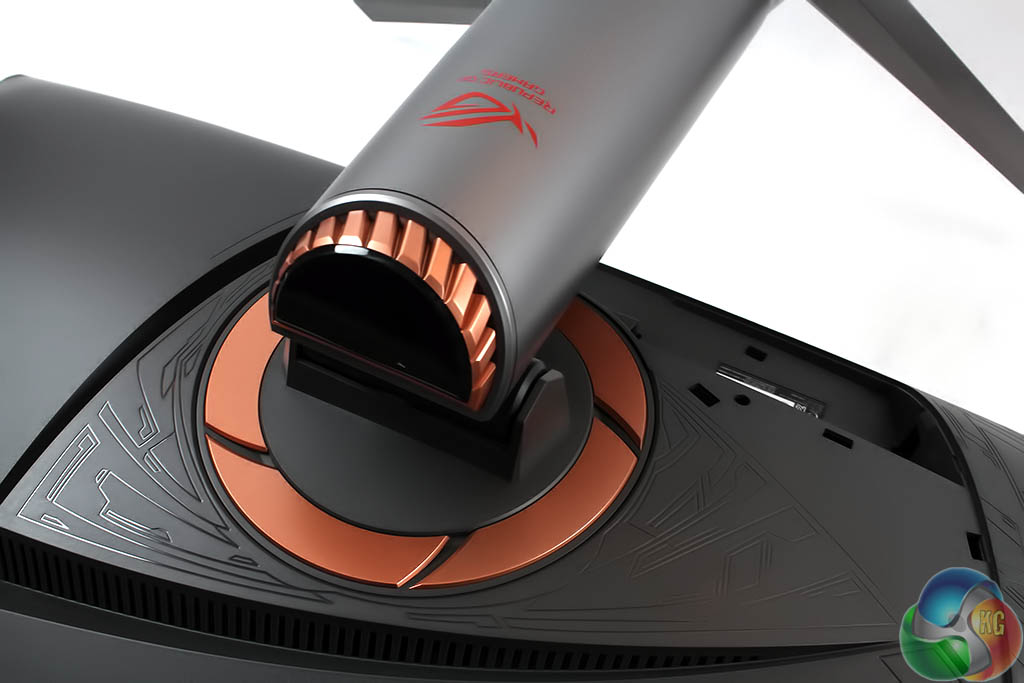
Orange metal surrounds the stand, like spokes on a piece of machinery, along with a metal rim around the point where the stand connects to the screen.
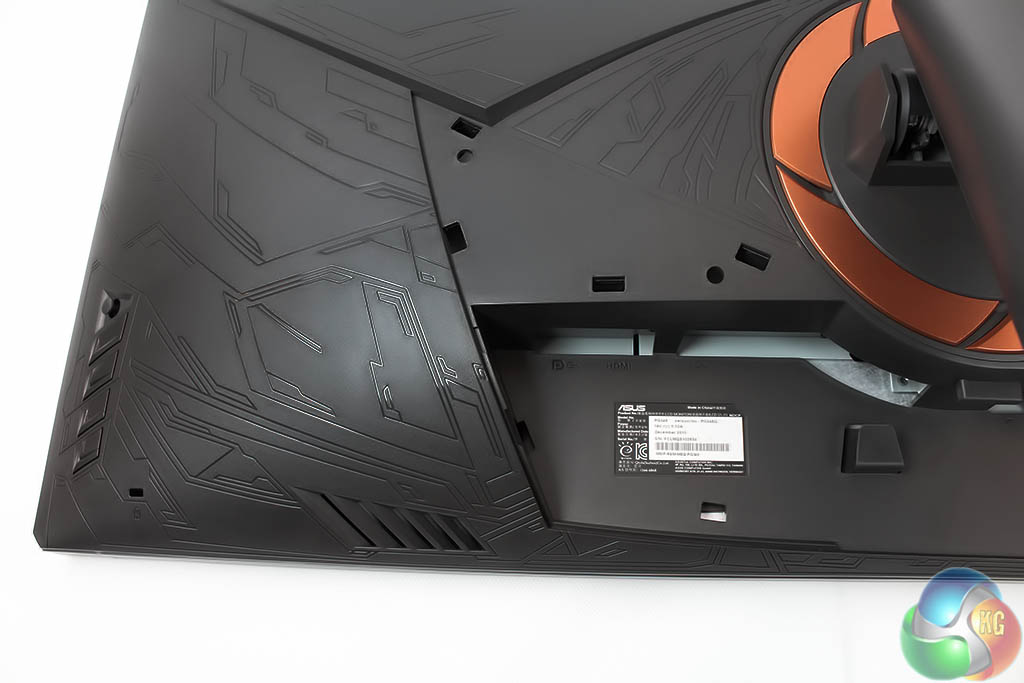
There’s also an attractive patterned design over the rear casing of the screen. At first glance, we think it’s resembles the markings on some Hollywood alien spaceship.
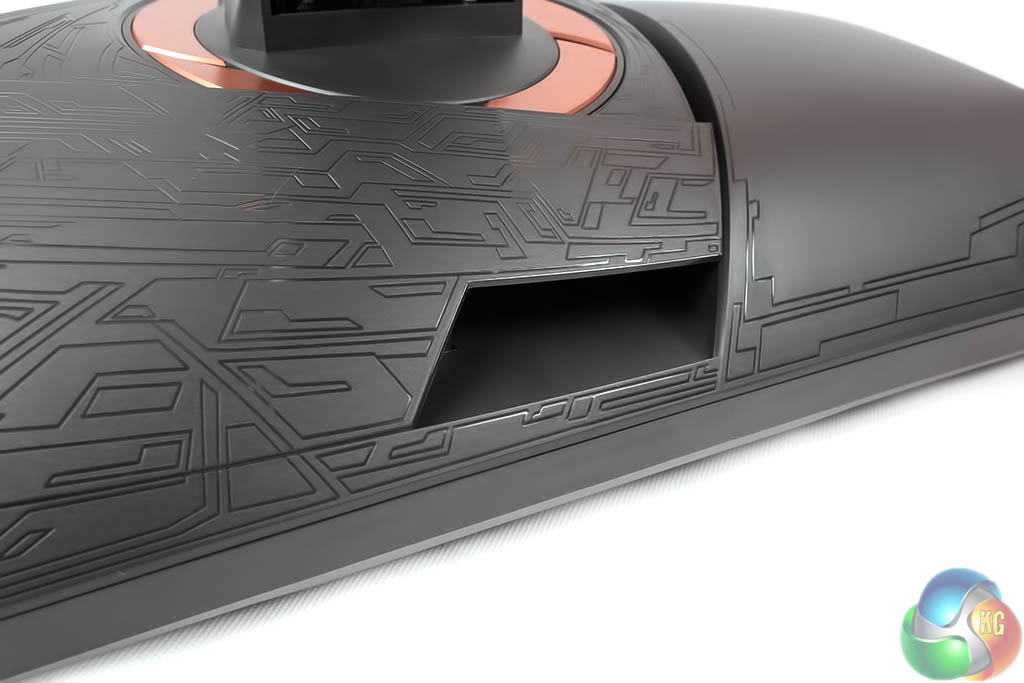
With the plastic guard placed over the ports at the back, this pattern covers the entire rear of the display, and it looks very good indeed.
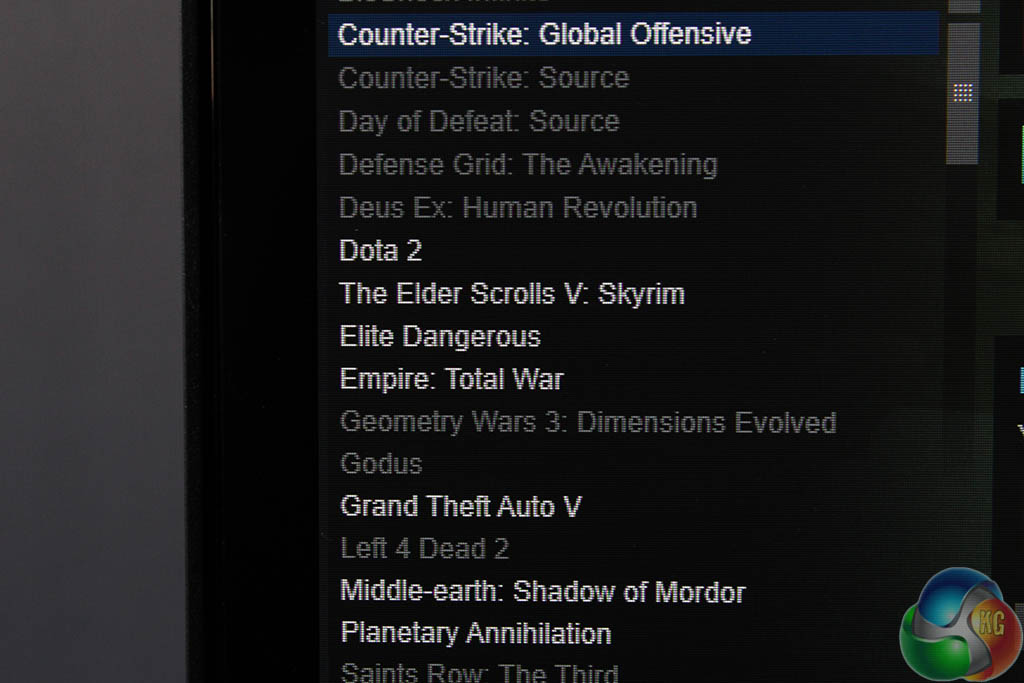
It’s all worth pointing out the exceptionally thin bezel, only a few mm in length. Great to see, but there is a small black strip that separates the bezel and that display area, clearly visible in this shot.
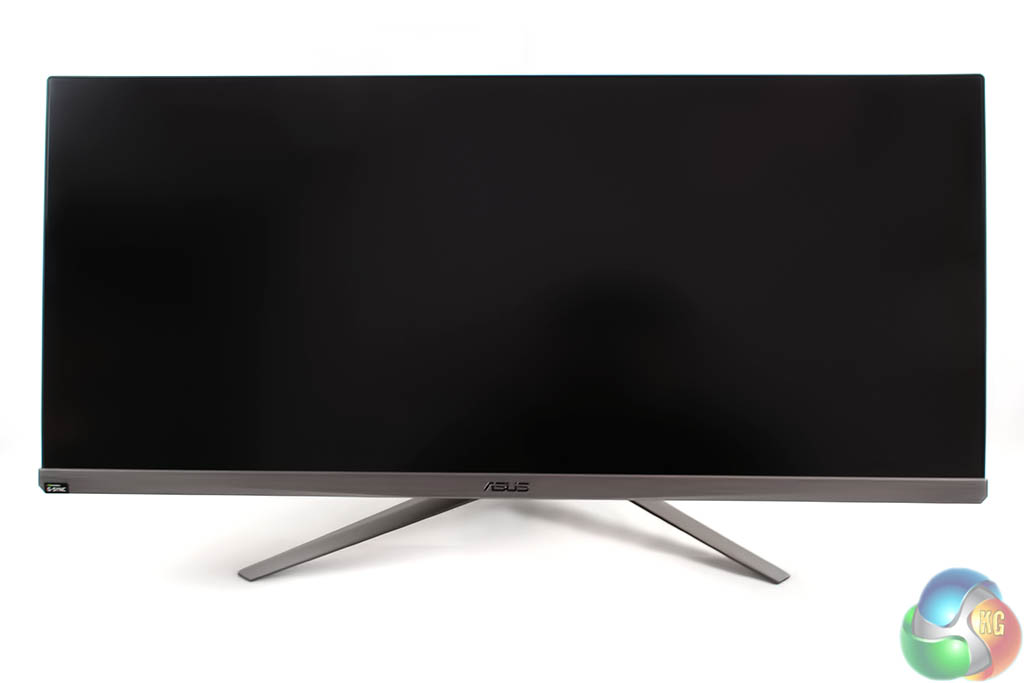
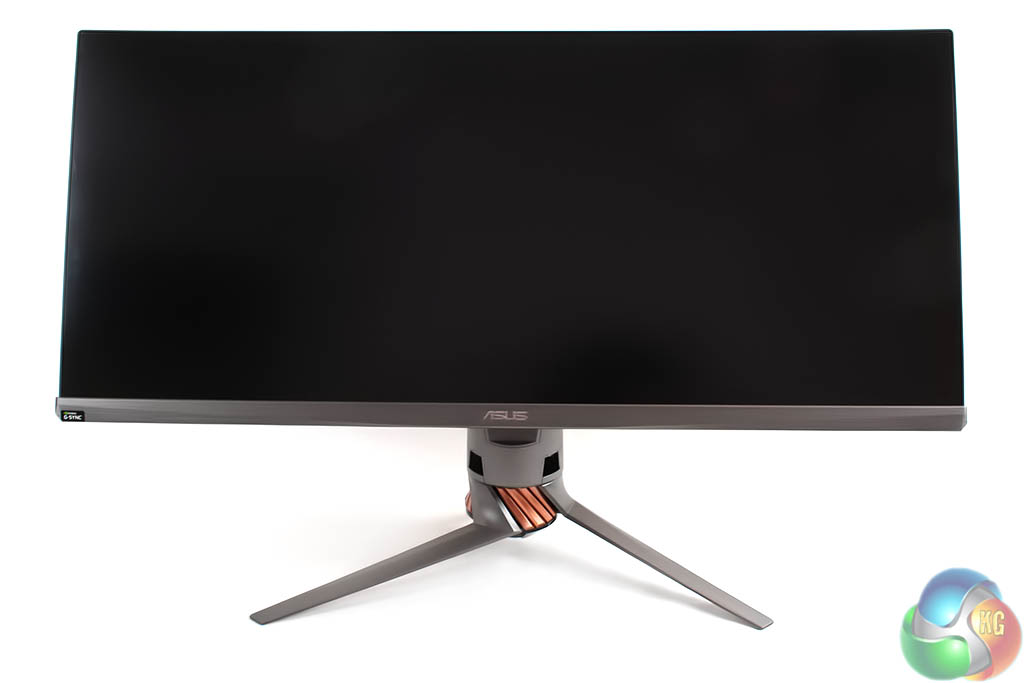
One neat aspect of the Asus ROG Swift PG348Q is that it has the most flexible stand we’ve seen in a 21:9 display. It can be raised and lowered tilted backwards and forwards…
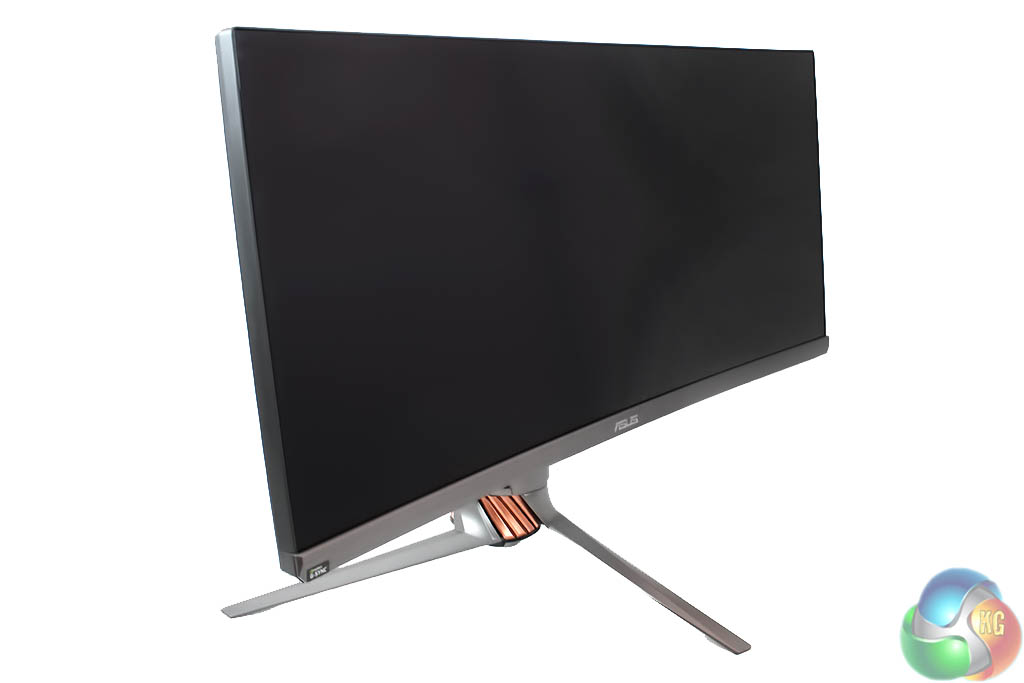
And rotated on the spot.
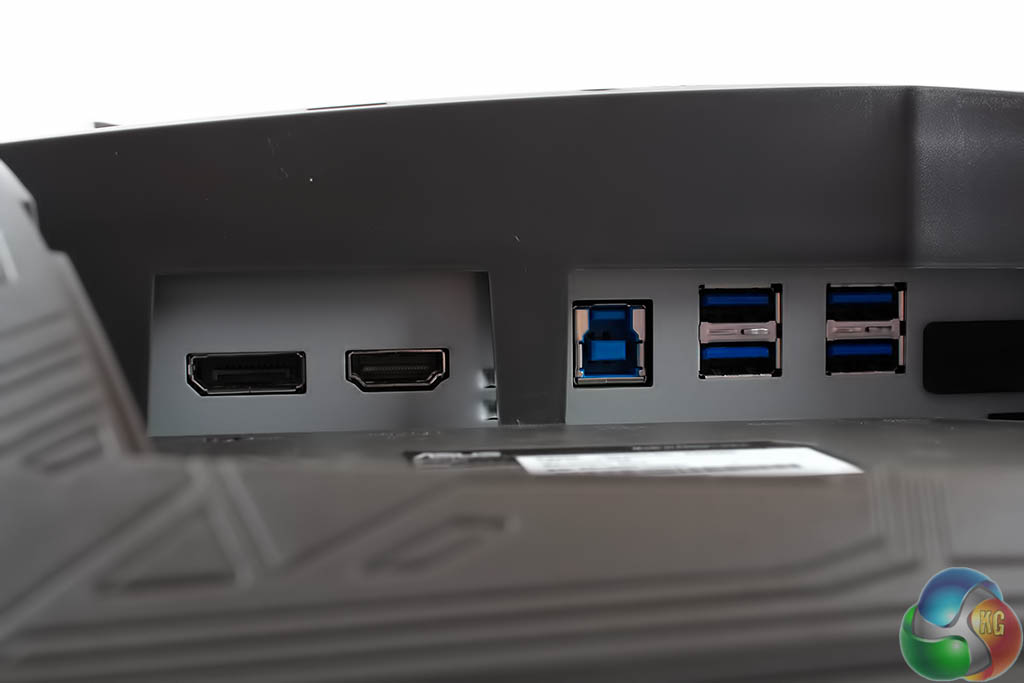
There are four USB 3 ports located under the display, along with DisplayPort 1.2 and HDMI 1.4. As it’s a G-Sync 2.0 display, it’s not possible for Asus to add additional ports.
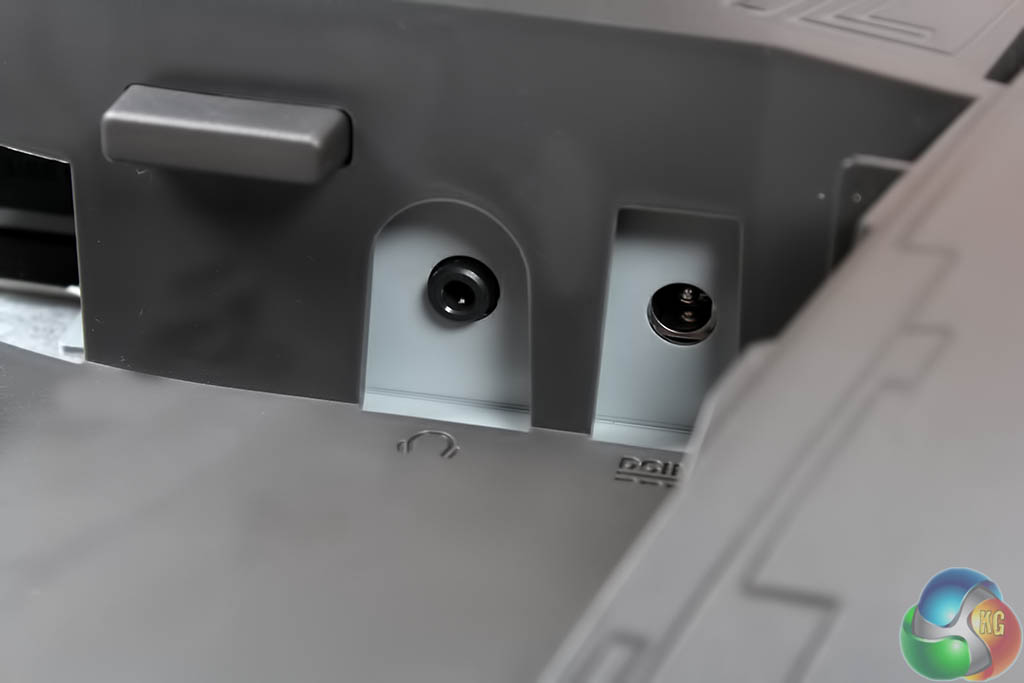
There’s also a single 3.5mm audio output jack and the connector for the power supply.
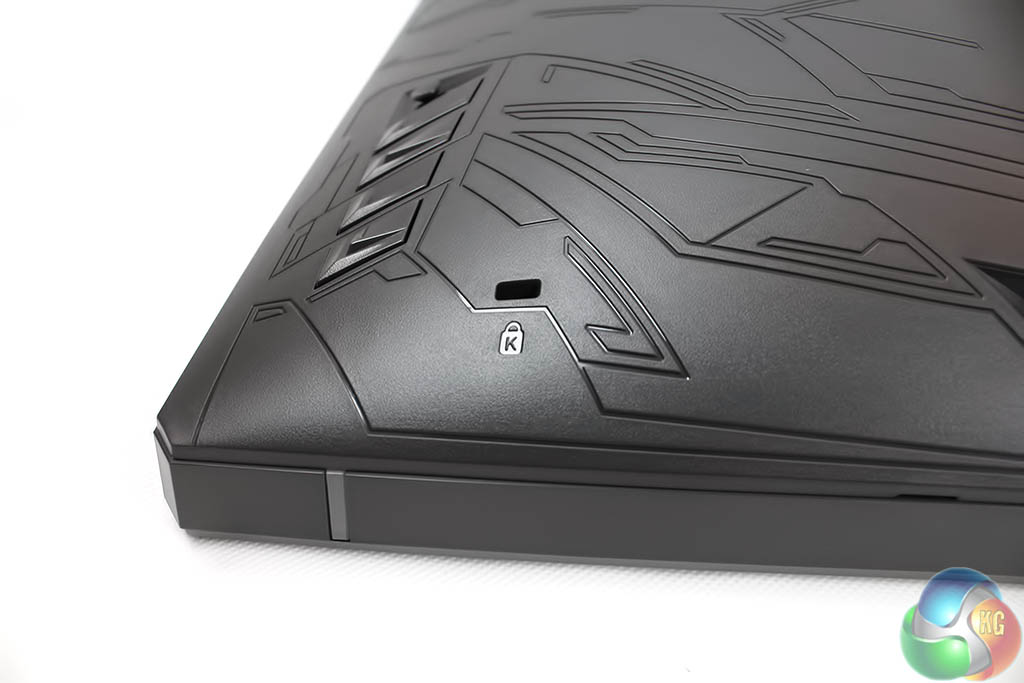
Not to mention the ubiquitous hole for a Kensington Lock.
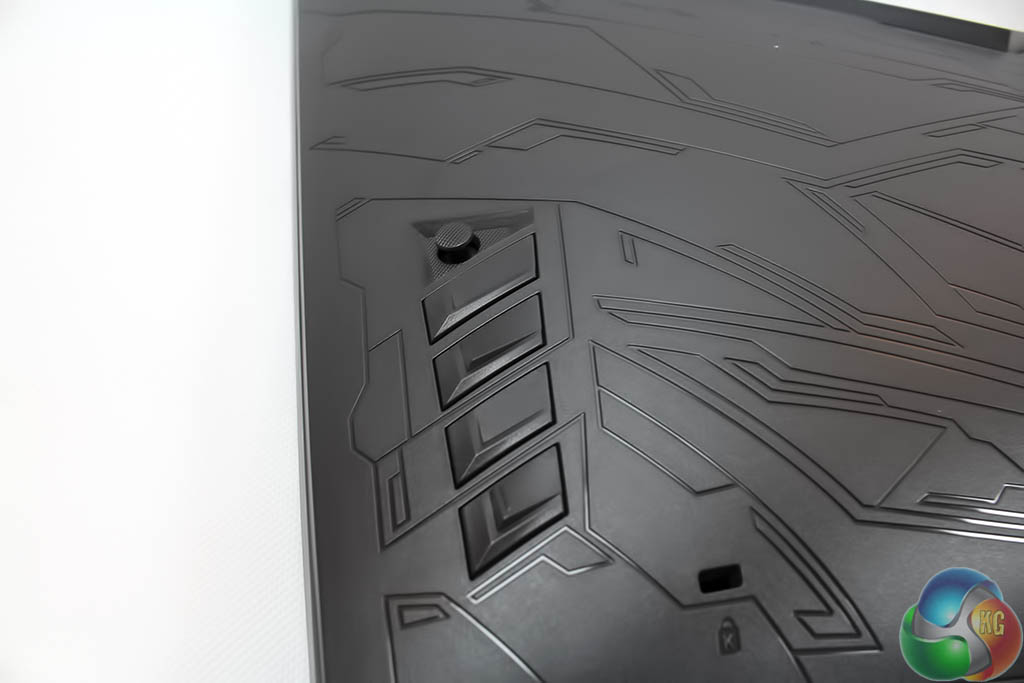
And here you can see the joystick, with the four physical buttons underneath it
Asus impressed last year with another gaming display, the ROG Swift PG27AQ, the first 4K 27-inch G-Sync monitor with an IPS panel.
One of the best things about that screen was the OSD, menu structure and joystick used to control it. So it’s good to see Asus has pretty much lifted the entire menu system from that monitor and used it again here. That includes the use of a 5-way joystick, which is much easier for navigation than the traditional buttons used for moving up and down through menus.
And similarly it has four triangular physical buttons underneath it, providing shortcuts to some of the monitor’s functions. The lowest button is a power switch.
The one above it is a shortcut to the overclock mode, labelled Turbo. If you have 100Hz enabled in the menus, this switches between 60Hz and 100Hz.
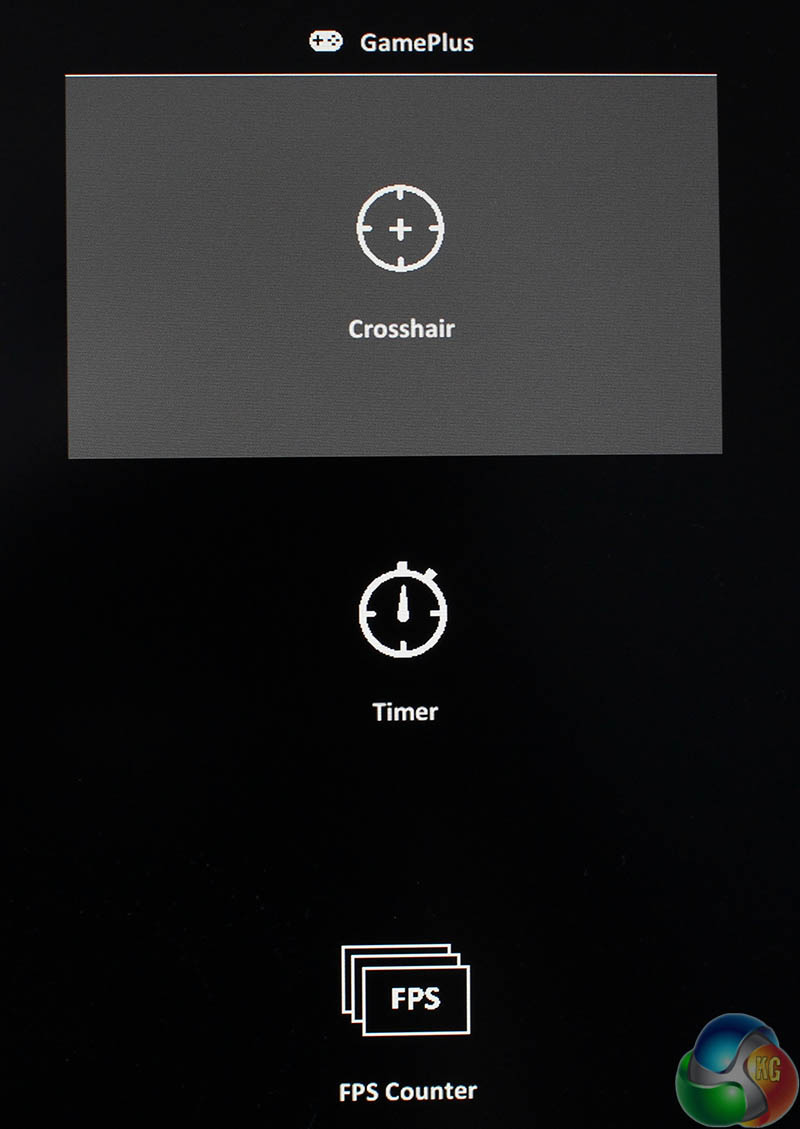
The next button up provides shortcuts to the Game Plus features, which are identical to those on the PG27AQ and other G-Sync displays.
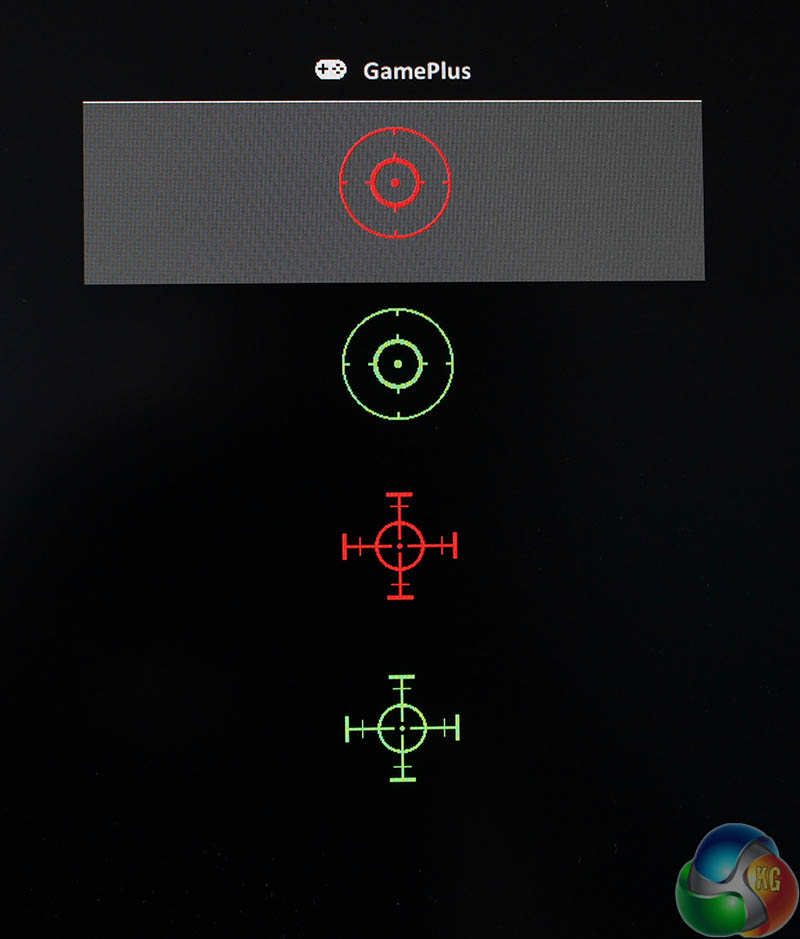
There’s a choice of on-screen crosshairs.
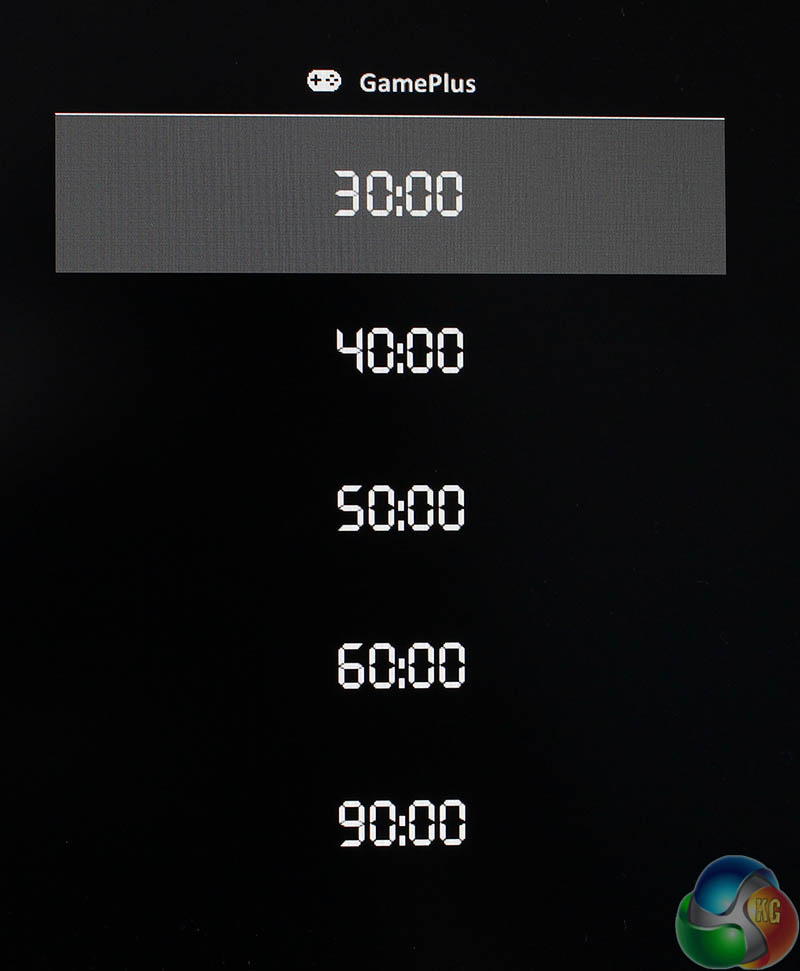
You can opt for an on-screen timer.
And you can view the current refresh rate in the corner. Because G-Sync means a display’s refresh rate is synchronised to a video card’s frame rate, this works as a working FPS counter when G-Sync is turned on.
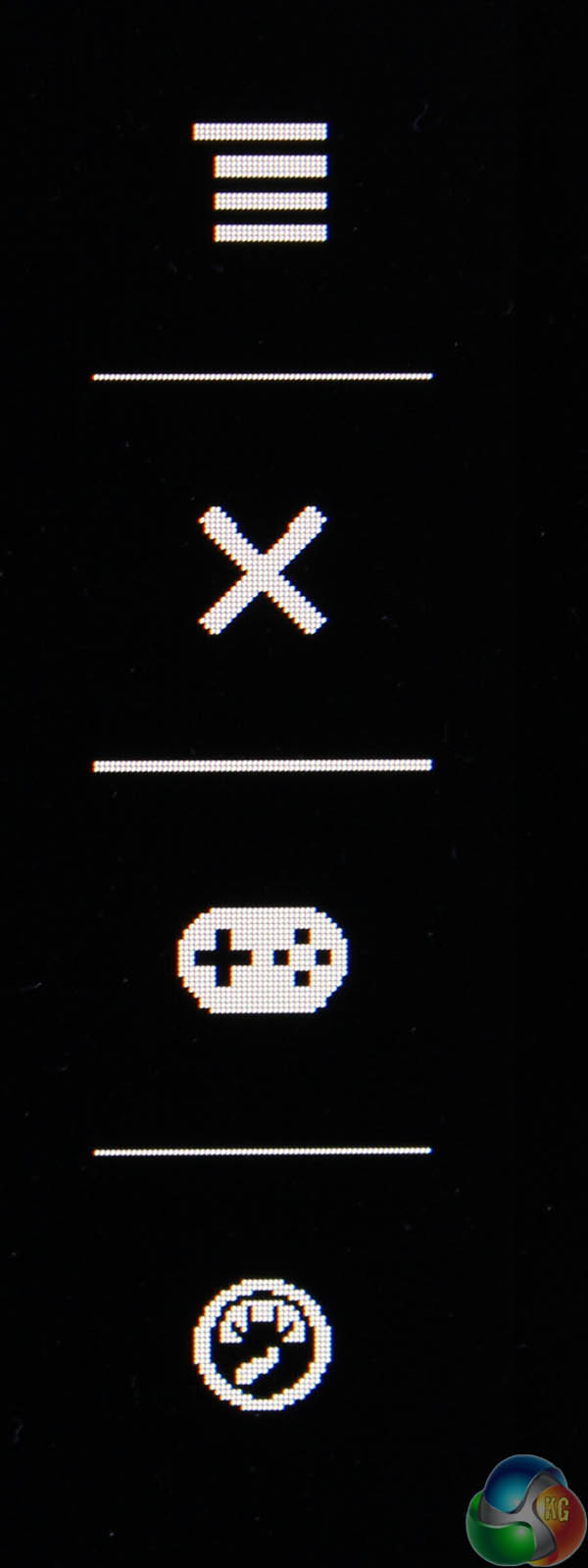
The next button up displays a simple on-screen overlay to show what each button does.
Above this is the joystick, where a quick press in any direction brings up the menu system, with all the main monitor functions listed.
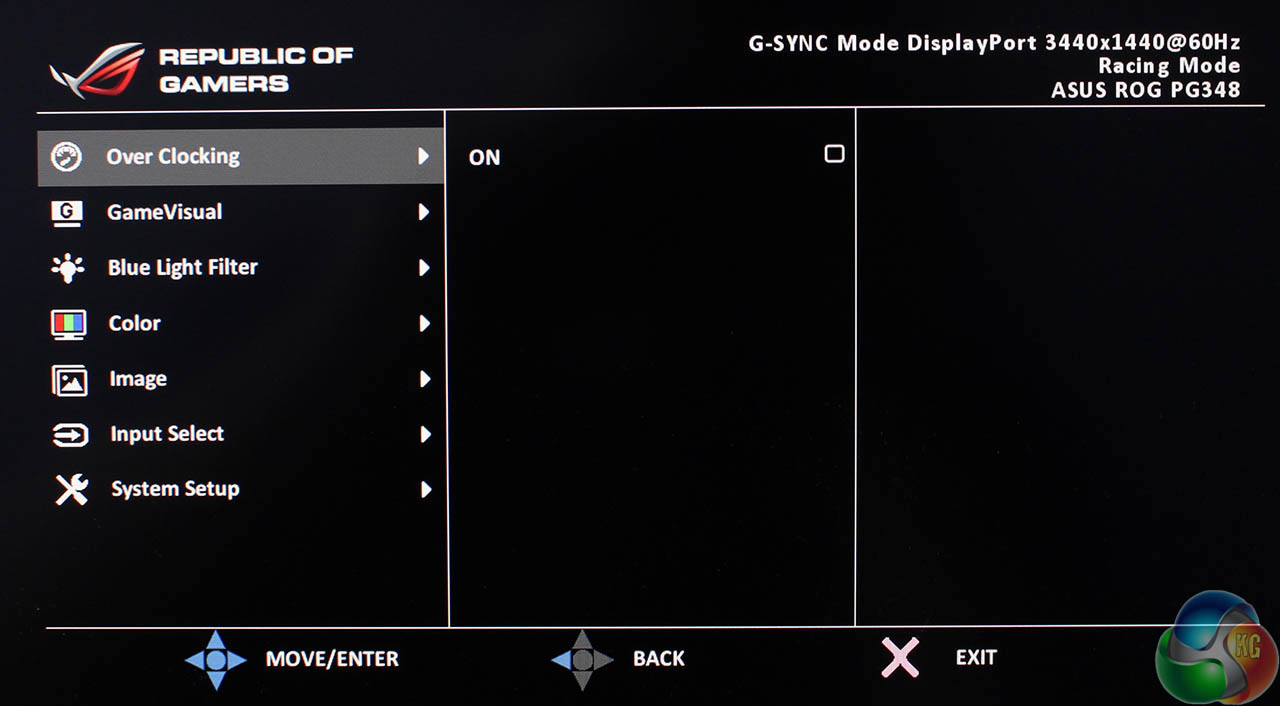
The first menu you see is the Over Clocking screen, with a simple checkbox to enable refresh rates beyond 60Hz.
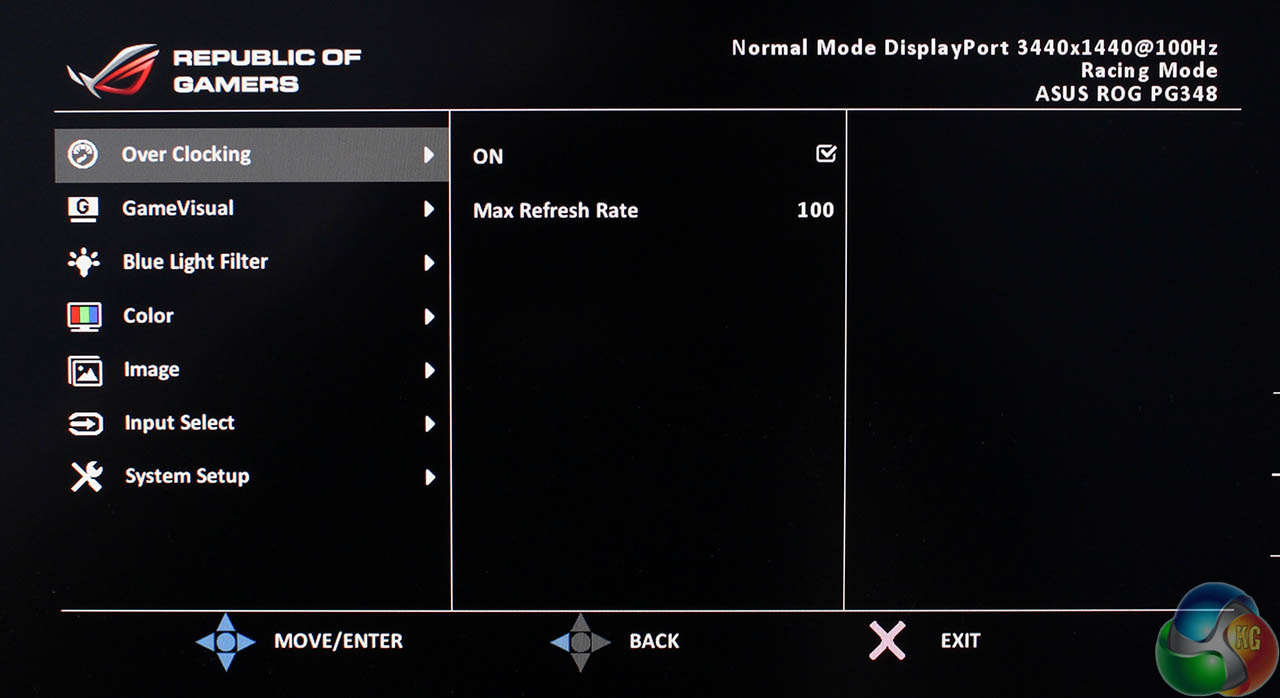
And then the refresh rate is adjusted with a slider. In order to enable the new refresh rate, you need to press the joystick inwards.
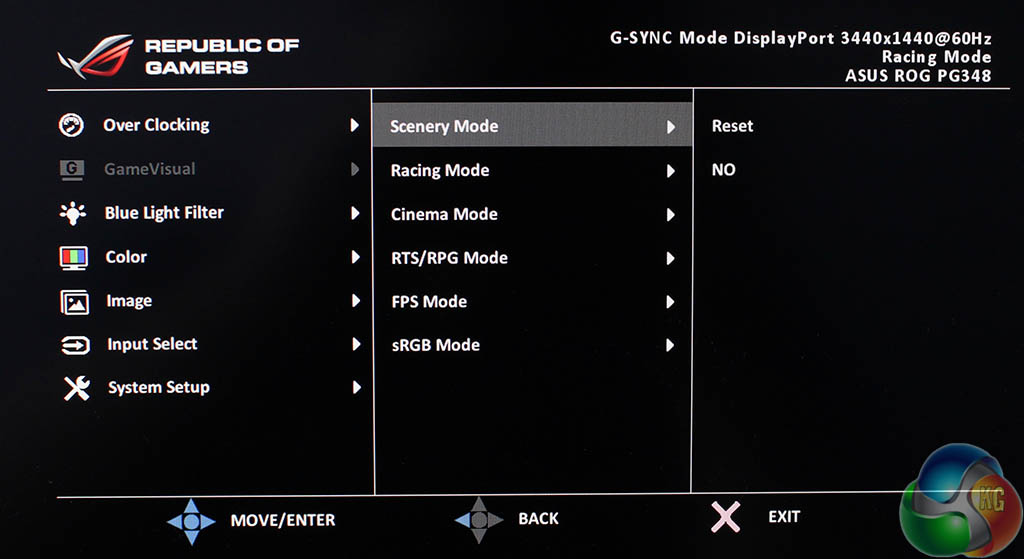
The next screen is the Game Visual presets. We’ve tested all of these on the next page, but it’s worth mentioning the default setting is ‘Racing’, part of a list that includes settings called ‘Scenery,’ ‘Cinema’ and ‘sRGB’ all of which are self-explanatory.
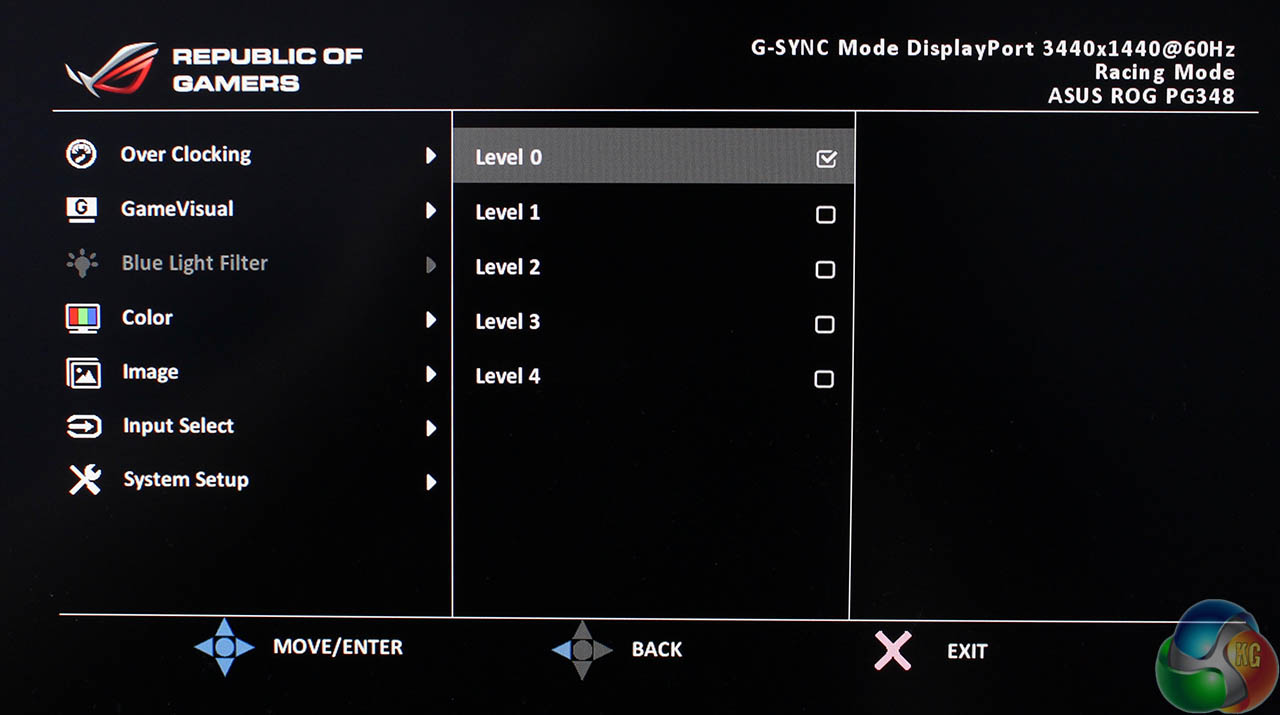
Underneath this is a setting to adjust the blue light levels, with a corresponding adjustment to the brightness of the picture, with five levels to choose from.
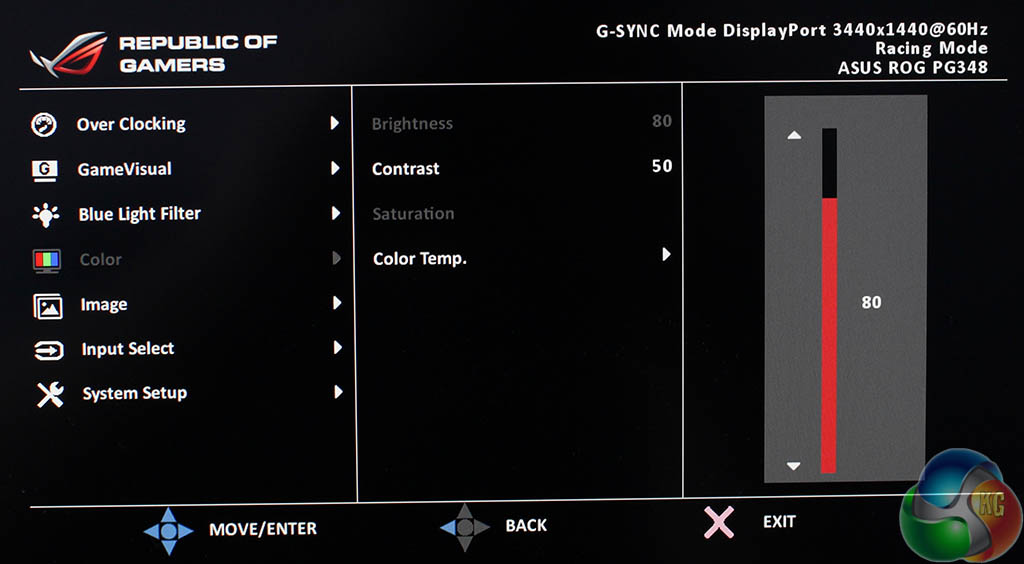
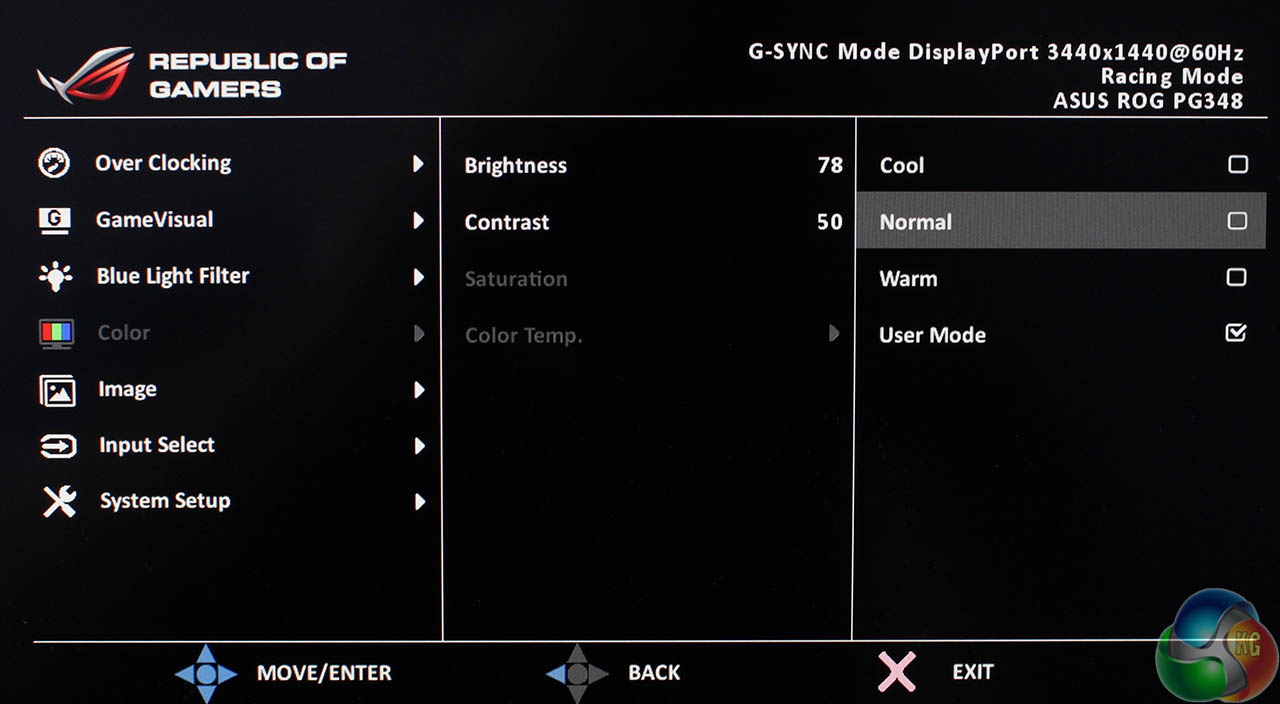
The Color menu provides settings for brightness, contrast and saturation. With a further setting to adjust the colour temperature.
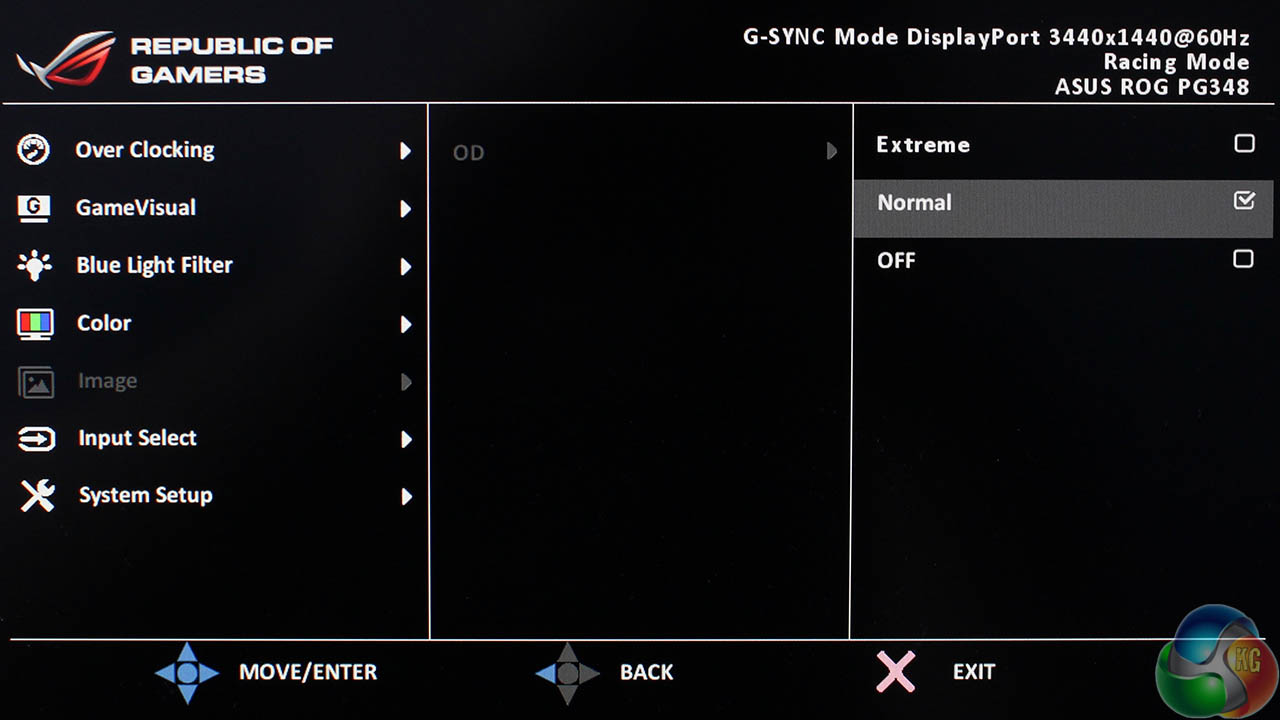
The image menu has a single setting for the overdrive function with three options labelled Off, Normal and Extreme.
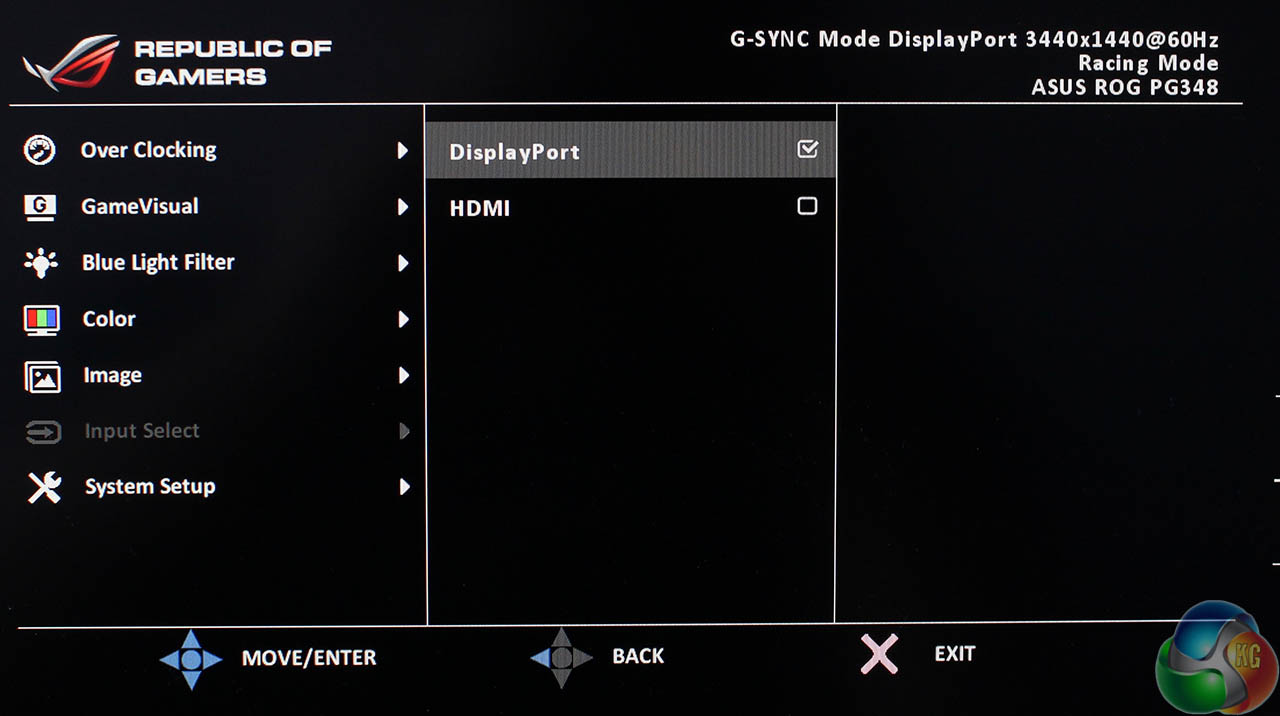
Underneath that is a simple input selector to switch between the DisplayPort and HDMI inputs.
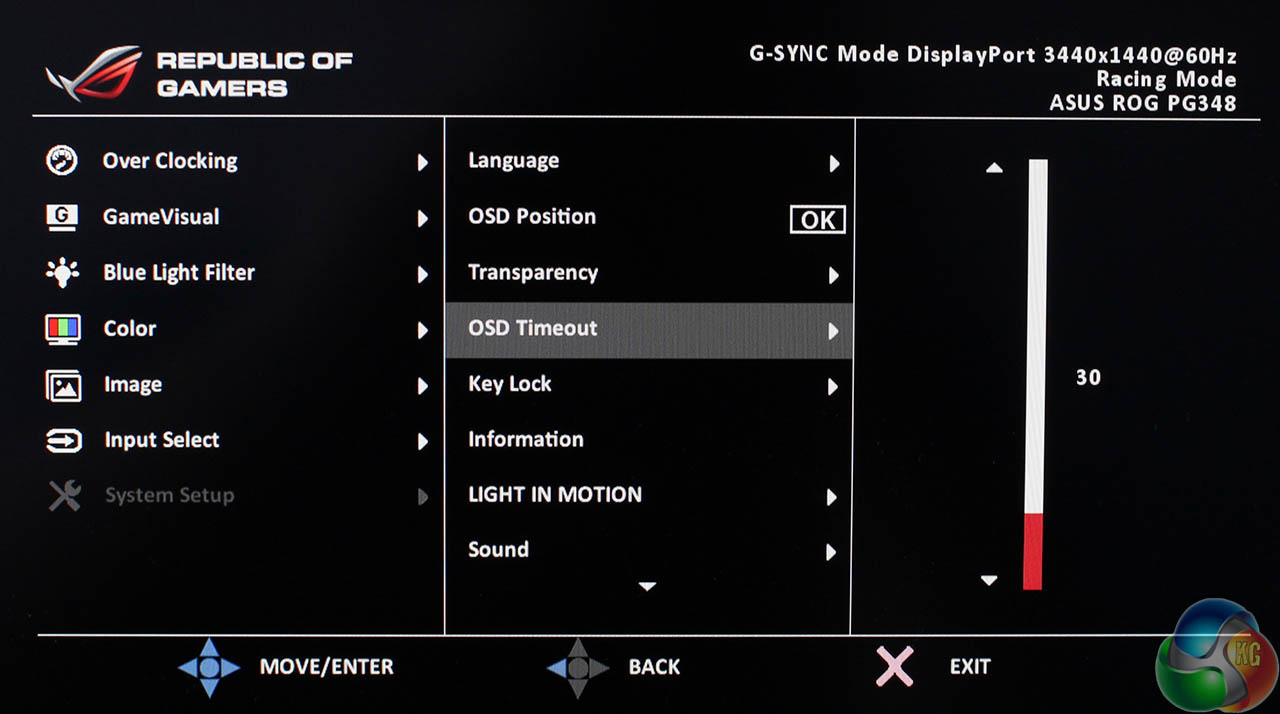
The final screen called System Setup contains settings such as the OSD timeout, OSD transparency and language. The setting labelled LIGHT IN MOTION (not sure why it has to be all in capitals) adjusts the brightness of the LED underneath the monitor.
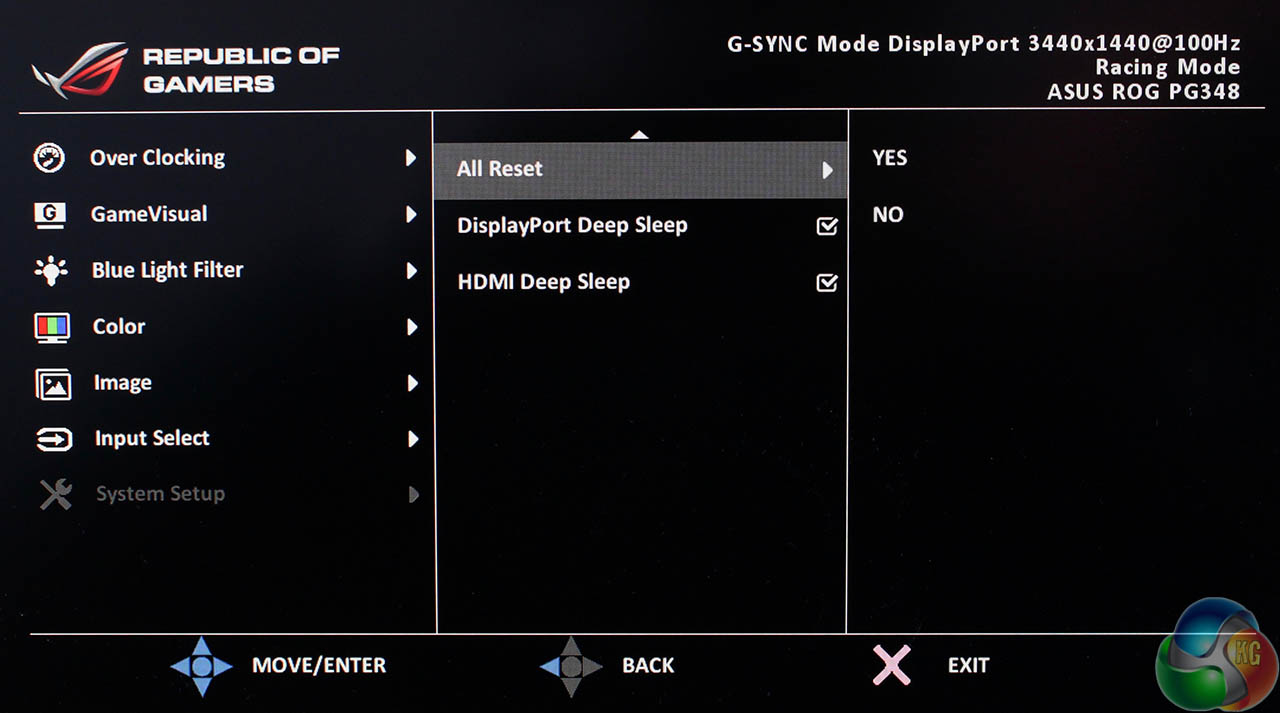
And there are a few more settings if you scroll down. Reset to default settings, and enable the Deep Sleep modes for HDMI and DisplayPort.
In general, Asus has delivered the goods once again with its straightforward menu system. The joystick makes it very easy to navigate around the various menus and quickly turn on settings, and importantly, the screens load within a fraction of a second. Nothing is more irritating than a display menu that takes forever to update, especially if you’re using buttons to slowly move through the menus.
But while we’re quick to dish out praise, Asus’ menu system and OSD deserves a bit of criticism too. For a start, the buttons don’t work that well.
The on-screen overlay only appears when you press the top-most button, and there, it serves no other purpose. And these shortcuts cannot be customised in the menu. The volume setting, for example, is buried deep in the menus. It would make more sense to have one of the buttons control this setting, but the user cannot change the shortcut.
The same goes for the brightness control.
We’ve come to expect a high standard of colour accuracy from all modern displays. In the past, using a colorimeter to calibrate a screen made an enormous difference to the image, 100 per cent sRGB coverage was a superb achievement, and we would praise screens for achieving a Delta E under three.
Now, with 10-bit panels capable of 1.07 billion colours, a Delta E under two or even under one is common. From IPS screens, 100 per cent sRGB, or a figure close to it, is the norm rather than the exception. There are few remaining frontiers that separate displays intended for high colour accuracy, such as the Dell UltraSharp U2715K (review HERE) from general-purpose IPS panels. High brightness levels above and Adobe RGB coverage over 90 per cent are two notable examples.
This is another way of saying the Asus PG348Q achieves results absolutely in line with most high quality consumer IPS displays, which is absolutely great to see.
As usual we cracked out the DataColor Spyder Elite 5 to measure the out-of-the-box colour accuracy of the screen, then calibrated it and measured the screen again.
Like the PG27AQ, on the default settings, the image appears ever so slightly shifted to the red spectrum, which is due to the default Colour Temperature being a user mode with the RGB settings set to 100. We left this setting on when testing, but subjectively, setting the temperature to ‘Normal’ results in a much cooler, whiter picture. In use, we much prefer this cleaner setting over the default mode.
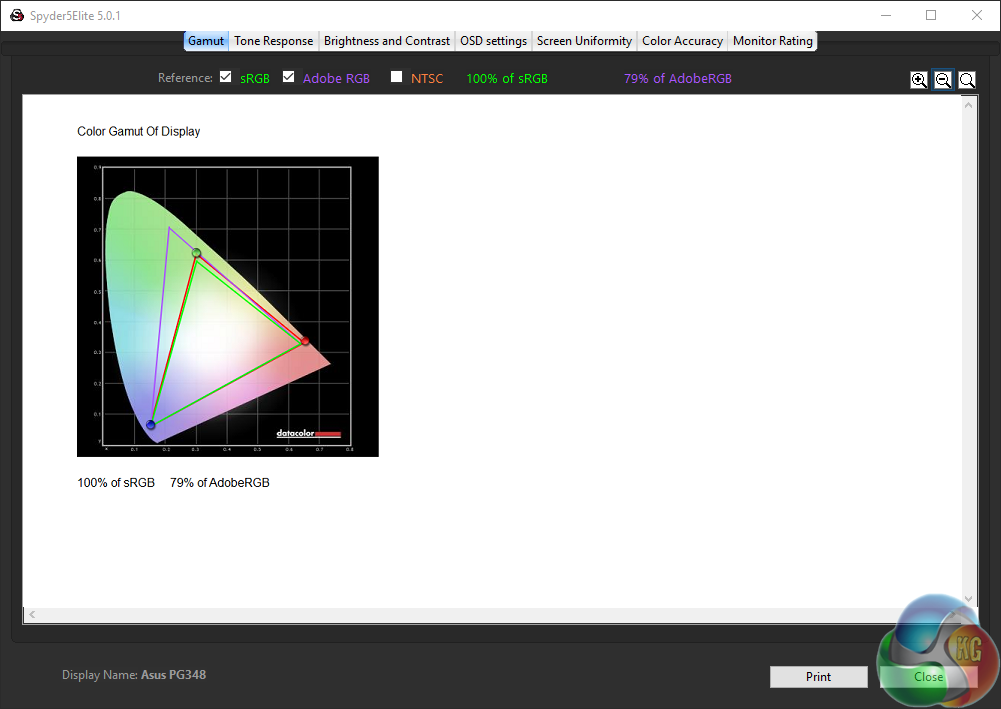
100 per cent sRGB and 79 per cent Adobe RGB are fairly normal for any IPS display.
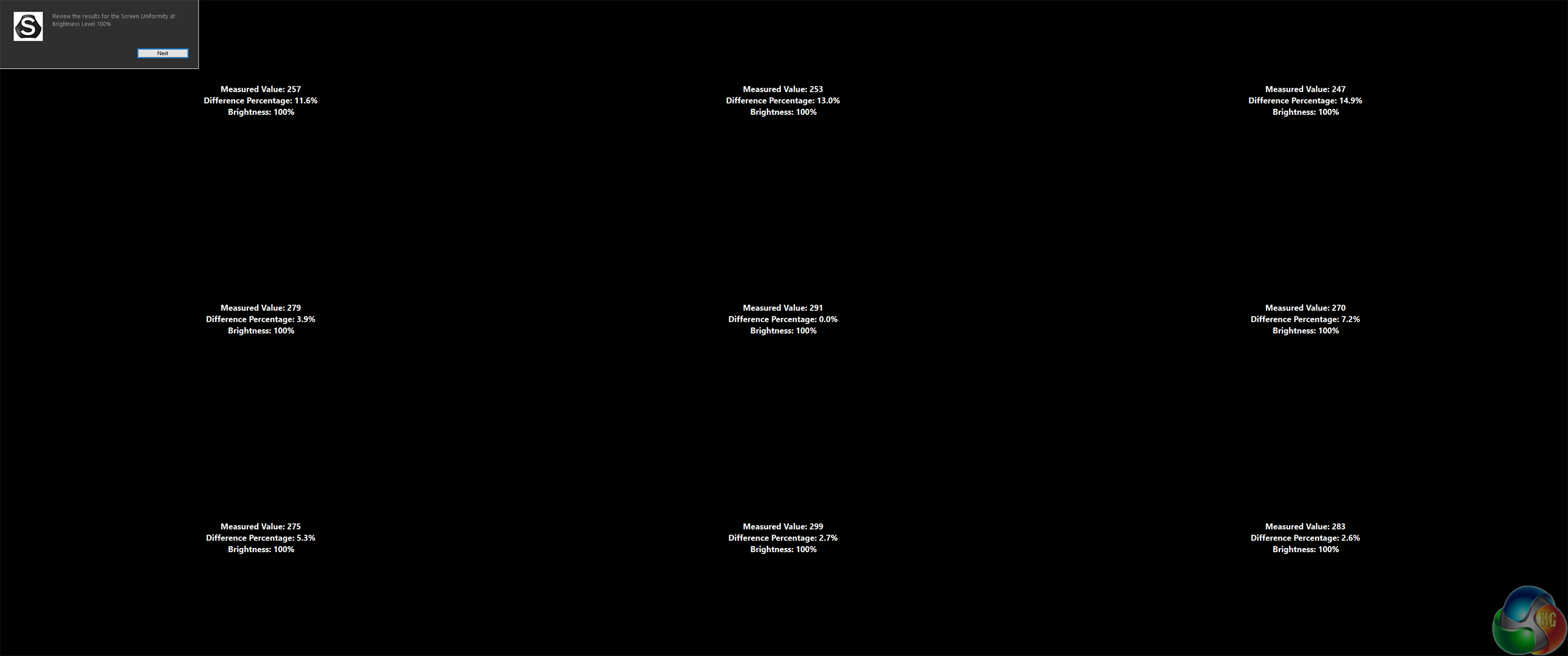
Brightness distribution shows variance of up to 14.9 per cent at the top of the panel. That’s not a great result, but one we can live with, since this is a gaming display rather than one aimed at graphic designers.
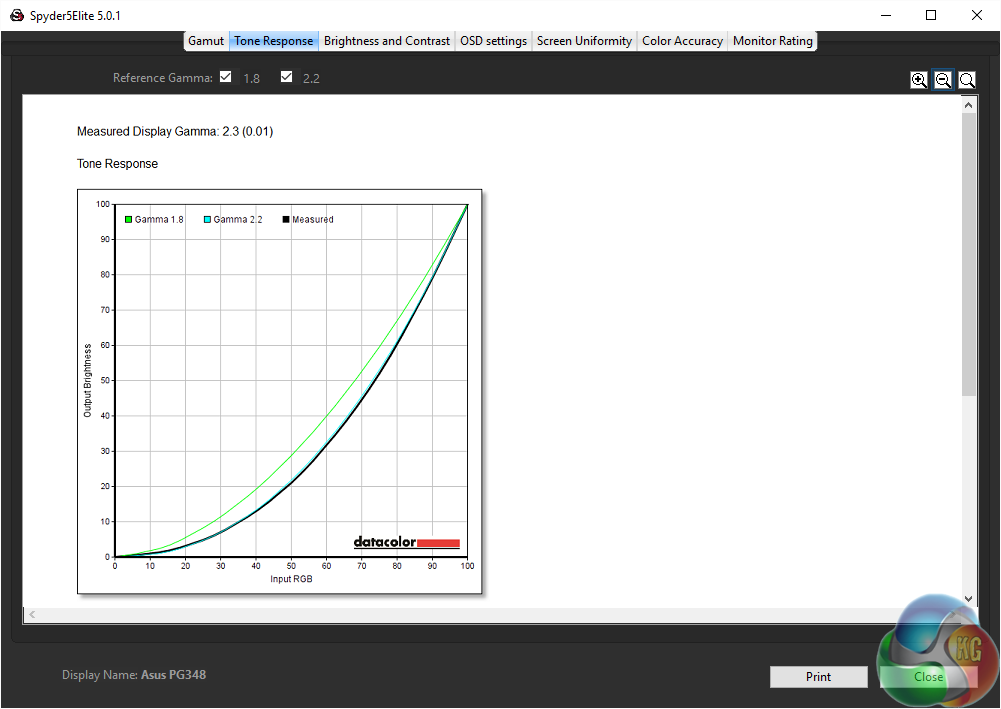
The default gamma is just off the 2.2 target.
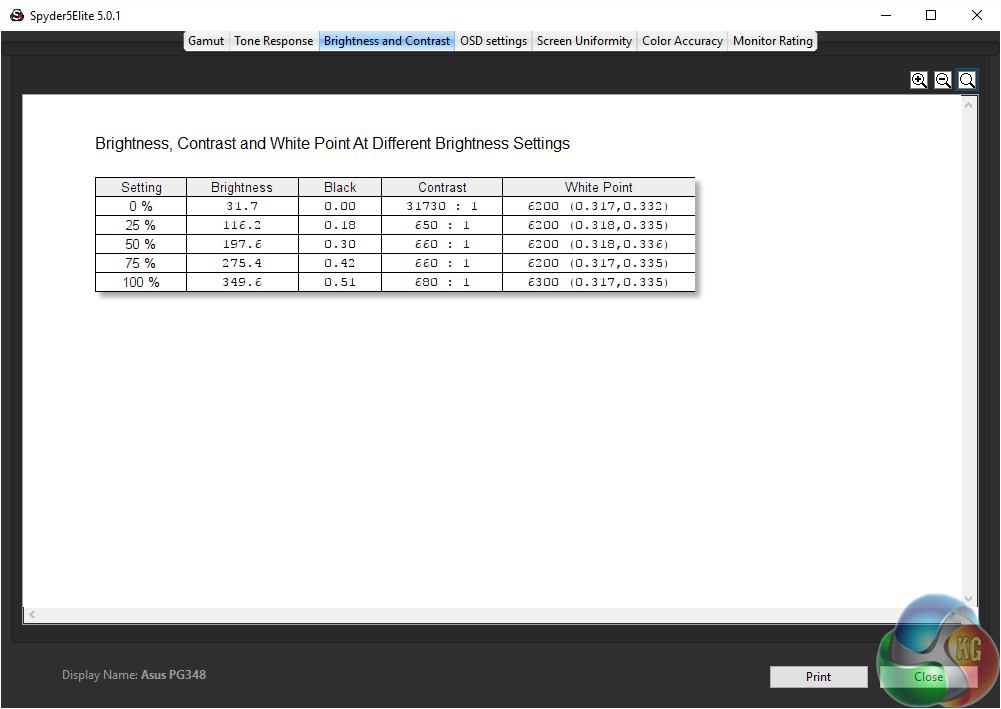
Brightness of almost 350 cd/m2 and contrast levels of 680:1 are good results, with a notable improvement in brightness over the PG27AQ.
The white point is slightly off the 6500K target.
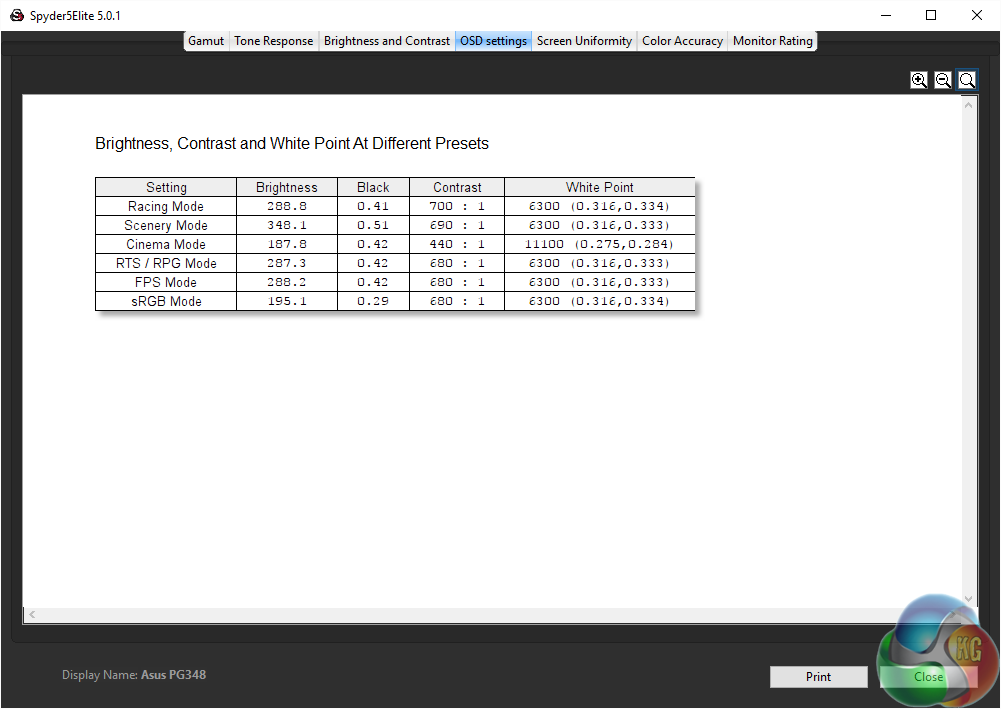
The presets in the Game Visual menu adjust the brightness and contrast levels, with sRGB mode just half as bright as the maximum setting.
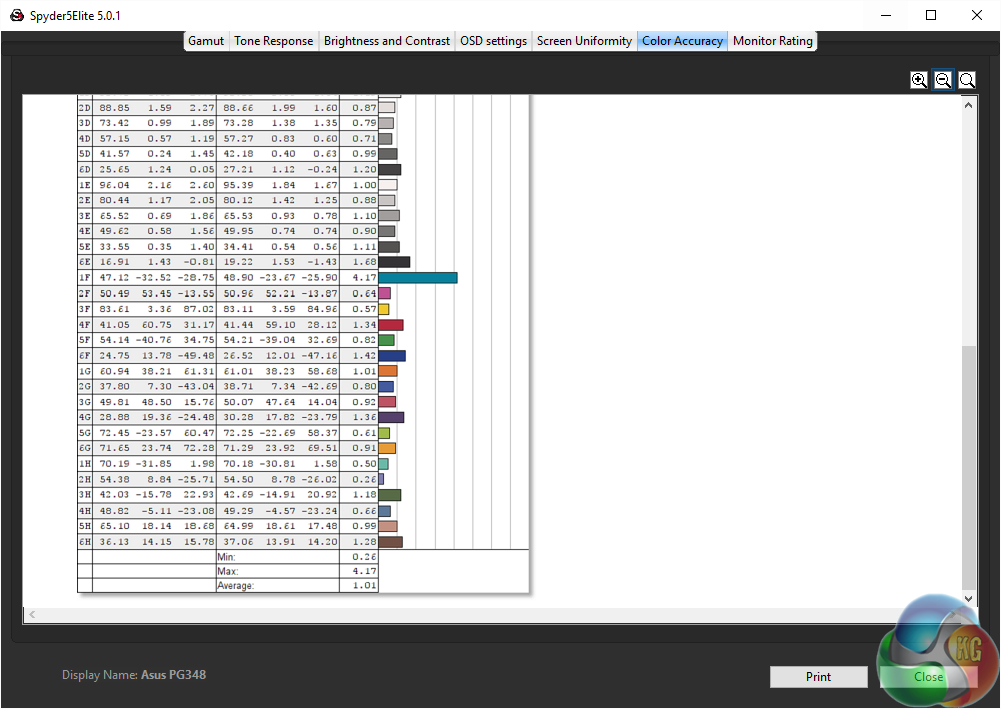
A Delta E of one shows superb colour accuracy, most likely due to the use of 10-bit colour processing.
After calibration, we noticed no visible change to the picture quality at all, and there were few differences in our results. Often calibration produces a noticeable shift in colour but the two images before and after the process were identical withe Asus ROG Swift PG348Q.
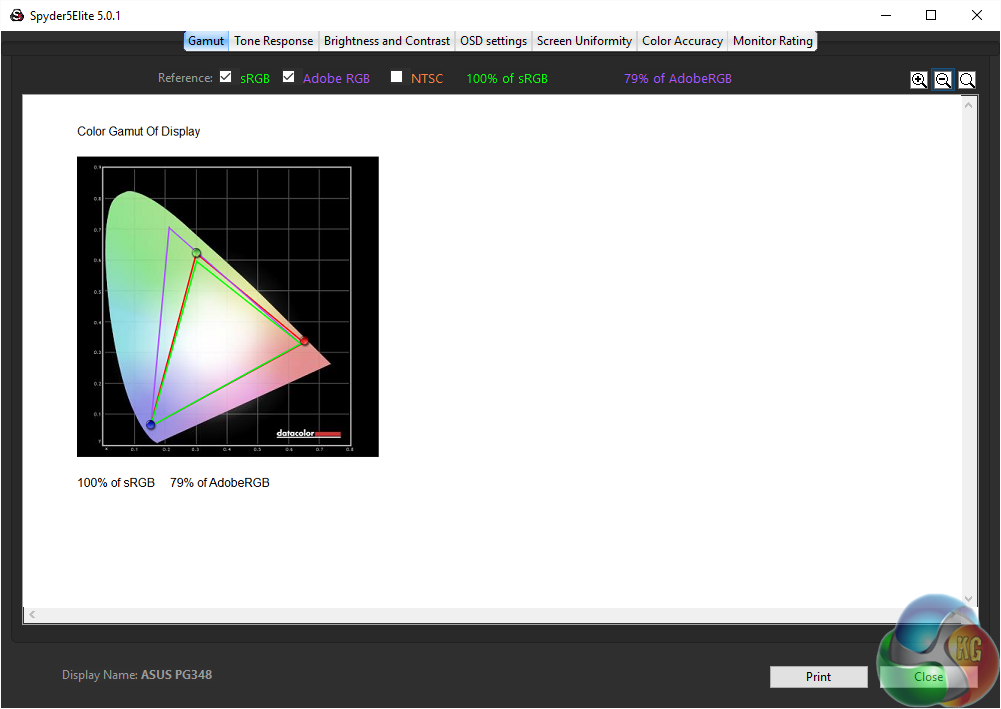
The same results for sRGB and Adobe RGB coverage.
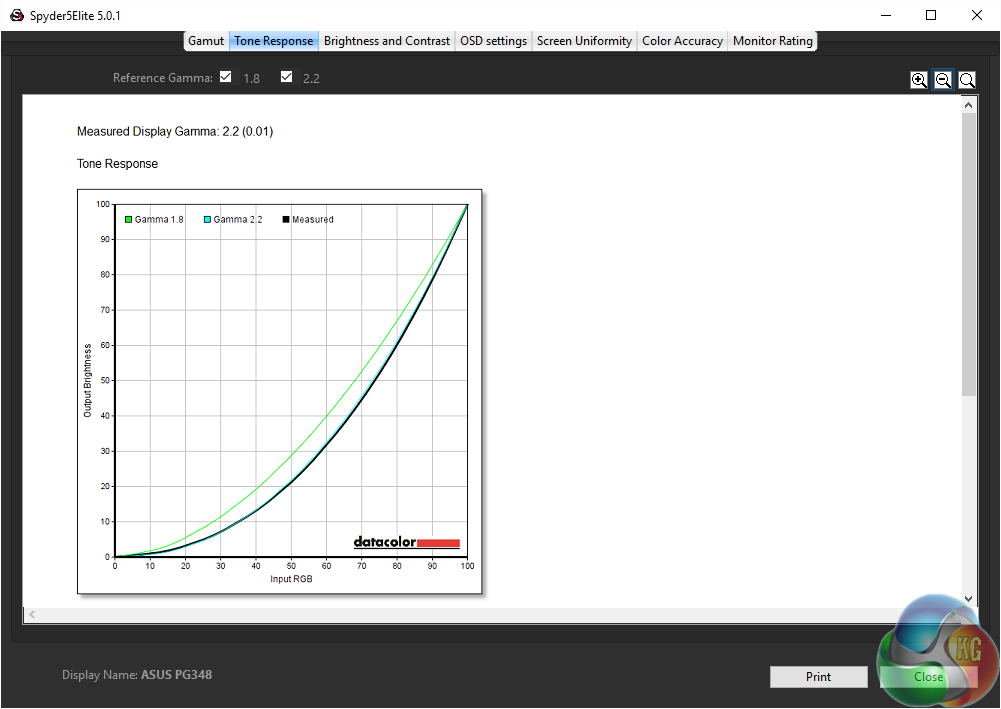
Calibration brings the gamma to exactly 2.2.
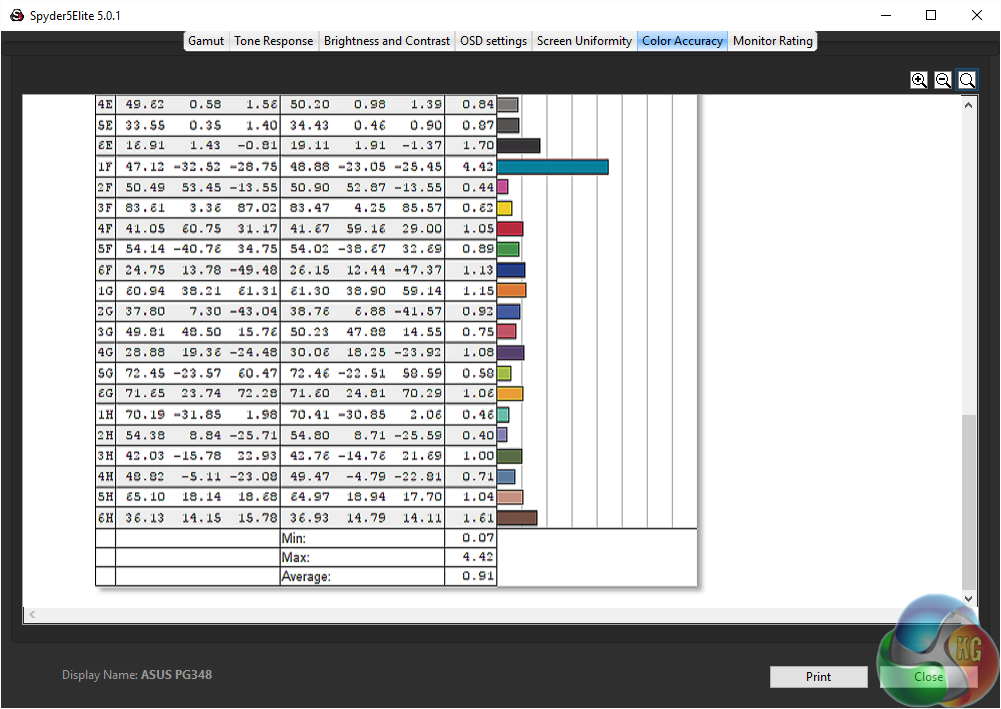
The colour accuracy slightly improves to a new figure below 1.0, but within the margin of error, so it’s generally unchanged, pointing to great out-of-the-box accuracy.
As always, we spent some time testing the Asus ROG Swift PG348Q in games, using Counterstrike: Source and Battlefield 4 with G-Sync enabled at the 100Hz setting. We've tried a range of displays at various refresh rates.
For anything above 60Hz, the effect is very noticeable. To our eyes, the gap between 60Hz and 100Hz is more noticeable than the difference between 100Hz and 144Hz. We think if you're a gamer, these features are definitely worth having.
Asus has done well with its first 21:9 display. The Asus ROG Swift PG348Q is fantastic – great for gaming and great for general desktop use.
The picture quality is as good as any general purpose IPS display, G-Sync works very well at 100Hz, and even the sound isn’t bad … for a PC monitor. The slightly odd design works well too, although we suspect, like the Acer Predator Z35, which has a similarly bold design it will appeal more to gamers, and look more in place in a gaming den than it would in a study or the living room.
We’re also convinced that the 3,440 x 1,440 resolution is absolutely right for a display of this size. Add it all together and this is one seriously good piece of kit.
There’s only one area of complaint. Asus was wise to use the same joystick control method for the OSD as on its other gaming displays, but the other physical buttons seem to have been neglected a bit. They feel a bit sticky in use, and they aren’t terribly helpful. There’s no way to customise them in the menus.
It’s a small point, but when you’re paying a considerable sum for a gaming display, you should expect the very best in every respect.
Two other points worth mentioning are the lack of Nvidia ULMB support and a PIP mode to use both HDMI and DisplayPort simultaneously.
And there's another sticking point. Ultra-wide 21:9 displays aren’t cheap, and the extra hardware needed for G-Sync and higher refresh rates bumps that price into the stratosphere. This is one of the most expensive ultra-wide displays on the market.
It’s only worth it if you want these gaming features, and can make use of G-Sync and higher refresh rates. If you’re content with 60Hz operation, the Philips BDM3490UC (review HERE) offers the same excellent picture quality, at a price that’s about a third less.
And of course, if you’re looking for a new high-end monitor you now have to choose between an ultra-wide display such as this or one with a more traditional 16:9 aspect ratio that support 4K resolution. 4K gives you a much greater pixel density and improved clarity but you can get faster refresh rates and a more cinematic view with an ultra-wide display.
Notably if you opt for 4K and still want G-Sync support, the Asus ROG Swift PG27AQ is £200 cheaper, and the Acer Predator XB280HK (review HERE) is similarly more affordable.
The ROG Swift PG348Q is going right up against Acer’s Predator X34, a 34-inch curved IPS display with a near-identical specification, but Acer's display is just slightly more affordable.
Until recently, buying a display was a relatively simple affair, but there are multiple form factors, panel technologies and refresh rates to choose from, so you have to really consider priorities before purchasing.
Having said all this, for gaming on an ultra-wide display, the Asus ROG Swift PG348Q is just as about as good as it gets.

Buy the Asus ROG Swift PG348Q from Overclockers UK for £995.95 inc vat HERE
Discuss on our Facebook page, over HERE
Pros:
- Very funky, futuristic design and appearance.
- 100 Hz operation, with G-Sync support
- Great picture quality
Cons:
- Menu system could be more complete.
- Expensive.
Kitguru Says: IPS? Check. Ultra-wide display? Check. G-Sync up to 100Hz? Check! All the ingredients are here for a great ultra-wide 21:9 gaming display. The Asus ROG Swift PG348Q is a stunning panel, but it is a pricey prospect.

Orestis you lucky man, you get all the nice displays to play with! 🙂
Far too expensive for what it is, as are most of the so called top monitors at the moment.
Get the LG34UC98-W never buy a monitor from anyone but LG or Samsung again. Two many of the second tier makers that use LG or Samsung panels always seems to skimp on quality.
So expensive and a bit late. I was hoping they were delaying it to add DP 1.3 to raise that possible refresh rate to 144hz.
But the question is, where and when can I buy it? In the US of course
I talked to an ASUS representative, they havn’t launched in the US yet and don’t have a public ETA as to when they will.
I had the LG version of this monitor (UC97) and moved to the Predator X34, literally no difference in quality apart from the higher refresh rate and G-Sync which are HUGE benefits for gaming.
Hopefully, I’ll never have to use it, but the Acer also comes with a 3 year warranty while the LG only had 1 year.
well that suks
Well shit…
Everyday the Acer Predator 34″ is looking better…
Well the 34uc98w has thunderbolt, freesync, hdmi connection but you prefer gsync which is cool if you prefer. Never had good luck with 2ND tier monitor manufactures myself.
Didn’t the press release say Feb?
So? I am guessing ASUS sent you this special prepared sample? Or did you randomly buy in a shop?
Kind of important due to the fact that Internet are full of complaints regarding production quality of ASUS ROG Displays.
Pretty sure the panel will not go 144hz, DP 1.3. 100hz is already pushing it. We will have to wait fir next gen IPS for that.
To expensive in what relation, ur wallet ? We dont even know if they are making money on this product at all. Its current tech pushed to edge here, ofc its expensive, its premium products.
Dont forger 100hz overclock, thats the primary here.
Yes . On their website it’s written ” ASUS ROG Swift PG348Q will be available worldwide from February. Please contact your local ASUS representative for further information…” It’s worldwide except North and South America 🙂
I just chatted with Asus support and they told me it was schedules for a first quarter release in March for the US I took a pic of the chat
I chatted with Asus support today, they told me th monitor was scheduled for a first quarter US release in March… I took a screenshot, not sure of the attachment will work though.
See pic
A lot of assumptions there.
Considering you could buy a 60″ 4k tv for that price yes it is far too expensive. Okay you wouldn’t have G-sync or 100hz but well not that important to me as I have tried them both already. You are paying a lot of money for G-sync and 100hz. Especially considering you could pick up the excellent Dell U3415W for almost half the price.
Thanks for passing along the information! Did she give you information on preordering?
This panel won’t cause it only has DP 1.2, DP 1.3 would give it the bandwidth it would need to reach 144hz.
yea ,it is epic 🙂
Just to say there wasn’t one now…
In case you didn’t notice amazon has it on “pre-sale” http://www.amazon.com/gp/product/B01C83BE6U?psc=1&redirect=true&ref_=oh_aui_detailpage_o00_s00
No, the this LG panel cannot run 144hz no matter what DP standard. The panel is a native 60hz, some of them can run 100hz overclocked.
You are comparring a monitor with a TV ? A 4k tv is terrible for gaming for many reasons, input lag, 50/60hz refresh rate, dpi etc etc…100hz or more is standard for a propper gaming monitor, frame sync is becomming the norm to. As i said, we dont even know if they are making money on theese displays, they have a large fail rate to, many displays get RMA. Sure you can get the Dell cheaper, but it is a lower spec product.
Ordered mine from scan was delivered last tuesday, my previous monitor the Dell 29 panoramic was beautiful this is a nice step up with g sync both epic monitor’s but it’s good to have more screen area now. Word of warning you’ll need closer to 800mm of desk depth to keep the monitor’s screen at finger tips and arms stretched out as I have been told by medical pro’s. You can use a 600mm deep desk like I have and push the monitor rear leg off the edge against the wall (very safe) and then tilt the screen down! Perfect monitor out of the box and totally recommend it guys.
FINALLY got one expected delivery around 3/22. If you guys been waiting like I have searching every corner of the world for one of these monitors, this is the place to get one IN THE US THANK GOD!! http://www.velocitymicro.com/buy-asus-swift-pg348Q.php Cross your figues no X34 problems.
http://www.velocitymicro.com/buy-asus-swift-pg348Q.php
I don’t know dude, that site looks shady AF
REALLY MY DUDE!?! Then use PayPal you will be covered like I am. HEY I’ll shot you a pic next week HAPPY AS F*CK
Oh I didn’t realize they took PayPal, u all good then. I may have to go ahead and order also. I’m really looking forward to this monitor.. What GPU u running? I’ve got a 970 and I’m thinking I may as well upgrade that as well. Anyway, thanks for the heads up bro
I have two Evga Titan X superclocked cards, still not enough power for 4k max 60fps games smh. That’s why I chose this monitor close to 4k resolution plus g sync
Does anyone recommend a good vesa mount for the Pg348q monitor? Also where are the vesa holes for the screws.
Does anyone recommend a good vesa mount for the Pg348q monitor? Also where are the vesa holes for the screws.
Anyone in this forum? Does anyone recommend a good vesa mount for the Pg348q monitor? Also where are the vesa holes for the screws? I suspect it’s the 4 screws inside where the stand gets attached. Just don’t want to make a mistake and loosen something I shouldn’t have.