 KitGuru KitGuru.net – Tech News | Hardware News | Hardware Reviews | IOS | Mobile | Gaming | Graphics Cards


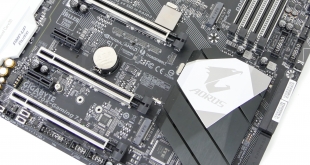
Gigabyte is introducing its Aorus brand to the desktop components market in an effort to segregate its higher-end product offerings. Aorus is to Gigabyte what ROG is to ASUS, or at least that's what the board maker is aiming for. We examine the high-end Aorus Z270X-Gaming 7 which is packed to the brim with features such as Thunderbolt 3, dual M.2 slots, and plenty of RGB LEDs.
You can read our Kaby Lake Core i5-7600K and Core i7-7700K review HERE.
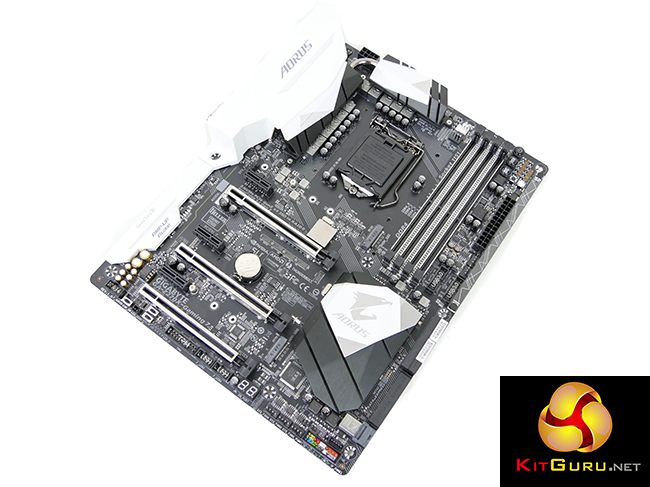
Probably the first point that you'll notice is Gigabyte's use of a white and black colour scheme. This is a rather new direction for the company that has typically been a lover of red, green, orange, and blue mixed with black. But white seemed to be one of the ‘in‘ styling features for components in 2016 so there will be many people happy to see it used here.
The comparison to ASUS' ROG is again presented by the Aorus Z270X-Gaming 7's design being targetted for a wide audience. Gaming features include support for 2-card SLI and 3-card CrossFire, a strong Creative-based sound system, and one of the better RGB LED systems on the market (we'll put RGBs under the ‘gaming' umbrella for now). Then there are the general enthusiast features such as dual M.2 slots, 40Gbps Thunderbolt 3 (and USB 3.1 through the Type-C connector), and U.2.
Build quality for the Z270X-Gaming 7 looks to be excellent and Gigabyte was very keen to emphasise the work it has put into the improved fan control system. How will the ~£230 Gigabyte Aorus Z270X-Gaming 7 perform throughout our analysis?
Features:
- DDR4 4000+ MHz XMP Ready
- Intel USB 3.1 Gen 2
- NVMe PCIe U.2/M.2
- RGB Fusion
- Creative Sound Core3D Quad-core Audio + SBX Pro Studio Audio Suite
- Smart Fan 5
- Killer E2500 & Intel Gigabit LAN
- 40Gbps Thunderbolt 3
- Triple NVMe PCIe SSDs in RAID 0 Support
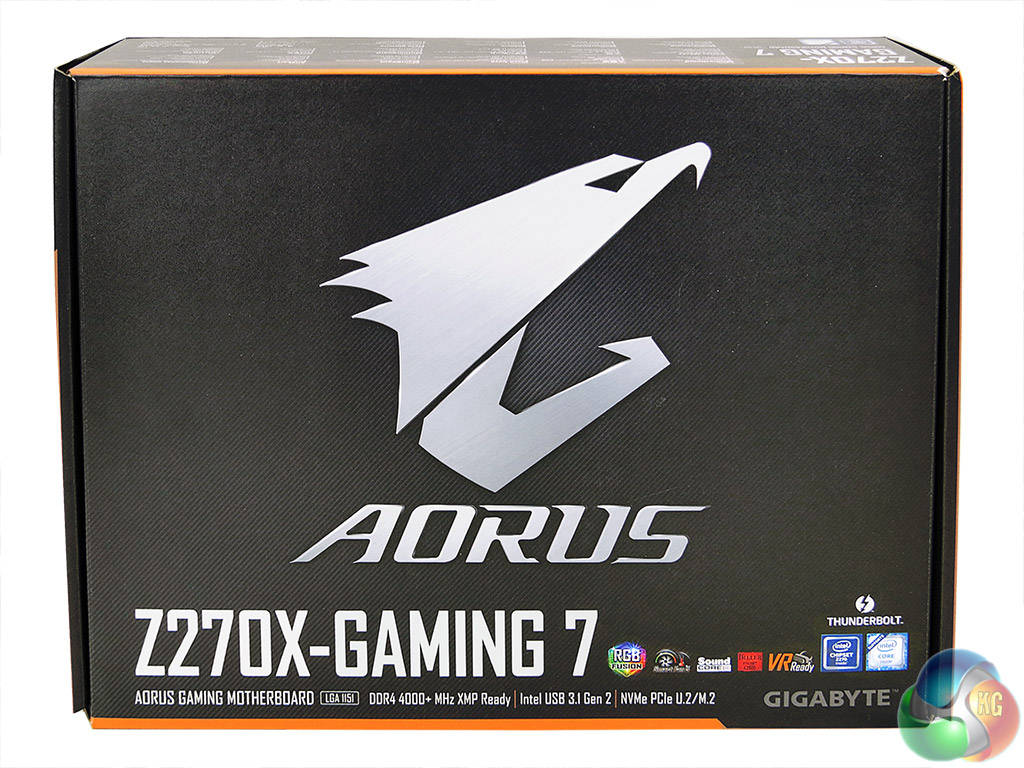
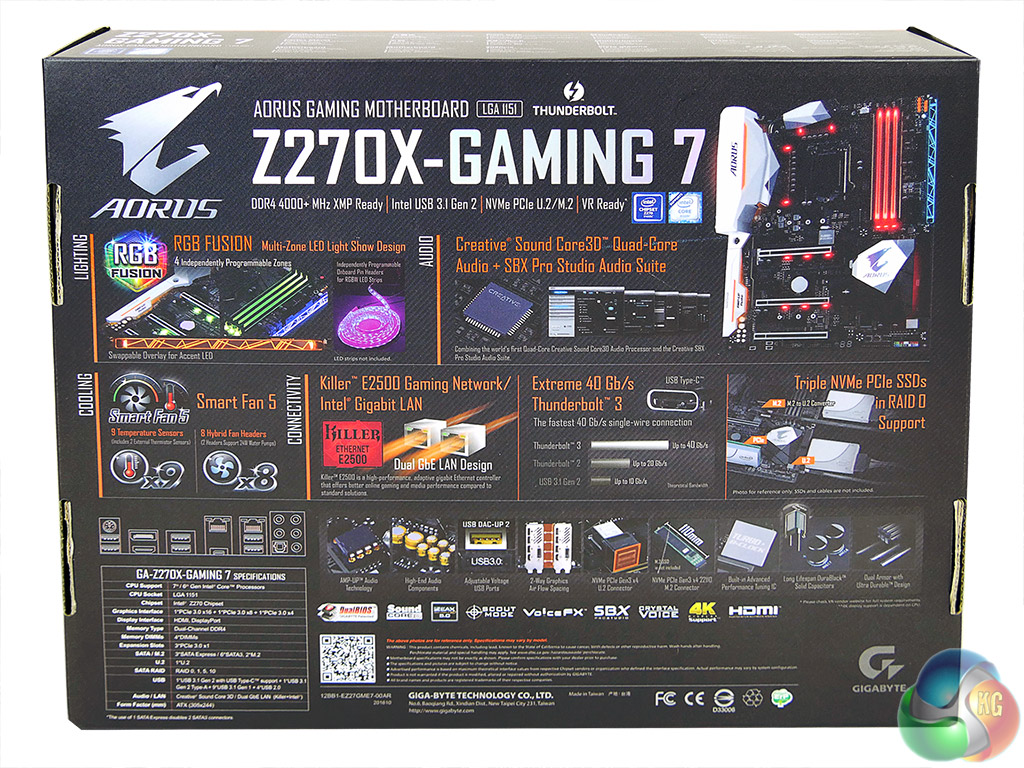
Gigabyte ships the Aorus Z270X-Gaming 7 in black packaging which features orange accents. Key features are listed on the front side of the box while the rear gives a more in-depth look at a greater number of the board's specifications.
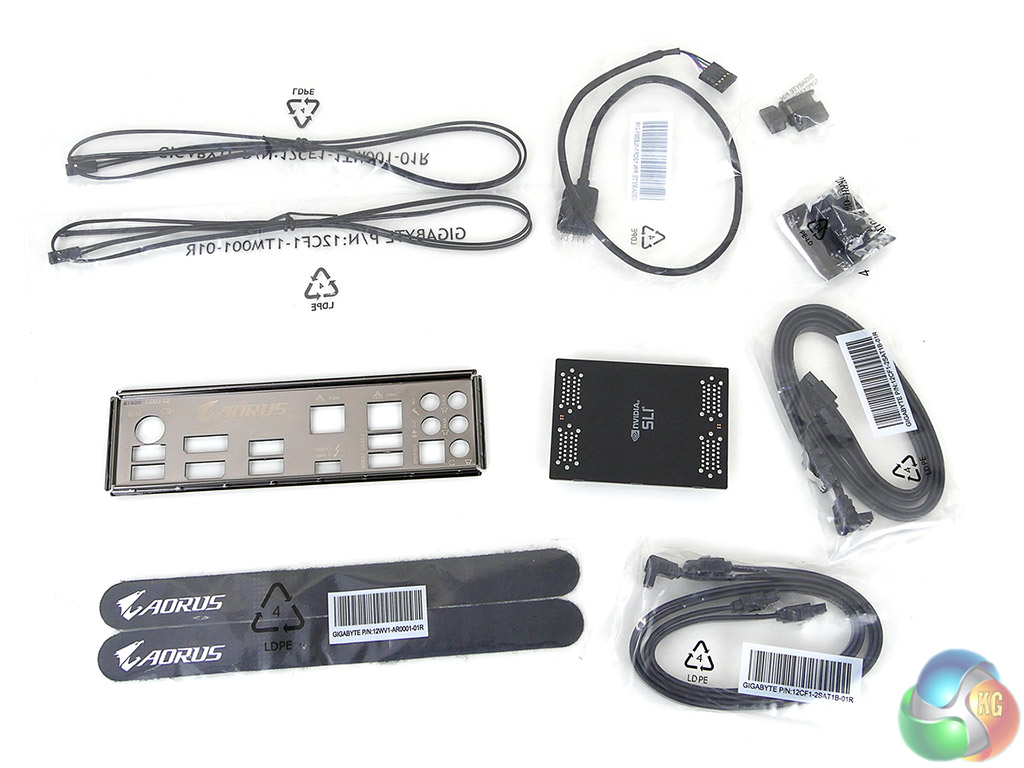
The supplied bundle is good for a motherboard of this calibre. Gigabyte provides:
- 4x SATA cables
- 1x HB SLI bridge
- Rear IO shield
- Front panel connector block
- Display output port covers
- 5-pin RGB extension cable
- 2x thermistor cables
- Aorus Velcro cable ties
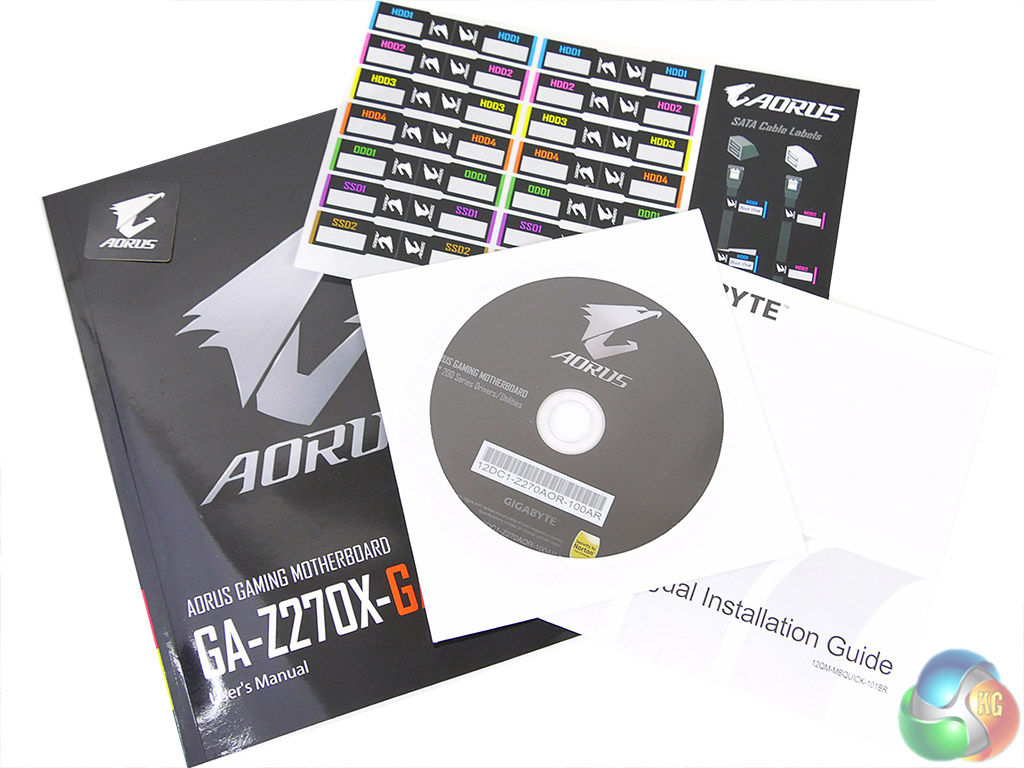
The usual affair of documentation is provided in addition to stickers that can be used to identify SATA cables feeding storage drives.
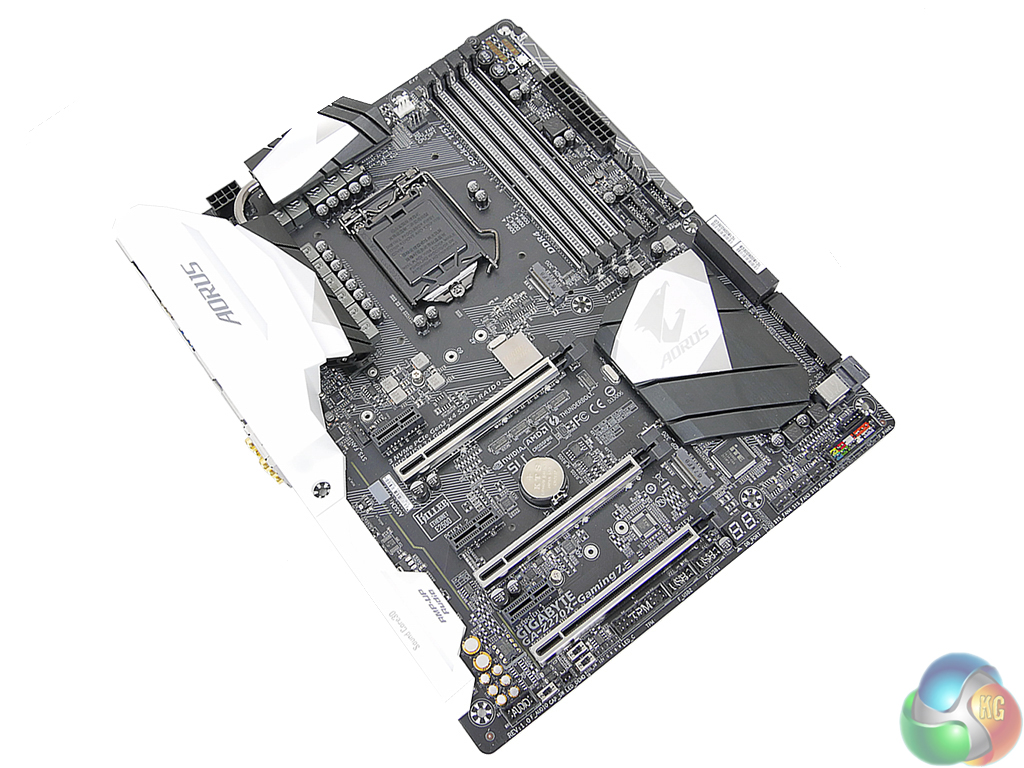
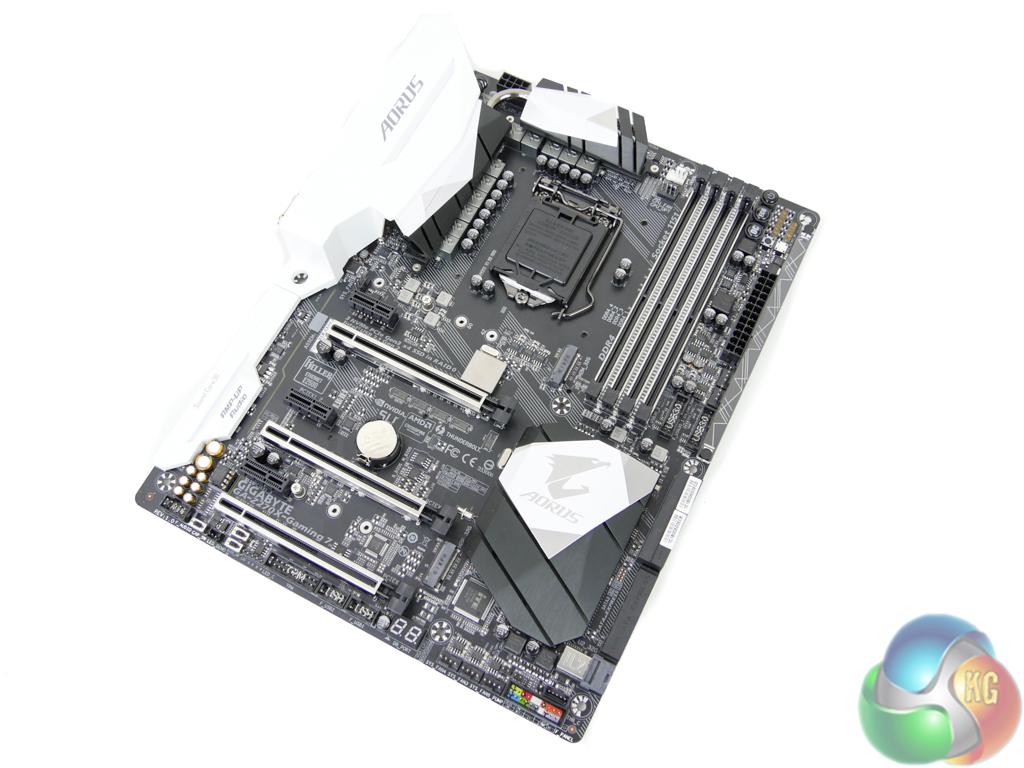
Gigabyte's Aorus Z270X-Gaming 7 is an ATX form factor motherboard. A black and white colour scheme is used superbly to create a very attractive motherboard (in my opinion).
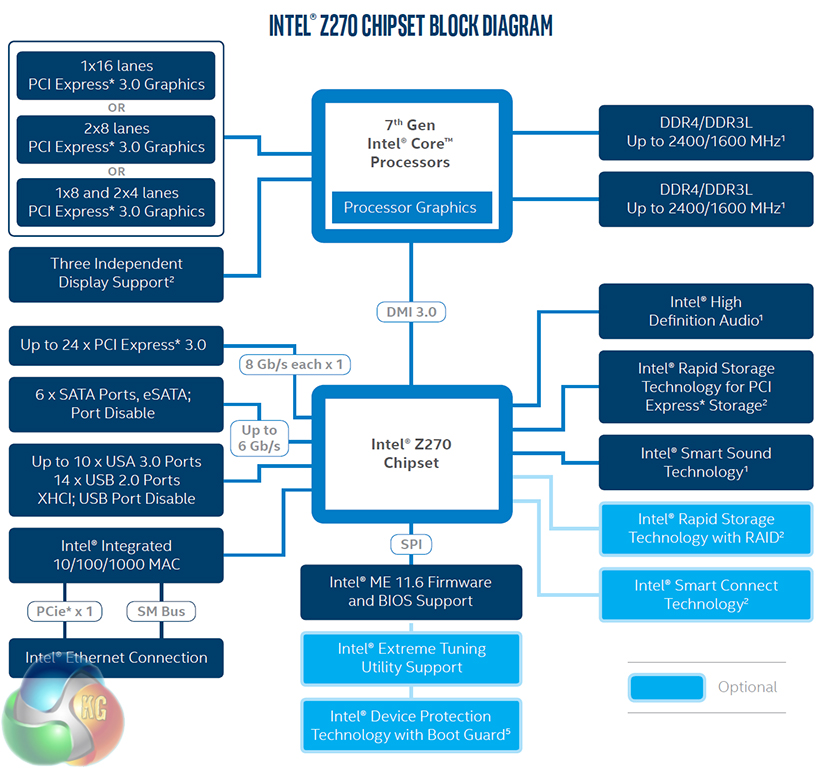
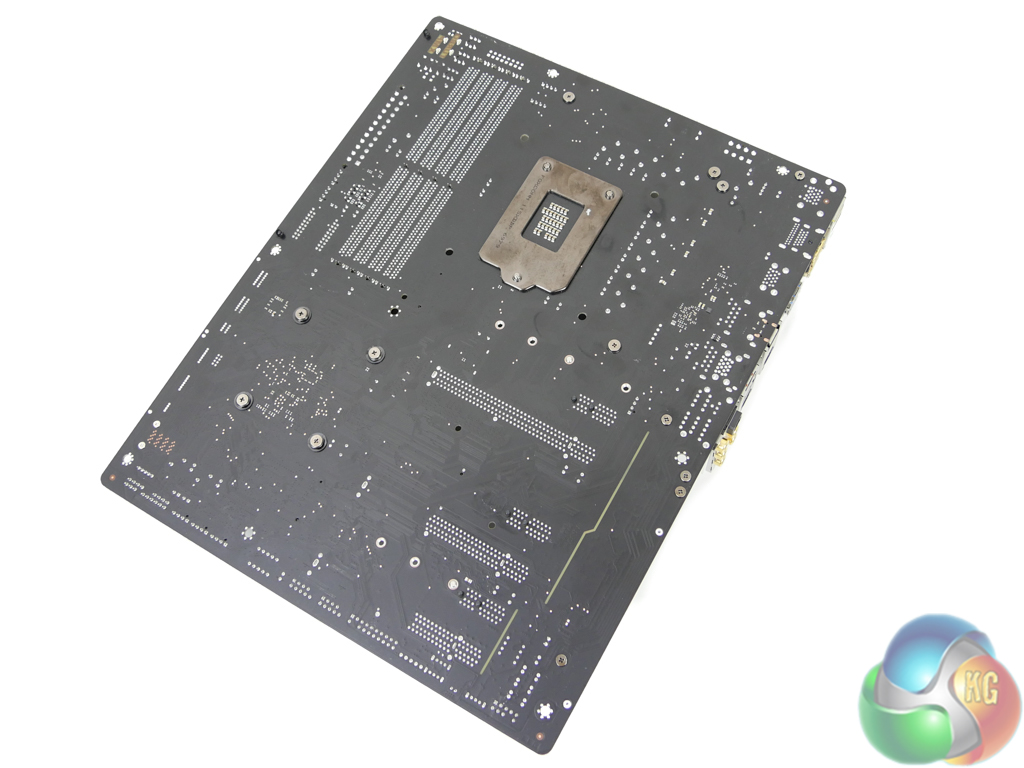
A glance at the motherboard's rear side gives a clear look at the PCIe lane distribution to onboard slots. No components of significance are mounted on the rear of the PCB.
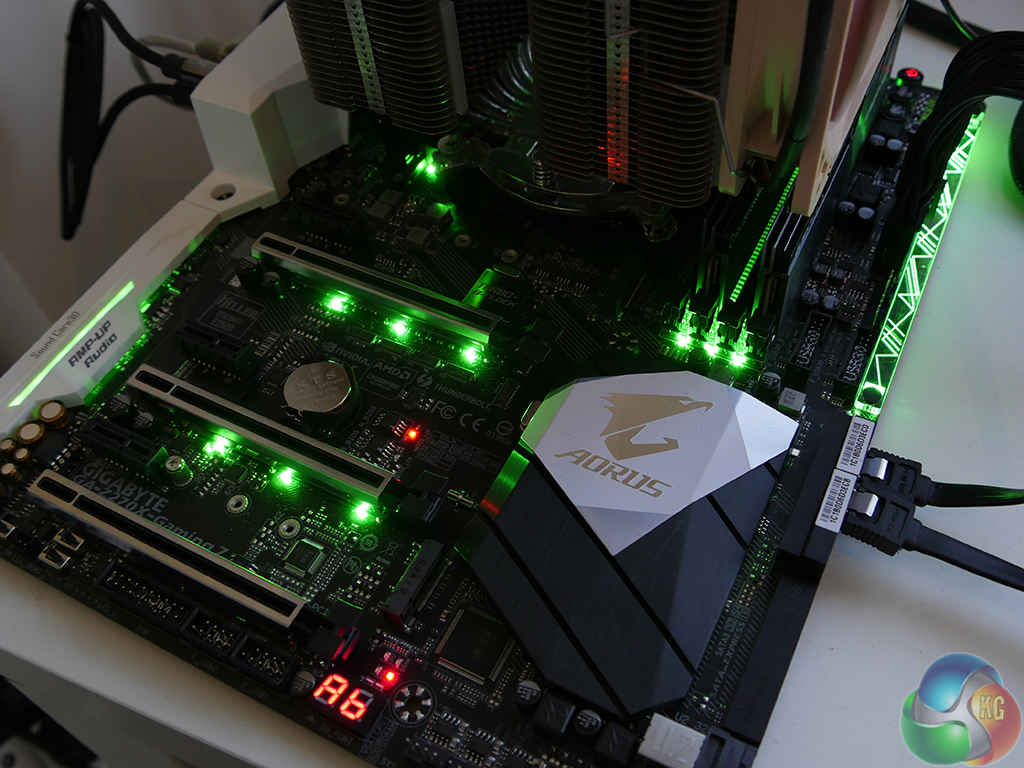
Seven individually-controllable RGB zones are found on the Z270X-Gaming 7, in addition to the external RGBW header. These zones are:
- Rear IO
- CPU VRM
- Audio section
- PCIe slots
- Chipset heatsink
- DIMM slots
- Right-hand plastic strip
The lighting solution for Gigabyte's board is superb. Brightness and colour accuracy are positives for the LEDs and the level of control is very good (as we will show later in this review). This solution is superior to that of ASRock's on the Fatal1ty Z270 Gaming K6 and ASUS' on the STRIX Z270F Gaming.
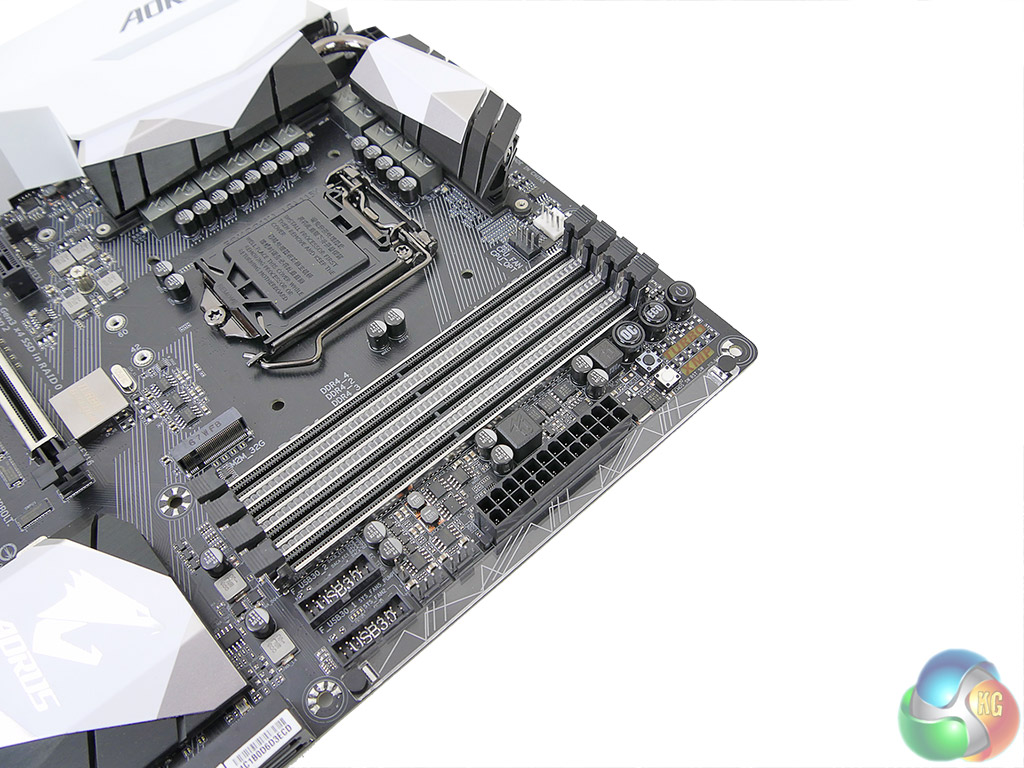
Four dual-latch DIMM slots provide support for up 64GB of dual-channel DDR4 memory (using currently available 16GB DIMMs). Gigabyte quotes memory frequency support of more than 4000MHz by way of overclocking but this will depend on CPU IMC strength and the BIOS stability. We are told that 3600MHz modules should work without issue on the motherboard while higher frequency DIMMs may cause slight issues with XMP tuning (if they are not on the QVL).
Gigabyte has a unique design to the DIMM slots. The steel reinforcement is good for minimising EMI and preventing PCB bending when initially pushing DDR4 modules into their slot. Three RGB LED strips occupy the space between the four DIMM slots which gives a superb glow originating from a location that is hidden when memory modules are installed.
Directly mounted on the motherboard's edge is a clear plastic strip that acts as a magnifier for RGB LEDs. The unique graphic printed onto the plastic strip creates an interesting appearance when the LEDs beneath are activated.
Also in this area is a pair of internal USB 3.0 headers provided using a Realtek RTS5411 USB 3.0 hub controller. Two 4-pin fan headers are found next door, one of which is also allocated pump duties. Above the 24-pin connector are onboard overclocking buttons. Power, reset, and clear CMOS are the usual trio but OC and Eco buttons are also added. Nearby are voltage monitoring that can prove useful for certifying the accuracy of software readings.
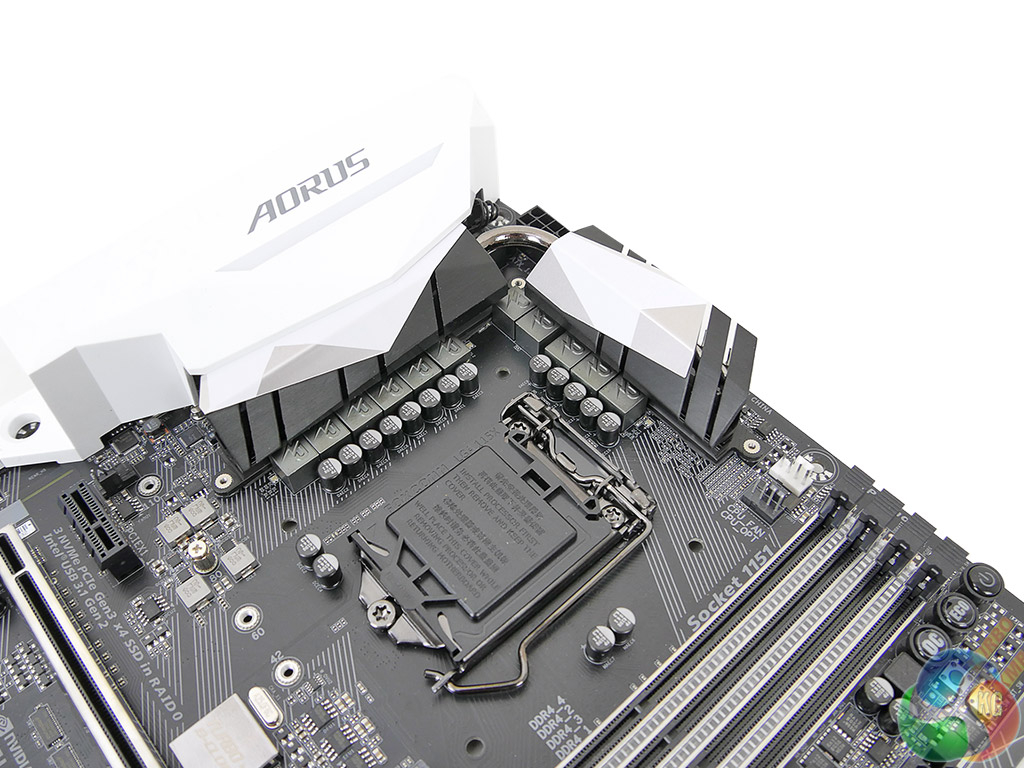
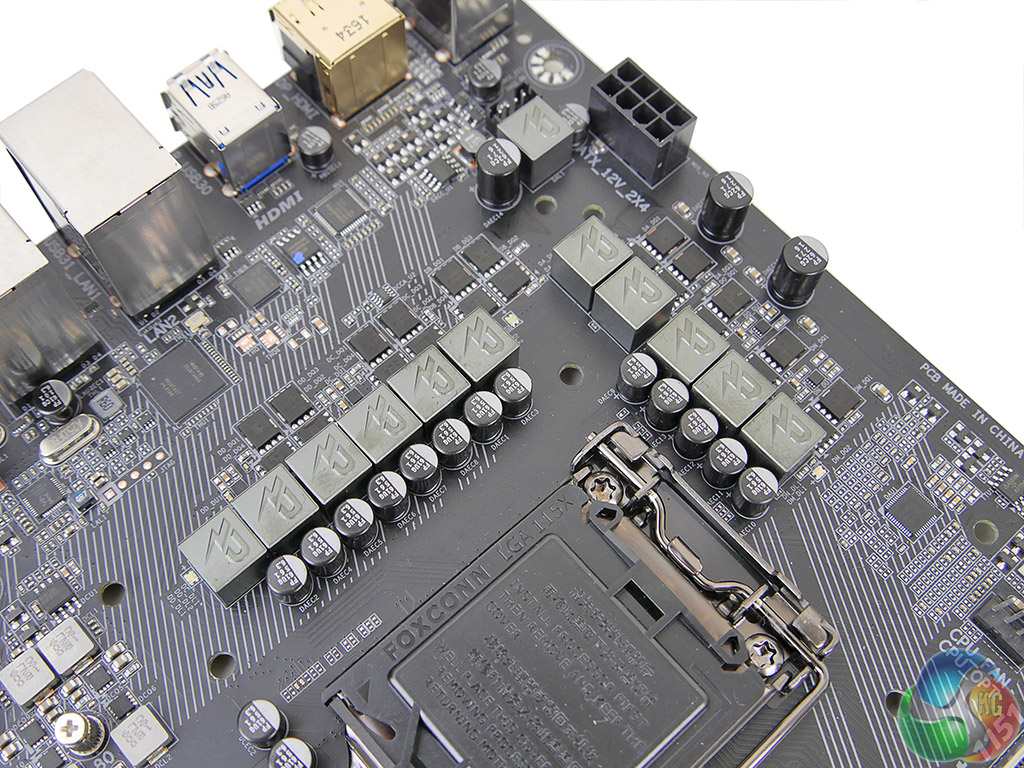
A total of 11 power delivery phases are used to drive voltage to the LGA 1151 CPU, its iGPU, and system rails. A well-designed heatsink is tasked with cooling the power delivery MOSFETs.
Intersil's ISL95866 hybrid digital PWM controller manages the power delivery system. The ISL95866 is an upgraded version of the 95856 thanks to its voltage offset adjustment and ability to control more rails. Four Intersil ISL6625A (marked 5AZ XXT) dual MOSFET drivers aid the PWM due to its inability to drive effectively a full eleven phases worth of MOSFETs.
Eleven pairs of Vishay PowerPAK SiRA12DP and SiRA18DP N-channel MOSFETs drive power to the components alongside ‘R50‘ marked chokes. The memory also uses Vishay MOSFETs and is managed by a Realtek RT8120D 2-phase PWM controller.
A Turbo BCLK IC helps to manage the CPU's operating frequency.
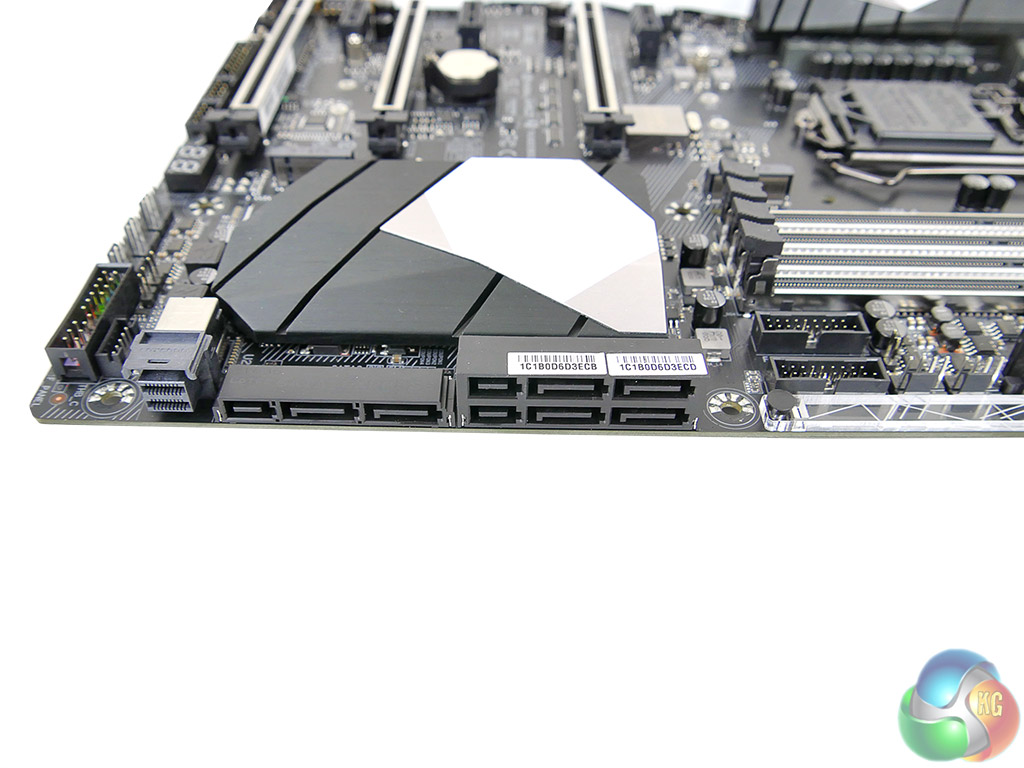
All six SATA 6Gbps connections originate from the Z270 chipset and can also combine to form three SATA-Express connections. Many people consider SATA-Express a dead connector but I personally still value it due to its ability to drive full-speed USB 3.1 Gen 2 front panel devices.
A 32Gbps PCIe 3.0 x4 U.2 connector is mounted next to the SATA ports. It is good to see the U.2 connector mounted natively rather than being supported via an M.2 adapter.
There is no problem created by the omission of an add-on SATA 6Gbps chipset to provide two more ports. This is thanks to Gigabyte's smart distribution of chipset IO lanes than means only two SATA 6Gbps ports are disabled when the upper M.2 slot is taking a PCIe or SATA SSD. The bottom slot does not disable SATA ports other than one that will be used if an M.2 SATA SSD is installed.
Gigabyte smartly designs the PCIe lane allocation so that interference between U.2 and SATA does not occur (in terms of disabling other features).
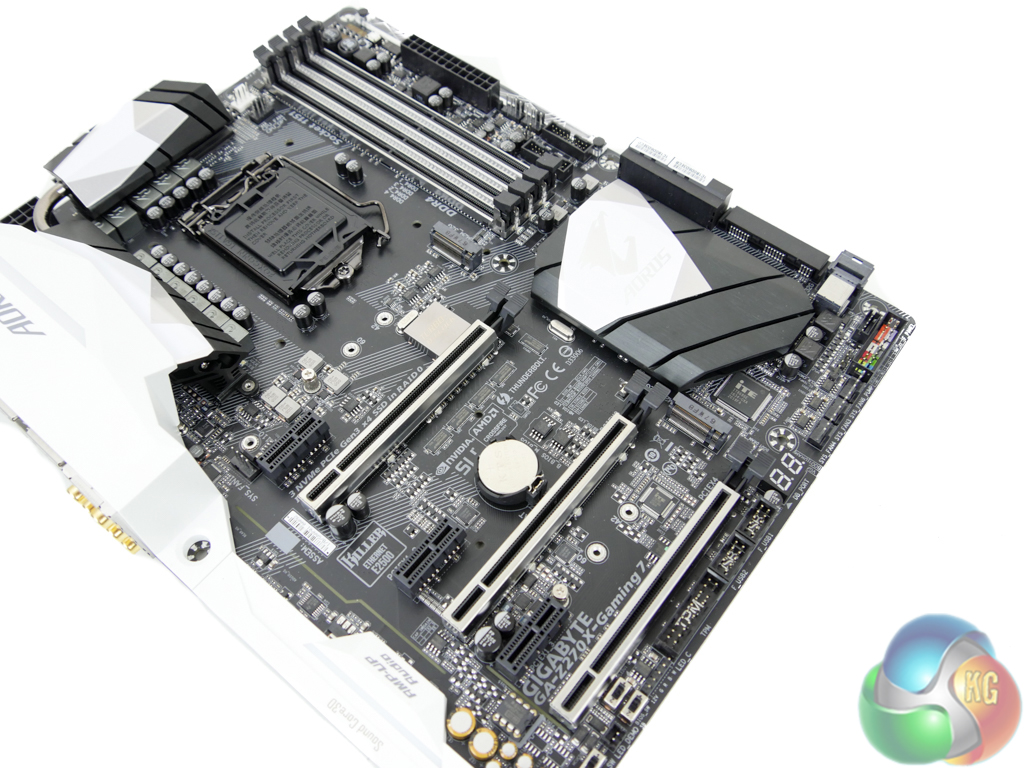
Two M.2 ports found on the motherboard both support PCIe 3.0 x4 NVMe operation as well as SATA 6Gbps mode. The upper slot can take 110mm-long SSDs whereas the lower is limited to 80mm in length.
Bandwidth from the upper slot is partially shared with SATA 6Gbps ports. Install a SATA/PCIe x2/PCIe x4 SSD into the upper M.2 slot and SATA ports 4 and 5 will both be disabled.
The lower M.2 slot only steals one SATA port 0 if a SATA SSD is installed there. Use a PCIe SSD and the SATA ports are unaltered but the PCIe 3.0 x4 physical slot drops to PCIe 3.0 x2 bandwidth.
Put simply, you should use the lower M.2 connector first, provided you have nothing to go in the lower PCIe full-length slot. The caveat here, as our testing in this review will show, is that an M.2 SSD in the lower slot is more susceptible to thermal throttling as it is further away from airflow created by the CPU cooler and graphics card. While this primarily depends on your individual system configuration, it is disappointing that Gigabyte has not provided any form of M.2 cooling solution that competing vendors such as MSI and ASUS offer.
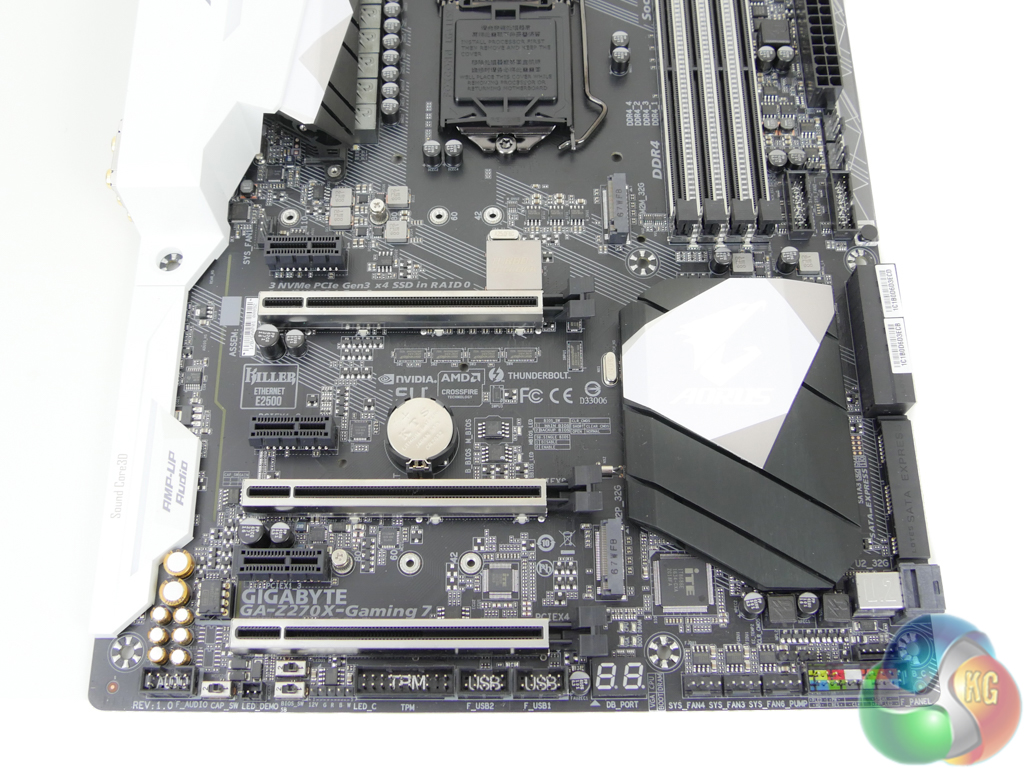
Gigabyte uses steel-reinforced PCIe slots to improve the strength of all three full-length slots. This helps to limit PCB sag for GPUs and also minimises the risk of slot breakage when shipping a system with a heavy graphics card installed.
The full-length PCIe slot electrical wiring is PCIe 3.0 x16, x8, and x4. With two graphics cards installed, the upper two slots will run at x8/x8 using CPU-fed lanes. The bottom full-length PCIe slot receives four lanes from the Z270 chipset but it is forced to share them with the lower M.2 slot (it will drop to PCIe 3.0 x2 with an M.2 SSD installed there). This means that three expansion cards are supported at x8 CPU/x8 CPU/x4 chipset, which is ideal for running two high-end GPUs and a PCIe SSD.
Spacing of the full-length slots is ideal. Clearance between the uppermost connector and CPU socket paves the way for large air coolers, while a two-slot gap between the first and second x16 slots gives dual-width graphics cards a cooling gap.
All three PCIe x1 slots use Gen 3 lanes originating from the Z270 chipset. The third slot shares its bandwidth with a SATA port meaning that only one of those can be used at a given time.
Going back to the point on lane distribution, Gigabyte is keen to point out that triple PCIe 3.0 x4 SSDs can be used simultaneously on the Z270X-Gaming 7. The upper M.2 slot, U.2 connector, and lower PCIe x4 slot or M.2 connector do not interfere with each other's bandwidth making them all functional simultaneously. This is ideal for users who want to RAID 0 three Intel 750 SSDs through the chipset without stealing the CPU's PCIe lanes.
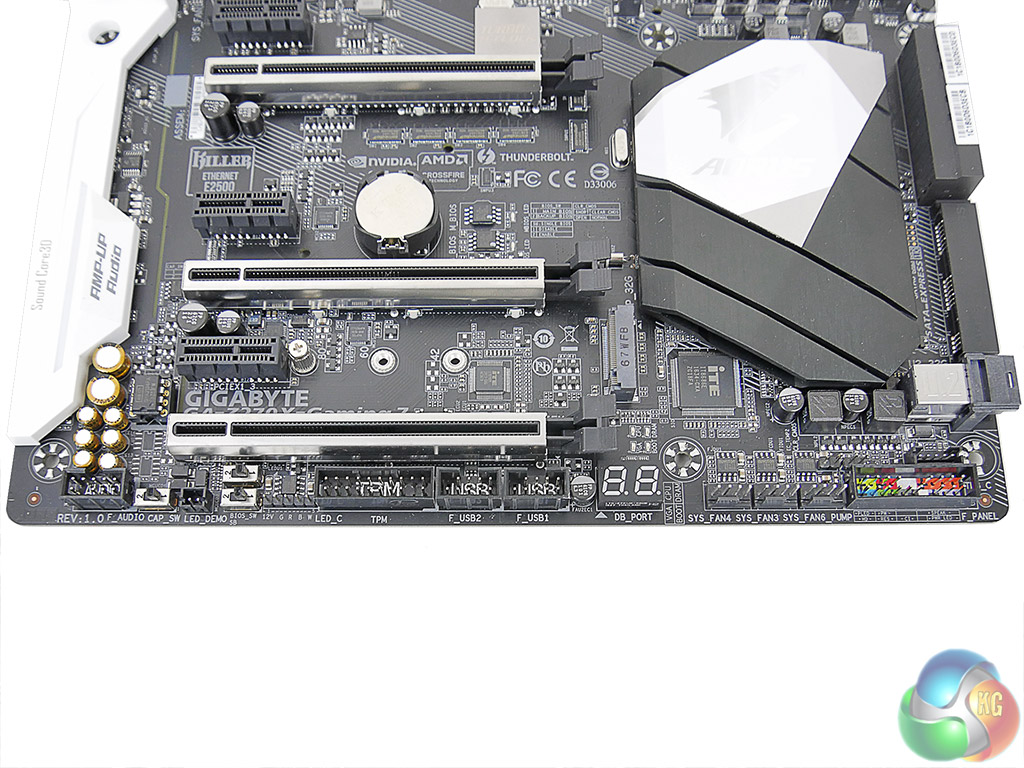
Two USB 2.0 headers sit next to a 2-digit debug LED display that I love to see included. Two BIOS switches allow for switching between the main and backup BIOS as well as single or dual BIOS mode operation. Another switch moves the audio gain between 2.5x and 6x for the rear panel headphone/speaker output jack.
For RGB LED strip control, Gigabyte opts for a 5-pin header rather than the usual 4-pin alternative by adding a white pin. Importantly, the pins are re-mappable in software which allows the Z270X-Gaming 7 to support a wide variety of RGB LED strips by simply re-programming the pin location to suit the strip. This is a smart way of dealing with the fragmented LED strip market.
Three system fan headers reside next to the front panel connection block.
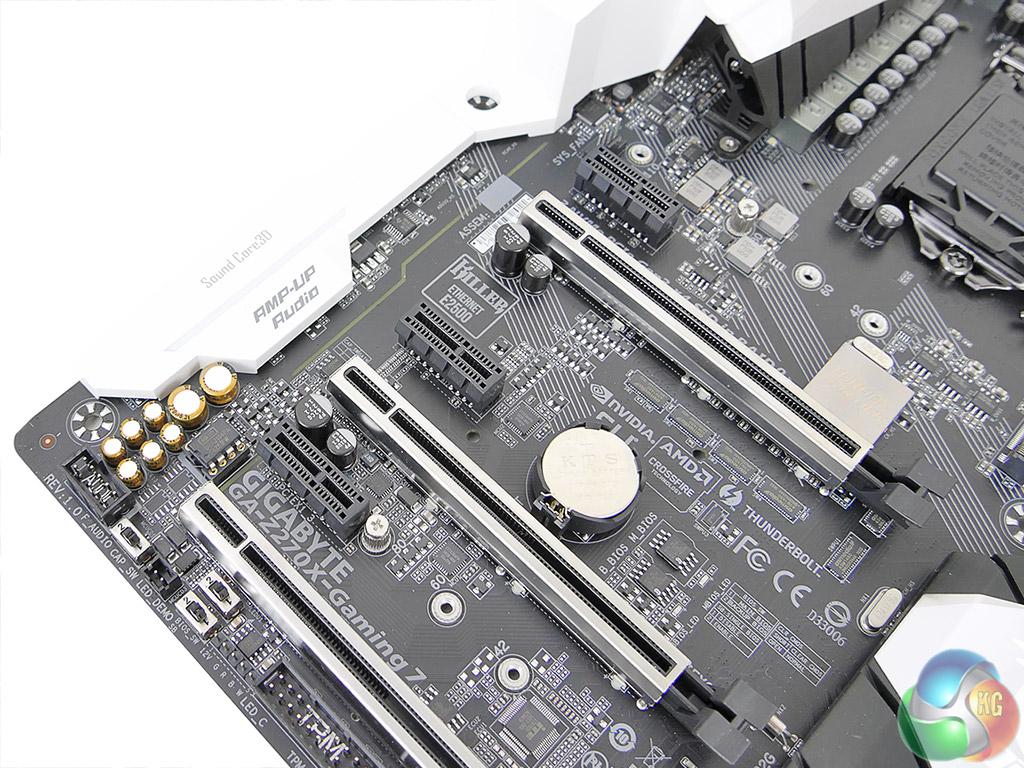
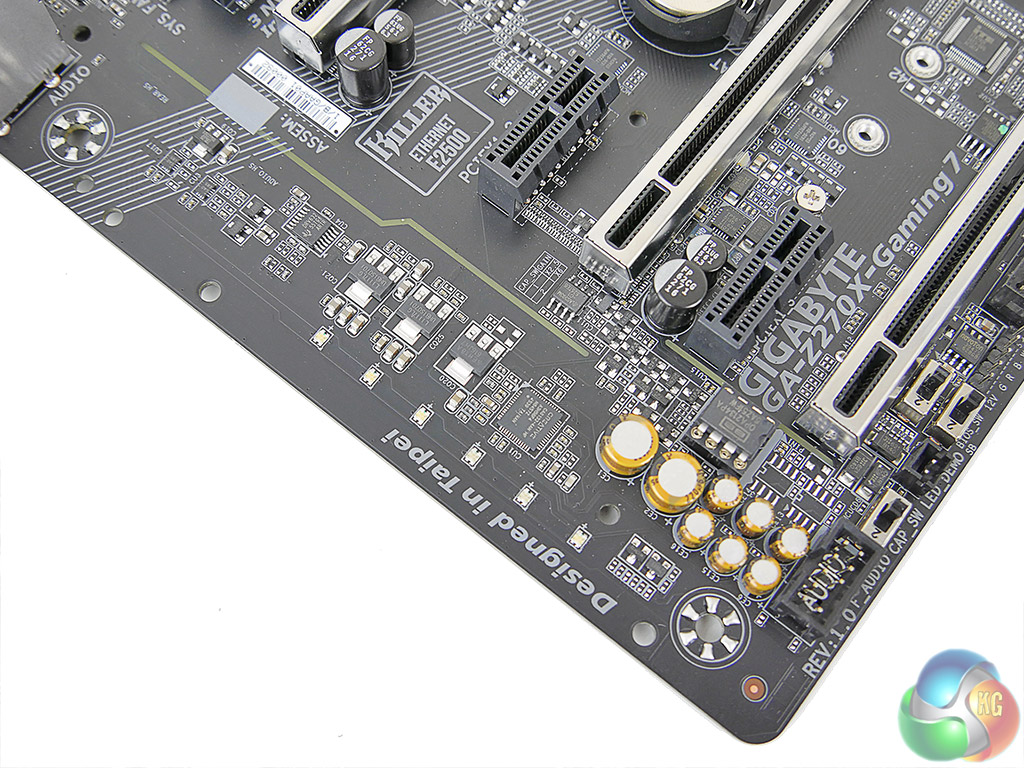
Hidden beneath the plastic shroud is a quad-core Creative Sound Core3D CA0132 chip. Partnering the Creative chip are a Texas Instruments DRV632 audio line driver with adjustable gain and a Burr Brown OPA2134 operational amplifier from the same vendor. Additional hardware includes Nichicon Fine Gold audio capacitors and a ASM393M comparator.
Creative software tools such as the SBX Pro Studio Suite, Scout Mode and VoiceFX are also supported. The Burr Brown operational amplifier is user upgradeable allowing audiophiles with specific preferences to adjust the system to their own personal requirements.
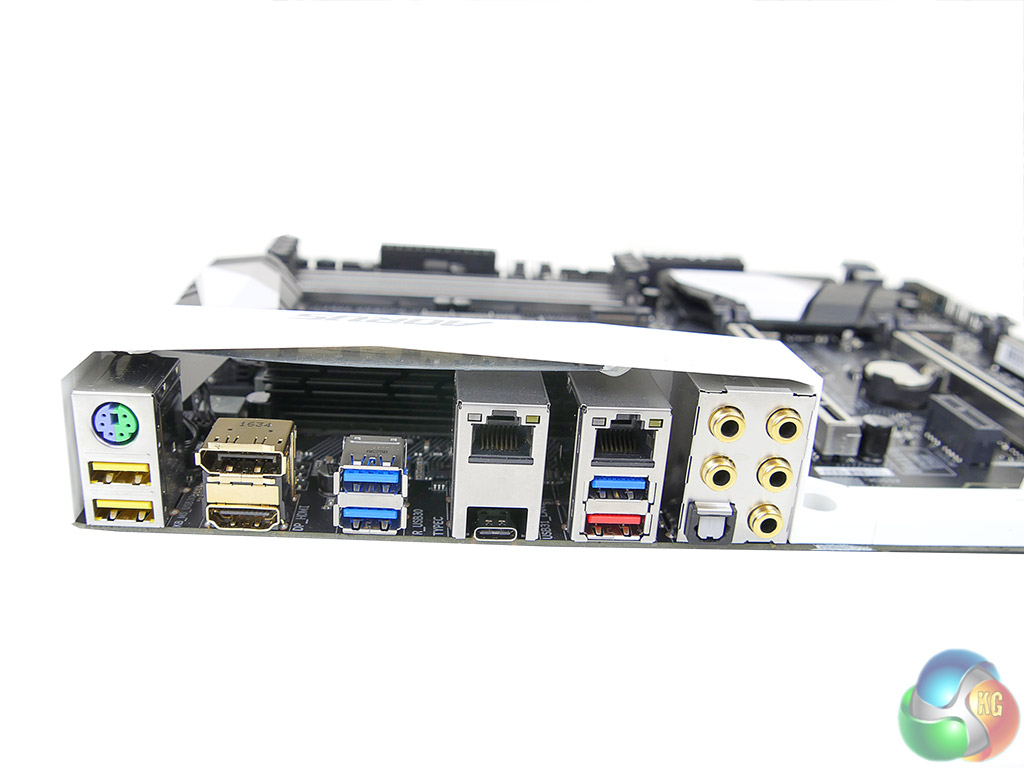
10Gbps USB 3.1 and 40Gbps Thunderbolt 3 connectivity is provided through the single Type-C connector. Intel's PCIe 3.0 x4 JHL6540 controller is used to provide Thunderbolt 3 and USB 3.1 connectivity (aided by a Texas Instruments TPS65982 switch for USB Type-C functionality and Power Delivery 2.0 operation). A red-coloured Type-A ports also features 10Gbps USB 3.1 Gen 2 capability.
The four-lane Thunderbolt 3/USB 3.1 Gen 2 controller has 32Gbps of total bandwidth which is double that of the ASMedia ASM2142 alternative used by competing board vendors. With that said, both solutions provide ample bandwidth for a single high-speed USB 3.1 Gen 2 device, though Intel's controller may show improvements if a pair of high-speed USB 3.1 SSDs is used simultaneously.
In addition to three standard 5Gbps USB 3.0 ports, two yellow-coloured DAC-UP 2 ports feature a dedicated power design to deliver cleaner signals which is important for USB audio devices. A few more Type-A USB ports would have been welcomed as five (excluding the 3.1 Gen 2 port) is likely to be filled quickly.
The gold-plated HDMI port is version 1.4, meaning that it is not capable of 4K60 output. The DisplayPort 1.2 output will do 4K60, though. Dual GbE NICs are provided by means of an Intel I219V chipset and Killer's E2500 series solution. These ports cannot be teamed together for double the bandwidth but they can be used for redundancy or compatibility reasons. I'd have preferred a pair from the same vendor for teaming support, to be honest.
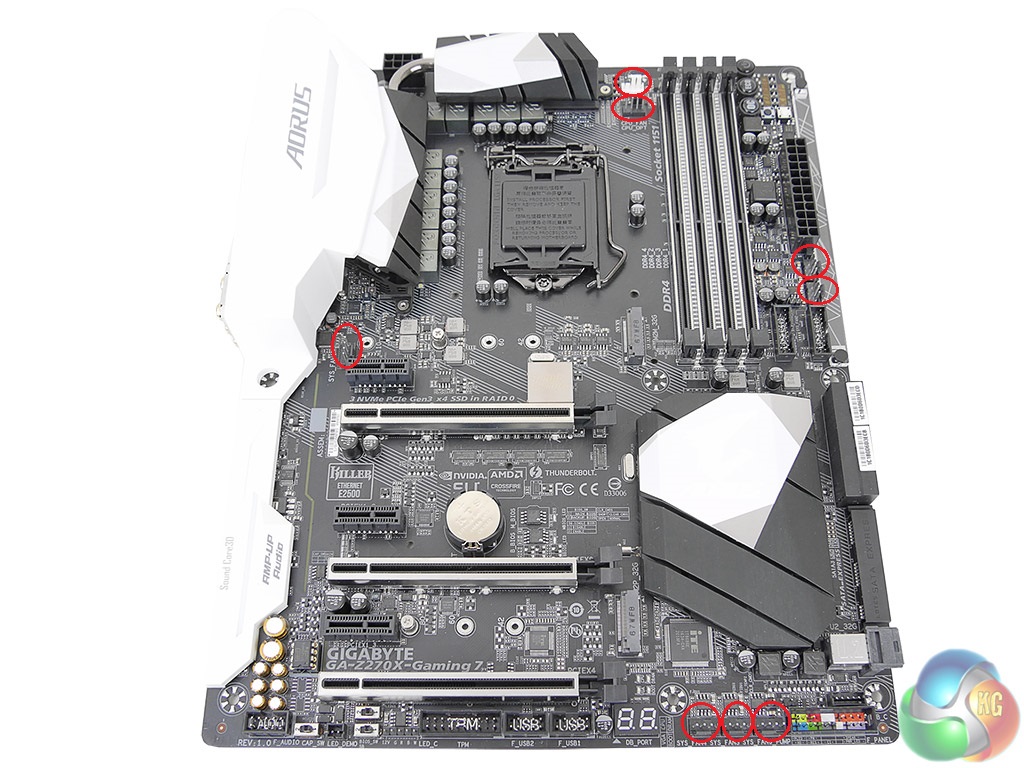
Gigabyte has made impressive strides with its fan header system found on the Aorus Z270X-Gaming 7. A total of eight (!) 4-pin Hybrid headers are smartly distributed around the board. Two are positioned and labelled for CPU duties.
Every one of the headers can detect whether to operate in PWM or DC mode and the 2A power delivery allows them to power a watercooling pump at full speed. We noticed the motherboard managing speeds of our 3-pin fans on the Noctua NH-D14 without any user input, which is impressive to see. If you want a lesson on how to implement fan connectivity options on a high-end motherboard, this is it.
Management of the fan and system monitoring duties is handled by ITE IT8686E and IT8792E chipsets.
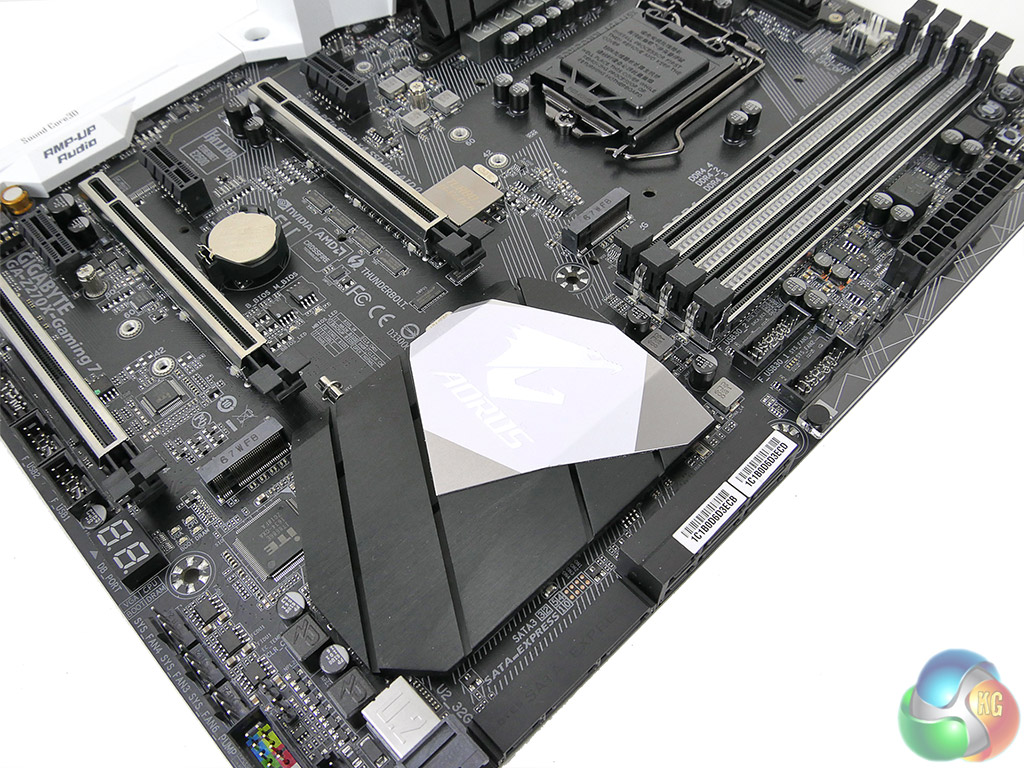
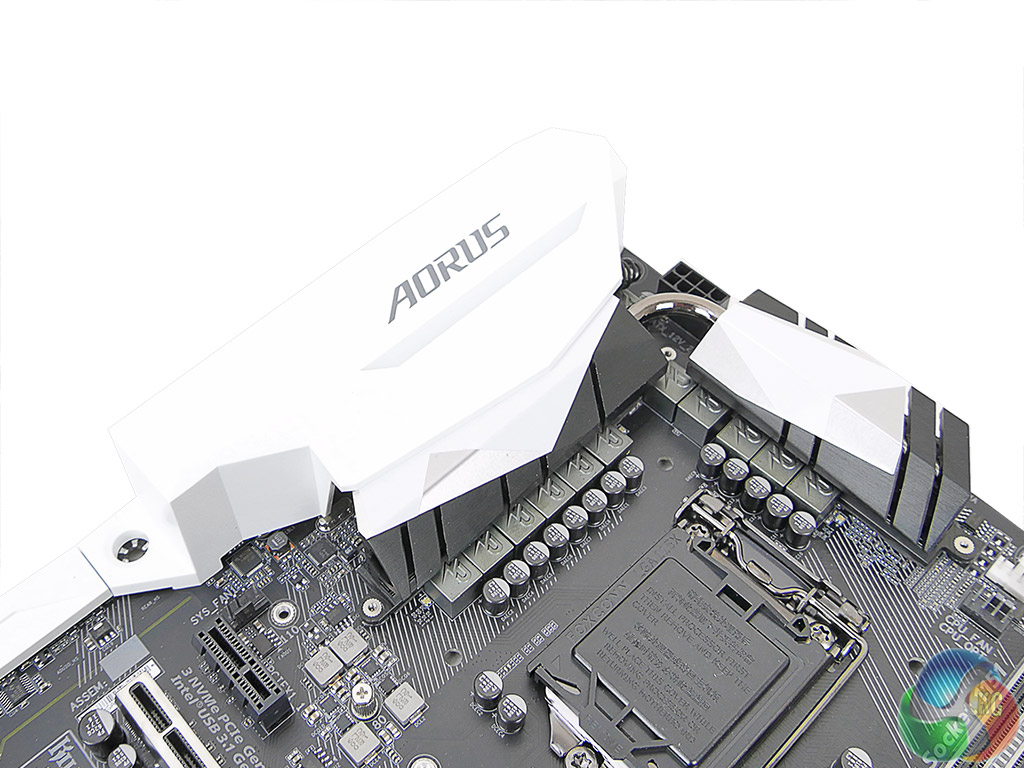
Attractive and functional white and black heatsinks are used for the Aorus Z270X-Gaming 7.
Gigabyte Z270 UEFI
Firstly, we are pleased to report that our generic wireless mouse worked correctly in the Gigabyte Z270 UEFI. Some mice can be troubling with UEFI support, so when a generic wireless unit functions correctly in the interface, that is usually a good sign for overall mouse support.
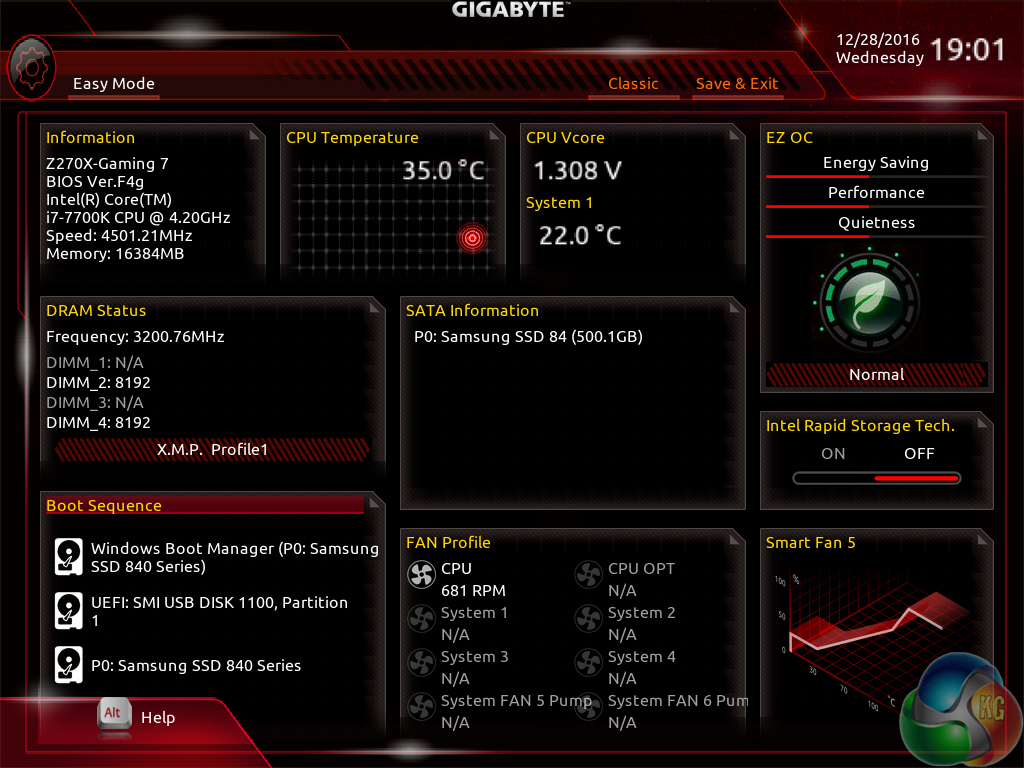
Gigabyte's Easy Mode page is a solid attempt at sectioning a handful of simple settings into a single section. Users can alter the boot sequence, check fan speeds, monitor temperatures and voltages, enable XMP, and change the performance mode without jumping into the deeper (and more scary for less experienced users) UEFI sections.
I don't have any complaints about Gigabyte's Easy Mode implementation. It is as good as the versions used by competing vendors.
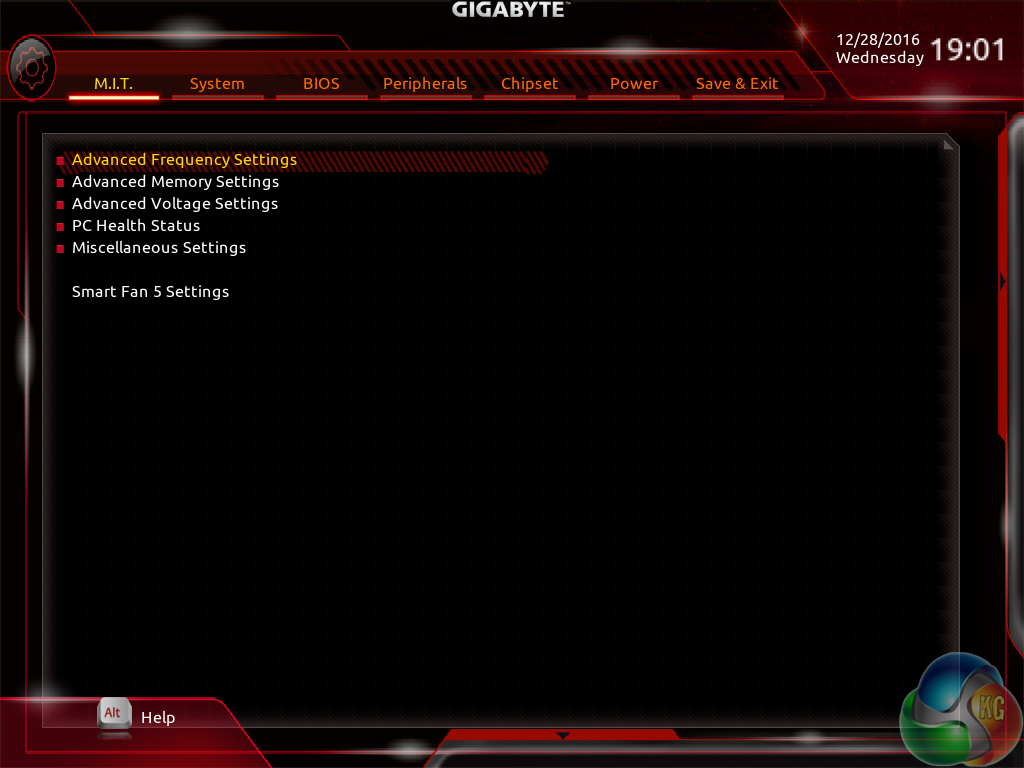
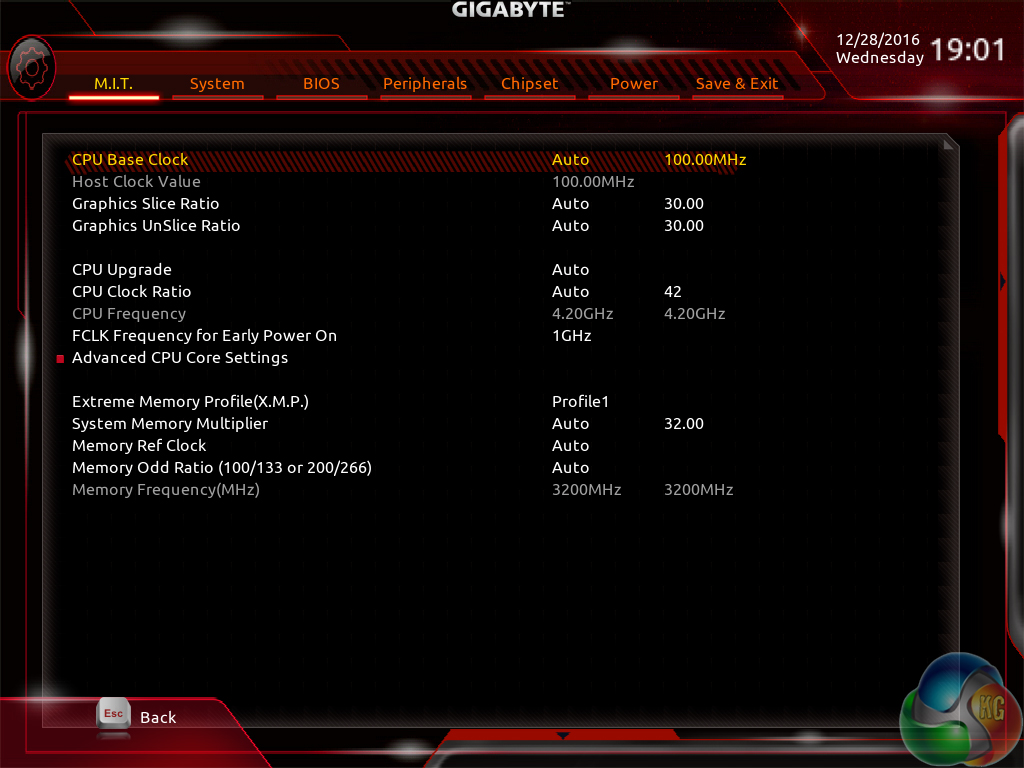
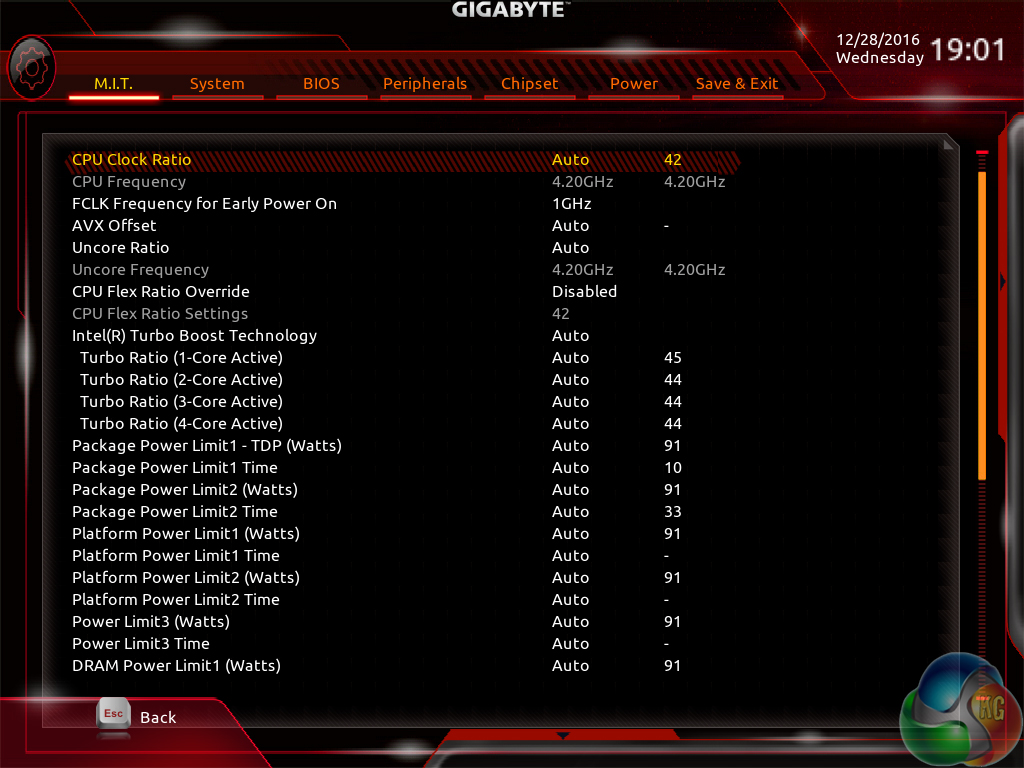
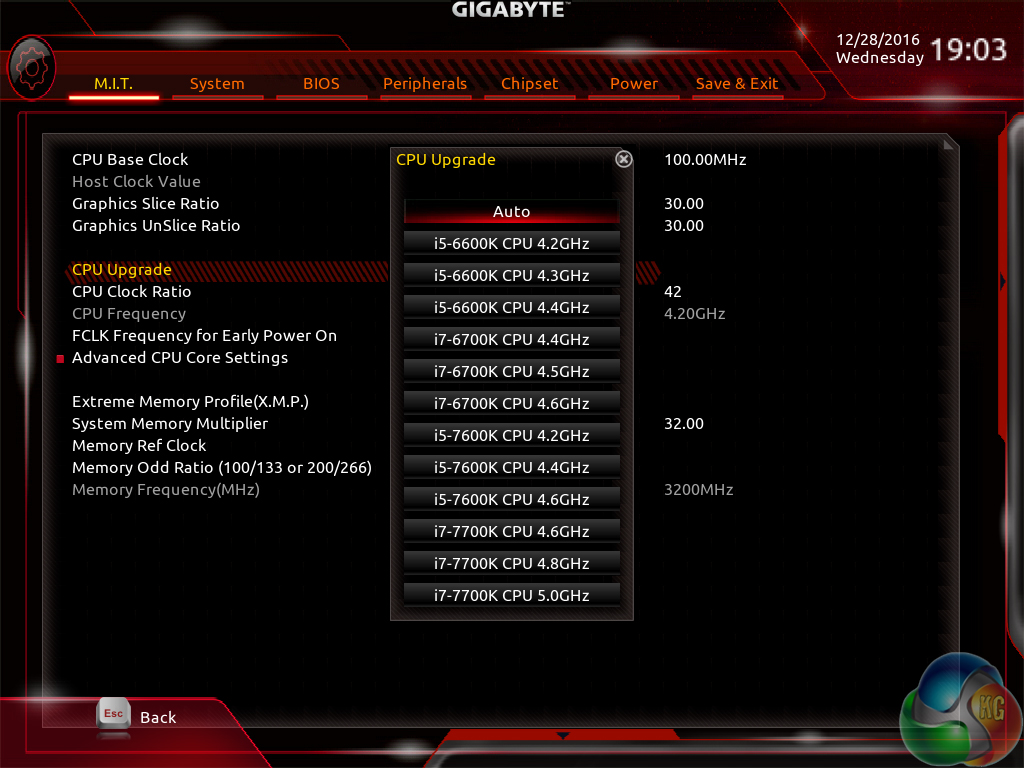
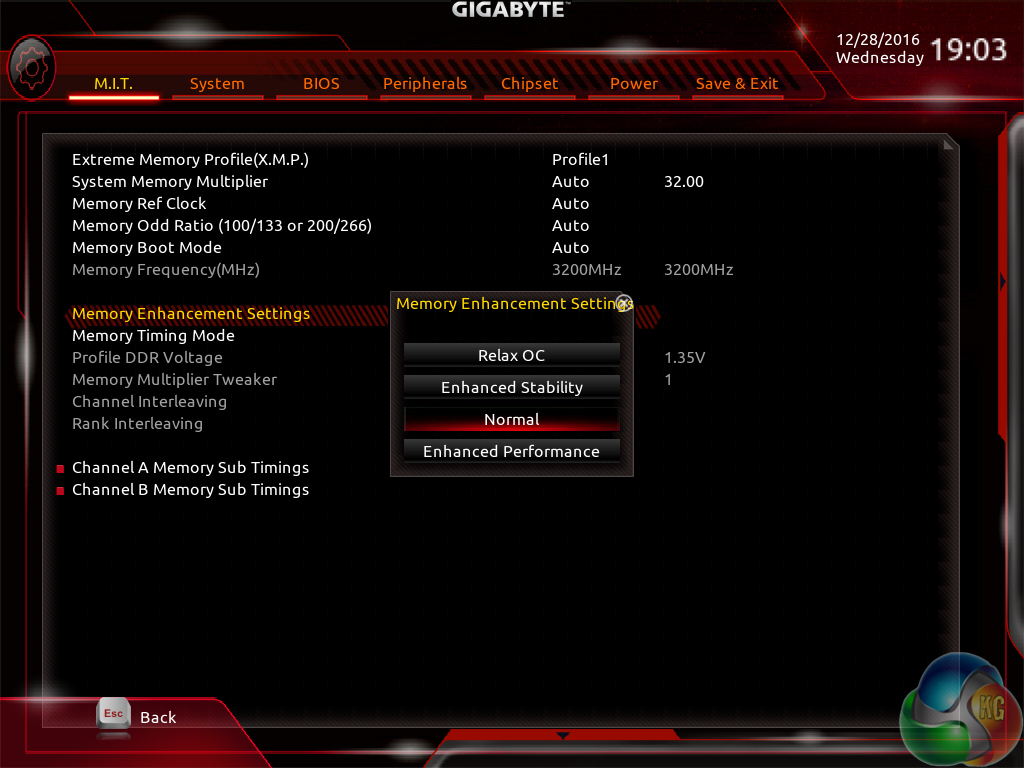
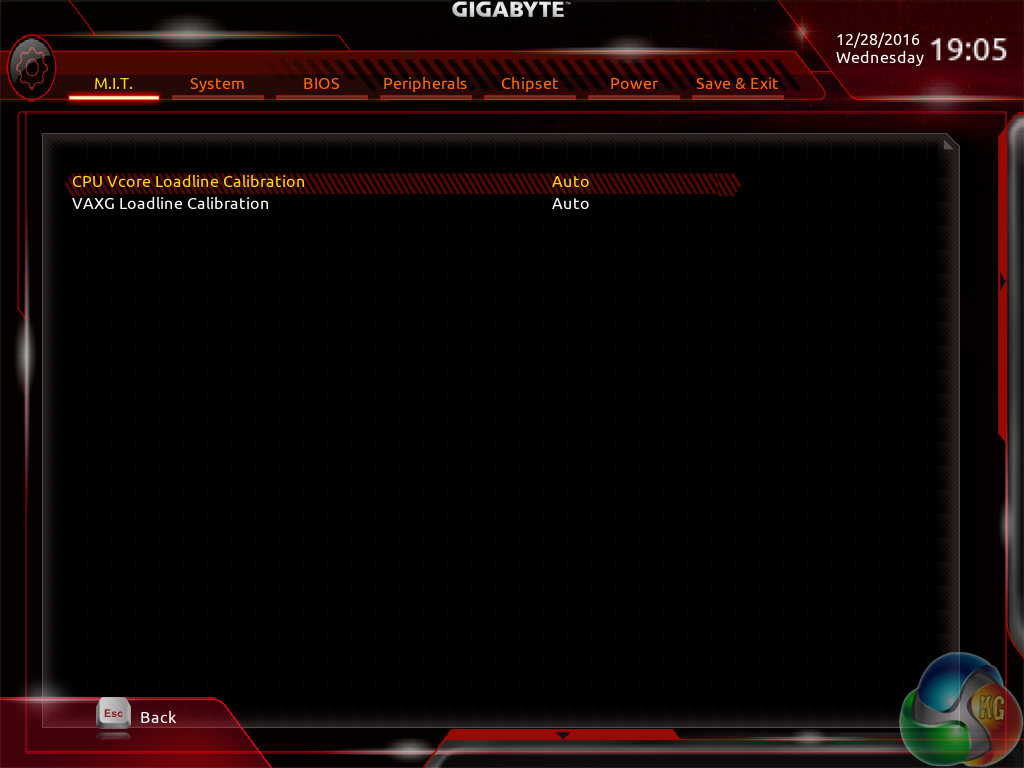
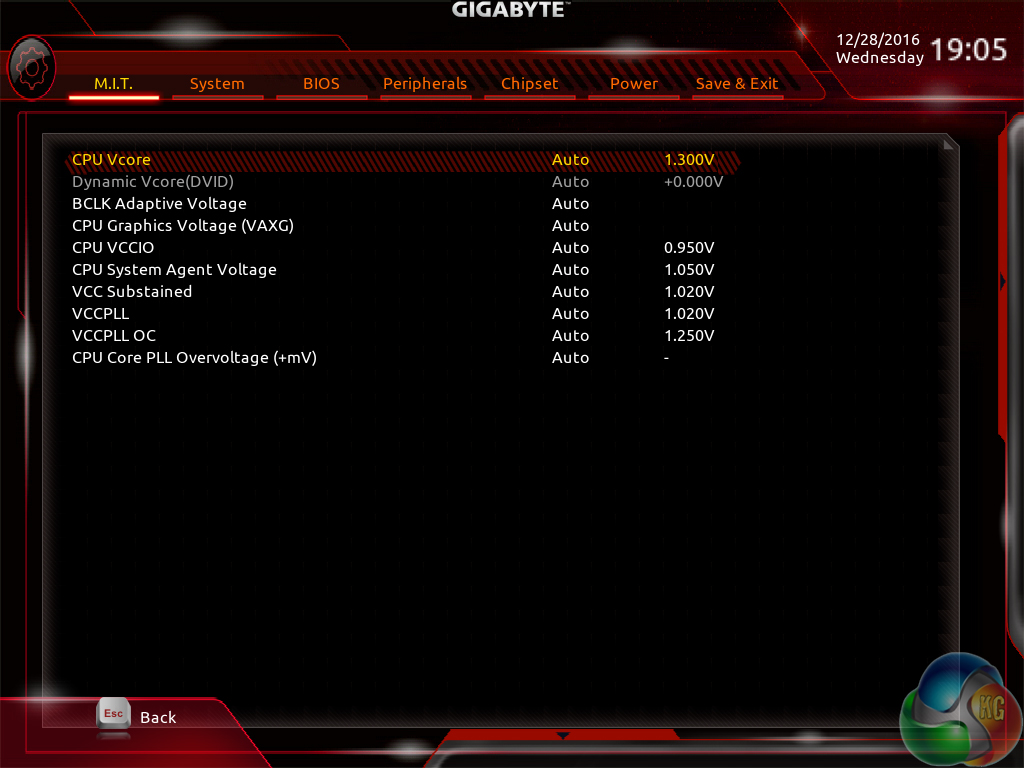
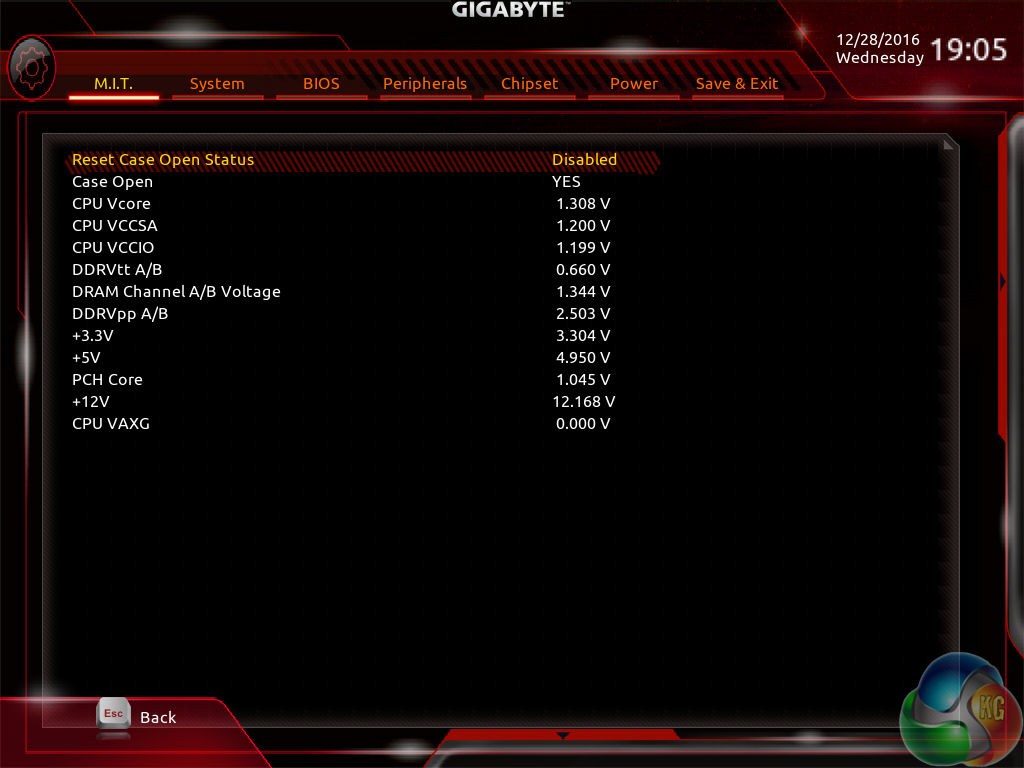
MIT is the main section where parameters relating to voltages, frequencies, and power settings for the system's main components are found. The Memory and Voltage sections are split from the Frequency subsection, which makes sense until one realises that an entire group of memory settings is replicated in both the Frequency and Memory subsections.
The subsection splitting does force a user to jump back and forth between pages but it also helps to keep the individual subsections tidy and without an overwhelming amount of information on one page (I'm looking at you, ASUS and MSI). Judging whether this sectioned layout or one where most settings are on a single page is better is down to individual preferences, as my colleague Ryan is not particularly fond of jumping between subsections but I personally prefer the segregation.
Standard, High, and Turbo LLC settings don't make any sense because there's no explanation (be it visual or written) as to how the voltage profile is adjusted with each mode. As it happens, our trial-and-error testing suggests that you should use the High LLC setting if you want CPU VCore to stay close to your applied numerical value without a significant overshoot (Turbo) or undershoot (Standard). Is this so hard for Gigabyte to write in the UEFI?
There is a help section on the right side of UEFI pages but it has to be manually selected in order to be displayed. Competing motherboard vendors' approach of permanently displaying important information on the right side is better.
A dozen overclocking presets for Skylake and Kaby Lake unlocked i5 and i7 CPUs is great to see. We tested out the 4.8GHz 7700K profile and found it to be a decent offering which resulted in a 1.38V loaded CPU VCore that was Prime 95-stable (with good enough CPU cooling capacity). XMP settings are not disabled, either.
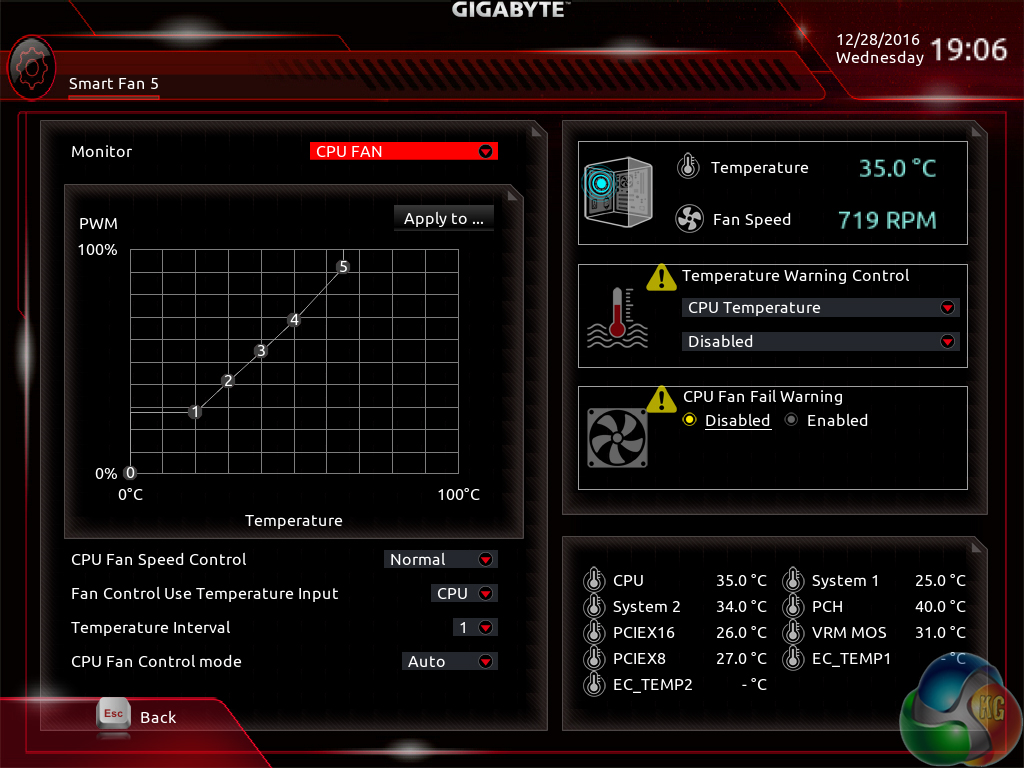
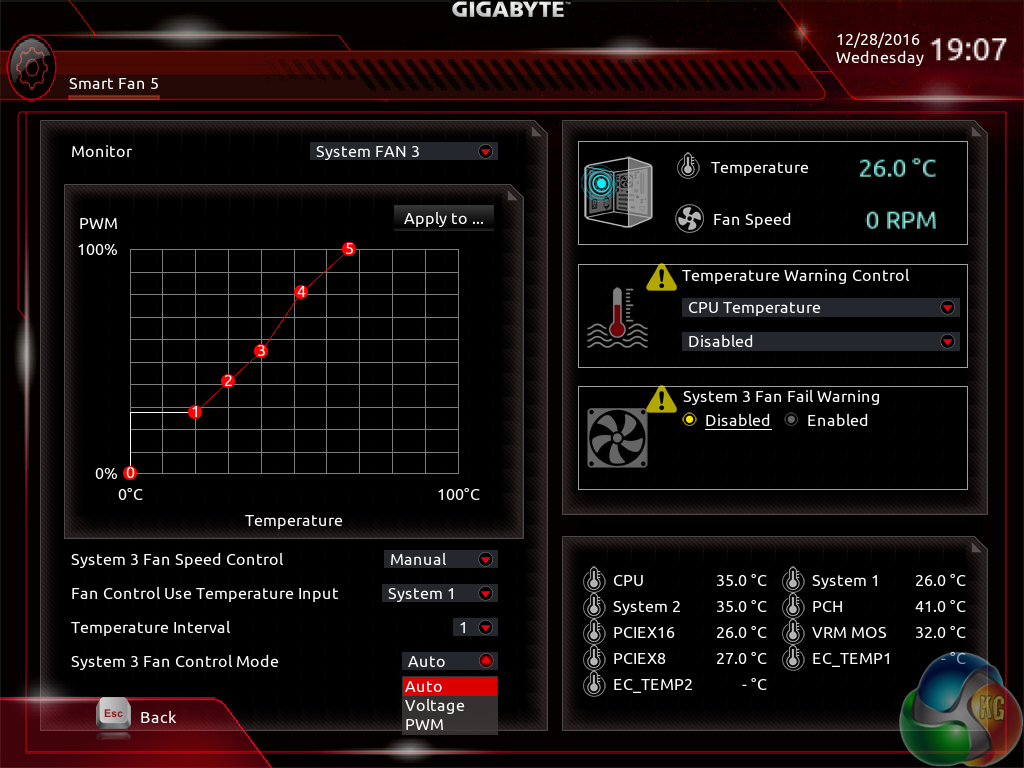
The Smart Fan 5 settings subsection can be accessed from the MIT page. This superb fan control system is the crown jewel for Gigabyte's Z270 UEFI.
All fan headers can be individually selected and their speed profiles can be tweaked. Gigabyte includes a number of preset fan speed control settings and a choice of temperature monitoring points. The headers can also be set to PWM or Voltage (DC) mode at will, which is ideal for feeding continuous current to a watercooling pump or letting PWM fans adjust in speed.
It's the manual fan speed tweaking mode where Smart Fan 5 really shows its worth. Six points on a graph can be used to create the fan speed curve. A level as low as 0% PWM speed down to 0°C is also supported, meaning that you can set the fan to switch off if the system is operating at ambient temperature (provided the fan is able to stop itself spinning).
I also noticed the motherboard automatically managing the speed profile of 3-pin Noctua fans used on the NH-D14. Under low load conditions the speed would be reduced to a very low noise level until temperatures rose and the fans would spin faster. This was without any additional setting changes conducted by myself.
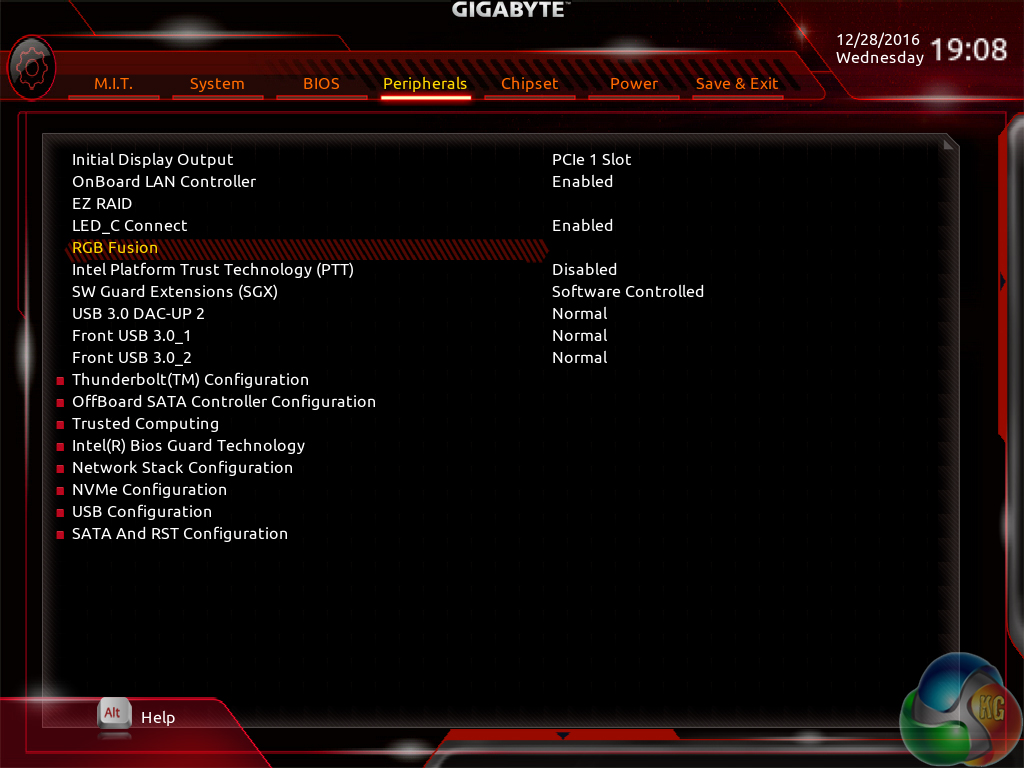
The Peripherals tab contains settings and information relating to onboard devices such as the SATA controller and NVMe configuration.
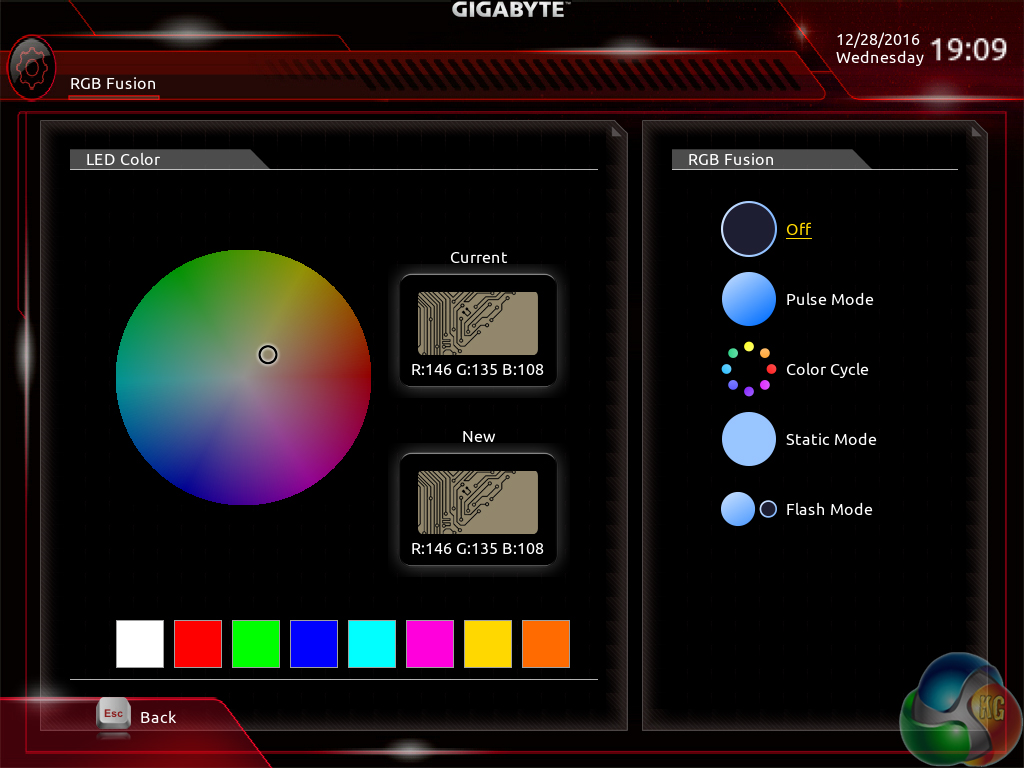
RGB Fusion is Gigabyte's basic UEFI-based LED colour control tool. Colours can be adjusted and the LED activation mode can be set, but that's about it. There is a limit to how complex the tool can be given its residence inside the UEFI and the OS version has greater functionality.
With that said, I like to see at least some form of LED control available in the UEFI as it helps to maintain user-defined parameters in the case of an OS reinstall or system corruption that damages the OS-based LED profiles.
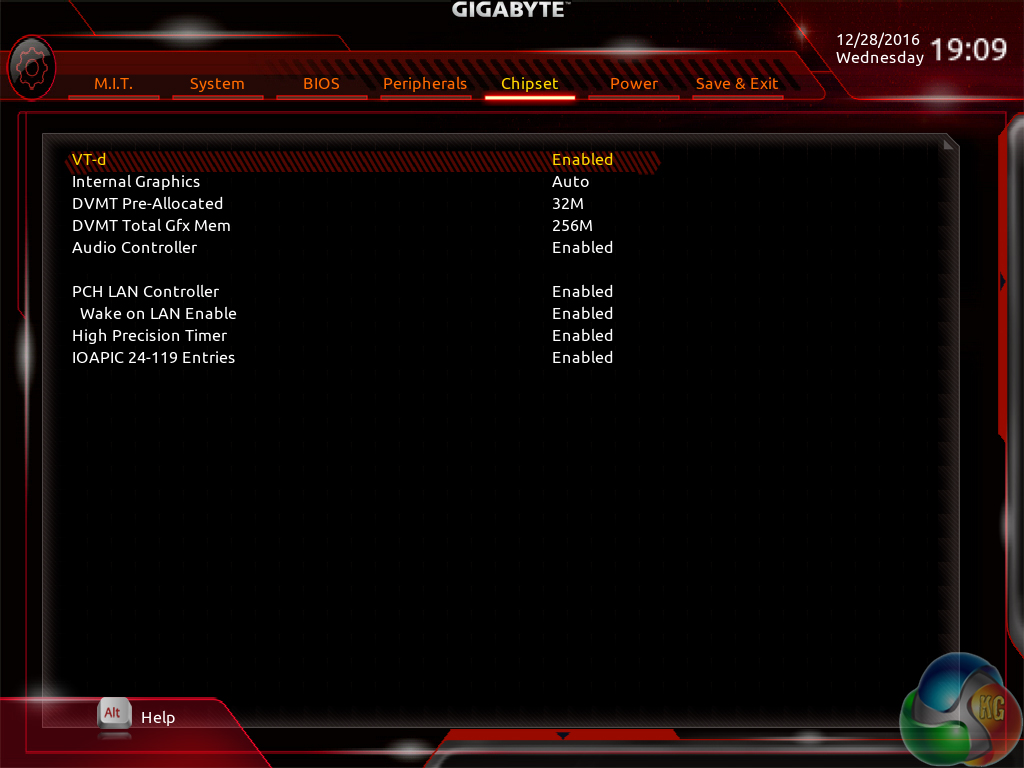
Settings relating to the internal graphics and virtualisation support, among others, can be tweaked in the Chipset page.
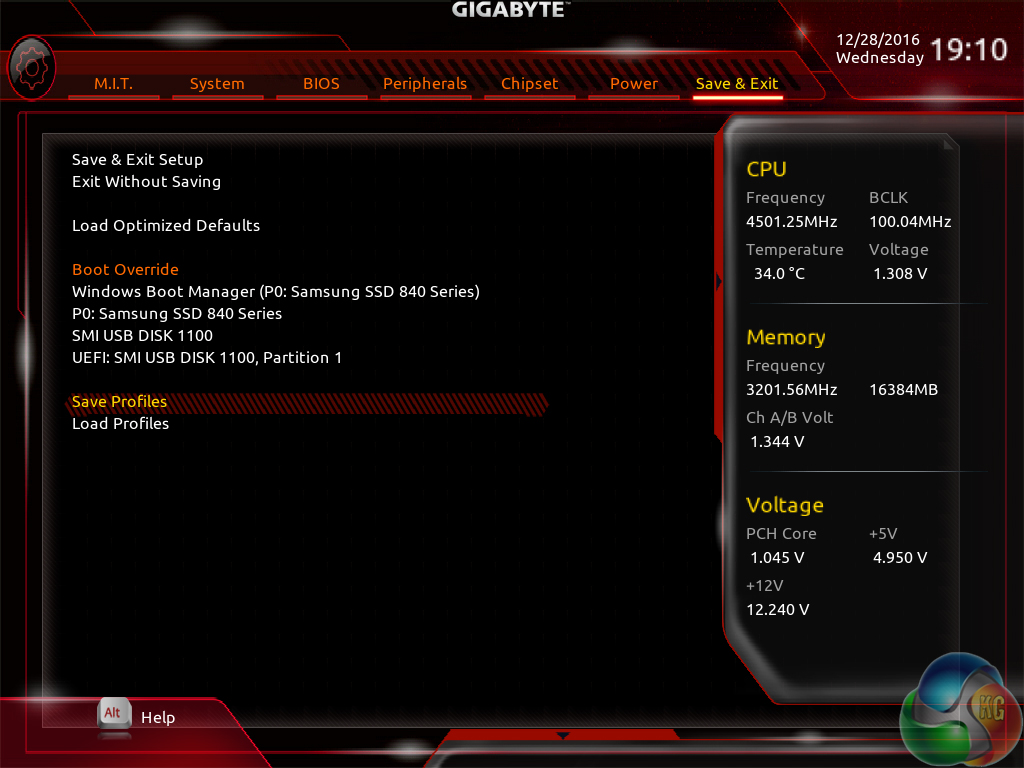
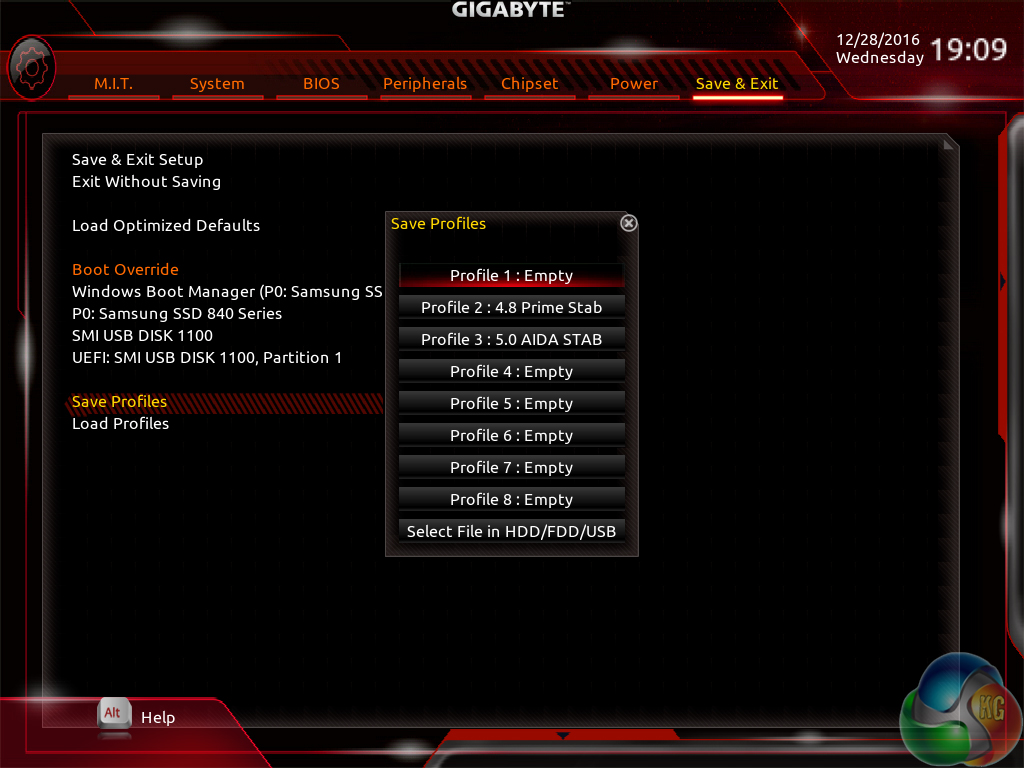
Up to 8 individual profiles can be saved to the board's internal memory. Further profiles can be transferred using a storage medium.
The profile manager is accessed through the Save & Exit page. I can see the logic in this location but I would prefer that the profiles were available in a more obvious section, perhaps MIT as this is where the bulk of parameter adjustment is conducted or BIOS as that would be logical.
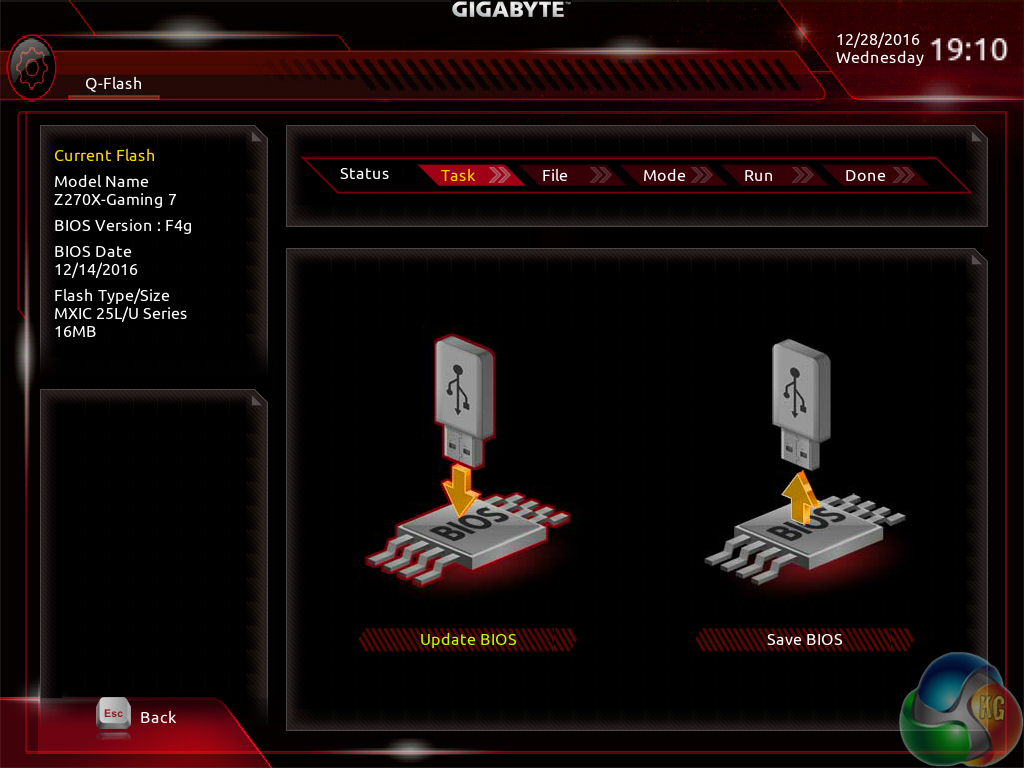
Gigabyte's BIOS updating tool – Q-Flash – is accessed via a hidden tab on the bottom of the screen. I took a few minutes to find its location which was annoying as it would make more sense if there was some reference to it in one of the main pages, such as BIOS.
We were able to enter different folders within our USB drive using Q-Flash and then update the BIOS with ease. There's no internet-based BIOS update tool available through the Gigabyte UEFI, as we have seen some competing vendors offer.
UEFI Summary:
Good fan control options through Smart Fan 5 and an ability to control RGB LED settings, albeit in a basic manner, through RGB Fusion are positive points for Gigabyte's Z270 UEFI. The interface was stable throughout our testing and we didn't seem to be missing any glaring system tuning settings that limited our overclocking capabilities. That is, with the exception of LLC settings which make any sense or have an explanation tied to their operating mode.
Overall styling of the UEFI is older, less interactive, and far less appealing than the solutions by ASUS and ASRock in particular. I found myself relying upon the keyboard for parameter adjustments more than I do in competing UEFI implementations. There's no ‘special‘ UEFI feature like SSD Secure Erase with ASUS and MSI or ASRock's and MSI's System Browser and Board Explorer tools, respectively. And some tools are found in questionable locations (Profiles and Q-Flash).
Gigabyte's current Z270 UEFI is certainly a major improvement over the implementation seen on the early X99 boards and the Easy Mode page is a nice addition over Z170. But there's no denying that further work is required if Gigabyte wants a UEFI implementation that can wholeheartedly compete with those of ASRock, ASUS, and MSI in more than a small number of select areas. With that said, fan control functionality is superb and that may be enough of a positive for users to overlook the other negatives.
Software
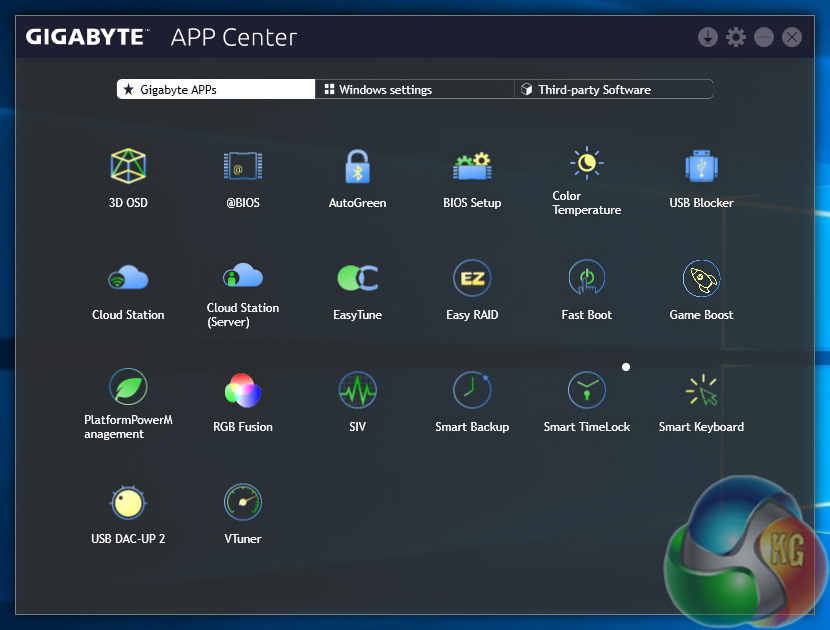
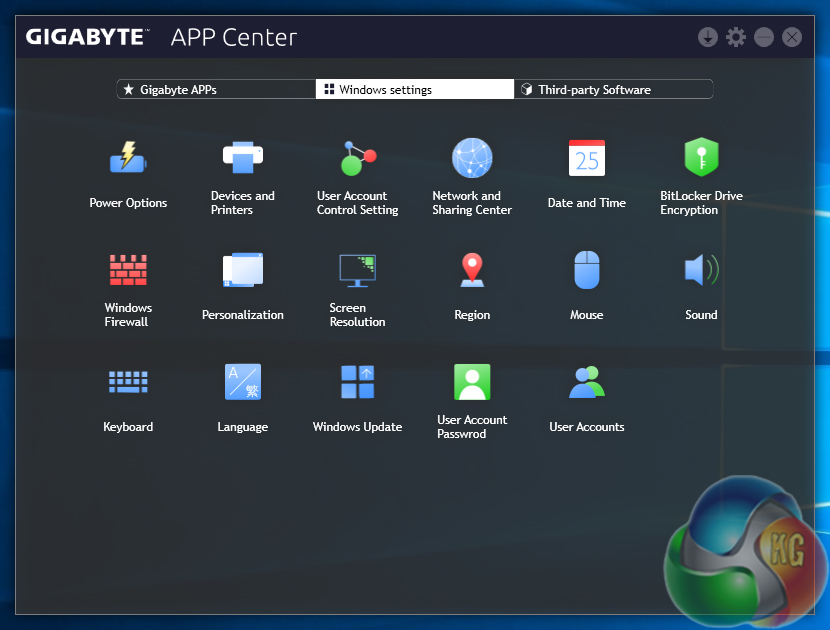
Gigabyte makes a vast number of software utilities available for installation with its Z270 motherboards. Thankfully, not all of the tools have to be installed and APP Center is a very good method of managing the selected software, as well as third-party apps and Windows settings.
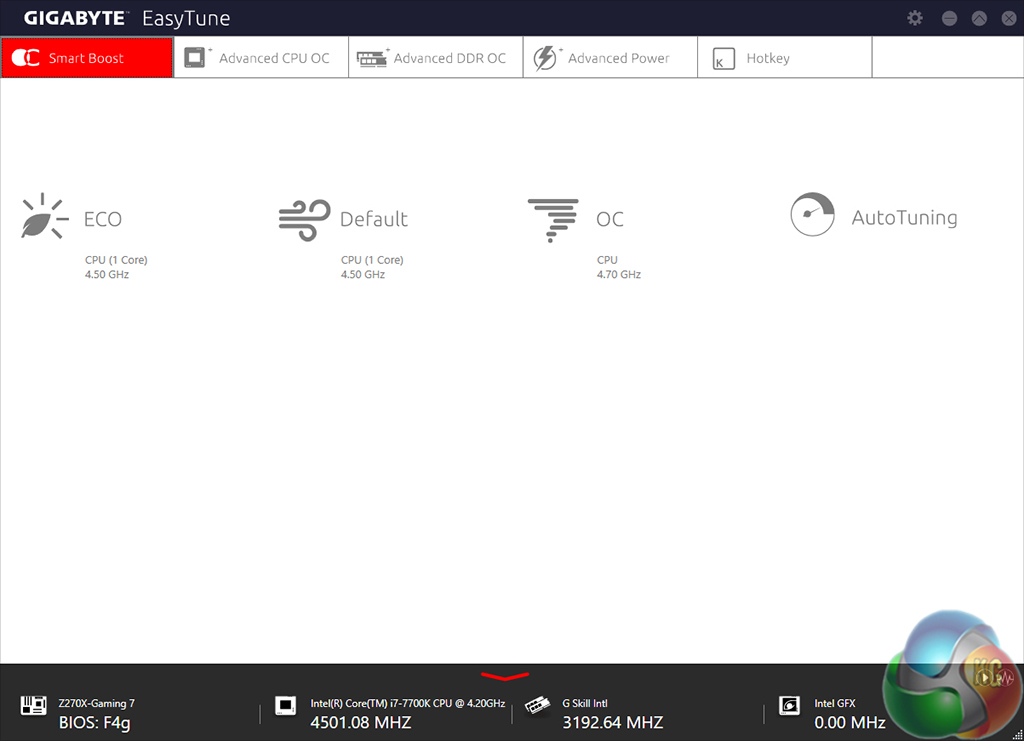
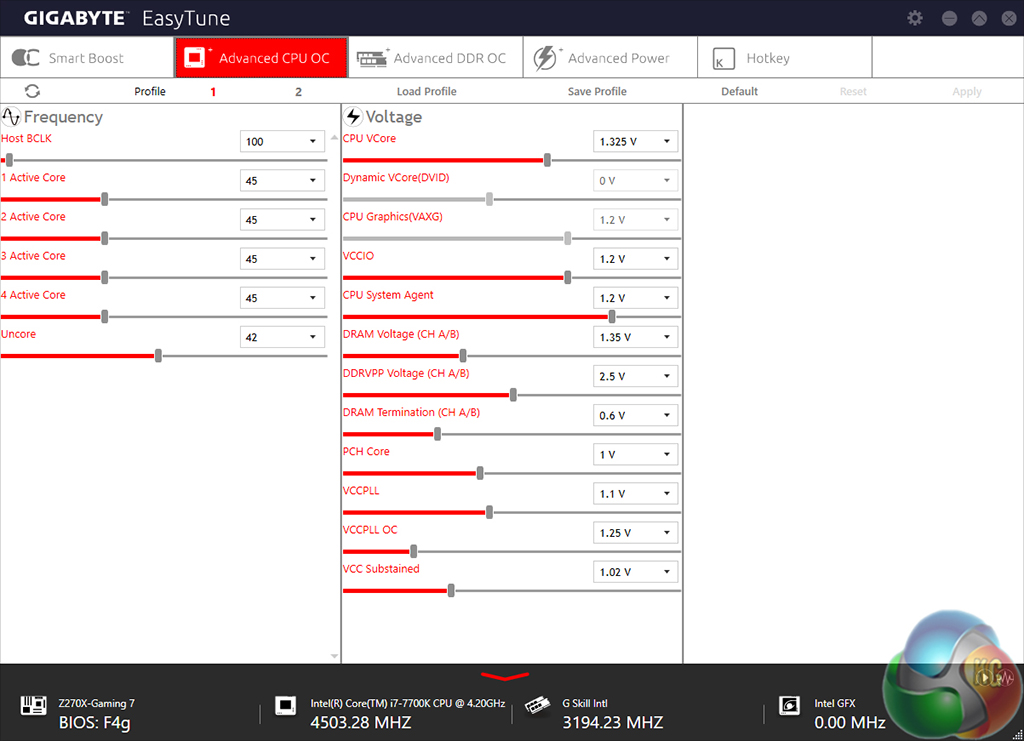
EasyTune is Gigabyte's tool for managing system operating parameters. The performance profile of the system can be adjusted using EasyTune and there's also the option to conduct automated system tuning (which gave us a 4.7GHz CPU frequency, as we'll highlight later in this review).
Other system settings such as voltages, speeds, and ratios can also be adjusted and saved into profiles.
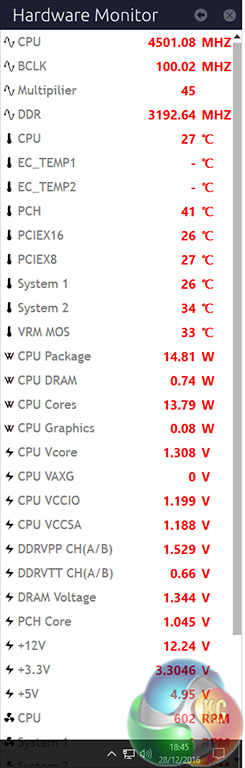
EasyTune Hardware Monitor break-out tab is an excellent way of reading a wealth of system information while inside the OS. The sheer quantity of information displayed is superb and we CPU VCore accuracy to be good when tested against a physical multimeter reading.
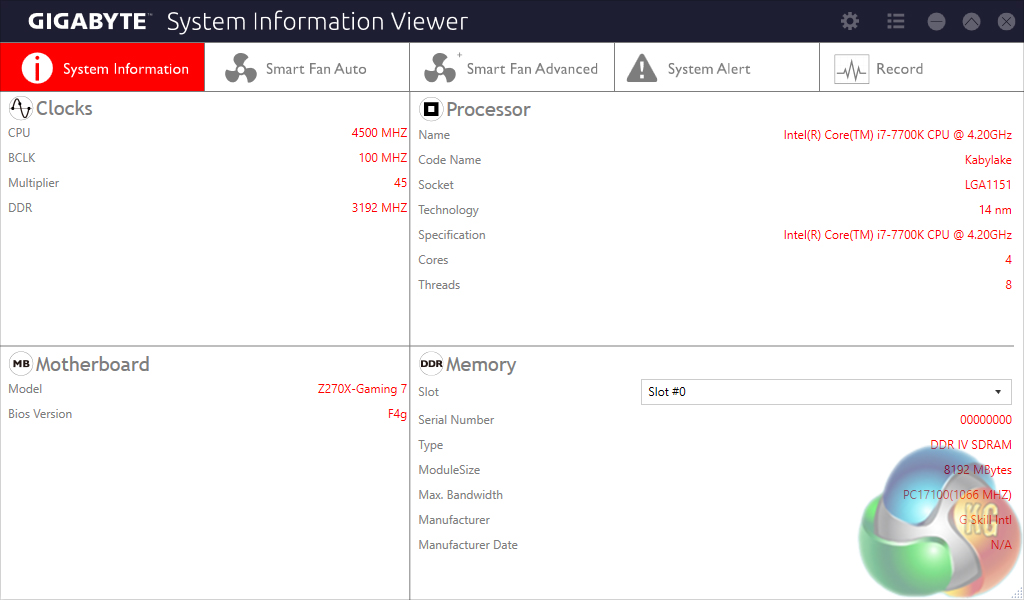
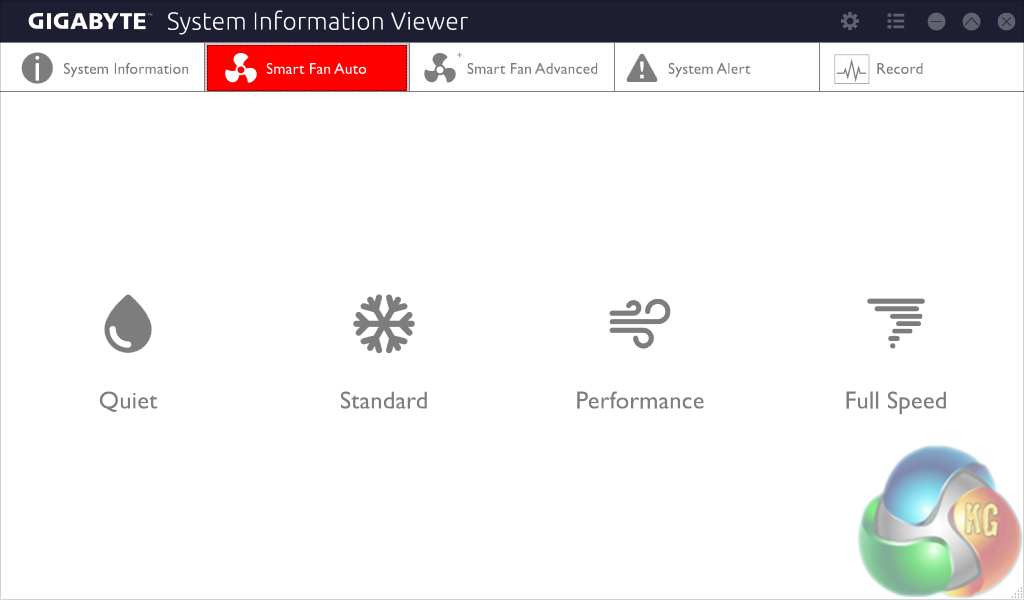
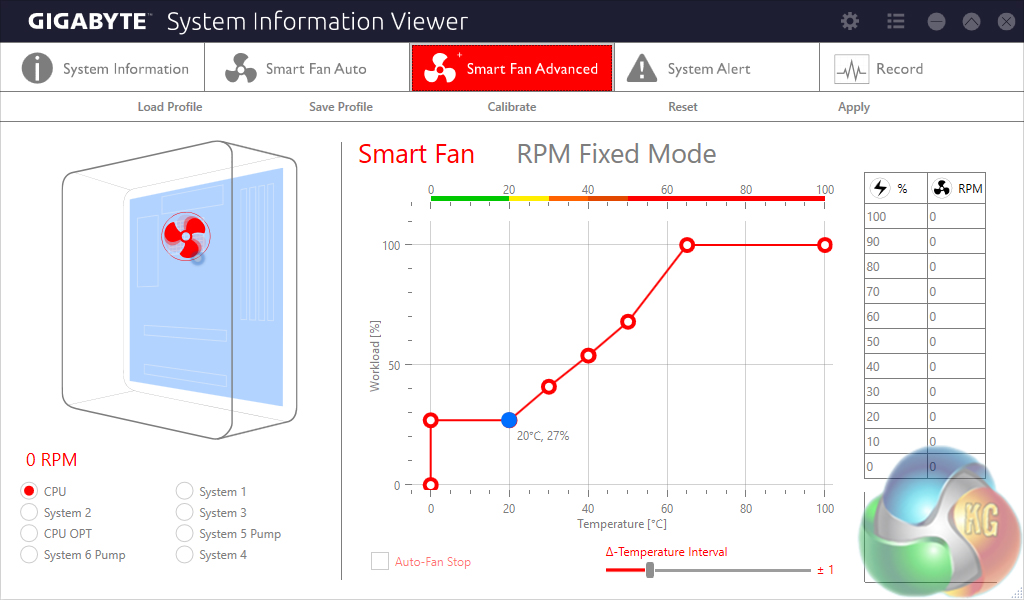
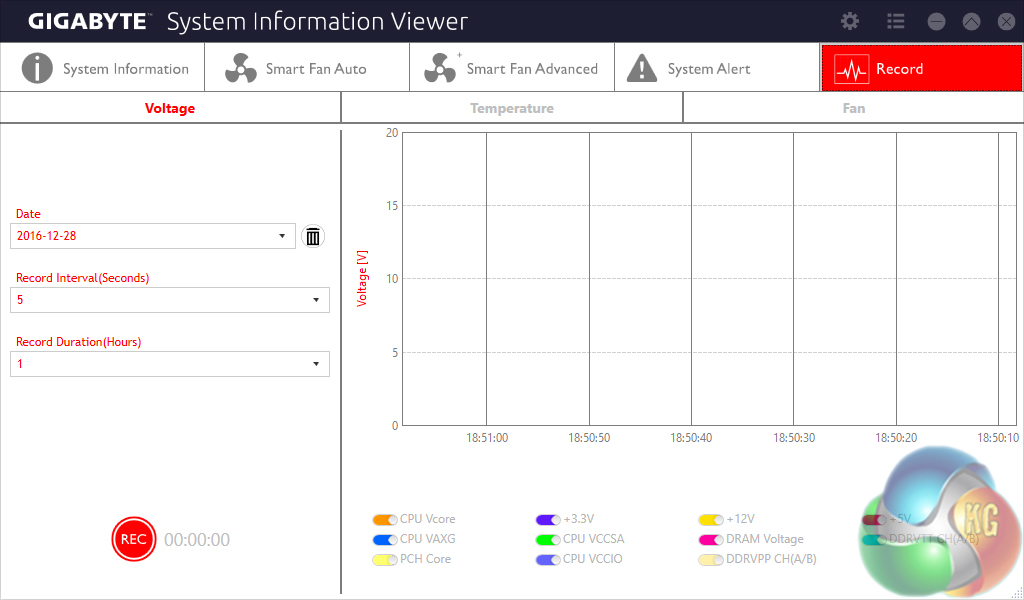
System Information Viewer (SIV) is a similar setup to EasyTune but it is geared towards fan control and system monitoring. Four fan speed profiles can be selected and manual fan control ability is provided in great detail. An 8-point curve can be set for all of the motherboard's fan headers or, alternatively, an RPM-fixed mode can be applied (which custom liquid cooling enthusiasts may appreciate).
System recordings relating to voltages, temperatures, and fan speeds can also be made. This is particularly useful for analysing stability in the form of checking how your system behaves during an extended gaming or video rendering session, for example.
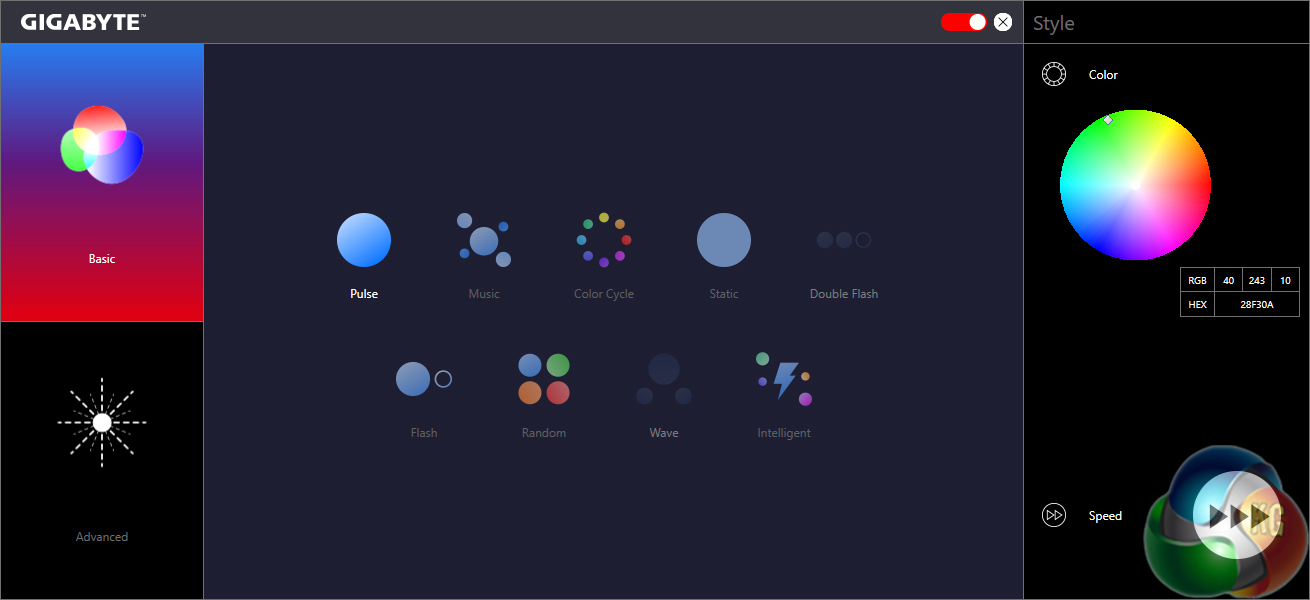
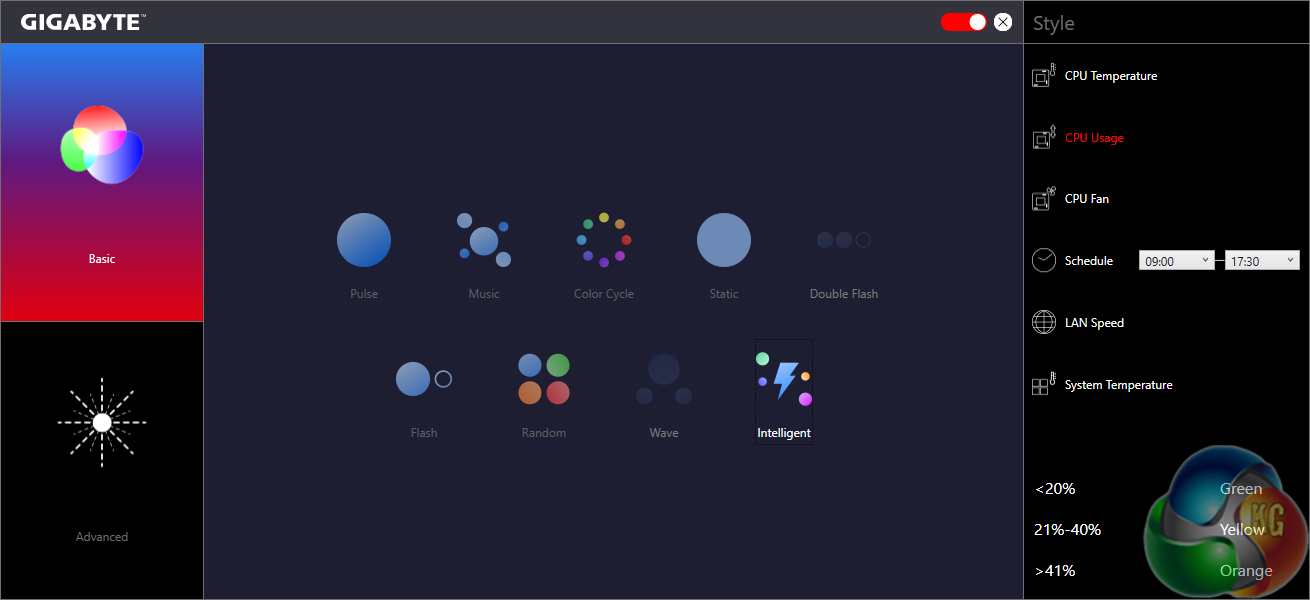
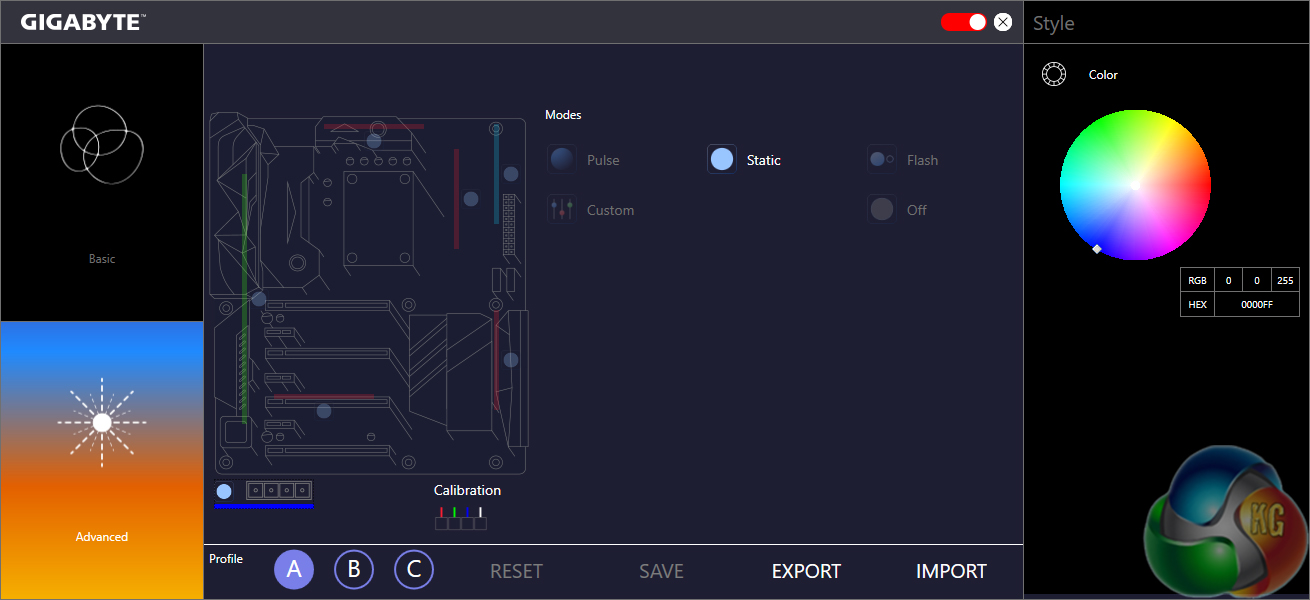
RGB Fusion is Gigabyte's in-depth LED control application. The Basic tab can be used to activate different LED operation modes and also tweak the RGB behaviour. I was particularly fond of the Intelligent mode which adjusts the LED colour profile based on statistics such as the CPU temperature or load, the LAN speed, or even a time schedule.
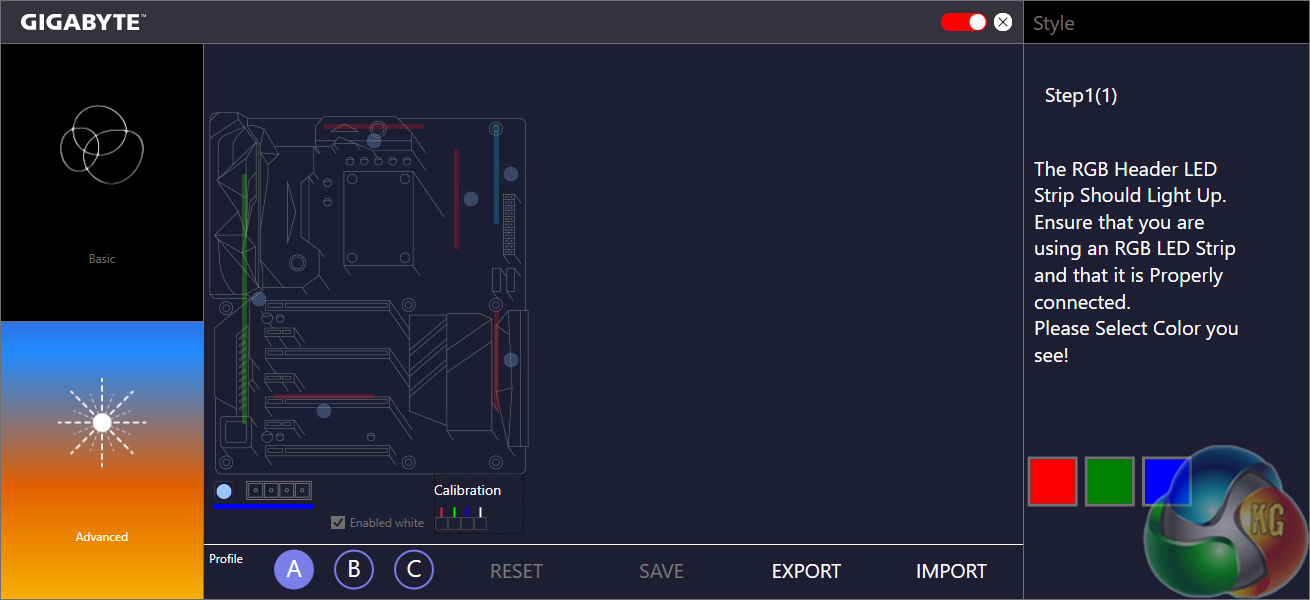
The Advanced section gives a greater degree of LED control, allowing users to adjust the lighting colour and behaviour for the board's numerous individual zones (and RGB header). A calibration tool is available for Gigabyte's unique 5-pin RGB header, allowing greater compatibility on the fragmented RGB LED strip market.
Three individual LED profiles can be saved and they can be exported/imported to share with friends or for backup purposes. RGB Fusion has the ability to control the LED profiles of partnering hardware such as an RGB-enabled graphics card.
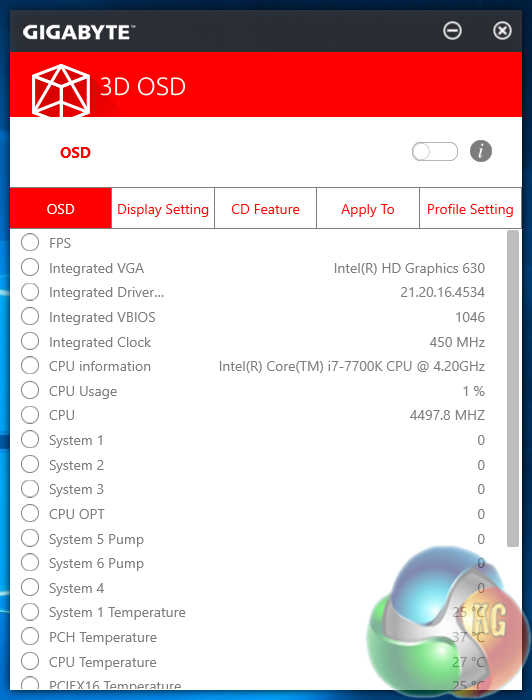
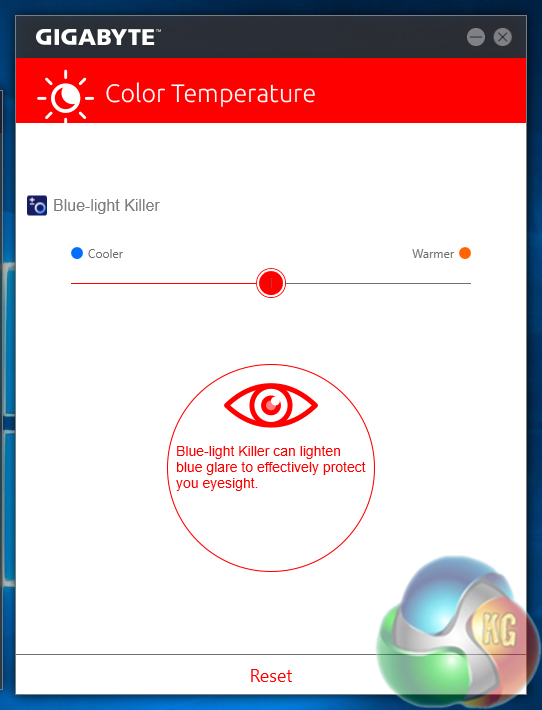
Focussing on some of the more useful tools, 3D OSD is a RivaTuner-like application that can be used to overlay system information on the screen. I don't see the need for this feature when RivaTuner is freely available alongside MSI Afterburner but it may prove useful for some people, nonetheless.
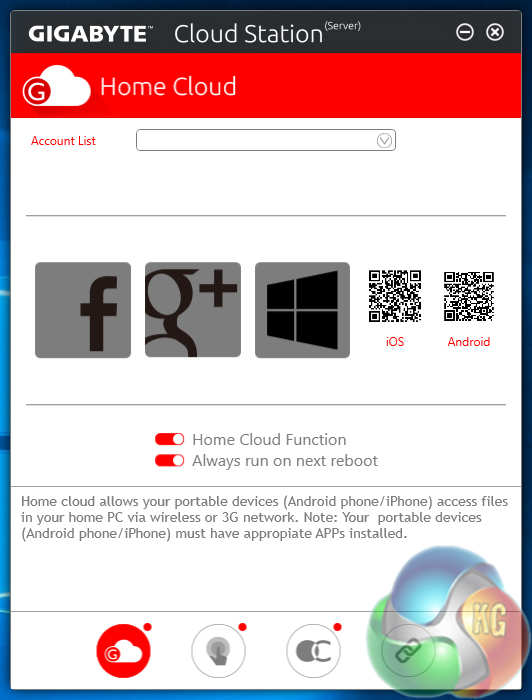
HomeCloud is a tool for allowing other devices to access your system's files. Color Temperature can be used to adjust the blue-light profile of one's monitor. I tested this feature with a basic BenQ G2222HDL monitor and it worked well.
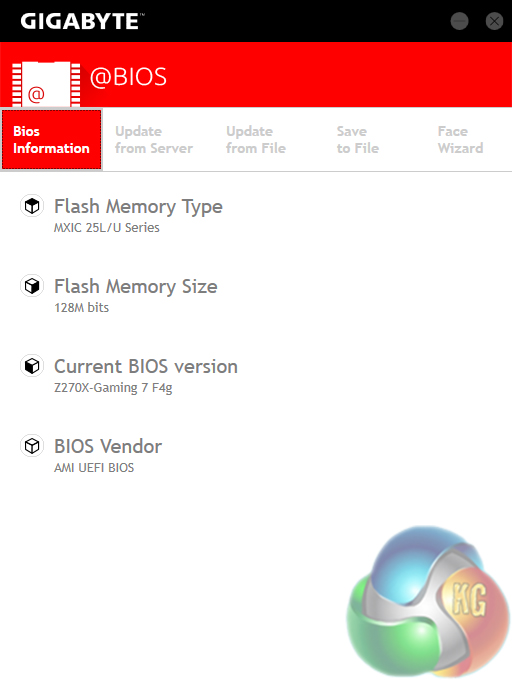
@BIOS makes up for limited UEFI-based updating methods with an ability to update the BIOS from an online server. BIOS information can also be used and the profile can be saved, both of which are useful troubleshooting and general usage features.
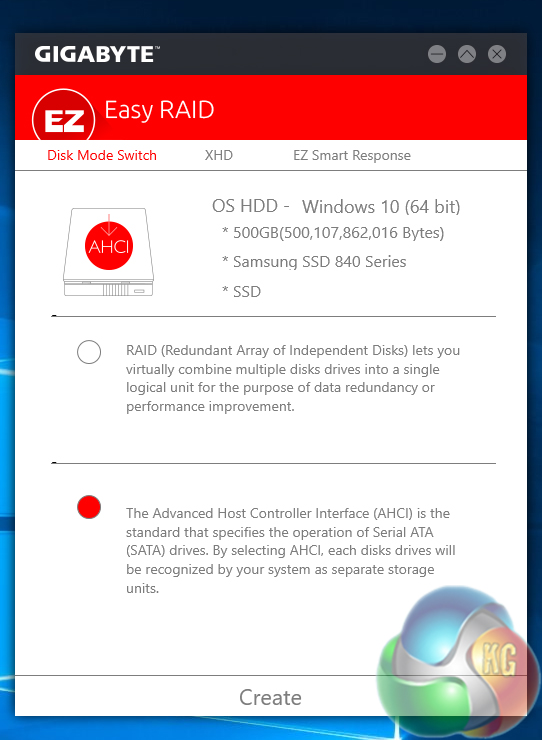
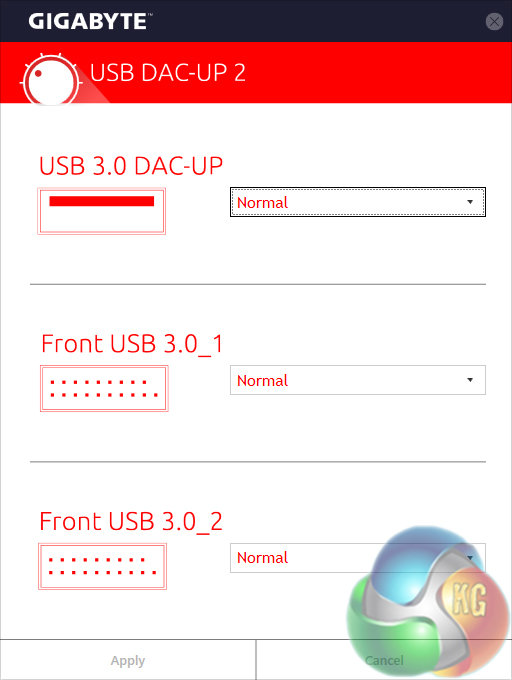
As the name suggests, EZ RAID is a simple tool for creating a software RAID array inside the OS. USB DAC-UP 2 can change the settings of certain USB ports (including both front panel USB 3.0 headers) in order to suit a user's preference with their audio hardware.
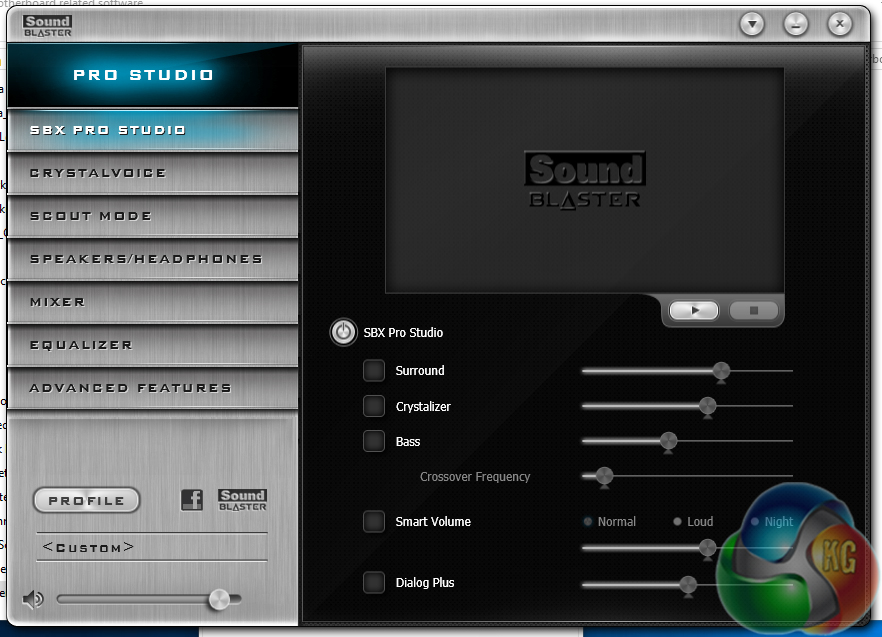
Sound Blaster Pro Studio provides a wealth of audio settings and features that can be tailored to individual preference. The controversial Scout Mode can be activated with the software.
OS Software Summary:
Gigabyte's variety of available software tools is superb and the system for managing them through APP Center is smart and efficient.
EasyTune works well and the Hardware Monitor break-out tab provides a wealth of usable system readings. SIV is excellent for controlling fan speeds through an easy-to-use OS-based interface.
RGB Fusion is excellent and gives users a sizeable amount of flexibility for tuning their system's lighting conditions. The LED-adjusting tool is actually as good as ASUS' AURA software in general, and better in some respects (re-mappable RGB header pins, and the Intelligent RGB modes).
It's difficult to find criticism for Gigabyte's selection of OS-based software. Perhaps the only negative point that strikes me is that the apps border a little on the resource-heavy side and seemed to have a minor effect on performance numbers. Oh, and some form of RAM drive software tool would have been a nice addition.
We will be outlining the Gigabyte Aorus Z270X-Gaming 7 motherboard’s performance with the Core i7 7700K CPU and 16GB of 3200MHz G.Skill TridentZ DDR4 memory.
By default, the Gigabyte Aorus Z270X-Gaming 7 motherboard applies a multi-core turbo (MCT) state and forces the 7700K to a constant 4.5GHz when XMP is enabled. Overclocked performance will be outlined later in the review.
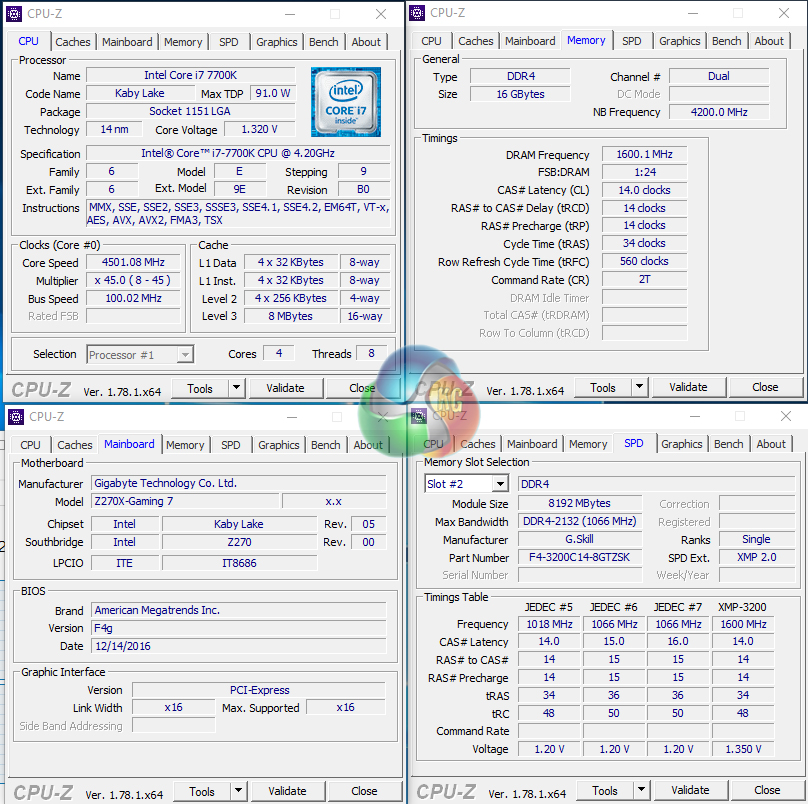
Gigabyte's board would push the CPU VCore as high as 1.37V (under Prime 95 load) when forced-turbo is enabled. Even Handbrake video conversion would see 1.32V pushed through the chip. This voltage is far too high as competing vendors are using settings in the 1.2xx range. At 1.37V for 4.5GHz, power is wasted and cooling becomes a challenge for mid-range or lower-end air and AIO coolers.
Z270 Motherboard Test System:
- Processor: Intel Core i7 7700K (4.5GHz Forced Turbo).
- Memory: 16GB (2x8GB) G.Skill TridentZ 3200MHz 14-14-14-34 DDR4 @ 1.35V.
- Graphics Card: Nvidia GTX Titan X Pascal (custom fan curve to eliminate thermal throttling).
- System Drive: 500GB Samsung 840 SATA 6Gbps SSD.
- Games Drive: 960GB SK Hynix SE3010 SATA 6Gbps SSD.
- CPU Cooler: Corsair H110i GT.
- Power Supply: Seasonic Platinum 760W SS-760XP.
- Operating System: Windows 10 Pro 64-bit (Anniversary Update).
Compared Z270 Motherboards:
- ASRock Fatal1ty Z270 Gaming K6.
- ASUS STRIX Z270F Gaming.
- Gigabyte Aorus Z270X-Gaming 7.
Software:
- Gigabyte Aorus Z270X-Gaming 7 BIOS F4g.
- GeForce 376.19 VGA drivers.
Tests:
- Cinebench R15 – All-core CPU benchmark (CPU)
- HandBrake 0.10.5 – Convert 6.27GB 4K video recording using the Normal Profile setting and MP4 container (CPU)
- SiSoft Sandra 2016 SP1 – Processor Arithmetic Test (CPU) and Memory Bandwidth Test (Memory)
- 7-Zip 16.04 – Built-in 7-Zip benchmark test (CPU & Memory)
- 3DMark Fire Strike v1.1 – Fire Strike (1080p) test (Gaming)
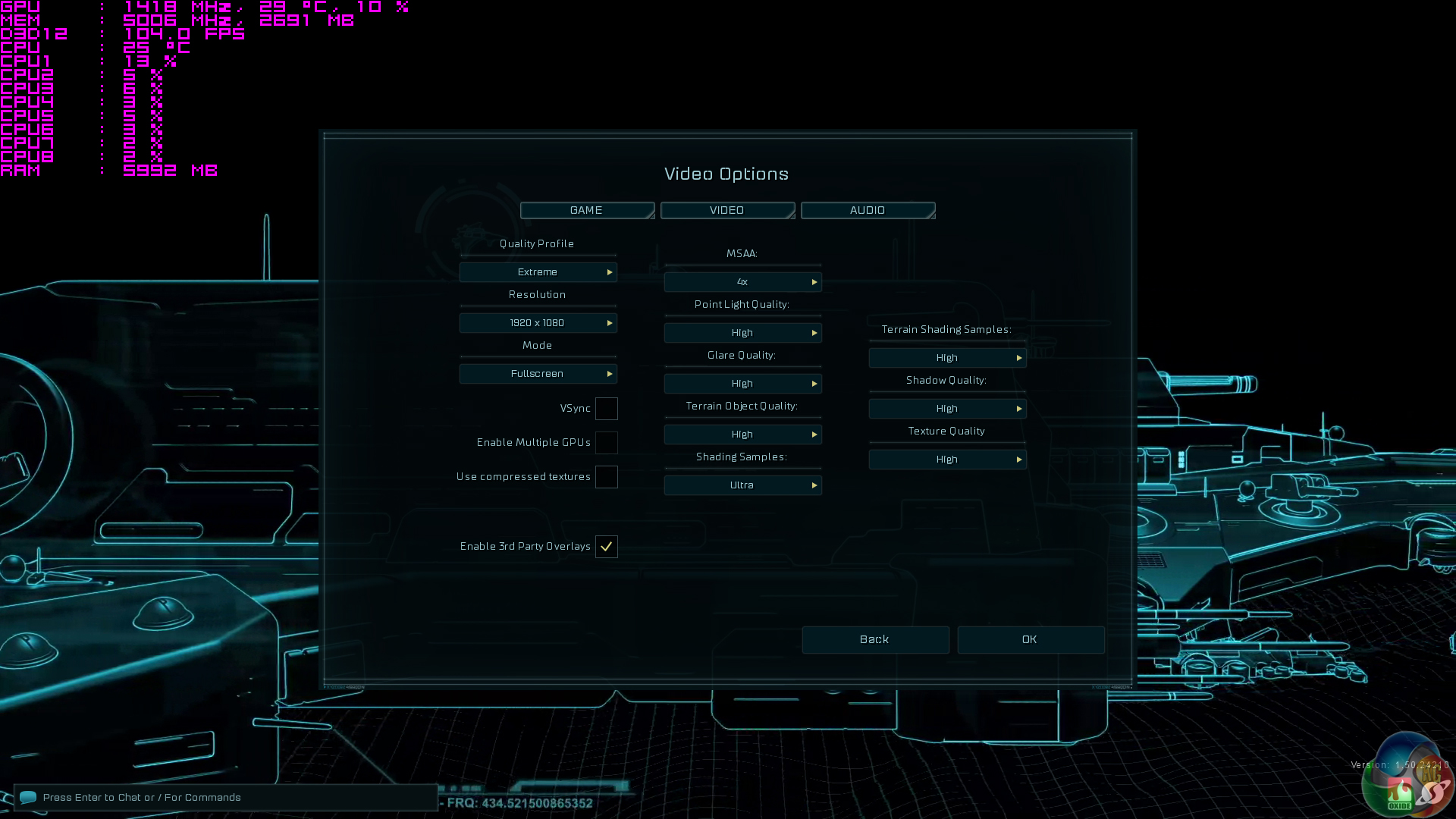
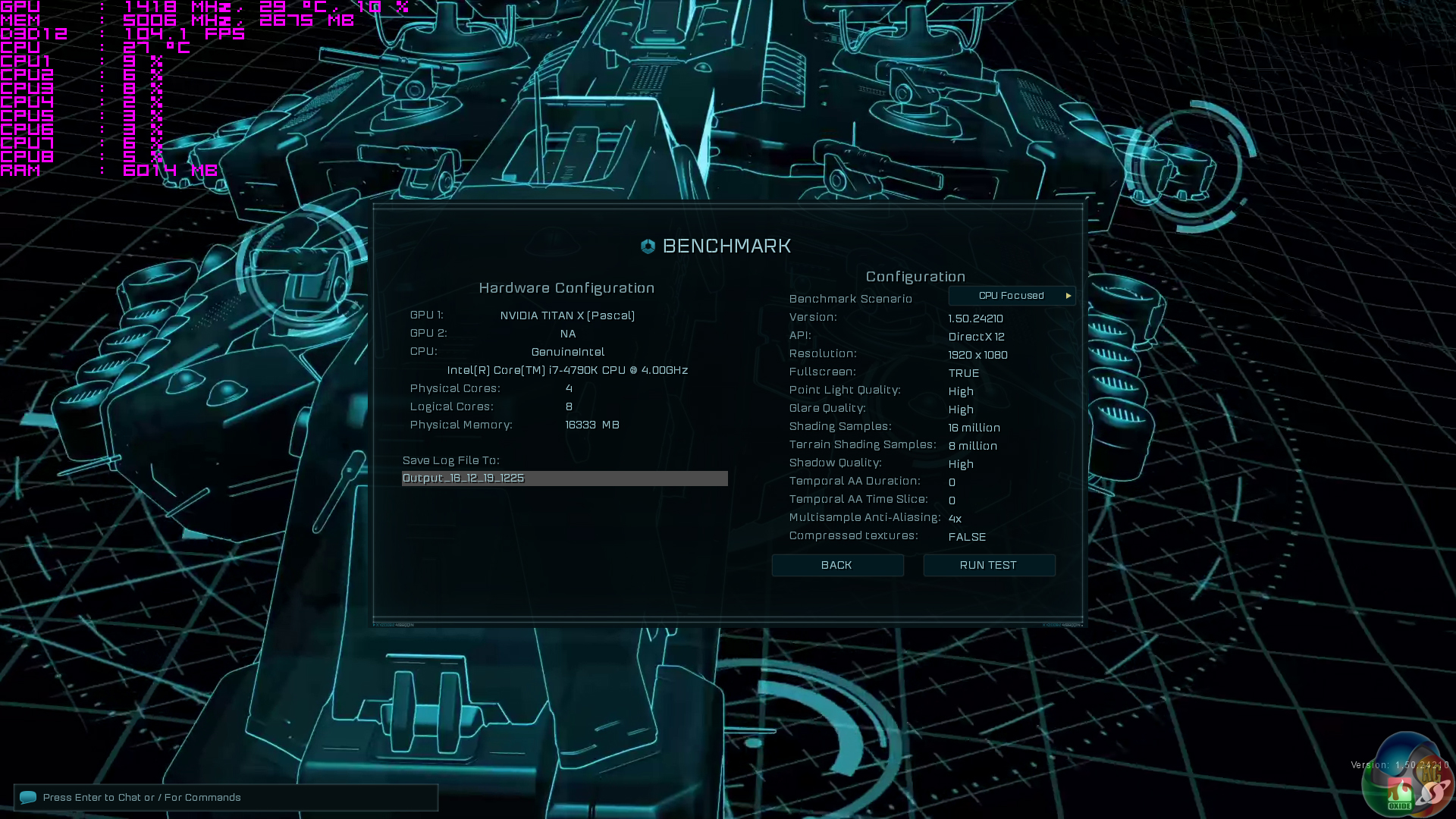
- Ashes of the Singularity – Built-in benchmark tool CPU-Focused test, 1920 x 1080, Extreme quality preset, DX12 version (Gaming)
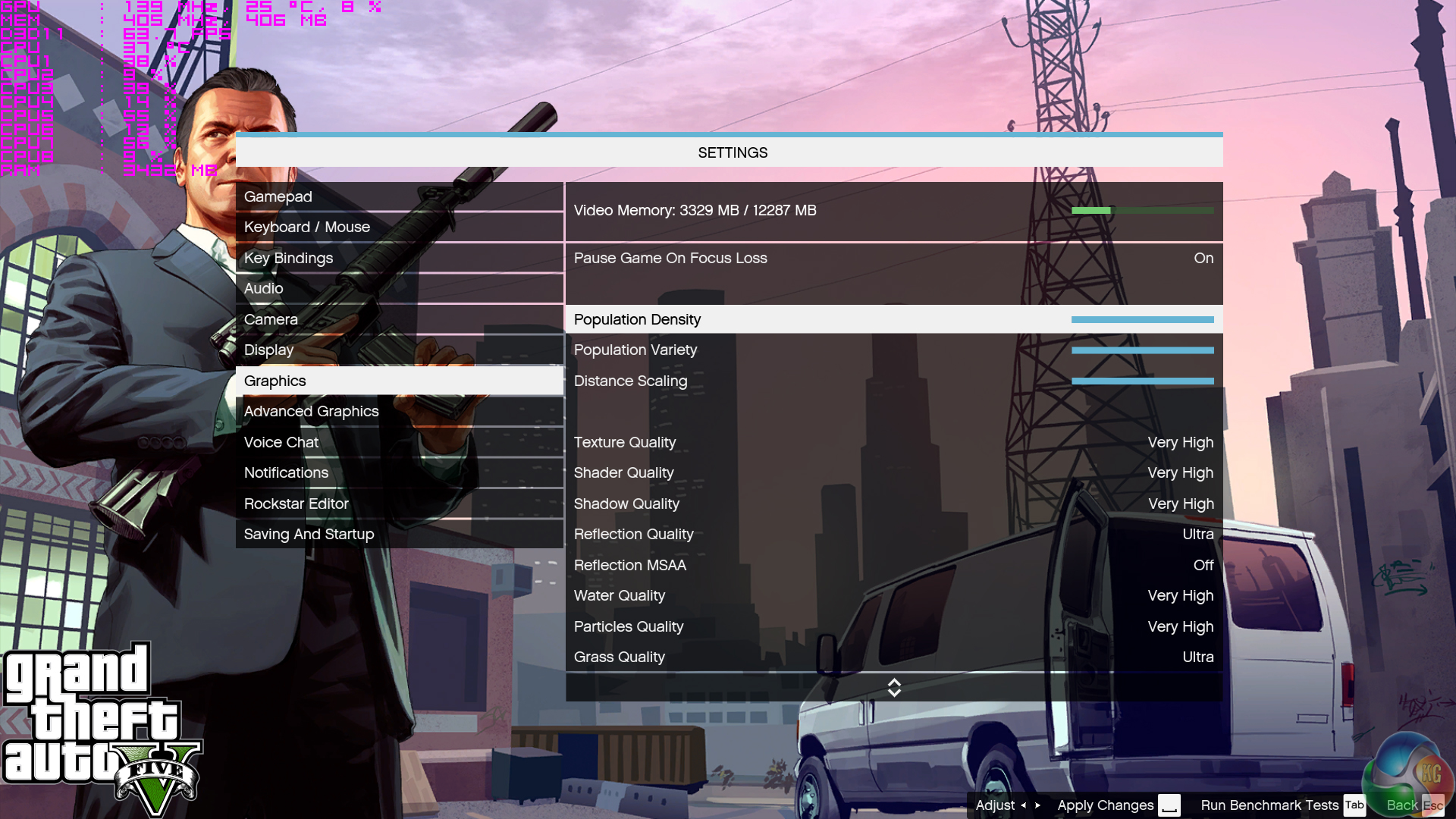
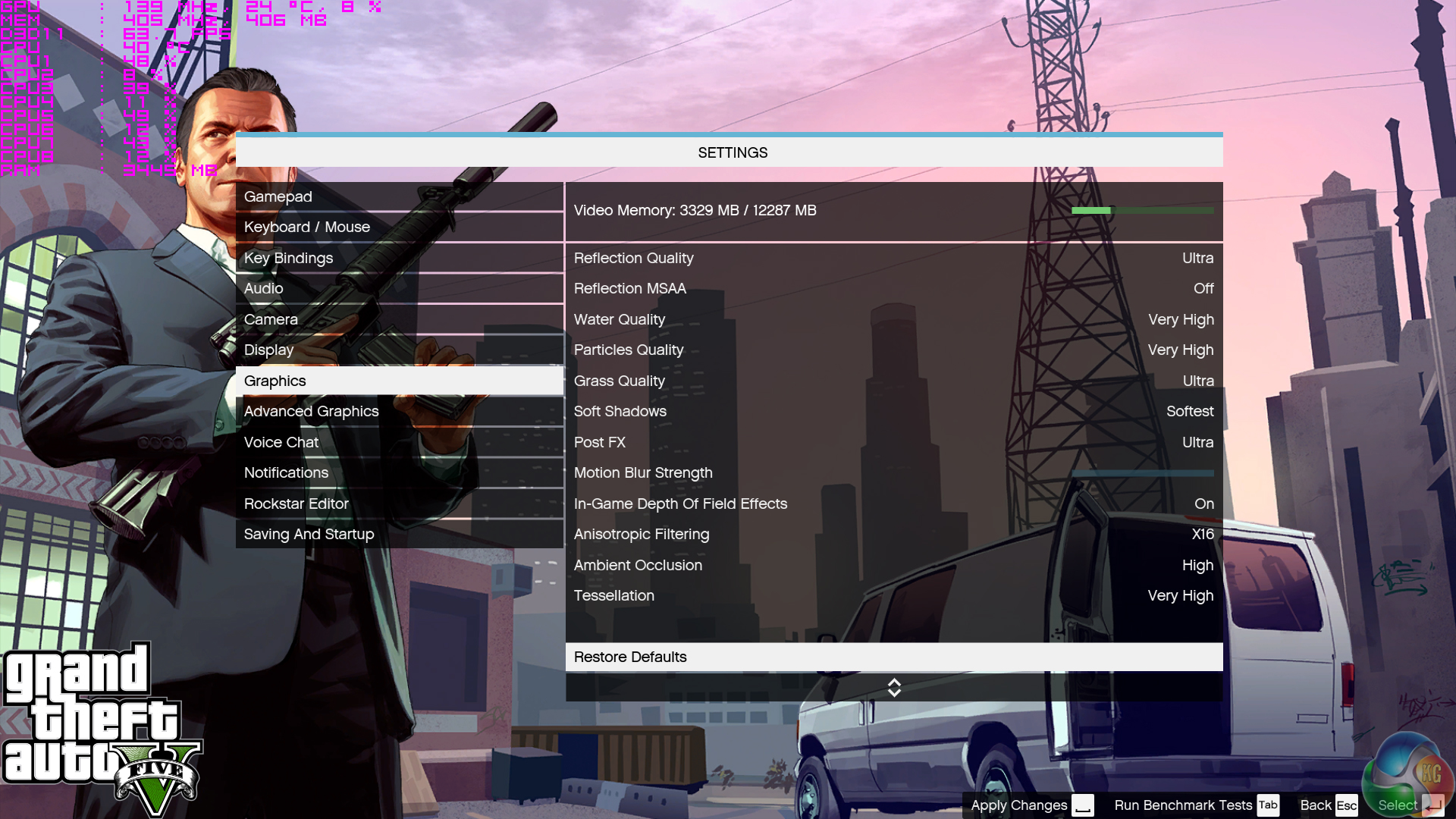
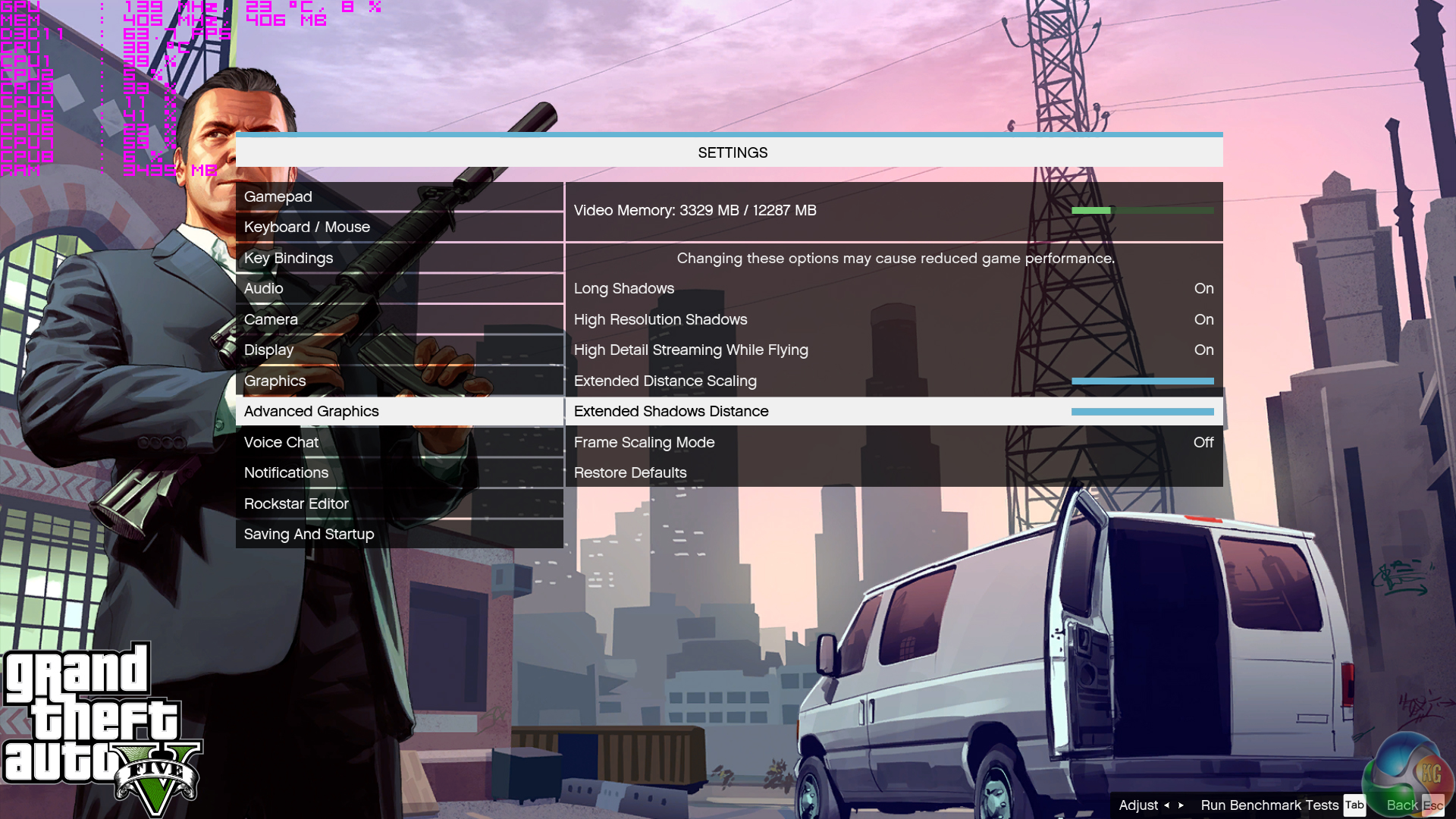
- Grand Theft Auto V – Built-in benchmark tool, 1920 x 1080, Maximum quality settings, Maximum Advanced Graphics (Gaming)
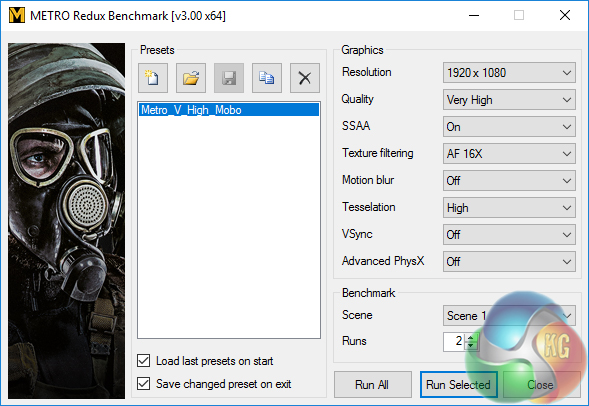
- Metro: Last Light Redux – Built-in benchmark tool, 1920 x 1080, Very High quality, SSAA, AF 16X, Tessellation: High (Gaming)
- ATTO – M.2, USB 3.1, and SATA 6Gbps transfer rates (Motherboard)
- RightMark Audio Analyzer – Record and playback test using a line-in to line-out loopback with a 3.5mm audio cable (Motherboard)
Cinebench R15
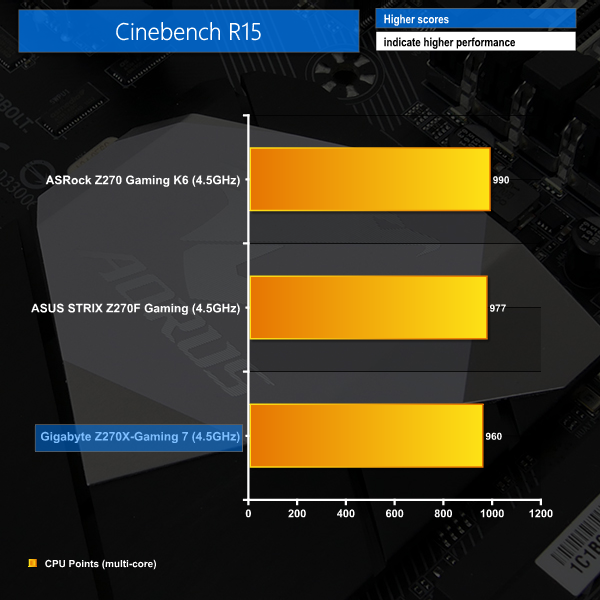
Cinebench is an application which renders a photorealistic 3D scene to benchmark a computer’s rendering performance, on one CPU core, all CPU cores or using the GPU. We run the test using the all core CPU mode.
Sandra Processor Arithmetic
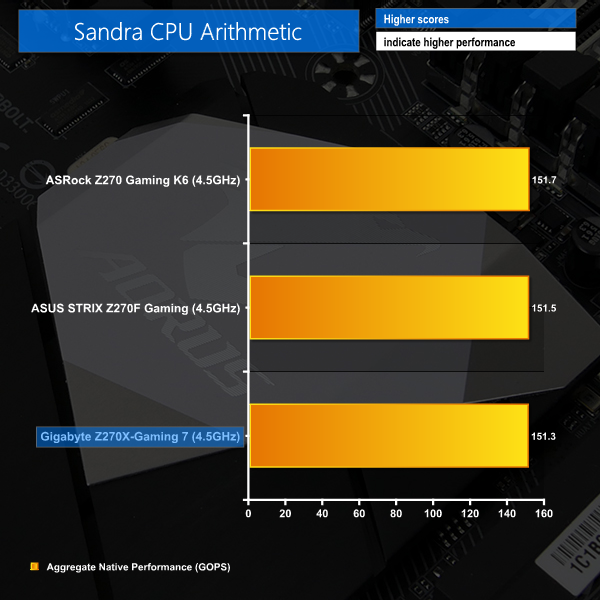
SiSoft Sandra 2016 is a multi-function utility program that supports remote analysis, benchmarking and diagnostic features for PCs, servers, mobile devices and networks. We run the application’s processor arithmetic test to gauge the CPU performance on each tested motherboard.
Handbrake Conversion
Handbrake is a free and open-source video transcoding tool that can be used to convert video files between different codecs, formats and resolutions. We measured the average frame rate achieved for a task of converting a 6.27GB 4K video using the Normal Profile setting and MP4 container. The test stresses all CPU cores to 100% and shows an affinity for memory bandwidth.
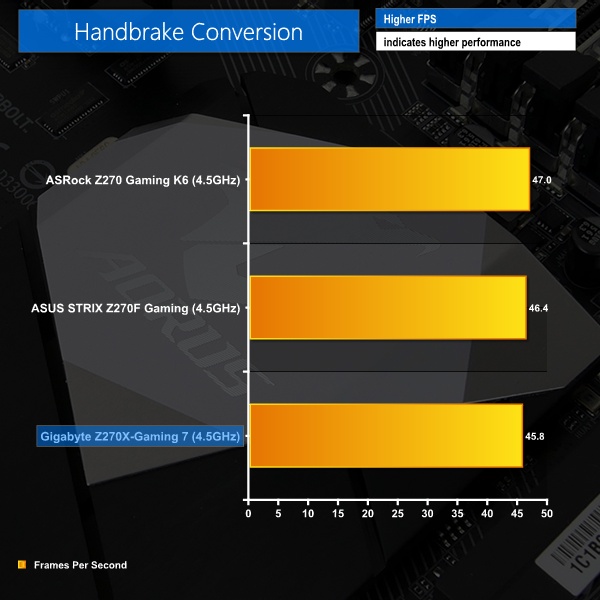
CPU-related performance from Gigabyte's Aorus Z270X-Gaming 7 is competitive against ASRock and ASUS alternatives. The Aorus board does fall a little short in Cinebench and Handbrake performance but the margin is small. This slight percentage shortfall is potentially attributed to the system resources being used in the background by Gigabyte's OS software.
Sandra Memory Bandwidth
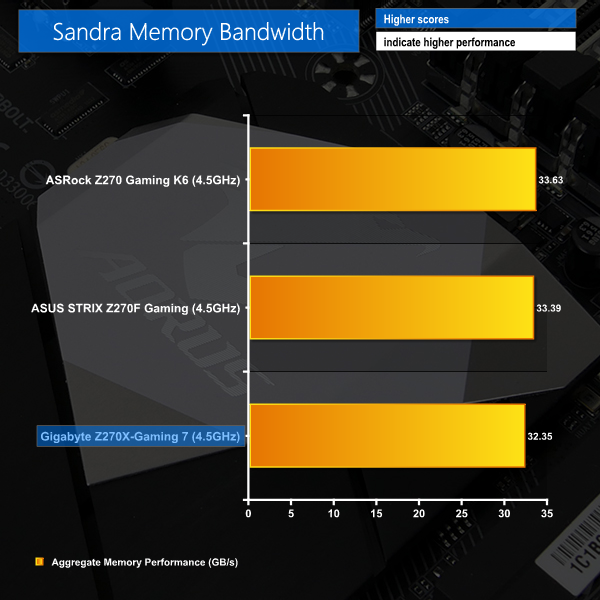
SiSoft Sandra 2016 is a multi-function utility program that supports remote analysis, benchmarking and diagnostic features for PCs, servers, mobile devices and networks. We use the SiSoft Sandra memory bandwidth test to provide a set of memory bandwidth results.
7-Zip
7-Zip is an open source Windows utility for manipulating archives. We measure the Total Rating performance using the built-in benchmark tool. The test stresses all CPU cores to 100% and shows an affinity for memory bandwidth.
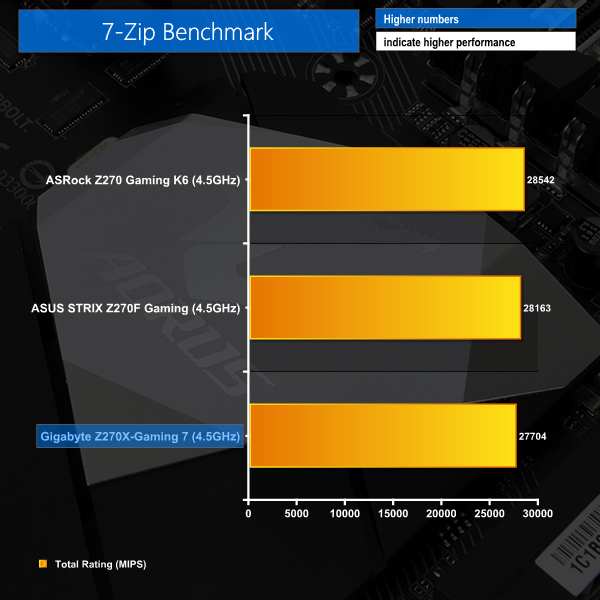
Memory bandwidth on Gigabyte's Z270 board is a little lower than that of the ASRock and ASUS competitors which makes for a similar picture with the 7-Zip result.
3DMark
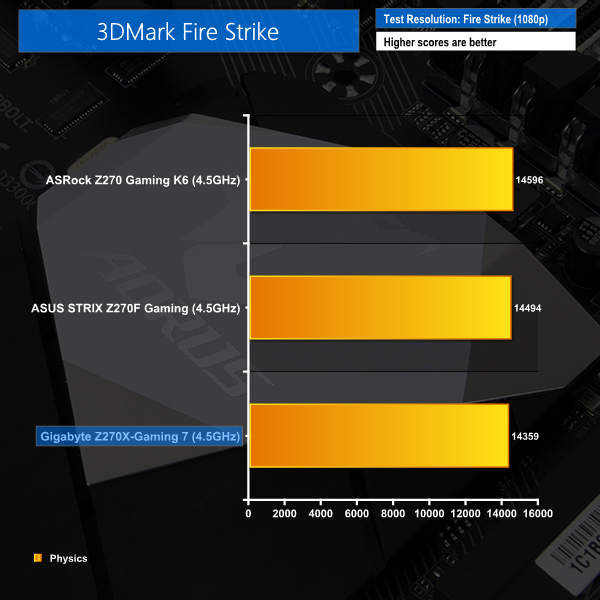
3DMark is a multi-platform hardware benchmark designed to test varying resolutions and detail levels of 3D gaming performance. We run the Windows platform test and in particular the Fire Strike benchmark, which is indicative of high-end 1080p PC Gaming.
Ashes of the Singularity
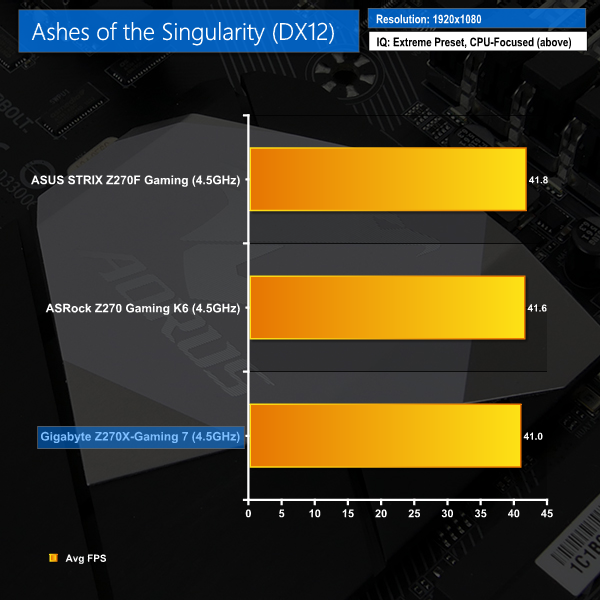
Ashes of the Singularity is a Sci-Fi real-time strategy game built for the PC platform. The game includes a built-in benchmark tool and was one of the first available DirectX 12 benchmarks. We run the CPU-focused benchmark using DirectX 12, a 1080p resolution and the Extreme quality preset.
Grand Theft Auto V
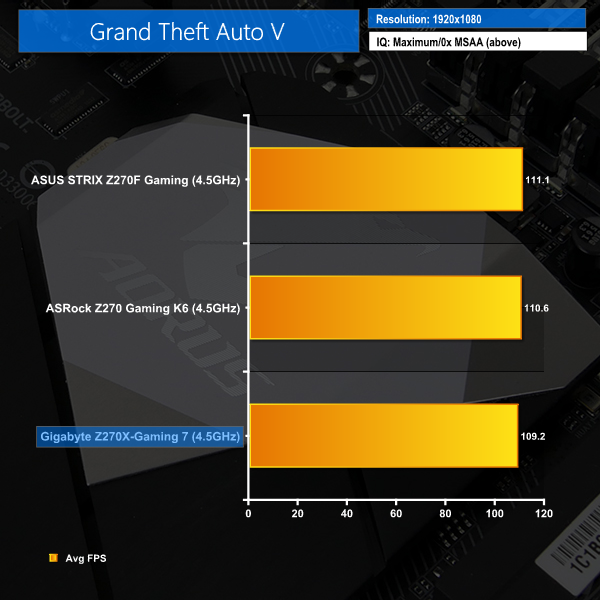
Grand Theft Auto V remains an immensely popular game for PC gamers and as such retains its place in our test suite. The well-designed game engine is capable of providing heavy stress to a number of system components, including the GPU, CPU, and Memory, and can highlight performance differences between motherboards. We run the built-in benchmark using a 1080p resolution and generally Maximum quality settings (including Advanced Graphics).

Metro: Last Light Redux
Despite its age, Metro: Last Light Redux remains a punishing title for modern computer hardware. We use the game's built-in benchmark with quality set to Very High, SSAA enabled, AF 16X, and High tessellation.
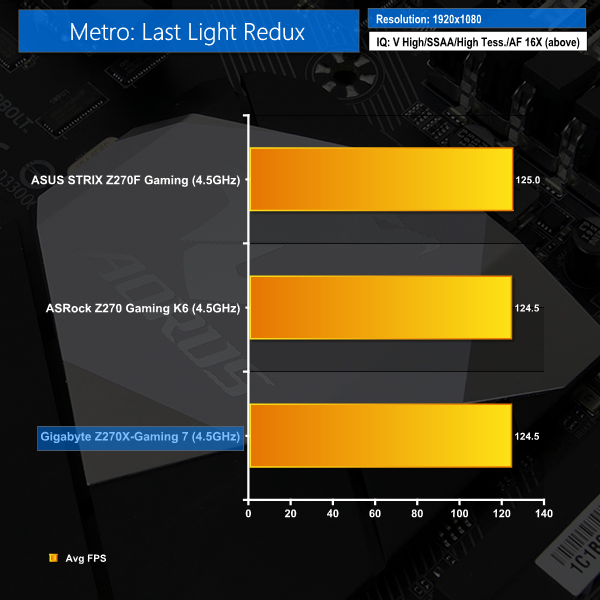
Gaming performance continues the same trend. ASRock's and ASUS' boards are slightly faster but it's unlikely you will notice the difference in real-world usage.
Automatic CPU Overclocking – OS-based EasyTune Auto Tuning:
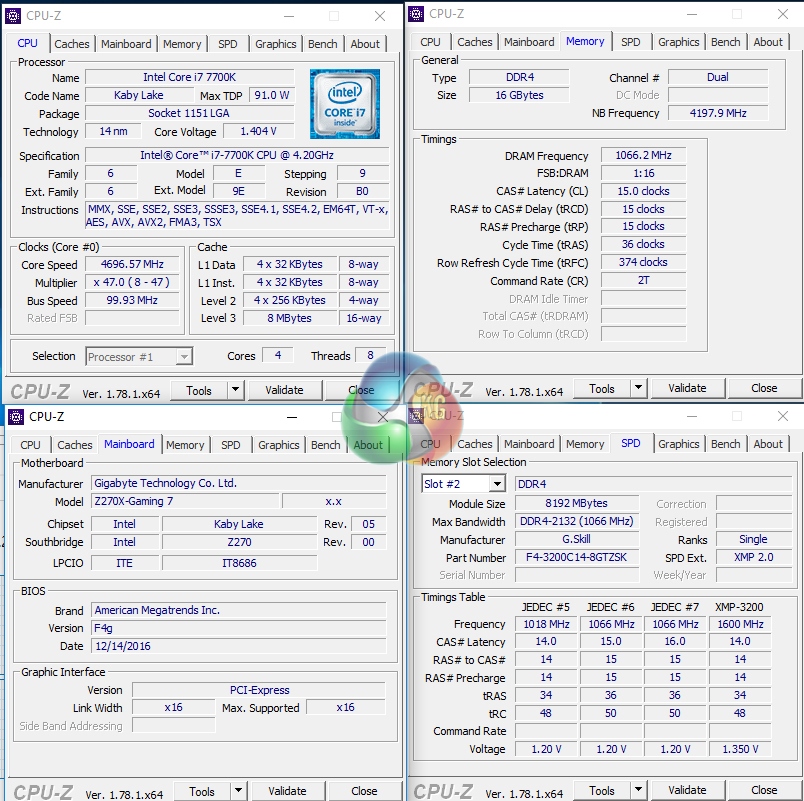
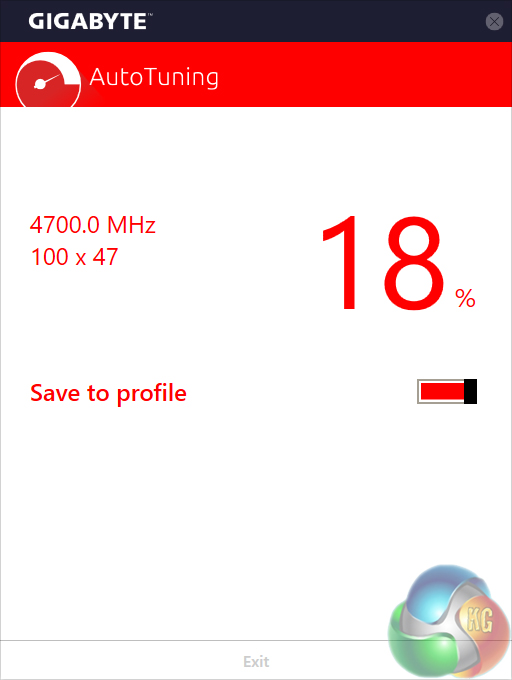
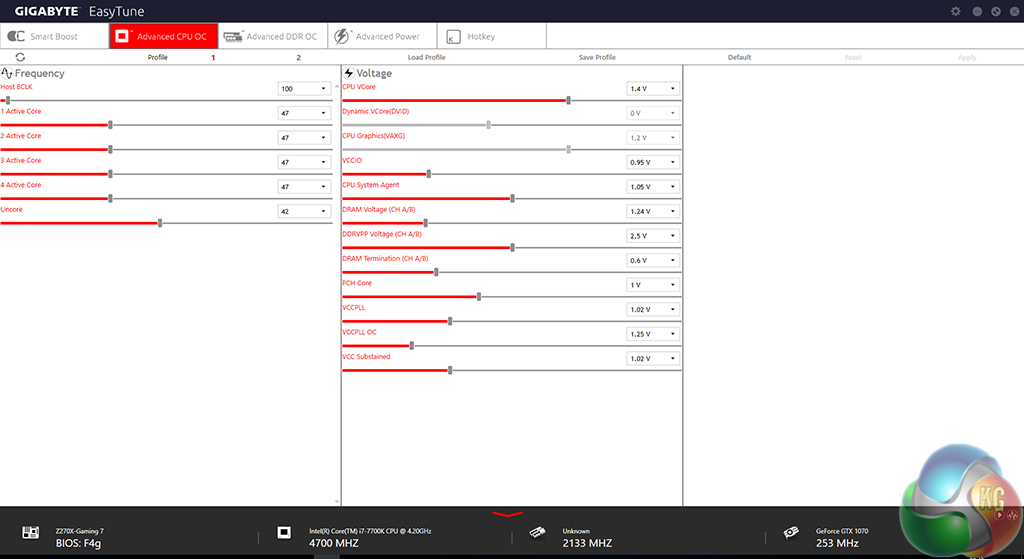
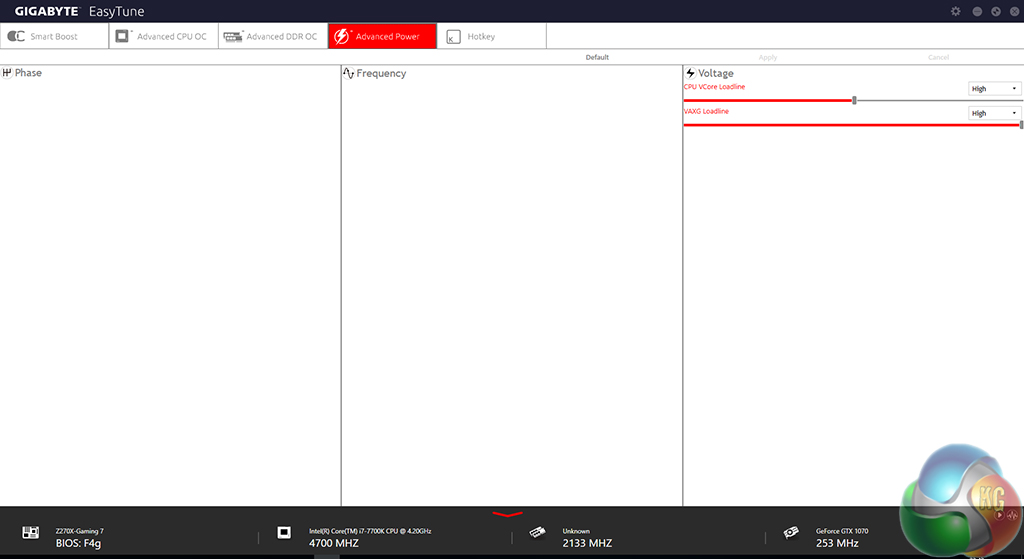
The OS-based auto tuning found inside EasyTune software worked, and that's about it. The speed bump was only 200MHz from a forced-turbo 7700K and 4.7GHz at 1.4V is a very conservative overclock that basically all 7700K CPUs should achieve. Realistically, that voltage could be dropped by at least 50mV while still maintaining stability.
XMP was also disabled, which is always disappointing as our memory speed was cut by a third as well as being given higher latency timings.
Automatic CPU Overclocking – UEFI-based CPU Speed Profile:
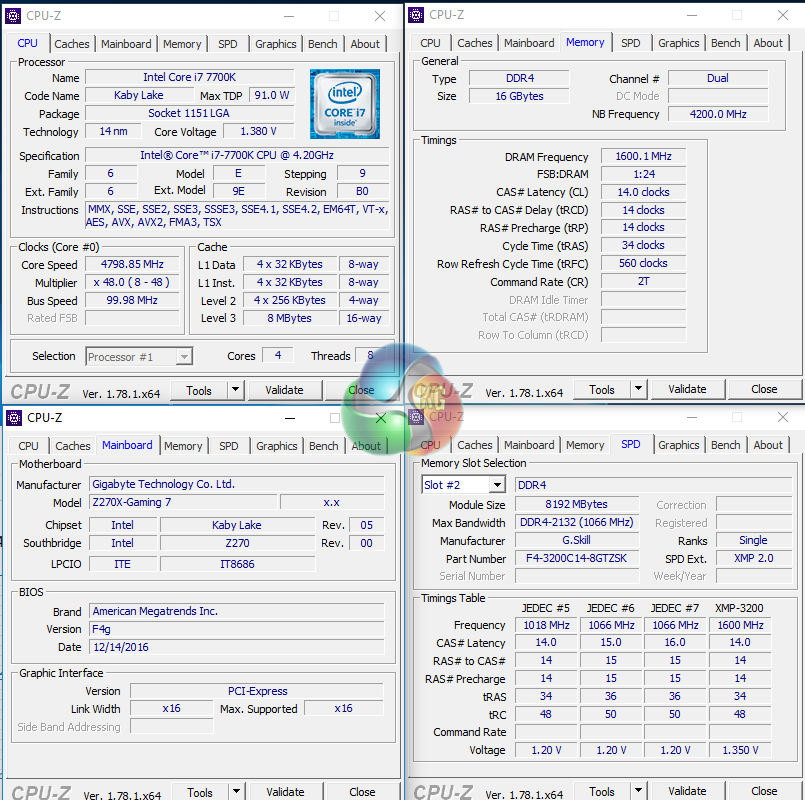
The 4.8GHz 7700K UEFI preset worked well. 4.8GHz at 1.38V under load is a fair setting that average Kaby Lake 7700K CPUs should be able to run at while also maintaining Prime 95-level stability. Thankfully, XMP was left enabled on our memory modules.
Manual CPU Overclocking:
To test the Gigabyte Aorus Z270X-Gaming 7 motherboard’s CPU overclocking potential, we first increased the CPU VCore to 1.35V and applied High LLC setting.
We maintained the DRAM frequency at 3200MHz to take its stability out of the overclocking equation. Cache frequency was maintained at its stock MCT value of 4.2GHz.
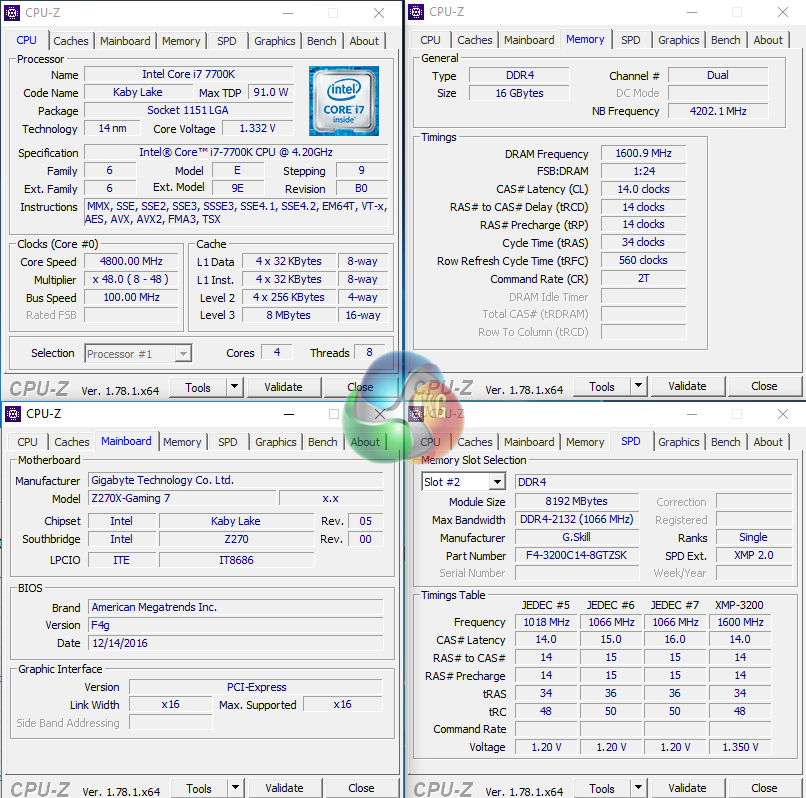
Gigabyte's Aorus Z270X-Gaming 7 managed to take our Core i7-7700K to its maximum Prime-stable overclock of 4.8GHz using 1.35V. The board actually did this with less than 1.35V (1.33 under load) by virtue of the poor LLC settings.
If you want a specific voltage level, the way to achieve it is by trial and error because LLC swings the load value either above or below the intended mark.
3600MHz XMP Memory:
We test the motherboard's ability to run G.Skill's high-speed 16GB DDR4 TridentZ kit at a 3600MHz XMP setting. High-speed XMP settings can prove a challenge for motherboard designers when optimising the settings for stability at the intended DRAM frequency.
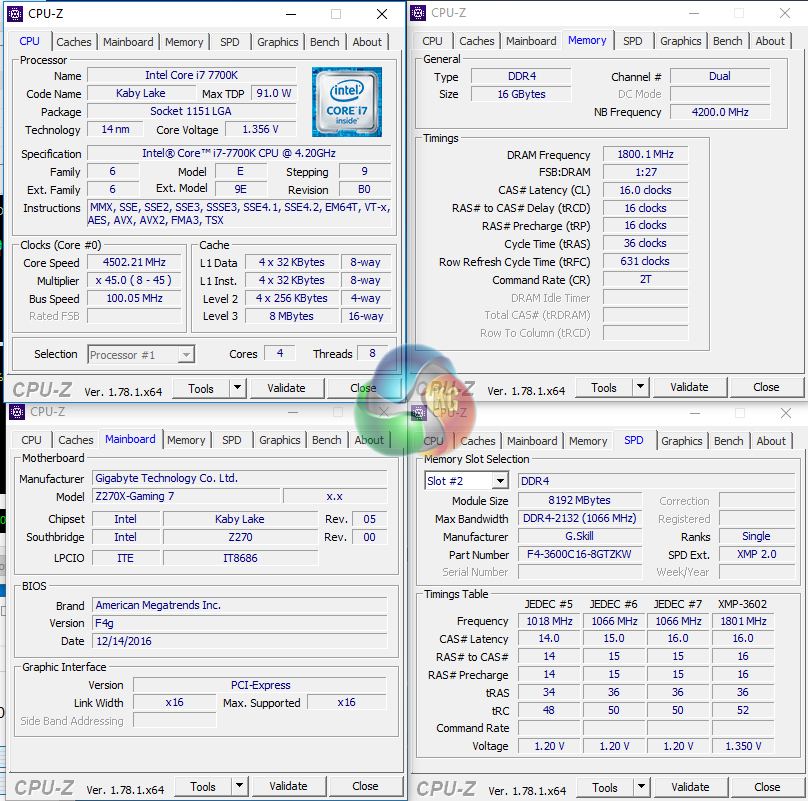
3600MHz DDR4 worked without issue using the XMP setting.
Overclocked Performance
As a performance comparison, we have included the results from two other Z270 motherboards. The maximum overclocked configuration achieved with each board was a 4800MHz (48 x 100MHz) processor frequency whilst using 3200MHz CL14 memory.
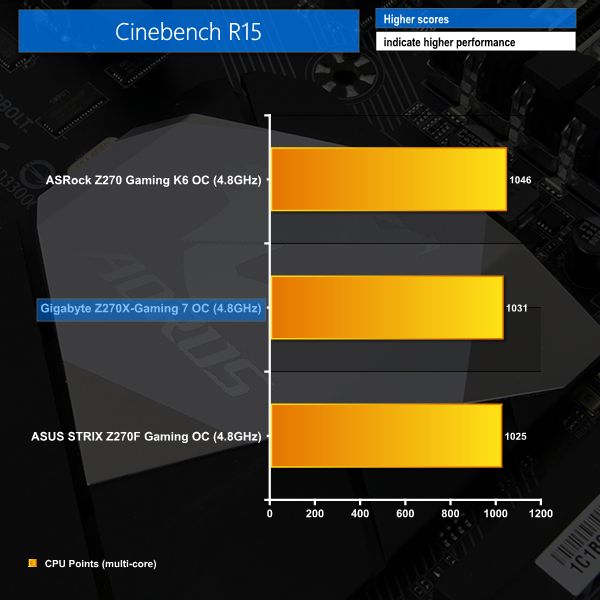
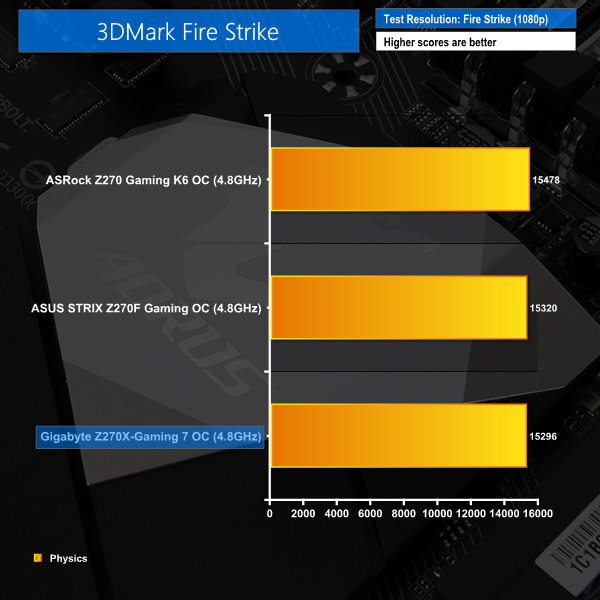
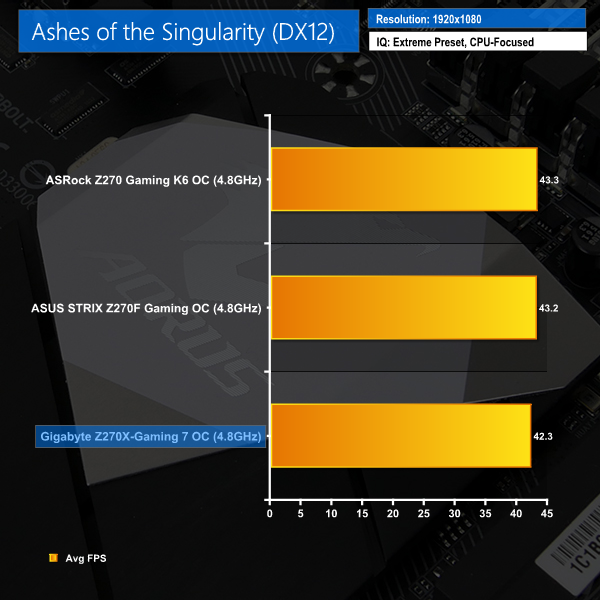
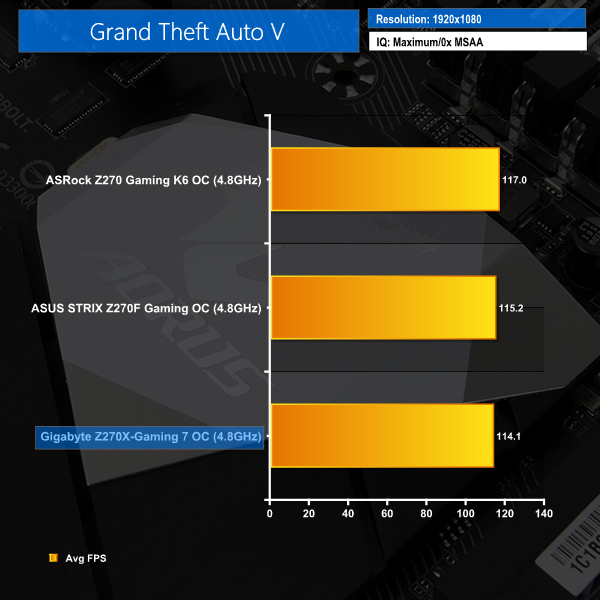
Overclocking delivers a nice performance boost for the Aorus Z270X-Gaming 7.
Power
We leave the system to idle on the Windows 10 desktop for 5 minutes before taking a reading. For CPU load results we run AIDA64 CPU, FPU, and Cache stress tests and take a reading. The power consumption of our entire test system (at the wall) is shown in the chart.
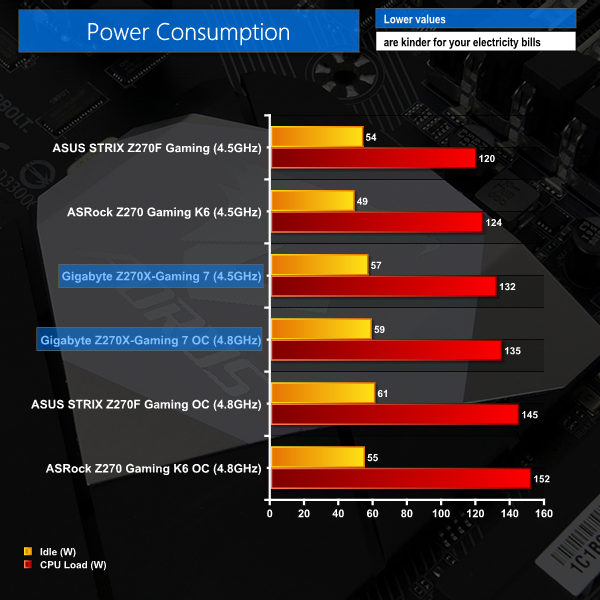
Stock (MCT) power consumption was not a strength for Gigabyte due to the over-aggressive CPU voltages being applied. Overclocking only resulted in effectively the same power consumption, emphasising just how needlessly high the stock voltage levels are.
With that said, Gigabyte's board does have lower overclocked load power draw numbers than ASUS and ASRock competitors. This is a direct result of the poor voltage accuracy attributed to the LLC settings. The board actually gets a stable overclock at a lower voltage by virtue of poor LLC design, which is an interesting thought that some may deem not such a bad point.
ATTO Disk Benchmark
The ATTO disk benchmark is a Windows-based utility for testing storage performance of any storage drive or controller. We use the default benchmark setup.
M.2 PCIe Performance
For M.2 testing we use a Toshiba OCZ RD400 256GB M.2 PCIe NVMe SSD.
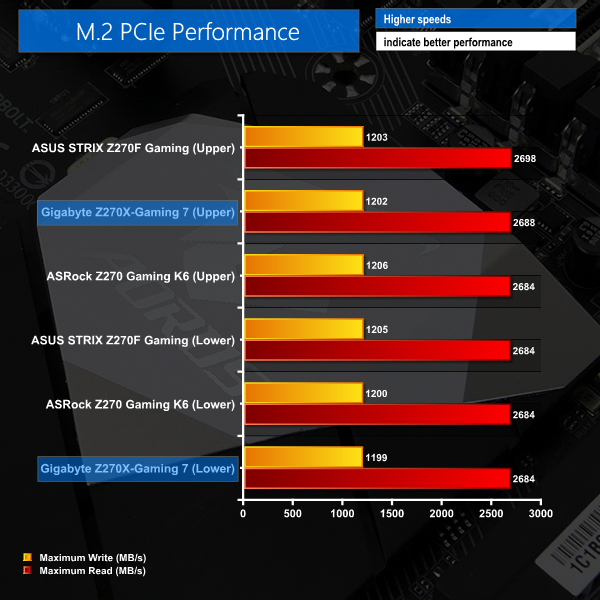
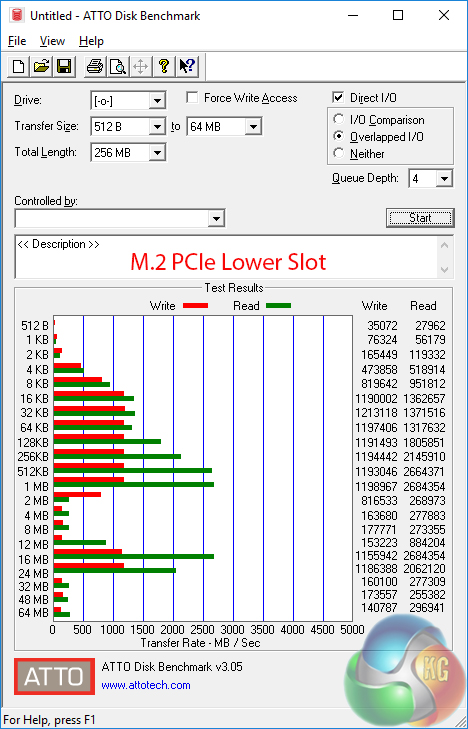
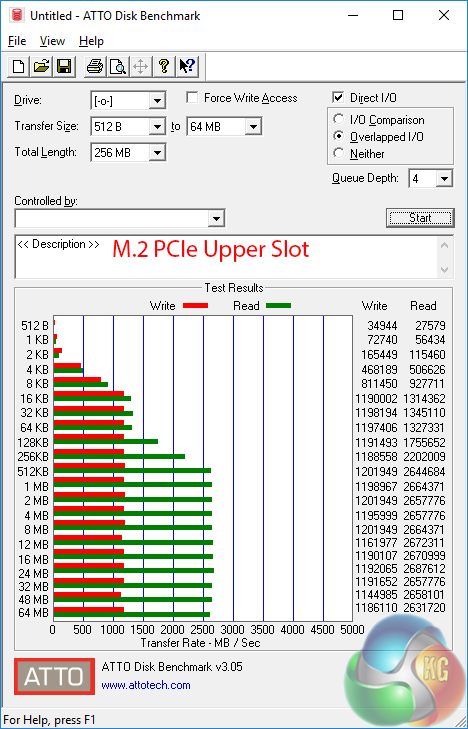
M.2 performance is without limits, provided sufficient cooling is delivered to the SSD. Bandwidth sharing means that the lower M.2 slot should be used first but the caveat is that it receives less incidental airflow from a CPU cooler and can cause thermal throttling on the SSD.
Good chassis ventilation should help to reduce the effect of M.2 SSD thermal throttling but if you are throwing a sustained heavy workload at your drive, Gigabyte takes no measures to help prevent it thermal throttling. This is disappointing.
USB 3.1 Performance
We test USB 3.1 performance using a pair of Corsair Force LE 120GB SSDs in RAID 0 connected to an Icy Box RD2253-U31 2-bay USB 3.1 enclosure powered by an ASMedia ASM1352R controller.
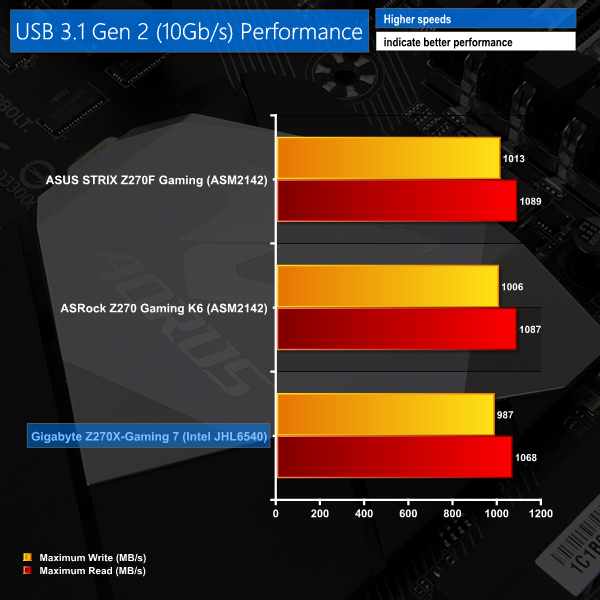
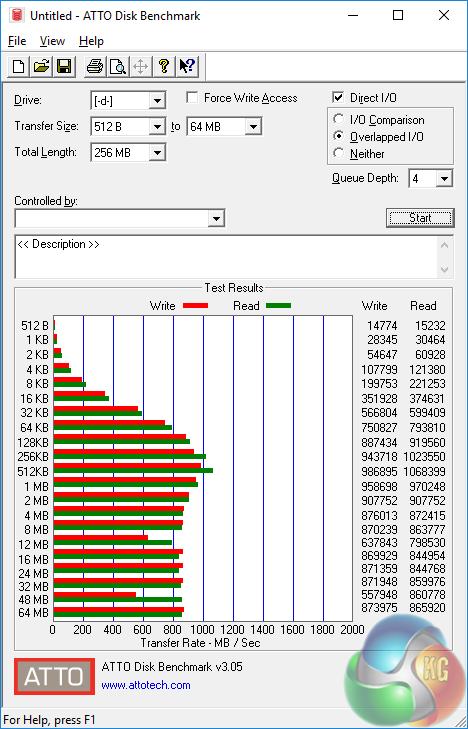
Performance from the Intel-based USB 3.1 Gen 2 controller is very good, hovering around the 1GBps level. The ASMedia ports used on ASRock and ASUS competitors are slightly faster, based on our testing. But the greater total bandwidth for Gigabyte's Intel USB 3.1 Gen 2 controller means that it will better retain its speed when a second fast storage device is connected.
The Type-C port also doubles as a 40Gbps Thunderbolt 3 connector which is king of the hill when it comes to external transfer speeds for consumers. Unfortunately, we do not have Thunderbolt 3 testing capability.
SATA 6Gbps Performance
For SATA 6Gbps testing we use a SK Hynix SE3010 960GB SSD.
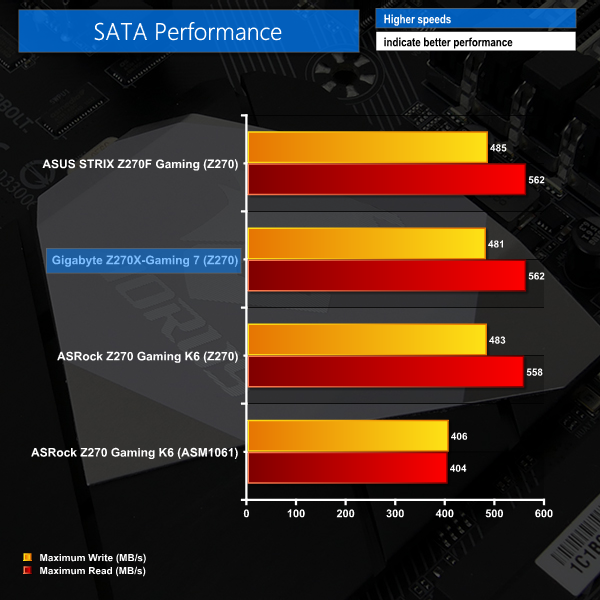
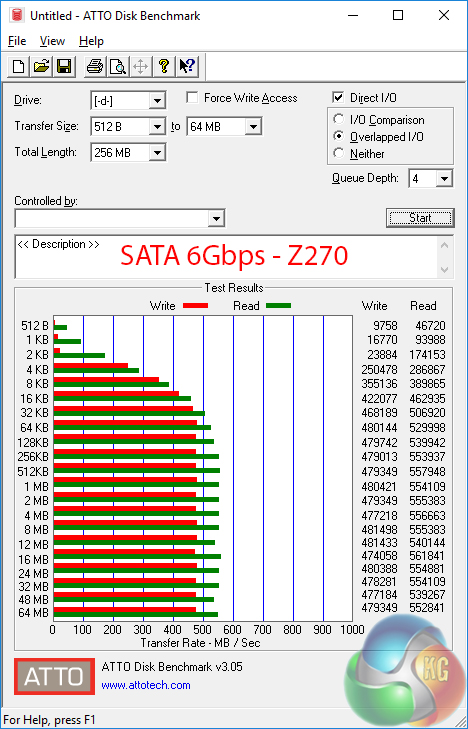
SATA performance from the Z270 ports is as expected.
Audio
Rightmark Audio Analyser is a freeware benchmarking utility designed to objectively test the performance characteristics of audio solutions. We setup a line-in line-out loop and execute the record/playback test before generating the results report you see below. A sampling mode of 24-bit, 192 kHz was tested.
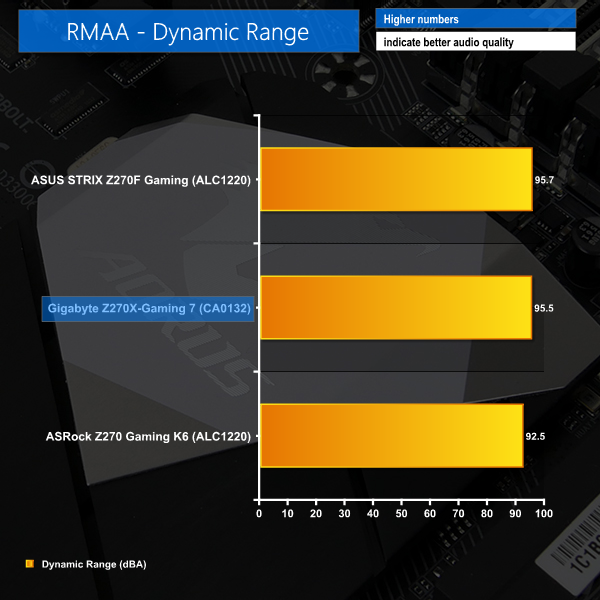
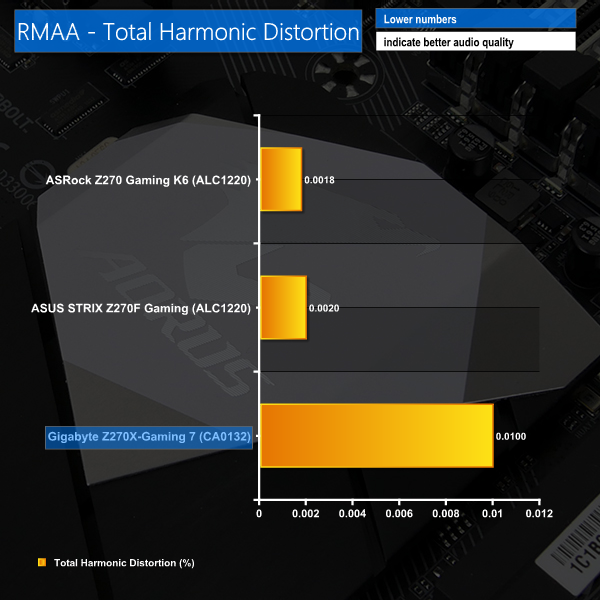
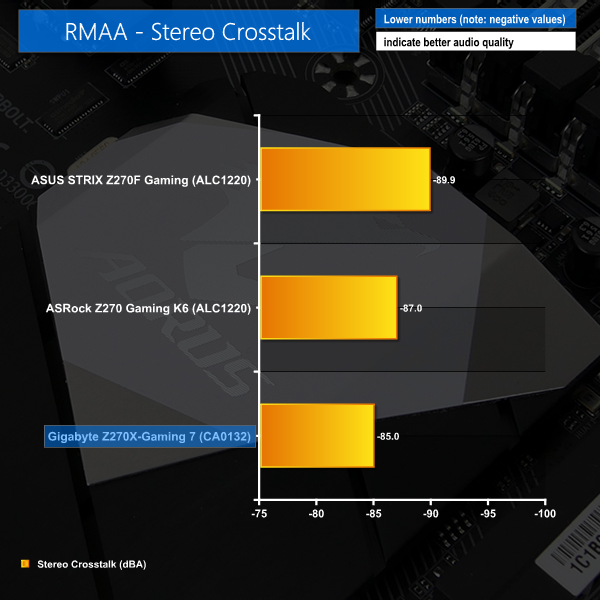
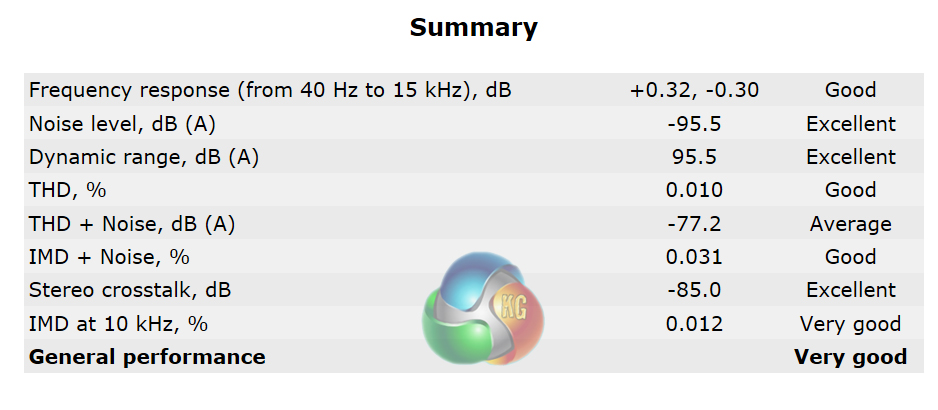
The individual audio results should be interpreted with care due to the difference in RightMark Audio Analyzer's reaction to the Creative-based solution used on Gigabyte's board versus the Realtek codec of its competitors.
Overall, RMAA rates the Aorus Z270X-Gaming 7's audio system as Very Good. If you want to improve a certain performance metric, the upgradable op-amp slot may permit such a move.
The Gigabyte Aorus Z270X-Gaming 7 is a feature-heavy motherboard that strikes a smart balance between being a high-end gaming product and one intended for system enthusiasts. RGB LEDs alongside a 40Gbps Thunderbolt 3 connector may seem odd, but there are plenty of prosumers who use their gaming system for work tasks and vice versa.
Performance from the Z270X-Gaming 7 was no cause for concern although it did appear very slightly slower than ASUS and ASRock competitors during our testing. This was likely attributed to the resources being eaten by a wealth of OS-based software tools, many of which were superb additions to the overall package (RGB Fusion in particular).
Gigabyte includes plenty of UEFI-based overclocking presets and the 4.8GHz 7700K mode was perfectly fine. OS-based Auto Tuning of the system using EasyTune was not particularly good as the CPU VCore was significantly higher than necessary for a 4.7GHz clock speed and XMP was disabled. Stock (forced-turbo) CPU voltage was also far too high with as much as 1.37V being pushed to the CPU under heavy load, resulting in wasted power and a cooling challenge for mid-range air heatsinks or AIOs.
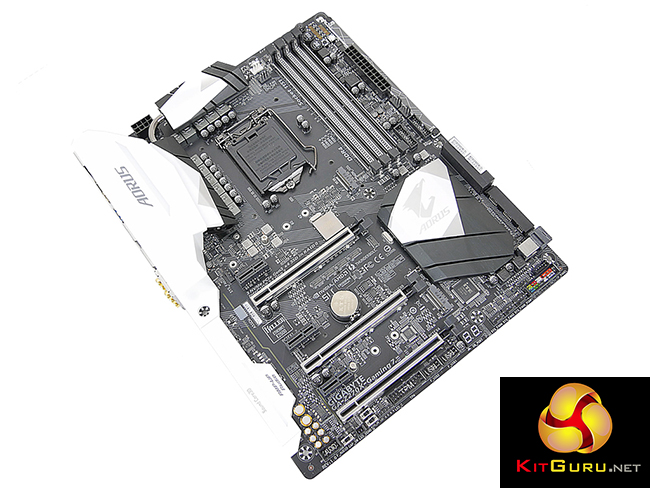
Motherboard layout for the Gaming 7 is superb and the design decisions for PCIe lane routing are excellent. Being able to use a trio of PCIe NVMe SSDs simultaneously using M.2, M.2/PCIe, and U.2 while also off-loading at 40Gbps through Thunderbolt 3 is mightily impressive. I also liked the inclusion of onboard buttons and voltage measurement points for tweaking and diagnostic purposes.
Gigabyte's RGB system is excellent. The LEDs are bright and colour-accurate and zones can be controlled individually within the OS-software (which is bundled in addition to a UEFI-based RGB tool). The RGB header with 5 re-mappable pins worked well and helps to improve strip compatibility.
On the topic of excellent points, Gigabyte's effort being put into the fan control system has paid off. The Gaming 7 has superb abilities for fan control both through the UEFI and OS software. And the board ships with eight 4-pin headers that should satisfy even hardened watercooling enthusiasts.

The Gigabyte Aorus Z270X-Gaming 7 motherboard is available at Overclockers UK for £229.99. This puts it in the high-end price range for Z270 offerings. If you can withstand the high voltage levels by default and lack of M.2 cooling, the Aorus Z270X-Gaming 7 motherboard has plenty of positive aspects that will allow it to compete in a tough marketplace.
Discuss on our Facebook page, over HERE.
Pros:
- Superb set of features (dual M.2, U.2, Creative audio, etc.).
- Intel 40Gbps Thunderbolt 3 and USB 3.1 Gen 2 Type-C are good to see.
- One of the best fan configurations on the market – 8 4-pin headers, all with precise controllability.
- Smart layout and PCIe routing design decisions.
- Excellent RGB LED performance and control ability.
- OS-based RGB Fusion software provides plenty of flexibility.
Cons:
- Auto/MCT CPU VCore levels are too high.
- UEFI needs more work to better compete with ASRock, ASUS, and MSI implementations.
- The LLC settings make little sense without any form of explanation and they don't perform particularly well, either.
- No consideration given to M.2 SSD cooling.
KitGuru says: Excellent RGB and fan control systems aid a good feature set and wise design choices to make Gigabyte's Aorus Z270X-Gaming 7 a smart choice.

“The individual audio results should be interpreted with care due to the difference in RightMark Audio Analyzer’s reaction to the Creative-based solution used on Gigabyte’s board versus the Realtek codec of its competitors.”
I don’t understand what that means.
I have this board and while it’s a tremendously beautiful work of art, RGB Fusion doesn’t hold its brightness settings after reboot. Which, can be annoying when the PC is on your desk just to your right and you don’t want those beautiful bright greens to be /too/ bright, so you tone them down to the lowest setting (25%) only to find that you have to do it every single time you boot into Windows 10 Pro x64. I looked to see if there were any obvious files in the RGB Fusion folder that would hold settings for such and if they perhaps were read-only, but the only settings files I found were xml’s for various demo effects, I would assume. I’ve tried setting the main exe’s in the folder to run as administrator and see if that works. No dice. Seems as if Gigabyte might have a little more work left to do with this, and funny enough, their GvLedServices.exe file descriptions weren’t filled out. They were left as “TODO: ” .. “TODO: ” .. “TODO: ” under Properties > Details. I guess that slipped their “to do” list. It shows up as “TODO: ” in Task Manager > Processes, which could potentially confuse someone that isn’t privy to the program not quite being as polished as it should be.
Also, I had an issue where, suddenly, when trying to run the RGB Fusion program, it would load the dialog box, but that’s it, and sit there with blank panels and “Please Wait…” flashing through the RGB spectrum in the middle of the main panel for around 5 minutes before finally loading, then making any changes would take another few minutes or so, but they wouldn’t actually do anything. The power switch at the top no longer turned the LED’s off, either. I had to uninstall the program, reboot, reinstall the program and then run each process from its folder manually to get it to work again. It’s been working since then, even after reboots, but still doesn’t hold the brightness setting.
https://uploads.disquscdn.com/images/7bd0e4c346835a42abdf525b89866c38c628c6205a00e90bada27f21db0bbf2f.jpg
Might as well be written in another language and then translated back to English with Google translator.