 KitGuru KitGuru.net – Tech News | Hardware News | Hardware Reviews | IOS | Mobile | Gaming | Graphics Cards


Right now, the mini-ITX scene is extremely popular for gamers and enthusiasts. A combined effort by component manufacturers has seen greater emphasis being put on innovative mini-ITX cases, short graphics cards, and more confined cooling solutions. And let's not forget the system builders deploying small form-factor (SFF) offerings such as steam machines.
With installation space and expansion options being in short supply, the motherboard features are critical to the success of a SFF build. Asus aims to pack the features that enthusiasts and gamers will desire into the company's flagship mini-ITX motherboard – the Republic of Gamers Maximus VIII Impact.
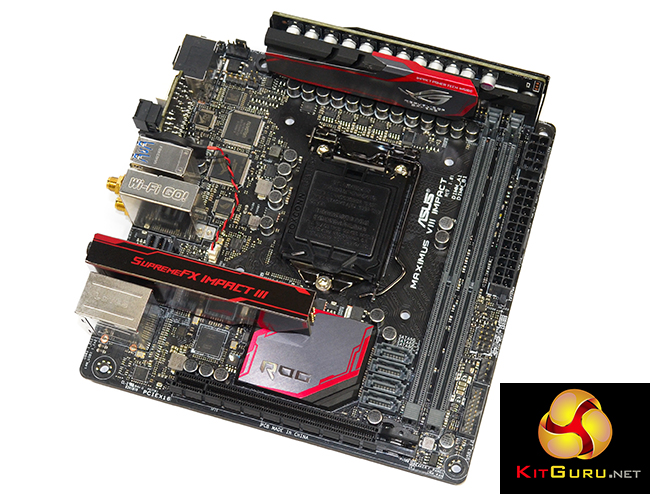
The IO-heavy design of Intel's Z170 chipset gives Asus a good grounding for building a feature-filled motherboard into a 6.7″x6.7″ PCB space. One of the more interesting inclusions is the native PCIe 3.0 x4 32Gbps U.2 connector which will function with the 2.5″ variant of Intel's 750 series NVMe SSD. Adding to the connectivity options are USB 3.1 Type-A and Type-C ports delivered by Intel's DSL6540 ‘Alpine Ridge' controller, four SATA 6Gbps ports, and two-stream 802.11ac WiFi.
Asus caters for overclockers with the dedicated Impact Power III board, onboard buttons, and validation with 4133MHz DDR4. And enthusiast gamers will be pleased to see the enhanced – SupremeFX Impact III – audio solution alongside an Intel I219-V NIC with Asus' gaming-orientated networking software.
Let's take a closer look at the Asus Maximus VIII Impact and see how it performs in our test suite.
Features:
- LGA1151 socket for 6th-gen Intel Core desktop processors.
- Dual DDR4 4133 (OC) support.
- Best gaming performance – Impact Power III, 5-Way Optimization with Auto-Tuning, Pro Clock, second-generation T-Topology.
- Best gaming audio – champion-level SupremeFX Impact III audio card with intuitive Sonic Studio II.
- Best gaming networking – Best-in-class Intel Gigabit Ethernet, LANGuard and GameFirst technologies.
- Best gaming connectivity —2×2 802.11ac Wi-Fi with MU-MIMO , NVMe U.2 and USB 3.1 Type-A and Type-C for extreme-speed transfers and total compatibility.
- Best gaming protection – Carefully-selected premium components for maximum durability.
- ROG gives you more – More gaming-focused utilities, all free!
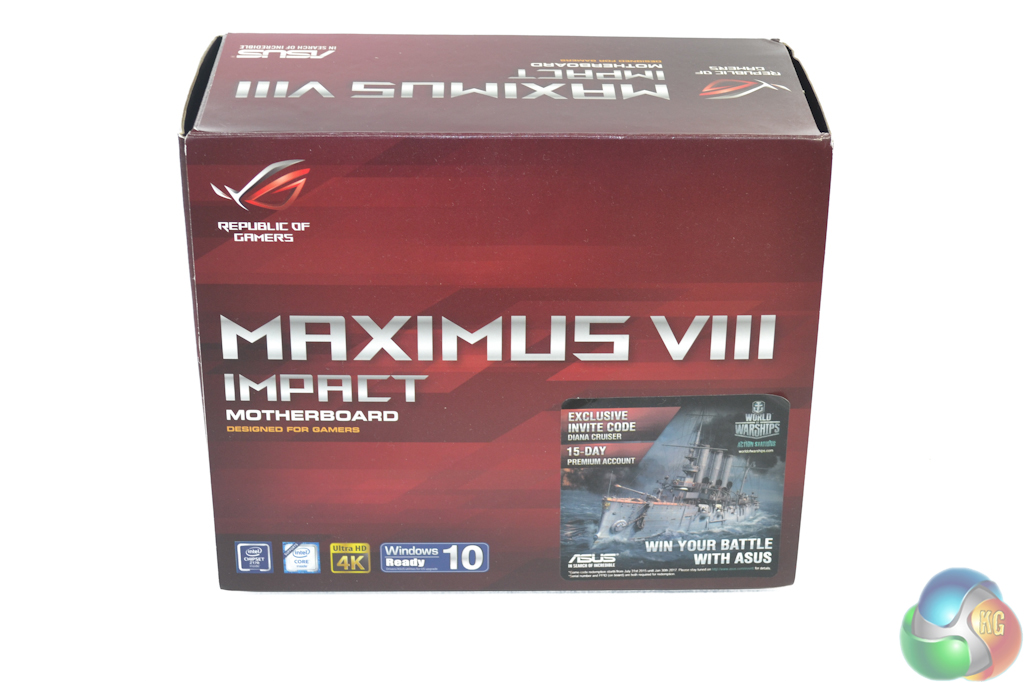
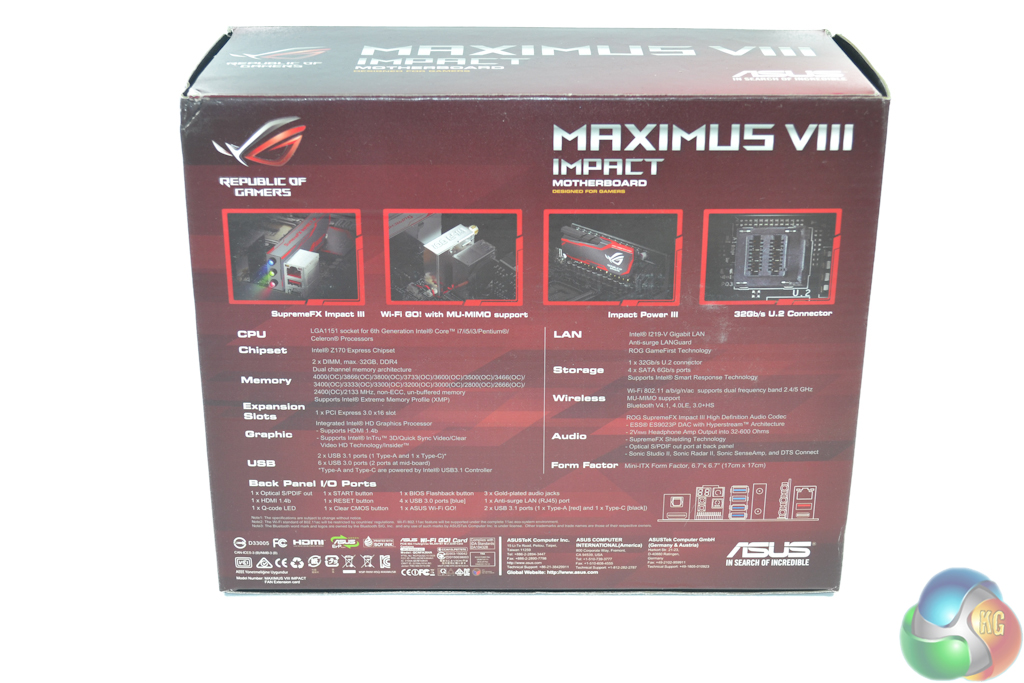
The Asus Maximus VIII Impact ships in a box with typical ROG styling. A basic handful of features is found on the front of the box, with the more in-depth specifications residing on the rear.
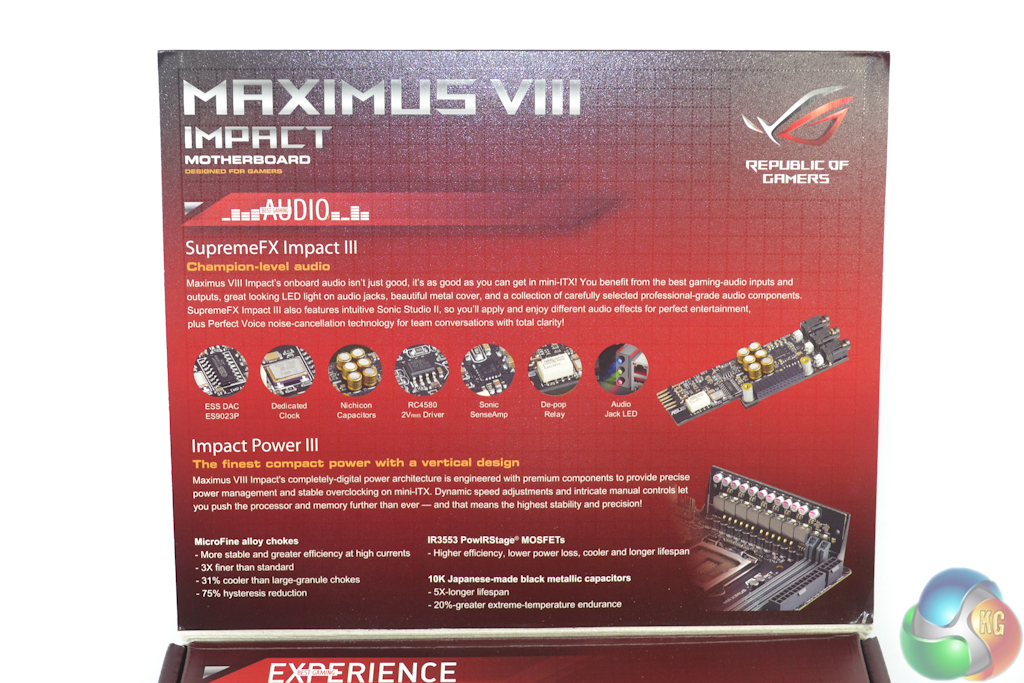
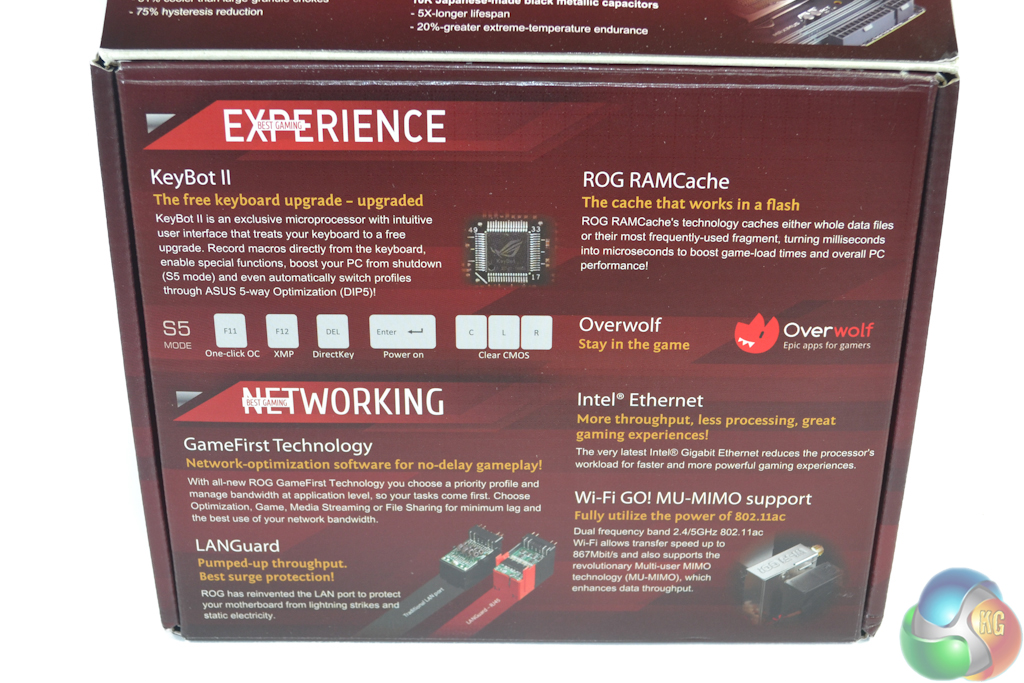
Opening the front flap reveals more information about the board's key features and how they work.
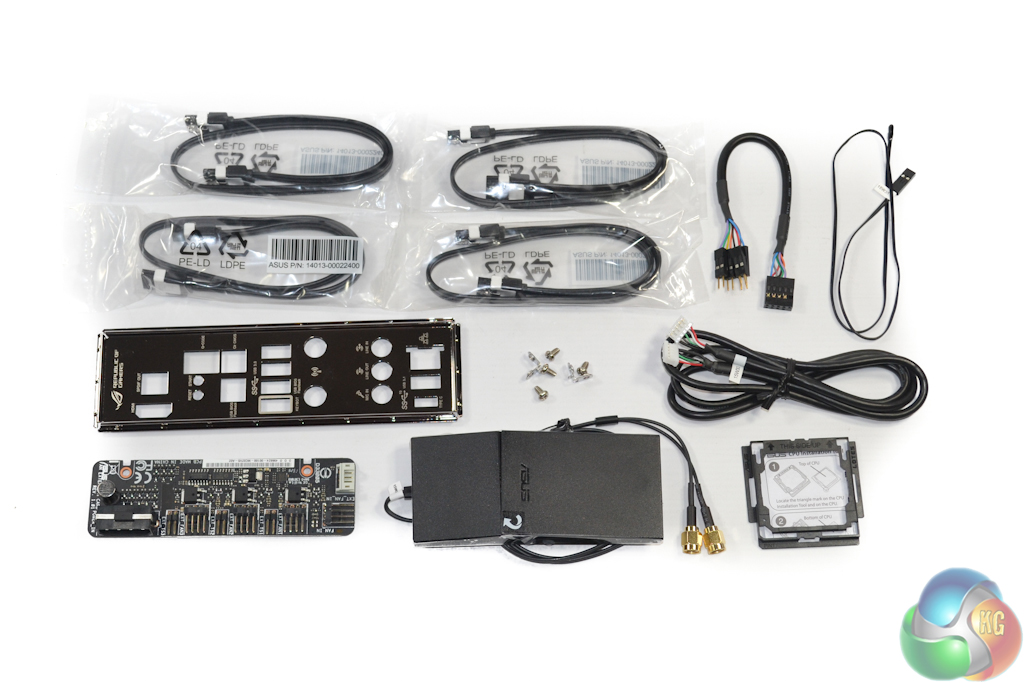
The very healthy accessory bundle consists of:
- 4x SATA cables.
- Front panel headers break-out cable.
- Temperature sensor cable.
- Labelled rear IO shield.
- Miscellaneous screws (seemingly for mounting the fan board to a chassis).
- 5-pin to 5-pin cable for the fan extension board.
- Fan extension board.
- Two-stream magnetic WiFi antenna box.
- CPU installation tool.
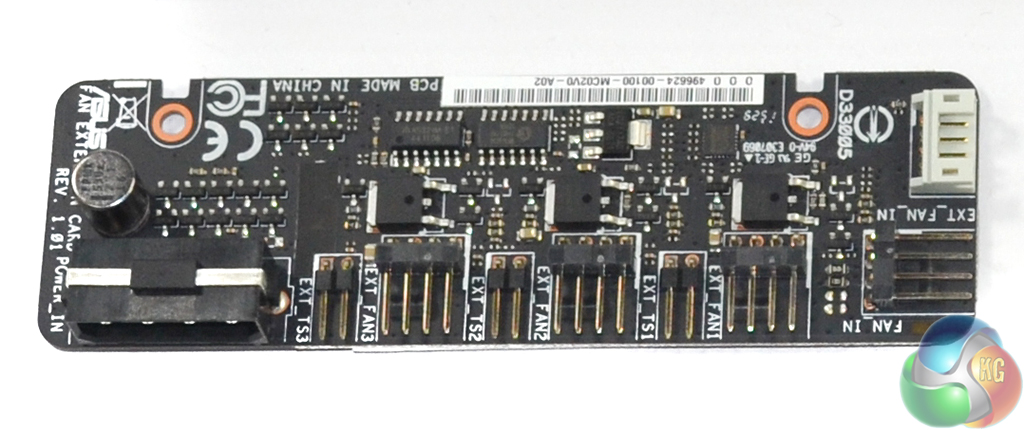
The included fan extension card can be used to connect three additional 4-pin fans to the system, as well as three more temperature sensors. Power is delivered via a 4-pin molex connector, which I wish was a more-convenient SATA power connector instead. Signals are transferred through the included 5-pin cable which connects to a dedicated header on the motherboard.
A number of operating modes can be selected for the connected fans, thanks in large to the Nuvoton NCT7802Y monitoring IC. Their speeds can be managed manually through the UEFI. Alternatively, a direct connection can be made to one of the motherboard's onboard headers, allowing its operating mode to control the three extension card fans as a single set.
There is also the option to operate the fans based on readings from the three temperature sensors. This approach, however, will require the additional temperature sensor cables to be acquired as only one is included. Credit to Asus for colouring the fan header board in black, preventing it from being an eye-sore inside a mini-ITX build.
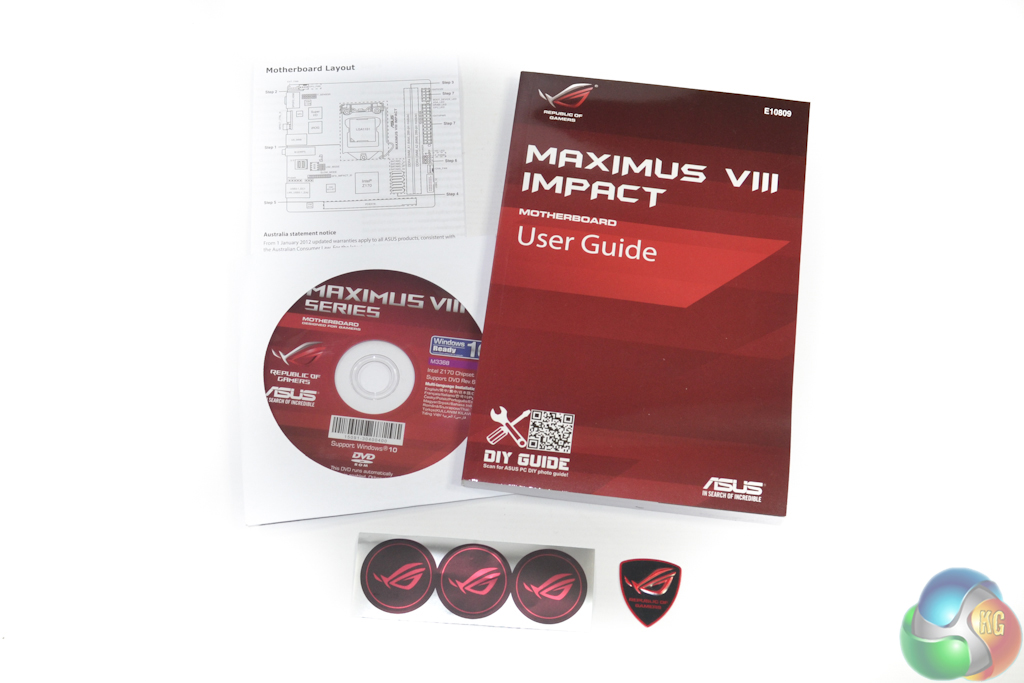
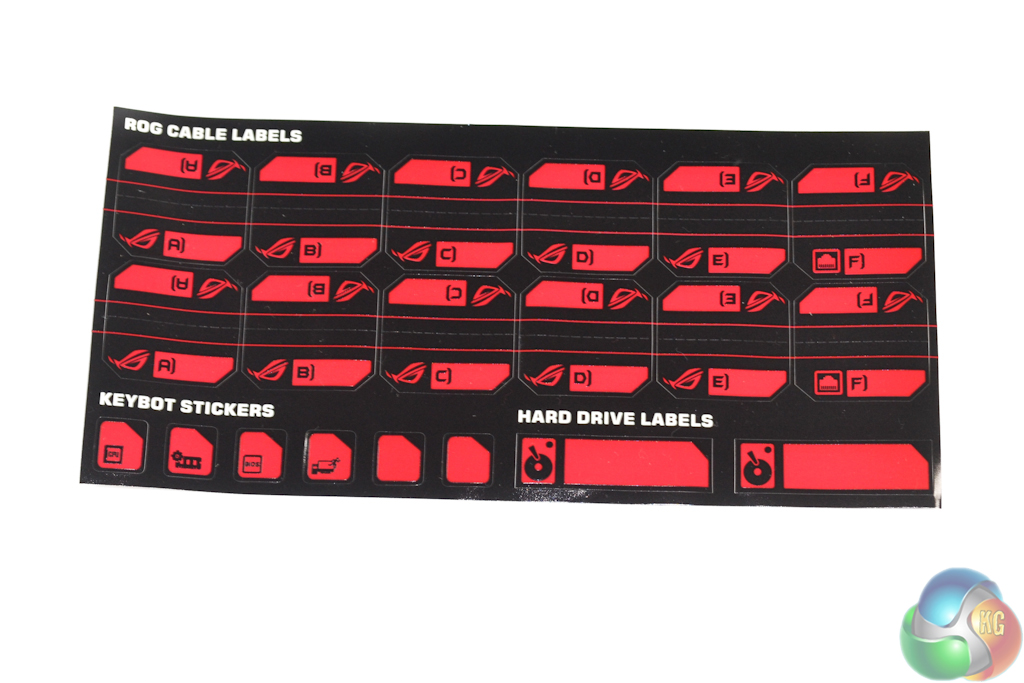
Documentation comes in the form of a motherboard layout leaflet and user guide. Asus also includes a drivers CD and two different types of case stickers.
The inclusion of stickers for outlining KeyBot keys, storage drives, and general cables is excellent. The KeyBot stickers will be especially useful for day-to-day scenarios.
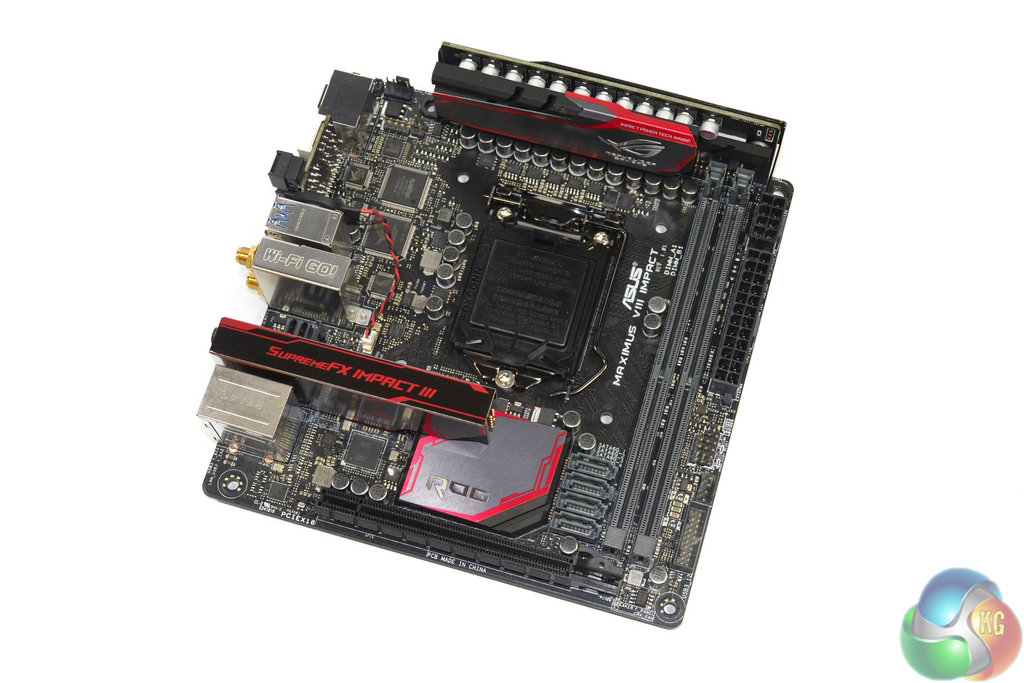
Styling-wise, the Asus Maximus VIII Impact follows a similar path to other ROG components. Subtle hints of red contrast the dark shades of black and grey to create an appearance that is easy to match with partnering hardware.
Two single-latch DIMM slots can be used to install up to 32GB of DDR4 memory in dual-channel mode. Asus advertises frequency support for up to 4133MHz DDR4 sticks, although such high speeds will also depend on other factors such as the BIOS revision and CPU's IMC strength.
Despite using single-latch DIMM slots, the opening latch is actually positioned near to where a long graphics card will sit. This has the potential to cause a slight difficulty when replacing the memory in a built system, however there is just enough room to avoid complete interference with a graphics card's PCB.
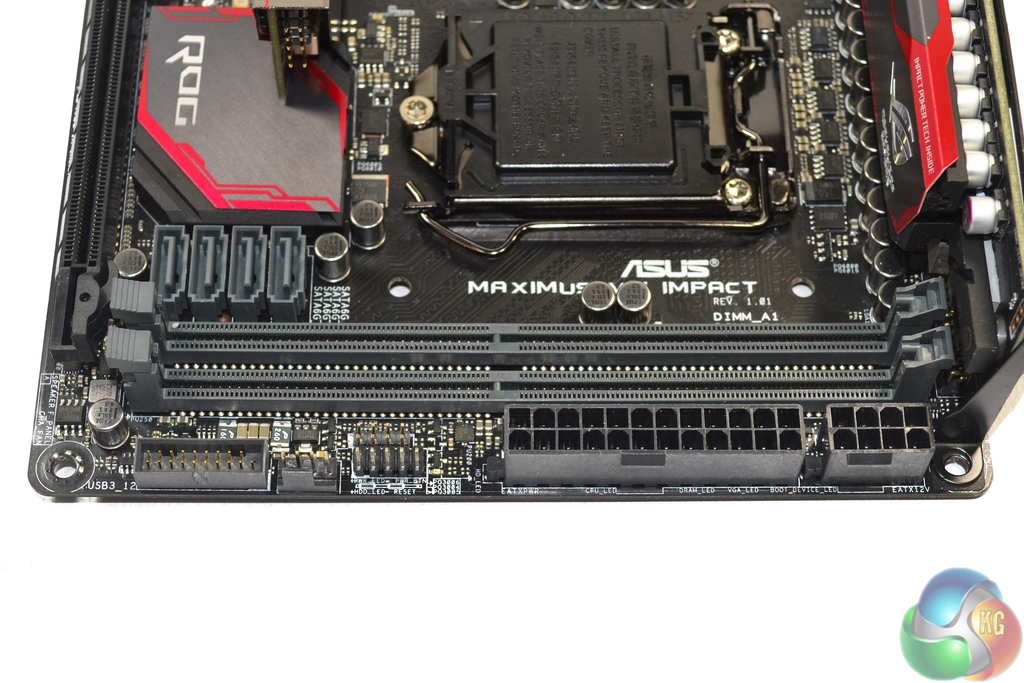
Asus positions both the 24-pin and 8-pin power connectors on the board's right edge. This has the potential to make cable management a little trickier as two physically large cables will have to be routed to the same location. With that said, looking at cases such as Silverstone's excellent SG13, the positioning can also give greater accessibility to the power connectors.
Adjacent to the power connectors are the front panel chassis headers and a 4-pin chassis fan connection. The lone internal 5Gbps USB 3.0 header receives its ports directly from the Z170 chipset.
While in the area of the DIMM slots, it's worth pointing out that we suffered the error code 55 issue that seems to be common for Asus' Maximus VIII motherboards. After wasting time (unsuccessfully) trying to get the system to POST with 3200MHz XMP enabled, reseating the CPU and switching to the other two DIMMs in our four-stick set solved the issue.
It's disappointing to see stability issues persisting this long after the Z170 platform's introduction. That statement is especially true when one factors in the solid track record that Asus has for releasing stable motherboards with bug-free BIOS implementations.
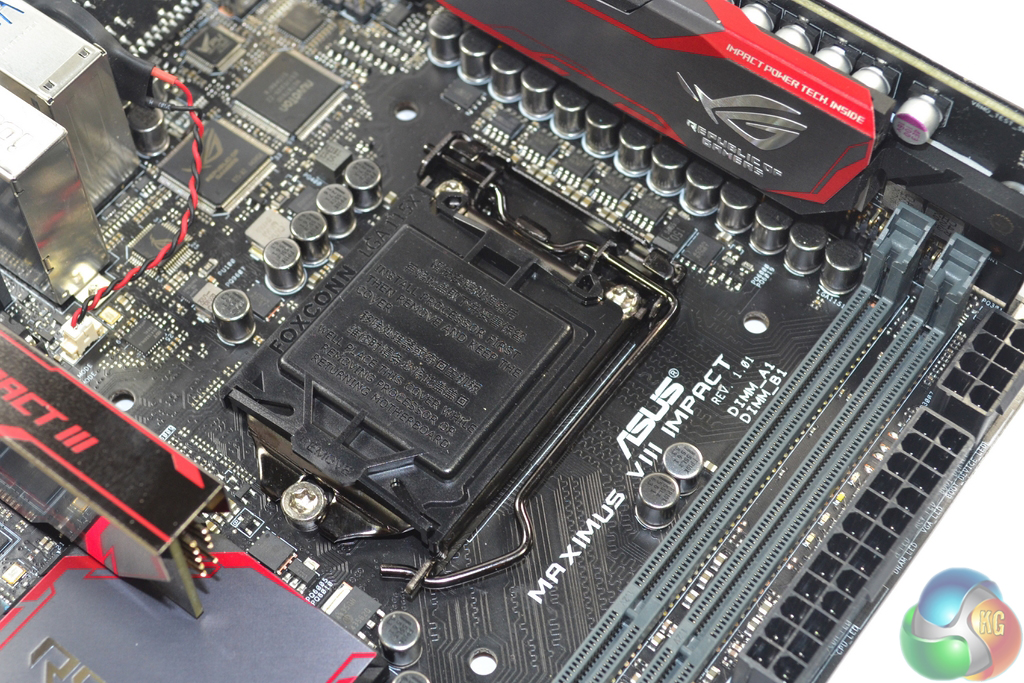
Support for Intel's LGA 1151 line-up allows the Maximus VIII Impact to form the foundation of a high-performance gaming system. The included installation tool can aid users who are less familiar with the process of building an Intel-based system and don't want to risk damaging the socket pins.
Asus uses an IDT-designed clock generator to provide management for adjustment of the BCLK frequency. This is important to not only overclockers who are trying to squeeze every MHz out of their system, but also buyers who want to overclock Intel non-K CPUs. The Maximus VIII Impact does indeed (unofficially) support non-K CPU overclocking, however this requires a BIOS update and is not officially sanctioned by Intel.
The CPU socket area is relatively clear of interference mechanisms for CPU coolers typically found in mITX builds. AIO liquid cooling pump and waterblock units should fit without issues. However, some large top-down coolers will have to clear the heightened audio module and power board in order to be installed.
As a note, we managed to install a Noctua NH-D14 CPU cooler without any motherboard interference. Using a CPU cooler of such size is feasible if your chassis provides the appropriate clearance.
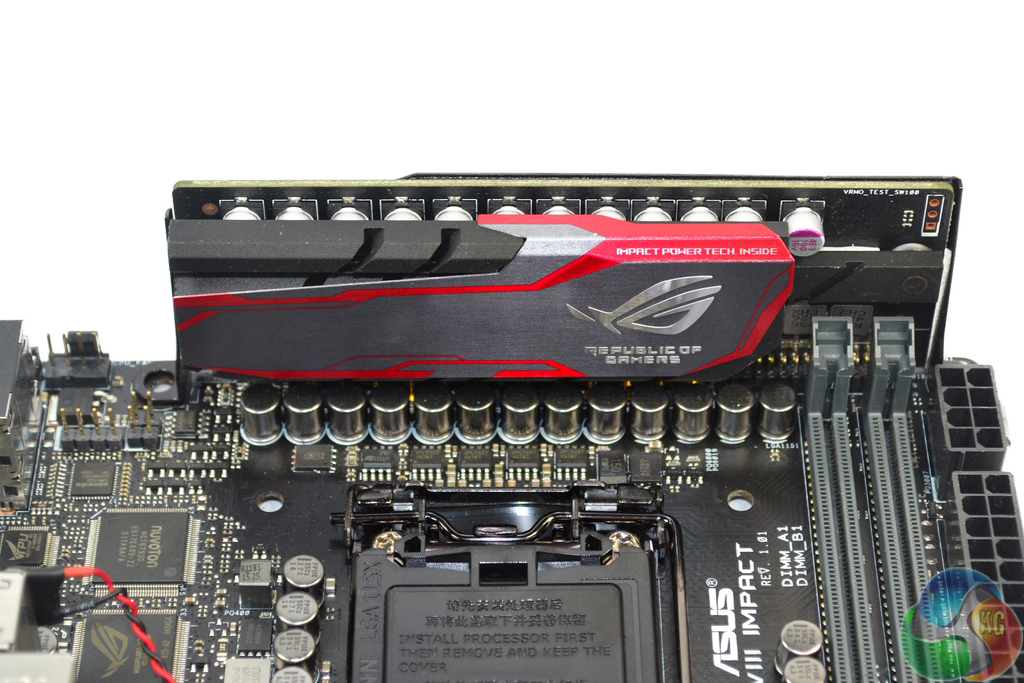
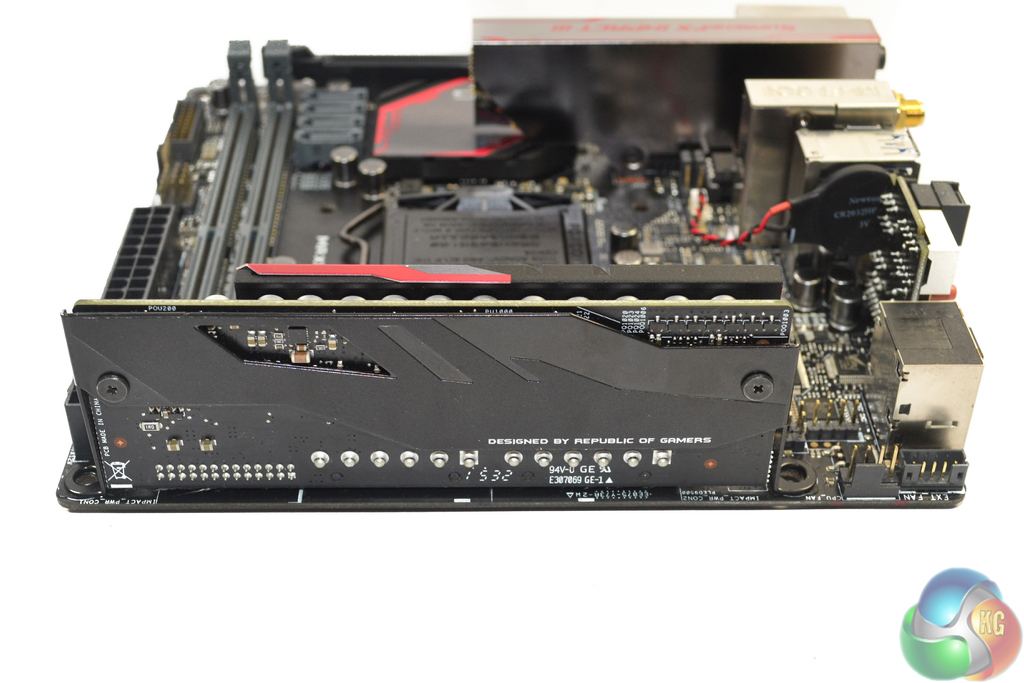
Finding the PCB real estate to deploy an enhanced power delivery system can be challenging given the mini-ITX space constraints. For a number of generations, Asus has overcome this challenge by deploying a dedicated power delivery board that uses a small amount of motherboard PCB space and increased height to house electronic components.
It's worth noting that the Impact Power III board's dimensions have been specifically designed to comply with the mini-ITX chassis standards.
Credit where credit is due, the vertical power board is one of those pieces of innovation that deserves all of the praise it gets. The design allows valuable PCB space on the motherboard to be freed up to house other components such as chipsets and connectivity slots.
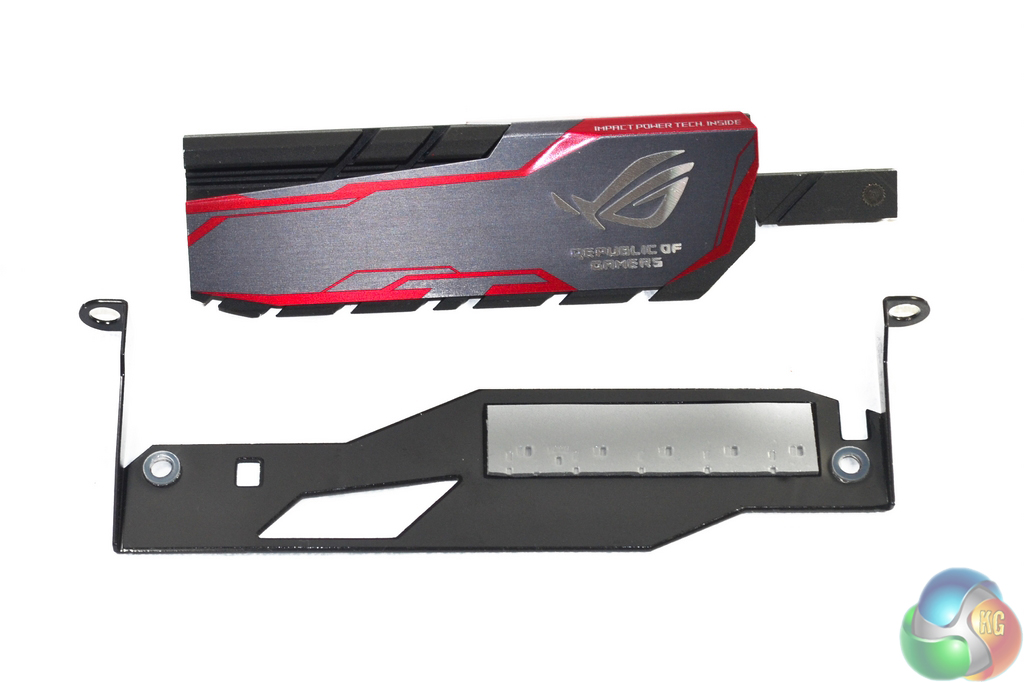
Asus takes the cooling of its Impact Power III board as seriously as enthusiast buyers would expect. A sturdy metal heatsink is used to cool the front-side MOSFETs, while a rear backplate provides stability to the vertical board and also cools additional controllers.
I like the design of the front-side VRM heatsink. The red, grey, and black colour scheme works well, which is a positive as the heatsink may be visible in certain system builds.
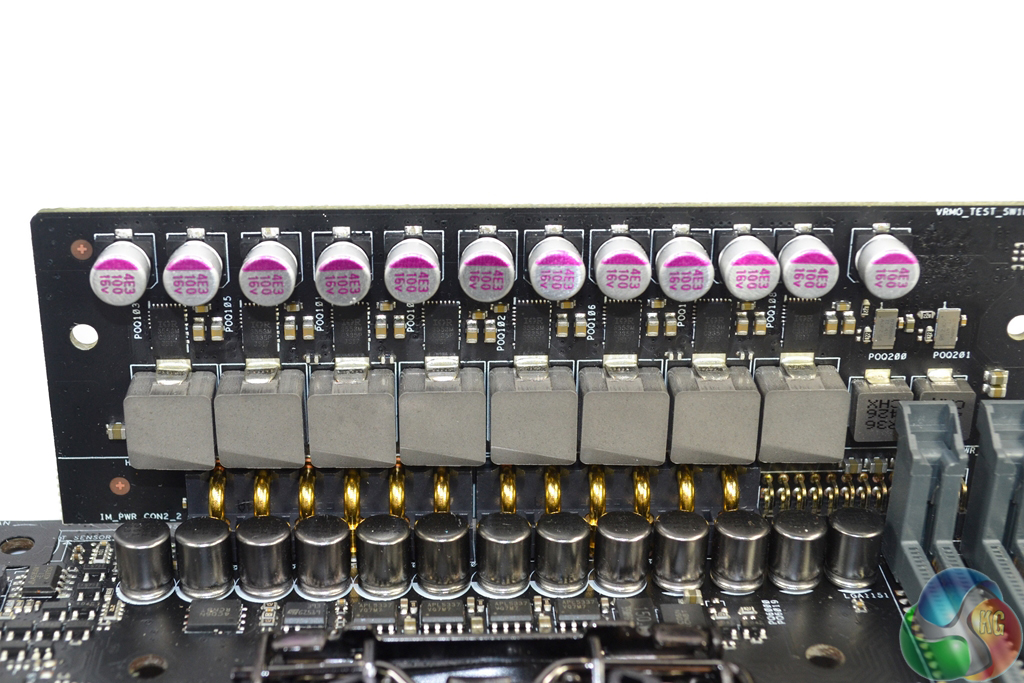
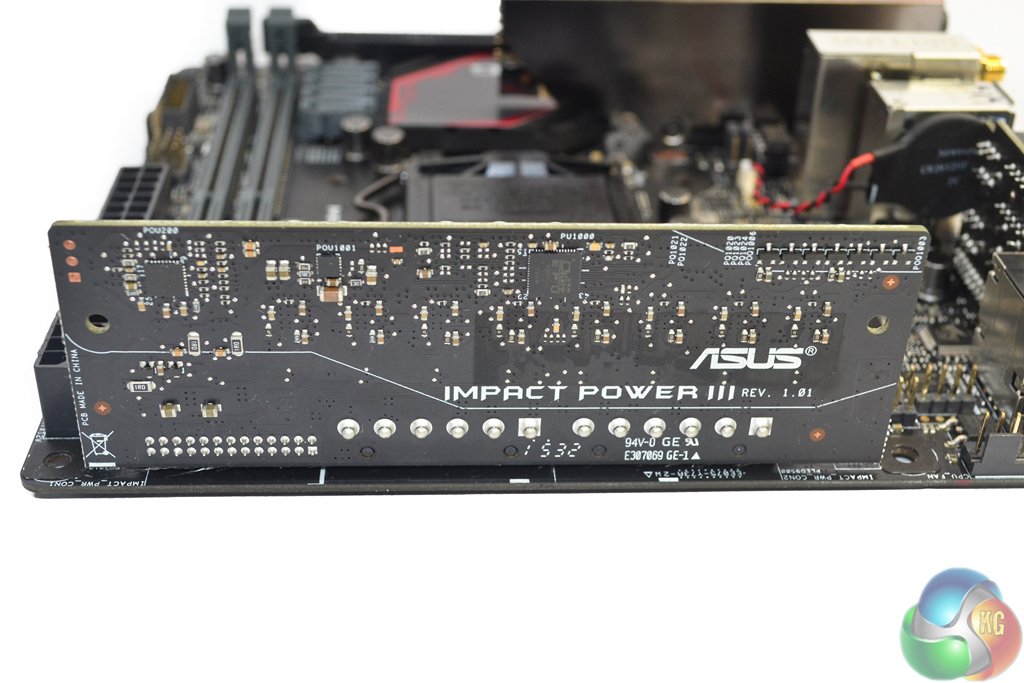
Asus uses a total of eight phases to feed the CPU and iGPU, as well as a further two phases for the memory. Central the power delivery system are eight of International Rectifiers' PowIRstage IR3553M MOSFET solutions. Delivering a 40A output per stage, the IR3553M solutions are smart choices for usage in a confined area thanks to their co-packaged design.
In addition to the MOSFET solutions are Asus' MicroFine Alloy chokes and 10K-rated capacitors. The chokes are touted to deliver higher efficiency and lower operating temperatures due to their smaller powder particle size. A pair of 25A Texas Instruments CSD87588N (marked 87588N) NextFET power blocks and two R36 chokes form the additional two power phases.
Control of the system is handled by Asus' Digi+ EPU ASP14051 and Digi+ ASP1103 controllers located on the power board's rear. Information relating to Asus' custom-branded PWM solutions is very difficult to obtain, however the ASP14051 controller seems to manage the CPU and iGPU phases while the ASP1103 chip manages the memory power.
A number of ON Semiconductors' NTMFS4C06N (marked 4C06N) single N-channel MOSFETs are scattered around the CPU socket and entry pins for the Impact Power III board, as are Anpec Electronics APL5337 linear regulators. There is also a chip labelled 7163 ONFK on the rear of the power board, however I could not detect its function.
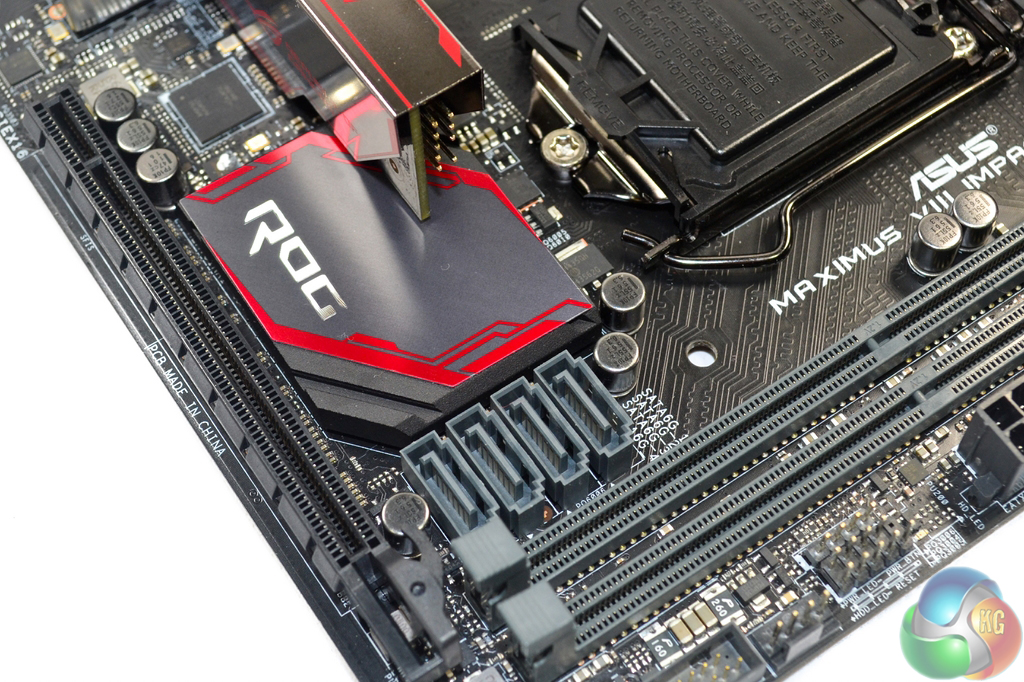
Asus only includes four SATA 6Gbps for the Maximus VIII Impact, which seems meagre given the Z170 chipset's healthy set of IO lanes and flexibility. Two RAID-0 boot SATA SSDs alongside a single storage HDD and an optical drive is not such an outrageous configuration for mini-ITX enthusiasts, however it is one that saturates this board's SATA expansion options.
I strongly believe that Asus should have included a single SATA-Express connector on the Maximus VIII Impact. This would have the benefit of providing two additional SATA 6Gbps ports, which would be useful for many enthusiasts. Alternatively, users could have connected a front panel USB 3.1 bay to the SATA-Express port. As it stands, front USB 3.1 support for the Maximus VIII Impact seems borderline impossible (other than routing a cable from the rear IO).
The SATA ports' outwards-facing orientation may not be ideal for cable management, however it is a necessity on a mini-ITX motherboard due to chassis space constraints and interference potentials.
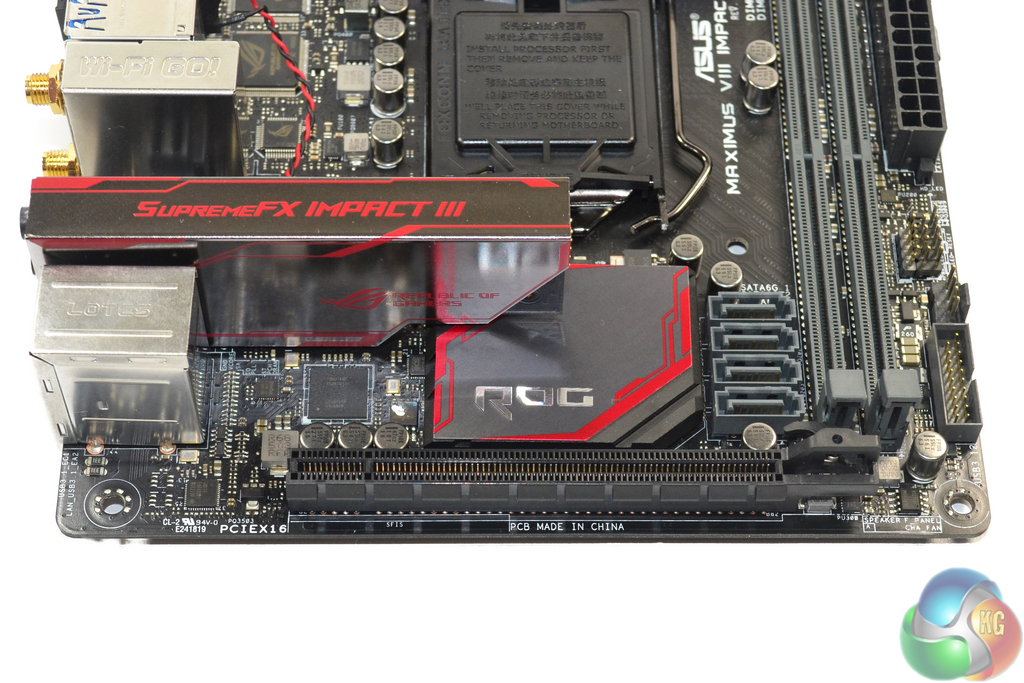
A single PCIe 3.0 x16 slot provides expansion capabilities. Asus routes all of the LGA1151 CPU's sixteen PCIe 3.0 lanes to the full-length slot, allowing a gaming graphics card to receive unrestricted bandwidth. The slot's retention lever is repositioned to provide easier access with a graphics card installed.
Adding to the somewhat limited storage options for Asus' board is the omission of an M.2 connector (!). This is completely unacceptable. The connector could have been positioned on the rear of the board, or even in a vertical or sideways orientation (albeit with potential interference or cooling issues).
And there's no argument for a lack of connectivity – the bandwidth could have been shared with the U.2 slot, a minor rearrangement of chipset resources would provide a PCIe 3.0 x4 connection, or Asus could even dive into the CPU's 16 PCIe lanes for the M.2 slot, as they did with the Z97 Maximus VII Impact. Asus will argue that the 32Gbps PCIe 3.0 x4 U.2 connector is a viable alternative to an M.2 slot, and that will probably be true in one or two years' time.
But as of right now, the M.2 slot is far more useful than onboard U.2 connectivity. The only viable U.2 SSD for consumers is Intel's SSD 750 drive in the 2.5″ form factor. Conversely, there are more M.2 SSDs on the market than I care to count, including numerous PCIe 3.0 x4 and NVMe drives from the likes of Samsung and more on the way from vendors such as Kingston and Plextor. M.2 to U.2 adapters are commonplace too.
How Asus' engineers decided that it was a good idea to release a high-end mini-ITX Z170 motherboard without an M.2 slot is completely beyond me. You can't even use the PCIe x16 slot to house an M.2 SSD via an adapter card as that dictates the removal of one's gaming graphics card. This decision has the potential to completely alienate a large proportion of potential buyers.
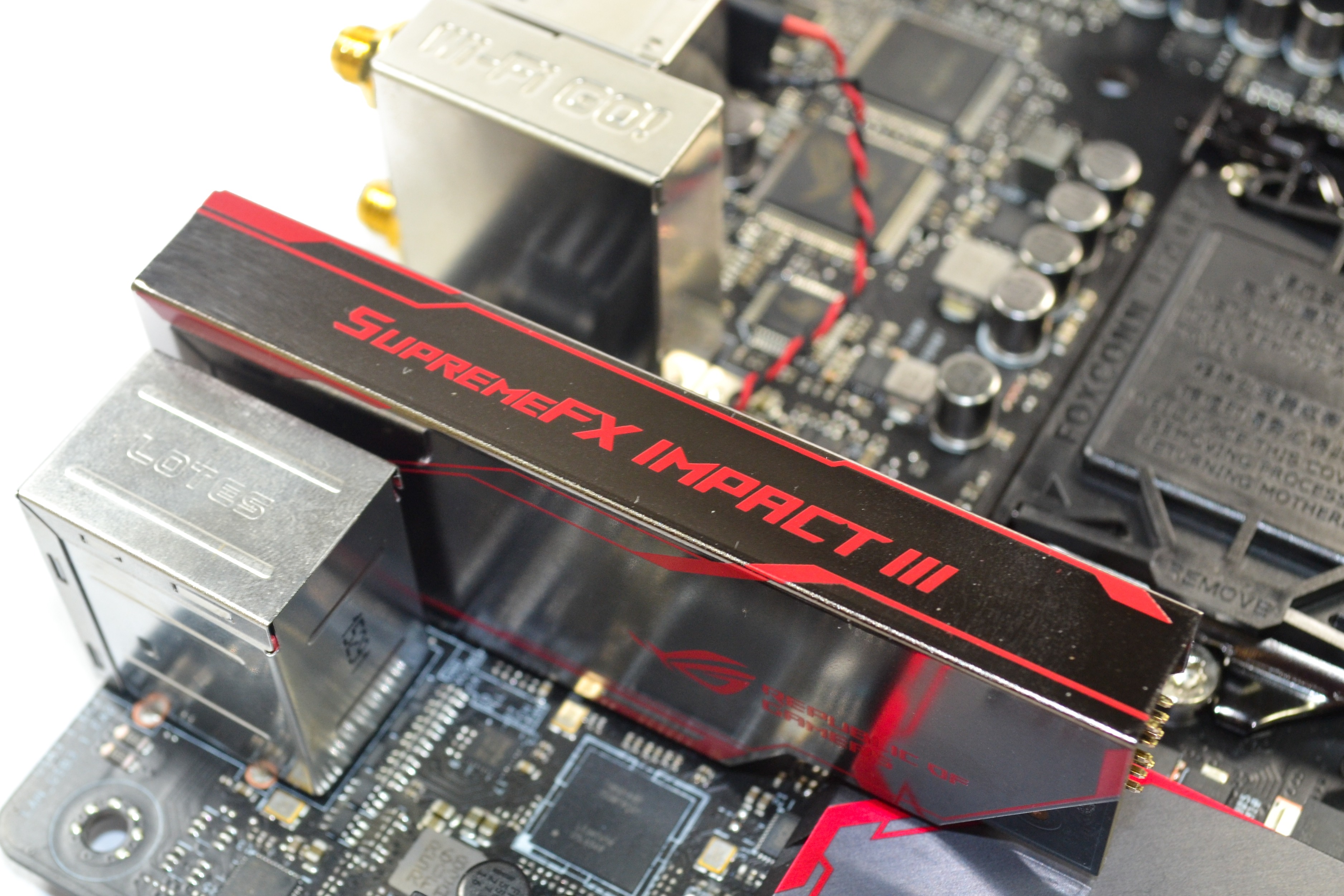
Asus' SupremeFX Impact III audio solution is based around the Realtek ALC1150 audio codec and housed on a dedicated daughter board. An ESS ES9023P DAC is found alongside a Texas Instruments RC4580 op-amp, a dedicated SonicSense amp, and a NEC-built de-pop relay (possibly the UD2-4 5NU, although I cannot confirm).
In addition to the audio hardware is a dedicated clock and multiple Nichicon audio capacitors. EMI prevention methods include shielding of the audio board and segregated PCB tracks. The front-panel audio header is located directly on the SupremeFX Impact III board. Users of high-end surround sound speakers will be disappointed by the inclusion of only three rear panel audio jacks.
To compliment that audio hardware, Asus provides a comprehensive software tool to give audio control to the motherboard’s users.
Just beneath the audio board are Asus' Probelt onboard voltage monitoring points. Usage of these measurement tools requires removal of the audio board, however this is unlikely to concern hardened overclocking users. In close proximity are the noteworthy LN2 and Slow mode jumpers which will prove beneficial for competitive overclockers.
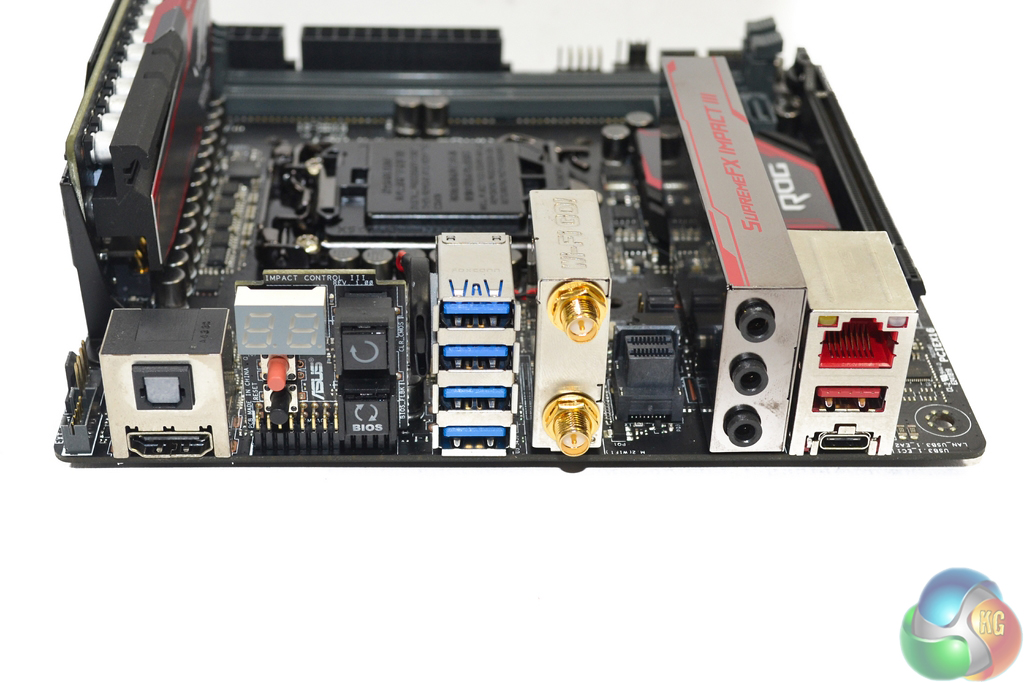
Sat in an internal section, near to the rear IO ports, is the motherboard's 32Gbps PCIe 3.0 x4 U.2 connector. This outwards facing port can be used to provide connectivity to the likes of Intel's 2.5″ version of the 750 series NVMe SSD. Availability of U.2 devices is currently limited, however it is expected to grow significantly in the coming years.
SPDIF optical audio out and an HDMI 1.4b port are found on the rear IO. The HDMI port does not support UHD 4K resolutions with a 60Hz refresh rate, and as such I would have liked to see Asus include a 4K60P-capable DisplayPort output on the same vertical stack as the media-centric HDMI connector.
All four of the 5.0Gbps USB 3.0 ports operate from the Z170 chipset. I would have liked to see a pair of USB 2.0 ports and a PS/2 keyboard/mouse connector placed on the rear IO for peripheral connectivity and troubleshooting convenience (which overclockers would welcome). The U.2 connector unnecessarily takes space away from the rear IO ports and should be repositioned. As it stands, there is absolutely no USB 2.0 connectivity on this board at all (not even an internal header).
Two gold-plated antenna connections for the two-stream, dual-band 802.11ac WiFi are visible on the rear IO. The Qualcomm Atheros QCA61x4A MU-MIMO wireless card is capable of transfer rates of up to 867Mbps and can operate at lower speeds on the 2.4GHz frequency band. Bluetooth 4.1 is also provided.
Intel's I219-V chipset provides Gigabit Ethernet to a jack that features Asus' LANGuard protection design. Asus' own GameFirst software provides network management in a similar fashion to Killer's Network Manager software. One cool feature of the GameFirst IV software is Multi-Gate Teaming, which allows network connections to be combined for greater bandwidth and potentially smoother gaming.
10Gbps USB 3.1 Type-A and Type-C ports are provided by Intel's formerly-Alpine Ridge DSL6540 controller. The chipset's ability to use four PCIe 3.0 lanes for a total bandwidth of 32Gbps is one of the reasons for its preference over ASMedia's ASM1142 alternative, which is potentially bandwidth limited. EtronTech EJ179V and EJ179S ICs are installed on the board, with the former providing the USB 3.1 Type-C form factor.
Asus' Impact Control board is an excellent addition which gives overclockers and general users onboard buttons and access to troubleshooting error codes. The power, reset, clear CMOS, and BIOS Flashback buttons are all likely to be useful at some point. Positioning of the control board is also smart, as LN2 overclockers will not have to worry about the buttons freezing over.
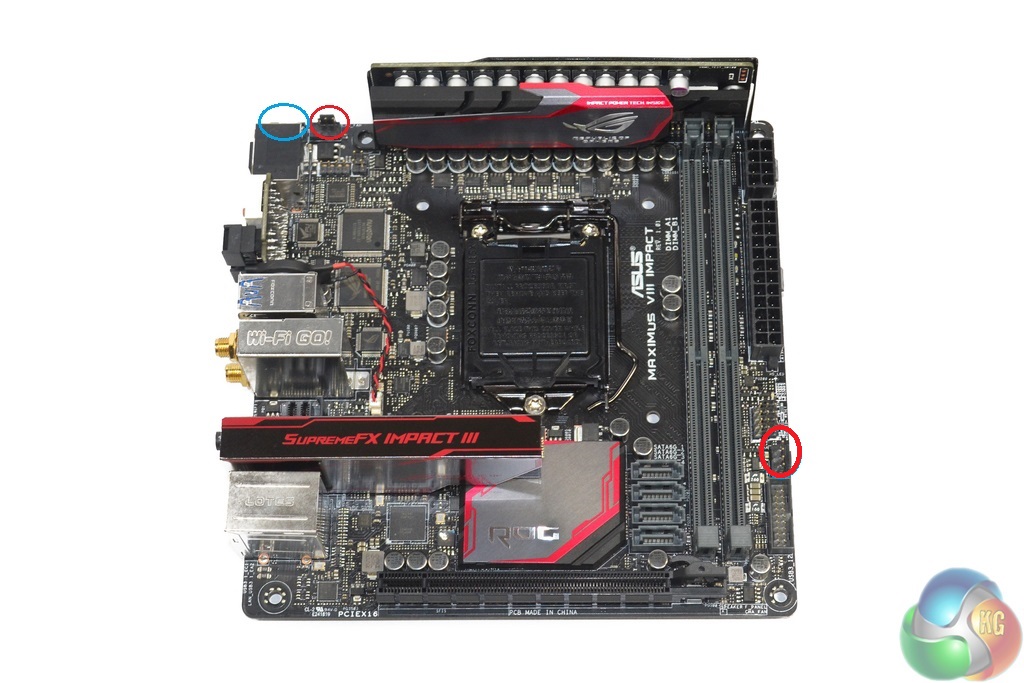
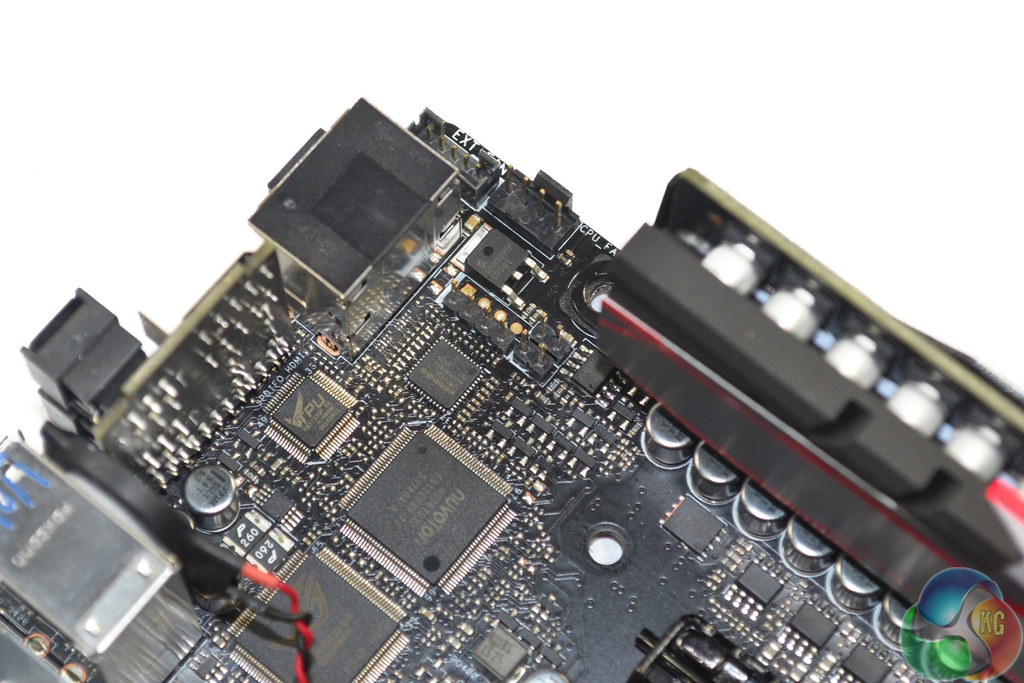
Two 4-pin fan headers are found on the motherboard. The number of headers can increase to five when using the fan extension card which connects via the blue circled 5-pin header. There is also a single 2-pin temperature header located close to the upper-left 4-pin fan header.
UEFI and software control of all of these fan headers is superb. Nuvoton's NCT6793D chipset is in charge of fan control and system monitoring for the motherboard, while an additional Nuvoton NCT7802Y chipset manages the fan extension card connections.
A TPU KB3720QF chip handles Asus' automated overclocking tuning, while additional ROG-branded chips manage other functions such as KeyBot.
Firstly, we are pleased to report that our generic wireless mouse worked correctly in the Asus Z170 UEFI. We’ve found our generic wireless mouse to be troubling with UEFI support, so when it functions correctly in the interface, that is usually a good sign for overall mouse support.
Note: Asus' ROG UEFI is almost identical across its boards. As such, we have reused screenshots from our review of the Asus Maximus VIII Hero.
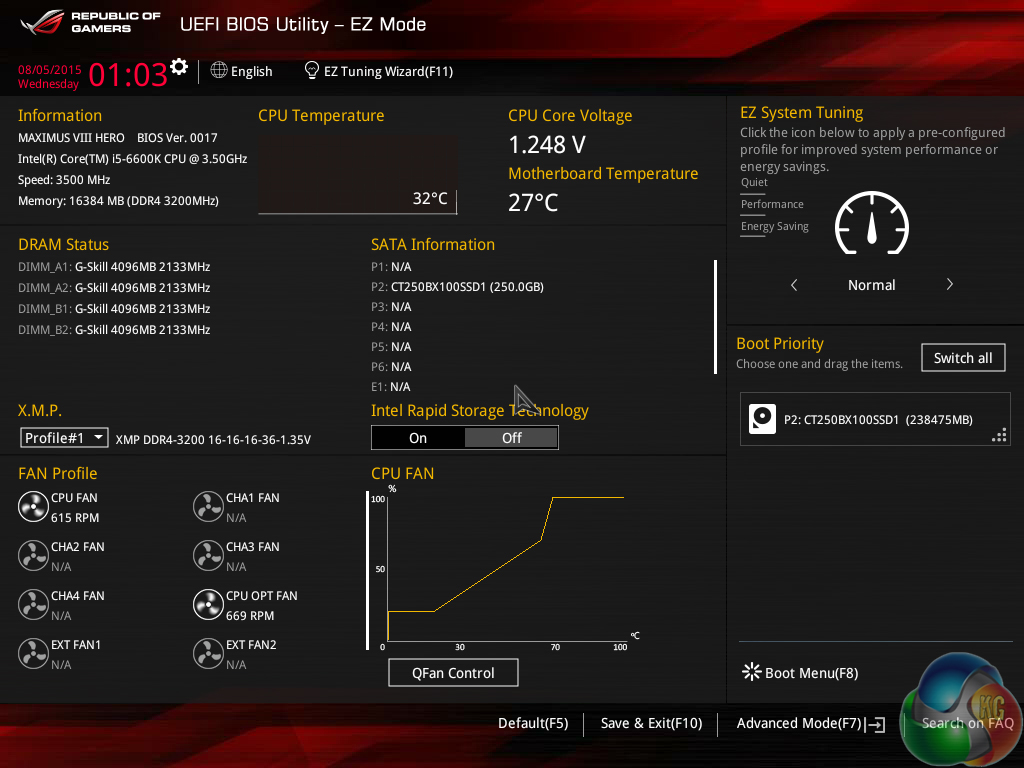
Opening up the UEFI leads to an entry page that displays a broad set of basic system information. From here, less experienced users can adjust boot device priority and fan speed settings without having to make the sometimes daunting step of delving deeper into the UEFI.
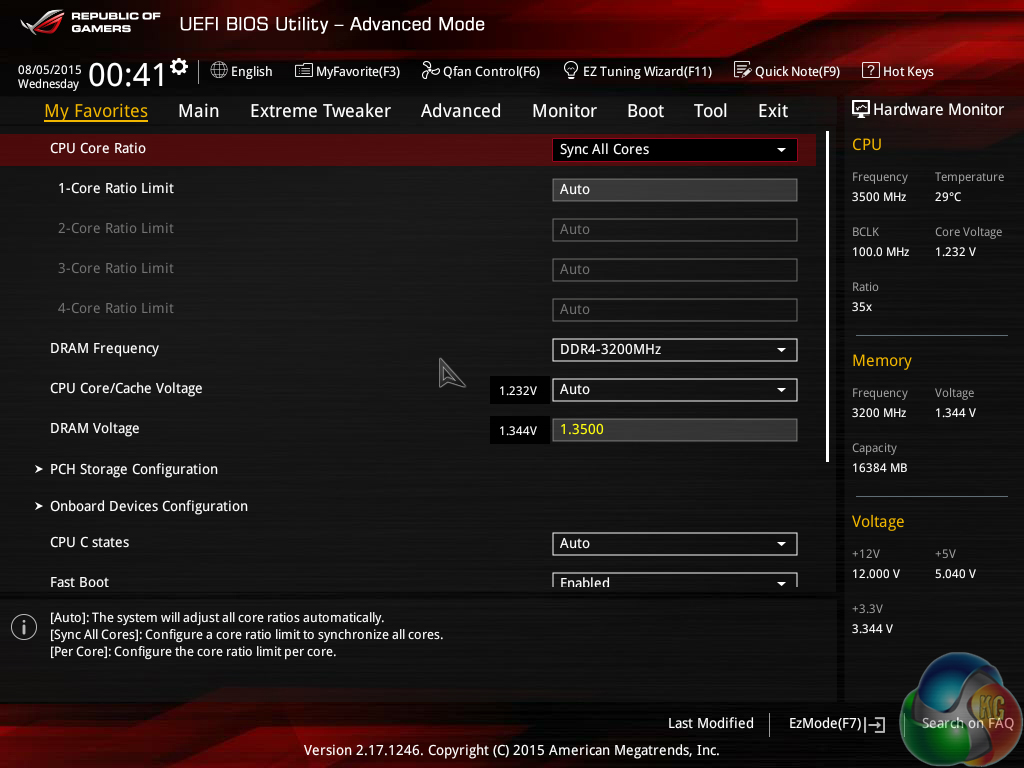
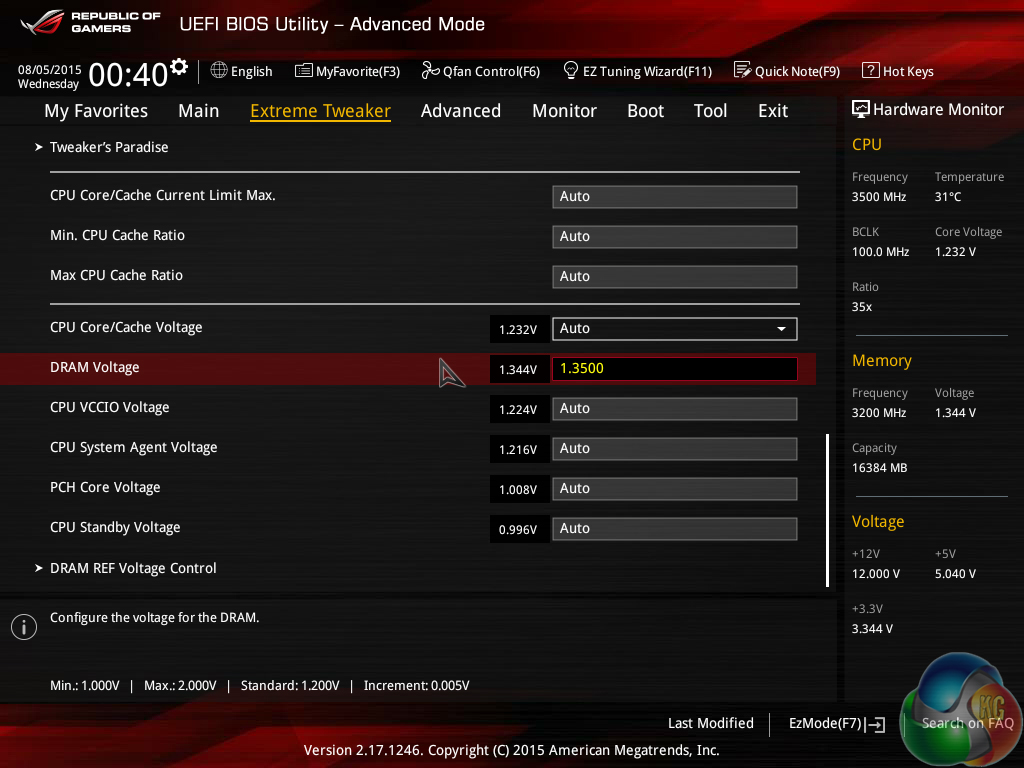
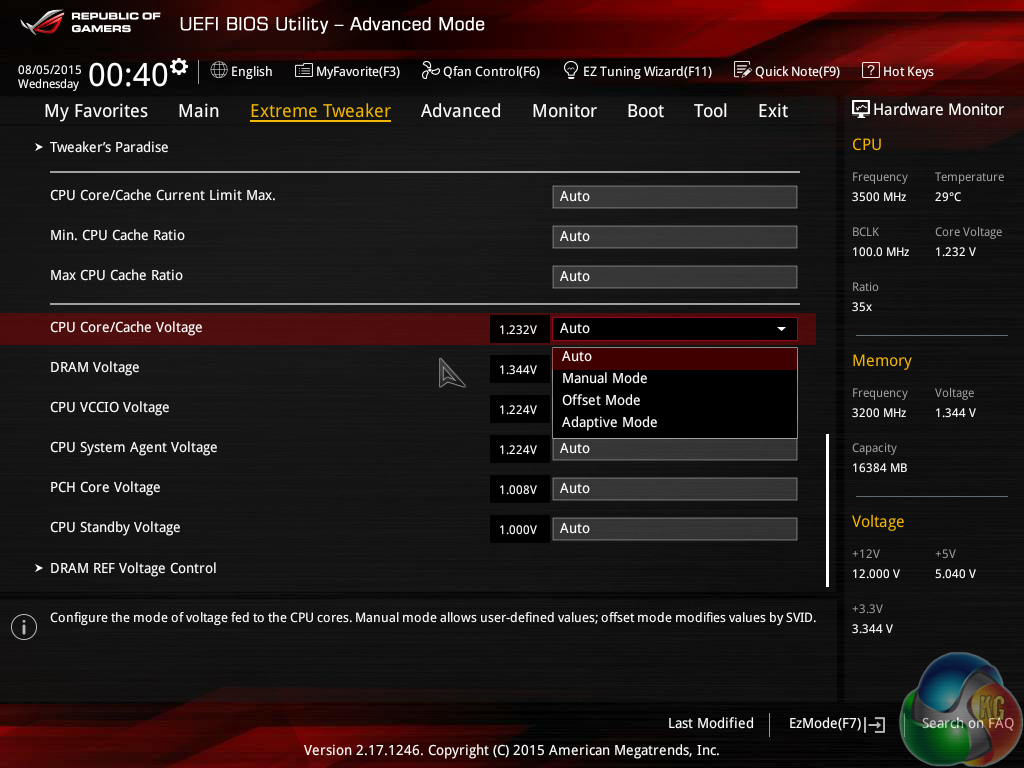
Extreme Tweaker follows the standard layout that we have come to expect from recent Asus motherboards, and that’s a good thing. Easy access is provided to ratio, frequency, and voltage settings, allowing users to adjust their system parameters with minimal effort.
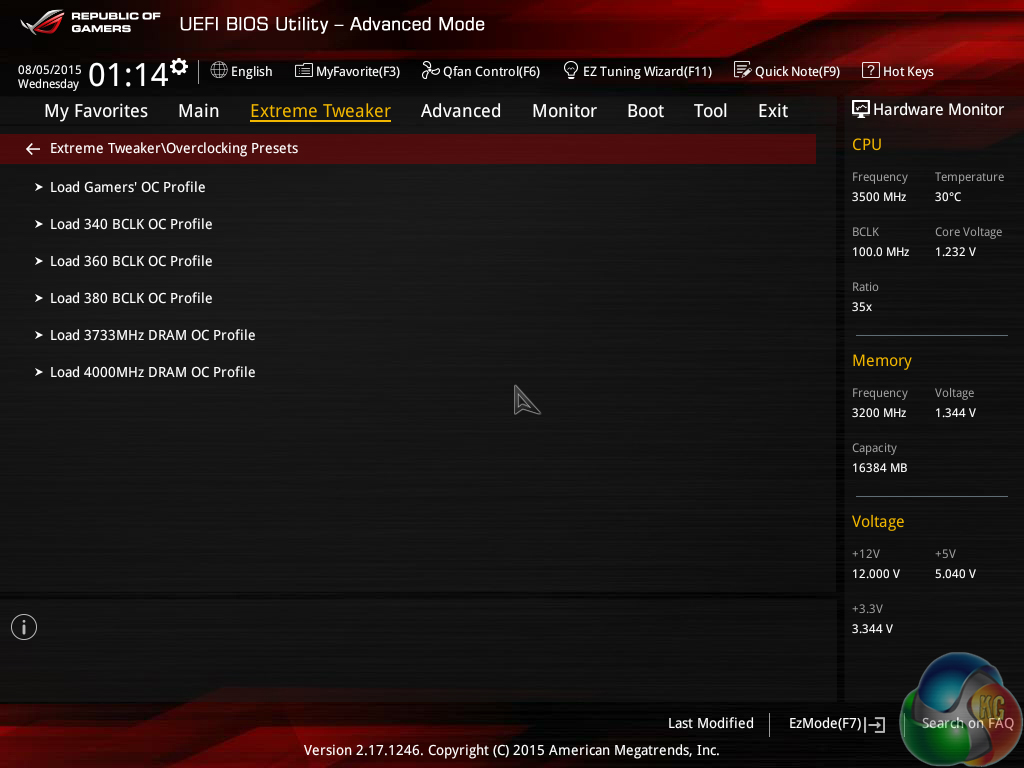
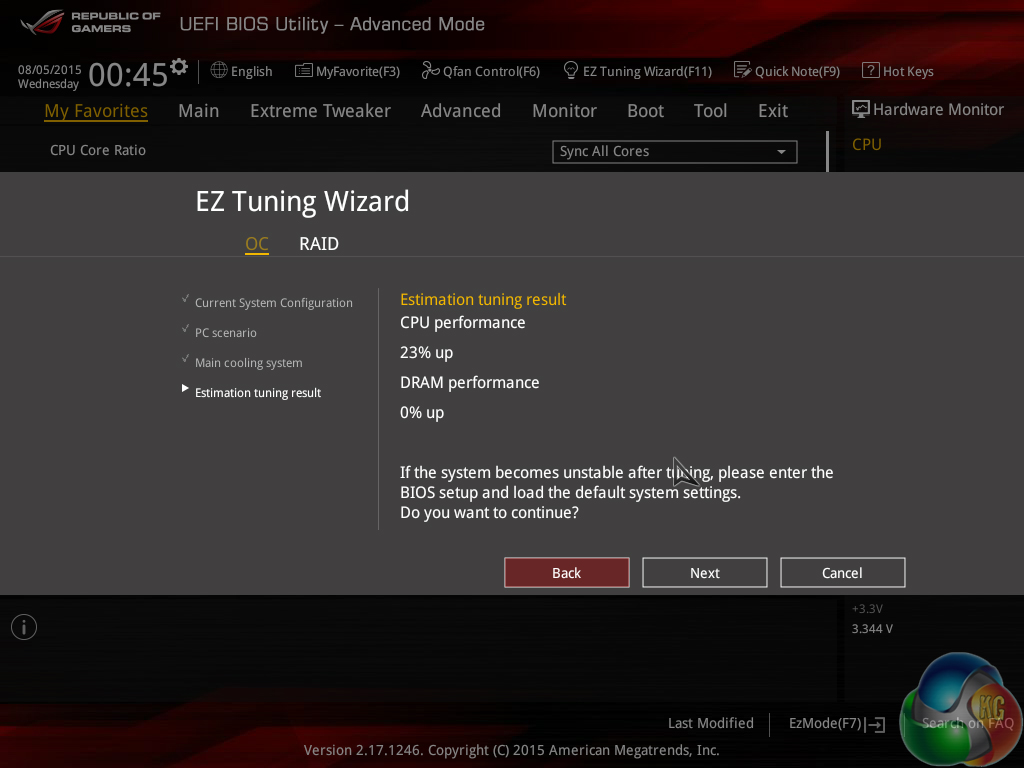
A set of CPU- and memory-related overclocking presets is supplied. These presets are convenient for users looking to tweak their hardware in a similar way to the professionals. There is also the EZ Tuning automated overclocking tool that can be relied upon.
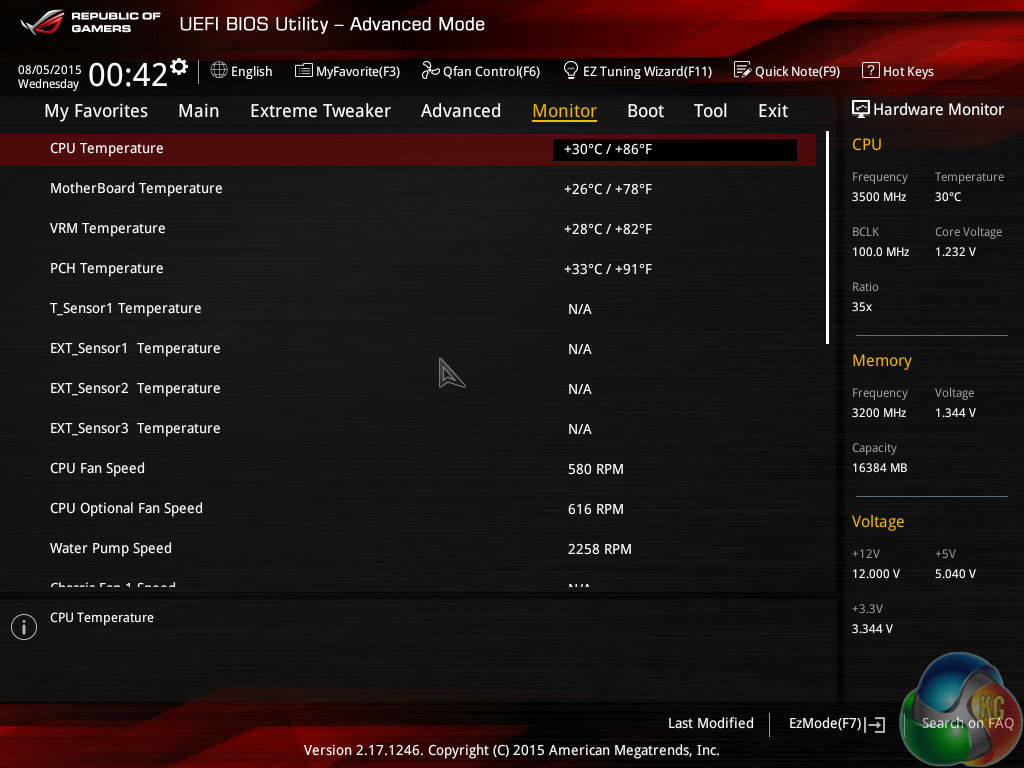
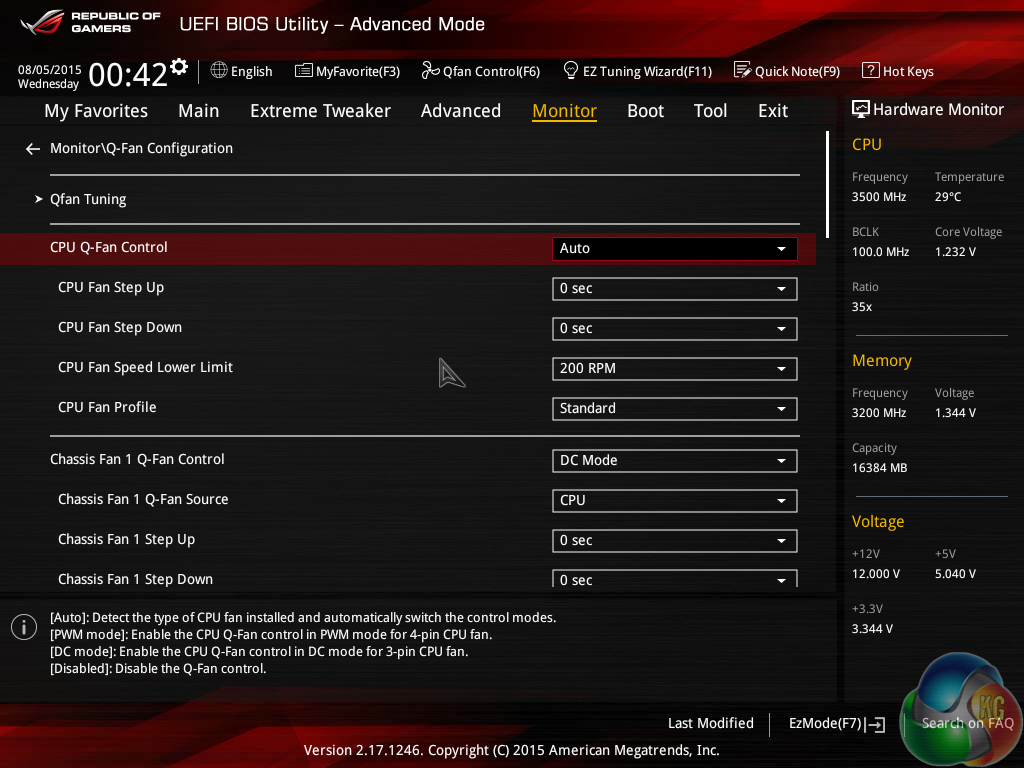
An array of voltages, temperatures, and fan speed can be monitored in the UEFI. Manual fan speed control is also provided.
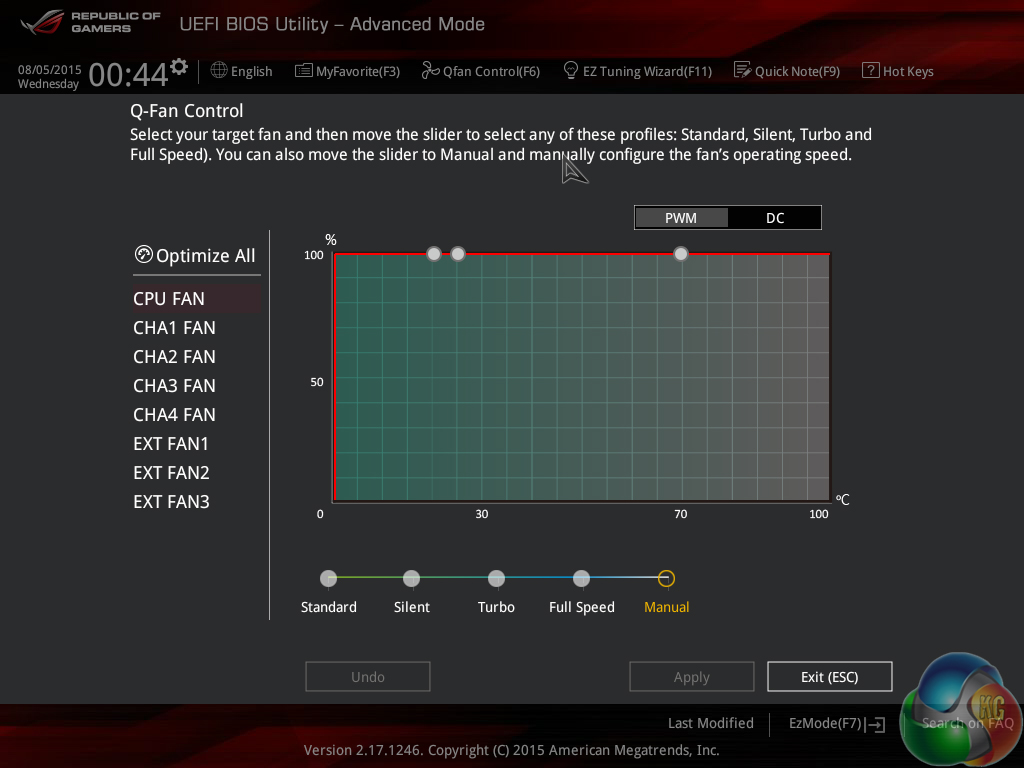
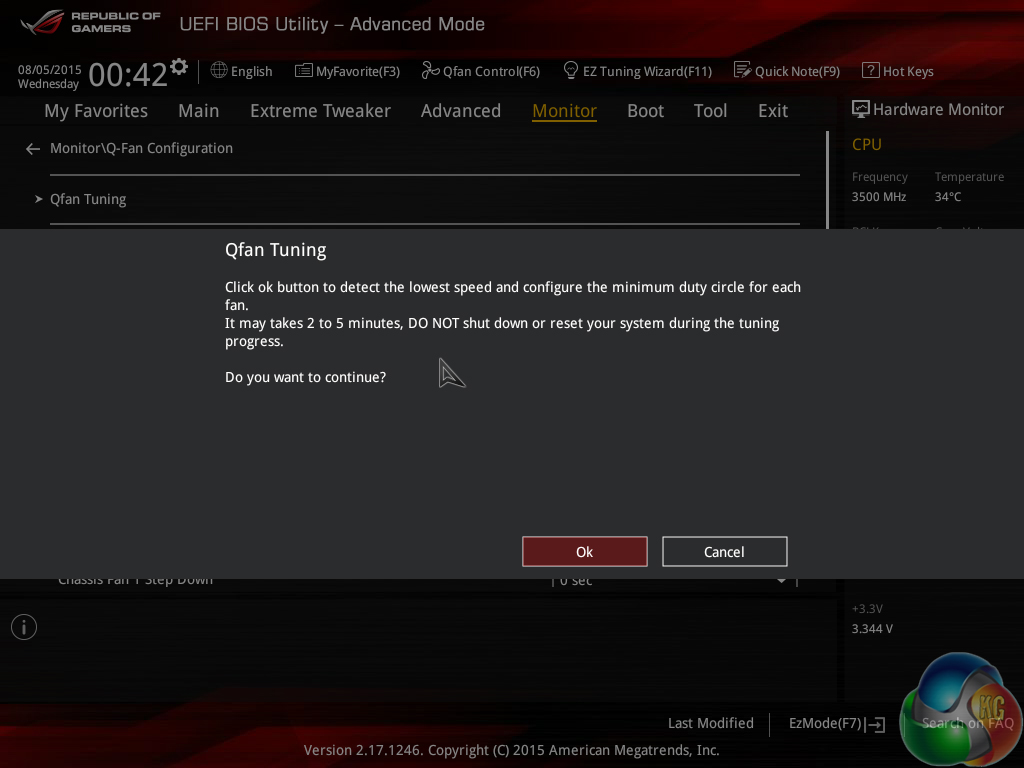
Asus gives the ROG UEFI its usual level of flexibility regarding fan speed tweaking. The Q-Fan Tuning utility gives users a graphical display from which they can adjust speed against temperature settings and there's also an automated configuration tool.
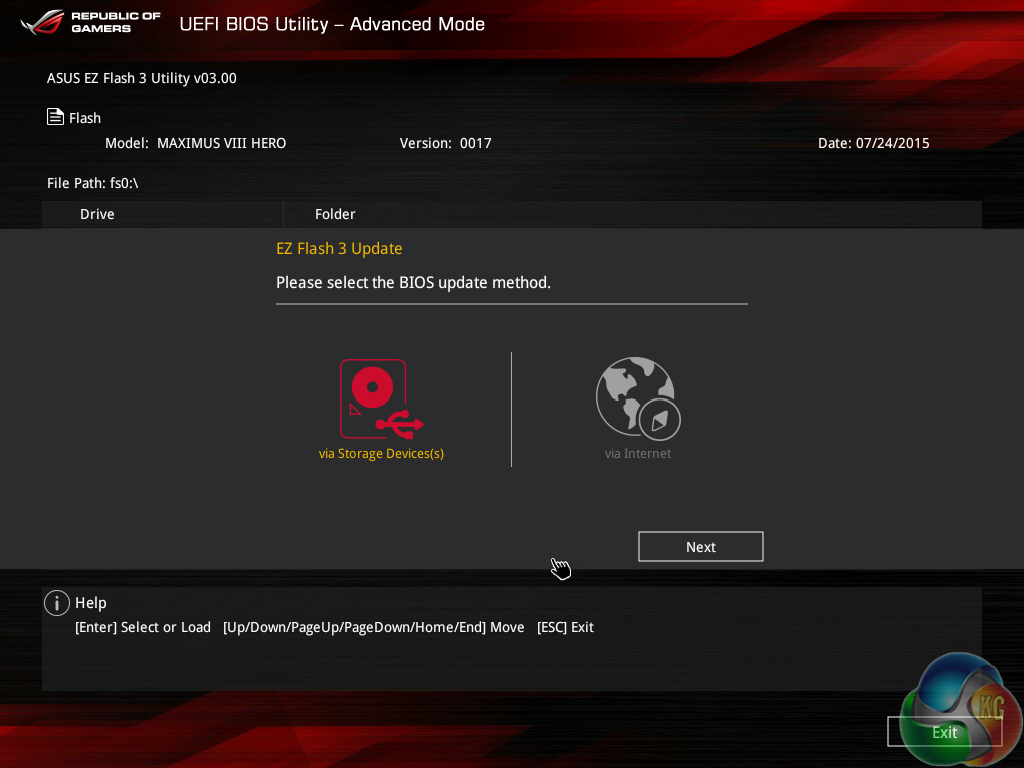
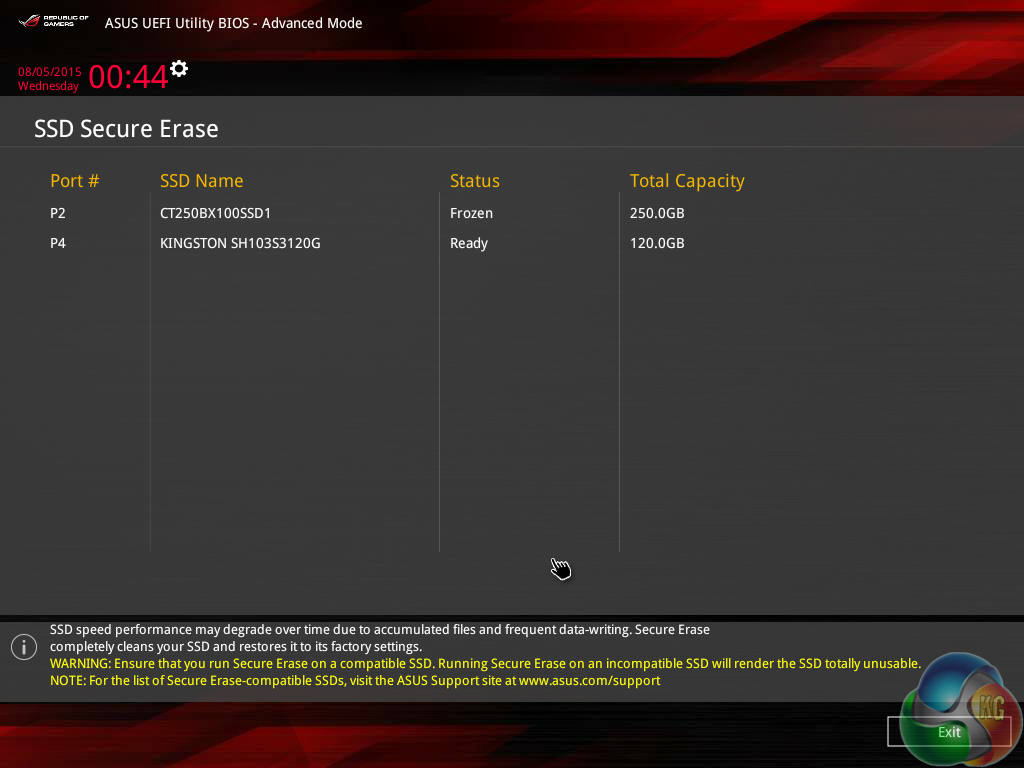
Asus’ usual set of tools is supplied in the ROG UEFI, including the convenient Secure Erase. Users can route through a drive to look for a BIOS update file.
One update I would like to see is the inclusion of HWMonitor tool that displays the board and its installed components. MSI and ASRock implement such a feature well. This would have been particularly useful for troubleshooting the previously mentioned memory issues and can be used for other troubleshooting and general information purposes.
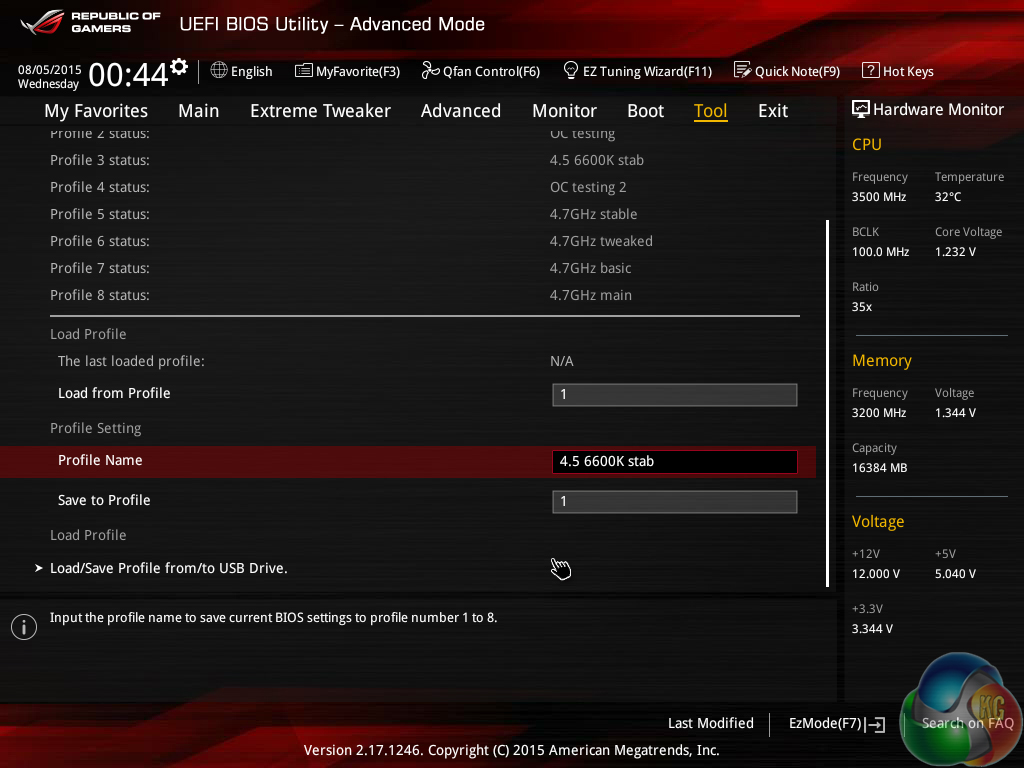
Up to eight settings profiles can be saved, named, and transferred.
The Z170 ROG UEFI is practically identical to that used on the Z97 motherboards. It follows Asus’ tried-and-tested interface layout and styling, and that’s a good thing. The interface is easy to navigate, plenty of options are provided, and the appearance is good to look at.
We have no complaints regarding the Z170 iterations of the ROG boards’ interface. Not even the comparatively low 1024×768 resolution can be registered as a negative because Asus manages to display a relevant amount of information on each frame without making the screen full of confusion.
Software
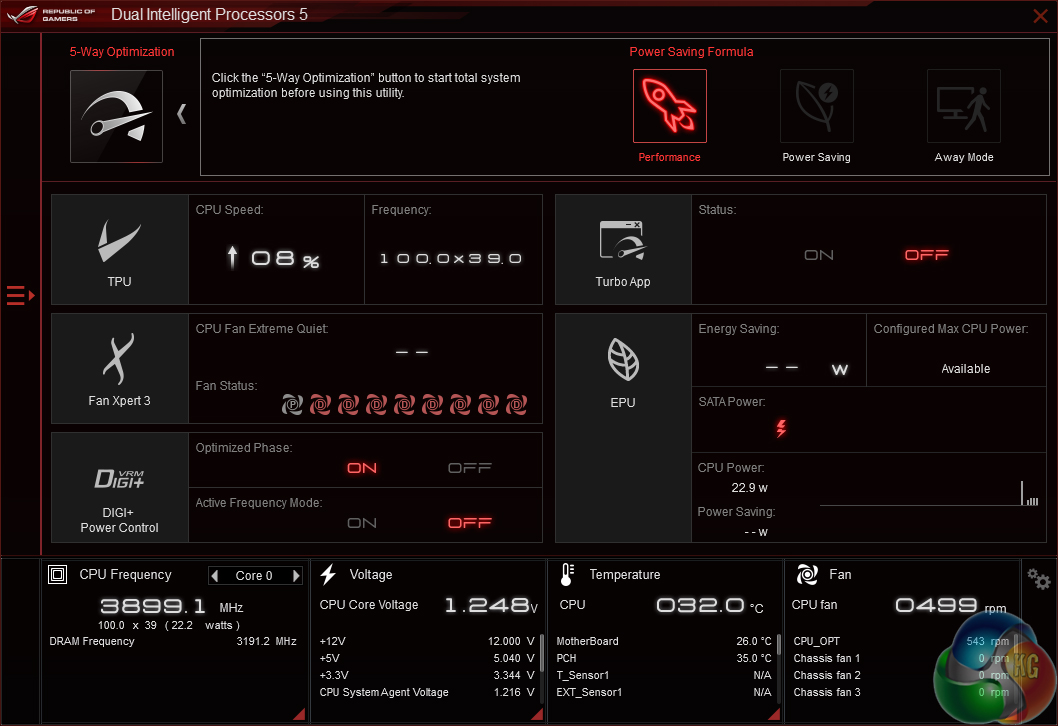
Asus’ AI Suite 3 software is very good. A strong array of voltage, frequency, and power settings can be adjusted via the software.
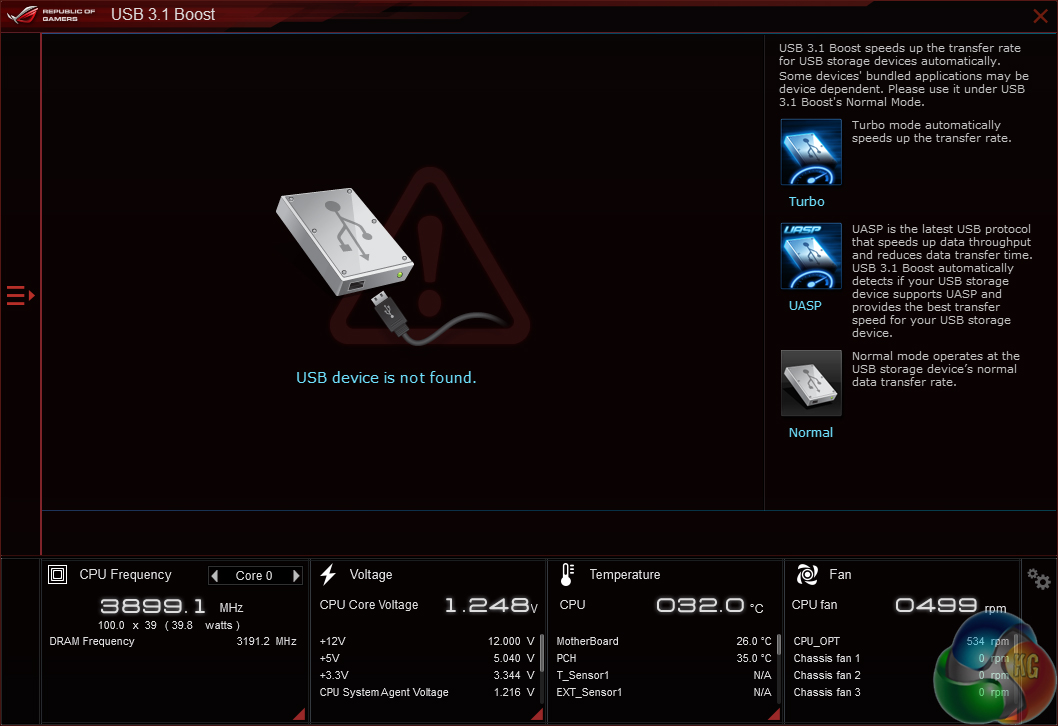
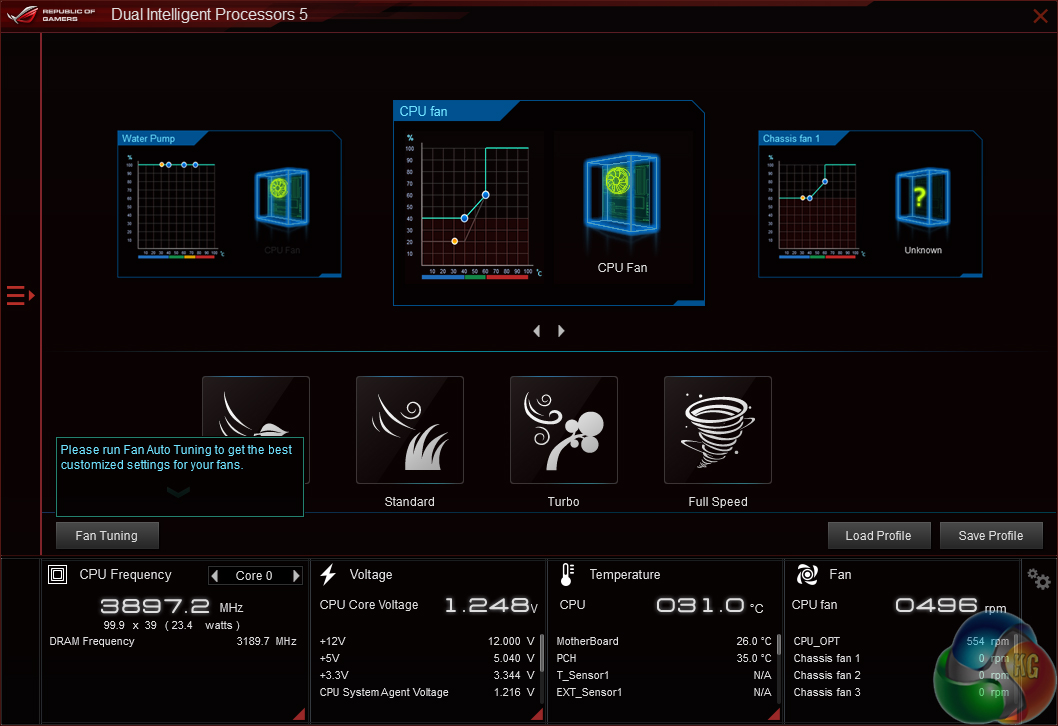
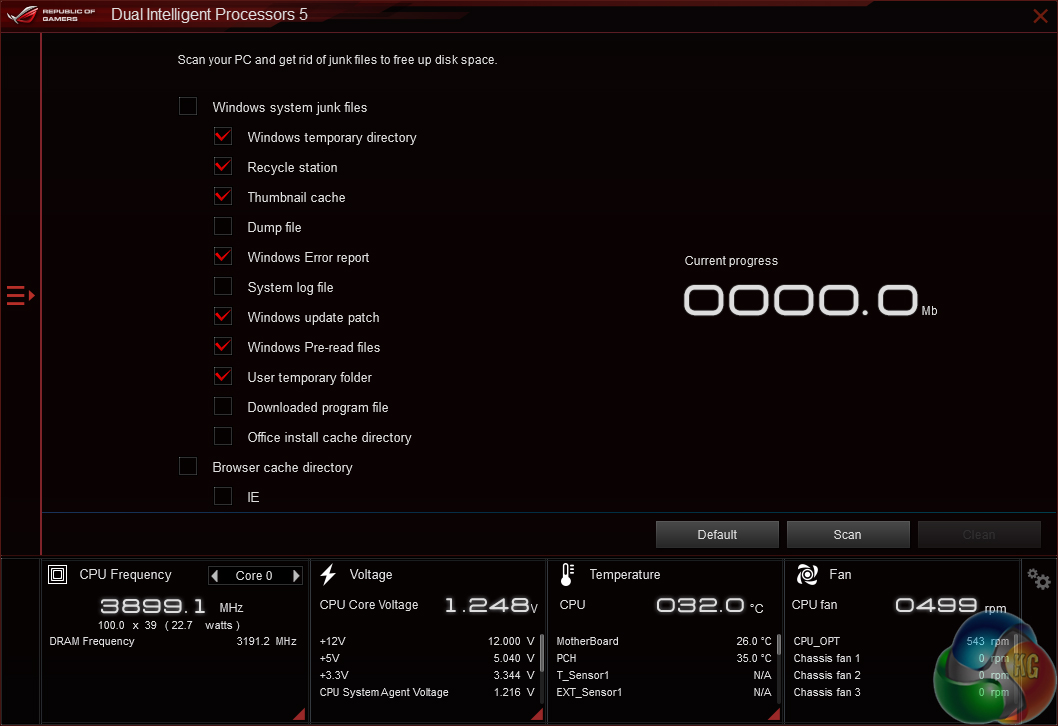
There are also supporting applications that allow tweaking of fan speeds, enhancing of USB drive speeds, and cleaning of OS operations.
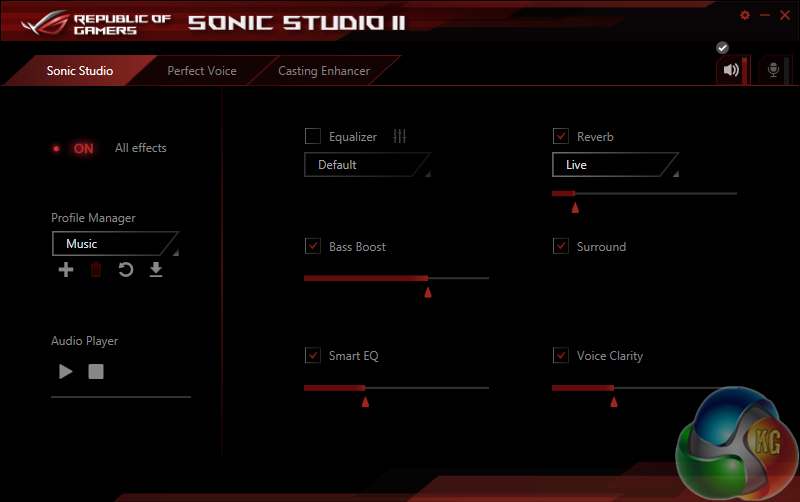
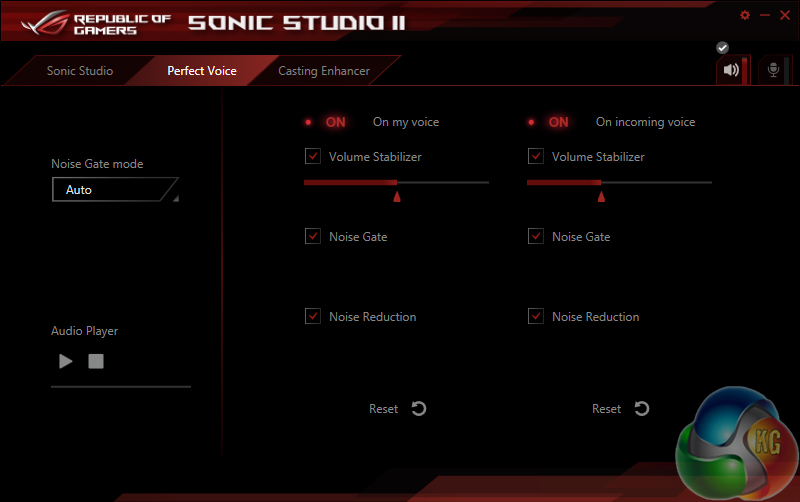
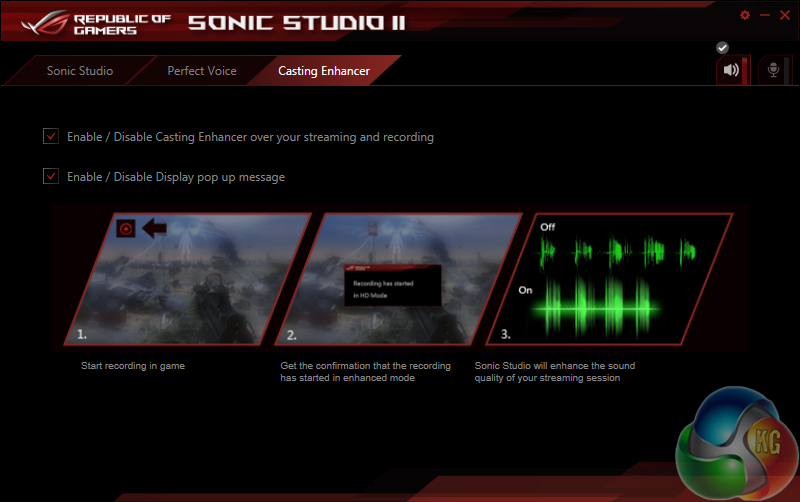
Sonic Studio II gives users an array of options for the audio experiences.
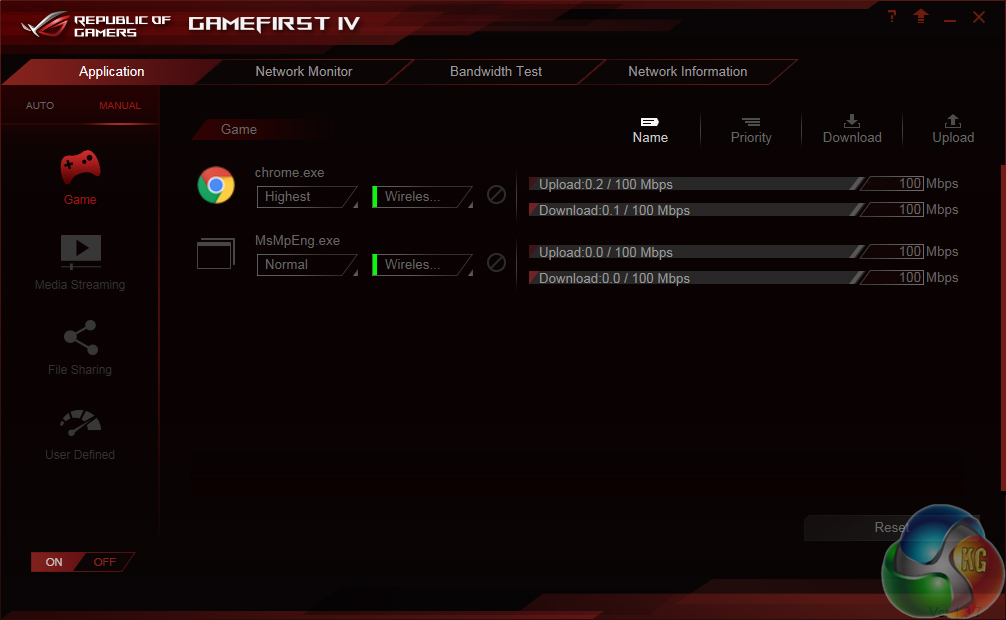
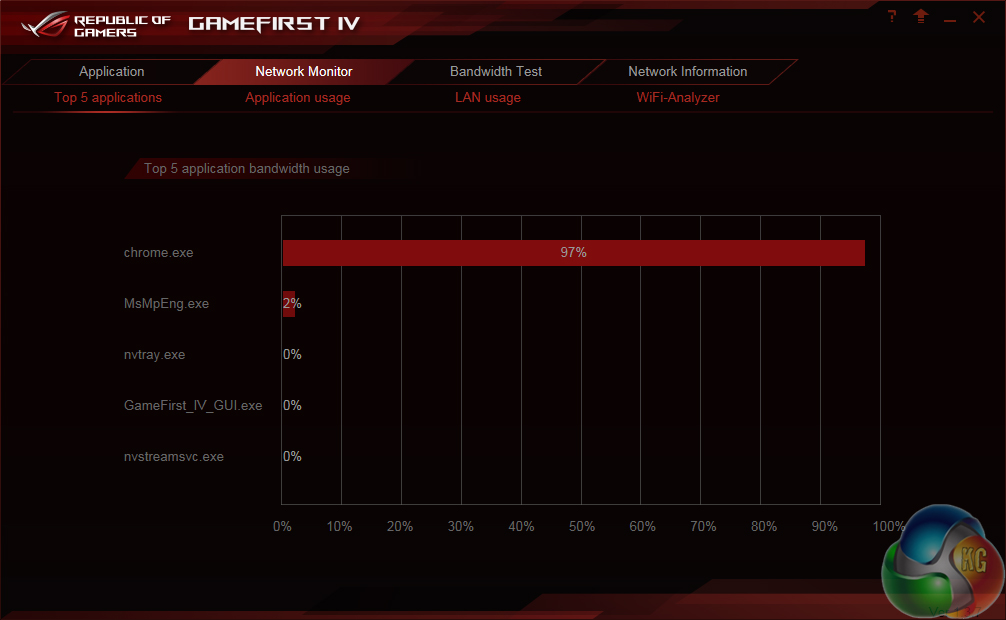
GameFirst IV is Asus’ network-controlling software that, in essence, is a competitor to Killer’s Network Manager suite. The software allows Asus to opt for an Intel I219-V NIC without losing the software functionality that Killer’s competing part offers.
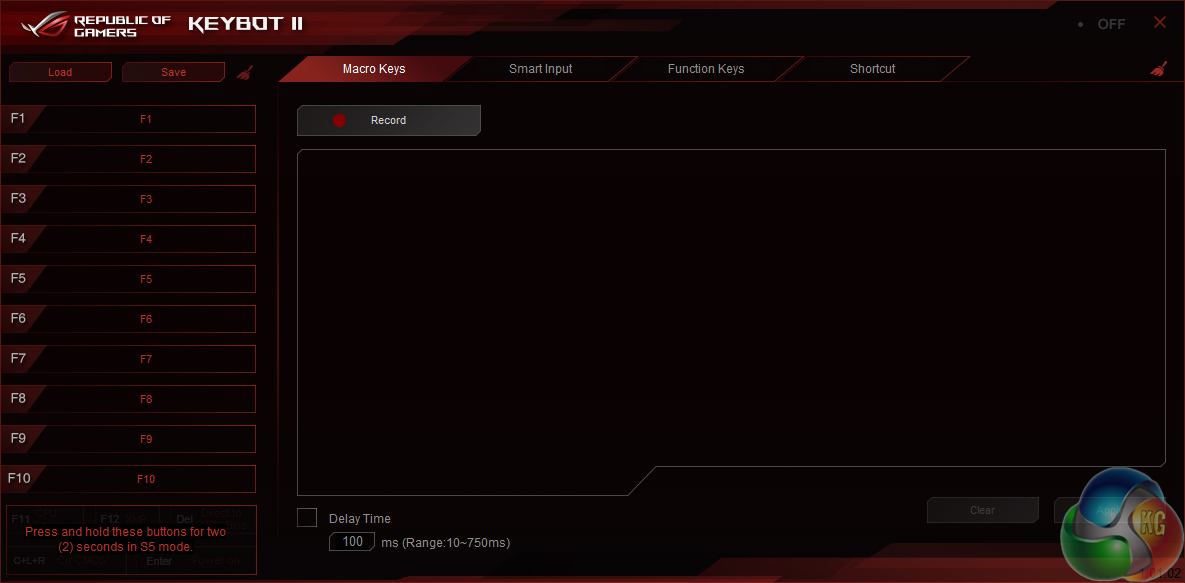
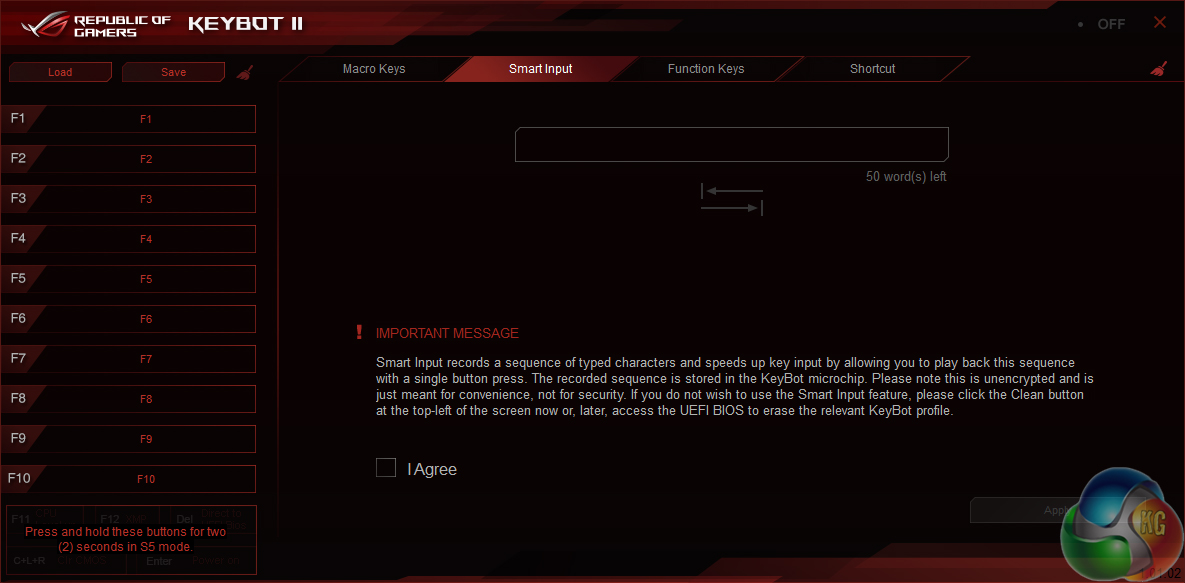
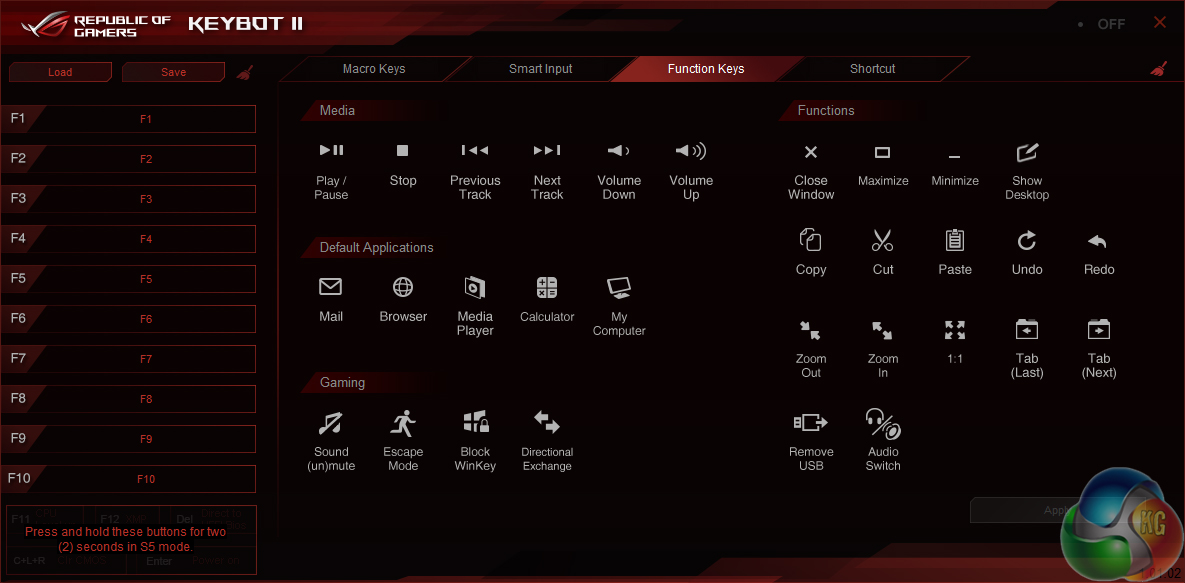
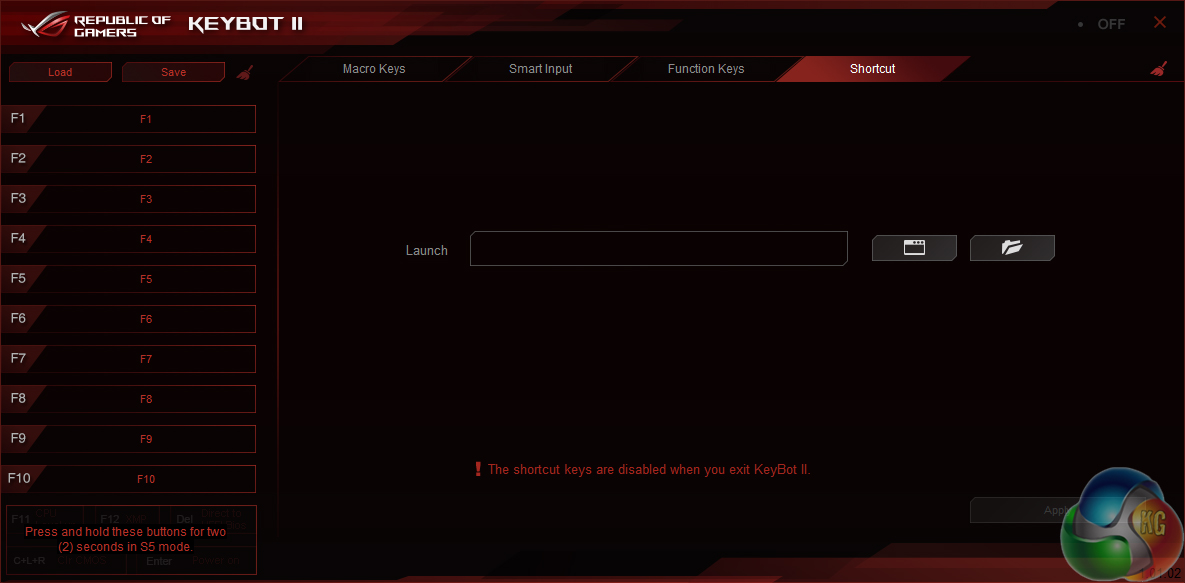
KeyBot can be used to program macros, assign shortcuts to certain keys, and even type specific phrases. And when the system is shut down, specific keys can be used for applying an overclock, launching into the UEFI, and booting into Windows.
Note that one's keyboard must be installed in the dedicated KeyBot USB 3.0 port, which is the bottom one on the four-port stack.
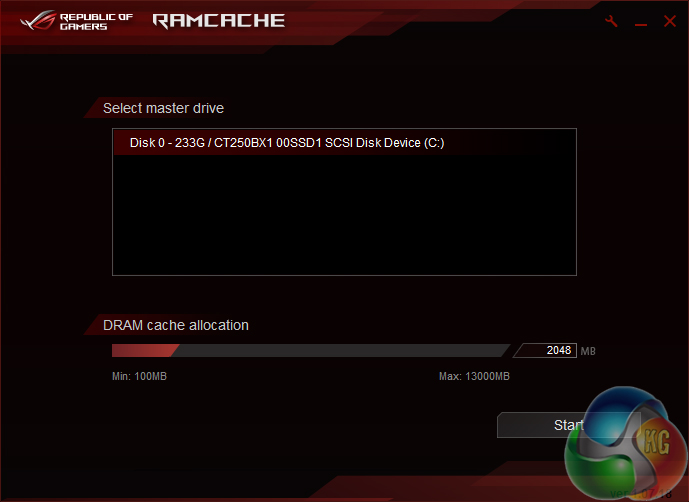
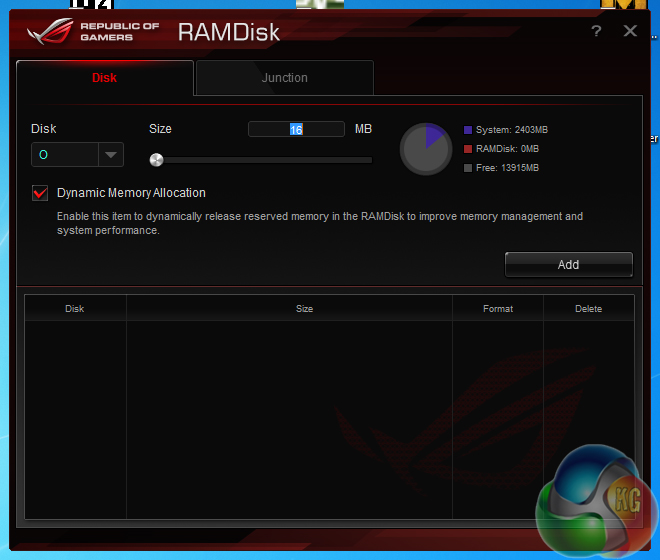
A sizable RAMDisk can be formed to provide users with ultra-fast storage. This is particularly convenient for those who own large capacity memory kits and simply do not know what to do with it when gaming.
RAMCACHE is a tool that can utilise system memory in order to speed up transfers between external disk drives. Asus demonstrated this software at a recent technical seminar and proved the noteworthy transfer speed gains that it can provide.
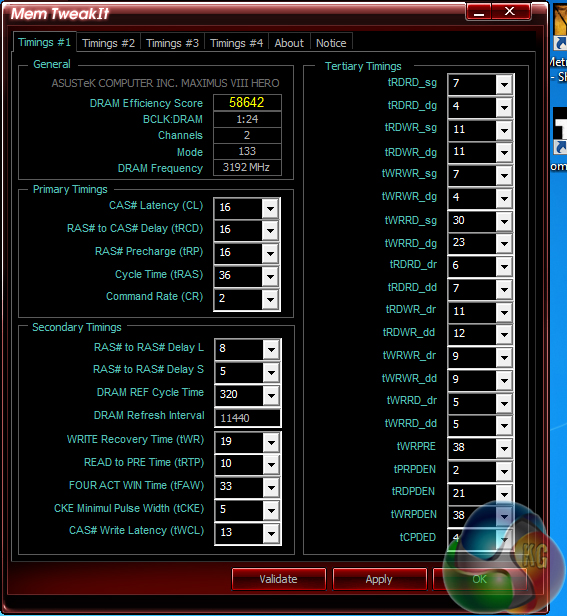
Mem TweakIt allows memory timings to be viewed and adjusted.
Intel's Skylake processors are just the latest Intel CPU architecture to see many of the critical system operations handled by the processor. As such, benchmarking a motherboard becomes more of a test to certify that the part operates correctly and meets the anticipated performance levels.
We will be outlining the Asus Maximus VIII Impact motherboard's performance with the Core i7-6700K CPU at its stock frequency (4.2GHz due to forced turbo). Overclocked performance will be outlined later in the review.
The Asus Maximus VIII Impact motherboard allows users to apply multi-core turbo (MCT) and force the 6700K to a constant 4.2GHz when XMP is enabled. This will be displayed as the ‘stock’ setting.

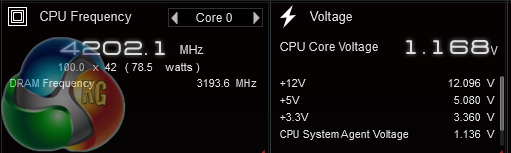
CPU-Z reports erroneous voltage readings for the CPU, so they can be ignored. Asus' AI Suite software delivers accurate readings that we validated using a multimeter and the onboard Probelt voltage readings points.
A CPU voltage of around 1.17V is applied during heavy CPU load with MCT enabled. This level is a smart choice by Asus that results in solid stability and easy-to-cool temperatures. Competing motherboards typically opt for around 50mV higher when the 6700K's MCT settings are enabled, so this may be an indication of the efficiency of the Maximus VIII Impact's power delivery system.
We had to switch our test system's usual four-stick memory installation, as necessitated by the board's two DIMM slots. Instead of opting for a pair of 8GB DIMMs to keep the 16GB capacity constant, we used two of Corsair's 4GB Vengeance LPX 3200MHz DDR4 sticks. This gave us 8GB of system memory and kept the DRAM frequency consistent with our competitors' test data.
We actually had to mix up the two Corsair DRAM modules and reseat the CPU as the board was unstable when using XMP. The LED display threw up a 55 error code on POST, which seems to be a common issue for some Asus Z170 ROG boards when using XMP or high-speed memory. Reseating the CPU and using two different DDR4 sticks of the same memory removed the instability.
Z170 Motherboard Test System:
- Processor: Intel Core i7-6700K (4.2GHz forced turbo).
- Memory: 8GB (2x4GB) Corsair Vengeance LPX 3200MHz 16-18-18-36 DDR4 @ 1.35V.
- Graphics Card: Nvidia GTX 980 Ti.
- System Drive: 250GB Crucial BX100 SSD.
- CPU Cooler: Noctua NH-D14.
- Power Supply: Seasonic Platinum 760W.
- Operating System: Windows 7 Professional with SP1 64-bit.
Compared Z170 Motherboards:
- ASRock Fatal1ty Z170 Gaming K6+.
- ASRock Z170 Extreme4.
- Asus Maximus VIII Hero.
- Asus Sabertooth Z170 Mark 1.
- Gigabyte Z170XP-SLI.
- Gigabyte Z170X-Gaming 7.
- MSI Z170A XPower Gaming Titanium Edition.
- MSI Z170A Gaming M7.
Software:
- Asus Maximus VIII Impact BIOS v1302.
- GeForce 353.30 VGA drivers.
Tests:
- Cinebench R15 – All-core CPU benchmark (System)
- HandBrake 0.10.2 – Convert 1.23GB 1080P game recording using the High Profile setting and MP4 container (System)
- 7-Zip 15.05 beta – Manual video archival (System)
- 3DMark 1.5.915 – Fire Strike Ultra (Gaming)
- Grand Theft Auto V – 1920 x 1080, near-maximum quality (Gaming)
- Middle Earth: Shadow of Mordor – 1920 x 1080, ultra quality (Gaming)
- ATTO – SATA 6Gbps and USB 3.0 transfer rates (Motherboard)
- Totusoft LAN Speed Test – Wireless networking performance (Motherboard)
- RightMark Audio Analyzer – General audio performance test (Motherboard)
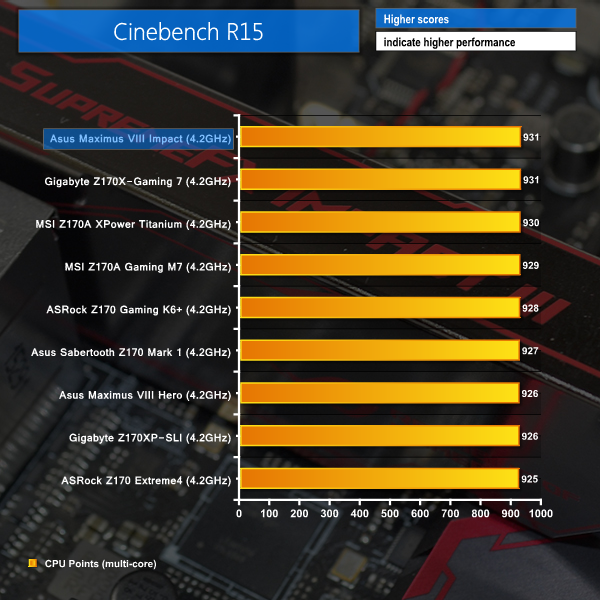
Cinebench
We used the ‘CPU’ test built into Cinebench R15 .
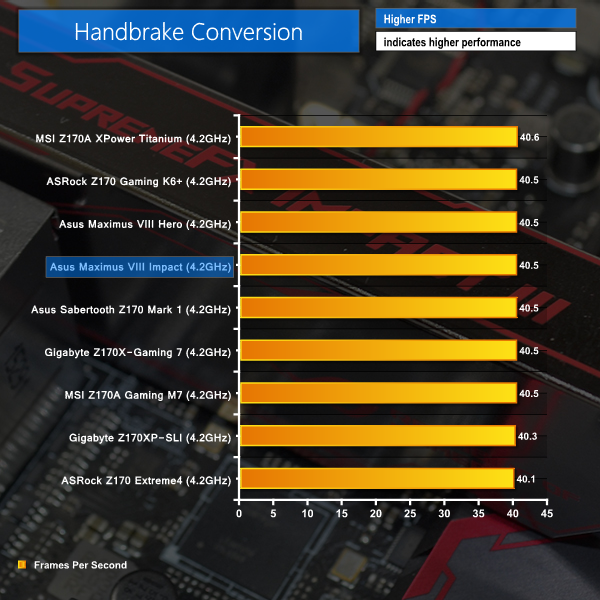
Handbrake Conversion
We measured the average frame rate achieved for a task of converting a 1.23GB 1080P game recording using the High Profile setting and MP4 container.
7-Zip
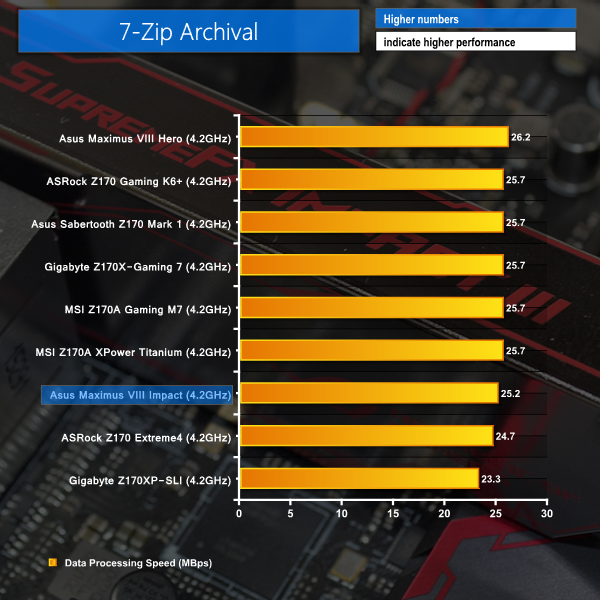
We manually archive a 1.23GB MP4 game recording to test the performance in 7-Zip.
Asus' Maximus VIII Impact has no trouble keeping pace with ATX competitors in Cinebench and Handbrake tests. The mITX board actually manages to share the performance lead with Gigabyte's Z170X-Gaming 7 in Cinebench.
7-Zip performance is little below the typical numbers displayed by competitors. This is likely related to the reduced memory capacity and number of DIMMs that the Maximus VIII Impact was forced to use.
3DMark
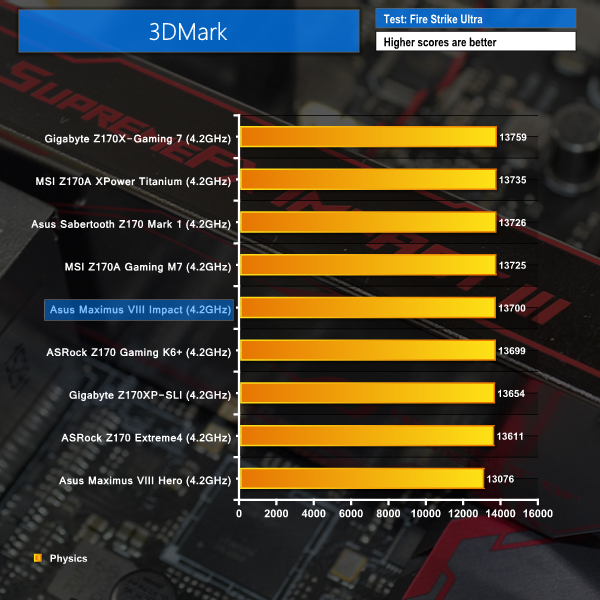
We used 3DMark‘s ‘Fire Strike Ultra’ benchmark which is designed to be used on high-resolution gaming PCs.
Grand Theft Auto V
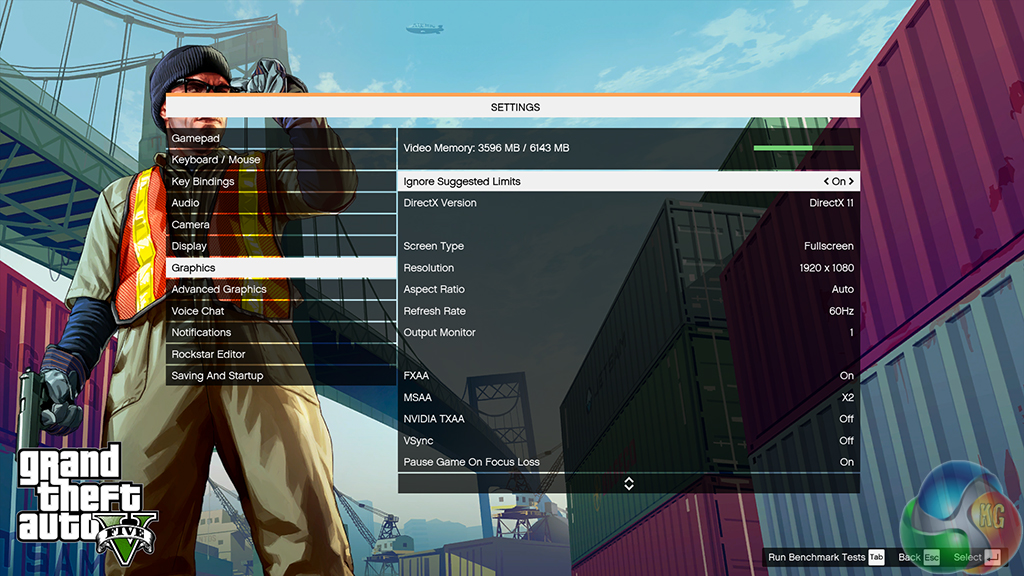
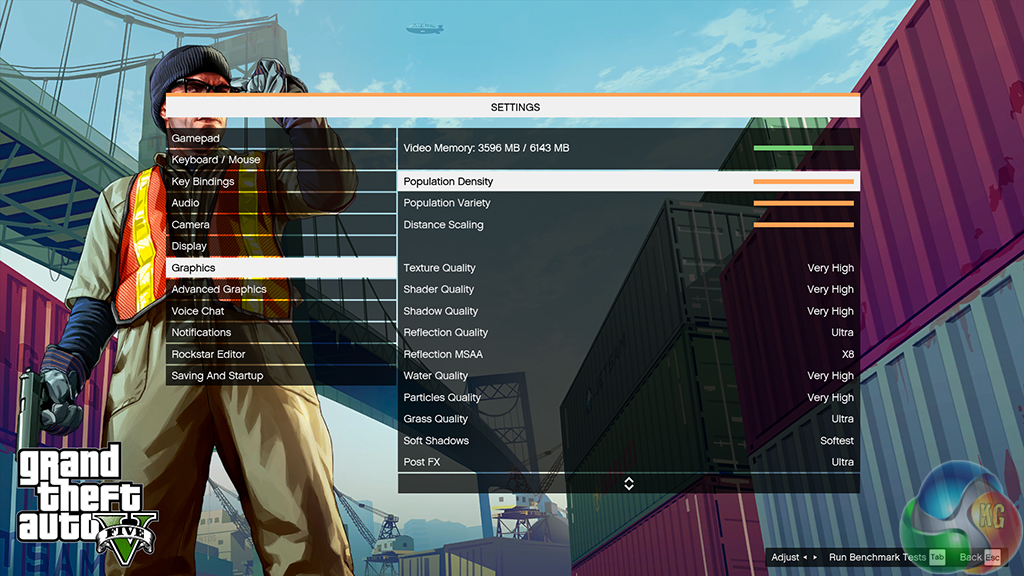
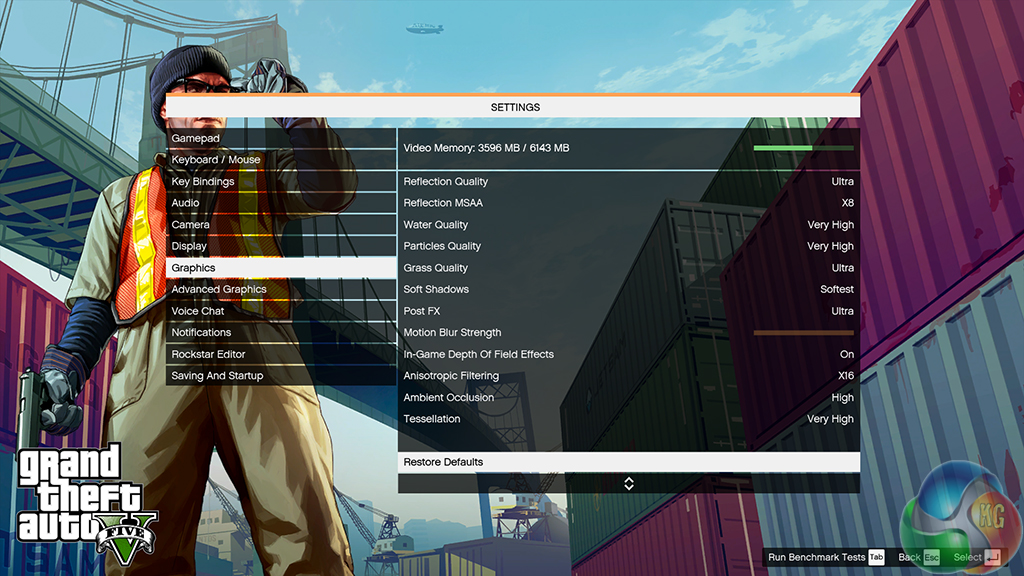
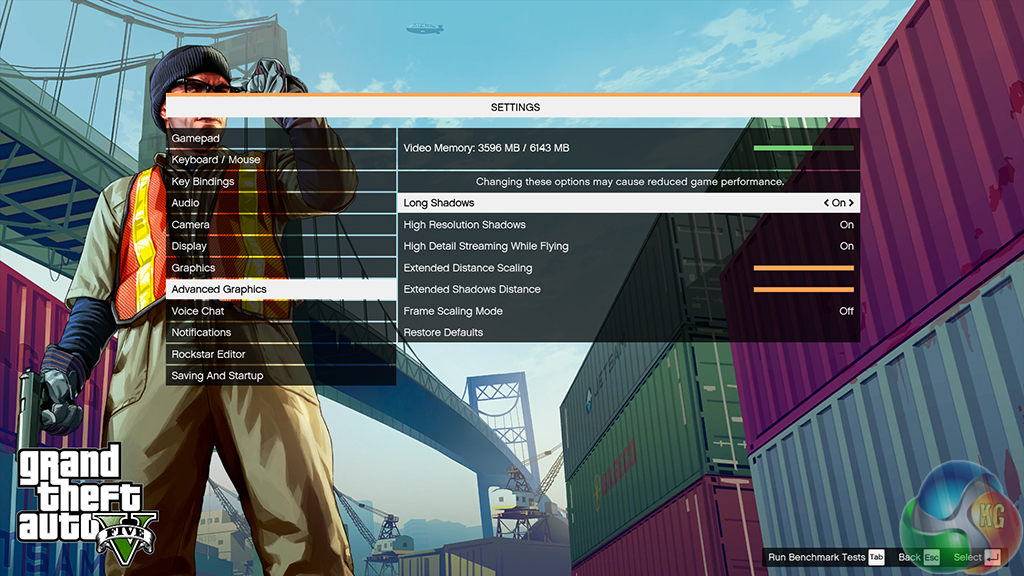
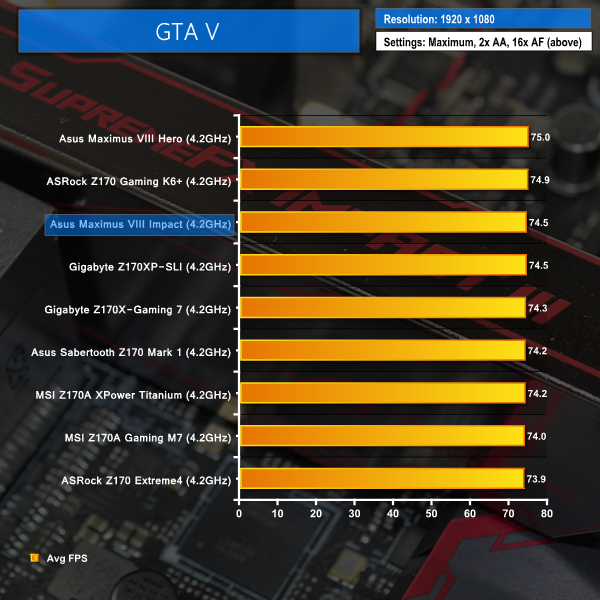
We apply very near maximum settings in Grand Theft Auto V and a 1920×1080 resolution to push today’s hardware. Our data was recorded using the built-in benchmark.
Middle Earth: Shadow of Mordor
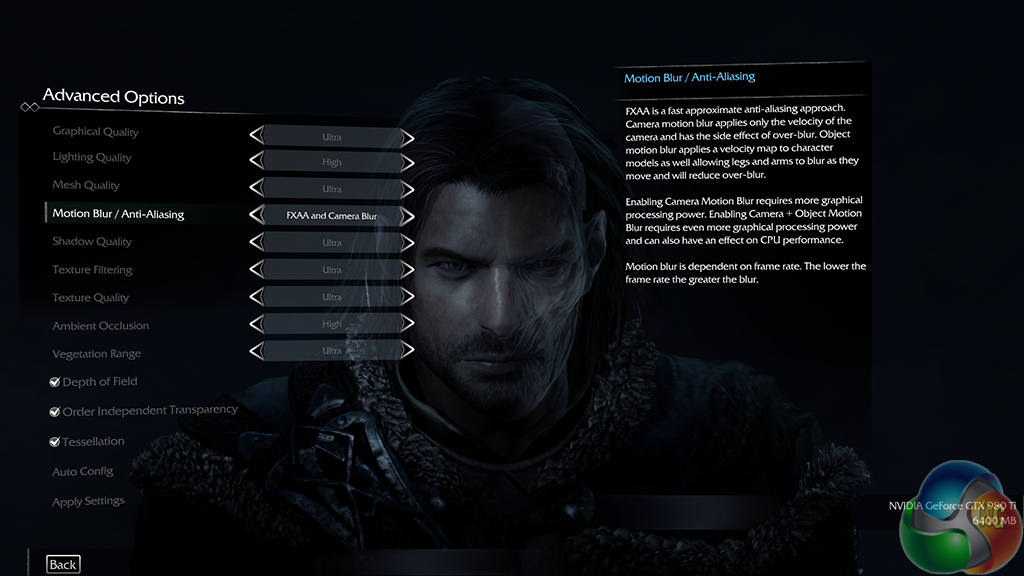
We used a 1920×1080 resolution and the Middle Earth: Shadow of Mordor built-in benchmark set to ‘Ultra’ quality.
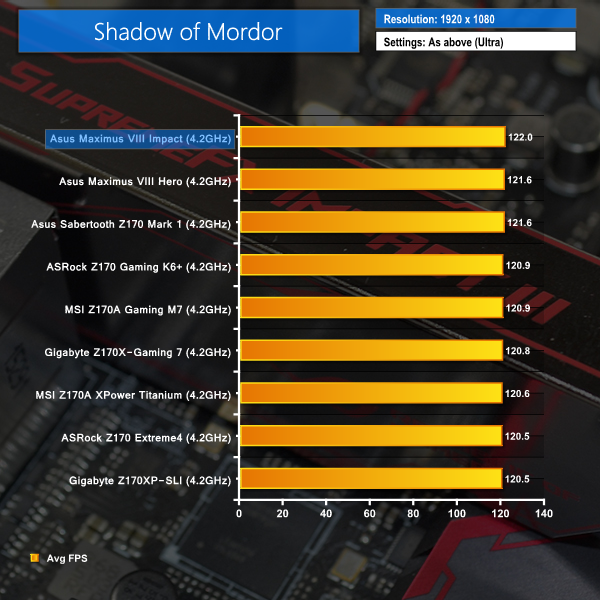
Given its Republic of Gamers branding, frame rates are an important delivery point for Asus' Maximus VIII Impact, and the mITX board delivers.
The 3DMark Physics score is respectable and very good numbers are put up in GTA V and Shadow of Mordor. If you want a mini-ITX motherboard that doesn't limit your gaming performance, Asus' Maximus VIII Impact proves itself as a competitive solution.
Automatic CPU Overclocking:
Asus has a number of methods for overclocking the system with little user input. These methods range from dedicated clock speed presets to tuning based on your usage patterns or hardware's ability. We will take brief look at the automated overclocking options that Maximus VIII Impact buyers are most likely to opt for.
EZ Tuning Automated Overclocking Wizard

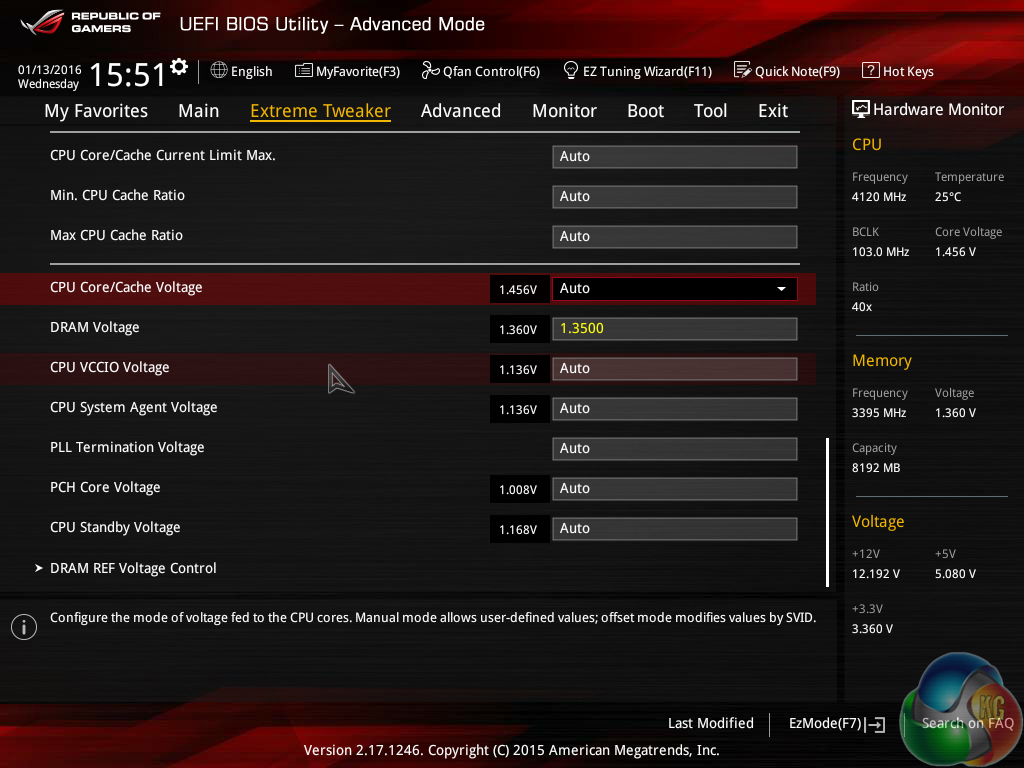
The UEFI-based EZ Tuning wizard asks a number of questions relating to your system usage and its cooling performance. Based on these responses, an appropriate boost to the CPU and memory clock speeds is applied.
We selected the usage option as gaming and the cooling option as watercooling (as this releases Asus' highest performance tuning, and our Noctua NH-D14 is a capable unit). The system applied a 435MHz boost in CPU frequency by way of a multiplier bump to 45x and a 103MHz BCLK.
The increased BCLK also meant that the CPU Cache frequency was raised, as was the memory speed. That last point was important because the 96MHz boost on our Corsair Vengeance LPX 3200MHz sticks resulted in system instability. Disabling XMP and then re-tuning the system was a necessitated solution.
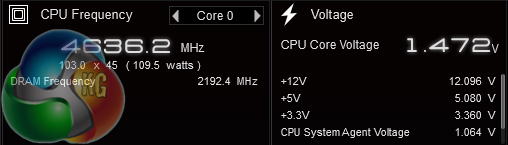
Asus' applied settings seemed fine until a load was put through the system. Rather than apply a manual voltage for the CPU, Asus left the board to automatically apply a voltage. This resulted in 1.472V being delivered under load, which is about 70mV higher than I would be happy putting through a 6700K on a daily basis.
1.472V under load is really pushing the upper limit of what even enthusiast overclockers with high-end, custom-loop watercooling configurations will put through their Skylake chips. A lower clock speed and more sensible voltage level should be applied, especially when considering that the audience for automated overclocking tools may not know the risks of running a Skylake chip at 1.472V for extended periods of time.
Gamers' Overclocking Preset
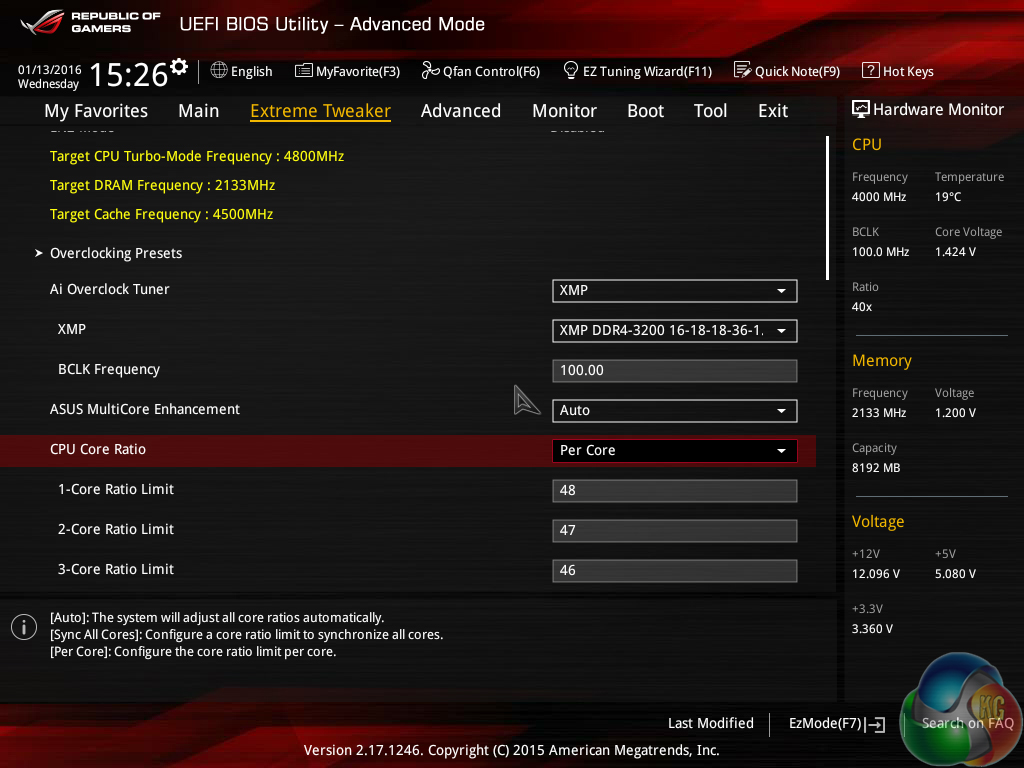
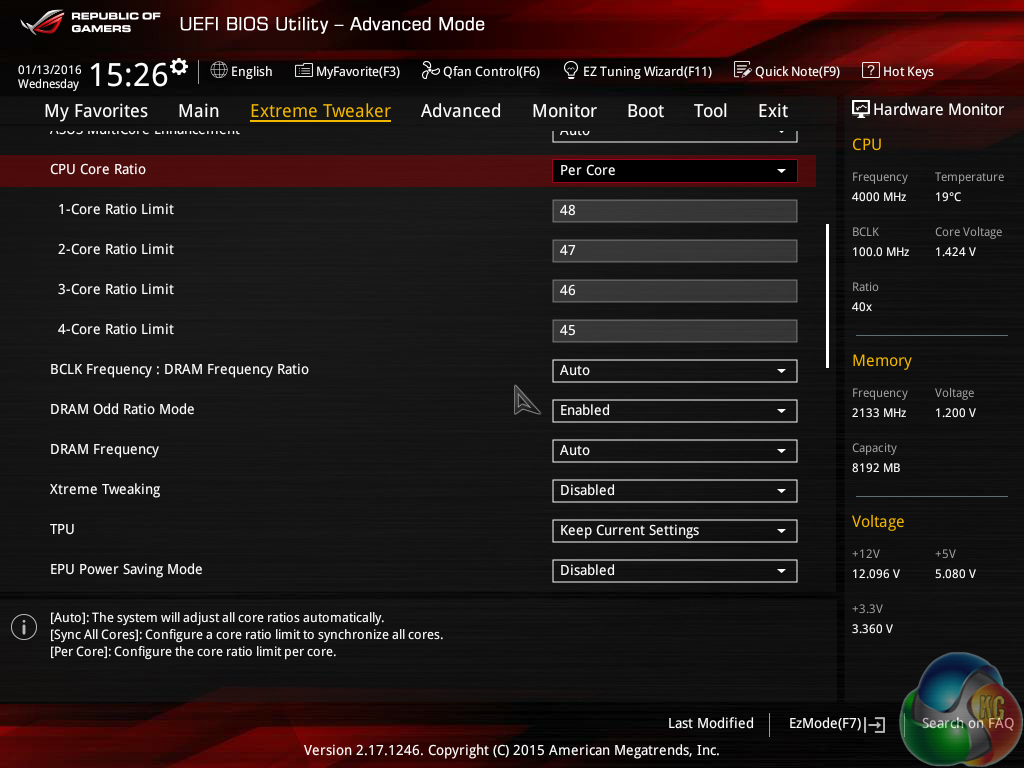
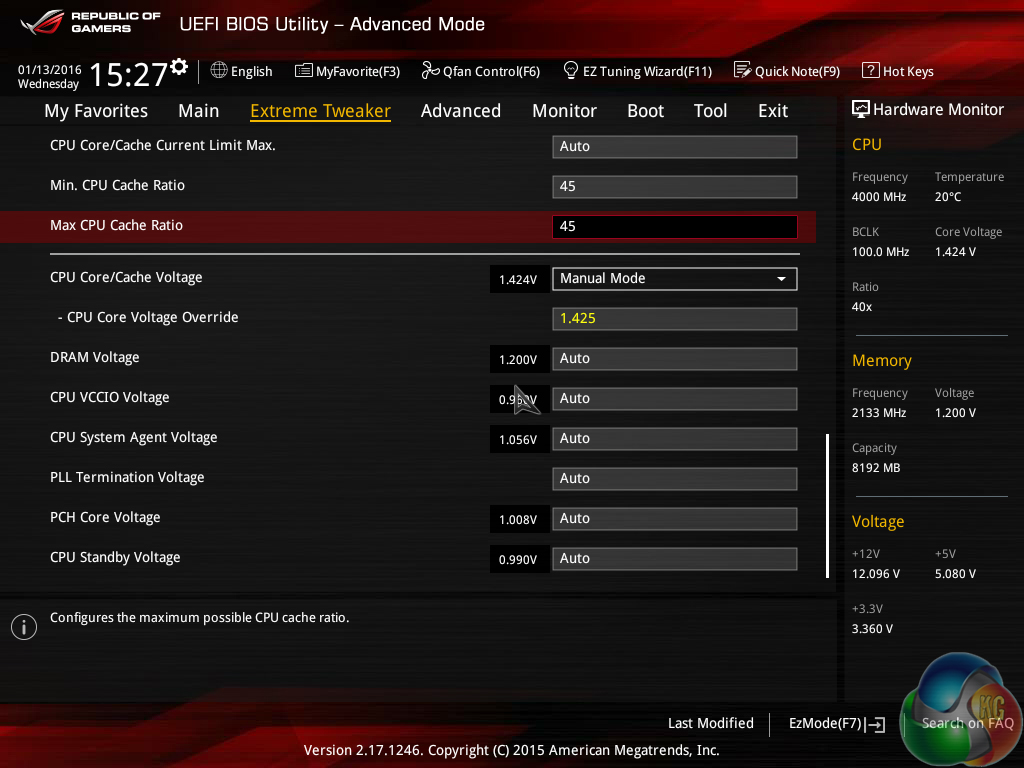
The Gamers‘ overclocking preset applied a dynamic overclock on the CPU that ranged from 4.8GHz for a single-core workload to 4.5GHz when all four cores were loaded. The CPU Cache was also overclocked to 4.5GHz, however the memory's XMP profile was disabled and set to operate at the default 2133MHz frequency – a significant downgrade.
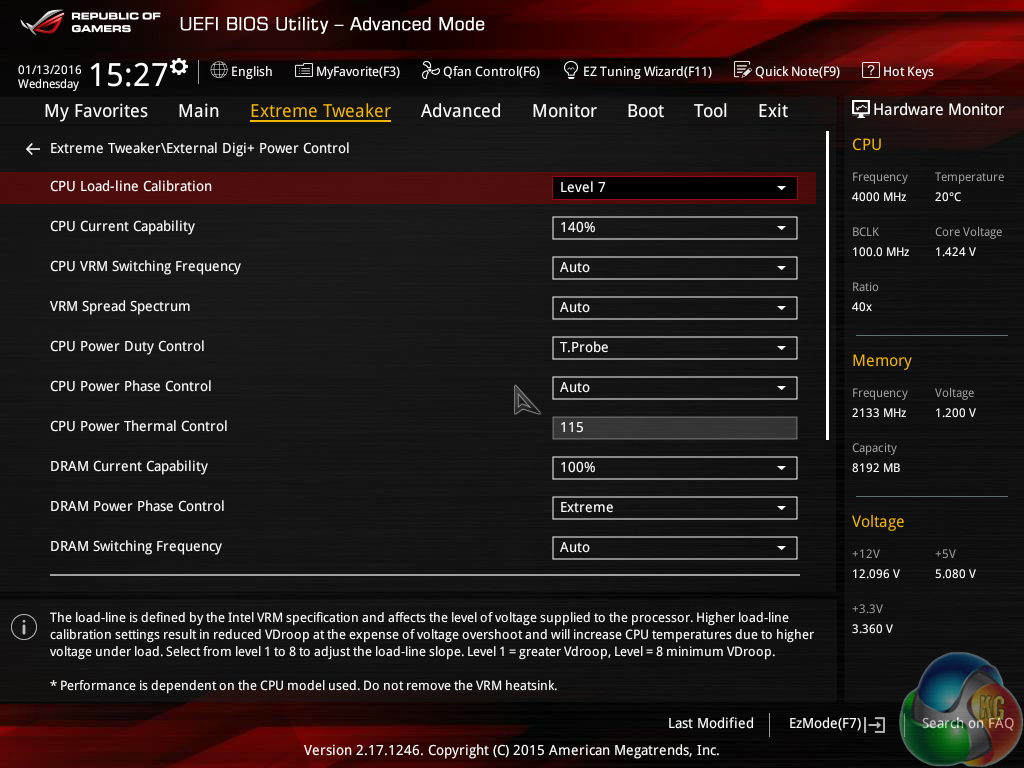
Additional power settings were tweaked, including setting the LLC to Level 7 and increasing the CPU's current capability by 40%.
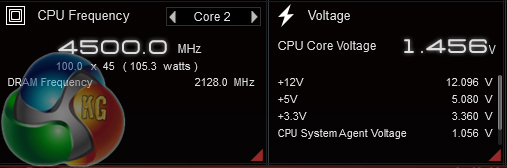
While the overclock was perfectly stable and the per-core frequencies worked well, the CPU voltage for a four-core load was once again on the high side. 1.456V being delivered for a 4.5GHz CPU frequency is over-the-top for a 6700K CPU.
Many chips will reach 4.5GHz with a significantly lower core voltage. Equally so, many users will not be happy to see over 1.45V being pushed through their 14nm processor that may be tasked with many years of duty.
Back to the drawing board on this one, Asus.
OS-based 5-Way Optimization Overclocking
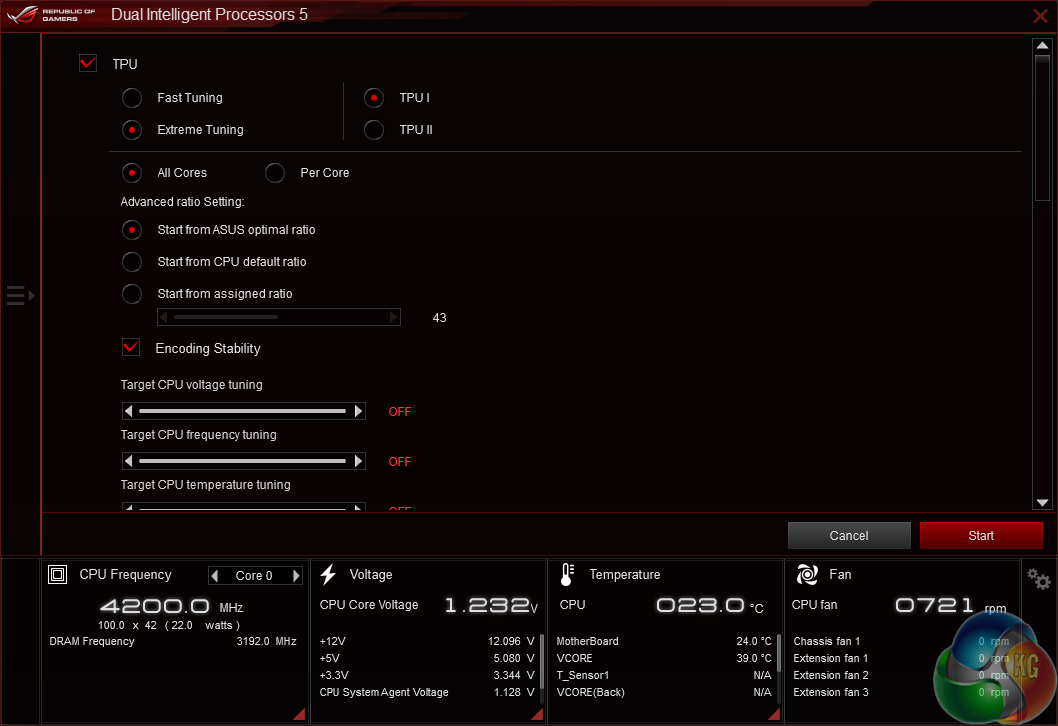
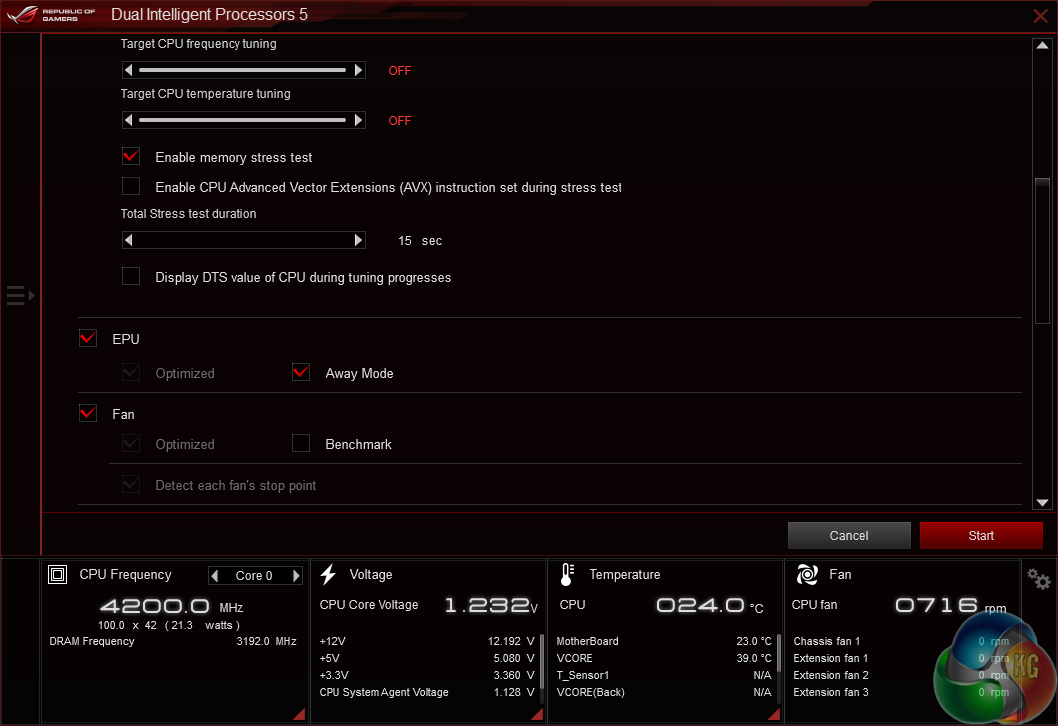
The OS-based 5-Way Optimisation tool found in Asus' AI Suite software allows a number of parameters to be set before overclocking tuning begins. Asus gives users plenty of flexibility for the system to be tuned to a clock speed that is deemed stable for their usage scenarios.
The Encoding Stability check-box is particularly useful as encoding tools such as Handbrake can highlight CPU instability where conventional stress tests do not pick it up.
Although it is not highlighted on the software page, a quick look in the UEFI indicates that TPU I is designed for air cooling users, while TPU II is for those with liquid cooling.
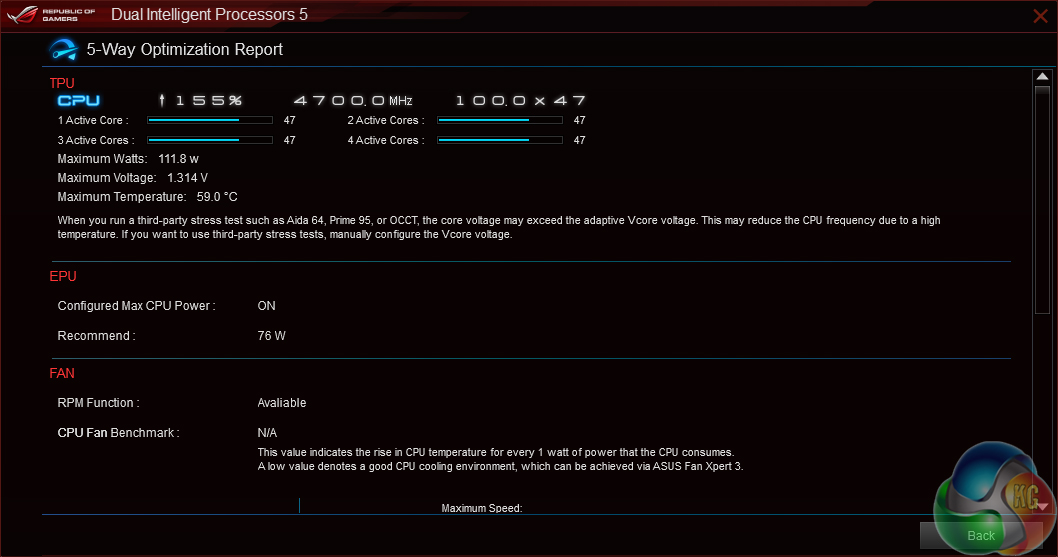
5-Way Optimisation works by rebooting the system and then automatically stress testing a frequency level. If the chosen CPU speed passes the brief stress test, an increase in the core ratio is applied and the process is repeated. At the point of instability (as shown by a BSOD), the system will crash and then re-launch with the last known stable speed before moving on to fan speed tuning.
The watercooling tuning option using TPU II seems to put a little more emphasis on exact fine-tuning of the system. This time, a stable CPU multiplier is discovered and the automated system proceeds to increase the BCLK small increments at a time. With our test chip, this proved a somewhat worthless procedure and did not deliver evidently greater results.
The automated tuning process works superbly and truly is a click-and-forget processor overclock. A number of the key recordings, such as the maximum CPU temperature and voltage, are displayed however their readings differ greatly from those seen in manual stress tests or even encoding workloads.
Asus' software also displays the highest CPU multiplier that was tested and the highest one to be found stable. This could prove useful as a reference point for those trying to push their PC to the limit.
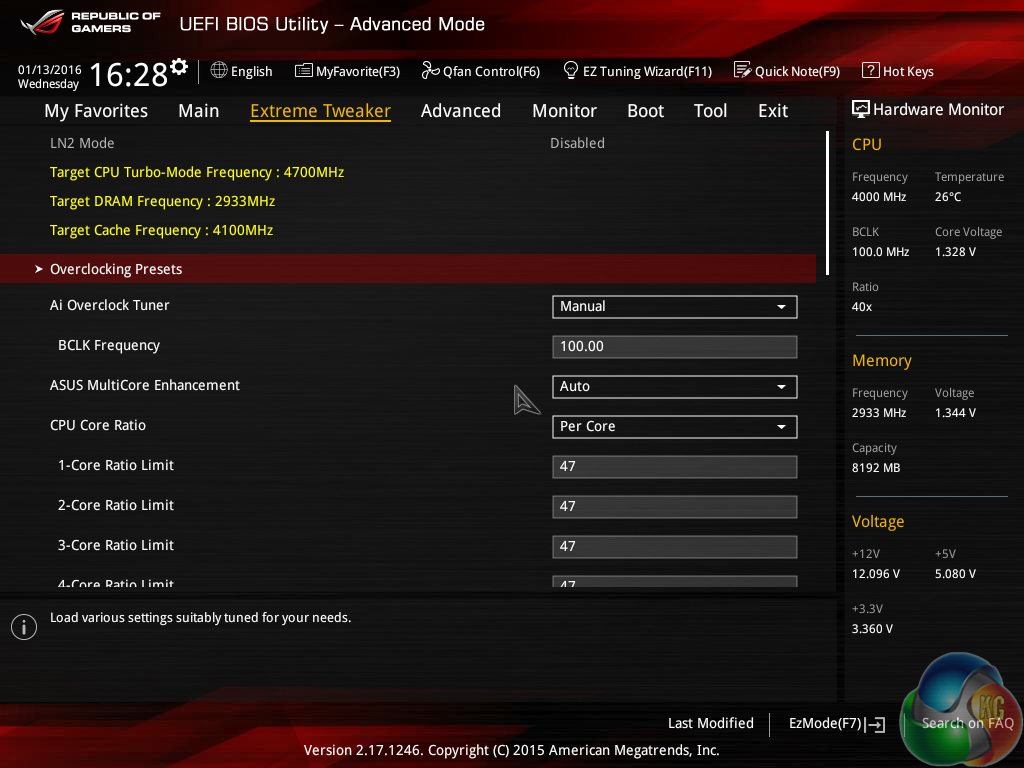
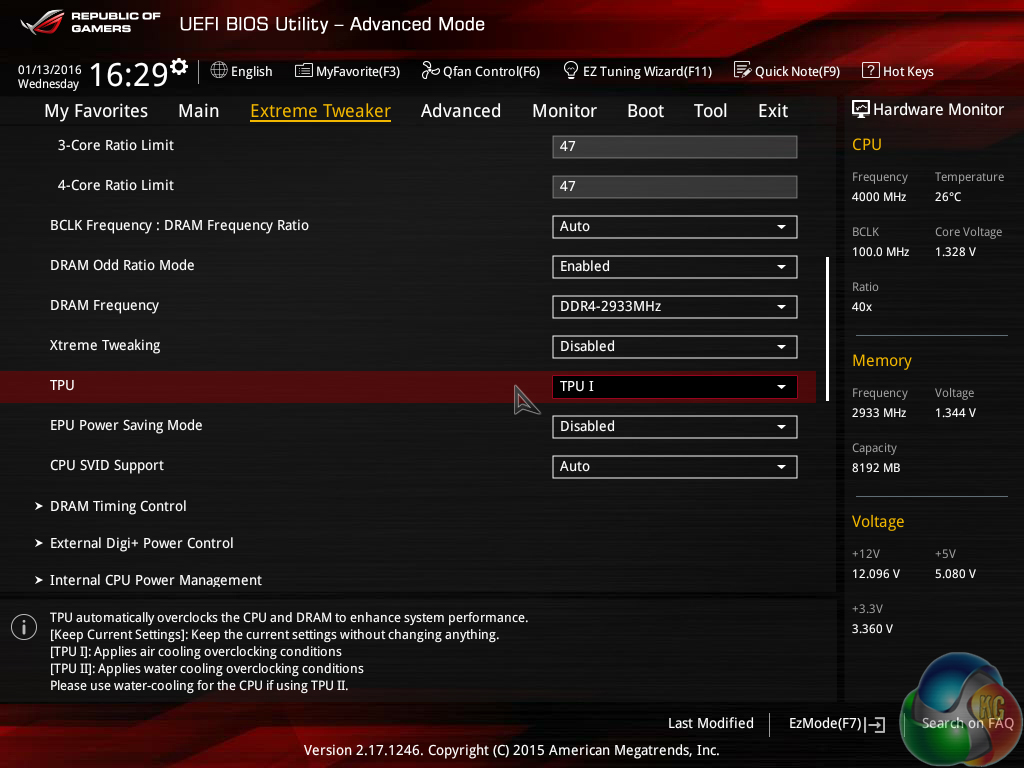
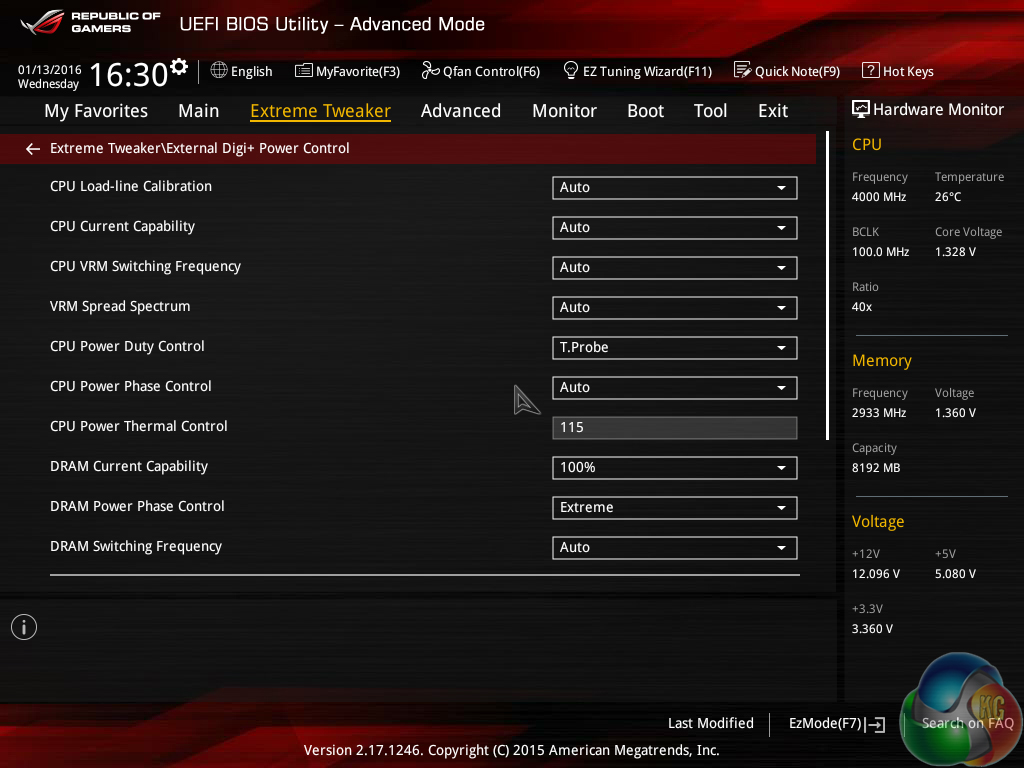
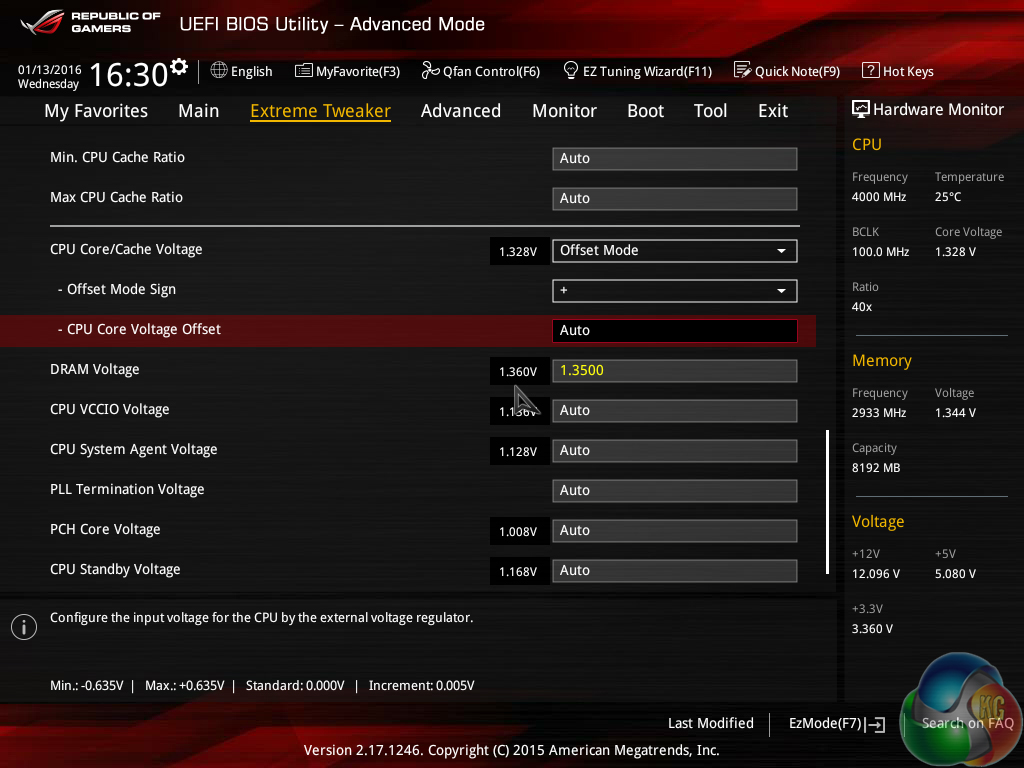
With the automated tuning complete, one can enter the UEFI and manually save the entire profile. With our test system, Asus applied a 4.7GHz CPU speed and maintained the CPU Cache frequency at its 4.1GHz stock level. Disappointingly, however, the memory speed was dropped to 2933MHz from our sticks' 3200MHz XMP setting. Memory timings were not adjusted, nor were the LLC and CPU current settings.
An offset CPU voltage was chosen, with the motherboard's automatic setting being selected as the base point.
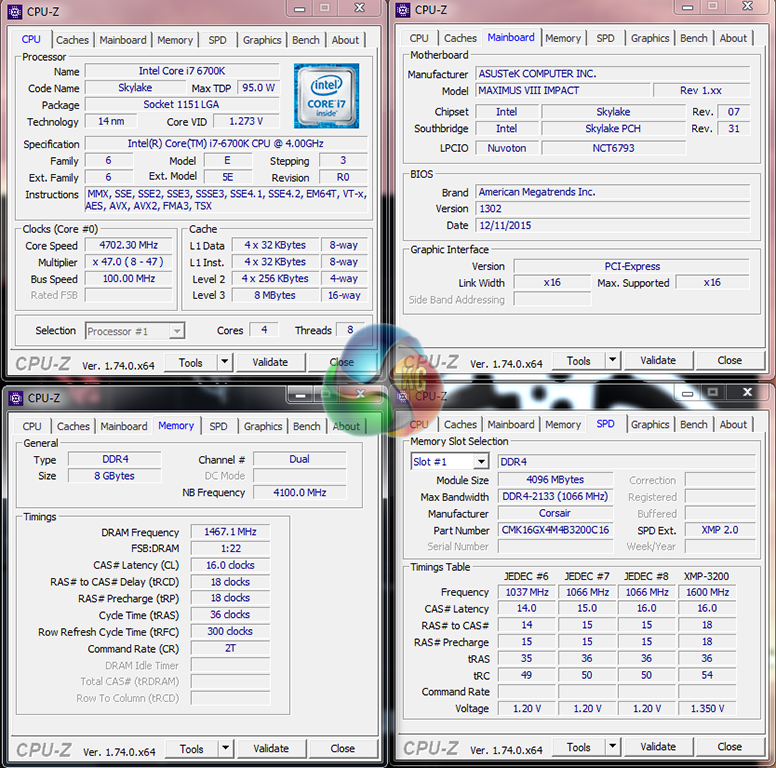
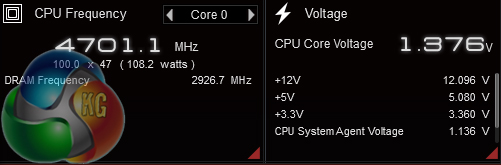
Under full Prime95 load, the chip was supplied with 1.376V for its 4.7GHz frequency. This is a surprisingly well-tuned overclock that required zero user input and resulted in stability and decent CPU temperatures.
We also noticed that the fan speed of our CPU cooler had been reduced by the tuning procedure and idle CPU voltage was lower, resulting in around 10W less power being drawn from the wall.
Overall, Asus' 5-Way Optimization tuning was a successful procedure that delivered pleasing results.
Manual CPU Overclocking:
To test the Asus Maximus VIII Impact motherboard’s CPU overclocking potential, we first increased the CPU VCore to 1.40V and the PCH voltage to 1.10V. We selected Level 5 load-line calibration after trial and error showed that it delivered an acceptable load voltage level that remained below our target VCore. Power saving settings were disabled and the CPU Cache ratio was set to 45x.
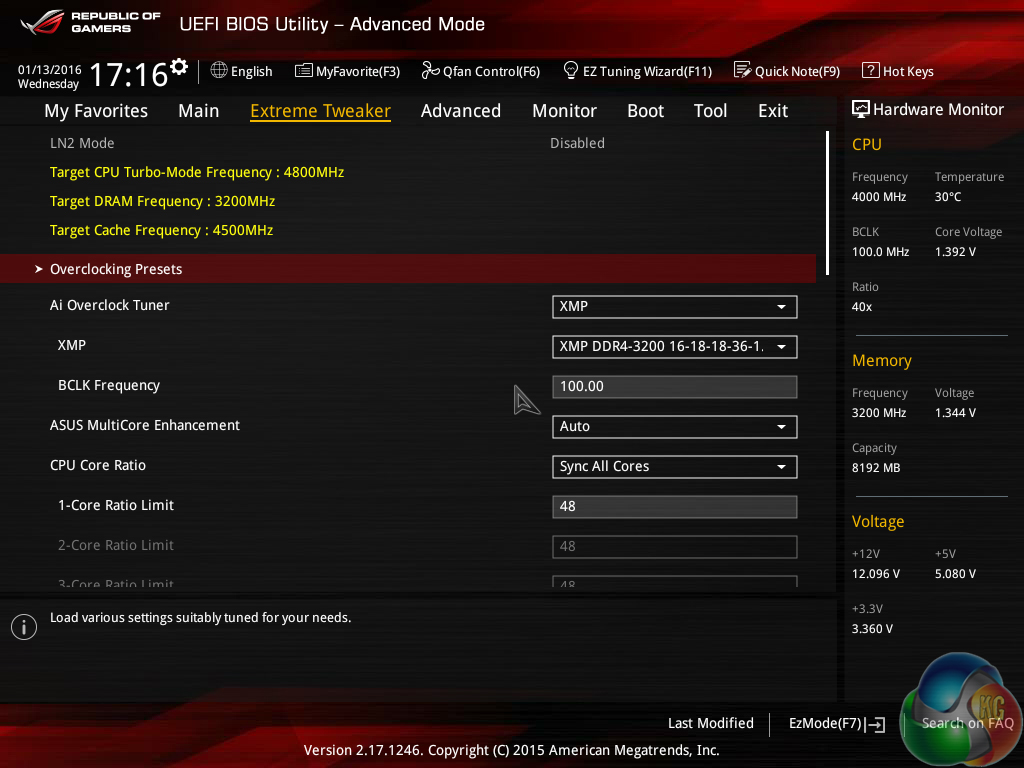
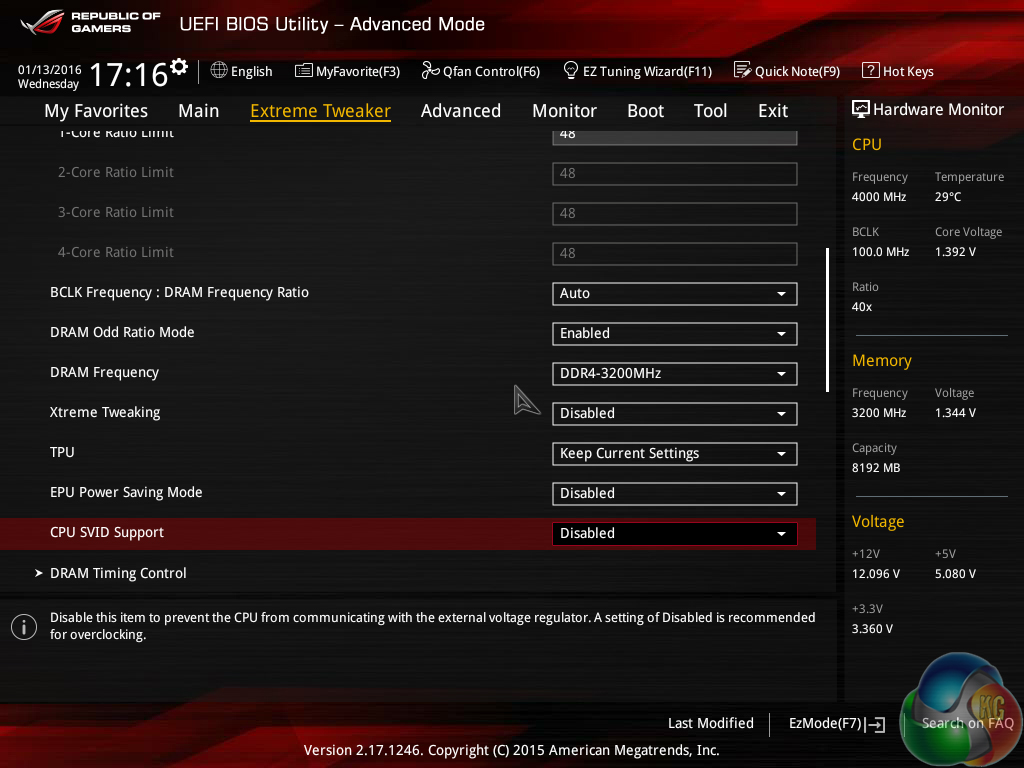
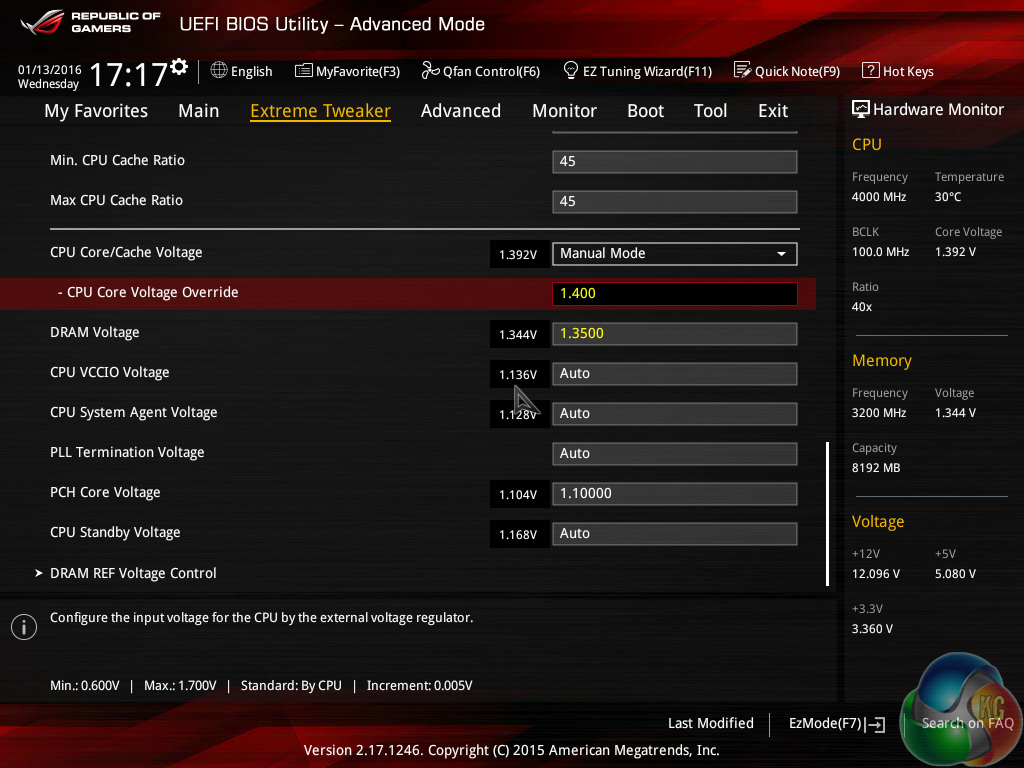
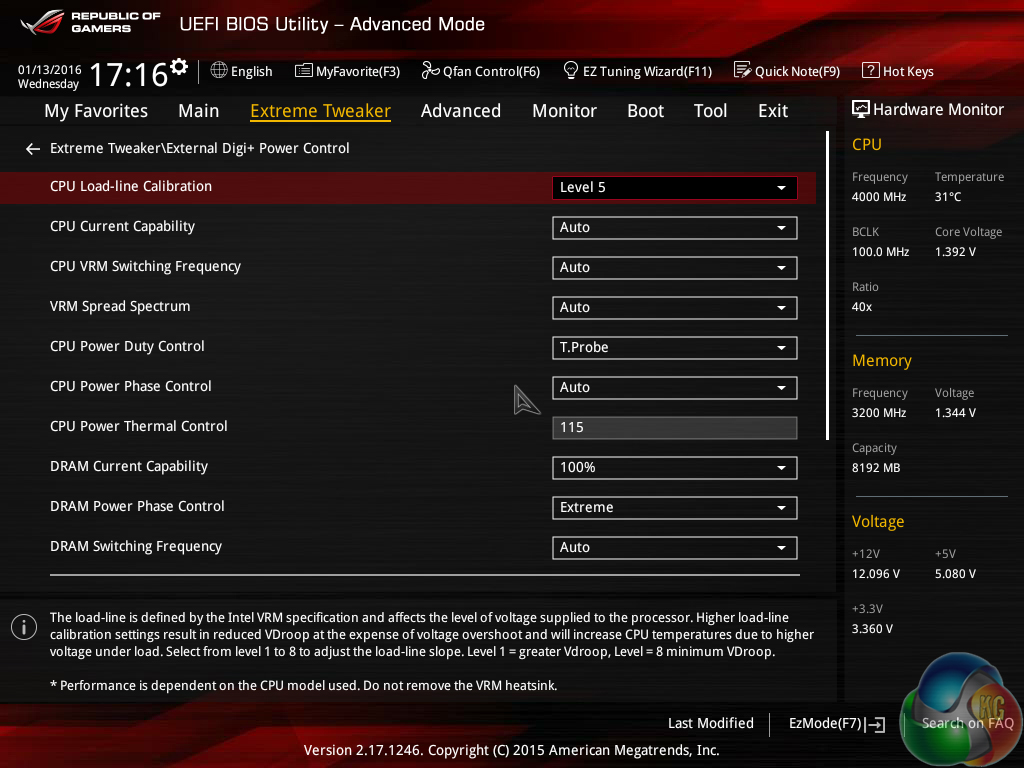
Manually overclocking the system is generally easy thanks to Asus' superb UEFI layout. The reason I use the word ‘generally‘ is because the Load-Line Calibration settings do not make much sense, especially when compared to their actual operation.
I prefer the approach deployed by ASRock, and now MSI, whereby a visual graph positioned adjacent to the LLC setting displays how the CPU voltage will react for each configuration. That visual approach is generally easier to interpret.
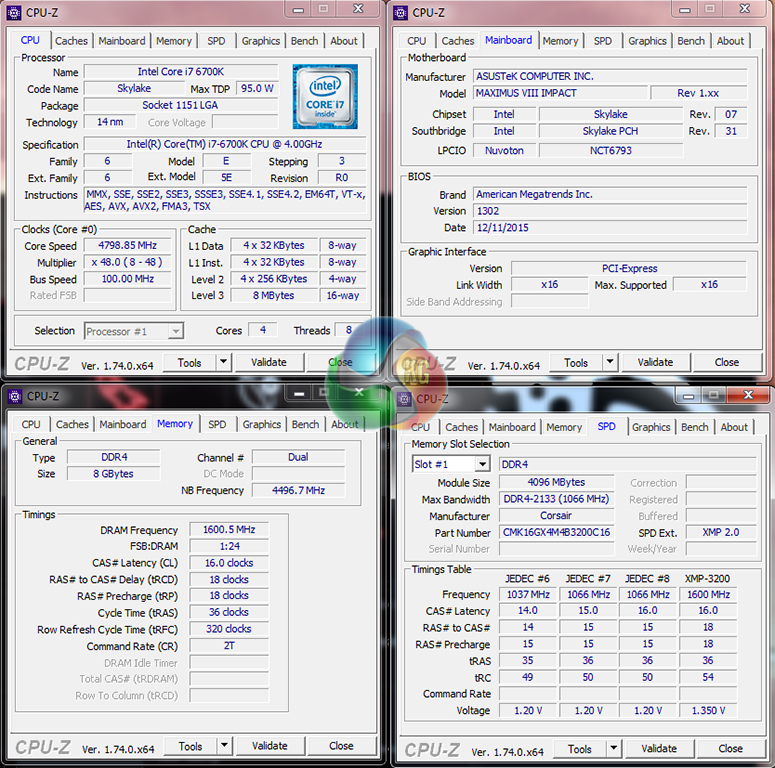
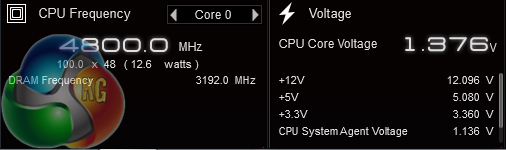
Asus' Maximus VIII Impact had absolutely no problems taking our Core i7-6700K to its frequency limit of 4.8GHz. Load voltage sat at around 1.37V (as validated by a multimeter), which was around 20-30mV less than the 1.40V we selected in the UEFI, due in large to the chosen LLC settings.
The Level 5 LLC setting was selected based on our previous experiences with Asus' Z170 motherboards and because Level 6 delivered a voltage overshoot (albeit only 8mV). I do wish that Asus would provide a LLC setting that delivers closer to the requested voltage level without overshooting, however the challenges in overcoming accuracy levels of the PWM controller also come into play.
We will outline the performance increases that can be obtained from using the Asus Maximus VIII Impact motherboard to overclock our system. Our overclocked processor frequency was 4.8GHz and memory speed was maintained at 3200MHz.
As a performance comparison, we have included the overclocked results from seven other Z170 motherboards. The maximum overclocked configuration achieved with each board was a 4800MHz (48 x 100MHz) processor frequency and memory speed was 3200MHz CL16 where the board supported it (not on the ASRock Z170 Extreme4).
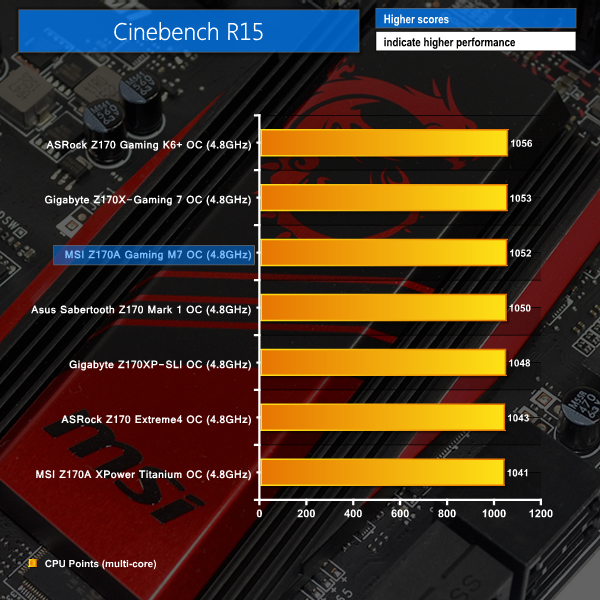
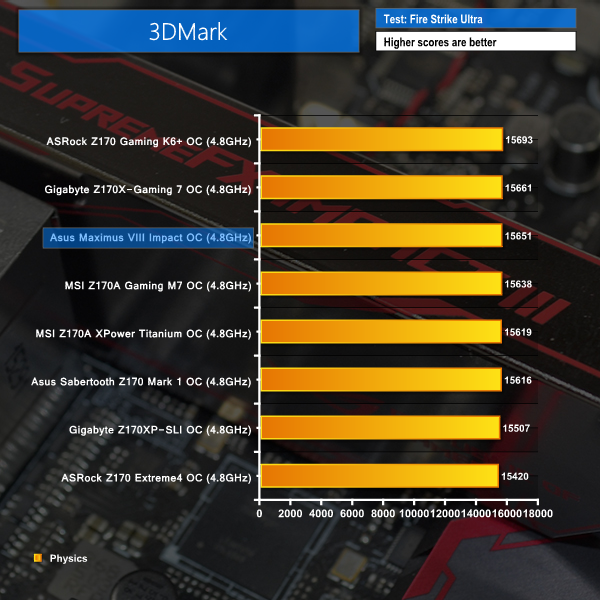
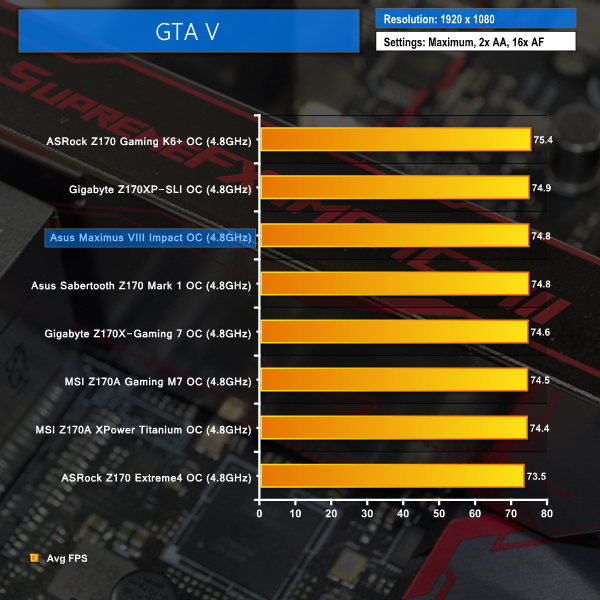
Asus' motherboard delivers strong gains when the CPU and Cache are both overclocked. The mini-ITX board takes a joint lead in Cinebench, while performance is also close to the top of the chart in 3DMark and GTA V.
Despite the somewhat meaningless 0.3FPS average frame rate boost over the M8I's stock speed in GTA V, the minimum FPS level was increased by more than 10% thanks to overclocking.
SATA
For SATA 6Gb/s testing we use a Kingston HyperX 3K (SandForce SF-2281) SSD.
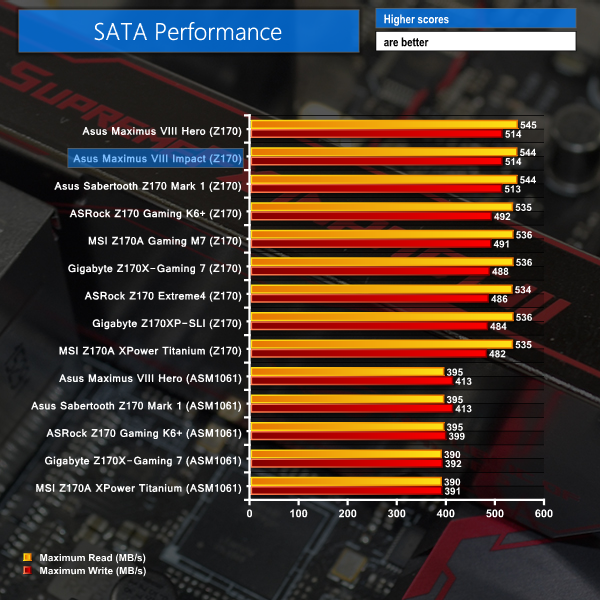
SATA 6Gbps performance from Asus' board is slightly faster than competing vendors' offerings. In the real world, this small transfer rate differential is unlikely to be noticeable, however it is undeniably present.
USB 3.0
We tested USB 3.0 performance using the Kingston HyperX 3K SSD connected to a SATA 6Gb/s to USB 3.0 adapter powered by an ASMedia ASM1053 controller. The test system uses Windows 7 with SP1 as the OS.
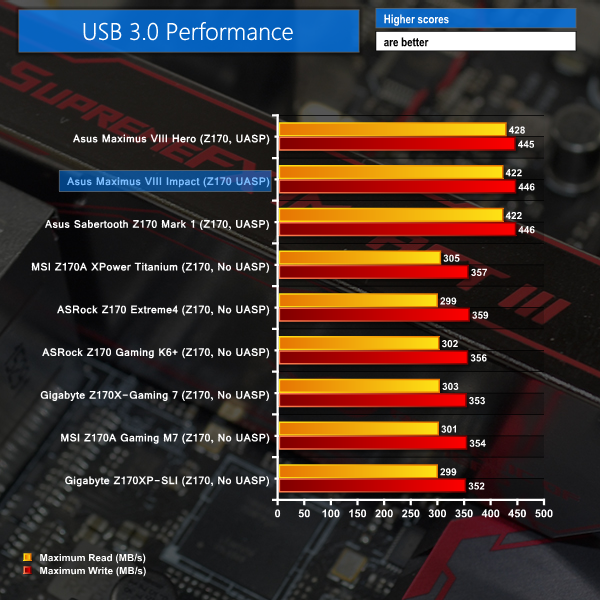
Thanks to the USB 3.1 Boost software provided by Asus, users of the Windows 7 test system can benefit from activation of UASP and enhanced USB 3.0/3.1 transfer rates.
Asus delivers USB 3.0 transfer rates that are significantly faster than all of its competitors thanks to the included software. This is important if you regularly transfer large files or perform backups to USB 3.0 drives.
The performance discrepancies will likely be smaller using the Windows 8.1 and 10 operating systems thanks to updated UASP driver support native to the OS.
Audio
We use RightMark Audio Analyzer (RMAA) to analyse the performance of the motherboard’s onboard audio solution. A sampling mode of 24-bit, 192 kHz was tested.
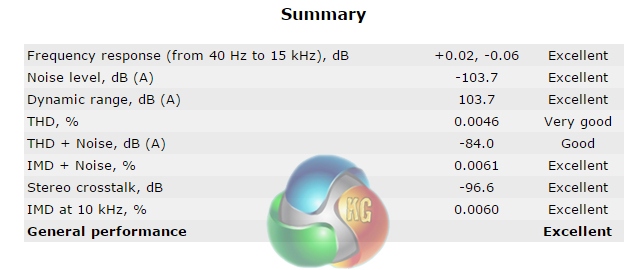
According to RMAA, general performance of the Maximus VIII Impact's audio system is Excellent. There are very few weaknesses to the SupremeFX Impact III audio system, with frequency responses and the dynamic range being particularly strong.
WiFi Performance
We use Totusoft’s LAN Speed Test software to measure the real-world throughput offered by the Asus Maximus VIII Impact motherboard’s WiFi solution. The test motherboard was located in close proximity to our Linksys EA6900 AC1900 802.11ac wireless router.
Unfortunately we were only able to test the 2.4GHz frequency band performance. Our 5GHz connectivity gave issues and the problem seems to be related to a driver issue with our Windows 7 SP1 test OS. Asus are currently looking into this issue.
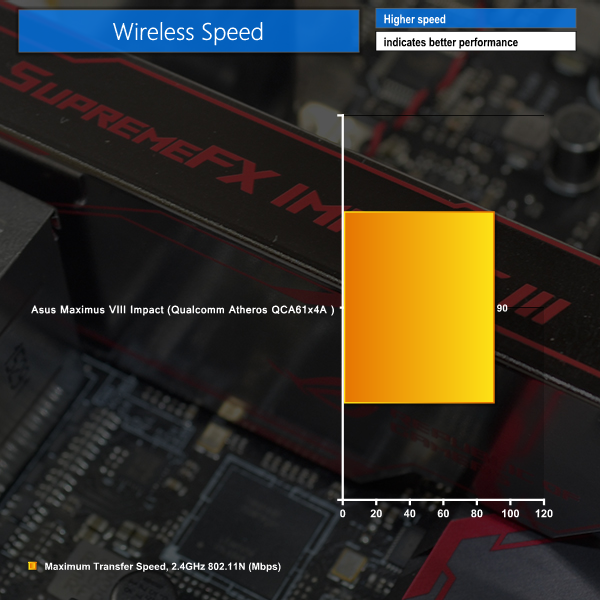
2.4GHz 802.11N networking results do not really show what performance the Qualcomm Atheros QCA61x4A 802.11ac wireless adapter is capable of. However, reduced wireless performance is the price that we have to pay due to a 5GHz networking issue with our Windows 7 SP1 test system.
There was a large amount of wireless clutter in our test environment, so expect different results with your system. We would also expect 5GHz 802.11ac networking speeds to be in the region of 300Mbps and above for real-world testing.
Power
We measured the power consumption with the system resting at the Windows 7 desktop, representing idle values.
The power consumption of our entire test system (at the wall) is measured while loading only the CPU using Prime95′s in-place large FFTs setting. The rest of the system’s components were operating in their idle states, hence the increased power consumption values (in comparison to the idle figures) are largely related to the load on the CPU and motherboard power delivery components.
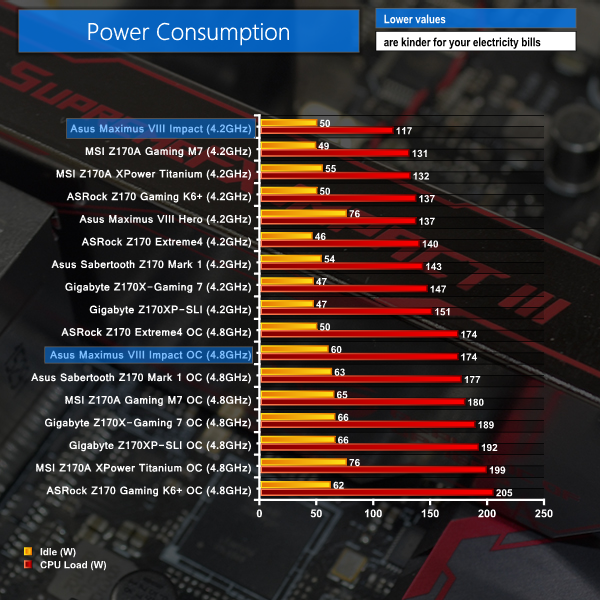
Asus' low voltage levels at stock (MCT) speeds deliver chart-leading power consumption numbers. Manual overclocking to a similar voltage level used by competing boards sees similar power being drawn from the socket.
There is little information in the power consumption results to speak for the efficiency of Asus' customised power delivery system, however there's nothing to show it struggling either.
The Asus Maximus VIII Impact is a high-performance mini-ITX motherboard that will grab the attention of SFF enthusiasts interested in crunching through pixels in the latest games.
General performance from the motherboard is superb. The same can be said for overclocking; we had no problem taking our 6700K CPU to its 4.8GHz limit while also using 3200MHz DDR4. Voltage accuracy was decent and could be tweaked depending on one's preference thanks to eight LLC profiles. And the small touch of instability we experienced was resolved by reseating the CPU cooler and memory modules.
Asus' UEFI layout is superb, as are its included features. The interface is easy to navigate which makes achieving a stable overclock a simple and fast process. Despite the solid interface, Asus' UEFI-based automated overclocking options were not good. The voltage levels for the preset and EZ Tuning wizard were far too high for daily usage. Thankfully, the OS-based 5-Way Optimization tuning was truly excellent and incredibly successful.
Features are both a strength and an area for debate with the Maximus VIII Impact. The inclusion of a PCIe 3.0 x4-fed Intel DSL6540 USB 3.1 chipset to provide the 10Gbps Type-A and Type-C ports is welcomed. Performance from the SupremeFX Impact III audio solution is excellent. Many gaming HTPC buyers will be glad to see 802.11ac WiFi included, although some of those may miss the lack of DisplayPort for 4K60P connectivity through the iGPU.
Another of the board's strengths is its included 32Gbps PCIe 3.0 x4 U.2 connector. With that said, the U.2 connector seems to have replaced the far more versatile and valuable (at this point in time) M.2 slot. Asus' decision to ship a flagship mini-ITX motherboard without an M.2 connector to house NVMe SSDs such as Samsung's extremely popular 950 Pro is one that could alienate a vast number of potential buyers.
Continuing with the storage theme, four SATA 6Gbps ports on an enthusiast motherboard also seems to be cutting it fine. And I do not like to see the complete omission of USB 2.0 ports, with not even an internal header deployed. Two more SATA 6Gbps ports (or a single SATA-Express connector for front panel USB 3.1 bay functionality) and a USB 2.0 header could have easily been provided out of the Z170 chipset's spare lanes that currently go unused on this motherboard.
Asus' diverse set of included software is very good for gaming and general usage scenarios. GameFirst IV provides network optimisation, KeyBot can be used to assign macros and perform system functions in S5 state, and the number of audio-related tools are useful for gamers. AI Suite 3 provides many worthwhile functions, including good system monitoring abilities, USB 3.1 Boost, and further options for WiFi functionality.
Support for up to five 4-pin fan headers, and additional temperature sensors, thanks to the included fan extension board is superb. Asus' UEFI- and OS-based fan control methods are also very good for giving users plenty of flexibility for operating speeds.

Available for £187.99 at OverclockersUK, Asus' Maximus VIII Impact is the highest priced mini-ITX board on the market. Asus delivers innovation in the form of the company's Impact Power III board and SupremeFX Impact III audio to help justify the price tag. And in other areas, features such as Intel-based USB 3.1, a 32Gbps U.2 connector, and superb software implementations are points which will tempt potential buyers.
With that said, there is compromise to be made if you plan to use the Maximus VIII Impact. The biggest compromise comes from the lack of an M.2 connector, however four SATA 6Gbps and no USB 2.0 connections may also limit connectivity and expansion options. If these points are compromises that you can happily accept, Asus' Maximus VIII Impact is a superb choice for your high-performance mini-ITX system.
Discuss on our Facebook page, over HERE.
Pros:
- SupremeFX Impact III is an excellent audio solution (provided you don't need 7.1 support).
- Intel DSL6540 10Gbps USB 3.1 Type-A and Type-C ports.
- High-performance power delivery system thanks to the smart design of the Impact Power III board.
- 32Gbps PCIe 3.0 x4 U.2 connector is good to have.
- Good networking capability via Intel NIC and 2×2 MU-MIMO 802.11ac WiFi.
- Excellent UEFI implementation and a very good array of gamer-orientated and general usage software.
- Motherboard layout is generally good for mini-ITX builders and overclocking users.
- Support and control for up to five 4-pin fan headers is great.
Cons:
- No M.2 connector (!).
- No USB 2.0 connectivity at all.
- More than 4 SATA 6Gbps connectors should be included, especially with the lack of M.2.
- PS/2 port may be missed by extreme overclockers and troubleshooting (or Windows 7) users, albeit a minor point.
KitGuru says: Intel USB 3.1, a 32Gbps U.2 connector, and superb audio performance are just some of the features that make the Asus Maximus VIII Impact a tempting motherboard for a high-performance mini-ITX build.

Looks like a great ITX board but no m.2 = no purchase from me 🙁
No M.2 = no purchase.
I have the z170i Pro Gaming, which has a lot of these features (but has M.2 NVMe), minus the additional soundcard and VRM cooling (but still has decent of both) and can go as high as 4GHz on the RAM (though my BIOs shows 4.133Mhz). Same Software, same Wifi… about £50 cheaper.
That said, I’m in the process of returning it to Scan as the WiFi died on me. Let me just say that Scan have a horrendous returns policy. No advanced return. Offered to just buy a new board and they refund me when they received mine… they said ok, but were only willing to refund £125 (the price I paid). It’s now £133 + £12 postage on their website, so I’d be out of pocket. So, I have to wait 5-7 days to return. Moral of the story – buy from Amazon (sold and fufilled by) Free next day delivery for Prime and they ship a replace before you return.
EDIT:
Those VRMs would interfere with most cooling in ITX cases too. At least in my Corsair Obsidian 250D, which is a squeeze with my H100i GTX as it is.
there are u2 to m2 converters… and as someone who has the Intel 750 SSD, this board was exactly what i needed.
A few days ago new McLaren F1 subsequent after earning 18,512$,,,this was my previous month’s paycheck ,and-a little over, 17k$ Last month ..3-5 h/r of work a day ..with extra open doors & weekly paychecks.. it’s realy the easiest work I have ever Do. I Joined This 7 months ago and now making over 87$, p/h.Learn More right Here
as…..
➤➤
➤➤➤ http://GlobalSuperEmploymentVacanciesReportsNet/GetPaid/98$hourly…❦.❦.❦.❦.❦.❦.❦.❦.❦.❦.❦.❦.❦.❦.❦.❦.❦.❦.❦.❦.❦.❦.❦.❦.❦.❦.❦.❦.❦.❦.❦.❦.❦.❦.❦.❦.❦.❦
Do you have a link for U.2 to M.2 adapters? I have seen M.2 to U.2 but have yet to come across the other way around.
Indeed USB 2.0 devices will work fine in USB 3.0 ports, however the lack of an internal header could be a problem to somebody who has a mini-ITX chassis with front panel USB ports, in addition to something like a card reader. There’s not enough internal USB (including 2.0, which is small and easy to fit on the PCB) connectivity in that case.
Yes, there are quite a few enthusiast mini-ITX cases (Corsair 250D, Phanteks Enthoo ITX, etc.) that will take four SATA devices or more. And that’s without just placing 2.5″ SSDs in some free space, without an actual drive mount (which is quite common and perfectly fine). Some people will want more than 4 SATA devices, especially with the lack of M.2, so it would have been better to include another two SATA ports (especially because the Z170 chipset has plenty of spare lanes). If 4 SATA ports is fine for somebody’s needs, then great – that point is not an issue at all.
Which CPU cooler are you using? The NH-D14 fit fine in our testing. Make sure to send some pics to our Facebook page when you’ve completed the build :)!
i dont understand why so many insist on a PS/2 keyboard/mouse connector. This is a High end board. Thus majority will have New-ish USB keyboard mouses? why waste the space. Get real Kitguru. Your spending a solid Few hundred on a Motherboard, your going to have a decent mouse/keyboard combo too.
If the U.2 port is positioned under the board like my Z170i Pro Gaming then an adapter might be an issue…
Showing my ignorance, though, as I’m unfamiliar with U.2. The bus link is the same PCI-E x4, though, so I don’t see the advantage on this board. Surely a topside M.2 with a U.2 adapter would be the best case scenario?
I wouldn’t say the Z170 has spare lanes. SLI/XFire is more limited than the 2011-3 X99 boards due to less lanes on the CPU
When I say Z170, it refers specifically to the chipset, not the LGA 1151 CPU or the platform as a whole. The CPU’s lanes are generally reserved for the wider PCIe links (x4, x8, x16) for graphics and other expansion cards, however that’s not really important with this board as all 16 lanes get delivered straight to the one full-length PCIe slot.
The Z170 chipset has spare lanes available for use, compared to what has been deployed on this motherboard. The Z170 chipset itself actually supports up to 26 IO lanes, however there are some limitations as to how many of these can be deployed as PCIe, USB, and SATA 6Gbps.
I think youre right, I cant find a link, must have been thinking of M.2 to U.2, once there is a market for it im sure adapters will exist though.
Like a said, for my use case all of the above are non issues.
I am going to be putting a build together in the RVZ02 and trying either the Scythe BIG Shuriken 2 Rev. B or the Zalman low profile. Not sure yet, Im overseas and the mobo is stuck in customs.
yeah max lanes for m.2 is the same as u.2, but if im not mistaken some of the boards that have m.2 and more additional connectivity options share some of the lanes? Like depending on your configuration and what you are using, your m.2 is limited?
if the u.2 was am m.2 instead, would one of the converter cards fit in there?
Yeah, sure, but X99 boards can support x16, x16 and x8 configurations on PCI-E with some spare for I/O… Just saying the z170 is lacking in the PCIE lanes department
Using this board in a HTPC build with a ML07 case and a gtx 1060sc gpu Ive run into an issue with the sound card connector for the front panel jacks,,it appears most low profile coolers end up right up against the sound card, leaving no room to connect the HD audio cable for the front jacks, if there was a cable that would allow the sound card to be mounted off the board somewhere it would help but I havent found a cable yet that would allow one to mount it elsewhere much like the included fan header card. As it stands now I will just cover the male connectors with insulating tape to keep them from contacting the cooler fins on my Geminii M4 cooler and forego using the front jacks until i get a different cooler or find a jumper cable that allows moving the sound card to a better mounting position in the silverstone case.