 KitGuru KitGuru.net – Tech News | Hardware News | Hardware Reviews | IOS | Mobile | Gaming | Graphics Cards



If you want to reduce the space taken up by your computer, without significant reduction in performance or functionality, opting for a micro ATX system has long been the most effective way of doing so. Can the performance of ATX parts be matched when the Gigabyte X99M-Gaming 5 motherboard's LGA 2011-3 socket is compressed into the 24.4 x 24.4 cm micro ATX form factor?
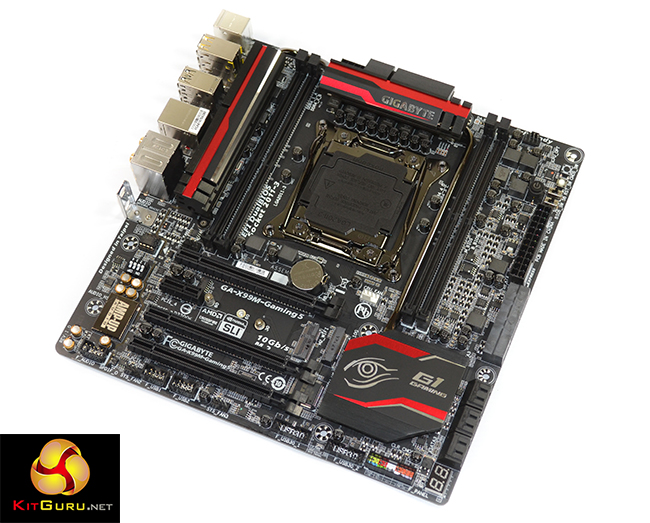
Gigabyte‘s X99M-Gaming 5 delivers many of the X99 platform's core features, despite its micro ATX form factor. Support for two-card SLI/CrossFire is present, and there's also the ten SATA 6Gbps ports for storage nerds. And let's not forget two additional forms of PCIe storage in M.2 and SATA Express.
Homing in on the gaming market, Gigabyte outfits its mATX board with a Killer NIC and the accompanying software for users to take advantage of network optimisation. There's also the enhanced audio system that allows for an upgrade to the already-high-end Burr-Brown operational amplifier. And if you own a set of USB headphones, the ‘DAC-UP' USB ports are designed to deliver cleaner power to the amp.
With a strong power delivery system, good looks, and relevant gaming features, how does Gigabyte's X99M-Gaming 5 stack up when battling full-sized ATX competition.
Features:
- Genuine All Digital Power Design with IR Digital PWM & IR PowIRstage® ICs
- 2-Way Graphics with Premium PCIe Lane
- Dual M.2 Technology for SSD Drive and WIFI card
- 6x(30µ) Gold Plating for CPU socket, Memory DIMMs and PCIe slots
- AMP-UP Audio technology with exclusive Upgradable OP-AMP
- Independent Right and Left Audio Channel PCB Layers
- LED lighting for the audio guard light path
- Quad DAC-UP USB ports
- Gold plated audio ports
- High end Nichicon audio capacitors
- Killer™ E2200 gaming networking
- SATA Express support for 10 Gb/s data transfer
- Long lifespan Durable Black™ Solid caps
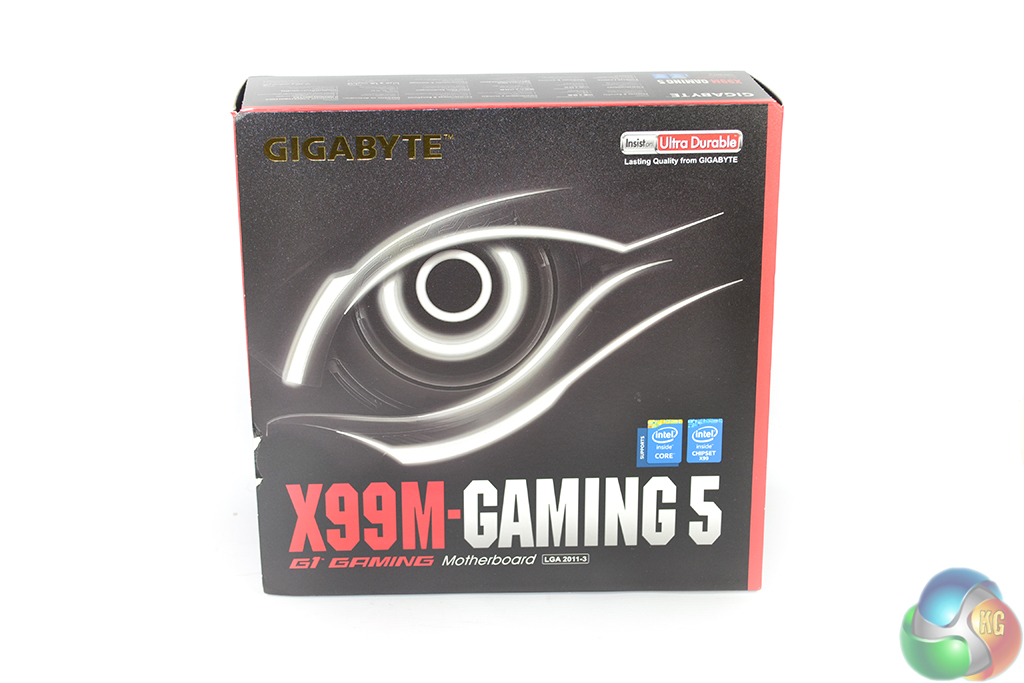
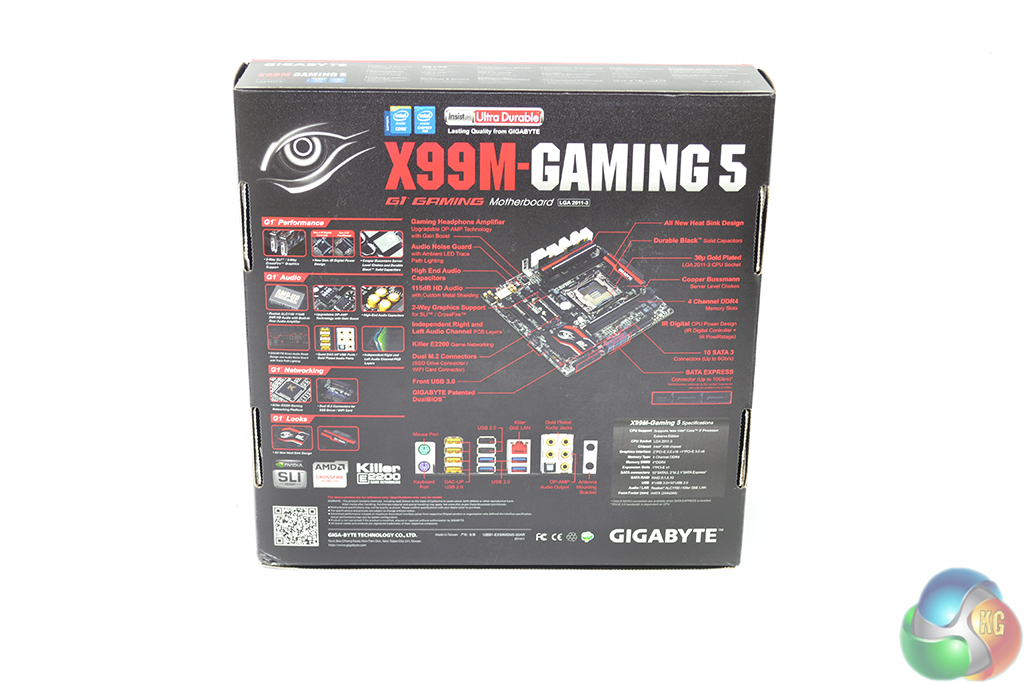
Gigabyte ships the X99M-Gaming 5 in the company's red and black G1 Gaming packaging. The Gigabyte eye and board name are shown on the front side, while the rear is reserved for a detailed run-down of specifications and features.
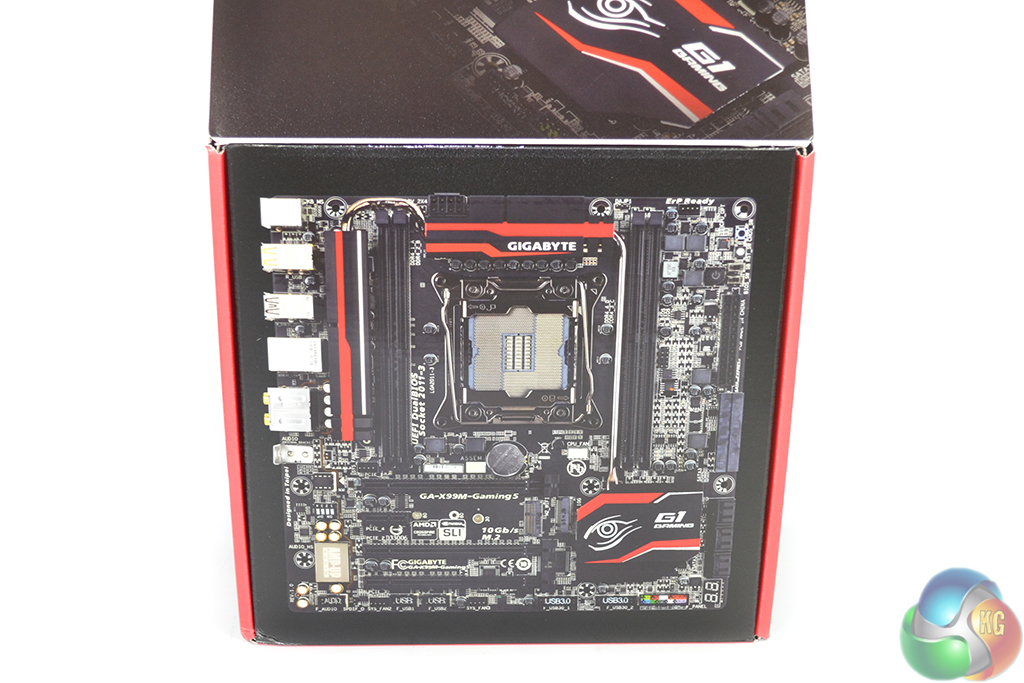
Opening the box flap reveals a full-size image of the motherboard – a particularly useful addition to the packaging for in-store customers.
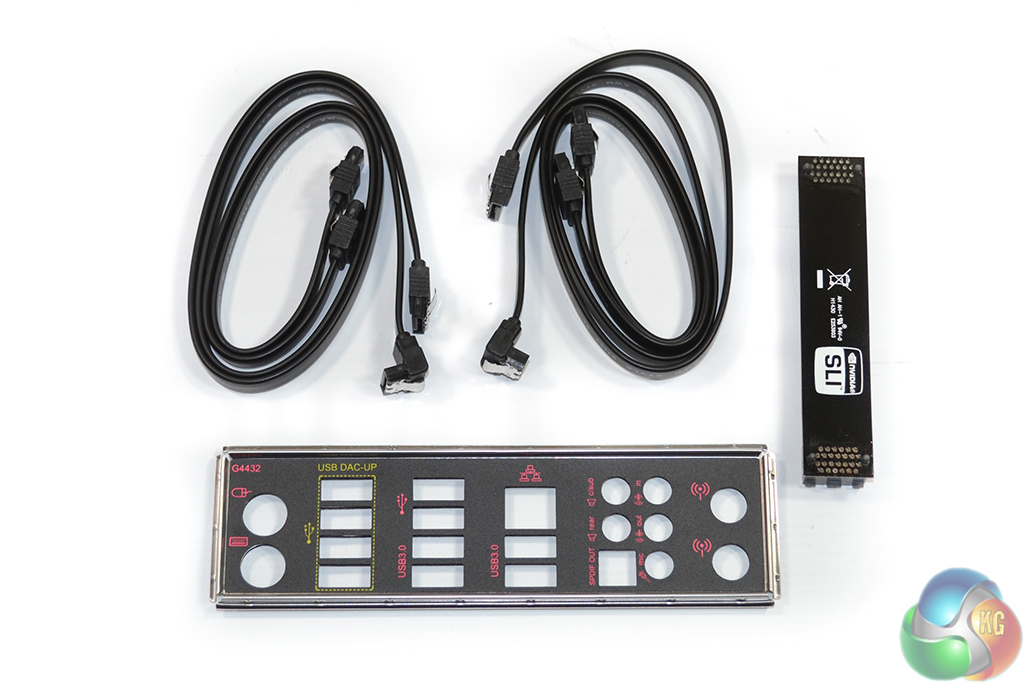
Four SATA cables, a flexible SLI bridge, and the rear IO shield form the mATX motherboard's basic bundle. Basic it may be, but the bundle is likely to be sufficient for the vast majority of this board's customers.
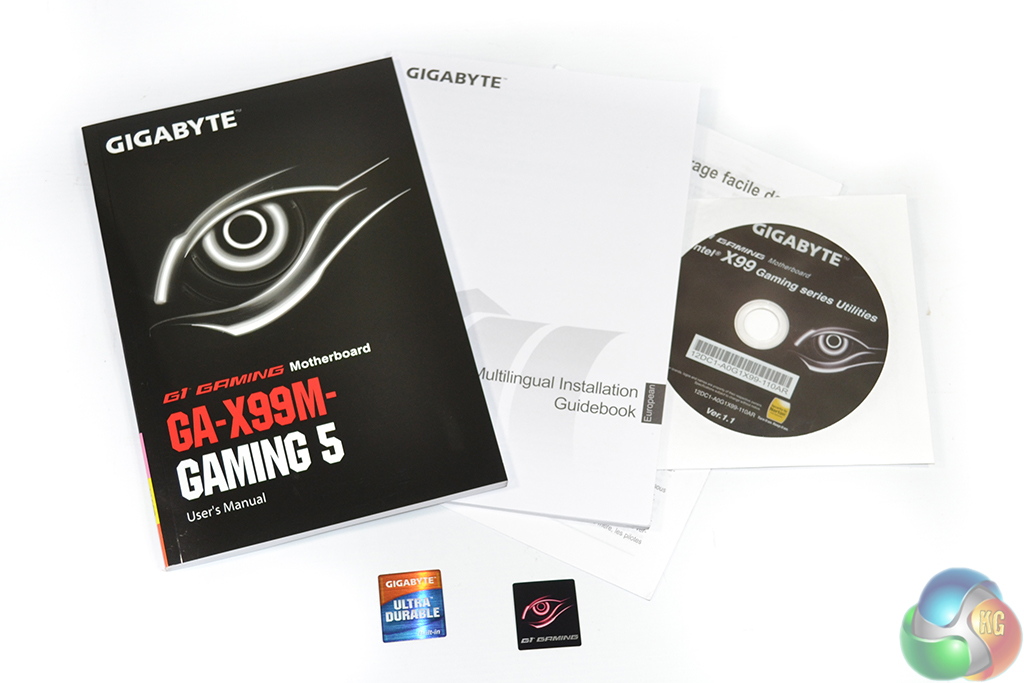
Documentation consists of the standard array of manuals and paperwork, the driver CD, and two case stickers.
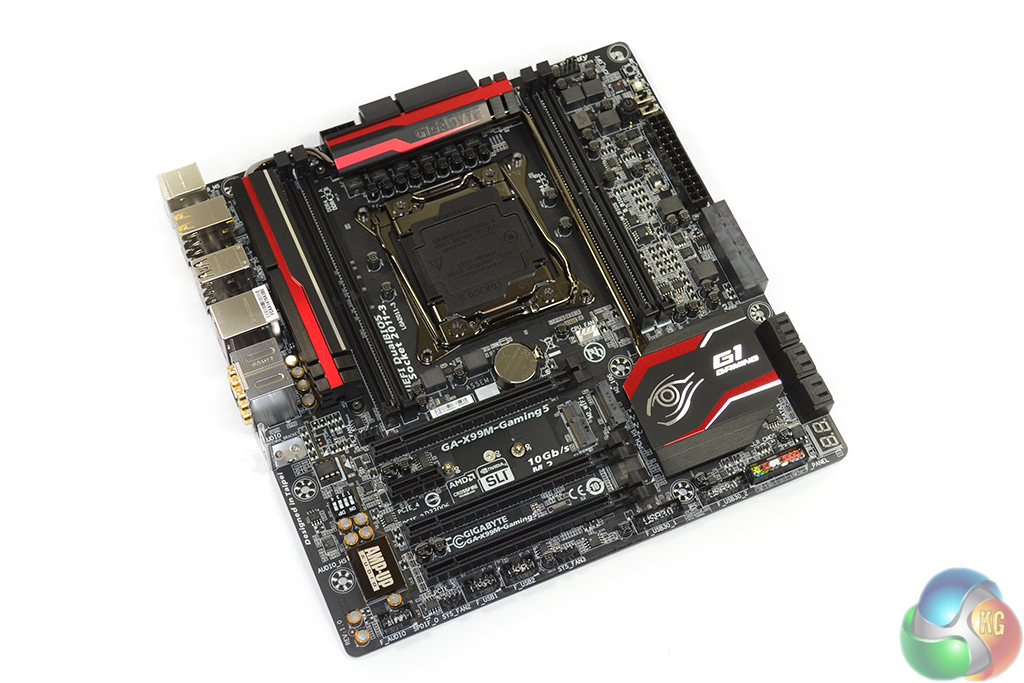
With the X99M-Gaming 5 measuring in at 24.4 x 24.4 cm (9.6 x 9.6 inches), Gigabyte uses the full set of dimensions allocated to a micro ATX motherboard. In doing so, the company manages to return four DIMM slots, three full-length PCIe connectors, and a vast array of storage interfaces.
It is good to see, from first glance, that many of the inherent features that make Intel's X99 platform such an alluring proposition are maintained on this cut-size component. The red and black colour scheme is easy on the eye, too.
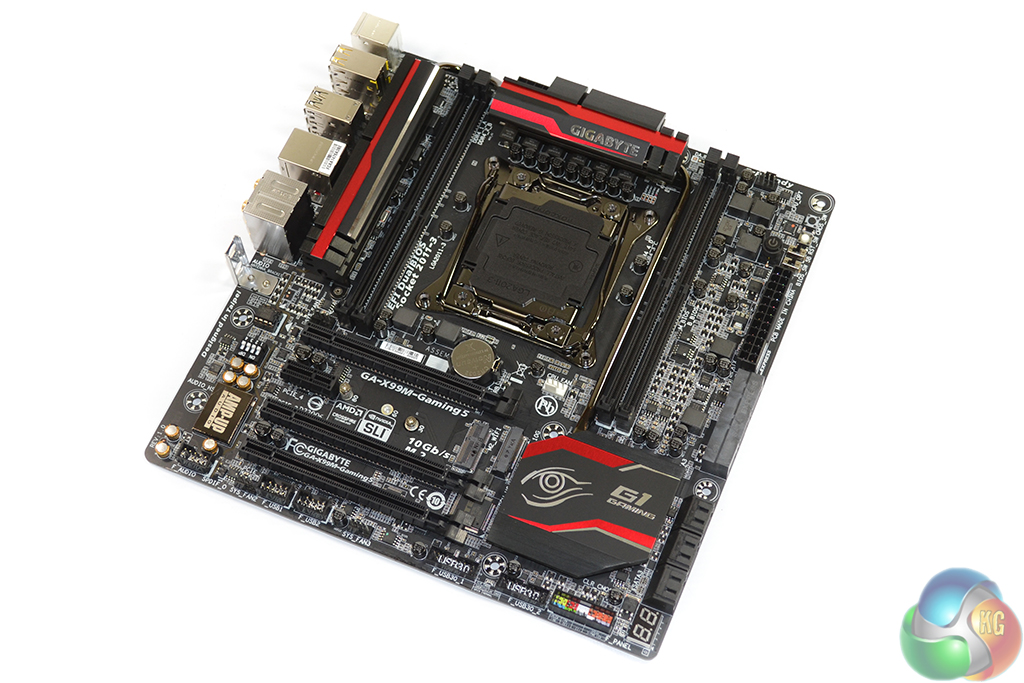
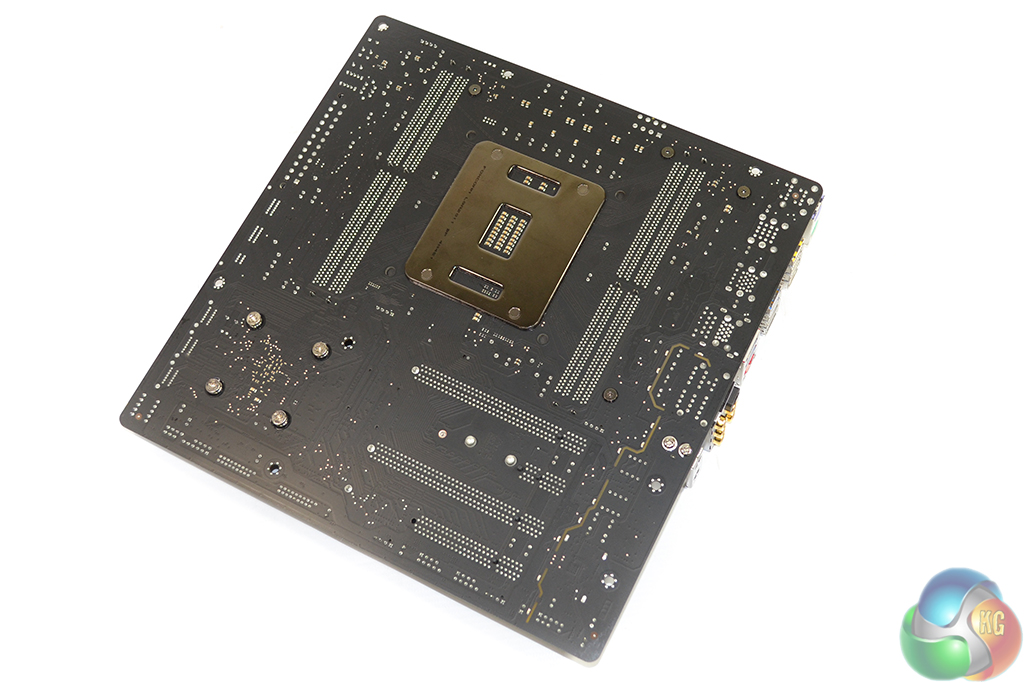
Mastering the layout of a micro ATX motherboard is almost impossible. There will be users who want multiple graphics, with spacing. Others may yearn for a motherboard capable of powering a single-GPU, without interfering with wide CPU coolers. And then there's the point of sideways-facing SATA ports extending the required chassis dimensions.
Those previous points are just a few of the design challenges that motherboard vendors are forced to tackle in one piece of hardware.
Gigabyte's X99M-Gaming 5 looks to be tailored to dual-GPU users (gamers) who want to take advantage of the LGA 2011-3 CPUs' computational capabilities and PCIe lanes.
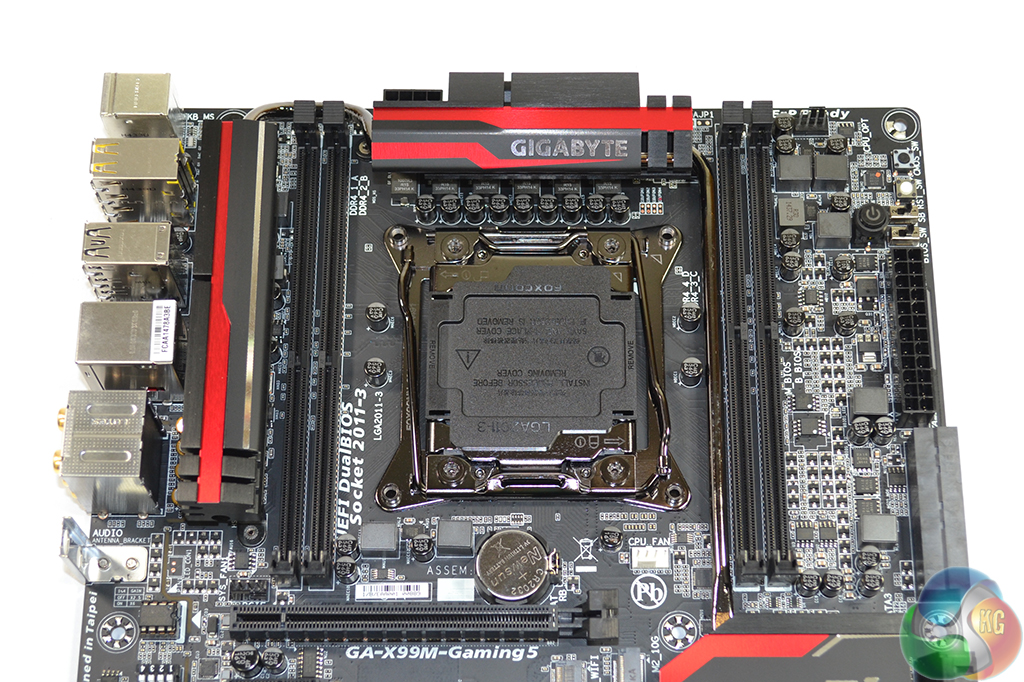
Needless to say, space around the large LGA 2011-3 CPU socket is tight. With a pair of the DDR4 DIMM slots residing closely to either side of the CPU socket, tall memory heatsinks and a large air cooler will not make a smart pairing.
The four single-latch DIMM slots support up to 32GB of DDR4 memory. Speed potential will depend on the board's BIOS implementation and a CPU's integrated memory controller (IMC) strength, however we did manage to hit 3GHz with G.Skill Ripjaws4 memory.
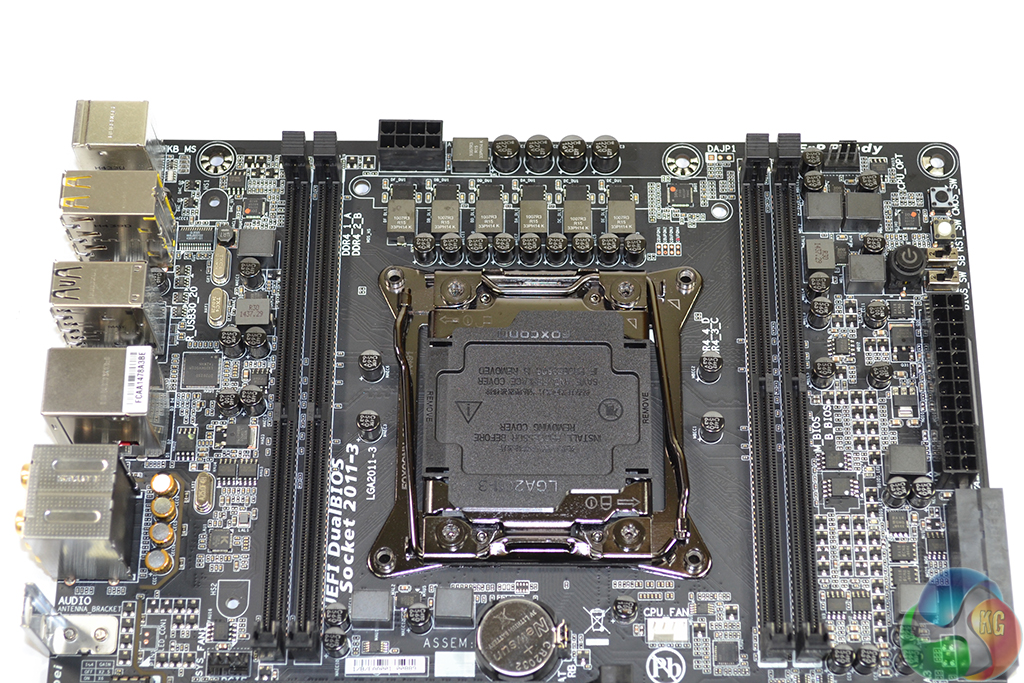
The DRAM and system voltage hardware sees the use of International Rectifiers' efficient IR3553M packages, as well as a pair of the same company's IR3570A controllers.
A six-phase power delivery system is used to feed an LGA 2011-3 CPU. This is lower than the eight-phase minimum we have seen from many other X99 boards, however there is the argument of quality over quantity.
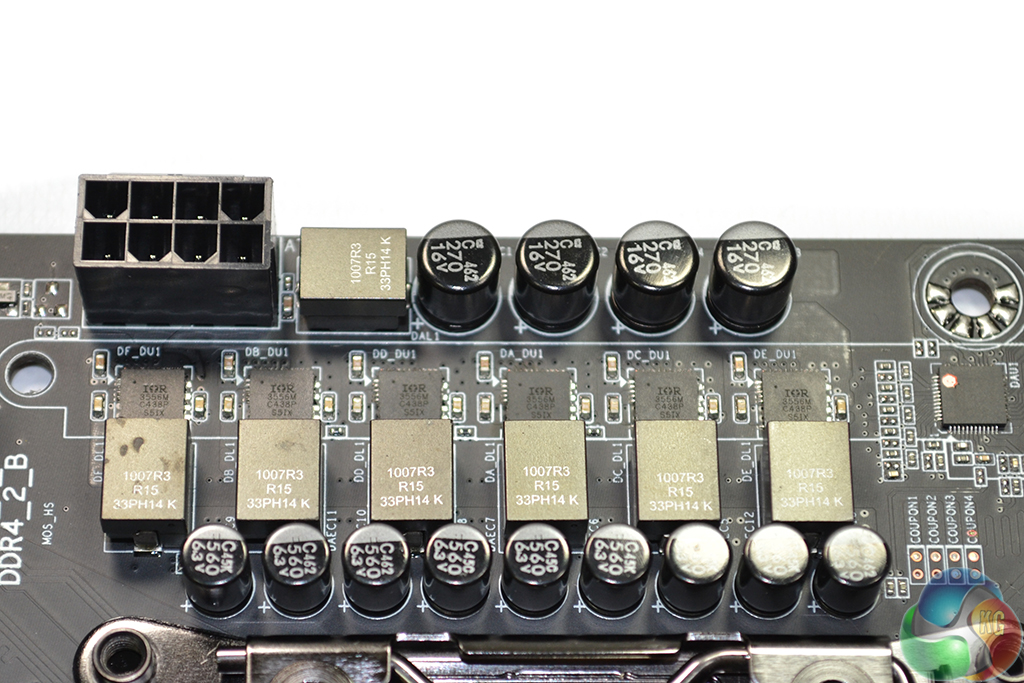
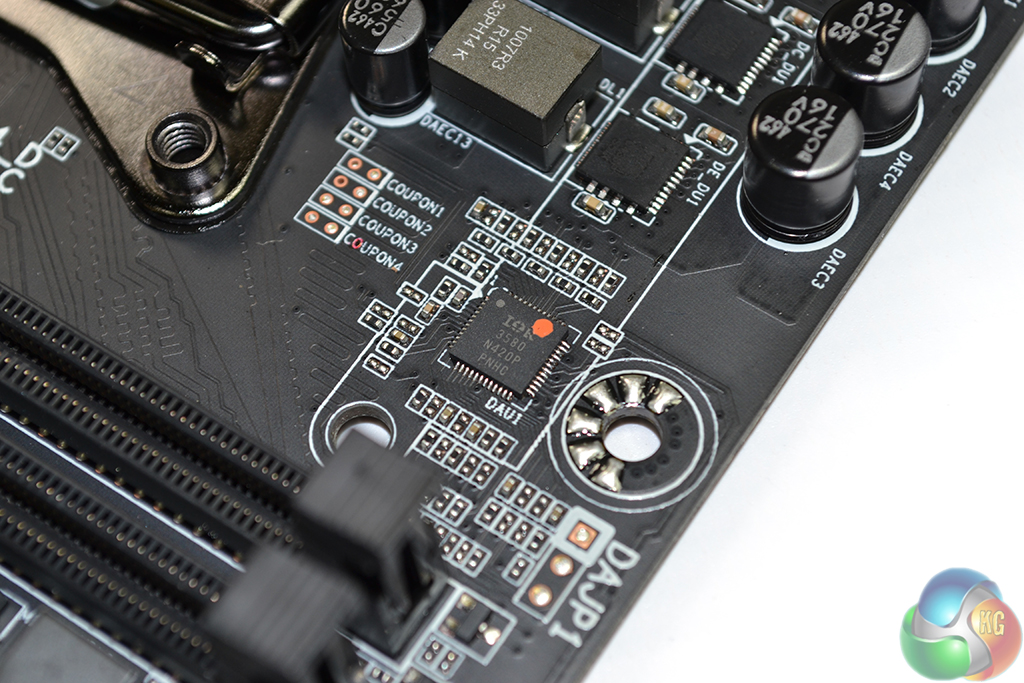
And on the topic of quality, those MOSFETs are International Rectifiers' IR3556M packages which combine a driver, Schottky diode, and two different types of MOSFET to provide an output current capability of up to 50A.
The board's chokes live up to a similar standard, with six server-level Cooper Bussmann FP1007-R3-R15-R components helping form the primary CPU voltage delivery system. According to manufacturer specifications, the inductors are capable of delivering 61 Amps without core loss and with a 40°C temperature rise. They are rated for operation with temperatures up to 125°C, which speaks positively for their durability.
Management of the voltage regulator is conducted by International Rectifiers' IR3580 digital controller. The digital control logic should give the controller an accuracy advantage over analogue chipsets, although that may come at the price of response speed.
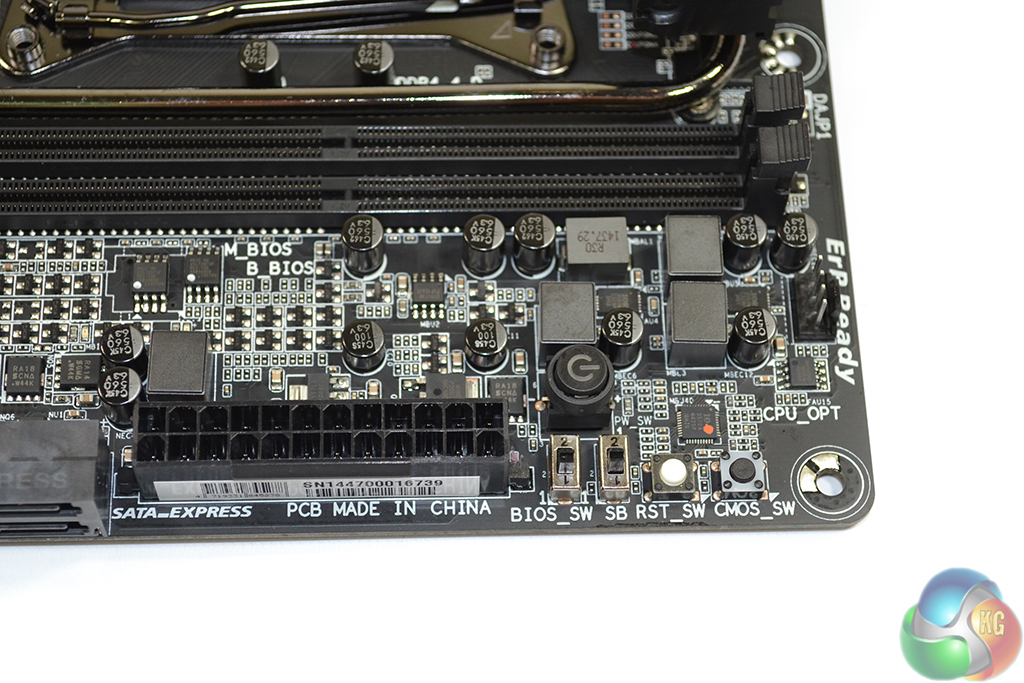
Power, reset, and clear CMOS buttons are sat in the board's top-right corner, alongside two BIOS switches and the 24-pin power connector. I always respect the inclusion of onboard buttons as they are particularly convenient in times of troubleshooting.
A debug LED is found in the board's bottom-right corner.
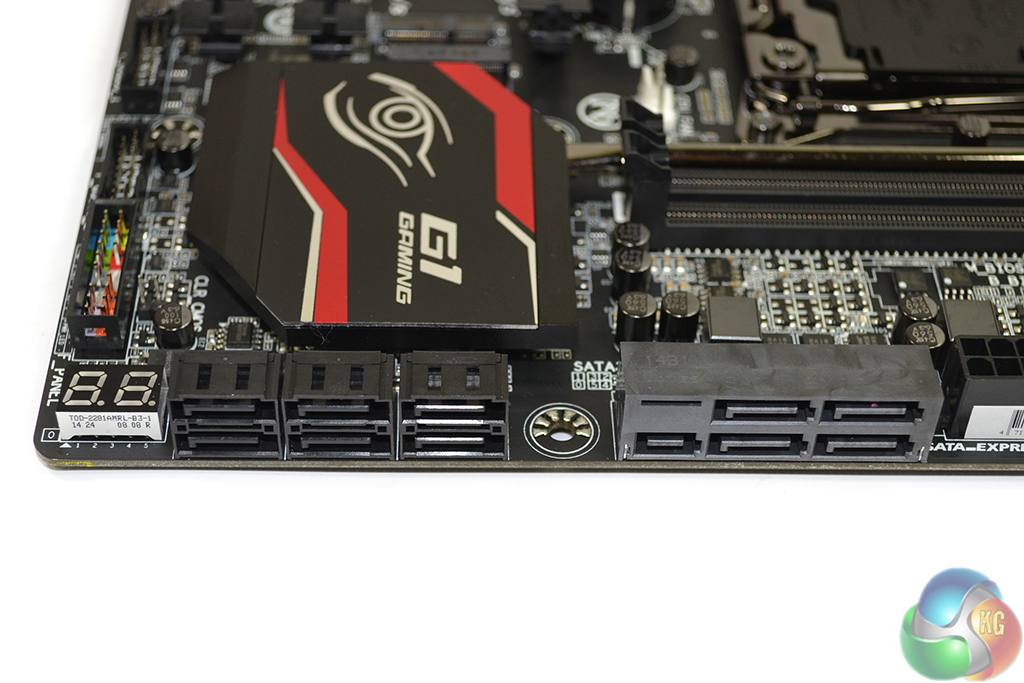
Layout of the ten SATA 6Gbps ports on the X99M-Gaming 5 is a little confusing. It is important to understand which ports belong to the X99 chipset's first six lanes, as those are the only ones that support RAID through Intel RST software (until possible future updates). Gigabyte makes this confusing.
The two middle ports (the ones to the right side of the left bank of six) are SATA ports 0 and 1. SATA ports 2-5 are embedded as part of the 10Gbps SATA-Express connector. The four 6Gbps ports furthest to the left support IDE and AHCI modes through native Windows drivers only, and should therefore be reserved for slower (perhaps backup) storage drives.
SATA ports 4 and 5 share bandwidth with the SATA-Express and M.2 connectors. Only one of those three sets of connections can be used at any point in time.
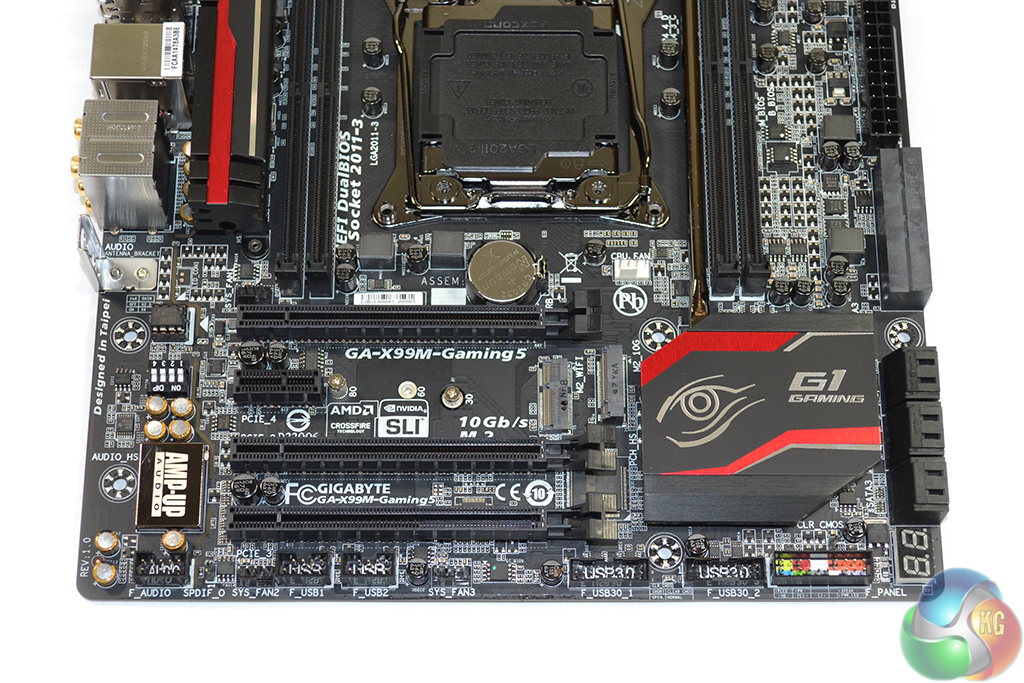
The first and second full-length PCIe slots run at sixteen-lane, gen 3 bandwidth. The lowest PCIe slot is hard-wired to a maximum link speed of eight lanes. Installing a 28-lane chip (the 5820K) reduces bandwidth allocations to provide an x16/x8/x4 configuration.
I think Gigabyte's layout decision is wise. Many users may be unhappy to see that their dual-slot cards will be forced to run back-to-back in CrossFire/SLI. But that is a compromise that has to be made when most mATX cases only have four expansion slots. Sticking a graphics card in the lowermost PCIe slot will also block access to front panel connectors.
That lonely PCIe 2.0 x1 slot is more-or-less provided for completeness only. Personally, I'd have saved the cost of the plastic and ditched it completely.
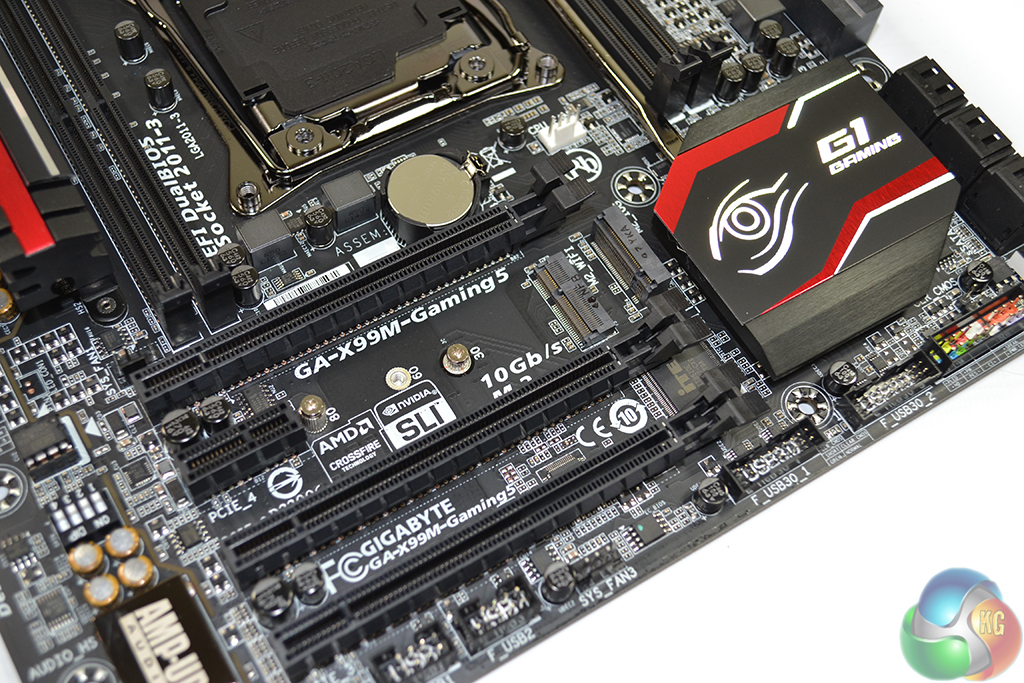
This is where I think Gigabyte has made its biggest design mistake with the X99M-Gaming 5. That M.2 connector, designed for high-speed SSDs, is limited to a measly 10Gbps connection speed from its two chipset-fed PCIe 2.0 lanes. Taking off the PCIe Gen 2 overheads, that translates into an SSD speed cap of just under 1GBps. Not particularly fast for users of the enthusiast, HEDT platform.
While that's still a sizeable improvement over current SATA SSDs, Samsung's 1GBps-capable XP941 has been out for months. And CES 2015 has proven that even faster M.2 drives from vendors such as Samsung, Kingston, and Plextor, are just around the corner. 2015 will see the shipping of M.2 drives which run into a considerable bottleneck with Gigabyte's 10Gbps M.2 implementation. That's not a smart design move on a long-term platform where there is no shortage of PCIe connectivity.
There are two far better design choices that could have been implemented. Option A would be to provide the M.2 connector with four PCIe 2.0 lanes from the X99 chipset, resulting in a 20Gbps connection speed. There's an abundance of PCIe 2.0 connectivity remaining in Gigabyte's implementation of the X99 chipset, and the company has experience of doing the four-lane process with its X99-SOC Force motherboard.
Option B would be to do what all other vendors are doing – provide the M.2 slot with four PCIe 3.0 lanes fed directly from the CPU to give it a bandwidth link of 32Gbps. And in a micro ATX motherboard, where a maximum of two graphics cards will be used, that approach has zero negatives (other than a small fee dictated by an additional chipset). With the 40- and 28-lane Haswell-E chips, at least four PCIe 3.0 lanes are always spare when two GPUs are used.
On a positive note, Gigabyte provides an additional M.2 connector (using the Socket 1 interface) that can be used to house a Wi-Fi card. Gigabyte provides one of the few methods of using an internal wireless adapter in addition to two graphics cards, inside a micro ATX chassis. This could be an important buying point for users who value the potential performance advantages of an internal wireless adapter.
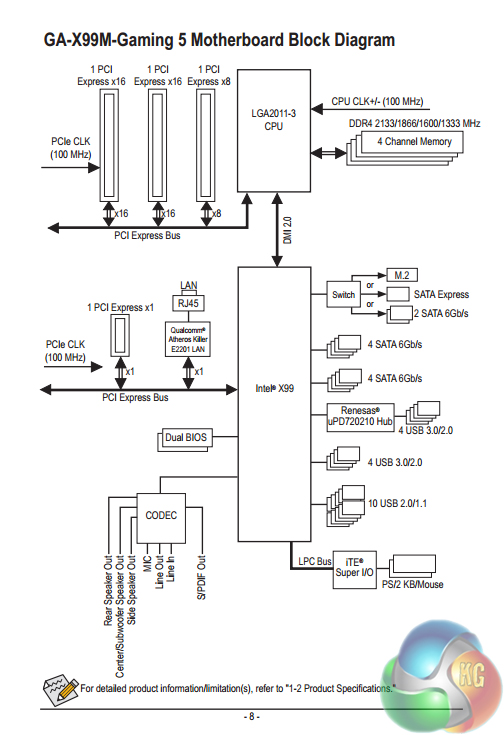
Gigabyte provides a block diagram of its motherboard in the manual. This is a very smart move, especially on the enthusiast X99 platform, as users can decipher the board's operating characteristics to provide their system with the most effective level of performance.
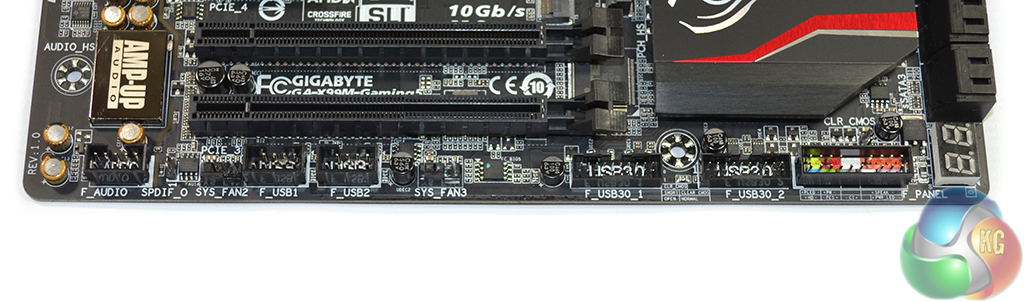
The usual array of front panel headers is found along the board's bottom edge. Gigabyte also chooses this area as the location for both USB 3.0 headers. That's not a smart move – the ports will be blocked by a large graphics card installed in either of the bottom two PCIe slots.
It would have made perfect sense to position one of the USB 3.0 headers up towards the 24-pin connector and keep the other where it is. This gives users redundancy for their USB 3.0 links – if the bottom-edge port is blocked the other one can be used instead.
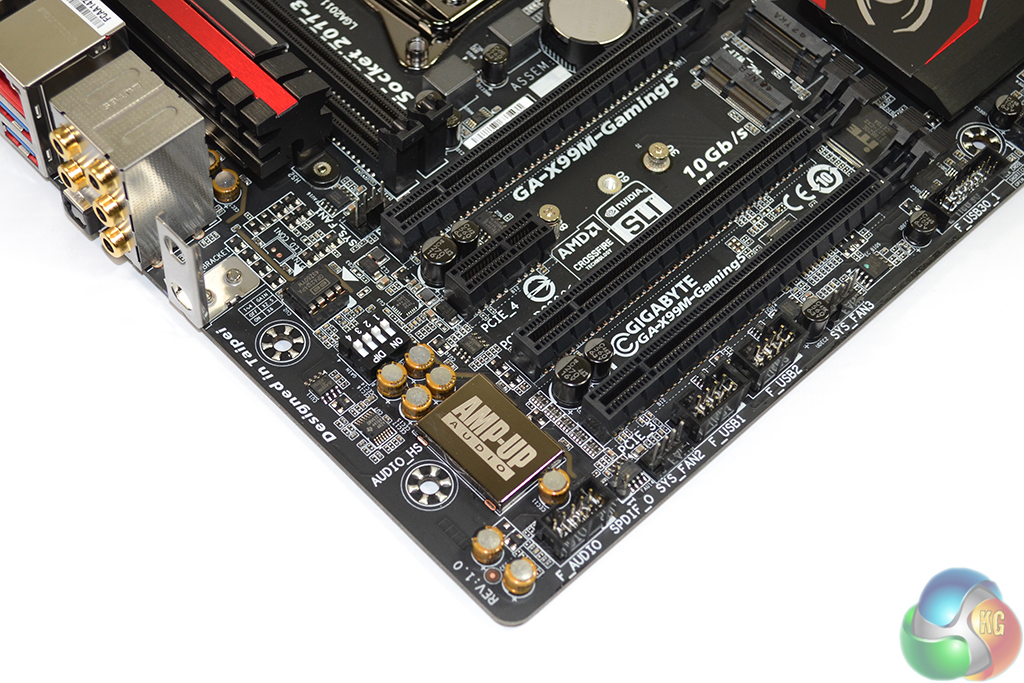
Audio is one of the areas where Gigabyte invests a sizeable portion of the X99M-Gaming 5 motherboard's budget. Excellent graphics aren't much fun if there isn't high-quality audio accompanying them.
Based around the popular Realtek ALC1150 codec, Gigabyte adds a Burr-Brown OPA2134PA operational amplifier into the audio loop. And if that doesn't live up to your standards, Gigabyte's socketed installation method allows the amp to be upgraded.
Four dip-switches control the amplifier's gain level. Nichicon ‘N428' capacitors assist with delivery of the audio signal, although the total number is reduced thanks to a replacement Texas Instruments DRV632 DirectPath line driver.
The audio signal is sent along an isolated PCB route that glows red when the motherboard is powered on. Right and left signals are segregated to minimise interference.
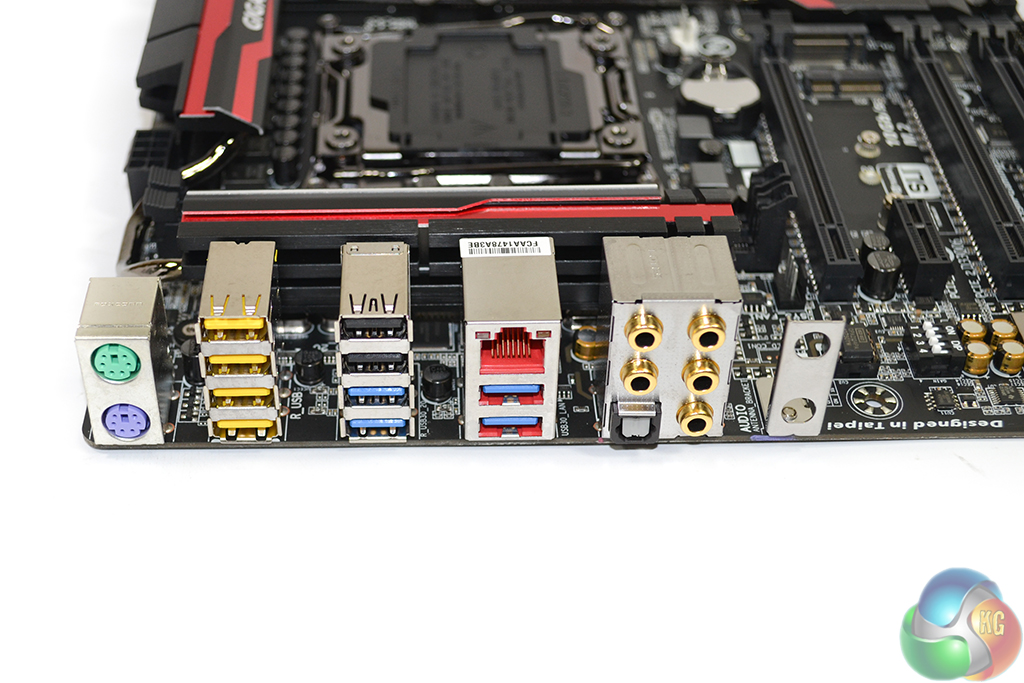
The four USB 3.0 ports are provided via a Renesas uPD720210 4-port hub. A further six USB 2.0 ports are present, the yellow four of which are ‘DAC-UP' ports that are fed a clean voltage signal for improved audio quality delivery. Two PS/2 ports may be welcomed by some users.
Ethernet is provided by way of Killer's E2201 chipset. While there are many enthusiasts who prefer Intel's lower-cost I218-V alternative, the network-controlling software for Killer's NICs is what continues to make them popular on gaming components.
Gold-plated audio jacks are used to minimise signal interference. A pre-installed mounting bracket is ready to be used with antennae from a wireless adapter.
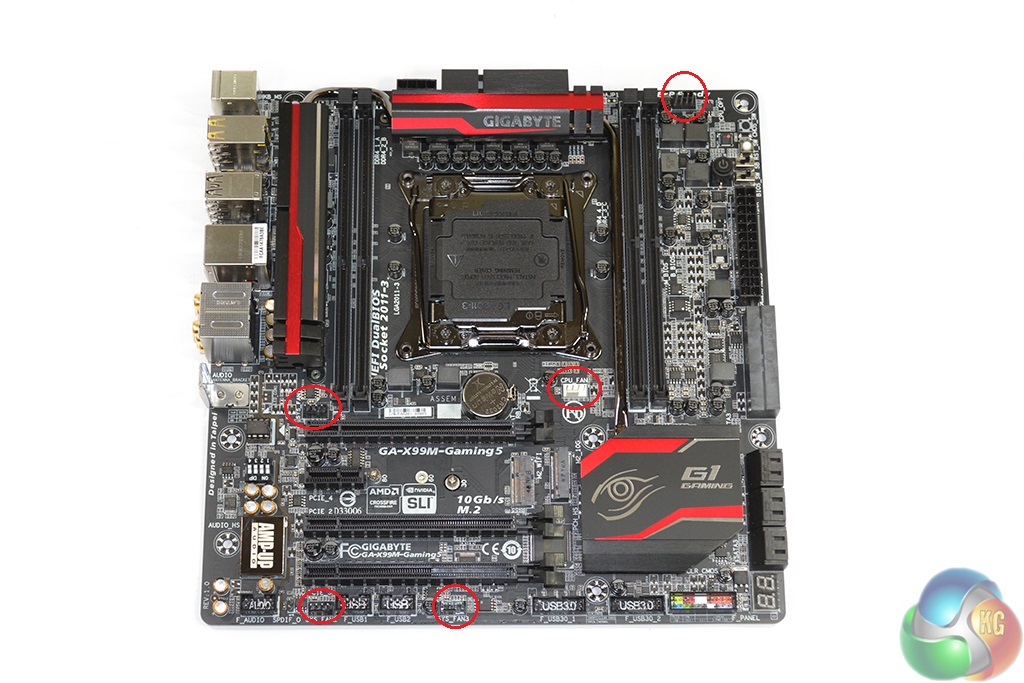
Distribution of Gigabyte's five 4-pin fan headers is very good. The two CPU headers are well within reach of the CPU socket, and chassis fans are covered by the three remaining headers which are found in smart locations.
Being picky, moving one of the bottom-edge headers further to the board's right side would be more convenient for serving a front chassis fan. ITE IT8792E and 8620E chipsets provide fan and Super I/O control, as well as system monitoring.
UEFI
Firstly, we are pleased to report that our NZXT Avatar S mouse worked to its usual standard in Gigabyte's X99 UEFI BIOS. We’ve found our NZXT Avatar S to be the most troubling mouse with UEFI support, so when it functions correctly in the interface, that is usually a good sign for overall mouse support.
Gigabyte's X99 UEFI is consistent across the motherboard line-up (and so is the bulk of our analysis). The only difference between the X99-UD4 UEFI and the iteration for the X99M-Gaming 5 is the latter's inclusion of a CPU VCCIO parameter.
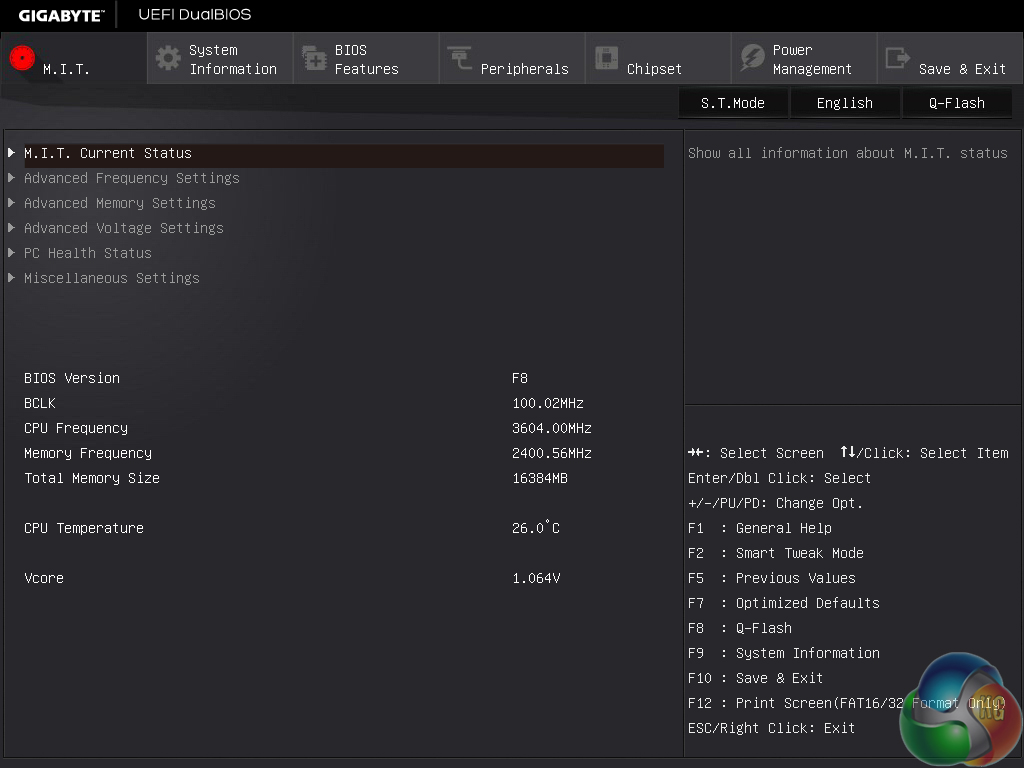
A UI based around Gigabyte’s old style of BIOS is present on the X99 interface. Overclockers with a vast bank of experience in the old interface may welcome the BIOS-style layout.
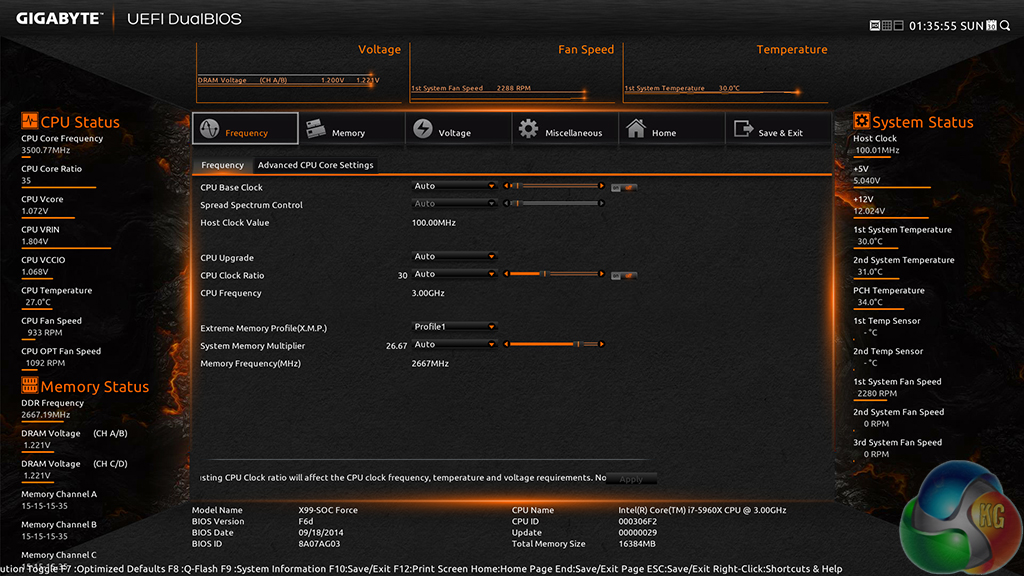
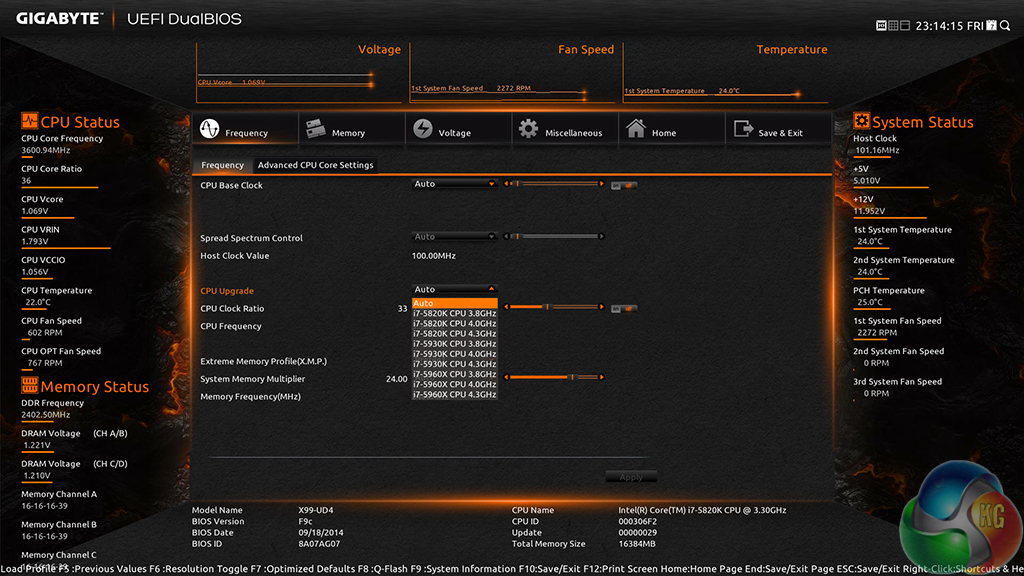
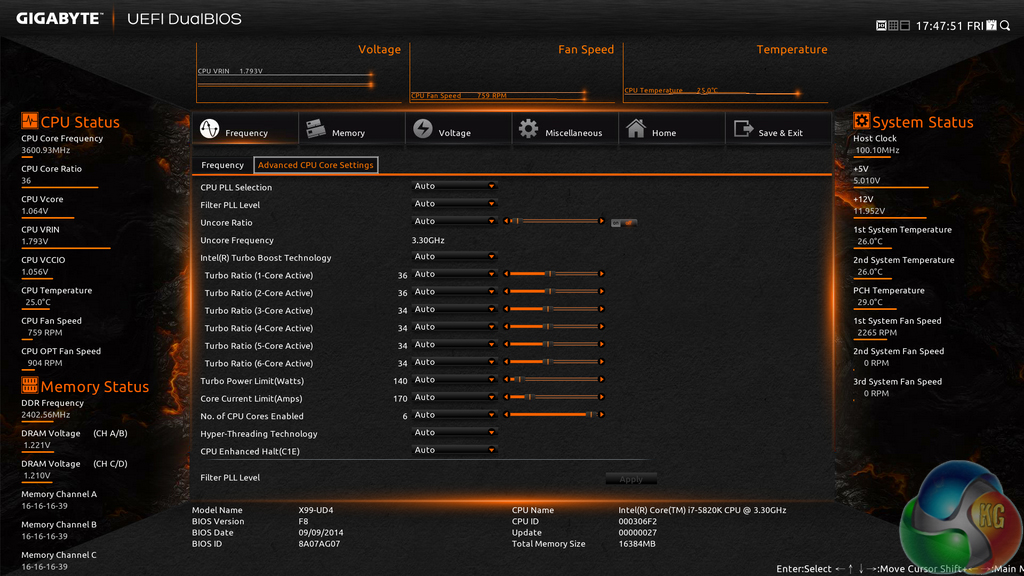
Upon entering the 1920×1080 (dependent upon your monitor’s resolution) UEFI, Gigabyte opens the frequency page. The interface packs large amounts of information into a single screen by virtue of its 1920×1080 resolution. Voltages, frequencies and other monitoring parameters are consistently scattered around the outside of each page.
A number of speed parameters and performance boosts can be selected via the Frequency page and its subsections. There are automated overclocking profiles which increase the speed of a relevant CPU to as much as 4.3GHz, which is impressive.
The X99M-Gaming 5 uses an orange skin by default, although the background image can be adjusted.


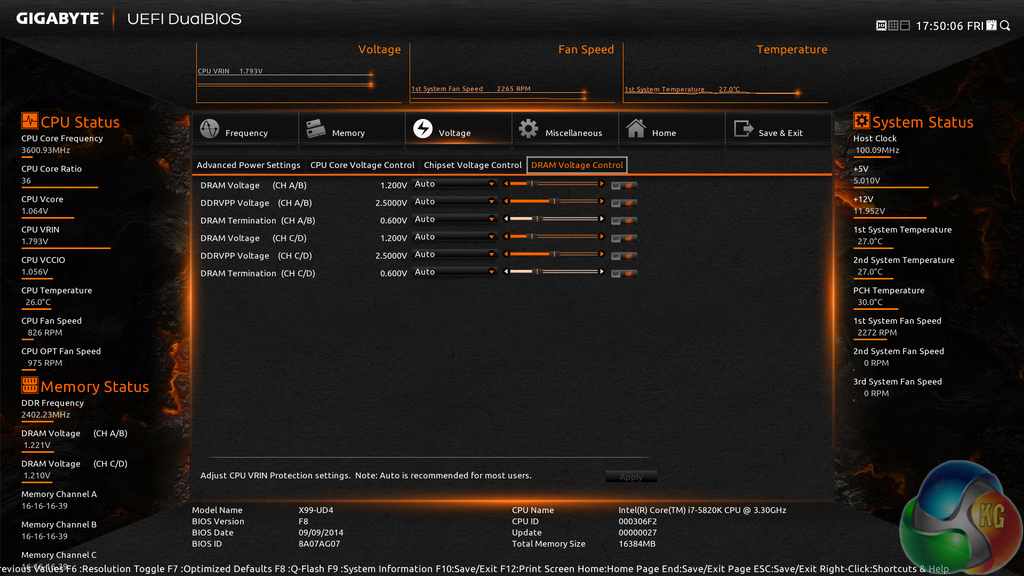
Frequency and timings configurations can be adjusted via the Memory section. Gigabyte does not include any memory overclocking pre-sets with the X99M-Gaming 5, although they are unlikely to be of importance to the board's target audience.
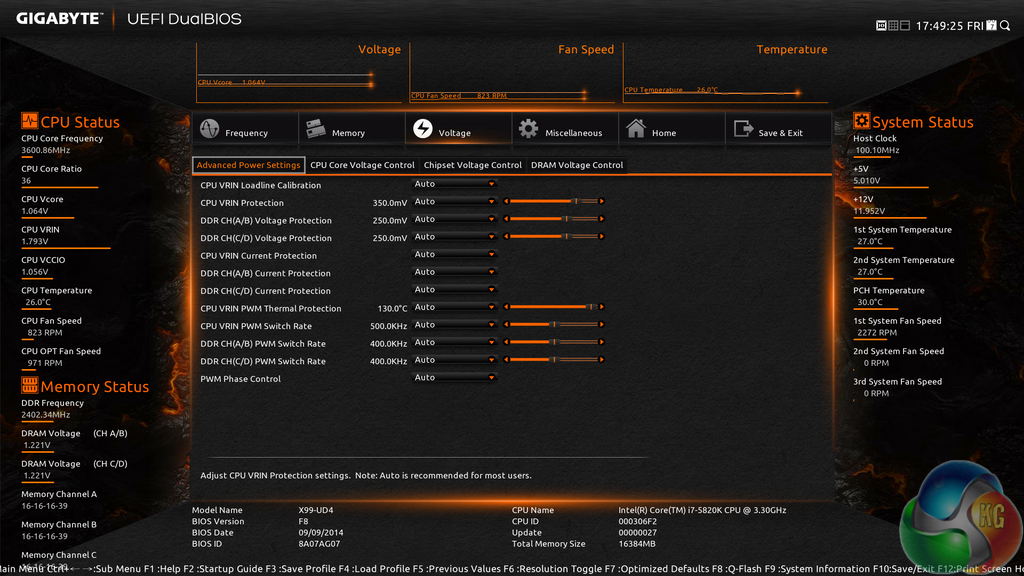
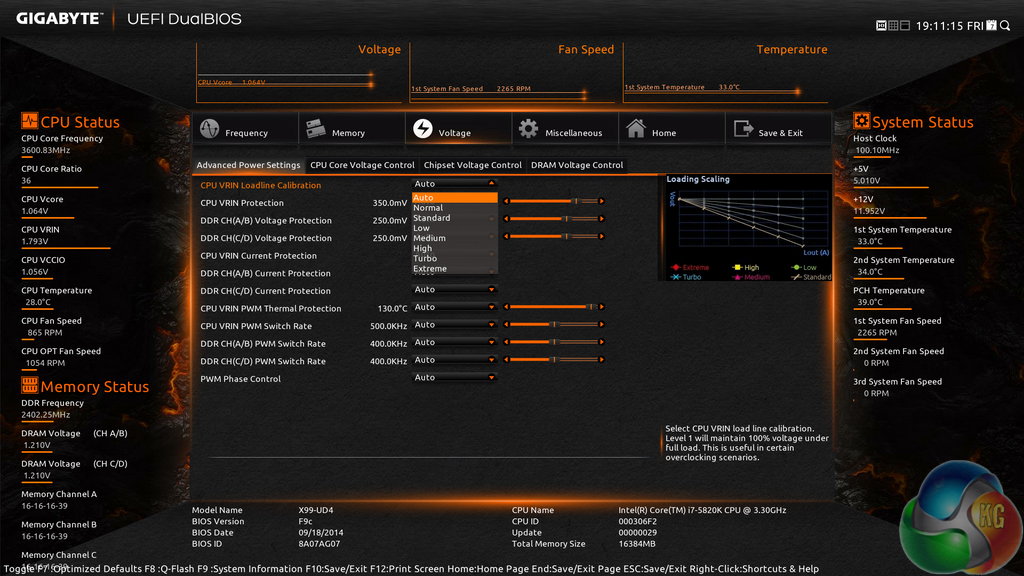
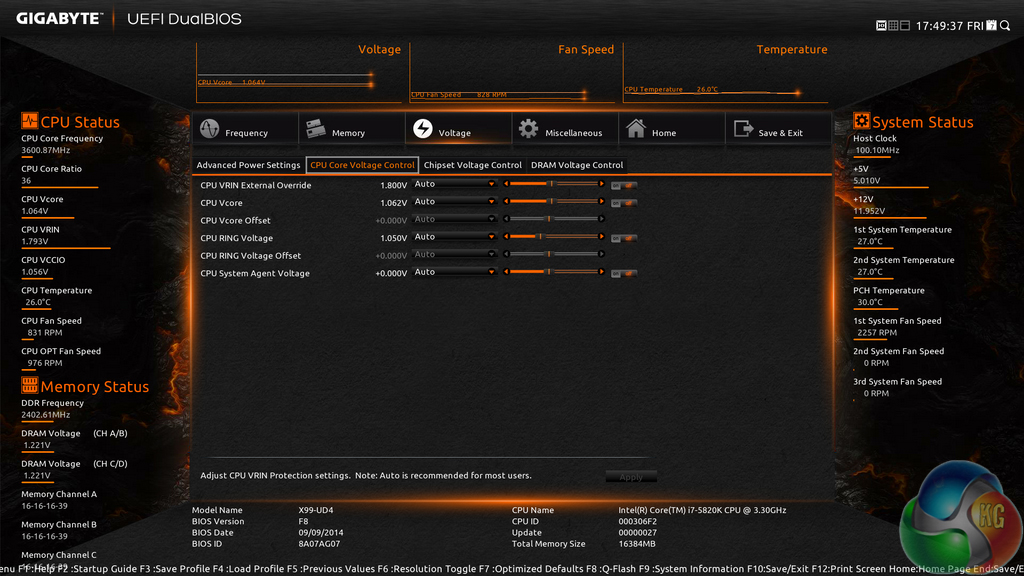
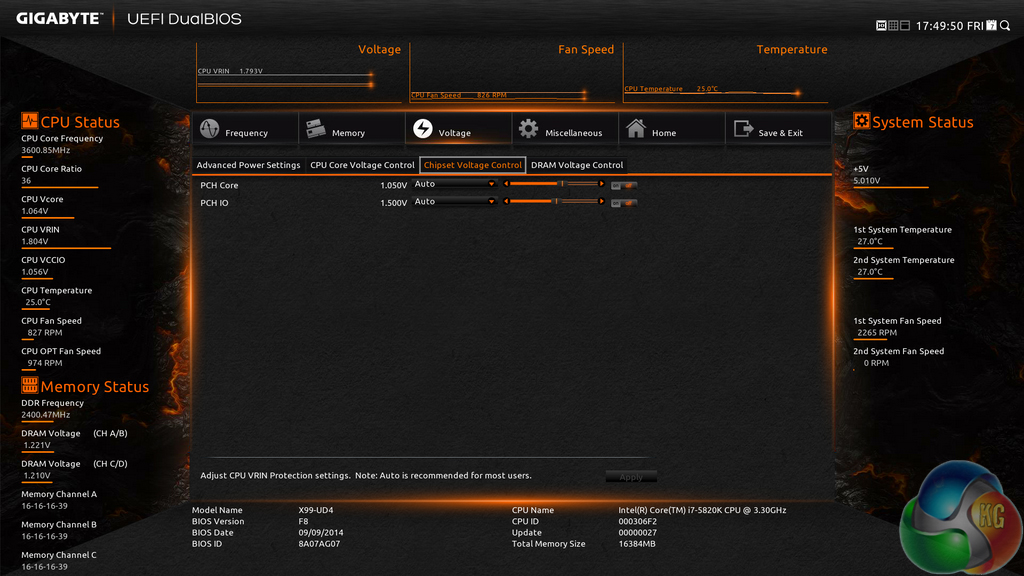
Power and voltage settings can be adjusted in the relevant subsection. Some of the parameters, such as CPU VRIN Loadline Calibration, open a graphical display to assist a user in making an appropriate choice.
Oddly, Gigabyte situated the all-important CPU voltage controls in the second column on the Voltage subsection, not the first. If one does not like the slider approach of applying voltages, the relevant values can be typed in.
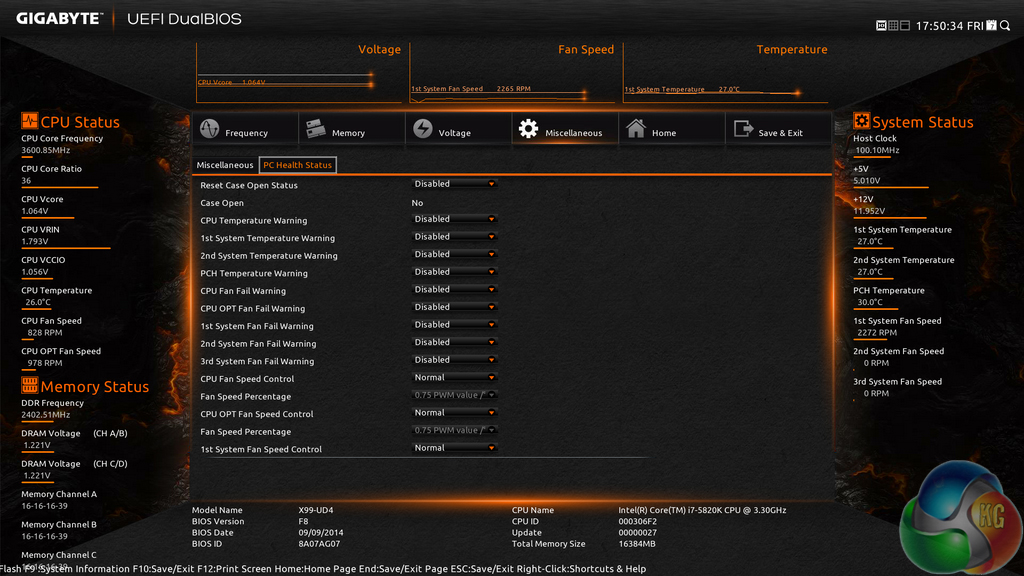
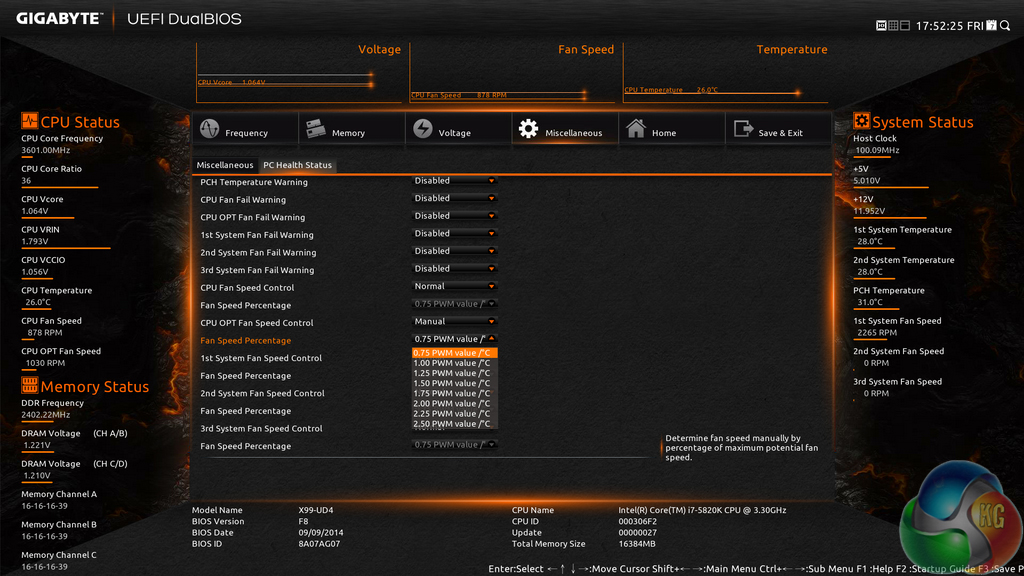
Fan and warning settings can be accessed via the PC Health Status column of the Miscellaneous section. Fan speed controls can be set to a user’s preference, albeit with a limited range of input.
Gigabyte uses a drop-down list to outline the relevant fan speed curves, which is a less user-friendly approach than the graphical interface used by competing motherboard vendors. That said, Gigabyte's OS-based EasyTune software provides a graphical interface.
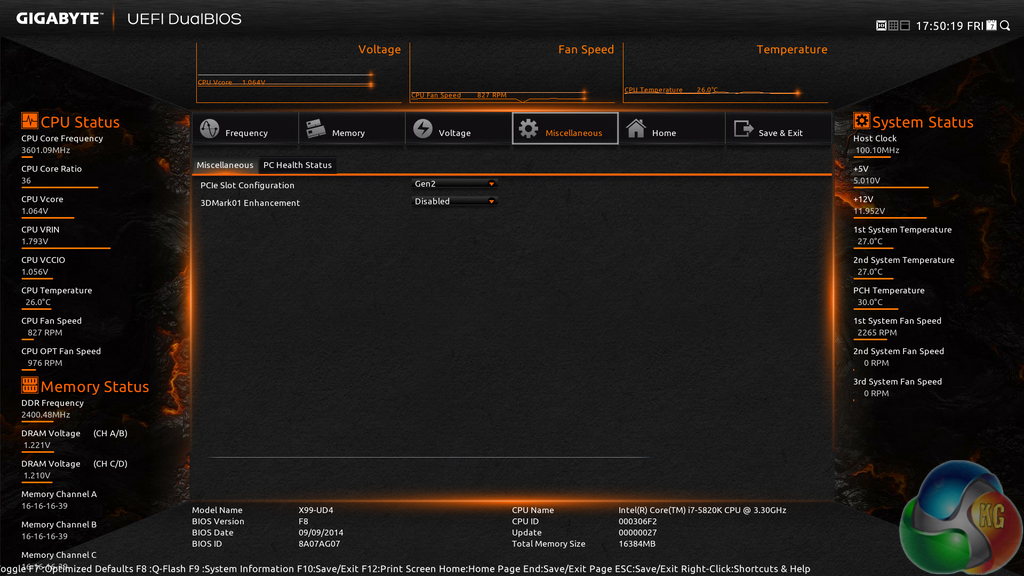
Remember the weird issue that we suffered with the X99-UD4 when using a graphics card in PCIe Gen 3 mode? That same issue is present on the X99M-Gaming 5. To quote what was previously said, including the solution:
“We suffered an anomalous issue that had me puzzled for about two days before coming up with a solution. Running any form of GPU load would result in a driver crash, screen lock-up, or BSOD. We thought it was a driver or hardware (namely GPU) issue, but after testing every single scenario (different drivers, Nvidia GPU, Asus R9 280X test GPU in other systems, different CPU/memory/PSU/motherboard, etc.), it was clear that Gigabyte's X99-UD4 motherboard was at fault.”
As in the case of the X99-UD4, the solution was an odd one. The X99M-Gaming 5 would not run our Asus R9 280X Matrix Platinum graphics card using the PCIe 3.0 mode. We tested a Sapphire R7 240 and Palit GTX 750 Ti and they would operate without issue. Our only solution was to manually drop the Asus card's link to PCIe Gen 2 mode via the UEFI setting.
This is a very odd issue that I have never experienced outside of Gigabyte's X99 motherboards. The problem seems to be an incompatibility between the Gigabyte motherboard and our Asus graphics card (perhaps due to conflicting BIOSes from each component).
Gigabyte could not replicate our issues, so it could be limited to the partnership with our Asus GPU. Whatever the reason for the issue, it is concerning, especially given the vast array of hardware that can be teamed with a motherboard
So that's two Gigabyte boards showing identical issues, yet all other vendors' boards that we have tested have run without issues. That's concerning for potential buyers. We will provide an update when Gigabyte and ourselves understand the problem and its cause.

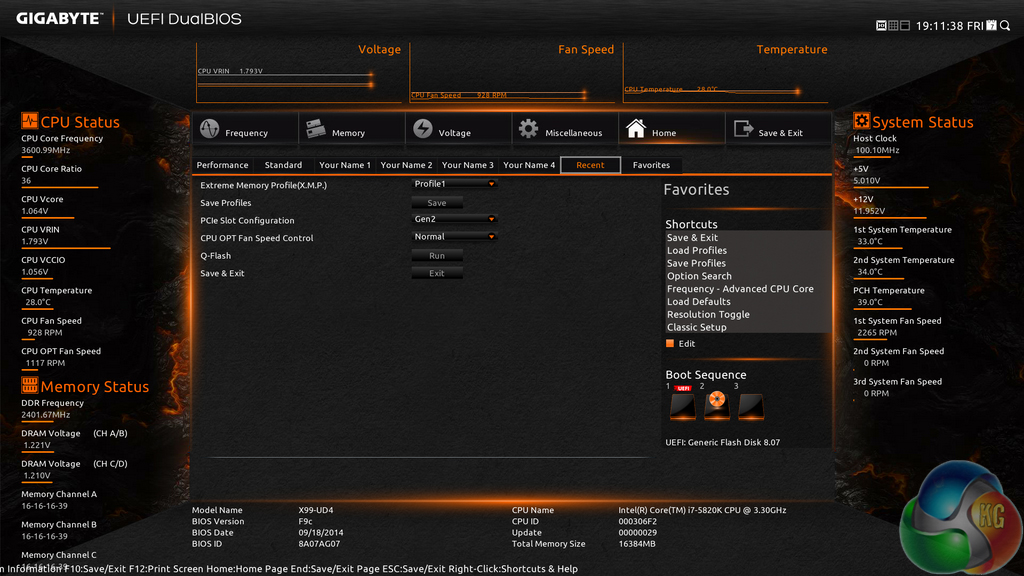
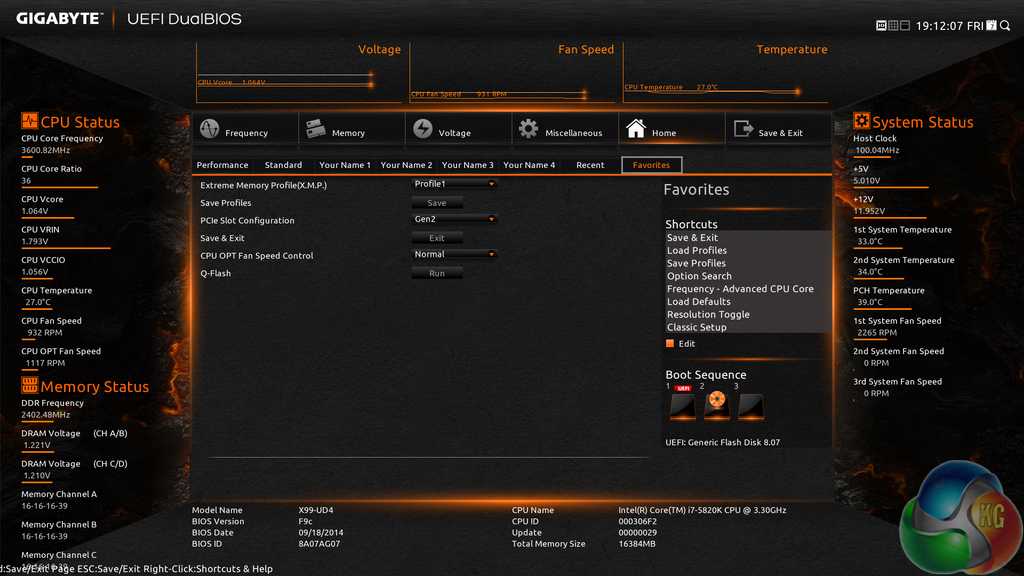
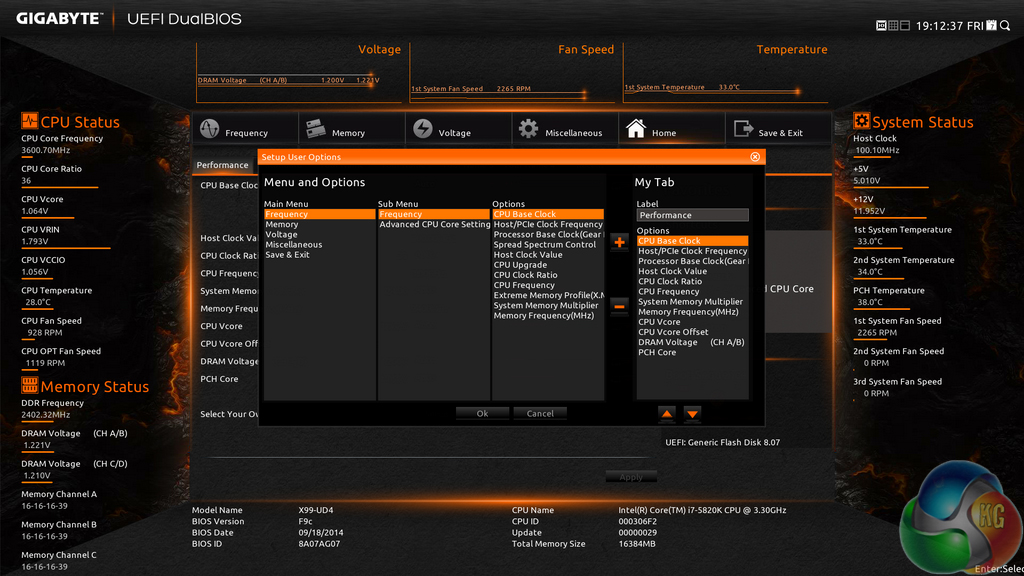
The Home section provides an area where users are given a degree of freedom as to the interface’s layout. By default, key component parameters are displayed on the Home page, but this layout can be tweaked to a user’s preference. And if you’d rather not tweak the interface, Gigabyte allows you to create four custom pages from scratch.
The Recent section displays recently used settings while the Favourites tab can provide quick access to frequently used parameters.

Up to eight OC profiles can be saved to the motherboard’s internal memory, while many more can be exported or imported via USB.
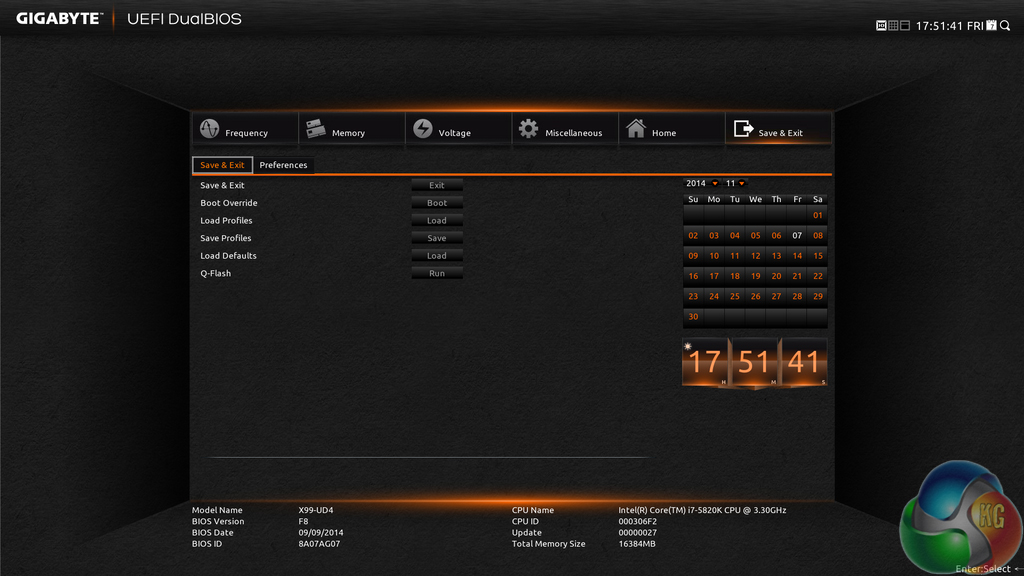
Control adjustments for the UEFI and the Q-Flash BIOS updater can be accessed via the Save & Exit section. I would prefer Gigabyte to have given the many control parameters their own section titled ‘Settings’ to make them easier to spot in the UEFI. Save & Exit typically implies saving and exiting, not adjusting control options and updating the BIOS.
Some useful additions to Gigabyte’s UEFI are the ability to change the visual theme, background wallpaper, and resolution.
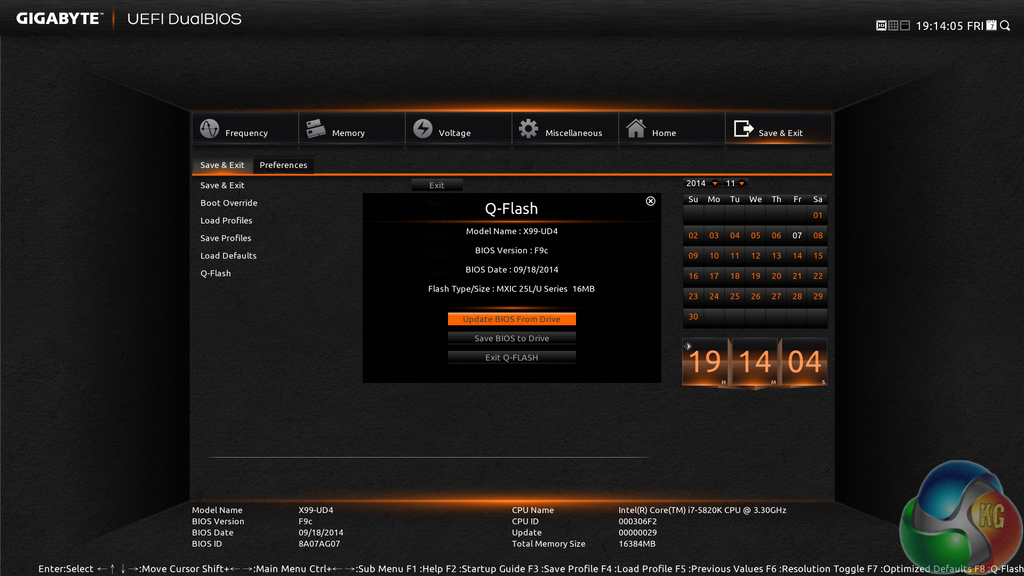
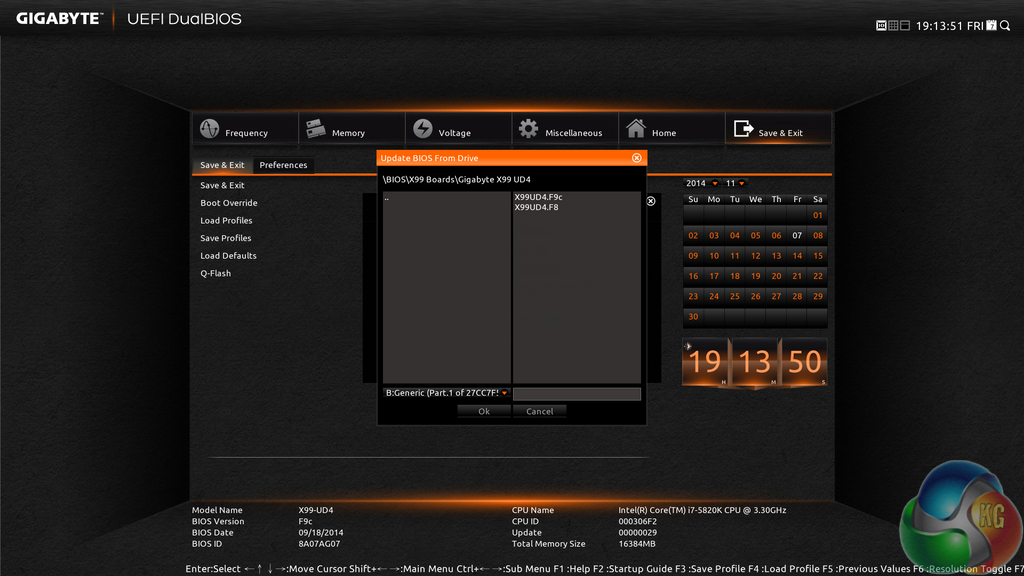
The Q-Flash updater is able to access folders in a USB flash drive, allowing users to manually seek a BIOS file.
UEFI Summary
Gigabyte has implemented a UEFI that is full of adjustable settings and parameters, as well as additional features that are of use. While this may appeal to advanced users, there is still clear room for improvement when it comes to organisation.
The use of a Full HD, 1920×1080 resolution is excellent. Additional information relating to operational recordings can be displayed on a page without interfering with the parameters that users intend to tweak. And there’s also the old style of BIOS for overclockers who have extensive experience with Gigabyte’s motherboards from previous generations.
There are still a few issues relating to overlapping content and slightly poor layout. Many parameters for frequency and voltage are repeated multiple times causing the UEFI to seem more cramped than it actually is. However, there is no question that even seasoned overclockers will be happy by the sheer number of tweaking options provided.
And, for the F2 BIOS profile tested on our sample, there is still the overhanging worry of system instability with certain PCIe configurations or graphics cards (although it does seem to be very much limited to our system and is by no means a common issue).
Gigabyte supplies a wide range of software that is compatible with its entire series of X99 motherboards. The tools are largely identical to the Z97 offerings, with the exception of platform specific functions.
Many of the screenshots below were taken using Gigabyte's X99-UD4 motherboard (which uses the same software as the X99M-Gaming 5).
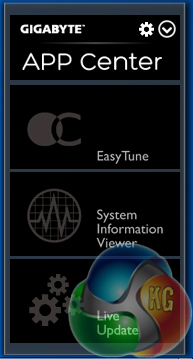
App Center is where the installed tools can be accessed. The screen pops up in the bottom-right of one's screen when actuated via the taskbar.
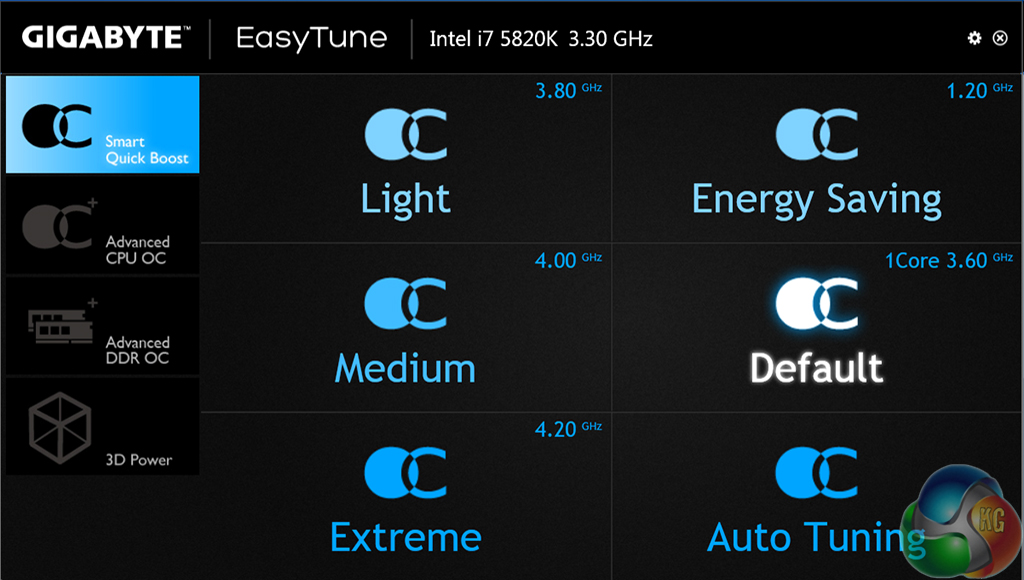
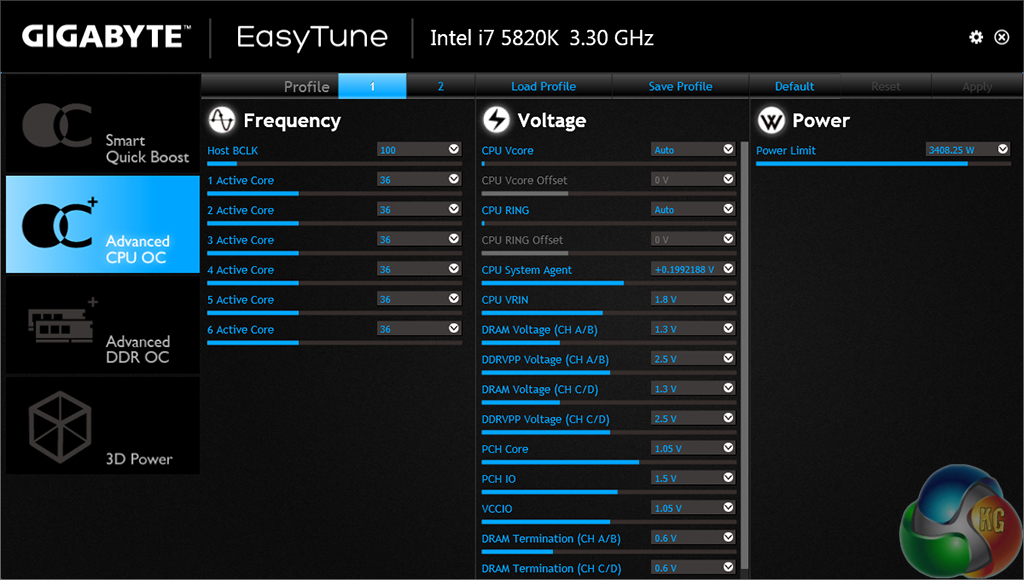

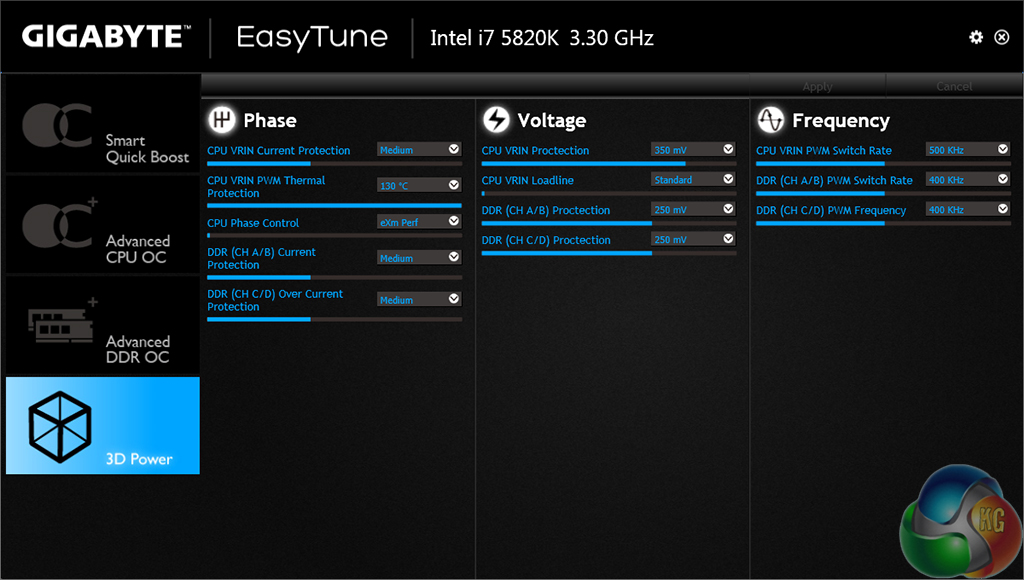
Gigabyte’s EasyTune software allows users to view and adjust frequency, voltage, and other overclocking-related settings in an OS environment. Pre-set frequency profiles can also be selected, as can an auto tuning overclocking tool.
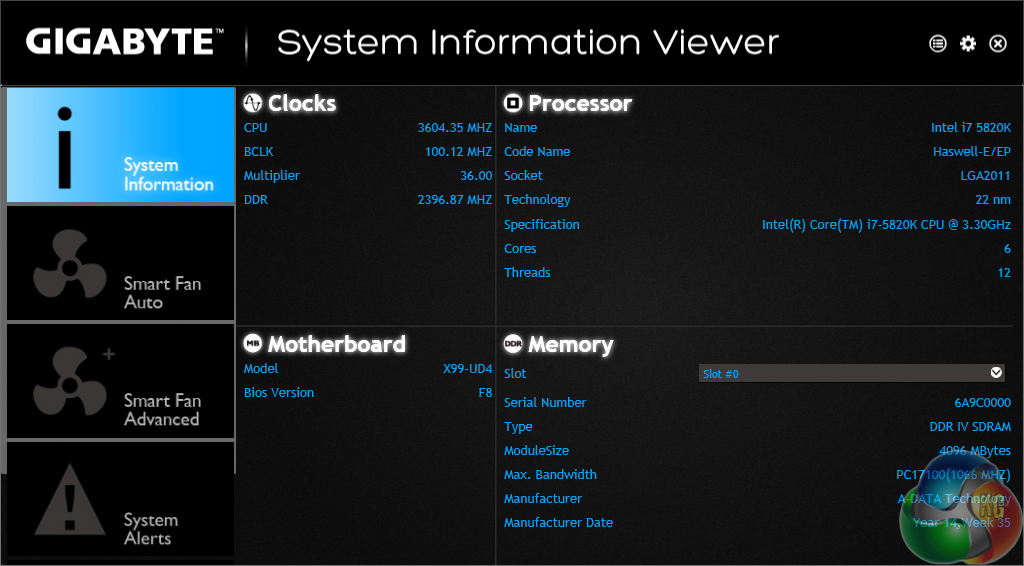
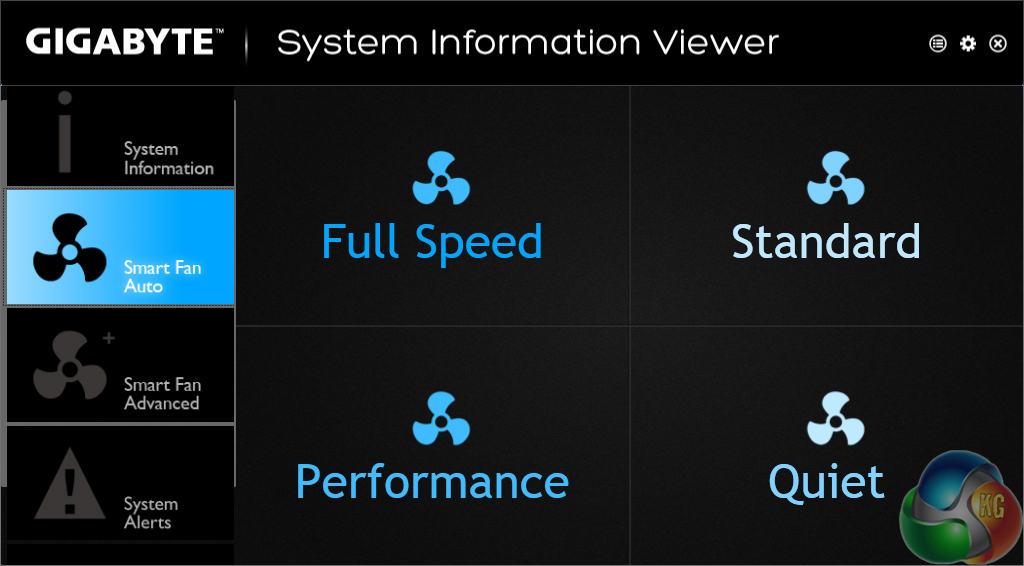
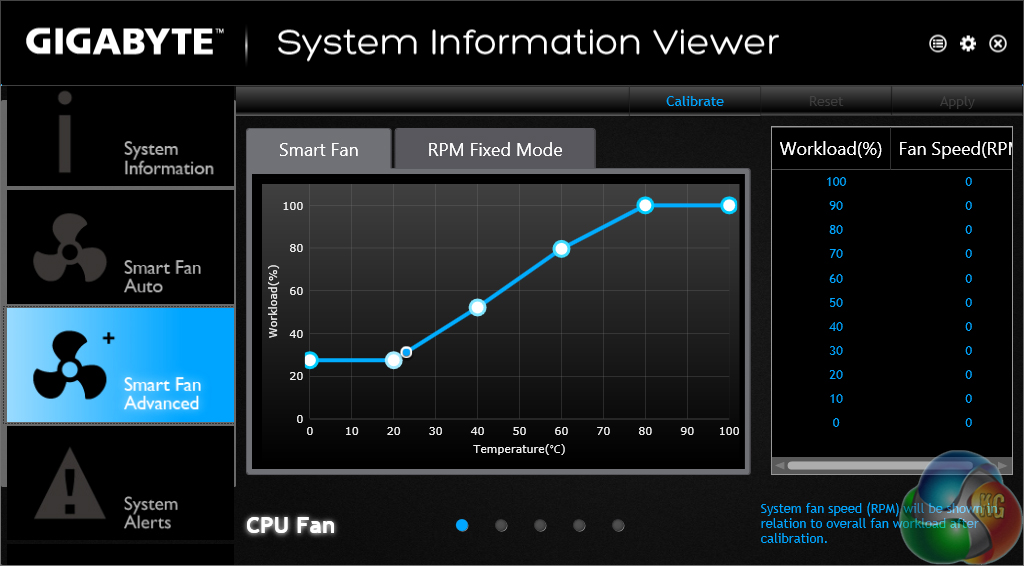
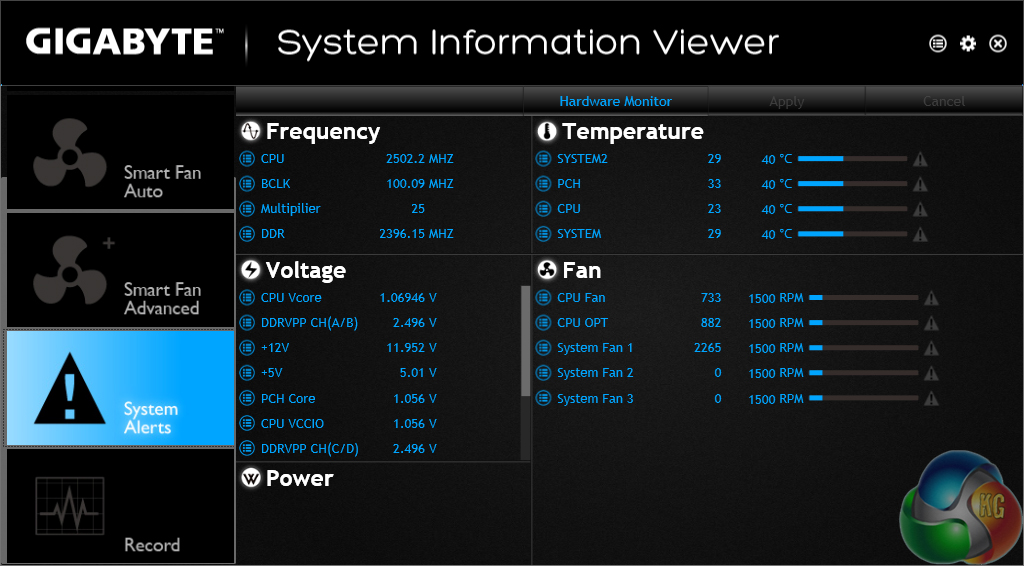
System information and fan speed settings can be tweaked via their own section in Gigabyte’s software suite.
We found the accuracy of System Information Viewer to be good and largely consistent with CPU-Z.
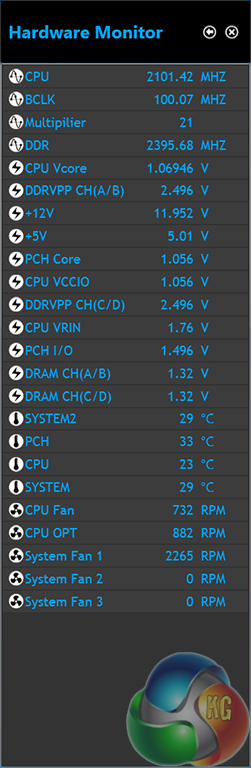
A larger list of system information readings is displayed on the Hardware Monitor break-out window.
Gigabyte's software for X99 motherboard is simple and functional. The styling is good and there is flexibility with the applications that users can choose to install (such as RAID toggle and time control apps).
We will be outlining the Gigabyte X99M-Gaming 5 motherboard's performance with the Core i7 5820K CPU at its stock frequency (3.6GHz due to forced turbo). Overclocked performance will be outlined later in the review.
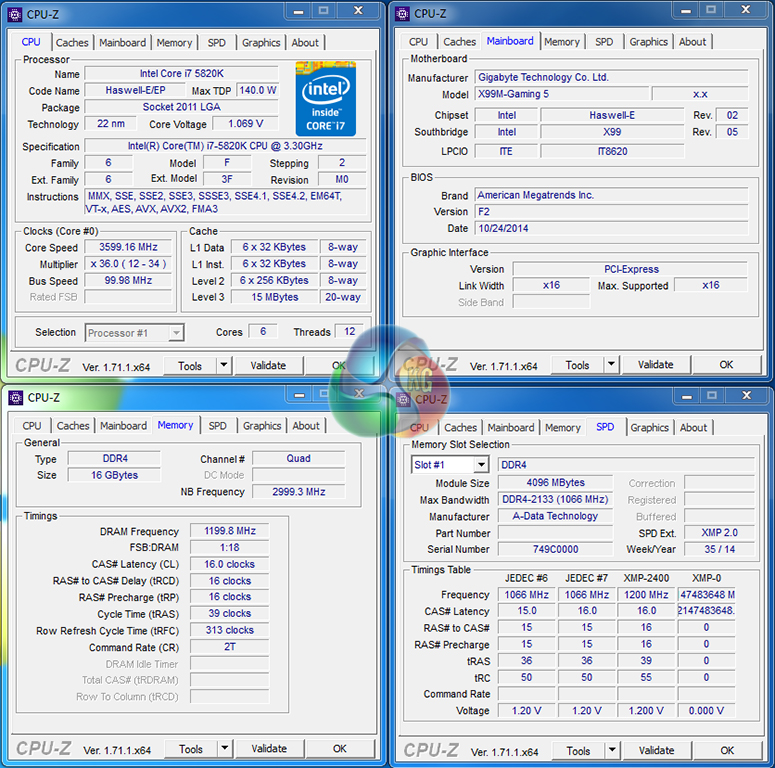
By default, the Gigabyte X99M-Gaming 5 motherboard applies multi-core turbo (MCT) and forces the 5820K to a constant 3.6GHz when XMP is enabled. This will be displayed as the ‘stock’ setting.
Gigabyte feeds the 5820K with 1.069V under load and at MCT speeds. That's a sensible voltage level that outputs low temperature values and can be cooled with relative ease.
X99 Motherboard Test System:
- Processor: Intel Core i7 5820K Retail (3.6GHz forced turbo).
- Memory: 16GB (4x4GB) ADATA XPG Z1 2400MHz 16-16-16-39 DDR4 @ 1.20V.
- Graphics Card: Asus R9 280X Matrix Platinum 3GB.
- System Drive: 500GB Samsung 840.
- CPU Cooler: Corsair H100i.
- Case: NZXT Phantom 630.
- Power Supply: Seasonic Platinum 1000W.
- Operating System: Windows 7 Professional with SP1 64-bit.
Compared X99 Motherboards:
- Asus X99-A (BIOS v1004).
- Gigabyte X99-UD4 (BIOS F9c).
- MSI X99S MPower (BIOS v22.3).
Software:
- Gigabyte X99M-Gaming 5 BIOS F2 (release and latest).
- Catalyst 14.9 VGA drivers.
Tests:
- 3DMark 1.3.708 – Fire Strike (System)
- SiSoft Sandra 2014 SP2 – Processor arithmetic, memory bandwidth (System)
- Cinebench R15 – All-core CPU benchmark (CPU)
- WinRAR 5.10 – Built-in benchmark (CPU)
- HandBrake 0.9.9 – Convert 4.36GB 720P MKV to MP4 (CPU)
- ATTO – SATA 6Gbps, USB 3.0, M.2 transfer rates (Motherboard)
- RightMark Audio Analyzer – General audio performance test (Motherboard)
- Bioshock Infinite – 1920 x 1080, ultra quality (Gaming)
- Metro: Last Light – 1920 x 1080, high quality (Gaming)
- Tomb Raider – 1920 x 1080, ultimate quality (Gaming)
3DMark
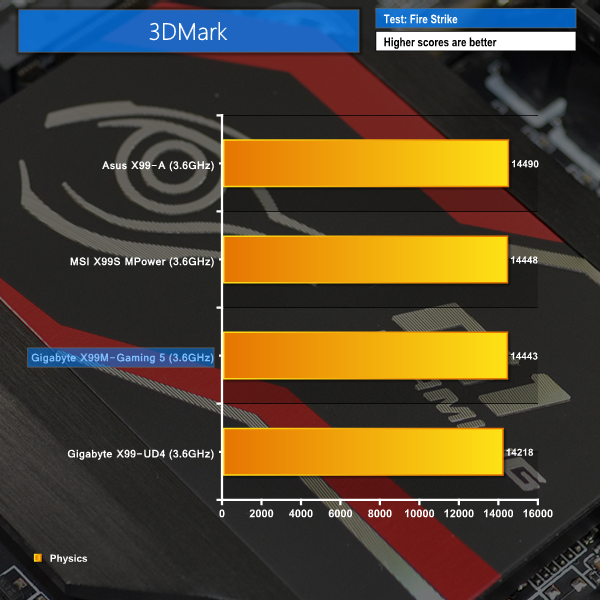
We used 3DMark‘s ‘Fire Strike’ benchmark which is designed to be used on gaming PCs. We opted for the Normal setting, NOT the Extreme mode.
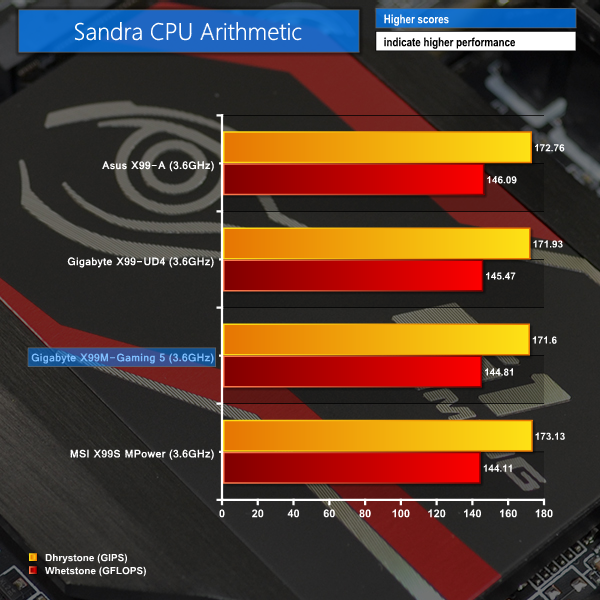
Sandra Processor Arithmetic
Sandra Memory Bandwidth
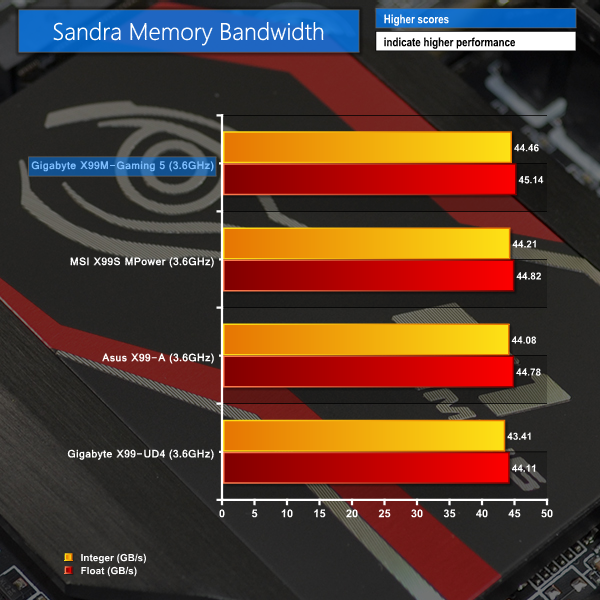
Gigabyte's X99M-Gaming 5 has no problem keeping pace with full-sized ATX competitors in the 3DMark and Sandra benchmarks.
Memory bandwidth on Gigabyte's mATX part is slightly higher than that of the competition's. That could be related to shorter path distance between the board's four DIMM slots and an LGA 2011-3 CPU.
Cinebench
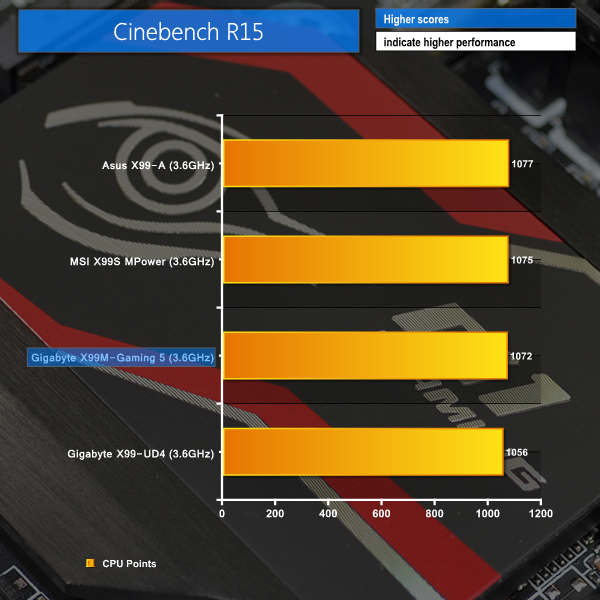
We used the ‘CPU’ test built into Cinebench R15 .
WinRAR
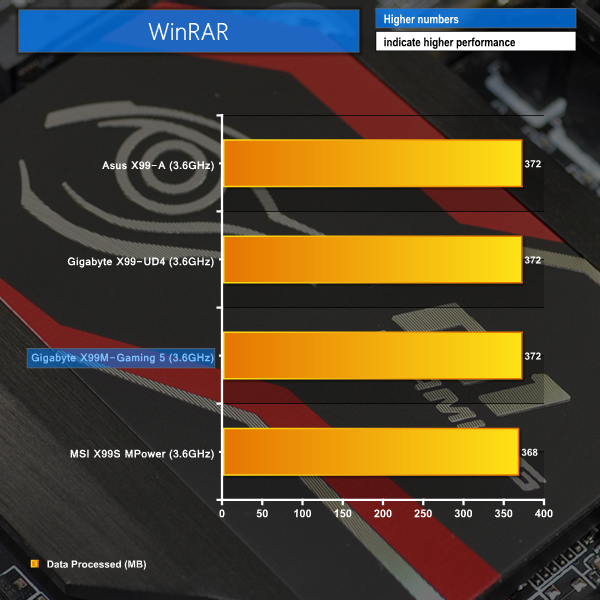
WinRAR’s built in benchmark and hardware test can help us outline the performance differentials between each motherboard. We record the amount of data processed after a 30-second run.
Handbrake Conversion
We measured the average frame rate achieved for a task of converting a 4.36GB 720P H.264 movie (in the MKV container) to one in the MP4 container.
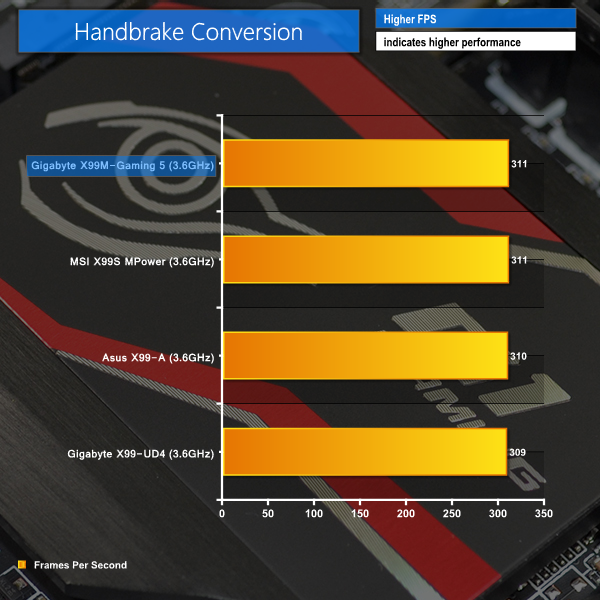
The CPU-heavy workloads continue to show that Gigabyte's mATX motherboard has no problem competing with the larger alternatives.
A few points dropped in Cinebench are likely to be representative of the benchmark's statistical margin of error.
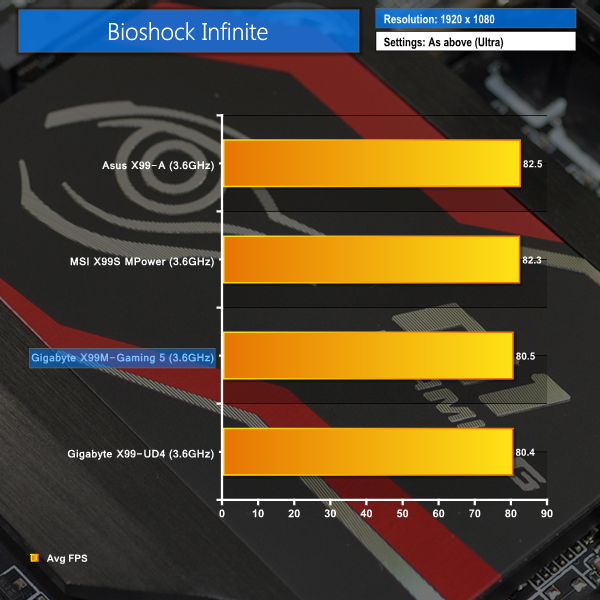
Bioshock Infinite
We used the Bioshock Infinite demanding ‘Ultra’ setting and a 1920×1080 resolution to push today’s gaming hardware. Our data was recorded using a section of the game, not the built-in benchmark.

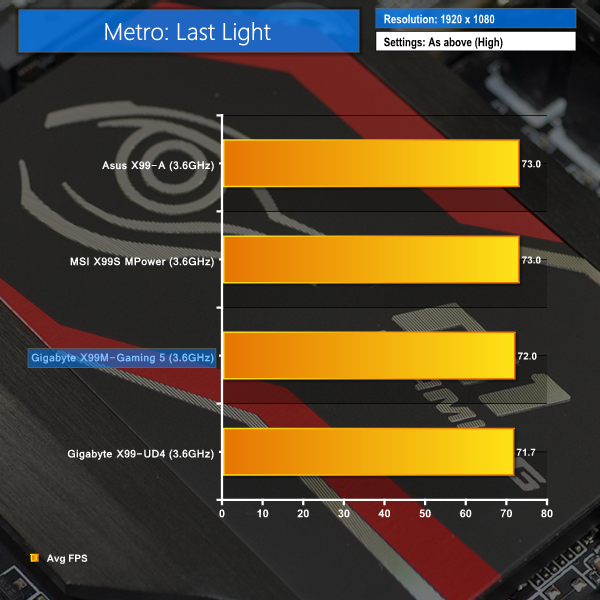
Metro: Last Light
We used a 1920×1080 resolution and the Metro: Last Light built-in benchmark set to ‘High’ quality to offer an intense challenge for the gaming hardware while also making playable frame rates a possibility.

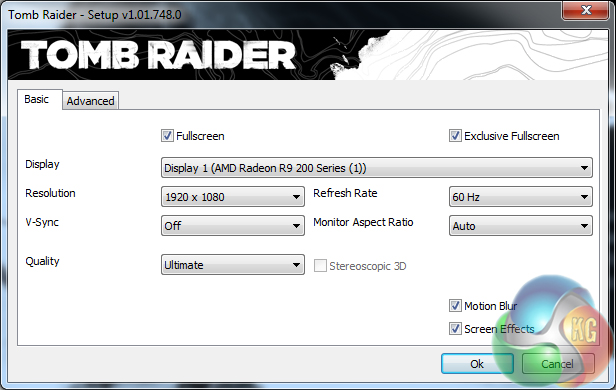
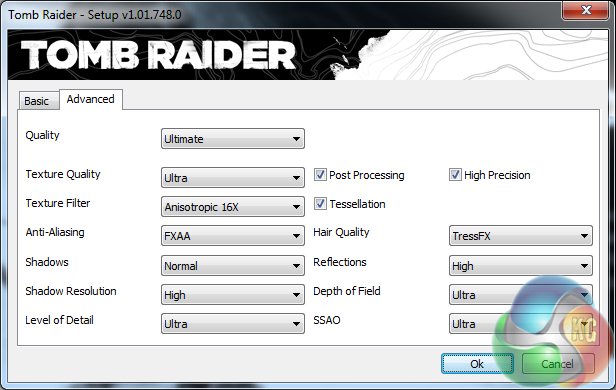
Tomb Raider
We used a 1920×1080 resolution and the Tomb Raider built-in benchmark set to ‘Ultimate’ quality.
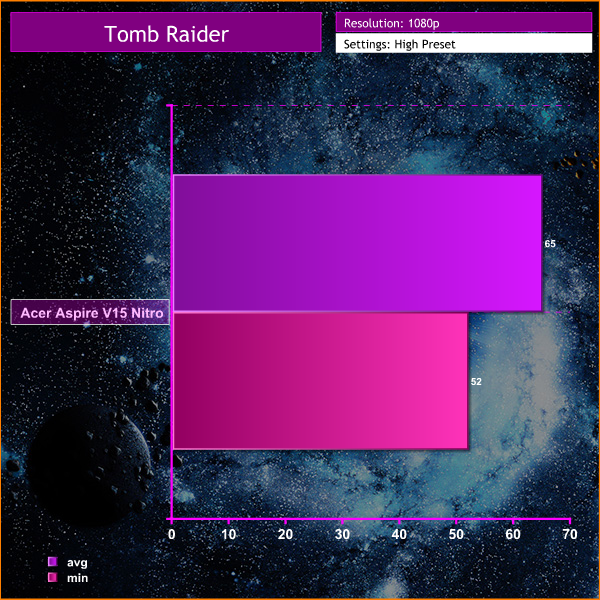
Gaming performance is where the Gigabyte X99M-Gaming 5 starts to struggle due to the previously noted PCIe settings workaround.
Being forced to operate under the PCIe Gen 2 mode from Gigabyte's UEFI, performance in Bioshock Infinite and Tomb Raider drops by around 2 FPS. Metro: Last Light suffers a 1 FPS hit.
While any form of needless performance drop is frustrating to buyers, the PCIe issue does not seem to be widespread (Gigabyte could not replicate our findings). With that in mind, it is highly likely that the X99M-Gaming 5 motherboard's frame rates will be almost identical to competing parts when a graphics card that doesn't cause problems is used.
M.2 connector
We use Plextor‘s fast M6e 256GB M.2 SSD to test the speed of a motherboard's M.2 connector. We reviewed the 512GB Plextor M6e (and its PCIe x2 adapter card) HERE. Unfortunately we do not have access to a higher-speed SSD to push the M.2 connector's performance limits.
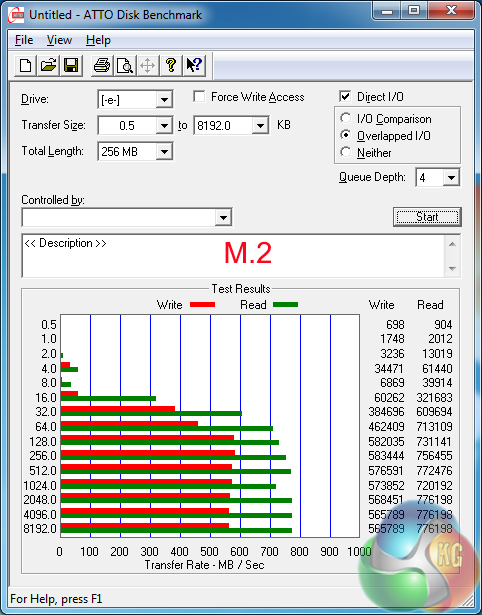
Plextor's M6e was able to reach its full operating speed without hindrance. The drive is unable to saturate a 10Gbps M.2 link, but upcoming faster alternatives will be bottlenecked by Gigabyte's M.2 connection speed.
SATA
For SATA 6Gb/s testing we use a Kingston HyperX 3K (SandForce SF-2281) SSD.
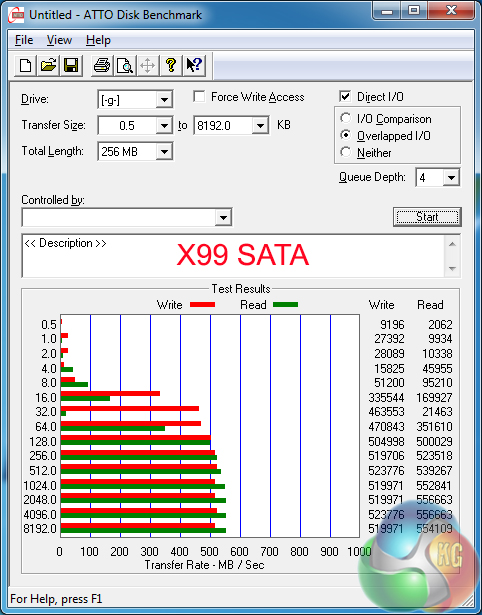
The X99-fed SATA 6Gbps ports are acting as they should, without any notable speed deficiencies.
USB 3.0
We tested USB 3.0 performance using the Kingston HyperX 3K SSD connected to a SATA 6Gb/s to USB 3.0 adapter powered by an ASMedia ASM1053 controller.
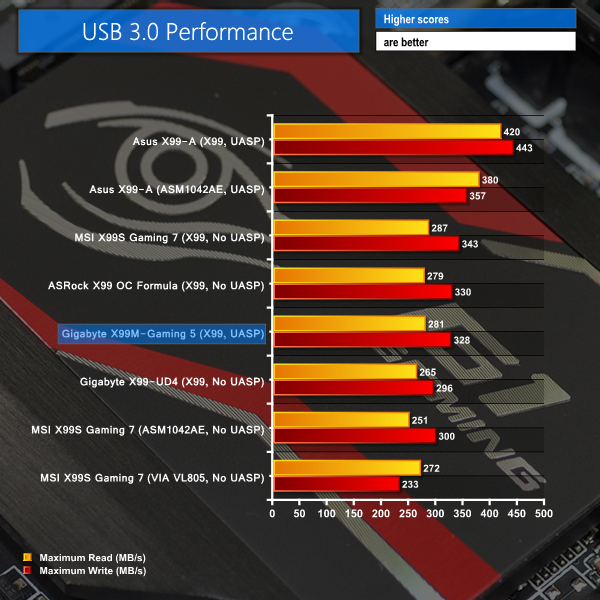
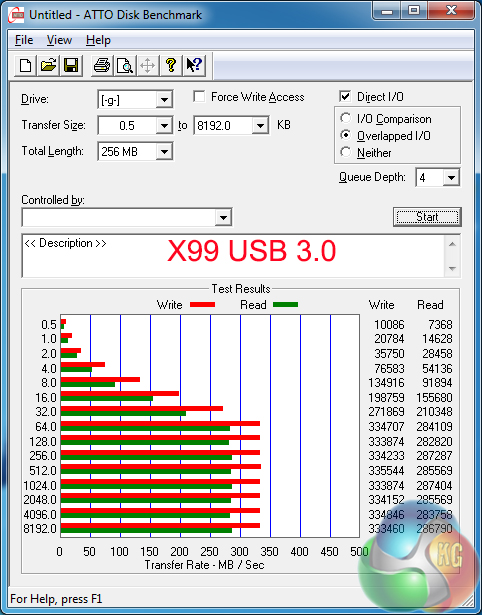
Provided by the X99 chipset, transfer rates for Gigabyte's USB 3.0 ports are typical for an X99 solution. Without UASP-activating software for Windows 7 users, Gigabyte's X99M-Gaming 5 cannot touch the USB 3.0 speeds offered by Asus' parts.
Audio
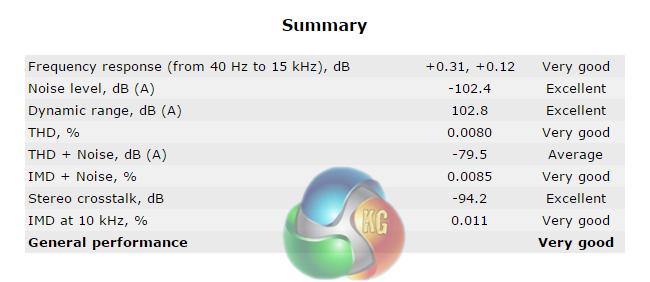
We use RightMark Audio Analyzer (RMAA) to analyse the performance of the motherboard’s onboard audio solution. A sampling mode of 24-bit, 192 kHz was tested.
Based around the popular Realtek ALC1150 codec, Gigabyte adds a Burr-Brown OPA2134PA operational amplifier into the audio loop. Four dip-switches control the amplifier's gain level. Nichicon ‘N428' capacitors and a Texas Instruments DRV632 DirectPath line driver assist with delivery of the audio signal.
RMAA reports Gigabyte's ‘G1 Audio‘ solution as having Very Good performance. The dynamic range and noise level performance is very strong, although the THD + Noise numbers aren't quite as strong as those provided by some MSI and Asus competitors.
Automatic CPU Overclocking:
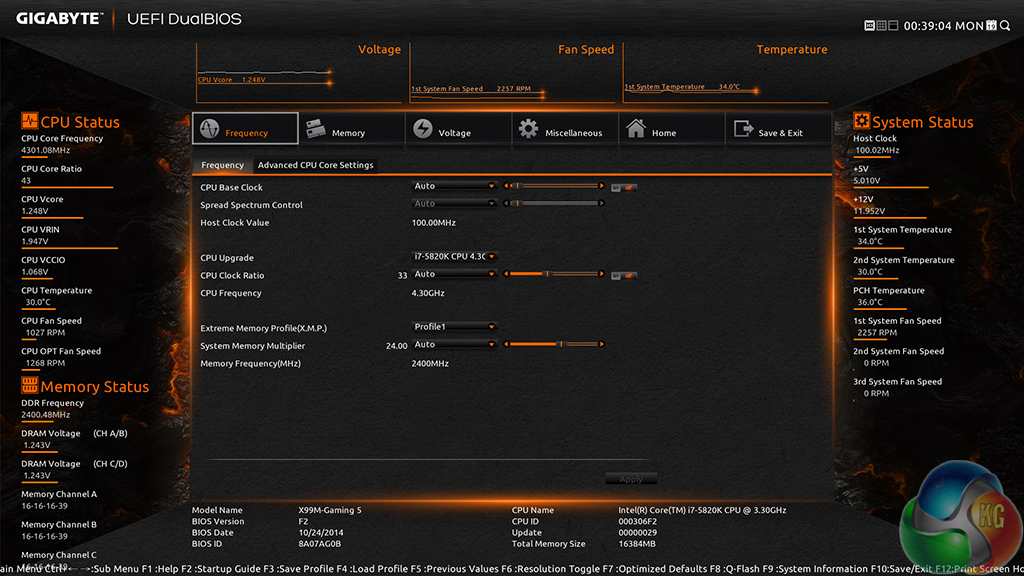
Despite its micro ATX form factor, Gigabyte is not holding back on the overclocking front.
Gigabyte’s automatic CPU speed-boosting profile had no problem taking our 5820K to 4.3GHz. We were happy to see that only the CPU speed level was adjusted, and the memory configuration was maintained in its XMP mode.
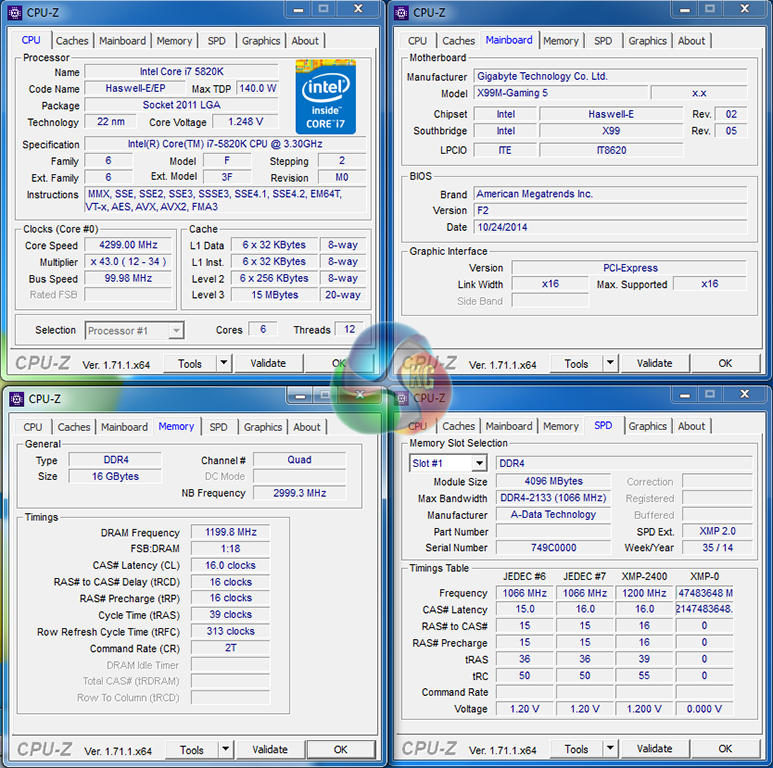
The 4.3GHz profile delivered around 1.25V to the CPU under heavy load. That's a sensible level that should be controllable with a solid mid-range CPU cooler, even in an mATX environment.
Manual CPU Overclocking:
To test the Gigabyte X99M-Gaming 5 motherboard’s CPU overclocking potential, we first increased the CPU VCore to 1.275V, Cache (RING) voltage to 1.25V, and CPU Input (VRIN) Voltage to 1.90V. We also enabled applied ‘Extreme' load-line calibration (LLC) to ensure that a continuous voltage level was provided.
We maintained the DRAM frequency at 2400MHz to take its stability out of the overclocking equation. Cache frequency was maintained at 3.0GHz.
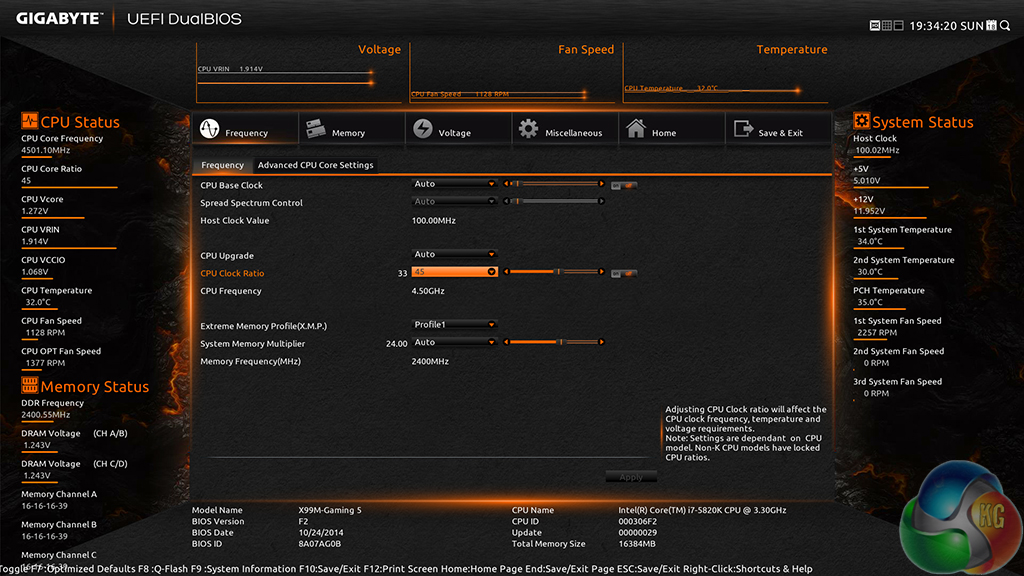
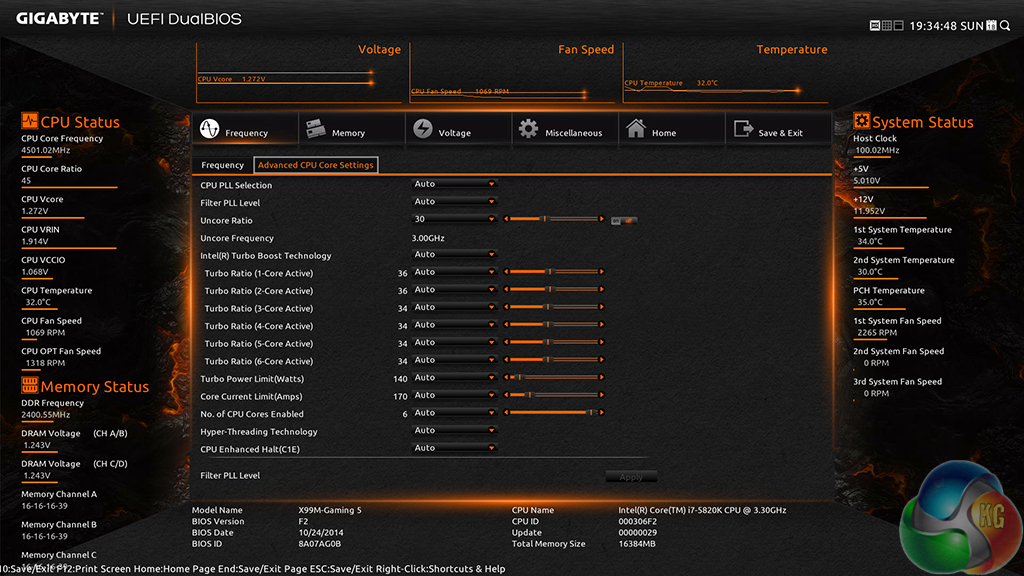
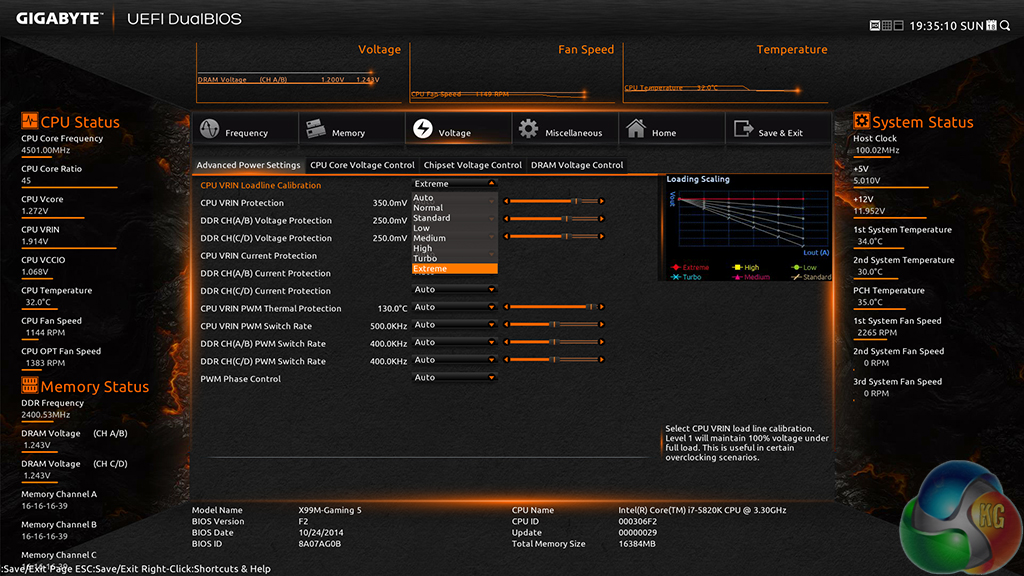
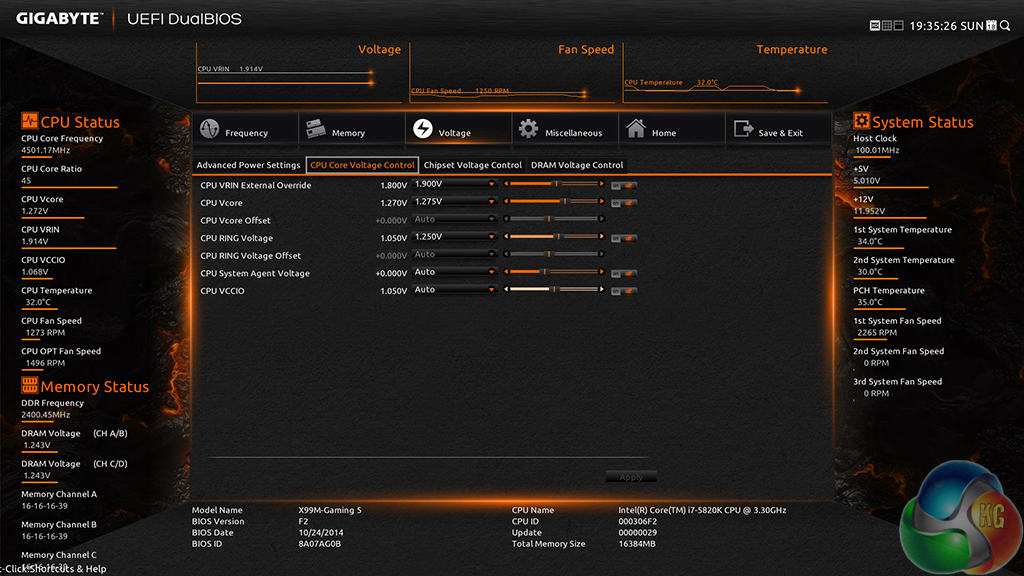
We had no problem taking our 5820K chip to its 4.5GHz limit. Gigabyte's motherboard was happy to boot without any issues after we applied the voltage adjustments and 45x CPU ratio.
While 4.6GHz was not quite stable on the X99M-Gaming 5, it did not BSOD instantly upon running Prime95. Instead, we were given an extended period of operation before the relevant BSOD came. That does show that there is solid overclocking potential in the X99M-Gaming 5 if your chip meets the frequency demands.
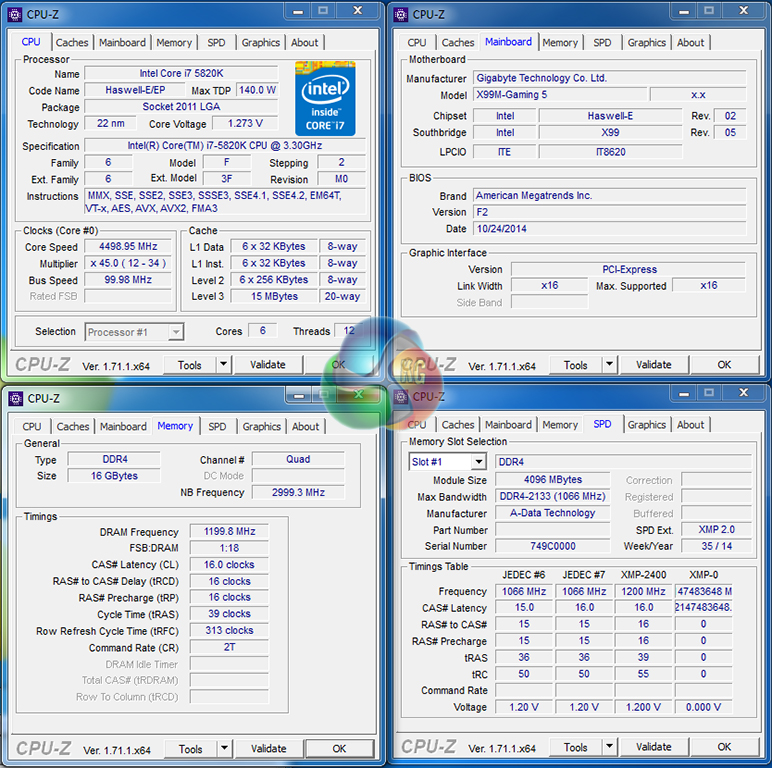
CPU-Z registered a CPU VCore of 1.273V, which is very close to the 1.275V level that we asked for. Gigabyte's LLC settings are doing a good job.
The validation can be viewed here.
Memory Frequency Performance:
Support for high-speed memory kits has been a particularly troubling topic since the X99 launch. We test the motherboard's ability to load the 3000MHz XMP configuration on our G.Skill Ripjaws4 DDR4 memory.
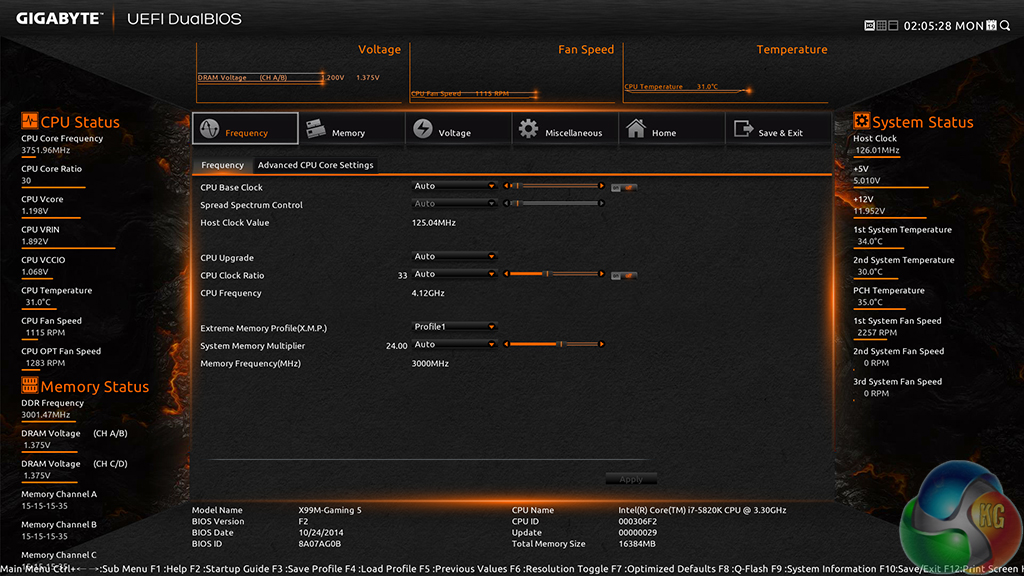
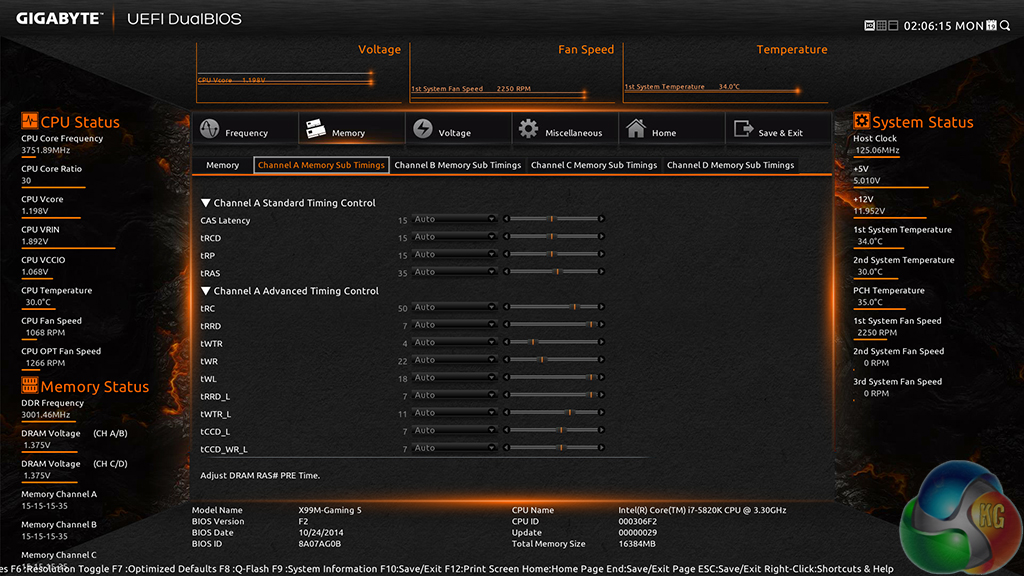
Gigabyte has finally created an X99 BIOS implementation that is capable of operating G.Skill's 3GHz Ripjaws4 kit at its rated frequency. That said, the motherboard did apply an extra 25mV (1.375V rather than 1.350V) to the DRAM voltage when the 3GHz XMP mode was applied.
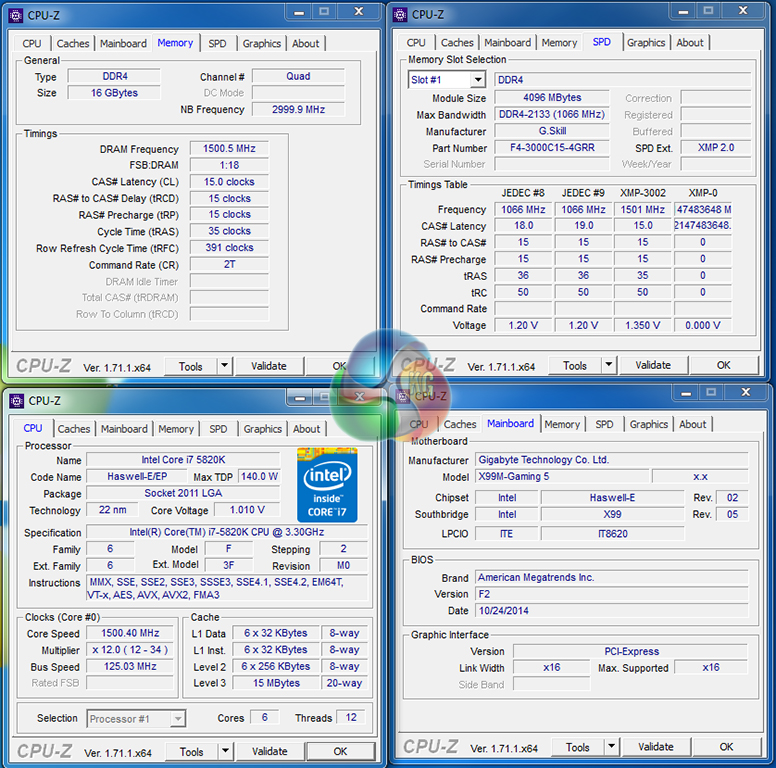
Benchmarks were completely stable when using the 3GHz memory. It is good to see that Gigabyte has been working hard in order to fix the initial compatibility issues it had with high-speed memory.
The 3GHz XMP validation can be viewed here.
We will outline the performance increases that can be obtained from using the Gigabyte X99M-Gaming 5 motherboard to overclock our system. Our overclocked processor frequency was 4.5GHz and memory speed was 2400MHz.
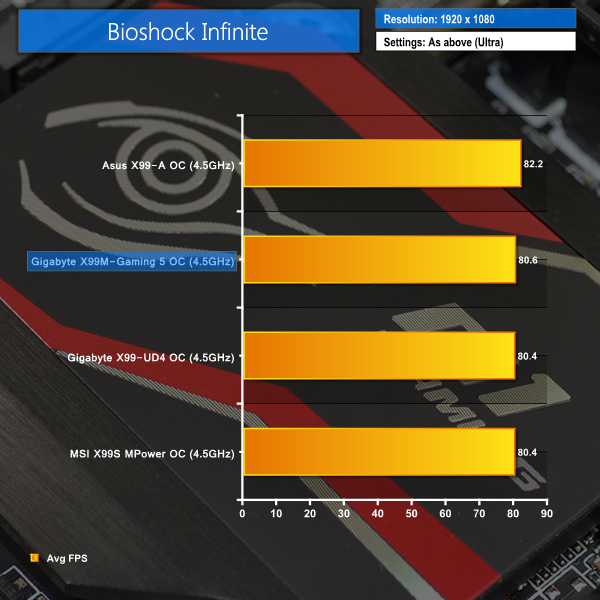
As a performance comparison, we have included the overclocked results from three other X99 motherboards. he maximum overclocked configuration achieved with each board was a 4.5GHz processor frequency and 2400MHz memory speed.
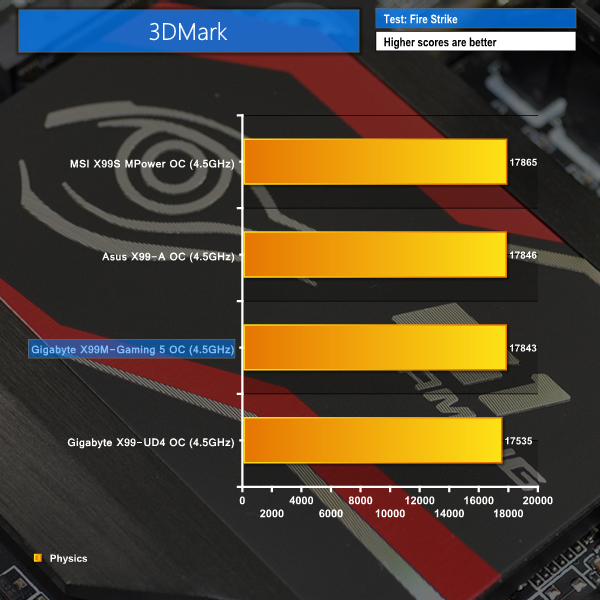
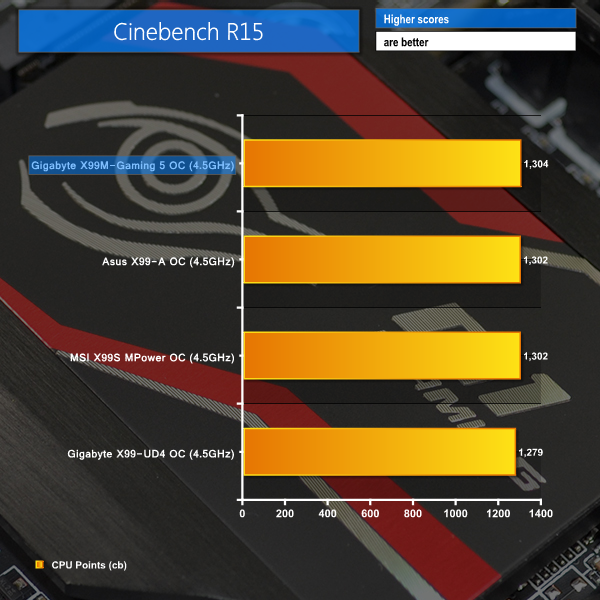
A healthy CPU overclock results in positive computational numbers for the X99M-Gaming 5. The micro ATX board manages to keep pace with its ATX competitors in Cinebench and 3DMark physics.
There's no noticeable shift from the X99M-Gaming 5 board's stock-clocked Bioshock Infinite frame rate to its overclocked one. There's still a gap between the Asus X99-A motherboard's frame rate and those of Gigabyte's parts.
While XMP dictates the memory operating frequency, voltage, and primary timings, the secondary and tertiary timings are set at the motherboard vendor's discretion. That can lead to performance differences in memory-intensive workloads.
We used G.Skill's Ripjaws4 modules set to their 3GHz XMP frequency to test memory bandwidth and latency numbers.
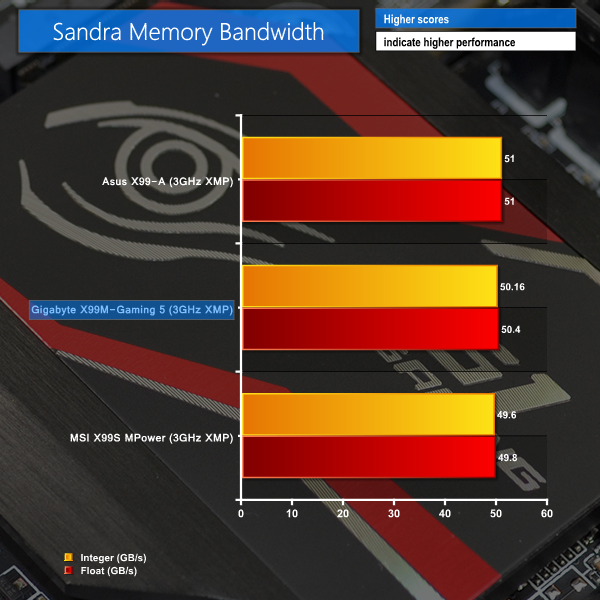
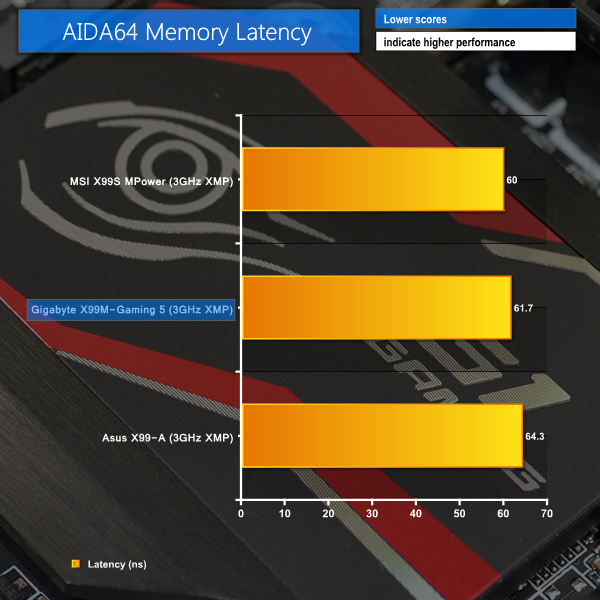
Gigabyte's X99M-Gaming 5 shows the same positive bandwidth performance that it did with 2400MHz modules. Latency performance is positive, with Gigabyte's choice of non-XMP timings allowing the X99M-Gaming 5 to outperform Asus' X99-A, but not MSI's X99S MPower.
We measured the power consumption with the system resting at the Windows 7 desktop, representing idle values.
The power consumption of our entire test system (at the wall) is measured while loading only the CPU using Prime95′s in-place large FFTs setting. The rest of the system’s components were operating in their idle states, hence the increased power consumption values (in comparison to the idle figures) are largely related to the load on the CPU and motherboard power delivery components.
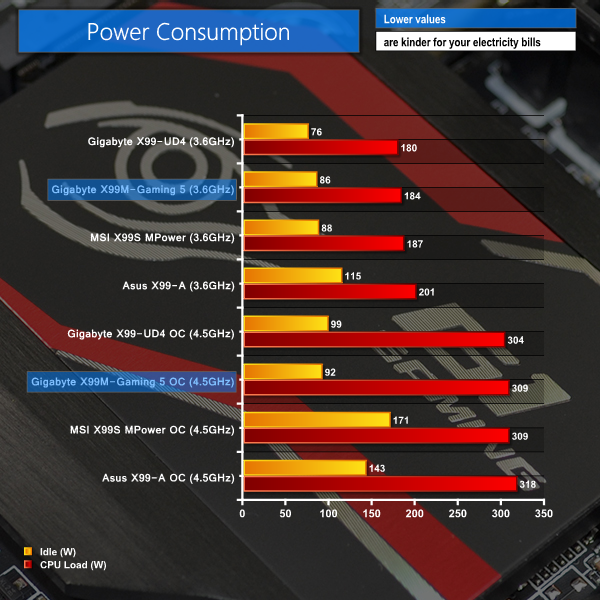
With a low number of add-on components or efficiency-hampering PCB space, Gigabyte's X99M-Gaming 5 is able to show positive idle power consumption numbers, especially when overclocked.
The load power usage levels are equally positive, showing that Gigabyte's decision to opt for the quality of power delivery phases over their quantity, was a smart one.
In the X99M-Gaming 5, Gigabyte has designed a motherboard that will tick many of the boxes for micro ATX enthusiasts. There's support for two full-bandwidth graphics cards, and even flexibility with their positioning in a 5-slot chassis. And then there's the array of storage options and enhanced audio system. Importantly, Gigabyte provides a strong voltage delivery system that allows the X99M-Gaming 5 to remain competitive when overclocking power-hungry Haswell-E chips.
Performance of the X99M-Gaming 5 is competitive with full-sized ATX boards. With the exception of gaming results, where a slight incompatibility with Gigabyte boards and our test GPU forces a slower PCIe mode, the X99M-Gaming 5 had no problem actively competing throughout the test suite.
The board's overall appearance is another positive, especially to mATX users looking to create a boutique system. Gigabyte does not compromise when it comes to cooling of the hot VRM components, which is a smart move. Quality of the audio system is very strong, and the distribution of PCIe lanes to the expansion slots is sensible.
There are some disappointing aspects to the X99M-Gaming 5, however. The biggest of these disappointments is the slow 10Gbps M.2 connector. That's barely fast enough for today's M.2 SSDs, not to mention the ones getting ready to launch in the coming weeks and months. And with absolutely no negatives to using a four-lane, PCIe 3.0-fed 32Gbps M.2 connector, Gigabyte has hung a needless future-proofing question mark over the X99M-Gaming 5.
The second issue is one that truly frustrates me because it is so easy to detect and fix at the design stage. Not only does Gigabyte still deliver the problem, the company's designers managed to do it twice. Placing both USB 3.0 headers in the prime space that will be occupied by a second graphics card is a terrible design move on a board intended for use with SLI and CrossFire. Putting at least one of the headers away from interference, near the 24-pin connector, is about as much of a ‘no-brainer' as it comes.
With those two points out of the way, the rest of Gigabyte's design and layout decisions have been smart ones that cater for enthusiasts desiring an mATX system with minimum performance or functionality compromise.
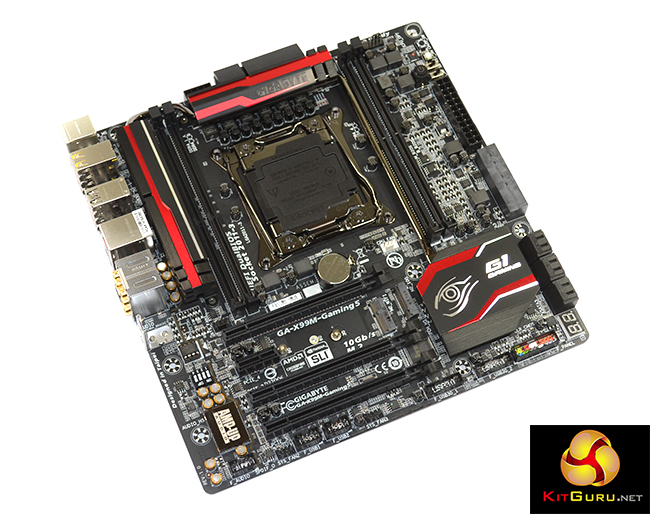
Cashing in on a reduced PCB purchase price, Gigabyte's X99M-Gaming 5 is one of the lowest-cost X99 motherboards on the market. OverclockersUK has the board listed at £169.99. That's a good price for an attractive, mATX motherboard with strong overclocking performance and a positive array of gaming features.
If you don't plan on using a high-speed M.2 SSD in the near future, and are happy to lose front panel USB 3.0 connectivity with two graphics cards installed, Gigabyte's X99M-Gaming 5 is an excellent motherboard. The most disappointing aspect of this board is that those two noteworthy negatives have to be mentioned when they were so easy to eliminate at the design stage.
That said, Gigabyte‘s X99M-Gaming 5 is still a positive mATX X99 motherboard that has plenty of good aspects, and one that many gamers will be pleased to own.
Discuss on our Facebook page, over HERE.
Pros:
- Good overclocking capacity and 3000MHz DDR4 support.
- Smart PCIe slot spacing and general layout (except USB 3.0 headers).
- Plenty of storage and connectivity options.
- Network control with Killer NIC and software.
- Strong audio solution with upgradeable operational amplifier.
- M.2 module for Wi-Fi can be convenient.
- Stable BIOS implementation from launch (always a positive sign).
- Competitively priced.
Cons:
- Only a 10Gbps M.2 connector when a faster version would have been so easy to provide.
- Both internal USB 3.0 connectors will be blocked by a large secondary graphics card.
KitGuru says: A positive mATX solution which proves that little compromise has to be made when downsizing from ATX, even on the X99 platform.

ASRock Fatal1ty X99M Killer seems like the Best bet with a 4x m.2
I have been having that odd GPU load crashing issue, and I was beginning to think that I was going crazy. System is totally stable otherwise, Aida64 for 10+ hours with no issues, browse the web, watch movies, etc no problems. Game for more than a couple of minutes and crash, every time.
At first I thought it was my XFX R9 270X, so I grabbed my other one (I pulled these out of a crossfire setup on my other system) and same issues occurred. I was just starting think about returning motherboard when I came across this post. I am going to try this fix when I get home and see if it resolves the issue for me.