 KitGuru KitGuru.net – Tech News | Hardware News | Hardware Reviews | IOS | Mobile | Gaming | Graphics Cards


Continuing our recent focus on gaming motherboards, we have the Gigabyte Z97X-Gaming 7 in for review. Hitting retail with an aggressive sub-£140 price tag, Gigabyte is aiming to lure in potential buyers with the Gaming 7 motherboard's gaming-orientated features, striking colour scheme, and four-year warranty.
Fusing together the company's high-performance G1 Audio with a Killer E2200 series NIC, Gigabyte is targeting gamers who value crisp sounds and lag-free gameplay. 10Gbps SATA Express and M.2 connectors allow gamers to optimise their loading times, while support for multi-VGA configurations permit the Z97X-Gaming 7's users to utilise CrossFire and SLI.

With its Z97 series motherboards, Gigabyte has put a large emphasis on stability and durability. The Z97X-Gaming 7 uses durable power delivery components and offers a warranty period of up to four years.
Can Gigabyte's Z97X-Gaming 7 prove that it is able to offer the performance that gamers looking for a sub-£140 motherboard desire?
Features:
- Gigabyte G1 Audio solution
- Killer E2200 gaming networking platform
- Multi graphics support
- SATA Express support for 10 Gb/s data transfer
- M.2 for SSDs drives with up to 10 Gb/s data transfer
- Long lifespan Durable Black Solid caps
- APP Center including EasyTune and Cloud Station utilities
- GIGABYTE UEFI DualBIOS
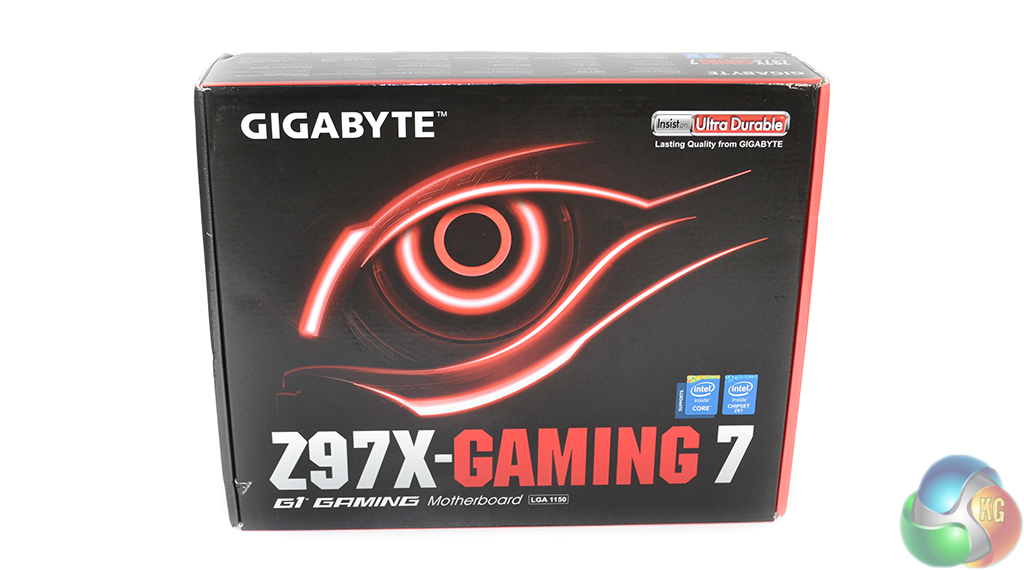
Gigabyte supplies the Z97X-Gaming 7 in red and black packaging, representing the newly adopted colour scheme for the company's G1 Gaming series motherboards.
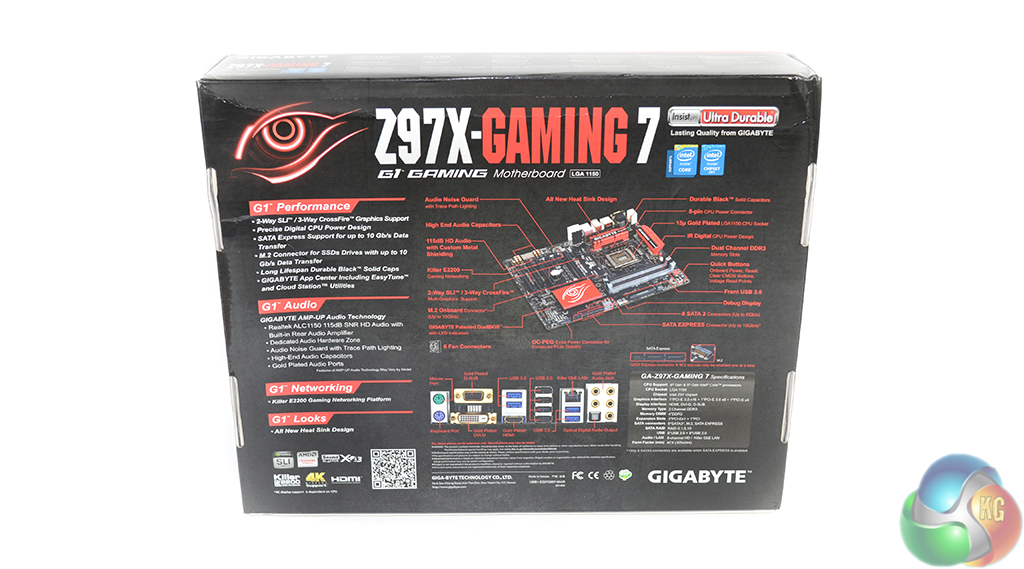
The Gigabyte eye is found on the packaging's front side, while detailed specifications and features are outlined on the rear.
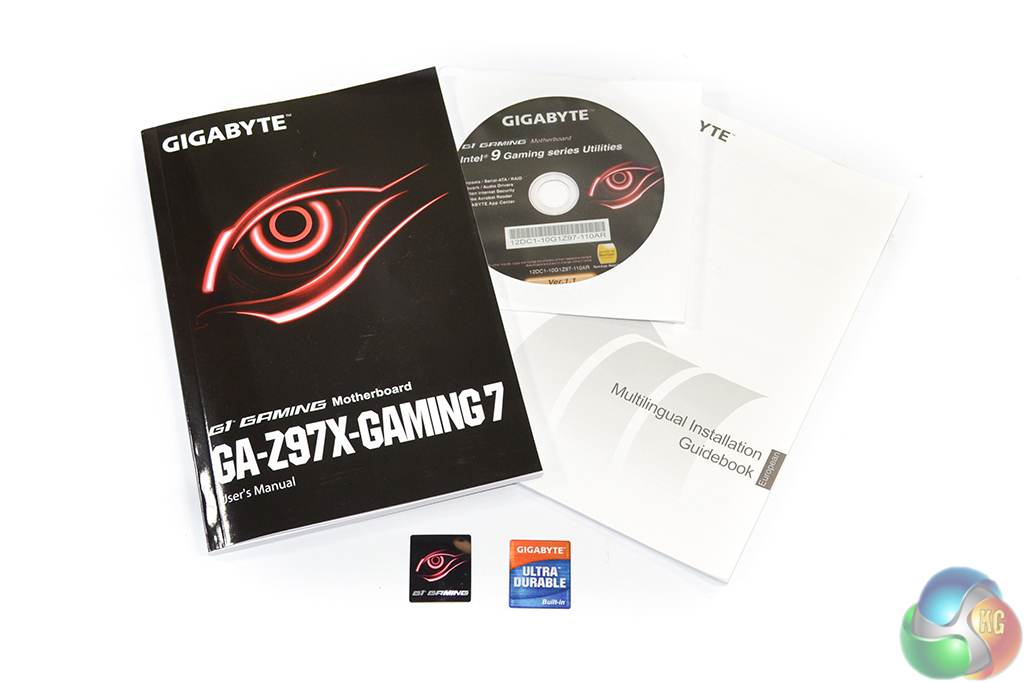
Gigabyte includes a comprehensive manual, an installation guide, a driver CD, and two case stickers.
We must compliment Gigabyte for including a block diagram of the motherboard's system layout in the comprehensive manual; knowledgeable users will be able to analyse the block diagram in order to decide upon the best approach for connecting devices to their system.
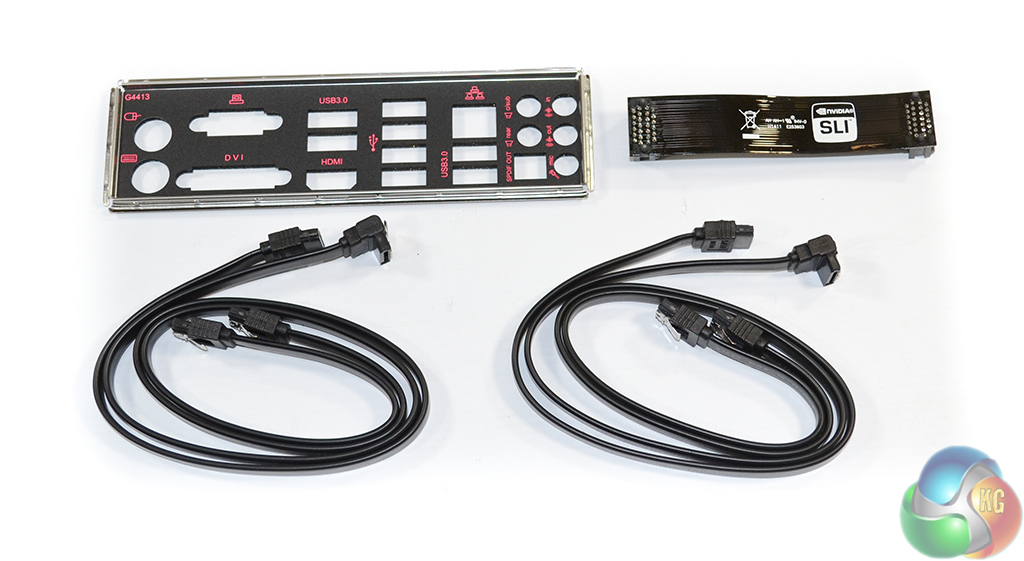
Gigabyte opts for a basic ‘no-frills' bundle that comprises four SATA cables, the rear IO shield, and a black SLI bridge. We don't have any complaints with the bundle; there are no glaringly obvious exclusions.
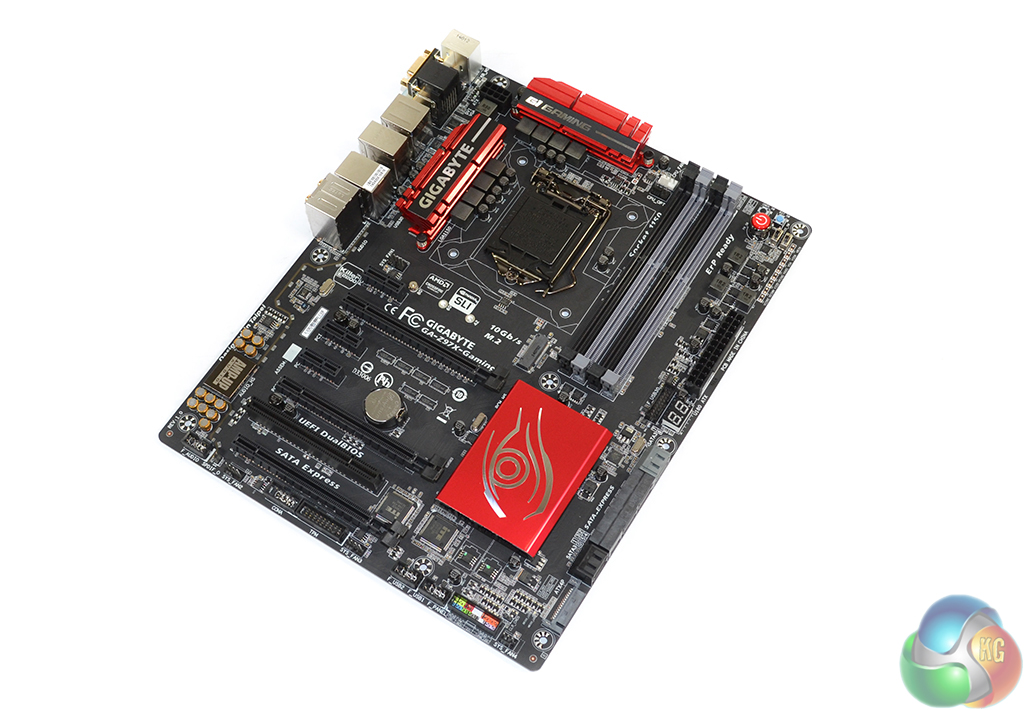
The Gigabyte Z97X-Gaming 7 ships in a red and black colour scheme that seems to be one of the new ‘specifications' (sarcasm detected?) for Z97 gaming motherboards. Along with many other gamers and enthusiasts, I am disappointed to see Gigabyte switching away from its unique, eye-catching black and green colour scheme.
While we can understand that green isn't most people's colour of choice, it did allow Gigabyte to offer something that nobody else did in a saturated marketplace. We don't understand why Gigabyte removed their unique colour scheme from its boards; the company has two gaming-orientated line-ups (Z97X Gaming and G1 series) so it would have made sense to put the unique style on at least one of its series.
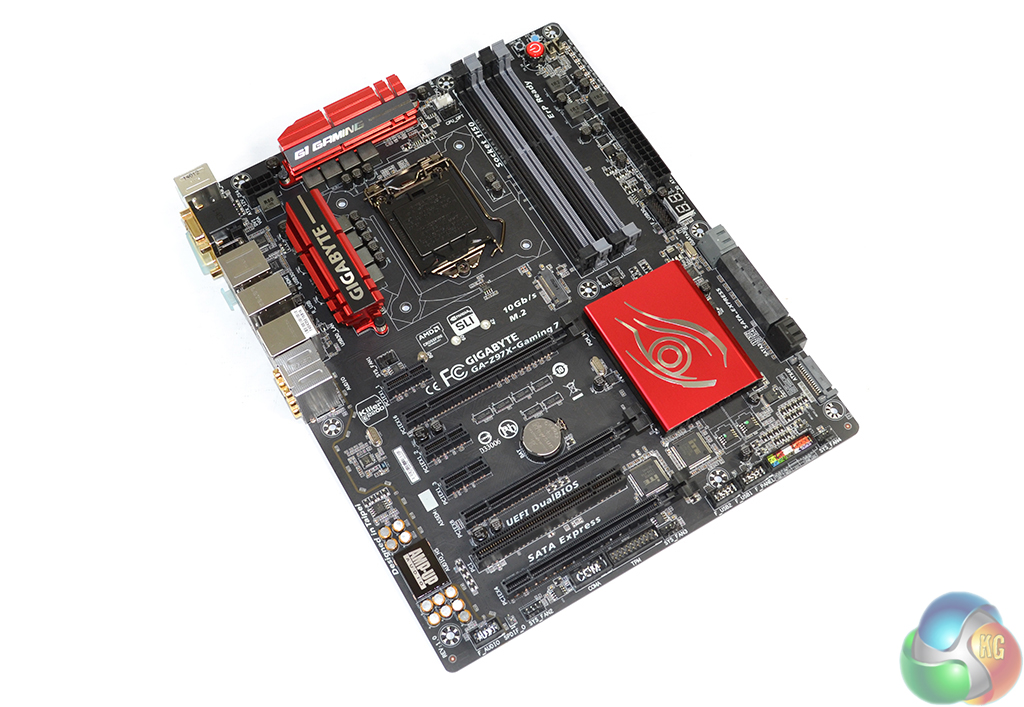
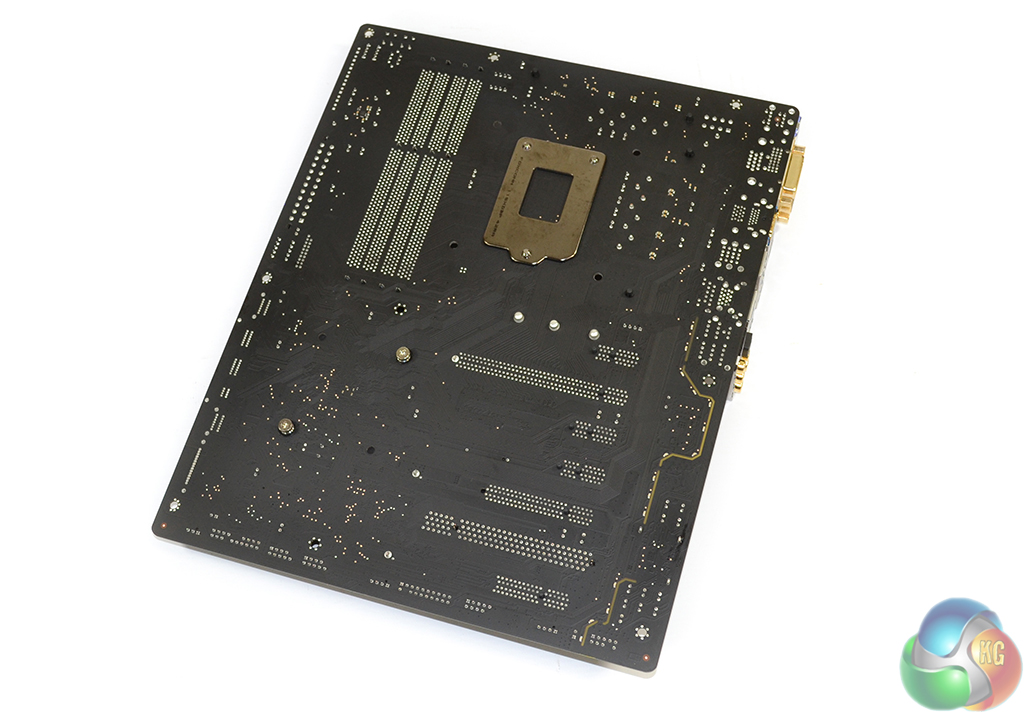
Gigabyte is using a matte black PCB that doesn't show any signs of ugly brown. The Z97X-Gaming 7's styling is excellent. The red and black fit well together (even if some people prefer green) and the subtle hints of grey add contrast to the board.
We also like Gigabyte's intriguing ‘eye' marking that is found on the board's chipset heatsink.
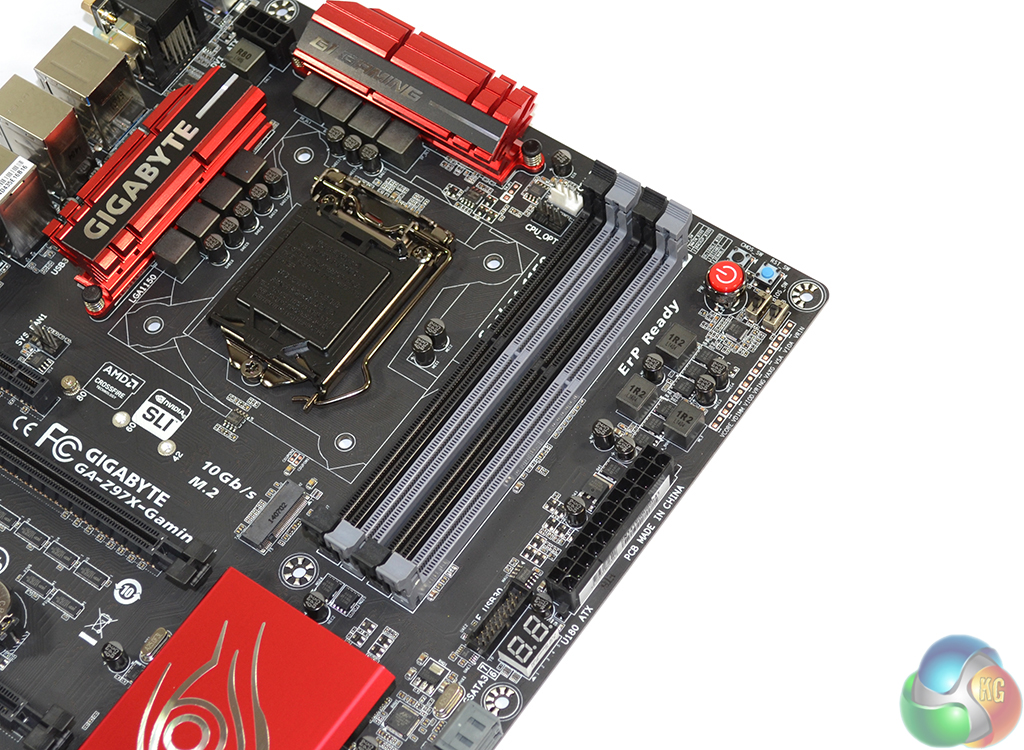
Up to 32GB of DDR3 memory can be installed in the Z97X-Gaming 7 motherboard's four DIMM slots. Gigabyte claims memory frequency support for settings up to 3200MHz, although the real-world limit will be heavily swayed by a CPU's IMC performance.
The memory slots (and CPU socket) are positioned further to the center of the board than usual, which may benefit some users in regards to CPU cooler clearance.
An outwards-facing USB 3.0 header is located near the 24-pin power connector and accompanying debug LED. Gigabyte's decision to position the USB 3.0 header further towards the board's center will make hiding the fat USB 3.0 cable a difficult task.
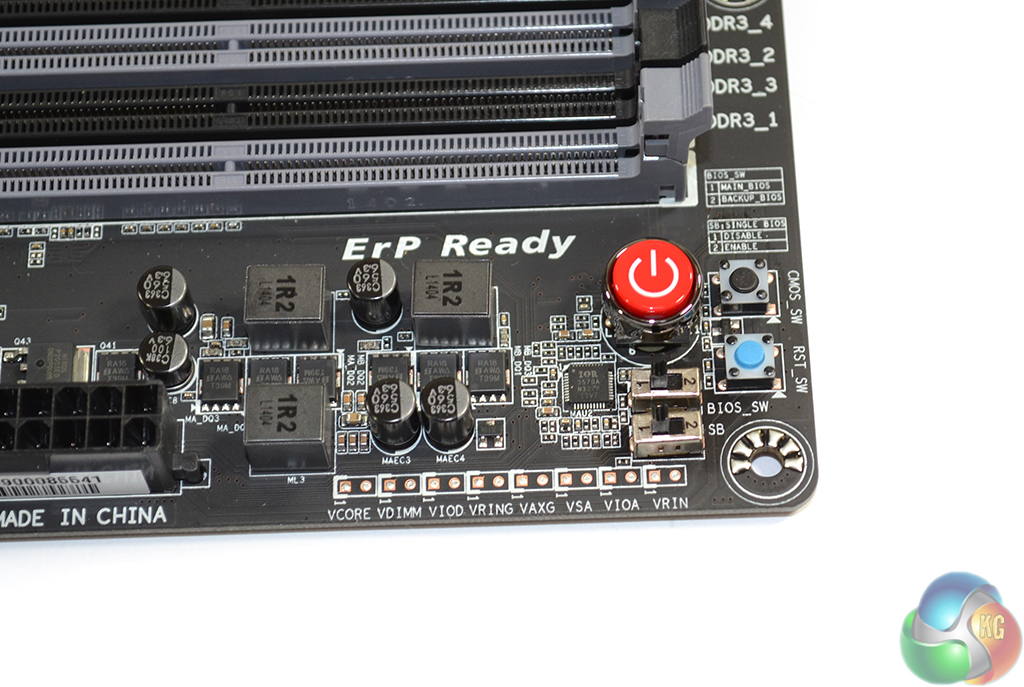
Located near the DIMM slots, Gigabyte provides users with onboard buttons and switches, as well as voltage check points. The tools can be used to certify the operation of a motherboard (as we did when checking operating voltages) or clear the CMOS, for example.
The button functions are: On/Off, Clear CMOS, and Restart. Switches allow for the BIOS mode to be switched between primary and secondary.

Located around a pair of red heatsinks, eight power phases are used to feed an LGA1150 CPU. Gigabyte cuts costs by opting for a semi-controlled phases design; an International Rectifiers 3570A PWM controller, and IR 3598 helpers, operate a single power channel per two physical phases.
We saw MSI use a similar approach on its Z97 Gaming 5 and it seems to be common amongst many other mid-range (and below) Z97 motherboards. The implementations are likely related to Haswell's constricted overclocking capabilities and the fact that it doesn't require high voltages at moderate (not LN2-calibre) clock speeds.
Gigabyte also makes use of 10K black capacitors that are rated for a lifespan of 10,000 hours at 105°C. I conducted some calculations to certify that, at typical operating temperatures in a consumer environment, the capacitors' ratings translate into a lifespan of many years (almost certainly far greater than the motherboard will be used for).
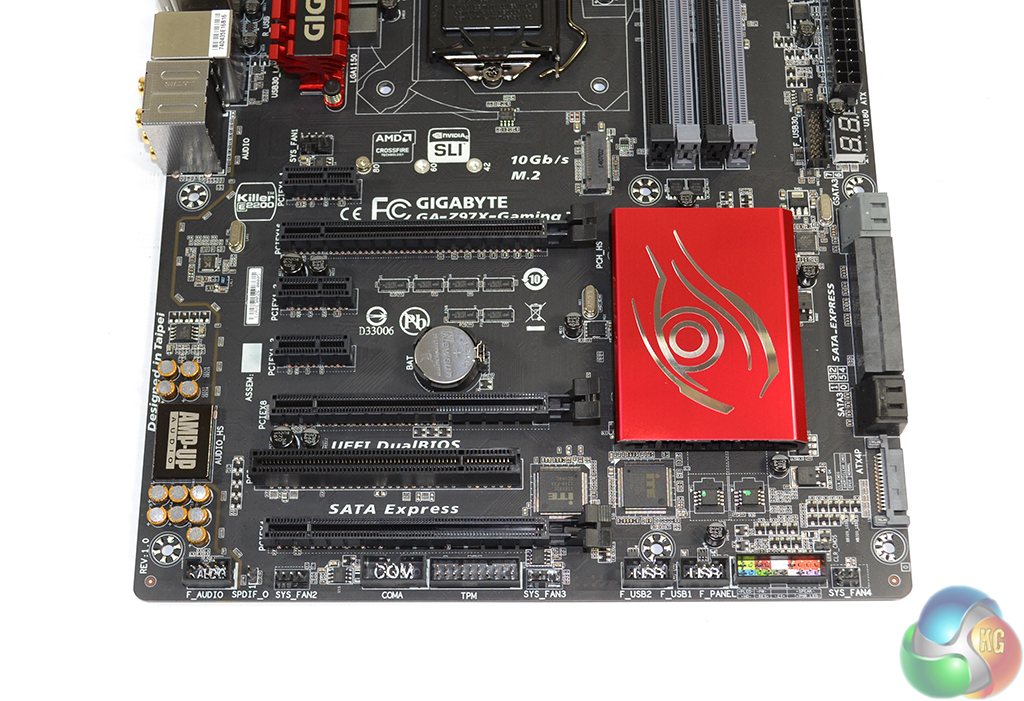
Three CPU-fed full-length PCIe 3.0 slots indicate support for three-card CrossFire and dual-card SLI. Three cards in CrossFire will run at x8/x4/x4, but only two cards running at x8/x8 can be used in SLI due to the technology's insistences on 8-lane pathways.
The bottom full-length PCIe 3.0 slot is hard-wired for four lanes. Installing a PCIe expansion device, such as an x4-linked SSD, into the slot will cause the upper two connectors to operate at x8/x4, terminating the SLI function.
A single PCI connector is provided by an ITE IT8892E bridge chip. We don't have a problem with Gigabyte supplying the legacy port; while its add-on chipset increases the motherboard's cost, it also allows users to hang on to their PCI devices, such as video capture cards. Three PCIe 2.0 x1 slots fill out the expansion area.
Slot spacing on Gigabyte's Z97X-Gaming 7 motherboard is as good as it gets for a non-PLX-equipped LGA 1150 motherboard. Two dual-width boards are given a breathing gap between them, while a pair of triple-slot cards can be installed without interference.
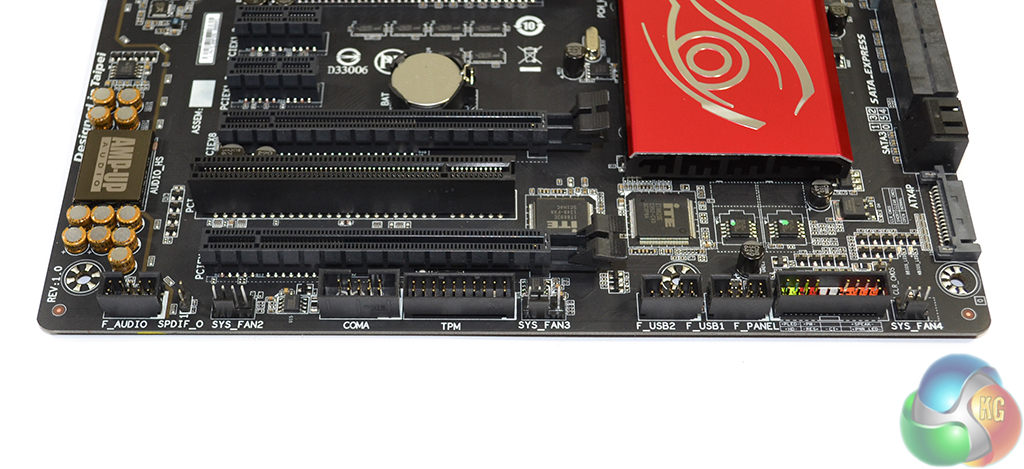
Connections are found in their usual locations along the motherboard's bottom edge. Gigabyte places the audio connector in the bottom-left corner, while front panel headers occupy the right side.
Three fan headers are distributed along the board's bottom edge. The pair of ICs that powers Gigabyte's DualBIOS implementation can be seen situated beneath the chipset.
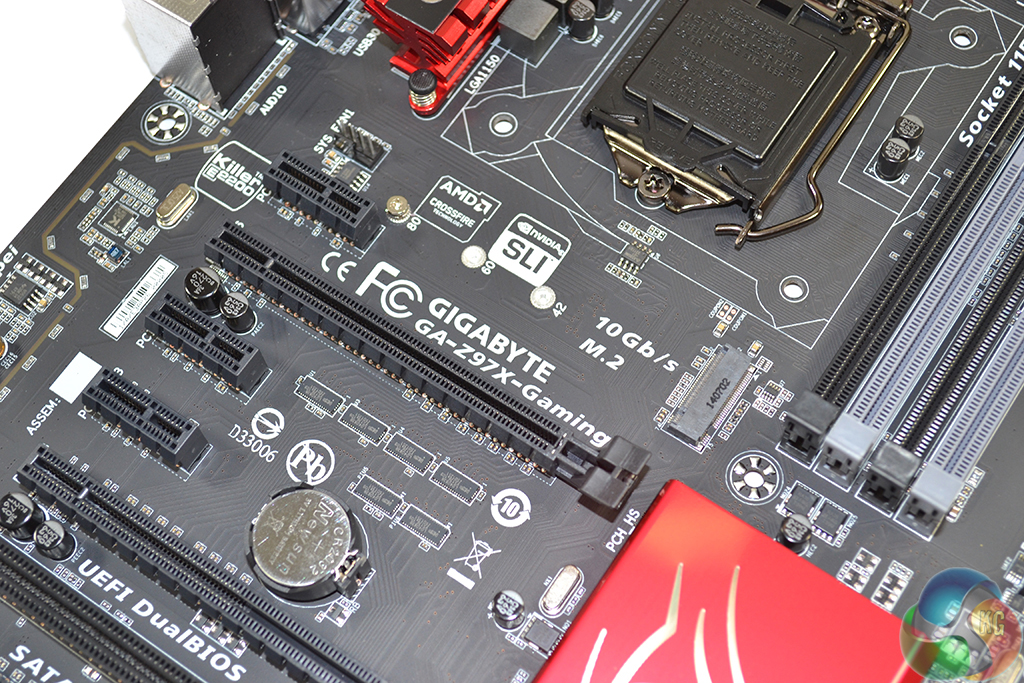
Gigabyte positions the board's 10Gbps M.2 connector above the uppermost full-length PCIe slot, making it accessible even when a graphics card is installed. This does, however, mean that M.2 SSDs with ugly green or blue PCBs will be clearly visible and could ruin a system's aesthetics.
Drives with lengths of 42mm, 60mm, and 80 mm can be installed into the connector. Providing the M.2 connection the chipset's two flexible SATA/PCIe lanes, users can operate both M.2 SATA and M.2 PCIe devices in the slot, without disabling any PCIe x1 connectors. Operating via the chipset's two switchable SATA/PCIe lanes does mean that the function of two SATA ports is lost when an M.2 device is installed.
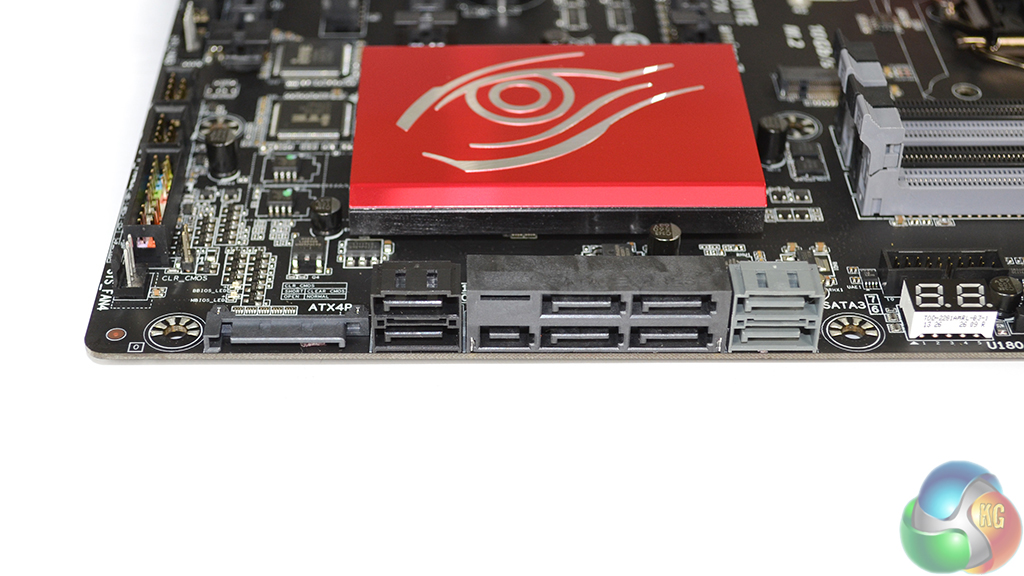
A total of eight SATA 6Gbps ports are present on the Z97X-Gaming 7, six of which are provided by the Z97 chipset, while the remaining two (grey coloured) operate via a Marvell 88SE9172 PCIe x1 host controller.
Two of the chipset-fed SATA 6Gbps ports are used with a PCIe-lane-carrying port to form the 10Gbps SATA Express connector. As indicated by a convenient sticker placed on the board, only one set from the choice of; two SATA 6Gbps ports, the SATA Express connector, and the M.2 slot, can be used simultaneously.
While the 9-series chipset has its inherent bandwidth limitations with simultaneous port usage, we like the fact that Gigabyte deployed both SATA and M.2 connections, allowing users to choose their preferable interface when market adoption of devices is more predominant.
A sideways-facing SATA power connector is used to provide extra current for heavy multi-VGA configurations.

Calling it G1 Audio (with Amp-Up technology), Gigabyte outfits the Z97X-Gaming 7 motherboard with a high-end audio solution. Based around the Realtek ALC1150 codec, Nichicon capacitors help to send signals along a discrete audio pathway, through a Texas Instruments N5532 amplifier, to the gold-plated outputs.
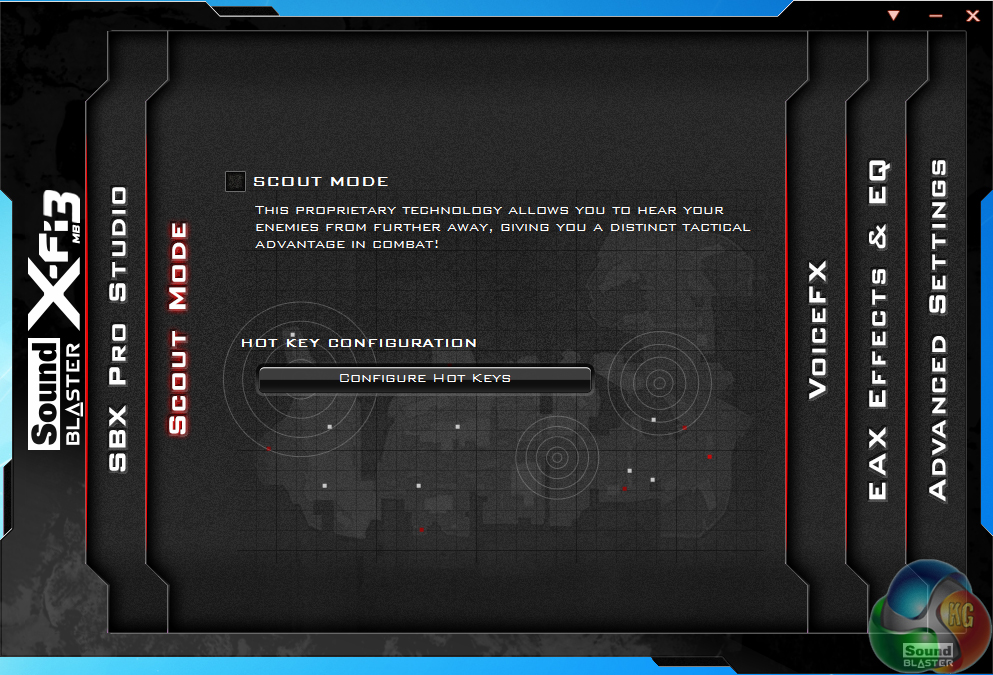
Gigabyte gives users control over their audio configuration by providing Creative's Sound Blaster X-Fi MB3 software, which includes the company's Scout Mode feature for gamers. The board's discrete signal pathway is illuminated by red LEDs for extra ‘bling points'.
Gigabyte opts for Killer's E2201 NIC for networking connectivity. There is an ongoing debate between gamers, enthusiasts, and even motherboard vendors as to the performance boosts (if any) offered by Killer's E2200 series chipsets.
Taking performance out of the equation, Qualcomm's Killer Network Manager software is one of the biggest reasons that many motherboard vendors employ the hardware.
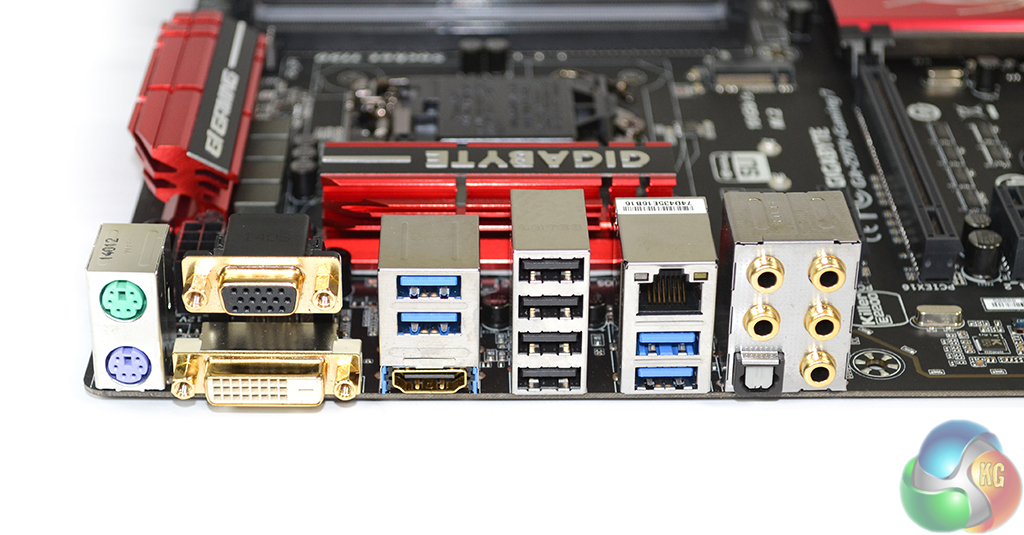
Tending to the needs of gamers, Gigabyte includes both PS/2 keyboard and mouse ports. Four USB 3.0 ports are provided via the Z97 chipset, as is the quartet of USB 2.0 connections. Gigabit Ethernet is powered by the Killer E2201 NIC.
Gold-plated connectors are used for the video and audio ports to ensure minimal contact interference. Some users may miss the omitted DisplayPort connector, although we would be surprised if that's the case on a gaming-orientated motherboard that is likely to be used with a discrete video card.
I would have liked to see a rear panel clear CMOS button for assisting users who overclock their board when it is situated inside a chassis.
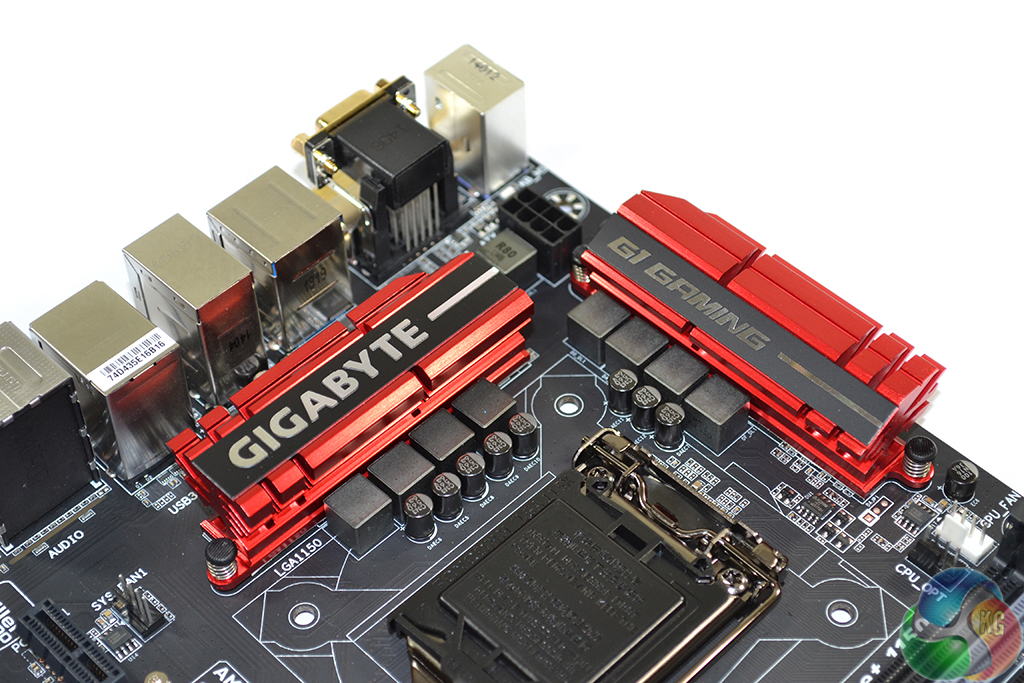
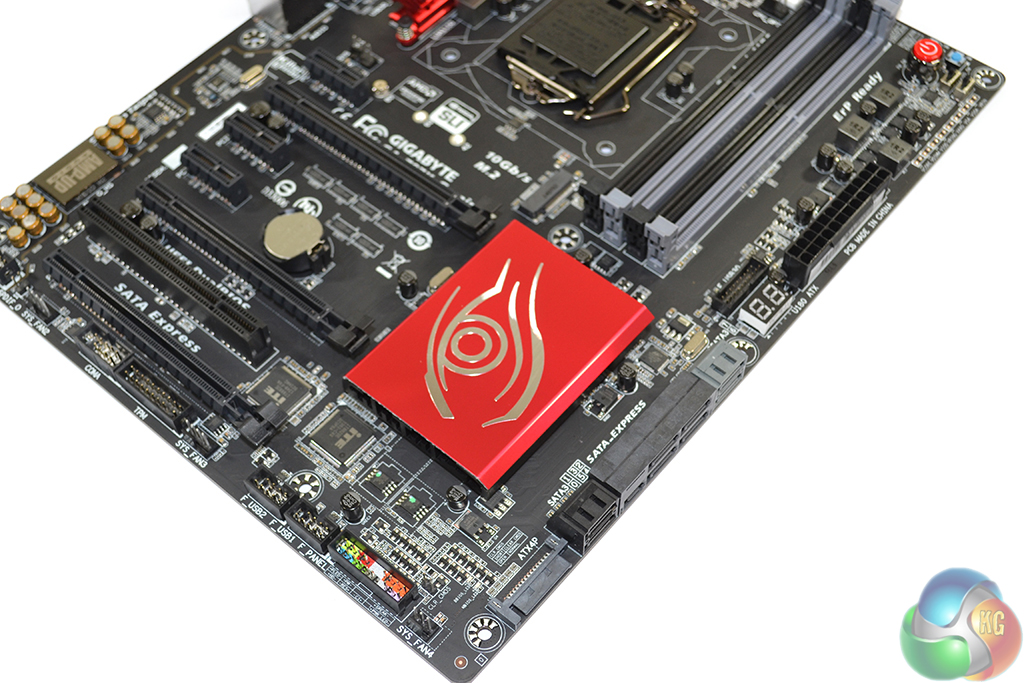
Gigabyte uses eye-catching heatsinks on its Gaming 7 motherboard, all of which are coloured in a bright red. Many users were (and still are) disappointed to see Gigabyte switch from its unique green and black colour scheme that was used on previous G1 series motherboards.
We have to agree with user feedback and express our disappointment that Gigabyte's aesthetic designers chose to follow the crowd, rather than stand out from it.
It's worth noting that Gigabyte uses a weak push-pin (similar to the stock Intel cooler) mechanism to secure the board's heatsinks. This results in noticeable movement when any form of force is applied to the units. A solid screw-in or bolt-in method of attachment would have been preferable.
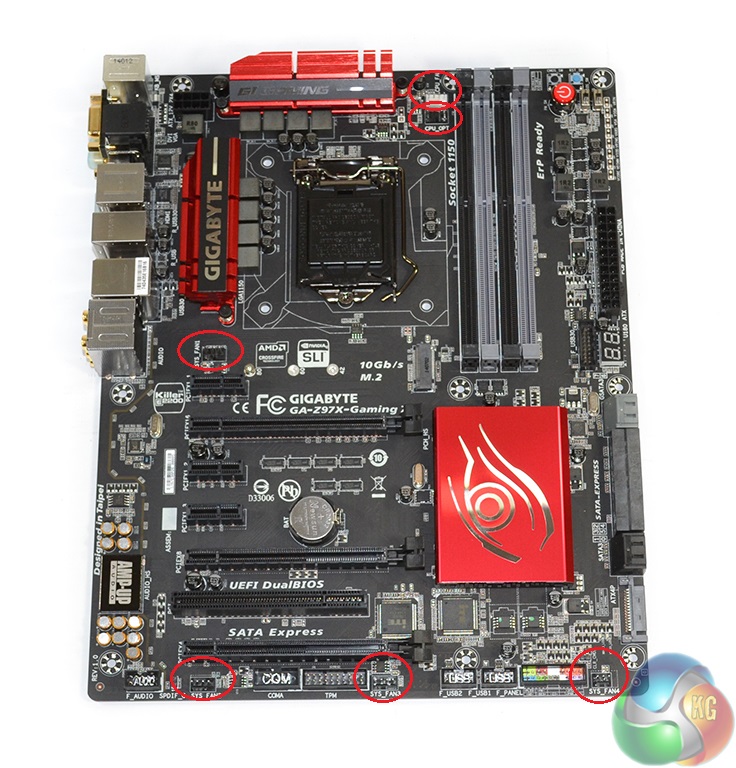
Powered by an ITE IT8620 Super I/O chip, six fan headers are supplied on the Z97X-Gaming 7. Three (two 4-pin, one 3-pin) are found along the board's bottom edge, one 4-pin header sits near the rear chassis fan position, and two 4-pin connectors provide CPU cooling duties.
Distribution of the fan headers is good, although being critical, we would have liked to see one of the connectors from the bottom edge shifted up towards the 24-pin area.
Firstly, we are pleased to report that our Leetgion Hellion mouse worked to its usual standard in the Gigabyte Z97X-Gaming 7 motherboard’s UEFI BIOS.
Gigabyte's DualBIOS UEFI implementation used on the Z97X-Gaming 7 is identical to that used on the Z97X-UD5H-BK motherboard, with the exception of a different colour theme. As such, pictures from the previous review are used and our analysis and recommendations are largely identical, with the point of reference adapted to the requirements of gaming users.
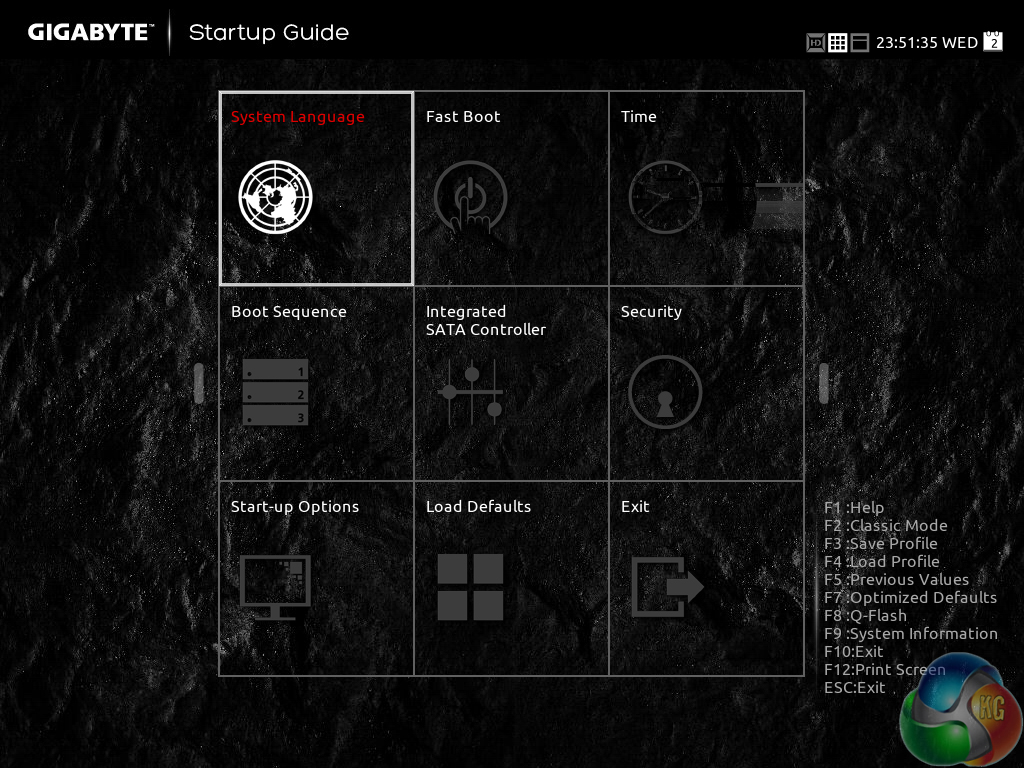
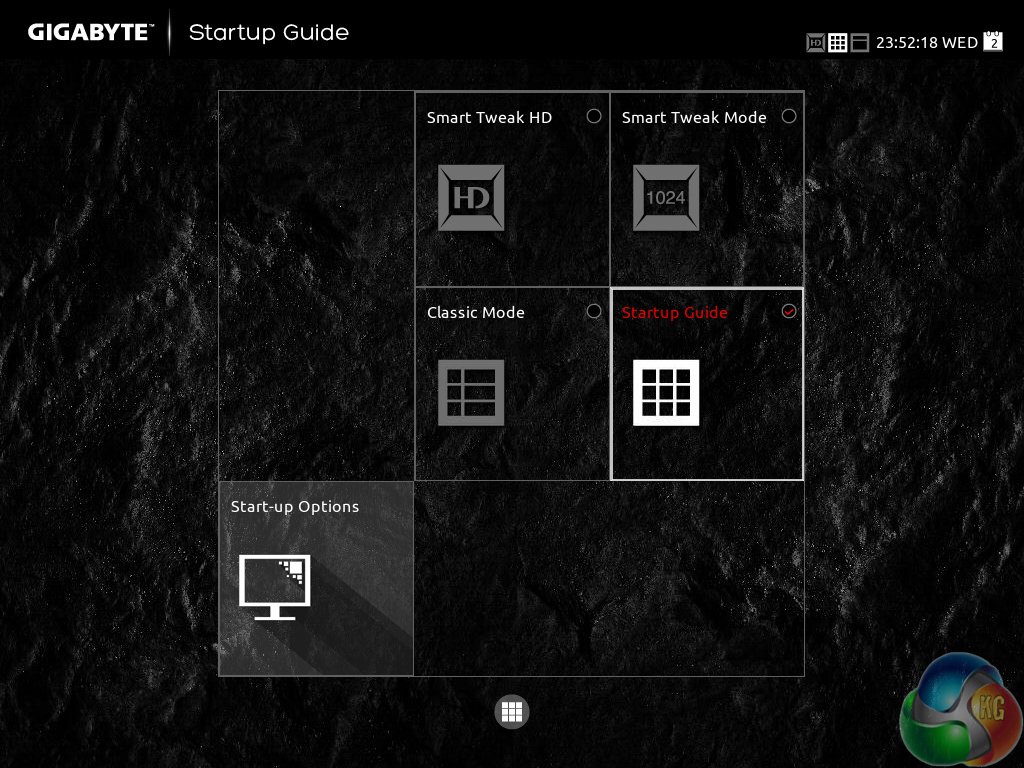
Gigabyte greets users with an entry page that resembles the Windows Metro UI. Tiles provide users with quick access to certain features and settings.
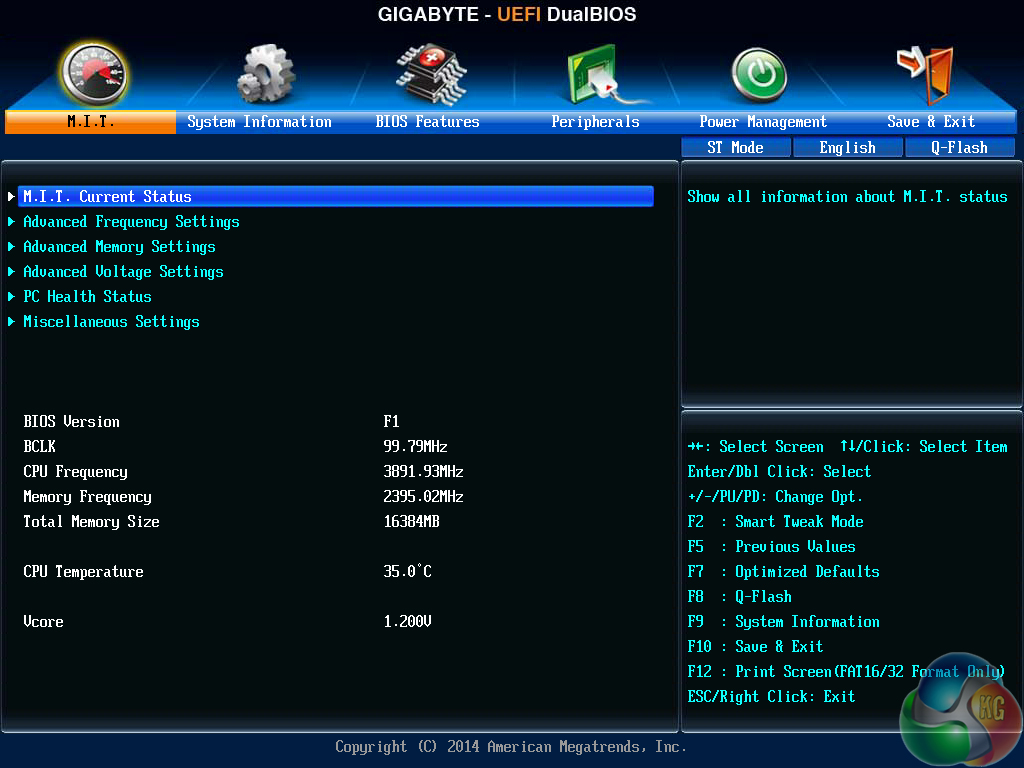
A UI based around Gigabyte's old style of BIOS is present on the Z97X-Gaming 7 motherboard. Users with experience in the old interface may welcome the BIOS-style layout.
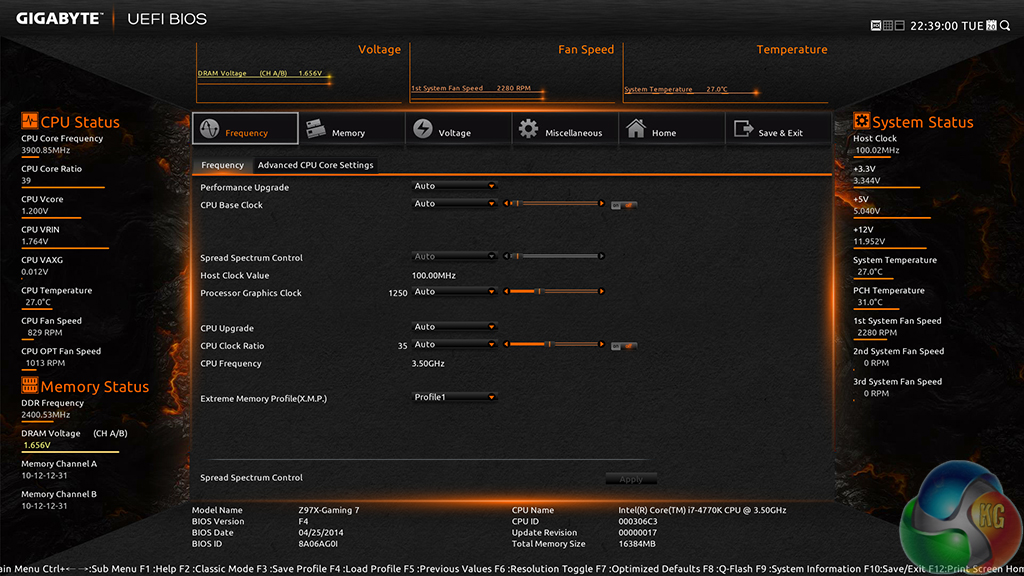
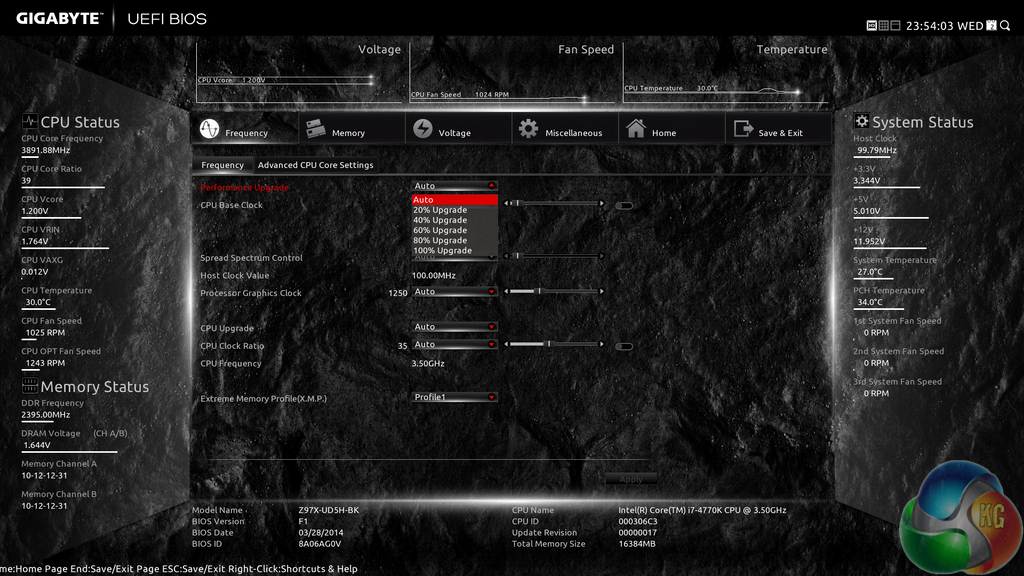
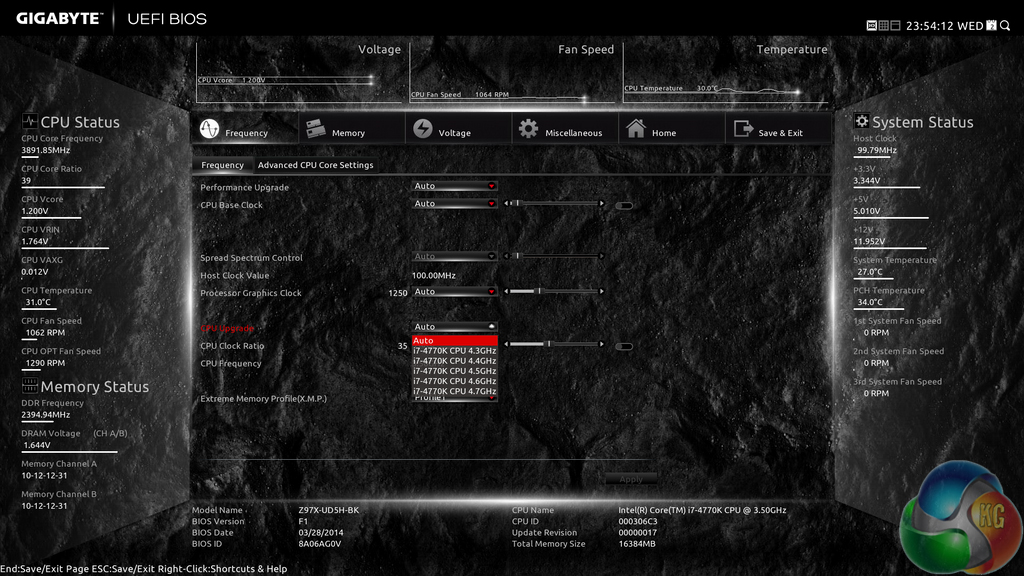
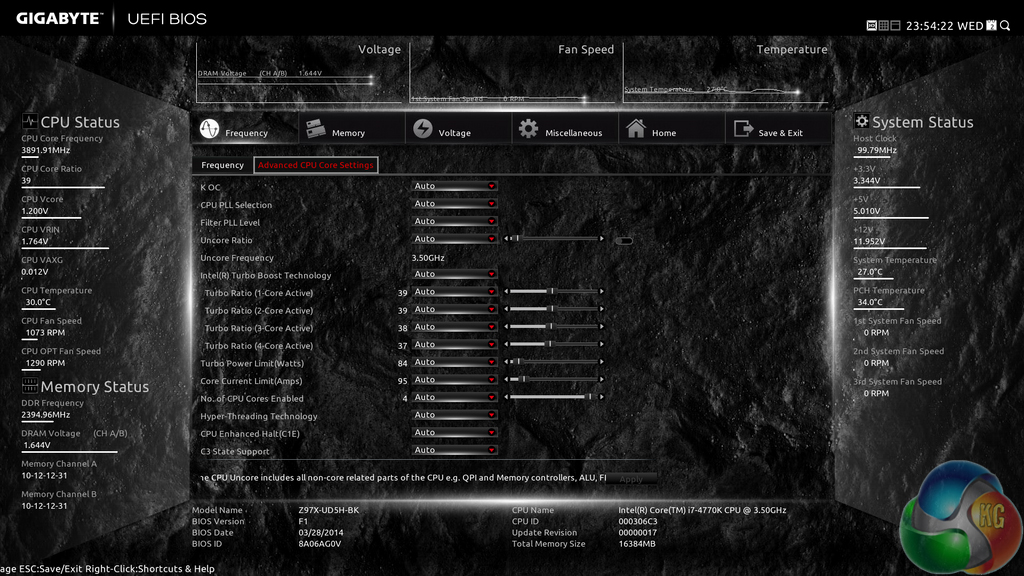
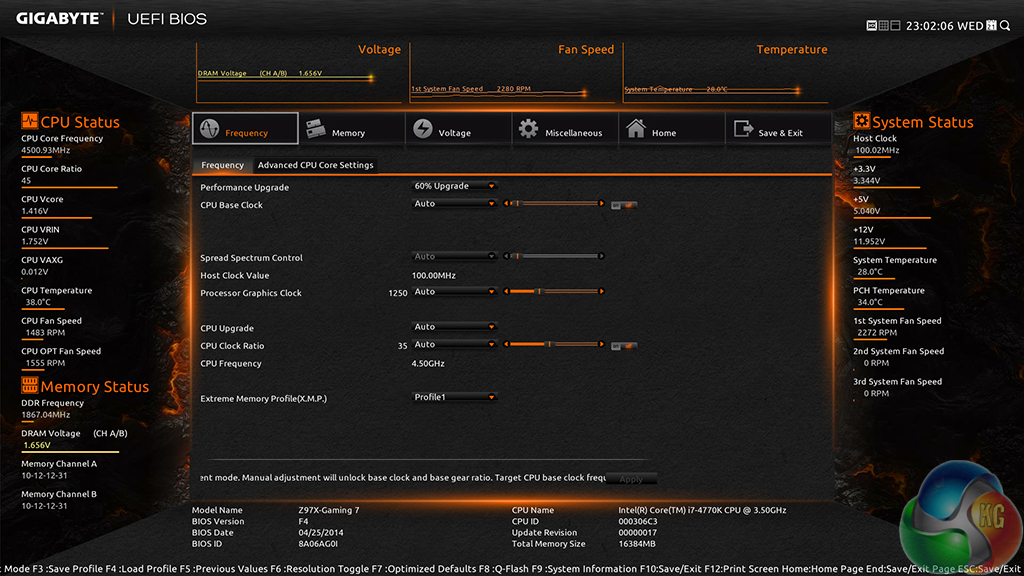
Upon entering the 1920×1080 (dependent upon your monitor's resolution) UEFI, Gigabyte opens the frequency page. The interface packs large amounts of information into a single screen by virtue of its 1920×1080 resolution. Voltages, frequencies and other monitoring parameters are consistently scattered around the outside of each page.
A number of speed parameters and performance boosts can be selected via the Frequency page and its subsections.
The Z97X-Gaming 7 uses an orange skin by default, although the theme colours can be adjusted via the UEFI.


Frequency and timings configurations can be adjusted via the Memory section. Gigabyte includes pre-set profiles tailored for high-spec RAM kits by overclocking professionals such as HiCookie.
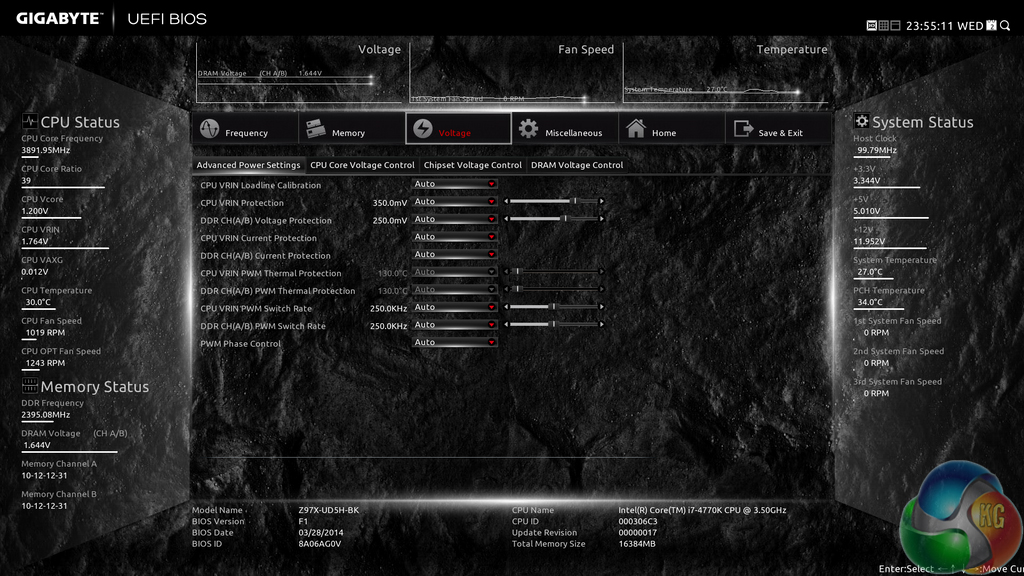
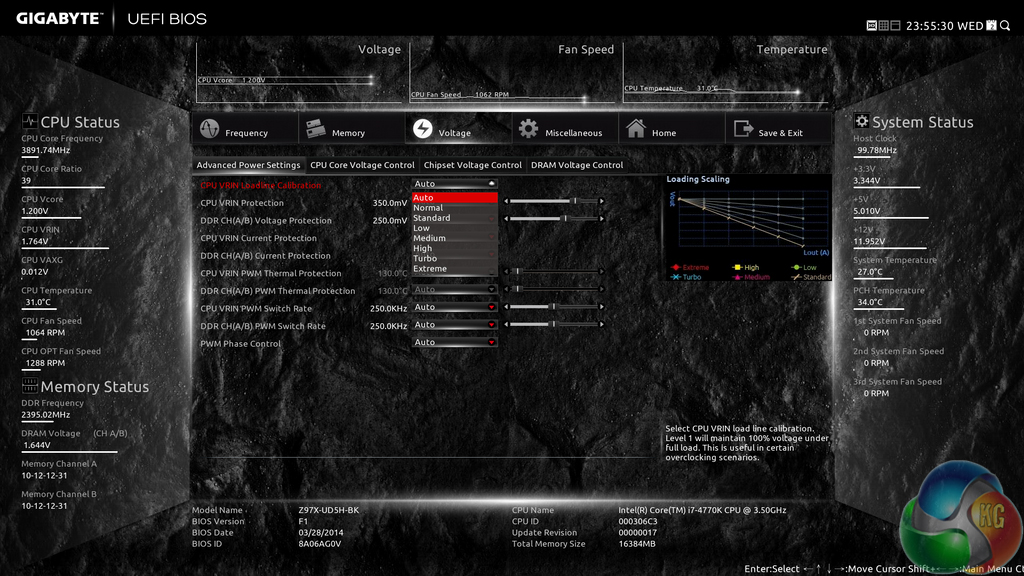
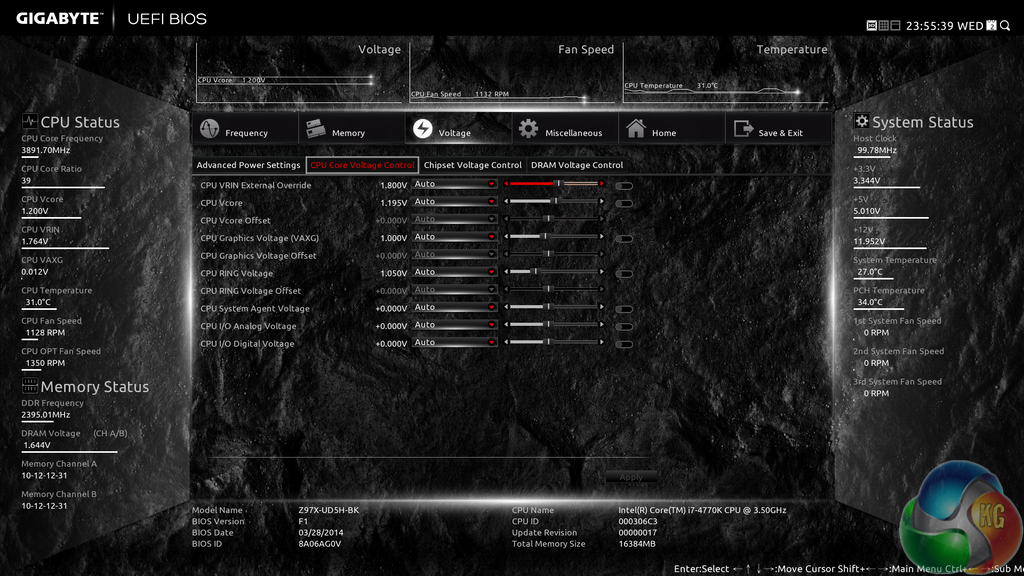

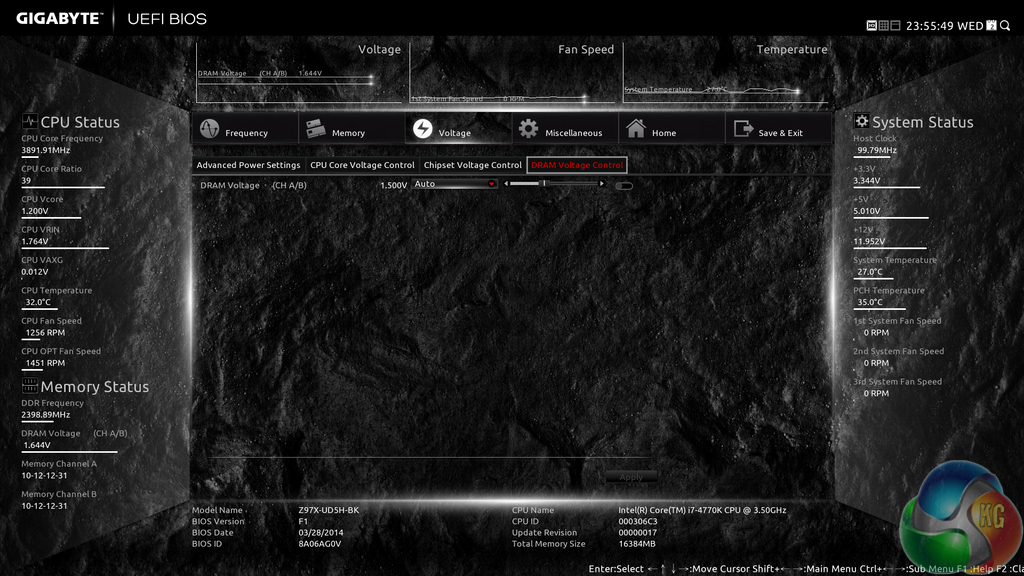
Power and voltage settings can be adjusted in the relevant subsection. Some of the parameters, such as CPU VRIN Loadline Calibration, open a graphical display to assist a user in making an appropriate choice.
Oddly, Gigabyte situated the all-important CPU voltage controls in the second column on the Voltage subsection, not the first. If one does not like the slider approach of applying voltages, users are able to key in the relevant values.
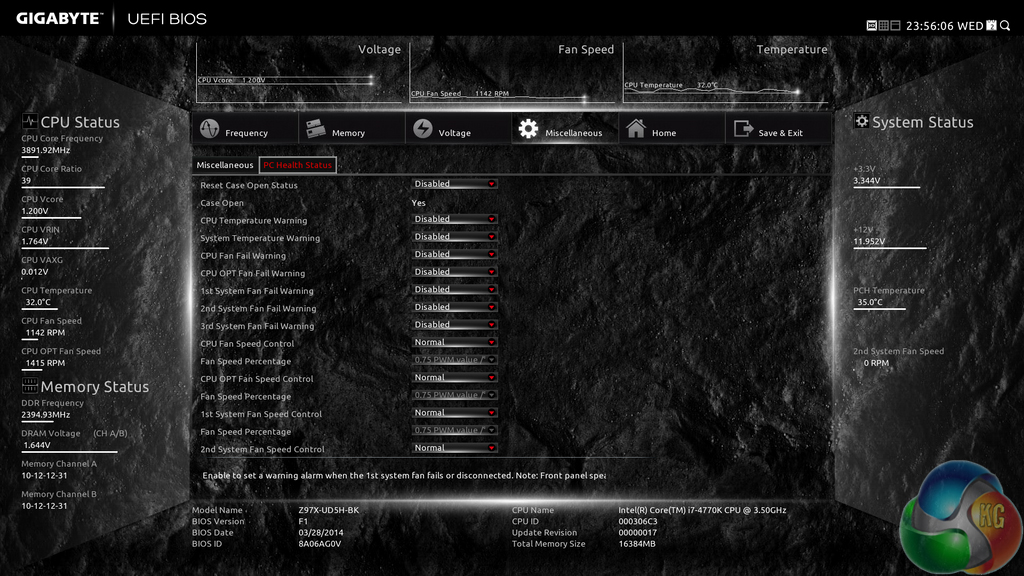
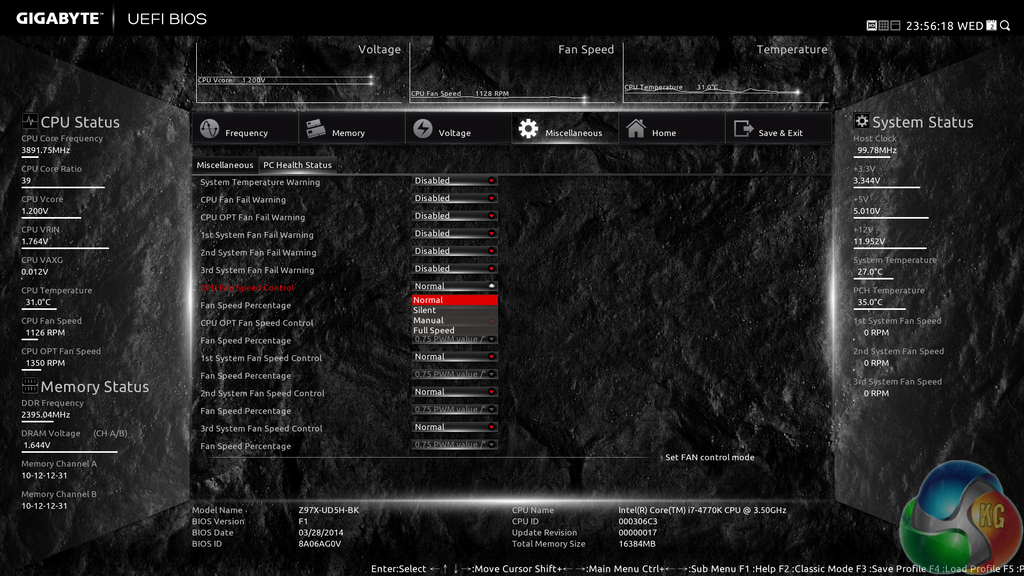
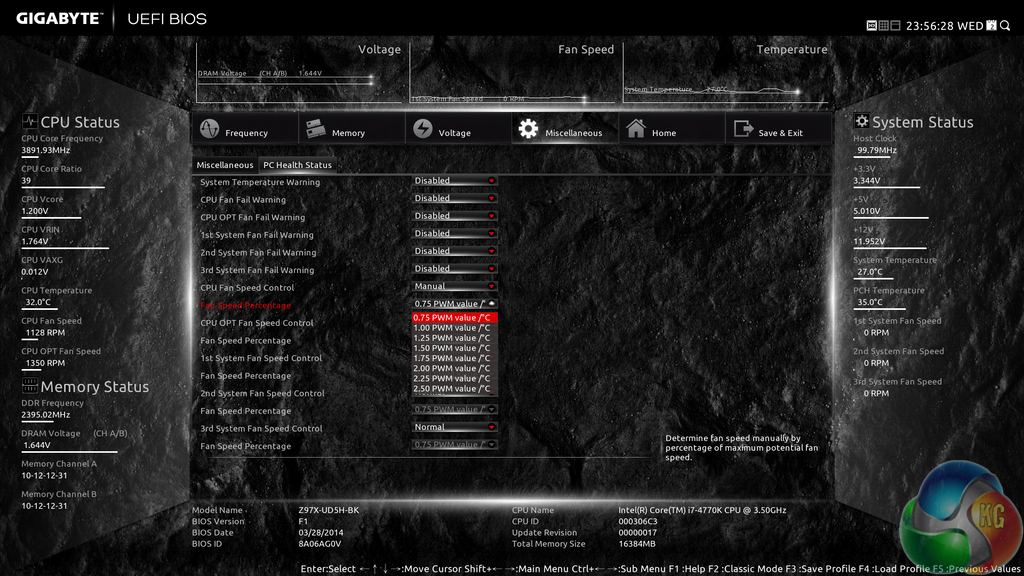
Fan and warning settings can be accessed via the PC Health Status column of the Miscellaneous section. Fan speed controls can be set to a user's preference, albeit with a limited range of input.
Gigabyte uses a drop-down list to outline the relevant fan speed curves, which is a less user-friendly approach than the graphical interface used by competing motherboard vendors.
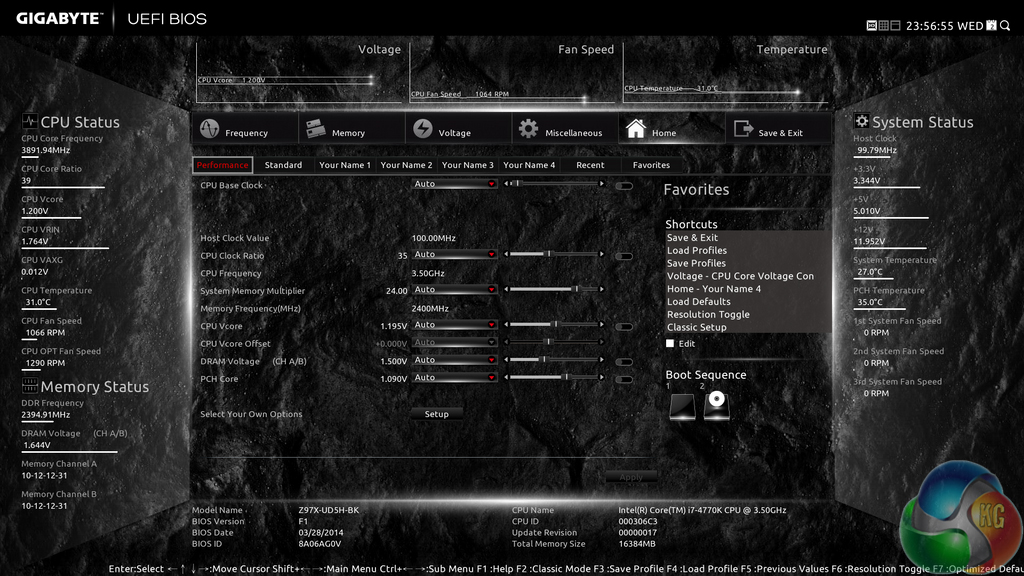
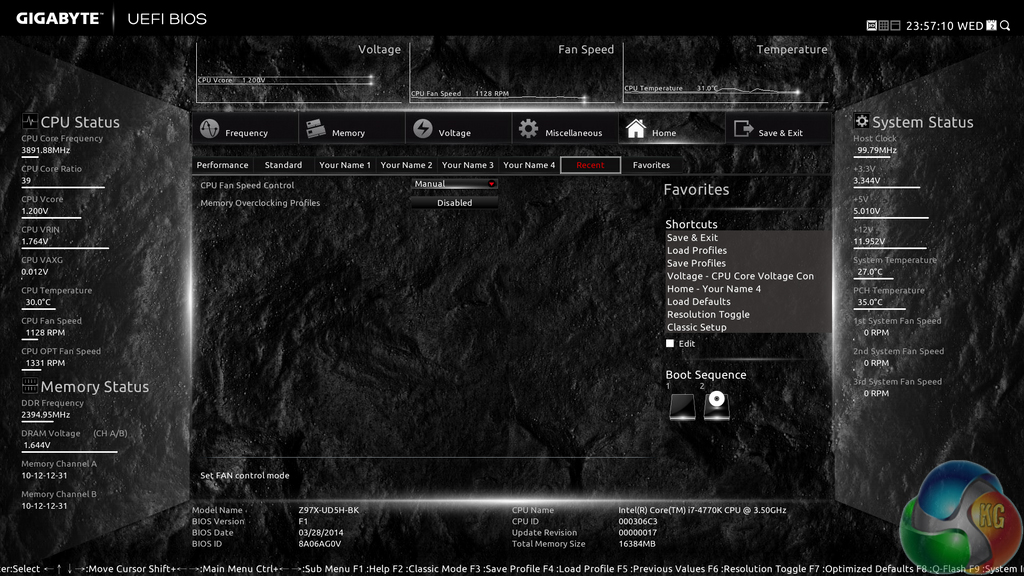

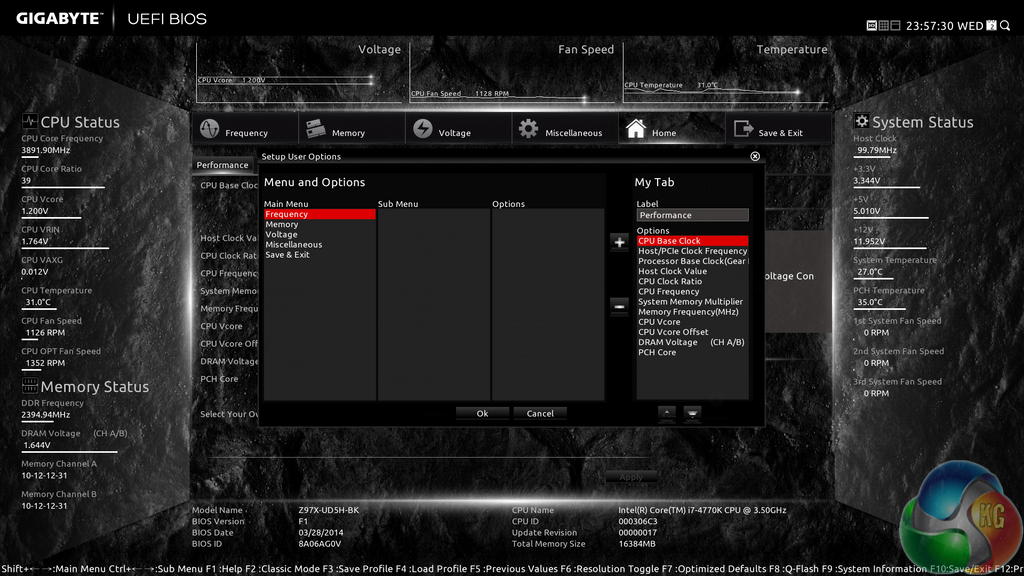
The Home section provides an area where users are given a degree of freedom as to the interface's layout. By default, key component parameters are displayed on the Home page, but this layout can be tweaked to a user's preference. And if you'd rather not tweak the interface, Gigabyte allows you to create four custom pages from scratch.
The Recent section displays recently used settings while the Favourites tab can provide quick access to frequently used parameters.
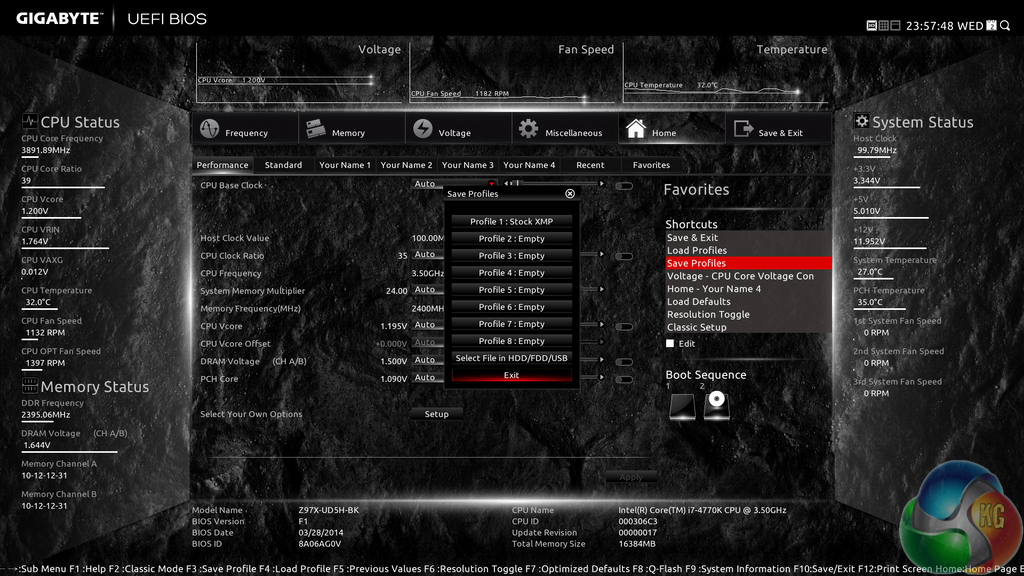

Up to eight OC profiles can be saved to the motherboard's internal memory, while many more and more can be exported or imported via USB.
We noticed that, for some reason, Gigabyte's UEFI likes to overwrite saved settings profiles when trying to load them. I loaded my stock-speed saved profile, only to find that it had been overwritten by the current settings.
This is a fundamental error that will frustrate many users, especially those who have spent time fine-tuning their overclocking profile only to see it overwritten.
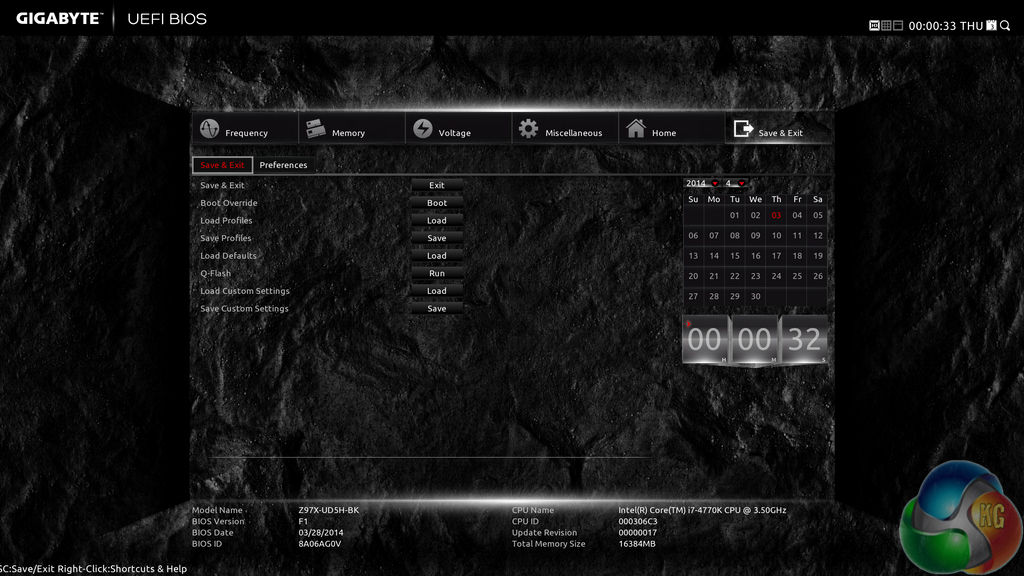

Control adjustments for the UEFI and the Q-Flash BIOS updater can be accessed via the Save & Exit section. I would prefer Gigabyte to have given the many of the control parameters their own section titled ‘Settings' to make them easier to spot in the UEFI. Save & Exit typically implies saving and exiting, not adjusting control options and updating the BIOS.
Some useful additions to Gigabyte's UEFI are the ability to change the visual theme, background wallpaper, and resolution.
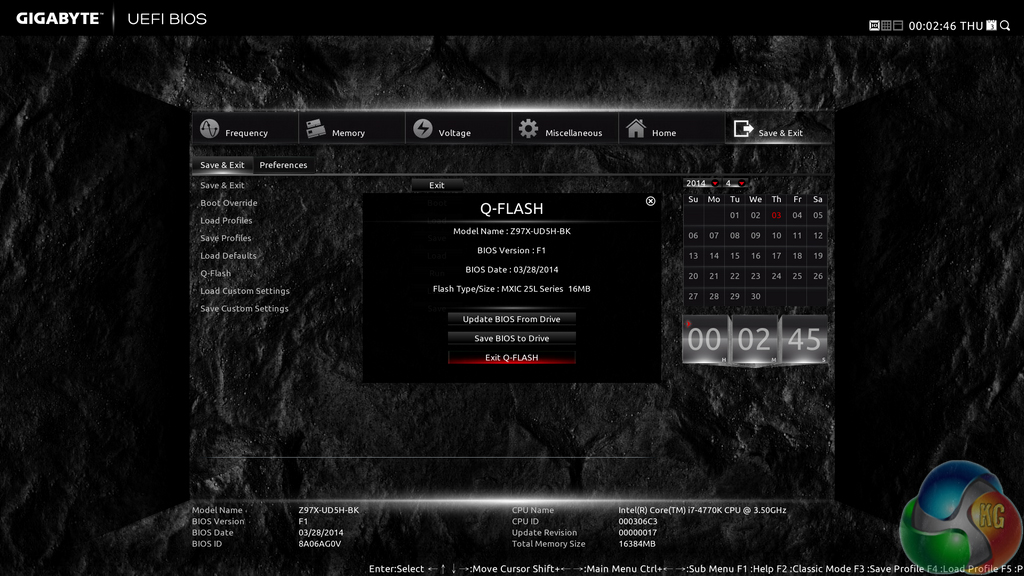
The Q-Flash updater is able to access folders in a USB flash drive, allowing users to manually seek a BIOS file.
Gigabyte has made some key improvements on its Z97 UEFI over the version used on many of the company's Z87 boards. The most noteworthy upgrade comes in the form of organisation; Gigabyte has optimised the layout to make sifting through BIOS settings and sections a simpler task. It is indeed a more pleasant experience working in the Z97X-Gaming 7 motherboard's UEFI, although there is still clear room for improvement.
The use of a Full HD, 1920×1080 resolution is excellent. Additional information relating to operational recordings can be displayed on a page without interfering with the parameters that users intend to tweak. And there's also the old style of BIOS for people who have extensive experience with Gigabyte's motherboards from previous generations.
There are still a few issues relating to overlapping content and generally poor layout. Many parameters for frequency and voltage are repeated multiple times causing the UEFI to seem more crammed than it actually is. Fan speed control is also a negative aspect; a list outlining arbitrary (to many people) values and units is less user-friendly than a graphical interface displaying the fan speed curves.
Gigabyte Z97X-Gaming 7 software (including generic Gigabyte Z97 motherboard software)
The software tools that Gigabyte provides with its Z97X-Gaming 7 are largely identical to those compatible with the Z97X-UD5H-BK. By default, the Z97X-Gaming 7 uses a red theme for its software apps.
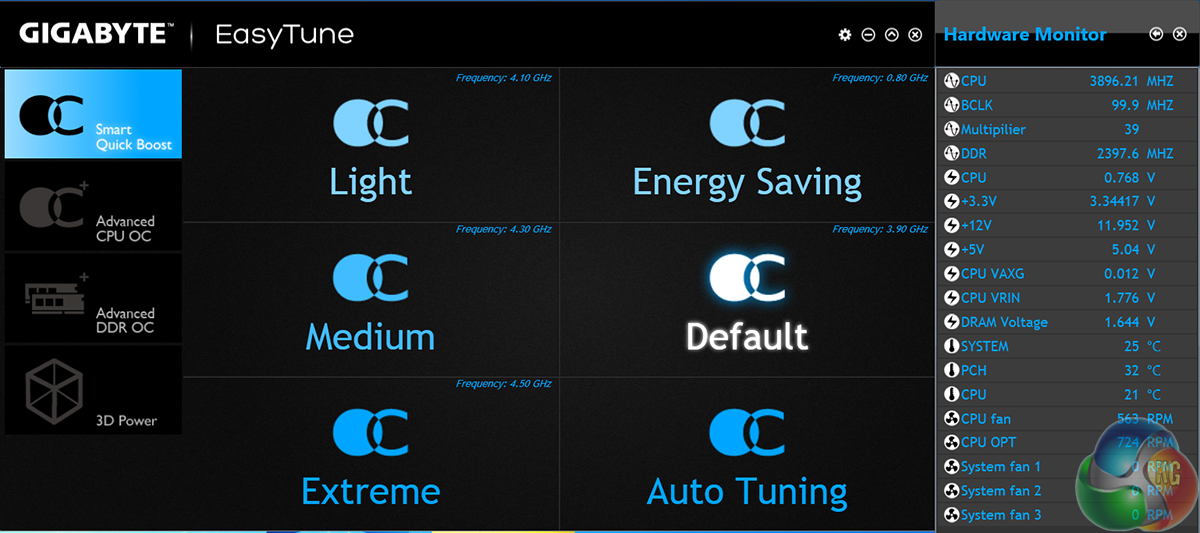
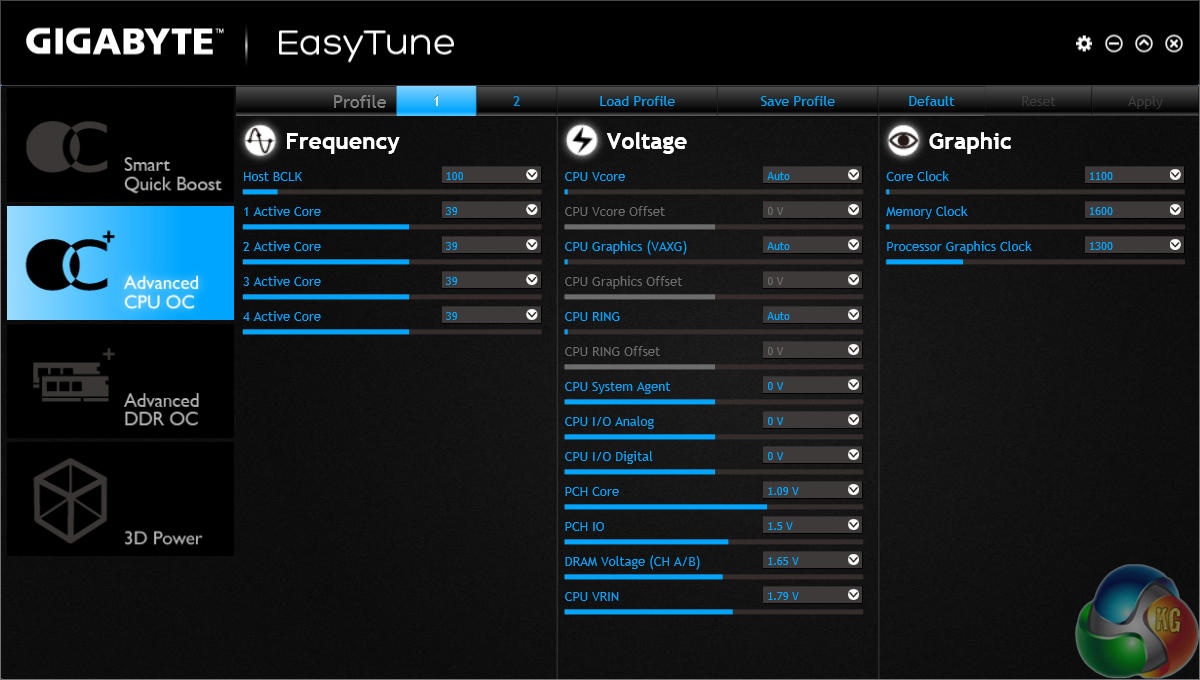
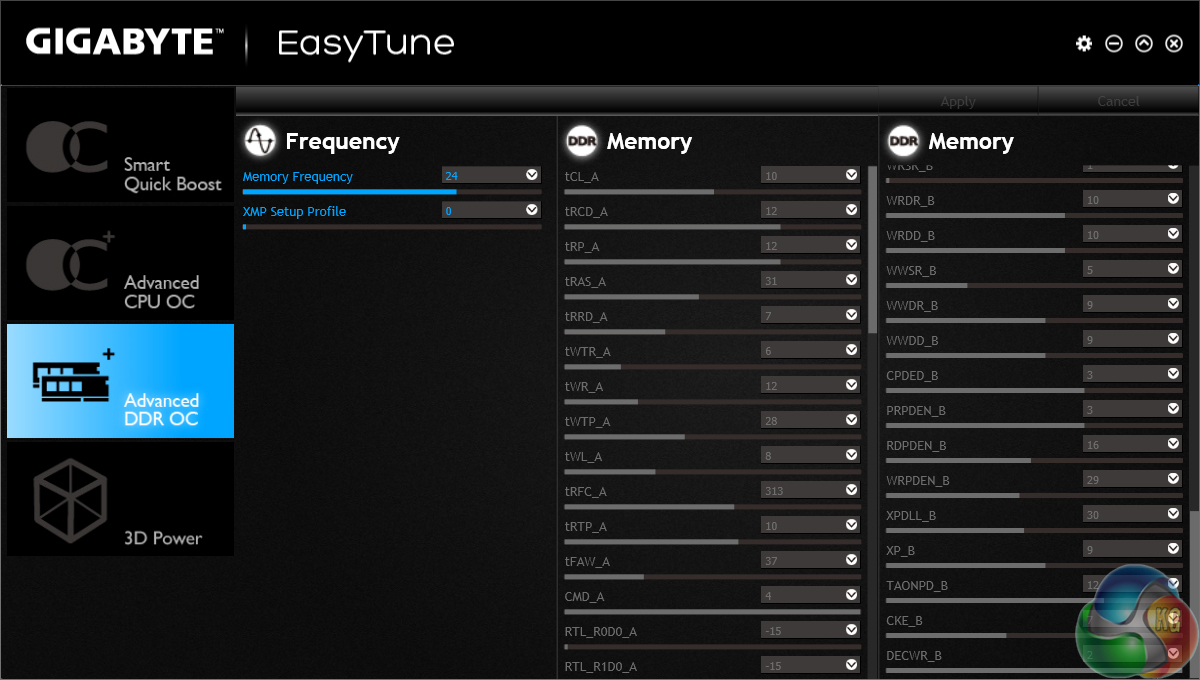
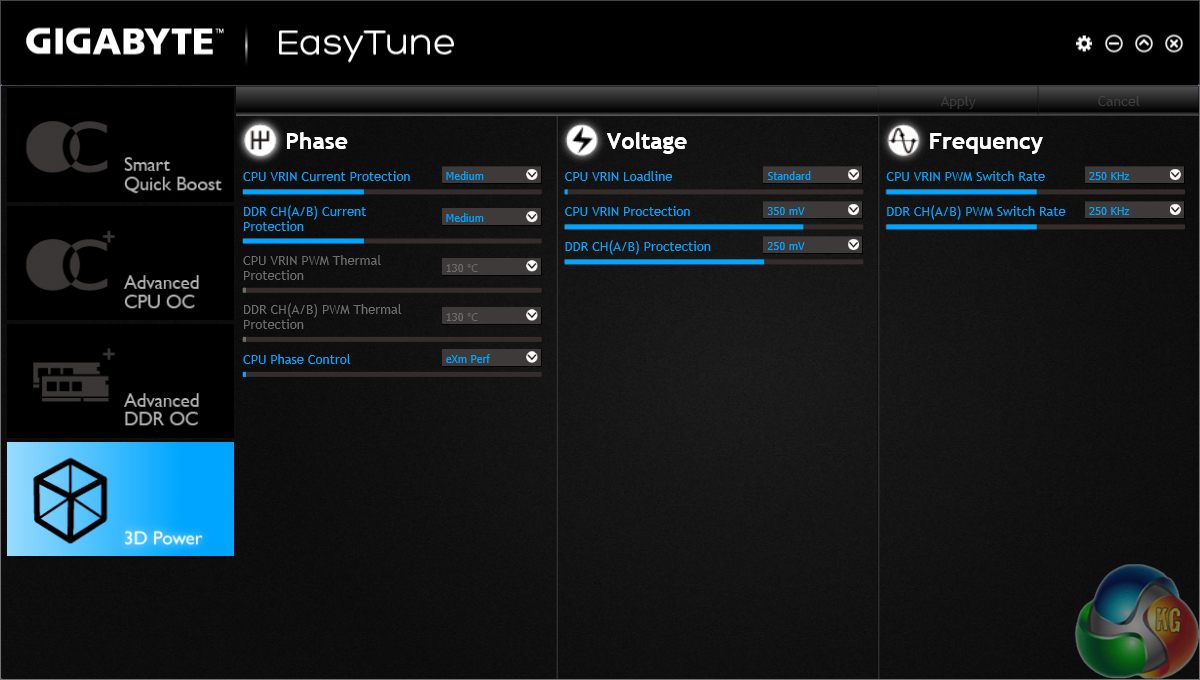
Gigabyte's EasyTune software allows users to view and adjust frequency, voltage, and other overclocking-related settings in an OS environment. Pre-set frequency profiles can also be selected, as can an auto tuning overclocking tool.
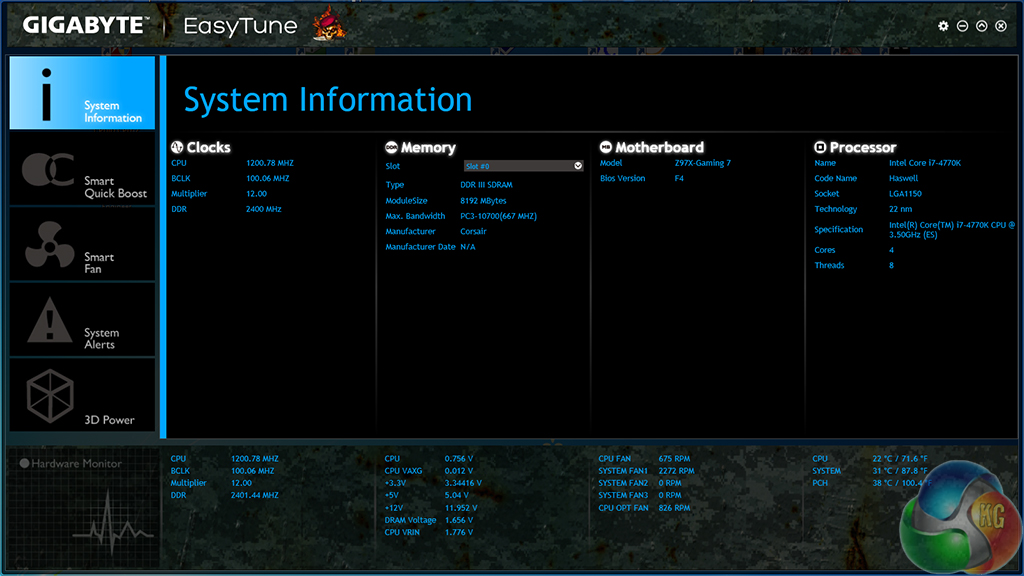
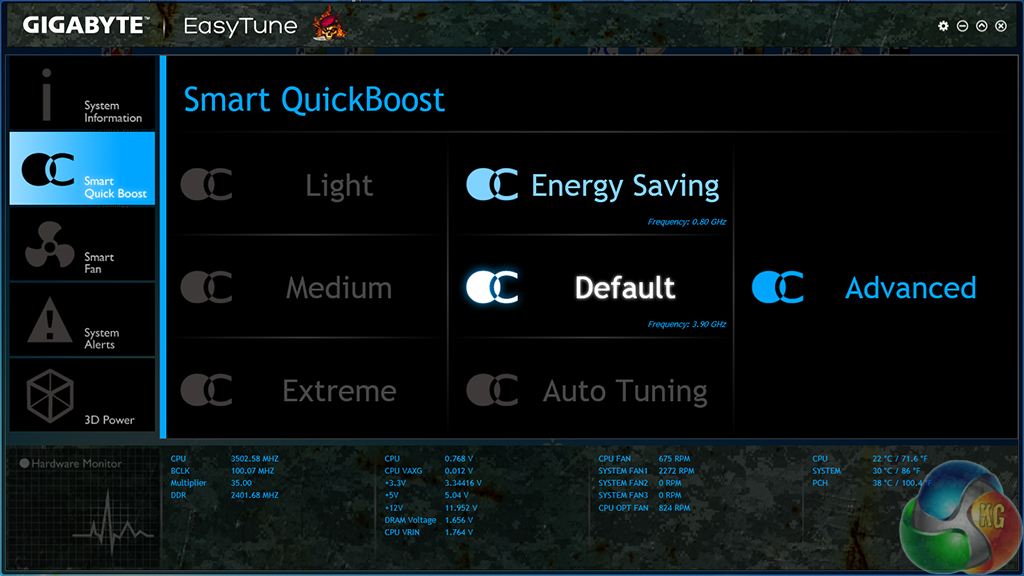
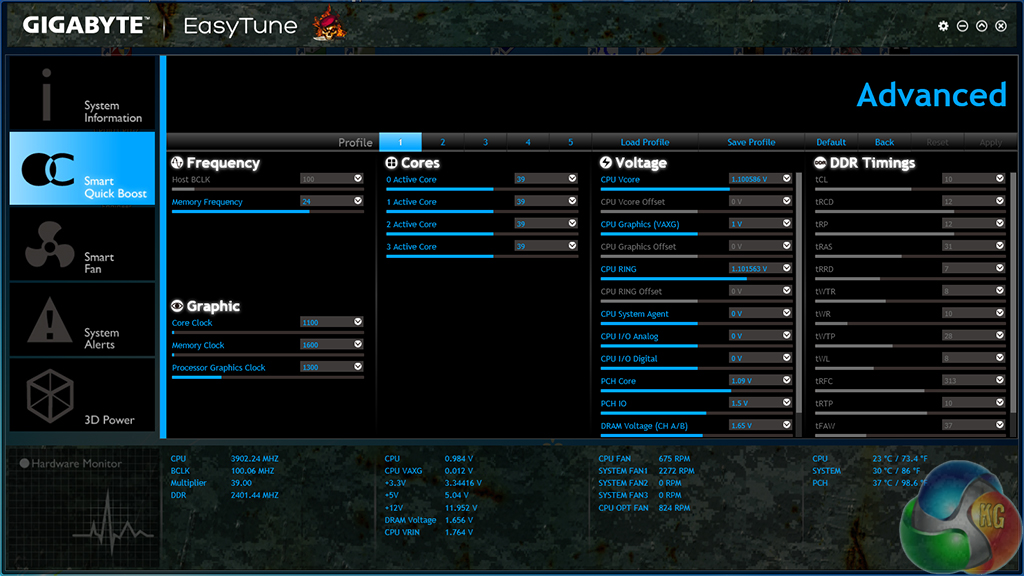
Being a G1 Gaming series motherboard, Gigabyte makes the part compatible with an extra version of the EasyTune software (the one we got when downloading software via Gigabyte's webpage). It's not just the skin that is different, though; compared to the standard EasyTune software, the G1 Gaming part seems to be allocated additional settings.
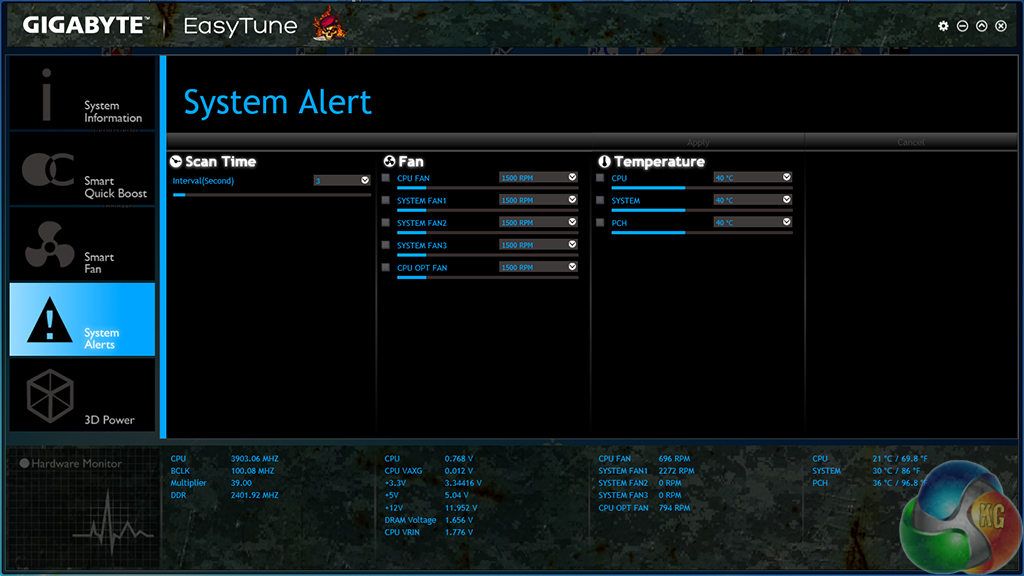
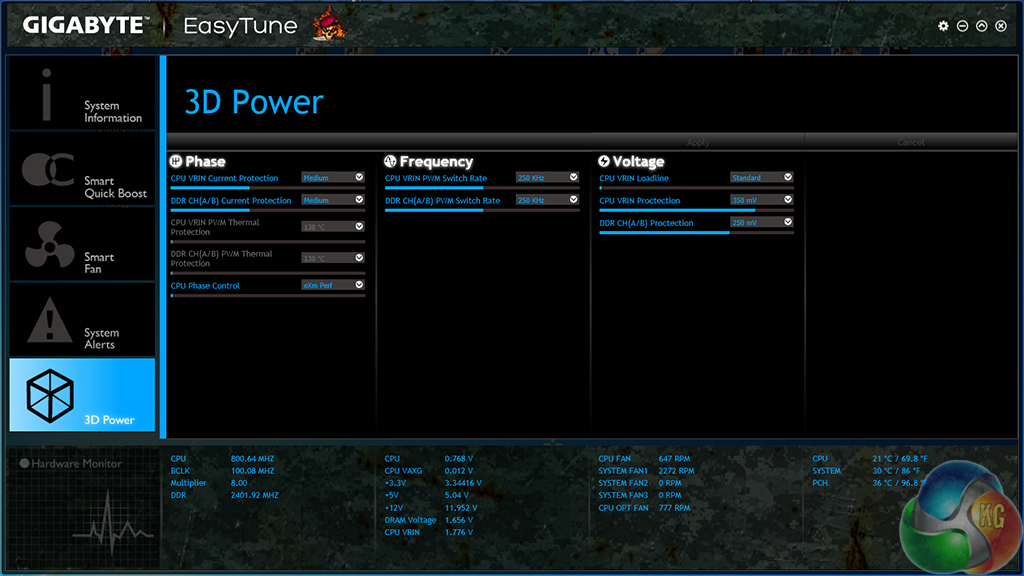
Additional power and alert settings can be configured elsewhere in the software suite.
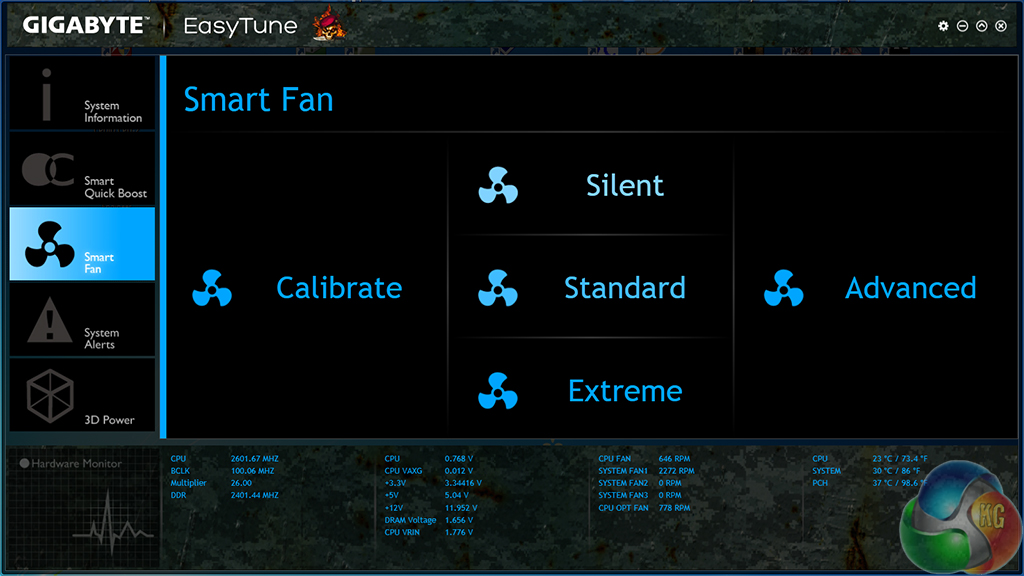
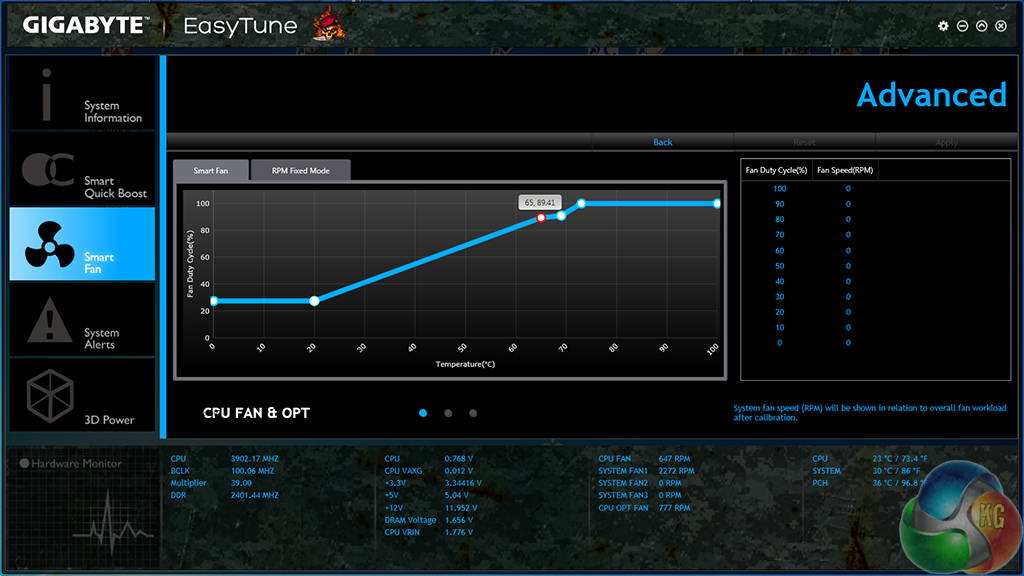
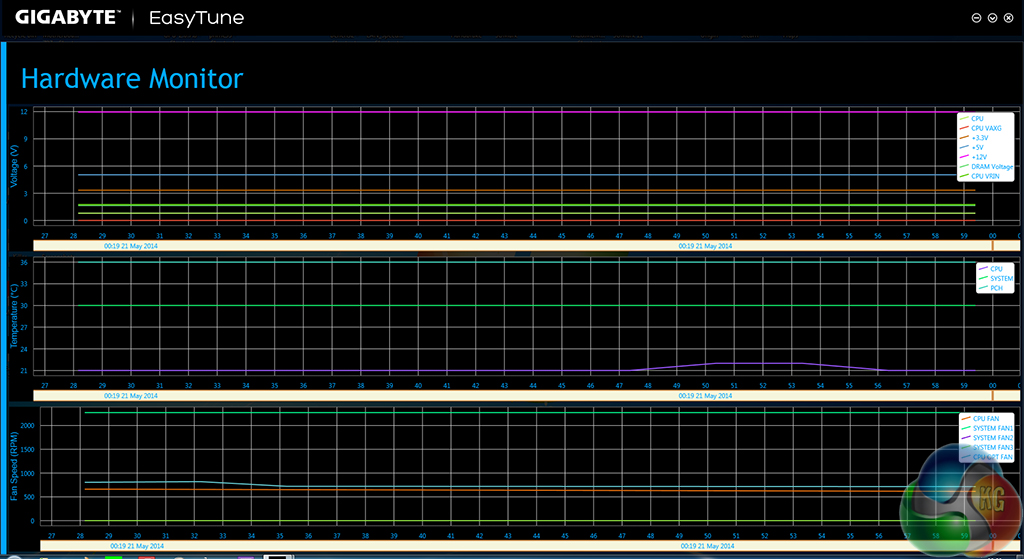
System information is continuously displayed at the bottom of the EasyTune window. Making up for the lacklustre UEFI approach, settings for a custom fan speed profile can be tweaked via their own section in Gigabyte's software suite.
The monitoring section displays voltage, fan speed, and temperature readings, although the graphs are very ugly and poor layout makes them difficult to read. We also noticed that Gigabyte's CPU temperature reading is erroneous; a sub-ambient temperature was recorded, indicating a clear issue.
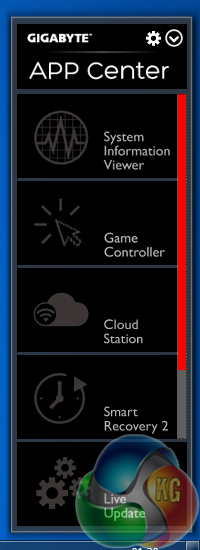
Moving over to the App Center, Gigabyte allows users to install the tools relevant to them. For example, the System Information Viewer tool can be installed but Smart Time Lock can be left out.
The Z97X-Gaming 7 motherboard is able to install the exact same software as the Z97X-UD5H-BK, the only difference is the theme colour (Gigabyte's G1 Gaming board uses a red skin).
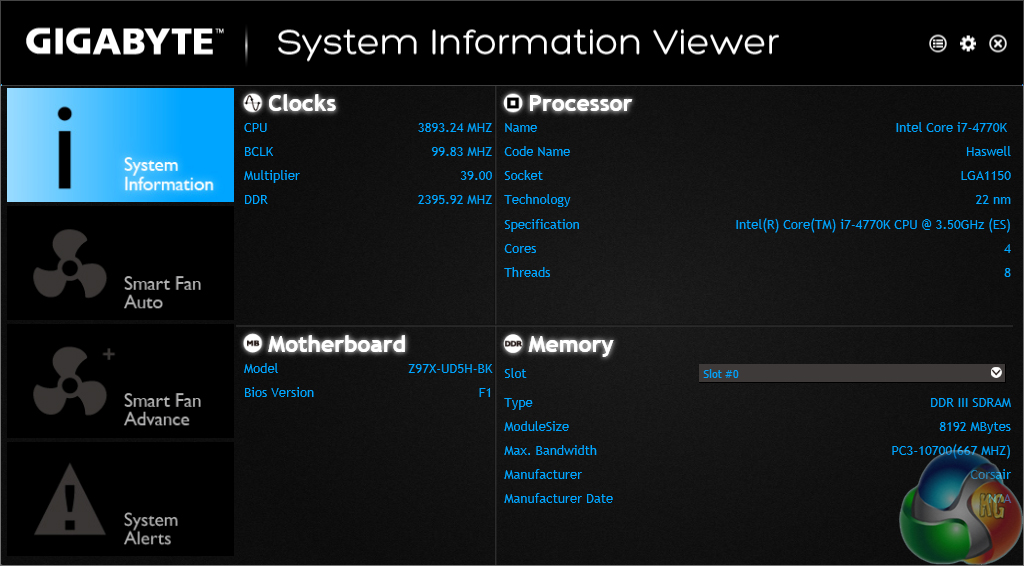
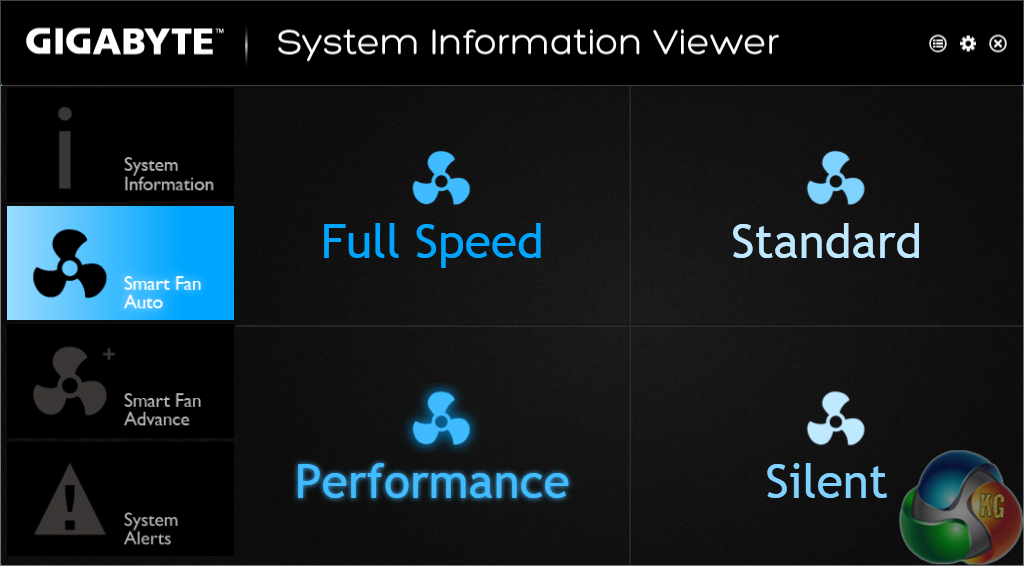
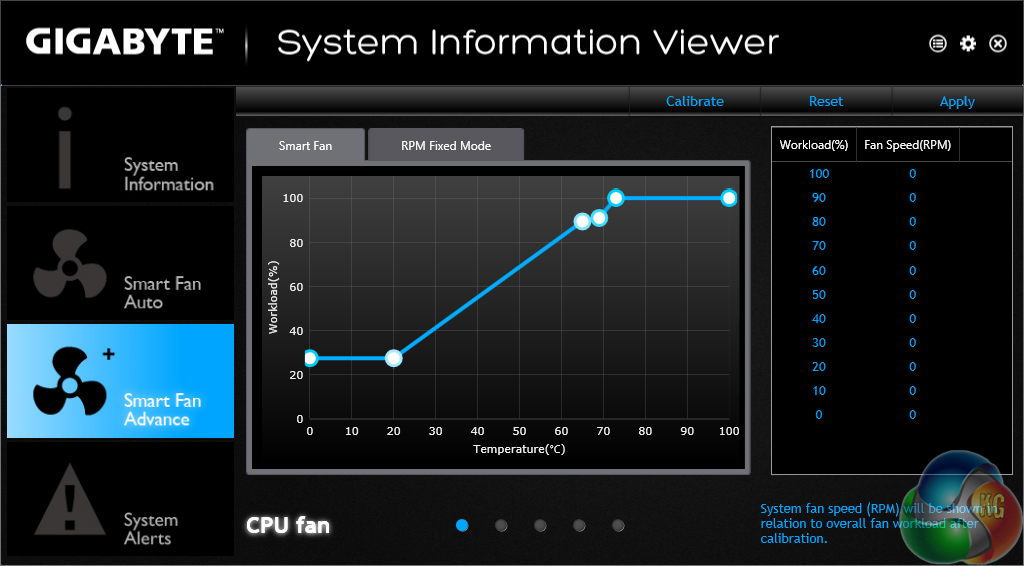
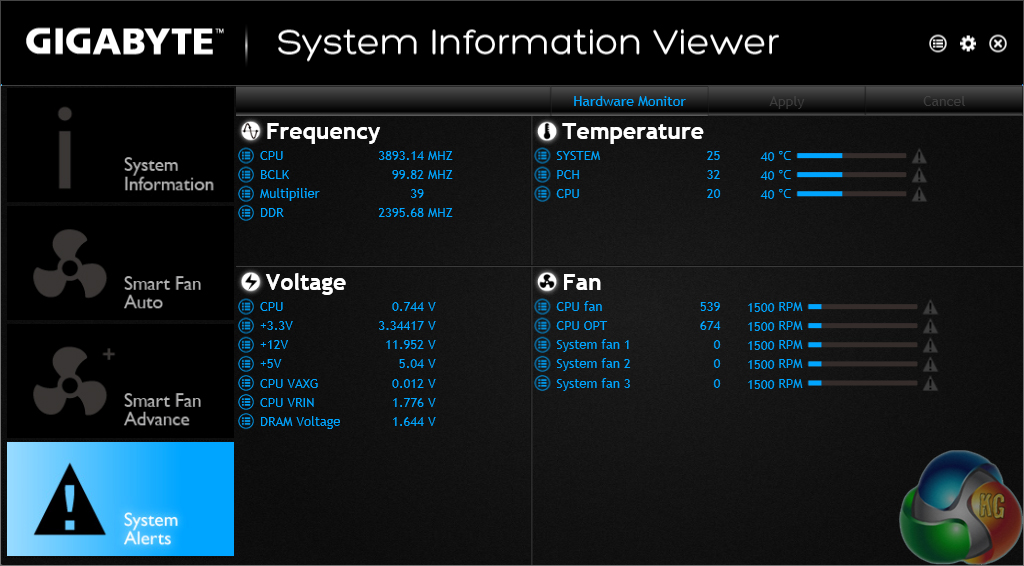
System information and fan speed settings can be tweaked via their own section in Gigabyte's software suite.
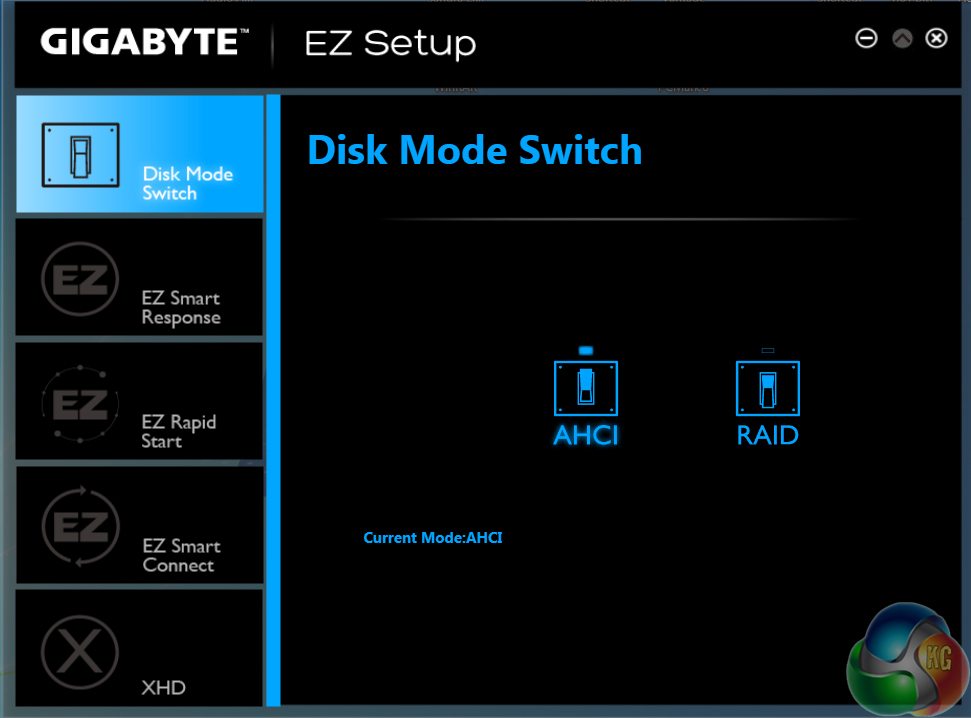
EZ Setup allows users to tweak their storage configuration settings.
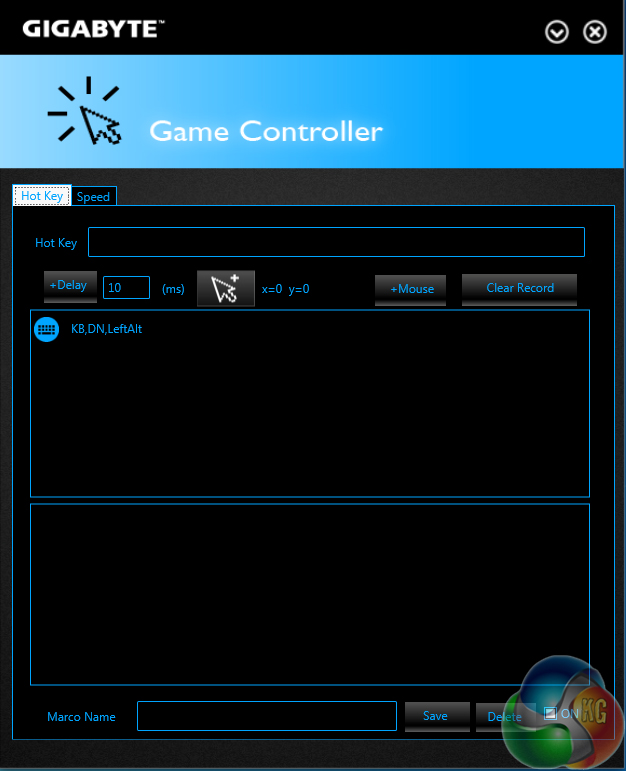
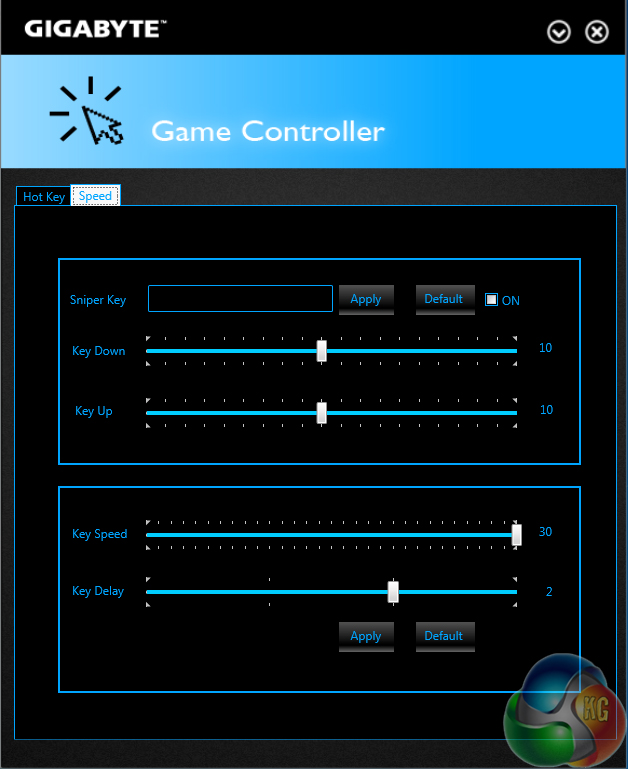
Game controller allows users to adjust the operation of their mouse in a gaming environment.
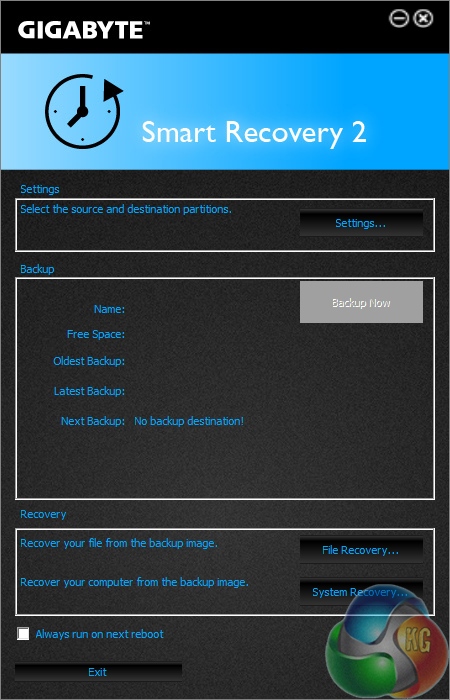
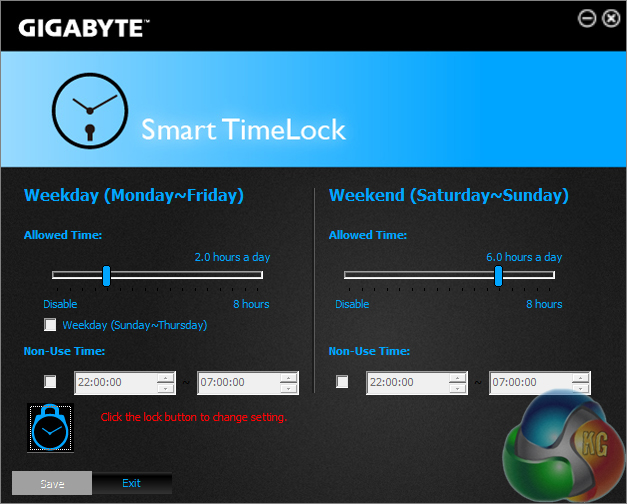
Smart Recovery 2 is Gigabyte's backup manager, while Smart Time Lock allows users to set times for when their system can be operated. The latter feature could be particularly useful to parents making sure their children aren't up all night playing games.
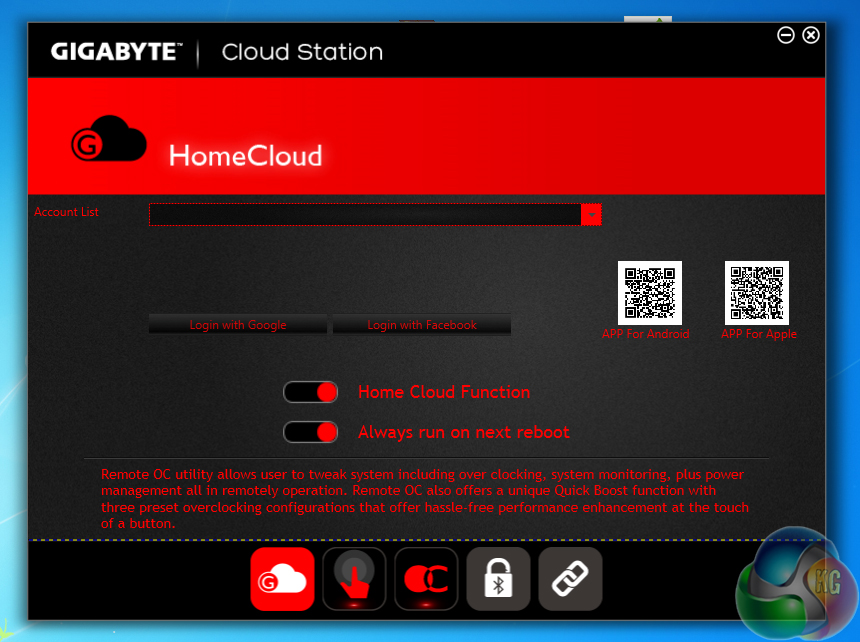
Gigabyte Cloud Station can be used to provide portable devices with access to one's computer.
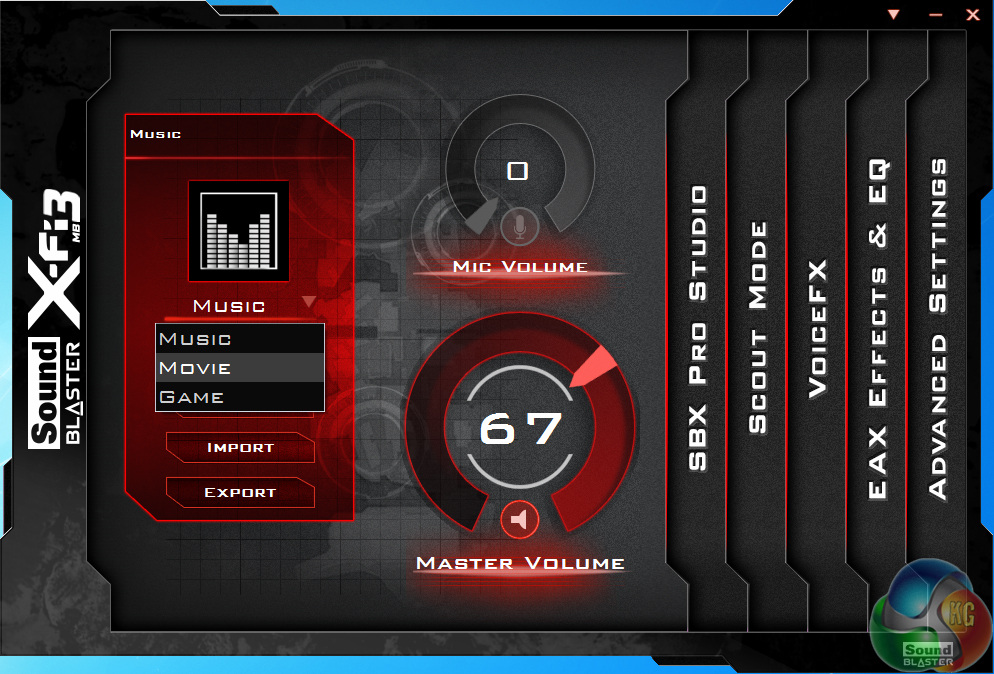
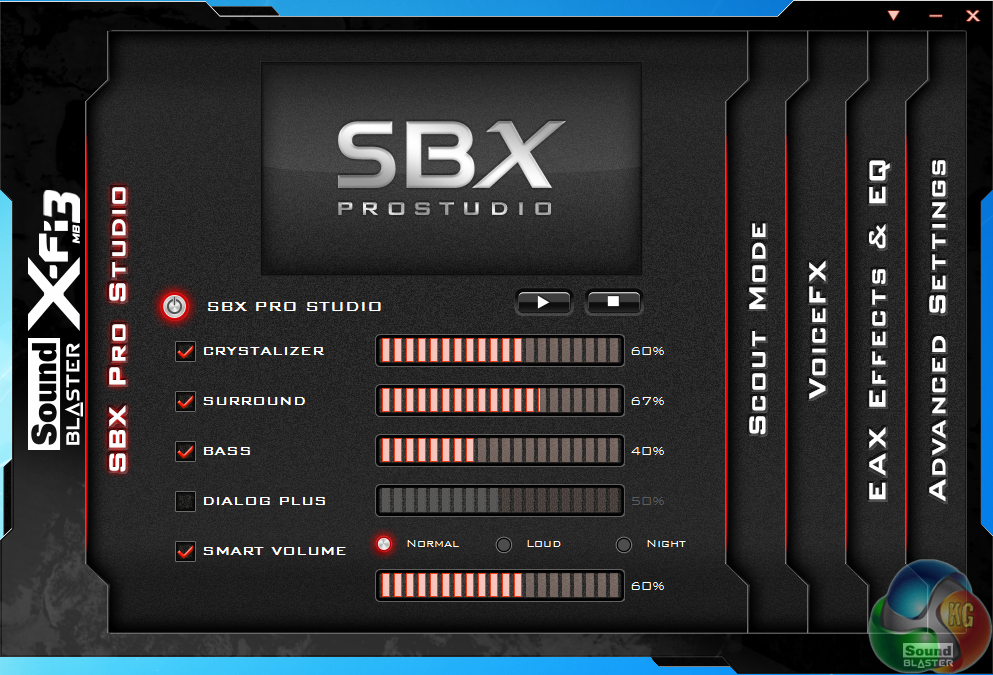
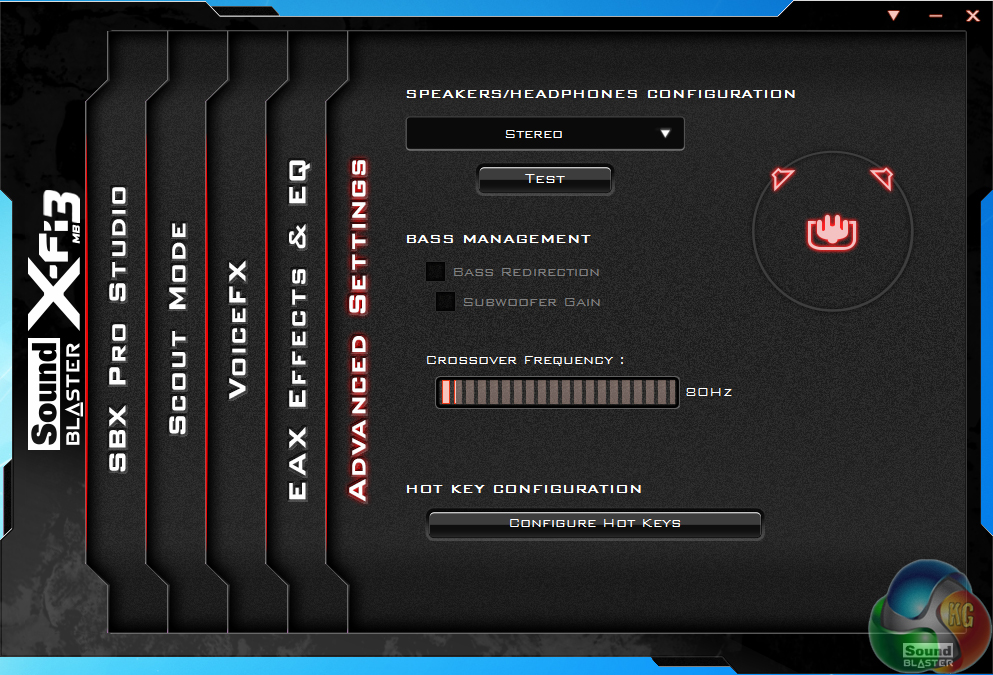
Sound Blaster X-Fi MB3 software can be used to quickly adjust audio configurations based upon the user's tasks. Different settings can be adjusted to suit one's setup and preferences.
An interesting feature is Scout Mode, which it would seem is a tool that allows the audio settings to be adjusted in order to detect the frequency of actions such as gunfire and footsteps.
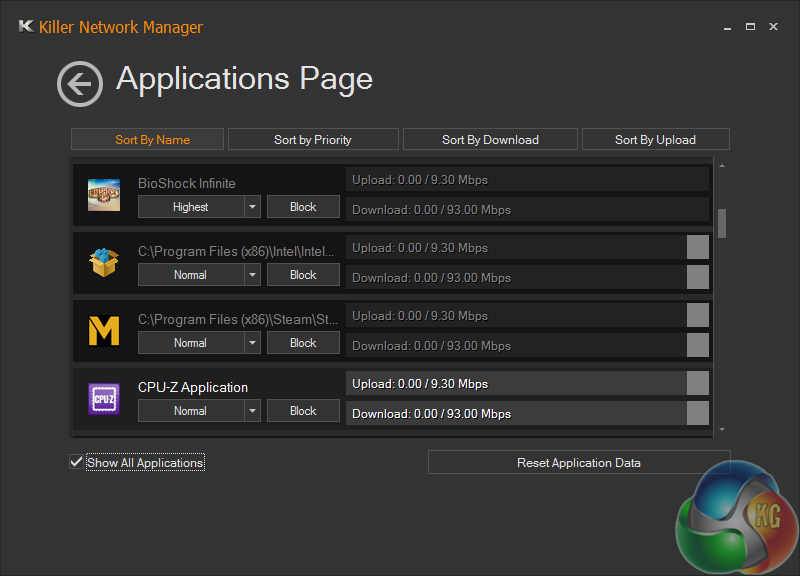
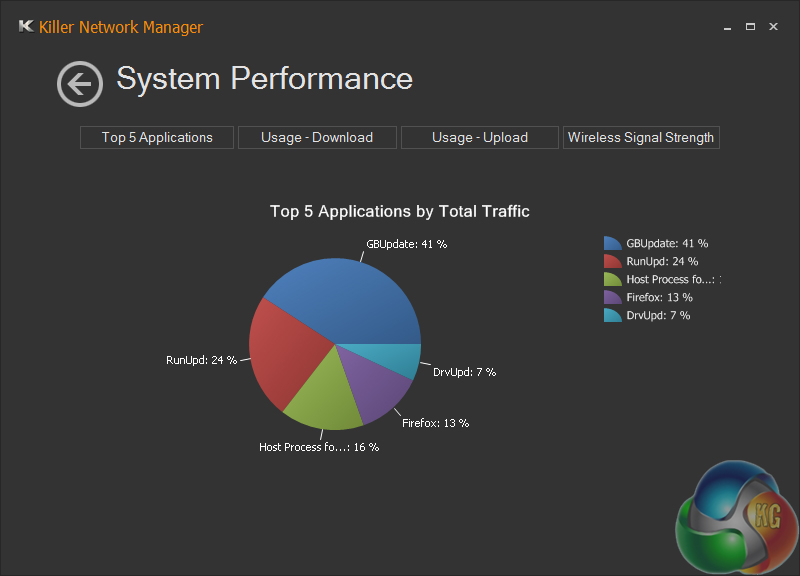
Killer Network manager is one of the key reasons that Killer’s NICs are popular choices for gaming motherboards. The software allows users to control their system’s network operations so that gaming, or other tasks, can be given priority. This can help to ensure that a sufficient level of network bandwidth is delivered where it is required.
Haswell is just the latest Intel CPU architecture to see many of the critical system operations handled by the processor. As such, benchmarking a motherboard becomes more of a test to certify that the part operates correctly and meets the anticipated performance levels.
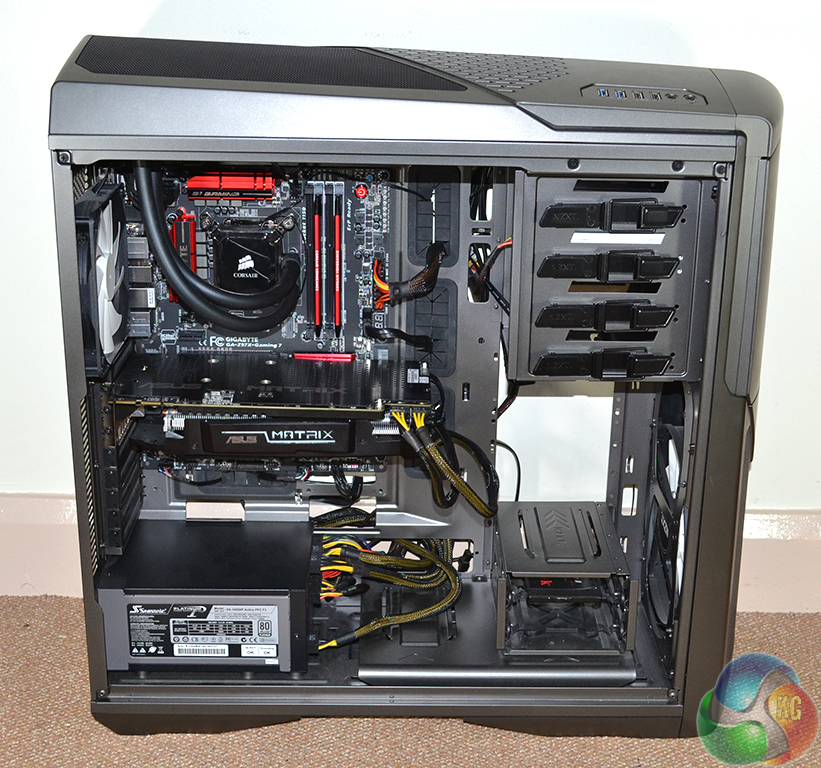
We will be outlining the Gigabyte Z97X-Gaming 7 motherboard's performance with the Core i7 4770K CPU at its stock frequency (3.9GHz due to forced turbo). Overclocked performance will be outlined later in the review.
Performance of the Gigabyte Z97X-Gaming 7 motherboard will be compared to that of four other Z97 parts. All motherboards are partnered with identical hardware and software, so the results are directly comparable.
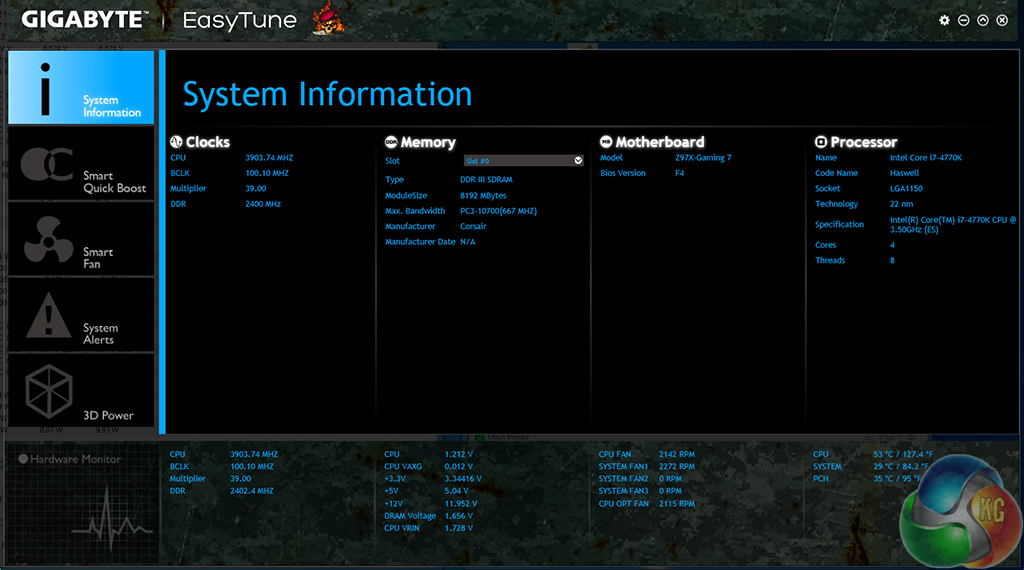
By default, the Gigabyte Z97X-Gaming 7 motherboard applies multi-core turbo (MCT) and forces the 4770K to a constant 3.9GHz when XMP is enabled. This will be displayed as the ‘stock’ setting (and outlined in the charts’ brackets after the non-turbo stock speed is displayed).
Gigabyte automatically sets the MCT VCore level at 1.20V via the UEFI (which increases to 1.212V due to loading). 1.20V seems common for a 3.9GHz 4770K and should be simple enough to tame, even for entry-level CPU coolers.
Note: CPU-Z does not read the correct CPU core voltage values from the Gigabyte Z97X-Gaming 7 motherboard. We tested HWMonitor v1.25 and found that it displayed the correct level under the CPU VCORE title. Gigabyte's EasyTune software also displayed the correct voltage levels (which were confirmed via a multimeter reading).
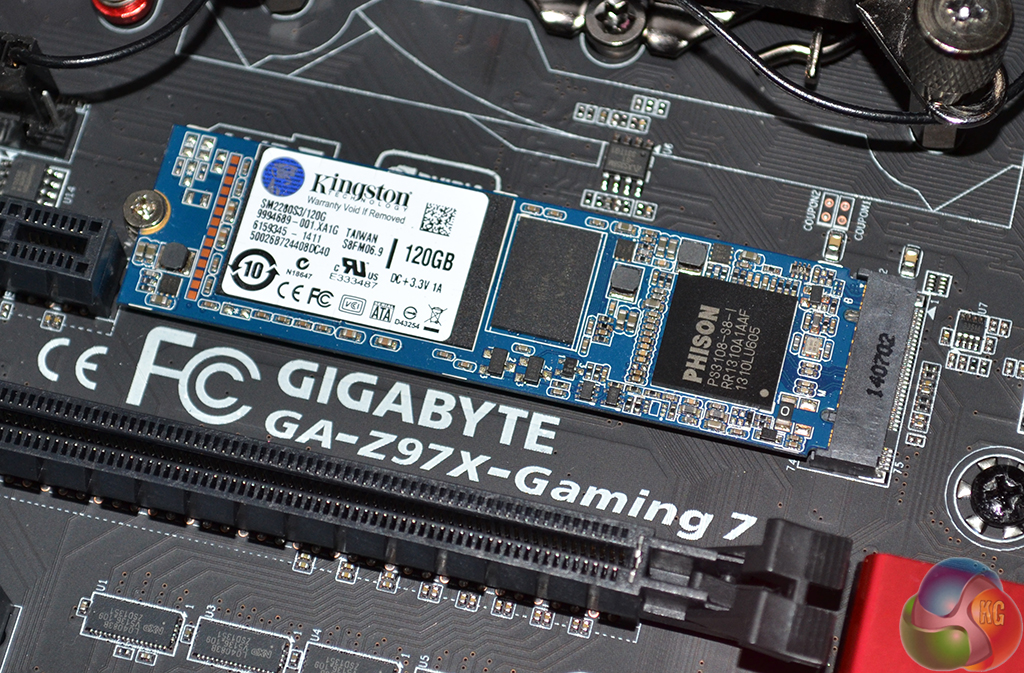
Support for the PCIe-based M.2 storage interface is one of the key features for the Z97 chipset. We use Plextor's ultra-fast M6e 256GB M.2 SSD to test the speed of a motherboard's M.2 connector. We reviewed the 512GB Plextor M6e (and its PCIe x2 adapter card) HERE.
We also use a Kingston M.2 SATA device to confirm the motherboard's operation with M.2 SATA connections.
Z97 Motherboard Test System:
- Processor: Intel Core i7 4770K Retail (3.9GHz forced turbo).
- Memory: 16GB (2x 8GB) Corsair Vengeance Pro 2400MHz CL10.
- Graphics Card: Asus R9 280X Matrix Platinum 3GB.
- System Drive: 240GB SanDisk Extreme II SSD.
- CPU Cooler: Corsair H100i.
- Case: NZXT Phantom 630.
- Power Supply: Seasonic Platinum 1000W.
- Operating System: Windows 7 Professional with SP1 64-bit.
Compared Z97 Motherboards:
- ASRock Fatal1ty Z97X Killer.
- Asus Sabertooth Z97 Mark 1.
- Gigabyte Z97X-UD5H-BK Black Edition.
- MSI Z97 Gaming 5.
Software:
- Gigabyte Z97X-Gaming 7 BIOS F4 (latest).
- Catalyst 14.4 VGA drivers.
- Intel 10.0 chipset drivers.
Tests:
- 3DMark 1.1.0 – Fire Strike (System)
- SiSoft Sandra 2014 SP2 – Processor arithmetic, memory bandwidth (System)
- Cinebench R15 – All-core CPU benchmark (CPU)
- WinRAR 5.01 – Built-in benchmark (CPU)
- HandBrake 0.9.9 – Convert 4.36GB 720P MKV to MP4 (CPU)
- ATTO – SATA 6Gbps, USB 3.0, M.2 transfer rates (Motherboard)
- RightMark Audio Analyzer – General audio performance test (Motherboard)
- Bioshock Infinite – 1920 x 1080, ultra quality (Gaming)
- Metro: Last Light – 1920 x 1080, high quality (Gaming)
- Tomb Raider – 1920 x 1080, ultimate quality (Gaming)
3DMark
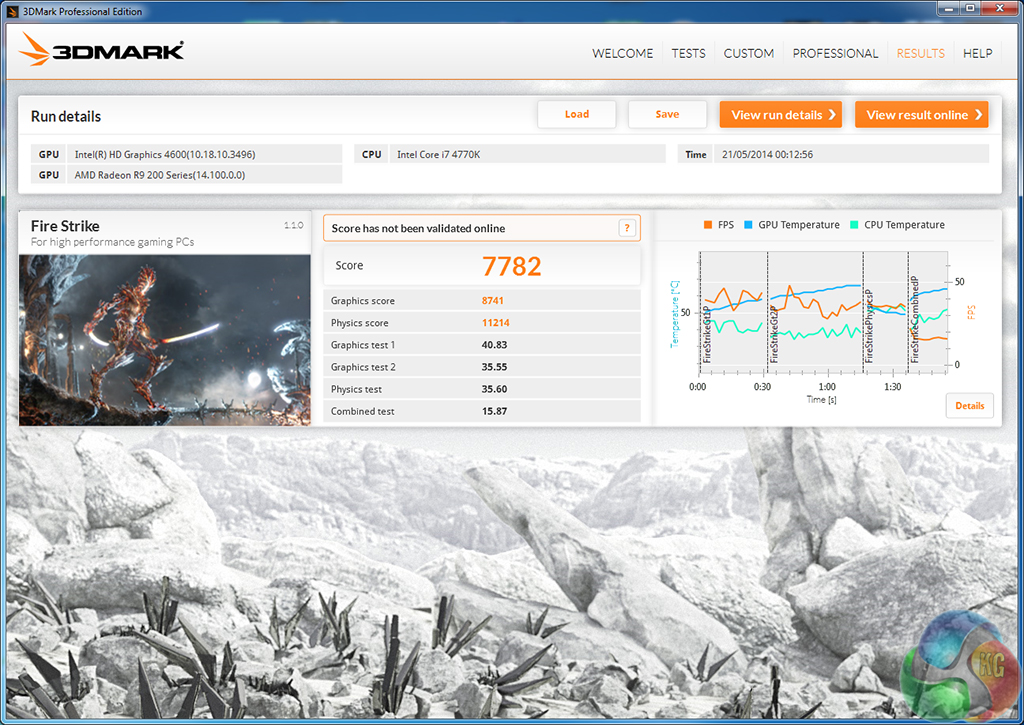
We used 3DMark‘s ‘Fire Strike’ benchmark which is designed to be used on gaming PCs. We opted for the Normal setting, NOT the Extreme mode.

Sandra Processor Arithmetic

Sandra Memory Bandwidth
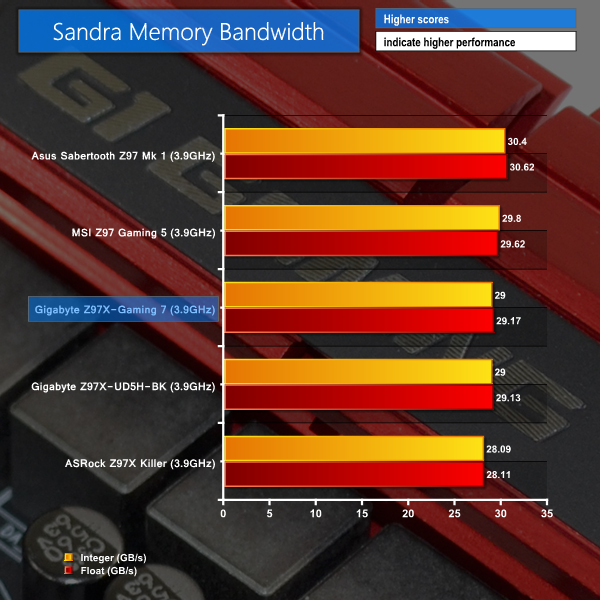

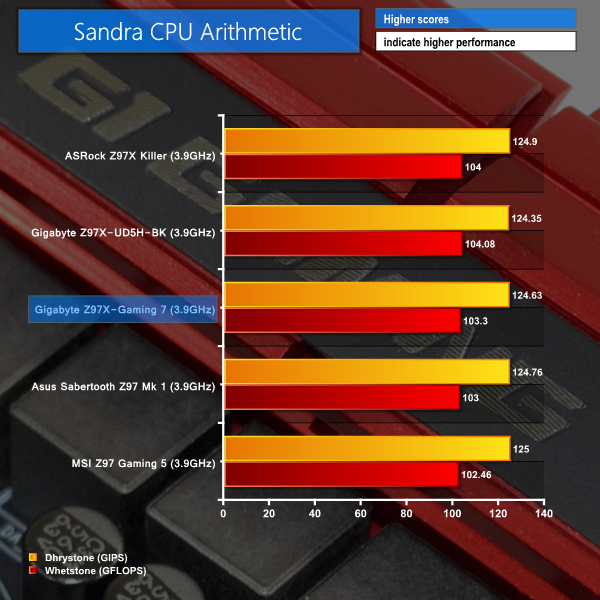
Gigabyte's Z97X-Gaming 7 fairs well in the Sandra and Futuremark benchmarks. Both Sandra tests put the board in a mid-table position when compared to current data from other Z97 motherboards.
Cinebench
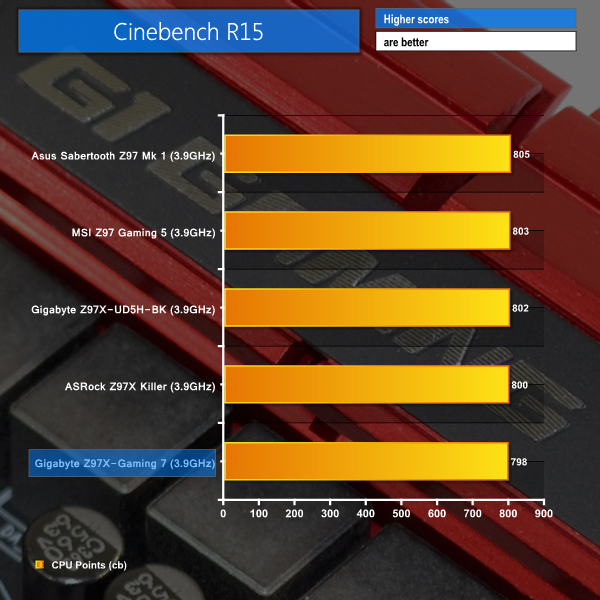
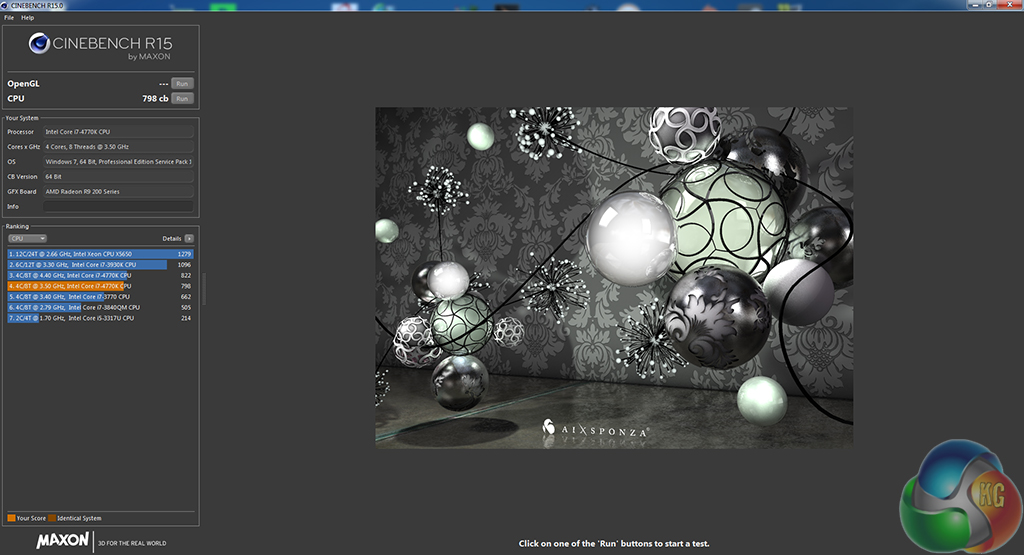
We used the ‘CPU’ test built into Cinebench R15 .
WinRAR
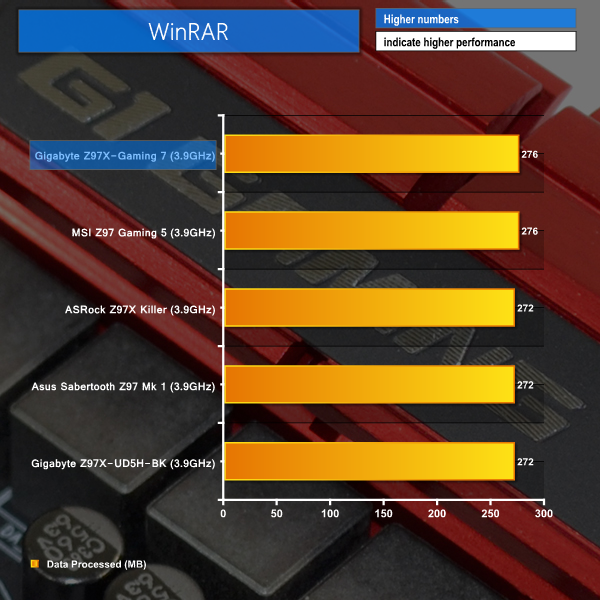
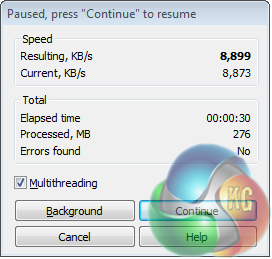
WinRAR’s built in benchmark and hardware test can help us outline the performance differentials between each motherboard. We record the amount of data processed after a 30-second run.
Handbrake Conversion
We measured the average frame rate achieved for a task of converting a 4.36GB 720P MKV movie to 720P MP4 format.
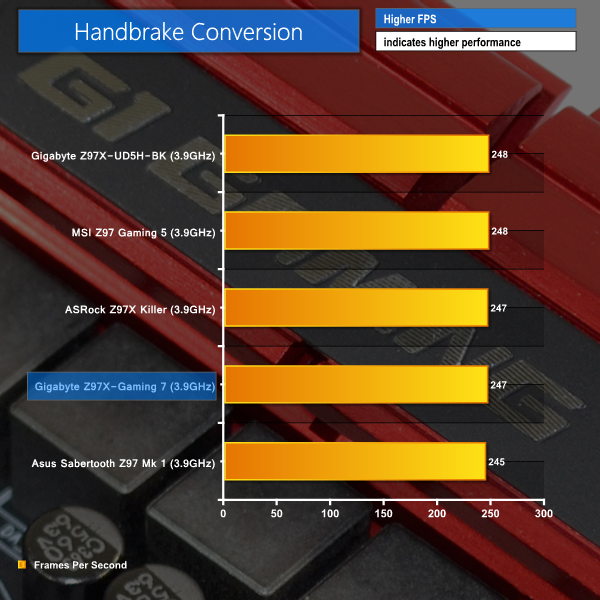
CPU-heavy tests are up-and-down on the Z97X-Gaming 7. Cinebench puts the Gigabyte board in bottom position, while the Handbrake media conversion test isn't much better.
WinRAR, however, sees the Gigabyte Z97 part sat in joint-first place. Many of these performance differences are minimalistic and are likely to be related to minor errors in the benchmarks and testing procedures; they do not highlight any cause for concern.
Bioshock Infinite
We used the Bioshock Infinite demanding ‘Ultra’ setting and a 1920 x 1080 resolution to push today’s gaming hardware. Our data was recorded using a section of the game, not the built-in benchmark.


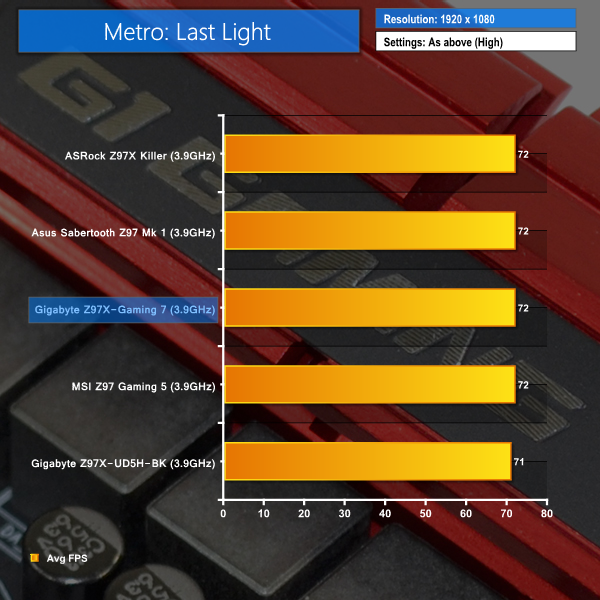
Metro: Last Light
We used a 1920 x 1080 resolution and the Metro: Last Light built-in benchmark set to ‘High’ quality to offer an intense challenge for the gaming hardware while also making playable frame rates a possibility.

Tomb Raider
We used a 1920 x 1080 resolution and the Tomb Raider built-in benchmark set to ‘Ultimate’ quality.
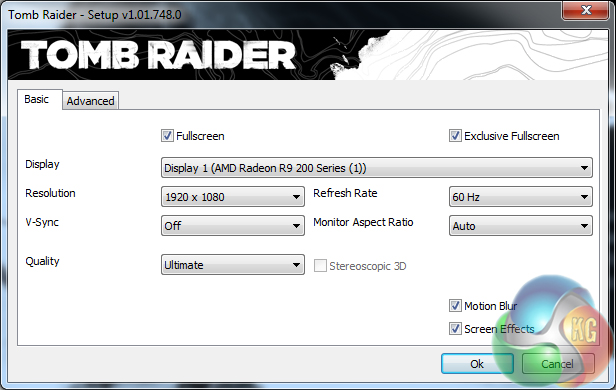
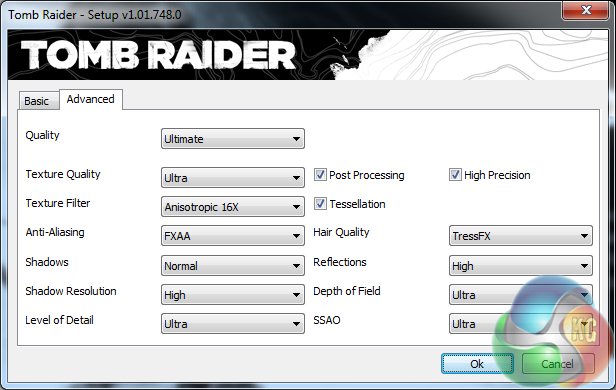
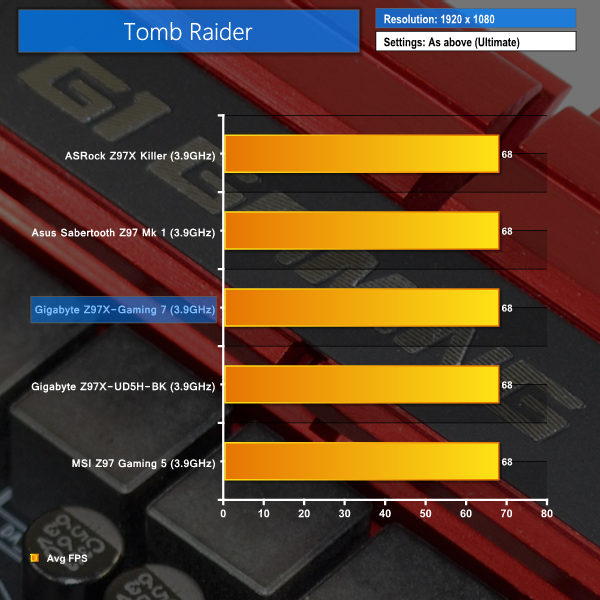
Gaming performance for the Z97X-Gaming 7 is as good as we would expect from a Z97-based motherboard. Gamers will be happy to see that Gigabyte's board is capable of running their system at full frame rates.
SATA
For SATA 6Gb/s testing we use a Kingston HyperX 3K (SandForce SF-2281) SSD.
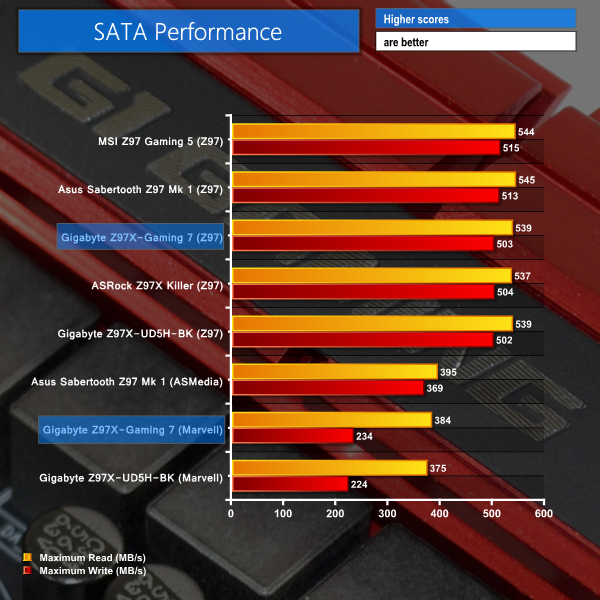
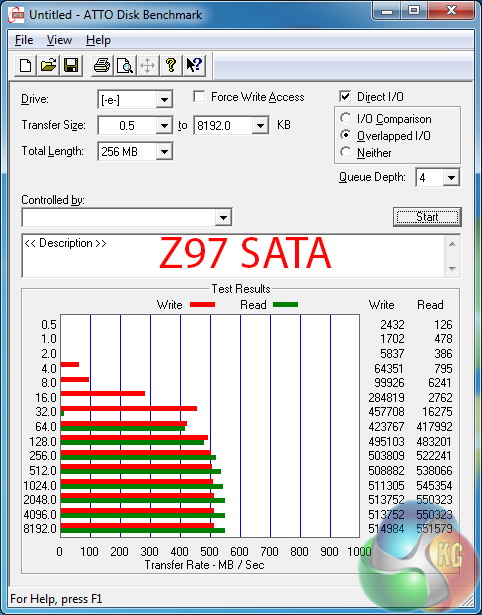
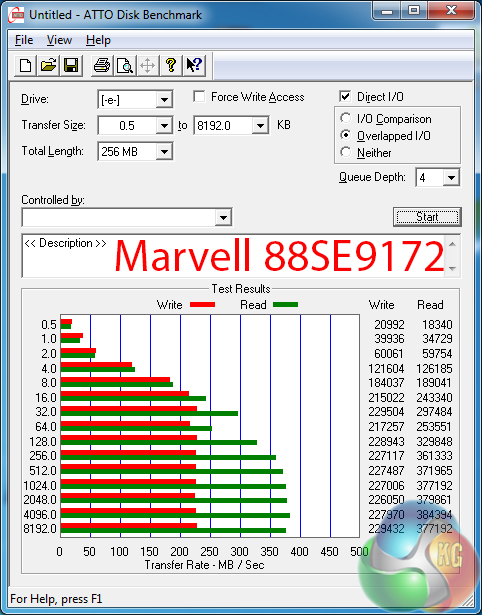
Performance of the Z97 chipset's SATA ports is competitive with other 9-series parts, as expected.
Transfer speeds of the PCIe-based Marvell storage controller are poor. ASMedia's ASM1061 competitor firmly outruns the Marvell host controller, as do the 9-series chipset-based SATA ports.
We would strongly recommend reserving the Marvell-based SATA 6Gbps ports for use with mechanical HDDs or slower solid state drives.
M.2 connector
We use Plextor‘s ultra-fast M6e 256GB M.2 SSD to test the speed of a motherboard's M.2 PCIe connection. We reviewed the 512GB Plextor M6e (and its PCIe x2 adapter card) HERE.
We also use a Kingston M.2 SATA device to confirm the motherboard's operation with M.2 SATA connections.
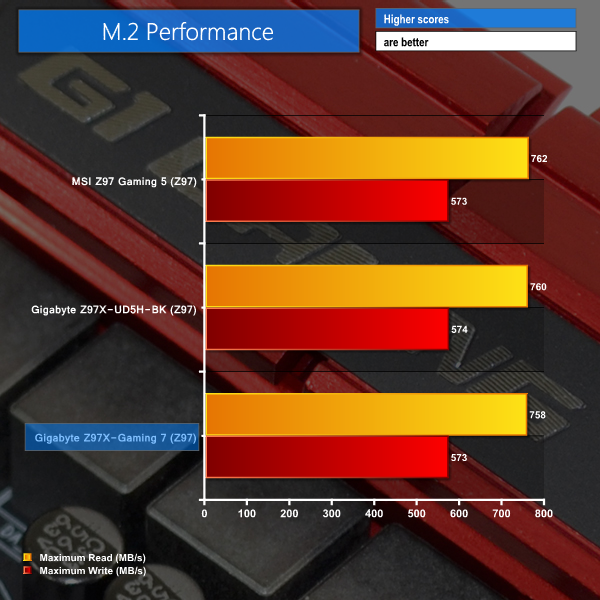
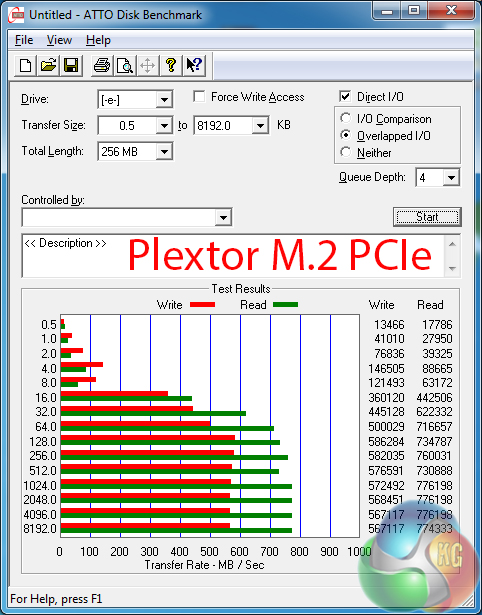
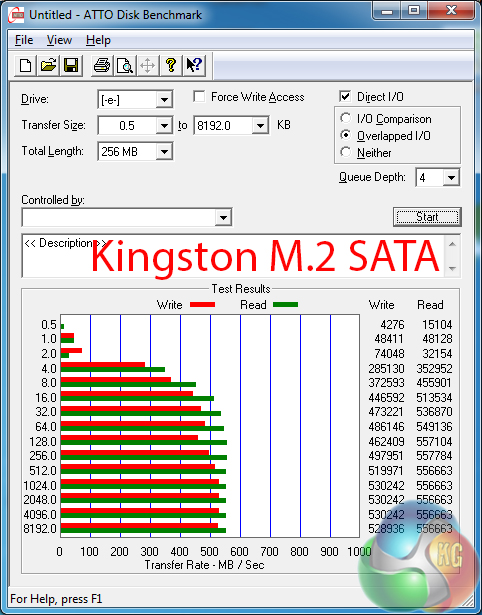
Using the same two-lane solution as many other motherboard vendors, M.2 PCIe performance on Gigabyte's Z97X-Gaming 7 is where one would expect it to be.
We can confirm that the Z97X-Gaming 7 also support M.2 SATA devices, such as Kingston's upcoming Phison-powered SSD.
USB 3.0
We tested USB 3.0 performance using the Kingston HyperX 3K SSD connected to a SATA 6Gb/s to USB 3.0 adapter powered by an ASMedia ASM1053 controller.
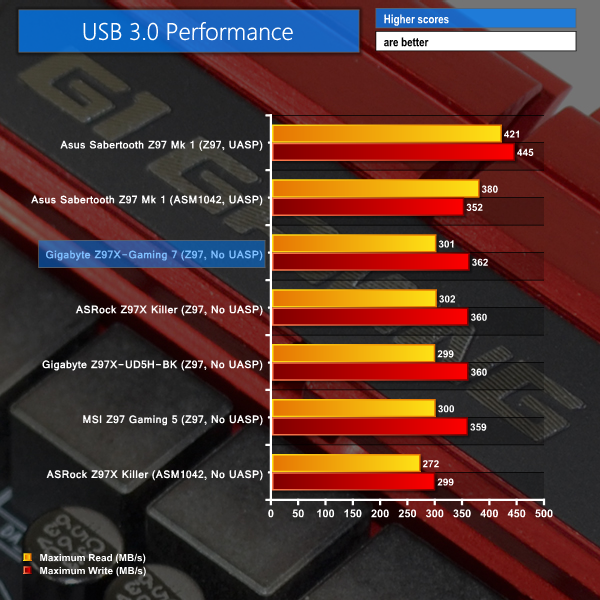
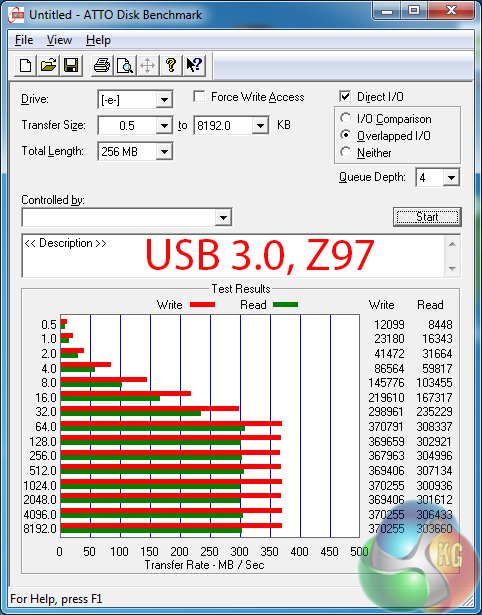
USB 3.0 transfer rates are capped at 362MBps due to Gigabyte's omission of a UASP-activating tool for Windows 7 users.
Given the Z97X-Gaming 7's target audience, the maximum transfer rate of 362MBps is likely to be sufficient, although it is still noticeably slower than the speeds registered by Asus' board with its UASP-activating software.
Audio
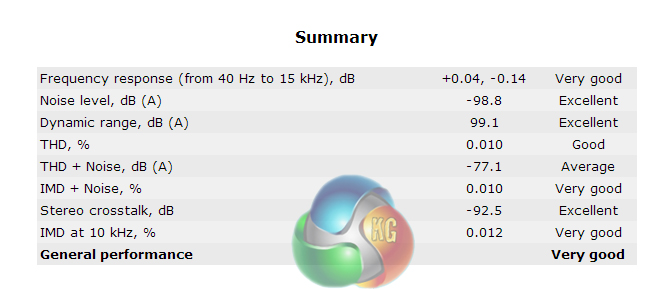
We use RightMark Audio Analyzer (RMMA) to analyse the performance of the motherboard’s onboard audio solution. A sampling mode of 24-bit, 192 kHz was tested.
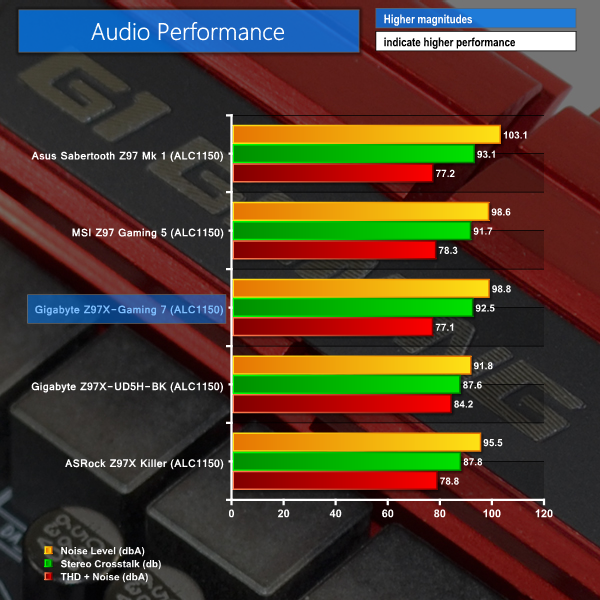
Calling it G1 Audio (with Amp-Up technology) Gigabyte outfits the Z97X-Gaming 7 motherboard with a high-end audio solution. Based around the Realtek ALC1150 codec, Nichicon capacitors help to send signals along a discrete audio pathway, through a Texas Instruments N5532 amplifier, to the gold-plated outputs.
The audio solution on Gigabyte's Z97X-Gaming 7 motherboard delivers Very Good performance, according to RMAA. Gigabyte's board seems to be particularly competitive in the stereo crosstalk department, indicating that the board's audio circuitry is doing a good job of minimising signal interference across channels.
Automatic CPU Overclocking:
Same UEFI implementation, same complaints.
I have outlined my disappointment in Gigabyte's overclocking pre-sets a number of times in the past. I first encountered the poor tuning on the company's G1.Sniper Z87 motherboard and hoped that it would be fixed for Z97. I was despaired – both the Z97X-UD5H-BK and Z97X-Gaming 7 use the same poorly tuned profiles. As I wrote in the previous reviews:
Built into Gigabyte's Z97 UEFI implementation is a parameter called ‘Performance Upgrade’. This seems to be Gigabyte’s version of automated overclocking.
Users are free to select from five profiles which are named: 20%, 40%’ 60%, 80%, and 100%. Oddly enough, the number values mean nothing. The profile names do little more than confuse a user away from applying the profile in fear for their chip’s life – 100% would be a huge overclock.
We recorded the profile settings to be configured as follows:
- 20% gives a CPU frequency of 4.30GHz with a VCore of around 1.40V and DRAM speed of 1600MHz.
- 40% gives a CPU frequency of 4.40GHz with a VCore of around 1.40V and DRAM speed of 1600MHz.
- 60% gives a CPU frequency of 4.50GHz with a VCore of around 1.40V and DRAM speed of 1866MHz.
- 80% gives a CPU frequency of 4.60GHz with a VCore of around 1.355V and DRAM speed of 1866MHz.
- 100% gives a CPU frequency of 4.70GHz with a VCore of around 1.42V and DRAM speed of 2133MHz.
It doesn't take an experienced overclocker to realise that 1.40V is past the boundary that most people consider safe for processor longevity. The profiles use needlessly high voltage levels (with the exception of the 80% profile which is actually fairly well-optimised) that many people's coolers will be unable to tame.
Gigabyte's ‘CPU Upgrade' automated overclocking profiles use an equally worrying 1.40V CPU voltage level, as do the settings applied via the OS-based EasyTune software. Gigabyte needs to fix these profiles soon or simply admit that its boards do not feature pre-defined overclocking parameters that the vast majority of users will feel safe operating.
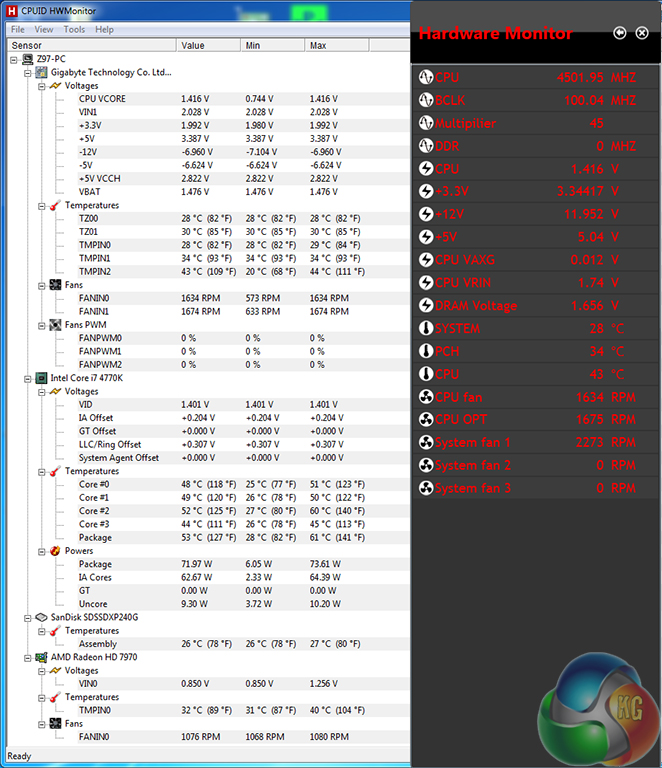
Windows readings and those conducted via a multimeter confirmed that the voltage levels were even higher than the already-worrying 1.40V level. I would strongly advise against using the automated overclocking profiles unless you own a strong custom water-cooling loop (in which case you'd probably know how to manually overclock a CPU) or do not care for the life of your processor.
We cannot comment on the voltage levels with other CPUs (namely the 4670K) installed as we only have a single 4770K chip at hand. Nevertheless, Gigabyte needs to update the pre-tuned overclocking profiles.
With all that feedback provided, perspective has to play a part in the analysis of this motherboard. We would wager that most of the folks buying an upmarket board like the Z97X-Gaming 7 will be knowledgeable enough to overclock their CPU manually.
As such, the automated overclocking issues aren't as much of a problem on the Z97X-Gaming 7 as they would be on a more entry-level part (with a less overclocking-knowledgeable target audience).
Manual CPU Overclocking:
To test the Gigabyte Z97X-Gaming 7 motherboard’s CPU overclocking potential, we first increased the CPU VCore to 1.325V, CPU Ring (Cache) voltage to 1.275V, and CPU Input Voltage to 1.900V. The CPU Ring ratio was set to 39x.
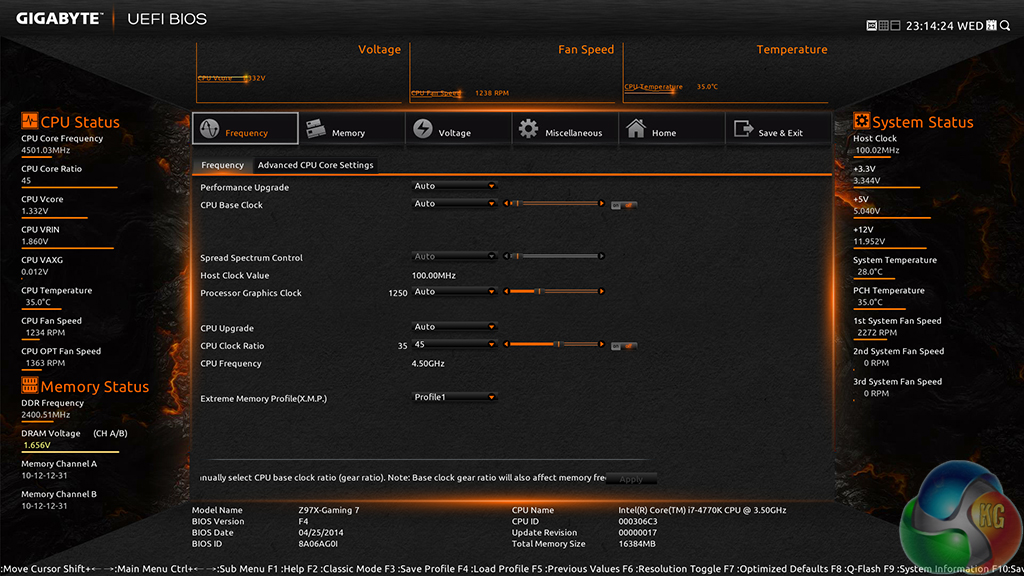
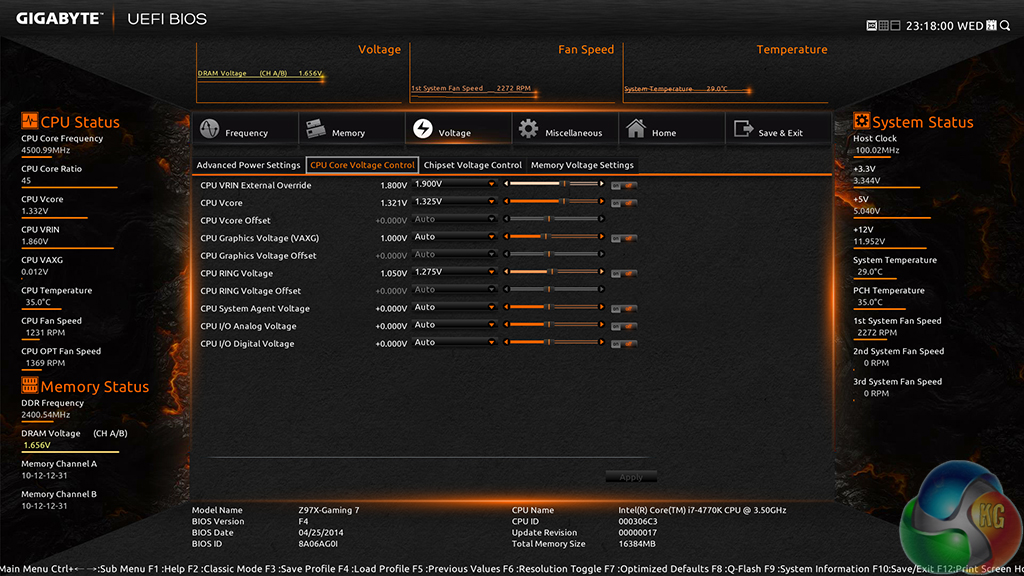
Despite applying our settings in the UEFI, Gigabyte's board refused to correctly display the voltage levels we input. A similar fact was experienced with the company's Z97X-UD5H-BK motherboard, indicating that it's the UEFI that is preventing the selected voltage levels from being displayed. Thinking that this may just being a reading glitch in the software, we booted the system and physically checked the voltage readings with a multimeter.
The multimeter readings confirmed that the Gigabyte board was not applying one of the voltage levels that we had selected. We opted for 1.90V CPU Input voltage but only 1.838V was provided under load (1.90V wasn't even reached while idling). The CPU Ring voltage was operating near our selected setting (irrelevant of what the UEFI displayed). CPU voltage peaked at 1.344V which is a fair overshoot for a 1.325V selection.
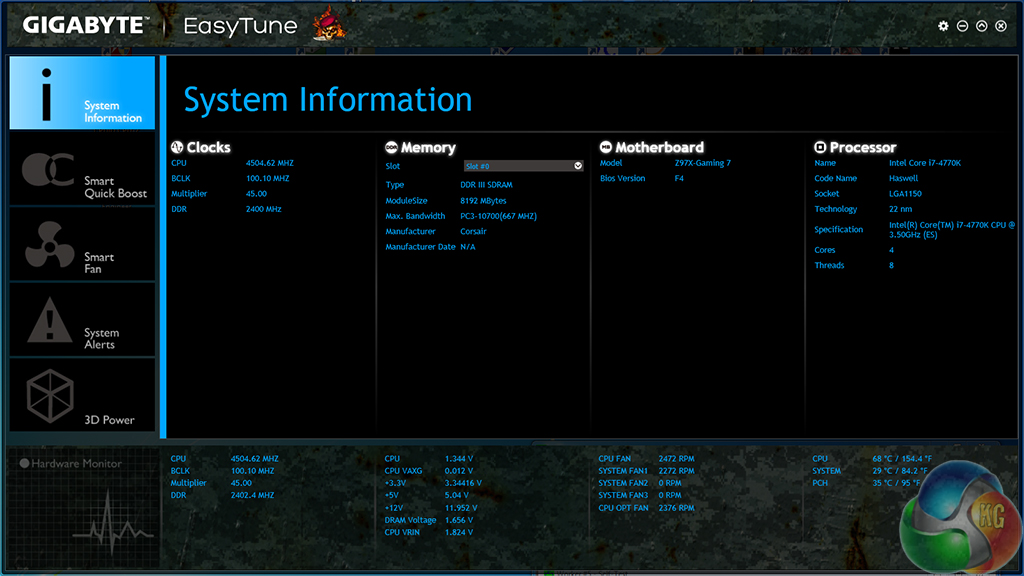
As we have already pointed out, CPU-Z does not display the relevant CPU voltage so we would recommend using the latest version of HW Monitor or Gigabyte's EasyTune utility.
Our processor's limit of 4.5GHz was hit with ease. We tried for a higher overclock, but as is always the case, our attempts were quickly foiled by a BSOD.
We will outline the performance increases that can be obtained from using the Gigabyte Z97X-Gaming 7 motherboard to overclock our system. Our overclocked processor frequency was 4.5GHz and memory speed was 2400MHz.
As a performance comparison, we have included the overclocked results from four other Z97 motherboards. The maximum overclocked configuration achieved with each board was a 4500MHz (45 x 100MHz) processor frequency and 2400MHz CL10 memory speed.
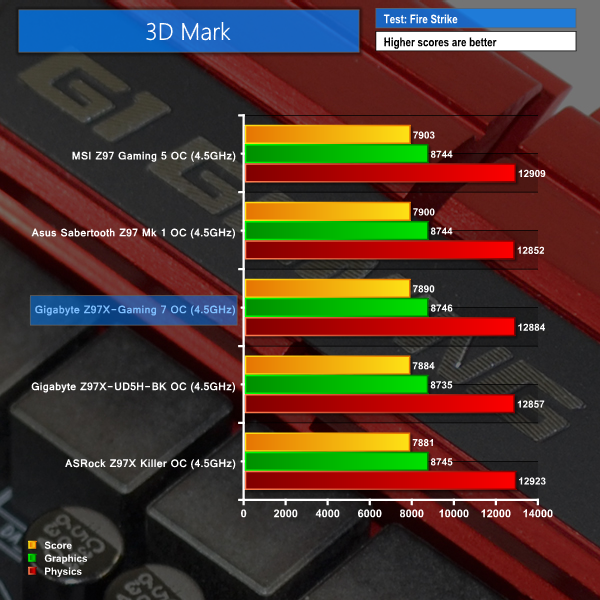
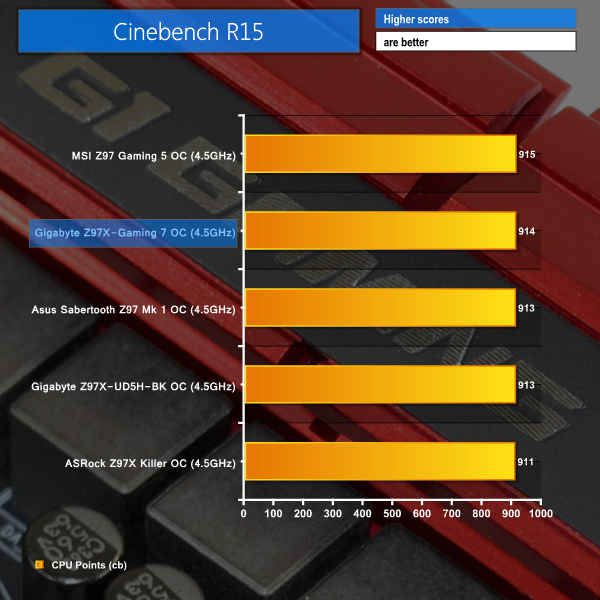
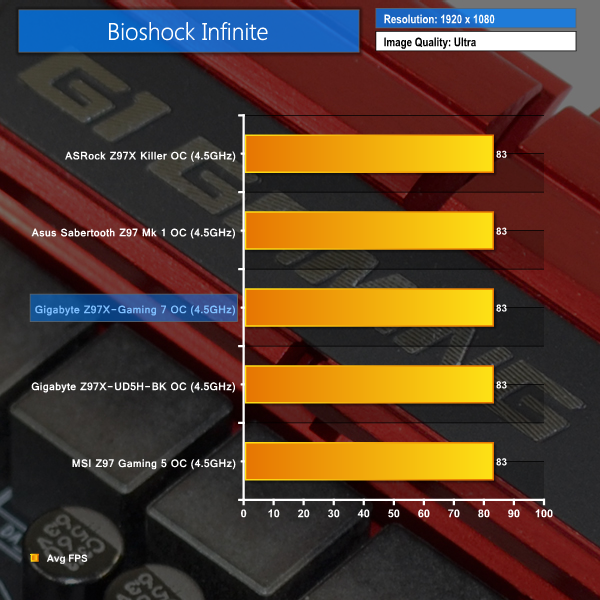
Gigabyte's Z97X-Gaming 7 motherboard shows solid overall performance when overclocked. None of the results raise any questions therefore users should feel confident that the Z97X-Gaming 7 can endorse their overclocking requirements with solid performance.
We measured the power consumption with the system resting at the Windows 7 desktop, representing idle values.
The power consumption of our entire test system (at the wall) is measured while loading only the CPU using Prime95′s in-place large FFTs setting. The rest of the system’s components were operating in their idle states, hence the increased power consumption values (in comparison to the idle figures) are largely related to the load on the CPU and motherboard power delivery components.
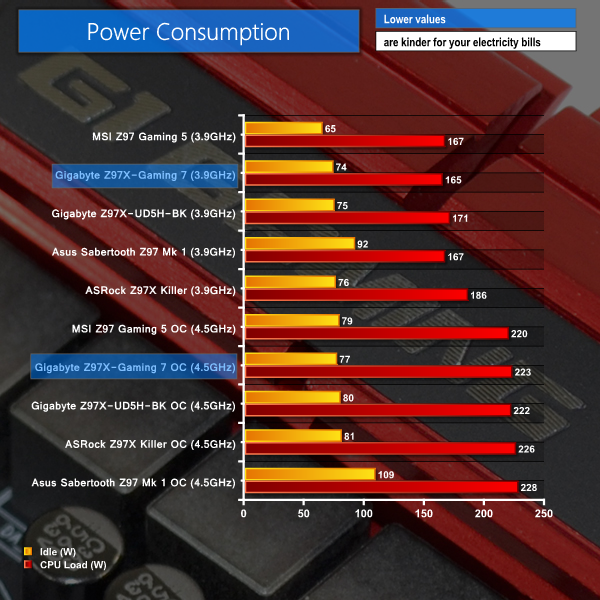
Despite featuring an add-on SATA chipset and a Killer E2201 NIC, Gigabyte's Z97X-Gaming 7 motherboard displays pleasing power consumption numbers. Only MSI's Z97 Gaming 5 can provide lower power draw, thanks to its limited operation of add-on controllers.
The Gigabyte Z97X-Gaming 7 is a feature-rich gaming motherboard that presents strong performance beneath its red and black colours.
Performance of the Z97X-Gaming 7 is comparable to that of other Z97-based motherboards. Overclocking results were equally successful, with Gigabyte's part taking our 4770K to its 4.5GHz limit.
Feature-wise, the Z97X-Gaming 7 delivers as much as you'd want from a sub-£140 gaming motherboard. There's Killer's E2201 NIC with its network management software, a beefed-up audio solution based around the ALC1150 codec, and wise spacing for two or three graphics cards.
Layout of the motherboard is sensible and performance of the storage interfaces is positive. There is the exception that is Marvell's 88SE9172 SATA 6Gbps controller which delivers disappointing throughput numbers. Thankfully the Z97X-Gaming 7 provides 10Gbps M.2 and SATA Express connectors for high-speed duties.
In terms of appearance, Gigabyte has opted for the tried-and-tested red and black colour scheme. There's nothing wrong with Gigabyte's styling; looks for the Z97X-Gaming 7 are right up there with those of competing parts. We (and many others) just cannot help but miss the unique green and black scheme.
Yes, the green and black was certainly a hate-it-or-love-it concoction, but it was also something that nobody else had (or has to this date). I can understand the philosophy of red and black appealing to a greater audience, but I also hope that Gigabyte re-employs the unique colours that made its G1 series of motherboard so well-known on at least one of its future board lines.
Then we come to the UEFI implementation. We can't complain about the number of features provided in Gigabyte's UEFI, and its 1920×1080 resolution allows plenty of information to be displayed at once. Dual BIOS chips for redundancy is a positive, as are the customisable visual appearance and legacy mode.
But the layout still needs improvement. Navigating the various menus and sub-menus feels a little too confusing on times, and many of the parameters cause needless clutter by being repeated multiple times. Noticing that your fine-tuned overclocking profile has been inadvertently overwritten won't be pleasant, either. And the pre-defined overclocking profiles are terrible.
Priced at £139.99 from Overclockers UK, the Gigabyte Z97X-Gaming 7 competes directly with MSI's Z97 Gaming 7. Asus' Maximus VII Ranger and the ASRock Fatal1ty Z97X Killer are both within £10-15 of the Gigabyte board. I keep repeating myself, but competition in the sub-£150 gaming motherboard market is ultra-fierce.
Discuss on our Facebook page, over HERE.
Pros:
- Strong set of gaming-orientated features – Killer E2201 NIC, G1 Audio, Multi-VGA support.
- M.2 and SATA Express connectors.
- Dual BIOS chips for redundancy.
- Onboard buttons, switches, and voltage reading points are good for testing/troubleshooting.
- PCI slot may be critical for some users.
- Good layout decisions – plenty of fan headers, accessible M.2 slot, right-angled SATA power connector.
- 4-year warranty upon registration.
Cons:
- UEFI could still benefit from some layout improvements and minor fixes.
- Marvell SATA 6Gbps ports are slower than alternatives.
- The unique green and black colour scheme is gone (although this is a subjective point).
KitGuru says: The Gigabyte Z97X-Gaming 7 does have some negative aspects that prevent it from being a clear-cut winner at its price point, but it also has a range of worthwhile features that make it a smart purchase for the foundation of a strong gaming system.

Gigabyte used to be a leader, and I still love their products, but what is with this red and black on every product? These are traditionally ASUS ROG colours, which even MSI are copying now. I want oranges/greens etc like Z87. Its a huge loss for me and im very disappointed to see this.
Great product and well priced. I want it in green too. Sounds like such a minor point, but im a Gigabyte purist and I dont want another red and black board. What is going on!
ASUS must be loving this. MSI copied their ROG colours and now Gigabyte. I suppose you could say the colours don’t matter, but every company has a certain colour scheme which their fans end up liking over the years.
Z97 has not impressed me so far, no new processors , apart from locked nonsense and all the companies have decided to make their products look identical.
Im waiting until later this year as I want to build a new system in my green Nvidia branded case. I dont want fu&king red and black to clash with all the rest of my components and my liquid in the water cooler.
Wow every forum and page I go to, has people complaining about red and black boards from Gigabyte. Who cares what colour a board is? all this colour coordinating crap is for women. matching shoes etc!
Its a great looking board, but I am waiting for this platform to settle a little and to work out if the upcoming K processors are worth a pitch.
Another great review from Luke. thanks. I am curious Luke – which is your favourite Z97 board to this point? Id like to see a review of a sniper – hopefully they make that with green heatsinks. I like to colour coordinate my system too. Seems everyone who doesnt own a red or black case is screwed with Z97.
Ga- Ζ97p-D3 are better from all ther “yellow series” Mothrboards!
I have use almost all except by one and im 99% is better in many ways working better in all works u wan’t to do with CPU,Best O.C,Sound (gigabybite maybe can do it better for this but is great like this anyway, Is Faster & Many More… And the very best is cheap right now 🙂
Sorry if i dont for my bad english but this is my oppinion and for my Store ppl say this and sell it more from others “in yellow series always” !
Very nice post thank you very mych!!!